Inspira Technologies A750 Tablet PC User Manual part 2

Inspira Technologies LLC Tablet PC part 2

Contents

User manual part 2

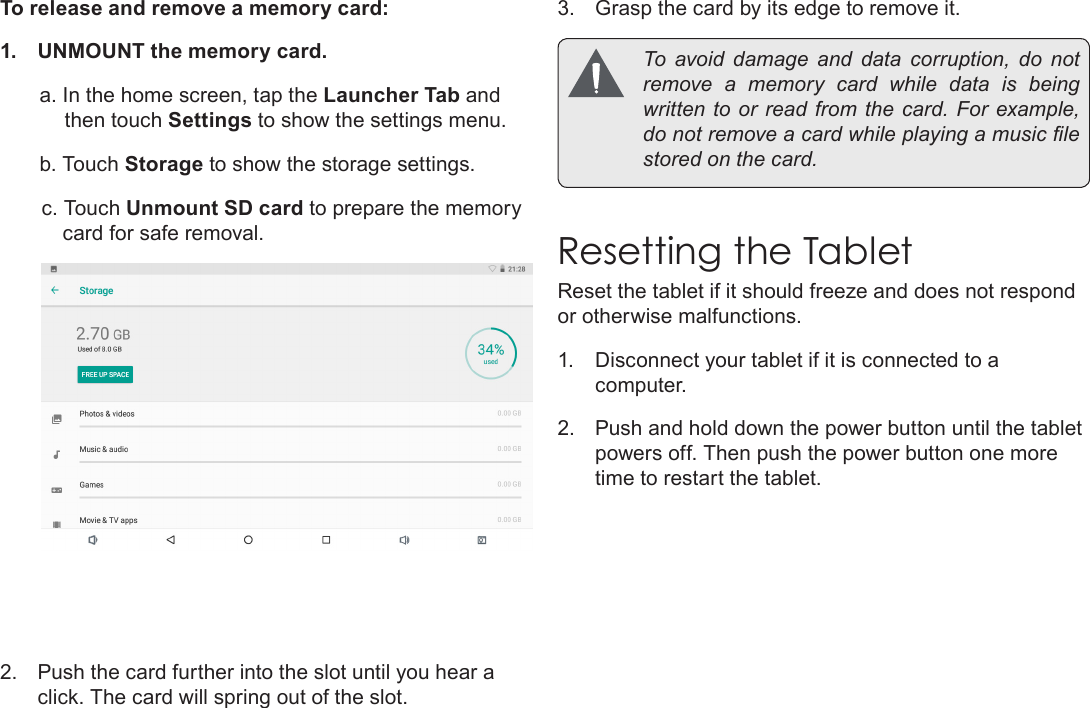
Page 11  Getting To Know The Internet TabletEnglishTo release and remove a memory card:1.  UNMOUNT the memory card.a. In the home screen, tap the Launcher Tab and then touch Settings to show the settings menu.b. Touch Storage to show the storage settings.c. Touch Unmount SD card to prepare the memory card for safe removal. 2.  Push the card further into the slot until you hear a click. The card will spring out of the slot.3.  Grasp the card by its edge to remove it.  To  avoid  damage  and  data  corruption,  do  not remove a memory card while data is being written to or  read from the card. For example, do not remove a card while playing a music le stored on the card.Resetting the TabletReset the tablet if it should freeze and does not respond or otherwise malfunctions.1.  Disconnect your tablet if it is connected to a computer. 2.  Push and hold down the power button until the tablet powers off. Then push the power button one more time to restart the tablet.
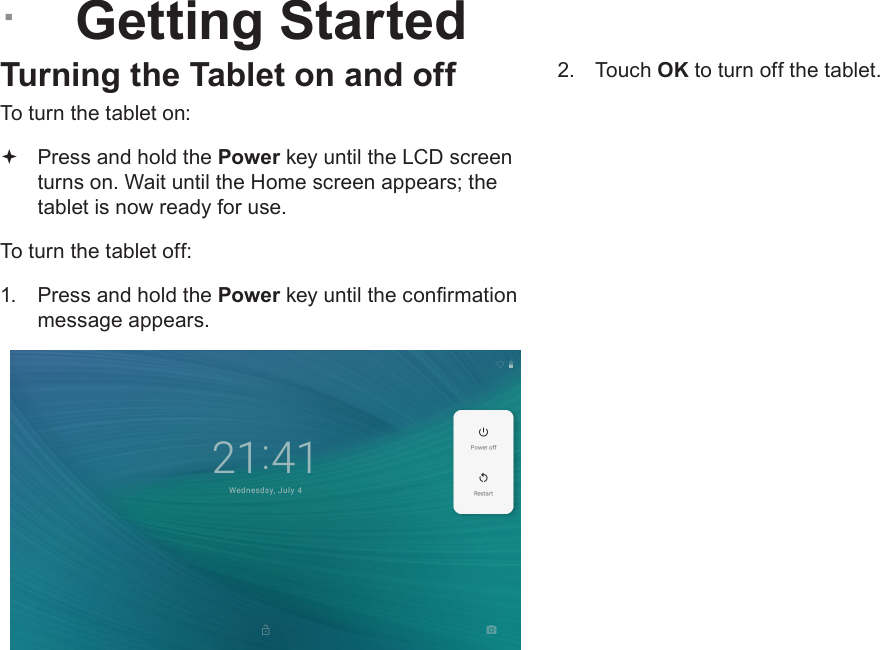
Page 12  Getting StartedEnglish ÂGetting StartedTurning the Tablet on and off To turn the tablet on: Press and hold the Power key until the LCD screen turns on. Wait until the Home screen appears; the tablet is now ready for use.To turn the tablet off:1.  Press and hold the Power key until the conrmation message appears.2.  Touch OK to turn off the tablet.
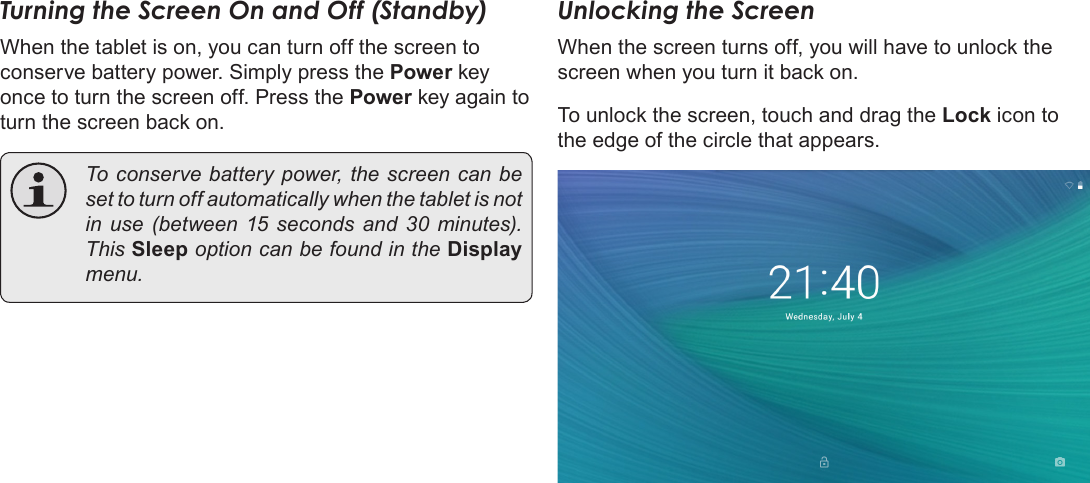
Page 13  Getting StartedEnglishTurning the Screen On and Off (Standby) When the tablet is on, you can turn off the screen to conserve battery power. Simply press the Power key once to turn the screen off. Press the Power key again to turn the screen back on.  To conserve battery power, the screen can be set to turn off automatically when the tablet is not in use (between 15 seconds and 30 minutes). This Sleep option can be found in the Display menu.Unlocking the ScreenWhen the screen turns off, you will have to unlock the screen when you turn it back on. To unlock the screen, touch and drag the Lock icon to the edge of the circle that appears.
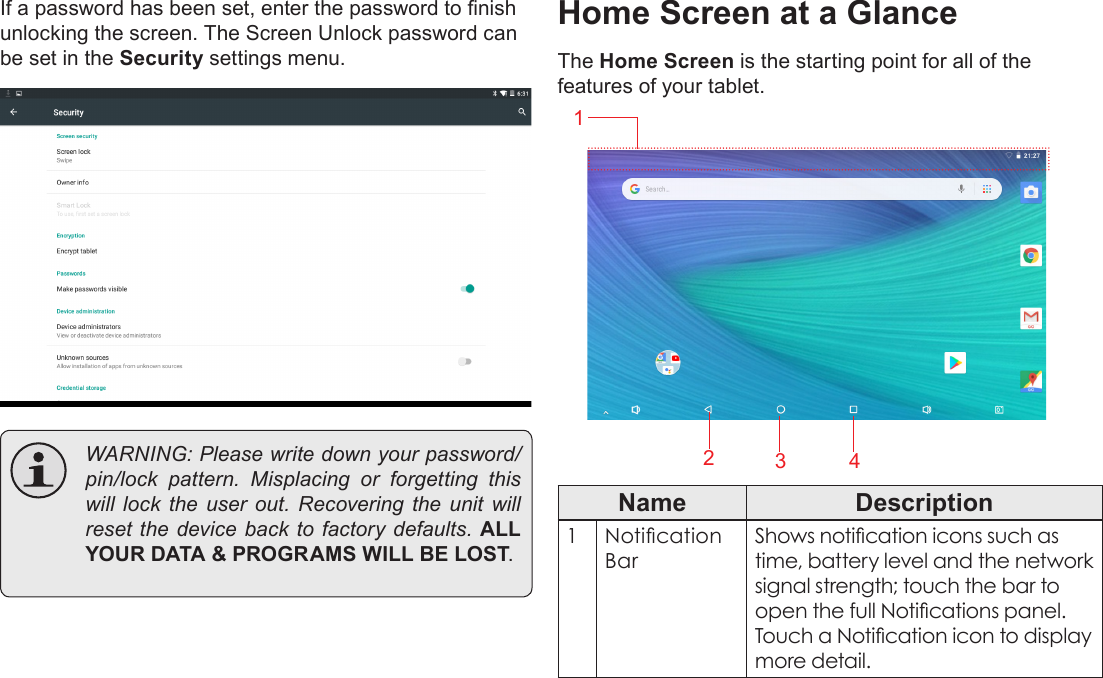
Page 14  Getting StartedEnglishIf a password has been set, enter the password to nish unlocking the screen. The Screen Unlock password can be set in the Security settings menu.  WARNING: Please write down your password/pin/lock  pattern.  Misplacing  or  forgetting  this will lock the user out. Recovering the unit will reset the device back to factory defaults. ALL YOUR DATA & PROGRAMS WILL BE LOST.Home Screen at a GlanceThe Home Screen is the starting point for all of the features of your tablet.65712348Name Description1Notication BarShows notication icons such as time, battery level and the network signal strength; touch the bar to open the full Notications panel. Touch a Notication icon to display more detail. 213 4
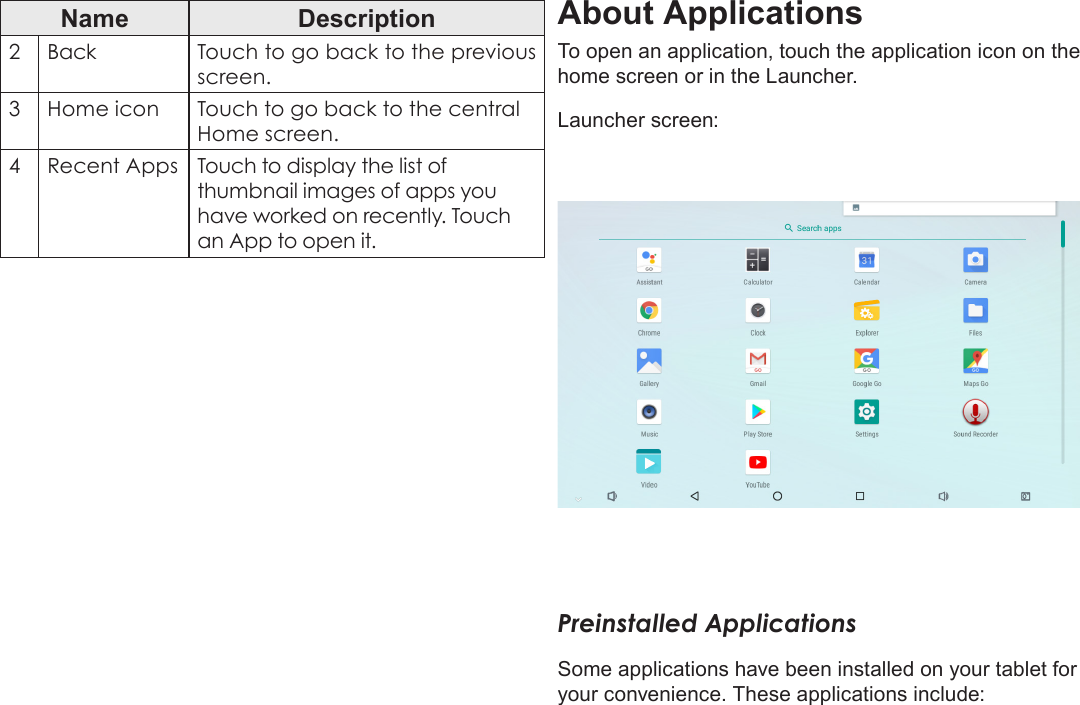
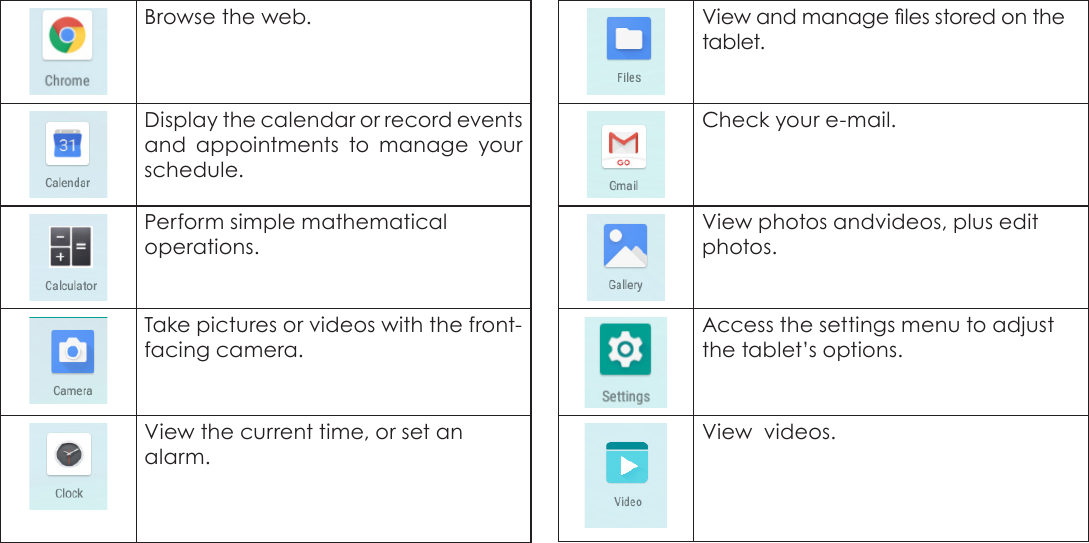
Page 15  Getting StartedEnglishName Description2Back Touch to go back to the previous screen.3Home icon Touch to go back to the central Home screen.4Recent Apps Touch to display the list of thumbnail images of apps you have worked on recently. Touch an App to open it.About ApplicationsTo open an application, touch the application icon on the home screen or in the Launcher.Launcher screen:Preinstalled ApplicationsSome applications have been installed on your tablet for your convenience. These applications include:
Page 16  Getting StartedEnglishBrowse the web.Display the calendar or record events and appointments to manage your schedule.Perform simple mathematical operations.Take pictures or videos with the front-facing camera.View the current time, or set an alarm.View and manage les stored on the tablet.Check your e-mail.View photos andvideos, plus edit photos.Access the settings menu to adjust the tablet’s options.View  videos.
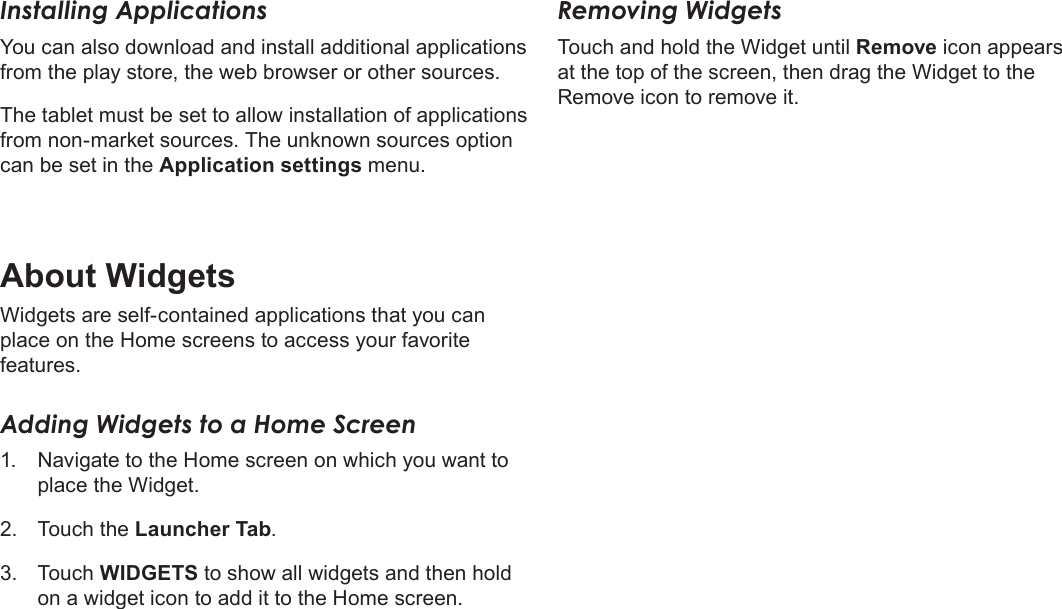
Page 17  Getting StartedEnglishInstalling ApplicationsYou can also download and install additional applications from the play store, the web browser or other sources.The tablet must be set to allow installation of applications from non-market sources. The unknown sources option can be set in the Application settings menu.About WidgetsWidgets are self-contained applications that you can place on the Home screens to access your favorite features.Adding Widgets to a Home Screen1.  Navigate to the Home screen on which you want to place the Widget.2.  Touch the Launcher Tab.3.  Touch WIDGETS to show all widgets and then hold on a widget icon to add it to the Home screen.Removing WidgetsTouch and hold the Widget until Remove icon appears at the top of the screen, then drag the Widget to the Remove icon to remove it.
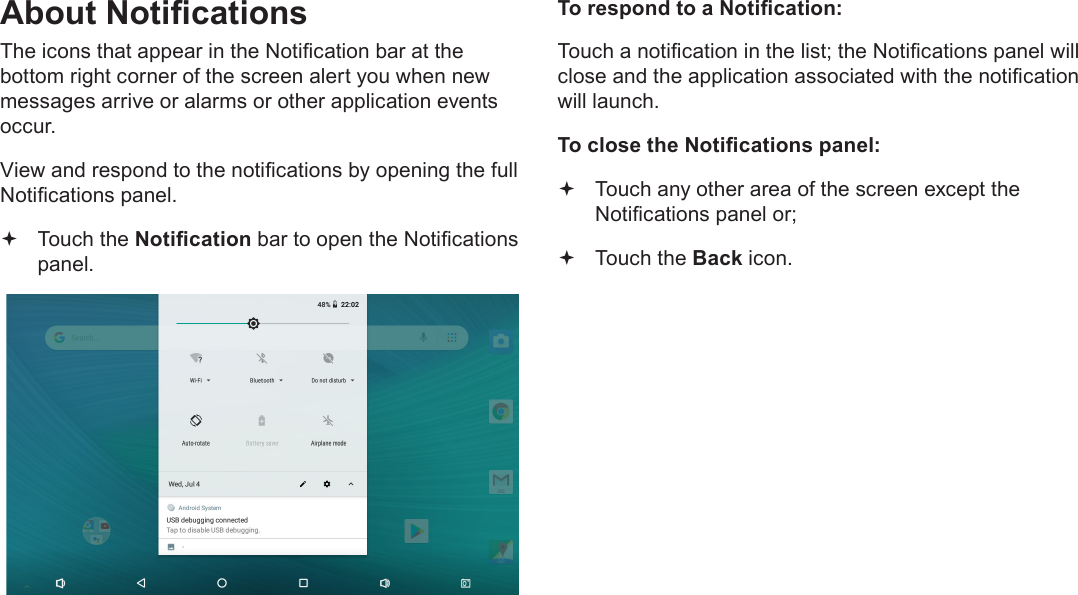
Page 18  Getting StartedEnglishAbout NoticationsThe icons that appear in the Notication bar at the bottom right corner of the screen alert you when new messages arrive or alarms or other application events occur.View and respond to the notications by opening the full Notications panel. Touch the Notication bar to open the Notications panel.To respond to a Notication:Touch a notication in the list; the Notications panel will close and the application associated with the notication will launch.To close the Notications panel: Touch any other area of the screen except the Notications panel or; Touch the Back icon.
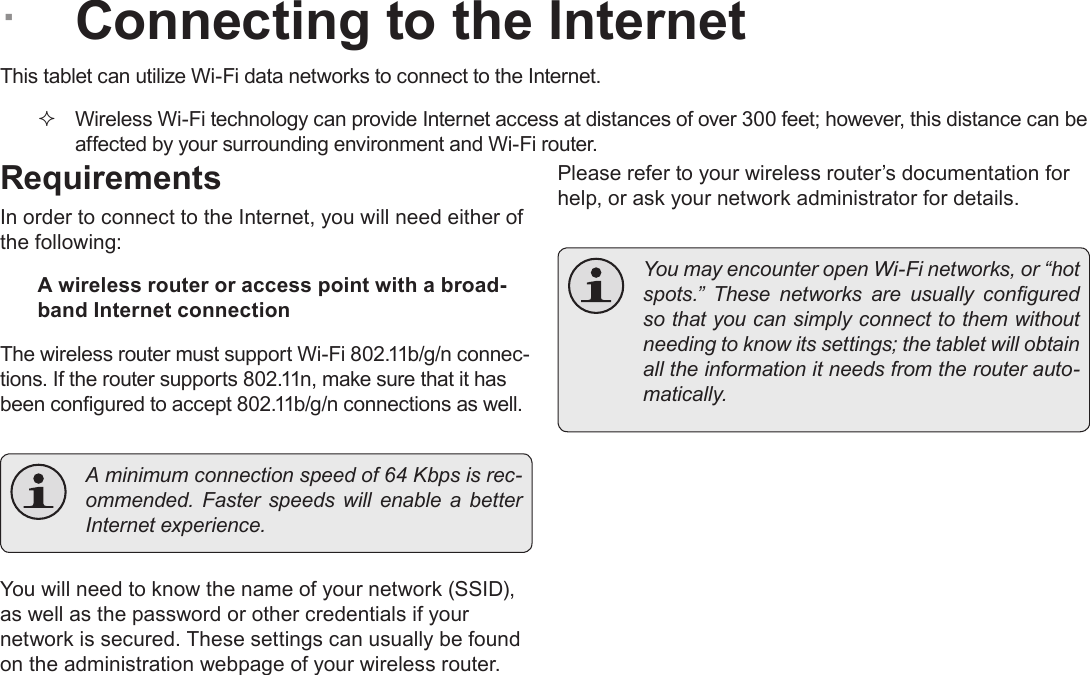
Page 19  Connecting To The InternetEnglish ÂConnecting to the InternetThis tablet can utilize Wi-Fi data networks to connect to the Internet.  Wireless Wi-Fi technology can provide Internet access at distances of over 300 feet; however, this distance can be affected by your surrounding environment and Wi-Fi router.RequirementsIn order to connect to the Internet, you will need either of the following:A wireless router or access point with a broad-band Internet connectionThe wireless router must support Wi-Fi 802.11b/g/n connec-tions. If the router supports 802.11n, make sure that it has been congured to accept 802.11b/g/n connections as well.  A minimum connection speed of 64 Kbps is rec-ommended.  Faster  speeds  will  enable  a  better Internet experience.You will need to know the name of your network (SSID), as well as the password or other credentials if your network is secured. These settings can usually be found on the administration webpage of your wireless router.Please refer to your wireless router’s documentation for help, or ask your network administrator for details.  You may encounter open Wi-Fi networks, or “hot spots.”  These  networks  are  usually  congured so that you can simply connect to them without needing to know its settings; the tablet will obtain all the information it needs from the router auto-matically.
Page 20  Connecting To The InternetEnglishConnect to a Wi-Fi networkThe Notication bar displays icons that indicate your tablet’s Wi-Fi status.Connected to a Wi-Fi network (waves indicate connection strength).[no icon] There are no Wi-Fi networks in range, or the Wi-Fi radio is off.1.  Turn on the Wi-Fi radio if it is not already on. To turn on Wi-Fi:a.  Go to the Home screen: Touch the Home icon.b.  Open the Launcher screen:  Touch the Launcher Tab, then touch Settings.c.  Open the Wireless & Networks menu:  Touch WIRELESS & NETWORKS.d.  Open the Wi-Fi settings menu:  Touch WiFi.e.  Make sure that the Wi-Fi option box is set to ON.  Touch and slide the block to the right to enable the Wi-Fi connection.When Wi-Fi is on, the tablet will look for and display a list of available Wi-Fi networks.  If a network that you have connected to previously is found, the tablet will connect to it.  If you don’t see your network in the list, you can force the tablet to re-scan. To scan for net-works,  tap  the  SCAN  icon  located  on  the  top right corner of the screen.2.  Select an available Wi-Fi network to connect to:In the same Wi-Fi settings menu above, touch a network in the list.
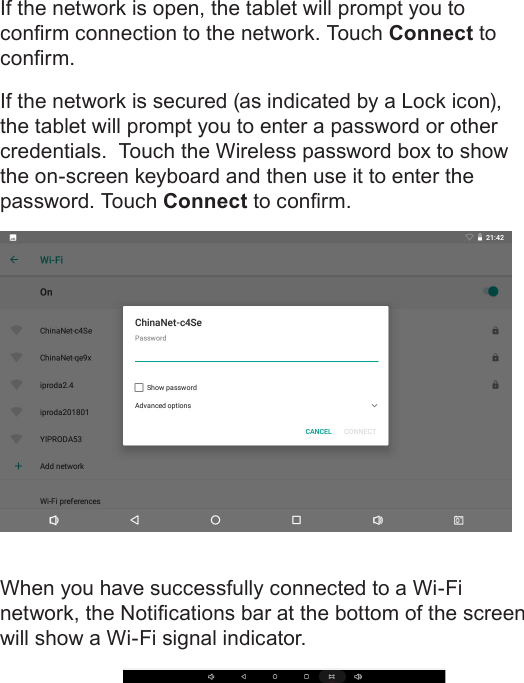
Page 21  Connecting To The InternetEnglishIf the network is open, the tablet will prompt you to conrm connection to the network. Touch Connect to conrm.If the network is secured (as indicated by a Lock icon), the tablet will prompt you to enter a password or other credentials.  Touch the Wireless password box to show the on-screen keyboard and then use it to enter the password. Touch Connect to conrm.When you have successfully connected to a Wi-Fi network, the Notications bar at the bottom of the screen will show a Wi-Fi signal indicator.
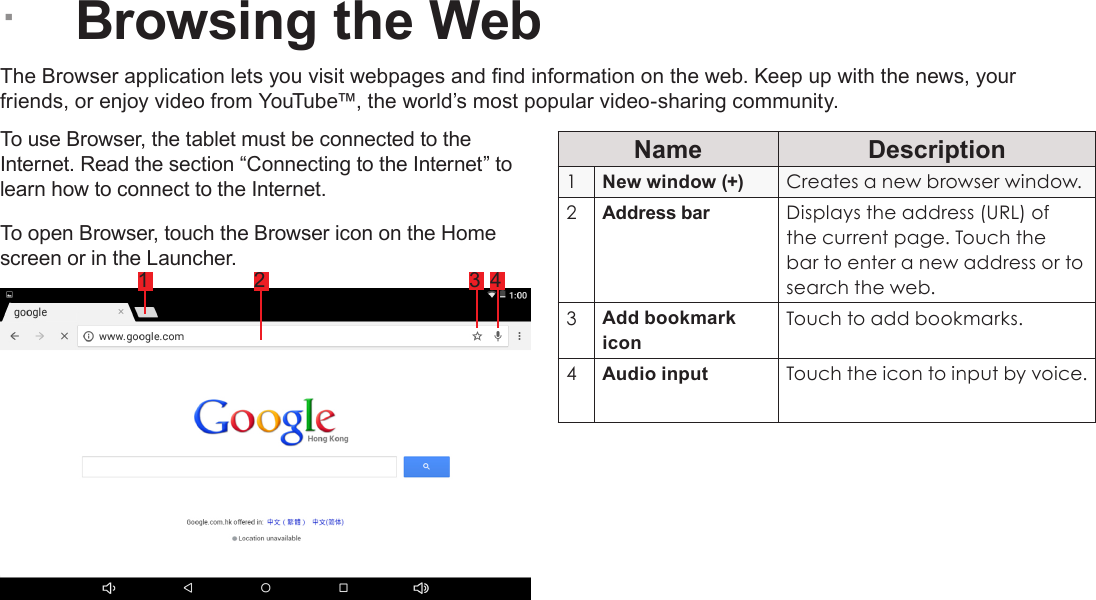
Page 22  Browsing The WebEnglish ÂBrowsing the WebThe Browser application lets you visit webpages and nd information on the web. Keep up with the news, your friends, or enjoy video from YouTube™, the world’s most popular video-sharing community.To use Browser, the tablet must be connected to the Internet. Read the section “Connecting to the Internet” to learn how to connect to the Internet.To open Browser, touch the Browser icon on the Home screen or in the Launcher.Name Description1New window (+) Creates a new browser window.2Address bar Displays the address (URL) of the current page. Touch the bar to enter a new address or to search the web.3Add bookmark iconTouch to add bookmarks.4Audio input  Touch the icon to input by voice.1 2 3 4
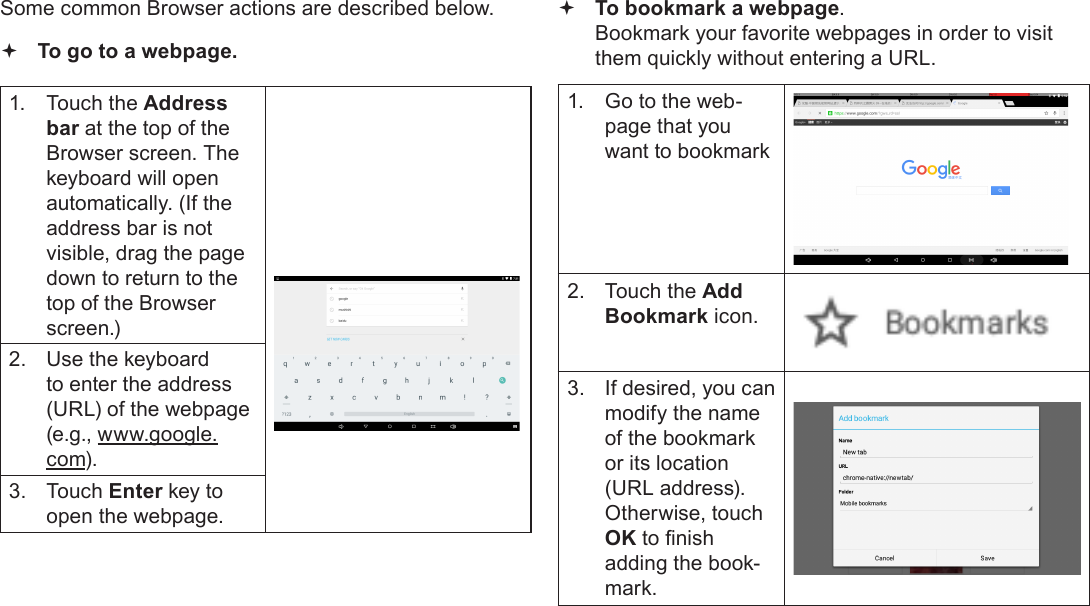
Page 23  Browsing The WebEnglishSome common Browser actions are described below.  To go to a webpage.1.  Touch the Address bar at the top of the Browser screen. The  keyboard will open automatically. (If the address bar is not visible, drag the page down to return to the top of the Browser screen.)2.  Use the keyboard to enter the address (URL) of the webpage (e.g., www.google.com).3.  Touch Enter key to open the webpage. To bookmark a webpage.  Bookmark your favorite webpages in order to visit them quickly without entering a URL.1.  Go to the web-page that you want to bookmark2.  Touch the Add Bookmark icon.3.  If desired, you can modify the name of the bookmark or its location (URL address). Otherwise, touch OK to nish adding the book-mark.
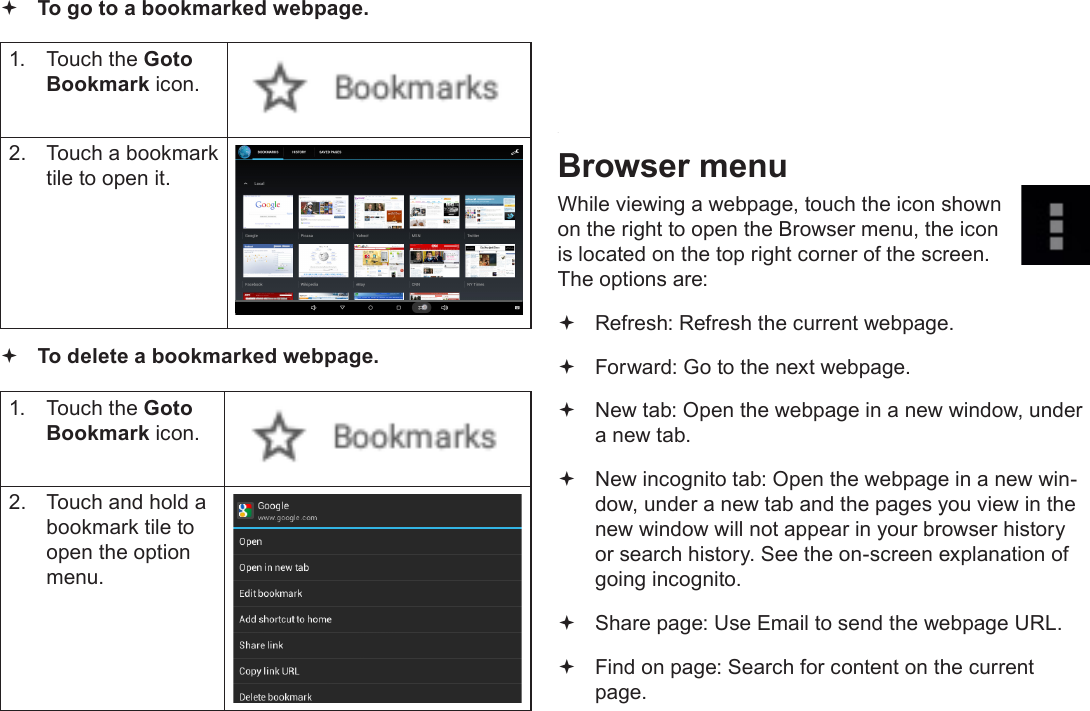
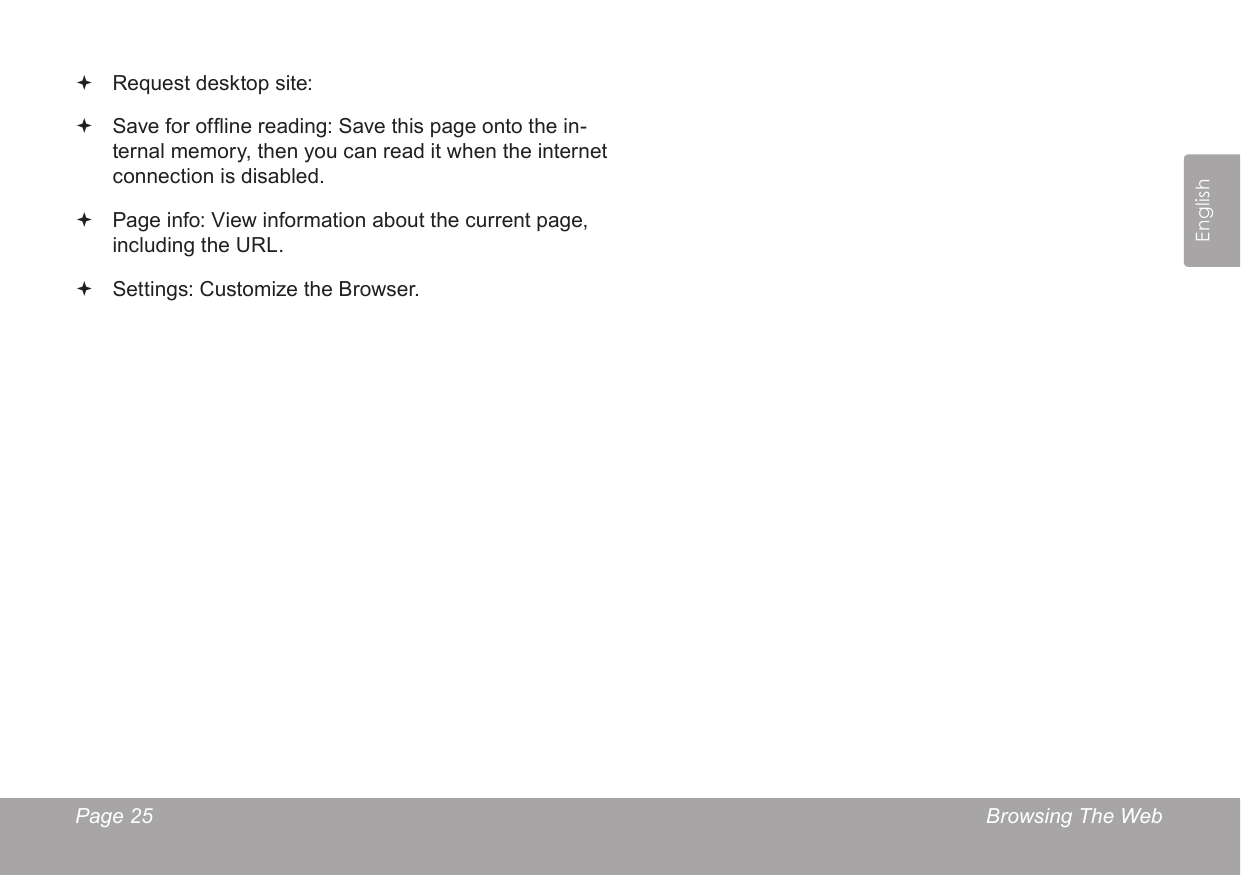
Page 24  Browsing The WebEnglish To go to a bookmarked webpage. 1.  Touch the Goto Bookmark icon.2.  Touch a bookmark tile to open it. To delete a bookmarked webpage.1.  Touch the Goto Bookmark icon.2.  Touch and hold a bookmark tile to open the option menu.3.  Touch “Delete bookmark“.4.  Touch “OK” to conrm.Browser menuWhile viewing a webpage, touch the icon shown on the right to open the Browser menu, the icon is located on the top right corner of the screen.The options are: Refresh: Refresh the current webpage. Forward: Go to the next webpage. New tab: Open the webpage in a new window, under a new tab. New incognito tab: Open the webpage in a new win-dow, under a new tab and the pages you view in the new window will not appear in your browser history or search history. See the on-screen explanation of going incognito. Share page: Use Email to send the webpage URL. Find on page: Search for content on the current page.
Page 25  Browsing The WebEnglish Request desktop site:  Save for ofine reading: Save this page onto the in-ternal memory, then you can read it when the internet connection is disabled. Page info: View information about the current page, including the URL. Settings: Customize the Browser.
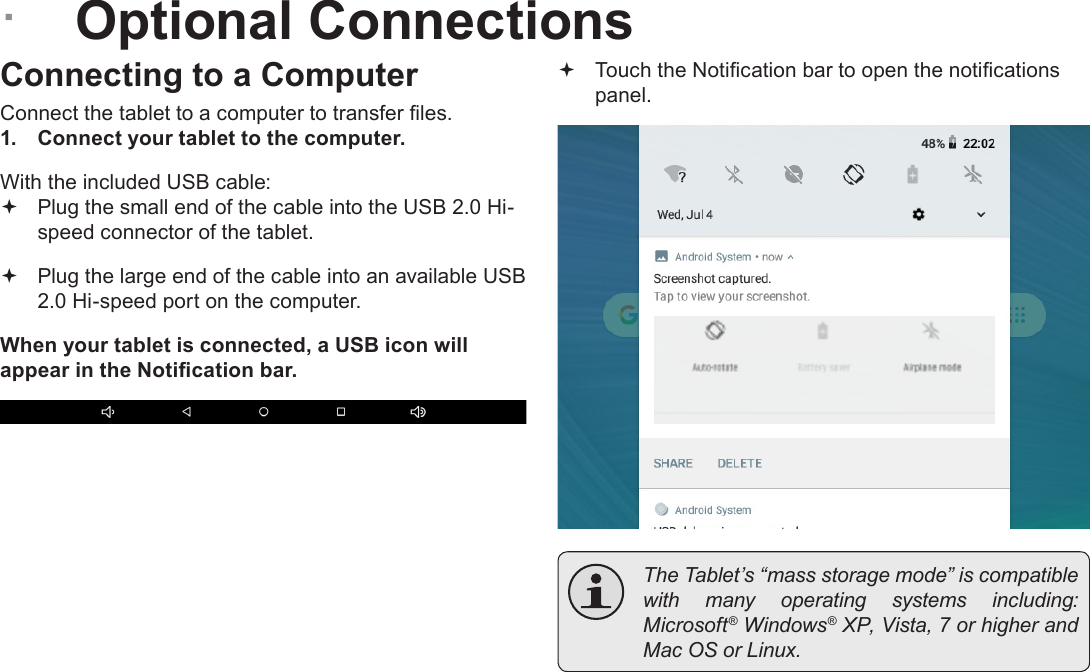
Page 26  Optional ConnectionsEnglish ÂOptional ConnectionsConnecting to a ComputerConnect the tablet to a computer to transfer les.1.  Connect your tablet to the computer.With the included USB cable: Plug the small end of the cable into the USB 2.0 Hi- speed connector of the tablet. Plug the large end of the cable into an available USB  2.0 Hi-speed port on the computer.When your tablet is connected, a USB icon will appear in the Notication bar. Touch the Notication bar to open the notications panel.  The Tablet’s “mass storage mode” is compatible with  many  operating  systems  including: Microsoft® Windows® XP, Vista, 7 or higher and Mac OS or Linux.
Page 27  Optional ConnectionsEnglish2.  Mount the storage drive. Touch USB connected to mount the tablet’s  built-in storage, then touch “Turn on USB storage” and “OK” when prompted to conrm. When mounted, you can copy les to/from your computer.Your tablet will be recognized by the computer as a Removable Storage drive. Drag and drop les between your tablet and the computer. To learn more about copy-ing les, please refer to the documentation included with your computer or operating system.Connecting HeadphonesConnect a pair of headphones (or earphones) to the tablet to enjoy media in private.Lower the volume level of the tablet before connecting headphones and then slowly raise the volume to a comfortable listening level. The headphones must have a 3.5 mm (1/8 in) plug. When headphones are connected, speaker output  will be disabled automatically.  Hearing  experts  advise  against  the  constant use of personal stereos played at high volume. Constant exposure to high volumes can lead to hearing loss. If you should experience ringing in the ears or hearing loss, discontinue use and seek medical advice.
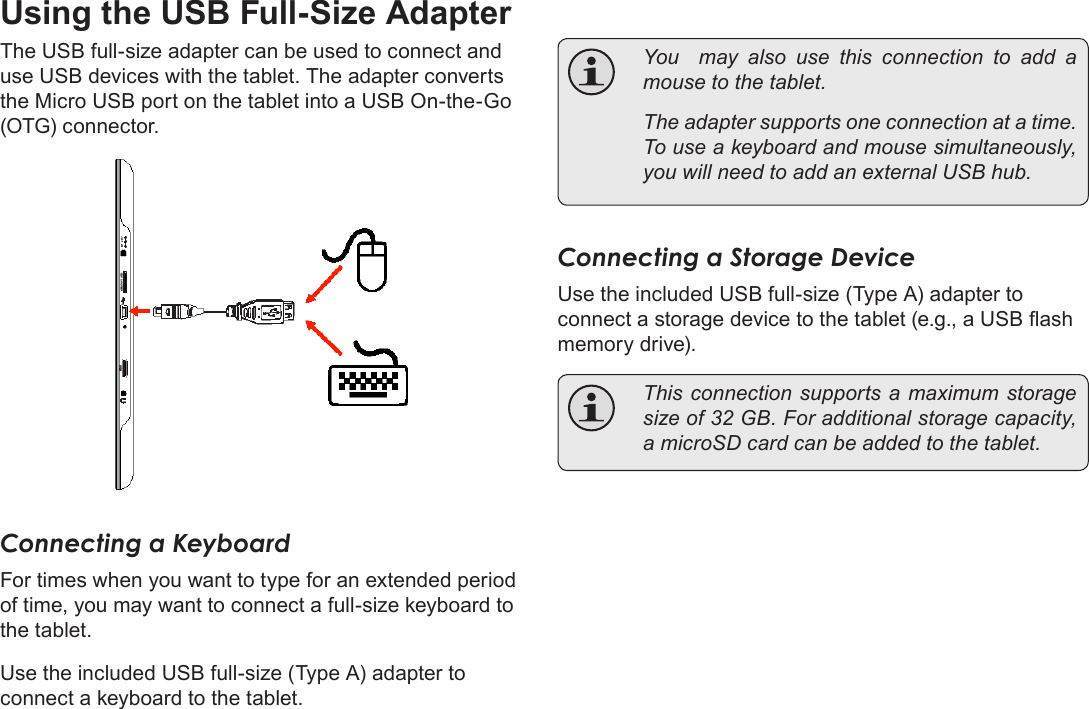
Page 28  Optional ConnectionsEnglishUsing the USB Full-Size AdapterThe USB full-size adapter can be used to connect and use USB devices with the tablet. The adapter converts the Micro USB port on the tablet into a USB On-the-Go (OTG) connector.Connecting a KeyboardFor times when you want to type for an extended period of time, you may want to connect a full-size keyboard to the tablet. Use the included USB full-size (Type A) adapter to connect a keyboard to the tablet.  You  may also use this connection to add a mouse to the tablet.   The adapter supports one connection at a time. To use a keyboard and mouse simultaneously, you will need to add an external USB hub.Connecting a Storage DeviceUse the included USB full-size (Type A) adapter to connect a storage device to the tablet (e.g., a USB ash memory drive).  This connection supports a  maximum storage size of 32 GB. For additional storage capacity, a microSD card can be added to the tablet.
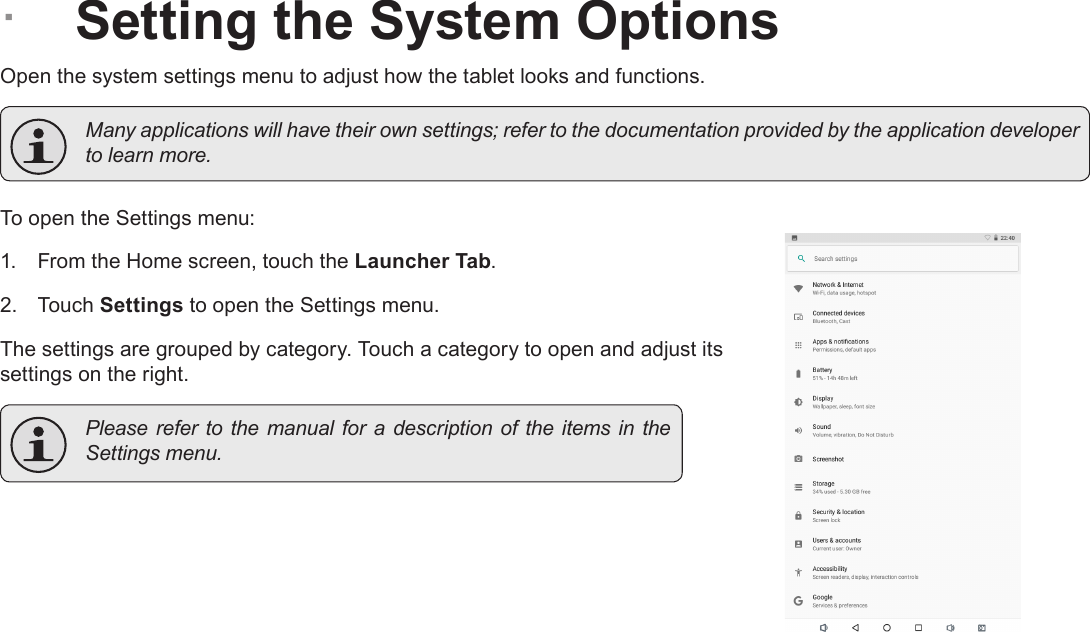
Page 29  Setting The System OptionsEnglish ÂSetting the System OptionsOpen the system settings menu to adjust how the tablet looks and functions.  Many applications will have their own settings; refer to the documentation provided by the application developer to learn more.To open the Settings menu:1.  From the Home screen, touch the Launcher Tab.2.  Touch Settings to open the Settings menu.The settings are grouped by category. Touch a category to open and adjust its settings on the right.  Please refer to the manual for a description  of  the  items in  the Settings menu.
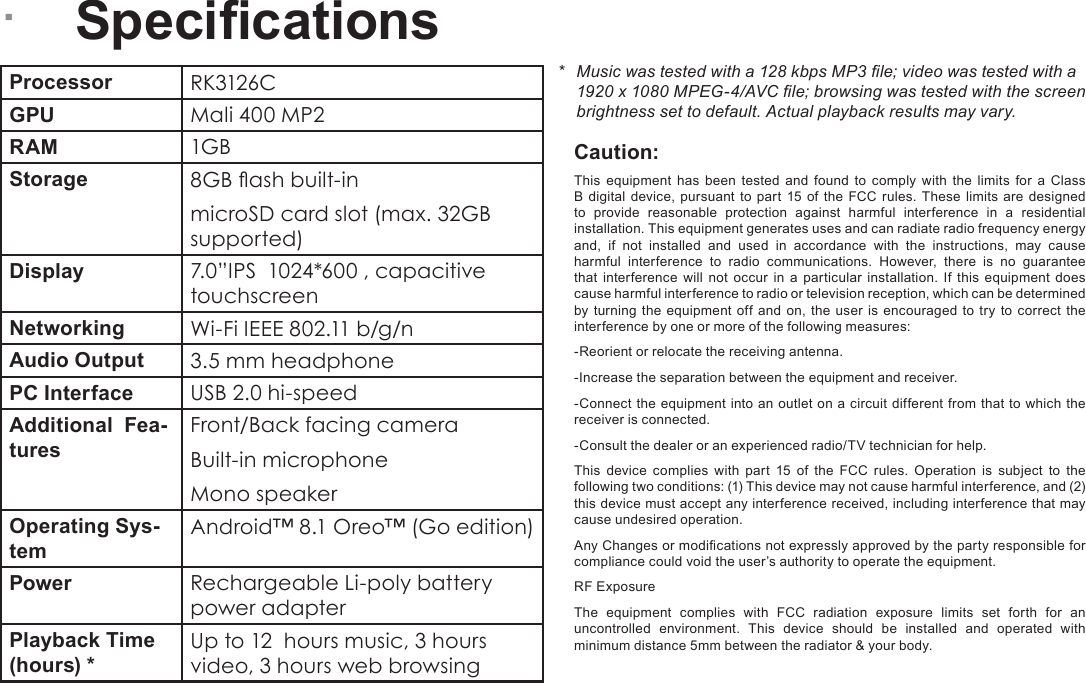
Page 30  SpecicationsEnglish ÂSpecicationsProcessor RK3126CGPU Mali 400 MP2   RAM 1GBStorage 8GB ash built-inmicroSD card slot (max. 32GB supported)Display 7.0”IPS  1024*600 , capacitive touchscreenNetworking Wi-Fi IEEE 802.11 b/g/nAudio Output 3.5 mm headphonePC Interface USB 2.0 hi-speedAdditional  Fea-turesFront/Back facing cameraBuilt-in microphoneMono speakerOperating Sys-temAndroid™ 8.1 Oreo™ (Go edition)Power Rechargeable Li-poly battery power adapter Playback Time (hours) *Up to 12  hours music, 3 hours video, 3 hours web browsing*  Music was tested with a 128 kbps MP3 le; video was tested with a 1920 x 1080 MPEG-4/AVC le; browsing was tested with the screen brightness set to default. Actual playback results may vary.Caution:This equipment has been tested and found to comply with the limits for a Class B digital device, pursuant to part 15 of the FCC rules. These limits are designed to provide reasonable protection against harmful interference in a residential installation. This equipment generates uses and can radiate radio frequency energy and, if not installed and used in accordance with the instructions, may cause harmful interference to radio communications. However, there is no guarantee that interference will not occur in a particular installation. If this equipment does cause harmful interference to radio or television reception, which can be determined by turning the equipment off and on, the user is encouraged to try to correct the interference by one or more of the following measures:-Reorient or relocate the receiving antenna.-Increase the separation between the equipment and receiver.-Connect the equipment into an outlet on a circuit different from that to which the receiver is connected.-Consult the dealer or an experienced radio/TV technician for help.This device complies with part 15 of the FCC rules. Operation is subject to the following two conditions: (1) This device may not cause harmful interference, and (2) this device must accept any interference received, including interference that may cause undesired operation.Any Changes or modications not expressly approved by the party responsible for compliance could void the user’s authority to operate the equipment.RF ExposureThe equipment complies with FCC radiation exposure limits set forth for an uncontrolled environment. This device should be installed and operated with minimum distance 5mm between the radiator & your body.
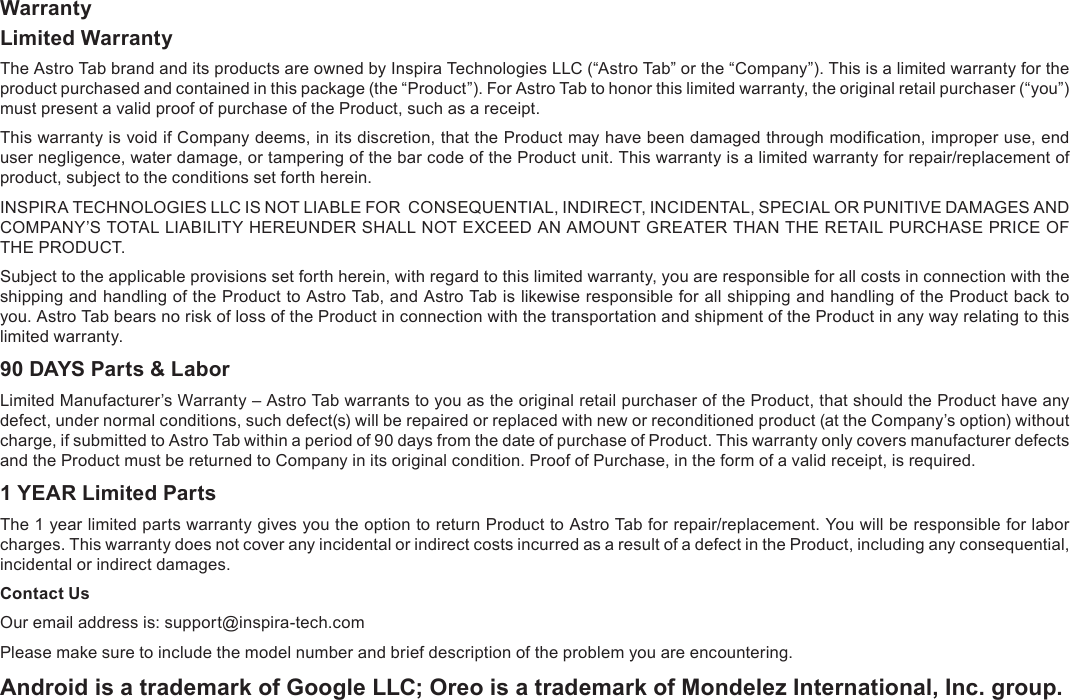
Page 31  SpecicationsEnglishWarrantyLimited WarrantyThe Astro Tab brand and its products are owned by Inspira Technologies LLC (“Astro Tab” or the “Company”). This is a limited warranty for the product purchased and contained in this package (the “Product”). For Astro Tab to honor this limited warranty, the original retail purchaser (“you”) must present a valid proof of purchase of the Product, such as a receipt.This warranty is void if Company deems, in its discretion, that the Product may have been damaged through modication, improper use, end user negligence, water damage, or tampering of the bar code of the Product unit. This warranty is a limited warranty for repair/replacement of product, subject to the conditions set forth herein.INSPIRA TECHNOLOGIES LLC IS NOT LIABLE FOR  CONSEQUENTIAL, INDIRECT, INCIDENTAL, SPECIAL OR PUNITIVE DAMAGES AND COMPANY’S TOTAL LIABILITY HEREUNDER SHALL NOT EXCEED AN AMOUNT GREATER THAN THE RETAIL PURCHASE PRICE OF THE PRODUCT.Subject to the applicable provisions set forth herein, with regard to this limited warranty, you are responsible for all costs in connection with the shipping and handling of the Product to Astro Tab, and Astro Tab is likewise responsible for all shipping and handling of the Product back to you. Astro Tab bears no risk of loss of the Product in connection with the transportation and shipment of the Product in any way relating to this limited warranty.90 DAYS Parts & LaborLimited Manufacturer’s Warranty – Astro Tab warrants to you as the original retail purchaser of the Product, that should the Product have any defect, under normal conditions, such defect(s) will be repaired or replaced with new or reconditioned product (at the Company’s option) without charge, if submitted to Astro Tab within a period of 90 days from the date of purchase of Product. This warranty only covers manufacturer defects and the Product must be returned to Company in its original condition. Proof of Purchase, in the form of a valid receipt, is required.1 YEAR Limited PartsThe 1 year limited parts warranty gives you the option to return Product to Astro Tab for repair/replacement. You will be responsible for labor charges. This warranty does not cover any incidental or indirect costs incurred as a result of a defect in the Product, including any consequential, incidental or indirect damages.Contact UsOur email address is: support@inspira-tech.comPlease make sure to include the model number and brief description of the problem you are encountering.Android is a trademark of Google LLC; Oreo is a trademark of Mondelez International, Inc. group.Warranty

Navigation menu