Intellian Technologies M07STM 7" Shelf Player User Manual

Intellian Technologies, Inc. 7" Shelf Player

User manual

©Intellian Technologies, Inc., 2009Proprietary & Confidential to IntellianShelfADD 7inch Wi-Fi Touch Player Installation GuideIntellian Technologies, Inc.Extend Your Signage Network with Intellian
Intellian Proprietary and Confidential 2Table of ContentsPower on and Open OSD(On Screen Display) MenuNetwork SettingEnvironment SettingFirmware Upgrade
Intellian Proprietary and Confidential 3Federal Communication Commission Interference StatementThis equipment has been tested and found to comply with the limits for a Class B digital device, pursuant to Part 15 of the FCC Rules.These limits are designed to provide reasonable protection against harmful interference in a residential installation. This equipment generates, uses and can radiate radio frequency energy and, if not installed and used in accordance with the instructions, may cause harmful interference to radio communications. However, there is no guarantee that interference will not occur in a particular installation. If this equipment does cause harmful interference to radio or television reception, which can be determined by turning the equipment off and on, the user is encouraged to try to correct the interference by one of the following measures:• Reorient or relocate the receiving antenna.• Increase the separation between the equipment and receiver.• Connect the equipment into an outlet on a circuit different from that to which the receiver is connected.• Consult the dealer or an experienced radio/TV technician for help.
Intellian Proprietary and Confidential 4Federal Communication Commission Interference StatementFCC Caution: To assure continued compliance, (example - use only shielded interface cables when connecting to computer or peripheral devices). Any changes or modifications not expressly approved by the party responsible for compliance could void the user’s authority to operate this equipment.This device complies with Part 15 of the FCC Rules. Operation is subject to the following two conditions: (1) This device may not cause harmful interference, and (2) this device must accept any interference received, including interference that may cause undesired operation.
Intellian Proprietary and Confidential 5Federal Communication Commission Interference StatementIMPORTANT NOTE :FCC RF Radiation Exposure Statement:This equipment complies with FCC RF radiation exposure limits set forth for an uncontrolled environment. This equipment should be installed and operated with a minimum distance of 20 centimeters between the radiator and your body. This transmitter must not be co-located or operating in conjunction with any other antenna or transmitter.
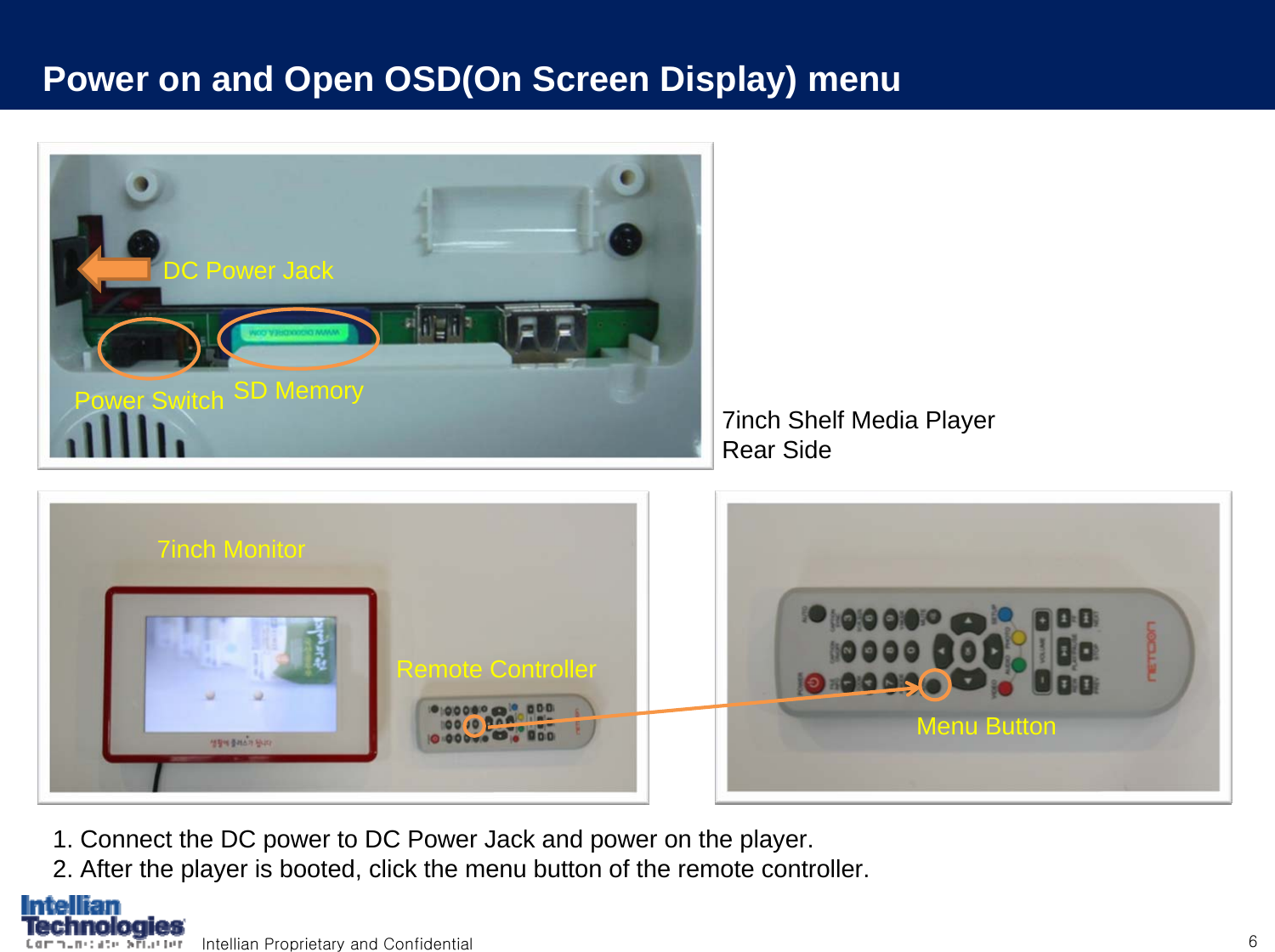
Intellian Proprietary and Confidential 61. Connect the DC power to DC Power Jack and power on the player.2. After the player is booted, click the menu button of the remote controller.DC Power JackPower Switch SD MemoryMenu Button7inch MonitorRemote Controller7inch Shelf Media PlayerRear SidePower on and Open OSD(On Screen Display) menu
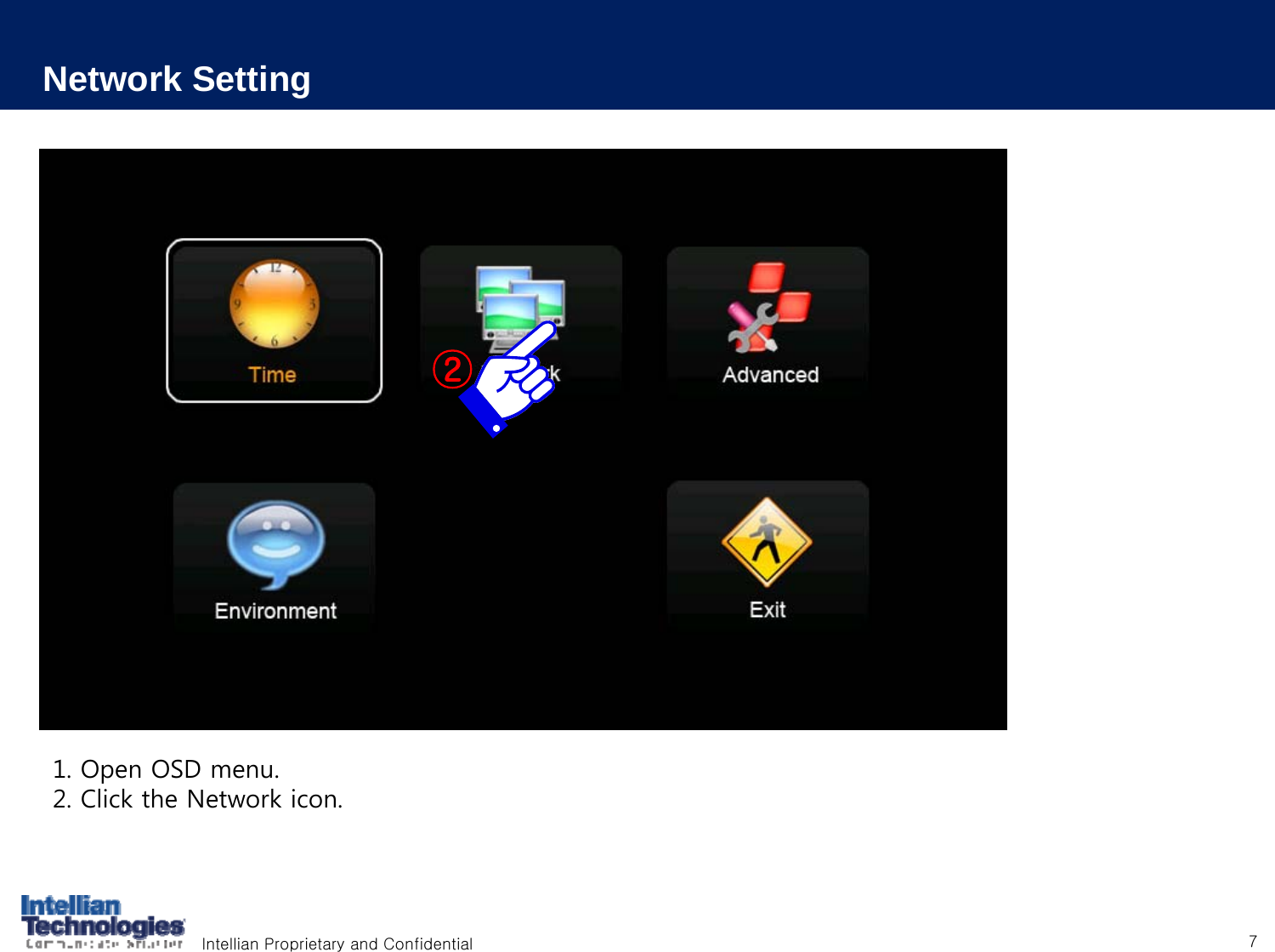
Intellian Proprietary and Confidential 71. Open OSD menu.2. Click the Network icon.Network Setting②
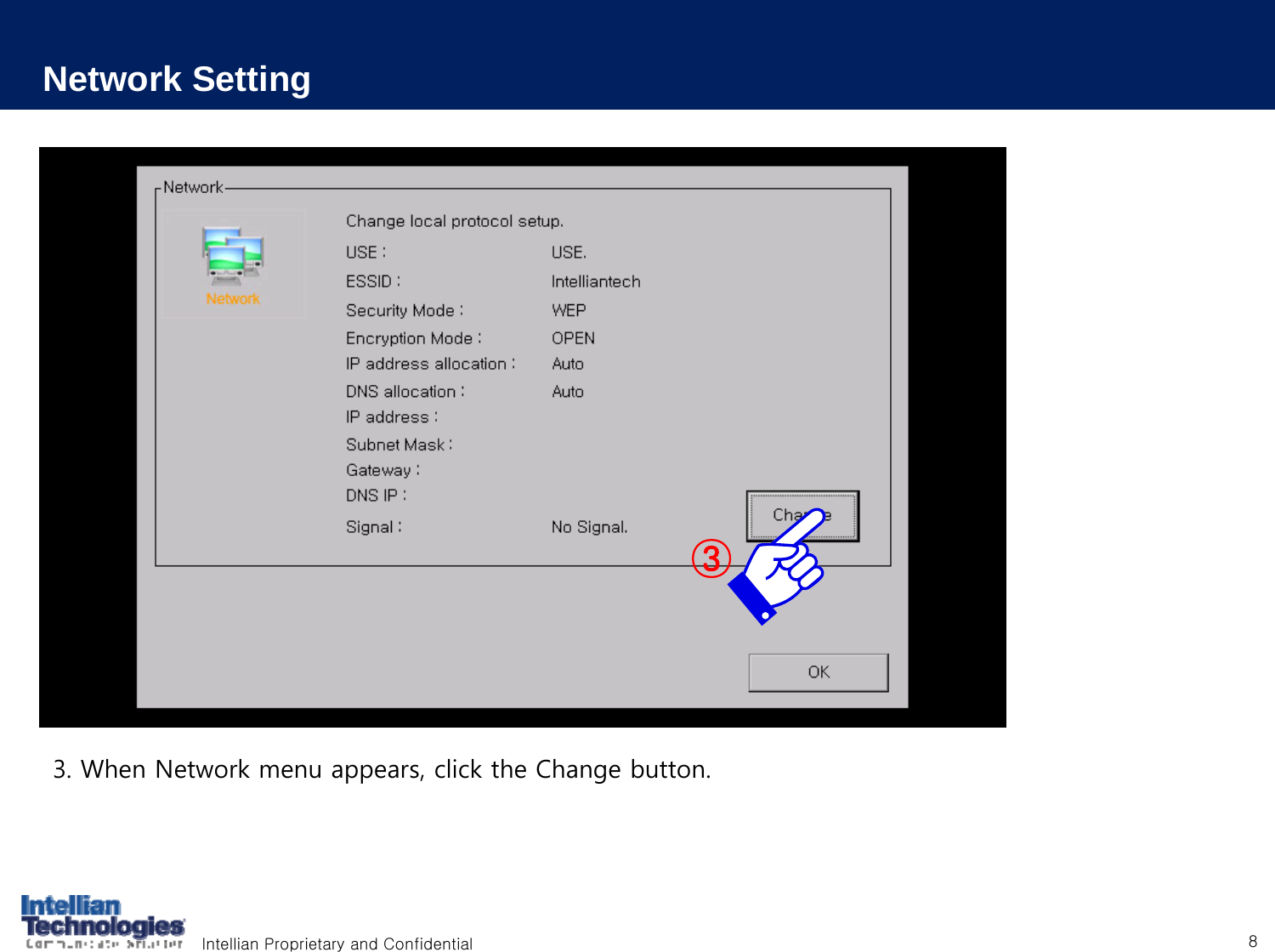
Intellian Proprietary and Confidential 8Network Setting3. When Network menu appears, click the Change button.③
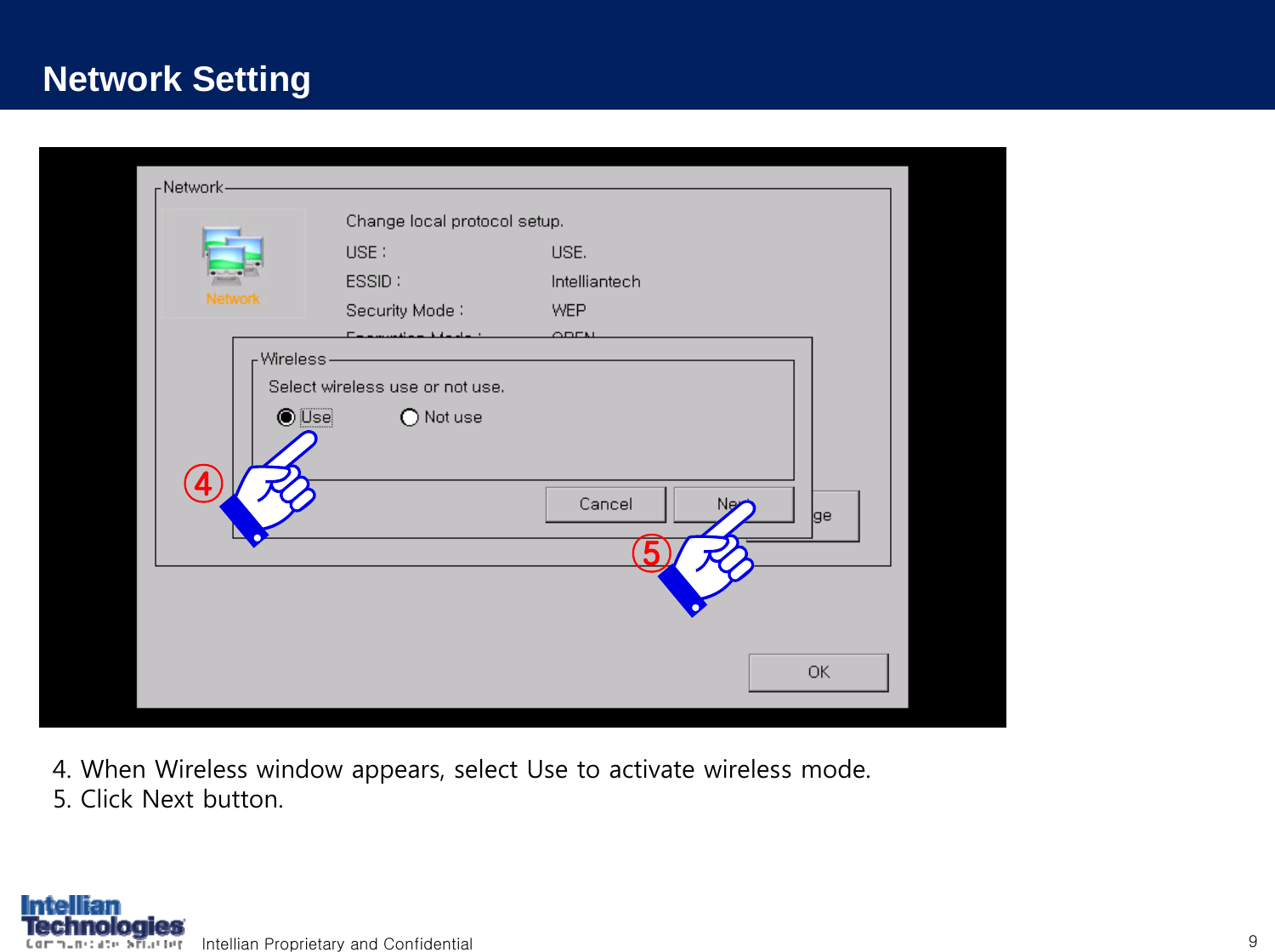
Intellian Proprietary and Confidential 9Network Setting4. When Wireless window appears, select Use to activate wirelessmode.5. Click Next button.④⑤
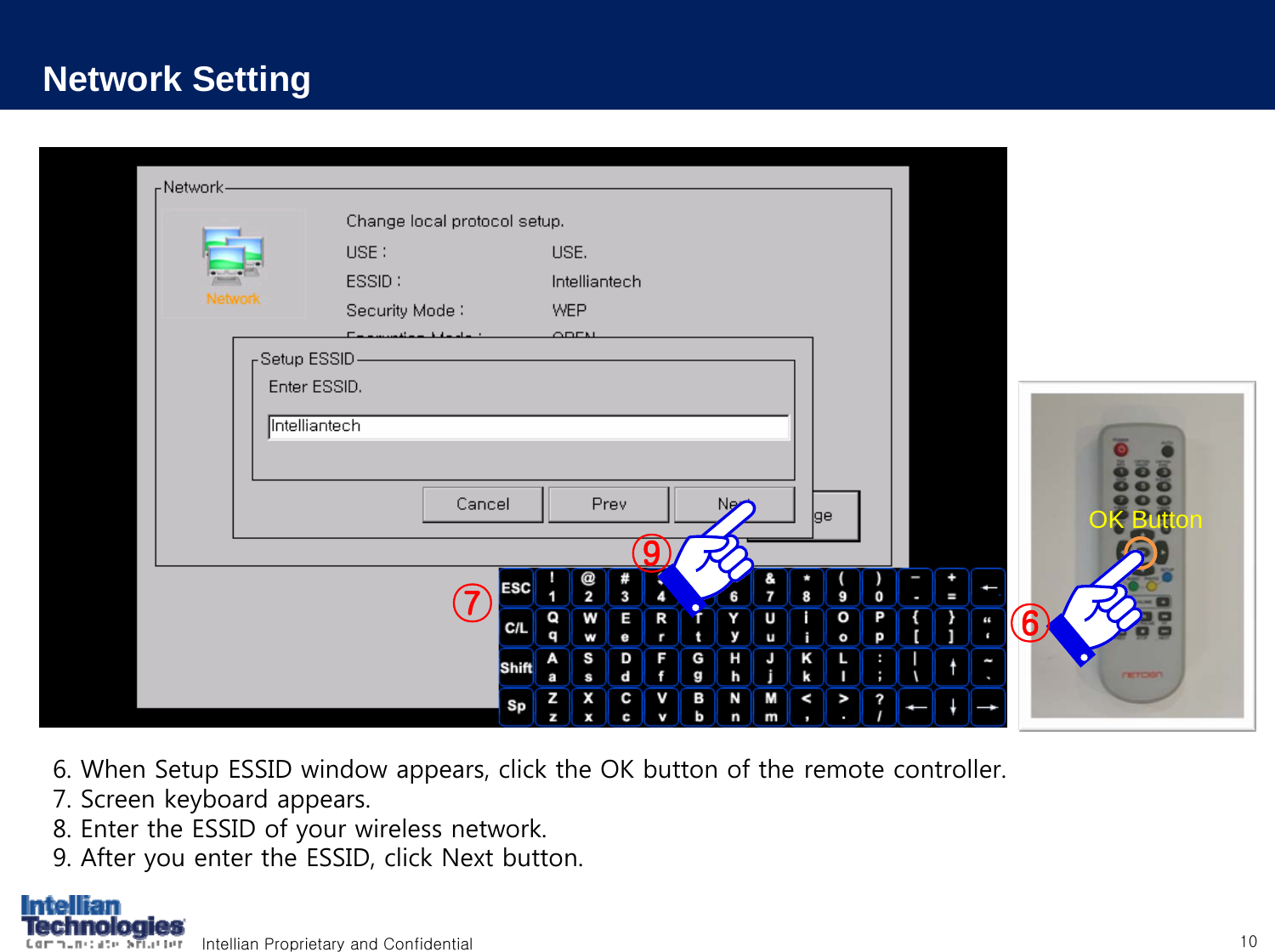
Intellian Proprietary and Confidential 10Network Setting6. When Setup ESSID window appears, click the OK button of the remote controller.7. Screen keyboard appears.8. Enter the ESSID of your wireless network.9. After you enter the ESSID, click Next button.⑨OK Button⑥⑦
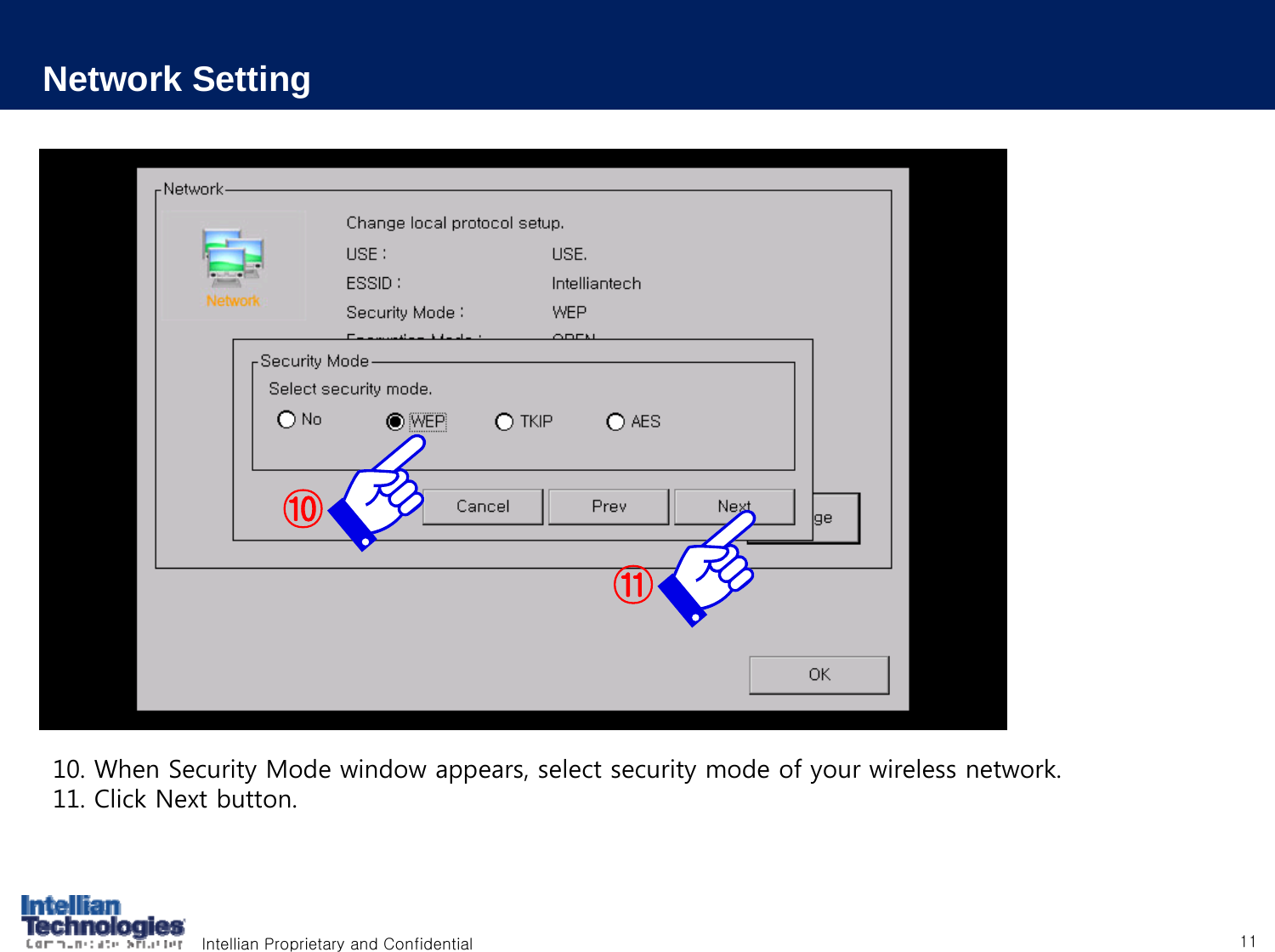
Intellian Proprietary and Confidential 11Network Setting10. When Security Mode window appears, select security mode of your wireless network.11. Click Next button.⑩⑪
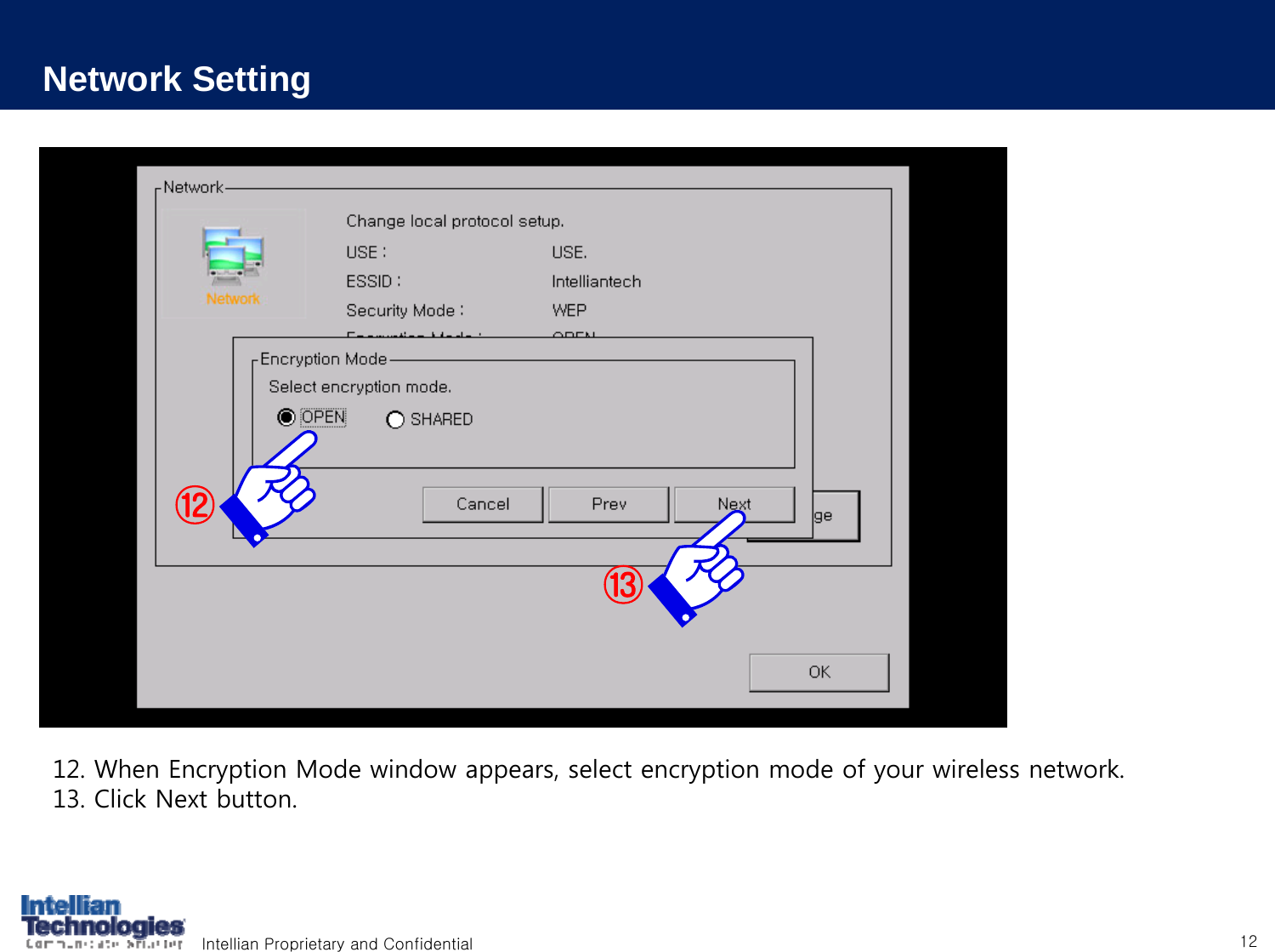
Intellian Proprietary and Confidential 12Network Setting12. When Encryption Mode window appears, select encryption mode of your wireless network.13. Click Next button.⑫⑬
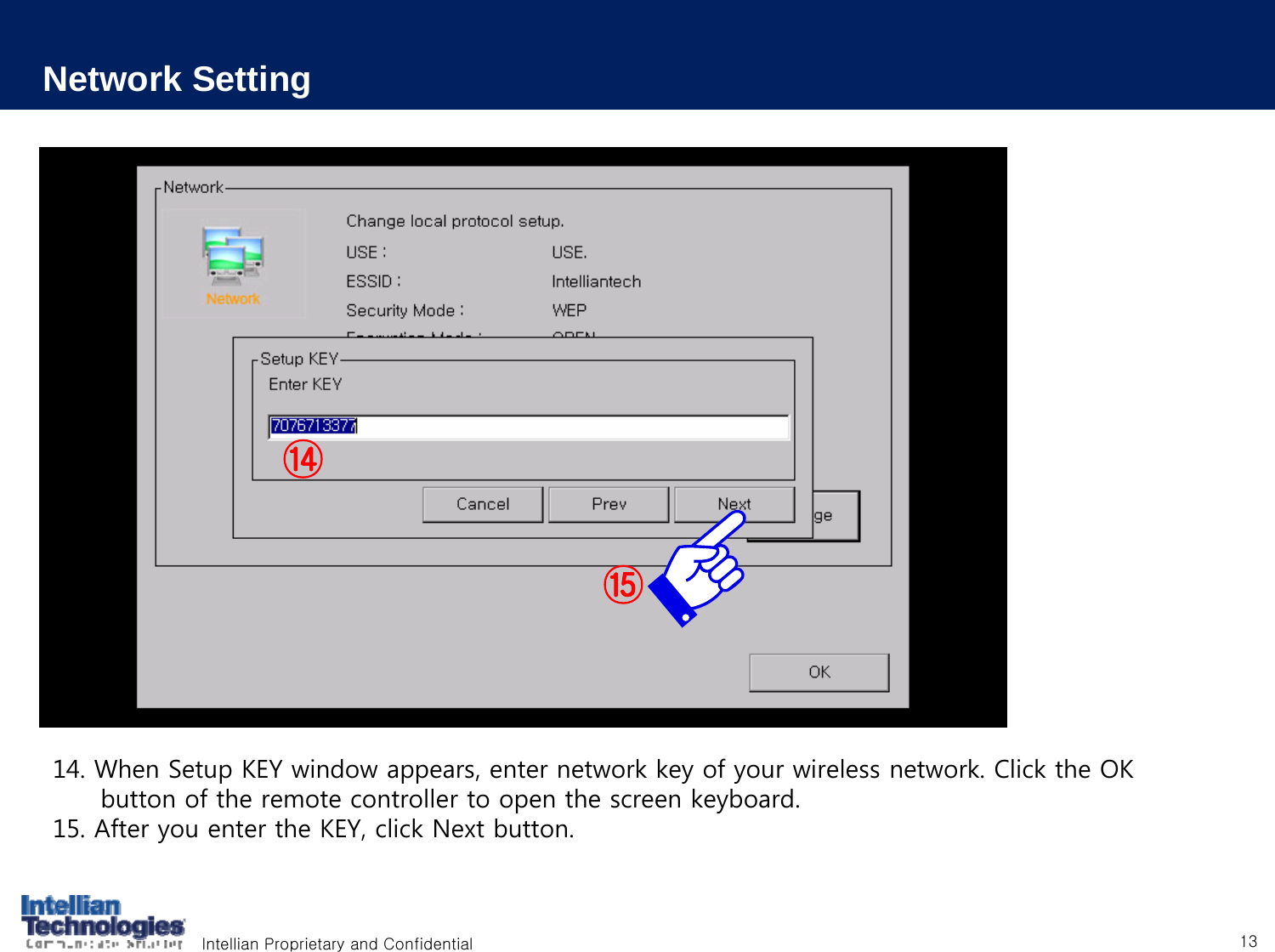
Intellian Proprietary and Confidential 13Network Setting14. When Setup KEY window appears, enter network key of your wireless network. Click the OK button of the remote controller to open the screen keyboard.15. After you enter the KEY, click Next button.⑮⑭
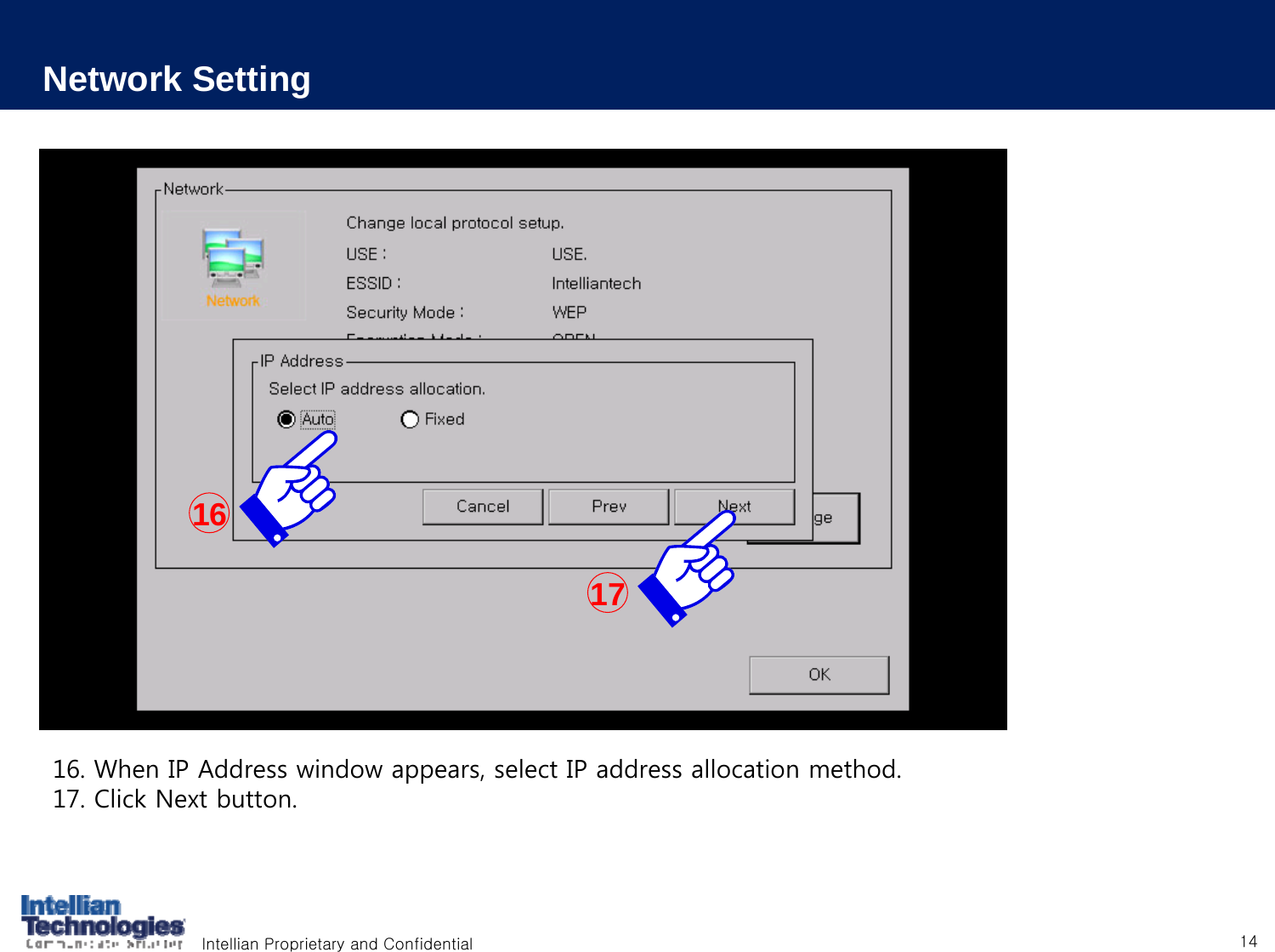
Intellian Proprietary and Confidential 14Network Setting16. When IP Address window appears, select IP address allocationmethod.17. Click Next button.1617
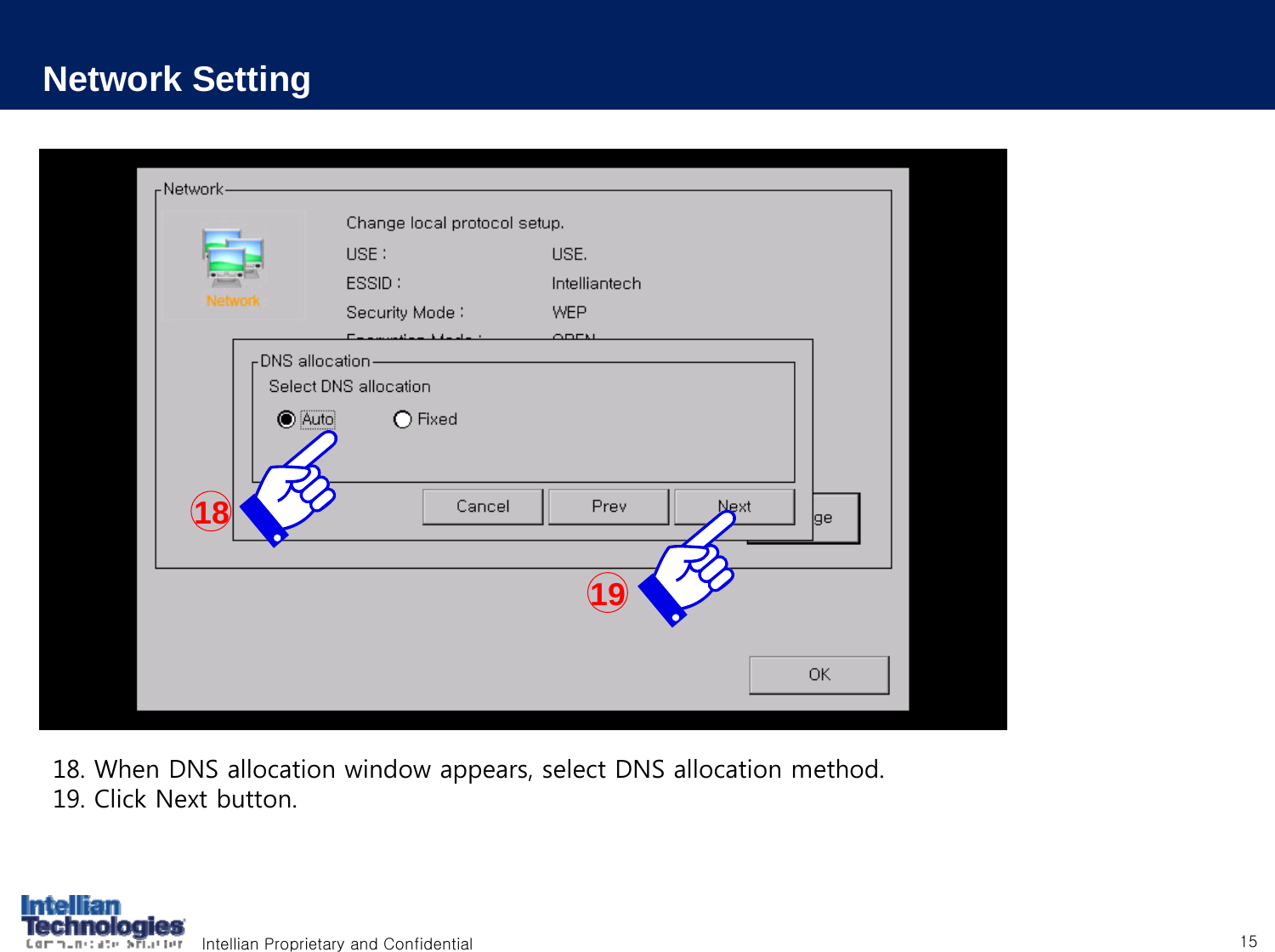
Intellian Proprietary and Confidential 15Network Setting18. When DNS allocation window appears, select DNS allocation method.19. Click Next button.1819
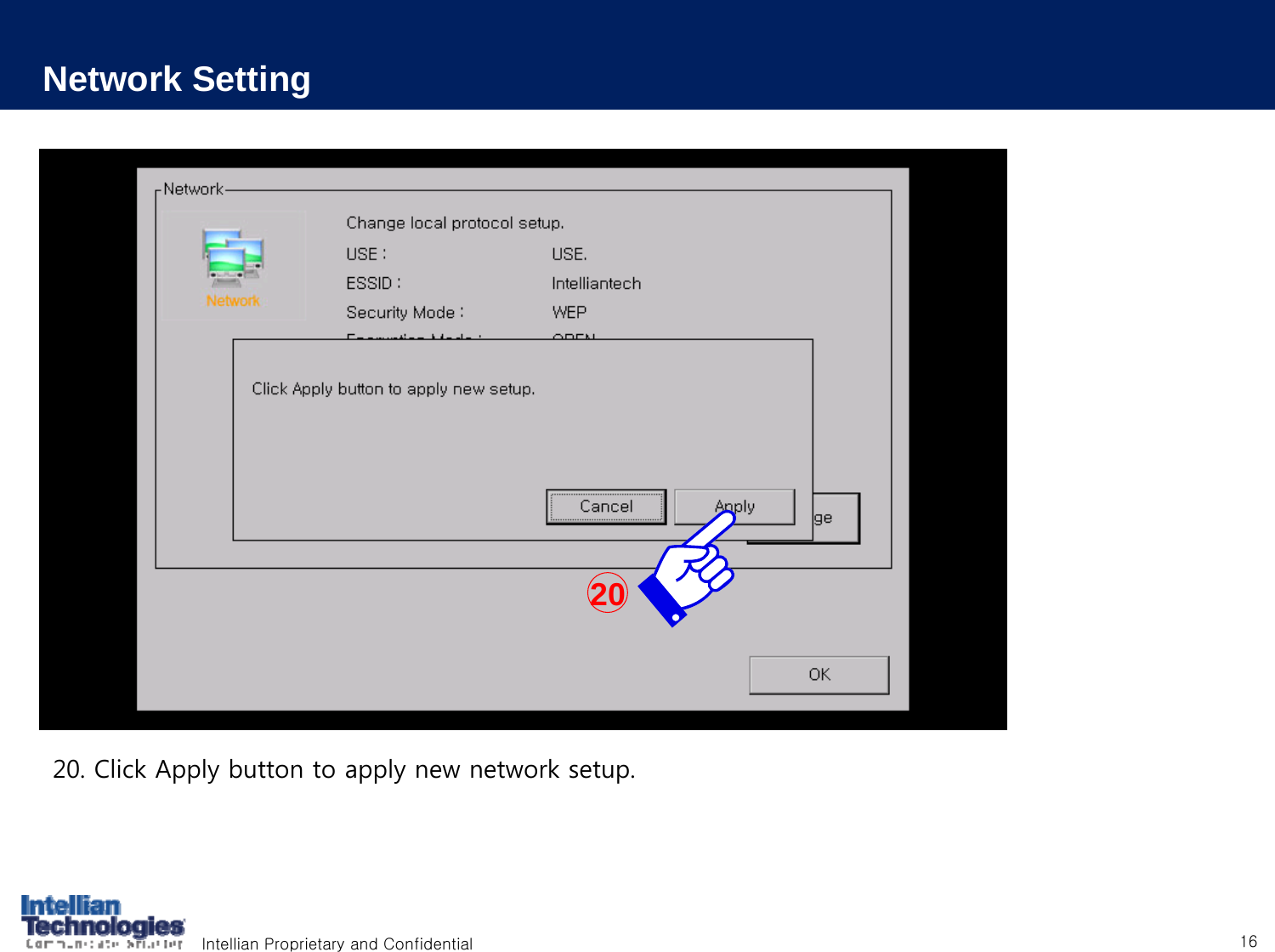
Intellian Proprietary and Confidential 16Network Setting20. Click Apply button to apply new network setup.20
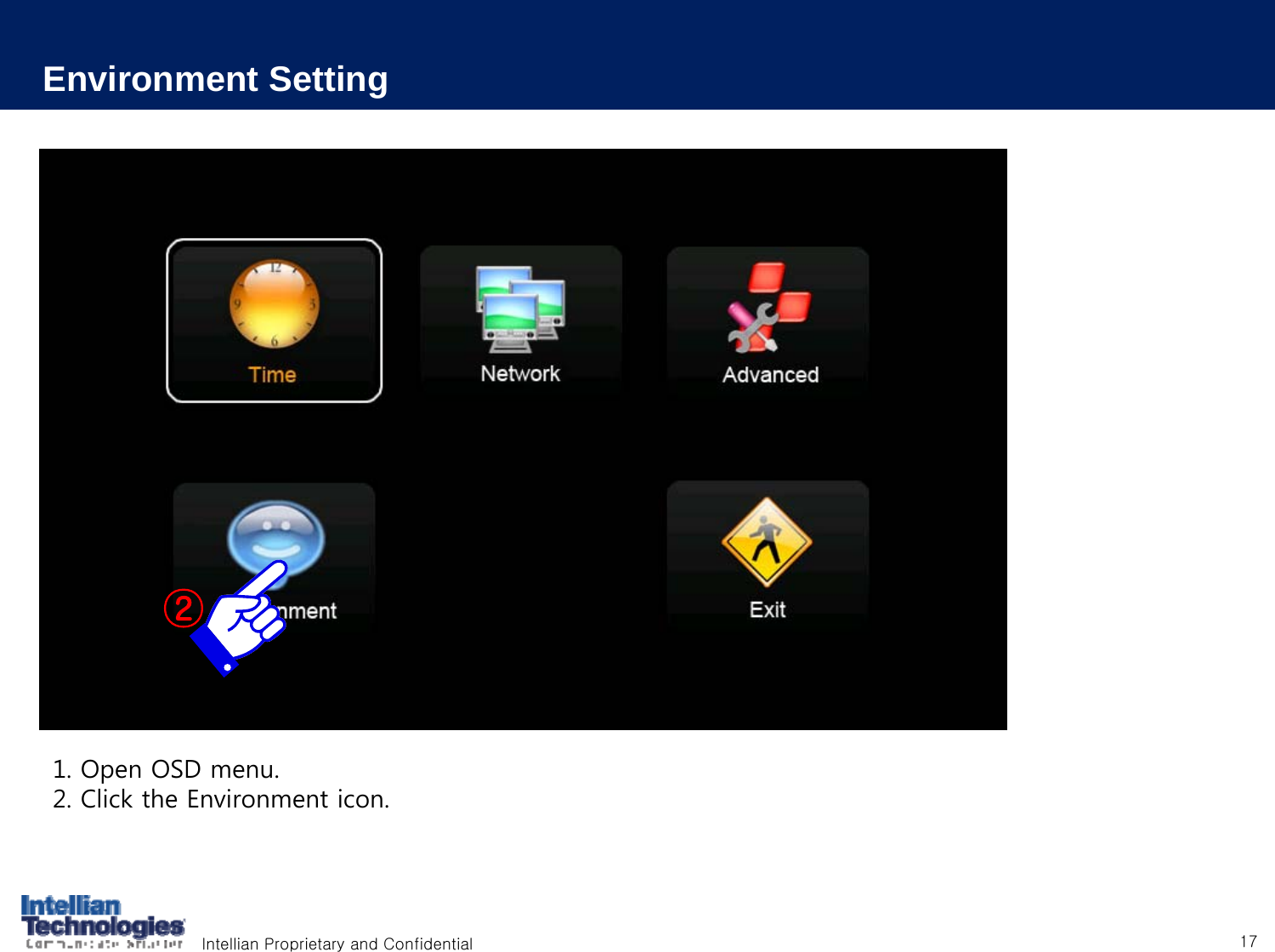
Intellian Proprietary and Confidential 171. Open OSD menu.2. Click the Environment icon.Environment Setting②
Intellian Proprietary and Confidential 18Environment Setting3. When Environment menu appears, enter Media ID and Server URL.4. Click OK button of the remote controller to open the screen keyboard.5. Click Up and Down button of the remote controller to change the item.6. After you enter all values, click OK button.⑤Up ButtonDown Button⑥http://ws.myivision.com:4453/
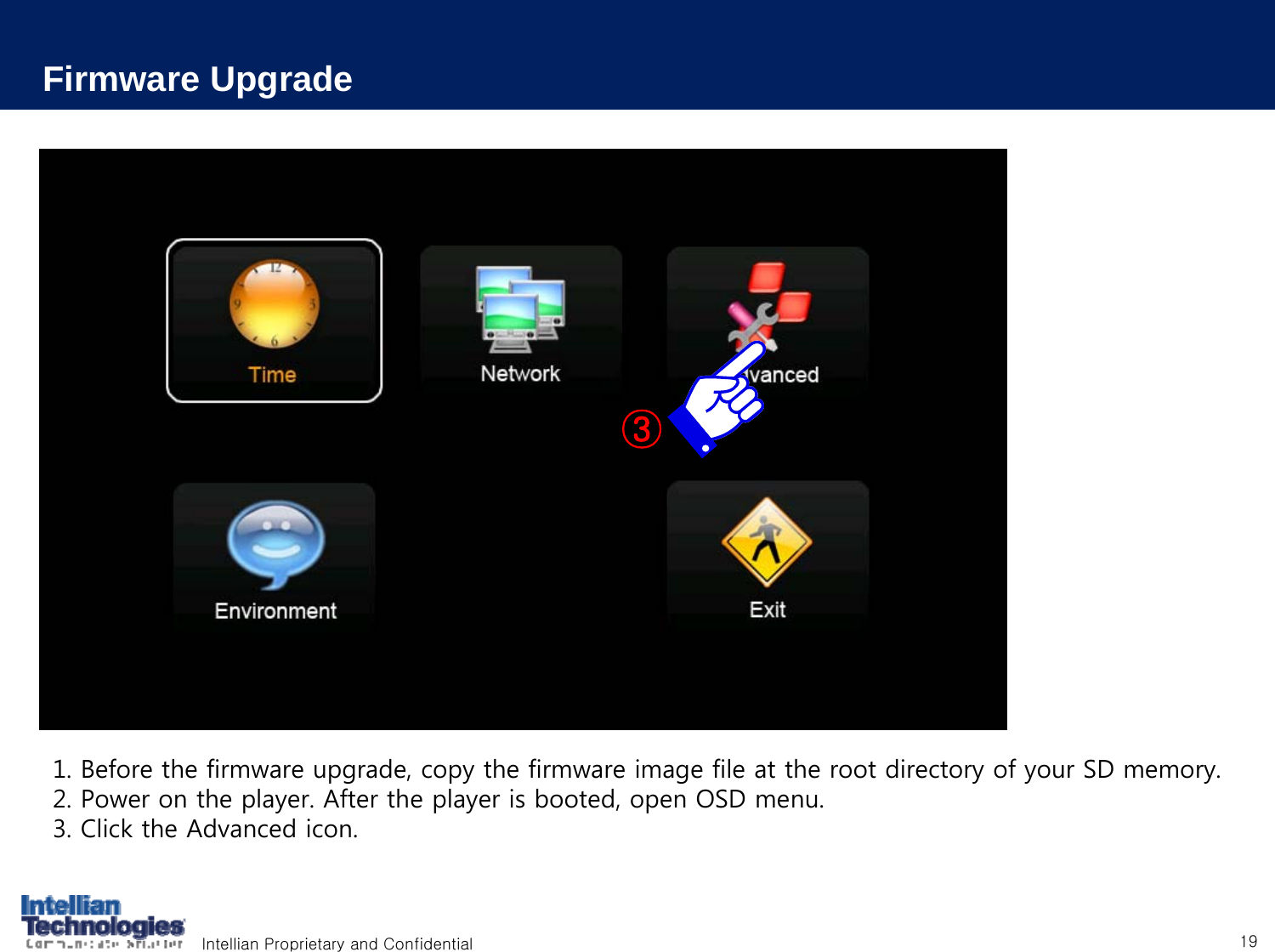
Intellian Proprietary and Confidential 191. Before the firmware upgrade, copy the firmware image file at the root directory of your SD memory.2. Power on the player. After the player is booted, open OSD menu.3. Click the Advanced icon.Firmware Upgrade③
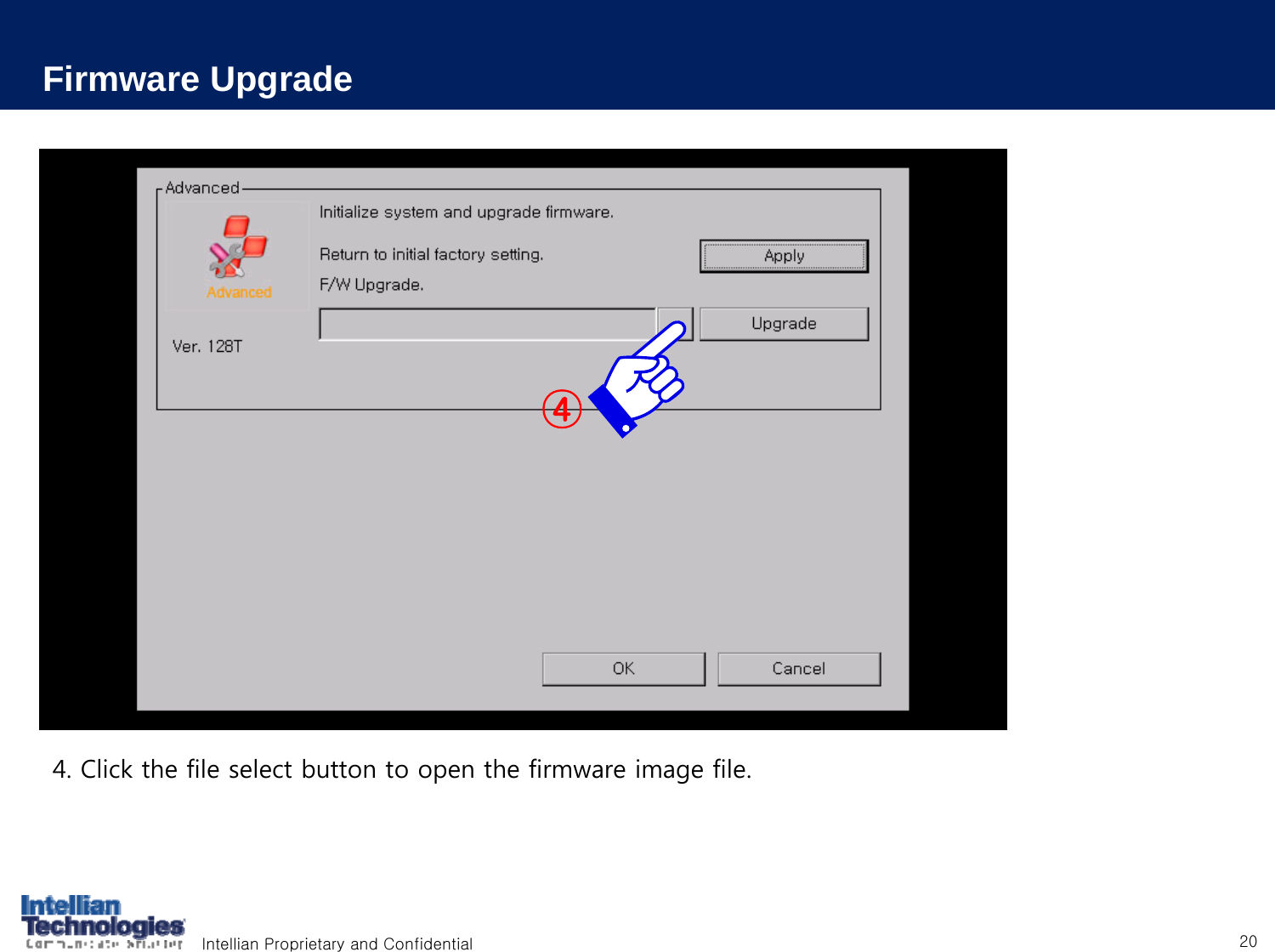
Intellian Proprietary and Confidential 20Firmware Upgrade4. Click the file select button to open the firmware image file.④
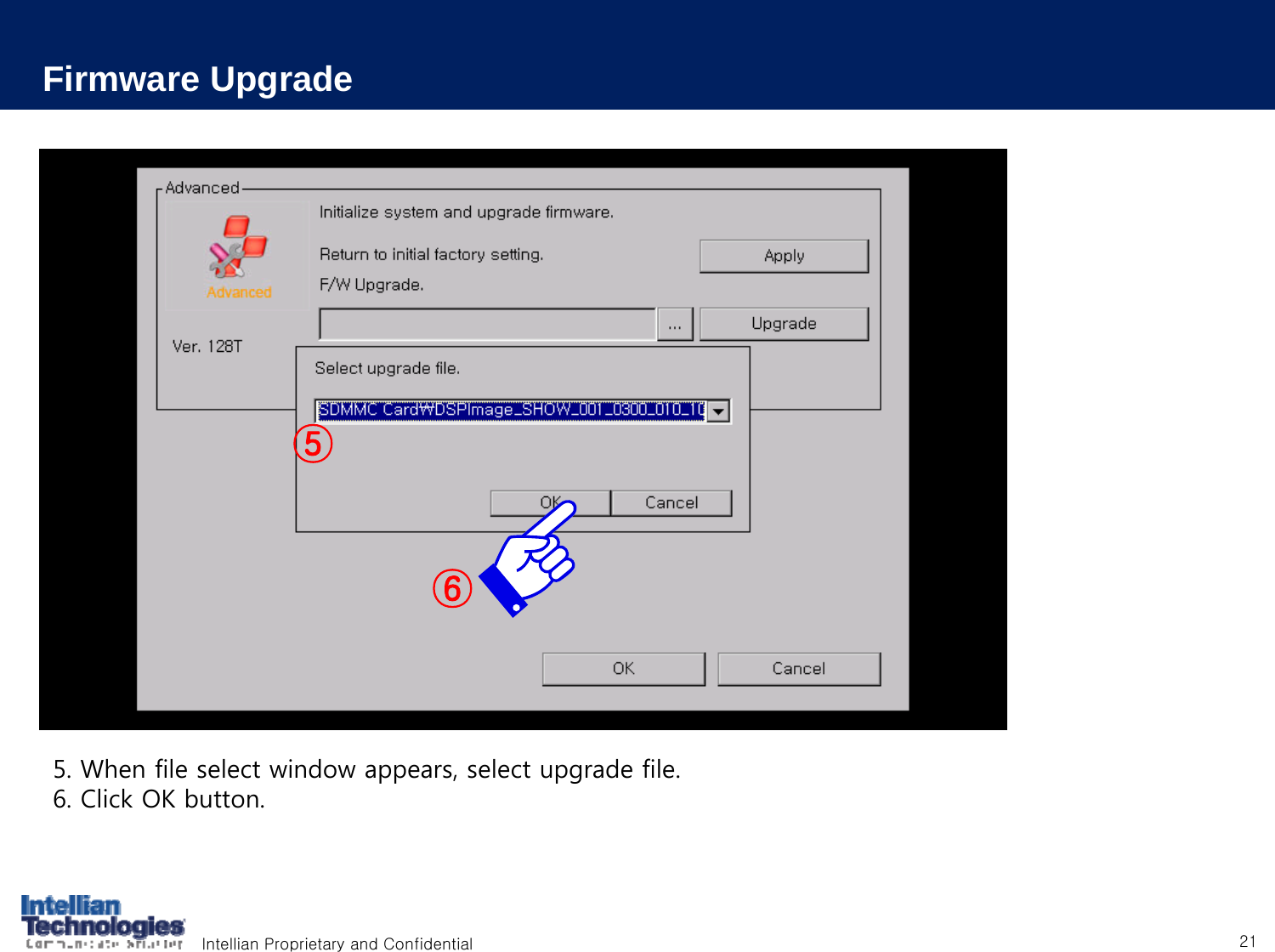
Intellian Proprietary and Confidential 21Firmware Upgrade5. When file select window appears, select upgrade file.6. Click OK button.⑥⑤
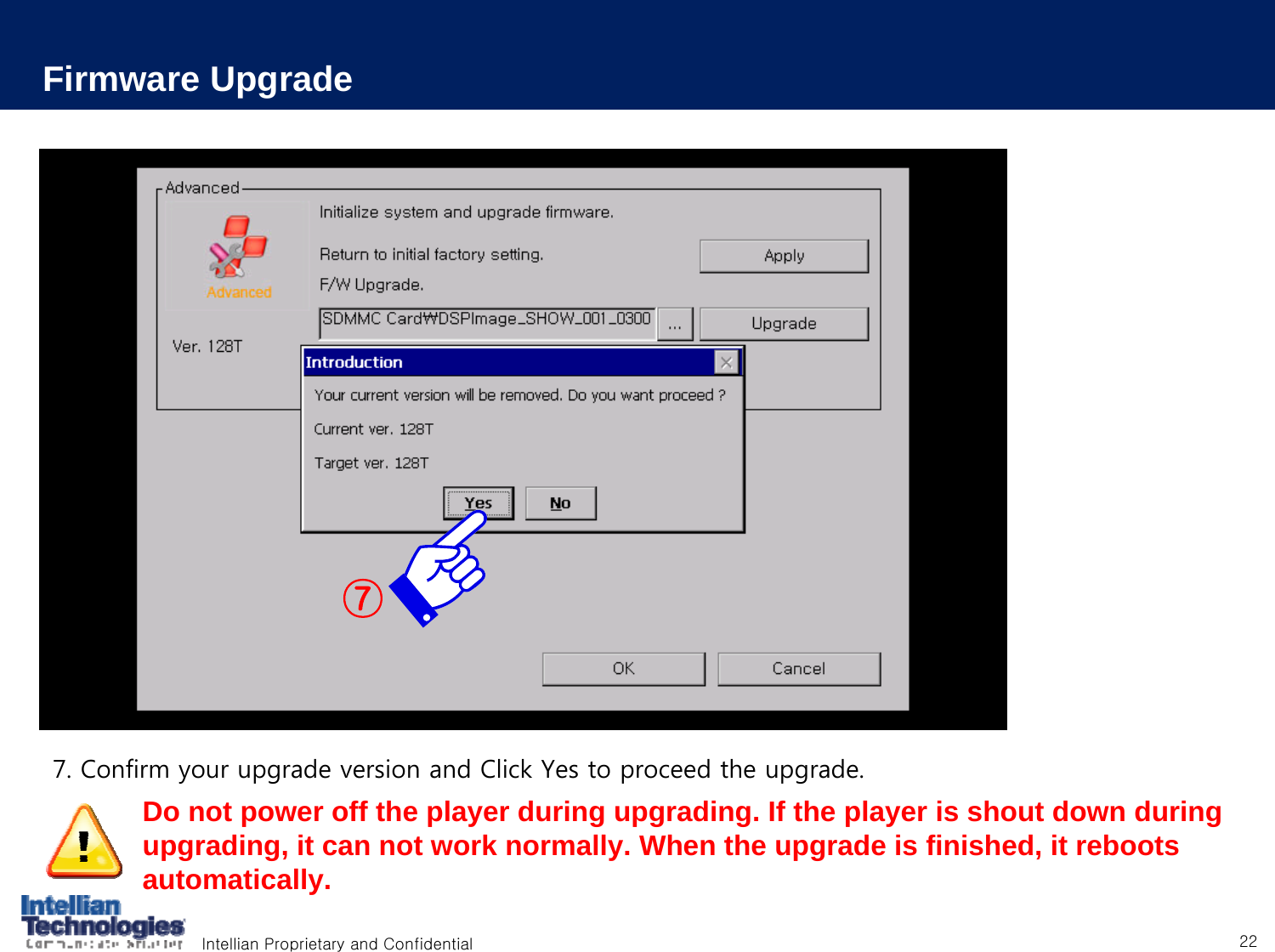
Intellian Proprietary and Confidential 22Firmware Upgrade7. Confirm your upgrade version and Click Yes to proceed the upgrade.⑦Do not power off the player during upgrading. If the player is shout down during upgrading, it can not work normally. When the upgrade is finished, it reboots automatically.

Navigation menu