Johnson Outdoors IPCON20 i-Pilot Head Assembly User Manual Part 2

Johnson Outdoors, Inc. i-Pilot Head Assembly Users Manual Part 2

Users Manual Part 2

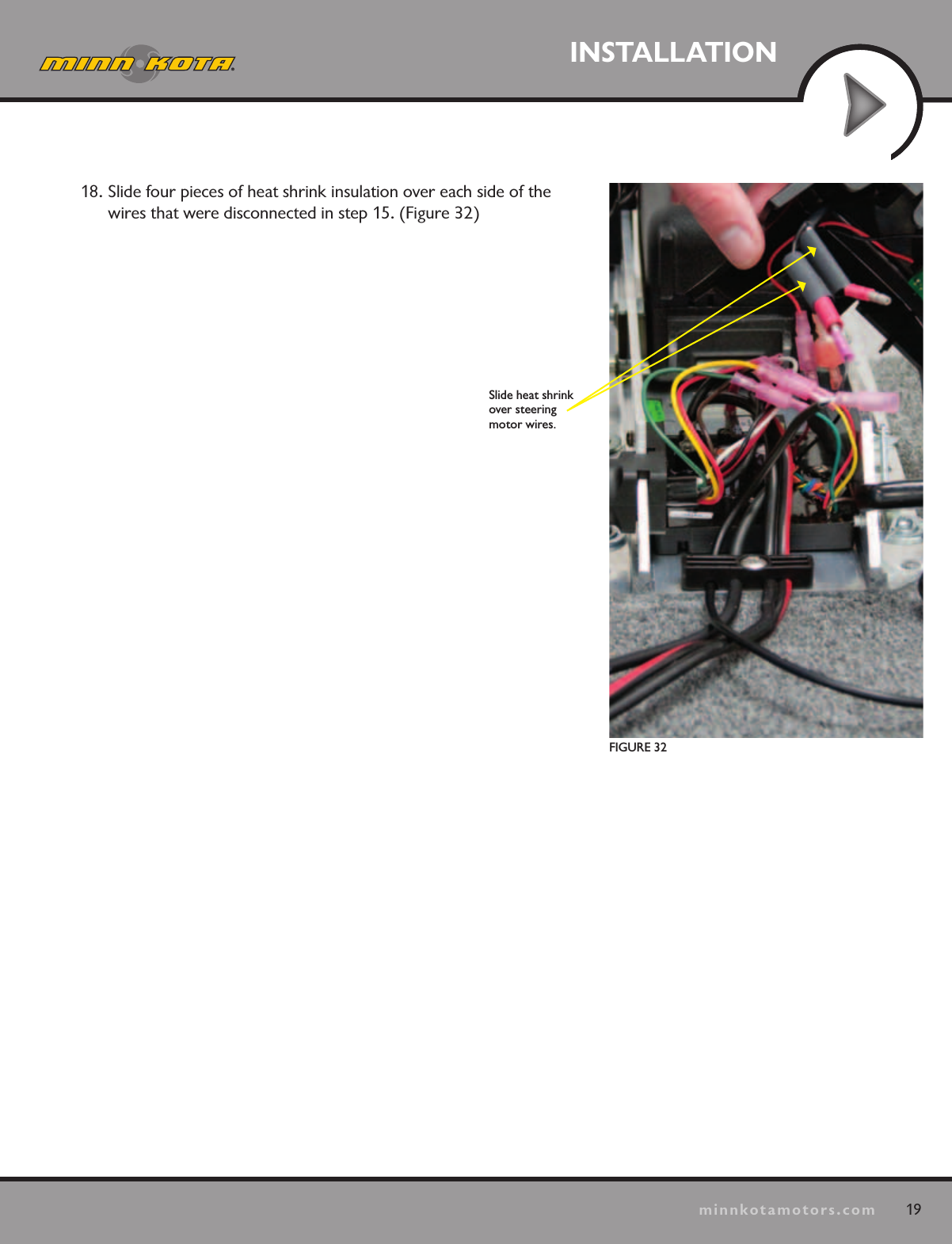
19minnkotamotors.comINSTALLATIONFIGURE 32  Slide heat shrink over steering  motor wires.18. Slide four pieces of heat shrink insulation over each side of the wires that were disconnected in step 15. (Figure 32)
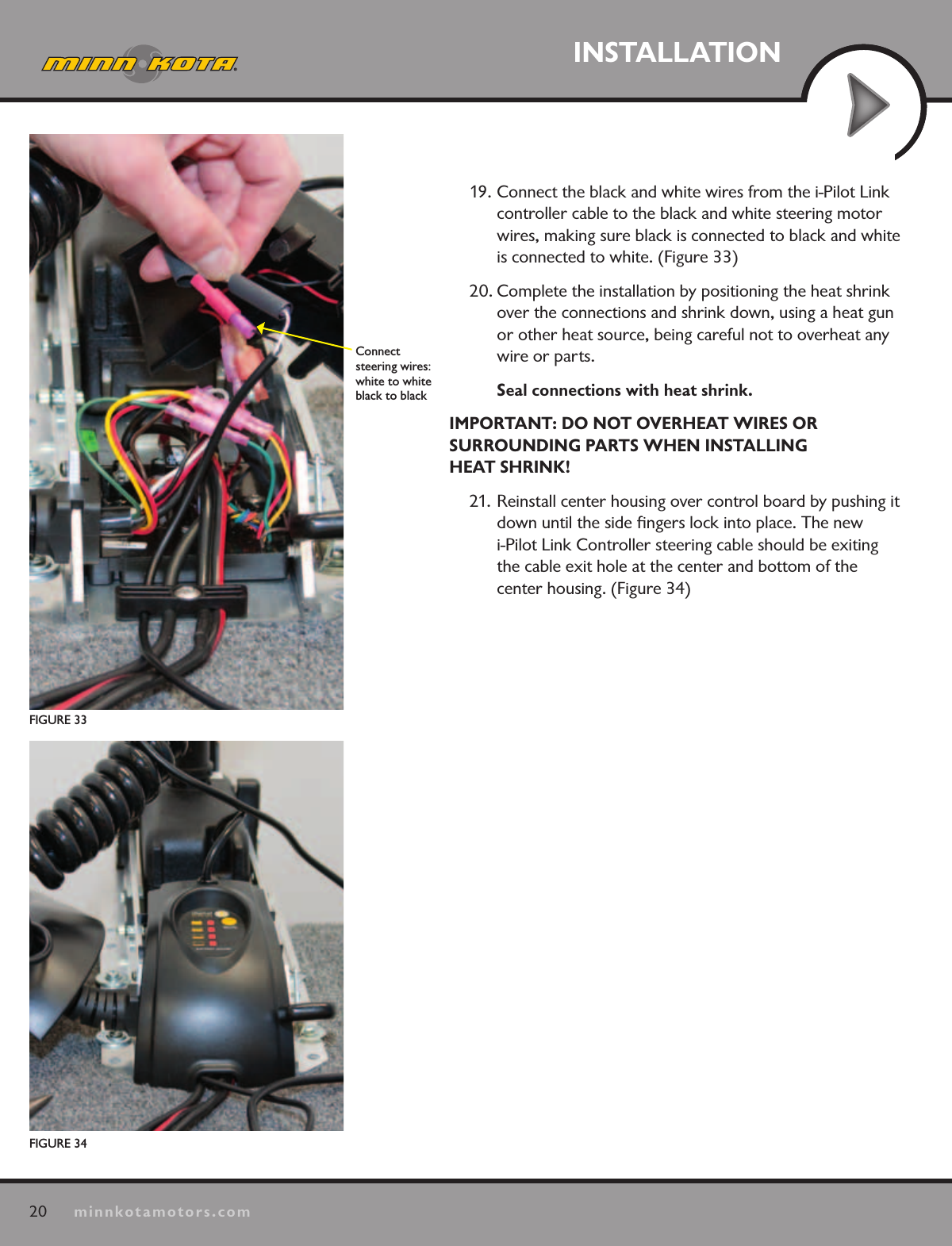
20minnkotamotors.comINSTALLATIONFIGURE 33Connect  steering wires: white to white black to black 19. Connect the black and white wires from the i-Pilot Link controller cable to the black and white steering motor wires, making sure black is connected to black and white is connected to white. (Figure 33)20. Complete the installation by positioning the heat shrink over the connections and shrink down, using a heat gun or other heat source, being careful not to overheat any wire or parts. Seal connections with heat shrink.IMPORTANT: DO NOT OVERHEAT WIRES OR  SURROUNDING PARTS WHEN INSTALLING  HEAT SHRINK!21. Reinstall center housing over control board by pushing it down until the side fingers lock into place. The new  i-Pilot Link Controller steering cable should be exiting the cable exit hole at the center and bottom of the  center housing. (Figure 34)FIGURE 34
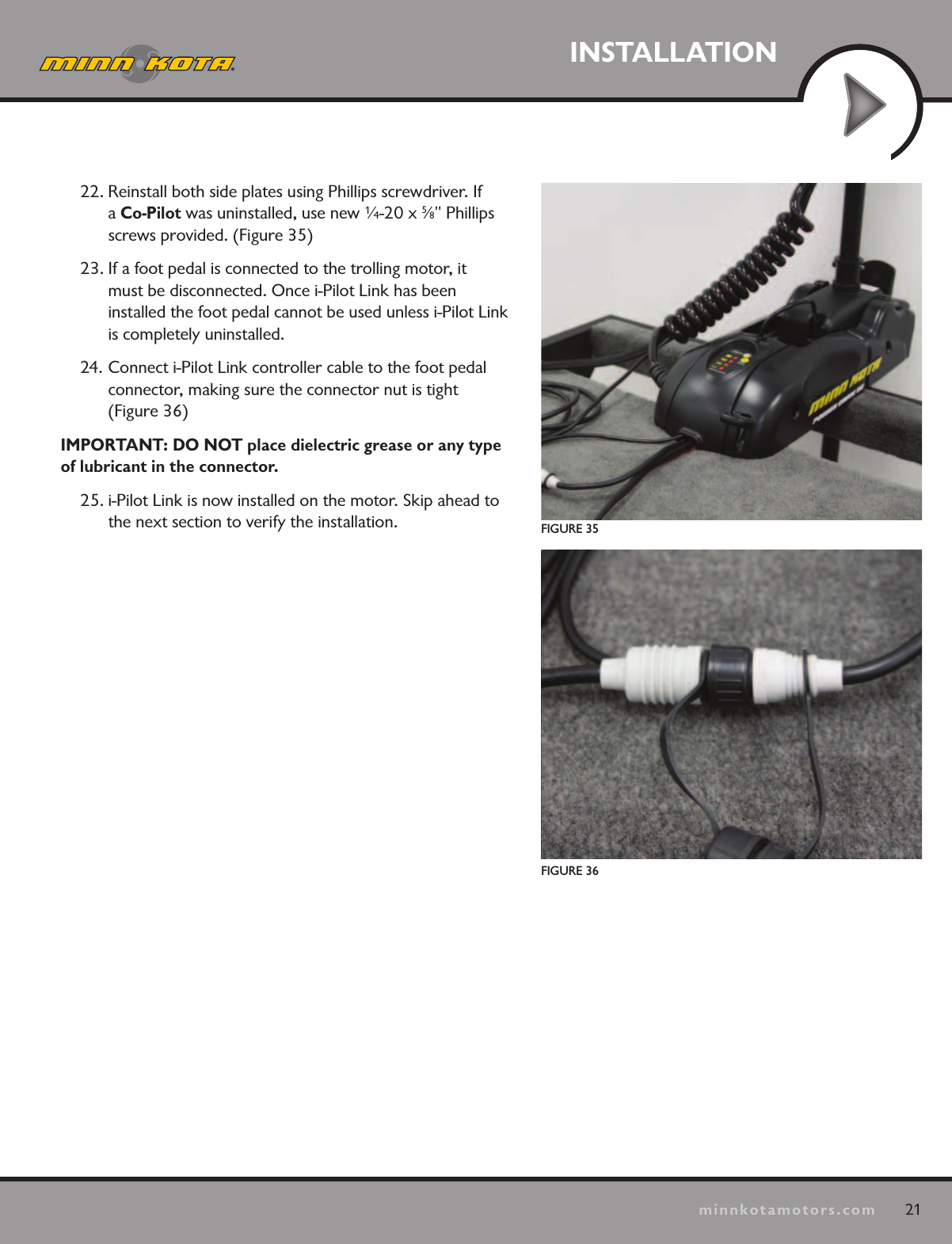
21minnkotamotors.comINSTALLATIONFIGURE 35FIGURE 3622. Reinstall both side plates using Phillips screwdriver. If a Co-Pilot was uninstalled, use new ¼-20 x 5⁄8" Phillips screws provided. (Figure 35)23. If a foot pedal is connected to the trolling motor, it  must be disconnected. Once i-Pilot Link has been  installed the foot pedal cannot be used unless i-Pilot Link is completely uninstalled.24. Connect i-Pilot Link controller cable to the foot pedal  connector, making sure the connector nut is tight  (Figure 36)IMPORTANT: DO NOT place dielectric grease or any type of lubricant in the connector.25. i-Pilot Link is now installed on the motor. Skip ahead to the next section to verify the installation.
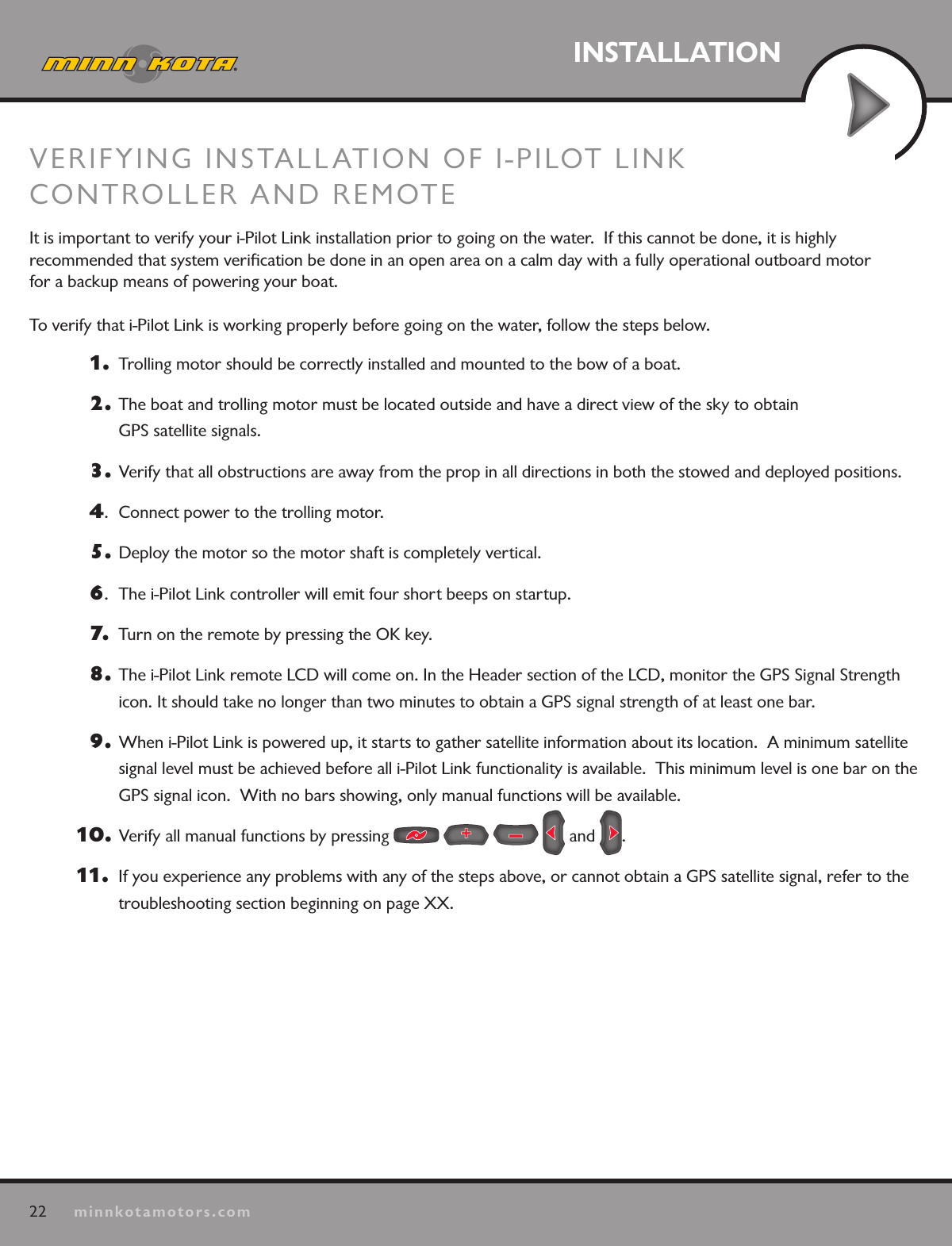
22minnkotamotors.comINSTALLATIONVERIFYING INSTALLATION OF I-PILOT LINK CONTROLLER AND REMOTEIt is important to verify your i-Pilot Link installation prior to going on the water.  If this cannot be done, it is highly  recommended that system verification be done in an open area on a calm day with a fully operational outboard motor  for a backup means of powering your boat.  To verify that i-Pilot Link is working properly before going on the water, follow the steps below.1.   Trolling motor should be correctly installed and mounted to the bow of a boat.2.  The boat and trolling motor must be located outside and have a direct view of the sky to obtain  GPS satellite signals.3.  Verify that all obstructions are away from the prop in all directions in both the stowed and deployed positions.4.  Connect power to the trolling motor.5.  Deploy the motor so the motor shaft is completely vertical.6.  The i-Pilot Link controller will emit four short beeps on startup. 7.   Turn on the remote by pressing the OK key.8.  The i-Pilot Link remote LCD will come on. In the Header section of the LCD, monitor the GPS Signal Strength icon. It should take no longer than two minutes to obtain a GPS signal strength of at least one bar.9.  When i-Pilot Link is powered up, it starts to gather satellite information about its location.  A minimum satellite signal level must be achieved before all i-Pilot Link functionality is available.  This minimum level is one bar on the GPS signal icon.  With no bars showing, only manual functions will be available.10 .   Verify all manual functions by pressing         and  .11.   If you experience any problems with any of the steps above, or cannot obtain a GPS satellite signal, refer to the  troubleshooting section beginning on page XX.
23minnkotamotors.comINSTALLATIONI-PILOT LINK CONNECTIONS TO THE HUMMINBIRD
24minnkotamotors.comINSTALLATIONINSTALLATION
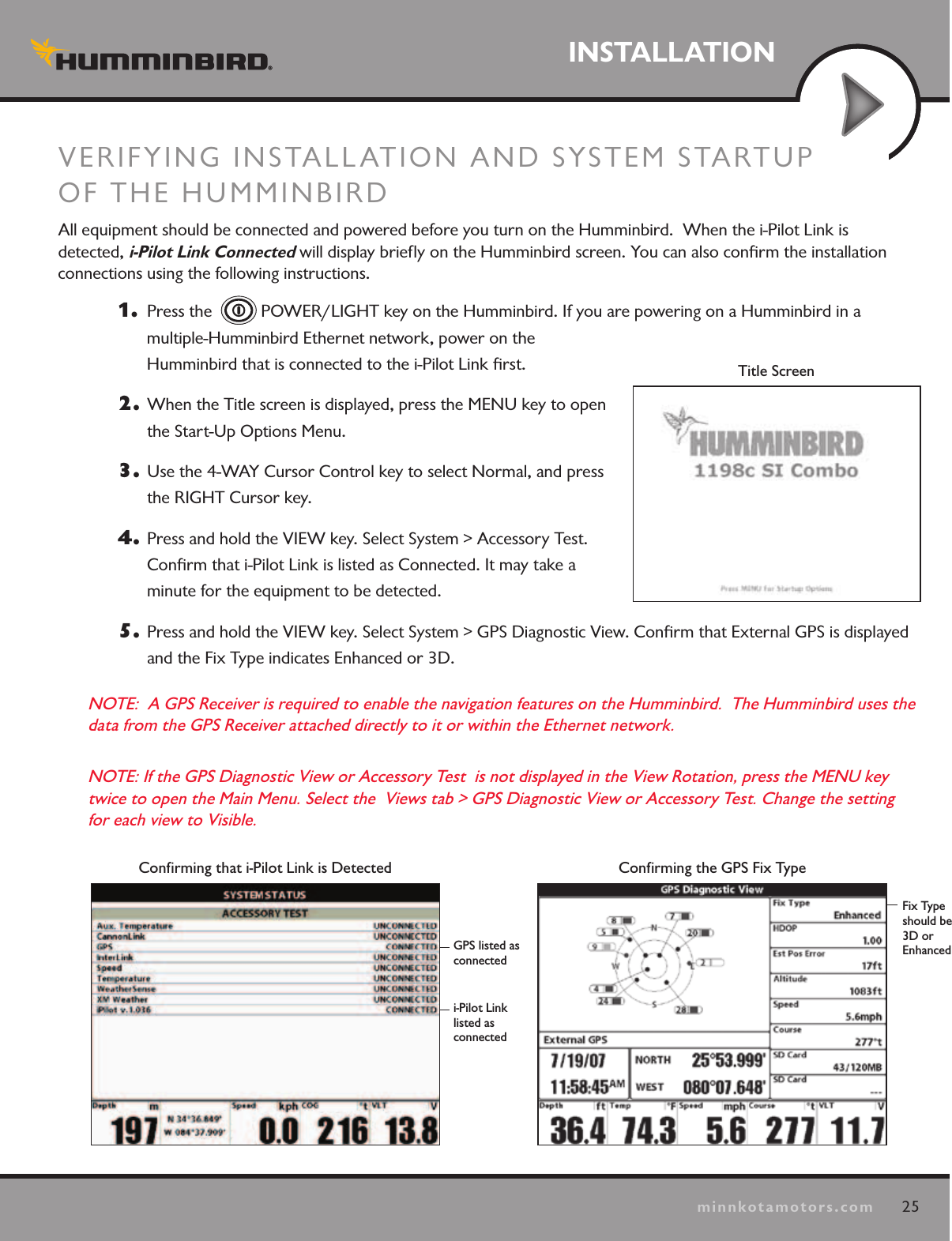
25minnkotamotors.comINSTALLATIONINSTALLATIONVERIFYING INSTALLATION AND SYSTEM STARTUP  OF THE HUMMINBIRD  All equipment should be connected and powered before you turn on the Humminbird.  When the i-Pilot Link is  detected, i-Pilot Link Connected will display briefly on the Humminbird screen. You can also confirm the installation connections using the following instructions. 1.   Press the    POWER/LIGHT key on the Humminbird. If you are powering on a Humminbird in a multiple-Humminbird Ethernet network, power on the  Humminbird that is connected to the i-Pilot Link first.  2.  When the Title screen is displayed, press the MENU key to open the Start-Up Options Menu.  3.  Use the 4-WAY Cursor Control key to select Normal, and press the RIGHT Cursor key.4.  Press and hold the VIEW key. Select System > Accessory Test. Confirm that i-Pilot Link is listed as Connected. It may take a  minute for the equipment to be detected. 5.  Press and hold the VIEW key. Select System > GPS Diagnostic View. Confirm that External GPS is displayed and the Fix Type indicates Enhanced or 3D.  NOTE:  A GPS Receiver is required to enable the navigation features on the Humminbird.  The Humminbird uses the data from the GPS Receiver attached directly to it or within the Ethernet network.  NOTE: If the GPS Diagnostic View or Accessory Test  is not displayed in the View Rotation, press the MENU key twice to open the Main Menu. Select the  Views tab > GPS Diagnostic View or Accessory Test. Change the setting for each view to Visible. Confirming the GPS Fix TypeFix Type should be  3D or EnhancedConfirming that i-Pilot Link is Detectedi-Pilot Link  listed as  connectedGPS listed as  connectedTitle Screen
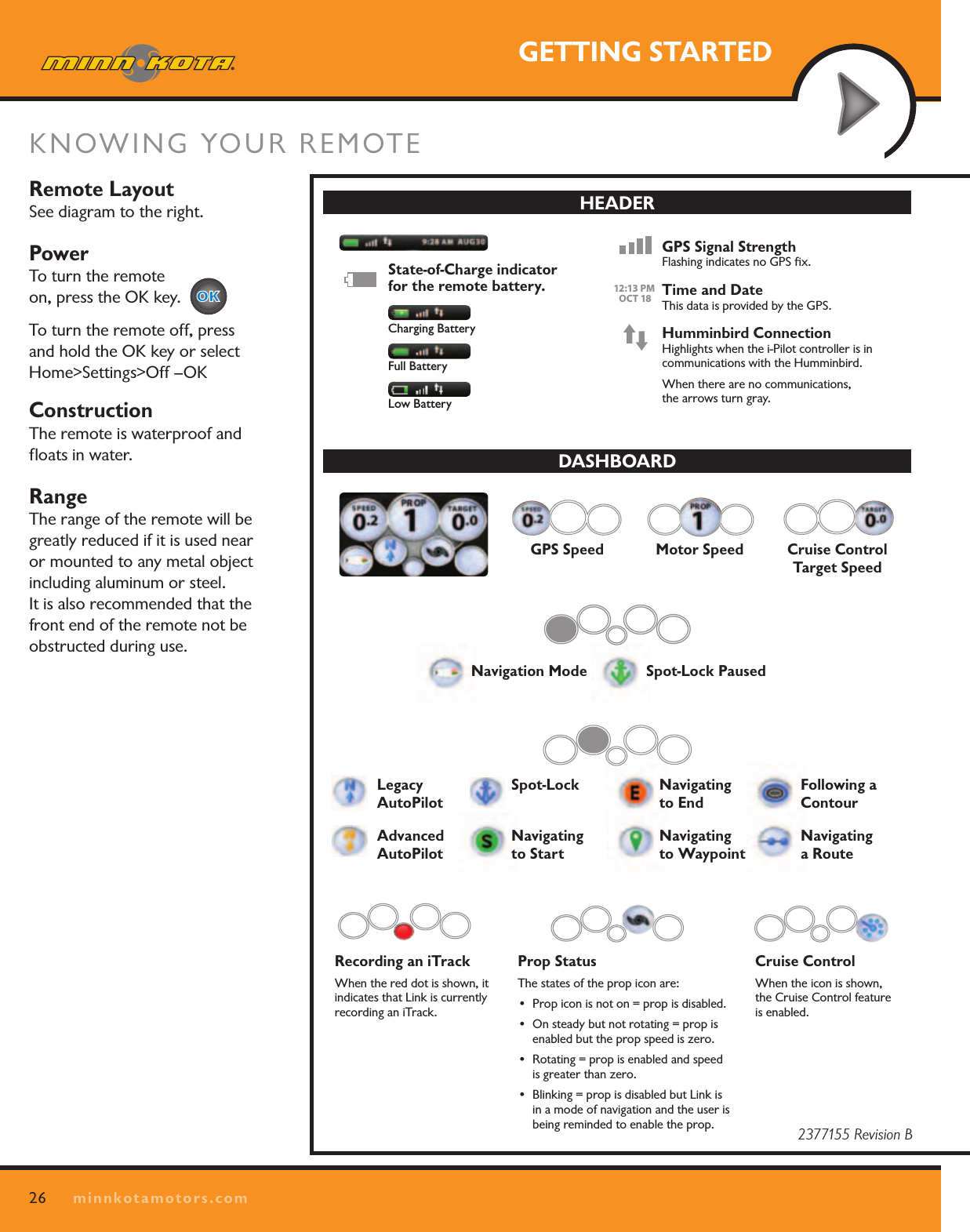
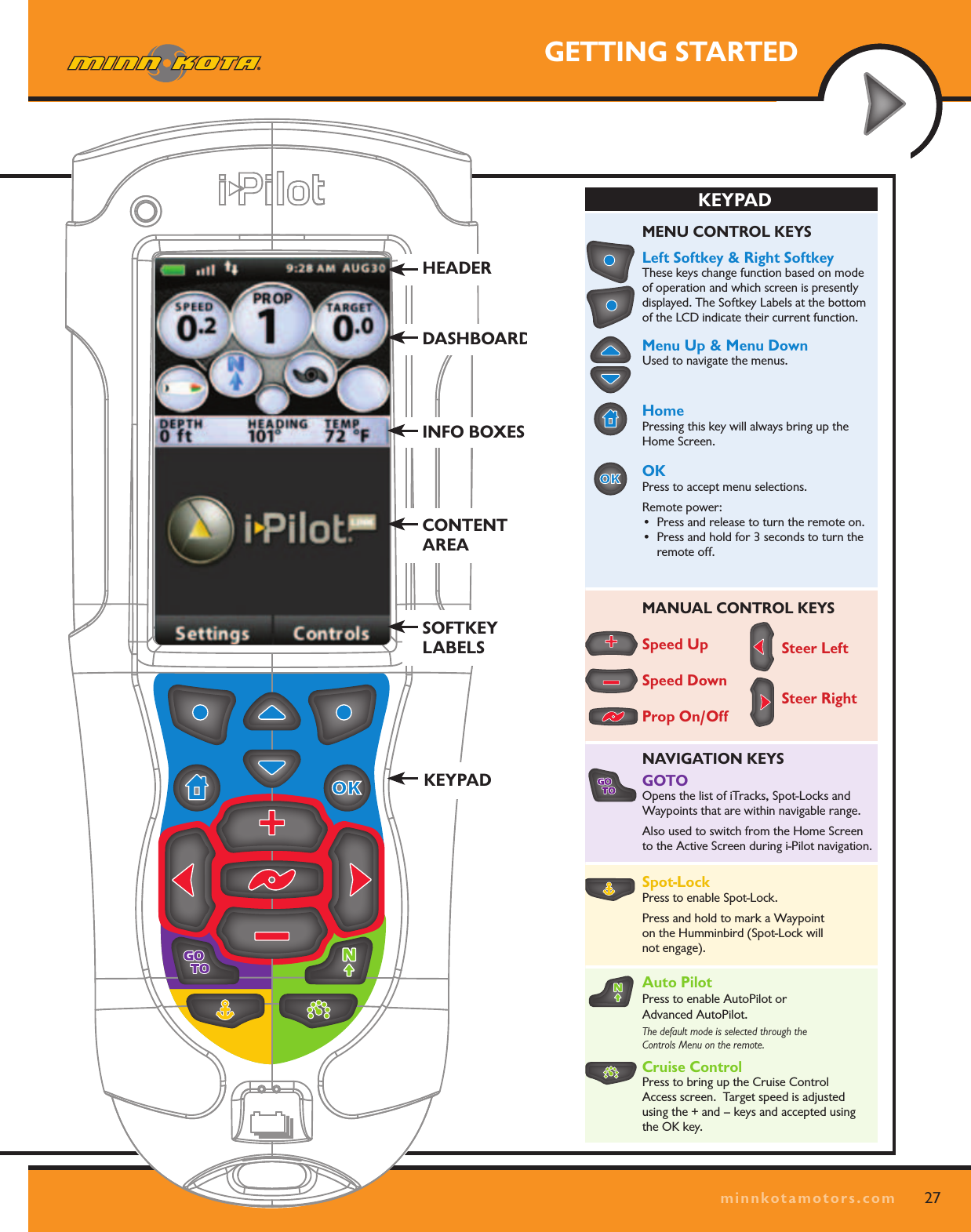
26minnkotamotors.comGETTING STARTEDKNOWING YOUR REMOTE Remote LayoutSee diagram to the right.PowerTo turn the remote  on, press the OK key.     To turn the remote off, press and hold the OK key or select Home>Settings>Off –OKConstructionThe remote is waterproof and floats in water.  RangeThe range of the remote will be greatly reduced if it is used near or mounted to any metal object including aluminum or steel.  It is also recommended that the front end of the remote not be obstructed during use.MENU CONTROL KEYSLeft Softkey & Right Softkey These keys change function based on mode of operation and which screen is presently displayed. The Softkey Labels at the bottom of the LCD indicate their current function. Menu Up & Menu Down Used to navigate the menus.Home Pressing this key will always bring up the Home Screen.OK Press to accept menu selections.Remote power:• Pressandreleasetoturntheremoteon.• Pressandholdfor3secondstoturntheremote off.MANUAL CONTROL KEYSSpeed UpSpeed DownProp On/OffAuto Pilot Press to enable AutoPilot or  Advanced AutoPilot.The default mode is selected through the  Controls Menu on the remote.Cruise Control Press to bring up the Cruise Control  Access screen.  Target speed is adjusted using the + and – keys and accepted using the OK key.GOTO Opens the list of iTracks, Spot-Locks and Waypoints that are within navigable range.Also used to switch from the Home Screen  to the Active Screen during i-Pilot navigation.Spot-Lock Press to enable Spot-Lock.Press and hold to mark a Waypoint  on the Humminbird (Spot-Lock will  not engage).NAVIGATION KEYSHEADERDASHBOARDINFO BOXESCONTENT  AREASOFTKEY  LABELSKEYPADKEYPADDASHBOARDHEADERQUICK REFERENCE GUIDESteer LeftSteer RightState-of-Charge indicator for the remote battery.   GPS Signal Strength Flashing indicates no GPS fix.Humminbird Connection Highlights when the i-Pilot controller is in  communications with the Humminbird.When there are no communications,  the arrows turn gray.Time and Date This data is provided by the GPS.12:13 PM    OCT 1812:13 PM    OCT 18Recording an iTrack When the red dot is shown, it indicates that Link is currently recording an iTrack.Legacy  AutoPilotAdvanced   AutoPilotCruise Control Target SpeedNavigation ModeMotor Speed Cruise Control When the icon is shown, the Cruise Control feature is enabled. Spot-Lock  Navigating  to StartNavigating  to EndNavigating  to Waypoint Following a  ContourNavigating  a RouteSpot-Lock PausedProp Status The states of the prop icon are:• Propiconisnoton=propisdisabled.• Onsteadybutnotrotating=propisenabled but the prop speed is zero.• Rotating=propisenabledandspeedis greater than zero.• Blinking=propisdisabledbutLinkisin a mode of navigation and the user is being reminded to enable the prop.GPS SpeedCharging BatteryFull BatteryLow Battery2377155 Revision B
27minnkotamotors.comGETTING STARTEDMENU CONTROL KEYSLeft Softkey & Right Softkey These keys change function based on mode of operation and which screen is presently displayed. The Softkey Labels at the bottom of the LCD indicate their current function. Menu Up & Menu Down Used to navigate the menus.Home Pressing this key will always bring up the Home Screen.OK Press to accept menu selections.Remote power:• Pressandreleasetoturntheremoteon.• Pressandholdfor3secondstoturntheremote off.MANUAL CONTROL KEYSSpeed UpSpeed DownProp On/OffAuto Pilot Press to enable AutoPilot or  Advanced AutoPilot.The default mode is selected through the  Controls Menu on the remote.Cruise Control Press to bring up the Cruise Control  Access screen.  Target speed is adjusted using the + and – keys and accepted using the OK key.GOTO Opens the list of iTracks, Spot-Locks and Waypoints that are within navigable range.Also used to switch from the Home Screen  to the Active Screen during i-Pilot navigation.Spot-Lock Press to enable Spot-Lock.Press and hold to mark a Waypoint  on the Humminbird (Spot-Lock will  not engage).NAVIGATION KEYSHEADERDASHBOARDINFO BOXESCONTENT  AREASOFTKEY  LABELSKEYPADKEYPADDASHBOARDHEADERQUICK REFERENCE GUIDESteer LeftSteer RightState-of-Charge indicator for the remote battery.   GPS Signal Strength Flashing indicates no GPS fix.Humminbird Connection Highlights when the i-Pilot controller is in  communications with the Humminbird.When there are no communications,  the arrows turn gray.Time and Date This data is provided by the GPS.12:13 PM    OCT 1812:13 PM    OCT 18Recording an iTrack When the red dot is shown, it indicates that Link is currently recording an iTrack.Legacy  AutoPilotAdvanced   AutoPilotCruise Control Target SpeedNavigation ModeMotor Speed Cruise Control When the icon is shown, the Cruise Control feature is enabled. Spot-Lock  Navigating  to StartNavigating  to EndNavigating  to Waypoint Following a  ContourNavigating  a RouteSpot-Lock PausedProp Status The states of the prop icon are:• Propiconisnoton=propisdisabled.• Onsteadybutnotrotating=propisenabled but the prop speed is zero.• Rotating=propisenabledandspeedis greater than zero.• Blinking=propisdisabledbutLinkisin a mode of navigation and the user is being reminded to enable the prop.GPS SpeedCharging BatteryFull BatteryLow Battery2377155 Revision BMENU CONTROL KEYSLeft Softkey & Right Softkey These keys change function based on mode of operation and which screen is presently displayed. The Softkey Labels at the bottom of the LCD indicate their current function. Menu Up & Menu Down Used to navigate the menus.Home Pressing this key will always bring up the Home Screen.OK Press to accept menu selections.Remote power:• Pressandreleasetoturntheremoteon.• Pressandholdfor3secondstoturntheremote off.MANUAL CONTROL KEYSSpeed UpSpeed DownProp On/OffAuto Pilot Press to enable AutoPilot or  Advanced AutoPilot.The default mode is selected through the  Controls Menu on the remote.Cruise Control Press to bring up the Cruise Control  Access screen.  Target speed is adjusted using the + and – keys and accepted using the OK key.GOTO Opens the list of iTracks, Spot-Locks and Waypoints that are within navigable range.Also used to switch from the Home Screen  to the Active Screen during i-Pilot navigation.Spot-Lock Press to enable Spot-Lock.Press and hold to mark a Waypoint  on the Humminbird (Spot-Lock will  not engage).NAVIGATION KEYSHEADERDASHBOARDINFO BOXESCONTENT  AREASOFTKEY  LABELSKEYPADKEYPADDASHBOARDHEADERQUICK REFERENCE GUIDESteer LeftSteer RightState-of-Charge indicator for the remote battery.   GPS Signal Strength Flashing indicates no GPS fix.Humminbird Connection Highlights when the i-Pilot controller is in  communications with the Humminbird.When there are no communications,  the arrows turn gray.Time and Date This data is provided by the GPS.12:13 PM    OCT 1812:13 PM    OCT 18Recording an iTrack When the red dot is shown, it indicates that Link is currently recording an iTrack.Legacy  AutoPilotAdvanced   AutoPilotCruise Control Target SpeedNavigation ModeMotor Speed Cruise Control When the icon is shown, the Cruise Control feature is enabled. Spot-Lock  Navigating  to StartNavigating  to EndNavigating  to Waypoint Following a  ContourNavigating  a RouteSpot-Lock PausedProp Status The states of the prop icon are:• Propiconisnoton=propisdisabled.• Onsteadybutnotrotating=propisenabled but the prop speed is zero.• Rotating=propisenabledandspeedis greater than zero.• Blinking=propisdisabledbutLinkisin a mode of navigation and the user is being reminded to enable the prop.GPS SpeedCharging BatteryFull BatteryLow Battery2377155 Revision B
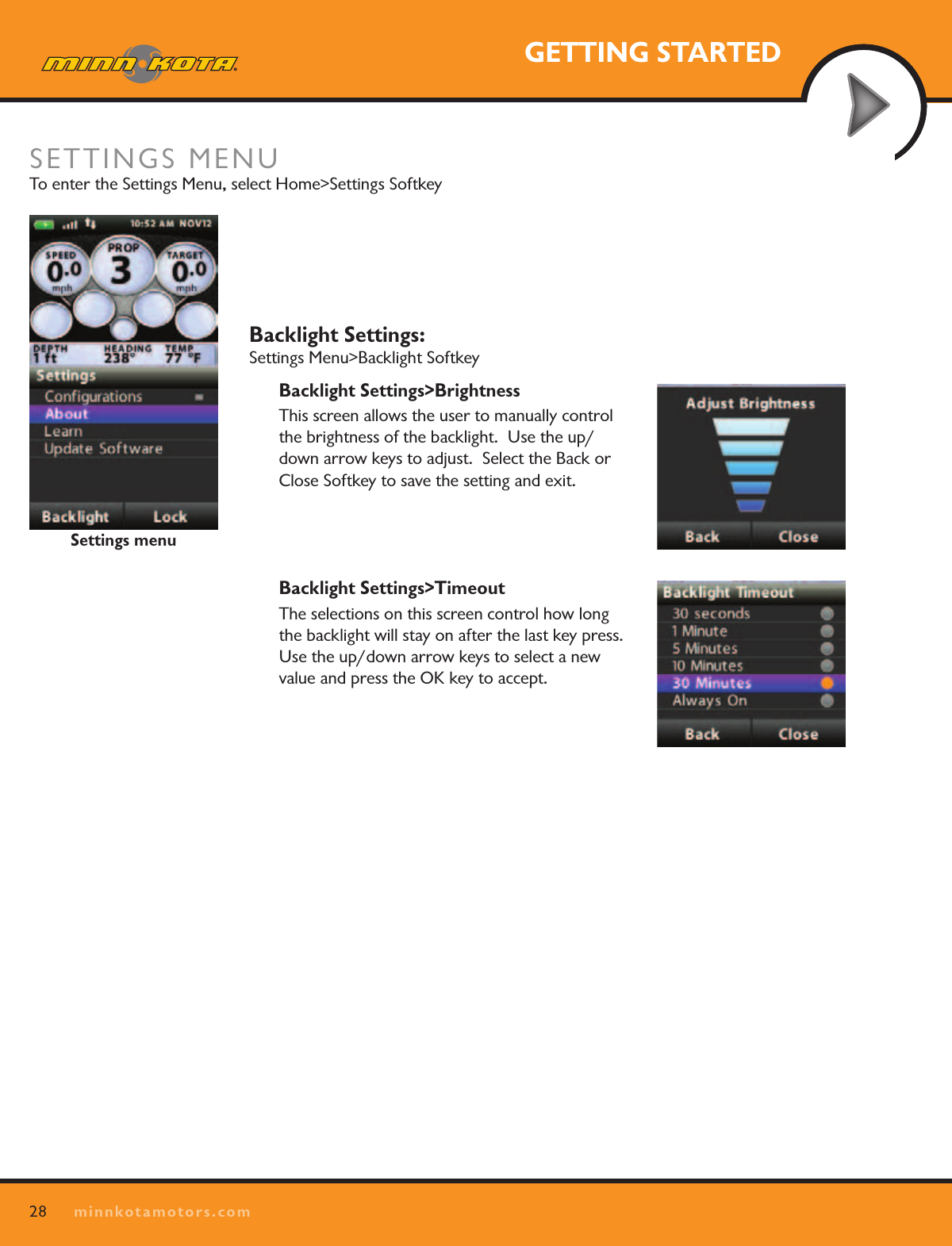
28minnkotamotors.comGETTING STARTEDBacklight Settings:   Settings Menu>Backlight SoftkeyBacklight Settings>BrightnessThis screen allows the user to manually control the brightness of the backlight.  Use the up/down arrow keys to adjust.  Select the Back or Close Softkey to save the setting and exit.Backlight Settings>TimeoutThe selections on this screen control how long the backlight will stay on after the last key press.  Use the up/down arrow keys to select a new value and press the OK key to accept.Settings menuSETTINGS MENU To enter the Settings Menu, select Home>Settings Softkey
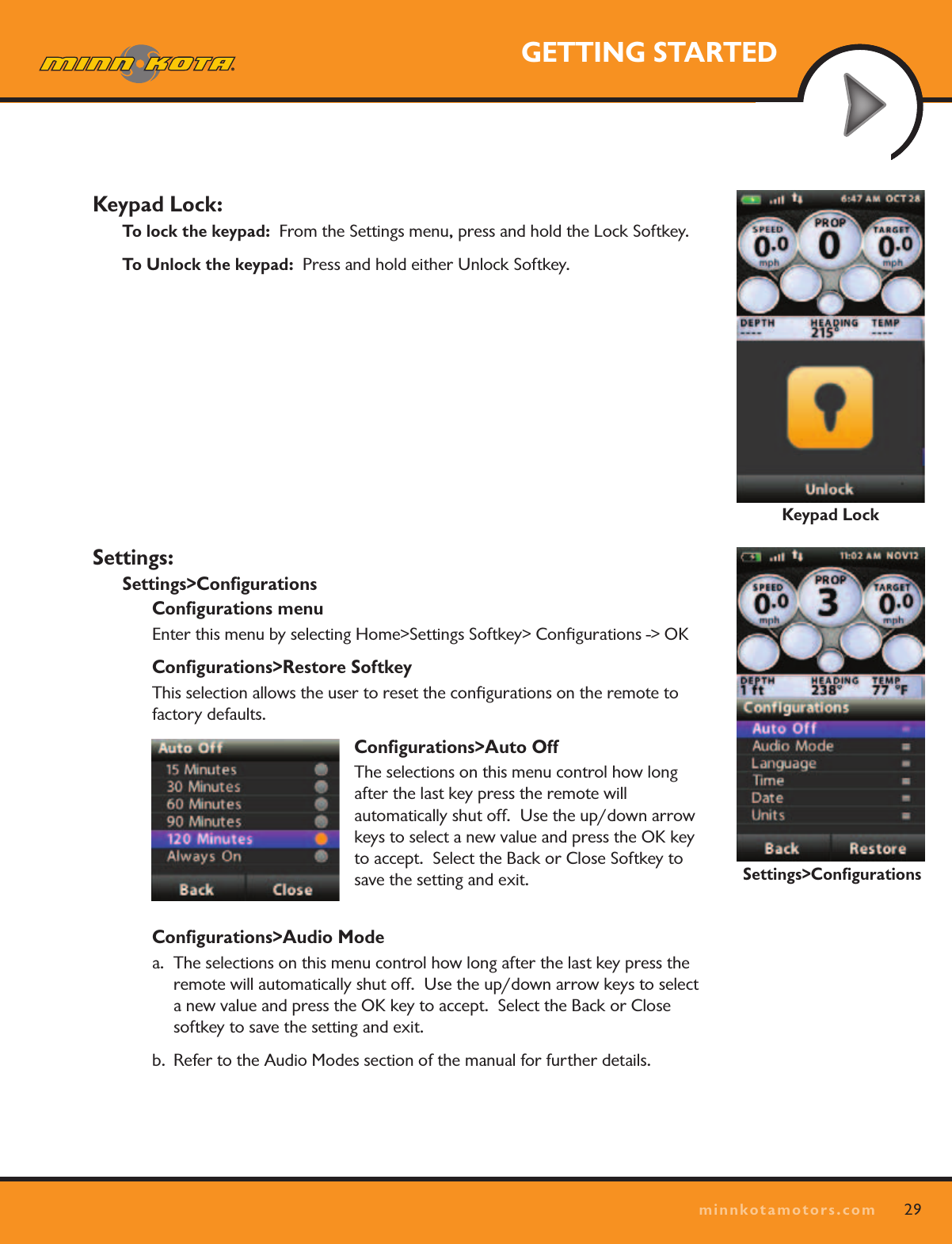
29minnkotamotors.comGETTING STARTEDKeypad Lock:To lock the keypad:  From the Settings menu, press and hold the Lock Softkey.To Unlock the keypad:  Press and hold either Unlock Softkey.Settings: Settings>ConfigurationsConfigurations menu Enter this menu by selecting Home>Settings Softkey> Configurations -> OKConfigurations>Restore SoftkeyThis selection allows the user to reset the configurations on the remote to factory defaults. Configurations>Auto OffThe selections on this menu control how long after the last key press the remote will  automatically shut off.  Use the up/down arrow keys to select a new value and press the OK key to accept.  Select the Back or Close Softkey to save the setting and exit.Configurations>Audio Modea.  The selections on this menu control how long after the last key press the remote will automatically shut off.  Use the up/down arrow keys to select a new value and press the OK key to accept.  Select the Back or Close softkey to save the setting and exit.b.  Refer to the Audio Modes section of the manual for further details.Keypad LockSettings>Configurations
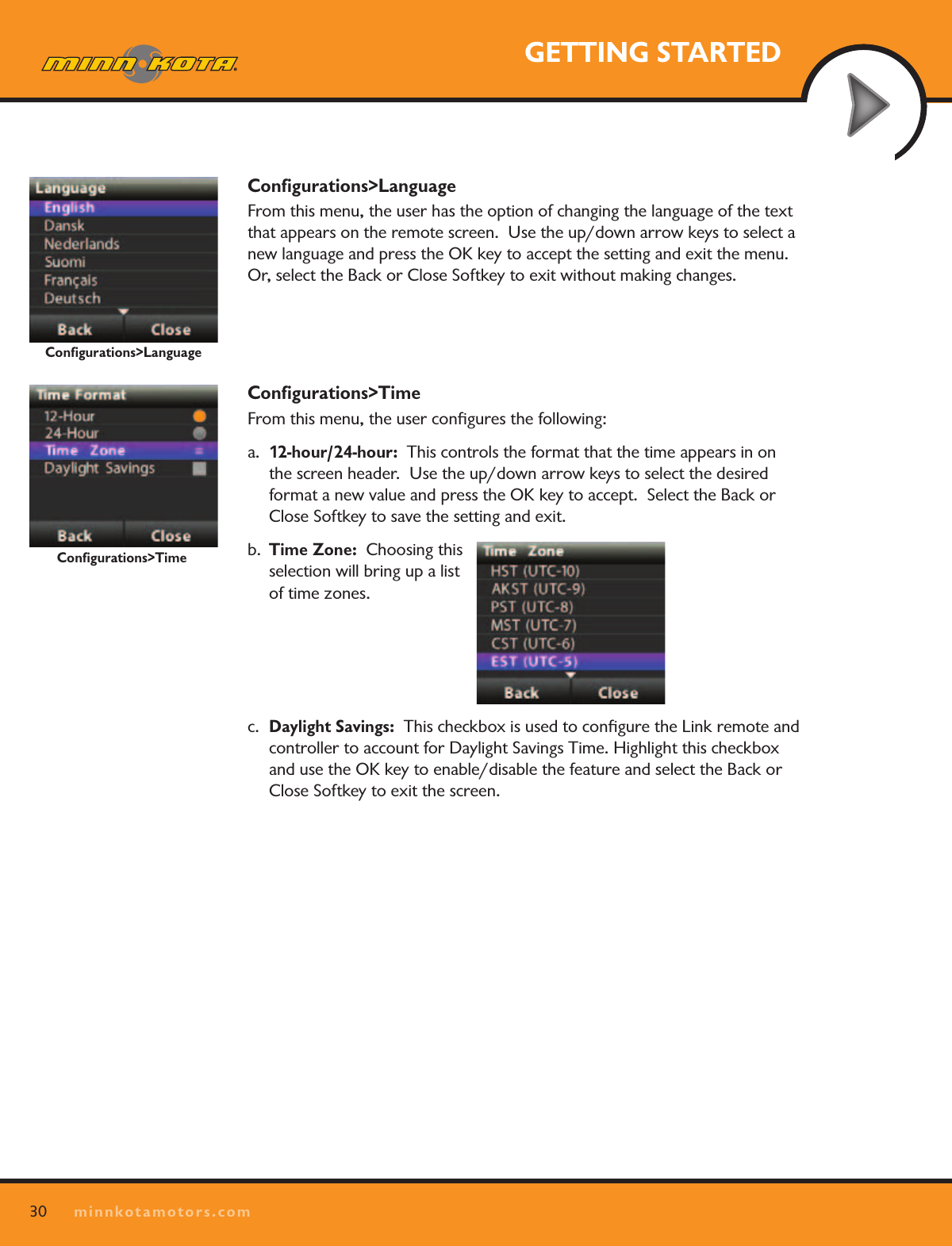
30minnkotamotors.comGETTING STARTEDConfigurations>LanguageFrom this menu, the user has the option of changing the language of the text that appears on the remote screen.  Use the up/down arrow keys to select a new language and press the OK key to accept the setting and exit the menu.  Or, select the Back or Close Softkey to exit without making changes.  Configurations>TimeFrom this menu, the user configures the following:a.  12-hour/24-hour:  This controls the format that the time appears in on the screen header.  Use the up/down arrow keys to select the desired format a new value and press the OK key to accept.  Select the Back or Close Softkey to save the setting and exit.  b.  Time Zone:  Choosing this selection will bring up a list of time zones.c.  Daylight Savings:  This checkbox is used to configure the Link remote and controller to account for Daylight Savings Time. Highlight this checkbox and use the OK key to enable/disable the feature and select the Back or Close Softkey to exit the screen.Configurations>LanguageConfigurations>Time
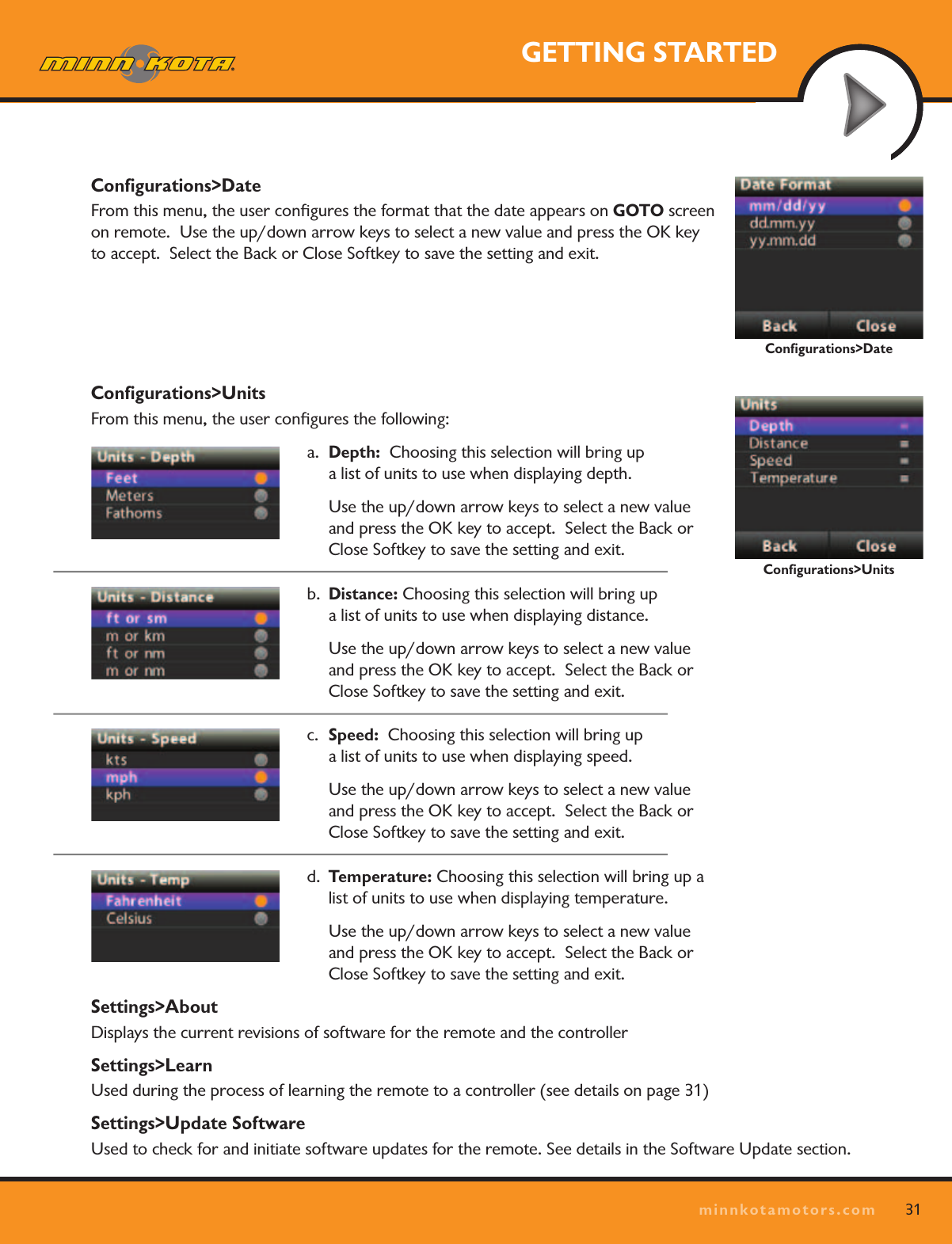
31minnkotamotors.comGETTING STARTEDConfigurations>DateFrom this menu, the user configures the format that the date appears on GOTO screen on remote.  Use the up/down arrow keys to select a new value and press the OK key to accept.  Select the Back or Close Softkey to save the setting and exit.  Configurations>UnitsFrom this menu, the user configures the following:a.  Depth:  Choosing this selection will bring up  a list of units to use when displaying depth.  Use the up/down arrow keys to select a new value and press the OK key to accept.  Select the Back or Close Softkey to save the setting and exit.  b.  Distance: Choosing this selection will bring up  a list of units to use when displaying distance.  Use the up/down arrow keys to select a new value and press the OK key to accept.  Select the Back or Close Softkey to save the setting and exit.  c.  Speed:  Choosing this selection will bring up  a list of units to use when displaying speed.  Use the up/down arrow keys to select a new value and press the OK key to accept.  Select the Back or Close Softkey to save the setting and exit.  d.  Temperature: Choosing this selection will bring up a list of units to use when displaying temperature.  Use the up/down arrow keys to select a new value and press the OK key to accept.  Select the Back or Close Softkey to save the setting and exit.  Settings>AboutDisplays the current revisions of software for the remote and the controller Settings>LearnUsed during the process of learning the remote to a controller (see details on page 31)Settings>Update SoftwareUsed to check for and initiate software updates for the remote. See details in the Software Update section.Configurations>UnitsConfigurations>Date
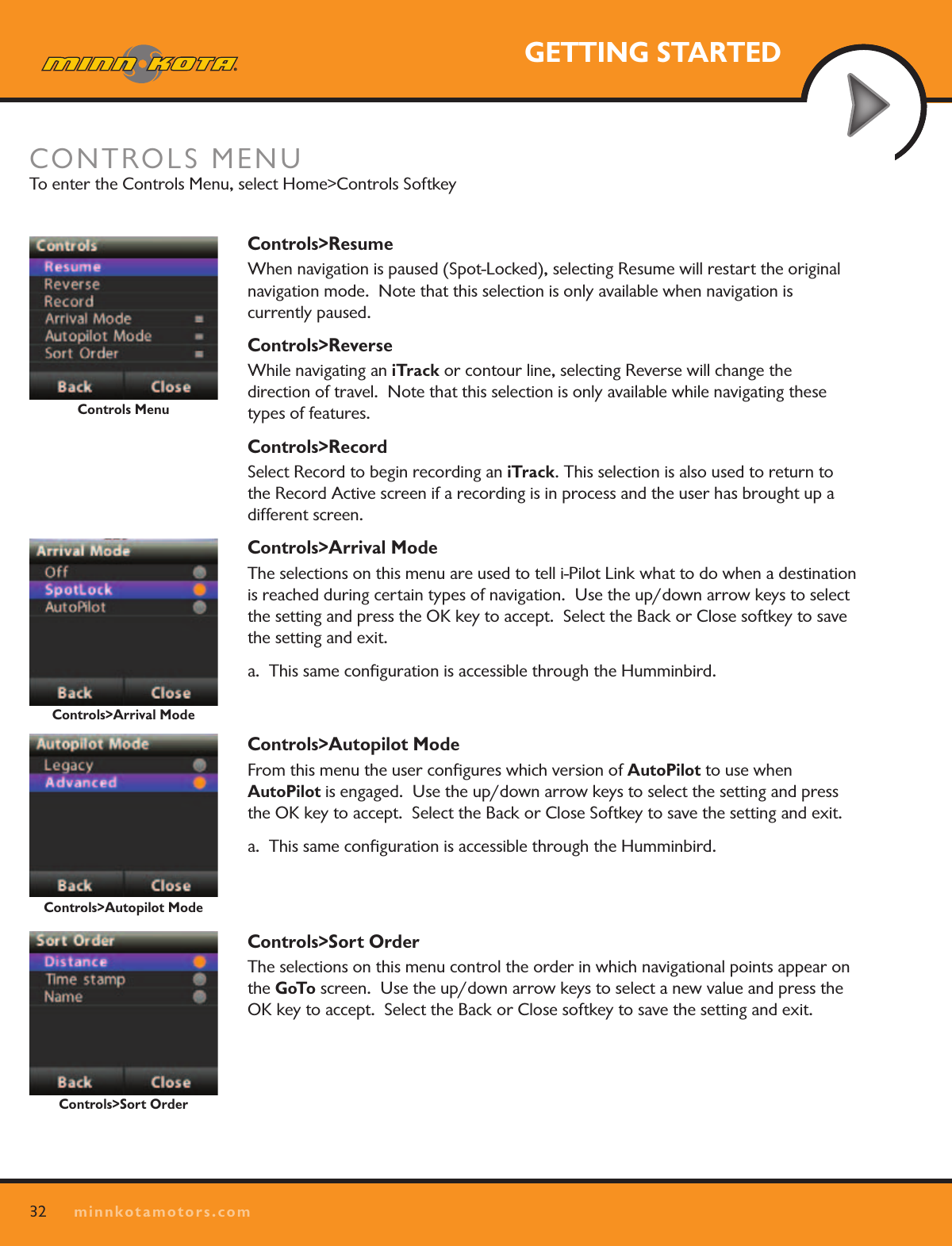
32minnkotamotors.comGETTING STARTEDControls>ResumeWhen navigation is paused (Spot-Locked), selecting Resume will restart the original navigation mode.  Note that this selection is only available when navigation is  currently paused.Controls>ReverseWhile navigating an iTrack or contour line, selecting Reverse will change the  direction of travel.  Note that this selection is only available while navigating these types of features. Controls>RecordSelect Record to begin recording an iTrack. This selection is also used to return to the Record Active screen if a recording is in process and the user has brought up a different screen.Controls>Arrival ModeThe selections on this menu are used to tell i-Pilot Link what to do when a destination is reached during certain types of navigation.  Use the up/down arrow keys to select the setting and press the OK key to accept.  Select the Back or Close softkey to save the setting and exit.a.  This same configuration is accessible through the Humminbird.   Controls>Autopilot ModeFrom this menu the user configures which version of AutoPilot to use when  AutoPilot is engaged.  Use the up/down arrow keys to select the setting and press the OK key to accept.  Select the Back or Close Softkey to save the setting and exit.  a.  This same configuration is accessible through the Humminbird.Controls>Sort OrderThe selections on this menu control the order in which navigational points appear on the GoTo screen.  Use the up/down arrow keys to select a new value and press the OK key to accept.  Select the Back or Close softkey to save the setting and exit.  Controls MenuControls>Arrival ModeControls>Autopilot ModeCONTROLS MENU To enter the Controls Menu, select Home>Controls SoftkeyControls>Sort Order
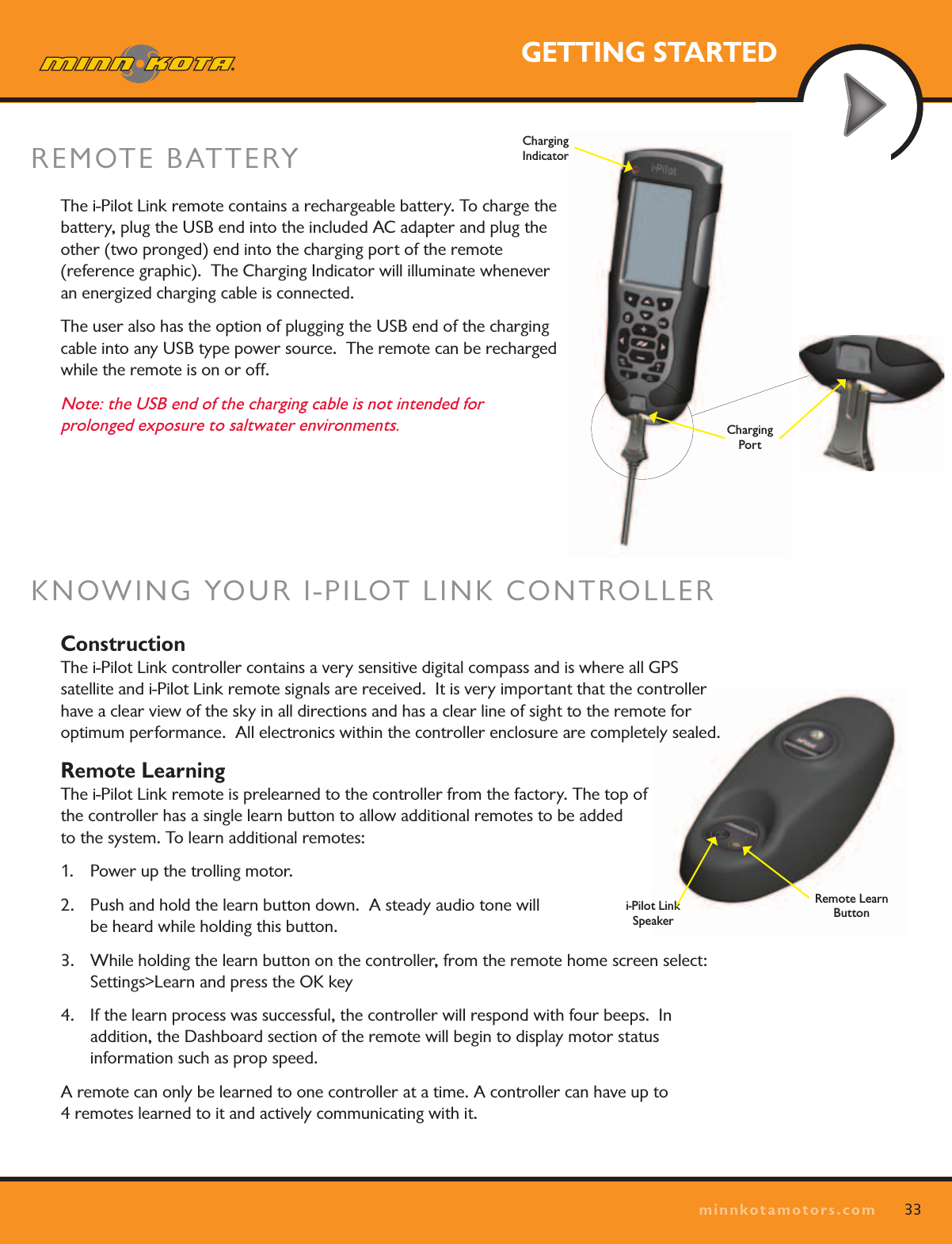
33minnkotamotors.comGETTING STARTEDi-Pilot Link  SpeakerRemote Learn ButtonKNOWING YOUR I-PILOT LINK CONTROLLER Construction The i-Pilot Link controller contains a very sensitive digital compass and is where all GPS  satellite and i-Pilot Link remote signals are received.  It is very important that the controller have a clear view of the sky in all directions and has a clear line of sight to the remote for optimum performance.  All electronics within the controller enclosure are completely sealed.Remote Learning The i-Pilot Link remote is prelearned to the controller from the factory. The top of  the controller has a single learn button to allow additional remotes to be added  to the system. To learn additional remotes:1.  Power up the trolling motor. 2.  Push and hold the learn button down.  A steady audio tone will  be heard while holding this button.3.  While holding the learn button on the controller, from the remote home screen select:  Settings>Learn and press the OK key4.  If the learn process was successful, the controller will respond with four beeps.  In  addition, the Dashboard section of the remote will begin to display motor status  information such as prop speed.A remote can only be learned to one controller at a time. A controller can have up to  4 remotes learned to it and actively communicating with it.The i-Pilot Link remote contains a rechargeable battery. To charge the battery, plug the USB end into the included AC adapter and plug the other (two pronged) end into the charging port of the remote  (reference graphic).  The Charging Indicator will illuminate whenever  an energized charging cable is connected.The user also has the option of plugging the USB end of the charging cable into any USB type power source.  The remote can be recharged while the remote is on or off.  Note: the USB end of the charging cable is not intended for  prolonged exposure to saltwater environments.REMOTE BATTERY Charging  PortCharging  Indicator
34minnkotamotors.comGETTING STARTEDAudio Modes The i-Pilot Link Controller also contains an internal speaker which can be programmed to work in two different audio modes.  The speaker is programmed to operate in audio mode one from the factory.  To select the  different audio modes, from the Home screen go to:  Settings>Configurations>Audio Mode.  For an  explanation of each audio mode and their sounds see the table below.
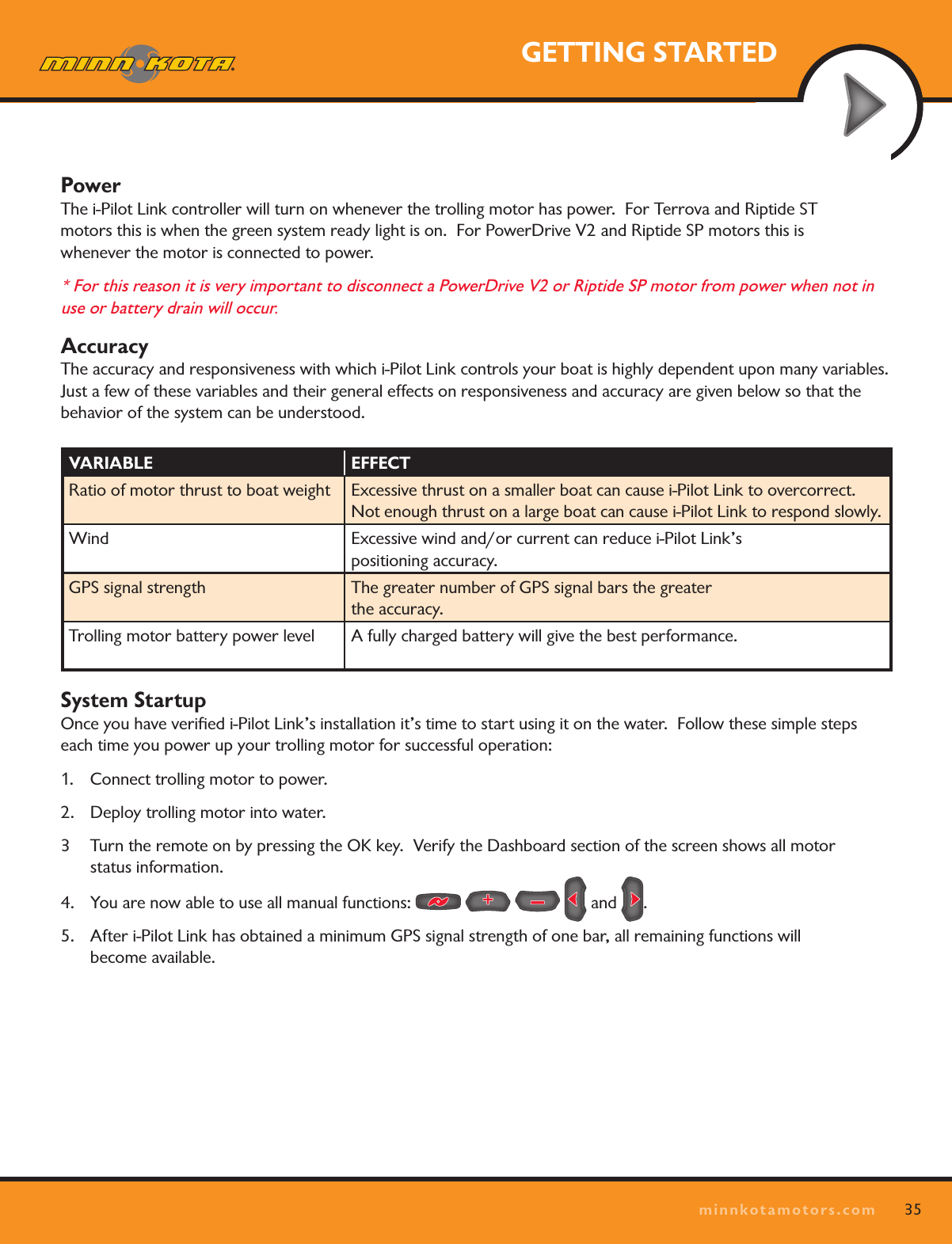
35minnkotamotors.comGETTING STARTEDPower The i-Pilot Link controller will turn on whenever the trolling motor has power.  For Terrova and Riptide ST  motors this is when the green system ready light is on.  For PowerDrive V2 and Riptide SP motors this is  whenever the motor is connected to power.  * For this reason it is very important to disconnect a PowerDrive V2 or Riptide SP motor from power when not in use or battery drain will occur. Accuracy The accuracy and responsiveness with which i-Pilot Link controls your boat is highly dependent upon many variables.   Just a few of these variables and their general effects on responsiveness and accuracy are given below so that the behavior of the system can be understood.System Startup Once you have verified i-Pilot Link’s installation it’s time to start using it on the water.  Follow these simple steps each time you power up your trolling motor for successful operation:1.  Connect trolling motor to power.2.  Deploy trolling motor into water.3  Turn the remote on by pressing the OK key.  Verify the Dashboard section of the screen shows all motor  status information.4.  You are now able to use all manual functions:         and  .5.  After i-Pilot Link has obtained a minimum GPS signal strength of one bar, all remaining functions will  become available.VARIABLE EFFECTRatio of motor thrust to boat weight Excessive thrust on a smaller boat can cause i-Pilot Link to overcorrect.  Not enough thrust on a large boat can cause i-Pilot Link to respond slowly.Wind Excessive wind and/or current can reduce i-Pilot Link’s  positioning accuracy.GPS signal strength The greater number of GPS signal bars the greater  the accuracy.Trolling motor battery power level A fully charged battery will give the best performance.
36minnkotamotors.comGETTING STARTEDHUMMINBIRD SOFTWARE UPDATESSet up an online account at humminbird.com so that you will receive the latest Humminbird news and software updates for your Fishing System. The i-Pilot Link software can also be updated through the control head.WARNING! Humminbird® is not responsible for the loss of data files (waypoints, routes, tracks, groups, snapshots, recordings, etc.) that may occur due to direct or indirect damage to the unit’s hardware or  software. It is important to back up your control head’s data files periodically. Data files should also be  saved to your PC before restoring the unit’s defaults or updating the software. See your Humminbird®  online account at humminbird.com and the Waypoint Management guide.Required Equipment: Personal computer with Internet access, a formatted SD memory card, and a USB  Memory Card Reader.Update the Software1.  Install a formatted SD memory card into the card reader connected to your PC.2.  Register your Fishing System: Log on to humminbird.com. Click My Account. Set up a new account or log into your current account and add the i-Pilot Link to your My Equipment tab.3.  Download: From My Account\My Profile\My Equipment, click the file name of the latest software update (unit name [version #]) for your control head. • Read the instructions in the dialog box and click Download.• Follow the on-screen instructions to save the software les directly to the SD Card.4.  Repeat step 3 to download the i-Pilot Link controller and remote software files. 5.  Install the SD card with the updated software files into the control head card slot.6.  Power on your Fishing System.7.  Control Head Update: The control head will recognize the new software. Follow the dialog box  instructions to confirm software installation.  i-Pilot Link: The software will be updated automatically. It may take up to two minutes for the software to be detected on the network, and the control head will display on-screen dialog boxes to indicate that the update is in progress.NOTE: To purchase the USB Memory Card Reader (AS CR), visit our Web site at humminbird.com or  contact our Customer Resource Center at 1-800-633-1468. Our Customer Resource Center will also assist you with any questions you might have about updating your Humminbird® Fishing System.8.  After the software download is complete, you will need to cycle power to the trolling motor to regain proper motor control.

Navigation menu