Johnson Outdoors IPREM20 i-Pilot Link System User Manual 4

Johnson Outdoors, Inc. i-Pilot Link System 4

User Manual 4

SPOT LOCKminnkotamotors.com55SPOT-LOCK  FISHFINDER OPERATIONS
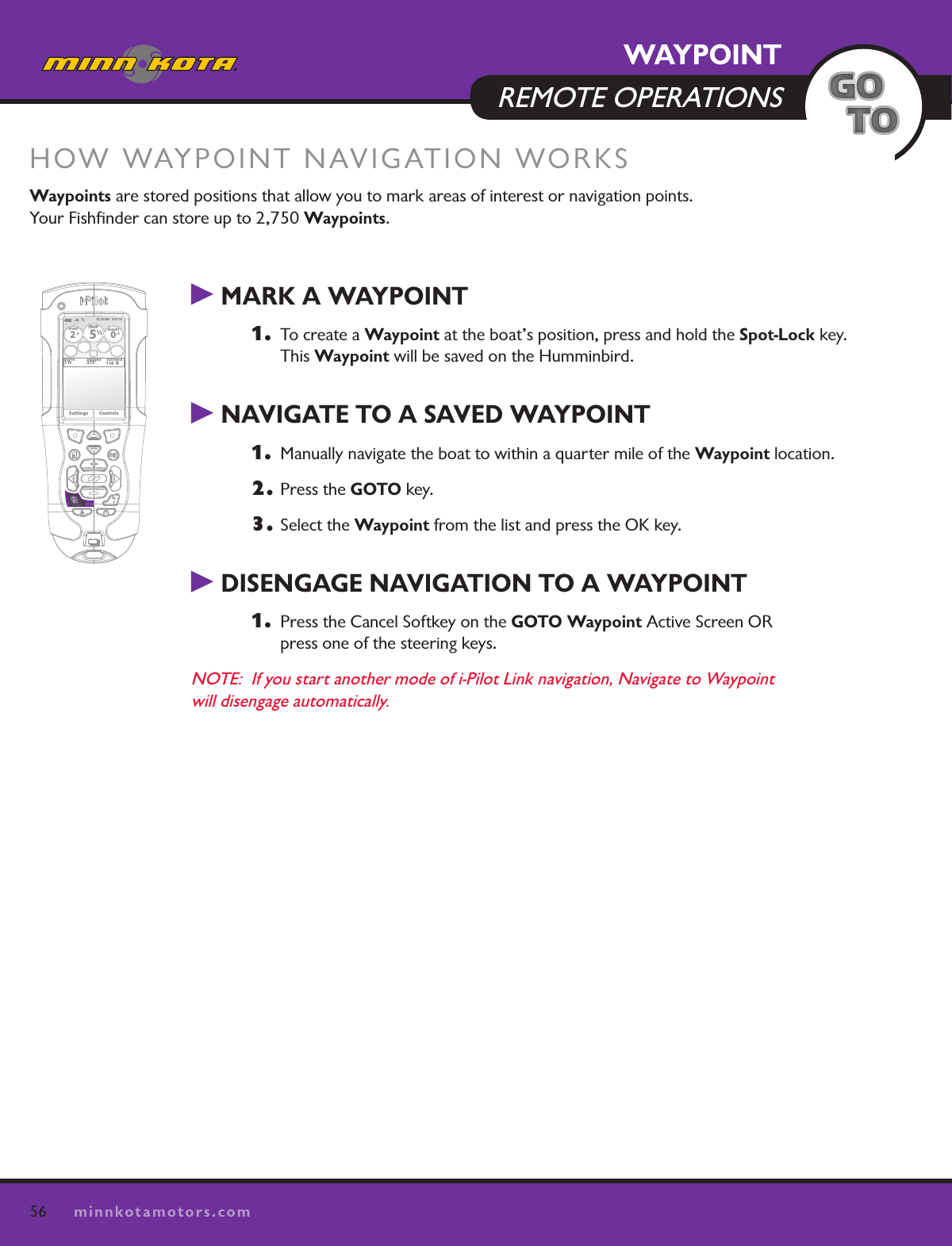
56minnkotamotors.com MARK A WAYPOINT1.   To create a Waypoint at the boat’s position, press and hold the Spot-Lock key.  This Waypoint will be saved on the Humminbird.   NAVIGATE TO A SAVED WAYPOINT 1.   Manually navigate the boat to within a quarter mile of the Waypoint location.  2. Press the GOTO key.3. Select the Waypoint from the list and press the OK key. DISENGAGE NAVIGATION TO A WAYPOINT1.   Press the Cancel Softkey on the GOTO Waypoint Active Screen OR  press one of the steering keys.NOTE:  If you start another mode of i-Pilot Link navigation, Navigate to Waypoint  will disengage automatically.HOW WAYPOINT NAVIGATION WORKSWaypoints are stored positions that allow you to mark areas of interest or navigation points.  Your Fishfinder can store up to 2,750 Waypoints.  12:13 PM    OCT 18SPEED2.3PROP12/5TARGET0.0DEPTH1 ft 273° 114  ftBEARING DISTANCESettings ControlsWAYPOINT  REMOTE OPERATIONS
57minnkotamotors.comWAYPOINTFISHFINDER OPERATIONS  MARK A WAYPOINT1.   Press the VIEW key until a Chart View is displayed on the screen. 2. A Waypoint can be marked as follows:   To save the Waypoint at the boat’s location, press the MARK key.  To save a Waypoint at a cursor position, use the 4-WAY Cursor Control key to move the active cursor to a position on the Chart View. Then, press the MARK key.     NAVIGATE TO A SAVED WAYPOINT If a saved Waypoint is within 1⁄4 mile of the boat position, you can start i-Pilot Link navigation  towards it. 1.   From the Chart View, press the GOTO key.2.  Select a Waypoint from the list, and press the RIGHT Cursor key.OR1.   Use the 4-WAY Cursor Control key to select a Waypoint or position on the chart.2.  Press the GOTO key. 3. Select Go To Position, and press the RIGHT Cursor key. NAVIGATE TO THE MOST RECENTLY  CREATED WAYPOINT1.   Navigation X-Press Menu: Press the MENU key.2.  Select the Waypoint name (WP), and press the RIGHT Cursor key to open the submenu.3. Select GOTO, and press the RIGHT Cursor key to start navigation.Waypoints are saved with an alphanumeric name that stars with WP. The name can be edited and managed in the Waypoint Management Dialog Box.
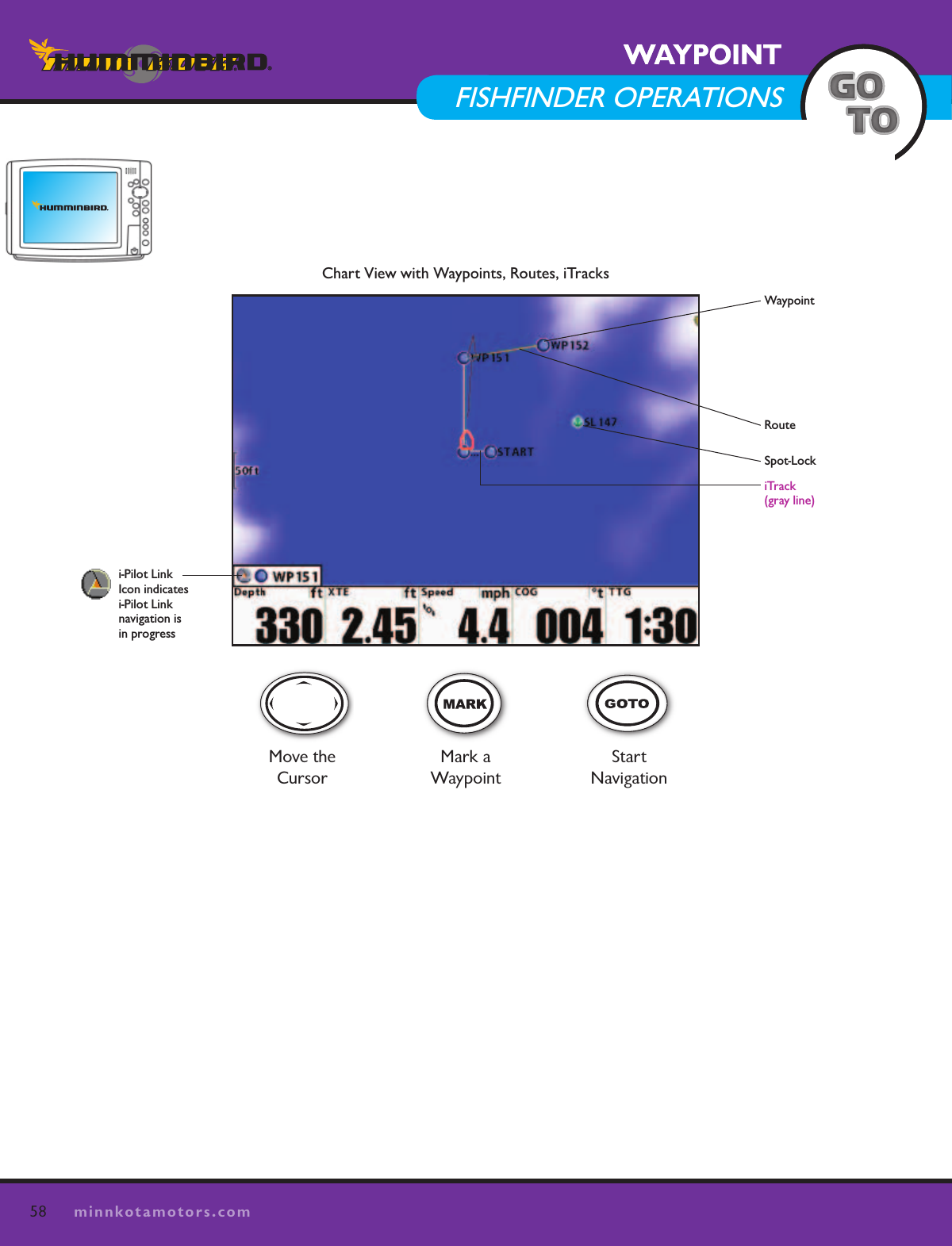
58minnkotamotors.comWAYPOINT  REMOTE OPERATIONSWAYPOINTFISHFINDER OPERATIONSChart View with Waypoints, Routes, iTracksWaypointRouteMove the CursorMark a  WaypointStart NavigationiTrack (gray line)Spot-Locki-Pilot Link  Icon indicates  i-Pilot Link  navigation is  in progress
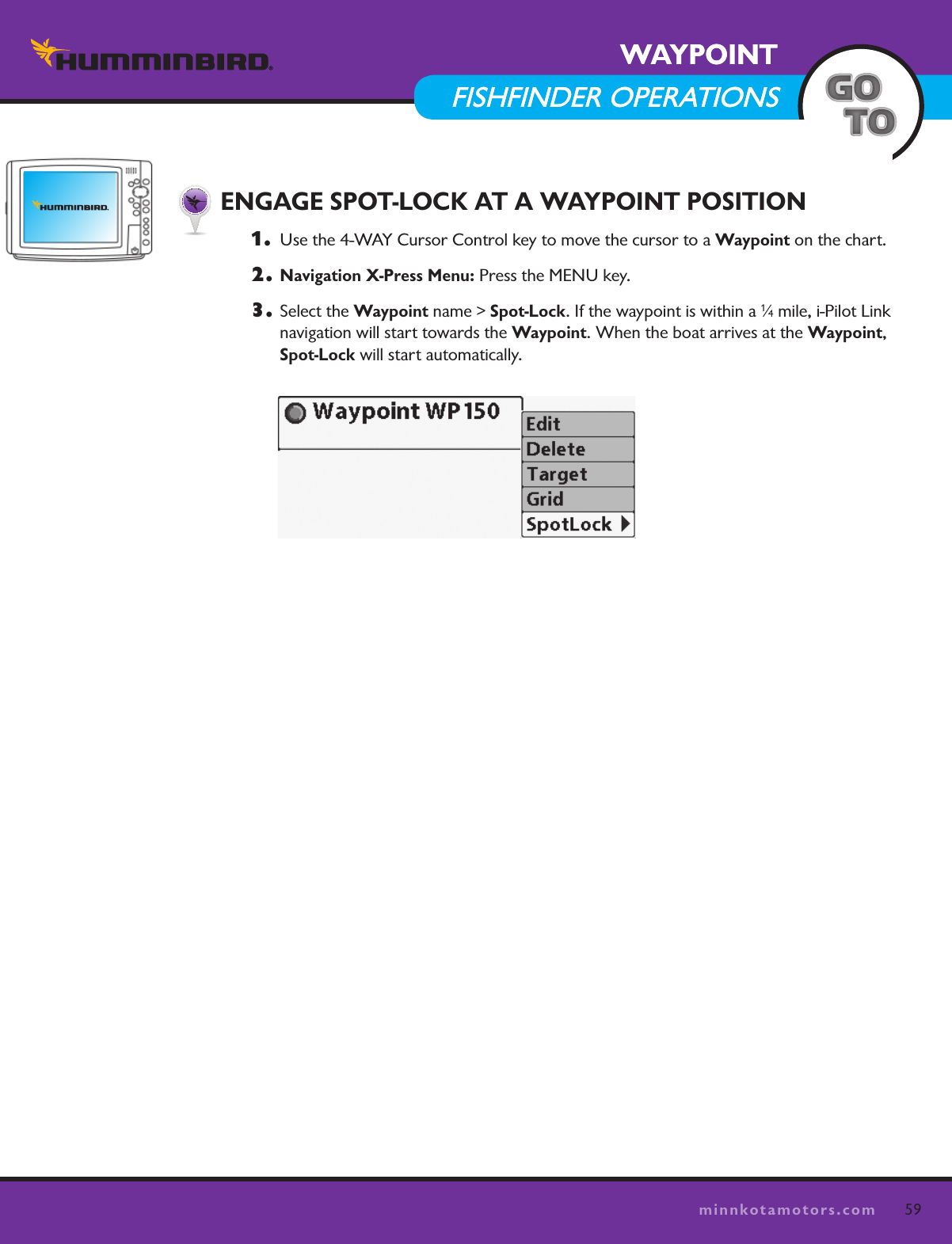
59minnkotamotors.comWAYPOINTFISHFINDER OPERATIONSWAYPOINTFISHFINDER OPERATIONS  ENGAGE SPOT-LOCK AT A WAYPOINT POSITION1.   Use the 4-WAY Cursor Control key to move the cursor to a Waypoint on the chart.2. Navigation X-Press Menu: Press the MENU key.3.  Select the Waypoint name > Spot-Lock. If the waypoint is within a 1⁄4 mile, i-Pilot Link  navigation will start towards the Waypoint. When the boat arrives at the Waypoint,  Spot-Lock will start automatically.
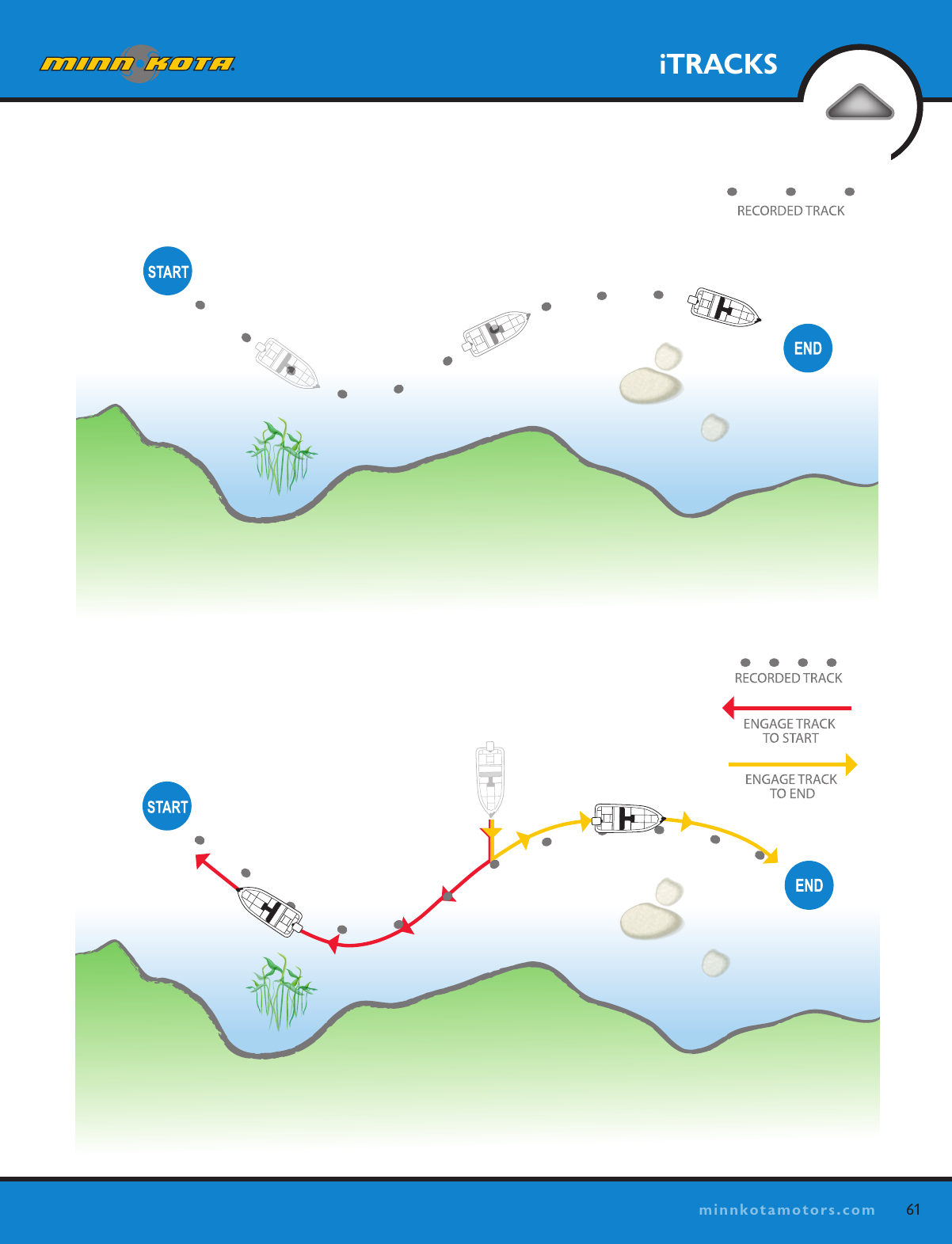
60minnkotamotors.comiTRACKSHOW ITRACK RECORDING AND NAVIGATION WORKWhen the recording of an iTrack is initiated, i-Pilot Link starts to record GPS position data in the form of track points. The distance between these points varies based on the speed of the boat and the GPS signal strength.  The very first track point recorded is called the Start. The last point recorded is called the End. i-Pilot Link sees a recorded track as a series of these track points. When Navigate to Start or Navigate to End is initiated, Link will navigate to the nearest track point. Once this nearest track point is reached, it will then follow the track points in sequence back to either the Start or End based on which mode was selected.  Once the end or start track point is reached, Link automatically cancels the track navigation.  The user can choose to have Link transition to other modes by configuring the Arrival Mode.iTracks can be recorded for a distance of up to 2 miles.  You can save up to 50 iTracks on your Humminbird or up to 16 on the Link controller when operating without the Humminbird.  iTracks are saved with an alphanumeric name that can be edited on the Humminbird through the Navigation X-Press Menu or from the Waypoint  Management dialog box.  You can also edit the iTrack appearance and whether or not it is visible on the  Humminbird screen. During track navigation, Link takes control over all steering functions; speed can be manually controlled or the Cruise Control function can also be used. The motor speed must be set high enough in order to stay on the track given wind, current and other external forces.
61minnkotamotors.comiTRACKS
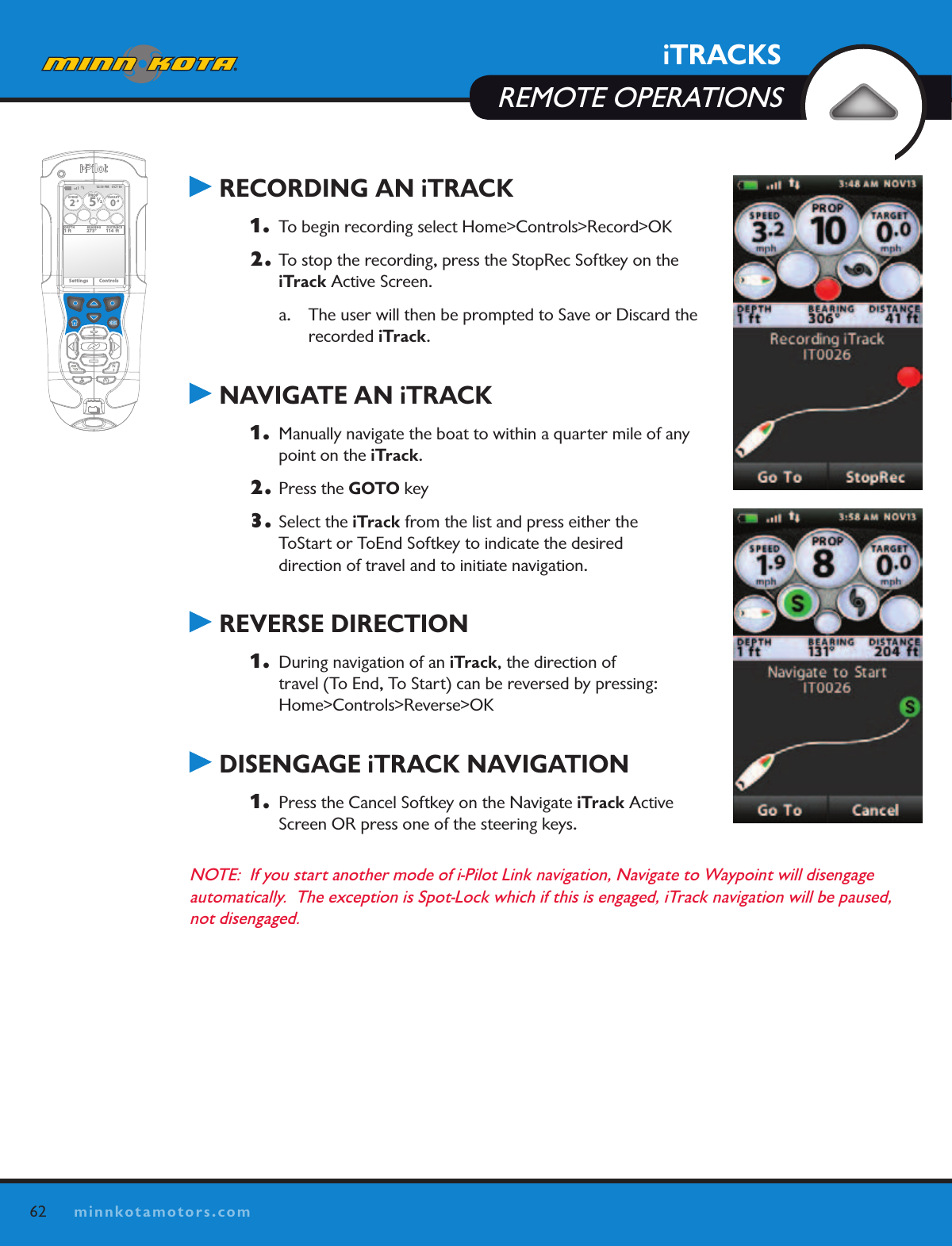
62minnkotamotors.comiTRACKSREMOTE OPERATIONS RECORDING AN iTRACK1.  To begin recording select Home>Controls>Record>OK2. To stop the recording, press the StopRec Softkey on the iTrack Active Screen.a.  The user will then be prompted to Save or Discard the  recorded iTrack. NAVIGATE AN iTRACK1.  Manually navigate the boat to within a quarter mile of any point on the iTrack.  2. Press the GOTO key3. Select the iTrack from the list and press either the  ToStart or ToEnd Softkey to indicate the desired  direction of travel and to initiate navigation. REVERSE DIRECTION1.  During navigation of an iTrack, the direction of  travel (To End, To Start) can be reversed by pressing:  Home>Controls>Reverse>OK DISENGAGE iTRACK NAVIGATION1.  Press the Cancel Softkey on the Navigate iTrack Active Screen OR press one of the steering keys.NOTE:  If you start another mode of i-Pilot Link navigation, Navigate to Waypoint will disengage  automatically.  The exception is Spot-Lock which if this is engaged, iTrack navigation will be paused, not disengaged.OK12:13 PM    OCT 18SPEED2.3PROP12/5TARGET0.0DEPTH1 ft 273° 114  ftBEARING DISTANCESettings Controls
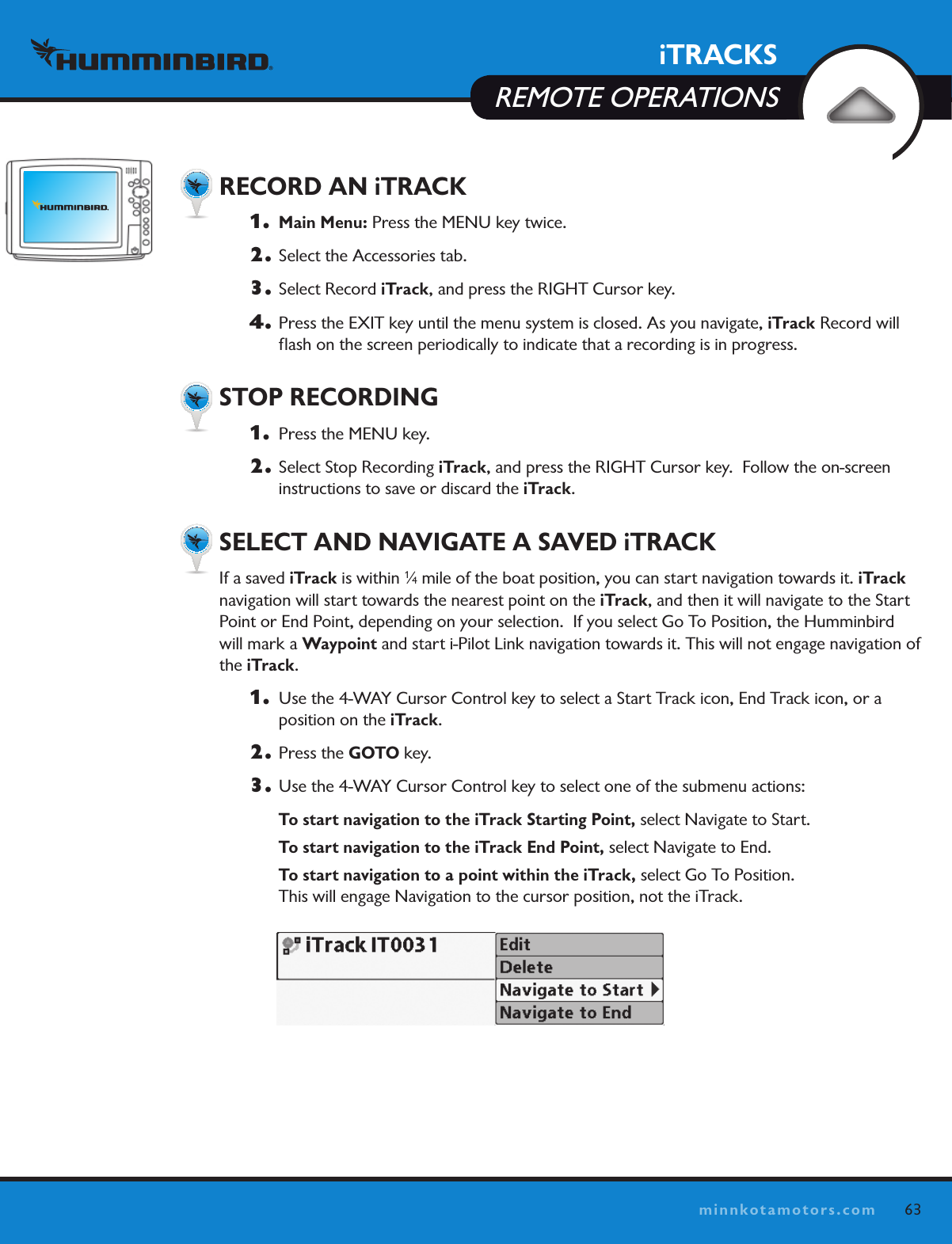
iTRACKSREMOTE OPERATIONS63minnkotamotors.com  RECORD AN iTRACK1.   Main Menu: Press the MENU key twice.2.  Select the Accessories tab.3.  Select Record iTrack, and press the RIGHT Cursor key. 4.  Press the EXIT key until the menu system is closed. As you navigate, iTrack Record will flash on the screen periodically to indicate that a recording is in progress.   STOP RECORDING 1.   Press the MENU key.2.  Select Stop Recording iTrack, and press the RIGHT Cursor key.  Follow the on-screen instructions to save or discard the iTrack.   SELECT AND NAVIGATE A SAVED iTRACKIf a saved iTrack is within 1⁄4 mile of the boat position, you can start navigation towards it. iTrack navigation will start towards the nearest point on the iTrack, and then it will navigate to the Start Point or End Point, depending on your selection.  If you select Go To Position, the Humminbird will mark a Waypoint and start i-Pilot Link navigation towards it. This will not engage navigation of the iTrack.1.   Use the 4-WAY Cursor Control key to select a Start Track icon, End Track icon, or a  position on the iTrack. 2.  Press the GOTO key. 3.  Use the 4-WAY Cursor Control key to select one of the submenu actions: To start navigation to the iTrack Starting Point, select Navigate to Start. To start navigation to the iTrack End Point, select Navigate to End. To start navigation to a point within the iTrack, select Go To Position.   This will engage Navigation to the cursor position, not the iTrack.
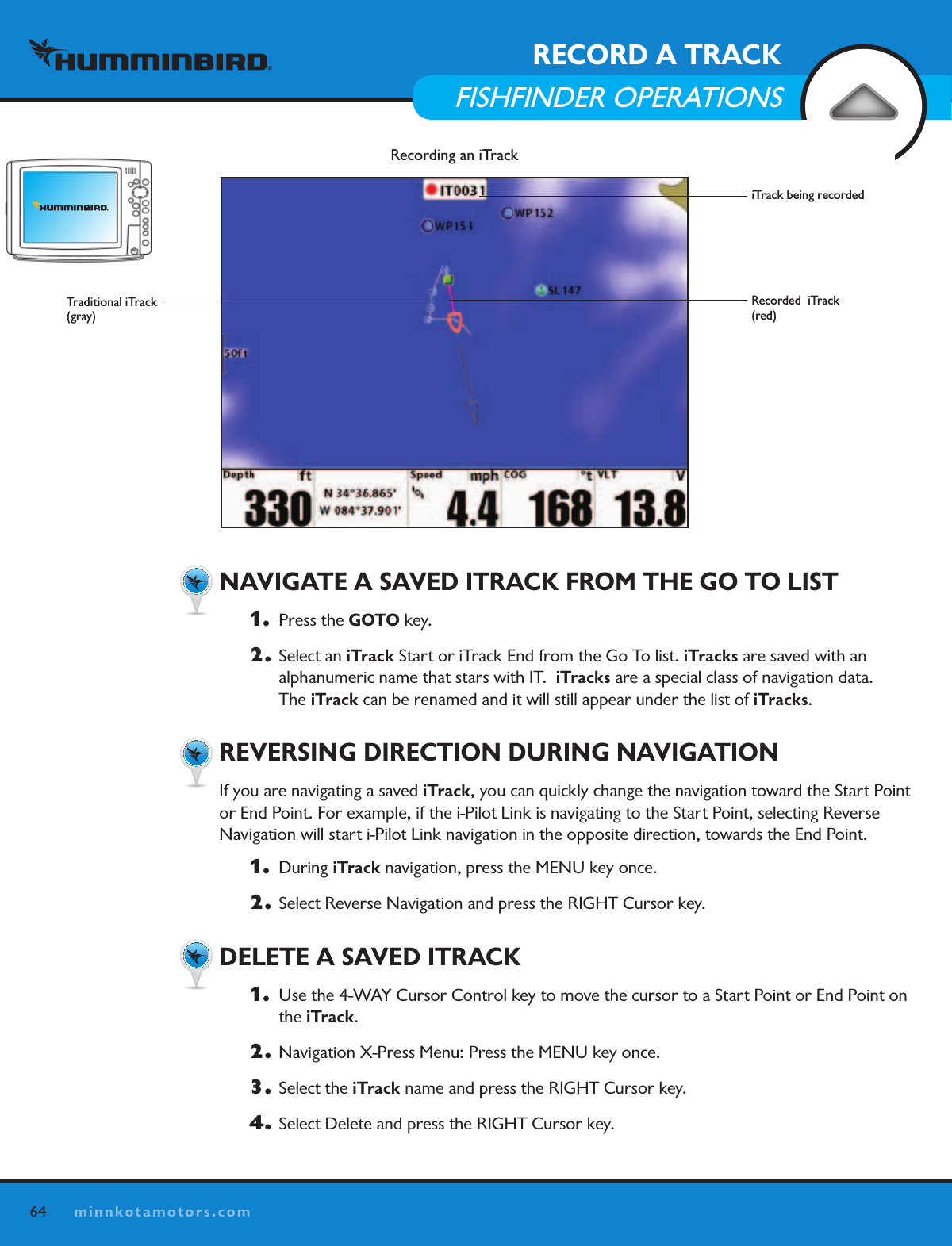
64minnkotamotors.comRECORD A TRACKFISHFINDER OPERATIONS  NAVIGATE A SAVED ITRACK FROM THE GO TO LIST1.   Press the GOTO key. 2.  Select an iTrack Start or iTrack End from the Go To list. iTracks are saved with an  alphanumeric name that stars with IT.  iTracks are a special class of navigation data.   The iTrack can be renamed and it will still appear under the list of iTracks.  REVERSING DIRECTION DURING NAVIGATIONIf you are navigating a saved iTrack, you can quickly change the navigation toward the Start Point or End Point. For example, if the i-Pilot Link is navigating to the Start Point, selecting Reverse  Navigation will start i-Pilot Link navigation in the opposite direction, towards the End Point. 1.  During iTrack navigation, press the MENU key once.2.  Select Reverse Navigation and press the RIGHT Cursor key.   DELETE A SAVED ITRACK1.   Use the 4-WAY Cursor Control key to move the cursor to a Start Point or End Point on the iTrack.2.  Navigation X-Press Menu: Press the MENU key once.3.  Select the iTrack name and press the RIGHT Cursor key. 4.  Select Delete and press the RIGHT Cursor key.Recording an iTrackiTrack being recordedRecorded  iTrack (red)Traditional iTrack(gray)
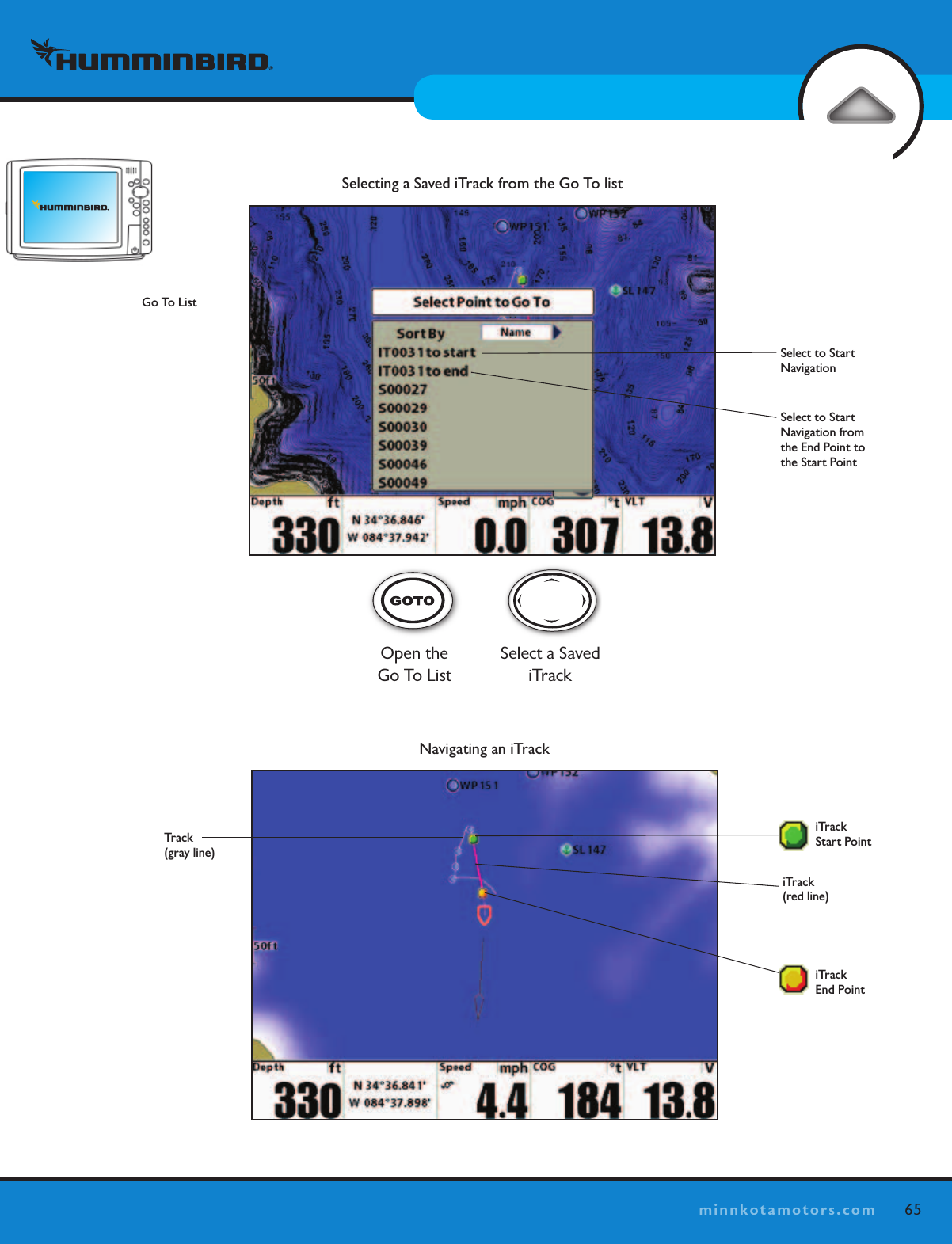
65minnkotamotors.comRECORD A TRACKFISHFINDER OPERATIONSNavigating an iTrackiTrack (red line)Track(gray line)iTrack  Start PointiTrack  End PointSelecting a Saved iTrack from the Go To listSelect to Start NavigationGo To ListSelect to Start Navigation from the End Point to the Start PointSelect a Saved iTrackOpen the  Go To List
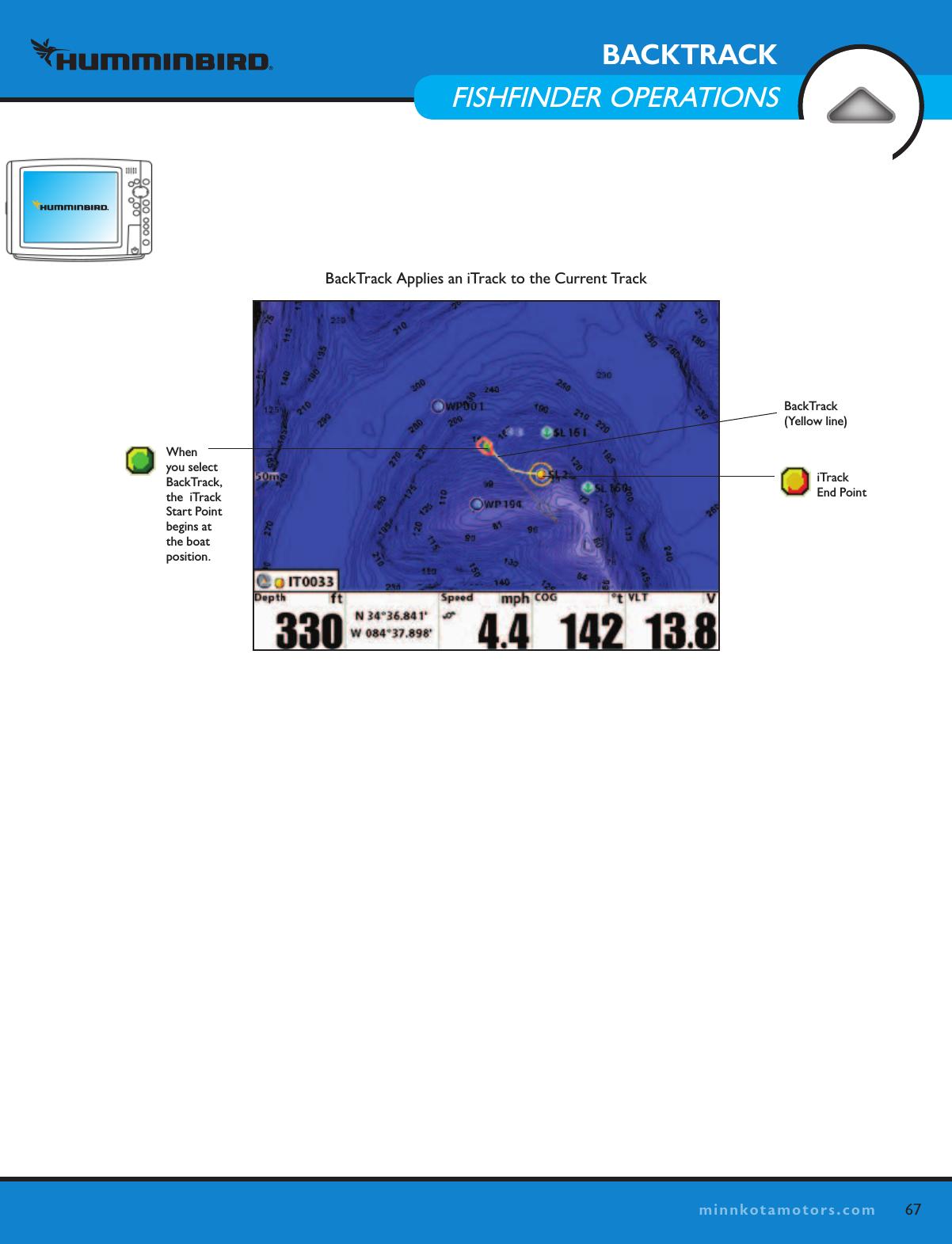
66minnkotamotors.comBACKTRACKFISHFINDER OPERATIONS  HOW BACKTRACK WORKSTraditional Humminbird Tracks consist of detailed position history and are displayed as a  breadcrumb trail of trackpoints. The Current Track shows the position history since the unit was powered up. You can clear the Current Track or save it at any time. Your Fishfinder can store up to 50 saved tracks, each containing 20,000 trackpoints. The current track represents your actual path so far. BackTrack allows you to navigate a traditional Humminbird track as a recorded iTrack. When this happens, the i-Pilot Link will mark a Start Point at the boat’s current position, and it will start i-Pilot Link navigation to an End Point on the current track, up to 2 miles.  BACKTRACK1.   Navigation X-Press Menu: Press the Menu key.2. Select BackTrack, and press the RIGHT Cursor key.NOTE:  The unit must be actively tracking to enable this menu option. If BackTrack is not  displayed in the Navigation X-Press Menu, select Main Menu > Current Track > Start Tracking.NOTE:  Once Navigation of the new iTrack begins, normal iTrack navigation functions all apply including the Reverse function.BackTrack is not available when the the Follow the Contour feature is active.
67minnkotamotors.comBACKTRACKFISHFINDER OPERATIONSBackTrack Applies an iTrack to the Current TrackBackTrack   (Yellow line)iTrack  End PointWhen you select BackTrack, the  iTrack Start Point begins at the boat position.
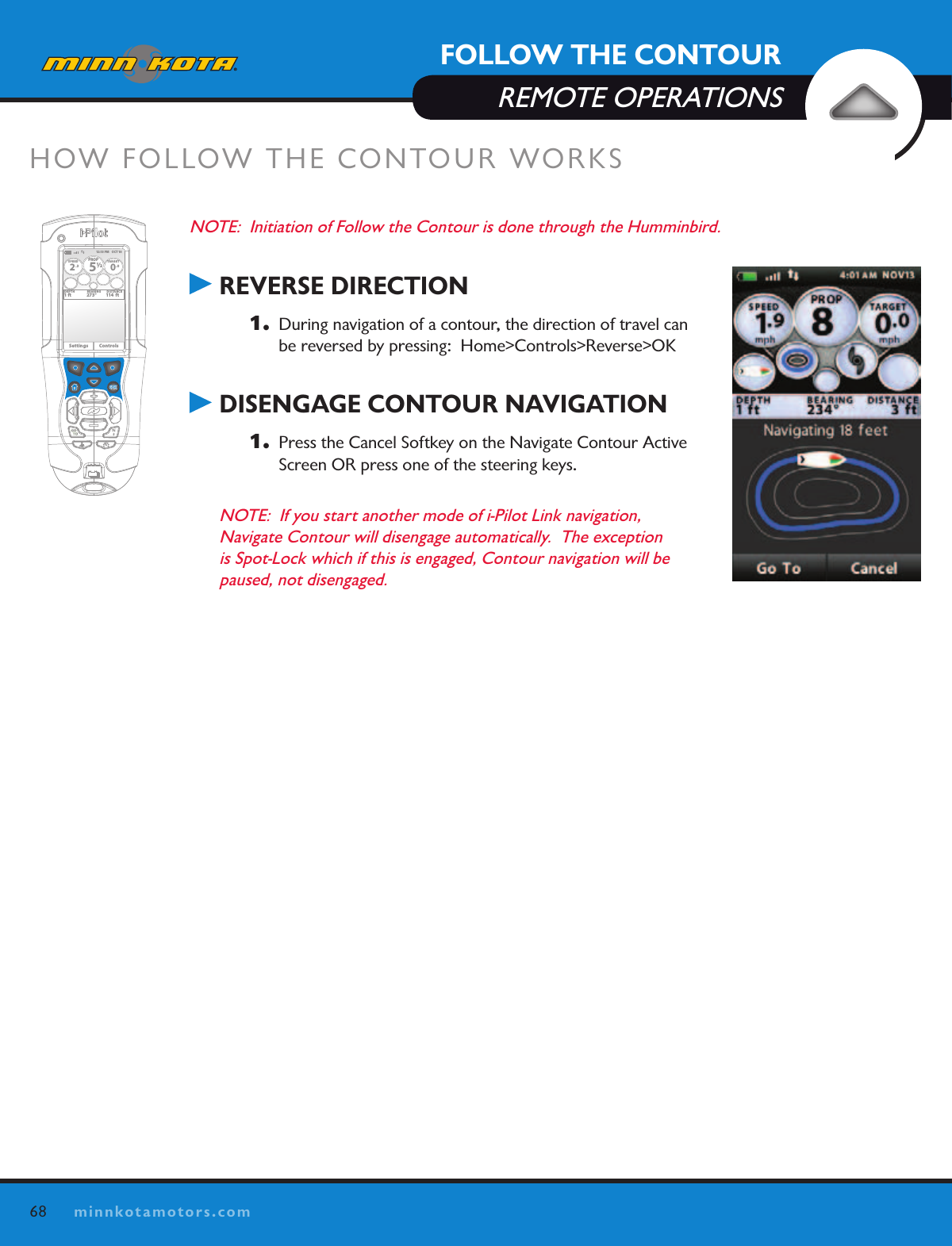
68minnkotamotors.comFOLLOW THE CONTOURREMOTE OPERATIONSNOTE:  Initiation of Follow the Contour is done through the Humminbird. REVERSE DIRECTION1.   During navigation of a contour, the direction of travel can be reversed by pressing:  Home>Controls>Reverse>OK DISENGAGE CONTOUR NAVIGATION1.   Press the Cancel Softkey on the Navigate Contour Active Screen OR press one of the steering keys.NOTE:  If you start another mode of i-Pilot Link navigation,  Navigate Contour will disengage automatically.  The exception is Spot-Lock which if this is engaged, Contour navigation will be paused, not disengaged.HOW FOLLOW THE CONTOUR WORKSOK12:13 PM    OCT 18SPEED2.3PROP12/5TARGET0.0DEPTH1 ft 273° 114  ftBEARING DISTANCESettings Controls
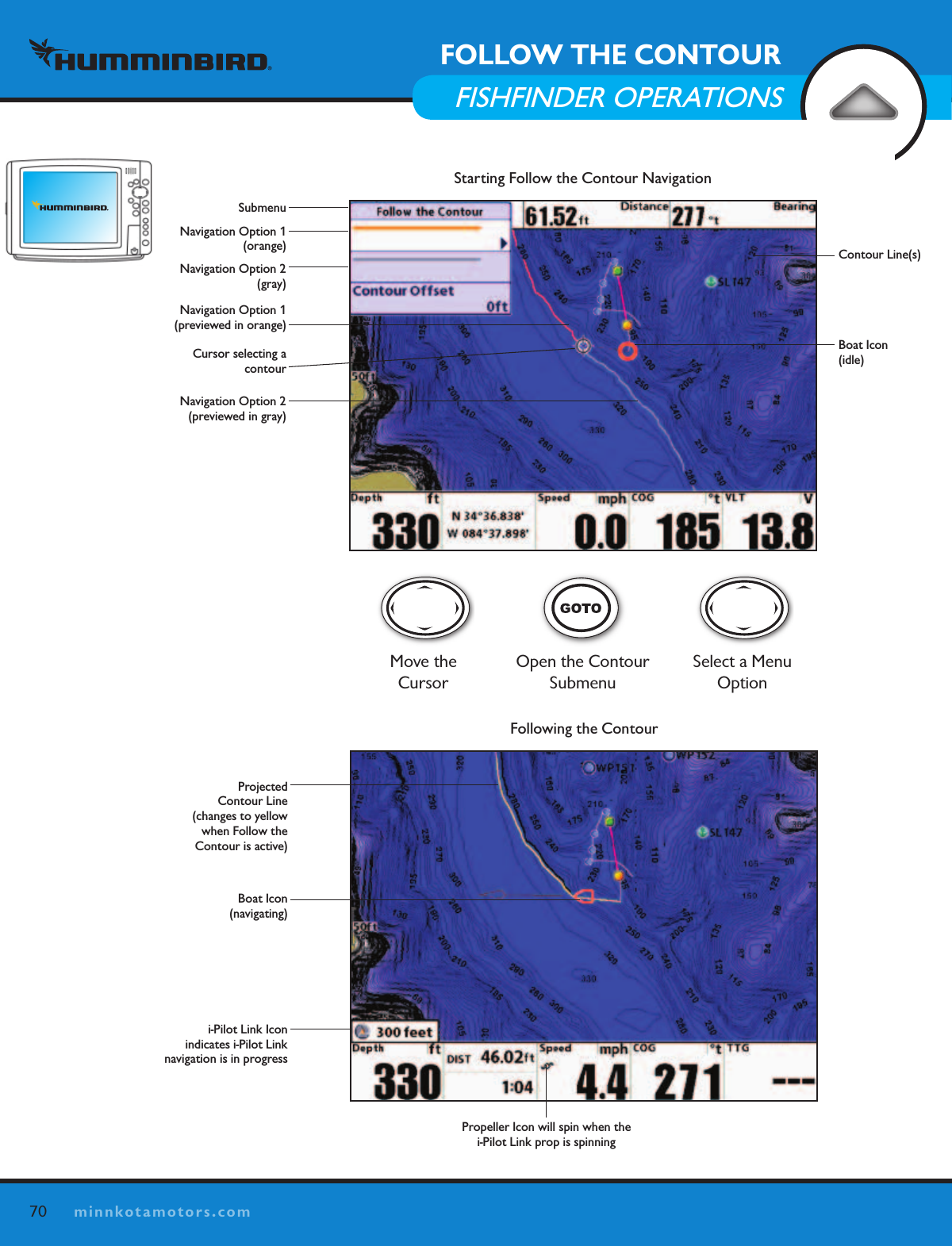
69minnkotamotors.comHOW LAKEMASTER CONTOUR WORKS  (ChaRt VIEw Only, lakEMaStER ChaRt REquIRED)Follow the Contour allows you to navigate a contour on a LakeMaster chart. When you start  i-Pilot Link navigation to follow the contour, all other types of navigation are stopped on the  Humminbird and the Ethernet network.NOTE: When the i-Pilot Link is following the contour, the current track is not saved,  and iTracks cannot be recorded.SET UP FOR FOLLOW THE CONTOURTo use the Follow the Contour feature, a LakeMaster chart card must be installed, and the  Contour Lines must be set to Visible.1.   Install a LakeMaster chart card into the SD card slot.2. Main Menu: Press the MENU key twice.3.  Select the Chart tab > Contour Lines > Visible.4.  Press the EXIT key until the menu system is closed.5.  Press the VIEW key until the Chart View is displayed. START FOLLOW THE CONTOUR NAVIGATIONYou can start i-Pilot Link navigation if the boat position is within 1⁄4 mile of the selected contour. 1.   Use the 4-WAY Cursor Control key to move the cursor to a contour line. 2.  Press the GOTO key. 3. Select Follow the Contour, and select a navigation direction from the submenu. The  navigation direction will be previewed in orange or gray on the Chart View. See the  illustration Starting Follow the Contour Navigation.   NOTE: To  quickly reverse the direction of follow the contour navigation, press the MENU key once and select Reverse Navigation from the Navigation X-Press Menu.FOLLOW THE CONTOURFISHFINDER OPERATIONS
70minnkotamotors.comFOLLOW THE CONTOURFISHFINDER OPERATIONSFollowing the ContourProjected  Contour Line  (changes to yellow when Follow the  Contour is active)Boat Icon (navigating)i-Pilot Link Icon indicates i-Pilot Link  navigation is in progressPropeller Icon will spin when the  i-Pilot Link prop is spinningStarting Follow the Contour NavigationContour Line(s)Boat Icon (idle)Navigation Option 1 (orange)Navigation Option 2 (gray)Cursor selecting a contourNavigation Option 2 (previewed in gray)Move the CursorOpen the Contour  SubmenuSelect a Menu OptionSubmenuNavigation Option 1 (previewed in orange)
71minnkotamotors.com  SET THE CONTOUR OFFSET If you don’t want to navigate directly on the contour line, you can set a distance from the contour so that navigation will be offset from the selected contour. 1.   Use the 4-WAY Cursor Control key to move the cursor to a contour line. 2.  Press the GOTO key. 3. Select Follow the Contour, and select Contour Offset from the submenu.4.  Press the RIGHT or LEFT Cursor keys to set the Offset. (-300 to +300 feet  (-91 to +91 m), where -300 = shallowest side of the contour and +300 feet = deepest side of the contour; Default = 0)5.  Press the UP or DOWN Cursor keys to select a navigation direction. The navigation direction will be previewed in orange or gray on the Chart View. See the illustration  Starting Follow the Contour Navigation.    SET THE CONTOUR OFFSET DURING NAVIGATIONThe Contour Offset can also be adjusted while the i-Pilot Link Follow the Contour navigation is  in progress. 1.  If Follow the Contour is in progress, press the MENU key once.2.  Select Contour Offset from the Navigation X-Press Menu.3.  Press the RIGHT or LEFT Cursor keys to set the Offset.  (-300 to +300 feet  (-91 to +91 m), where -300 = shallowest side of the contour and +300 feet = deepest side of the contour; Default = 0)NOTE: To remove the offset, set the Contour Offset setting to 0. FOLLOW THE CONTOURFISHFINDER OPERATIONSContour Line(s)Boat Icon (idle)
72minnkotamotors.comHOW ROUTE NAVIGATION WORKSRoutes link two or more Waypoints together to create a path for navigation and are used in trip planning. Your Fishfinder can store up to 45 routes that can each contain up to 50 Waypoints. A route represents your intended navigation and shows the shortest path from each Waypoint to the next. As you travel a route, staying on the route line is the most efficient way to get to your destination, although you should always look out for obstacles not shown on the chart. A Route Leg is the path between each Waypoint in a route. The color of each route leg is displayed  as follows:  • Completed Route Leg = Gray • Current Route Leg = Green • Future Route Leg = Goldi-Pilot Link navigation can start on the route if the boat position is within 1⁄4 mile of the first  Waypoint in the route. NOTE:  Initiation of Route navigation is done through the Humminbird. REVERSE DIRECTION DISENGAGE ROUTE NAVIGATION1.   Press the Cancel Softkey on the Navigate Route Active Screen OR press one of the steering keys.NOTE:  If you start another mode of iPilot navigation, Navigate Route will disengage automatically.  The exception is Spot-Lock which if this is engaged, Route navigation will be paused, not disengaged. OK12:13 PM    OCT 18SPEED2.3PROP12/5TARGET0.0DEPTH1 ft 273° 114  ftBEARING DISTANCESettings ControlsROUTE NAVIGATIONREMOTE OPERATIONS

Navigation menu