KEEBOX W150NU Wireless N 150 USB Adapter User Manual User s manual

KEEBOX,Inc. Wireless N 150 USB Adapter User s manual

User Manual

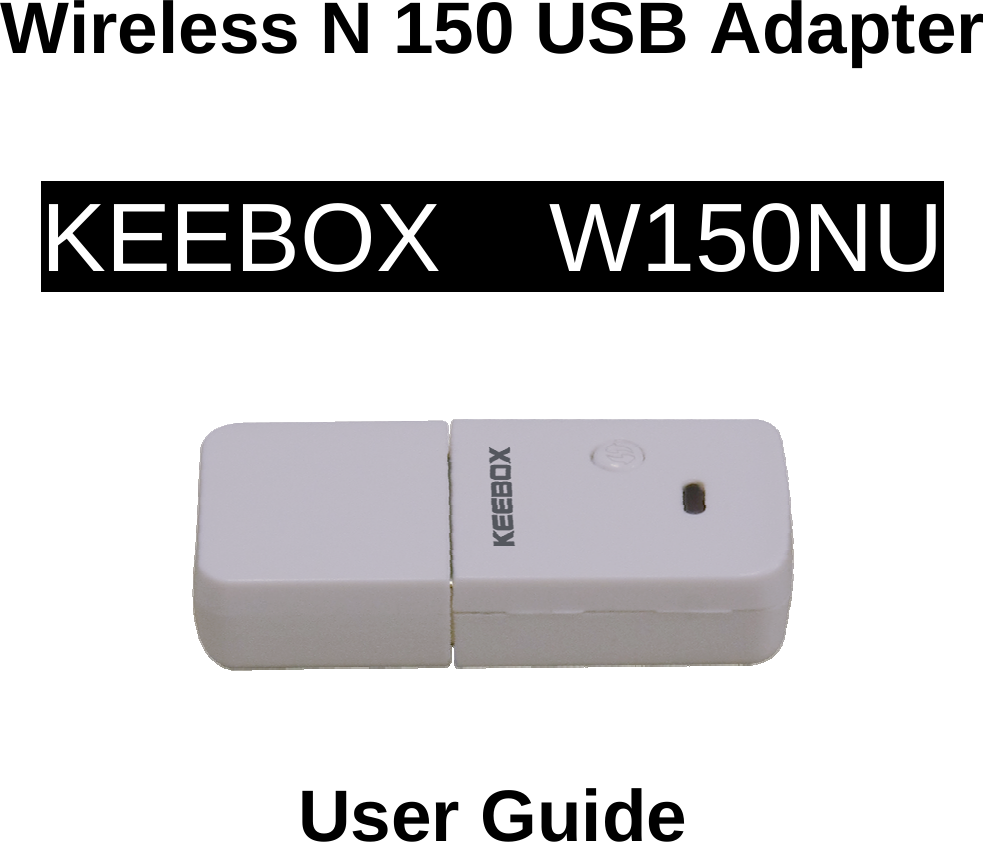
Wireless N 150 USB Adapter  KEEBOX    W150NU    User Guide
Federal Communication Commission Interference Statement This equipment has been tested and found to comply with the limits for a Class B digital device, pursuant to Part 15 of the FCC Rules.  These limits are designed to provide reasonable protection against harmful interference in a residential installation.  This equipment generates, uses and can radiate radio frequency energy and, if not installed and used in accordance with the instructions, may cause harmful interference to radio communications.  However, there is no guarantee that interference will not occur in a particular installation.  If this equipment does cause harmful interference to radio or television reception, which can be determined by turning the equipment off and on, the user is encouraged to try to correct the interference by one of the following measures: -  Reorient or relocate the receiving antenna. -  Increase the separation between the equipment and receiver. -  Connect the equipment into an outlet on a circuit different from that to which the receiver is connected. -  Consult the dealer or an experienced radio/TV technician for help. This device complies with Part 15 of the FCC Rules. Operation is subject to the following two conditions: (1) This device may not cause harmful interference, and (2) this device must accept any interference received, including interference that may cause undesired operation.  FCC Caution: Any changes or modifications not expressly approved by the party responsible for compliance could void the user's authority to operate this equipment.  IEEE 802.11b or 802.11g operation of this product in the U.S.A. is firmware-limited to channels 1 through 11.  IMPORTANT NOTE: FCC Radiation Exposure Statement: This equipment complies with FCC radiation exposure limits set forth for an uncontrolled environment. End users must follow the specific operating instructions for satisfying RF exposure compliance. To maintain compliance with FCC RF exposure compliance requirements, please follow operation instruction as documented in this manual.  This transmitter must not be co-located or operating in conjunction with any other antenna or transmitter.  SAR compliance has been established in typical laptop computer(s) with USB slot, and product could be used in typical laptop computer with USB slot. Other application like handheld PC or similar device has not been verified and may not compliance with related RF exposure rule and such use shall be prohibited.
       i Wireless N 150 USB Adapter Table of ContentsTable of Contents Product Overview ..................................................................................................................................................................................... 1 Package Contents................................................................................................................................................................................... 1 System Requirements............................................................................................................................................................................. 1 Introduction.............................................................................................................................................................................................. 2 Features .................................................................................................................................................................................................. 3 Hardware Overview................................................................................................................................................................................. 4 Installation Procedure .............................................................................................................................................................................. 5 System Preparation................................................................................................................................................................................. 5 Removing Existing Wireless Adapter Installation ............................................................................................................................... 5 Disabling Other Wireless Adapters ..................................................................................................................................................... 6 Installing the Wireless Adapter ............................................................................................................................................................... 9 Adapter Configuration ........................................................................................................................................................................... 14 KEEBOX 150N Wireless Utility ......................................................................................................................................................... 14 Available Network.............................................................................................................................................................................. 15 Profile Management .......................................................................................................................................................................... 16 Creating a Wireless Profile ............................................................................................................................................................ 17 Creating a Basic Security Wireless Profile ................................................................................................................................ 18 Creating a Basic Security Wireless Profile- Open \ WEP.......................................................................................................... 19 Creating a Basic Security Wireless Profile- Shared \ WEP....................................................................................................... 20 Creating a Basic Security Wireless Profile- WPA-PSK \ TKIP.................................................................................................. 21 Creating a Basic Security Wireless Profile- WPA-PSK \ AES................................................................................................... 22 Creating a Basic Security Wireless Profile- WPA2-PSK \ TKIP................................................................................................ 23 Creating a Basic Security Wireless Profile- WPA2-PSK \ AES................................................................................................. 24 Creating an Advanced Security Wireless Profile....................................................................................................................... 25 Creating an Advanced Security Wireless Profile-Open Authentication .................................................................................... 27 Creating an Advanced Security Wireless Profile-Shared Authentication.................................................................................. 28 Creating an Advanced Security Wireless Profile-WPA-EAP (Enterprise) Authentication ........................................................ 29 Creating an Advanced Security Wireless Profile-WPA-PSK (Personal) Authentication........................................................... 31 Creating an Advanced Security Wireless Profile-WPA2-EAP (Enterprise) Authentication ...................................................... 32 Creating an Advanced Security Wireless Profile-WPA2-PSK (Personal) Authentication ........................................................ 34 Enabling and Configuring 802.1x Parameter for a Wireless Profile.......................................................................................... 35 Configuring 802.1x Validate Server Certificate Settings ........................................................................................................... 36 Editing a Wireless Profile............................................................................................................................................................... 37
       ii Wireless N 150 USB Adapter Table of ContentsWPS Push Button Configuration (PBC) ........................................................................................................................................ 38 WPS PIN Code .............................................................................................................................................................................. 40 About.................................................................................................................................................................................................. 41 Technical Specifications........................................................................................................................................................................ 42
       1 Wireless N 150 USB Adapter Product OverviewProduct Overview Package Contents    Wireless N 150 USB Adapter  Installation Guide  System Requirements Computer   CD-ROM Drive   Available USB 2.0 port   Windows 2000 (Service Pack 4),  Windows XP (Service Pack 2), Windows Vista, or Windows 7  Network    802.11n or 802.11g Wireless Access Point or Router
       2 Wireless N 150 USB Adapter Product OverviewIntroduction  The Wireless N 150 USB adapter provides a convenient method for connecting a PC or notebook to a wireless network.
       3 Wireless N 150 USB Adapter Product OverviewFeatures     Compatible with IEEE 802.11n draft standard to provide  a wireless data rate of up to150Mbps    Compatible with IEEE 802.11g standard to provide  a wireless data rate of up to 54Mbps    Compatible with IEEE 802.11b standard to provide  a wireless data rate of up to11Mbps    Operates at 2.4 ~ 2.5GHz frequency band to meet worldwide regulations    Dynamic data rate scaling at 6, 9, 12, 18,  24, 36, 48, 54 for IEEE 802.11g    Dynamic data rate scaling at 1, 2, 5.5, and 11Mbps for IEEE 802.11b    Maximum reliability, t hroughput, and connectivity with automatic data rate switching   Support  for wireless data encryption with 64/128-bit WEP security standard   Support  for infrastructure networks via an access point and ad-hoc networks via a peer-to-peer communication   Sup port for WEP, 802.1x, WPA, and WPA2 enhanced security    Friendly user configuration and utilities     Drivers support Windows 2K, XP 32/64 -bit, Vista 32/ 64-bit, Windows 7 32/ 64-bit    External WPS button to provide an easy connection to an access point or wireless router    High speed USB 2.0 interface    RoHS compliant    Integrated antenna 
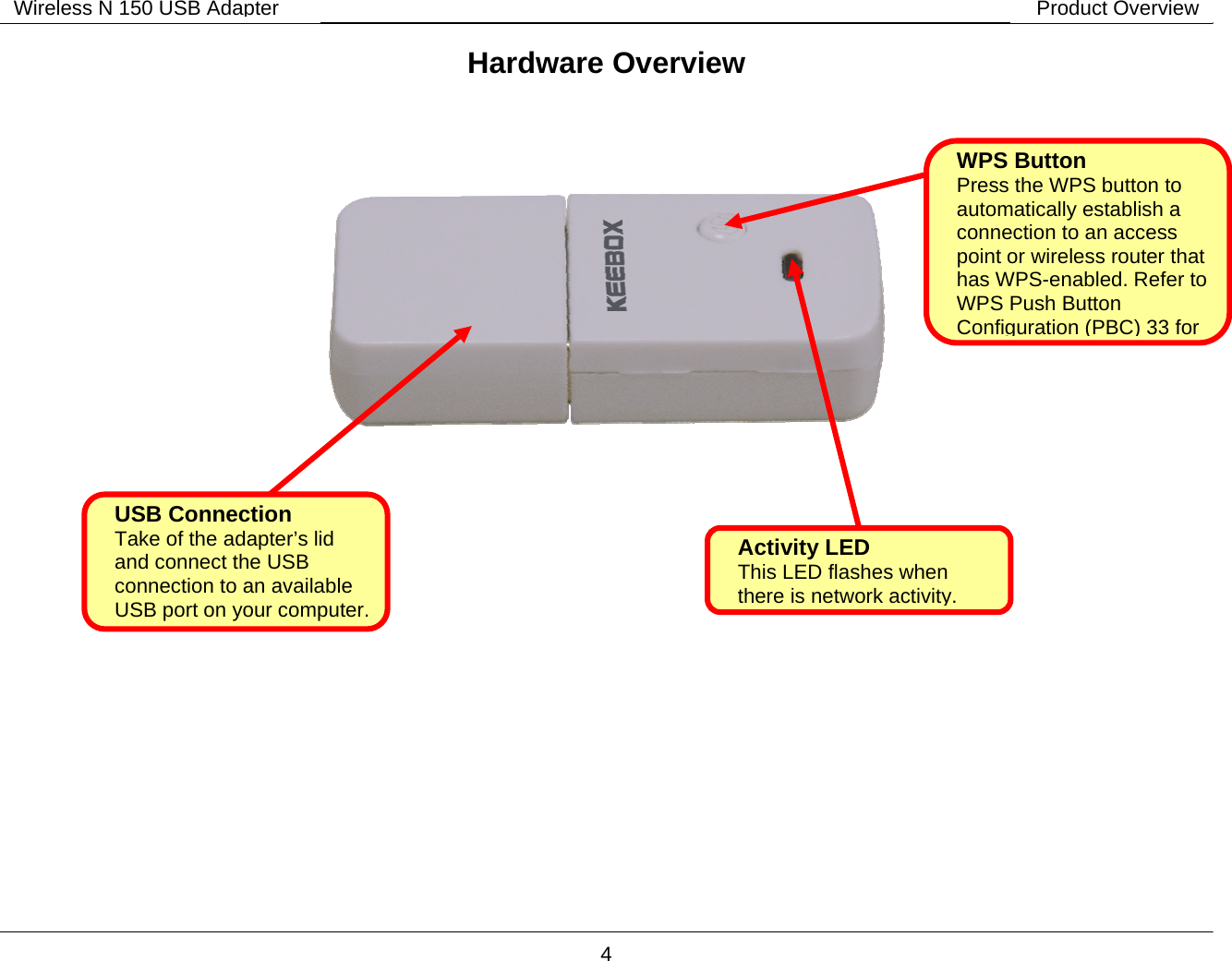
       4 Wireless N 150 USB Adapter Product OverviewHardware Overview       WPS Button Press the WPS button to automatically establish a connection to an access point or wireless router that has WPS-enabled. Refer to WPS Push Button Configuration (PBC)33 for Activity LED  This LED flashes when there is network activity.USB Connection Take of the adapter’s lid and connect the USB connection to an available USB port on your computer.
       5 Wireless N 150 USB Adapter Installation ProcedureInstallation Procedure  System Preparation  Ensure that you carry out the following on your computer before installing the Wireless N 150 USB Adapter:    Remove existing wireless adapter installations   Disable any wireless adapters that are built-in to your computer   Ensure that you have the correct wireless settings, such as the SSID and security settings, for the wireless network that you want to connect to.   Removing Existing Wireless Adapter Installation  If you currently have a wireless adapter installed in your computer, ensure you uninstall the wireless adapter software before installing the software for the Wireless N 150 USB Adapter as this may cause a conflict with the new software. If you want to use multiple wireless adapters on your computer at different times, configure the utilities so that they do not load when the computer boots up. If you are running Windows XP or a later Windows version, the built-in wireless utility can be used to manage all adapters.  To remove the existing wireless utility on a PC running Windows XP/Vista/7:   Click Start > Control Panel > Add or Remove Programs   Select the wireless utility that you want to remove.  Click the Remove button and follow the steps in the wizard to remove the utility.   To remove the existing wireless utility on a PC running Windows 2000:   Click Start > Settings > Control Panel > Add or Remove Programs   Select the wireless utility that you want to remove.  Click the Remove button and follow the steps in the wizard to remove the utility.
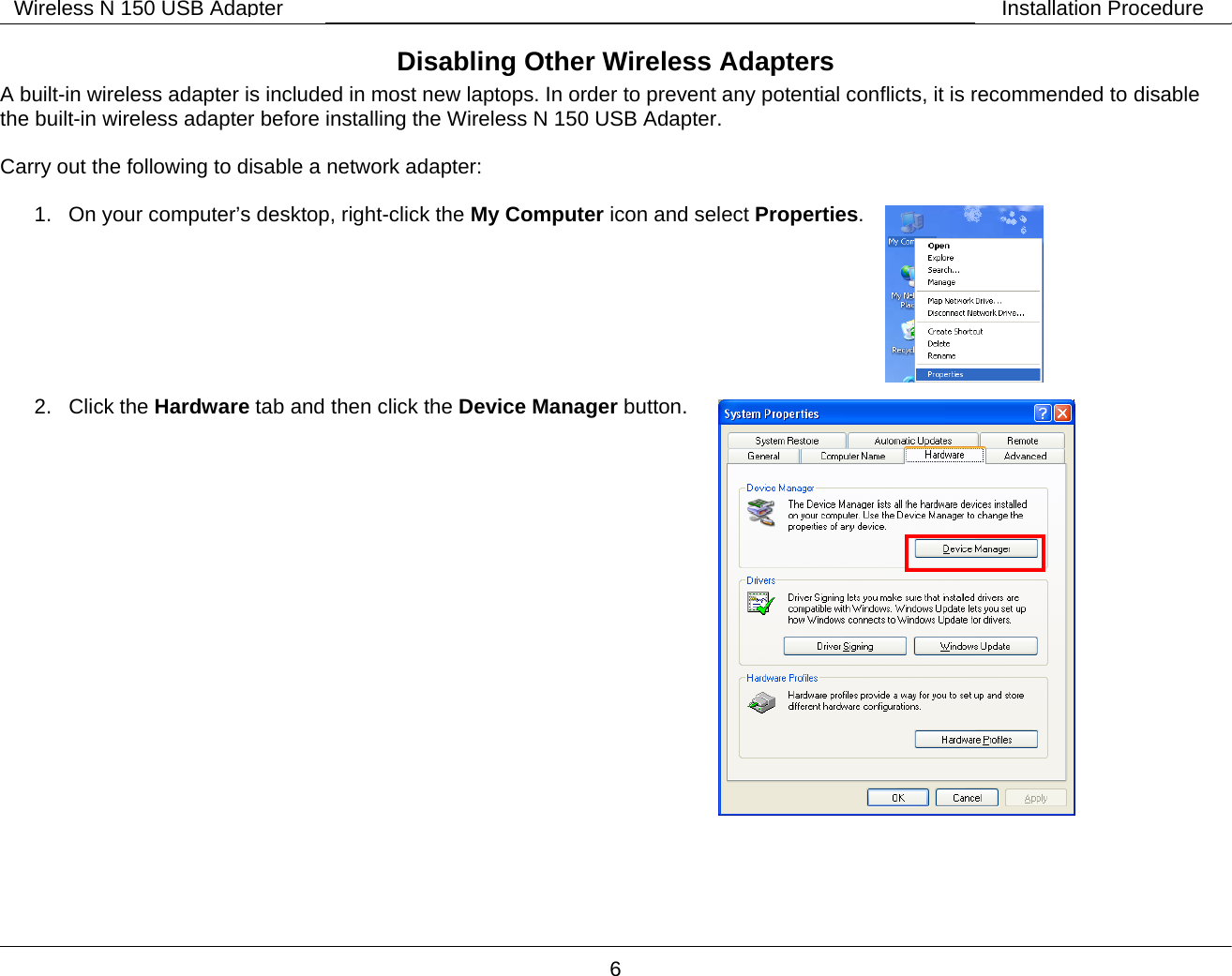
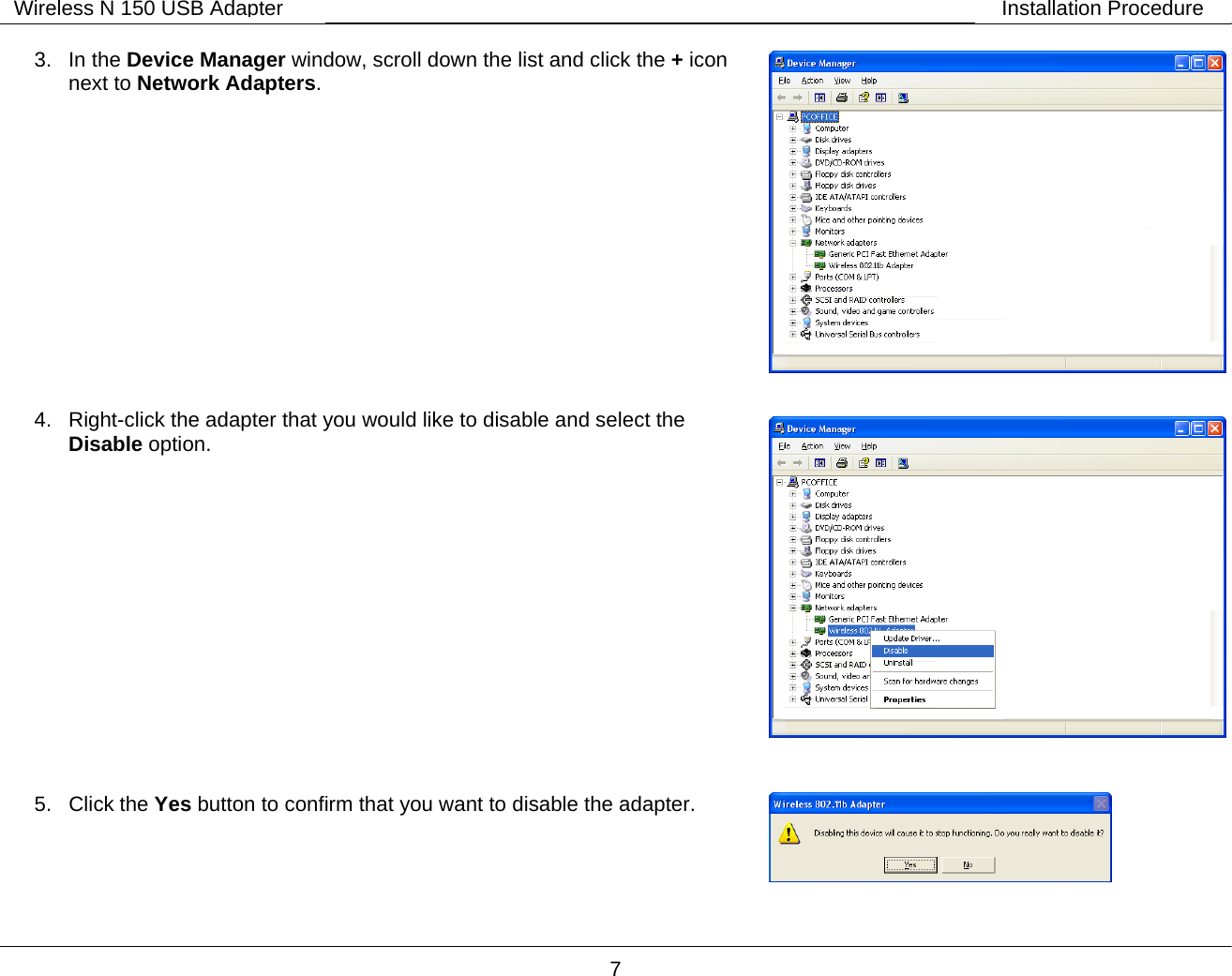
       6 Wireless N 150 USB Adapter Installation ProcedureDisabling Other Wireless Adapters A built-in wireless adapter is included in most new laptops. In order to prevent any potential conflicts, it is recommended to disable the built-in wireless adapter before installing the Wireless N 150 USB Adapter.  Carry out the following to disable a network adapter:  1.  On your computer’s desktop, right-click the My Computer icon and select Properties.        2. Click the Hardware tab and then click the Device Manager button.
       7 Wireless N 150 USB Adapter Installation Procedure 3. In the Device Manager window, scroll down the list and click the + icon next to Network Adapters.              4.  Right-click the adapter that you would like to disable and select the Disable option.                 5. Click the Yes button to confirm that you want to disable the adapter.
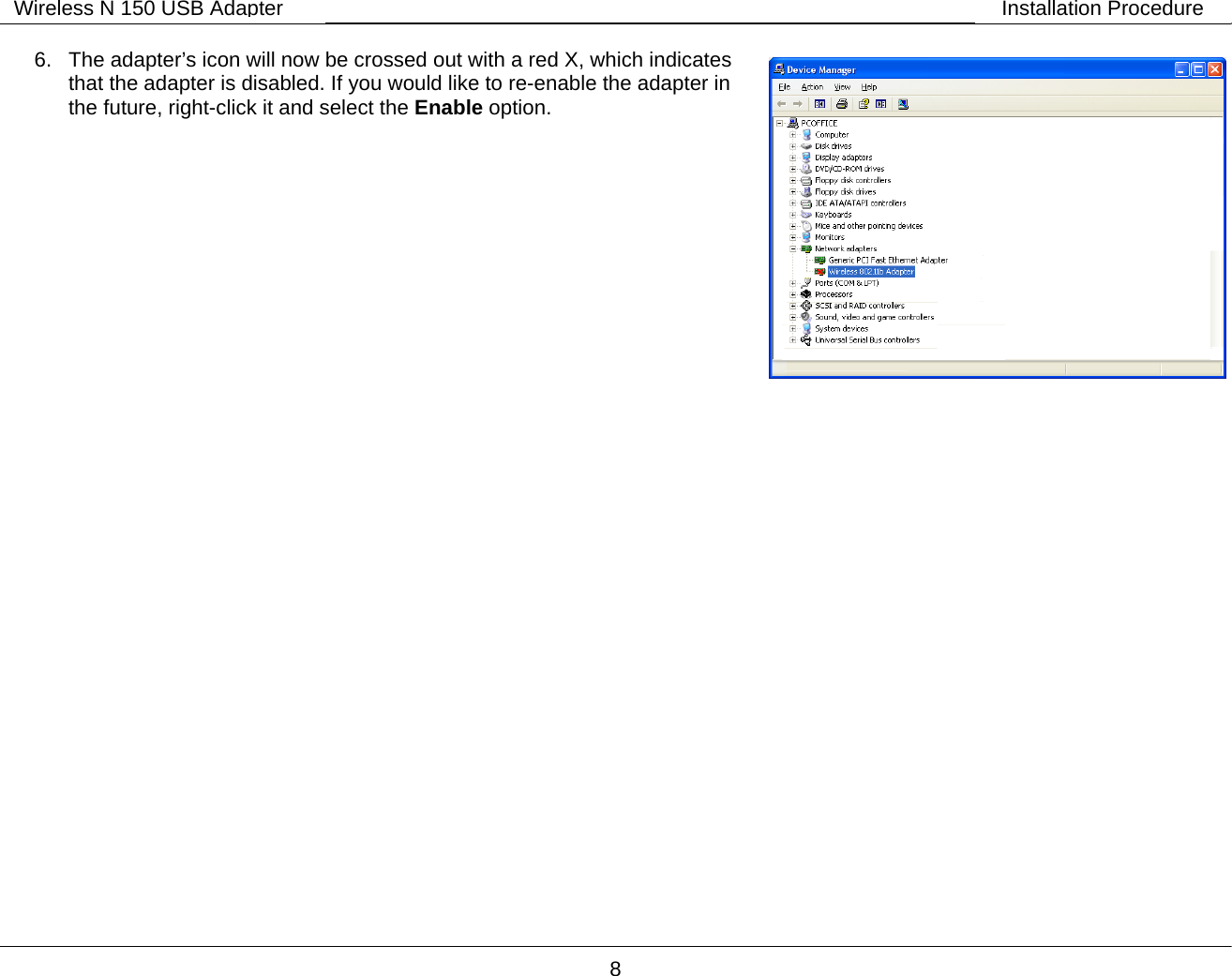
       8 Wireless N 150 USB Adapter Installation Procedure 6.  The adapter’s icon will now be crossed out with a red X, which indicates that the adapter is disabled. If you would like to re-enable the adapter in the future, right-click it and select the Enable option.
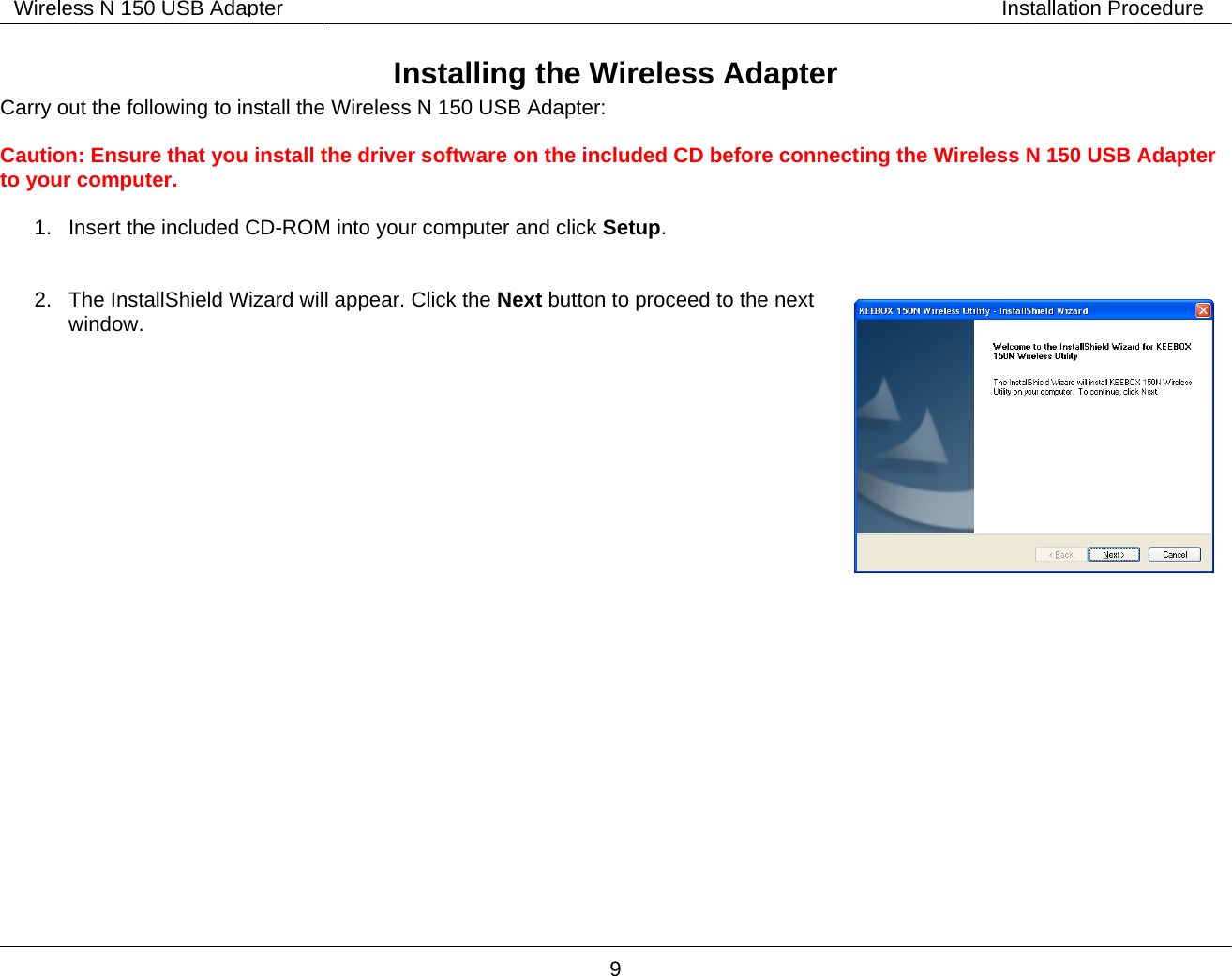
       9 Wireless N 150 USB Adapter Installation Procedure Installing the Wireless Adapter Carry out the following to install the Wireless N 150 USB Adapter:  Caution: Ensure that you install the driver software on the included CD before connecting the Wireless N 150 USB Adapter to your computer.  1.  Insert the included CD-ROM into your computer and click Setup.   2.  The InstallShield Wizard will appear. Click the Next button to proceed to the next window.
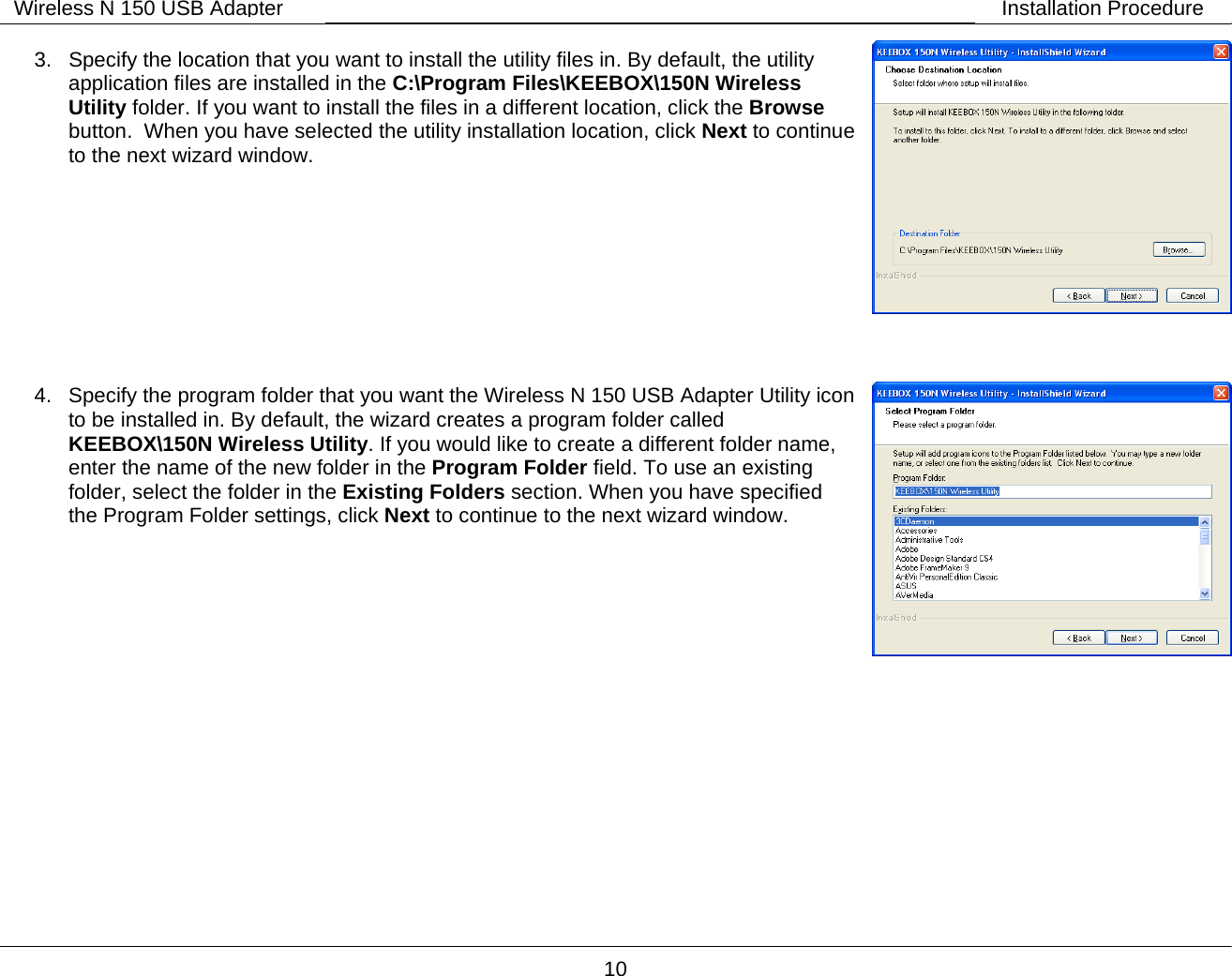
       10 Wireless N 150 USB Adapter Installation Procedure 3.  Specify the location that you want to install the utility files in. By default, the utility application files are installed in the C:\Program Files\KEEBOX\150N Wireless Utility folder. If you want to install the files in a different location, click the Browse button.  When you have selected the utility installation location, click Next to continue to the next wizard window.          4.  Specify the program folder that you want the Wireless N 150 USB Adapter Utility icon to be installed in. By default, the wizard creates a program folder called KEEBOX\150N Wireless Utility. If you would like to create a different folder name, enter the name of the new folder in the Program Folder field. To use an existing folder, select the folder in the Existing Folders section. When you have specified the Program Folder settings, click Next to continue to the next wizard window.
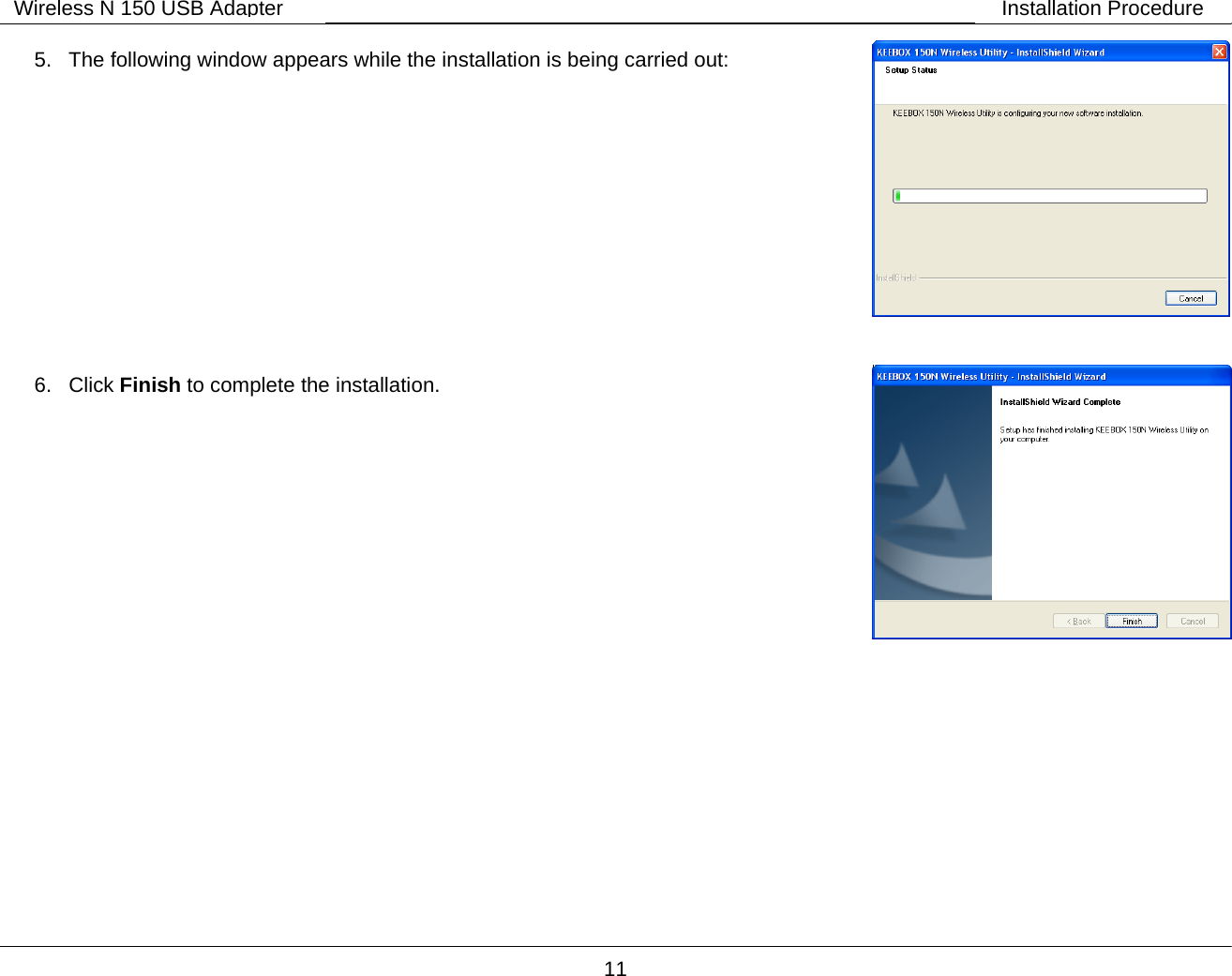
       11 Wireless N 150 USB Adapter Installation Procedure 5.  The following window appears while the installation is being carried out:             6. Click Finish to complete the installation.
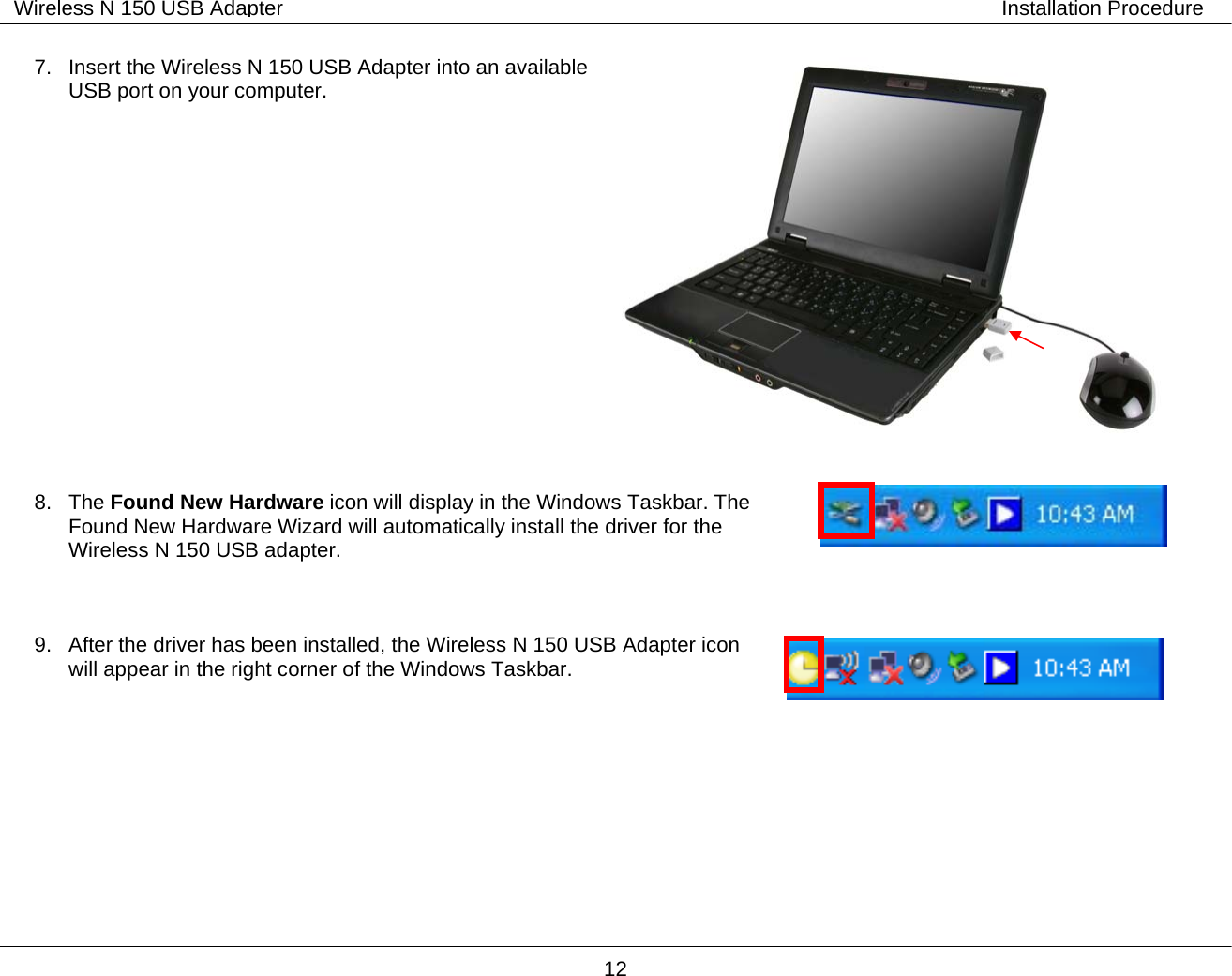
       12 Wireless N 150 USB Adapter Installation Procedure 7.  Insert the Wireless N 150 USB Adapter into an available USB port on your computer.             8. The Found New Hardware icon will display in the Windows Taskbar. The Found New Hardware Wizard will automatically install the driver for the Wireless N 150 USB adapter.   9.  After the driver has been installed, the Wireless N 150 USB Adapter icon will appear in the right corner of the Windows Taskbar.
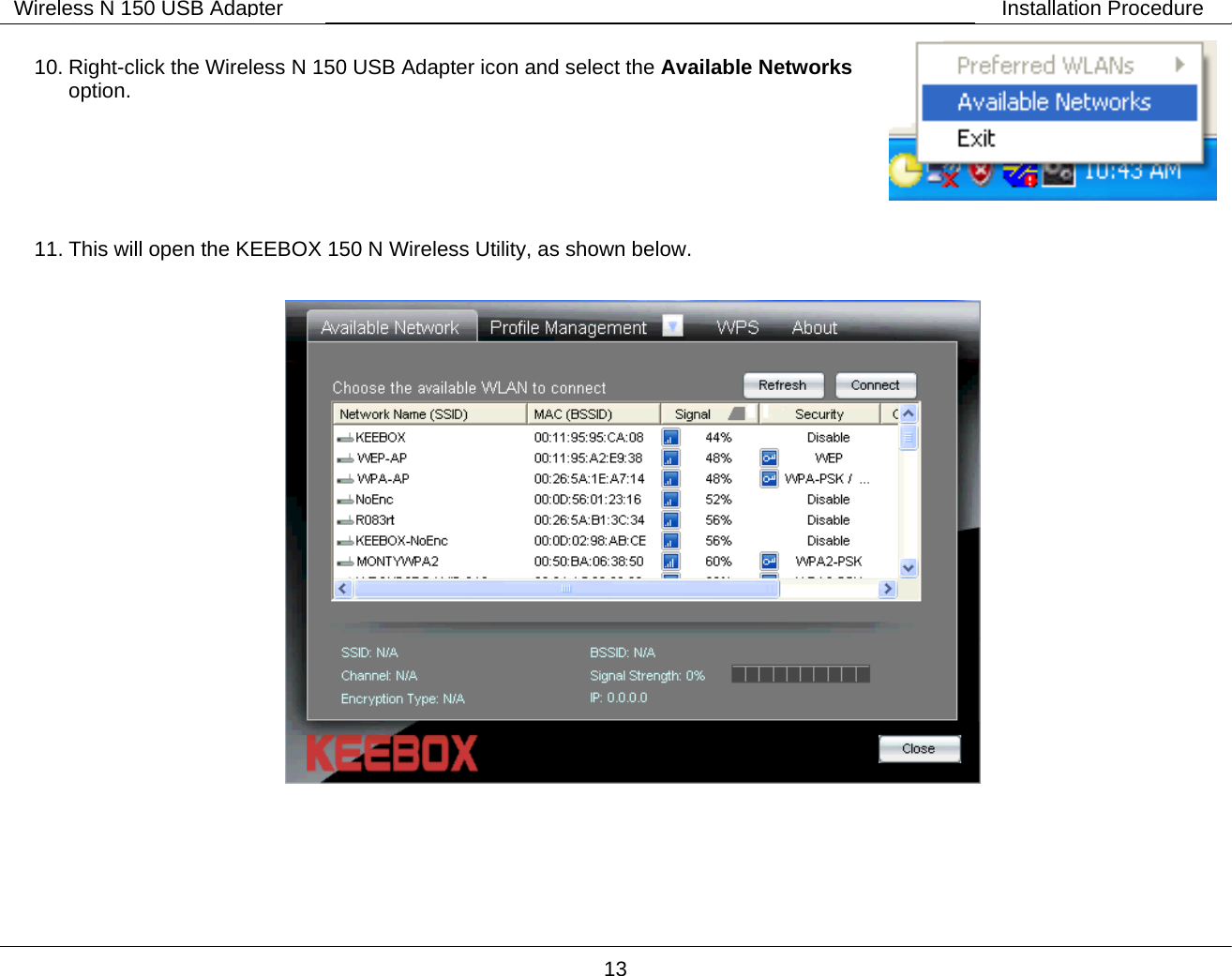
       13 Wireless N 150 USB Adapter Installation Procedure 10. Right-click the Wireless N 150 USB Adapter icon and select the Available Networks option.     11. This will open the KEEBOX 150 N Wireless Utility, as shown below.
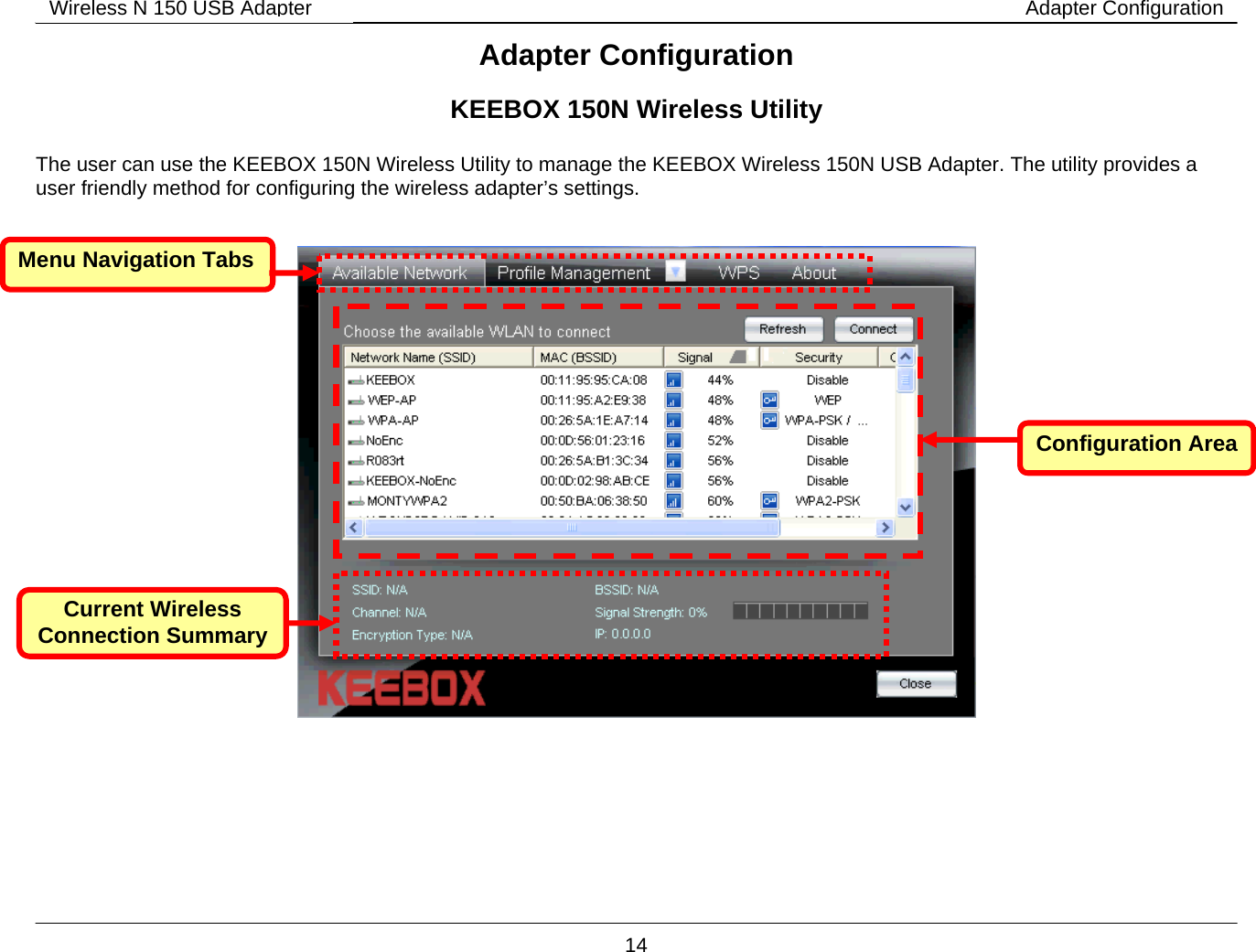
       14 Wireless N 150 USB Adapter Adapter ConfigurationAdapter Configuration KEEBOX 150N Wireless Utility  The user can use the KEEBOX 150N Wireless Utility to manage the KEEBOX Wireless 150N USB Adapter. The utility provides a user friendly method for configuring the wireless adapter’s settings.      Menu Navigation Tabs Configuration AreaCurrent Wireless Connection Summary
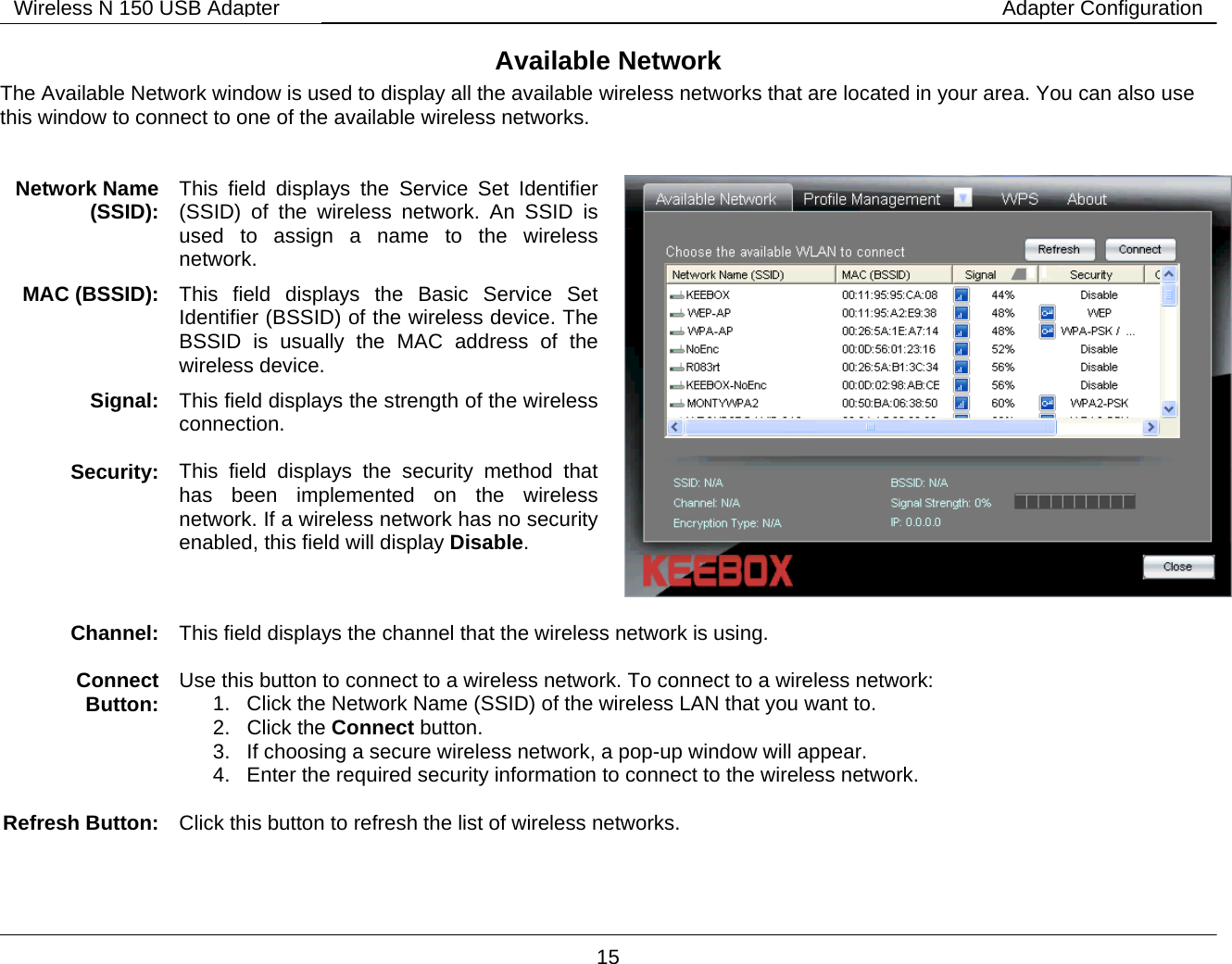
       15 Wireless N 150 USB Adapter Adapter ConfigurationAvailable Network The Available Network window is used to display all the available wireless networks that are located in your area. You can also use this window to connect to one of the available wireless networks.   Network Name (SSID):   This field displays the Service Set Identifier (SSID) of the wireless network. An SSID is used to assign a name to the wireless network. MAC (BSSID):  This field displays the Basic Service Set Identifier (BSSID) of the wireless device. The BSSID is usually the MAC address of the wireless device. Signal:  This field displays the strength of the wireless connection.  Security:  This field displays the security method that has been implemented on the wireless network. If a wireless network has no security enabled, this field will display Disable.   Channel:   This field displays the channel that the wireless network is using.  Connect Button:  Use this button to connect to a wireless network. To connect to a wireless network: 1.  Click the Network Name (SSID) of the wireless LAN that you want to. 2. Click the Connect button. 3.  If choosing a secure wireless network, a pop-up window will appear.  4.  Enter the required security information to connect to the wireless network.  Refresh Button:  Click this button to refresh the list of wireless networks.
       16 Wireless N 150 USB Adapter Adapter ConfigurationProfile Management The Profile Management window is used to display and manage wireless network profiles. To enable a Profile, click the   button next to the Profile Management tab and select the appropriate profile from the list.  New:  Click this button to create a new wireless profile. Refer to page 17 for more information on how to create a new wireless profile. Properties: Click this button to modify an existing wireless profile. Refer to page 36 for more information on how to modify an existing wireless profile.   Remove: Click this button to delete an existing wireless profile.  Connect: To use an existing wireless profile, select the wireless profile from the list and click Connect.   Information: This section displays the Profile Name, SSID, Network Type, Authentication Type, and Encryption Type of the wireless profile that has been selected in the profile list.
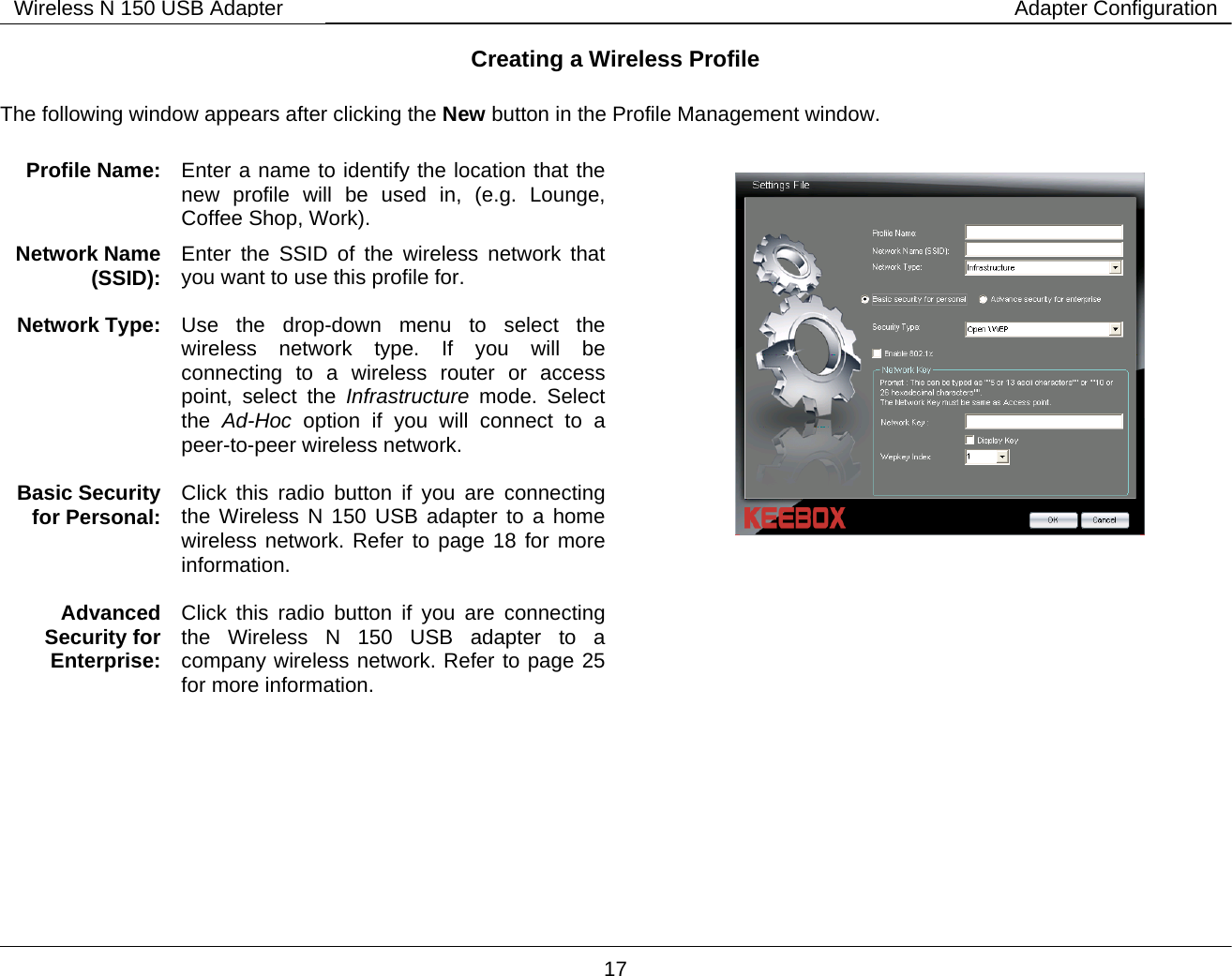
       17 Wireless N 150 USB Adapter Adapter ConfigurationCreating a Wireless Profile  The following window appears after clicking the New button in the Profile Management window.                            Profile Name:   Enter a name to identify the location that the new profile will be used in, (e.g. Lounge, Coffee Shop, Work). Network Name (SSID):  Enter the SSID of the wireless network that you want to use this profile for. Network Type:  Use the drop-down menu to select the wireless network type. If you will be connecting to a wireless router or access point, select the Infrastructure mode. Select the  Ad-Hoc option if you will connect to a peer-to-peer wireless network.  Basic Security for Personal:  Click this radio button if you are connecting the Wireless N 150 USB adapter to a home wireless network. Refer to page 18 for more information.   Advanced Security for Enterprise: Click this radio button if you are connecting the Wireless N 150 USB adapter to a company wireless network. Refer to page 25 for more information.
       18 Wireless N 150 USB Adapter Adapter ConfigurationCreating a Basic Security Wireless Profile   Click the Basic Security for Personal radio button to create a basic wireless profile. The Basic Security Wireless Profile supports the Open\Disable, Open\WEP, Shared\WEP, WPA-PSK\TKIP, WPA-PSK\AES, WPA2-PSK\TKIP, and WPA2-PSK\AES security types. Use the Security drop-down menu to select the security type.
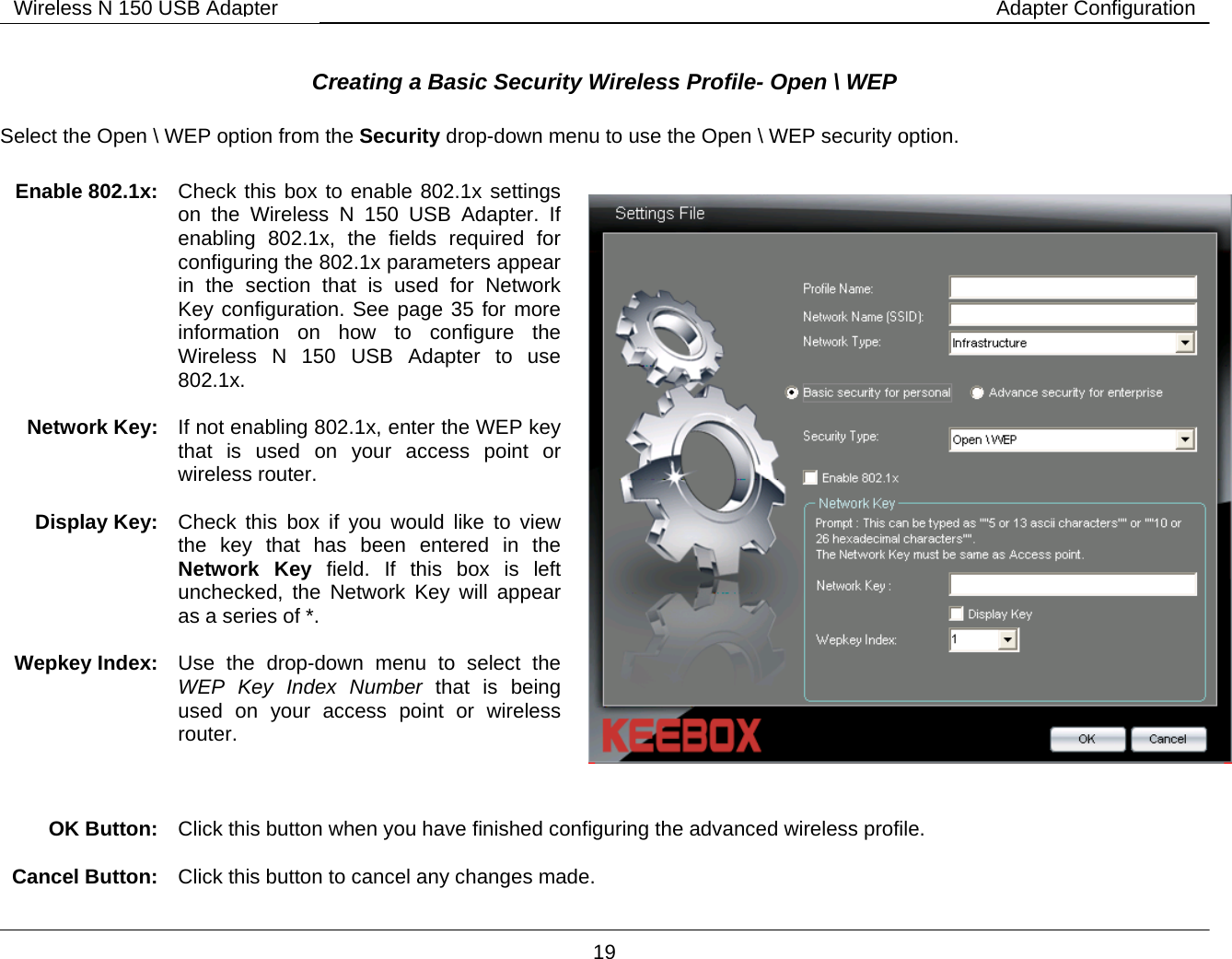
       19 Wireless N 150 USB Adapter Adapter Configuration Creating a Basic Security Wireless Profile- Open \ WEP   Select the Open \ WEP option from the Security drop-down menu to use the Open \ WEP security option.     OK Button:  Click this button when you have finished configuring the advanced wireless profile.  Cancel Button:  Click this button to cancel any changes made. Enable 802.1x:   Check this box to enable 802.1x settings on the Wireless N 150 USB Adapter. If enabling 802.1x, the fields required for configuring the 802.1x parameters appear in the section that is used for Network Key configuration. See page 35 for more information on how to configure the Wireless N 150 USB Adapter to use 802.1x.   Network Key:  If not enabling 802.1x, enter the WEP key that is used on your access point or wireless router.  Display Key:  Check this box if you would like to view the key that has been entered in the Network Key field. If this box is left unchecked, the Network Key will appear as a series of *.  Wepkey Index:  Use the drop-down menu to select the WEP Key Index Number that is being used on your access point or wireless router.
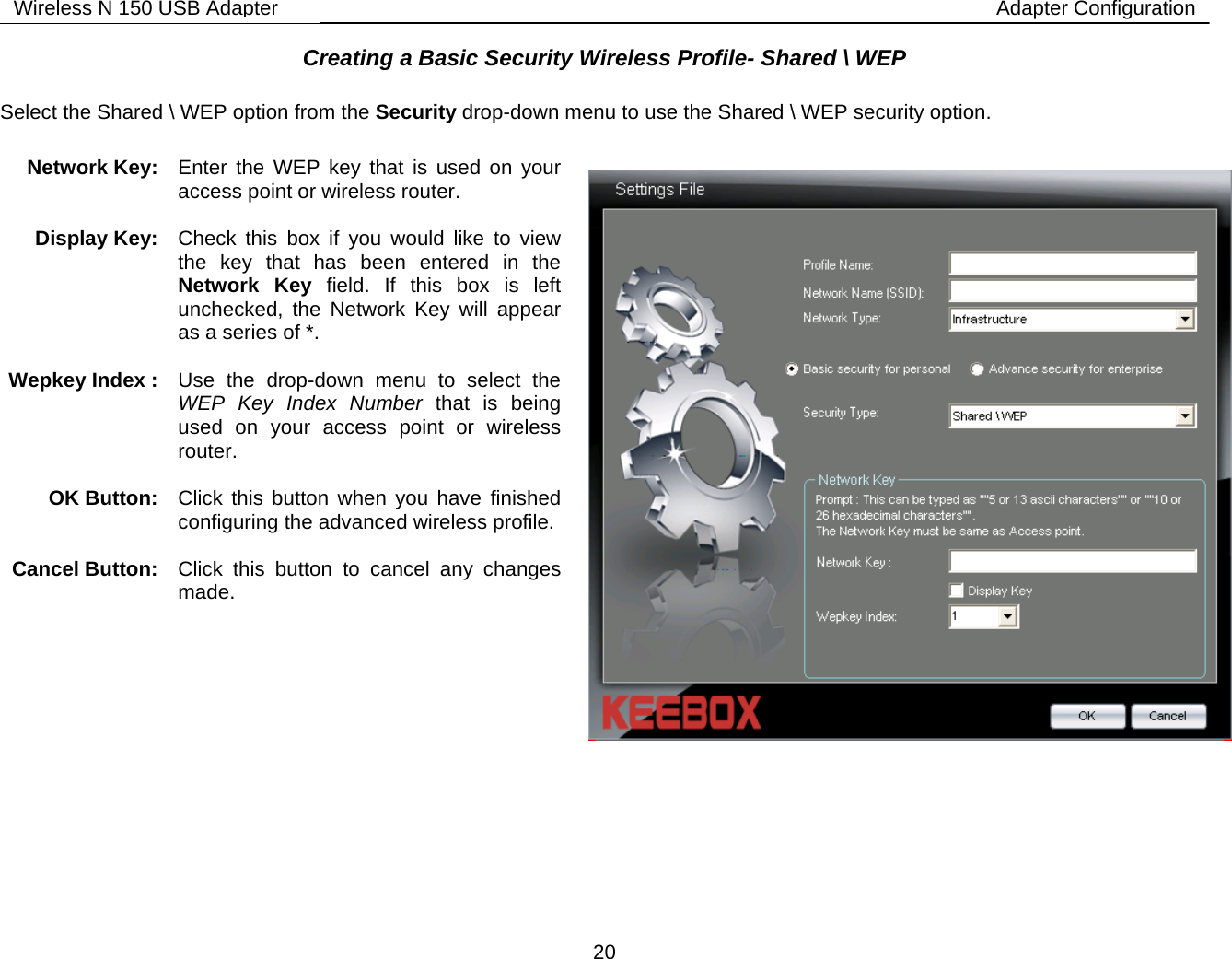
       20 Wireless N 150 USB Adapter Adapter ConfigurationCreating a Basic Security Wireless Profile- Shared \ WEP  Select the Shared \ WEP option from the Security drop-down menu to use the Shared \ WEP security option.          Network Key:  Enter the WEP key that is used on your access point or wireless router.  Display Key:  Check this box if you would like to view the key that has been entered in the Network Key field. If this box is left unchecked, the Network Key will appear as a series of *.  Wepkey Index :  Use the drop-down menu to select the WEP Key Index Number that is being used on your access point or wireless router.   OK Button:  Click this button when you have finished configuring the advanced wireless profile. Cancel Button:  Click this button to cancel any changes made.
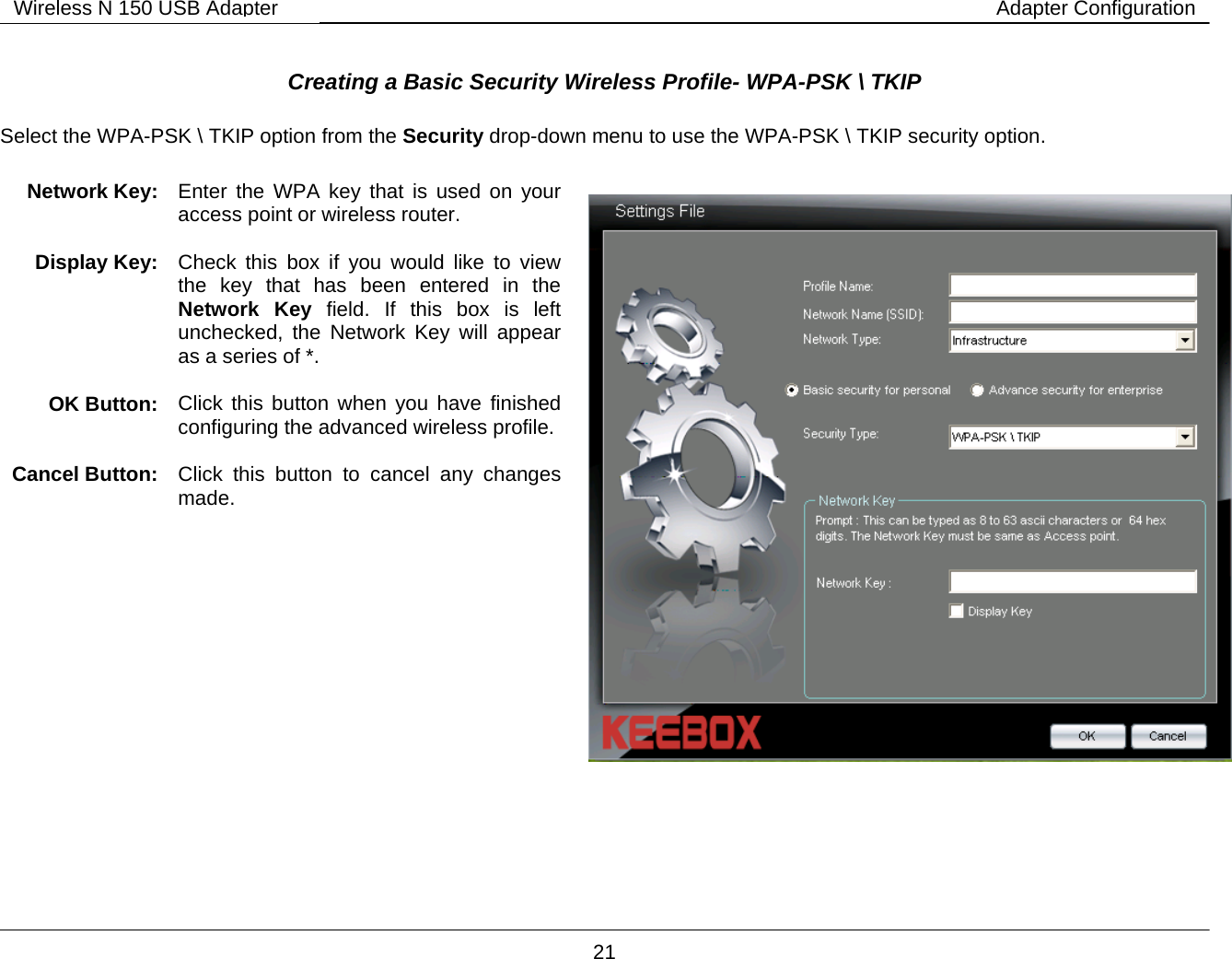
       21 Wireless N 150 USB Adapter Adapter Configuration Creating a Basic Security Wireless Profile- WPA-PSK \ TKIP   Select the WPA-PSK \ TKIP option from the Security drop-down menu to use the WPA-PSK \ TKIP security option.         Network Key:  Enter the WPA key that is used on your access point or wireless router.  Display Key:  Check this box if you would like to view the key that has been entered in the Network Key field. If this box is left unchecked, the Network Key will appear as a series of *.  OK Button:  Click this button when you have finished configuring the advanced wireless profile. Cancel Button:  Click this button to cancel any changes made.
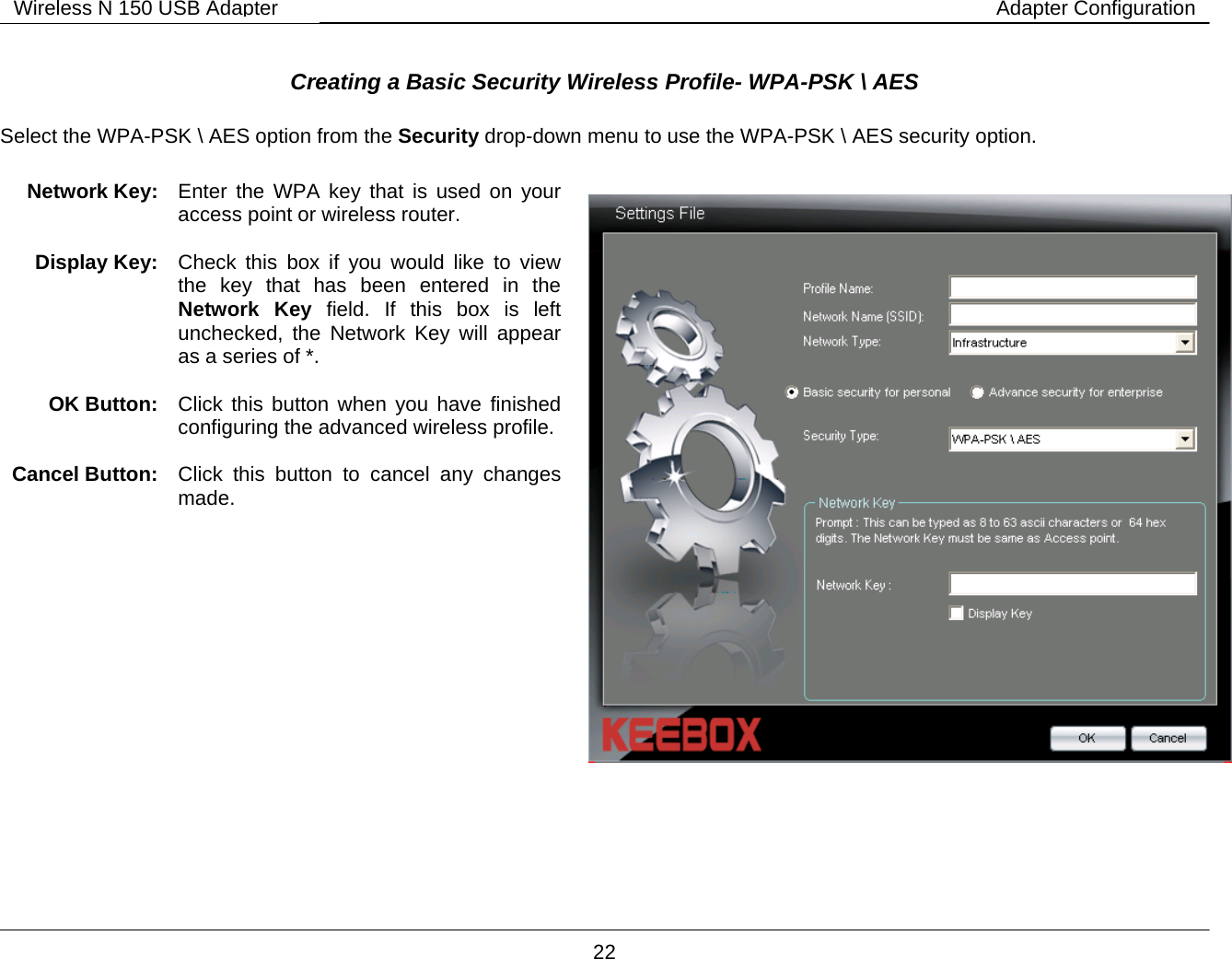
       22 Wireless N 150 USB Adapter Adapter Configuration Creating a Basic Security Wireless Profile- WPA-PSK \ AES   Select the WPA-PSK \ AES option from the Security drop-down menu to use the WPA-PSK \ AES security option.    Network Key:  Enter the WPA key that is used on your access point or wireless router.  Display Key:  Check this box if you would like to view the key that has been entered in the Network Key field. If this box is left unchecked, the Network Key will appear as a series of *.  OK Button:  Click this button when you have finished configuring the advanced wireless profile. Cancel Button:  Click this button to cancel any changes made.
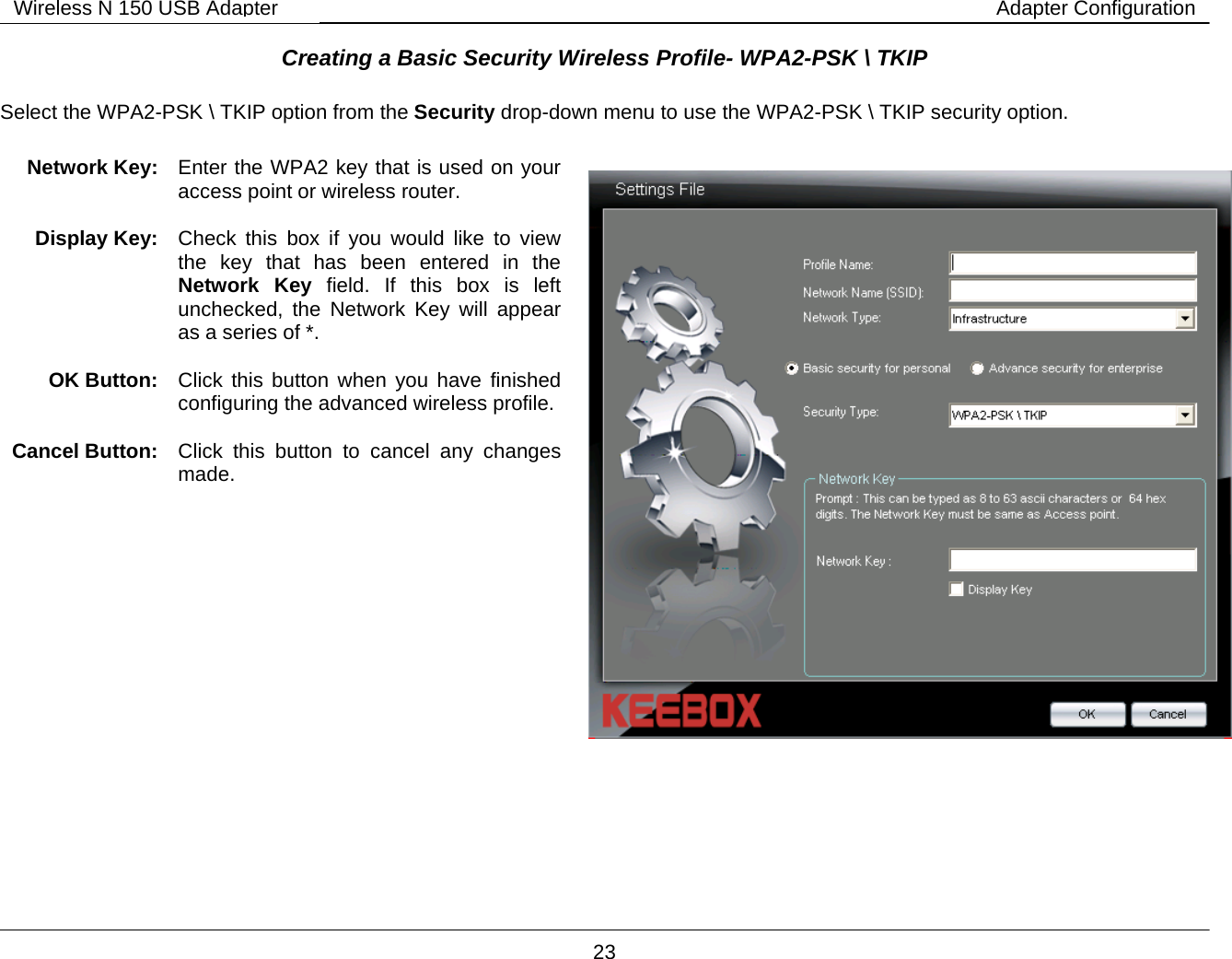
       23 Wireless N 150 USB Adapter Adapter ConfigurationCreating a Basic Security Wireless Profile- WPA2-PSK \ TKIP   Select the WPA2-PSK \ TKIP option from the Security drop-down menu to use the WPA2-PSK \ TKIP security option.          Network Key:  Enter the WPA2 key that is used on your access point or wireless router.  Display Key:  Check this box if you would like to view the key that has been entered in the Network Key field. If this box is left unchecked, the Network Key will appear as a series of *.  OK Button:  Click this button when you have finished configuring the advanced wireless profile. Cancel Button:  Click this button to cancel any changes made.
       24 Wireless N 150 USB Adapter Adapter Configuration Creating a Basic Security Wireless Profile- WPA2-PSK \ AES   Select the WPA2-PSK \ AES option from the Security drop-down menu to use the WPA2-PSK \ AES security option.        Network Key:  Enter the WPA2 key that is used on your access point or wireless router.  Display Key:  Check this box if you would like to view the key that has been entered in the Network Key field. If this box is left unchecked, the Network Key will appear as a series of *.  OK Button:  Click this button when you have finished configuring the advanced wireless profile. Cancel Button:  Click this button to cancel any changes made.
       25 Wireless N 150 USB Adapter Adapter ConfigurationCreating an Advanced Security Wireless Profile   Click the Advanced Security for Enterprise radio button to create an advanced wireless profile. Use the drop-down menus to select the Authentication and Encryption Type that is being used on your wireless network.  Authentication Type:  Use the drop-down menu to select the Authentication Type that is being used on your wireless network. The available options are:  Open  Shared  WPA-EAP (Enterprise)  WPA-PSK (Personal)  WPA2-EAP (Enterprise)  WPA2-PSK (Personal)  Encryption Type:  Use the drop-down menu to select the  Encryption Method that your wireless network is using with the specified authentication type.  Enable 802.1x:   Check this box to enable 802.1x settings on the Wireless N 150 USB Adapter. If enabling 802.1x, the fields required for configuring the 802.1x parameters appear in the section that is used for Network Key configuration. See page 35 for more information on how to configure the Wireless N 150 USB Adapter to use 802.1x.     Network Key:  If not enabling 802.1x, enter the WEP key that is used on your access point or wireless router.
       26 Wireless N 150 USB Adapter Adapter Configuration         Display Key:  Check this box if you would like to view the key that has been entered in the Network Key field. If this box is left unchecked, the Network Key will appear as a series of *.  Wepkey Index :  Use the drop-down menu to select the WEP Key Index Number that is being used on your access point or wireless router.   OK Button:  Click this button when you have finished configuring the advanced wireless profile.  Cancel Button:  Click this button to cancel any changes made.
       27 Wireless N 150 USB Adapter Adapter ConfigurationCreating an Advanced Security Wireless Profile-Open Authentication   Authentication Type:  Select the Open authentication type from the drop-down menu. Encryption Type:  If your network is using encryption with the open authentication method, select WEP from the drop-down menu. If no encryption is being used select Disabled.  Enable 802.1x:   Check this box to enable 802.1x settings on the Wireless N 150 USB Adapter. If enabling 802.1x, the fields required for configuring the 802.1x parameters appear in the section that is used for Network Key configuration. See page 35 for more information on how to configure the Wireless N 150 USB Adapter to use 802.1x.   Network Key:   If not enabling 802.1x, enter the WEP key that is used on your access point or wireless router.   Display Key:  Check this box if you would like to view the key that has been entered in the Network Key field. If this box is left unchecked, the Network Key will appear as a series of *.   Wepkey Index :  Use the drop-down menu to select the WEP Key Index Number that is being used on your access point or wireless router.    OK Button:  Click this button when you have finished configuring the advanced wireless profile.   Cancel Button:  Click this button to cancel any changes made.
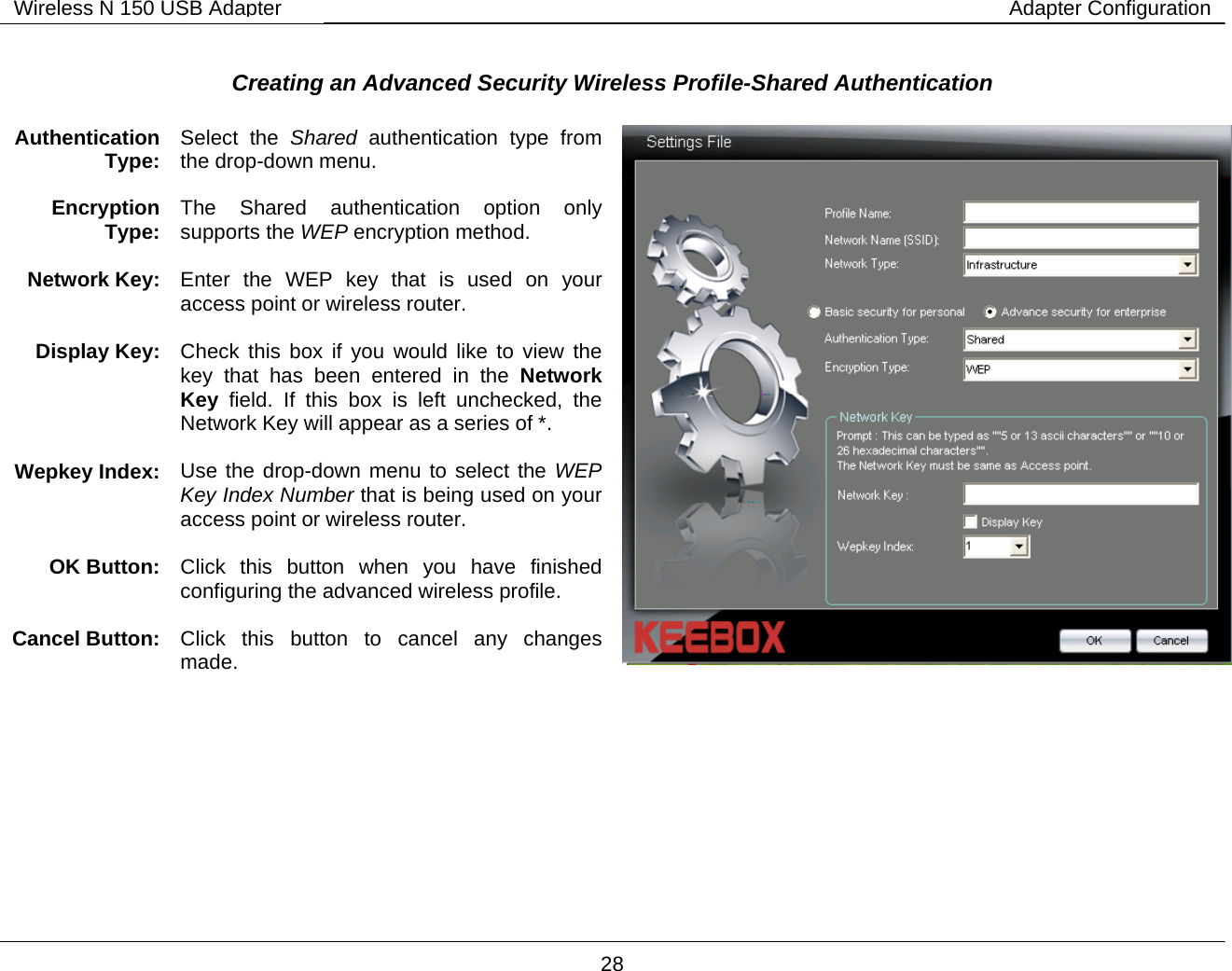
       28 Wireless N 150 USB Adapter Adapter Configuration Creating an Advanced Security Wireless Profile-Shared Authentication     Authentication Type:  Select the Shared  authentication type from the drop-down menu. Encryption Type:  The Shared authentication option only supports the WEP encryption method.  Network Key:   Enter the WEP key that is used on your access point or wireless router.  Display Key:  Check this box if you would like to view the key that has been entered in the Network Key field. If this box is left unchecked, the Network Key will appear as a series of *.  Wepkey Index:  Use the drop-down menu to select the WEP Key Index Number that is being used on your access point or wireless router.  OK Button:  Click this button when you have finished configuring the advanced wireless profile.  Cancel Button:  Click this button to cancel any changes made.
       29 Wireless N 150 USB Adapter Adapter ConfigurationCreating an Advanced Security Wireless Profile-WPA-EAP (Enterprise) Authentication    Authentication Type:  Select the WPA-EAP (Enterprise) authentication type from the drop-down menu.  Encryption Type:  Use the drop-down menu to select whether the TKIP or AES encryption method is being used on your network.  Enable 802.1x:   The  WPA-EAP (Enterprise) authentication method uses 802.1x.  EAP Type:  Use the drop-down menu to select the EAP Type being used by your network.   If selecting the EAP_TLS option, select the User Certificate that is being used from the User Certificate drop-down menu.   If selecting the EAP_PEAP option, select the PEAP Inner value that is being used from the PEAP Inner drop-down menu.  If selecting the EAP_TTLS option, select the TTLS Inner value that is being used from the TTLS Inner drop-down menu.
       30 Wireless N 150 USB Adapter Adapter Configuration User Name:  Enter the user name that is being used for 802.1x in this field.  Password:  Enter the password for the 802.1x user name in this field.  OK Button:  Click this button when you have finished configuring the advanced wireless profile.  Cancel Button:  Click this button to cancel any changes made.
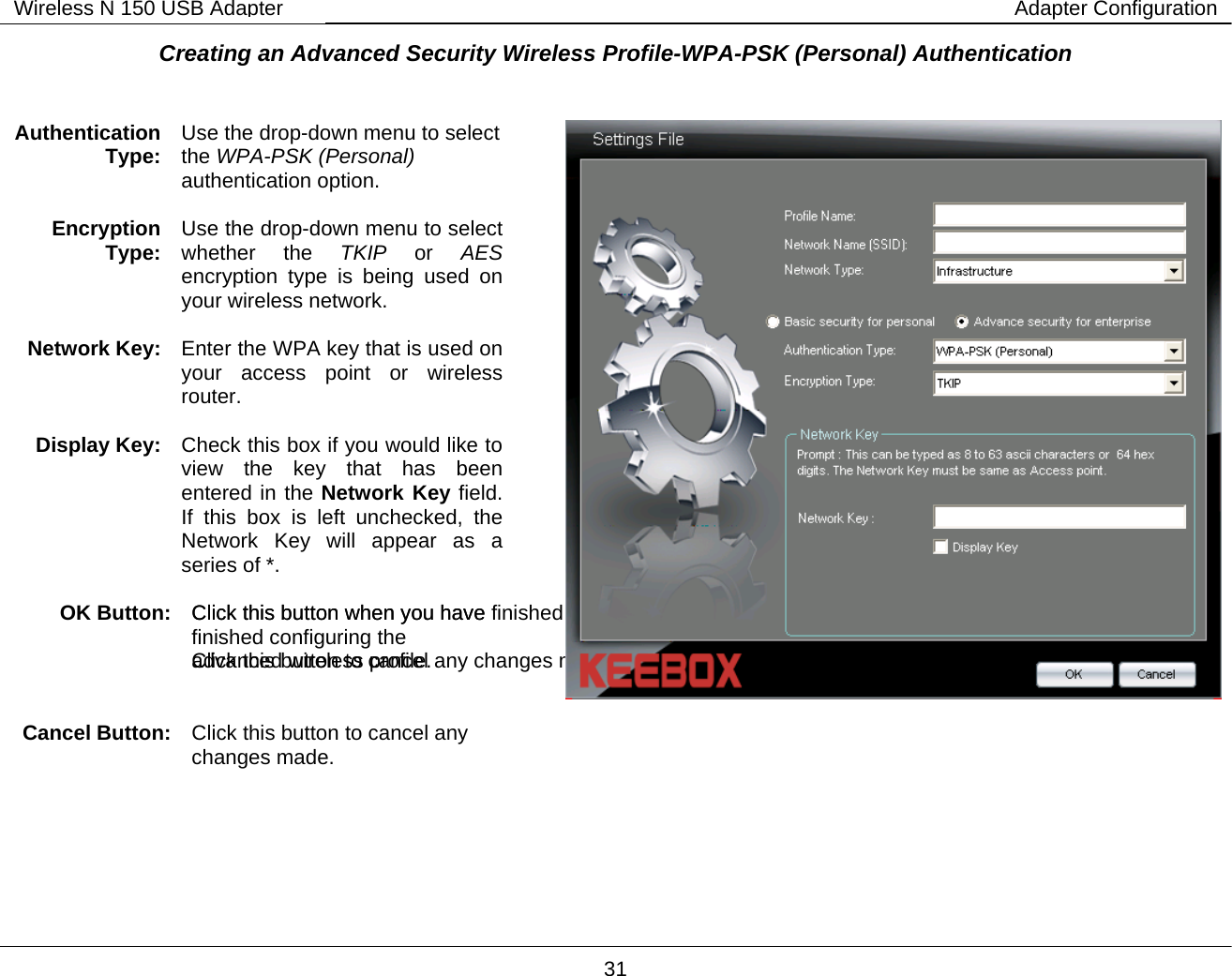
       31 Wireless N 150 USB Adapter Adapter ConfigurationCreating an Advanced Security Wireless Profile-WPA-PSK (Personal) Authentication    Authentication Type:  Use the drop-down menu to select the WPA-PSK (Personal) authentication option.  Encryption Type:  Use the drop-down menu to select whether the TKIP or AES  encryption type is being used on your wireless network.  Network Key:  Enter the WPA key that is used on your access point or wireless router.  Display Key:  Check this box if you would like to view the key that has been entered in the Network Key field. If this box is left unchecked, the Network Key will appear as a series of *.  OK Button:  Click this button when you have finished configuring the advanced wireless profile.     Cancel Button: Click this button to cancel any changes made.  Click this button when you have finished configuring the  advanced wireless profile.   Click this button to cancel any  changes made.
       32 Wireless N 150 USB Adapter Adapter Configuration Creating an Advanced Security Wireless Profile-WPA2-EAP (Enterprise) Authentication   Authentication Type:  Select the WPA2-EAP (Enterprise) authentication type from the drop-down menu.  Encryption Type:  Use the drop-down menu to select whether the TKIP or AES encryption method is being used on your network.  Enable 802.1x:   The  WPA-EAP (Enterprise) authentication method uses 802.1x.  EAP Type:  Use the drop-down menu to select the EAP Type being used by your network.   If selecting the EAP_TLS option, select the User Certificate that is being used from the User Certificate drop-down menu.   If selecting the EAP_PEAP option, select the PEAP Inner value that is being used from the PEAP Inner drop-down menu.  If selecting the EAP_TTLS option, select the TTLS Inner value that is being used from the TTLS Inner drop-down menu.    User Name:  Enter the user name that is being used for 802.1x in this field.  Password:  Enter the password for the 802.1x user name in this field.  Server Settings:  Click this button to configure the Trusted Root Certification Authorities List. See page 36 for more information.
       33 Wireless N 150 USB Adapter Adapter Configuration OK Button:  Click this button when you have finished configuring the advanced wireless profile. Cancel Button:  Click this button to cancel any changes made.
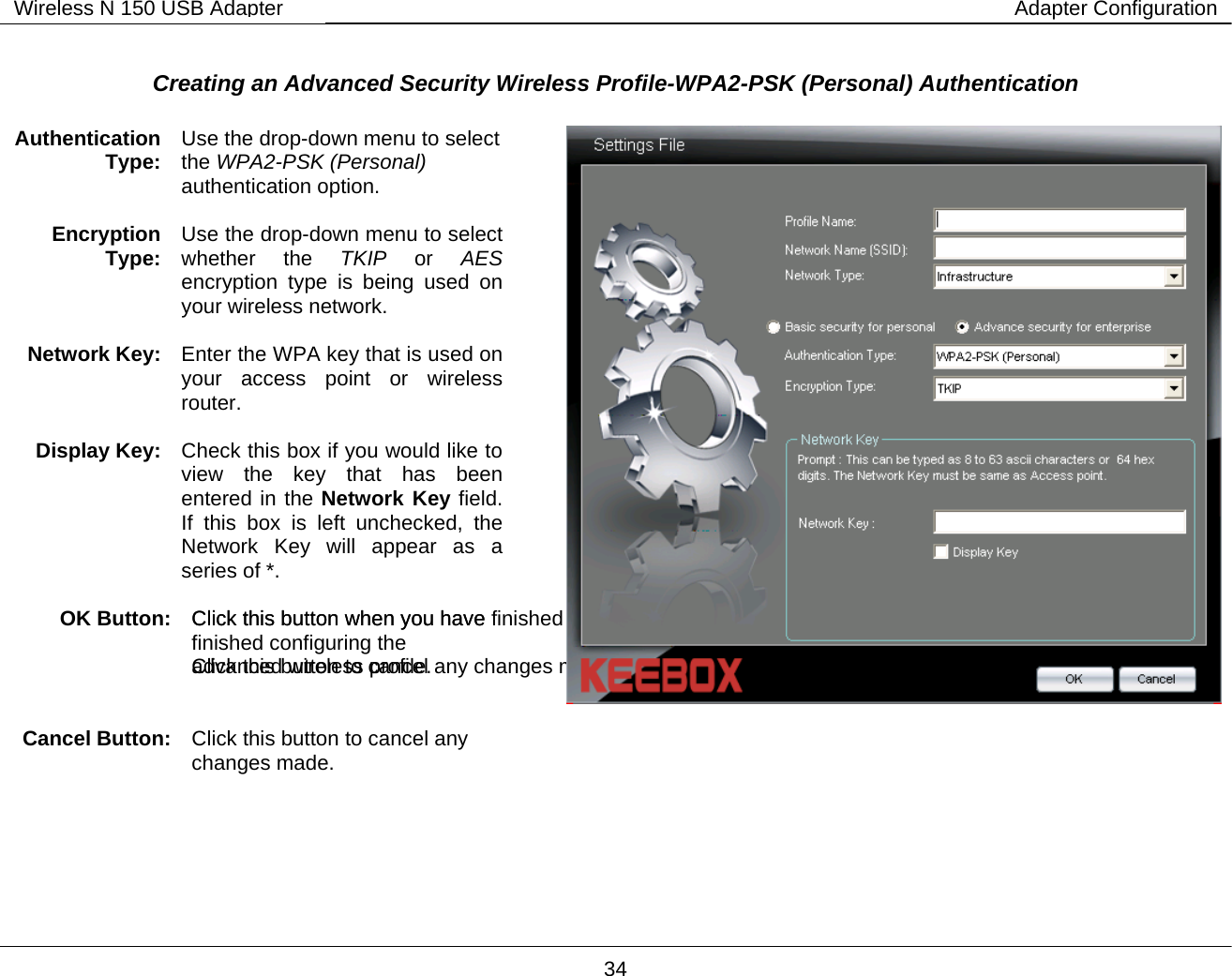
       34 Wireless N 150 USB Adapter Adapter Configuration Creating an Advanced Security Wireless Profile-WPA2-PSK (Personal) Authentication   Authentication Type:  Use the drop-down menu to select the WPA2-PSK (Personal) authentication option.  Encryption Type:  Use the drop-down menu to select whether the TKIP or AES  encryption type is being used on your wireless network.  Network Key:  Enter the WPA key that is used on your access point or wireless router.  Display Key:  Check this box if you would like to view the key that has been entered in the Network Key field. If this box is left unchecked, the Network Key will appear as a series of *.  OK Button:  Click this button when you have finished configuring the advanced wireless profile.     Cancel Button: Click this button to cancel any changes made.  Click this button when you have finished configuring the  advanced wireless profile.   Click this button to cancel any  changes made.
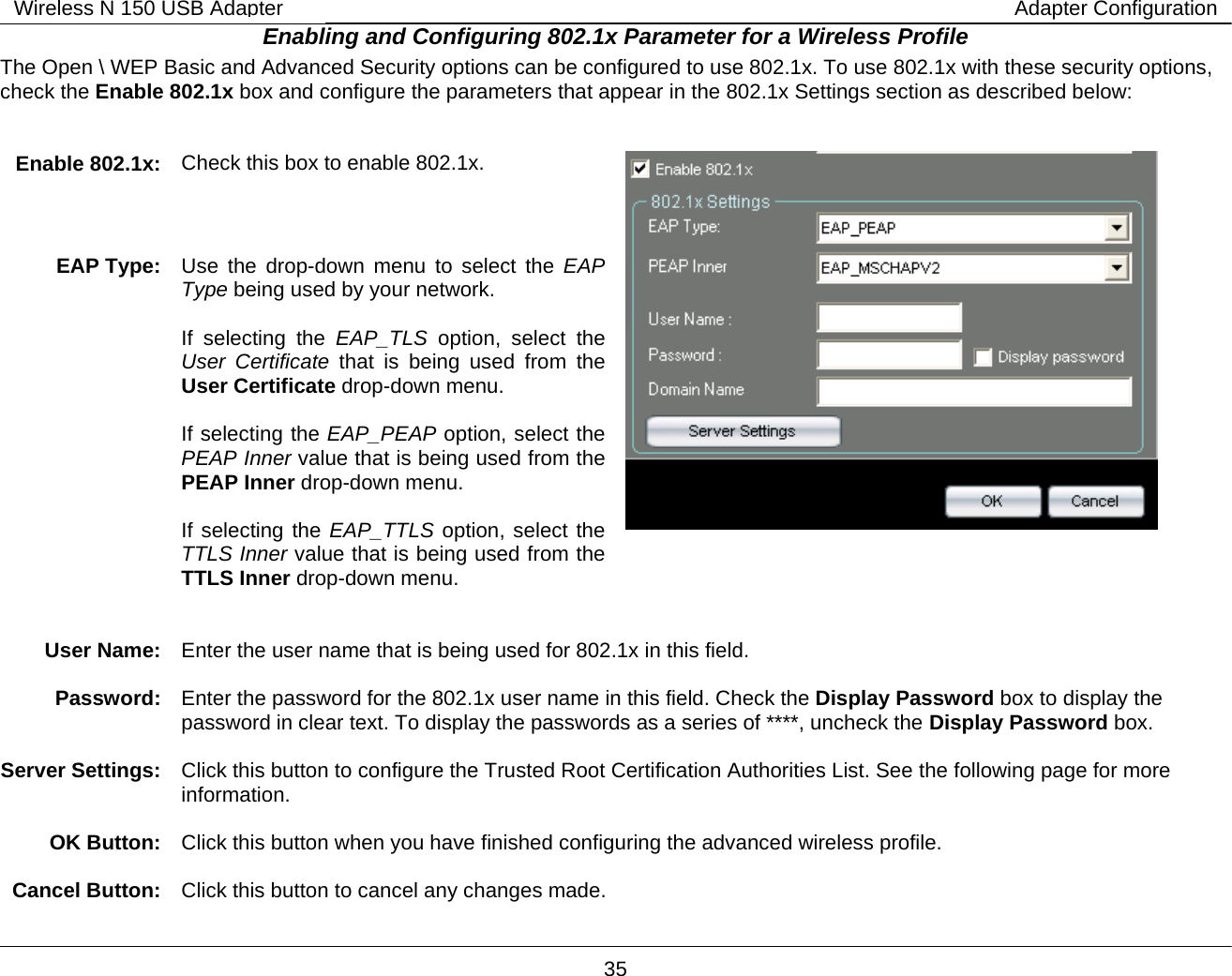
       35 Wireless N 150 USB Adapter Adapter ConfigurationEnabling and Configuring 802.1x Parameter for a Wireless Profile The Open \ WEP Basic and Advanced Security options can be configured to use 802.1x. To use 802.1x with these security options, check the Enable 802.1x box and configure the parameters that appear in the 802.1x Settings section as described below:   Enable 802.1x:  Check this box to enable 802.1x.  EAP Type:   Use the drop-down menu to select the EAP Type being used by your network.   If selecting the EAP_TLS option, select the User Certificate that is being used from the User Certificate drop-down menu.   If selecting the EAP_PEAP option, select the PEAP Inner value that is being used from the PEAP Inner drop-down menu.  If selecting the EAP_TTLS option, select the TTLS Inner value that is being used from the TTLS Inner drop-down menu.    User Name:   Enter the user name that is being used for 802.1x in this field.  Password:  Enter the password for the 802.1x user name in this field. Check the Display Password box to display the password in clear text. To display the passwords as a series of ****, uncheck the Display Password box.  Server Settings:  Click this button to configure the Trusted Root Certification Authorities List. See the following page for more information.  OK Button:  Click this button when you have finished configuring the advanced wireless profile.  Cancel Button:  Click this button to cancel any changes made.
       36 Wireless N 150 USB Adapter Adapter Configuration Configuring 802.1x Validate Server Certificate Settings Carry out the following to configure the 802.1x Validate Server Certificate Settings.  Validate Server Certificate:  Check this box to enable the 802.1x Validate Server Certificate option. Trust Root Certification Authorities List: Carry out the following to add a new Trust Server: 1. Enter the DNS host name of the Trust Server in the input field. 2. Click the Add button.   Carry out the following to remove a Trust server. 1.  Select the Trust Server that you want to remove from the list. 2. Click the Remove button.        OK Button:  Click this button when you have finished configuring the Validate Server Certificate settings.  Cancel Button:  Click this button to cancel any changes made to the Validate Server Certificate settings.
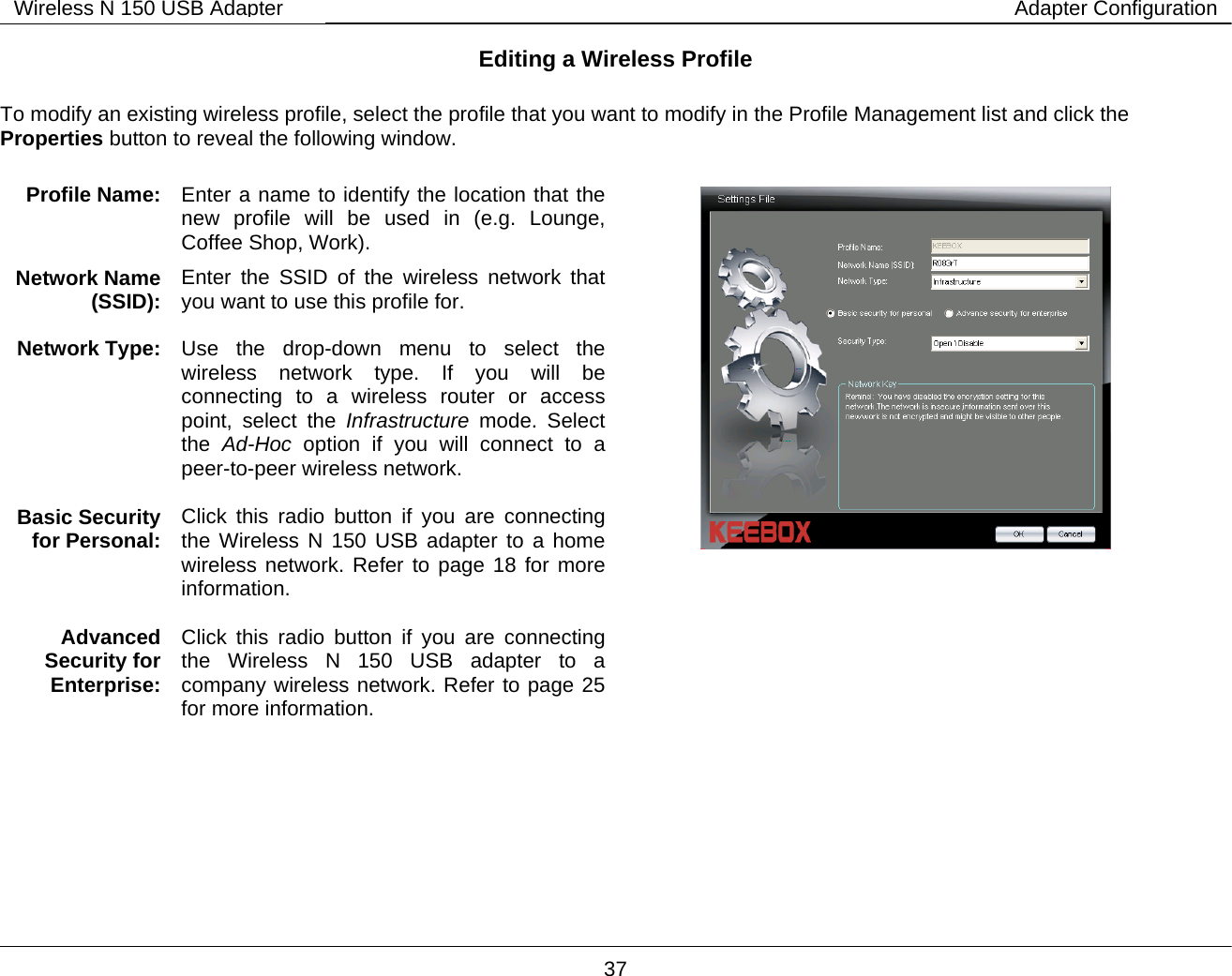
       37 Wireless N 150 USB Adapter Adapter ConfigurationEditing a Wireless Profile  To modify an existing wireless profile, select the profile that you want to modify in the Profile Management list and click the Properties button to reveal the following window.                   Profile Name:   Enter a name to identify the location that the new profile will be used in (e.g. Lounge, Coffee Shop, Work). Network Name (SSID):  Enter the SSID of the wireless network that you want to use this profile for. Network Type:  Use the drop-down menu to select the wireless network type. If you will be connecting to a wireless router or access point, select the Infrastructure mode. Select the  Ad-Hoc option if you will connect to a peer-to-peer wireless network.  Basic Security for Personal:  Click this radio button if you are connecting the Wireless N 150 USB adapter to a home wireless network. Refer to page 18 for more information.   Advanced Security for Enterprise: Click this radio button if you are connecting the Wireless N 150 USB adapter to a company wireless network. Refer to page 25 for more information.
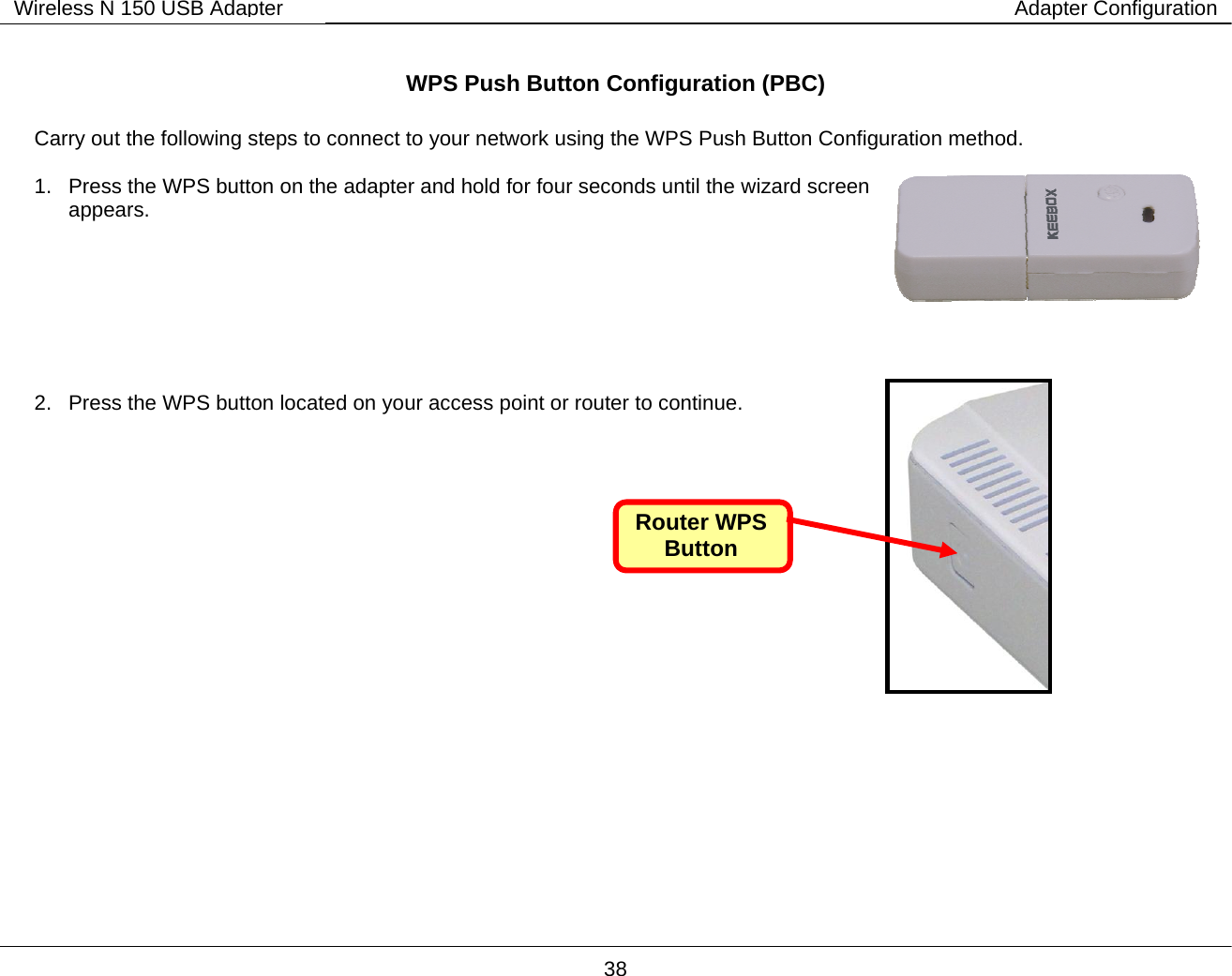
       38 Wireless N 150 USB Adapter Adapter Configuration WPS Push Button Configuration (PBC)  Carry out the following steps to connect to your network using the WPS Push Button Configuration method.  1.  Press the WPS button on the adapter and hold for four seconds until the wizard screen appears.        2.  Press the WPS button located on your access point or router to continue.                     Router WPS Button
       39 Wireless N 150 USB Adapter Adapter Configuration 3.  The following window appears while the Wireless N 150 USB Adapter attempts to connect to the access point or wireless router.             4.  After the adapter has successfully established a network connection, the following screen will appear on your computer. Click Finish to complete WPS PBC setup.
       40 Wireless N 150 USB Adapter Adapter ConfigurationWPS PIN Code Carry out the following steps to connect to your network using the WPS PIN Code method  1.  Select PIN (Personal Identification Number) and click Next.  2.  Make sure your access point or wireless router is close by. Write down the number on the screen. Enter this number in your access point or wireless router. Please refer to the manufacture’s manual for instructions. Once you click Next, you will have 2 minutes to enter this number in your access point or wireless router.   3.  The adapter will try to establish connectivity to your access point or wireless router.  4.  When this screen appears, you have successfully established connectivity. Click Finish to complete your setup.
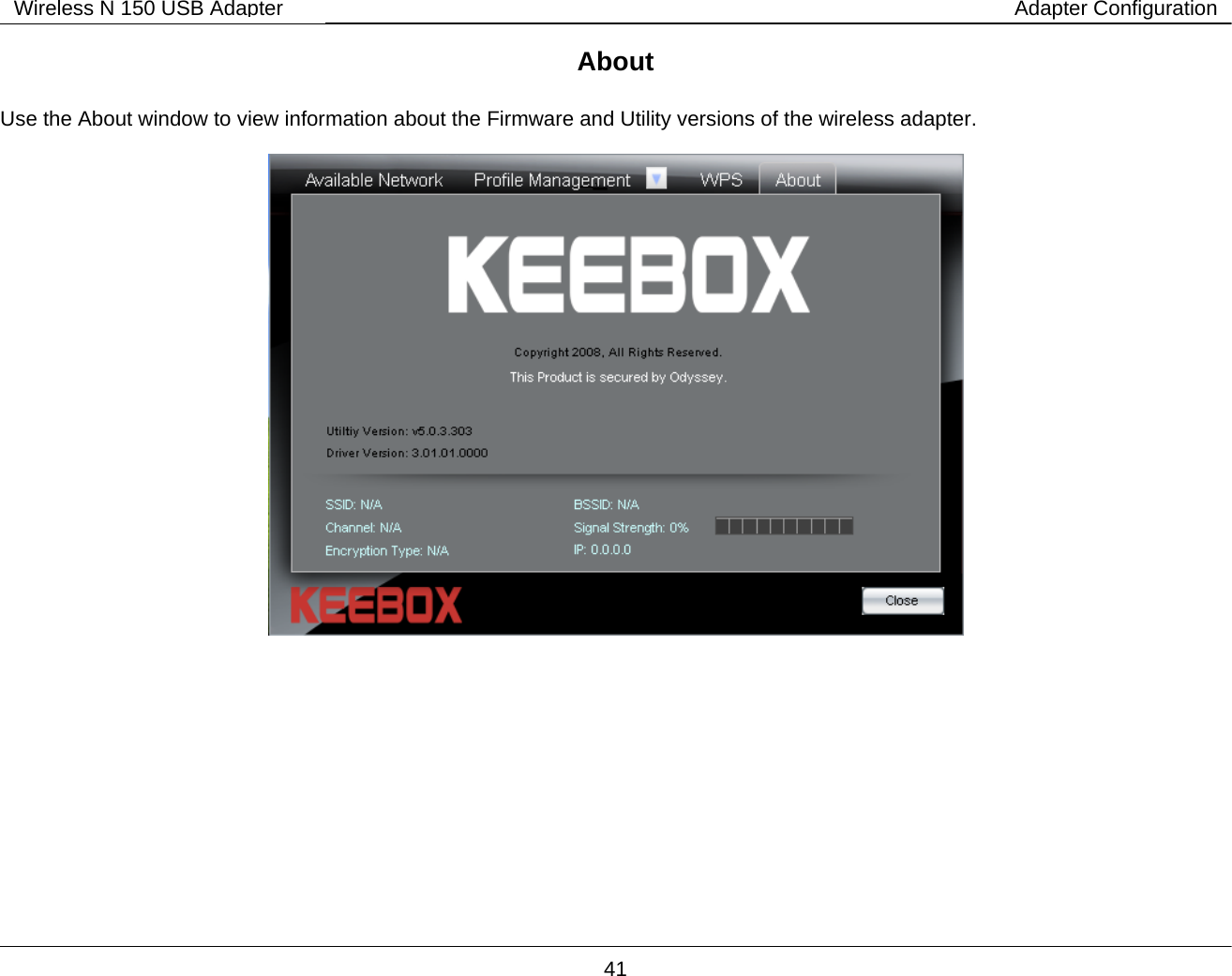
       41 Wireless N 150 USB Adapter Adapter ConfigurationAbout  Use the About window to view information about the Firmware and Utility versions of the wireless adapter.
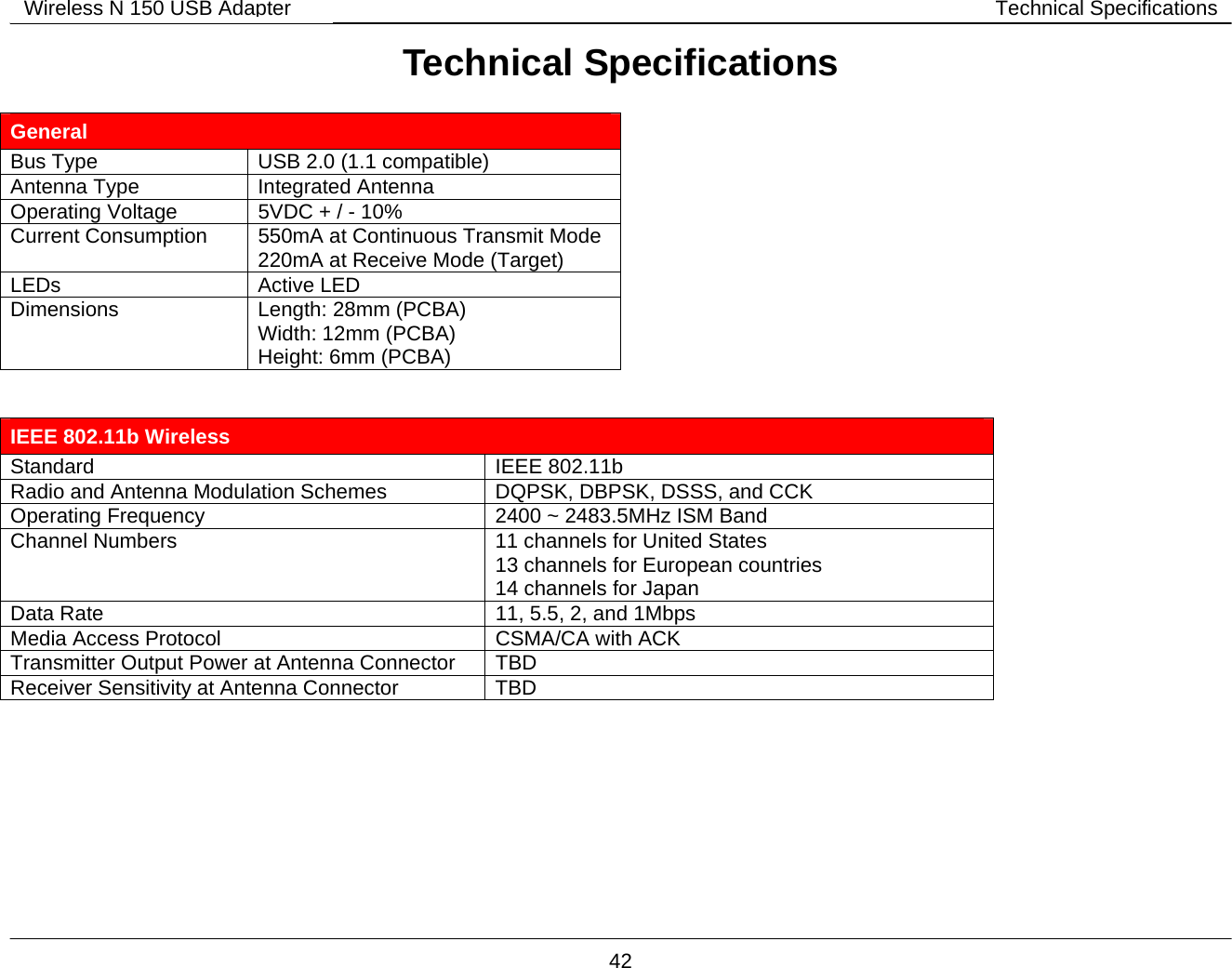
       42 Wireless N 150 USB Adapter Technical SpecificationsTechnical Specifications  General Bus Type  USB 2.0 (1.1 compatible) Antenna Type  Integrated Antenna Operating Voltage  5VDC + / - 10% Current Consumption  550mA at Continuous Transmit Mode 220mA at Receive Mode (Target) LEDs Active LED Dimensions Length: 28mm (PCBA) Width: 12mm (PCBA) Height: 6mm (PCBA)   IEEE 802.11b Wireless Standard IEEE 802.11b Radio and Antenna Modulation Schemes  DQPSK, DBPSK, DSSS, and CCK Operating Frequency  2400 ~ 2483.5MHz ISM Band Channel Numbers  11 channels for United States 13 channels for European countries 14 channels for Japan Data Rate  11, 5.5, 2, and 1Mbps Media Access Protocol  CSMA/CA with ACK Transmitter Output Power at Antenna Connector  TBD Receiver Sensitivity at Antenna Connector  TBD
       43 Wireless N 150 USB Adapter Technical Specifications IEEE 802.11g Wireless Standard IEEE 802.11g Radio and Antenna Modulation Schemes  BPSK, QPSK, 16QAM, 64QAM with OFDM Operating Frequency  2400 ~ 2483.5MHz ISM Band Channel Numbers  11 channels for United States 13 channels for European countries 13 channels for Japan Data Rate  54, 48, 36, 24, 18, 12, 9, and 6Mbps Media Access Protocol  CSMA/CA with ACK Transmitter Output Power at Antenna Connector  TBD Receiver Sensitivity at Antenna Connector  TBD
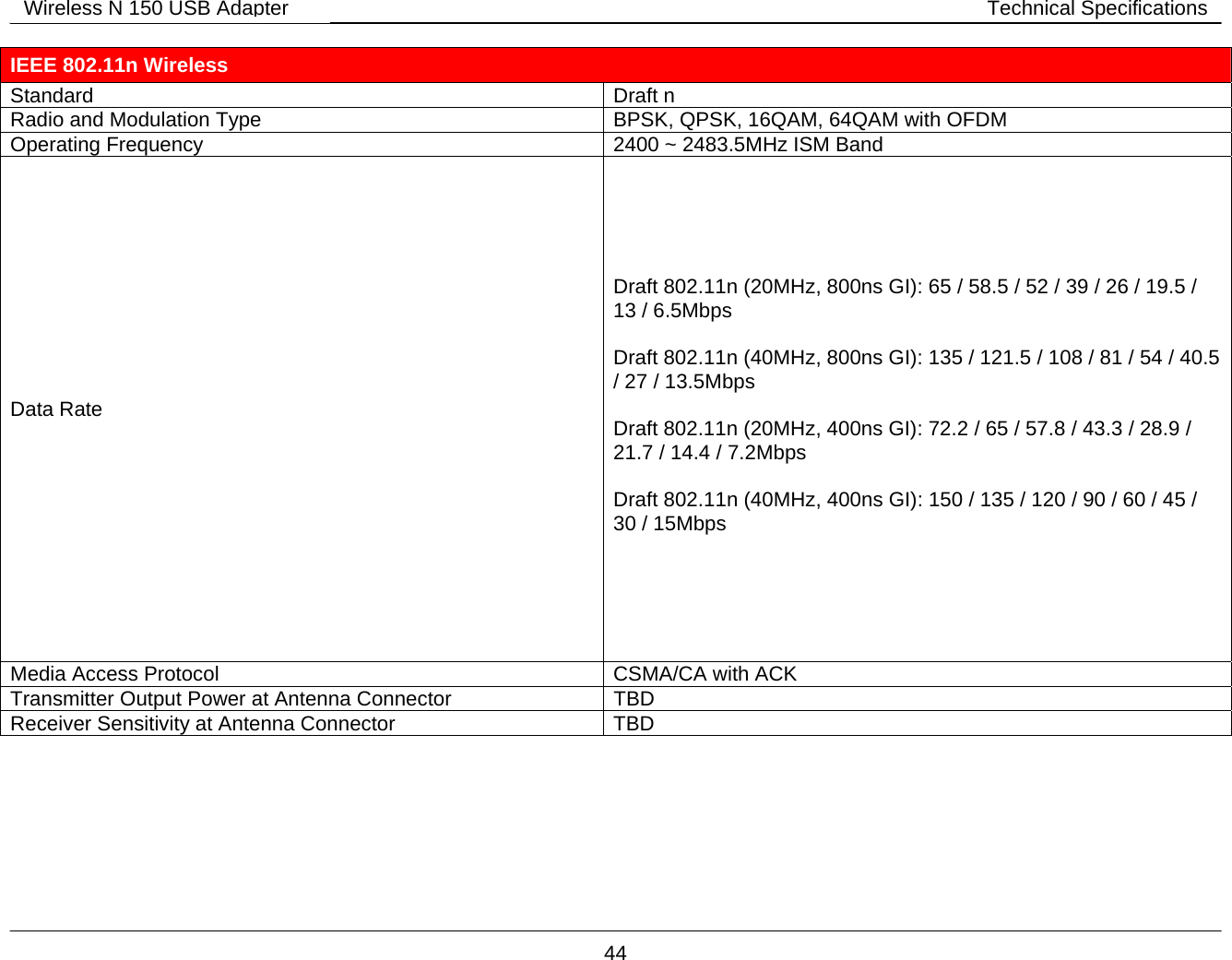
       44 Wireless N 150 USB Adapter Technical Specifications IEEE 802.11n Wireless Standard Draft n Radio and Modulation Type  BPSK, QPSK, 16QAM, 64QAM with OFDM Operating Frequency  2400 ~ 2483.5MHz ISM Band Data Rate      Draft 802.11n (20MHz, 800ns GI): 65 / 58.5 / 52 / 39 / 26 / 19.5 / 13 / 6.5Mbps  Draft 802.11n (40MHz, 800ns GI): 135 / 121.5 / 108 / 81 / 54 / 40.5 / 27 / 13.5Mbps  Draft 802.11n (20MHz, 400ns GI): 72.2 / 65 / 57.8 / 43.3 / 28.9 / 21.7 / 14.4 / 7.2Mbps  Draft 802.11n (40MHz, 400ns GI): 150 / 135 / 120 / 90 / 60 / 45 / 30 / 15Mbps  Media Access Protocol  CSMA/CA with ACK Transmitter Output Power at Antenna Connector  TBD Receiver Sensitivity at Antenna Connector  TBD

Navigation menu