KORTIDE R1 11N smart router User Manual M1

KORTIDE LIMITED 11N smart router M1

Users Manual

            Version 1.1    Lamobo R1(BPI-R1)   User Manual   For more details, please visit LAMOBO.org or LAMOBO.com
Lamobo R1(BPI-R1) User Manual   Version 1.0  1 Table of Contents Product Introduction ................................................................................................................. 2 Product appearance .................................................................................................................. 3 Specification .............................................................................................................................. 4 Hardware ................................................................................................................................... 5 Hardware connect sketch map .................................................................................................. 7 Use Method (Android or Android-OpenWrt) ............................................................................ 8 Step 1: Get What You Need ....................................................................................................... 8 Step 2: Download The Relevant Image File: .............................................................................. 9 Step 3: Prepare Your SD Card For The Lamobo R1 .................................................................. 10 Step 4: How to write the image to SD card? ........................................................................... 11 Step 5: Set Up Your Lamobo R1 ............................................................................................... 15 Step 6: Shut Down Your Lamobo R1 ........................................................................................ 16 Use Method (OpenWrt) .......................................................................................................... 17 Step 1: Get What You Need ..................................................................................................... 17 Step 2: Download Source Code ............................................................................................... 18 Step 3: Prepare Your SD Card For The Lamobo R1 .................................................................. 18 Step 4: How to build OpenWrt? .............................................................................................. 18 Step 5: How to write bootable OS image/firmware to Micro SD card? .................................. 19 Step 6: Set Up Your Lamobo R1 ............................................................................................... 20 Step 7: Shut Down Your Lamobo R1 ........................................................................................ 20 GPIO Define ............................................................................................................................. 20 R1 PIN Define ........................................................................................................................... 23 R1 UART Define ....................................................................................................................... 26
Lamobo R1(BPI-R1) User Manual   Version 1.0  2 Product Introduction Lamobo R1 is an open source development platform based on OpenWRT system,  in  addition  to  high  specification  of  1GHz  Cortex  A7  dual-core processor  and  1GB  large  amounts  of  memory,  and  Raspberry  Pi  and Lamobo  R1-compatible  GPIO  interface,  allowing  you  to  easily  cut  across different  platforms-hwan,  and  run  other  systems  such  as  Debian  Linux, Ubuntu Linux, Raspberry Pi and Cubie Unofficial open source systems such as  Board,  in  order  to  increase  development  flexibility.  Network  online, Lamobo R1 through BCM53125 efficient routing chip provides five groups with  Gigabit  Ethernet  ports,  and  built-in  RTL8192cu  wireless  networking chipset  provides  compatible  with  802.11b/g/n  wireless  networking standards; If use SATA2 hard disk or an external USB storage device and comply with the cloud platform service provided by Elastos, Allows you to easily upgrade Lamobo R1 into personal cloud storage device  or Internet Control Center of audio, entertainment and  security protection function, its  powerful  processing  efficiency  and  high  integration  degree  function interface, which is able to meet the needs of users in different levels.
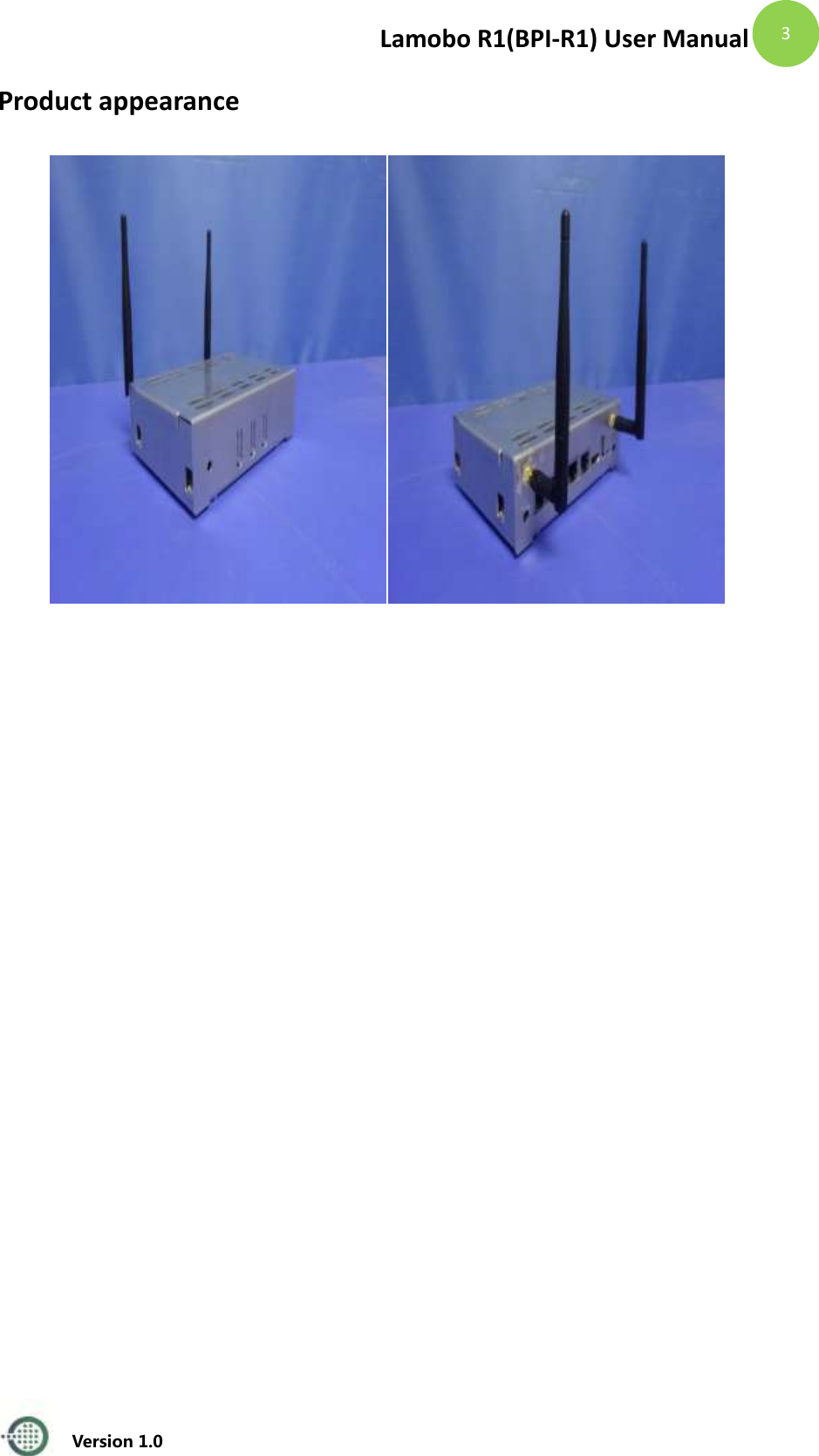
Lamobo R1(BPI-R1) User Manual   Version 1.0  3 Product appearance
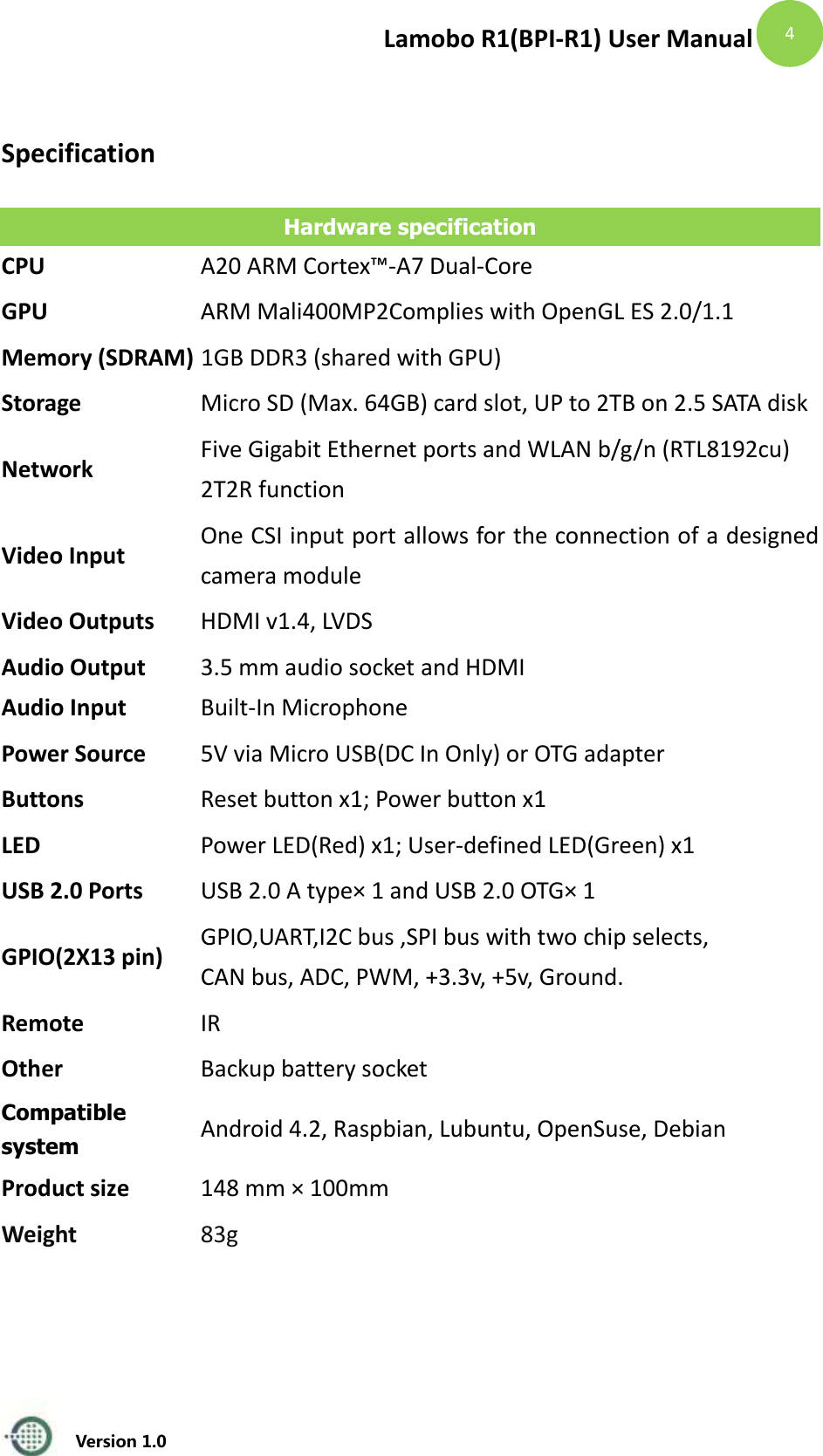
Lamobo R1(BPI-R1) User Manual   Version 1.0  4  Specification Hardware specification CPU A20 ARM Cortex™-A7 Dual-Core GPU ARM Mali400MP2Complies with OpenGL ES 2.0/1.1 Memory (SDRAM) 1GB DDR3 (shared with GPU) Storage Micro SD (Max. 64GB) card slot, UP to 2TB on 2.5 SATA disk Network Five Gigabit Ethernet ports and WLAN b/g/n (RTL8192cu)   2T2R function Video Input One CSI input port allows for the connection of a designed camera module Video Outputs HDMI v1.4, LVDS Audio Output Audio Input 3.5 mm audio socket and HDMI Built-In Microphone Power Source 5V via Micro USB(DC In Only) or OTG adapter   Buttons Reset button x1; Power button x1 LED Power LED(Red) x1; User-defined LED(Green) x1 USB 2.0 Ports USB 2.0 A type× 1 and USB 2.0 OTG× 1 GPIO(2X13 pin) GPIO,UART,I2C bus ,SPI bus with two chip selects, CAN bus, ADC, PWM, +3.3v, +5v, Ground. Remote IR   Other Backup battery socket Compatible system Android 4.2, Raspbian, Lubuntu, OpenSuse, Debian Product size 148 mm × 100mm Weight 83g
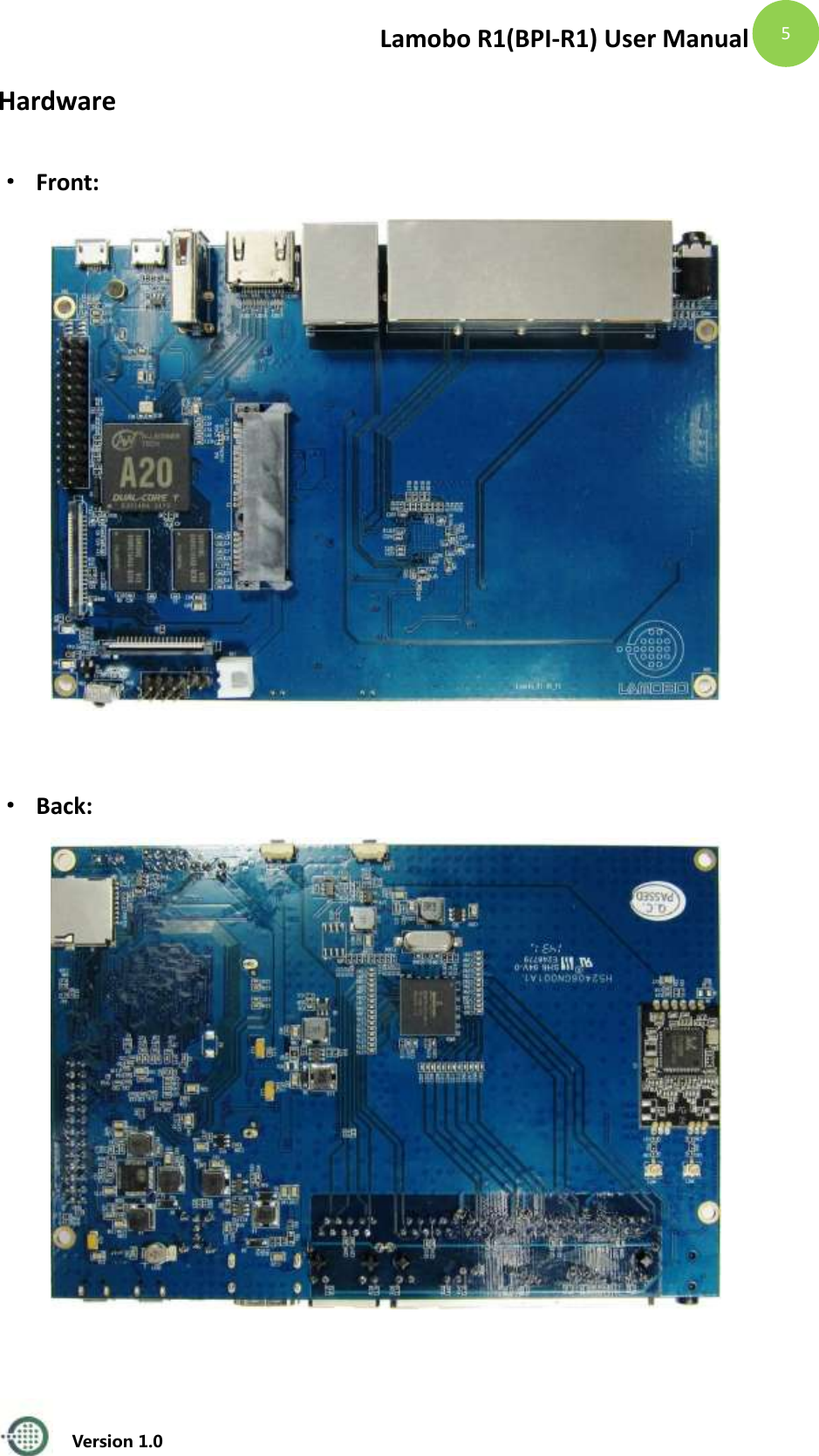
Lamobo R1(BPI-R1) User Manual   Version 1.0  5 Hardware · Front:   · Back:
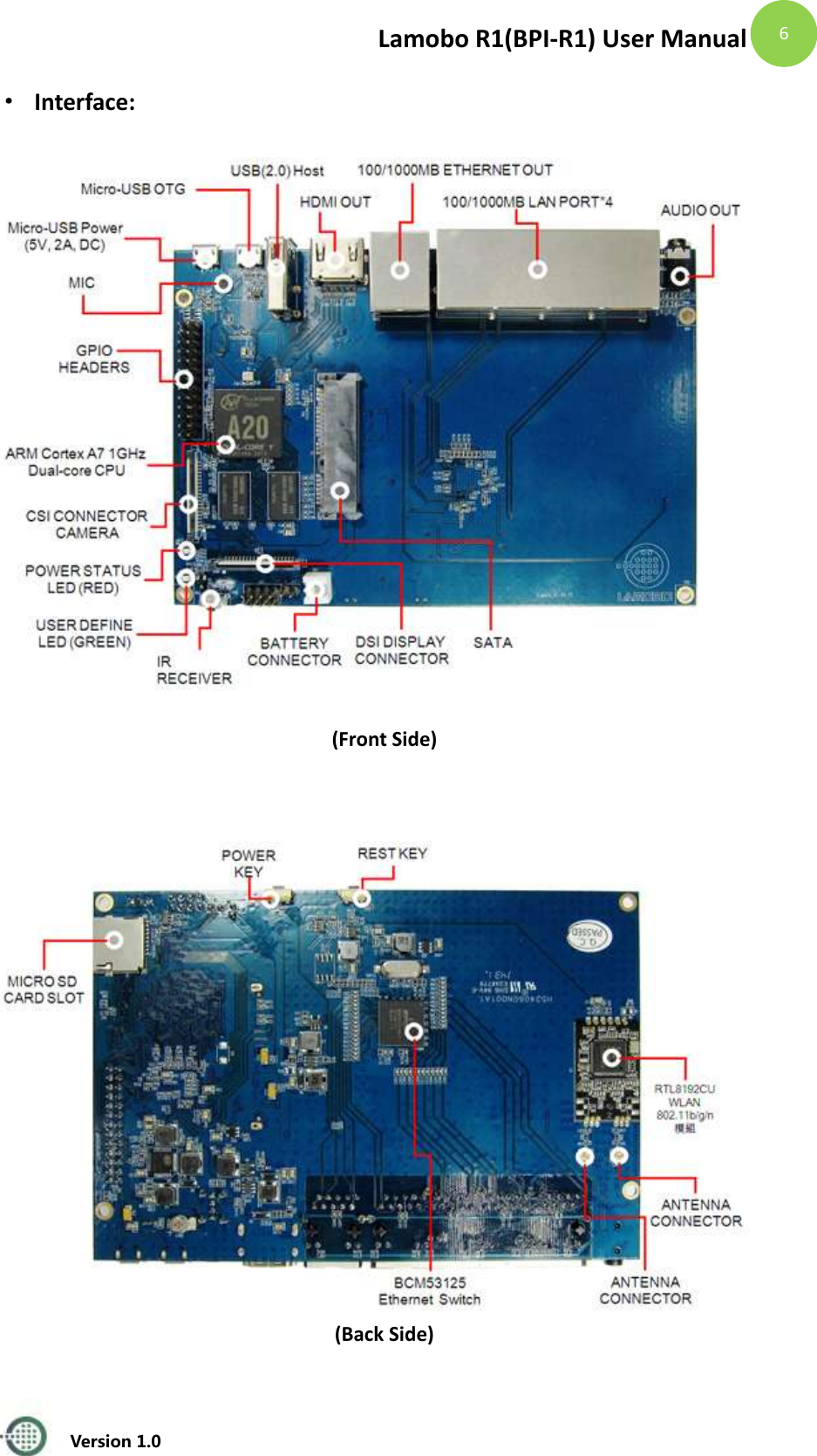
Lamobo R1(BPI-R1) User Manual   Version 1.0  6 · Interface:    (Front Side)     (Back Side)
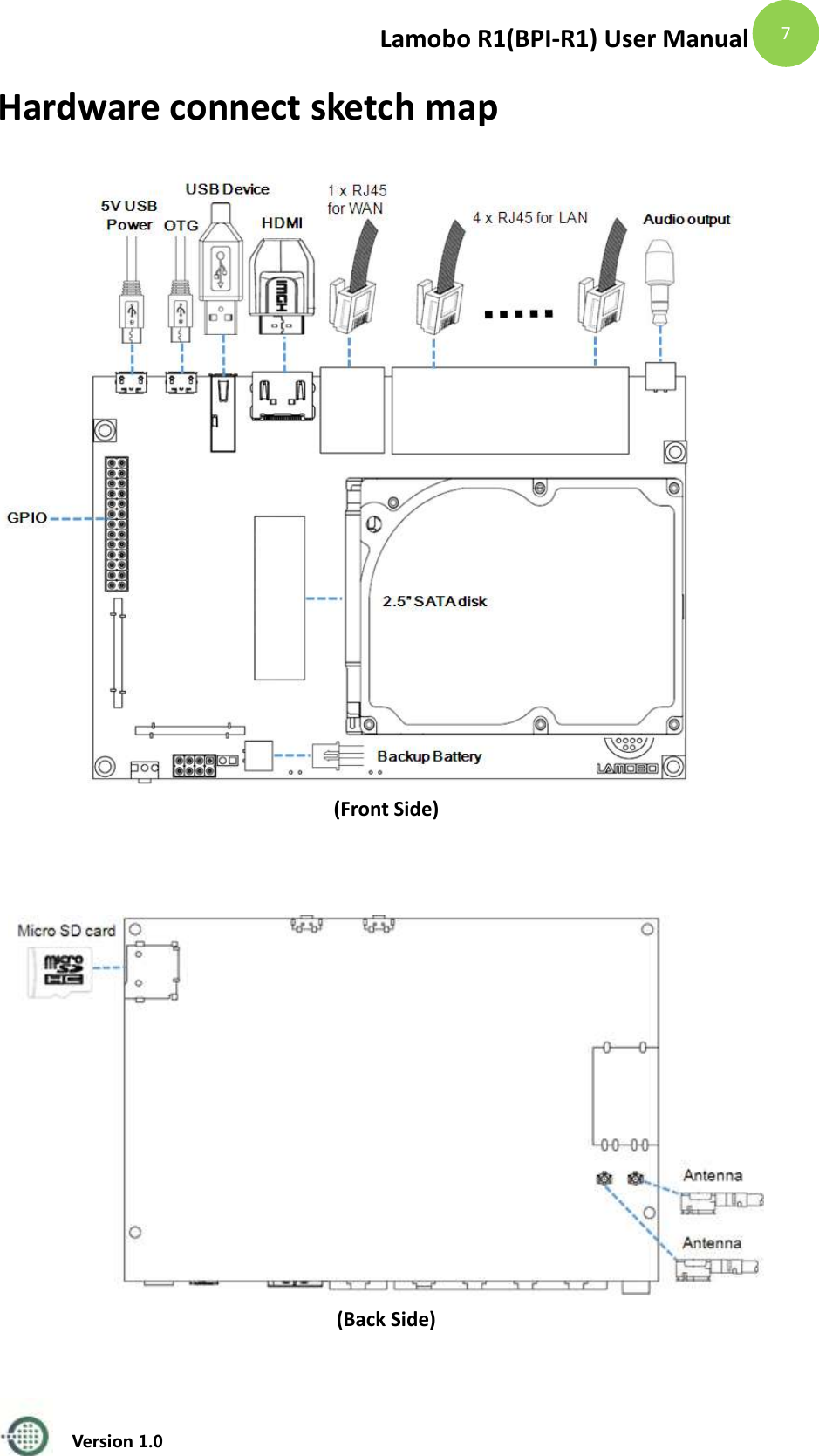
Lamobo R1(BPI-R1) User Manual   Version 1.0  7 Hardware connect sketch map  (Front Side)     (Back Side)
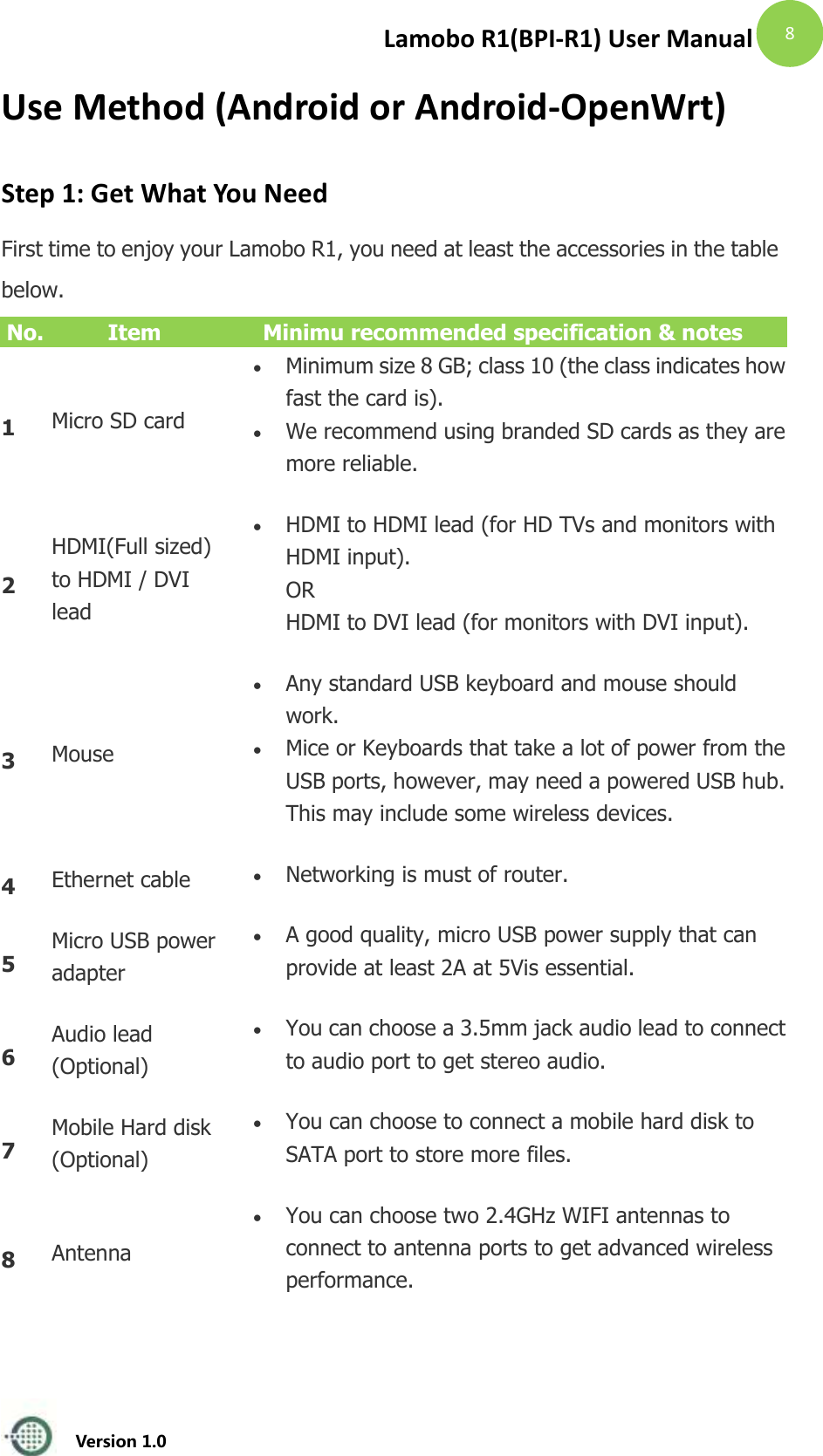
Lamobo R1(BPI-R1) User Manual   Version 1.0  8 Use Method (Android or Android-OpenWrt) Step 1: Get What You Need First time to enjoy your Lamobo R1, you need at least the accessories in the table below. No. Item Minimu recommended specification & notes 1 Micro SD card  Minimum size 8 GB; class 10 (the class indicates how fast the card is).    We recommend using branded SD cards as they are more reliable.   2 HDMI(Full sized) to HDMI / DVI lead  HDMI to HDMI lead (for HD TVs and monitors with HDMI input). OR HDMI to DVI lead (for monitors with DVI input).   3 Mouse  Any standard USB keyboard and mouse should work.    Mice or Keyboards that take a lot of power from the USB ports, however, may need a powered USB hub. This may include some wireless devices.   4 Ethernet cable  Networking is must of router. 5 Micro USB power adapter  A good quality, micro USB power supply that can provide at least 2A at 5Vis essential.   6 Audio lead (Optional)  You can choose a 3.5mm jack audio lead to connect to audio port to get stereo audio.   7 Mobile Hard disk (Optional)  You can choose to connect a mobile hard disk to SATA port to store more files.   8 Antenna  You can choose two 2.4GHz WIFI antennas to connect to antenna ports to get advanced wireless performance.
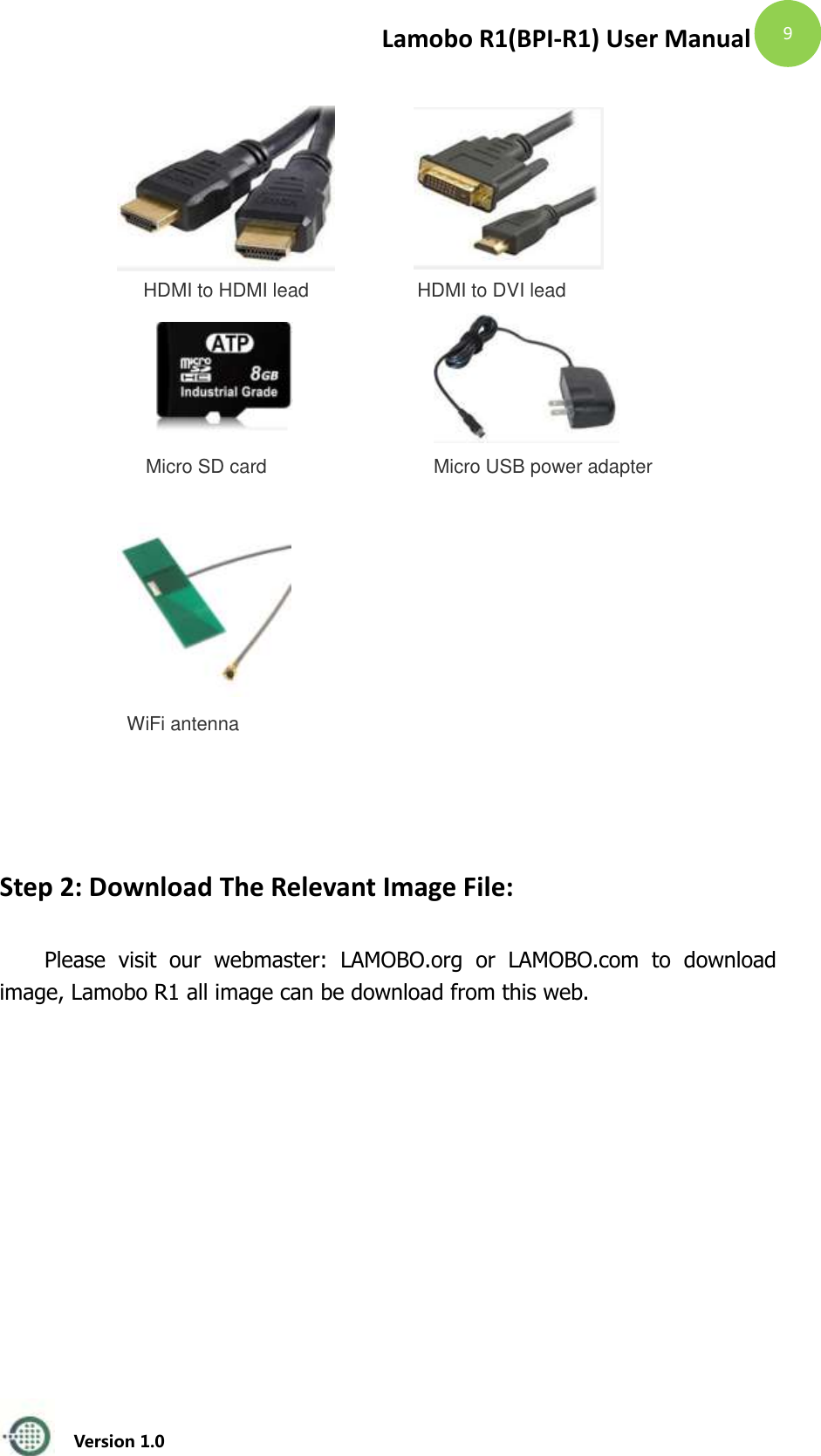
Lamobo R1(BPI-R1) User Manual   Version 1.0  9     HDMI to HDMI lead HDMI to DVI lead    Micro SD card Micro USB power adapter   WiFi antenna            Step 2: Download The Relevant Image File:  Please  visit  our  webmaster:  LAMOBO.org  or  LAMOBO.com  to  download image, Lamobo R1 all image can be download from this web.
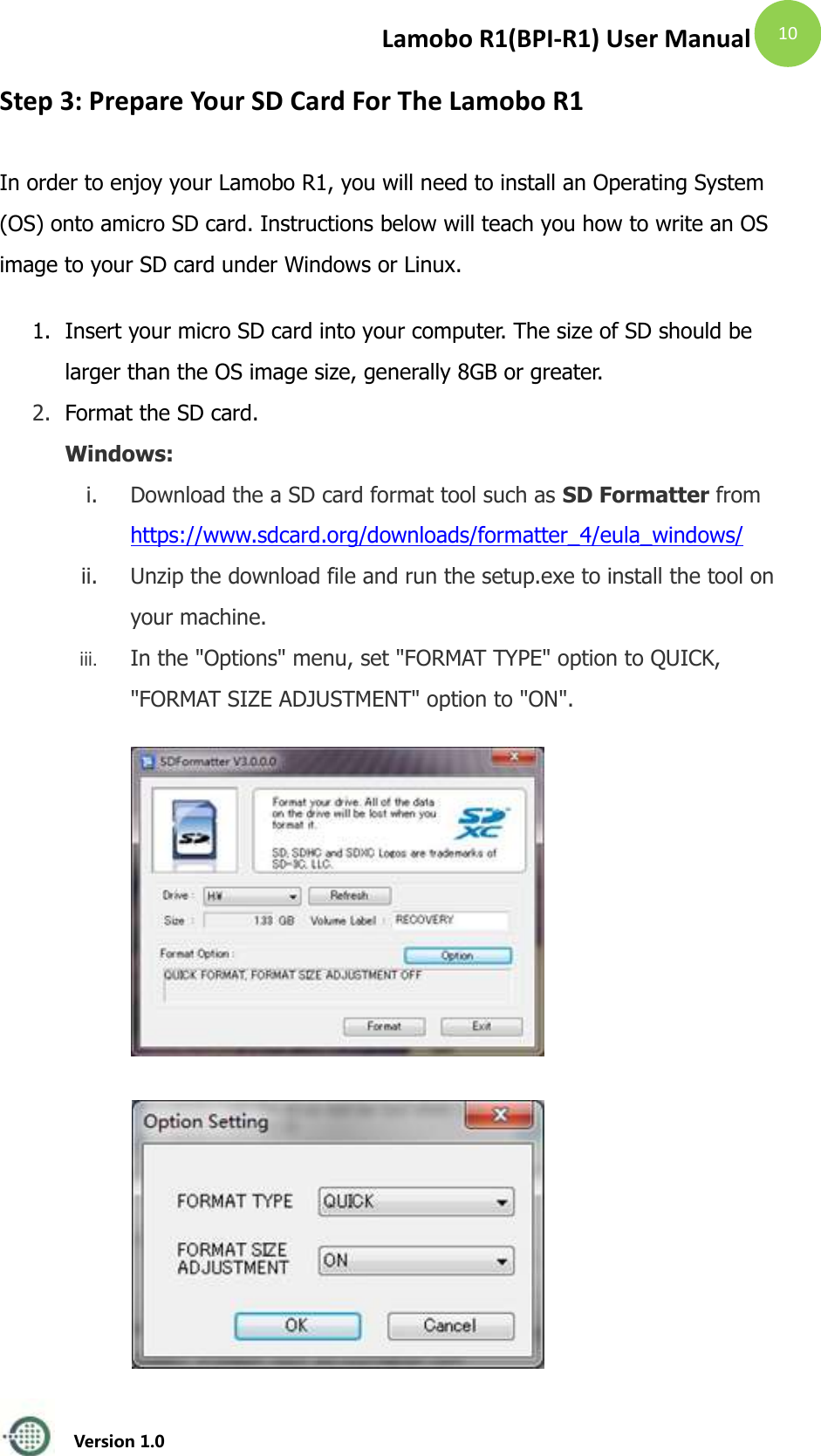
Lamobo R1(BPI-R1) User Manual   Version 1.0  10 Step 3: Prepare Your SD Card For The Lamobo R1 In order to enjoy your Lamobo R1, you will need to install an Operating System (OS) onto amicro SD card. Instructions below will teach you how to write an OS image to your SD card under Windows or Linux. 1. Insert your micro SD card into your computer. The size of SD should be larger than the OS image size, generally 8GB or greater.   2. Format the SD card. Windows:   i. Download the a SD card format tool such as SD Formatter from   https://www.sdcard.org/downloads/formatter_4/eula_windows/ ii. Unzip the download file and run the setup.exe to install the tool on your machine.   iii. In the "Options" menu, set "FORMAT TYPE" option to QUICK, "FORMAT SIZE ADJUSTMENT" option to "ON".
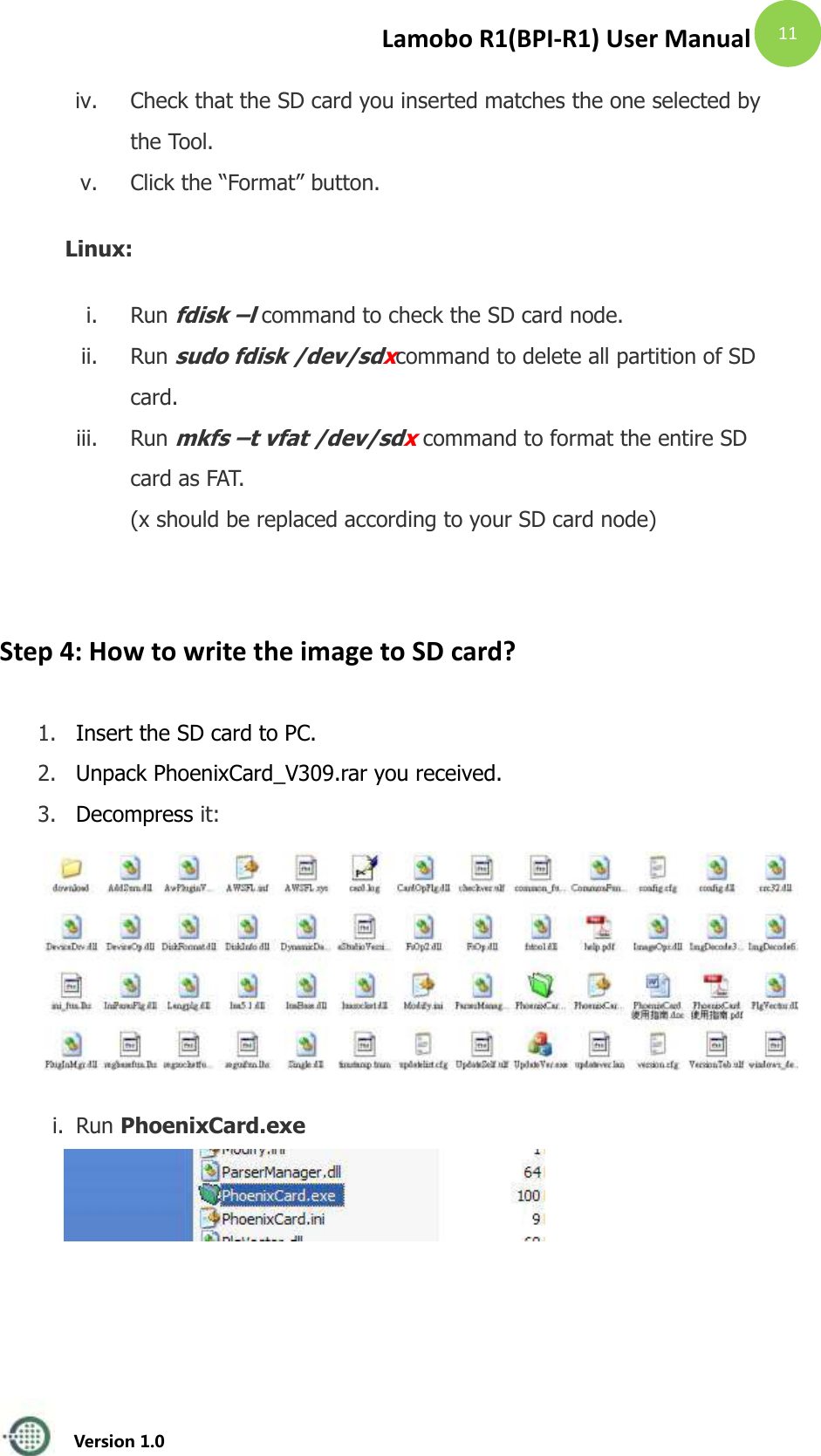
Lamobo R1(BPI-R1) User Manual   Version 1.0  11 iv. Check that the SD card you inserted matches the one selected by the Tool.   v. Click the “Format” button.   Linux: i. Run fdisk –l command to check the SD card node.   ii. Run sudo fdisk /dev/sdxcommand to delete all partition of SD card.   iii. Run mkfs –t vfat /dev/sdx command to format the entire SD card as FAT.   (x should be replaced according to your SD card node)    Step 4: How to write the image to SD card? 1. Insert the SD card to PC.   2. Unpack PhoenixCard_V309.rar you received. 3. Decompress it:       i. Run PhoenixCard.exe
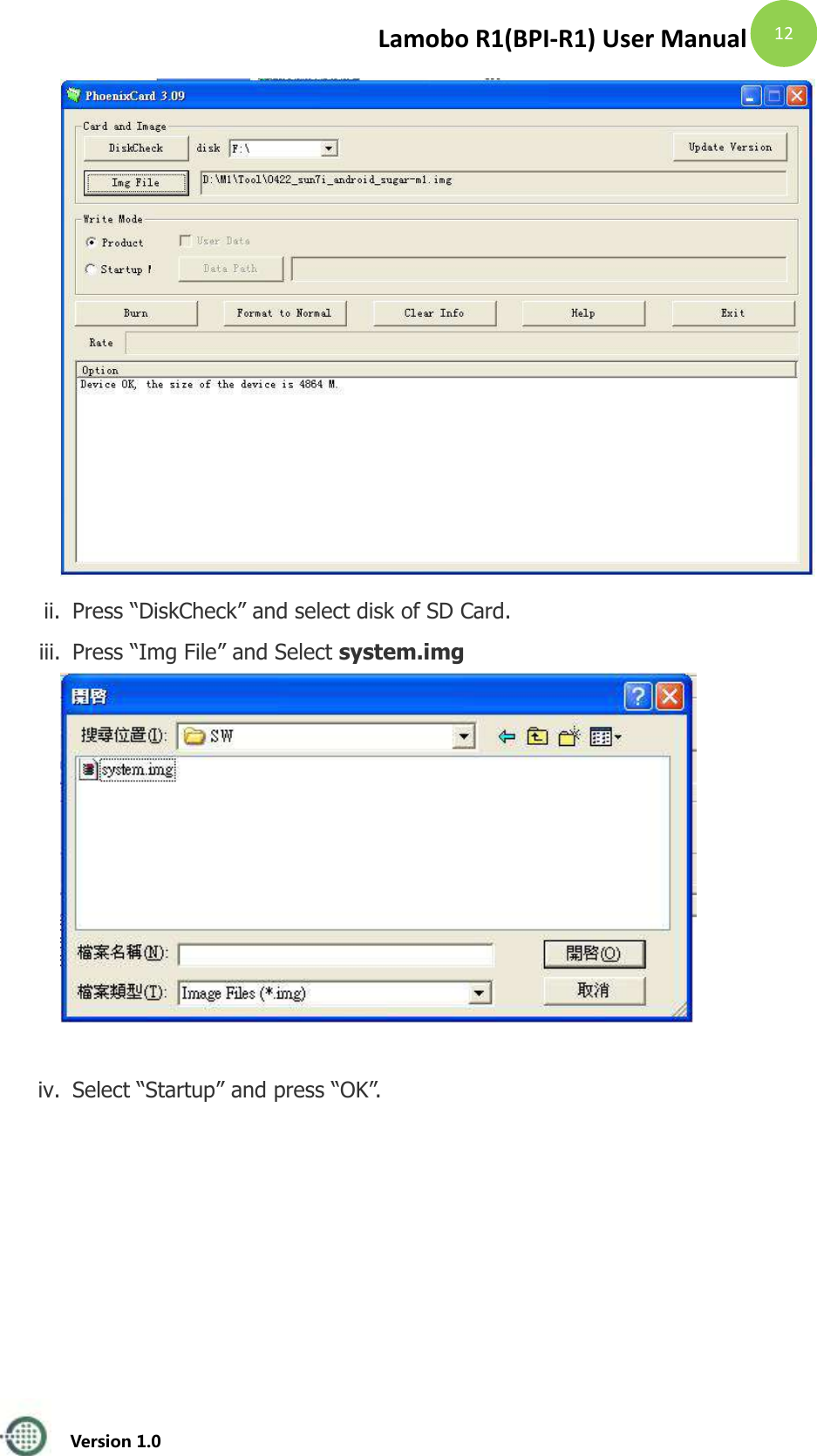
Lamobo R1(BPI-R1) User Manual   Version 1.0  12  ii. Press “DiskCheck” and select disk of SD Card. iii. Press “Img File” and Select system.img   iv. Select “Startup” and press “OK”.
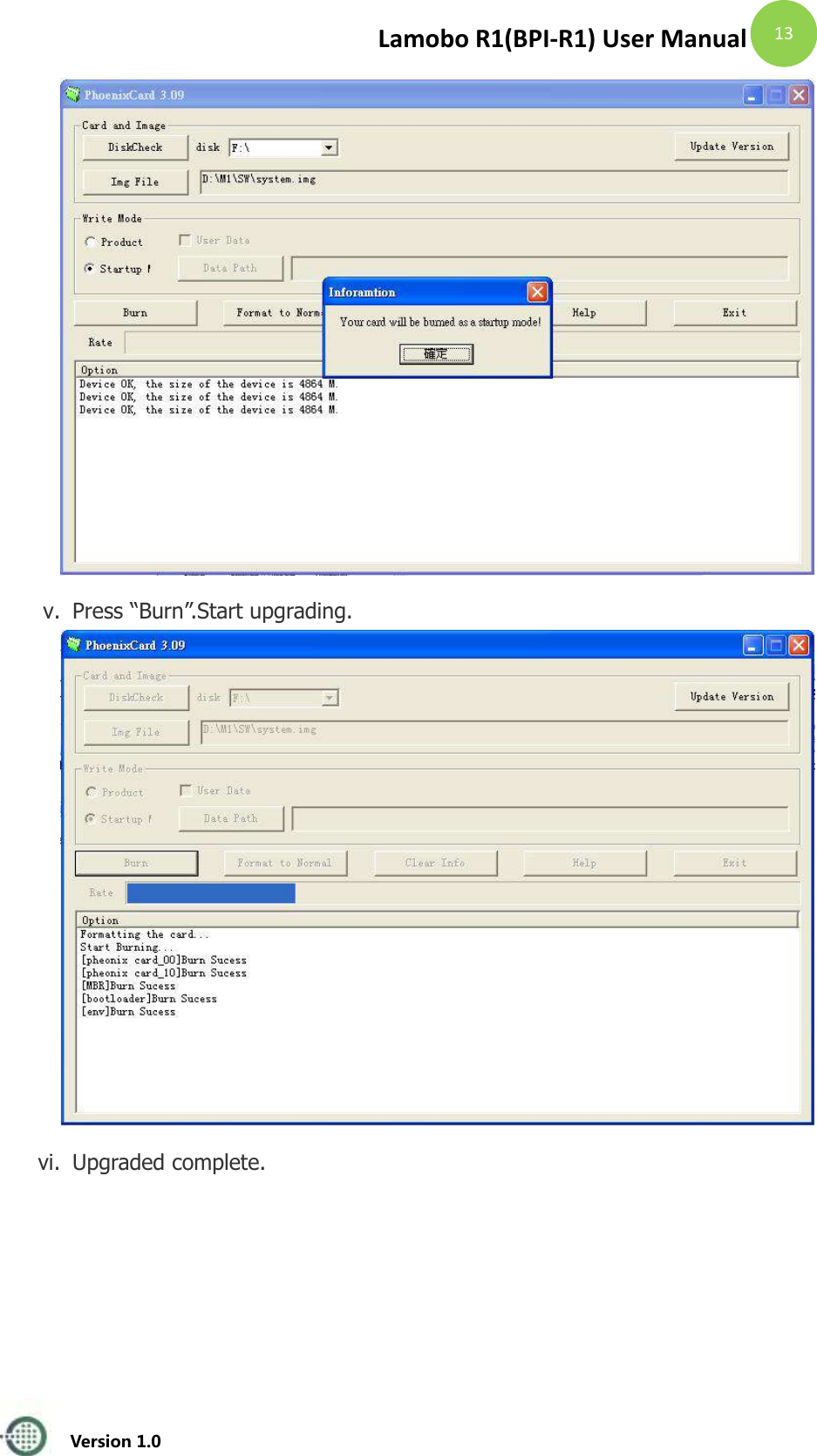
Lamobo R1(BPI-R1) User Manual   Version 1.0  13  v. Press “Burn”.Start upgrading.  vi. Upgraded complete.
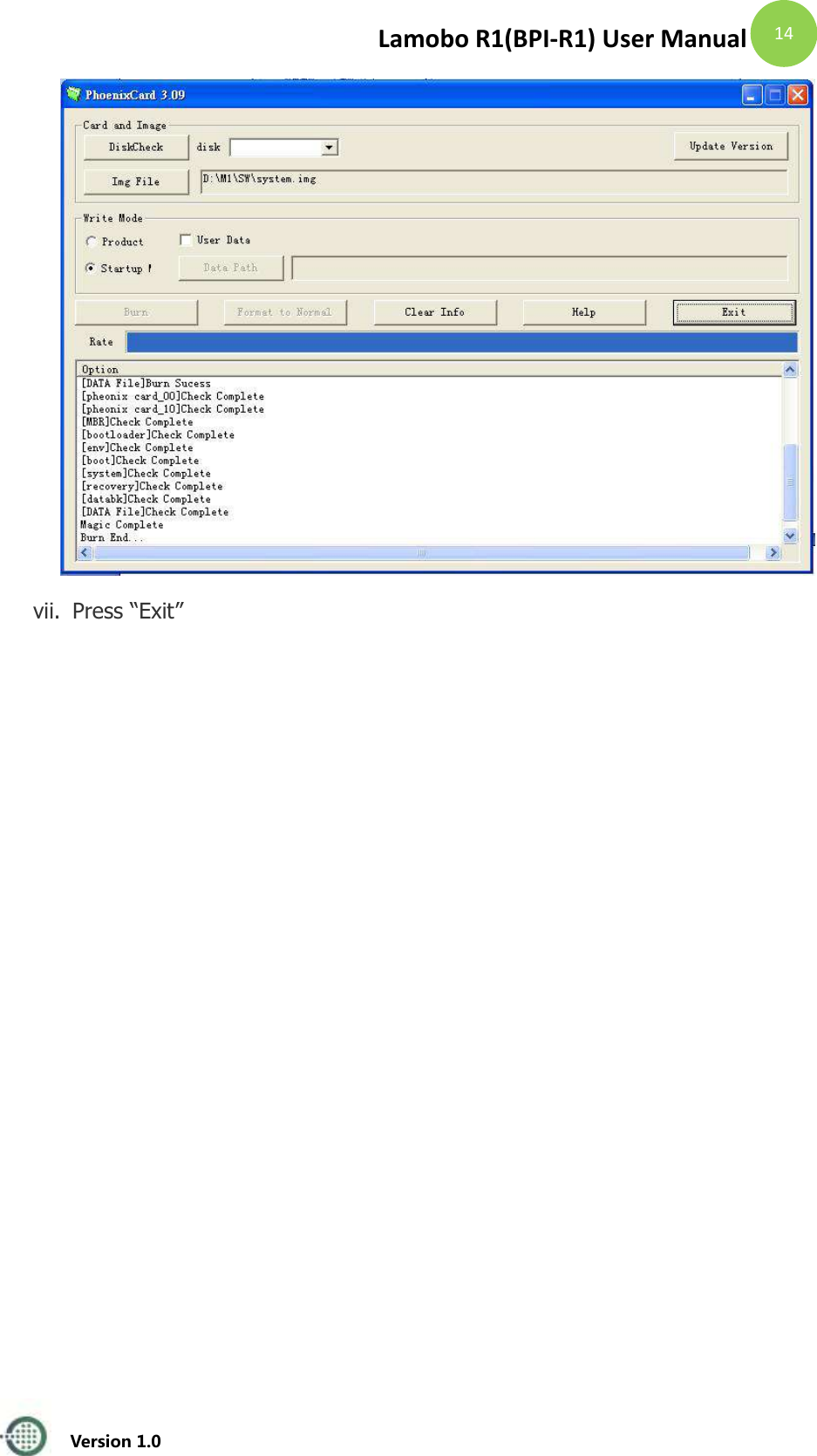
Lamobo R1(BPI-R1) User Manual   Version 1.0  14  vii. Press “Exit”
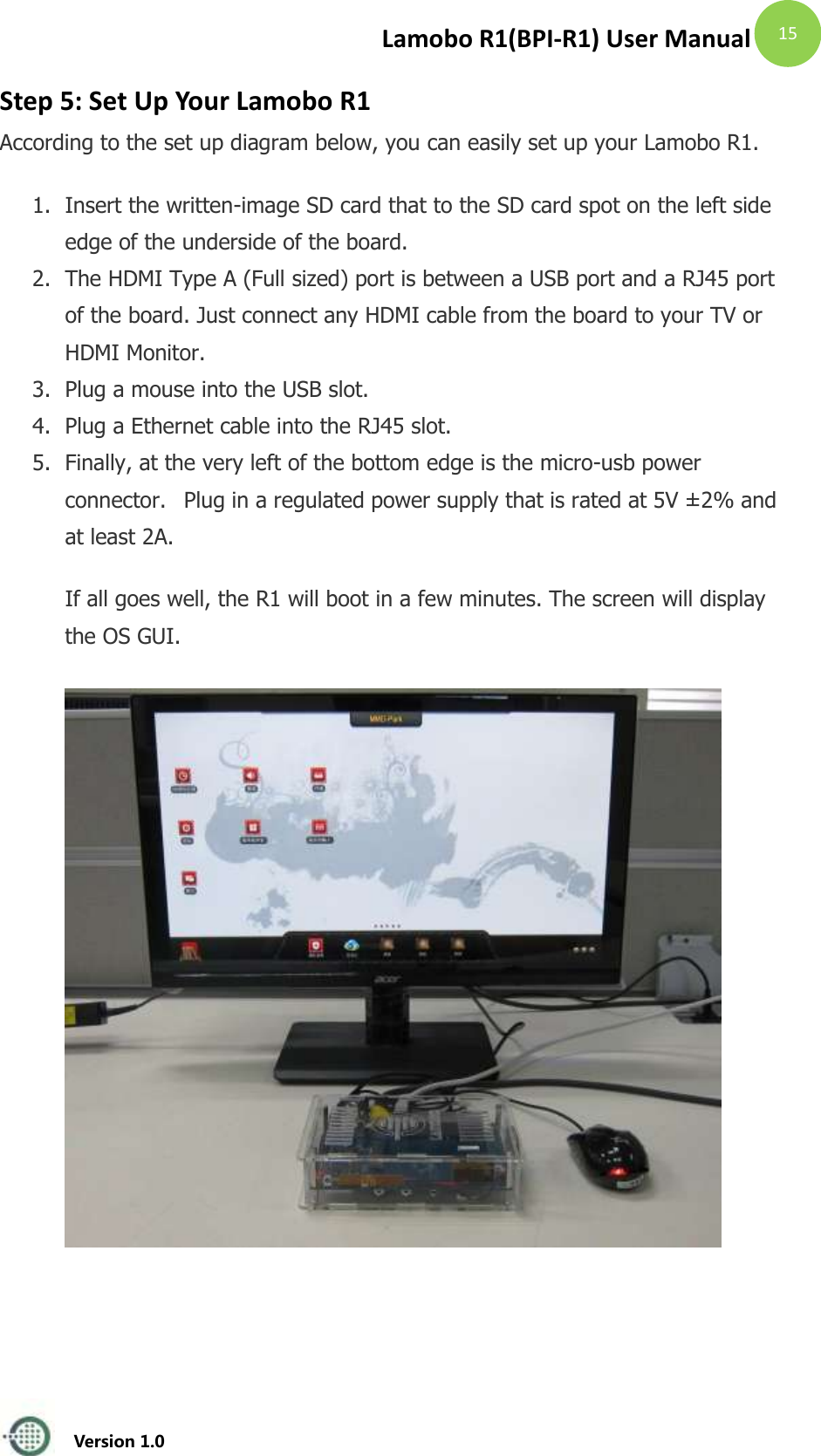
Lamobo R1(BPI-R1) User Manual   Version 1.0  15 Step 5: Set Up Your Lamobo R1 According to the set up diagram below, you can easily set up your Lamobo R1.   1. Insert the written-image SD card that to the SD card spot on the left side edge of the underside of the board.   2. The HDMI Type A (Full sized) port is between a USB port and a RJ45 port of the board. Just connect any HDMI cable from the board to your TV or HDMI Monitor. 3. Plug a mouse into the USB slot.  4. Plug a Ethernet cable into the RJ45 slot.  5. Finally, at the very left of the bottom edge is the micro-usb power connector.   Plug in a regulated power supply that is rated at 5V ± 2% and at least 2A. If all goes well, the R1 will boot in a few minutes. The screen will display the OS GUI.
Lamobo R1(BPI-R1) User Manual   Version 1.0  16 Step 6: Shut Down Your Lamobo R1  This will shut down the PI safely, (just use the power key to turn off might damage the SD-cards file system). After that you can press the power key for 5 seconds to turn it off.
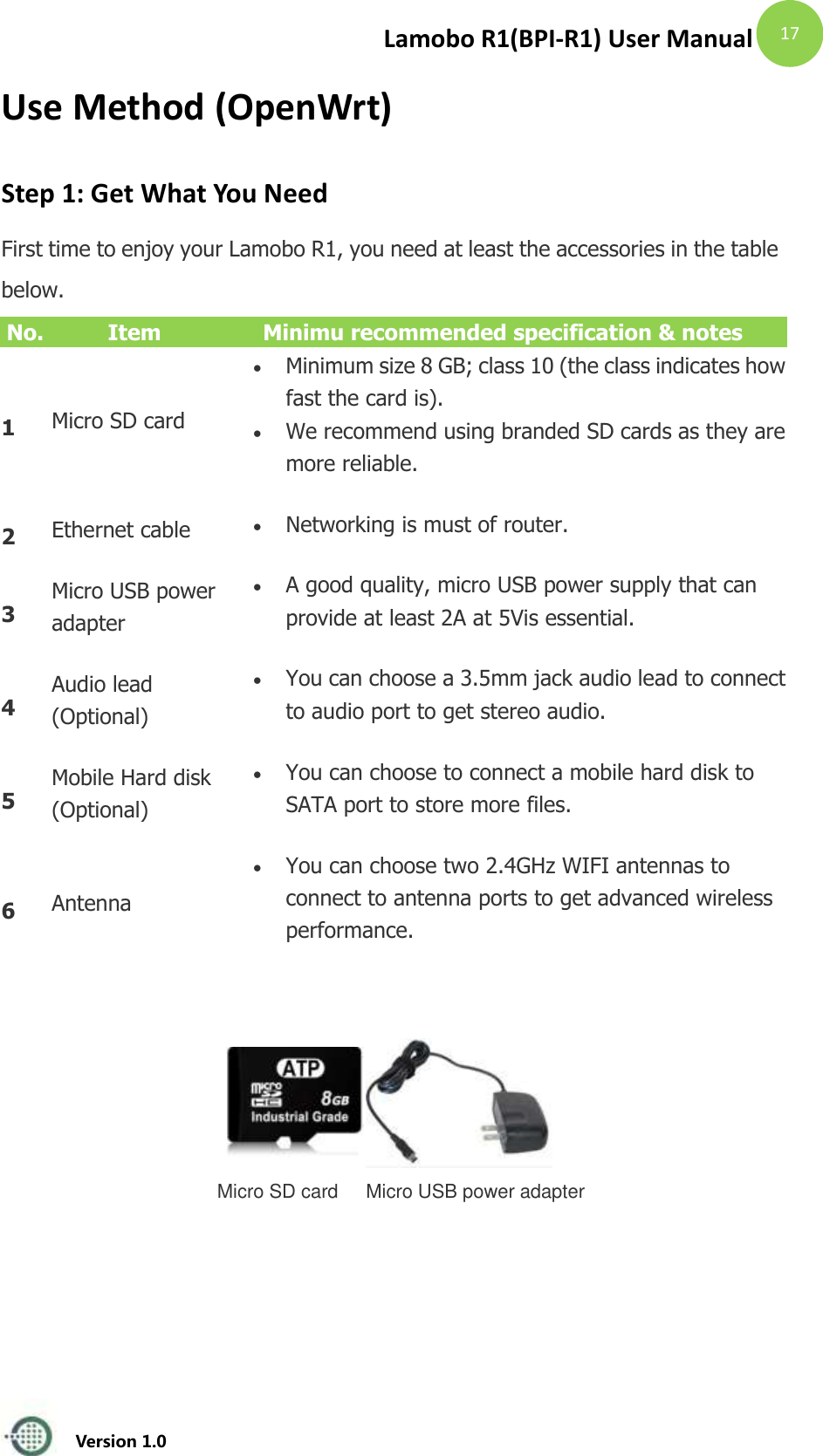
Lamobo R1(BPI-R1) User Manual   Version 1.0  17 Use Method (OpenWrt) Step 1: Get What You Need First time to enjoy your Lamobo R1, you need at least the accessories in the table below. No. Item Minimu recommended specification & notes 1 Micro SD card  Minimum size 8 GB; class 10 (the class indicates how fast the card is).    We recommend using branded SD cards as they are more reliable.   2 Ethernet cable  Networking is must of router. 3 Micro USB power adapter  A good quality, micro USB power supply that can provide at least 2A at 5Vis essential.   4 Audio lead (Optional)  You can choose a 3.5mm jack audio lead to connect to audio port to get stereo audio.   5 Mobile Hard disk (Optional)  You can choose to connect a mobile hard disk to SATA port to store more files.   6 Antenna  You can choose two 2.4GHz WIFI antennas to connect to antenna ports to get advanced wireless performance.     Micro SD card Micro USB power adapter
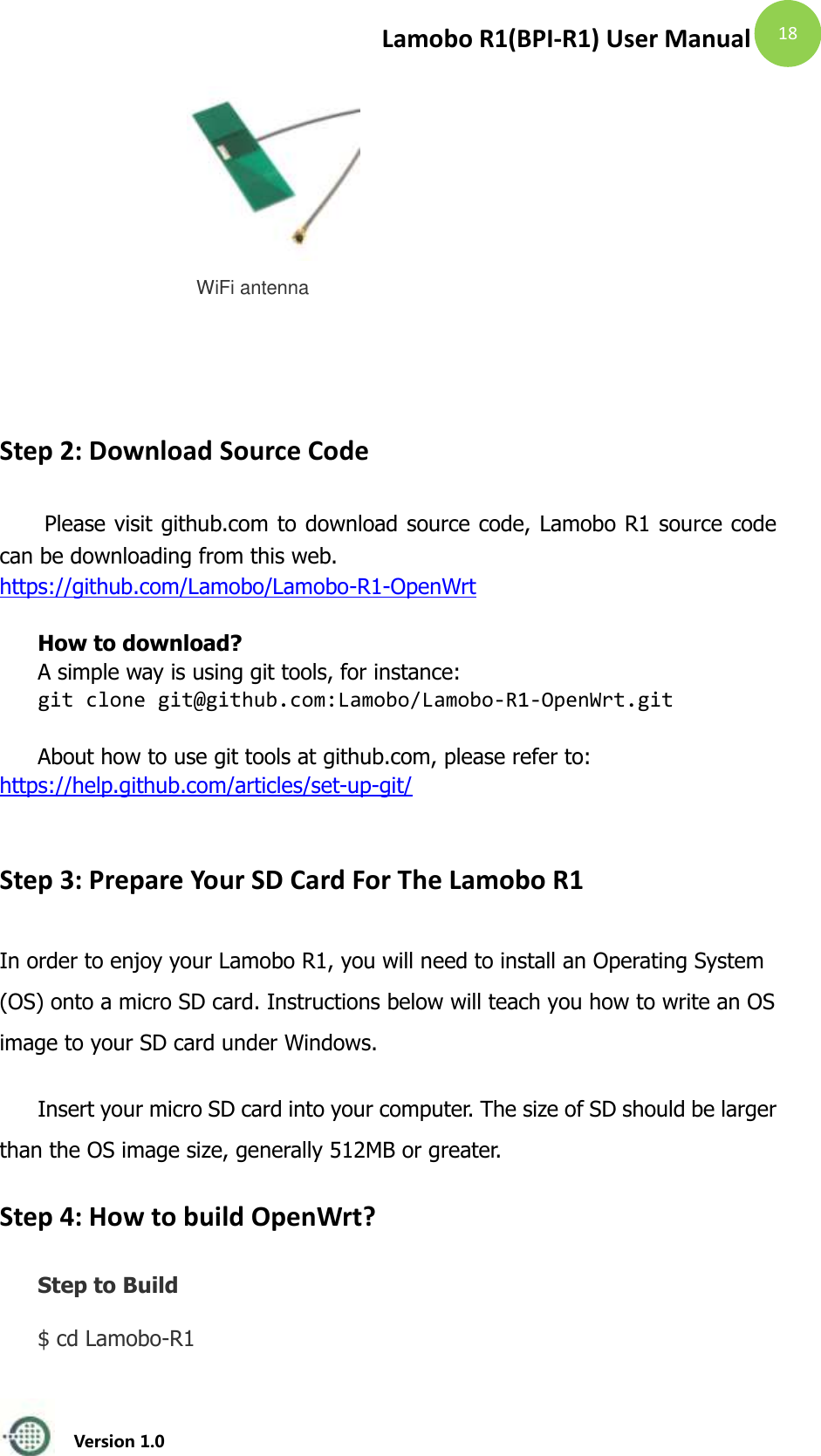
Lamobo R1(BPI-R1) User Manual   Version 1.0  18  WiFi antenna         Step 2: Download Source Code  Please visit github.com to download source code, Lamobo R1 source code can be downloading from this web. https://github.com/Lamobo/Lamobo-R1-OpenWrt  How to download? A simple way is using git tools, for instance: git clone git@github.com:Lamobo/Lamobo-R1-OpenWrt.git  About how to use git tools at github.com, please refer to: https://help.github.com/articles/set-up-git/  Step 3: Prepare Your SD Card For The Lamobo R1 In order to enjoy your Lamobo R1, you will need to install an Operating System (OS) onto a micro SD card. Instructions below will teach you how to write an OS image to your SD card under Windows. Insert your micro SD card into your computer. The size of SD should be larger than the OS image size, generally 512MB or greater.   Step 4: How to build OpenWrt? Step to Build $ cd Lamobo-R1
Lamobo R1(BPI-R1) User Manual   Version 1.0  19   $ ./scripts/feeds update -a   $ ./scripts/feeds install –a   $ make menuconfig     $ make kernel_menuconfig # optionial     $ make V=s  One-off Build $ ./misc/build.sh    Step 5: How to write bootable OS image/firmware to Micro SD card? Windows Windows users might want to use Win32 Disk Imager   Download: http://sourceforge.net/projects/win32diskimager/  OS X 1. Download the latest OpenWrt image. 2. Insert your micro-SD card into the Mac or card reader. 3. Identify your micro-SD card device using 'diskutil list' and do a 'diskutil unmountDisk' for the whole disk device (disk9 for example and not disk9s1): 4. diskutil unmountDisk disk9 5. Write the OpenWrt image to the micro-SD card using ‘sudo dd’ (using the raw device: In case your micro0SD card is disk9 then use /dev/rdisk9): $ sudo dd if= openwrt-sunxi-Lamobo-R1-sdcard-vfat-ext4-configured of=/dev/rdisk9 bs=10m && diskutil eject disk9 Linux
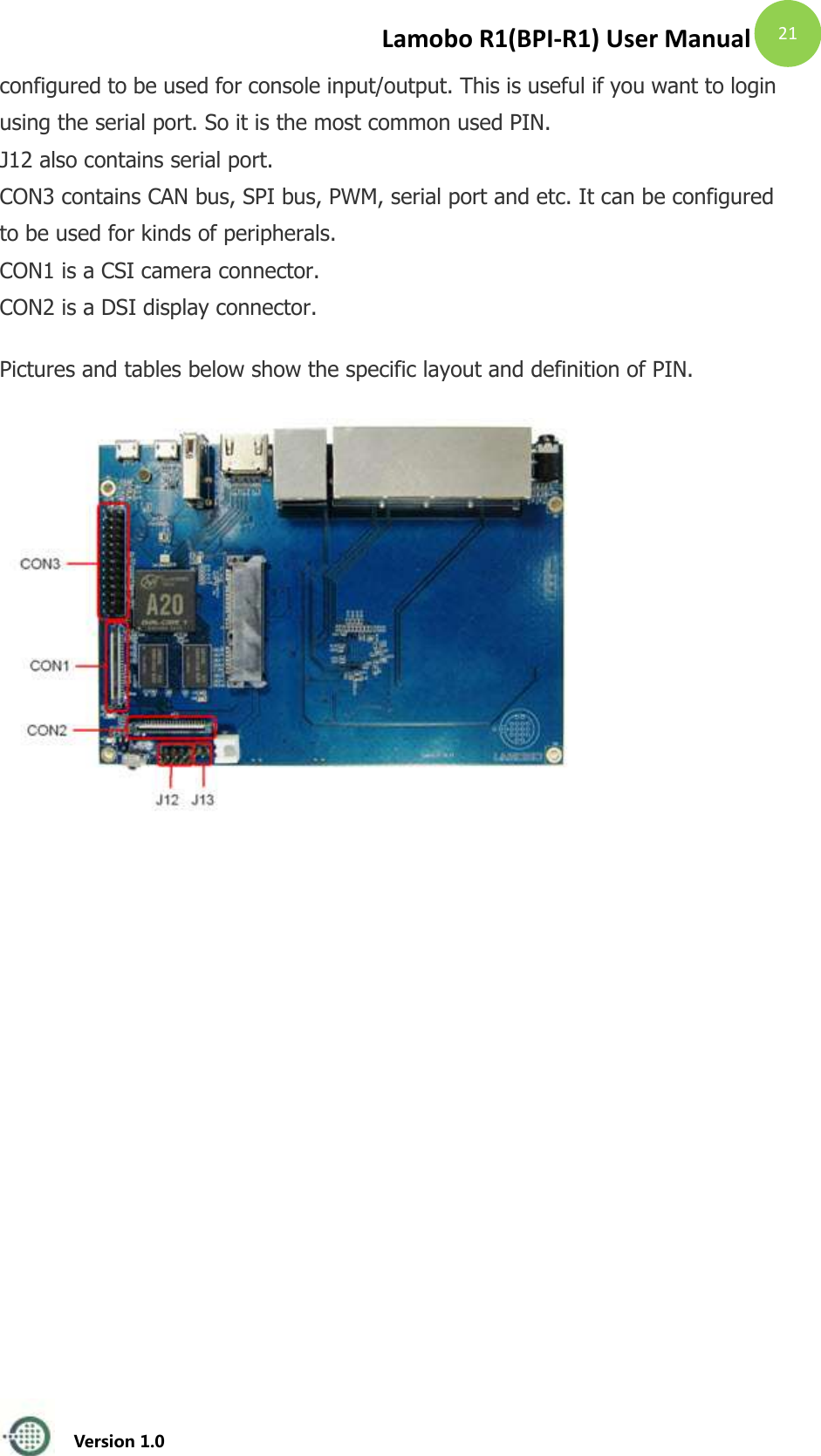
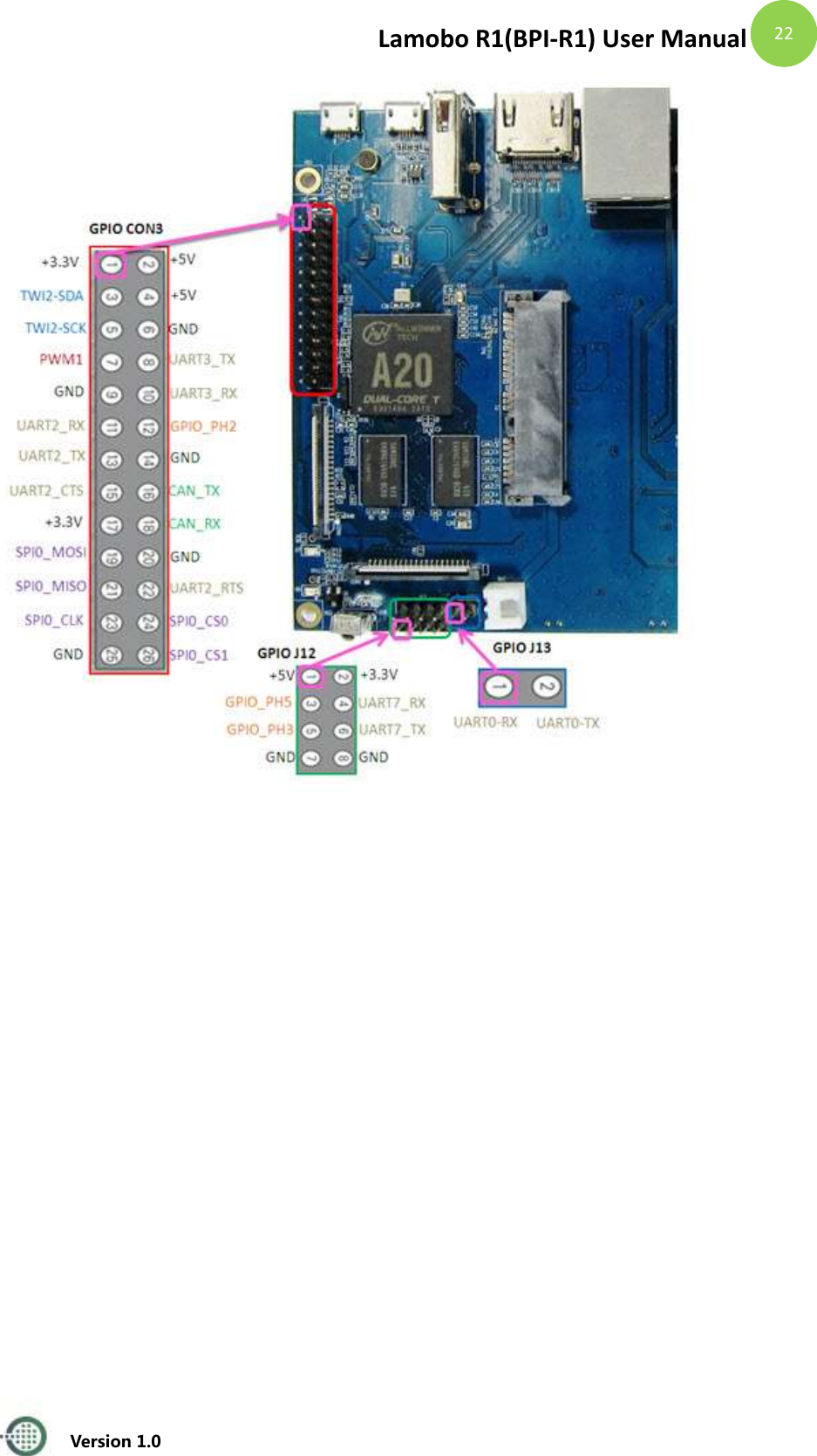
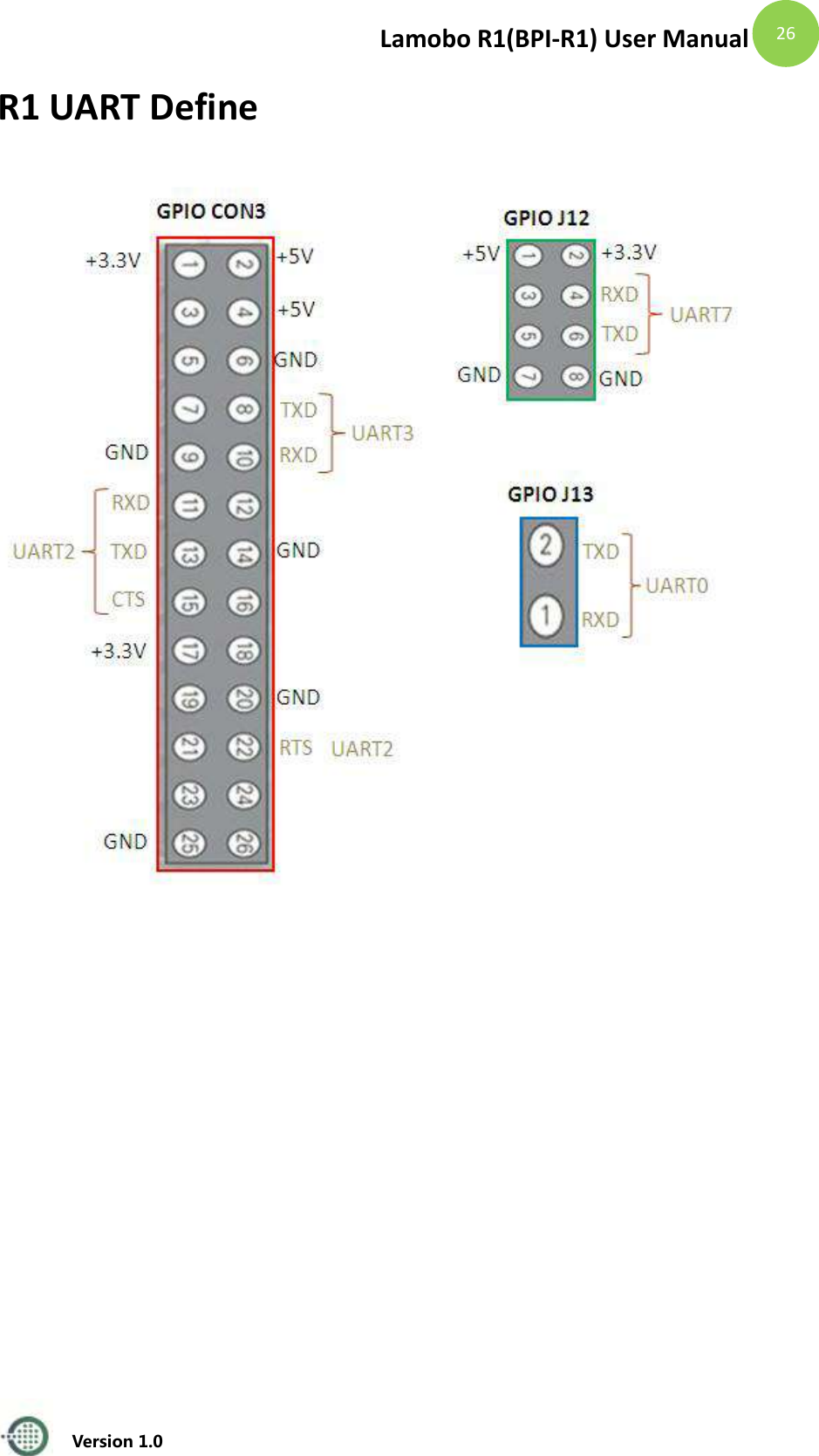
Lamobo R1(BPI-R1) User Manual   Version 1.0  20 Insert your micro-SD card into card reader. Write the OpenWrt image to the micro-SD card by using ‘sudo dd’: $ cd openwrt-lamobo-r1/bin/sunxi  $ sudo dd if=openwrt-sunxi-Lamobo-R1-sdcard-vfat-ext4-configured.img of=/dev/sdX bs=10MB [Note]: “/dev/sdX” is the target micro-SD link in Linux host. Step 6: Set Up Your Lamobo R1 According to the set up diagram below, you can easily set up your Lamobo R1.   1. Insert the written-image SD card that to the SD card spot on the left side edge of the underside of the board.   2. Plug a mouse into the USB slot.  3. Plug an Ethernet cable into the RJ45 slot.  4. Finally, at the very left of the bottom edge is the micro-usb power connector.   Plug in a regulated power supply that is rated at 5V ± 2% and at least 2A. If all goes well, the R1 will boot in a few minutes.  Step 7: Shut Down Your Lamobo R1  This will shut down the PI safely, (just use the power key to turn off might damage the SD-cards file system). After that you can press the power key for 5 seconds to turn it off.  GPIO Define We can check R1PINdefinition in this thread, including CON1, CON2, CON3, J12 and J13. J13 contains the default serial port UART0 (UART0-RX,UART0-TX). UATR0 is
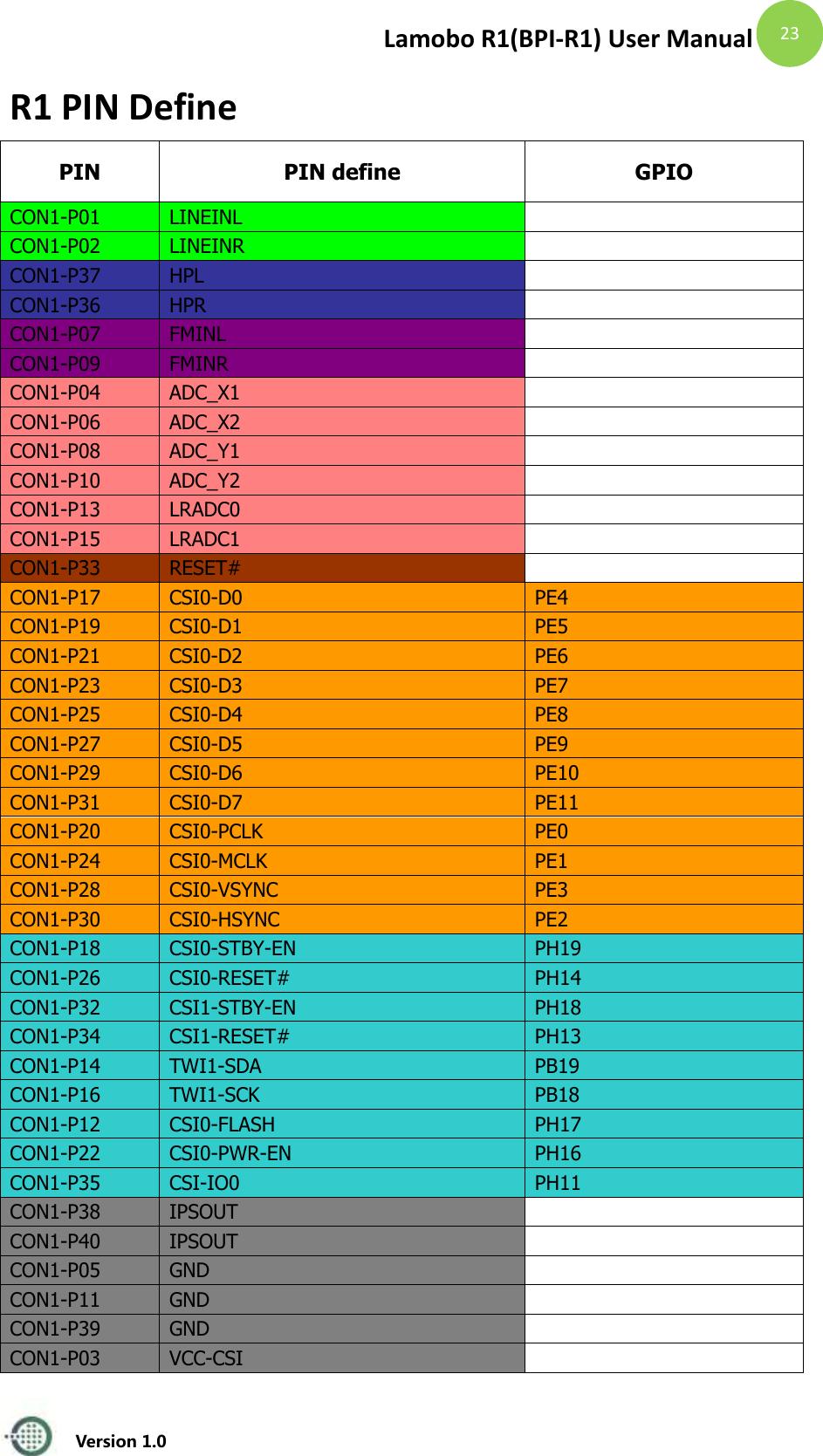
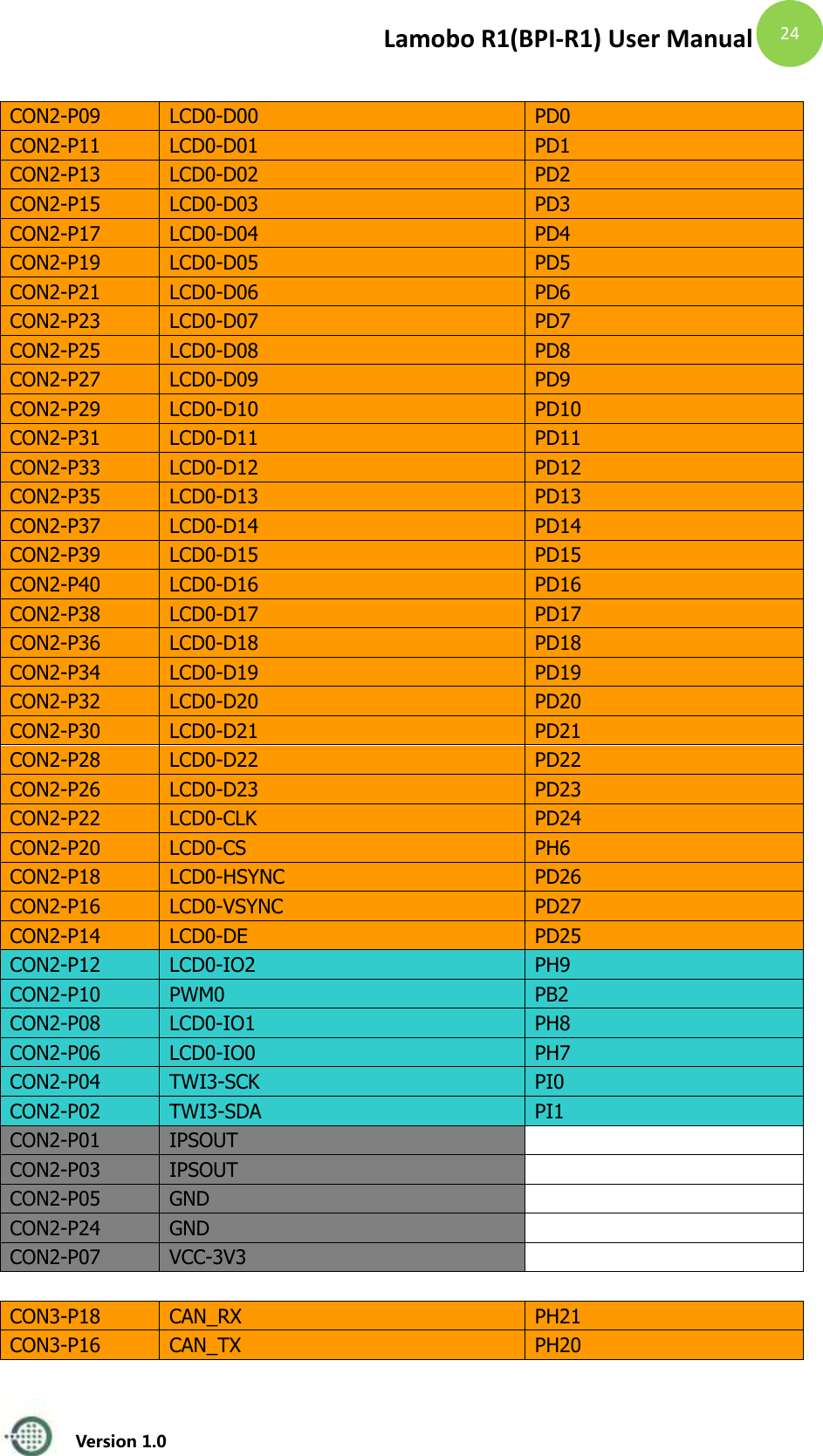
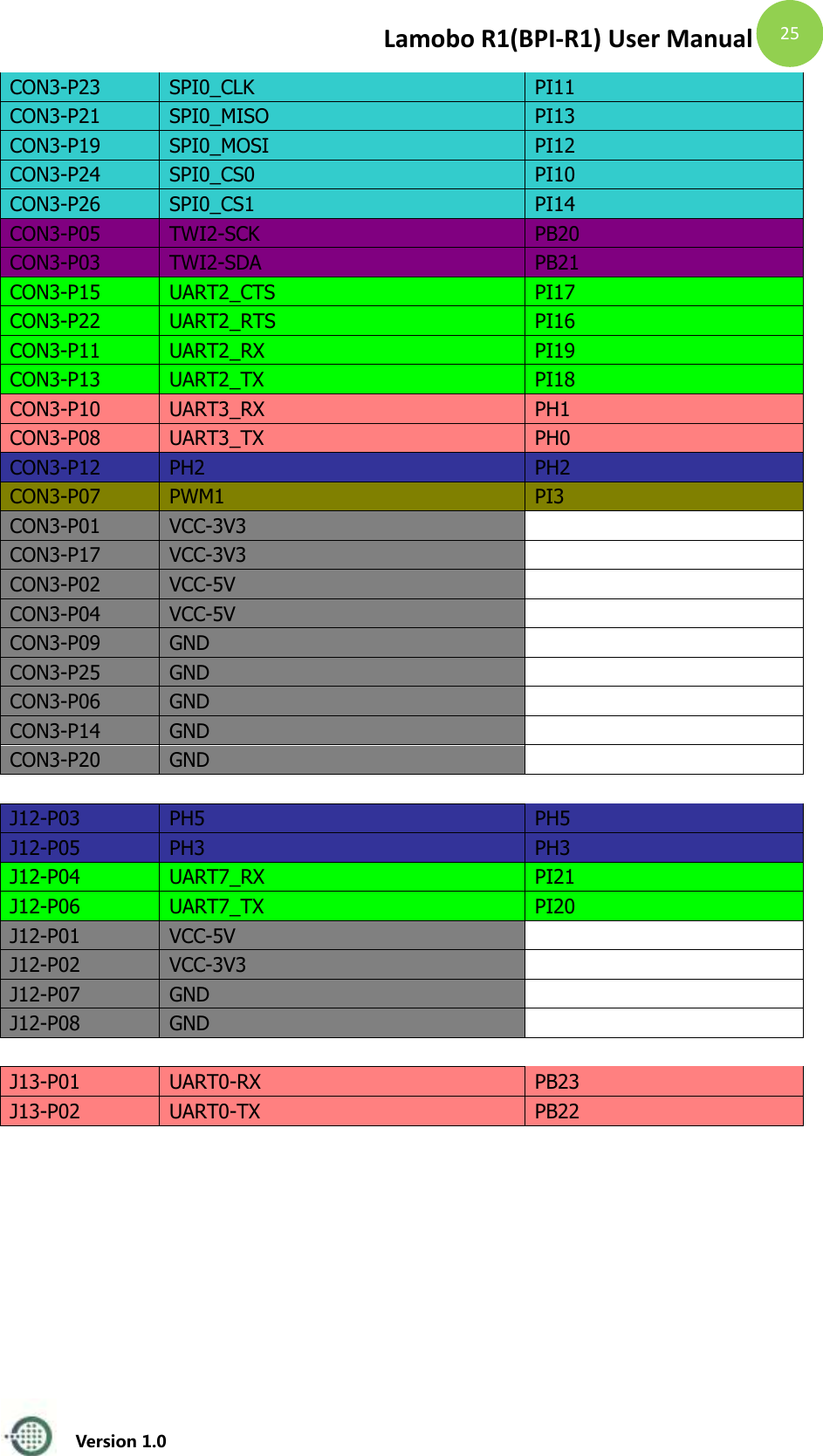
Lamobo R1(BPI-R1) User Manual   Version 1.0  21 configured to be used for console input/output. This is useful if you want to login using the serial port. So it is the most common used PIN. J12 also contains serial port. CON3 contains CAN bus, SPI bus, PWM, serial port and etc. It can be configured to be used for kinds of peripherals. CON1 is a CSI camera connector. CON2 is a DSI display connector. Pictures and tables below show the specific layout and definition of PIN.
Lamobo R1(BPI-R1) User Manual   Version 1.0  22
Lamobo R1(BPI-R1) User Manual   Version 1.0  23 R1 PIN Define PIN PIN define GPIO CON1-P01 LINEINL   CON1-P02 LINEINR   CON1-P37 HPL   CON1-P36 HPR   CON1-P07 FMINL   CON1-P09 FMINR   CON1-P04 ADC_X1   CON1-P06 ADC_X2   CON1-P08 ADC_Y1   CON1-P10 ADC_Y2   CON1-P13 LRADC0   CON1-P15 LRADC1   CON1-P33 RESET#   CON1-P17 CSI0-D0 PE4 CON1-P19 CSI0-D1 PE5 CON1-P21 CSI0-D2 PE6 CON1-P23 CSI0-D3 PE7 CON1-P25 CSI0-D4 PE8 CON1-P27 CSI0-D5 PE9 CON1-P29 CSI0-D6 PE10 CON1-P31 CSI0-D7 PE11 CON1-P20 CSI0-PCLK PE0 CON1-P24 CSI0-MCLK PE1 CON1-P28 CSI0-VSYNC PE3 CON1-P30 CSI0-HSYNC PE2 CON1-P18 CSI0-STBY-EN PH19 CON1-P26 CSI0-RESET# PH14 CON1-P32 CSI1-STBY-EN PH18 CON1-P34 CSI1-RESET# PH13 CON1-P14 TWI1-SDA PB19 CON1-P16 TWI1-SCK PB18 CON1-P12 CSI0-FLASH PH17 CON1-P22 CSI0-PWR-EN PH16 CON1-P35 CSI-IO0 PH11 CON1-P38 IPSOUT   CON1-P40 IPSOUT   CON1-P05 GND   CON1-P11 GND   CON1-P39 GND   CON1-P03 VCC-CSI
Lamobo R1(BPI-R1) User Manual   Version 1.0  24    CON2-P09 LCD0-D00 PD0 CON2-P11 LCD0-D01 PD1 CON2-P13 LCD0-D02 PD2 CON2-P15 LCD0-D03 PD3 CON2-P17 LCD0-D04 PD4 CON2-P19 LCD0-D05 PD5 CON2-P21 LCD0-D06 PD6 CON2-P23 LCD0-D07 PD7 CON2-P25 LCD0-D08 PD8 CON2-P27 LCD0-D09 PD9 CON2-P29 LCD0-D10 PD10 CON2-P31 LCD0-D11 PD11 CON2-P33 LCD0-D12 PD12 CON2-P35 LCD0-D13 PD13 CON2-P37 LCD0-D14 PD14 CON2-P39 LCD0-D15 PD15 CON2-P40 LCD0-D16 PD16 CON2-P38 LCD0-D17 PD17 CON2-P36 LCD0-D18 PD18 CON2-P34 LCD0-D19 PD19 CON2-P32 LCD0-D20 PD20 CON2-P30 LCD0-D21 PD21 CON2-P28 LCD0-D22 PD22 CON2-P26 LCD0-D23 PD23 CON2-P22 LCD0-CLK PD24 CON2-P20 LCD0-CS PH6 CON2-P18 LCD0-HSYNC PD26 CON2-P16 LCD0-VSYNC PD27 CON2-P14 LCD0-DE PD25 CON2-P12 LCD0-IO2 PH9 CON2-P10 PWM0 PB2 CON2-P08 LCD0-IO1 PH8 CON2-P06 LCD0-IO0 PH7 CON2-P04 TWI3-SCK PI0 CON2-P02 TWI3-SDA PI1 CON2-P01 IPSOUT   CON2-P03 IPSOUT   CON2-P05 GND   CON2-P24 GND   CON2-P07 VCC-3V3        CON3-P18 CAN_RX PH21 CON3-P16 CAN_TX PH20
Lamobo R1(BPI-R1) User Manual   Version 1.0  25 CON3-P23 SPI0_CLK PI11 CON3-P21 SPI0_MISO PI13 CON3-P19 SPI0_MOSI PI12 CON3-P24 SPI0_CS0 PI10 CON3-P26 SPI0_CS1 PI14 CON3-P05 TWI2-SCK PB20 CON3-P03 TWI2-SDA PB21 CON3-P15 UART2_CTS PI17 CON3-P22 UART2_RTS PI16 CON3-P11 UART2_RX PI19 CON3-P13 UART2_TX PI18 CON3-P10 UART3_RX PH1 CON3-P08 UART3_TX PH0 CON3-P12 PH2 PH2 CON3-P07 PWM1 PI3 CON3-P01 VCC-3V3   CON3-P17 VCC-3V3   CON3-P02 VCC-5V   CON3-P04 VCC-5V   CON3-P09 GND   CON3-P25 GND   CON3-P06 GND   CON3-P14 GND   CON3-P20 GND        J12-P03 PH5 PH5 J12-P05 PH3 PH3 J12-P04 UART7_RX PI21 J12-P06 UART7_TX PI20 J12-P01 VCC-5V   J12-P02 VCC-3V3   J12-P07 GND   J12-P08 GND        J13-P01 UART0-RX PB23 J13-P02 UART0-TX PB22
Lamobo R1(BPI-R1) User Manual   Version 1.0  26 R1 UART Define
Lamobo R1(BPI-R1) User Manual   Version 1.0  27 This equipment has been tested and found to comply with the limits for a Class B digital device,  pursuant  to  part  15  of  the  FCC  Rules.  These  limits  are  designed  to  provide reasonable  protection  against  harmful  interference  in  a  residential  installation.  This equipment generates, uses and can radiate radio frequency energy and, if not installed and used in accordance with the instructions, may cause harmful interference to radio communications. However, there is no guarantee that interference will not occur in a particular  installation.  If  this  equipment  does  cause  harmful  interference  to  radio  or television reception, which can be determined by  turning  the  equipment  off and on, the  user  is  encouraged  to  try  to  correct  the  interference  by  one  or  more  of  the following measures: •  Reorient or relocate the receiving antenna. •  Increase the separation between the equipment and receiver. •  Connect the equipment into an outlet on a circuit different from that to which the receiver is connected. •  Consult the dealer or an experienced radio/TV technician for help.  Caution:  Any  changes  or  modifications  to  this  device  not  explicitly  approved  by manufacturer could void your authority to operate this equipment.  This device complies with part 15 of the FCC Rules. Operation is subject to the following two conditions: (1) This device may not cause harmful interference, and (2) this device must accept any interference received, including interference that may cause undesired operation.  This equipment complies with FCC radiation exposure limits set forth for an uncontrolled environment. This equipment should be installed and operated with minimum distance 20cm between the radiator & your body

Navigation menu