KTC Technology 00001 A 7.0 inch PAD with WLAN function. User Manual ROU00001

Shenzhen KTC Technology Co., Ltd. A 7.0 inch PAD with WLAN function. ROU00001

Exhibit 08 Users Manual

700P11A  Ёᗻ㣅 ᭛䇈 ᯢк(ᑇ ᵓ⬉㛥 Rk2906 ᮍḜ)7311-07P11A-10200111700P11A  Ёᗻ㣅᭛䇈ᯢк(ᑇᵓ⬉㛥Rk2906 ᮍḜ)(40P 㾘Ḑ80x130 mm)ݙ义˖80g ঠ㛊㒌ǃऩ咥ॄࠋᇕ䴶˖157g 䪰⠜㒌ǃಯ㡆ॄࠋǃ䖛ܝ㝰
700P11A  Ёᗻ㣅 ᭛䇈 ᯢк(ᑇ ᵓ⬉㛥 Rk2906 ᮍḜ)
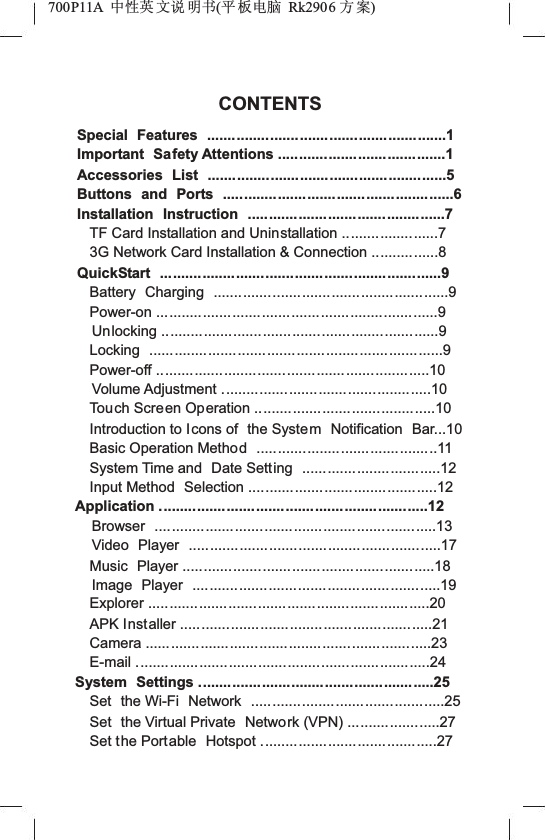
700P11A  Ёᗻ㣅 ᭛䇈 ᯢк(ᑇ ᵓ⬉㛥 Rk2906 ᮍḜ)CONTENTSSpecial Features .........................................................1Important Safety Attentions ........................................1Accessories List ...................... ...................................5Buttons and Ports .......................................................6Installation Instruction ...............................................7TF Card Installation and Uninstallation .......................73G Network Card Installation & Connection ................8QuickStart ...................................................................9Battery Charging ........................................................9Power-on ...................................................................9Unlocking ..................................................................9Locking ......................................................................9Power-off .................................................................10Volume Adjustment ..................................................10Touch Screen Operation ...........................................10Introduction to Icons of  the System Notification  Bar...10Basic Operation Method ...........................................11System Time and  Date Setting .................................12Input Method  Selection .............................................12Application ................................................................12Browser ...................................................................13Video Player ............................................................17Music Player ............................................................18Image Player ...........................................................19Explorer ...................................................................20APK Installer ............................................................21Camera ....................................................................23E-mail ......................................................................24System Settings ........................................................25Set the Wi-Fi  Network  ..............................................25Set the Virtual Private  Network (VPN) ......................27Set the Portable  Hotspot ..........................................27
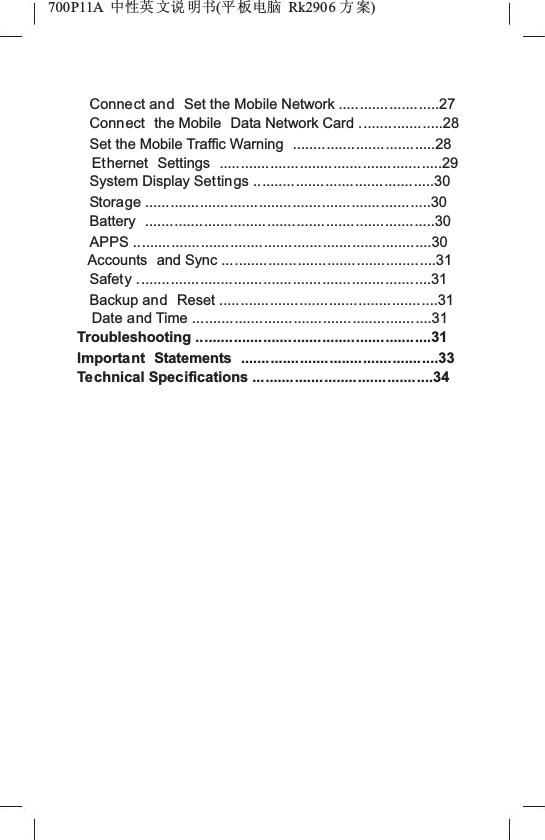
700P11A  Ёᗻ㣅 ᭛䇈 ᯢк(ᑇ ᵓ⬉㛥 Rk2906 ᮍḜ)Connect and Set the Mobile Network ........................27Connect the Mobile  Data Network Card ....................28Set the Mobile Traffic Warning  ..................................28Ethernet Settings .....................................................29System Display Settings ...........................................30Storage ....................................................................30Battery .....................................................................30APPS .......................................................................30Accounts and Sync ...................................................31Safety ......................................................................31Backup and Reset ....................................................31Date and Time .........................................................31Troubleshooting ........................................................31Important Statements ...............................................33Technical Specifications ...........................................34
700P11A  Ёᗻ㣅 ᭛䇈 ᯢк(ᑇ ᵓ⬉㛥 Rk2906 ᮍḜ)Special Features1. Includes a LED  backlit screen with a high resolution ratio.2. Includes a capacitive touch screen  with high sensitivity, supporting 5 point touch at  most.3. Employs ARM Cortex A8 core, with CPU dominant frequency at 1.20GHz,4. Employs the Google Android4.0 system.5. A built-in Wi-Fi module supports the 802.11 b/g wireless standard.6. A built-in front camera of  0.3 megapixel has the features of  video chatting, taking photos and camera shooting;7. A built-in microphone can realize the functions of recording and making voice  call by  a third-partysoftware;8. Includes a built-in  speaker with high quality.9. Supports output of high-fidelity stereo  headphone;10. A built-in 3-axis gravity sensor supports the screen toauto rotate in 4 directions;11. Main audio & video formats in markets are supported to display, with a high-definition video resolution ratio at 1080P.12. A built-in lithium battery with high capacity.Important Safety AttentionsThank you for purchasing our high performance  &multi-function tablet PC. It  will bring you a better visual & aural experience. To make sure safety,  extend the service life of the product, and give full play to the best performance of the product, please read  all the instructions and nameplates  carefully, follow the safety 1
700P11A  Ёᗻ㣅 ᭛䇈 ᯢк(ᑇ ᵓ⬉㛥 Rk2906 ᮍḜ)attentions, and keep the user manual for  future  use.Medical DeviceElectromagnetic wave produced by the device in working condition may  interfere with the normal work of implantable  medical devices or  personal medical devices like pacemaker, embedding cochlea, hearing-aid, etc. If you are using the above mentioned medical devices, please consult with the manufacturer for  the conditions or limitations of using the product.Hearing ProtectionƽPlease  plug the earphone with the audio source and turn down volume of the device before putting theearplugs into ears.ƽTo avoid damaging hearing, it is  suggested to use the lowest volume  when listening to  music or making a voice call by earphone.ƽPlease  don't use earplugs  for a prolonged period.Traffic SafetyƽPlease  don't use the  device when crossing the road, riding a bike or driving, which may  get you distracted and cause accident.ƽWireless devices may interfere  with the flight system of a plane, so please comply with relevant  rulesof airline companies; turn off the device in places wherewireless devices are prohibited.Operation EnvironmentƽPlease  don't use the device in  places with watersource, such as bathtubs, pools, washing machines or moist basements and other similar environments. Once 2
700P11A  Ёᗻ㣅 ᭛䇈 ᯢк(ᑇ ᵓ⬉㛥 Rk2906 ᮍḜ)the device is with splash, please turn off the device at once, and don't use  it before being aired.ƽTo avoid internal circuit fault  of the device, pleasedon't charge or  use the device in places of dusty,  moist, dirty or places near magnetic fields.ƽPlease  don't put the device and its accessories with flammable liquid, flammable gas or  explosive objects in the same case for storage or transportation.ƽPlease  turn off  the device in places where using of wireless devices are expressly prohibited.ƽWorking environment  temperature for the device  is-10ć~45ć. Please don't use The device when the temperature goes out of the range, otherwise, fault may occur.Child HealthThe device and its accessories may include  several small parts, please keep them out of children reach. Or else children may damage the device and its accessories by accident, or  swallow small parts, resulting in apnea orother damage.Environment ProtectionPlease comply with the local laws of disposing of the device, battery and its  accessories, and support recycling. Don't dispose  of the device, battery and its accessories  as ordinary household garbage.Accessory RequirementIt is only allowed to use the charger and accessories authorized by the device manufacturer and compatible with the model number of the device. If other type of chargers and accessories  are used, it may violate the3
700P11A  Ёᗻ㣅 ᭛䇈 ᯢк(ᑇ ᵓ⬉㛥 Rk2906 ᮍḜ)guarantee clause and related provisions  of the country where the device located, resulting in safety accidents. Ifauthorized batteries, chargers and accessories are needed, please contact with Dealers.Safety Use of Battery and ChargerƽAfter charging completes or in none-charging conditions, please cut off theconnection with the device and unplug the charger from the power socket.ƽDon't place the device around any heating devices like microwave ovens, ovens or radiators, etc. Overheated battery may  cause explosion.ƽDon't disassemble or refit the batteries, so as  not to cause leaking liquid, overheating, fire  or explosion.ƽIf the  battery leaks,  please keep your  skin or eyes away from the leaking liquid; if  you skin  or eyes  get touch with the leaking  liquid, please wash it with clean water, and go to hospital for medical handling.ƽIf the  power cord of the charger has been damaged,don't continue to use it, so as to avoid electric shock  orfire. MaintenanceƽPlease  keep the device and its accessories dry, and don't use external heating devices like microwave ovens to dry them.ƽDon't make the device and its accessories impacted intensively or shocked, so as not to damage the device and its accessories, or cause  fire or  explosion to the batteries.ƽDon't place the device and its accessories in areaswith over-high or over-low temperature, or  else it may cause accident, fire or explosion to the device, battery4
700P11A  Ёᗻ㣅 ᭛䇈 ᯢк(ᑇ ᵓ⬉㛥 Rk2906 ᮍḜ)and charger. When the temperature is lower than 0oC, the performance of the battery may be limited.ƽDon't place sharp metal objects like large-head pins near the speaker; it may  suck such kind of objects by its magnetism, resulting in damage when  using the device.ƽDon't use strong  chemicals, abluent or detergent  to clean with the device or its accessories. Before cleaning or maintenance,  please turn off the device and cut off the connection between the charger and the device.ƽDon't disassemble the device and its accessories byyourself; the damage caused in this  case won't be covered by  maintenance.ƽIf the device impacts hard objects  or gets intense impact from outside, causing  crush  to the screen, don'ttouch or try  to remove the broken part, please  stop  using it and contact  with the specific maintenance point at once.Screen ProtectionƽDon't place any  objects on the device, so  as to  avoid laceration.ƽDon't use a sharp object to touch the screen.Proper UseDon't indulge in the cyber  world and games, as using the internet and playing games for a prolonged period will be harmful for your health.Accessories ListƽTablet PC (1) ƽPower Adapter (1)ƽUser Manual (1) ƽUSB Data  Cable (1)5
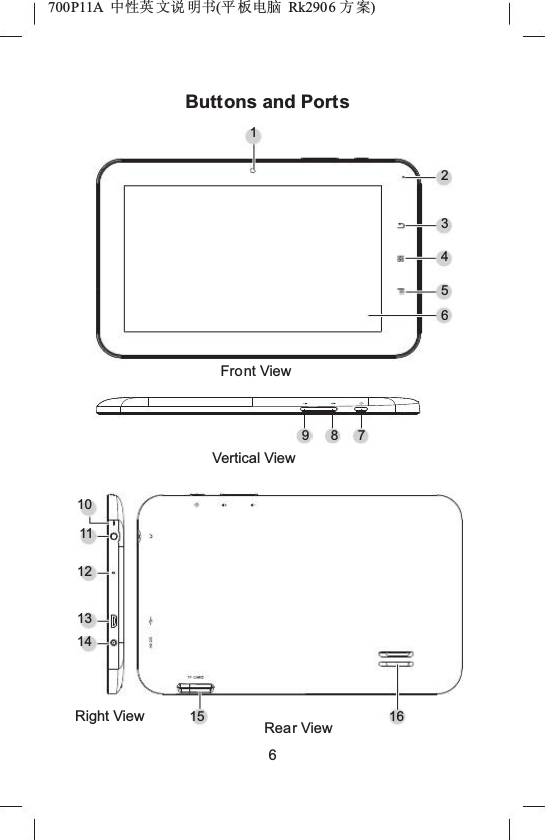
700P11A  Ёᗻ㣅 ᭛䇈 ᯢк(ᑇ ᵓ⬉㛥 Rk2906 ᮍḜ)Buttons and Ports123456Front View9871011121314Vertical ViewRight View 15 Rear View616
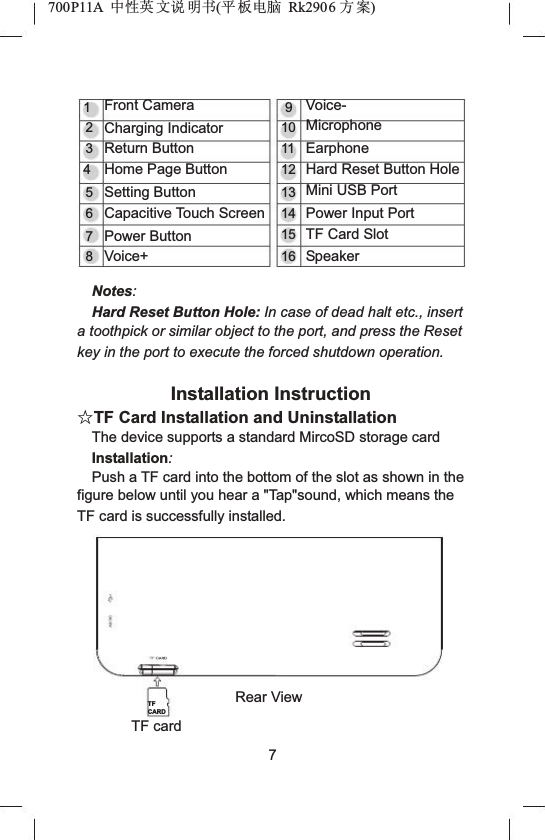
700P11A  Ёᗻ㣅 ᭛䇈 ᯢк(ᑇ ᵓ⬉㛥 Rk2906 ᮍḜ)12345678Front CameraCharging IndicatorReturn ButtonHome Page ButtonSetting ButtonCapacitive Touch ScreenPower ButtonVoice+910111213141516Voice-MicrophoneEarphoneHard Reset Button HoleMini USB PortPower Input PortTF Card SlotSpeakerNotes:Hard Reset Button Hole: In case of dead halt etc., insert a toothpick or similar object to the port, and press the Reset key in the port to execute the forced shutdown operation.Installation InstructionƿTF Card Installation and UninstallationThe device supports a standard MircoSD storage cardInstallation:Push a TF card into the bottom of the slot as shown in the figure below until you hear a "Tap"sound, which means the TF card is successfully installed.TFCARDRear ViewTF card7
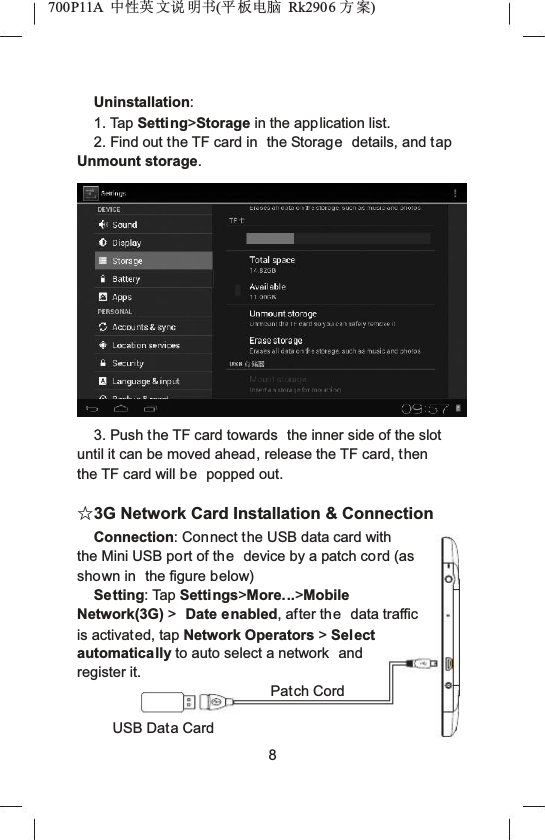
700P11A  Ёᗻ㣅 ᭛䇈 ᯢк(ᑇ ᵓ⬉㛥 Rk2906 ᮍḜ)Uninstallation:1. Tap Setting>Storage in the application list.2. Find out the TF card in  the Storage details, and tap Unmount storage.3. Push the TF card towards  the inner side of the slot until it can be moved ahead, release the TF card, thenthe TF card will be popped out.ƿ3G Network Card Installation & ConnectionConnection: Connect the USB data card with the Mini USB port of the device by a patch cord (as shown in  the figure below)Setting: Tap Settings>More...>Mobile Network(3G) >Date enabled, after the data traffic is activated, tap Network Operators >Select automatically to auto select a network  and register it.Patch CordUSB Data Card8
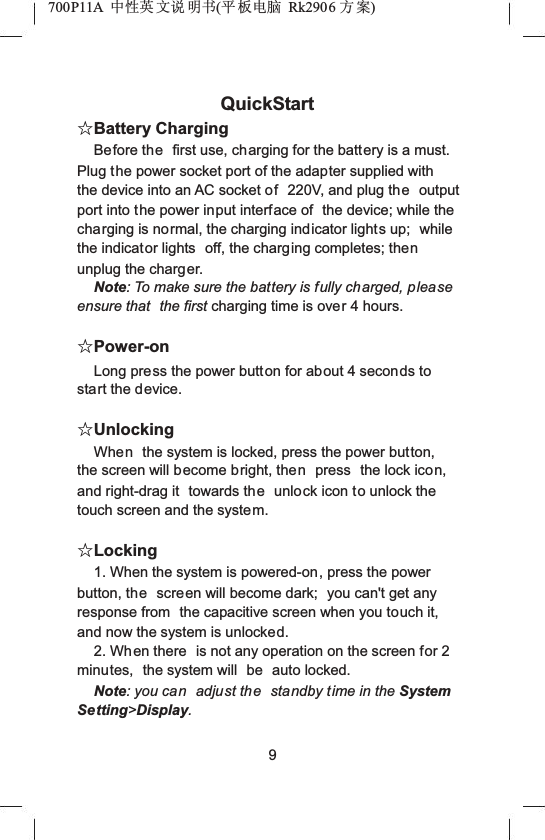
700P11A  Ёᗻ㣅 ᭛䇈 ᯢк(ᑇ ᵓ⬉㛥 Rk2906 ᮍḜ)QuickStartƿBattery ChargingBefore the first use, charging for the battery is a must. Plug the power socket port of the adapter supplied with the device into an AC socket of 220V, and plug the output port into the power input interface of  the device; while the charging is normal, the charging indicator lights up;  while the indicator lights  off, the charging completes; thenunplug the charger.Note: To make sure the battery is fully charged, please ensure that  the first charging time is over 4 hours.ƿPower-onLong press the power button for about 4 seconds to start the device.ƿUnlockingWhen the system is locked, press the power button, the screen will become bright, then press  the lock icon,and right-drag it  towards the unlock icon to unlock the touch screen and the system.ƿLocking1. When the system is powered-on, press the power button, the screen will become dark;  you can't get any response from  the capacitive screen when you touch it, and now the system is unlocked.2. When there  is not any operation on the screen for 2 minutes,  the system will  be auto locked.Note: you can adjust the standby time in the System Setting>Display.9
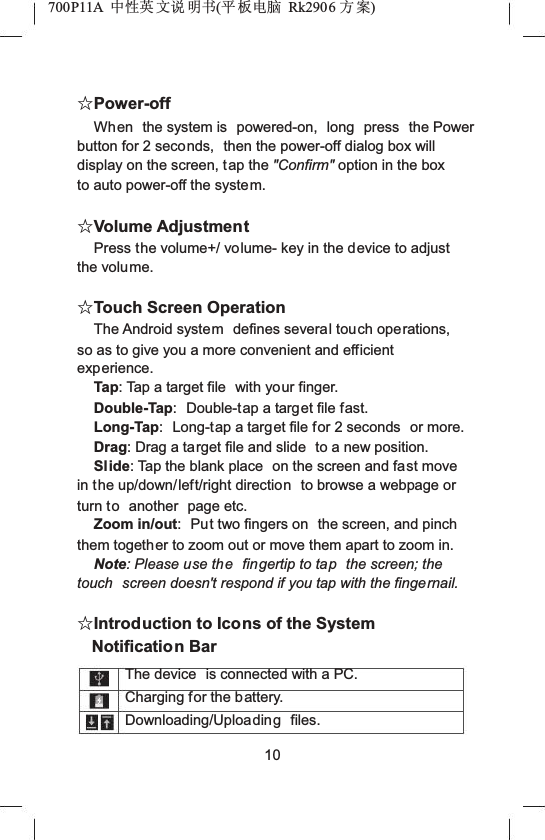
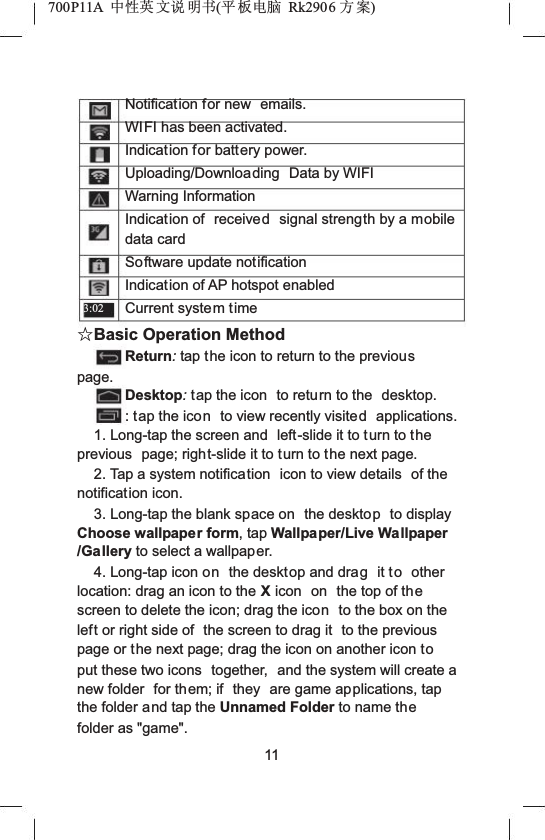
700P11A  Ёᗻ㣅 ᭛䇈 ᯢк(ᑇ ᵓ⬉㛥 Rk2906 ᮍḜ)ƿPower-offWhen  the system is  powered-on,  long  press the Power button for 2 seconds,  then the power-off dialog box will display on the screen, tap the "Confirm" option in the box to auto power-off the system.ƿVolume AdjustmentPress the volume+/ volume- key in the device to adjust the volume.ƿTouch Screen OperationThe Android system defines several touch operations, so as to give you a more convenient and efficient experience.Tap: Tap a target file  with your finger.Double-Tap: Double-tap a target file fast.Long-Tap: Long-tap a target file for 2 seconds  or more.Drag: Drag a target file and slide  to a new position.Slide: Tap the blank place  on the screen and fast move in the up/down/left/right direction to browse a webpage or turn to another  page etc.Zoom in/out: Put two fingers on  the screen, and pinch them together to zoom out or move them apart to zoom in.Note: Please use the fingertip to tap the screen; the touch  screen doesn't respond if you tap with the fingernail.ƿIntroduction to Icons of the System Notification BarThe device  is connected with a PC. Charging for the battery. Downloading/Uploading files. 10
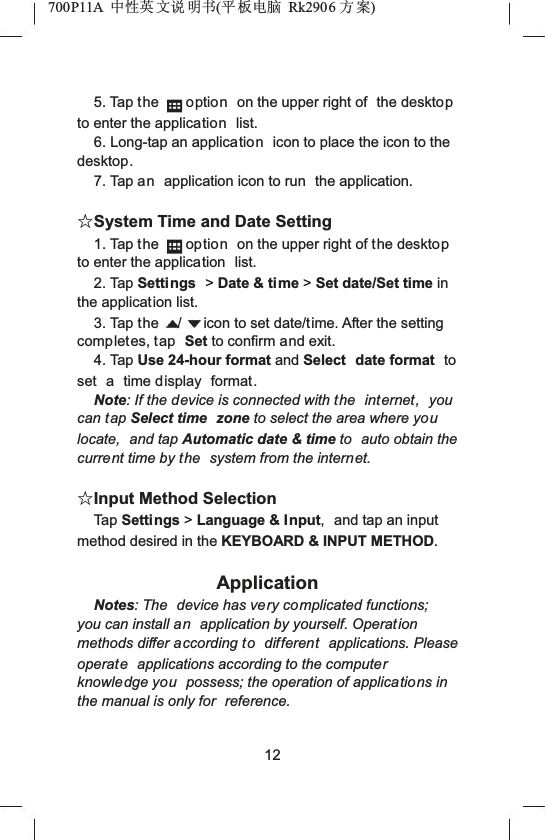
700P11A  Ёᗻ㣅 ᭛䇈 ᯢк(ᑇ ᵓ⬉㛥 Rk2906 ᮍḜ)3:02Notification for new  emails.WIFI has been activated. Indication for battery power. Uploading/Downloading Data by WIFIWarning InformationIndication of  received signal strength by a mobile data cardSoftware update notificationIndication of AP hotspot enabledCurrent system timeƿBasic Operation MethodReturn:tap the icon to return to the previouspage.Desktop:tap the icon  to return to the  desktop.: tap the icon to view recently visited applications.1. Long-tap the screen and  left-slide it to turn to theprevious  page; right-slide it to turn to the next page.2. Tap a system notification  icon to view details  of the notification icon.3. Long-tap the blank space on  the desktop to display Choose wallpaper form, tap Wallpaper/Live Wallpaper /Gallery to select a wallpaper.4. Long-tap icon on the desktop and drag it to other location: drag an icon to the Xicon  on the top of thescreen to delete the icon; drag the icon to the box on the left or right side of  the screen to drag it  to the previous page or the next page; drag the icon on another icon toput these two icons  together,  and the system will create a new folder  for them; if  they  are game applications, tap the folder and tap the Unnamed Folder to name thefolder as "game".11
700P11A  Ёᗻ㣅 ᭛䇈 ᯢк(ᑇ ᵓ⬉㛥 Rk2906 ᮍḜ)5. Tap the option on the upper right of  the desktopto enter the application list.6. Long-tap an application icon to place the icon to the desktop.7. Tap an application icon to run  the application.ƿSystem Time and Date Setting1. Tap the option on the upper right of the desktopto enter the application  list.2. Tap Settings >Date & time >Set date/Set time inthe application list.3. Tap the / icon to set date/time. After the setting completes, tap Set to confirm and exit.4. Tap Use 24-hour format and Select date format to set a time display format.Note: If the device is connected with the  internet, you can tap Select time  zone to select the area where youlocate, and tap Automatic date & time to auto obtain the current time by the  system from the internet.ƿInput Method SelectionTap Settings >Language & Input, and tap an input method desired in the KEYBOARD & INPUT METHOD.ApplicationNotes: The  device has very complicated functions; you can install an application by yourself. Operation methods differ according to different applications. Please operate applications according to the computerknowledge you possess; the operation of applications in the manual is only for  reference.12
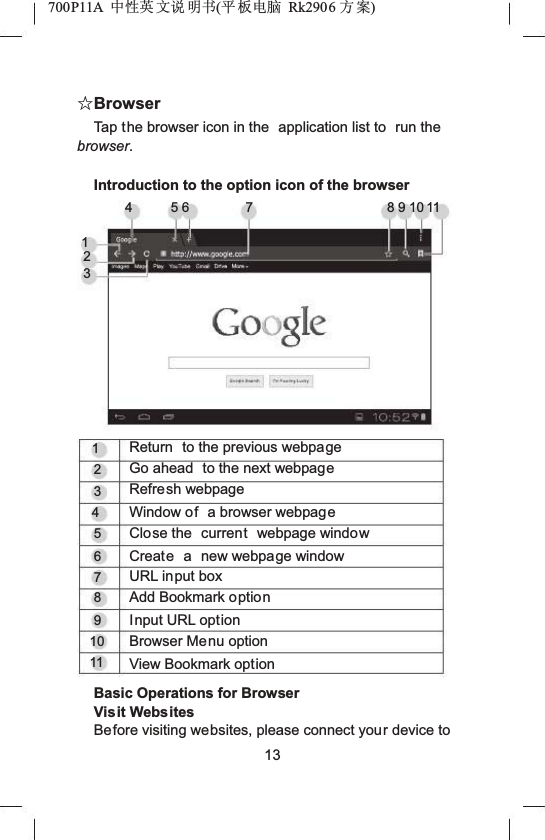
700P11A  Ёᗻ㣅 ᭛䇈 ᯢк(ᑇ ᵓ⬉㛥 Rk2906 ᮍḜ)ƿBrowserTap the browser icon in the  application list to  run the browser.Introduction to the option icon of the browser1234 56 7 8910111234567891011Return  to the previous webpageGo ahead  to the next webpageRefresh webpageWindow of a browser webpageClose the  current webpage windowCreate a new webpage windowURL input boxAdd Bookmark optionInput URL optionBrowser Menu optionView Bookmark optionBasic Operations for BrowserVisit WebsitesBefore visiting websites, please connect your device to13
700P11A  Ёᗻ㣅 ᭛䇈 ᯢк(ᑇ ᵓ⬉㛥 Rk2906 ᮍḜ)the Internet via Wi-Fi, mobile  Internet or Ethernet (refer to "System Settings" for specific  settings).1. Tap the address  bar in the browser, and you will seea virtual keyboard.2. Tap the virtual keyboard to input the correct address and then tap the [Enter] key at the virtual keyboard  to visit the  relevant website.Touch Screen Operations for Webpage Browsing1. Zoom in the webpage:put  two fingers closely together  on the target part of the webpage and separate them quickly, or  double tap the target part of the webpage.2. Drag the webpage:put a finger  on  the screen and slide it  upwards, downwards, leftwards or rightwards quickly to drag the webpage upwards, downwards, leftwards or  rightwards.3. Long press Text/Link/Image to display and  edit the editable items.Use of  Bookmark14
700P11A  Ёᗻ㣅 ᭛䇈 ᯢк(ᑇ ᵓ⬉㛥 Rk2906 ᮍḜ)You can use  the bookmark to save your favoritewebpages so that you can find and open them easily next time.ŶSave a Webpage as a Bookmark1. Tap the add bookmark icon in the browser.2. Tap the virtual keyboard to input the  browser tabs, and then tap the [Enter] key.3. Make  sure the address displayed in the address bar is correct and then tap the [Enter] key at the virtual keyboard.4. Tap Account and Add to to display the relevant drop-down lists,  tap account and target storage location, and then tap OK.ŶView a Bookmark1. Tap the view bookmark icon in the browser.2. Tap the target bookmark to open it.ŶDelete or Edit a Bookmark1. Tap t he View Bookmark icon in the browser.2. Long-tap the target bookmark.3. Edit  the relevant editable items.Copy and Paste the Text from the Internet1. Long-tap the target text on the  Internet page, and you will see the editing options on the upper part of the screen. Drag the cursor  select the text that you want to copy.2. Tap t he Copy option on the browser  toolbar.15
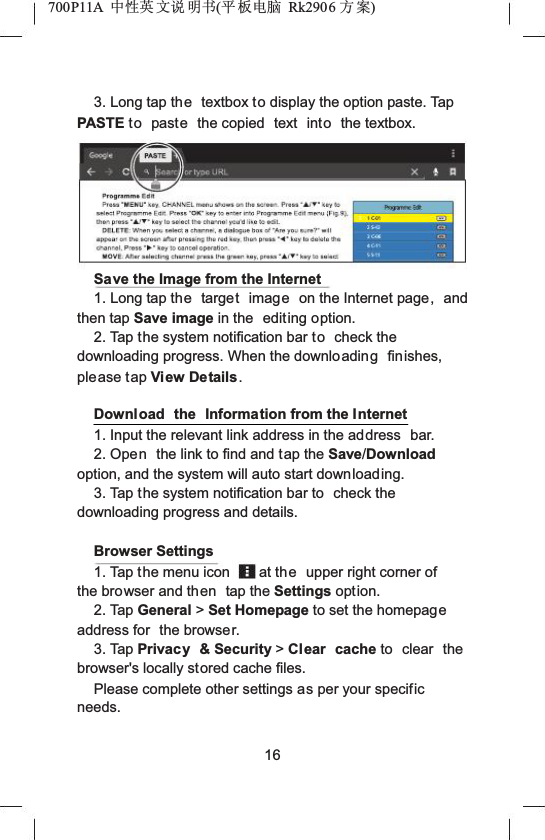
700P11A  Ёᗻ㣅 ᭛䇈 ᯢк(ᑇ ᵓ⬉㛥 Rk2906 ᮍḜ)3. Long tap the textbox to display the option paste. Tap PASTE to paste the copied  text  into the textbox.Save the Image from the Internet1. Long tap the target image on the Internet page, and then tap Save image in the  editing option.2. Tap the system notification bar to check the downloading progress. When the downloading finishes, please tap View Details .Download the Information from the Internet1. Input the relevant link address in the address  bar.2. Open the link to find and tap the Save/Download option, and the system will auto start downloading.3. Tap the system notification bar to  check the downloading progress and details.Browser Settings1. Tap the menu icon at the upper right corner of the browser and then tap the Settings option.2. Tap General >Set Homepage to set the homepageaddress for  the browser.3. Tap Privacy & Security >Clear cache to clear the browser's locally stored cache files.Please complete other settings as per your specificneeds.16
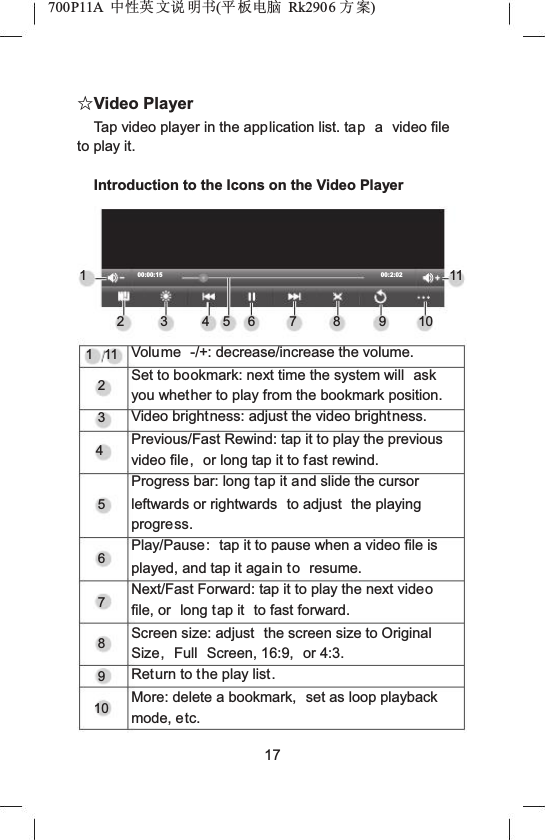
700P11A  Ёᗻ㣅 ᭛䇈 ᯢк(ᑇ ᵓ⬉㛥 Rk2906 ᮍḜ)ƿVideo PlayerTap video player in the application list. tap a video file to play it.Introduction to the Icons on the Video Player1200:00:1534567 800:2:02910111112345678910Volume -/+: decrease/increase the volume.Set to bookmark: next time the system will  askyou whether to play from the bookmark position.Video brightness: adjust the video brightness.Previous/Fast Rewind: tap it to play the previous video file, or long tap it to fast rewind.Progress bar: long tap it and slide the cursor leftwards or rightwards  to adjust  the playing progress.Play/Pause: tap it to pause when a video file is played, and tap it again to resume.Next/Fast Forward: tap it to play the next videofile, or  long tap it  to fast forward.Screen size: adjust  the screen size to Original Size, Full Screen, 16:9,  or 4:3.Return to the play list.More: delete a bookmark,  set as loop playback mode, etc.17
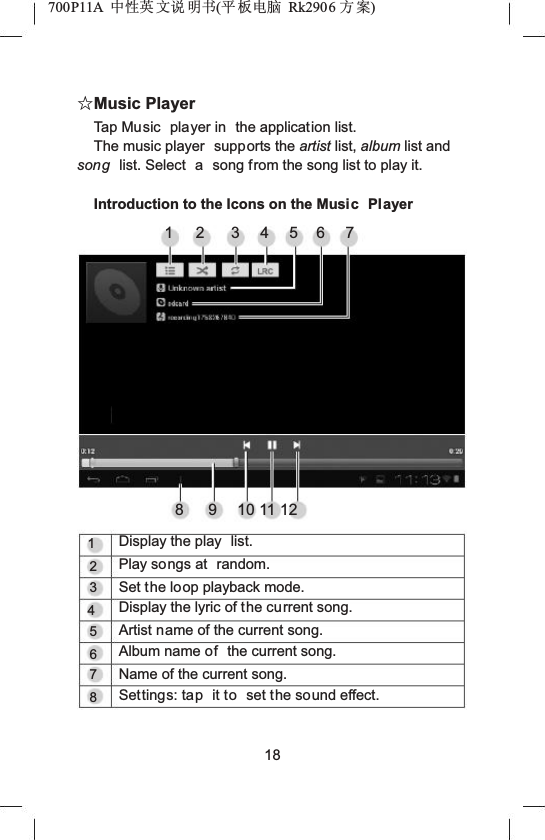
700P11A  Ёᗻ㣅 ᭛䇈 ᯢк(ᑇ ᵓ⬉㛥 Rk2906 ᮍḜ)ƿMusic PlayerTap Music  player in  the application list.The music player  supports the artist list, album list and song list. Select  a song from the song list to play it.Introduction to the Icons on the Music Player12 345678 9 10 11 1212345678Display the play  list.Play songs at  random.Set the loop playback mode.Display the lyric of the current song.Artist name of the current song.Album name of the current song.Name of the current song.Settings: tap it to set the sound effect.18
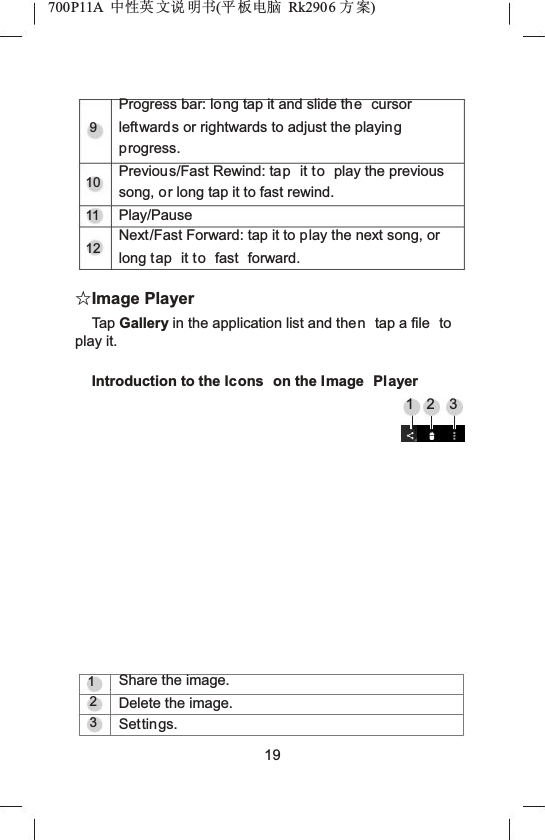
700P11A  Ёᗻ㣅 ᭛䇈 ᯢк(ᑇ ᵓ⬉㛥 Rk2906 ᮍḜ)9101112Progress bar: long tap it and slide the cursor leftwards or rightwards to adjust the playingprogress.Previous/Fast Rewind: tap it to play the previous song, or long tap it to fast rewind.Play/PauseNext/Fast Forward: tap it to play the next song, or long tap it to fast  forward.ƿImage PlayerTap Gallery in the application list and then tap a file  to play it.Introduction to the Icons on the Image  Player12 3123Share the image.Delete the image.Settings.19
700P11A  Ёᗻ㣅 ᭛䇈 ᯢк(ᑇ ᵓ⬉㛥 Rk2906 ᮍḜ)Basic Operations for Image Player1. Zoom in the image:put two fingers closely together on the screen and separate them quickly, or double tapthe screen.2. Zoom out the image:put two separated fingers on the screen and quickly pinch  them together, or double tap the screen.Note: The image can not be zoomed out when  played in original  size.3. Page up/down:long tap the screen and slide itleftwards/rightwards quickly to play the previous/next image.ƿExplorerTap Explorer in the application list.Edit a File1. Tap the disk where the target file is located.2. Tap the folder where the target  file is  located.3. Tap the target file to run it;4. Long tap the target  file to display such editing options as Copy,Delete,Move,Rename and Send. Tap an option to complete the relevant operation;20
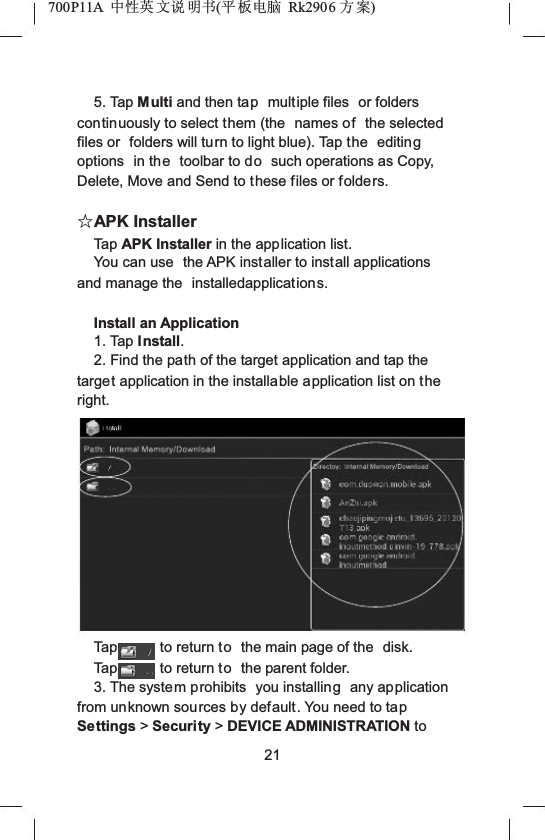
700P11A  Ёᗻ㣅 ᭛䇈 ᯢк(ᑇ ᵓ⬉㛥 Rk2906 ᮍḜ)5. Tap Multi and then tap multiple files  or folders continuously to select them (the  names of the selected files or  folders will turn to light blue). Tap the  editingoptions  in the toolbar to do such operations as Copy, Delete, Move and Send to these files or folders.ƿAPK InstallerTap APK Installer in the application list.You can use  the APK installer to install applications and manage the  installedapplications.Install an Application1. Tap Install.2. Find the path of the target application and tap the target application in the installable application list on the right.Tap to return to the main page of the  disk.Tap to return to the parent folder.3. The system prohibits  you installing any application from unknown sources by default. You need to tapSettings >Security >DEVICE ADMINISTRATION to 21
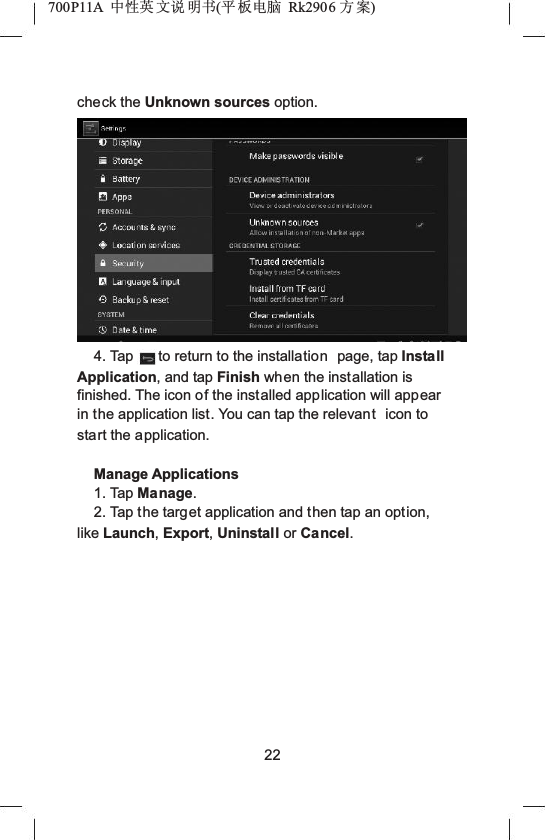
700P11A  Ёᗻ㣅 ᭛䇈 ᯢк(ᑇ ᵓ⬉㛥 Rk2906 ᮍḜ)check the Unknown sources option.4. Tap to return to the installation page, tap Install Application, and tap Finish when the installation is finished. The icon of the installed application will appear in the application list. You can tap the relevant icon to start the application.Manage Applications1. Tap Manage.2. Tap the target application and then tap an option,like Launch,Export,Uninstall or Cancel.22
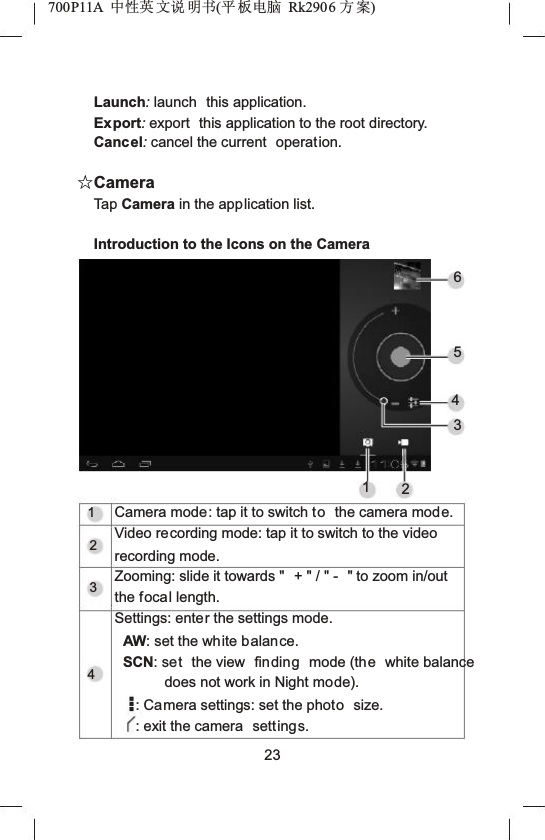
700P11A  Ёᗻ㣅 ᭛䇈 ᯢк(ᑇ ᵓ⬉㛥 Rk2906 ᮍḜ)Launch:launch this application.Export:export  this application to the root directory.Cancel:cancel the current  operation.ƿCameraTap Camera in the application list.Introduction to the Icons on the Camera6543121234Camera mode: tap it to switch to the camera mode.Video recording mode: tap it to switch to the video recording mode.Zooming: slide it towards "  + " / " -  " to zoom in/out the focal length.Settings: enter the settings mode.AW: set the white balance.SCN: set the view  finding mode (the white balance does not work in Night mode).: Camera settings: set the photo size.: exit the camera  settings.23
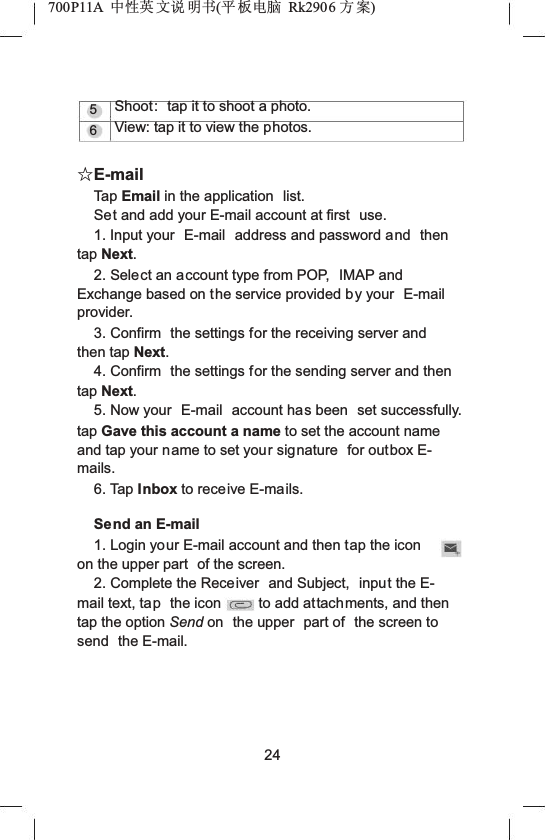
700P11A  Ёᗻ㣅 ᭛䇈 ᯢк(ᑇ ᵓ⬉㛥 Rk2906 ᮍḜ)56Shoot: tap it to shoot a photo.View: tap it to view the photos.ƿE-mailTap Email in the application  list.Set and add your E-mail account at first  use.1. Input your  E-mail  address and password and then tap Next.2. Select an account type from POP,  IMAP and Exchange based on the service provided by your  E-mailprovider.3. Confirm  the settings for the receiving server and then tap Next.4. Confirm  the settings for the sending server and then tap Next.5. Now your  E-mail account has been  set successfully. tap Gave this account a name to set the account name and tap your name to set your signature  for outbox E-mails.6. Tap Inbox to receive E-mails.Send an E-mail1. Login your E-mail account and then tap the iconon the upper part  of the screen.2. Complete the Receiver  and Subject,  input the E-mail text, tap the icon to add attachments, and then tap the option Send on  the upper  part of  the screen to send the E-mail.24
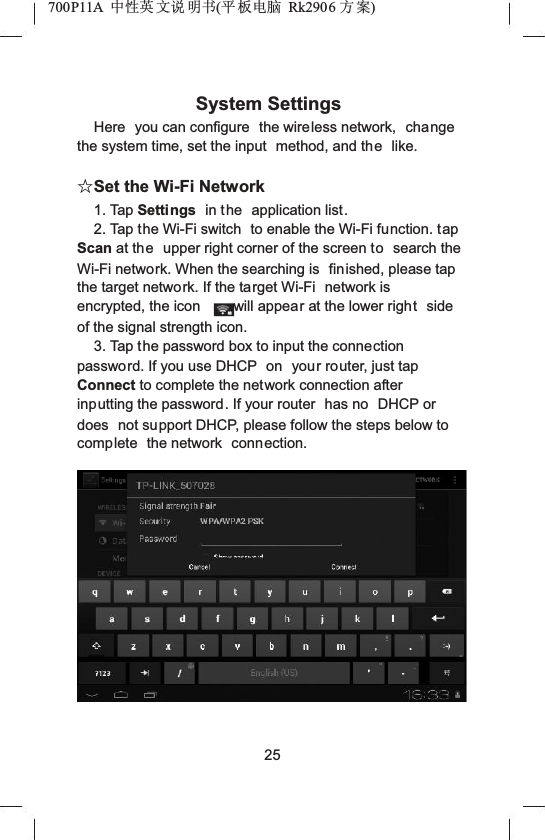
700P11A  Ёᗻ㣅 ᭛䇈 ᯢк(ᑇ ᵓ⬉㛥 Rk2906 ᮍḜ)System SettingsHere you can configure  the wireless network,  change the system time, set the input  method, and the like.ƿSet the Wi-Fi Network1. Tap Settings in the application list.2. Tap the Wi-Fi switch  to enable the Wi-Fi function. tap Scan at the upper right corner of the screen to search the Wi-Fi network. When the searching is  finished, please tap the target network. If the target Wi-Fi  network is encrypted, the icon will appear at the lower right side of the signal strength icon.3. Tap the password box to input the connection password. If you use DHCP  on your router, just tap Connect to complete the network connection after inputting the password. If your router  has no  DHCP or does not support DHCP, please follow the steps below to complete the network connection.25
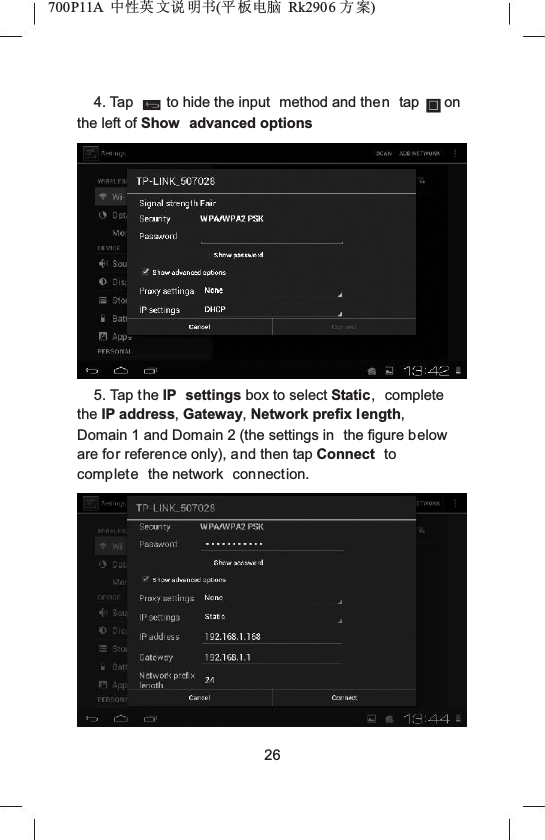
700P11A  Ёᗻ㣅 ᭛䇈 ᯢк(ᑇ ᵓ⬉㛥 Rk2906 ᮍḜ)4. Tap to hide the input  method and then tap on the left of Show advanced options5. Tap t he IP settings box to select Static, complete the IP address,Gateway,Network prefix length,Domain 1 and Domain 2 (the settings in  the figure beloware for reference only), and then tap Connect tocomplete the network  connection.26
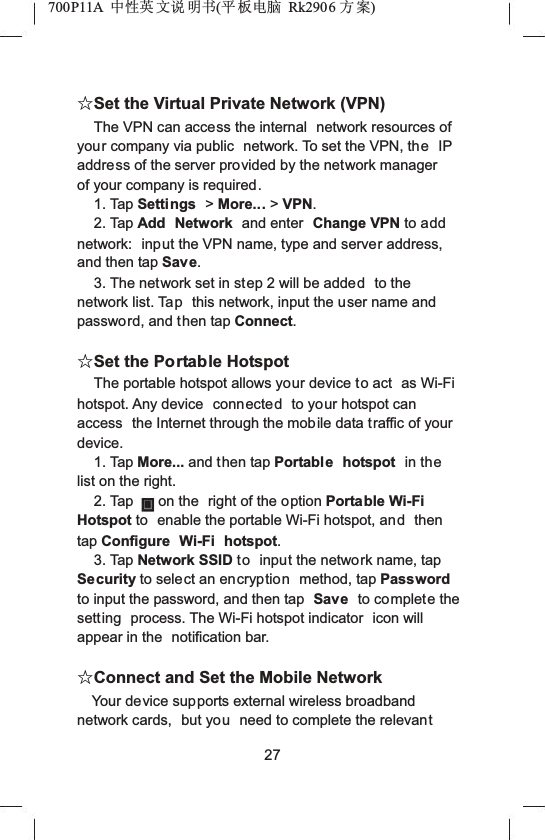
700P11A  Ёᗻ㣅 ᭛䇈 ᯢк(ᑇ ᵓ⬉㛥 Rk2906 ᮍḜ)ƿSet the Virtual Private Network (VPN)The VPN can access the internal  network resources of your company via public  network. To set the VPN, the IP address of the server provided by the network manager of your company is required.1. Tap Settings >More... >VPN.2. Tap Add Network and enter  Change VPN to add network:  input the VPN name, type and server address, and then tap Save.3. The network set in step 2 will be added to the network list. Tap this network, input the user name and password, and then tap Connect.ƿSet the Portable HotspotThe portable hotspot allows your device to act  as Wi-Fi hotspot. Any device  connected to your hotspot can access  the Internet through the mobile data traffic of your device.1. Tap More... and then tap Portable hotspot  in thelist on the right.2. Tap on the  right of the option Portable Wi-Fi Hotspot to  enable the portable Wi-Fi hotspot, and then tap Configure Wi-Fi hotspot.3. Tap Network SSID to input the network name, tap Security to select an encryption method, tap Password to input the password, and then tap  Save to complete the setting  process. The Wi-Fi hotspot indicator  icon will appear in the  notification bar.ƿConnect and Set the Mobile NetworkYour device supports external wireless broadband network cards,  but you need to complete the relevant27
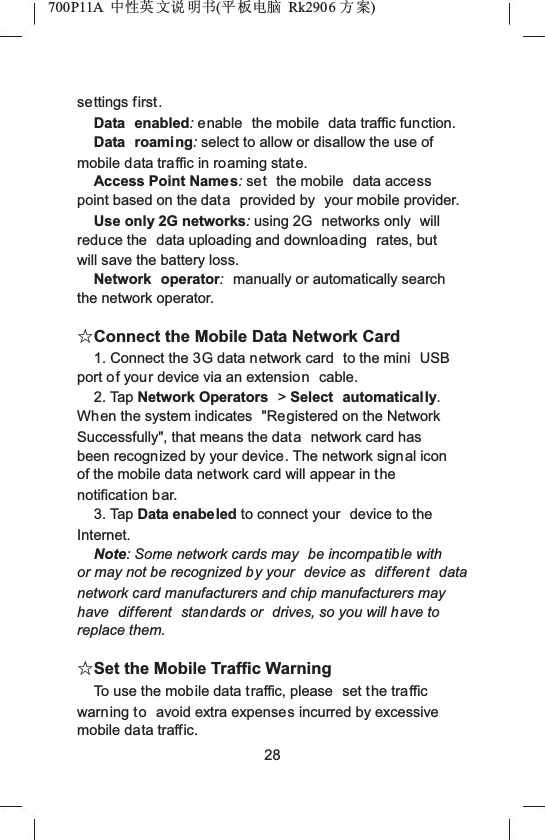
700P11A  Ёᗻ㣅 ᭛䇈 ᯢк(ᑇ ᵓ⬉㛥 Rk2906 ᮍḜ)settings first.Data enabled:enable  the mobile  data traffic function.Data roaming:select to allow or disallow the use of mobile data traffic in roaming state.Access Point Names:set the mobile  data accesspoint based on the data provided by  your mobile provider.Use only 2G networks:using 2G  networks only  will reduce the  data uploading and downloading rates, but will save the battery loss.Network operator:manually or automatically search the network operator.ƿConnect the Mobile Data Network Card1. Connect the 3G data network card  to the mini  USBport of your device via an extension cable.2. Tap Network Operators  >Select automatically.When the system indicates  "Registered on the Network Successfully", that means the data network card has been recognized by your device. The network signal icon of the mobile data network card will appear in thenotification bar.3. Tap Data enabeled to connect your  device to the Internet.Note: Some network cards may  be incompatible with or may not be recognized by your  device as  different data network card manufacturers and chip manufacturers may have  different  standards or  drives, so you will have to replace them.ƿSet the Mobile Traffic WarningTo use the mobile data traffic, please  set the traffic warning to avoid extra expenses incurred by excessive mobile data traffic.28
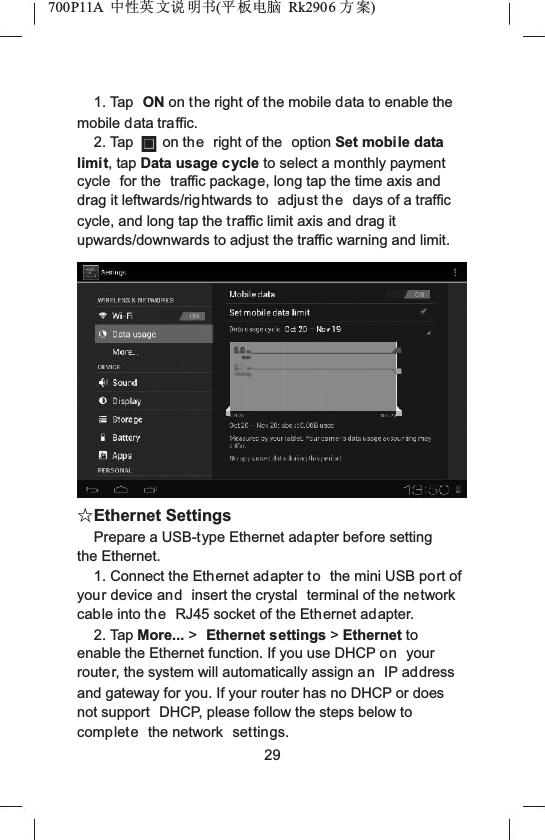
700P11A  Ёᗻ㣅 ᭛䇈 ᯢк(ᑇ ᵓ⬉㛥 Rk2906 ᮍḜ)1. Tap  ON on the right of the mobile data to enable the mobile data traffic.2. Tap on the right of the  option Set mobile data limit, tap Data usage cycle to select a monthly payment cycle  for the  traffic package, long tap the time axis and drag it leftwards/rightwards to  adjust the days of a traffic cycle, and long tap the traffic limit axis and drag it upwards/downwards to adjust the traffic warning and limit.ƿEthernet SettingsPrepare a USB-type Ethernet adapter before setting the Ethernet.1. Connect the Ethernet adapter to the mini USB port of your device and insert the crystal  terminal of the network cable into the RJ45 socket of the Ethernet adapter.2. Tap More... >Ethernet settings >Ethernet to enable the Ethernet function. If you use DHCP on your router, the system will automatically assign an IP address and gateway for you. If your router has no DHCP or does not support  DHCP, please follow the steps below to complete the network  settings.29
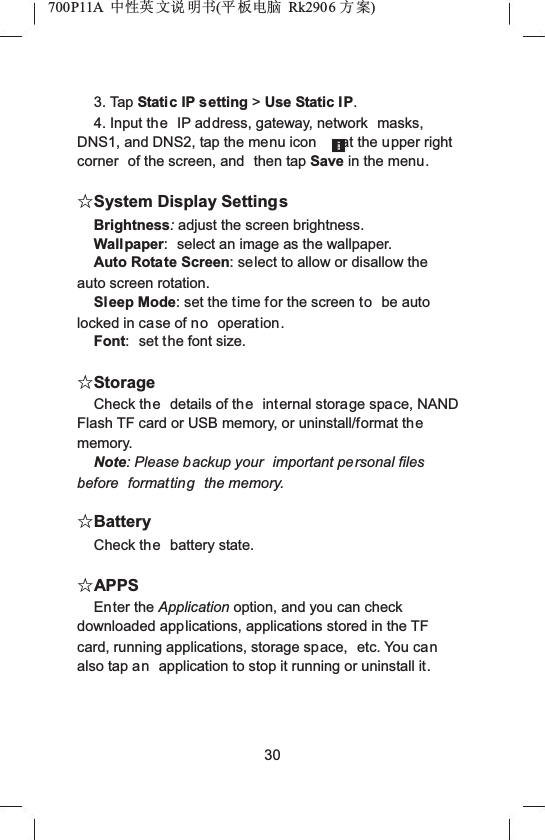
700P11A  Ёᗻ㣅 ᭛䇈 ᯢк(ᑇ ᵓ⬉㛥 Rk2906 ᮍḜ)3. Tap Static IP setting >Use Static IP.4. Input the IP address, gateway, network  masks, DNS1, and DNS2, tap the menu icon at the upper right corner  of the screen, and  then tap Save in the menu.ƿSystem Display SettingsBrightness:adjust the screen brightness.Wall paper: select an image as the wallpaper.Auto Rotate Screen: select to allow or disallow the auto screen rotation.Sleep Mode: set the time for the screen to be auto locked in case of no operation.Font: set the font size.ƿStorageCheck the details of the internal storage space, NAND Flash TF card or USB memory, or uninstall/format thememory.Note: Please backup your  important personal files before formatting the memory.ƿBatteryCheck the battery state.ƿAPPSEnter the Application option, and you can check downloaded applications, applications stored in the TF card, running applications, storage space,  etc. You canalso tap an application to stop it running or uninstall it.30
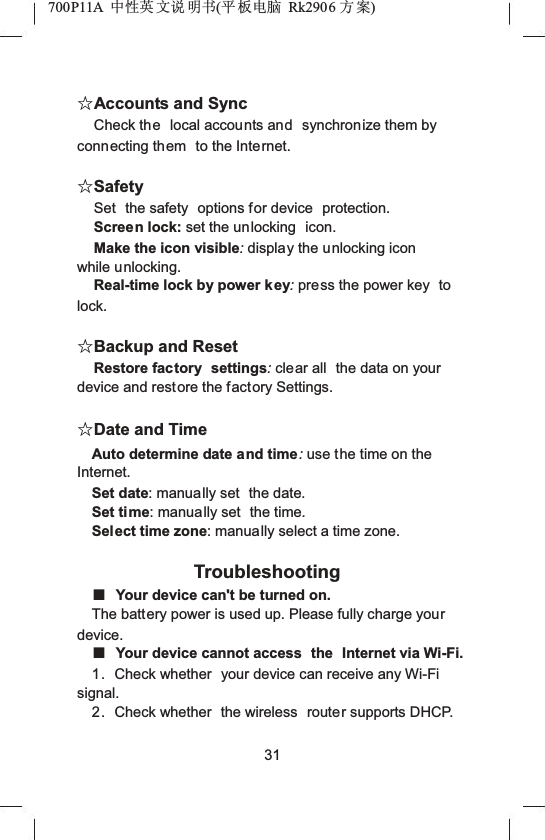
700P11A  Ёᗻ㣅 ᭛䇈 ᯢк(ᑇ ᵓ⬉㛥 Rk2906 ᮍḜ)ƿAccounts and SyncCheck the local accounts and synchronize them by connecting them to the Internet.ƿSafetySet the safety  options for device  protection.Screen lock: set the unlocking  icon.Make the icon visible:display the unlocking icon while unlocking.Real-time lock by power key:press the power key  tolock.ƿBackup and ResetRestore factory  settings:clear all  the data on your device and restore the factory Settings.ƿDate and TimeAuto determine date and time:use the time on the Internet.Set date: manually set  the date.Set time: manually set  the time.Select time zone: manually select a time zone.TroubleshootingƵYour device can't be turned on.The battery power is used up. Please fully charge yourdevice.ƵYour device cannot access  the Internet via Wi-Fi.1. Check whether  your device can receive any Wi-Fi signal.2. Check whether  the wireless  router supports DHCP. 31
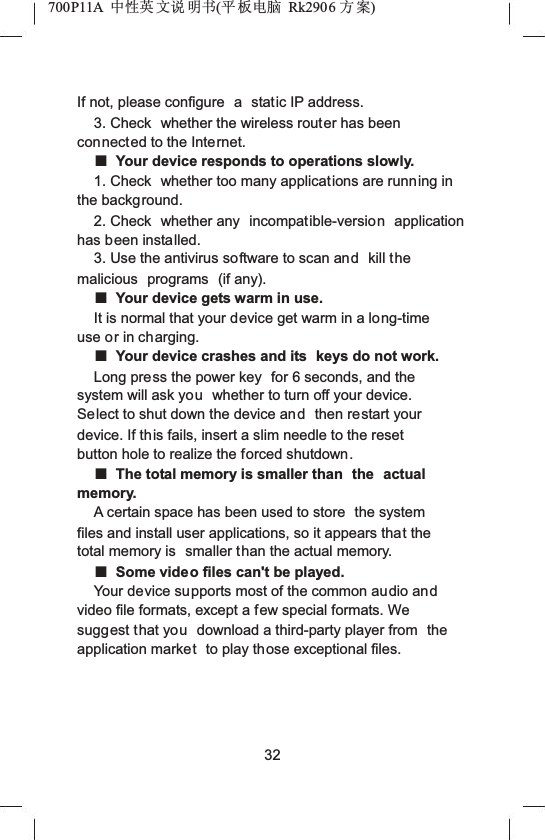
700P11A  Ёᗻ㣅 ᭛䇈 ᯢк(ᑇ ᵓ⬉㛥 Rk2906 ᮍḜ)If not, please configure  a static IP address.3. Check  whether the wireless router has been connected to the Internet.ƵYour device responds to operations slowly.1. Check  whether too many applications are running in the background.2. Check  whether any  incompatible-version application has been installed.3. Use the antivirus software to scan and kill the malicious programs (if any).ƵYour device gets warm in use.It is normal that your device get warm in a long-time use or in charging.ƵYour device crashes and its  keys do not work.Long press the power key  for 6 seconds, and the system will ask you whether to turn off your device. Select to shut down the device and then restart your device. If this fails, insert a slim needle to the reset button hole to realize the forced shutdown.ƵThe total memory is smaller than  the actualmemory.A certain space has been used to store  the system files and install user applications, so it appears that the total memory is  smaller than the actual memory.ƵSome video files can't be played.Your device supports most of the common audio andvideo file formats, except a few special formats. We suggest that you download a third-party player from  the application market to play those exceptional files.32
700P11A  Ёᗻ㣅 ᭛䇈 ᯢк(ᑇ ᵓ⬉㛥 Rk2906 ᮍḜ)Important StatementsAll contents and services  obtained through your device shall belong to a third party  under the protection of copyright, patent, trademark or other  intellectual properties, and shall  be used  for your personal non-commercial purposes only. You are not allowed to use any content or  service in any way  without the authorization of the content or service provider.In no case shall we be held liable for any direct,indirect or  accidental loss or damage caused by your accessing any  content, service,  information or third-party software through your device.Third-party services are  subject to change, deletion orstop without prior notice. We shall not imply or assure that all services and contents will  be kept available at all time.We shall not be responsible for providing any related customer service for any third-party service or content.Please refer your questions and service requests directly to the relevant content or  service provider.Please remember to backup the data when using your device. We shall not be held liable for any personal data loss or  damage caused by software or hardware misoperation, product repair, battery replacement or  anyother unexpected situations, or for any other indirect loss arising thereof. Any of your misunderstandings for this Manual shall be beyond our control,  so we  shall not bear any  liability for any accidental loss caused by the use of this Manual  or for any  third-party claim caused by the use  of your device.33
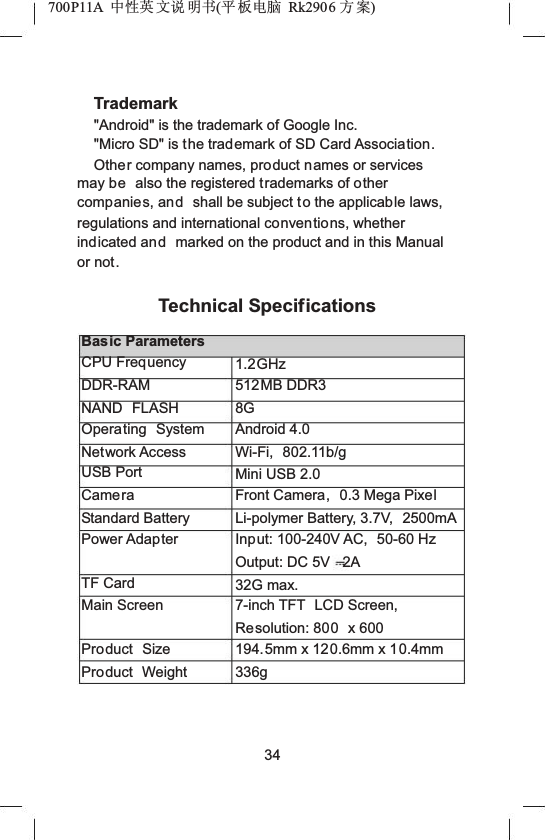
700P11A  Ёᗻ㣅 ᭛䇈 ᯢк(ᑇ ᵓ⬉㛥 Rk2906 ᮍḜ)Trademark"Android" is the trademark of Google Inc."Micro SD" is the trademark of SD Card Association.Other company names, product names or services may be also the registered trademarks of other companies, and shall be subject to the applicable laws, regulations and international conventions, whether indicated and marked on the product and in this Manual or not.Technical SpecificationsBasic ParametersCPU FrequencyDDR-RAMNAND FLASHOperating SystemNetwork AccessUSB PortCameraStandard BatteryPower AdapterTF CardMain ScreenProduct SizeProduct Weight1.2GHz512MB DDR38GAndroid 4.0Wi-Fi, 802.11b/gMini USB 2.0Front Camera, 0.3 Mega PixelLi-polymer Battery, 3.7V,  2500mAInput: 100-240V AC,  50-60 HzOutput: DC 5V 2A32G max.7-inch TFT  LCD Screen, Resolution: 800 x 600194.5mm x 120.6mm x 10.4mm336g34
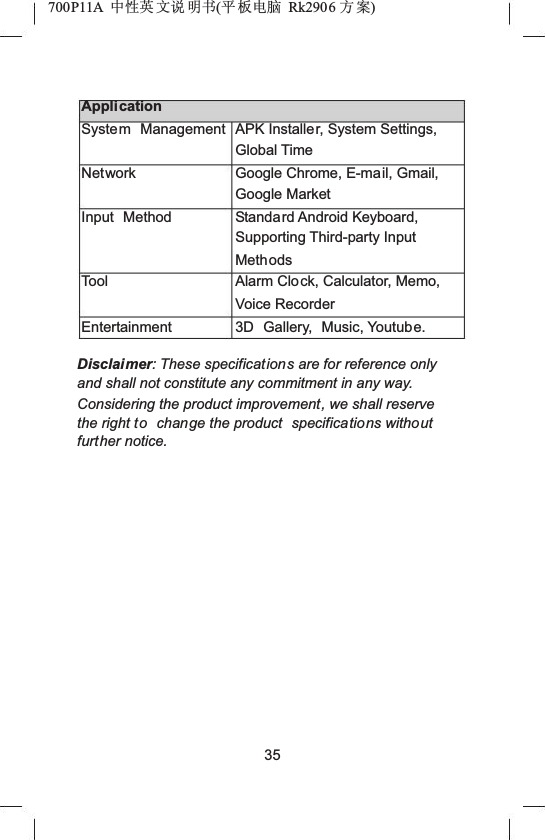
700P11A  Ёᗻ㣅 ᭛䇈 ᯢк(ᑇ ᵓ⬉㛥 Rk2906 ᮍḜ)ApplicationSystem ManagementNetworkInput MethodToolEntertainmentAPK Installer, System Settings, Global TimeGoogle Chrome, E-mail, Gmail, Google MarketStandard Android Keyboard, Supporting Third-party Input MethodsAlarm Clock, Calculator, Memo, Voice Recorder3D Gallery, Music, Youtube.Disclaimer: These specifications are for reference only and shall not constitute any commitment in any way. Considering the product improvement, we shall reserve the right to change the product  specifications withoutfurther notice.35
700P11A 中性英文说明书(平板电脑 RK2906 方案)   Hereby, [Shenzhen KTC Technology Co., Ltd.], declares that this [7”PAD] is in compliance with the essential requirements and other relevant provisions of Directive   1999/5/EC.             36
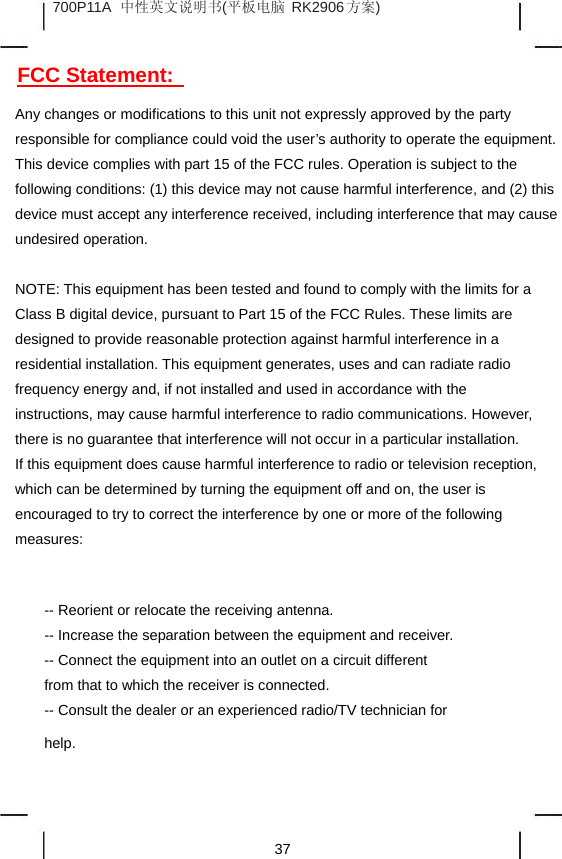
700P11A 中性英文说明书(平板电脑 RK2906 方案)  FCC Statement:   Any changes or modifications to this unit not expressly approved by the party responsible for compliance could void the user’s authority to operate the equipment. This device complies with part 15 of the FCC rules. Operation is subject to the following conditions: (1) this device may not cause harmful interference, and (2) this device must accept any interference received, including interference that may cause undesired operation. NOTE: This equipment has been tested and found to comply with the limits for a   Class B digital device, pursuant to Part 15 of the FCC Rules. These limits are   designed to provide reasonable protection against harmful interference in a   residential installation. This equipment generates, uses and can radiate radio   frequency energy and, if not installed and used in accordance with the   instructions, may cause harmful interference to radio communications. However,   there is no guarantee that interference will not occur in a particular installation.   If this equipment does cause harmful interference to radio or television reception,   which can be determined by turning the equipment off and on, the user is   encouraged to try to correct the interference by one or more of the following measures:    -- Reorient or relocate the receiving antenna.   -- Increase the separation between the equipment and receiver.   -- Connect the equipment into an outlet on a circuit different   from that to which the receiver is connected.   -- Consult the dealer or an experienced radio/TV technician for   help.   37

Navigation menu