King Champion Electronics IR8000I00001 Internet Radio with FM User Manual

King Champion Electronics Ltd. Internet Radio with FM

User Manual

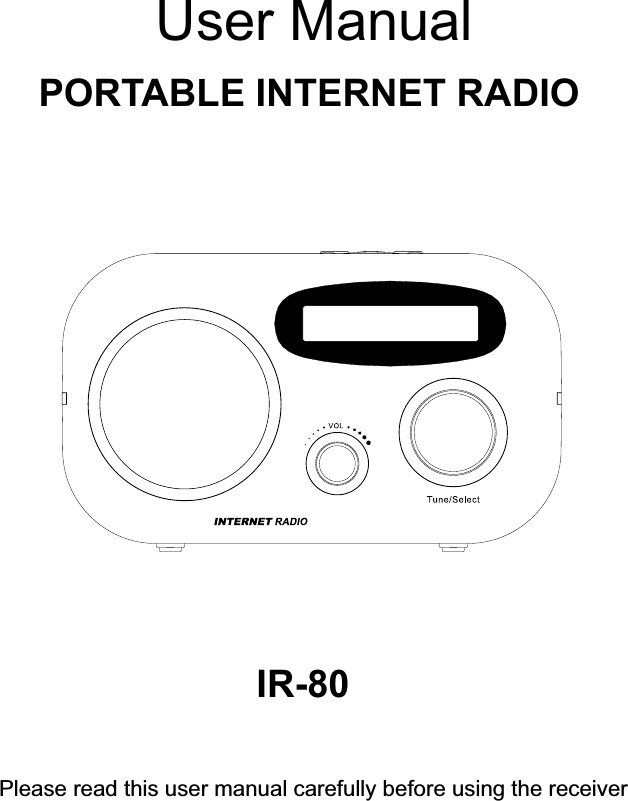
PORTABLE INTERNET RADIOIR-80User ManualPlease read this user manual carefully before using the receiver
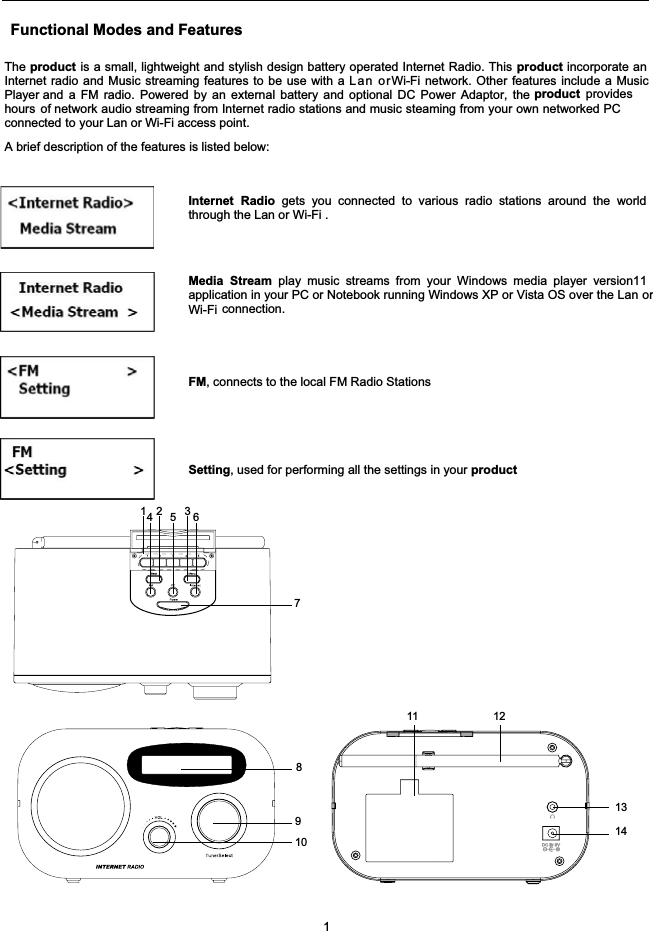
Functional Modes and FeaturesThe product is a small, lightweight and stylish design battery operated Internet Radio. This product incorporate anInternet radio and Music streaming features to be use with a  Lan orWi-Fi network. Other features include a MusicPlayer and a FM radio. Powered by an external battery and optional DC Power Adaptor, the product provideshours of network audio streaming from Internet radio stations and music steaming from your own networked PCconnected to your Lan or Wi-Fi access point.A brief description of the features is listed below:Internet Radio gets you connected to various radio stations around the worldthrough the Lan or Wi-Fi .Media Stream play music streams from your Windows media player version11application in your PC or Notebook running Windows XP or Vista OS over the Lan or Wi-Fi connection.FM, connects to the local FM Radio StationsSetting, used for performing all the settings in your product112 3456711 1289101314
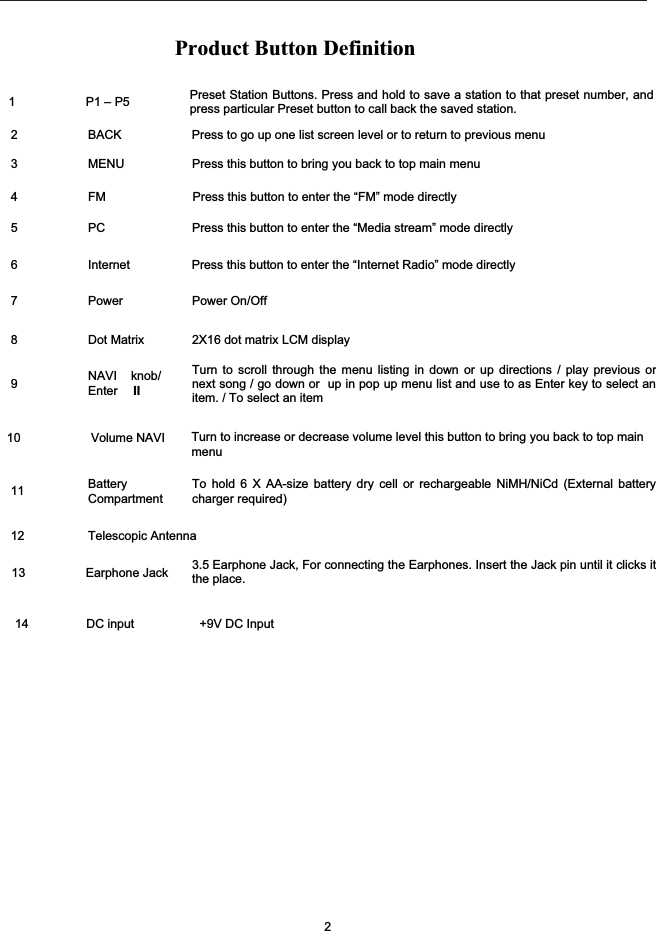
Product Button Definition7 Power Power On/Off10 Volume NAVI3 MENU Press this button to bring you back to top main menu14 DC input +9V DC Input9NAVI knob/Enter IITurn to scroll through the menu listing in down or up directions / play previous ornext song / go down or up in pop up menu list and use to as Enter key to select anitem. / To select an item8 Dot Matrix 2X16 dot matrix LCM display4 FM Press this button to enter the “FM” mode directly5 PC Press this button to enter the “Media stream” mode directly6 Internet                  Press this button to enter the “Internet Radio” mode directly11 BatteryCompartmentTo hold 6 X AA-size battery dry cell or rechargeable NiMH/NiCd (External batterycharger required)12 Telescopic Antenna23.5 Earphone Jack, For connecting the Earphones. Insert the Jack pin until it clicks itthe place.13 Earphone Jack2 BACK Press to go up one list screen level or to return to previous menu Preset Station Buttons. Press and hold to save a station to that preset number, andpress particular Preset button to call back the saved station.1 P1 – P5 Turn to increase or decrease volume level this button to bring you back to top main menu
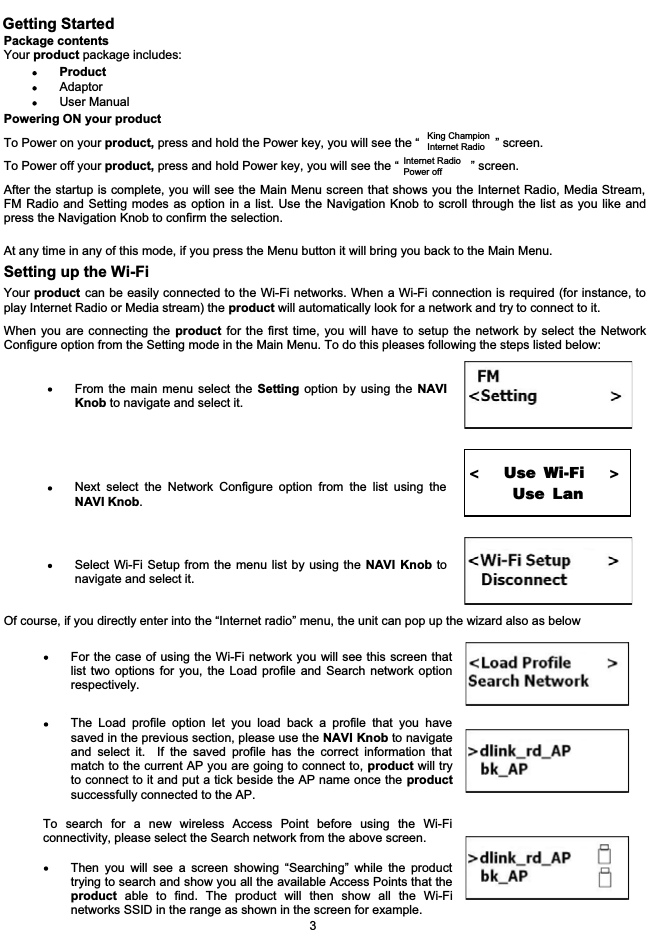
Getting StartedPackage contentsYour product package includes:ProductAdaptorUser Manual Powering ON your productTo Power on your product, press and hold the Power key, you will see the “                      ” screen.To Power off your product, press and hold Power key, you will see the “                     ” screen.After the startup is complete, you will see the Main Menu screen that shows you the Internet Radio, Media Stream,FM Radio and Setting modes as option in a list. Use the Navigation Knob to scroll through the list as you like andpress the Navigation Knob to confirm the selection.At any time in any of this mode, if you press the Menu button it will bring you back to the Main Menu.Setting up the Wi-FiYour product can be easily connected to the Wi-Fi networks. When a Wi-Fi connection is required (for instance, toplay Internet Radio or Media stream) the product will automatically look for a network and try to connect to it.When you are connecting the product for the first time, you will have to setup the network by select the NetworkConfigure option from the Setting mode in the Main Menu. To do this pleases following the steps listed below:From the main menu select the Setting option by using the NAVIKnob to navigate and select it.Next select the Network Configure option from the list using theNAVI Knob.Select Wi-Fi Setup from the menu list by using the NAVI Knob tonavigate and select it.Of course, if you directly enter into the “Internet radio” menu, the unit can pop up the wizard also as belowFor the case of using the Wi-Fi network you will see this screen thatlist two options for you, the Load profile and Search network optionrespectively.The Load profile option let you load back a profile that you havesaved in the previous section, please use the NAVI Knob to navigateand select it.  If the saved profile has the correct information thatmatch to the current AP you are going to connect to, product will tryto connect to it and put a tick beside the AP name once the productsuccessfully connected to the AP.To search for a new wireless Access Point before using the Wi-Ficonnectivity, please select the Search network from the above screen.Then you will see a screen showing “Searching” while the producttrying to search and show you all the available Access Points that theproduct able to find. The product will then show all the Wi-Finetworks SSID in the range as shown in the screen for example.3King ChampionInternet RadioInternet Radio Power off<               Use Wi-Fi                    >                    Use Lan
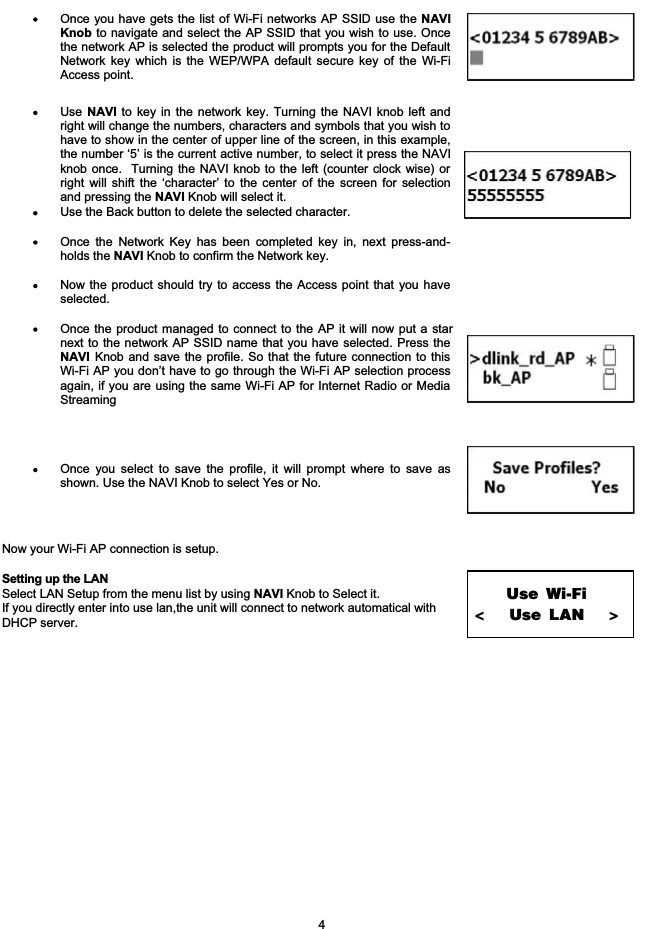
Once you have gets the list of Wi-Fi networks AP SSID use the NAVIKnob to navigate and select the AP SSID that you wish to use. Oncethe network AP is selected the product will prompts you for the DefaultNetwork key which is the WEP/WPA default secure key of the Wi-FiAccess point.Use NAVI to key in the network key. Turning the NAVI knob left andright will change the numbers, characters and symbols that you wish tohave to show in the center of upper line of the screen, in this example,the number ‘5’ is the current active number, to select it press the NAVIknob once.  Turning the NAVI knob to the left (counter clock wise) orright will shift the ‘character’ to the center of the screen for selectionand pressing the NAVI Knob will select it.Use the Back button to delete the selected character. Once the Network Key has been completed key in, next press-and-holds the NAVI Knob to confirm the Network key.Now the product should try to access the Access point that you haveselected.Once the product managed to connect to the AP it will now put a starnext to the network AP SSID name that you have selected. Press theNAVI Knob and save the profile. So that the future connection to thisWi-Fi AP you don’t have to go through the Wi-Fi AP selection processagain, if you are using the same Wi-Fi AP for Internet Radio or MediaStreamingOnce you select to save the profile, it will prompt where to save asshown. Use the NAVI Knob to select Yes or No.Now your Wi-Fi AP connection is setup. Setting up the LAN Select LAN Setup from the menu list by using NAVI Knob to Select it. If you directly enter into use lan,the unit will connect to network automatical with DHCP server.Use Wi-Fi<               Use LAN                    > 4
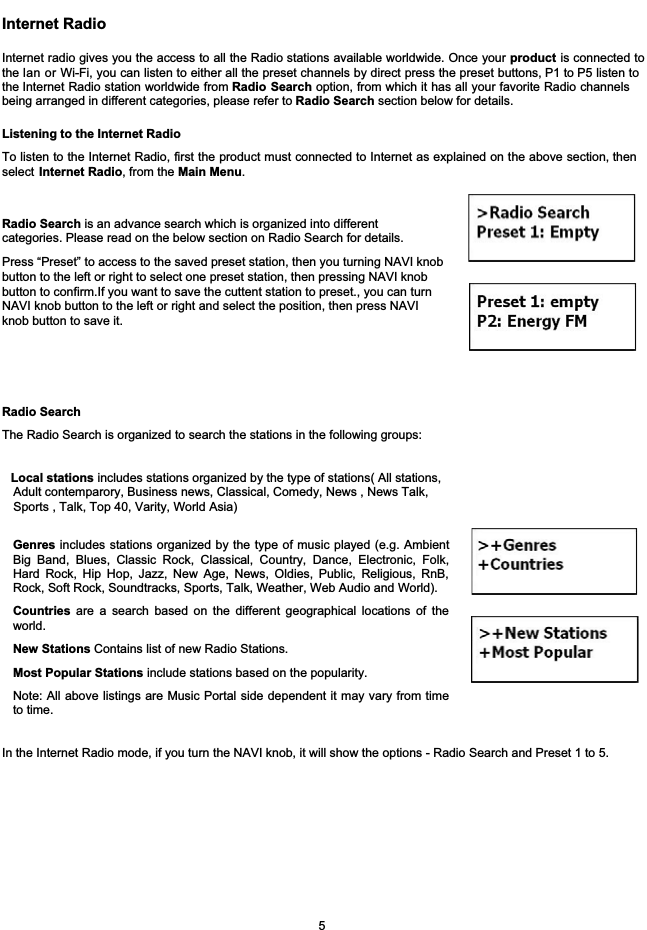
Internet RadioInternet radio gives you the access to all the Radio stations available worldwide. Once your product is connected tothe lan or Wi-Fi, you can listen to either all the preset channels by direct press the preset buttons, P1 to P5 listen tothe Internet Radio station worldwide from Radio Search option, from which it has all your favorite Radio channelsbeing arranged in different categories, please refer to Radio Search section below for details.Listening to the Internet RadioTo listen to the Internet Radio, first the product must connected to Internet as explained on the above section, thenselect Internet Radio, from the Main Menu.     Radio SearchThe Radio Search is organized to search the stations in the following groups: Genres includes stations organized by the type of music played (e.g. AmbientBig Band, Blues, Classic Rock, Classical, Country, Dance, Electronic, Folk,Hard Rock, Hip Hop, Jazz, New Age, News, Oldies, Public, Religious, RnB,Rock, Soft Rock, Soundtracks, Sports, Talk, Weather, Web Audio and World). Local stations includes stations organized by the type of stations( All stations,  Adult contemparory, Business news, Classical, Comedy, News , News Talk,   Sports , Talk, Top 40, Varity, World Asia)Countries are a search based on the different geographical locations of theworld.New Stations Contains list of new Radio Stations.Most Popular Stations include stations based on the popularity.Note: All above listings are Music Portal side dependent it may vary from timeto time. In the Internet Radio mode, if you turn the NAVI knob, it will show the options - Radio Search and Preset 1 to 5.5Radio Search is an advance search which is organized into differentcategories. Please read on the below section on Radio Search for details.Press “Preset” to access to the saved preset station, then you turning NAVI knobbutton to the left or right to select one preset station, then pressing NAVI knob button to confirm.If you want to save the cuttent station to preset., you can turn NAVI knob button to the left or right and select the position, then press NAVI knob button to save it.
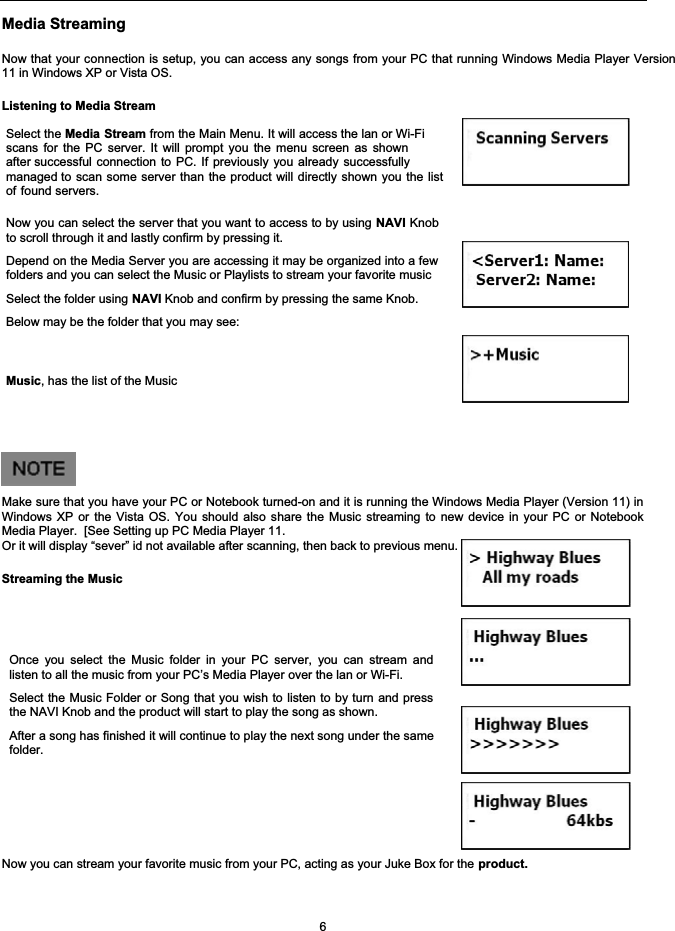
Media StreamingNow that your connection is setup, you can access any songs from your PC that running Windows Media Player Version11 in Windows XP or Vista OS.Listening to Media StreamSelect the Media Stream from the Main Menu. It will access the lan or Wi-Fi scans for the PC server. It will prompt you the menu screen as shownafter successful connection to PC. If previously you already successfullymanaged to scan some server than the product will directly shown you the listof found servers.Now you can select the server that you want to access to by using NAVI Knobto scroll through it and lastly confirm by pressing it.Depend on the Media Server you are accessing it may be organized into a fewfolders and you can select the Music or Playlists to stream your favorite musicSelect the folder using NAVI Knob and confirm by pressing the same Knob.Below may be the folder that you may see: Music, has the list of the MusicMake sure that you have your PC or Notebook turned-on and it is running the Windows Media Player (Version 11) inWindows XP or the Vista OS. You should also share the Music streaming to new device in your PC or NotebookMedia Player.  [See Setting up PC Media Player 11.Or it will display “sever” id not available after scanning, then back to previous menu.Streaming the MusicOnce you select the Music folder in your PC server, you can stream andlisten to all the music from your PC’s Media Player over the lan or Wi-Fi.Select the Music Folder or Song that you wish to listen to by turn and pressthe NAVI Knob and the product will start to play the song as shown.After a song has finished it will continue to play the next song under the samefolder.Now you can stream your favorite music from your PC, acting as your Juke Box for the product.6
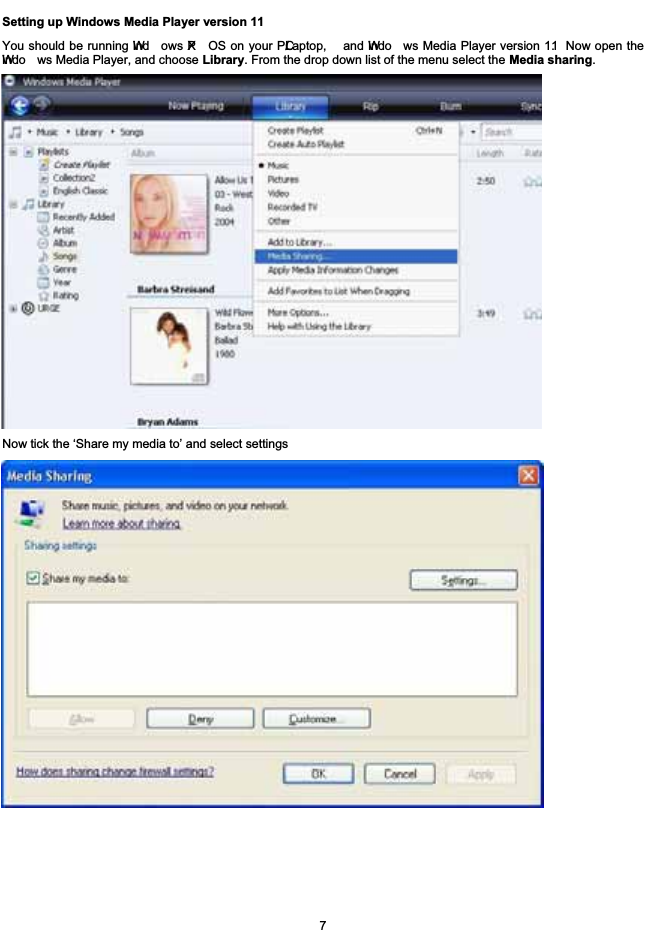
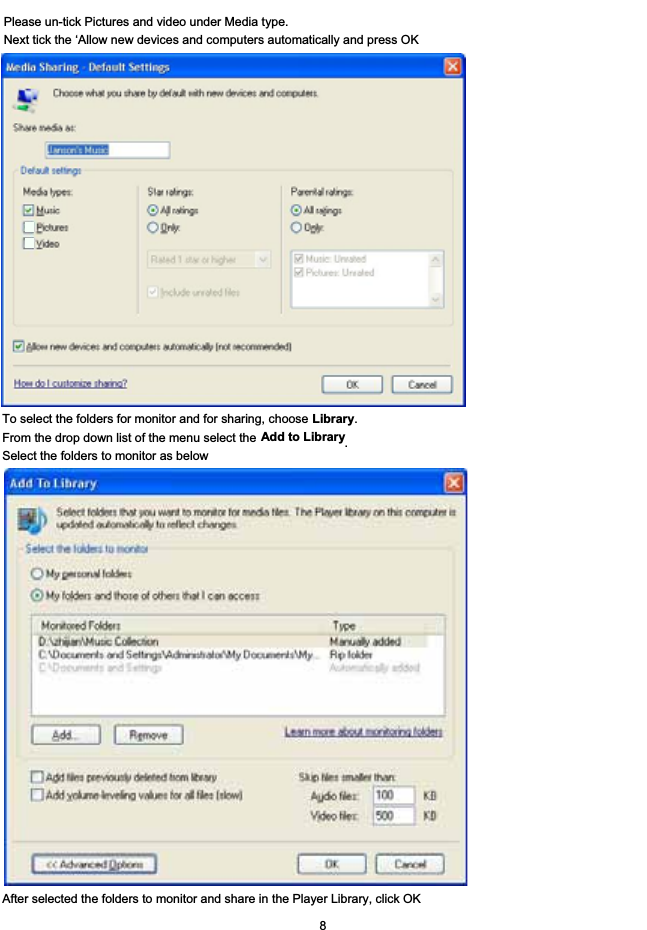
Setting up Windows Media Player version 11You should be running Wind ows XP OS on your PC/Laptop, and Windo ws Media Player version 11. Now open theWindo ws Media Player, and choose Library. From the drop down list of the menu select the Media sharing.Now tick the ‘Share my media to’ and select settings7
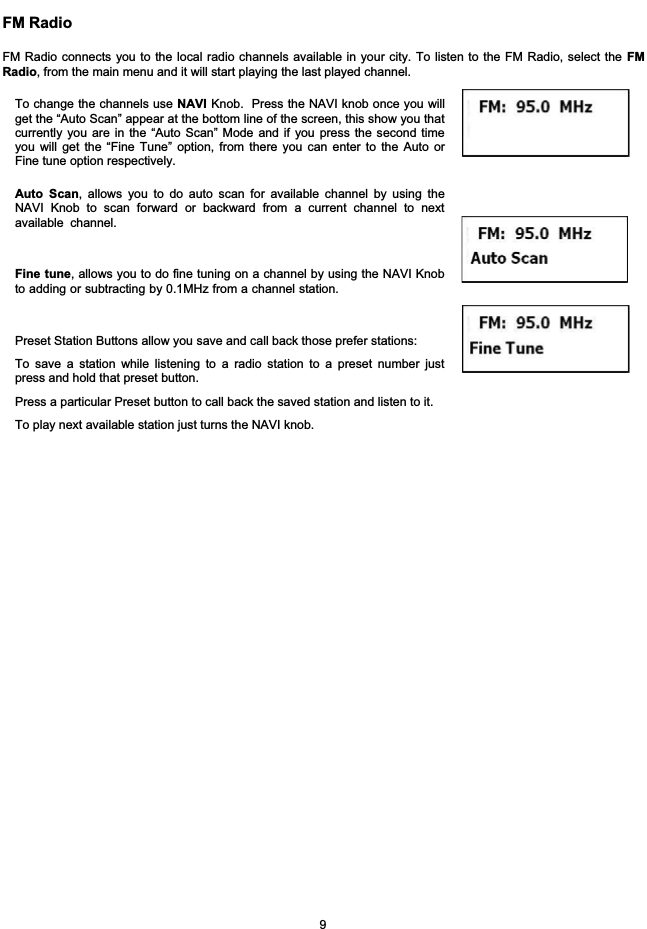
To select the folders for monitor and for sharing, choose Library.From the drop down list of the menu select the Add to Library.Select the folders to monitor as belowAfter selected the folders to monitor and share in the Player Library, click OK 8Please un-tick Pictures and video under Media type.Next tick the ‘Allow new devices and computers automatically and press OK
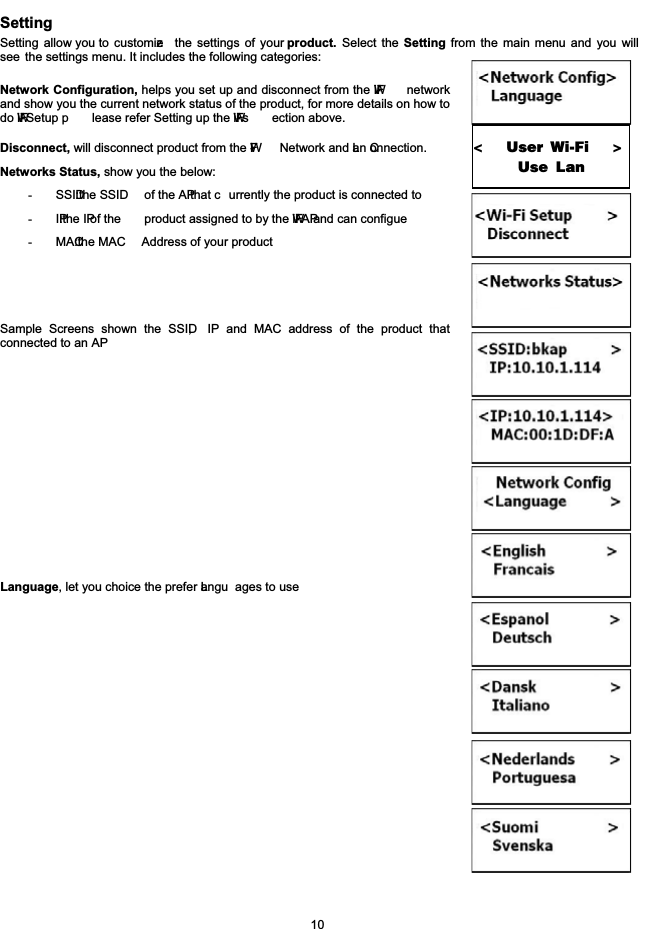
FM RadioFM Radio connects you to the local radio channels available in your city. To listen to the FM Radio, select the FMRadio, from the main menu and it will start playing the last played channel.To change the channels use NAVI Knob. Press the NAVI knob once you willget the “Auto Scan” appear at the bottom line of the screen, this show you thatcurrently you are in the “Auto Scan” Mode and if you press the second timeyou will get the “Fine Tune” option, from there you can enter to the Auto orFine tune option respectively.Auto Scan, allows you to do auto scan for available channel by using theNAVI Knob to scan forward or backward from a current channel to nextavailable channel.Fine tune, allows you to do fine tuning on a channel by using the NAVI Knobto adding or subtracting by 0.1MHz from a channel station.Preset Station Buttons allow you save and call back those prefer stations:To save a station while listening to a radio station to a preset number justpress and hold that preset button.Press a particular Preset button to call back the saved station and listen to it.To play next available station just turns the NAVI knob.9
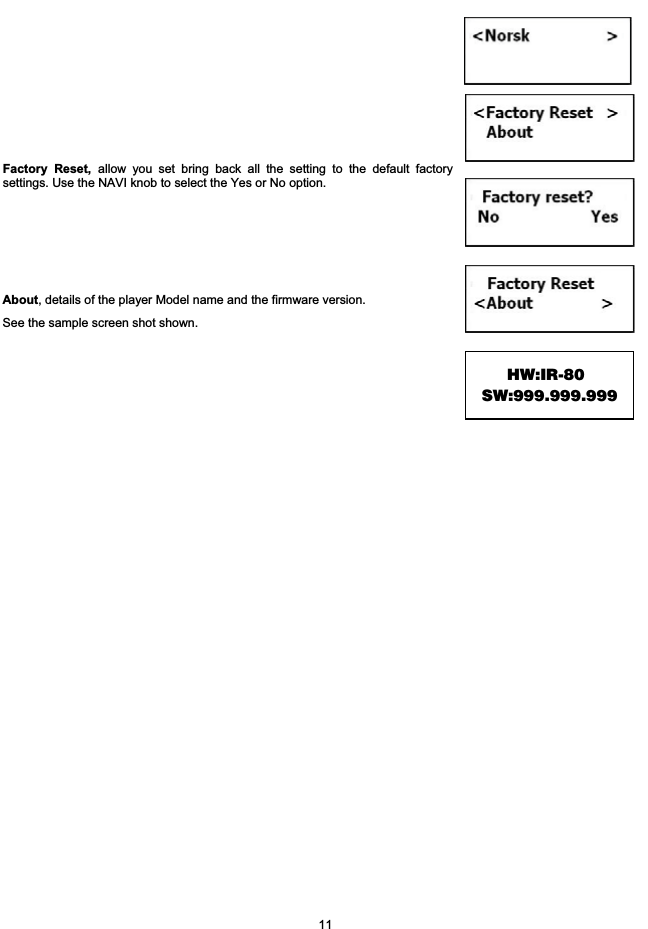
SettingSetting allow you to customize the settings of your product. Select the Setting from the main menu and you willsee the settings menu. It includes the following categories:Network Configuration, helps you set up and disconnect from the Wi-Finetworkand show you the current network status of the product, for more details on how todo Wi-Fi Setup p lease refer Setting up the Wi-Fi s ection above. Disconnect, will disconnect product from the W-Fi Network and Lan Connection.Networks Status, show you the below:-SSID: the SSID of the AP that c urrently the product is connected to-IP: the IP of the product assigned to by the Wi-Fi AP and can configue -MAC: the MAC  Address of your product Sample Screens shown the SSID, IP and MAC address of the product thatconnected to an APLanguage, let you choice the prefer Langu ages to use10<               User Wi-Fi                    >                    Use Lan
11Factory Reset, allow you set bring back all the setting to the default factorysettings. Use the NAVI knob to select the Yes or No option.About, details of the player Model name and the firmware version.See the sample screen shot shown.HW:IR-80                   SW:999.999.999
GlossaryWi-FiWi-Fi, popularly known as an acronym for wireless fidelity, was originally a brand licensed by the Wi-Fi Alliance todescribe the embedded technology of wireless local area networks (WLAN) based on the IEEE 802.11 specifications.Use of the term has now broadened to generically describe the wireless interface of mobile computing devices, suchas laptops in LANs. Wi-Fi is now increasingly used for more services, including Internet and VoIP phone access,gaming, and basic connectivity of consumer electronics such as televisions, DVD players, and digital cameras.Source - http://en.wikipedia.org/wiki/Wi-FiWEPWired Equivalent Privacy (WEP) is a scheme to secure IEEE 802.11 wireless networks. It is part of the IEEE 802.11wireless networking standard. Because wireless networks broadcast messages using radio, they are susceptible toeavesdropping.Source - http://en.wikipedia.org/wiki/Wired_Equivalent_PrivacyWPA – Enterprise Version Wi-Fi Protected Access (WPA and WPA2) is a class of Settings to secure wireless (Wi-Fi) computer networks. Itwas created in response to several serious weaknesses researchers had found in the previous Setting, WiredEquivalent Privacy (WEP). WPA implements the majority of the IEEE 802.11i standard, and was intended as anintermediate measure to take the place of WEP while 802.11i was prepared. WPA is designed to work with allwireless network interface cards, but not necessarily with first generation wireless access points. WPA2 implementsthe full standard, but will not work with some older network cards. Both provide good security, with two significantissues:Source - http://en.wikipedia.org/wiki/Wi-Fi_Protected_AccessDHCPDHCP is a set of rules used by communications devices such as a computer, router or network adapter to allow thedevice to request and obtain an IP address from a server which has a list of addresses available for assignment. DHCP is a protocol used by networked computers (clients) to obtain IP addresses and other parameters such as thedefault gateway, subnet mask, and IP addresses of DNS servers from a DHCP server. It facilitates access to anetwork because these settings would otherwise have to be made manually for the client to participate in the network.Source - http://en.wikipedia.org/wiki/Dynamic_Host_Configuration_ProtocolSSIDIn Wi-Fi Wireless LAN computer networking, a service set identifier (SSID) is a code attached to all packets on awireless network to identify each packet as part of that network. The code is a case sensitive text string whichconsists of a maximum of 32 alphanumeric characters. All wireless devices attempting to communicate with eachother must share the same SSID. Apart from identifying each packet, SSID also serves to uniquely identify a group ofwireless network devices used in a given "Service Set".Source - http://en.wikipedia.org/wiki/SSID12
Troubleshooting and FAQQuestion: When browsing the Internet Radio I got the message ‘Unformatted Channel’. What does that mean? Answer: That’s because the station is closed.Question: Why can’t I play the Music even when I have selected my Media Player?Answer: Please check whether you have shared the Music streaming of the entire new device in the Media Player11 in Windows XP or Vista. Please read setting the Windows media player 11 on page 8 Question: Why is my player not streaming even I have done the setup of the Windows media player 11?Answer: Please check if your PC or Notebook has gone to Hibernate mode. The Media streaming does not work inthe hibernate mode.Question: Can I download the music folder or music file to my Music Player?Answer: No the device do not support music file download Question: What is Radio search? And am I required to subscribe to Radio search service for my product   in order tolisten to Internet Radio?Answer: Radio search service provides online internet radio directory which aggregates tens of thousands of radiostations and podcasts. The directory maintained by Radio search are updated time to time in order to make sure themaximum level of accessibility of individual Internet Radio channel. Your product   product is shipped with bundlingRadio search service to make sure customer have seamless user experience. So, customer needs not haveindividual subscription for Radio search service. Question: How do I connect my product to a Wi-Fi network?Answer: When you use a feature that requires an internet connection, like Internet Radio and Media Stream, theproduct will automatically connect to available network. This process is called “Wi-Fi zero-configuration”. Once thenetwork is connected, you can automatically enter into the function modes.Question: What is product Wi-Fi zero-configuration? How does it work?Answer: product   Wi-Fi zero-configuration is an intelligent service used to provide end customer like you a harass-free user experience on Wi-Fi setup. It will automatically connect to open Wi-Fi access point or load saved profiles.Question: What is product Wi-Fi profile?Answer: product Wi-Fi profile is a configuration set for your Wi-Fi connection. It contains all the information you needto access a Wi-Fi access point. The profile helps you to ease the trouble to remember all the details regarding accesspoint.Question: What is Wi-Fi setup wizard?Answer: Wi-Fi setup wizard will help you setup up Wi-Fi network in step by step manner in certain special case, likewhen you access a fresh access point with security protection for the very first time. Question: How do I bring up Wi-Fi setup wizard?Answer: When Wi-Fi zero-configuration is in progress, you can switch it to choose Wi-Fi setup wizard by press the“NAVI” Knob once. Also, you may like to go into “Setting” then “Network” menu then choose the “Use LAN” or “UseWIFI” option from there. 13
Question: How do I input password for Wi-Fi security?Answer: An input screen (Soft keypad) will automatically come up when necessary. Simple soft keypad interfacegives a quick way to key in letters, numeric and symbols. You can also do simple editing like cursor locating, delete,etc.Question: What wireless standards are compatible with my product?Answer: product   is an 802.11 wireless b/g compatible device. It includes support for WEP and WPA/WPA2Personal authentication security standards. WPA/WPA2 Enterprise authentication security is not supported.Question: Why does my product only have Wi-Fi antenna icon but no signal bar? Answer: Please check your Wi-Fi access point and network server configuration on DHCP portion. This indicatesthere is no DHCP server is presented in the network environment.Question: Can I connect to public access Wi-Fi networks (hot-spot)?Answer: You can not connect to hot-spot access point because it usually needs an application level web-basedauthentication.Question: Which bit rate will my product   player support?Answer: The product player will support 64-320Kbps for MP3 and 32-320 Kbps for WMA.14Changes or modifications not expressly approved by the party responsible for compliance could void the user’s authorityto operate the equipment.”
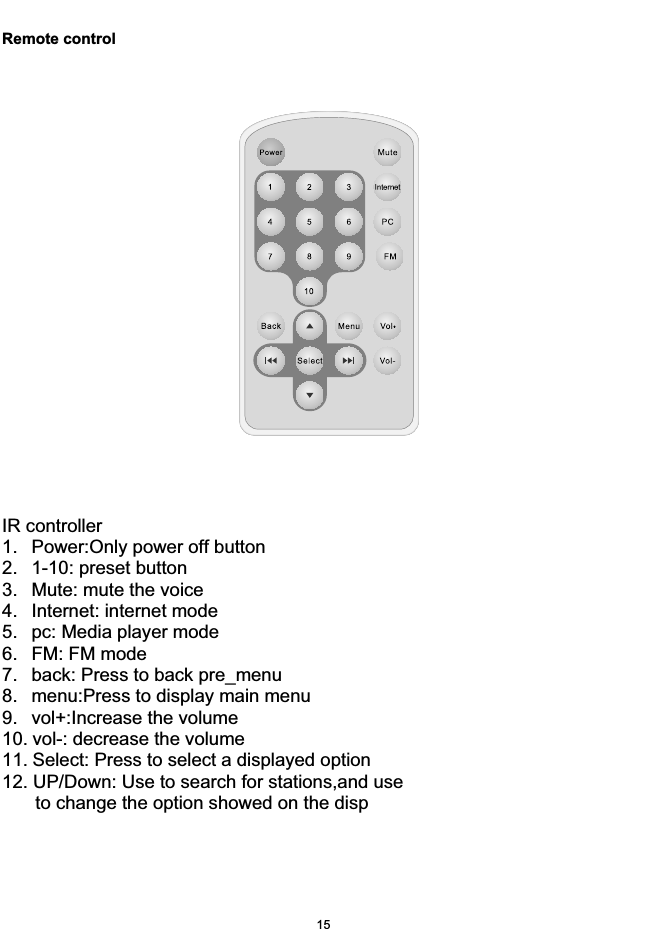
Remote controlIR controller1. Power:Only power off button 2. 1-10: preset button3. Mute: mute the voice 4. Internet: internet mode5. pc: Media player mode6. FM: FM mode7. back: Press to back pre_menu8. menu:Press to display main menu9. vol+:Increase the volume10. vol-: decrease the volume11. Select: Press to select a displayed option 12. UP/Down: Use to search for stations,and use to change the option showed on the disp 15

Navigation menu