Kingston Digital WID WI-DRIVE User Manual

Kingston Digital Inc. WI-DRIVE Users Manual

Users Manual

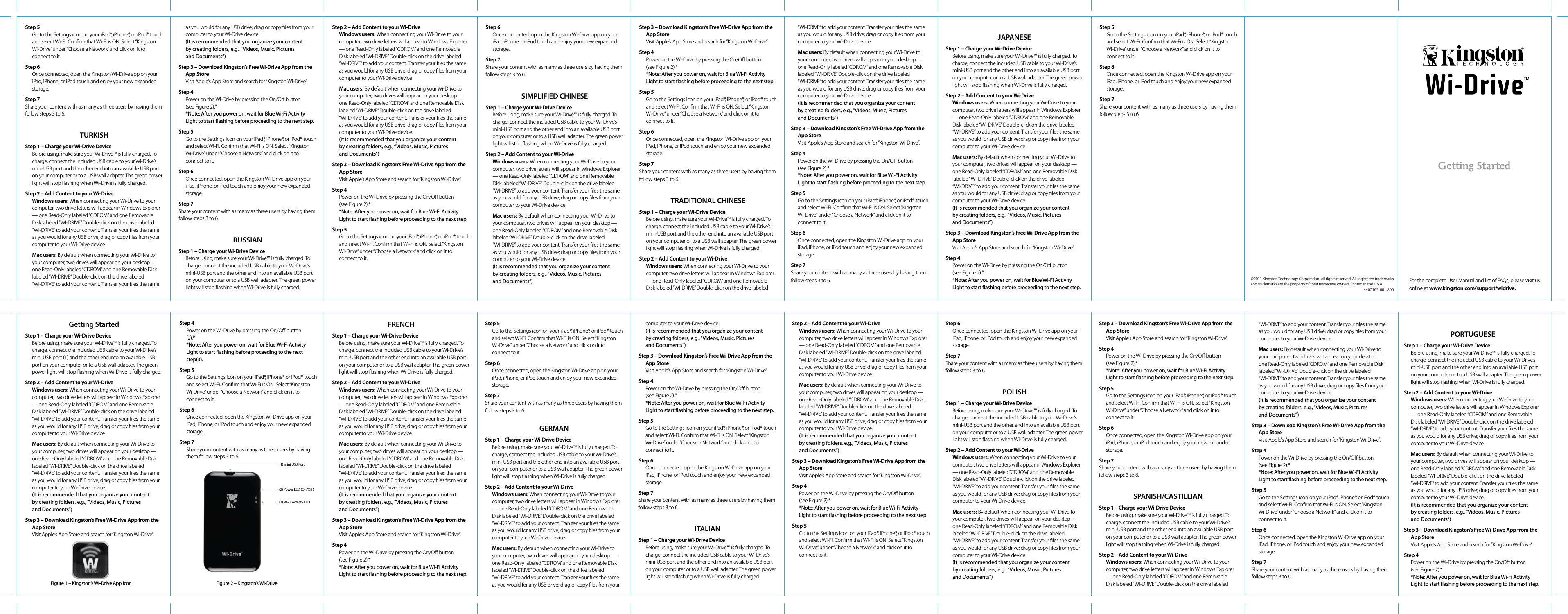
Getting StartedStep 1 – Charge your Wi-Drive DeviceBefore using, make sure your Wi-Drive™ is fully charged. To charge, connect the included USB cable to your Wi-Drive’s mini USB port (1) and the other end into an available USB port on your computer or to a USB wall adapter. The green power light will stop ashing when Wi-Drive is fully charged. Step 2 – Add Content to your Wi-Drive Windows users: When connecting your Wi-Drive to your computer, two drive letters will appear in Windows Explorer — one Read-Only labeled “CDROM” and one Removable Disk labeled “WI-DRIVE” Double-click on the drive labeled “WI-DRIVE” to add your content. Transfer your les the same as you would for any USB drive; drag or copy les from your computer to your Wi-Drive device Mac users: By default when connecting your Wi-Drive to your computer, two drives will appear on your desktop — one Read-Only labeled “CDROM” and one Removable Disk labeled “WI-DRIVE” Double-click on the drive labeled “WI-DRIVE” to add your content. Transfer your les the same as you would for any USB drive; drag or copy les from your computer to your Wi-Drive device.(It is recommended that you organize your content by creating folders, e.g., “Videos, Music, Pictures and Documents”) Step 3 – Download Kingston’s Free Wi-Drive App from the App StoreVisit Apple’s App Store and search for “Kingston Wi-Drive”.Step 4Power on the Wi-Drive by pressing the On/O button (2).**Note: After you power on, wait for Blue Wi-Fi Activity Light to start ashing before proceeding to the next step(3).Step 5Go to the Settings icon on your iPad®, iPhone®, or iPod® touch and select Wi-Fi. Conrm that Wi-Fi is ON. Select “Kingston Wi-Drive” under “Choose a Network” and click on it to connect to it.Step 6Once connected, open the Kingston Wi-Drive app on your iPad, iPhone, or iPod touch and enjoy your new expanded storage.Step 7Share your content with as many as three users by having them follow steps 3 to 6.FRENCHStep 1 – Charge your Wi-Drive DeviceBefore using, make sure your Wi-Drive™ is fully charged. To charge, connect the included USB cable to your Wi-Drive’s mini-USB port and the other end into an available USB port on your computer or to a USB wall adapter. The green power light will stop ashing when Wi-Drive is fully charged. Step 2 – Add Content to your Wi-Drive Windows users: When connecting your Wi-Drive to your computer, two drive letters will appear in Windows Explorer — one Read-Only labeled “CDROM” and one Removable Disk labeled “WI-DRIVE” Double-click on the drive labeled “WI-DRIVE” to add your content. Transfer your les the same as you would for any USB drive; drag or copy les from your computer to your Wi-Drive device Mac users: By default when connecting your Wi-Drive to your computer, two drives will appear on your desktop — one Read-Only labeled “CDROM” and one Removable Disk labeled “WI-DRIVE” Double-click on the drive labeled “WI-DRIVE” to add your content. Transfer your les the same as you would for any USB drive; drag or copy les from your computer to your Wi-Drive device.(It is recommended that you organize your content by creating folders, e.g., “Videos, Music, Pictures and Documents”) Step 3 – Download Kingston’s Free Wi-Drive App from the App StoreVisit Apple’s App Store and search for “Kingston Wi-Drive”.Step 4Power on the Wi-Drive by pressing the On/O button (see Figure 2).**Note: After you power on, wait for Blue Wi-Fi Activity Light to start ashing before proceeding to the next step.Step 5Go to the Settings icon on your iPad®, iPhone®, or iPod® touch and select Wi-Fi. Conrm that Wi-Fi is ON. Select “Kingston Wi-Drive” under “Choose a Network” and click on it to connect to it.Step 6Once connected, open the Kingston Wi-Drive app on your iPad, iPhone, or iPod touch and enjoy your new expanded storage.Step 7Share your content with as many as three users by having them follow steps 3 to 6. GERMANStep 1 – Charge your Wi-Drive DeviceBefore using, make sure your Wi-Drive™ is fully charged. To charge, connect the included USB cable to your Wi-Drive’s mini-USB port and the other end into an available USB port on your computer or to a USB wall adapter. The green power light will stop ashing when Wi-Drive is fully charged. Step 2 – Add Content to your Wi-Drive Windows users: When connecting your Wi-Drive to your computer, two drive letters will appear in Windows Explorer — one Read-Only labeled “CDROM” and one Removable Disk labeled “WI-DRIVE” Double-click on the drive labeled “WI-DRIVE” to add your content. Transfer your les the same as you would for any USB drive; drag or copy les from your computer to your Wi-Drive device Mac users: By default when connecting your Wi-Drive to your computer, two drives will appear on your desktop — one Read-Only labeled “CDROM” and one Removable Disk labeled “WI-DRIVE” Double-click on the drive labeled “WI-DRIVE” to add your content. Transfer your les the same as you would for any USB drive; drag or copy les from your computer to your Wi-Drive device.(It is recommended that you organize your content by creating folders, e.g., “Videos, Music, Pictures and Documents”) Step 3 – Download Kingston’s Free Wi-Drive App from the App StoreVisit Apple’s App Store and search for “Kingston Wi-Drive”.Step 4Power on the Wi-Drive by pressing the On/O button (see Figure 2).**Note: After you power on, wait for Blue Wi-Fi Activity Light to start ashing before proceeding to the next step.Step 5Go to the Settings icon on your iPad®, iPhone®, or iPod® touch and select Wi-Fi. Conrm that Wi-Fi is ON. Select “Kingston Wi-Drive” under “Choose a Network” and click on it to connect to it.Step 6Once connected, open the Kingston Wi-Drive app on your iPad, iPhone, or iPod touch and enjoy your new expanded storage.Step 7Share your content with as many as three users by having them follow steps 3 to 6. ITALIANStep 1 – Charge your Wi-Drive DeviceBefore using, make sure your Wi-Drive™ is fully charged. To charge, connect the included USB cable to your Wi-Drive’s mini-USB port and the other end into an available USB port on your computer or to a USB wall adapter. The green power light will stop ashing when Wi-Drive is fully charged. Step 2 – Add Content to your Wi-Drive Windows users: When connecting your Wi-Drive to your computer, two drive letters will appear in Windows Explorer — one Read-Only labeled “CDROM” and one Removable Disk labeled “WI-DRIVE” Double-click on the drive labeled “WI-DRIVE” to add your content. Transfer your les the same as you would for any USB drive; drag or copy les from your computer to your Wi-Drive device Mac users: By default when connecting your Wi-Drive to your computer, two drives will appear on your desktop — one Read-Only labeled “CDROM” and one Removable Disk labeled “WI-DRIVE” Double-click on the drive labeled “WI-DRIVE” to add your content. Transfer your les the same as you would for any USB drive; drag or copy les from your computer to your Wi-Drive device.(It is recommended that you organize your content by creating folders, e.g., “Videos, Music, Pictures and Documents”) Step 3 – Download Kingston’s Free Wi-Drive App from the App StoreVisit Apple’s App Store and search for “Kingston Wi-Drive”.Step 4Power on the Wi-Drive by pressing the On/O button (see Figure 2).**Note: After you power on, wait for Blue Wi-Fi Activity Light to start ashing before proceeding to the next step.Step 5Go to the Settings icon on your iPad®, iPhone®, or iPod® touch and select Wi-Fi. Conrm that Wi-Fi is ON. Select “Kingston Wi-Drive” under “Choose a Network” and click on it to connect to it.Step 6Once connected, open the Kingston Wi-Drive app on your iPad, iPhone, or iPod touch and enjoy your new expanded storage.Step 7Share your content with as many as three users by having them follow steps 3 to 6. POLISHStep 1 – Charge your Wi-Drive DeviceBefore using, make sure your Wi-Drive™ is fully charged. To charge, connect the included USB cable to your Wi-Drive’s mini-USB port and the other end into an available USB port on your computer or to a USB wall adapter. The green power light will stop ashing when Wi-Drive is fully charged. Step 2 – Add Content to your Wi-Drive Windows users: When connecting your Wi-Drive to your computer, two drive letters will appear in Windows Explorer — one Read-Only labeled “CDROM” and one Removable Disk labeled “WI-DRIVE” Double-click on the drive labeled “WI-DRIVE” to add your content. Transfer your les the same as you would for any USB drive; drag or copy les from your computer to your Wi-Drive device Mac users: By default when connecting your Wi-Drive to your computer, two drives will appear on your desktop — one Read-Only labeled “CDROM” and one Removable Disk labeled “WI-DRIVE” Double-click on the drive labeled “WI-DRIVE” to add your content. Transfer your les the same as you would for any USB drive; drag or copy les from your computer to your Wi-Drive device.(It is recommended that you organize your content by creating folders, e.g., “Videos, Music, Pictures and Documents”) Step 3 – Download Kingston’s Free Wi-Drive App from the App StoreVisit Apple’s App Store and search for “Kingston Wi-Drive”.Step 4Power on the Wi-Drive by pressing the On/O button (see Figure 2).**Note: After you power on, wait for Blue Wi-Fi Activity Light to start ashing before proceeding to the next step.Step 5Go to the Settings icon on your iPad®, iPhone®, or iPod® touch and select Wi-Fi. Conrm that Wi-Fi is ON. Select “Kingston Wi-Drive” under “Choose a Network” and click on it to connect to it.Step 6Once connected, open the Kingston Wi-Drive app on your iPad, iPhone, or iPod touch and enjoy your new expanded storage.Step 7Share your content with as many as three users by having them follow steps 3 to 6. SPANISH/CASTILLIANStep 1 – Charge your Wi-Drive DeviceBefore using, make sure your Wi-Drive™ is fully charged. To charge, connect the included USB cable to your Wi-Drive’s mini-USB port and the other end into an available USB port on your computer or to a USB wall adapter. The green power light will stop ashing when Wi-Drive is fully charged. Step 2 – Add Content to your Wi-Drive Windows users: When connecting your Wi-Drive to your computer, two drive letters will appear in Windows Explorer — one Read-Only labeled “CDROM” and one Removable Disk labeled “WI-DRIVE” Double-click on the drive labeled as you would for any USB drive; drag or copy les from your computer to your Wi-Drive device.(It is recommended that you organize your content by creating folders, e.g., “Videos, Music, Pictures and Documents”) Step 3 – Download Kingston’s Free Wi-Drive App from the App StoreVisit Apple’s App Store and search for “Kingston Wi-Drive”.Step 4Power on the Wi-Drive by pressing the On/O button (see Figure 2).**Note: After you power on, wait for Blue Wi-Fi Activity Light to start ashing before proceeding to the next step.Step 5Go to the Settings icon on your iPad®, iPhone®, or iPod® touch and select Wi-Fi. Conrm that Wi-Fi is ON. Select “Kingston Wi-Drive” under “Choose a Network” and click on it to connect to it.Step 6Once connected, open the Kingston Wi-Drive app on your iPad, iPhone, or iPod touch and enjoy your new expanded storage.Step 7Share your content with as many as three users by having them follow steps 3 to 6.RUSSIANStep 1 – Charge your Wi-Drive DeviceBefore using, make sure your Wi-Drive™ is fully charged. To charge, connect the included USB cable to your Wi-Drive’s mini-USB port and the other end into an available USB port on your computer or to a USB wall adapter. The green power light will stop ashing when Wi-Drive is fully charged. Step 2 – Add Content to your Wi-Drive Windows users: When connecting your Wi-Drive to your computer, two drive letters will appear in Windows Explorer — one Read-Only labeled “CDROM” and one Removable Disk labeled “WI-DRIVE” Double-click on the drive labeled “WI-DRIVE” to add your content. Transfer your les the same as you would for any USB drive; drag or copy les from your computer to your Wi-Drive device Mac users: By default when connecting your Wi-Drive to your computer, two drives will appear on your desktop — one Read-Only labeled “CDROM” and one Removable Disk labeled “WI-DRIVE” Double-click on the drive labeled “WI-DRIVE” to add your content. Transfer your les the same as you would for any USB drive; drag or copy les from your computer to your Wi-Drive device.(It is recommended that you organize your content by creating folders, e.g., “Videos, Music, Pictures and Documents”) Step 3 – Download Kingston’s Free Wi-Drive App from the App StoreVisit Apple’s App Store and search for “Kingston Wi-Drive”.Step 4Power on the Wi-Drive by pressing the On/O button (see Figure 2).**Note: After you power on, wait for Blue Wi-Fi Activity Light to start ashing before proceeding to the next step.Step 5Go to the Settings icon on your iPad®, iPhone®, or iPod® touch and select Wi-Fi. Conrm that Wi-Fi is ON. Select “Kingston Wi-Drive” under “Choose a Network” and click on it to connect to it.Step 6Once connected, open the Kingston Wi-Drive app on your iPad, iPhone, or iPod touch and enjoy your new expanded storage.Step 7Share your content with as many as three users by having them follow steps 3 to 6. SIMPLIFIED CHINESEStep 1 – Charge your Wi-Drive DeviceBefore using, make sure your Wi-Drive™ is fully charged. To charge, connect the included USB cable to your Wi-Drive’s mini-USB port and the other end into an available USB port on your computer or to a USB wall adapter. The green power light will stop ashing when Wi-Drive is fully charged. Step 2 – Add Content to your Wi-Drive Windows users: When connecting your Wi-Drive to your computer, two drive letters will appear in Windows Explorer — one Read-Only labeled “CDROM” and one Removable Disk labeled “WI-DRIVE” Double-click on the drive labeled “WI-DRIVE” to add your content. Transfer your les the same as you would for any USB drive; drag or copy les from your computer to your Wi-Drive device Mac users: By default when connecting your Wi-Drive to your computer, two drives will appear on your desktop — one Read-Only labeled “CDROM” and one Removable Disk labeled “WI-DRIVE” Double-click on the drive labeled “WI-DRIVE” to add your content. Transfer your les the same as you would for any USB drive; drag or copy les from your computer to your Wi-Drive device.(It is recommended that you organize your content by creating folders, e.g., “Videos, Music, Pictures and Documents”) “WI-DRIVE” to add your content. Transfer your les the same as you would for any USB drive; drag or copy les from your computer to your Wi-Drive device Mac users: By default when connecting your Wi-Drive to your computer, two drives will appear on your desktop — one Read-Only labeled “CDROM” and one Removable Disk labeled “WI-DRIVE” Double-click on the drive labeled “WI-DRIVE” to add your content. Transfer your les the same as you would for any USB drive; drag or copy les from your computer to your Wi-Drive device.(It is recommended that you organize your content by creating folders, e.g., “Videos, Music, Pictures and Documents”) Step 3 – Download Kingston’s Free Wi-Drive App from the App StoreVisit Apple’s App Store and search for “Kingston Wi-Drive”.Step 4Power on the Wi-Drive by pressing the On/O button (see Figure 2).**Note: After you power on, wait for Blue Wi-Fi Activity Light to start ashing before proceeding to the next step.Step 5Go to the Settings icon on your iPad®, iPhone®, or iPod® touch and select Wi-Fi. Conrm that Wi-Fi is ON. Select “Kingston Wi-Drive” under “Choose a Network” and click on it to connect to it.Step 6Once connected, open the Kingston Wi-Drive app on your iPad, iPhone, or iPod touch and enjoy your new expanded storage.Step 7Share your content with as many as three users by having them follow steps 3 to 6.PORTUGUESEStep 1 – Charge your Wi-Drive DeviceBefore using, make sure your Wi-Drive™ is fully charged. To charge, connect the included USB cable to your Wi-Drive’s mini-USB port and the other end into an available USB port on your computer or to a USB wall adapter. The green power light will stop ashing when Wi-Drive is fully charged. Step 2 – Add Content to your Wi-Drive Windows users: When connecting your Wi-Drive to your computer, two drive letters will appear in Windows Explorer — one Read-Only labeled “CDROM” and one Removable Disk labeled “WI-DRIVE” Double-click on the drive labeled “WI-DRIVE” to add your content. Transfer your les the same as you would for any USB drive; drag or copy les from your computer to your Wi-Drive device Mac users: By default when connecting your Wi-Drive to your computer, two drives will appear on your desktop — one Read-Only labeled “CDROM” and one Removable Disk labeled “WI-DRIVE” Double-click on the drive labeled “WI-DRIVE” to add your content. Transfer your les the same as you would for any USB drive; drag or copy les from your computer to your Wi-Drive device.(It is recommended that you organize your content by creating folders, e.g., “Videos, Music, Pictures and Documents”) Step 3 – Download Kingston’s Free Wi-Drive App from the App StoreVisit Apple’s App Store and search for “Kingston Wi-Drive”.Step 4Power on the Wi-Drive by pressing the On/O button (see Figure 2).**Note: After you power on, wait for Blue Wi-Fi Activity Light to start ashing before proceeding to the next step.Step 5Go to the Settings icon on your iPad®, iPhone®, or iPod® touch and select Wi-Fi. Conrm that Wi-Fi is ON. Select “Kingston Wi-Drive” under “Choose a Network” and click on it to connect to it.Step 6Once connected, open the Kingston Wi-Drive app on your iPad, iPhone, or iPod touch and enjoy your new expanded storage.Step 7Share your content with as many as three users by having them follow steps 3 to 6. TURKISHStep 1 – Charge your Wi-Drive DeviceBefore using, make sure your Wi-Drive™ is fully charged. To charge, connect the included USB cable to your Wi-Drive’s mini-USB port and the other end into an available USB port on your computer or to a USB wall adapter. The green power light will stop ashing when Wi-Drive is fully charged. Step 2 – Add Content to your Wi-Drive Windows users: When connecting your Wi-Drive to your computer, two drive letters will appear in Windows Explorer — one Read-Only labeled “CDROM” and one Removable Disk labeled “WI-DRIVE” Double-click on the drive labeled “WI-DRIVE” to add your content. Transfer your les the same as you would for any USB drive; drag or copy les from your computer to your Wi-Drive device Mac users: By default when connecting your Wi-Drive to your computer, two drives will appear on your desktop — one Read-Only labeled “CDROM” and one Removable Disk labeled “WI-DRIVE” Double-click on the drive labeled “WI-DRIVE” to add your content. Transfer your les the same Step 3 – Download Kingston’s Free Wi-Drive App from the App StoreVisit Apple’s App Store and search for “Kingston Wi-Drive”.Step 4Power on the Wi-Drive by pressing the On/O button (see Figure 2).**Note: After you power on, wait for Blue Wi-Fi Activity Light to start ashing before proceeding to the next step.Step 5Go to the Settings icon on your iPad®, iPhone®, or iPod® touch and select Wi-Fi. Conrm that Wi-Fi is ON. Select “Kingston Wi-Drive” under “Choose a Network” and click on it to connect to it.Step 6Once connected, open the Kingston Wi-Drive app on your iPad, iPhone, or iPod touch and enjoy your new expanded storage.Step 7Share your content with as many as three users by having them follow steps 3 to 6. TRADITIONAL CHINESEStep 1 – Charge your Wi-Drive DeviceBefore using, make sure your Wi-Drive™ is fully charged. To charge, connect the included USB cable to your Wi-Drive’s mini-USB port and the other end into an available USB port on your computer or to a USB wall adapter. The green power light will stop ashing when Wi-Drive is fully charged. Step 2 – Add Content to your Wi-Drive Windows users: When connecting your Wi-Drive to your computer, two drive letters will appear in Windows Explorer — one Read-Only labeled “CDROM” and one Removable Disk labeled “WI-DRIVE” Double-click on the drive labeled “WI-DRIVE” to add your content. Transfer your les the same as you would for any USB drive; drag or copy les from your computer to your Wi-Drive device Mac users: By default when connecting your Wi-Drive to your computer, two drives will appear on your desktop — one Read-Only labeled “CDROM” and one Removable Disk labeled “WI-DRIVE” Double-click on the drive labeled “WI-DRIVE” to add your content. Transfer your les the same as you would for any USB drive; drag or copy les from your computer to your Wi-Drive device.(It is recommended that you organize your content by creating folders, e.g., “Videos, Music, Pictures and Documents”) Step 3 – Download Kingston’s Free Wi-Drive App from the App StoreVisit Apple’s App Store and search for “Kingston Wi-Drive”.Step 4Power on the Wi-Drive by pressing the On/O button (see Figure 2).**Note: After you power on, wait for Blue Wi-Fi Activity Light to start ashing before proceeding to the next step.Step 5Go to the Settings icon on your iPad®, iPhone®, or iPod® touch and select Wi-Fi. Conrm that Wi-Fi is ON. Select “Kingston Wi-Drive” under “Choose a Network” and click on it to connect to it.Step 6Once connected, open the Kingston Wi-Drive app on your iPad, iPhone, or iPod touch and enjoy your new expanded storage.Step 7Share your content with as many as three users by having them follow steps 3 to 6. JAPANESEStep 1 – Charge your Wi-Drive DeviceBefore using, make sure your Wi-Drive™ is fully charged. To charge, connect the included USB cable to your Wi-Drive’s mini-USB port and the other end into an available USB port on your computer or to a USB wall adapter. The green power light will stop ashing when Wi-Drive is fully charged. Step 2 – Add Content to your Wi-Drive Windows users: When connecting your Wi-Drive to your computer, two drive letters will appear in Windows Explorer — one Read-Only labeled “CDROM” and one Removable Disk labeled “WI-DRIVE” Double-click on the drive labeled “WI-DRIVE” to add your content. Transfer your les the same as you would for any USB drive; drag or copy les from your computer to your Wi-Drive device Mac users: By default when connecting your Wi-Drive to your computer, two drives will appear on your desktop — one Read-Only labeled “CDROM” and one Removable Disk labeled “WI-DRIVE” Double-click on the drive labeled “WI-DRIVE” to add your content. Transfer your les the same as you would for any USB drive; drag or copy les from your computer to your Wi-Drive device.(It is recommended that you organize your content by creating folders, e.g., “Videos, Music, Pictures and Documents”) Step 3 – Download Kingston’s Free Wi-Drive App from the App StoreVisit Apple’s App Store and search for “Kingston Wi-Drive”.Step 4Power on the Wi-Drive by pressing the On/O button (see Figure 2).**Note: After you power on, wait for Blue Wi-Fi Activity Light to start ashing before proceeding to the next step.Step 5Go to the Settings icon on your iPad®, iPhone®, or iPod® touch and select Wi-Fi. Conrm that Wi-Fi is ON. Select “Kingston Wi-Drive” under “Choose a Network” and click on it to connect to it.Step 6Once connected, open the Kingston Wi-Drive app on your iPad, iPhone, or iPod touch and enjoy your new expanded storage.Step 7Share your content with as many as three users by having them follow steps 3 to 6. (2) Power LED (On/O)(3) Wi-Fi Activity LED(1) mini USB PortFigure 1 – Kingston’s Wi-Drive App Icon Figure 2 – Kingston’s Wi-Drive Getting Started©2011 Kingston Technology Corporation. All rights reserved. All registered trademarks and trademarks are the property of their respective owners Printed in the U.S.A.4402103-001.A00  For the complete User Manual and list of FAQs, please visit us online at www.kingston.com/support/widrive.
 FCC Compliance and Advisory Statement This device complies with Part 15 of the FCC rules. Operation is subject to the following two conditions:(1) this device may not cause harmful interference, and (2) this device must accept any interference received, including interference that may cause undesired operation. This equipment has been tested and found to comply with the limits for a Class B digital device, according to Part 15 of the FCC rules. These limits are designed to provide reasonable protection against harmful interference in a residential installation. This equipment generates, uses and can radiate radio frequency energy and if not installed and used in accordance with the instructions, may cause harmful interference to radio communications. However, there is no guarantee that interference will not occur in a particular installation. If this equipment does cause harmful interference to radio or television reception, which can be determined by turning the equipment off and on, the user is encouraged to try correct the interference by one or more of the following measures: 1.Reorient the receiving antenna. 2.Increase the separation between the equipment and receiver. 3.Connect the equipment into and outlet on a circuit different from that to which the receiver is connected. 4.Consult the dealer or an experienced radio/TV technician for help. Any special accessories needed for compliance must be specified in the instruction manual. Warning: A shielded-type power cord is required in order to meet FCC emission limits and also to prevent interference to the nearby radio and television reception. It is essential that only the supplied power cord be used. Use only shielded cables to connect I/O devices to this equipment. CAUSION: Any changes or modifications not expressly approved by the party responsible for compliance could void your authority to operate the equipment.  FCC ID: ZME-WID

Navigation menu