LAVA T101 Tablet User Manual

LAVA International Limited Tablet

Contents

User Manual

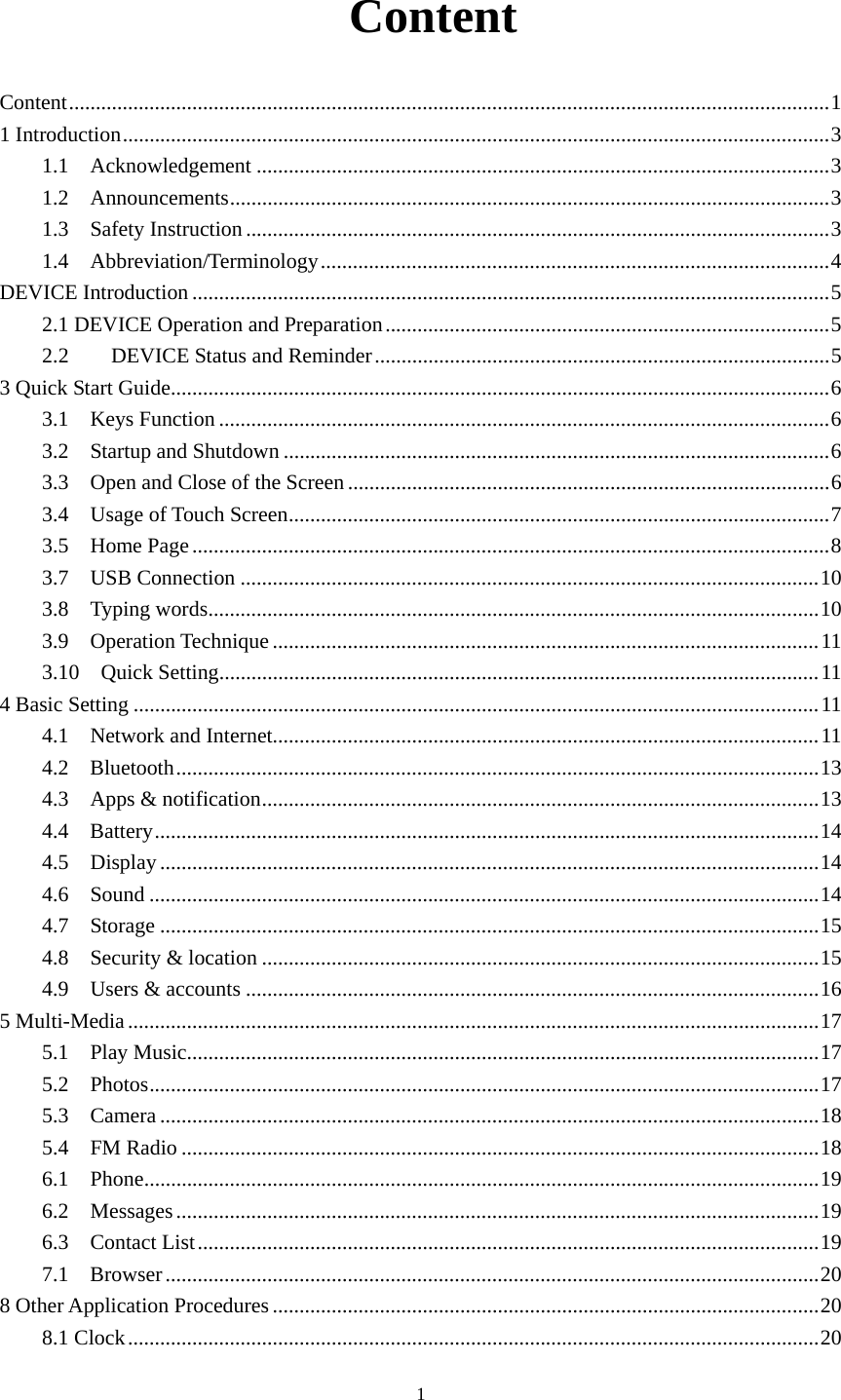
    1 Content Content .............................................................................................................................................. 11 Introduction .................................................................................................................................... 31.1  Acknowledgement ........................................................................................................... 31.2  Announcements ................................................................................................................ 31.3  Safety Instruction ............................................................................................................. 31.4  Abbreviation/Terminology ............................................................................................... 4DEVICE Introduction ....................................................................................................................... 52.1 DEVICE Operation and Preparation ................................................................................... 52.2DEVICE Status and Reminder ..................................................................................... 53 Quick Start Guide ........................................................................................................................... 63.1  Keys Function .................................................................................................................. 63.2  Startup and Shutdown ...................................................................................................... 63.3  Open and Close of the Screen .......................................................................................... 63.4  Usage of Touch Screen ..................................................................................................... 73.5  Home Page ....................................................................................................................... 83.7  USB Connection ............................................................................................................ 103.8  Typing words .................................................................................................................. 103.9  Operation Technique ...................................................................................................... 113.10  Quick Setting ................................................................................................................ 114 Basic Setting ................................................................................................................................ 114.1  Network and Internet...................................................................................................... 114.2  Bluetooth ........................................................................................................................ 134.3  Apps & notification ........................................................................................................ 134.4  Battery ............................................................................................................................ 144.5  Display ........................................................................................................................... 144.6  Sound ............................................................................................................................. 144.7  Storage ........................................................................................................................... 154.8  Security & location ........................................................................................................ 154.9  Users & accounts ........................................................................................................... 165 Multi-Media ................................................................................................................................. 175.1  Play Music...................................................................................................................... 175.2  Photos ............................................................................................................................. 175.3  Camera ........................................................................................................................... 185.4  FM Radio ....................................................................................................................... 186.1  Phone .............................................................................................................................. 196.2  Messages ........................................................................................................................ 196.3  Contact List .................................................................................................................... 197.1  Browser .......................................................................................................................... 208 Other Application Procedures ...................................................................................................... 208.1 Clock ................................................................................................................................. 20
    28.2  Calculator ....................................................................................................................... 208.3  File Manager .................................................................................................................. 209 Recorder ....................................................................................................................................... 2110 Troubles Shooting ...................................................................................................................... 21
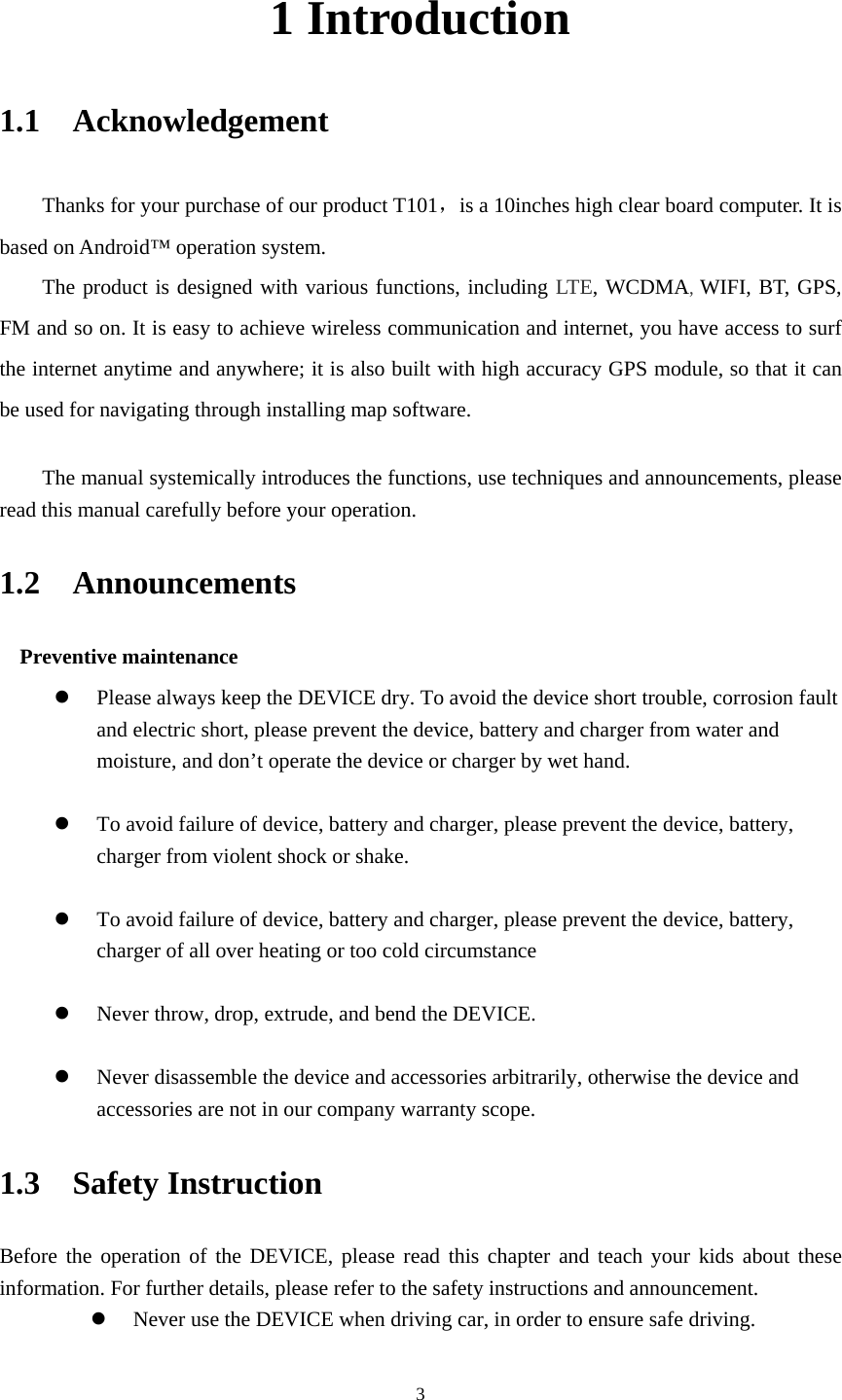
    31 Introduction 1.1  Acknowledgement   Thanks for your purchase of our product T101,is a 10inches high clear board computer. It is based on Android™ operation system. The product is designed with various functions, including LTE, WCDMA, WIFI, BT, GPS, FM and so on. It is easy to achieve wireless communication and internet, you have access to surf the internet anytime and anywhere; it is also built with high accuracy GPS module, so that it can be used for navigating through installing map software.    The manual systemically introduces the functions, use techniques and announcements, please read this manual carefully before your operation. 1.2  Announcements  Preventive maintenance    Please always keep the DEVICE dry. To avoid the device short trouble, corrosion fault and electric short, please prevent the device, battery and charger from water and moisture, and don’t operate the device or charger by wet hand.     To avoid failure of device, battery and charger, please prevent the device, battery, charger from violent shock or shake.   To avoid failure of device, battery and charger, please prevent the device, battery, charger of all over heating or too cold circumstance   Never throw, drop, extrude, and bend the DEVICE.   Never disassemble the device and accessories arbitrarily, otherwise the device and accessories are not in our company warranty scope. 1.3  Safety Instruction   Before the operation of the DEVICE, please read this chapter and teach your kids about these information. For further details, please refer to the safety instructions and announcement.  Never use the DEVICE when driving car, in order to ensure safe driving.
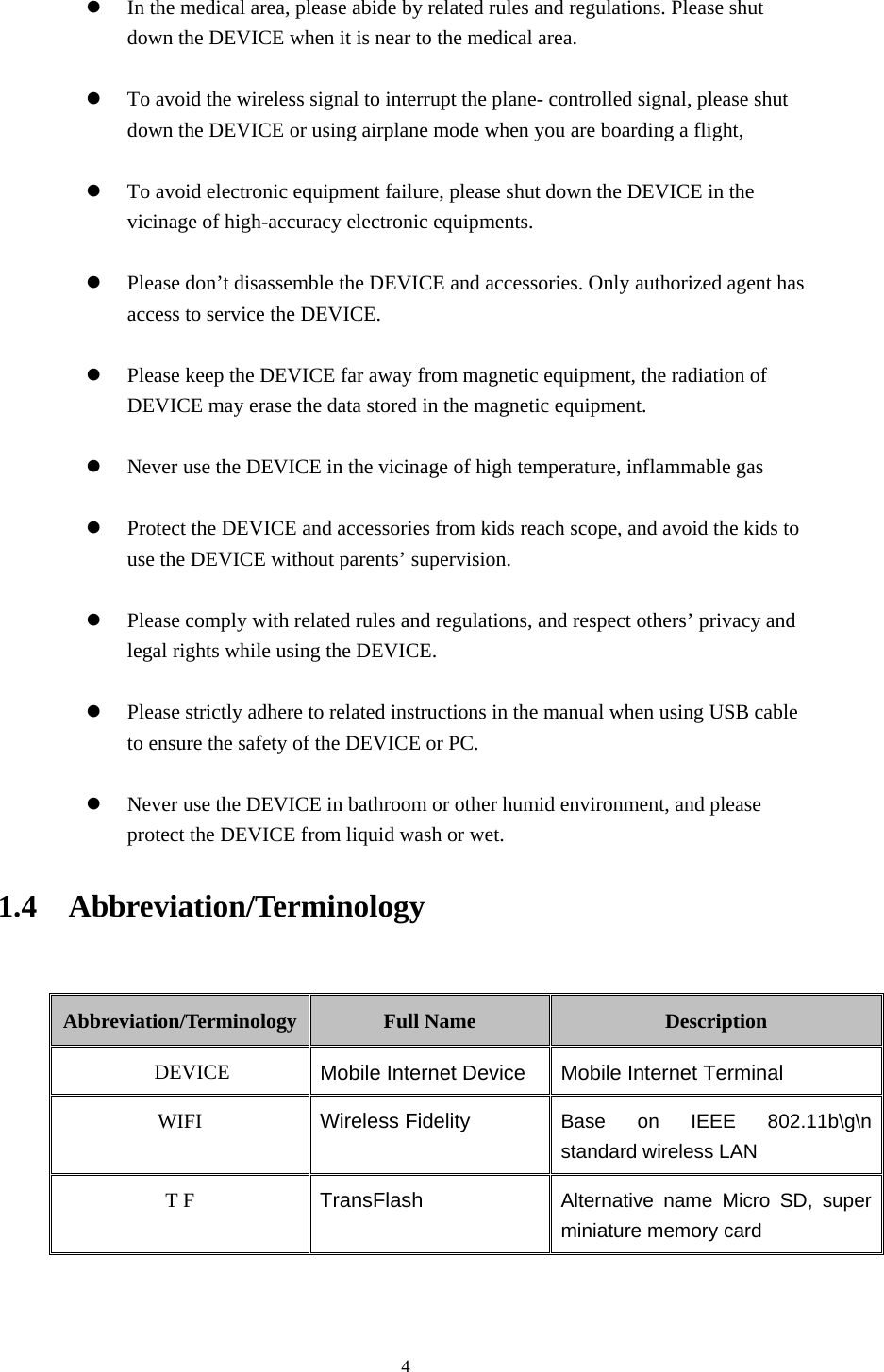
    4  In the medical area, please abide by related rules and regulations. Please shut down the DEVICE when it is near to the medical area.   To avoid the wireless signal to interrupt the plane- controlled signal, please shut down the DEVICE or using airplane mode when you are boarding a flight,     To avoid electronic equipment failure, please shut down the DEVICE in the vicinage of high-accuracy electronic equipments.   Please don’t disassemble the DEVICE and accessories. Only authorized agent has access to service the DEVICE.   Please keep the DEVICE far away from magnetic equipment, the radiation of DEVICE may erase the data stored in the magnetic equipment.   Never use the DEVICE in the vicinage of high temperature, inflammable gas     Protect the DEVICE and accessories from kids reach scope, and avoid the kids to use the DEVICE without parents’ supervision.   Please comply with related rules and regulations, and respect others’ privacy and legal rights while using the DEVICE.   Please strictly adhere to related instructions in the manual when using USB cable to ensure the safety of the DEVICE or PC.   Never use the DEVICE in bathroom or other humid environment, and please protect the DEVICE from liquid wash or wet. 1.4  Abbreviation/Terminology  Abbreviation/Terminology  Full Name  Description DEVICE  Mobile Internet Device Mobile Internet Terminal WIFI  Wireless Fidelity Base on IEEE 802.11b\g\n standard wireless LAN T F  TransFlash  Alternative name Micro SD, super miniature memory card
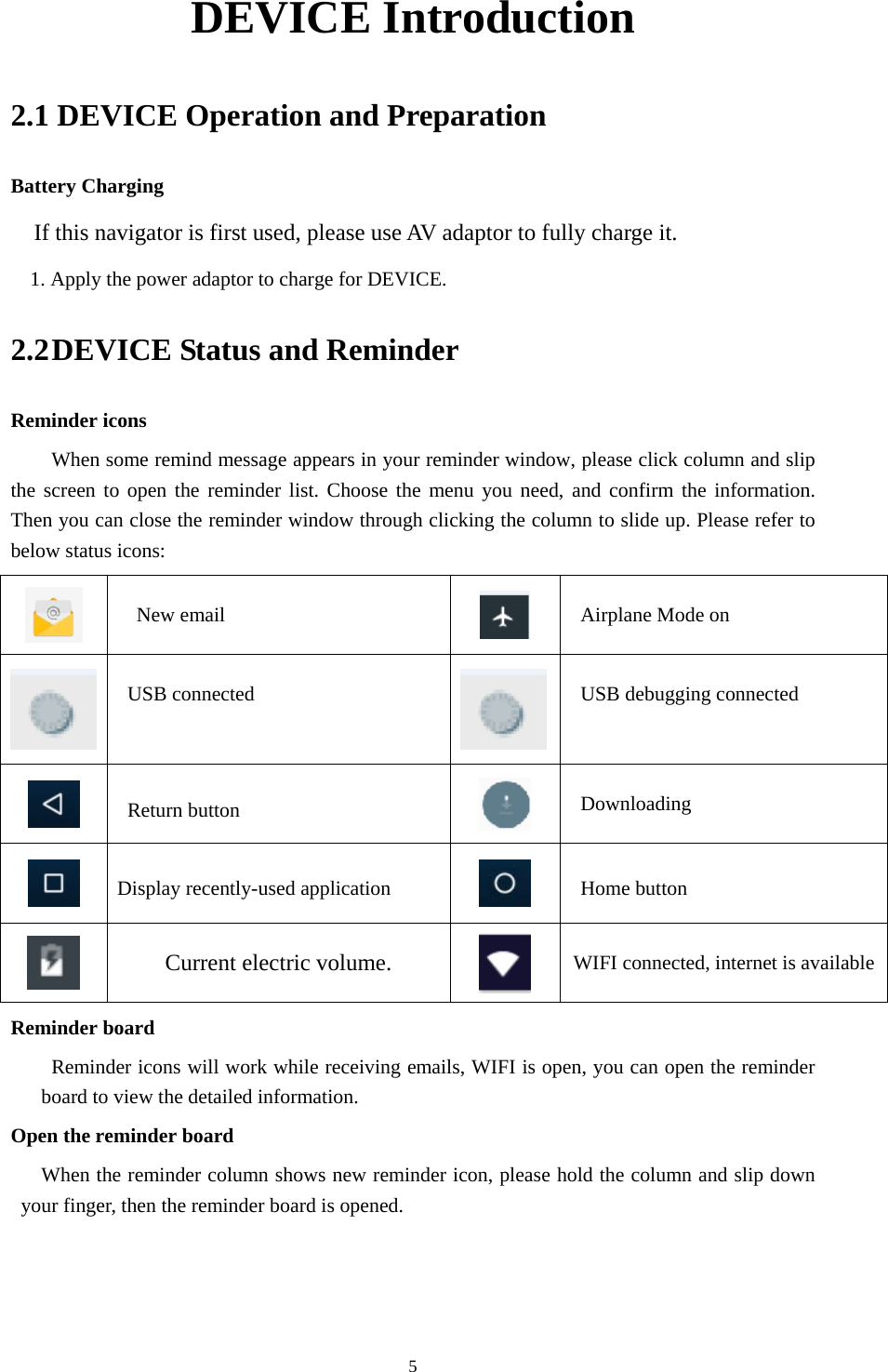
    5DEVICE Introduction 2.1 DEVICE Operation and Preparation Battery Charging If this navigator is first used, please use AV adaptor to fully charge it. 1. Apply the power adaptor to charge for DEVICE. 2.2 DEVICE Status and Reminder Reminder icons When some remind message appears in your reminder window, please click column and slip the screen to open the reminder list. Choose the menu you need, and confirm the information. Then you can close the reminder window through clicking the column to slide up. Please refer to below status icons:    New email   Airplane Mode on  USB connected  USB debugging connected  Return button  Downloading  Display recently-used application  Home button  Current electric volume.  WIFI connected, internet is availableReminder board   Reminder icons will work while receiving emails, WIFI is open, you can open the reminder board to view the detailed information. Open the reminder board When the reminder column shows new reminder icon, please hold the column and slip down your finger, then the reminder board is opened.
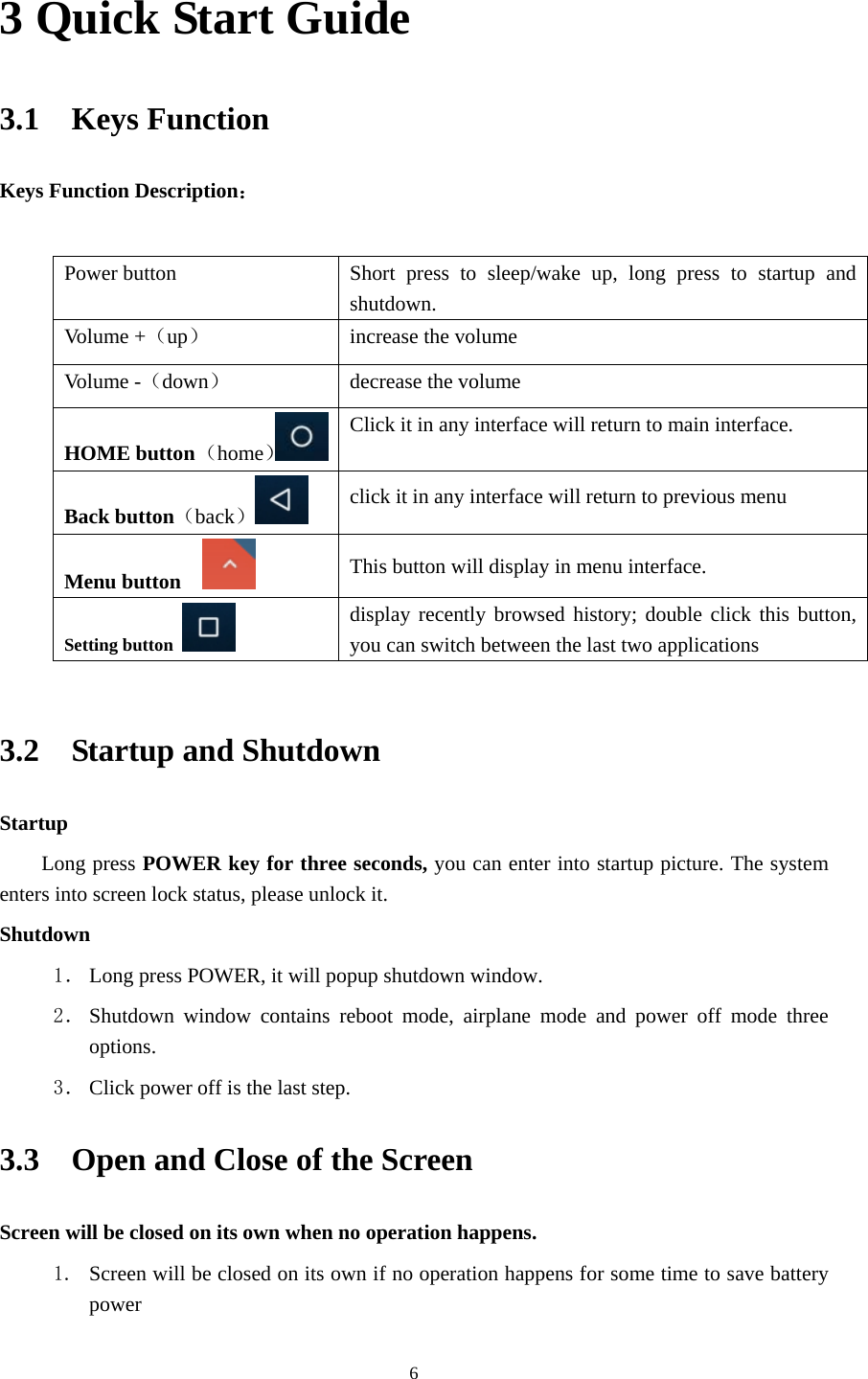
    63 Quick Start Guide 3.1  Keys Function Keys Function Description:  Power button  Short press to sleep/wake up, long press to startup and shutdown. Volume +(up)  increase the volume Volume -(down) decrease the volume HOME button (home)Click it in any interface will return to main interface.  Back button(back) click it in any interface will return to previous menu Menu button     This button will display in menu interface. Setting button   display recently browsed history; double click this button, you can switch between the last two applications  3.2  Startup and Shutdown Startup Long press POWER key for three seconds, you can enter into startup picture. The system enters into screen lock status, please unlock it. Shutdown 1. Long press POWER, it will popup shutdown window. 2. Shutdown window contains reboot mode, airplane mode and power off mode three options. 3. Click power off is the last step. 3.3    Open and Close of the Screen Screen will be closed on its own when no operation happens. 1. Screen will be closed on its own if no operation happens for some time to save battery power
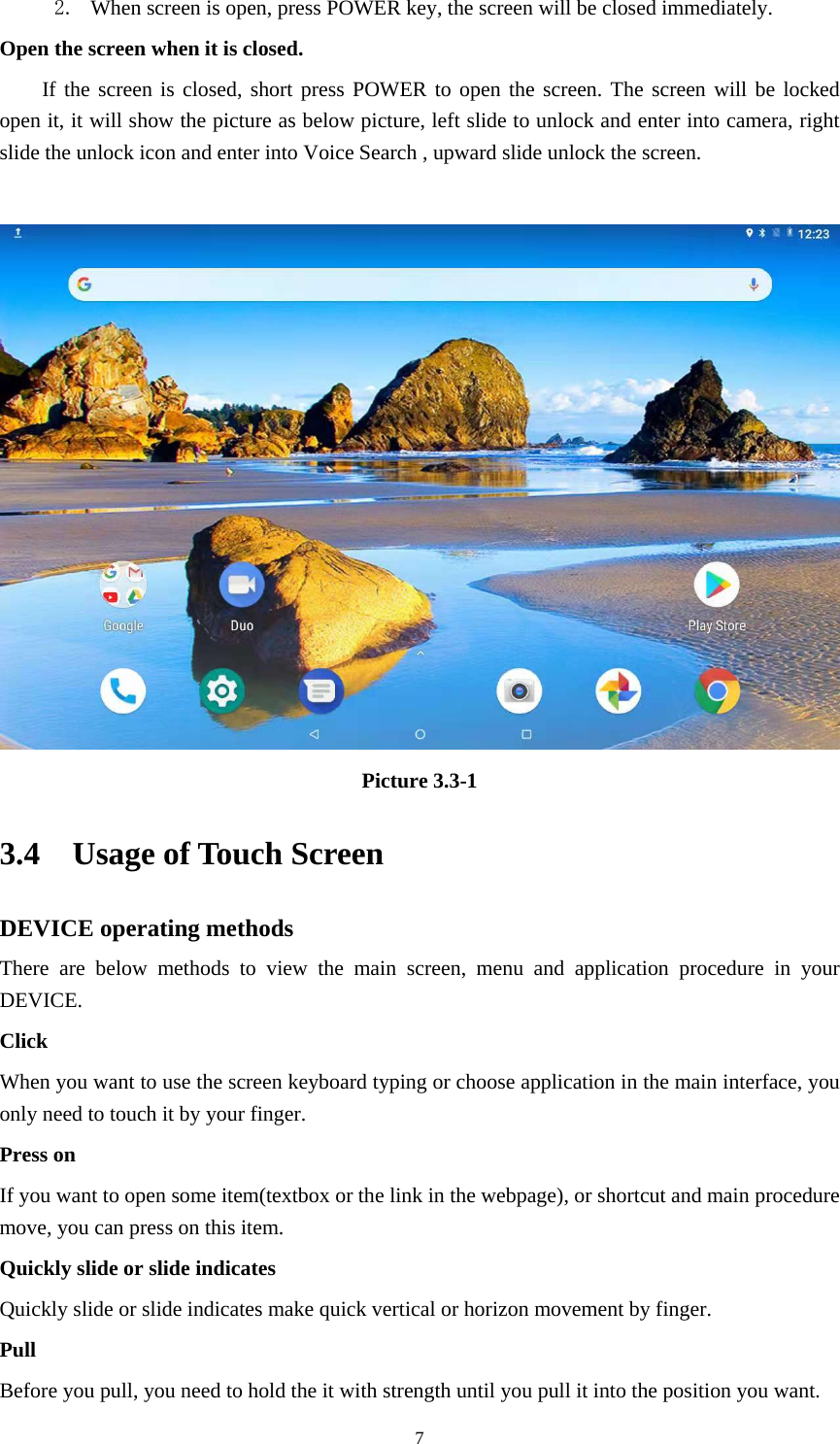
    72. When screen is open, press POWER key, the screen will be closed immediately. Open the screen when it is closed. If the screen is closed, short press POWER to open the screen. The screen will be locked open it, it will show the picture as below picture, left slide to unlock and enter into camera, right slide the unlock icon and enter into Voice Search , upward slide unlock the screen.   Picture 3.3-1 3.4  Usage of Touch Screen DEVICE operating methods There are below methods to view the main screen, menu and application procedure in your DEVICE. Click  When you want to use the screen keyboard typing or choose application in the main interface, you only need to touch it by your finger. Press on If you want to open some item(textbox or the link in the webpage), or shortcut and main procedure move, you can press on this item. Quickly slide or slide indicates Quickly slide or slide indicates make quick vertical or horizon movement by finger.   Pull  Before you pull, you need to hold the it with strength until you pull it into the position you want.
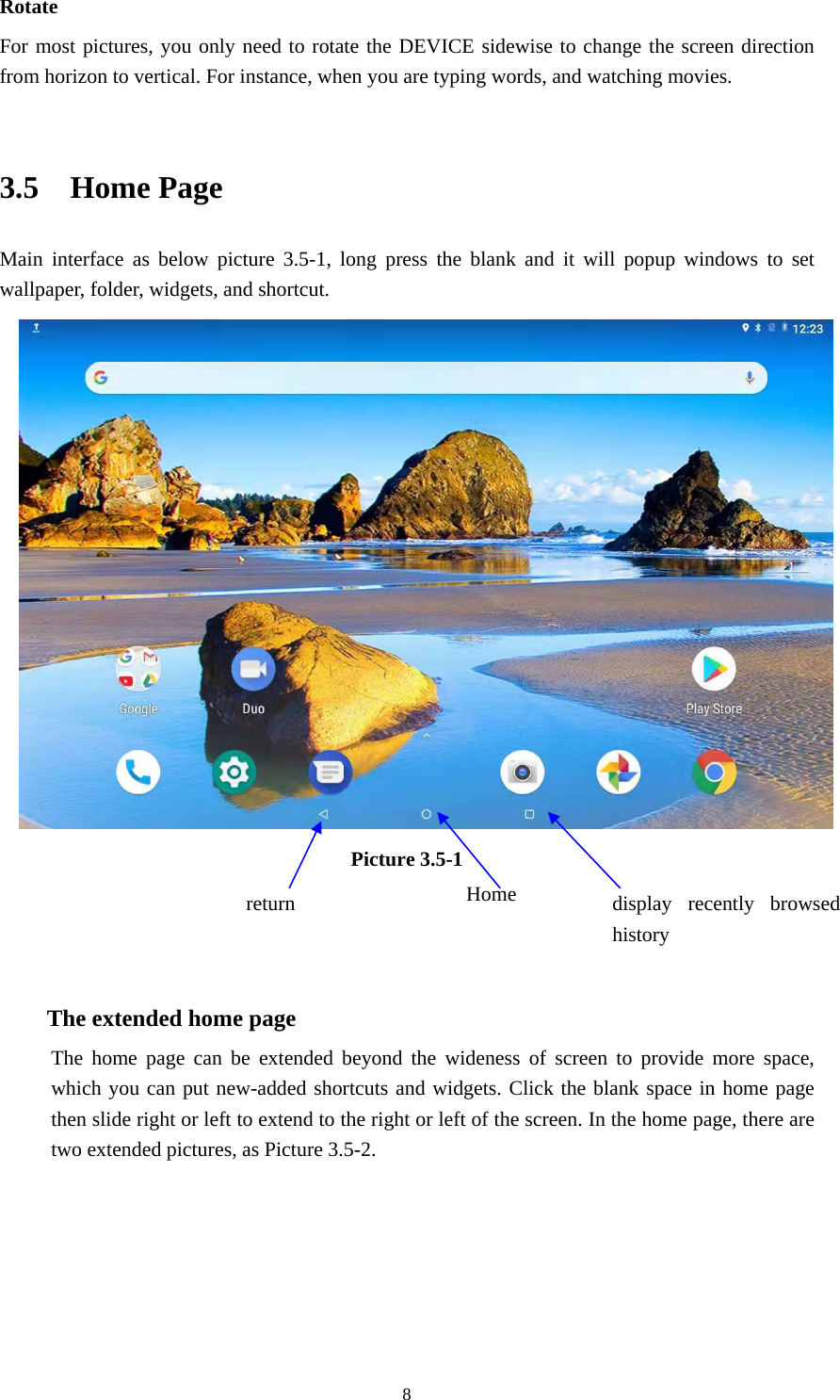
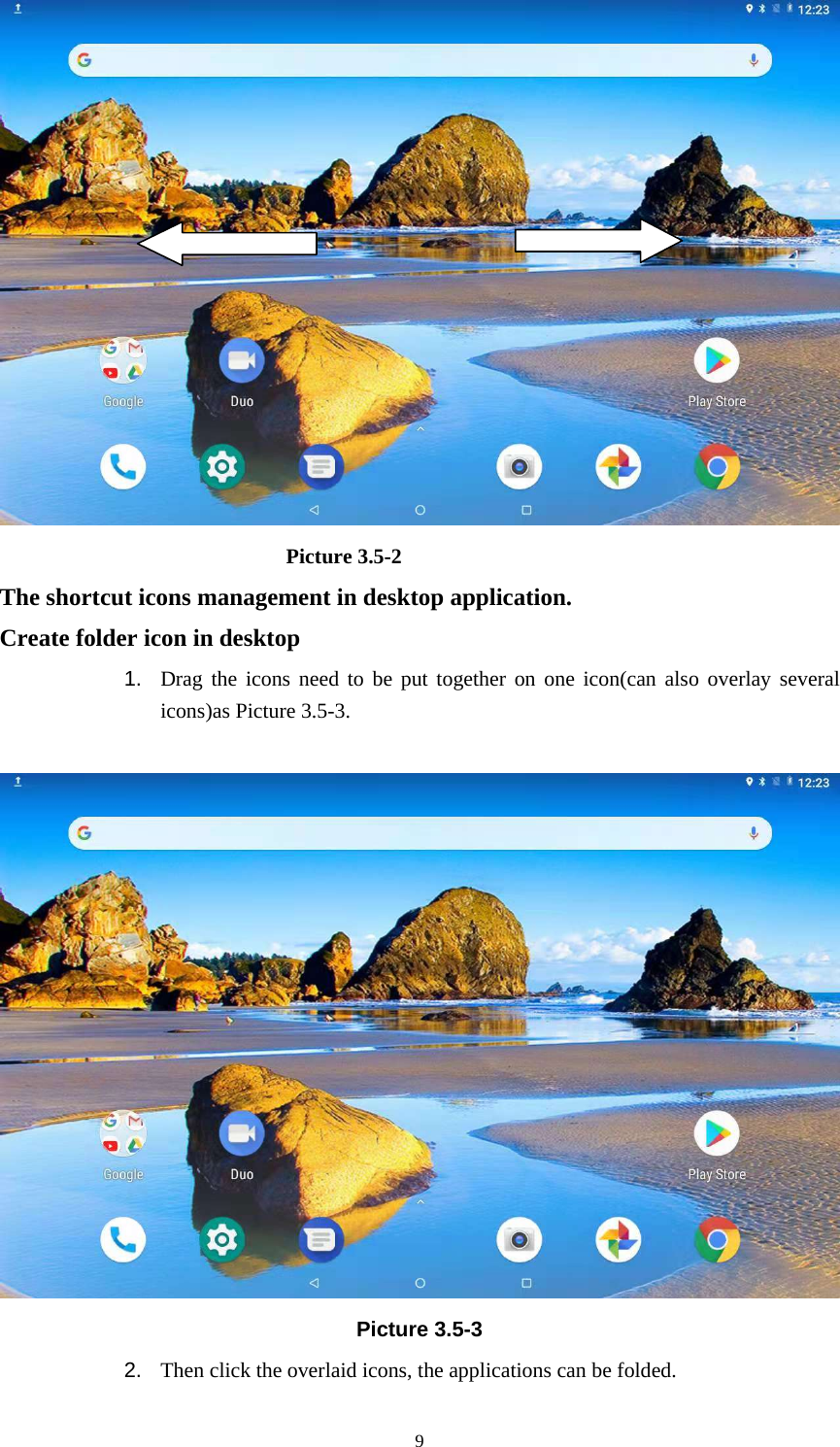
    8Rotate For most pictures, you only need to rotate the DEVICE sidewise to change the screen direction from horizon to vertical. For instance, when you are typing words, and watching movies.  3.5  Home Page Main interface as below picture 3.5-1, long press the blank and it will popup windows to set wallpaper, folder, widgets, and shortcut.  Picture 3.5-1    The extended home page    The home page can be extended beyond the wideness of screen to provide more space, which you can put new-added shortcuts and widgets. Click the blank space in home page then slide right or left to extend to the right or left of the screen. In the home page, there are two extended pictures, as Picture 3.5-2. display recently browsed history Home  return
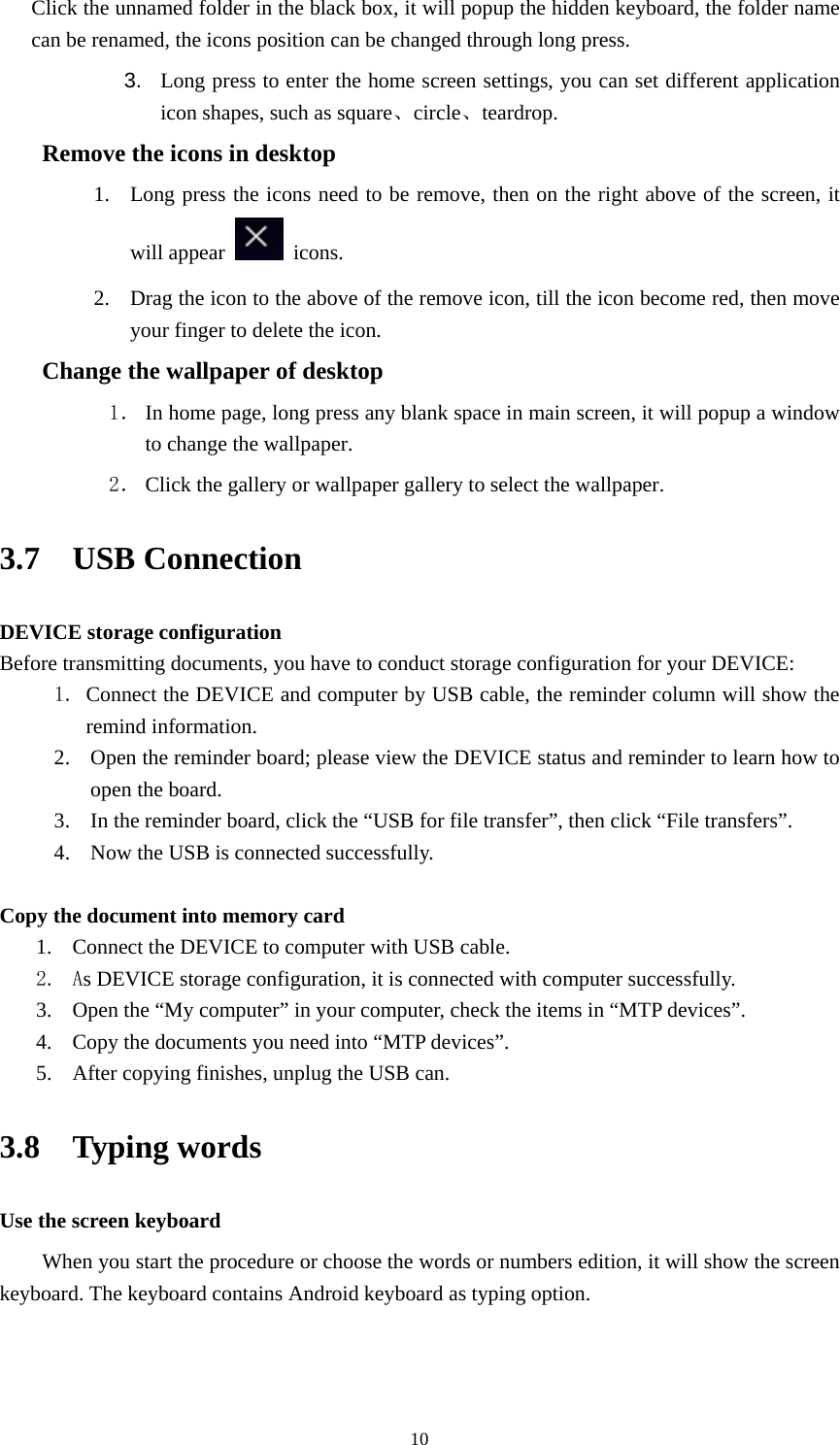
    9                            Picture 3.5-2 The shortcut icons management in desktop application. Create folder icon in desktop 1.  Drag the icons need to be put together on one icon(can also overlay several icons)as Picture 3.5-3.       Picture 3.5-3 2.  Then click the overlaid icons, the applications can be folded.
    10Click the unnamed folder in the black box, it will popup the hidden keyboard, the folder name can be renamed, the icons position can be changed through long press. 3.  Long press to enter the home screen settings, you can set different application icon shapes, such as square、circle、teardrop.     Remove the icons in desktop 1. Long press the icons need to be remove, then on the right above of the screen, it will appear   icons. 2. Drag the icon to the above of the remove icon, till the icon become red, then move your finger to delete the icon. Change the wallpaper of desktop 1. In home page, long press any blank space in main screen, it will popup a window to change the wallpaper.   2. Click the gallery or wallpaper gallery to select the wallpaper. 3.7  USB Connection DEVICE storage configuration Before transmitting documents, you have to conduct storage configuration for your DEVICE:   1. Connect the DEVICE and computer by USB cable, the reminder column will show the remind information. 2. Open the reminder board; please view the DEVICE status and reminder to learn how to open the board. 3. In the reminder board, click the “USB for file transfer”, then click “File transfers”. 4. Now the USB is connected successfully.  Copy the document into memory card 1. Connect the DEVICE to computer with USB cable. 2. As DEVICE storage configuration, it is connected with computer successfully.   3. Open the “My computer” in your computer, check the items in “MTP devices”. 4. Copy the documents you need into “MTP devices”. 5. After copying finishes, unplug the USB can. 3.8  Typing words Use the screen keyboard When you start the procedure or choose the words or numbers edition, it will show the screen keyboard. The keyboard contains Android keyboard as typing option.
    113.9  Operation Technique Enter widgets interface In the application interface, click widgets on the above of screen, or slide the screen, it will switch into widgets interface. Long press any widget to create its shortcut, then you can enter into the application through the shortcut icon.     Create application shortcut icons in the desktop      In the application interface or widgets interface, long press any icon to switch into desktop automatically, drag and hold the icon, you can move to any position in the desktop.      Remind: If the target position has no space, the widget won’t be add in the main screen. 3.10  Quick Setting Swipe-down gesture from the top of the screen, there are nine shortcuts icons, such as Wi-Fi, Bluetooth,    Auto-rotate, and so on. In the full Quick Settings list you can also tap the edit button at the bottom right to rearrange the tiles or replace them with others, as Picture 3.10-1. The optional extras list is pretty minimal: Just Hotspot, Data saver and Invert colors. But developers are now able to create custom Quick Settings tiles for their apps, which will definitely make things a lot more interesting in the coming mouths.  Swipe-down gesture from the top of the screen, Long press push message to see a switch, operates it to open and close the future of this app so all notifications.  4 Basic Setting 4.1  Network and Internet     Reset Wi-Fi、mobile & Bluetooth Click   icon in right top, select Reset Wi-Fi、mobile & Bluetooth     This will reset all network settings ,including    Reset Settings       4.1.1. Connect Wi-Fi
    121) In the main menu or interface, choose setting application procedure. 2) Click WLAN, open Wi-Fi, DEVICE will automatically search the available Wifi wireless internet.   3) Choose the Wi-Fi internet you want to connect, if it has password, it will popup the password window, enter password, click connect.  1. Add Network 1) Click   icon  2) Input network SSID, the wireless network name, click save. 3) Click user name already saved, click connect to use network  2. Network Notice   If you open Network Notice, when WIFI signal appears, the right bottom will remind you available WLAN network                         4.1-2 Mobile Networks   1. Access Point Name( APN) Choose access points name (APN), choose SIM card you need to connect, Choose connect type Remark: (CMWAP transmitters data through GPRS, the webpage it visit belongs to wap webpage, and CMNET support www browse mobile phone network, it can also log in webpage in computer. And the charges are also different.) 2. Network Operator Click network operator, choose SIM card you need to connect, system will search available GSM and WCDMA network  3. GPRS data prior mode After Open GPRS data prior mode, systems will priority chooses your network.       4.1-4 Network sharing and portable hotspots Portable WI-FI hotspots   1. Click setting application in main menu. 2. Click more when wifi is well connected, open network share and portable hotspot 3. Click keep WI-FI hotspots on, choose open time. 4. Return to previous menu, open portable WLAN hotspots, click Set up WI-FI hotspots 5. 5.Set passwords you want to, password should be more than 8 numbers.  4.1-5 VPN  Open VPN, click add VPN network. Input name and server address, then save.   Click VPN, input VPN user name and password, click connect.
    134.1-6 Airplane Mode   Airplane Mode can turn off WIFI and GSM card function quickly, when airplane mode is turned on, WIFI and GSM can’t get any signal, then airplane mode is turned off, WIFI and GSM module will recover to previous state.  4.2  Bluetooth Bluetooth function operation 1. Click setting application in main menu interface 2. Click Bluetooth and open it.   3. If somebody open Bluetooth in your surroundings, click search device in right above, then DEVICE will automatically search the Bluetooth device nearby.  4.Click the available Bluetooth device, it will popup request window, enter into related password, and match the device to connect. 5.After match successfully, choose the operation you want to, click    Bluetooth setting 1.Rename tablet   Click   icon in right top, select rename tablet, you can rename it as you want 2.Display the file you received Choose display the file you received, you can view download and upload files.  4.3  Apps & notification   4.3-1  APPS 1. Click setting application in Apps. 2. Select application, after enter, you can manage and delete installed application.  4.3-2 Notification 1. Open settings, click Notification  2. Click on any app icon in the list, then you can choose to show notifications silently, block all notifications or don’t silence or block.
    144.4  Battery     Click setting function, select battery, you can view the battery situation 4.5  Display  4.5-1 Adjust the screen brightness 1 .  Click Setting application procedure. 2. Click display, choose brightness,   3. Drag the portico to adjust the brightness volume. 4.5-2  Wallpapers 1. Click setting application. 2. Click display, click wallpaper. 3. You can choose different wallpapers as you like—gallery---live wallpapers ---photos--- wallpapers   4.5-3 Auto rotation System is defaulted as open auto rotation, when it is turned off, system won’t rotate DEVICE screen by G-sensor. 4.5-4 Sleep 1. Click setting application. 2. Click display. 3. Click sleep. 4. Set the sleep time as you want 4.5-5 Font size Click font size to adjust the size of the text. 4.5-6 Display size Click Display size to adjust the size of the icons. 4.5-7 Mira Vision    Mira Vision is a set of engines to enhance display picture quality. 4.6  Sound  Open settings, click Sound  1.Vibrate  click Also vibrate for calls, DEVICE will vibrate when someone calls you.
    152.Volume click volume, you can set ringtone, media, and alarm volume.,  3.Voice call Ringtone click phone ringtone to choose voice call ringtone.  4.7  Storage Open setting function, click Storage. (1)Internal storage Internal storage is DEVICE local storage, if you need to check the storage content, you can check it in main menu.   (2)SD card Click SD card to check the storage content Safely remove or format SD card 1. Click    2. Click Settings 3. After the above two steps you can choose what you want to do,remove or format SD card  Note: Removing SD card safely can protect SD card and increase its lifetime.    4.8  Security & location 4.8-1 Set locked screen Lock the touch screen by unlock icon or password to protect your DEVICE. Note: After setting screen locked, you should enter the pass code each time when you startup or screen is locked         Set unlocked picture 1. Click setting application in main interface. 2. Click security. 3. Click   screen lock.  4. Choose pattern in text setting area. 5. Click next following the remind message. 6. The unlocked pattern board pop up, there are nine touch spots, connect 4
    16points from vertical, horizontal or diagonal direction. Move your finger from the screen when finish. The system will record yours new unlock pattern. 7. Click continue. 8. When you see the reminder, enter the unlock pattern, then click confirm. Set unlock PIN code 1. Click setting application in main interface. 2. Click security. 3. Click screen lock. 4. Choose PIN in text setting area.   5. Enter new PIN code(numbers) and click continue. 6. Enter new PIN code again and click confirm. Set unlock password 1.Click setting application in main interface.   2.Click safe. 3.Click screen locked. 4.Set password in text setting area. 5.Set new password(letters and numbers) and then click continue. 6.Enter the password again and the click confirm.  4.8-2 Location service Click setting, select Location  4.9  Users & accounts 1. Select setting application 2. Open account and sync 3. Click add an account 4. After successfully load, it will open the sync function
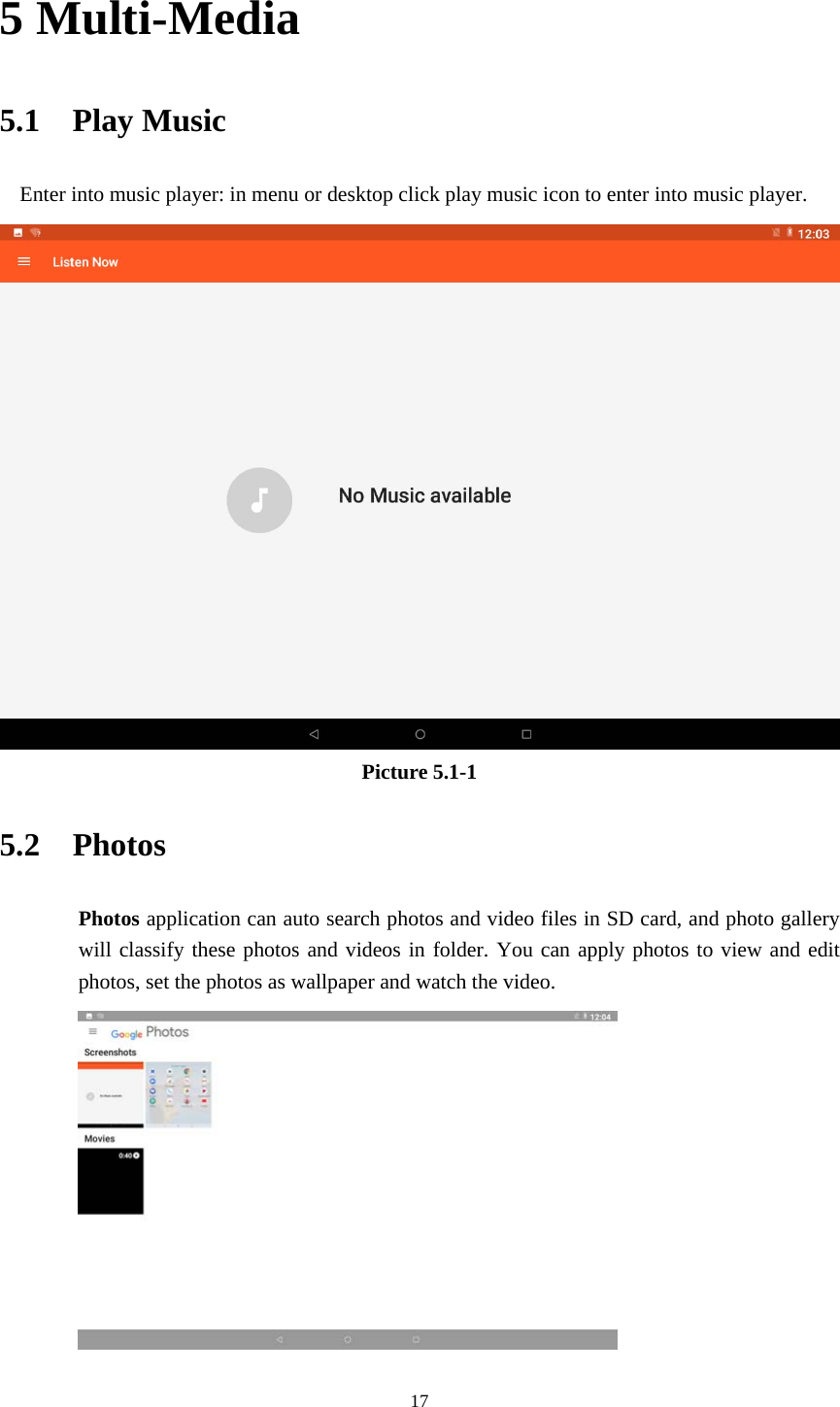
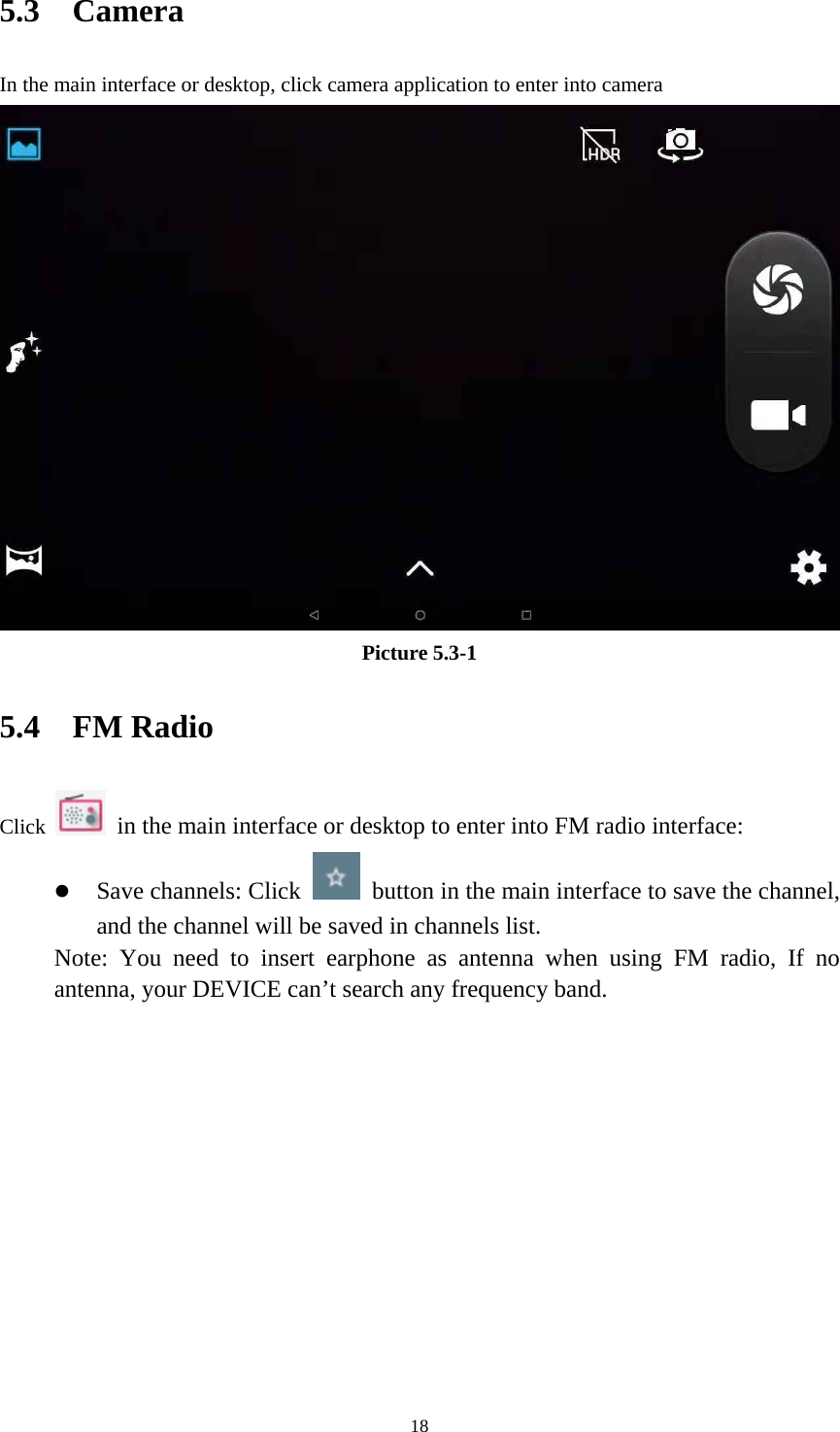
    175 Multi-Media 5.1  Play Music Enter into music player: in menu or desktop click play music icon to enter into music player.  Picture 5.1-1 5.2  Photos Photos application can auto search photos and video files in SD card, and photo gallery will classify these photos and videos in folder. You can apply photos to view and edit photos, set the photos as wallpaper and watch the video.
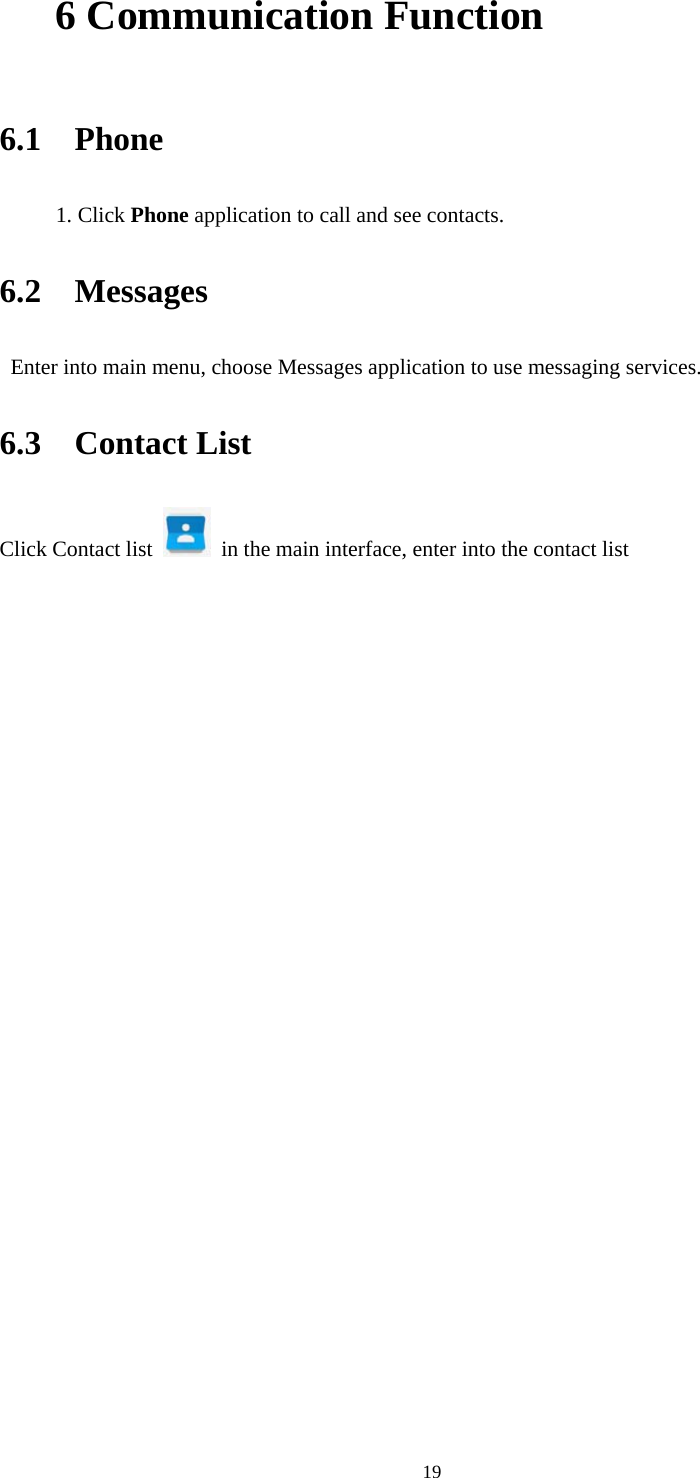
    185.3  Camera In the main interface or desktop, click camera application to enter into camera Picture 5.3-1 5.4  FM Radio Click    in the main interface or desktop to enter into FM radio interface:  Save channels: Click    button in the main interface to save the channel, and the channel will be saved in channels list. Note: You need to insert earphone as antenna when using FM radio, If no antenna, your DEVICE can’t search any frequency band.
    196 Communication Function  6.1  Phone 1. Click Phone application to call and see contacts. 6.2  Messages   Enter into main menu, choose Messages application to use messaging services. 6.3  Contact List Click Contact list    in the main interface, enter into the contact list
    207 Internet 7.1  Browser   In case of Wi-Fi or mobile internet is connected well (Please refer to Chapter 4.1 for wireless and internet setting), click IE browser   in the main menu or desktop to enter the IE interface.   Click address bar to input the website, click start, enter into related webpage, then you can browse the website information and you can click the menu you can refresh ,save to bookmarks, share page, bookmarks, history and setting the webpage. 8 Other Application Procedures 8.1 Clock Click Clock procedure There are clock, picture, music and homepage buttons.  8.2  Calculator 1. Click.   2. Enter into the basic board of calculator. 3. Soft touch the numbers or operator in calulator to calculate.   8.3  File Manager File manager will copy, cut, delete, rename the documents or the folder in the TF card, it also will share the files, install apk etc. In the main menu or desktop, click the document manager icon    to enter into documents manager.
    21a、Copy, cut, delete, and rename the files and folder: choose the file or folder, long press the file or folder to enter into the interface; you can operate the file or folder. B、Paste the copy or cut file: choose the file you want to paste,    icon to enter   C. Share file:choose any file, long press it, it will popup “share”, choose the share way you want in the list D、Install apk file:Choose the file suffixed .apk in the file manager, you can install the third part software as reminder. E、Build new folder: Choose the menu you want to build the file, click    icon in right top, choose new folder, you can build new folder as reminder. 9 Recorder In the main interface or desktop, click recorder icon   to enter into record interface, click record key    to start record. Click Stop key    to stop recording. Click Play key   to play the recorded sound. The system will auto remind you to use or abandon this record, please choose it manually. Play the record: choose the video player to play the recorded sound, choose the recorded sound in the source manager, and click it to play.    10 Troubles Shooting  1. The first startup of DEVICE is slow          After the DEVICE system upgraded, the first startup need to install the pre-installed application software, the lead time is around 2-3 minutes, the startup afterwards will be much quicker.  2. DEVICE can’t connect Wi-Fi  Make sure the wireless router of internet service can work in normal.  Ensure the DEVICE and wireless router in certain distance, and no wall or other barrier between them.  Ensure the user name and password both correct.
    223. DEVICE feels hot When many application procedures are used in meanwhile, or the brightness of screen open to the lightest or under charging, DEVICE may feel fever. It is normal.  4. Email can’t be set or Registration of application procedure.  Ensure your internet is well connected.  Make sure your email setting way is correct.  Keep your system time and local time consistent.    5.      The system is abnormal and can’t work. When you install some third party application procedure, it may cause abnormal work, you can press Reset key(next to power port) to reset the system.    6.    The webpage can’t be opened  Please keep the distance between from route to DEVICE in effective range.  Please restart WIFI and try again.  7. DEVICE works terribly slow sometimes It is normal phenomenon. Please turn off some application you don’t need in advanced task management, or uninstall some third party application to release more system resource.  Warranty The warranty period for the Device is One year and for battery, data cable and charger is six (6) months from the date of purchase  LAVA support and contact information   Customer Care no: 1860-500-5001 (Available from Monday to Saturday, between 10:00AM to 6:00PM)    Website: www.lavamobiles.com Copyrights: Google, Google Play and other marks are trademarks of Google LLC. Android is a trademark of Google LLC.
device transmitting at its highest certified power Any Changes or modifications not expressly approved by the party responsible for compliance could void the user's    authority to operate the equipment. This device complies with part 15 of the FCC Rules. Operation is subject to the following two conditions: (1) This device may not cause harmful interference, and (2) this device must accept any interference received, including    interference that may cause undesired operation.  Note: This equipment has been tested and found to comply with the limits for a Class B digital device, pursuant to    part 15 of the FCC Rules. These limits are designed to provide reasonable protection against harmful interference in    a residential installation. This equipment generates, uses and can radiate radio frequency energy and, if not installed    and used in accordance with the instructions, may cause harmful interference to radio communications. However,    there is no guarantee that interference will not occur in a particular installation. If this equipment does cause harmful    interference to radio or television reception, which can be determined by turning the equipment off and on, the user is   encouraged to try to correct the interference by one or more of the following measures:     —Reorient or relocate the receiving antenna.     —Increase the separation between the equipment and receiver.     —Connect the equipment into an outlet on a circuit different from that to which the receiver is connected.   —Consult the dealer or an experienced radio/TV technician for help. SAR tests are conducted using standard operating positions accepted by the FCC with the level in all tested frequency bands, although the SAR is determined at the highest certified power level, the actual SAR level of the device while operating can be well below the maximum value, in general, the closer you are to a wireless base station antenna, the lower the power output. Before the device is a available for sale to the public, it must be tested and certified to the FCC that it does not exceed the exposure limit established by the FCC, Tests for each device are performed in positions and locations (e.g. supported on the body)as required by the FCC.  minimum distance of 0    cm from the body.

User_Manual

Navigation menu