LEON SPECIALTY 71002100 Smart Lock User Manual

LEON SPECIALTY INC. Smart Lock Users Manual

Users Manual

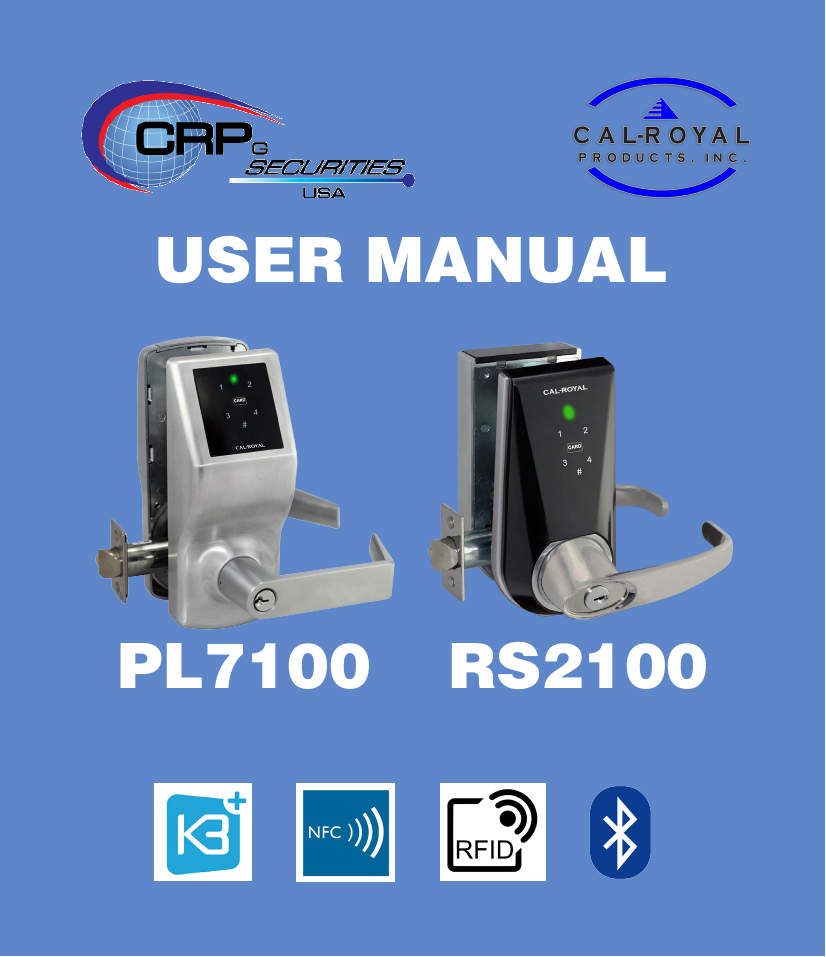
cover pageUSER MANUALPL7100 RS2100
TABLE OF CONTENTSParts List - Exterior 1 Technical Specications 11Parts List - Interior 2 Troubleshooting 12Compatible cards and phones 3 Disclaimer 13Phone Operations 4Bluetooth Unlocking 5Touchpad Operations 6Programming Codes using Touchpad 7VARICODE Unlocking 8Lock-out 9Events, Beeps and LED 10REGULATORY COMPLIANCEThe device complies with Part 15 of the FCC Rules. Operation is subject to the following two conditions:(1)  This device may not cause harmful interference, and(2)  This device must accept any interference received, including interference that may cause undesired operation.FCC WARNING STATEMENTYou are cautioned that changes or modications not expressly approved by the part responsible for compliance could void the user’s authority to operate the equipment.This equipment has been tested and found to comply with the limits for a Class B digital device, pursuant to part 15 of the FCC rules. These limits are designed to provide reasonable protection against harmful interference in a residential installation. This equipment generates, uses and can radiate radio frequency energy and, if not installed and used in accordance with the instructions, may cause harmful interference to radio communications. However, there is no guarantee that interference will not occur in a particular installation. If this equipment does cause harmful interference to radio or television reception, which can be determined by turning the equipment off and on, the user is encouraged to try to correct the interference by one or more of the following measures:-Reorient or relocate the receiving antenna.-Increase the separation between the equipment and receiver.-Connect the equipment into an outlet on a circuit different from that to which the receiver is connected.-Consult the dealer or an experienced radio/TV technician for help.
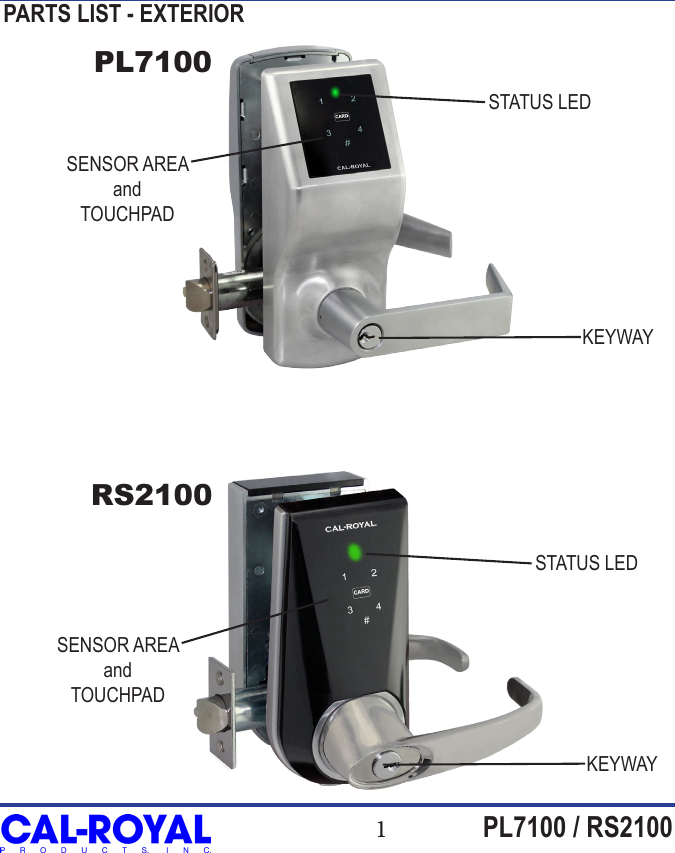
1PL7100 / RS2100STATUS LED SENSOR AREAandTOUCHPADKEYWAYPARTS LIST - EXTERIORSTATUS LED KEYWAYSENSOR AREAandTOUCHPADPL7100RS2100
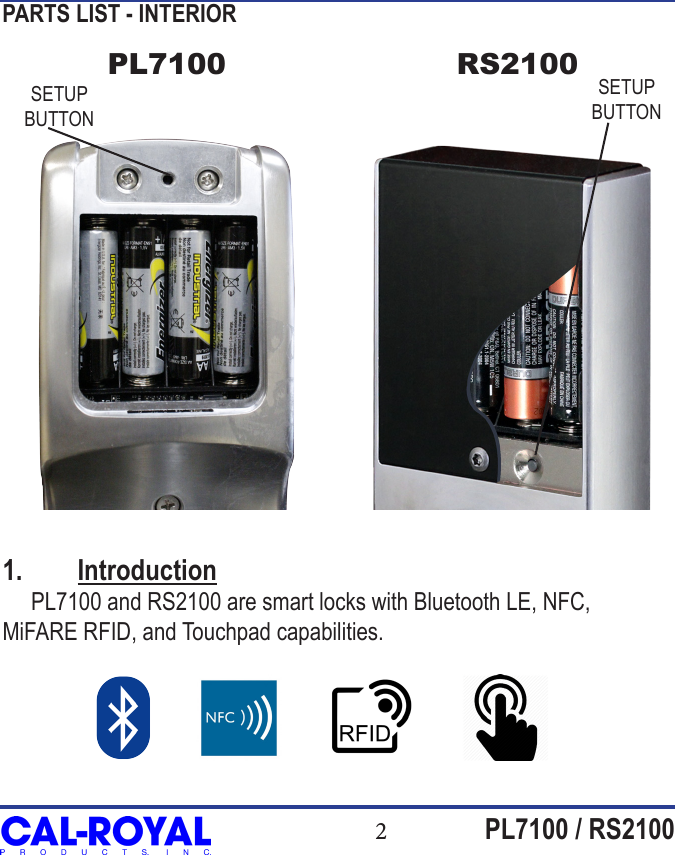
2PL7100 / RS2100SETUP BUTTONSETUP BUTTONPARTS LIST - INTERIORPL7100 RS21001.  Introduction     PL7100 and RS2100 are smart locks with Bluetooth LE, NFC, MiFARE RFID, and Touchpad capabilities.
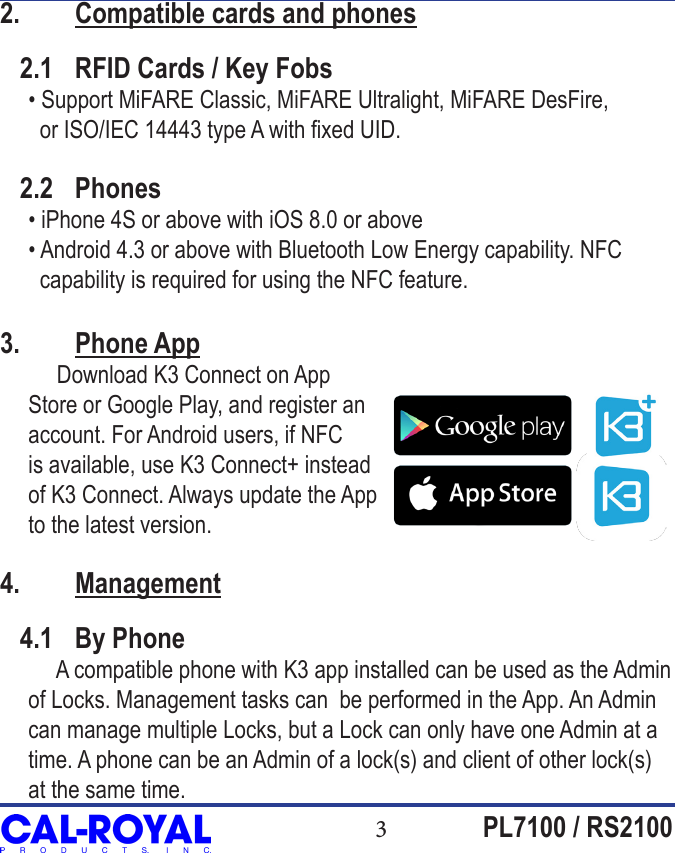
3PL7100 / RS21002.  Compatible cards and phones   2.1  RFID Cards / Key Fobs     • Support MiFARE Classic, MiFARE Ultralight, MiFARE DesFire,        or ISO/IEC 14443 type A with xed UID.   2.2  Phones     • iPhone 4S or above with iOS 8.0 or above     • Android 4.3 or above with Bluetooth Low Energy capability. NFC       capability is required for using the NFC feature.3.  Phone App          Download K3 Connect on App      Store or Google Play, and register an      account. For Android users, if NFC      is available, use K3 Connect+ instead      of K3 Connect. Always update the App      to the latest version.4.  Management   4.1  By Phone          A compatible phone with K3 app installed can be used as the Admin        of Locks. Management tasks can  be performed in the App. An Admin      can manage multiple Locks, but a Lock can only have one Admin at a      time. A phone can be an Admin of a lock(s) and client of other lock(s)      at the same time.
4PL7100 / RS2100   4.2  By Touchpad     If Admin phone is not available, the Touchpad can also be used for selected management tasks. See later section for the full specication.5.  Phone Operations   5.1  Pairing to Become the Admin     a. In the K3 Connect app, press the “+” on the top-right corner of the          Locks page.     b. Fill-in the DIN (pl7100 or rs2100 respectively) and your selected          Lock name, then conrm and put the phone close to the Lock (within         1 meter).     c. Push the setup button.     d. Follow the UI (you may be prompted to setup Wi-Fi SSID/password          to connect this Lock to your Wi-Fi and Internet; ignore it for now if          Gateway is not available). This is an optional device that allows a          phone to unlock the Lock using the Bluetooth Gateway option via          Wi-Fi remotely.      e. After successfully Pairing, the phone is now the Admin of the Lock.   5.2  Unlocking     An Admin or Client can unlock in different ways:    a. Bluetooth Manual Unlocking        • Open the K3 Connect app.        • In the Locks page, click on the tab of your Lock name to trigger it.
5PL7100 / RS2100    b.  Bluetooth Auto Unlocking     To set up the Auto Unlocking feature, open the K3 Connect app. In the Locks page, Select which Lock you wish to set up and slide left on the tab. Press “Info” and navigate to the menu to enable the Auto Unlocking features. There are 2 kinds of Auto Unlocking: trigger by touch, or trigger by location. See the App UI for more description.    c.  NFC Unlocking     With the K3 Connect+ App installed, Admin and Client phones can unlock with NFC by waking up the phone and tapping it on the sensor/touchpad of the lock.    5.3  Admin phone optionsThe App can do the following management tasks (as Admin):   •  Set Names of Locks  •  Lock parameters setting (such as Passage Mode or Mute)  •  Add/Delete Clients (including other phones, cards, or CODEs)             •  Set Client access rights (such as limited duration or only                     one-time access or temporarily suspended)  •  Set Client Nick-names  •  Generate VARICODE  •  View Audit Trail  •  Check Lock Battery status  •  Update Lock Firmware
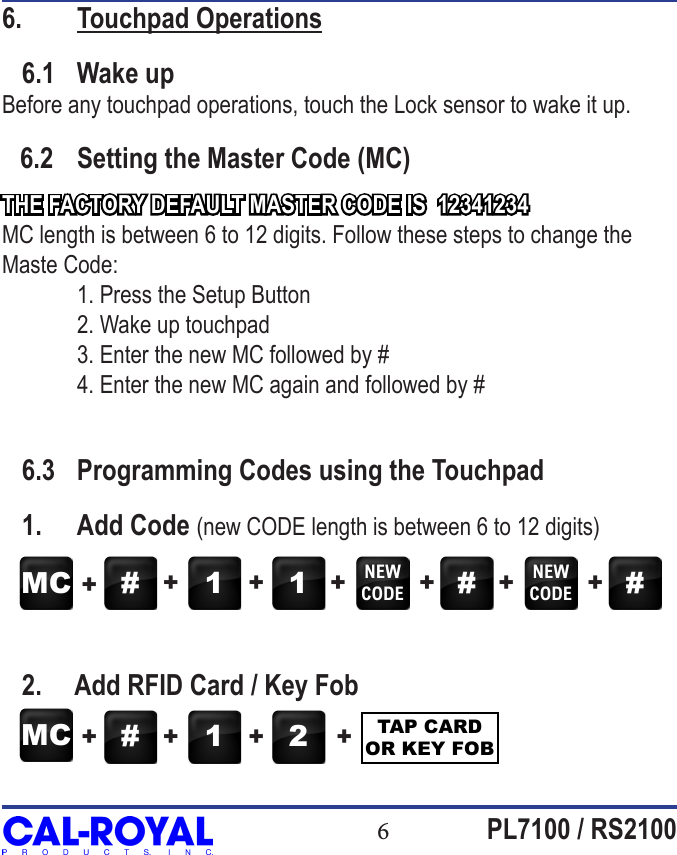
6PL7100 / RS21006.  Touchpad Operations   6.1  Wake upBefore any touchpad operations, touch the Lock sensor to wake it up.   6.2  Setting the Master Code (MC)THE FACTORY DEFAULT MASTER CODE IS  12341234MC length is between 6 to 12 digits. Follow these steps to change the Maste Code:  1. Press the Setup Button   2. Wake up touchpad  3. Enter the new MC followed by #  4. Enter the new MC again and followed by #   6.3  Programming Codes using the Touchpad   1.  Add Code (new CODE length is between 6 to 12 digits)   2.     Add RFID Card / Key FobMC # 1 1 NEWCODE #NEWCODE #++ + + + + +MC # 1 2 TAP CARD OR KEY FOB+ + + +
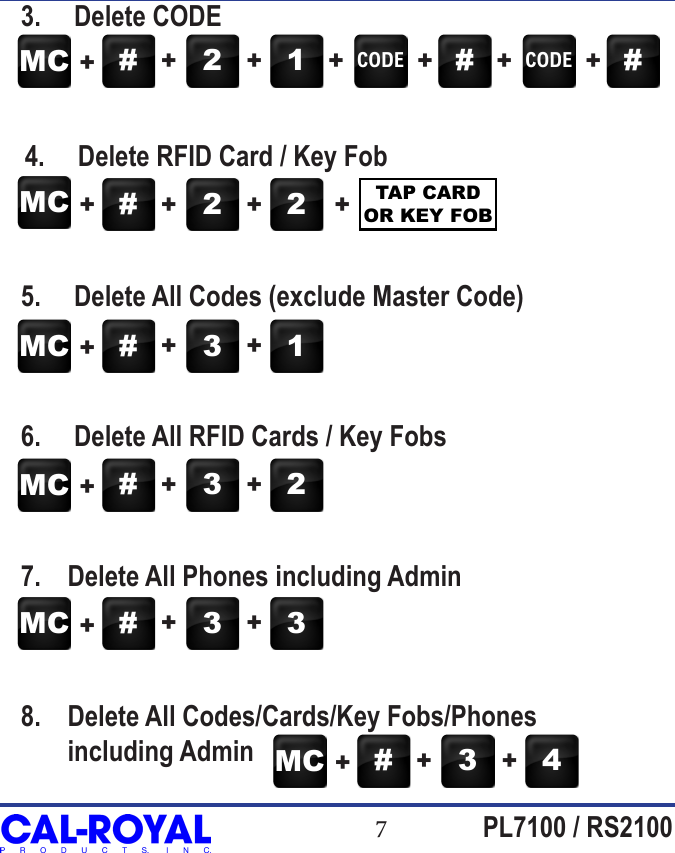
7PL7100 / RS2100   3.     Delete CODE    4.     Delete RFID Card / Key Fob   5.     Delete All Codes (exclude Master Code)   6.     Delete All RFID Cards / Key Fobs   7.    Delete All Phones including Admin    8.    Delete All Codes/Cards/Key Fobs/Phones           including AdminMC # 2 1 CODE #CODE #++ + + + + +MC # 2 2+ + + + TAP CARD OR KEY FOBMC # 3 1++ +MC # 3 2++ +MC # 3 3++ +MC # 3 4++ +
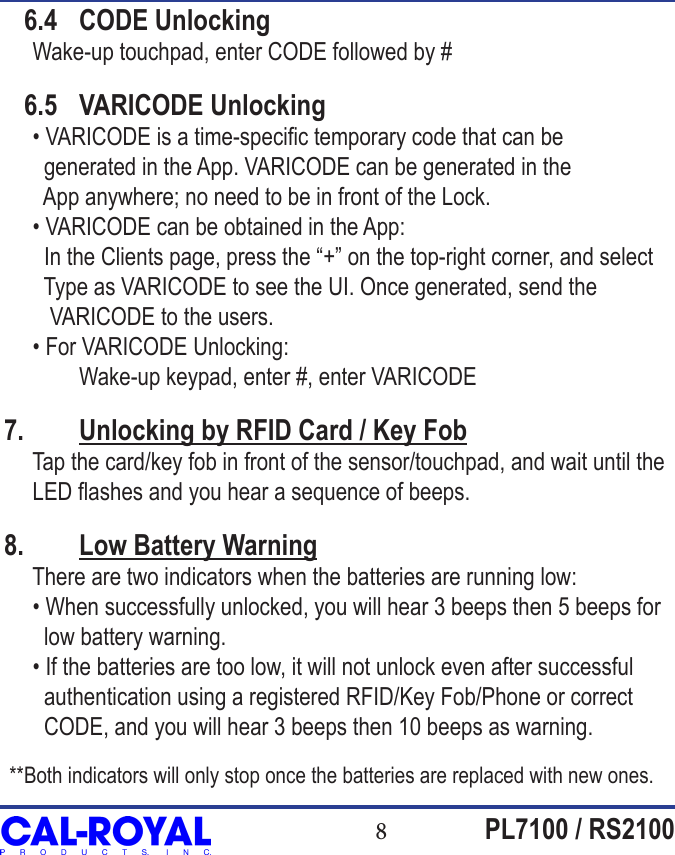
8PL7100 / RS2100   6.4  CODE Unlocking     Wake-up touchpad, enter CODE followed by #   6.5  VARICODE Unlocking     • VARICODE is a time-specic temporary code that can be        generated in the App. VARICODE can be generated in the        App anywhere; no need to be in front of the Lock.     • VARICODE can be obtained in the App:       In the Clients page, press the “+” on the top-right corner, and select          Type as VARICODE to see the UI. Once generated, send the         VARICODE to the users.     • For VARICODE Unlocking:  Wake-up keypad, enter #, enter VARICODE 7.  Unlocking by RFID Card / Key Fob     Tap the card/key fob in front of the sensor/touchpad, and wait until the      LED ashes and you hear a sequence of beeps.8.  Low Battery Warning     There are two indicators when the batteries are running low:     • When successfully unlocked, you will hear 3 beeps then 5 beeps for        low battery warning.     • If the batteries are too low, it will not unlock even after successful        authentication using a registered RFID/Key Fob/Phone or correct          CODE, and you will hear 3 beeps then 10 beeps as warning. **Both indicators will only stop once the batteries are replaced with new ones.
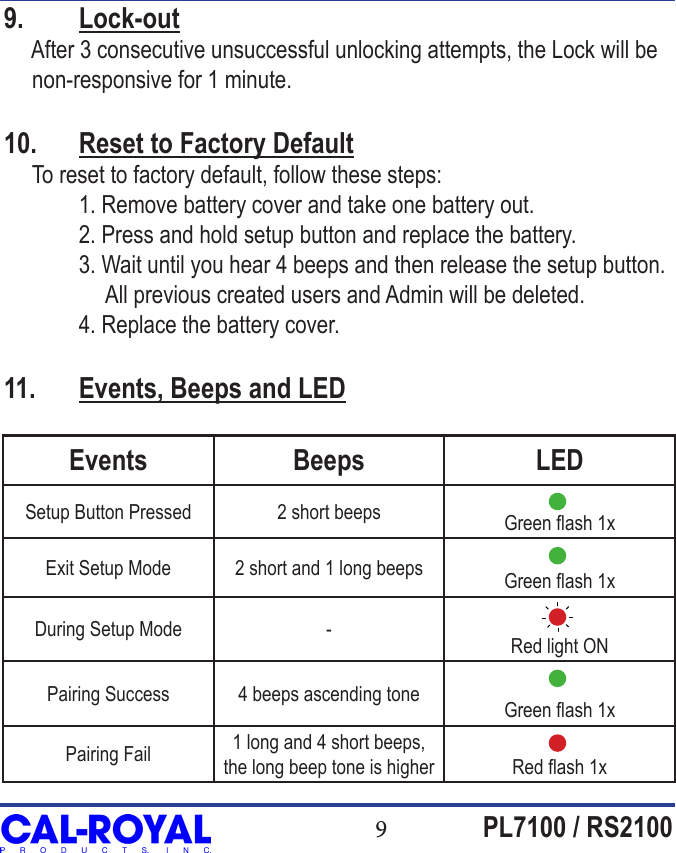
9PL7100 / RS2100Events Beeps LEDSetup Button Pressed 2 short beeps Green ash 1xExit Setup Mode 2 short and 1 long beeps Green ash 1xDuring Setup Mode - Red light ONPairing Success 4 beeps ascending tone Green ash 1xPairing Fail 1 long and 4 short beeps, the long beep tone is higher Red ash 1x9.  Lock-out     After 3 consecutive unsuccessful unlocking attempts, the Lock will be      non-responsive for 1 minute.10.  Reset to Factory Default     To reset to factory default, follow these steps:  1. Remove battery cover and take one battery out.  2. Press and hold setup button and replace the battery.  3. Wait until you hear 4 beeps and then release the setup button.                   All previous created users and Admin will be deleted.  4. Replace the battery cover.11.  Events, Beeps and LED
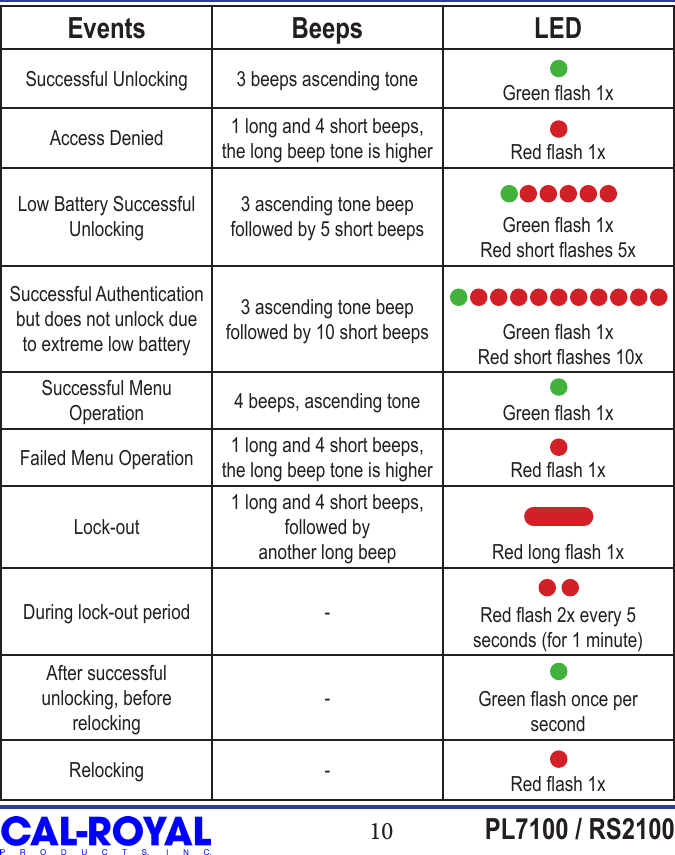
10 PL7100 / RS2100Events Beeps LEDSuccessful Unlocking 3 beeps ascending tone Green ash 1xAccess Denied 1 long and 4 short beeps, the long beep tone is higher Red ash 1xLow Battery Successful Unlocking3 ascending tone beep followed by 5 short beeps Green ash 1xRed short ashes 5xSuccessful Authentication but does not unlock due to extreme low battery3 ascending tone beep followed by 10 short beeps Green ash 1x Red short ashes 10xSuccessful Menu Operation 4 beeps, ascending tone Green ash 1xFailed Menu Operation 1 long and 4 short beeps, the long beep tone is higher Red ash 1xLock-out1 long and 4 short beeps,followed by another long beep Red long ash 1xDuring lock-out period - Red ash 2x every 5 seconds (for 1 minute)After successful unlocking, before relocking-Green ash once per secondRelocking - Red ash 1x
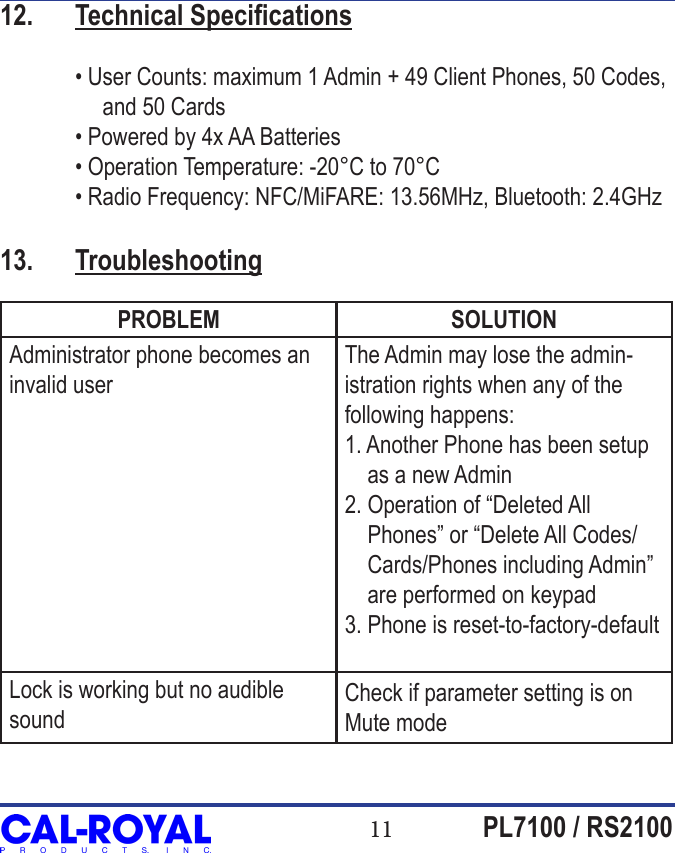
11 PL7100 / RS210012.  Technical Specications  • User Counts: maximum 1 Admin + 49 Client Phones, 50 Codes,                   and 50 Cards  • Powered by 4x AA Batteries  • Operation Temperature: -20°C to 70°C  • Radio Frequency: NFC/MiFARE: 13.56MHz, Bluetooth: 2.4GHz13.  TroubleshootingPROBLEM SOLUTIONAdministrator phone becomes an invalid userThe Admin may lose the admin-istration rights when any of the following happens:1. Another Phone has been setup      as a new Admin2. Operation of “Deleted All     Phones” or “Delete All Codes/    Cards/Phones including Admin”     are performed on keypad3. Phone is reset-to-factory-defaultLock is working but no audible soundCheck if parameter setting is on Mute mode
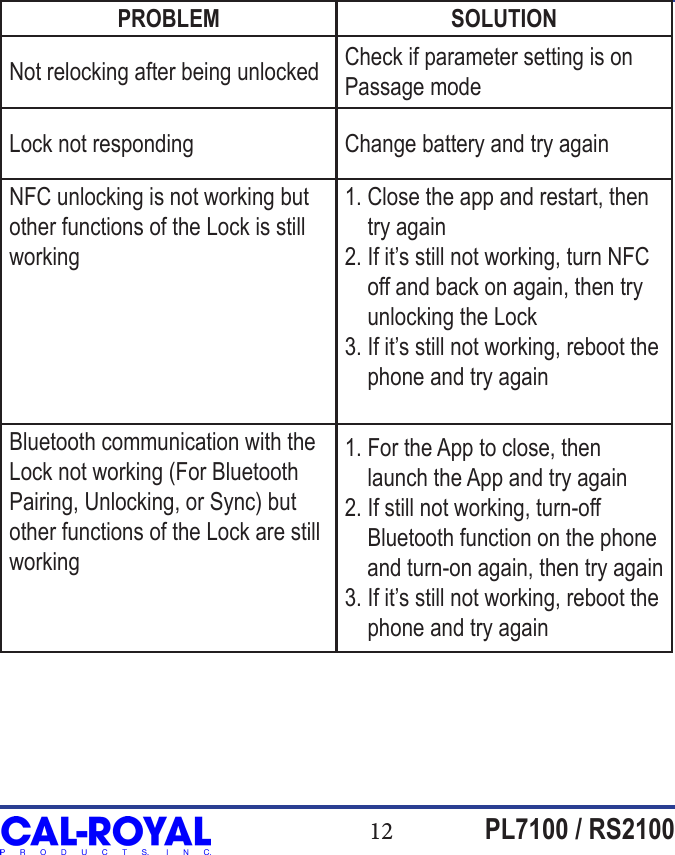
12 PL7100 / RS2100PROBLEM SOLUTIONNot relocking after being unlocked Check if parameter setting is on Passage modeLock not responding Change battery and try againNFC unlocking is not working but other functions of the Lock is still working1. Close the app and restart, then     try again2. If it’s still not working, turn NFC     off and back on again, then try     unlocking the Lock3. If it’s still not working, reboot the     phone and try againBluetooth communication with the Lock not working (For Bluetooth Pairing, Unlocking, or Sync) but other functions of the Lock are still working1. For the App to close, then     launch the App and try again2. If still not working, turn-off     Bluetooth function on the phone     and turn-on again, then try again3. If it’s still not working, reboot the      phone and try again
13 PL7100 / RS2100DISCLAIMER: Cal-Royal Products does not claim that this lock can provide complete security by itself. This lock may be defeated by forcible or technical means, or evaded by entry elsewhere on the property like any other locks.  No lock can substitute for vigilance, awareness of your environment, and common sense. Builder’s hardware is available in multiple performance grades to suit the application. In order to enhance security and reduce risk, you should consult a qualied locksmith or other security professional.Notice of Open Source Licenses[FreeRTOS]    This product uses FreeRTOS v7.3.0. The source code of FreeRTOS used can be downloaded here:     http://sourceforge.net/projects/freertos/les/[OpenSSL]     This product uses OpenSSL, and the OpenSSL license can be downloaded here:      http://www.openssl.org/source/license.html      This product includes software developed by the OpenSSL Project for use in the OpenSSL Toolkit.      (http://www.openssl.org/)      This product includes cryptographic software written by Eric Young (eay@cryptsoft.com).      This product includes software written by Tim Hudson (tjh@cryptsoft.com).
6605 Flotilla St., Commerce,CA 90040Tel. (323) 888-6601   Fax. (323) 888-6699Website: www.cal-royal.comE-mail: sales@cal-royal.com

Navigation menu