LEON SPECIALTY CL455510 Smart Lock User Manual

LEON SPECIALTY INC. Smart Lock

User manual

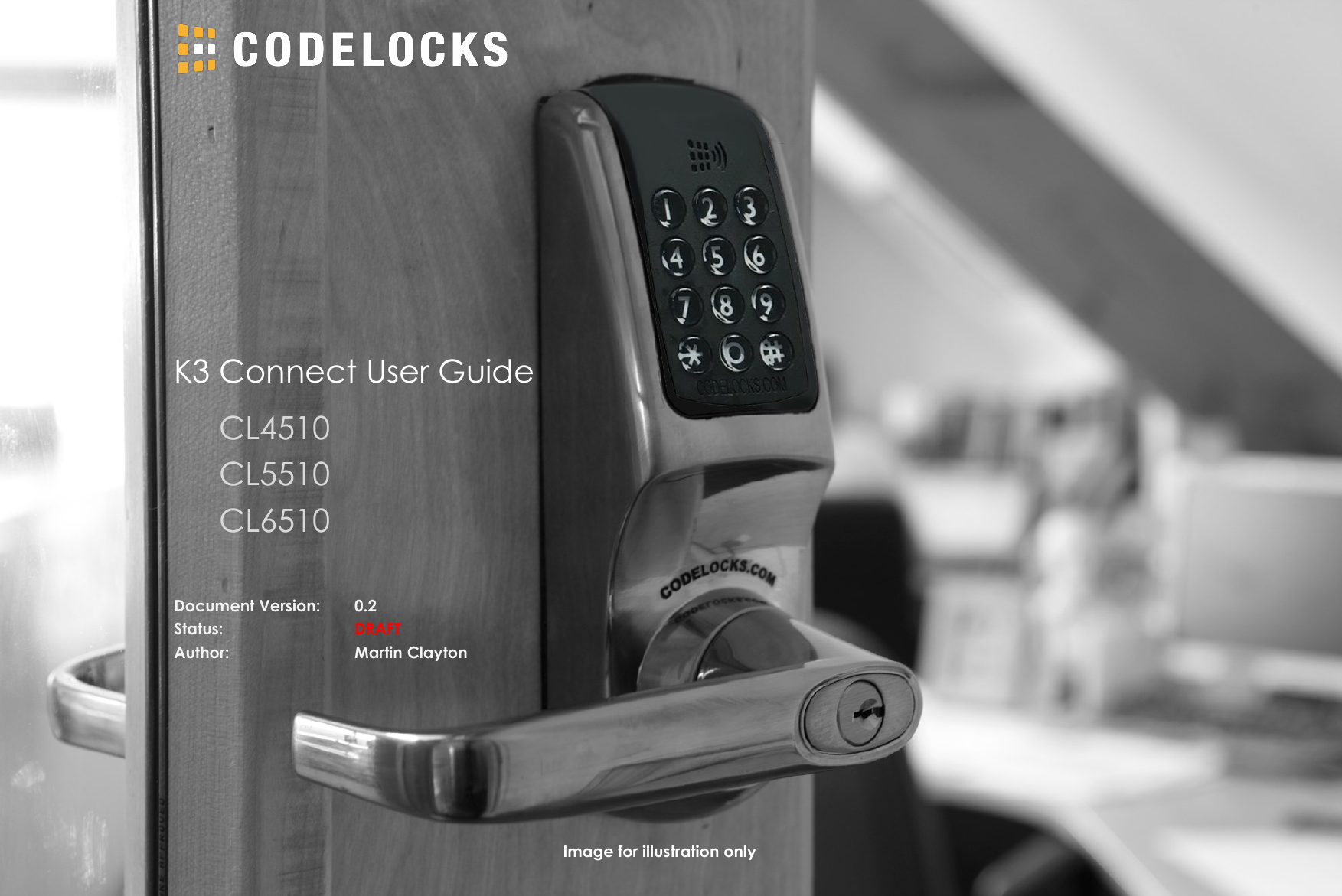
K3 Connect User Guide  CL4510   CL5510   CL6510 Image for illustration only Document Version:  0.2 Status:      DRAFT Author:      Martin Clayton
REGULATORY COMPLIANCE  The device complies with Part 15 of the FCC Rules. Operation is subject to the following two conditions: (1) This device may not cause harmful interference, and (2) This device must accept any interference received, including interference that may cause undesired operation.  This equipment has been tested and found to comply with the limits for a Class B digital device, pursuant to Part 15 of the FCC Rules. These limits are designed to provide reasonable protection against harmful interference in a residential installation. This equipment generates, uses, and can radiate radio frequency energy and, if not installed and used in accordance with the instructions, may cause harmful interference to radio communications. However, there is no guarantee that interference will not occur in a particular installation. If this equipment does cause harmful interference to radio or television reception, which can be determined by turning the equipment off and on, the user is encouraged to try to correct the interference by one or more of the following measures:  • Reorient or relocate the receiving antenna. • Increase the separation between the equipment and receiver. • Connect the equipment into an outlet on a circuit different from that to which the receiver is connected. • Consult the dealer or an experienced radio/TV technician for help.
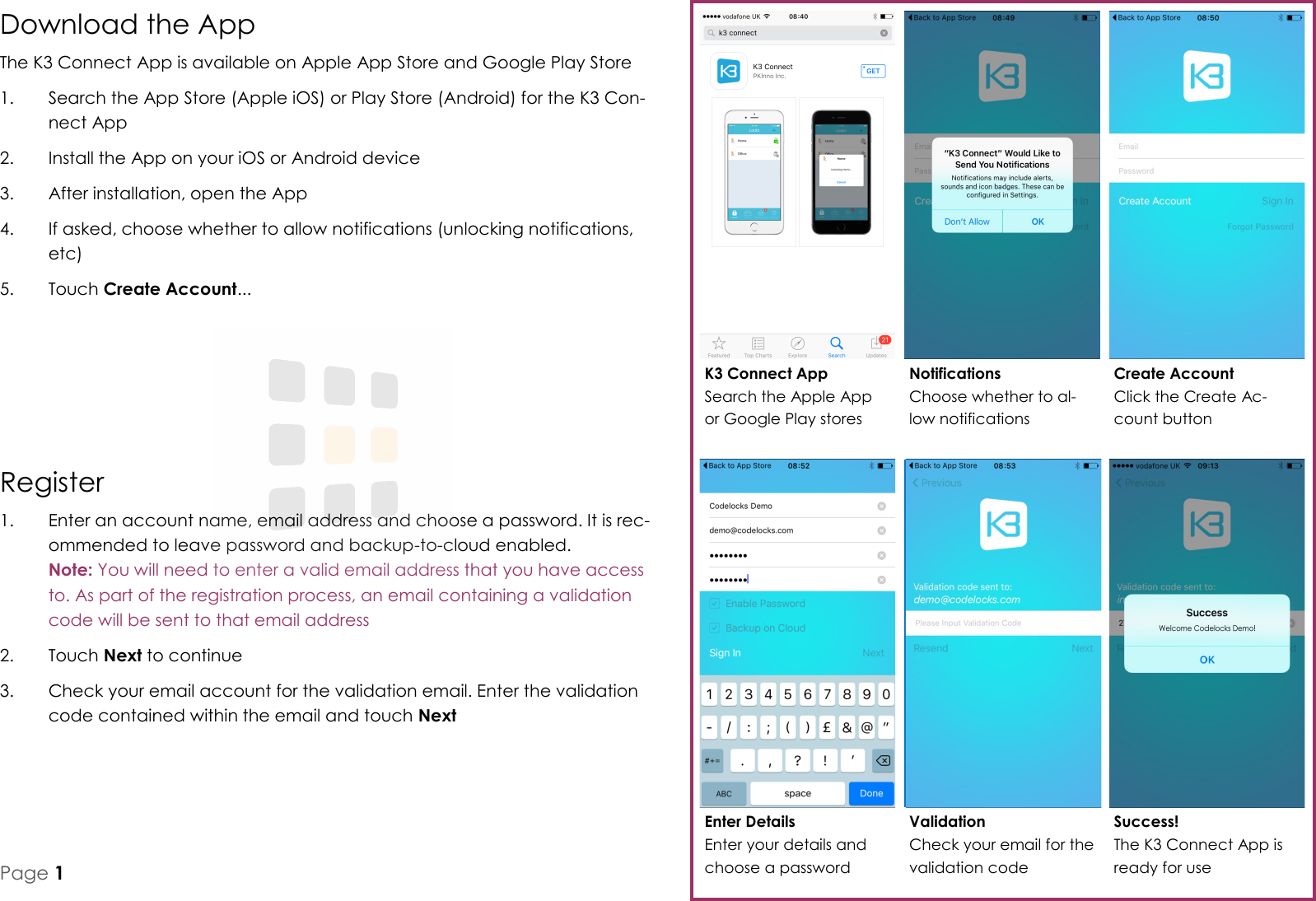
Download the App The K3 Connect App is available on Apple App Store and Google Play Store 1.  Search the App Store (Apple iOS) or Play Store (Android) for the K3 Con-nect App 2.  Install the App on your iOS or Android device 3.  After installation, open the App 4.  If asked, choose whether to allow notifications (unlocking notifications, etc) 5.  Touch Create Account... K3 Connect App Search the Apple App or Google Play stores Notifications Choose whether to al-low notifications Create Account Click the Create Ac-count button Enter Details Enter your details and choose a password Validation Check your email for the validation code Success! The K3 Connect App is ready for use Register 1.  Enter an account name, email address and choose a password. It is rec-ommended to leave password and backup-to-cloud enabled.  Note: You will need to enter a valid email address that you have access to. As part of the registration process, an email containing a validation code will be sent to that email address 2.  Touch Next to continue 3.  Check your email account for the validation email. Enter the validation code contained within the email and touch Next Page 1
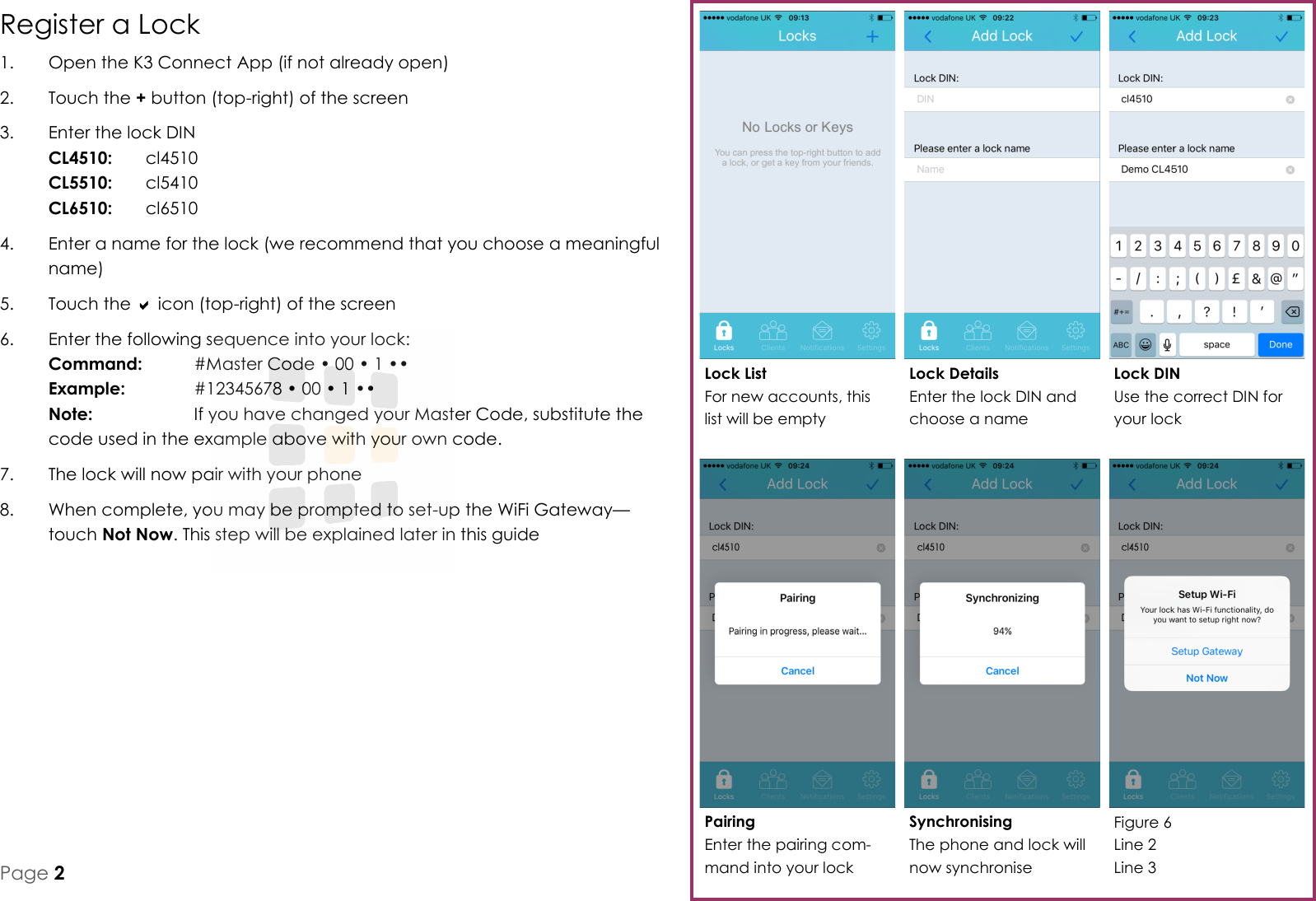
Figure 6 Line 2 Line 3 Register a Lock 1.  Open the K3 Connect App (if not already open) 2.  Touch the + button (top-right) of the screen 3.  Enter the lock DIN CL4510:  cl4510 CL5510:  cl5410 CL6510:  cl6510 4.  Enter a name for the lock (we recommend that you choose a meaningful name) 5.  Touch the  icon (top-right) of the screen 6.  Enter the following sequence into your lock: Command:   #Master Code • 00 • 1 •• Example:    #12345678 • 00 • 1 •• Note:     If you have changed your Master Code, substitute the code used in the example above with your own code. 7.  The lock will now pair with your phone 8.  When complete, you may be prompted to set-up the WiFi Gateway—touch Not Now. This step will be explained later in this guide Pairing Enter the pairing com-mand into your lock Lock DIN Use the correct DIN for your lock Lock Details Enter the lock DIN and choose a name Lock List For new accounts, this list will be empty Synchronising The phone and lock will now synchronise Page 2
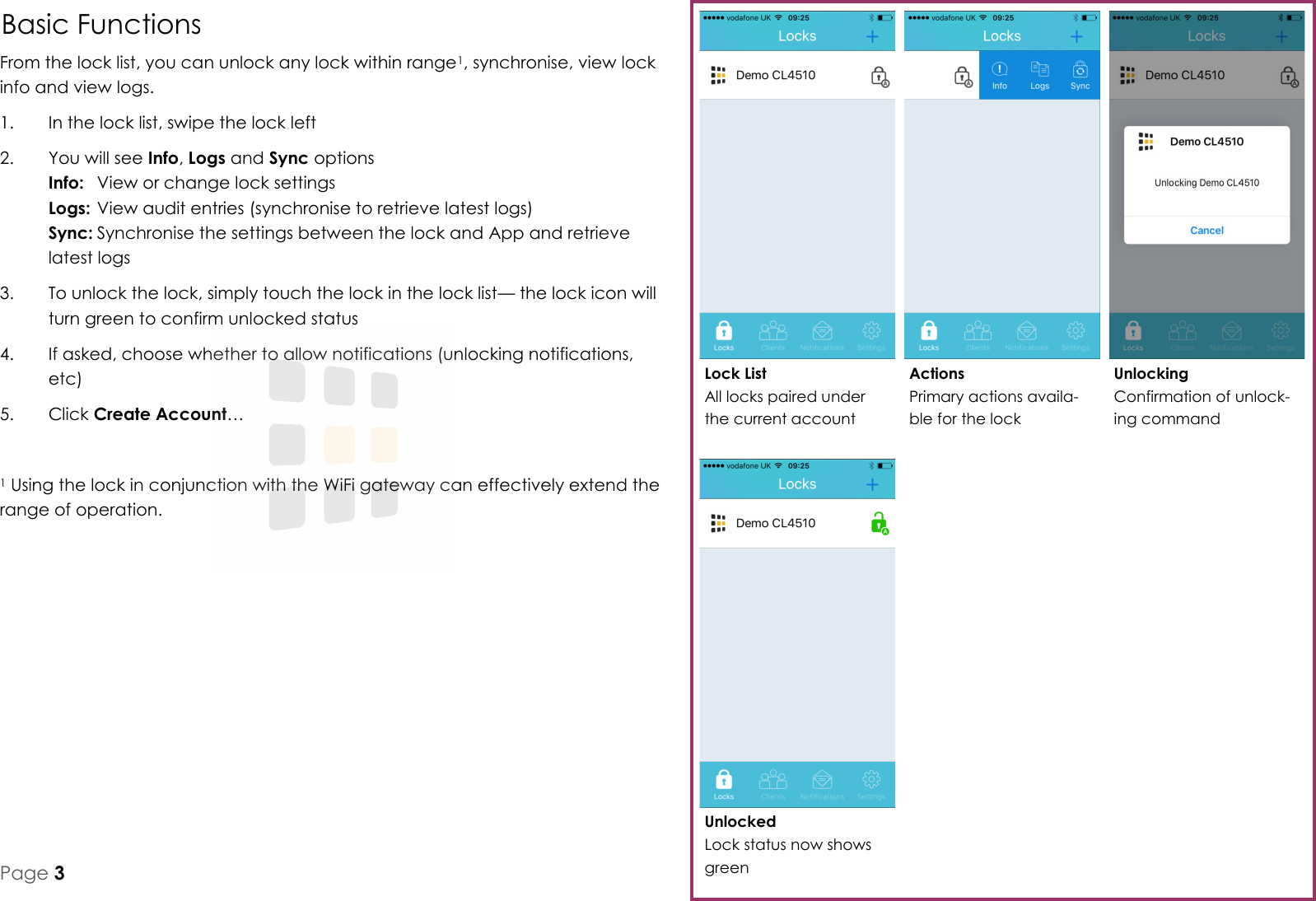
Basic Functions From the lock list, you can unlock any lock within range1, synchronise, view lock info and view logs. 1.  In the lock list, swipe the lock left 2.  You will see Info, Logs and Sync options Info:  View or change lock settings Logs: View audit entries (synchronise to retrieve latest logs) Sync: Synchronise the settings between the lock and App and retrieve latest logs 3.  To unlock the lock, simply touch the lock in the lock list— the lock icon will turn green to confirm unlocked status 4.  If asked, choose whether to allow notifications (unlocking notifications, etc) 5.  Click Create Account…  1 Using the lock in conjunction with the WiFi gateway can effectively extend the range of operation. Unlocked Lock status now shows green Unlocking Confirmation of unlock-ing command Actions Primary actions availa-ble for the lock Lock List All locks paired under the current account Page 3
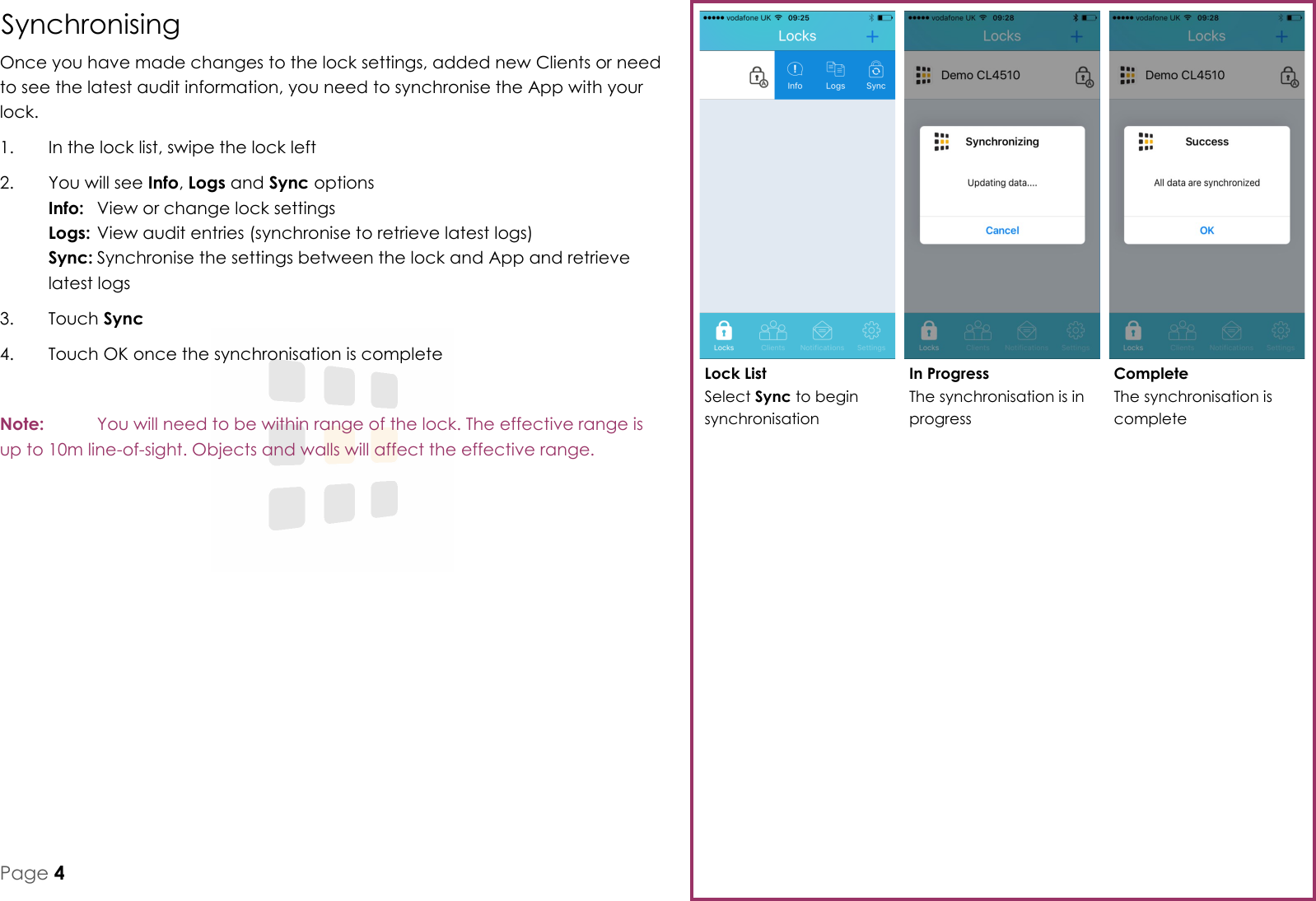
Complete The synchronisation is complete In Progress The synchronisation is in progress Lock List Select Sync to begin synchronisation Page 4 Synchronising Once you have made changes to the lock settings, added new Clients or need to see the latest audit information, you need to synchronise the App with your lock. 1.  In the lock list, swipe the lock left 2.  You will see Info, Logs and Sync options Info:  View or change lock settings Logs: View audit entries (synchronise to retrieve latest logs) Sync: Synchronise the settings between the lock and App and retrieve latest logs 3.  Touch Sync 4.  Touch OK once the synchronisation is complete  Note:   You will need to be within range of the lock. The effective range is up to 10m line-of-sight. Objects and walls will affect the effective range.
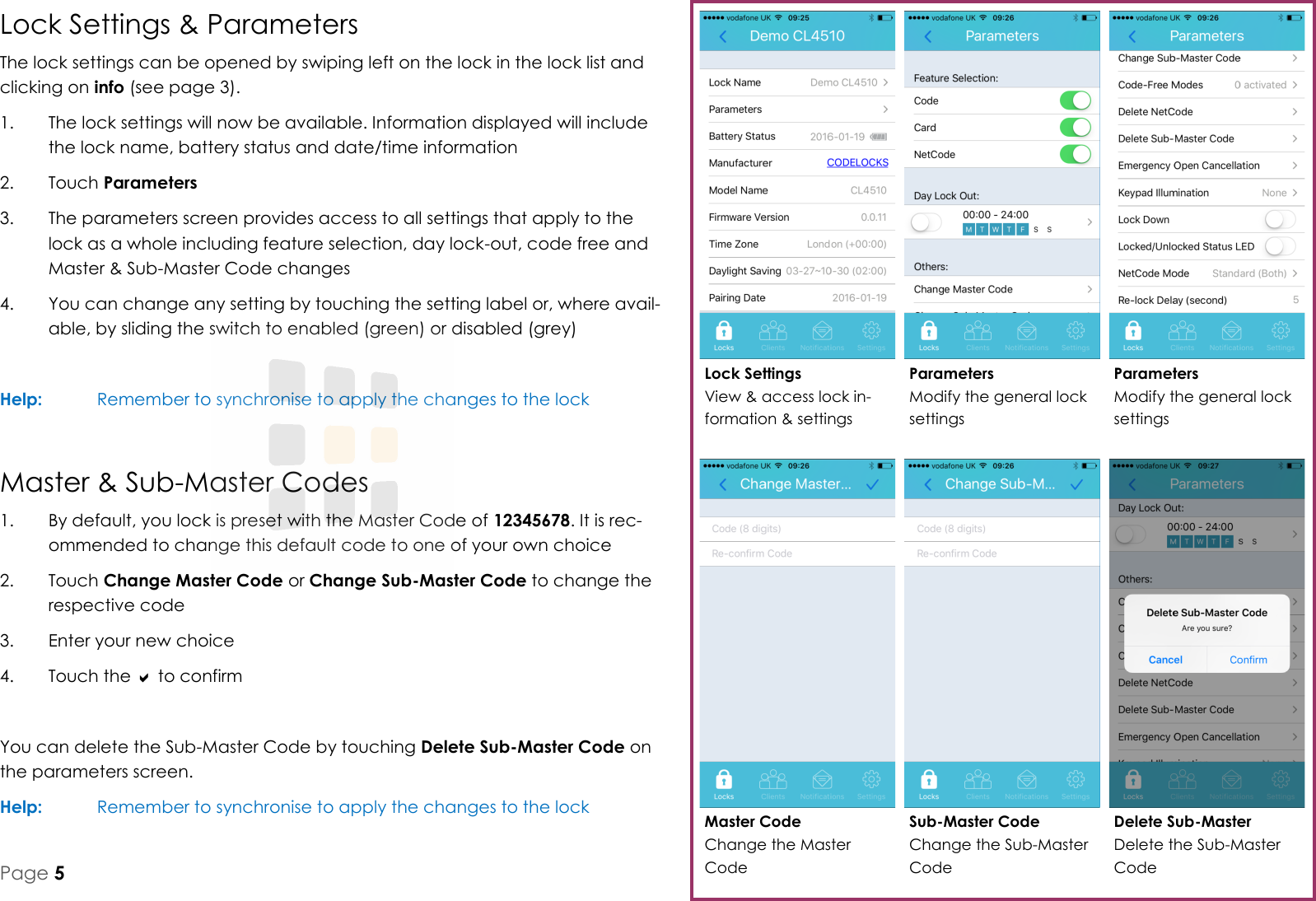
Delete Sub-Master Delete the Sub-Master Code Master Code Change the Master Code Parameters Modify the general lock settings Parameters Modify the general lock settings Lock Settings View & access lock in-formation & settings Sub-Master Code Change the Sub-Master Code Lock Settings & Parameters The lock settings can be opened by swiping left on the lock in the lock list and clicking on info (see page 3). 1.  The lock settings will now be available. Information displayed will include the lock name, battery status and date/time information 2.  Touch Parameters 3.  The parameters screen provides access to all settings that apply to the lock as a whole including feature selection, day lock-out, code free and Master & Sub-Master Code changes 4.  You can change any setting by touching the setting label or, where avail-able, by sliding the switch to enabled (green) or disabled (grey)  Help:   Remember to synchronise to apply the changes to the lock Master & Sub-Master Codes 1.  By default, you lock is preset with the Master Code of 12345678. It is rec-ommended to change this default code to one of your own choice 2.  Touch Change Master Code or Change Sub-Master Code to change the respective code 3.  Enter your new choice 4.  Touch the  to confirm  You can delete the Sub-Master Code by touching Delete Sub-Master Code on the parameters screen. Help:   Remember to synchronise to apply the changes to the lock Page 5
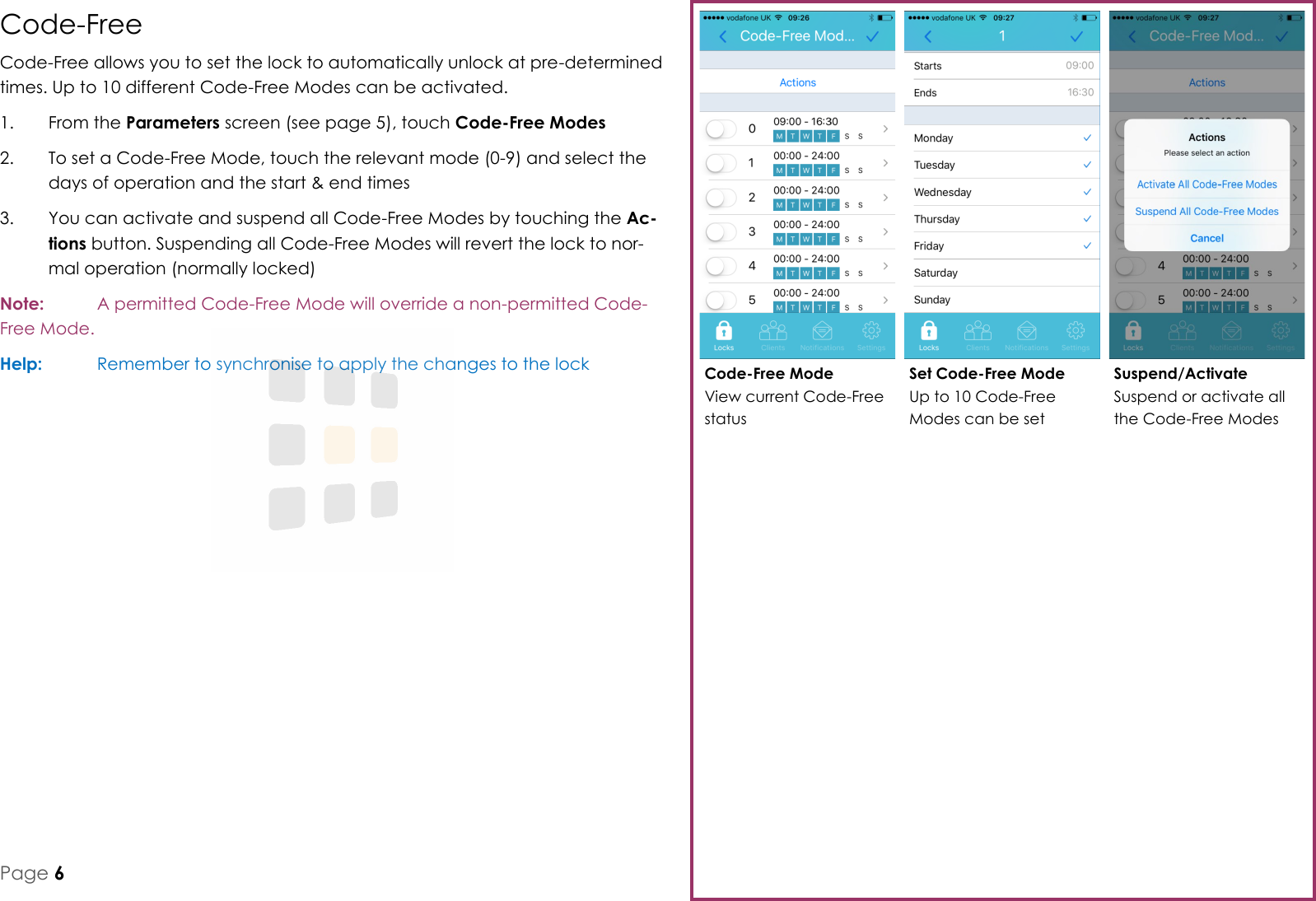
Suspend/Activate Suspend or activate all the Code-Free Modes Set Code-Free Mode Up to 10 Code-Free Modes can be set Code-Free Mode View current Code-Free status Code-Free Code-Free allows you to set the lock to automatically unlock at pre-determined times. Up to 10 different Code-Free Modes can be activated. 1.  From the Parameters screen (see page 5), touch Code-Free Modes 2.  To set a Code-Free Mode, touch the relevant mode (0-9) and select the days of operation and the start & end times 3.  You can activate and suspend all Code-Free Modes by touching the Ac-tions button. Suspending all Code-Free Modes will revert the lock to nor-mal operation (normally locked) Note:   A permitted Code-Free Mode will override a non-permitted Code-Free Mode.  Help:   Remember to synchronise to apply the changes to the lock Page 6
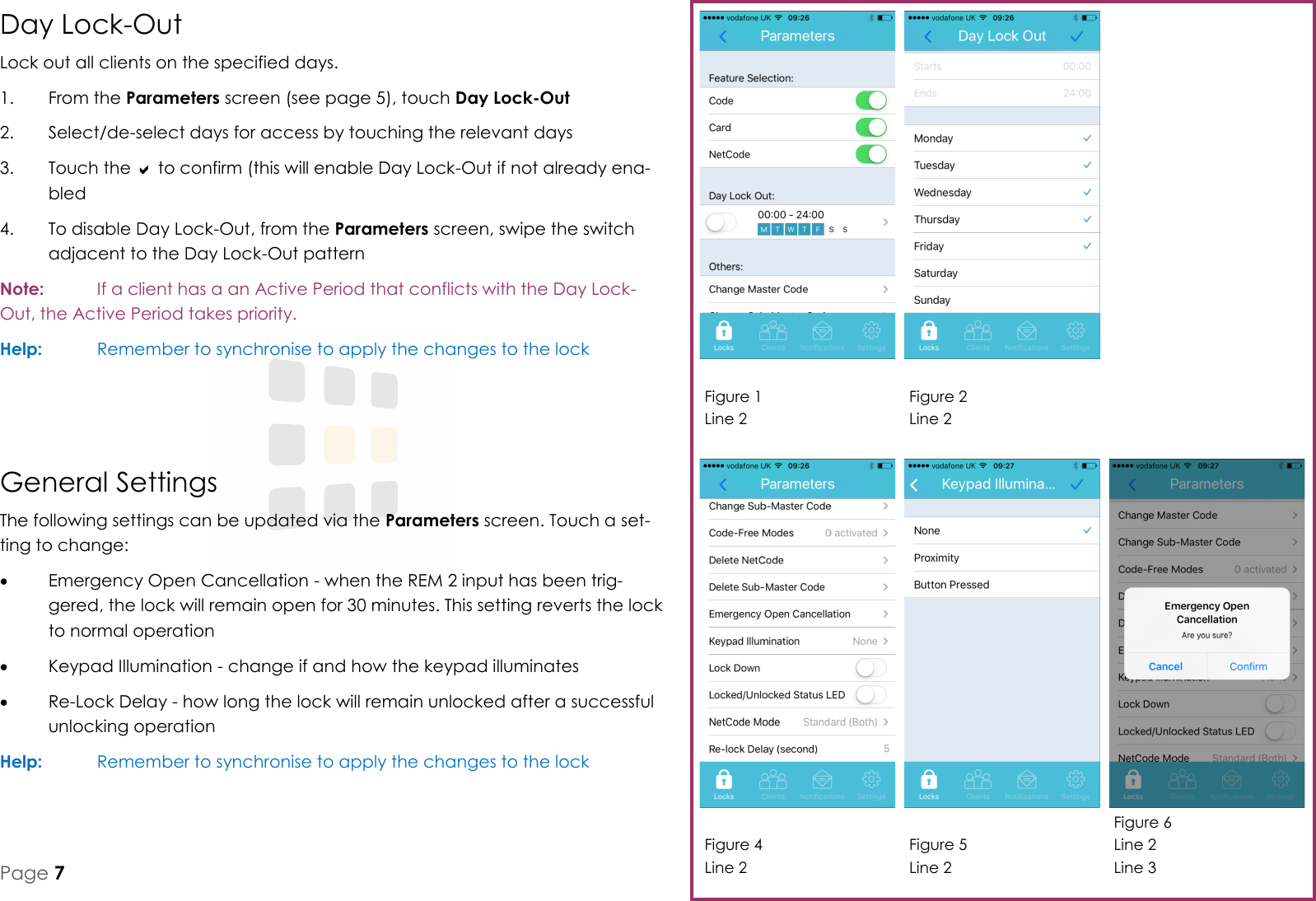
Figure 1 Line 2 Figure 2 Line 2 Figure 4 Line 2 Figure 5 Line 2 Figure 6 Line 2 Line 3 Page 7 General Settings The following settings can be updated via the Parameters screen. Touch a set-ting to change:   Emergency Open Cancellation - when the REM 2 input has been trig-gered, the lock will remain open for 30 minutes. This setting reverts the lock to normal operation   Keypad Illumination - change if and how the keypad illuminates   Re-Lock Delay - how long the lock will remain unlocked after a successful unlocking operation Help:   Remember to synchronise to apply the changes to the lock   Day Lock-Out Lock out all clients on the specified days. 1.  From the Parameters screen (see page 5), touch Day Lock-Out 2.  Select/de-select days for access by touching the relevant days 3.  Touch the  to confirm (this will enable Day Lock-Out if not already ena-bled 4.  To disable Day Lock-Out, from the Parameters screen, swipe the switch adjacent to the Day Lock-Out pattern Note:   If a client has a an Active Period that conflicts with the Day Lock-Out, the Active Period takes priority.  Help:   Remember to synchronise to apply the changes to the lock
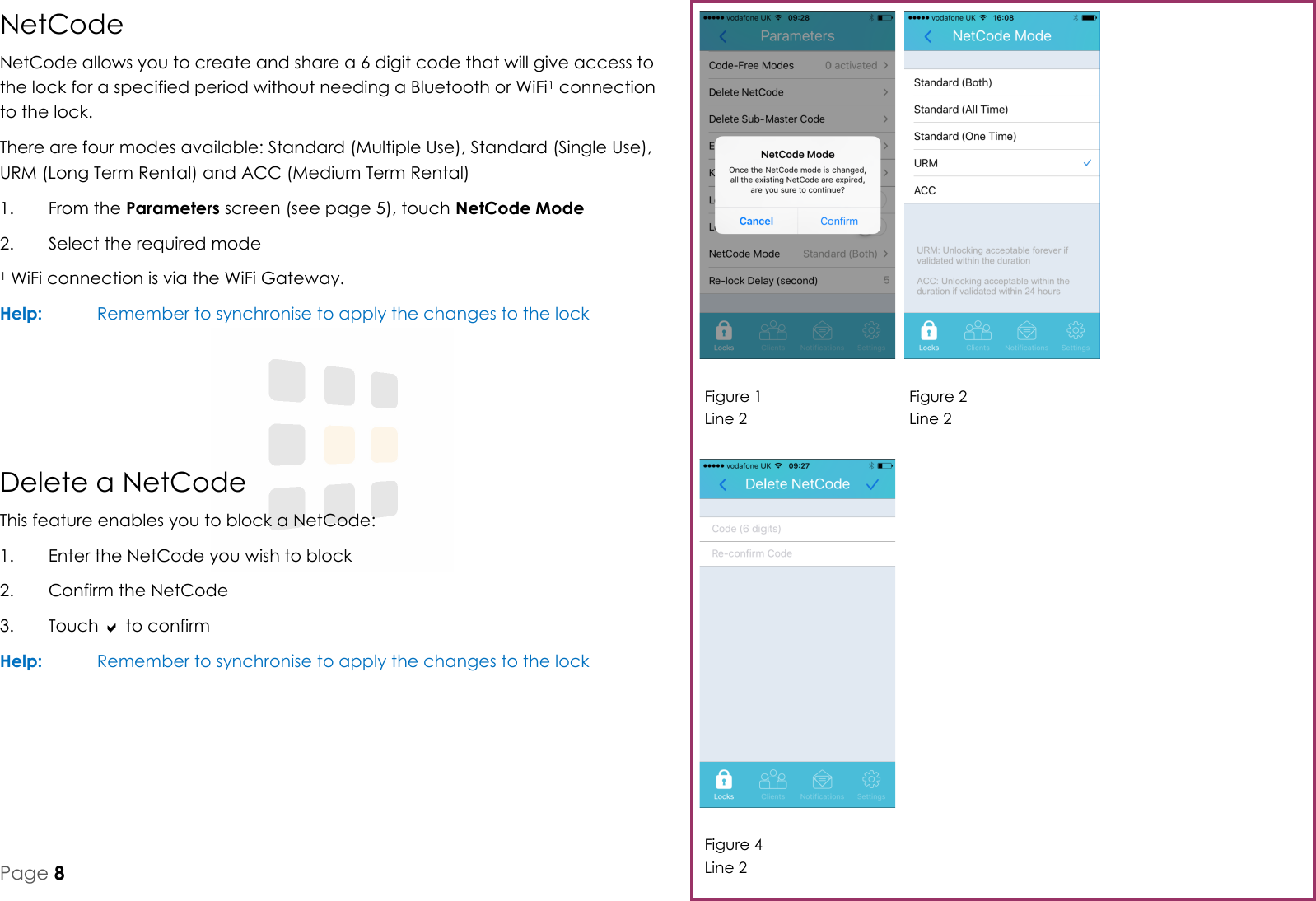
Figure 1 Line 2 Figure 2 Line 2 Figure 4 Line 2 Page 8 NetCode NetCode allows you to create and share a 6 digit code that will give access to the lock for a specified period without needing a Bluetooth or WiFi1 connection to the lock. There are four modes available: Standard (Multiple Use), Standard (Single Use), URM (Long Term Rental) and ACC (Medium Term Rental) 1.  From the Parameters screen (see page 5), touch NetCode Mode 2.  Select the required mode 1 WiFi connection is via the WiFi Gateway. Help:   Remember to synchronise to apply the changes to the lock Delete a NetCode This feature enables you to block a NetCode: 1.  Enter the NetCode you wish to block 2.  Confirm the NetCode 3.  Touch  to confirm Help:   Remember to synchronise to apply the changes to the lock
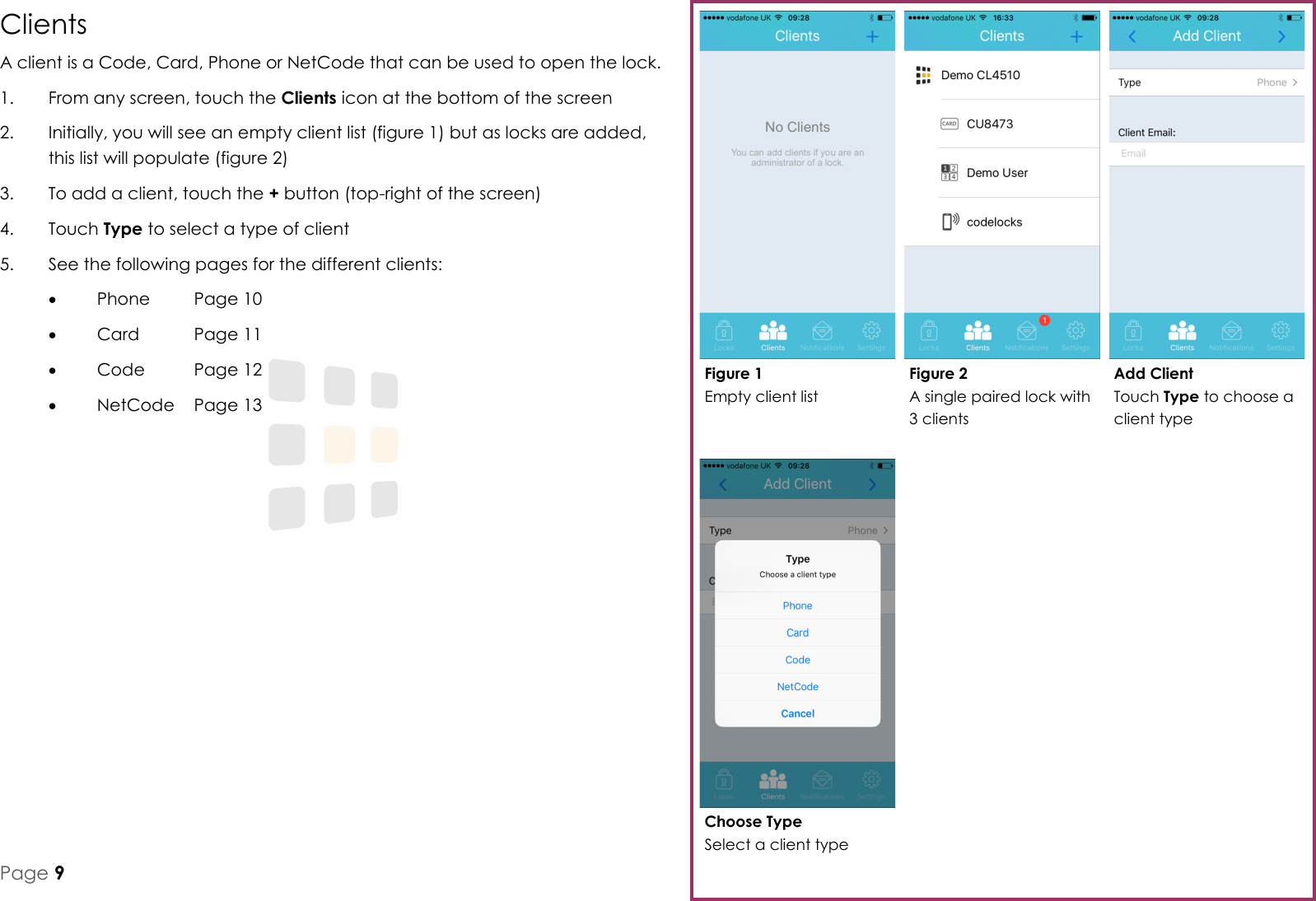
Choose Type Select a client type Add Client Touch Type to choose a client type Figure 2 A single paired lock with 3 clients Figure 1 Empty client list Page 9 Clients A client is a Code, Card, Phone or NetCode that can be used to open the lock. 1.  From any screen, touch the Clients icon at the bottom of the screen 2.  Initially, you will see an empty client list (figure 1) but as locks are added, this list will populate (figure 2) 3.  To add a client, touch the + button (top-right of the screen) 4.  Touch Type to select a type of client 5.  See the following pages for the different clients:   Phone  Page 10   Card   Page 11   Code   Page 12   NetCode  Page 13
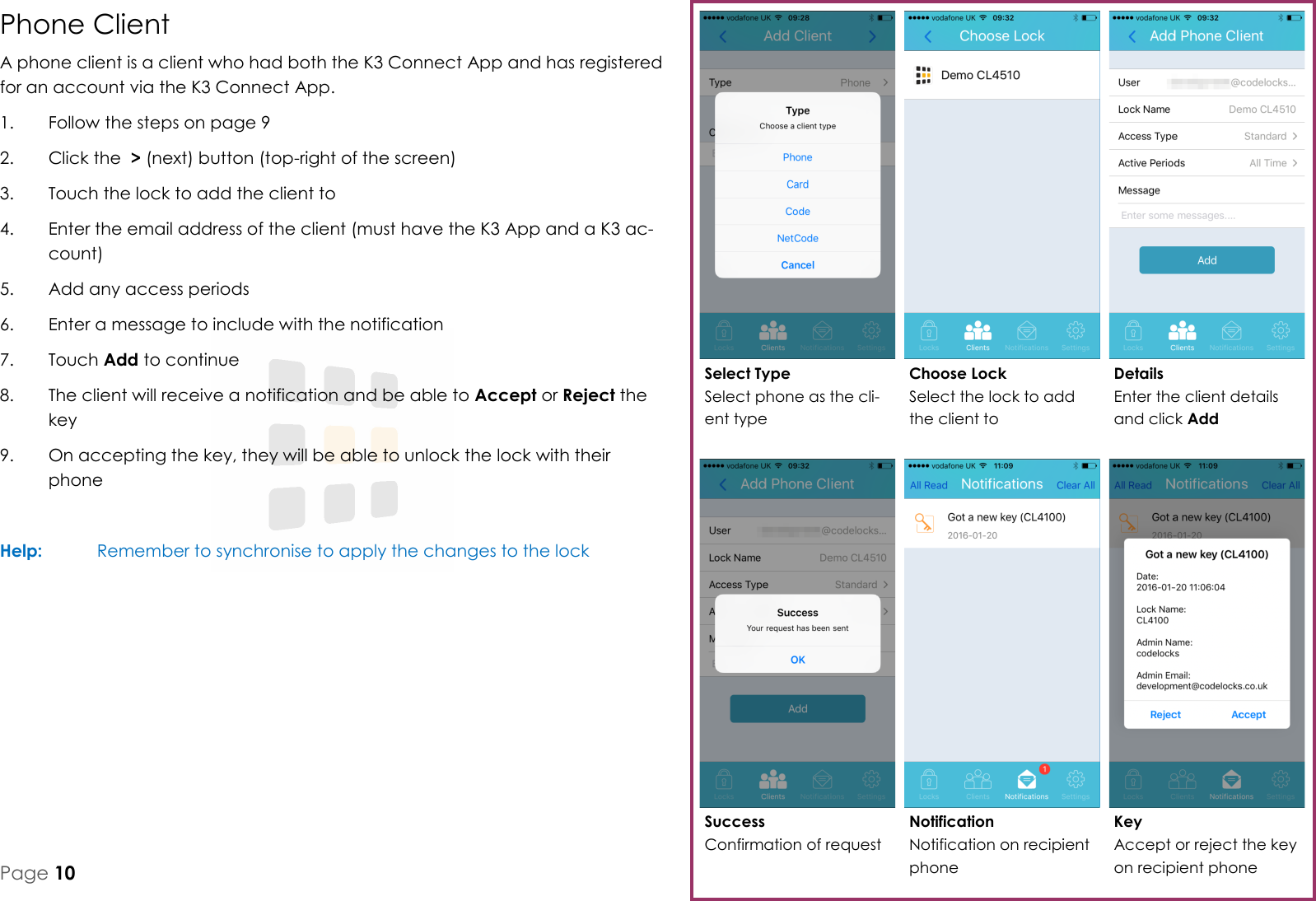
Key Accept or reject the key on recipient phone Success Confirmation of request Details Enter the client details and click Add Choose Lock Select the lock to add the client to Select Type Select phone as the cli-ent type Notification Notification on recipient phone Page 10 Phone Client A phone client is a client who had both the K3 Connect App and has registered for an account via the K3 Connect App. 1.  Follow the steps on page 9 2.  Click the  > (next) button (top-right of the screen) 3.  Touch the lock to add the client to 4.  Enter the email address of the client (must have the K3 App and a K3 ac-count) 5.  Add any access periods 6.  Enter a message to include with the notification 7.  Touch Add to continue 8.  The client will receive a notification and be able to Accept or Reject the key 9.  On accepting the key, they will be able to unlock the lock with their phone  Help:   Remember to synchronise to apply the changes to the lock
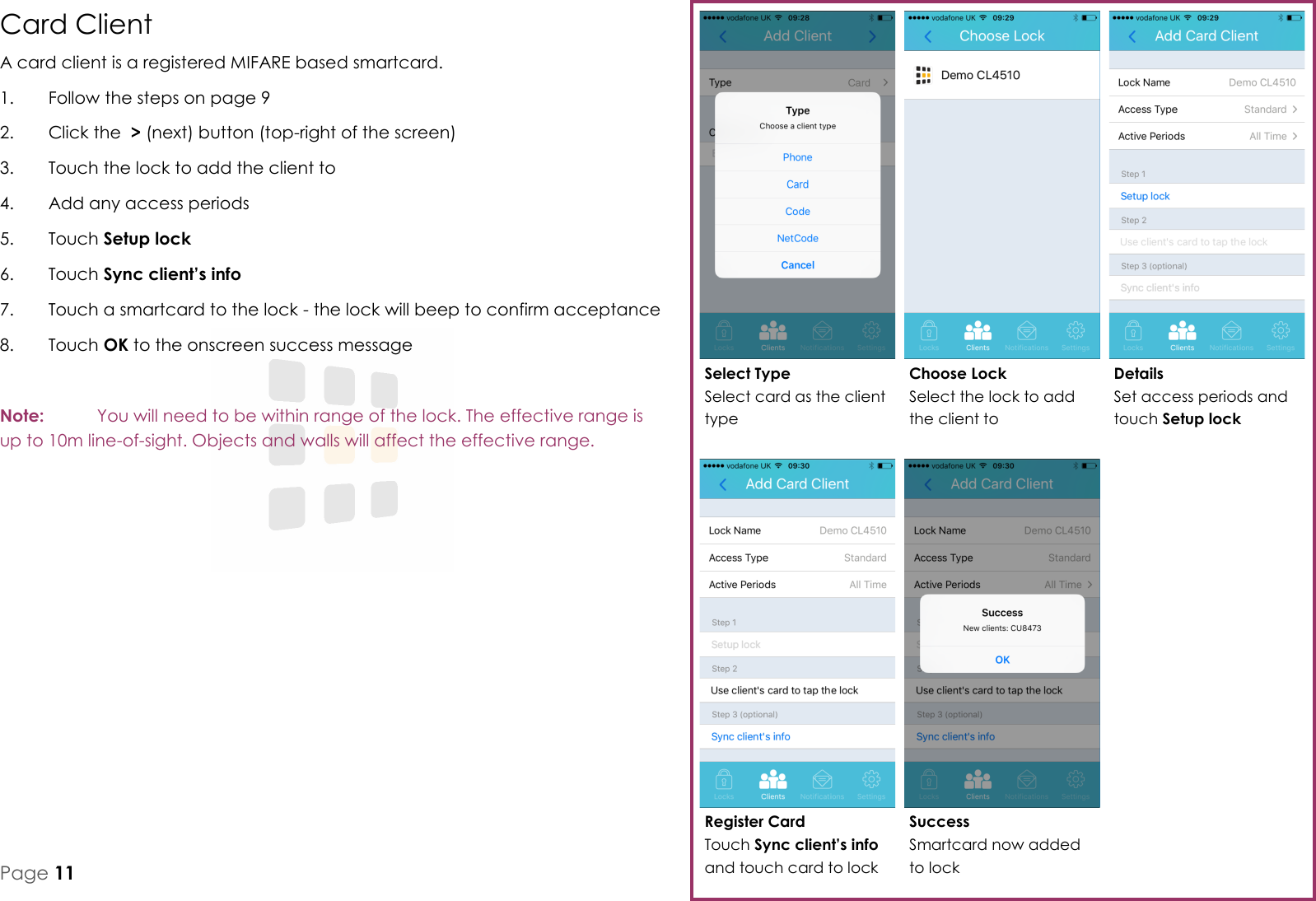
Register Card Touch Sync client’s info and touch card to lock Details Set access periods and touch Setup lock Choose Lock Select the lock to add the client to Select Type Select card as the client type Success Smartcard now added to lock Page 11 Card Client A card client is a registered MIFARE based smartcard. 1.  Follow the steps on page 9 2.  Click the  > (next) button (top-right of the screen) 3.  Touch the lock to add the client to 4.  Add any access periods 5.  Touch Setup lock 6.  Touch Sync client’s info 7.  Touch a smartcard to the lock - the lock will beep to confirm acceptance 8.  Touch OK to the onscreen success message  Note:   You will need to be within range of the lock. The effective range is up to 10m line-of-sight. Objects and walls will affect the effective range.
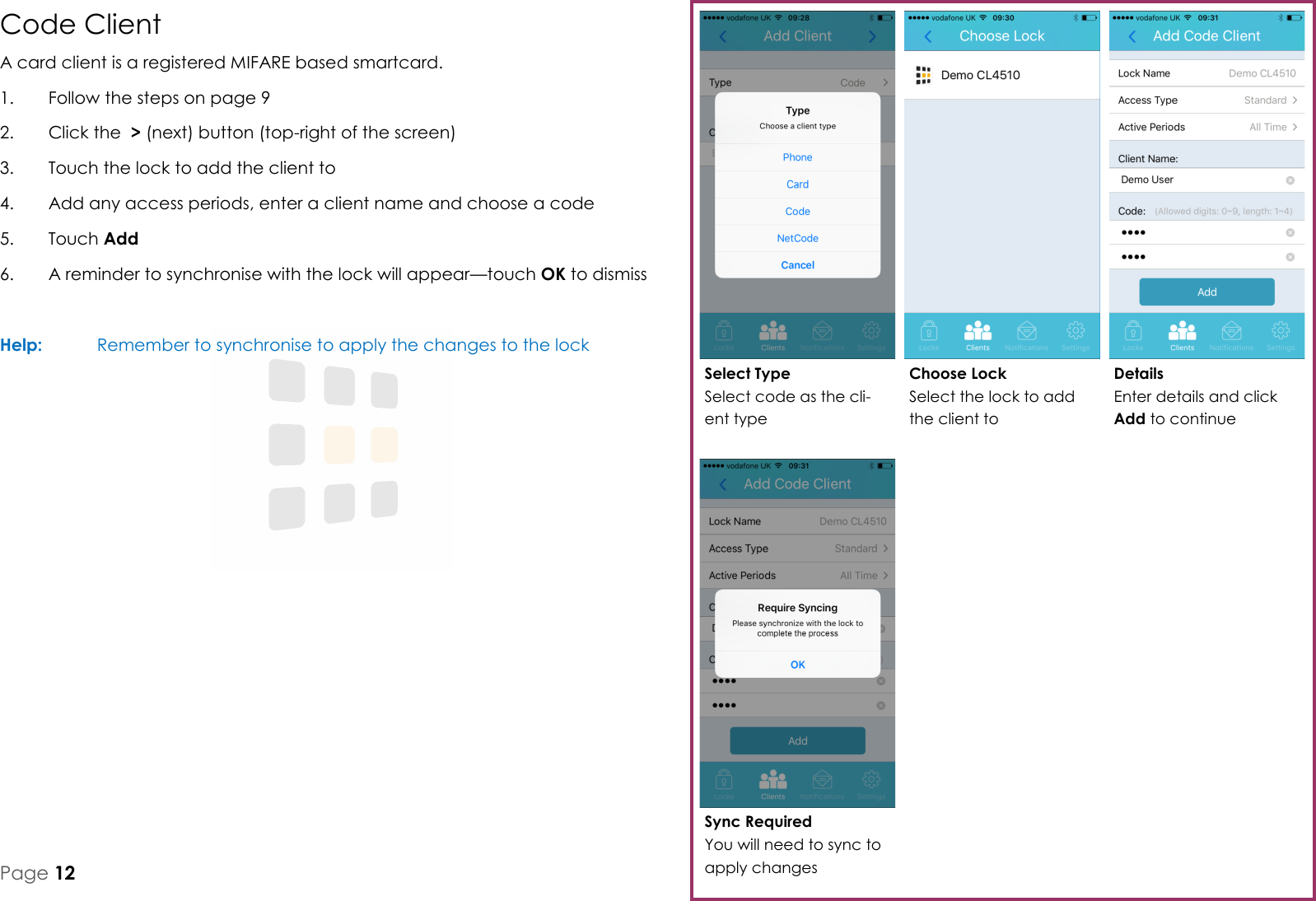
Sync Required You will need to sync to apply changes Details Enter details and click Add to continue Choose Lock Select the lock to add the client to Select Type Select code as the cli-ent type Page 12 Code Client A card client is a registered MIFARE based smartcard. 1.  Follow the steps on page 9 2.  Click the  > (next) button (top-right of the screen) 3.  Touch the lock to add the client to 4.  Add any access periods, enter a client name and choose a code 5.  Touch Add 6.  A reminder to synchronise with the lock will appear—touch OK to dismiss  Help:   Remember to synchronise to apply the changes to the lock
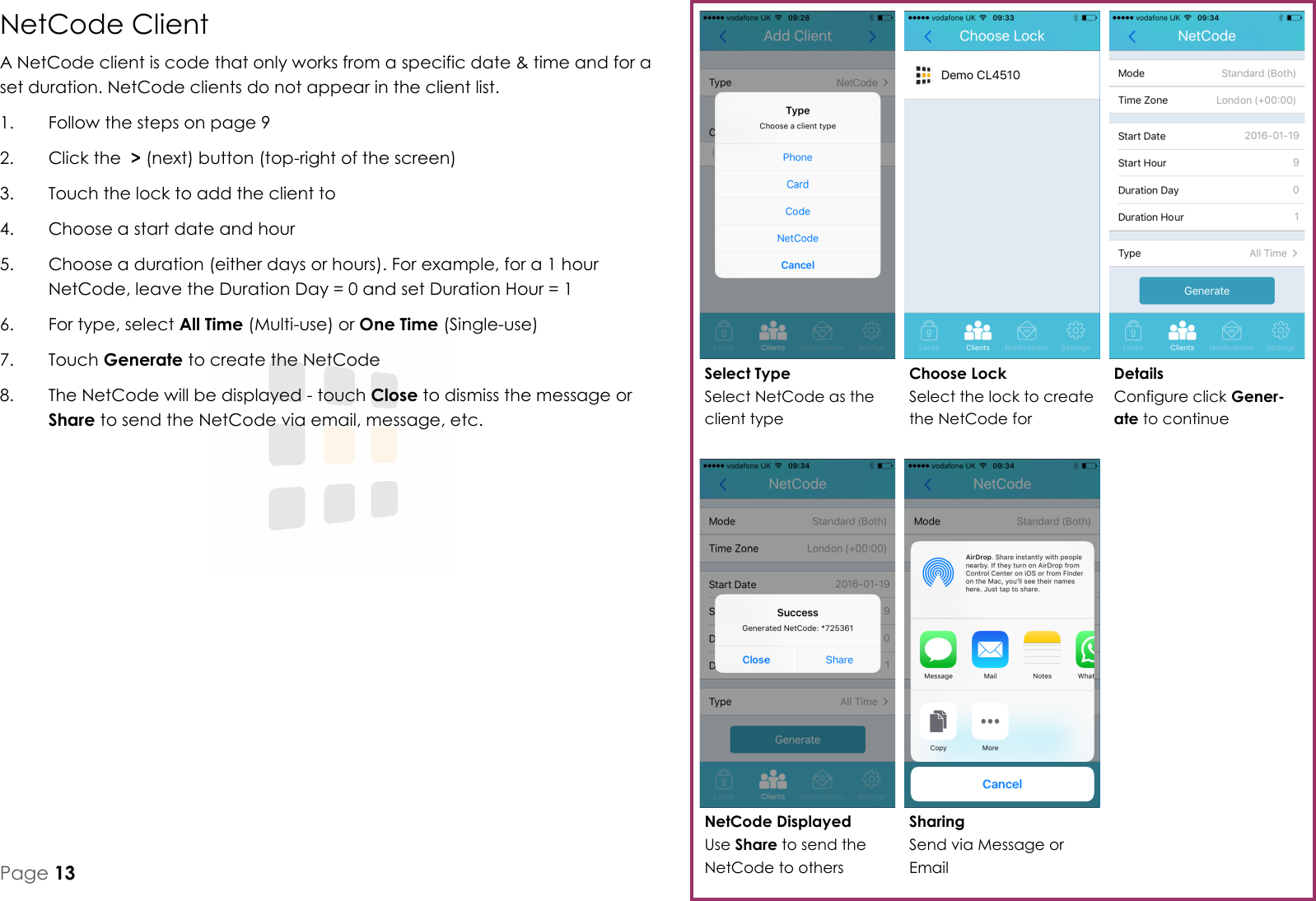
NetCode Displayed Use Share to send the NetCode to others Details Configure click Gener-ate to continue Choose Lock Select the lock to create the NetCode for Select Type Select NetCode as the client type Sharing Send via Message or Email Page 13 NetCode Client A NetCode client is code that only works from a specific date & time and for a set duration. NetCode clients do not appear in the client list. 1.  Follow the steps on page 9 2.  Click the  > (next) button (top-right of the screen) 3.  Touch the lock to add the client to 4.  Choose a start date and hour 5.  Choose a duration (either days or hours). For example, for a 1 hour NetCode, leave the Duration Day = 0 and set Duration Hour = 1 6.  For type, select All Time (Multi-use) or One Time (Single-use) 7.  Touch Generate to create the NetCode 8.  The NetCode will be displayed - touch Close to dismiss the message or Share to send the NetCode via email, message, etc.
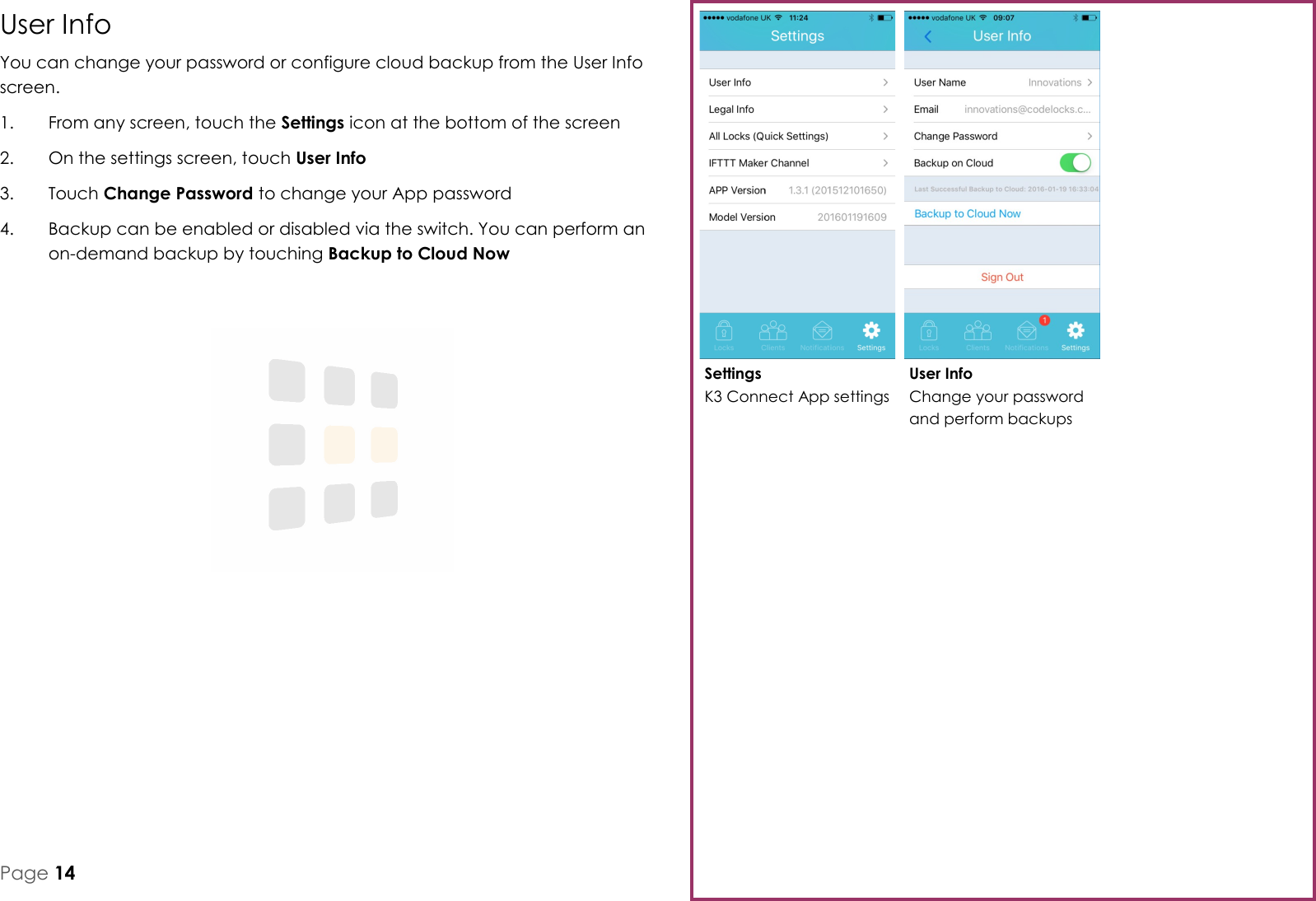
User Info Change your password and perform backups Settings K3 Connect App settings Page 14 User Info You can change your password or configure cloud backup from the User Info screen. 1.  From any screen, touch the Settings icon at the bottom of the screen 2.  On the settings screen, touch User Info 3.  Touch Change Password to change your App password 4.  Backup can be enabled or disabled via the switch. You can perform an on-demand backup by touching Backup to Cloud Now
Figure 1 Line 2 Figure 2 Line 2 Figure 3 Line 2 Figure 4 Line 2 Figure 5 Line 2 Figure 6 Line 2 Line 3 Page Spare Title Text
Document Version: 0.2  Status: Draft  Page 1 of 9 CLX500 Programming & Operating  REGULATORY COMPLIANCE The device complies with Part 15 of the FCC Rules. Operation is subject to the following two conditions: (1) This device may not cause harmful interference, and (2) This device must accept any interference received, including interference that may cause undesired operation. This equipment has been tested and found to comply with the limits for a Class B digital device, pursuant to Part 15 of the FCC Rules. These limits are designed to provide reasonable protection against harmful interference in a residential installation. This equipment generates, uses, and can radiate radio frequency energy and, if not installed and used in accordance with the instructions, may cause harmful interference to radio communications. However, there is no guarantee that interference will not occur in a particular installation. If this equipment does cause harmful interference to radio or television reception, which can be determined by turning the equipment off and on, the user is encouraged to try to correct the interference by one or more of the following measures:  Reorient or relocate the receiving antenna.  Increase the separation between the equipment and receiver.  Connect the equipment into an outlet on a circuit different from that to which the receiver is connected.  Consult the dealer or an experienced radio/TV technician for help.
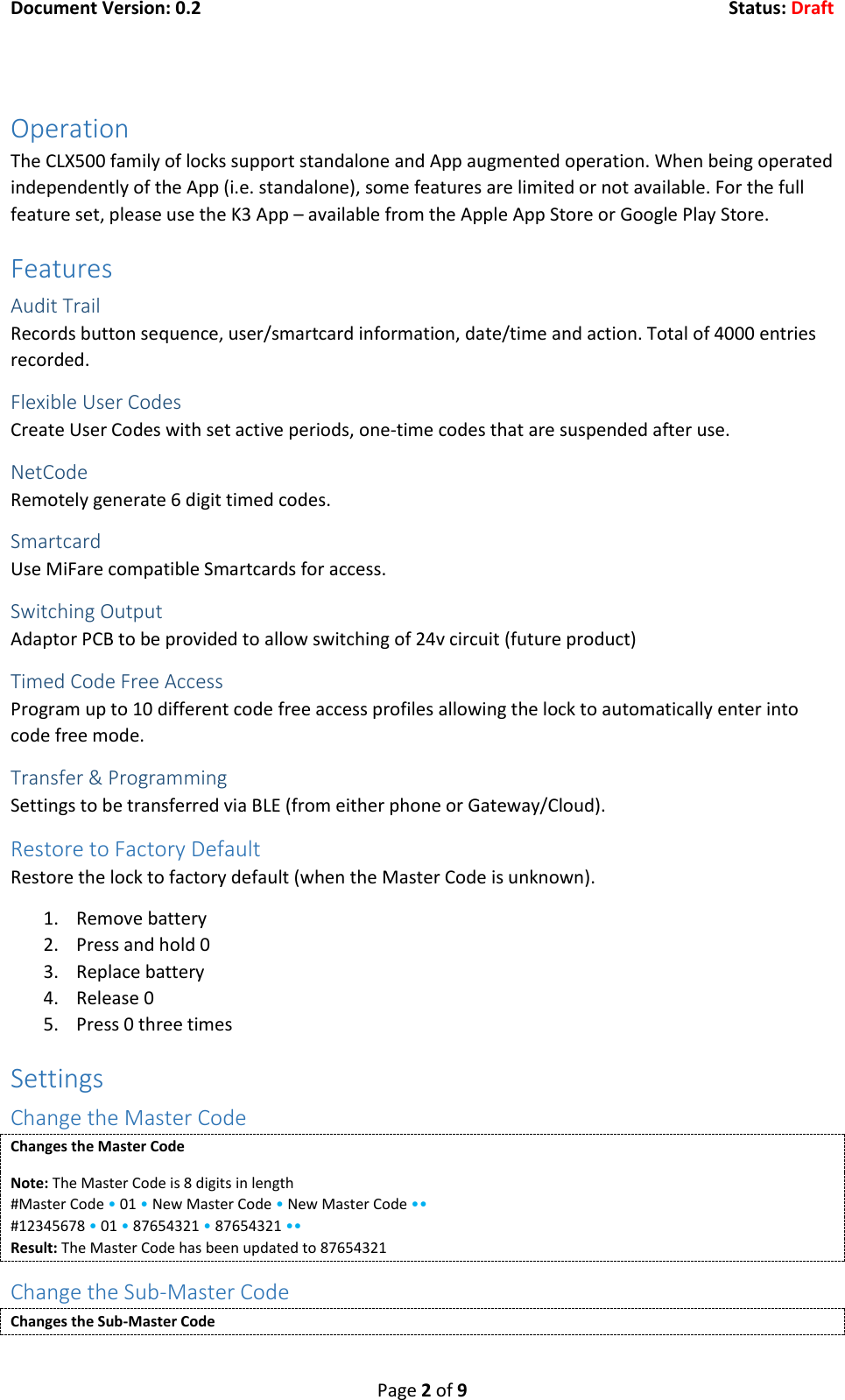
Document Version: 0.2  Status: Draft  Page 2 of 9  Operation The CLX500 family of locks support standalone and App augmented operation. When being operated independently of the App (i.e. standalone), some features are limited or not available. For the full feature set, please use the K3 App – available from the Apple App Store or Google Play Store. Features Audit Trail Records button sequence, user/smartcard information, date/time and action. Total of 4000 entries recorded. Flexible User Codes Create User Codes with set active periods, one-time codes that are suspended after use. NetCode Remotely generate 6 digit timed codes. Smartcard Use MiFare compatible Smartcards for access. Switching Output Adaptor PCB to be provided to allow switching of 24v circuit (future product) Timed Code Free Access Program up to 10 different code free access profiles allowing the lock to automatically enter into code free mode. Transfer & Programming Settings to be transferred via BLE (from either phone or Gateway/Cloud). Restore to Factory Default Restore the lock to factory default (when the Master Code is unknown). 1. Remove battery 2. Press and hold 0 3. Replace battery 4. Release 0 5. Press 0 three times Settings Change the Master Code Changes the Master Code Note: The Master Code is 8 digits in length #Master Code • 01 • New Master Code • New Master Code •• #12345678 • 01 • 87654321 • 87654321 •• Result: The Master Code has been updated to 87654321 Change the Sub-Master Code Changes the Sub-Master Code
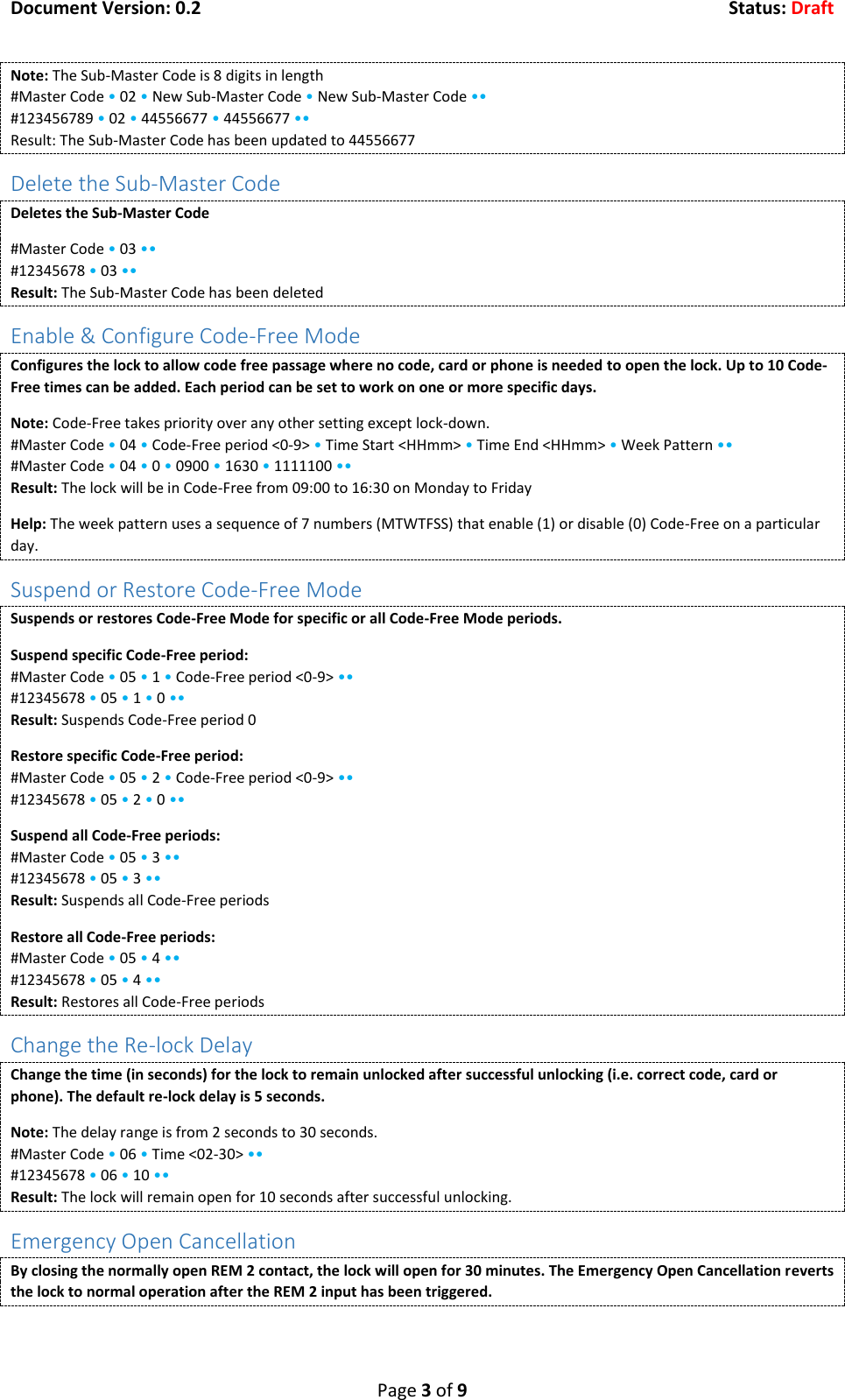
Document Version: 0.2  Status: Draft  Page 3 of 9 Note: The Sub-Master Code is 8 digits in length #Master Code • 02 • New Sub-Master Code • New Sub-Master Code •• #123456789 • 02 • 44556677 • 44556677 •• Result: The Sub-Master Code has been updated to 44556677 Delete the Sub-Master Code Deletes the Sub-Master Code #Master Code • 03 •• #12345678 • 03 •• Result: The Sub-Master Code has been deleted Enable & Configure Code-Free Mode Configures the lock to allow code free passage where no code, card or phone is needed to open the lock. Up to 10 Code-Free times can be added. Each period can be set to work on one or more specific days. Note: Code-Free takes priority over any other setting except lock-down. #Master Code • 04 • Code-Free period <0-9> • Time Start <HHmm> • Time End <HHmm> • Week Pattern •• #Master Code • 04 • 0 • 0900 • 1630 • 1111100 •• Result: The lock will be in Code-Free from 09:00 to 16:30 on Monday to Friday Help: The week pattern uses a sequence of 7 numbers (MTWTFSS) that enable (1) or disable (0) Code-Free on a particular day. Suspend or Restore Code-Free Mode Suspends or restores Code-Free Mode for specific or all Code-Free Mode periods. Suspend specific Code-Free period: #Master Code • 05 • 1 • Code-Free period <0-9> •• #12345678 • 05 • 1 • 0 •• Result: Suspends Code-Free period 0 Restore specific Code-Free period: #Master Code • 05 • 2 • Code-Free period <0-9> •• #12345678 • 05 • 2 • 0 •• Suspend all Code-Free periods: #Master Code • 05 • 3 •• #12345678 • 05 • 3 •• Result: Suspends all Code-Free periods Restore all Code-Free periods: #Master Code • 05 • 4 •• #12345678 • 05 • 4 •• Result: Restores all Code-Free periods Change the Re-lock Delay Change the time (in seconds) for the lock to remain unlocked after successful unlocking (i.e. correct code, card or phone). The default re-lock delay is 5 seconds. Note: The delay range is from 2 seconds to 30 seconds. #Master Code • 06 • Time <02-30> •• #12345678 • 06 • 10 •• Result: The lock will remain open for 10 seconds after successful unlocking. Emergency Open Cancellation By closing the normally open REM 2 contact, the lock will open for 30 minutes. The Emergency Open Cancellation reverts the lock to normal operation after the REM 2 input has been triggered.
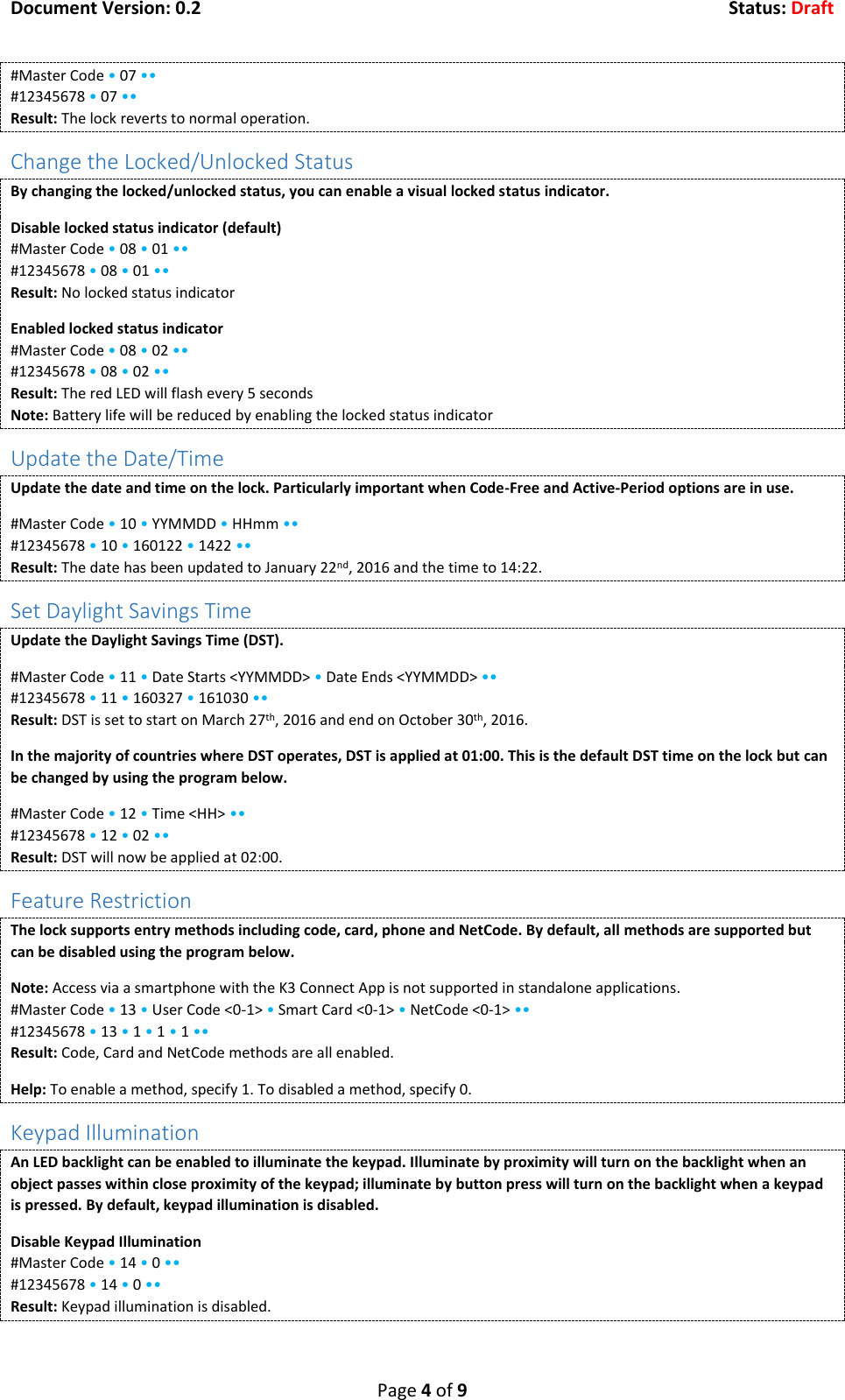
Document Version: 0.2  Status: Draft  Page 4 of 9 #Master Code • 07 •• #12345678 • 07 •• Result: The lock reverts to normal operation. Change the Locked/Unlocked Status By changing the locked/unlocked status, you can enable a visual locked status indicator. Disable locked status indicator (default) #Master Code • 08 • 01 •• #12345678 • 08 • 01 •• Result: No locked status indicator Enabled locked status indicator #Master Code • 08 • 02 •• #12345678 • 08 • 02 •• Result: The red LED will flash every 5 seconds Note: Battery life will be reduced by enabling the locked status indicator Update the Date/Time Update the date and time on the lock. Particularly important when Code-Free and Active-Period options are in use. #Master Code • 10 • YYMMDD • HHmm •• #12345678 • 10 • 160122 • 1422 •• Result: The date has been updated to January 22nd, 2016 and the time to 14:22. Set Daylight Savings Time Update the Daylight Savings Time (DST).  #Master Code • 11 • Date Starts <YYMMDD> • Date Ends <YYMMDD> •• #12345678 • 11 • 160327 • 161030 •• Result: DST is set to start on March 27th, 2016 and end on October 30th, 2016. In the majority of countries where DST operates, DST is applied at 01:00. This is the default DST time on the lock but can be changed by using the program below. #Master Code • 12 • Time <HH> •• #12345678 • 12 • 02 •• Result: DST will now be applied at 02:00. Feature Restriction The lock supports entry methods including code, card, phone and NetCode. By default, all methods are supported but can be disabled using the program below. Note: Access via a smartphone with the K3 Connect App is not supported in standalone applications. #Master Code • 13 • User Code <0-1> • Smart Card <0-1> • NetCode <0-1> •• #12345678 • 13 • 1 • 1 • 1 •• Result: Code, Card and NetCode methods are all enabled. Help: To enable a method, specify 1. To disabled a method, specify 0. Keypad Illumination An LED backlight can be enabled to illuminate the keypad. Illuminate by proximity will turn on the backlight when an object passes within close proximity of the keypad; illuminate by button press will turn on the backlight when a keypad is pressed. By default, keypad illumination is disabled. Disable Keypad Illumination #Master Code • 14 • 0 •• #12345678 • 14 • 0 •• Result: Keypad illumination is disabled.
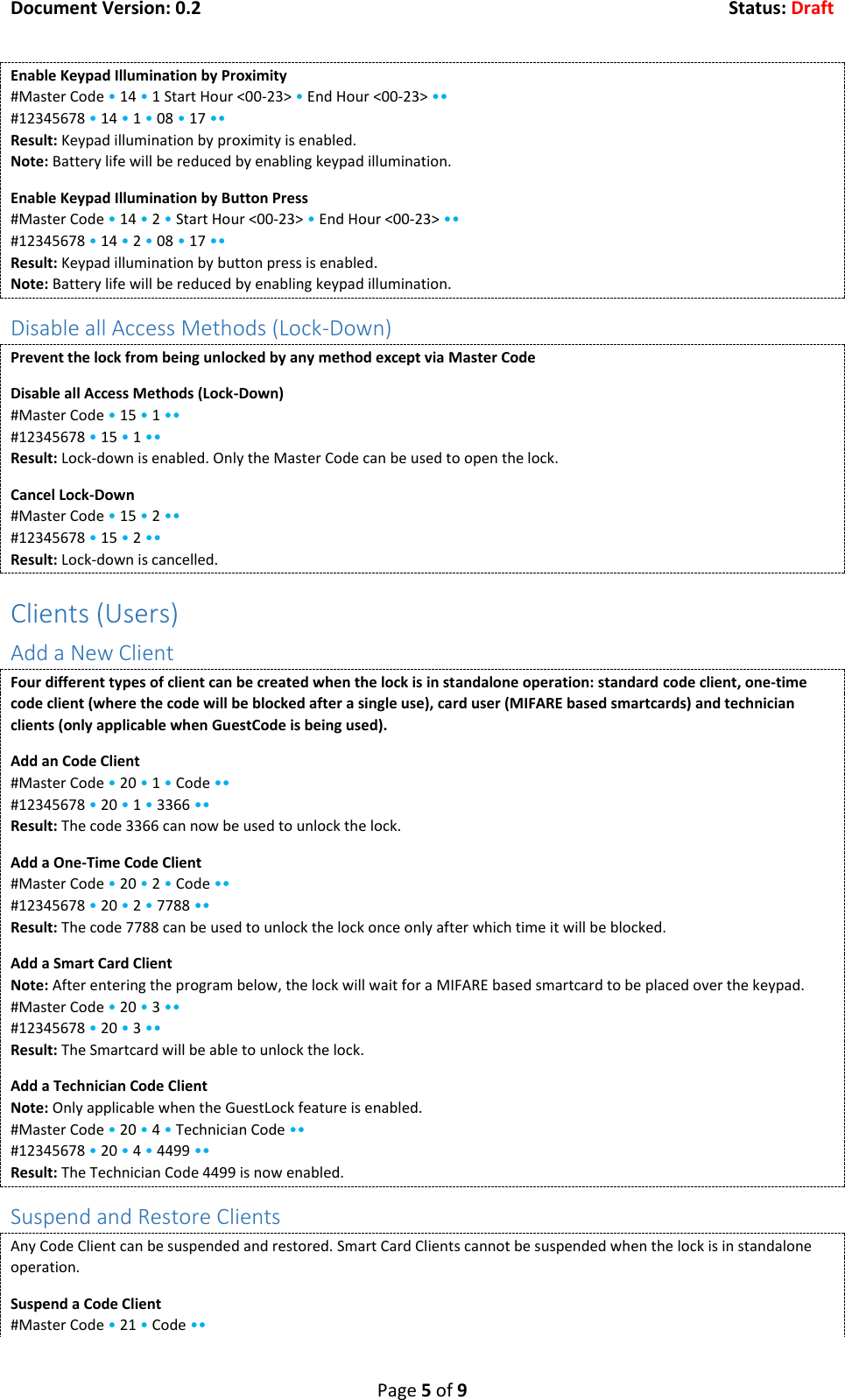
Document Version: 0.2  Status: Draft  Page 5 of 9 Enable Keypad Illumination by Proximity #Master Code • 14 • 1 Start Hour <00-23> • End Hour <00-23> •• #12345678 • 14 • 1 • 08 • 17 •• Result: Keypad illumination by proximity is enabled. Note: Battery life will be reduced by enabling keypad illumination. Enable Keypad Illumination by Button Press #Master Code • 14 • 2 • Start Hour <00-23> • End Hour <00-23> •• #12345678 • 14 • 2 • 08 • 17 •• Result: Keypad illumination by button press is enabled. Note: Battery life will be reduced by enabling keypad illumination. Disable all Access Methods (Lock-Down) Prevent the lock from being unlocked by any method except via Master Code Disable all Access Methods (Lock-Down) #Master Code • 15 • 1 •• #12345678 • 15 • 1 •• Result: Lock-down is enabled. Only the Master Code can be used to open the lock. Cancel Lock-Down #Master Code • 15 • 2 •• #12345678 • 15 • 2 •• Result: Lock-down is cancelled. Clients (Users) Add a New Client Four different types of client can be created when the lock is in standalone operation: standard code client, one-time code client (where the code will be blocked after a single use), card user (MIFARE based smartcards) and technician clients (only applicable when GuestCode is being used). Add an Code Client #Master Code • 20 • 1 • Code •• #12345678 • 20 • 1 • 3366 •• Result: The code 3366 can now be used to unlock the lock. Add a One-Time Code Client #Master Code • 20 • 2 • Code •• #12345678 • 20 • 2 • 7788 •• Result: The code 7788 can be used to unlock the lock once only after which time it will be blocked. Add a Smart Card Client Note: After entering the program below, the lock will wait for a MIFARE based smartcard to be placed over the keypad. #Master Code • 20 • 3 •• #12345678 • 20 • 3 •• Result: The Smartcard will be able to unlock the lock. Add a Technician Code Client Note: Only applicable when the GuestLock feature is enabled. #Master Code • 20 • 4 • Technician Code •• #12345678 • 20 • 4 • 4499 •• Result: The Technician Code 4499 is now enabled. Suspend and Restore Clients Any Code Client can be suspended and restored. Smart Card Clients cannot be suspended when the lock is in standalone operation. Suspend a Code Client #Master Code • 21 • Code ••
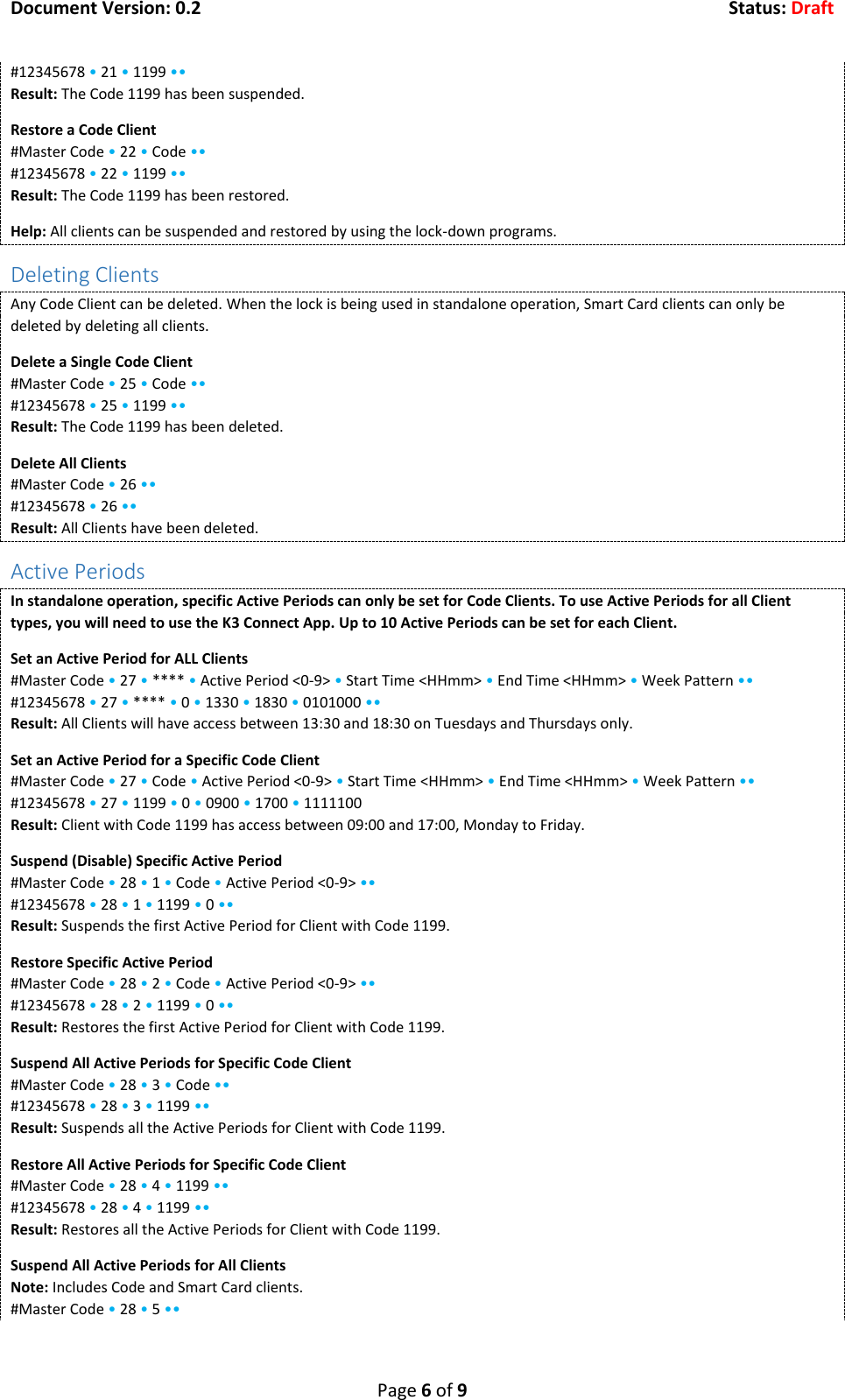
Document Version: 0.2  Status: Draft  Page 6 of 9 #12345678 • 21 • 1199 •• Result: The Code 1199 has been suspended. Restore a Code Client #Master Code • 22 • Code •• #12345678 • 22 • 1199 •• Result: The Code 1199 has been restored. Help: All clients can be suspended and restored by using the lock-down programs. Deleting Clients Any Code Client can be deleted. When the lock is being used in standalone operation, Smart Card clients can only be deleted by deleting all clients. Delete a Single Code Client #Master Code • 25 • Code •• #12345678 • 25 • 1199 •• Result: The Code 1199 has been deleted. Delete All Clients #Master Code • 26 •• #12345678 • 26 •• Result: All Clients have been deleted. Active Periods In standalone operation, specific Active Periods can only be set for Code Clients. To use Active Periods for all Client types, you will need to use the K3 Connect App. Up to 10 Active Periods can be set for each Client. Set an Active Period for ALL Clients #Master Code • 27 • **** • Active Period <0-9> • Start Time <HHmm> • End Time <HHmm> • Week Pattern •• #12345678 • 27 • **** • 0 • 1330 • 1830 • 0101000 •• Result: All Clients will have access between 13:30 and 18:30 on Tuesdays and Thursdays only. Set an Active Period for a Specific Code Client #Master Code • 27 • Code • Active Period <0-9> • Start Time <HHmm> • End Time <HHmm> • Week Pattern •• #12345678 • 27 • 1199 • 0 • 0900 • 1700 • 1111100 Result: Client with Code 1199 has access between 09:00 and 17:00, Monday to Friday. Suspend (Disable) Specific Active Period #Master Code • 28 • 1 • Code • Active Period <0-9> •• #12345678 • 28 • 1 • 1199 • 0 •• Result: Suspends the first Active Period for Client with Code 1199. Restore Specific Active Period #Master Code • 28 • 2 • Code • Active Period <0-9> •• #12345678 • 28 • 2 • 1199 • 0 •• Result: Restores the first Active Period for Client with Code 1199. Suspend All Active Periods for Specific Code Client #Master Code • 28 • 3 • Code •• #12345678 • 28 • 3 • 1199 •• Result: Suspends all the Active Periods for Client with Code 1199. Restore All Active Periods for Specific Code Client #Master Code • 28 • 4 • 1199 •• #12345678 • 28 • 4 • 1199 •• Result: Restores all the Active Periods for Client with Code 1199. Suspend All Active Periods for All Clients Note: Includes Code and Smart Card clients. #Master Code • 28 • 5 ••
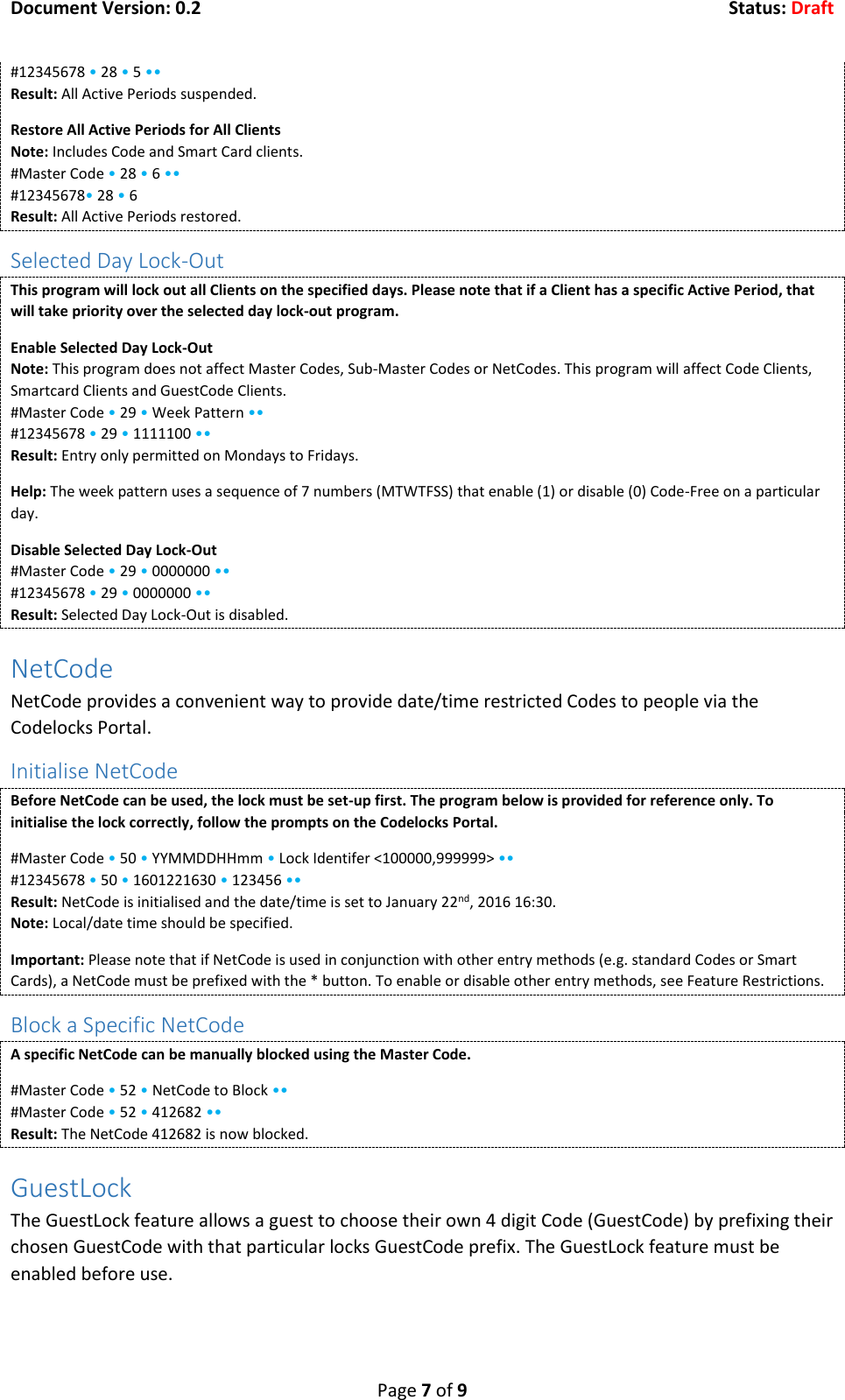
Document Version: 0.2  Status: Draft  Page 7 of 9 #12345678 • 28 • 5 •• Result: All Active Periods suspended. Restore All Active Periods for All Clients Note: Includes Code and Smart Card clients. #Master Code • 28 • 6 •• #12345678• 28 • 6 Result: All Active Periods restored. Selected Day Lock-Out This program will lock out all Clients on the specified days. Please note that if a Client has a specific Active Period, that will take priority over the selected day lock-out program. Enable Selected Day Lock-Out Note: This program does not affect Master Codes, Sub-Master Codes or NetCodes. This program will affect Code Clients, Smartcard Clients and GuestCode Clients. #Master Code • 29 • Week Pattern •• #12345678 • 29 • 1111100 •• Result: Entry only permitted on Mondays to Fridays. Help: The week pattern uses a sequence of 7 numbers (MTWTFSS) that enable (1) or disable (0) Code-Free on a particular day. Disable Selected Day Lock-Out #Master Code • 29 • 0000000 •• #12345678 • 29 • 0000000 •• Result: Selected Day Lock-Out is disabled. NetCode NetCode provides a convenient way to provide date/time restricted Codes to people via the Codelocks Portal. Initialise NetCode Before NetCode can be used, the lock must be set-up first. The program below is provided for reference only. To initialise the lock correctly, follow the prompts on the Codelocks Portal. #Master Code • 50 • YYMMDDHHmm • Lock Identifer <100000,999999> •• #12345678 • 50 • 1601221630 • 123456 •• Result: NetCode is initialised and the date/time is set to January 22nd, 2016 16:30. Note: Local/date time should be specified. Important: Please note that if NetCode is used in conjunction with other entry methods (e.g. standard Codes or Smart Cards), a NetCode must be prefixed with the * button. To enable or disable other entry methods, see Feature Restrictions. Block a Specific NetCode A specific NetCode can be manually blocked using the Master Code. #Master Code • 52 • NetCode to Block •• #Master Code • 52 • 412682 •• Result: The NetCode 412682 is now blocked. GuestLock The GuestLock feature allows a guest to choose their own 4 digit Code (GuestCode) by prefixing their chosen GuestCode with that particular locks GuestCode prefix. The GuestLock feature must be enabled before use.
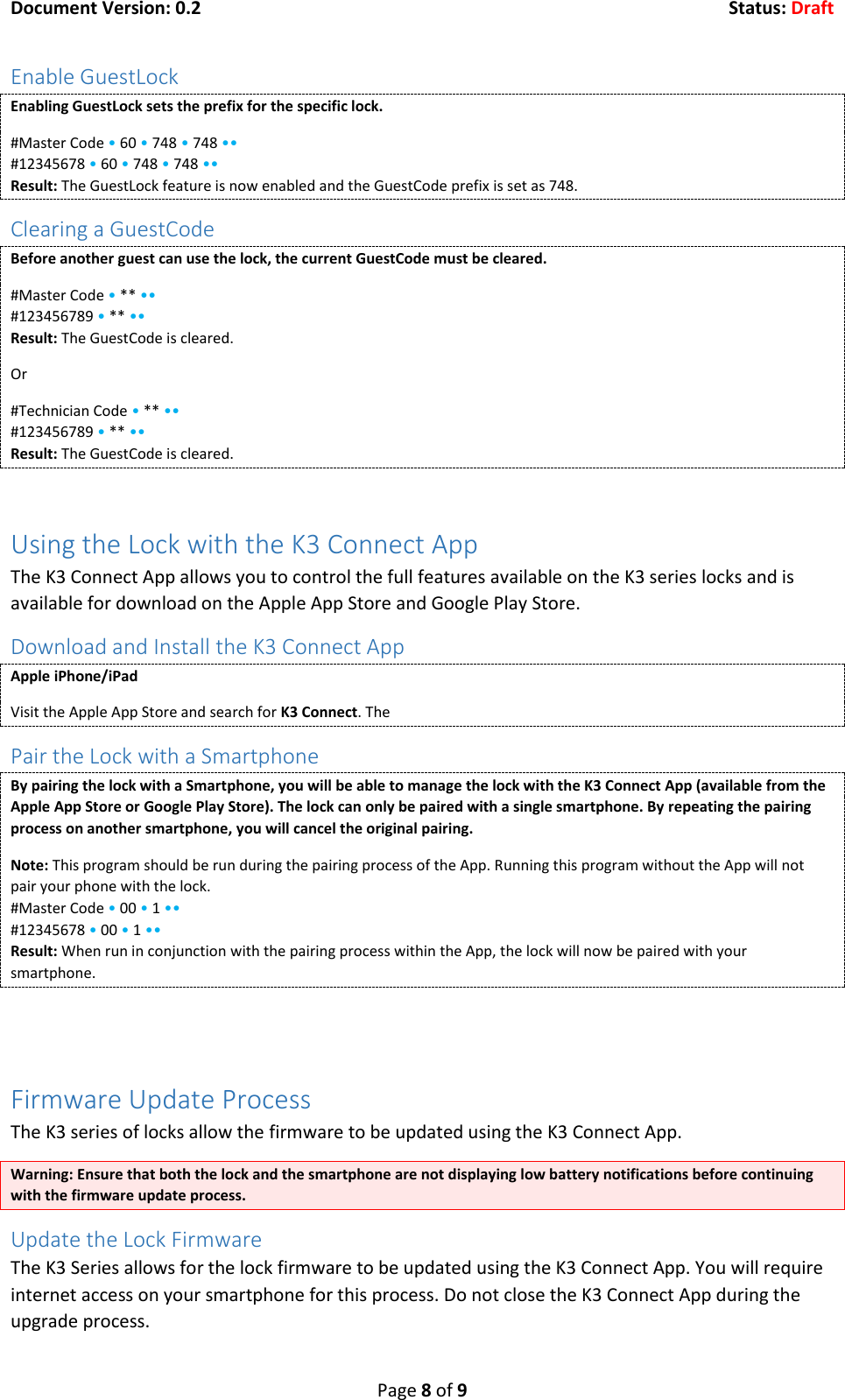
Document Version: 0.2  Status: Draft  Page 8 of 9 Enable GuestLock Enabling GuestLock sets the prefix for the specific lock. #Master Code • 60 • 748 • 748 •• #12345678 • 60 • 748 • 748 •• Result: The GuestLock feature is now enabled and the GuestCode prefix is set as 748. Clearing a GuestCode Before another guest can use the lock, the current GuestCode must be cleared.  #Master Code • ** •• #123456789 • ** •• Result: The GuestCode is cleared. Or #Technician Code • ** •• #123456789 • ** •• Result: The GuestCode is cleared.  Using the Lock with the K3 Connect App The K3 Connect App allows you to control the full features available on the K3 series locks and is available for download on the Apple App Store and Google Play Store. Download and Install the K3 Connect App Apple iPhone/iPad Visit the Apple App Store and search for K3 Connect. The  Pair the Lock with a Smartphone By pairing the lock with a Smartphone, you will be able to manage the lock with the K3 Connect App (available from the Apple App Store or Google Play Store). The lock can only be paired with a single smartphone. By repeating the pairing process on another smartphone, you will cancel the original pairing. Note: This program should be run during the pairing process of the App. Running this program without the App will not pair your phone with the lock. #Master Code • 00 • 1 •• #12345678 • 00 • 1 •• Result: When run in conjunction with the pairing process within the App, the lock will now be paired with your smartphone.   Firmware Update Process The K3 series of locks allow the firmware to be updated using the K3 Connect App. Warning: Ensure that both the lock and the smartphone are not displaying low battery notifications before continuing with the firmware update process. Update the Lock Firmware The K3 Series allows for the lock firmware to be updated using the K3 Connect App. You will require internet access on your smartphone for this process. Do not close the K3 Connect App during the upgrade process.
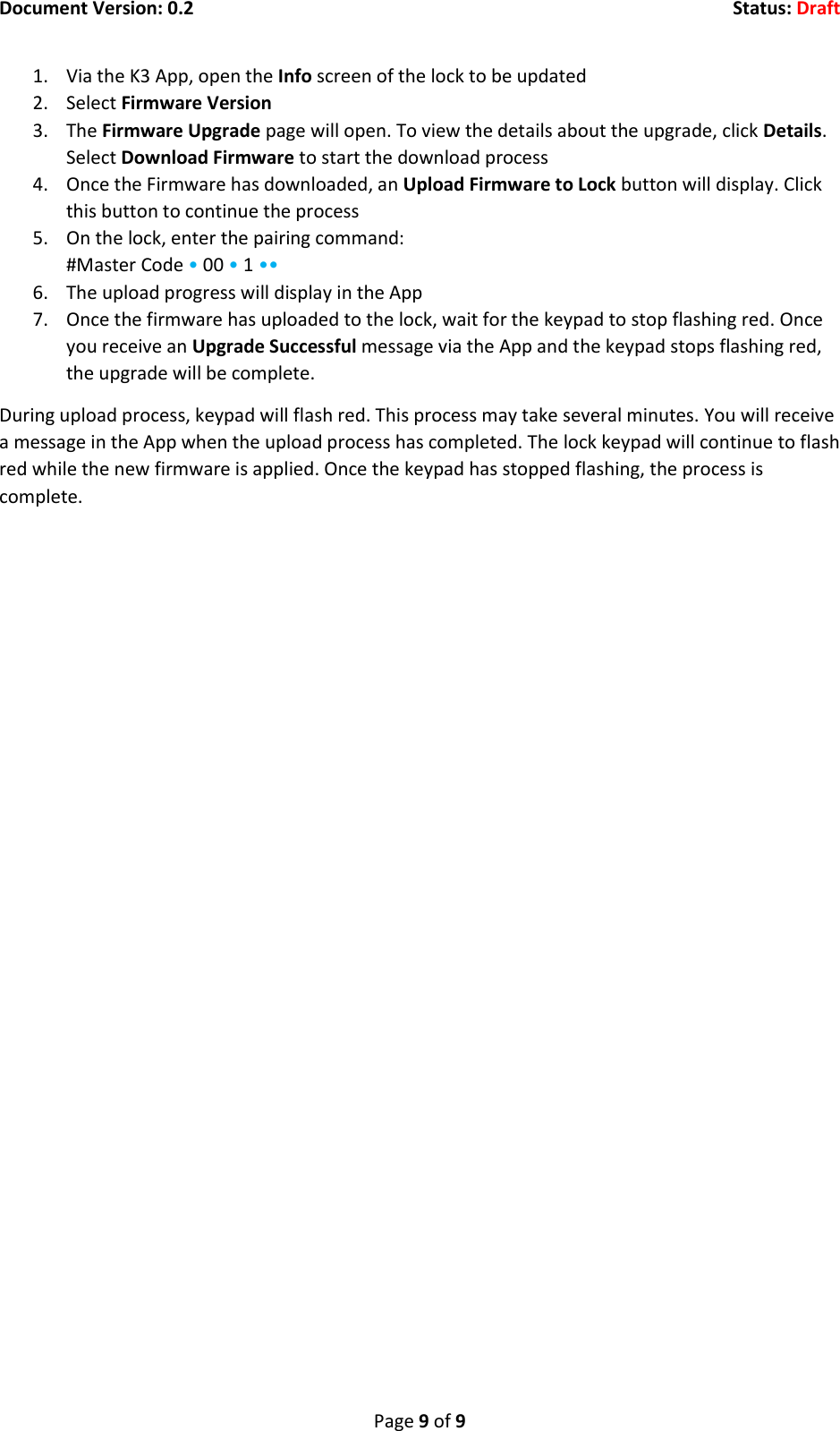
Document Version: 0.2  Status: Draft  Page 9 of 9 1. Via the K3 App, open the Info screen of the lock to be updated 2. Select Firmware Version 3. The Firmware Upgrade page will open. To view the details about the upgrade, click Details. Select Download Firmware to start the download process 4. Once the Firmware has downloaded, an Upload Firmware to Lock button will display. Click this button to continue the process 5. On the lock, enter the pairing command: #Master Code • 00 • 1 •• 6. The upload progress will display in the App 7. Once the firmware has uploaded to the lock, wait for the keypad to stop flashing red. Once you receive an Upgrade Successful message via the App and the keypad stops flashing red, the upgrade will be complete. During upload process, keypad will flash red. This process may take several minutes. You will receive a message in the App when the upload process has completed. The lock keypad will continue to flash red while the new firmware is applied. Once the keypad has stopped flashing, the process is complete.

Navigation menu