LEON SPECIALTY GC780736 NFC Smart Lock User Manual RS2000

LEON SPECIALTY INC. NFC Smart Lock RS2000

Contents

RS2000 User Manual

   RS2000 USER MANUAL
REGULATORY COMPLIANCE  The device complies with Part 15 of the FCC Rules. Operation is subject to the following two conditions:  (1) This device may not cause harmful interference, and (2) This device must accept any interference received, including interference that may cause undesired operation.  FCC WARNING STATEMENT You are cautioned that changes or modifications not expressly approved by the part responsible for compliance could void the user’s authority to operate the equipment.  This equipment has been tested and found to comply with the limits for a Class B digital device, pursuant to part 15 of the FCC rules. These limits are designed to provide reasonable protection against harmful interference in a residential installation. This equipment generates, uses and can radiate radio frequency energy and, if not installed and used in accordance with the instructions, may cause harmful interference to radio communications. However, there is no guarantee that interference will not occur in a particular installation. If this equipment does cause harmful interference to radio or television reception, which can be determined by turning the equipment off and on, the user is encouraged to try to correct the interference by one or more of the following measures:  -Reorient or relocate the receiving antenna. -Increase the separation between the equipment and receiver. -Connect the equipment into an outlet on a circuit different from that to which the receiver is connected. -Consult the dealer or an experienced radio/TV technician for help.
 1  TABLE of CONTENTS  Introduction ............................................................ 2 Requirement ...................................................... 2 NFC Compatible Smartphone............................ 2 Administrator & Client ...................................... 3 RS2000 Parts ..................................................... 4 User Smartphones .................................................. 6 Install APP ......................................................... 6 Key Butler User Manual .................................... 8 Batch Mode ............................................................ 9 DIN ....................................................................... 10 Low Battery .......................................................... 11 Reset to Factory Default ....................................... 12 Events and Beeps ................................................. 14 Trouble Shooting .................................................. 15 Specification ......................................................... 16
 2  Introduction  Requirement  You can use smartphones or contactless cards to unlock this lock.The incorporated NFC module allows the RS2000 to be unlocked from NFC compatible smartphones or MIFARE compatible contactless cards. This gives users access easier, safer, and more convenient.  NFC Compatible Smartphone  RS2000 is designed to communicate with NFC interface, so please choose smartphones which support NFC function to be a client or an administrator.  MIFARE Compatible Contactless Card  RS2000 can also be unlocked by contactless cards. The cards must be compatible with MIFARE standards.
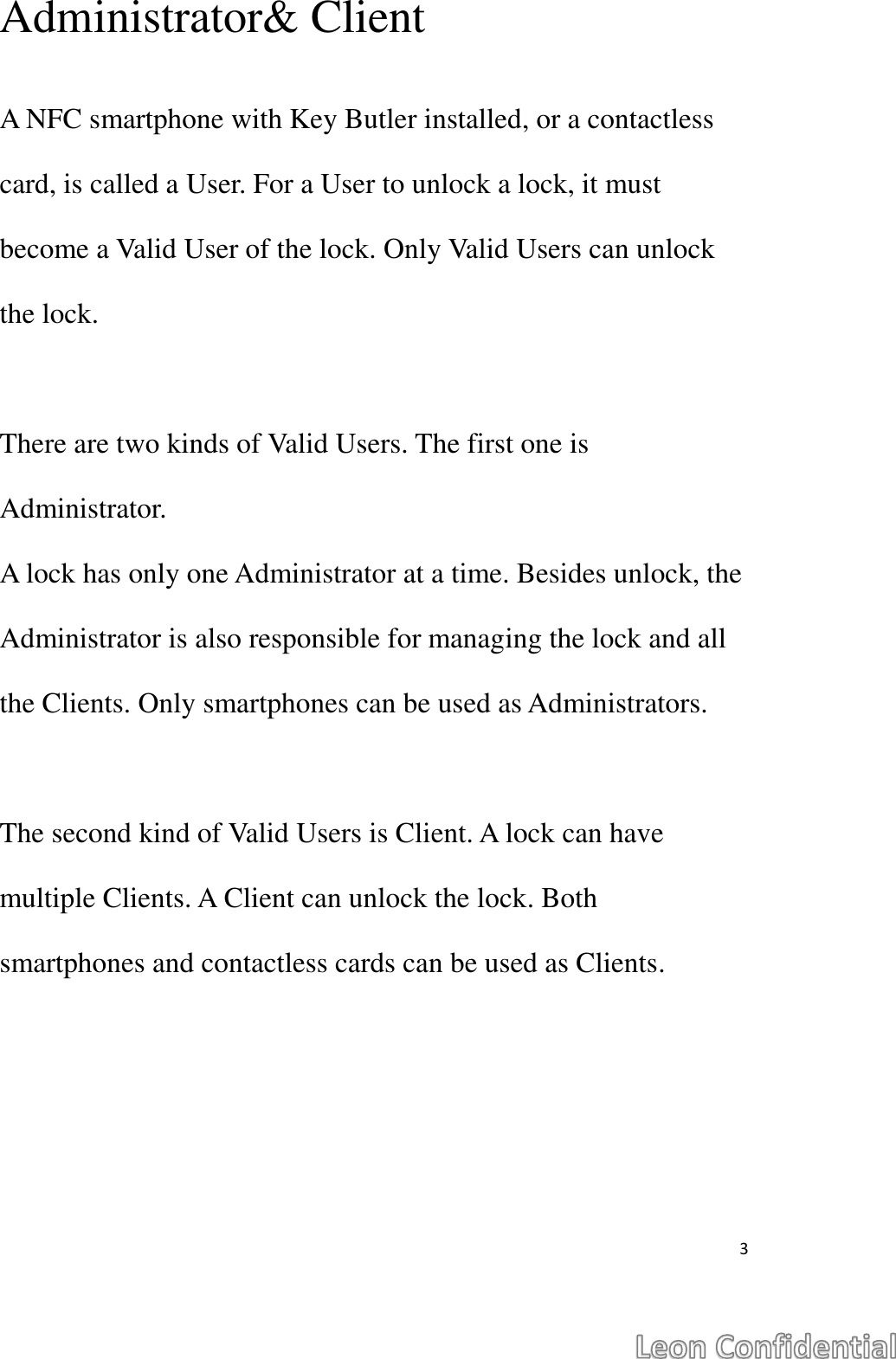
 3  Administrator& Client  A NFC smartphone with Key Butler installed, or a contactless card, is called a User. For a User to unlock a lock, it must become a Valid User of the lock. Only Valid Users can unlock the lock.  There are two kinds of Valid Users. The first one is Administrator. A lock has only one Administrator at a time. Besides unlock, the Administrator is also responsible for managing the lock and all the Clients. Only smartphones can be used as Administrators.  The second kind of Valid Users is Client. A lock can have multiple Clients. A Client can unlock the lock. Both smartphones and contactless cards can be used as Clients.
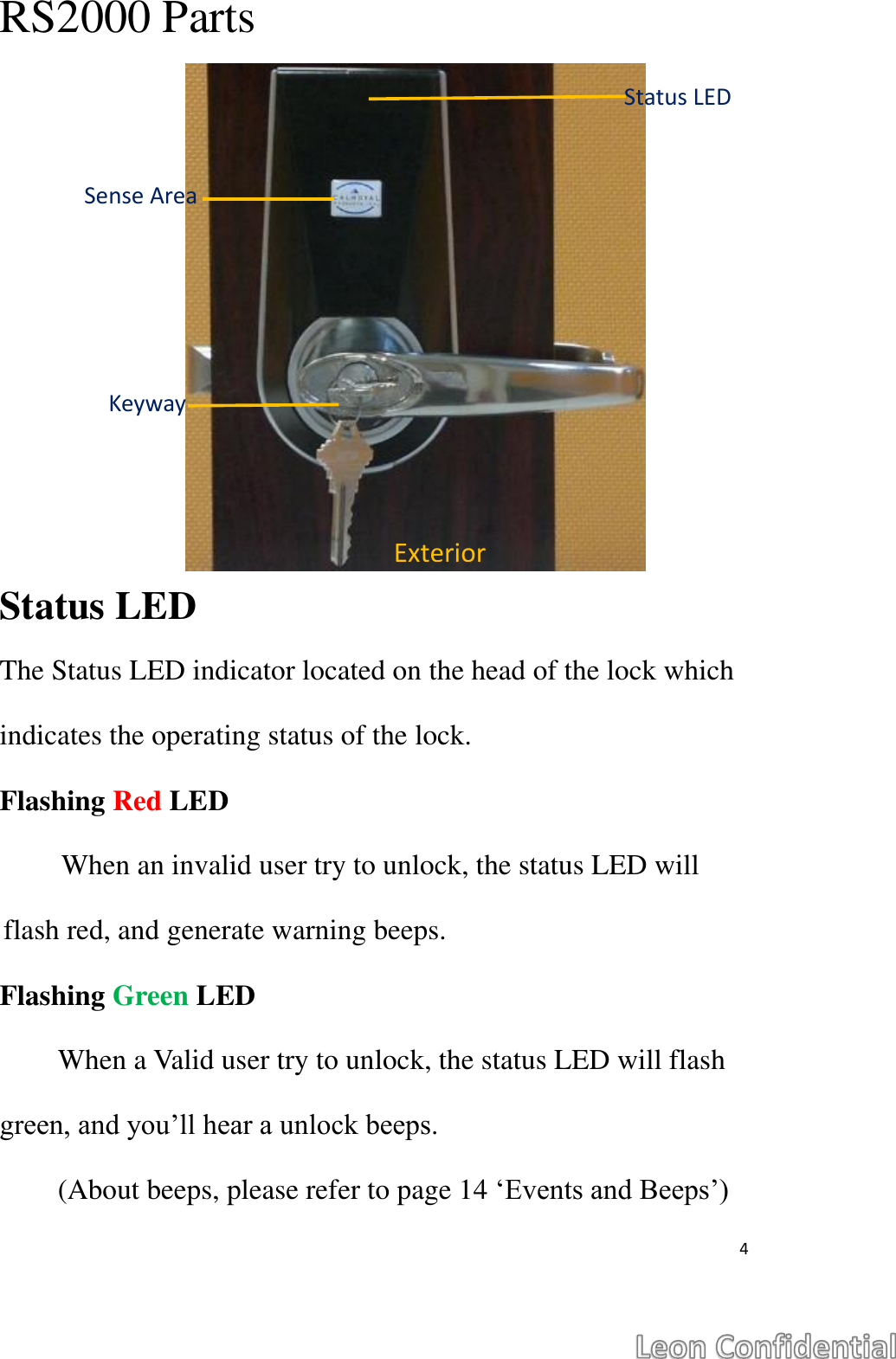
 4  RS2000 Parts             Status LED The Status LED indicator located on the head of the lock which indicates the operating status of the lock. Flashing Red LED When an invalid user try to unlock, the status LED will flash red, and generate warning beeps. Flashing Green LED When a Valid user try to unlock, the status LED will flash green, and you’ll hear a unlock beeps. (About beeps, please refer to page 14 ‘Events and Beeps’) Exterior Status LED Sense Area Keyway
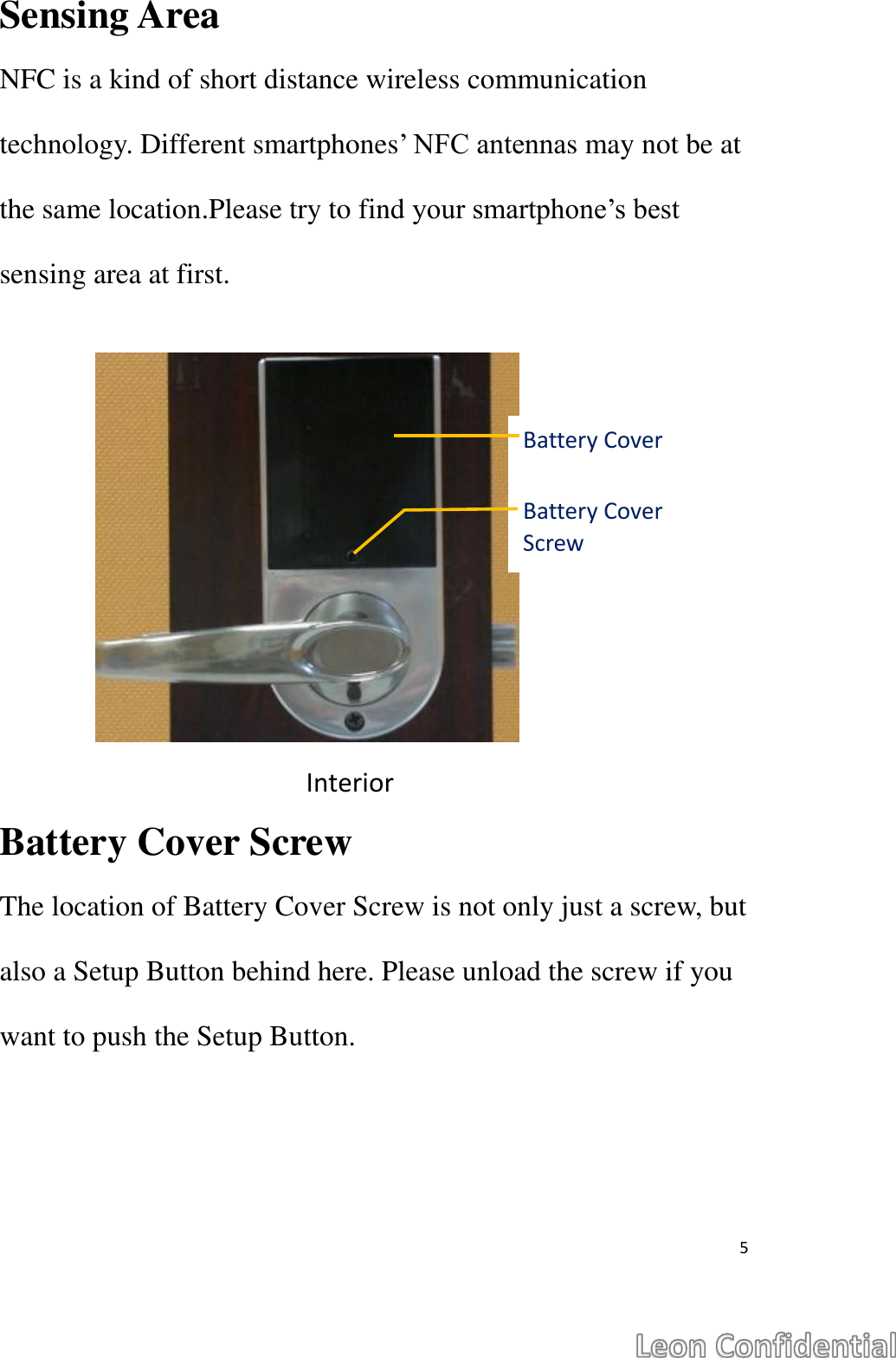
 5  Sensing Area NFC is a kind of short distance wireless communication technology. Different smartphones’ NFC antennas may not be at the same location.Please try to find your smartphone’s best sensing area at first.  Battery Cover Screw The location of Battery Cover Screw is not only just a screw, but also a Setup Button behind here. Please unload the screw if you want to push the Setup Button.   Interior Battery Cover Screw Battery Cover
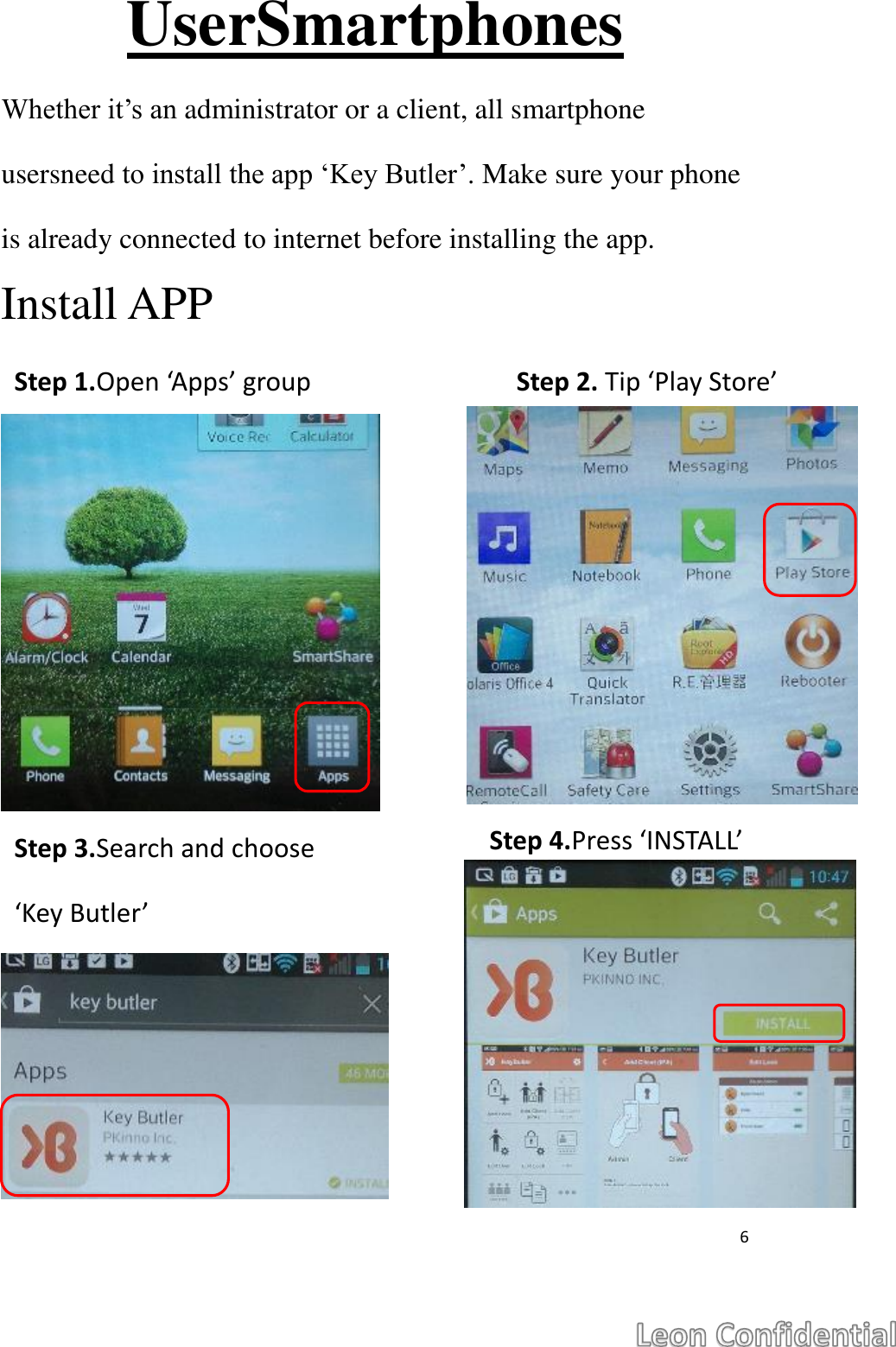
 6  UserSmartphones Whether it’s an administrator or a client, all smartphone usersneed to install the app ‘Key Butler’. Make sure your phone is already connected to internet before installing the app. Install APP              Step 1.Open ‘Apps’ group Step 2. Tip ‘Play Store’ Step 3.Search and choose ‘Key Butler’ Step 4.Press ‘INSTALL’
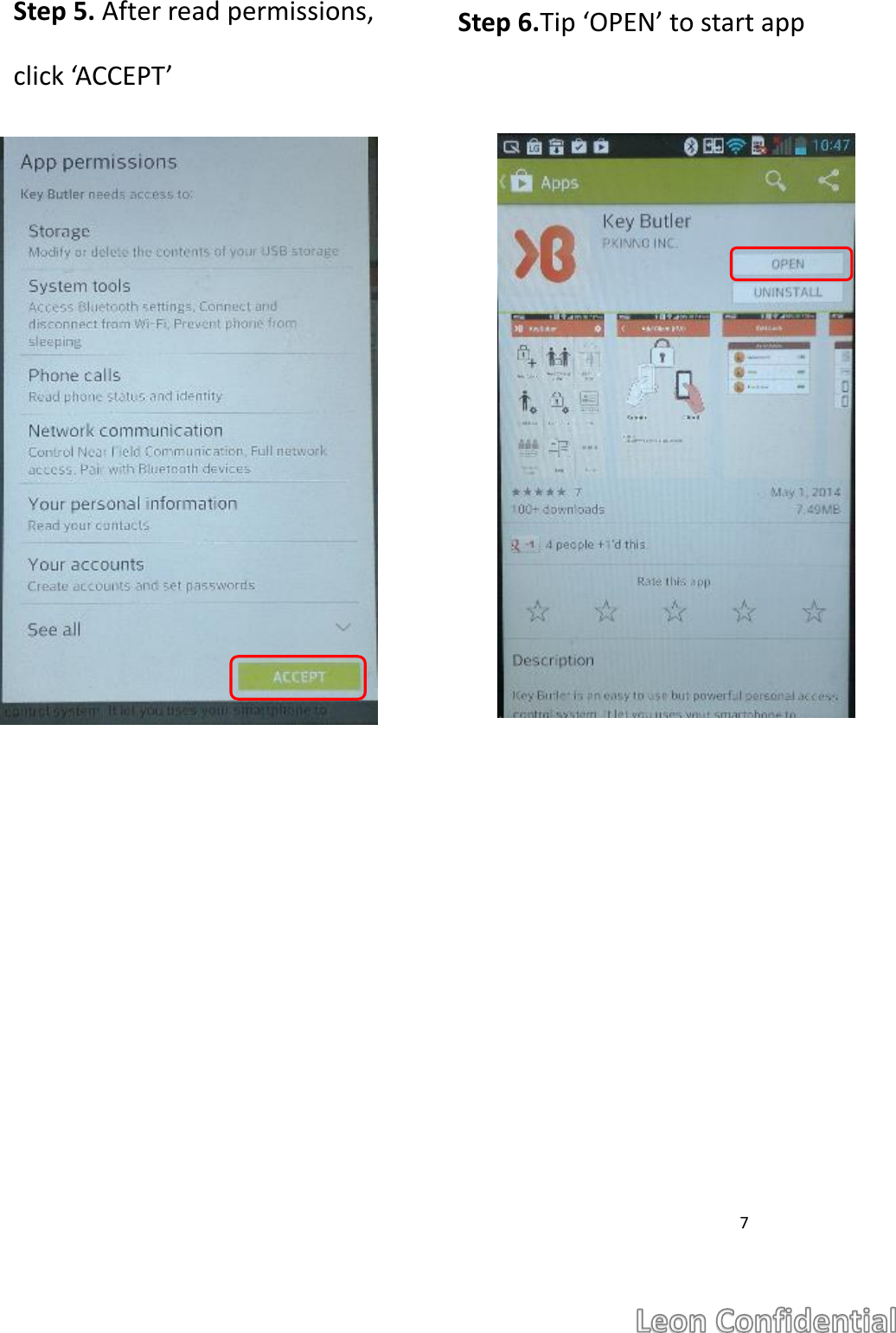
 7               Step 5. After read permissions, click ‘ACCEPT’ Step 6.Tip ‘OPEN’ to start app
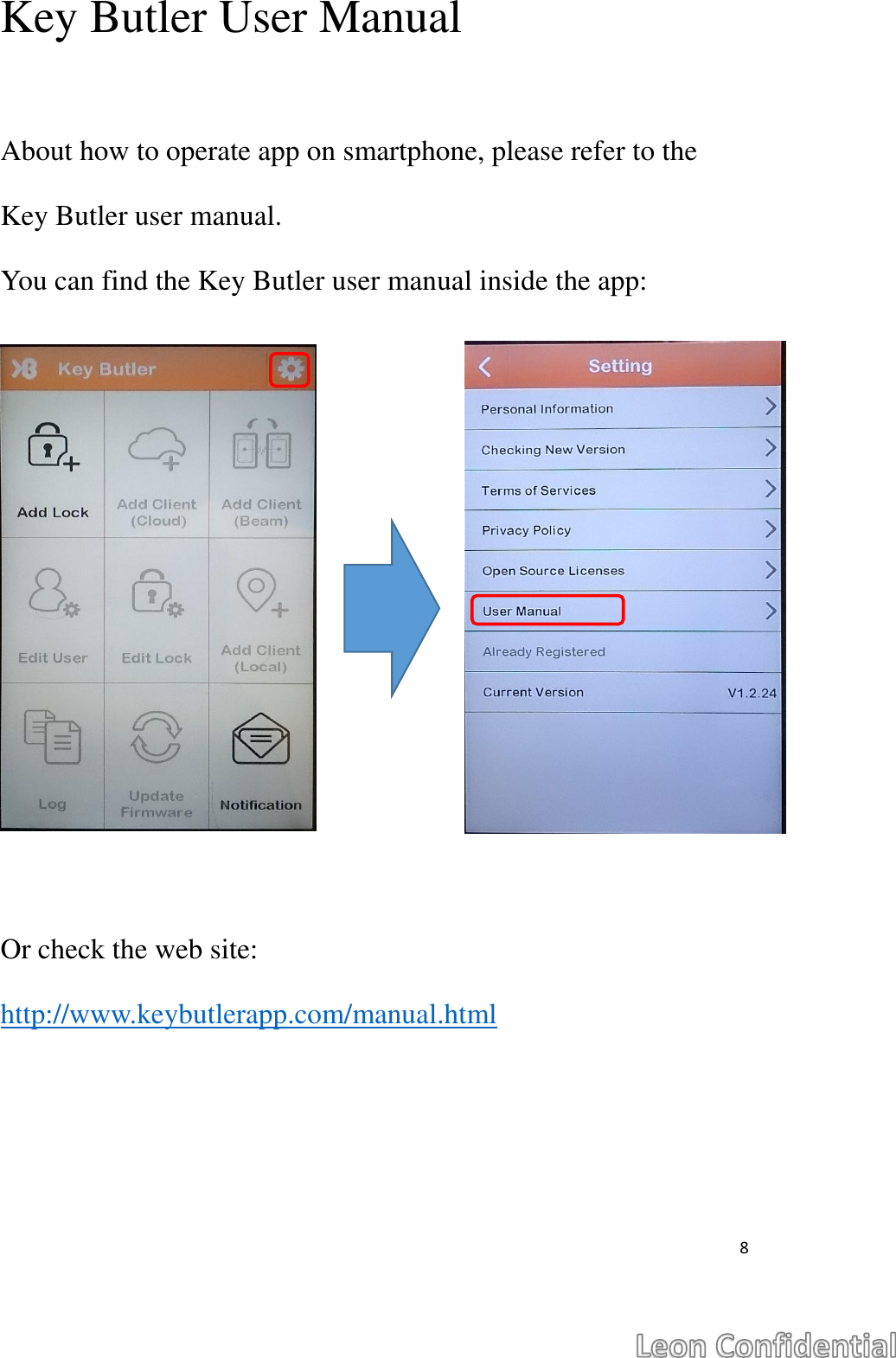
 8  Key Butler User Manual  About how to operate app on smartphone, please refer to the Key Butler user manual.   You can find the Key Butler user manual inside the app:  Or check the web site: http://www.keybutlerapp.com/manual.html
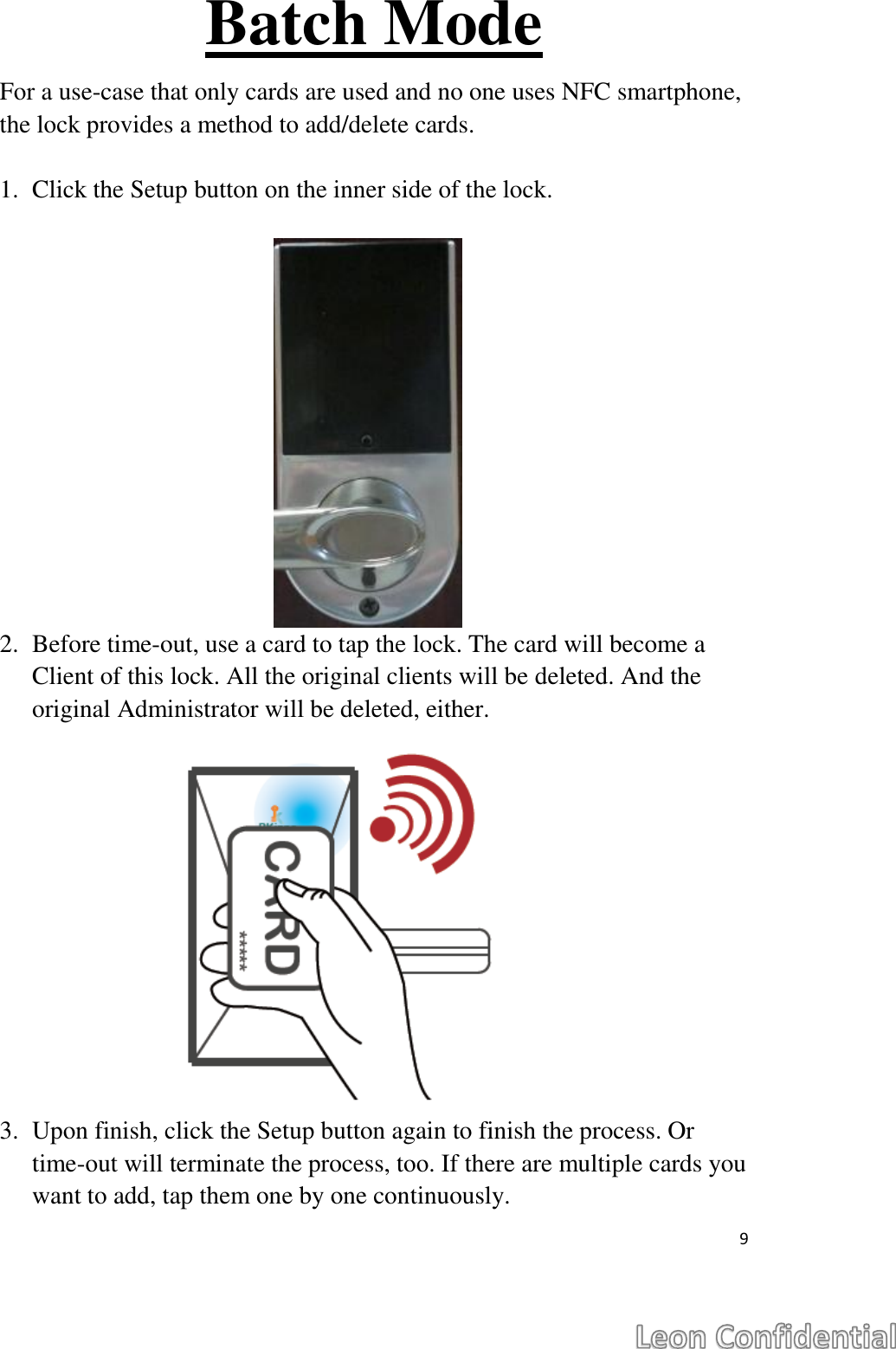
 9  Batch Mode For a use-case that only cards are used and no one uses NFC smartphone, the lock provides a method to add/delete cards.  1. Click the Setup button on the inner side of the lock.              2. Before time-out, use a card to tap the lock. The card will become a Client of this lock. All the original clients will be deleted. And the original Administrator will be deleted, either.             3. Upon finish, click the Setup button again to finish the process. Or time-out will terminate the process, too. If there are multiple cards you want to add, tap them one by one continuously.
 10  DIN  Correct DIN must be entered for start the pairing process. The DIN of RS2000 is lower case of model name ‘rs2000’.
 11  Low Battery  RS2000 has low battery caution function.   When the voltage is lower than safety power, RS2000 will give warnings while unlock every time.  During low-battery state, there are two kinds of sound for different status: (1) Unlock success: The sound is 1 beep, then 10 beeps for low battery warning. (2) Unlock fail: The sound is same as invalid user unlock fail.
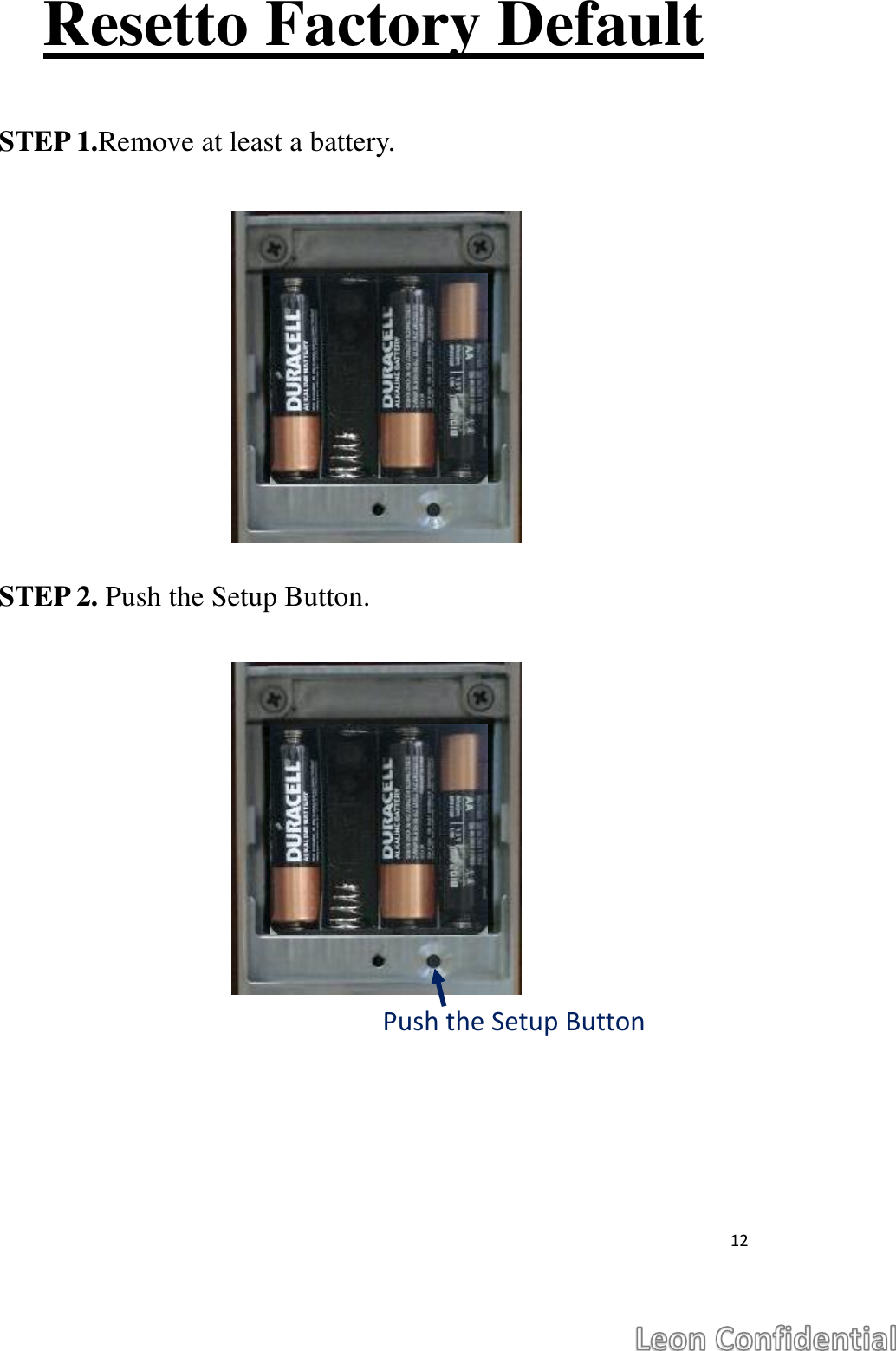
 12  Resetto Factory Default  STEP 1.Remove at least a battery.       STEP 2. Push the Setup Button.          Push the Setup Button
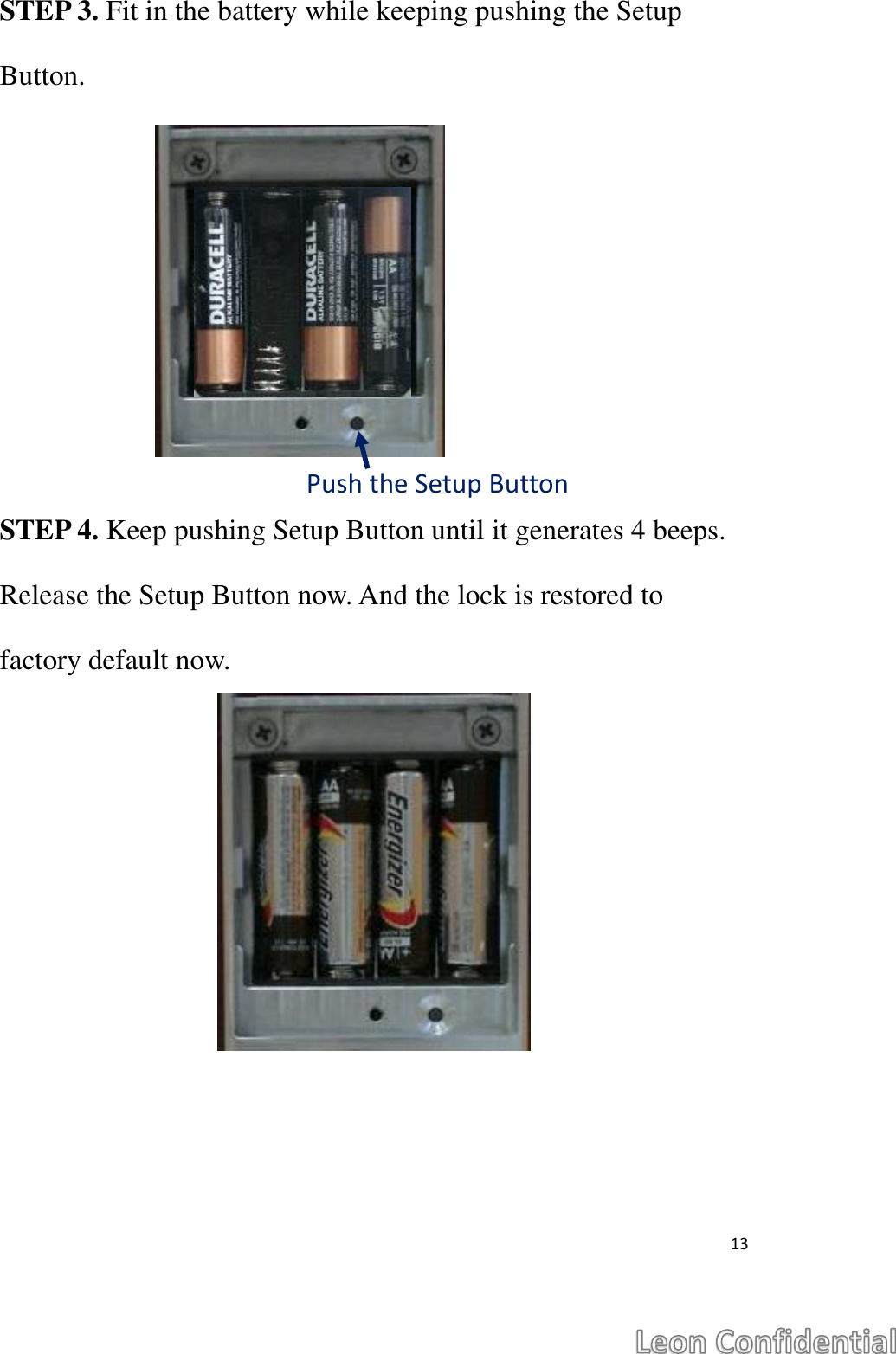
 13  STEP 3. Fit in the battery while keeping pushing the Setup Button.       STEP 4. Keep pushing Setup Button until it generates 4 beeps. Release the Setup Button now. And the lock is restored to factory default now.               Push the Setup Button
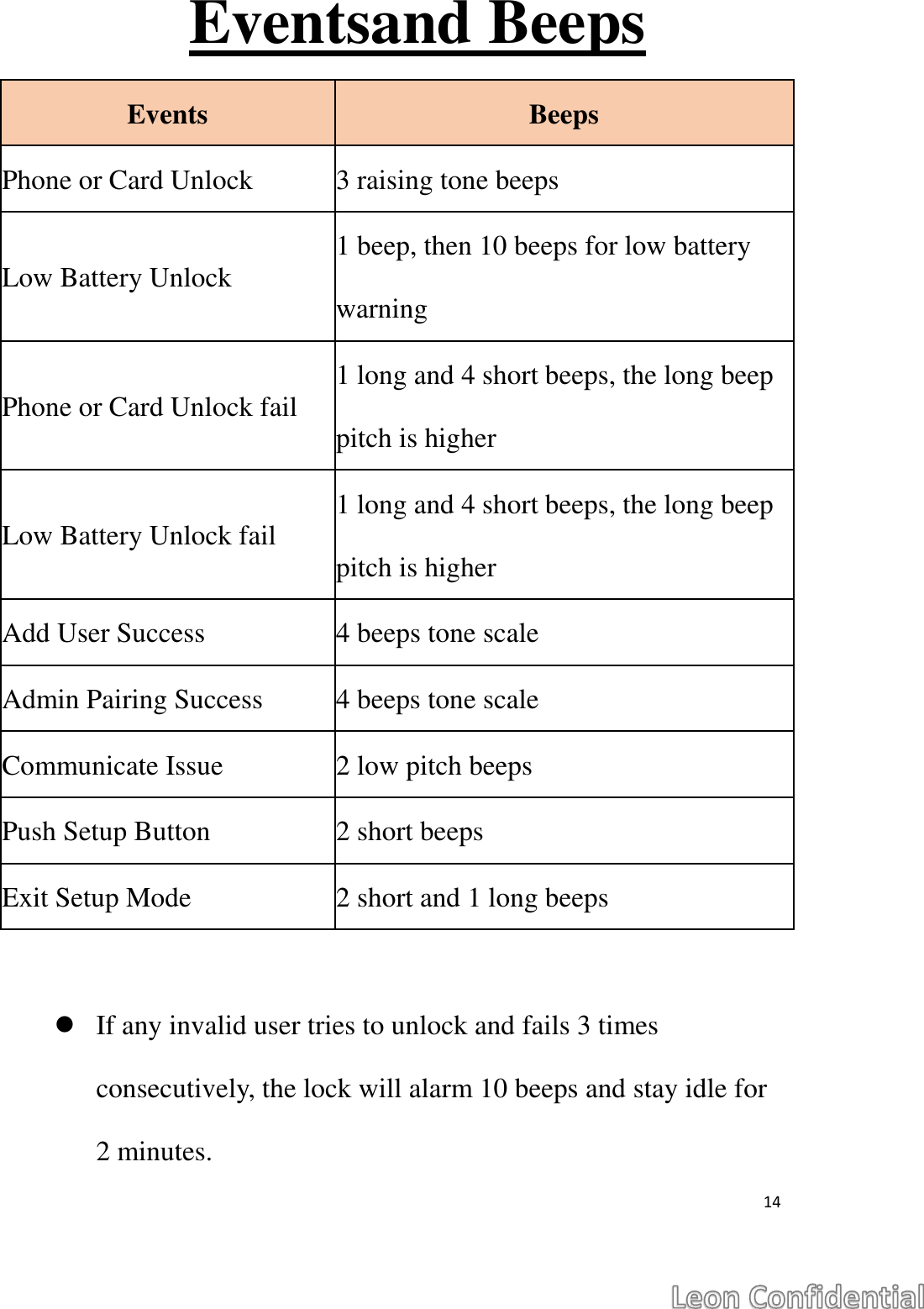
 14  Eventsand Beeps   If any invalid user tries to unlock and fails 3 times consecutively, the lock will alarm 10 beeps and stay idle for 2 minutes.   Events Beeps Phone or Card Unlock 3 raising tone beeps Low Battery Unlock 1 beep, then 10 beeps for low battery warning Phone or Card Unlock fail 1 long and 4 short beeps, the long beep pitch is higher Low Battery Unlock fail 1 long and 4 short beeps, the long beep pitch is higher Add User Success 4 beeps tone scale   Admin Pairing Success 4 beeps tone scale Communicate Issue 2 low pitch beeps Push Setup Button 2 short beeps Exit Setup Mode 2 short and 1 long beeps
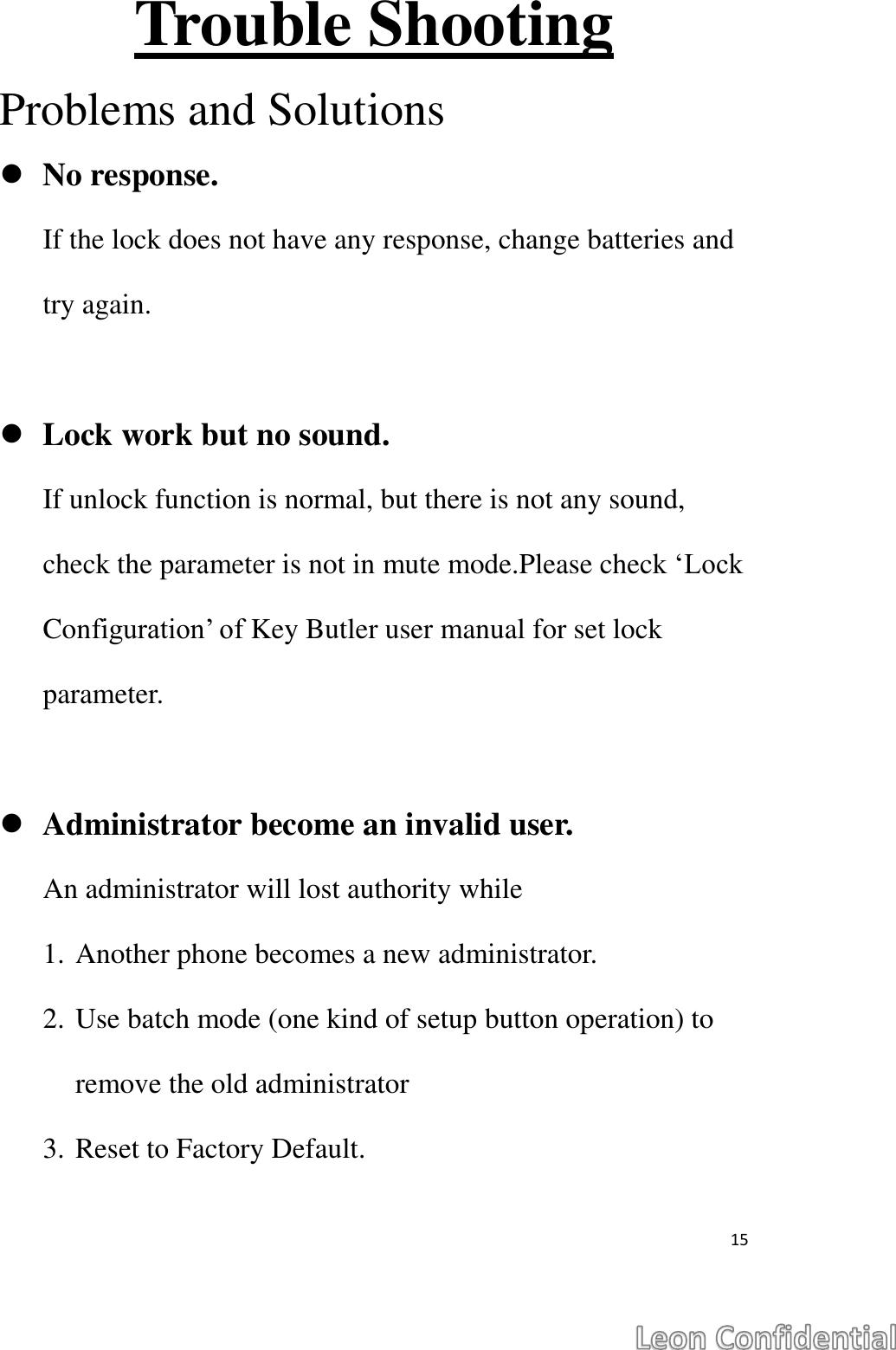
 15  Trouble Shooting Problems and Solutions  No response. If the lock does not have any response, change batteries and try again.   Lock work but no sound. If unlock function is normal, but there is not any sound, check the parameter is not in mute mode.Please check ‘Lock Configuration’ of Key Butler user manual for set lock parameter.   Administrator become an invalid user. An administrator will lost authority while   1. Another phone becomes a new administrator. 2. Use batch mode (one kind of setup button operation) to remove the old administrator 3. Reset to Factory Default.
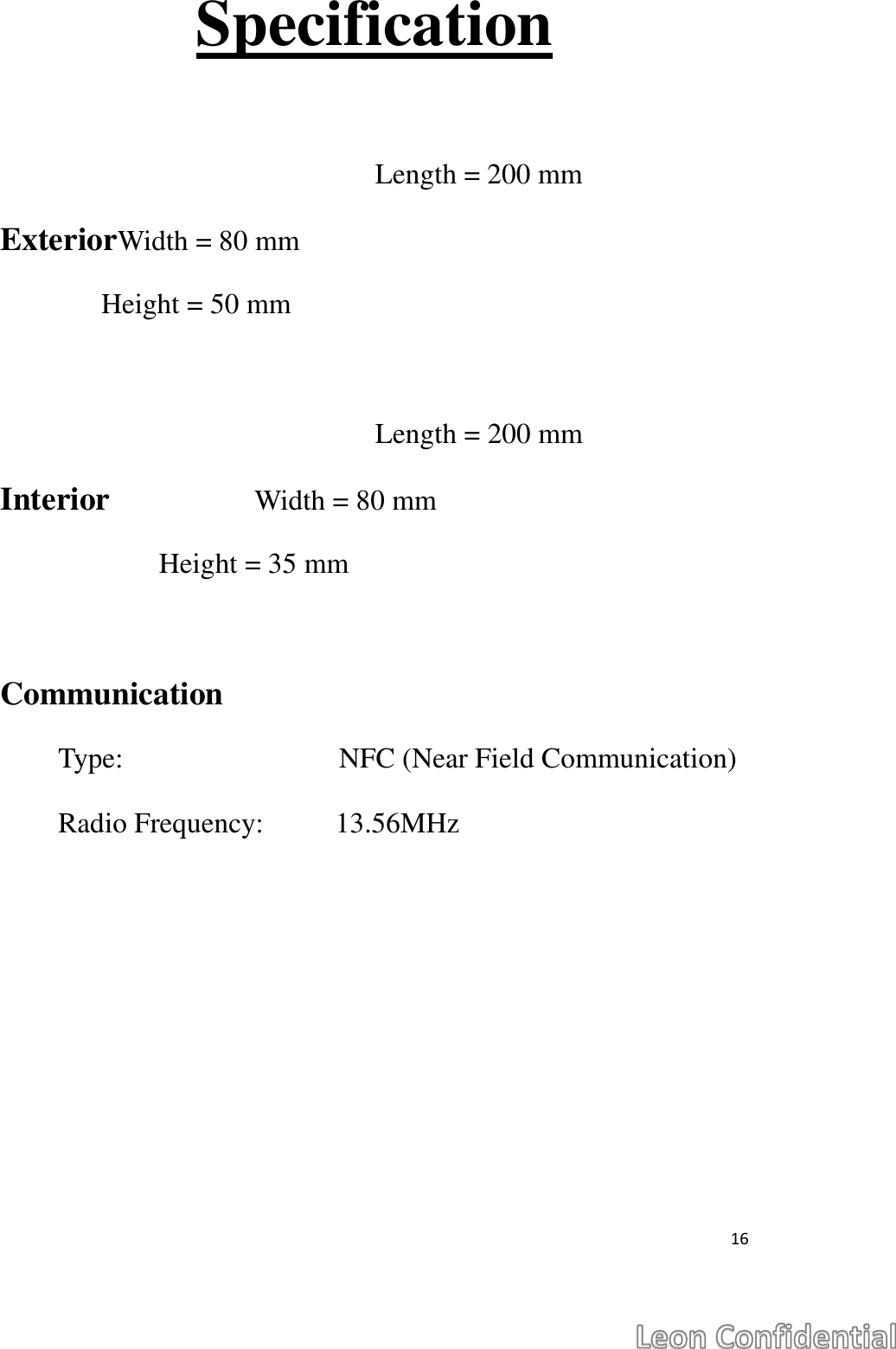
 16  Specification  Length = 200 mm ExteriorWidth = 80 mm               Height = 50 mm                                              Length = 200 mm Interior                    Width = 80 mm                       Height = 35 mm  Communication Type:                              NFC (Near Field Communication) Radio Frequency:          13.56MHz

Navigation menu