LUXPAD TABLET TAB7G Tablet User Manual

LUXPAD TABLET Tablet

User Manual

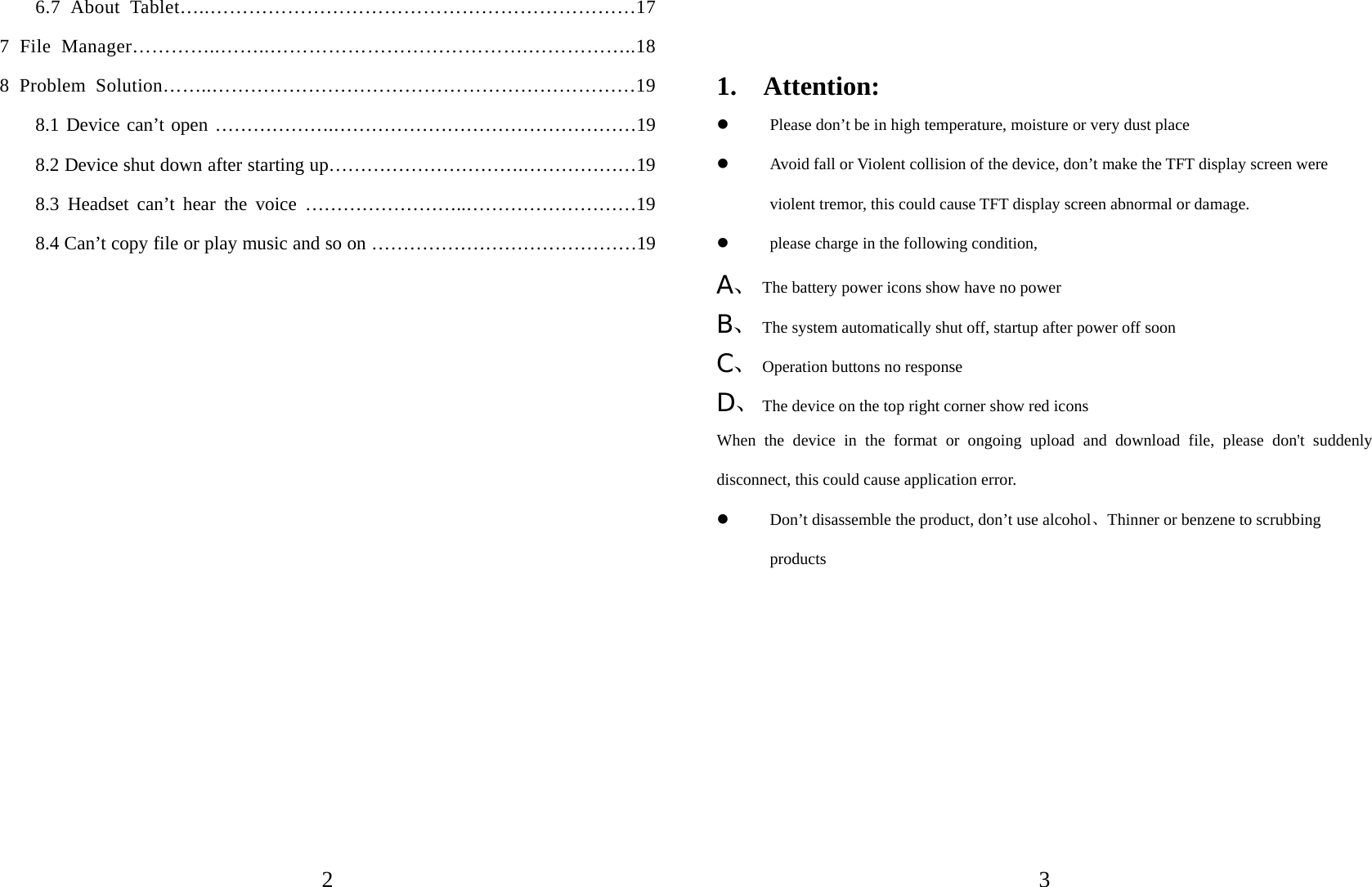
6       Equipment basic setting…………………………………………………………10      1  1Content1 Attention…………………….………………………………………3 2 Main function…….…………………………………….……..…………….4 3 Appearance and button………………………………. …………………………..6 4 First use……………………………………..…………………………………7 4.1 Battery management and Charge……………………………....……………7 4.2 Connection with PC…………………………………………………………7 5 Equipment operation interfaces……………………………………….……….8 5.1 Main interface describe …………………………………………………….8 5.2 Status bar describe …………………………………………………….9 5.3 Use touch panel……………………………………..………………………9 6.1 Sound Volume………………………………………………..……….11 6.2 Application …………………………………………………………..12 6.3 Reset Option ………………………………………….…………………..13 6.4 Storage…………………………………………………………………..14 6.5 Language & Keyboard…………………………………..……………….15 6.6 Data & time setting……….…………………………………………………16 6.7 About Tablet…..…………………………………………………………17
  2 6.7 About Tablet…..…………………………………………………………17 7 File Manager…………..……..………………………………….……………..18 8 Problem Solution……..…………………………………………………………19 8.1 Device can’t open ……………….…………………………………………19 8.2 Device shut down after starting up………………………….………………19 8.3 Headset can’t hear the voice ……………………..………………………19 8.4 Can’t copy file or play music and so on ……………………………………19                  3  1.  Attention:  Please don’t be in high temperature, moisture or very dust place  Avoid fall or Violent collision of the device, don’t make the TFT display screen were violent tremor, this could cause TFT display screen abnormal or damage.  please charge in the following condition, A、 The battery power icons show have no power B、 The system automatically shut off, startup after power off soon C、 Operation buttons no response D、 The device on the top right corner show red icons When the device in the format or ongoing upload and download file, please don't suddenly disconnect, this could cause application error.  Don’t disassemble the product, don’t use alcohol、Thinner or benzene to scrubbing products
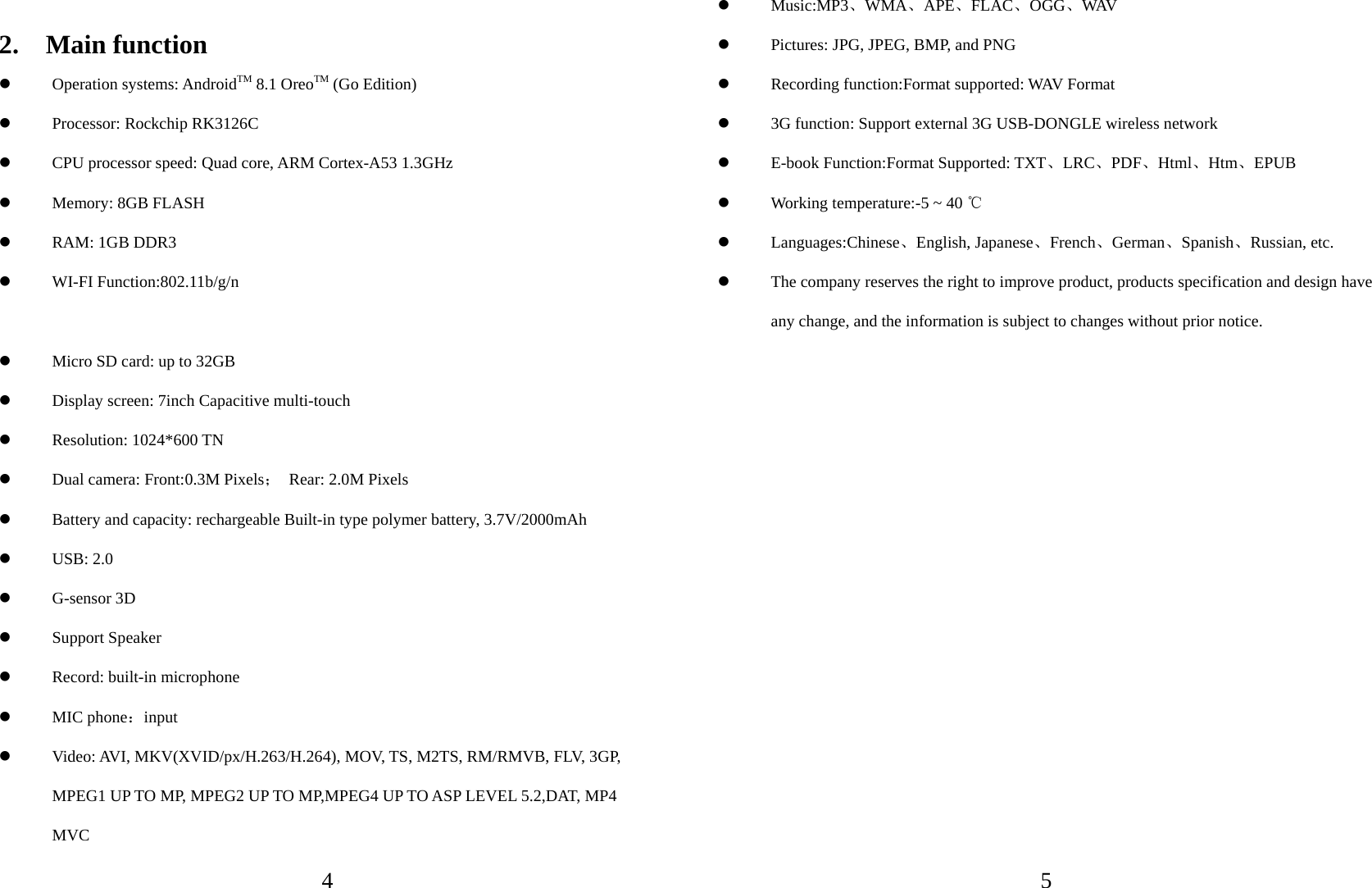
  4  2.  Main function  Operation systems: AndroidTM 8.1 OreoTM (Go Edition)  Processor: Rockchip RK3126C    CPU processor speed: Quad core, ARM Cortex-A53 1.3GHz  Memory: 8GB FLASH  RAM: 1GB DDR3  WI-FI Function:802.11b/g/n  Micro SD card: up to 32GB  Display screen: 7inch Capacitive multi-touch  Resolution: 1024*600 TN  Dual camera: Front:0.3M Pixels; Rear: 2.0M Pixels  Battery and capacity: rechargeable Built-in type polymer battery, 3.7V/2000mAh  USB: 2.0  G-sensor 3D  Support Speaker  Record: built-in microphone  MIC phone:input  Video: AVI, MKV(XVID/px/H.263/H.264), MOV, TS, M2TS, RM/RMVB, FLV, 3GP, MPEG1 UP TO MP, MPEG2 UP TO MP,MPEG4 UP TO ASP LEVEL 5.2,DAT, MP4 MVC   5 Music:MP3、WMA、APE、FLAC、OGG、WAV   Pictures: JPG, JPEG, BMP, and PNG      Recording function:Format supported: WAV Format  3G function: Support external 3G USB-DONGLE wireless network  E-book Function:Format Supported: TXT、LRC、PDF、Html、Htm、EPUB  Working temperature:-5 ~ 40 ℃  Languages:Chinese、English, Japanese、French、German、Spanish、Russian, etc.  The company reserves the right to improve product, products specification and design have any change, and the information is subject to changes without prior notice.
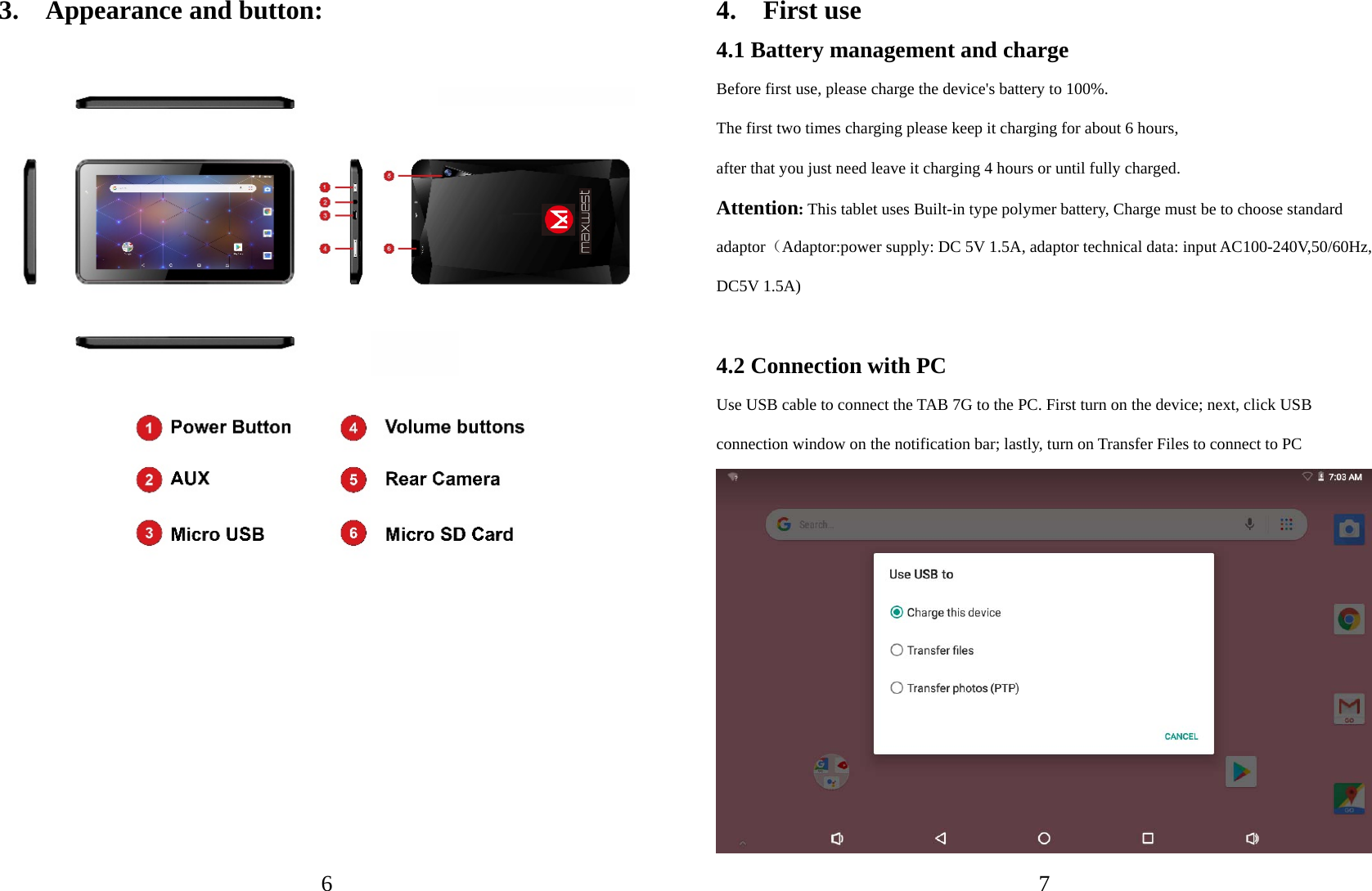
  6 3.  Appearance and button:          74.  First use 4.1 Battery management and charge Before first use, please charge the device's battery to 100%. The first two times charging please keep it charging for about 6 hours,   after that you just need leave it charging 4 hours or until fully charged. Attention: This tablet uses Built-in type polymer battery, Charge must be to choose standard adaptor(Adaptor:power supply: DC 5V 1.5A, adaptor technical data: input AC100-240V,50/60Hz, DC5V 1.5A)    4.2 Connection with PC Use USB cable to connect the TAB 7G to the PC. First turn on the device; next, click USB connection window on the notification bar; lastly, turn on Transfer Files to connect to PC
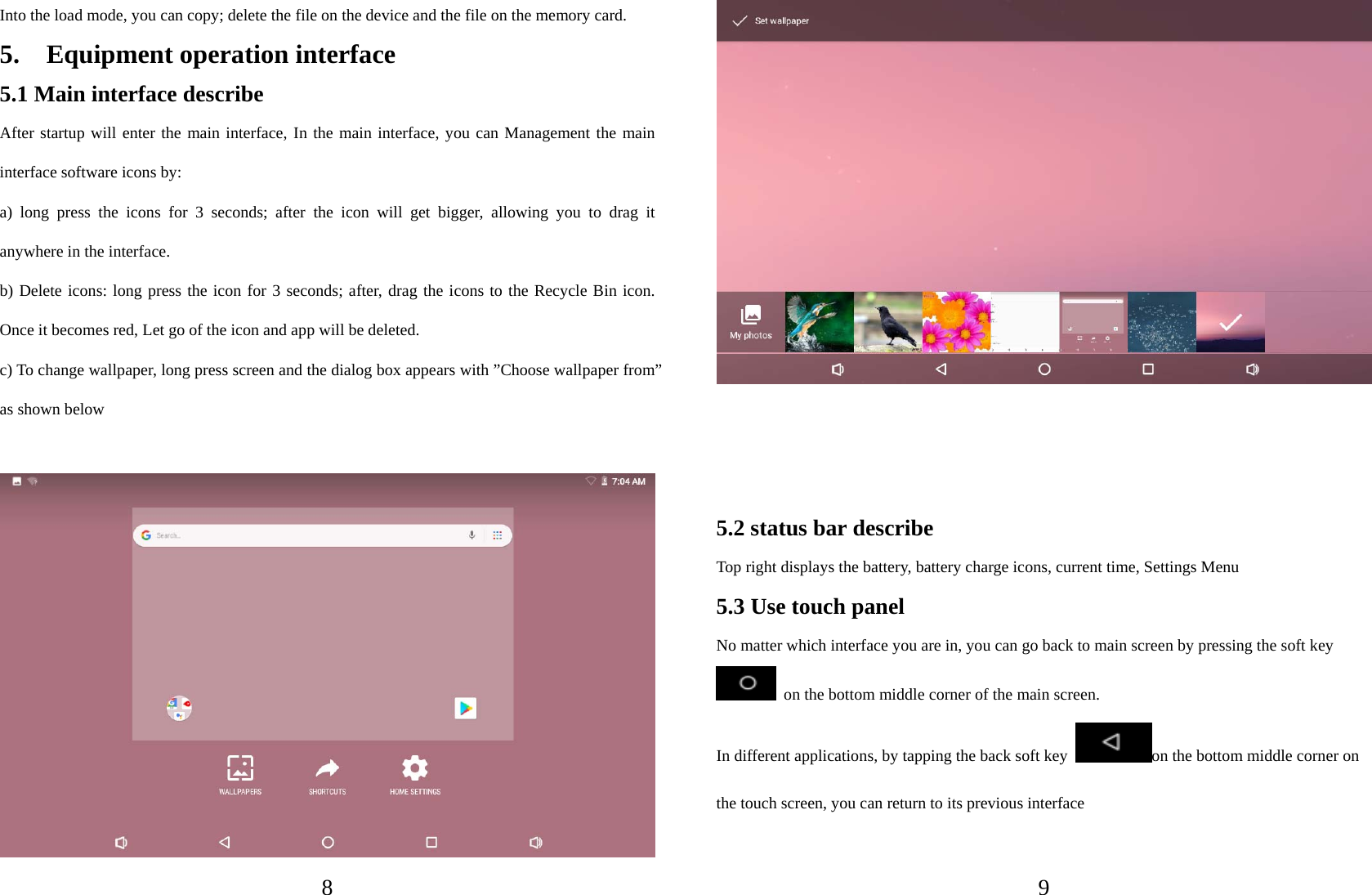
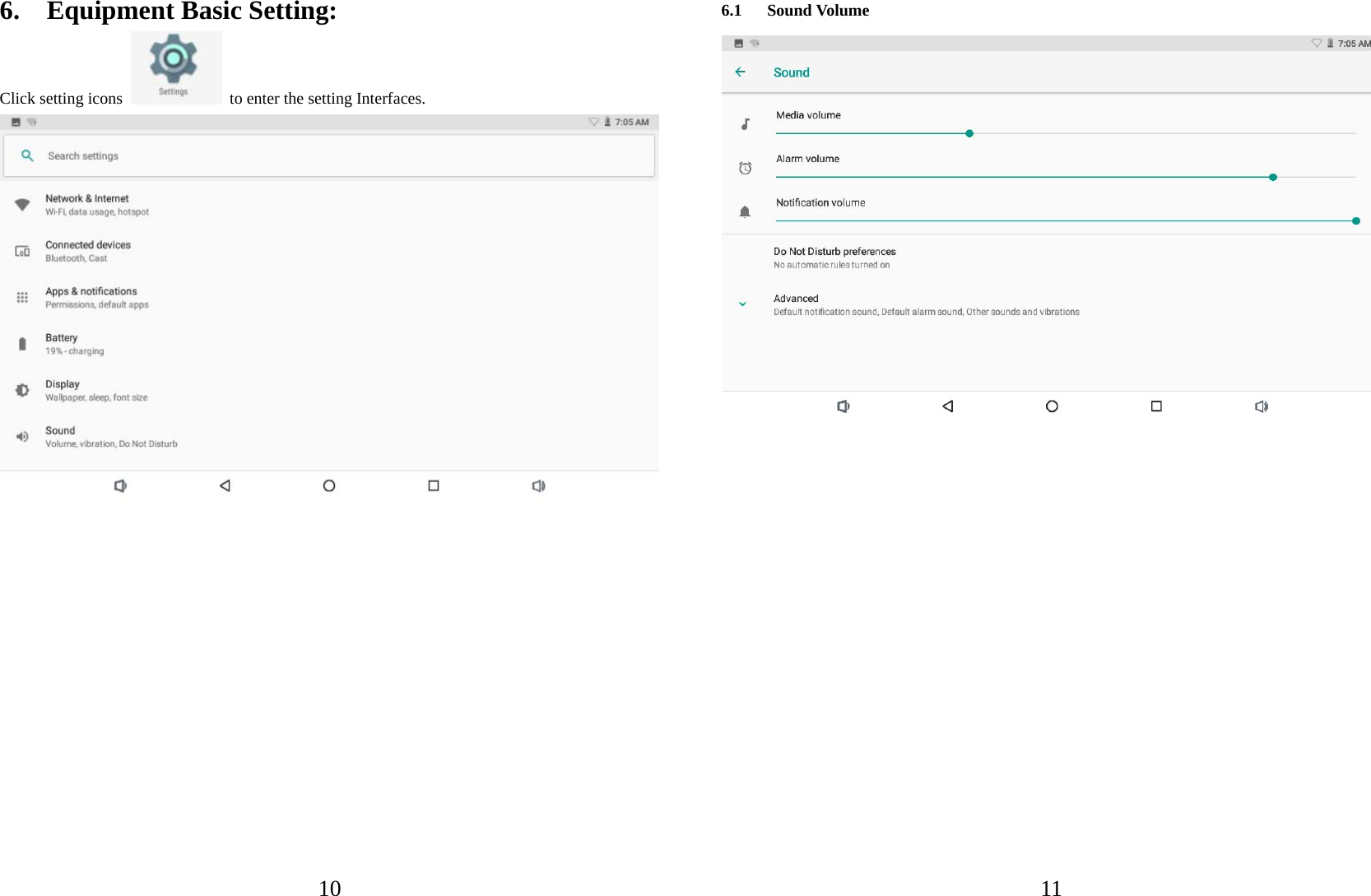
  8 Into the load mode, you can copy; delete the file on the device and the file on the memory card. 5.  Equipment operation interface 5.1 Main interface describe After startup will enter the main interface, In the main interface, you can Management the main interface software icons by:   a) long press the icons for 3 seconds; after the icon will get bigger, allowing you to drag it anywhere in the interface. b) Delete icons: long press the icon for 3 seconds; after, drag the icons to the Recycle Bin icon. Once it becomes red, Let go of the icon and app will be deleted. c) To change wallpaper, long press screen and the dialog box appears with ”Choose wallpaper from” as shown below     9    5.2 status bar describe Top right displays the battery, battery charge icons, current time, Settings Menu     5.3 Use touch panel No matter which interface you are in, you can go back to main screen by pressing the soft key   on the bottom middle corner of the main screen. In different applications, by tapping the back soft key  on the bottom middle corner on the touch screen, you can return to its previous interface
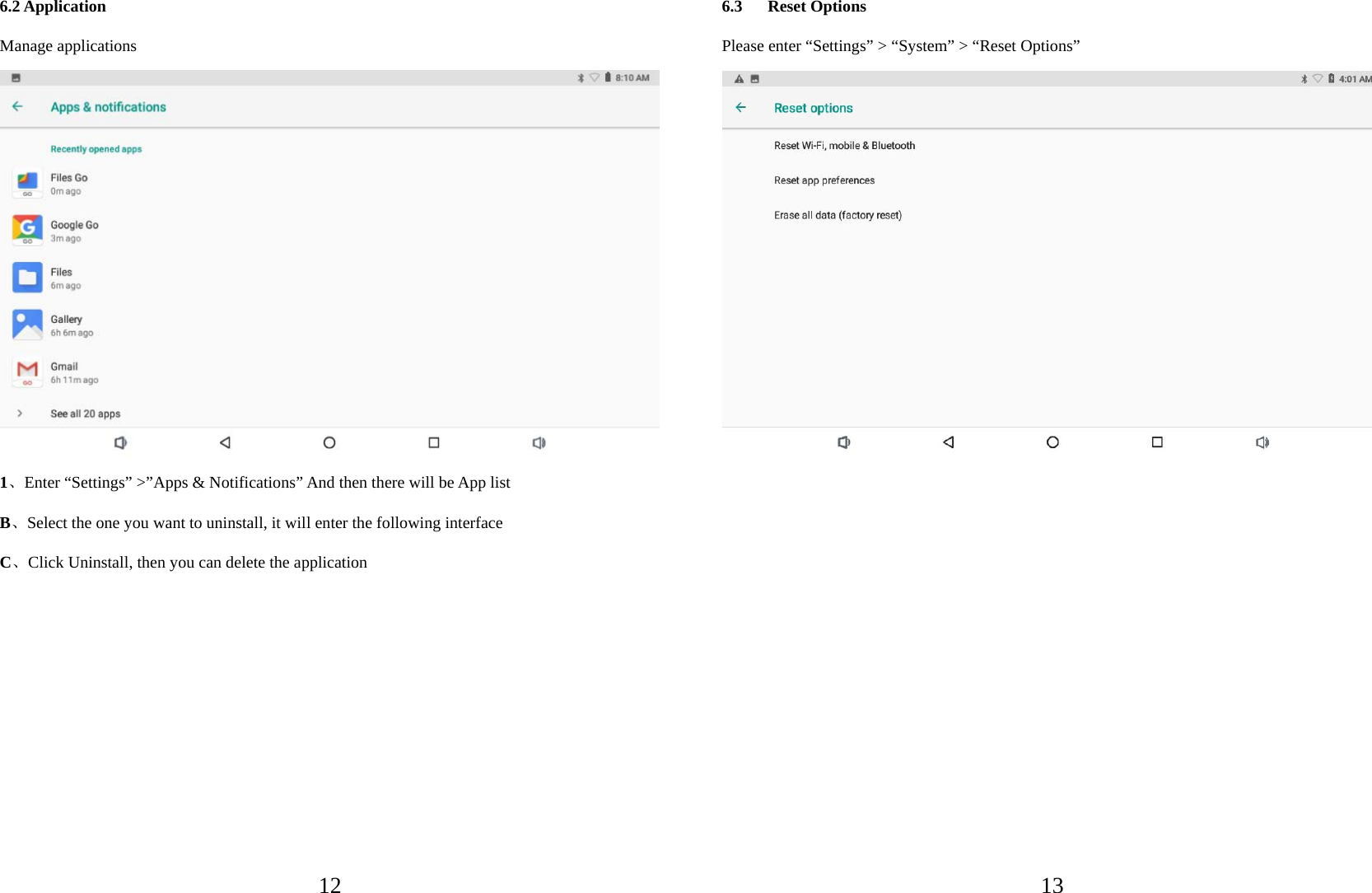
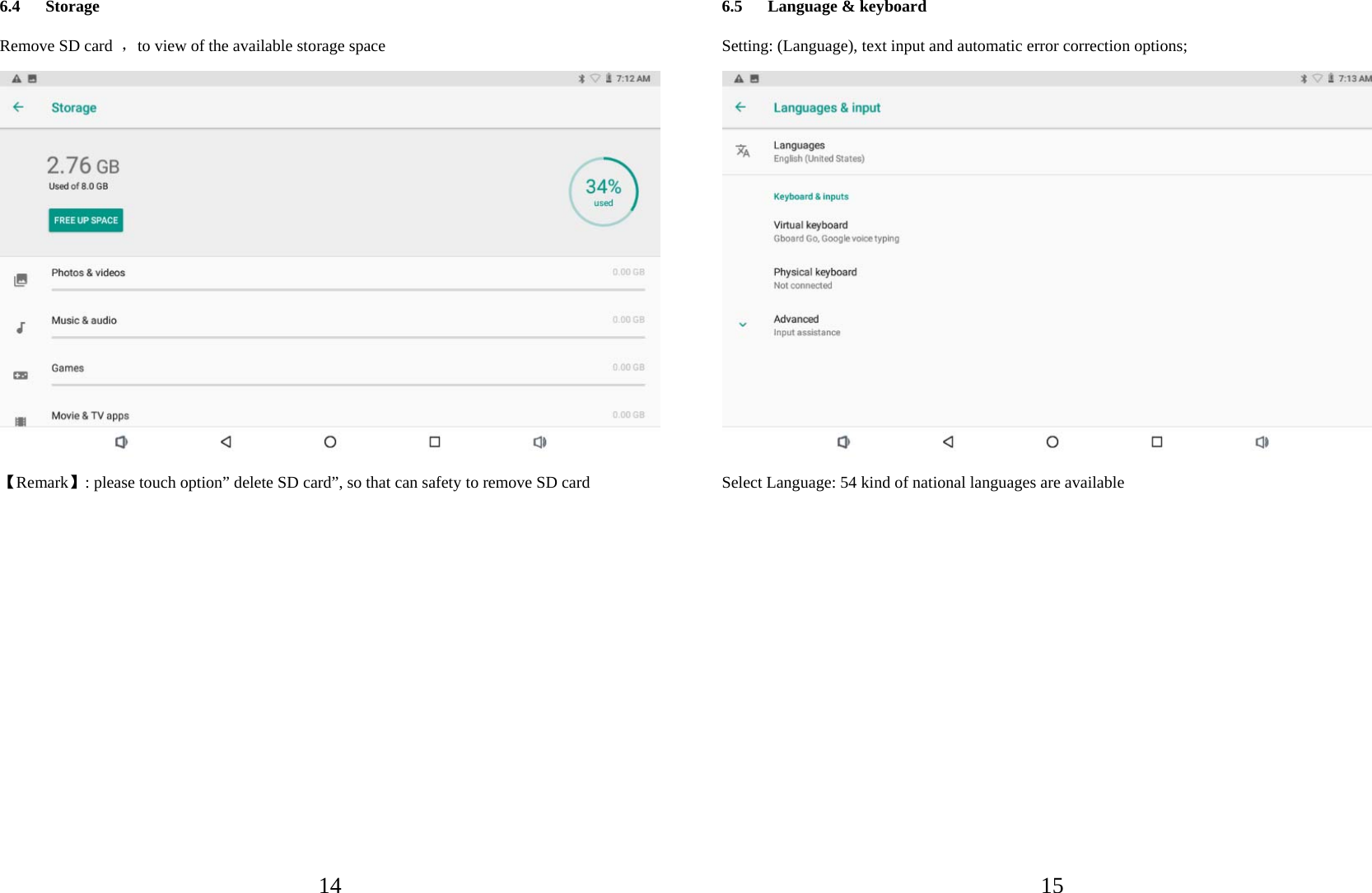
  106.    Equipment Basic Setting:   Click setting icons    to enter the setting Interfaces.               116.1 Sound Volume
  126.2 Application Manage applications  1、Enter “Settings” >”Apps & Notifications” And then there will be App list B、Select the one you want to uninstall, it will enter the following interface C、Click Uninstall, then you can delete the application          136.3 Reset Options Please enter “Settings” > “System” > “Reset Options”
  146.4 Storage Remove SD card  ,to view of the available storage space  【Remark】: please touch option” delete SD card”, so that can safety to remove SD card            156.5 Language & keyboard   Setting: (Language), text input and automatic error correction options;  Select Language: 54 kind of national languages are available
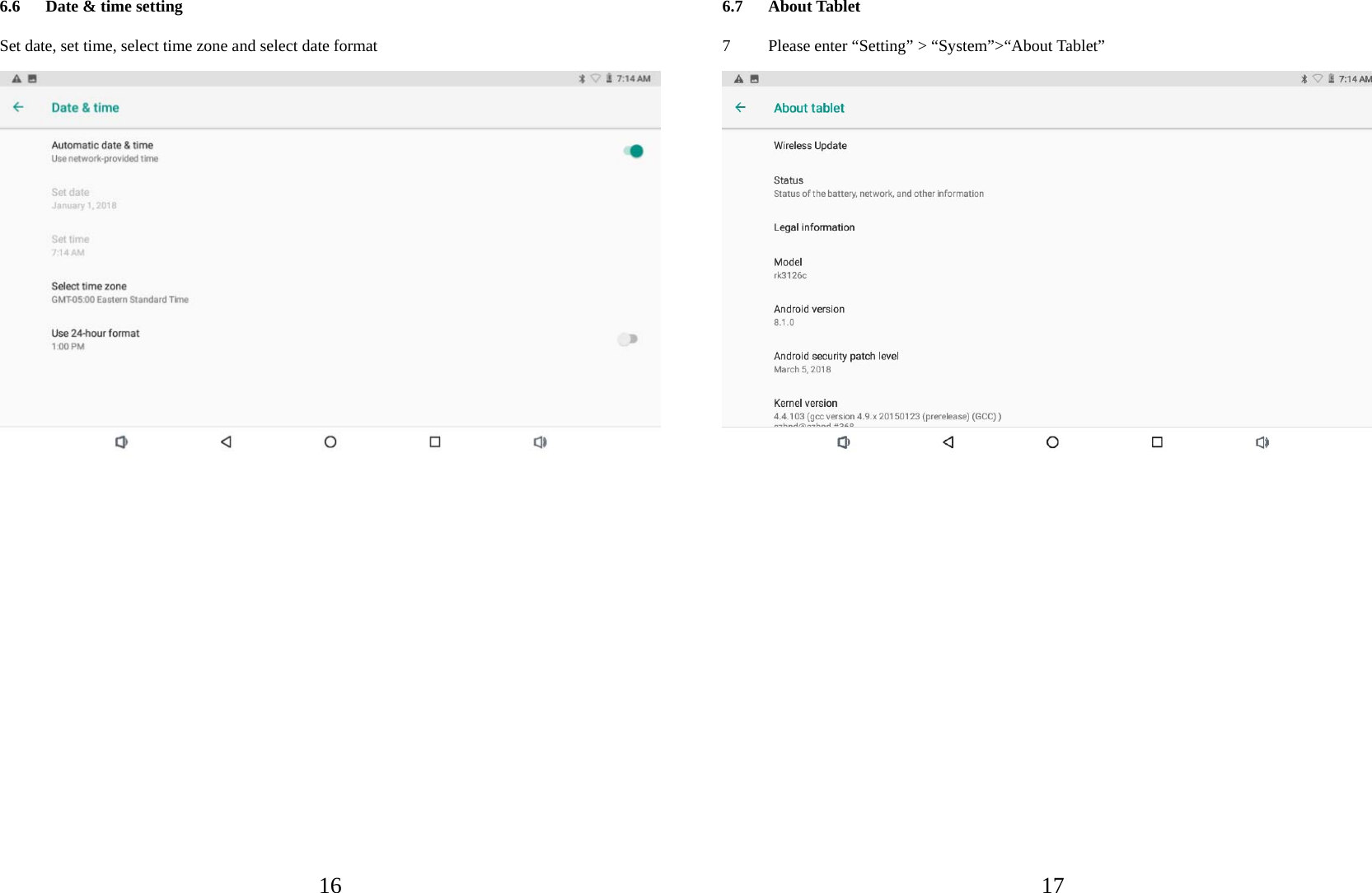
  166.6 Date & time setting Set date, set time, select time zone and select date format              176.7 About Tablet 7 Please enter “Setting” > “System”>“About Tablet”
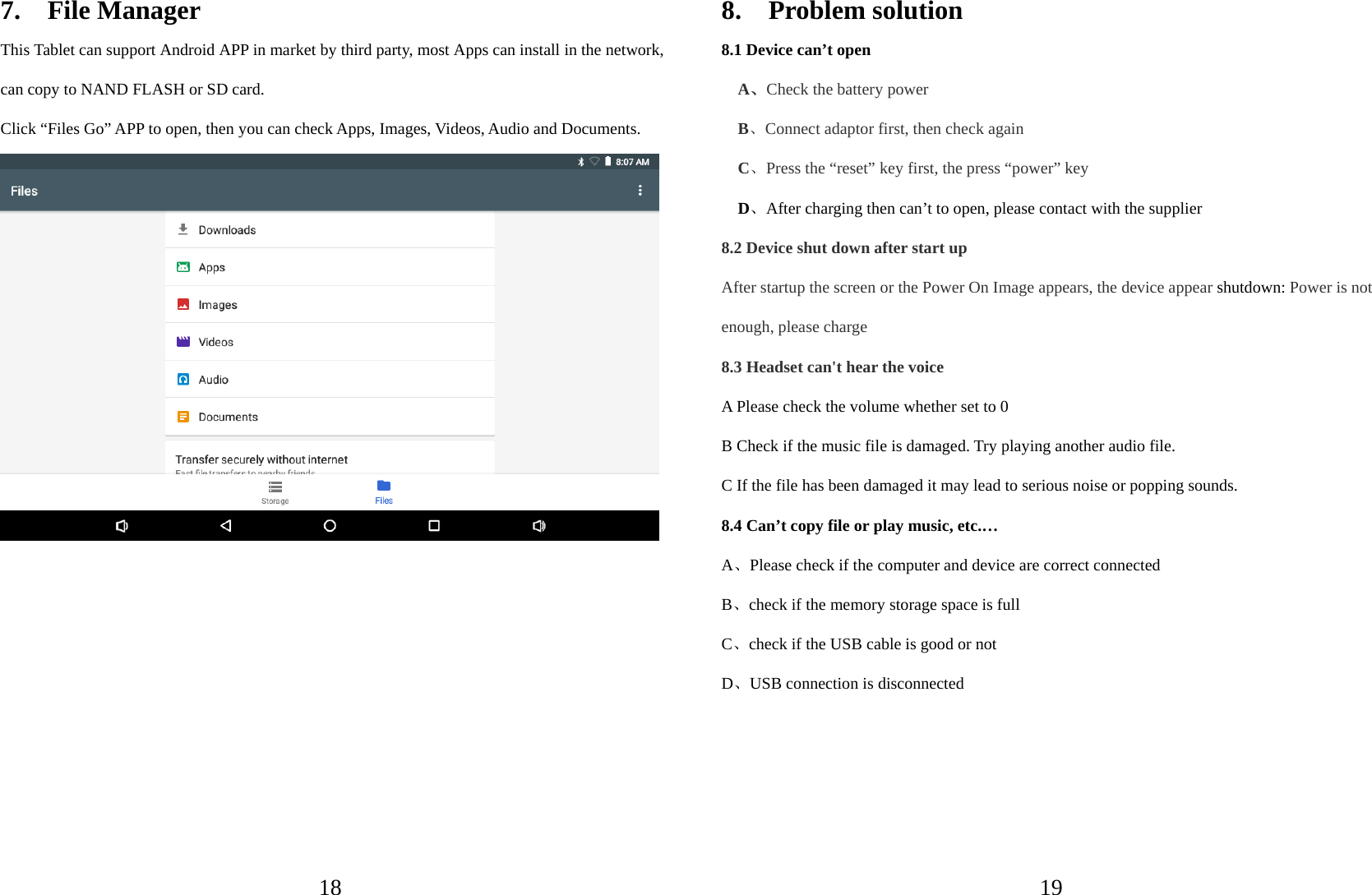
  187.  File Manager This Tablet can support Android APP in market by third party, most Apps can install in the network, can copy to NAND FLASH or SD card. Click “Files Go” APP to open, then you can check Apps, Images, Videos, Audio and Documents.            198.  Problem solution 8.1 Device can’t open   A、Check the battery power B、Connect adaptor first, then check again C、Press the “reset” key first, the press “power” key D、After charging then can’t to open, please contact with the supplier 8.2 Device shut down after start up After startup the screen or the Power On Image appears, the device appear shutdown: Power is not enough, please charge 8.3 Headset can't hear the voice A Please check the volume whether set to 0 B Check if the music file is damaged. Try playing another audio file.   C If the file has been damaged it may lead to serious noise or popping sounds. 8.4 Can’t copy file or play music, etc.… A、Please check if the computer and device are correct connected B、check if the memory storage space is full C、check if the USB cable is good or not D、USB connection is disconnected
  20                        21 tablettablettablettablet

Navigation menu