Legacy Direct BTV3 Smart TV box User Manual BTV3

Legacy Direct Smart TV box BTV3

Users Manual

!WELCOMETO THE FUTURE OF TELEVISIONUser Manual
!Welcome to BTVEach living room and family sharing our technology resonate our commitment to excellence. In our responsibility to offer the best products, with support and research and development, we can provide lasting entertainment.1
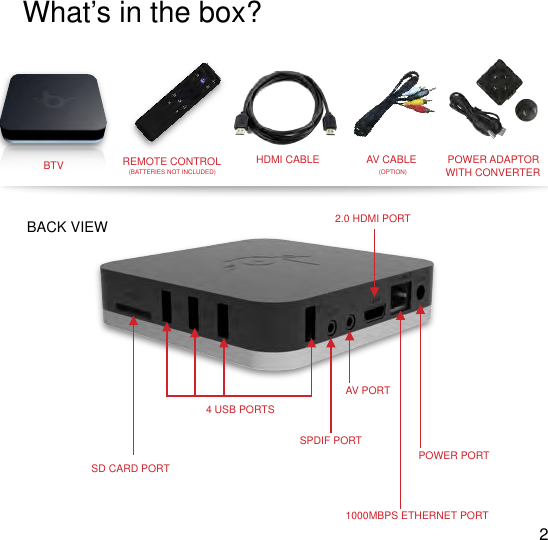
!4 USB PORTS1000MBPS ETHERNET PORT2.0 HDMI PORTPOWER PORTSPDIF PORTAV PORTSD CARD PORTWhat’s in the box?BTVREMOTE CONTROLHDMI CABLEPOWER ADAPTORWITH CONVERTER(BATTERIES NOT INCLUDED)2BACK VIEWAV CABLE(OPTION)
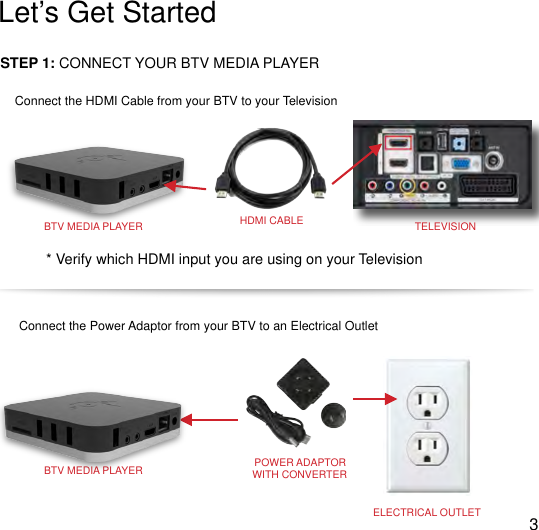
!Let’s Get StartedSTEP 1: CONNECT YOUR BTV MEDIA PLAYERConnect the HDMI Cable from your BTV to your Television* Verify which HDMI input you are using on your TelevisionBTV MEDIA PLAYERHDMI CABLETELEVISIONConnect the Power Adaptor from your BTV to an Electrical OutletBTV MEDIA PLAYERPOWER ADAPTORWITH CONVERTERELECTRICAL OUTLET3
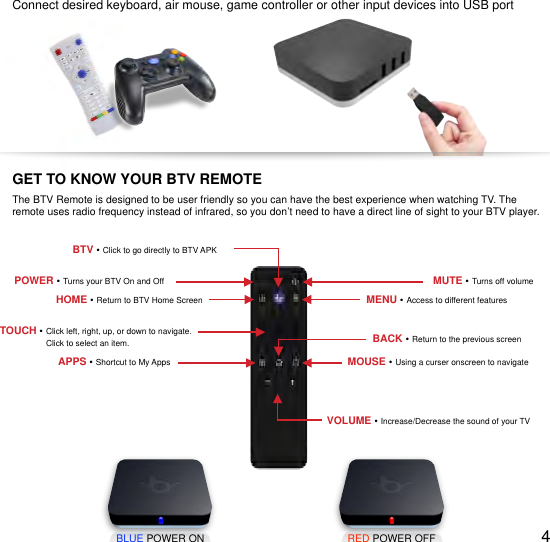
!Connect desired keyboard, air mouse, game controller or other input devices into USB portBLUE POWER ONRED POWER OFF4GET TO KNOW YOUR BTV REMOTEThe BTV Remote is designed to be user friendly so you can have the best experience when watching TV. The remote uses radio frequency instead of infrared, so you don’t need to have a direct line of sight to your BTV player.POWER • Turns your BTV On and OffHOME • Return to BTV Home ScreenMUTE • Turns off volumeMENU • Access to different featuresTOUCH • Click left, right, up, or down to navigate.                     Click to select an item.MOUSE • Using a curser onscreen to navigateBACK • Return to the previous screenVOLUME • Increase/Decrease the sound of your TVAPPS • Shortcut to My AppsBTV • Click to go directly to BTV APK
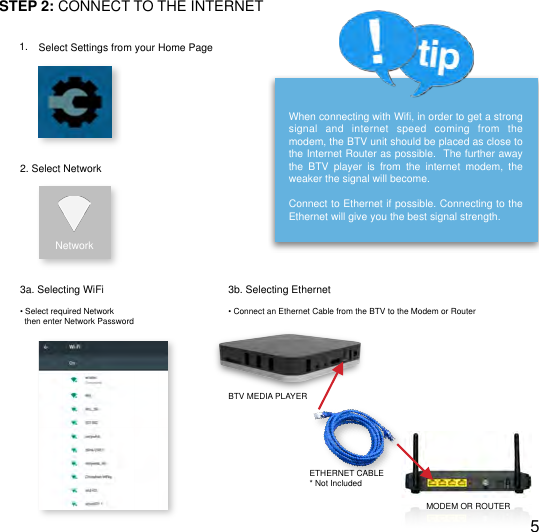
!STEP 2: CONNECT TO THE INTERNET1. Select Settings from your Home Page2. Select NetworkNetwork3a. Selecting WiFiWhen connecting with Wifi, in order to get a strong signal  and  internet  speed  coming  from  the modem, the BTV unit should be placed as close to the Internet Router as possible.  The further away the  BTV  player  is  from  the  internet  modem,  the weaker the signal will become.Connect to Ethernet if possible. Connecting to the  Ethernet will give you the best signal strength.3b. Selecting Ethernet• Select required Network  then enter Network Password• Connect an Ethernet Cable from the BTV to the Modem or RouterBTV MEDIA PLAYERETHERNET CABLE* Not IncludedMODEM OR ROUTER5
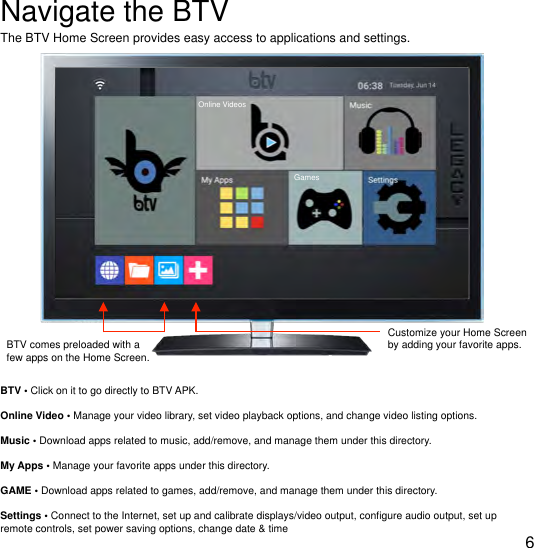
!Navigate the BTVThe BTV Home Screen provides easy access to applications and settings. BTV comes preloaded with a few apps on the Home Screen.BTV • Click on it to go directly to BTV APK.Online Video • Manage your video library, set video playback options, and change video listing options.Music • Download apps related to music, add/remove, and manage them under this directory.My Apps • Manage your favorite apps under this directory.GAME • Download apps related to games, add/remove, and manage them under this directory.Settings • Connect to the Internet, set up and calibrate displays/video output, configure audio output, set up remote controls, set power saving options, change date & time6Customize your Home Screen by adding your favorite apps.Online VideosGames
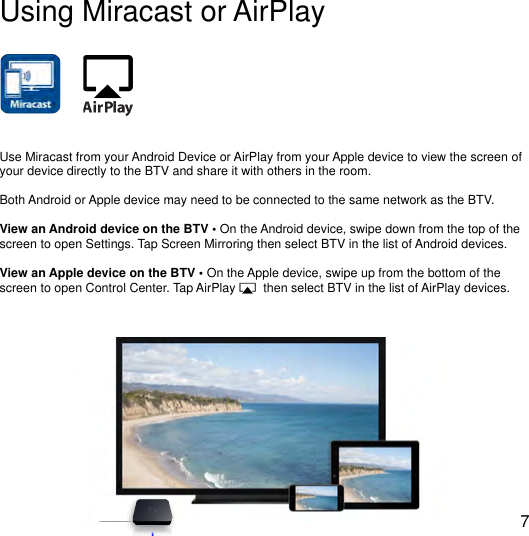
!Using Miracast or AirPlayUse Miracast from your Android Device or AirPlay from your Apple device to view the screen of your device directly to the BTV and share it with others in the room.Both Android or Apple device may need to be connected to the same network as the BTV.View an Android device on the BTV • On the Android device, swipe down from the top of the screen to open Settings. Tap Screen Mirroring then select BTV in the list of Android devices.View an Apple device on the BTV • On the Apple device, swipe up from the bottom of the screen to open Control Center. Tap AirPlay        then select BTV in the list of AirPlay devices.7
!We’ve heard from our customers that the following frequently asked questions are the most important to know when getting started with BTV.Q • Can I use multiple TV for one box?      No, At least not conveniently. Cables between the TV and a splitter makes it inconvenient.Q • Will this work with any Internet connection?      Your BTV Media Player will work with any internet connection provided that it is fast enough. The suggested       minimum connection speed is 10mbps.Q • Can I download anything to the box? If yes, what can I download?      The BTV Media Player does NOT download, duplicate, or copy any of the media content that is streamed.Q • Can I record shows, etc so I can watch them later?      No, but they will most likely be available for you to play on-demand thus eliminating the necessity to record.Q • Will it work with my mobile hotspot?      Yes, your cell phone also makes a great mobile hotspot provided that it is fast enough.Q • Can I hook up a hardline internet to my box or does it have to run off of WiFi?      Yes, the hardline would be the ethernetQ • What is the recommended internet speed for optimum performance?      Generally speaking, you probably need at least a 10mbps connection to stream 1080p reliably in most cases.       The faster the speed, the better the performance.Q • What does it mean when it says buffering?      Buffering means the program is reading ahead of what you are watching. That happens when a program was       streaming something from the internet and you hit a slow download speed. That’s why we recommend an       internet speed of 10mbps or moreQ • What does HD, SD, and HQ mean?      HD: High Definition      SD: Standard Definition      HQ: High QualityQ • If I have questions or concerns regarding my box, is there tech support?      Yes. You can call our tech support at 1-949-988-9000 or email them at support@legacy.direct8
!TroubleshootingI don’t see any picture on my TV:•Make sure your TV is turned on.•Make sure the connectors on the cables between your BTV player and your TV are pushed completely in.•Make sure the video input on your TV is set to match the HDMI used with the BTV. Most TVs have an input button on the remote to change video inputs.•Make sure the power cable for the BTV player is connected to the BTV player on one end and to a working power source on the other end. If the BTV player is powered, the light on the front of the BTV will be blue.I cannot connect to my wireless home network:•Adjust the location of the BTV closer to the modem or router. •Do not place the BTV player in an enclosed cabinet; it may interfere with the wireless signal. Connecting to the Ethernet will give you the best signal strength.•Make sure you select the correct Network name and enter the correct password. Remember that the password is case sensitive. I’m still having trouble:•Reset your Internet Modem by disconnecting the power cord for 30 seconds, and then re-connecting the power cord back to the modem.•Restart your BTV Player by disconnecting the power cord from your BTV for 3 seconds, and then re-connecting the power cord back to the BTV.9
!Need More Help?We’re here for you online or on the phone. Visit www.Legacy.direct for quick answers, guided help, contact info, and more. You can also find us on social media for the latest in entertainment, special promotions, product news and customer support. facebook.com/legacydirectinctwitter.com/legacydirectincvimeo.com/legacydirectincBTV Tech SolutionsBTV Tech Solutions is your personal technology concierge, available Monday-Friday from 9am-6pm PST for support, training, and advice. We are here to help you get the most out of your BTV Media Player including:•" Real-Time diagnoses and resolutions• Technology education and training• Troubleshooting1-949-988-9000support@legacy.direct10
Federal Communication Commission (FCC) Radiation Exposure Statement When using the product, maintain a distance of 20cm from the body to ensure compliance with RF exposure requirements.   FCC statements: This device complies with part 15 of the FCC rules. Operation is subject to the following two conditions: (1) this device may not cause harmful interference, and (2) this device must accept any interference received, including interference that may cause undesired operation.  NOTE: The manufacturer is not responsible for any radio or TV interference caused by unauthorized modifications or changes to this equipment. Such modifications or changes could void the user’s authority to operate the equipment.  NOTE: This equipment has been tested and found to comply with the limits for a Class B digital device, pursuant to part 15 of the FCC Rules. These limits are designed to provide reasonable protection against harmful interference in a residential installation. This equipment generates uses and can radiate radio frequency energy and, if not installed and used in accordance with the instructions, may cause harmful interference to radio communications. However, there is no guarantee that interference will not occur in a particular installation. If this equipment does cause harmful interference to radio or television reception, which can be determined by turning the equipment off and on, the user is encouraged to try to correct the interference by one or more of the following measures: ‐ Reorient or relocate the receiving antenna. ‐ Increase the separation between the equipment and receiver. ‐Connect the equipment into an outlet on a circuit different from that to which the receiver is connected. ‐Consult the dealer or an experienced radio/TV technician for help.

Navigation menu