Leidos Security Detection and Automation S-100 Security Portal User Manual Operations Manual

L-3 Communications Security & Detection Systems, Inc. Security Portal Operations Manual

Users Manual

 Hardware User’s Manual, S-100 Version 100 rev0.4   Publication Date: Dec 8, 2005 Revision: 0.4 Updated: December 8, 2005        All rights reserved. No part of this book may be reproduced in any form without written permission from SafeView, Inc.  The materials and information contained herein are being provided by SafeView, Inc. to its Customers for their internal business purposes only.  SafeView, Inc. retains all rights, titles, interests in and copyrights to the materials and information herein. The materials and information contained herein constitute confidential information of SafeView, Inc.   Customer shall not disclose or transfer any of these materials or information to any third party.     WWW.SAFEVIEWINC.COM
 Table of Contents1 Introduction.........................................................................................1 1.1 FCC Statement.....................................................................11.2 Installation............................................................................1  2 System Overview................................................................................2 2.1.1 SafeScout 100 (S-100)..........................................................................................2 2.2 Operator Console.................................................................3 2.3 Graphical User Interface (GUI).............................................3 2.3.1 Control Operator Panel (COP)..................................................................................3 2.3.2 Analysis Window ..................................................................................................3 3 Getting Started....................................................................................4 3.1 Power Up .............................................................................4 4 Shutdown............................................................................................6 4.1 Scanner Shutdown .............................................................6 4.2 Operator Console Shutdown .............................................6  WWW.SAFEVIEWINC.COM
  Chapter 1 1 Introduction The SafeScout™ system is a holographic 3-D imaging portal which is used for scanning a subject for potential hidden objects.  The system uses safe, broad band radio frequency signals to actively illuminate the subject that is located within the portal. The resulting computer-processed images are displayed to an Operator.    This document describes SafeView Inc.’s SafeScout 100 (S-100) system operation procedures.    1.1 FCC Statement  Federal Communications Commission Radio Frequency Interference Statement   This equipment has been tested and found to comply with the limits for a Class A digital device, pursuant to Part 15 of the FCC Rules.  These limits are designed to provide reasonable protection against harmful interference when the equipment is operated in a commercial environment.  This equipment generates, uses, and can radiate radio frequency energy and, if not installed and used in accordance with the instruction manual, may cause harmful interference to radio communications.  Operation of this equipment in a residential area is likely to cause harmful interference in which case the user will be required to correct the interference at his own expense. MODIFICATIONS: System modifications or component changes not expressly approved by SafeView Inc. could void the user's authority to operate the equipment under FCC regulations.   SHIELDED CABLES:  In order to meet FCC requirements, only the cabling provided by or approved by SafeView may be used for system interconnects.  1.2 Installation  The Scout 100 system is assembled and installed at the customer site only by SafeView factory trained personnel.  There is no user assembly and no user-assembled parts.  Contact SafeView on any issues concerning assembly or installation.  WWW.SAFEVIEWINC.COM 1
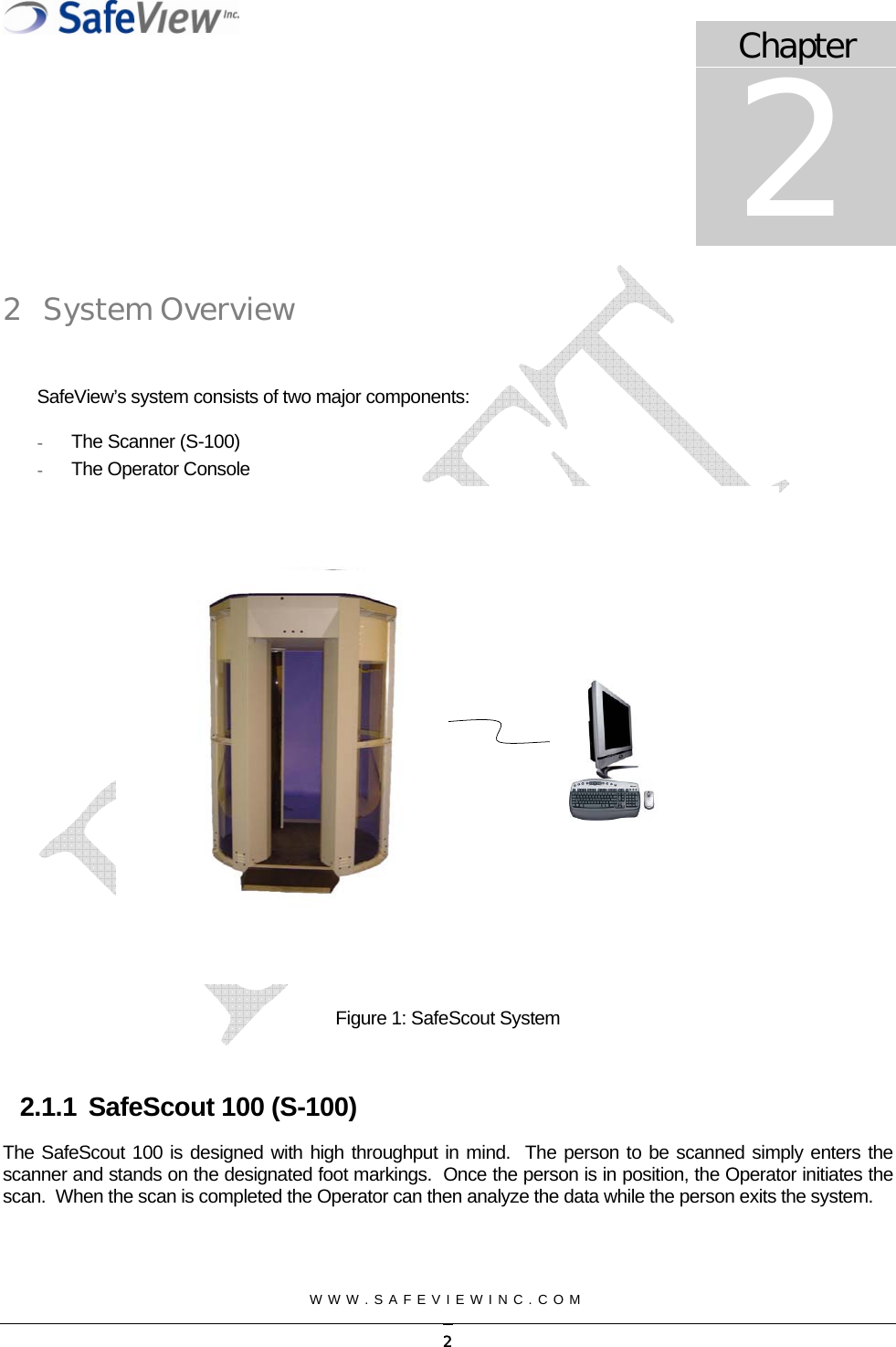
 WWW.SAFEVIEWINC.COM   2 System Overview  SafeView’s system consists of two major components: -  The Scanner (S-100) -  The Operator Console Chapter 2  Figure 1: SafeScout System  2.1.1  SafeScout 100 (S-100) The SafeScout 100 is designed with high throughput in mind.  The person to be scanned simply enters the scanner and stands on the designated foot markings.  Once the person is in position, the Operator initiates the scan.  When the scan is completed the Operator can then analyze the data while the person exits the system.     2
 2.2 Operator Console The Operator Console consists of a standard computer and monitor that display’s the data from the Scanner.  The Operator Console can be located next to the system or remotely and displays the Graphical User Interface (GUI) for presentation of the data from the Scanner to the Operator for analysis.    2.3  Graphical User Interface (GUI) The Graphical User Interface (GUI) consists of two programs, the Control Operator Panel (COP) and the Analysis Window.  Both are described below. 2.3.1  Control Operator Panel (COP) The Control Operator Panel (COP) is usually located on the lower portion of the monitor of the Operator Console and allows Operators to control the system: perform a scan, calibrate, and reset the system. 2.3.2 Analysis Window The Analysis Window is the largest viewable portion of the monitor that allows Operators to view various frames (directional views) and to manipulate the views as necessary. The various functions provide easier measures for viewing the scan.    WWW.SAFEVIEWINC.COM    3
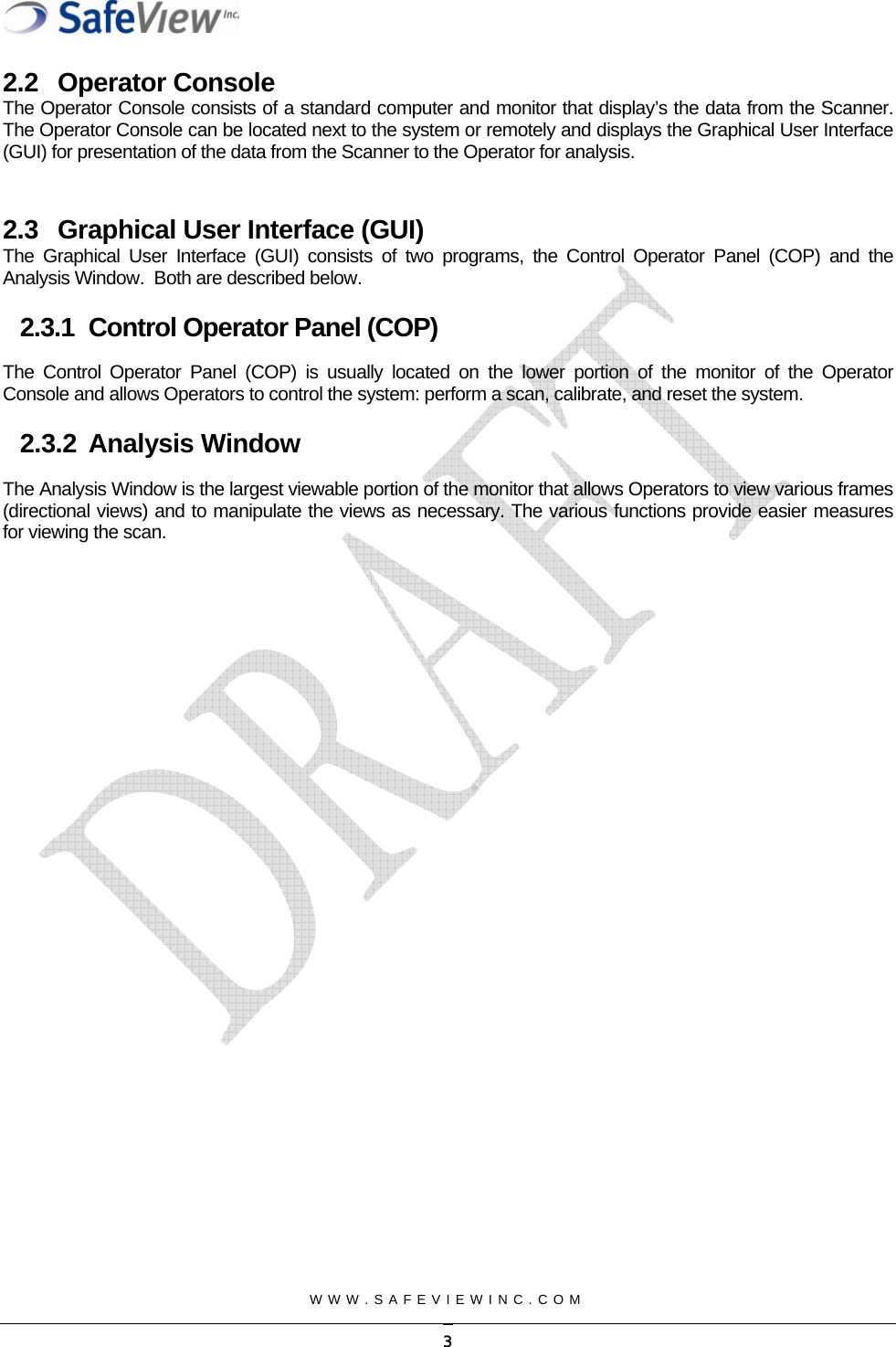
Chapter 3  WWW.SAFEVIEWINC.COM   3 Getting Started  3.1 Power Up  Step 1:   Power on the Scanner  Set the power switch on the Scanner to the “I” position to turn on the Scanner.  Once the system is powered on, the fans will turn on and the Scanner will begin to initialize automatically.  For proper operation, the Scanner must be running for approximately three (3) minutes.   Figure 2: Scanner Power-on   Step 2:  Turn on the Operator Console After three (3) minutes, the Operator Console can be powered up.  Press the on/off button on the front of the system.   4
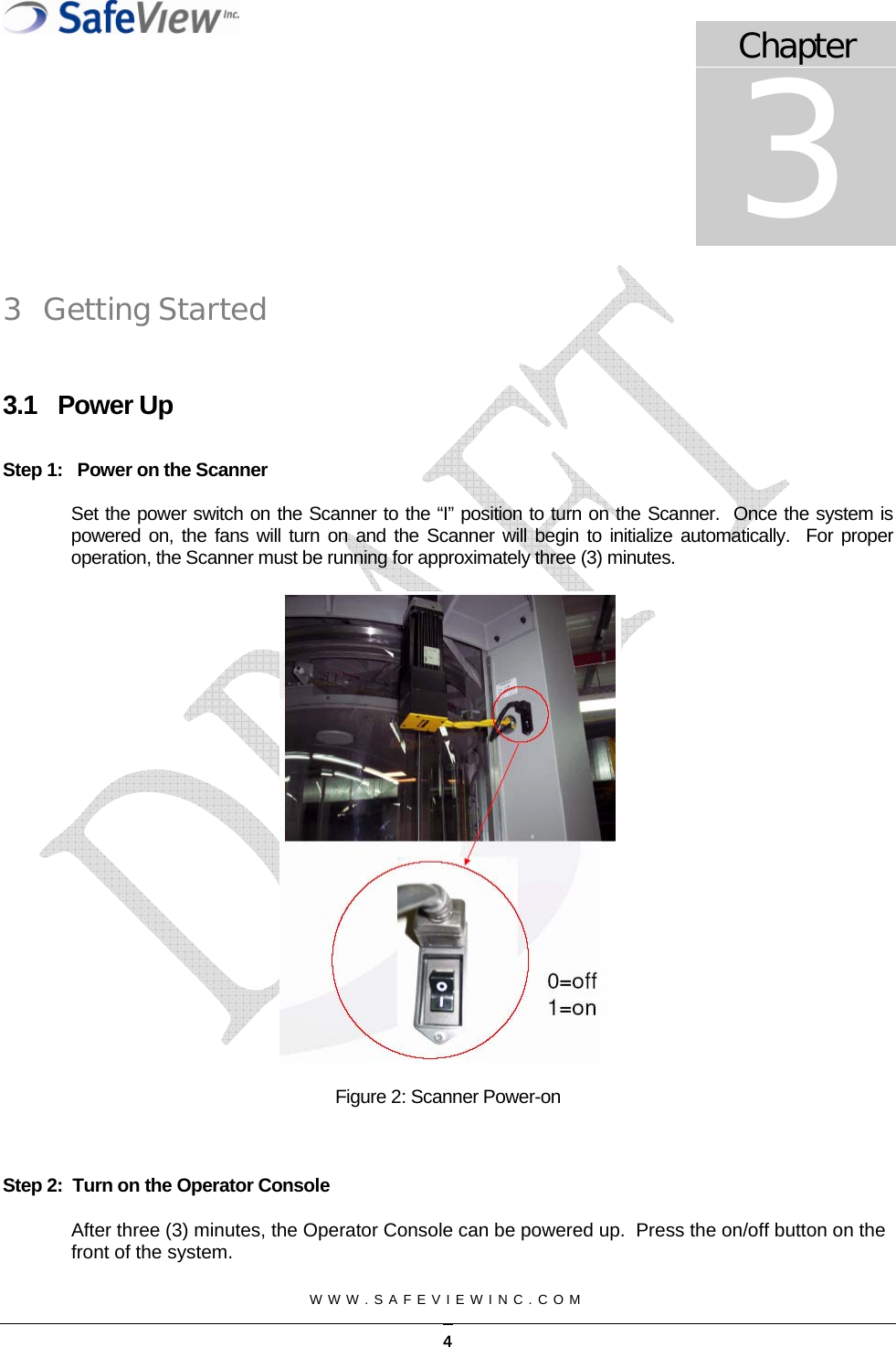
 WWW.SAFEVIEWINC.COM        Figure 3:  Example of Operator Console Power-on  Step 3:  Login At the Login prompt, enter the appropriate user name and password supplied by the administrator. USER NAME:  PASSWORD: Click OK to begin  Upon successful login you will be presented with the GUI which is the simultaneous display of the Analysis Window and the COP.    Ready to scan Once the power-up and initialization steps have been completed, the system is ready to scan   5
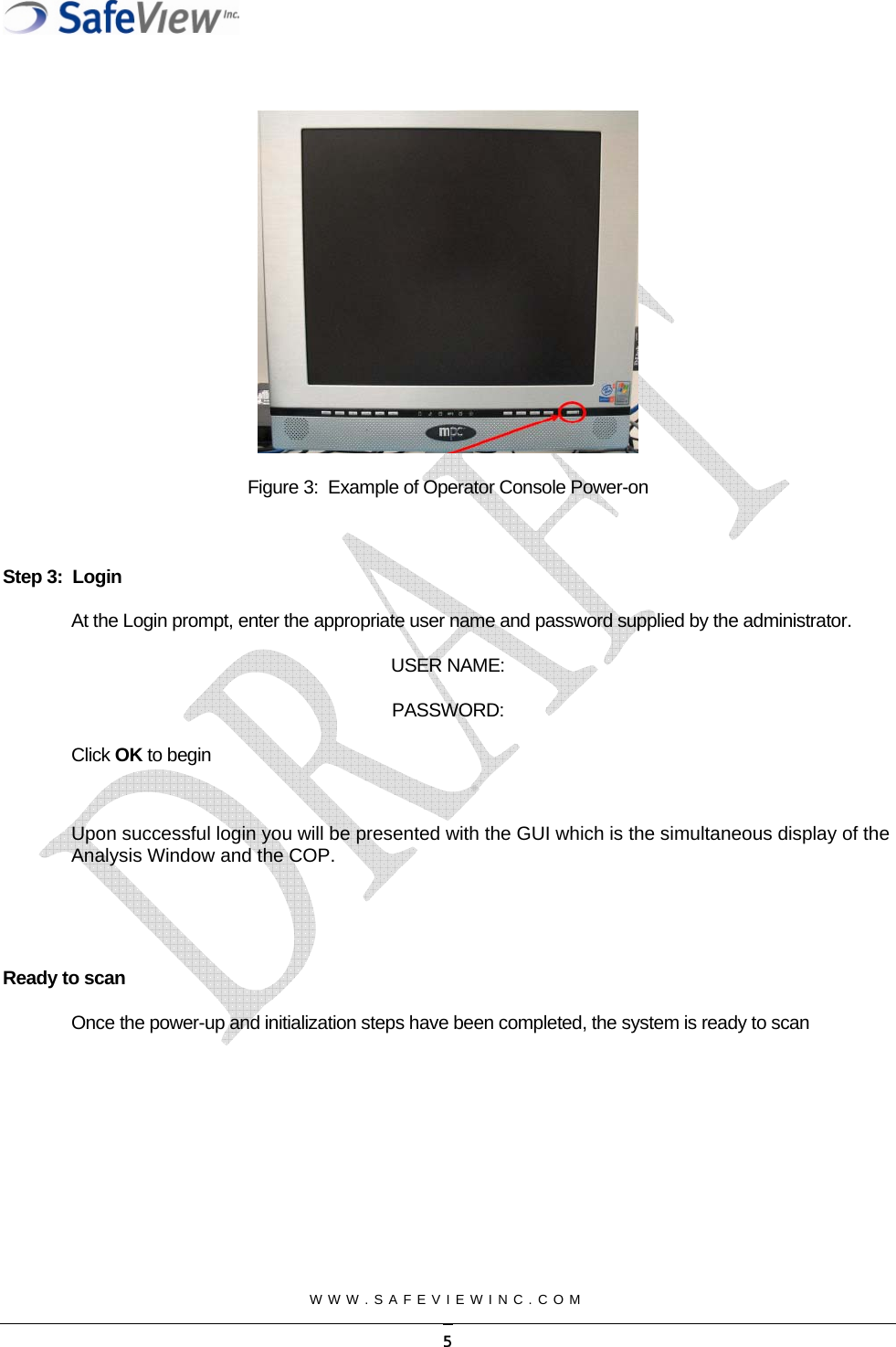
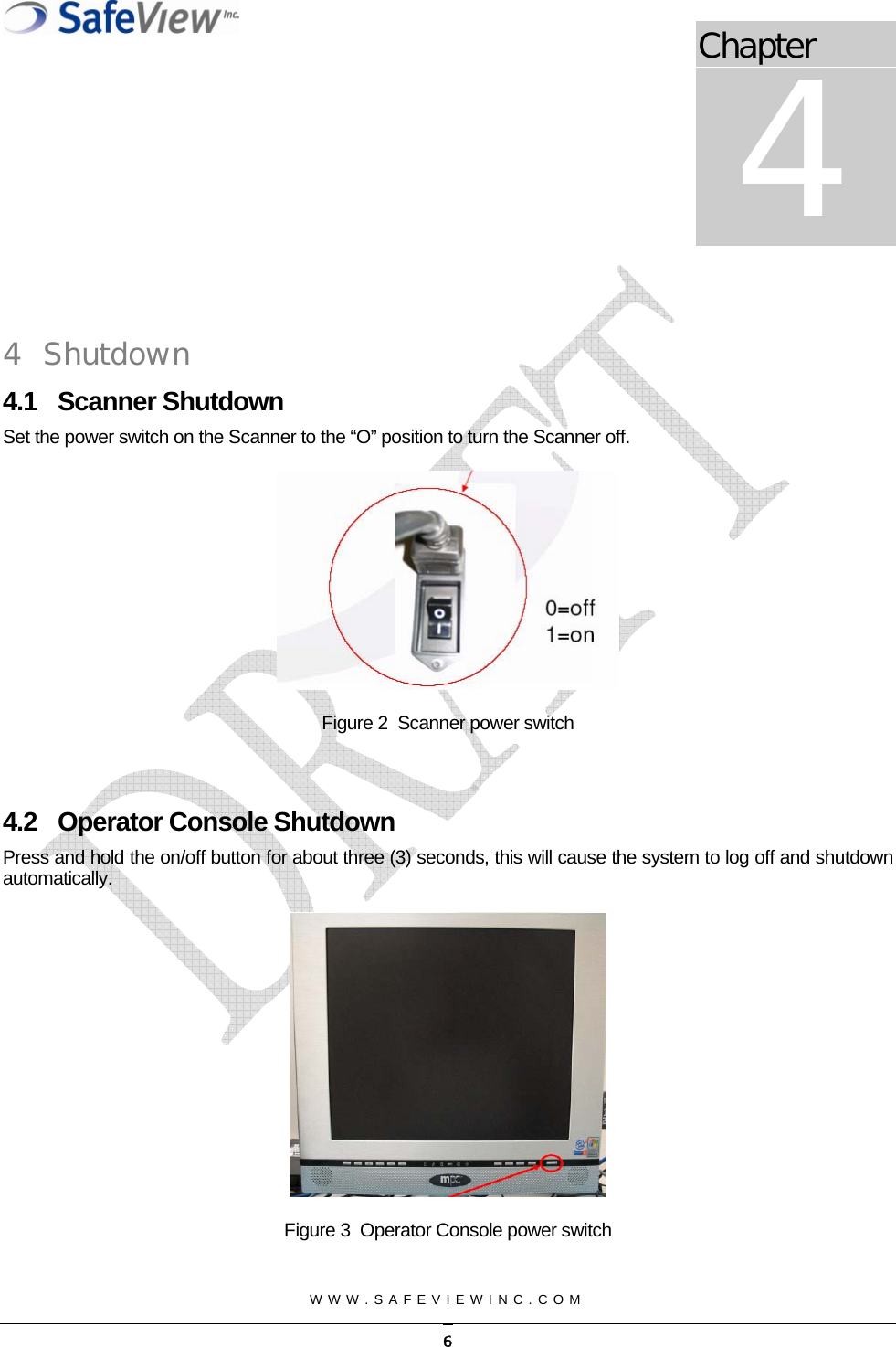
Chapter 4  WWW.SAFEVIEWINC.COM    4 Shutdown 4.1 Scanner Shutdown Set the power switch on the Scanner to the “O” position to turn the Scanner off.    Figure 2  Scanner power switch  4.2  Operator Console Shutdown Press and hold the on/off button for about three (3) seconds, this will cause the system to log off and shutdown automatically.  Figure 3  Operator Console power switch   6
                   469 El Camino Real  Santa Clara, Ca 95050 Phone: 408-961-3690 www.safeviewinc.com     WWW.SAFEVIEWINC.COM    7

Navigation menu