Lemobile Information Technology LEMAX TD LTE digital mobile phone User Manual

Lemobile Information Technology (Beijing) Co., Ltd TD LTE digital mobile phone

Contents

User manual

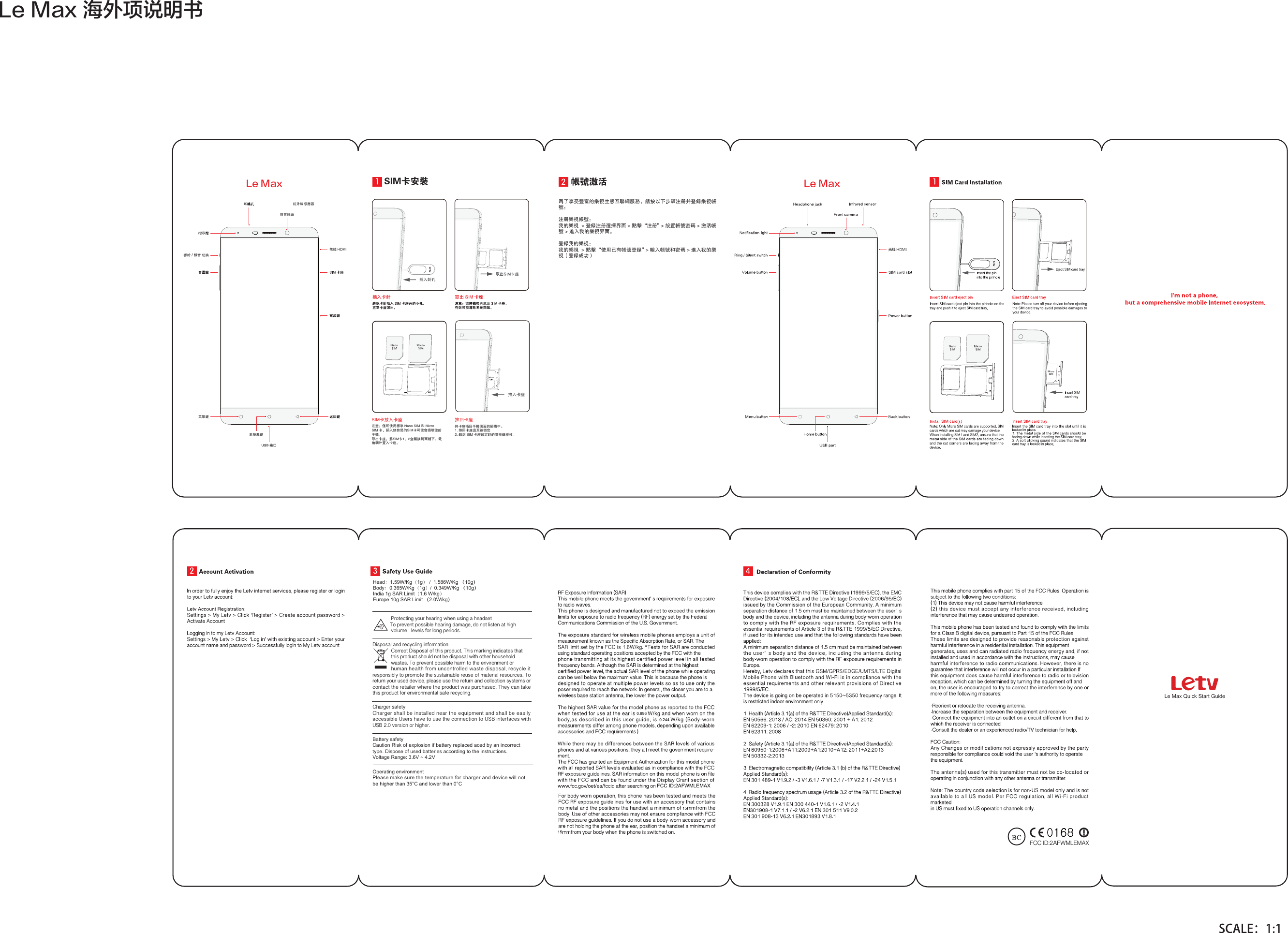
-F.BY⊤ใ䶦䄡ᬻΓ-F.BY-F.BYHead䩭1.59W/Kg䩛1g䩜 /  1.586W/Kg (10g) Body䩭0.365W/Kg䩛1g䩜/  0.349W/Kg (10g) India 1g SAR Limit䩛1.6 W/kg䩜Europe 10g SAR Limit (2.0W/kg)Le Max Quick Start GuideFCC ID:2AFWMLEMAX              Protecting your hearing when using a headset             To prevent possible hearing damage, do not listen at high                  volume   levels for long periods.Disposal and recycling information              Correct Disposal of this product. This marking indicates that              this product should not be disposal with other household                   wastes. To prevent possible harm to the environment or                human health from uncontrolled waste disposal, recycle it responsibly to promote the sustainable reuse of material resources. To return your used device, please use the return and collection systems or contact the retailer where the product was purchased. They can take this product for environmental safe recycling.Charger safety Charger shall be installed near the equipment and shall be easily accessible Users have to use the connection to USB interfaces with USB 2.0 version or higher. Battery safetyCaution Risk of explosion if battery replaced aced by an incorrect type. Dispose of used batteries according to the instructions. Voltage Range: 3.6V ~ 4.2VOperating environmentPlease make sure the temperature for charger and device will not be higher than 35°C and lower than 0°C௄ጳ)%.*҅˲ਡǡٝ࠵Ǻǂጾ࢕ਡδʌϠƗ˅،4*.ӵஊКӵऐฌਓḧ̩ԻΎၹԆӂ/BOP4*.֗.JDSP4*.ӵḙଣКξҝ᣿ᄊ4*.ӵԻᑟ͘૯ڮ০ᄊ੤఻Ǎԩѣӵऐḙ࠲4*.ӵnj᧛࡛ଌᝏ᭧యʾnj੕ᝈయܱᎶКӵऐǍ଎ڀӵऐ࠲ӵऐଣڀ੤఻Ο᭧ᄊଣയ˗Ǎ ଎ڀӵऐᄰᒰᜂ௼ࠀ զ҂ 4*. ӵऐᩚࠀ௑ᄊ֭׃ܦԁԻǍڕྡй͡Оҗ࣑Ղ༏ำ4*.ӵ߷ᜉ˞̀̚Ԫ˘ࠝᄊ˭᜽ၷগ̉ᐏᎪ఩Ҭḙឰો̿ʾ൦ᰡฌвࣳᄆै˭᜽࣑Ղḧฌв˭᜽࣑Ղḧੈᄊ˭᜽ᄆैฌвᤥહႍ᭧གѤþฌвÿ᝺Ꮆ࣑Ղࠛᆊ༏ำ࣑ՂᤉКੈᄊ˭᜽ႍ᭧Ǎᄆैੈᄊ˭᜽ḧੈᄊ˭᜽གѤþΎၹࣃద࣑ՂᄆैÿᣥК࣑Ղ֗ࠛᆊᤉКੈᄊ˭᜽ḕᄆैੇҪḖ0.8960.244FCC ID:2AFWMLEMAX1515
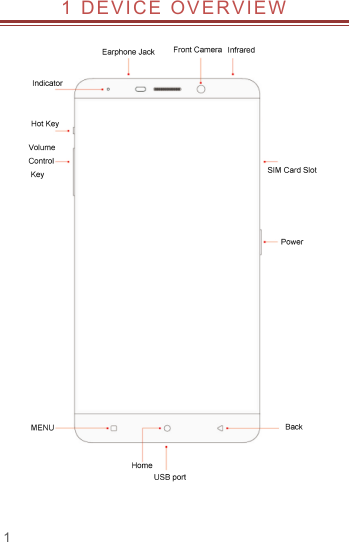
 1 1 DEVICE OVERVIEW
 2. GETTING STARTED                    POWERING ON/OFF THE DEVICE Turning On the Device After installing the SIM card/s and charging the battery, you are now ready to turn on your device.  Long press and hold the Power Key to turn on the device.    The first screen that appears is known as the home/idle Screen.    Drag the lock icon sidewards to unlock the screen.    If the screen turns off, then short press the Power Key to turn on the display.   Turning Off the Device  Press and hold the Power Key.  A pop-up window appears, select Power off.   Select OK to confirm.
 3 3. SYSTEM GUIDE                    3.1 MAIN SCREEN OPERATING    Notification Panel The table below lists various icons that might appear on the notification Panel of the device.   3.2 USING YOUR PHONE  Enter main menu In idle mode press the   key to enter the main menu on the desktop and press the (Home) key to return. Enter sub menu In the main menu click the icon to select the sub menu,press the Back key to return to the previous menu ,and press the Home key to return to the Home screen.  3.3 CALLING To Make Calls If the icon   appears on the screen, then you can make or receive calls.   To make a call, please follow the steps mentioned below:  Tap  ,  enter the phone number using the on-screen keyboard.    Tap   to delete a wrong number. Tap and hold it to erase the entire number.  After entering phone number, tap  .
  To end the call, tap       3.4 MESSAGING For using your device for sending and receiving of SMS (Short Message Service) and MMS (Multimedia Message Service), go to Main Menu and then select Messaging. Creating a Message  Tap   Compose new message.  In To field; enter the recipient’s phone number.  Type message in the Type to compose field.  Tap   to Send. Receiving and Managing Messages When you send and receive messages to or from a contact, these messages are grouped as a message thread. A message thread looks like an exchanged conversation.  MULTIMEDIA MESSAGE A Multimedia message or MMS can contain letters, an image, an audio or video file. To create and send a MMS, please follow the steps mentioned below:  Enter the Main Menu, select Messaging.  Tap  Compose new message.  Select Menu > Add subject.  In the To field, enter the recipient’s phone number or email address and enter the Subject.  To insert a picture or video file, etc, tap  .  To insert text, tap Type to compose, and then enter your message.
 5  3.5 CONTACTS You can save information such as name, phone numbers, etc. for each contact listed in your Contacts menu.   To add a Contact   Enter the Main Menu select Contacts.  Tap    add to contacts .   Store the contact to SIM card or Phone contact.   You can fill out as many or as little fields as you’d like for the contact.  Tap Done to save the contact.   3.6 BROWSER The Browser is the tool which enables you to access the Internet.
 4.  HOME SCREEN                          4.1 CUSTOMIZING SCREEN  The device features a touchscreen with idle displays and access to utilities at just one-touch. So swipe right or left to navigate through various screens accessing your favorite features without entering the main menu. Each screen can be customized by adding various widgets, shortcuts and folders.   Shortcuts In order to add a shortcut on the screen: Long press on the desired application to add on the screen. Widgets Save time with live updates right on Home screen and get all of your personalized updates at one place.   Setting the wallpaper You can customize the wallpaper of your Home screen with default wallpaper or with pictures taken from your device.   Long press the Menu Key > Wallpapers. Rotating Your Mobile Phone Screen  The orientation of most screens will change to landscape or portrait view when you rotate your phone sideways.  On the Home screen, tap   > Settings > Display > Auto-rotate screen to disable this function.
 7 5. MULTIMEDIA                          Your device features various multimedia options, such as Music Player, Camera and Video Player.  5.1 FILE MANAGER You can browse, open and manage the data saved in the Device and Memory card by accessing the File Manager sub-menu. The device provides a certain space for users to manage files and supports the T-Flash card. You can use the file browser to conveniently manage various directories and files on the T-Flash card.    5.2 CAMERA Your device is equipped with a camera and camcorder that enable you to capture photos and videos.    5.3 GALLERY You can view the captured images, recorded video clips, and downloaded images in the Gallery. The picture folder and video folder will be displayed. Select to view the camera pictures or camera videos. The images or videos will be displayed in thumbnails.
 6. APPLICATIONS & UTILITIES             For your entertainment purpose, your device is provided with several interesting games, applications and utilities. Please ensure that you have GPRS setting in your device to access the applications. Contact your operator for GPRS settings.    6.1 CALCULATOR Calculator helps you perform basic arithmetic functions, such as addition, subtraction, multiplication and division.  6.2 CLOCK This function gives you an access to the alarm clock.    Go to    Clock  Tap   > tap   to add alarm.

Navigation menu