METRA INZENIRING D O O 00001DDIS RFID Reader User Manual

METRA INZENIRING D.O.O RFID Reader

user manual

  ELS User Manual
  Page 2     Metra ELS User Manual Table of contents  Metra ELS User Manual ........................................................................................................................... 4 Product description ............................................................................................................................. 5 Basic parts ........................................................................................................................................... 5 Display............................................................................................................................................. 5 Coin acceptor (optional) ................................................................................................................. 6 Fingerprint module (optional) ........................................................................................................ 6 Euro deposit pad (optional) ............................................................................................................ 6 Display as User interface ..................................................................................................................... 7 Display Combo ................................................................................................................................ 7 Display RFID .................................................................................................................................... 7 Display Keypad ................................................................................................................................ 8 Power - on ........................................................................................................................................... 8 Operating indicator ............................................................................................................................. 9 Display Combo ................................................................................................................................ 9 Display RFID .................................................................................................................................... 9 Display Keypad ................................................................................................................................ 9 Indication of unoccupied locker ........................................................................................................ 10 Basic operation ................................................................................................................................. 10 Locking procedures ........................................................................................................................... 11 Normal locking procedure with RFID media ................................................................................. 11 Normal locking procedure with PIN code ..................................................................................... 12 Normal locking procedure with fingerprint .................................................................................. 13 Multiple locking procedure with PIN code or fingerprint ............................................................ 14 Multiple locking procedure with Multi key .................................................................................. 15 User waiting time increment ........................................................................................................ 16 Locking procedure – payment required ....................................................................................... 16 Locking procedure – deposit required .......................................................................................... 17 Unlocking procedures ....................................................................................................................... 17 Locker locked with RFID media ..................................................................................................... 17 Locker locked with PIN code ......................................................................................................... 18 Locker locked with fingerprint ...................................................................................................... 19 Multiple unlocking procedure (PIN code or fingerprint) .............................................................. 19 Multiple unlocking procedure (User key and Multi key) .............................................................. 21
  Page 3     Metra ELS User Manual Exceeded tenancy time ................................................................................................................. 22 Expired tenancy time .................................................................................................................... 23 Use as an information terminal ........................................................................................................ 24 Use of Payment key .......................................................................................................................... 24 Use of Emergency open key .............................................................................................................. 24 Master mode of operation ................................................................................................................ 25 Entering the Master mode by typing-in the Master code ............................................................ 25 Entering the Master mode by presenting the Master card .......................................................... 26 Opening locker with 4 key keypad ................................................................................................ 27 Opening locker(s) with 12 key keypad .......................................................................................... 27 Closing back the locker opened in Master mode ......................................................................... 28 Master mode termination ............................................................................................................ 28 Basic Setup mode of operation ......................................................................................................... 28 Actions and Parameters ................................................................................................................ 30 Warning signalization ........................................................................................................................ 32 Alarm signalization ............................................................................................................................ 33 Remote  opening of single locker ...................................................................................................... 33 Emergency opening of all lockers ..................................................................................................... 33
  Page 4     Metra ELS User Manual Metra ELS User Manual  Manufacturer: Metra inženiring d.o.o. IOC Trzin  Špruha 19 SI-1236 Trzin, Slovenia phone: fax: web: +386 1 56 10 740 +386 1 56 10 744 www.metra.si    System: Metra ELS – Electronic Locking Systems Product Group: Locker Controller & Display Related Documents: Display – Technical manual.pdf Locker Controller ELS & ELS SELECT – Technical Manual.pdf ELS & ELS SELECT – Installation Recomendations.pdf  Year of Construction: 2008-2013   Declaration of Conformity:  The  Metra  ELS  products  have  been  developed,  designed  and manufactured  in  accordance  with  the  EU  directive  for  Electromagnetic Compatibility (2004/108/EC).     FCC compliance & advisory statement: This device complies with Part 15 of the FCC Rules. Operation is subject to the following two conditions: 1. This device may not cause harmful interference, and  2. this device must accept any  interference received, including interference that may cause  undesired operation.  This equipment has been tested and found to comply with the limits for a Class B digital device,  pursuant  to  Part  15  of  the  FCC  Rules.  These  limits  are  designed  to  provide reasonable protection against harmful interference when the equipment is operated in a residential  environment.  This  equipment  generates,  uses,  and  can  radiate  radio frequency  energy  and,  if  not  installed  and  used  in  accordance  with  the  instruction manual, may cause harmful interference to radio communications. However, there is no guarantee that interference will  not occur in a particular installation. If this equipment does  cause  harmful  interference  to  radio  or  television  reception,  which  can  be determined by turning the equipment off and on, the user is encouraged to try to correct the interference by one or more of the following measures:  Reorient or relocate the receiving antenna.  Increase the separation between the equipment and receiver.  Connect the equipment into an outlet on a circuit different from that to which the receiver is connected.  Consult the dealer or an experienced radio/TV technician for help.  Any  changes  or  modifications  not  expressly  approved  by  the  party  responsible  for compliance could void the user's authority to operate the equipment.    ELS User Manual [rev.0-210514] 2014 Metra inženiring d.o.o. All Rights reserved. No part of this manual may be reproduced in any form or by any means without prior written permission of Metra inženiring d.o.o. The contents of this manual are subject to change without notice. All efforts have been made to ensure the accuracy of the contents of this manual, however, should any errors be detected, Metra inženiring would greatly appreciate being informed of them. Metra inženiring d.o.o. can assume no responsibility for any errors in this manual.
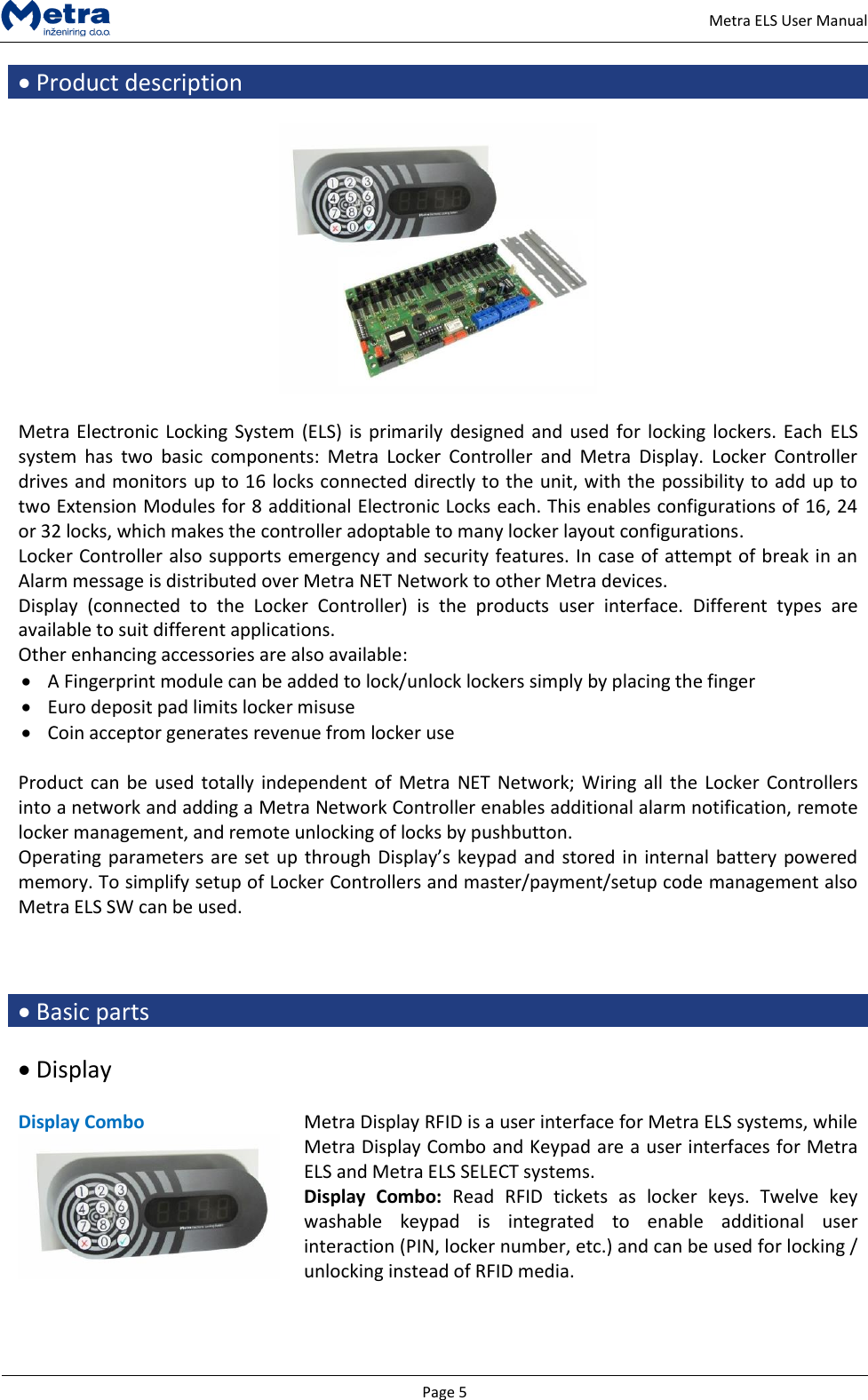
  Page 5     Metra ELS User Manual  Product description    Metra Electronic Locking System (ELS)  is primarily designed and used  for locking lockers. Each  ELS system  has  two  basic  components:  Metra  Locker  Controller  and  Metra  Display.  Locker  Controller drives and monitors up to 16 locks connected directly to the unit, with the possibility to add up to two Extension Modules for 8 additional Electronic Locks each. This enables configurations of 16, 24 or 32 locks, which makes the controller adoptable to many locker layout configurations. Locker Controller also supports emergency and security features. In case of attempt of break in an Alarm message is distributed over Metra NET Network to other Metra devices. Display  (connected  to  the  Locker  Controller)  is  the  products  user  interface.  Different  types  are available to suit different applications. Other enhancing accessories are also available:  A Fingerprint module can be added to lock/unlock lockers simply by placing the finger  Euro deposit pad limits locker misuse  Coin acceptor generates revenue from locker use  Product can  be used totally independent of  Metra NET  Network; Wiring  all the  Locker Controllers into a network and adding a Metra Network Controller enables additional alarm notification, remote locker management, and remote unlocking of locks by pushbutton. Operating parameters are set up through Display’s keypad and stored in  internal battery powered memory. To simplify setup of Locker Controllers and master/payment/setup code management also Metra ELS SW can be used.     Basic parts   Display  Display Combo     Metra Display RFID is a user interface for Metra ELS systems, while Metra Display Combo and Keypad are a user interfaces for Metra ELS and Metra ELS SELECT systems. Display  Combo:  Read  RFID  tickets  as  locker  keys.  Twelve  key washable  keypad  is  integrated  to  enable  additional  user interaction (PIN, locker number, etc.) and can be used for locking / unlocking instead of RFID media.
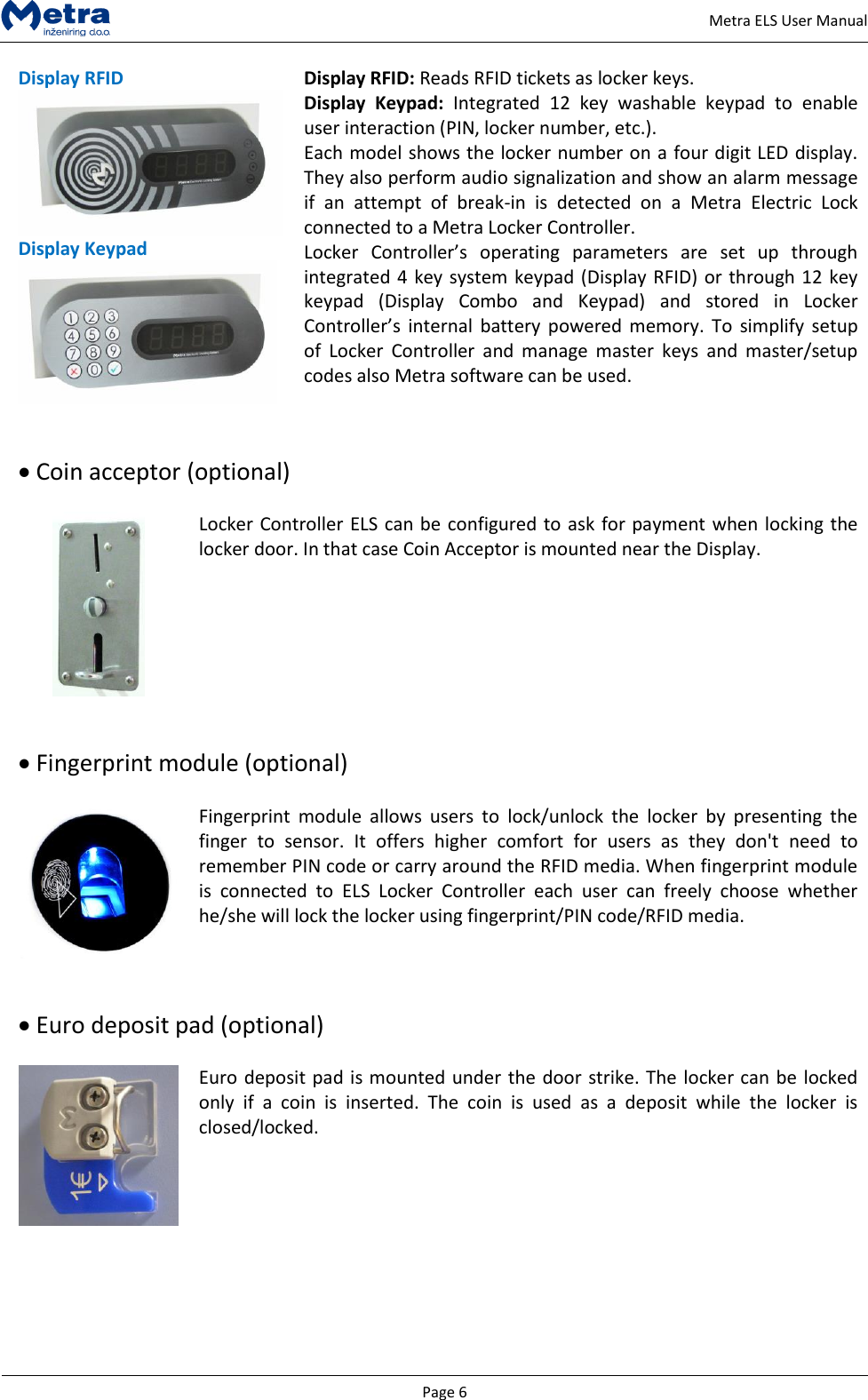
  Page 6     Metra ELS User Manual Display RFID  Display Keypad  Display RFID: Reads RFID tickets as locker keys. Display  Keypad:  Integrated  12  key  washable  keypad  to  enable user interaction (PIN, locker number, etc.). Each model shows the locker number on a four digit LED display. They also perform audio signalization and show an alarm message if  an  attempt  of  break-in  is  detected  on  a  Metra  Electric  Lock connected to a Metra Locker Controller. Locker  Controller’s  operating  parameters  are  set  up  through integrated 4 key system keypad (Display RFID) or through 12 key keypad  (Display  Combo  and  Keypad)  and  stored  in  Locker Controller’s  internal  battery  powered memory.  To  simplify setup of  Locker  Controller  and  manage  master  keys  and  master/setup codes also Metra software can be used.    Coin acceptor (optional)   Locker Controller ELS can be configured to ask for payment when locking the locker door. In that case Coin Acceptor is mounted near the Display.     Fingerprint module (optional)   Fingerprint  module  allows  users  to  lock/unlock  the  locker  by  presenting  the finger  to  sensor.  It  offers  higher  comfort  for  users  as  they  don't  need  to remember PIN code or carry around the RFID media. When fingerprint module is  connected  to  ELS  Locker  Controller  each  user  can  freely  choose  whether he/she will lock the locker using fingerprint/PIN code/RFID media.    Euro deposit pad (optional)   Euro deposit pad is mounted under the door strike. The locker can be locked only  if  a  coin  is  inserted.  The  coin  is  used  as  a  deposit  while  the  locker  is closed/locked.
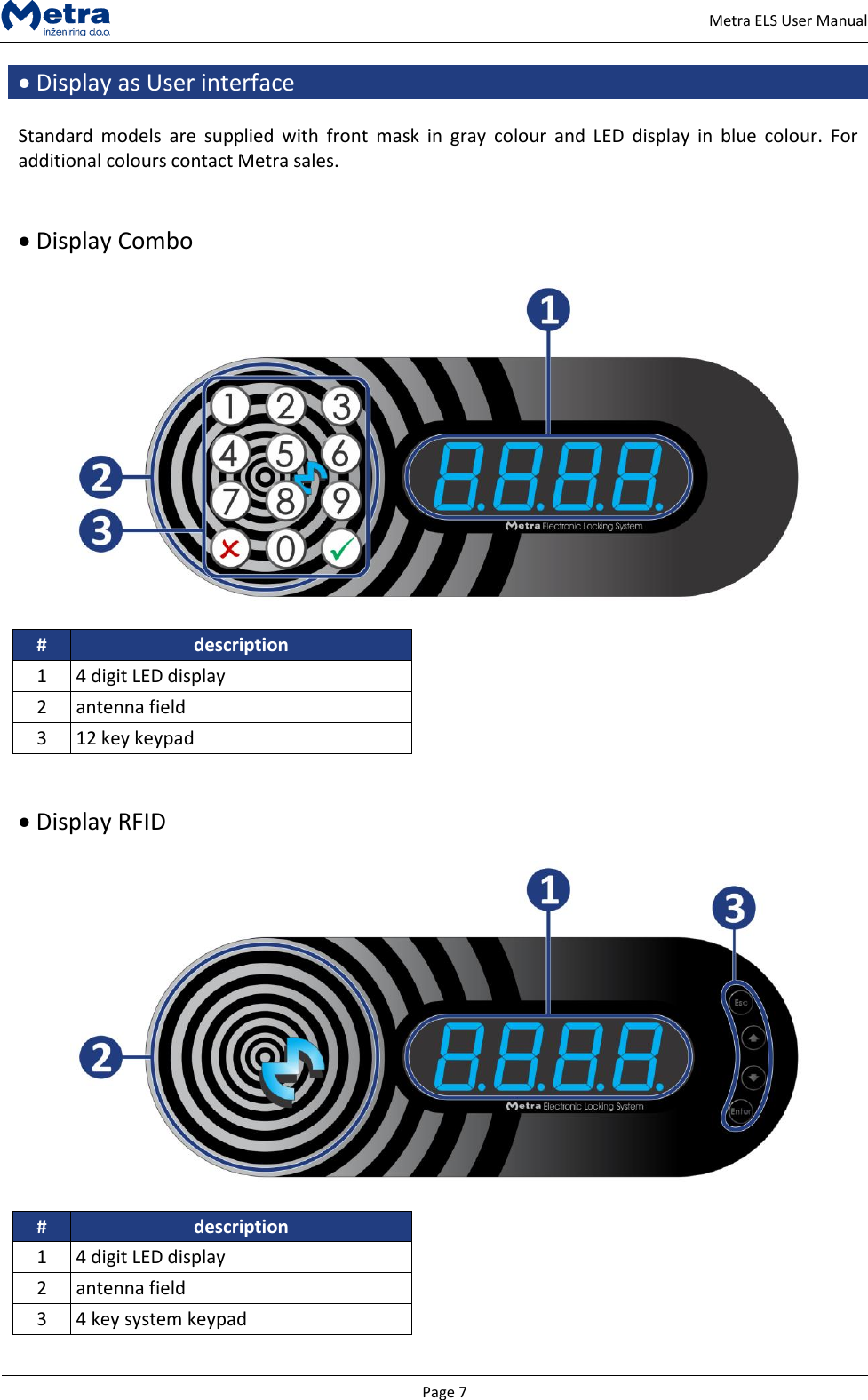
  Page 7     Metra ELS User Manual  Display as User interface  Standard  models  are  supplied  with  front  mask  in  gray  colour  and  LED  display  in  blue  colour.  For additional colours contact Metra sales.    Display Combo    # description 1 4 digit LED display 2 antenna field 3 12 key keypad    Display RFID    # description 1 4 digit LED display 2 antenna field 3 4 key system keypad
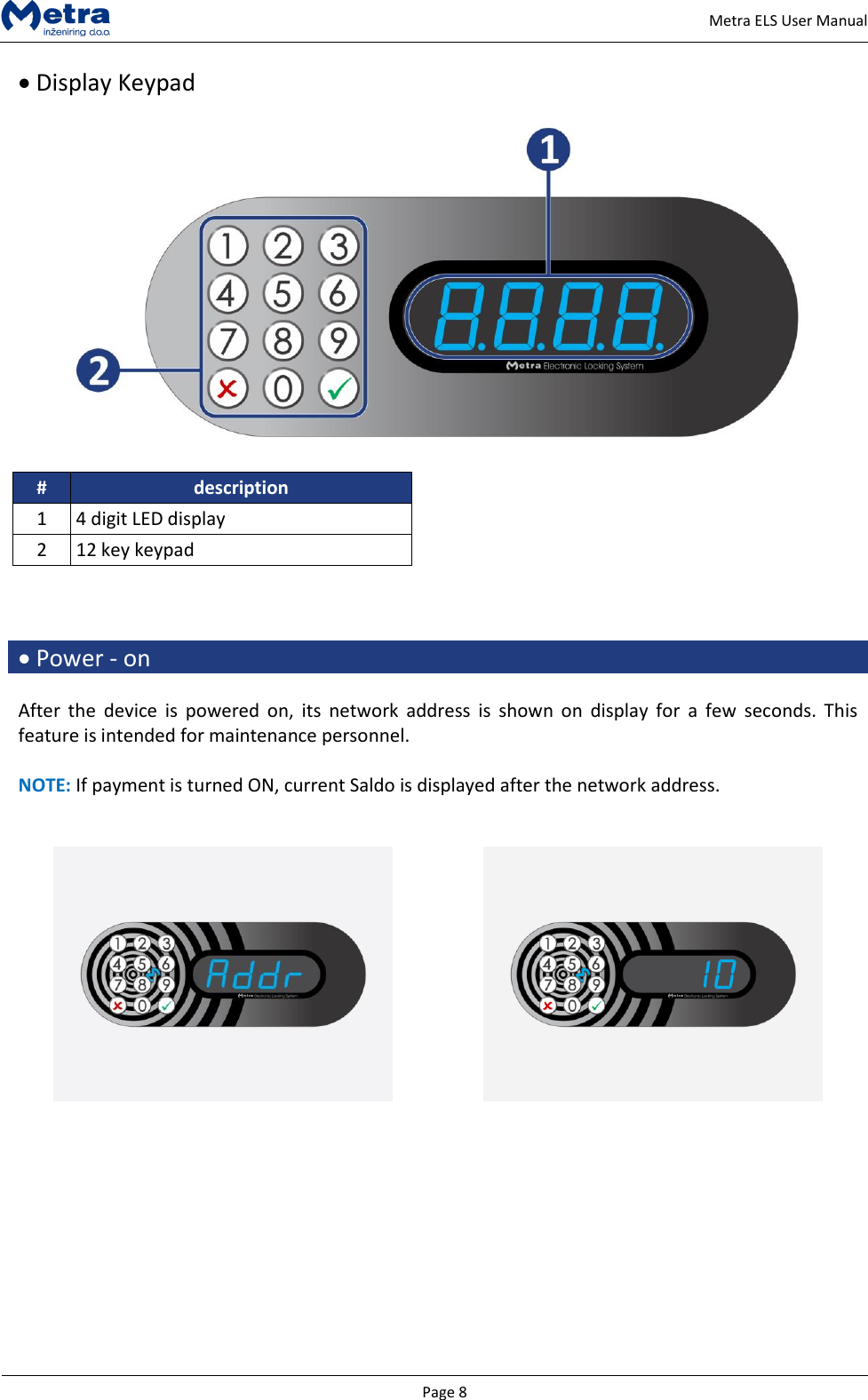
  Page 8     Metra ELS User Manual  Display Keypad    # description 1 4 digit LED display 2 12 key keypad     Power - on  After  the  device  is  powered  on,  its  network  address  is  shown  on  display  for  a  few  seconds.  This feature is intended for maintenance personnel.  NOTE: If payment is turned ON, current Saldo is displayed after the network address.
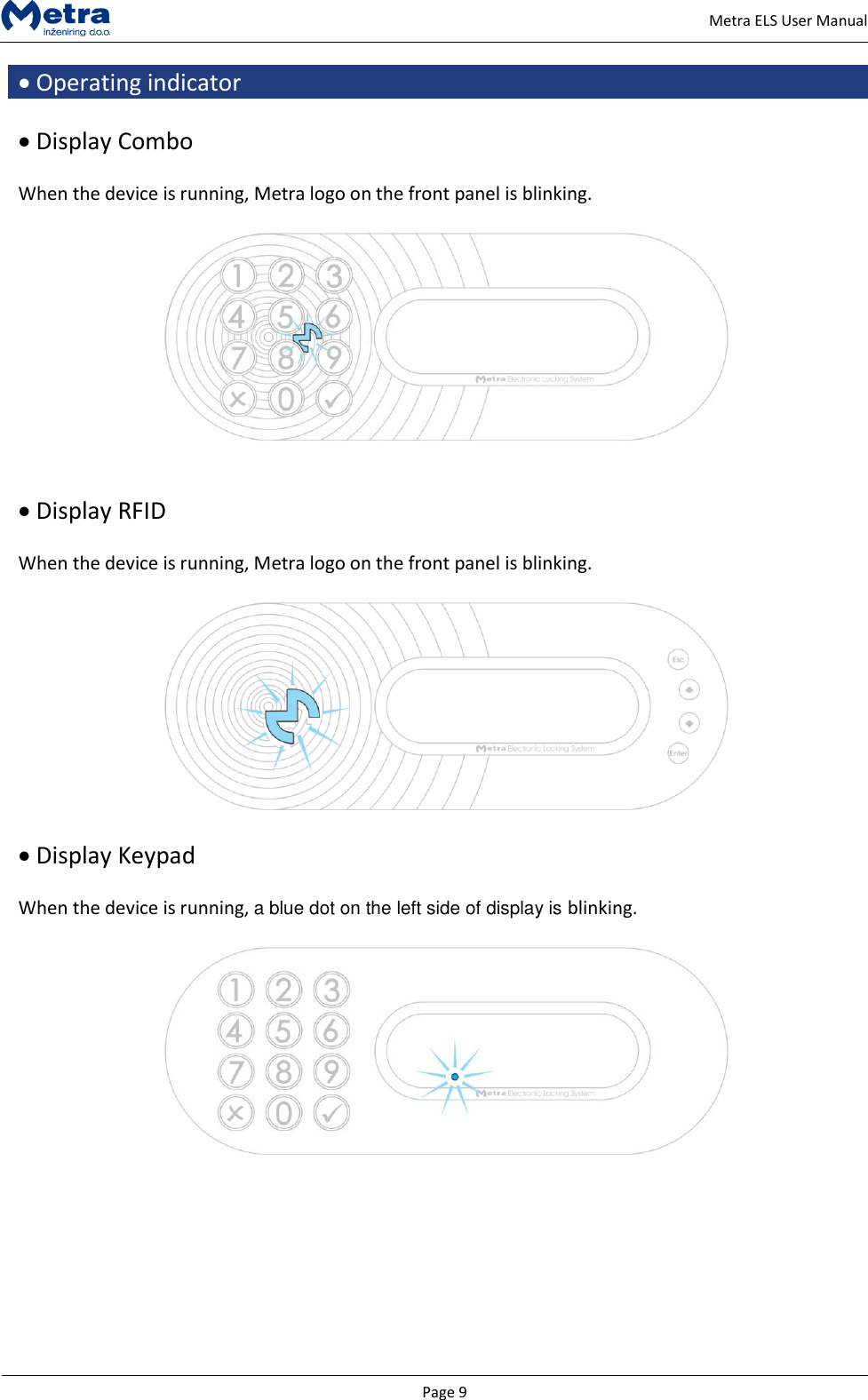
  Page 9     Metra ELS User Manual  Operating indicator   Display Combo  When the device is running, Metra logo on the front panel is blinking.      Display RFID  When the device is running, Metra logo on the front panel is blinking.     Display Keypad  When the device is running, a blue dot on the left side of display is blinking.
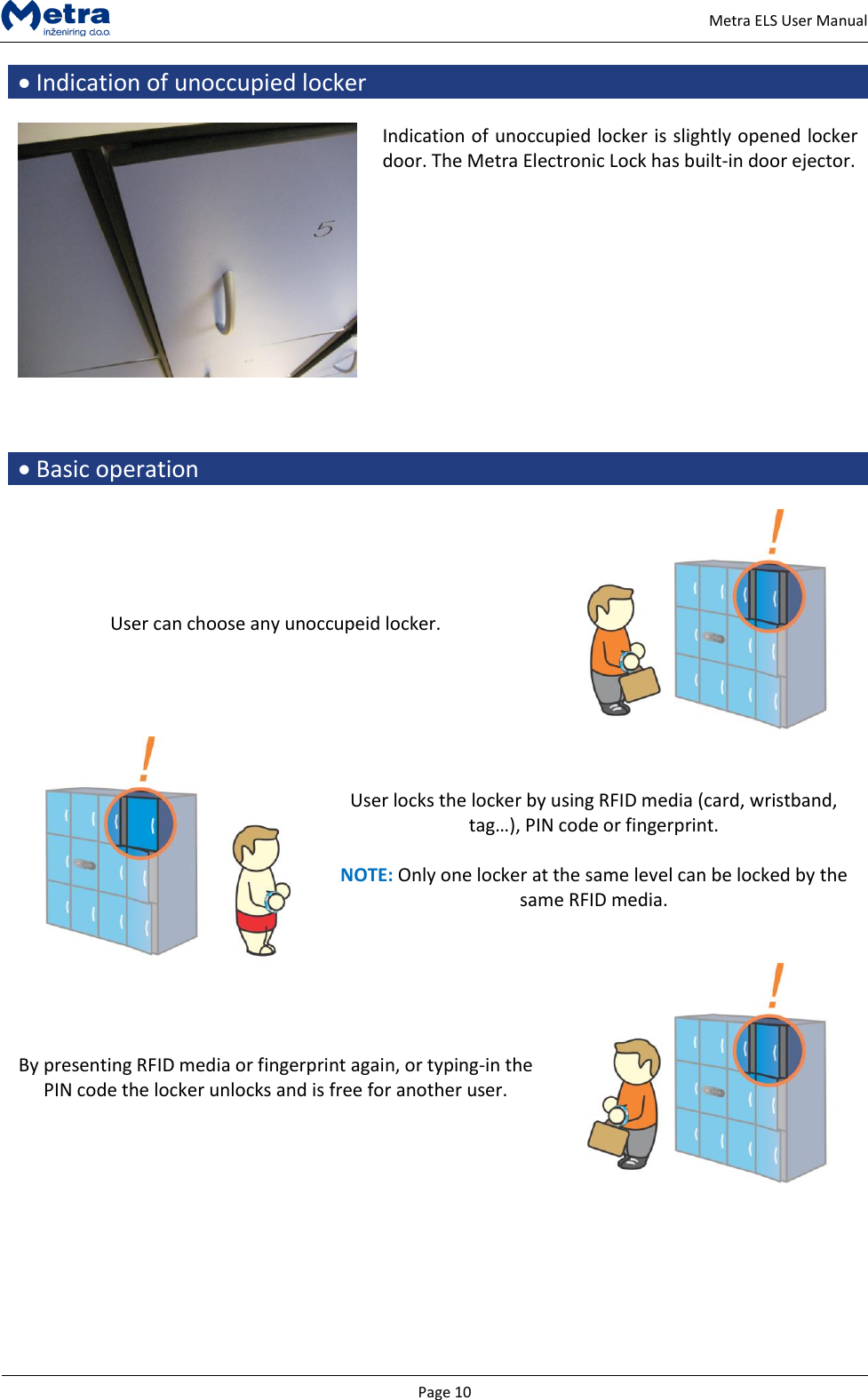
  Page 10     Metra ELS User Manual  Indication of unoccupied locker   Indication of unoccupied locker is slightly opened locker door. The Metra Electronic Lock has built-in door ejector.       Basic operation  User can choose any unoccupeid locker.   User locks the locker by using RFID media (card, wristband, tag…), PIN code or fingerprint.   NOTE: Only one locker at the same level can be locked by the same RFID media. By presenting RFID media or fingerprint again, or typing-in the PIN code the locker unlocks and is free for another user.
  Page 11     Metra ELS User Manual  Locking procedures   Normal locking procedure with RFID media   STEP  1:  Close  the  locker  door.  Time  countdown  starts (vertical  lines  are  displayed)  on  the  Display  and interrupted beep acoustic signal is activated.    STEP  2: Approach the  RFID media  to  the antenna  field. Reading  distance  is  2  –  5  centimetres  from  the  device surface.  Hold  the  RFID  media  in  the  field  for  a  few moments for device to read and process it.   STEP 3: When the RFID media is accepted as a locker key the  corresponding  locker  is  locked  and  its  number  is displayed.  MULTI LOCKING: If the user RFID media supports multiple locking, you can lock  multiple  lockers  on  the  same  or  different  devices. Number of allowed locked lockers is set in Metra SW.  To  lock  multiple  lockers,  repeat  previously  described three steps on different lockers.    NOTE  If procedure is rejected for any reason (RFID media not on  the  White  List,  etc.)  the  Display  shows  “no” accompanied  by  long  acoustic  signal.  Locker automatically opens.
  Page 12     Metra ELS User Manual  MULTI LOCKING: If  procedure  is  rejected  and  “FULL”  is  displayed accompanied  by  interrupted  acoustic  signal,  you  have reached  locker  limit  for  your  RFID  media.  Locker automatically opens.     NOTE  If  the  locker  was  closed  and  RFID  media  not  presented,  locker  automatically  opens  when  time countdown ends.    Normal locking procedure with PIN code   STEP  1:  Close  the  locker  door.  Time  countdown  starts (vertical  lines  are  displayed)  on  the  Display  and interrupted beep acoustic signal is activated.    STEP 2: Choose and enter up to 4 digit PIN code. Confirm your PIN code with the  key.   NOTE: Sign  “o”  is  displayed  for  each  PIN  digit  entered. From 1 to 4 digits are accepted as a PIN code.   NOTE: The  key cancels the procedure.      NOTE  For PIN codes which are 3 or 4 digits long the following rules apply:  PIN  codes  with  all  the  same  digits  (000,  0000,  111, 1111, 222 … 999, 9999) are rejected.  PIN codes are rejected if digits are 123 and 1234.  If  the  PIN  code  is  rejected,  Display  shows  “bLOC” accompanied  by  interrupted  acoustic  signal.  Locker automatically opens.
  Page 13     Metra ELS User Manual  STEP  3: When  the  Pin code  is accepted  as  a locker  key the  corresponding  locker  is  locked  and  its  number  is displayed.   NOTE  If the locker was closed and Pin Code not entered, locker automatically opens when time countdown ends.    Normal locking procedure with fingerprint   STEP  1:  Close  the  locker  door.  Time  countdown  starts (vertical  lines  are  displayed)  on  the  Display  and interrupted beep acoustic signal is activated.    STEP 2: Insert your finger in the Fingerprint module.   STEP 3: When the Fingerprint is accepted as a locker key the  corresponding  locker  is  locked  and  its  number  is displayed.
  Page 14     Metra ELS User Manual  NOTE  If the locker was closed and finger not presented, locker automatically opens when time countdown ends.    Multiple locking procedure with PIN code or fingerprint  Multiple locking should be enabled in order to use that possibility! For more information on multiple locking parameters consult Locker Controller ELS & ELS SELECT Technical Manual.   All  the  lockers  closed  that  way  can  be  later  unlocked  (all  at  once)  using  the  Multiple  unlocking procedure.   STEP  1:  Enter  group  PIN  code  (number  defined  by “GrUP” parameter – from 8000 to 9999) to start multiple locking procedure and press the  key.  NOTE: The  key cancels the procedure.   STEP 2: Device enters the PIN-entry mode. Sign “Pin” is flashing and beep acoustic signal is heard.   NOTE  You  can  choose  to  use  your  fingerprint  (if  Fingerprint module is present) or you can choose and type in up to 4 digit PIN code.   If PIN code is chosen than “o” is displayed for each PIN digit  entered.  From 1  to  4 digits  are  accepted  as  a  PIN code. Confirm your PIN code with the  key.  NOTE: The  key cancels the procedure.   NOTE: If  fingerprint is  chosen than insert your  finger in the Fingerprint module.
  Page 15     Metra ELS User Manual  STEP  3:  Device  enters  MULTIPLE  locking  mode  of operation indicated by time countdown on the Display.    STEP  4:  You  can  lock  several  lockers  until  time countdown  completes.  Time  countdown  restarts  after each locking.  After  each  Locker  is  locked  corresponding  number  is displayed.     Multiple locking procedure with Multi key  For  multiple  locking  a  special  multi  key  is  needed.  All  the  lockers  closed  that  way  can  be  later unlocked (all at once or only particular locker) using the same Multi key.   NOTE  See also Metra Online Help for more information on how to make a multi key.  When locking single locker at a time, the locking procedure is the same as with the user RFID media that  supports  multi  locking.  For  more  information  see  paragraph  “Normal  locking  procedure  with RFID media”.  Multi  key  also  supports  locking  multiple  lockers  at  once.  The  procedure  is  described  in  following three steps.   STEP  1: Approach the  RFID media  to  the antenna  field. Reading  distance  is  2  –  5  centimetres  from  the  device surface.  Hold  the  RFID  media  in  the  field  for  a  few moments for device to read and process it.
  Page 16     Metra ELS User Manual  STEP 2: When the RFID media is accepted as a Multi key the  multi  locking  mode  is  activated,  countdown  starts and vertical lines are displayed.    STEP  3:  Close  the  locker  door.  Locker  is  locked  and  its number is displayed. You can close multiple lockers one after another. Time countdown restarts after each locker is locked.  When you stop closing the lockers and time countdown ends, device exits multi locking mode.  PAYMENT:  Not  supported  with  Multi  keys.  Multi  keys can lock lockers free of charge.    User waiting time increment   User waiting  time increments (slower  countdown) after the  countdown  ended  without  presenting  the  RFID media / finger or without entering the PIN code to lock the  locker.  This  gives  user  more  time  to  present  RFID media or finger or to enter PIN code in second attempt.  NOTE:  User  waiting  time  increments  only  if  the  user closes the same locker as in first attempt.     Locking procedure – payment required   Steps  1  and  2  are  the  same  as  in  all  normal  locking procedures.   STEP 3: When the RFID media / PIN code / fingerprint is accepted as a locker key sign “Euro” / “Coin” / ”GbP” / ”PAY”  /  “USd  /  “CHF”  is  displayed.  User  is  asked  for payment to finalize the locking procedure.
  Page 17     Metra ELS User Manual  STEP 4: Insert a coin in the coin acceptor.    NOTE  If the  coin is not inserted the  locker unlocks  and opens after a few seconds.    STEP  5:  Locker  number  is  displayed  and  corresponding locker is locked.   MULTI LOCKING: If  the  user  RFID  media  supports  multiple  locking, payment is required for each locked locker.     Locking procedure – deposit required   Before STEP 1 of each locking procedure: Insert a coin in coin  deposit  pad mounted on  the inside  of the  locker’s door.  Continue with one of the locking procedures.    Unlocking procedures   Locker locked with RFID media   STEP  1: Approach the  RFID media  to  the antenna  field. Reading  distance  is  2  –  5  centimetres  from  the  device surface. Hold  the RFID  media  in the  antenna field for a few moments for device to read and process it.
  Page 18     Metra ELS User Manual  STEP 2: Display shows the locker number and the locker is  unlocked  when  the  RFID  media  is  recognized  as  a locker  key  that  previously  locked  that  particular  locker. Short acoustic signal is also activated.    NOTE   If  sign  “Euro”  /  “Coin”  /  ”GbP” / ”PAY”  /  “USd  / “CHF” is displayed instead of locker number, continue with  the  procedure  described  in  paragraph “Exceeded tenancy time”   If sign “bLOC” is displayed instead of locker number, see paragraph “Expired tenancy time”!    Locker locked with PIN code   STEP 1: Enter the number of the locker you want to open and confirm it with  key.  NOTE: The  key deletes last entry.    STEP 2: Sign “Pin” is flashing and beep acoustic signal is heard.  Enter  the  PIN  code  that  was  used  to  lock corresponding locker and confirm it with  key.  NOTE: The  key cancels the procedure.    STEP 3: If correct PIN code is entered, locker number is displayed  and  corresponding  locker  is  unlocked  and opened. Short acoustic signal is also activated.   NOTE   If  sign  “Euro”  /  “Coin”  /  ”GbP” / ”PAY”  /  “USd  / “CHF” is displayed instead of locker number, continue with  the  procedure  described  in  paragraph “Exceeded tenancy time”   If sign “bLOC” is displayed instead of locker number, see paragraph “Expired tenancy time”!
  Page 19     Metra ELS User Manual  Locker locked with fingerprint   STEP  1  (optional): Enter  the  number  of  the  locker  you want to open and confirm it with  key.  NOTE: The  key deletes last entry.   NOTE  Not available with Display RFID. Feature  is  useful if you lock  multiple lockers  on  the  same  device  by  presenting the same finger and you want to open just one particular locker.  After  the  locker  number  is  entered  and confirmed, Display shows “FP”.   STEP 2: Insert your finger in the Fingerprint module.   NOTE  If you have multiple lockers lock on the same device with the  same  finger  and  you  skipped  step  1,  one  of  the (remaining) locked lockers will open randomly.   STEP  3:  If  the  same  finger  is  presented  correctly corresponding  locker  is  unlocked  and  opened.  Short acoustic signal is also activated.   NOTE   If  sign  “Euro”  /  “Coin”  /  ”GbP” / ”PAY”  /  “USd  / “CHF” is displayed instead of locker number, continue with  the  procedure  described  in  paragraph “Exceeded tenancy time”!  If sign “bLOC” is displayed instead of locker number, see paragraph “Expired tenancy time”!    Multiple unlocking procedure (PIN code or fingerprint)   STEP 1: Enter group PIN code to start multiple unlocking procedure and press the  key.  NOTE: The  key cancels the procedure.
  Page 20     Metra ELS User Manual  STEP 1: Enter group PIN code to start multiple unlocking procedure and press the  key.  NOTE: The  key cancels the procedure.   STEP 2: If PIN code was chosen sign “Pin” is flashing and beep  acoustic  signal  is  heard.  Enter  the  PIN  code  that was used to lock multiple lockers and confirm it with  key.  Sign “o” is displayed for each PIN digit entered.  NOTE: The  key cancels the procedure.   NOTE: If fingerprint was chosen sign “FP” is flashing and beep  acoustic  signal  is  heard.  Insert  your  finger  in  the Fingerprint module.    STEP  3:  If  correct  PIN  code  is  entered  /  fingerprint presented, sign “ALL” is displayed.  Now you can either confirm the unlocking of all lockers closed  in  multi  mode by  pressing  the key  or  you  can enter  the  number  of  single  locker  and  confirm  it  by pressing the key.
  Page 21     Metra ELS User Manual  STEP 4 A: If “ALL” was confirmed corresponding lockers start  to  unlock  and  open  one  after  another  and corresponding locker numbers are displayed.  STEP  4  B:  If  single  locker  number  was  entered, corresponding  locker  unlocks  and  opens.  Its  number  is also displayed.   NOTE   If sign “Euro” / “Coin” / ”GbP” /  ”PAY” /  “USd /  “CHF” is displayed instead of locker number, continue  with  the  procedure  described  in  paragraph  “Exceeded  tenancy  time”!  Additional payment is required for each locked locker with exceeded tenancy time.  If sign “bLOC” is displayed instead of locker number, see paragraph “Expired tenancy time”!    Multiple unlocking procedure (User key and Multi key)  User keys that support multiple locking and Multi keys have the same unlocking procedure.  Procedure describes  standard multi  unlocking  procedure,  but with  the Display  Combo  and Display Keypad  you  can  also  use  an  alternative  procedure  similar  to  the  one  described  in  the  paragraph “Locker locked with PIN code” or “Locker locked with fingerprint” when you want to unlock single locker at a time. After entering the locker number, “Card” is displayed and instead of entering the PIN code or inserting your finger into the fingerprint module, you present your user or multi key to unlock the locker. See also note at the end of this paragraph.  STEP  1: Approach  the  User  /  Multi  key  to  the  antenna field.  Reading  distance  is  2  –  5  centimetres  from  the device surface. Hold the RFID media in the antenna field for a few moments for device to read and process it.     STEP  2:  When the RFID  media is recognised  as a  locker key  Display  shows  sign  “ALL”  following  by  locker numbers of previously locked lockers by this User / Multi key. Each number is displayed for 1.5 seconds.  Remove the User / Multi key form the antenna filed.
  Page 22     Metra ELS User Manual  STEP 3 A: To open all lockers at once present the User / Multi key again  to the antenna field  when sign “ALL” is displayed.  Remove the User / Multi key form the antenna filed.  STEP 3 B: To open single locker present the User / Multi key  again  to the  antenna field  when locker’s  number is displayed.  Remove the User / Multi key form the antenna filed.   STEP  4: Sign  “ALL”  starts  flashing.  Present  the  User  / Multi key again to the antenna field to confirm selection. Corresponding lockers start to unlock and open one after another  and  corresponding  locker  numbers  are displayed.  STEP  4  B:  Locker’s  number  starts  flashing.  Present  the User  /  Multi  key  again  to  the  antenna  field  to  confirm selection.  Corresponding  locker  unlocks  and  opens.  Its number is also displayed.   NOTE  (Only for user RFID media that supports multiple locking)  If sign “Euro” / “Coin” / ”GbP” /  ”PAY” /  “USd /  “CHF” is displayed instead of locker number, continue  with  the  procedure  described  in  paragraph  “Exceeded  tenancy  time”!  Additional payment is required for each locked locker with exceeded tenancy time.  If sign “bLOC” is displayed instead of locker number, see paragraph “Expired tenancy time”!    Exceeded tenancy time   When  tenancy  time  is  exceeded  additional  payment  is  required  (depends  of  set  payment parameters). See also “Metra ELS & ELS SELECT – Technical Manual” for more information.   Procedure described in this paragraph is an addition to unlocking procedures described in previous paragraphs.   STEP 1: Sign “Euro” / “Coin” / ”GbP” /  ”PAY” /  “USd / “CHF” is displayed. User is asked for payment to finalize the unlocking procedure.
  Page 23     Metra ELS User Manual  STEP  2:  Insert  requested  number  of  coins  in  the  coin acceptor.      STEP  3:  When  all  requested  coins  are  inserted  locker number  is  displayed  and  corresponding  locker  is unlocked  and  opened.  Short  acoustic  signal  is  also activated.  MULTI LOCKING: If  the  user  RFID  media  supports  multiple  locking, payment is required for each locked locker.    Expired tenancy time   When tenancy time is expired locker remains locked and cannot be unlocked by user (depends of set payment  parameters).  See  also  “Metra  ELS  &  ELS  SELECT  – Technical  Manual.pdf”  for  more information.   Procedure  described  in  this  paragraph  is  an  addition  to  unlocking  procedures  (except  of  the procedure “Exceeded tenancy time”) described in previous paragraphs.   If  “bLOC”  is  displayed  when  unlocking,  tenancy  time  is expired.   Go to the cashier’s/information desk.
  Page 24     Metra ELS User Manual  Use as an information terminal   If the RFID media is presented and recognized as a locker key on different device the locker number is flashing on the  display  and  interrupted  acoustic  signal  is  activated. Locker remains closed.  This feature can be viewed as information for user which locker was locked by her/his RFID media and where to go to open it.      Use of Payment key   If  the  RFID  media  is  presented  and  recognized  as  a special Payment key, one coin is added.     NOTE   Coins added with the special Payment key are not counted in sum of all inserted coins. See paragraph “Basic Setup mode of operation” action “Display Saldo” for more details.     Use of Emergency open key    NOTE   USE FOR EMERGENCIES ONLY!  If  the  RFID  media  is  presented  and  recognized  as  a special Emergency open key, all lockers connected to the Locker  Controller  start  to  unlock  and  open  one  after another  and  corresponding  locker  numbers  are displayed.
  Page 25     Metra ELS User Manual  Master mode of operation  Special  Master  code(s)  and/or  Master  cards  are  programmed  for  entering  the  Master  operation mode. In Master mode any locker can be unlocked. It is mainly used in the following cases:  User forgot his/hers PIN code.  User lost his/hers RFID media.  User locks the Locker when leaving and doesn't come back.  Exceptional opening for some other reason.  It may be necessary to close back the Locker that was opened in Master mode. Such case would be if wrong Locker was opened by mistake. If the Locker is closed back in Master mode, user can see no difference when unlocking it with his/hers RFID media / PIN code / fingerprint. Event of exceptional opening  is  recorded  in  the  Locker  Controller's  internal  memory  and  can  also  be  seen  in  “Event Report” in Metra software.    Entering the Master mode by typing-in the Master code   STEP 1: To enter Master mode press and hold the  key for more than 3 seconds.    STEP 2: Sign “CodE” starts flashing beep acoustic signal is heard.    STEP 3: Type-in a Master code (up to 16 digits). Signs “I” are displayed for each entered digit. Confirm the Master code with the  key.  NOTE: The  key cancels the procedure.
  Page 26     Metra ELS User Manual   STEP  4:  If  correct  Master  code  was  entered the  Locker Controller  turns  to  Master  mode  of  operation.  It  is indicated by flashing 3 dots on the display.    NOTE  To exit the Master mode of operation press and hold the  key.  Master mode of operation exits automatically if no action was triggered in last 60 seconds.    Entering the Master mode by presenting the Master card   STEP 1: Approach the Master card to the antenna field. Reading  distance  is  3  –  5  centimetres  from  the  device surface.  Hold  the  Master  card  in  the  field  for  a  few moments.    STEP  2:  When  the  Master  card  is  recognized  Locker Controller  turns  to  Master  mode  of  operation.  It  is indicated by flashing 3 dots on the display.  Remove the Master card form the antenna filed.   NOTE  To exit the Master mode of operation press and hold the  key (Display Combo) or “Esc” key (Display RFID).  Master  mode  of  operation  exits  automatically  if  no action was triggered in last 60 seconds.
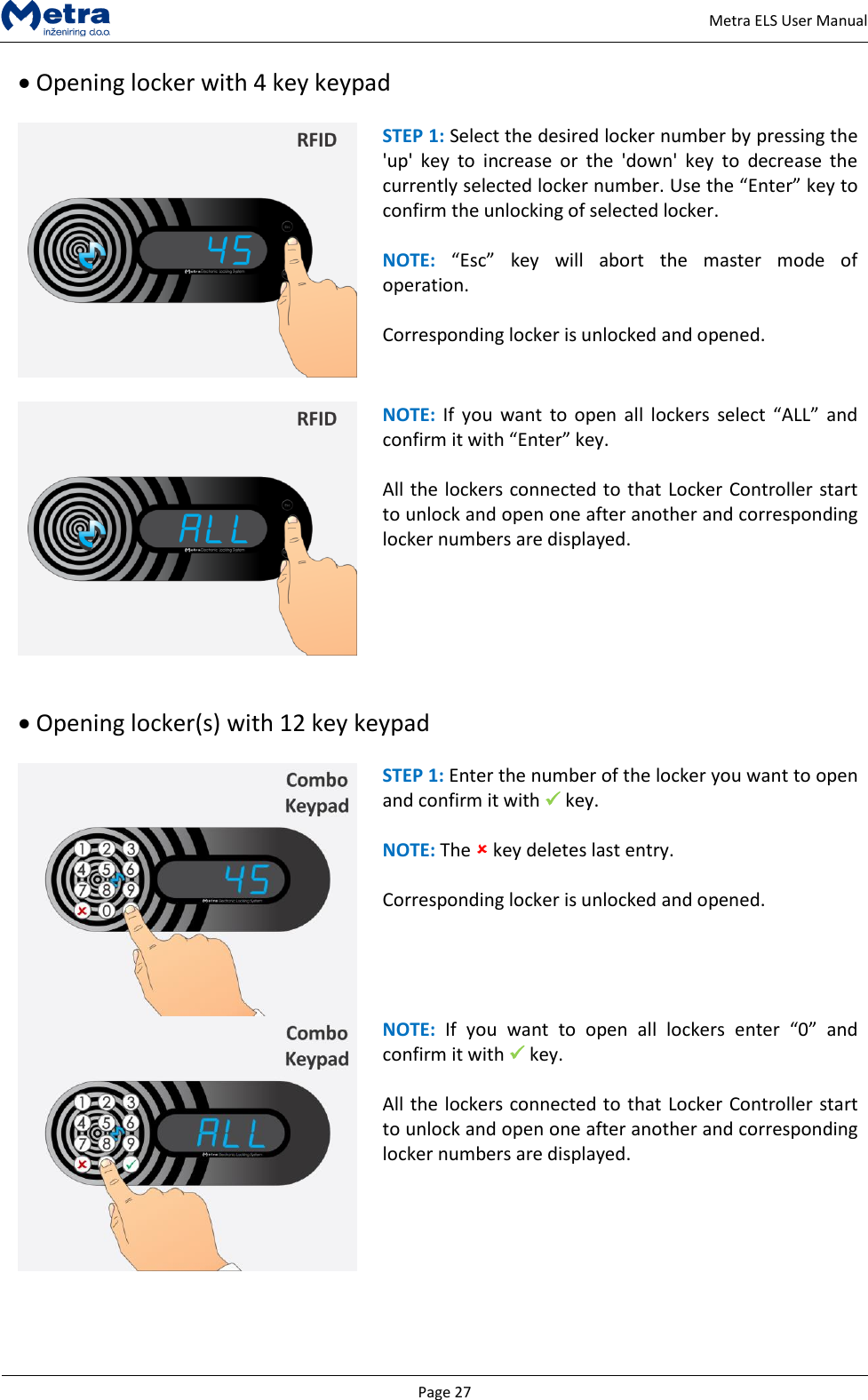
  Page 27     Metra ELS User Manual  Opening locker with 4 key keypad   STEP 1: Select the desired locker number by pressing the 'up'  key  to  increase  or  the  'down'  key  to  decrease  the currently selected locker number. Use the “Enter” key to confirm the unlocking of selected locker.   NOTE: “Esc”  key  will  abort  the  master  mode  of operation.  Corresponding locker is unlocked and opened.   NOTE:  If  you  want  to open  all lockers  select  “ALL” and confirm it with “Enter” key.   All the lockers connected to that Locker Controller start to unlock and open one after another and corresponding locker numbers are displayed.     Opening locker(s) with 12 key keypad   STEP 1: Enter the number of the locker you want to open and confirm it with  key.  NOTE: The  key deletes last entry.  Corresponding locker is unlocked and opened.   NOTE:  If  you  want  to  open  all  lockers  enter  “0”  and confirm it with  key.   All the lockers connected to that Locker Controller start to unlock and open one after another and corresponding locker numbers are displayed.
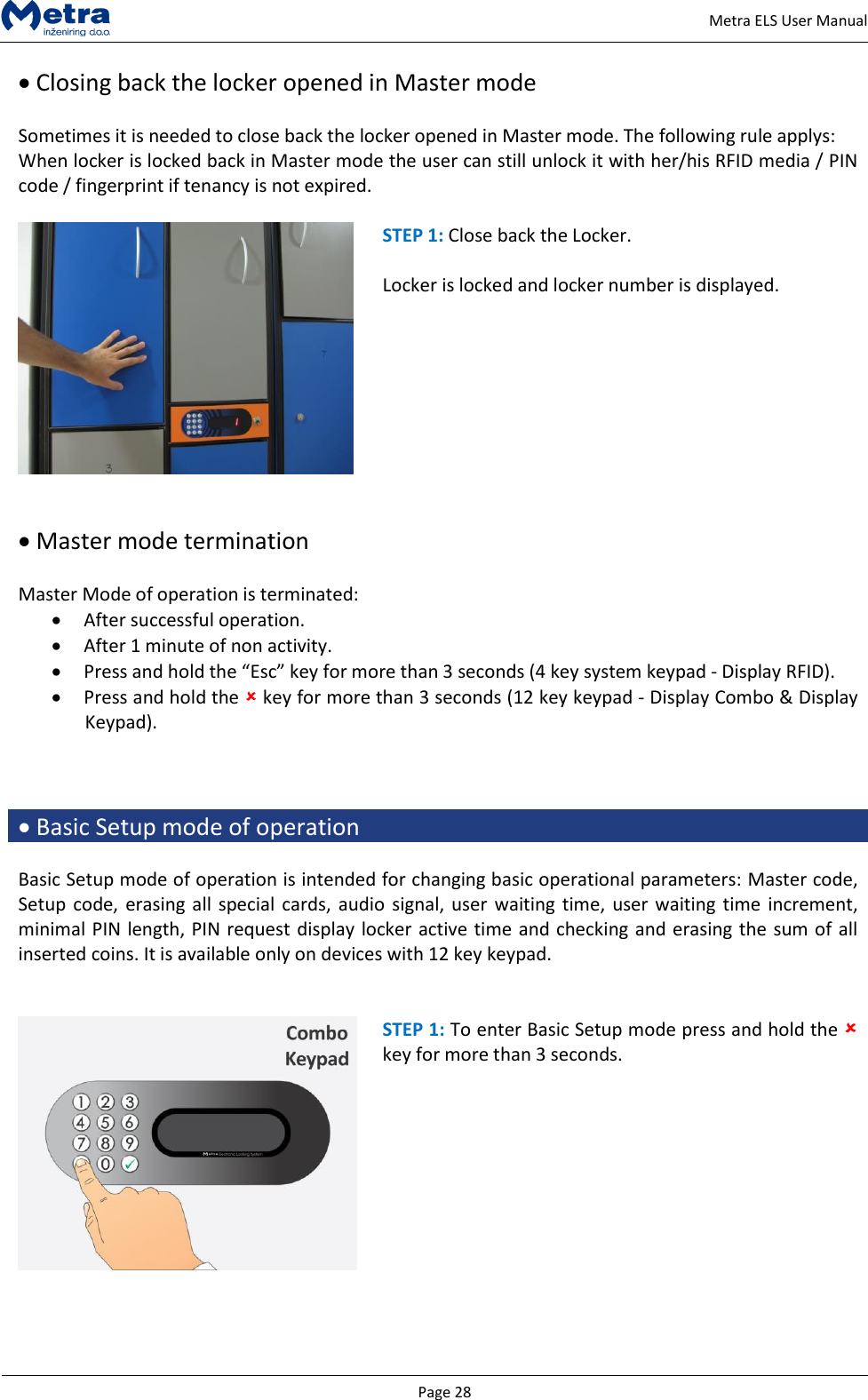
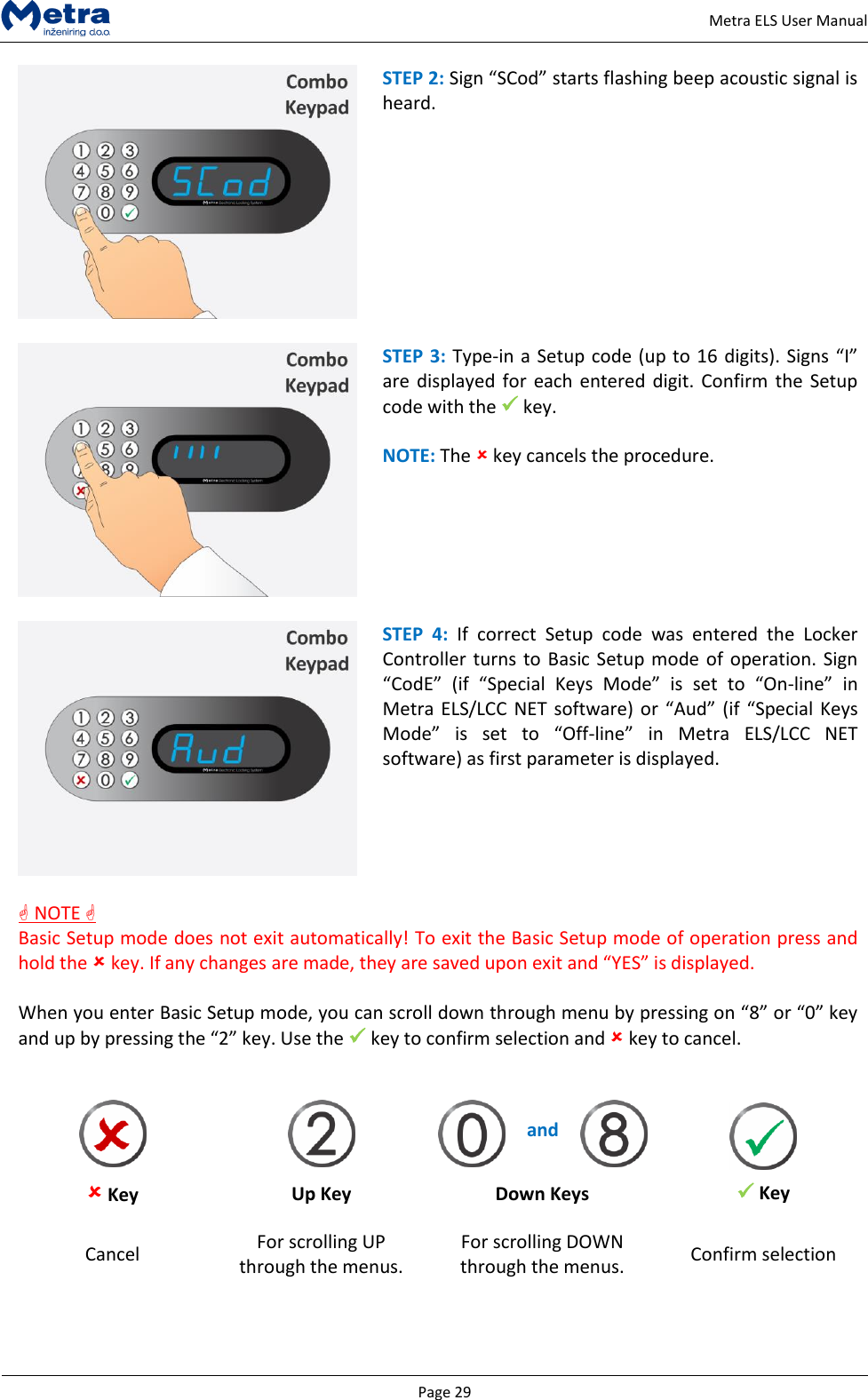
  Page 28     Metra ELS User Manual  Closing back the locker opened in Master mode  Sometimes it is needed to close back the locker opened in Master mode. The following rule applys: When locker is locked back in Master mode the user can still unlock it with her/his RFID media / PIN code / fingerprint if tenancy is not expired.   STEP 1: Close back the Locker.   Locker is locked and locker number is displayed.     Master mode termination  Master Mode of operation is terminated:  After successful operation.  After 1 minute of non activity.  Press and hold the “Esc” key for more than 3 seconds (4 key system keypad - Display RFID).  Press and hold the  key for more than 3 seconds (12 key keypad - Display Combo & Display Keypad).     Basic Setup mode of operation  Basic Setup mode of operation is intended for changing basic operational parameters: Master code, Setup code,  erasing all special  cards,  audio signal, user  waiting time,  user waiting time  increment, minimal PIN length, PIN request display locker active time and checking and erasing the sum of all inserted coins. It is available only on devices with 12 key keypad.    STEP 1: To enter Basic Setup mode press and hold the  key for more than 3 seconds.
  Page 29     Metra ELS User Manual  STEP 2: Sign “SCod” starts flashing beep acoustic signal is heard.    STEP 3: Type-in a Setup code (up to 16 digits). Signs “I” are displayed  for each entered digit.  Confirm the  Setup code with the  key.  NOTE: The  key cancels the procedure.    STEP  4:  If  correct  Setup  code  was  entered  the  Locker Controller turns to Basic Setup mode of operation. Sign “CodE”  (if  “Special  Keys  Mode”  is  set  to  “On-line”  in Metra ELS/LCC  NET  software) or “Aud” (if  “Special Keys Mode”  is  set  to  “Off-line”  in  Metra  ELS/LCC  NET software) as first parameter is displayed.   NOTE  Basic Setup mode does not exit automatically! To exit the Basic Setup mode of operation press and hold the  key. If any changes are made, they are saved upon exit and “YES” is displayed.  When you enter Basic Setup mode, you can scroll down through menu by pressing on “8” or “0” key and up by pressing the “2” key. Use the  key to confirm selection and  key to cancel.     Key      and      Key Up Key Down Keys Cancel For scrolling UP through the menus. For scrolling DOWN through the menus. Confirm selection
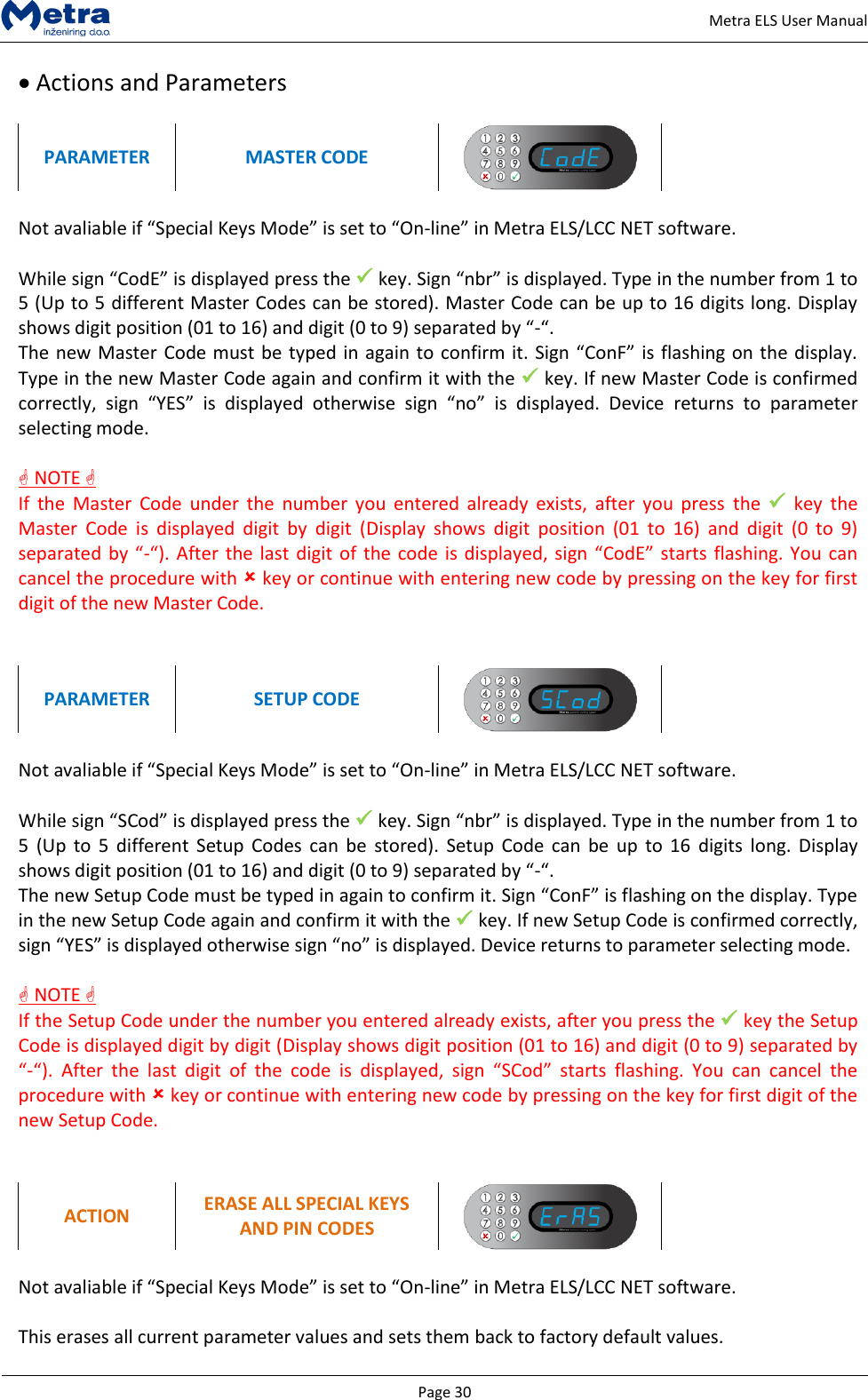
  Page 30     Metra ELS User Manual  Actions and Parameters  PARAMETER MASTER CODE   Not avaliable if “Special Keys Mode” is set to “On-line” in Metra ELS/LCC NET software.  While sign “CodE” is displayed press the  key. Sign “nbr” is displayed. Type in the number from 1 to 5 (Up to 5 different Master Codes can be stored). Master Code can be up to 16 digits long. Display shows digit position (01 to 16) and digit (0 to 9) separated by “-“.  The new Master Code must be typed in again to confirm it. Sign “ConF” is flashing on the display. Type in the new Master Code again and confirm it with the  key. If new Master Code is confirmed correctly,  sign  “YES”  is  displayed  otherwise  sign  “no”  is  displayed.  Device  returns  to  parameter selecting mode.   NOTE  If  the  Master  Code  under  the  number  you  entered  already  exists,  after you  press  the  key  the Master  Code  is  displayed  digit  by  digit  (Display  shows  digit  position  (01  to  16)  and  digit  (0  to  9) separated by “-“). After the last digit of  the code is displayed, sign “CodE” starts flashing. You can cancel the procedure with  key or continue with entering new code by pressing on the key for first digit of the new Master Code.   PARAMETER SETUP CODE   Not avaliable if “Special Keys Mode” is set to “On-line” in Metra ELS/LCC NET software.  While sign “SCod” is displayed press the  key. Sign “nbr” is displayed. Type in the number from 1 to 5  (Up  to  5 different  Setup  Codes  can  be  stored).  Setup  Code  can  be  up  to  16  digits  long. Display shows digit position (01 to 16) and digit (0 to 9) separated by “-“.  The new Setup Code must be typed in again to confirm it. Sign “ConF” is flashing on the display. Type in the new Setup Code again and confirm it with the  key. If new Setup Code is confirmed correctly, sign “YES” is displayed otherwise sign “no” is displayed. Device returns to parameter selecting mode.   NOTE  If the Setup Code under the number you entered already exists, after you press the  key the Setup Code is displayed digit by digit (Display shows digit position (01 to 16) and digit (0 to 9) separated by “-“).  After  the  last  digit  of  the  code  is  displayed,  sign  “SCod”  starts  flashing.  You  can  cancel  the procedure with  key or continue with entering new code by pressing on the key for first digit of the new Setup Code.   ACTION ERASE ALL SPECIAL KEYS AND PIN CODES   Not avaliable if “Special Keys Mode” is set to “On-line” in Metra ELS/LCC NET software.  This erases all current parameter values and sets them back to factory default values.
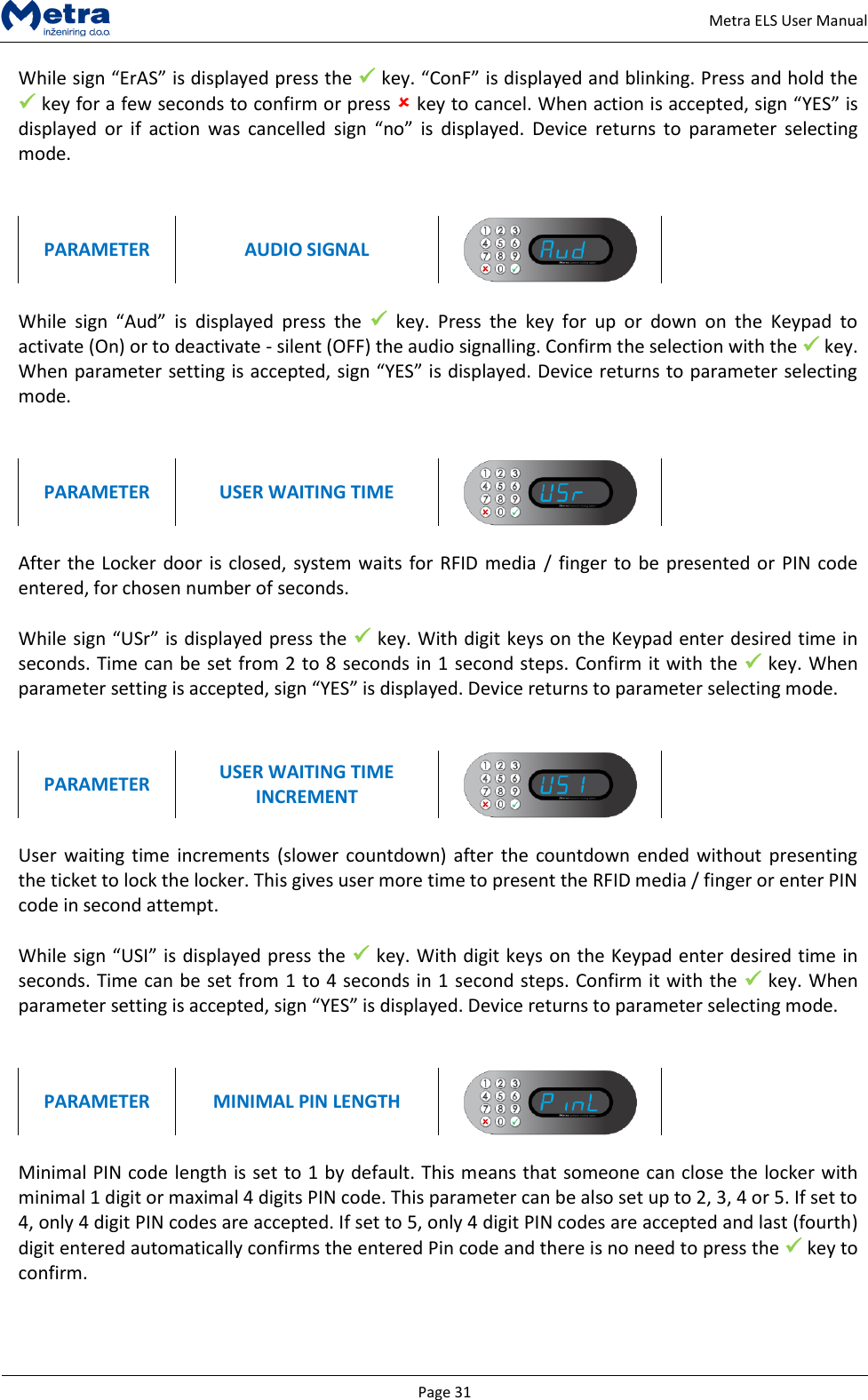
  Page 31     Metra ELS User Manual While sign “ErAS” is displayed press the  key. “ConF” is displayed and blinking. Press and hold the  key for a few seconds to confirm or press  key to cancel. When action is accepted, sign “YES” is displayed  or  if  action  was  cancelled  sign  “no”  is  displayed.  Device  returns  to  parameter  selecting mode.   PARAMETER AUDIO SIGNAL   While  sign  “Aud”  is  displayed  press  the    key.  Press  the  key  for  up  or  down  on  the  Keypad  to activate (On) or to deactivate - silent (OFF) the audio signalling. Confirm the selection with the  key. When parameter setting is accepted, sign “YES” is displayed. Device returns to parameter selecting mode.   PARAMETER USER WAITING TIME    After the Locker door is closed, system waits  for RFID media  / finger to be presented or  PIN code entered, for chosen number of seconds.  While sign “USr” is displayed press the  key. With digit keys on the Keypad enter desired time in seconds. Time can be set from 2 to 8 seconds in 1 second steps. Confirm it with the  key. When parameter setting is accepted, sign “YES” is displayed. Device returns to parameter selecting mode.   PARAMETER USER WAITING TIME INCREMENT   User  waiting  time  increments  (slower countdown)  after  the  countdown  ended without  presenting the ticket to lock the locker. This gives user more time to present the RFID media / finger or enter PIN code in second attempt.  While sign “USI” is displayed press the  key. With digit keys on the Keypad enter desired time in seconds. Time can be set from 1 to 4 seconds in 1 second steps. Confirm it with the  key. When parameter setting is accepted, sign “YES” is displayed. Device returns to parameter selecting mode.   PARAMETER MINIMAL PIN LENGTH    Minimal PIN code length is set to 1 by default. This means that someone can close the locker with minimal 1 digit or maximal 4 digits PIN code. This parameter can be also set up to 2, 3, 4 or 5. If set to 4, only 4 digit PIN codes are accepted. If set to 5, only 4 digit PIN codes are accepted and last (fourth) digit entered automatically confirms the entered Pin code and there is no need to press the  key to confirm.
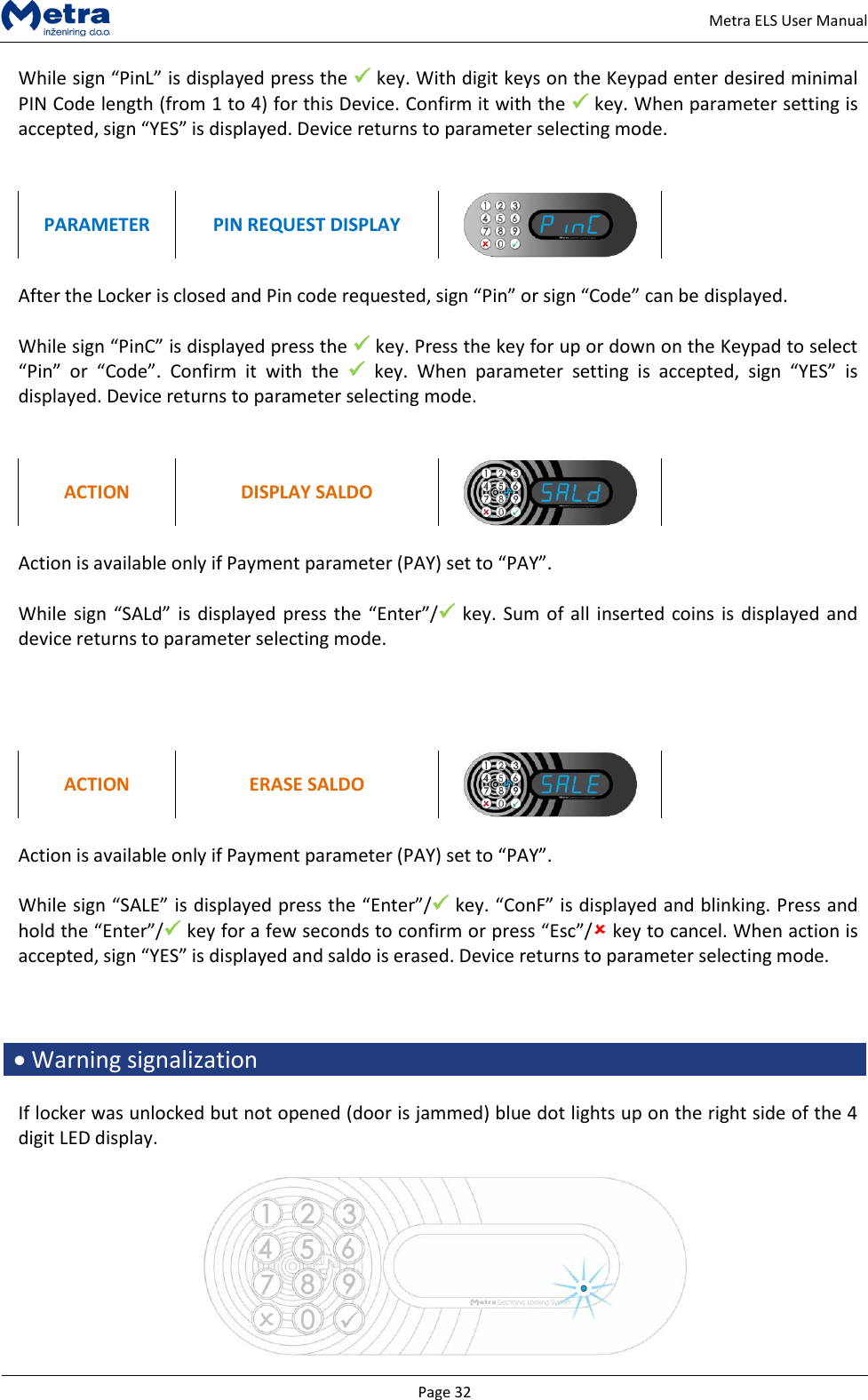
  Page 32     Metra ELS User Manual While sign “PinL” is displayed press the  key. With digit keys on the Keypad enter desired minimal PIN Code length (from 1 to 4) for this Device. Confirm it with the  key. When parameter setting is accepted, sign “YES” is displayed. Device returns to parameter selecting mode.   PARAMETER PIN REQUEST DISPLAY    After the Locker is closed and Pin code requested, sign “Pin” or sign “Code” can be displayed.  While sign “PinC” is displayed press the  key. Press the key for up or down on the Keypad to select “Pin”  or  “Code”.  Confirm  it  with  the   key.  When  parameter  setting  is  accepted,  sign  “YES”  is displayed. Device returns to parameter selecting mode.   ACTION DISPLAY SALDO   Action is available only if Payment parameter (PAY) set to “PAY”.  While sign “SALd”  is  displayed press the  “Enter”/ key.  Sum  of all  inserted  coins is displayed and device returns to parameter selecting mode.     ACTION ERASE SALDO   Action is available only if Payment parameter (PAY) set to “PAY”.  While sign “SALE” is displayed press the “Enter”/ key. “ConF” is displayed and blinking. Press and hold the “Enter”/ key for a few seconds to confirm or press “Esc”/ key to cancel. When action is accepted, sign “YES” is displayed and saldo is erased. Device returns to parameter selecting mode.     Warning signalization  If locker was unlocked but not opened (door is jammed) blue dot lights up on the right side of the 4 digit LED display.
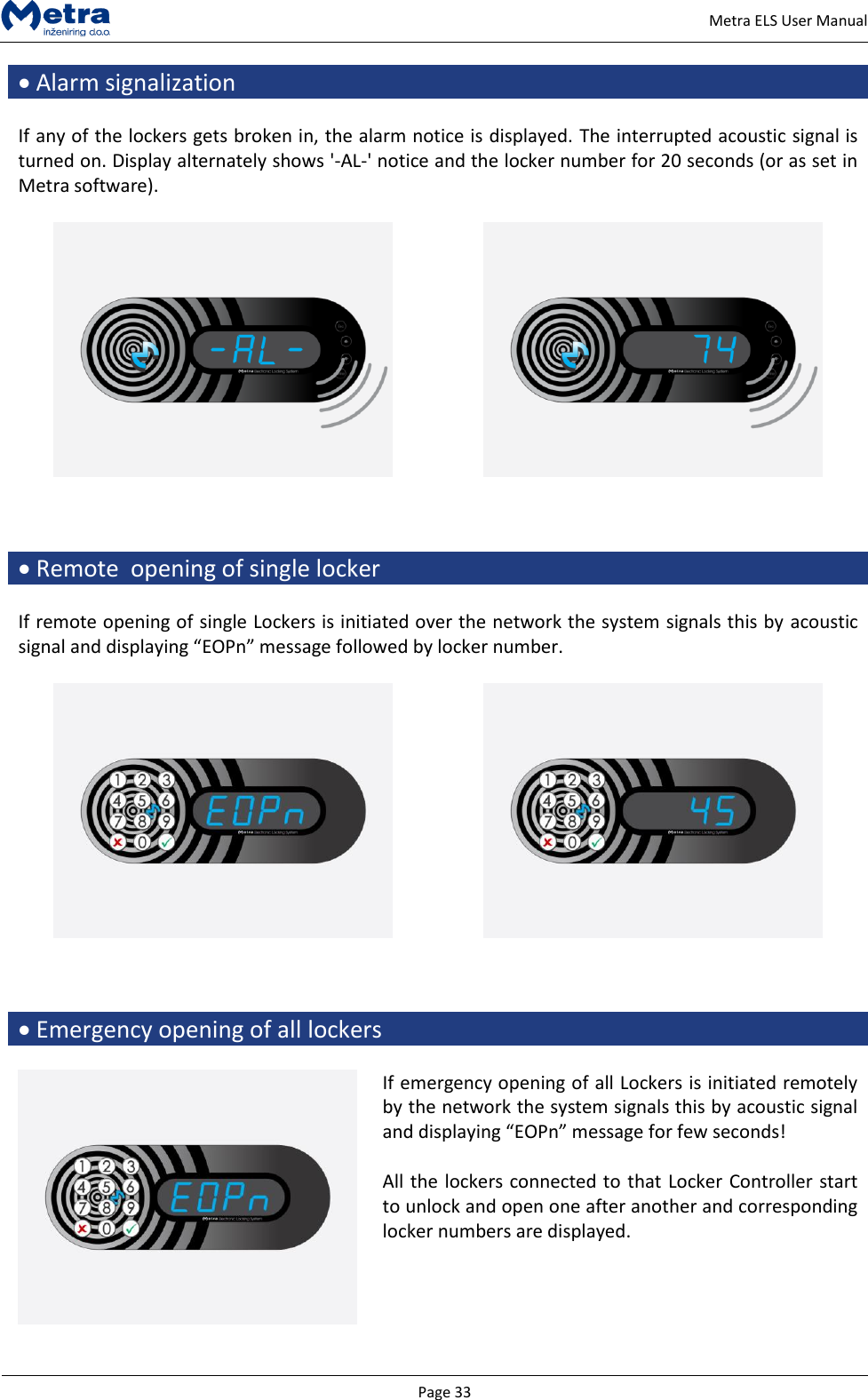
  Page 33     Metra ELS User Manual  Alarm signalization  If any of the lockers gets broken in, the alarm notice is displayed. The interrupted acoustic signal is turned on. Display alternately shows '-AL-' notice and the locker number for 20 seconds (or as set in Metra software).        Remote  opening of single locker  If remote opening of single Lockers is initiated over the network the system signals this by acoustic signal and displaying “EOPn” message followed by locker number.        Emergency opening of all lockers   If emergency opening of all Lockers is initiated remotely by the network the system signals this by acoustic signal and displaying “EOPn” message for few seconds!  All the lockers connected to that Locker Controller start to unlock and open one after another and corresponding locker numbers are displayed.

Navigation menu