MOBOTIX KPADB RFID access control system User Manual Keypad Quick Install

MOBOTIX AG RFID access control system Keypad Quick Install

Contents

User manual Keypad

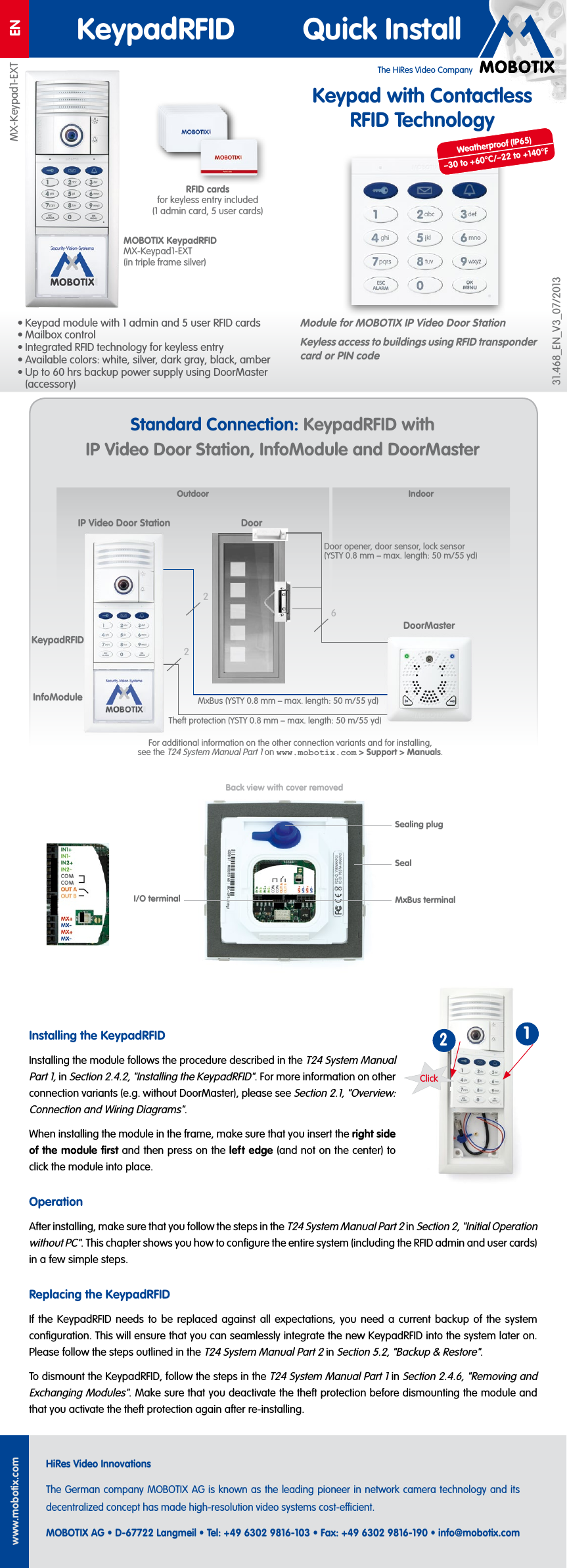
The HiRes Video CompanyENKeypadRFID Quick Installwww.mobotix.comHiRes Video InnovationsThe German company MOBOTIX AG is known as the leading pioneer in network camera technology and its decentralized concept has made high-resolution video systems cost-ecient.MOBOTIX AG • D-67722 Langmeil • Tel: +49 6302 9816-103 • Fax: +49 6302 9816-190 • info@mobotix.comKeypad with Contactless RFID TechnologyModule for MOBOTIX IP Video Door StationKeyless access to buildings using RFID transponder card or PIN code• Keypad module with 1 admin and 5 user RFID cards• Mailbox control• Integrated RFID technology for keyless entry• Available colors: white, silver, dark gray, black, amber• Up to 60hrs backup power supply using DoorMaster (accessory)Click12Installing the KeypadRFIDInstalling the module follows the procedure described in the T24 System Manual Part1, in Section 2.4.2, "Installing the KeypadRFID". For more information on other connection variants (e.g. without DoorMaster), please see Section 2.1, "Overview: Connection and Wiring Diagrams". When installing the module in the frame, make sure that you insert the right side of the module first and then press on the left edge (and not on the center) to click the module into place.OperationAfter installing, make sure that you follow the steps in the T24 System Manual Part2 in Section 2, "Initial Operation without PC". This chapter shows you how to configure the entire system (including the RFID admin and user cards) in a few simple steps.Replacing the KeypadRFIDIf the KeypadRFID needs to be replaced against all expectations, you need a current backup of the system configuration. This will ensure that you can seamlessly integrate the new KeypadRFID into the system later on. Please follow the steps outlined in the T24 System Manual Part2 in Section 5.2, "Backup & Restore".To dismount the KeypadRFID, follow the steps in the T24 System Manual Part1 in Section 2.4.6, "Removing and Exchanging Modules". Make sure that you deactivate the theft protection before dismounting the module and that you activate the theft protection again after re-installing.MOBOTIX KeypadRFID MX-Keypad1-EXT (in triple frame silver)RFID cards for keyless entry included (1 admin card, 5 user cards)I/O terminalSealing plugSealMxBus terminalBack view with cover removedOutdoor IndoorDoor26MxBus (YSTY 0.8 mm – max. length: 50m/55yd)Theft protection (YSTY 0.8 mm – max. length: 50m/55yd)Door opener, door sensor, lock sensor (YSTY 0.8 mm – max. length: 50m/55yd)DoorMasterIP Video Door Station2For additional information on the other connection variants and for installing, see the T24 System Manual Part1 on www.mobotix.com > Support> Manuals.KeypadRFIDInfoModuleStandard Connection: KeypadRFID with IP Video Door Station, InfoModule and DoorMasterMX-Keypad1-EXT31.468_EN_V3_07/2013Weatherproof (IP65)–30 to +60°C/–22 to +140°F
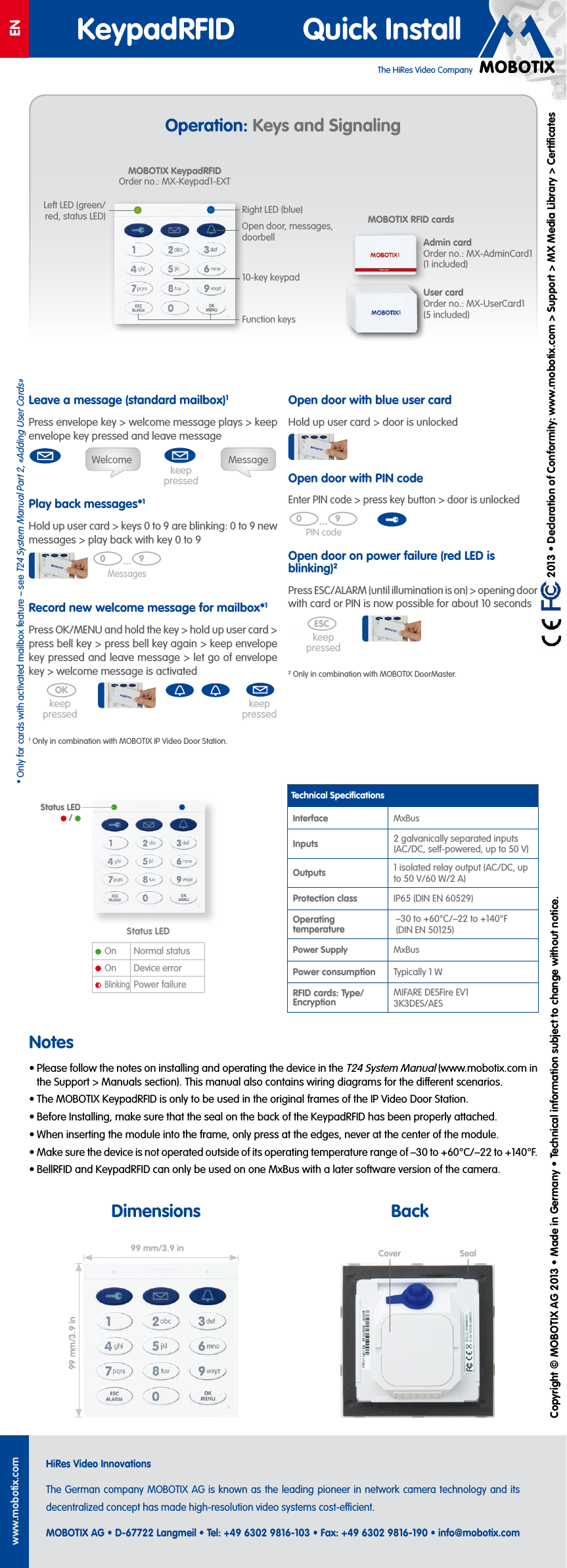
The HiRes Video CompanyENKeypadRFID Quick Installwww.mobotix.comHiRes Video InnovationsThe German company MOBOTIX AG is known as the leading pioneer in network camera technology and its decentralized concept has made high-resolution video systems cost-ecient.MOBOTIX AG • D-67722 Langmeil • Tel: +49 6302 9816-103 • Fax: +49 6302 9816-190 • info@mobotix.com  2013 • Declaration of Conformity: www.mobotix.com> Support> MX Media Library> CertificatesCopyright © MOBOTIX AG 2013 • Made in Germany • Technical information subject to change without notice.Operation: Keys and SignalingLeave a message (standard mailbox)1Press envelope key> welcome message plays> keep envelope key pressed and leave messagePlay back messages*1Hold up user card> keys 0to9 are blinking: 0to9 new messages> play back with key 0to9Record new welcome message for mailbox*1Press OK/MENU and hold the key> hold up user card> press bell key> press bell key again> keep envelope key pressed and leave message> let go of envelope key> welcome message is activated1Only in combination with MOBOTIX IP Video Door Station.Welcome Messagekeep pressedholdMessages0 9Zutritts PINOKholdkeep pressedkeep pressedOpen door with blue user cardHold up user card> door is unlockedOpen door with PIN codeEnter PIN code> press key button> door is unlockedOpen door on power failure (red LED is blinking)2Press ESC/ALARM (until illumination is on)> opening door with card or PIN is now possible for about 10seconds2Only in combination with MOBOTIX DoorMaster.PIN code0 9Zutritts PINkeep pressedESChold (2nd beep)Technical SpecificationsInterface MxBusInputs 2 galvanically separated inputs (AC/DC, self-powered, up to 50V)Outputs 1 isolated relay output (AC/DC, up to 50V/60W/2A)Protection class IP65 (DIN EN 60529)Operating temperature–30 to +60°C/–22 to +140°F (DIN EN 50125)Power Supply MxBusPower consumption Typically 1WRFID cards: Type/ EncryptionMIFARE DESFire EV1 3K3DES/AESNotes• Please follow the notes on installing and operating the device in the T24 System Manual (www.mobotix.com in the Support> Manuals section). This manual also contains wiring diagrams for the dierent scenarios.• The MOBOTIX KeypadRFID is only to be used in the original frames of the IP Video Door Station.• Before Installing, make sure that the seal on the back of the KeypadRFID has been properly attached.• When inserting the module into the frame, only press at the edges, never at the center of the module.• Make sure the device is not operated outside of its operating temperature range of –30 to +60°C/–22 to +140°F.• BellRFID and KeypadRFID can only be used on one MxBus with a later software version of the camera.99mm/3.9in99mm/3.9inMOBOTIX KeypadRFID Order no.: MX-Keypad1-EXTOpen door, messages, doorbellFunction keys10-key keypadAdmin card Order no.: MX-AdminCard1 (1 included)User card Order no.: MX-UserCard1 (5 included)MOBOTIX RFID cardsStatus LEDOn Normal statusOn Device errorBlinkingPower failureSealCoverStatus LED  / Dimensions BackLeft LED (green/red, status LED) Right LED (blue)*Only for cards with activated mailbox feature – see T24 System Manual Part2, «Adding User Cards»

Navigation menu