Measy Electronics A2W Miracast Dongle User Manual A2W English user maual

Measy Electronics Co., Ltd. Miracast Dongle A2W English user maual

User Manual

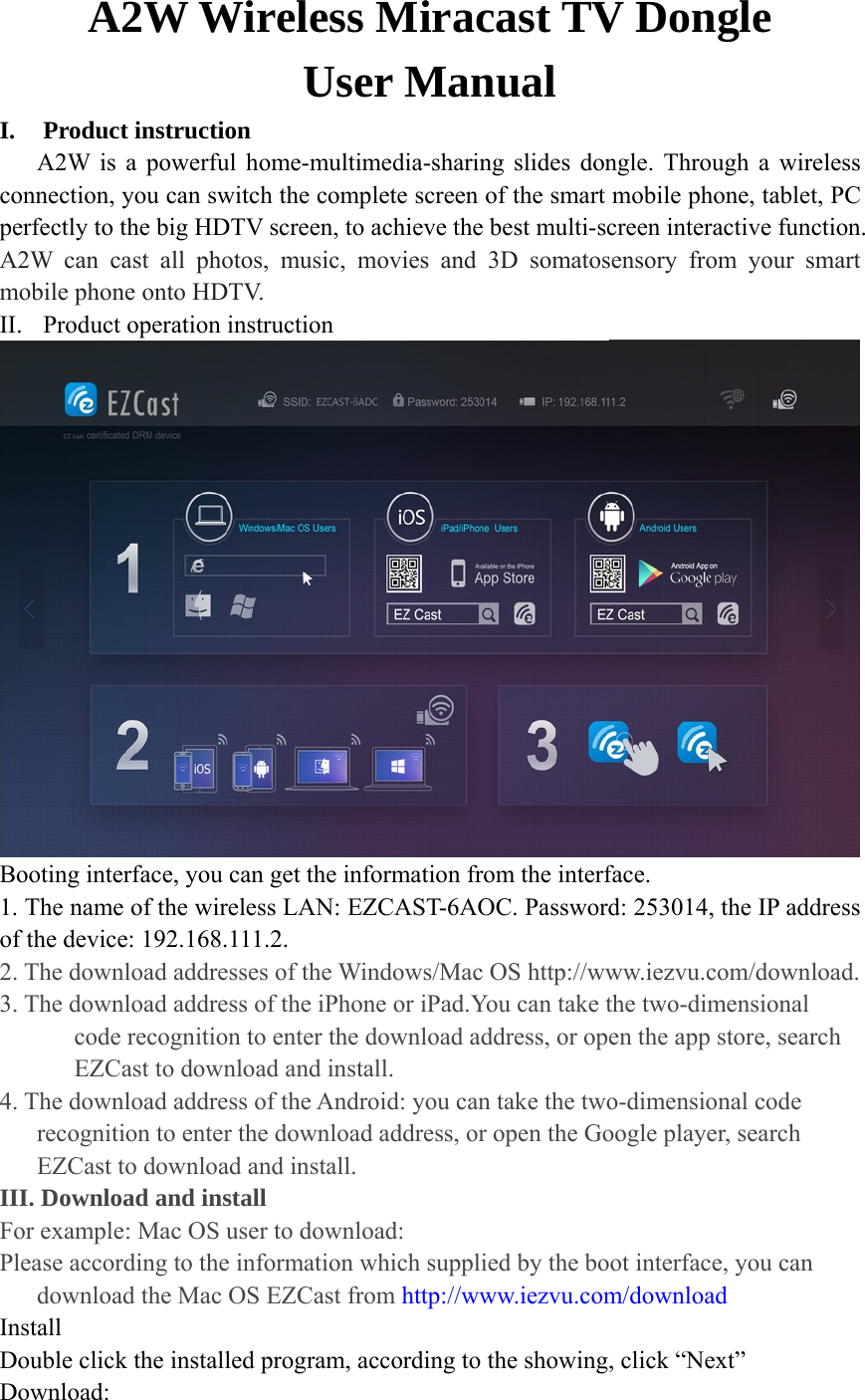
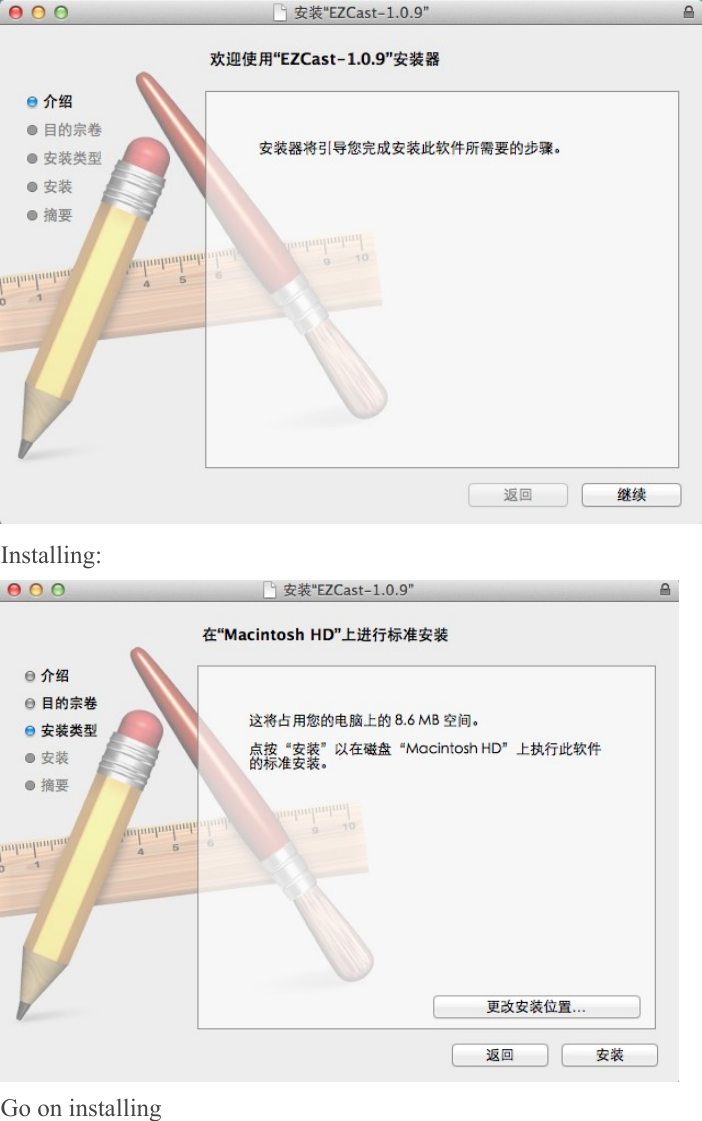
   A2W Wireless Miracast TV Dongle   User Manual I. Product instruction      A2W is a powerful home-multimedia-sharing slides dongle. Through a wireless connection, you can switch the complete screen of the smart mobile phone, tablet, PC perfectly to the big HDTV screen, to achieve the best multi-screen interactive function. A2W can cast all photos, music, movies and 3D somatosensory from your smart mobile phone onto HDTV. II. Product operation instruction  Booting interface, you can get the information from the interface. 1. The name of the wireless LAN: EZCAST-6AOC. Password: 253014, the IP address of the device: 192.168.111.2. 2. The download addresses of the Windows/Mac OS http://www.iezvu.com/download. 3. The download address of the iPhone or iPad.You can take the two-dimensional code recognition to enter the download address, or open the app store, search EZCast to download and install. 4. The download address of the Android: you can take the two-dimensional code recognition to enter the download address, or open the Google player, search EZCast to download and install. III. Download and install   For example: Mac OS user to download: Please according to the information which supplied by the boot interface, you can download the Mac OS EZCast from http://www.iezvu.com/download Install  Double click the installed program, according to the showing, click “Next” Download:
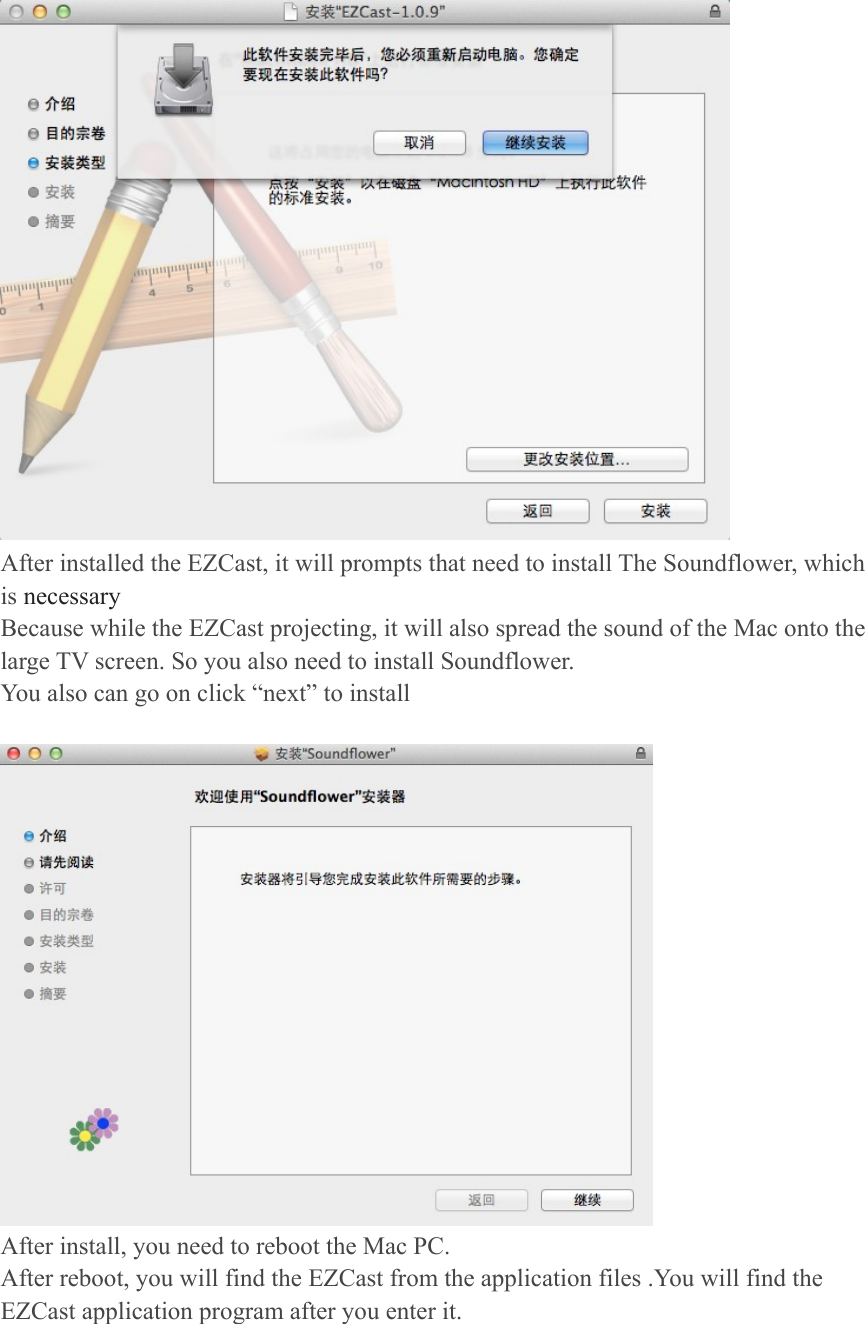
 Installing:  Go on installing
 After installed the EZCast, it will prompts that need to install The Soundflower, which is necessary Because while the EZCast projecting, it will also spread the sound of the Mac onto the large TV screen. So you also need to install Soundflower. You also can go on click “next” to install     After install, you need to reboot the Mac PC. After reboot, you will find the EZCast from the application files .You will find the EZCast application program after you enter it.
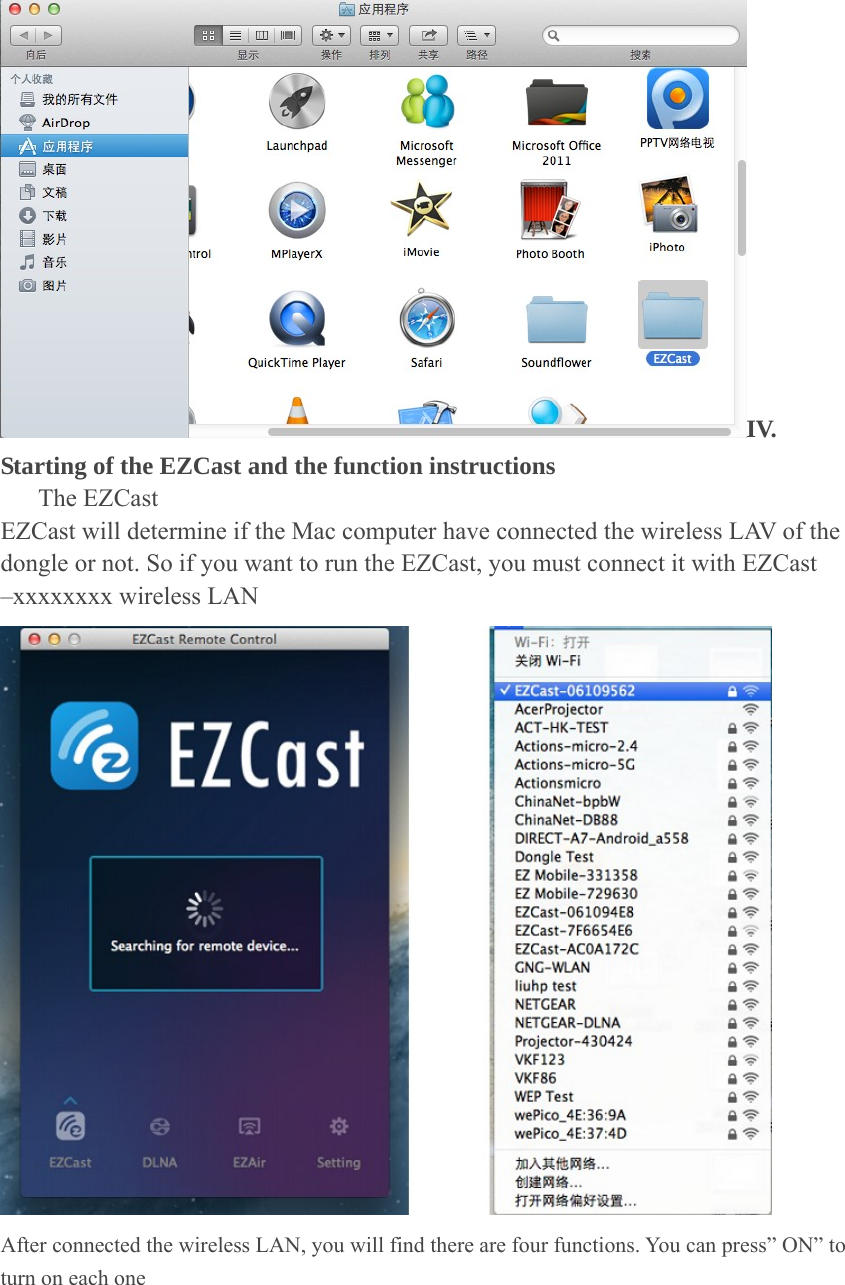
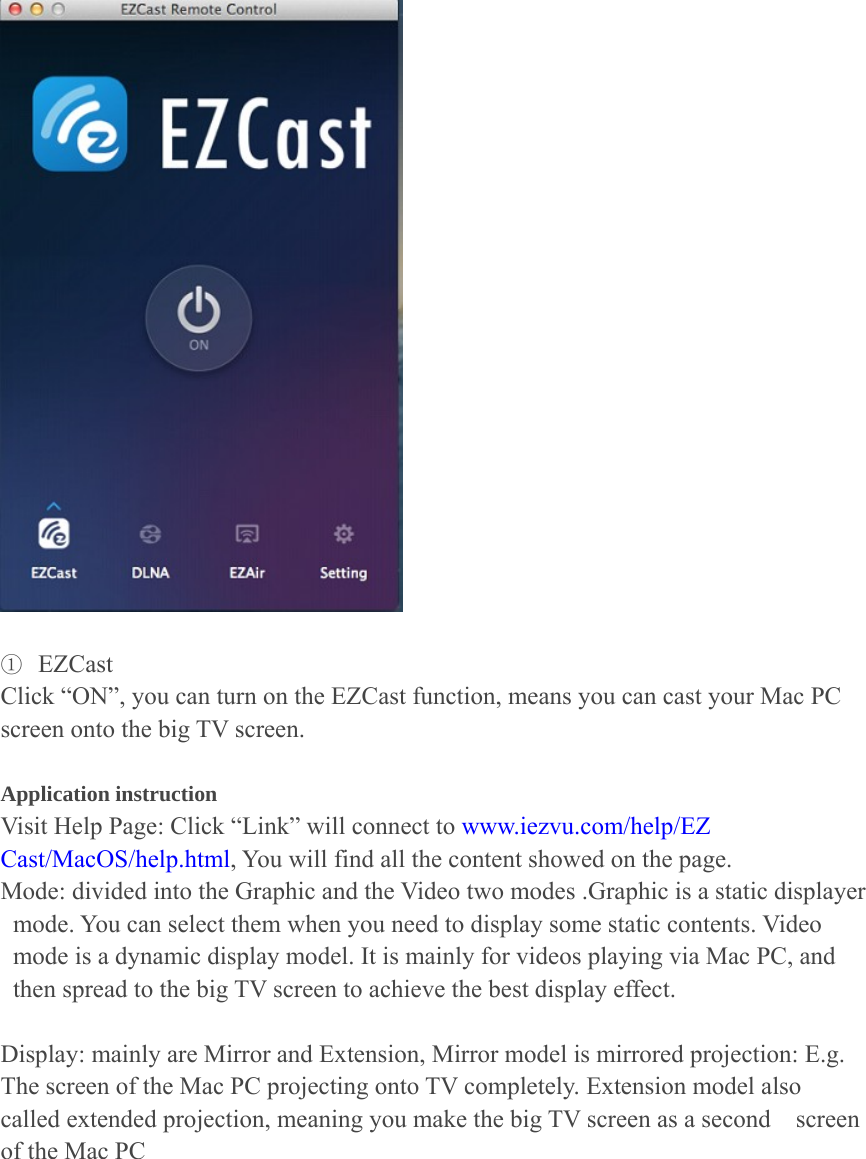
IV. Starting of the EZCast and the function instructions      The EZCast  EZCast will determine if the Mac computer have connected the wireless LAV of the dongle or not. So if you want to run the EZCast, you must connect it with EZCast –xxxxxxxx wireless LAN    After connected the wireless LAN, you will find there are four functions. You can press” ON” to turn on each one
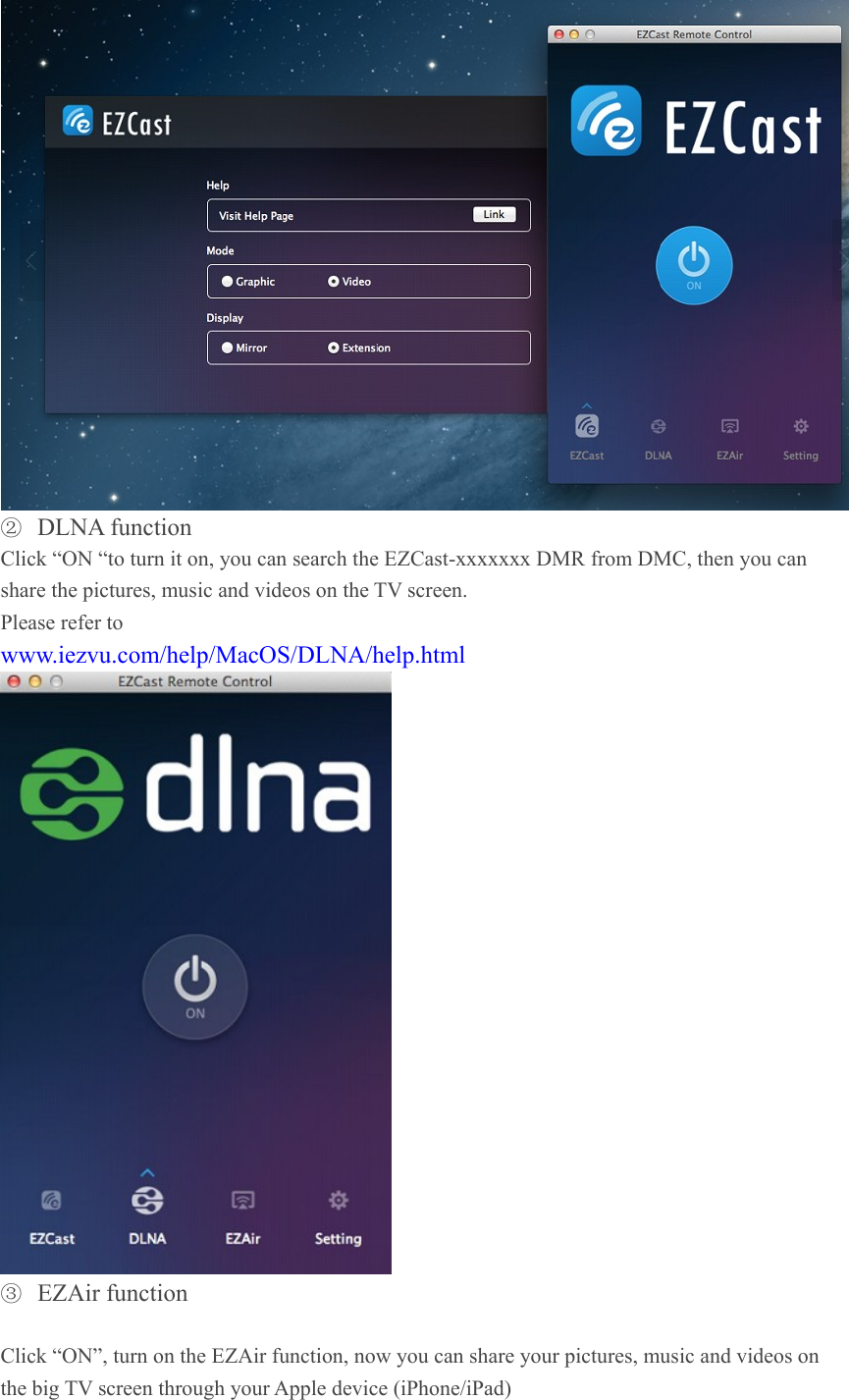
  ① EZCast Click “ON”, you can turn on the EZCast function, means you can cast your Mac PC screen onto the big TV screen.    Application instruction   Visit Help Page: Click “Link” will connect to www.iezvu.com/help/EZ Cast/MacOS/help.html, You will find all the content showed on the page. Mode: divided into the Graphic and the Video two modes .Graphic is a static displayer mode. You can select them when you need to display some static contents. Video mode is a dynamic display model. It is mainly for videos playing via Mac PC, and then spread to the big TV screen to achieve the best display effect.  Display: mainly are Mirror and Extension, Mirror model is mirrored projection: E.g. The screen of the Mac PC projecting onto TV completely. Extension model also called extended projection, meaning you make the big TV screen as a second    screen of the Mac PC
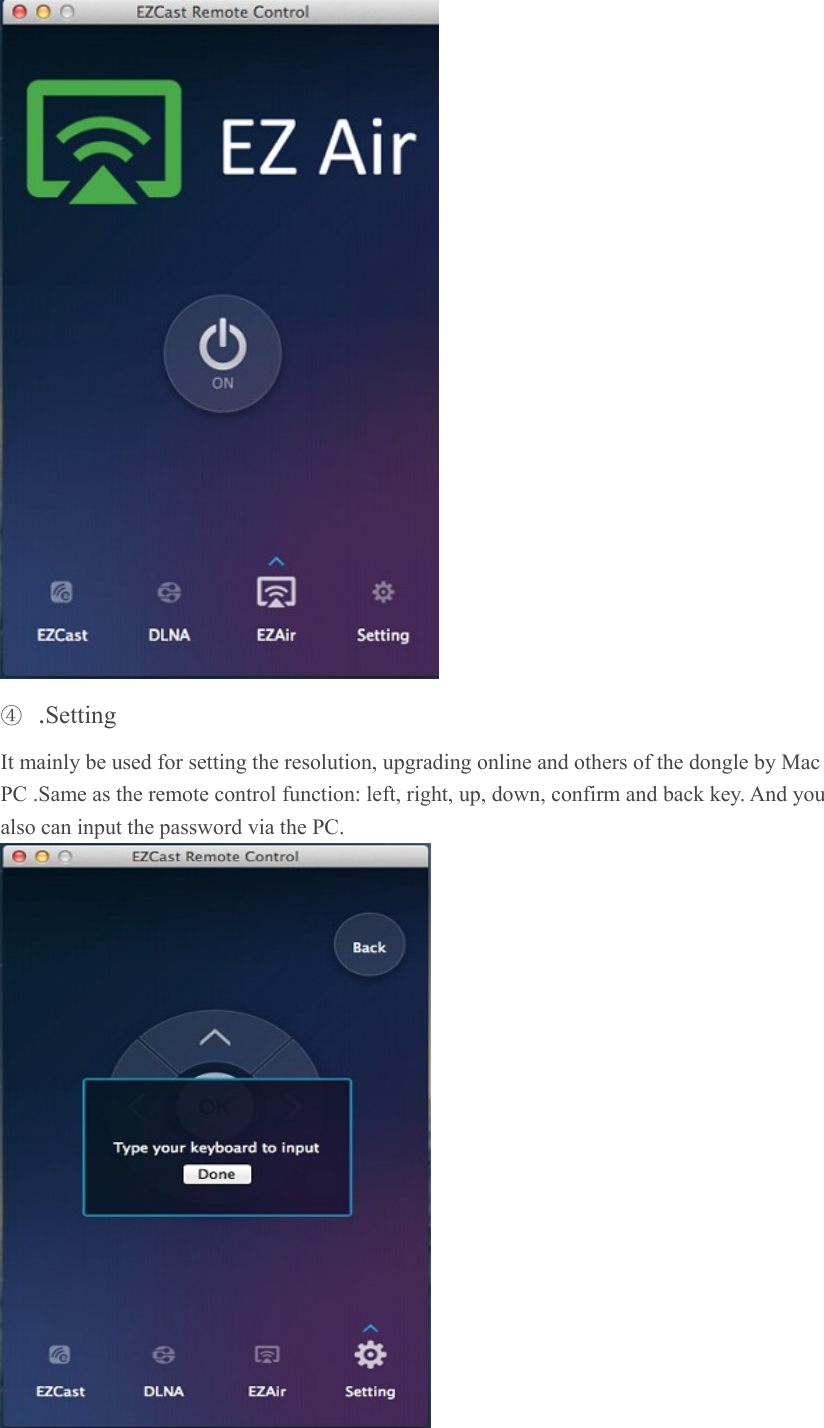
 ② DLNA function   Click “ON “to turn it on, you can search the EZCast-xxxxxxx DMR from DMC, then you can share the pictures, music and videos on the TV screen. Please refer to   www.iezvu.com/help/MacOS/DLNA/help.html  ③ EZAir function    Click “ON”, turn on the EZAir function, now you can share your pictures, music and videos on the big TV screen through your Apple device (iPhone/iPad)
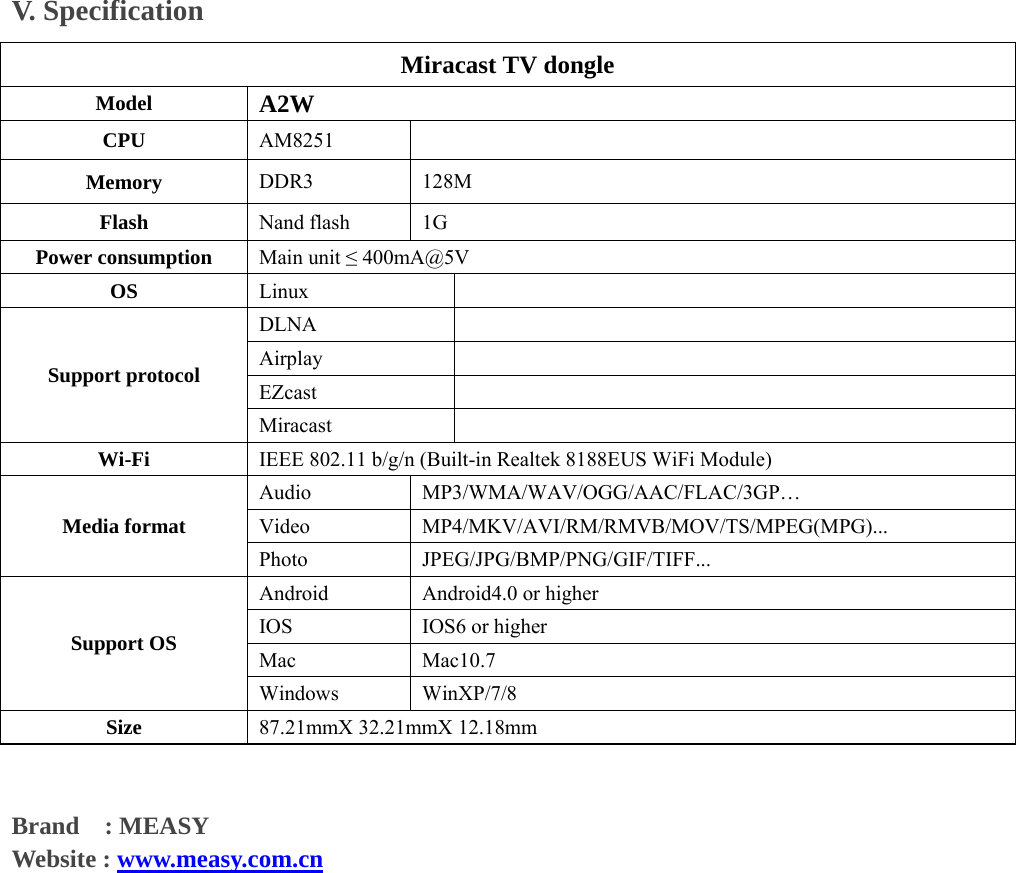
 ④ .Setting  It mainly be used for setting the resolution, upgrading online and others of the dongle by Mac PC .Same as the remote control function: left, right, up, down, confirm and back key. And you also can input the password via the PC.
V. Specification   Miracast TV dongle   Model  A2W CPU  AM8251    Memory         DDR3  128M Flash  Nand flash  1G Power consumption  Main unit ≤ 400mA@5V OS  Linux    DLNA    Airplay    EZcast    Support protocol Miracast    Wi-Fi  IEEE 802.11 b/g/n (Built-in Realtek 8188EUS WiFi Module) Audio  MP3/WMA/WAV/OGG/AAC/FLAC/3GP… Video  MP4/MKV/AVI/RM/RMVB/MOV/TS/MPEG(MPG)... Media format Photo  JPEG/JPG/BMP/PNG/GIF/TIFF... Android  Android4.0 or higher   IOS  IOS6 or higher Mac   Mac10.7 Support OS Windows   WinXP/7/8  Size  87.21mmX 32.21mmX 12.18mm   Brand  : MEASY  Website : www.measy.com.cn
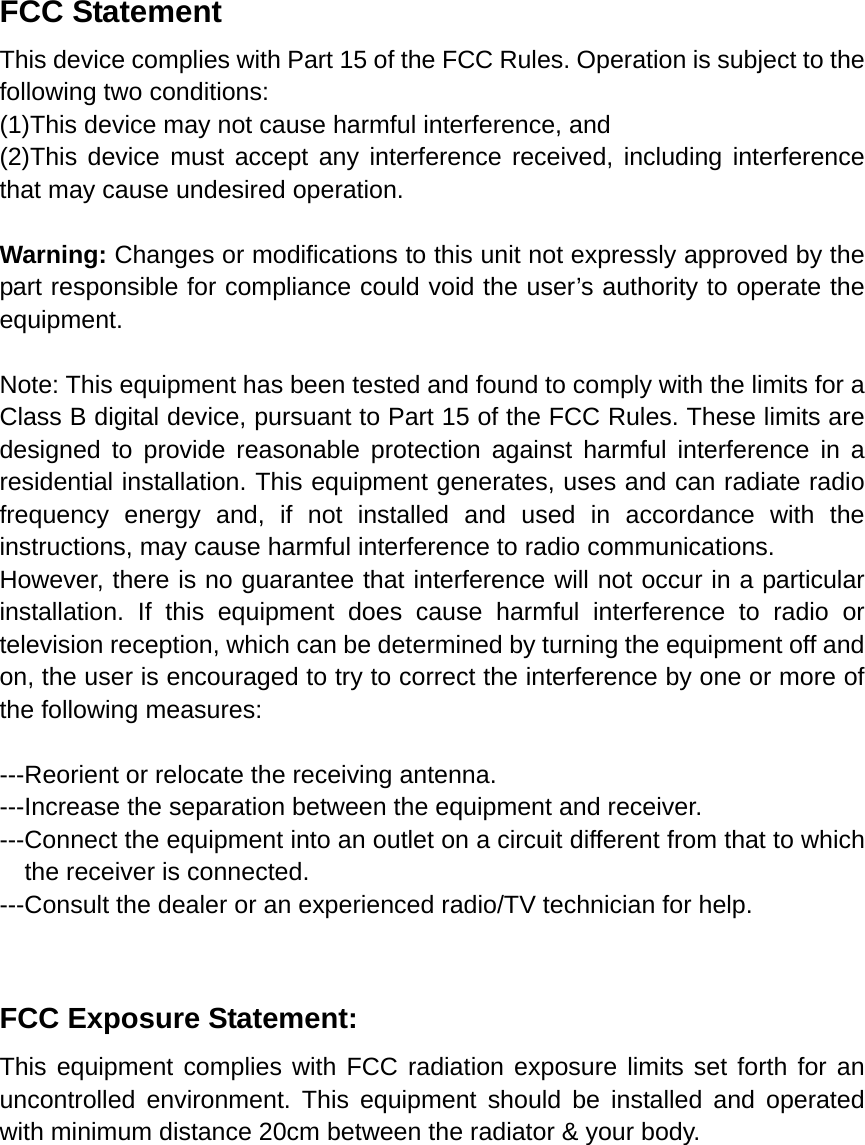
FCC Statement This device complies with Part 15 of the FCC Rules. Operation is subject to the following two conditions: (1)This device may not cause harmful interference, and (2)This device must accept any interference received, including interference that may cause undesired operation.  Warning: Changes or modifications to this unit not expressly approved by the part responsible for compliance could void the user’s authority to operate the equipment.  Note: This equipment has been tested and found to comply with the limits for a Class B digital device, pursuant to Part 15 of the FCC Rules. These limits are designed to provide reasonable protection against harmful interference in a residential installation. This equipment generates, uses and can radiate radio frequency energy and, if not installed and used in accordance with the instructions, may cause harmful interference to radio communications. However, there is no guarantee that interference will not occur in a particular installation. If this equipment does cause harmful interference to radio or television reception, which can be determined by turning the equipment off and on, the user is encouraged to try to correct the interference by one or more of the following measures:  ---Reorient or relocate the receiving antenna. ---Increase the separation between the equipment and receiver. ---Connect the equipment into an outlet on a circuit different from that to which the receiver is connected. ---Consult the dealer or an experienced radio/TV technician for help.   FCC Exposure Statement: This equipment complies with FCC radiation exposure limits set forth for an uncontrolled environment. This equipment should be installed and operated with minimum distance 20cm between the radiator & your body.

Navigation menu