Micronet NB811 BLUETOOTH AND WIFI MODULE User Manual CE 500

Micronet LTD. BLUETOOTH AND WIFI MODULE CE 500

Users Manual

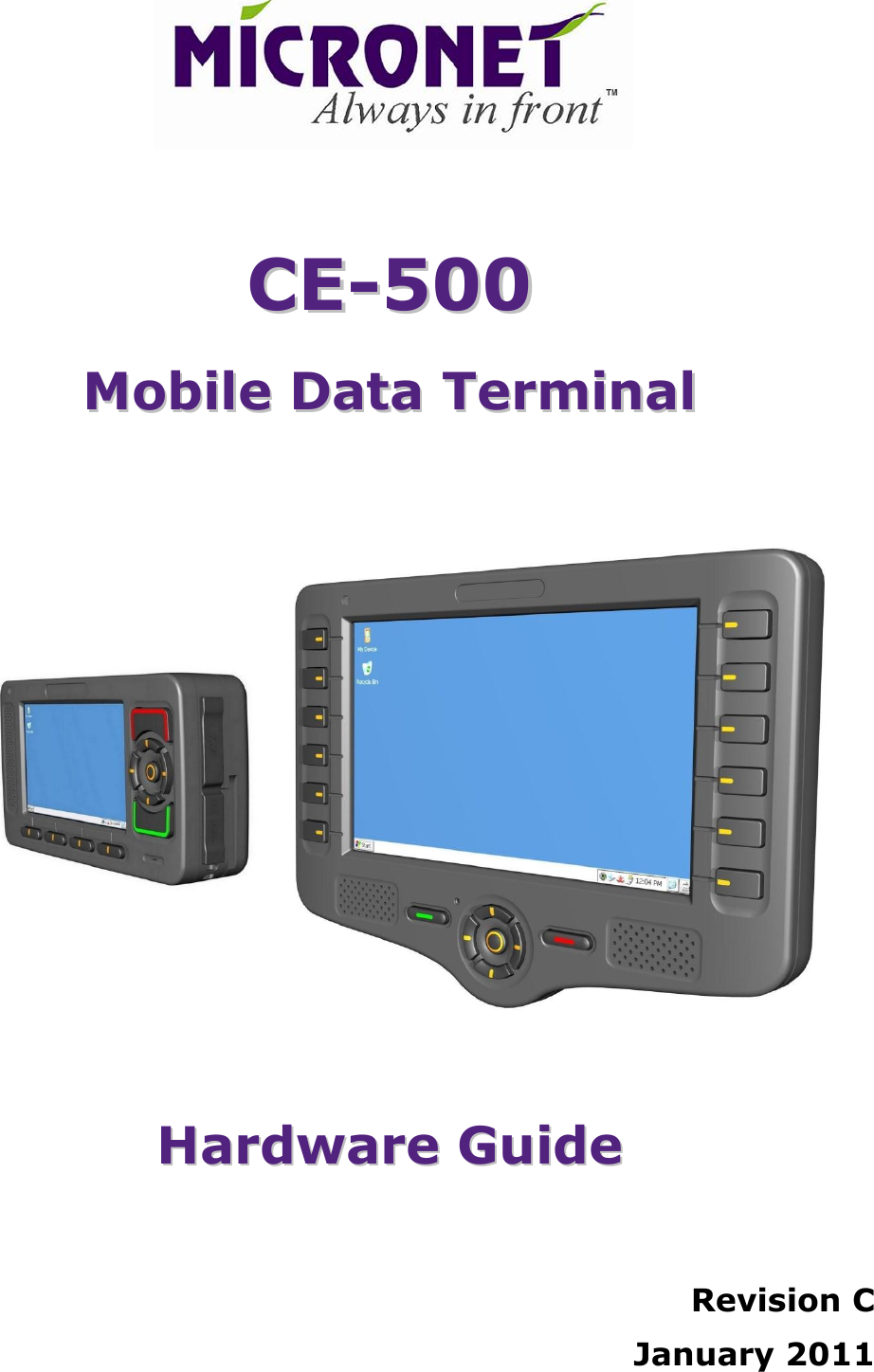
 Revision C January 2011   CCEE--550000  MMoobbiillee  DDaattaa  TTeerrmmiinnaall     HHaarrddwwaarree  GGuuiiddee
      Important Notice Micronet Ltd. All rights reserved.    Micronet Ltd. reserves the right to alter the equipment specifications and descriptions in this publication without prior notice. No part of this publication shall be deemed to be part of any contract or warranty unless specifically incorporated by reference into such contract or warranty. The information contained herein is merely descriptive in nature, and does not constitute a binding offer for the sale of the product described herein.  All usage of the Micronet Ltd. logotype or trademarks is forbidden without prior written approval from Micronet Ltd. Information in this manual is subjected to change without notice. Micronet shall have neither liability nor responsibility to any person or entity with respect to any loss or damages arising from the information contained in this book. Other company and brand products and service names are trademarks or registered trademarks of their respective holders, for example: ARM Cortex™, Microsoft™, and Microsoft™ products (Windows Embedded CE™, Compact Framework™, Microsoft Active Sync™, and Visual Studio™). For further information, contact Micronet, as follows: Micronet web site: http://www.micronet.co.il Contact us: http://www.micronet.co.il/Contact_Micronet.html Additional CE-500 information: http://www.micronet.co.il/Ce500main.html
    Table of Contents    GDUTUG500/01 CE-500 MDT Hardware Guide 3 / 97      TTaabbllee  ooff  CCoonntteennttss   Table of Contents........................................................................................................................ 3 Preface ...................................................................................................................... 7 Revision History .......................................................................................................................... 7 Safety Precautions ...................................................................................................................... 8 Usage Precautions .................................................................................................................... 8 Power Supply ........................................................................................................................... 9 Introduction ............................................................................................................ 10 CE-500 Platform Overview .......................................................................................................... 10 CE-504 and CE-507 Models ......................................................................................................... 10 Displays ................................................................................................................................. 11 Physical Interfaces ................................................................................................................... 11 Optional Wireless Modules ........................................................................................................ 11 Fixed Mount and Portable Configuration ...................................................................................... 11 Development Tool Kit ................................................................................................................. 12 Hardware ............................................................................................................................... 12 Software ................................................................................................................................ 12 Documentation ........................................................................................................................ 12 CE-500 Platform Key Feature Specifications .................................................................................. 13 CE-500 Platform Optional Modules ............................................................................................... 15 CE-500 Platform Accessories ....................................................................................................... 16 CE-50X Device Components ........................................................................................................ 17 CE-504 Front Panel components ................................................................................................ 17 CE-507 Front Panel Components ............................................................................................... 18 CE-50X Model, Bottom Panel components ................................................................................... 19 CE-50X Model, Right Side Panel ................................................................................................. 20 CE-50X Model, Left Side Panel Component .................................................................................. 21 CE-50X Model, Rear Panel Components ...................................................................................... 21 Technical and Functional Details ............................................................................. 23 Platform Core ............................................................................................................................ 23 Operating System .................................................................................................................... 23 Application Development Environment ....................................................................................... 23 Processor ............................................................................................................................... 24 RAM ....................................................................................................................................... 24 Flash Memory ......................................................................................................................... 24 Memory Card Support .............................................................................................................. 24
   Table of Contents   GDUTUG500/01 CE-500 MDT Hardware Guide 4 / 97  Device Connector Slot - Rubber and Plastic Covers ...................................................................... 25 Real Time Clock (RTC).............................................................................................................. 25 Watchdog ............................................................................................................................... 25 User Interface ........................................................................................................................... 26 Display ................................................................................................................................... 26 Touch Screen and Stylus .......................................................................................................... 26 Light Sensor ........................................................................................................................... 27 Keypad................................................................................................................................... 27 Customized Front Panel Label (Option) ....................................................................................... 30 Audio Support ........................................................................................................................... 30 Internal Speakers .................................................................................................................... 30 Internal Microphone ................................................................................................................. 31 Audio CODEC (Option) ............................................................................................................. 31 Communication Interfaces .......................................................................................................... 31 Serial Communication .............................................................................................................. 31 USB (Universal Serial Bus) Communication ................................................................................. 32 Ethernet Communication (Option).............................................................................................. 34 Peripheral Controls ..................................................................................................................... 34 Digital I/O .............................................................................................................................. 34 Analog Input ........................................................................................................................... 36 1-Wire Interface ...................................................................................................................... 36 Terminal Connector Signal Maps .............................................................................. 37 Overview ................................................................................................................................ 37 Pinout of Connectors ................................................................................................................ 38 Platform Power ........................................................................................................ 42 Overview ................................................................................................................................ 42 Vehicle Battery Connection ....................................................................................................... 43 Internal Battery (Option) .......................................................................................................... 44 Device Power Consumption ....................................................................................................... 45 Power Management ................................................................................................. 46 Overview .................................................................................................................................. 46 Understanding Power States........................................................................................................ 46 Suspend ................................................................................................................................. 46 Shutdown ............................................................................................................................... 47 Warm BOOT reset .................................................................................................................... 48 Hardware Power Down ............................................................................................................. 49 Setting Registry to Factory Defaults ............................................................................................. 50 Formatting Flash Memory Storage................................................................................................ 51 Optional Feature Modules ........................................................................................ 52 Overview .................................................................................................................................. 52 Wireless Communication ............................................................................................................. 52 Overview ................................................................................................................................ 52 GSM / GPRS ............................................................................................................................ 52
   Table of Contents   GDUTUG500/01 CE-500 MDT Hardware Guide 5 / 97  GPS ....................................................................................................................................... 54 Wireless LAN and Bluetooth Class2 ............................................................................................ 55 Peripheral Interfaces .................................................................................................................. 57 CANBus (J1939) ...................................................................................................................... 57 External Audio Module .............................................................................................................. 57 External Video Module .............................................................................................................. 58 Additional Integrated Options ...................................................................................................... 58 Accelerometer ......................................................................................................................... 58 Platform Accessories ............................................................................................... 59 Accessory Cables ....................................................................................................................... 59 Main Interface Cable ................................................................................................................ 61 Enhanced Interface Cable ......................................................................................................... 65 Video and CANBus Interface Cable ............................................................................................. 67 Audio Interface Cable ............................................................................................................... 67 Power Supply adaptors ............................................................................................................... 67 IDC Connector ........................................................................................................................ 67 Molex 43025 Series Connector .................................................................................................. 68 Interface Support ...................................................................................................................... 69 J1708 Convertor Box ................................................................................................................ 69 RS-422 Convertor Box ............................................................................................................. 69 Device Cradle ........................................................................................................... 70 Overview .................................................................................................................................. 70 CE-500 Device Basic Cradle Components ...................................................................................... 71 CE-500 Device Enhanced Cradle Components ................................................................................ 73 Device Cradle Connectors ........................................................................................................... 75 Overvew ................................................................................................................................. 75 Basic cradle connectors ............................................................................................................ 76 Enhanced cradle Connectors ..................................................................................................... 78 Device Installation .................................................................................................. 83 Electrical Installation .................................................................................................................. 83 Overview ................................................................................................................................ 83 Connectors ............................................................................................................................. 83 Electrical Installation Procedure ................................................................................................. 84 Mechanical Installation ............................................................................................................... 84 Overview ................................................................................................................................ 84 Mounting Arm ......................................................................................................................... 85 Fixed-Mounted Device Installation ............................................................................................. 87 Fixed / Portable (Device with Cradle) Installation ......................................................................... 89 Inserting the Device into the Cradle ........................................................................................... 91 Removing the Device from the Cradle ........................................................................................ 92 Optional Feature Modules Installation ..................................................................... 93 CE-500 Platform Physical Characteristics ................................................................ 94
   Table of Contents   GDUTUG500/01 CE-500 MDT Hardware Guide 6 / 97  Physical Characteristics .............................................................................................................. 94 Appendices .............................................................................................................. 95 Appendix A ............................................................................................................................... 95 Regulations & Certifications ...................................................................................................... 95
  Preface Revision History   GDUTUG500/01 CE-500 MDT Hardware Guide 7 / 97  PPrreeffaaccee  RReevviissiioonn  HHiissttoorryy   Revision Date Change A February, 2010 Document created B March, 2010 Adding new power management functionality B.1 April, 2010 Keypad keys names has been changed (Backspace to Left) C January, 2011  Adding CE and FCC certifications.
  Preface Safety Precautions   GDUTUG500/01 CE-500 MDT Hardware Guide 8 / 97  SSaaffeettyy  PPrreeccaauuttiioonnss  UUssaaggee  PPrreeccaauuttiioonnss  Read the following safety precautions before installation or operation.   WARNING! Abnormal Conditions Should the CE-500 become hot or start to emit smoke or a strange odor, immediately turn off the power and contact your original dealer or an authorized service provider. Continued usage is dangerous and may result in fire or electric shock.  WARNING! Foreign Objects Should any foreign matter get into the CE-500, immediately turn off the power and contact your original dealer or an authorized service provider.  WARNING! Damage Caused by Dropping Should you drop the device and possibly have caused damage, immediately turn off the power and contact your original dealer or an authorized service provider. Continued usage is dangerous and may result in fire or electric shock.  WARNING! Moisture Keep the device away from vases, planets, cups, glasses, and other liquid containers. Water or metal getting into the device creates the danger of fire and electric shock. Continued usage after water or metal has gotten into the CE-500 is dangerous and may result in fire or electric shock.  CAUTION Foreign Objects Ensure that metal or combustible objects are not inserted into any openings. Such objects may result in fire or electric shock.  CAUTION Location Do not place the CE-500 on an unstable or uneven surface. Doing so may cause the CE-500 to fall, which may result in personal injury or major damage to the device. Do not locate the device in extremely humid or dusty areas. Doing so may result in fire or electric shock.
  Preface Safety Precautions   GDUTUG500/01 CE-500 MDT Hardware Guide 9 / 97   CAUTION LCD Screen Never apply heavy pressure on the CE-500 device display or subject it to strong impact. Doing so may crack the screen or LCD panel glass, which may result in personal injury or major damage to the device.   Should the LCD panel glass break, do not touch the liquid inside. Doing so may cause skin inflammation. Should liquid from the LCD panel accidentally get into a person's mouth, their mouth must be immediately washed out with water and a physician consulted. Should liquid from the LCD panel accidentally get into a person's eyes or onto their skin, the area must be immediately rinsed for at least 15 minutes with clean tap water and a physician consulted. PPoowweerr  SSuuppppllyy   WARNING! Do not use the CE-500 at a voltage other than specified. Doing so may result in fire or electric shock. Avoid conditions that can cause damage or breaks in the power cable. Do not place heavy objects on the power cable and keep it away from sources of heat. Any of the above may damage the power cable, which may result in fire or electric shock. Never twist, sharply bend, or pull the power cable. Doing so may result in fire or electric shock. Should the power cable become severely damaged (to the point that wires are exposed or broken), contact your original dealer or service provider about repair or replacement. Using a damaged electrical cable may result in fire or electric shock.  CAUTION Keep the power cable away from sources of extreme heat. Heat may melt the covering of the power cable, which may result in fire or electric shock.
  Introduction CE-500 Platform Overview   GDUTUG500/01 CE-500 MDT Hardware Guide 10 / 97  11    IInnttrroodduuccttiioonn  CCEE--550000  PPllaattffoorrmm  OOvveerrvviieeww  The CE-500 provides Original Equipment Manufacturers (OEMs) and ASPs Application Service Providers (APS) with a rugged, versatile, vehicle-centric, and fixed-mount or portable mobile-computing platform for a variety of Mobile Resource Management (MRM) applications. The platform features Microsoft Windows Embedded CE 6 operating system that supports Compact Framework 3.5 and offers comprehensive development environment for independent application programming and system integration. The CE-500 incorporates a unique layered architecture making the platform highly modular and scalable. This architecture enables setting various factory-set configurations and performing in-field hardware upgrades using plug-in modules. The layered architecture provides a proof and cost-effective design by simplifying maintenance tasks, significantly extending product life expectancy, and lowing a total cost of ownership (TCO).  The CE-500 Basic configuration is the standard set of features and functions of the MDT. There is a range of optional Extensions, add-ons and Accessories to further enhance the CE-500 capabilities to serve advanced fleet management solutions. The CE-500 is built to withstand a wide temperature range, vibrations, shock, and endure the rough working conditions in commercial vehicle environment. CCEE--550044  aanndd  CCEE--550077  MMooddeellss  Micronet implemented the CE-500 platform in two product models, which are ergonomically designed for use in commercial vehicles of different sizes. Each model provides a user interface optimized for use in certain conditions.
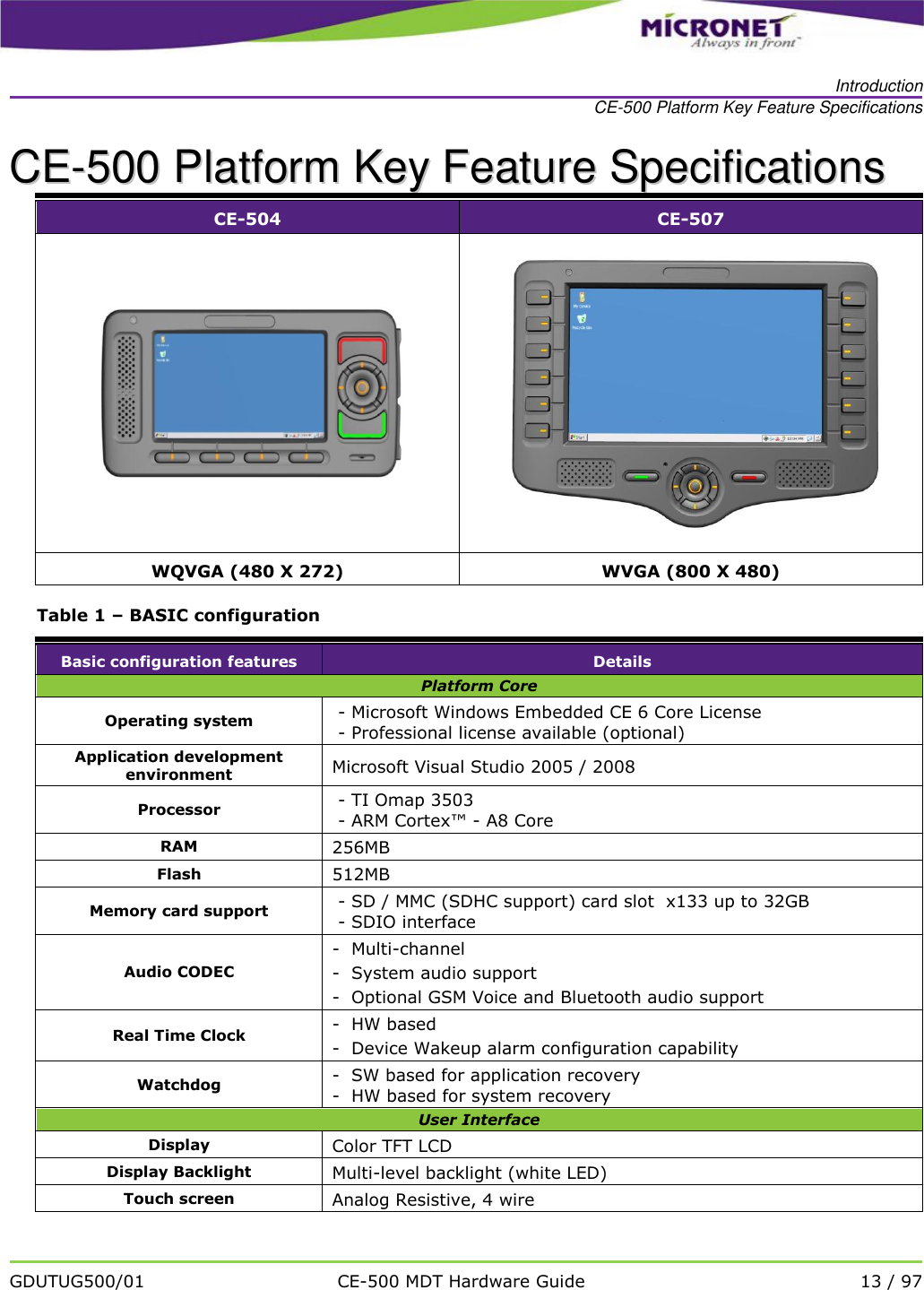
  Introduction CE-504 and CE-507 Models   GDUTUG500/01 CE-500 MDT Hardware Guide 11 / 97  This document describes the full features list of the CE-500 platform. Some of the features are optional extensions and add-on modules to the Basic configuration. To highlight those extensions, each extension includes an "option" remark on the feature description. DDiissppllaayyss  To support operation in various conditions, you can use different displays with CE-504 and CE-507. The single core-processing unit supports the following display sizes:   4.3” 480x272 pixels WQVGA (CE-504 model)   7” 800x480 pixels WVGA (CE-507 model) Each display consists of a color touch screen and large programmable function and control keys. PPhhyyssiiccaall  IInntteerrffaacceess  Both CE-504 and CE-507 provide the following physical interfaces:   USB  Serial RS232 ports  Dedicated interface for Dallas ID button reader  External cameras and audio device connections  Analog and digital control I/O signals  Interfaces for vehicle connectivity  Optionally, a magnetic card reader and camera can be plugged into the models. OOppttiioonnaall  WWiirreelleessss  MMoodduulleess  Both models provide the ability to plug in optional wireless modules:   Quad band GPRS modem  GPS  Wi-Fi  Bluetooth All wireless modules are provided with internal antennas. FFiixxeedd  MMoouunntt  aanndd  PPoorrttaabbllee  CCoonnffiigguurraattiioonn    You can order CE-504 and CE-507 with the following configuration modes:
  Introduction Development Tool Kit   GDUTUG500/01 CE-500 MDT Hardware Guide 12 / 97   Fixed-mount mode, which requires accessory cables for interface connections. The main accessory cable is required for the power and basic interfaces. Enhanced interfaces require additional cables.  The required accessory cable is specified in the following interface descriptions.   Portable mode, which includes the following components:  Battery for about two hours of full operation. The CE-504 is provided in two configurations, with or without a main battery.  Device cradle for recharging, mounting and connectivity DDeevveellooppmmeenntt  TTooooll  KKiitt  Micronet's CE-500 Developers Package provides all tools required for application development quick-start, product testing, and product evaluation. The Developers Package includes 20 hours of technical support and contains all essential hardware and software components as described in the following sections.   HHaarrddwwaarree   Power supply adaptors  Accessory cables  Device cradle  Mounting accessories and tolls  Mechanical and interface connection accessories SSooffttwwaarree   Software Development Kit (SDK) provides a set of software tools, API, and documentation for programming in Visual Studio .NET for C++, C#, and VB development environment.  C# Demo samples of some device features, including the source code  Additional software tools support the CE-500's numerous interfaces DDooccuummeennttaattiioonn   Hardware and software guides  Getting Started guide   Certification approvals and declarations
  Introduction CE-500 Platform Key Feature Specifications   GDUTUG500/01 CE-500 MDT Hardware Guide 13 / 97  CCEE--550000  PPllaattffoorrmm  KKeeyy  FFeeaattuurree  SSppeecciiffiiccaattiioonnss  CE-504 CE-507     WQVGA (480 X 272) WVGA (800 X 480) Table 1 – BASIC configuration  Basic configuration features Details Platform Core Operating system  - Microsoft Windows Embedded CE 6 Core License  - Professional license available (optional) Application development environment Microsoft Visual Studio 2005 / 2008 Processor  - TI Omap 3503  - ARM Cortex™ - A8 Core RAM 256MB Flash 512MB Memory card support  - SD / MMC (SDHC support) card slot  x133 up to 32GB   - SDIO interface  Audio CODEC -  Multi-channel -  System audio support -  Optional GSM Voice and Bluetooth audio support Real Time Clock -  HW based -  Device Wakeup alarm configuration capability Watchdog -  SW based for application recovery -  HW based for system recovery User Interface Display Color TFT LCD Display Backlight Multi-level backlight (white LED) Touch screen Analog Resistive, 4 wire
  Introduction CE-500 Platform Optional Modules   GDUTUG500/01 CE-500 MDT Hardware Guide 14 / 97  Basic configuration features Details Keypad Rubber tactile, multi-level backlight Internal speakers -  Stereo, 2 X 1W, 90 dB nominal @ 0.1m -  Multi-level volume control Internal microphone -  High sensitive -  Noise filtered Light sensor Configurable for device backlight adjustment Communication Interfaces Rs232 ports -  1 X 4 Wire (TX, RX, RTS, CTS) -  1 X 2 Wire (TX, RX) -  300 - 115200 bps USB OTG port USB 2.0 - low, full and high speeds USB Host port USB 2.0 - low, full and high speeds Peripherals Control Digital I/O -  2 X automotive inputs -  1 X open collector output Analog Input 0V – 30V 1-Wire Interface Dallas ID memory button support Power Input power -  5V DC power input by device side panel connector -  Direct vehicle battery connection (12V / 24V) by cradle or     accessory cable -  SAE J1455 compliant Mechanical Vibration 5 - 1000 Hz, ~4g, 3 axis Mechanical Shock -  Operational (40g, 11ms, 3 axes) -  Crush safety (75g, 6ms, 3 axes) Drop According MIL standard Device Mounting -  RAM® Mounts compatible  mounting arm -  Micronet mounting arm available (optional) -  Device cradle available (optional) Environmental Temperature range -  Operating: -4 °F to +158 °F (-20 °C to +70 °C)  -  Storage: -22 °F to +176 °F (-30 °C to +80 °C) -  Operating with internal battery option: 14 °F to 140 °F (-10 °C to +60 °C) Humidity 0 to 95%, non-condensing IP IP54 RoHS Complaint Certifications Standard compliance FCC, CE, E-Mark
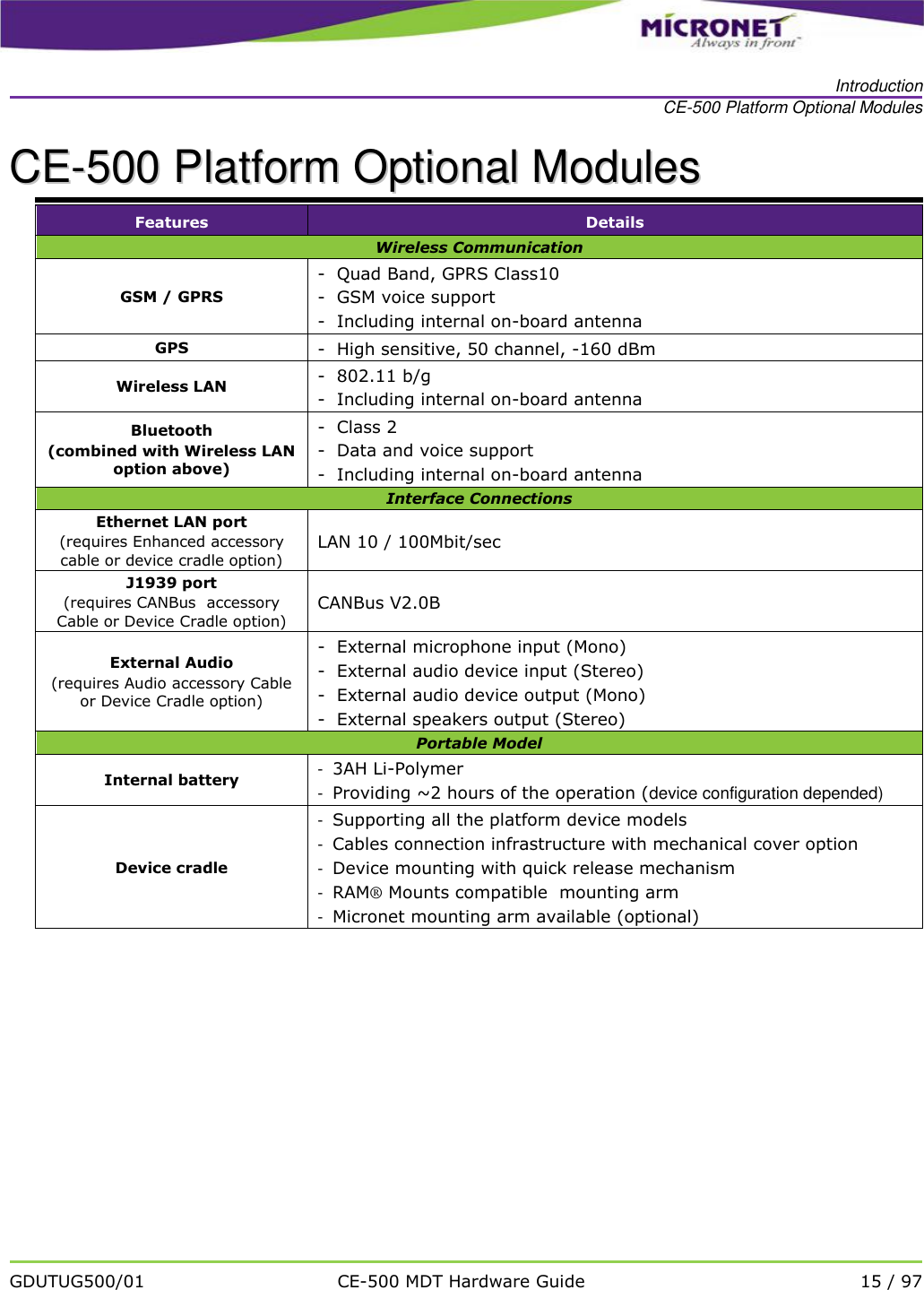
  Introduction CE-500 Platform Optional Modules   GDUTUG500/01 CE-500 MDT Hardware Guide 15 / 97  CCEE--550000  PPllaattffoorrmm  OOppttiioonnaall  MMoodduulleess   Features Details Wireless Communication GSM / GPRS -  Quad Band, GPRS Class10 -  GSM voice support -  Including internal on-board antenna GPS -  High sensitive, 50 channel, -160 dBm Wireless LAN -  802.11 b/g -  Including internal on-board antenna Bluetooth (combined with Wireless LAN option above) -  Class 2 -  Data and voice support -  Including internal on-board antenna Interface Connections Ethernet LAN port (requires Enhanced accessory cable or device cradle option) LAN 10 / 100Mbit/sec J1939 port (requires CANBus  accessory Cable or Device Cradle option) CANBus V2.0B External Audio  (requires Audio accessory Cable or Device Cradle option) -  External microphone input (Mono) -  External audio device input (Stereo) -  External audio device output (Mono) -  External speakers output (Stereo) Portable Model Internal battery -  3AH Li-Polymer  -  Providing ~2 hours of the operation (device configuration depended) Device cradle -  Supporting all the platform device models -  Cables connection infrastructure with mechanical cover option -  Device mounting with quick release mechanism  -  RAM® Mounts compatible  mounting arm  -  Micronet mounting arm available (optional)
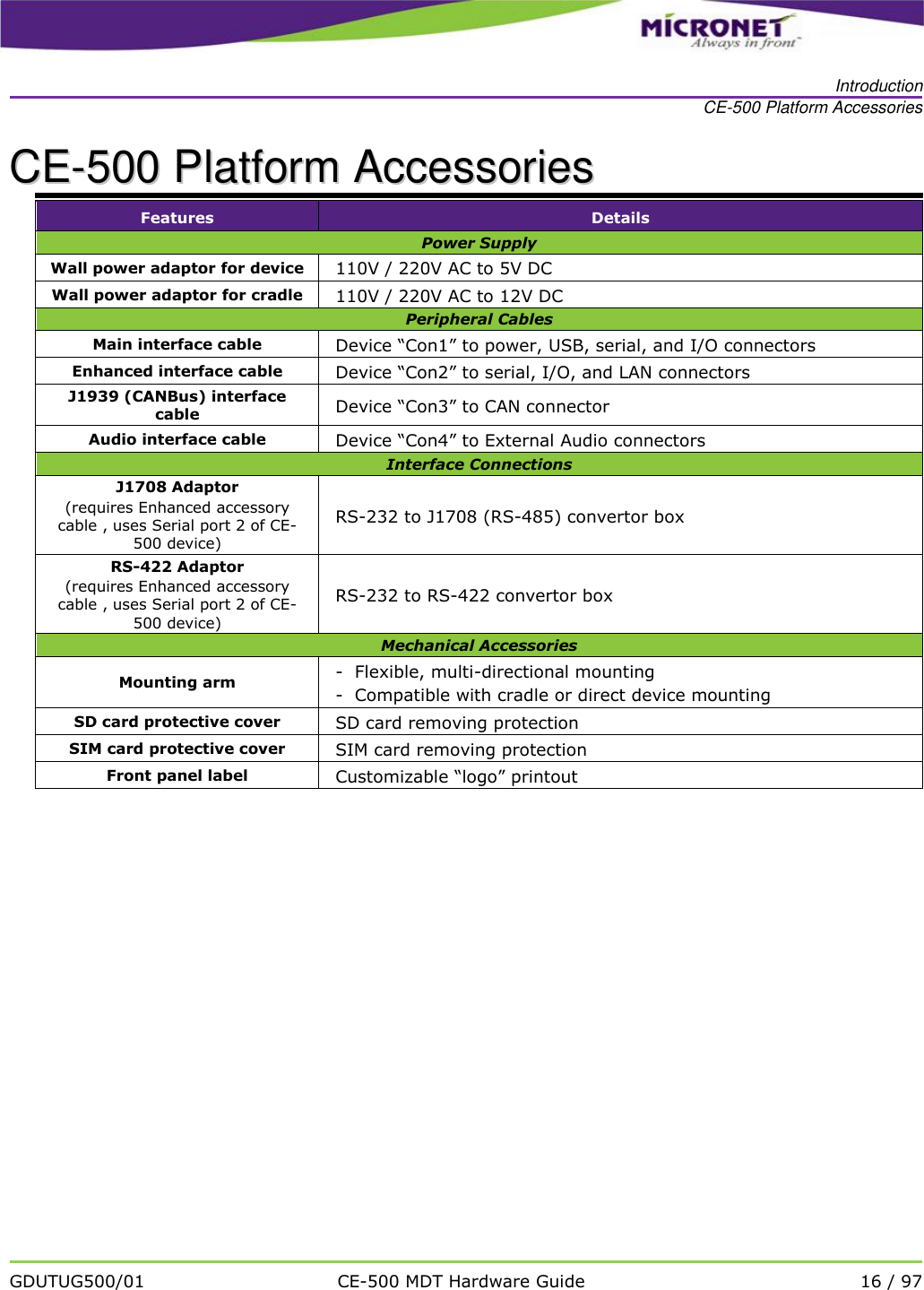
  Introduction CE-500 Platform Accessories   GDUTUG500/01 CE-500 MDT Hardware Guide 16 / 97  CCEE--550000  PPllaattffoorrmm  AAcccceessssoorriieess  Features Details Power Supply Wall power adaptor for device 110V / 220V AC to 5V DC Wall power adaptor for cradle 110V / 220V AC to 12V DC Peripheral Cables Main interface cable Device “Con1” to power, USB, serial, and I/O connectors  Enhanced interface cable Device “Con2” to serial, I/O, and LAN connectors  J1939 (CANBus) interface cable Device “Con3” to CAN connector Audio interface cable Device “Con4” to External Audio connectors Interface Connections J1708 Adaptor (requires Enhanced accessory cable , uses Serial port 2 of CE-500 device) RS-232 to J1708 (RS-485) convertor box RS-422 Adaptor (requires Enhanced accessory cable , uses Serial port 2 of CE-500 device) RS-232 to RS-422 convertor box Mechanical Accessories Mounting arm -  Flexible, multi-directional mounting -  Compatible with cradle or direct device mounting SD card protective cover SD card removing protection SIM card protective cover SIM card removing protection Front panel label Customizable “logo” printout
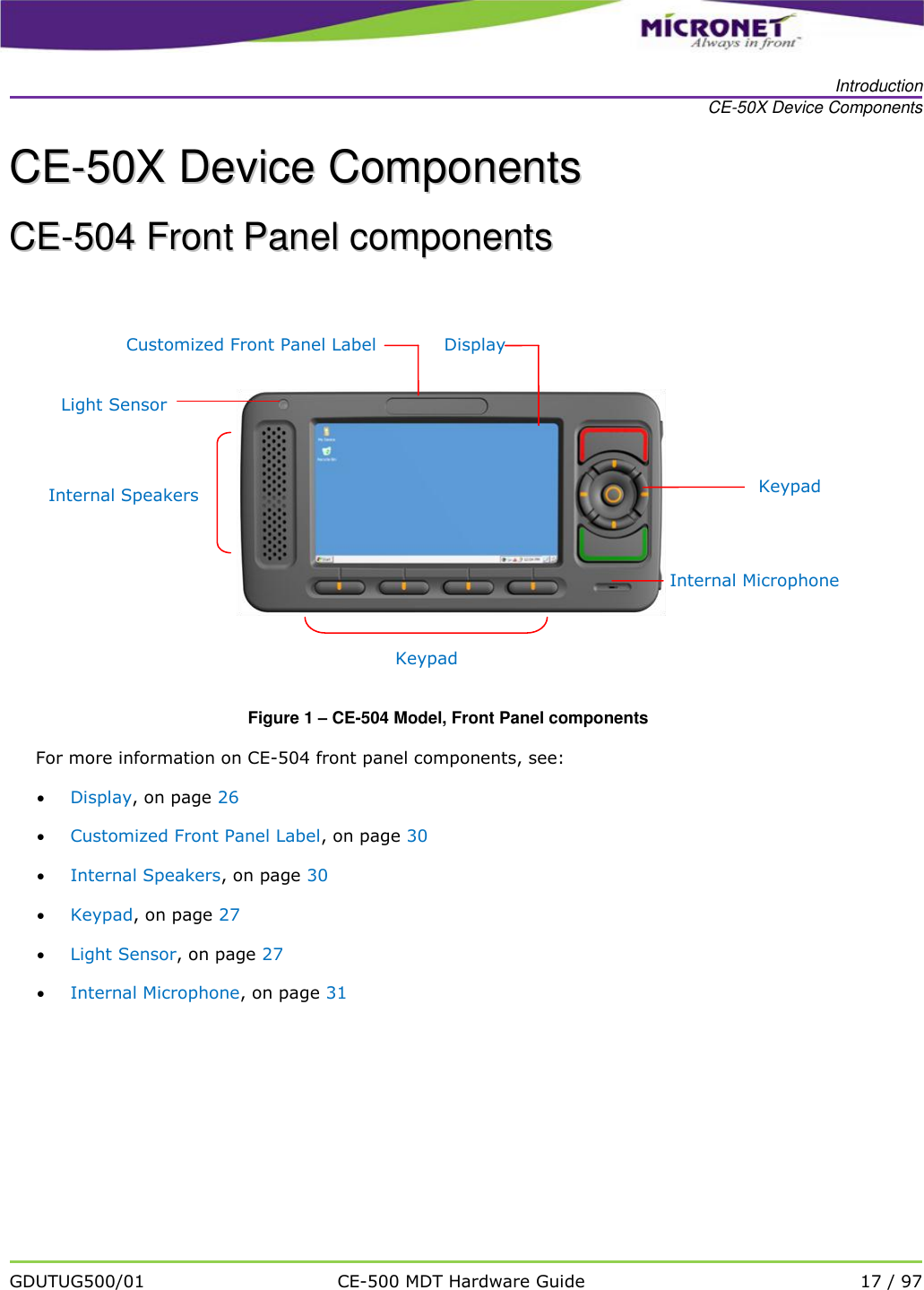
  Introduction CE-50X Device Components   GDUTUG500/01 CE-500 MDT Hardware Guide 17 / 97  CCEE--5500XX  DDeevviiccee  CCoommppoonneennttss  CCEE--550044  FFrroonntt  PPaanneell  ccoommppoonneennttss  For more information on CE-504 front panel components, see:  Display, on page 26  Customized Front Panel Label, on page 30  Internal Speakers, on page 30  Keypad, on page 27  Light Sensor, on page 27  Internal Microphone, on page 31  Figure 1 – CE-504 Model, Front Panel components Internal Speakers  Customized Front Panel Label   Display Light Sensor  Keypad Keypad Internal Microphone
  Introduction CE-50X Device Components   GDUTUG500/01 CE-500 MDT Hardware Guide 18 / 97  CCEE--550077  FFrroonntt  PPaanneell  CCoommppoonneennttss   Figure 2 – CE-507 Model, Front Panel components  For more information on CE-507 front panel components, see:  Display, on page 26  Customized Front Panel Label, on page 30  Internal Speakers, on page 30  Keypad, on page 27  Light Sensor, on page 27  Internal Microphone, on page 31 Internal Microphone  Customized Front Panel Label   Display  Keypad Keypad Keypad Internal Speakers  Internal Speakers  Light Sensor
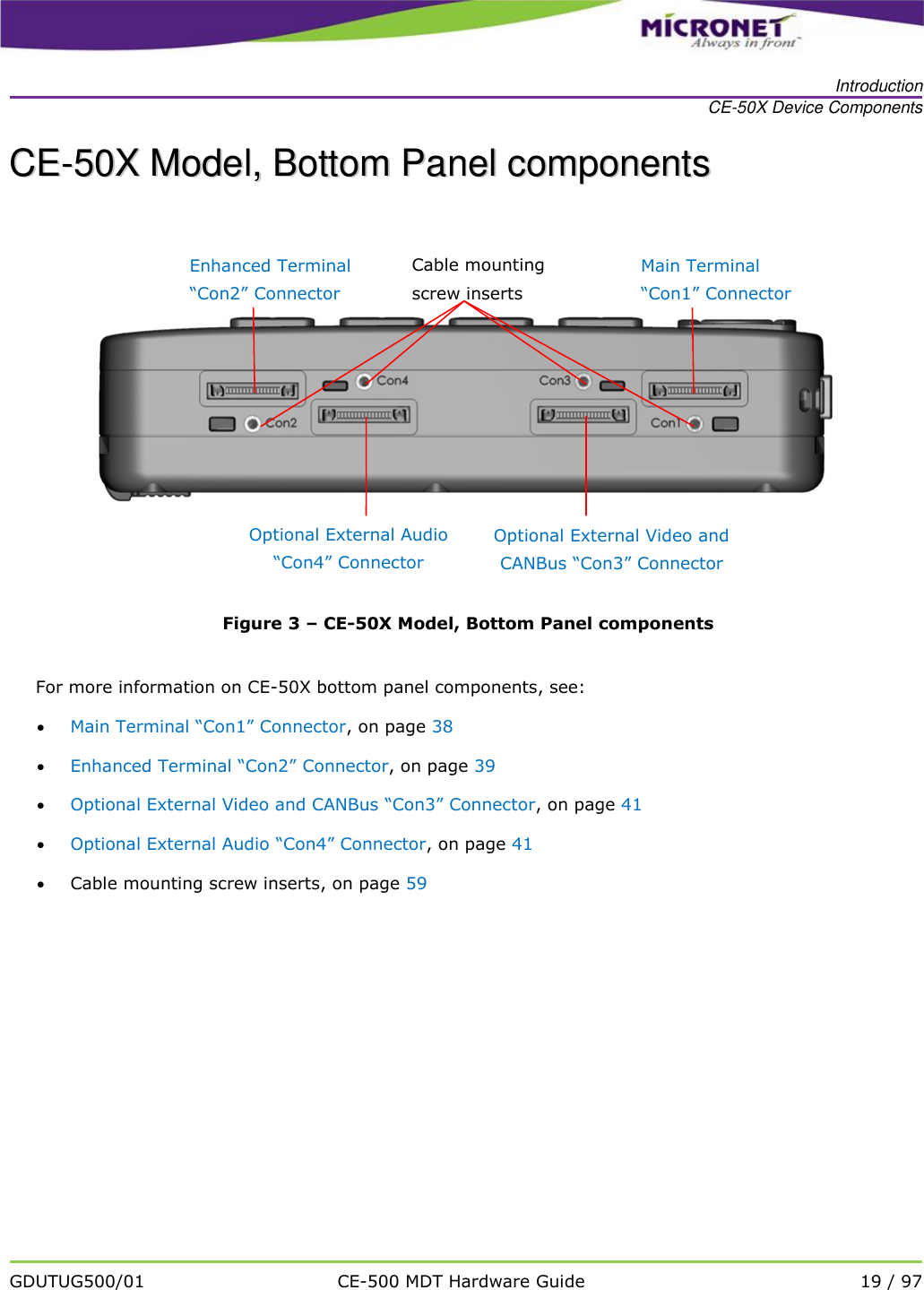
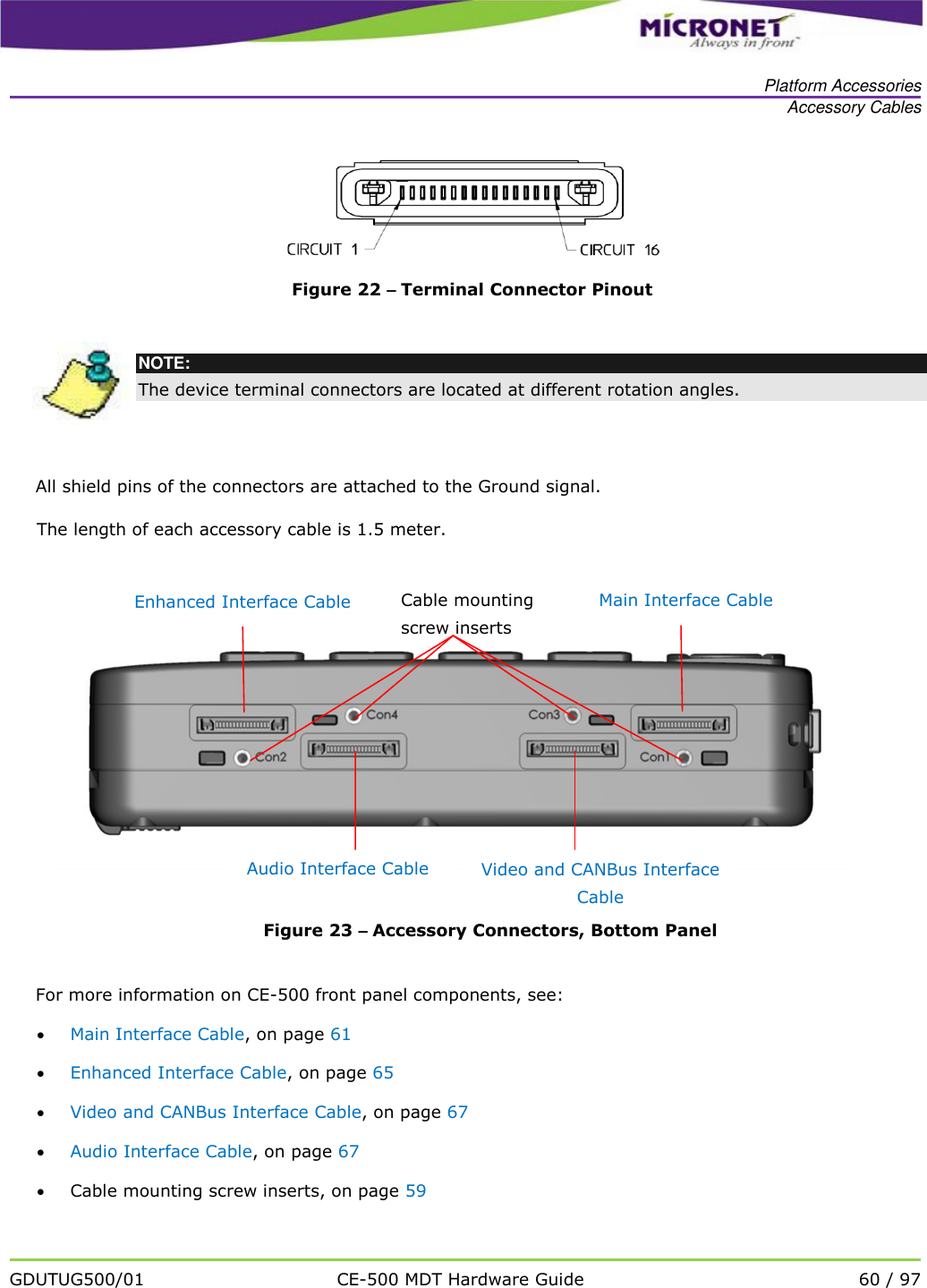
  Introduction CE-50X Device Components   GDUTUG500/01 CE-500 MDT Hardware Guide 19 / 97  CCEE--5500XX  MMooddeell,,  BBoottttoomm  PPaanneell  ccoommppoonneennttss     Figure 3 – CE-50X Model, Bottom Panel components  For more information on CE-50X bottom panel components, see:  Main Terminal “Con1” Connector, on page 38  Enhanced Terminal “Con2” Connector, on page 39  Optional External Video and CANBus “Con3” Connector, on page 41  Optional External Audio “Con4” Connector, on page 41  Cable mounting screw inserts, on page 59  Optional External Video and CANBus “Con3” Connector Optional External Audio “Con4” Connector Cable mounting screw inserts Main Terminal “Con1” Connector Enhanced Terminal “Con2” Connector
  Introduction CE-50X Device Components   GDUTUG500/01 CE-500 MDT Hardware Guide 20 / 97  CCEE--5500XX  MMooddeell,,  RRiigghhtt  SSiiddee  PPaanneell    Figure 4 – CE-50X Model, Right Side Panel (Device Connector Slot) and Slot cover components For more information on CE-50X Right side panel components, see:  Device connectors slot, on page 25  Memory Card Support, on page 24  USB OTG Port, on page 32  5V Power-in connector, on page 42  Device Connector Slot - Rubber and Plastic Covers, on page 25  , on page 69  Device connectors slot   USB OTG Port  5V Power-in connector  Device Connector Slot - Rubber and Plastic Covers Memory Card Support
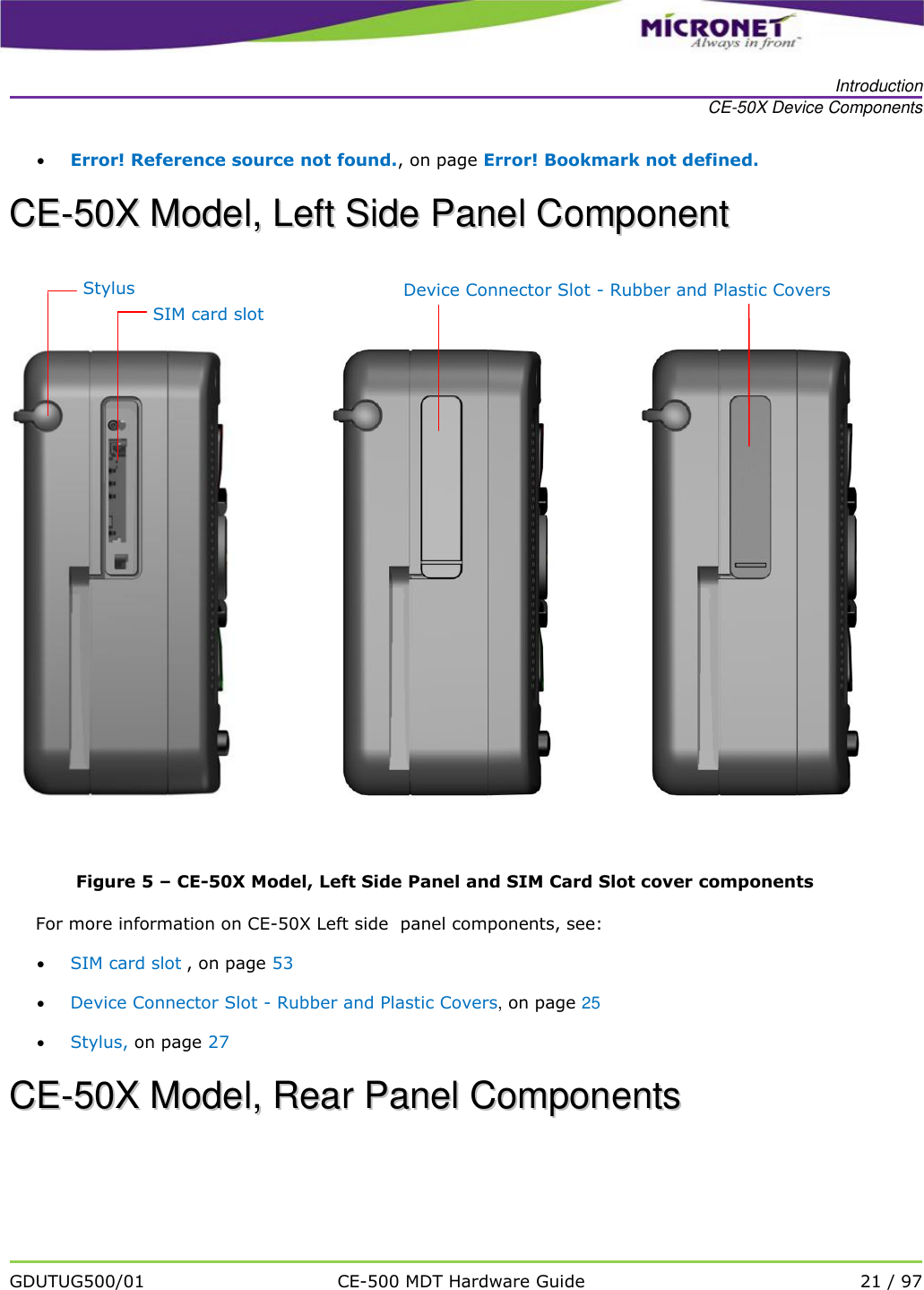
  Introduction CE-50X Device Components   GDUTUG500/01 CE-500 MDT Hardware Guide 21 / 97   Error! Reference source not found., on page Error! Bookmark not defined. CCEE--5500XX  MMooddeell,,  LLeefftt  SSiiddee  PPaanneell  CCoommppoonneenntt                  Figure 5 – CE-50X Model, Left Side Panel and SIM Card Slot cover components For more information on CE-50X Left side  panel components, see:  SIM card slot , on page 53  Device Connector Slot - Rubber and Plastic Covers, on page 25  Stylus, on page 27 CCEE--5500XX  MMooddeell,,  RReeaarr  PPaanneell  CCoommppoonneennttss   SIM card slot Stylus Device Connector Slot - Rubber and Plastic Covers
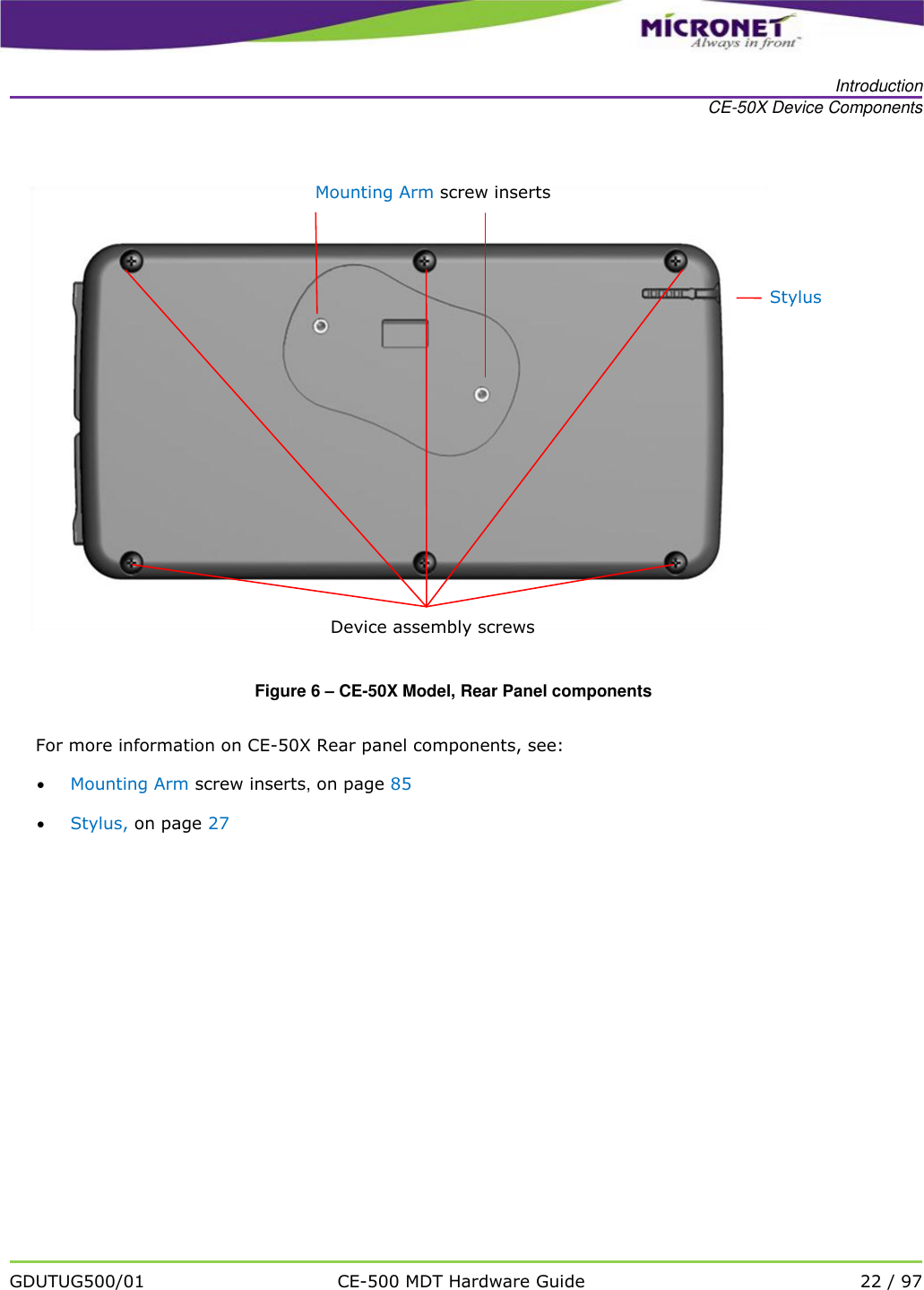
  Introduction CE-50X Device Components   GDUTUG500/01 CE-500 MDT Hardware Guide 22 / 97   Figure 6 – CE-50X Model, Rear Panel components For more information on CE-50X Rear panel components, see:  Mounting Arm screw inserts, on page 85  Stylus, on page 27     Stylus Mounting Arm screw inserts Device assembly screws
  Technical and Functional Details Platform Core   GDUTUG500/01 CE-500 MDT Hardware Guide 23 / 97  22    TTeecchhnniiccaall  aanndd  FFuunnccttiioonnaall  DDeettaaiillss  PPllaattffoorrmm  CCoorree  OOppeerraattiinngg  SSyysstteemm  The CE-500 platform is powered by Windows CE 6.0 with the Core license. Optionally, you can upgrade to the Professional license at additional cost. For details on supported operating system components, refer to CE-500 Operating System Specifications at http://www.micronet.co.il/CE-500_Operating_system.html For more details on device’s operating system architecture, refer to the CE-500 Software Developer's Guide.  AApppplliiccaattiioonn  DDeevveellooppmmeenntt  EEnnvviirroonnmmeenntt  The CE-500 platform supports Microsoft Visual Studio 2005 or 2008 and C++ (Win32 API) or Microsoft .NET Compact Framework 3.5. Micronet Development Toolkit (DTK) includes the following components:   Full Micronet SDK  Application samples  Device management and upload tools  Development accessories  Documentation
  Technical and Functional Details Platform Core   GDUTUG500/01 CE-500 MDT Hardware Guide 24 / 97  For more details on development infrastructure, product tolls, and DTK contents, refer to the CE-500 Getting Started Guide.  PPrroocceessssoorr   TI OMAP3503   High-performance Superscalar ARM Cortex™-A8 RRAAMM  The device provides a total of 256 MB of RAM memory (DDR type), which is partially allocated for system and application usage.  Approximately 64 MB of the RAM memory is allocated for the system. The remaining memory is allocated for RAM storage or application usage (user configurable).  FFllaasshh  MMeemmoorryy  The CE-500 provides 512 MB of Flash Memory (NAND type). This memory is partially allocated for system image storage and Flash File System partition accessible for the applications as a persistent data storage drive. Approximately 64 MB of the Flash memory is allocated for system image. The remaining memory is allocated for data storage. Because the registry is hive-based, the operating system registry is also stored on the Flash File System drive.   NOTE:  To prevent uncontrolled power cut-off situations that can cause significant Flash File System damage, verify that you provide proper power connection to the device. For more details, see  Power Management, page 46. MMeemmoorryy  CCaarrdd  SSuuppppoorrtt  The device provides an MMC / SD card slot with the following parameters:  HC-MMC / SD cards (SDHC) complaint MMC System Specification V4.2 and SD I/O Cards Specification V2.0  SD memory cards up to 32GB size support FAT16 / FAT32 Active disk
  Technical and Functional Details User Interface   GDUTUG500/01 CE-500 MDT Hardware Guide 25 / 97   Speed: x133  Clocks: Identification mode – 400 kHz, data mode 20 MHz The MMC / SD (SDHC) card slot is located on the right side panel. By default, a user can physically access the slot. The platform supports two access protection options. For more details, see the following section.    DDeevviiccee  CCoonnnneeccttoorr  SSlloott  --  RRuubbbbeerr  aanndd  PPllaassttiicc  CCoovveerrss  The CE-500 device has a rubber cover that protects the SD card slot, 5V Power-In connector, USB OTG connector and the SIM card slot from water and dust (for example, when the device is used in the portable mode out of a vehicle). You must close the cover in any of these conditions. To prevent access to the connectors, a permanent plastic cover option is available. This cover replaces the rubber cover. To replace the rubber cover with the plastic one: 1. Remove the rubber cover by removing the rubber snap in the center of the cover.  2. Push the plastic cover into the same place.  After the plastic cover is inserted, this cover can only be broken (physically) by an external mechanical tool to access the card    RReeaall  TTiimmee  CClloocckk  ((RRTTCC))    The platform provides a Real Time Clock (RTC) that continuously operates even when the device is powered off, but still connected to a vehicle or an internal battery.  In addition, RTC enables powering on the device based on a predefined alarm. WWaattcchhddoogg  To monitor mission-critical processes, the platform provides an intelligent watchdog mechanism. This mechanism provides various capabilities for programming automatic reset of the terminal. The watchdog mechanism can be configured to control application stability and restart the device if an application or system hangs or freezes.    NOTE: This feature is used for the automatic solution recovery. However, Flash File System corruption problems can occur if executed during file saving operation.  For more details on proper use of the watchdog mechanism, refer to the Developers Guide.
  Technical and Functional Details User Interface   GDUTUG500/01 CE-500 MDT Hardware Guide 26 / 97  UUsseerr  IInntteerrffaaccee  The mechanical architecture of the platform enables support of various types and sizes of user interface. The CE-500’s user interface is an entirely independent module, which is connected to the device’s core layer.  The platform currently supports two types of the user interface:  7” display based - CE-507 device model  4.3” display based - CE-504 device model A type of the user interface type automatically detected during system startup.  The required user interface type (device model) must be specified while ordering the device. The user interface model can be ordered separately as well (for field upgrade by a technician). For field installation of the CE-500 user interface modules, see page 93. DDiissppllaayy    The CE-504 device model provides a 4.3” Touch Color display with WQVGA (480 X 272 pixels) resolution. The CE-507 device model provides a 7” Touch Color display with WVGA (800 X 480 pixels) resolution. Both models are based on the transflective TFT LCD technology, provide the high contrast display, support 16M colors, and provide a multi-level white LED backlight with a typical luminous intensity of 400 cd/m2. The platform enables developers to change the display mode to set up the landscape or portrait orientation programmatically. In addition, developers can enable the automatic change of the display mode based on a cradle state signal. Developers can use this ability to manage how applications are displayed in vehicle and out-of-cab operations.  TToouucchh  SSccrreeeenn  aanndd  SSttyylluuss  The device display provides an analog-resistive-technology-based touch screen overlay that supports a minimum of one million times of knocking life.
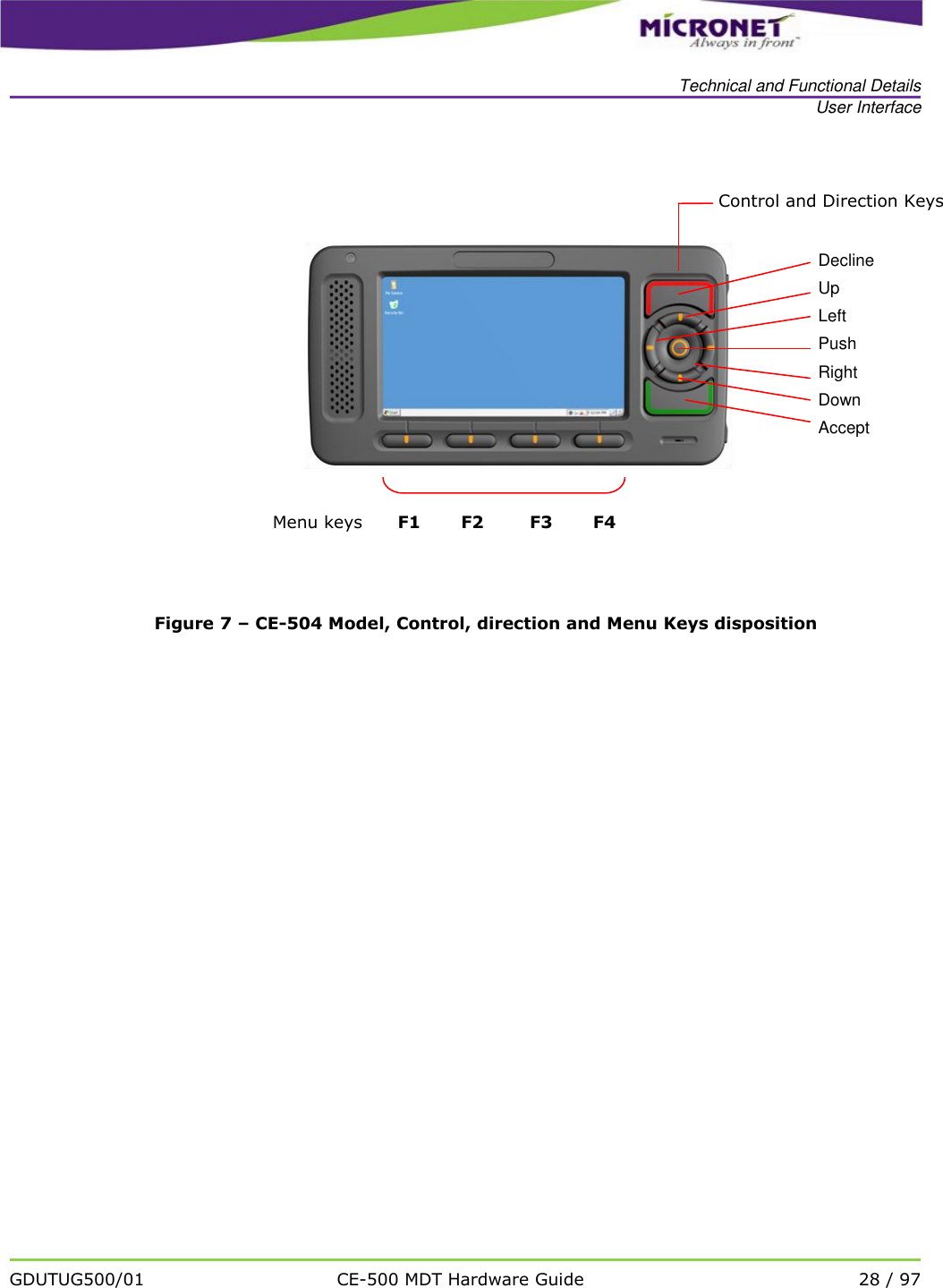
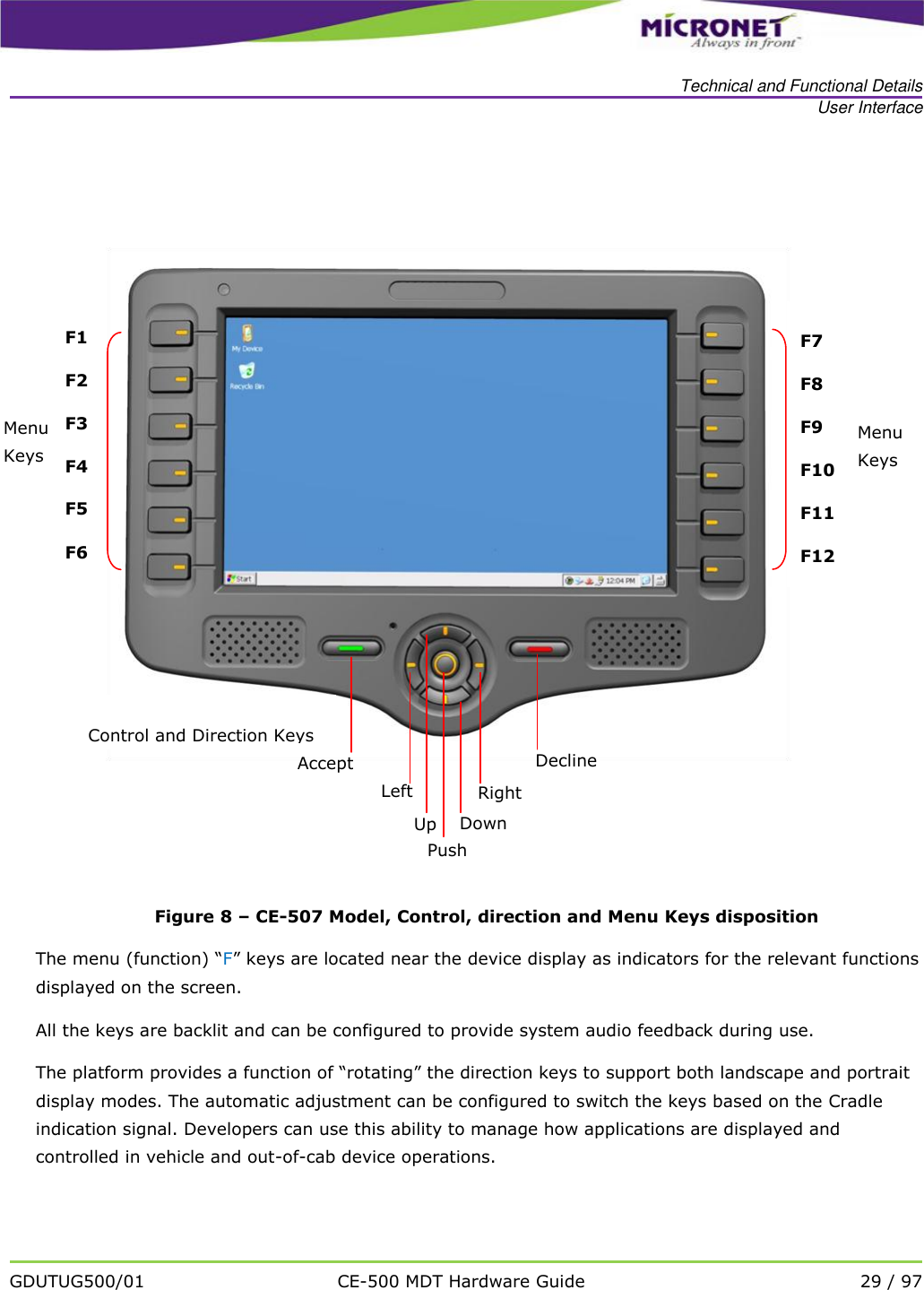
  Technical and Functional Details User Interface   GDUTUG500/01 CE-500 MDT Hardware Guide 27 / 97  SSttyylluuss  A plastic stylus is mounted on the rear panel for the convenience of signature capture or other touch screen operations.   NOTE: To prevent touch screen overlay damage, do not contact the exposed polarizer with anything harder than a device stylus. To clean dust off the display surface, gently wipe it with cotton, chamois, or any other soft material. To decrease the wear of the touch screen overlay, specify your software application architecture to use device keys to enable the most commonly used application functions. LLiigghhtt  SSeennssoorr  The platform provides a light sensor component, which is located on the front panel. Applications use this sensor to recognize light and dark working modes, as well as device backlight adjustments.  The system provides a function of configurable automatic keypad and display backlight adjustments based on the light sensor status. For more details on light sensor, refer to the Developers Guide.  KKeeyyppaadd  The CE-500 device provides integrated rubber keys for convenience and safety operation. The Elastomer rubber tactile keypad includes all of the following:  4 directions (Up, Down, Left, and Right)    3 controls (Accept, Decline, and Push)  4 (CE-504 model) or 12 (CE-507 model) menu keys
  Technical and Functional Details User Interface   GDUTUG500/01 CE-500 MDT Hardware Guide 28 / 97     Figure 7 – CE-504 Model, Control, direction and Menu Keys disposition Control and Direction Keys Menu keys      F1       F2        F3       F4 Decline Up Left Push Right Down Accept
  Technical and Functional Details User Interface   GDUTUG500/01 CE-500 MDT Hardware Guide 29 / 97    Figure 8 – CE-507 Model, Control, direction and Menu Keys disposition The menu (function) “F” keys are located near the device display as indicators for the relevant functions displayed on the screen. All the keys are backlit and can be configured to provide system audio feedback during use.   The platform provides a function of “rotating” the direction keys to support both landscape and portrait display modes. The automatic adjustment can be configured to switch the keys based on the Cradle indication signal. Developers can use this ability to manage how applications are displayed and controlled in vehicle and out-of-cab device operations.    Up Right Down          Left Push Menu Keys F1 F2 F3 F4 F5 F6 Menu Keys F7 F8 F9 F10 F11 F12 Control and Direction Keys Decline Accept
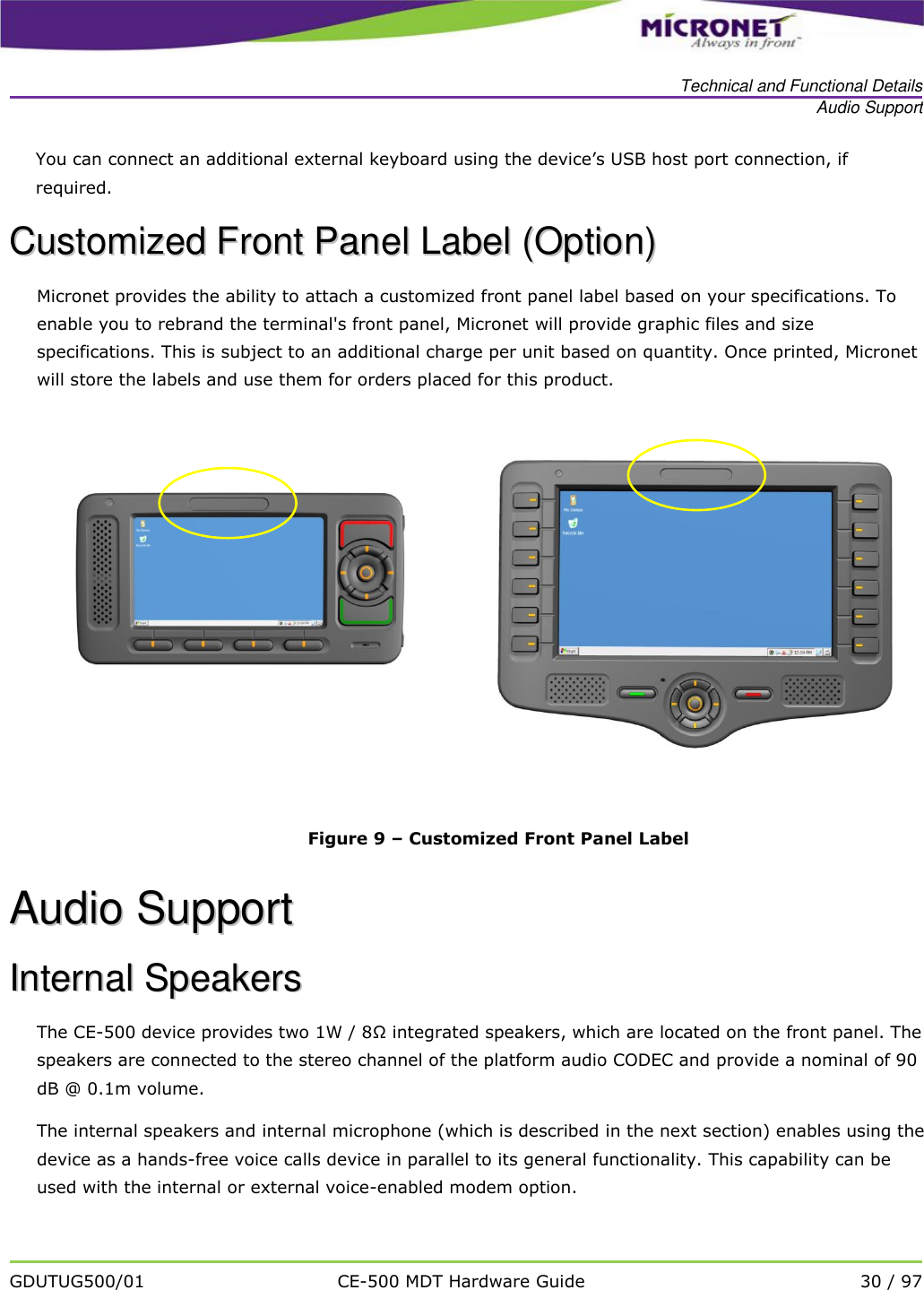
  Technical and Functional Details Audio Support   GDUTUG500/01 CE-500 MDT Hardware Guide 30 / 97  You can connect an additional external keyboard using the device’s USB host port connection, if required.   CCuussttoommiizzeedd  FFrroonntt  PPaanneell  LLaabbeell  ((OOppttiioonn))  Micronet provides the ability to attach a customized front panel label based on your specifications. To enable you to rebrand the terminal's front panel, Micronet will provide graphic files and size specifications. This is subject to an additional charge per unit based on quantity. Once printed, Micronet will store the labels and use them for orders placed for this product.      Figure 9 – Customized Front Panel Label AAuuddiioo  SSuuppppoorrtt  IInntteerrnnaall  SSppeeaakkeerrss  The CE-500 device provides two 1W / 8Ω integrated speakers, which are located on the front panel. The speakers are connected to the stereo channel of the platform audio CODEC and provide a nominal of 90 dB @ 0.1m volume. The internal speakers and internal microphone (which is described in the next section) enables using the device as a hands-free voice calls device in parallel to its general functionality. This capability can be used with the internal or external voice-enabled modem option.
  Technical and Functional Details Communication Interfaces   GDUTUG500/01 CE-500 MDT Hardware Guide 31 / 97  External speakers and other audio device connections are supported by the optional platform's audio module. For more information, see External Audio Module on page 57. IInntteerrnnaall  MMiiccrroopphhoonnee  The platform provides an integrated high-sensitive microphone, which is located on the front panel. The microphone supports voice calls along with optional voice recognition and recording engines. An external microphone and other audio device connections are supported by the optional platform's audio module. For more information, see External Audio Module on page 57. AAuuddiioo  CCOODDEECC  ((OOppttiioonn))  The platform provides a multi-channel audio CODEC that supports and manages all basic and optional platform audio components. Developers can control internal and external speakers, microphones, and Bluetooth and GSM voice functions using the API. When setting up these components, dedicated CODEC channels are used to manage audio components, including system sound, voice calls, optional text-to-speech, and voice recognition engines. CCoommmmuunniiccaattiioonn  IInntteerrffaacceess  SSeerriiaall  CCoommmmuunniiccaattiioonn  The platform provides two serial communication ports for external devices and peripheral connections. These ports support various hardware and software flow control functions.   NOTES: The Windows OS is not specified as a real time OS. Thus, it is highly recommended to implement a flow control functionality using the serial communication to guarantee a strong and stable communication flow of your application. SSeerriiaall  PPoorrtt  11  ((CCOOMM11))  The platform provides a serial communication port at the EIA-Rs232 level. The port is connected to the Main Terminal “Con1” connector, which is located on the bottom panel of the device. This port supports a 300 to 115,200bps baud rate and provides one pair of communication-control handshake signals (CTS / RTS).  Generally, Serial Port 1 operates as a main system serial port for modem or AVL box communication.
  Technical and Functional Details Communication Interfaces   GDUTUG500/01 CE-500 MDT Hardware Guide 32 / 97  For the disposition map of the signals of this port on Main Terminal “Con1” Connector, see page 38.  In the Fixed-mount mode, this port requires the Main Accessory Cable connection. For the disposition map of the signals of this port on the Main Accessory Cable, see Accessories Main Interface cable COM1 Connector, on page 61.  For the disposition map of the signals of this port on the Device Cradle, see Device Cradle connectors COM1 Connector, on page 76. SSeerriiaall  PPoorrtt  22  ((CCOOMM22))  Serial Port 2 is a second Rs232 port. The port is connected to the Enhanced terminal “Con2” connector. This port supports a 300 to 115,200bps baud rate and only provides the TX and RX signals. For the disposition map of the signals of this port on Enhanced Terminal “Con2” Connector, see page 39.  In the Fixed-mount mode, this port requires Enhanced Accessory Cable connection. For the disposition map of the signals of this port on the Enhanced Accessory Cable, see Accessories Enhanced Interface cable COM2 Connector, on page 65.  For the disposition map of the signals of this port on the Device Cradle, see Device Cradle connectors COM2 Connector, on page 78.  UUSSBB  ((UUnniivveerrssaall  SSeerriiaall  BBuuss))  CCoommmmuunniiccaattiioonn  The platform provides two USB communication ports for external devices and peripheral connections.  The USB Host interface supports the following profiles:   USB Standard HID  USB Printer (PCL)  USB Storage The USB Client (Device) interface supports Microsoft Active Sync for application development and device management using the USB OTG port described below. UUSSBB  OOTTGG  PPoorrtt  The USB "On The Go" Communication port is connected to the USB OTG connector, which is located on the right panel of the device. This port can operate either as the USB Host or USB Client interface. Depending on the connected device type, the required interface is automatically recognized and enabled.
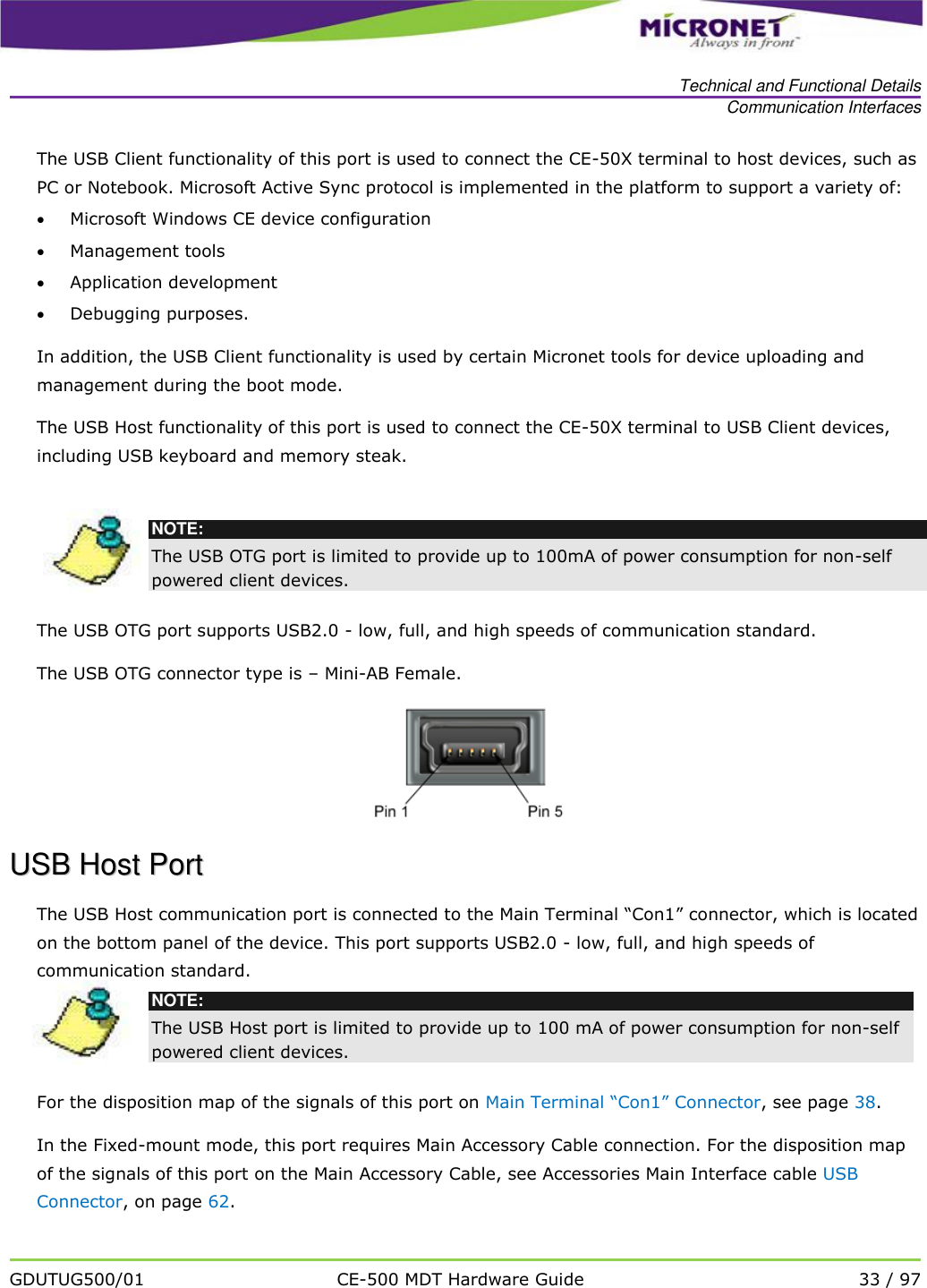
  Technical and Functional Details Communication Interfaces   GDUTUG500/01 CE-500 MDT Hardware Guide 33 / 97  The USB Client functionality of this port is used to connect the CE-50X terminal to host devices, such as PC or Notebook. Microsoft Active Sync protocol is implemented in the platform to support a variety of:  Microsoft Windows CE device configuration  Management tools  Application development  Debugging purposes. In addition, the USB Client functionality is used by certain Micronet tools for device uploading and management during the boot mode. The USB Host functionality of this port is used to connect the CE-50X terminal to USB Client devices, including USB keyboard and memory steak.    NOTE: The USB OTG port is limited to provide up to 100mA of power consumption for non-self powered client devices. The USB OTG port supports USB2.0 - low, full, and high speeds of communication standard.  The USB OTG connector type is – Mini-AB Female.   UUSSBB  HHoosstt  PPoorrtt  The USB Host communication port is connected to the Main Terminal “Con1” connector, which is located on the bottom panel of the device. This port supports USB2.0 - low, full, and high speeds of communication standard.   NOTE: The USB Host port is limited to provide up to 100 mA of power consumption for non-self powered client devices.  For the disposition map of the signals of this port on Main Terminal “Con1” Connector, see page 38.  In the Fixed-mount mode, this port requires Main Accessory Cable connection. For the disposition map of the signals of this port on the Main Accessory Cable, see Accessories Main Interface cable USB Connector, on page 62.
  Technical and Functional Details Peripheral Controls   GDUTUG500/01 CE-500 MDT Hardware Guide 34 / 97  For the disposition map of the signals of this port on the Device Cradle, see Device Cradle connectors USB Connector, on page 77. EEtthheerrnneett  CCoommmmuunniiccaattiioonn  ((OOppttiioonn))  The platform optionally provides the Ethernet LAN communication port, connected to the Enhanced terminal “Con2” connector, which is located on the bottom panel of the device. The Ethernet LAN communication is a factory set option.  NOTE: Other optional modular-platform features can be separately ordered and installed by the customer. However, this option can only be included in the device by Micronet during device manufacturing and cannot be added afterward. You must specify the Ethernet option requirement with the device order.  This port is fully compliant with IEEE 802.3 / 802.3u standards and supports 10BASE-T and 100BASE-TX functionalities. For the disposition map of the signals of this port on Enhanced Terminal “Con2” Connector, see page 39.  In the Fixed-mount mode, this port requires Enhanced Accessory Cable connection. For the disposition map of the signals of this port on the Accessory Enhanced interface Cable, see LAN Connector, on page 66.  For the disposition map of the signals of this port on the Device Cradle, see Device Cradle Enhanced cradle Connectors LAN Connector, on page 78. PPeerriipphheerraall  CCoonnttrroollss  DDiiggiittaall  II//OO  DDiiggiittaall  IInnppuuttss  The platform provides two digital inputs at the automotive voltage level for monitoring and controlling external peripherals or sensor signals. These signals are connected to the Main Terminal “Con1” and “Con2” connectors, which are located on the bottom panel of the device.
  Technical and Functional Details Peripheral Controls   GDUTUG500/01 CE-500 MDT Hardware Guide 35 / 97   NOTE: One of these inputs (In1) is also used to power on the device from the shutdown state. For proper power management implementation, the input must be connected to the vehicle's ignition switch. The platform provides various software control options for this essential feature. For more details, refer to the Digital I/O and Power Management sections of the Developers Guide. Table 2 – Electrical Parameters of Input States  Input State Typical Minimum Maximum Low 0V -30V 5V High 12V-24V +8V +30V DDiiggiittaall  OOuuttppuutt  The platform provides a digital output (Open Collector) for external peripherals control. This signal is connected to the Main Terminal “Con1” connector, which is located on the bottom panel of the device. Table 3 – Electrical Parameters of Open Collector Output Parameter Value Maximum switchable voltage +VIN Maximum switchable current 300mA For the disposition map of the Digital Input1 and Digital Output signals of this port on Main Terminal “Con1” Connector, see page 38.  For the disposition map of the Digital Input2 signal of this port on Enhanced Terminal “Con2” Connector, see page 39.  In the Fixed-mount mode, the Digital Input1 and Digital Output require the Main Accessory Cable and Digital Input2 requires the Enhanced Accessory Cable connection. For the disposition map of the Digital Input1 and Digital Output on Power-Adaptor-Box of the Main Accessory Cable, see Power-Adaptor-Box to +Vin Connector, on page 64. For the disposition of the Digital Input2 signal on the Accessory Cables Enhanced Interface cable, see COM2 Connector, on page 65.  For the disposition map of the Digital Input1 and Digital Output on the Device Cradle, see +Vin Connector, on page 76. For the disposition of the Digital Input2 signal on the Device Cradle, see COM2 Connector, on page 78.
  Technical and Functional Details Peripheral Controls   GDUTUG500/01 CE-500 MDT Hardware Guide 36 / 97  AAnnaalloogg  IInnppuutt  The platform provides an analog input signal to monitor the voltage range of compatible vehicle sensors, such as an analog fuel gauge. This signal is connected to the Main Terminal “Con1” connector, which is located on the bottom panel of the device.  The supported voltage range is from 0V to 30V. For the disposition map of this signal on Main Terminal “Con1” Connector, see page 38.  In the Fixed-mount mode, this port requires the Enhanced Accessory Cable connection. For the disposition map of the signals of this port on the Accessory Cable Enhanced Interface cable, see COM2 Connector, on page 65. For the position of this signal on the Device Cradle, see COM2 Connector, on page 78. 11--WWiirree  IInntteerrffaaccee  The platform provides the 1-Wire Interface Port connected to the Main Terminal “Con1” connector, which is located on the bottom panel of the device. This port provides control, signaling, and power over a single-wire connection. Developers can connect an optional touch probe accessory and use Dallas ID Memory DS1990A 64 bit ID Buttons for identification and authorization control. See http://www.maxim-ic.com/products/ibutton/ibuttons/memoryoverview.cfm For the disposition map of this signal on Enhanced Terminal “Con2” Connector, see page 39.  In Fixed-mount mode, this port requires the Enhanced Accessory Cable connection. For the disposition map of the signals of this port on the Accessory Cables Enhanced Interface cable, see COM2 Connector, on page 65. For the position of this signal on the Device Cradle, see COM2 Connector, on page 78.
  Terminal Connector Signal Maps Peripheral Controls   GDUTUG500/01 CE-500 MDT Hardware Guide 37 / 97  33    TTeerrmmiinnaall  CCoonnnneeccttoorr  SSiiggnnaall  MMaappss  OOvveerrvviieeww  This chapter describes the Basic (“Con1” and “Con2”) and Full (“Con3” and “Con4”) connectors configuration. The power, communication and I/O signals in the Basic configuration, and the Video, CANBus and Audio signals in the Full configuration.  All pins are ESD protected (against electrostatic discharge).  All the “shield” pins of the connectors are attached to the Ground signal. The following abbreviations are used in this chapter:  I - Input signal  O - Output signal  B - Bus signal  V - Voltage signal  G – Ground All the four connectors' type is Molex HandyLink™ I/O Interconnect System part number - 0448281162.
  Terminal Connector Signal Maps Peripheral Controls   GDUTUG500/01 CE-500 MDT Hardware Guide 38 / 97  PPiinnoouutt  ooff  CCoonnnneeccttoorrss  MMaaiinn  TTeerrmmiinnaall  ““CCoonn11””  CCoonnnneeccttoorr   Figure 10 – “Con1” Connector Pinout Table 4 – Main Terminal “Con1” Connector Signal Map  Pin Signal Type Function Specifications 1 +5Vin V MDT Power Supply Voltage + 5V 2 GND G MDT Power Supply Ground  3 +5Vin V MDT Power Supply Voltage +5V 4 GND G MDT Power Supply Ground  5 Dig_In1 I Digital Input 1 (Ignition switch)                          Typical         Min   Max Input Low: VIL   0V                -30V    6V Input High: VIH  12V-24V      +8V     +30V 6 Dig_Out1 O Digital Output 1 Open Collector Max. switchable current = 300mA Max. switchable voltage = +VIN Max. saturation voltage = 0.6V 7 M_Control 1 -- Micronet accessories control signal This signal is for Micronet-embedded  accessory-control purposes only. Do not connect anything to this pin. 8 TXD1  O Transmit Data (COM1) EIA-RS232 level 9 RXD1  I Receive Data (COM1) EIA-RS232 level     Pin 1     Pin 16 "Con1" Connector
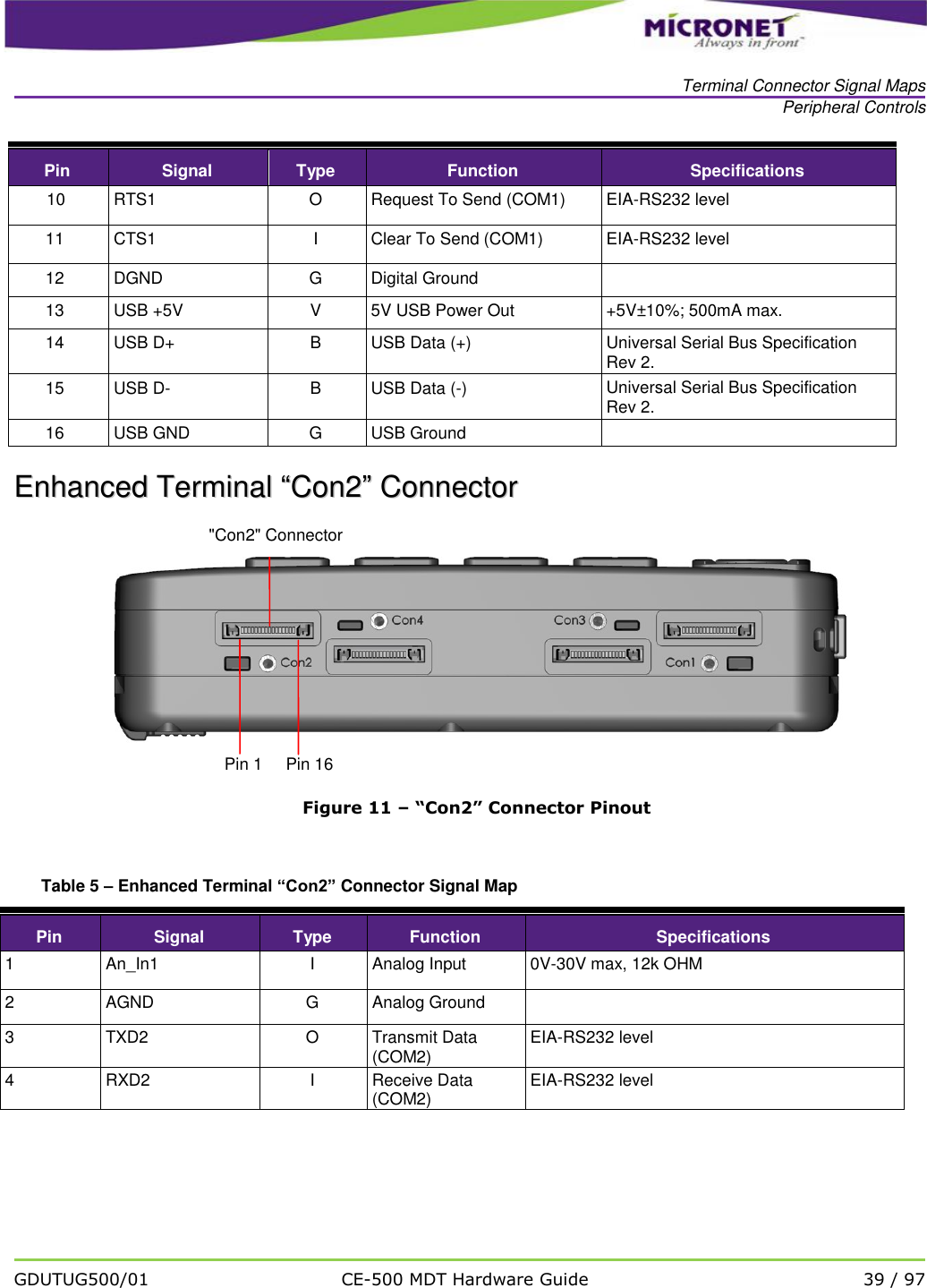
  Terminal Connector Signal Maps Peripheral Controls   GDUTUG500/01 CE-500 MDT Hardware Guide 39 / 97  Pin Signal Type Function Specifications 10 RTS1  O Request To Send (COM1) EIA-RS232 level 11 CTS1  I Clear To Send (COM1) EIA-RS232 level 12 DGND G Digital Ground  13 USB +5V V 5V USB Power Out +5V±10%; 500mA max. 14 USB D+ B USB Data (+) Universal Serial Bus Specification Rev 2. 15 USB D- B USB Data (-) Universal Serial Bus Specification Rev 2. 16 USB GND G USB Ground  EEnnhhaanncceedd  TTeerrmmiinnaall  ““CCoonn22””  CCoonnnneeccttoorr   Figure 11 – “Con2” Connector Pinout  Table 5 – Enhanced Terminal “Con2” Connector Signal Map Pin Signal Type Function Specifications 1 An_In1 I Analog Input 0V-30V max, 12k OHM 2 AGND G Analog Ground  3 TXD2  O Transmit Data (COM2) EIA-RS232 level 4 RXD2  I Receive Data (COM2) EIA-RS232 level     Pin 1     Pin 16 "Con2" Connector
  Terminal Connector Signal Maps Peripheral Controls   GDUTUG500/01 CE-500 MDT Hardware Guide 40 / 97  Pin Signal Type Function Specifications 5 Dallas I/O One-Wire Interface. (DALLAS ID Button Interface) Port  6 Dig_In2 I Digital Input 2                                Typical       Min   Max Input Low: VIL 0V       -30V   6V Input High: VIH 12V-24V      +8V   +30V 7 M_Control 2 -- Micronet accessories control signal This signal is for Micronet embedded accessories control purposes only. Do not connect anything to this pin. 8 M_Control 3 -- Micronet accessories control signal This signal is for Micronet-embedded accessory-control purposes only. Do not connect anything to this pin. 9 M_Control 4 -- Micronet accessories control signal This signal is for Micronet-embedded accessory-control purposes only. Do not connect anything to this pin. 10 M_Control 5 -- Micronet accessories control signal This signal is for Micronet-embedded accessory-control purposes only. Do not connect anything to this pin. 11 M_Control 6 -- Micronet accessories control signal This signal is for Micronet-embedded accessory-control purposes only. Do not connect anything to this pin. 12 DGND G Digital Ground  13 LAN_TX+ I Optional – Ethernet LAN Transmit Data + IEEE 802 3/802 3u Standards 14 LAN_TX- I Optional – Ethernet LAN Transmit Data - IEEE 802 3/802 3u Standards 15 LAN_RX+ O Optional – Ethernet LAN Receive Data + IEEE 802 3/802 3u Standards 16 LAN_RX- O Optional – Ethernet LAN Receive Data - IEEE 802 3/802 3u Standards
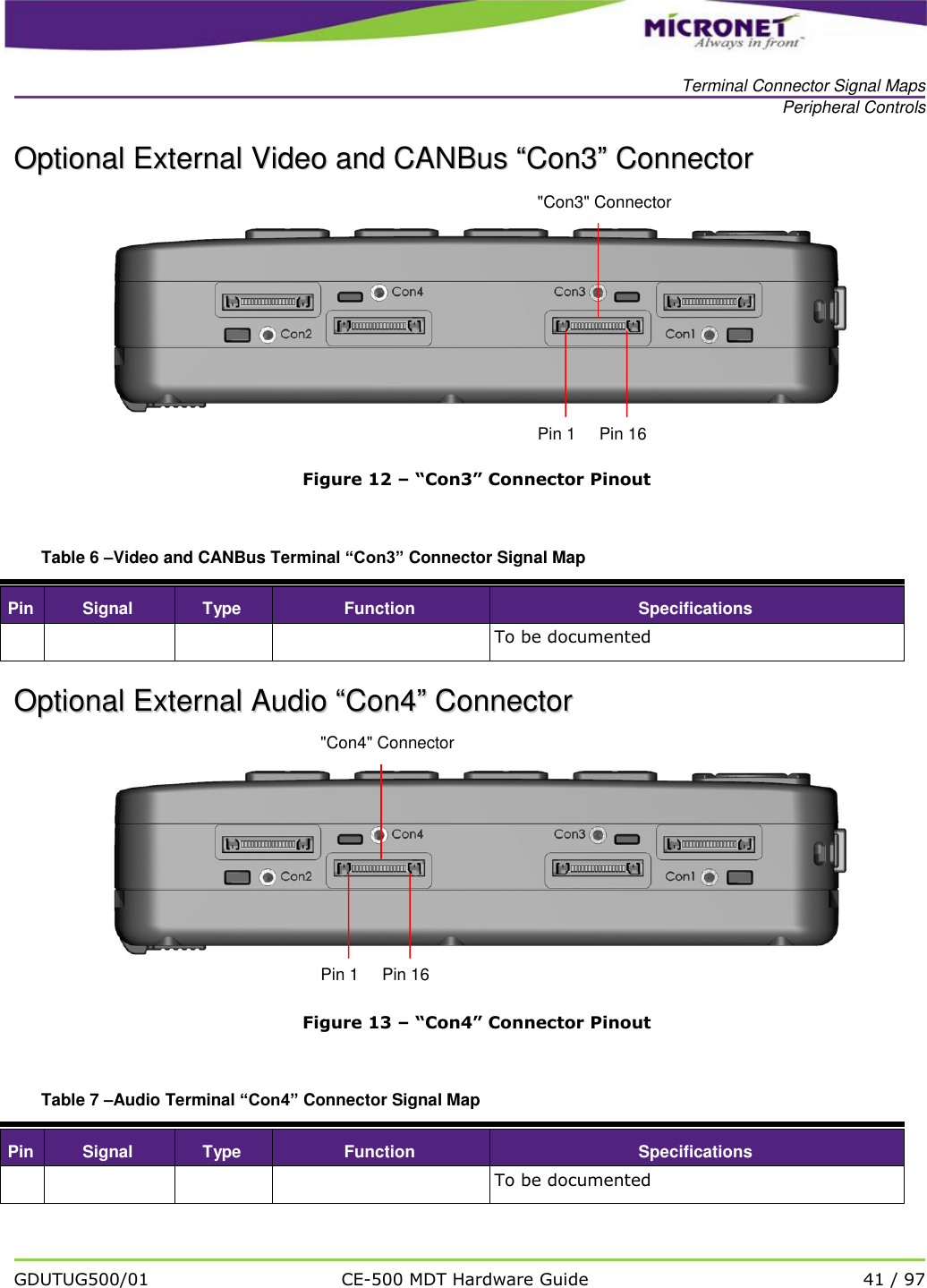
  Terminal Connector Signal Maps Peripheral Controls   GDUTUG500/01 CE-500 MDT Hardware Guide 41 / 97  OOppttiioonnaall  EExxtteerrnnaall  VViiddeeoo  aanndd  CCAANNBBuuss  ““CCoonn33””  CCoonnnneeccttoorr   Figure 12 – “Con3” Connector Pinout  Table 6 –Video and CANBus Terminal “Con3” Connector Signal Map Pin Signal Type Function Specifications     To be documented OOppttiioonnaall  EExxtteerrnnaall  AAuuddiioo  ““CCoonn44””  CCoonnnneeccttoorr   Figure 13 – “Con4” Connector Pinout  Table 7 –Audio Terminal “Con4” Connector Signal Map Pin Signal Type Function Specifications     To be documented     Pin 1     Pin 16 "Con3" Connector     Pin 1     Pin 16 "Con4" Connector
  Platform Power Peripheral Controls   GDUTUG500/01 CE-500 MDT Hardware Guide 42 / 97  44    PPllaattffoorrmm  PPoowweerr  OOvveerrvviieeww  The CE-50X device is powered by a 5V DC power source. The device power-in signals (+VIN and GND) are connected in parallel to two entities: 55VV  PPoowweerr--iinn  ccoonnnneeccttoorr  Located on the device right side panel  Figure 14 – Device 5V Power-in connector  MMaaiinn  TTeerrmmiinnaall  ““CCoonn11””  55VV  ppoowweerr  ccoonnnneeccttoorr  Located on the device bottom panel 5V Power-in connector
  Platform Power Peripheral Controls   GDUTUG500/01 CE-500 MDT Hardware Guide 43 / 97   Figure 15 –Device Main Terminal “Con1” connector  The platform provides various accessories that enable direct connection of the device to the 12V or 24V vehicle battery. During application development or when the device is performing in the Stand-alone mode, the device can be powered through the Power-in connector by Wall (110V / 220V AC to 5V DC) or Vehicle Cigarette Lighter (12V / 24V DC to 5V DC) power adaptors.  For Wall Power Adaptor specifications, see IDC Connector, on page 67.  For Vehicle Cigarette-Lighter power-adaptor cable specifications, see , on page 69.  When the device is mainly fixed-mounted in the vehicle or connected to the solution peripherals, the device can be powered through the Terminal Connector, by the Main Interface Accessory cable, or through the device Cradle when the device is portable. For the disposition map of the device’s Power-In signals on Main Terminal “Con1” Connector, see page 38.  VVeehhiiccllee  BBaatttteerryy  CCoonnnneeccttiioonn  The CE-50X device can be directly connected to the vehicle battery using the Device Cradle or Main Interface accessory cable. The supported nominal battery voltage supply is 12V or 24V DC. The operating range is between 8V to 30V DC.   NOTE: The CE-50X device has no internal fuse, and therefore its connection to the vehicle's power source line must be protected by a 10A fuse. Additionally, a 4A fuse must be added to the power cable with an inline fuse holder for HHC / HHD blade-type fuses.  Main Terminal “Con1” connector
  Platform Power Peripheral Controls   GDUTUG500/01 CE-500 MDT Hardware Guide 44 / 97    WARNING! If you use a device that does not include the internal battery option, do not connect the terminal power to the ignition switch signal. In this case, you prevent uncontrolled power cut-offs, which may have a detrimental effect on the operating system.  The +Vin signals of the Cradle or Main Accessory cable Power Adaptor Box must be directly connected to the Vehicle battery. To properly setup power management, you must connect the Vehicle Ignition Switch signal to the digital input (In1) of the device. For more information about the power management architecture of the platform, see  Power Management on page 46.   WARNING! DO NOT USE another battery type!  Risk of explosion if an incorrect battery is used instead of the original battery supplied by Micronet. In the Fixed mount mode, the vehicle power connection requires the Main Accessory Cable connection. For the disposition of the +12V / 24V Vin and Ground signals on the Power–Adaptor-Box of the Main Accessory Cable, see Power-Adaptor-Box to +Vin Connector, on page 64. For the position +12V / 24V Vin and Ground signals on the Device Cradle, see +Vin Connector, on page 76.  NOTE: Connecting the power to the CE-50X device does not enable the device. Only pressing the Push key or signal rise on the device digital input 1, enables the device from the power-down state. If your solution requires device enabling consequently to the power connection, connect (shorten) the digital Input1 pin with the power-in signal. IInntteerrnnaall  BBaatttteerryy  ((OOppttiioonn))    The platform provides an internal battery pack option to:  Support the device functionality in the Portable mode  Provide power backup in main power source disconnect situations This option is categorized as a Modular Platform option so it can be included with the device upon delivery by Micronet as well as to be ordered separately. For more details about the Modular option architecture, see CE-500 Platform Optional Modules, on page 15.  3000 mAh Lithium-Polymer-based battery is available.
  Platform Power Peripheral Controls   GDUTUG500/01 CE-500 MDT Hardware Guide 45 / 97  The platform’s system manages automatic power management and battery recharging control to provide a most effective battery service. However, the developers of portable applications need to:  Consider the power limitations of this mode   Provide accurate management of significant power consumer features, such as: wireless communication interfaces, voice enabled solutions, and so on The operation time of the device while powered by the internal battery is directly dependent on the device configuration and application performance. Nevertheless, the estimated time of continued operation for standard applications is ~2 hours.    NOTE: The operating temperature range of the CE-50X device including the battery option is limited to 14 °F to 140 °F (-10°C to +60°C). The system automatically recognizes out-of-range situations and stops the operation to prevent battery degradation.  Micronet delivers the battery pack charged for 40% of capacity. In this case, the shelf lifetime of the pack is about six months. If you did not use the battery during this period, you must recharge the battery up to 40% of capacity again to continue the storage. CE-50X devices provide a software utility that charge the battery pack up to 40%. For more details on this utility, refer to the Internal Battery section of the Developers Guide. Before you begin to use the battery, you must to fully charge the battery pack by connecting a power source to the device until the End Of Charge indication. DDeevviiccee  PPoowweerr  CCoonnssuummppttiioonn    Table 8 – Device Current Consumption Parameter Table  Operation Mode CE-504 Model - Current Consumption CE-507 Model - Current Consumption Shut-down To be documented To be documented Suspend To be documented To be documented Idle (no application activity) To be documented To be documented Active (with full backlight and wireless communication) To be documented To be documented Maximum To be documented To be documented
  Power Management Overview   GDUTUG500/01 CE-500 MDT Hardware Guide 46 / 97  55    PPoowweerr  MMaannaaggeemmeenntt  OOvveerrvviieeww    The CE-500 system provides smart power management during the device operation. The power management capabilities include power states management, performance adjustment, automatic backlight, and additional power consumer control.  Using the power management capabilities is especially helpful when the device is powered by the internal battery or connected to the vehicle battery while the ignition switch is off. Most of this functionality is transparent to application developers. However, the rest is configurable and the developer can adjust it for specific usages. For more information on the CE-500 platform power-management architecture, refer to “Power Management” section in the Developers Guide. The OS registry can be resets to factory defaults. For more information on setting the registry to factory default, refer to "Setting Registry to factory default" paragraph below. The Flash memory storage partition can be formatted. For more information on formatting the Flash memory storage, refer to "Formatting flash Memory Storage" paragraph below. UUnnddeerrssttaannddiinngg  PPoowweerr  SSttaatteess  The following states explain characteristics of the power states and events that trigger the device to enter to, and exit from, each state. SSuussppeenndd  Developers can define whether or not the device switches to the Suspend state upon pressing the Accept button using the Control Panel. State characteristics:
  Power Management Understanding Power States   GDUTUG500/01 CE-500 MDT Hardware Guide 47 / 97   Registry is flushed, settings are preserved  RTC is alive  Memory allocation is preserved  Triggers to Enter the State:  Pressing and holding Accept key for 3 seconds  Calling the API function   System Power management timeouts   Triggers to Exit the State:  Pressing Push key  RTC alarm notification  Digital Input 1 signal   Inserting the device to cradle   NOTE: These events resume all processes from the same point when the device switched to Suspended.       Figure 16 – Device manual software Suspend SShhuuttddoowwnn  Developers can define whether or not the device switches to the Shutdown state upon pressing the Decline button using the Control Panel.
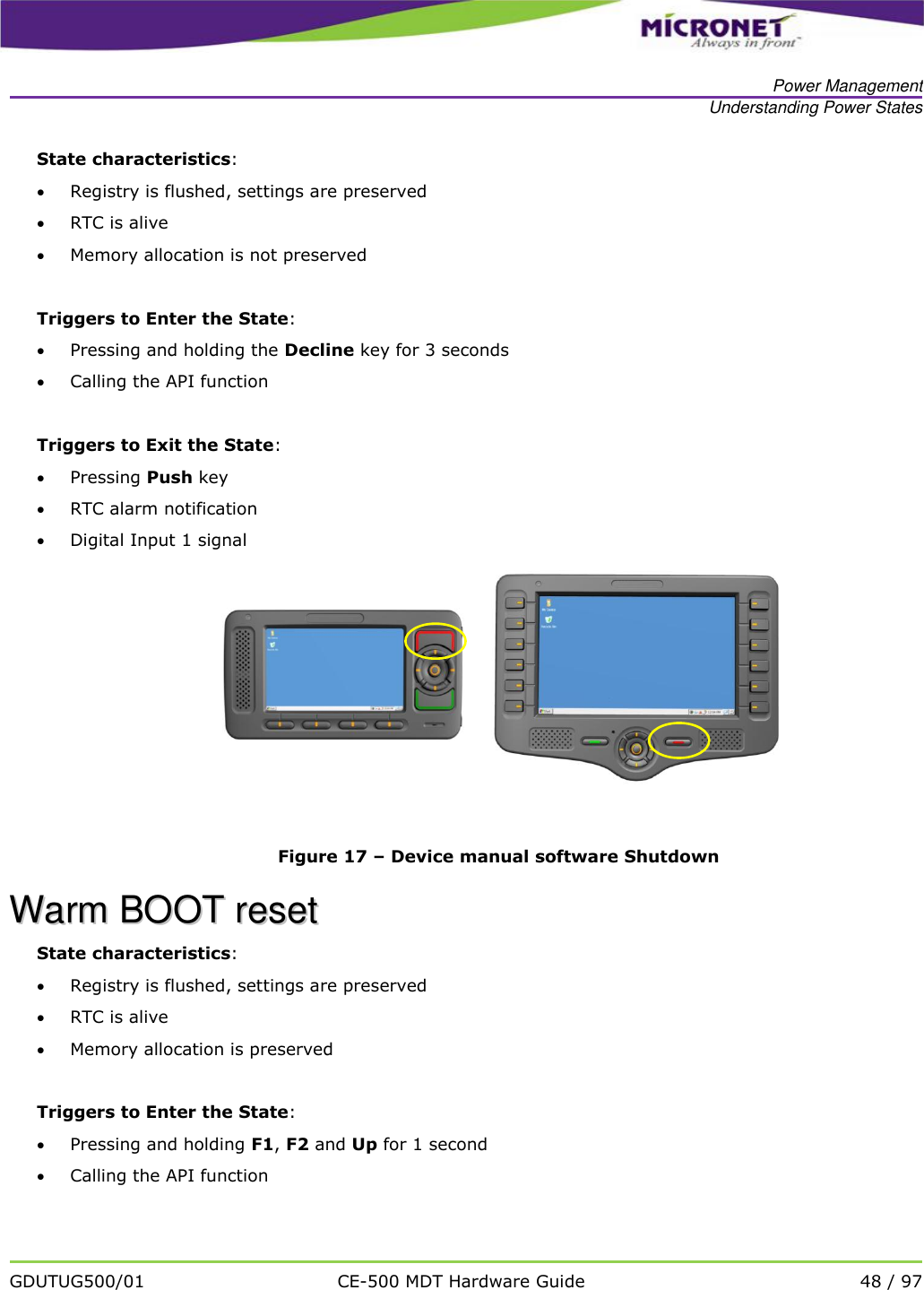
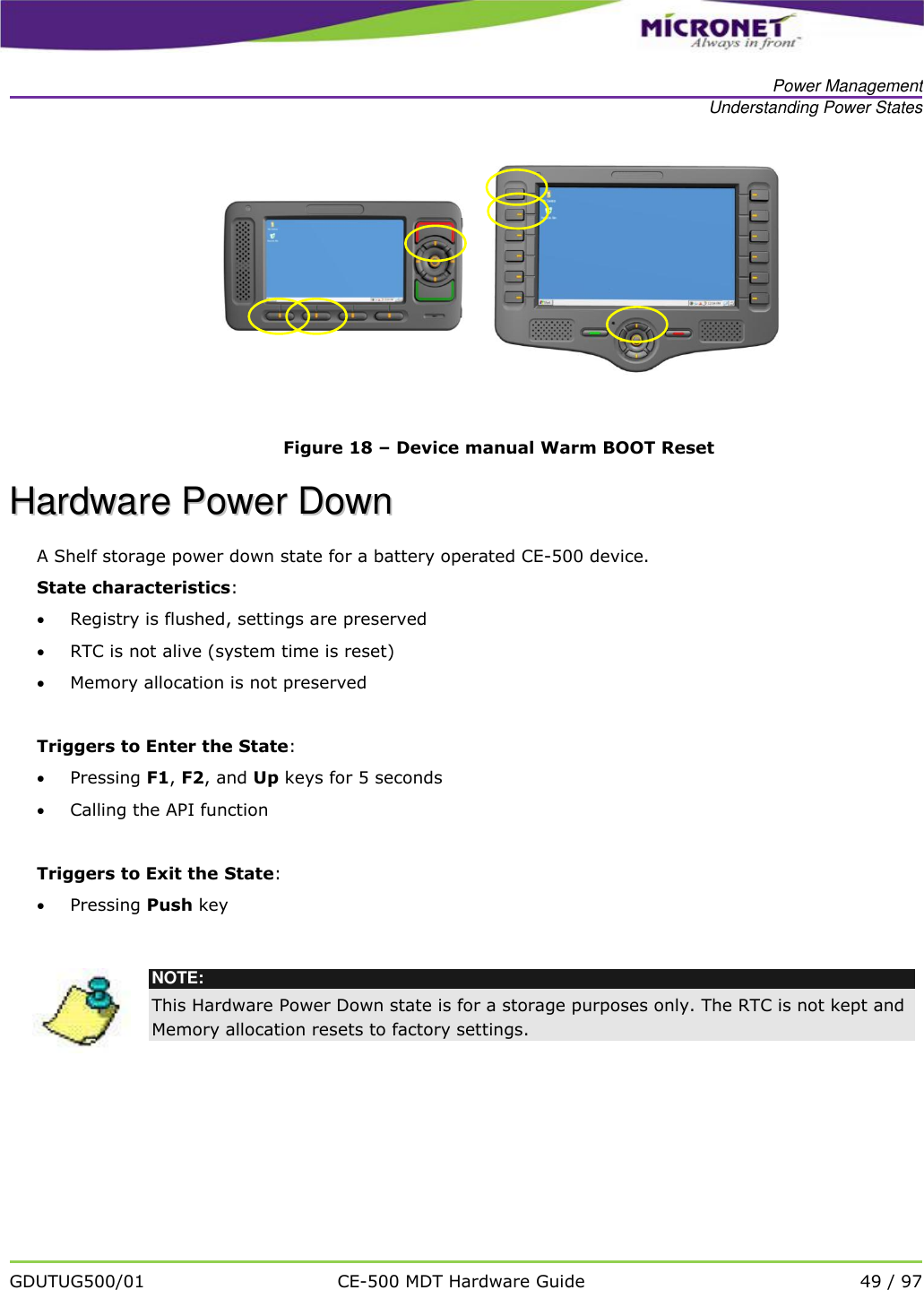
  Power Management Understanding Power States   GDUTUG500/01 CE-500 MDT Hardware Guide 48 / 97  State characteristics:  Registry is flushed, settings are preserved  RTC is alive  Memory allocation is not preserved  Triggers to Enter the State:  Pressing and holding the Decline key for 3 seconds  Calling the API function   Triggers to Exit the State:  Pressing Push key  RTC alarm notification  Digital Input 1 signal       Figure 17 – Device manual software Shutdown WWaarrmm  BBOOOOTT  rreesseett  State characteristics:  Registry is flushed, settings are preserved  RTC is alive  Memory allocation is preserved  Triggers to Enter the State:  Pressing and holding F1, F2 and Up for 1 second  Calling the API function
  Power Management Understanding Power States   GDUTUG500/01 CE-500 MDT Hardware Guide 49 / 97       Figure 18 – Device manual Warm BOOT Reset HHaarrddwwaarree  PPoowweerr  DDoowwnn  A Shelf storage power down state for a battery operated CE-500 device. State characteristics:  Registry is flushed, settings are preserved  RTC is not alive (system time is reset)  Memory allocation is not preserved  Triggers to Enter the State:  Pressing F1, F2, and Up keys for 5 seconds  Calling the API function   Triggers to Exit the State:  Pressing Push key    NOTE: This Hardware Power Down state is for a storage purposes only. The RTC is not kept and Memory allocation resets to factory settings.
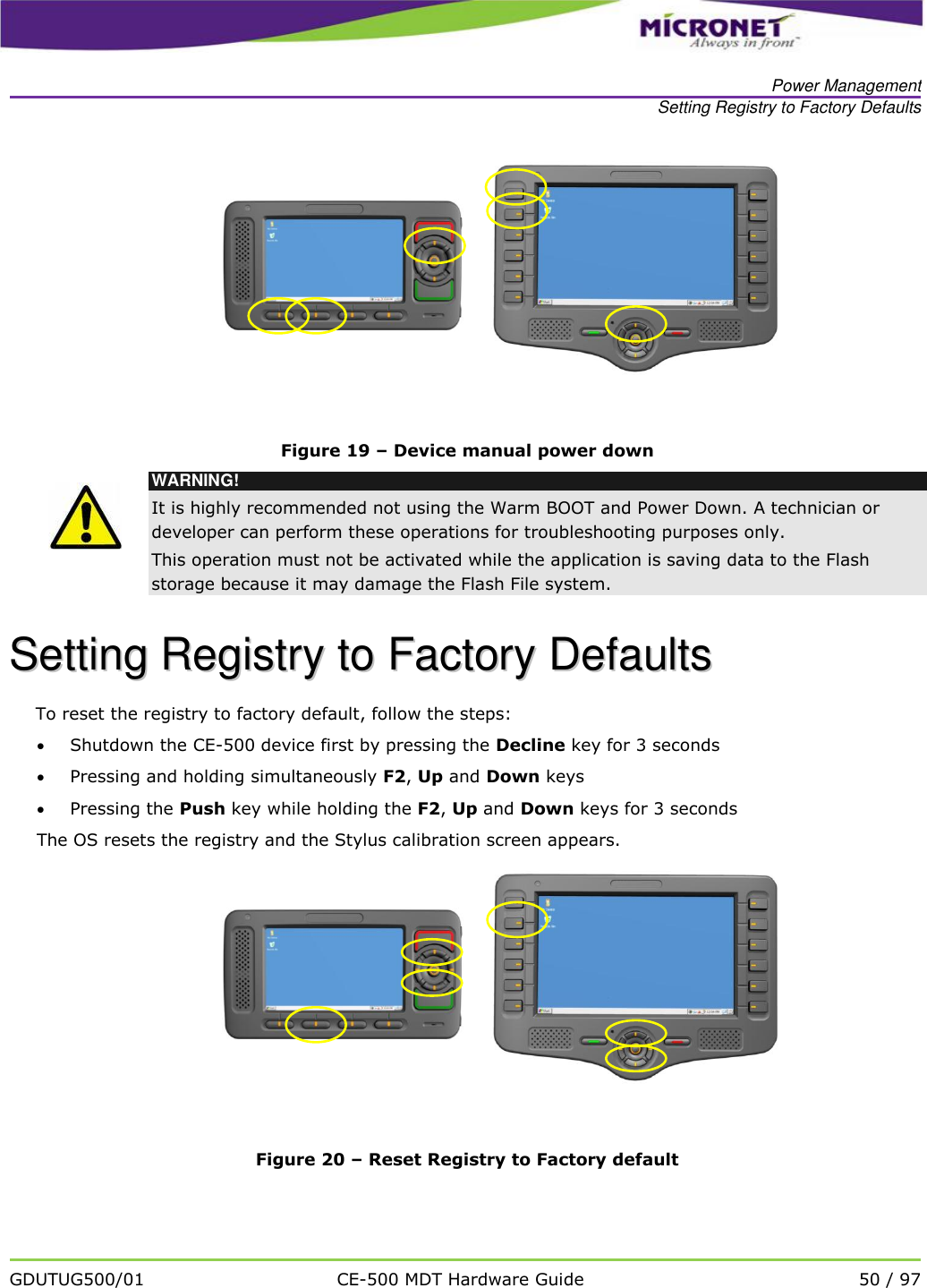
  Power Management Setting Registry to Factory Defaults   GDUTUG500/01 CE-500 MDT Hardware Guide 50 / 97       Figure 19 – Device manual power down  WARNING! It is highly recommended not using the Warm BOOT and Power Down. A technician or developer can perform these operations for troubleshooting purposes only. This operation must not be activated while the application is saving data to the Flash storage because it may damage the Flash File system. SSeettttiinngg  RReeggiissttrryy  ttoo  FFaaccttoorryy  DDeeffaauullttss  To reset the registry to factory default, follow the steps:  Shutdown the CE-500 device first by pressing the Decline key for 3 seconds  Pressing and holding simultaneously F2, Up and Down keys  Pressing the Push key while holding the F2, Up and Down keys for 3 seconds The OS resets the registry and the Stylus calibration screen appears.      Figure 20 – Reset Registry to Factory default
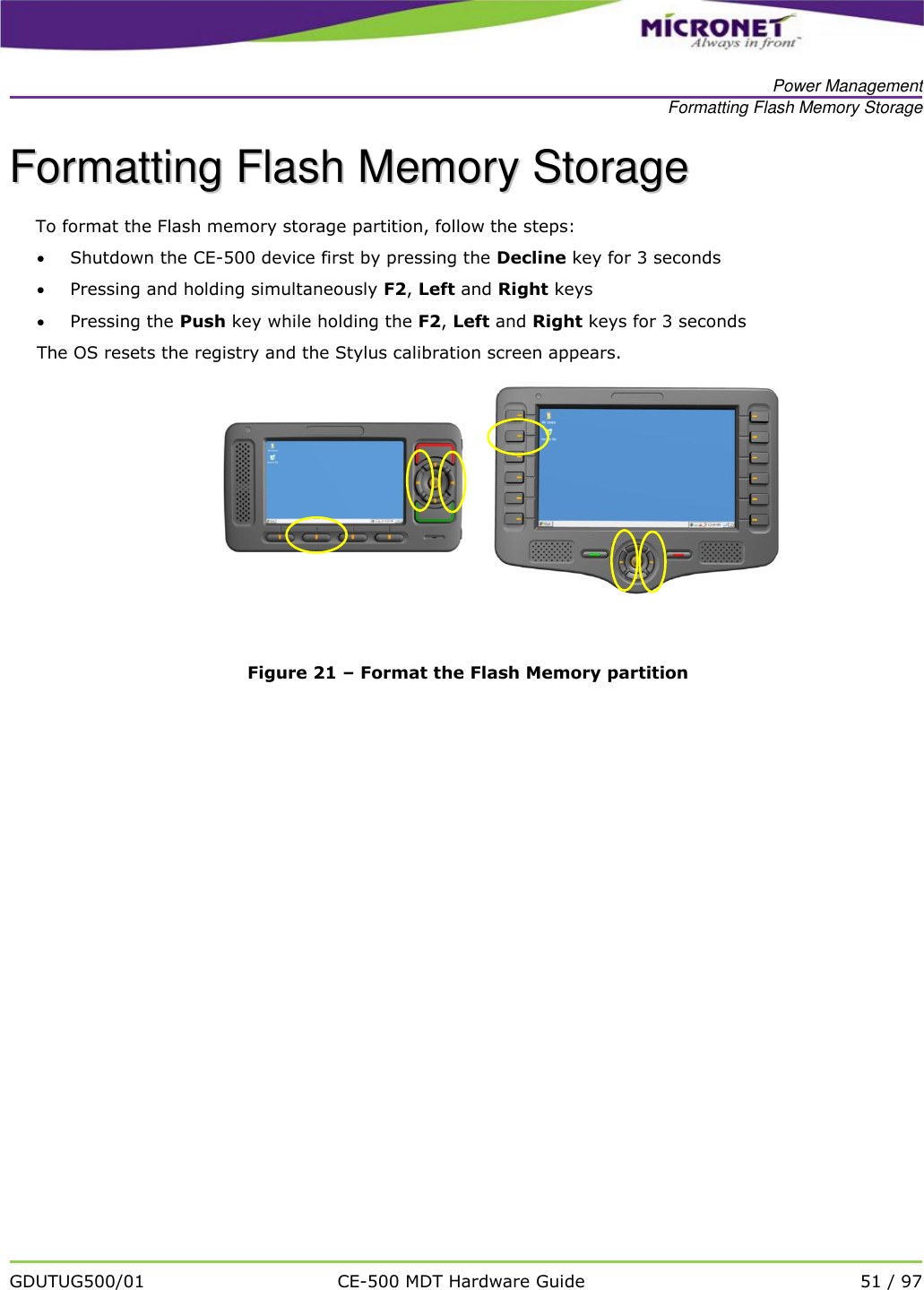
  Power Management Formatting Flash Memory Storage   GDUTUG500/01 CE-500 MDT Hardware Guide 51 / 97  FFoorrmmaattttiinngg  FFllaasshh  MMeemmoorryy  SSttoorraaggee  To format the Flash memory storage partition, follow the steps:  Shutdown the CE-500 device first by pressing the Decline key for 3 seconds  Pressing and holding simultaneously F2, Left and Right keys  Pressing the Push key while holding the F2, Left and Right keys for 3 seconds The OS resets the registry and the Stylus calibration screen appears.      Figure 21 – Format the Flash Memory partition
  Optional Feature Modules Overview   GDUTUG500/01 CE-500 MDT Hardware Guide 52 / 97  66    OOppttiioonnaall  FFeeaattuurree  MMoodduulleess  OOvveerrvviieeww    Due to the specific mechanical and electronic architecture of the CE-500 device, many optional features are implemented as independent physical modules. You can either order these modules with the device or order them separately and install on an existing device later. Installation of modules requires basic technical skills and must be implemented according to Micronet instructions. For field installation of the CE-500 Optional Feature Modules Installation, see page 93. The optional direct interface modules require certain accessory cables for connection in the Fixed-device operation mode, or enhanced device cradle in the Fixed / Mobile operation mode. WWiirreelleessss  CCoommmmuunniiccaattiioonn    OOvveerrvviieeww    The CE-500 platform provides a variety of optional wireless communication modules that enable solution communication service, GPS position control, and peripheral-device support.  All wireless modules are provided with internal antennas. These antennas were specifically developed and tuned for the CE-500 device architecture. The antennas provide high sensitivity and performance for both in-vehicle environment and the portable device mode. GGSSMM  //  GGPPRRSS  The CE-500 platform provides an optional GSM / GPRS Cellular Modem module that enable wireless communication between the device and any server or back-office application.
  Optional Feature Modules Wireless Communication   GDUTUG500/01 CE-500 MDT Hardware Guide 53 / 97  Based on the Telit GE864-Quad Automotive embedded cellular modem, this module provides the following features:   Voice and data communication support  GPRS Multi-slot Class 10  Quad band 850 / 900 / 1800 / 1900 MHz   Output power: - Class4 (2W) @ 850 / 900 MHz - Class1 (1W) @ 1800 / 1900 MHz  Sensitivity: - 107 dBm @ 850 / 900 MHz - 106 dBm @ 1800 / 1900 MHz  Controlled via AT commands according to GSM 07.05, 07.07 and Telit enhancements  Serial port multiplexer (GSM 7.10) support The CE-500 system provides automatic GPRS communication management capabilities as well as direct access to the modem communication channel (AT commands) and control functions. For more details on GSM / GPRS communication software management, refer to the Developers Guide.  Developers can implement the voice functionality of the module using the integrated device speakers and microphone. In addition, developers can use the optional external audio module for external microphone and speaker connections. Bluetooth headset connection is supported for voice call implementation by the optional Bluetooth module of the CE-500 device. SSIIMM  ccaarrdd  sslloott  The internal modem option requires a SIM card connection. The SIM card slot is located on the left side panel of the device. Two types of SIM-card-slot mechanical covers are provided for card protection:  Rubber cover that allows the end-user access to the SIM card during operation  Plastic cover that prevents SIM card access from the end-user. Once inserted, after the SIM card installation it can only be broken (physically) by an external mechanical tool to expose the card.   NOTE: The GSM / GPRS option is a significant power consumer of the platform. If your solution requires Portable operation including cellular communication, consider the Enhanced battery option while specifying your device configuration.
  Optional Feature Modules Wireless Communication   GDUTUG500/01 CE-500 MDT Hardware Guide 54 / 97  GGPPSS  The CE-500 platform provides an optional GPS receiver module, which is especially suited for navigation applications and traffic reports.  Based on the u-Blox NEO-5D high-performance embedded-GPS receiver, this module features u-Blox SuperSense® Indoor GPS technology that offers unmatched tracking performance in harsh signal environments, such as parking lots and dense urban environments. The GPS module provides the following features:   50-channel u-Blox 5 engine with over 1 million effective correlators   Under 1 second Time-To-First-Fix for Hot and Aided Starts   Supports SBAS (WAAS, EGNOS, MSAS, GAGAN)  SuperSense® Indoor GPS: -160 dBm tracking sensitivity   Position Accuracy: - Autonomous       < 2.5 m - SBAS                 < 2.0 m  High immunity to jamming  Protocols support: - NMEA Input / output, ASCII, 0183, 2.3 (compatible to 3.0) - UBX Input / output, binary, u-Blox proprietary  Supports AssistNow Online and AssistNow Offline A-GPS services; OMA SUPL compliant  The GPS module designed to support the GALILEO system, which is currently being developed by European authorities. The capability of receiving GALILEO L1 signals will provide increased coverage and even better positioning accuracy.  The CE-500 system supports a Microsoft GPS locator engine for automatic GPS data management as well as direct access to the receiver communication port and control functions. For more details on GPS receiver software management, refer to the Developers Guide.
  Optional Feature Modules Wireless Communication   GDUTUG500/01 CE-500 MDT Hardware Guide 55 / 97  WWiirreelleessss  LLAANN  aanndd  BBlluueettooootthh  CCllaassss22  OOvveerrvviieeww    The CE-500 platform provides an optional combined Wireless Local Area Network (IEEE 802.11) and Bluetooth (Class2) communication module. The Wireless LAN communication is especially suited to high-speed data transfer over the air, when the Wireless LAN hotspot infrastructure is provided. For applications that require huge data transactions, Wireless LAN is the most economical way to implement the solution. Bluetooth communication is used for the Bluetooth-enabled connections with peripherals, such as mobile phone, audio headset, and printer. The CE-500 Wireless LAN and Bluetooth Class2 module adopts Marvell’s latest highly-integrated WLAN and Bluetooth SoC - 88W8688.   NOTE: The Wireless LAN and Bluetooth capability is a significant power consumer of the platform. If your solution requires Portable operation of the CE-500 device including cellular communication, consider the Enhanced battery option while specifying your device configuration.  WWiirreelleessss  LLAANN  OOppeerraattiioonn  The module is compliant with the IEEE 802.11b/g standard and uses DSSS (Direct Sequence Spread Spectrum), OFDM (Orthogonal Frequency Division Multiplexing), DBPSK, DQPSK, CCK, and QAM baseband modulation technologies. In addition to the support of WPA / WPA2, WEP 64-bit, and 128-bit encryption, the module supports the IEEE 802.11i security standard. The module supports this standard through the implementation of AES (Advanced Encryption Standard), CCMP (Counter Mode CBC-MAC Protocol), and WEP with TKIP security mechanisms.  The module also supports IPSec with DES / 3DES / ASE encryption and MD5 / SHA-1 authentication. For the Chinese market, the module supports WAPI specifications. For video, voice, and multimedia applications, the AW-GH381 supports 802.11e QoS (Quality of Service). BBlluueettooootthh  OOppeerraattiioonn  The module is Bluetooth 2.1+EDR (Enhanced Data Rate) compliant.
  Optional Feature Modules Wireless Communication   GDUTUG500/01 CE-500 MDT Hardware Guide 56 / 97  The CE-500 system supports the following Bluetooth communication profiles:  SPP [Service (Serial) Port Profile]   LAP (LAN Access Profile, applicable in professional license only)   PAN (Personal Area Networking) Profile   GAP (Generic Access Profile) TBD  GOEP (Generic Object Exchange Profile) TBD    HCRP (Hardcopy Cable Replacement Profile) TBD  DUN (Dial-Up Network) Profile TBD  FTP (File Transfer Profile) TBD  HID (Human Interface Device) Profile TBD  HFP (Hands-Free Profile) TBD  HSP (Headset Profile) TBD  OPP (Object Push Profile) TBD WWiirreelleessss  LLAANN  aanndd  BBlluueettooootthh  CCllaassss22  MMoodduullee  SSppeecciiffiiccaattiioonnss  Table 9 – Wireless LAN and Bluetooth Class2 Module Specifications Functions   Specifications WLAN Standard IEEE 802.11b/g, Wi-Fi compliant Bluetooth Standard Bluetooth 2.1+EDR (Enhanced Data Rate) Major Chipset Marvell 8688 Frequency Range 2.4 GHz ISM radio band Number of Channels -  802.11b: USA, Canada and Taiwan – 11 -  Most European Countries – 13 -  France – 4, Japan – 14 -  802.11g: USA, Canada and Taiwan – 11 -  Most European Countries – 13 -  Japan – 13 Modulation -  DSSS, OFDM, DBPSK, DQPSK, CCK, 16-    QAM, 64-QAM for WLAN -  GFSK (1Mbps), Π/4 DQPSK (2Mbps) and     8DPSK (3Mbps) for Bluetooth Output Power WLAN: -  802.11b(Ch1~13): typical 15dBm +/- 2dBm -  802.11b(Ch14): typical 10dBm +/- 2dBm -  802.11g: typical 12dBm +/- 2dBm
  Optional Feature Modules Peripheral Interfaces   GDUTUG500/01 CE-500 MDT Hardware Guide 57 / 97  Functions   Specifications  Bluetooth: -  Bluetooth Class 2: typical 1dBm+/- 2dBm Receive Sensitivity WLAN: -  802.11b: typical -87dBm at 11Mbps -  802.11g: typical -70dBm at 54Mbps Bluetooth: -  GFSK: typical -87dBm -  Π/4 DQPSK: typical -88dBm -  8DPSK: typical -81dBm Medium Access Protocol CSMA / CA with ACK Data Rates WLAN: -  802.11b: 1, 2, 5.5, 11Mbps -  802.11g: 6, 9, 12, 18, 24, 36, 48, 54Mbps Bluetooth: -  Bluetooth 2.1+EDR data rates of 1,2, and     3Mbps Operating Range -  Open Space: ~300m; indoor: ~100m for      WLAN -  Minimum 10m indoor for Bluetooth -  The transmission speed may vary according     to environment Security   -  WEP 64-bit and 128-bit encryption with      H/W TKIP processing   -  WPA / WPA2 (Wi-Fi Protected Access)   -  AES-CCMP hardware implementation as     part of 802.11i security standard Co-Existence Bluetooth and cell phone (GSM / DCS / WCDMA / UMTS / 3G) co-existence PPeerriipphheerraall  IInntteerrffaacceess  CCAANNBBuuss  ((JJ11993399))  To be documented EExxtteerrnnaall  AAuuddiioo  MMoodduullee  To be documented
  Optional Feature Modules Additional Integrated Options   GDUTUG500/01 CE-500 MDT Hardware Guide 58 / 97  EExxtteerrnnaall  VViiddeeoo  MMoodduullee  To be documented AAddddiittiioonnaall  IInntteeggrraatteedd  OOppttiioonnss  AAcccceelleerroommeetteerr  To be documented
  Platform Accessories Accessory Cables   GDUTUG500/01 CE-500 MDT Hardware Guide 59 / 97  77    PPllaattffoorrmm  AAcccceessssoorriieess  AAcccceessssoorryy  CCaabblleess  Optionally, the CE-500 platform provides accessory cables for connection of device signals in the Fixed-mounted operation mode. All cables are connected to device terminal connectors, which are located on the bottom panel. All of these cables use the same type of a connector.  However a mechanical “key“ is implemented on each connector cover to prevent the connection of an incorrect cable to an incorrect device connector. A mechanical cable fixing option supported by the screw inserts is located near each terminal connector. Main and Enhanced accessory cables support connectivity of signals that are provided by the basic device configuration. Therefore, these connectors always exist on the device panel. Additional accessory cables are used to support optional platform features and require the relevant optional device module.  The pinout and types of the interface connectors provided by the accessory cables are similar to those for the CE-500 Device Cradle (they both have the same purposes).  In addition to the interfaces that require the standard type of connector (such as USB and Ethernet), the remaining device signals are implemented on the cables or the Cradle by Molex Micro-Fit 3.0™ Plug type of connectors. For implementing the connectivity, use the opposite (receptacle) type of connector with the relevant amount of pins for each peripheral interface. This is the Molex 43025 Series type of connector. Use the Molex Micro-Fit 3.0™ Crimp Terminal Female for the wiring. Ensure that the correct wire size (AWG) for each signal is according to the requirements of the cable-connector Signal Maps specifications.   Type for all Device connectors of accessory cables – Molex HandyLink™ I/O Interconnect System   Molex part number – 0453391600
  Platform Accessories Accessory Cables   GDUTUG500/01 CE-500 MDT Hardware Guide 60 / 97    Figure 22 – Terminal Connector Pinout   NOTE: The device terminal connectors are located at different rotation angles. All shield pins of the connectors are attached to the Ground signal. The length of each accessory cable is 1.5 meter.   Figure 23 – Accessory Connectors, Bottom Panel  For more information on CE-500 front panel components, see:  Main Interface Cable, on page 61  Enhanced Interface Cable, on page 65  Video and CANBus Interface Cable, on page 67  Audio Interface Cable, on page 67  Cable mounting screw inserts, on page 59 Video and CANBus Interface Cable Audio Interface Cable Cable mounting screw inserts Main Interface Cable Enhanced Interface Cable
  Platform Accessories Accessory Cables   GDUTUG500/01 CE-500 MDT Hardware Guide 61 / 97  MMaaiinn  IInntteerrffaaccee  CCaabbllee  The Main interface cable must be attached to the “Con1” terminal connector of the device. This cable is provided with an integrated power adaptor box. This box converts the vehicle 12V or 24V power signal to 5V, as required by the device.    Figure 24 – Main Interface Cable    MMaaiinn  IInntteerrffaaccee  CCaabbllee  CCoonnnneeccttoorrss  SSiiggnnaall  MMaapp  CCOOMM11  CCoonnnneeccttoorr  Connector type - Molex Micro-Fit 3.0™ 6 pin plug   Figure 25 – COM1 Connector Pinout Table 10 – Main Interface Cable COM1 Connector Signal Map COM1 PWR USB Device connector
  Platform Accessories Accessory Cables   GDUTUG500/01 CE-500 MDT Hardware Guide 62 / 97  Pin Signal Function Wire Size  (AWG) Required 1 TXD1 Transmit Data (COM1) 28 2 RTS1 Request To Send (COM1) 28 3 DGND Digital Ground 28 4 RXD1 Receive Data (COM1) 28 5 CTS1 Clear To Send (COM1) 28 6 N/C Not connected  UUSSBB  CCoonnnneeccttoorr    Connector type - USB type-A female  Figure 26 – Main Interface Cable USB Connector Pinout Table 11 – USB Connector Signal Map  Pin Signal Function 1 USB +5V 5V USB Power Out 2 USB D+ USB Data (+) 3 USB D- USB Data (-) 4 USB GND USB Ground PPoowweerr--AAddaappttoorr--BBooxx  CCoonnnneeccttoorr     WARNING! The Power-Adaptor-Box connector on the main cable interface must be connected only to the power adaptor box. Do not connect anything else to these signals!
  Platform Accessories Accessory Cables   GDUTUG500/01 CE-500 MDT Hardware Guide 63 / 97   Figure 27 – Power-Adapter-Box Connector Pinout PPoowweerr  AAddaappttoorr  BBooxx    The power adaptor box converts the 12V/24V power signal to 5V DC, which the device's main cable accepts.        Figure 28 – Power Adapter Box  WARNING! Metal 'Power Adapter Box' is installed for installation in a restricted access location. PPoowweerr--AAddaappttoorr--BBooxx  ttoo  CCEE--550000  CCoonnnneeccttoorr     WARNING! Only the Power-Adaptor-Box Connector of the main interface cable must be attached to this connector. Do not connect anything else to these signals.
  Platform Accessories Accessory Cables   GDUTUG500/01 CE-500 MDT Hardware Guide 64 / 97   Figure 29 – Power-Adapter-Box to MDT Connector  PPoowweerr--AAddaappttoorr--BBooxx  ttoo  ++VViinn  CCoonnnneeccttoorr    IMPORTANT The 12V or 24V and Ground signals of the vehicle battery and the ignition switch signal must be attached to this connector. Connector type - Molex Micro-Fit 3.0™ 4 pin plug  Figure 30 – Power-Adapter-Box to MDT Connector Pinout Table 12 – Power Adaptor Box +Vin Connector Signal Map Pin Signal Type Function Specifications Wire Size (AWG) Required 1 Dig_In1 I Digital Input 1 (Ignition switch)                              Typical   Min    Max  Input Low: VIL      0V           -30V   6V  Input High: VIH     12V-24V  +8V +30V 28 2 Dig_Out1 O Digital Output 1 Open Collector Max. switchable current = 300mA Max. switchable voltage = +VIN Max. saturation voltage = 0.6V 28 3 GND G MDT Power Supply Ground  24 4 +VIN V MDT Power Supply Voltage Typical           Min      Max  +12V / 24V     +8V      +30V 24
  Platform Accessories Accessory Cables   GDUTUG500/01 CE-500 MDT Hardware Guide 65 / 97  EEnnhhaanncceedd  IInntteerrffaaccee  CCaabbllee  The Enhanced interface cable must be attached to the “Con2” terminal connector of the device.   Figure 31 – Enhanced Interface Cable  EEnnhhaanncceedd  IInntteerrffaaccee  CCaabbllee  ccoonnnneeccttoorrss  SSiiggnnaall  MMaapp  CCOOMM22  CCoonnnneeccttoorr  Connector type - Molex Micro-Fit 3.0™ 8 pin plug  Figure 32 – Enhanced Interface Cable COM2 Connector Pinout Table 13 – Enhanced Interface Cable COM2 Connector Signal Map Pin Signal Function Wire Size (AWG) Required 1 TXD2 Transmit Data (COM2) 28 2 Dallas One-Wire Interface. (DALLAS ID Button Interface) Port 28 COM2 Reserved LAN Device connector
  Platform Accessories Accessory Cables   GDUTUG500/01 CE-500 MDT Hardware Guide 66 / 97  Pin Signal Function Wire Size (AWG) Required 3 Dig_In2 Digital Input 2 28 4 N/C Not connected  5 RXD2 Receive Data (COM2) 28 6 DGND Digital Ground 28 7 An_In1 Analog Input 28 8 AGND Analog Ground 28 LLAANN  CCoonnnneeccttoorr      NOTE: The Ethernet LAN interface is an optional platform feature. The interface signals described below present on this connector only if the device supports these signals. Otherwise, the connector pins are not connected and must not be used. Connector type –RJ45  Figure 33 – Enhanced Interface Cable LAN Connector Pinout Table 14 – Enhanced Interface Cable LAN Connector Signal Map Pin Signal Function Wire Size (AWG) Required 1 LAN_TX+ Ethernet LAN Transmit Data + 24 2 LAN_TX- Ethernet LAN Transmit Data - 24 3 LAN_RX+ Ethernet LAN Receive Data + 24 4 N/C Not connected
  Platform Accessories Power Supply adaptors   GDUTUG500/01 CE-500 MDT Hardware Guide 67 / 97  Pin Signal Function Wire Size (AWG) Required 5 N/C Not connected  6 LAN_RX- Ethernet LAN Receive Data - 24 7 N/C Not connected  8 N/C Not connected  MM__CCoonnttrrooll11  CCoonnnneeccttoorr  This connector can only be used for the specified Micronet-accessory devices connection. Do not connect anything else to these signals.   Figure 34 – M_Control1 Connector Pinout VViiddeeoo  aanndd  CCAANNBBuuss  IInntteerrffaaccee  CCaabbllee  To be documented AAuuddiioo  IInntteerrffaaccee  CCaabbllee  To be documented PPoowweerr  SSuuppppllyy  aaddaappttoorrss  IIDDCC  CCoonnnneeccttoorr    An IDC connector wall power supply adapter (110V / 220V AC to 5V DC) for connecting to the CE-500 5V power-in connector on the right panel slot (For office usage, available in DTK only).
  Platform Accessories    GDUTUG500/01 CE-500 MDT Hardware Guide 68 / 97   Figure 35 – IDC Wall mount adapter  NOTE: External power Charger for the unit must be LPS(Limited power sources).  MMoolleexx  4433002255  SSeerriieess  CCoonnnneeccttoorr  A Molex 43025 series connector wall power supply adapter (110V / 220V AC to 12V DC) for connecting to the CE-500 Main Interface cable DC to DC convertor, or to the Basic and Enhanced Cradle models (For office usage, available in DTK only).  Figure 36 – Molex 43025 connector Wall mount adapter   NOTE: External power Charger for the unit must be LPS(Limited power sources).
  Platform Accessories    GDUTUG500/01 CE-500 MDT Hardware Guide 69 / 97  IInntteerrffaaccee  SSuuppppoorrtt  JJ11770088  CCoonnvveerrttoorr  BBooxx  To be documented RRSS--442222  CCoonnvveerrttoorr  BBooxx  To be documented
  Device Cradle Overview   GDUTUG500/01 CE-500 MDT Hardware Guide 70 / 97  88    DDeevviiccee  CCrraaddllee  OOvveerrvviieeww  Optionally, the CE-500 platform provides the Device Cradle. The Cradle is used for mechanical mounting and electronic connectivity of the device in solutions that require Fixed and Portable operations. The Device Cradle is fixed-mounted in a vehicle cabin, and all electronic interfaces are connected to the Cradle “Interface” connectors, which are located on the rear panel. All signals connected to Cradle ”Interface” connectors are transparently connected to the Cradle “Device” connectors, which correctly meet the device's “Terminal” connectors when the device is placed in the Cradle. When the device is removed from the Cradle, the device can continue to operate using the internal battery. However, the device loses connectivity to the Cradle interface connections.  Two models of the Device Cradle are available:  Basic, which provides two Cradle “Device” “Con1” and “Con2” connectors with the correct “Interface” connectors. The Basic model supports all interface connections provided with the basic configuration of the CE-500 device.  Enhanced, which provides additional “Device” “Con3” and “Con4” connectors with the relevant “Interface” connectors that support additional optional features of the device. These optional features are required for implementing the additional interfaces. The CE-500 Device Cradle supports both CE-504 and CE-507 device models.   NOTE: The pinout and types of interface connectors that are provided with the Device Cradle are similar to those for the same purposes by the relevant CE-500 Accessory Cable.  For the Device Cradle Electrical and Mechanical installation instructions, see Device Installation on page 83.
  Device Cradle CE-500 Device Basic Cradle Components   GDUTUG500/01 CE-500 MDT Hardware Guide 71 / 97  CCEE--550000  DDeevviiccee  BBaassiicc  CCrraaddllee  CCoommppoonneennttss    Figure 37 – CE-500 Device Basic Cradle, Front Side For more information on Basic Cradle front panel components, see:  Main Terminal “Con1” Connector, on page 38  Enhanced Terminal “Con2” Connector, on page 39  Release knob and Lock snap, on page 91   Release knob  Main Terminal “Con1” Connector Lock snap Enhanced Terminal “Con2” Connector
  Device Cradle CE-500 Device Basic Cradle Components   GDUTUG500/01 CE-500 MDT Hardware Guide 72 / 97   Figure 38 – CE-500 Device Basic Cradle, Rear Panel For more information on Basic Cradle rear panel components, see:  +Vin Connector, on page 76  LAN connector, on page 78  COM1 Connector, on page 76  USB Connector, on page 77  COM2 Connector ,on page 78  Mounting Arm screw inserts, on page 85 +Vin Connector  COM1 Connector USB Connector Mounting Arm screw inserts Cables holding handle Release knob  M_Control1 Connector COM2 Connector  LAN connector
  Device Cradle CE-500 Device Enhanced Cradle Components   GDUTUG500/01 CE-500 MDT Hardware Guide 73 / 97  CCEE--550000  DDeevviiccee  EEnnhhaanncceedd  CCrraaddllee  CCoommppoonneennttss   Figure 39 – CE-500 Device Enhanced Cradle, Front Side For more information on Enhanced Cradle front panel components, see:  Main Terminal “Con1” Connector, on page 38  Enhanced Terminal “Con2” Connector, on page 39  Optional External Video and CANBus “Con3” Connector, on page 41  Optional External Audio “Con4” Connector, on page 41  Release knob and Lock snap, on page 91  Enhanced Terminal “Con2” Connector Optional External Audio “Con4” Connector Optional External Video and CANBus “Con3” Connector Lock snap Release knob  Main Terminal “Con1” Connector
  Device Cradle CE-500 Device Enhanced Cradle Components   GDUTUG500/01 CE-500 MDT Hardware Guide 74 / 97   Figure 40 – CE-500 Device Enhanced Cradle, Rear Panel For more information on Enhanced Cradle rear panel components, see:  +Vin Connector, on page 76  LAN connector, on page 78  COM1 Connector, on page 76 COM1 Connector +Vin Connector  USB Connector Video-in1 connector (Full) Video-in2 connector LAN connector COM2 Connector  Spare Connector  Right speaker connector Left speaker connector Mounting Arm screw inserts Audio-in connector Cables holding handle  Release knob Audio-out connector CANBus connector M_Control1 Connector Microphone connector
  Device Cradle Device Cradle Connectors   GDUTUG500/01 CE-500 MDT Hardware Guide 75 / 97   USB Connector, on page 77  COM2 Connector ,on page 78  Video-in1 connector, on page 80  Microphone connector, on page 81  Left speaker connector, on page 81   M_Control1 Connector, on page 79  Video-in2 connector, on page 80  Audio-out connector, on page 80  Audio-in connector, on page 81  Right speaker connector, on page 81  CAN Bus connector, on page 82  Mounting Arm screw inserts, on page 85 DDeevviiccee  CCrraaddllee  CCoonnnneeccttoorrss    OOvveerrvveeww    Instead of the interfaces that require the standard type of connectors (such as USB and Ethernet), all other signals are located on the CE-500 Device Cradle by Molex Micro-Fit 3.0™ Plug connector types. To implement the connectivity, use the opposite (Receptacle) type of connector with the correct amount of pins for each peripheral interface. This is Molex 43025 Series type of connectors. Use the Molex Micro-Fit 3.0™ Crimp Terminal Female for wiring. Ensure that the correct wire size (AWG) for each signal is according to the requirements of the interface-connector Signal Maps specifications.   Type of all device connectors of the Cradle - Molex HandyLink™ I/O Interconnect System  Molex part number - 0455931600   Figure 41 – Device Cradle Connector Pinout
  Device Cradle Device Cradle Connectors   GDUTUG500/01 CE-500 MDT Hardware Guide 76 / 97   NOTE: The terminal connectors of the device are located at different rotation angles.  All “shield” pins of the connectors are attached to the ground signal. BBaassiicc  ccrraaddllee  ccoonnnneeccttoorrss  ++VViinn  CCoonnnneeccttoorr  The 12V or 24V and Ground signals of the vehicle-battery as well as the ignition switch signal must be attached to this connector. Connector type - Molex Micro-Fit 3.0™ 4 pin plug  Figure 42 – Cradle +Vin Connector Pinout Table 15 – Cradle +Vin Connector Signal Map Pin Signal Type Function Specifications Wire Size (AWG) Required 1 Dig_In1 I Digital Input 1 (Ignition switch)                              Typical        Min      Max Input Low: VIL       0V               -30V       6V Input High: VIH  12V-24V          +8V   +30V 28 2 Dig_Out1 O Digital Output 1 Open Collector Max. switchable current = 300mA Max. switchable voltage = +VIN Max. saturation voltage = 0.6V 28 3 GND G MDT Power Supply Ground  24 4 +VIN V MDT Power Supply Voltage Typical             Min          Max +12V / 24V        +8V          +30V 24 CCOOMM11  CCoonnnneeccttoorr  Connector type - Molex Micro-Fit 3.0™ 6 pin plug
  Device Cradle Device Cradle Connectors   GDUTUG500/01 CE-500 MDT Hardware Guide 77 / 97   Figure 43 – Cradle COM1 Connector Pinout Table 16 – Cradle COM1 Connector Signal Map Pin Signal Function Wire Size (AWG) Required 1 TXD1 Transmit Data (COM1) 28 2 RTS1 Request To Send (COM1) 28 3 DGND Digital Ground 28 4 RXD1 Receive Data (COM1) 28 5 CTS1 Clear To Send (COM1) 28 6 N/C Not connected  UUSSBB  CCoonnnneeccttoorr  Connector type – USB type-A Female  Figure 44– Cradle USB Connector Pinout Table 17 – Cradle USB Connector Signal Map Pin Signal Function 1 USB +5V 5V USB Power Out 2 USB D+ USB Data (+) 3 USB D- USB Data (-) 4 USB GND USB Ground
  Device Cradle Device Cradle Connectors   GDUTUG500/01 CE-500 MDT Hardware Guide 78 / 97  CCOOMM22  CCoonnnneeccttoorr  Connector type – Molex Micro-Fit 3.0™ 8 pin plug  Figure 45 – Cradle COM2 Connector Pinout Table 18 – Cradle COM2 Connector Signal Map Pin Signal Function Wire Size (AWG) Required 1 TXD2 Transmit Data (COM2) 28 2 Dallas One-Wire Interface (DALLAS ID Button Interface) Port. 28 3 Dig_In2 Digital Input 2 28 4 N/C Not connected  5 RXD2 Receive Data (COM2) 28 6 DGND Digital Ground 28 7 An_In1 Analog Input 28 8 AGND Analog Ground 28 EEnnhhaanncceedd  ccrraaddllee  CCoonnnneeccttoorrss  LLAANN  CCoonnnneeccttoorr  Connector type – RJ45
  Device Cradle Device Cradle Connectors   GDUTUG500/01 CE-500 MDT Hardware Guide 79 / 97   Figure 46 – Cradle LAN Connector Pinout Table 19 – Cradle LAN Connector Signal Map Pin Signal Function Wire Size (AWG) Required 1 LAN_TX+ Optional – Ethernet LAN Transmit Data + 24 2 LAN_TX- Optional – Ethernet LAN Transmit Data - 24 3 LAN_RX+ Optional – Ethernet LAN Receive Data + 24 4 N/C Not connected  5 N/C Not connected  6 LAN_RX- Optional – Ethernet LAN Receive Data - 24 7 N/C Not connected  8 N/C Not connected    NOTE: The Ethernet LAN interface is an optional feature of the platform. The interface signals are only presented on this connector if supported by the device. Otherwise, this connector pins are not connected and must not be used. MM__CCoonnttrrooll11  CCoonnnneeccttoorr  This connector can only be used for specified Micronet accessory-device connections. Do not connect anything else to these signals.
  Device Cradle Device Cradle Connectors   GDUTUG500/01 CE-500 MDT Hardware Guide 80 / 97   Figure 47 – Cradle M_Control1 Connector VViiddeeoo--iinn11  aanndd  VViiddeeoo--iinn22  CCoonnnneeccttoorrss  To be documented This connector is provided by the enhanced Device Cradle model only.  Figure 48 – Cradle RCA Video Connector    NOTE: The External Video interface support is an optional feature of the platform. This interface signals are only located on this connector if supported by the device. In other cases, this connector pins are not connected and must not be used.  AAuuddiioo--OOuutt  CCoonnnneeccttoorr  To be documented This connector is provided by the Enhanced Device Cradle model only.  Figure 49 – Cradle Audio Jack Connector
  Device Cradle Device Cradle Connectors   GDUTUG500/01 CE-500 MDT Hardware Guide 81 / 97   NOTE: The External Audio interfaces support is an optional feature of the platform. This interface signals are located on this connector only if the device supports these signals. Otherwise, the connector pins are not connected and must not be used.  AAuuddiioo--IInn  CCoonnnneeccttoorr  To be documented This connector is provided by the enhanced Device Cradle model only.  Figure 50 – Cradle Audio Jack Connector   NOTE: The External Audio interfaces support is an optional feature of the platform. This interface signals are located on this connector only if the device supports these signals. Otherwise, the connector pins are not connected and must not be used.  MMiiccrroopphhoonnee  To be documented This connector is provided by the enhanced Device Cradle model only.  Figure 51 – Cradle Microphone Jack Connector   NOTE: The External Audio interfaces support is an optional feature of the platform. This interface signals are only located on this connector if supported by the device. In other cases, this connector pins are not connected and must not be used.  LLeefftt  aanndd  RRiigghhtt  SSppeeaakkeerr  CCoonnnneeccttoorrss  This connector is provided by the enhanced Device Cradle model only.
  Device Cradle Device Cradle Connectors   GDUTUG500/01 CE-500 MDT Hardware Guide 82 / 97   Figure 52 – Cradle Speakers Connector   NOTE: The External Audio interfaces support is an optional feature of the platform. This interface signals are located on this connector only if the device supports these signals. Otherwise, the connector pins are not connected and must not be used.  CCAANNBBuuss  CCoonnnneeccttoorr  To be documented This connector is provided by the enhanced Device Cradle model only.  Figure 53 – Cradle CANBus Connector Pinout   NOTE: The CAN Bus interface is an optional feature of the platform. This interface signals are located on this connector only if the device supports these signals. Otherwise, the connector pins are not connected and must not be used.
  Device Installation Electrical Installation   GDUTUG500/01 CE-500 MDT Hardware Guide 83 / 97  99    DDeevviiccee  IInnssttaallllaattiioonn  EElleeccttrriiccaall  IInnssttaallllaattiioonn  OOvveerrvviieeww  Depending on the required operating mode of the solution, you can perform electrical installation using device accessory cables (Fixed-mounted mode) or the device Cradle (Fixed-portable mode).  Both modes provide a similar connectivity type for each specific interface. For example, the Serial port (COM1) of the device is on the Main accessory cable by a Molex Mini-Automotive 6 pin receptacle connector type. The same type of connector with the same pinout is located on the rear panel of the Cradle that provides this interface. This concept is relevant for all interface connectors. In addition to interfaces that require the standard type of connector (such as USB and Ethernet), all remaining device signals are located on the cables or Cradle by Molex Micro-Fit 3.0™ Plug connector types.  CCoonnnneeccttoorrss  To implement connectivity, use the opposite (Receptacle) type of connector with the correct amount of pins for each peripheral interface. This is Molex 43025 Series type of connector. Use the Molex Micro-Fit 3.0™ Crimp Terminal Female for wiring. Ensure the correct wire size (AWG) for each signal according to Accessory cable requirements or Cradle-Connectors Signal-Map specifications.
  Device Installation Mechanical Installation   GDUTUG500/01 CE-500 MDT Hardware Guide 84 / 97  EElleeccttrriiccaall  IInnssttaallllaattiioonn  PPrroocceedduurree  1. Prepare the Receptacle-connectors wiring connected to the required peripherals and power signals. 2. Connect the receptacle connectors to the Accessory cables or Cradle plug connectors. 3. Connect other peripherals with the standard interface connector types to the Accessory cables or Cradle connectors. 4. Do one of the following depending on the mode:  In the Fixed-mounted mode, connect the Accessory cables to the CE-50X device terminal connectors.  In the Fixed-portable mode, insert the CE-50X device into the device Cradle. 5. To power on the CE-50X device, press the Push button and verify that all connected peripheral operate properly. 6. In the Fixed-mounted mode, fix the Accessory cables on the CE-50X device with cable mounting screws. MMeecchhaanniiccaall  IInnssttaallllaattiioonn  OOvveerrvviieeww  The rear panels of the CE-50X device and CE-500 device Cradle provide a similar mechanical infrastructure for mounting-stand (arm) installation. If a solution uses the Fixed-portable mode, the CE-500 device Cradle must be fixed-mounted in the vehicle cabin using the mounting arm, when the device is periodically attached and removed from it during operation.  In the Fixed-performing mode, the mounting arm is directly attached to the rear panel of the device (details follow).  The mounting-arm screw-insert disposition is compatible with RAM® Mounts standard mounting-arm types.  The Micronet mounting arm is also available.   NOTE: Mounting arm screws included only with Micronet mounting arm. Screws type and dimension for other mounting arm provided below.
  Device Installation Mechanical Installation   GDUTUG500/01 CE-500 MDT Hardware Guide 85 / 97   NOTE: This guide describes Terminal installation options that use the mounting arm only.  The in-vehicle installation instructions must be provided by a qualified installation technician.  Pay special attention to mechanical strains when the detachable terminal options are used. A correct installation location and surface must be chosen as along with installation materials. MMoouunnttiinngg  AArrmm  The Micronet CE-500 mounting arm is a flexible, rotating, arm-based mounting stand that provides a wide range of fixed in-cabin positions for maximum comfort and visibility.  Figure 54 – CE-500 Mounting Arm Table 20 – Mounting Arm Components Component Picture Component Name   Mounting Arm stud ball  Arm parts  Screw nut
  Device Installation Mechanical Installation   GDUTUG500/01 CE-500 MDT Hardware Guide 86 / 97  Component Picture Component Name  Screw  Washer  Mounting Arm Base ball
  Device Installation Mechanical Installation   GDUTUG500/01 CE-500 MDT Hardware Guide 87 / 97  FFiixxeedd--MMoouunntteedd  DDeevviiccee  IInnssttaallllaattiioonn  1. Determine the optimal positioning of the CE-50X device in the vehicle that provides easy access and clear view.  2. Attach the base of the mounting-arm assembly to the dashboard or cabin. 3. Assemble the stand parts on the mounting-arm base. 4. Attach the mounting arm to the rear panel of the device using the mounting screws inserts. 5. Perform electrical installation. See Electrical Installation, on page 83 6. Install the CE-50X device on the mounting arm. 7. Adjust the optimal device position and fix it by closing the mounting-arm wing nut. 8. Arrange the cables using a plastic strip.    Figure 55 – Components for Fixed-Mounted Device Installation
  Device Installation Mechanical Installation   GDUTUG500/01 CE-500 MDT Hardware Guide 88 / 97  MMoouunnttiinngg  aarrmm  ssccrreewwss  ddiimmeennssiioonn  Proper screws for mounting non-Micronet mounting arm, based on the device inserts depth and the arm stud ball.       Figure 56 – Device mounting inserts dimension  M4 Screw, 5mm depth
  Device Installation Mechanical Installation   GDUTUG500/01 CE-500 MDT Hardware Guide 89 / 97  FFiixxeedd  //  PPoorrttaabbllee  ((DDeevviiccee  wwiitthh  CCrraaddllee))  IInnssttaallllaattiioonn    1. Determine the optimal positioning of the CE-50X device in the vehicle that provides easy access and clear view.  2. Attach the base of the mounting arm assembly to the dashboard or cabin. 3. Assemble the stand parts on the mounting arm base. 4. Attach the mounting arm to the rear panel of the device Cradle using the mounting screws inserts.  5. Perform electrical installation. See Electrical Installation, on page 83 6. Insert the device into the device cradle. 7. Install the device cradle onto the mounting arm. 8. Adjust the optimal device position and fix it by closing the mounting-arm wing nut. 9. Arrange the cables using a plastic strip and the optional protective rear cover of the cradle.   Figure 57 – Components for Fixed / Portable Device (Cradle) Installation
  Device Installation Mechanical Installation   GDUTUG500/01 CE-500 MDT Hardware Guide 90 / 97  MMoouunnttiinngg  aarrmm  ssccrreewwss  ddiimmeennssiioonn  Proper screws for mounting non-Micronet mounting arm, based on the cradle inserts depth and the arm stud ball.       Figure 58 – Cradle mounting inserts dimension    M4 Screw, 7mm depth
  Device Installation Mechanical Installation   GDUTUG500/01 CE-500 MDT Hardware Guide 91 / 97  IInnsseerrttiinngg  tthhee  DDeevviiccee  iinnttoo  tthhee  CCrraaddllee  To insert the device into the cradle: 1. Insert the device into the cradle slot from the top. Verify that the device tightly enters the slot 2. Pull down the device    Figure 59 – Device insertion
  Device Installation Mechanical Installation   GDUTUG500/01 CE-500 MDT Hardware Guide 92 / 97  RReemmoovviinngg  tthhee  DDeevviiccee  ffrroomm  tthhee  CCrraaddllee  To remove the device from the cradle:  1. To unlock the device, push and hold the Release knob on the bottom of the cradle. 2. Pull up the device from the cradle slot.       Figure 60 – Device Removal
  Optional Feature Modules Installation Mechanical Installation   GDUTUG500/01 CE-500 MDT Hardware Guide 93 / 97  1100    OOppttiioonnaall  FFeeaattuurree  MMoodduulleess  IInnssttaallllaattiioonn  To be documented
  CE-500 Platform Physical Characteristics Physical Characteristics   GDUTUG500/01 CE-500 MDT Hardware Guide 94 / 97  1111    CCEE--550000  PPllaattffoorrmm  PPhhyyssiiccaall  CChhaarraacctteerriissttiiccss  PPhhyyssiiccaall  CChhaarraacctteerriissttiiccss     Table 21 – Physical Characteristics Features Details CE-504 Dimensions & Weight Width 6.30 inch 160 mm Height 3.40 inch   87 mm Depth 1.50 inch   38 mm Weight  (w Battery) 14.70 oz. 410 Gram Weight (w/o Battery) 13.50 oz. 380 Gram CE-507 Dimensions & Weight  Width 8.80 inch 225 mm Height 6.40 inch 162 mm  Depth 2.10 inch   53 mm Weight  (w Battery) 25.80 oz. 730 Gram Weight (w/o Battery) 24.70 oz. 700 Gram Cradle Dimensions Width 7.10 inch 180 mm Height 3.50 inch  4.30 inch with release knob  90 mm  110 mm with release knob  Depth 2 inch 3.30 inch with protective cover 50 mm 85 mm with protective cover Weight 7.80 oz. 9.50 oz. with protective cover 225 Gram 270 Gram with protective cover
  Appendices Appendix A   GDUTUG500/01 CE-500 MDT Hardware Guide 95 / 97  1122    AAppppeennddiicceess  AAppppeennddiixx  AA  RReegguullaattiioonnss  &&  CCeerrttiiffiiccaattiioonnss  The CE-500 Family (consists of CE-504, CE-507, power sources Comply (together & separately) with the requirements of: EEuurrooppeeaann  MMaarrkkeett  --  CCEE  MMaarrkkiinngg  ((CCllaassss  BB))  LVD Directive 2006/95/EC (73/23/EEC), According to standards:   EN60950-1 R&TTE Directive 1999/5/EC, According to standards:   EN301 489-1,17  EN300 328 (for Wi-Fi + Bluetooth Configuration)  We, Micronet Ltd.  Address: 27, Hametzuda st., Azor 58001, Israel. Tel: +972-(0)3-5584884. Certify and declare that the CE-500 Family were tested and found to comply with the harmonized standards EN301 489-1,17, EN 300 328, EN60950-1, therefore comply with the essential requirements of the R&TTE Directive and the LVD Directive. The tests were done in ITL (Product Testing) LTD. in Israel.
  Appendices Appendix A   GDUTUG500/01 CE-500 MDT Hardware Guide 96 / 97  The CE-500 Family Complies with the requirements imposed by the European Directive 2002/95/EC (and its amendment)  of the European Parliament and of the council of 27 January 2003 on the restriction of the use of certain hazardous substances in electrical and electronic equipment (RoHS)      Products labeled with symbol of crossed out wheeled bin need dispose of according to your local regulations. Do not throw this product or its accessories to into public garbage.  Please Contact your local distributor or municipality for more information. This way, you make your contribution to protect our environment and health. FFCCCC  RRuulleess  ((CCllaassss  AA))  CFR 47, Part 15 Subpart B CFR 47, Part 15 Subpart C (for Wi-Fi + Bluetooth configuration) This equipment has been tested and found to comply with the limits for a Class A digital device, pursuant to Part 15 of the FCC rules.  These limits are designed to provide reasonable protection against harmful interference in a residential installation.  This equipment generates uses and can radiate radio frequency energy and, if not installed and used in accordance with the instructions, may cause harmful interference to radio communications.  However, there is no guarantee that interference will not occur in a particular installation.  If this equipment does cause harmful interference to radio or television reception, which can be determined by turning the equipment off and on, the user is encouraged to try to correct the interference by one or more of the following measures: a)  Reorient or relocate the receiving antenna. b)  Increase the separation between the equipment and receiver. c)  Connect the equipment to an outlet on a circuit different from that to which the receiver is connected.
  Appendices Appendix A   GDUTUG500/01 CE-500 MDT Hardware Guide 97 / 97  d)  Consult the dealer or an experienced radio/TV technician.  The FCC ID valid for the Devices configuration that includes Wi-Fi and Bluetooth module. This device includes FCC ID: R17GE865 (Telit, GE-865), when contains GSM/GPRS feature. Each device must be professionally installed in order to comply with section 15.203 of the FCC rules. The user must use the recommended antenna, which specify in this guide in order to comply with the FCC rules (but no more than the specified gain). IInnssttrruuccttiioonnss  ccoonncceerrnniinngg  hhuummaann  eexxppoossuurree  ttoo  rraaddiioo  ffrreeqquueennccyy  eelleeccttrroommaaggnneettiicc  ffiieellddss..  To comply with FCC Section 1.307 (b)(1) for human exposure to radio frequency electromagnetic fields, implement the following instruction: A distance of at least 20cm. between the equipment and all persons should be maintained during the operation of the equipment.  FCC Warning Modifications not expressly approved by the manufacturer could void the user authority to operate the equipment under FCC Rules.    FCC ID:  U8ONB811 Model Name: CE-500 Family. Trade Name: MDT (Mobile Data Terminal). Responsible party:  Micronet Ltd. Address: 27, Hametzuda st., Azor, Israel. Phone: +972-(0)3-5584884. This device complies with Part 15 of the FCC Rules. Operating is subject to the following two conditions: (1) This device may not cause harmful interference, and (2) This device accepts any interference received. Including interference that may cause undesired operation.

Navigation menu