Mine Safety Appliances 10063188 ICM TxR User Manual 10068929

Mine Safety Appliances Company (MSA) ICM TxR 10068929

Contents

Manual

TAL 605 (L) Rev. 0 © MSA 2006 Prnt. Spec. 10000005389(A)    Mat. 10068929Doc. 10068929The warranties made by MSA with respect to the product are voided if the product isnot installed, used and serviced in accordance with the instructions in this manual.Please protect yourself and your employees by following the instructions. Please readand observe the WARNINGS and CAUTIONS inside. For any additional information rela-tive to use or repair, write or call 1-800-MSA-2222 during regular working hours.NOTE:This equipment has been tested and found to comply with the limits for a Class B digi-tal device, pursuant to Part15 of the FCC Rules. These limits are designed to provide reason-able protection against harmful interference in a residential installation. This equipment gener-ates, uses, and can radiate radio frequency energy and, if not installed and used in accordancewith the instructions, may cause harmful interference to radio communications. However,there is no guarantee that interference will not occur in a particular installation. If this equip-ment does cause harmful interference to radio or television reception, which can be deter-mined by turning the equipment off and on, the user is encouraged to try to correct theinterference by one or moreof the following measures:• Reorient or relocate the receiving antenna.• Increase the separation between the equipment and receiver.•Connect the equipment into an outlet on a circuit different from that to which the receiv-er is connected.• Consult the dealer or an experienced radio/TV technician for help.Modifications not expressly approved by MSA could void the user's authority to operate theequipmentTHIS MANUAL MUST BE CAREFULLYREAD AND FOLLOWED BY ALL PERSONS WHO HAVEOR WILL HAVE THE RESPONSIBILITY FOR INSTALLING OR USING THIS EQUIPMENT. Thisequipment will perform as designed only if installed and used according to the instruc-tions. OTHERWISE IT COULD FAIL TO PERFORM AS DESIGNED, AND PERSONS WHO RELYON THE AIR MASK COULD SUSTAIN SERIOUS PERSONAL INJURY OR DEATH.ICM®TxR Unit ICM TxRBase Station IncidentCommand Module andPC SoftwareOPERATION INSTRUCTIONS
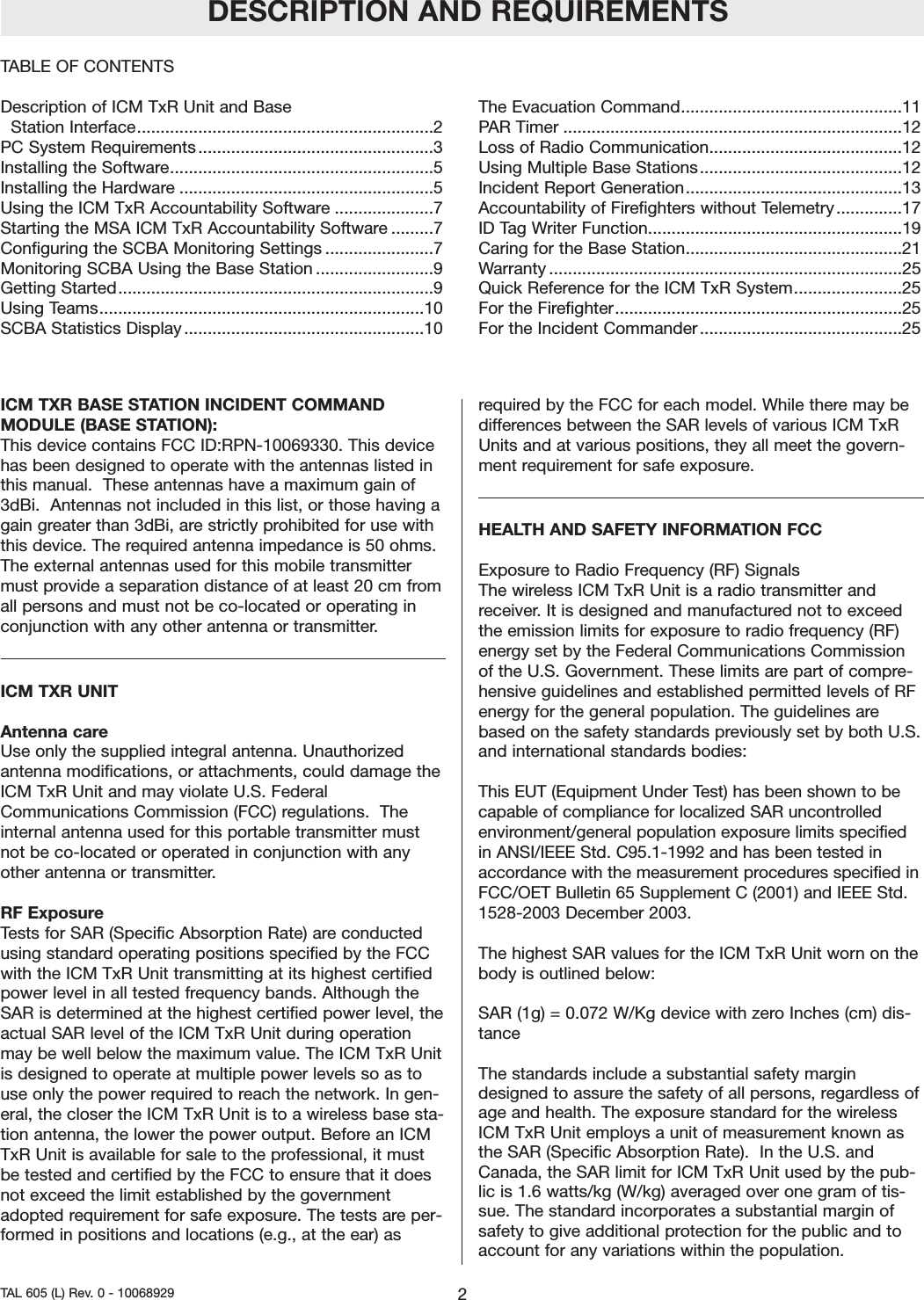
ICM TXR BASE STATION INCIDENT COMMANDMODULE (BASE STATION): This device contains FCC ID:RPN-10069330. This devicehas been designed to operate with the antennas listed inthis manual.  These antennas have a maximum gain of3dBi.  Antennas not included in this list, or those having again greater than 3dBi, are strictly prohibited for use withthis device. The required antenna impedance is 50 ohms.The external antennas used for this mobile transmittermust provide a separation distance of at least 20 cm fromall persons and must not be co-located or operating inconjunction with any other antenna or transmitter.ICM TXR UNIT Antenna careUse only the supplied integral antenna. Unauthorizedantenna modifications, or attachments, could damage theICM TxR Unit and may violate U.S. FederalCommunications Commission (FCC) regulations.  Theinternal antenna used for this portable transmitter mustnot be co-located or operated in conjunction with anyother antenna or transmitter.RF ExposureTests for SAR (Specific Absorption Rate) are conductedusing standard operating positions specified by the FCCwith the ICM TxR Unit transmitting at its highest certifiedpower level in all tested frequency bands. Although theSAR is determined at the highest certified power level, theactual SAR level of the ICM TxR Unit during operationmay be well below the maximum value. The ICM TxR Unitis designed to operate at multiple power levels so as touse only the power required to reach the network. In gen-eral, the closer the ICM TxR Unit is to a wireless base sta-tion antenna, the lower the power output. Before an ICMTxR Unit is available for sale to the professional, it mustbe tested and certified by the FCC to ensure that it doesnot exceed the limit established by the governmentadopted requirement for safe exposure. The tests are per-formed in positions and locations (e.g., at the ear) asrequired by the FCC for each model. While there may bedifferences between the SAR levels of various ICM TxRUnits and at various positions, they all meet the govern-ment requirement for safe exposure.HEALTH AND SAFETY INFORMATION FCCExposure to Radio Frequency (RF) SignalsThe wireless ICM TxR Unit is a radio transmitter andreceiver. It is designed and manufactured not to exceedthe emission limits for exposure to radio frequency (RF)energy set by the Federal Communications Commissionof the U.S. Government. These limits are part of compre-hensive guidelines and established permitted levels of RFenergy for the general population. The guidelines arebased on the safety standards previously set by both U.S.and international standards bodies:This EUT (Equipment Under Test) has been shown to becapable of compliance for localized SAR uncontrolledenvironment/general population exposure limits specifiedin ANSI/IEEE Std. C95.1-1992 and has been tested inaccordance with the measurement procedures specified inFCC/OET Bulletin 65 Supplement C (2001) and IEEE Std.1528-2003 December 2003. The highest SAR values for the ICM TxR Unit worn on thebody is outlined below:SAR (1g) = 0.072 W/Kg device with zero Inches (cm) dis-tanceThe standards include a substantial safety margindesigned to assure the safety of all persons, regardless ofage and health. The exposure standard for the wirelessICM TxR Unit employs a unit of measurement known asthe SAR (Specific Absorption Rate).  In the U.S. andCanada, the SAR limit for ICM TxR Unit used by the pub-lic is 1.6 watts/kg (W/kg) averaged over one gram of tis-sue. The standard incorporates a substantial margin ofsafety to give additional protection for the public and toaccount for any variations within the population.TABLE OF CONTENTSDescription of ICM TxR Unit and Base Station Interface...............................................................2PC System Requirements..................................................3Installing the Software........................................................5Installing the Hardware ......................................................5Using the ICM TxR Accountability Software .....................7Starting the MSA ICM TxR Accountability Software .........7Configuring the SCBA Monitoring Settings .......................7Monitoring SCBA Using the Base Station .........................9Getting Started...................................................................9Using Teams.....................................................................10SCBA Statistics Display ...................................................10The Evacuation Command...............................................11PAR Timer ........................................................................12Loss of Radio Communication.........................................12Using Multiple Base Stations...........................................12Incident Report Generation..............................................13Accountability of Firefighters without Telemetry..............17ID Tag Writer Function......................................................19Caring for the Base Station..............................................21Warranty ...........................................................................25Quick Reference for the ICM TxR System.......................25For the Firefighter.............................................................25For the Incident Commander...........................................25DESCRIPTION AND REQUIREMENTS2TAL 605 (L) Rev. 0 - 10068929
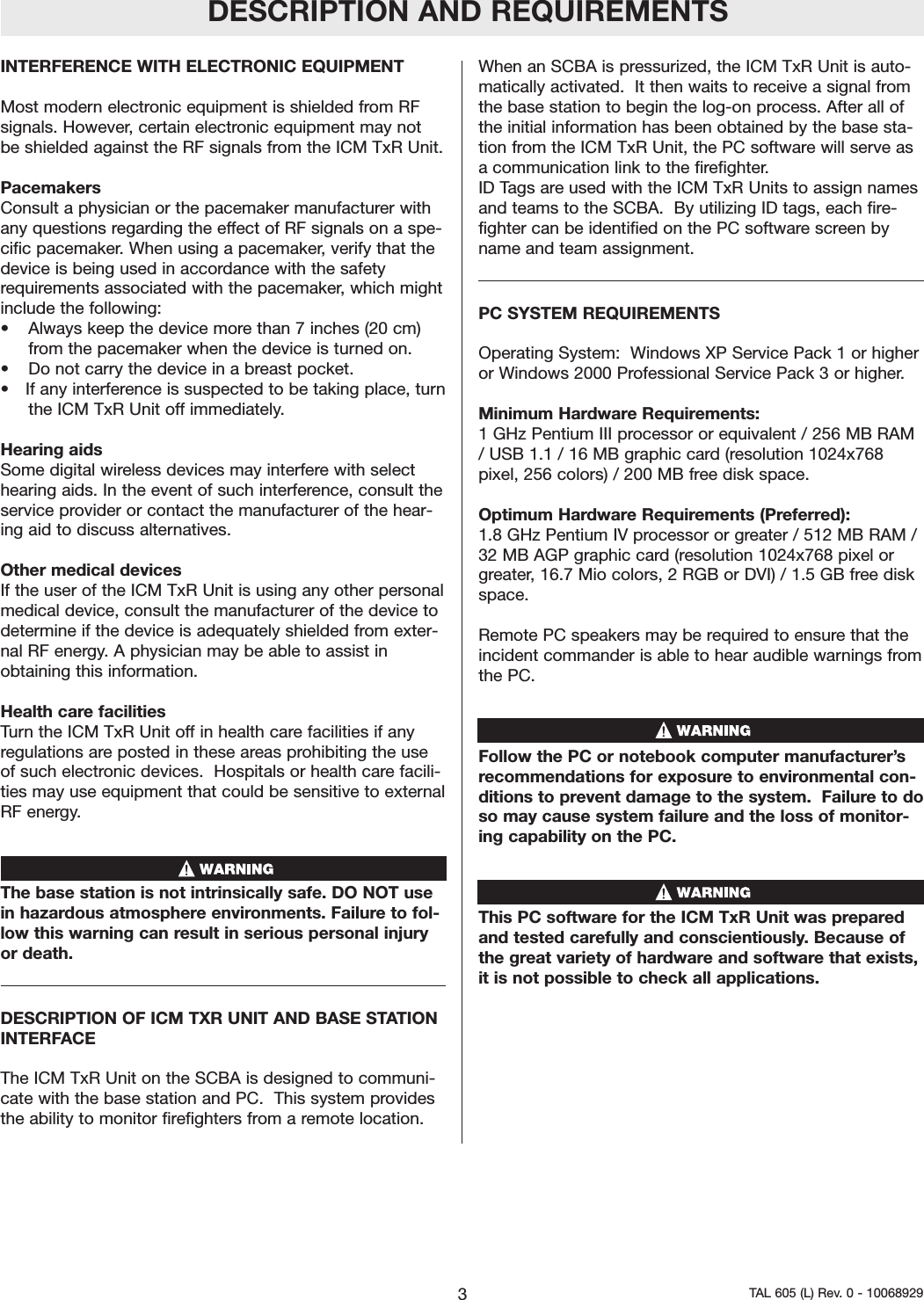
INTERFERENCE WITH ELECTRONIC EQUIPMENTMost modern electronic equipment is shielded from RFsignals. However, certain electronic equipment may notbe shielded against the RF signals from the ICM TxR Unit.Pacemakers Consult a physician or the pacemaker manufacturer withany questions regarding the effect of RF signals on a spe-cific pacemaker. When using a pacemaker, verify that thedevice is being used in accordance with the safetyrequirements associated with the pacemaker, which mightinclude the following:• Always keep the device more than 7 inches (20 cm)from the pacemaker when the device is turned on.• Do not carry the device in a breast pocket.• If any interference is suspected to be taking place, turnthe ICM TxR Unit off immediately.Hearing aids Some digital wireless devices may interfere with selecthearing aids. In the event of such interference, consult theservice provider or contact the manufacturer of the hear-ing aid to discuss alternatives.Other medical devices If the user of the ICM TxR Unit is using any other personalmedical device, consult the manufacturer of the device todetermine if the device is adequately shielded from exter-nal RF energy. A physician may be able to assist inobtaining this information.  Health care facilities Turn the ICM TxR Unit off in health care facilities if anyregulations are posted in these areas prohibiting the useof such electronic devices.  Hospitals or health care facili-ties may use equipment that could be sensitive to externalRF energy.The base station is not intrinsically safe. DO NOT usein hazardous atmosphere environments. Failure to fol-low this warning can result in serious personal injuryor death.DESCRIPTION OF ICM TXR UNIT AND BASE STATIONINTERFACEThe ICM TxR Unit on the SCBA is designed to communi-cate with the base station and PC.  This system providesthe ability to monitor firefighters from a remote location.When an SCBA is pressurized, the ICM TxR Unit is auto-matically activated.  It then waits to receive a signal fromthe base station to begin the log-on process. After all ofthe initial information has been obtained by the base sta-tion from the ICM TxR Unit, the PC software will serve asa communication link to the firefighter.ID Tags are used with the ICM TxR Units to assign namesand teams to the SCBA.  By utilizing ID tags, each fire-fighter can be identified on the PC software screen byname and team assignment.  PC SYSTEM REQUIREMENTSOperating System:  Windows XP Service Pack 1 or higheror Windows 2000 Professional Service Pack 3 or higher.Minimum Hardware Requirements:1 GHz Pentium III processor or equivalent / 256 MB RAM/ USB 1.1 / 16 MB graphic card (resolution 1024x768pixel, 256 colors) / 200 MB free disk space. Optimum Hardware Requirements (Preferred):  1.8 GHz Pentium IV processor or greater / 512 MB RAM /32 MB AGP graphic card (resolution 1024x768 pixel orgreater, 16.7 Mio colors, 2 RGB or DVI) / 1.5 GB free diskspace.  Remote PC speakers may be required to ensure that theincident commander is able to hear audible warnings fromthe PC.  Follow the PC or notebook computer manufacturer’srecommendations for exposure to environmental con-ditions to prevent damage to the system.  Failure to doso may cause system failure and the loss of monitor-ing capability on the PC.  This PC software for the ICM TxR Unit was preparedand tested carefully and conscientiously. Because ofthe great variety of hardware and software that exists,it is not possible to check all applications. DESCRIPTION AND REQUIREMENTS3TAL 605 (L) Rev. 0 - 10068929
4TAL 605 (L) Rev. 0 - 10068929NOTES
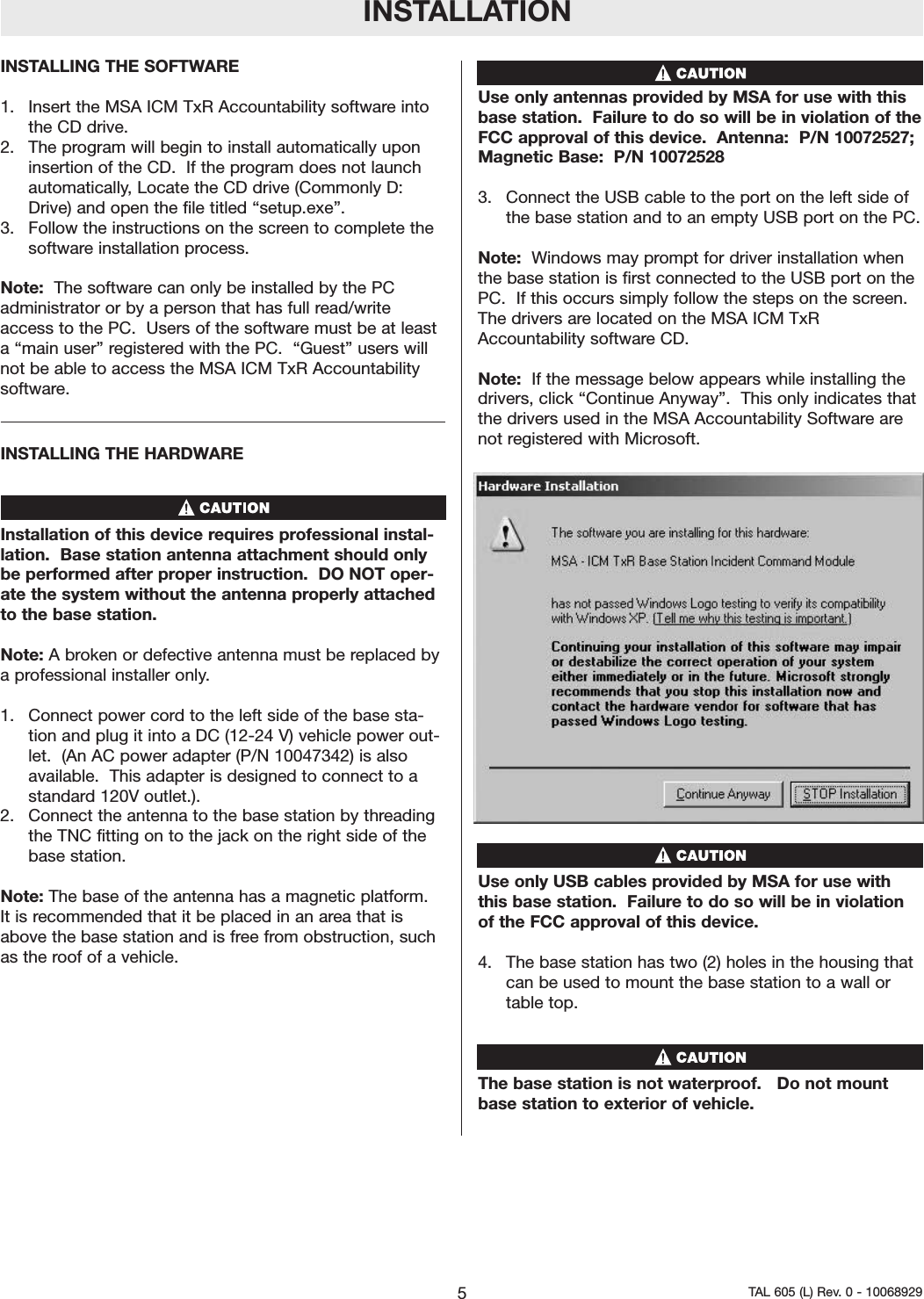
INSTALLATIONINSTALLING THE SOFTWARE  1.  Insert the MSA ICM TxR Accountability software intothe CD drive.2.  The program will begin to install automatically uponinsertion of the CD.  If the program does not launchautomatically, Locate the CD drive (Commonly D:Drive) and open the file titled “setup.exe”.  3.  Follow the instructions on the screen to complete thesoftware installation process.      Note: The software can only be installed by the PCadministrator or by a person that has full read/writeaccess to the PC.  Users of the software must be at leasta “main user” registered with the PC.  “Guest” users willnot be able to access the MSA ICM TxR Accountabilitysoftware.  INSTALLING THE HARDWARE Installation of this device requires professional instal-lation.  Base station antenna attachment should onlybe performed after proper instruction.  DO NOT oper-ate the system without the antenna properly attachedto the base station. Note: A broken or defective antenna must be replaced bya professional installer only.1.  Connect power cord to the left side of the base sta-tion and plug it into a DC (12-24 V) vehicle power out-let.  (An AC power adapter (P/N 10047342) is alsoavailable.  This adapter is designed to connect to astandard 120V outlet.).  2.  Connect the antenna to the base station by threadingthe TNC fitting on to the jack on the right side of thebase station. Note: The base of the antenna has a magnetic platform.It is recommended that it be placed in an area that isabove the base station and is free from obstruction, suchas the roof of a vehicle.  Use only antennas provided by MSA for use with thisbase station.  Failure to do so will be in violation of theFCC approval of this device.  Antenna:  P/N 10072527;Magnetic Base:  P/N 100725283.  Connect the USB cable to the port on the left side ofthe base station and to an empty USB port on the PC.Note:  Windows may prompt for driver installation whenthe base station is first connected to the USB port on thePC.  If this occurs simply follow the steps on the screen.The drivers are located on the MSA ICM TxRAccountability software CD.  Note:  If the message below appears while installing thedrivers, click “Continue Anyway”.  This only indicates thatthe drivers used in the MSA Accountability Software arenot registered with Microsoft.  Use only USB cables provided by MSA for use withthis base station.  Failure to do so will be in violationof the FCC approval of this device.  4. The base station has two (2) holes in the housing thatcan be used to mount the base station to a wall ortable top.  The base station is not waterproof.   Do not mountbase station to exterior of vehicle. 5TAL 605 (L) Rev. 0 - 10068929
6TAL 605 (L) Rev. 0 - 10068929NOTES
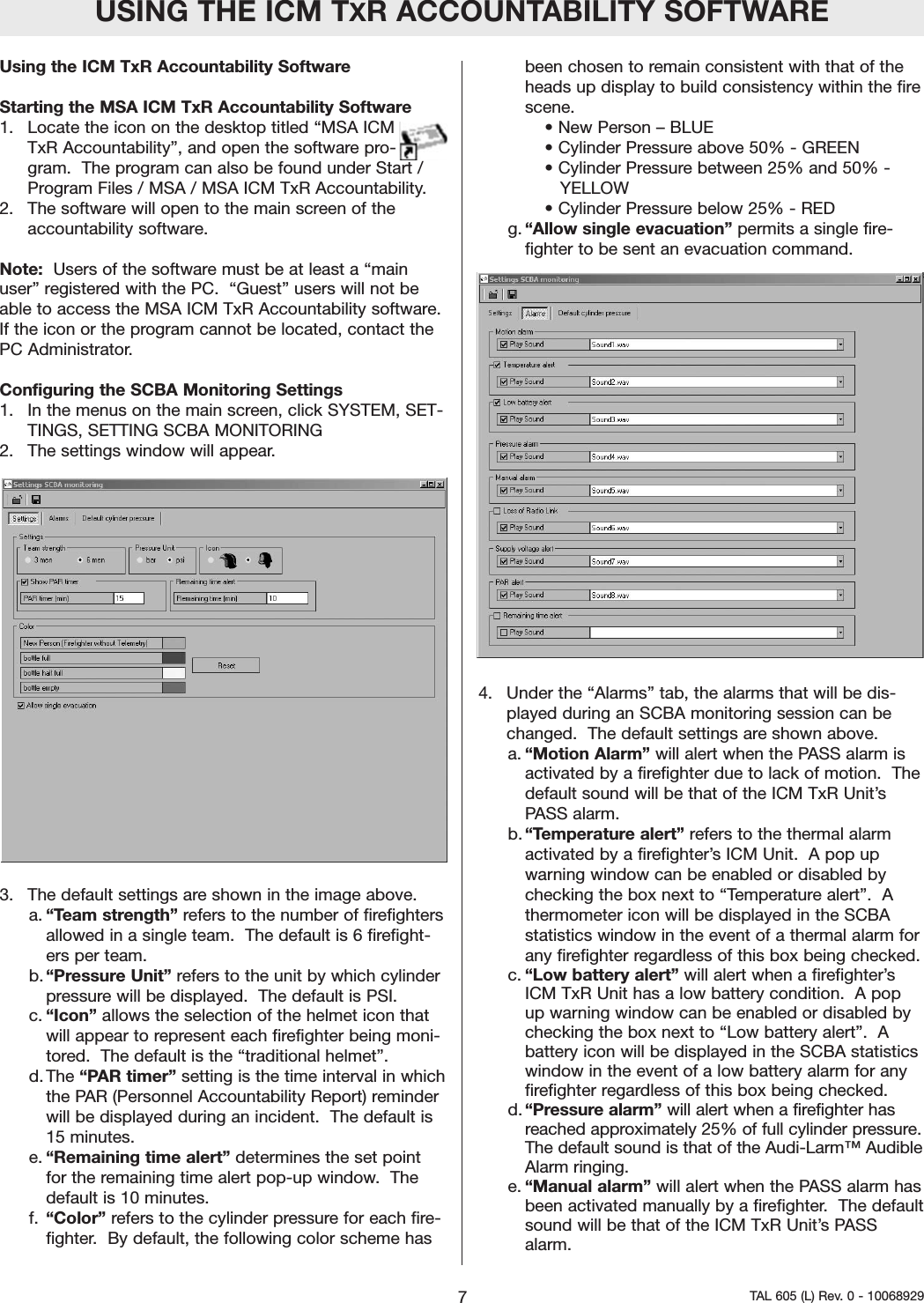
USING THE ICM TXR ACCOUNTABILITY SOFTWAREUsing the ICM TxR Accountability Software  Starting the MSA ICM TxR Accountability Software1.  Locate the icon on the desktop titled “MSA ICMTxR Accountability”, and open the software pro-gram.  The program can also be found under Start /Program Files / MSA / MSA ICM TxR Accountability. 2.  The software will open to the main screen of theaccountability software.  Note: Users of the software must be at least a “mainuser” registered with the PC.  “Guest” users will not beable to access the MSA ICM TxR Accountability software.If the icon or the program cannot be located, contact thePC Administrator.    Configuring the SCBA Monitoring Settings1.  In the menus on the main screen, click SYSTEM, SET-TINGS, SETTING SCBA MONITORING2.  The settings window will appear.  3.  The default settings are shown in the image above.a. “Team strength” refers to the number of firefightersallowed in a single team.  The default is 6 firefight-ers per team.b. “Pressure Unit” refers to the unit by which cylinderpressure will be displayed.  The default is PSI.c. “Icon” allows the selection of the helmet icon thatwill appear to represent each firefighter being moni-tored.  The default is the “traditional helmet”.  d. The “PAR timer” setting is the time interval in whichthe PAR (Personnel Accountability Report) reminderwill be displayed during an incident.  The default is15 minutes.  e. “Remaining time alert” determines the set pointfor the remaining time alert pop-up window.  Thedefault is 10 minutes.  f. “Color” refers to the cylinder pressure for each fire-fighter.  By default, the following color scheme hasbeen chosen to remain consistent with that of theheads up display to build consistency within the firescene.  • New Person – BLUE• Cylinder Pressure above 50% - GREEN• Cylinder Pressure between 25% and 50% - YELLOW• Cylinder Pressure below 25% - REDg.“Allow single evacuation” permits a single fire-fighter to be sent an evacuation command.4.  Under the “Alarms” tab, the alarms that will be dis-played during an SCBA monitoring session can bechanged.  The default settings are shown above.  a. “Motion Alarm” will alert when the PASS alarm isactivated by a firefighter due to lack of motion.  Thedefault sound will be that of the ICM TxR Unit’sPASS alarm.  b. “Temperature alert” refers to the thermal alarmactivated by a firefighter’s ICM Unit.  A pop upwarning window can be enabled or disabled bychecking the box next to “Temperature alert”.  Athermometer icon will be displayed in the SCBAstatistics window in the event of a thermal alarm forany firefighter regardless of this box being checked.  c. “Low battery alert” will alert when a firefighter’sICM TxR Unit has a low battery condition.  A popup warning window can be enabled or disabled bychecking the box next to “Low battery alert”.  Abattery icon will be displayed in the SCBA statisticswindow in the event of a low battery alarm for anyfirefighter regardless of this box being checked.  d. “Pressure alarm” will alert when a firefighter hasreached approximately 25% of full cylinder pressure.The default sound is that of the Audi-Larm™ AudibleAlarm ringing.e. “Manual alarm” will alert when the PASS alarm hasbeen activated manually by a firefighter.  The defaultsound will be that of the ICM TxR Unit’s PASSalarm.  7TAL 605 (L) Rev. 0 - 10068929
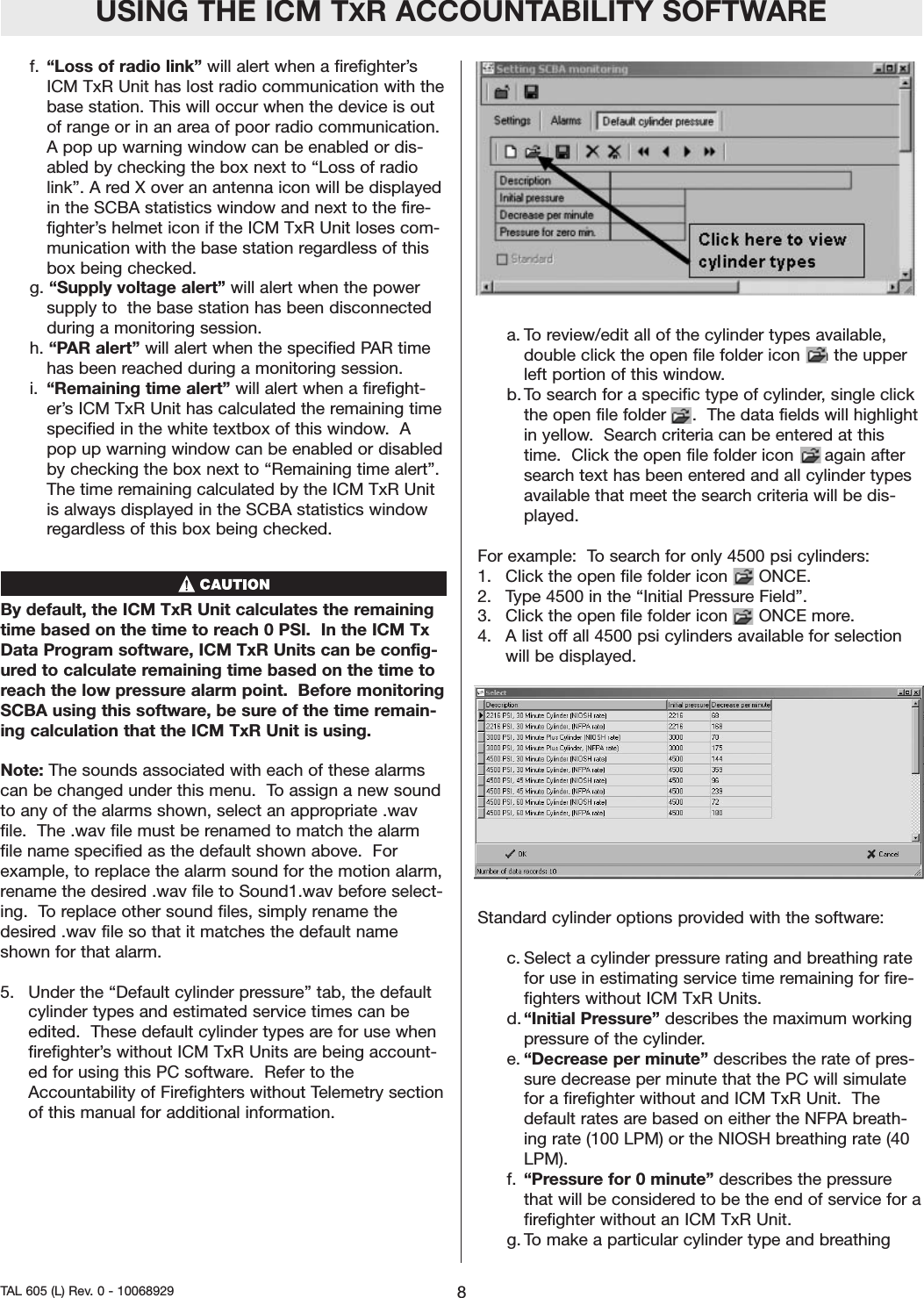
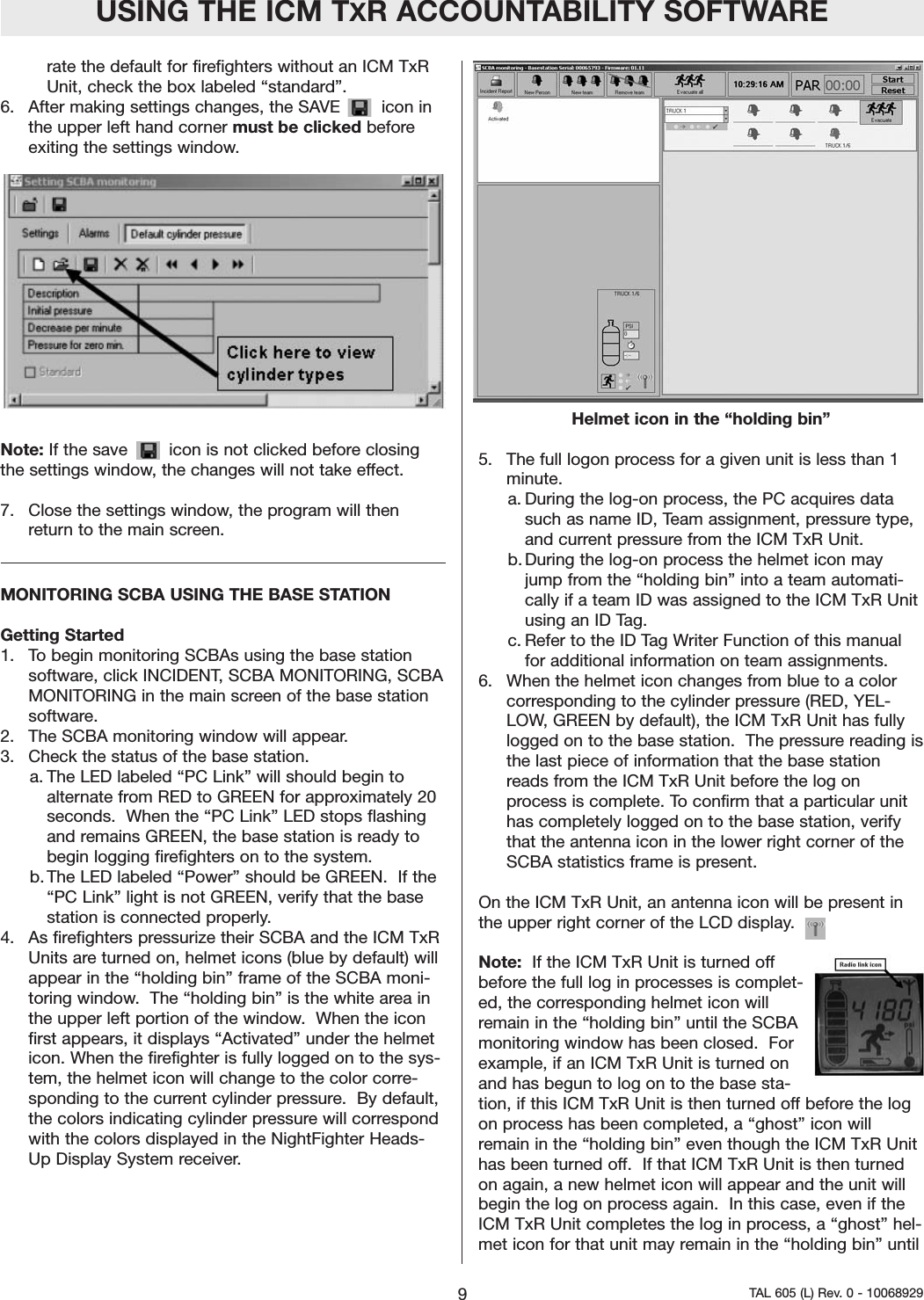
USING THE ICM TXR ACCOUNTABILITY SOFTWAREf.  “Loss of radio link” will alert when a firefighter’sICM TxR Unit has lost radio communication with thebase station. This will occur when the device is outof range or in an area of poor radio communication.A pop up warning window can be enabled or dis-abled by checking the box next to “Loss of radiolink”. A red X over an antenna icon will be displayedin the SCBA statistics window and next to the fire-fighter’s helmet icon if the ICM TxR Unit loses com-munication with the base station regardless of thisbox being checked.   g. “Supply voltage alert” will alert when the powersupply to  the base station has been disconnectedduring a monitoring session.h. “PAR alert” will alert when the specified PAR timehas been reached during a monitoring session.  i.  “Remaining time alert” will alert when a firefight-er’s ICM TxR Unit has calculated the remaining timespecified in the white textbox of this window.  Apop up warning window can be enabled or disabledby checking the box next to “Remaining time alert”.The time remaining calculated by the ICM TxR Unitis always displayed in the SCBA statistics windowregardless of this box being checked.  By default, the ICM TxR Unit calculates the remainingtime based on the time to reach 0 PSI.  In the ICM TxData Program software, ICM TxR Units can be config-ured to calculate remaining time based on the time toreach the low pressure alarm point.  Before monitoringSCBA using this software, be sure of the time remain-ing calculation that the ICM TxR Unit is using.  Note: The sounds associated with each of these alarmscan be changed under this menu.  To assign a new soundto any of the alarms shown, select an appropriate .wavfile.  The .wav file must be renamed to match the alarmfile name specified as the default shown above.  Forexample, to replace the alarm sound for the motion alarm,rename the desired .wav file to Sound1.wav before select-ing.  To replace other sound files, simply rename thedesired .wav file so that it matches the default nameshown for that alarm.  5.  Under the “Default cylinder pressure” tab, the defaultcylinder types and estimated service times can beedited.  These default cylinder types are for use whenfirefighter’s without ICM TxR Units are being account-ed for using this PC software.  Refer to theAccountability of Firefighters without Telemetry sectionof this manual for additional information.  a. To review/edit all of the cylinder types available,double click the open file folder icon   in the upperleft portion of this window.  b. To search for a specific type of cylinder, single clickthe open file folder     .  The data fields will highlightin yellow.  Search criteria can be entered at thistime.  Click the open file folder icon      again aftersearch text has been entered and all cylinder typesavailable that meet the search criteria will be dis-played.  For example:  To search for only 4500 psi cylinders:  1.  Click the open file folder icon      ONCE.  2.  Type 4500 in the “Initial Pressure Field”.3.  Click the open file folder icon      ONCE more.  4.  A list off all 4500 psi cylinders available for selectionwill be displayed.  Standard cylinder options provided with the software:  c. Select a cylinder pressure rating and breathing ratefor use in estimating service time remaining for fire-fighters without ICM TxR Units.d. “Initial Pressure” describes the maximum workingpressure of the cylinder. e. “Decrease per minute” describes the rate of pres-sure decrease per minute that the PC will simulatefor a firefighter without and ICM TxR Unit.  Thedefault rates are based on either the NFPA breath-ing rate (100 LPM) or the NIOSH breathing rate (40LPM).  f. “Pressure for 0 minute” describes the pressurethat will be considered to be the end of service for afirefighter without an ICM TxR Unit.  g. To make a particular cylinder type and breathing8TAL 605 (L) Rev. 0 - 10068929
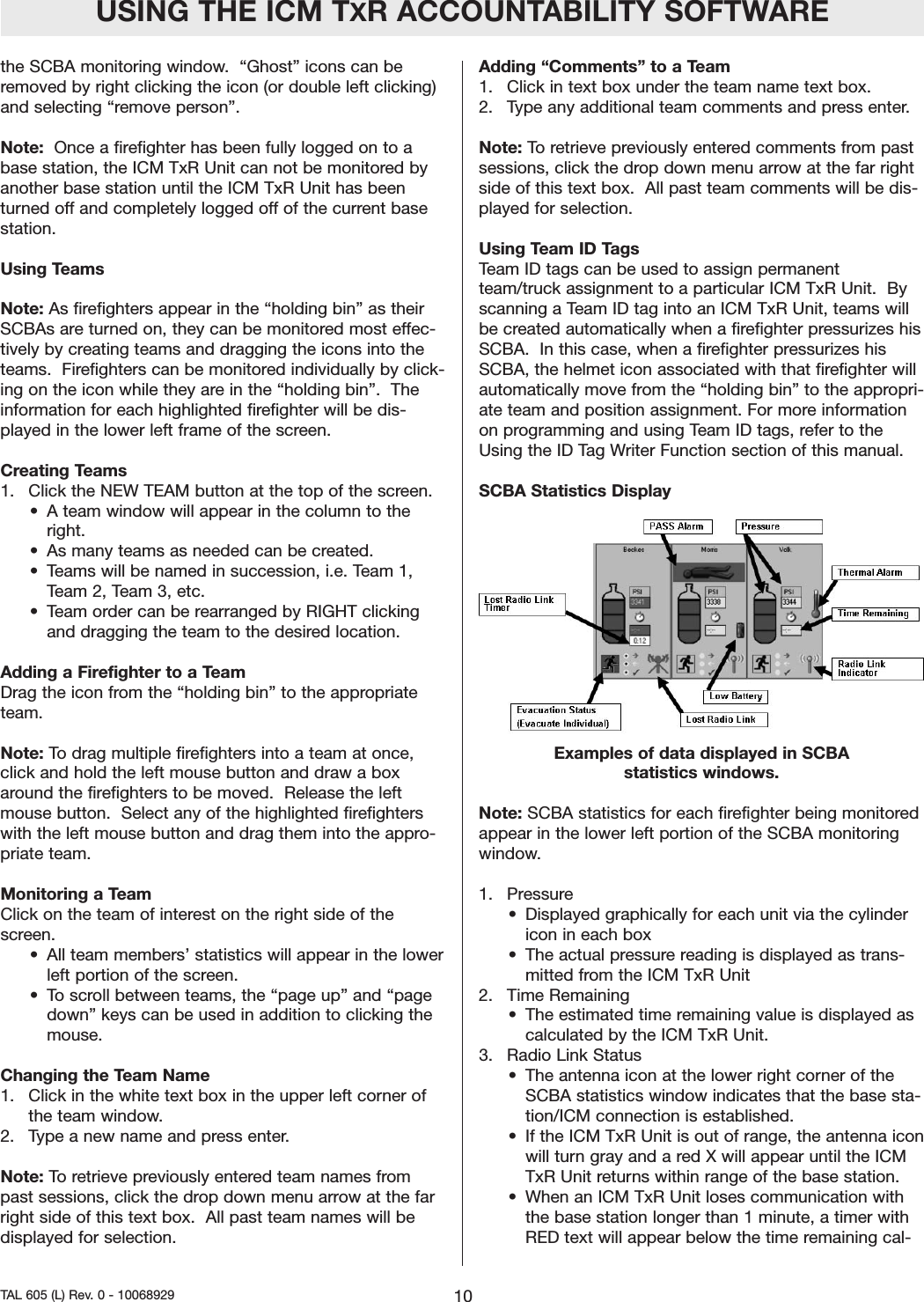
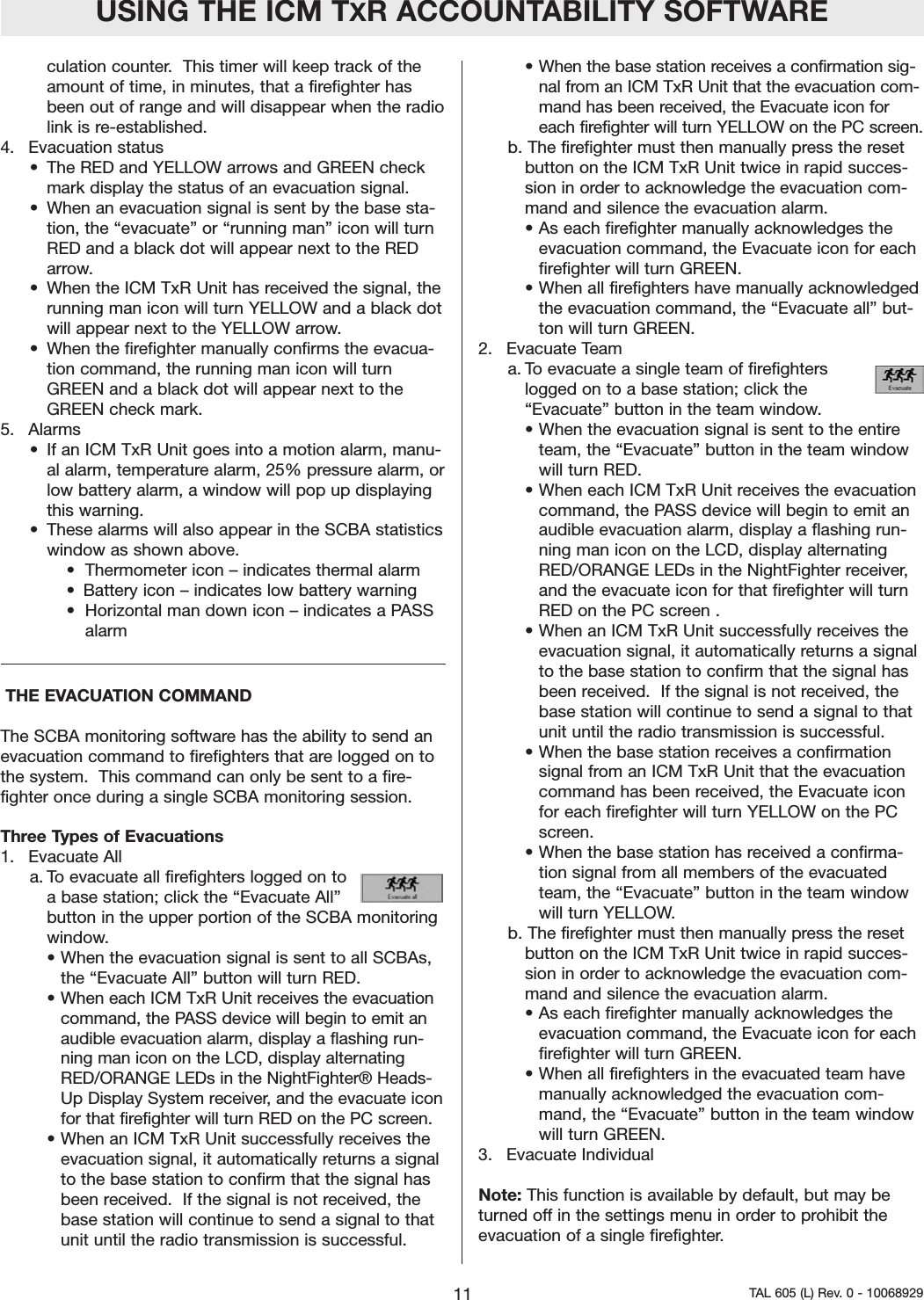
rate the default for firefighters without an ICM TxRUnit, check the box labeled “standard”. 6.  After making settings changes, the SAVE        icon inthe upper left hand corner must be clicked beforeexiting the settings window.  Note: If the save        icon is not clicked before closingthe settings window, the changes will not take effect.7.  Close the settings window, the program will thenreturn to the main screen.  MONITORING SCBA USING THE BASE STATIONGetting Started  1.  To begin monitoring SCBAs using the base stationsoftware, click INCIDENT, SCBA MONITORING, SCBAMONITORING in the main screen of the base stationsoftware.  2.  The SCBA monitoring window will appear.3.  Check the status of the base station.  a. The LED labeled “PC Link” will should begin toalternate from RED to GREEN for approximately 20seconds.  When the “PC Link” LED stops flashingand remains GREEN, the base station is ready tobegin logging firefighters on to the system.    b. The LED labeled “Power” should be GREEN.  If the“PC Link” light is not GREEN, verify that the basestation is connected properly.  4.  As firefighters pressurize their SCBA and the ICM TxRUnits are turned on, helmet icons (blue by default) willappear in the “holding bin” frame of the SCBA moni-toring window.  The “holding bin” is the white area inthe upper left portion of the window.  When the iconfirst appears, it displays “Activated” under the helmeticon. When the firefighter is fully logged on to the sys-tem, the helmet icon will change to the color corre-sponding to the current cylinder pressure.  By default,the colors indicating cylinder pressure will correspondwith the colors displayed in the NightFighter Heads-Up Display System receiver.  Helmet icon in the “holding bin”5.  The full logon process for a given unit is less than 1minute.  a. During the log-on process, the PC acquires datasuch as name ID, Team assignment, pressure type,and current pressure from the ICM TxR Unit. b. During the log-on process the helmet icon mayjump from the “holding bin” into a team automati-cally if a team ID was assigned to the ICM TxR Unitusing an ID Tag.  c. Refer to the ID Tag Writer Function of this manualfor additional information on team assignments.    6.  When the helmet icon changes from blue to a colorcorresponding to the cylinder pressure (RED, YEL-LOW, GREEN by default), the ICM TxR Unit has fullylogged on to the base station.  The pressure reading isthe last piece of information that the base stationreads from the ICM TxR Unit before the log onprocess is complete. To confirm that a particular unithas completely logged on to the base station, verifythat the antenna icon in the lower right corner of theSCBA statistics frame is present.  On the ICM TxR Unit, an antenna icon will be present inthe upper right corner of the LCD display.    Note:  If the ICM TxR Unit is turned offbefore the full log in processes is complet-ed, the corresponding helmet icon willremain in the “holding bin” until the SCBAmonitoring window has been closed.  Forexample, if an ICM TxR Unit is turned onand has begun to log on to the base sta-tion, if this ICM TxR Unit is then turned off before the logon process has been completed, a “ghost” icon willremain in the “holding bin” even though the ICM TxR Unithas been turned off.  If that ICM TxR Unit is then turnedon again, a new helmet icon will appear and the unit willbegin the log on process again.  In this case, even if theICM TxR Unit completes the log in process, a “ghost” hel-met icon for that unit may remain in the “holding bin” untilUSING THE ICM TXR ACCOUNTABILITY SOFTWARE9TAL 605 (L) Rev. 0 - 10068929
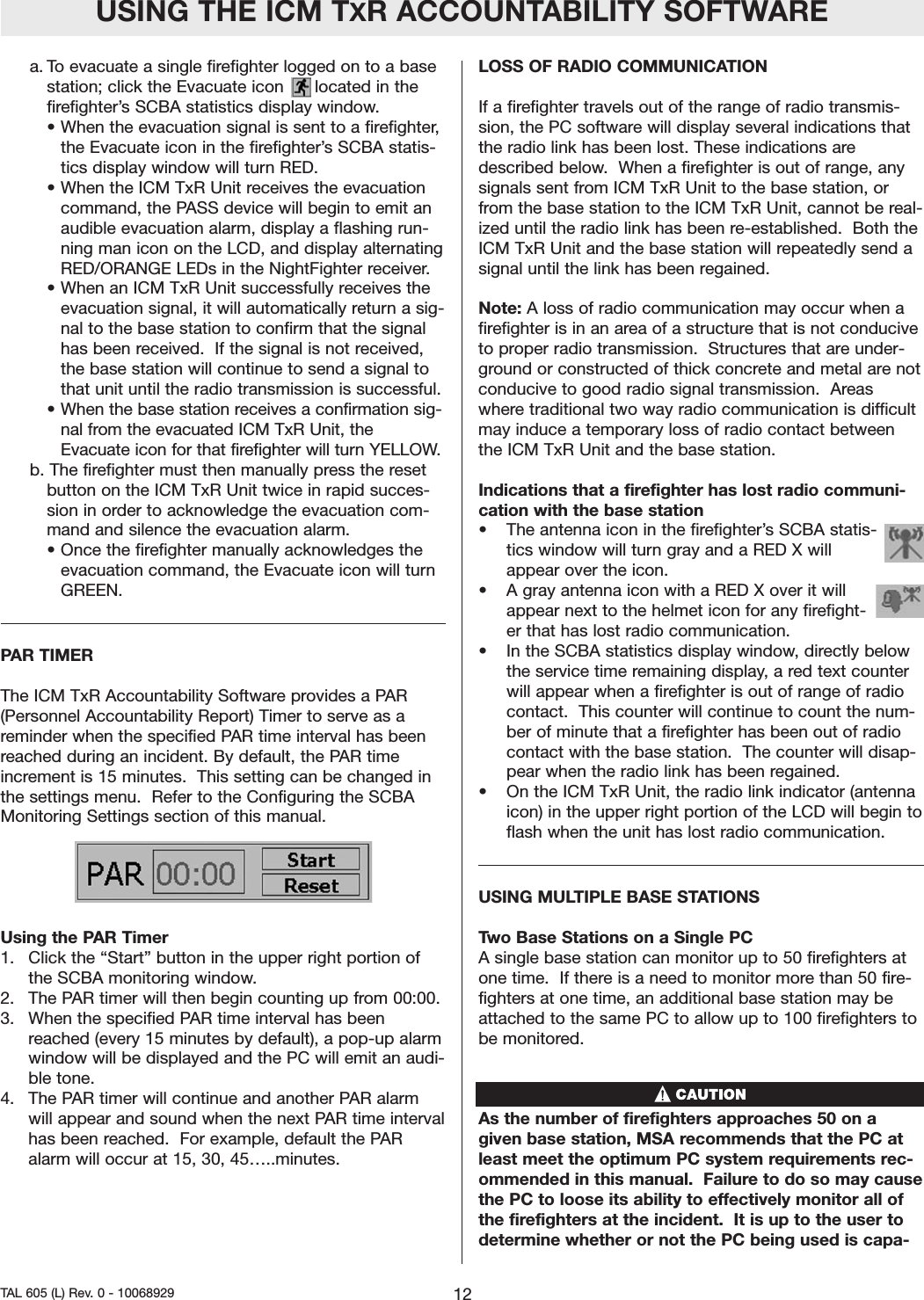
the SCBA monitoring window.  “Ghost” icons can beremoved by right clicking the icon (or double left clicking)and selecting “remove person”.  Note:  Once a firefighter has been fully logged on to abase station, the ICM TxR Unit can not be monitored byanother base station until the ICM TxR Unit has beenturned off and completely logged off of the current basestation.  Using TeamsNote: As firefighters appear in the “holding bin” as theirSCBAs are turned on, they can be monitored most effec-tively by creating teams and dragging the icons into theteams.  Firefighters can be monitored individually by click-ing on the icon while they are in the “holding bin”.  Theinformation for each highlighted firefighter will be dis-played in the lower left frame of the screen.  Creating Teams1.  Click the NEW TEAM button at the top of the screen.  • A team window will appear in the column to theright.  • As many teams as needed can be created. • Teams will be named in succession, i.e. Team 1,Team 2, Team 3, etc.  • Team order can be rearranged by RIGHT clickingand dragging the team to the desired location.    Adding a Firefighter to a TeamDrag the icon from the “holding bin” to the appropriateteam.Note: To drag multiple firefighters into a team at once,click and hold the left mouse button and draw a boxaround the firefighters to be moved.  Release the leftmouse button.  Select any of the highlighted firefighterswith the left mouse button and drag them into the appro-priate team.Monitoring a TeamClick on the team of interest on the right side of thescreen.  • All team members’ statistics will appear in the lowerleft portion of the screen.  •To scroll between teams, the “page up” and “pagedown” keys can be used in addition to clicking themouse.  Changing the Team Name1.  Click in the white text box in the upper left corner ofthe team window.  2.  Type a new name and press enter.  Note: To retrieve previously entered team names frompast sessions, click the drop down menu arrow at the farright side of this text box.  All past team names will bedisplayed for selection.  Adding “Comments” to a Team1.  Click in text box under the team name text box.  2.  Type any additional team comments and press enter.  Note: To retrieve previously entered comments from pastsessions, click the drop down menu arrow at the far rightside of this text box.  All past team comments will be dis-played for selection.  Using Team ID TagsTeam ID tags can be used to assign permanentteam/truck assignment to a particular ICM TxR Unit.  Byscanning a Team ID tag into an ICM TxR Unit, teams willbe created automatically when a firefighter pressurizes hisSCBA.  In this case, when a firefighter pressurizes hisSCBA, the helmet icon associated with that firefighter willautomatically move from the “holding bin” to the appropri-ate team and position assignment. For more informationon programming and using Team ID tags, refer to theUsing the ID Tag Writer Function section of this manual.  SCBA Statistics DisplayExamples of data displayed in SCBA statistics windows.Note: SCBA statistics for each firefighter being monitoredappear in the lower left portion of the SCBA monitoringwindow. 1. Pressure• Displayed graphically for each unit via the cylindericon in each box• The actual pressure reading is displayed as trans-mitted from the ICM TxR Unit2.  Time Remaining• The estimated time remaining value is displayed ascalculated by the ICM TxR Unit.  3.  Radio Link Status• The antenna icon at the lower right corner of theSCBA statistics window indicates that the base sta-tion/ICM connection is established.  • If the ICM TxR Unit is out of range, the antenna iconwill turn gray and a red X will appear until the ICMTxR Unit returns within range of the base station.  • When an ICM TxR Unit loses communication withthe base station longer than 1 minute, a timer withRED text will appear below the time remaining cal-USING THE ICM TXR ACCOUNTABILITY SOFTWARE10TAL 605 (L) Rev. 0 - 10068929
culation counter.  This timer will keep track of theamount of time, in minutes, that a firefighter hasbeen out of range and will disappear when the radiolink is re-established.   4. Evacuation status• The RED and YELLOW arrows and GREEN checkmark display the status of an evacuation signal.  •When an evacuation signal is sent by the base sta-tion, the “evacuate” or “running man” icon will turnRED and a black dot will appear next to the REDarrow.  • When the ICM TxR Unit has received the signal, therunning man icon will turn YELLOW and a black dotwill appear next to the YELLOW arrow.  • When the firefighter manually confirms the evacua-tion command, the running man icon will turnGREEN and a black dot will appear next to theGREEN check mark.  5. Alarms• If an ICM TxR Unit goes into a motion alarm, manu-al alarm, temperature alarm, 25% pressure alarm, orlow battery alarm, a window will pop up displayingthis warning.  • These alarms will also appear in the SCBA statisticswindow as shown above.•  Thermometer icon – indicates thermal alarm•  Battery icon – indicates low battery warning•  Horizontal man down icon – indicates a PASS alarmTHE EVACUATION COMMAND The SCBA monitoring software has the ability to send anevacuation command to firefighters that are logged on tothe system.  This command can only be sent to a fire-fighter once during a single SCBA monitoring session.   Three Types of Evacuations1. Evacuate All a. To evacuate all firefighters logged on toa base station; click the “Evacuate All”button in the upper portion of the SCBA monitoringwindow.  • When the evacuation signal is sent to all SCBAs,the “Evacuate All” button will turn RED.  •When each ICM TxR Unit receives the evacuationcommand, the PASS device will begin to emit anaudible evacuation alarm, display a flashing run-ning man icon on the LCD, display alternatingRED/ORANGE LEDs in the NightFighter® Heads-Up Display System receiver, and the evacuate iconfor that firefighter will turn RED on the PC screen.• When an ICM TxR Unit successfully receives theevacuation signal, it automatically returns a signalto the base station to confirm that the signal hasbeen received.  If the signal is not received, thebase station will continue to send a signal to thatunit until the radio transmission is successful.• When the base station receives a confirmation sig-nal from an ICM TxR Unit that the evacuation com-mand has been received, the Evacuate icon foreach firefighter will turn YELLOW on the PC screen.  b. The firefighter must then manually press the resetbutton on the ICM TxR Unit twice in rapid succes-sion in order to acknowledge the evacuation com-mand and silence the evacuation alarm.  •As each firefighter manually acknowledges theevacuation command, the Evacuate icon for eachfirefighter will turn GREEN.  • When all firefighters have manually acknowledgedthe evacuation command, the “Evacuate all” but-ton will turn GREEN.  2. Evacuate Teama. To evacuate a single team of firefighters logged on to a base station; click the “Evacuate” button in the team window.  • When the evacuation signal is sent to the entireteam, the “Evacuate” button in the team windowwill turn RED.  • When each ICM TxR Unit receives the evacuationcommand, the PASS device will begin to emit anaudible evacuation alarm, display a flashing run-ning man icon on the LCD, display alternatingRED/ORANGE LEDs in the NightFighter receiver,and the evacuate icon for that firefighter will turnRED on the PC screen .  • When an ICM TxR Unit successfully receives theevacuation signal, it automatically returns a signalto the base station to confirm that the signal hasbeen received.  If the signal is not received, thebase station will continue to send a signal to thatunit until the radio transmission is successful.• When the base station receives a confirmationsignal from an ICM TxR Unit that the evacuationcommand has been received, the Evacuate iconfor each firefighter will turn YELLOW on the PCscreen.  • When the base station has received a confirma-tion signal from all members of the evacuatedteam, the “Evacuate” button in the team windowwill turn YELLOW.   b. The firefighter must then manually press the resetbutton on the ICM TxR Unit twice in rapid succes-sion in order to acknowledge the evacuation com-mand and silence the evacuation alarm.  • As each firefighter manually acknowledges theevacuation command, the Evacuate icon for eachfirefighter will turn GREEN.  • When all firefighters in the evacuated team havemanually acknowledged the evacuation com-mand, the “Evacuate” button in the team windowwill turn GREEN.  3. Evacuate IndividualNote: This function is available by default, but may beturned off in the settings menu in order to prohibit theevacuation of a single firefighter. USING THE ICM TXR ACCOUNTABILITY SOFTWARE11 TAL 605 (L) Rev. 0 - 10068929
a. To evacuate a single firefighter logged on to a basestation; click the Evacuate icon      located in thefirefighter’s SCBA statistics display window.  • When the evacuation signal is sent to a firefighter,the Evacuate icon in the firefighter’s SCBA statis-tics display window will turn RED.  •When the ICM TxR Unit receives the evacuationcommand, the PASS device will begin to emit anaudible evacuation alarm, display a flashing run-ning man icon on the LCD, and display alternatingRED/ORANGE LEDs in the NightFighter receiver. • When an ICM TxR Unit successfully receives theevacuation signal, it will automatically return a sig-nal to the base station to confirm that the signalhas been received.  If the signal is not received,the base station will continue to send a signal tothat unit until the radio transmission is successful.• When the base station receives a confirmation sig-nal from the evacuated ICM TxR Unit, theEvacuate icon for that firefighter will turn YELLOW. b. The firefighter must then manually press the resetbutton on the ICM TxR Unit twice in rapid succes-sion in order to acknowledge the evacuation com-mand and silence the evacuation alarm.  • Once the firefighter manually acknowledges theevacuation command, the Evacuate icon will turnGREEN.  PAR TIMERThe ICM TxR Accountability Software provides a PAR(Personnel Accountability Report) Timer to serve as areminder when the specified PAR time interval has beenreached during an incident. By default, the PAR timeincrement is 15 minutes.  This setting can be changed inthe settings menu.  Refer to the Configuring the SCBAMonitoring Settings section of this manual.  Using the PAR Timer1.  Click the “Start” button in the upper right portion ofthe SCBA monitoring window. 2.  The PAR timer will then begin counting up from 00:00.  3.  When the specified PAR time interval has beenreached (every 15 minutes by default), a pop-up alarmwindow will be displayed and the PC will emit an audi-ble tone.  4.  The PAR timer will continue and another PAR alarmwill appear and sound when the next PAR time intervalhas been reached.  For example, default the PARalarm will occur at 15, 30, 45…..minutes.    LOSS OF RADIO COMMUNICATIONIf a firefighter travels out of the range of radio transmis-sion, the PC software will display several indications thatthe radio link has been lost. These indications aredescribed below.  When a firefighter is out of range, anysignals sent from ICM TxR Unit to the base station, orfrom the base station to the ICM TxR Unit, cannot be real-ized until the radio link has been re-established.  Both theICM TxR Unit and the base station will repeatedly send asignal until the link has been regained.  Note: A loss of radio communication may occur when afirefighter is in an area of a structure that is not conduciveto proper radio transmission.  Structures that are under-ground or constructed of thick concrete and metal are notconducive to good radio signal transmission.  Areaswhere traditional two way radio communication is difficultmay induce a temporary loss of radio contact betweenthe ICM TxR Unit and the base station.  Indications that a firefighter has lost radio communi-cation with the base station • The antenna icon in the firefighter’s SCBA statis-tics window will turn gray and a RED X willappear over the icon.  • A gray antenna icon with a RED X over it willappear next to the helmet icon for any firefight-er that has lost radio communication.  • In the SCBA statistics display window, directly belowthe service time remaining display, a red text counterwill appear when a firefighter is out of range of radiocontact.  This counter will continue to count the num-ber of minute that a firefighter has been out of radiocontact with the base station.  The counter will disap-pear when the radio link has been regained.  • On the ICM TxR Unit, the radio link indicator (antennaicon) in the upper right portion of the LCD will begin toflash when the unit has lost radio communication.  USING MULTIPLE BASE STATIONSTwo Base Stations on a Single PC A single base station can monitor up to 50 firefighters atone time.  If there is a need to monitor more than 50 fire-fighters at one time, an additional base station may beattached to the same PC to allow up to 100 firefighters tobe monitored.As the number of firefighters approaches 50 on agiven base station, MSA recommends that the PC atleast meet the optimum PC system requirements rec-ommended in this manual.  Failure to do so may causethe PC to loose its ability to effectively monitor all ofthe firefighters at the incident.  It is up to the user todetermine whether or not the PC being used is capa-USING THE ICM TXR ACCOUNTABILITY SOFTWARE12TAL 605 (L) Rev. 0 - 10068929
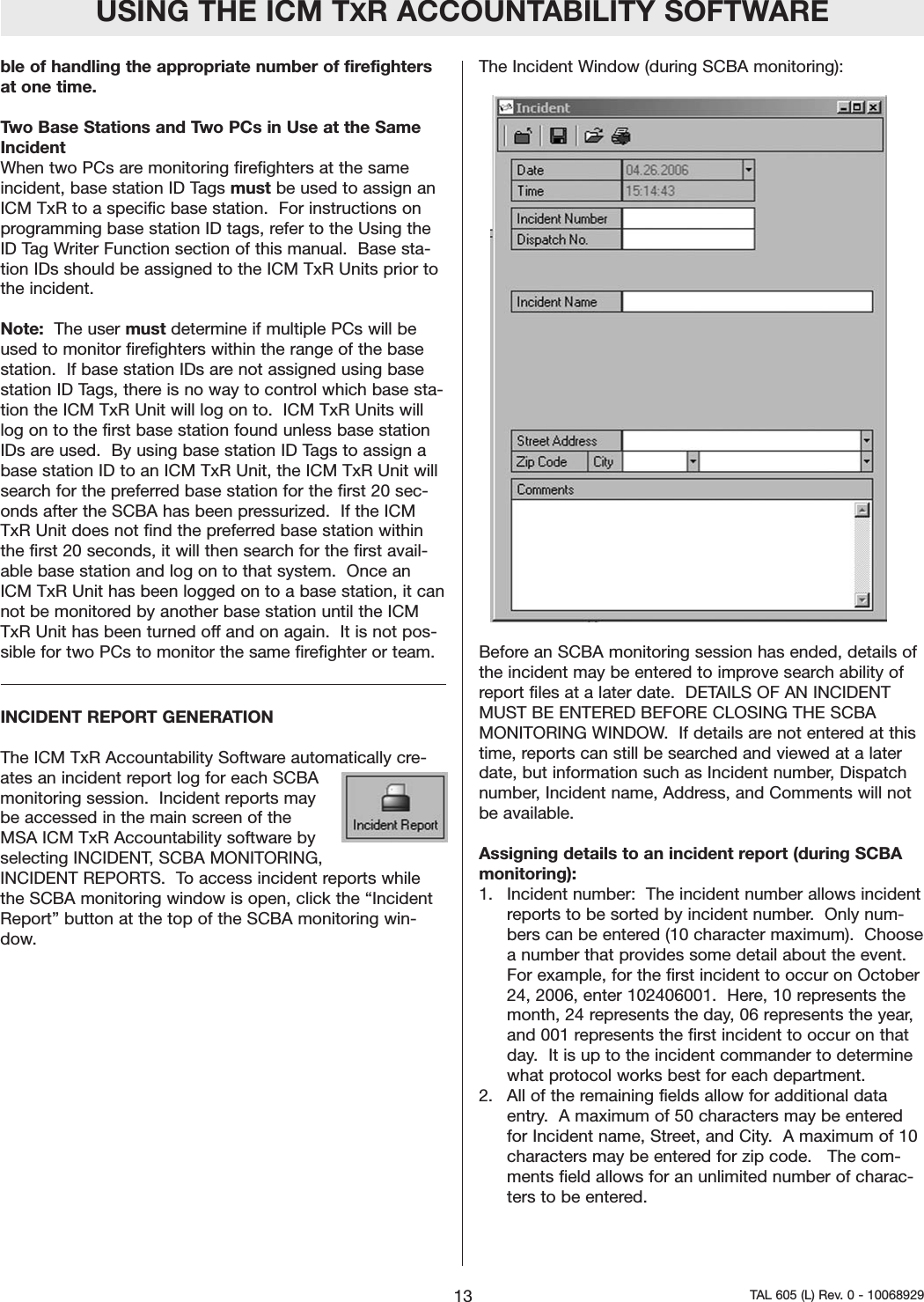
ble of handling the appropriate number of firefightersat one time. Two Base Stations and Two PCs in Use at the SameIncidentWhen two PCs are monitoring firefighters at the sameincident, base station ID Tags must be used to assign anICM TxR to a specific base station.  For instructions onprogramming base station ID tags, refer to the Using theID Tag Writer Function section of this manual.  Base sta-tion IDs should be assigned to the ICM TxR Units prior tothe incident.  Note: The user must determine if multiple PCs will beused to monitor firefighters within the range of the basestation.  If base station IDs are not assigned using basestation ID Tags, there is no way to control which base sta-tion the ICM TxR Unit will log on to.  ICM TxR Units willlog on to the first base station found unless base stationIDs are used.  By using base station ID Tags to assign abase station ID to an ICM TxR Unit, the ICM TxR Unit willsearch for the preferred base station for the first 20 sec-onds after the SCBA has been pressurized.  If the ICMTxR Unit does not find the preferred base station withinthe first 20 seconds, it will then search for the first avail-able base station and log on to that system.  Once anICM TxR Unit has been logged on to a base station, it cannot be monitored by another base station until the ICMTxR Unit has been turned off and on again.  It is not pos-sible for two PCs to monitor the same firefighter or team.  INCIDENT REPORT GENERATIONThe ICM TxR Accountability Software automatically cre-ates an incident report log for each SCBAmonitoring session.  Incident reports maybe accessed in the main screen of theMSA ICM TxR Accountability software byselecting INCIDENT, SCBA MONITORING,INCIDENT REPORTS.  To access incident reports whilethe SCBA monitoring window is open, click the “IncidentReport” button at the top of the SCBA monitoring win-dow.The Incident Window (during SCBA monitoring):  Before an SCBA monitoring session has ended, details ofthe incident may be entered to improve search ability ofreport files at a later date.  DETAILS OF AN INCIDENTMUST BE ENTERED BEFORE CLOSING THE SCBAMONITORING WINDOW.  If details are not entered at thistime, reports can still be searched and viewed at a laterdate, but information such as Incident number, Dispatchnumber, Incident name, Address, and Comments will notbe available.  Assigning details to an incident report (during SCBAmonitoring): 1.   Incident number:  The incident number allows incidentreports to be sorted by incident number.  Only num-bers can be entered (10 character maximum).  Choosea number that provides some detail about the event.For example, for the first incident to occur on October24, 2006, enter 102406001.  Here, 10 represents themonth, 24 represents the day, 06 represents the year,and 001 represents the first incident to occur on thatday.  It is up to the incident commander to determinewhat protocol works best for each department.  2.   All of the remaining fields allow for additional dataentry.  A maximum of 50 characters may be enteredfor Incident name, Street, and City.  A maximum of 10characters may be entered for zip code.   The com-ments field allows for an unlimited number of charac-ters to be entered.  USING THE ICM TXR ACCOUNTABILITY SOFTWARE13 TAL 605 (L) Rev. 0 - 10068929
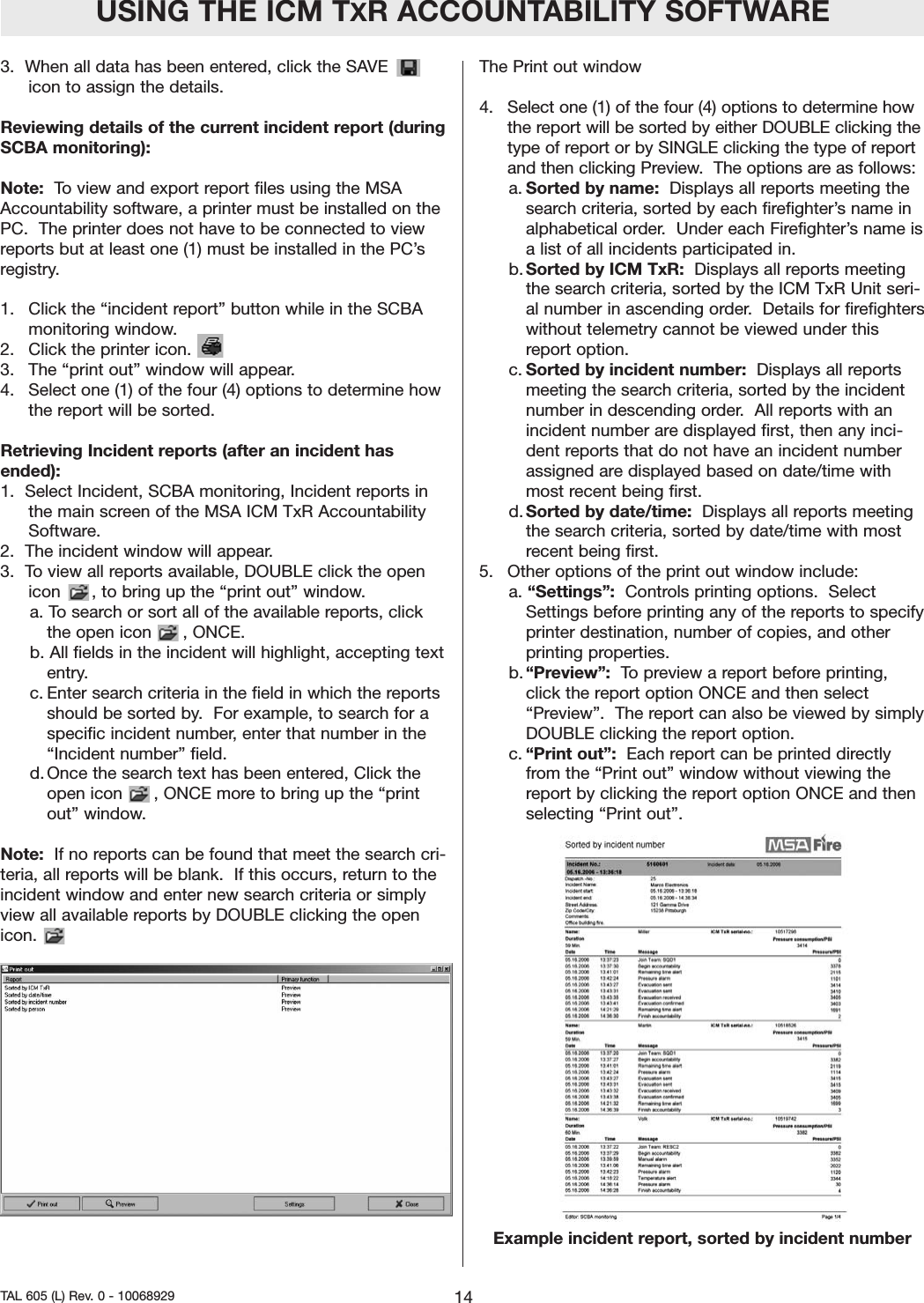
3.  When all data has been entered, click the SAVEicon to assign the details.  Reviewing details of the current incident report (duringSCBA monitoring):  Note:  To view and export report files using the MSAAccountability software, a printer must be installed on thePC.  The printer does not have to be connected to viewreports but at least one (1) must be installed in the PC’sregistry.  1.   Click the “incident report” button while in the SCBAmonitoring window.  2.   Click the printer icon.   3.   The “print out” window will appear.  4.   Select one (1) of the four (4) options to determine howthe report will be sorted. Retrieving Incident reports (after an incident hasended):  1.  Select Incident, SCBA monitoring, Incident reports inthe main screen of the MSA ICM TxR AccountabilitySoftware.  2.  The incident window will appear.  3.  To view all reports available, DOUBLE click the openicon      , to bring up the “print out” window. a. To search or sort all of the available reports, clickthe open icon      , ONCE.  b. All fields in the incident will highlight, accepting textentry.c. Enter search criteria in the field in which the reportsshould be sorted by.  For example, to search for aspecific incident number, enter that number in the“Incident number” field.d. Once the search text has been entered, Click theopen icon      , ONCE more to bring up the “printout” window.  Note: If no reports can be found that meet the search cri-teria, all reports will be blank.  If this occurs, return to theincident window and enter new search criteria or simplyview all available reports by DOUBLE clicking the openicon.  The Print out window4.   Select one (1) of the four (4) options to determine howthe report will be sorted by either DOUBLE clicking thetype of report or by SINGLE clicking the type of reportand then clicking Preview.  The options are as follows:  a.Sorted by name: Displays all reports meeting thesearch criteria, sorted by each firefighter’s name inalphabetical order.  Under each Firefighter’s name isa list of all incidents participated in.   b. Sorted by ICM TxR: Displays all reports meetingthe search criteria, sorted by the ICM TxR Unit seri-al number in ascending order.  Details for firefighterswithout telemetry cannot be viewed under thisreport option.  c. Sorted by incident number: Displays all reportsmeeting the search criteria, sorted by the incidentnumber in descending order.  All reports with anincident number are displayed first, then any inci-dent reports that do not have an incident numberassigned are displayed based on date/time withmost recent being first.  d. Sorted by date/time: Displays all reports meetingthe search criteria, sorted by date/time with mostrecent being first.  5.   Other options of the print out window include:a. “Settings”: Controls printing options.  SelectSettings before printing any of the reports to specifyprinter destination, number of copies, and otherprinting properties.  b. “Preview”:  To preview a report before printing,click the report option ONCE and then select“Preview”.  The report can also be viewed by simplyDOUBLE clicking the report option.  c. “Print out”:  Each report can be printed directlyfrom the “Print out” window without viewing thereport by clicking the report option ONCE and thenselecting “Print out”.Example incident report, sorted by incident numberUSING THE ICM TXR ACCOUNTABILITY SOFTWARE14TAL 605 (L) Rev. 0 - 10068929
6.  To print the report, click the print icon        at the topof the incident report window.  7.   To save the report in an alternate format, click theexport icon.a. The “Export” window will appear.  Select thedesired file format by selecting one of the optionsunder the field labeled “Format”.  Formats availablefor export are .pdf, .rpt, .html, .xls, .rtf, .odbc, .rec,.txt, .csv, .ttx, and .xml. Click OK when finished.  b. The “Export Options” window will appear.  Selectthe pages of the report to be exported and clickOK.  c. The “Choose export file” window will appear.Select the name and directory to which the reportshould be saved.  USING THE ICM TXR ACCOUNTABILITY SOFTWARE15 TAL 605 (L) Rev. 0 - 10068929
NOTES16TAL 605 (L) Rev. 0 - 10068929
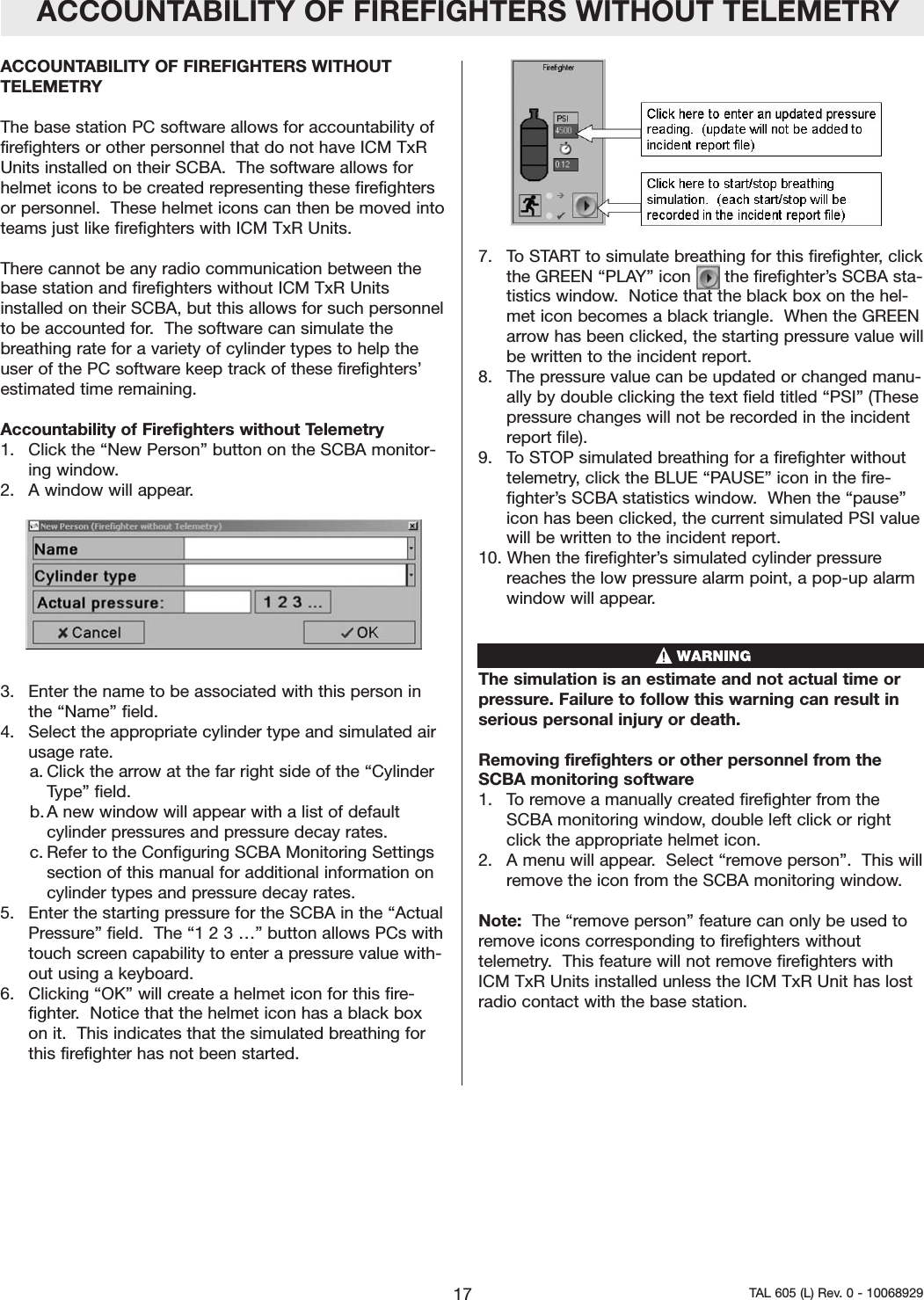
ACCOUNTABILITY OF FIREFIGHTERS WITHOUT TELEMETRYACCOUNTABILITY OF FIREFIGHTERS WITHOUTTELEMETRY The base station PC software allows for accountability offirefighters or other personnel that do not have ICM TxRUnits installed on their SCBA.  The software allows forhelmet icons to be created representing these firefightersor personnel.  These helmet icons can then be moved intoteams just like firefighters with ICM TxR Units.  There cannot be any radio communication between thebase station and firefighters without ICM TxR Unitsinstalled on their SCBA, but this allows for such personnelto be accounted for.  The software can simulate thebreathing rate for a variety of cylinder types to help theuser of the PC software keep track of these firefighters’estimated time remaining.   Accountability of Firefighters without Telemetry1.  Click the “New Person” button on the SCBA monitor-ing window.2.  A window will appear.3.  Enter the name to be associated with this person inthe “Name” field.   4.  Select the appropriate cylinder type and simulated airusage rate.  a. Click the arrow at the far right side of the “CylinderType” field.  b. A new window will appear with a list of defaultcylinder pressures and pressure decay rates.  c. Refer to the Configuring SCBA Monitoring Settingssection of this manual for additional information oncylinder types and pressure decay rates.  5.  Enter the starting pressure for the SCBA in the “ActualPressure” field.  The “1 2 3 …” button allows PCs withtouch screen capability to enter a pressure value with-out using a keyboard. 6.  Clicking “OK” will create a helmet icon for this fire-fighter.  Notice that the helmet icon has a black boxon it.  This indicates that the simulated breathing forthis firefighter has not been started.  7.  To START to simulate breathing for this firefighter, clickthe GREEN “PLAY” icon   in the firefighter’s SCBA sta-tistics window.  Notice that the black box on the hel-met icon becomes a black triangle.  When the GREENarrow has been clicked, the starting pressure value willbe written to the incident report.  8.  The pressure value can be updated or changed manu-ally by double clicking the text field titled “PSI” (Thesepressure changes will not be recorded in the incidentreport file).9.  To STOP simulated breathing for a firefighter withouttelemetry, click the BLUE “PAUSE” icon in the fire-fighter’s SCBA statistics window.  When the “pause”icon has been clicked, the current simulated PSI valuewill be written to the incident report.   10. When the firefighter’s simulated cylinder pressurereaches the low pressure alarm point, a pop-up alarmwindow will appear.  The simulation is an estimate and not actual time orpressure. Failure to follow this warning can result inserious personal injury or death.Removing firefighters or other personnel from theSCBA monitoring software1.   To remove a manually created firefighter from theSCBA monitoring window, double left click or rightclick the appropriate helmet icon.2.   A menu will appear.  Select “remove person”.  This willremove the icon from the SCBA monitoring window.Note:  The “remove person” feature can only be used toremove icons corresponding to firefighters withouttelemetry.  This feature will not remove firefighters withICM TxR Units installed unless the ICM TxR Unit has lostradio contact with the base station.    17 TAL 605 (L) Rev. 0 - 10068929
NOTES18TAL 605 (L) Rev. 0 - 10068929
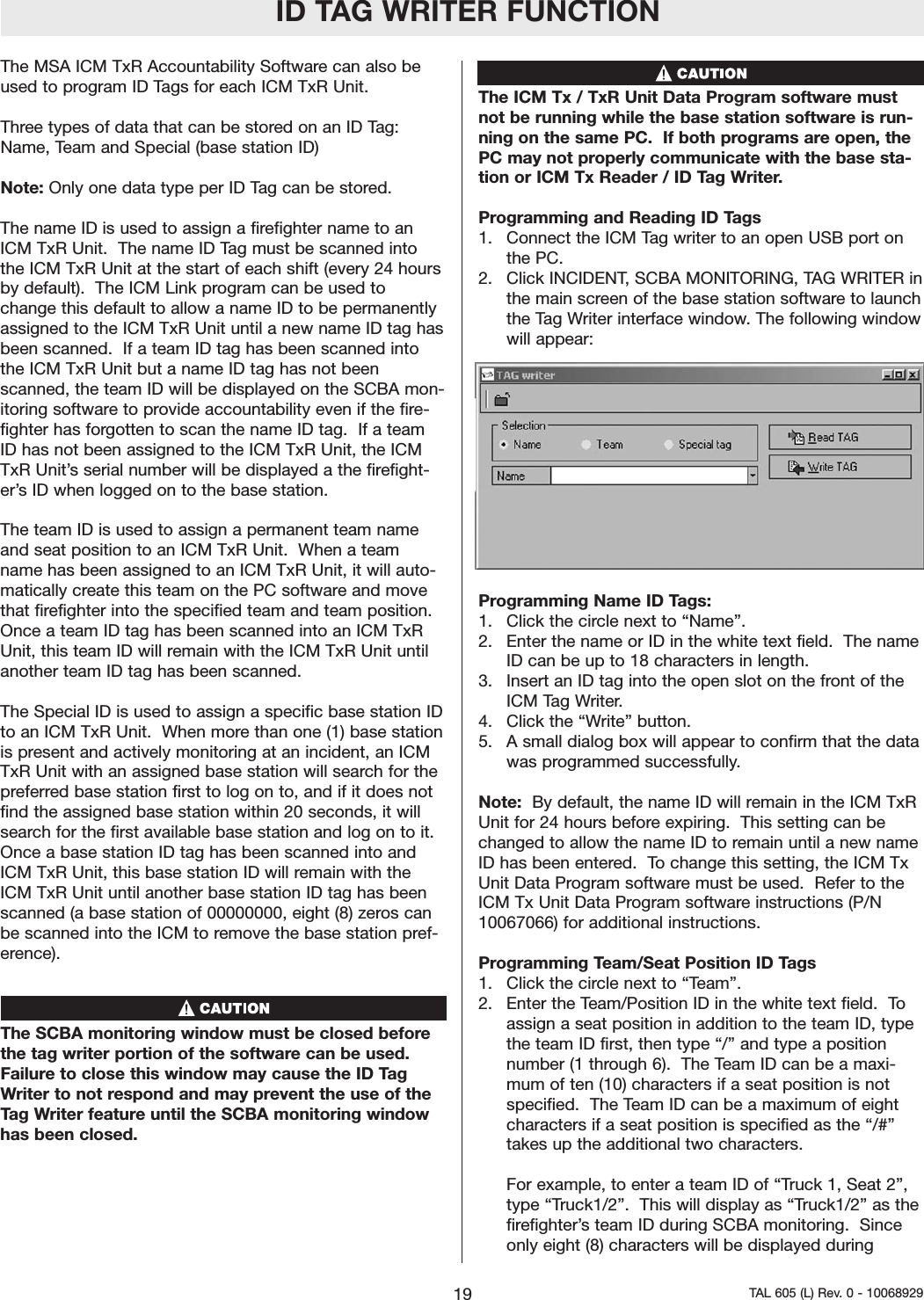
ID TAG WRITER FUNCTIONThe MSA ICM TxR Accountability Software can also beused to program ID Tags for each ICM TxR Unit.  Three types of data that can be stored on an ID Tag:Name, Team and Special (base station ID)Note: Only one data type per ID Tag can be stored.The name ID is used to assign a firefighter name to anICM TxR Unit.  The name ID Tag must be scanned intothe ICM TxR Unit at the start of each shift (every 24 hoursby default).  The ICM Link program can be used tochange this default to allow a name ID to be permanentlyassigned to the ICM TxR Unit until a new name ID tag hasbeen scanned.  If a team ID tag has been scanned intothe ICM TxR Unit but a name ID tag has not beenscanned, the team ID will be displayed on the SCBA mon-itoring software to provide accountability even if the fire-fighter has forgotten to scan the name ID tag.  If a teamID has not been assigned to the ICM TxR Unit, the ICMTxR Unit’s serial number will be displayed a the firefight-er’s ID when logged on to the base station.  The team ID is used to assign a permanent team nameand seat position to an ICM TxR Unit.  When a teamname has been assigned to an ICM TxR Unit, it will auto-matically create this team on the PC software and movethat firefighter into the specified team and team position.Once a team ID tag has been scanned into an ICM TxRUnit, this team ID will remain with the ICM TxR Unit untilanother team ID tag has been scanned.  The Special ID is used to assign a specific base station IDto an ICM TxR Unit.  When more than one (1) base stationis present and actively monitoring at an incident, an ICMTxR Unit with an assigned base station will search for thepreferred base station first to log on to, and if it does notfind the assigned base station within 20 seconds, it willsearch for the first available base station and log on to it.Once a base station ID tag has been scanned into andICM TxR Unit, this base station ID will remain with theICM TxR Unit until another base station ID tag has beenscanned (a base station of 00000000, eight (8) zeros canbe scanned into the ICM to remove the base station pref-erence).      The SCBA monitoring window must be closed beforethe tag writer portion of the software can be used.Failure to close this window may cause the ID TagWriter to not respond and may prevent the use of theTag Writer feature until the SCBA monitoring windowhas been closed.  The ICM Tx / TxR Unit Data Program software mustnot be running while the base station software is run-ning on the same PC.  If both programs are open, thePC may not properly communicate with the base sta-tion or ICM Tx Reader / ID Tag Writer.   Programming and Reading ID Tags1.  Connect the ICM Tag writer to an open USB port onthe PC.  2.  Click INCIDENT, SCBA MONITORING, TAG WRITER inthe main screen of the base station software to launchthe Tag Writer interface window. The following windowwill appear:  Programming Name ID Tags:1.  Click the circle next to “Name”.  2.  Enter the name or ID in the white text field.  The nameID can be up to 18 characters in length. 3.  Insert an ID tag into the open slot on the front of theICM Tag Writer.  4.  Click the “Write” button.5.  A small dialog box will appear to confirm that the datawas programmed successfully.  Note:  By default, the name ID will remain in the ICM TxRUnit for 24 hours before expiring.  This setting can bechanged to allow the name ID to remain until a new nameID has been entered.  To change this setting, the ICM TxUnit Data Program software must be used.  Refer to theICM Tx Unit Data Program software instructions (P/N10067066) for additional instructions.  Programming Team/Seat Position ID Tags1.  Click the circle next to “Team”.  2.  Enter the Team/Position ID in the white text field.  Toassign a seat position in addition to the team ID, typethe team ID first, then type “/” and type a positionnumber (1 through 6).  The Team ID can be a maxi-mum of ten (10) characters if a seat position is notspecified.  The Team ID can be a maximum of eightcharacters if a seat position is specified as the “/#”takes up the additional two characters.  For example, to enter a team ID of “Truck 1, Seat 2”,type “Truck1/2”.  This will display as “Truck1/2” as thefirefighter’s team ID during SCBA monitoring.  Sinceonly eight (8) characters will be displayed during19 TAL 605 (L) Rev. 0 - 10068929
ID TAG WRITER FUNCTIONSCBA monitoring, an entry of “Truck_1_/2” (where _represents a space) will display as “Truck 1” and theposition number will be hidden.    3.   Insert an ID tag into the open slot on the front of theICM Tag Writer.  4.  Click the “Write” button.5.  A small dialog box will appear to confirm that the datawas programmed successfully.  Note:  The Team/Position ID will remain in the ICM TxRUnit until a new Team/Position ID has been entered.  Programming Base Station ID Tags1.  Click the circle next to “Special”2.  Click the circle next to “Base station”.3.  Locate the serial number for the base station to beassociated with this ID Tag.  The serial number is theeight (8) digit number located on the bottom of thebase station.  The base station serial number is alsodisplayed at the top of the SCBA monitoring windowof the MSA ICM TxR Accountability Software.    4.  Type the base station serial number in the white text-entry box. 5.  Insert an ID tag into the open slot on the front of theICM Tag Writer.  6.  Click the “Write” button.7.  A small dialog box should appear to confirm that thedata was programmed successfully.  Note: The base station ID will remain in the ICM TxR Unituntil a new base station ID has been entered. Note:  To remove a base station preference from an ICMTxR Unit, a base station ID Tag containing “00000000” (8zeros) must be created and scanned into the ICM TxRUnit. For additional information, refer to the ICM TxR Unit andNightFighter Heads-Up Display System operation andmaintenance instructions (P/N 10068930). 20TAL 605 (L) Rev. 0 - 10068929
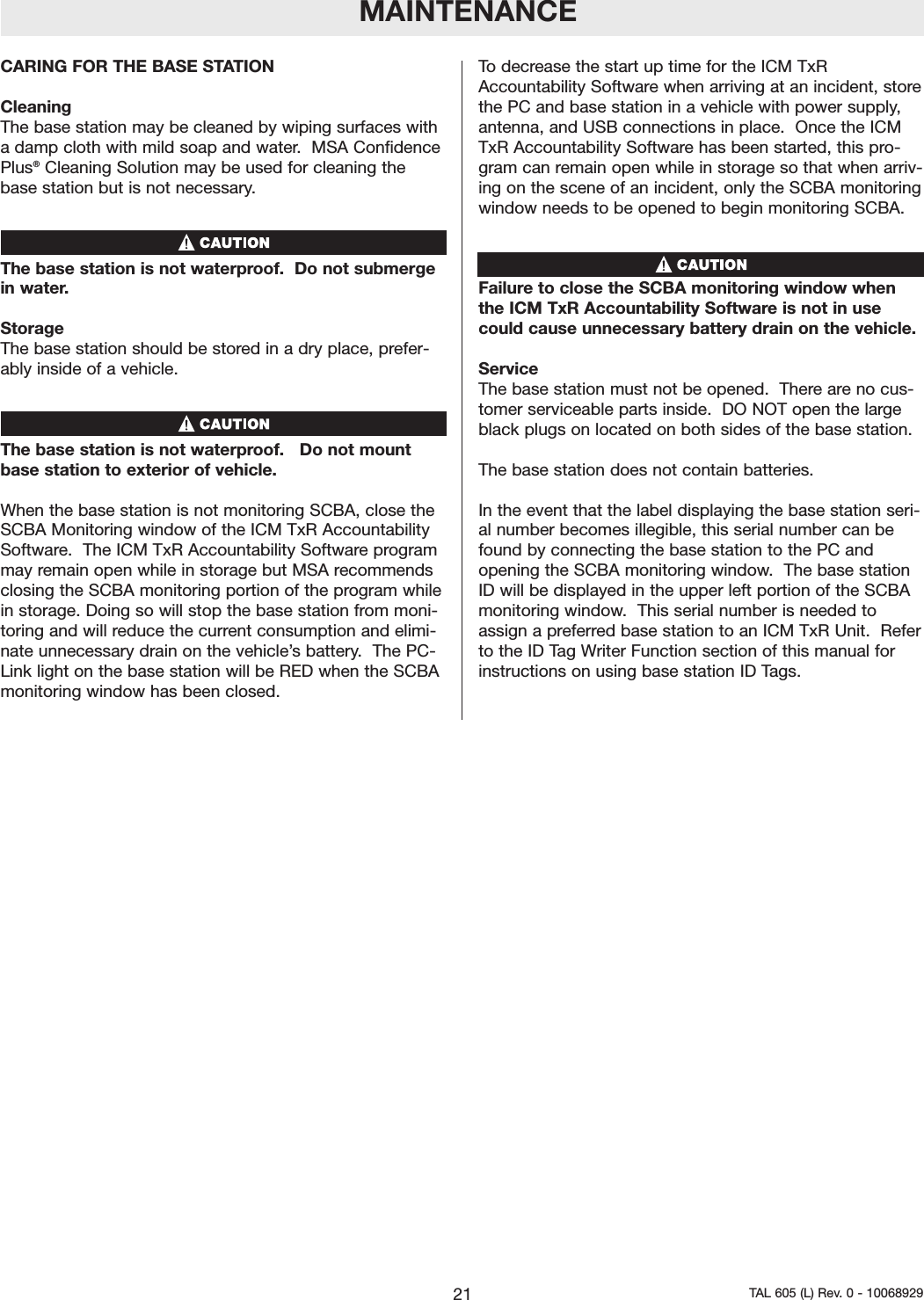
MAINTENANCECARING FOR THE BASE STATIONCleaning The base station may be cleaned by wiping surfaces witha damp cloth with mild soap and water.  MSA ConfidencePlus®Cleaning Solution may be used for cleaning thebase station but is not necessary.   The base station is not waterproof.  Do not submergein water.  Storage The base station should be stored in a dry place, prefer-ably inside of a vehicle. The base station is not waterproof.   Do not mountbase station to exterior of vehicle. When the base station is not monitoring SCBA, close theSCBA Monitoring window of the ICM TxR AccountabilitySoftware.  The ICM TxR Accountability Software programmay remain open while in storage but MSA recommendsclosing the SCBA monitoring portion of the program whilein storage. Doing so will stop the base station from moni-toring and will reduce the current consumption and elimi-nate unnecessary drain on the vehicle’s battery.  The PC-Link light on the base station will be RED when the SCBAmonitoring window has been closed.  To decrease the start up time for the ICM TxRAccountability Software when arriving at an incident, storethe PC and base station in a vehicle with power supply,antenna, and USB connections in place.  Once the ICMTxR Accountability Software has been started, this pro-gram can remain open while in storage so that when arriv-ing on the scene of an incident, only the SCBA monitoringwindow needs to be opened to begin monitoring SCBA.   Failure to close the SCBA monitoring window whenthe ICM TxR Accountability Software is not in usecould cause unnecessary battery drain on the vehicle.  ServiceThe base station must not be opened.  There are no cus-tomer serviceable parts inside.  DO NOT open the largeblack plugs on located on both sides of the base station.  The base station does not contain batteries.  In the event that the label displaying the base station seri-al number becomes illegible, this serial number can befound by connecting the base station to the PC andopening the SCBA monitoring window.  The base stationID will be displayed in the upper left portion of the SCBAmonitoring window.  This serial number is needed toassign a preferred base station to an ICM TxR Unit.  Referto the ID Tag Writer Function section of this manual forinstructions on using base station ID Tags.  21 TAL 605 (L) Rev. 0 - 10068929
NOTES22TAL 605 (L) Rev. 0 - 10068929
WARRANTYWarranty InformationThe ICM TxR Unit and Base Station are warranted to befree from mechanical defects or faulty workmanship fortwo (2) years from first use or eighteen (18) months fromthe date code, whichever occurs first, provided it is main-tained and used in accordance with MSA’s instructionsand/or recommendations.Refer to MMR Air Mask with Firehawk operation andinstructions manual PN 10023638 for additional warrantyinformation. For a copy of the complete warranty or forinformation on submitting a warranty claim, write to MSA,Customer Service Department, P.O. Box 426, Pittsburgh,PA 15230-0426 or call 1-800-MSA-2222.For further information or training instructions contactyour MSA representative or distributor.23 TAL 605 (L) Rev. 0 - 10068929
NOTES24TAL 605 (L) Rev. 0 - 10068929
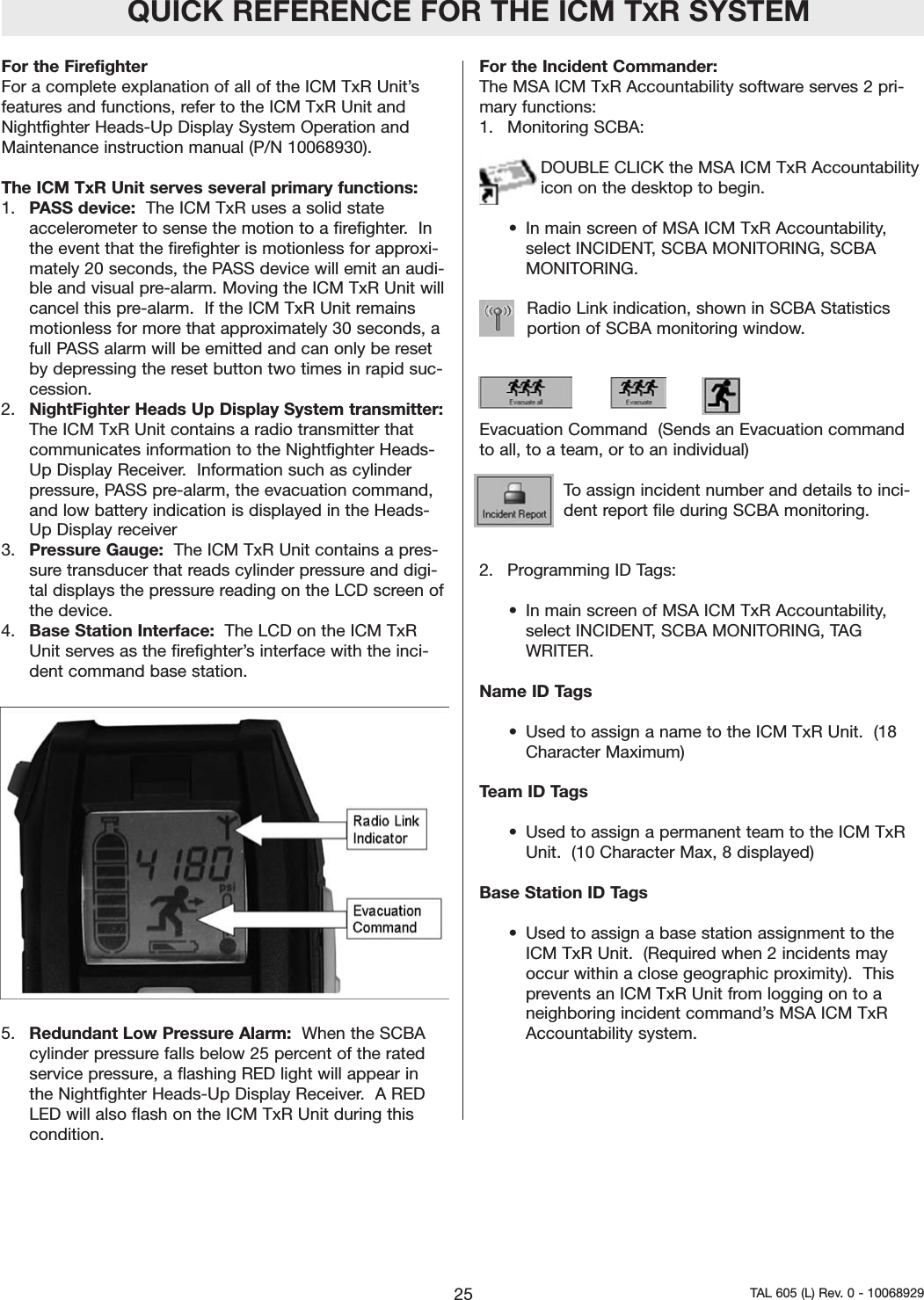
QUICK REFERENCE FOR THE ICM TXR SYSTEMFor the Firefighter For a complete explanation of all of the ICM TxR Unit’sfeatures and functions, refer to the ICM TxR Unit andNightfighter Heads-Up Display System Operation andMaintenance instruction manual (P/N 10068930).The ICM TxR Unit serves several primary functions:  1.  PASS device: The ICM TxR uses a solid stateaccelerometer to sense the motion to a firefighter.  Inthe event that the firefighter is motionless for approxi-mately 20 seconds, the PASS device will emit an audi-ble and visual pre-alarm. Moving the ICM TxR Unit willcancel this pre-alarm.  If the ICM TxR Unit remainsmotionless for more that approximately 30 seconds, afull PASS alarm will be emitted and can only be resetby depressing the reset button two times in rapid suc-cession.  2.  NightFighter Heads Up Display System transmitter:The ICM TxR Unit contains a radio transmitter thatcommunicates information to the Nightfighter Heads-Up Display Receiver.  Information such as cylinderpressure, PASS pre-alarm, the evacuation command,and low battery indication is displayed in the Heads-Up Display receiver 3.  Pressure Gauge: The ICM TxR Unit contains a pres-sure transducer that reads cylinder pressure and digi-tal displays the pressure reading on the LCD screen ofthe device.  4.  Base Station Interface:  The LCD on the ICM TxRUnit serves as the firefighter’s interface with the inci-dent command base station.  5.  Redundant Low Pressure Alarm: When the SCBAcylinder pressure falls below 25 percent of the ratedservice pressure, a flashing RED light will appear inthe Nightfighter Heads-Up Display Receiver.  A REDLED will also flash on the ICM TxR Unit during thiscondition.  For the Incident Commander:  The MSA ICM TxR Accountability software serves 2 pri-mary functions:  1.   Monitoring SCBA:  DOUBLE CLICK the MSA ICM TxR Accountabilityicon on the desktop to begin. •In main screen of MSA ICM TxR Accountability,select INCIDENT, SCBA MONITORING, SCBAMONITORING.Radio Link indication, shown in SCBA Statisticsportion of SCBA monitoring window.  Evacuation Command  (Sends an Evacuation commandto all, to a team, or to an individual)To assign incident number and details to inci-dent report file during SCBA monitoring.  2.   Programming ID Tags:  • In main screen of MSA ICM TxR Accountability,select INCIDENT, SCBA MONITORING, TAGWRITER.Name ID Tags• Used to assign a name to the ICM TxR Unit.  (18Character Maximum)Team ID Tags• Used to assign a permanent team to the ICM TxRUnit.  (10 Character Max, 8 displayed)Base Station ID Tags•Used to assign a base station assignment to theICM TxR Unit.  (Required when 2 incidents mayoccur within a close geographic proximity).  Thisprevents an ICM TxR Unit from logging on to aneighboring incident command’s MSA ICM TxRAccountability system.  25 TAL 605 (L) Rev. 0 - 10068929
NOTES26TAL 605 (L) Rev. 0 - 10068929

Navigation menu