Mobile Communications TBWP Tablet PC User Manual 1060TPC manual Englishx

Mobile Communications Inc. Tablet PC 1060TPC manual Englishx

User Manual

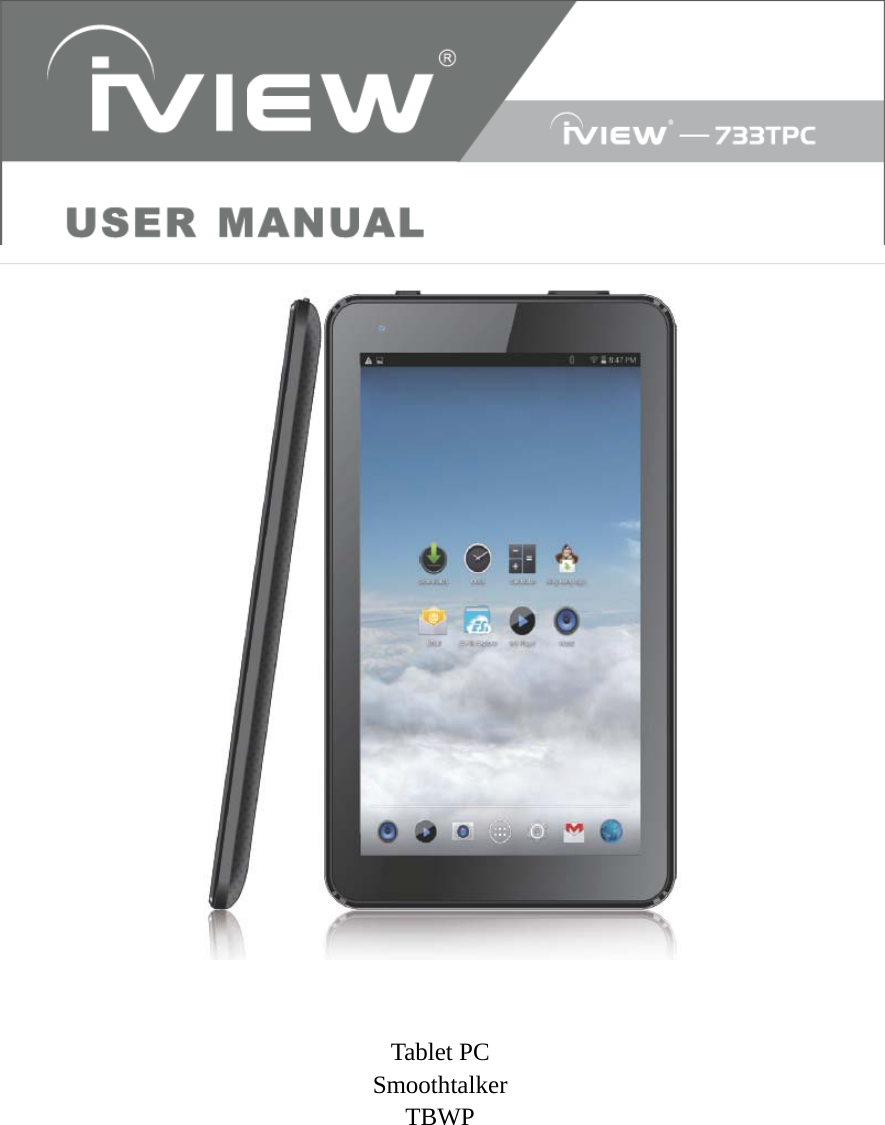
         Tablet PC Smoothtalker TBWP
    1Content  1. Appearance and button .................................................................................. 2 2. Start-up and shut-down .................................................................................. 3 3. Desktop .......................................................................................................... 3 4. Buttons ........................................................................................................... 4 5. Main menu operation ......................................................................................  5 System settings ............................................................................................  5 *Time/ Date setting: ............................................................................... 6 *Brightness: ........................................................................................... 7 *Screen standby: ................................................................................... 8 *Wireless & network: ..............................................................................  8 *Install, unload, run the application ...................................................... 10 *Backup & reset .................................................................................... 11 *Storage ...............................................................................................  12        *Language & keyboard ........................................................................ 12        *File Manager ...................................................................................... 13 6. Network ........................................................................................................ 16 7. Music playback .............................................................................................  17 8. Video playback ............................................................................................. 18 9. Photo browse ............................................................................................... 19 10. Wallpaper   11. Record ........................................................................................................ 21 12. Photograph ................................................................................................. 21 13. E-mail ......................................................................................................... 22 14. External device ........................................................................................... 25 15. Features ..................................................................................................... 26 16. Accessories ................................................................................................ 26
    21. Appearance and button    [Note] To power on: Press and hold the power button, the system will enter the main interface. To power off: In the main menu interface, press the power button for about 5 seconds to power off, the system will appear “power off” option, click “ok” and you can safely power off. Lock screen: Press power button to lock screen or unlock screen. Screenshot: Press power button and Volume- buttons at the same time, and hold for 3 seconds. When the power ran out, the system will power off automatically.
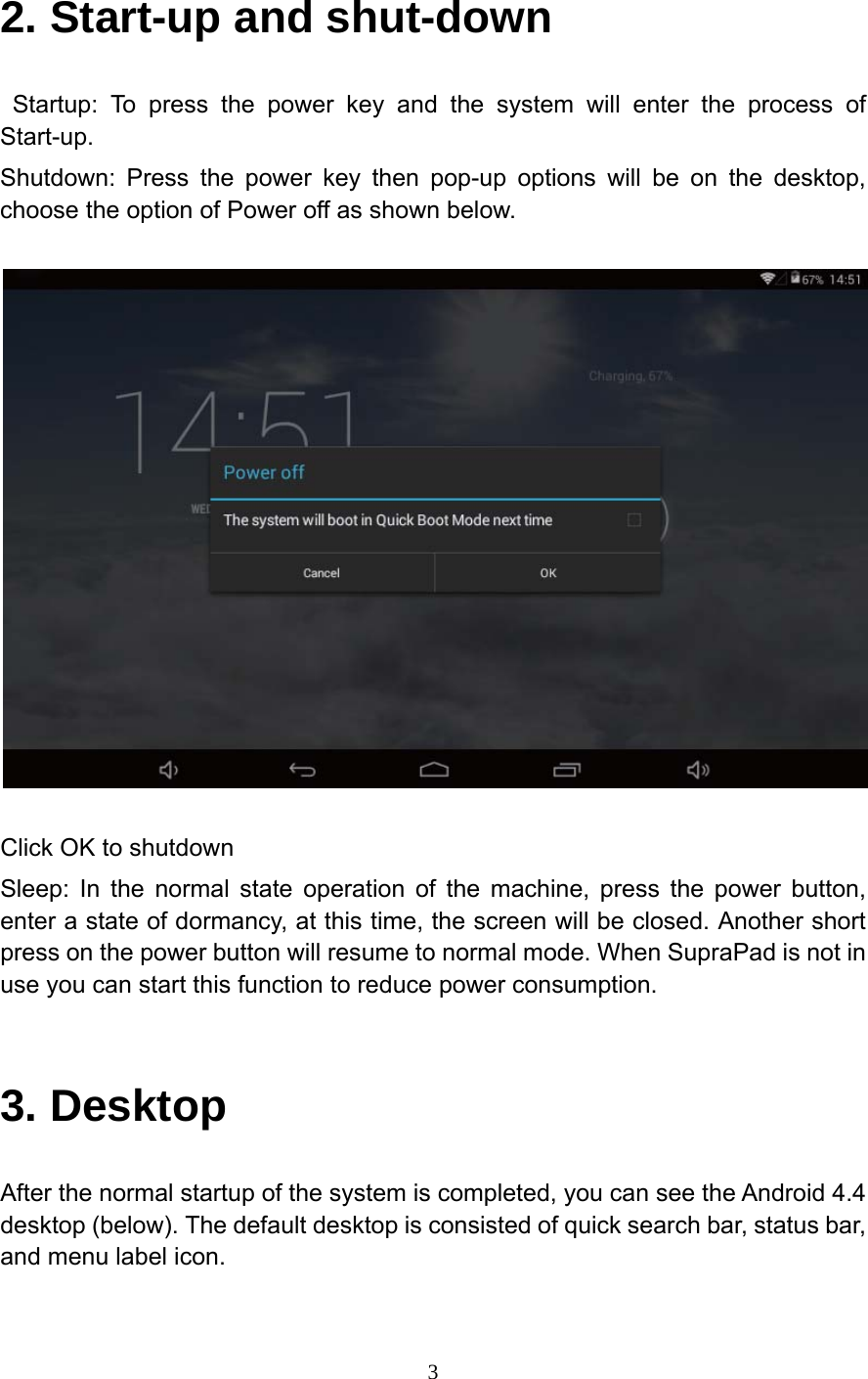
    32. Start-up and shut-down  Startup: To press the power key and the system will enter the process of Start-up. Shutdown: Press the power key then pop-up options will be on the desktop, choose the option of Power off as shown below.    Click OK to shutdown Sleep: In the normal state operation of the machine, press the power button, enter a state of dormancy, at this time, the screen will be closed. Another short press on the power button will resume to normal mode. When SupraPad is not in use you can start this function to reduce power consumption.  3. Desktop After the normal startup of the system is completed, you can see the Android 4.4 desktop (below). The default desktop is consisted of quick search bar, status bar, and menu label icon.
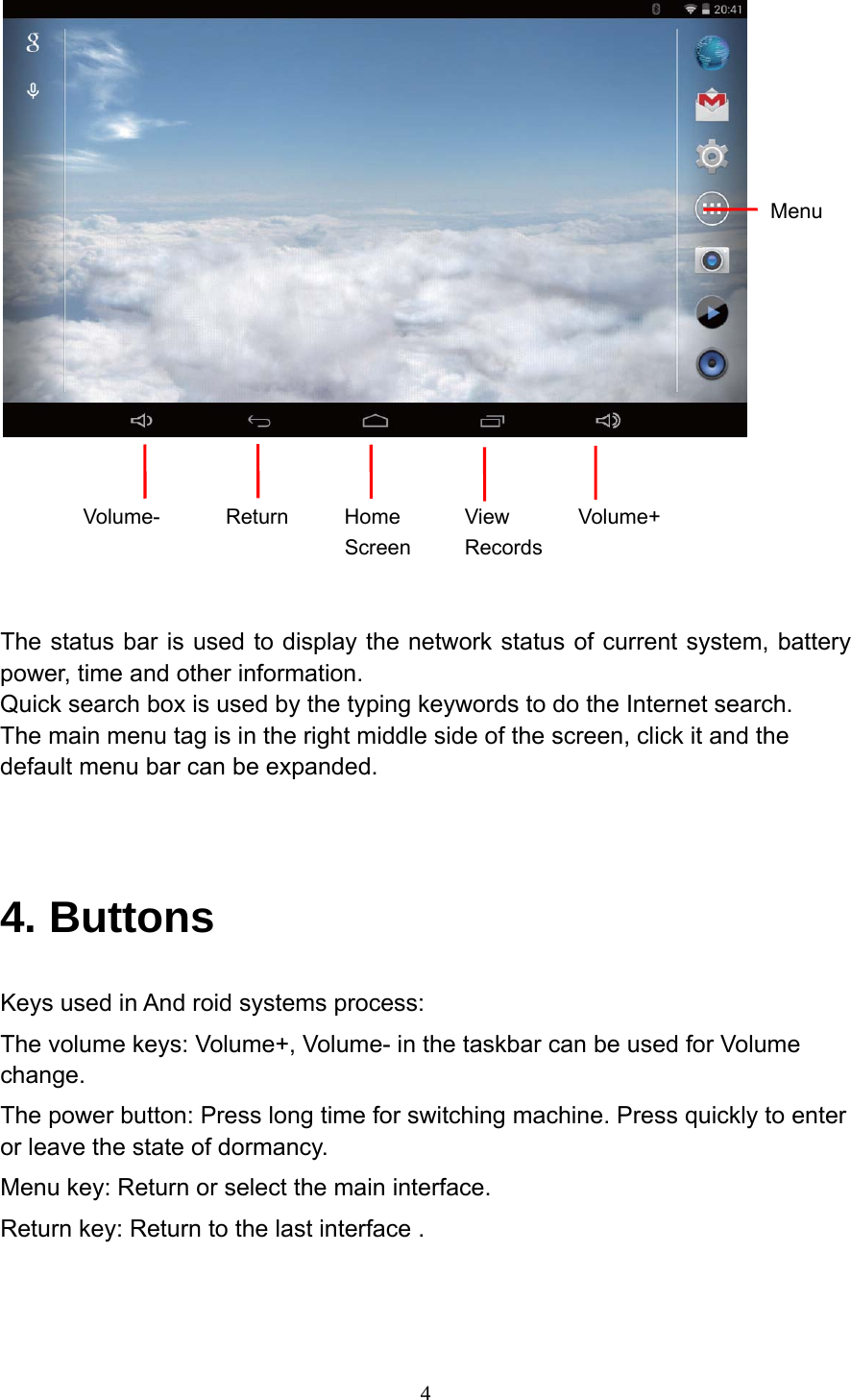
    4   Volume- Return Home Screen View Records Volume+   The status bar is used to display the network status of current system, battery power, time and other information. Quick search box is used by the typing keywords to do the Internet search. The main menu tag is in the right middle side of the screen, click it and the default menu bar can be expanded.   4. Buttons Keys used in And roid systems process: The volume keys: Volume+, Volume- in the taskbar can be used for Volume change. The power button: Press long time for switching machine. Press quickly to enter or leave the state of dormancy. Menu key: Return or select the main interface. Return key: Return to the last interface . Menu
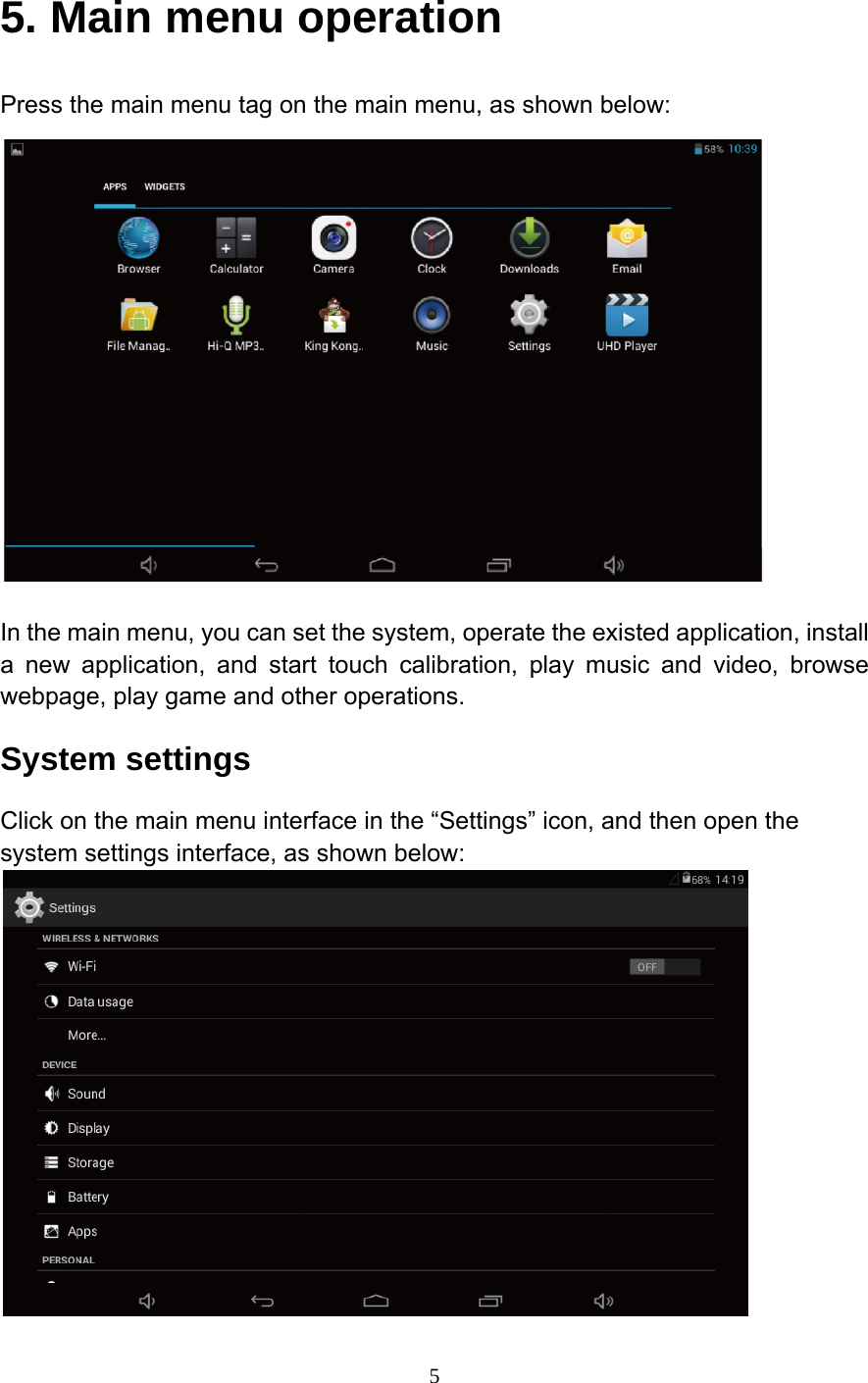
    55. Main menu operation Press the main menu tag on the main menu, as shown below:   In the main menu, you can set the system, operate the existed application, install a new application, and start touch calibration, play music and video, browse webpage, play game and other operations. System settings Click on the main menu interface in the “Settings” icon, and then open the system settings interface, as shown below:
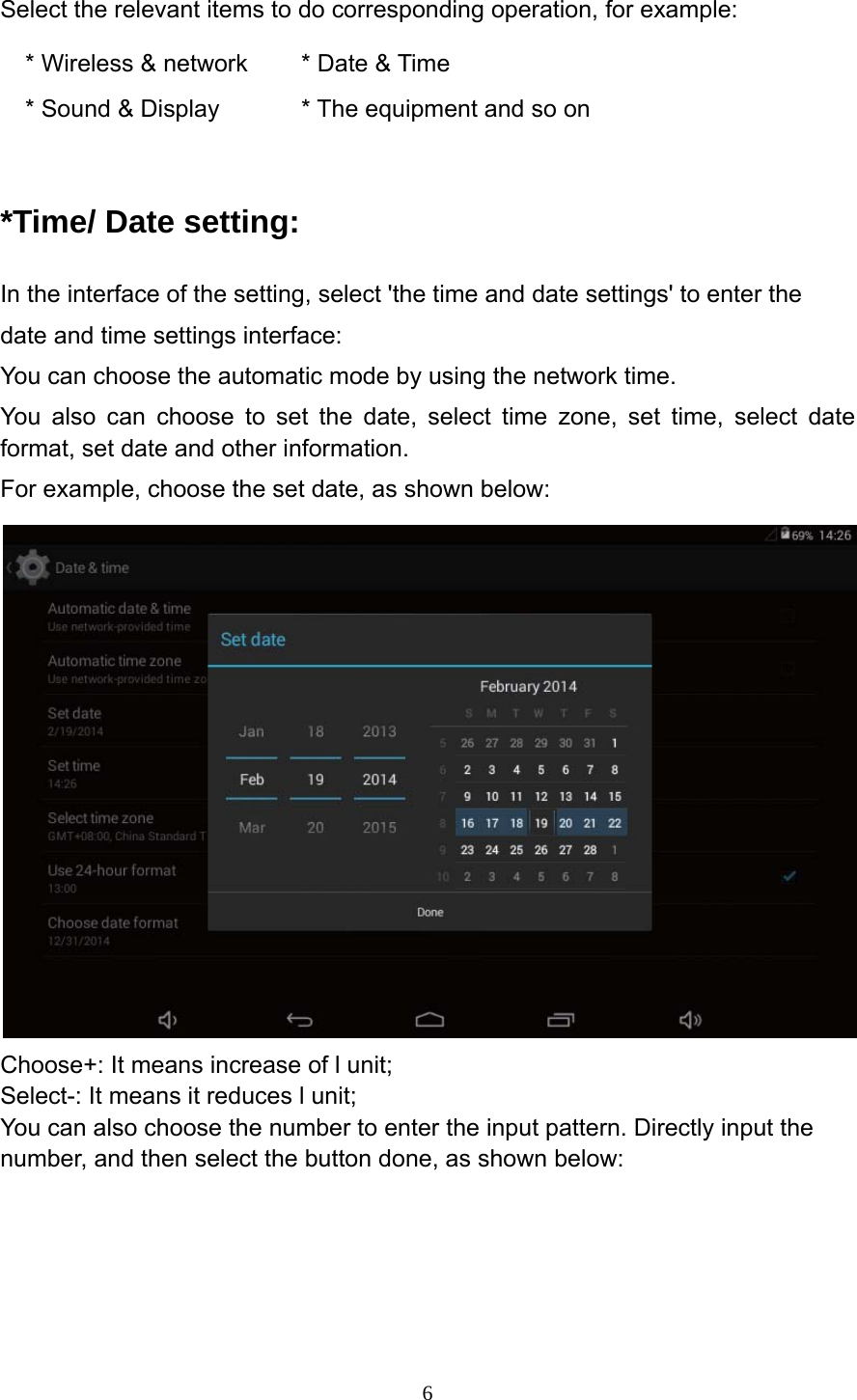
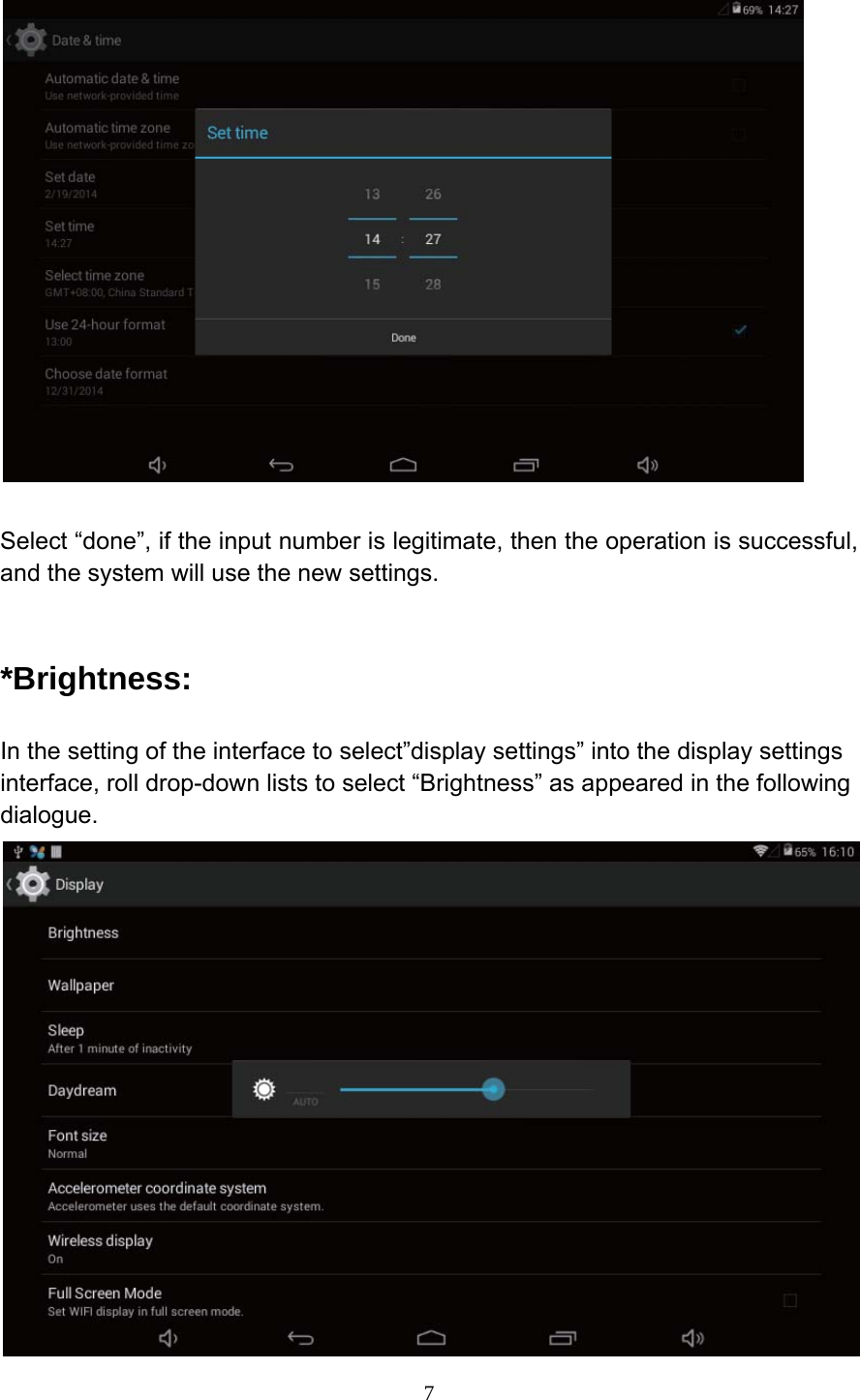
    6Select the relevant items to do corresponding operation, for example: * Wireless & network  * Date & Time * Sound & Display  * The equipment and so on  *Time/ Date setting: In the interface of the setting, select 'the time and date settings' to enter the date and time settings interface: You can choose the automatic mode by using the network time. You also can choose to set the date, select time zone, set time, select date format, set date and other information. For example, choose the set date, as shown below:  Choose+: It means increase of l unit; Select-: It means it reduces l unit; You can also choose the number to enter the input pattern. Directly input the number, and then select the button done, as shown below:
    7  Select “done”, if the input number is legitimate, then the operation is successful, and the system will use the new settings.  *Brightness: In the setting of the interface to select”display settings” into the display settings interface, roll drop-down lists to select “Brightness” as appeared in the following dialogue.
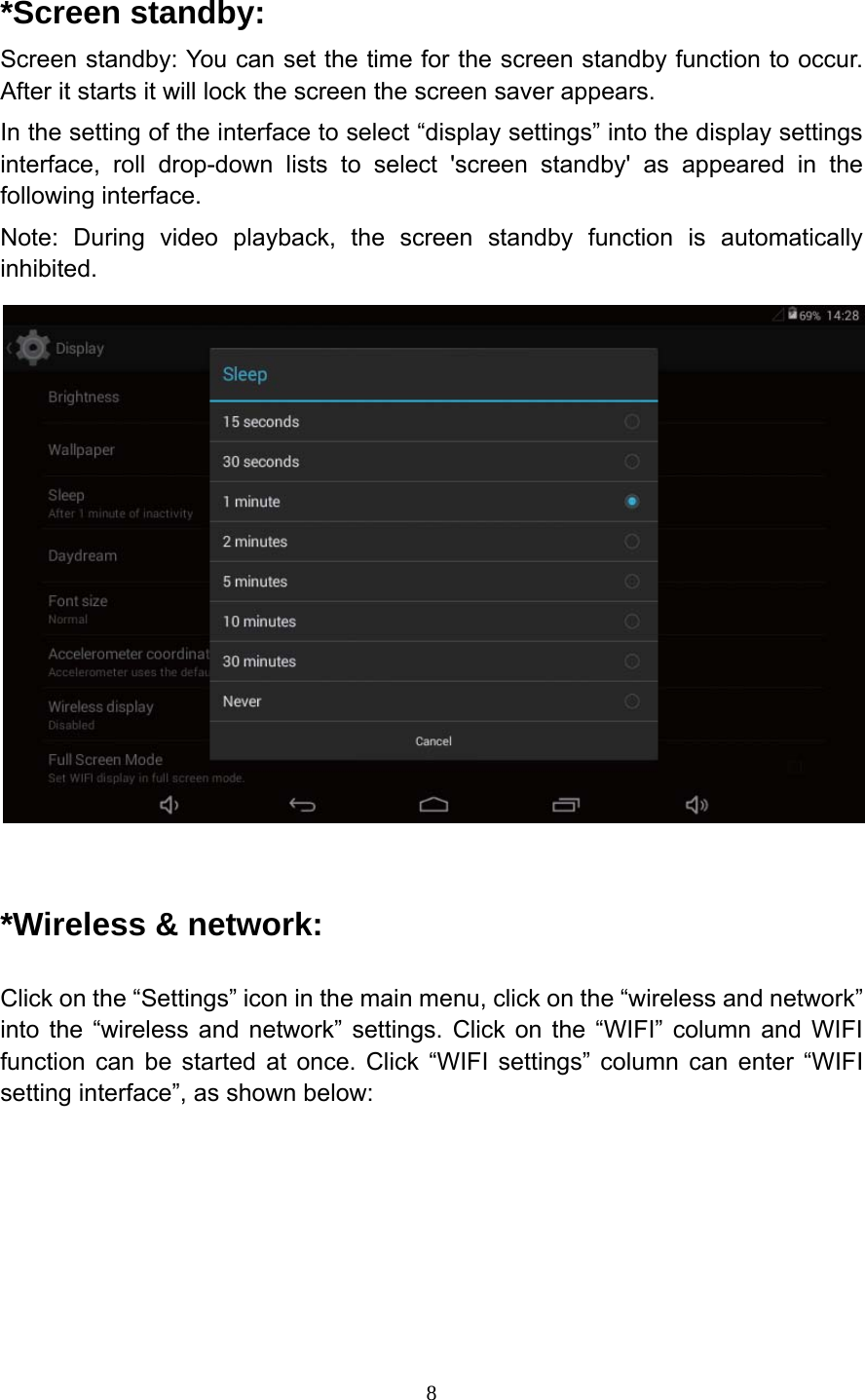
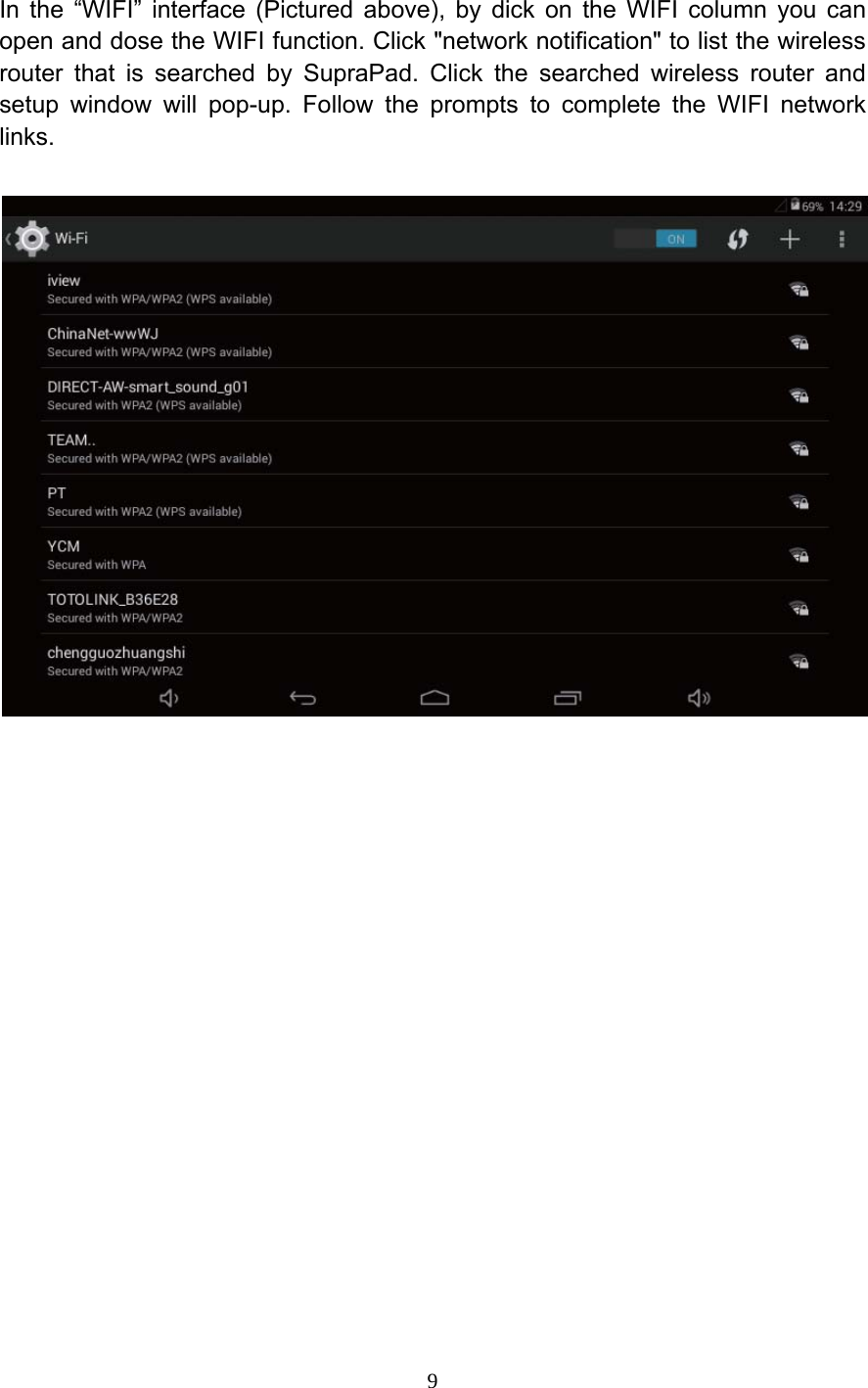
    8*Screen standby: Screen standby: You can set the time for the screen standby function to occur. After it starts it will lock the screen the screen saver appears. In the setting of the interface to select “display settings” into the display settings interface, roll drop-down lists to select 'screen standby' as appeared in the following interface. Note: During video playback, the screen standby function is automatically inhibited.   *Wireless & network: Click on the “Settings” icon in the main menu, click on the “wireless and network” into the “wireless and network” settings. Click on the “WIFI” column and WIFI function can be started at once. Click “WIFI settings” column can enter “WIFI setting interface”, as shown below:
    9 In the “WIFI” interface (Pictured above), by dick on the WIFI column you can open and dose the WIFI function. Click "network notification" to list the wireless router that is searched by SupraPad. Click the searched wireless router and setup window will pop-up. Follow the prompts to complete the WIFI network links.
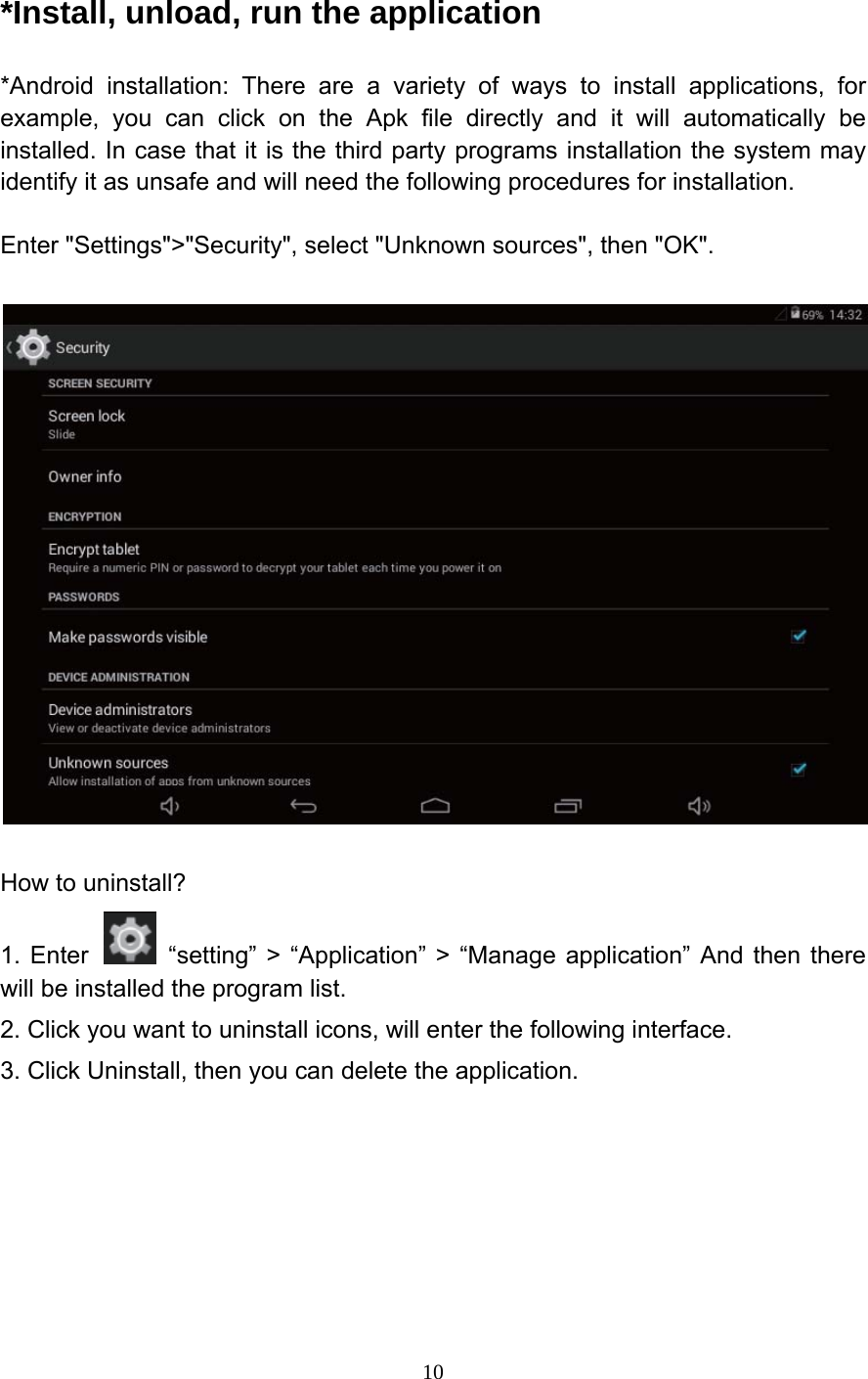
    10*Install, unload, run the application *Android installation: There are a variety of ways to install applications, for example, you can click on the Apk file directly and it will automatically be installed. In case that it is the third party programs installation the system may identify it as unsafe and will need the following procedures for installation.  Enter "Settings">"Security", select "Unknown sources", then "OK".    How to uninstall? 1. Enter   “setting” > “Application” > “Manage application” And then there will be installed the program list. 2. Click you want to uninstall icons, will enter the following interface. 3. Click Uninstall, then you can delete the application.
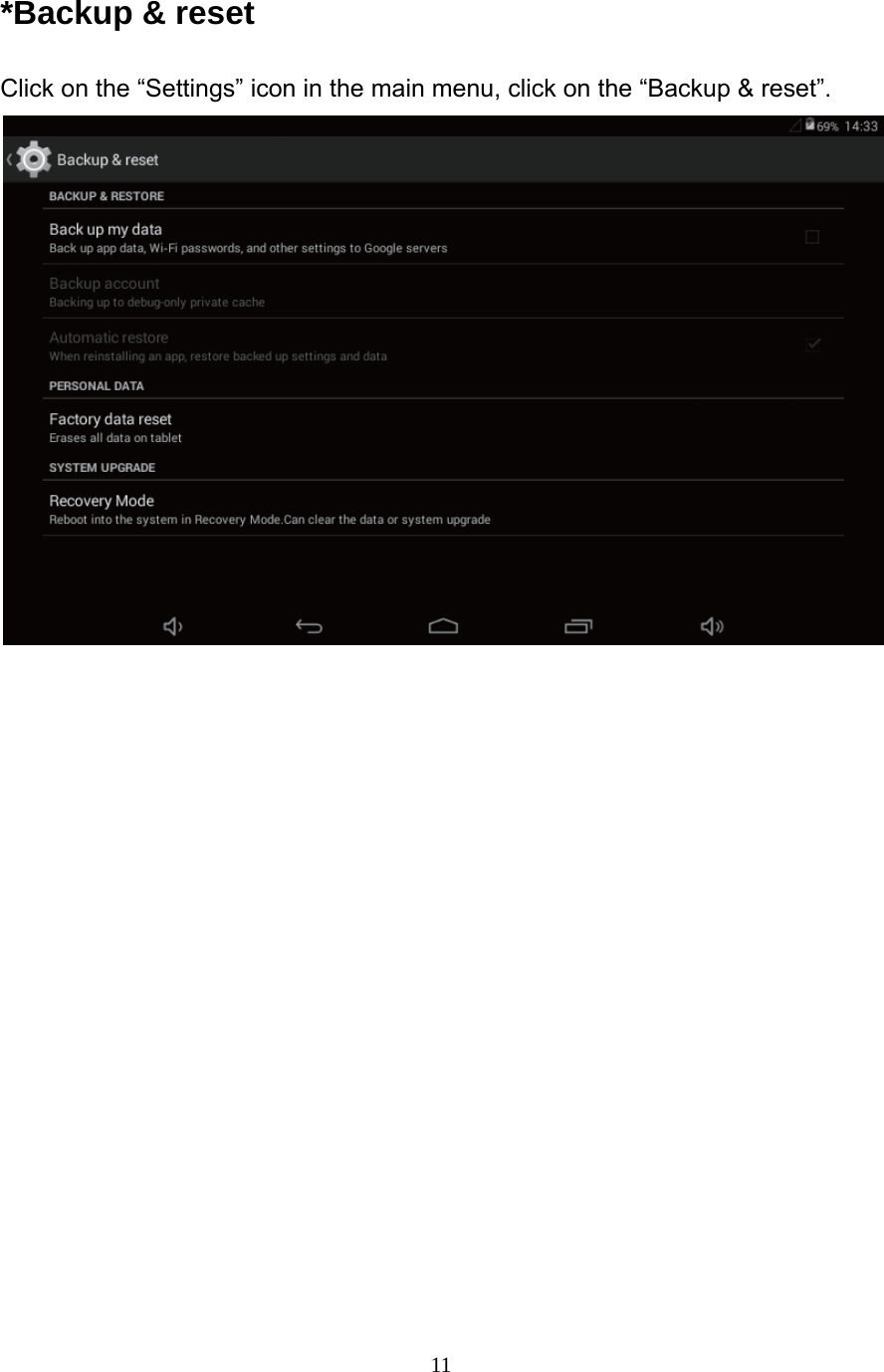
    11 *Backup & reset Click on the “Settings” icon in the main menu, click on the “Backup & reset”.
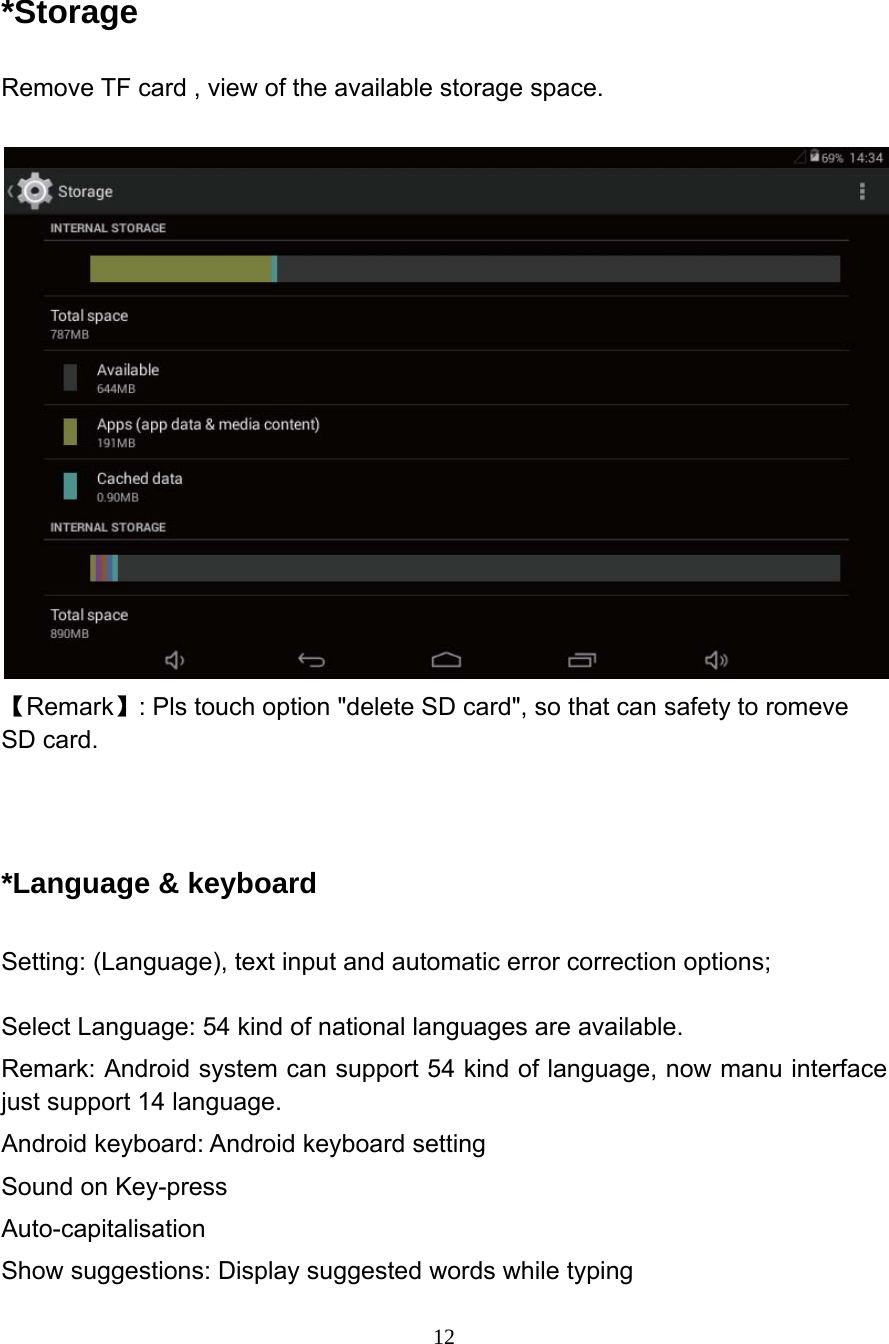
    12  *Storage Remove TF card , view of the available storage space.   【Remark】: Pls touch option "delete SD card", so that can safety to romeve SD card.   *Language & keyboard Setting: (Language), text input and automatic error correction options;  Select Language: 54 kind of national languages are available. Remark: Android system can support 54 kind of language, now manu interface just support 14 language. Android keyboard: Android keyboard setting Sound on Key-press Auto-capitalisation Show suggestions: Display suggested words while typing
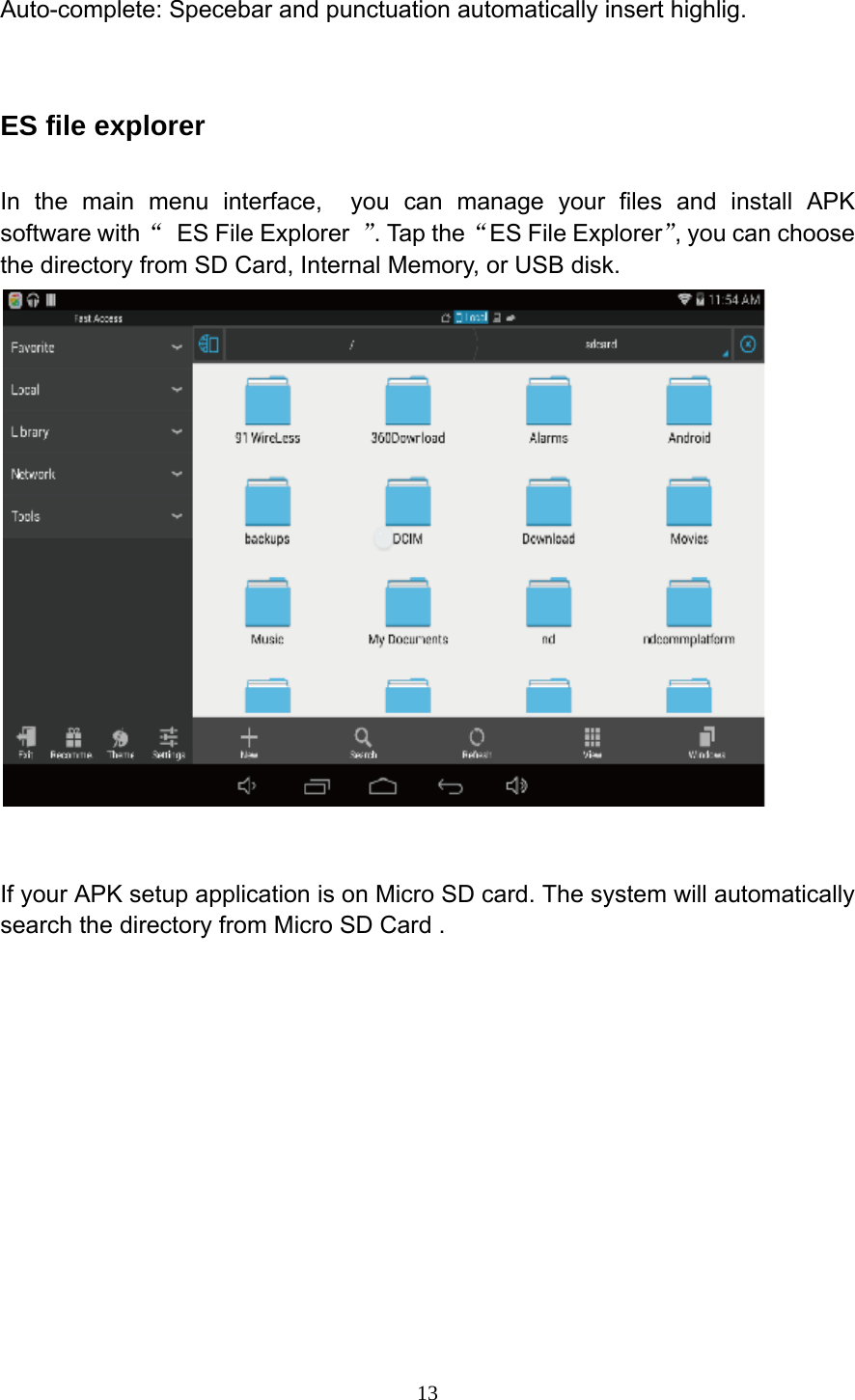
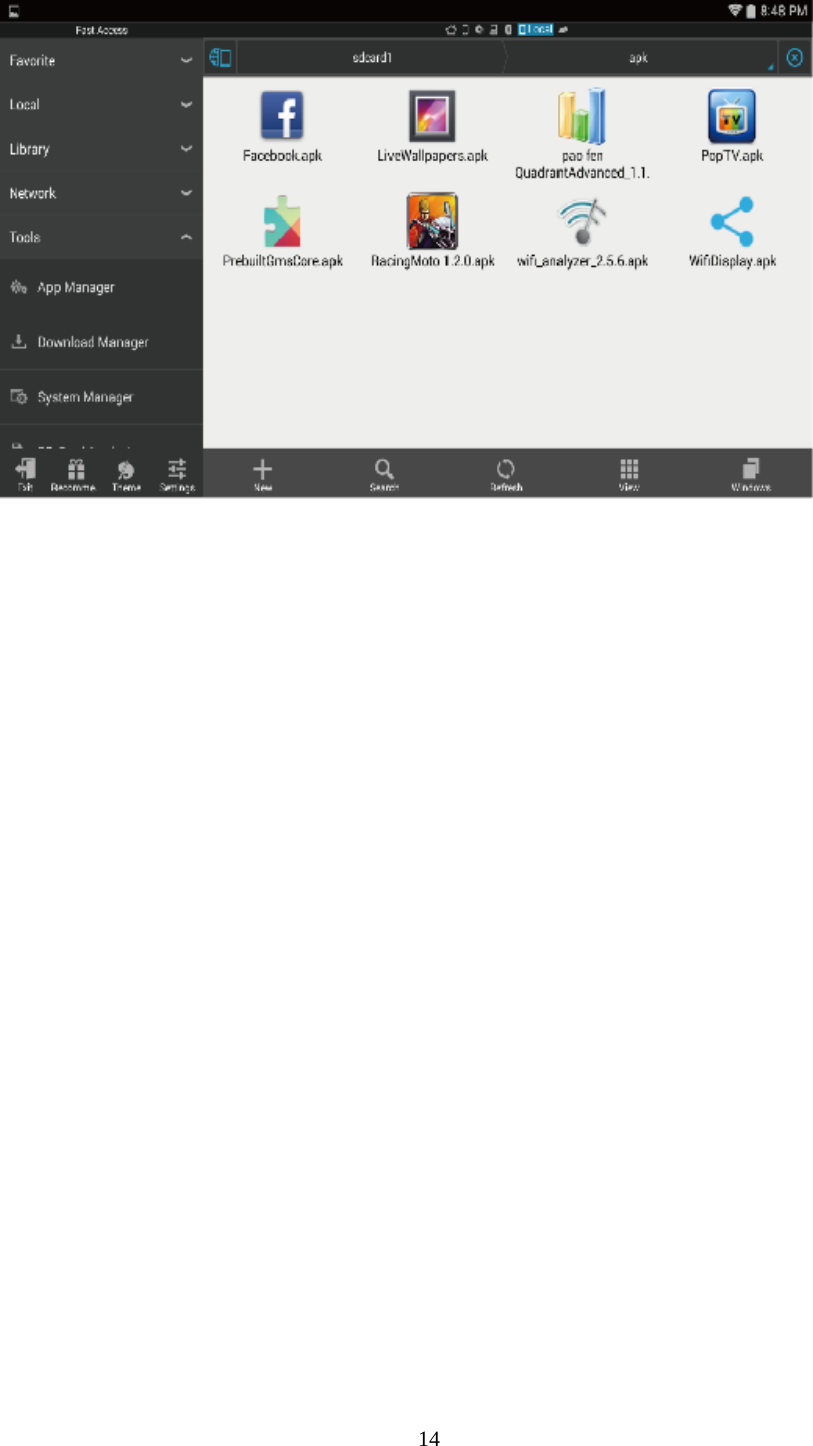
    13Auto-complete: Specebar and punctuation automatically insert highlig.  ES file explorer In the main menu interface,  you can manage your files and install APK software with “  ES File Explorer  ”. Tap the “ES File Explorer”, you can choose the directory from SD Card, Internal Memory, or USB disk.    If your APK setup application is on Micro SD card. The system will automatically search the directory from Micro SD Card .
    14
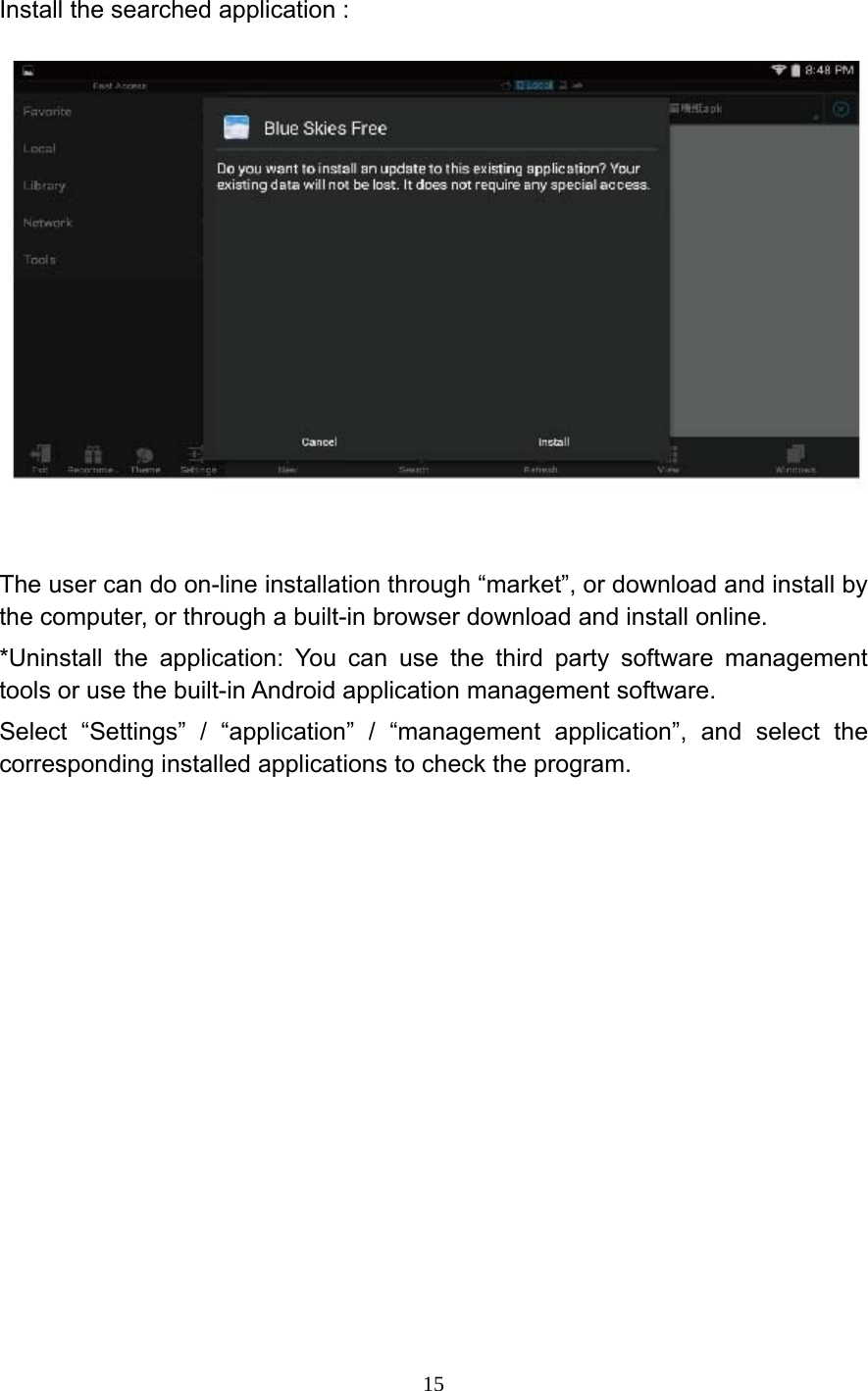
    15 Install the searched application :    The user can do on-line installation through “market”, or download and install by the computer, or through a built-in browser download and install online. *Uninstall the application: You can use the third party software management tools or use the built-in Android application management software. Select “Settings” / “application” / “management application”, and select the corresponding installed applications to check the program.
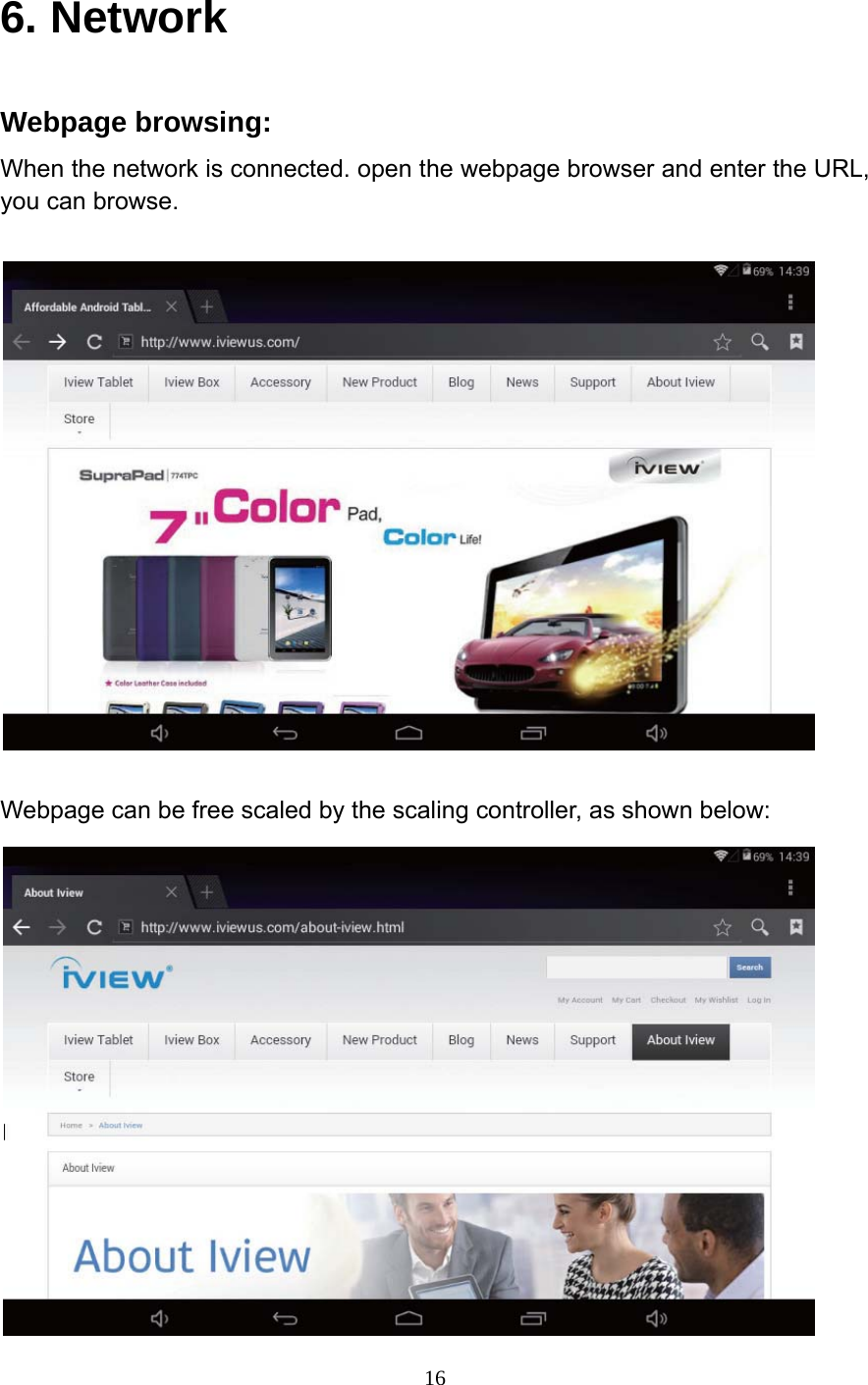
    166. Network Webpage browsing: When the network is connected. open the webpage browser and enter the URL, you can browse.    Webpage can be free scaled by the scaling controller, as shown below:
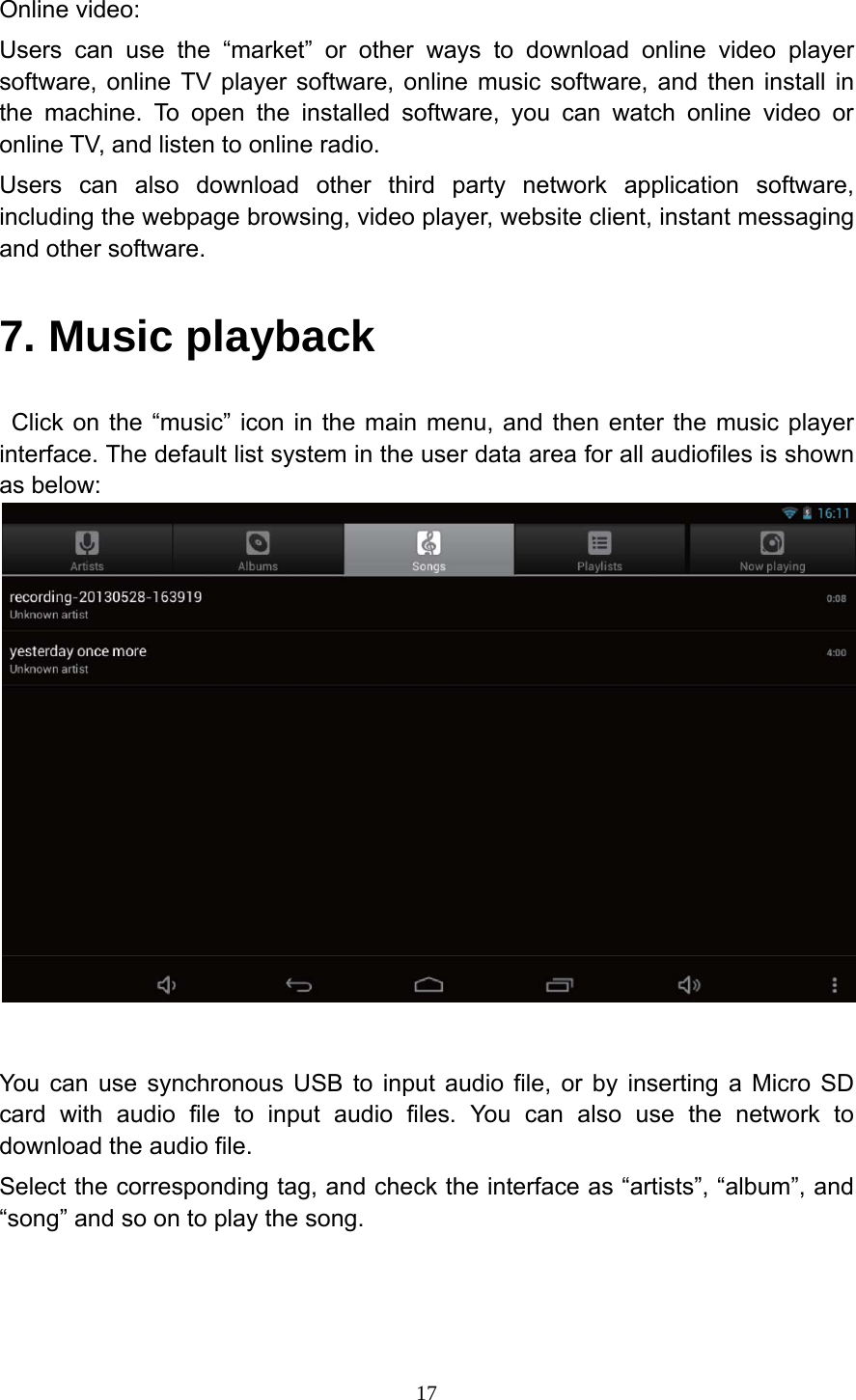
    17Online video: Users can use the “market” or other ways to download online video player software, online TV player software, online music software, and then install in the machine. To open the installed software, you can watch online video or online TV, and listen to online radio. Users can also download other third party network application software, including the webpage browsing, video player, website client, instant messaging and other software. 7. Music playback  Click on the “music” icon in the main menu, and then enter the music player interface. The default list system in the user data area for all audiofiles is shown as below:    You can use synchronous USB to input audio file, or by inserting a Micro SD card with audio file to input audio files. You can also use the network to download the audio file. Select the corresponding tag, and check the interface as “artists”, “album”, and “song” and so on to play the song.
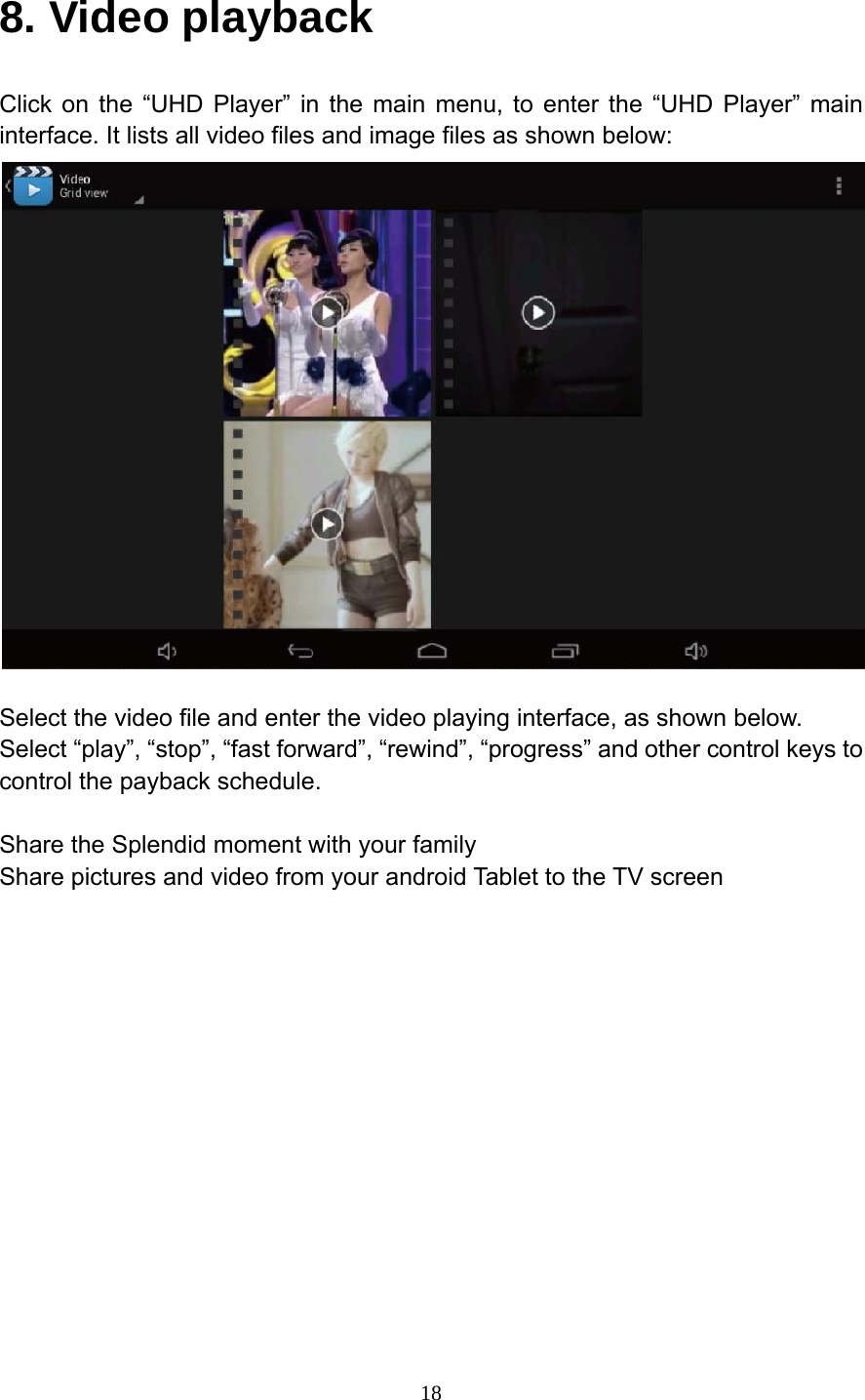
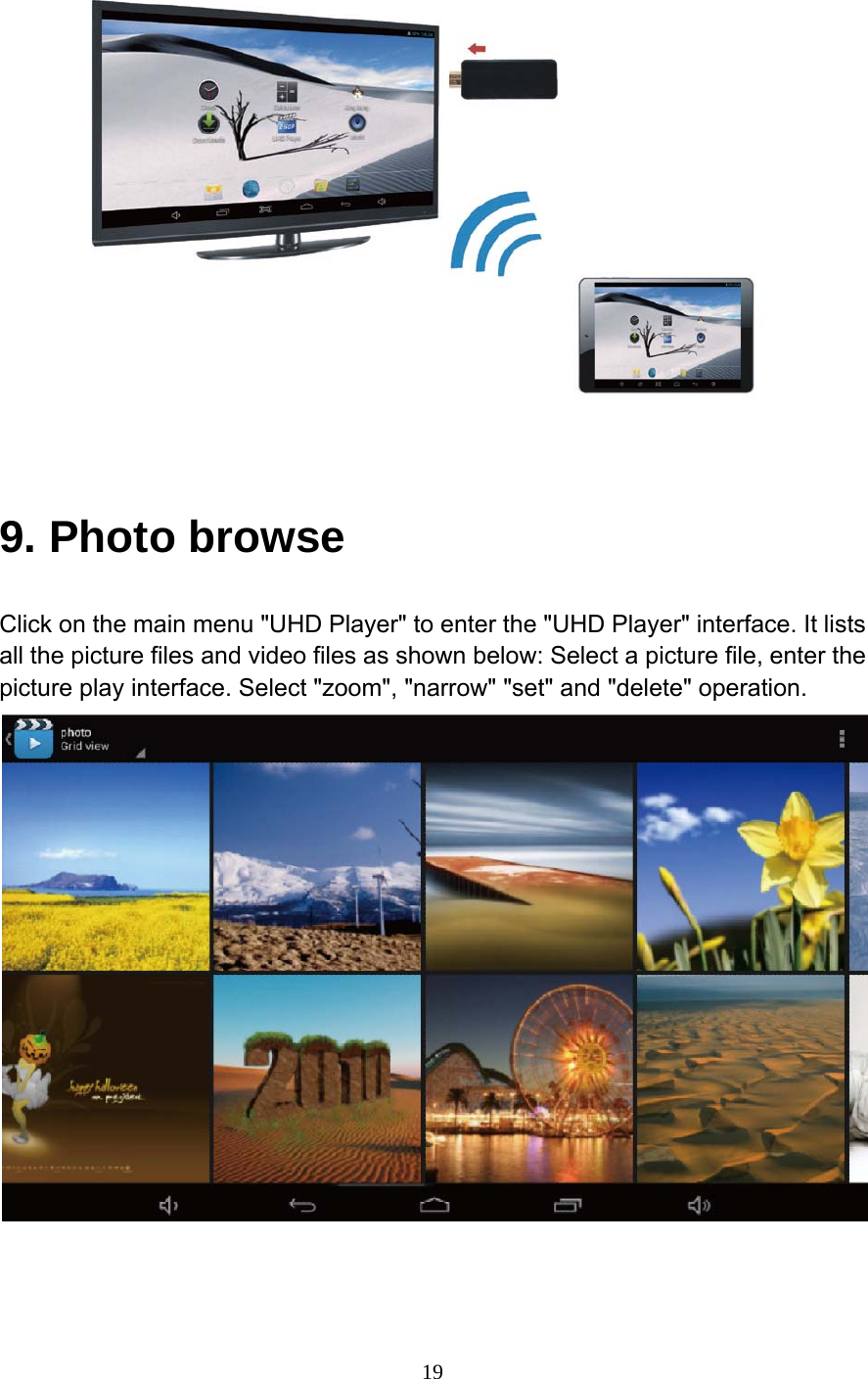
    188. Video playback Click on the “UHD Player” in the main menu, to enter the “UHD Player” main interface. It lists all video files and image files as shown below:   Select the video file and enter the video playing interface, as shown below. Select “play”, “stop”, “fast forward”, “rewind”, “progress” and other control keys to control the payback schedule.  Share the Splendid moment with your family Share pictures and video from your android Tablet to the TV screen
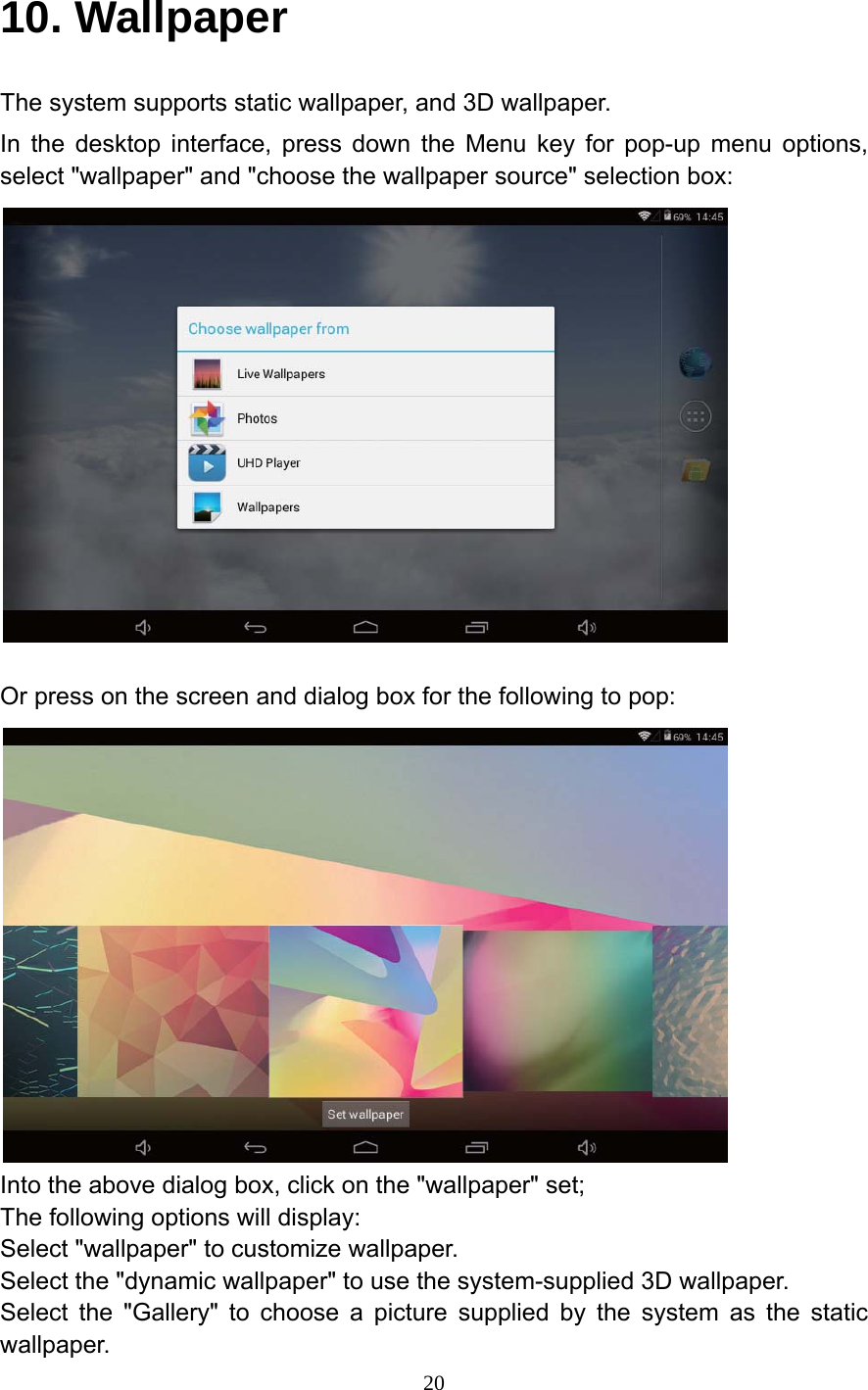
    19  9. Photo browse Click on the main menu "UHD Player" to enter the "UHD Player" interface. It lists all the picture files and video files as shown below: Select a picture file, enter the picture play interface. Select "zoom", "narrow" "set" and "delete" operation.
    2010. Wallpaper The system supports static wallpaper, and 3D wallpaper. In the desktop interface, press down the Menu key for pop-up menu options, select "wallpaper" and "choose the wallpaper source" selection box:   Or press on the screen and dialog box for the following to pop:  Into the above dialog box, click on the "wallpaper" set; The following options will display: Select "wallpaper" to customize wallpaper. Select the "dynamic wallpaper" to use the system-supplied 3D wallpaper. Select the "Gallery" to choose a picture supplied by the system as the static wallpaper.
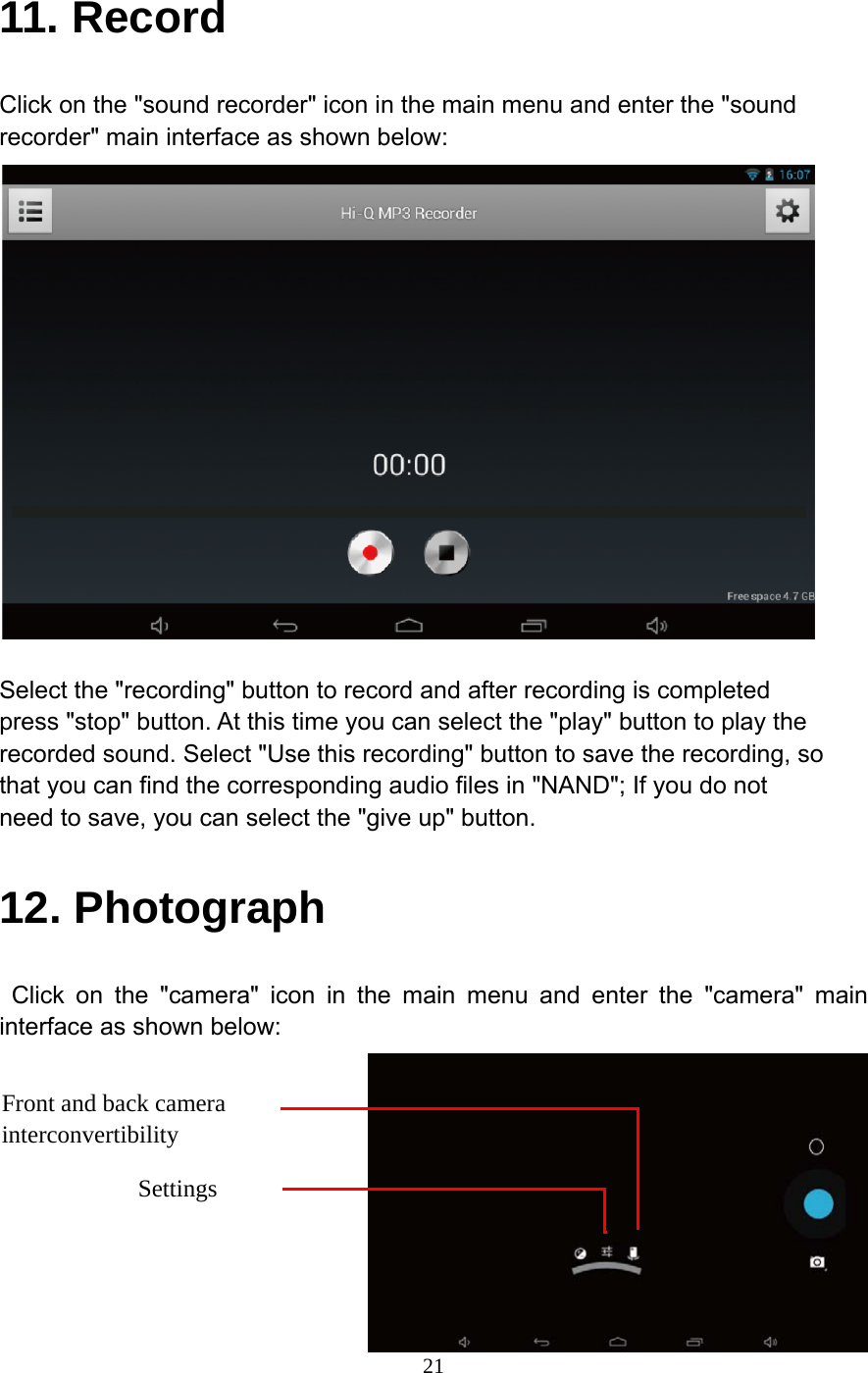
    2111. Record Click on the "sound recorder" icon in the main menu and enter the "sound recorder" main interface as shown below:   Select the "recording" button to record and after recording is completed press "stop" button. At this time you can select the "play" button to play the recorded sound. Select "Use this recording" button to save the recording, so that you can find the corresponding audio files in "NAND"; If you do not need to save, you can select the "give up" button. 12. Photograph  Click on the "camera" icon in the main menu and enter the "camera" main interface as shown below: Front and back camera interconvertibility   Settings
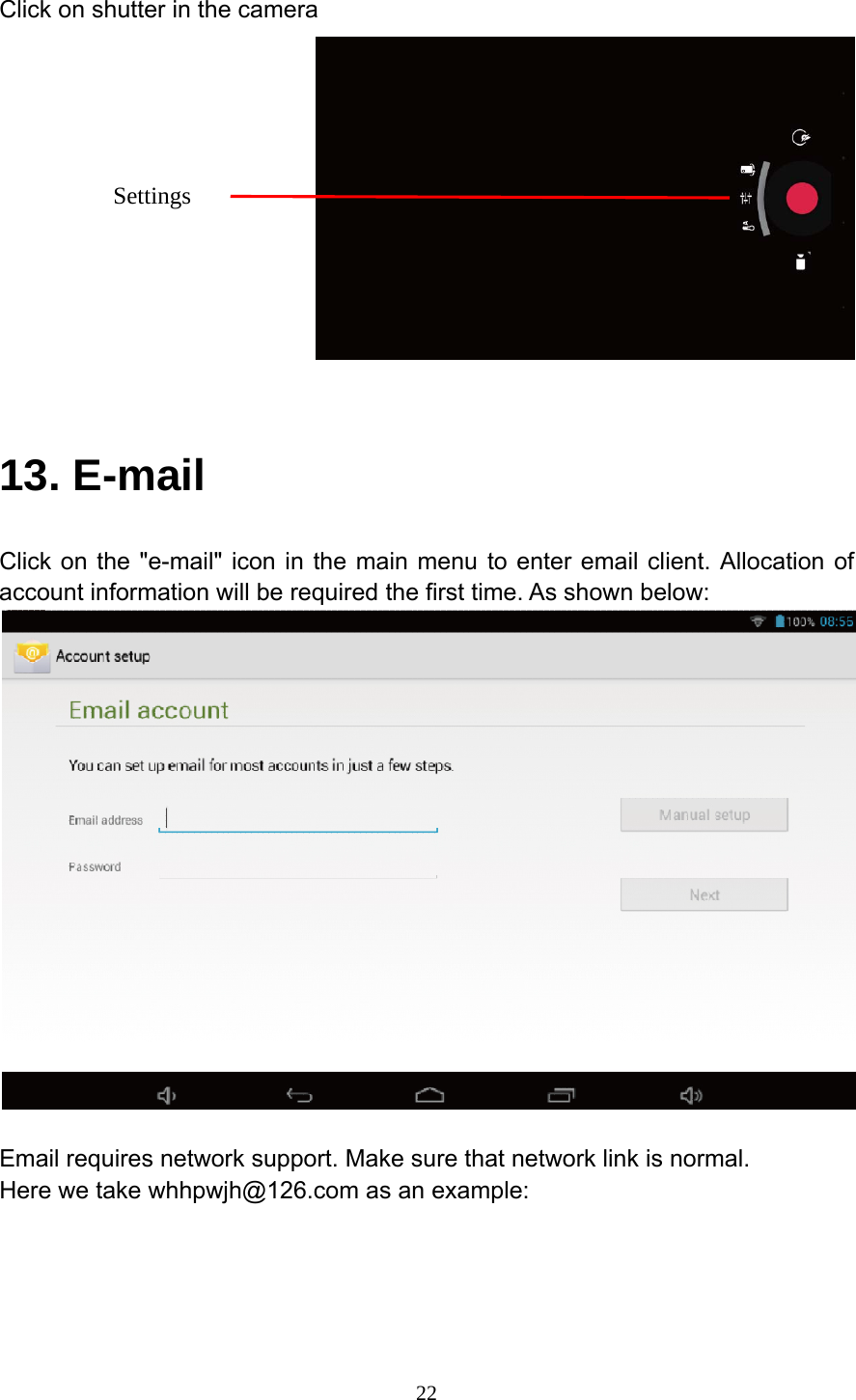
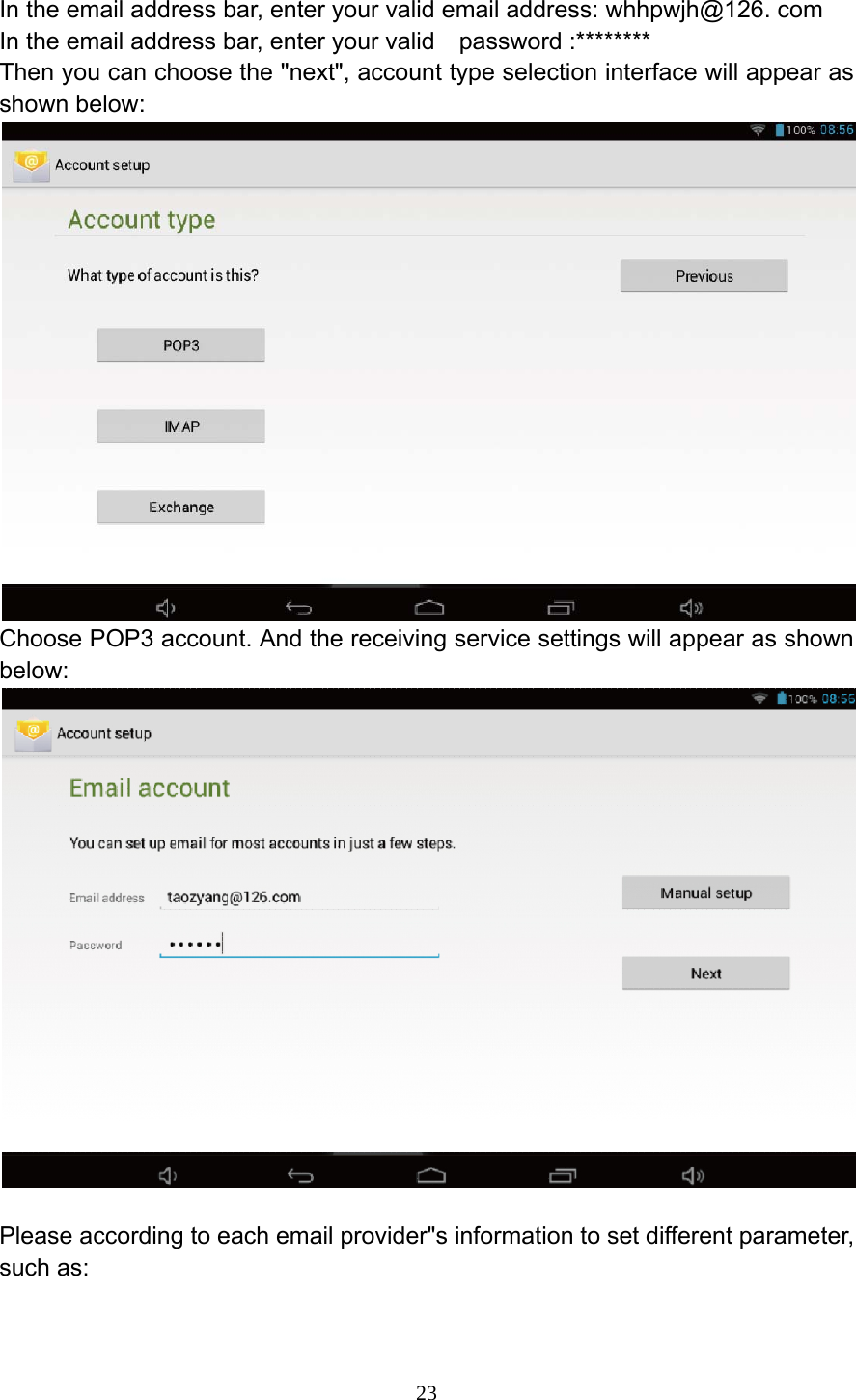
    22Click on shutter in the camera   13. E-mail Click on the "e-mail" icon in the main menu to enter email client. Allocation of account information will be required the first time. As shown below:   Email requires network support. Make sure that network link is normal. Here we take whhpwjh@126.com as an example:  Settings
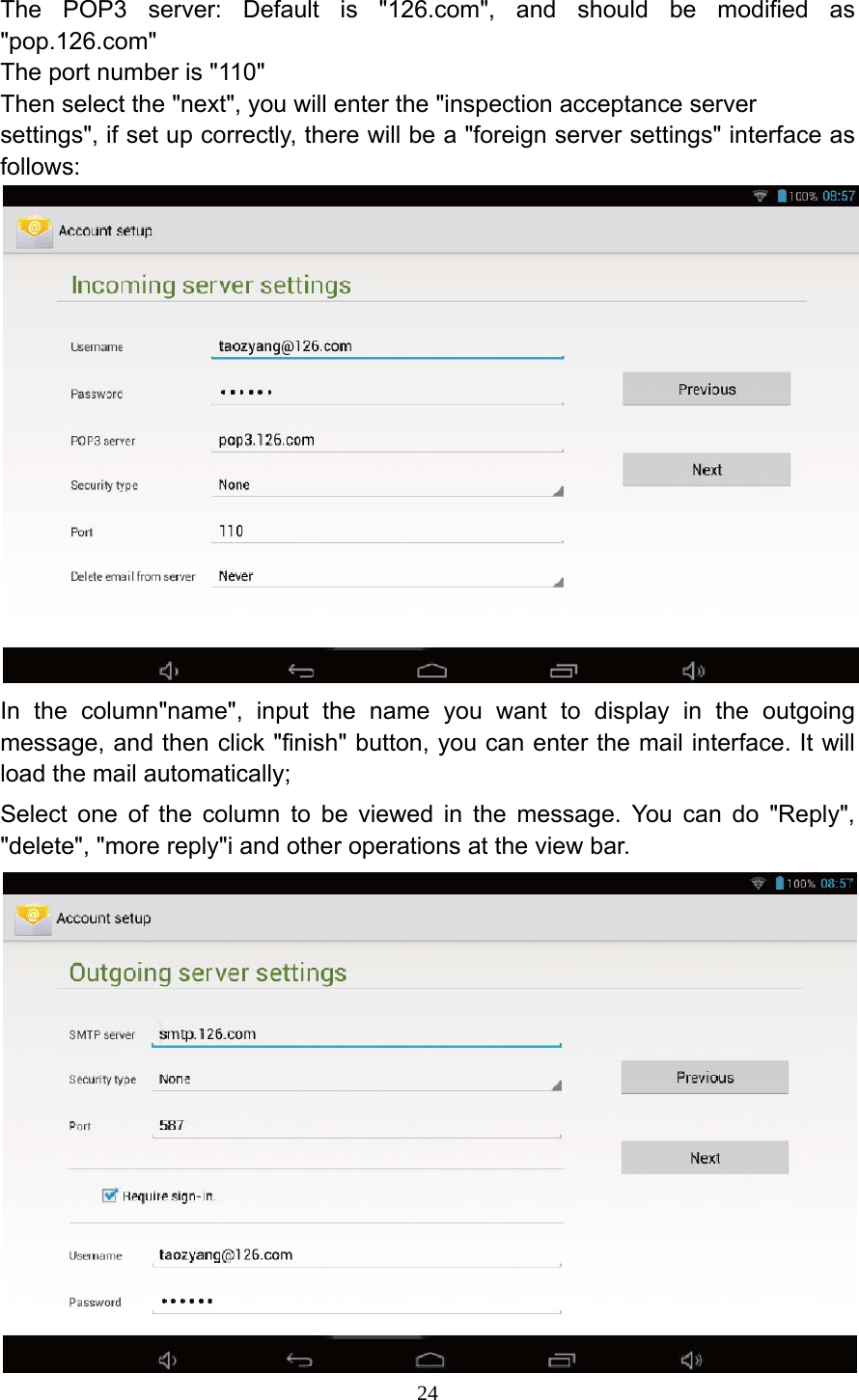
    23In the email address bar, enter your valid email address: whhpwjh@126. com In the email address bar, enter your valid    password :******** Then you can choose the "next", account type selection interface will appear as shown below:  Choose POP3 account. And the receiving service settings will appear as shown below:   Please according to each email provider"s information to set different parameter, such as:
    24The POP3 server: Default is "126.com", and should be modified as "pop.126.com" The port number is "110" Then select the "next", you will enter the "inspection acceptance server settings", if set up correctly, there will be a "foreign server settings" interface as follows:  In the column"name", input the name you want to display in the outgoing message, and then click "finish" button, you can enter the mail interface. It will load the mail automatically; Select one of the column to be viewed in the message. You can do "Reply", "delete", "more reply"i and other operations at the view bar.
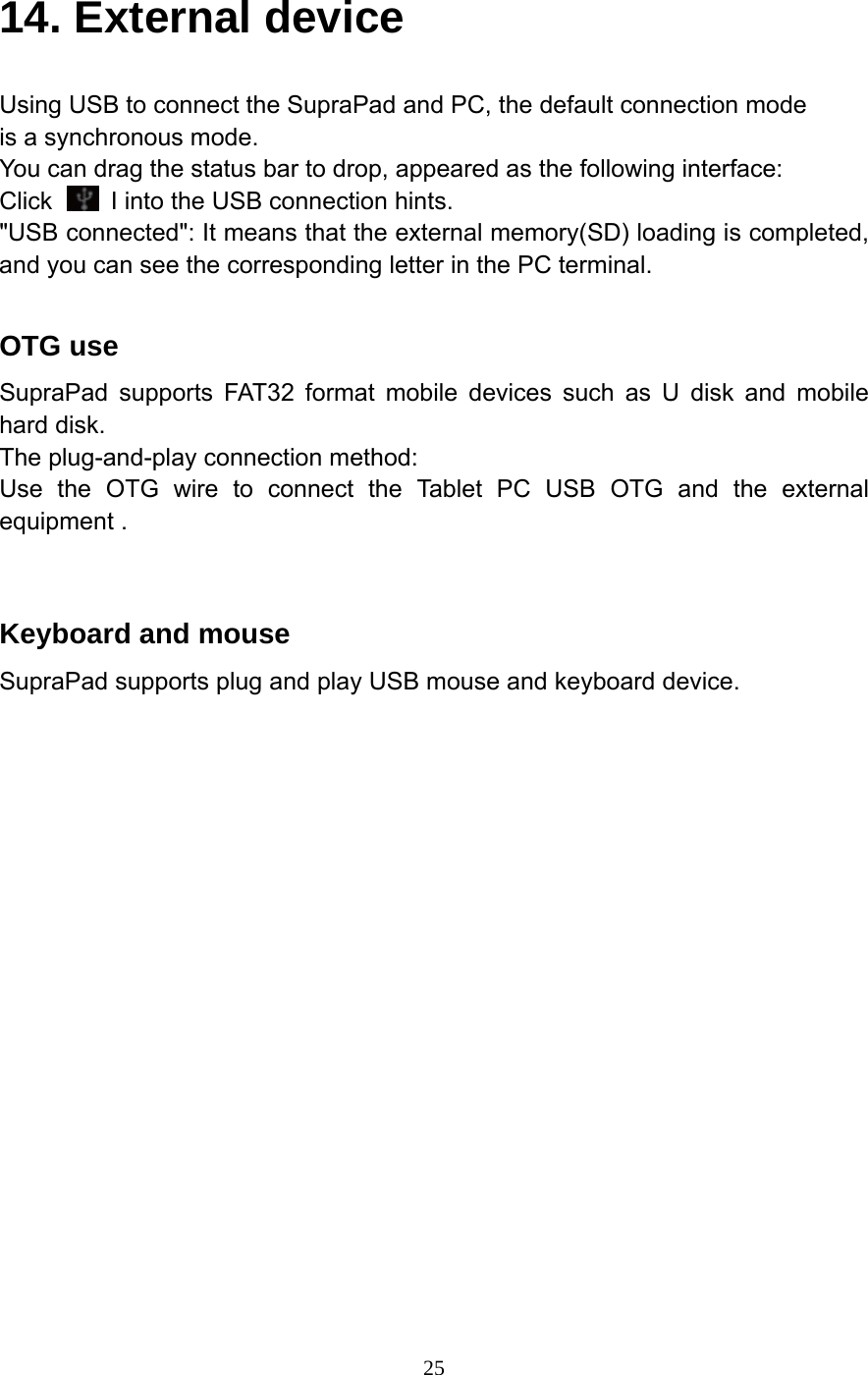
    2514. External device Using USB to connect the SupraPad and PC, the default connection mode is a synchronous mode. You can drag the status bar to drop, appeared as the following interface: Click    I into the USB connection hints. "USB connected": It means that the external memory(SD) loading is completed, and you can see the corresponding letter in the PC terminal.  OTG use SupraPad supports FAT32 format mobile devices such as U disk and mobile hard disk. The plug-and-play connection method: Use the OTG wire to connect the Tablet PC USB OTG and the external equipment .   Keyboard and mouse SupraPad supports plug and play USB mouse and keyboard device.
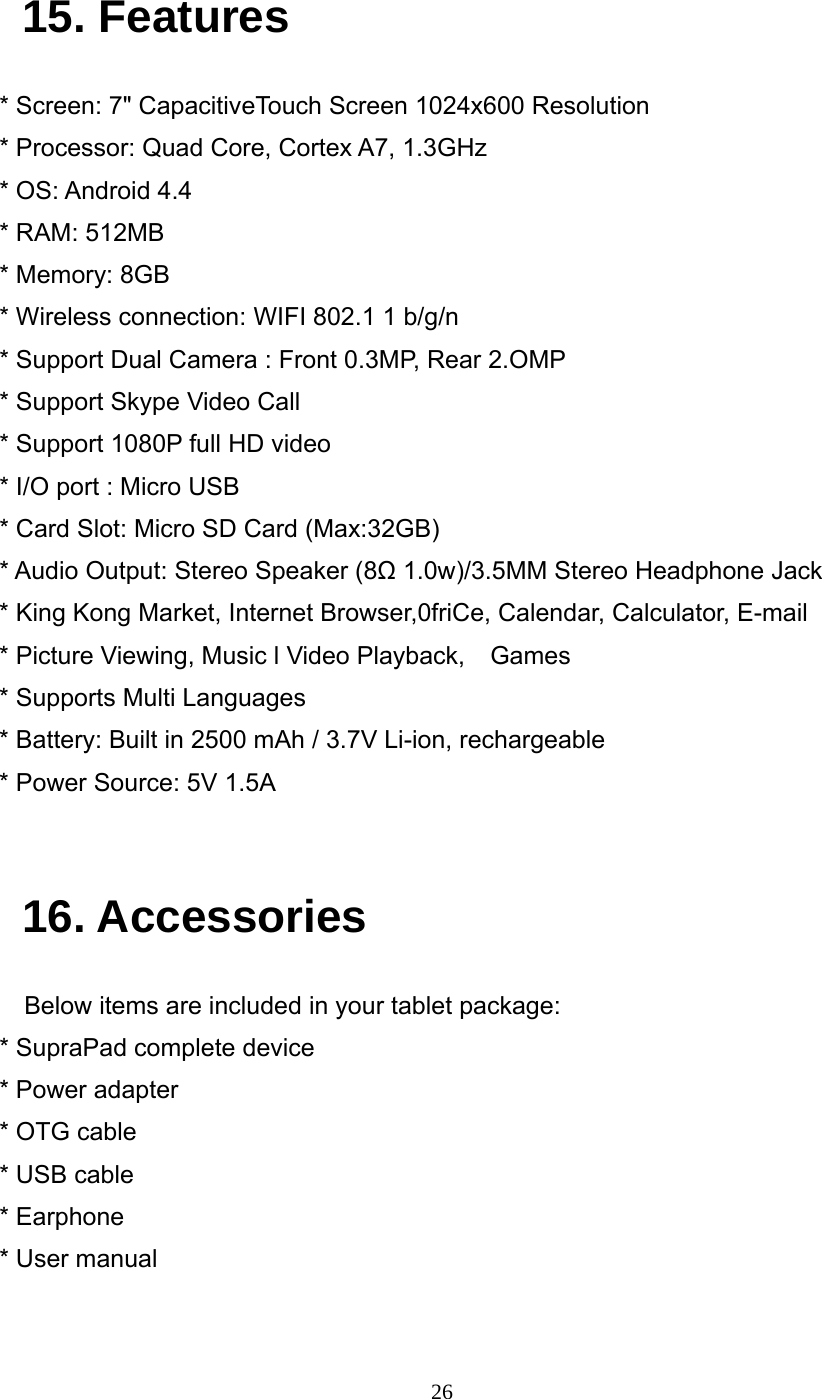
    26 15. Features * Screen: 7" CapacitiveTouch Screen 1024x600 Resolution * Processor: Quad Core, Cortex A7, 1.3GHz * OS: Android 4.4 * RAM: 512MB * Memory: 8GB * Wireless connection: WIFI 802.1 1 b/g/n * Support Dual Camera : Front 0.3MP, Rear 2.OMP * Support Skype Video Call * Support 1080P full HD video * I/O port : Micro USB * Card Slot: Micro SD Card (Max:32GB) * Audio Output: Stereo Speaker (8Ω 1.0w)/3.5MM Stereo Headphone Jack * King Kong Market, Internet Browser,0friCe, Calendar, Calculator, E-mail * Picture Viewing, Music l Video Playback,    Games * Supports Multi Languages * Battery: Built in 2500 mAh / 3.7V Li-ion, rechargeable * Power Source: 5V 1.5A   16. Accessories     Below items are included in your tablet package: * SupraPad complete device * Power adapter * OTG cable * USB cable * Earphone * User manual
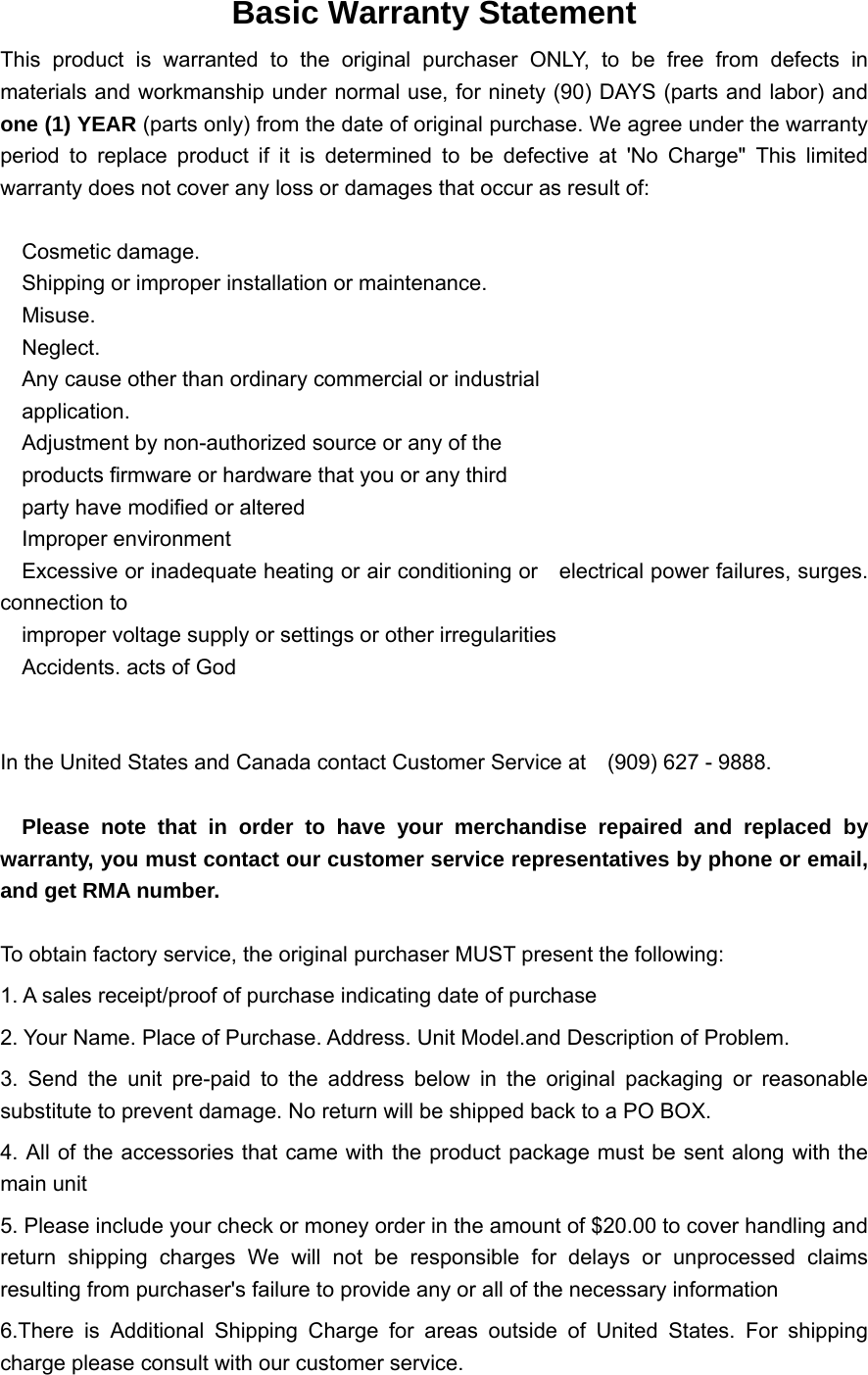
     Basic Warranty Statement This product is warranted to the original purchaser ONLY, to be free from defects in materials and workmanship under normal use, for ninety (90) DAYS (parts and labor) and one (1) YEAR (parts only) from the date of original purchase. We agree under the warranty period to replace product if it is determined to be defective at 'No Charge" This limited warranty does not cover any loss or damages that occur as result of:    Cosmetic damage.     Shipping or improper installation or maintenance.   Misuse.   Neglect.     Any cause other than ordinary commercial or industrial     application.     Adjustment by non-authorized source or any of the         products firmware or hardware that you or any third       party have modified or altered   Improper environment     Excessive or inadequate heating or air conditioning or    electrical power failures, surges. connection to       improper voltage supply or settings or other irregularities     Accidents. acts of God   In the United States and Canada contact Customer Service at    (909) 627 - 9888.    Please note that in order to have your merchandise repaired and replaced by warranty, you must contact our customer service representatives by phone or email, and get RMA number.  To obtain factory service, the original purchaser MUST present the following: 1. A sales receipt/proof of purchase indicating date of purchase 2. Your Name. Place of Purchase. Address. Unit Model.and Description of Problem. 3. Send the unit pre-paid to the address below in the original packaging or reasonable substitute to prevent damage. No return will be shipped back to a PO BOX. 4. All of the accessories that came with the product package must be sent along with the main unit 5. Please include your check or money order in the amount of $20.00 to cover handling and return shipping charges We will not be responsible for delays or unprocessed claims resulting from purchaser's failure to provide any or all of the necessary information 6.There is Additional Shipping Charge for areas outside of United States. For shipping charge please consult with our customer service.
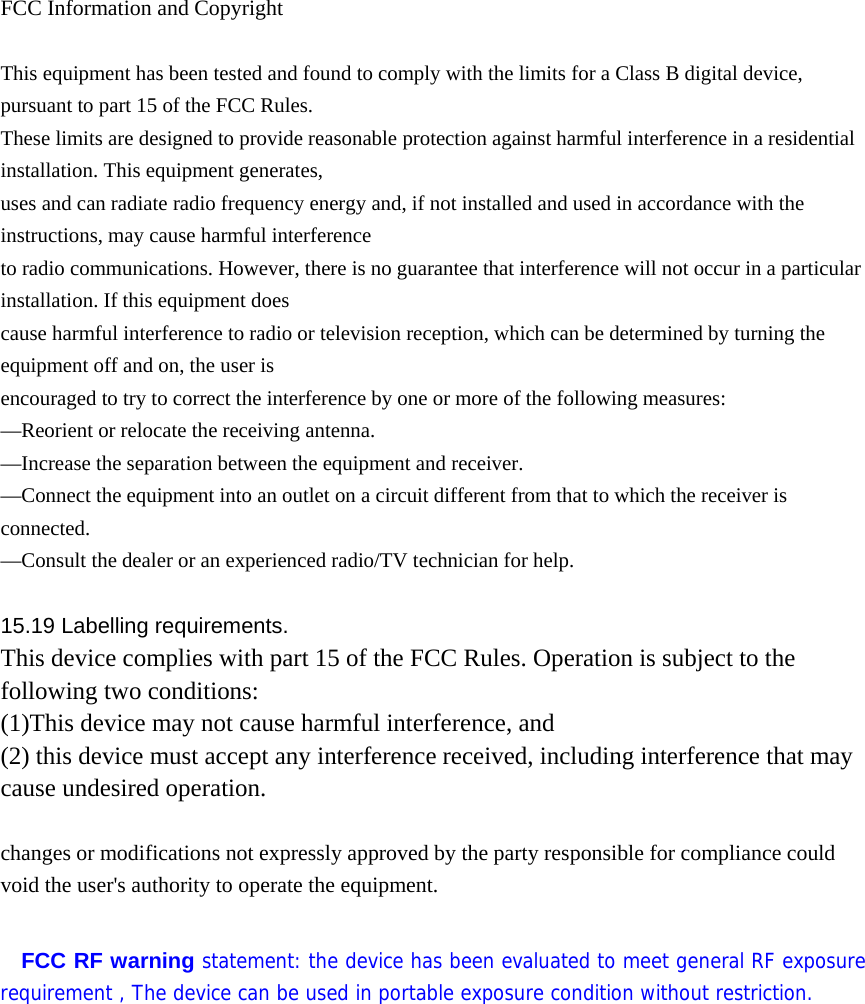
 FCC Information and Copyright  This equipment has been tested and found to comply with the limits for a Class B digital device, pursuant to part 15 of the FCC Rules. These limits are designed to provide reasonable protection against harmful interference in a residential installation. This equipment generates, uses and can radiate radio frequency energy and, if not installed and used in accordance with the instructions, may cause harmful interference to radio communications. However, there is no guarantee that interference will not occur in a particular installation. If this equipment does cause harmful interference to radio or television reception, which can be determined by turning the equipment off and on, the user is encouraged to try to correct the interference by one or more of the following measures: —Reorient or relocate the receiving antenna. —Increase the separation between the equipment and receiver. —Connect the equipment into an outlet on a circuit different from that to which the receiver is connected. —Consult the dealer or an experienced radio/TV technician for help.  15.19 Labelling requirements. This device complies with part 15 of the FCC Rules. Operation is subject to the following two conditions: (1)This device may not cause harmful interference, and   (2) this device must accept any interference received, including interference that may cause undesired operation.  changes or modifications not expressly approved by the party responsible for compliance could void the user's authority to operate the equipment.  FCC RF warning statement: the device has been evaluated to meet general RF exposure requirement , The device can be used in portable exposure condition without restriction.
       Please review your user   Guide carefully before Using this product. If you need further assistance please contact us at: (909) 627 - 9888 Additional troubleshooting information can also be found on the web at: www.iviewus.com and click on “Support” or email us at support@iviewus.com

Navigation menu