Mobius Mobility 22007 iBot Joystick controller User Manual iBOT User Guide

Mobius Mobility LLC iBot Joystick controller iBOT User Guide

User Manual

REVISION HISTORY REV DESCRIPTION APPROVAL DATE ECO 1.0 Release to ECO Control  7/24/17 13904 1.1 LRS and Tech Spec compliance updates 8/15/17 13989 1.2 ISO updates and Typos 8/22/17 14059 1.3 Indications for Use and variable update 10/3/17 14095 1.4 FDA feedback updates 1/21/18 14383 1.5 Traveling by Air with the iBOT content 1/29/18 14475 1.6 Added age warning and updated Indications for Use statement 4/13/18 14662 1.7 Addresses SCRs: 132, 316, 327, 352, 374, 319 or 305, 329, 447. Updated product name in coversheet. 7/3/18 14909    ALL DIMENSIONS ARE IN INCHES (MILLIMETERS), UNLESS OTHERWISE SPECIFIED.   LEVEL APPROVALS  DEKA RESEARCH AND DEVELOPMENT CORP. Technology Center,  340 Commercial Street Manchester, NH  03101 3 DRAWN BY Deb Dean DATE: 7/14/2017 CHECKED BY C. Firman DATE: 7/21/17 2 ENG. APPR. S. Holland DATE: 7/24/17 MFG. APPR. M. Norris DATE: 7/24/17 TITLE: ibot® USER MANUAL QA APPR. K. Dolan DATE: 7/24/17 NOTICE: 1 FINAL APPR.  DATE:  DEKA RESEARCH & DEVELOPMENT CORP. PROPRIETARY RIGHTS ARE INCLUDED HEREIN.  THIS DOCUMENT CONTAINS DEKA CONFIDENTIAL INFORMATION AND MAY NOT BE COPIED, TRANSFERRED, OR DISCLOSED EXCEPT AS AUTHORIZED BY DEKA RESEARCH & DEVELOPMENT CORP  CAD FILE NO.  DKPX-09006-001.pdf SIZE A DRAWING NO: DKPX-09006-001 REV 1.7 DATE PLOTTED   N/A I.P. NO.  10 P.C. NO.  N/A SCALE  N/A SHEET  1  OF  1     ibot® USER MANUAL  1. Contents per attached copy DKPX-09006-001.PDF Rev. 1.7 2. 8.5” X 11”, 32 lb bond/80lb text paper. 3.  Cardstock paper for the cover page. 4. Add a Clear plastic cover. 5. Add a Black vinyl backing. 6. Double-sided printing, flipped on the short edge. 7. Cut at crop marks to 5.5” x 8.5”. 8. Black spiral bound – sizing selection should be chosen dependent upon the number of pages in the User Manual.
i b o t ®byM O B I U S M O B I L I T YLLCUserManual
Place device serial and batch number label HERE
Copyright Document number: DKPX-09006-001 Rev. 1.7 Thursday, June 21, 2018 2:31:09 PMConfidentiality Statement MOBIUSMOBILITY LLC PROPRIETARY RIGHTS ARE INCLUDED HEREIN. THISDOCUMENT CONTAINS MOBIUSMOBILITY LLC CONFIDENTIAL INFORMATION AND MAYNOT BE COPIED, TRANSFERRED, OR DISCLOSED EXCEPT AS AUTHORIZED BYMOBIUSMOBILITY LLC.Trademark ibot is a registered trademark of Mobius Mobility LLC
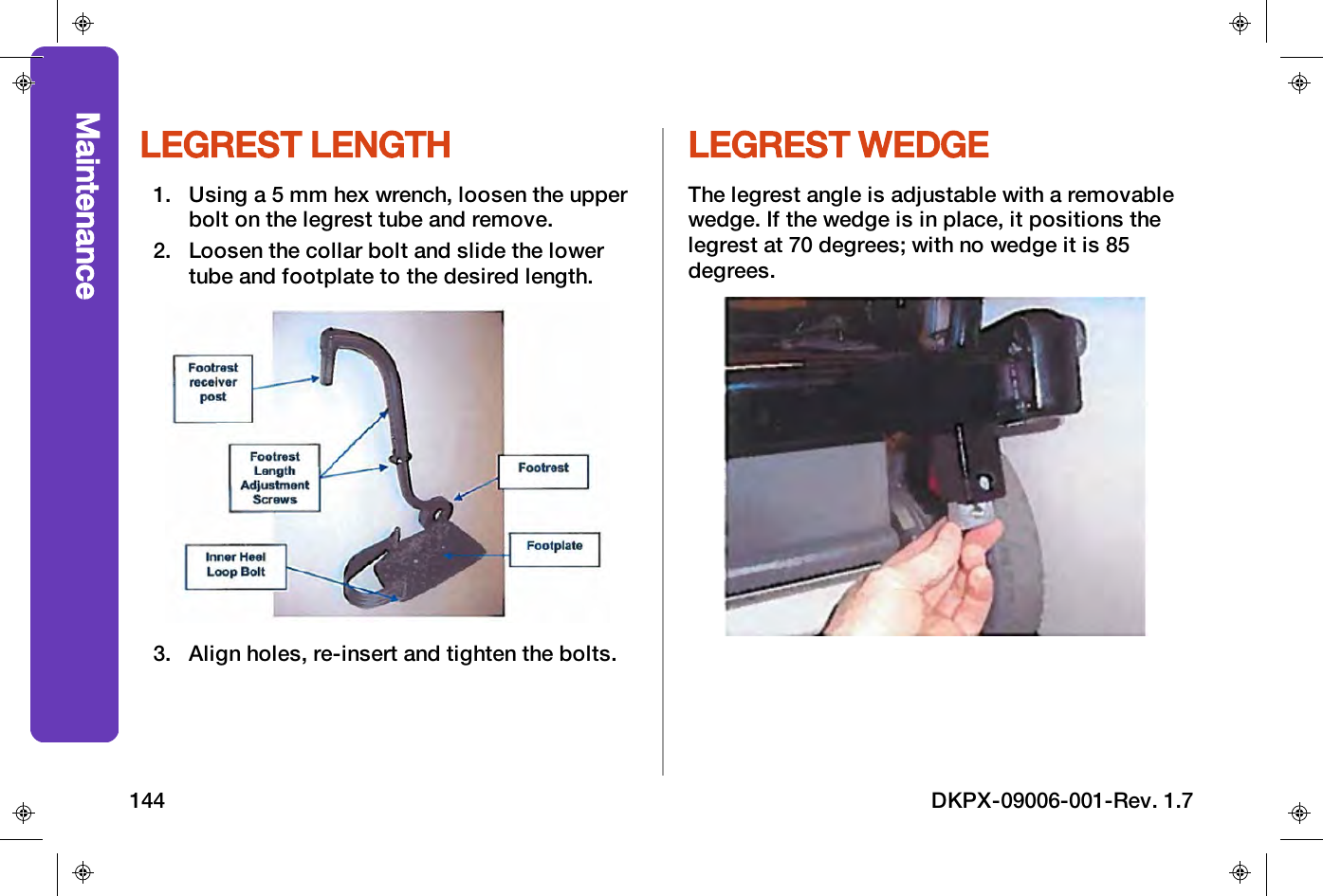
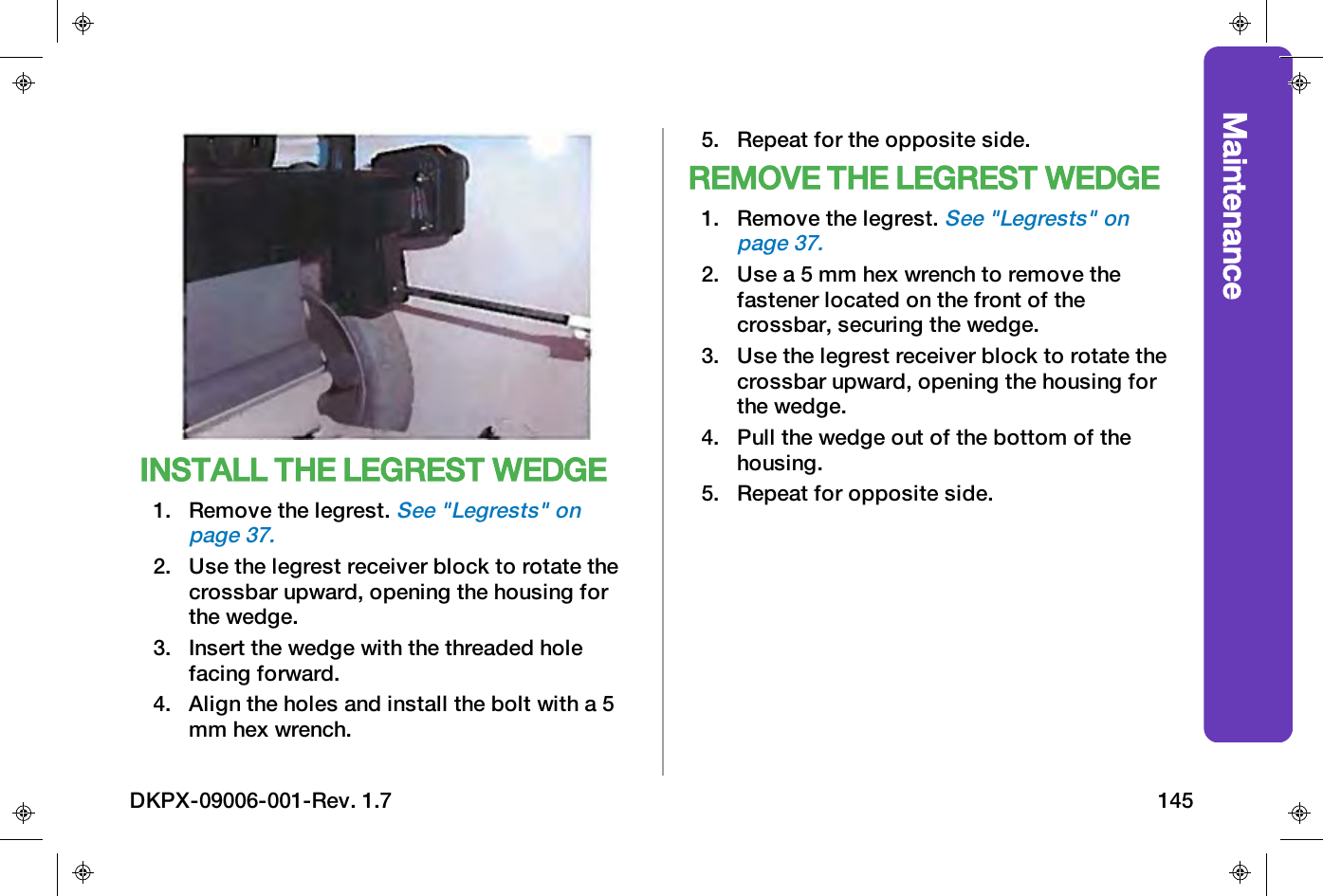
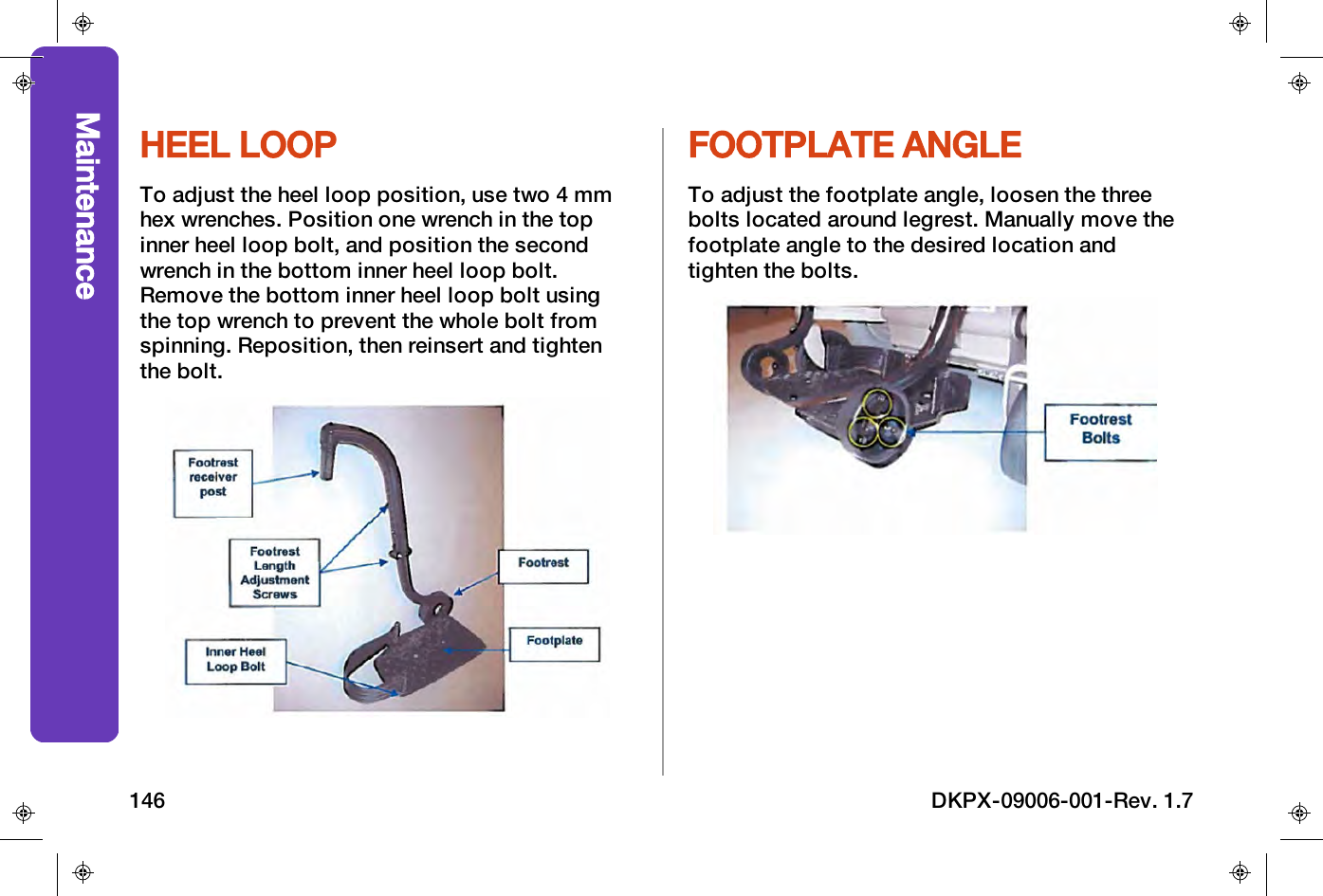
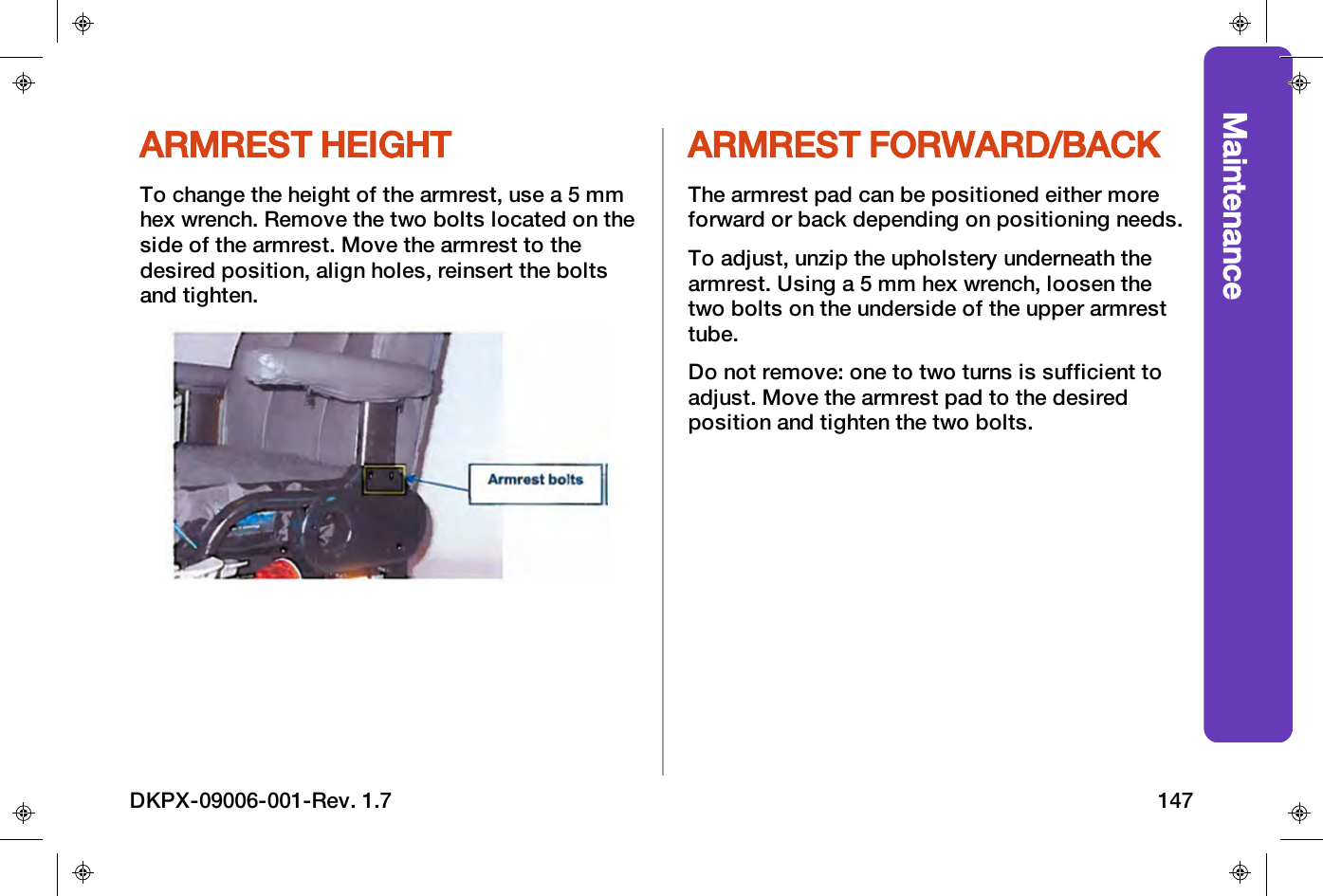
CONTENTSIndications For Use 7Contraindications 9Symbols 10Safety 12Instructions for You 12Instructions for Assistants 13ibot 4000 Adverse Events Reported 14Adverse Events Reporting 16Warnings and Cautions 17Driving 18Transitioning 21Electromagnetic Interference 22Component 23Battery and Charging 24Conventions 26Terminology 27ibot Components 29Seating System 30Power Base 31Rear View 32Accessories 33User Controller 34Freewheel Lever (brake release) 35Armrests 36Legrests 37User Controller Functions 39Display 41Notification Banner 41Home Screen 43Driving Mode and Speed Gauge 43Action Required Prompt 44Fault and Power Conditions 45Battery Charging Status 46DKPX-09006-001-Rev. 1.7 1
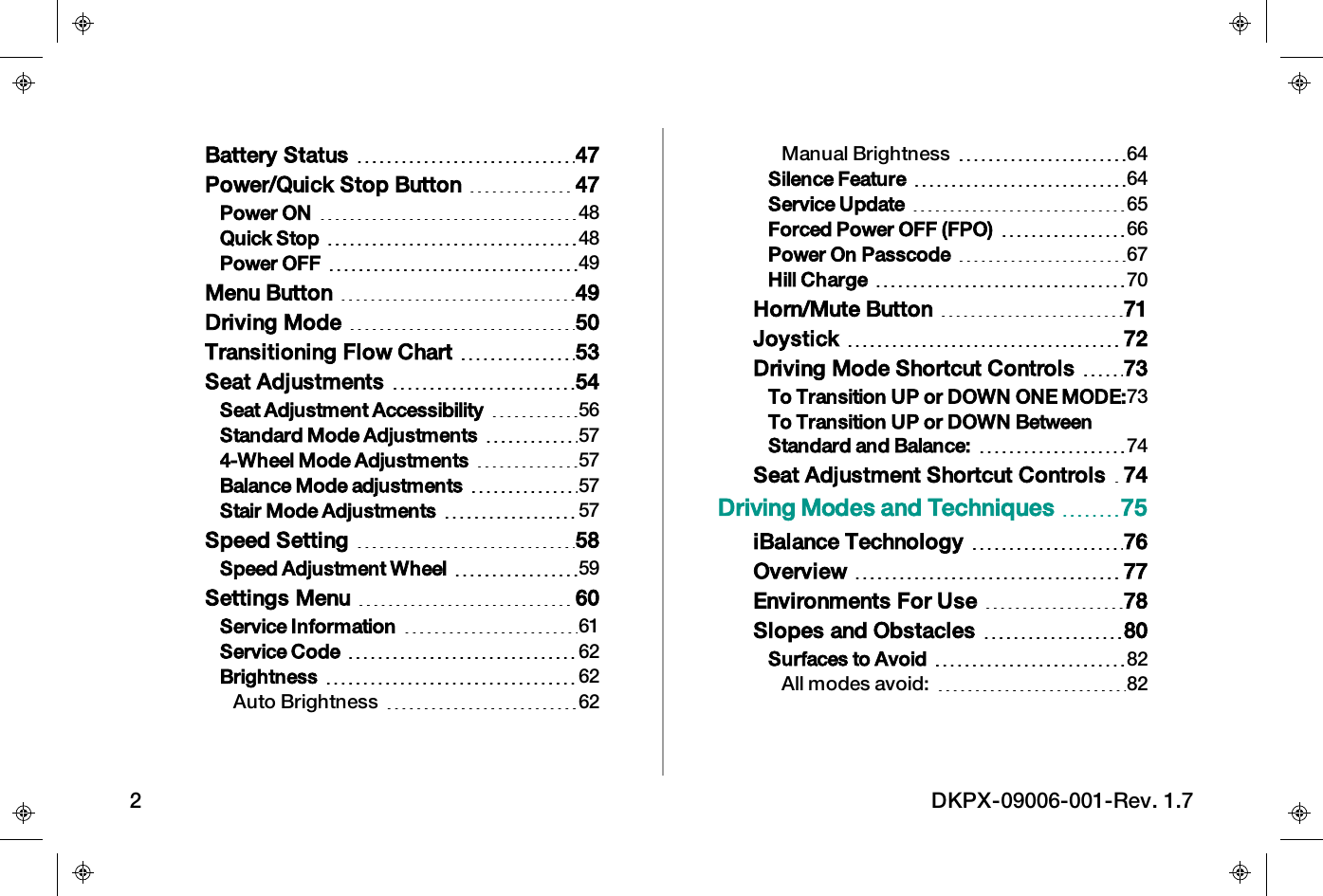
Battery Status 47Power/Quick Stop Button 47Power ON 48Quick Stop 48Power OFF 49Menu Button 49Driving Mode 50Transitioning Flow Chart 53Seat Adjustments 54Seat Adjustment Accessibility 56Standard Mode Adjustments 574-Wheel Mode Adjustments 57Balance Mode adjustments 57Stair Mode Adjustments 57Speed Setting 58Speed Adjustment Wheel 59Settings Menu 60Service Information 61Service Code 62Brightness 62Auto Brightness 62Manual Brightness 64Silence Feature 64Service Update 65Forced Power OFF (FPO) 66Power On Passcode 67Hill Charge 70Horn/Mute Button 71Joystick 72Driving Mode Shortcut Controls 73To Transition UP or DOWN ONE MODE:73To Transition UP or DOWN BetweenStandard and Balance: 74Seat Adjustment Shortcut Controls 74Driving Modes and Techniques 75iBalance Technology 76Overview 77Environments For Use 78Slopes and Obstacles 80Surfaces to Avoid 82All modes avoid: 822 DKPX-09006-001-Rev. 1.7
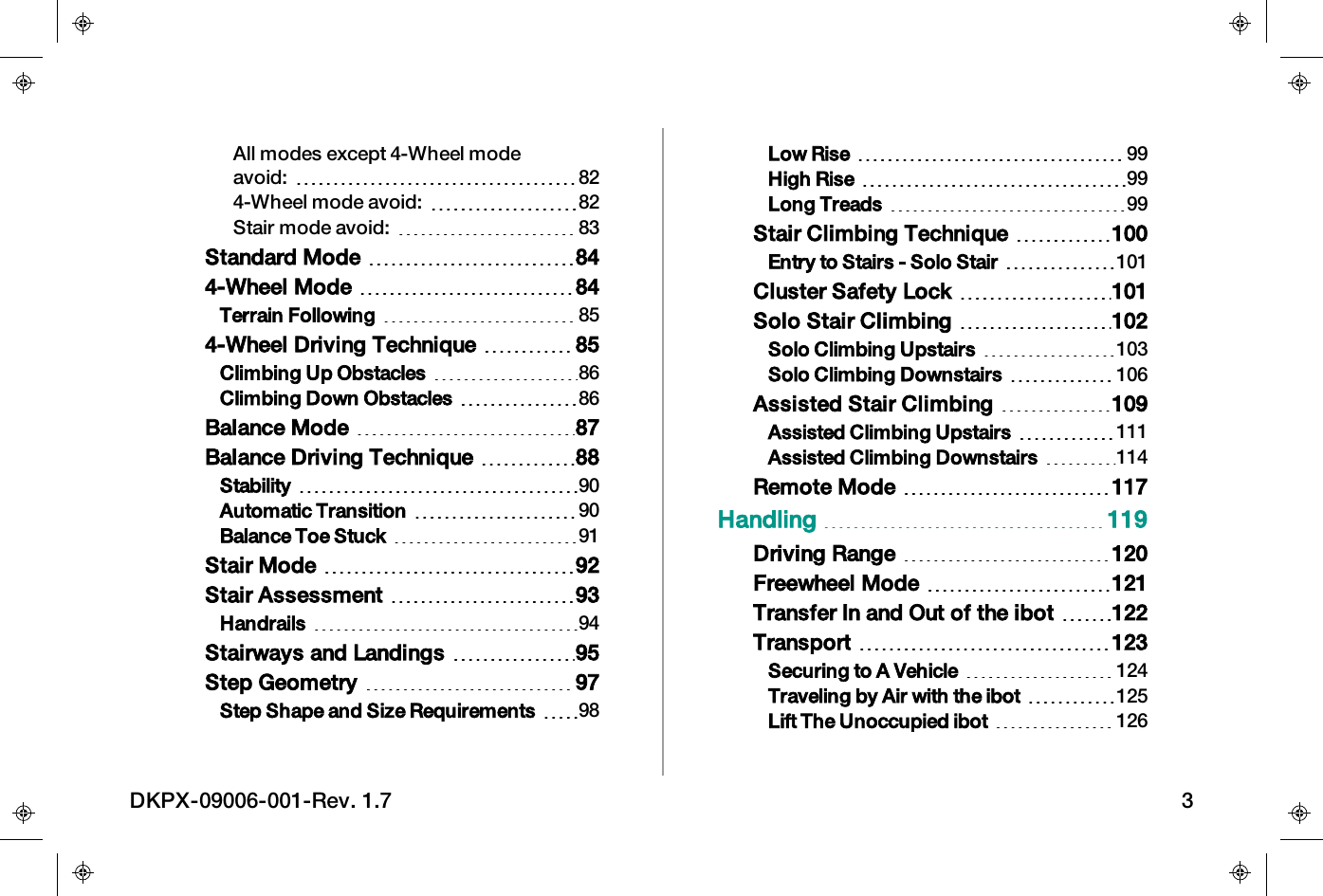
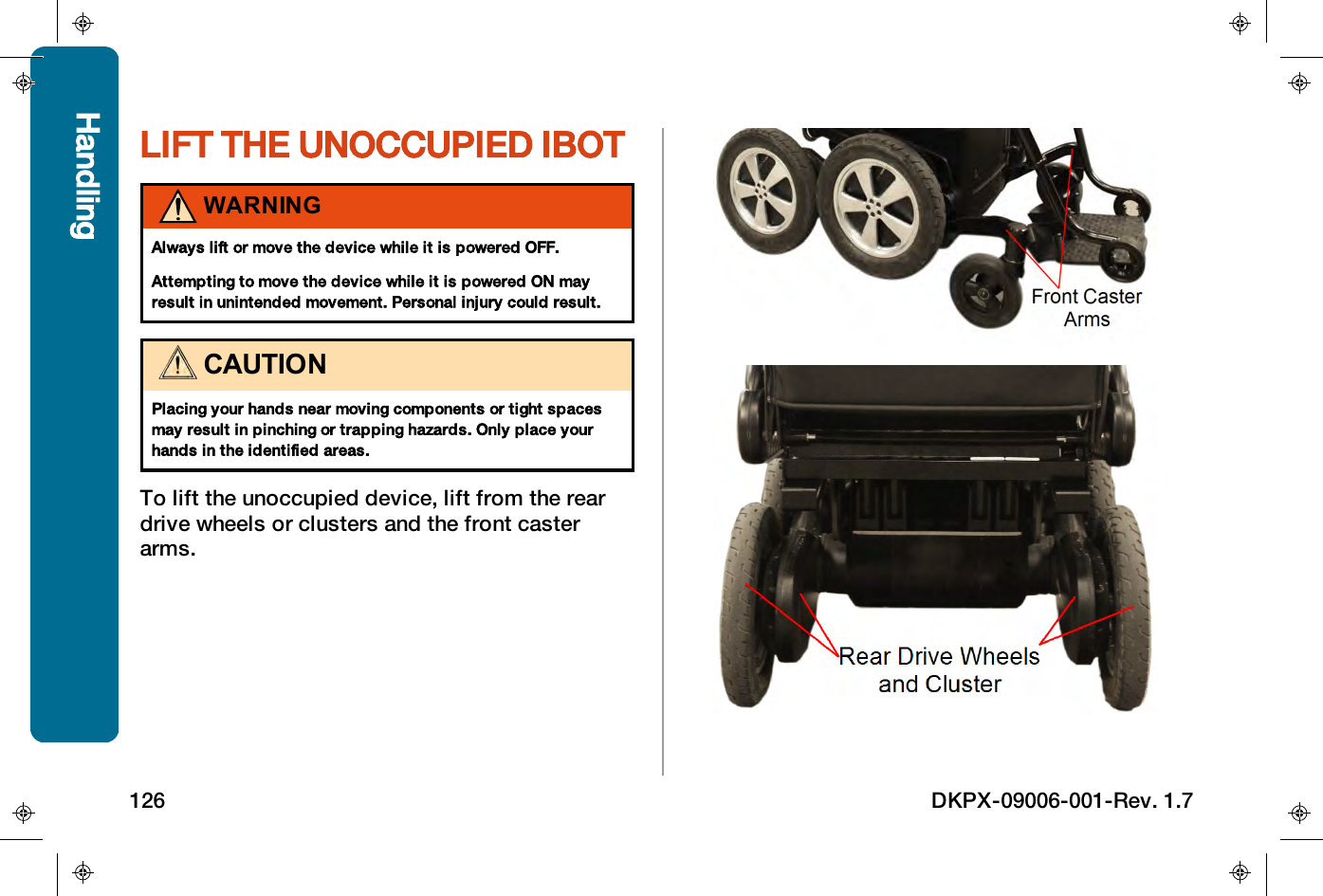
All modes except 4-Wheel modeavoid: 824-Wheel mode avoid: 82Stair mode avoid: 83Standard Mode 844-Wheel Mode 84Terrain Following 854-Wheel Driving Technique 85Climbing Up Obstacles 86Climbing Down Obstacles 86Balance Mode 87Balance Driving Technique 88Stability 90Automatic Transition 90Balance Toe Stuck 91Stair Mode 92Stair Assessment 93Handrails 94Stairways and Landings 95Step Geometry 97Step Shape and Size Requirements 98Low Rise 99High Rise 99Long Treads 99Stair Climbing Technique 100Entry to Stairs - Solo Stair 101Cluster Safety Lock 101Solo Stair Climbing 102Solo Climbing Upstairs 103Solo Climbing Downstairs 106Assisted Stair Climbing 109Assisted Climbing Upstairs 111Assisted Climbing Downstairs 114Remote Mode 117Handling 119Driving Range 120Freewheel Mode 121Transfer In and Out of the ibot 122Transport 123Securing to A Vehicle 124Traveling by Air with the ibot 125Lift The Unoccupied ibot 126DKPX-09006-001-Rev. 1.7 3
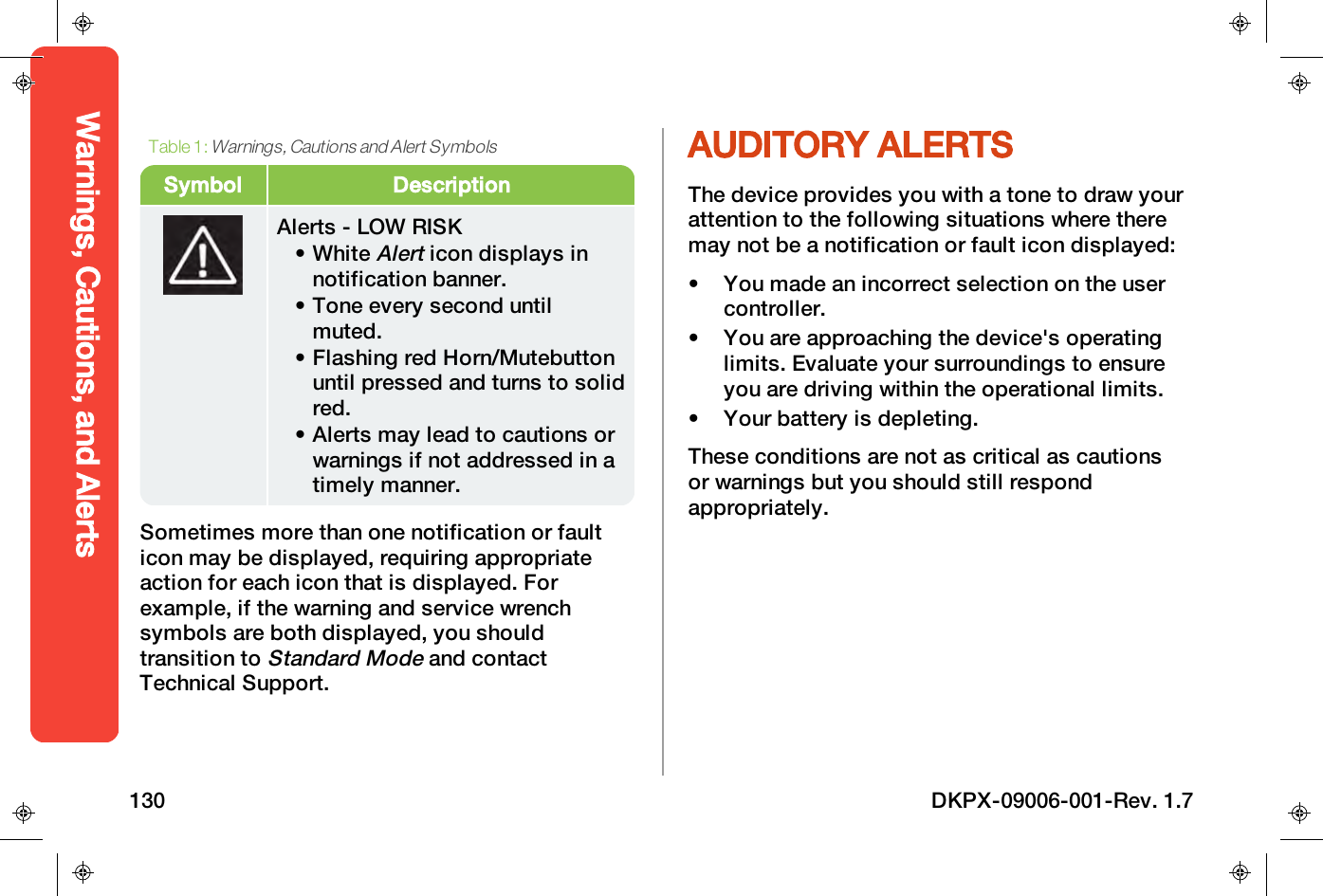
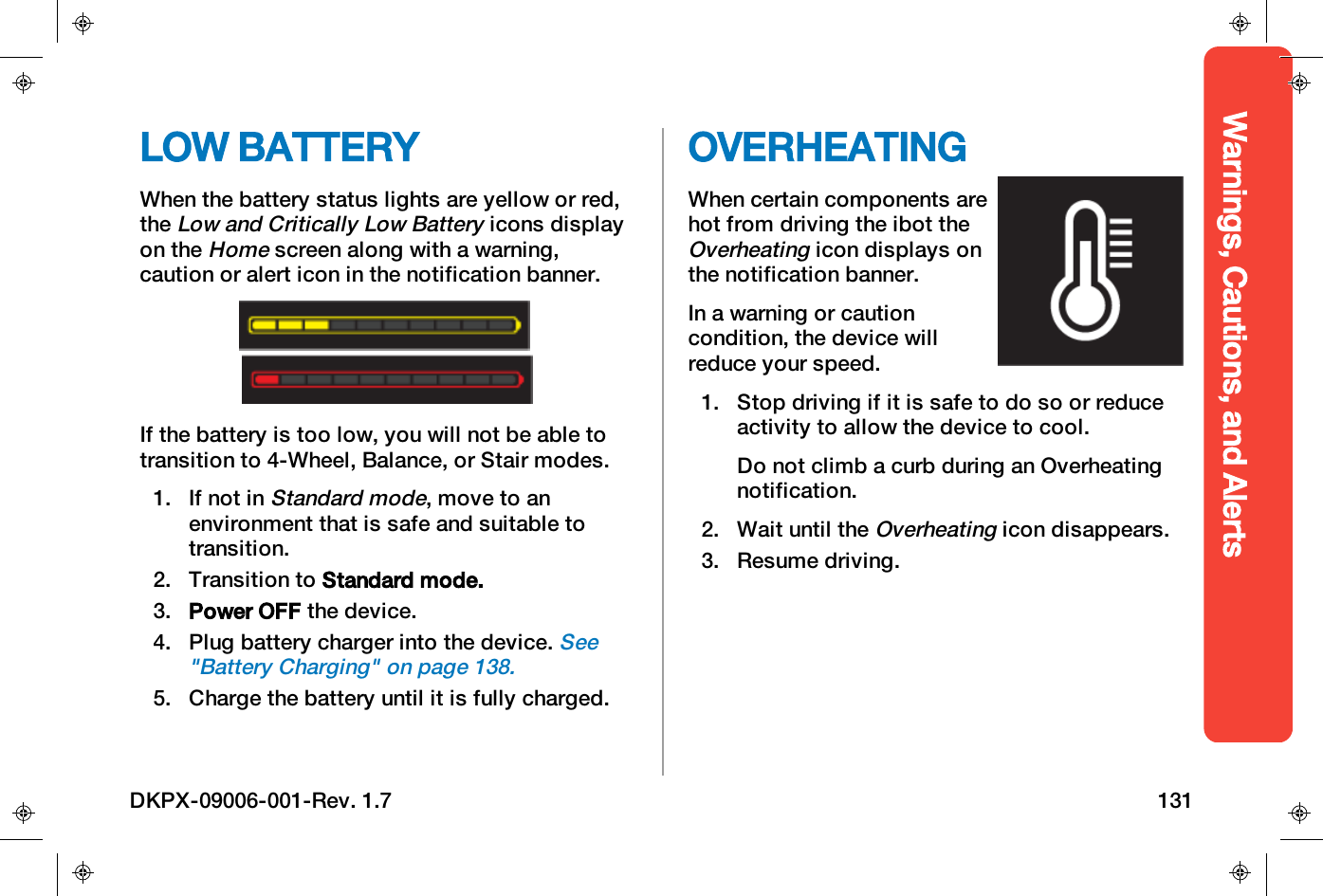
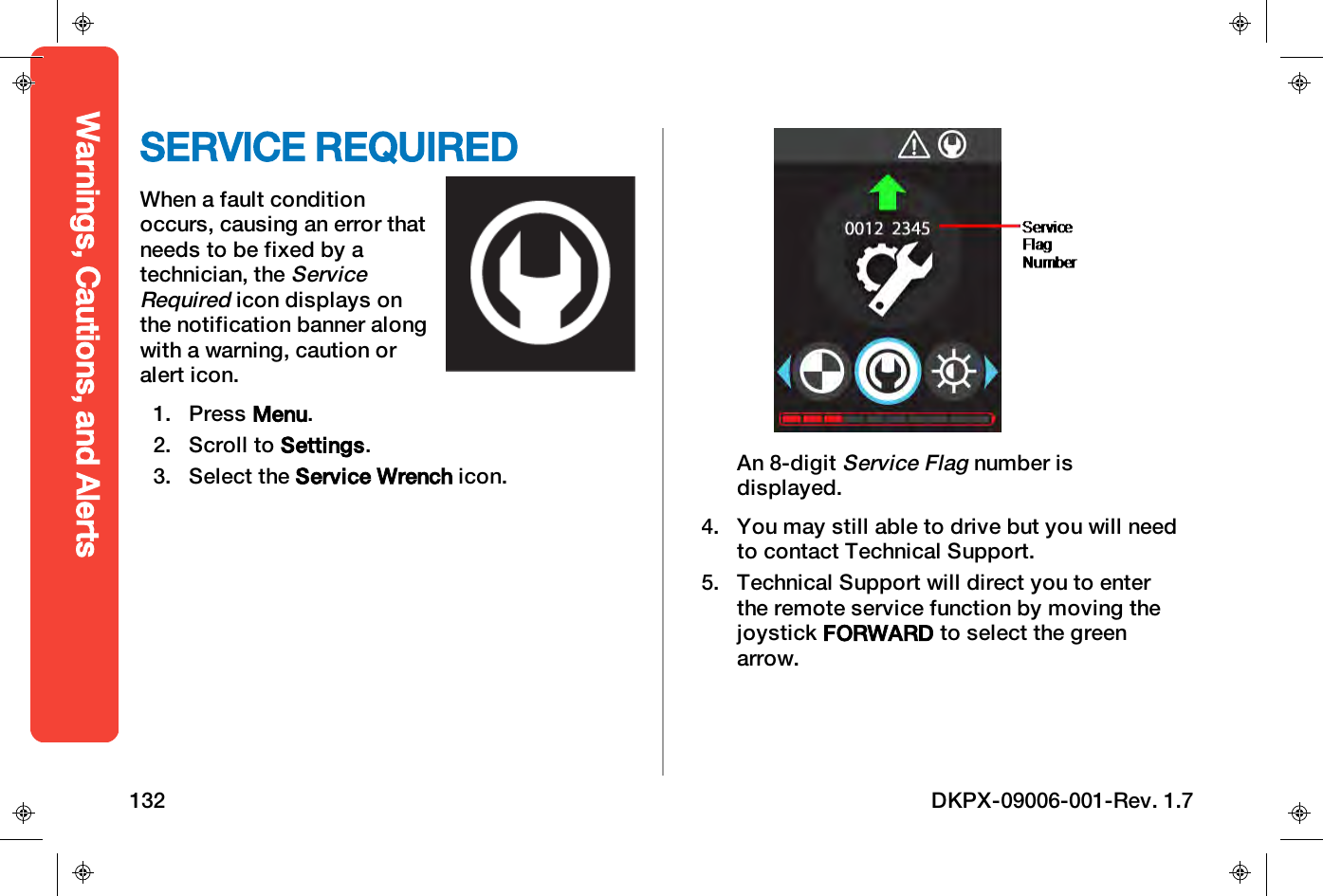
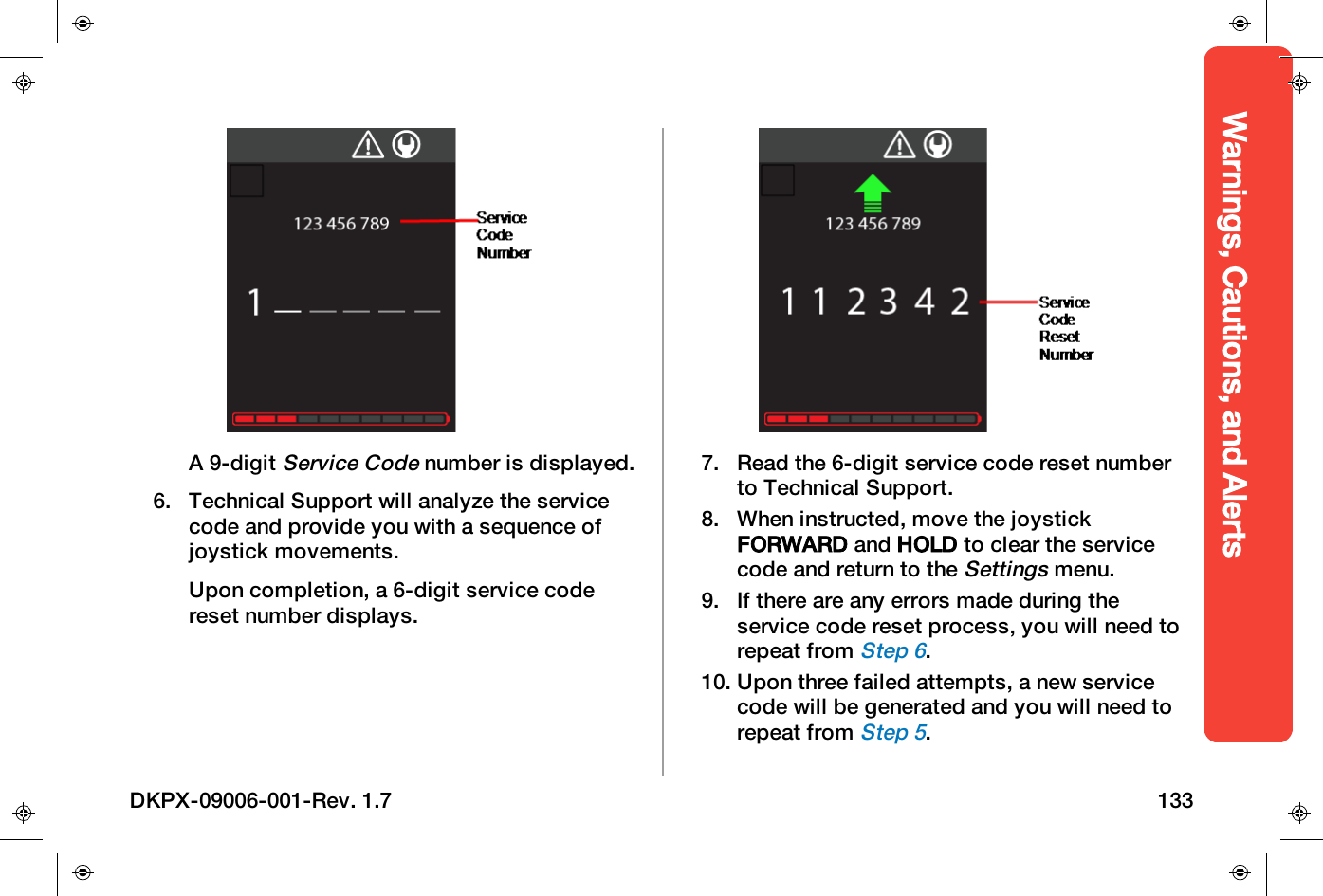
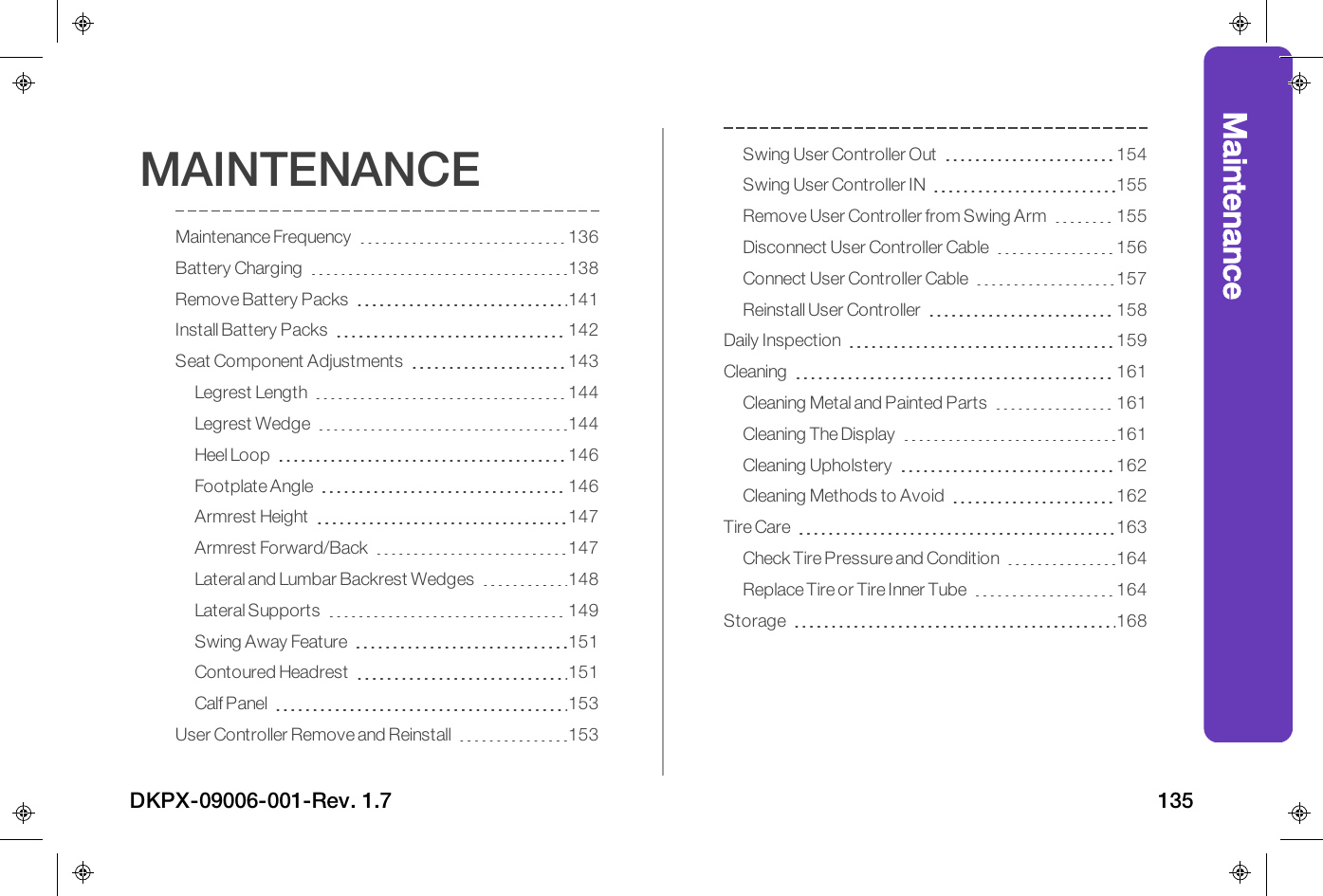
Warnings, Cautions, and Alerts 127About Warnings, Cautions andAlerts 128Auditory Alerts 130Low Battery 131Overheating 131Service Required 132Maintenance 135Maintenance Frequency 136Battery Charging 138Remove Battery Packs 141Install Battery Packs 142Seat Component Adjustments 143Legrest Length 144Legrest Wedge 144Install the Legrest Wedge 145Remove the Legrest Wedge 145Heel Loop 146Footplate Angle 146Armrest Height 147Armrest Forward/Back 147Lateral and Lumbar Backrest Wedges 148Lateral Supports 149Installing and Adjusting LateralSupports 149Swing Away Feature 151Contoured Headrest 151Installing and Adjusting 151Calf Panel 153User Controller Remove andReinstall 153Swing User Controller Out 154Swing User Controller IN 155Remove User Controller from SwingArm 155Disconnect User Controller Cable 156Connect User Controller Cable 157Reinstall User Controller 158Daily Inspection 159Cleaning 161Cleaning Metal and Painted Parts 161Cleaning The Display 161Cleaning Upholstery 162Cleaning Methods to Avoid 1624 DKPX-09006-001-Rev. 1.7
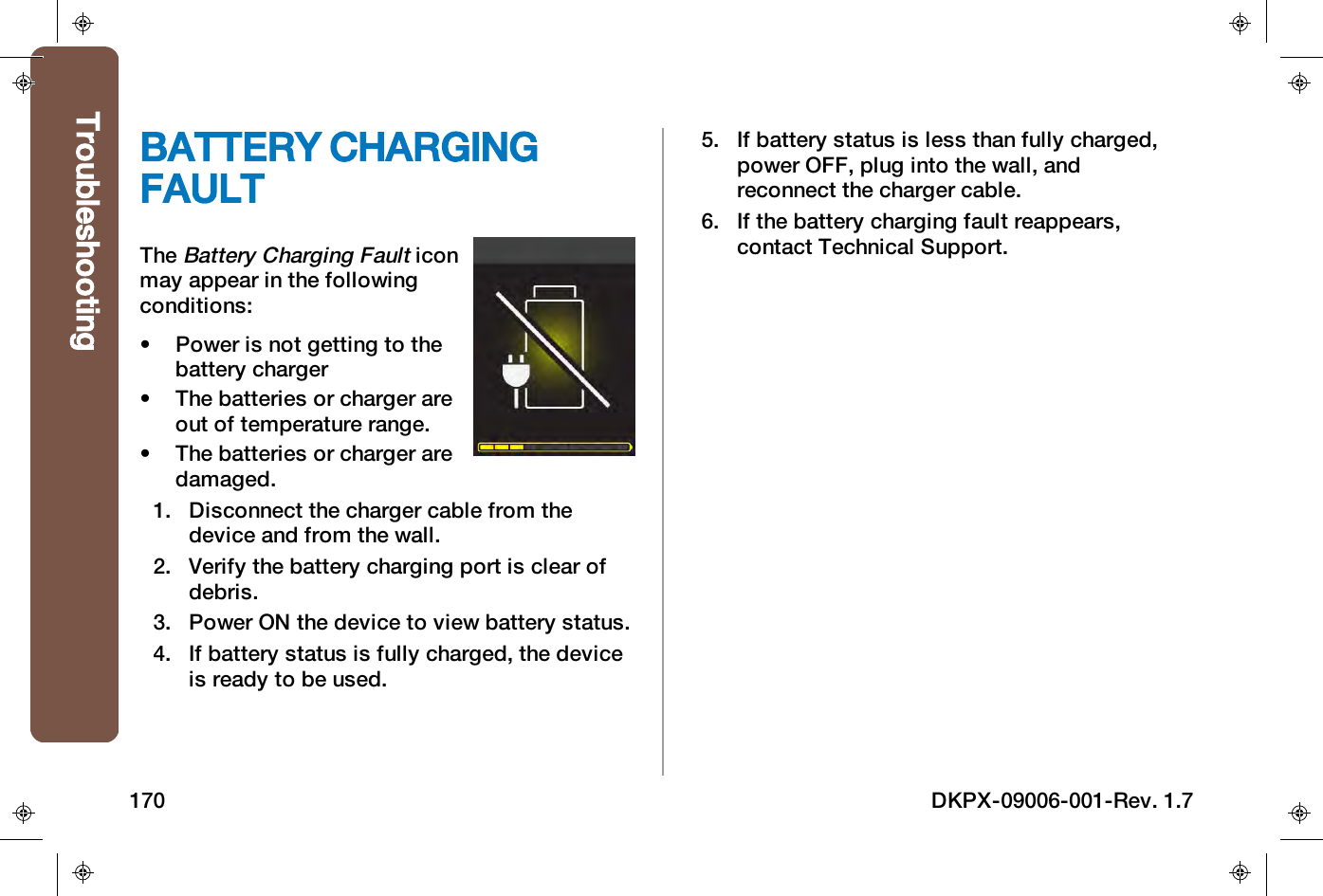
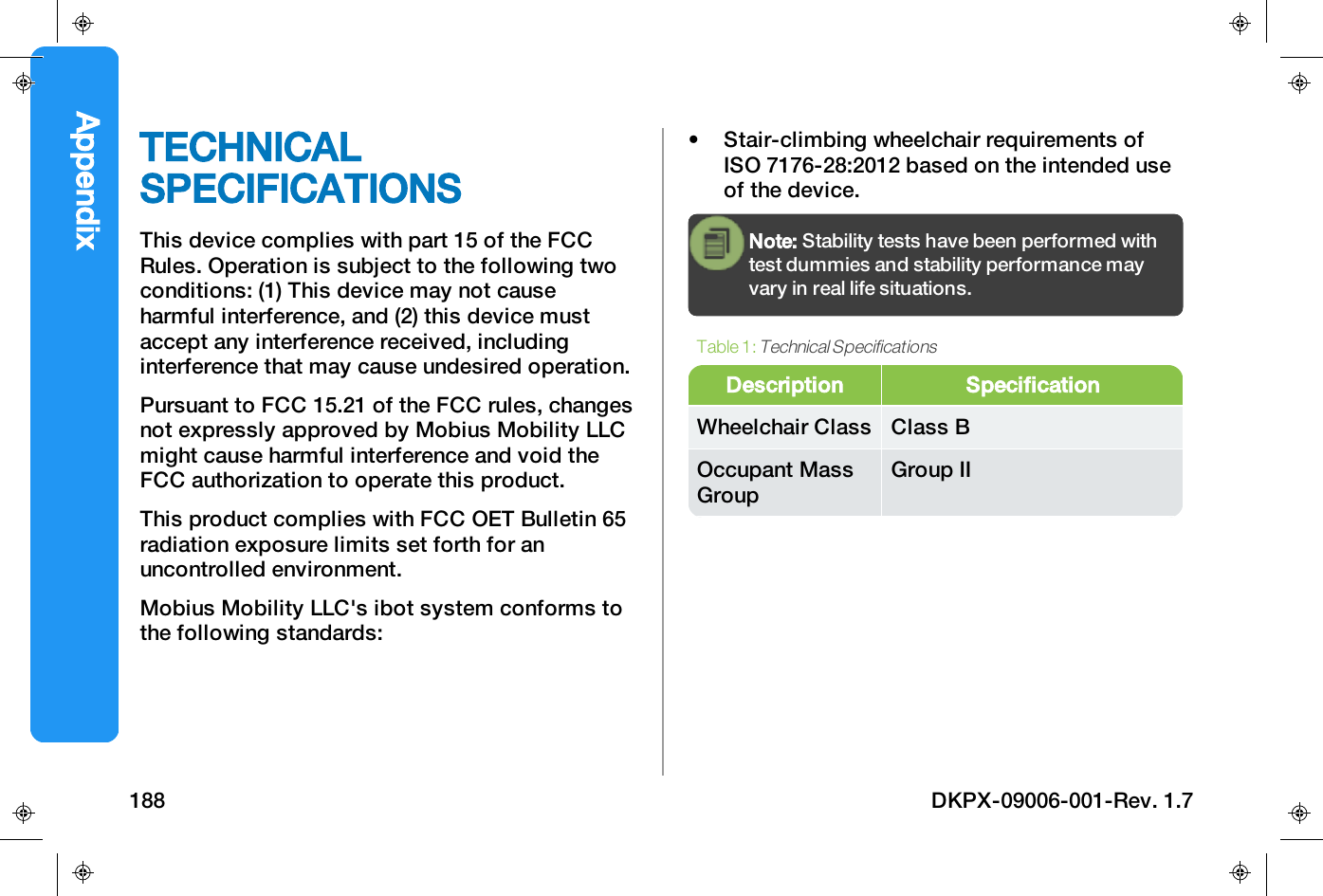
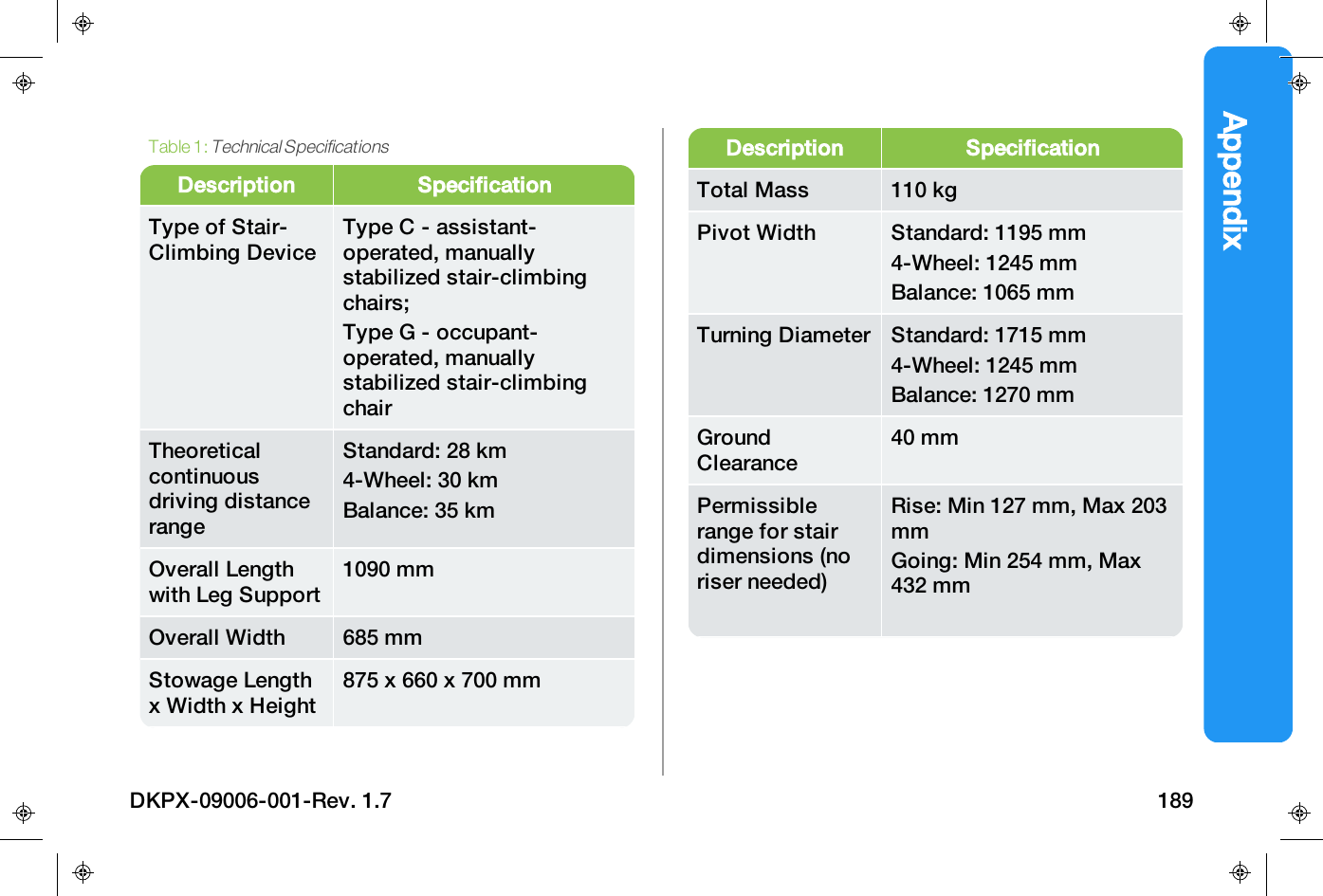
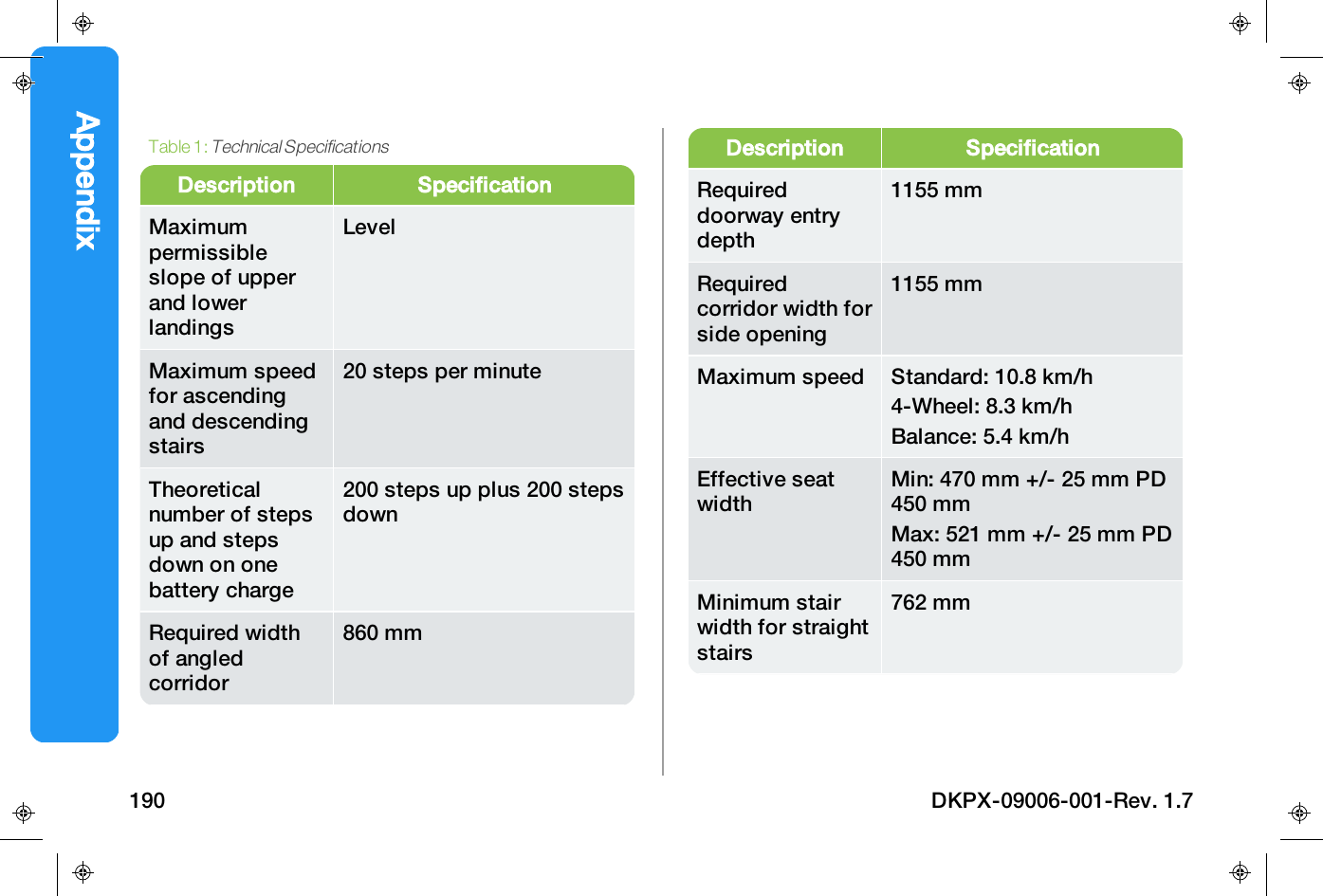
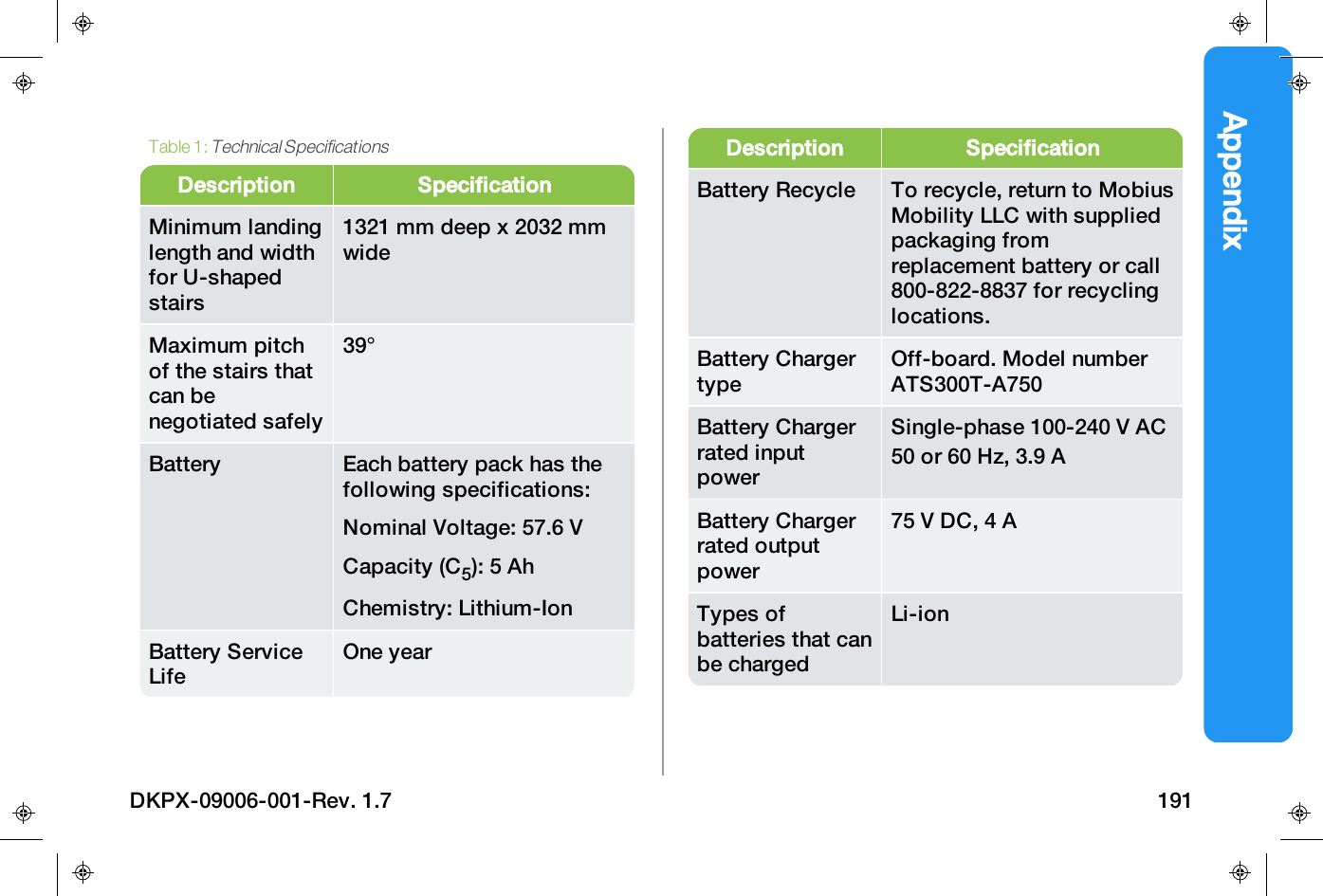
Tire Care 163Check Tire Pressure and Condition 164Replace Tire or Tire Inner Tube 164Storage 168Troubleshooting 169Restart 169Battery Charging Fault 170Operation at Low Temperature 171Communication Lost 171Display Frozen 172ibot Tipped Over 173Total System Shutdown 174Standard Mode Recovery 175Stair Mode Recovery 176Method 1 176Method 2 176Method 3 176Mode Unavailable 180Processor Error 180Technical Support 181Customer Replacement Parts 182Repair of defective units 182Warranty 183Appendix 187Technical Specifications 188Electromagnetic Interference (EMI)Specifications 194GLOSSARY 195INDEX 198DKPX-09006-001-Rev. 1.7 5
This page intentionally left blank.6 DKPX-09006-001-Rev. 1.7
Indications For UseINDICATIONS FORUSEThe ibot by MOBIUSMOBILITYLLC is intendedto provide indoor and outdoor mobility topersons restricted to a sitting position who meetthe requirements of the user assessment andtraining certification program. The device isintended to climb stairs. Companions who arerequired to provide assistance during AssistedStair Climbing Mode must meet therequirements of the training certificationprogram.Read the User ManualDo not operate the ibot without reading andunderstanding the User Manual.Do not attempt to install components ormaintain the device without reading andunderstanding the User Manual.If you do not understand the warnings andcaution instructions, contact TechnicalSupport before using the device.The ibot is the next generation of the ibotMobility System family.The ibot leverages theinnovative technology introduced by the ibot3000 and 4000 mobility systems, allowing you togo places and do things not possible with anyother single mobility device.Your clinician will program the ibot for yourspecific needs. Once programmed, the ibot isintended for use only by the user it wasprogrammed for.DKPX-09006-001-Rev. 1.7 7
Changes to body shape and adjustments toyour seating may occur over the lifetime ofyour ibot. If either of those occurs, refittingof your center of gravity (CG Fit) may beneeded, and you should contact yourclinician.Total weight capacity is greater than 50 lbs. (22.5kg), and should not exceed 300 lbs. (136 kg),including a maximum of 20 lbs. (9 kg) forcarrying items.Training is provided when your customizeddevice is delivered. This training is essential inteaching you safe driving techniques, proper use,and device maintenance.Indications For Use8 DKPX-09006-001-Rev. 1.7
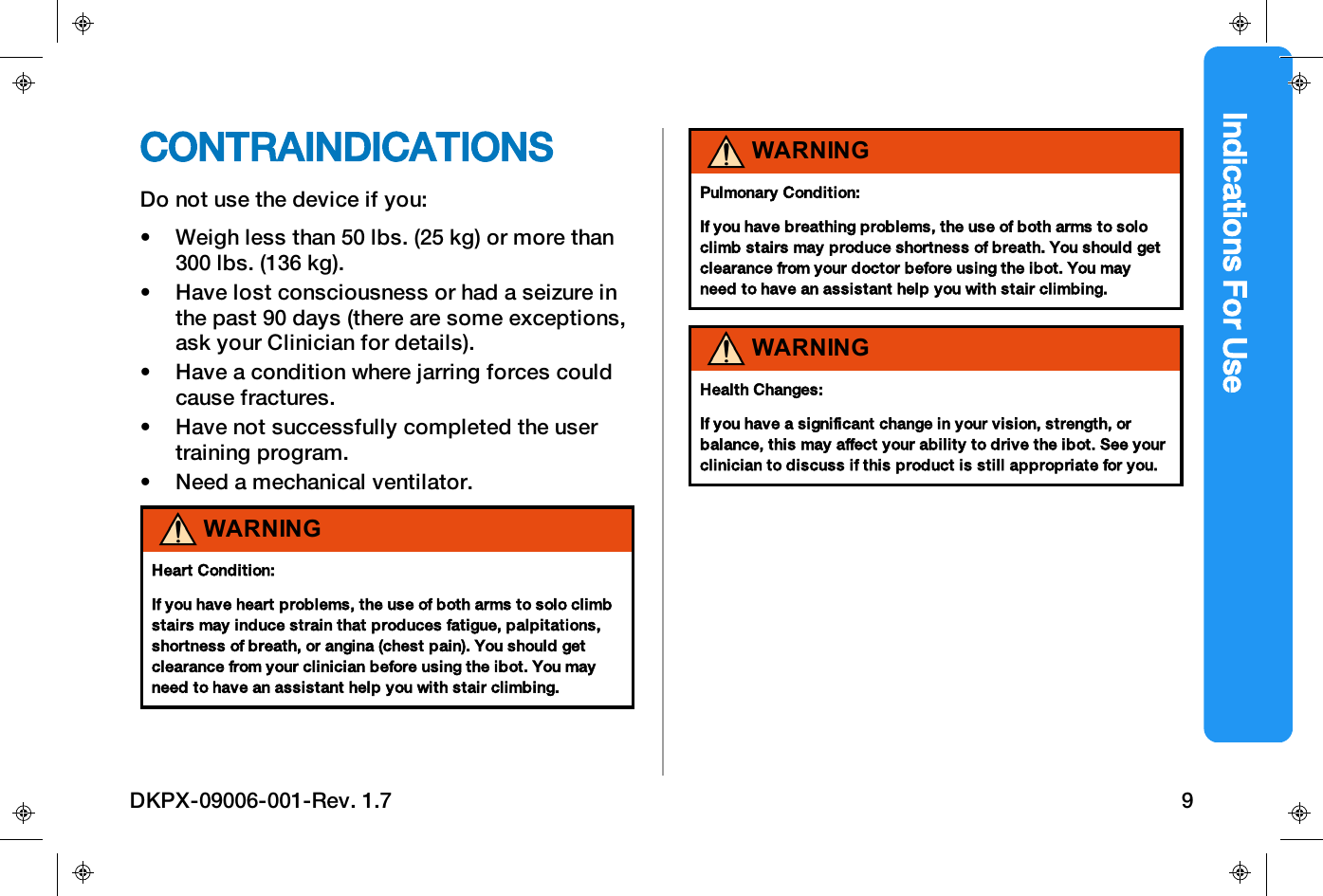
Indications For UseCONTRAINDICATIONSDo not use the device if you:• Weigh less than 50 lbs. (25 kg) or more than300 lbs. (136 kg).• Have lost consciousness or had a seizure inthe past 90 days (there are some exceptions,ask your Clinician for details).• Have a condition where jarring forces couldcause fractures.• Have not successfully completed the usertraining program.• Need a mechanical ventilator.WARNINGHeartCondition:If you have heart problems, the use of both arms to solo climbstairs may induce strain that produces fatigue, palpitations,shortness of breath, or angina (chest pain). You should getclearance from your clinician before using the ibot. You mayneed to have an assistant help you with stair climbing.WARNINGPulmonary Condition:If you have breathing problems, the use of both arms to soloclimb stairs may produce shortness of breath. You should getclearance from your doctor before using the ibot. You mayneed to have an assistant help you with stair climbing.WARNINGHealth Changes:If you have a significant change in your vision, strength, orbalance, this may affect your ability to drive the ibot. See yourclinician to discuss if this product is still appropriate for you.DKPX-09006-001-Rev. 1.7 9
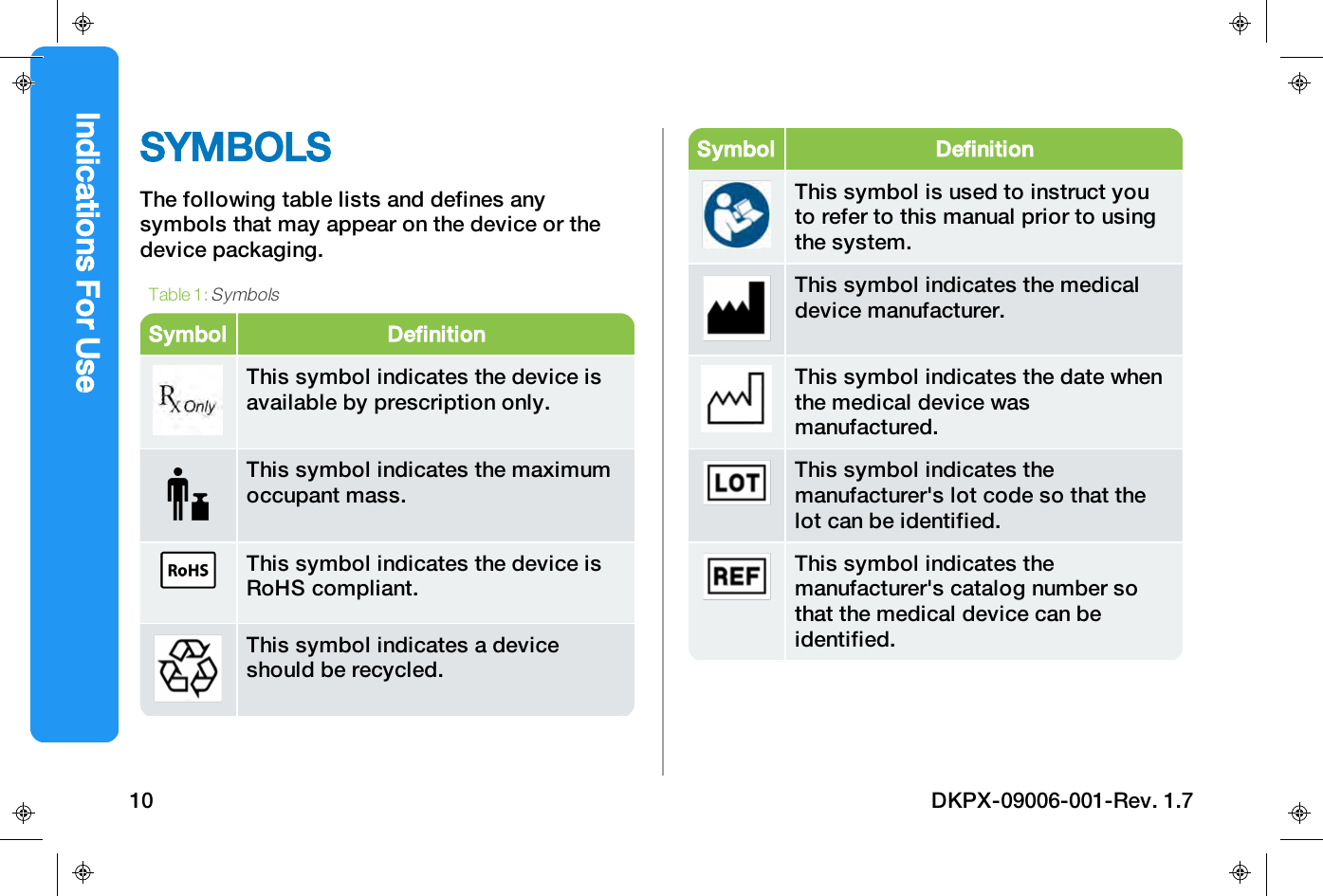
SYMBOLSThe following table lists and defines anysymbols that may appear on the device or thedevice packaging.Symbol DefinitionThis symbol indicates the device isavailable by prescription only.This symbol indicates the maximumoccupant mass.This symbol indicates the device isRoHS compliant.This symbol indicates a deviceshould be recycled.Table 1:SymbolsSymbol DefinitionThis symbol is used to instruct youto refer to this manual prior to usingthe system.This symbol indicates the medicaldevice manufacturer.This symbol indicates the date whenthe medical device wasmanufactured.This symbol indicates themanufacturer's lot code so that thelot can be identified.This symbol indicates themanufacturer's catalog number sothat the medical device can beidentified.Indications For Use10 DKPX-09006-001-Rev. 1.7
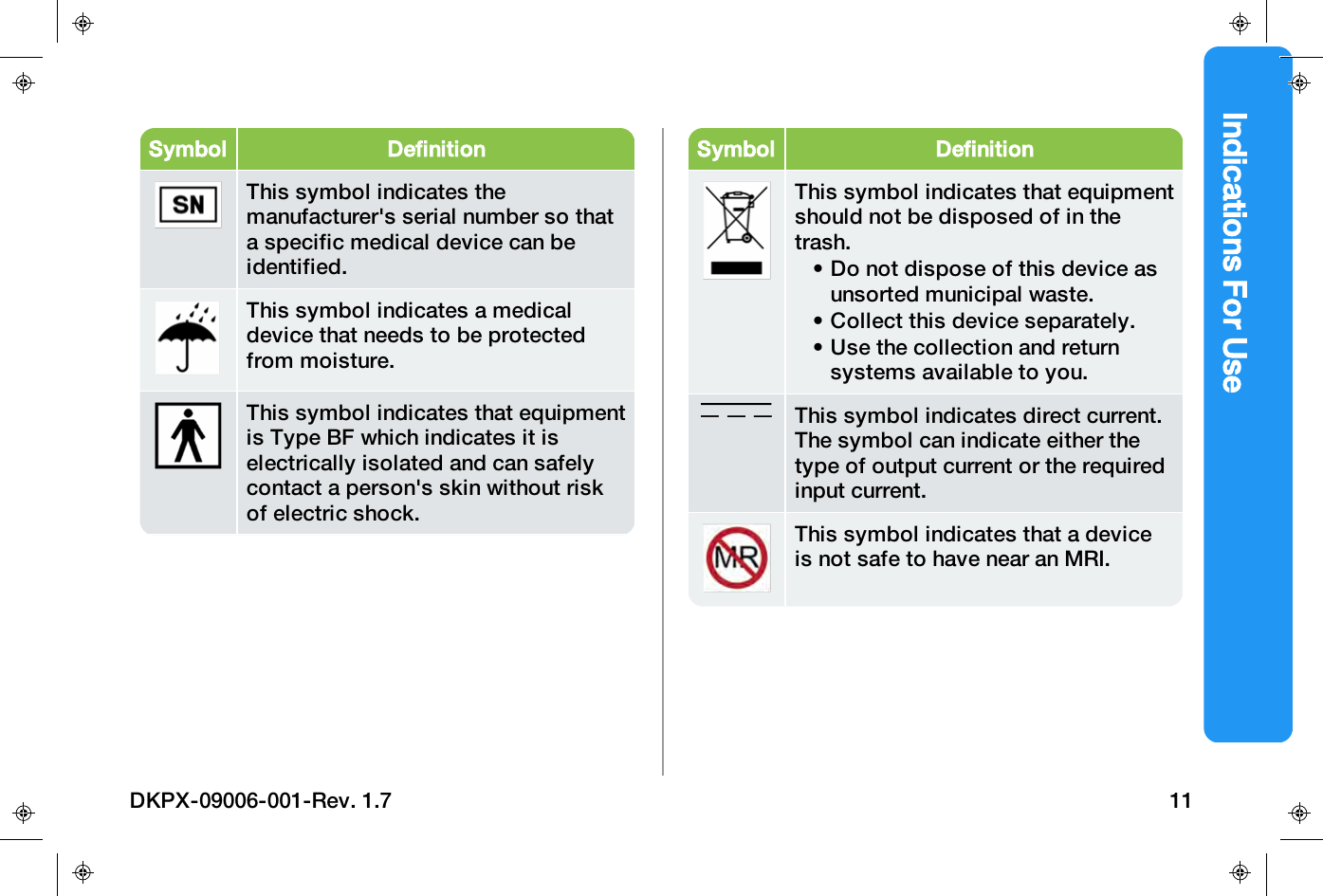
Indications For UseSymbol DefinitionThis symbol indicates themanufacturer's serial number so thata specific medical device can beidentified.This symbol indicates a medicaldevice that needs to be protectedfrom moisture.This symbol indicates that equipmentis Type BF which indicates it iselectrically isolated and can safelycontact a person's skin without riskof electric shock.Symbol DefinitionThis symbol indicates that equipmentshould not be disposed of in thetrash.• Do not dispose of this device asunsorted municipal waste.• Collect this device separately.• Use the collection and returnsystems available to you.This symbol indicates direct current.The symbol can indicate either thetype of output current or the requiredinput current.This symbol indicates that a deviceis not safe to have near an MRI.DKPX-09006-001-Rev. 1.7 11
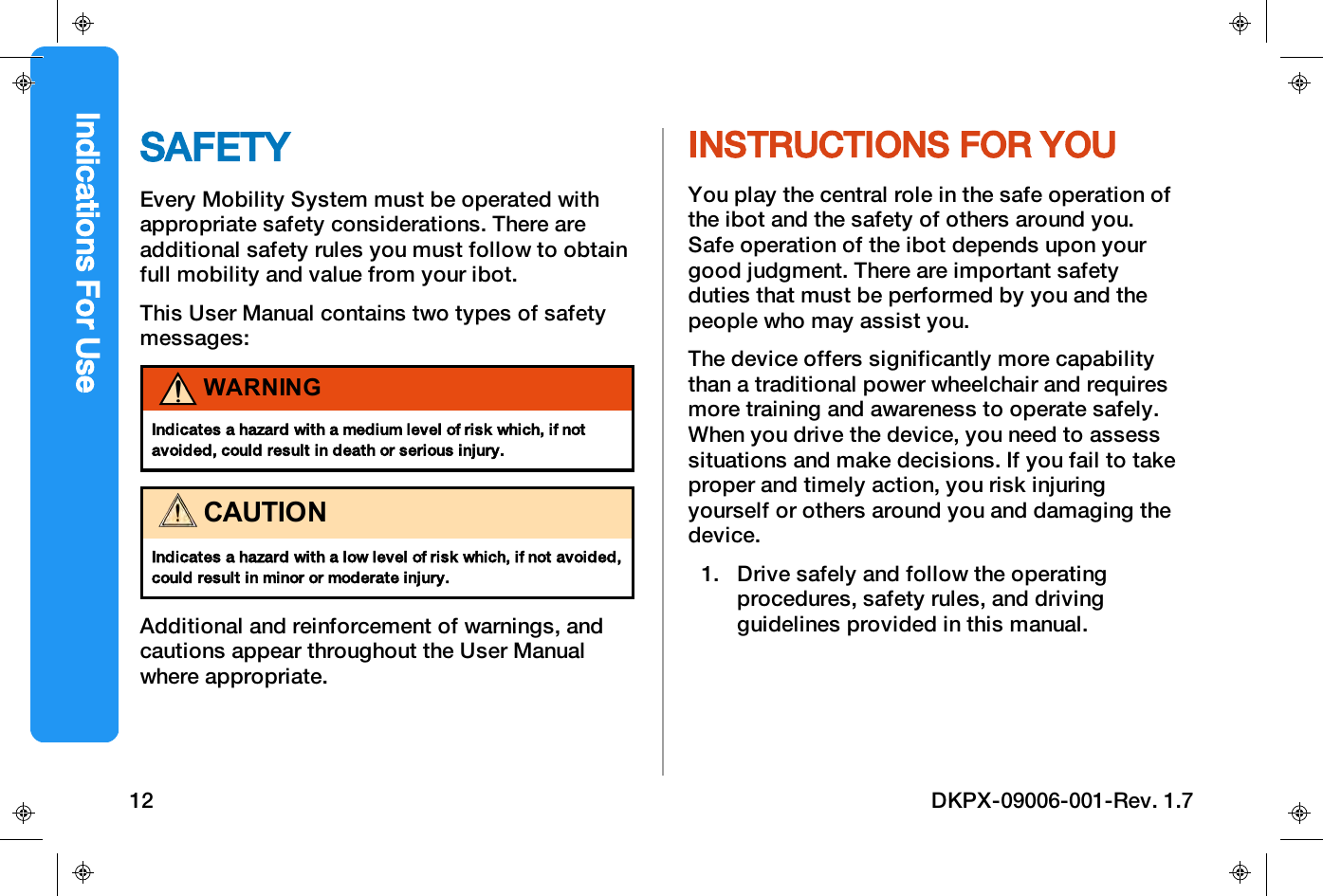
SAFETYEvery Mobility System must be operated withappropriate safety considerations. There areadditional safety rules you must follow to obtainfull mobility and value from your ibot.This User Manual contains two types of safetymessages:WARNINGIndicates a hazard with a medium level of risk which, if notavoided, could result in death or serious injury.CAUTIONIndicates a hazard with a low level of risk which, if not avoided,could result in minor or moderate injury.Additional and reinforcement of warnings, andcautions appear throughout the User Manualwhere appropriate.INSTRUCTIONS FOR YOUYou play the central role in the safe operation ofthe ibot and the safety of others around you.Safe operation of the ibot depends upon yourgood judgment. There are important safetyduties that must be performed by you and thepeople who may assist you.The device offers significantly more capabilitythan a traditional power wheelchair and requiresmore training and awareness to operate safely.When you drive the device, you need to assesssituations and make decisions. If you fail to takeproper and timely action, you risk injuringyourself or others around you and damaging thedevice.1. Drive safely and follow the operatingprocedures, safety rules, and drivingguidelines provided in this manual.Indications For Use12 DKPX-09006-001-Rev. 1.7
Indications For Use2. Heed all caution and warning messagesprinted in this manual. Use the proceduresand guidelines provided in this manual torespond quickly and correctly to cautionand warning signals you see or hear whendriving the device.3. Always select the driving mode best suitedto your current driving needs, the terrain,and any other driving conditions.4. Keep your device in good workingcondition. Maintain and service it accordingto the procedures in this manual andwarranty recommendations. If the deviceappears damaged or unsafe to operate, donot drive and contact Technical Support.5. Do not attempt to modify the hardware,software, components, or programming ofyour device.INSTRUCTIONS FORASSISTANTSAssistants must be trained for assisted stairclimbing.Stair climbing assistants must become familiarwith the device, including thoroughunderstanding of operating procedures andsafety rules.Stair climbing assistants must demonstrateability to perform both the physical and decisionmaking tasks you request of them.DKPX-09006-001-Rev. 1.7 13
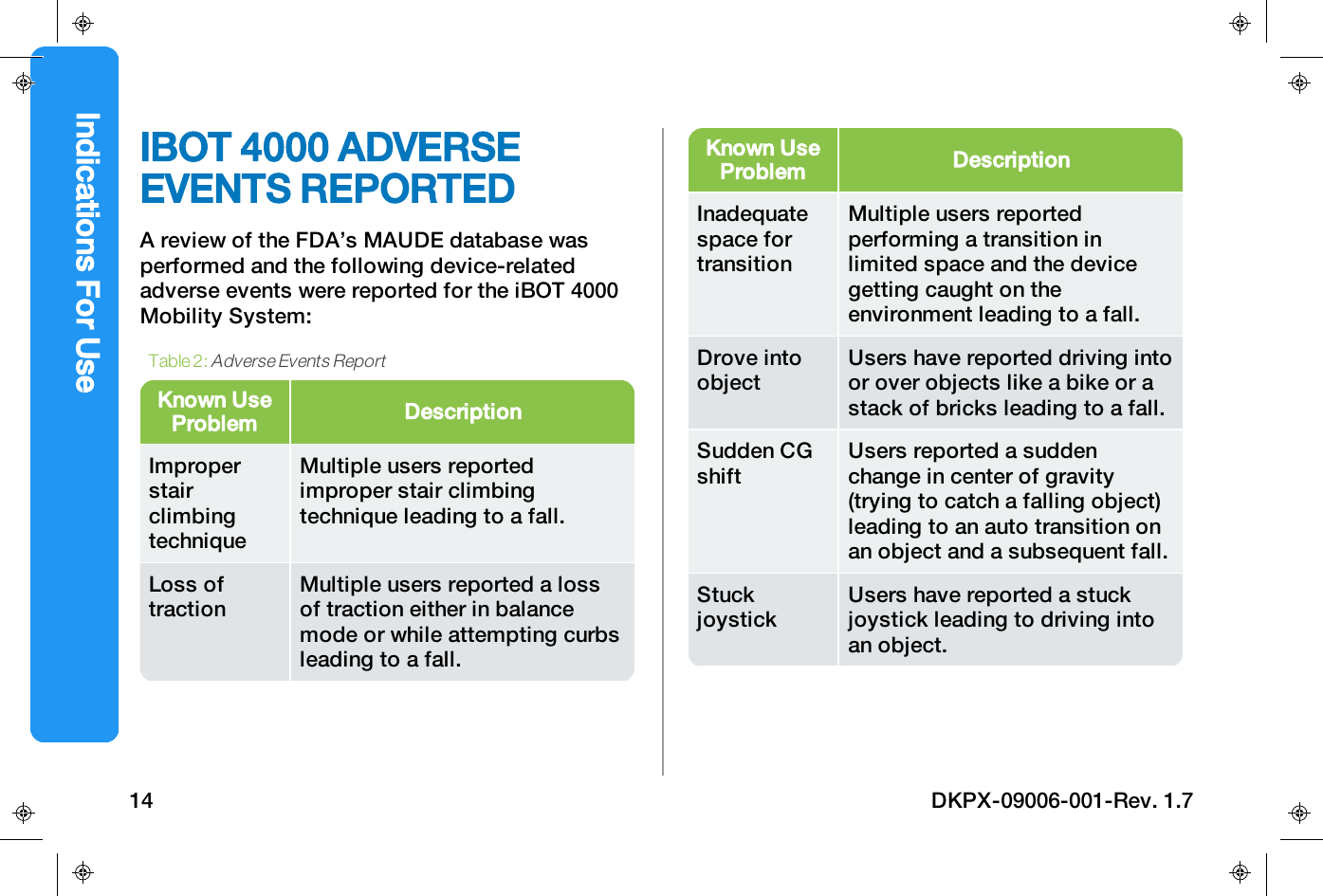
IBOT 4000 ADVERSEEVENTS REPORTEDA review of the FDA’s MAUDE database wasperformed and the following device-relatedadverse events were reported for the iBOT 4000Mobility System:Known UseProblem DescriptionImproperstairclimbingtechniqueMultiple users reportedimproper stair climbingtechnique leading to a fall.Loss oftractionMultiple users reported a lossof traction either in balancemode or while attempting curbsleading to a fall.Table 2:Adverse Events ReportKnown UseProblem DescriptionInadequatespace fortransitionMultiple users reportedperforming a transition inlimited space and the devicegetting caught on theenvironment leading to a fall.Drove intoobjectUsers have reported driving intoor over objects like a bike or astack of bricks leading to a fall.Sudden CGshiftUsers reported a suddenchange in center of gravity(trying to catch a falling object)leading to an auto transition onan object and a subsequent fall.StuckjoystickUsers have reported a stuckjoystick leading to driving intoan object.Indications For Use14 DKPX-09006-001-Rev. 1.7
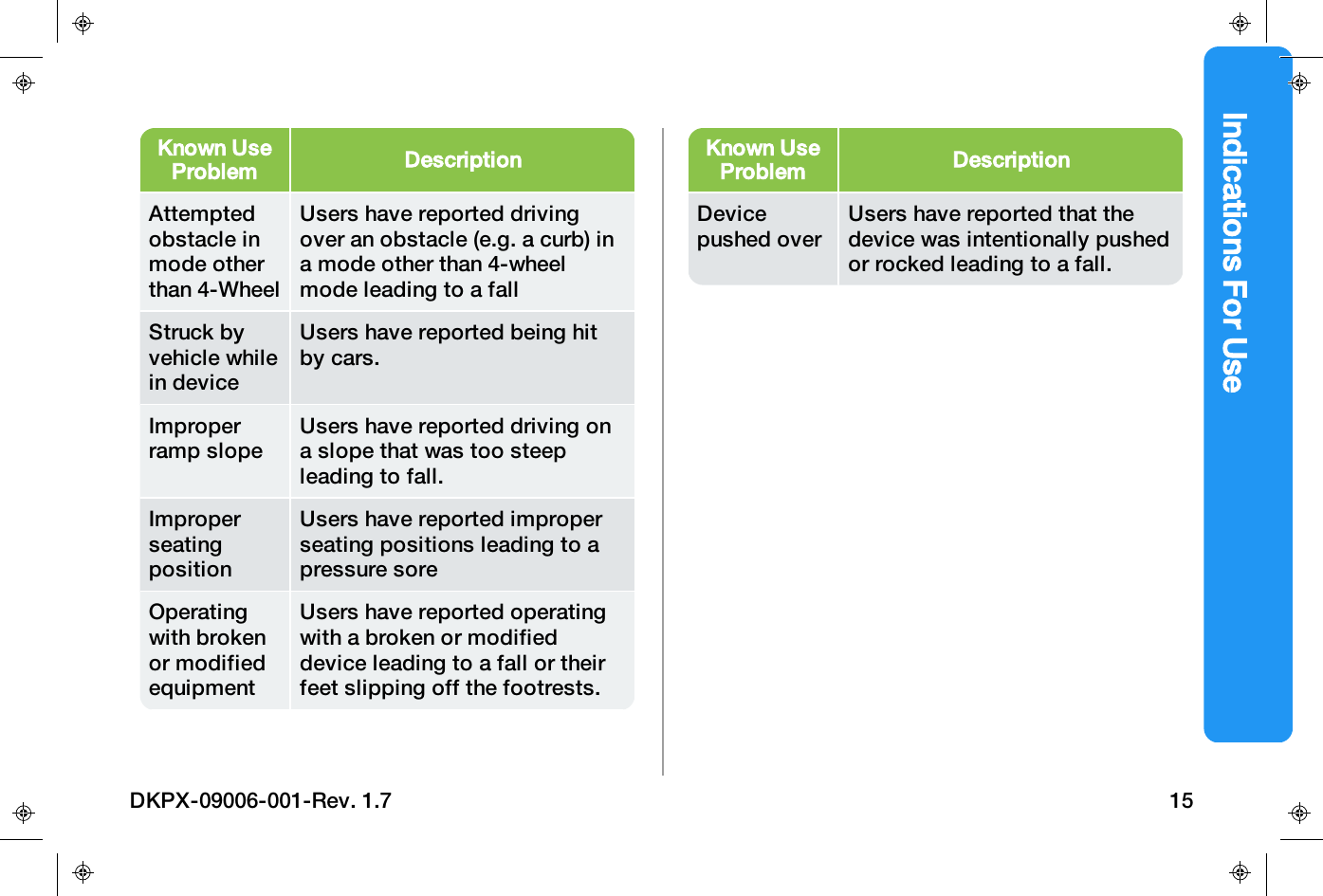
Indications For UseKnown UseProblem DescriptionAttemptedobstacle inmode otherthan 4-WheelUsers have reported drivingover an obstacle (e.g. a curb) ina mode other than 4-wheelmode leading to a fallStruck byvehicle whilein deviceUsers have reported being hitby cars.Improperramp slopeUsers have reported driving ona slope that was too steepleading to fall.ImproperseatingpositionUsers have reported improperseating positions leading to apressure soreOperatingwith brokenor modifiedequipmentUsers have reported operatingwith a broken or modifieddevice leading to a fall or theirfeet slipping off the footrests.Known UseProblem DescriptionDevicepushed overUsers have reported that thedevice was intentionally pushedor rocked leading to a fall.DKPX-09006-001-Rev. 1.7 15
ADVERSE EVENTSREPORTINGIf an event occurs while you are using your ibotplease contact (Customer Service Informationgoes here). Please be prepared to provide asmuch information as possible related to theevent. This will be a great help for us.To increase the product quality and to ensurethat our device is safe through the whole lifecycle we need you to let us know if anyreportable event occurs.To meet that requirement and to ensure that ourproducts remain safe in your hands we need yourassistance.We hope you never need to use the informationon this page but if there is an event pleasecontact us.The FDA encourages healthcare professionals,patients, caregivers and consumers to submitvoluntary reports of significant adverse events orproduct problems with medical products toMedWatch, the FDA’s Safety Information andAdverse Event Reporting Program or through theMedWatcher mobile app.https://www.fda.gov/MedicalDevices/Safety/ReportaProblem/#voluntaryIndications For Use16 DKPX-09006-001-Rev. 1.7
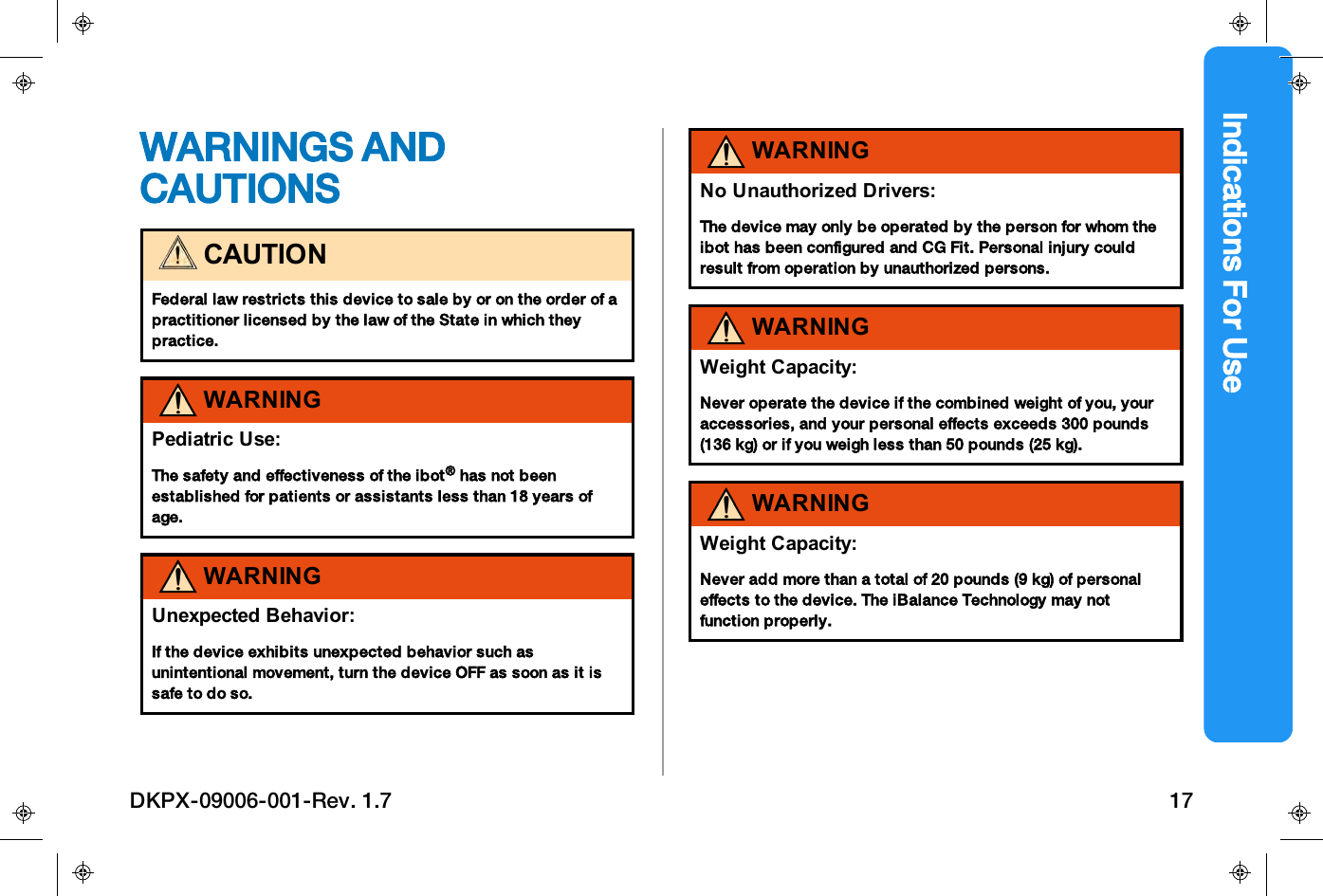
Indications For UseWARNINGS ANDCAUTIONSCAUTIONFederal law restricts this device to sale by or on the order of apractitioner licensed by the law of the State in which theypractice.WARNINGPediatric Use:The safety and effectiveness of the ibot®has not beenestablished for patients or assistants less than 18 years ofage.WARNINGUnexpected Behavior:If the device exhibits unexpected behavior such asunintentional movement, turn the device OFF as soon as it issafe to do so.WARNINGNo Unauthorized Drivers:The device may only be operated by the person for whom theibot has been configured and CG Fit. Personal injury couldresult from operation by unauthorized persons.WARNINGWeight Capacity:Never operate the device if the combined weight of you, youraccessories, and your personal effects exceeds 300 pounds(136 kg) or if you weigh less than 50 pounds (25 kg).WARNINGWeight Capacity:Never add more than a total of 20 pounds (9 kg) of personaleffects to the device. The iBalance Technology may notfunction properly.DKPX-09006-001-Rev. 1.7 17
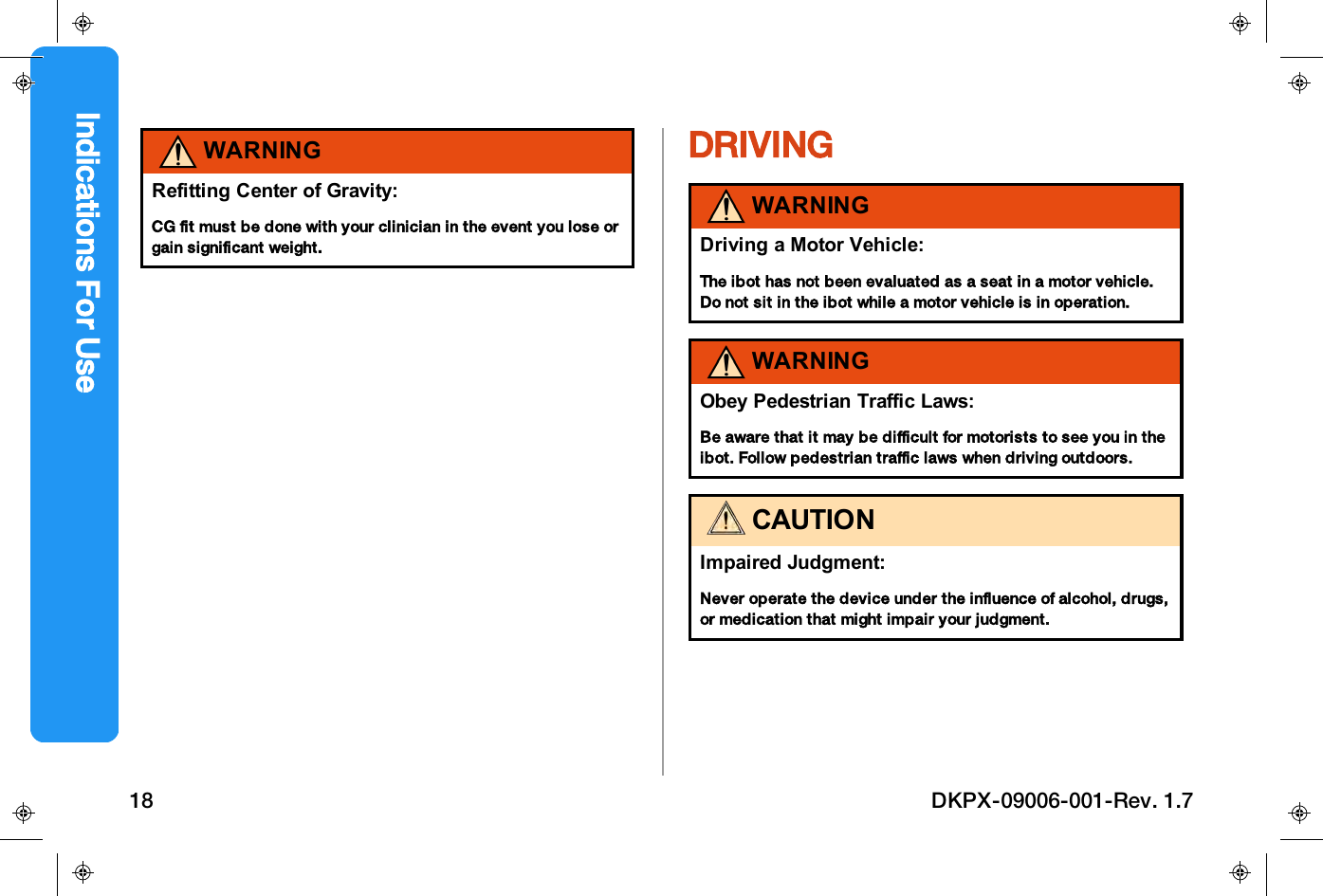
WARNINGRefitting Center of Gravity:CG fit must be done with your clinician in the event you lose orgain significant weight.DRIVINGWARNINGDriving a Motor Vehicle:The ibot has not been evaluated as a seat in a motor vehicle.Do not sit in the ibot while a motor vehicle is in operation.WARNINGObey Pedestrian Traffic Laws:Be aware that it may be difficult for motorists to see you in theibot. Follow pedestrian traffic laws when driving outdoors.CAUTIONImpaired Judgment:Never operate the device under the influence of alcohol, drugs,or medication that might impair your judgment.Indications For Use18 DKPX-09006-001-Rev. 1.7
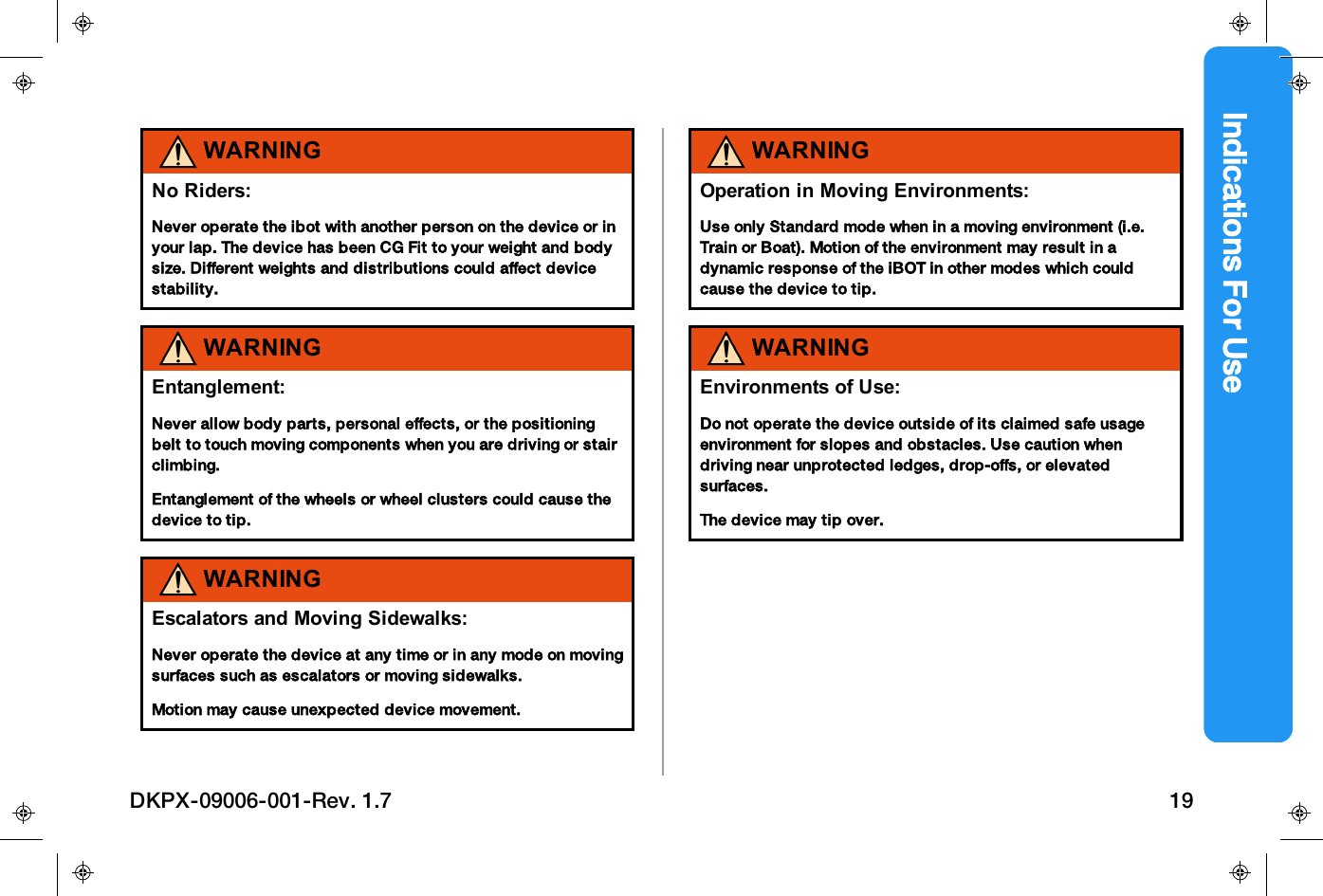
Indications For UseWARNINGNo Riders:Never operate the ibot with another person on the device or inyour lap. The device has been CG Fit to your weight and bodysize. Different weights and distributions could affect devicestability.WARNINGEntanglement:Never allow body parts, personal effects, or the positioningbelt to touch moving components when you are driving or stairclimbing.Entanglement of the wheels or wheel clusters could cause thedevice to tip.WARNINGEscalators and Moving Sidewalks:Never operate the device at any time or in any mode on movingsurfaces such as escalators or moving sidewalks.Motion may cause unexpected device movement.WARNINGOperation in Moving Environments:Use only Standard mode when in a moving environment (i.e.Train or Boat). Motion of the environment may result in adynamic response of the iBOT in other modes which couldcause the device to tip.WARNINGEnvironments of Use:Do not operate the device outside of its claimed safe usageenvironment for slopes and obstacles. Use caution whendriving near unprotected ledges, drop-offs, or elevatedsurfaces.The device may tip over.DKPX-09006-001-Rev. 1.7 19
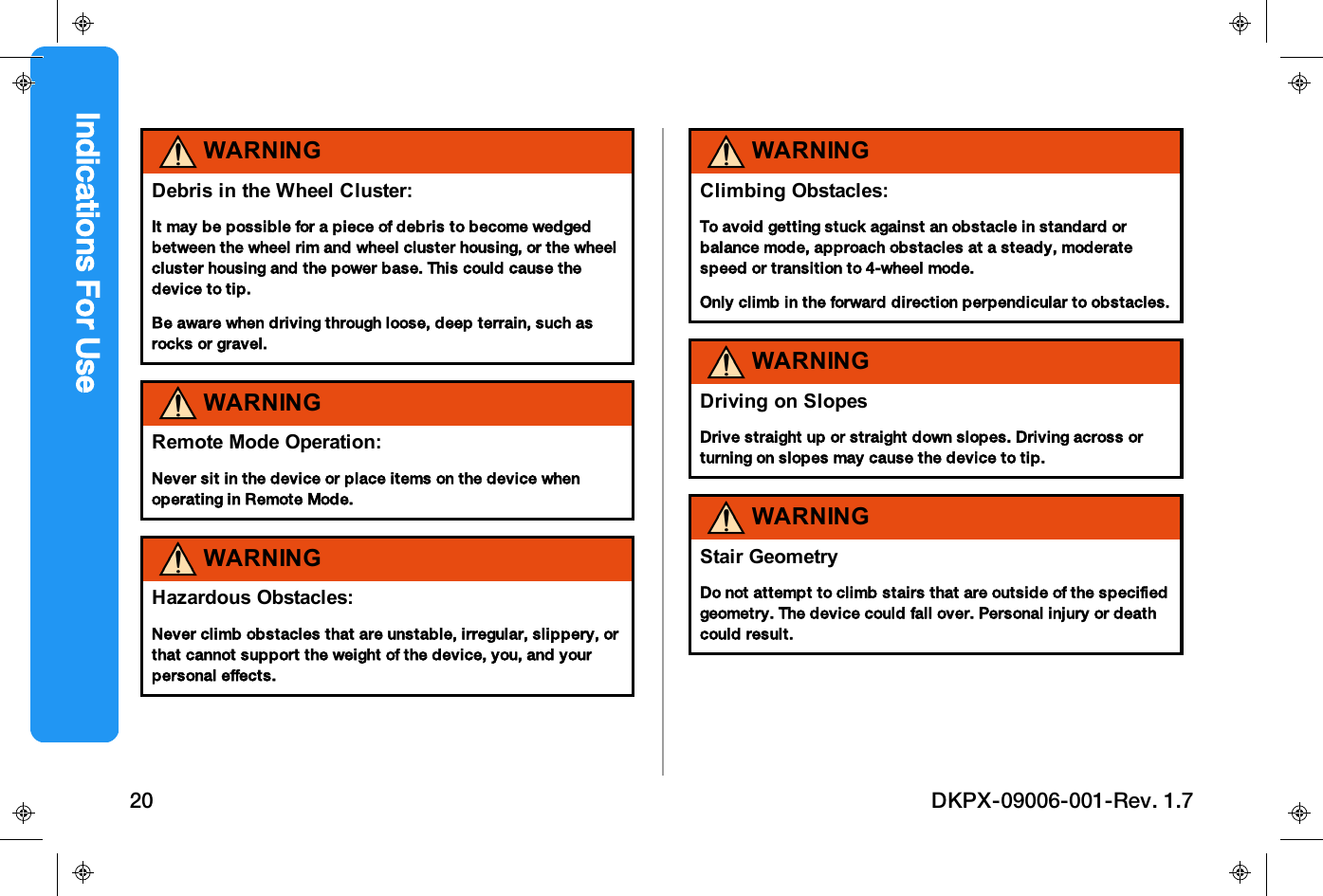
WARNINGDebris in the Wheel Cluster:It may be possible for a piece of debris to become wedgedbetween the wheel rim and wheel cluster housing, or the wheelcluster housing and the power base. This could cause thedevice to tip.Be aware when driving through loose, deep terrain, such asrocks or gravel.WARNINGRemote Mode Operation:Never sit in the device or place items on the device whenoperating in Remote Mode.WARNINGHazardous Obstacles:Never climb obstacles that are unstable, irregular, slippery, orthat cannot support the weight of the device, you, and yourpersonal effects.WARNINGClimbing Obstacles:To avoid getting stuck against an obstacle in standard orbalance mode, approach obstacles at a steady, moderatespeed or transition to 4-wheel mode.Only climb in the forward direction perpendicular to obstacles.WARNINGDriving on SlopesDrive straight up or straight down slopes. Driving across orturning on slopes may cause the device to tip.WARNINGStair GeometryDo not attempt to climb stairs that are outside of the specifiedgeometry. The device could fall over. Personal injury or deathcould result.Indications For Use20 DKPX-09006-001-Rev. 1.7
Indications For UseWARNINGStair ClimbingRisk of falling down stairs. You could be seriously injured orkilled if you lose control while stair climbing. Stair-climbingentails a higher degree of risk and requires greater ability ofyou or your assistant than driving in other modes. Stair-climbing is dangerous if you or your assistant is not aware of,or does not follow, the manufacturer’s instructions for use.Always use proper stair climbing technique. Do not attempt toclimb stairs that are outside of the specified geometry. Makesure you or your assistant is not distracted.WARNINGExiting Stair ClimbingDo not switch to 4-Wheel mode until at least one set of wheelsis on the landing. The device can fall over if you drive downstairs in 4-Wheel mode. Personal injury or death could result.TRANSITIONINGWARNINGEntering FreewheelDo not put your iBOT in freewheel mode while on an incline.This could cause the device to roll on its own, causing injuryDo not attempt to put the device in freewheel mode by yourselfwhile seated in it. In order to avoid personal injury do not usefreewheel mode without an attendant present.CAUTIONMoving parts can pinch and crush:Do not adjust the seat position or any device components ifthe immediate area of movement is not clear.WARNINGTransition between Modes:Make sure you have adequate surrounding space and youtransition on level, slip-resistant surfaces.DKPX-09006-001-Rev. 1.7 21
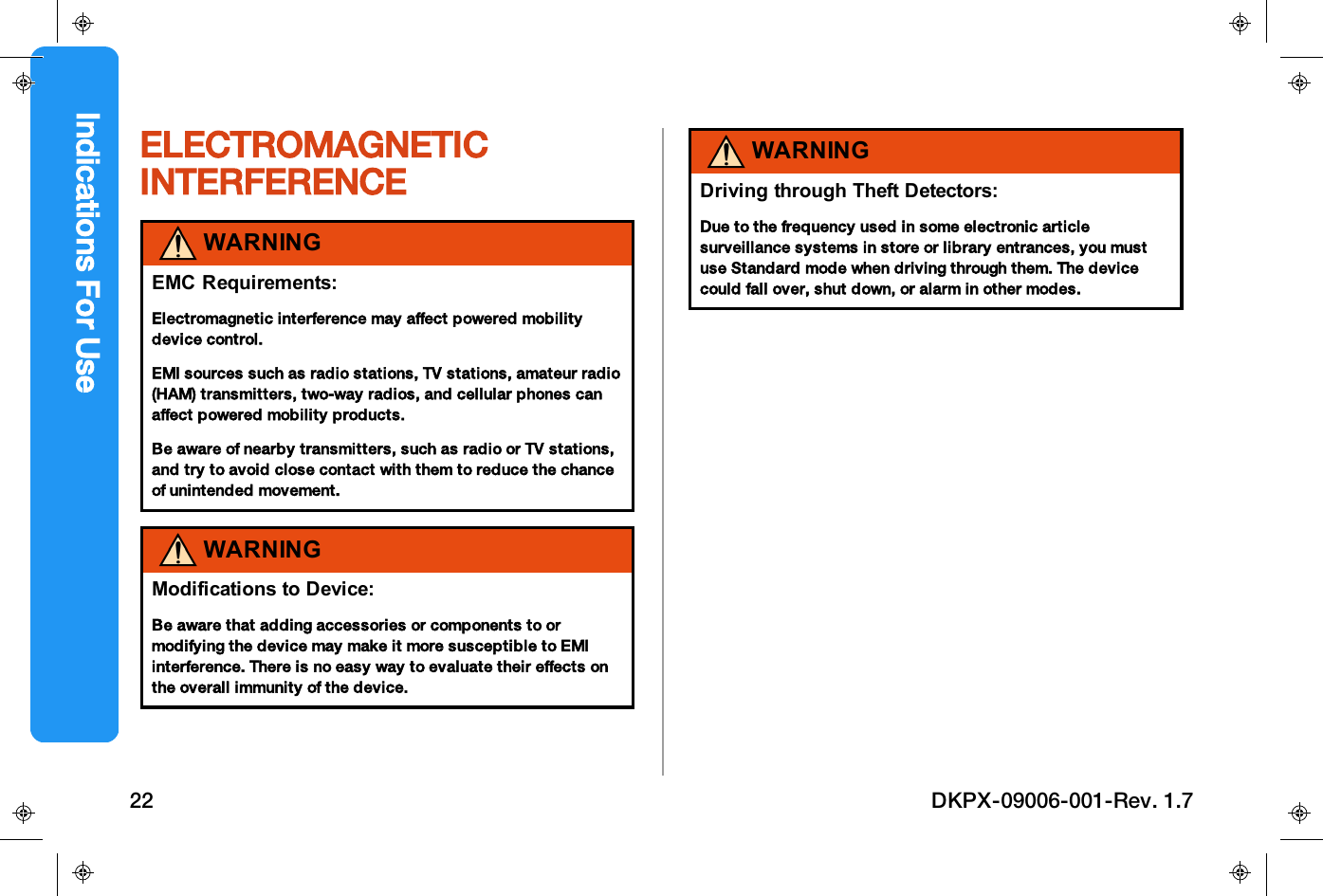
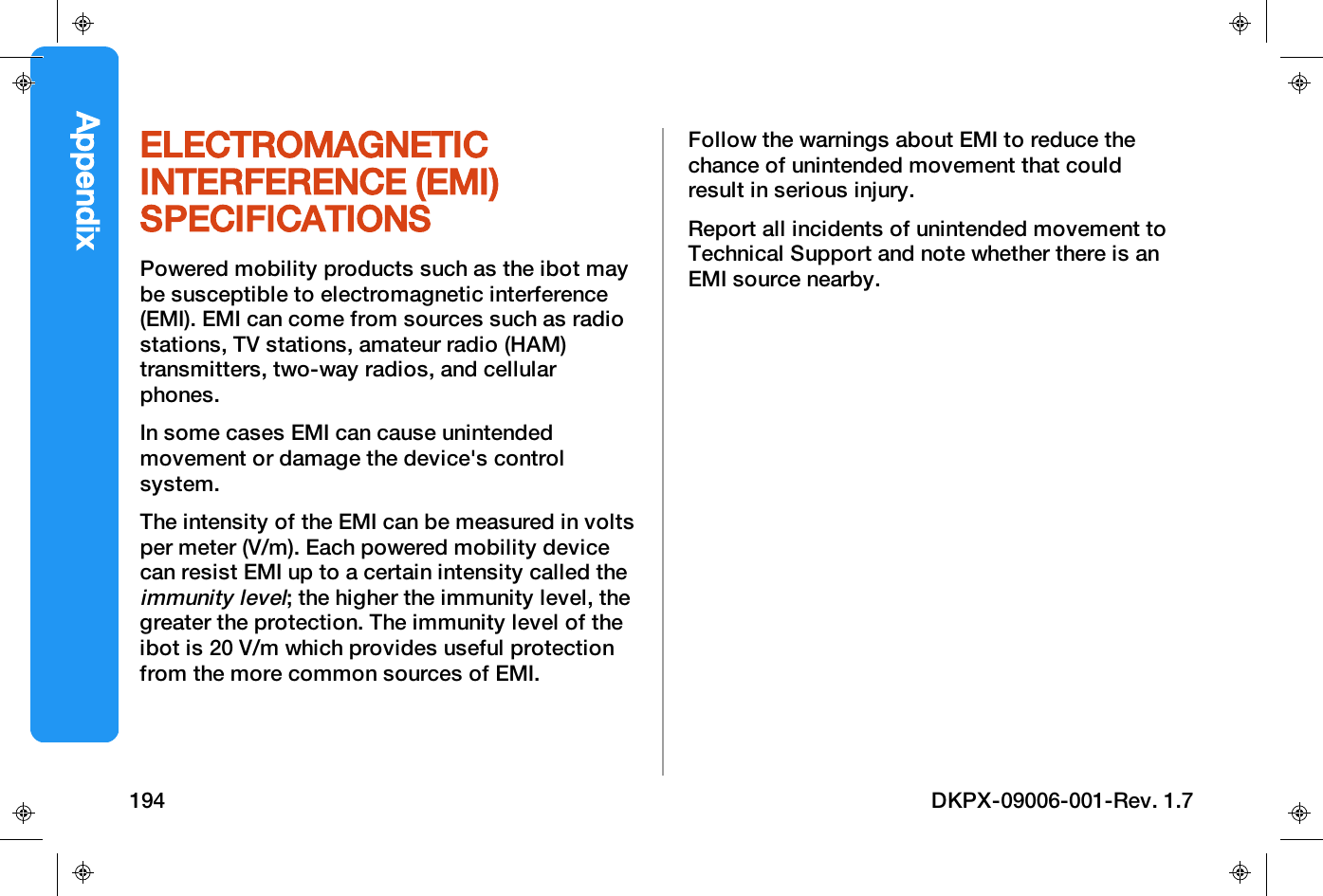
ELECTROMAGNETICINTERFERENCEWARNINGEMC Requirements:Electromagnetic interference may affect powered mobilitydevice control.EMI sources such as radio stations, TV stations, amateur radio(HAM) transmitters, two-way radios, and cellular phones canaffect powered mobility products.Be aware of nearby transmitters, such as radio or TV stations,and try to avoid close contact with them to reduce the chanceof unintended movement.WARNINGModifications to Device:Be aware that adding accessories or components to ormodifying the device may make it more susceptible to EMIinterference. There is no easy way to evaluate their effects onthe overall immunity of the device.WARNINGDriving through Theft Detectors:Due to the frequency used in some electronic articlesurveillance systems in store or library entrances, you mustuse Standard mode when driving through them. The devicecould fall over, shut down, or alarm in other modes.Indications For Use22 DKPX-09006-001-Rev. 1.7
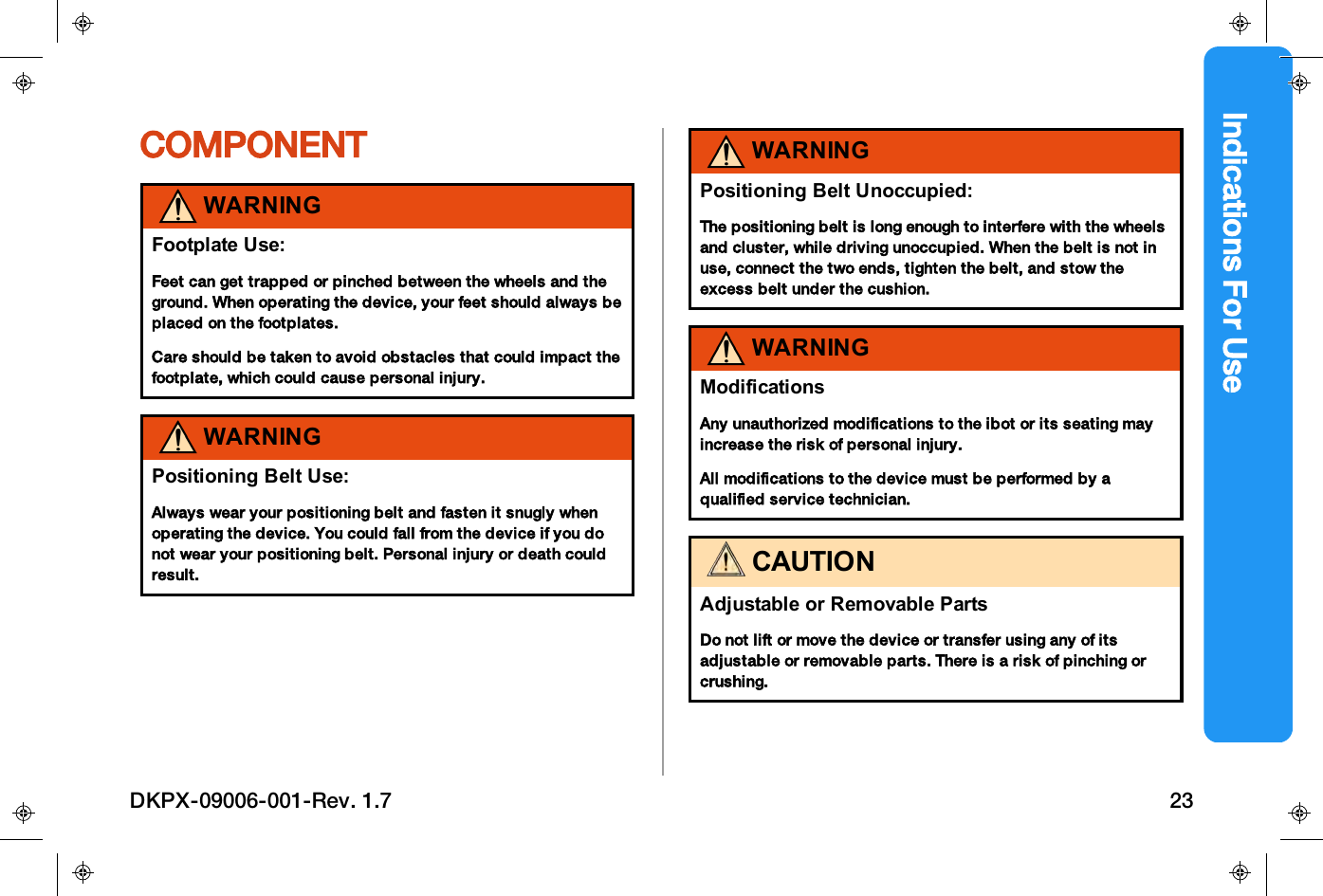
Indications For UseCOMPONENTWARNINGFootplate Use:Feet can get trapped or pinched between the wheels and theground. When operating the device, your feet should always beplaced on the footplates.Care should be taken to avoid obstacles that could impact thefootplate, which could cause personal injury.WARNINGPositioning Belt Use:Always wear your positioning belt and fasten it snugly whenoperating the device. You could fall from the device if you donot wear your positioning belt. Personal injury or death couldresult.WARNINGPositioning Belt Unoccupied:The positioning belt is long enough to interfere with the wheelsand cluster, while driving unoccupied. When the belt is not inuse, connect the two ends, tighten the belt, and stow theexcess belt under the cushion.WARNINGModificationsAny unauthorized modifications to the ibot or its seating mayincrease the risk of personal injury.All modifications to the device must be performed by aqualified service technician.CAUTIONAdjustable or Removable PartsDo not lift or move the device or transfer using any of itsadjustable or removable parts. There is a risk of pinching orcrushing.DKPX-09006-001-Rev. 1.7 23
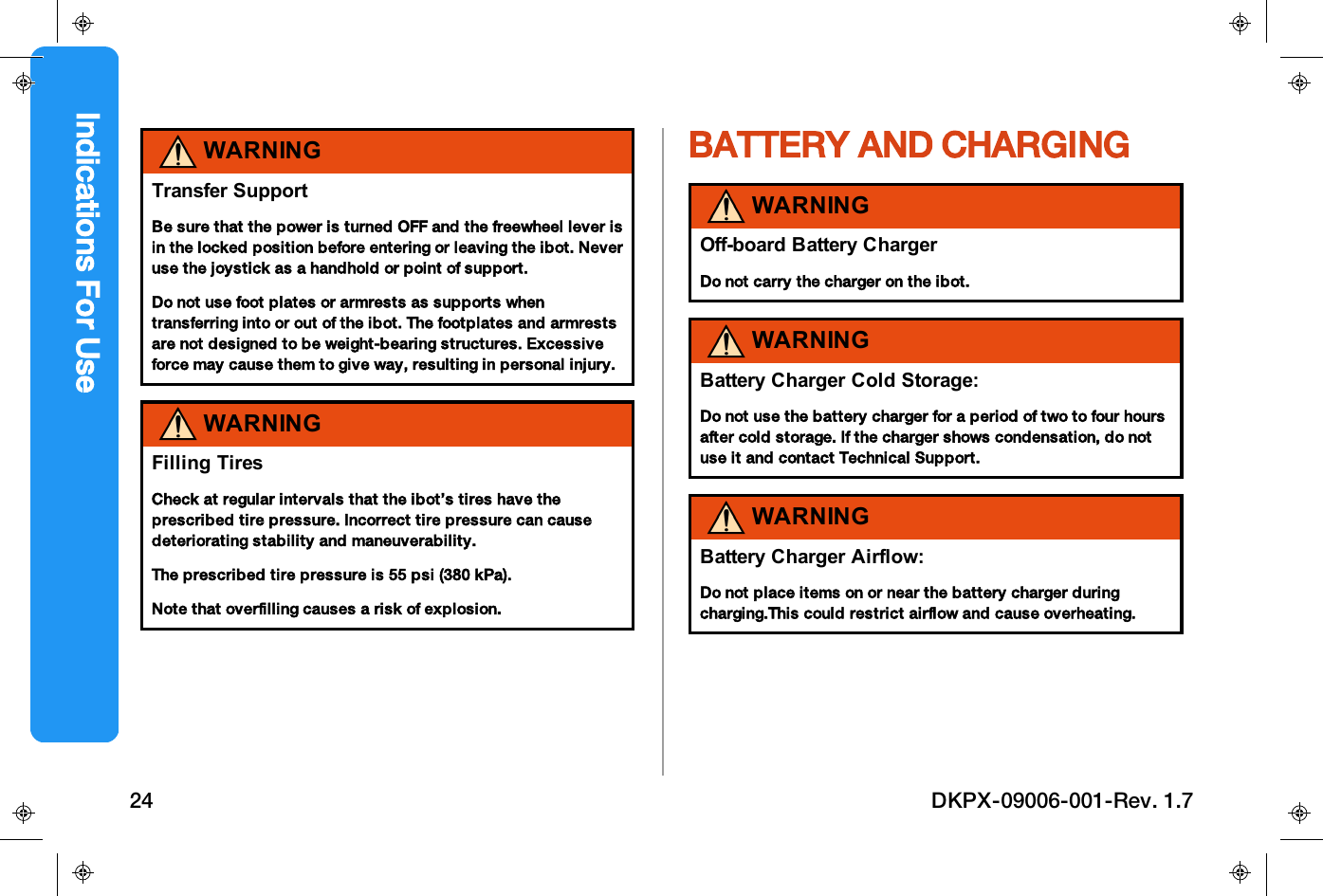
WARNINGTransfer SupportBe sure that the power is turned OFF and the freewheel lever isin the locked position before entering or leaving the ibot. Neveruse the joystick as a handhold or point of support.Do not use foot plates or armrests as supports whentransferring into or out of the ibot. The footplates and armrestsare not designed to be weight-bearing structures. Excessiveforce may cause them to give way, resulting in personal injury.WARNINGFilling TiresCheck at regular intervals that the ibot’s tires have theprescribed tire pressure. Incorrect tire pressure can causedeteriorating stability and maneuverability.The prescribed tire pressure is 55 psi (380 kPa).Note that overfilling causes a risk of explosion.BATTERY AND CHARGINGWARNINGOff-board Battery ChargerDo not carry the charger on the ibot.WARNINGBattery Charger Cold Storage:Do not use the battery charger for a period of two to four hoursafter cold storage. If the charger shows condensation, do notuse it and contact Technical Support.WARNINGBattery Charger Airflow:Do not place items on or near the battery charger duringcharging.This could restrict airflow and cause overheating.Indications For Use24 DKPX-09006-001-Rev. 1.7
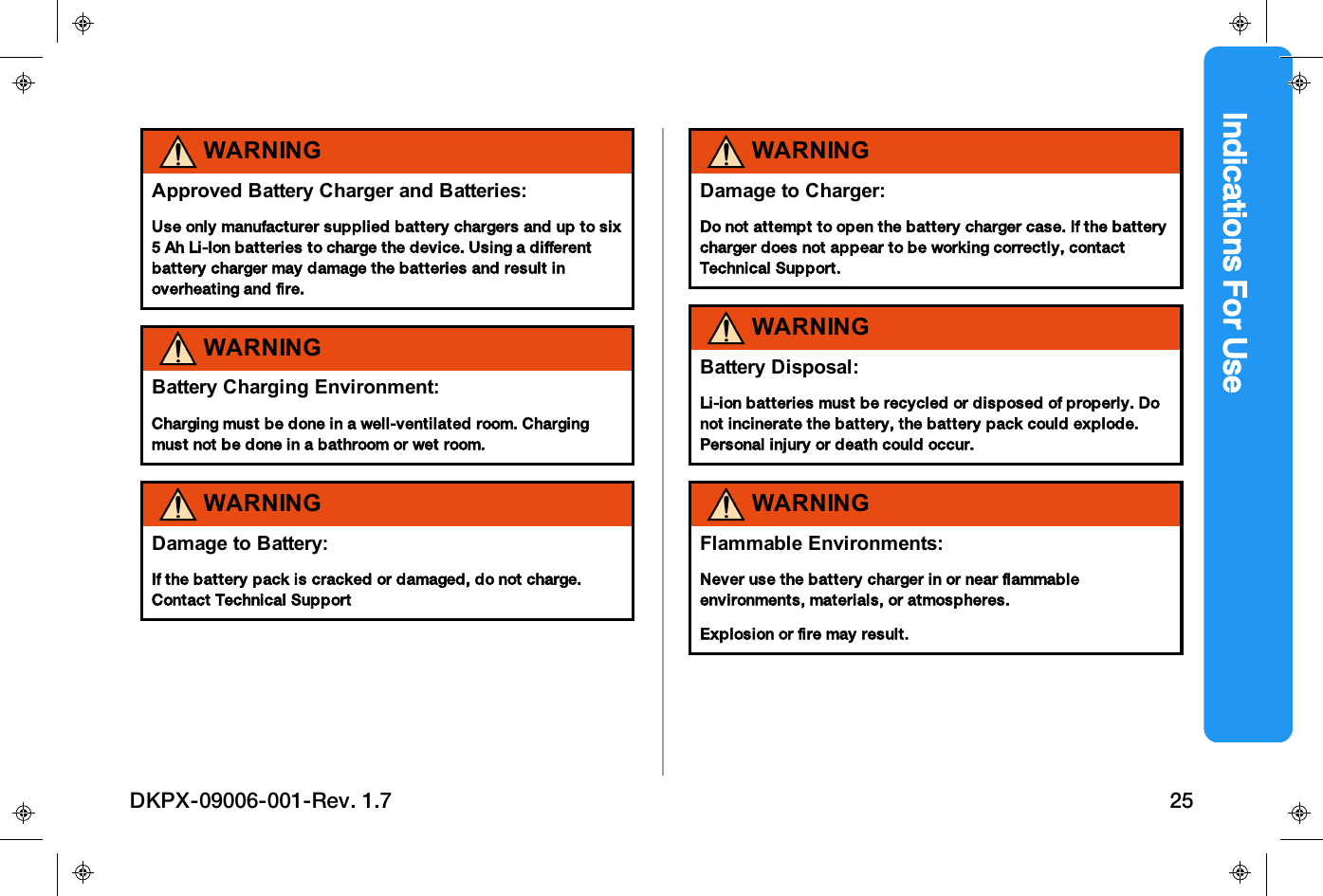
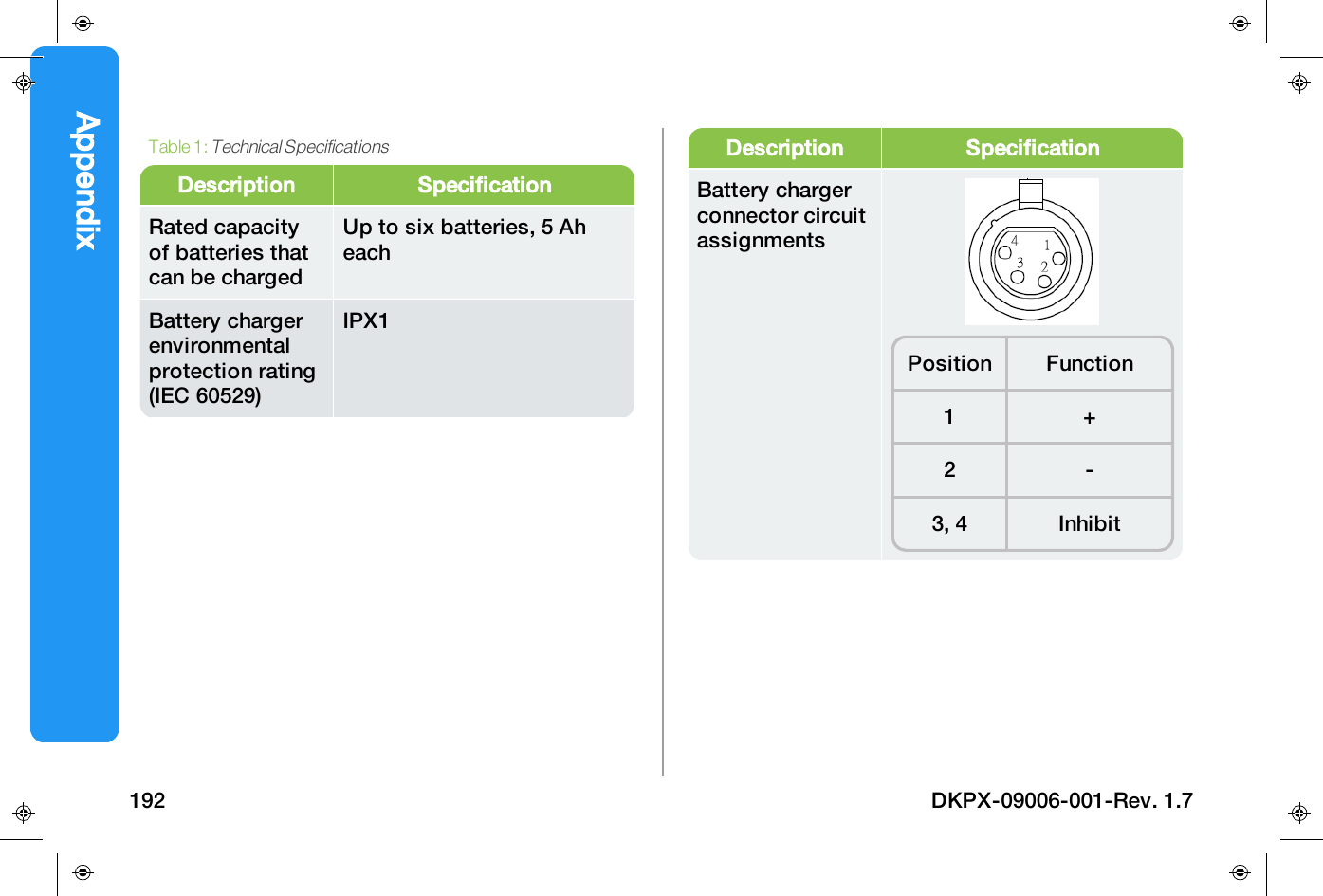
Indications For UseWARNINGApproved Battery Charger and Batteries:Use only manufacturer supplied battery chargers and up to six5 Ah Li-Ion batteries to charge the device. Using a differentbattery charger may damage the batteries and result inoverheating and fire.WARNINGBattery Charging Environment:Charging must be done in a well-ventilated room. Chargingmust not be done in a bathroom or wet room.WARNINGDamage to Battery:If the battery pack is cracked or damaged, do not charge.Contact Technical SupportWARNINGDamage to Charger:Do not attempt to open the battery charger case. If the batterycharger does not appear to be working correctly, contactTechnical Support.WARNINGBattery Disposal:Li-ion batteries must be recycled or disposed of properly. Donot incinerate the battery, the battery pack could explode.Personal injury or death could occur.WARNINGFlammable Environments:Never use the battery charger in or near flammableenvironments, materials, or atmospheres.Explosion or fire may result.DKPX-09006-001-Rev. 1.7 25
CONVENTIONSThis table describes typographic conventionsthat may be used in this document.Convention DescriptionBoldface type Emphasizes heading levels,column headings, and thefollowing literals whenwriting procedures:• Names of options andelements that appear onthe user controller screen.• Keys on the keyboard.• User input forprocedures.Italic typeAccentuates words orphrases that appear on theuser controller screen.Table 3:ConventionsConvention DescriptionCourier New Used for identifying codesamples.Hyperlink towebsiteSee"Conventions"above.Provides quick and easyaccess to cross-referencedtopics.Hyperlinks to websites arehighlighted in blue andunderlined.Hyperlinks to locationswithin the document arehighlighted in blue anditalicized.Indications For Use26 DKPX-09006-001-Rev. 1.7
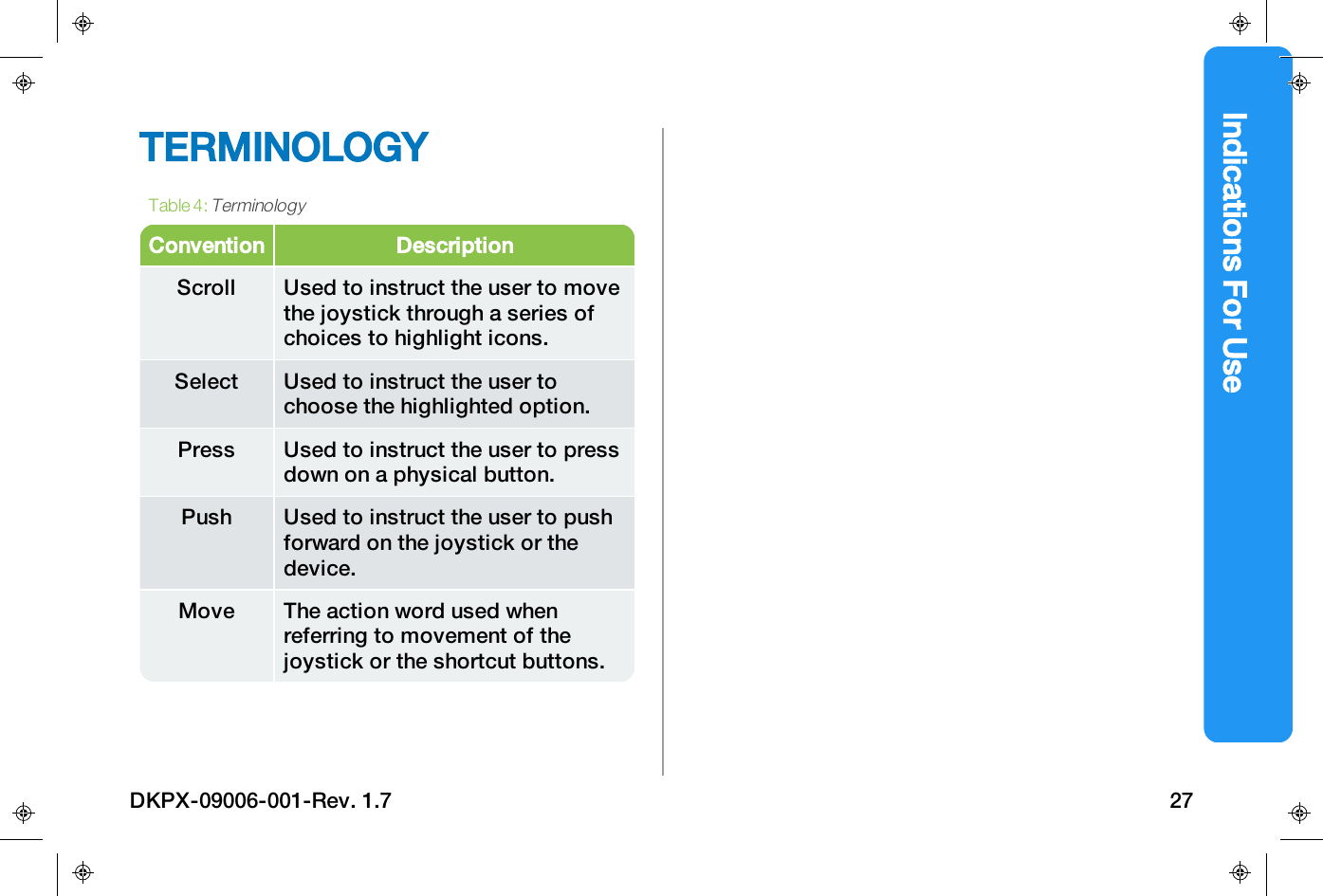
Indications For UseTERMINOLOGYConvention DescriptionScroll Used to instruct the user to movethe joystick through a series ofchoices to highlight icons.Select Used to instruct the user tochoose the highlighted option.Press Used to instruct the user to pressdown on a physical button.Push Used to instruct the user to pushforward on the joystick or thedevice.Move The action word used whenreferring to movement of thejoystick or the shortcut buttons.Table 4:TerminologyDKPX-09006-001-Rev. 1.7 27
This page intentionally left blank.Indications For Use28 DKPX-09006-001-Rev. 1.7
ibot ComponentsIBOT COMPONENTSThis section describes the standard componentsthat are included with your ibot.Seating System 30Power Base 31Rear View 32Accessories 33User Controller 34Freewheel Lever (brake release) 35Armrests 36Legrests 37DKPX-09006-001-Rev. 1.7 29
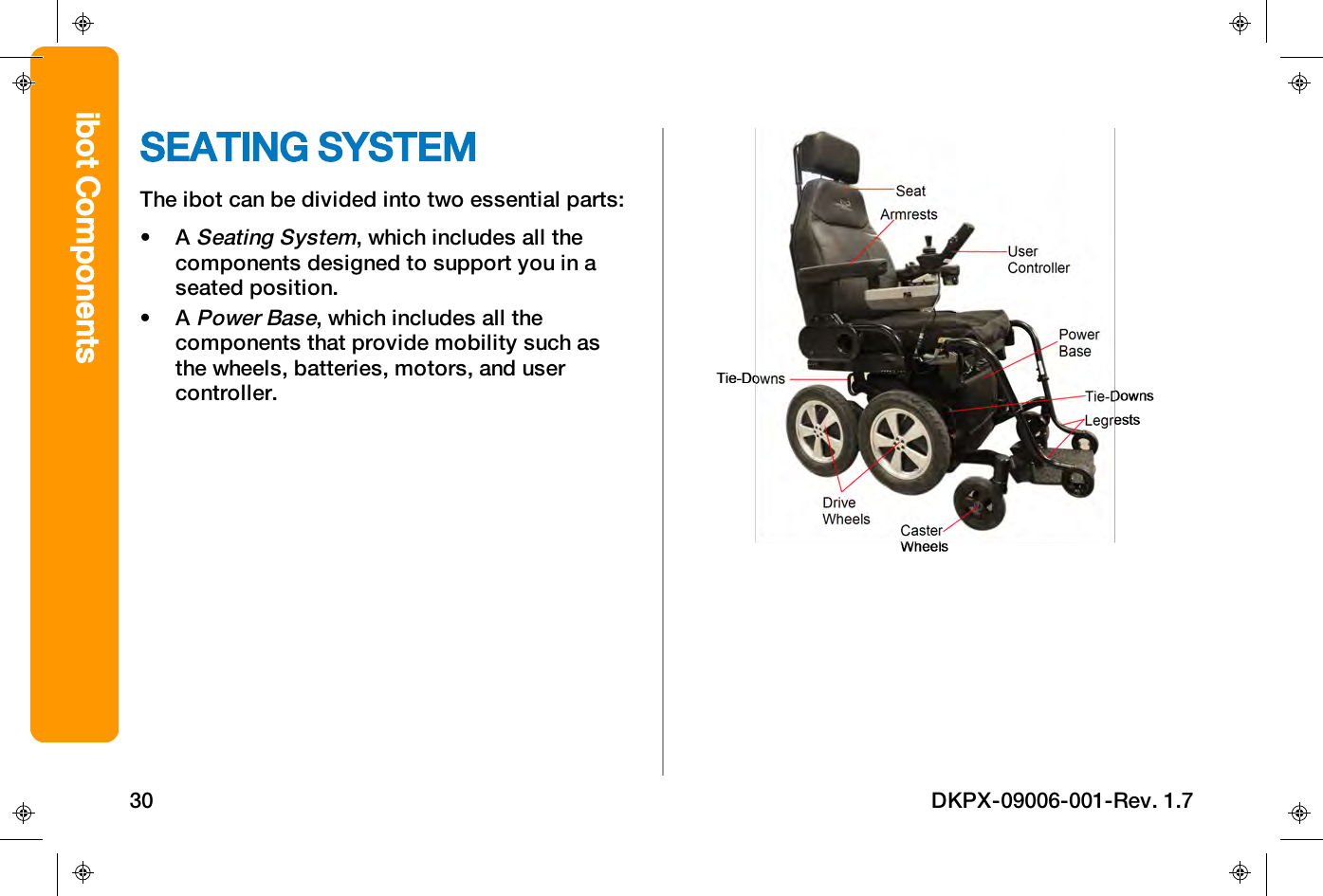
SEATING SYSTEMThe ibot can be divided into two essential parts:• ASeating System, which includes all thecomponents designed to support you in aseated position.• APower Base,which includes all thecomponents that provide mobility such asthe wheels, batteries, motors, and usercontroller.ibot Components30 DKPX-09006-001-Rev. 1.7
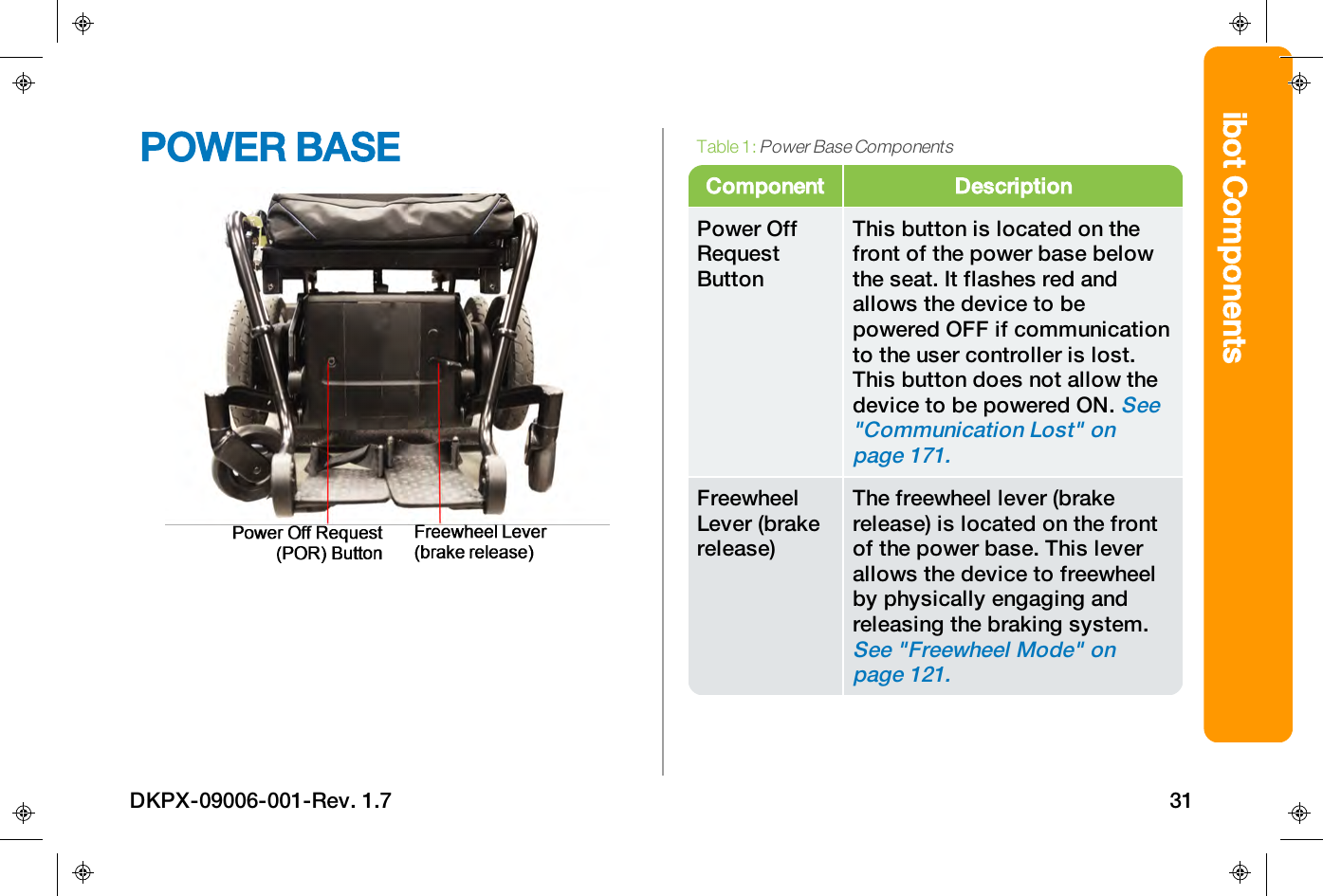
ibot ComponentsPOWER BASEComponent DescriptionPower OffRequestButtonThis button is located on thefront of the power base belowthe seat. It flashes red andallows the device to bepowered OFF if communicationto the user controller is lost.This button does not allow thedevice to be powered ON.See"Communication Lost" onpage171.FreewheelLever (brakerelease)The freewheel lever (brakerelease) is located on the frontof the power base. This leverallows the device to freewheelby physically engaging andreleasing the braking system.See "Freewheel Mode" onpage121.Table 1:Power Base ComponentsDKPX-09006-001-Rev. 1.7 31
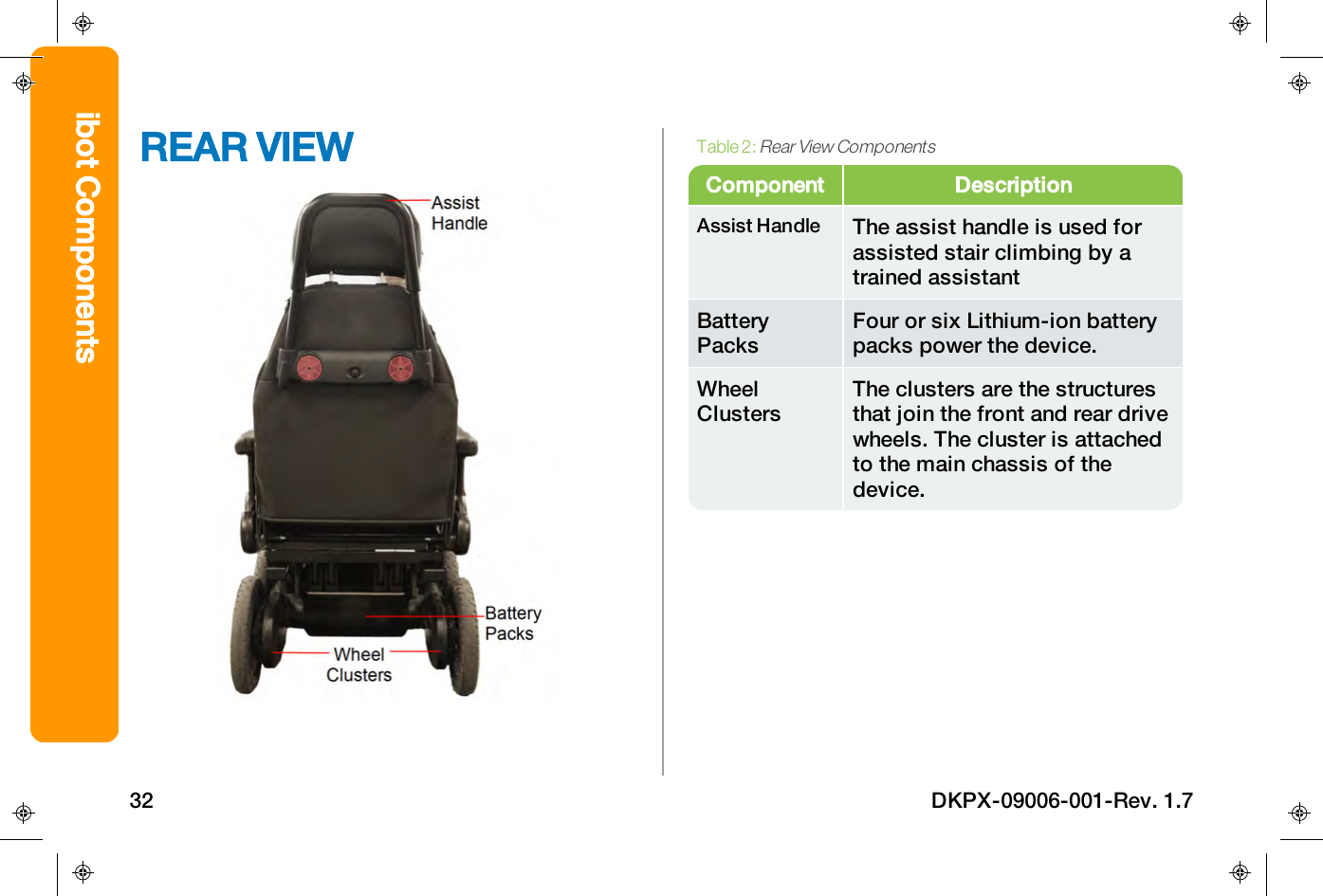
REAR VIEWComponent DescriptionAssist Handle The assist handle is used forassisted stair climbing by atrained assistantBatteryPacksFour or six Lithium-ion batterypacks power the device.WheelClustersThe clusters are the structuresthat join the front and rear drivewheels. The cluster is attachedto the main chassis of thedevice.Table 2:Rear View Componentsibot Components32 DKPX-09006-001-Rev. 1.7
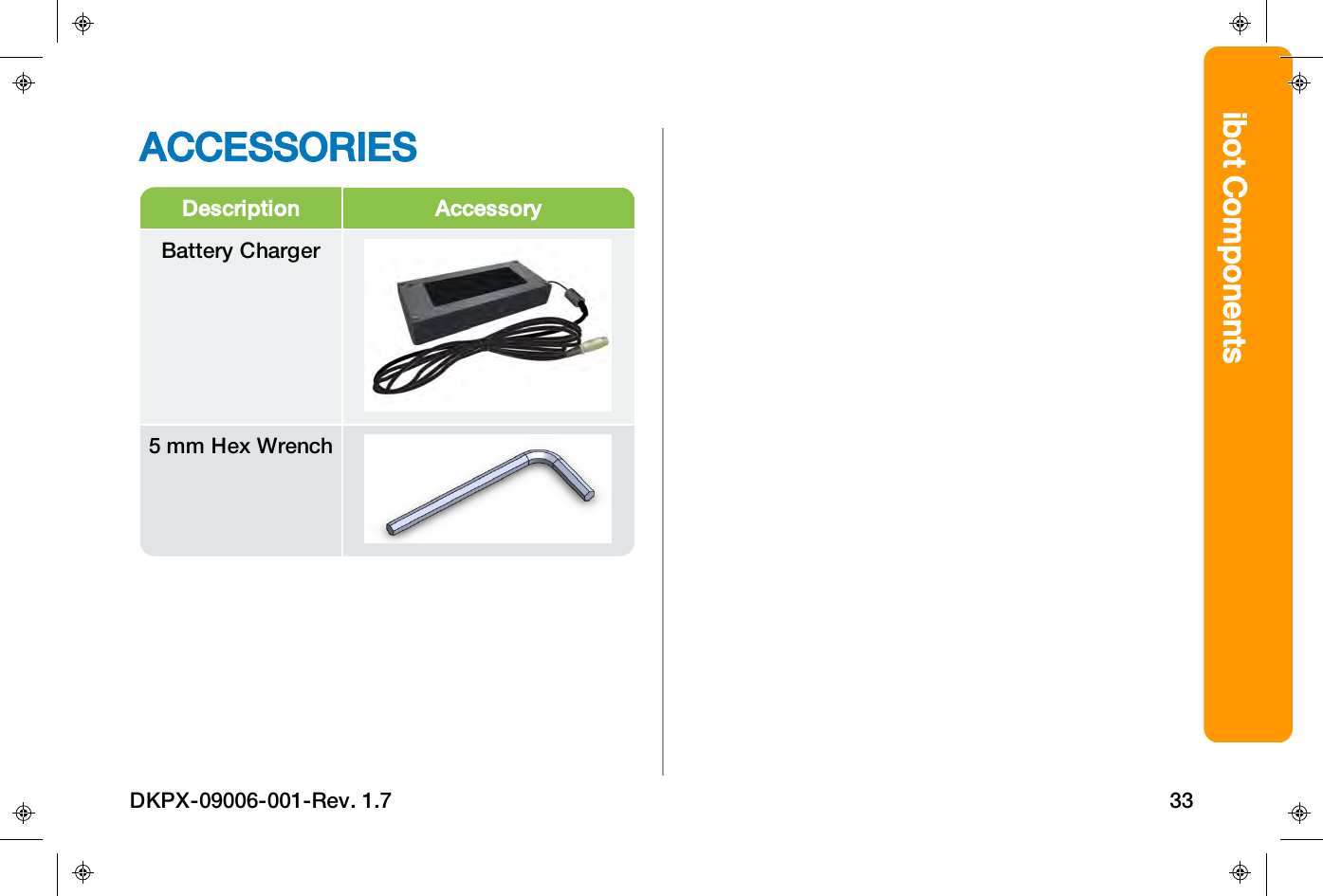
ibot ComponentsACCESSORIESDescription AccessoryBattery Charger5 mm Hex WrenchDKPX-09006-001-Rev. 1.7 33
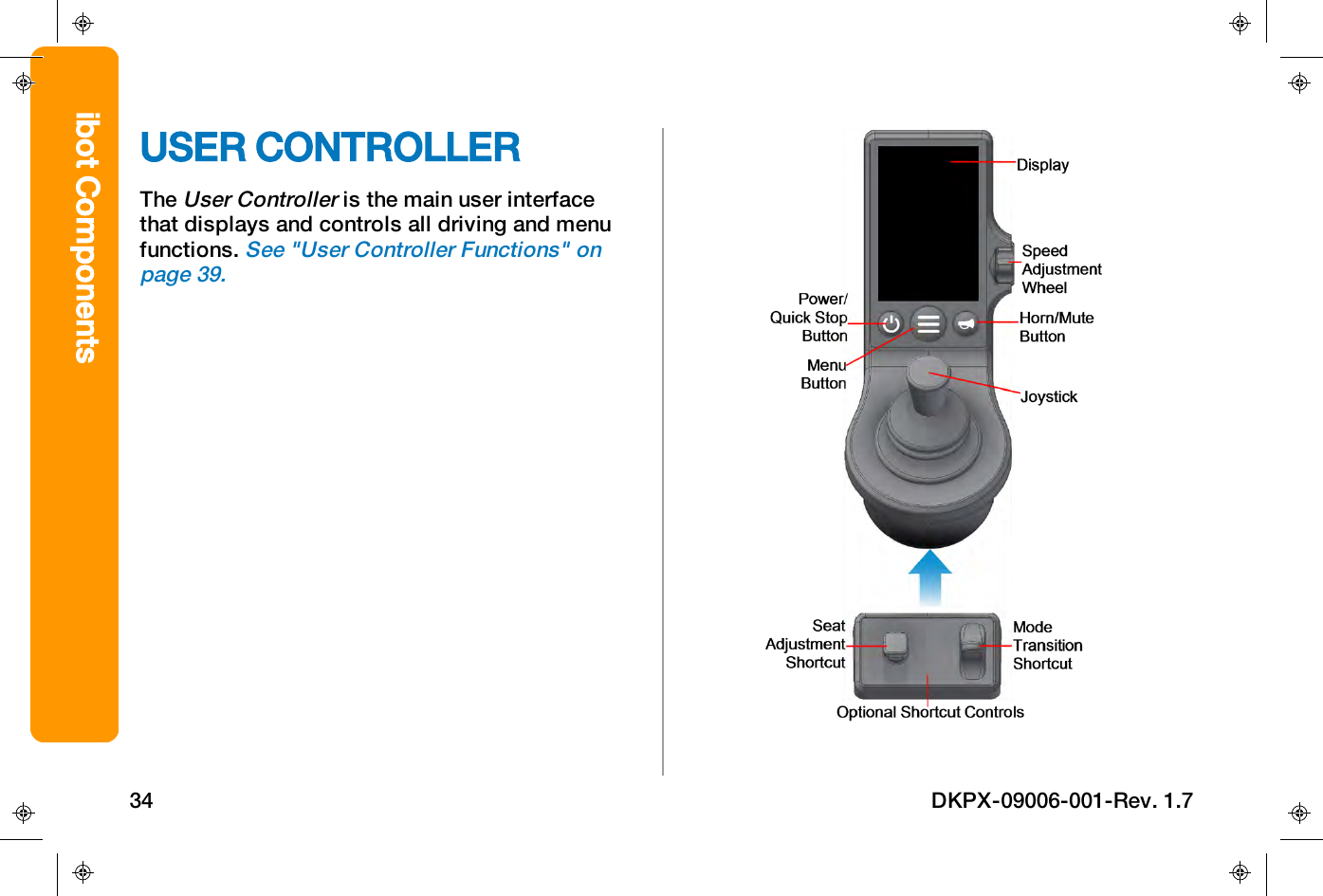
USER CONTROLLERTheUser Controlleris the main user interfacethat displays and controls all driving and menufunctions.See "User Controller Functions" onpage39.ibot Components34 DKPX-09006-001-Rev. 1.7
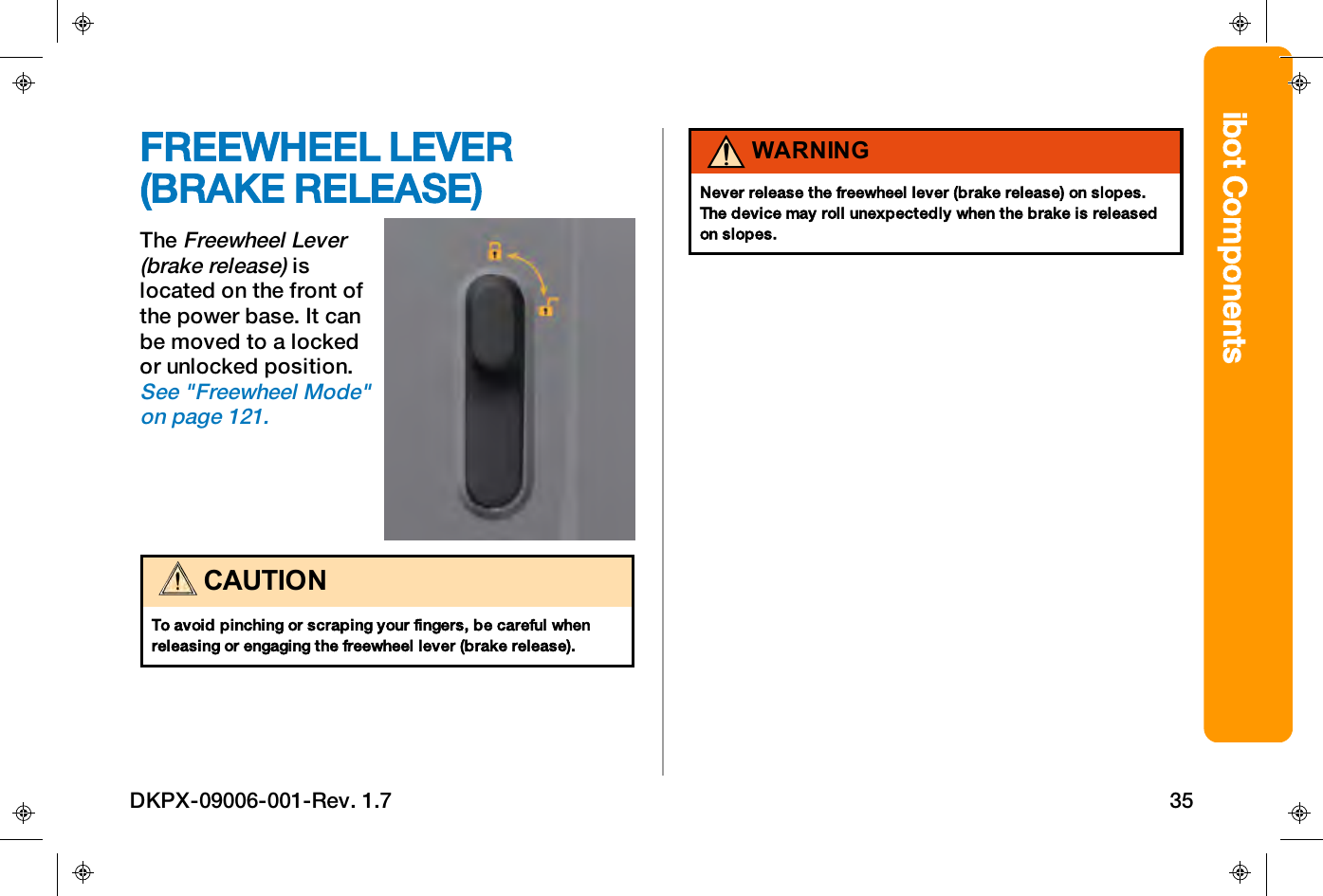
ibot ComponentsFREEWHEEL LEVER(BRAKE RELEASE)TheFreewheel Lever(brake release)islocated on the front ofthe power base. It canbe moved to a lockedor unlocked position.See "Freewheel Mode"on page121.CAUTIONTo avoid pinching or scraping your fingers, be careful whenreleasing or engaging the freewheel lever (brake release).WARNINGNever release the freewheel lever (brake release) on slopes.The device may roll unexpectedly when the brake is releasedon slopes.DKPX-09006-001-Rev. 1.7 35
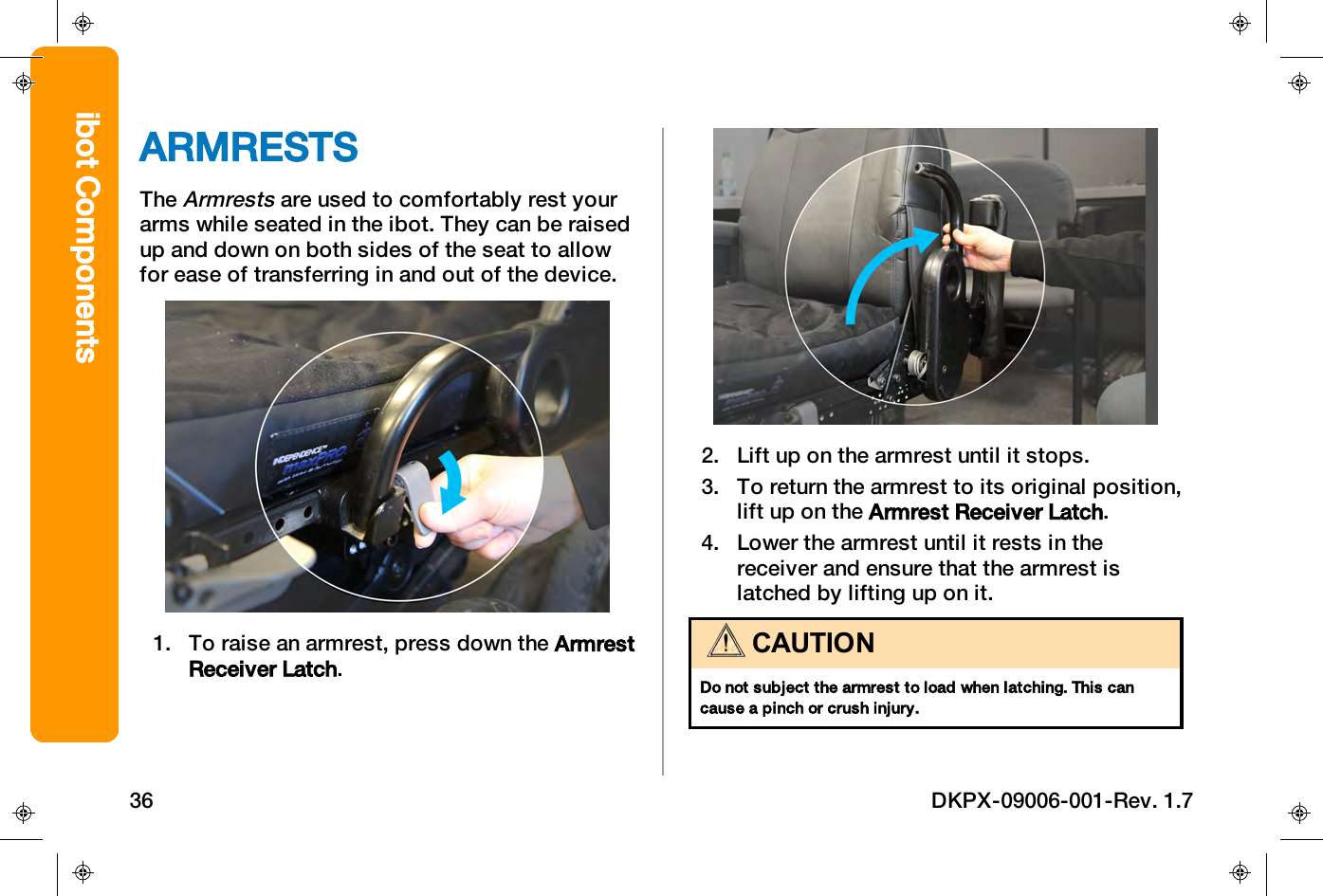
ARMRESTSTheArmrestsare used to comfortably rest yourarms while seated in the ibot. They can be raisedup and down on both sides of the seat to allowfor ease of transferring in and out of the device.1. To raise an armrest, press down the ArmrestReceiver Latch.2. Lift up on the armrest until it stops.3. To return the armrest to its original position,lift up on the Armrest Receiver Latch.4. Lower the armrest until it rests in thereceiver and ensure that the armrest islatched by lifting up on it.CAUTIONDo not subject the armrest to load when latching. This cancause a pinch or crush injury.ibot Components36 DKPX-09006-001-Rev. 1.7
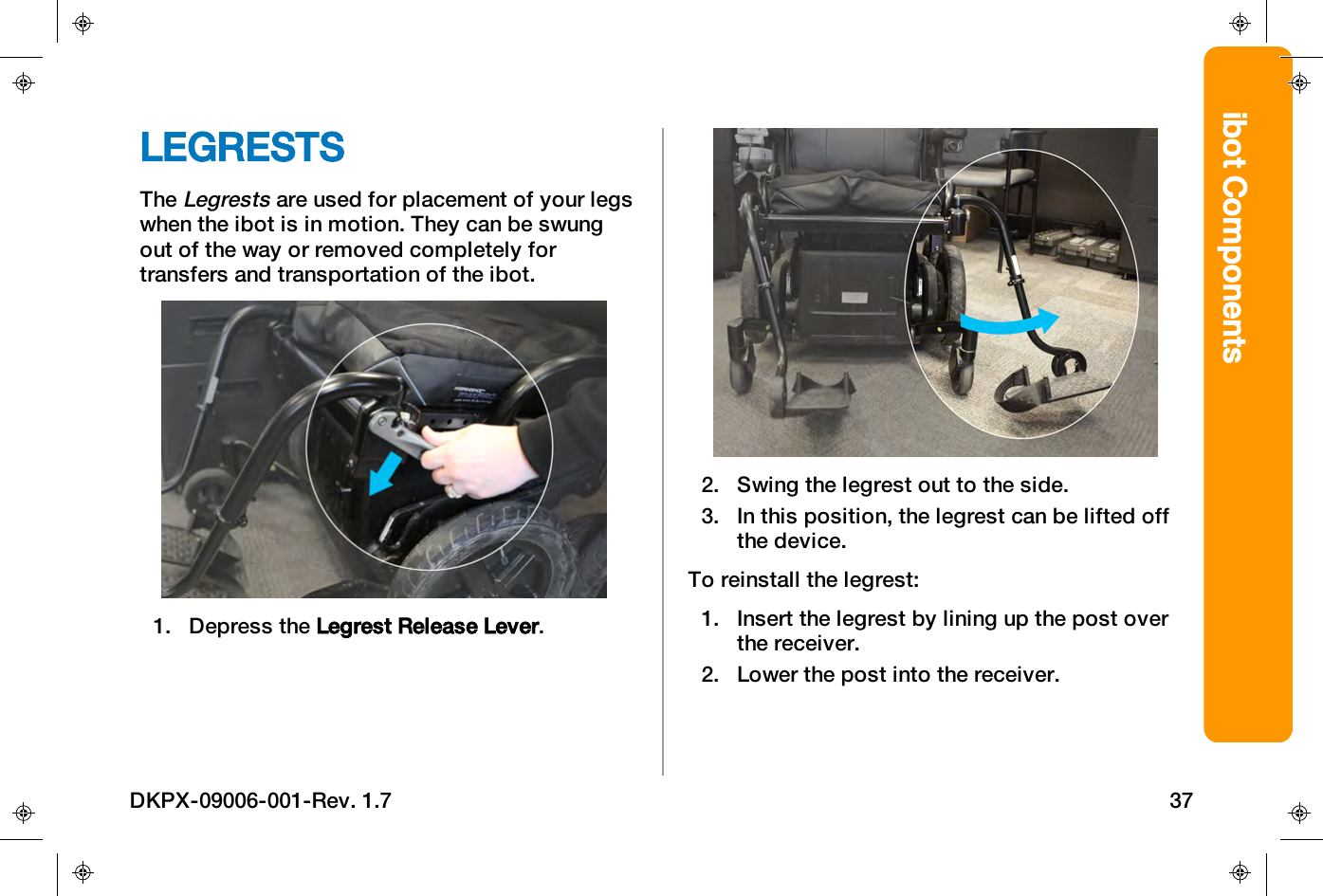
ibot ComponentsLEGRESTSTheLegrestsare used for placement of your legswhen the ibot is in motion. They can be swungout of the way or removed completely fortransfers and transportation of the ibot.1. Depress the Legrest Release Lever.2. Swing the legrest out to the side.3. In this position, the legrest can be lifted offthe device.To reinstall the legrest:1. Insert the legrest by lining up the post overthe receiver.2. Lower the post into the receiver.DKPX-09006-001-Rev. 1.7 37
Note: Caster wheels may interfere withinstallation. Rotate the caster wheel as needed.3. With the post in the receiver , swing thelegrest forward until it locks into place.4. Check that the legrest is locked intoposition by trying to swing out to the side.5. If there is movement, push the legrest to thecenter of the device again to lock thelegrest into place.CAUTIONDo not subject the legrest to load when latching. This cancause a pinch or crush injury.ibot Components38 DKPX-09006-001-Rev. 1.7
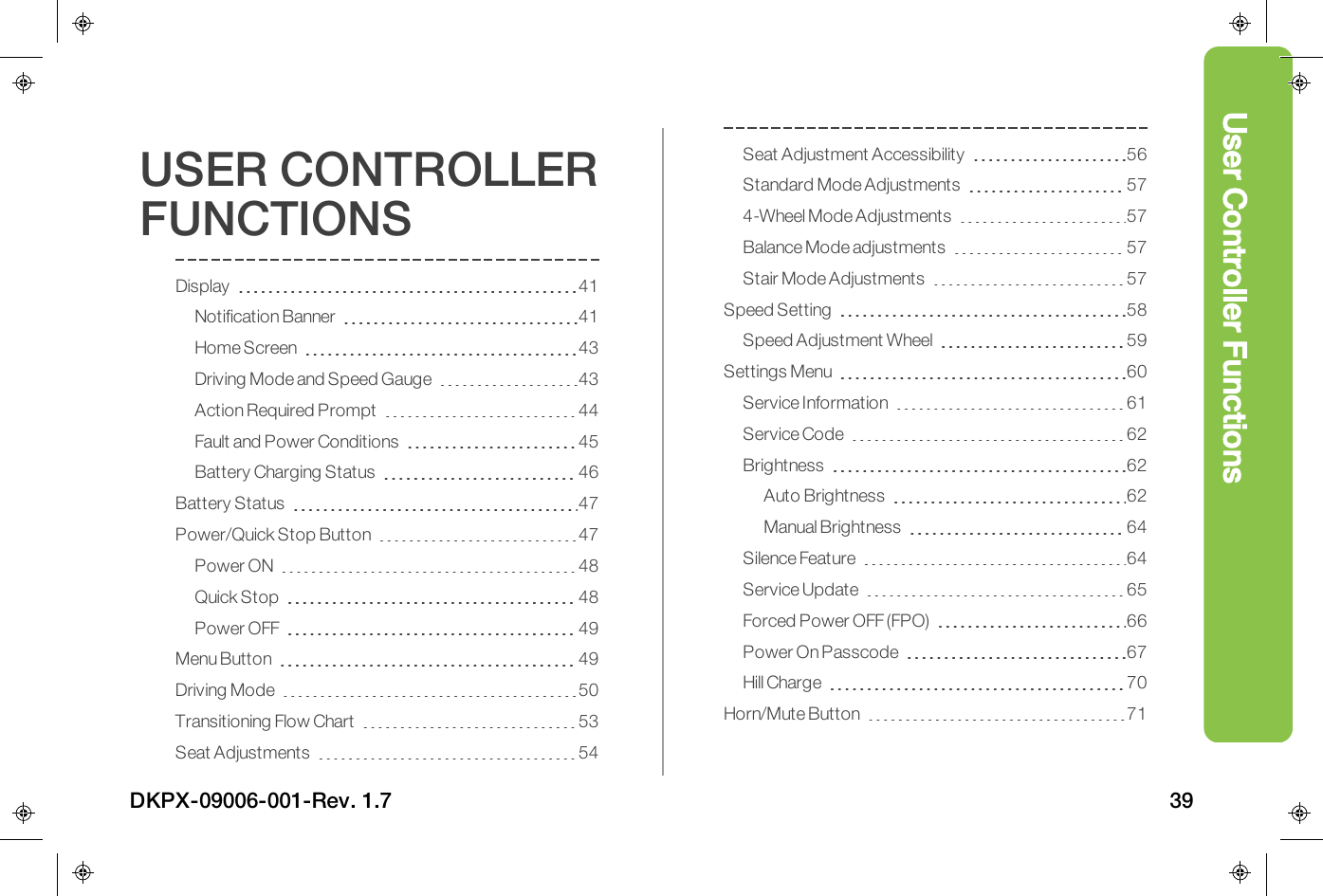
User Controller FunctionsUSER CONTROLLERFUNCTIONSDisplay 41Notification Banner 41Home Screen 43Driving Mode and Speed Gauge 43Action Required Prompt 44Fault and Power Conditions 45Battery Charging Status 46Battery Status 47Power/Quick Stop Button 47Power ON 48Quick Stop 48Power OFF 49Menu Button 49Driving Mode 50Transitioning Flow Chart 53Seat Adjustments 54Seat Adjustment Accessibility 56Standard Mode Adjustments 574-Wheel Mode Adjustments 57Balance Mode adjustments 57Stair Mode Adjustments 57Speed Setting 58Speed Adjustment Wheel 59Settings Menu 60Service Information 61Service Code 62Brightness 62Auto Brightness 62Manual Brightness 64Silence Feature 64Service Update 65Forced Power OFF (FPO) 66Power On Passcode 67Hill Charge 70Horn/Mute Button 71DKPX-09006-001-Rev. 1.7 39
Joystick 72Driving Mode Shortcut Controls 73To Transition UP or DOWN ONE MODE: 73To Transition UP or DOWN Between Standard andBalance: 74Seat Adjustment Shortcut Controls 74User Controller Functions40 DKPX-09006-001-Rev. 1.7
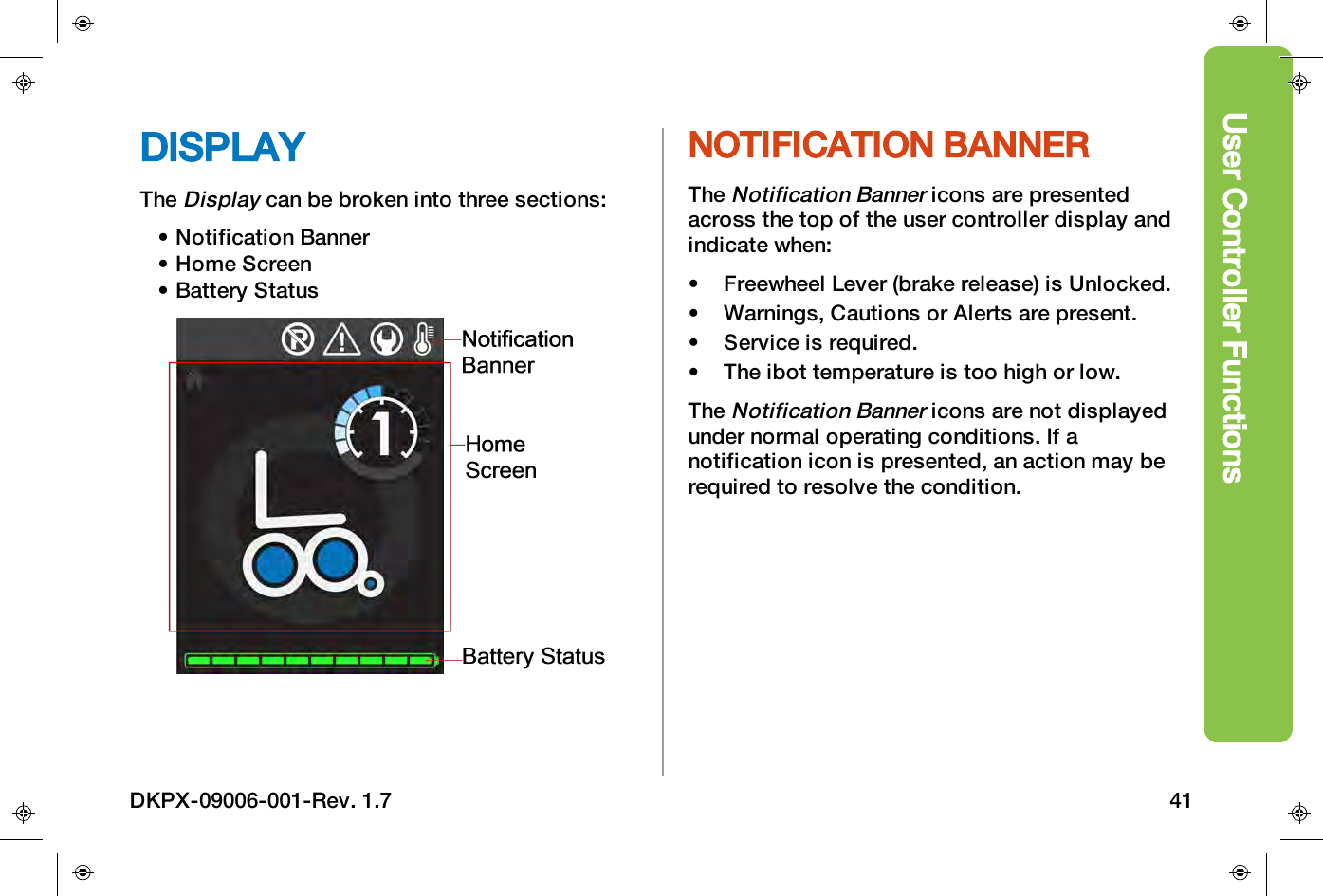
User Controller FunctionsDISPLAYTheDisplaycan be broken into three sections:• Notification Banner• Home Screen• Battery StatusNOTIFICATION BANNERTheNotification Bannericons are presentedacross the top of the user controller display andindicate when:• Freewheel Lever (brake release) is Unlocked.• Warnings, Cautions or Alerts are present.• Service is required.• The ibot temperature is too high or low.TheNotification Bannericons are not displayedunder normal operating conditions. If anotification icon is presented, an action may berequired to resolve the condition.DKPX-09006-001-Rev. 1.7 41
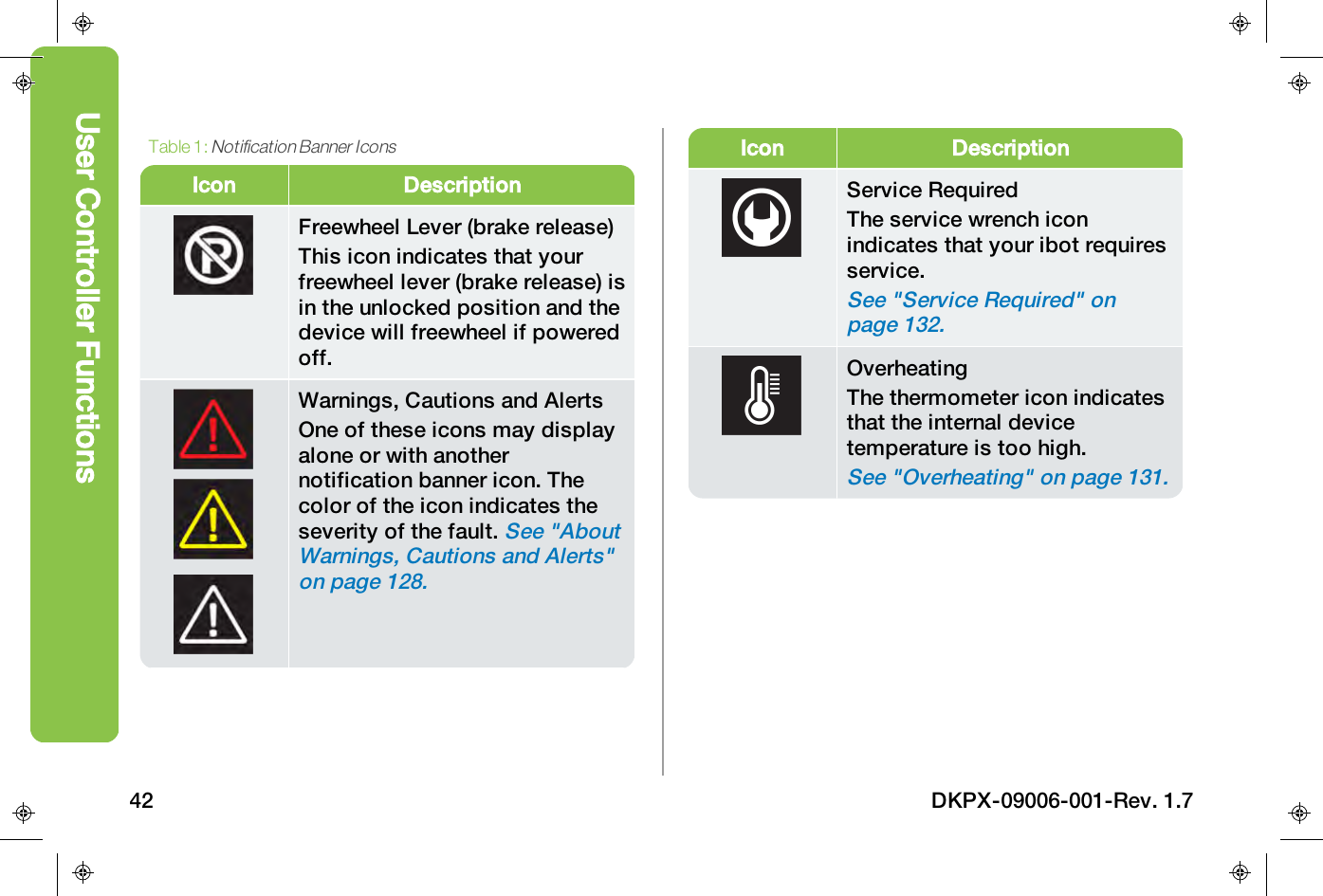
Icon DescriptionFreewheel Lever (brake release)This icon indicates that yourfreewheel lever (brake release) isin the unlocked position and thedevice will freewheel if poweredoff.Warnings, Cautions and AlertsOne of these icons may displayalone or with anothernotification banner icon. Thecolor of the icon indicates theseverity of the fault.See "AboutWarnings, Cautions and Alerts"on page128.Table 1:Notification Banner IconsIcon DescriptionService RequiredThe service wrench iconindicates that your ibot requiresservice.See "Service Required" onpage132.OverheatingThe thermometer icon indicatesthat the internal devicetemperature is too high.See "Overheating" on page131.User Controller Functions42 DKPX-09006-001-Rev. 1.7
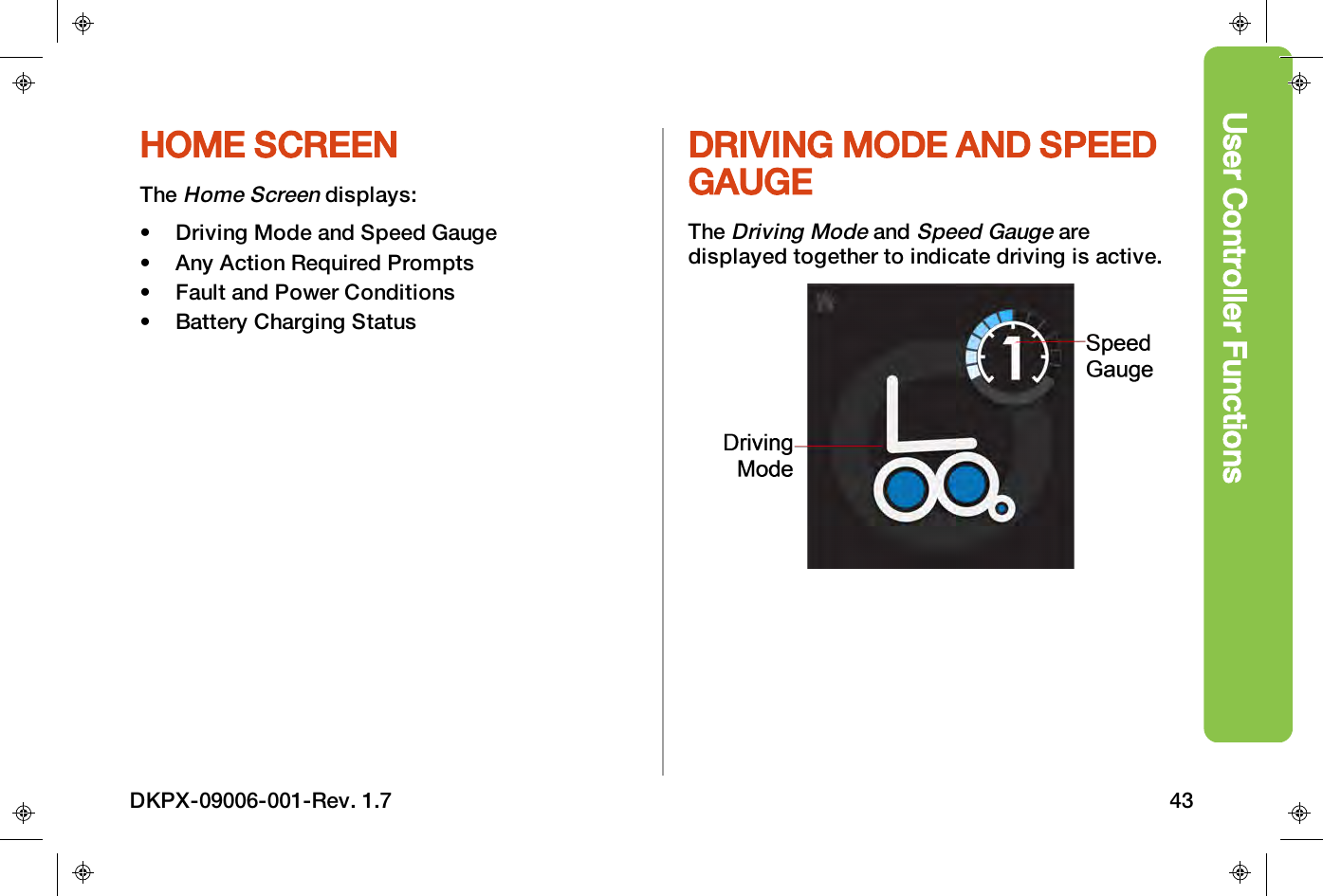
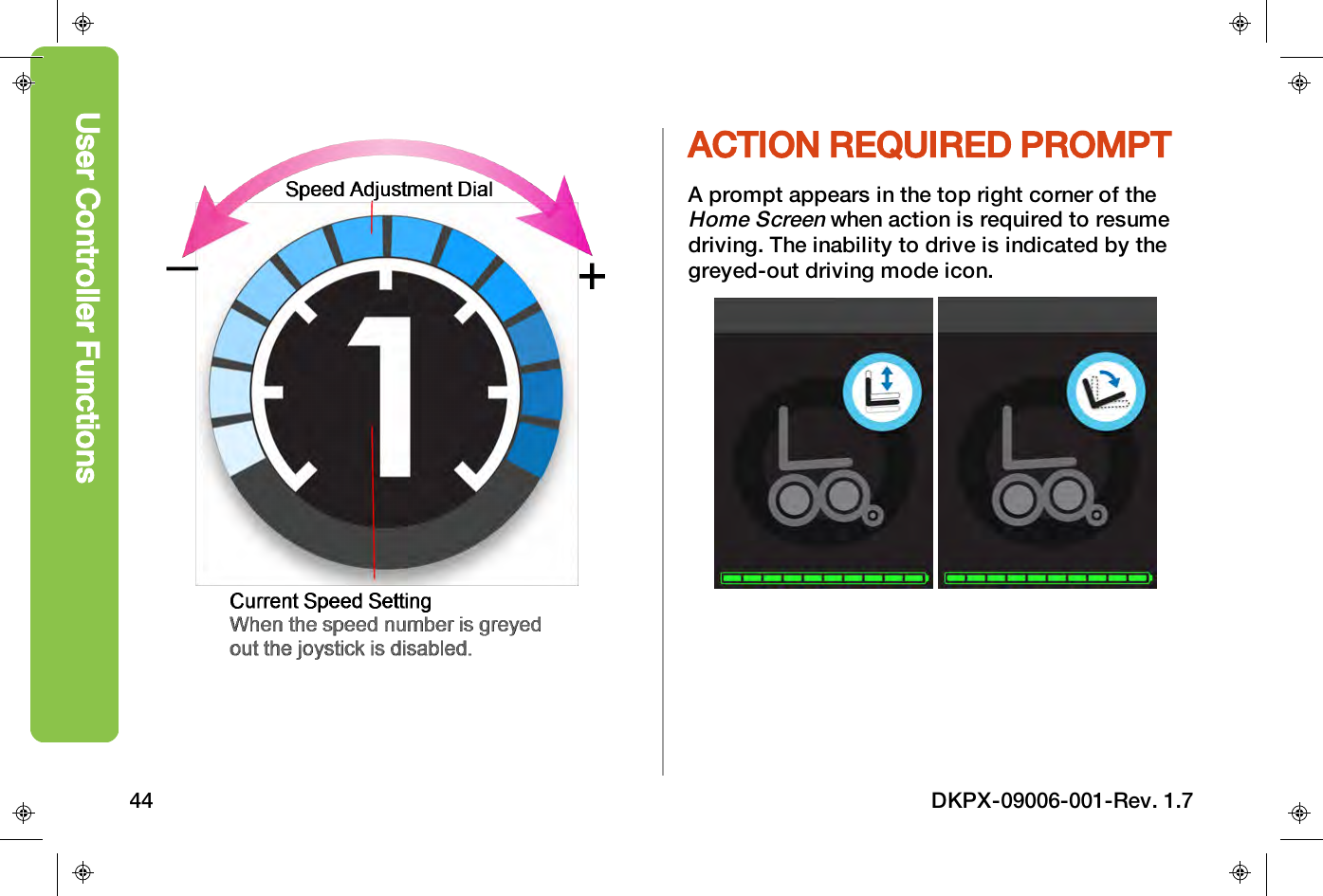
User Controller FunctionsHOME SCREENTheHome Screendisplays:• Driving Mode and Speed Gauge• Any Action Required Prompts• Fault and Power Conditions• Battery Charging StatusDRIVING MODE AND SPEEDGAUGETheDriving ModeandSpeed Gaugearedisplayed together to indicate driving is active.DKPX-09006-001-Rev. 1.7 43
ACTION REQUIRED PROMPTA prompt appears in the top right corner of theHome Screenwhen action is required to resumedriving. The inability to drive is indicated by thegreyed-out driving mode icon.User Controller Functions44 DKPX-09006-001-Rev. 1.7
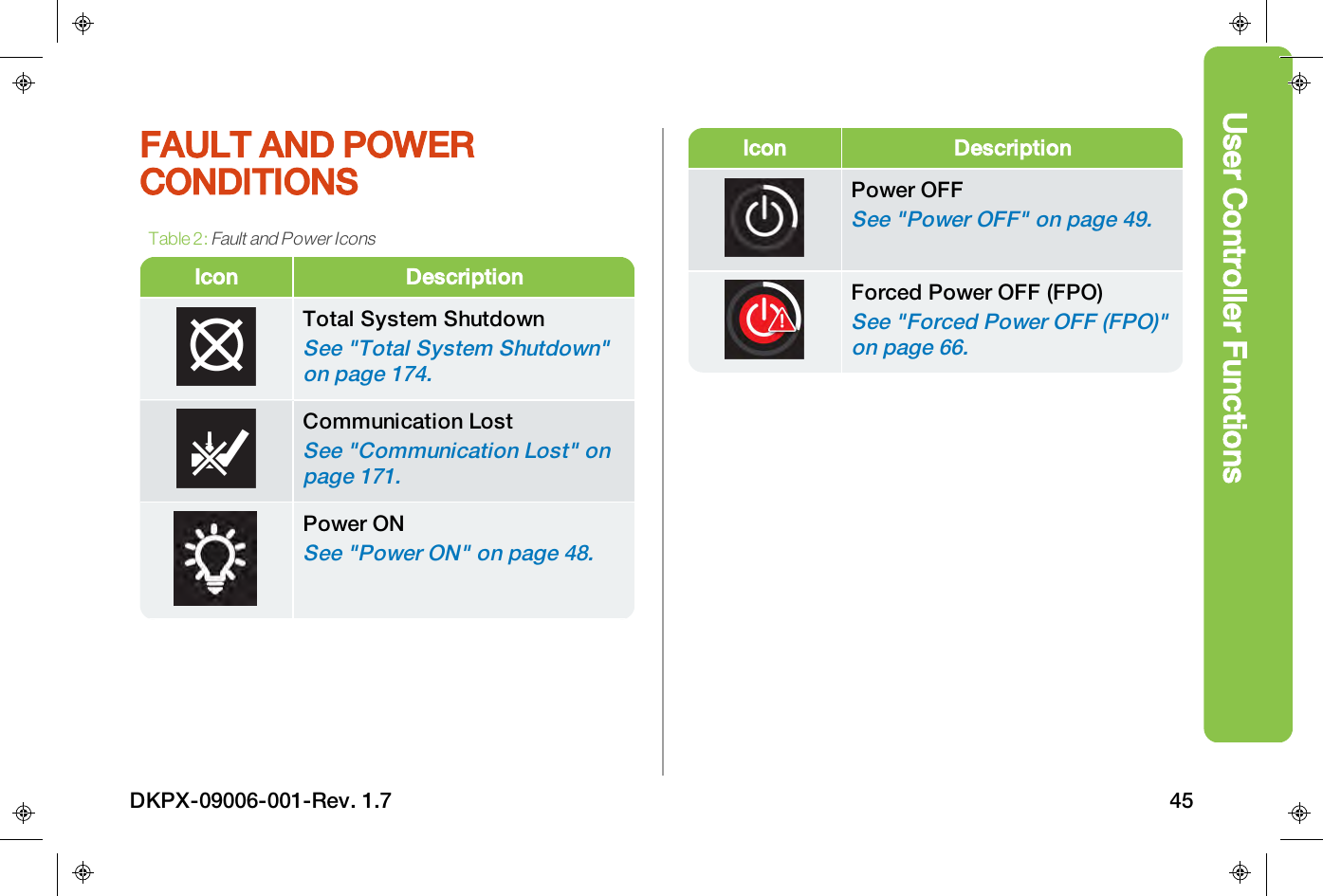
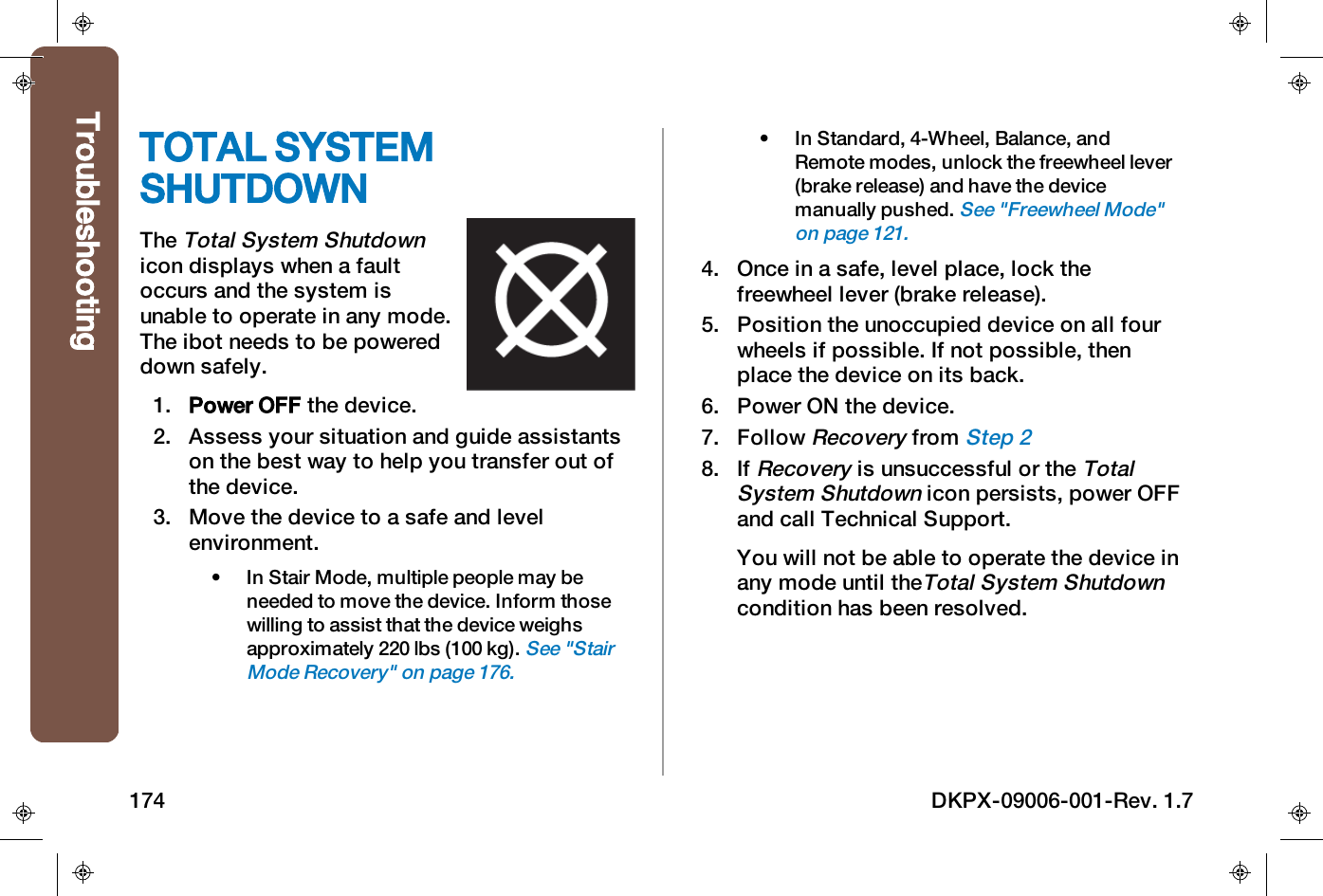
User Controller FunctionsFAULT AND POWERCONDITIONSIcon DescriptionTotal System ShutdownSee "Total System Shutdown"on page174.Communication LostSee "Communication Lost" onpage171.Power ONSee "Power ON" on page48.Table 2:Fault and Power IconsIcon DescriptionPower OFFSee "Power OFF" on page49.Forced Power OFF (FPO)See "Forced Power OFF (FPO)"on page66.DKPX-09006-001-Rev. 1.7 45
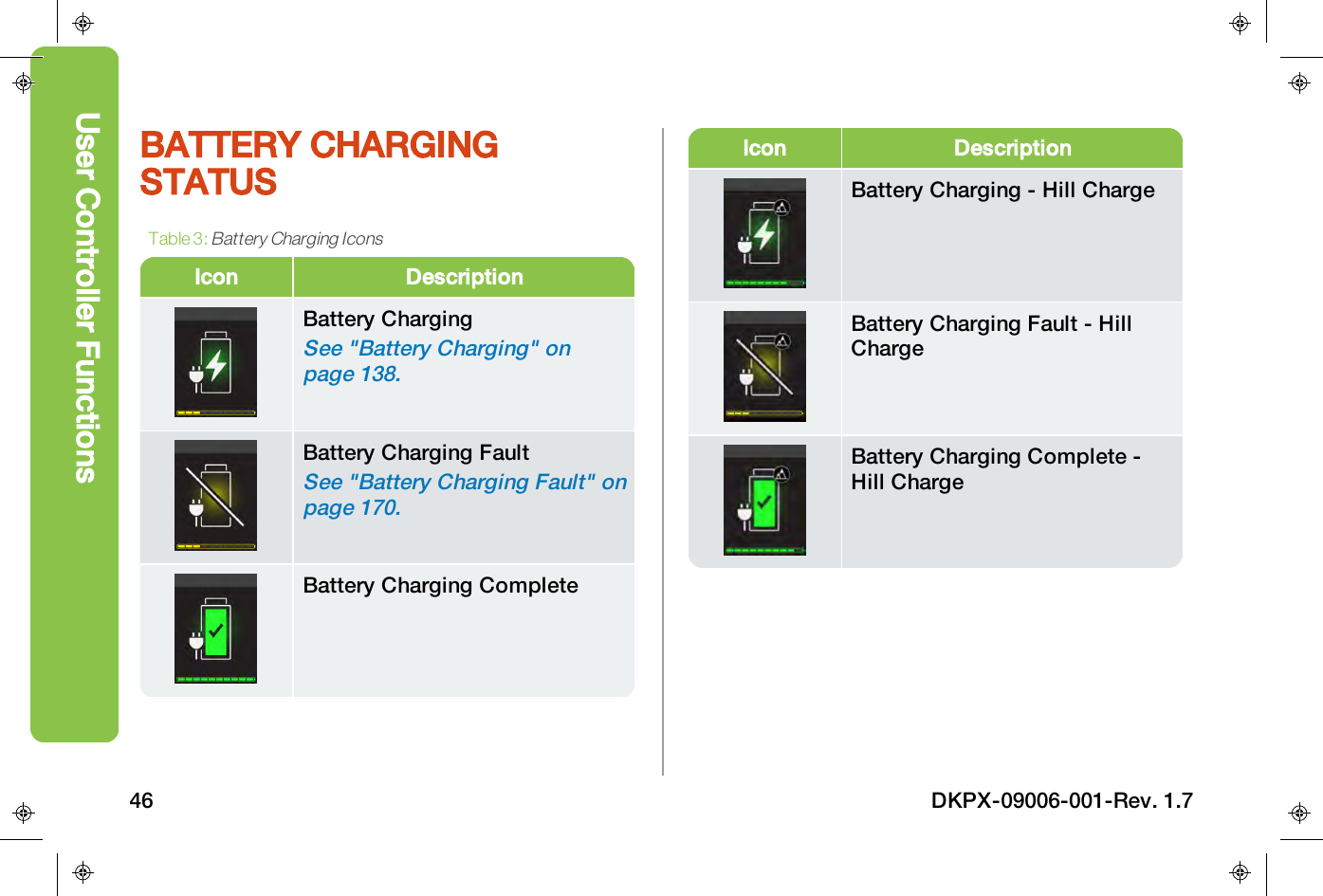
BATTERY CHARGINGSTATUSIcon DescriptionBattery ChargingSee "Battery Charging" onpage138.Battery Charging FaultSee "Battery Charging Fault" onpage170.Battery Charging CompleteTable 3:Battery Charging IconsIcon DescriptionBattery Charging - Hill ChargeBattery Charging Fault - HillChargeBattery Charging Complete -Hill ChargeUser Controller Functions46 DKPX-09006-001-Rev. 1.7
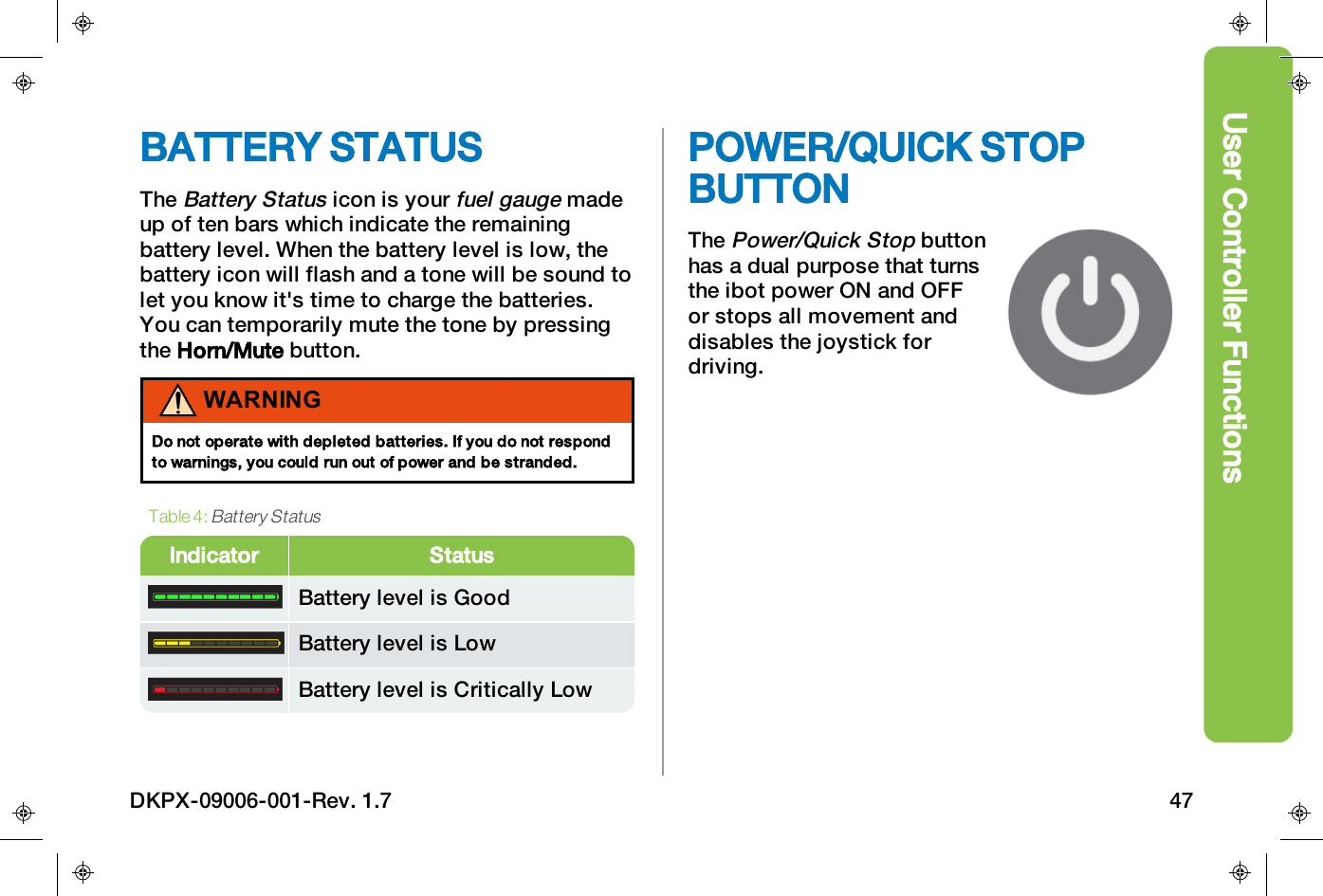
User Controller FunctionsBATTERY STATUSTheBattery Statusicon is yourfuel gaugemadeup of ten bars which indicate the remainingbattery level. When the battery level is low, thebattery icon will flash and a tone will be sound tolet you know it's time to charge the batteries.You can temporarily mute the tone by pressingthe Horn/Mute button.WARNINGDo not operate with depleted batteries. If you do not respondto warnings, you could run out of power and be stranded.Indicator StatusBattery level is GoodBattery level is LowBattery level is Critically LowTable 4:Battery StatusPOWER/QUICK STOPBUTTONThePower/Quick Stopbuttonhas a dual purpose that turnsthe ibot power ON and OFFor stops all movement anddisables the joystick fordriving.DKPX-09006-001-Rev. 1.7 47
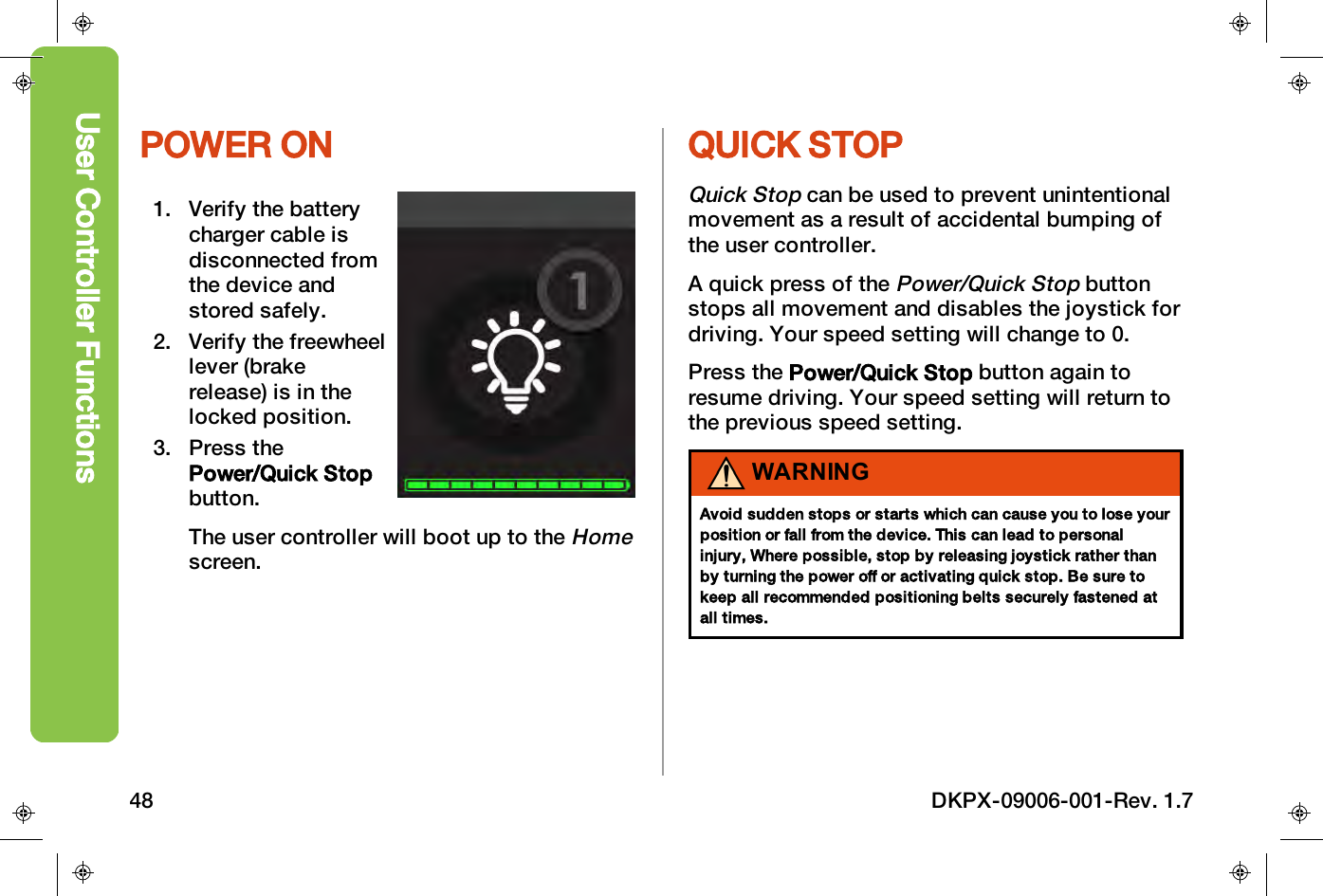
POWER ON1. Verify the batterycharger cable isdisconnected fromthe device andstored safely.2. Verify the freewheellever (brakerelease) is in thelocked position.3. Press thePower/Quick Stopbutton.The user controller will boot up to theHomescreen.QUICK STOPQuick Stopcan be used to prevent unintentionalmovement as a result of accidental bumping ofthe user controller.A quick press of thePower/Quick Stopbuttonstops all movement and disables the joystick fordriving. Your speed setting will change to 0.Press the Power/Quick Stop button again toresume driving. Your speed setting will return tothe previous speed setting.WARNINGAvoid sudden stops or starts which can cause you to lose yourposition or fall from the device. This can lead to personalinjury, Where possible, stop by releasing joystick rather thanby turning the power off or activating quick stop. Be sure tokeep all recommended positioning belts securely fastened atall times.User Controller Functions48 DKPX-09006-001-Rev. 1.7
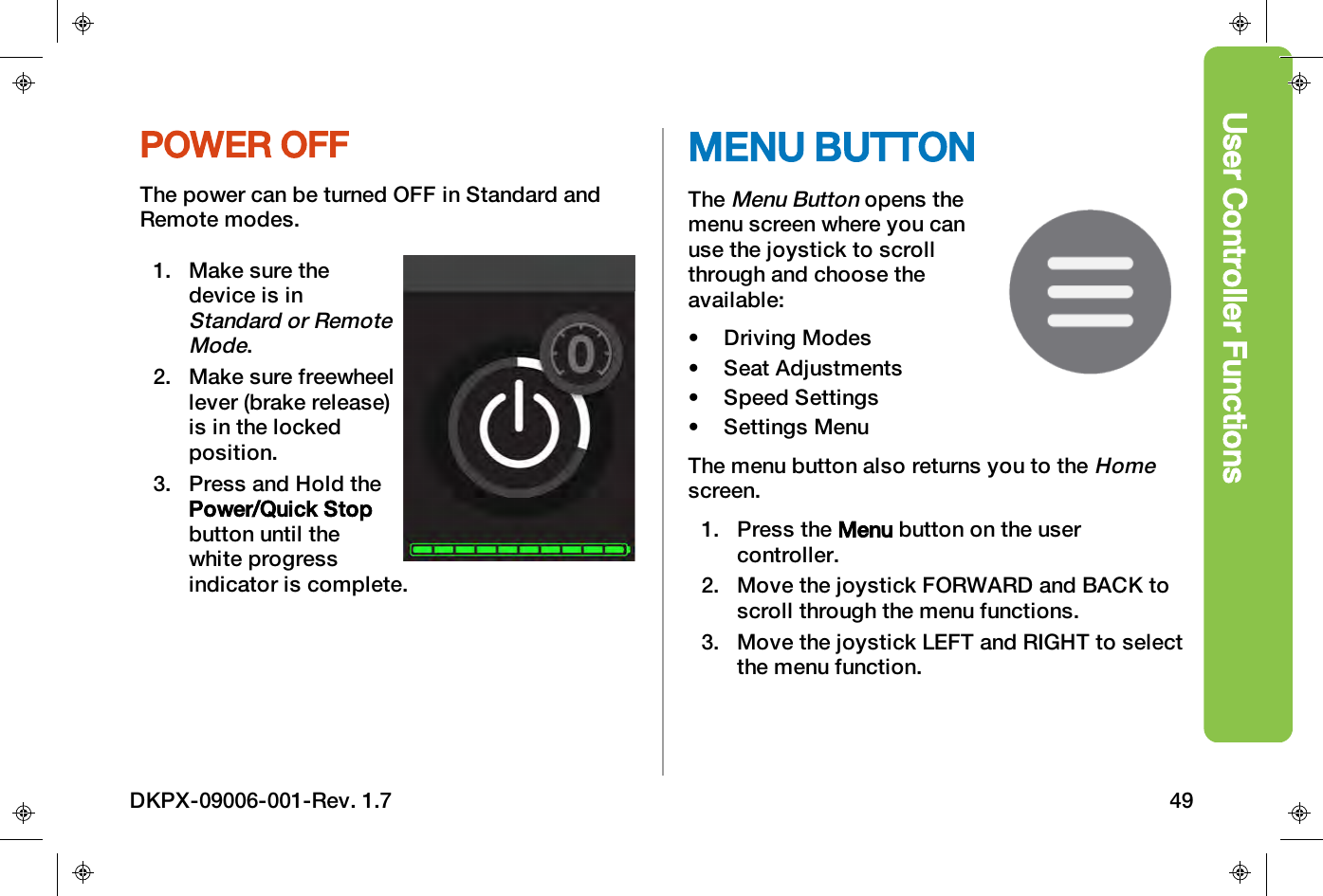
User Controller FunctionsPOWER OFFThe power can be turned OFF in Standard andRemote modes.1. Make sure thedevice is inStandard or RemoteMode.2. Make sure freewheellever (brake release)is in the lockedposition.3. Press and Hold thePower/Quick Stopbutton until thewhite progressindicator is complete.MENU BUTTONTheMenu Buttonopens themenu screen where you canuse the joystick to scrollthrough and choose theavailable:• Driving Modes• Seat Adjustments• Speed Settings• Settings MenuThe menu button also returns you to theHomescreen.1. Press the Menu button on the usercontroller.2. Move the joystick FORWARD and BACK toscroll through the menu functions.3. Move the joystick LEFTand RIGHT to selectthe menu function.DKPX-09006-001-Rev. 1.7 49
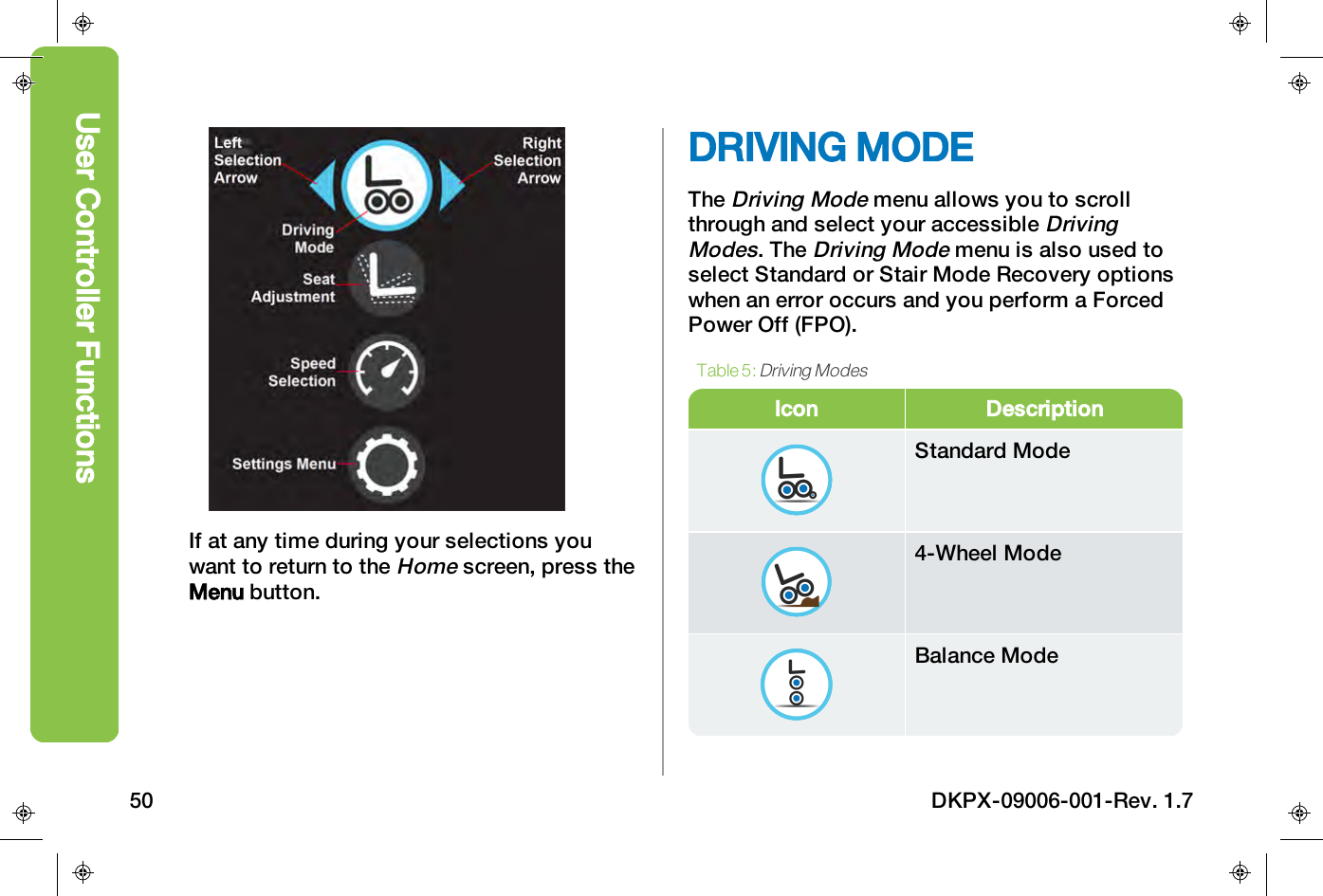
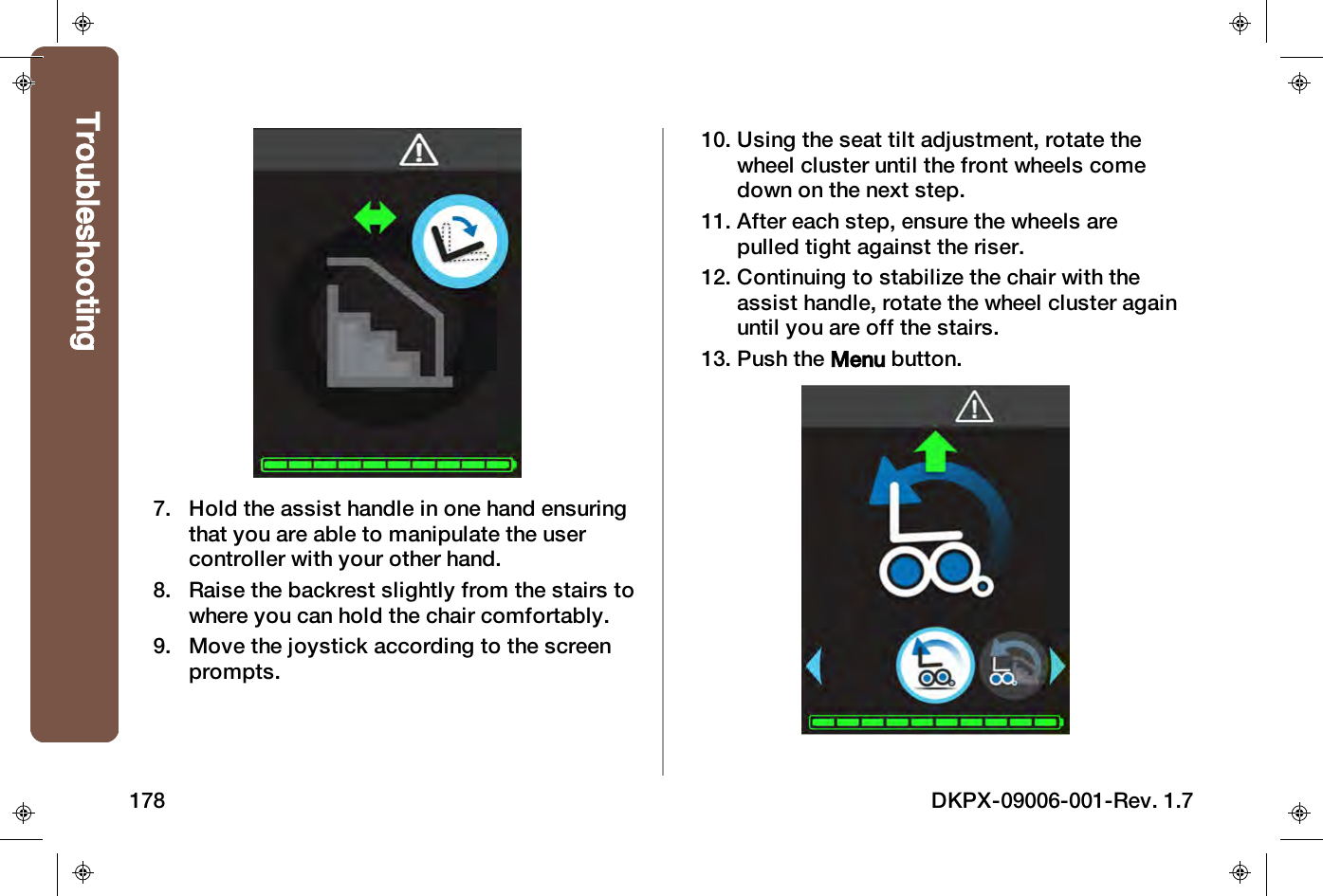
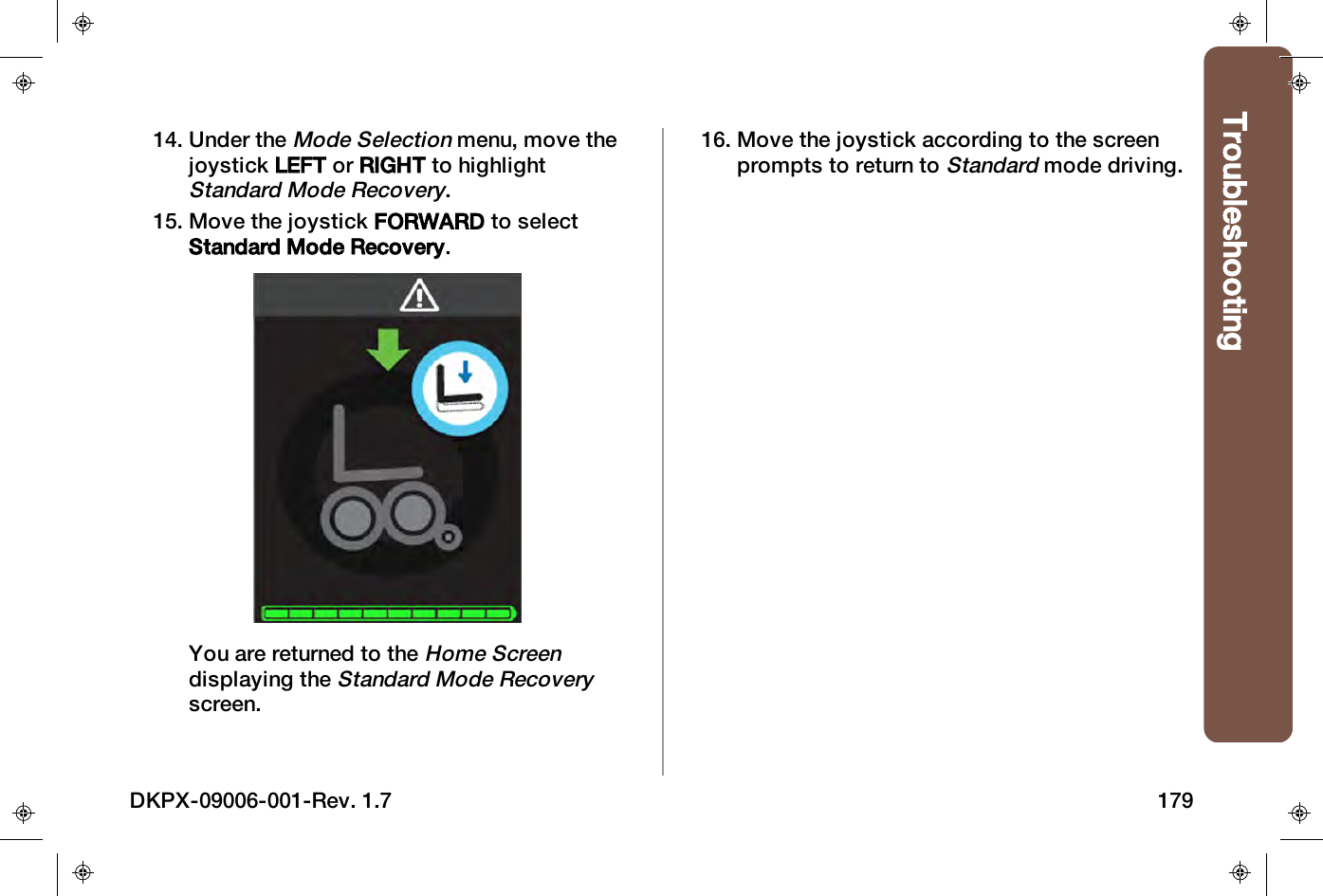
If at any time during your selections youwant to return to theHomescreen, press theMenu button.DRIVING MODETheDriving Modemenu allows you to scrollthrough and select your accessibleDrivingModes. TheDriving Modemenu is also used toselect Standard or Stair Mode Recovery optionswhen an error occurs and you perform a ForcedPower Off (FPO).Icon DescriptionStandard Mode4-Wheel ModeBalance ModeTable 5:Driving ModesUser Controller Functions50 DKPX-09006-001-Rev. 1.7
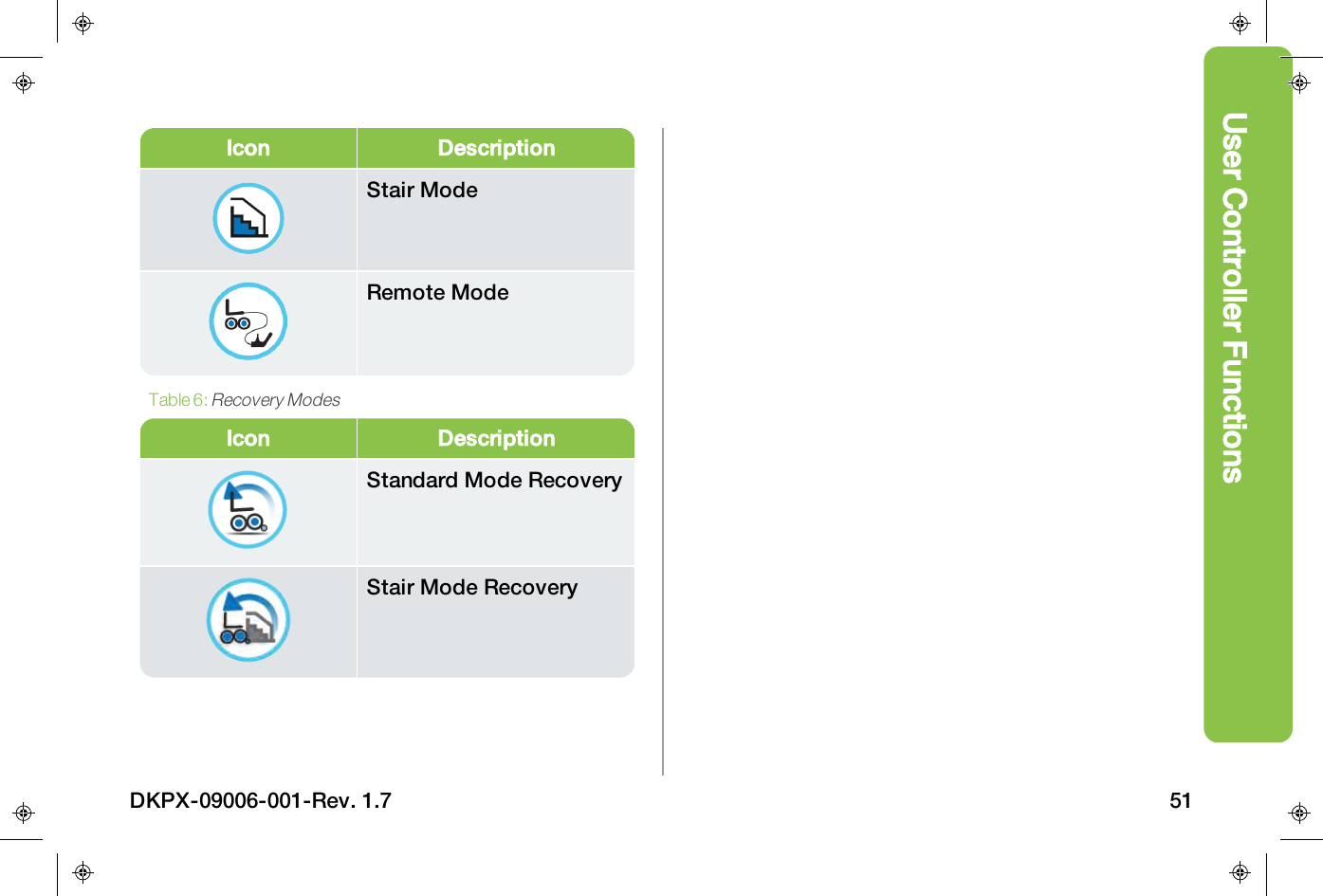
User Controller FunctionsIcon DescriptionStair ModeRemote ModeIcon DescriptionStandard Mode RecoveryStair Mode RecoveryTable 6:Recovery ModesDKPX-09006-001-Rev. 1.7 51
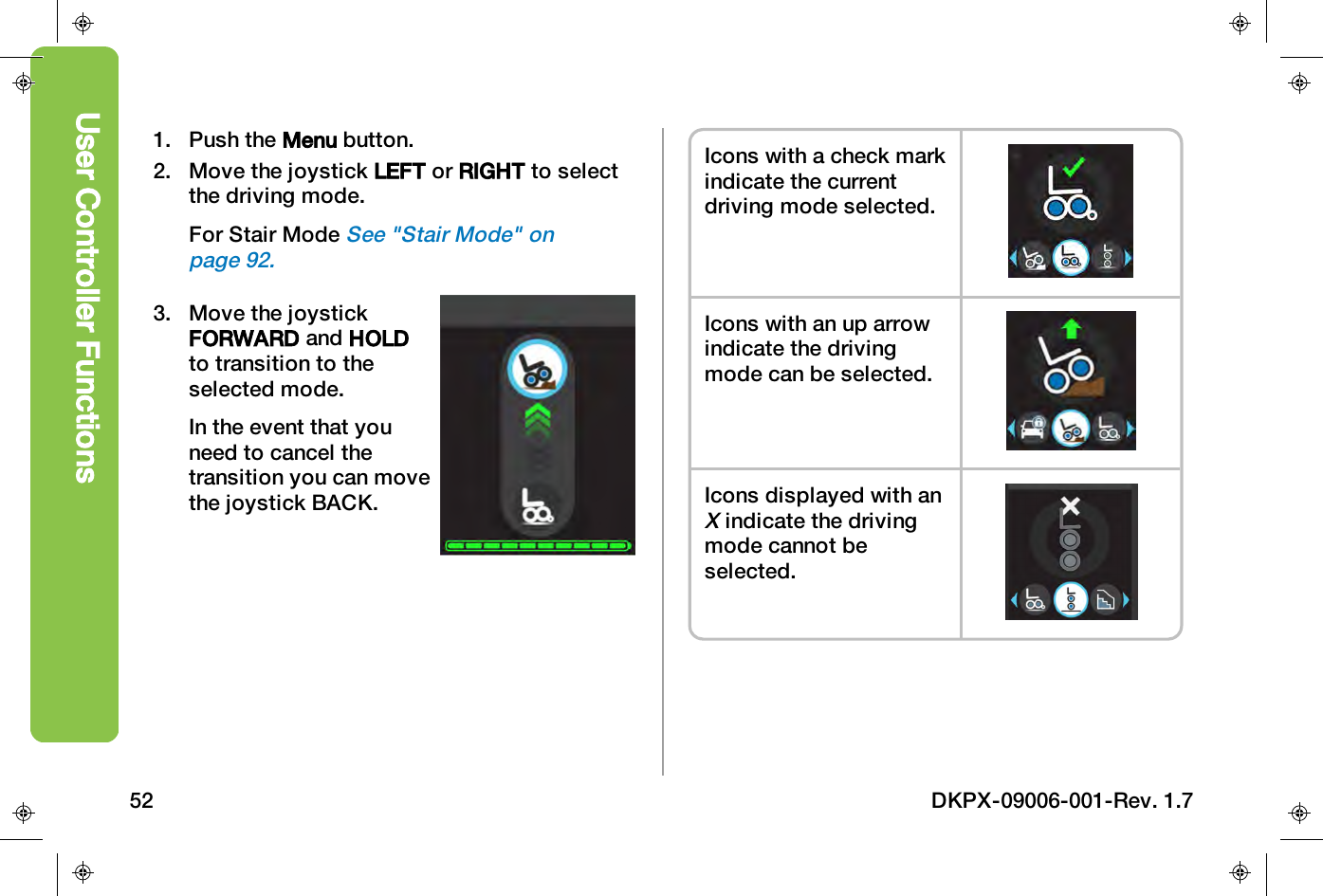
1. Push the Menu button.2. Move the joystick LEFT or RIGHT to selectthe driving mode.For Stair ModeSee "Stair Mode" onpage92.3. Move the joystickFORWARD and HOLDto transition to theselected mode.In the event that youneed to cancel thetransition you can movethe joystick BACK.Icons with a check markindicate the currentdriving mode selected.Icons with an up arrowindicate the drivingmode can be selected.Icons displayed with anXindicate the drivingmode cannot beselected.User Controller Functions52 DKPX-09006-001-Rev. 1.7
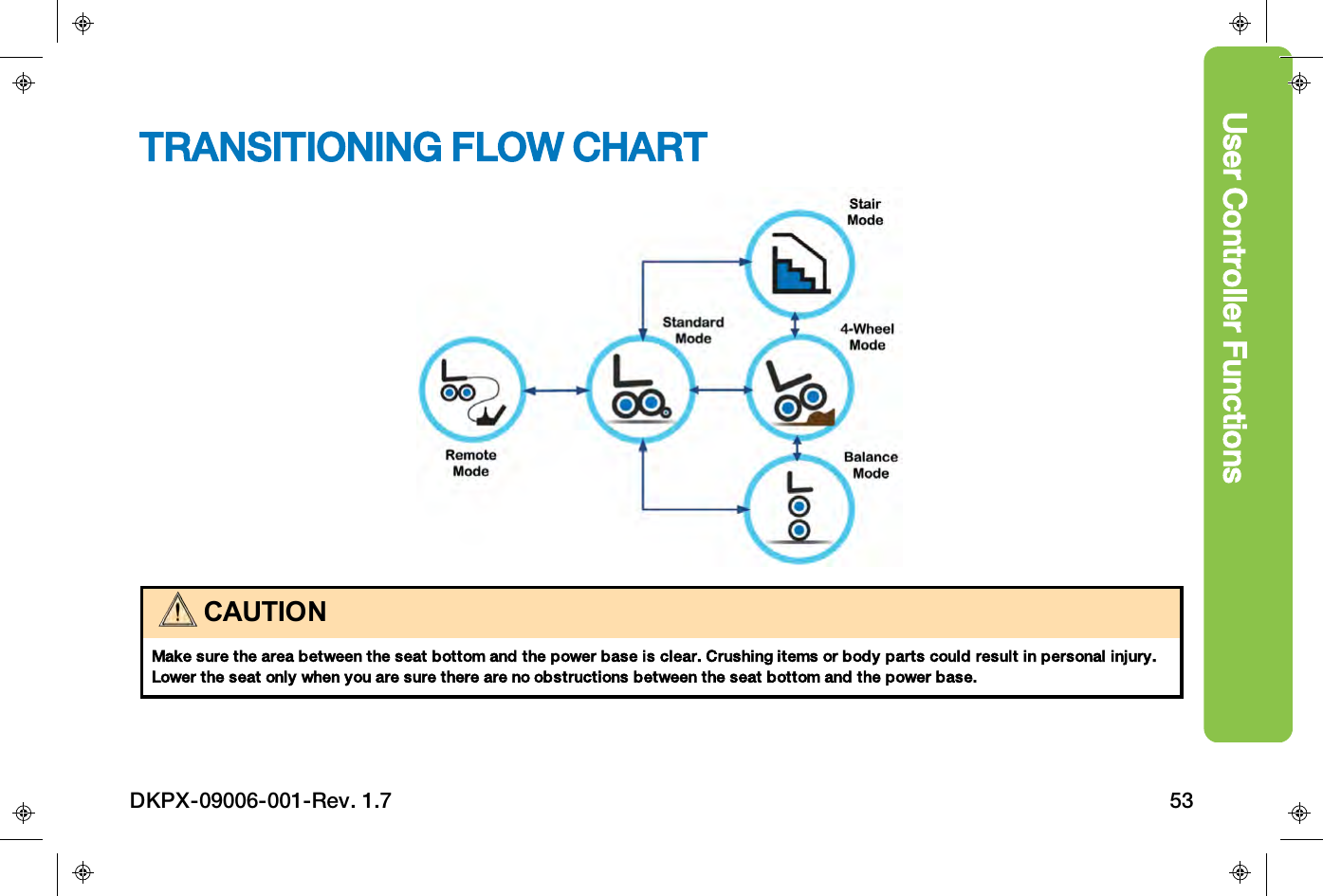
User Controller FunctionsTRANSITIONING FLOW CHARTCAUTIONMake sure the area between the seat bottom and the power base is clear. Crushing items or body parts could result in personal injury.Lower the seat only when you are sure there are no obstructions between the seat bottom and the power base.DKPX-09006-001-Rev. 1.7 53
SEAT ADJUSTMENTSAdjusting the seat tilt andheight is accessible throughtheMenu. The joystick is usedto control the position of theseat.See also "SeatAdjustment Shortcut Controls"on page74.Icon DescriptionSeat Height AdjustmentSeat Tilt AdjustmentTable 7:Seat Adjustments1. Push the Menu button.2. Using the joystick, scroll to highlight theSeat Adjustment icon.3. Move the joystick LEFT or RIGHT tohighlight the SEATTILT icon orSEATHEIGHT icon.User Controller Functions54 DKPX-09006-001-Rev. 1.7
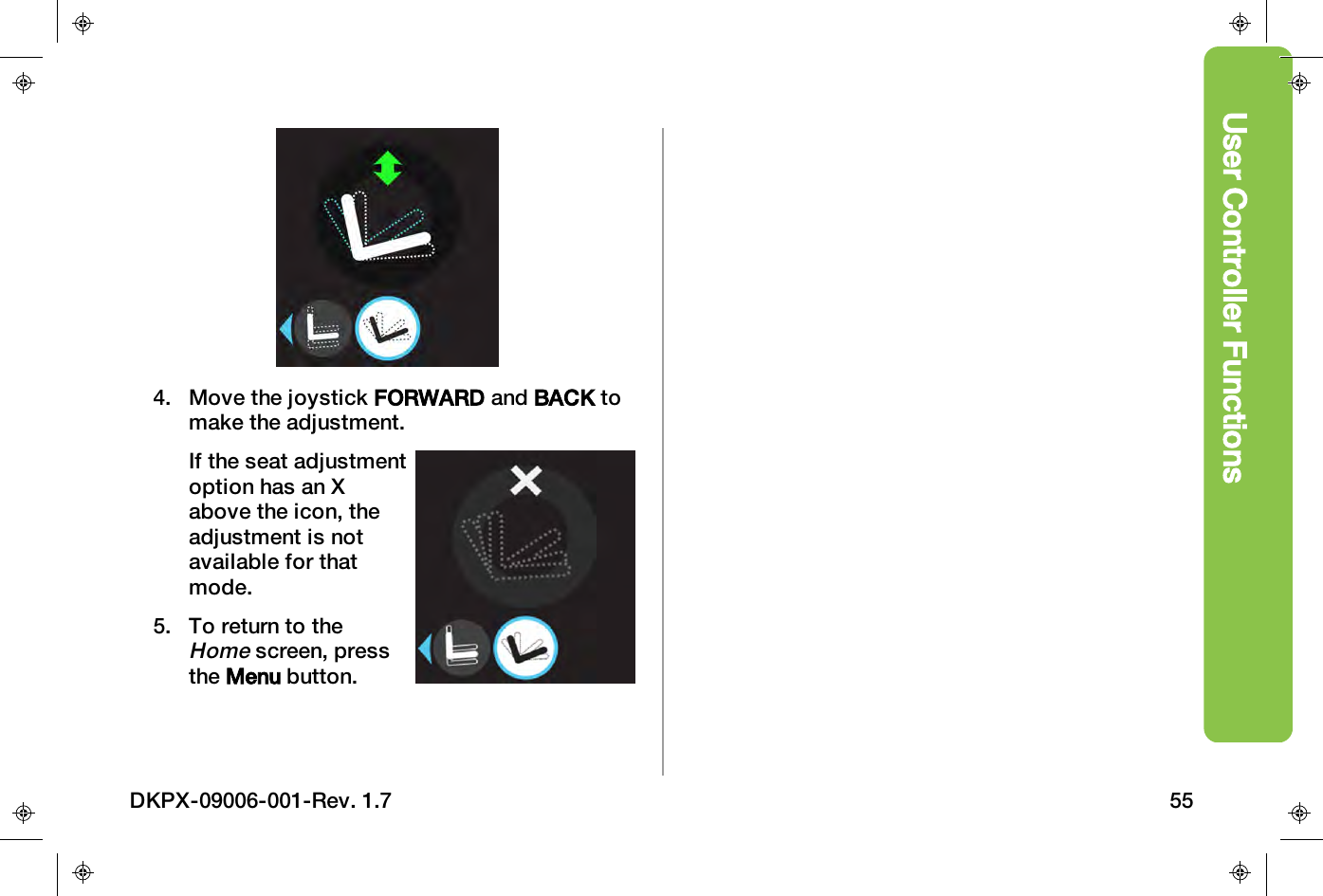
User Controller Functions4. Move the joystick FORWARD and BACK tomake the adjustment.If the seat adjustmentoption has an Xabove the icon, theadjustment is notavailable for thatmode.5. To return to theHomescreen, pressthe Menu button.DKPX-09006-001-Rev. 1.7 55
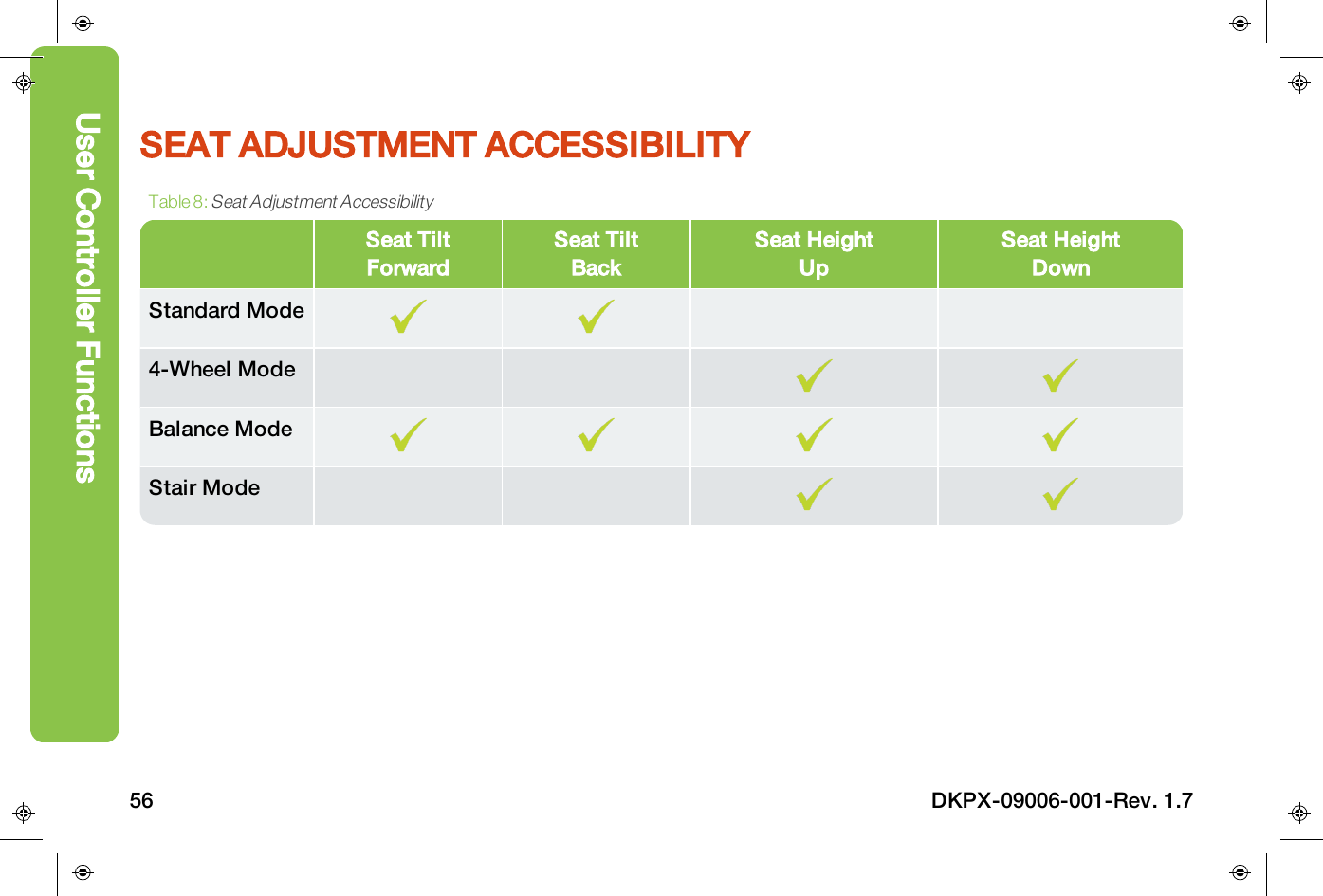
SEAT ADJUSTMENT ACCESSIBILITYSeat TiltForwardSeat TiltBackSeat HeightUpSeat HeightDownStandard Mode4-Wheel ModeBalance ModeStair ModeTable 8:Seat Adjustment AccessibilityUser Controller Functions56 DKPX-09006-001-Rev. 1.7
User Controller FunctionsSTANDARD MODE ADJUSTMENTSIn Standard mode, seat tilt is only available when you are not driving. The seat tilt feature is designedfor your comfort. When the seat is tilted back in Standard Mode, the casters lift off the ground and thefour drive wheels are in contact with the ground.4-WHEEL MODE ADJUSTMENTSThe seat can be raised in 4-Wheel mode to increase seat height and the ground clearance of the casterwheels. Raising the seat height raises your center of gravity. For safety, the device speed is reducedwhen the seat is elevated. Recommended safe driving guidelines include moving the seat height to itslowest position when driving. When raising or lowering your seat, be mindful of objects behind you,such as doorknobs or shelves, which may get caught in the assist handle.BALANCE MODE ADJUSTMENTSThe seat can be tilted or raised in Balance mode. For safety, the device speed is reduced when the seatis elevated. Raising the seat allows you to reach high objects. Recommended safe driving guidelinesinclude moving the seat height to its lowest position when driving.STAIR MODE ADJUSTMENTSThe seat height can be adjusted for comfort when using the handrail in solo or assisted stair climbing.DKPX-09006-001-Rev. 1.7 57
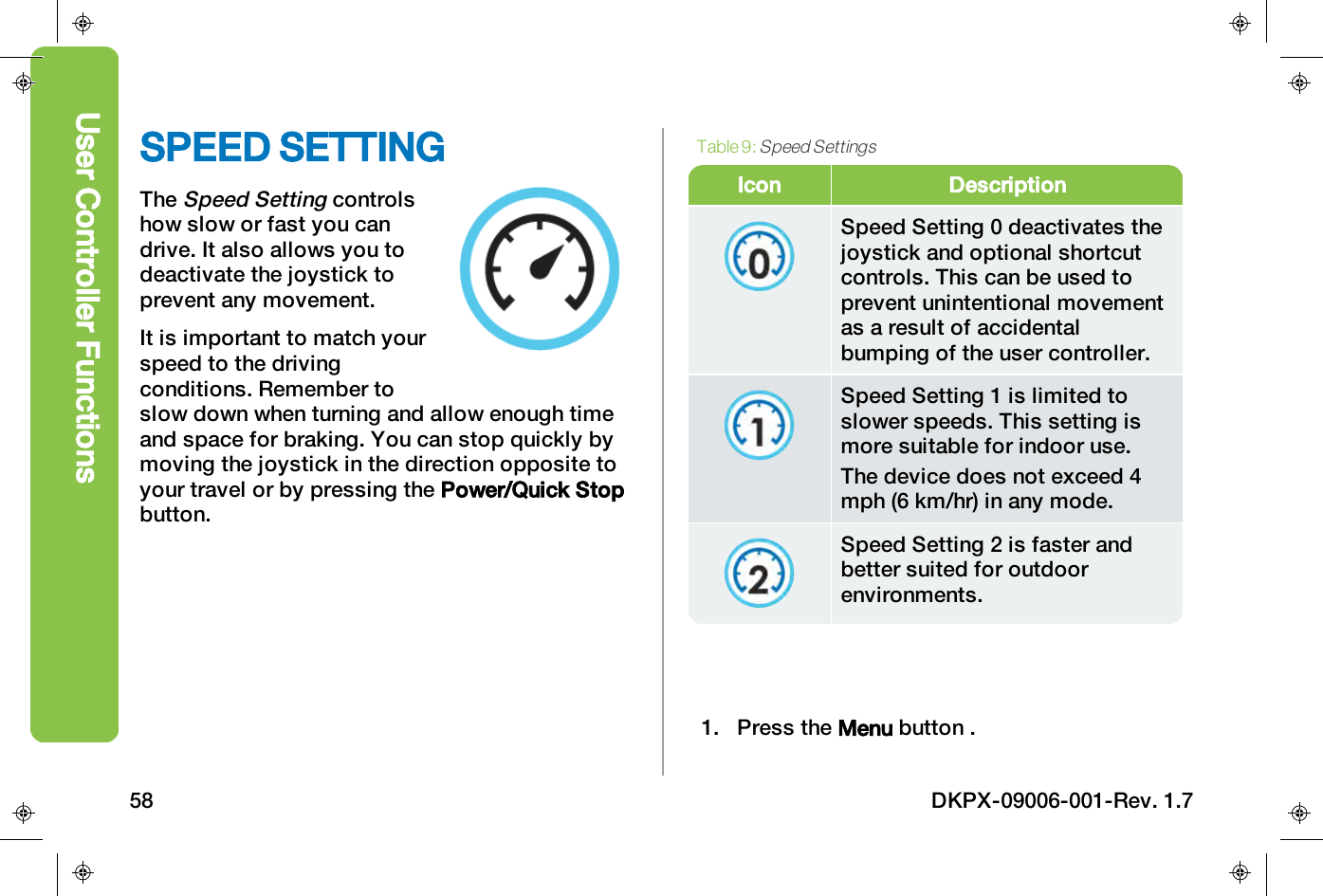
SPEED SETTINGTheSpeed Settingcontrolshow slow or fast you candrive. It also allows you todeactivate the joystick toprevent any movement.It is important to match yourspeed to the drivingconditions. Remember toslow down when turning and allow enough timeand space for braking. You can stop quickly bymoving the joystick in the direction opposite toyour travel or by pressing the Power/Quick Stopbutton.Icon DescriptionSpeed Setting 0 deactivates thejoystick and optional shortcutcontrols. This can be used toprevent unintentional movementas a result of accidentalbumping of the user controller.Speed Setting 1 is limited toslower speeds. This setting ismore suitable for indoor use.The device does not exceed 4mph (6 km/hr) in any mode.Speed Setting 2 is faster andbetter suited for outdoorenvironments.Table 9:Speed Settings1. Press the Menu button .User Controller Functions58 DKPX-09006-001-Rev. 1.7
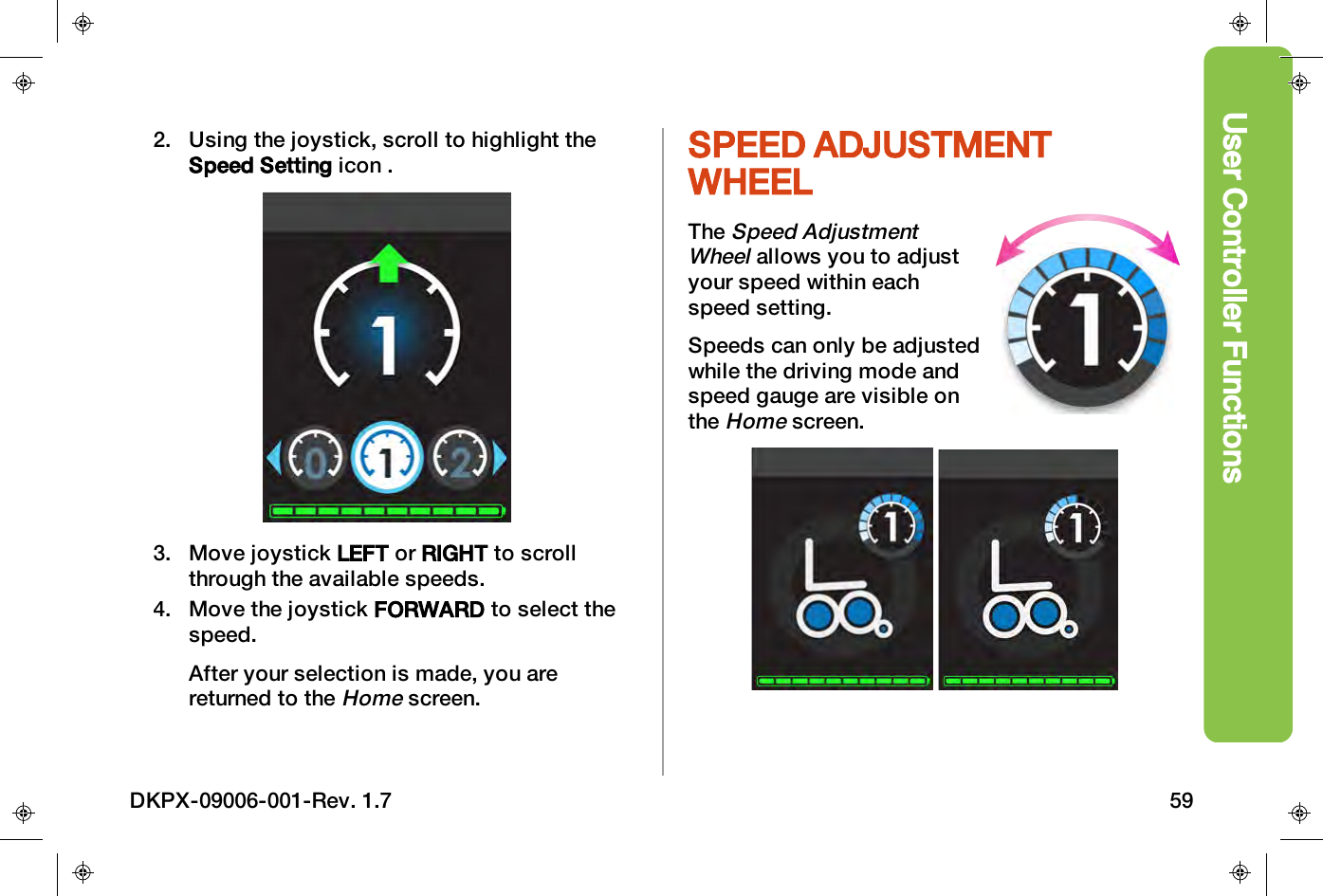
User Controller Functions2. Using the joystick, scroll to highlight theSpeed Setting icon .3. Move joystick LEFT or RIGHT to scrollthrough the available speeds.4. Move the joystick FORWARD to select thespeed.After your selection is made, you arereturned to theHomescreen.SPEED ADJUSTMENTWHEELTheSpeed AdjustmentWheelallows you to adjustyour speed within eachspeed setting.Speeds can only be adjustedwhile the driving mode andspeed gauge are visible ontheHomescreen.DKPX-09006-001-Rev. 1.7 59
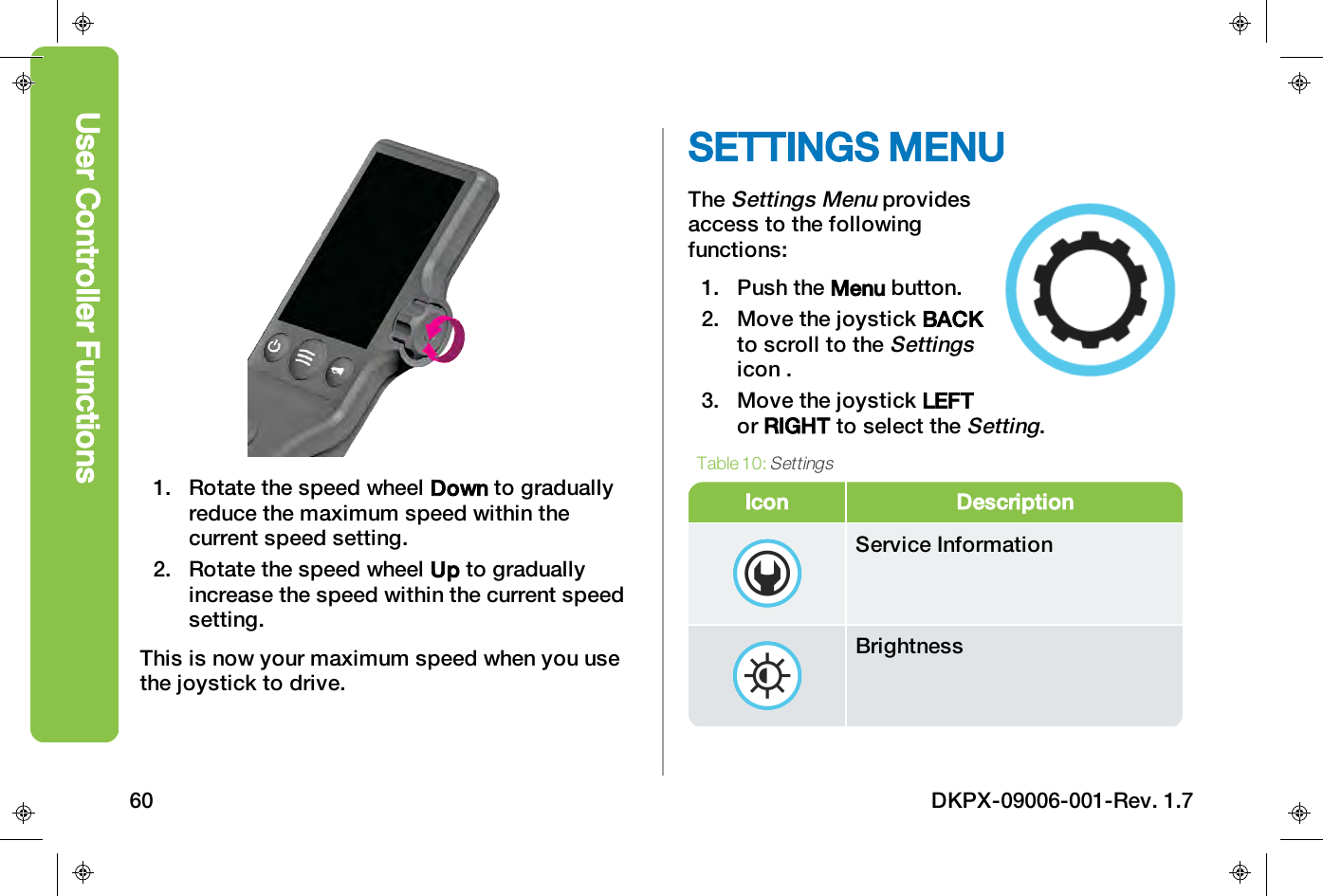
1. Rotate the speed wheel Down to graduallyreduce the maximum speed within thecurrent speed setting.2. Rotate the speed wheel Up to graduallyincrease the speed within the current speedsetting.This is now your maximum speed when you usethe joystick to drive.SETTINGS MENUTheSettings Menuprovidesaccess to the followingfunctions:1. Push the Menu button.2. Move the joystick BACKto scroll to theSettingsicon .3. Move the joystick LEFTor RIGHT to select theSetting.Icon DescriptionService InformationBrightnessTable 10:SettingsUser Controller Functions60 DKPX-09006-001-Rev. 1.7
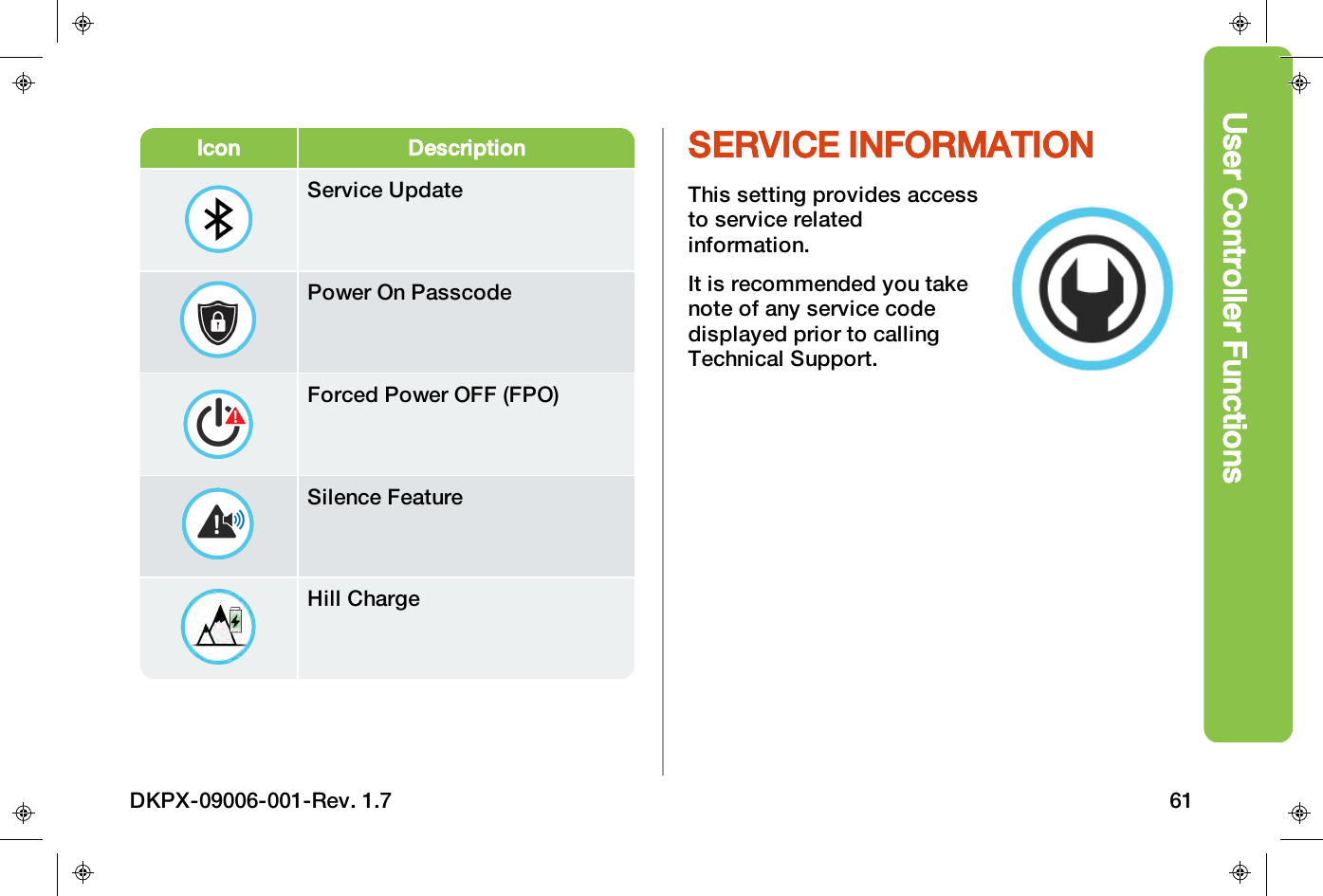
User Controller FunctionsIcon DescriptionService UpdatePower On PasscodeForced Power OFF (FPO)Silence FeatureHill ChargeSERVICE INFORMATIONThis setting provides accessto service relatedinformation.It is recommended you takenote of any service codedisplayed prior to callingTechnical Support.DKPX-09006-001-Rev. 1.7 61
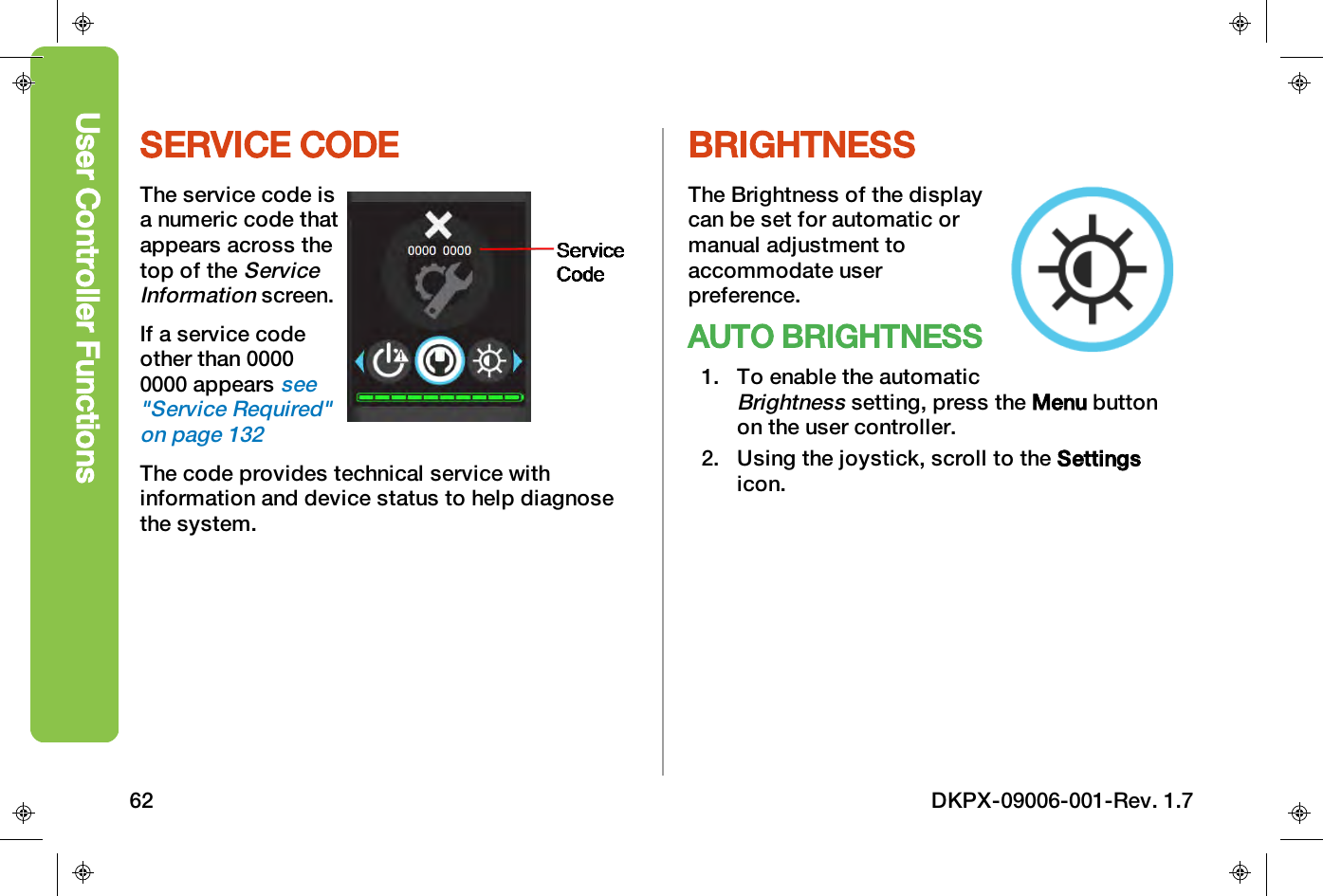
SERVICE CODEThe service code isa numeric code thatappears across thetop of theServiceInformationscreen.If a service codeother than 00000000 appearssee"Service Required"on page132The code provides technical service withinformation and device status to help diagnosethe system.BRIGHTNESSThe Brightness of the displaycan be set for automatic ormanual adjustment toaccommodate userpreference.AUTO BRIGHTNESS1. To enable the automaticBrightnesssetting, press the Menu buttonon the user controller.2. Using the joystick, scroll to the Settingsicon.User Controller Functions62 DKPX-09006-001-Rev. 1.7
User Controller Functions3. Move the joystick LEFTor RIGHT to highlightthe Brightness icon.4. Move the joystickFORWARD to selectBrightness.5. Move the joystick LEFTor RIGHT to check theAuto Brightnesscheckbox.6. To return to theHomescreen, press the Menubutton.DKPX-09006-001-Rev. 1.7 63
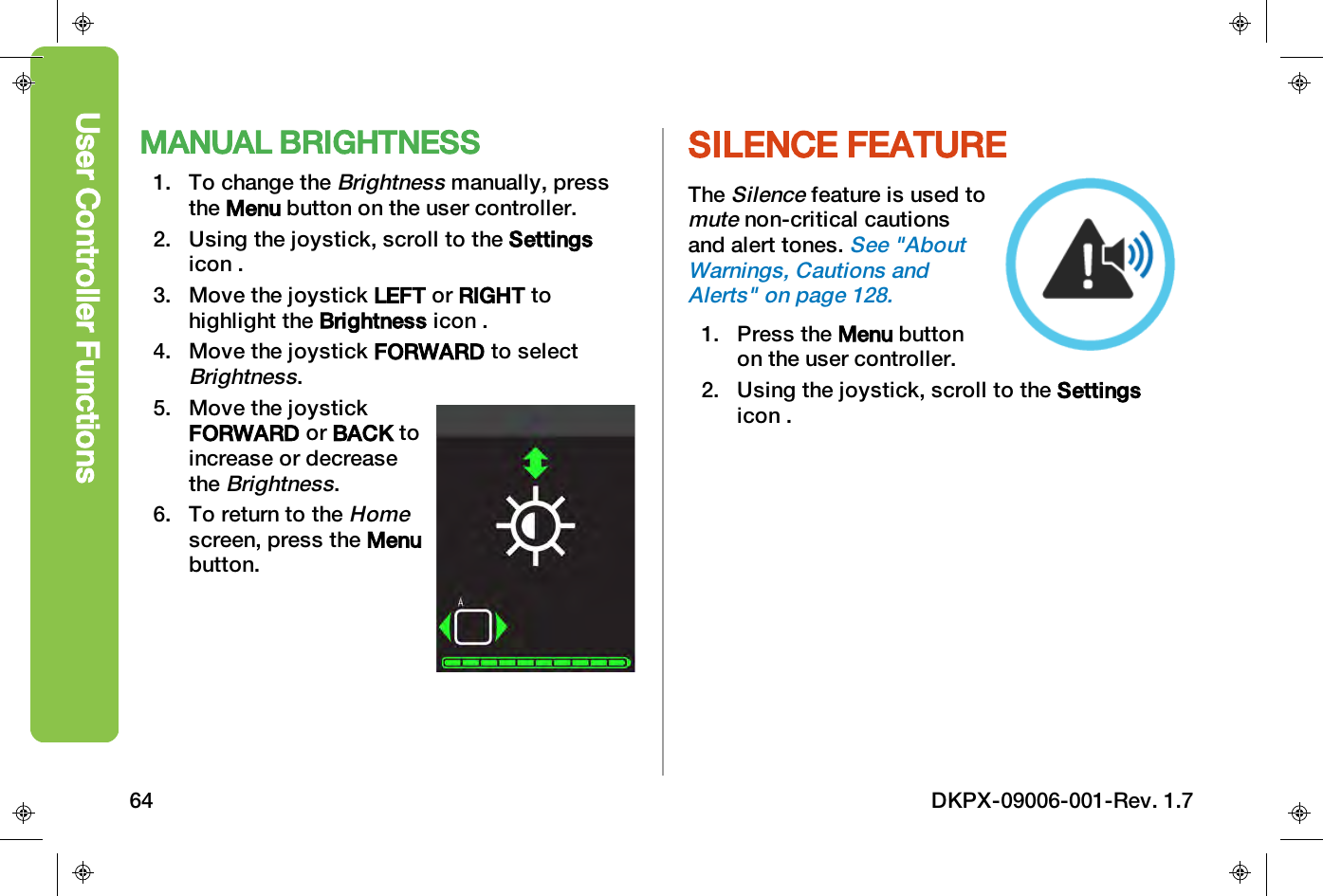
MANUAL BRIGHTNESS1. To change theBrightnessmanually, pressthe Menu button on the user controller.2. Using the joystick, scroll to the Settingsicon .3. Move the joystick LEFT or RIGHT tohighlight the Brightness icon .4. Move the joystick FORWARD to selectBrightness.5. Move the joystickFORWARD or BACK toincrease or decreasetheBrightness.6. To return to theHomescreen, press the Menubutton.SILENCE FEATURETheSilencefeature is used tomutenon-critical cautionsand alert tones.See "AboutWarnings, Cautions andAlerts" on page128.1. Press the Menu buttonon the user controller.2. Using the joystick, scroll to the Settingsicon .User Controller Functions64 DKPX-09006-001-Rev. 1.7
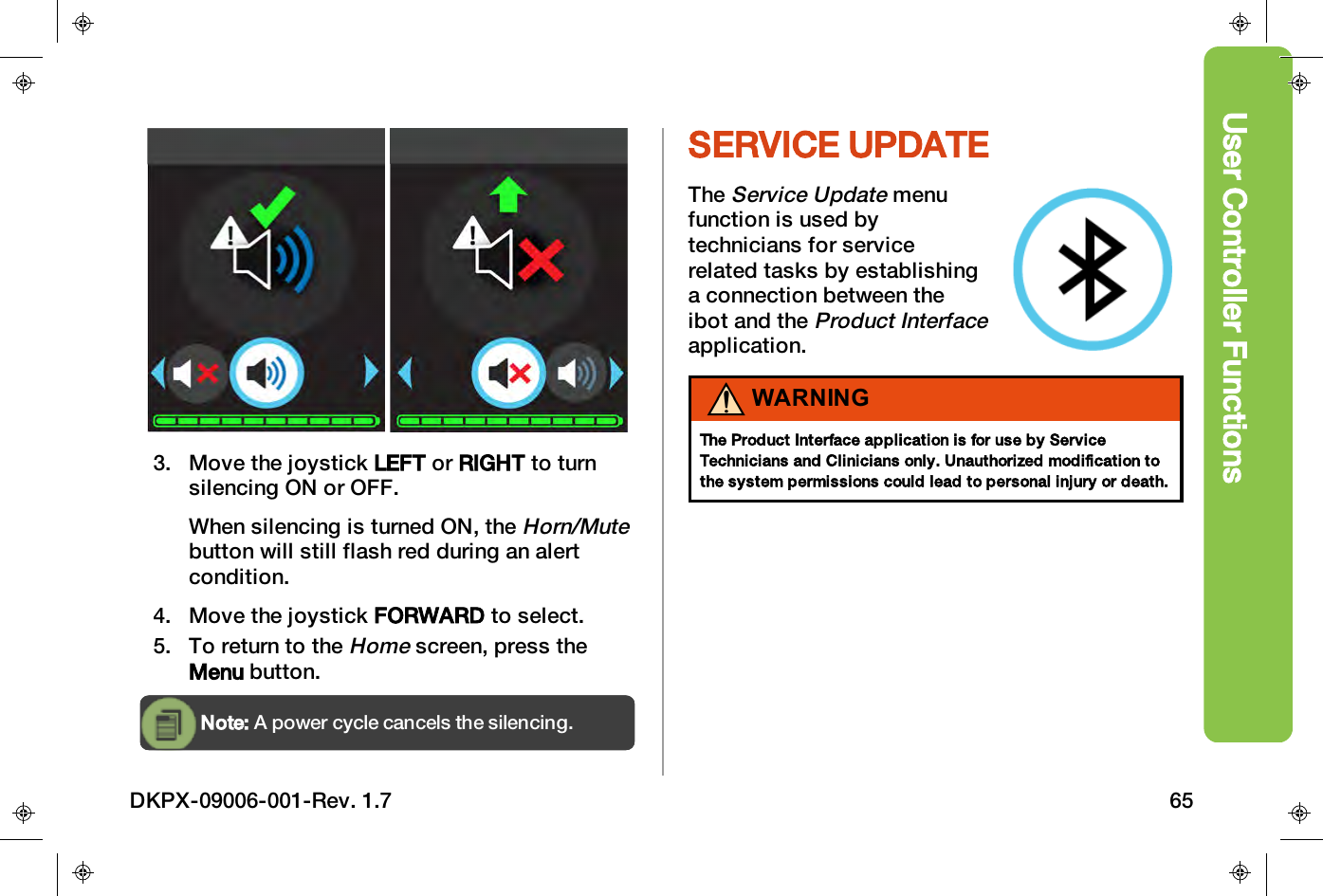
User Controller Functions3. Move the joystick LEFT or RIGHT to turnsilencing ON or OFF.When silencing is turned ON, theHorn/Mutebutton will still flash red during an alertcondition.4. Move the joystick FORWARD to select.5. To return to theHomescreen, press theMenu button.Note: A power cycle cancels the silencing.SERVICE UPDATETheService Updatemenufunction is used bytechnicians for servicerelated tasks by establishinga connection between theibot and theProduct Interfaceapplication.WARNINGThe Product Interface application is for use by ServiceTechnicians and Clinicians only. Unauthorized modification tothe system permissions could lead to personal injury or death.DKPX-09006-001-Rev. 1.7 65
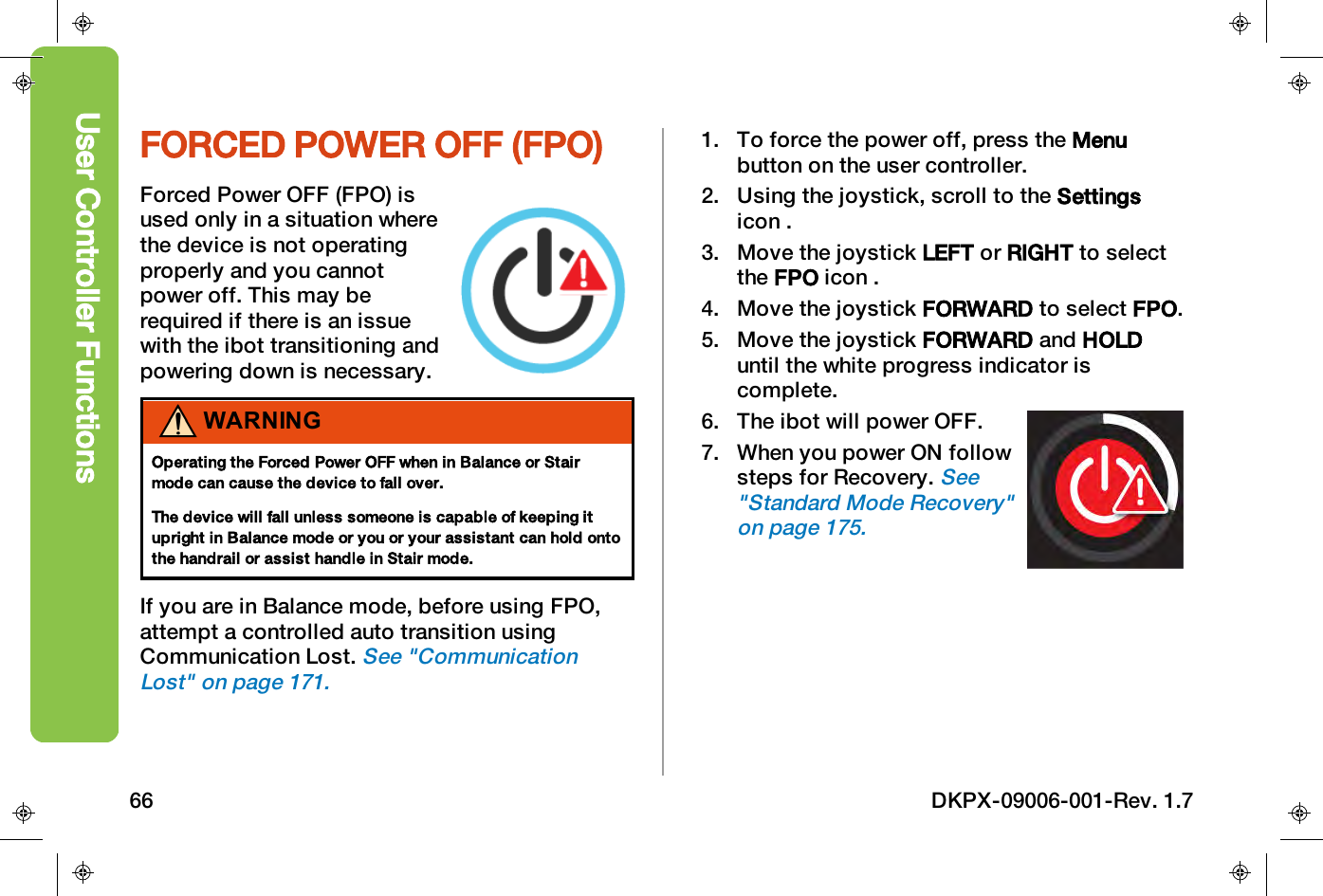
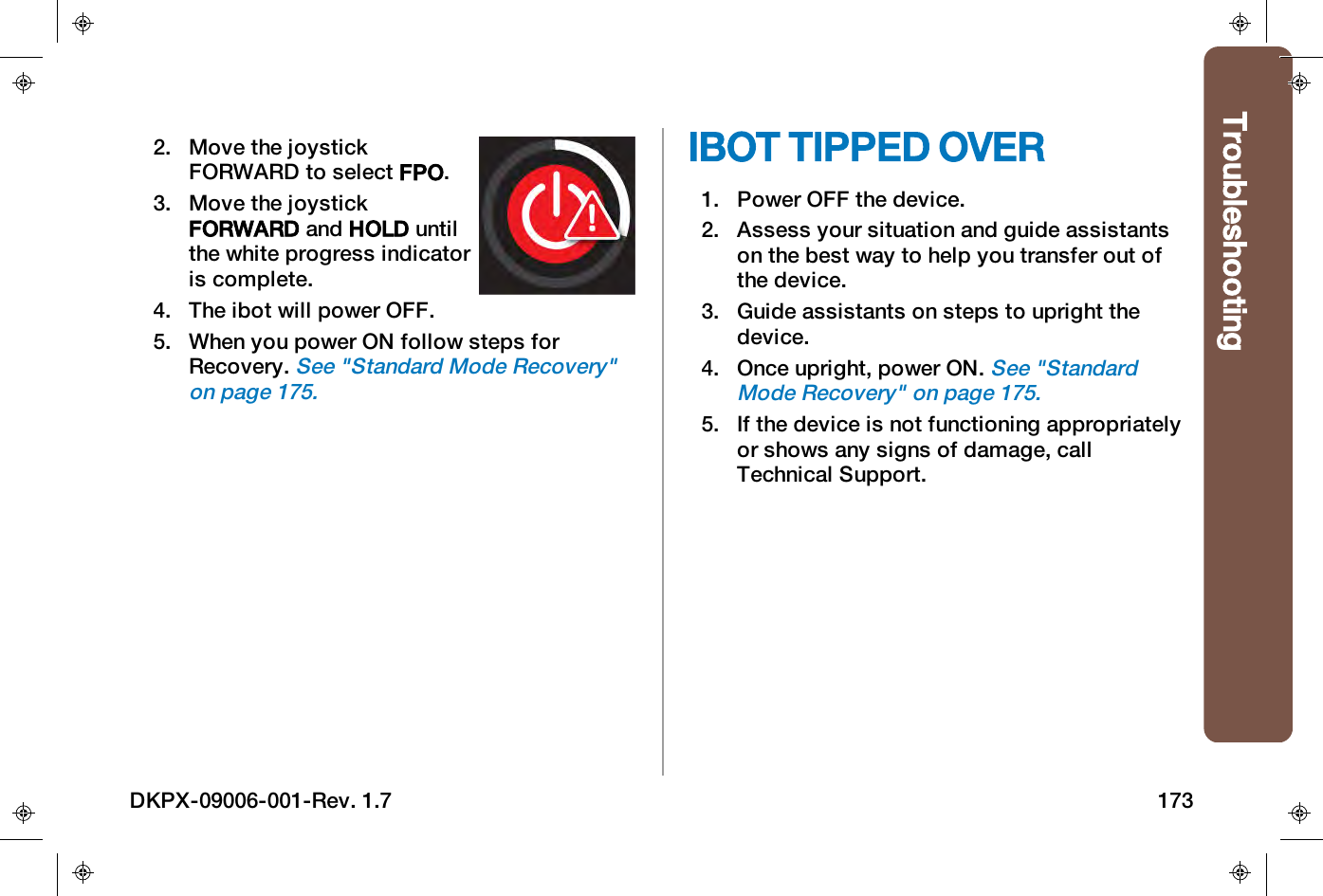
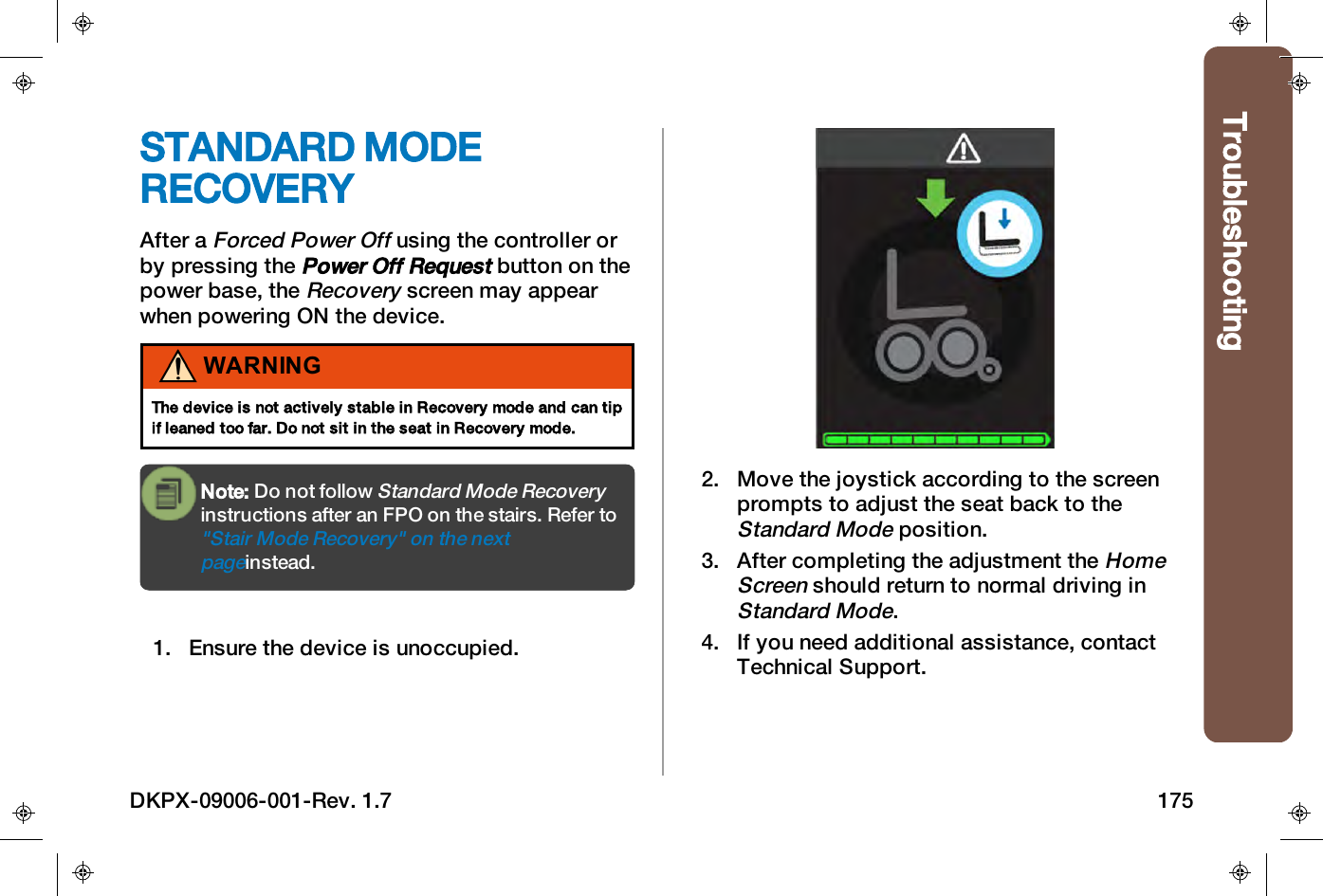
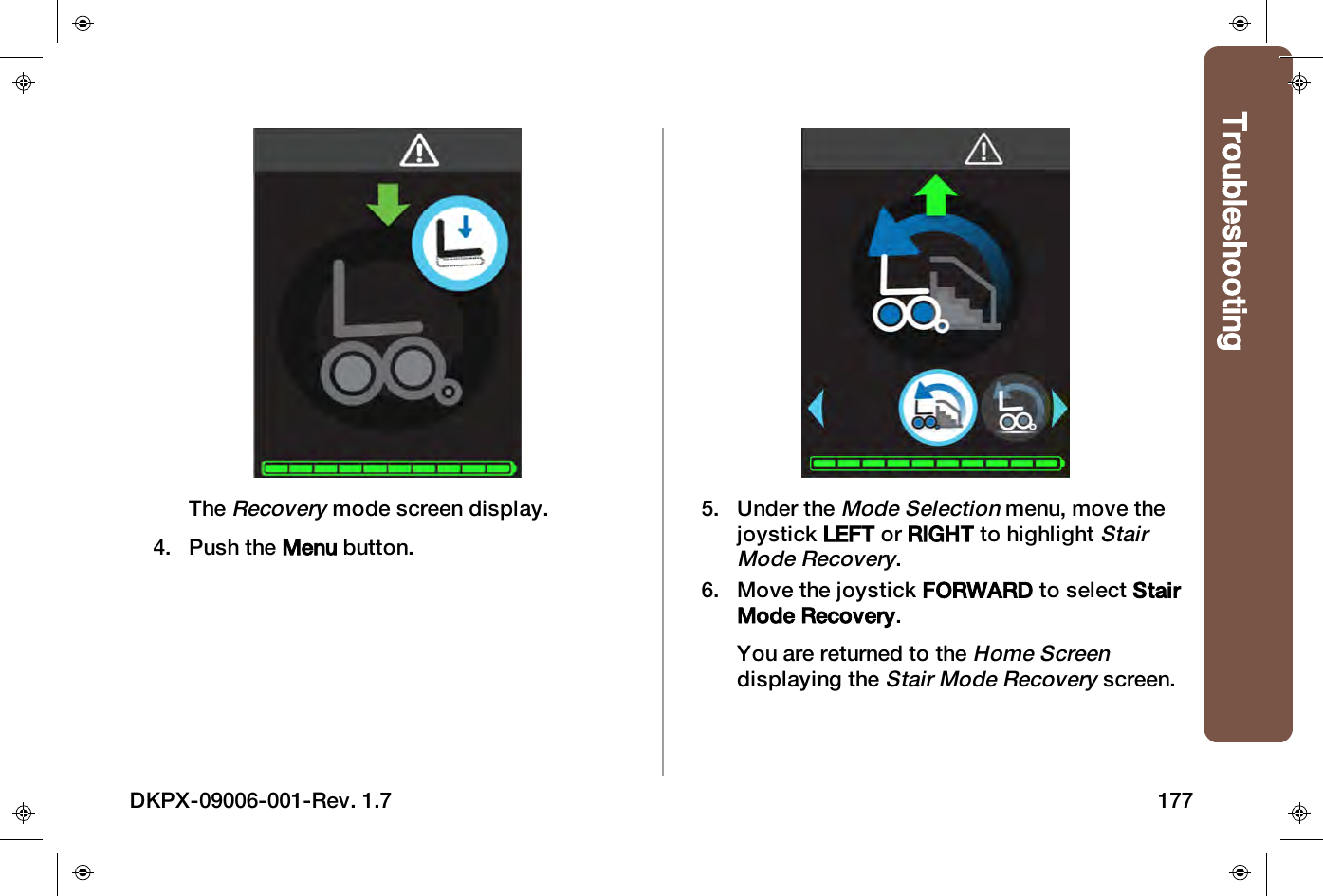
FORCED POWER OFF (FPO)Forced Power OFF (FPO) isused only in a situation wherethe device is not operatingproperly and you cannotpower off. This may berequired if there is an issuewith the ibot transitioning andpowering down is necessary.WARNINGOperating the Forced Power OFF when in Balance or Stairmode can cause the device to fall over.The device will fall unless someone is capable of keeping itupright in Balance mode or you or your assistant can hold ontothe handrail or assist handle in Stair mode.If you are in Balance mode, before using FPO,attempt a controlled auto transition usingCommunication Lost.See "CommunicationLost" on page171.1. To force the power off, press the Menubutton on the user controller.2. Using the joystick, scroll to the Settingsicon .3. Move the joystick LEFT or RIGHT to selectthe FPO icon .4. Move the joystick FORWARD to select FPO.5. Move the joystick FORWARD and HOLDuntil the white progress indicator iscomplete.6. The ibot will power OFF.7. When you power ON followsteps for Recovery.See"Standard Mode Recovery"on page175.User Controller Functions66 DKPX-09006-001-Rev. 1.7
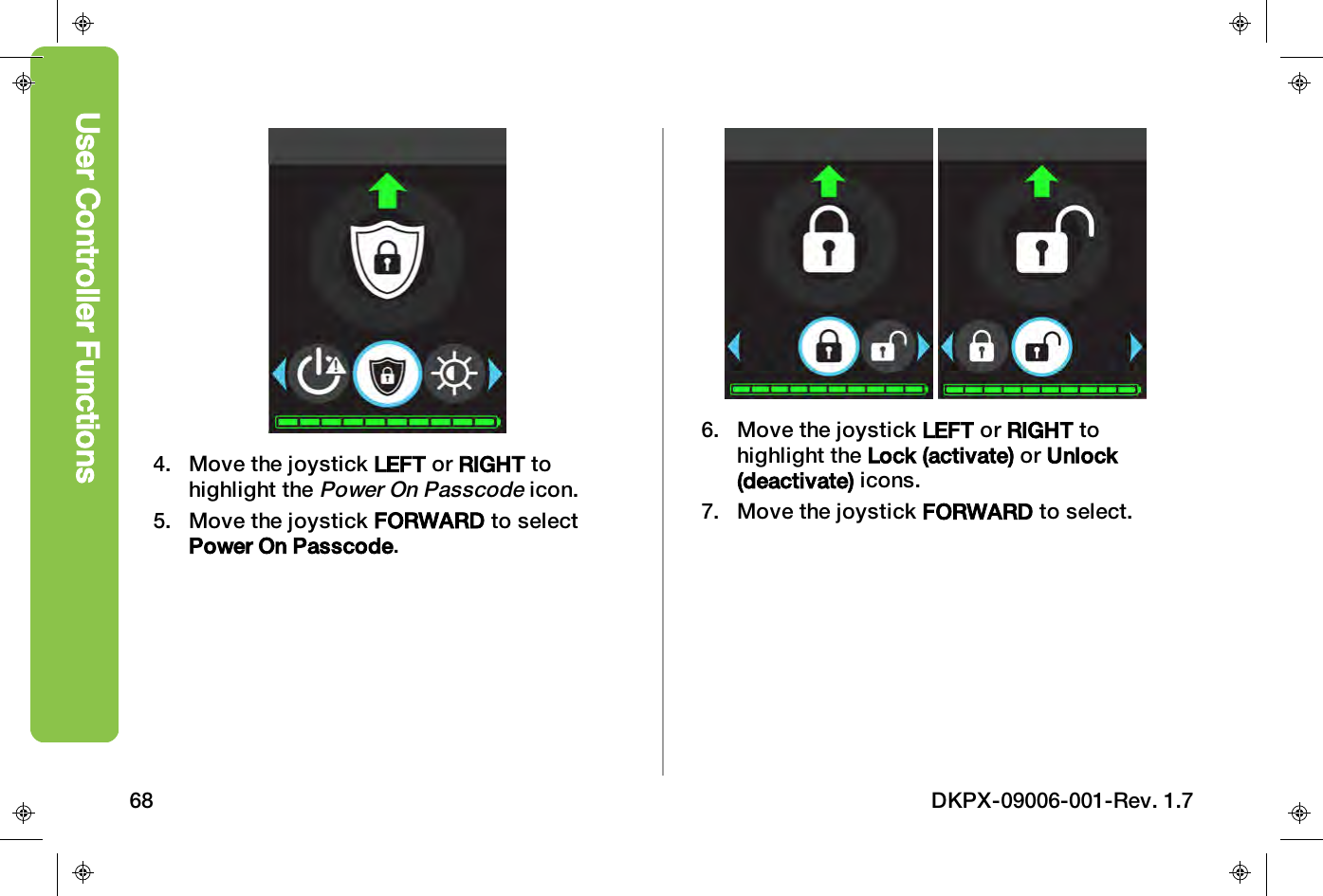
User Controller FunctionsPOWER ON PASSCODEThe ibot has aPower OnPasscodefeature that can beprogrammed by your Clinicianto require a passcode uponpowering on the device andhelp prevent others fromoperating the device.After thePower On Passcodefeature isprogrammed with your unique passcodesequence, you have the ability to lock and unlockthe device from within theSettingsmenu.If at any time you forget yourPower OnPasscodesequence, contact your clinician.Icon DescriptionLock: Passcode activeUnlock: Passcode inactiveTable 11:Power On Passcode Icons1. To activate thePower On Passcodefeature,make sure your device is powered ON.2. Press the Menu button on the usercontroller.3. Using the joystick, scroll to the Settingsicon.DKPX-09006-001-Rev. 1.7 67
4. Move the joystick LEFT or RIGHT tohighlight thePower On Passcodeicon.5. Move the joystick FORWARD to selectPower On Passcode.6. Move the joystick LEFT or RIGHT tohighlight the Lock (activate) or Unlock(deactivate) icons.7. Move the joystick FORWARD to select.User Controller Functions68 DKPX-09006-001-Rev. 1.7
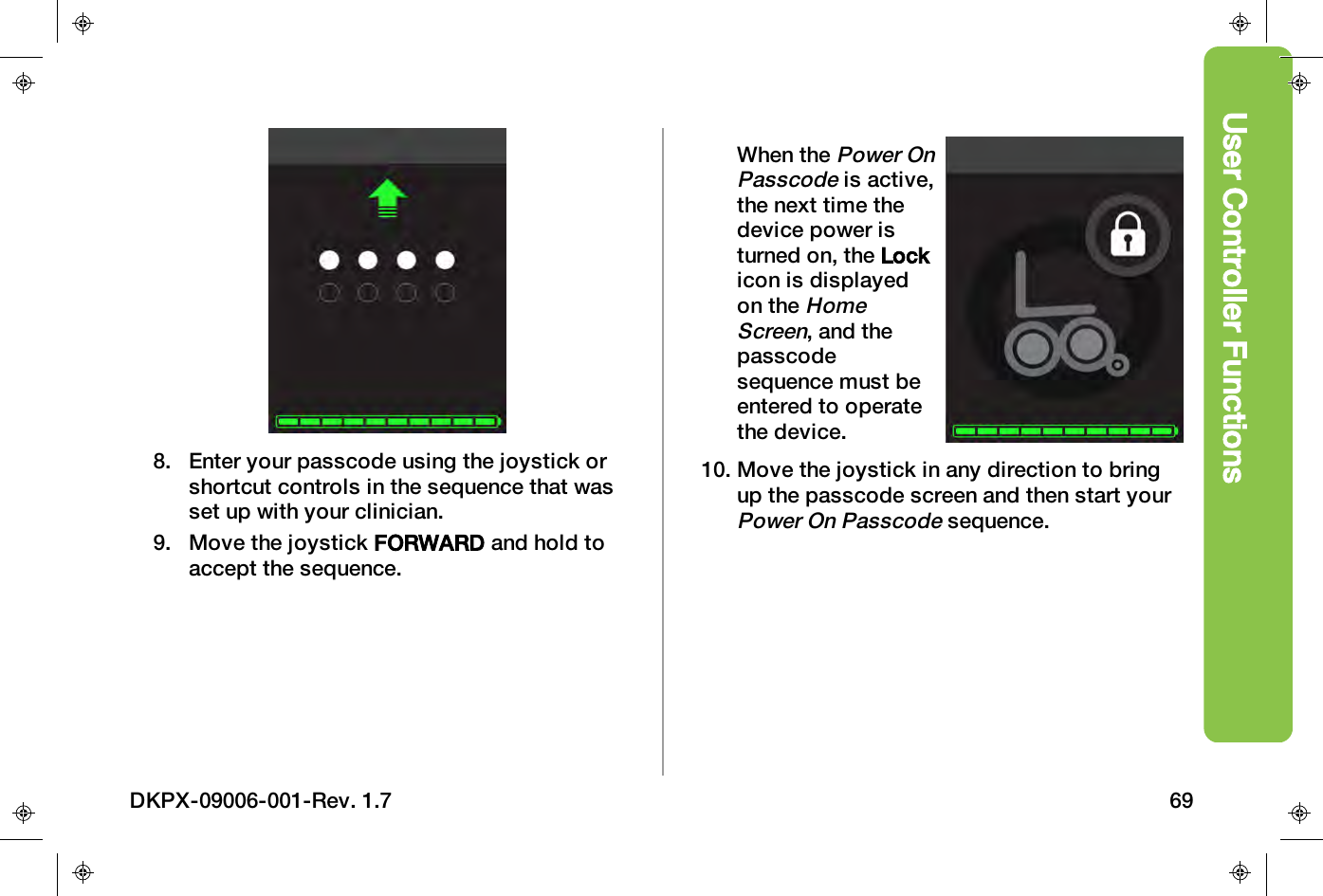
User Controller Functions8. Enter your passcode using the joystick orshortcut controls in the sequence that wasset up with your clinician.9. Move the joystick FORWARD and hold toaccept the sequence.When thePower OnPasscodeis active,the next time thedevice power isturned on, the Lockicon is displayedon theHomeScreen, and thepasscodesequence must beentered to operatethe device.10. Move the joystick in any direction to bringup the passcode screen and then start yourPower On Passcodesequence.DKPX-09006-001-Rev. 1.7 69
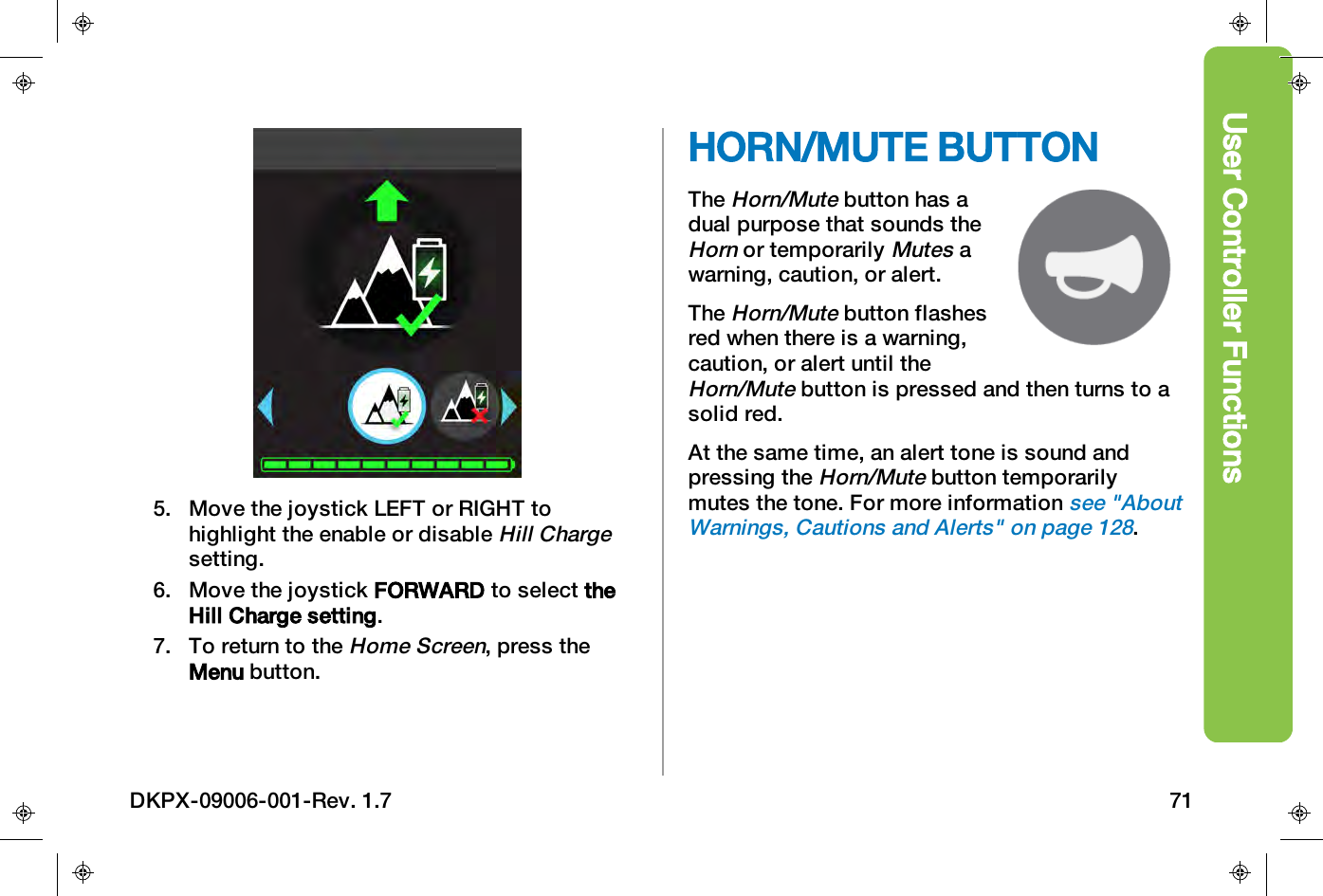
HILL CHARGEHill Chargeis a feature forusers who frequently drivedownhill. Typically when youdrive downhill, on a fullycharged battery, your speedis restricted to protect thebatteries from over voltage.Once charged with the HillCharge feature enabled, your speed downhill willnot be restricted and the battery is charged toonly 90%.1. To enableHill Charge, press the Menubutton.2. Move the joystick FORWARD or BACK toscroll to theSettingsicon .3. Move the joystick LEFT or RIGHT tohighlight theHill Chargesetting.4. Move the joystick FORWARD to select HillCharge.User Controller Functions70 DKPX-09006-001-Rev. 1.7
User Controller Functions5. Move the joystick LEFT or RIGHT tohighlight the enable or disableHill Chargesetting.6. Move the joystick FORWARD to select theHill Charge setting.7. To return to theHome Screen, press theMenu button.HORN/MUTE BUTTONTheHorn/Mutebutton has adual purpose that sounds theHornor temporarilyMutesawarning, caution, or alert.TheHorn/Mutebutton flashesred when there is a warning,caution, or alert until theHorn/Mutebutton is pressed and then turns to asolid red.At the same time, an alert tone is sound andpressing theHorn/Mutebutton temporarilymutes the tone. For more informationsee "AboutWarnings, Cautions and Alerts" on page128.DKPX-09006-001-Rev. 1.7 71
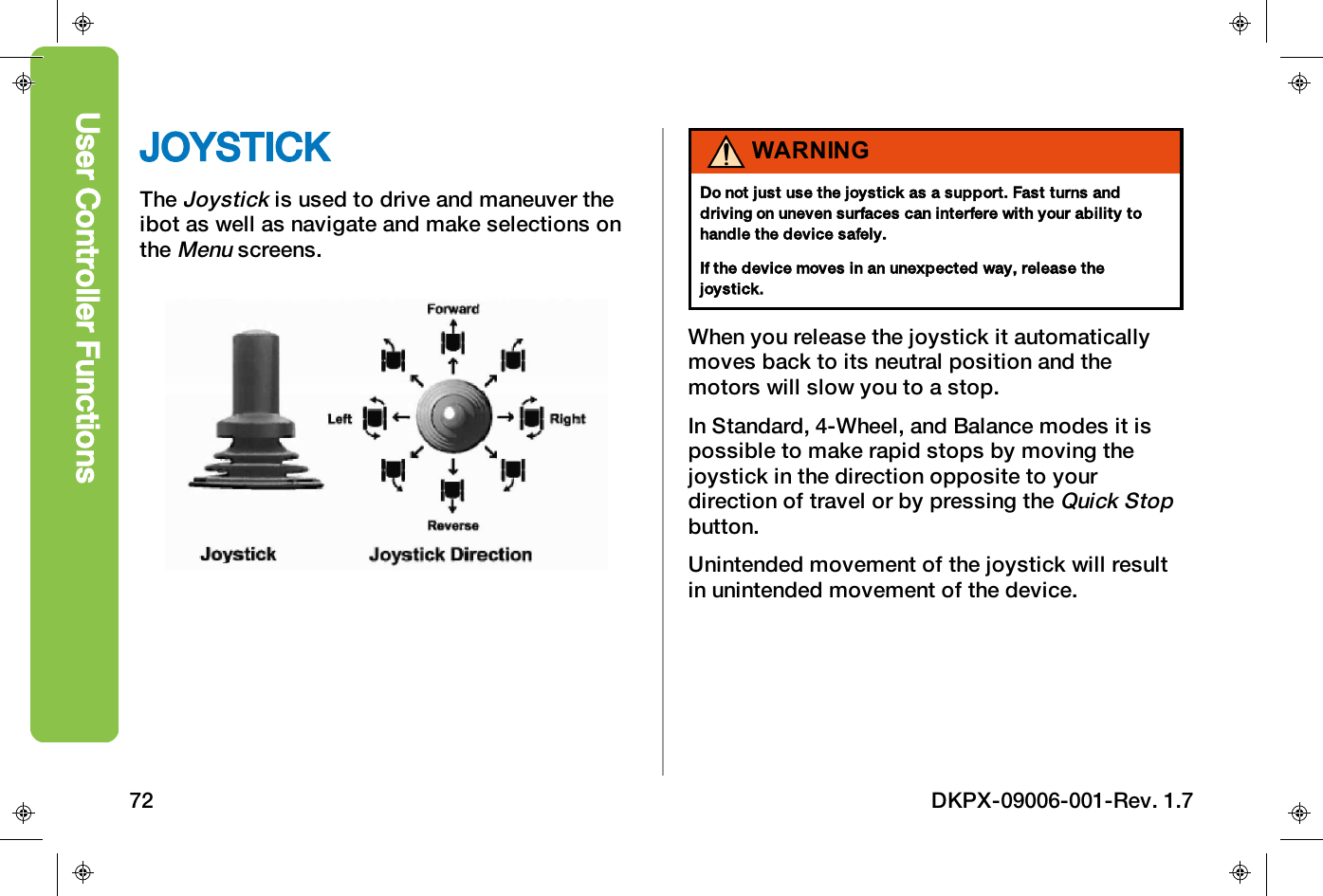
JOYSTICKTheJoystickis used to drive and maneuver theibot as well as navigate and make selections ontheMenuscreens.WARNINGDo not just use the joystick as a support. Fast turns anddriving on uneven surfaces can interfere with your ability tohandle the device safely.If the device moves in an unexpected way, release thejoystick.When you release the joystick it automaticallymoves back to its neutral position and themotors will slow you to a stop.In Standard, 4-Wheel, and Balance modes it ispossible to make rapid stops by moving thejoystick in the direction opposite to yourdirection of travel or by pressing theQuick Stopbutton.Unintended movement of the joystick will resultin unintended movement of the device.User Controller Functions72 DKPX-09006-001-Rev. 1.7
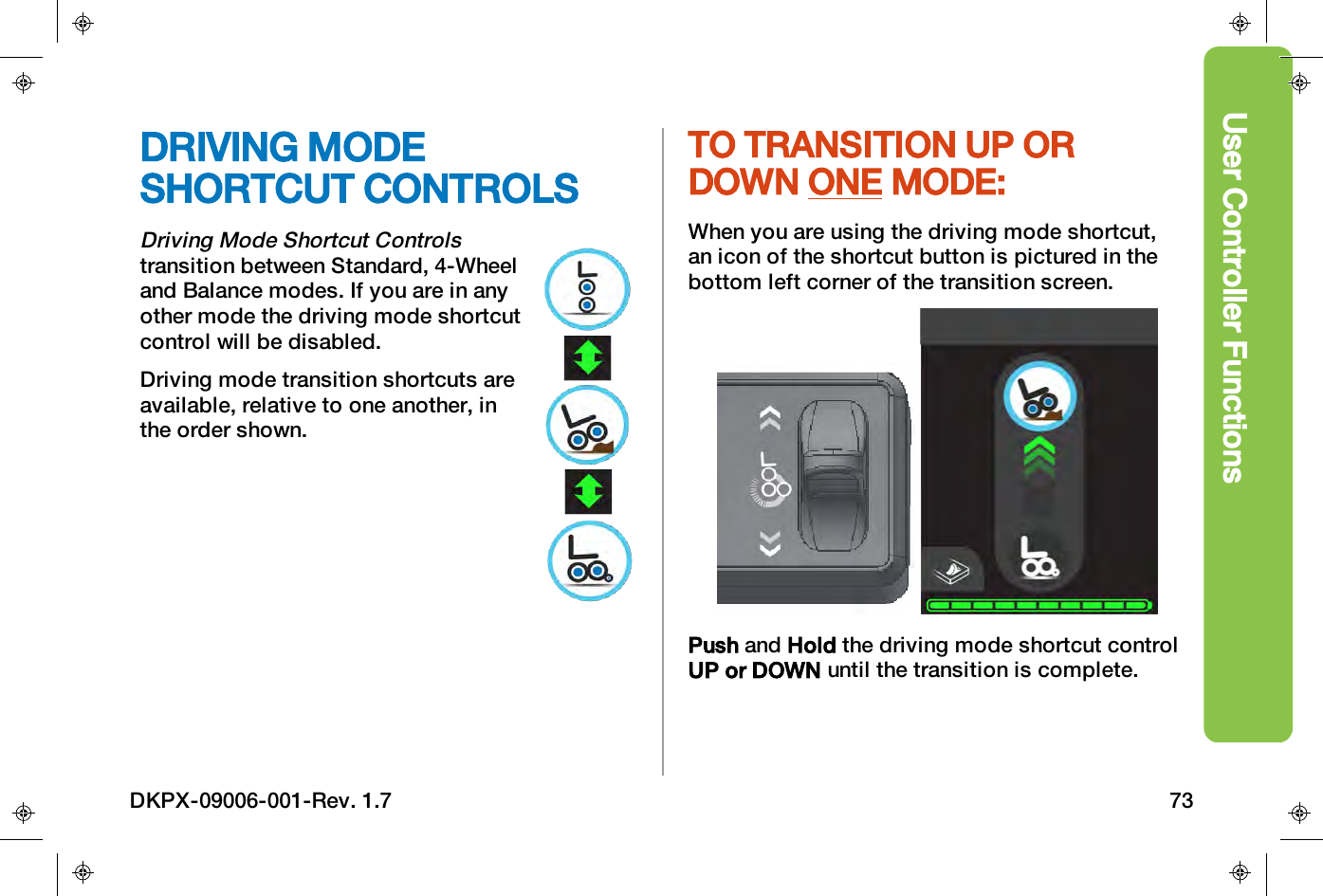
User Controller FunctionsDRIVING MODESHORTCUT CONTROLSDriving Mode Shortcut Controlstransition between Standard, 4-Wheeland Balance modes. If you are in anyother mode the driving mode shortcutcontrol will be disabled.Driving mode transition shortcuts areavailable, relative to one another, inthe order shown.TO TRANSITION UP ORDOWN ONE MODE:When you are using the driving mode shortcut,an icon of the shortcut button is pictured in thebottom left corner of the transition screen.Push and Hold the driving mode shortcut controlUP or DOWN until the transition is complete.DKPX-09006-001-Rev. 1.7 73
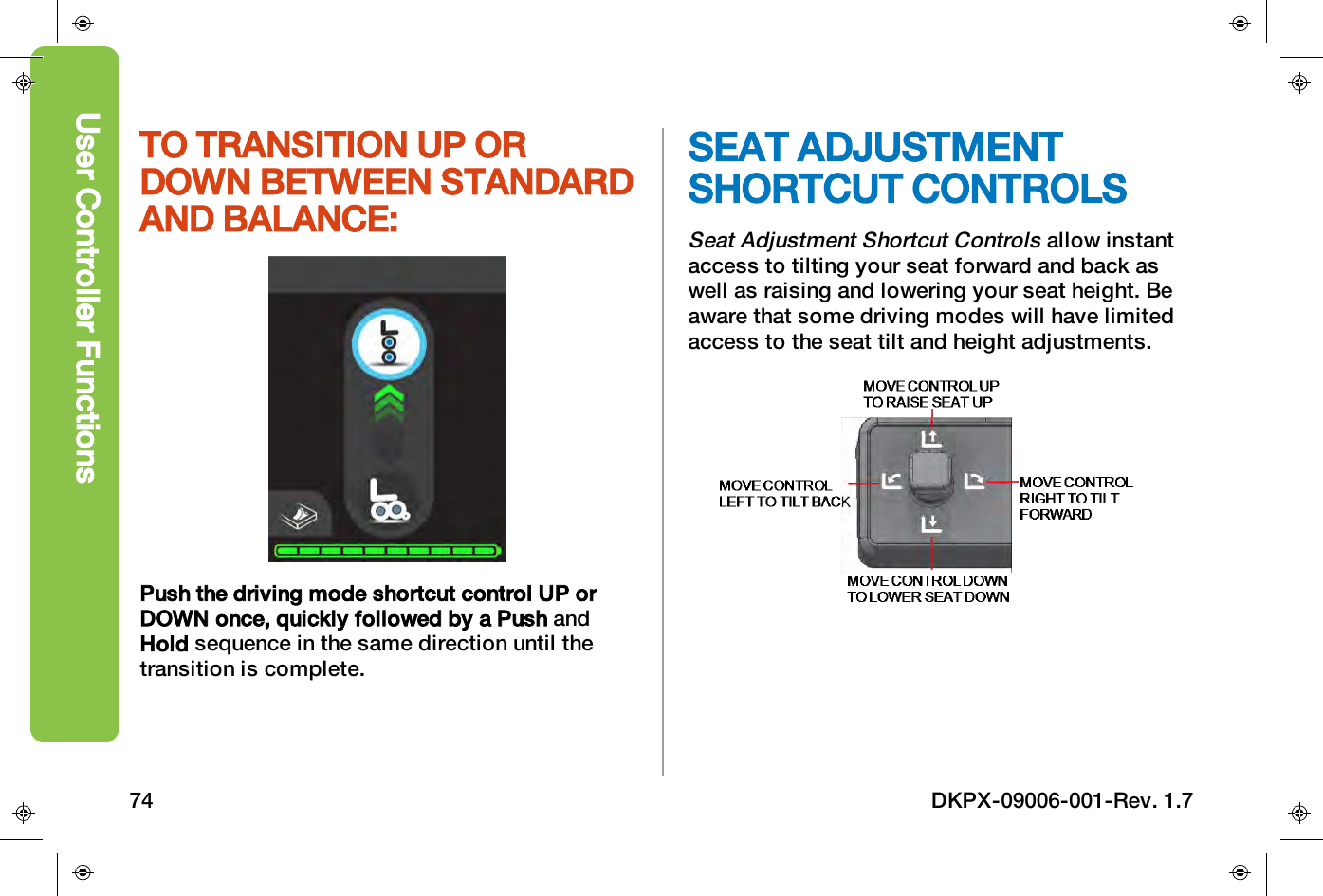
TO TRANSITION UP ORDOWN BETWEEN STANDARDAND BALANCE:Push the driving mode shortcut control UP orDOWN once, quickly followed by a Push andHold sequence in the same direction until thetransition is complete.SEAT ADJUSTMENTSHORTCUT CONTROLSSeat Adjustment Shortcut Controlsallow instantaccess to tilting your seat forward and back aswell as raising and lowering your seat height. Beaware that some driving modes will have limitedaccess to the seat tilt and height adjustments.User Controller Functions74 DKPX-09006-001-Rev. 1.7
Driving Modes and TechniquesDRIVING MODES ANDTECHNIQUESiBalance Technology 76Overview 77Environments For Use 78Slopes and Obstacles 80Standard Mode 844-Wheel Mode 844-Wheel Driving Technique 85Balance Mode 87Balance Driving Technique 88Stair Mode 92Stair Assessment 93Stairways and Landings 95Step Geometry 97Stair Climbing Technique 100Cluster Safety Lock 101Solo Stair Climbing 102Assisted Stair Climbing 109Remote Mode 117DKPX-09006-001-Rev. 1.7 75
IBALANCE TECHNOLOGYStability is one of the most important features ofany Mobility System because it prevents youfrom tipping over. There is more than one way toachieve stability.The iBalance technology in the ibot MobilitySystem uses a computer system withgyroscopes and other sensors. Gyroscopes aresensors that monitor changes in motion. Thegyroscopes and other sensors send signals tothe computer. The computer processes theinformation and tells the motors how to movethe wheels to maintain stability and balance.The iBalance technology maintains balance inthe forward and backward directions. This meansthe device will keep your seat relatively levelwhen driving straight up or down curbs orinclines. It does not electronically maintain side-to-side (lateral) stability.The ibot has multiple operating modes that usethe iBalance technology. Each mode uses thecore technology in a slightly different way.WARNINGDuring transitions between Standard, 4-Wheel, Balance, andStair modes avoid excessive body movement since theiBalance technology is not active until the transition iscomplete.Driving Modes and Techniques76 DKPX-09006-001-Rev. 1.7
Driving Modes and TechniquesOVERVIEWDriving Modes are selecteddependent upon your need asyou go about your day. Theibot provides multiple drivingmodes to accommodatevarious terrains.Your Clinician willrecommend and enable onlythose driving modes that you can operate safely.For normal driving, the technique is simple.Move the joystick in the direction you want to goand the device then moves in the direction inwhich the joystick is pointing.Drive as gently as possible and try to avoidsudden braking and evasive maneuvers.CAUTIONDo not take the first test drive on your own. The test drive isintended to establish how you and the device work togetherand you may need assistance. Before driving, check that thefreewheel lever (brake release) is in the locked position.DKPX-09006-001-Rev. 1.7 77
ENVIRONMENTS FOR USEThe ibot is a powered mobility device for individuals who have mobility impairments.The deviceprovides:• Mobility on smooth surfaces and inclines at home, at work, and in other environments.• Movement across obstacles, uneven terrain, curbs, grass, gravel, and other soft surfaces.• Mobility in a seated position at an elevated height.• Ascent and descent of stairs with or without assistance.• Mobility and transportationDriving Modes and Techniques78 DKPX-09006-001-Rev. 1.7
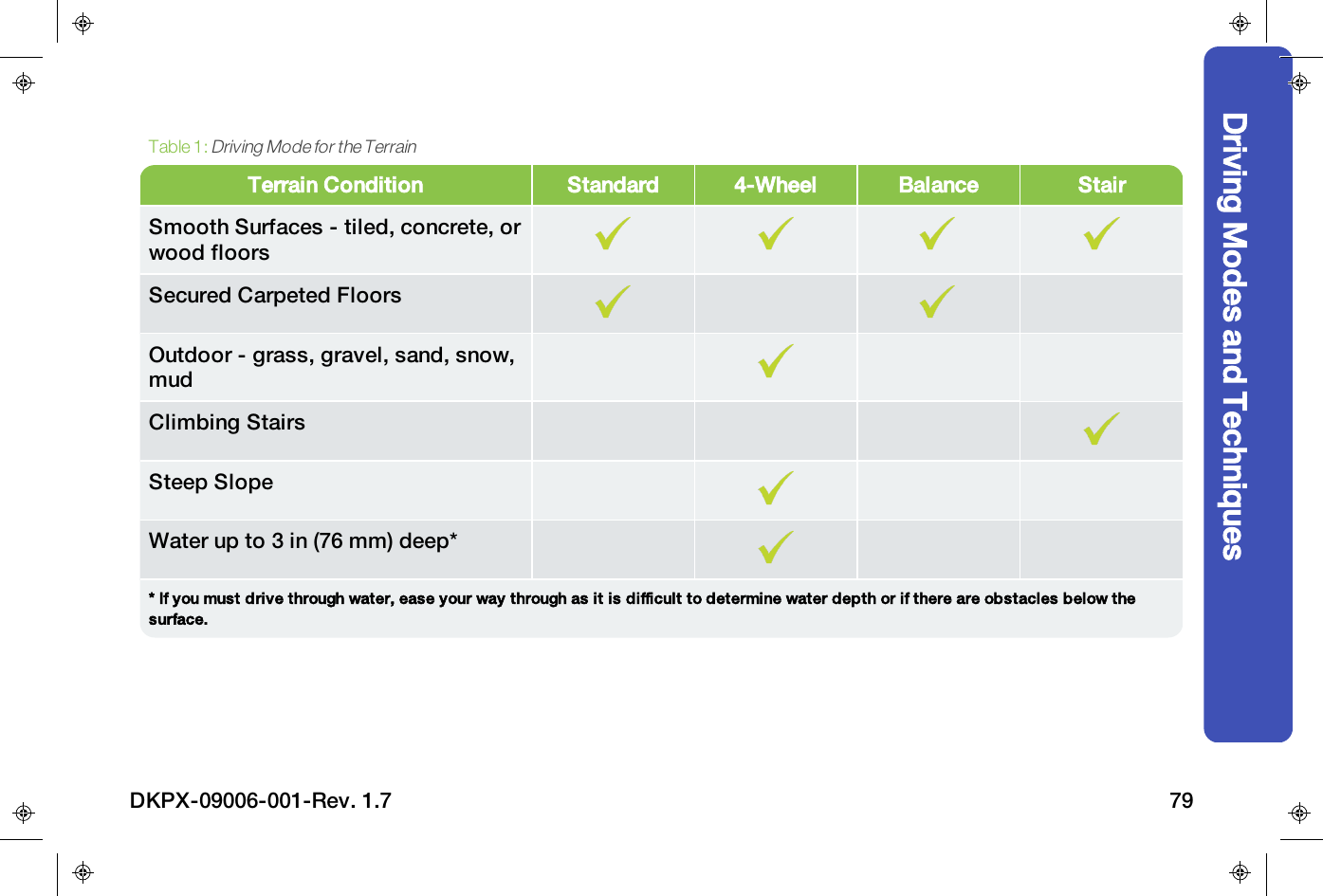
Terrain Condition Standard 4-Wheel Balance StairSmooth Surfaces - tiled, concrete, orwood floorsSecured Carpeted FloorsOutdoor - grass, gravel, sand, snow,mudClimbing StairsSteep SlopeWater up to 3 in (76 mm) deep** If you must drive through water, ease your way through as it is difficult to determine water depth or if there are obstacles below thesurface.Table 1:Driving Mode for the TerrainDriving Modes and TechniquesDKPX-09006-001-Rev. 1.7 79
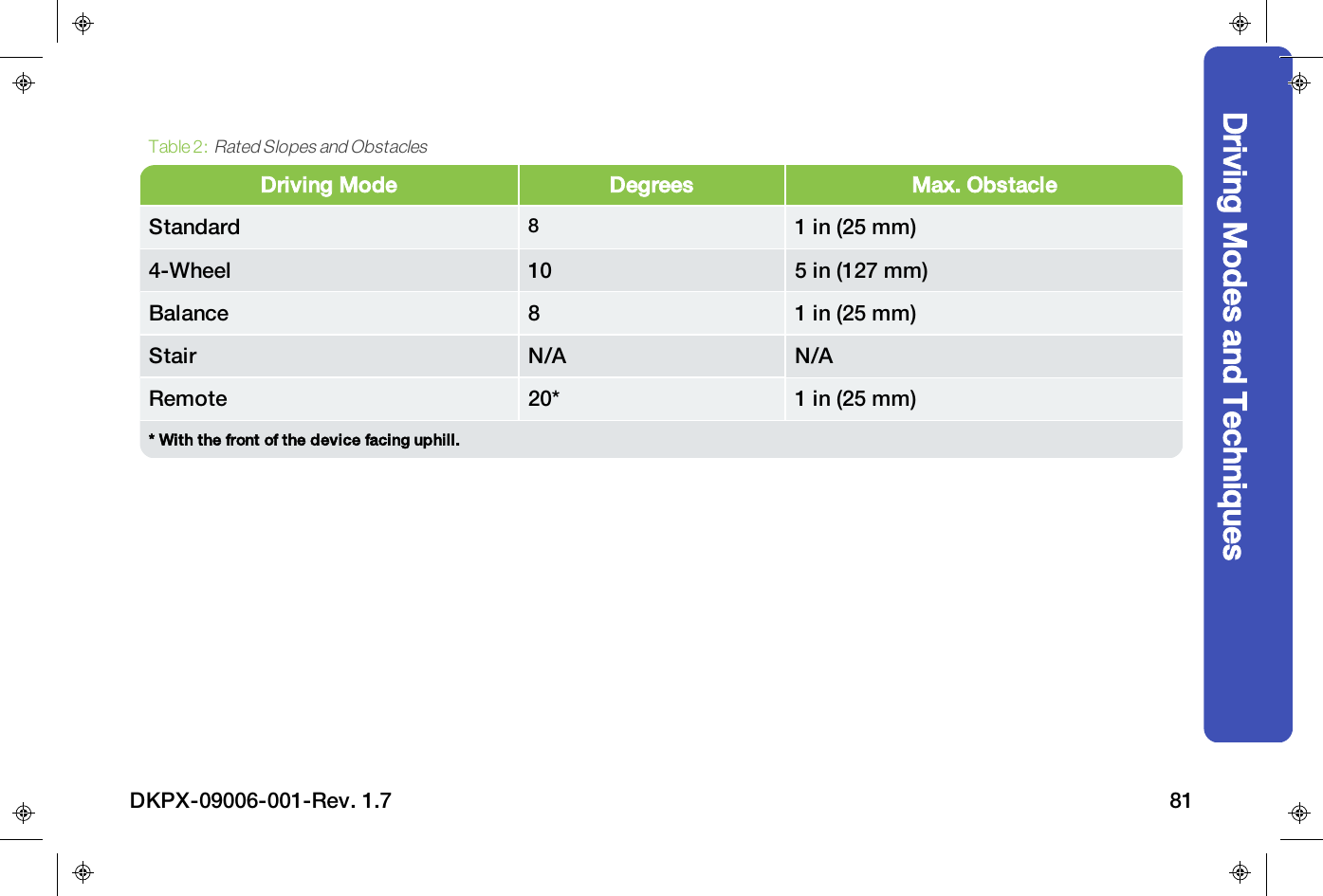
SLOPES AND OBSTACLESDue to the difficulty of assessing slope angles, care should be taken on any surface with an obviousslope. Consider proceeding at a slower speed when traveling on slopes within the specified limits.• Approach slopes straight on, so both front wheels line up with the edge of the slope.• Drive straight up and straight down.• It is advised not to turn the device on slopes. If you need to turn on a slope, use caution and lowerseat height to provide greater stability.• When driving in Remote mode, an unoccupied ibot must always face up the slope when ascendingand descending.• Care should be taken driving over any obstacles. The obstacle heights listed are for curb orthreshold-type obstacles. Where possible avoid any uneven obstacles, if approaching an unevenobstacle (ie roots) do so in 4-Wheel mode.Driving Modes and Techniques80 DKPX-09006-001-Rev. 1.7
Driving Mode Degrees Max. ObstacleStandard 81 in (25 mm)4-Wheel 10 5 in (127 mm)Balance 8 1 in (25 mm)Stair N/A N/ARemote 20* 1 in (25 mm)* With the front of the device facing uphill.Table 2:Rated Slopes and ObstaclesDriving Modes and TechniquesDKPX-09006-001-Rev. 1.7 81
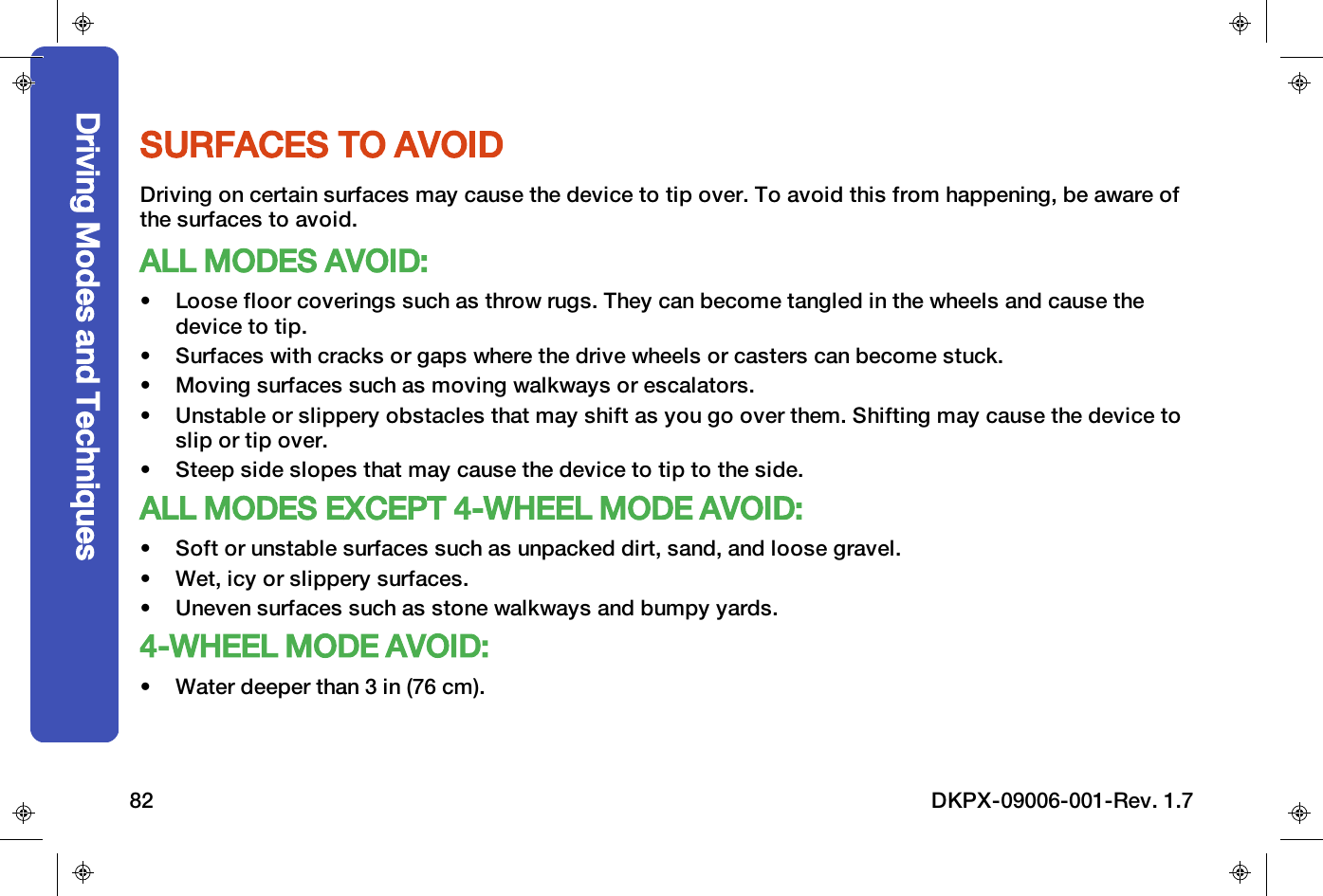
SURFACES TO AVOIDDriving on certain surfaces may cause the device to tip over. To avoid this from happening, be aware ofthe surfaces to avoid.ALL MODES AVOID:• Loose floor coverings such as throw rugs. They can become tangled in the wheels and cause thedevice to tip.• Surfaces with cracks or gaps where the drive wheels or casters can become stuck.• Moving surfaces such as moving walkways or escalators.• Unstable or slippery obstacles that may shift as you go over them. Shifting may cause the device toslip or tip over.• Steep side slopes that may cause the device to tip to the side.ALL MODES EXCEPT 4-WHEEL MODE AVOID:• Soft or unstable surfaces such as unpacked dirt, sand, and loose gravel.• Wet, icy or slippery surfaces.• Uneven surfaces such as stone walkways and bumpy yards.4-WHEEL MODE AVOID:• Water deeper than 3 in (76 cm).Driving Modes and Techniques82 DKPX-09006-001-Rev. 1.7
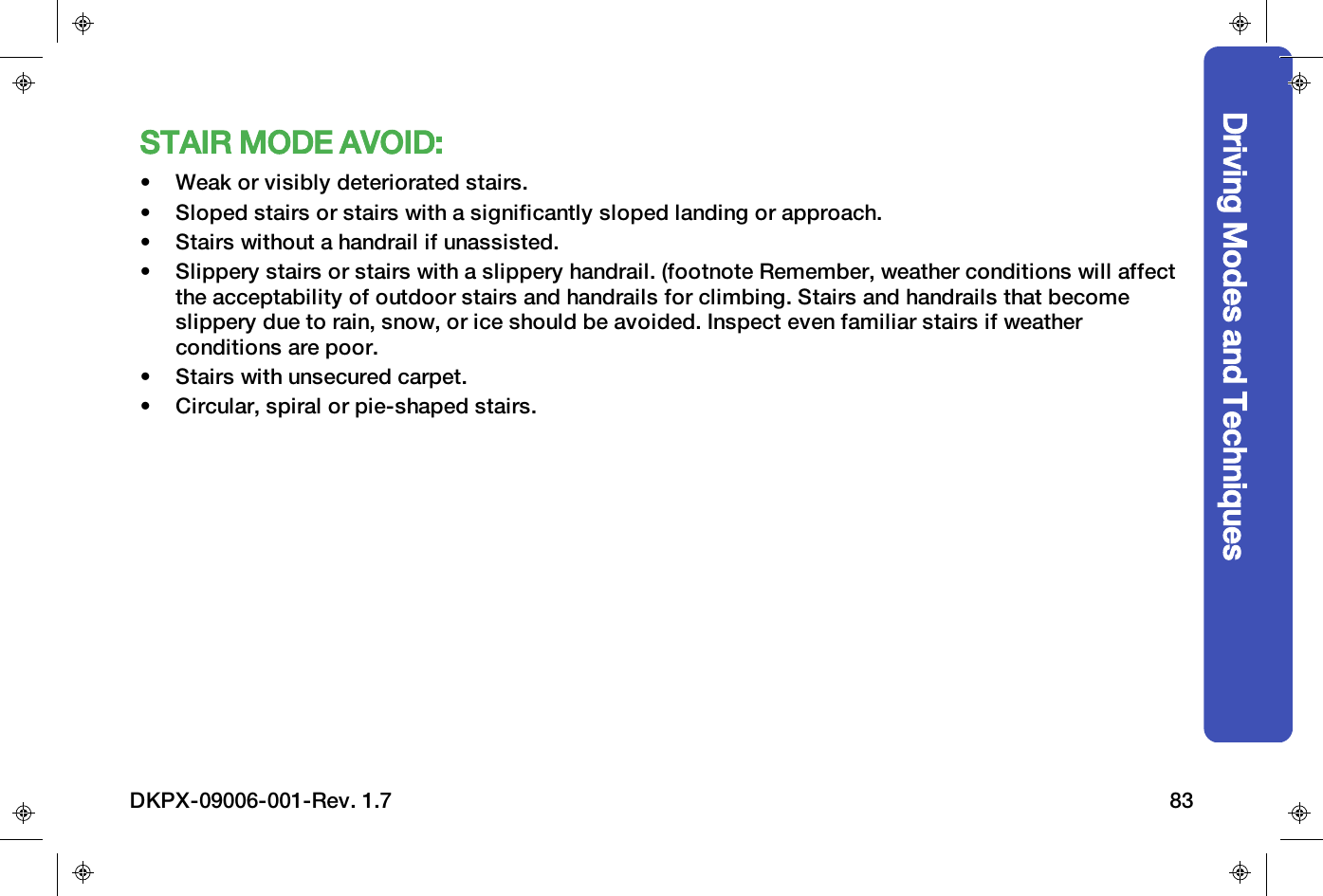
STAIR MODE AVOID:• Weak or visibly deteriorated stairs.• Sloped stairs or stairs with a significantly sloped landing or approach.• Stairs without a handrail if unassisted.• Slippery stairs or stairs with a slippery handrail. (footnote Remember, weather conditions will affectthe acceptability of outdoor stairs and handrails for climbing. Stairs and handrails that becomeslippery due to rain, snow, or ice should be avoided. Inspect even familiar stairs if weatherconditions are poor.• Stairs with unsecured carpet.• Circular, spiral or pie-shaped stairs.Driving Modes and TechniquesDKPX-09006-001-Rev. 1.7 83
STANDARD MODEStandard Modefulfills yourroutine driving needs forindoor and outdoorconditions with reasonablylevel surfaces, ADAcompliant ramps, and drivingover very low obstacles suchas door thresholds.The seat is at its lowest level to access a tableor desk.In Standard mode the device drives on the reardrive wheels and front caster wheels.CAUTIONIn Standard Mode, the front drive wheels are raised off of thedriving surface; however, they are still driven by the motors.Be aware of this condition when driving in tight spaces, as it ispossible for the front drive wheels to contact and potentiallyclimb an obstacle, causing the device to fall over.4-WHEEL MODE4-Wheel Modegives you theadvantage of four-wheel driveand makes it possible todrive across soft or looseterrain such as dirt, grass,and gravel as well as overobstacles and curbs. 4-Wheelmode is intended mainly foroutdoor use.In 4-Wheel mode the device drives on all fourdrive wheels with the caster wheels elevated.Because the casters are not in use in 4-Wheelmode driving, turning is not as smooth.WARNINGAlways be mindful of objects in front of and behind you whentransitioning into and out of 4-Wheel mode. Both your seatheight and legrest height will adjust during the transition, andcould become stuck under objects. Personal injury can occur.Driving Modes and Techniques84 DKPX-09006-001-Rev. 1.7
Driving Modes and TechniquesTERRAIN FOLLOWING4-Wheel Modeuses the iBalance technology tokeep the seat relatively level at all times. Thedevice will adjust as necessary to compensatefor changes due to slopes, obstacles, and curbs.Always be aware of your surroundings, as theseactions are an automatic response of the device.Make sure there is clear space available whennegotiating obstacles or stopping quickly.Adjustments in wheel speed and cluster positionmay occur under certain conditions such asleaning forward or backward, picking up objectsin front of the device, or climbing down anobstacle.4-WHEEL DRIVINGTECHNIQUEWhen turning, be aware of your available space,specifically for legrests and the assist handle.These components can get caught on objects inthe environment.If the device gets stuck while turning in 4-Wheelmode, lower the seat height or transition toStandard mode to release the device. Then moveto an area with greater turning space.DKPX-09006-001-Rev. 1.7 85
CLIMBING UP OBSTACLES1. Make sure the obstacle you are about toclimb are within the acceptable obstacleheight.See Table 2 on page812. Raise the seat until the casters and/orfootplates are high enough to clear theobstacle.3. Approach the obstacle straight on.Remember, the iBalance technology doesnot provide side-to-side stability.4. Start from about an inch away and use asteady, moderate speed to climb up theobstacle.5. If you have a hard time driving up anobstacle, back up a few inches and tryagain. If you continue to have difficulty, findanother route.CLIMBING DOWNOBSTACLES1. Approach the obstacle straight on.Remember, the iBalance technology doesnot provide side-to-side stability.2. Releasing the joystick after the first set ofwheels has dropped off the obstaclecreates the smoothest movement andminimizes forward travel.3. Slowly drive forward until the second set ofwheels drops off to maintain the smoothclimb down.Driving Modes and Techniques86 DKPX-09006-001-Rev. 1.7
Driving Modes and TechniquesBALANCE MODEBalance Modeenables you toreach things at greater heightand enjoy conversations withpeople at eye level. You mayuse Balance mode when youwant to move and interact ateye level with people who arewalking or standing as longas you are operating withinappropriate balance mode environments.See"Environments For Use" on page78.WARNINGAvoid obstacles that can lead to a footrest being stuck inBalance Mode.WARNINGNever transition into, or drive in Balance Mode on wet, uneven,unstable or slippery surfaces. The ibot uses traction tomaintain its balance, and could slip on some surfaces.WARNINGWhen transitioning into or out of Balance mode, make sure youhave at least 6 feet (1.8 meters) of clearance space in the front,and back and adequate head clearance. If the device isobstructed during transition, unexpected movement mayoccur.Ditheringis the slow, continuous, back-and-forthmovement of the drive wheels in Balance mode.The iBalance technology makes small changesto keep you balanced.Note these features:• The iBalance technology is active.• The ibot balances you in the forward andbackward directions on two of four drivewheels.• The clusters rotate the drive wheels to avertical position.• You steer, control speed, and stop by usingthe joystick.DKPX-09006-001-Rev. 1.7 87
When carrying personal items on the back of theseat, the ibot may transition from 4-Wheel toBalance Mode as soon as the seat is tiltedbackward. Make sure all items are clear of thewheels and wheel clusters, and don't drag on theground during transition.BALANCE DRIVINGTECHNIQUEBefore transitioning intoBalance Modetake afew seconds to scan your environment as thedevice will change position as you transition.Device components such as your assist handleand legrests may be at the height of obstacles.The iBalance technology does not control yourside-to-side stability. You are only stabilized inthe forward and backward directions when youare on two wheels.If you are in Balance mode in an area with manyother people, recognize that yourpersonal spaceis greater than when you are in other modes. InBalance mode, yourspaceneeds toaccommodate the device and enough room toditheror react to your shifting weight.Driving Modes and Techniques88 DKPX-09006-001-Rev. 1.7
Driving Modes and TechniquesYou can turn the ibot in a tight circle inBalanceMode. Before turning, be sure to check theenvironment. In Balance mode, your feet arehigher off the ground and may get caught onobstacles. You may want to adjust your seat inBalance mode before turning to reduce thepotential of getting your feet or assist handlestuck.See "Balance Toe Stuck" on page91.If you are not driving, it is recommended that youuse the Speed Setting 0 to deactivate thejoystick to prevent any unintentional movement.WARNINGAvoid rapid body movements while in Balance Mode.In Balance mode be aware that the device will move withoutjoystick input as it responds to changes in your body position.Rapid movements forward and backward (dancing) may causethe device to react automatically to keep you upright andautomatically transition from Balance mode to 4-Wheel mode.WARNINGBalance mode requires a greater stopping distance than othermodes. Braking without considering the required stoppingdistance, could result in personal injury. Always be aware ofthe needed braking distance and reduce your speed incongested or confined areas.WARNINGBe careful when using Balance Mode in small spaces. Your feetand device parts are higher than usual, and are now at shelfand table height. Avoid getting your feet or parts of the devicestuck. If stuck, personal injury or death could result.DKPX-09006-001-Rev. 1.7 89
STABILITYWhen driving in Balance mode, be particularlyaware of your side-to-side stability. You are nowriding in a position higher above the ground,which raises your center of gravity so that youare not as stable as when the seat is in Standardmode. Balance Mode relies on traction to keepyou upright, so you must be aware of thesurfaces you drive on.It is recommended that you adjust your seat tothe lowest position when driving in Balancemode. The ability to raise your seat in Balancemode is designed to assist you in reachingobjects. As a safety precaution, your drivingspeed will be reduced when the seat is inelevated positions. To resume normal drivingspeed, lower the seat height to its lowestposition.AUTOMATIC TRANSITIONAnAutomatic Transitionoccurs when theproduct automatically changes its operationfromBalance Modeto4-Wheel Mode. It willautomatically lower the raised set of drivewheels to the ground in an effort to maintainstability.WARNINGAuto Transitions out of Balance Mode can be jarring. Frailusers should not use Balance Mode.Automatic Transitions may occur in the followingsituations:• Warning conditions, such as low batterypower and overheating.• Loss of stability due to unacceptable terrain.If you try to drive in Balance mode onsurfaces that are not level or slip-resistant,the product may lose stability.Driving Modes and Techniques90 DKPX-09006-001-Rev. 1.7
Driving Modes and Techniques• A large shift in center-of-gravity. This couldresult from someone pushing or pulling onthe product. Carrying a heavy object, eitheron the back of the seat or in one's lap, couldcause an automatic transition.WARNINGAvoid obstacles, slick surfaces, or excessive rocking when inBalance Mode. The device may transition automatically to 4-Wheel mode if you run into an obstacle, lose traction, or if alarge change in your center of gravity takes place while moving(excessive rocking forward and back).WARNINGRespond promptly to warnings when in balance mode. Thedevice may automatically transition if the battery is too low oranother fault occurs.WARNINGAn automatic transition will occur without warning or regard forenvironmental factors. You or others near you could be injuredduring an automatic transition.BALANCE TOE STUCKIf your legrest or assist handle becomes stuckunder an object in balance mode, follow thesesteps to resolve the issue.1. Use the seat tilt adjustment to lean forwardor back as necessary to help free you fromthe object.2. If the seat tilt adjustment reaches its end oftravel, and you are still not free, release thejoystick or shortcut control and then reapplythe seat tilt adjustment.There may be an audible tone while thisoccurs and, if you hold continuously, thedevice will transition to 4-Wheel mode.3. If you are still stuck, seek externalassistance to stabilize the device andinitiate a Forced Power Off.DKPX-09006-001-Rev. 1.7 91
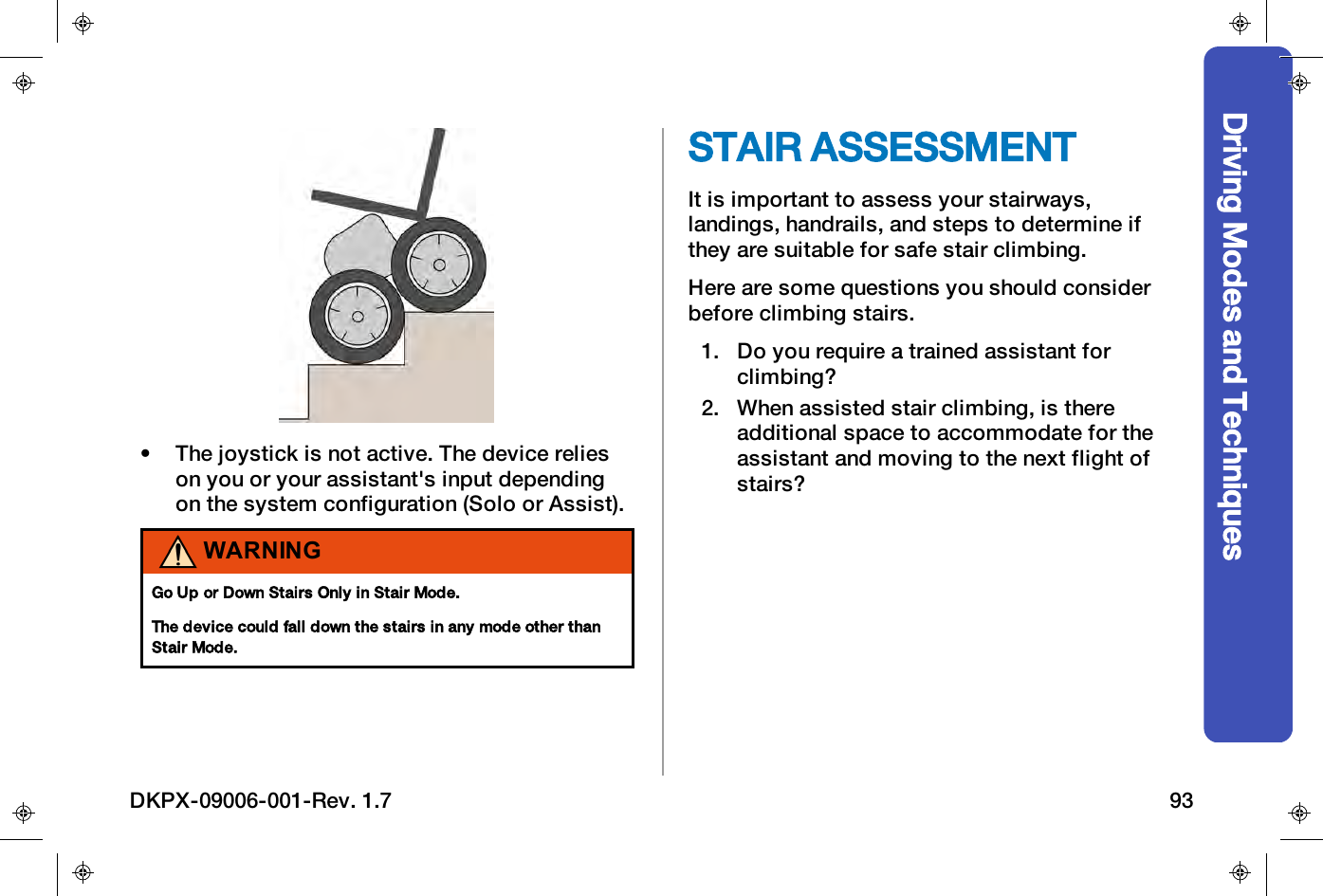
Note: If you are in Balance mode followinstructions fromCommunication Losttotransition onto four wheels.See"Communication Lost" on page171.WARNINGOperating the Forced Power OFF when in Balance or Stairmode can cause the device to fall over.The device will fall unless someone is capable of keeping itupright in Balance mode or you or your assistant can hold ontothe handrail or assist handle in Stair mode.4. Contact Technical Support.STAIR MODEStair Mode allows you toclimb up and down indoorand outdoor stairs.Your Clinician will set youribot to climb stairs only aftertraining. The Clinician canconfigure the chair with anyof the following settings:• Stair Off• Solo Stair Climbing Mode• Assistant Stair Climbing Mode.When you solo stair climb, you may needoccasional assistance. It is stronglyrecommended that a trained assistant beavailable to help you as needed.Note these features:• The iBalance technology is active.• The clusters rotate the drive wheels overeach other in order to climb.Driving Modes and Techniques92 DKPX-09006-001-Rev. 1.7
Driving Modes and Techniques• The joystick is not active. The device relieson you or your assistant's input dependingon the system configuration (Solo or Assist).WARNINGGo Up or Down Stairs Only in Stair Mode.The device could fall down the stairs in any mode other thanStair Mode.STAIR ASSESSMENTIt is important to assess your stairways,landings, handrails, and steps to determine ifthey are suitable for safe stair climbing.Here are some questions you should considerbefore climbing stairs.1. Do you require a trained assistant forclimbing?2. When assisted stair climbing, is thereadditional space to accommodate for theassistant and moving to the next flight ofstairs?DKPX-09006-001-Rev. 1.7 93
HANDRAILSFor allHandrailtypes you will need to assess thefollowing:• Handrails must be strong and fastenedsecurely.• Handrails must extend beyond the top stepapproximately 6 in (152 mm).• The handrails must not have gaps largeenough to interfere with safe stair climbing.• Handrails should not be slippery.WARNINGNever go up or down stairs unassisted if there is not at leastone strong, secure handrail throughout the ascent or descent.Inability to safely use at least one acceptable handrail whensolo-stair climbing may result in loss of control of device.Personal injury or death could result.Driving Modes and Techniques94 DKPX-09006-001-Rev. 1.7
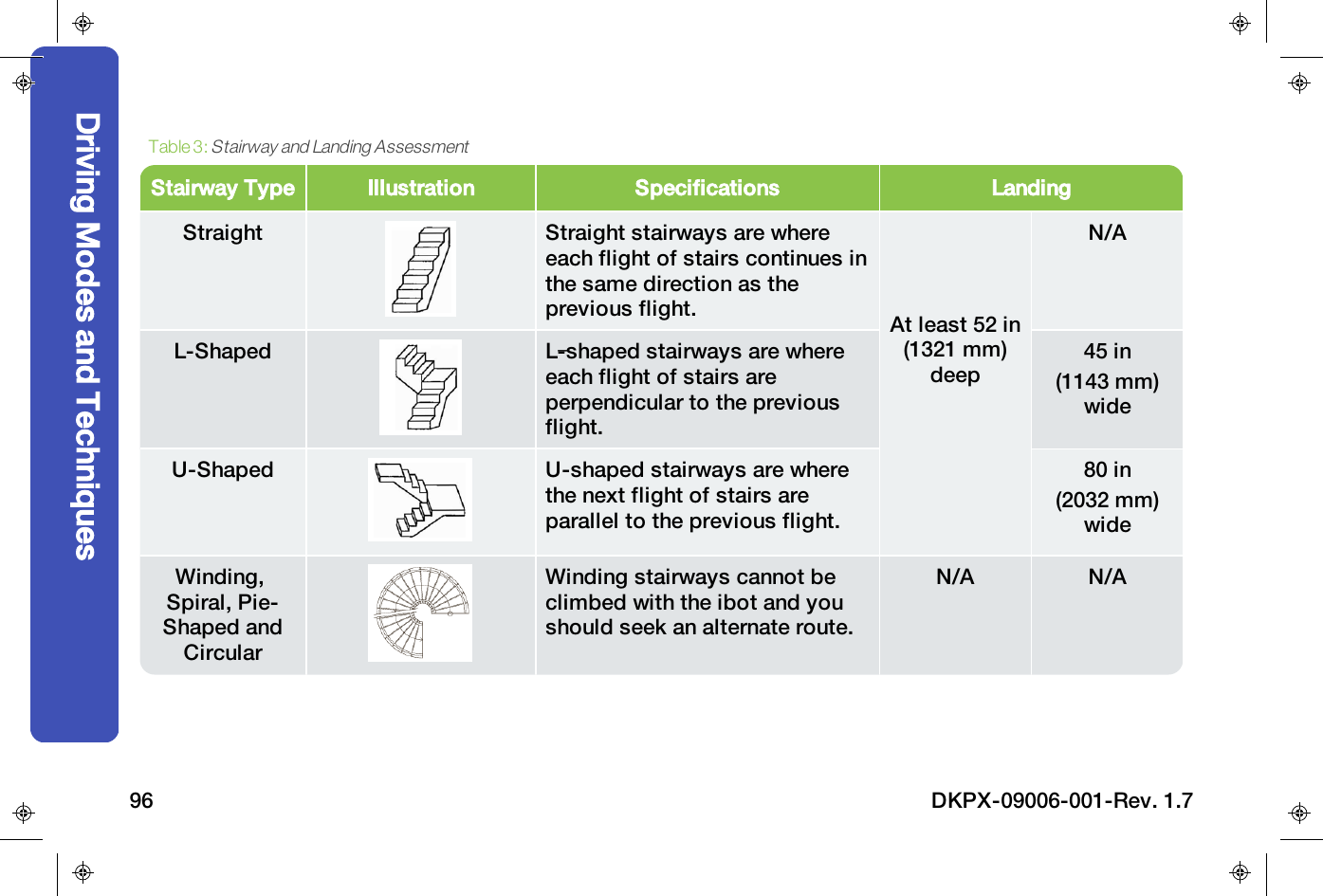
STAIRWAYS AND LANDINGSFor allStairwayandLandingtypes you will need to assess the following:• Stairway is flat and level and at least 30 in (762 mm) wide• Landing is flat and level and at least 52 in (1320.8 mm) deep• Stairs are strong enough to support you, the device, your accessories, and an assistant (if needed).Driving Modes and TechniquesDKPX-09006-001-Rev. 1.7 95
Stairway Type Illustration Specifications LandingStraight Straight stairways are whereeach flight of stairs continues inthe same direction as theprevious flight. At least 52 in(1321 mm)deepN/AL-Shaped L-shaped stairways are whereeach flight of stairs areperpendicular to the previousflight.45 in(1143 mm)wideU-Shaped U-shaped stairways are wherethe next flight of stairs areparallel to the previous flight.80 in(2032 mm)wideWinding,Spiral, Pie-Shaped andCircularWinding stairways cannot beclimbed with the ibot and youshould seek an alternate route.N/A N/ATable 3:Stairway and Landing AssessmentDriving Modes and Techniques96 DKPX-09006-001-Rev. 1.7
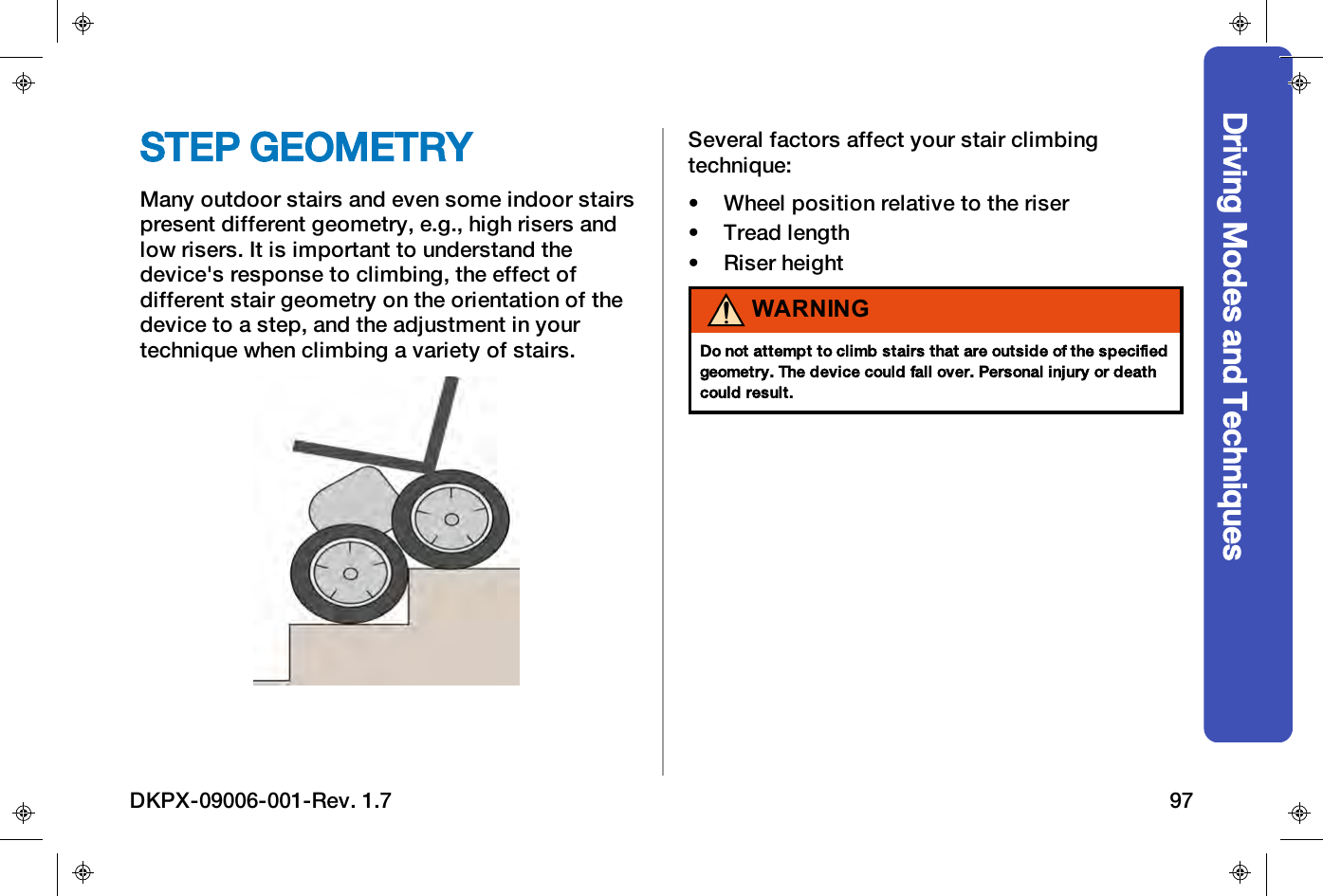
Driving Modes and TechniquesSTEP GEOMETRYMany outdoor stairs and even some indoor stairspresent different geometry, e.g., high risers andlow risers. It is important to understand thedevice's response to climbing, the effect ofdifferent stair geometry on the orientation of thedevice to a step, and the adjustment in yourtechnique when climbing a variety of stairs.Several factors affect your stair climbingtechnique:• Wheel position relative to the riser• Tread length• Riser heightWARNINGDo not attempt to climb stairs that are outside of the specifiedgeometry. The device could fall over. Personal injury or deathcould result.DKPX-09006-001-Rev. 1.7 97
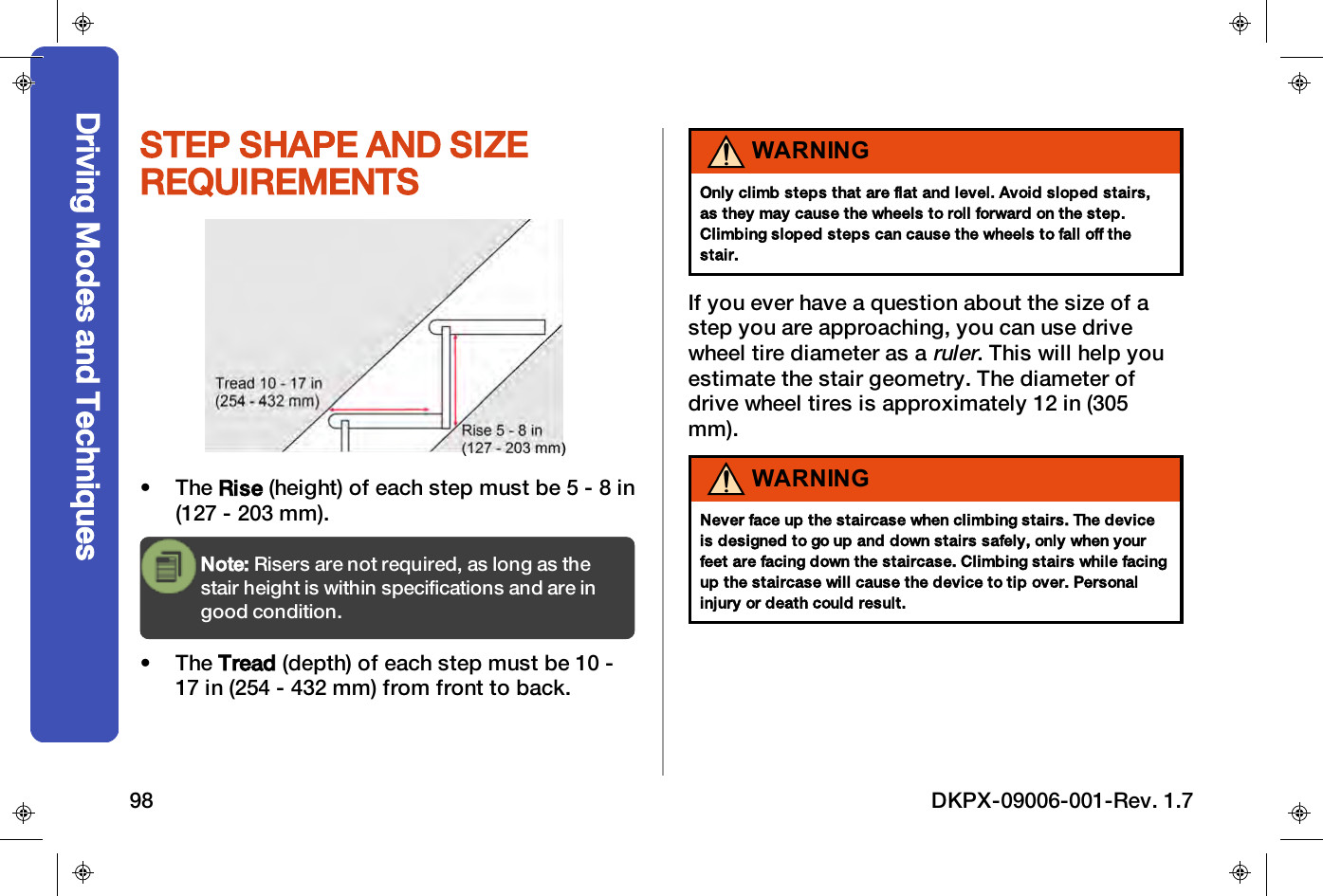
STEP SHAPE AND SIZEREQUIREMENTS• The Rise (height) of each step must be 5 - 8 in(127 - 203 mm).Note: Risers are not required, as long as thestair height is within specifications and are ingood condition.• The Tread (depth) of each step must be 10 -17 in (254 - 432 mm) from front to back.WARNINGOnly climb steps that are flat and level. Avoid sloped stairs,as they may cause the wheels to roll forward on the step.Climbing sloped steps can cause the wheels to fall off thestair.If you ever have a question about the size of astep you are approaching, you can use drivewheel tire diameter as aruler. This will help youestimate the stair geometry. The diameter ofdrive wheel tires is approximately 12 in (305mm).WARNINGNever face up the staircase when climbing stairs. The deviceis designed to go up and down stairs safely, only when yourfeet are facing down the staircase. Climbing stairs while facingup the staircase will cause the device to tip over. Personalinjury or death could result.Driving Modes and Techniques98 DKPX-09006-001-Rev. 1.7
Driving Modes and TechniquesWARNINGNever climb stairs with items hanging on the back. The itemscould become stuck between the backrest and the stairs orfall off and cause the device to fall down the stairs. Place itemssecurely in your lap. Personal injury or death could result.LOW RISEThe cluster position is closer to horizontal, so ithas a longer arc of rotation. It may require moreeffort (a slightly bigger CG shift) to raise thecluster to the vertical position.You need to control the cluster longer before itreaches the next step.HIGH RISEThe cluster position is closer to vertical. Thecluster will take less effort to start climbing. Youwill need to shift your weight back more quicklyto slow down the cluster and ensure a smoothlanding.LONG TREADSWith longer tread lengths, >17 in (432 mm), thefour drive wheels almost fit on the stair tread.Climbing up, you need to snug the wheel upagainst the riser before initiating cluster rotation.Climbing down, you need to let the front drivewheel move down to the next step. If the frontdrive wheel does not move, do not force thefront drive wheel over the edge. The stair tread istoo long and you should proceed in 4-Wheelmode.DKPX-09006-001-Rev. 1.7 99
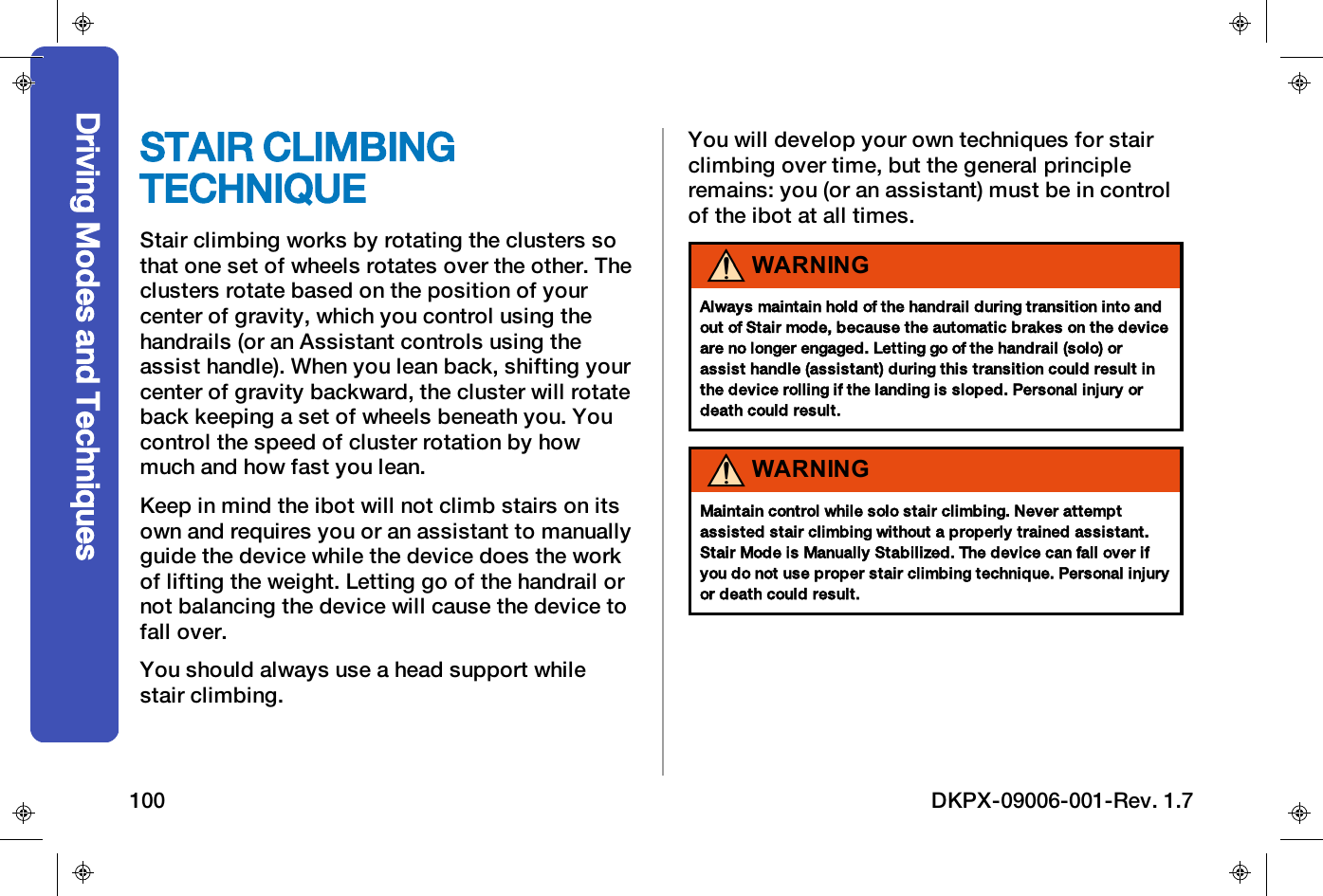
STAIR CLIMBINGTECHNIQUEStair climbing works by rotating the clusters sothat one set of wheels rotates over the other. Theclusters rotate based on the position of yourcenter of gravity, which you control using thehandrails (or an Assistant controls using theassist handle). When you lean back, shifting yourcenter of gravity backward, the cluster will rotateback keeping a set of wheels beneath you. Youcontrol the speed of cluster rotation by howmuch and how fast you lean.Keep in mind the ibot will not climb stairs on itsown and requires you or an assistant to manuallyguide the device while the device does the workof lifting the weight. Letting go of the handrail ornot balancing the device will cause the device tofall over.You should always use a head support whilestair climbing.You will develop your own techniques for stairclimbing over time, but the general principleremains: you (or an assistant) must be in controlof the ibot at all times.WARNINGAlways maintain hold of the handrail during transition into andout of Stair mode, because the automatic brakes on the deviceare no longer engaged. Letting go of the handrail (solo) orassist handle (assistant) during this transition could result inthe device rolling if the landing is sloped. Personal injury ordeath could result.WARNINGMaintain control while solo stair climbing. Never attemptassisted stair climbing without a properly trained assistant.Stair Mode is Manually Stabilized. The device can fall over ifyou do not use proper stair climbing technique. Personal injuryor death could result.Driving Modes and Techniques100 DKPX-09006-001-Rev. 1.7
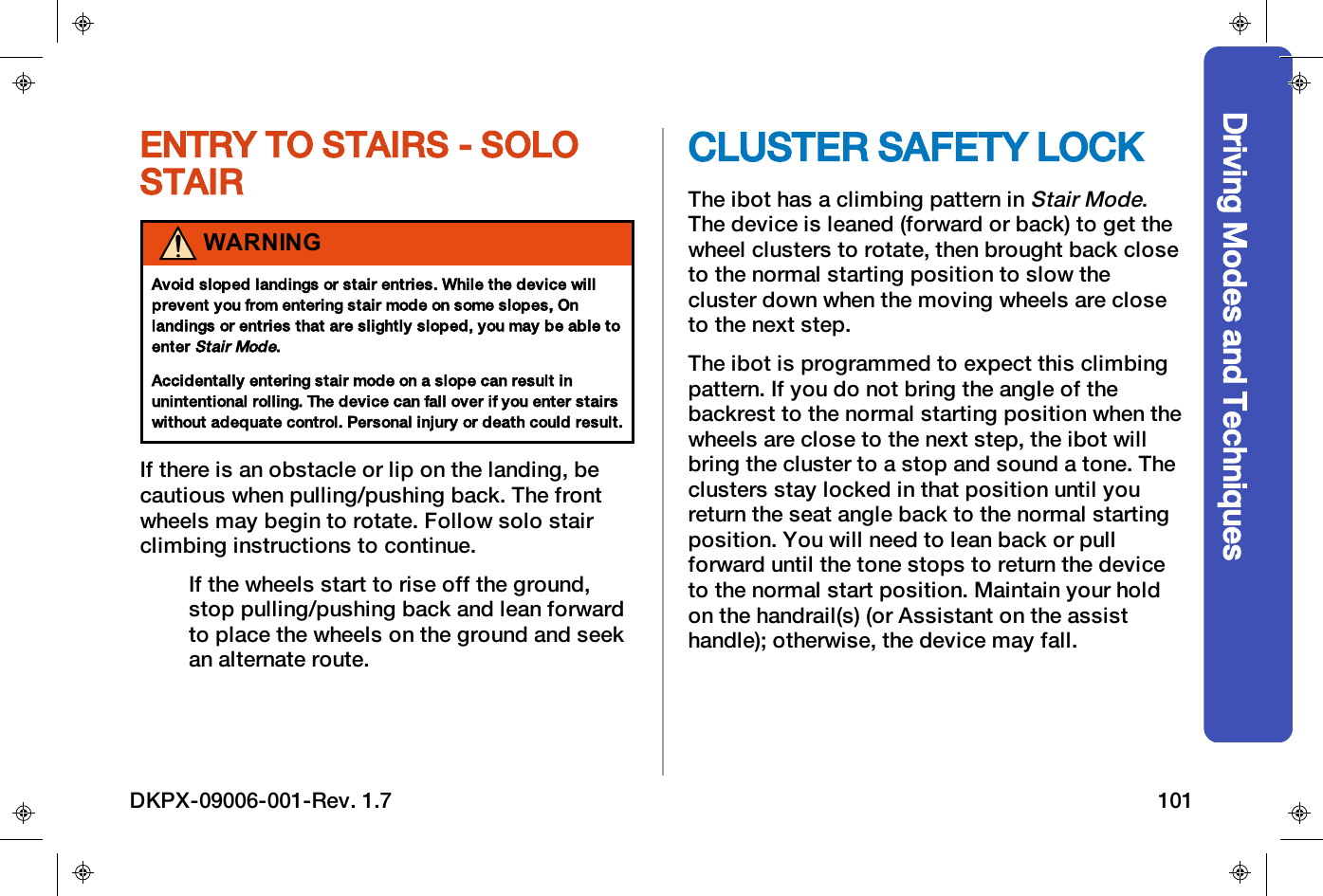
Driving Modes and TechniquesENTRY TO STAIRS - SOLOSTAIRWARNINGAvoid sloped landings or stair entries. While the device willprevent you from entering stair mode on some slopes, Onlandings or entries that are slightly sloped, you may be able toenterStair Mode.Accidentally entering stair mode on a slope can result inunintentional rolling. The device can fall over if you enter stairswithout adequate control. Personal injury or death could result.If there is an obstacle or lip on the landing, becautious when pulling/pushing back. The frontwheels may begin to rotate. Follow solo stairclimbing instructions to continue.If the wheels start to rise off the ground,stop pulling/pushing back and lean forwardto place the wheels on the ground and seekan alternate route.CLUSTER SAFETY LOCKThe ibot has a climbing pattern inStair Mode.The device is leaned (forward or back) to get thewheel clusters to rotate, then brought back closeto the normal starting position to slow thecluster down when the moving wheels are closeto the next step.The ibot is programmed to expect this climbingpattern. If you do not bring the angle of thebackrest to the normal starting position when thewheels are close to the next step, the ibot willbring the cluster to a stop and sound a tone. Theclusters stay locked in that position until youreturn the seat angle back to the normal startingposition. You will need to lean back or pullforward until the tone stops to return the deviceto the normal start position. Maintain your holdon the handrail(s) (or Assistant on the assisthandle); otherwise, the device may fall.DKPX-09006-001-Rev. 1.7 101
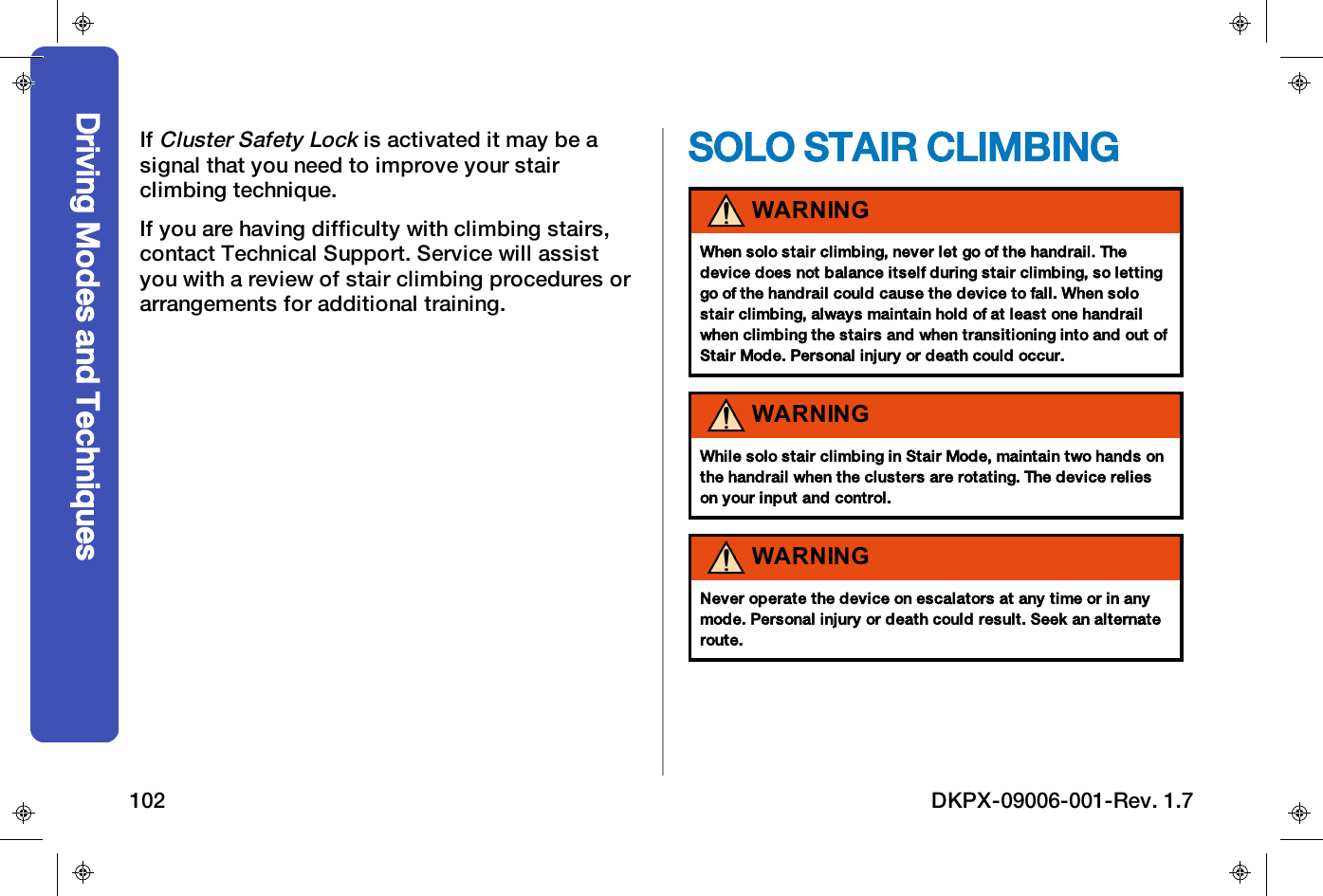
IfCluster Safety Lockis activated it may be asignal that you need to improve your stairclimbing technique.If you are having difficulty with climbing stairs,contact Technical Support. Service will assistyou with a review of stair climbing procedures orarrangements for additional training.SOLO STAIR CLIMBINGWARNINGWhen solo stair climbing, never let go of the handrail. Thedevice does not balance itself during stair climbing, so lettinggo of the handrail could cause the device to fall. When solostair climbing, always maintain hold of at least one handrailwhen climbing the stairs and when transitioning into and out ofStair Mode. Personal injury or death could occur.WARNINGWhile solo stair climbing in Stair Mode, maintain two hands onthe handrail when the clusters are rotating. The device relieson your input and control.WARNINGNever operate the device on escalators at any time or in anymode. Personal injury or death could result. Seek an alternateroute.Driving Modes and Techniques102 DKPX-09006-001-Rev. 1.7
Driving Modes and TechniquesWARNINGAvoid climbing up or down stairs that are crowded. Personalinjury or death could result. Make sure the path to climb up ordown is clear before starting to climb.WARNINGWeak stairs may collapse. Never operate the device on stairsthat show any signs of weakness or cannot support 550 lbs.(249 kg), including the device, you, your accessories, andpersonal items. Personal injury or death could result.WARNINGUse only handrails that extend beyond the top step by at least6 in (152 mm). Do not attempt to go downstairs unassisted ifyou cannot comfortably reach the handrail(s) with your seatleaning back, and the front edges of the drive wheel tires atleast 6 in (152 mm) from the edge of the top landing.WARNINGDo not switch to 4-Wheel mode until at least one set of wheelsis on the landing. The device can fall over if you drive downstairs in 4-Wheel mode. Personal injury or death could result.SOLO CLIMBING UPSTAIRS1. Check stair and handrail condition andgeometry before you start to climb.2. Place items securely in your lap whileascending.3. Verify you are in Standard or 4-Wheel Mode.4. Drive the device towards the bottom stepso that both rear drive wheels are about 1 in(25 mm) away from the bottom step.If you plan to use just one handrail, positionyourself within comfortable reach of thehandrail.If you use two handrails, center yourselfbetween the two handrails.5. Grasp the handrail with one hand.6. With the other hand push the Menu button .7. Move the joystick LEFT or RIGHT tohighlight Stair mode .DKPX-09006-001-Rev. 1.7 103
8. Move the joystick FORWARD and HOLD totransition toStair mode.At this point you need to confirm whetheryou are holding the handrail or not.9. Hold the handrail and select the Handrailwith the Check Mark icon.If you select thehandrail with an Xicon, thechair will automatically transition back to 4-Wheel mode.10. Maintain your grasp on the handrail toprevent any rolling.Driving Modes and Techniques104 DKPX-09006-001-Rev. 1.7
Driving Modes and Techniques11. Use the handrail to slowly pull straight backin order to roll the rear wheels snug againstthe rise of the step.12. Be aware of hand placement. With one hand,grasp the handrail from underneath (palmfacing up), and with the other hand grasp thehandrail from the top (palm facing down).This hand placement should be used forboth one-rail and two-rail climbing.WARNINGDo not switch handrails while solo stair climbing in Stair Mode.13. Shift your center of gravity back by leaningagainst the backrest, and while pushingagainst the handrail(s) with one hand, pullwith the other. The clusters will rotate inresponse.14. As the clusters rotate to the point where oneset of wheels is nearly on top of the other,lean slightly forward and pull on the handrail(s) to shift your center of gravity forward.Leaning slightly forward will cause theclusters to complete the rotation with thewheels landing softly on the next step. Asmooth and continuous rotation of theclusters is required when climbing up stairs.15. Slide your hand up along the handrail untilyou are in a comfortable position. RepeatStep 13to continue climbing up the stairs.16. On the last step, when the rear set of wheelsis on the landing, it is important to checkthe landing for bumps or thresholds.If the device doesn't roll back smoothlyonto the landing, stop, climb downstairs,and find an alternate route.WARNINGLandings should be flat. Bumps or thresholds on a landing maybe treated as another step by the ibot. The cluster could beginto rotate over the bump (as if it were another step). If thedevice does not roll smoothly, stop and find another route.17. Use the handrail to help slowly pull back(not down) onto the landing.DKPX-09006-001-Rev. 1.7 105
The front wheels will roll onto the landing.18. Continue to push and roll the device backuntil the 4-Wheel mode is displayed on theuser controller.19. Select Speed 1 or 2or press thePower/Quick Stop button to continuedriving.20. Carefully drive away from the stairs.SOLO CLIMBINGDOWNSTAIRS1. Check stair and handrail condition andgeometry before you start to climb.2. Place items securely in your lap whiledescending.3. Verify you are in Standard or 4-Wheel Mode.4. Stop when the casters or front drive wheelsare 6 - 8 in (152 - 203 mm) from the edge ofthe top landing.If you plan to use just one handrail, positionyourself within comfortable reach of thehandrail.If you use two handrails, center yourselfbetween the two handrails.5. Grasp the handrail with one hand.6. With the other hand push the Menu button .7. Move the joystick LEFT or RIGHT tohighlight Stair mode .Driving Modes and Techniques106 DKPX-09006-001-Rev. 1.7
Driving Modes and Techniques8. Move the joystick FORWARD and HOLD totransition to Stair mode.At this point you need to confirm whetheryou are holding the handrail or not.9. Hold the handrail and select the Handrailwith the Check Mark icon.If you select thehandrail with an Xicon, thechair will automatically transition back to 4-Wheel mode.DKPX-09006-001-Rev. 1.7 107
10. Go down the first step by moving the deviceslowly forward using the handrail(s) as aguide.11. Allow the front wheels to roll off the landingso they are on the step, while the rearwheels remain on the landing.12. Be aware of hand placement. One handposition needs to grasp the handrail fromunderneath (palm facing up), while the otherhand grasps from on top (palm facingdown).WARNINGDo not switch handrails while solo stair climbing in Stair Mode.13. To go down the next step, shift your centerof gravity forward by leaning slightlyforward and pulling/pushing on the handrail.The clusters will rotate in response to yourforward lean.14. Use the handrail(s) to help you control yourlean.15. As the clusters rotate to the point where onewheel is nearly on top of the other, shiftyour center of gravity backward by leaningagainst the backrest.Leaning against the backrest will cause theclusters to complete the rotation with thewheels landing softly on the next step.A smooth and continuous rotation of theclusters is required when climbing downstairs.16. Slide your hand down along the handrailuntil you are in a comfortable position.17. Repeat fromStep 13to continue goingdown the stairs.18. When you come off the last step to theground, slow the cluster rotation. This canhelp prevent a bounce when landing.If you have difficulty preventing the bounceat the last step, you are able to transition to4-Wheel mode while on the final step anddrive off.Driving Modes and Techniques108 DKPX-09006-001-Rev. 1.7
Driving Modes and TechniquesWARNINGDo not switch to 4-Wheel mode until at least one set of wheelsis on the landing. The device can fall over if you drive downstairs in 4-Wheel mode. Personal injury or death could result.19. When you have finished descending thestairs, all four wheels should be on theground and you can transition to 4-Wheel orStandard mode.20. Select Speed 1 or 2or press thePower/Quick Stop button to continuedriving.21. Carefully drive away from the stairs.ASSISTED STAIRCLIMBINGAssistants should be trained to fully understandhow the ibot climbs stairs and be able toperform their stair climbing tasks.The assistant uses the assist handle to guidestair climbing by shifting the device's center ofgravity. The assistant does this by tilting thedevice slightly forward and backward atappropriate times.WARNINGThe assistant may get caught on the riser of the step if thedevice is allowed to lean too far back. The device could falldown the stairs. Personal injury or death could result. Makesure there is clearance between the assist handle and thesteps when leaning back.DKPX-09006-001-Rev. 1.7 109
WARNINGThe assistant must never let go of the assist handle whenclimbing or going down stairs. The device could fall over.Personal injury or death could result. Hold the assist handlecontinuously when guiding the ibot in stair climbing.WARNINGNever operate the device on stairs that show any signs ofweakness or cannot support the combined weight of thedevice, you, the assistant, your accessories and packages.Weak stairs may collapse. Personal injury or death couldresult.WARNINGNever operate the device on escalators at any time or in anymode. Personal injury or death could result. Seek an alternateroute.WARNINGAvoid climbing up or down stairs that are crowded. Personalinjury or death could result. Make sure the path to climb up ordown is clear before starting to climb.WARNINGDo not switch to 4-Wheel mode until at least one set of wheelsis on the landing. The device can fall over if you drive downstairs in 4-Wheel mode. Personal injury or death could result.CAUTIONComponents in the seat or base can pinch or trap anassistant’s hand while assisted stair climbing. The assistantshould keep their hands only on the assist handle.Driving Modes and Techniques110 DKPX-09006-001-Rev. 1.7
Driving Modes and TechniquesASSISTED CLIMBINGUPSTAIRS1. Check stair condition and geometry beforeyou start to climb.2. Place items securely in your lap whileascending.3. Verify you are in Standard or 4-Wheel Mode.4. Drive the device towards the bottom stepso that both rear drive wheels are about 1 in(25 mm) away from the bottom step.5. The assistant should grasp the assisthandle in one of three ways, based onhis/her comfort:- Both hands pronated (palm down).- One hand supinated (palm up), the otherpronated.- One hand on top of handle, the other on theupright tube of the handle.6. The assistant should maintain a firm graspon the assist handle throughout stairclimbing to prevent any unintentionalrolling.7. Push the Menu button .8. Move the joystick LEFT or RIGHT tohighlight Stair mode.At this point you need to confirm whetheryour assistant is ready or not.DKPX-09006-001-Rev. 1.7 111
9. Highlight the Assisted Stair with the CheckMark icon.If you select theAssisted Stair with an Xicon, you will return to the mode selectionscreen.10. Move the joystick FORWARD and HOLD totransition to Stair mode.11. The assistant slowly pulls the devicestraight back to roll the rear wheel snugagainst the rise of the step.12. Adjust your seat height to the position thatallows the assistant to control the devicesafely.13. The assistant should position themselvescomfortably and at least one step awayfrom where the drive wheels will land next.14. The assistant tilts the backrest and slowlyshifts the device's center of gravitybackwards.The clusters will rotate in response to tiltingthe seat back.15. As the clusters rotate to the point where onewheel is nearly on top of the other, theassistant tilts the seat slightly forward toshift the device's center of gravity forward.Tilting the seat forward will cause theclusters to complete the rotation, with thewheels landing softly on the next step.Driving Modes and Techniques112 DKPX-09006-001-Rev. 1.7
Driving Modes and Techniques16. Repeat fromStep 14to continue climbingthe stairs.17. On the last step, when the rear set of wheelsis on the landing, it is important to checkthe landing for bumps or thresholds.If the device does not roll back smoothlyonto the landing, stop, climb downstairs,and find an alternate route.18. The assistant should use the assist handleto slowly pull backwards (not down) tocause the front wheels to roll onto thelanding.During assisted stair climbing on a landingthat is limited in size, the assistant shouldstand to the side of the device when comingoff and onto a landing. It is important thatthe assistant maintain control during thesemaneuvers.19. The assistant should maintain hands on theassist handle until you transition to 4-Wheelmode.20. Inform the assistant that you are ready todrive so they move away from the device.21. Select Speed 1 or 2or press thePower/Quick Stop button.22. Carefully drive away from the stairs.DKPX-09006-001-Rev. 1.7 113
ASSISTED CLIMBINGDOWNSTAIRS1. Check stair condition and geometry beforeyou start to climb.Handrails are not required for Stair Assist.2. Place items securely in your lap whiledescending.3. Verify you are in Standard or 4-Wheel Mode.4. Drive the device towards the stairs,stopping when the casters or front drivewheels are 6 - 8 in (152 - 203 mm) from theedge of the top landing.5. The assistant should grasp the assisthandle in one of three ways, based onhis/her comfort:- Both hands pronated (palm down).- One hand supinated (palm up), the otherpronated.- One hand on top of handle, the other on theupright tube of the handle.6. The assistant should maintain a firm graspon the assist handle throughout stairclimbing to prevent any unintentionalrolling.7. Push the Menu button .8. Move the joystick LEFT or RIGHT tohighlight Stair mode.At this point you need to confirm whetheryour assistant is ready or not.Driving Modes and Techniques114 DKPX-09006-001-Rev. 1.7
Driving Modes and Techniques9. Highlight the Assisted Stair with the CheckMark icon.If you select theAssisted Stair with an Xicon, you will return to the mode selectionscreen.10. Move the joystick FORWARD and HOLD totransition to Stair mode.11. The assistant will enter the stairs bypushing the device slowly forward.This allows the front wheels to roll off thelanding so that they are on the step whilethe rear wheels remain on the landing.12. To go down the next step, the assistantshifts your center of gravity forward byusing the assist handle to tilt the seatforward.The clusters will rotate in response to yourforward tilt.13. As the clusters rotate to the point where onewheel is nearly on top of the other, theassistant shifts your center of gravity backby using the assist handle to tilt thebackrest.Tilting the seat back will cause the clusterto complete the rotation, with the wheelslanding softly on the next step.14. Repeat fromStep 12to continue goingdown the stairs.DKPX-09006-001-Rev. 1.7 115
15. When you come off the last step to theground, the assistant will slow the clusterrotation. This can help prevent a bouncewhen landing.If the assistant has difficulty preventing thebounce at the last step, you are able totransition to 4-Wheel mode while on thefinal step and drive off.WARNINGDo not switch to 4-Wheel mode until at least one set of wheelsis on the landing. The device can fall over if you drive downstairs in 4-Wheel mode. Personal injury or death could result.When you have finished descending thestairs, all four wheels should be on theground.16. The assistant should maintain hands on theassist handle to prevent unintentional rollingand allow you to transition to 4-Wheelmode.17. Inform the assistant that you are ready todrive so they move away from the device.18. Select Speed 1 or 2or press thePower/Quick Stop button.19. Carefully drive away from the stairs.Driving Modes and Techniques116 DKPX-09006-001-Rev. 1.7
Driving Modes and TechniquesREMOTE MODERemote Modeis used tomove the ibot via thejoystick when it isunoccupied. This mode isuseful when maneuveringthe device into a vehicle. Anassistant may be needed touse Remote mode to move the ibot into the backof the vehicle.CAUTIONUse care when loading the device using ramps as the devicecould slip.Additionally, the speed and acceleration of thedevice is restricted to well below normal drivingspeeds when the device is in remote mode.Note these features:• The iBalance technology is not active inRemote Mode.• The caster wheels are raised off the ground.• The 4 drive wheels are on the ground.DKPX-09006-001-Rev. 1.7 117
This page intentionally left blank.Driving Modes and Techniques118 DKPX-09006-001-Rev. 1.7
HandlingHANDLINGDriving Range 120Freewheel Mode 121Transfer In and Out of the ibot 122Transport 123Securing to A Vehicle 124Traveling by Air with the ibot 125Lift The Unoccupied ibot 126DKPX-09006-001-Rev. 1.7 119
DRIVING RANGEDriving Rangeis dependent upon how you useyour ibot by MOBIUSMOBILITYLLC. Alwaysdrive in the driving mode and setting best suitedto the terrain and obstacles you encounter.See"Environments For Use" on page78.The length of time (or distance) you can expectfrom a single battery charge will be reduced bydriving on slopes, rough ground or frequentlyclimbing curbs. Powered seat adjustments canalso impact the battery level.On fully charged batteries, your ibot can go up ordown at least ten flights of 20 steps.All batteries develop a reduced capacity as theyage. A battery that is near its end of life will alsooperate for a steadily decreasing time (ordistance). This behavior is normal and willindicate to you that your battery may need to bereplaced depending on your usage habits.In all cases you should follow the instructionsprovided in this User Manual with respect to howto react to battery warnings.Handling120 DKPX-09006-001-Rev. 1.7
HandlingFREEWHEEL MODEThe ibot can be moved manually by pushing thedevice inFreewheel Mode.1. Power OFF the device.2. Unlock the brakeby turning thefreewheel lever tothe Unlockposition.3. Using the assisthandle, push orpull the device tothe desiredlocation.4. Lock the brake byturning thefreewheel lever tothe Lock position immediately after movingthe device.WARNINGNever leave the freewheel lever (brake release) disengagedafter moving the device manually. If you fail to engage thebrake, the device may roll.WARNINGMake sure you enter freewheel mode on a level slip-resistantsurface.DKPX-09006-001-Rev. 1.7 121
TRANSFER IN AND OUTOF THE IBOTTransferring into and out of your ibot requires agood sense of balance. Always have an assistantor healthcare professional present while learningto properly transfer yourself.To reduce the possibility of a fall, you shouldfollow these steps before attempting a transfer:1. Verify you are inStandard Modeand PowerOFF.2. Ensure your ibot is not in freewheel mode.See "Freewheel Mode" on the previouspage.3. Make sure both armrests are flipped up orremoved.4. Be careful of the footrests. If you can,remove or swing them out of the way. Thiswill help to keep your feet from gettingcaught during the transfer.5. Move your ibot as close as you can to theseat you are transferring to. If possible, usea transfer board.WARNINGAlways transfer into or out of the ibot in Standard Mode withthe device powered OFF.If the casters are not on the ground, or if the power is ON, thedevice could become unstable during the transfer. Personalinjury could result.WARNINGDo not use the foot plates or arm rests as supports whengetting into or out of the device. The foot plates and armrestsare not intended to support heavy loads.An unnecessarily high load could cause them to give way,which could result in personal injury.Handling122 DKPX-09006-001-Rev. 1.7
HandlingTRANSPORTThis section explains the different ways in whichyou might transport your ibot.WARNINGThe ibot has not been evaluated as a seat in a motor vehicle.Do not sit in the ibot while a motor vehicle is in operation.WARNINGThe device should only be transported as indicated in theUser Manual.Contact Technical Support if you have questions regardingtransport of the device in a motor vehicle.WARNINGWhen transporting, the ibot must be facing forward andsecured by the tie-downs in accordance with the User Manual.Do not use the vehicle’s seat belt system to anchor the device.The device does not come with tie-down straps for motorvehicle use. You must anchor the device using SAE J2249-compliant tie-down strap assemblies.Personal injury or death could result.WARNINGSharp edges could be exposed if the device is in a vehicleinvolved in an accident. Personal injury could result. Use carewhen handling a device that has been involved in an accident.DKPX-09006-001-Rev. 1.7 123
SECURING TO A VEHICLEYou can drive the device into a vehicle either bysitting in the device using Standard or 4-Wheelmode (depending on the degree of incline), or bytransferring out and usingRemotemode forangles up to 20 degrees.The ibot must only be transported in a vehiclethat is approved for such purposes.1. Check that the all components are securedto or removed from the device.2. The ibot must be locked into position byrunning tie-down straps through thesecurement points at the front and rear,marked with the following hook labels:3. Secure the device according to themanufacturer of the vehicle restraintsystems instructions. Always make surethat the fastening points on the transportvehicle are well-anchored.4. Confirm the that the freewheel lever (brakerelease) is in the locked position and thedevice is powered off.5. Call Technical Support if you havequestions about securing the device in amotor vehicle.Handling124 DKPX-09006-001-Rev. 1.7
HandlingTRAVELING BY AIR WITHTHE IBOTWhen planning to travel by air with your ibot, askyour airline if it carries wheelchairs equippedwith lithium-ion batteries. The ibot must becarried as checked baggage. When checking in,inform airline personnel that the ibot is awheelchair equipped with lithium-ion batteries.You should bring this manual, or copies of therelevant pages, with you for reference by airportpersonnel.The following design features help the ibot tocomply with transportation regulations:• The batteries are of the type proven to meetthe criteria in part III, sub-section 38.3 of theUN Manual of Tests and Criteria.• All electrical circuits are isolated. Batteryterminals are enclosed in their housings.They are protected from short circuits whenthe batteries are securely attached to theibot.• Removal of the user controller preventsunintentional activation. The user controllermay be stowed in separate baggage forprotection.• Locking the freewheel lever (brake release)helps to prevent unintentional motion.WARNINGRisk of short circuit.Before arriving at the airport, ensure that visual inspection ofthe ibot reveals no obvious defects, such as loose or damagedbatteries or cables.CAUTIONRisk of damage or injury caused by unintentional activation orother unintentional motion.• When presenting the ibot to be carried as checkedbaggage, disconnect the user controller as described inthe"Disconnect User Controller Cable" on page156section of this manual.• Show airport personnel how to unlock and lock thefreewheel lever as described in the"Freewheel Mode" onpage121section of this manual.DKPX-09006-001-Rev. 1.7 125
LIFT THE UNOCCUPIED IBOTWARNINGAlways lift or move the device while it is powered OFF.Attempting to move the device while it is powered ONmayresult in unintended movement. Personal injury could result.CAUTIONPlacing your hands near moving components or tight spacesmay result in pinching or trapping hazards. Only place yourhands in the identified areas.To lift the unoccupied device, lift from the reardrive wheels or clusters and the front casterarms.Handling126 DKPX-09006-001-Rev. 1.7
Warnings, Cautions, and AlertsWARNINGS,CAUTIONS, ANDALERTSThe ibot User Controller is programmed todisplayWarnings,Cautions, andAlertsfor yoursafety.About Warnings, Cautions and Alerts 128Auditory Alerts 130Low Battery 131Overheating 131Service Required 132DKPX-09006-001-Rev. 1.7 127
ABOUT WARNINGS,CAUTIONS AND ALERTSThe ibot will notify you whenever a fault ordiagnostic condition is detected. Respond toany warnings, cautions, and alerts as soon as itis safe to do so. Do not wait until the problemescalates or the ibot may take action.When theHorn/Mute LED lightflashes oryou hear a tone, the display on the usercontroller will indicate the type of condition.The ibot may take automatic safety action whenit cannot continue to operate such as:• Bringing itself to a stop.• Turning the power OFF.• Not allowing you to raise, lower, or tilt yourseat.• InBalance Mode, the ibot may transitionautomatically fromBalance Modeto4-WheelMode.WARNINGRespond to warning signals and tones immediately. A redwarning icon and flashing LED light indicates the device mayattempt to take an automatic safety action. Warnings indicateserious conditions that can affect your safety and the safety ofpeople around you. Personal injury or death could result.WARNINGA warning condition may cause the device to come to a suddenstop and cause you to lose your position or fall from the seat.Proper use of the positioning belt can reduce this risk.Warnings, Cautions, and Alerts128 DKPX-09006-001-Rev. 1.7
Warnings, Cautions, and AlertsSymbol DescriptionWarnings - HIGHRISK• RedWarningicon innotification banner.• Continuous tone until mutedand then a reminder tone every6 seconds as the conditionpersists.• Flashing red Horn/Mutebuttonuntil pressed turns to solidred.• If not corrected in a timelymanner, the device may bepowered OFF.Table 1:Warnings, Cautions and Alert SymbolsSymbol DescriptionCautions - MEDIUMRISK• YellowCautionicon innotification banner.• Tone every second until mutedand then a reminder tone every6 seconds as the conditionpersists.• Flashing red Horn/Mutebuttonuntil pressed turns to solidred.• Cautions may lead to warningsif not addressed in a timelymanner.DKPX-09006-001-Rev. 1.7 129
Symbol DescriptionAlerts - LOWRISK• WhiteAlerticon displays innotification banner.• Tone every second untilmuted.• Flashing red Horn/Mutebuttonuntil pressed and turns to solidred.• Alerts may lead to cautions orwarnings if not addressed in atimely manner.Table 1:Warnings, Cautions and Alert SymbolsSometimes more than one notification or faulticon may be displayed, requiring appropriateaction for each icon that is displayed. Forexample, if the warning and service wrenchsymbols are both displayed, you shouldtransition toStandard Modeand contactTechnical Support.AUDITORY ALERTSThe device provides you with a tone to draw yourattention to the following situations where theremay not be a notification or fault icon displayed:• You made an incorrect selection on the usercontroller.• You are approaching the device's operatinglimits. Evaluate your surroundings to ensureyou are driving within the operational limits.• Your battery is depleting.These conditions are not as critical as cautionsor warnings but you should still respondappropriately.Warnings, Cautions, and Alerts130 DKPX-09006-001-Rev. 1.7
Warnings, Cautions, and AlertsLOW BATTERYWhen the battery status lights are yellow or red,theLow and Critically Low Batteryicons displayon theHomescreen along with a warning,caution or alert icon in the notification banner.If the battery is too low, you will not be able totransition to 4-Wheel, Balance, or Stair modes.1. If not inStandard mode, move to anenvironment that is safe and suitable totransition.2. Transition to Standard mode.3. Power OFF the device.4. Plug battery charger into the device.See"Battery Charging" on page138.5. Charge the battery until it is fully charged.OVERHEATINGWhen certain components arehot from driving the ibot theOverheatingicon displays onthe notification banner.In a warning or cautioncondition, the device willreduce your speed.1. Stop driving if it is safe to do so or reduceactivity to allow the device to cool.Do not climb a curb during an Overheatingnotification.2. Wait until theOverheatingicon disappears.3. Resume driving.DKPX-09006-001-Rev. 1.7 131
SERVICE REQUIREDWhen a fault conditionoccurs, causing an error thatneeds to be fixed by atechnician, theServiceRequiredicon displays onthe notification banner alongwith a warning, caution oralert icon.1. Press Menu.2. Scroll to Settings.3. Select the Service Wrench icon. An 8-digitService Flagnumber isdisplayed.4. You may still able to drive but you will needto contact Technical Support.5. Technical Support will direct you to enterthe remote service function by moving thejoystick FORWARD to select the greenarrow.Warnings, Cautions, and Alerts132 DKPX-09006-001-Rev. 1.7
Warnings, Cautions, and AlertsA 9-digitService Codenumber is displayed.6. Technical Support will analyze the servicecode and provide you with a sequence ofjoystick movements.Upon completion, a 6-digit service codereset number displays.7. Read the 6-digit service code reset numberto Technical Support.8. When instructed, move the joystickFORWARD and HOLD to clear the servicecode and return to theSettingsmenu.9. If there are any errors made during theservice code reset process, you will need torepeat fromStep 6.10. Upon three failed attempts, a new servicecode will be generated and you will need torepeat fromStep 5.DKPX-09006-001-Rev. 1.7 133
This page intentionally left blank.Warnings, Cautions, and Alerts134 DKPX-09006-001-Rev. 1.7
MaintenanceMAINTENANCEMaintenance Frequency 136Battery Charging 138Remove Battery Packs 141Install Battery Packs 142Seat Component Adjustments 143Legrest Length 144Legrest Wedge 144Heel Loop 146Footplate Angle 146Armrest Height 147Armrest Forward/Back 147Lateral and Lumbar Backrest Wedges 148Lateral Supports 149Swing Away Feature 151Contoured Headrest 151Calf Panel 153User Controller Remove and Reinstall 153Swing User Controller Out 154Swing User Controller IN 155Remove User Controller from Swing Arm 155Disconnect User Controller Cable 156Connect User Controller Cable 157Reinstall User Controller 158Daily Inspection 159Cleaning 161Cleaning Metal and Painted Parts 161Cleaning The Display 161Cleaning Upholstery 162Cleaning Methods to Avoid 162Tire Care 163Check Tire Pressure and Condition 164Replace Tire or Tire Inner Tube 164Storage 168DKPX-09006-001-Rev. 1.7 135
MAINTENANCE FREQUENCYThis section explains how to keep your ibot in proper running order. It includes information aboutcharging the batteries and general maintenance.You should visually inspect the device every time you use it to assess the need for service and ensuresafe operation.For repairs not described in this section, you will need to contact technical support.In addition to your ibot, you will receive the following accessories and tools:• ibot battery charger and power cable• 5 mm hexagonal wrenchIt is recommended that you acquire a tire gauge and tire pump.Action Daily Weekly Monthly YearlyCharge Batteries XInspect Tires XCheck all Visible Moving Parts for Wear XTable 1:Maintenance FrequencyMaintenance136 DKPX-09006-001-Rev. 1.7
MaintenanceAction Daily Weekly Monthly YearlyCheck for Oil Leaks or Dirt Build-up XClean Product XCheck Upholstery for Wear XInspect Fasteners and Verify they are NOT loose XInspect Charging and USB connectors for wear and corrosion. XPreventive Maintenance Check Performed by the Approved ServiceProviderXDKPX-09006-001-Rev. 1.7 137
BATTERY CHARGINGWARNINGRead this section completely before attempting to use thebattery charger.WARNINGIndoor Use Only:Do not expose the battery charger to rain or other sources ofmoisture.The device uses Li-ion batteries.• Never run your battery completely flat.• Don't top off the battery with frequentchargingFully depleted batteries will need to be chargedup to six hours. Plan to charge the batterieswhen you have enough time to get a full 100%charge.Occasional use of the ibot, before the displayindicates that the batteries are fully charged, isacceptable if the need is urgent.User Type FrequencyDailyUsersCharge NightlyOccasionalUsersCharge your batteries before anouting and after active use.Table 2:Recommended Battery Charging FrequencyThe batteries can only be charged when thepower is OFF. If the battery charger is connectedto the device while its power is ON, an audiblebeep sounds and the batteries do not charge.Charge the batteries in a dry, well-ventilatedindoor area at a room temperature 50 - 104 °F (10- 40 °C).1. Power OFF the device.2. Transfer out of the device.Maintenance138 DKPX-09006-001-Rev. 1.7
Maintenance3. Plug the power cord into a standard AC walloutlet (single-phase 100-240V).4. Connect the power cord to the batterycharger.5. Verify the green LED light is visible on thebattery charger.6. Plug the battery charger cable into thebattery charging port by aligning the pins.DKPX-09006-001-Rev. 1.7 139
7. Verify the charging icon shows on the usercontroller.8. When the batteries are fully charged, abattery fully charged icon displays on theuser controller.9. Disconnect the battery charger cable fromthe device by pulling back on the cableconnector.10. Unplug the power cord from the wall outlet.Maintenance140 DKPX-09006-001-Rev. 1.7
MaintenanceIf you see aBattery Faulticon on the usercontroller while charging,see "Battery ChargingFault" on page170REMOVE BATTERYPACKS1. The device must be powered off andunoccupied before removing the batterypacks.2. Disconnect battery charger cable from thedevice.3. Remove the fastener holding the battery inplace.DKPX-09006-001-Rev. 1.7 141
4. Gently lift the battery from its connector andslide it towards the back of the device toremove.Be careful not to damage the raised batteryconnector on the device.5. RepeatStep 3andStep 4for the all otherbatteries if required.WARNINGOnly remove a battery pack in environments that do not allowwater or other contaminants into the device or battery packthrough the connectors. This can cause shock hazards.Always ensure all battery connectors are covered bymanufacturer approved parts.INSTALL BATTERY PACKS1. The device must be powered off andunoccupied before installing the batterypacks.2. Hold the back of the battery above thepower base battery connector and slide thefront nose into the front retainer.3. Line up the mounting hole and gently pressthe battery pack onto its electricalconnection.4. Install and tighten the fastener that holdsthe back of the battery.Be careful not to cross-thread.5. Repeat for the other battery packs, ifrequired.6. Fully charge the battery packs.See "BatteryCharging" on page138.7. Power ON the device to verify operation.Maintenance142 DKPX-09006-001-Rev. 1.7
MaintenanceSEAT COMPONENTADJUSTMENTSYour seating was configured for you by yourclinician. When making adjustments to your ibot,you should:• Make all adjustments with the devicepowered OFF inStandard Mode.• Consult with your clinician to ensure theadjustments do not compromise your seatingrequirements.• Contact Technical Support if any unusualdevice behavior occurs after anyadjustments. You may need to be CG Fit tothe device at the new settings.• Fully complete each procedure. Do notoperate the device without all fasteners andparts properly installed.• Contact Technical Support if you do not fullyunderstand how to make the adjustmentsoutlined in this section.• Use caution when working with tools andwhen working in tight areas to avoid cuts andpinched fingers.DKPX-09006-001-Rev. 1.7 143
LEGREST LENGTH1. Using a 5 mm hex wrench, loosen the upperbolt on the legrest tube and remove.2. Loosen the collar bolt and slide the lowertube and footplate to the desired length.3. Align holes, re-insert and tighten the bolts.LEGREST WEDGEThe legrest angle is adjustable with a removablewedge. If the wedge is in place, it positions thelegrest at 70 degrees; with no wedge it is 85degrees.Maintenance144 DKPX-09006-001-Rev. 1.7
MaintenanceINSTALL THE LEGREST WEDGE1. Remove the legrest.See "Legrests" onpage37.2. Use the legrest receiver block to rotate thecrossbar upward, opening the housing forthe wedge.3. Insert the wedge with the threaded holefacing forward.4. Align the holes and install the bolt with a 5mm hex wrench.5. Repeat for the opposite side.REMOVE THE LEGREST WEDGE1. Remove the legrest.See "Legrests" onpage37.2. Use a 5 mm hex wrench to remove thefastener located on the front of thecrossbar, securing the wedge.3. Use the legrest receiver block to rotate thecrossbar upward, opening the housing forthe wedge.4. Pull the wedge out of the bottom of thehousing.5. Repeat for opposite side.DKPX-09006-001-Rev. 1.7 145
HEEL LOOPTo adjust the heel loop position, use two 4 mmhex wrenches. Position one wrench in the topinner heel loop bolt, and position the secondwrench in the bottom inner heel loop bolt.Remove the bottom inner heel loop bolt usingthe top wrench to prevent the whole bolt fromspinning. Reposition, then reinsert and tightenthe bolt.FOOTPLATE ANGLETo adjust the footplate angle, loosen the threebolts located around legrest. Manually move thefootplate angle to the desired location andtighten the bolts.Maintenance146 DKPX-09006-001-Rev. 1.7
MaintenanceARMREST HEIGHTTo change the height of the armrest, use a 5 mmhex wrench. Remove the two bolts located on theside of the armrest. Move the armrest to thedesired position, align holes, reinsert the boltsand tighten.ARMREST FORWARD/BACKThe armrest pad can be positioned either moreforward or back depending on positioning needs.To adjust, unzip the upholstery underneath thearmrest. Using a 5 mm hex wrench, loosen thetwo bolts on the underside of the upper armresttube.Do not remove: one to two turns is sufficient toadjust. Move the armrest pad to the desiredposition and tighten the two bolts.DKPX-09006-001-Rev. 1.7 147
LATERAL AND LUMBARBACKREST WEDGESThe lateral and lumbar support pads behind thebackrest foam can be adjusted for comfort.From the back of the device, unzip the backrestupholstery on both sides. Unclip the upholsteryJ-hook that runs along the bottom of thebackrest. Lift the backrest foam to gain accessto the lateral and lumbar support pads. Adjustthe lateral pad thickness by adding or removingsections, which are joined with Velcro®fasteners. The lateral and lumbar pads areattached to the backrest with Velcro® fasteners.Adjust the thickness or position of the pad, putthe backrest foam back into position, and zip upthe backrest upholstery. Clip the J-hook alongthe bottom of the backrest into place.Maintenance148 DKPX-09006-001-Rev. 1.7
MaintenanceLATERAL SUPPORTSIf your device is equipped with optional lateralsupports.INSTALLING AND ADJUSTINGLATERAL SUPPORTSThe lateral supports will come equipped with atrack mounting system. Unzip the upholstery onboth sides to reveal the right and left trackmounts that are attached to the ibot back rest.DKPX-09006-001-Rev. 1.7 149
The height of the track can be adjusted toprovide a range of placement of the lateralsupport. This is accomplished by using a 5 mmhex wrench. Remove the 2 mounting bolts, adjustthe track, align holes, then reinsert the bolts andtighten.The track mounting system of the lateral supportwill slide into the track mount, which providesupward and downward adjustment. When theproper position is achieved, tightening the twobolts will secure the lateral support at thatposition.Adjustment of the pad inward and outward isachieved by loosening the bolts at each linkpoint. When the desired position is achieved,tightening the bolts will secure that position.Maintenance150 DKPX-09006-001-Rev. 1.7
MaintenanceSWING AWAY FEATUREThe lateral pad can be swung out of the waywithout requiring repositioning the pad, bypushing down on the release button andswinging the pad away. It is returned by pushingthe pad back in so the button will pop up.Note: It is recommended that you first swingaway the user controller, and then raise thearmrest before swinging away the lateral pad.This allows room for the armrest to be stowed inthe rear-most position needed for a lateraltransfer.CONTOURED HEADRESTIf your device is equipped with the optionalcontoured headrest:INSTALLING AND ADJUSTINGTheContoured Headrestwill mount into thesame receiver as the Standard Headrest. Firstremove the Standard Headrest, press the releaselatch, and pull out to remove from receiver.Install by sliding the mounting bracket of theOptional Headrest into the two receiver holeswhile pressing the release latch on the outside ofthe Left Receiver.DKPX-09006-001-Rev. 1.7 151
To adjust the angle of the headrest, loosen thebolts located at each link point, adjust asdesired, and then tighten the bolts.Note: In some configurations, these links mayprotrude behind theAssist Handle. Be carefulof your surroundings to avoid hittingobstacles.Maintenance152 DKPX-09006-001-Rev. 1.7
MaintenanceCALF PANELIf your device is equipped with the optional calfpanel, remove the Velcro®attachment straps andplace on the legrest tubes.USER CONTROLLERREMOVE AND REINSTALLThe user controller is attached to a swing arm sothat you can move it in and out of the drivingposition.It can be removed from the swing arm mount foruse during Remote mode and troubleshooting.DKPX-09006-001-Rev. 1.7 153
SWING USER CONTROLLEROUT1. Power OFF or use Speed Setting 0 todeactivate the joystick.2. Locate and pull back on the latch on theside of the user controller swing arm. Thisallows the swing arm to move.3. Continuing to pull back on the latch, gentlypush the user controller with your oppositehand to swing the user controller out to theside.CAUTIONBe careful of the cable connection interfering with the swingarm when retracting the user controller. Improper cable routingcould cause the cable to be pinched.Maintenance154 DKPX-09006-001-Rev. 1.7
MaintenanceSWING USER CONTROLLERIN1. Gently push the user controller forward untilit is locked in the driving position.REMOVE USERCONTROLLER FROM SWINGARM1. Power OFF.2. Follow steps to"Swing User ControllerOut" on the previous page3. Push down onthe usercontrollerswing armlever.DKPX-09006-001-Rev. 1.7 155
4. Slide the user controller forward to detach itfrom the mount.When removed, the user controller remainsconnected to the armrest through a cable.DISCONNECT USERCONTROLLER CABLE1. Power OFF.2. Open the Velcro® strap located under thearmrest.3. Pull out the excess cable from inside thearmrest cover.Maintenance156 DKPX-09006-001-Rev. 1.7
Maintenance4. Pull the excess cable through the usercontroller swing arm to expose the metalcollar connection.5. Twist the metal collar until the cable is freeand pull to release.CONNECT USERCONTROLLER CABLE1. Align both ends of the metal collarconnection according to the keyed plugsand push together.2. Twist the metal collar clockwise to tightenthe collars together.3. Pull the excess cord through the swing armand stow any excess cord under the coverof the armrest and secure with the Velcro®strap to prevent entanglement.DKPX-09006-001-Rev. 1.7 157
REINSTALL USERCONTROLLER1. Slide user controller bracket into thereceiver mount. Be sure that the usercontroller is locked in place.2. Pull excess cord through the swing arm andstow any excess cord under the cover of thearmrest and secure with the Velcro® strapto prevent entanglement.Maintenance158 DKPX-09006-001-Rev. 1.7
Maintenance3. Return swing arm to the locked drivingposition.DAILY INSPECTIONDaily inspections ensure the device is always ingood operating condition. As part of your dailyroutine, visually inspect your device for signs ofdamage and wear.1. Verify the power is OFF.2. Check for oil leaks by inspecting:a. Power baseb. Cluster housingc. The ground under the device for signs ofoil drippings.3. Check for parts that are bent, cracked, ordamaged by inspecting:a. Seat lifting armsb. Caster assemblyc. FootrestsDKPX-09006-001-Rev. 1.7 159
4. Inspect the wheels for cracks, splits, andobjects in the tread that can causepunctures.5. Check that all battery slots are occupiedand properly secured.WARNINGNever operate the device if you detect oil leaks or damagedparts. Injury or death could result. Contact Technical Supportimmediately.WARNINGNever operate the device if you detect worn or damaged tiresor low tire pressure. These conditions may cause the device tobecome unstable and tip over. Personal injury or death couldresult. Replace damaged or worn inner tubes and tires.Maintenance160 DKPX-09006-001-Rev. 1.7
MaintenanceCLEANINGIt is recommended that you clean your deviceweekly. Cleaning the device helps keep it in topoperating condition.Make sure to clean the device after you driventhrough salt, sand, and other debris to preventrust and corrosion.The device meets IPX4M requirements forprotection against harmful ingress of water.Clean the device or any of its parts only when thepower is OFF.Contact Technical Support immediately if yoususpect the ingress of water into the device.CLEANING METAL ANDPAINTED PARTSClean with soap and water. Use a spray bottle toapply for minimal liquid dispersion on thedevice. Wipe all parts dry using cloth or papertowels. Do not use a hose, or a sponge andbucket of cleaning solution. Car polish can beused to polish painted surfaces.CLEANING THE DISPLAYClean the user controller display with plastic andPlexiglas® cleaner such as Windex®. Alwaysmoisten the cleaning cloth or tissue with plasticcleaner, eyeglass cleaner, or other safe solution.DKPX-09006-001-Rev. 1.7 161
CLEANING UPHOLSTERYThe upholstery protects the core from moisture,abrasion, and wear. Wash the upholstery withsoap and water. Wipe the upholstery with adamp cloth to dry.Cleaning may reduce the fire retardant propertiesof upholstery fabric. Use care with potentialignition sources near seating upholstery.CLEANING METHODS TOAVOIDNever use a garden hose or power washer toclean your device. You could force water pastseals and into electronic and mechanical partsthat must never be wet.Do not use a dry cloth or abrasive cleaners onthe display. They will scratch the display.WARNINGUse only the cleaning methods recommended in this manual.Using unacceptable cleaning methods may cause devicedamage, warranty violations, and possible safety problems.WARNINGNever apply waxes, finishes or tire treatments to the tires.Doing so could cause loss of traction. Injury or death couldresult. Only clean the tires using scouring cleanser and abrush. Wipe the tires clean, using a moist towel.Maintenance162 DKPX-09006-001-Rev. 1.7
MaintenanceTIRE CARECheck drive wheel tire condition, wear, andpressure daily and any time they appear soft,worn, or damaged.Inspect the caster wheels for wear and cracks.Check all tires for cuts, bulges, cracks, and othersigns of damage or weakness.Contact Technical Support if tires are damagedor weakened.WARNINGAlways turn the power OFF and lock the freewheel lever beforeperforming any tire maintenance. Unintentional devicemovement could cause personal injury or death. Only performtire maintenance with the device OFF, and the freewheel leverin the locked position.WARNINGOnly tip the device when the power is OFF and it isunoccupied. Use the backrest and assist handle to tip thedevice. Do not grasp the batteries, seat arms, electronicenclosures, shrouds, armrests, or the user controller.DKPX-09006-001-Rev. 1.7 163
CHECK TIRE PRESSURE ANDCONDITIONProper and equal tire pressure is needed in alltires for good performance, long tire life, andsafety.Tire pressure is 55 psi (380 kPa).Visually inspect the tires daily to see if they havelost pressure.• Do not over-inflate the tires. The tires aresmall and do not need much air. Use a tirepressure gauge to check the pressureperiodically when inflating the tires. Becareful not to release air from the tire whenchecking pressure.• Slow air leaks may be due to a damaged tirestem valve. Contact Technical Support if youthink you have a damaged tire stem valve.• If you experience a flat tire, always transitionto Standard Mode as soon as it is safe to doso.REPLACE TIRE OR TIREINNER TUBEThe following tools are required to replace thetire inner tube:• 5-mm hex wrench• Tire pump/air compressor• Pressure gauge• Small, flat head screwdriver or ballpoint pen• Support pieces (ex. blocks of wood)• Calibrated torque wrench. Range mustinclude 133 in.-lbs. (15 Nm) and 177 in.-lbs.(20 Nm).- 5-mm hex bitMaintenance164 DKPX-09006-001-Rev. 1.7
Maintenance1. Ensure the device is powered OFF,unoccupied, and the battery charger isunplugged.2. Use a support piece under the cluster toprop the device up until the wheel is off theground.WARNINGNever tip the device when the power is ON or when anyone issitting on it. Improperly lifting drive wheels from the groundmay cause drive wheels and the cluster to move rapidly andunexpectedly. Personal injury or death could result.To tip the device confirm the power is OFF, then use thebackrest and the assist handle.3. Use a 5 mm hex wrench to remove the fivescrews holding the wheel to the device.4. Deflate the tire by pressing on the end ofthe valve stem with a small screwdriver orballpoint pen.DKPX-09006-001-Rev. 1.7 165
WARNINGFailure to release air pressure prior to removing the inner rimmay cause the tire to come off the rims suddenly andforcefully. Release pressure prior to disassembling the wheelor personal injury could result.5. Use a 5-mm hex key to remove the fivescrews holding the inner rim to the outerrim.6. Disassemble the inner rim, plastic shielddisc, rim strip, inner tube, tire, and outer rim.7. Place the new inner tube into the tire (innertube replacement) or place the existing innertube into the new tire (tire replacement) andinflate it slightly so that it holds its shape.8. Install the rim strip onto the outer rim,making sure to align the valve stem hole.For easier installation, place the outer rimon a flat surface and stretch rim strip overthe top.9. Install the tire onto the outer rim by insertingthe valve stem through the hole.Maintenance166 DKPX-09006-001-Rev. 1.7
MaintenanceValve stem must be angled towards theoutside of the wheel and evenly seating thetire around the rim.10. Place the plastic shield and then the innerrim onto the back of the tire.Make sure the cutout in the plastic shieldaligns with the valve stem and the foamspacers are between the shield and the innerrim.11. Secure the rims to each other using a torquewrench (5-mm hex bit) and five new shorterscrews, tightening the screws in a starpattern.Tightening torque (star pattern): 133 in.-lbs.(15 Nm).CAUTIONDo not reuse fasteners. Replace any used fasteners with newfasteners provided by the manufacturer.WARNINGEnsure all fasteners have been securely tightened prior toputting the device back into service.12. Check that the tire is evenly seated aroundthe entire wheel and that it did not getpinched between the rims.13. Inflate the tire to 55 psi (380 kPa).14. Reinstall the valve stem cap.15. Secure the wheel to the device using atorque wrench (5 mm hex bit) and five newlonger screws, tightening the screws in astar pattern.Tightening torque (star pattern): 177 in.-lbs.(20 Nm).Confirm the following:1. Tire pressure inflated to 55 psi (380 kPa)and is not leaking air.2. All five screws holding the drive wheel todevice were installed with the correct torqueand in a star pattern.DKPX-09006-001-Rev. 1.7 167
3. All five screws holding the rims togetherwere installed with the correct torque and ina star pattern.Verify the replacement was done correctly byperforming the following performance checks:1. With the device in4-Wheel Mode, spin thedevice in place one full revolution to the left,then one full revolution to the right.a. Ensure wheel does not show visiblewobble or make an audible rattling noisewhile driving.2. With the device in4-Wheel Mode, drivearound for a minute at varying speeds andturning to both sides.a. Ensure wheel does not show visiblewobble or make an audible rattling noisewhile driving.STORAGEThis section describes the procedure to usewhen storing the device for several months.• Always store your ibot fully charged.• Confirm the device is powered OFF.• Store the ibot on a level surface in a clean,dry place between 50 - 104 °F (10 - 40 °C).• Check batteries once a month and rechargeas needed.- If you expect to store the ibot for more than4 months, remove the batteries and storethem separately.• Do not store items on the ibot.Maintenance168 DKPX-09006-001-Rev. 1.7
TroubleshootingTROUBLESHOOTINGRestart 169Battery Charging Fault 170Operation at Low Temperature 171Communication Lost 171Display Frozen 172ibot Tipped Over 173Total System Shutdown 174Standard Mode Recovery 175Stair Mode Recovery 176Method 1 176Method 2 176Method 3 176Mode Unavailable 180Processor Error 180RESTARTIn the case that your ibot is not performing asyou expect and there are no visible warnings,cautions or alerts, a simple power cycle may berequired to clear the issues.Follow steps to transition toStandard ModeandPower OFF"Power OFF" on page49and PowerON"Power ON" on page48.Frequent restarts may be an indication that thedevice needs service. Contact Technical SupportSee "Technical Support" on page181.DKPX-09006-001-Rev. 1.7 169
BATTERY CHARGINGFAULTTheBattery Charging Faulticonmay appear in the followingconditions:• Power is not getting to thebattery charger• The batteries or charger areout of temperature range.• The batteries or charger aredamaged.1. Disconnect the charger cable from thedevice and from the wall.2. Verify the battery charging port is clear ofdebris.3. Power ON the device to view battery status.4. If battery status is fully charged, the deviceis ready to be used.5. If battery status is less than fully charged,power OFF, plug into the wall, andreconnect the charger cable.6. If the battery charging fault reappears,contact Technical Support.Troubleshooting170 DKPX-09006-001-Rev. 1.7
TroubleshootingOPERATION AT LOWTEMPERATURECAUTIONReduced performance at low temperature.If the product has been stored in temperatures below 32 °F (0°C) for more than one hour, then you must EITHER place theproduct in an environment above 32 °F (0 °C) for one hour priorto usage OR operate in Standard Mode ONLY, until it has beenoperating in temperatures above 32 °F (0 °C) for more than onehour.Note: At temperatures below 32 °F (0 °C),Speed 2 is not available.COMMUNICATION LOSTWhen there is a failure incommunication, the usercontroller screen may beblank or display theCommunication Losticon and thePower OffRequest (POR) Buttononthe power base blinksred.1. If inStair Modecontinue to a stable landing.2. Check the cable connection to the usercontroller and reconnect if needed.If the cable was disconnected, thePowerOff Request Button (POR)button blinks.Note: This may be used to exit balance modeby intentionally disconnecting the cableconnection to activate the POR button.DKPX-09006-001-Rev. 1.7 171
3. If the user controller is unresponsive, pressthe POR Button on the front of the powerbase to power OFF.If you are in Balance mode, the device willperform a controlled automatic transition to4-Wheel mode before powering off.4. Power ON using the power button on theuser controller.5. If the communication lost icon reappears,disconnect and reconnect the usercontroller cable and try again to power ON.See "Disconnect User Controller Cable" onpage156.6. If the condition persists, Power OFF, unlockthe freewheel lever (brake release) and havethe device manually pushed.7. For further assistance, contact TechnicalSupport.DISPLAY FROZENIf your user controller display is unresponsive tocommands, you will need to power cycle thedevice.Note: If you are in Balance mode followinstructions fromCommunication Losttotransition onto four wheels.See"Communication Lost" on the previous page.WARNINGOperating the Forced Power OFF when in Balance or Stairmode can cause the device to fall over.The device will fall unless someone is capable of keeping itupright in Balance mode or you or your assistant can hold ontothe handrail or assist handle in Stair mode.1. Press and HOLDthe Menu button for tenseconds to go directly to theFPO icon.Troubleshooting172 DKPX-09006-001-Rev. 1.7
Troubleshooting2. Move the joystickFORWARD to select FPO.3. Move the joystickFORWARD and HOLD untilthe white progress indicatoris complete.4. The ibot will power OFF.5. When you power ON follow steps forRecovery.See "Standard Mode Recovery"on page175.IBOT TIPPED OVER1. Power OFF the device.2. Assess your situation and guide assistantson the best way to help you transfer out ofthe device.3. Guide assistants on steps to upright thedevice.4. Once upright, power ON.See "StandardMode Recovery" on page175.5. If the device is not functioning appropriatelyor shows any signs of damage, callTechnical Support.DKPX-09006-001-Rev. 1.7 173
TOTAL SYSTEMSHUTDOWNTheTotal System Shutdownicon displays when a faultoccurs and the system isunable to operate in any mode.The ibot needs to be powereddown safely.1. Power OFF the device.2. Assess your situation and guide assistantson the best way to help you transfer out ofthe device.3. Move the device to a safe and levelenvironment.• In Stair Mode, multiple people may beneeded to move the device. Inform thosewilling to assist that the device weighsapproximately 220 lbs (100 kg).See "StairMode Recovery" on page176.• In Standard, 4-Wheel, Balance, andRemote modes, unlock the freewheel lever(brake release) and have the devicemanually pushed.See "Freewheel Mode"on page121.4. Once in a safe, level place, lock thefreewheel lever (brake release).5. Position the unoccupied device on all fourwheels if possible. If not possible, thenplace the device on its back.6. Power ON the device.7. FollowRecoveryfromStep 28. IfRecoveryis unsuccessful or theTotalSystem Shutdownicon persists, power OFFand call Technical Support.You will not be able to operate the device inany mode until theTotal System Shutdowncondition has been resolved.Troubleshooting174 DKPX-09006-001-Rev. 1.7
TroubleshootingSTANDARD MODERECOVERYAfter aForced Power Offusing the controller orby pressing thePower Off Requestbutton on thepower base, theRecoveryscreen may appearwhen powering ON the device.WARNINGThe device is not actively stable in Recovery mode and can tipif leaned too far. Do not sit in the seat in Recovery mode.Note: Do not followStandard Mode Recoveryinstructions after an FPO on the stairs. Refer to"Stair Mode Recovery" on the nextpageinstead.1. Ensure the device is unoccupied.2. Move the joystick according to the screenprompts to adjust the seat back to theStandard Modeposition.3. After completing the adjustment theHomeScreenshould return to normal driving inStandard Mode.4. If you need additional assistance, contactTechnical Support.DKPX-09006-001-Rev. 1.7 175
STAIR MODE RECOVERYCall Technical Support if youhave any questions orconcerns and needassistance.There are three methods toremoving your ibot from thestairs.METHOD 11. Ensure the device is powered OFF andunoccupied.2. If possible, multiple assistants can lift thedevice and carry it to a safe location.METHOD 21. Ensure the device is powered OFF andunoccupied.2. Unlock the freewheel lever (brake release).3. Using the assist handle, manually freewheelthe device down the stairs one step at atime. Make sure to maintain control of thedevice at all times.METHOD 3This method allows the operator or assistant touse the controller joystick to manipulate thecluster/wheels to guide the ibot up or down thesteps.1. Ensure the device is powered OFF andunoccupied.2. Determine your closest safe location. Thatmay be upstairs or downstairs.3. Power ON the device.Troubleshooting176 DKPX-09006-001-Rev. 1.7
TroubleshootingTheRecoverymode screen display.4. Push the Menu button.5. Under theMode Selectionmenu, move thejoystick LEFT or RIGHT to highlightStairMode Recovery.6. Move the joystick FORWARD to select StairMode Recovery.You are returned to theHome Screendisplaying theStair Mode Recoveryscreen.DKPX-09006-001-Rev. 1.7 177
7. Hold the assist handle in one hand ensuringthat you are able to manipulate the usercontroller with your other hand.8. Raise the backrest slightly from the stairs towhere you can hold the chair comfortably.9. Move the joystick according to the screenprompts.10. Using the seat tilt adjustment, rotate thewheel cluster until the front wheels comedown on the next step.11. After each step, ensure the wheels arepulled tight against the riser.12. Continuing to stabilize the chair with theassist handle, rotate the wheel cluster againuntil you are off the stairs.13. Push the Menu button.Troubleshooting178 DKPX-09006-001-Rev. 1.7
Troubleshooting14. Under theMode Selectionmenu, move thejoystick LEFT or RIGHT to highlightStandard Mode Recovery.15. Move the joystick FORWARD to selectStandard Mode Recovery.You are returned to theHome Screendisplaying theStandard Mode Recoveryscreen.16. Move the joystick according to the screenprompts to return toStandardmode driving.DKPX-09006-001-Rev. 1.7 179
MODE UNAVAILABLEWhen the driving mode hasan X above it in the drivingmode menu, it could be dueto:• The mode is notavailable from yourcurrent mode• The device is limitingmode options due to your environment(slope)• Insufficient battery power• The device is experiencing a fault condition,contact Technical SupportThe mode can be selected after the limitationhas been identified and resolved.PROCESSOR ERRORTheProcessor Errordisplayson theHome Screenwhenthere is an internal errorwithin the system.The ibot will be disabled fordriving. To resolve the error:1. Power OFF the deviceusing the Power/Quick Stop button or FPOprocess.2. Power On the device.3. If the Processor Error reappears, follow the"Remove Battery Packs" on page141and"Install Battery Packs" on page142steps.4. If after powering on theProcessor Errorpersists, power OFF and call TechnicalSupport.Troubleshooting180 DKPX-09006-001-Rev. 1.7
Technical SupportTECHNICALSUPPORTCustomer Replacement Parts 182Repair of defective units 182Warranty 183DKPX-09006-001-Rev. 1.7 181
CUSTOMERREPLACEMENT PARTSCustomer Replacement Partsare components oraccessories that you can replace and technicalsupport is not typically needed. Replacementparts are shipped with illustrated instructionsthat describe how to remove the old part, andhow to install and test the replacement part. Youwill also receive packing and shippinginstructions for part returns, where applicable. Aseparate service manual is not available.WARNINGIncorrect or poorly performed repair works may make itdangerous to use the device. The manufacturer accepts noliability for any personal injury or damage to the device and itssurroundings that occurs on account of incorrect or poorlyperformed repair work.REPAIR OF DEFECTIVEUNITSMobius Mobility LLC has aTechnical Supportdepartment to meet the varied service needs ofits customers. To contact Mobius Mobility LLC:• (Customer Service Information goes here)Contact Technical Support for part numbers andinformation on which parts are customerreplaceable on the ibot.Service to components that do not fall undercustomer replacement parts must be completedby your manufacturer approved service provider.Only use Mobius Mobility LLC specified parts.WARNINGDiscontinue use of any system component and contactTechnical Support in the event a component stops working asexpected.182 DKPX-09006-001-Rev. 1.7Technical Support
Technical SupportWARRANTYibot LIMITED WARRANTYMobius Mobility LLC provides the followingLimited Warranty to the initial retail purchaser(“Original Purchaser”) of an ibot Mobility Systemor an ibot-manufactured accessory sold for usewith an ibot ("Product”). This Limited Warranty isnot transferable.Mobius Mobility LLC warrants to the OriginalPurchaser that the Product will be free fromdefects in material and workmanship for theApplicable Limited Warranty Period as set forthbelow, which commences on the date theProduct is delivered to the Original Purchaser. Aloaner system is not available.Product Applicable LimitedWarranty PeriodWear Items 30 daysProduct Applicable LimitedWarranty PeriodBatteries and BatteryCharger6 MonthsRemainder of ibot andall other Products24 MonthsDKPX-09006-001-Rev. 1.7 183
This Limited Warranty does not cover damage ormalfunction of any Product directly or indirectlycaused by: use of the Product not in accordancewith ibot’s instructions as set forth in the ibotUser Manual; failure to maintain the Product asset forth in the ibot User Manual; fitting of theProduct by a person other than an MobiusMobility LLC-approved clinician; disassembly,modification of, or attempt to repair the Productby any person other than an Mobius Mobility LLCor a Mobius Mobility LLC-approved technicalsupport person except to the extent the ibotUser Manual describes the modification or repairas a modification or repair to be performed bythe user of the Product; ordinary wear and tear,which, depending upon the amount of use of theProduct, may result in Wear Items or Batteriesneeding replacement prior to expiration of theApplicable Limited Warranty Period and will notbe covered by this Limited Warranty; factorsexternal to the Product such as, withoutlimitation, failure of or faulty electrical power,accidents, collisions, dropping, or objectsstriking the Product. To obtain warranty service,the Original Purchaser must, during theApplicable Limited Warranty Period, contact theMobius Mobility LLC-approved clinician who fitthe Product for the Original Purchaser or contactMobius Mobility LLC directly at (CustomerService Information goes here). If (and only if)requested by Mobius Mobility LLC, the OriginalPurchaser must send the Product to MobiusMobility LLC (or a Mobius Mobility LLC-designated clinician or technical support center)for warranty service in packaging provided byMobius Mobility LLC. Mobius Mobility LLC willarrange for shipment, and return shipment,between Original Purchaser at an address in theUnited States and Mobius Mobility LLC or anMobius Mobility LLC-designated clinician ortechnical support center. If requested by MobiusMobility LLC, Original Purchaser shall return thepackaging to Mobius Mobility LLC. The OriginalPurchaser retains title and has risk of loss ordamage while the Product is in transit, soMobius Mobility LLC recommends that the184 DKPX-09006-001-Rev. 1.7Technical Support
Technical SupportOriginal Purchaser maintain adequate insurancecoverage.If Mobius Mobility LLC, in its reasonablediscretion, determines that a Product is coveredby this Limited Warranty, then Mobius MobilityLLC will, at Mobius Mobility LLCs’ option, repairor replace the Product. Any repaired orreplacement Product may, in Mobius MobilityLLCs’ discretion, contain refurbished parts.Mobius Mobility LLCs’ repair or replacement of aProduct is the Original Purchaser’s sole andexclusive remedy under this Limited Warranty.Title and ownership of any Product which isreturned to Mobius Mobility LLC and replaced byMobius Mobility LLC shall vest in MobiusMobility LLC.The Applicable Limited Warranty Period for therepaired or replacement Product is the longer of(i) the remainder of the Applicable LimitedWarranty for the Product which received serviceunder this Limited Warranty, or (ii) 30 daysfollowing return of the repaired or replacementProduct to the Original Purchaser.TO THE MAXIMUM EXTENT PERMITTED BY LAW,THIS LIMITED WARRANTY IS THE ONLY WARRANTYMADE BY MOBIUSMOBILITY LLC FOR IBOTPRODUCTS. MOBIUSMOBILITY LLC EXPRESSLYDISCLAIMS (OR, IF DISCLAIMER IS NOT ALLOWED,LIMITS IN DURATION TO THE DURATION OF THISLIMITED WARRANTY) ANY IMPLIED WARRANTY OFMERCHANTABILITY, ANY IMPLIED WARRANTY OFFITNESS FOR A PARTICULAR PURPOSE, AND ALLOTHER IMPLIED WARRANTIES. MOBIUSMOBILITYLLC MAKES NO WARRANTY THAT THE PRODUCTWILL: (A) MEET THE PARTICULAR OR SPECIALNEEDS OF THE USER; (B) OPERATE INCOMBINATION OR CONJUNCTION WITH ANY NON-MOBIUSMOBILITY LLC APPROVED ACCESSORIESOR OTHER EQUIPMENT OR MATERIALS NOTPROVIDED BY MOBIUSMOBILITY LLC; (C) PROVIDEDKPX-09006-001-Rev. 1.7 185
UNINTERRUPTED OR ERROR FREE OPERATION; OR(D) THAT ANY DEFECT CAN BE CORRECTED AT ALLOR BE CORRECTED WITHIN ANY PARTICULAR TIMEPERIOD. SOME STATES OR PROVINCES DO NOTALLOW LIMITATIONS ON IMPLIED WARRANTIESAND/OR HOW LONG AN IMPLIED WARRANTYLASTS, SO THE ABOVE LIMITATIONS MAY NOTAPPLY TO YOU.TO THE MAXIMUM EXTENT PERMITTED BY LAW, INNO EVENT WILL THE TOTAL LIABILITY OFMOBIUSMOBILITY LLC ARISING OUT OF OR INCONNECTION WITH ANY PRODUCT EXCEED THELESSER OF THE COST OF REPAIRING ORREPLACING THE PRODUCT OR THE PURCHASEPRICE PAID BY THE ORIGINAL PURCHASER. IN NOEVENT WILL MOBIUSMOBILITY LLC BE LIABLE FORANY SPECIAL, INDIRECT, INCIDENTAL,EXEMPLARY, PUNITIVE OR CONSEQUENTIALDAMAGES, INCLUDING, WITHOUT LIMITATION,PERSONAL INJURY, LOST PROFITS, DAMAGE TOPROPERTY, LOSS OR DAMAGE TO OTHER ASSETS,WHETHER OR NOT FORESEEABLE, AND WHETHEROR NOT MOBIUSMOBILITY LLC HAS BEEN ADVISEDOF THE POSSIBILITY OF SUCH DAMAGES ORLOSSES OR MOBIUSMOBILITY LLC COULDFORESEE SUCH DAMAGES OR LOSSES. SOMESTATES OR PROVINCES DO NOT ALLOW THEEXCLUSION OR LIMITATION OF INCIDENTAL ORCONSEQUENTIAL DAMAGES, SO THE ABOVELIMITATION OR EXCLUSION MAY NOT APPLY TOYOU.This Limited Warranty gives you specific legalrights, and you may also have other rights whichvary from state to state.New Hampshire, USA law governs this LimitedWarranty.186 DKPX-09006-001-Rev. 1.7Technical Support
AppendixAPPENDIXTechnical Specifications 188Electromagnetic Interference (EMI) Specifications 194DKPX-09006-001-Rev. 1.7 187
TECHNICALSPECIFICATIONSThis device complies with part 15 of the FCCRules. Operation is subject to the following twoconditions: (1) This device may not causeharmful interference, and (2) this device mustaccept any interference received, includinginterference that may cause undesired operation.Pursuant to FCC 15.21 of the FCC rules, changesnot expressly approved by Mobius Mobility LLCmight cause harmful interference and void theFCC authorization to operate this product.This product complies with FCC OET Bulletin 65radiation exposure limits set forth for anuncontrolled environment.Mobius Mobility LLC's ibot system conforms tothe following standards:• Stair-climbing wheelchair requirements ofISO 7176-28:2012 based on the intended useof the device.Note: Stability tests have been performed withtest dummies and stability performance mayvary in real life situations.Description SpecificationWheelchair Class Class BOccupant MassGroupGroup IITable 1:Technical SpecificationsAppendix188 DKPX-09006-001-Rev. 1.7
AppendixDescription SpecificationType of Stair-Climbing DeviceType C - assistant-operated, manuallystabilized stair-climbingchairs;Type G - occupant-operated, manuallystabilized stair-climbingchairTheoreticalcontinuousdriving distancerangeStandard: 28 km4-Wheel: 30 kmBalance: 35 kmOverall Lengthwith Leg Support1090 mmOverall Width 685 mmStowage Lengthx Width x Height875 x 660 x 700 mmTable 1:Technical SpecificationsDescription SpecificationTotal Mass 110 kgPivot Width Standard: 1195 mm4-Wheel: 1245 mmBalance: 1065 mmTurning Diameter Standard: 1715 mm4-Wheel: 1245 mmBalance: 1270 mmGroundClearance40 mmPermissiblerange for stairdimensions (noriser needed)Rise: Min 127 mm, Max 203mmGoing: Min 254 mm, Max432 mmDKPX-09006-001-Rev. 1.7 189
Description SpecificationMaximumpermissibleslope of upperand lowerlandingsLevelMaximum speedfor ascendingand descendingstairs20 steps per minuteTheoreticalnumber of stepsup and stepsdown on onebattery charge200 steps up plus 200 stepsdownRequired widthof angledcorridor860 mmTable 1:Technical SpecificationsDescription SpecificationRequireddoorway entrydepth1155 mmRequiredcorridor width forside opening1155 mmMaximum speed Standard: 10.8 km/h4-Wheel: 8.3 km/hBalance: 5.4 km/hEffective seatwidthMin: 470 mm +/- 25 mm PD450 mmMax: 521 mm +/- 25 mm PD450 mmMinimum stairwidth for straightstairs762 mmAppendix190 DKPX-09006-001-Rev. 1.7
AppendixDescription SpecificationMinimum landinglength and widthfor U-shapedstairs1321 mm deep x 2032 mmwideMaximum pitchof the stairs thatcan benegotiated safely39°Battery Each battery pack has thefollowing specifications:Nominal Voltage: 57.6 VCapacity (C5): 5 AhChemistry: Lithium-IonBattery ServiceLifeOne yearTable 1:Technical SpecificationsDescription SpecificationBattery Recycle To recycle, return to MobiusMobility LLC with suppliedpackaging fromreplacement battery or call800-822-8837 for recyclinglocations.Battery ChargertypeOff-board. Model numberATS300T-A750Battery Chargerrated inputpowerSingle-phase 100-240 V AC50 or 60 Hz, 3.9 ABattery Chargerrated outputpower75 V DC, 4 ATypes ofbatteries that canbe chargedLi-ionDKPX-09006-001-Rev. 1.7 191
Description SpecificationRated capacityof batteries thatcan be chargedUp to six batteries, 5 AheachBattery chargerenvironmentalprotection rating(IEC 60529)IPX1Table 1:Technical SpecificationsDescription SpecificationBattery chargerconnector circuitassignmentsPosition Function1 +2 -3, 4 InhibitAppendix192 DKPX-09006-001-Rev. 1.7
AppendixParameter Range/ExplanationTransmit andReceive FrequencyRange2.4 – 2.5 GHzEffected RadiatedPower< 5 mwModulation /ProtocolBluetooth 4.2 LEEffective Range(User Controller/Dongle)3m or lessWireless Security Bluetooth 4.2 LETable 2:Bluetooth Radio SpecificationsParameter Range/ExplanationQuality of ServiceRequirementsAny lost connection orfailure to connect willhave no impact on theday-to-day use of theiBOT. The Bluetoothradio is used by theclinician or servicetechnician when settingup or servicing thedevice. It is not usedother than in a clinical orservice setting.DKPX-09006-001-Rev. 1.7 193
ELECTROMAGNETICINTERFERENCE (EMI)SPECIFICATIONSPowered mobility products such as the ibot maybe susceptible to electromagnetic interference(EMI). EMI can come from sources such as radiostations, TV stations, amateur radio (HAM)transmitters, two-way radios, and cellularphones.In some cases EMI can cause unintendedmovement or damage the device's controlsystem.The intensity of the EMI can be measured in voltsper meter (V/m). Each powered mobility devicecan resist EMI up to a certain intensity called theimmunity level; the higher the immunity level, thegreater the protection. The immunity level of theibot is 20 V/m which provides useful protectionfrom the more common sources of EMI.Follow the warnings about EMI to reduce thechance of unintended movement that couldresult in serious injury.Report all incidents of unintended movement toTechnical Support and note whether there is anEMI source nearby.Appendix194 DKPX-09006-001-Rev. 1.7
GLOSSARY44-Wheel Mode4-Wheel Mode is used for driving outdoors acrosssoft or loose terrain such as dirt, grass, and gravel.AAssistantA trained person who helps you with use of the ibotBBalance ModeBalance Mode is used to reach things above youand enjoy conversations with people at eye level.Battery ChargerA hardware device used to charge the rechargeablebatteries.CCG FitCenter of Gravity (CG) Fitting is done to customizethe ibot to your specific body size.DDrive ScreenThe display portion of the user controller that tellsyou which driving mode you are currently driving in.DKPX-09006-001-Rev. 1.7 195
FForced Power Off (FPO)FPO is used when there is an issue with the ibottransitioning and immediate power down isnecessary.IibotCommercial name for the deviceOOperating ModesThe Driving Mode is the drive setting that can bechosen for various terrain conditions.PPinch PointsMoving parts of the device that could pinch if notcautious.RRemote ModeRemote Mode is used to move the ibot using theuser controller when the ibot is unoccupied.SSeat AdjustmentA Menu setting that allows you to change the seattilt and height.196 DKPX-09006-001-Rev. 1.7
Service UpdateService Update is used to establish a Bluetoothconnection between the iBOT® and the clinician'siBOT® device interface application. It is also used bytechnicians for service related tasks.Settings MenuA Menu that provides access to maintenance andtroubleshooting functionality.Speed SettingA Menu selection to control the driving speed of thedevice.Stair ModeStair Mode is used for ascending and descendingstairs.Standard ModeStandard Mode is used for your routine drivingneeds for indoor and outdoor conditions withreasonably level surfaces.TTransitioningTransitioning is the action of moving the ibotbetween operating modes.UUser ControllerThe hardware interface that controls the driving andmenu functions.DKPX-09006-001-Rev. 1.7 197
INDEX44-Wheel Mode 84climbing down obstacles 86climbing up obstacles 86terrain following 85AAccessories 33Action Required Prompt 44Alerts 42,127about 128Armrests 36Assist Handle 32BBalance Mode 87automatic transition 90stability 90Balance Toe Stuck 91Battery Charger 33,46Battery Charging 138Battery Charging Fault 46,169-170Battery Critically Low 47Battery Full 46Battery Low 47Battery Packs 32Battery Status 41,47Bluetooth 65Brake Release 121Brightness 62198 DKPX-09006-001-Rev. 1.7
CCautions 42,127about 128Cleaning 161display 161metal and painted parts 161methods to avoid 162upholstery 162Communication Lost 45,171Components 29power base 31rear view 32seating system 30Contraindications 9Conventions 26DDisplay 14,41Display Frozen 172Driving Mode 43Driving Modes 49selecting 50Driving Modes and Techniques 75overview 77Driving Range 120Driving Technique4-Wheel mode 85balance mode 88stair climbing 100,102,109EElectromagnetic Interference (EMI) RadioSpecifications 194DKPX-09006-001-Rev. 1.7 199
Environments For Use 78FForced Power OFF (FPO) 45,66Freewheel Lever (brake release) 31,35,42Freewheel Mode 121GGLOSSARY 195HHandling 119Handrails 94Hex Wrench 33Hill Charge 70Home Screen 41,43Horn/Mute Button 71flashing 71IiBalance Technology 76iBOT Tipped Over 173Indications For Use 7Install Battery Packs 142JJoystick 72LLegrest Length 144Legrest wedge 144Legrests 37remove 37200 DKPX-09006-001-Rev. 1.7
replace 37Low Battery 131MMaintenance 135cleaning 161daily inspection 159frequency 136inner tube replacement 164tire care 163tire pressure 164NNotification Banner 41OOperation at Low Temperature 171Overheating 42,131PPower OFF 45,49Power Off Request Button 31Power ON 45,48Power On Security 67Power/Quick Stop Button 47QQuick Stop 48RRemote Mode 117Remove Battery Packs 141Replacement Parts 182DKPX-09006-001-Rev. 1.7 201
SSafety 12recommendations for assistants 13recommendations for you 12Seat Adjustments 49,54,56permissions 55Seat Component Adjustments 143Seat Height 54Seat Tilt 54Service Code 62Service Information 61Service Required 42,132Service Update 65Settings Menu 49,60Silence Feature 64Speed Adjustment Wheel 59Speed Gauge 43Speed Settings 49,58Stairgeometry 97long treads 99low riser 99size requirements 98Stair Assessment 93,95Stair Mode 92assisted downstairs climbing 114assisted stair climbing 109solo climbing downstairs 106solo climbing upstairs 103solo stair climbing 102Stair Mode Recovery 176Stairways 101Standard Mode 84202 DKPX-09006-001-Rev. 1.7
Standard Mode Recovery 175Storage 168Surfaces to Avoid 82Symbols 10warnings, cautions, alerts 129TTechnical Specifications 188Technical Support 181Terminology 27Terrain 79Total System Shutdown 45Training 8Tranferin and out of iBOT 122Transitioningflow chart 53Transport 123lift unoccupied iBOT 126Troubleshooting 169UUser Controller 34connect cable 157disconnect cable 156functions 39reinstall 158remove 155remove and reinstall 153swing in 155swing out 154DKPX-09006-001-Rev. 1.7 203
WWarnings 17,42,127about 128battery charging 24component 23driving mode 18electromagnetic interference 22Warranty 183Wheel Clusters 32204 DKPX-09006-001-Rev. 1.7
ibot Emergency Contact InformationNamePhone NumberClinician/TrainerAssistantNotesFor further questions and information please call (Customer Service Information goes here)

Navigation menu