NCW NCW17T LCD MONITER User Manual USERS MANUAL

NCW CO., LTD. LCD MONITER USERS MANUAL

USERS MANUAL

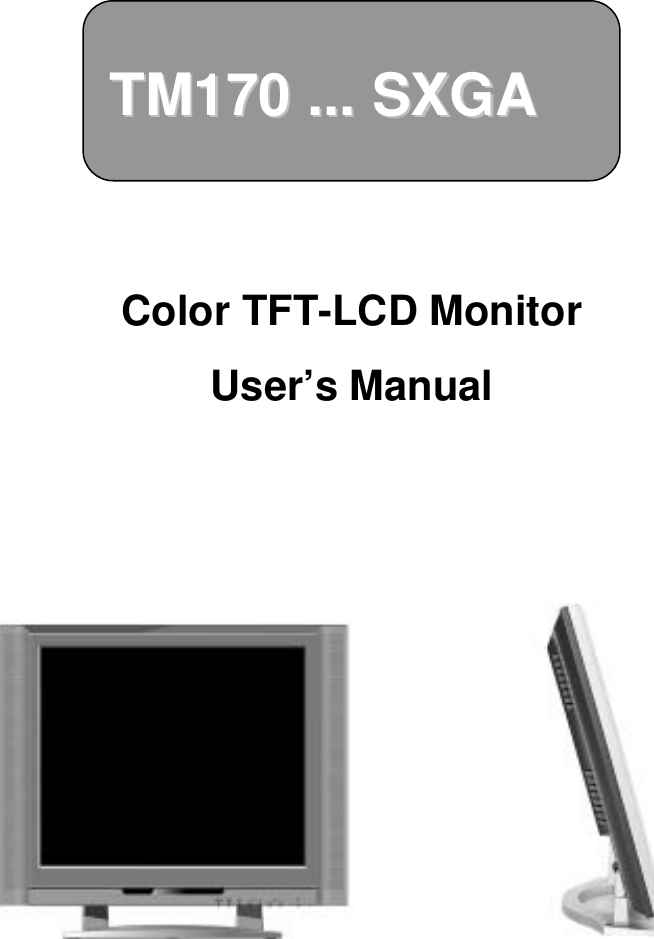
TM170 ... SXGATM170 ... SXGAColor TFT-LCD Monitor User’s Manual
TM170Color TFT-LCD MonitorNotes On LCD Monitors1.The LCD panel used in this monitor is a very high technology product with 3,932,160 thin film transistors, giving you fine picture details.  Occasionally, a few non-active pixels may appear on the screen as a fixed point of red, green, blue,    white or black.  Please note that this does not indicate adefective panel.2. Set your resolution to 1280 x 1024 pixels at 60Hz refresh rate for optimum display quality.3. Due to the nature of the LCD screen, an afterimage of the previous screen may remain after switching the image when the same image has been displayed for a long time.  The monitor will slowly recover from this.4. The screen surface is very soft.  Do not rub, touch or tap the screen surface with sharp object such as pen or pencil.  This contact may scratch or damage the screen.  These damages are not coveredunder the warranty.
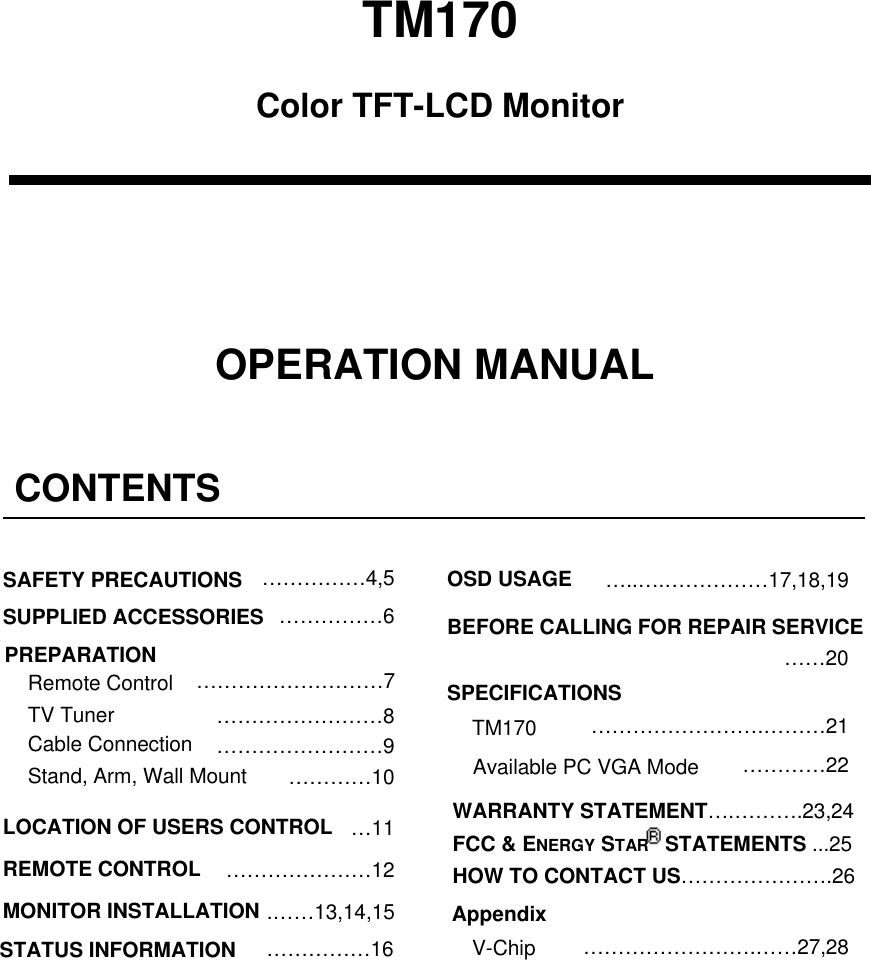
TM170Color TFT-LCD MonitorOPERATION MANUALCONTENTS……………4,5 OSD USAGESAFETY PRECAUTIONS …..….……………17,18,19……………6SUPPLIED ACCESSORIES BEFORE CALLING FOR REPAIR SERVICEPREPARATION ……20………………………7Remote Control SPECIFICATIONSTV Tuner ……………………8 …………………….………21TM170Cable Connection ……………………9 …………22Available PC VGA ModeStand, Arm, Wall Mount …………10WARRANTY STATEMENT….……….23,24FCC & ENERGY STAR  STATEMENTS ...25HOW TO CONTACT US………………….26LOCATION OF USERS CONTROL …11REMOTE CONTROL …………………12MONITOR INSTALLATION .……13,14,15 Appendix…………………….……27,28V-Chip……………16STATUS INFORMATION
SAFETY  PRECAUTIONSImproper use can result in electric shock and/or fire. In order to prevent potential danger, please observe the following instructions when installing, operating and cleaning the product. To ensure your safety and prolong the service life of your colorTFT-LCD monitor product, please read the following precautions carefully beforeusing the product.JAll operating instructions must be read and understood before the product is operated.JThese safety and operating instructions must be kept in safe place for future reference.JAll warnings on the product and in the instructions must be observed closely.JAll operating instructions must be followed.JDo not use attachments not recommended by the manufacturer. Use of inadequateattachments can result in accidents.JThis product must be operated on a power source specified on the specification label. If you arenot sure of the type of power supply used in your home, consult your dealer or local power company. For units designed to operate on batteries or another power source, refer to theoperating instructions.JThe power cords must be routed properly to prevent people from stepping on them or objectsfrom resting on them. Check the cords at the plugs and product.JIf you plan to use a 12V DC power supply unit other than the AC adapter supplied with theproduct, make sure the power supply unit provides stable voltage with minimum fluctuations.JDo not overload AC outlets or extension cords. Overloading can cause fire or electric shock.JNever insert an object into the product through vents or openings. High voltage flows in theproduct, and inserting an object can cause electric shock and/or short internal parts.  For thesame reason, do not spill water or liquid on the product.JDo not attempt to service the product yourself. Removing covers can expose you to high voltageand other dangerous conditions. Request a qualified service person to perform servicing.JIf any of the following conditions occurs, unplug the power cord from the AC outlet, and request aqualified service person to perform repairs.a. When the power cord or plug in damaged.b. When a liquid was spilled on the product or when objects have fallen into the product.c. When the product has been exposed to rain or water.d. When the product does not operate properly as described in the operating instructions.Do not touch the controls other than those described in the operating instructions.Improper adjustment of controls not described in the instructions can cause damage, which often requires extensive adjustment work by a qualified technician. e. When the product has been dropped or damaged.f.  When the product displays an abnormal condition. Any noticeable abnormality in theproduct indicates that the product needs servicing.JIn case the product needs replacement parts, make sure that the service person usesreplacement parts specified by the manufacturer, or those with the same characteristics andperformance as the original parts. Use of unauthorized parts can result in fire, electric shockand/or other danger.JUpon completion of service or repair work, request the service technician to perform safetychecks to ensure that the product is in proper operating condition.JWhen mounting the product on a wall or ceiling, be sure to install the product according to themethod recommended by the manufacturer.4
SAFETY  PRECAUTIONS(Continued)JUnplug the power cord from the AC outlet before cleaning the product. Use a damp cloth to cleanthe product. Do not use liquid cleaners or aerosol cleaners.JUnplug the power cord from the AC outlet if you do not use the product for considerably long time.JDo not use the product near water, such as bathtub, washbasin, kitchen sink and laundry tub, swimming pool and in a wet basement.JKeep the product away from direct rays of the Sun-light.JDo not place the product on an unstable cart, stand, tripod or table. Placing the product on anunstable base can cause the product to fall, resulting in serious personal injuries as well asdamage to the product. Use only a cart, stand, tripod, bracket or table recommended by themanufacturer or sold with the product. When mounting the product on a wall, be sure to follow themanufacturer's instruction. Use only the mounting hardware recommended by the manufacturer.JWhen relocating the product placed on a cart, it must be moved with the utmost care. Sudden stops, excessive force and uneven floor surface can cause the product to fall from the cart.JThe vents and other openings in the cabinet are designed for ventilation. Do not cover or block these vents and openings since insufficient ventilation can cause overheating and/or shorten the lifeof the product. Do not place the product on a bed, sofa, rug or other similar surface, since they canblock ventilation openings. This product is not designed for built-in installation; do not place theproduct in an enclosed place such as a bookcase or rack, unless proper ventilation is provided orthe manufacturer's instructions are followed.JThe LCD panel used in this product is made of glass. Therefore, it can break when the product is dropped or applied with impact. Be careful not to be injured by broken glass pieces in case the LCDpanel breaks.JKeep the product away from heat sources such as radiators, heaters, stoves and other heat-generating products (including amplifiers).5
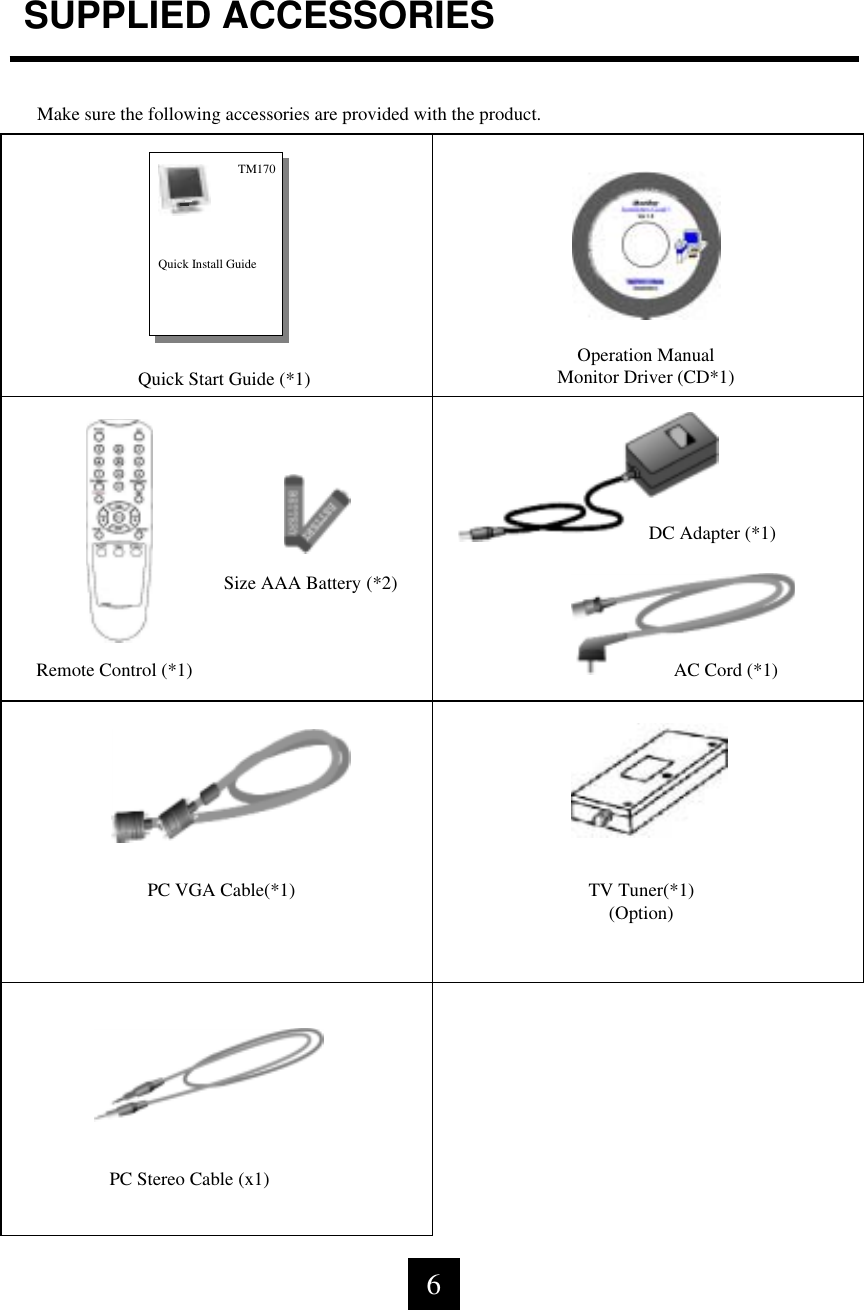
SUPPLIED ACCESSORIESMake sure the following accessories are provided with the product. Quick Start Guide (*1)Operation ManualMonitor Driver (CD*1)Remote Control (*1)DC Adapter (*1)AC Cord (*1)Size AAA Battery (*2)PC VGA Cable(*1) TV Tuner(*1)(Option)Quick Install GuideTM170PC Stereo Cable (x1)6
PREPARATION - Remote ControlJUse the remote control by pointing it towards the remote sensor window.Objects between the remote control and sensor window may prevent proper operation.Cautions regarding use of remote control!JDo not expose the remote control to shock. In addition, do not expose the remote controlto liquids, and do not place in an area with high humidity.JDo not install or place the remote control under direct sunlight. The heat may causedeformation of the unit.JThe remote control may not work properly if the remote sensor window of the main unit isunder direct sunlight or strong lighting. In such case, change the angle of the lighting orLCD TV monitor set, or operate the remote control closer to the remote sensor window.Batteries for Remote ControlIf the remote control fails to operate LCD TV monitor functions, replace the batteries in theremote control.1  Open the battery cover.2  Insert batteries (two Size-AAA batteries, Supplied with product).JPlace batteries with their terminals corresponding to the (+) and (-) indications in thebattery compartment.3Close the battery coverCautions regarding batteries!Improper use of batteries can result in a leakage of chemicals and/or explosion. Be sure tofollow the instructions below.• Place batteries with their terminals corresponding to the (+) and (-) indications.• Different types of batteries have different characteristics. Do not mix batteries of differenttypes.• Do not mix old and new batteries. Mixing old and new batteries can shorten the life of new batteries and/or cause old batteries to leak chemicals.• Remove batteries as soon as they are non-operable. Chemicals that leak from batteriescan cause a rash.  If chemical leakage is found, wipe with a cloth.• The batteries supplied with the product may have a shorter life expectancy due to storageconditions.• If the remote control is not used for an extended period of time remove batteries from theremote control7
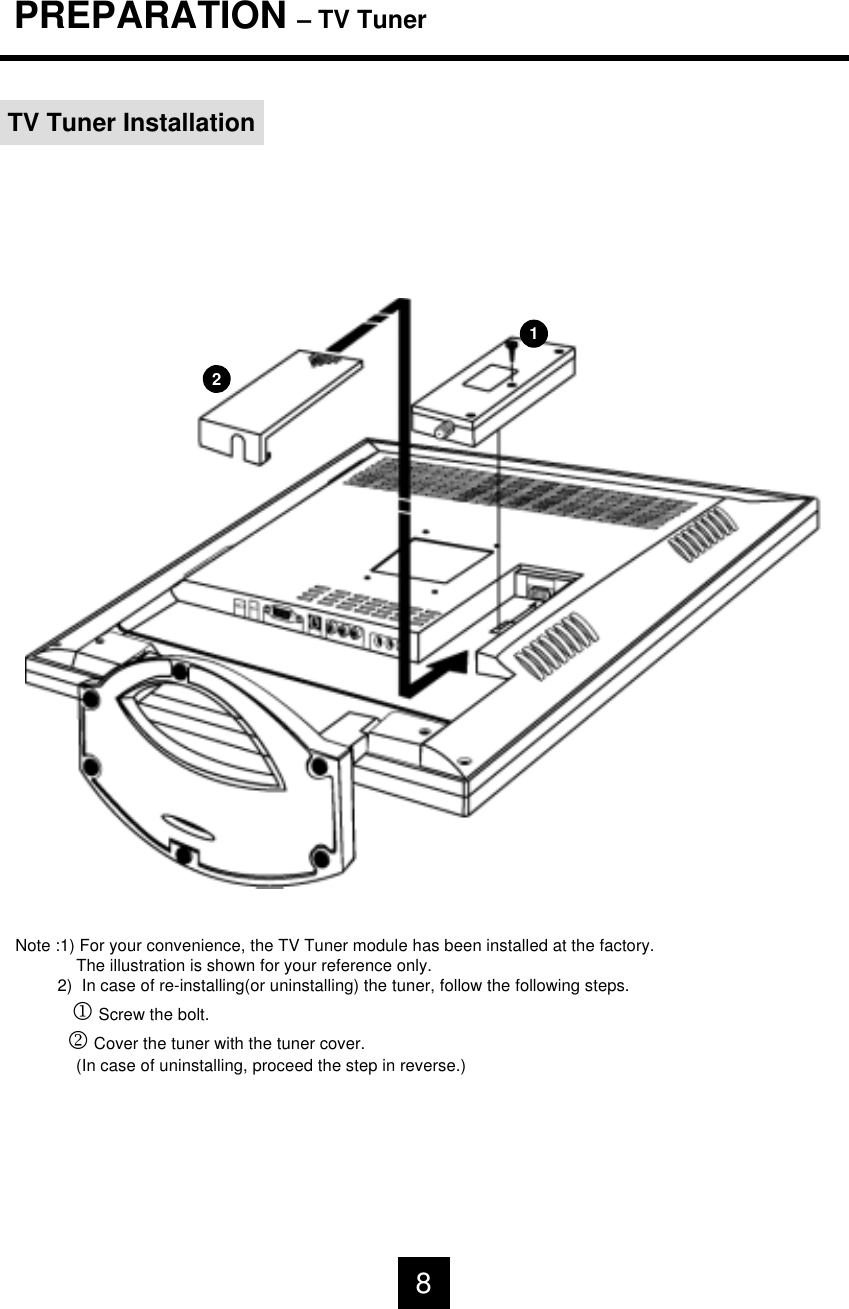
PREPARATION – TV TunerTV Tuner Installation12Note :1) For your convenience, the TV Tuner module has been installed at the factory.The illustration is shown for your reference only. 2)  In case of re-installing(or uninstalling) the tuner, follow the following steps.1Screw the bolt.2Cover the tuner with the tuner cover.(In case of uninstalling, proceed the step in reverse.)8
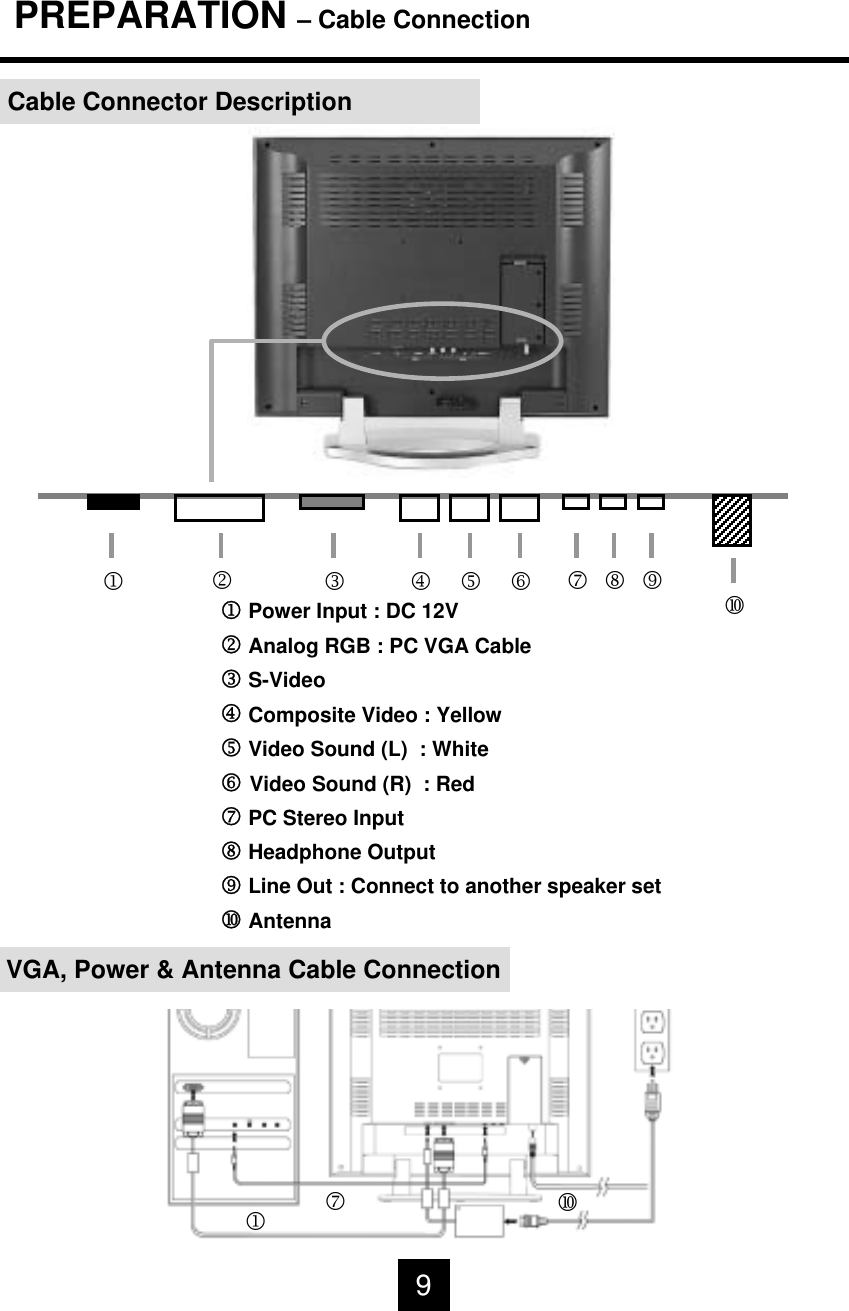
PREPARATION – Cable ConnectionCable Connector Description1Power Input : DC 12V2Analog RGB : PC VGA Cable3S-Video4Composite Video : Yellow5Video Sound (L)  : White6Video Sound (R)  : Red7PC Stereo Input8Headphone Output9Line Out : Connect to another speaker setAntenna23 456 7891VGA, Power & Antenna Cable Connection179
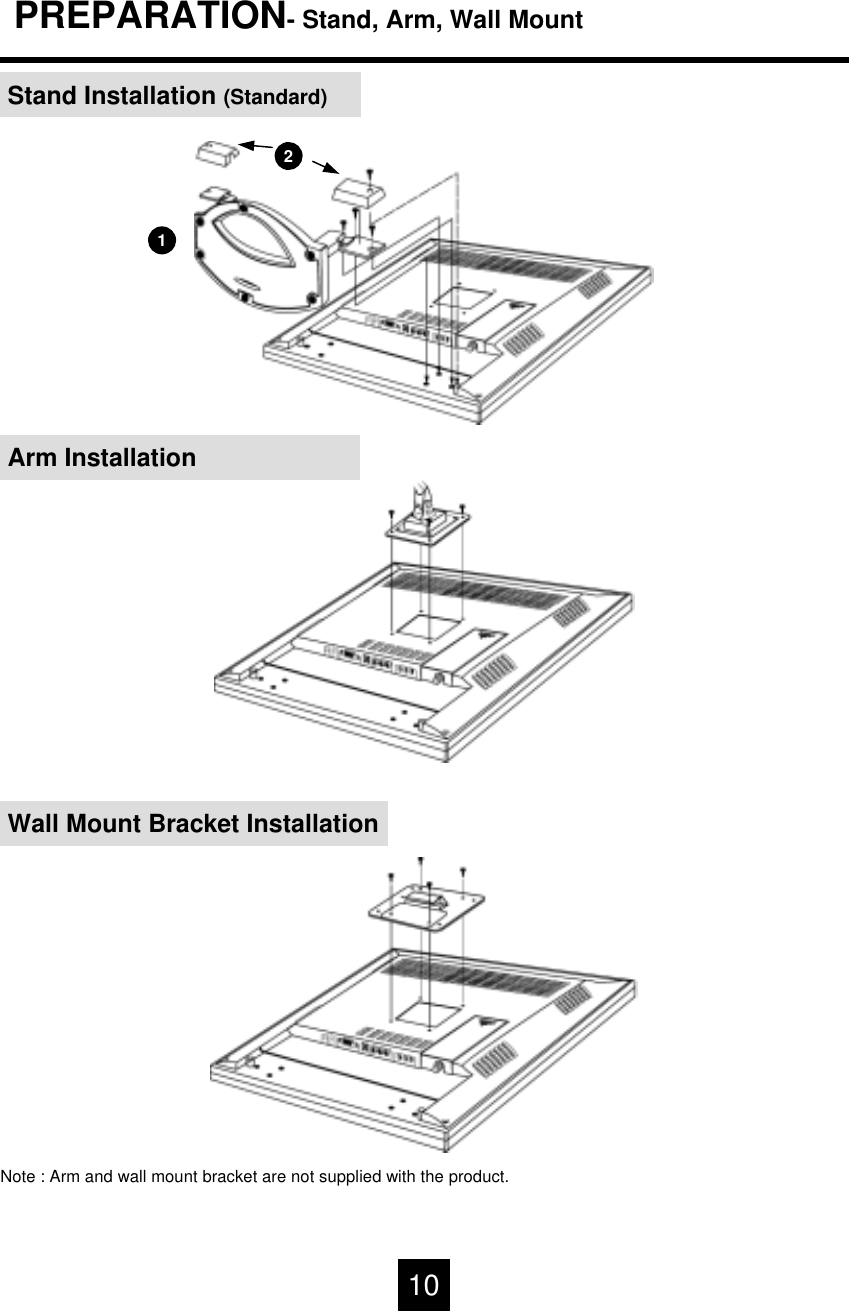
PREPARATION- Stand, Arm, Wall MountStand Installation (Standard)21Arm InstallationWall Mount Bracket InstallationNote : Arm and wall mount bracket are not supplied with the product.  10
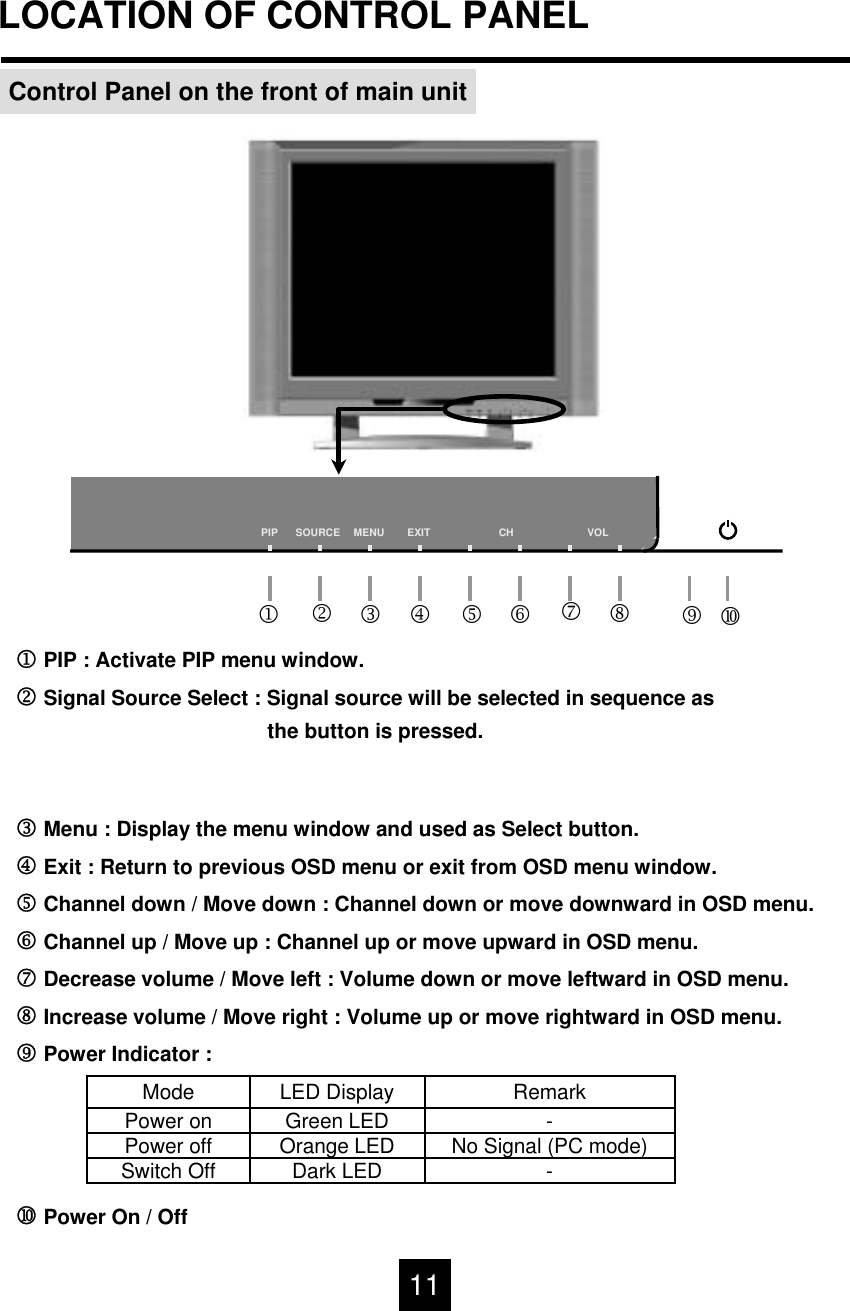
LOCATION OF CONTROL PANELControl Panel on the front of main unitVOL   CH    EXITMENUSOURCEPIP59782134 61PIP : Activate PIP menu window.2Signal Source Select : Signal source will be selected in sequence as the button is pressed.3Menu : Display the menu window and used as Select button.4Exit : Return to previous OSD menu or exit from OSD menu window.5Channel down / Move down : Channel down or move downward in OSD menu.6Channel up / Move up : Channel up or move upward in OSD menu.7Decrease volume / Move left : Volume down or move leftward in OSD menu.8Increase volume / Move right : Volume up or move rightward in OSD menu.9Power Indicator : Power On / OffDark LEDOrange LEDGreen LEDLED Display-No Signal (PC mode)-RemarkPower offPower onModeSwitch Off11
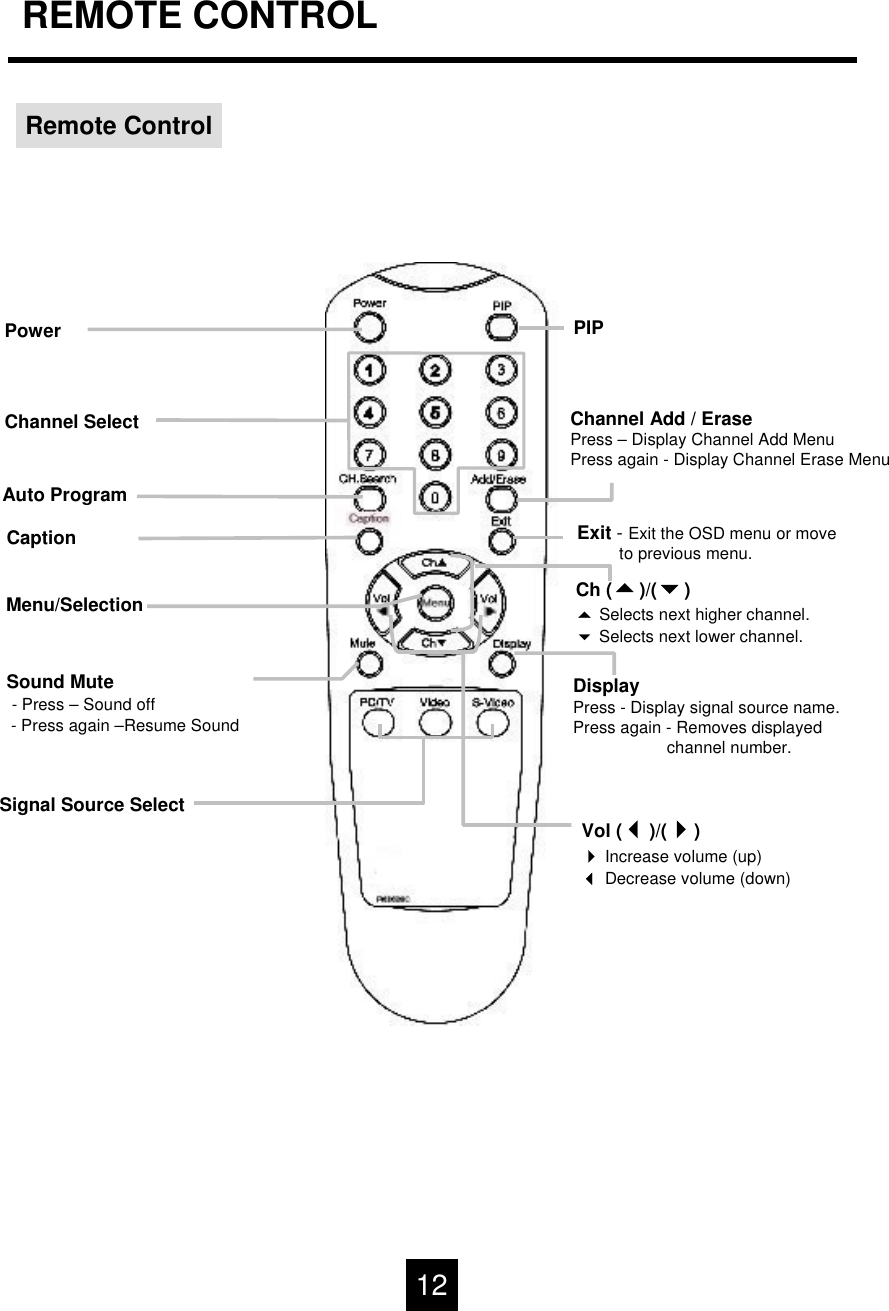
REMOTE CONTROLRemote ControlSound Mute - Press – Sound off- Press again –Resume SoundSignal Source SelectMenu/SelectionDisplayPress - Display signal source name.Press again - Removes displayedchannel number.Exit -Exit the OSD menu or moveto previous menu.Ch ()/()Selects next higher channel.Selects next lower channel.Vol ()/()Increase volume (up)Decrease volume (down)Channel Add / ErasePress – Display Channel Add MenuPress again - Display Channel Erase MenuPIPPowerChannel SelectAuto ProgramCaption12
MONITOR INSTALLATION1Double click [Control Panel ] iconfrom [My Computer] folder.2Double click [Display] icon from[Control Panel] folder.3Select [Settings] in [Display Properties]window.4Click [Advanced...].5Select [Monitor] in the window shownabove.6Click [Properties].13
MONITOR INSTALLATION(Continued)7Select [Driver] and then click [UpdateDriver...].8[Upgrade Device Driver Wizard] will be appeared. Select the second list andthen click [Next>].9Click [Have Disk...].10 When drive [A:] appears in default,click [Browse…] to select CD-ROM drive. 14
MONITOR INSTALLATION(Continued)11 Double click the [Driver] folder. 12 Choose TM170.inf file then click  [Open].14 Choose TM170, then click [Next>]  to proceed to the next step.13 Click [OK] to proceed to the next step.15 Click [Next>]  to start installation. 16 Click [Finish].(Be sure the screen shows correct model name.)15
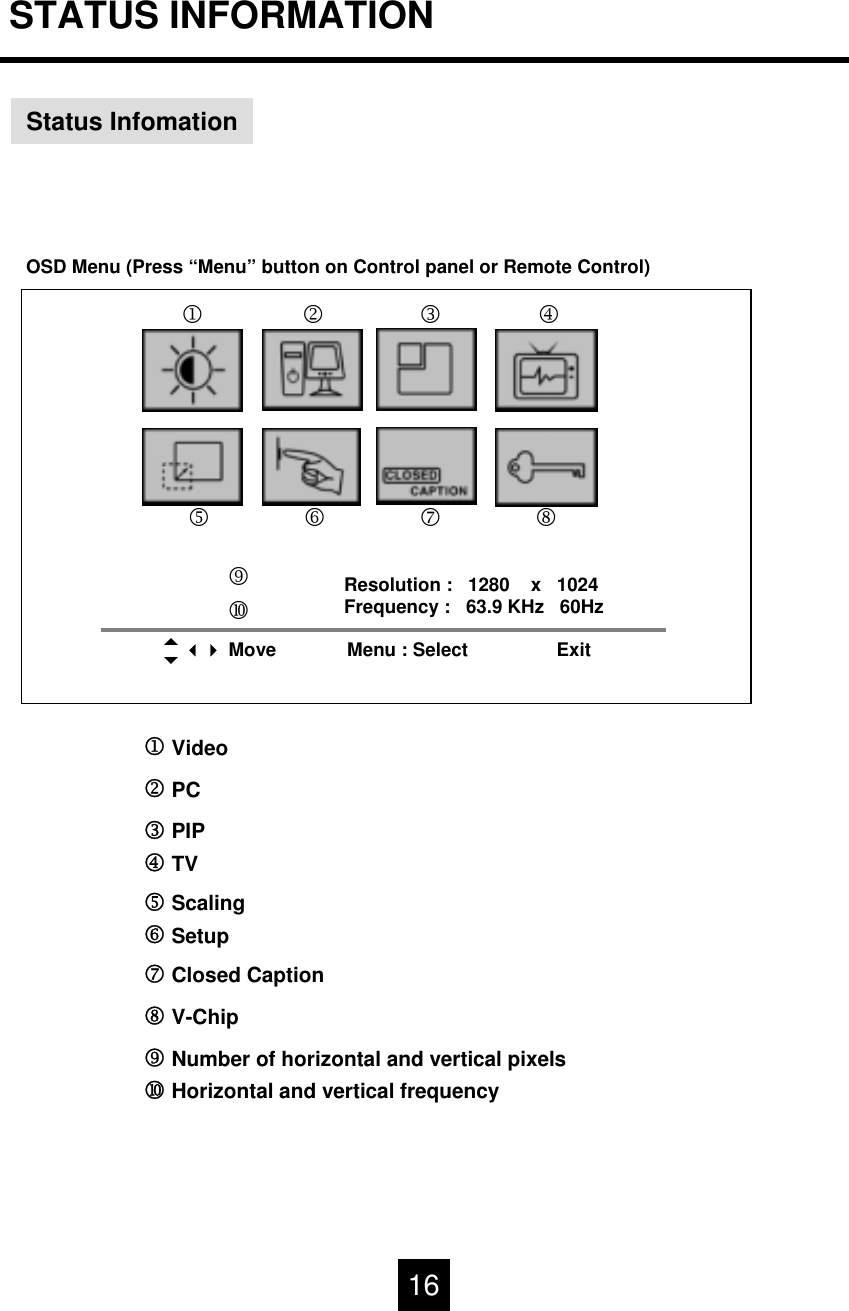
STATUS INFORMATIONStatus InfomationOSD Menu (Press “Menu” button on Control panel or Remote Control)123456789Resolution :   1280    x   1024Frequency :   63.9 KHz   60Hz Move Menu : Select Exit1Video 2PC3PIP4TV5Scaling6Setup7Closed Caption8V-Chip9Number of horizontal and vertical pixelsHorizontal and vertical frequency16
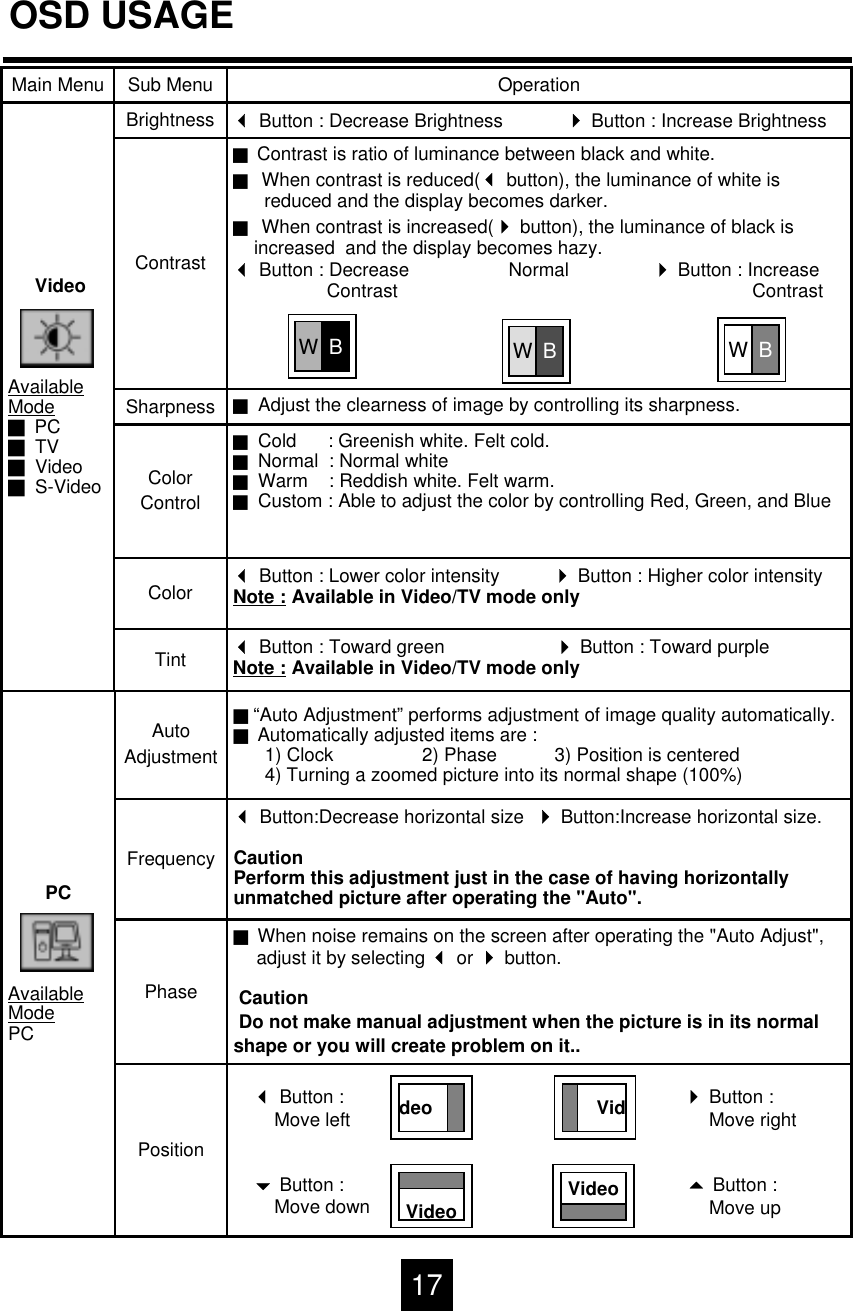
OSD USAGEJContrast is ratio of luminance between black and white.JWhen contrast is reduced(button), the luminance of white is reduced and the display becomes darker.JWhen contrast is increased(button), the luminance of black is increased  and the display becomes hazy.Button : Decrease                   Normal                Button : IncreaseContrast                                       ContrastContrastButton : Toward green                     Button : Toward purpleNote : Available in Video/TV mode onlyTintButton : Lower color intensity  Button : Higher color intensityNote : Available in Video/TV mode onlyColorJCold      : Greenish white. Felt cold.JNormal  : Normal whiteJWarm    : Reddish white. Felt warm.JCustom : Able to adjust the color by controlling Red, Green, and BlueColorControlJAdjust the clearness of image by controlling its sharpness.SharpnessButton : Decrease Brightness            Button : Increase BrightnessBrightnessVideoAvailableModeJPCJTVJVideoJS-VideoOperationSub MenuMain MenuWBWBWBJ“Auto Adjustment” performs adjustment of image quality automatically.JAutomatically adjusted items are :1) Clock  2) Phase  3) Position is centered4) Turning a zoomed picture into its normal shape (100%)AutoAdjustmentPCAvailableModePCButton:Decrease horizontal size  Button:Increase horizontal size.CautionPerform this adjustment just in the case of having horizontally unmatched picture after operating the "Auto".FrequencyPositionJWhen noise remains on the screen after operating the "Auto Adjust",adjust it by selecting or button.CautionDo not make manual adjustment when the picture is in its normalshape or you will create problem on it..PhasedeoVideo VideoVidButton :Move left Button : Move right Button : Move up Button : Move down 17
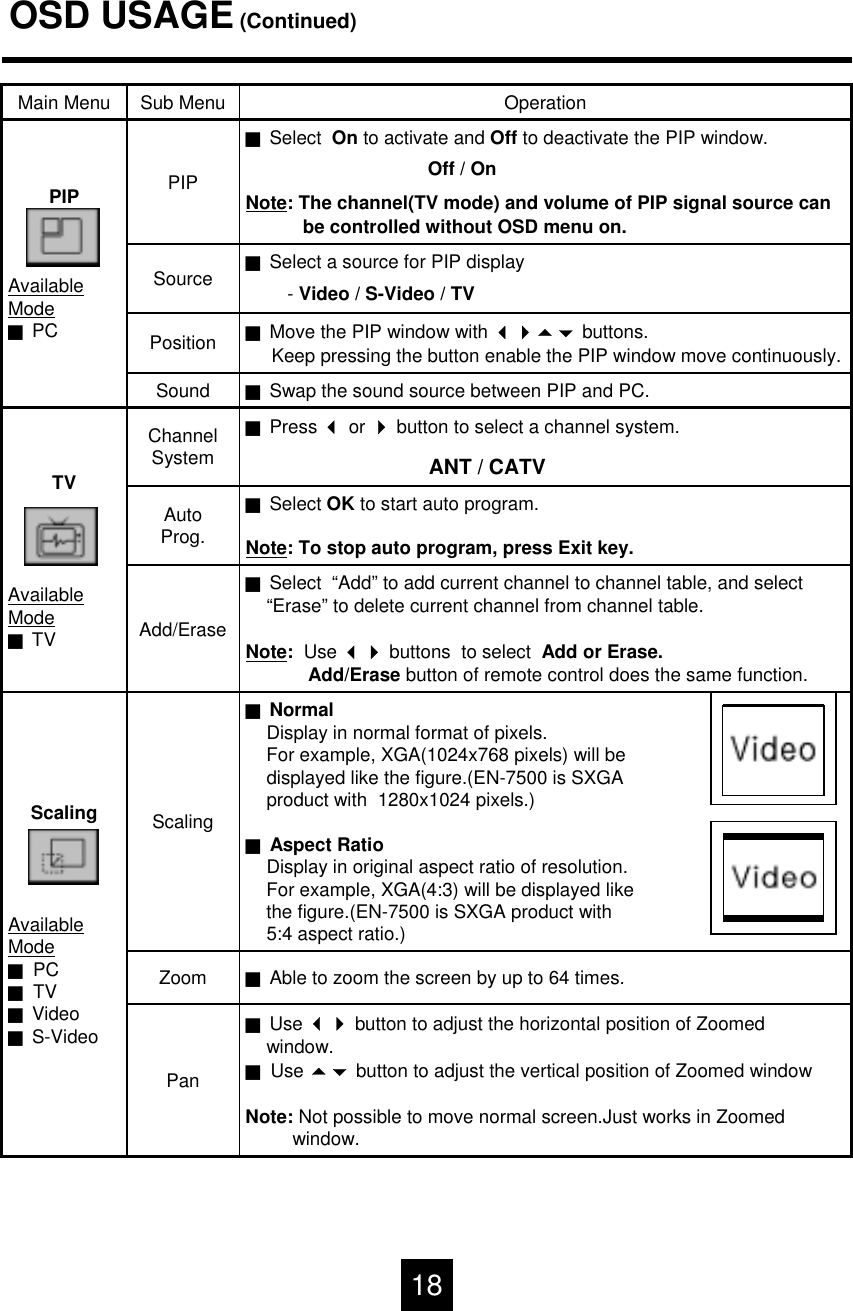
OSD USAGE(Continued)JNormalDisplay in normal format of pixels. For example, XGA(1024x768 pixels) will bedisplayed like the figure.(EN-7500 is SXGA product with  1280x1024 pixels.)JAspect RatioDisplay in original aspect ratio of resolution. For example, XGA(4:3) will be displayed like the figure.(EN-7500 is SXGA product with 5:4 aspect ratio.)ScalingScalingAvailableModeJPCJTVJVideoJS-VideoJAble to zoom the screen by up to 64 times.ZoomJUse  button to adjust the horizontal position of Zoomedwindow. JUse  button to adjust the vertical position of Zoomed windowNote: Not possible to move normal screen.Just works in Zoomed window.PanJPress or button to select a channel system.ANT / CATVChannelSystemTVAvailableModeJTVJSelect OK to start auto program.Note: To stop auto program, press Exit key. AutoProg.JSelect  “Add” to add current channel to channel table, and select“Erase” to delete current channel from channel table.Note:  Use  buttons  to select  Add or Erase. Add/Erase button of remote control does the same function. Add/EraseJSwap the sound source between PIP and PC.SoundJMove the PIP window with  buttons.Keep pressing the button enable the PIP window move continuously. PositionJSelect a source for PIP display-Video / S-Video / TVSourceJSelect  On to activate and Off to deactivate the PIP window.Off / OnNote: The channel(TV mode) and volume of PIP signal source canbe controlled without OSD menu on.   PIPPIPAvailableModeJPCOperationSub MenuMain Menu18
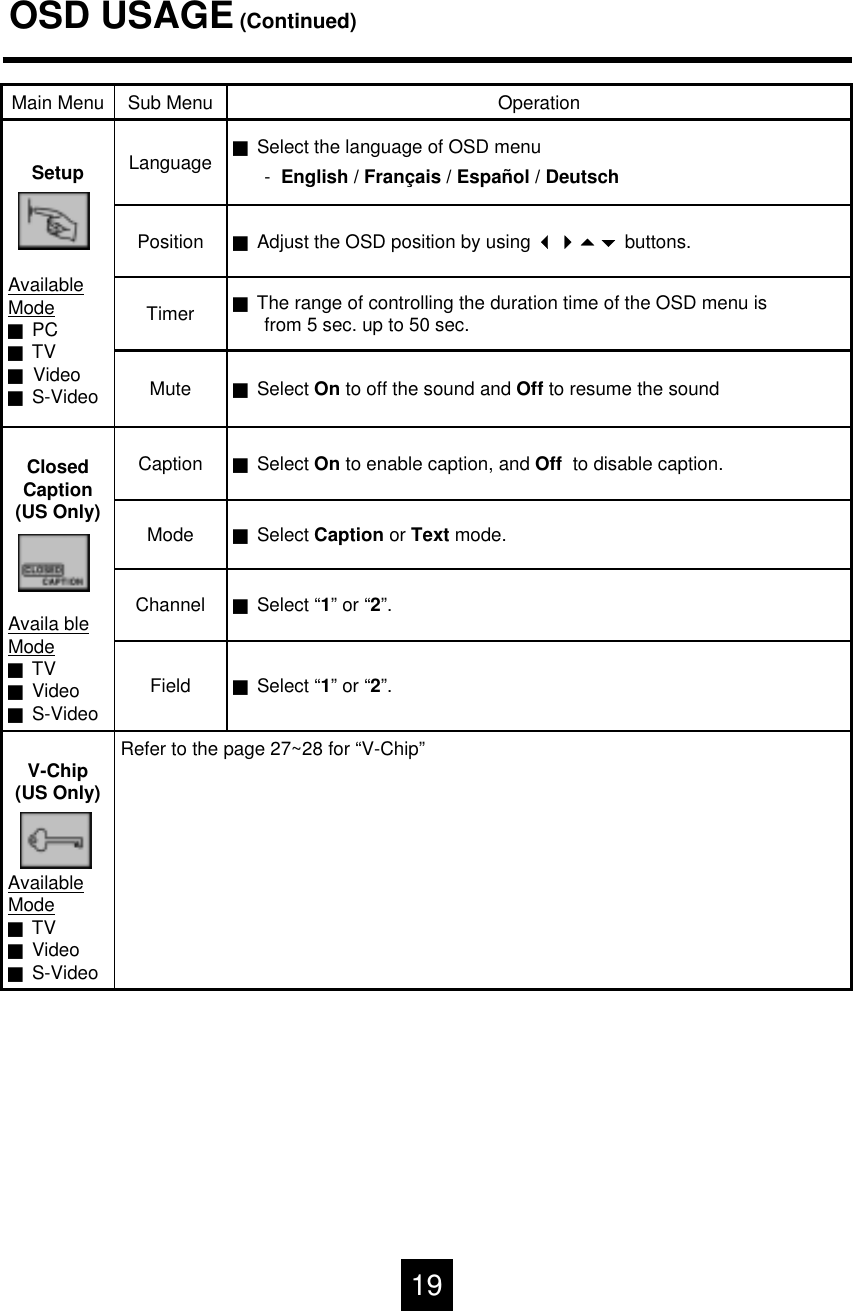
OSD USAGE(Continued)JSelect “1”or “2”.FieldJSelect “1”or “2”.ChannelJSelect Caption or Text mode.ModeRefer to the page 27~28 for “V-Chip”V-Chip(US Only)AvailableModeJTVJVideoJS-VideoJThe range of controlling the duration time of the OSD menu is from 5 sec. up to 50 sec.TimerJSelect the language of OSD menu-English / Français / Español / DeutschLanguageSetupAvailableModeJPCJTVJVideoJS-VideoJAdjust the OSD position by using  buttons.PositionJSelect On to off the sound and Off to resume the soundMuteJSelect On to enable caption, and Off  to disable caption.CaptionClosedCaption(US Only)Availa bleModeJTVJVideoJS-VideoOperationSub MenuMain Menu19
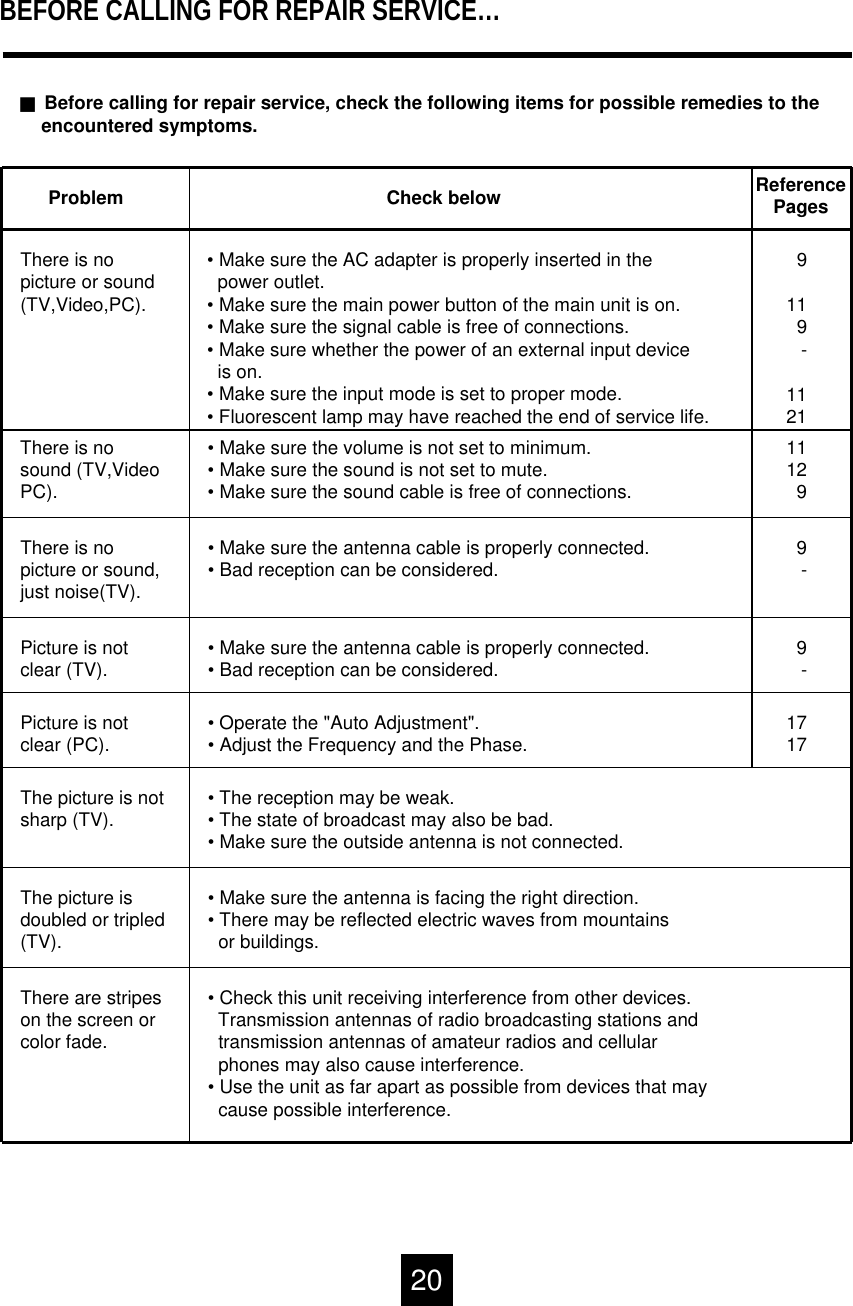
BEFORE CALLING FOR REPAIR SERVICE…JBefore calling for repair service, check the following items for possible remedies to theencountered symptoms.Problem Check belowThere is nopicture or sound(TV,Video,PC).• Make sure the AC adapter is properly inserted in thepower outlet.• Make sure the main power button of the main unit is on.• Make sure the signal cable is free of connections.• Make sure whether the power of an external input device is on.• Make sure the input mode is set to proper mode.• Fluorescent lamp may have reached the end of service life.There is nosound (TV,VideoPC).• Make sure the volume is not set to minimum.• Make sure the sound is not set to mute.• Make sure the sound cable is free of connections.There is nopicture or sound,just noise(TV).• Make sure the antenna cable is properly connected.• Bad reception can be considered.ReferencePages9119-1121111299-9-1717Picture is notclear (TV). • Make sure the antenna cable is properly connected.• Bad reception can be considered.Picture is notclear (PC). • Operate the "Auto Adjustment".• Adjust the Frequency and the Phase.The picture is notsharp (TV). • The reception may be weak.• The state of broadcast may also be bad.• Make sure the outside antenna is not connected.• Make sure the antenna is facing the right direction.• There may be reflected electric waves from mountainsor buildings.The picture isdoubled or tripled(TV).• Check this unit receiving interference from other devices.Transmission antennas of radio broadcasting stations andtransmission antennas of amateur radios and cellularphones may also cause interference.• Use the unit as far apart as possible from devices that may cause possible interference.There are stripeson the screen orcolor fade.20
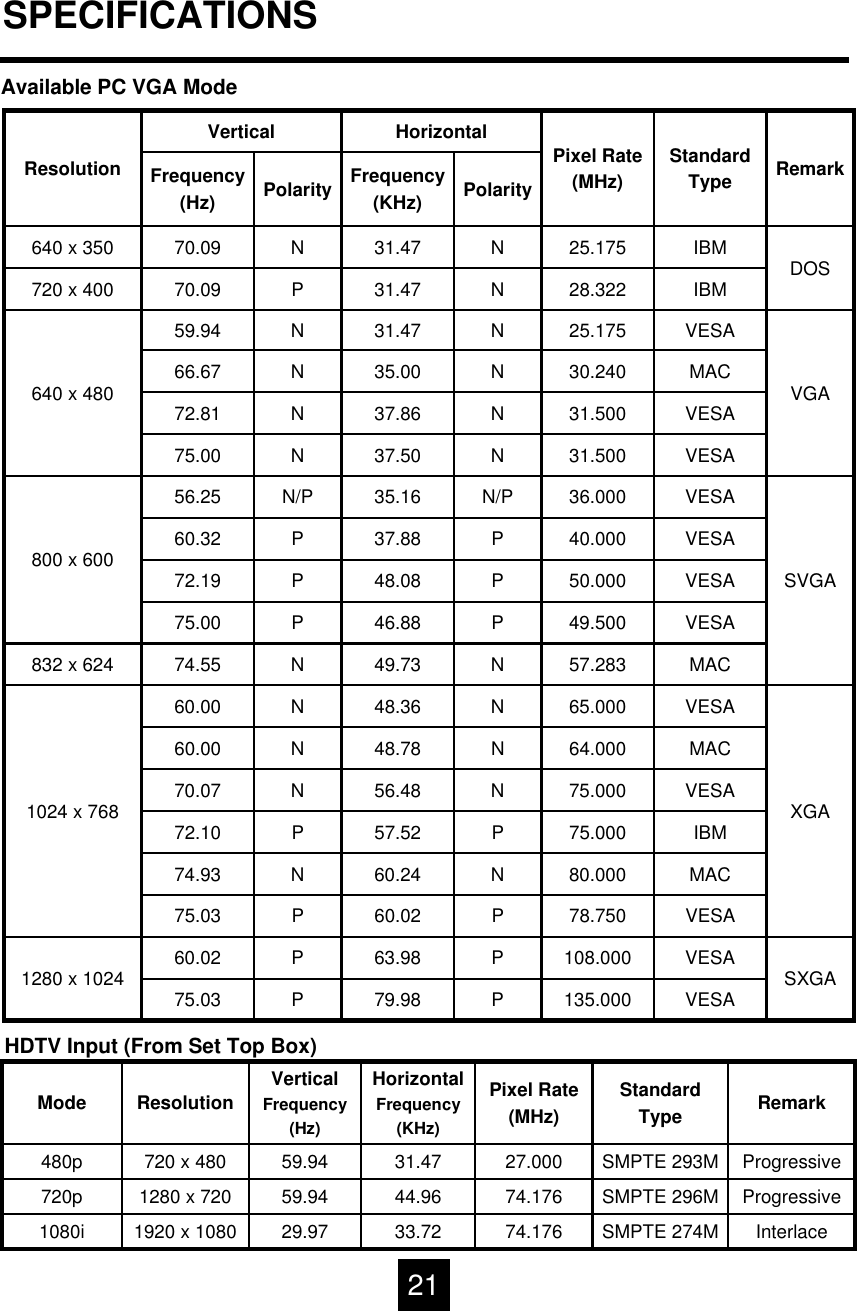
SPECIFICATIONSAvailable PC VGA ModeVESA78.750P60.02P75.03IBM75.000P57.52P72.10MAC64.000N48.78N60.00PolarityFrequency(KHz)PolarityFrequency(Hz)SXGAXGASVGAVGADOSRemarkVESAVESAMACVESAVESAMACVESAVESAVESAVESAVESAVESAMACVESAIBMIBMStandardType25.175N31.47N70.09640 x 35028.322N31.47P70.09720 x 40025.175N31.47N59.94640 x 480 30.240N35.00N66.6731.500N37.86N72.8131.500N37.50N75.0036.000N/P35.16N/P56.25800 x 600 40.000P37.88P60.3250.000P48.08P72.1949.500P46.88P75.0057.283N49.73N74.55832 x 62465.000N48.36N60.001024 x 768 75.000N56.48N70.0780.000N60.24N74.93108.000P63.98P60.021280 x 1024 135.000P79.98P75.03Horizontal Pixel Rate(MHz)VerticalResolutionHDTV Input (From Set Top Box)1920 x 10801280 x 720720 x 480ResolutionProgressiveSMPTE 293M27.00031.4759.94480pInterlaceProgressiveRemarkSMPTE 274MSMPTE 296MStandardType74.17644.9659.94720p74.17633.7229.971080iHorizontalFrequency(KHz)Pixel Rate(MHz)VerticalFrequency(Hz)Mode21
FCC & ENERGY STAR STATEMENTSFCC Class B Radio Frequency Interference Statement WARNING: (FOR FCC CERTIFIED MODELS)This equipment has been tested and found to comply with the limits for a Class B digital device, pursuant to Part 15 of the FCC Rules. These limits are designed to provide reasonable protection against harmful interference in a residential installation. This equipment generates, uses and can radiate radio frequency energy, and if not installed and used in accordance with the instructions, may cause harmful interference to radio communications. However, there is no guarantee that interference will not occur in a particular installation. If this equipment does cause harmful interference to radio or television reception, which can be determined by turning the equipment off and on, the user is encouraged to try to correct the interference by one or more of the following measures:1. Reorient or relocate the receiving antenna.2. Increase the separation between the equipment and receiver.3.Connect the equipment into an outlet on a circuit different from that to which the receiver isconnected.4. Consult the dealer or an experienced radio/TV technician for help.NOTICE1. The changes or modifications not expressly approved by the party responsible for compliance couldvoid the user's authority to operate the equipment.2. Shielded interface cables and AC power cord, if any, must be used in order to comply with the   emission limits.3. The manufacturer is not responsible for any radio or TV interference caused by unauthorizedmodification to this equipment. It is the  responsibilities of the user to correct such interference.As an ENERGY STAR Partner, Envision Peripherals, Inc. has determined that this product meets the ENERGY STAR guidelines for energy efficiency.22
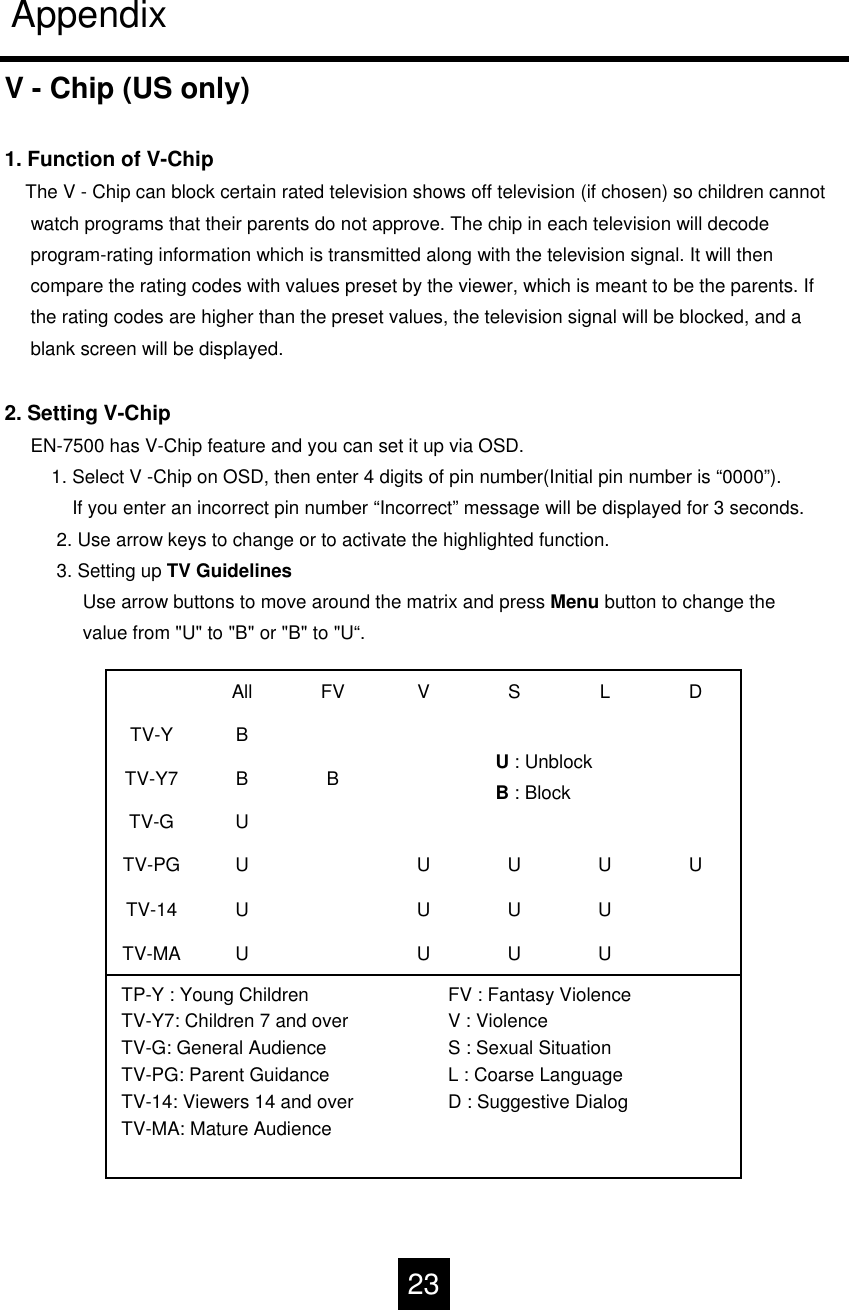
AppendixV - Chip (US only)1. Function of V-ChipThe V - Chip can block certain rated television shows off television (if chosen) so children cannot watch programs that their parents do not approve. The chip in each television will decodeprogram-rating information which is transmitted along with the television signal. It will thencompare the rating codes with values preset by the viewer, which is meant to be the parents. Ifthe rating codes are higher than the preset values, the television signal will be blocked, and ablank screen will be displayed.2. Setting V-ChipEN-7500 has V-Chip feature and you can set it up via OSD.1. Select V -Chip on OSD, then enter 4 digits of pin number(Initial pin number is “0000”).If you enter an incorrect pin number “Incorrect” message will be displayed for 3 seconds.2. Use arrow keys to change or to activate the highlighted function.3. Setting up TV GuidelinesUse arrow buttons to move around the matrix and press Menu button to change thevalue from "U" to "B" or "B" to "U“.FV : Fantasy ViolenceV : ViolenceS : Sexual SituationL : Coarse LanguageD : Suggestive DialogTP-Y : Young ChildrenTV-Y7: Children 7 and overTV-G: General AudienceTV-PG: Parent GuidanceTV-14: Viewers 14 and overTV-MA: Mature AudienceUUUUTV-MAUUUUTV-14UUUUUTV-PGUTV-GBBTV-Y7DLSVFVBAllTV-YU : UnblockB : Block23
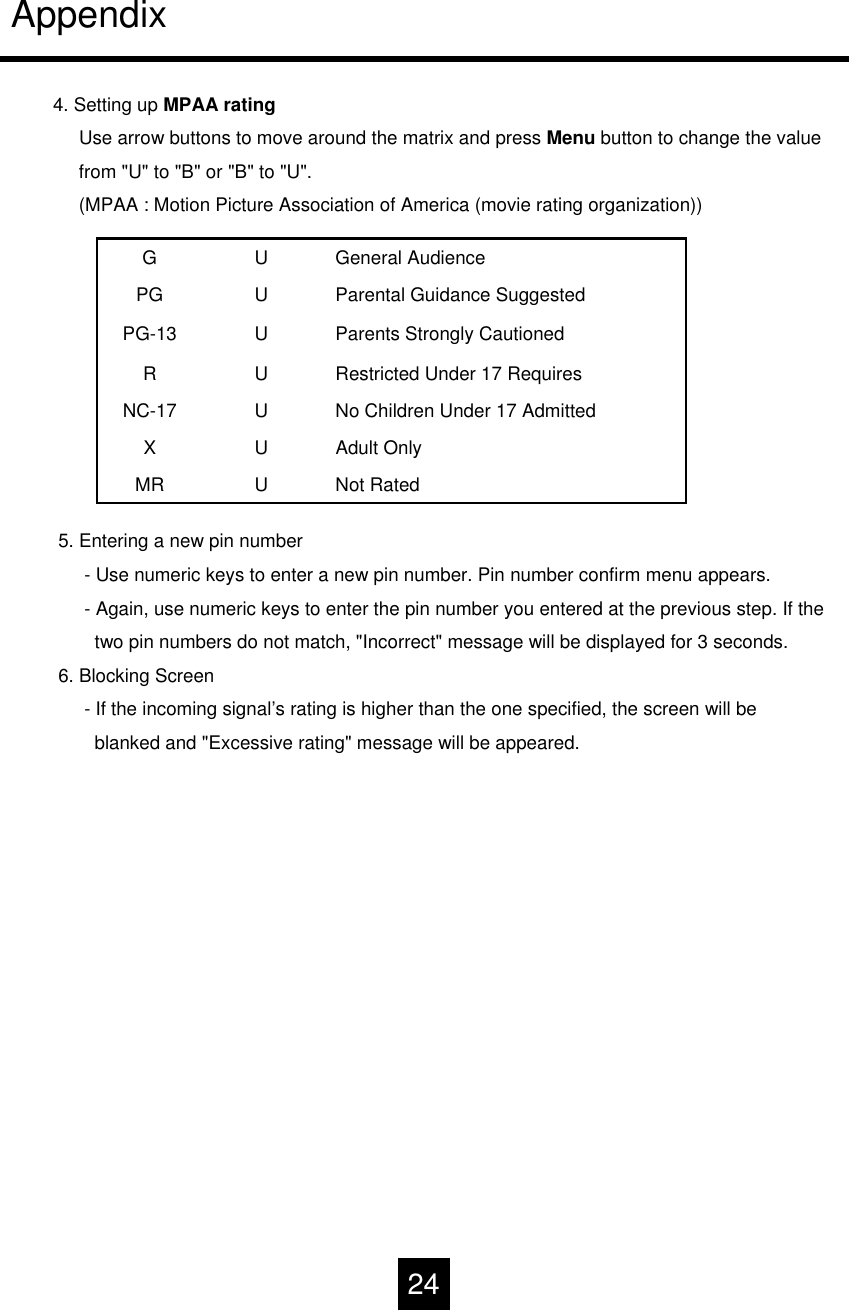
Appendix4. Setting up MPAA ratingUse arrow buttons to move around the matrix and press Menu button to change the valuefrom "U" to "B" or "B" to "U".(MPAA : Motion Picture Association of America (movie rating organization))5. Entering a new pin number- Use numeric keys to enter a new pin number. Pin number confirm menu appears. - Again, use numeric keys to enter the pin number you entered at the previous step. If thetwo pin numbers do not match, "Incorrect" message will be displayed for 3 seconds.6. Blocking Screen- If the incoming signal’s rating is higher than the one specified, the screen will be blanked and "Excessive rating" message will be appeared.Adult OnlyUXNot RatedUMRNo Children Under 17 AdmittedUNC-17Restricted Under 17 RequiresURParents Strongly CautionedUPG-13Parental Guidance SuggestedUPGGeneral AudienceUG24

Navigation menu