Ness MEZZO915LTE Hub User Manual UserManualx

Ness Corporation Pty Ltd. Hub UserManualx

User manual

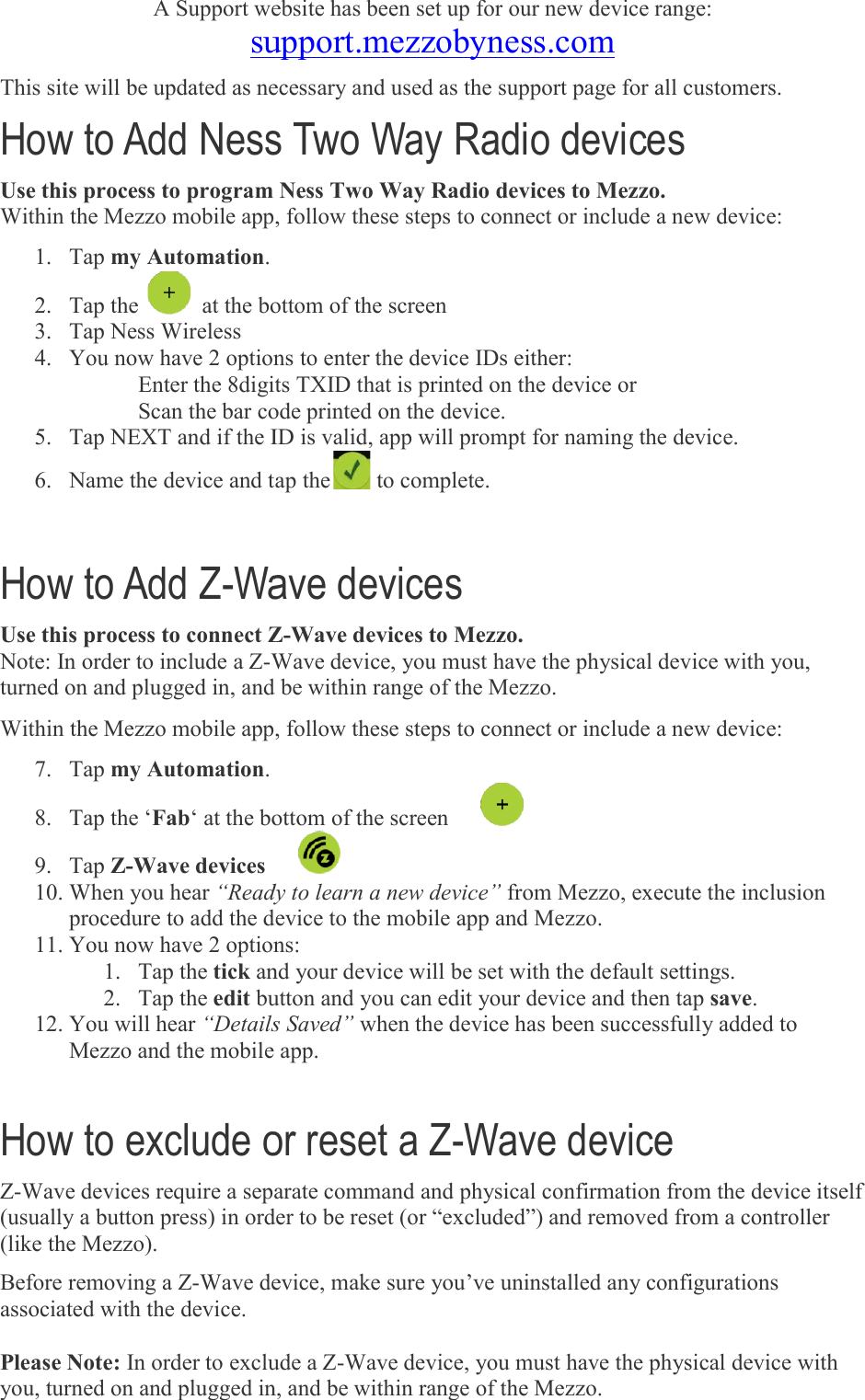
A Support website has been set up for our new device range: support.mezzobyness.comThis site will be updated as necessary and used as the support page for all customers.How to Add Ness Two Way RadioUse this process to program Ness Two Way Radio Within the Mezzo mobile app, follow these steps to connect or include a new device:1. Tap my Automation. 2. Tap the    at the bottom of the screen 3. Tap Ness Wireless  4. You now have 2 optionsEnter the 8digits Scan the bar code printed on the device5. Tap NEXT and if the ID is valid, 6. Name the device and tap the How to Add Z-Wave devicesUse this process to connect ZNote: In order to include a Z-Wave device, you must have the physical device with you, turned on and plugged in, and be within range Within the Mezzo mobile app, follow these steps to connect or include a new device:7. Tap my Automation. 8. Tap the ‘Fab‘ at the bottom of the screen 9. Tap Z-Wave devices  10. When you hear “Ready to learn a new device”procedure to add the device to the mobile app and Mezzo.11. You now have 2 options:1. Tap the tick and your device will be set with the default settings.2. Tap the edit button and you can edit your device and then tap12. You will hear “Details Saved”Mezzo and the mobile app. How to exclude or reset a ZZ-Wave devices require a separate command and physical confirmation from the device itself (usually a button press) in order to be reset (or (like the Mezzo). Before removing a Z-Wave device, make sure you’ve uninstalled any configurations associated with the device.   Please Note: In order to exclude a Zyou, turned on and plugged in, and be within range of the Mezzo.   A Support website has been set up for our new device range: support.mezzobyness.com This site will be updated as necessary and used as the support page for all customers.Ness Two Way Radio devices program Ness Two Way Radio devices to Mezzo. Within the Mezzo mobile app, follow these steps to connect or include a new device: at the bottom of the screen  You now have 2 options to enter the device IDs either: 8digits TXID that is printed on the device or code printed on the device.     Tap NEXT and if the ID is valid, app will prompt for naming the deviceName the device and tap the to complete. Wave devices Use this process to connect Z-Wave devices to Mezzo. Wave device, you must have the physical device with you, turned on and plugged in, and be within range of the Mezzo. Within the Mezzo mobile app, follow these steps to connect or include a new device: ‘ at the bottom of the screen      “Ready to learn a new device” from Mezzo, execute the inclprocedure to add the device to the mobile app and Mezzo. You now have 2 options: and your device will be set with the default settings.button and you can edit your device and then tap“Details Saved” when the device has been successfully added to Mezzo and the mobile app. How to exclude or reset a Z-Wave device Wave devices require a separate command and physical confirmation from the device itself (usually a button press) in order to be reset (or “excluded”) and removed from a controller Wave device, make sure you’ve uninstalled any configurations In order to exclude a Z-Wave device, you must have the physical device wyou, turned on and plugged in, and be within range of the Mezzo. A Support website has been set up for our new device range: This site will be updated as necessary and used as the support page for all customers.  Within the Mezzo mobile app, follow these steps to connect or include a new device: will prompt for naming the device. Wave device, you must have the physical device with you, Within the Mezzo mobile app, follow these steps to connect or include a new device: from Mezzo, execute the inclusion and your device will be set with the default settings. button and you can edit your device and then tap save. when the device has been successfully added to  Wave devices require a separate command and physical confirmation from the device itself “excluded”) and removed from a controller Wave device, make sure you’ve uninstalled any configurations Wave device, you must have the physical device with
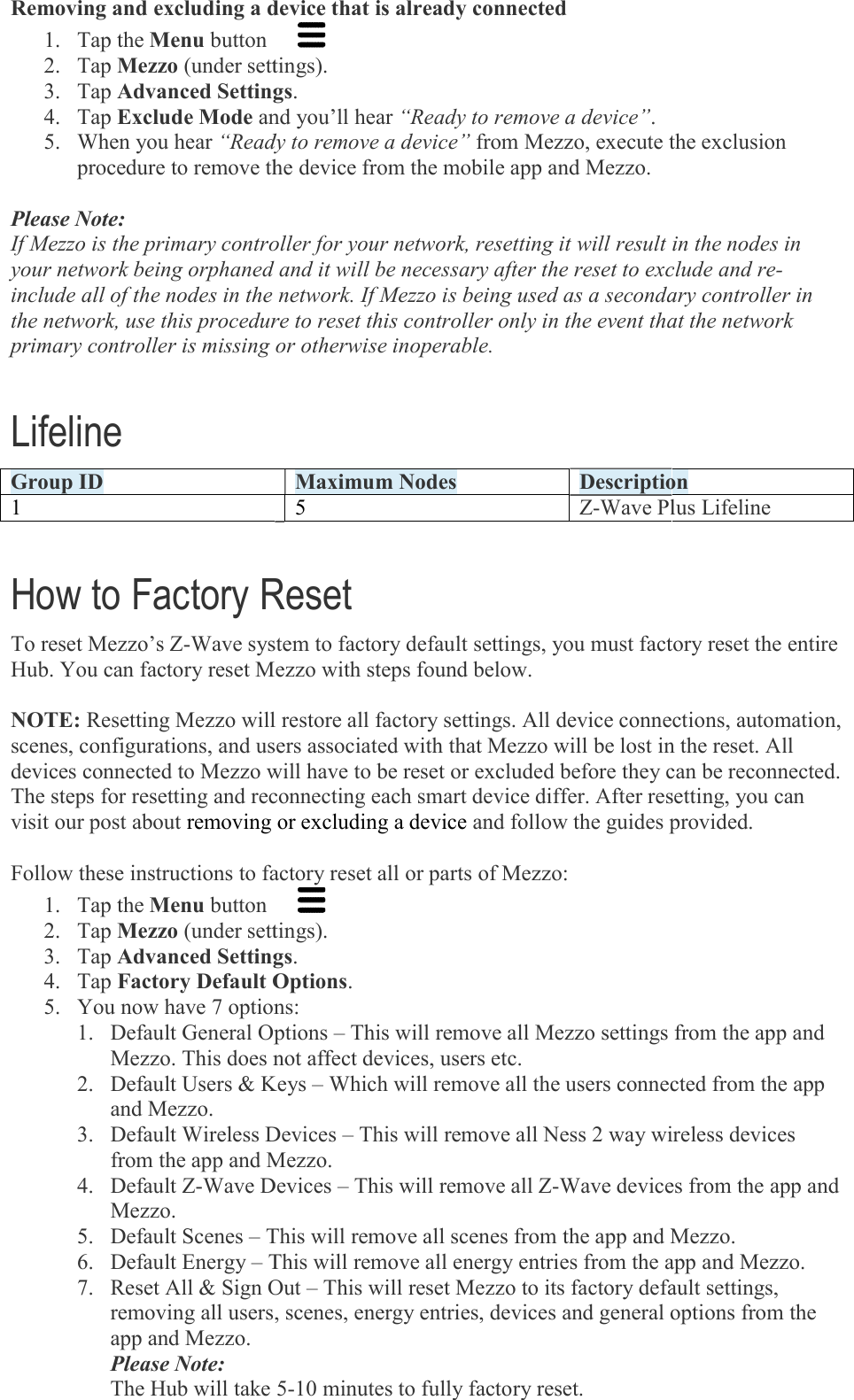
Removing and excluding a device that is already connected1. Tap the Menu button  2. Tap Mezzo (under settings).3. Tap Advanced Settings4. Tap Exclude Mode and you’ll hear5. When you hear “Ready to remove a device”procedure to remove the device from the mobile app and Mezzo. Please Note: If Mezzo is the primary controller for your network, resetting it will result in the nodes in your network being orphaned and it will be necessary after the reset to exclude and reinclude all of the nodes in the network. If Mezzo is being used as a secondary controller in the network, use this procedure to reset this controller only in the event tprimary controller is missing or otherwise inoperable. Lifeline Group ID 1  How to Factory ResetTo reset Mezzo’s Z-Wave system to factory default settings, you must factory reset the Hub. You can factory reset Mezzo with steps found below.  NOTE: Resetting Mezzo will restore all factory settings. All device connections, automation, scenes, configurations, and users associated with that Mezzo will be lost in the reset. All devices connected to Mezzo will have to be reset or excluded before they can be reconnected. The steps for resetting and reconnecting each smart device differ. After resetting, you can visit our post about removing or excluding a device  Follow these instructions to factory reset all or parts of Mezzo:1. Tap the Menu button  2. Tap Mezzo (under settings).3. Tap Advanced Settings4. Tap Factory Default Options5. You now have 7 options:1. Default General Options Mezzo. This does not affect devices, users etc.2. Default Users & Keys and Mezzo. 3. Default Wireless Devices from the app and Mezzo.4. Default Z-Wave Devices Mezzo. 5. Default Scenes – This will remove all scenes from the app and Mezzo.6. Default Energy – This will remove all energy entries from the app and Mezzo.7. Reset All & Sign Out removing all users, scenes, energy entries, devices and general options from the app and Mezzo. Please Note: The Hub will take 5Removing and excluding a device that is already connected   (under settings). Advanced Settings. and you’ll hear “Ready to remove a device”. “Ready to remove a device” from Mezzo, execute the exclusion procedure to remove the device from the mobile app and Mezzo. If Mezzo is the primary controller for your network, resetting it will result in the nodes in your network being orphaned and it will be necessary after the reset to exclude and reinclude all of the nodes in the network. If Mezzo is being used as a secondary controller in the network, use this procedure to reset this controller only in the event that the network primary controller is missing or otherwise inoperable. Maximum Nodes Description5  Z-Wave Plus LifelineHow to Factory Reset Wave system to factory default settings, you must factory reset the Hub. You can factory reset Mezzo with steps found below. Resetting Mezzo will restore all factory settings. All device connections, automation, scenes, configurations, and users associated with that Mezzo will be lost in the reset. All devices connected to Mezzo will have to be reset or excluded before they can be reconnected. The steps for resetting and reconnecting each smart device differ. After resetting, you can removing or excluding a device and follow the guides provided.Follow these instructions to factory reset all or parts of Mezzo:   (under settings). Advanced Settings. Factory Default Options. You now have 7 options: Default General Options – This will remove all Mezzo settings from the app and Mezzo. This does not affect devices, users etc. Default Users & Keys – Which will remove all the users connected from the app Default Wireless Devices – This will remove all Ness 2 way wireless devices p and Mezzo. Wave Devices – This will remove all Z-Wave devices from the app and This will remove all scenes from the app and Mezzo.This will remove all energy entries from the app and Mezzo.Sign Out – This will reset Mezzo to its factory default settings, removing all users, scenes, energy entries, devices and general options from the The Hub will take 5-10 minutes to fully factory reset. from Mezzo, execute the exclusion If Mezzo is the primary controller for your network, resetting it will result in the nodes in your network being orphaned and it will be necessary after the reset to exclude and re-include all of the nodes in the network. If Mezzo is being used as a secondary controller in hat the network Description Wave Plus Lifeline Wave system to factory default settings, you must factory reset the entire Resetting Mezzo will restore all factory settings. All device connections, automation, scenes, configurations, and users associated with that Mezzo will be lost in the reset. All devices connected to Mezzo will have to be reset or excluded before they can be reconnected. The steps for resetting and reconnecting each smart device differ. After resetting, you can es provided. Mezzo settings from the app and Which will remove all the users connected from the app This will remove all Ness 2 way wireless devices Wave devices from the app and This will remove all scenes from the app and Mezzo. This will remove all energy entries from the app and Mezzo. This will reset Mezzo to its factory default settings, removing all users, scenes, energy entries, devices and general options from the
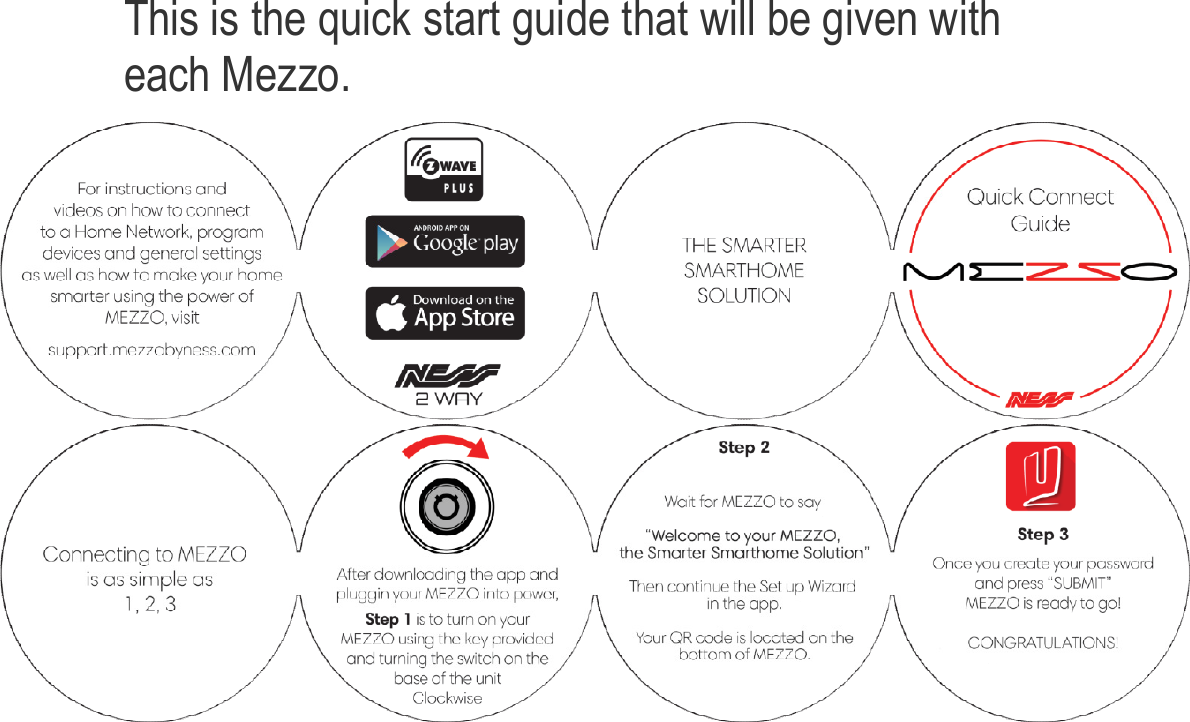
 This is the quick start geach Mezzo.  This is the quick start guide that will be given with   uide that will be given with
FCC Regulations: This  device complies  with  part 15 of  the  FCC  Rules.  Operation  is  subject to  the  following two conditions: (1) This device may not cause harmful interference, and (2) this device must accept any interference received, including interference that may cause undesired operation. This  device  has  been  tested  and  found  to  comply  with  the  limits  for  a  Class  B  digital  device, pursuant to Part 15 of the FCC Rules. These limits are designed to provide reasonable protection against harmful interference in a residential installation. This equipment generates, uses and can radiated radio frequency energy and, if not installed and used in accordance with the instructions, may  cause harmful interference to radio communications. However, there is  no  guarantee that interference  will  not  occur  in  a  particular  installation  If  this  equipment  does  cause  harmful interference to radio or television reception, which can be determined by turning the equipment off  and  on,  the  user  is  encouraged  to  try  to  correct  the  interference  by  one  or  more  of  the following measures: -Reorient or relocate the receiving antenna. -Increase the separation between the equipment and receiver. -Connect  the  equipment  into  an  outlet  on  a  circuit  different  from  that  to  which  the  receiver  is connected. -Consult the dealer or an experienced radio/TV technician for help. Caution:  Changes  or  modifications  not  expressly  approved  by  the  party  responsible  for compliance could void the user‘s authority to operate the equipment.  RF Exposure Information This device meets the government’s requirements for exposure to radio waves. This device is designed and manufactured not to exceed the emission limits for exposure to radio frequency (RF) energy set by the Federal Communications Commission of the U.S. Government. This device complies with FCC radiation exposure limits set forth for an uncontrolled environment. In order to avoid the possibility of exceeding the FCC radio frequency exposure limits, human proximity to the antenna shall not be less than 20cm (8 inches) during normal operation.  FCC Emissions Complies FCC Radio equipment and systems - Short range devices Complies  FCC LTE/WCDMAComplies  Applicable standards: Part 22H/24E, Part 22H/24E/27,  Part15C (Part15.247), Par15C (Part15.249), Par15C (Part15.247), Part2.1091, Part15B  PTCRB Complies  Applicable standards: 3GPP TS 34.123-1/ EN102 230, 3GPP TS 36.124, CTIA 3.6 AT&T Certified

Navigation menu