Nike ESP11 Nike + Sports Kit User Manual ESP Manual ENG 5 23 12 indd

Nike, Inc. Nike + Sports Kit ESP Manual ENG 5 23 12 indd

User manual

Nike+ Basketball/Training
2Nike+ Basketball/Training User’s GuideWelcome03  System Requirements04  Included in the Box Get Started05  Set Up09  Nike+ Connect 10   Airplane ModeMaintenance11   Charging14  Technical Specifications16  Service and Support16  Warranty17  Compliance InformationTable of Contents
3Nike+ Basketball/Training User’s GuideWelcomeWelcome to your new Nike+ Sport Pack, designed to motivate and empower you to improve by utilizing your measured performance data, the power of community and digital tools. Included in your system is a pair of Nike+ Basketball/Training shoes with embedded sensing technology that work with Nike+ Basketball/Training mobile Apps. The Nike+ Basketball App breaks down how high, how quick and how hard you play. The Nike+ Training App delivers high-intensity training remixed with game-like Challenges. Both systems turn measured performance into NikeFuel points and then let you share, compare and compete with friends and the entire Nike+ Community. TO USE YOUR NIKE+ SPORT, YOU MUST HAVE:•  A Macintosh or PC with built-in USB; Mac OS X v10.5.8 or later, Windows 7, Windows Vista (SP2) or Windows XP (SP3). Optional mobile app available on iOS4 and above; for the latest compatible handsets check nikeplus.com.•  Internet access (Broadband recommended; fees may apply).•  An iPhone 3GS, 4 or 4S, or an iPod touch 3rd or 4th generation running iOS 5.1 and above. For a complete list of compatible devices, visit: www.nikeplus.com/setup. System Requirements
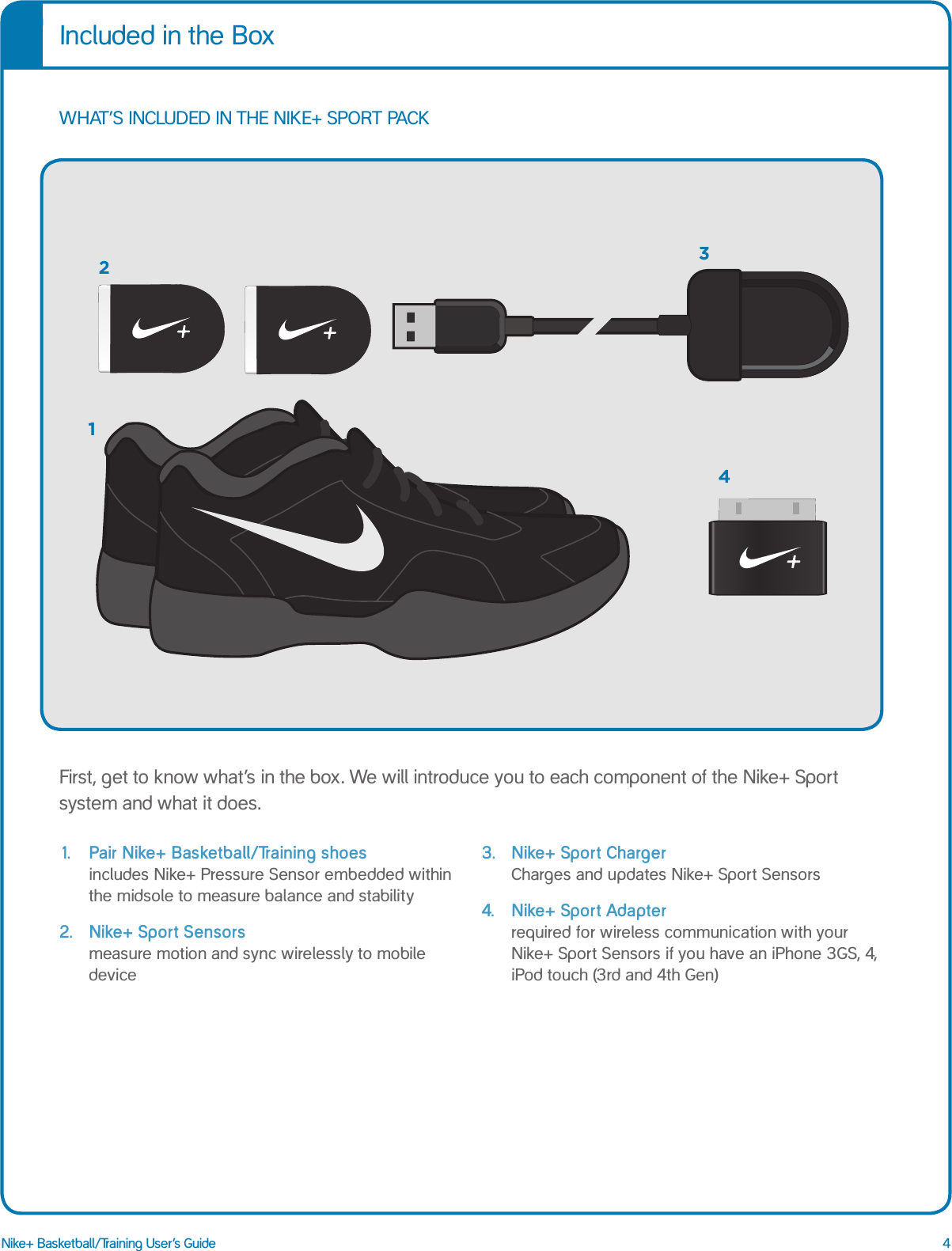
4Nike+ Basketball/Training User’s GuideWHAT’S INCLUDED IN THE NIKE+ SPORT PACK1.   Pair Nike+ Basketball/Training shoes includes Nike+ Pressure Sensor embedded within the midsole to measure balance and stability2.  Nike+ Sport Sensors  measure motion and sync wirelessly to mobile device3.  Nike+ Sport Charger  Charges and updates Nike+ Sport Sensors4.   Nike+ Sport Adapter  required for wireless communication with your Nike+ Sport Sensors if you have an iPhone 3GS, 4, iPod touch (3rd and 4th Gen)1423Included in the BoxFirst, get to know what’s in the box. We will introduce you to each component of the Nike+ Sport system and what it does.
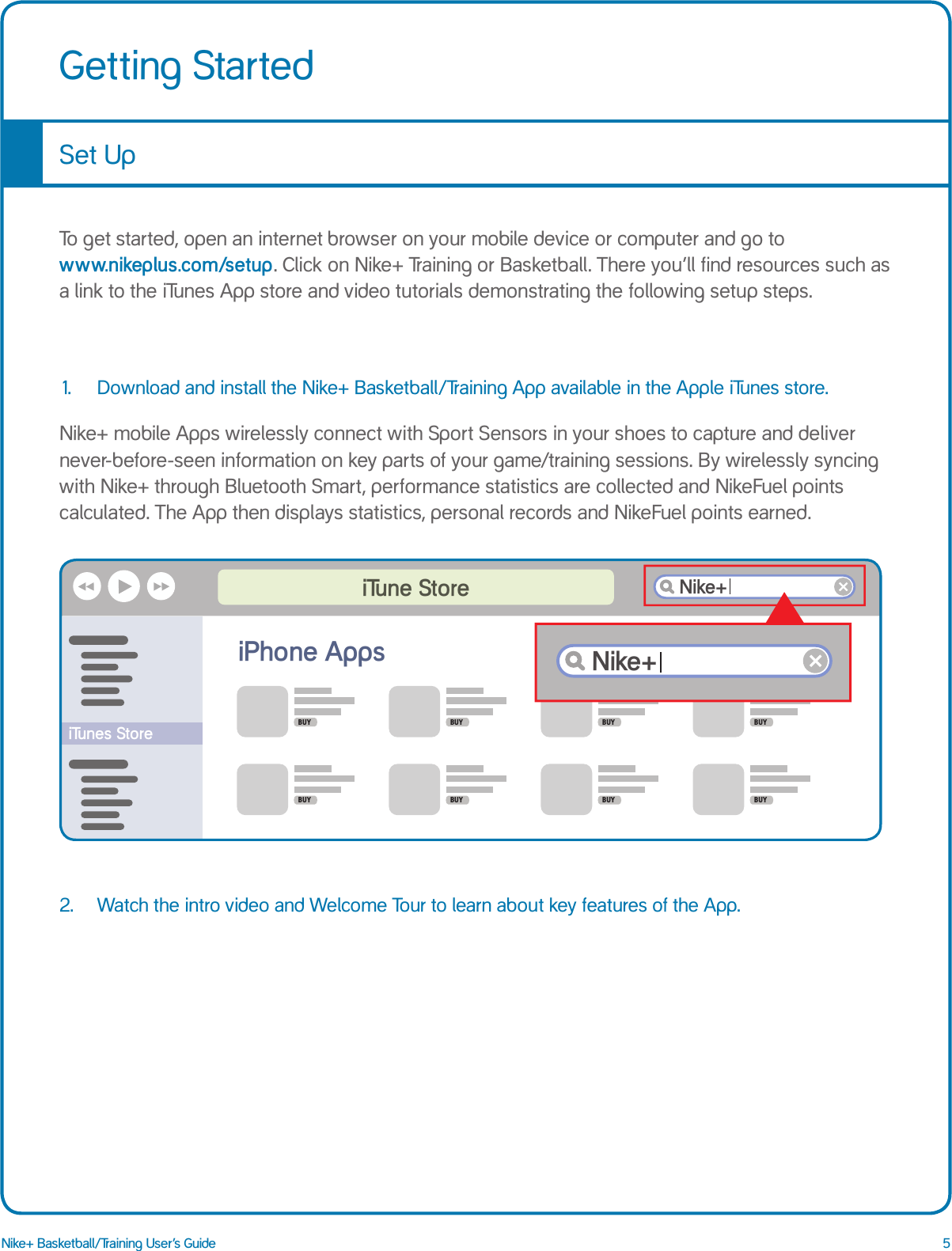
5Nike+ Basketball/Training User’s GuideGetting StartedSet UpTo get started, open an internet browser on your mobile device or computer and go to  www.nikeplus.com/setup. Click on Nike+ Training or Basketball. There you’ll find resources such as a link to the iTunes App store and video tutorials demonstrating the following setup steps.1.  Download and install the Nike+ Basketball/Training App available in the Apple iTunes store.Nike+ mobile Apps wirelessly connect with Sport Sensors in your shoes to capture and deliver never-before-seen information on key parts of your game/training sessions. By wirelessly syncing with Nike+ through Bluetooth Smart, performance statistics are collected and NikeFuel points calculated. The App then displays statistics, personal records and NikeFuel points earned.BUY BUY BUY BUYBUY BUY BUY BUYiTune StoreiTunes StoreiPhone AppsNike+Nike+BUY BUY BUY BUYBUY BUY BUY BUYiTune StoreiTunes StoreiPhone AppsNike2.  Watch the intro video and Welcome Tour to learn about key features of the App.
6Nike+ Basketball/Training User’s Guide3.  Setup a Nike+ ID or log in to your existing account on nikeplus.com.   To unlock all the features of the Apps, you’ll need to create a Nike+ profile. With your Nike+ account you’ll be able to share activity with friends and get motivated to improve.To create a new account, click “LOG IN” You can also register using your Facebook or Twitter account.If you already have a Nike+ account, you can log in with your email address and password, or use your Facebook or Twitter account.4.  Follow guided setup flow. The first screen of the app will introduce to what’s in the box. Next, insert the Sport Sensor into Sport Charger and plug Charger into USB port of computer. This will “wake-up” the Sport Sensors from a deep-sleep state and launch the Connect utility. Connect software allows you to update and reset your Nike+ Sport Sensors. The mobile Apps will notify you when your Sport Sensors need updating. For more information on Connect, see section below.
7Nike+ Basketball/Training User’s Guide1.   If you are using an iPhone 3GS, iPhone 4 or iPod Touch (3rd & 4th gen.), you will need to plug the Nike+ Sport Adapter into your iPhone.  3.  Within the first 10 seconds after inserting the Sport Sensor, press and hold the heel of the Nike+ Pressure Sensor. 5.  Now, you must “pair” your Nike+ Basketball/Training shoes and mobile device.Pairing allows the Nike+ Sport Sensors to communicate exclusively with your mobile device, which is logged into your unique Nike+ ID. You only have to do this once for each sensor.iPhone 3GS or 4 or ipod touch (3rd & 4th gen)2.  Lift sockliner and insert Nike+ Sport Sensor into pocket  Skip this step if you have iPhone 4S running IOS 5.1 and above.4.   When you see the LED change to a red/yellow/green blink sequence the Sport Sensor is in pairing mode. Continue to hold until the App tells you to release and pairing has completed successfully.  Repeat the process for the second shoe.
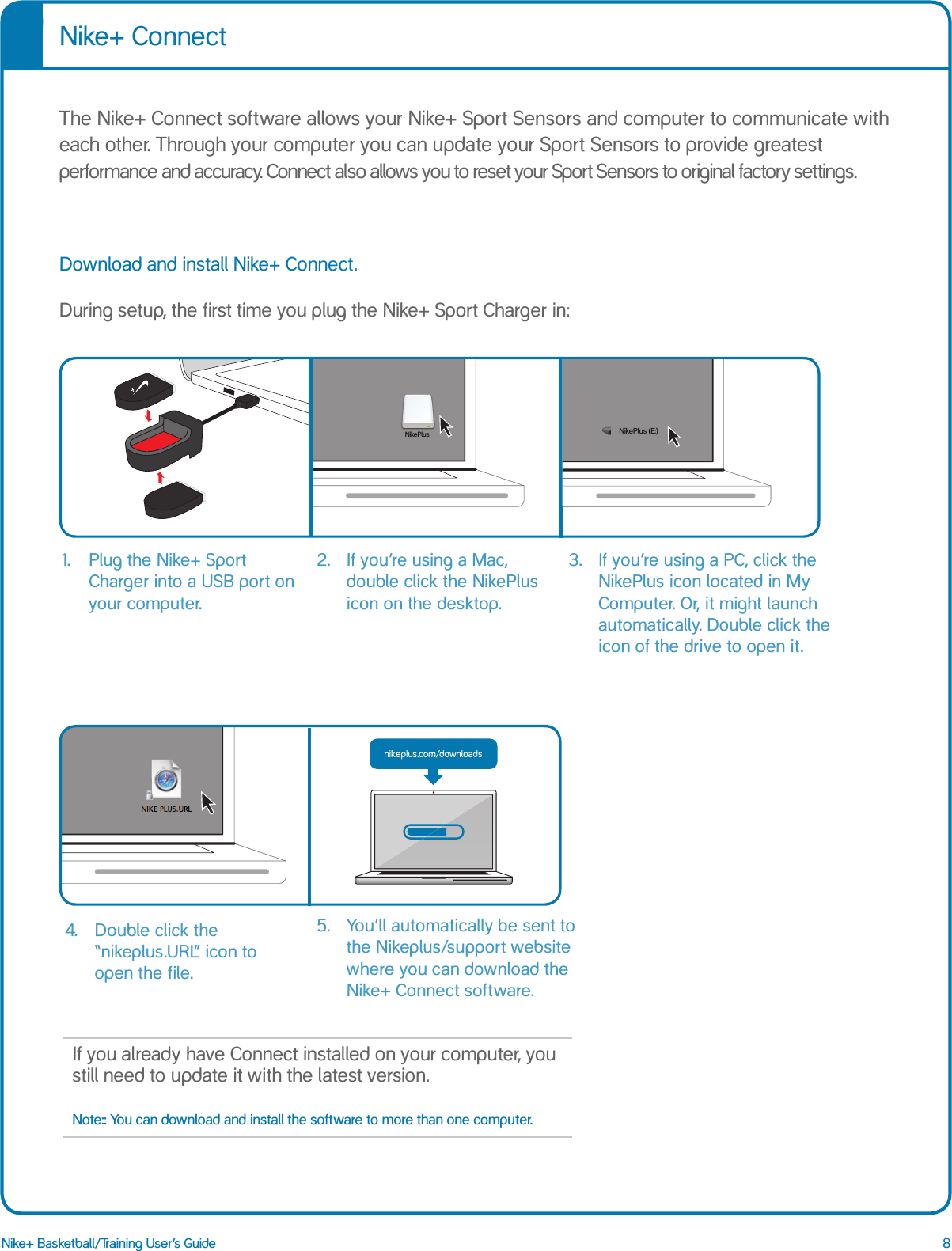
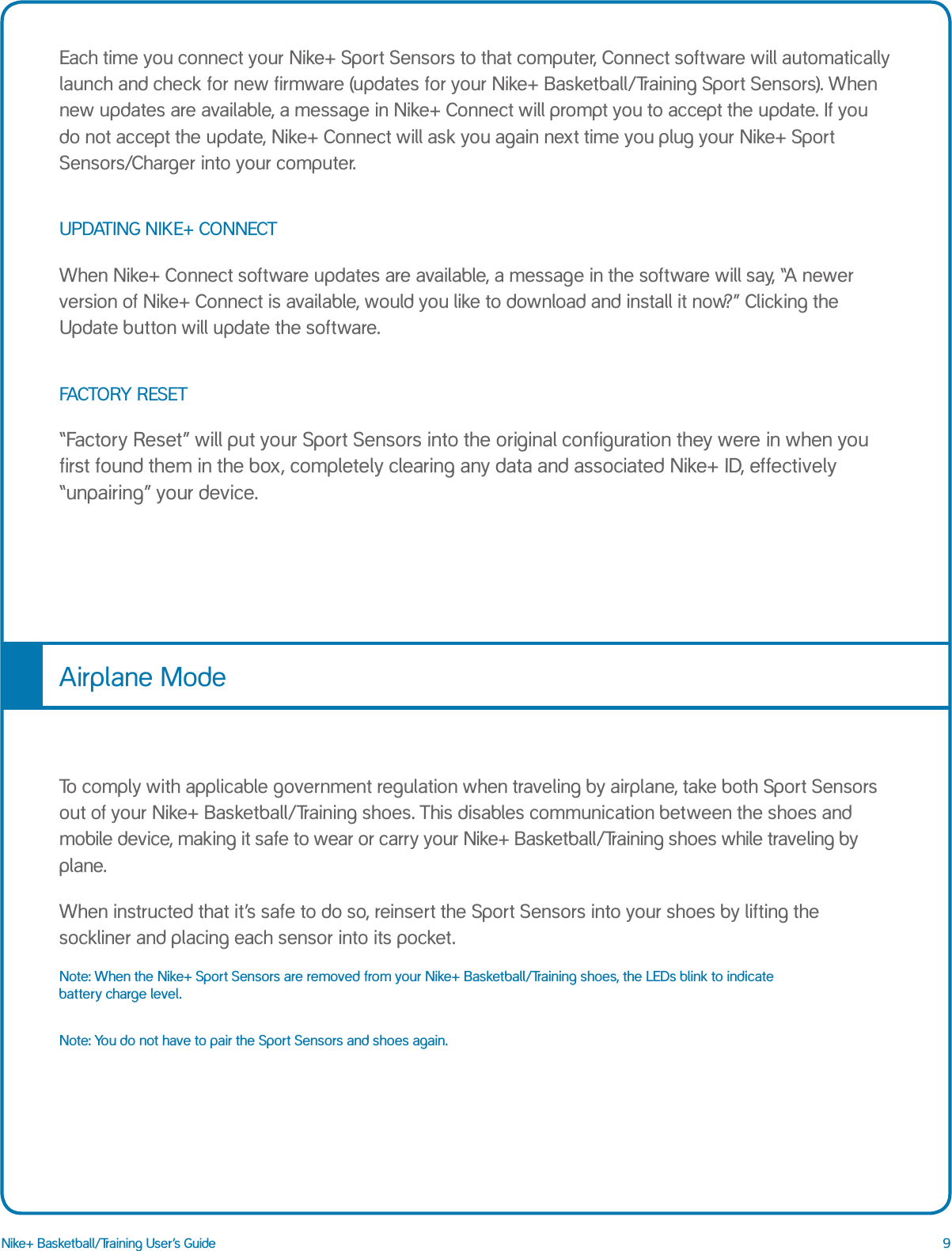
8Nike+ Basketball/Training User’s GuideNike+ ConnectThe Nike+ Connect software allows your Nike+ Sport Sensors and computer to communicate with each other. Through your computer you can update your Sport Sensors to provide greatest performance and accuracy. Connect also allows you to reset your Sport Sensors to original factory settings.Download and install Nike+ Connect.During setup, the first time you plug the Nike+ Sport Charger in: 1.   Plug the Nike+ Sport Charger into a USB port on your computer. 2.  If you’re using a Mac, double click the NikePlus   icon on the desktop.3.  If you’re using a PC, click the NikePlus icon located in My Computer. Or, it might launch automatically. Double click the icon of the drive to open it.4.   Double click the “nikeplus.URL” icon to open the file.5.  You’ll automatically be sent to the Nikeplus/support website where you can download the Nike+ Connect software. NikePlus NikePlus (E:)If you already have Connect installed on your computer, you still need to update it with the latest version.  Note:: You can download and install the software to more than one computer.
9Nike+ Basketball/Training User’s GuideEach time you connect your Nike+ Sport Sensors to that computer, Connect software will automatically launch and check for new firmware (updates for your Nike+ Basketball/Training Sport Sensors). When new updates are available, a message in Nike+ Connect will prompt you to accept the update. If you do not accept the update, Nike+ Connect will ask you again next time you plug your Nike+ Sport Sensors/Charger into your computer.UPDATING NIKE+ CONNECTWhen Nike+ Connect software updates are available, a message in the software will say, “A newer version of Nike+ Connect is available, would you like to download and install it now?” Clicking the Update button will update the software.FACTORY RESET“Factory Reset” will put your Sport Sensors into the original configuration they were in when you first found them in the box, completely clearing any data and associated Nike+ ID, effectively “unpairing” your device.To comply with applicable government regulation when traveling by airplane, take both Sport Sensors out of your Nike+ Basketball/Training shoes. This disables communication between the shoes and mobile device, making it safe to wear or carry your Nike+ Basketball/Training shoes while traveling by plane.When instructed that it’s safe to do so, reinsert the Sport Sensors into your shoes by lifting the sockliner and placing each sensor into its pocket.Note: When the Nike+ Sport Sensors are removed from your Nike+ Basketball/Training shoes, the LEDs blink to indicate battery charge level.Note: You do not have to pair the Sport Sensors and shoes again. Airplane Mode
10Nike+ Basketball/Training User’s GuideThe LEDs on your Nike+ Sport Sensors let you see the battery’s charge level by blinking red to yellow to green indicating empty to full. WHEN IT’S TIME TO RECHARGE, DO THE FOLLOWING:1.  Take both Nike+ Sport Sensors out of your Nike+ Basketball/Training shoes and insert them into the Nike+ Sport Charger.2.  Plug the Nike+ Sport Charger into a USB port on your computer. When fully charged, the LED will continuously glow green.   3.  Remove the Nike+ Sport Sensors from the charger and insert them into the sensor bed of your Nike+ Basketball/Training shoes.ChargingMaintenance
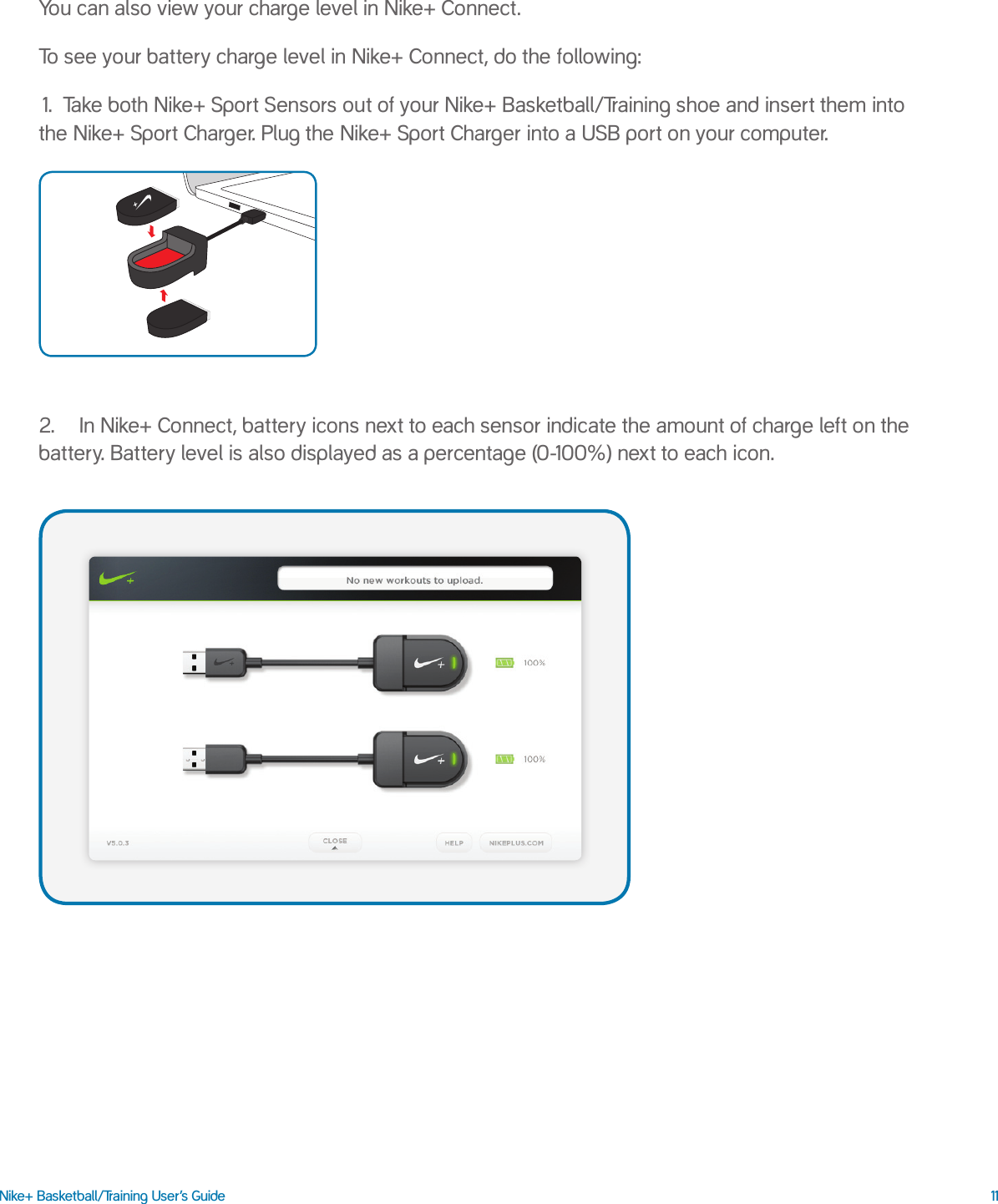
11Nike+ Basketball/Training User’s GuideYou can also view your charge level in Nike+ Connect. To see your battery charge level in Nike+ Connect, do the following:1.  Take both Nike+ Sport Sensors out of your Nike+ Basketball/Training shoe and insert them into the Nike+ Sport Charger. Plug the Nike+ Sport Charger into a USB port on your computer.2.  In Nike+ Connect, battery icons next to each sensor indicate the amount of charge left on the battery. Battery level is also displayed as a percentage (0-100%) next to each icon.
12Nike+ Basketball/Training User’s GuideTo identify which Nike+ Sport Sensor you are viewing:1.   Click a Nike+ Sport Sensor image in Connect. In the Nike+ Sport Charger, the corresponding sensor’s LED will blink green, while the other sensor’s LED switches off.2.  Click OK to continue charging.When fully charged, the LED will continuously glow green.4.  Remove the Nike+ Sport Sensors from the charger and insert them into the sensor bed of your Nike+ Basketball/Training shoes.
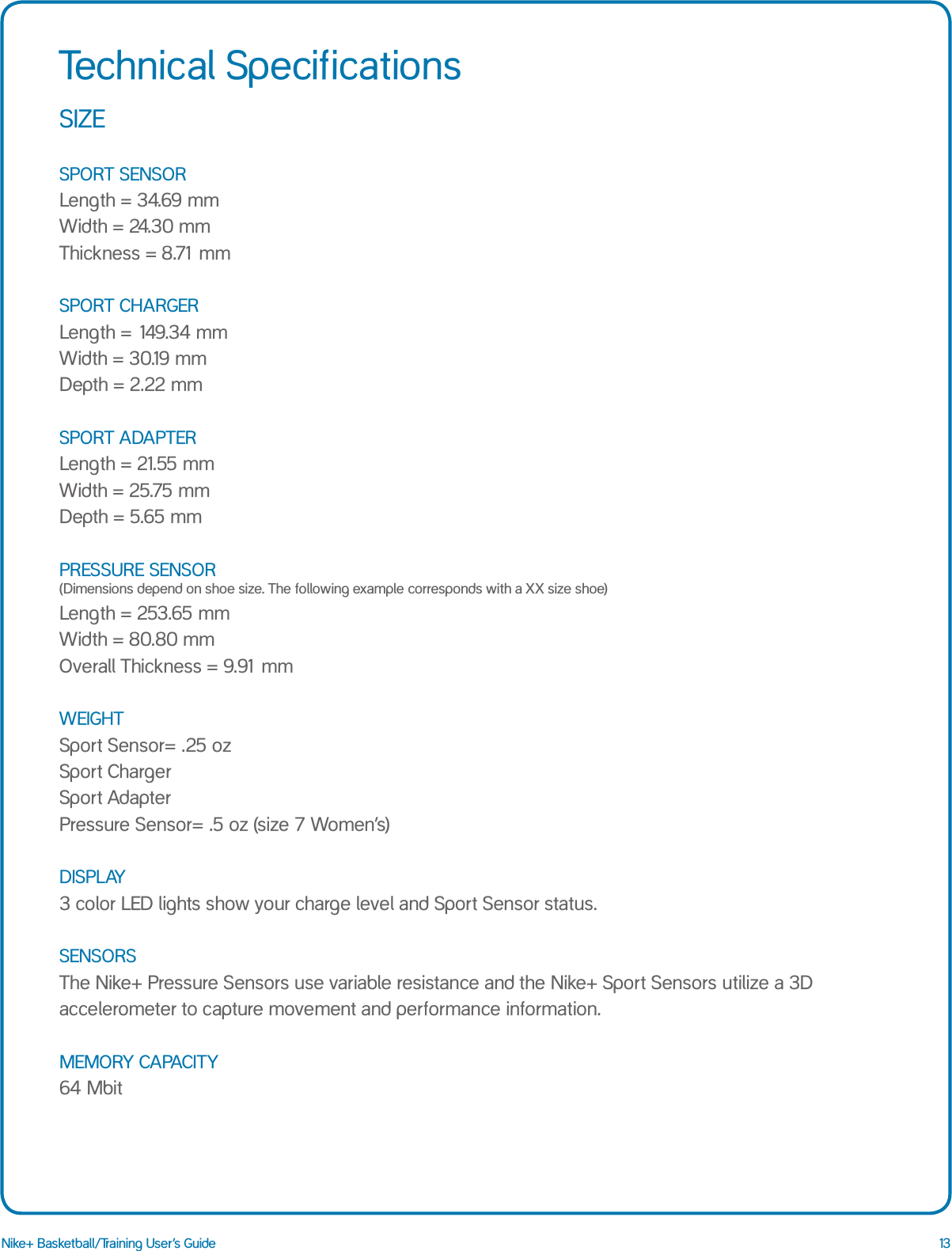
13Nike+ Basketball/Training User’s GuideSIZE  SPORT SENSOR Length = 34.69 mm Width = 24.30 mm Thickness = 8.71 mm  SPORT CHARGER Length = 149.34 mm Width = 30.19 mm Depth = 2.22 mm  SPORT ADAPTER Length = 21.55 mm Width = 25.75 mm Depth = 5.65 mm  PRESSURE SENSOR  (Dimensions depend on shoe size. The following example corresponds with a XX size shoe) Length = 253.65 mm Width = 80.80 mm Overall Thickness = 9.91 mm  WEIGHT Sport Sensor= .25 oz Sport Charger Sport Adapter Pressure Sensor= .5 oz (size 7 Women’s)  DISPLAY 3 color LED lights show your charge level and Sport Sensor status.  SENSORS The Nike+ Pressure Sensors use variable resistance and the Nike+ Sport Sensors utilize a 3D accelerometer to capture movement and performance information.  MEMORY CAPACITY 64 MbitTechnical Specifications
14Nike+ Basketball/Training User’s GuideBATTERY Rechargeable Lithium-Ion Battery.   Battery life depends on usage and type of activity. Most users should see several weeks of use between charges.     CONNECT AND SYNC  Connect to your computer via USB with the Sport Charger.   Wireless pairing via Bluetooth Smart between Sport Sensor and Nike+ Basketball and/or Training mobile app for devices using iOS 5.1 and up; Check back for compatibility with other operating systems and devices.  Airplane Mode for disabling radio connections.  WATER RESISTANCE All components in the Nike+ Sport Pack are water resistant but not designed to be submerged for extended periods of time. Hand washing is recommended.   MATERIALS  Need this for : Sport Sensor Sport Charger Sport Adapter Pressure Sensor WORK IN PROGRESS
15Nike+ Basketball/Training User’s GuideLANGUAGESApp- English, French, German, Simplified Chinese  Website- English, French, German, Simplified Chinese  Connect- English, French (European), Canadian French, Italian, Spanish (European), Latin American, Spanish, German, Polish, Turkish, Brazilian Portuguese, Japanese, Korean, Chinese-Simplified, Chinese-TraditionalWORK IN PROGRESS
16Nike+ Basketball/Training User’s GuideHAVE QUESTIONS FOR US? For service and support, tutorials, and software downloads, go to: www.nikeplus.com/supportService and SupportWarrantyONE - YEAR LIMITED WARRANTY Nike+ electronics warranty, including Sport Charger, Sensor, Adapter, Pressure SensorYour product is warranted by Nike* to be free of defects in materials or workmanship, under normal use, for a period of one year from the date of purchase. This limited warranty excludes damage resulting from improper care of handling, accidents, modification, unauthorized repairs, normal wear or other causes which are not defects in materials or workmanship.  If your product is defective, return it and the store receipt to the place of purchase.If there is a covered defect, we will repair or replace the product free of charge or issue a refund at our discretion. The product is provided “AS IS AND WITH ALL FAULTS”, and Nike hereby disclaims all other warranties, conditions and the provision of or failure to provide support or other services, information, software, and related content through the product or otherwise arising out of the use of the product.This limited warranty is in place of all other express and implied warranties of any kind, which are hereby excluded. In no event shall Nike be liable for direct, indirect, incidental or consequential damages arising out of the use of the product, and any recovery is limited to the purchase price. No other person or company is authorized to change this limited warranty, and your dealer is solely responsible for any other additional warranties. Some states and countries within the EEA do not allow limitation on how long an implied warranty lasts, or exclusion of all or certain types of damages, so the above limitations may not apply to you. This warranty gives you specific legal rights, and you may also have other additional rights, which vary from state to state or within the EEA. The foregoing is without prejudice to other legal rights that may arise under applicable national legislation. The warranty extends only to products purchased from an authorized Nike retailer.This warranty does not apply to consumable parts, such as batteries, unless damage has occurred due to a defect in materials or workmanship.*In European countries, Nike means Nike European Operations Netherlands B.V. located at Colosseum 1, 1213 NL Hilversum, The Netherlands.
17Nike+ Basketball/Training User’s GuideCompliance InformationUnited States:This device complies with part 15 of the FCC rules. Operation is subject to the following two conditions (1) this device may not cause harmful interference, and (2) this device must accept any interference received including interference that may cause undesired operation.FCC WARNING: any changes or modications not expressly approved by the party responsible for compliance. could void the user’s authority to operate this equipment under FCC regulations.Note: This equipment has been tested and found to comply with the limits for a Class B digital device, pursuant to part 15 of the FCC Rules. These limits are designed to provide reasonable protection against harmful interference in a residential installation. This equipment generates, uses and can radiate radio frequency energy and, if not installed and used in accordance with the instructions, may cause harmful interference to radio communications. However, there is no guarantee that interference will not occur in a particular installation. If this equipment does cause harmful interference to radio or television reception, which can be determined by turning the equipment off and on, the user is encouraged to try to correct the interference by one or more of the following measures:—Reorient or relocate the receiving antenna.—Increase the separation between the equipment and receiver.—Connect the equipment into an outlet on a circuit different from that to which the receiver is connected.—Consult the dealer or an experienced radio/TV technician for help.Note: The Transmitters within this device must not be co-located or operating in conjunction with any other antenna or transmitter.EU (European Union): Declaration of Conformity with Regard to the EU Directive 1995/5/ECEnglish: Hereby, Nike, declares that this Nike+ Basketball/Training is in compliance with the essential requirements and other relevant provisions of Directive 1999/5/EC.This product contains a battery that is not user accessible. Do not attempt to open the case, otherwise data may be lost and performance compromised. Substances contained in this product and/or its battery may damage the environment and/or human health if disposed of improperly. The wheeled bin on this product indicates that it should not be disposed of together with household waste. Please be responsible and take it to your nearest recycling collection point to ensure it is recycled. To locate your nearest collection point, contact the retailer where you made your purchase or your local municipality.“Made for iPod” and “Made for iPhone” mean that an electronic accessory has been designed to connect specically to iPod or iPhone, respectively, and has been certied by the developer to meet Apple performance standards. Apple is not responsible for the operation of this device or its compliance with safety and regulatory standards. Please note that the use of this accessory with iPod or iPhone may affect wireless performance.iPhone, iPod and iPod touch are trademarks of Apple Inc., registered in the U.S. and other countries.WIP

Navigation menu