Nortek Security and Control 2GIG CNTRLX345 ALARM SECURITY DEVICE WITH TRANSCEIVER User Manual 229528A indd

2GIG Technologies, Inc. ALARM SECURITY DEVICE WITH TRANSCEIVER 229528A indd

user manual

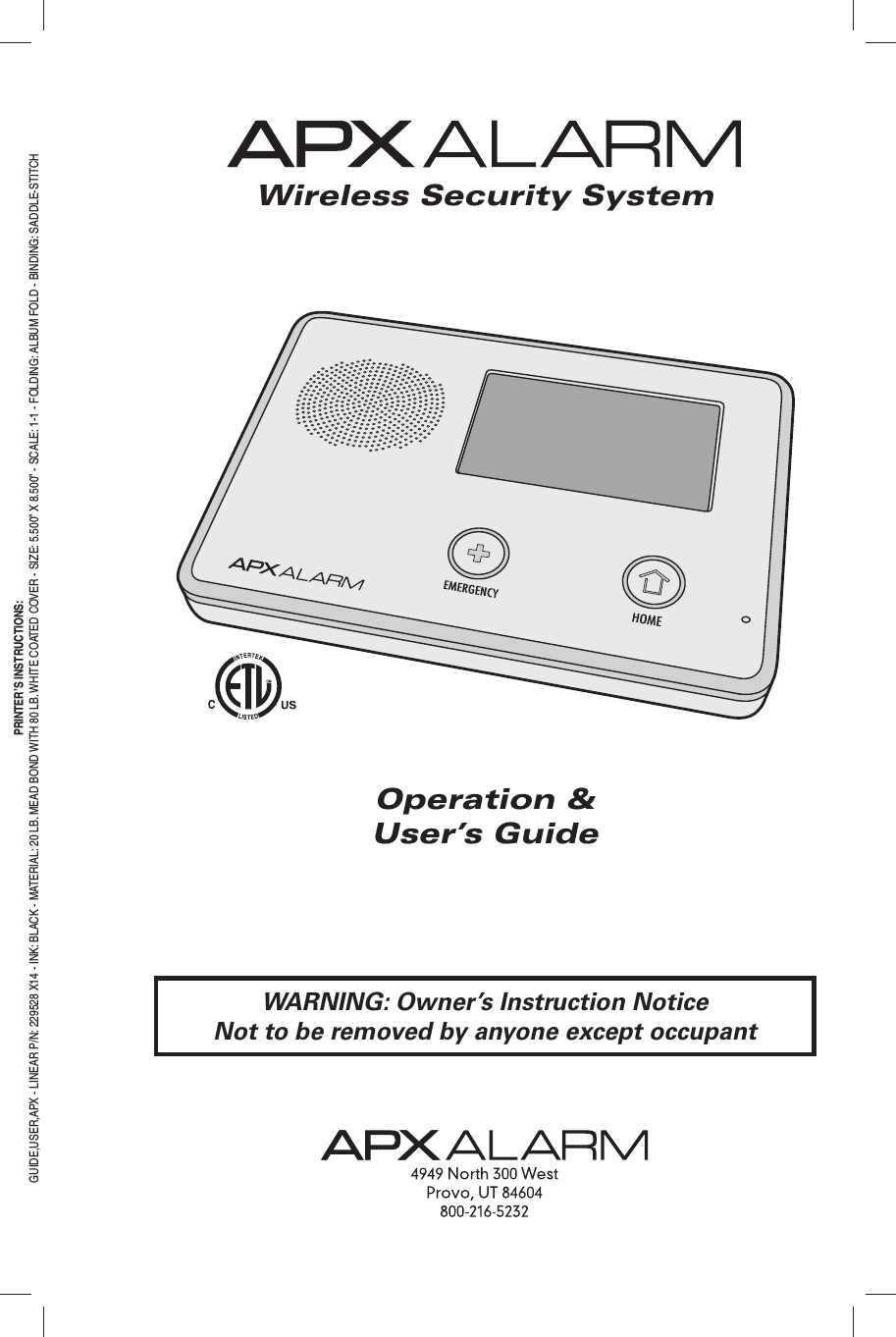
Wireless Security SystemOperation &User’s GuidePRINTER’S INSTRUCTIONS:GUIDE,USER,APX - LINEAR P/N: 229528 X14 - INK: BLACK - MATERIAL: 20 LB. MEAD BOND WITH 80 LB. WHITE COATED COVER - SIZE: 5.500” X 8.500” - SCALE: 1-1 - FOLDING: ALBUM FOLD - BINDING: SADDLE-STITCHWARNING: Owner’s Instruction NoticeNot to be removed by anyone except occupant
Congratulations on your ownership of an APX Security System! This wireless system offers protection for your property against burglary, protection for yourself and family with 24-hour emergency monitoring, and optionally fi re and carbon monoxide detection for your home.The heart of the system is the Control Panel. It receives the wireless radio signals from remote system “sensors” that monitor doors, windows, motion detectors, smoke detectors, carbon monoxide detectors, and panic buttons. The Control Panel processes these signals and controls the alarm siren. The system can communicate to an alarm monitoring “Central Station” over the regular telephone network and optionally over the cellular telephone network to report violations, alarms, and system status.The Control Panel is operated using its color touch screen display that shows easy to identity buttons and icons. The system can be armed or disarmed directly at the Control Panel, or by using optional key fob remote controls, or remotely over the telephone. The Control Panel displays helpful information regarding the system and sensor status, system and alarm history, and trouble alerts.Being fully “supervised”, the APX Security System continuously monitors itself and its sensors. If an issue occurs, such as a low sensor battery, the trouble alert will be displayed and logged by the Control Panel and optionally reported to the Central Monitoring Station. This way, the trouble can be addressed and corrected promptly, maintaining the integrity of the system.With the system’s built-in Z-Wave home automation capability, you can control your Z-Wave enabled household appliances from the Control Panel or remotely from a PC and the Internet from anywhere in the world... even through your cell phone! (This is an optional feature, check with your security professional for availability with your system.)Many insurance companies offer discounts on homeowners and renters policies when a security system is installed. Discount credits vary with different companies and generally increase in savings with an increase in the level of protection. Ask your insurance agent about savings available to you.The GO!control Security System
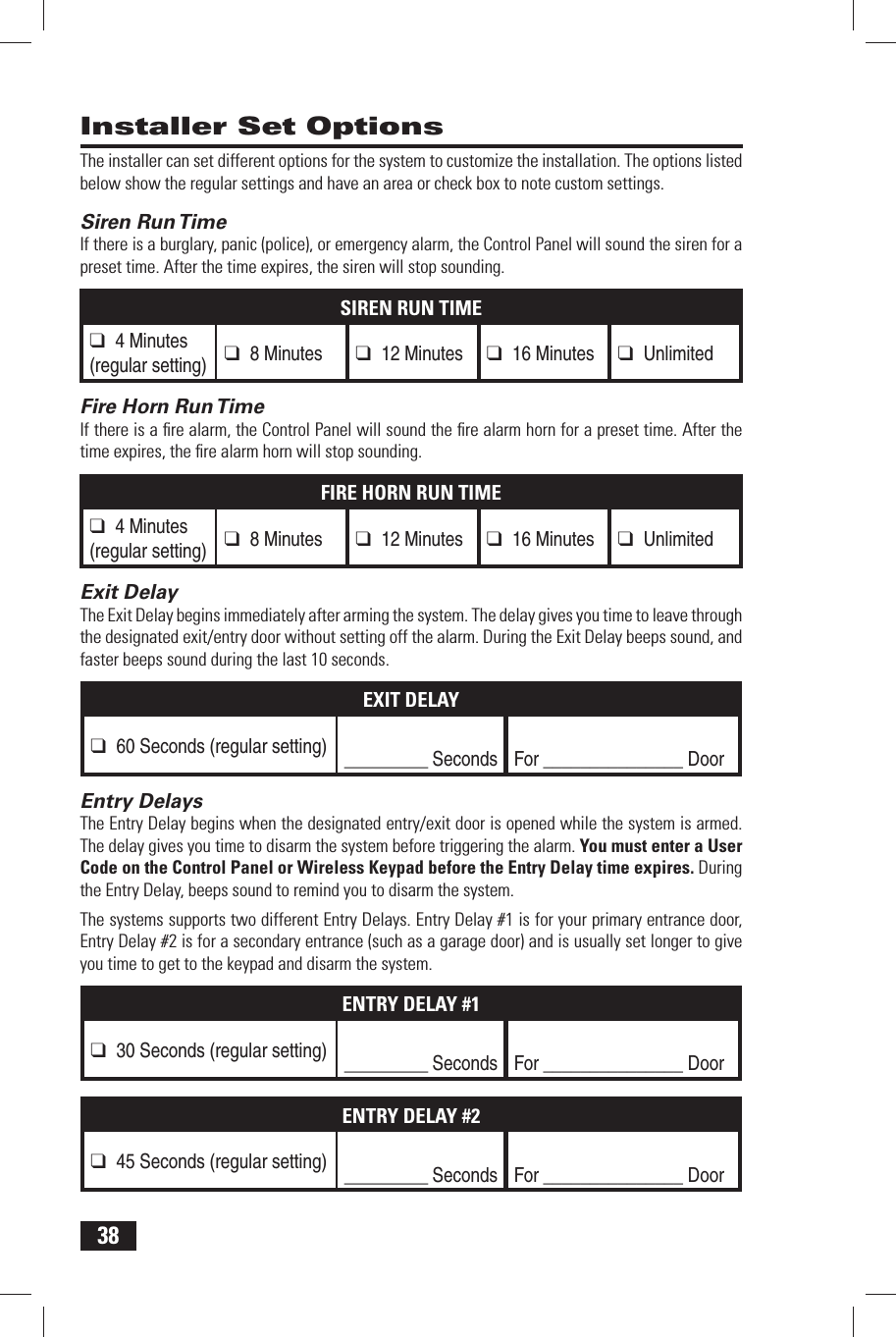
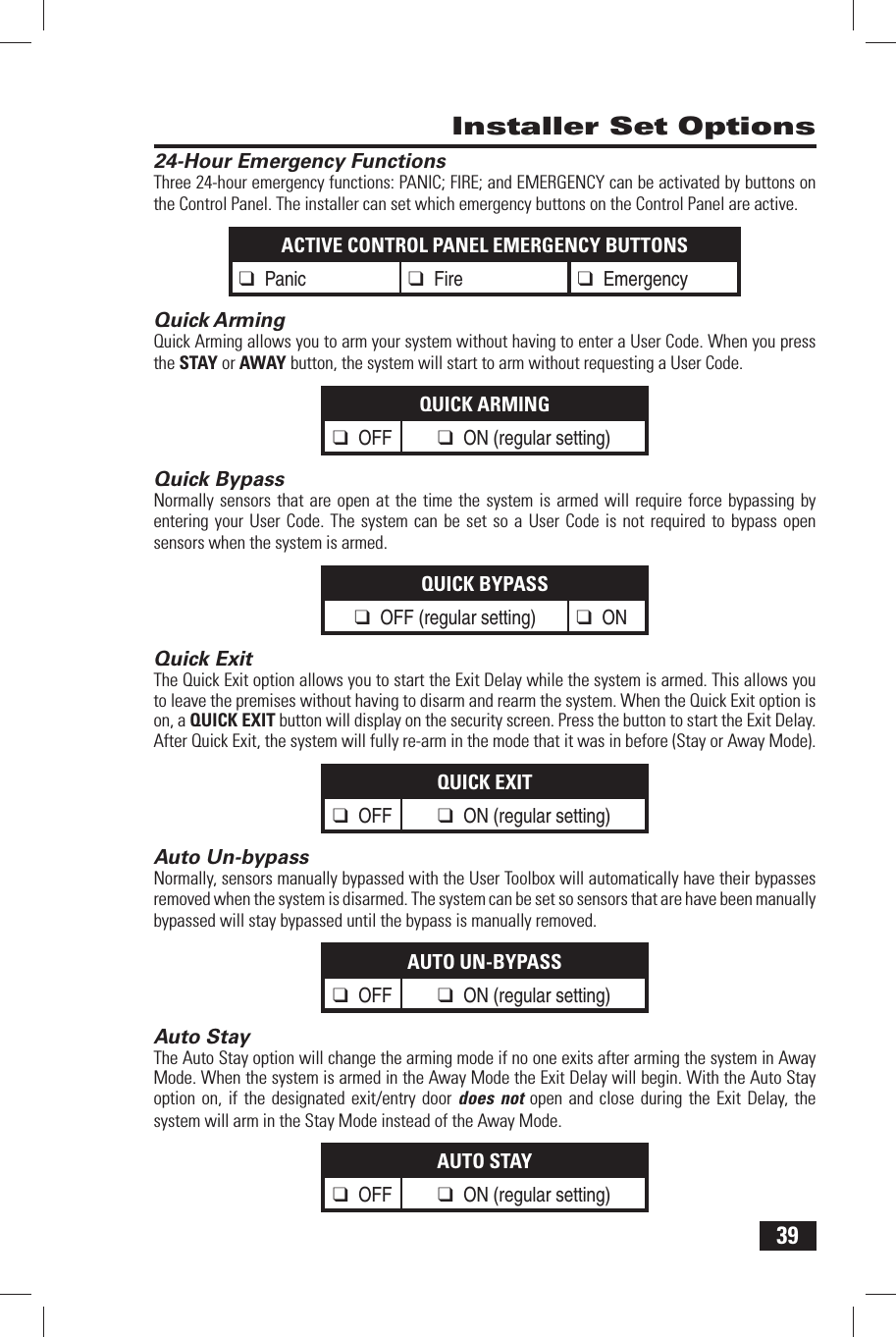
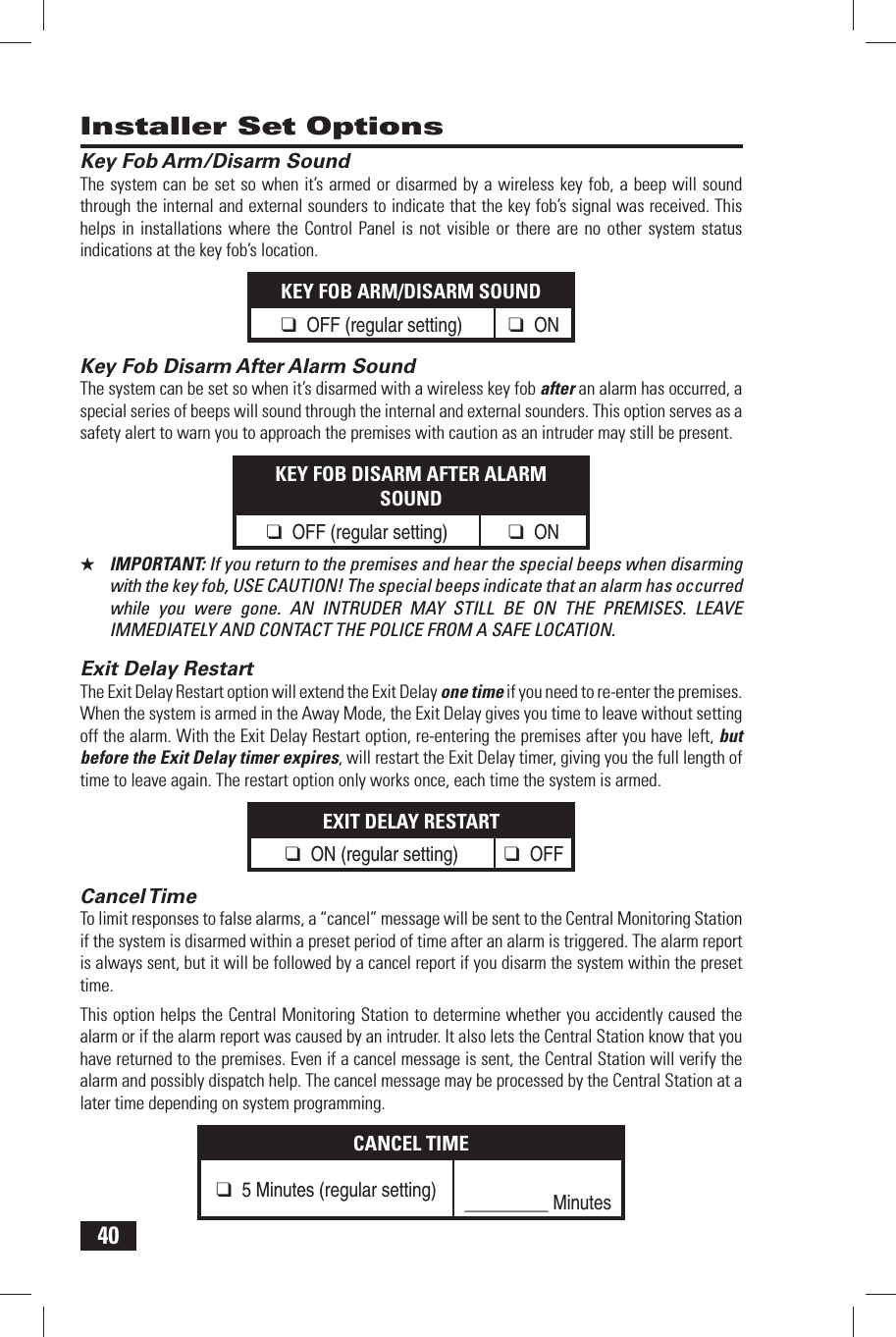
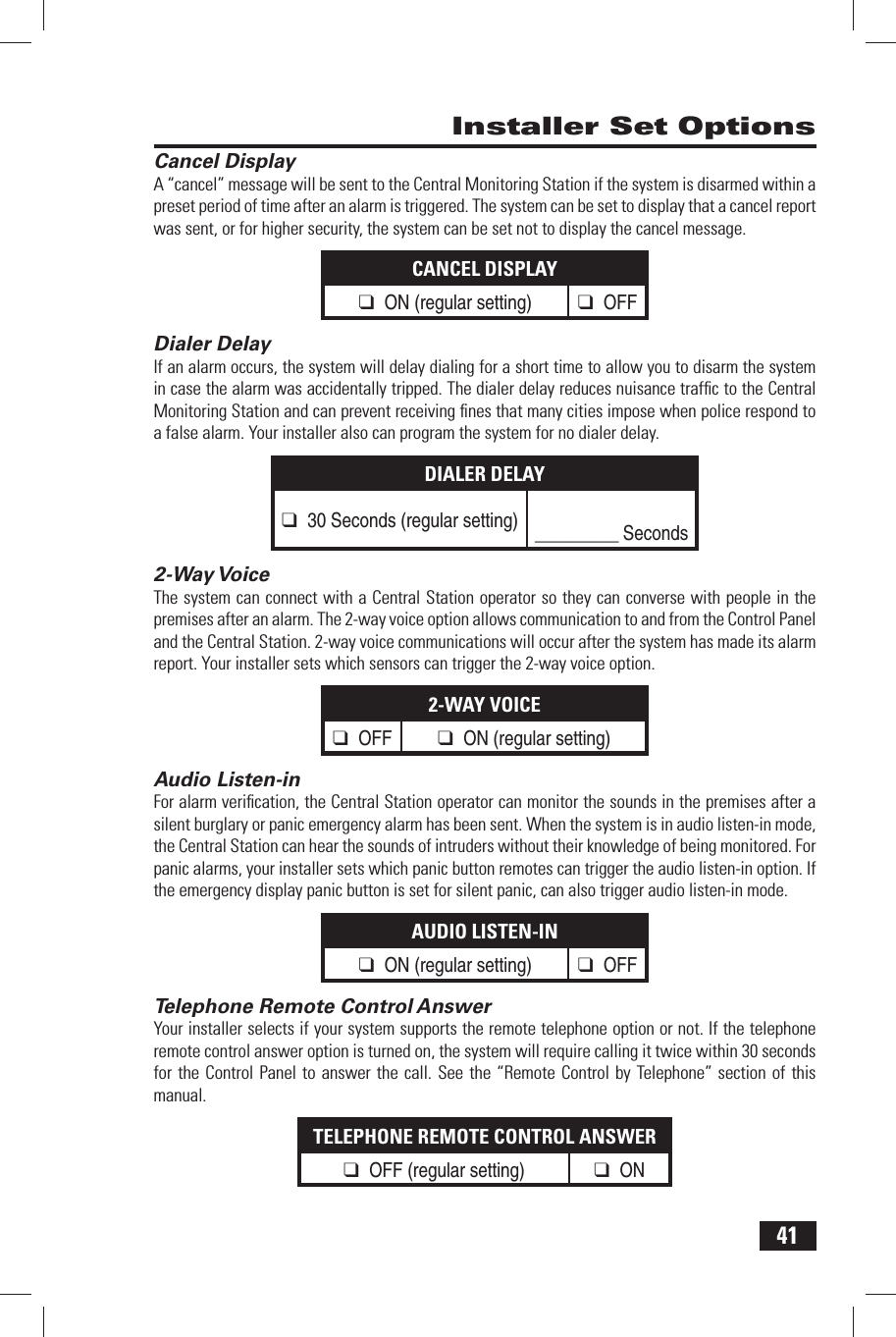
1Table of ContentsSystem Overview . . . . . . . . . . . . . . . . . . . . . . . . . . . . . . . .  2General Information . . . . . . . . . . . . . . . . . . . . . . . . . . .  2Features . . . . . . . . . . . . . . . . . . . . . . . . . . . . . . . . . . . . . 2General Operation . . . . . . . . . . . . . . . . . . . . . . . . . . . .  3Sensor Types . . . . . . . . . . . . . . . . . . . . . . . . . . . . . . . 3Fire Protection . . . . . . . . . . . . . . . . . . . . . . . . . . . . . .  3Burglary Protection . . . . . . . . . . . . . . . . . . . . . . . . . 3User Codes. . . . . . . . . . . . . . . . . . . . . . . . . . . . . . . . . 3Alarms. . . . . . . . . . . . . . . . . . . . . . . . . . . . . . . . . . . . . 3Control Panel Features . . . . . . . . . . . . . . . . . . . . . . . . . . .  4Wireless Sensors  . . . . . . . . . . . . . . . . . . . . . . . . . . . . . . .  5Main Display Screens  . . . . . . . . . . . . . . . . . . . . . . . . . . .  6Home Screen  . . . . . . . . . . . . . . . . . . . . . . . . . . . . . . . . 6Security Screen . . . . . . . . . . . . . . . . . . . . . . . . . . . . . .  6Arming Screen . . . . . . . . . . . . . . . . . . . . . . . . . . . . . . . 6Menu Screen  . . . . . . . . . . . . . . . . . . . . . . . . . . . . . . . . 6Status Screen . . . . . . . . . . . . . . . . . . . . . . . . . . . . . . . . 6Burglary Protection . . . . . . . . . . . . . . . . . . . . . . . . . . . . . .  7Operating the System  . . . . . . . . . . . . . . . . . . . . . . . . . 7Sensor Status . . . . . . . . . . . . . . . . . . . . . . . . . . . . . . . . 8Checking that All Sensors are Closed  . . . . . . . . . . . 8Viewing Each Sensor’s Status . . . . . . . . . . . . . . . . . .  8Force Bypassing Sensors . . . . . . . . . . . . . . . . . . . . 9Manual Bypassing or Un-bypassing Sensors . . . 9Stay Mode . . . . . . . . . . . . . . . . . . . . . . . . . . . . . . . . . . 10Entry Delay . . . . . . . . . . . . . . . . . . . . . . . . . . . . . . . .  10Quick Exit . . . . . . . . . . . . . . . . . . . . . . . . . . . . . . . . . 10Arming to Stay Mode . . . . . . . . . . . . . . . . . . . . . . . 11Away Mode . . . . . . . . . . . . . . . . . . . . . . . . . . . . . . . . . 12Exit and Entry Delays . . . . . . . . . . . . . . . . . . . . . . . 12Silent Exit . . . . . . . . . . . . . . . . . . . . . . . . . . . . . . . . . 12Quick Exit . . . . . . . . . . . . . . . . . . . . . . . . . . . . . . . . . 12Auto Stay Mode  . . . . . . . . . . . . . . . . . . . . . . . . . . .  12Arming to Away Mode . . . . . . . . . . . . . . . . . . . . . .  13Disarming the System . . . . . . . . . . . . . . . . . . . . . . . .  14Disarming from Stay Mode . . . . . . . . . . . . . . . . . . 14Disarming from Away Mode . . . . . . . . . . . . . . . . .  14If a Burglary Alarm Occurs . . . . . . . . . . . . . . . . . . . .  15Burglary Alarm Siren . . . . . . . . . . . . . . . . . . . . . . . 15Alarm Memory. . . . . . . . . . . . . . . . . . . . . . . . . . . . . 15Optional 2-Way Voice Communications . . . . . . . 15Key Fob Arming and Disarming . . . . . . . . . . . . . . . .  16Key Fob Arming to Stay Mode . . . . . . . . . . . . . . . 16Key Fob Arming to Away Mode . . . . . . . . . . . . . . 16Key Fob Disarming . . . . . . . . . . . . . . . . . . . . . . . . . 16Key Fob Emergency . . . . . . . . . . . . . . . . . . . . . . . . 16Key Fob Auxiliary  . . . . . . . . . . . . . . . . . . . . . . . . . .  16Wireless Keypad Arming and Disarming . . . . . . . . 17Wireless Keypad Arming to Stay Mode . . . . . . . 17Wireless Keypad Arming to Away Mode . . . . . . 17Wireless Keypad Disarming . . . . . . . . . . . . . . . . . 17Wireless Keypad Fire Emergency . . . . . . . . . . . . 17Wireless Keypad Police Emergency . . . . . . . . . . 17Fire Protection . . . . . . . . . . . . . . . . . . . . . . . . . . . . . . . . . 18Fire Alarm System  . . . . . . . . . . . . . . . . . . . . . . . . . . .  18Manual Fire Alarm . . . . . . . . . . . . . . . . . . . . . . . . . 18Automatic Fire Alarm . . . . . . . . . . . . . . . . . . . . . . . 18Silencing a False Fire Alarm . . . . . . . . . . . . . . . . . 18Recommended Smoke Detector Locations . . . . . . 19Emergency Evacuation Plan . . . . . . . . . . . . . . . . . . . 20Emergency Functions . . . . . . . . . . . . . . . . . . . . . . . . . . . 2124-Hour Emergency Buttons  . . . . . . . . . . . . . . . . . . 21Panic . . . . . . . . . . . . . . . . . . . . . . . . . . . . . . . . . . . . .  21Fire. . . . . . . . . . . . . . . . . . . . . . . . . . . . . . . . . . . . . . . 21Emergency . . . . . . . . . . . . . . . . . . . . . . . . . . . . . . . .  21System Trouble Alerts . . . . . . . . . . . . . . . . . . . . . . . . . . .  22Trouble Alert Icon . . . . . . . . . . . . . . . . . . . . . . . . . . . . 22Nighttime Trouble Alert Holdoff . . . . . . . . . . . . . . . . 22System Status Icons . . . . . . . . . . . . . . . . . . . . . . . . . . . . 23AC Power Icon . . . . . . . . . . . . . . . . . . . . . . . . . . . . . .  23Phone Line Failure Icon . . . . . . . . . . . . . . . . . . . . . . . 23Backup Battery Status Icon . . . . . . . . . . . . . . . . . . . 23Test Mode Icon . . . . . . . . . . . . . . . . . . . . . . . . . . . . . .  23Remote Installer Access Icon . . . . . . . . . . . . . . . . .  23Radio Modem Icon . . . . . . . . . . . . . . . . . . . . . . . . . . .  23Remote Control by Telephone . . . . . . . . . . . . . . . . . . . . 24Telephone Remote . . . . . . . . . . . . . . . . . . . . . . . . . . .  24Calling the System . . . . . . . . . . . . . . . . . . . . . . . . . 24Remote Control . . . . . . . . . . . . . . . . . . . . . . . . . . . . 25Bypassing Sensors Remotely . . . . . . . . . . . . . . . .  25System Toolbox . . . . . . . . . . . . . . . . . . . . . . . . . . . . . . . . 26User Codes  . . . . . . . . . . . . . . . . . . . . . . . . . . . . . . . . .  26User Code Setup . . . . . . . . . . . . . . . . . . . . . . . . . . .  26Adding a User Code . . . . . . . . . . . . . . . . . . . . . . . . 26Changing a User Code . . . . . . . . . . . . . . . . . . . . . . 26Deleting a User Code . . . . . . . . . . . . . . . . . . . . . . . 27Duress User Code . . . . . . . . . . . . . . . . . . . . . . . . . .  27Adding a Duress User Code . . . . . . . . . . . . . . . . . 27Secret Duress Button. . . . . . . . . . . . . . . . . . . . . . . 27System History . . . . . . . . . . . . . . . . . . . . . . . . . . . . . . 28System Test . . . . . . . . . . . . . . . . . . . . . . . . . . . . . . . . . 29Sensor Test  . . . . . . . . . . . . . . . . . . . . . . . . . . . . . . .  29Panel Test . . . . . . . . . . . . . . . . . . . . . . . . . . . . . . . . .  29Telephone Test . . . . . . . . . . . . . . . . . . . . . . . . . . . . . . 30Cell Phone Test . . . . . . . . . . . . . . . . . . . . . . . . . . . . . . 31Chime Options . . . . . . . . . . . . . . . . . . . . . . . . . . . . . . .  32Brightness / Volume . . . . . . . . . . . . . . . . . . . . . . . . . .  33Backlight Timeout . . . . . . . . . . . . . . . . . . . . . . . . . . . .  33Display Cleaning . . . . . . . . . . . . . . . . . . . . . . . . . . . . .  34Touch Screen Calibration . . . . . . . . . . . . . . . . . . . . .  34Set Date and Time  . . . . . . . . . . . . . . . . . . . . . . . . . . .  35Display Version . . . . . . . . . . . . . . . . . . . . . . . . . . . . . . 35Installer Set Options . . . . . . . . . . . . . . . . . . . . . . . . . . . . 36Siren Run Time . . . . . . . . . . . . . . . . . . . . . . . . . . . . . . 36Fire Horn Run Time . . . . . . . . . . . . . . . . . . . . . . . . . . .  36Exit Delay . . . . . . . . . . . . . . . . . . . . . . . . . . . . . . . . . . . 36Entry Delays  . . . . . . . . . . . . . . . . . . . . . . . . . . . . . . . . 3624-Hour Emergency Functions . . . . . . . . . . . . . . . . . 37Quick Arming . . . . . . . . . . . . . . . . . . . . . . . . . . . . . . . .  37Quick Bypass  . . . . . . . . . . . . . . . . . . . . . . . . . . . . . . . 37Quick Exit . . . . . . . . . . . . . . . . . . . . . . . . . . . . . . . . . . . 37Auto Un-bypass  . . . . . . . . . . . . . . . . . . . . . . . . . . . . .  37Auto Stay . . . . . . . . . . . . . . . . . . . . . . . . . . . . . . . . . . . 37Key Fob Arm/Disarm Sound . . . . . . . . . . . . . . . . . . .  38Key Fob Disarm After Alarm Sound . . . . . . . . . . . . . 38Exit Delay Restart . . . . . . . . . . . . . . . . . . . . . . . . . . . .  38Cancel Time . . . . . . . . . . . . . . . . . . . . . . . . . . . . . . . . .  38Cancel Display  . . . . . . . . . . . . . . . . . . . . . . . . . . . . . .  39Dialer Delay . . . . . . . . . . . . . . . . . . . . . . . . . . . . . . . . .  392-Way Voice  . . . . . . . . . . . . . . . . . . . . . . . . . . . . . . . .  39Audio Listen-in . . . . . . . . . . . . . . . . . . . . . . . . . . . . . . 39Telephone Remote Control Answer. . . . . . . . . . . . .  39Regulatory Information . . . . . . . . . . . . . . . . . . . . . . . . . .  40Wireless Product Notice . . . . . . . . . . . . . . . . . . . . . . 40FCC Part 15 Notice . . . . . . . . . . . . . . . . . . . . . . . . . . . 40FCC Telephone Rules and Regulations . . . . . . . . . . 40FCC Part 68 Notice . . . . . . . . . . . . . . . . . . . . . . . . . . . 41Industry Canada Notice (for Canadian users) . . . . 42Service Information. . . . . . . . . . . . . . . . . . . . . . . . . . . . . 43Important Power Supply Notice  . . . . . . . . . . . . . . . 43Important Notice . . . . . . . . . . . . . . . . . . . . . . . . . . . . . . . 44Alarm System Limitations . . . . . . . . . . . . . . . . . . . . . 44Limited Warranty . . . . . . . . . . . . . . . . . . . . . . . . . . . . . . .  45Index  . . . . . . . . . . . . . . . . . . . . . . . . . . . . . . . . . . . . . . . . . 46
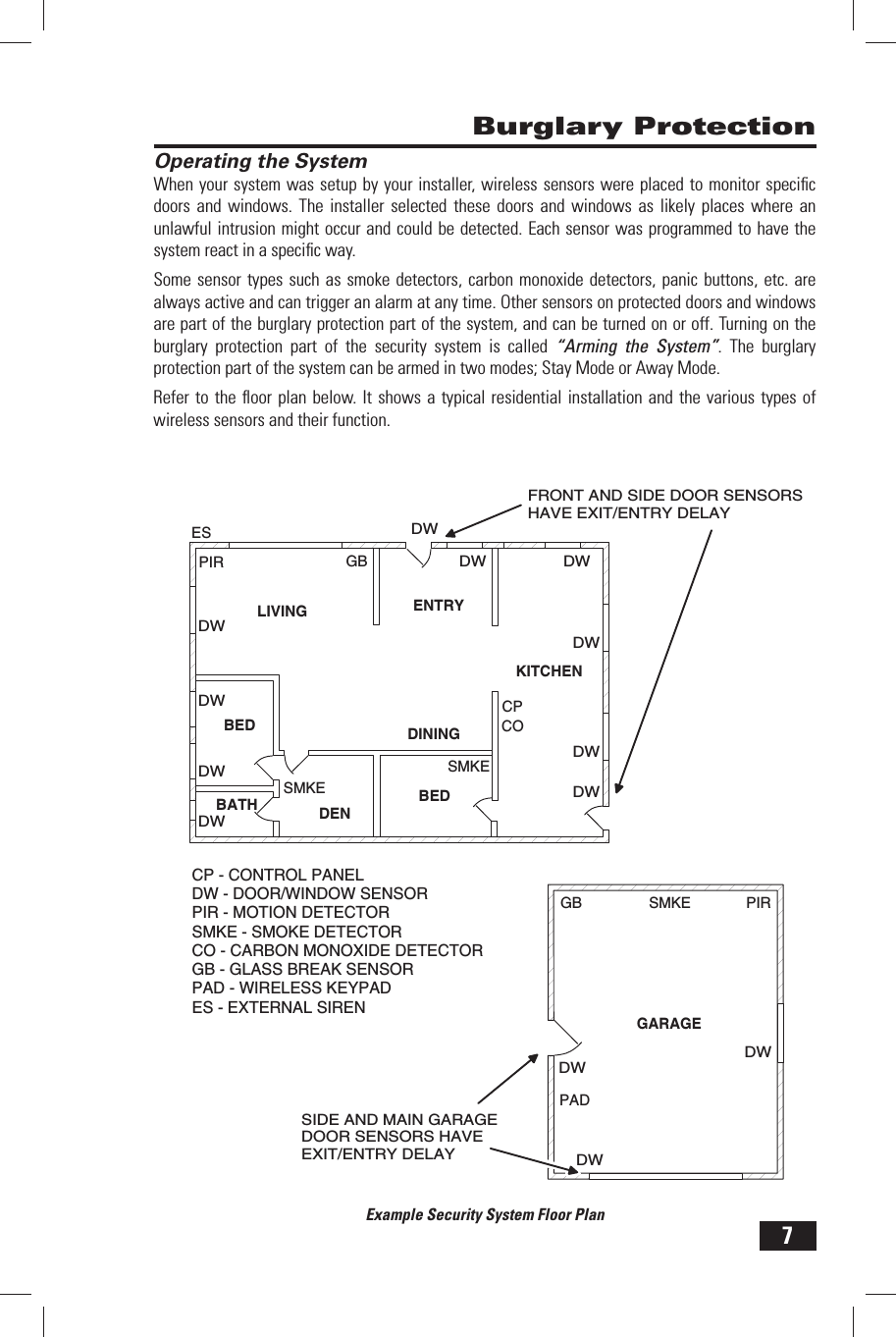
2System OverviewGeneral InformationThis system provides three forms of protection: burglary, fi re, and emergency, depending on the options set by the installer. The system consists of the Control Panel with a color touch screen, wireless sensors that provide perimeter and interior burglary protection, and wireless smoke and carbon monoxide detectors. In addition, optional remote control key fobs, wireless panic pendants, and wireless keypads may have been provided or installed.The system monitors all protection “zones” and the system’s status. It will display monitoring information and control the alarm siren. Your system may also have been setup to send alarm and status reports to a Central Monitoring Station and has the capability for 2-way voice communications with the alarm monitoring operator.FeaturesFollowing is a list of standard features and options that can be included in your system. Ask your installer which options are available to you and check the boxes that apply.STAY and AWAY arming modes. Stay Mode arms the system perimeter only and  ✓is used typically at night when the premises are occupied. Away Mode arms the system perimeter and interior, it’s used when the premises are unoccupied.Eight user unique 4-digit codes to operate the system. The system supports one  ✓“Master User Code” that can assign and maintain the other seven User Codes.One of the eight User Codes functions as a Duress User Code. Controlling the system  ✓with this code gives the appearance of normal operation, but using it secretly sends a “duress” report to the Central Monitoring Station to initiate a silent alarm call for help.Voice announcements from the Control Panel. The system has a large vocabulary  ✓of descriptive words that can be assigned to sensors so each will have a unique announcement such as “front door” or “baby’s room window” if desired.Home automation with the built-in Z-Wave controller for remote  ✓controlling Z-Wave enabled home appliances (optional feature).Alarm history with system event log. Each alarm and system alert is logged  ✓into the system’s memory. These events can be displayed and reviewed at the Control Panel or remotely by the Central Monitoring Station.Real time clock and calendar shows on the system’s display  ✓and is used to time stamp items in the event log.2-way voice communication. After an alarm, the system can connect with a  ❑Central Station operator so they can converse with people in the premises.Remote control of the system over the telephone. ❑Remote control of the system using a Web-enabled device through the Internet. ❑Three optional 24-hour emergency functions: PANIC, FIRE, and EMERGENCY.  ❑These functions can be activated by buttons on the Control Panel, using wireless sensors, from the wireless keypad, or from portable pendant devices.
3System OverviewGeneral OperationFollowing are general operational concepts that your system supports. Understanding these concepts will help you to use your security system to it fullest extent.Sensor TypesThe system’s wireless sensors have been assigned to selected “types” (sometimes called “zones” in the alarm industry). The sensor type determines how and when the system will react to a signal from the sensor. Some sensors are armed 24 hours a day, other sensors are only armed when the system is armed.Fire ProtectionIf fi re protection wireless smoke detectors have been installed in your system, they are armed 24 hours-a-day. They will sound an alarm when smoke is detected and can report the fi re alarm to the Central Monitoring Station. Refer to the Fire Alarm System section of this manual for important emergency planning and evacuation information.Burglary ProtectionBurglary protection is provided by perimeter and interior sensors. When the system is armed in the Away Mode, both perimeter and interior sensors are armed and can trigger an alarm. When the system is armed in the Stay Mode, only the perimeter sensors are armed and can trigger an alarm.Both arming modes offer an “Exit Delay” that allows time to leave the premises without triggering the alarm. Upon re-entry, the system offers an “Entry Delay” through certain points of protection that allows you time to disarm the system before an alarm is triggered.Sensors can be set to sound a chime and/or a voice announcement when they are triggered. So you can monitor your doors and windows while the system is disarmed.User CodesThe system installer has pre-programmed a Master User Code for your system. This code can be used to control the system as well as assign and change the other seven User Codes. The Master User Code can also access several system setup settings in the User Toolbox.AlarmsWhen an alarm occurs, the Control Panel’s siren and an external siren (if installed) will sound for a preset time. During alarms and after disarming, the alarm history button will display all the alarms that have occurred, and which sensors were involved. The alarm history clears the next time the system is armed or can be cleared manually.
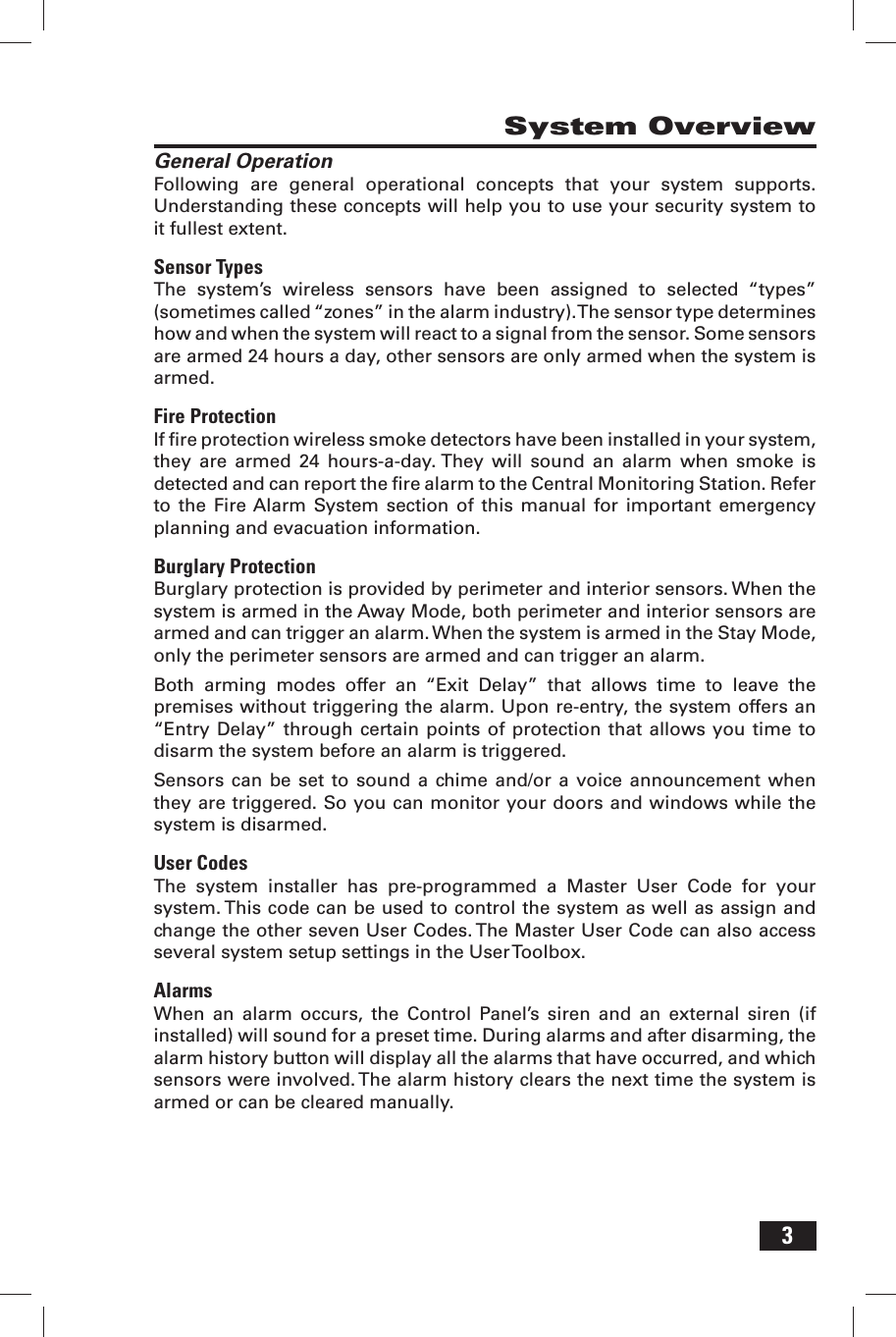
4       Control Panel FeaturesALARM SOUNDERAND SPEAKERCOLOR DISPLAYWITH TOUCH SCREENMICROPHONEEMERGENCYBUTTON / INDICATORHOMEBUTTON / INDICATORLights white when enabled for emergency alarmsFlashes white during emergency alarmLights green when all sensors are ready to armLights red when system is armedBlinks red during pre-alarm and alarmNot lit when any sensor is not ready to armIndicator flashes when system is on battery backupFlashes orange when sensors are open while on battery backupFor 2-way voice communicationwith the Central StationShows all system information, status,programming, and functions as the keypadDisplay cycles clock, calendar, and weather(press to manually change) Sounds all system local alarms,voice prompts, system sounds, andaudio for 2-way voice communicationswith the Central Station
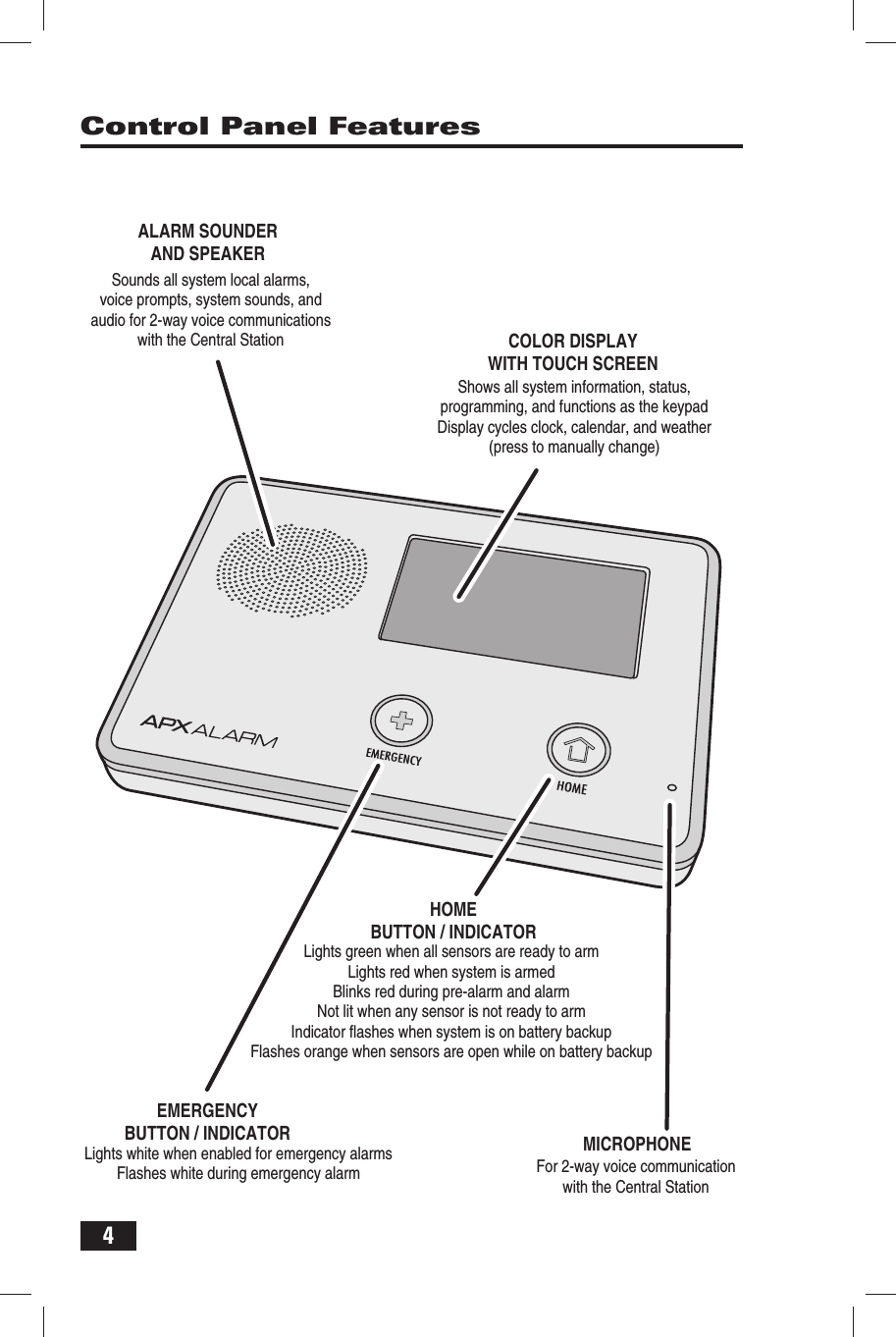
5         Wireless SensorsYour security system has wireless sensors. Some sensors will be visible, other sensors are hidden inside the door jambs. Depending on your installation, there may be other types of sensors shown below. Be sure your installer shows you all the sensors installed in your system.Motion SensorSmoke DetectorKey Fob RemoteWireless KeypadDoor / Window SensorGlass Break SensorCarbon Monoxide DetectorPanic Button Remote
6      Main Display ScreensThe Home ScreenThe Arming ScreenThe Menu ScreenThe Status ScreenThe Control Panel is programmed and operated using the color touch-screen display. The display will show various buttons, indicators, and text to guide and inform you.The top bar on the display shows the current system mode, scrolling text of any pending alerts, and system status icons for AC power, telephone line, and backup battery.Home ScreenThe Home Screen is the top level screen. It shows the system status with icons to indicate system conditions. It also displays the time and date. The Home Screen displays the SECURITY and  HOME CONTROL buttons. Pressing the  button on the Control Panel will display the Home Screen.Security ScreenThe Security Screen shows the system status and offers three buttons for ARM, MENU, and STATUS. It also displays the time and date. If messages, alarm, or trouble alerts are pending, the Security Screen will display buttons indicating the number of pending messages.Arming ScreenThe Arming Screen is used to arm the security portion of the system. It displays the system status and arming buttons for STAY and AWAY. Two option check box buttons for ENTRY DELAY and SILENT EXIT are displayed.Menu ScreenThe Menu Screen shows the system status and offers buttons for ARM and TOOLBOX. If the emergency option is set, an EMERGENCY button is displayed. Two option check box buttons for CHIME and VOICE are displayed.Status ScreenThe Status Screen lists system status and any alerts. The date and time of any alerts are listed in the displayed log. One option button for  SILENCE is displayed, it stops the voice announcement of the system status.The Security ScreenTrouble AlertAlarm MemoryMessage
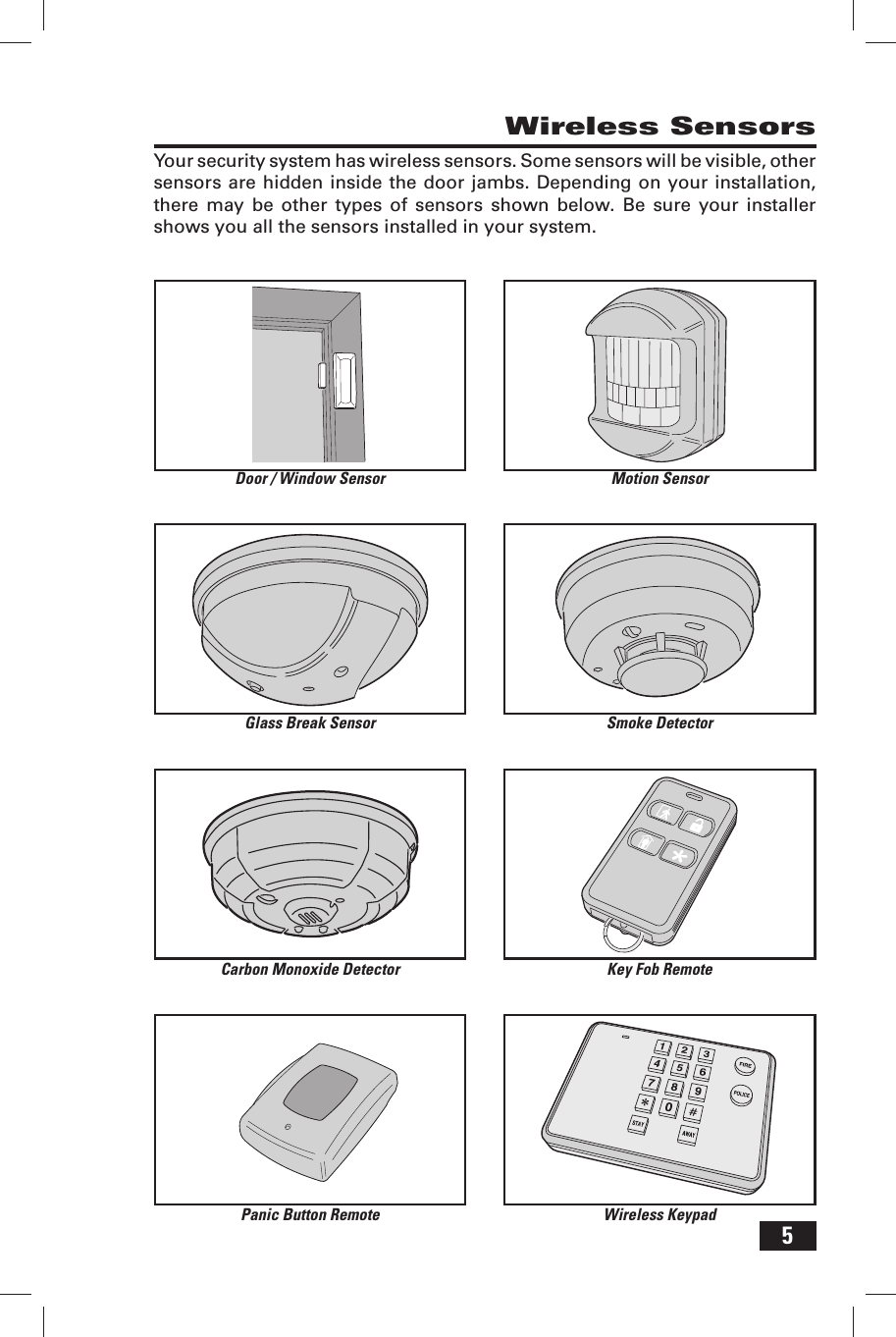
7 Burglary Protection Operating the SystemWhen your system was setup by your installer, wireless sensors were placed to monitor specifi c doors and windows. The installer selected these doors and windows as likely places where an unlawful intrusion might occur and could be detected. Each sensor was programmed to have the system react in a specifi c way.Some sensor types such as smoke detectors, carbon monoxide detectors, panic buttons, etc. are always active and can trigger an alarm at any time. Other sensors on protected doors and windows are part of the burglary protection part of the system, and can be turned on or off. Turning on the burglary protection part of the security system is called “Arming the System”. The burglary protection part of the system can be armed in two modes;  Stay Mode or  Away Mode.Refer to the fl oor plan below. It shows a typical residential installation and the various types of wireless sensors and their function.Example Security System Floor PlanCPGARAGEESDWPIRCP - CONTROL PANELDW - DOOR/WINDOW SENSORPIR - MOTION DETECTORSMKE - SMOKE DETECTORCO - CARBON MONOXIDE DETECTORGB - GLASS BREAK SENSORPAD - WIRELESS KEYPADES - EXTERNAL SIRENLIVINGDININGKITCHENENTRYBEDBATH DENGBSMKEGBBEDPADCODWDWDWDWDWDWDWDWDWSMKEPIRDWDWDWFRONT AND SIDE DOOR SENSORSHAVE EXIT/ENTRY DELAYSMKESIDE AND MAIN GARAGEDOOR SENSORS HAVEEXIT/ENTRY DELAY
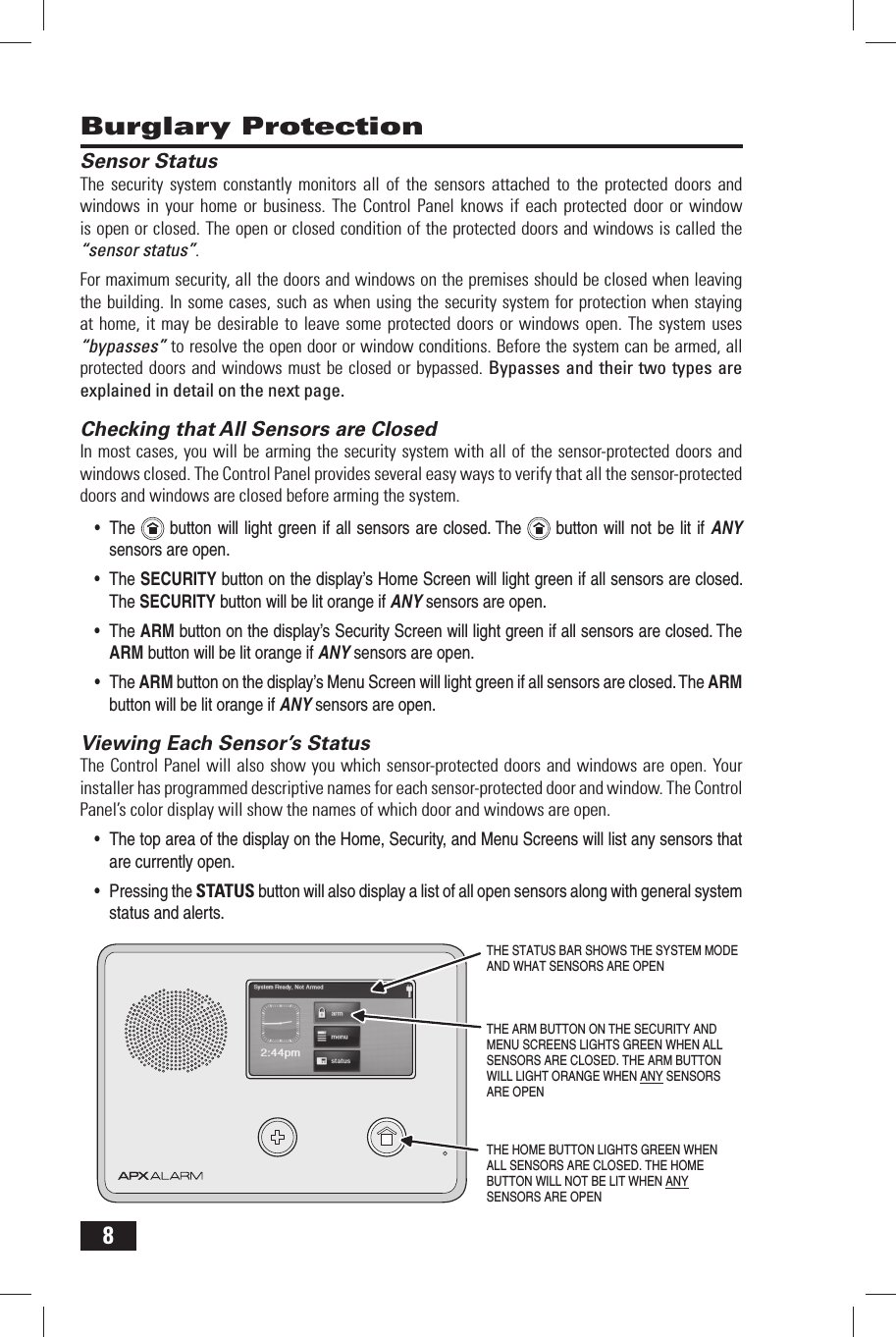
8 Burglary ProtectionSensor StatusThe security system constantly monitors all of the sensors attached to the protected doors and windows in your home or business. The Control Panel knows if each protected door or window is open or closed. The open or closed condition of the protected doors and windows is called the “sensor status”.For maximum security, all the doors and windows on the premises should be closed when leaving the building. In some cases, such as when using the security system for protection when staying at home, it may be desirable to leave some protected doors or windows open. The system uses “bypasses” to resolve the open door or window conditions. Before the system can be armed, all protected doors and windows must be closed or bypassed. Bypasses and their two types are explained in detail on the next page. Checking that All Sensors are ClosedIn most cases, you will be arming the security system with all of the sensor-protected doors and windows closed. The Control Panel provides several easy ways to verify that all the sensor-protected doors and windows are closed before arming the system.The•    button will light green if all  sensors are closed. The   button will not be lit if ANY sensors are open.The •  SECURITY button on the display’s Home Screen will light green if all sensors are closed. The SECURITY button will be lit orange if ANY sensors are open.The •  ARM button on the display’s Security Screen will light green if all sensors are closed. The ARM button will be lit orange if ANY sensors are open.The •  ARM button on the display’s Menu Screen will light green if all sensors are closed. The ARM button will be lit orange if ANY sensors are open. Viewing Each Sensor’s StatusThe Control Panel will also show you which sensor-protected doors and windows are open. Your installer has programmed descriptive names for each sensor-protected door and window. The Control Panel’s color display will show the names of which door and windows are open.The top area of the display on the Home, Security, and Menu Screens will list any sensors that • are currently open.Pressing the •  STATUS button will also display a list of all open sensors along with general system status and alerts.THE HOME BUTTON LIGHTS GREEN WHENALL SENSORS ARE CLOSED. THE HOMEBUTTON WILL NOT BE LIT WHEN ANYSENSORS ARE OPENTHE STATUS BAR SHOWS THE SYSTEM MODEAND WHAT SENSORS ARE OPENTHE ARM BUTTON ON THE SECURITY ANDMENU SCREENS LIGHTS GREEN WHEN ALLSENSORS ARE CLOSED. THE ARM BUTTONWILL LIGHT ORANGE WHEN ANY SENSORSARE OPEN
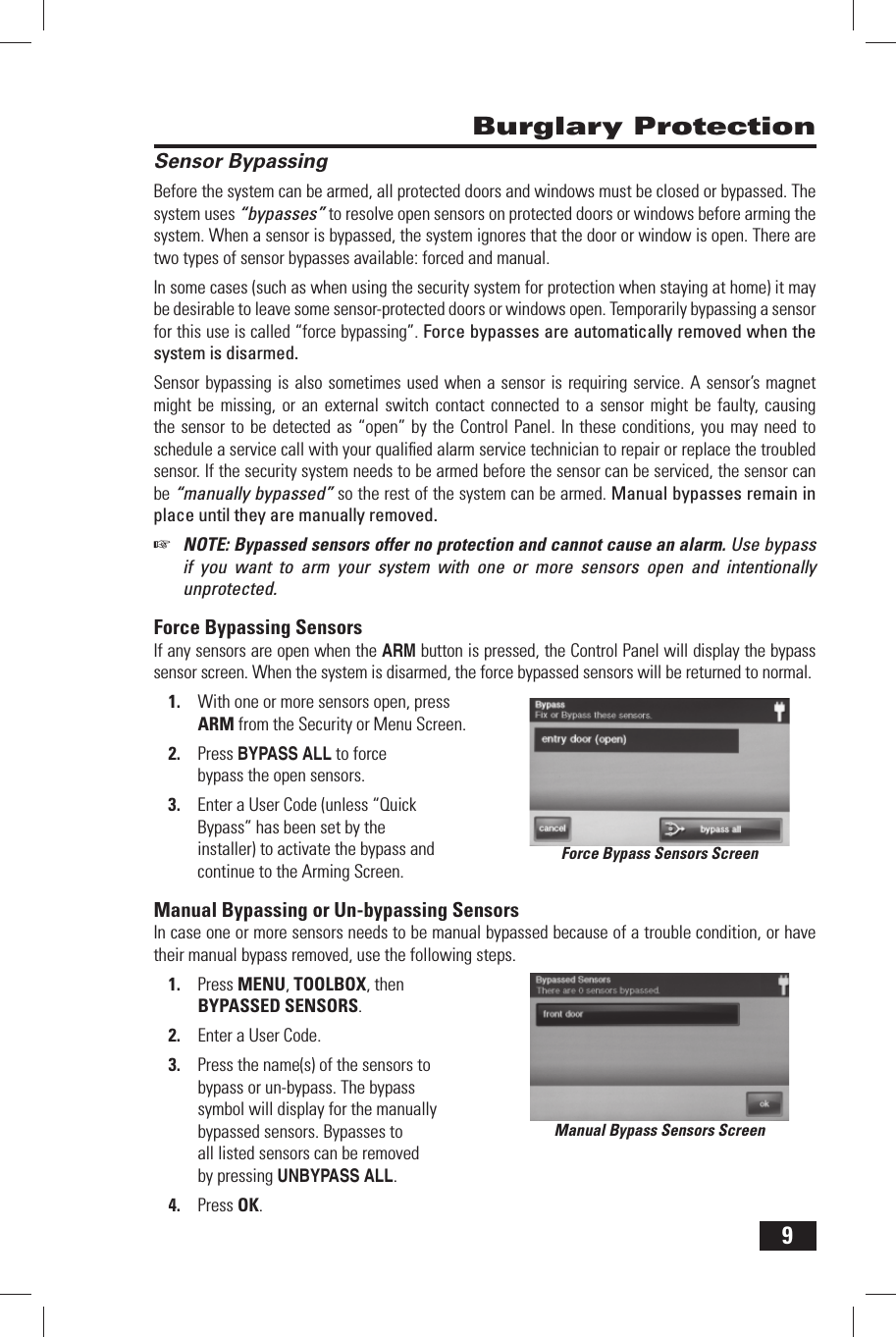
9 Burglary Protection Sensor BypassingBefore the system can be armed, all protected doors and windows must be closed or bypassed. The system uses “bypasses” to resolve open sensors on protected doors or windows before arming the system. When a sensor is bypassed, the system ignores that the door or window is open. There are two types of sensor bypasses available: forced and manual.In some cases (such as when using the security system for protection when staying at home) it may be desirable to leave some sensor-protected doors or windows open. Temporarily bypassing a sensor for this use is called “force bypassing”. Force bypasses are automatically removed when the system is disarmed.Sensor bypassing is also sometimes used when a sensor is requiring service. A sensor’s magnet might be missing, or an external switch contact connected to a sensor might be faulty, causing the sensor to be detected as “open” by the Control Panel. In these conditions, you may need to schedule a service call with your qualifi ed alarm service technician to repair or replace the troubled sensor. If the security system needs to be armed before the sensor can be serviced, the sensor can be “manually bypassed” so the rest of the system can be armed. Manual bypasses remain in place until they are manually removed.☞  NOTE: Bypassed sensors offer no protection and cannot cause an alarm. Use bypass if you want to arm your system with one or more sensors open and intentionally unprotected.  Force  Bypassing  SensorsIf any sensors are open when the ARM button is pressed, the Control Panel will display the bypass sensor screen. When the system is disarmed, the force bypassed sensors will be returned to normal.With one or more sensors open, press 1. ARM from the Security or Menu Screen.Press 2.  BYPASS ALL to force bypass the open sensors.Enter a User Code (unless 3.   “Quick Bypass” has been set by the installer) to activate the bypass and continue to the Arming Screen. Manual Bypassing or Un-bypassing SensorsIn case one or more sensors needs to be manual bypassed because of a trouble condition, or have their manual bypass removed, use the following steps.Press 1. MENU, TOOLBOX, then BYPASSED SENSORS.Enter a User Code.2. Press the name(s) of the sensors to 3. bypass or un-bypass. The bypass symbol will display for the manually bypassed sensors. Bypasses to all listed sensors can be removed by pressing UNBYPASS ALL.Press 4. OK.Manual Bypass Sensors ScreenForce Bypass Sensors Screen
10 Burglary Protection Stay ModeStay Mode is for arming the system when people will be staying on the premises. Stay Mode arms the sensor-protected perimeter doors and windows while not arming the interior motion sensors or other interior doors. This allows the premises to be occupied while the system is partially armed. Stay Mode is used mostly for arming the system during the evening hours after everyone is inside and no one is expected to enter or leave.When the system is armed in Stay Mode, you can move about the premises without triggering the burglary alarm. All the interior burglary protection is off. But, if a sensor-protected perimeter door or window is opened, an alarm will occur. Entry  DelayCertain sensors, such as the front door, can be setup by your installer to have a delay before triggering an alarm. This provides a way for an authorized person returning to enter using a predetermined door and disarm the system before an alarm is triggered. When arming the system in Stay Mode, an “Entry Delay” option check box is shown on the Control Panel’s Arming Screen. Normally this option check box is checked, so the programmed delay doors allow time for disarming the system after the door is opened. Un-checking this option box removes the delayed alarm trigger from all sensor-protected doors programmed for delay, causing those entrances to instantly trigger the alarm if they are opened in Stay Mode. Quick  ExitA programmable option, called “Quick Exit” may be displayed on the Security Screen while the system is armed in the Stay Mode. Pressing the Quick Exit button starts a timer to allow someone to exit or enter through a sensor-protected door programmed for delay without having to disarm the entire system. When the delay timer runs out, the system returns to the normal Stay Mode.The Quick Exit option can be turned on or off by your installer, refer to the “Installer Set Options” section of this manual to see which options have been set for your system.
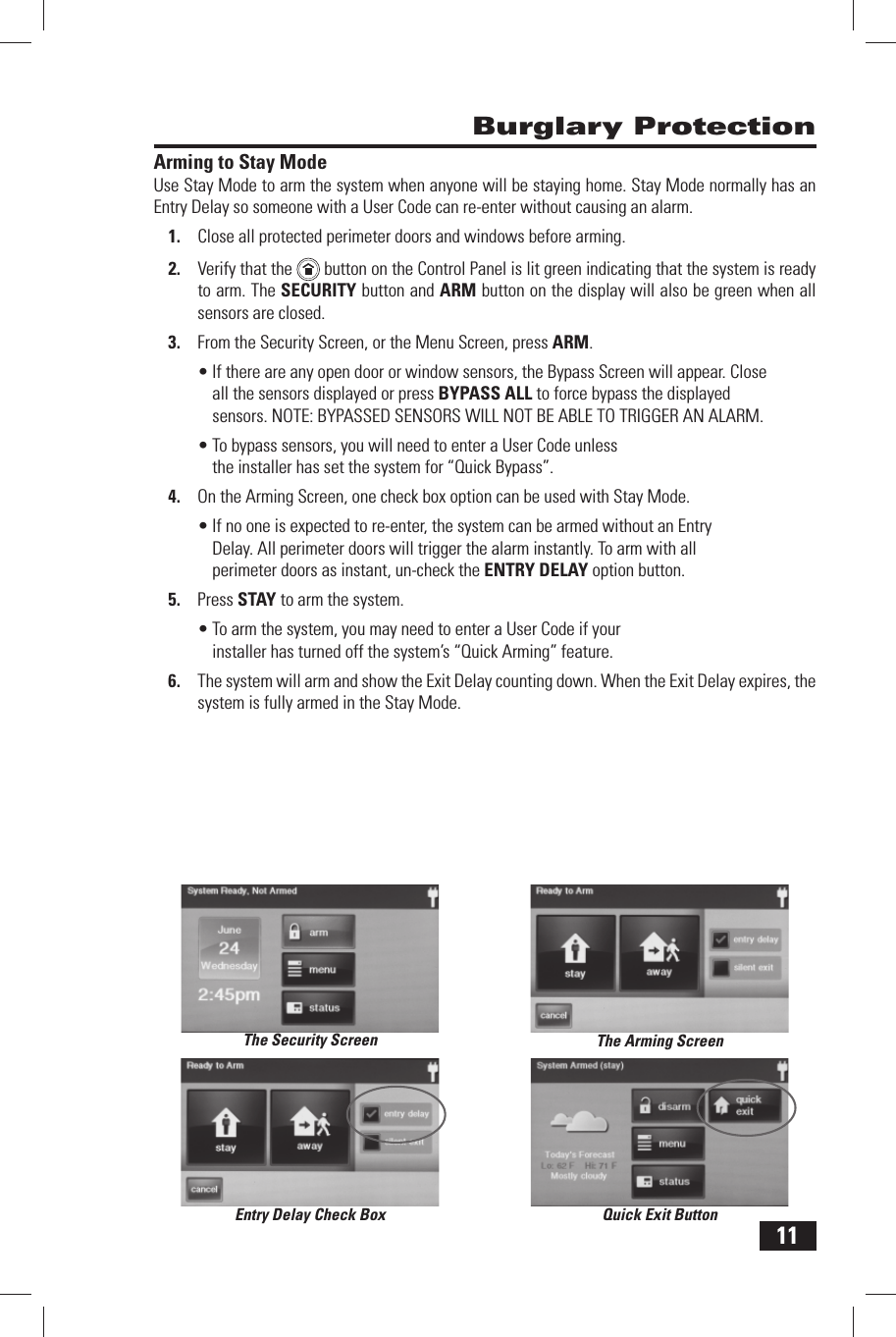
11 Arming to Stay ModeUse Stay Mode to arm the system when anyone will be staying home. Stay Mode normally has an Entry Delay so someone with a  User Code can re-enter without causing an alarm.Close all protected perimeter doors and windows before arming.1. Verify that the 2.    button on the Control Panel is lit green indicating that the system is ready to arm. The SECURITY button and  ARM button on the display will also be green when all sensors are closed.From the Security Screen, or the Menu Screen, press 3. ARM.If there are any open door or window sensors, the Bypass Screen will appear. Close • all the sensors displayed or press BYPASS ALL to force bypass the displayed sensors. NOTE: BYPASSED SENSORS WILL NOT BE ABLE TO TRIGGER AN ALARM.To bypass sensors, you will need to enter a User Code unless • the installer has set the system for “ Quick Bypass”.On the Arming Screen, one check box option can be used with Stay Mode.4. If no one is expected to re-enter, the system can be armed without an Entry • Delay. All perimeter doors will trigger the alarm instantly. To arm with all perimeter doors as instant, un-check the  ENTRY DELAY option button. Press 5.   STAY to arm the system.To arm the system, you may need to enter a User Code if your • installer has turned off the system’s “ Quick Arming” feature.The system will arm and show the 6.   Exit Delay counting down. When the Exit Delay expires, the system is fully armed in the Stay Mode. Burglary ProtectionThe Security ScreenQuick Exit ButtonEntry Delay Check BoxThe Arming Screen
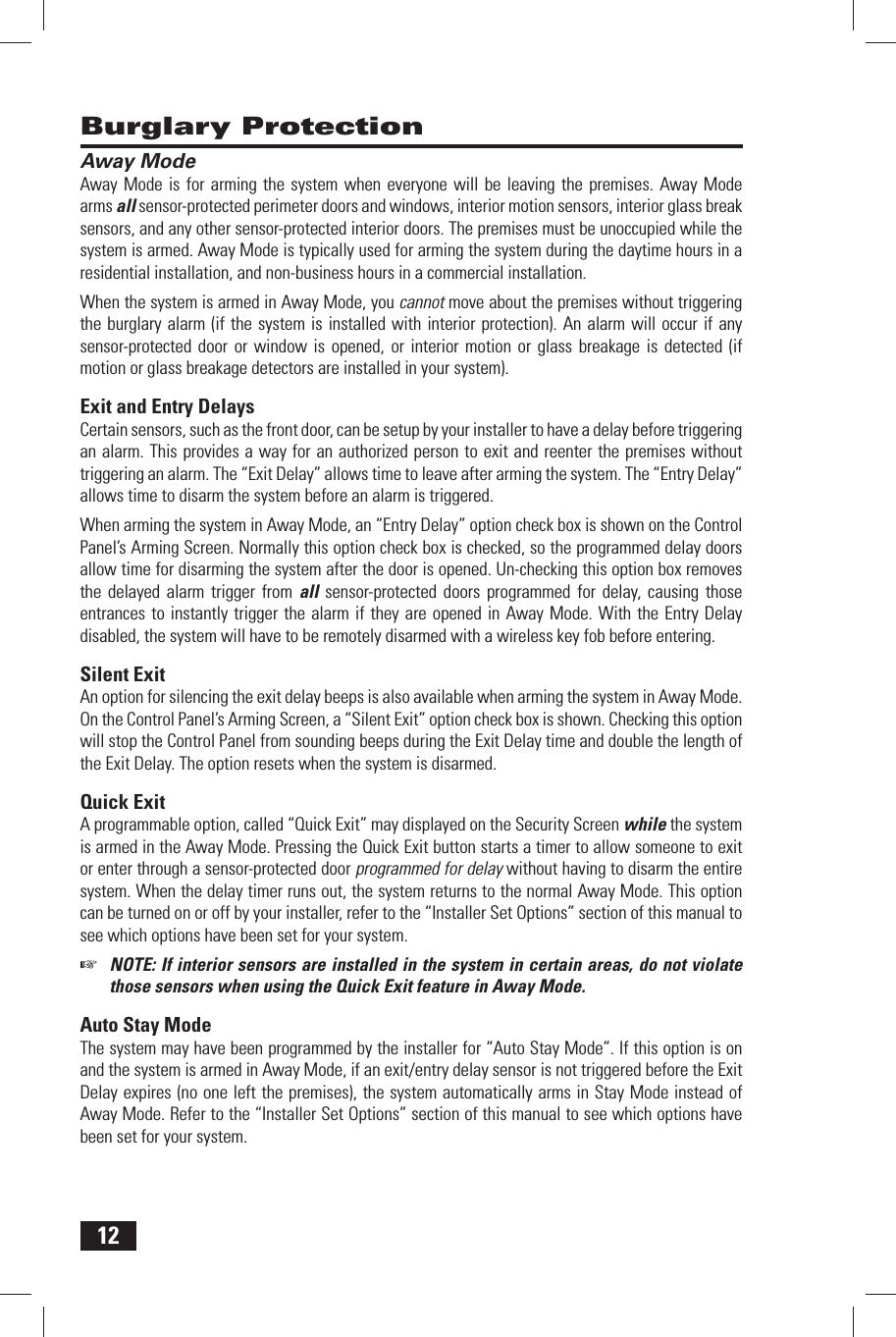
12 Away ModeAway Mode is for arming the system when everyone will be leaving the premises. Away Mode arms all sensor-protected perimeter doors and windows, interior motion sensors, interior glass break sensors, and any other sensor-protected interior doors. The premises must be unoccupied while the system is armed. Away Mode is typically used for arming the system during the daytime hours in a residential installation, and non-business hours in a commercial installation.When the system is armed in Away Mode, you cannot move about the premises without triggering the burglary alarm (if the system is installed with interior protection). An alarm will occur if any sensor-protected door or window is opened, or interior motion or glass breakage is detected (if motion or glass breakage detectors are installed in your system). Exit and Entry DelaysCertain sensors, such as the front door, can be setup by your installer to have a delay before triggering an alarm. This provides a way for an authorized person to exit and reenter the premises without triggering an alarm. The “ Exit Delay” allows time to leave after arming the system. The “ Entry Delay” allows time to disarm the system before an alarm is triggered.When arming the system in Away Mode, an “Entry Delay” option check box is shown on the Control Panel’s Arming Screen. Normally this option check box is checked, so the programmed delay doors allow time for disarming the system after the door is opened. Un-checking this option box removes the delayed alarm trigger from all sensor-protected doors programmed for delay, causing those entrances to instantly trigger the alarm if they are opened in Away Mode. With the Entry Delay disabled, the system will have to be remotely disarmed with a wireless key fob before entering. Silent  ExitAn option for silencing the exit delay beeps is also available when arming the system in Away Mode. On the Control Panel’s Arming Screen, a “Silent Exit” option check box is shown. Checking this option will stop the Control Panel from sounding beeps during the Exit Delay time and double the length of the Exit Delay. The option resets when the system is disarmed. Quick  ExitA programmable option, called “Quick Exit” may displayed on the Security Screen while the system is armed in the Away Mode. Pressing the Quick Exit button starts a timer to allow someone to exit or enter through a sensor-protected door programmed for delay without having to disarm the entire system. When the delay timer runs out, the system returns to the normal Away Mode. This option can be turned on or off by your installer, refer to the “Installer Set Options” section of this manual to see which options have been set for your system.☞  NOTE: If interior sensors are installed in the system in certain areas, do not violate those sensors when using the Quick Exit feature in Away Mode. Auto Stay ModeThe system may have been programmed by the installer for “Auto Stay Mode”. If this option is on and the system is armed in Away Mode, if an exit/entry delay sensor is not triggered before the Exit Delay expires (no one left the premises), the system automatically arms in Stay Mode instead of Away Mode. Refer to the “Installer Set Options” section of this manual to see which options have been set for your system. Burglary Protection
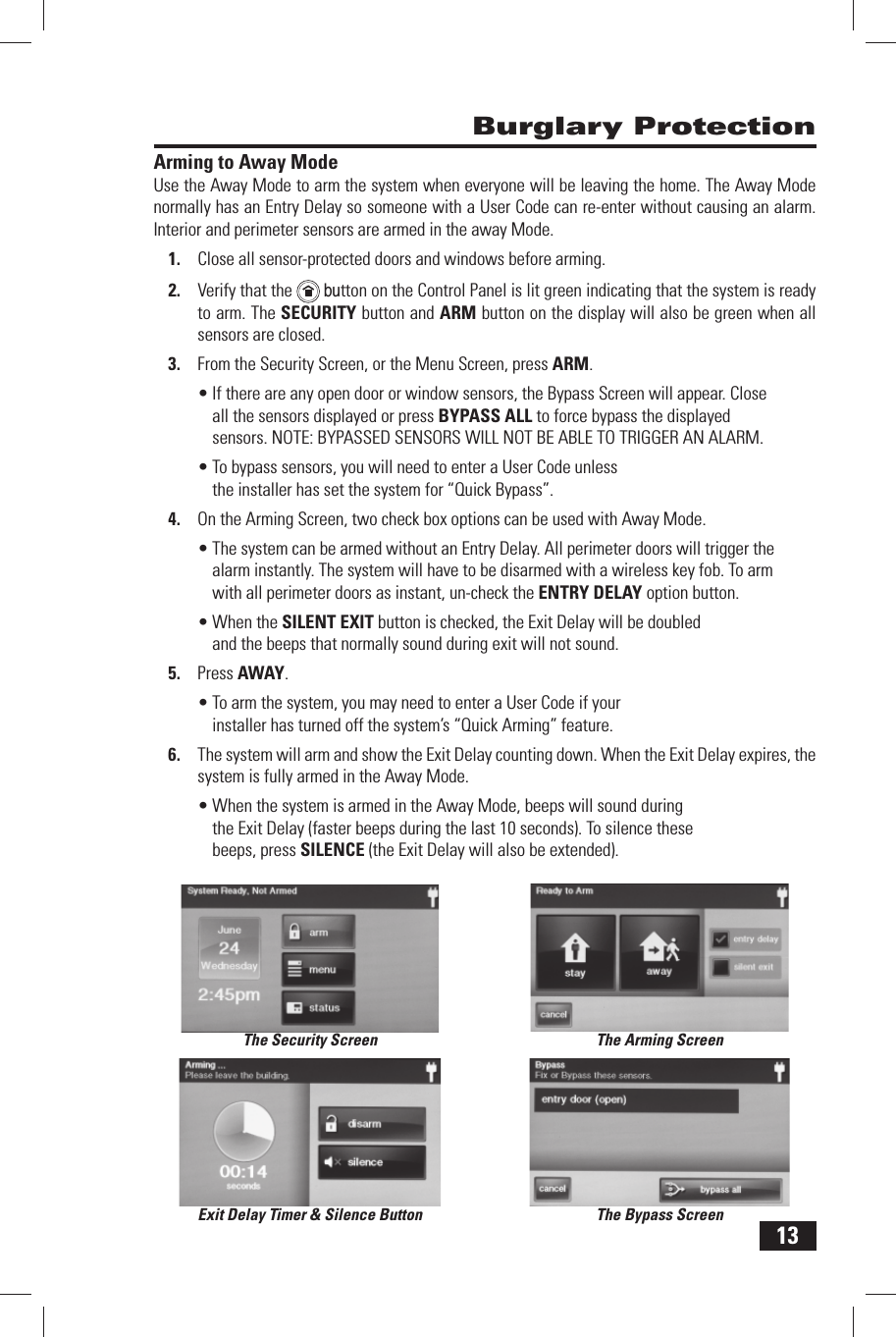
13Arming to Away ModeUse the  Away Mode to arm the system when everyone will be leaving the home. The Away Mode normally has an Entry Delay so someone with a  User Code can re-enter without causing an alarm. Interior and perimeter sensors are armed in the away Mode.Close all sensor-protected doors and windows before arming.1. Verify that the 2.    button on the Control Panel is lit green indicating that the system is ready to arm. The SECURITY button and  ARM button on the display will also be green when all sensors are closed.From the Security Screen, or the Menu Screen, press 3. ARM.If there are any open door or window sensors, the Bypass Screen will appear. Close • all the sensors displayed or press  BYPASS ALL to force bypass the displayed sensors. NOTE: BYPASSED SENSORS WILL NOT BE ABLE TO TRIGGER AN ALARM.To bypass sensors, you will need to enter a User Code unless • the installer has set the system for “ Quick Bypass”.On the Arming Screen, two check box options can be used with Away Mode.4. The system can be armed without an •   Entry Delay. All perimeter doors will trigger the alarm instantly. The system will have to be disarmed with a wireless key fob. To arm with all perimeter doors as instant, un-check the  ENTRY DELAY option button.When the •  SILENT EXIT button is checked, the Exit Delay will be doubled and the beeps that normally sound during exit will not sound.Press 5.   AWAY.To arm the system, you may need to enter a User Code if your • installer has turned off the system’s “ Quick Arming” feature.The system will arm and show the 6.   Exit Delay counting down. When the Exit Delay expires, the system is fully armed in the Away Mode.When the system is armed in the Away Mode, beeps will sound during • the Exit Delay (faster beeps during the last 10 seconds). To silence these beeps, press  SILENCE (the Exit Delay will also be extended). Burglary ProtectionThe Security Screen The Arming ScreenThe Bypass ScreenExit Delay Timer & Silence Button
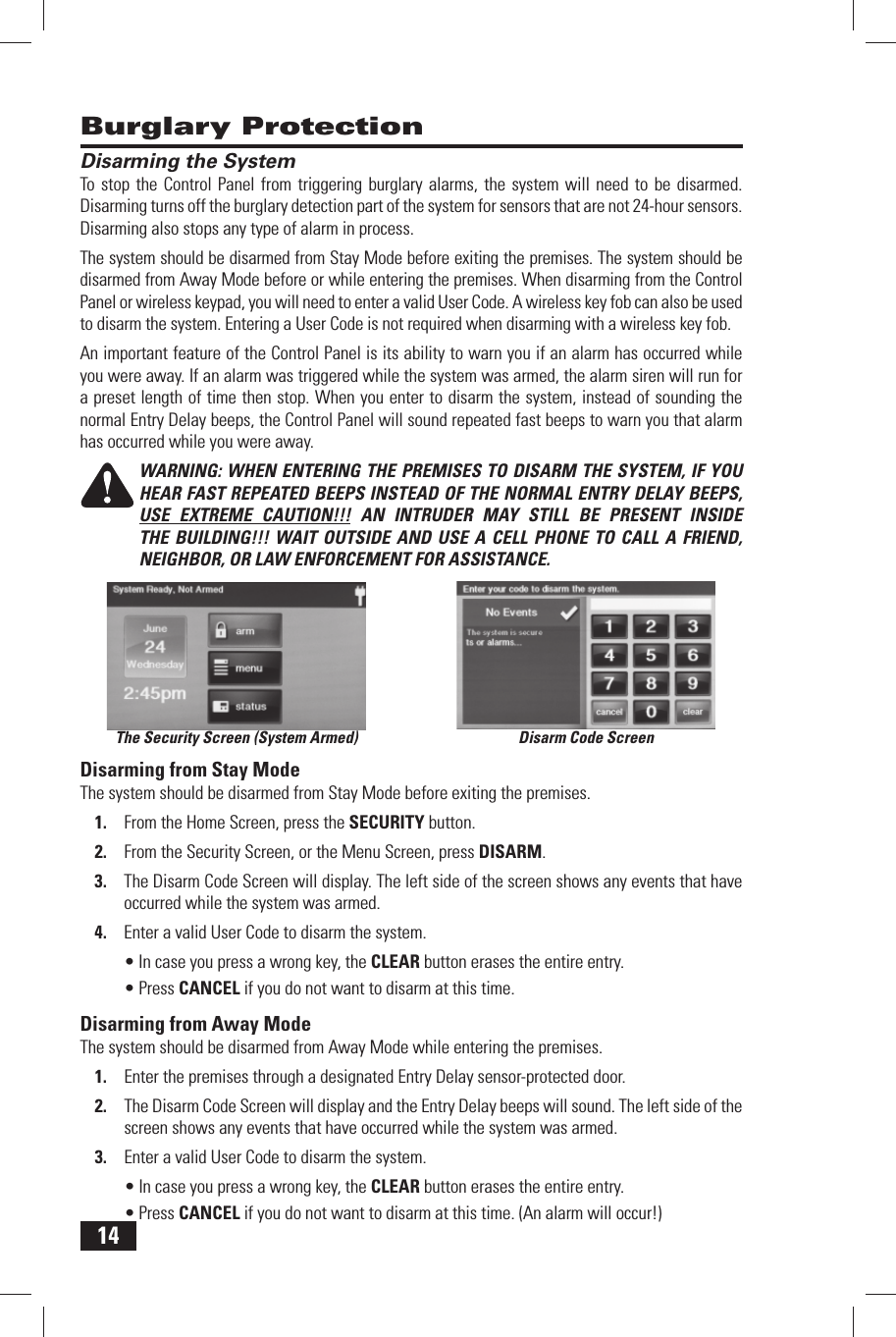
14 Disarming the SystemTo stop the Control Panel from triggering burglary alarms, the system will need to be disarmed. Disarming turns off the burglary detection part of the system for sensors that are not 24-hour sensors. Disarming also stops any type of alarm in process.The system should be disarmed from Stay Mode before exiting the premises. The system should be disarmed from Away Mode before or while entering the premises. When disarming from the Control Panel or wireless keypad, you will need to enter a valid User Code. A wireless key fob can also be used to disarm the system. Entering a User Code is not required when disarming with a wireless key fob.An important feature of the Control Panel is its ability to warn you if an alarm has occurred while you were away. If an alarm was triggered while the system was armed, the alarm siren will run for a preset length of time then stop. When you enter to disarm the system, instead of sounding the normal Entry Delay beeps, the Control Panel will sound repeated fast beeps to warn you that alarm has occurred while you were away.WARNING: WHEN ENTERING THE PREMISES TO DISARM THE SYSTEM, IF YOU HEAR FAST REPEATED BEEPS INSTEAD OF THE NORMAL ENTRY DELAY BEEPS, USE EXTREME CAUTION!!! AN INTRUDER MAY STILL BE PRESENT INSIDE THE BUILDING!!! WAIT OUTSIDE AND USE A CELL PHONE TO CALL A FRIEND, NEIGHBOR, OR LAW ENFORCEMENT FOR ASSISTANCE. Disarming from Stay ModeThe system should be disarmed from Stay Mode before exiting the premises.From the Home Screen, press the 1.   SECURITY button.From the Security Screen, or the Menu Screen, press 2.   DISARM.The Disarm Code Screen will display. The left side of the screen shows any events that have 3. occurred while the system was armed.Enter a valid User Code to disarm the system.4. In case you press a wrong key, the •  CLEAR button erases the entire entry.Press •  CANCEL if you do not want to disarm at this time. Disarming from Away ModeThe system should be disarmed from Away Mode while entering the premises.Enter the premises through a designated Entry Delay sensor-protected door.1. The Disarm Code Screen will display and the Entry Delay beeps will sound. The left side of the 2. screen shows any events that have occurred while the system was armed.Enter a valid User Code to disarm the system.3. In case you press a wrong key, the •  CLEAR button erases the entire entry.Press •  CANCEL if you do not want to disarm at this time. (An alarm will occur!) Burglary ProtectionThe Security Screen (System Armed) Disarm Code Screen
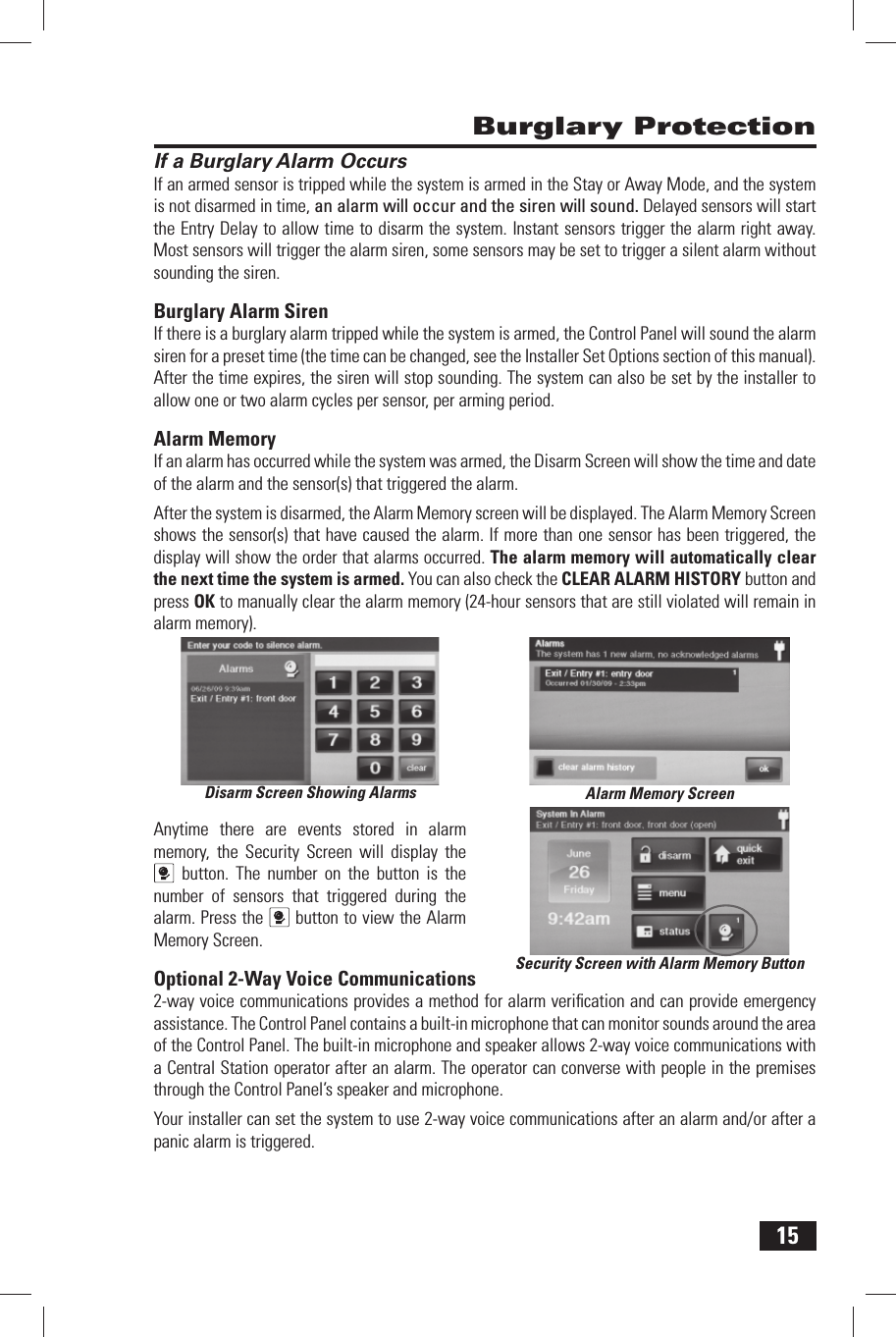
15 If a Burglary Alarm OccursIf an armed sensor is tripped while the system is armed in the Stay or Away Mode, and the system is not disarmed in time, an alarm will occur and the siren will sound. Delayed sensors will start the Entry Delay to allow time to disarm the system. Instant sensors trigger the alarm right away. Most sensors will trigger the alarm siren, some sensors may be set to trigger a silent alarm without sounding the siren. Burglary Alarm  SirenIf there is a burglary alarm tripped while the system is armed, the Control Panel will sound the alarm siren for a preset time (the time can be changed, see the Installer Set Options section of this manual). After the time expires, the siren will stop sounding. The system can also be set by the installer to allow one or two alarm cycles per sensor, per arming period. Alarm  MemoryIf an alarm has occurred while the system was armed, the  Disarm Screen will show the time and date of the alarm and the sensor(s) that triggered the alarm.After the system is disarmed, the Alarm Memory screen will be displayed. The  Alarm Memory Screen shows the sensor(s) that have caused the alarm. If more than one sensor has been triggered, the display will show the order that alarms occurred. The alarm memory will automatically clear the next time the system is armed. You can also check the  CLEAR ALARM HISTORY button and press OK to manually clear the alarm memory (24-hour sensors that are still violated will remain in alarm memory).Anytime there are events stored in alarm memory, the Security Screen will display the  button. The number on the button is the number of sensors that triggered during the alarm. Press the  button to view the Alarm Memory Screen. Optional 2-Way Voice Communications2-way voice communications provides a method for alarm verifi cation and can provide emergency assistance. The Control Panel contains a built-in microphone that can monitor sounds around the area of the Control Panel. The built-in  microphone and speaker allows 2-way voice communications with a Central Station operator after an alarm. The operator can converse with people in the premises through the Control Panel’s  speaker and microphone.Your installer can set the system to use 2-way voice communications after an alarm and/or after a panic alarm is triggered. Burglary ProtectionDisarm Screen Showing Alarms Alarm Memory ScreenSecurity Screen with Alarm Memory Button
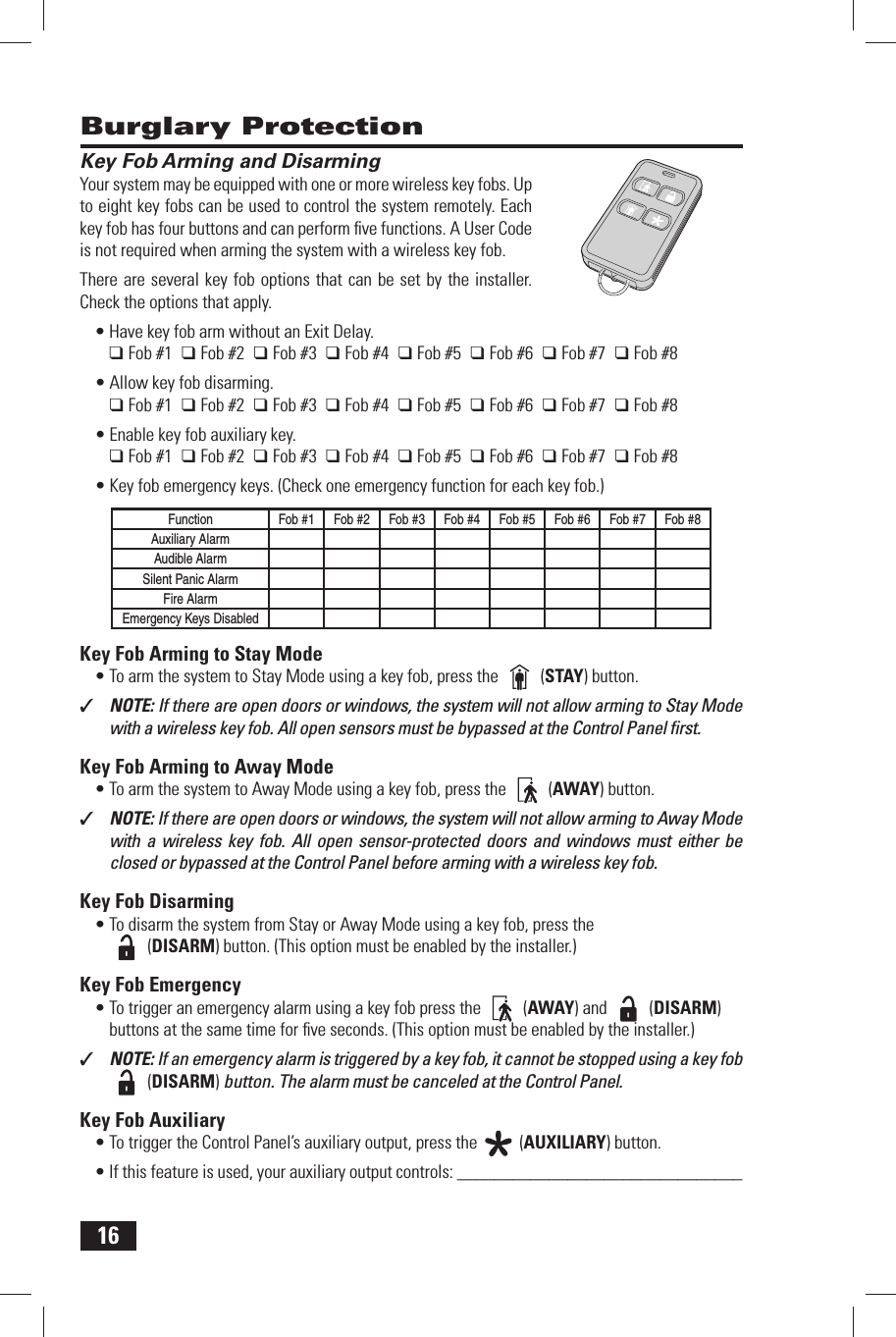
16 Key Fob Arming and DisarmingYour system may be equipped with one or more wireless key fobs. Up to eight key fobs can be used to control the system remotely. Each key fob has four buttons and can perform fi ve functions. A User Code is not required when arming the system with a wireless key fob.There are several key fob options that can be set by the installer. Check the options that apply.Have key fob arm without an Exit Delay.• ❑ Fob #1  ❑ Fob #2  ❑ Fob #3  ❑ Fob #4  ❑ Fob #5  ❑ Fob #6  ❑ Fob #7  ❑ Fob #8Allow key fob disarming.• ❑ Fob #1  ❑ Fob #2  ❑ Fob #3  ❑ Fob #4  ❑ Fob #5  ❑ Fob #6  ❑ Fob #7  ❑ Fob #8Enable key fob auxiliary key.• ❑ Fob #1  ❑ Fob #2  ❑ Fob #3  ❑ Fob #4  ❑ Fob #5  ❑ Fob #6  ❑ Fob #7  ❑ Fob #8Key fob emergency keys. (Check one emergency function for each key fob.)• Function Fob #1 Fob #2 Fob #3 Fob #4 Fob #5 Fob #6 Fob #7 Fob #8Auxiliary AlarmAudible AlarmSilent Panic AlarmFire AlarmEmergency Keys Disabled Key Fob Arming to Stay ModeTo arm the system to Stay Mode using a key fob, press the •   (STAY) button.✓  NOTE: If there are open doors or windows, the system will not allow arming to Stay Mode with a wireless key fob. All open sensors must be bypassed at the Control Panel fi rst. Key Fob Arming to Away ModeTo arm the system to Away Mode using a key fob, press the •   (AWAY) button.✓  NOTE: If there are open doors or windows, the system will not allow arming to Away Mode with a wireless key fob. All open sensor-protected doors and windows must either be closed or bypassed at the Control Panel before arming with a wireless key fob. Key Fob DisarmingTo disarm the system from Stay or Away Mode using a key fob, press the •  (DISARM) button. (This option must be enabled by the installer.) Key Fob EmergencyTo trigger an emergency alarm using a key fob press the •   (AWAY) and   (DISARM) buttons at the same time for fi ve seconds. (This option must be enabled by the installer.)✓  NOTE: If an emergency alarm is triggered by a key fob, it cannot be stopped using a key fob   (DISARM) button. The alarm must be canceled at the Control Panel. Key Fob AuxiliaryTo trigger the Control Panel’s auxiliary output, press the •   (AUXILIARY) button.If this feature is used, your auxiliary output controls: _______________________________•  Burglary Protection
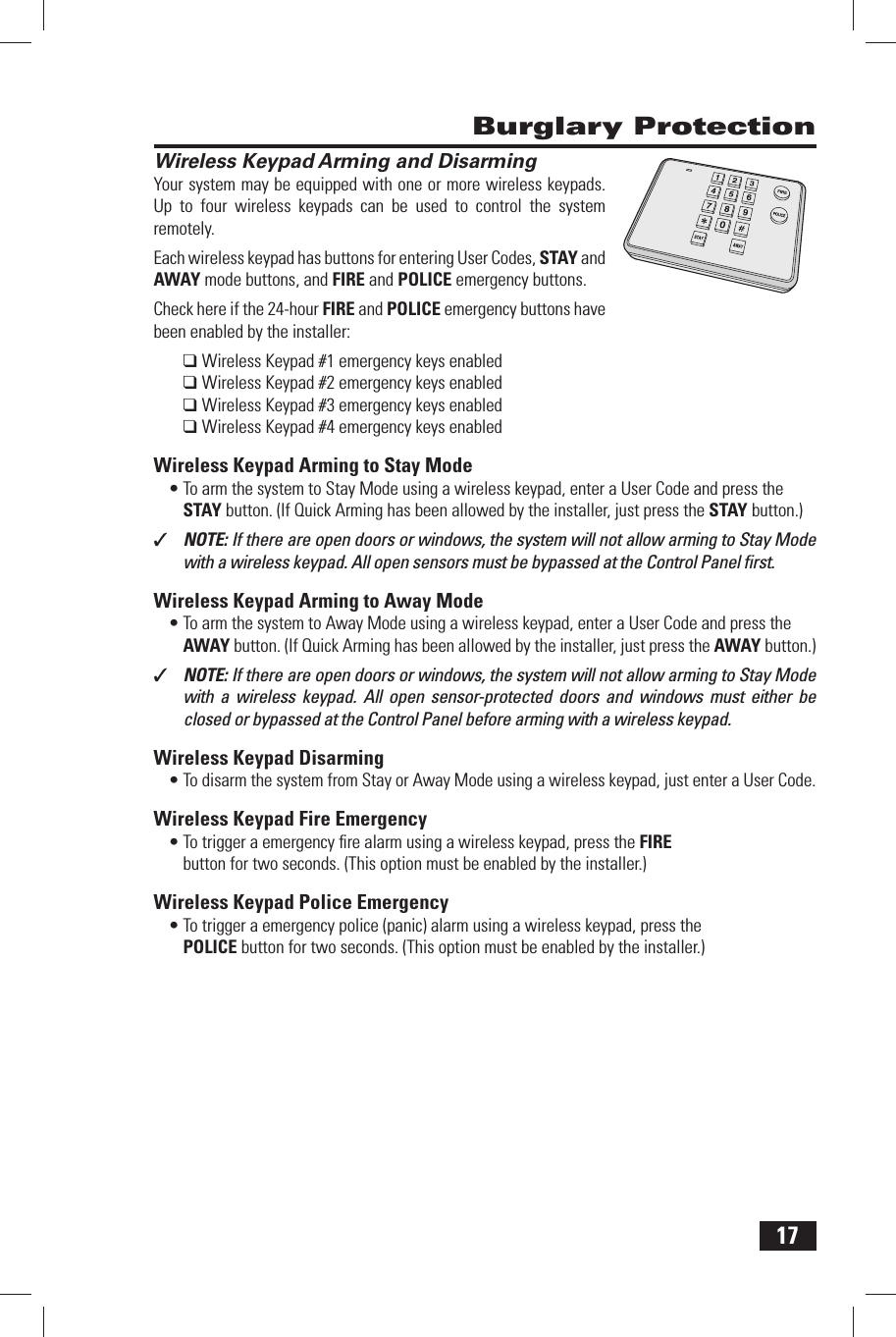
17Wireless Keypad Arming and DisarmingYour system may be equipped with one or more wireless keypads. Up to four wireless keypads can be used to control the system remotely.Each wireless keypad has buttons for entering User Codes, STAY and AWAY mode buttons, and FIRE and POLICE emergency buttons.Check here if the 24-hour FIRE and POLICE emergency buttons have been enabled by the installer:❑   Wireless Keypad #1 emergency keys enabled❑ Wireless Keypad #2 emergency keys enabled❑ Wireless Keypad #3 emergency keys enabled❑ Wireless Keypad #4 emergency keys enabled Wireless Keypad Arming to Stay ModeTo arm the system to Stay Mode using a wireless keypad, enter a User Code and press the • STAY button. (If Quick Arming has been allowed by the installer, just press the  STAY button.)✓  NOTE: If there are open doors or windows, the system will not allow arming to Stay Mode with a wireless keypad. All open sensors must be bypassed at the Control Panel fi rst. Wireless Keypad Arming to Away ModeTo arm the system to Away Mode using a wireless keypad, enter a User Code and press the • AWAY button. (If Quick Arming has been allowed by the installer, just press the  AWAY button.)✓  NOTE: If there are open doors or windows, the system will not allow arming to Stay Mode with a wireless keypad. All open sensor-protected doors and windows must either be closed or bypassed at the Control Panel before arming with a wireless keypad. Wireless Keypad DisarmingTo disarm the system from Stay or Away Mode using a wireless keypad, just enter a User Code.•  Wireless Keypad Fire EmergencyTo trigger a emergency fi re alarm using a wireless keypad, press the •  FIRE button for two seconds. (This option must be enabled by the installer.) Wireless Keypad Police EmergencyTo trigger a emergency police (panic) alarm using a wireless keypad, press the •  POLICE button for two seconds. (This option must be enabled by the installer.) Burglary Protection
18 Fire Protection Fire Alarm SystemYour system may be installed with  smoke detectors and  carbon monoxide (CO) detectors as part of an overall fi re and gas protection system. The fi re protection part of the security system is active 24 hours-a-day, offering continuous protection.In the event of a fi re or poisonous CO gas emergency, the installed smoke or carbon monoxide detector will automatically activate your security system. A loud, intermittent horn will sound from the Control Panel and the external sounder will produce an intermittent siren (if an external sounder has been installed). The fi re sounder will continue until the fi re horn timer expires or until a User Code is entered. Manual Fire AlarmIf you become aware of a fi re emergency before your detectors sense the problem follow these important steps:Yell FIRE! to alert anyone else around.1. Go the Control Panel and press the white lighted 2.   button, then press and hold the  FIRE button for at least two seconds. The fi re alarm can also be triggered using the FIRE button on a wireless keypad. THE FIRE ALARM WILL SOUND.Evacuate all occupants from the premises and call your local Fire Department from a safe location.3.  Automatic Fire AlarmIf your detectors trigger a fi re emergency alarm before you sense a problem, and the fi re alarm is sounding, follow these steps:If fl ames and/or smoke are present, yell FIRE! to alert anyone else around.1. Evacuate all occupants from the premises and call your local Fire Department from a safe 2. location.- OR -If no fl ames or smoke are apparent, investigate the possible causes of the alarm.1. Go to the Control Panel and enter your User Code to stop the fi re sounder.2. Review the alarm memory to determine which sensor(s) caused the alarm.3. Go to the sensor(s) and look for the reason the sensor tripped.4. Correct the condition that caused the detector to sense smoke or CO gas.5.  Silencing a False Fire AlarmIf the fi re alarm is sounding due to a detector sensing burnt food or some other non-emergency condition, follow these steps to stop the alarm:Silence the fi re alarm sounder by entering your 1.   User  Code.Review the alarm memory to determine which sensor(s) caused the alarm.2. If the alarm restarts, there may still be smoke in the detector’s sensor. Enter your User Code again 3. to stop the alarm. Fan the detector for 30 seconds to clear the detector’s sensor chamber.After the problem has been corrected, check the 4.   CLEAR ALARM HISTORY button on the  Alarm History Screen and press OK. (Fire & CO sensors that are still violated cannot be cleared from alarm history until the device returns to normal operation. Carefully inspect the premises for danger if fi re or CO sensors remain in alarm.)
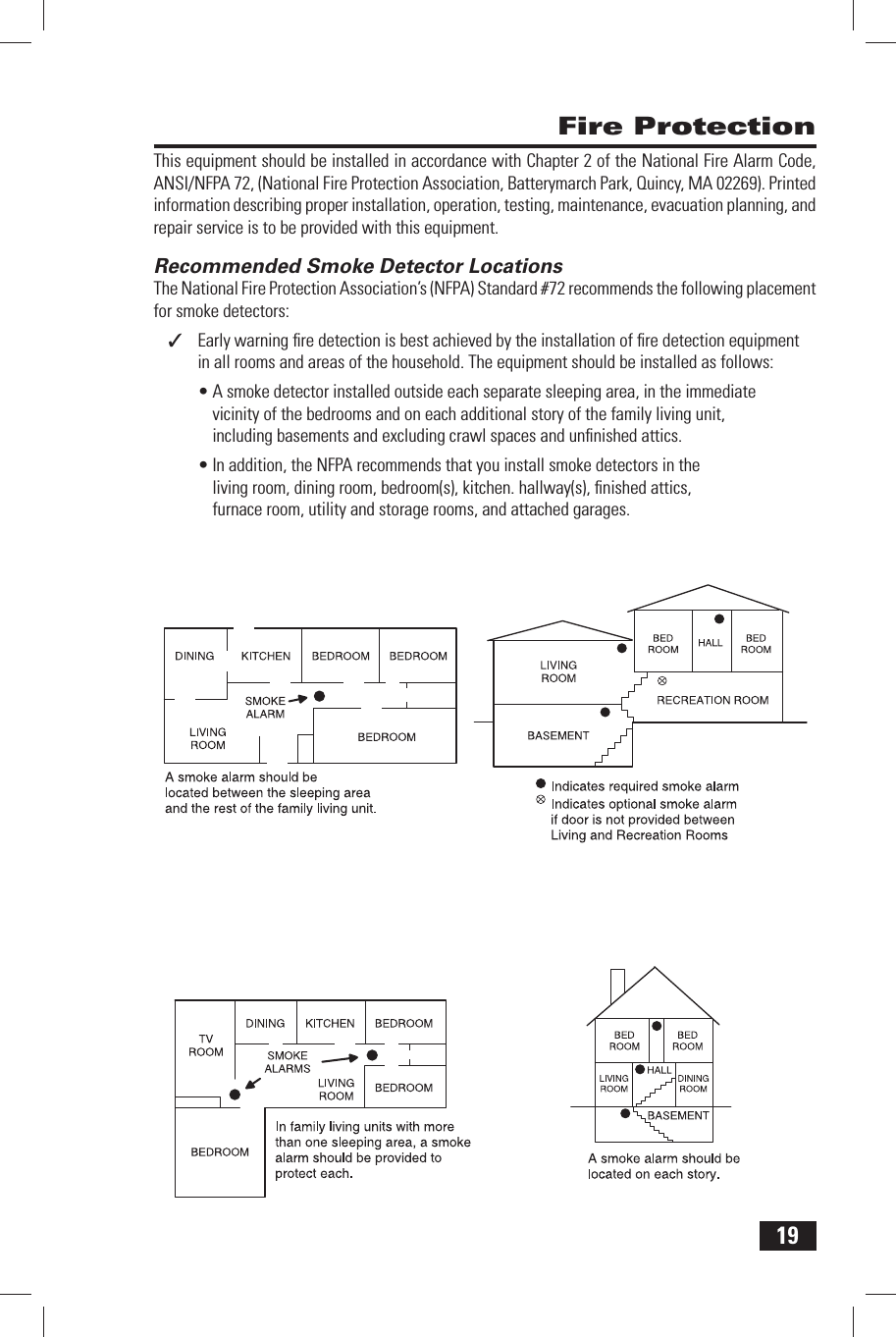
19 Fire ProtectionThis equipment should be installed in accordance with Chapter 2 of the National Fire Alarm Code, ANSI/NFPA 72, (National Fire Protection Association, Batterymarch Park, Quincy, MA 02269). Printed information describing proper installation, operation, testing, maintenance, evacuation planning, and repair service is to be provided with this equipment. Recommended Smoke Detector LocationsThe  National Fire Protection Association’s (NFPA) Standard #72 recommends the following placement for smoke detectors:Early warning fi re detection is best achieved by the installation of fi re detection equipment  ✓in all rooms and areas of the household. The equipment should be installed as follows:A smoke detector installed outside each separate sleeping area, in the immediate • vicinity of the bedrooms and on each additional story of the family living unit, including basements and excluding crawl spaces and unfi nished attics.In addition, the NFPA recommends that you install smoke detectors in the • living room, dining room, bedroom(s), kitchen. hallway(s), fi nished attics, furnace room, utility and storage rooms, and attached garages.
20 Fire Protection Emergency Evacuation PlanTo establish and regularly practice a plan of escape in the event of fi re, the following steps are recommended by the National Fire Protection Association:Position your detector or your interior and/or exterior sounders so that they can be heard by 1. all occupants.Determine two means of escape from each room. One path of escape should lead to the door 2. that permits normal exit from the building. The other should be an alternate escape, such as a window, should your path to that door be impassable. Station an escape ladder at such windows if there is a long drop to the ground.Sketch a fl oor plan of the building. Show windows, doors, stairs, and rooftops that can be used 3. to escape. Indicate escape routes for each room. Keep these route free from obstructions and post copies of the escape routes in every room.Assure that all bedroom doors are shut while you are asleep. This will prevent deadly smoke 4. from entering while you escape.Try the door. If the door is hot, check your alternate escape route. If the door is cool, open it 5. cautiously. Be prepared to slam the door shut if smoke or heat rushes in.When smoke is present, crawl on the ground. Do not walk upright, since smoke rises and may 6. overcome you. Clearer air is near the fl oor.Escape quickly; don’t panic.7. Establish a place outdoors, away from your house, where everyone can meet and then take 8. steps to contact the authorities and account for those missing. Choose someone to assure that nobody returns to the house — many die going back.
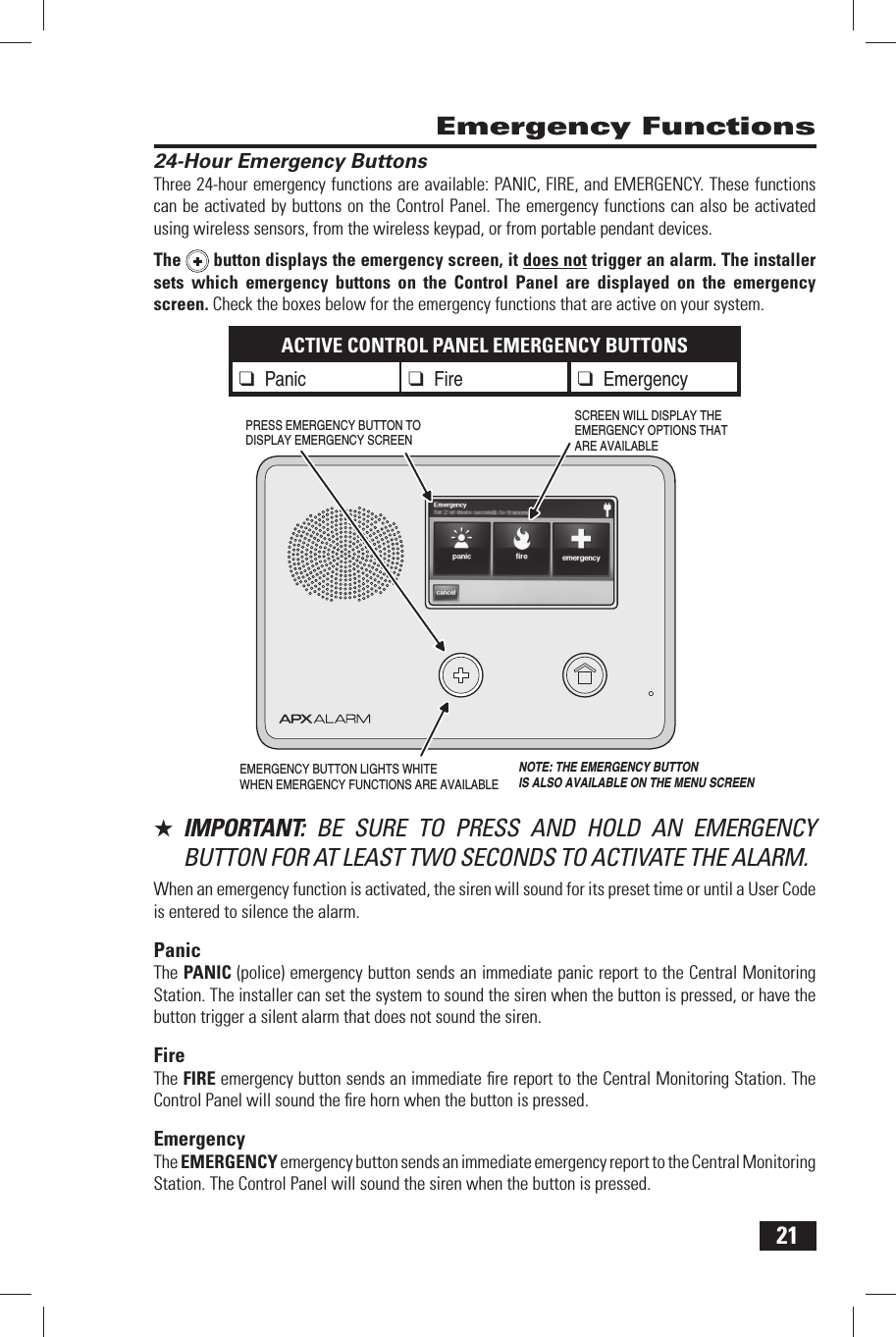
21 24-Hour Emergency ButtonsThree 24-hour emergency functions are available: PANIC, FIRE, and EMERGENCY. These functions can be activated by buttons on the Control Panel. The emergency functions can also be activated using wireless sensors, from the wireless keypad, or from portable pendant devices.The  button displays the emergency screen, it does not trigger an alarm. The installer sets which emergency buttons on the Control Panel are displayed on the emergency screen. Check the boxes below for the emergency functions that are active on your system.ACTIVE CONTROL PANEL EMERGENCY BUTTONS❑ Panic ❑ Fire ❑ Emergency★  IMPORTANT:  BE SURE TO PRESS AND HOLD AN EMERGENCY BUTTON FOR AT LEAST TWO SECONDS TO ACTIVATE THE ALARM.When an emergency function is activated, the siren will sound for its preset time or until a User Code is entered to silence the alarm.PanicThe  PANIC (police) emergency button sends an immediate panic report to the Central Monitoring Station. The installer can set the system to sound the siren when the button is pressed, or have the button trigger a silent alarm that does not sound the siren.FireThe  FIRE emergency button sends an immediate fi re report to the Central Monitoring Station. The Control Panel will sound the fi re horn when the button is pressed.EmergencyThe  EMERGENCY emergency button sends an immediate emergency report to the Central Monitoring Station. The Control Panel will sound the siren when the button is pressed. Emergency FunctionsEMERGENCY BUTTON LIGHTS WHITEWHEN EMERGENCY FUNCTIONS ARE AVAILABLESCREEN WILL DISPLAY THEEMERGENCY OPTIONS THATARE AVAILABLEPRESS EMERGENCY BUTTON TO DISPLAY EMERGENCY SCREENNOTE: THE EMERGENCY BUTTONIS ALSO AVAILABLE ON THE MENU SCREEN
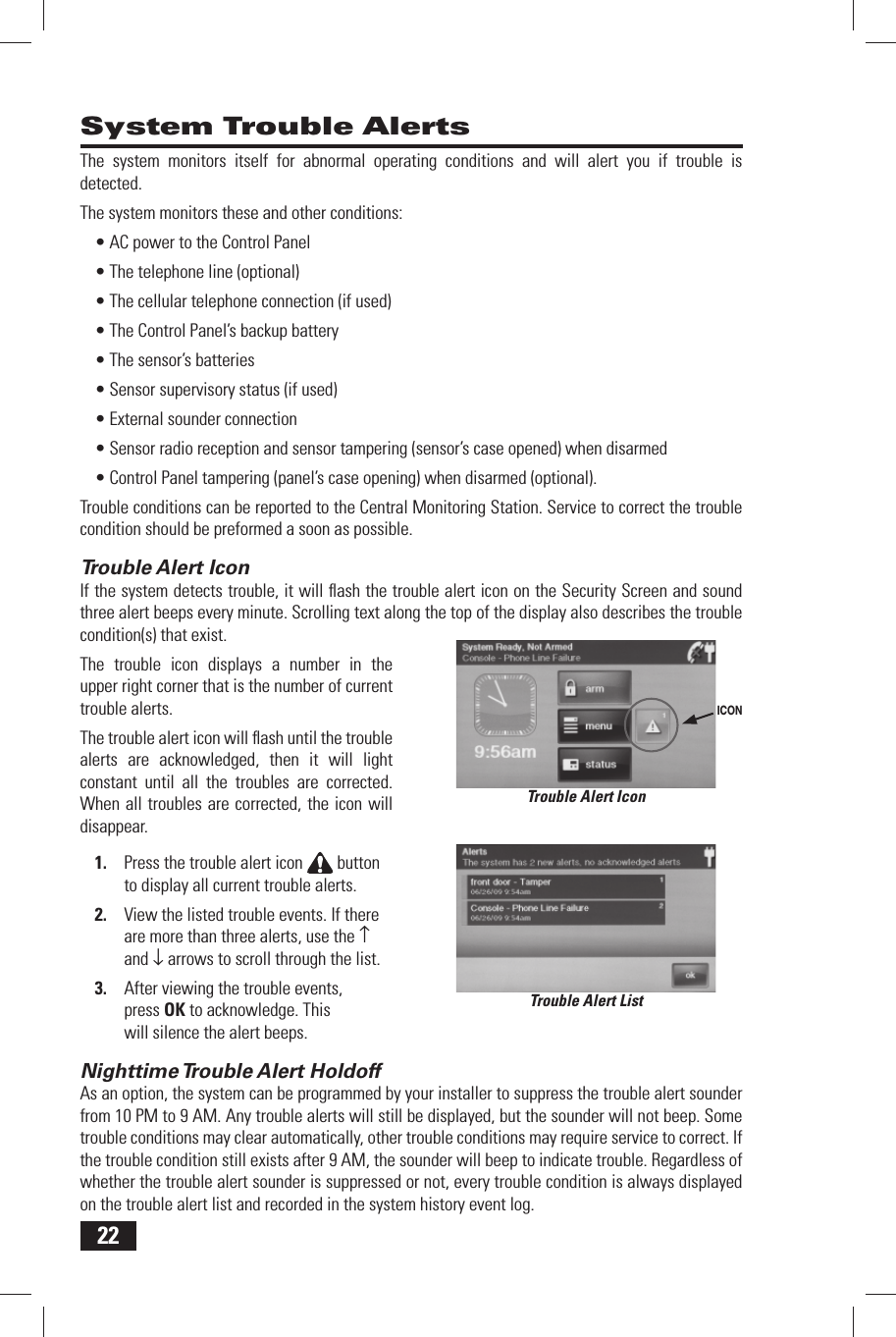
22 System Trouble AlertsThe system monitors itself for abnormal operating conditions and will alert you if trouble is detected.The system monitors these and other conditions:AC power to the Control Panel• The telephone line (optional)• The cellular telephone connection (if used)• The Control Panel’s backup battery• The sensor’s batteries• Sensor supervisory status (if used)• External sounder connection• Sensor radio reception and sensor tampering (sensor’s case opened) when disarmed• Control Panel tampering (panel’s case opening) when disarmed (optional).• Trouble conditions can be reported to the Central Monitoring Station. Service to correct the trouble condition should be preformed a soon as possible. Trouble Alert IconIf the system detects trouble, it will fl ash the trouble alert icon on the Security Screen and sound three alert beeps every minute. Scrolling text along the top of the display also describes the trouble condition(s) that exist.The trouble icon displays a number in the upper right corner that is the number of current trouble alerts.The trouble alert icon will fl ash until the trouble alerts are acknowledged, then it will light constant until all the troubles are corrected. When all troubles are corrected, the icon will disappear.Press the trouble alert icon 1.   button to display all current trouble alerts.View the listed trouble events. If there 2. are more than three alerts, use the ↑ and ↓ arrows to scroll through the list.After viewing the trouble events, 3. press OK to acknowledge. This will silence the alert beeps. Nighttime Trouble Alert  HoldoffAs an option, the system can be programmed by your installer to suppress the trouble alert sounder from 10 PM to 9 AM. Any trouble alerts will still be displayed, but the sounder will not beep. Some trouble conditions may clear automatically, other trouble conditions may require service to correct. If the trouble condition still exists after 9 AM, the sounder will beep to indicate trouble. Regardless of whether the trouble alert sounder is suppressed or not, every trouble condition is always displayed on the trouble alert list and recorded in the system history event log.Trouble Alert ListTrouble Alert IconICON
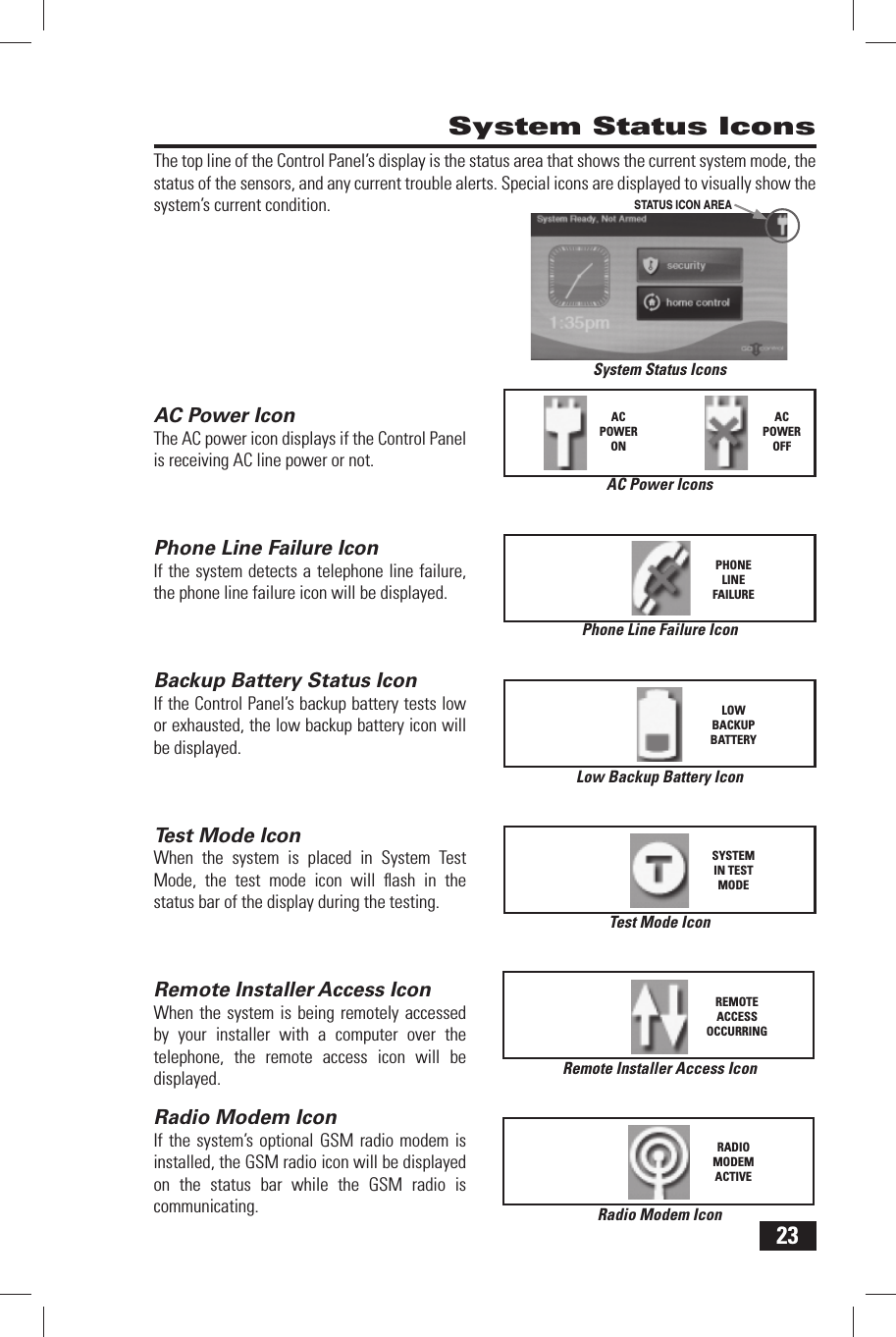
23The top line of the Control Panel’s display is the status area that shows the current system mode, the status of the sensors, and any current trouble alerts. Special icons are displayed to visually show the system’s current condition. AC Power IconThe AC power icon displays if the Control Panel is receiving AC line power or not. Phone Line Failure IconIf the system detects a telephone line failure, the phone line failure icon will be displayed. Backup Battery Status IconIf the Control Panel’s backup battery tests low or exhausted, the low backup battery icon will be displayed. Test Mode IconWhen the system is placed in System Test Mode, the test mode icon will fl ash in the status bar of the display during the testing.Remote Installer  Access IconWhen the system is being remotely accessed by your installer with a computer over the telephone, the remote access icon will be displayed.Radio  Modem IconIf the system’s optional GSM radio modem is installed, the GSM radio icon will be displayed on the status bar while the GSM radio is communicating. System Status IconsLow Backup Battery IconLOWBACKUPBATTERYAC Power IconsACPOWERONACPOWEROFFPhone Line Failure IconPHONELINEFAILURESystem Status IconsSTATUS ICON AREATest Mode IconSYSTEM IN TEST MODERemote Installer Access IconREMOTE ACCESS OCCURRINGRadio Modem IconRADIO MODEM ACTIVE
24 MessagingSystem  Text MessagesYour security system supports receiving text messages from the Central Monitoring Station. The messages can be about system upgrades, additional services, special regional weather alerts, etc. The messages can be sent for all system users to read, or as confi dential messages that only the Master User can read. Messages can be tagged by the sender as standard or urgent priority.Up to 31 text messages can be stored in the Control Panel’s memory. They can be reviewed through the Control Panel’s display. Displayed messages can be fi ltered by type and sorted by date or alphabetically. Messages can be saved in the Control Panel, or deleted after they are read.Displaying  MessagesWhen a text message is sent to the Control Panel, a beep will sound and the message icon will display on the Security Screen. Standard messages will display a blue   message icon with a number in the upper right corner indicating the number of unread messages. Urgent messages will display a red   message icon with an attention   symbol in the upper right corner of the icon.Reading  MessagesWhen a message icon appears, follow these steps to read the message(s).Press the blue 1.   or red   message icon button.The message list will display. The 2. top status bar shows the number of messages in memory, number of unread, and number of urgent messages. Unread messages will display in bold. Use the ↑ or ↓ arrows to scroll the list.Press the message line on the message 3. list to view the text message.Press 4. BACK to return to the message list, or press DELETE to erase the message. If the MARK AS READ box is checked, the message will remain on the message list if it’s not deleted, but it will not be displayed in bold.When deleting a message, a 5. confi rmation screen will display. Press DELETE MESSAGE to delete or press CANCEL to return to the message.A delete acknowledge screen 6. will display. Press OK to return to the message list.Standard Text MessageMessage Delete Confi rmationStandard Message IconUrgent Message IconMessage ListREAD MESSAGE(NOT BOLD)UNREAD MESSAGE(BOLD)URGENTMESSAGE ICON
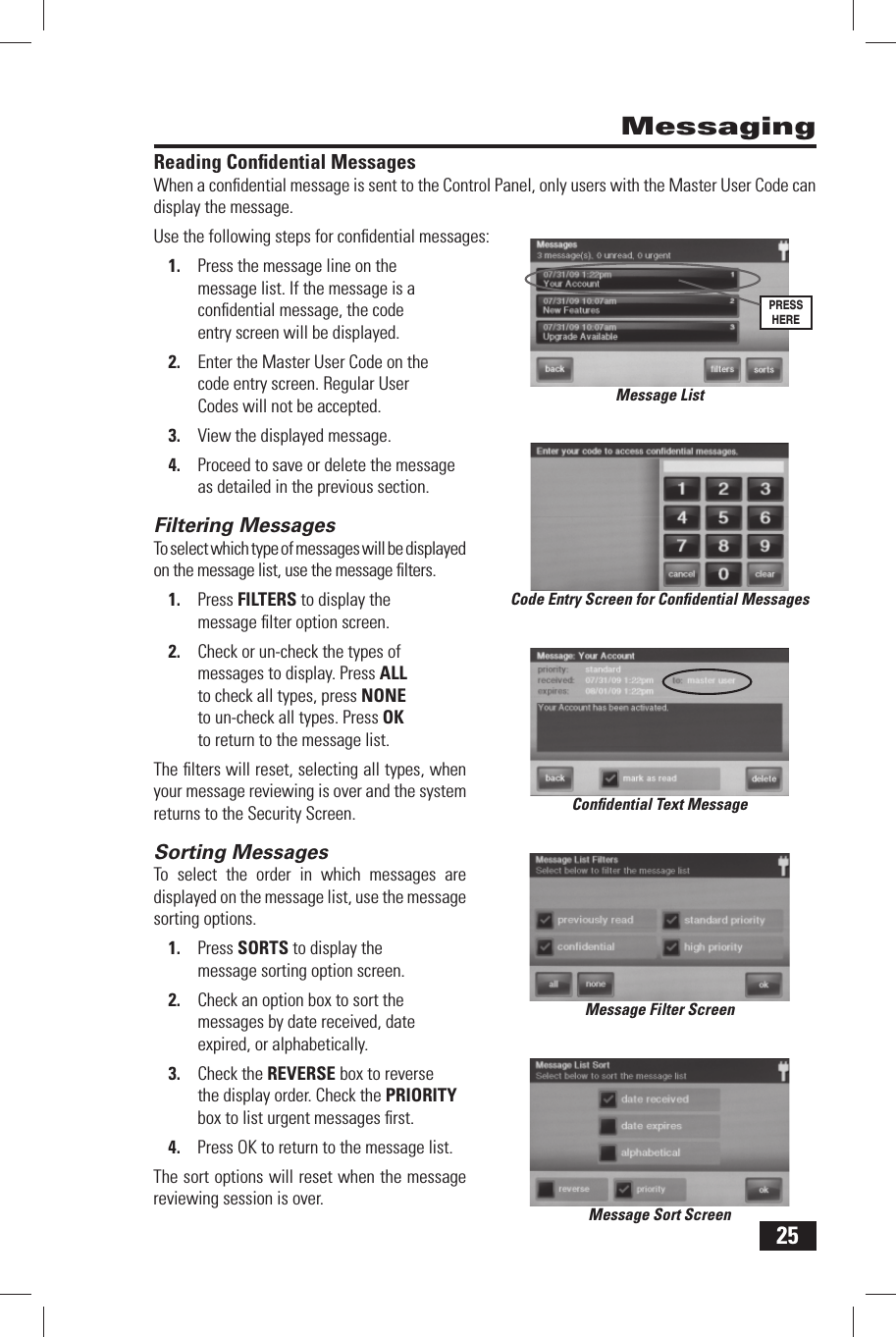
25Reading  Confi dential MessagesWhen a confi dential message is sent to the Control Panel, only users with the Master User Code can display the message.Use the following steps for confi dential messages:Press the message line on the 1. message list. If the message is a confi dential message, the code entry screen will be displayed.Enter the Master User Code on the 2. code entry screen. Regular User Codes will not be accepted.View the displayed message.3. Proceed to save or delete the message 4. as detailed in the previous section.Filtering  MessagesTo select which type of messages will be displayed on the message list, use the message fi lters.Press 1. FILTERS to display the message fi lter option screen.Check or un-check the types of 2. messages to display. Press ALL to check all types, press NONE to un-check all types. Press OK to return to the message list.The fi lters will reset, selecting all types, when your message reviewing is over and the system returns to the Security Screen.Sorting  MessagesTo select the order in which messages are displayed on the message list, use the message sorting options.Press 1. SORTS to display the message sorting option screen.Check an option box to sort the 2. messages by date received, date expired, or alphabetically.Check the 3. REVERSE box to reverse the display order. Check the PRIORITY box to list urgent messages fi rst.Press OK to return to the message list.4. The sort options will reset when the message reviewing session is over.MessagingCode Entry Screen for Confi dential MessagesConfi dential Text MessageMessage Filter ScreenMessage Sort ScreenMessage ListPRESS HERE
26 Remote Control by Telephone Telephone RemoteThe system can be controlled remotely using a standard telephone. Remote control is performed by calling the system and responding to spoken questions from the system. By pressing certain telephone keys, you can arm and disarm the system, bypass sensors, and query the system status.✓  NOTE: The telephone remote control system feature is optional. It must be enabled by your installer before it can be used.Calling the SystemYour installer selects whether your system supports the remote telephone option or not. If this feature is enabled, the system will require calling it twice within 30 seconds to answer your call and connect.Call the telephone number that the Control Panel is connected to. Wait for one or two rings, 1. then hang up.Within 10-45 seconds2.  , call the Control Panel again. The Control Panel will answer the telephone.
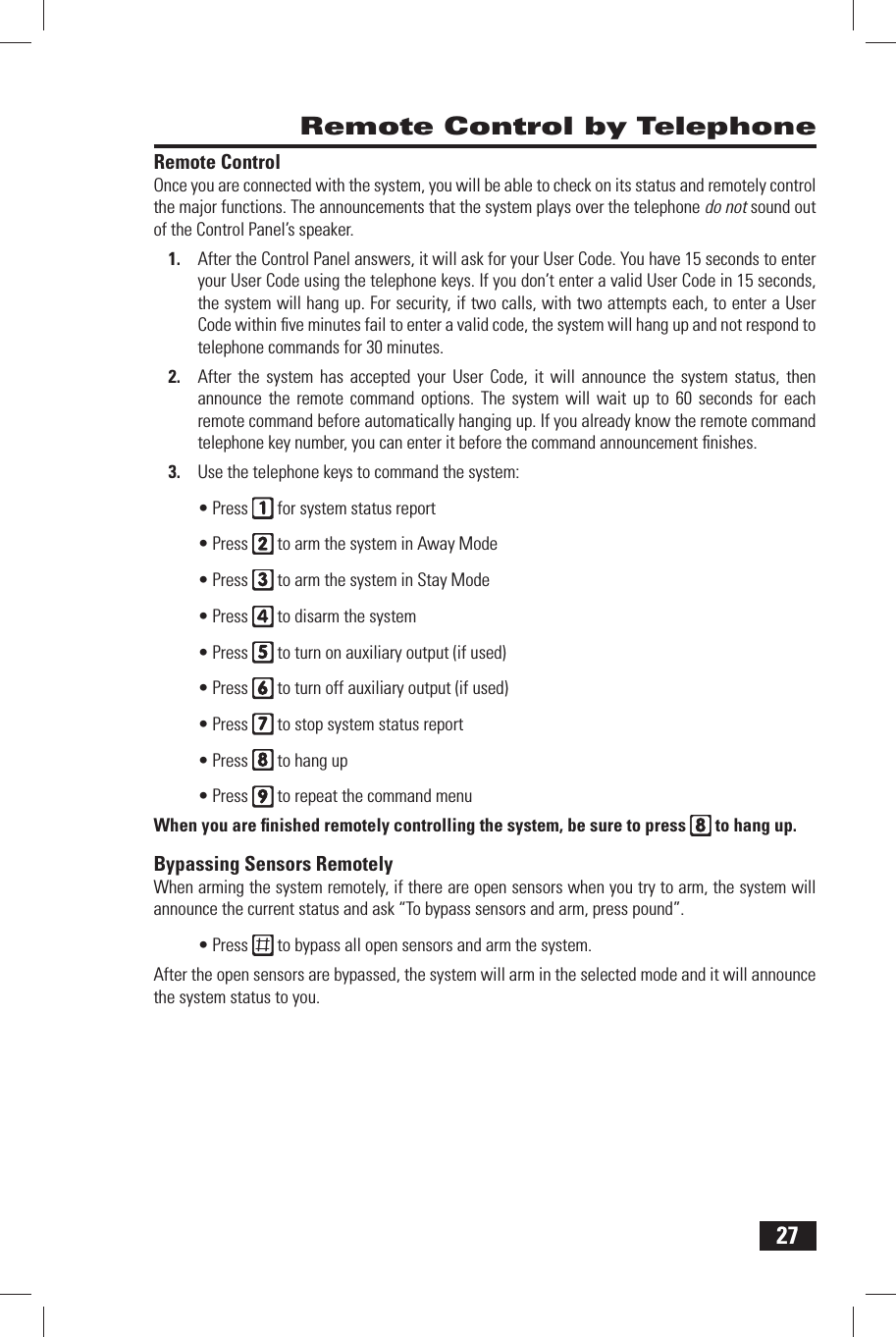
27 Remote Control by Telephone Remote  ControlOnce you are connected with the system, you will be able to check on its status and remotely control the major functions. The announcements that the system plays over the telephone do not sound out of the Control Panel’s speaker.After the Control Panel answers, it will ask for your User Code. You have 15 seconds to enter 1. your User Code using the telephone keys. If you don’t enter a valid User Code in 15 seconds, the system will hang up. For security, if two calls, with two attempts each, to enter a User Code within fi ve minutes fail to enter a valid code, the system will hang up and not respond to telephone commands for 30 minutes.After the system has accepted your User Code, it will announce the system status, then 2. announce the remote command options. The system will wait up to 60 seconds for each remote command before automatically hanging up. If you already know the remote command telephone key number, you can enter it before the command announcement fi nishes.Use the telephone keys to command the system:3. Press •   for system status reportPress •   to arm the system in Away ModePress •   to arm the system in Stay ModePress •   to disarm the systemPress •   to turn on auxiliary output (if used)Press •   to turn off auxiliary output (if used)Press •   to stop system status reportPress •   to hang upPress •   to repeat the command menuWhen you are fi nished remotely controlling the system, be sure to press   to hang up. Bypassing Sensors RemotelyWhen arming the system remotely, if there are open sensors when you try to arm, the system will announce the current status and ask “To bypass sensors and arm, press pound”.Press •   to bypass all open sensors and arm the system.After the open sensors are bypassed, the system will arm in the selected mode and it will announce the system status to you.
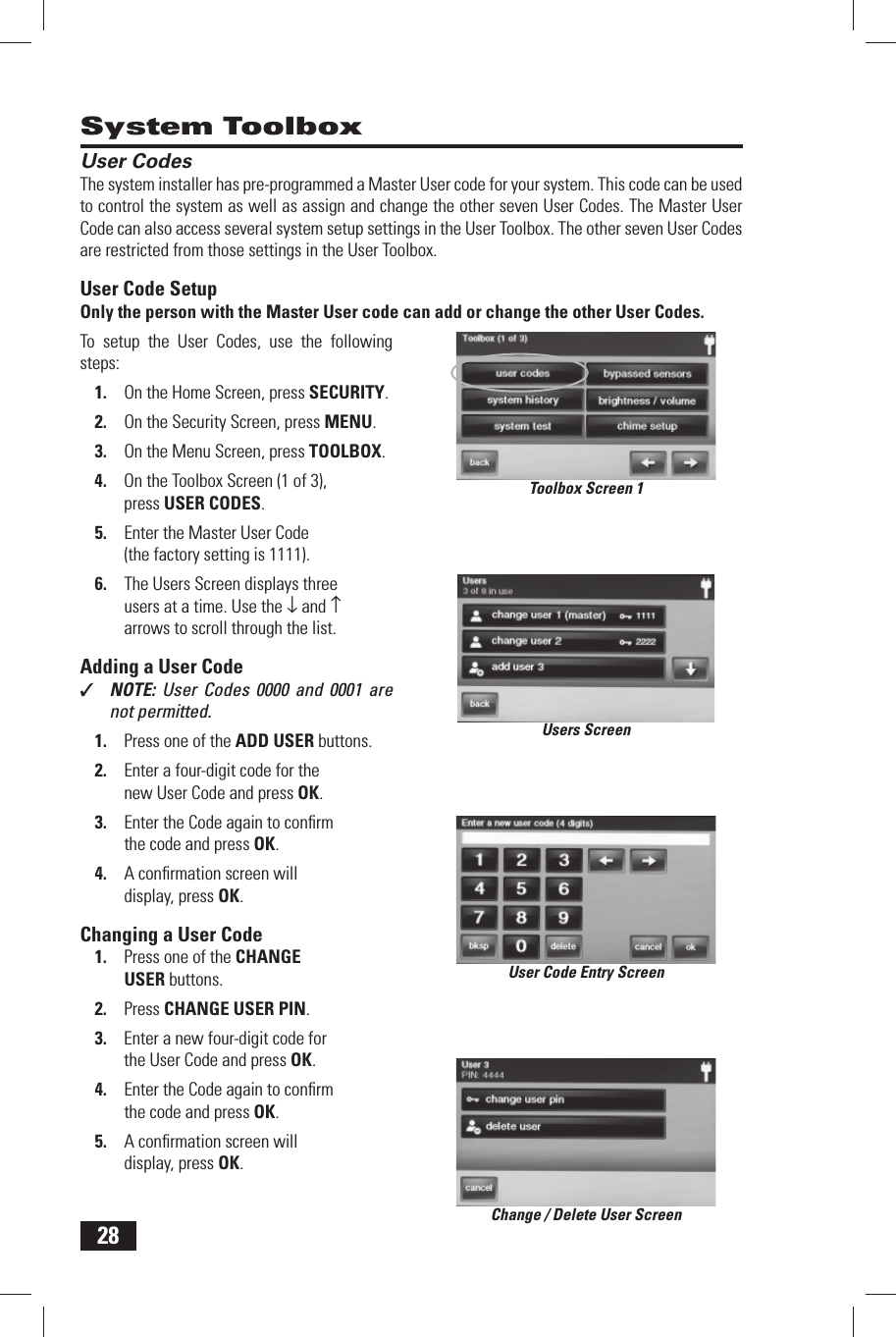
28 User CodesThe system installer has pre-programmed a  Master User code for your system. This code can be used to control the system as well as assign and change the other seven User Codes. The Master User Code can also access several system setup settings in the User Toolbox. The other seven User Codes are restricted from those settings in the  User Toolbox. User Code SetupOnly the person with the Master User code can add or change the other User Codes.To setup the User Codes, use the following steps:On the Home Screen, press 1. SECURITY.On the Security Screen, press 2. MENU.On the Menu Screen, press 3. TOOLBOX.On the Toolbox Screen (1 of 3), 4. press USER CODES.Enter the Master User Code 5. (the factory setting is 1111).The Users Screen displays three 6. users at a time. Use the ↓ and ↑ arrows to scroll through the list. Adding a User Code✓  NOTE:  User Codes 0000 and 0001 are not permitted.Press one of the 1.   ADD USER buttons.Enter a four-digit code for the 2. new User Code and press OK.Enter the Code again to confi rm 3. the code and press OK.A confi rmation screen will 4. display, press OK. Changing a User CodePress one of the 1.   CHANGE USER buttons.Press 2.   CHANGE USER PIN.Enter a new four-digit code for 3. the User Code and press OK.Enter the Code again to confi rm 4. the code and press OK.A confi rmation screen will 5. display, press OK. System ToolboxToolbox Screen 1Users ScreenUser Code Entry ScreenChange / Delete User Screen
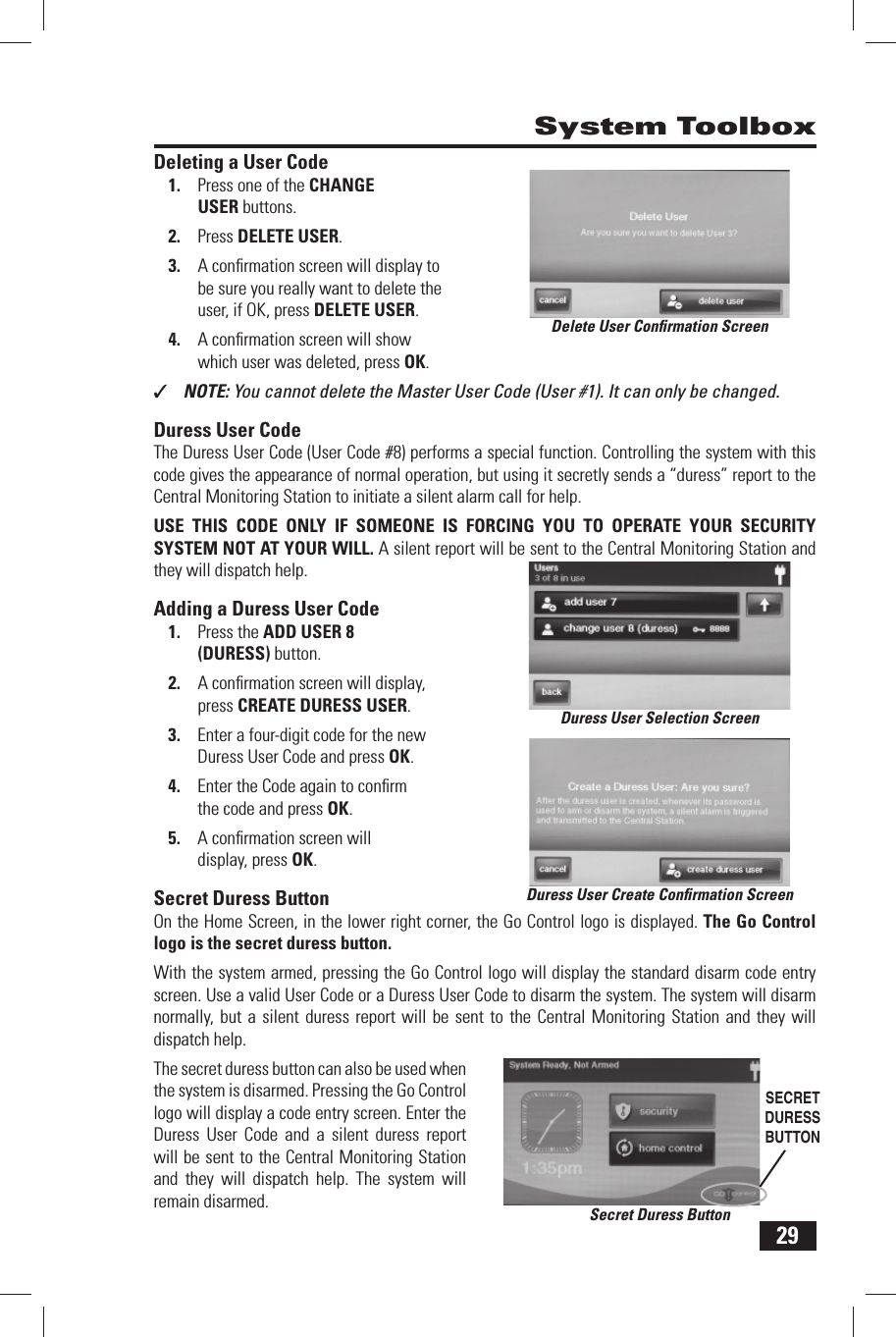
29 Deleting a User CodePress one of the 1.   CHANGE USER buttons.Press 2.   DELETE USER.A confi rmation screen will display to 3. be sure you really want to delete the user, if OK, press DELETE USER.A confi rmation screen will show 4. which user was deleted, press OK.✓  NOTE: You cannot delete the Master User Code (User #1). It can only be changed. Duress User CodeThe Duress User Code (User Code #8) performs a special function. Controlling the system with this code gives the appearance of normal operation, but using it secretly sends a “duress” report to the Central Monitoring Station to initiate a silent alarm call for help.USE THIS CODE ONLY IF SOMEONE IS FORCING YOU TO OPERATE YOUR SECURITY SYSTEM NOT AT YOUR WILL. A silent report will be sent to the Central Monitoring Station and they will dispatch help. Adding a Duress User CodePress the 1.  ADD USER 8 (DURESS) button.A confi rmation screen will display, 2. press  CREATE DURESS USER.Enter a four-digit code for the new 3. Duress User Code and press OK.Enter the Code again to confi rm 4. the code and press OK.A confi rmation screen will 5. display, press OK. Secret Duress ButtonOn the Home Screen, in the lower right corner, the Go Control logo is displayed. The Go Control logo is the secret duress button. With the system armed, pressing the Go Control logo will display the standard disarm code entry screen. Use a valid User Code or a Duress User Code to disarm the system. The system will disarm normally, but a silent duress report will be sent to the Central Monitoring Station and they will dispatch help.The secret duress button can also be used when the system is disarmed. Pressing the Go Control logo will display a code entry screen. Enter the Duress User Code and a silent duress report will be sent to the Central Monitoring Station and they will dispatch help. The system will remain disarmed. System ToolboxDelete User Confi rmation ScreenDuress User Selection ScreenDuress User Create Confi rmation ScreenSecret Duress ButtonSECRET DURESS BUTTON
30 System Toolbox System HistoryThe Control Panel keeps a log of system events in the order which they occur. Each event is marked with the date and time the event occurred.To make reading the log easier, the system history display can be “fi ltered” to show selected events only. The events that can be fi ltered for the system history log display are:Arm or Disarm of the system• Bypasses of sensors (force bypasses and manual bypasses)• Alarms (alarms are displayed with a red stripe)• Alerts (alerts are displayed with a yellow stripe)• Some system events always display regardless of the fi lters selected. These events include:Walk test started or terminated.• Programming mode started or terminated.• To view the system history log, use the following steps:On the Home Screen, press 1. SECURITY.On the Security Screen, press 2. MENU.On the Menu Screen, press 3. TOOLBOX.On the Toolbox Screen (1 of 3), 4. press  SYSTEM HISTORY.The log of system events will 5. be displayed. Use the ↑ and ↓ arrows to scroll through the log.To choose what’s displayed, 6. press  FILTERS.Select the events to display with the 7. check boxes. Press ALL to select all the check boxes, or NONE to clear all the check boxes. Press OK when fi nished.View the system history. Press 8. BACK when fi nished.System History ScreenSystem History Filters
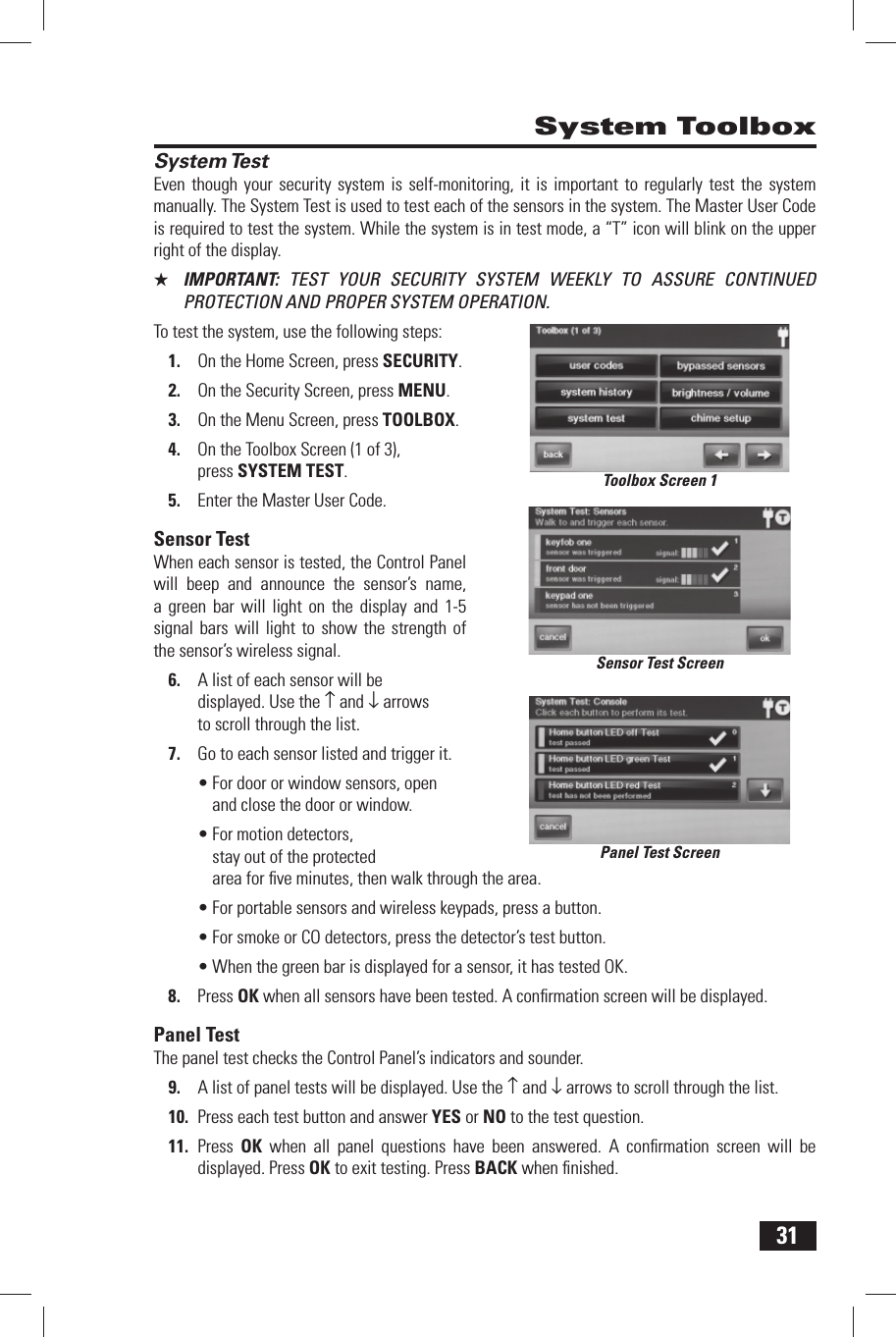
31 System TestEven though your security system is self-monitoring, it is important to regularly test the system manually. The System Test is used to test each of the sensors in the system. The Master User Code is required to test the system. While the system is in test mode, a “T” icon will blink on the upper right of the display.★  IMPORTANT:  TEST YOUR SECURITY SYSTEM WEEKLY TO ASSURE CONTINUED PROTECTION AND PROPER SYSTEM OPERATION.To test the system, use the following steps:On the Home Screen, press 1. SECURITY.On the Security Screen, press 2. MENU.On the Menu Screen, press 3. TOOLBOX.On the Toolbox Screen (1 of 3), 4. press  SYSTEM TEST.Enter the Master User Code.5.   Sensor  TestWhen each sensor is tested, the Control Panel will beep and announce the sensor’s name, a green bar will light on the display and 1-5 signal bars will light to show the strength of the sensor’s wireless signal.A list of each sensor will be 6. displayed. Use the ↑ and ↓ arrows to scroll through the list.Go to each sensor listed and trigger it.7. For door or window sensors, open • and close the door or window.For motion detectors, • stay out of the protected area for fi ve minutes, then walk through the area.For portable sensors and wireless keypads, press a button.• For smoke or CO detectors, press the detector’s test button.• When the green bar is displayed for a sensor, it has tested OK.• Press 8. OK when all sensors have been tested. A confi rmation screen will be displayed. Panel  TestThe panel test checks the Control Panel’s indicators and sounder.A list of panel tests will be displayed. Use the 9.  ↑ and ↓ arrows to scroll through the list.Press each test button and answer 10. YES or NO to the test question.Press 11. OK when all panel questions have been answered. A confi rmation screen will be displayed. Press OK to exit testing. Press BACK when fi nished. System ToolboxSensor Test ScreenToolbox Screen 1Panel Test Screen
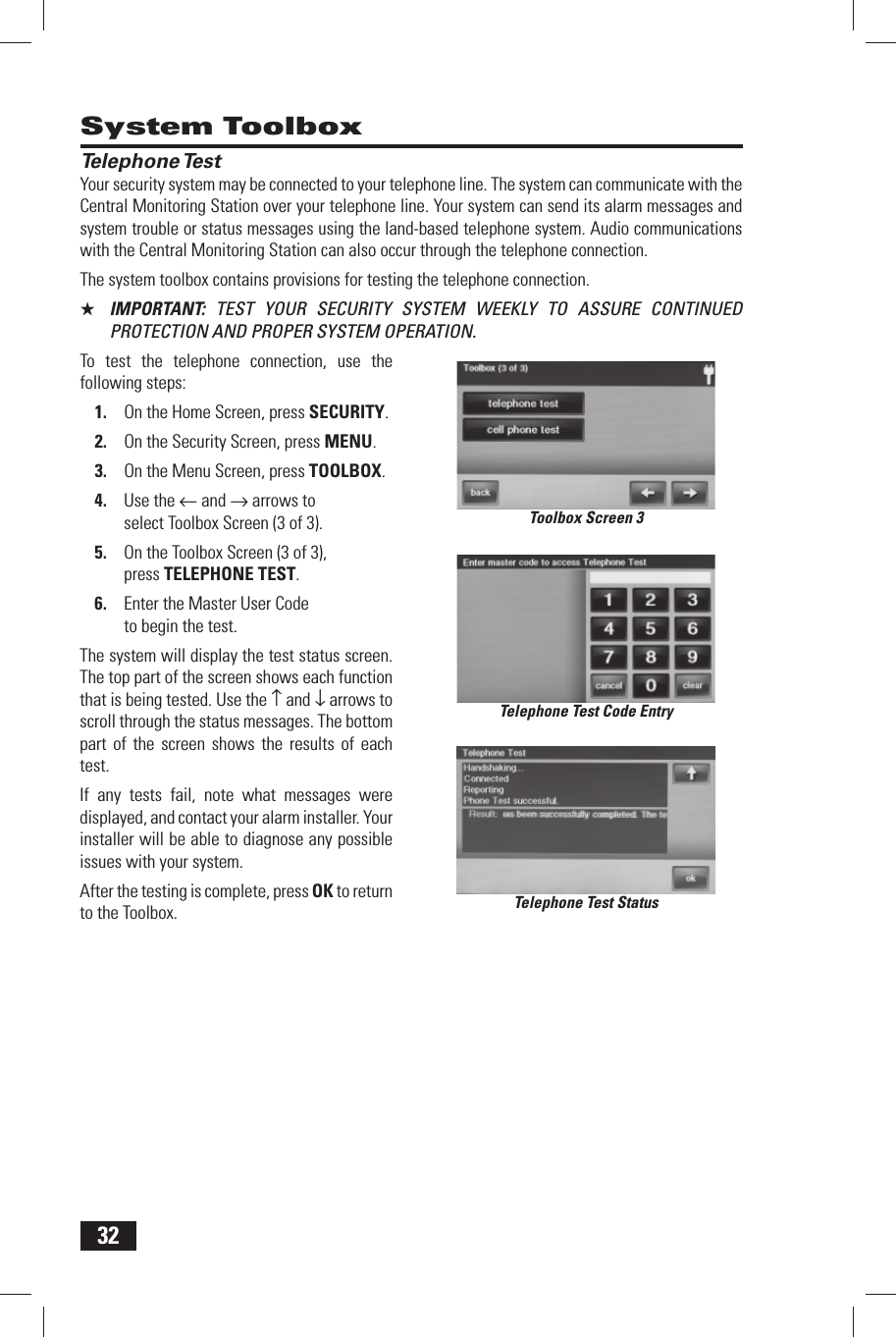
32 System Toolbox Telephone TestYour security system may be connected to your telephone line. The system can communicate with the Central Monitoring Station over your telephone line. Your system can send its alarm messages and system trouble or status messages using the land-based telephone system. Audio communications with the Central Monitoring Station can also occur through the telephone connection.The system toolbox contains provisions for testing the telephone connection.★  IMPORTANT:  TEST YOUR SECURITY SYSTEM WEEKLY TO ASSURE CONTINUED PROTECTION AND PROPER SYSTEM OPERATION.To test the telephone connection, use the following steps:On the Home Screen, press 1. SECURITY.On the Security Screen, press 2. MENU.On the Menu Screen, press 3. TOOLBOX.Use the 4.  ← and → arrows to select Toolbox Screen (3 of 3).On the Toolbox Screen (3 of 3), 5. press TELEPHONE TEST.Enter the Master User Code 6. to begin the test.The system will display the test status screen. The top part of the screen shows each function that is being tested. Use the ↑ and ↓ arrows to scroll through the status messages. The bottom part of the screen shows the results of each test.If any tests fail, note what messages were displayed, and contact your alarm installer. Your installer will be able to diagnose any possible issues with your system.After the testing is complete, press OK to return to the Toolbox.Toolbox Screen 3Telephone Test Code EntryTelephone Test Status
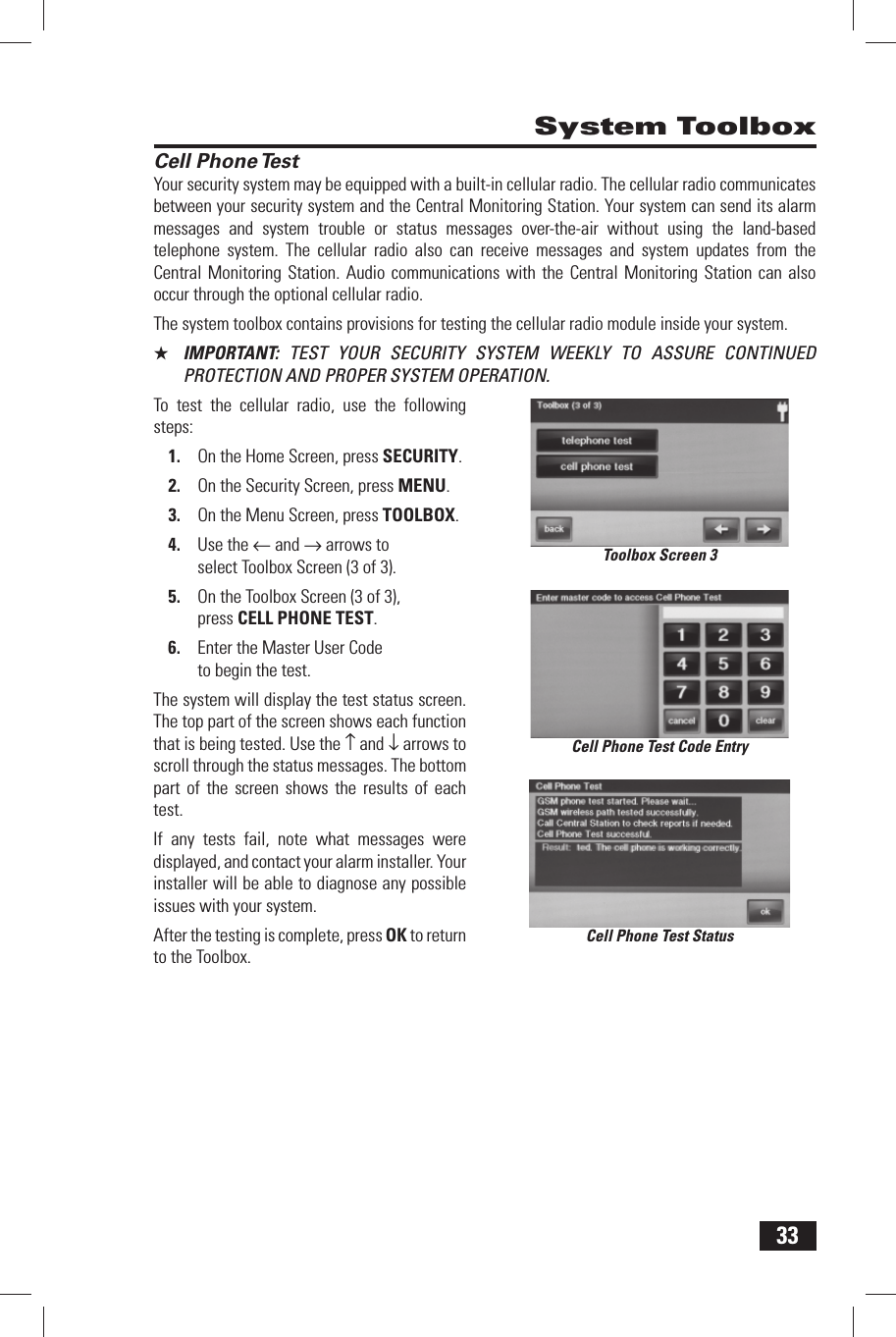
33 System Toolbox Cell Phone TestYour security system may be equipped with a built-in cellular radio. The cellular radio communicates between your security system and the Central Monitoring Station. Your system can send its alarm messages and system trouble or status messages over-the-air without using the land-based telephone system. The cellular radio also can receive messages and system updates from the Central Monitoring Station. Audio communications with the Central Monitoring Station can also occur through the optional cellular radio.The system toolbox contains provisions for testing the cellular radio module inside your system.★  IMPORTANT:  TEST YOUR SECURITY SYSTEM WEEKLY TO ASSURE CONTINUED PROTECTION AND PROPER SYSTEM OPERATION.To test the cellular radio, use the following steps:On the Home Screen, press 1. SECURITY.On the Security Screen, press 2. MENU.On the Menu Screen, press 3. TOOLBOX.Use the 4.  ← and → arrows to select Toolbox Screen (3 of 3).On the Toolbox Screen (3 of 3), 5. press CELL PHONE TEST.Enter the Master User Code 6. to begin the test.The system will display the test status screen. The top part of the screen shows each function that is being tested. Use the ↑ and ↓ arrows to scroll through the status messages. The bottom part of the screen shows the results of each test.If any tests fail, note what messages were displayed, and contact your alarm installer. Your installer will be able to diagnose any possible issues with your system.After the testing is complete, press OK to return to the Toolbox.Cell Phone Test StatusCell Phone Test Code EntryToolbox Screen 3
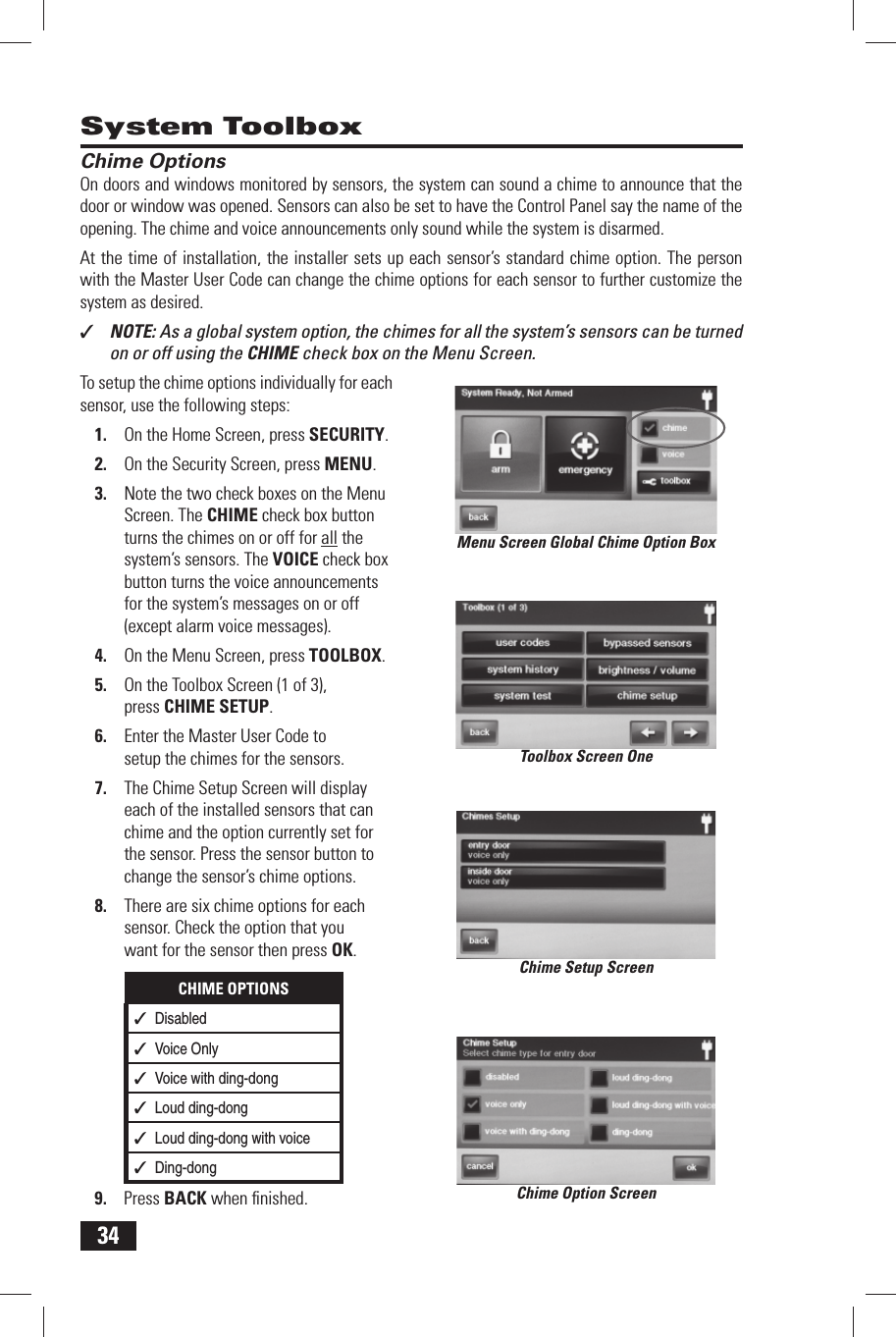
34 System Toolbox Chime OptionsOn doors and windows monitored by sensors, the system can sound a chime to announce that the door or window was opened. Sensors can also be set to have the Control Panel say the name of the opening. The chime and voice announcements only sound while the system is disarmed.At the time of installation, the installer sets up each sensor’s standard chime option. The person with the  Master User Code can change the chime options for each sensor to further customize the system as desired.✓  NOTE: As a global system option, the chimes for all the system’s sensors can be turned on or off using the CHIME check box on the Menu Screen.To setup the chime options individually for each sensor, use the following steps:On the Home Screen, press 1. SECURITY.On the Security Screen, press 2. MENU.Note the two check boxes on the Menu 3. Screen. The CHIME check box button turns the chimes on or off for all the system’s sensors. The VOICE check box button turns the voice announcements for the system’s messages on or off (except alarm voice messages).On the Menu Screen, press 4. TOOLBOX.On the Toolbox Screen (1 of 3), 5. press  CHIME SETUP.Enter the Master User Code to 6. setup the chimes for the sensors.The Chime Setup Screen will display 7. each of the installed sensors that can chime and the option currently set for the sensor. Press the sensor button to change the sensor’s chime options.There are six chime options for each 8. sensor. Check the option that you want for the sensor then press OK.CHIME OPTIONS✓  Disabled✓  Voice Only✓  Voice with ding-dong✓  Loud ding-dong✓  Loud ding-dong with voice✓  Ding-dongPress 9. BACK when fi nished.Menu Screen Global Chime Option BoxToolbox Screen OneChime Setup ScreenChime Option Screen
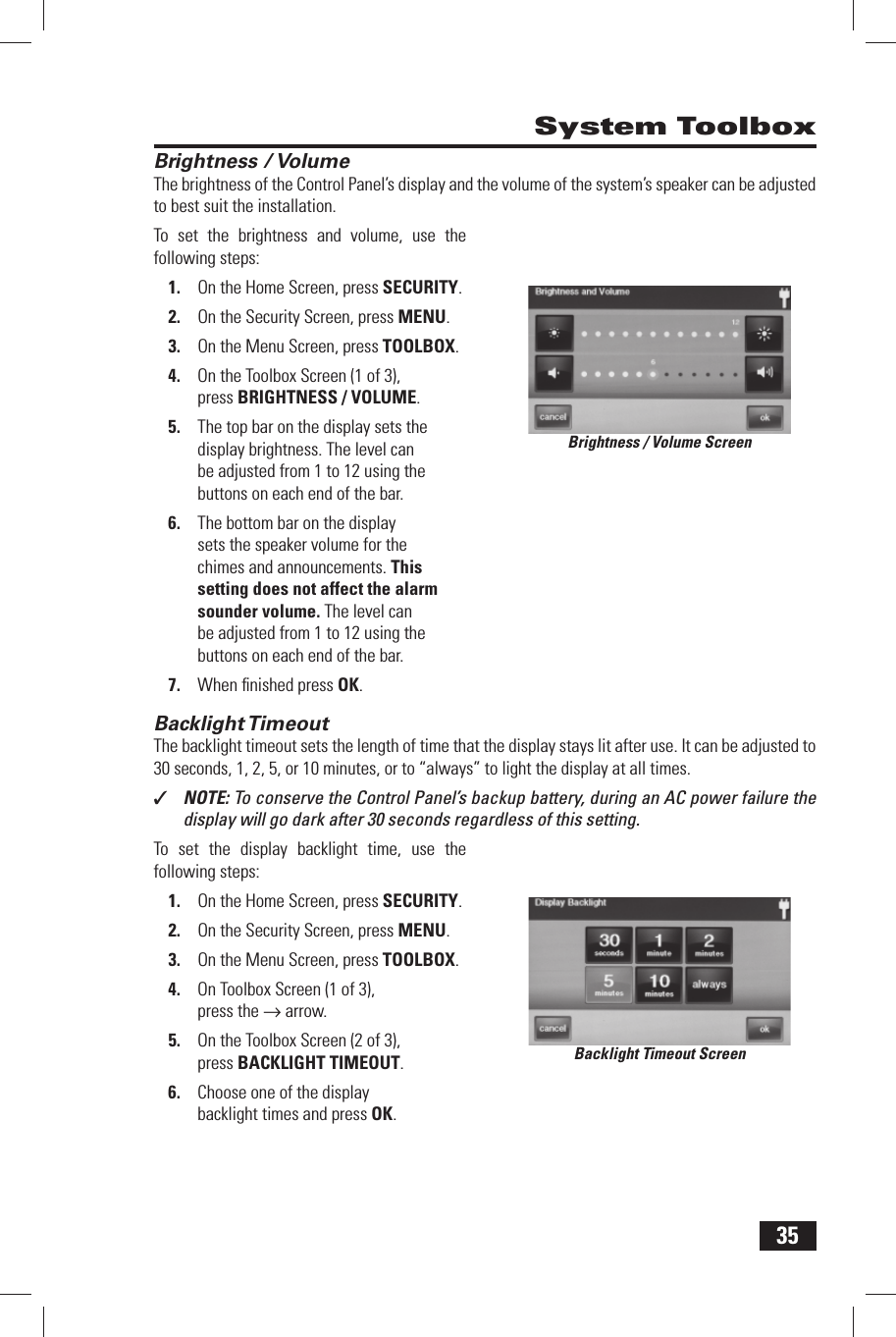
35 Brightness / VolumeThe brightness of the Control Panel’s display and the volume of the system’s speaker can be adjusted to best suit the installation.To set the brightness and volume, use the following steps:On the Home Screen, press 1. SECURITY.On the Security Screen, press 2. MENU.On the Menu Screen, press 3. TOOLBOX.On the Toolbox Screen (1 of 3), 4. press BRIGHTNESS / VOLUME.The top bar on the display sets the 5. display brightness. The level can be adjusted from 1 to 12 using the buttons on each end of the bar.The bottom bar on the display 6. sets the speaker volume for the chimes and announcements. This setting does not affect the alarm sounder volume. The level can be adjusted from 1 to 12 using the buttons on each end of the bar.When fi nished press 7. OK. Backlight TimeoutThe backlight timeout sets the length of time that the display stays lit after use. It can be adjusted to 30 seconds, 1, 2, 5, or 10 minutes, or to “always” to light the display at all times.✓  NOTE: To conserve the Control Panel’s backup battery, during an AC power failure the display will go dark after 30 seconds regardless of this setting.To set the display backlight time, use the following steps:On the Home Screen, press 1. SECURITY.On the Security Screen, press 2. MENU.On the Menu Screen, press 3. TOOLBOX.On Toolbox Screen (1 of 3), 4. press the → arrow.On the Toolbox Screen (2 of 3), 5. press BACKLIGHT TIMEOUT.Choose one of the display 6. backlight times and press OK. System ToolboxBrightness / Volume ScreenBacklight Timeout Screen
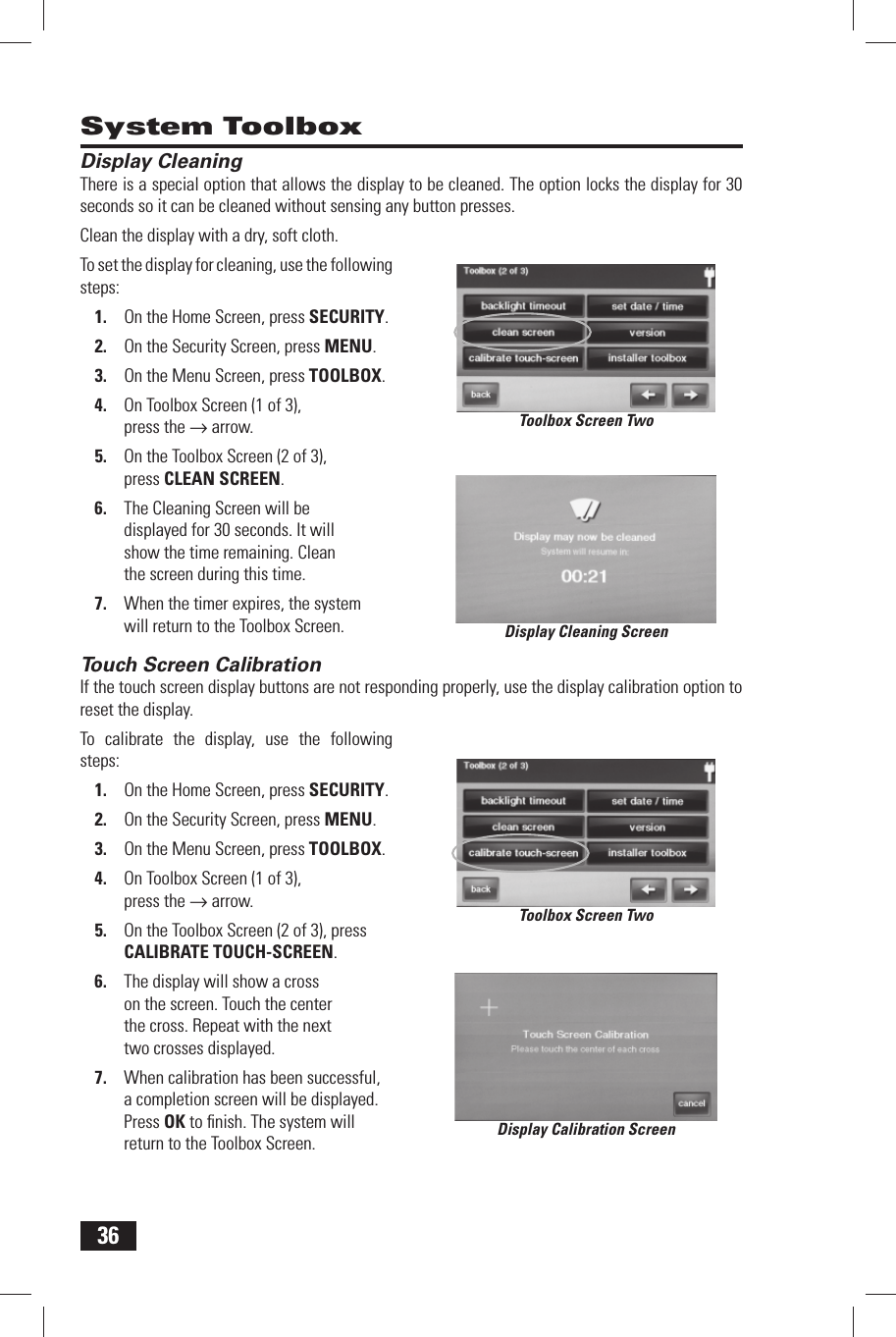
36 Display CleaningThere is a special option that allows the display to be cleaned. The option locks the display for 30 seconds so it can be cleaned without sensing any button presses.Clean the display with a dry, soft cloth.To set the display for cleaning, use the following steps:On the Home Screen, press 1. SECURITY.On the Security Screen, press 2. MENU.On the Menu Screen, press 3. TOOLBOX.On Toolbox Screen (1 of 3), 4. press the → arrow.On the Toolbox Screen (2 of 3), 5. press  CLEAN SCREEN.The Cleaning Screen will be 6. displayed for 30 seconds. It will show the time remaining. Clean the screen during this time.When the timer expires, the system 7. will return to the Toolbox Screen. Touch Screen CalibrationIf the touch screen display buttons are not responding properly, use the display calibration option to reset the display.To calibrate the display, use the following steps:On the Home Screen, press 1. SECURITY.On the Security Screen, press 2. MENU.On the Menu Screen, press 3. TOOLBOX.On Toolbox Screen (1 of 3), 4. press the → arrow.On the Toolbox Screen (2 of 3), press 5.  CALIBRATE TOUCH-SCREEN.The display will show a cross 6. on the screen. Touch the center the cross. Repeat with the next two crosses displayed.When calibration has been successful, 7. a completion screen will be displayed. Press OK to fi nish. The system will return to the Toolbox Screen. System ToolboxDisplay Cleaning ScreenToolbox Screen TwoToolbox Screen TwoDisplay Calibration Screen
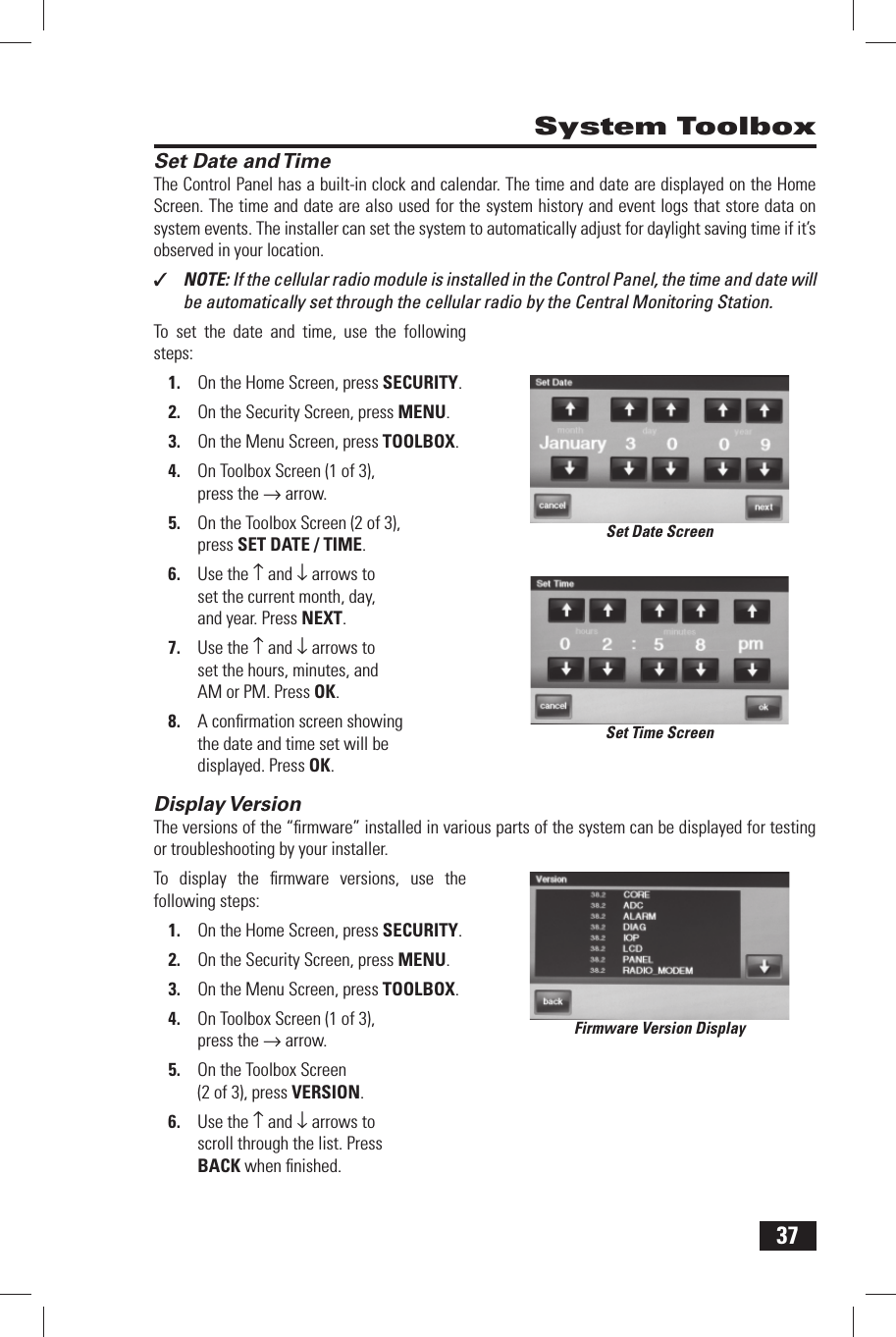
37 Set Date and TimeThe Control Panel has a built-in clock and calendar. The  time and  date are displayed on the Home Screen. The time and date are also used for the system history and event logs that store data on system events. The installer can set the system to automatically adjust for daylight saving time if it’s observed in your location.✓  NOTE: If the cellular radio module is installed in the Control Panel, the time and date will be automatically set through the cellular radio by the Central Monitoring Station.To set the date and time, use the following steps:On the Home Screen, press 1. SECURITY.On the Security Screen, press 2. MENU.On the Menu Screen, press 3. TOOLBOX.On Toolbox Screen (1 of 3), 4. press the → arrow.On the Toolbox Screen (2 of 3), 5. press  SET DATE / TIME.Use the 6.  ↑ and ↓ arrows to set the current month, day, and year. Press NEXT.Use the 7.  ↑ and ↓ arrows to set the hours, minutes, and AM or PM. Press OK.A confi rmation screen showing 8. the date and time set will be displayed. Press OK. Display VersionThe versions of the “fi rmware” installed in various parts of the system can be displayed for testing or troubleshooting by your installer.To display the fi rmware versions, use the following steps:On the Home Screen, press 1. SECURITY.On the Security Screen, press 2. MENU.On the Menu Screen, press 3. TOOLBOX.On Toolbox Screen (1 of 3), 4. press the → arrow.On the Toolbox Screen 5. (2 of 3), press  VERSION.Use the 6.  ↑ and ↓ arrows to scroll through the list. Press BACK when fi nished. System ToolboxSet Date ScreenSet Time ScreenFirmware Version Display
38The installer can set different options for the system to customize the installation. The options listed below show the regular settings and have an area or check box to note custom settings. Siren Run TimeIf there is a burglary, panic (police), or emergency alarm, the Control Panel will sound the siren for a preset time. After the time expires, the siren will stop sounding.SIREN RUN TIME❑ 4 Minutes(regular setting) ❑ 8 Minutes❑ 12 Minutes❑ 16 Minutes❑ Unlimited Fire Horn Run TimeIf there is a fi re alarm, the Control Panel will sound the fi re alarm horn for a preset time. After the time expires, the fi re alarm horn will stop sounding.FIRE HORN RUN TIME❑ 4 Minutes(regular setting) ❑ 8 Minutes❑ 12 Minutes❑ 16 Minutes❑ Unlimited Exit DelayThe Exit Delay begins immediately after arming the system. The delay gives you time to leave through the designated exit/entry door without setting off the alarm. During the Exit Delay beeps sound, and faster beeps sound during the last 10 seconds.EXIT DELAY❑ 60 Seconds (regular setting) _________ SecondsFor _______________ Door Entry DelaysThe Entry Delay begins when the designated entry/exit door is opened while the system is armed. The delay gives you time to disarm the system before triggering the alarm. You must enter a User Code on the Control Panel or Wireless Keypad before the Entry Delay time expires. During the Entry Delay, beeps sound to remind you to disarm the system.The systems supports two different Entry Delays. Entry Delay #1 is for your primary entrance door, Entry Delay #2 is for a secondary entrance (such as a garage door) and is usually set longer to give you time to get to the keypad and disarm the system.ENTRY DELAY #1❑ 30 Seconds (regular setting) _________ SecondsFor _______________ DoorENTRY DELAY #2❑ 45 Seconds (regular setting) _________ SecondsFor _______________ Door Installer Set Options
39 Installer Set Options 24-Hour Emergency FunctionsThree 24-hour emergency functions: PANIC; FIRE; and EMERGENCY can be activated by buttons on the Control Panel. The installer can set which emergency buttons on the Control Panel are active.ACTIVE CONTROL PANEL EMERGENCY BUTTONS❑ Panic ❑ Fire ❑ Emergency Quick ArmingQuick Arming allows you to arm your system without having to enter a User Code. When you press the STAY or AWAY button, the system will start to arm without requesting a User Code.QUICK ARMING❑ OFF ❑ ON (regular setting) Quick BypassNormally sensors that are open at the time the system is armed will require force bypassing by entering your User Code. The system can be set so a User Code is not required to bypass open sensors when the system is armed.QUICK BYPASS❑ OFF (regular setting) ❑ ON Quick ExitThe Quick Exit option allows you to start the Exit Delay while the system is armed. This allows you to leave the premises without having to disarm and rearm the system. When the Quick Exit option is on, a QUICK EXIT button will display on the security screen. Press the button to start the Exit Delay. After Quick Exit, the system will fully re-arm in the mode that it was in before (Stay or Away Mode).QUICK EXIT❑ OFF ❑ ON (regular setting) Auto Un-bypassNormally, sensors manually bypassed with the User Toolbox will automatically have their bypasses removed when the system is disarmed. The system can be set so sensors that are have been manually bypassed will stay bypassed until the bypass is manually removed.AUTO UN-BYPASS❑ OFF ❑ ON (regular setting) Auto StayThe Auto Stay option will change the arming mode if no one exits after arming the system in Away Mode. When the system is armed in the Away Mode the Exit Delay will begin. With the Auto Stay option on, if the designated exit/entry door does not open and close during the Exit Delay, the system will arm in the Stay Mode instead of the Away Mode.AUTO STAY❑ OFF ❑ ON (regular setting)
40 Key Fob Arm/Disarm SoundThe system can be set so when it’s armed or disarmed by a wireless key fob, a beep will sound through the internal and external sounders to indicate that the key fob’s signal was received. This helps in installations where the Control Panel is not visible or there are no other system status indications at the key fob’s location.KEY FOB ARM/DISARM SOUND❑ OFF (regular setting) ❑ ON Key Fob Disarm After Alarm SoundThe system can be set so when it’s disarmed with a wireless key fob after an alarm has occurred, a special series of beeps will sound through the internal and external sounders. This option serves as a safety alert to warn you to approach the premises with caution as an intruder may still be present.KEY FOB DISARM AFTER ALARM SOUND❑ OFF (regular setting) ❑ ON★  IMPORTANT: If you return to the premises and hear the special beeps when disarming with the key fob, USE CAUTION! The special beeps indicate that an alarm has occurred while you were gone. AN INTRUDER MAY STILL BE ON THE PREMISES. LEAVE IMMEDIATELY AND CONTACT THE POLICE FROM A SAFE LOCATION. Exit Delay RestartThe Exit Delay Restart option will extend the Exit Delay one time if you need to re-enter the premises. When the system is armed in the Away Mode, the Exit Delay gives you time to leave without setting off the alarm. With the Exit Delay Restart option, re-entering the premises after you have left, but before the Exit Delay timer expires, will restart the Exit Delay timer, giving you the full length of time to leave again. The restart option only works once, each time the system is armed.EXIT DELAY RESTART❑ ON (regular setting) ❑ OFF Cancel TimeTo limit responses to false alarms, a “cancel” message will be sent to the Central Monitoring Station if the system is disarmed within a preset period of time after an alarm is triggered. The alarm report is always sent, but it will be followed by a cancel report if you disarm the system within the preset time.This option helps the Central Monitoring Station to determine whether you accidently caused the alarm or if the alarm report was caused by an intruder. It also lets the Central Station know that you have returned to the premises. Even if a cancel message is sent, the Central Station will verify the alarm and possibly dispatch help. The cancel message may be processed by the Central Station at a later time depending on system programming.CANCEL TIME❑ 5 Minutes (regular setting) _________ Minutes Installer Set Options
41 Cancel DisplayA “cancel” message will be sent to the Central Monitoring Station if the system is disarmed within a preset period of time after an alarm is triggered. The system can be set to display that a cancel report was sent, or for higher security, the system can be set not to display the cancel message.CANCEL DISPLAY❑ ON (regular setting) ❑ OFF Dialer DelayIf an alarm occurs, the system will delay dialing for a short time to allow you to disarm the system in case the alarm was accidentally tripped. The dialer delay reduces nuisance traffi c to the Central Monitoring Station and can prevent receiving fi nes that many cities impose when police respond to a false alarm. Your installer also can program the system for no dialer delay.DIALER DELAY❑ 30 Seconds (regular setting) _________ Seconds 2-Way VoiceThe system can connect with a Central Station operator so they can converse with people in the premises after an alarm. The 2-way voice option allows communication to and from the Control Panel and the Central Station. 2-way voice communications will occur after the system has made its alarm report. Your installer sets which sensors can trigger the 2-way voice option.2-WAY VOICE❑ OFF ❑ ON (regular setting) Audio Listen-inFor alarm verifi cation, the Central Station operator can monitor the sounds in the premises after a silent burglary or panic emergency alarm has been sent. When the system is in audio listen-in mode, the Central Station can hear the sounds of intruders without their knowledge of being monitored. For panic alarms, your installer sets which panic button remotes can trigger the audio listen-in option. If the emergency display panic button is set for silent panic, can also trigger audio listen-in mode.AUDIO LISTEN-IN❑ ON (regular setting) ❑ OFF Telephone Remote Control AnswerYour installer selects if your system supports the remote telephone option or not. If the telephone remote control answer option is turned on, the system will require calling it twice within 30 seconds for the Control Panel to answer the call. See the “Remote Control by Telephone” section of this manual.TELEPHONE REMOTE CONTROL ANSWER❑ OFF (regular setting) ❑ ON  Installer Set Options
42 Regulatory Information Wireless Product NoticeRadio controls provide a reliable communications link and fi ll an important need in portable wireless signaling; however, there are some limitations which must be observed.For U.S. installations only: The radios are required to comply with FCC Rules and Regulations as • Part 15 devices. As such, they have limited transmitter power and therefore limited range.A receiver cannot respond to more than one transmitted signal at a time and may be blocked by • radio signals that occur on or near their operating frequencies, regardless of code settings.Changes or modifi cations to the device may void FCC compliance.• Infrequently used radio links should be tested regularly to protect against undetected interference or fault.• A general knowledge of radio and its vagaries should be gained prior to acting as a wholesale • distributor or dealer, and these facts should be communicated to the ultimate users. FCC Part 15 NoticeThis equipment generates and uses radio frequency energy and if not installed and used properly, that is, in strict accordance with the manufacturer’s instructions, may cause interference to radio and television reception. It has been type tested and found to comply with the limits for a Class B computing device in accordance with Part 15 of FCC Rules, which are designed to provide reasonable protection against such interference in a residential installation. However, there is no guarantee that interference will not occur in a particular installation. If this equipment does cause interference to radio or television reception, which can be determined by turning the equipment off and on, the user is encouraged to try to correct the interference by one or more of the following measures:Relocate the Console away from the TV/radio receiver.• Plug the Console into a different wall outlet so that the Console is on a different branch circuit.• Re-orient the TV/radio antenna.• If necessary, the user should consult the dealer or an experienced radio/television technician for additional suggestions.•  FCC Telephone Rules and RegulationsThe FCC requires that this alarm dialer system not make more than 15 repetitive dialing attempts to a single telephone number. There are no limitations when the calls are made sequentially to two or more alternative numbers, or when these calls are spaced 10 minutes apart to a single number. The FCC Rules and Regulations do not specify the re-attempt period as this can vary for specifi c applications. When setting this period, take into consideration local, interstate, foreign and special network call completion characteristics, network processing time, a suffi cient number of rings and busy/don’t answer modes.
43 Regulatory InformationFCC  Part 68 NoticeThis equipment complies with Part 68 of the FCC rules and/or the requirements adopted by the Administrative Council for Terminal Attachments (ACTA). On the rear of this equipment is a label that contains, among other information, a telephone products identifi er in the form FCC ID: EF4 ... or US: EF4 ... and ringer equivalence number (REN). If requested, this information must be provided to the telephone company.A plug and jack used to connect this equipment to the premises wiring and telephone network must comply with the applicable FCC Part 68 rules and requirements as adopted by the ACTA. If provided, a compliant telephone cord and modular plug is included with this product. The jacks and plugs are designed to be connected to a compatible modular jack that is also compliant. See installation instructions for details.A ringer equivalence number code (REN) is used to determine the quantity of devices that may be connected to the telephone line. Excessive RENs on a telephone line may result in the devices not ringing in response to an incoming call. In most, but not all areas, the sum of the RENs should not exceed fi ve (5.0). To be certain of the number of devices that may be connected to the line, as determined by the total RENs, contact the telephone company to determine the maximum REN for the calling area. For products approved after July 23, 2001, the REN for this product is part of the product identifi er that has the format US: AAAEQ##TXXX. The digits represented by the ## are the REN without a decimal point (e.g., 03 is REN of 0.3). For earlier products, the REN is separately shown on the label.If this equipment causes harm to the telephone network, the telephone company will notify you in advance that temporary discontinuance of service may be required. But if advance notice is not practical, the telephone company will notify the customer as soon as possible. Also, you will be advised of your right to fi le a complaint with the FCC if you believe it is necessary.The telephone company may make changes in its facilities, equipment, operations or procedures that could affect the operation of the equipment. If this happens, the telephone company will provide advance notice in order for you to make the necessary modifi cations in order to maintain uninterrupted service. If trouble is experienced with this equipment, for repair and/or warranty information contact your installing alarm dealer for information or a return product authorization (RPA). If the trouble is causing harm to the telephone network, the telephone company may request you remove the equipment from the network until the problem is resolved. User repairs must not be made. Doing so voids warranty.This equipment must not be used on telephone company provided public coin service. Connection to party lines is subject to state tariffs. Contact your state public utility commission for information. This equipment is hearing compatible (HAC) to any HAC compatible attached handset telephones.ALARM DIALING EQUIPMENTIf your home has specially wired alarm equipment connected to the telephone line, ensure that the installation of any other non-alarm devices does not disable your alarm equipment. If you have questions about what will disable alarm equipment, consult your telephone company or a qualifi ed installer.WHEN PROGRAMMING EMERGENCY NUMBERS OR MAKING TEST CALLS TO EMERGENCY NUMBERSRemain on the line and briefl y explain to the dispatcher the reason for the call.1. Perform such activities in the off-peak hours, such as early mornings or later evenings.2. Follow the central station operator’s instructions for updated dialer 3. programming, if re-programming of the dialer is required.NetworkServiceProvider'sFacilitiesTelephoneLineNetworkDemarcation PointRJ31XJackAlarm DialingEquipmentUnusedRJ-11 JackAnsweringSystemTelephone Fax MachineTelephoneUnusedRJ-11 JackTelephoneComputerCustomer Premises Equipment and Wiring
44FCC Part 68 Notice (continued)Alarm dialing equipment must be able to seize the telephone line and place a call in an emergency situation. It must be able to do this even if other equipment (telephone(s), answering system, computer modem, etc.) already has the telephone line in use. To do so, alarm dialing equipment must be connected to a properly installed RJ31X that is electrically in series with and ahead of all other equipment attached to the same telephone line. Proper installation is depicted in the fi gure on the previous page. If you have any questions concerning these instructions, you should consult your telephone company or a qualifi ed installer about installing the RJ31X jack and alarm dialing equipment for you.Alarm Installation Notes to InstallerFor products equipped with an RJ31X jack the line seize feature shall be verifi ed. Be certain the local telephone and incoming line connections are not reversed. These lines are not reversed if the alarm dialer can communicate with the central station.New Services Notes to UserThe installation and/or monitoring company shall be notifi ed if new telephone service, e.g. DSL, is installed. Industry Canada Notice (for Canadian users)The Industry Canada (IC) label identifi es certifi ed equipment. This certifi cation means that the equipment meets certain telecommunications network protective, operational and safety requirements. The IC does not guarantee the equipment will operate to the user’s satisfaction.Before installing this equipment, users should ensure that it is permissible to be connected to the facilities of the local telecommunications company. The equipment must also be installed using an acceptable method of connection. In some cases, the company’s inside wiring associated with a single line individual service may be extended by means of a certifi ed connector assembly (telephone extension cord). The customer should be aware that compliance with the above conditions may not prevent degradation of service in some situations.Repairs to certifi ed equipment should be made by an authorized Canadian maintenance facility designated by the supplier. Any repairs or alterations made by the user to this equipment, or equipment malfunctions, may give the telecommunications company cause to request the user to disconnect the equipment.Users should ensure for their own protection that the electrical ground connections of the power utility, telephone lines and internal metallic water pipe system, if present, are connected together. This precaution may be particularly important in rural areas.CAUTION: Users should not attempt to make such connections themselves, but should contact the appropriate electric inspection authority, or electrician, as appropriate.The Load Number (LN) assigned to each terminal device denotes the percentage of the total load to be connected to a telephone loop which is used by the device to prevent overloading. The termination on a loop may consist of any combination of devices subject only to the requirement that the total of the Load Number of all the devices does not exceed 100.The Ringer Equivalence Number (REN) is used to determine the quantity of devices that may be connected to the telephone line. Too many devices may result in some devices not ringing in response to an incoming call. In most, but not all areas, the sum of the REN’s should not exceed fi ve (5.0). To be certain of the number of devices that may be connected to the line, contact the telecommunications company to determine the maximum REN for the calling area.Refer to the equipment label for the unit’s load number or REN number Regulatory Information
45 Service InformationYour local Alarm dealer is the person best qualifi ed to service your alarm system. Be sure to set up a routine service schedule with your local Alarm installer. THIS EQUIPMENT MUST BE CHECKED BY A QUALIFIED TECHNICIAN AT LEAST EVERY THREE YEARS.Important Power Supply NoticeThe Control Panel is powered by a plug-in power supply. In case the power supply becomes unplugged, be sure to plug the power supply into an un-switched receptacle. Do not connect the power supply to a receptacle controlled by a switch.YOUR LOCAL ALARM INSTALLATION AND SERVICE PROFESSIONAL:
46Important Notice Alarm System LimitationsThis security system can not offer guaranteed protection against burglary, fi re, or other emergencies. Any alarm system, whether commercial or residential, is subject to compromise or failure to warn for a variety of reasons. For example:Intruders may gain access through unprotected openings or have the technical sophistication • to bypass an alarm sensor or disconnect an alarm warning device.Intrusion detectors (sensors) will not work without power. Battery operated devices will not work • without batteries, with dead batteries, or if the batteries are not put in properly. Devices powered solely by AC will not work if their AC power supply is cut off for any reason, however briefl y.Signals sent by wireless sensors may be blocked or refl ected by metal before they reach the • alarm Control Panel, even if the signal path has been recently checked during a weekly test. Blockage can occur if a metal object has been moved into the sensor’s signal path.A user may not be able to reach a panic or emergency button quickly enough.• While smoke detectors have played a key role in reducing residential fi re deaths in the United States, they may not • activate or provide early warning for a variety of reasons in as many as 35% of all fi res, according to data published by the Federal Emergency Management Agency. Some of the reasons smoke detectors used in conjunction with this system may not work are where smoke cannot reach the detectors, such as in chimneys, in walls, or roofs, or on the other side of closed doors. Smoke detectors may have been improperly installed and positioned. Smoke detectors may not sense fi res that start where smoke cannot reach the detectors, such as in chimneys, in walls, or roofs, or on the other side of closed doors. Smoke detectors also may not sense a fi re on another level of a residence or building. A second fl oor detector, for example, may not sense a fi rst fl oor or basement fi re. Moreover, smoke detectors have sensing limitations. No smoke detector can sense every kind of fi re every time. In general, detectors may not always warn about fi res caused by carelessness and safety hazards like smoking in bed, violent explosions, escaping gas, improper storage of fl ammable materials, overloaded electrical circuits, children playing with matches, or arson. Depending upon the nature of the fi re and/or the locations of the smoke detectors, the detector, even if it operates as anticipated, may not provide suffi cient warning to allow all occupants to escape in time to prevent injury or death.Alarm warning devices such as sirens, bells or horns may not alert people or wake up sleepers if they are located on • the other side of closed or partly open doors. If warning devices sound on a different level of the residence from the bedrooms, then they are less likely to waken or alert people inside the bedrooms. Even persons who are awake may not hear the warning if the alarm is muffl ed from a stereo, radio, air conditioner or other appliance, or by passing traffi c. Finally, alarm warning devices, however loud, may not warn hearing-impaired people or awaken deep sleepers.Telephone lines needed to transmit alarm signals from a premises to a central monitoring station may be out of • service or temporarily out of service. Telephone lines are also subject to compromise by sophisticated intruders.Even if the system responds to the emergency as intended, however, occupants may • have insuffi cient time to protect themselves from the emergency situation. In the case of a monitored alarm system, authorities may not respond appropriately.This equipment, like other electrical devices, is subject to component failure. Even though this equipment • is designed to last as long as 10 years, the electronic components could fail at any time.The most common cause of an alarm system not functioning when a intrusion or fi re occurs is inadequate maintenance. This alarm system should be tested weekly to make sure the sensors are working properly.Installing an alarm system may make one eligible for lower insurance rates, but an alarm system is not a substitute for insurance. Homeowners, property owners, and renters should continue to act prudently in protecting themselves and continue to insure their lives and property.
47 Limited WarrantyAPX Alarm (the Company) warrants to the original purchaser that products delivered hereunder will be free of defects in materials and workmanship for a period of twelve (12) months from the date of purchase.The Company within said period shall, at its option, either repair or replace free of charge, any product or part thereof found (except batteries), upon the Company’s inspection, to be so defective, and will return the repaired or replaced product to the purchaser at Company’s expense.For warranty service and shipping instructions, contact APX Alarm at the telephone number shown below. Devices must be sent at owner’s expense and be accompanied with statement of defect and proof of purchase.This warranty is conditioned on the following:The Company must be notifi ed within one year of purchase and have been given • the opportunity of inspection by return of any alleged defective product free and clear of all liens and encumbrances to the Company or its distributor; andThe product must not have been abused, misused or improperly • maintained and/or repaired during such period; andSuch defect has not been caused by corrosion or exposure to other than ordinary wear and tear.• THE COMPANY MAKES NO OTHER WARRANTY OR REPRESENTATION OF ANY KIND WHATSOEVER INCLUDING ANY WARRANTY OF MERCHANTABILITY OR FITNESS FOR A PARTICULAR PURPOSE.The Company’s maximum liability hereunder is limited to the purchased price of the product. In no event shall the Company be liable for any consequential, indirect, incidental or special damages of any nature arising from the sale or use of the product, whether based in contract, tort, strict liability or otherwise.✓  Note: Some states do not allow limitations on incidental or consequential damages or how long an implied warranty lasts, so that the above limitations may not fully apply. This warranty gives specifi c legal rights and you may also have other rights which may vary from state to state. For  Warranty Service Call: APX Alarm at 800-216-5232
48Index#’s2-Way voice  412-Way voice communications  1524-Hour emergency buttons  2124-Hour emergency functions  39AAC power icon  23Adding a duress User Code  29Adding a User Code  28ADD USER buttons  28Alarm history screen  18Alarm memory  15Alarm memory screen  15Alarm system limitations  46ARM button  11, 13Arming screen  6Arming to Stay Mode  11Audio listen-in  41Automatic fi re alarm  18Auto stay mode  12, 39Auto un-bypass  39AWAY button  13, 17Away Mode  7, 12, 13BBacklight timeout  35Backup battery status icon  23Brightness / Volume  35Burglary alarm siren  15Burglary protection  7, 8, 9, 10, 11, 12, 13, 14, 15, 16, 17BYPASS ALL button  13Bypassing sensors remotely  27CCALIBRATE TOUCH-SCREEN button  36CANCEL button  14Cancel display  41Cancel time  40Carbon monoxide (CO) detector  5, 18Cell phone test  33CHANGE USER buttons  28, 29CHANGE USER PIN button  28Changing a User Code  28Checking that all sensors are closed  8Chime options  34CHIME SETUP button  34CLEAN SCREEN button  36CLEAR ALARM HISTORY button  15, 18CLEAR button  14Color display  4Control Panel features  4CREATE DURESS USER button  29DDate  37DELETE USER button  29Deleting a User Code  29Dialer delay  41DISARM button  14Disarming from Away Mode  14Disarming from Stay Mode  14Disarming the system  14Disarm Screen  15Display cleaning  36Display version  37Door / window sensor  5Duress User Code  29EEmergency button  4EMERGENCY button  21Emergency evacuation plan  20Emergency functions  21Entry Delay  10, 11, 12, 13, 38ENTRY DELAY button  13Exit and entry delays  12Exit Delay  11, 12, 13, 38Exit Delay restart  40FFCC Part 15 notice  42FCC Part 68 notice  43FCC Telephone rules and regulations  42Features  4FILTERS button  30Fire alarm system  18FIRE emergency button  17, 18, 21Fire horn run time  38Fire protection  18, 19, 20Force bypassing sensors  9GGlass break sensor  5HHOME button  4, 11, 13Home screen  6IIf a burglary alarm occurs  15Industry Canada notice  44Installer set options  38, 39, 40, 41KKey fobArming to Away Mode  16Arming to Stay Mode  16Auxiliary  16Disarming  16Emergency  16Key fob arm/disarm sound  40Key fob arming and disarming  16Key fob disarm after alarm sound  40Key fob remote  5LLimited warranty  47
49IndexMMain display screens  6Manual bypass  9Manual fi re alarm  18Manually bypassing or un-bypassing sensors  9Master User Code  28, 34Menu screen  6MessagesDisplaying messages  24Filtering messages  25Reading confi dential messages  25Reading messages  24Sorting messages  25System text messages  24Messaging  24Microphone  4, 15Motion sensor  5NNational Fire Protection Association’s (NFPA) Standard #72  19Nighttime trouble alert holdoff  22OOperating the system  7PPanel test  31Panic button remote  5PANIC (police) emergency button  21Pending alerts  31Phone line failure icon  23POLICE button  17QQuick arming  11, 13, 39Quick bypass  9, 11, 13, 39Quick exit  10, 12, 39RRadio modem icon  23Recommended smoke detector locations  19Regulatory information  42, 43, 44Remote control  27Remote control by telephone  26, 27Remote installer access icon  23SSecret duress button  29SECURITY button  14Security screen  6Sensor bypassing  9Sensor test  31Service information  45Set date and time  37SET DATE / TIME button  37SILENCE button  13Silencing a false fi re alarm  18Silent exit  12SILENT EXIT button  13Siren  15Siren run time  38Smoke detector  5, 18Speaker  15Status screen  6STAY button  11, 17Stay Mode  7, 10System history  30SYSTEM HISTORY button  30System status icons  23System test  31SYSTEM TEST button  31System toolbox  28, 29, 30, 31, 32, 33, 34, 35, 36, 37System trouble alerts  22TTelephone remote  26Telephone remote control answer  41Telephone test  32Test Mode icon  23Time  37Touch screen  4Touch screen calibration  36Trouble alert icon  22UUser Code  11, 13, 18, 28User Code setup  28User Toolbox  28VVERSION button  37Viewing the sensor status  8WWarranty service  47Wireless keypad  5Arming to Away Mode  17Arming to Stay Mode  17Disarming  17Fire Emergency  17Police Emergency  17Wireless product notice  42Wireless sensors  5
Copyright © 2009 229528 X14

Navigation menu