Novra Technologies S750100 Digital Satellite Receiver User Manual Novra S50 Receiver

Novra Technologies Inc. Digital Satellite Receiver Novra S50 Receiver

Manual

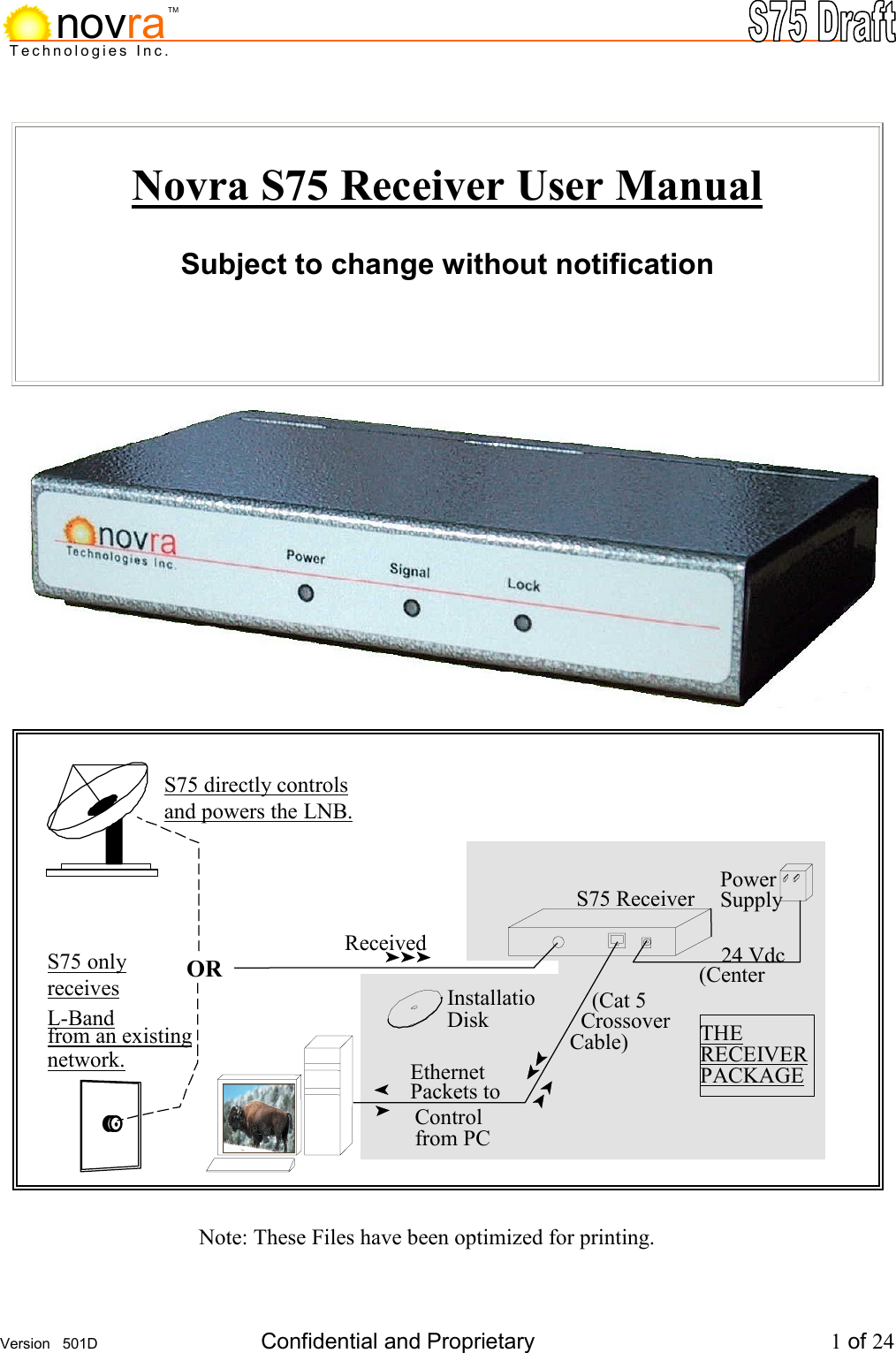
    Version   501D  Confidential and Proprietary          1 of 24  Technologies Inc.novraTM Novra S75 Receiver User Manual  Subject to change without notification                                     Note: These Files have been optimized for printing.     24 Vdc (Center Power Supply Received THE  RECEIVERPACKAGE     (Cat 5    Crossover Cable) InstallatioDisk Ethernet  Packets to Control from PCS75 Receiver S75 directly controls  and powers the LNB.S75 only  receives L-Band from an existing network. OR
    Version   501D  Confidential and Proprietary          2 of 24  Technologies Inc.novraTM Novra S75 Receiver, User Manual   Subject to change without notification  Document version: 501D        ________________________________ Important-     Please read this entire manual before installing or operating this product.        ________________________________  Disclaimer While reasonable effort has been made in the preparation of this document to assure its accuracy, Novra Technologies Inc. assumes no responsibility for errors or omissions that may appear in this manual. Novra reserves the right to change the contents of this manual at any time without notice.  Acknowledgements This product uses parts of the iMatix SFL, Copyright © 1991-2000 iMatix Corporation http://www.imatix.com  This product incorporates the CPSLAPI Version 0.5.1 [Licensed under GNU LGPL V2 (GNU Library General Public License)]  This product uses parts of the 1.3.0 release of the Common C++ class library which is licensed under the GNU General Public License with the exception that software linked with the Common C++ and other files to produce an executable, does not cause the resulting executable to be covered by the GNU General Public License.  This product includes software developed by the Politecnico di Torino, and its contributors.  Copyright © 2001 Novra Technologies Inc. All rights reserved.  Information in this manual is subject to change without notice. No part of this manual may be reproduced or transmitted in any form, by photocopy, microfilm, xerography, or any other means, or incorporated into any information retrieval system, electronic or mechanical, for any purpose, without the express written permission of Novra Technologies Inc.          Regulatory Compliance Novra Technologies Inc. is in the process of gaining FCC certification for this device. This certification is not currently complete.
    Version   501D  Confidential and Proprietary          3 of 24  Technologies Inc.novraTMINDEX           Page 1.0 CONVENTIONS         4 2.0 INTRODUCTION         5   2.1 Principle Of Operations      5 3.0  GETTING STARTED        6     3.1  Your Network Connection, is it Basic or Advanced?    6    3.11 Basic        6    3.12 Advanced       7   3.2 Required Information for Basic Connection   8   3.3 Required Information for Advanced Connection   9 4.0   SOFTWARE INSTALLATION on WINDOWS NT 4.0 or 2000     10 5.0  BASIC CONFIGURATION        12 6.0  ADVANCED CONFIGURATION       14 7.0   MANAGEMENT CONSOLE DETAILED DESCRIPTION      17   7.1 Status Tab        17 7.2 Drop Down Menus       18 8.0  SPECIFICATIONS         20   8.1 Receiver Characteristics      20   8.2 Minimum System Requirements     20   8.3  Supplied Equipment       21 APPENDIX           22     Terms, Definitions, and Tidbits of Information
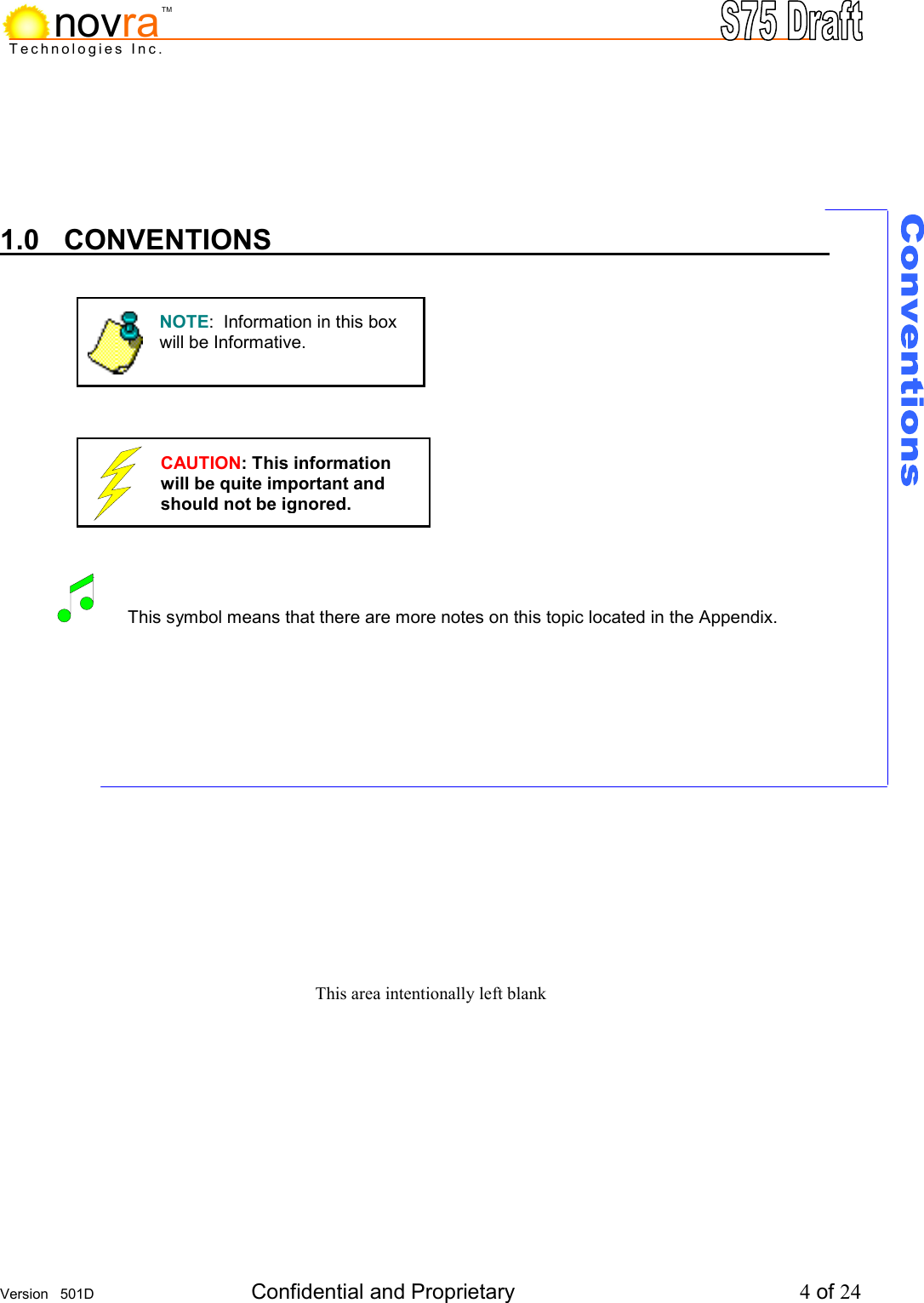
    Version   501D  Confidential and Proprietary          4 of 24  Technologies Inc.novraTM    1.0 CONVENTIONS                           This symbol means that there are more notes on this topic located in the Appendix.           This area intentionally left blank    NOTE:  Information in this box will be Informative. CAUTION: This information will be quite important and should not be ignored.
    Version   501D  Confidential and Proprietary          5 of 24  Technologies Inc.novraTM2.0 INTRODUCTION           2.1 Principles of Operation          Somewhere in the world is a location that transmits your signal, along with many others, up to a satellite which turns around and transmits those signals back down to your location, and others. Your satellite dish catches all these signals, and the electronics at the dish converts them all into a group that travels down the cable to your S75 receiver. The S75 sifts through all the signals sent by the satellite looking for your signal (a DVB stream) and forwards to your computer the portion containing the signals you want. Your computer further dissects the signals and converts them into a format that is usable by other programs on your PC.   The S75 Management Console is used to configure addresses, specify satellite tuning parameters and select DVB information streams (PIDS).  Once configured, the S75 will retain its settings and continue to forward data transmitted to you by your service provider even after restarting the S75 or your PC.  The S75 Receiver is meant to run in the background on your PC. In most cases, once the options have been set you will have no need to change them.       This area intentionally left blank
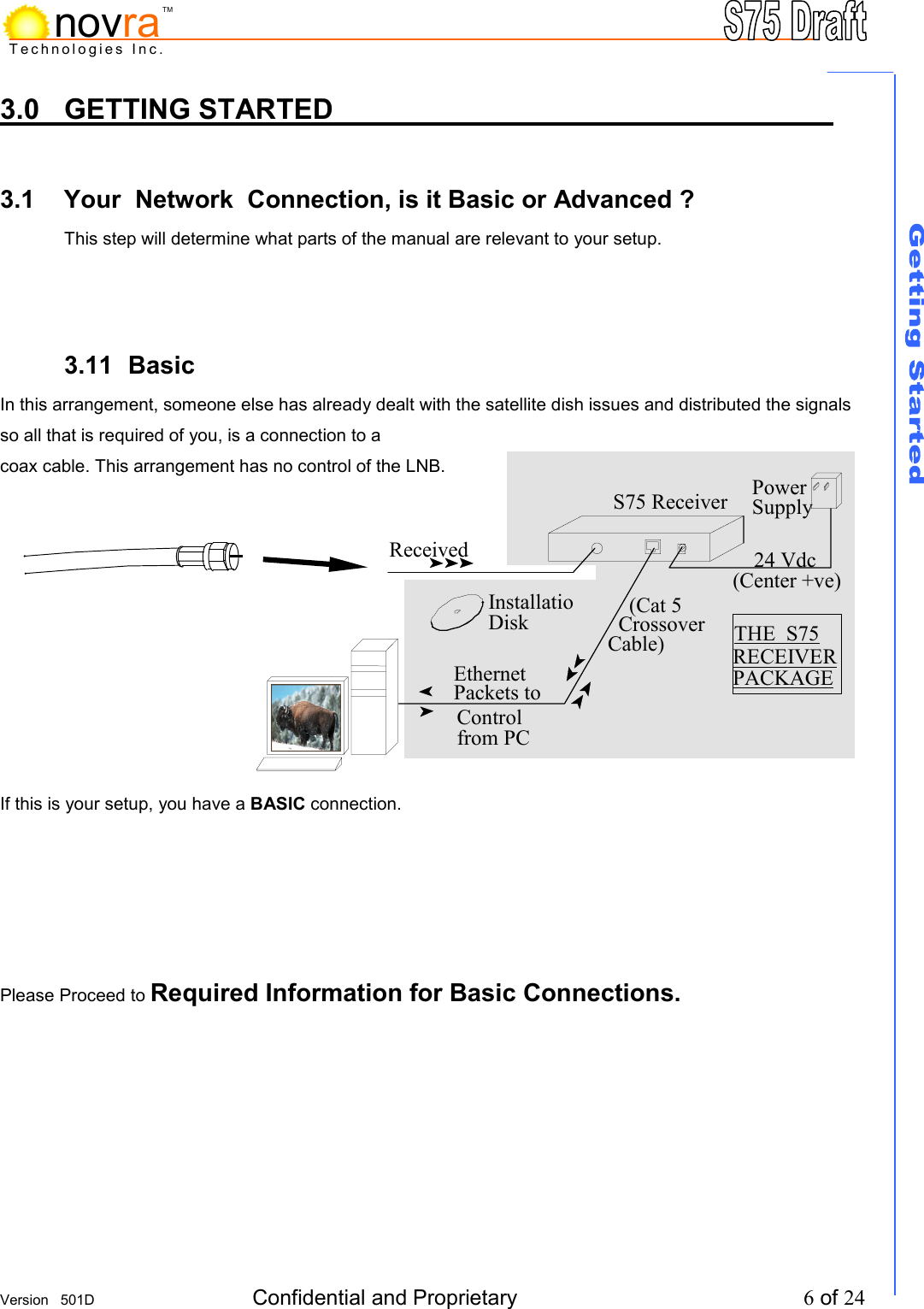
    Version   501D  Confidential and Proprietary          6 of 24  Technologies Inc.novraTM3.0 GETTING STARTED          3.1  Your  Network  Connection, is it Basic or Advanced ? This step will determine what parts of the manual are relevant to your setup.     3.11 Basic           In this arrangement, someone else has already dealt with the satellite dish issues and distributed the signals so all that is required of you, is a connection to a  coax cable. This arrangement has no control of the LNB.           If this is your setup, you have a BASIC connection.       Please Proceed to Required Information for Basic Connections.       24 Vdc (Center +ve) PowerSupply Received THE  S75 RECEIVER PACKAGE     (Cat 5  Crossover Cable) InstallatioDisk Ethernet  Packets to Control from PC S75 Receiver
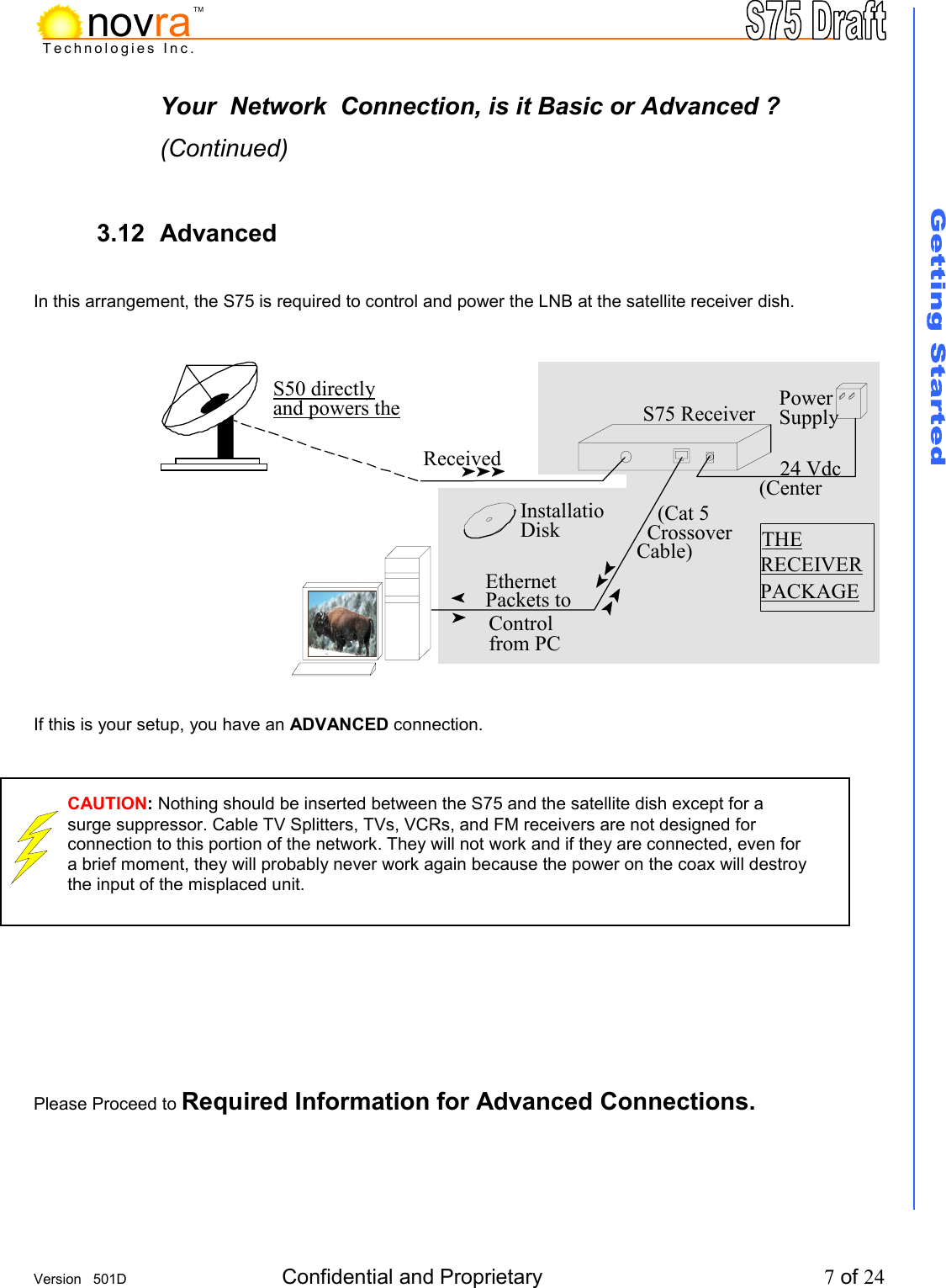
    Version   501D  Confidential and Proprietary          7 of 24  Technologies Inc.novraTMYour  Network  Connection, is it Basic or Advanced ? (Continued)  3.12 Advanced            In this arrangement, the S75 is required to control and power the LNB at the satellite receiver dish.              If this is your setup, you have an ADVANCED connection.            Please Proceed to Required Information for Advanced Connections.      24 Vdc  (Center Power Supply Received S50 directly and powers the THE  RECEIVERPACKAGE     (Cat 5   Crossover Cable)InstallatioDisk Ethernet  Packets to Control from PC S75 Receiver CAUTION: Nothing should be inserted between the S75 and the satellite dish except for a surge suppressor. Cable TV Splitters, TVs, VCRs, and FM receivers are not designed for connection to this portion of the network. They will not work and if they are connected, even for a brief moment, they will probably never work again because the power on the coax will destroy the input of the misplaced unit.
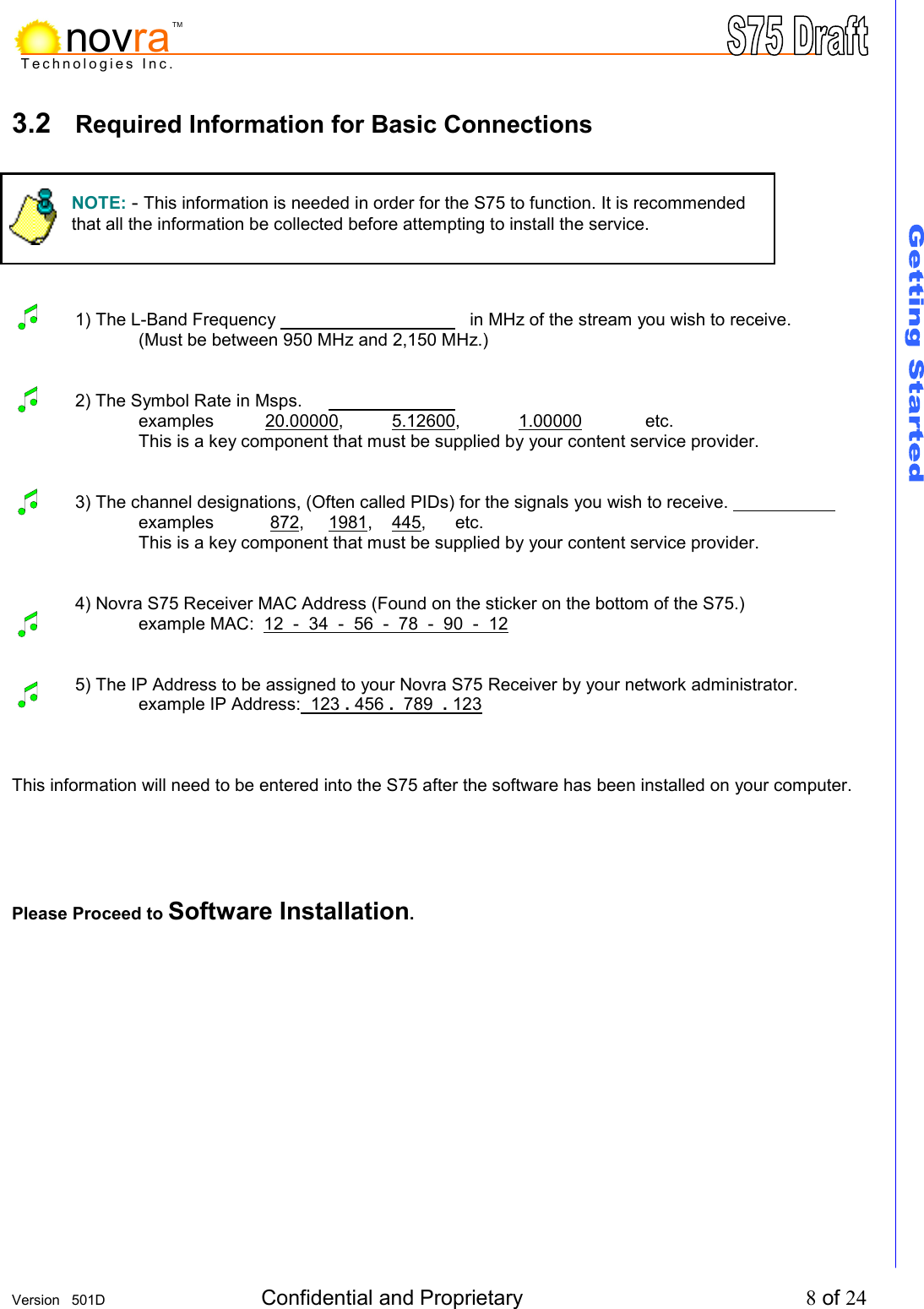
    Version   501D  Confidential and Proprietary          8 of 24  Technologies Inc.novraTM3.2  Required Information for Basic Connections         1) The L-Band Frequency          in MHz of the stream you wish to receive. (Must be between 950 MHz and 2,150 MHz.)   2) The Symbol Rate in Msps.         examples 20.00000, 5.12600, 1.00000 etc. This is a key component that must be supplied by your content service provider.   3) The channel designations, (Often called PIDs) for the signals you wish to receive.       examples  872, 1981, 445,   etc.   This is a key component that must be supplied by your content service provider.    4) Novra S75 Receiver MAC Address (Found on the sticker on the bottom of the S75.)    example MAC:  12  -  34  -  56  -  78  -  90  -  12     5) The IP Address to be assigned to your Novra S75 Receiver by your network administrator.    example IP Address:  123 . 456 .  789  . 123     This information will need to be entered into the S75 after the software has been installed on your computer.    Please Proceed to Software Installation.       NOTE: - This information is needed in order for the S75 to function. It is recommended that all the information be collected before attempting to install the service.
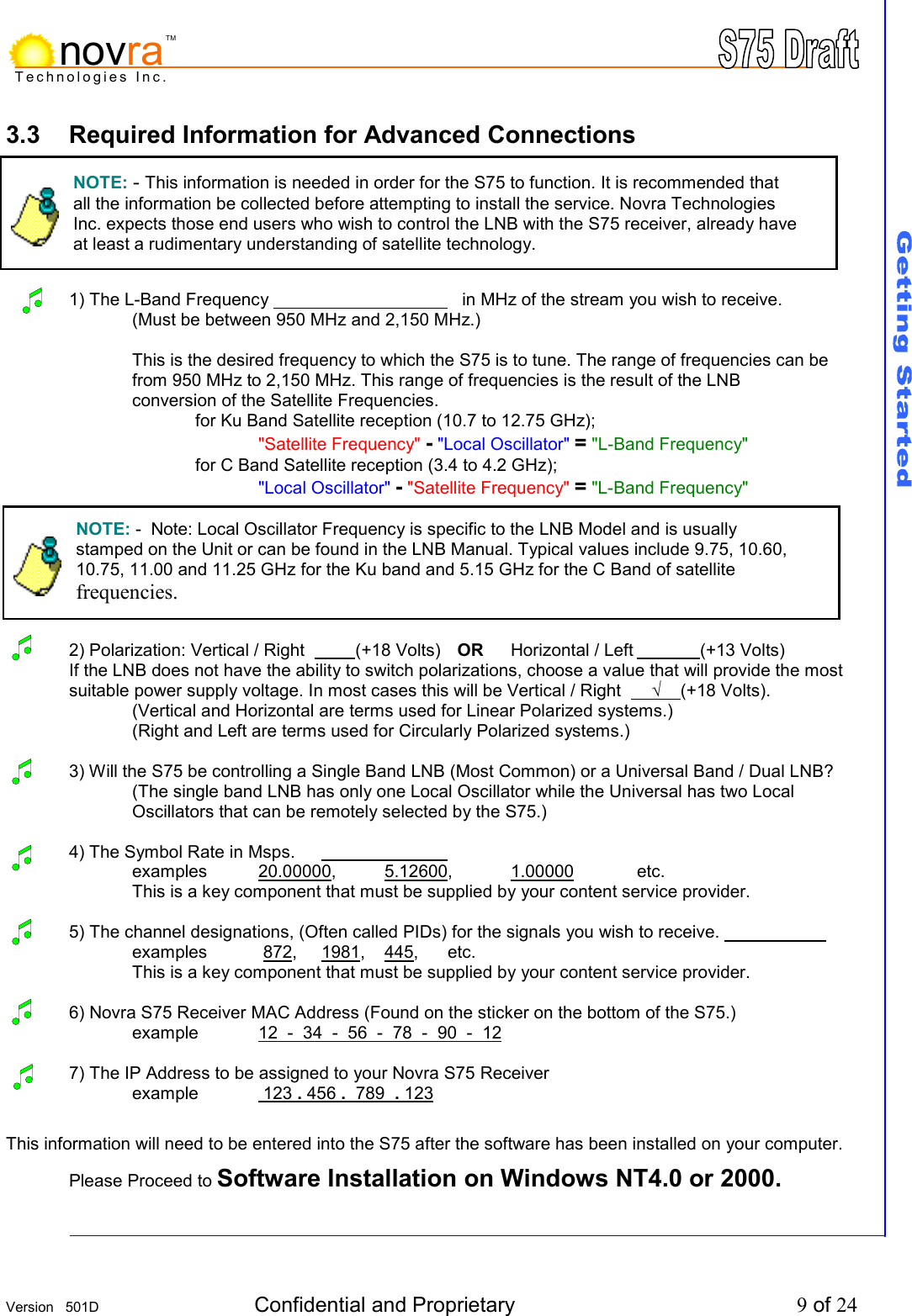
    Version   501D  Confidential and Proprietary          9 of 24  Technologies Inc.novraTM3.3  Required Information for Advanced Connections         1) The L-Band Frequency          in MHz of the stream you wish to receive.     (Must be between 950 MHz and 2,150 MHz.)  This is the desired frequency to which the S75 is to tune. The range of frequencies can be  from 950 MHz to 2,150 MHz. This range of frequencies is the result of the LNB  conversion of the Satellite Frequencies.    for Ku Band Satellite reception (10.7 to 12.75 GHz);     "Satellite Frequency" - "Local Oscillator" = "L-Band Frequency"   for C Band Satellite reception (3.4 to 4.2 GHz);   "Local Oscillator" - "Satellite Frequency" = "L-Band Frequency"         2) Polarization: Vertical / Right           (+18 Volts)    OR Horizontal / Left   (+13 Volts) If the LNB does not have the ability to switch polarizations, choose a value that will provide the most   suitable power supply voltage. In most cases this will be Vertical / Right      √    (+18 Volts). (Vertical and Horizontal are terms used for Linear Polarized systems.) (Right and Left are terms used for Circularly Polarized systems.)     3) Will the S75 be controlling a Single Band LNB (Most Common) or a Universal Band / Dual LNB?     (The single band LNB has only one Local Oscillator while the Universal has two Local      Oscillators that can be remotely selected by the S75.)  4) The Symbol Rate in Msps.         examples 20.00000, 5.12600, 1.00000 etc. This is a key component that must be supplied by your content service provider.      5) The channel designations, (Often called PIDs) for the signals you wish to receive.       examples  872, 1981, 445,   etc.   This is a key component that must be supplied by your content service provider.   6) Novra S75 Receiver MAC Address (Found on the sticker on the bottom of the S75.)    example   12  -  34  -  56  -  78  -  90  -  12    7) The IP Address to be assigned to your Novra S75 Receiver    example  123 . 456 .  789  . 123    This information will need to be entered into the S75 after the software has been installed on your computer. Please Proceed to Software Installation on Windows NT4.0 or 2000.         NOTE: - This information is needed in order for the S75 to function. It is recommended that all the information be collected before attempting to install the service. Novra Technologies Inc. expects those end users who wish to control the LNB with the S75 receiver, already have at least a rudimentary understanding of satellite technology. NOTE: -  Note: Local Oscillator Frequency is specific to the LNB Model and is usually stamped on the Unit or can be found in the LNB Manual. Typical values include 9.75, 10.60,  10.75, 11.00 and 11.25 GHz for the Ku band and 5.15 GHz for the C Band of satellite  frequencies.
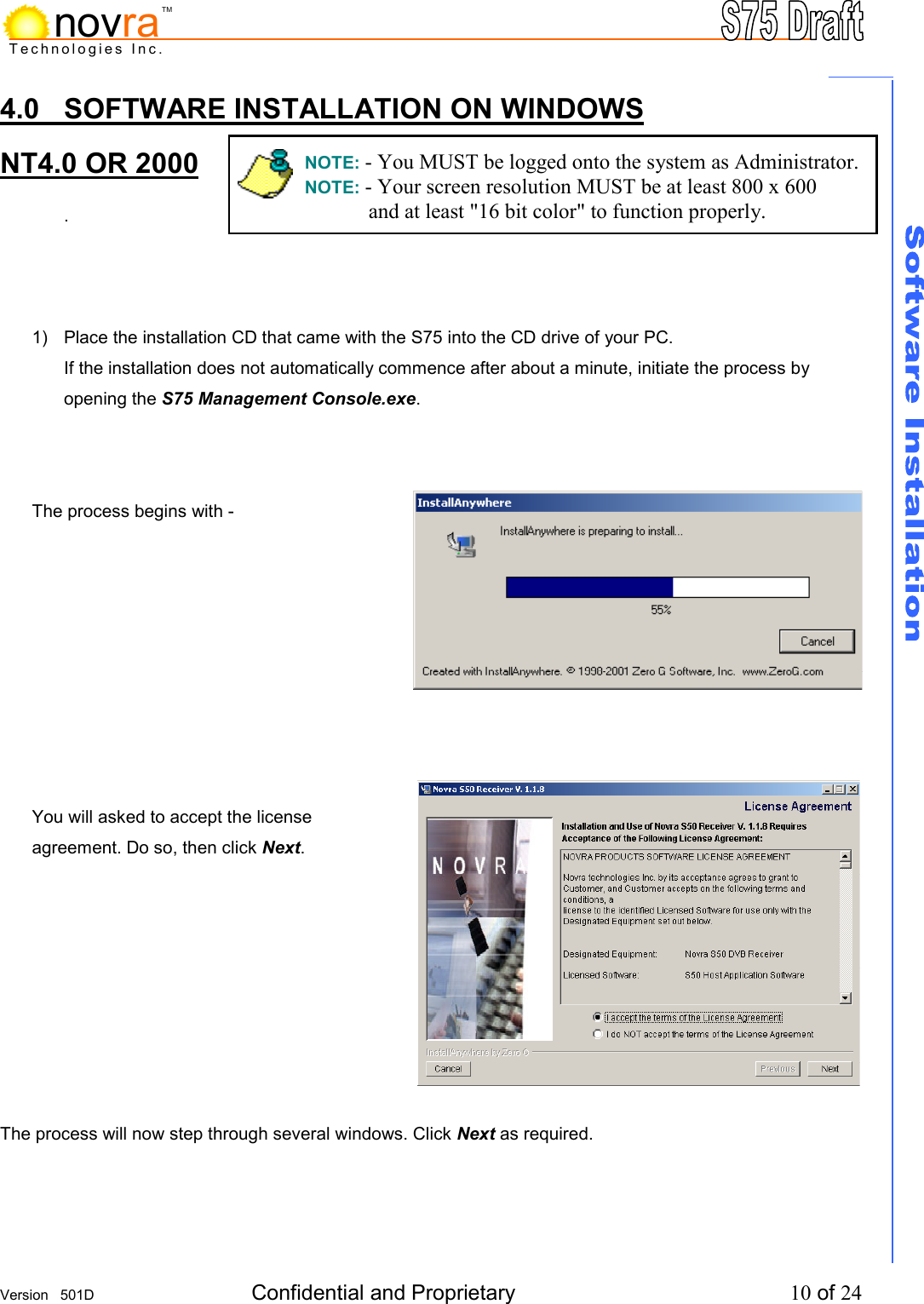
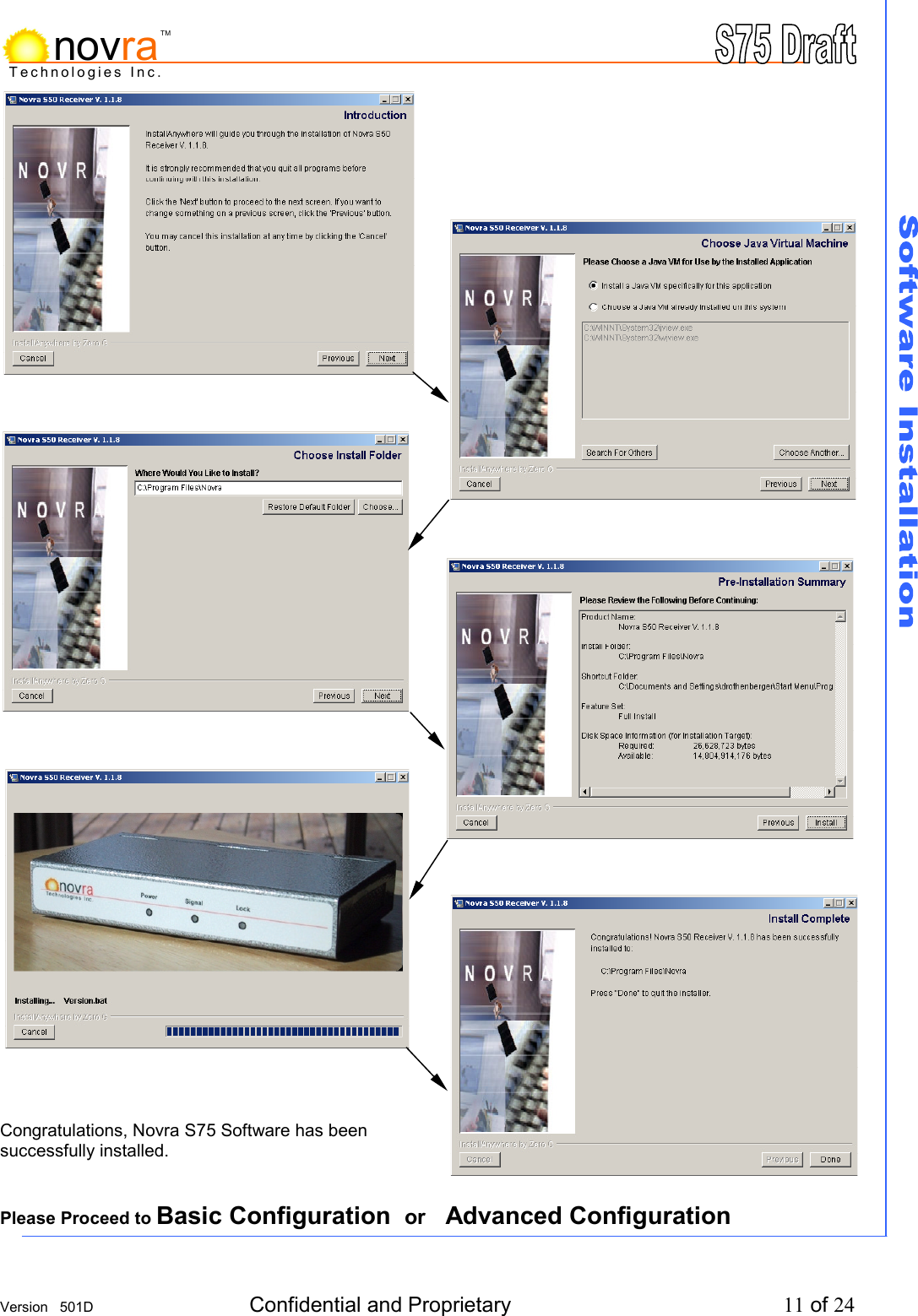
    Version   501D  Confidential and Proprietary          10 of 24  Technologies Inc.novraTM4.0  SOFTWARE INSTALLATION ON WINDOWS NT4.0 OR 2000  .      1)  Place the installation CD that came with the S75 into the CD drive of your PC.   If the installation does not automatically commence after about a minute, initiate the process by opening the S75 Management Console.exe.     The process begins with -          You will asked to accept the license agreement. Do so, then click Next.          The process will now step through several windows. Click Next as required.    NOTE: - You MUST be logged onto the system as Administrator. NOTE: - Your screen resolution MUST be at least 800 x 600   and at least "16 bit color" to function properly.
    Version   501D  Confidential and Proprietary          11 of 24  Technologies Inc.novraTM                                         Congratulations, Novra S75 Software has been  successfully installed.   Please Proceed to Basic Configuration  or   Advanced Configuration
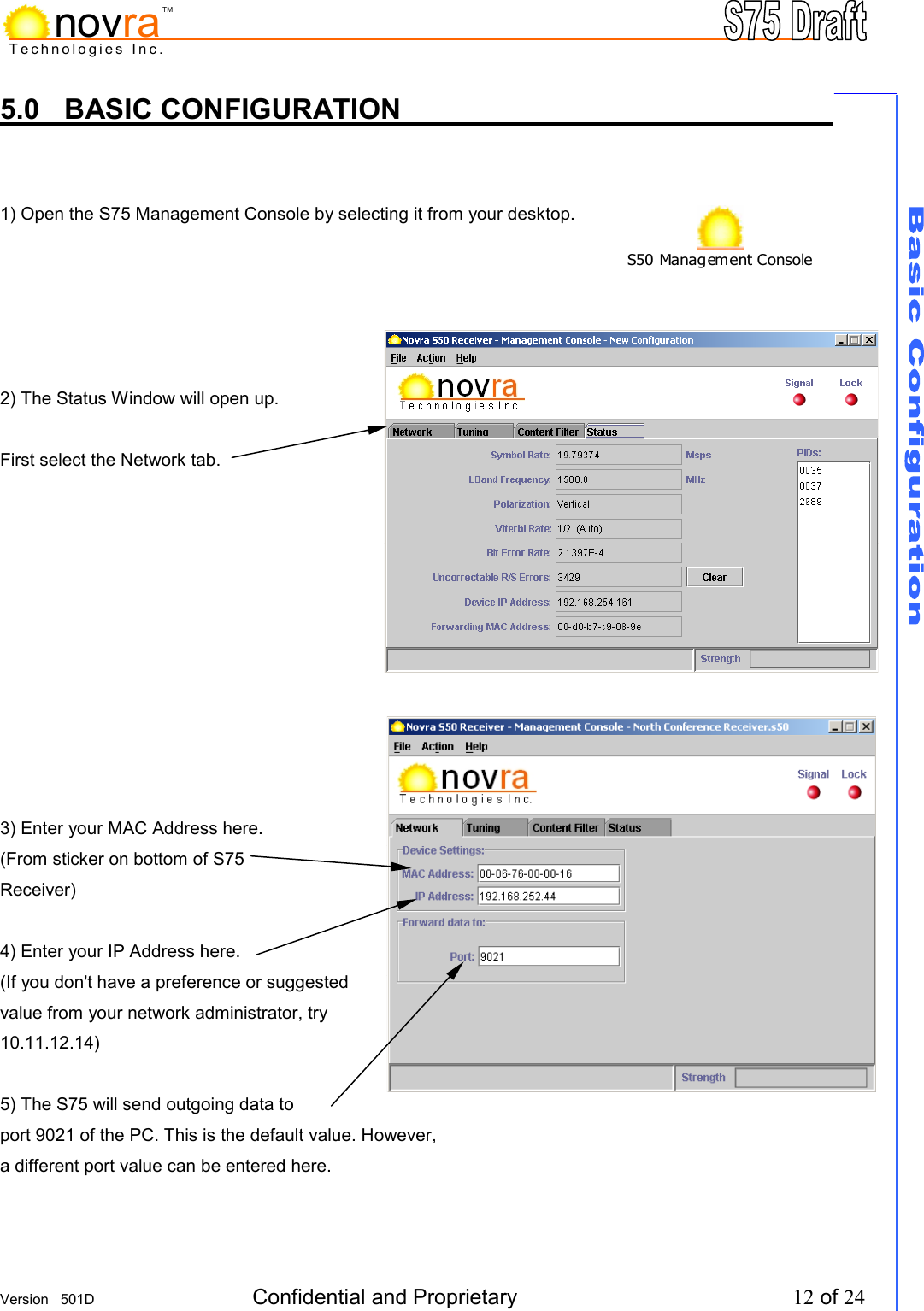
    Version   501D  Confidential and Proprietary          12 of 24  Technologies Inc.novraTM5.0 BASIC CONFIGURATION          1) Open the S75 Management Console by selecting it from your desktop.      2) The Status Window will open up.  First select the Network tab.            3) Enter your MAC Address here. (From sticker on bottom of S75 Receiver)  4) Enter your IP Address here. (If you don't have a preference or suggested value from your network administrator, try 10.11.12.14)  5) The S75 will send outgoing data to port 9021 of the PC. This is the default value. However, a different port value can be entered here.  S50 Management Console
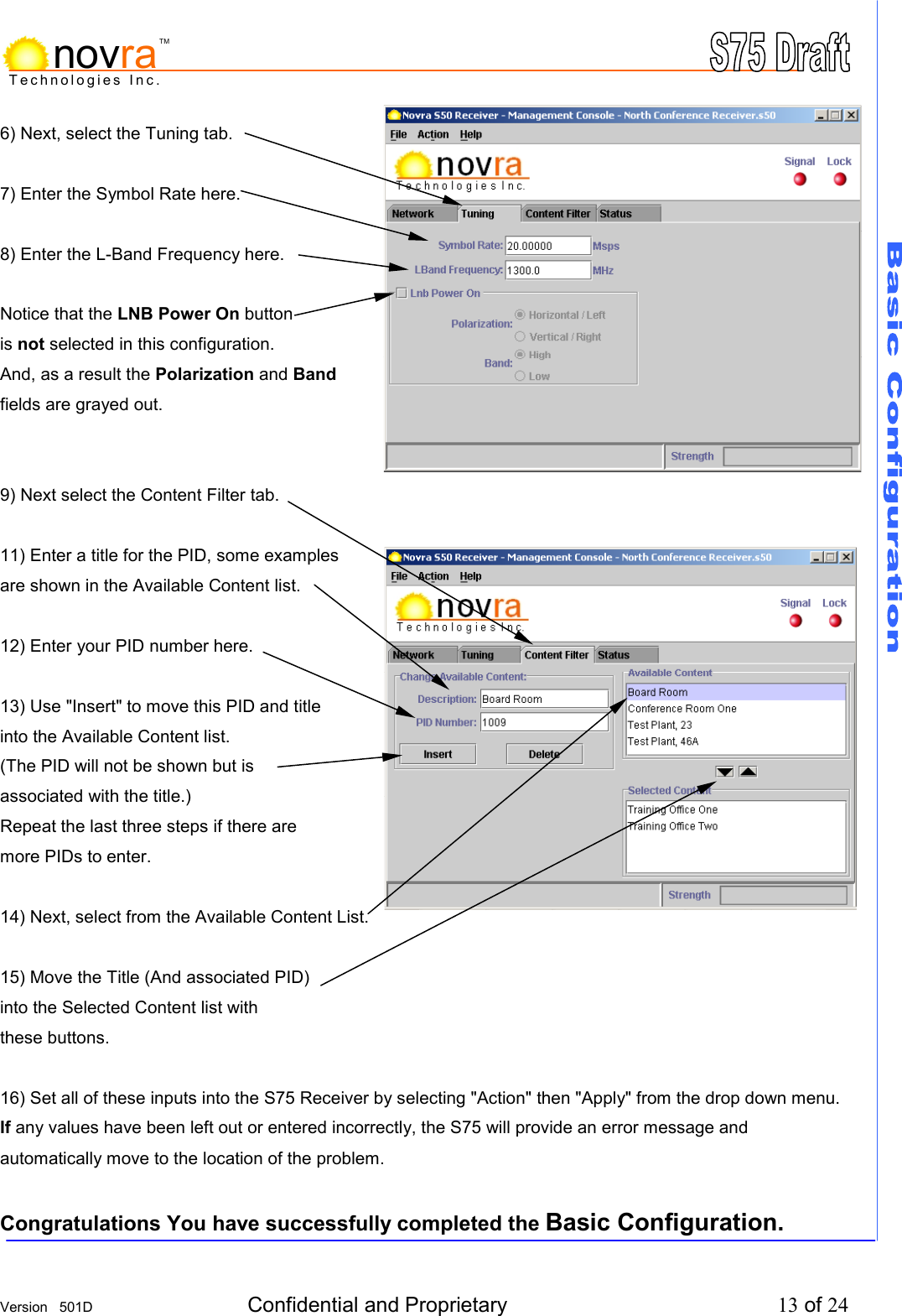
    Version   501D  Confidential and Proprietary          13 of 24  Technologies Inc.novraTM6) Next, select the Tuning tab.  7) Enter the Symbol Rate here.  8) Enter the L-Band Frequency here.  Notice that the LNB Power On button is not selected in this configuration. And, as a result the Polarization and Band fields are grayed out.   9) Next select the Content Filter tab.  11) Enter a title for the PID, some examples are shown in the Available Content list.  12) Enter your PID number here.  13) Use "Insert" to move this PID and title  into the Available Content list. (The PID will not be shown but is associated with the title.) Repeat the last three steps if there are more PIDs to enter.  14) Next, select from the Available Content List.  15) Move the Title (And associated PID) into the Selected Content list with these buttons.  16) Set all of these inputs into the S75 Receiver by selecting "Action" then "Apply" from the drop down menu. If any values have been left out or entered incorrectly, the S75 will provide an error message and automatically move to the location of the problem.  Congratulations You have successfully completed the Basic Configuration.
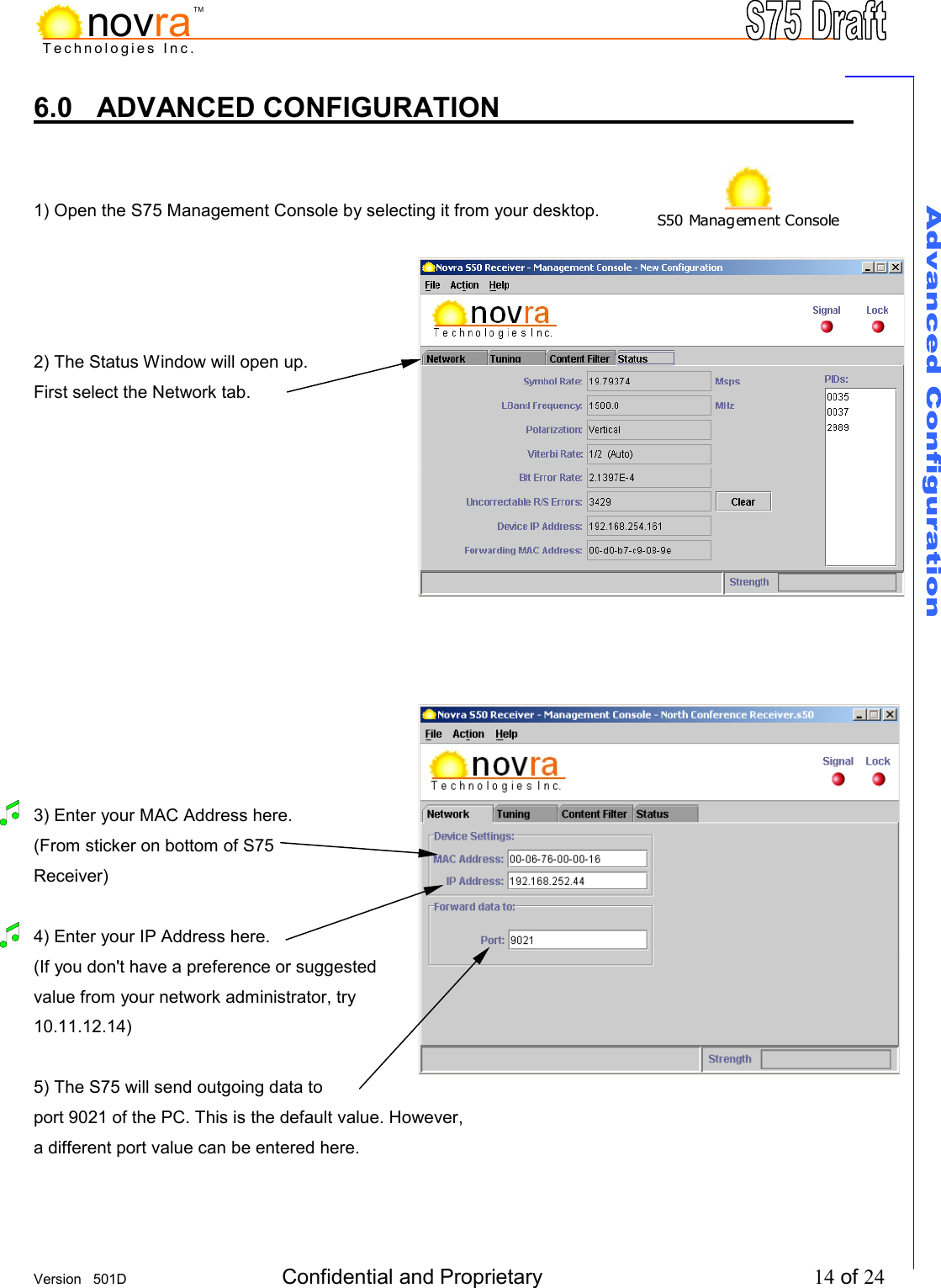
    Version   501D  Confidential and Proprietary          14 of 24  Technologies Inc.novraTM6.0 ADVANCED CONFIGURATION         1) Open the S75 Management Console by selecting it from your desktop.     2) The Status Window will open up. First select the Network tab.                    3) Enter your MAC Address here. (From sticker on bottom of S75 Receiver)  4) Enter your IP Address here. (If you don't have a preference or suggested value from your network administrator, try 10.11.12.14)  5) The S75 will send outgoing data to port 9021 of the PC. This is the default value. However, a different port value can be entered here.   S50 Management Console
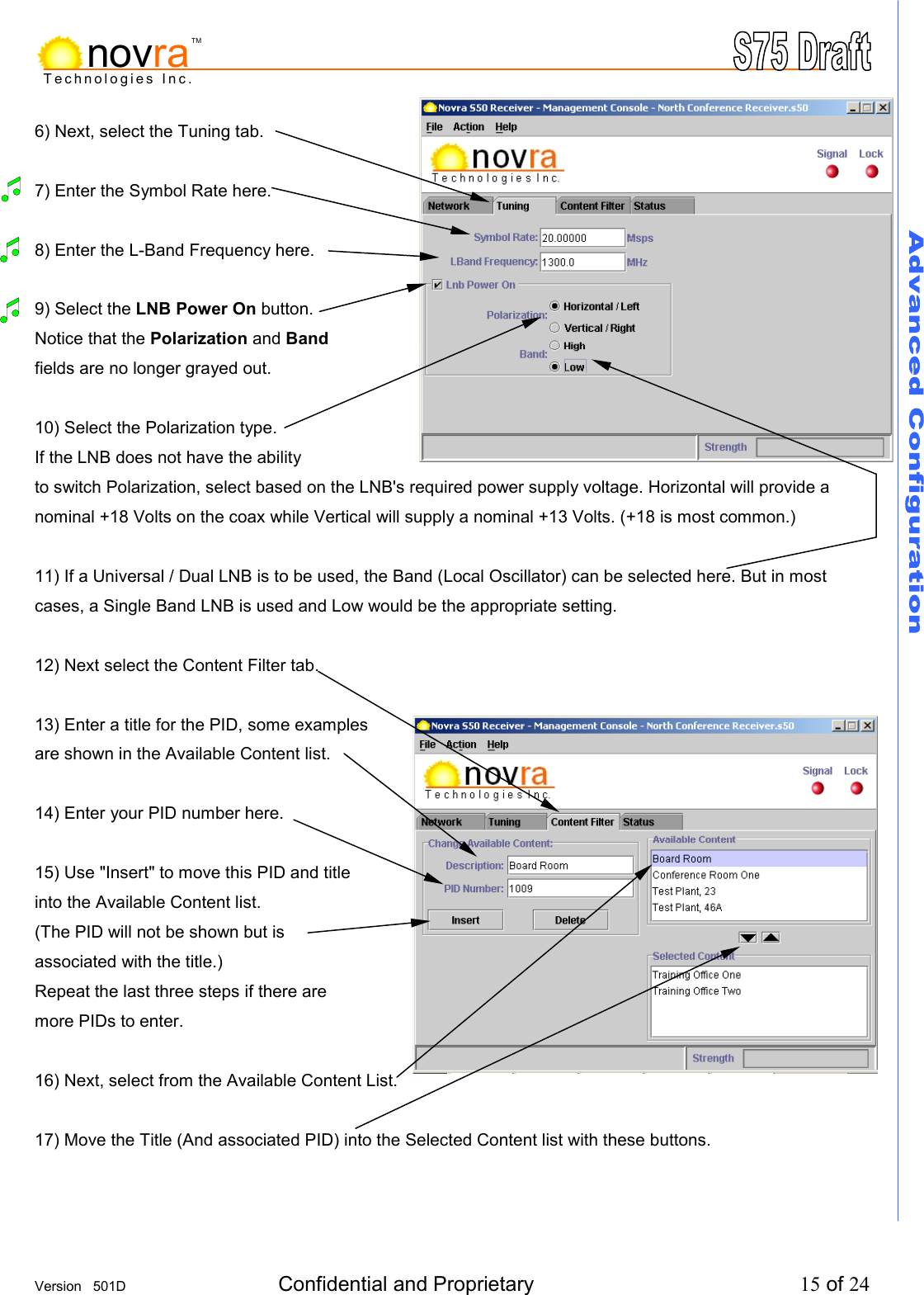
    Version   501D  Confidential and Proprietary          15 of 24  Technologies Inc.novraTM6) Next, select the Tuning tab.  7) Enter the Symbol Rate here.  8) Enter the L-Band Frequency here.   9) Select the LNB Power On button. Notice that the Polarization and Band fields are no longer grayed out.  10) Select the Polarization type. If the LNB does not have the ability  to switch Polarization, select based on the LNB's required power supply voltage. Horizontal will provide a nominal +18 Volts on the coax while Vertical will supply a nominal +13 Volts. (+18 is most common.)  11) If a Universal / Dual LNB is to be used, the Band (Local Oscillator) can be selected here. But in most cases, a Single Band LNB is used and Low would be the appropriate setting.   12) Next select the Content Filter tab.  13) Enter a title for the PID, some examples are shown in the Available Content list.  14) Enter your PID number here.  15) Use "Insert" to move this PID and title  into the Available Content list. (The PID will not be shown but is associated with the title.) Repeat the last three steps if there are more PIDs to enter.  16) Next, select from the Available Content List.  17) Move the Title (And associated PID) into the Selected Content list with these buttons.
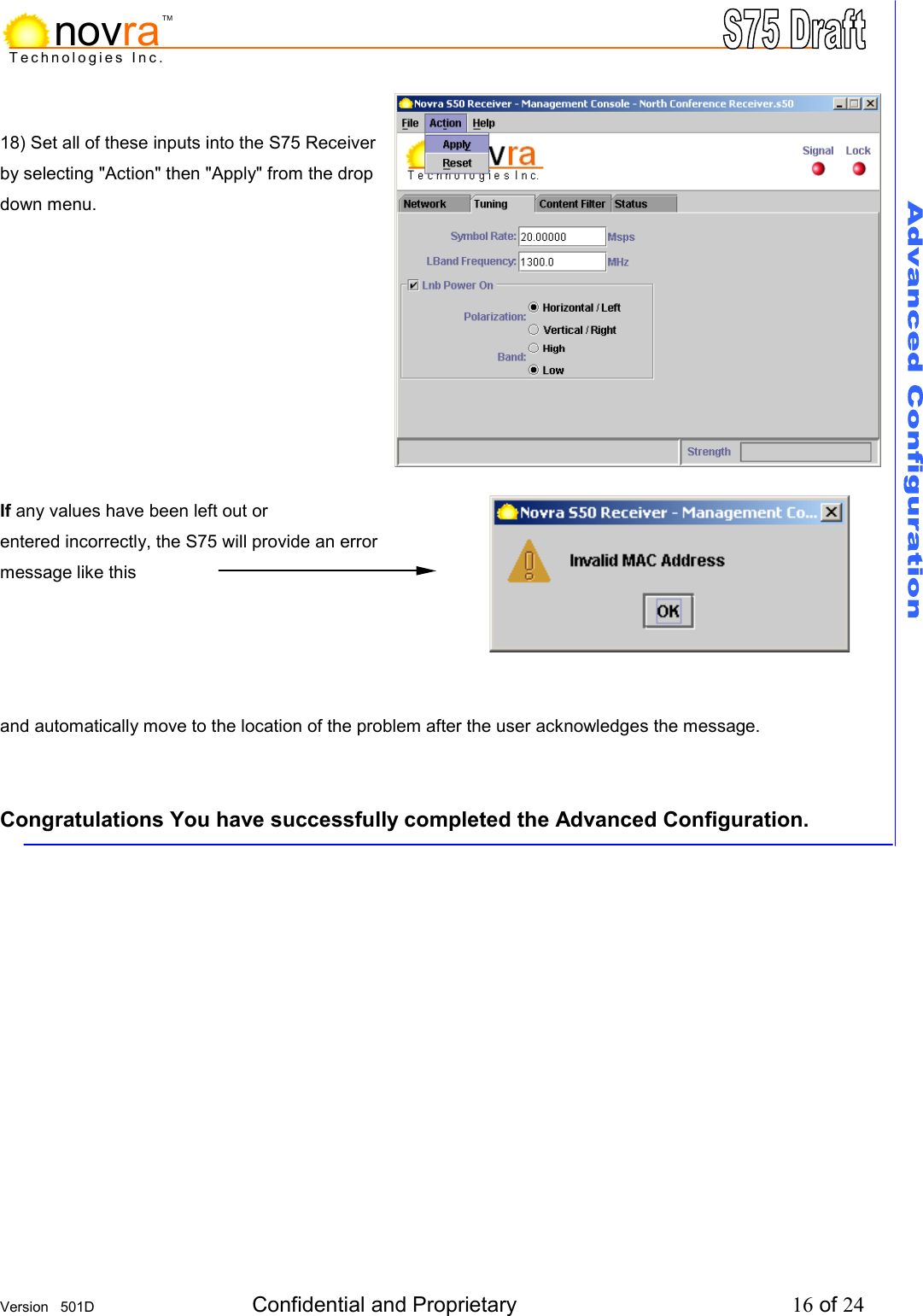
    Version   501D  Confidential and Proprietary          16 of 24  Technologies Inc.novraTM 18) Set all of these inputs into the S75 Receiver  by selecting "Action" then "Apply" from the drop  down menu.           If any values have been left out or  entered incorrectly, the S75 will provide an error  message like this     and automatically move to the location of the problem after the user acknowledges the message.   Congratulations You have successfully completed the Advanced Configuration.
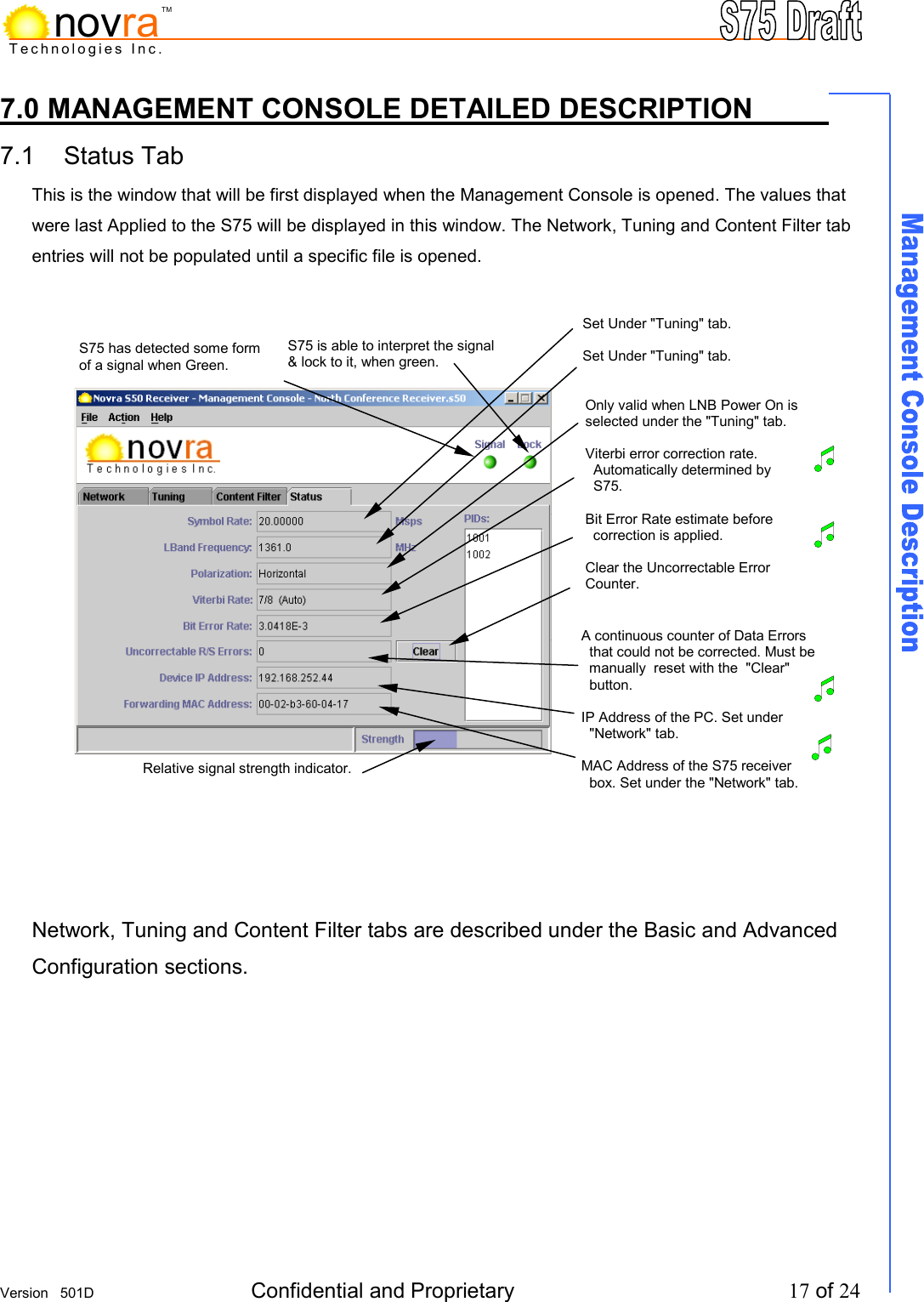
    Version   501D  Confidential and Proprietary          17 of 24  Technologies Inc.novraTM7.0 MANAGEMENT CONSOLE DETAILED DESCRIPTION     7.1 Status Tab            This is the window that will be first displayed when the Management Console is opened. The values that were last Applied to the S75 will be displayed in this window. The Network, Tuning and Content Filter tab entries will not be populated until a specific file is opened.                      Network, Tuning and Content Filter tabs are described under the Basic and Advanced Configuration sections.        S75 has detected some form of a signal when Green. S75 is able to interpret the signal & lock to it, when green. Set Under "Tuning" tab.  Set Under "Tuning" tab.     Only valid when LNB Power On is selected under the "Tuning" tab.   Viterbi error correction rate.    Automatically determined by    S75.  Bit Error Rate estimate before   correction is applied.  Clear the Uncorrectable Error Counter. Relative signal strength indicator. A continuous counter of Data Errors    that could not be corrected. Must be    manually  reset with the  "Clear"    button.  IP Address of the PC. Set under    "Network" tab.  MAC Address of the S75 receiver    box. Set under the "Network" tab.
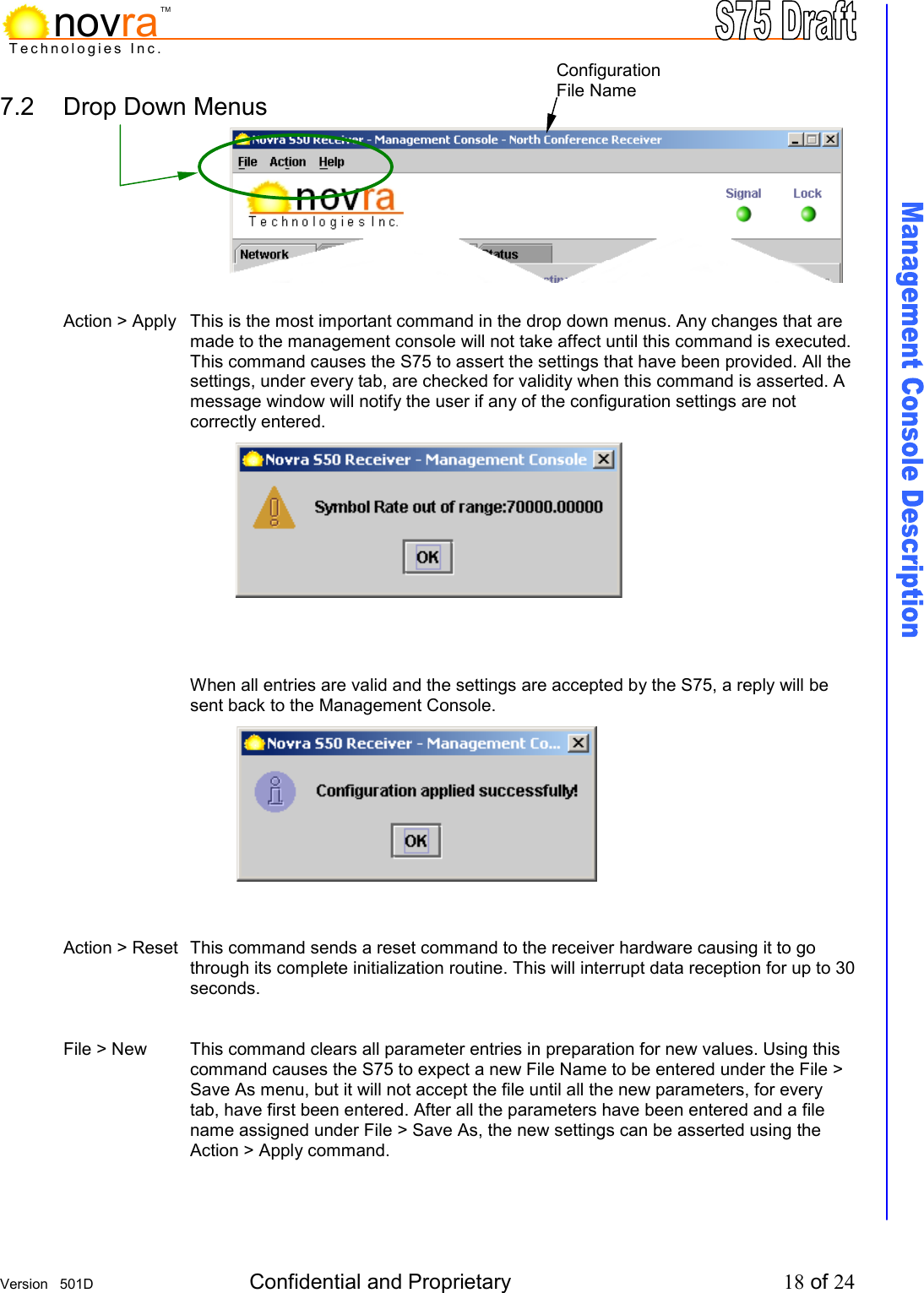
    Version   501D  Confidential and Proprietary          18 of 24  Technologies Inc.novraTM7.2  Drop Down Menus           Action > Apply  This is the most important command in the drop down menus. Any changes that are made to the management console will not take affect until this command is executed. This command causes the S75 to assert the settings that have been provided. All the settings, under every tab, are checked for validity when this command is asserted. A message window will notify the user if any of the configuration settings are not correctly entered.              When all entries are valid and the settings are accepted by the S75, a reply will be sent back to the Management Console.            Action > Reset  This command sends a reset command to the receiver hardware causing it to go through its complete initialization routine. This will interrupt data reception for up to 30 seconds.   File > New  This command clears all parameter entries in preparation for new values. Using this command causes the S75 to expect a new File Name to be entered under the File > Save As menu, but it will not accept the file until all the new parameters, for every tab, have first been entered. After all the parameters have been entered and a file name assigned under File > Save As, the new settings can be asserted using the Action > Apply command.    Configuration File Name
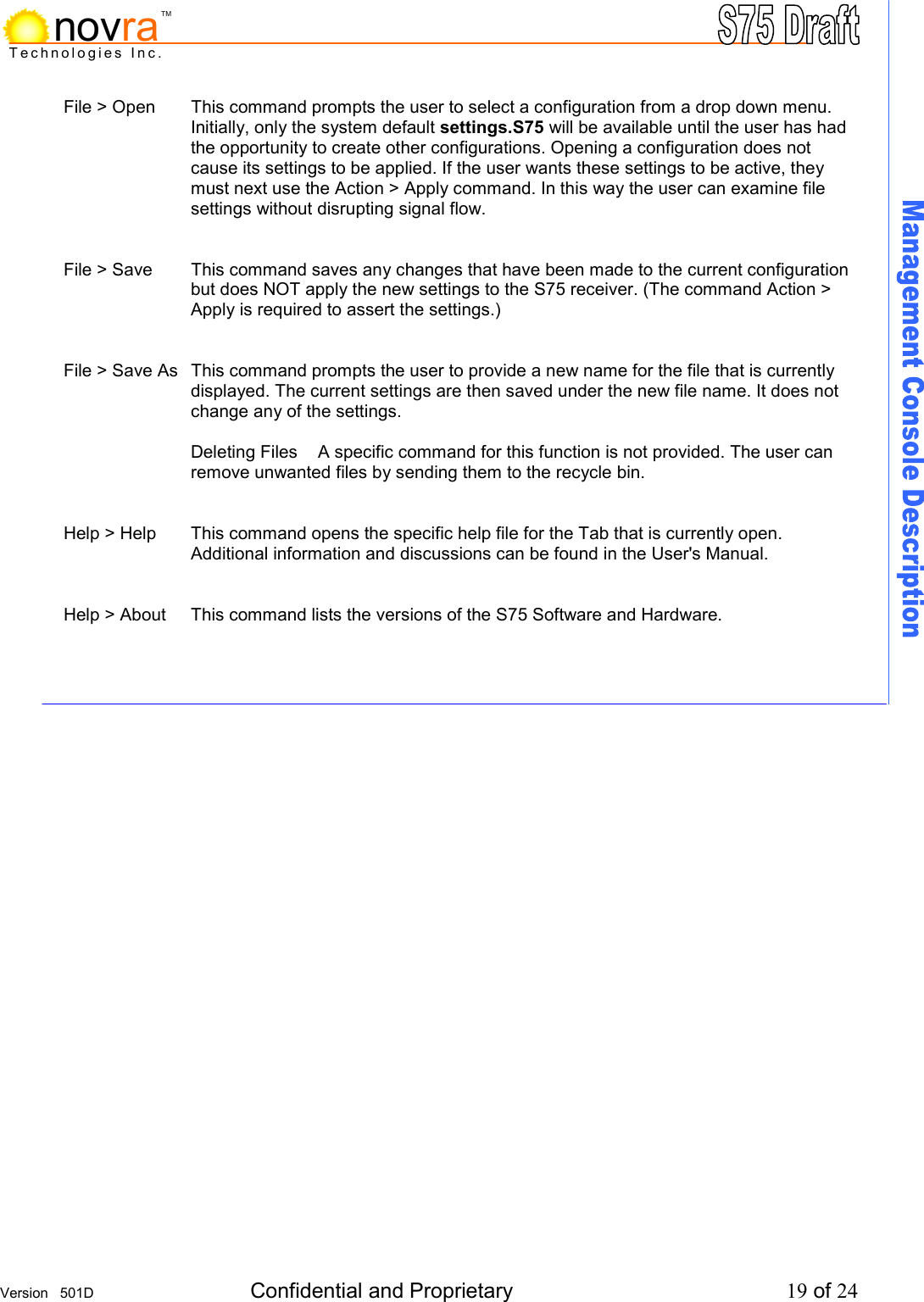
    Version   501D  Confidential and Proprietary          19 of 24  Technologies Inc.novraTMFile > Open  This command prompts the user to select a configuration from a drop down menu. Initially, only the system default settings.S75 will be available until the user has had the opportunity to create other configurations. Opening a configuration does not cause its settings to be applied. If the user wants these settings to be active, they must next use the Action > Apply command. In this way the user can examine file settings without disrupting signal flow.   File > Save  This command saves any changes that have been made to the current configuration but does NOT apply the new settings to the S75 receiver. (The command Action > Apply is required to assert the settings.)   File > Save As  This command prompts the user to provide a new name for the file that is currently displayed. The current settings are then saved under the new file name. It does not change any of the settings.  Deleting Files  A specific command for this function is not provided. The user can remove unwanted files by sending them to the recycle bin.     Help > Help  This command opens the specific help file for the Tab that is currently open.        Additional information and discussions can be found in the User's Manual.     Help > About  This command lists the versions of the S75 Software and Hardware.
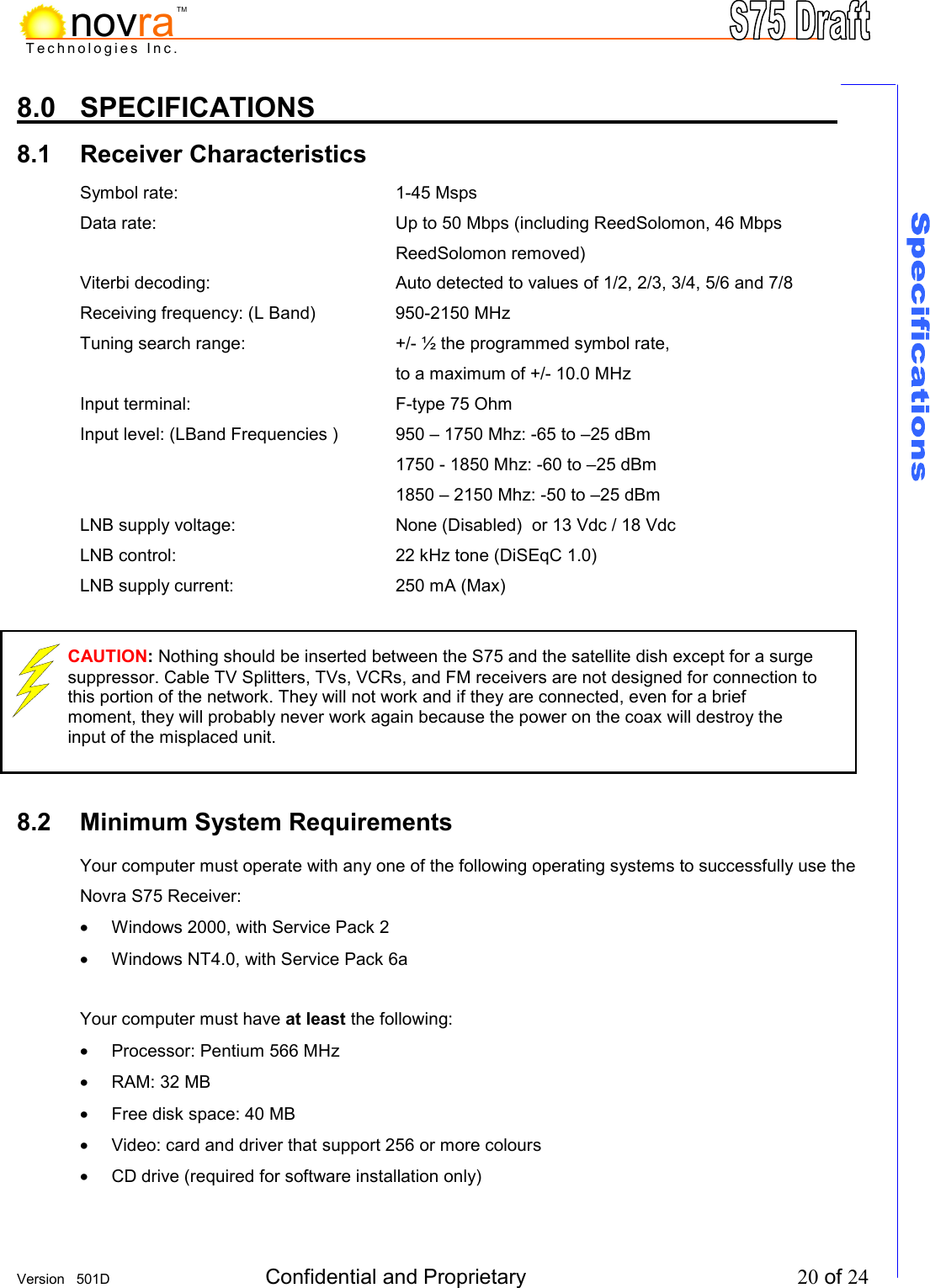
    Version   501D  Confidential and Proprietary          20 of 24  Technologies Inc.novraTM8.0  SPECIFICATIONS          8.1 Receiver Characteristics        Symbol rate:     1-45 Msps Data rate:   Up to 50 Mbps (including ReedSolomon, 46 Mbps ReedSolomon removed) Viterbi decoding:       Auto detected to values of 1/2, 2/3, 3/4, 5/6 and 7/8  Receiving frequency: (L Band)    950-2150 MHz Tuning search range:      +/- ½ the programmed symbol rate,  to a maximum of +/- 10.0 MHz Input terminal:     F-type 75 Ohm Input level: (LBand Frequencies )  950 – 1750 Mhz: -65 to –25 dBm      1750 - 1850 Mhz: -60 to –25 dBm           1850 – 2150 Mhz: -50 to –25 dBm LNB supply voltage:       None (Disabled)  or 13 Vdc / 18 Vdc LNB control:         22 kHz tone (DiSEqC 1.0) LNB supply current:       250 mA (Max)       8.2 Minimum System Requirements       Your computer must operate with any one of the following operating systems to successfully use the Novra S75 Receiver: •  Windows 2000, with Service Pack 2 •  Windows NT4.0, with Service Pack 6a  Your computer must have at least the following: •  Processor: Pentium 566 MHz •  RAM: 32 MB •  Free disk space: 40 MB  •  Video: card and driver that support 256 or more colours •  CD drive (required for software installation only) CAUTION: Nothing should be inserted between the S75 and the satellite dish except for a surge suppressor. Cable TV Splitters, TVs, VCRs, and FM receivers are not designed for connection to this portion of the network. They will not work and if they are connected, even for a brief moment, they will probably never work again because the power on the coax will destroy the input of the misplaced unit.
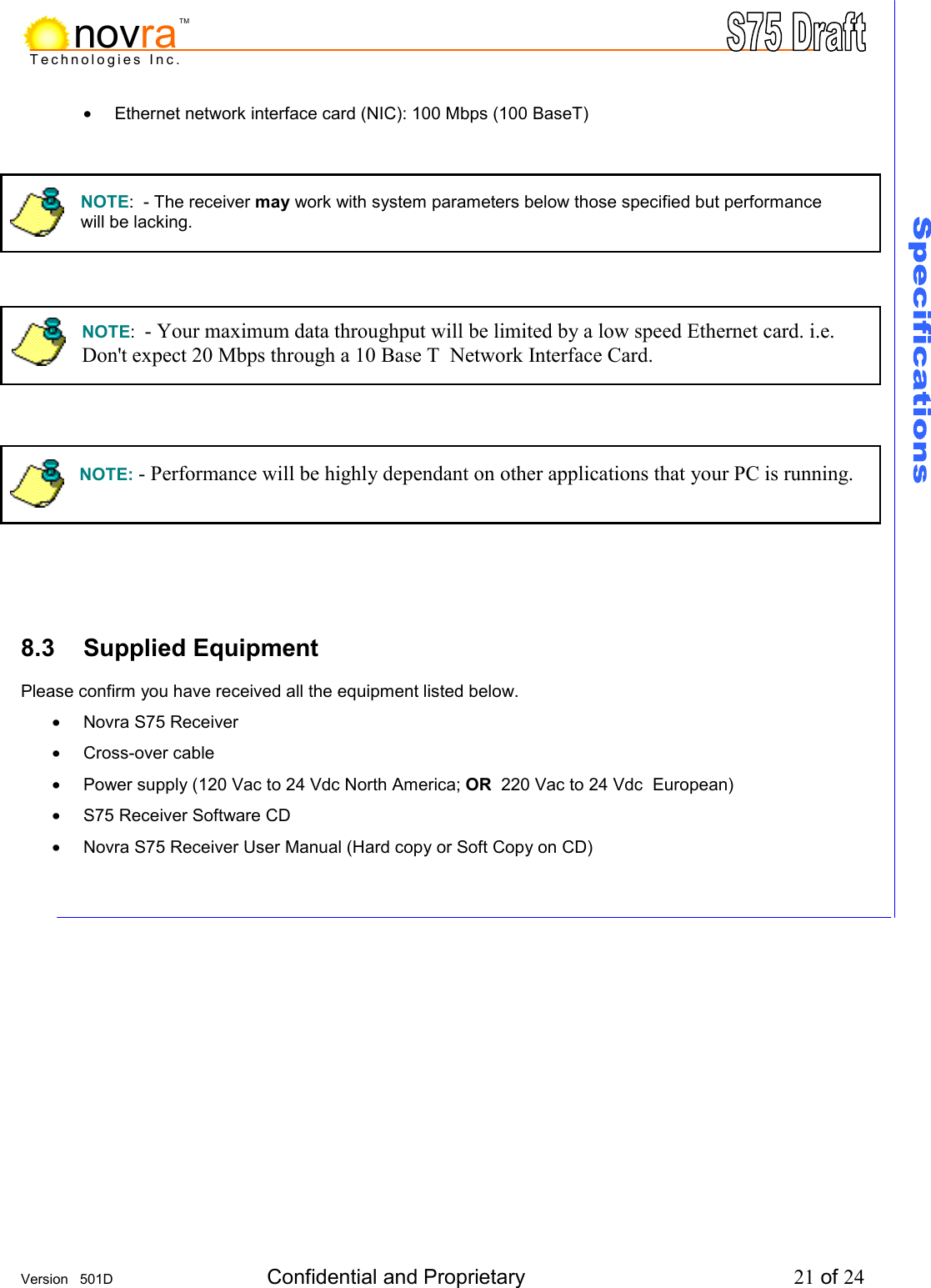
    Version   501D  Confidential and Proprietary          21 of 24  Technologies Inc.novraTM•  Ethernet network interface card (NIC): 100 Mbps (100 BaseT)                 8.3 Supplied Equipment          Please confirm you have received all the equipment listed below. •  Novra S75 Receiver •  Cross-over cable •  Power supply (120 Vac to 24 Vdc North America; OR  220 Vac to 24 Vdc  European) •  S75 Receiver Software CD •  Novra S75 Receiver User Manual (Hard copy or Soft Copy on CD)     NOTE:  - Your maximum data throughput will be limited by a low speed Ethernet card. i.e. Don't expect 20 Mbps through a 10 Base T  Network Interface Card. NOTE:  - The receiver may work with system parameters below those specified but performance  will be lacking. NOTE: - Performance will be highly dependant on other applications that your PC is running.
    Version   501D  Confidential and Proprietary          22 of 24  Technologies Inc.novraTMAPPENDIX             Terms, Definitions, and Tidbits of Information            Crossover Cable  A crossover cable is a cable that is used to connect two computers by reversing, or crossing over, the cable pin contacts. This eliminates the need to use a hub when connecting two PCs. It is also referred to as a "Null Modem" cable.  Coax Cable  Looks like this -   And is most commonly used for Cable TV feeds inside a house or apartment. This form of cable allows the high frequencies of TV, and Satellite type signals to move from one place to another with a minimal amount signal loss.  DVB  Digital Video Broadcasting (DVB) is a set of standards that define digital broadcasting using satellite, cable, and terrestrial infrastructures.  FEC  Forward Error Correction. A system of error control for data transmission where the receiving device can detect and correct certain errors.    Feed Horn  This is the device that receives the focuses signals from a satellite dish. It collects these signals and submits them to the next piece of equipment in the network, usually a Low Noise Block converter which then changes the signals into a better format for transpiration to the receiver.  Geostationary Orbit    The position where a satellite is 35,786 kilometers (22,241 miles) above the equator. At this distance, the satellite Orbits the earth at the same rate as the earth is turning. This causes the satellite to appear stationary in relation to an observer on the ground.  IP  Internet Protocol. The network communication protocol used on Ethernet networks and the Internet.    IP Address  The 32-bit computer address defined by the Internet Protocol. It is usually represented in dotted decimal notation. Example: 192.168.111.112  L-Band  This range of frequencies is from 950 MHz to 2,150 MHz. It is much lower than those used by satellites (About 1/10 to 1/6). Satellite frequencies travel well through space and our atmosphere but do not do well through the cable that comes from the dish on the roof to the receiver. So. LNBs convert satellite frequencies to the lower, easier to transport, band of frequencies referred to as the L-Band. It is L-Band frequencies that the S75 receiver tunes to.  LNA  Older systems used a unit called an LNA Low Noise Amplifier. This unit amplifies the RF frequency and then transmits the signals down a special (Expensive) cable to the reciever. Note that received signals are not converted to lower frequencies by this unit.  LNBs   LNB stands for a Low Noise Block-converter. This unit receives the signals collected from a satellite and converts their very high frequencies (12 Giga Hertz, written 12 GHz, which is actually 12,000,000,000 cycles per second) to a lower and somewhat more usable range. All LNBs have a Local Oscillator (LO). This number is usually stamped on the LNB but not always. It may be necessary to check the original specifications that came with the LNB or use the model number and brand name to search the Internet.
    Version   501D  Confidential and Proprietary          23 of 24  Technologies Inc.novraTMLNBF  LNBF stands for a Low Noise Block-converter and Feed horn. This is quite a common arrangement where the Feed Horn focal point that collects reflected signals from the satellite dish is combined with the low noise block-converter into one package.  LO  Local Oscillator. This is a circuit that creates a tone of a very specific frequency. These units have many applications in electronics. This important thing to remember is that there is an LO in the LNB (Low Noise Block-converter) and it is part of the circuit that converts the received satellite RF Frequencies to the more user friendly L-Band Frequencies. Typical values include 9.75, 10.60, 10.75, 11.00 and 11.25 GHz for the Ku band and 5.15 GHz for the C Band of satellite frequencies.   MAC Address  The Media Access Control (MAC) address is the unique hardware address for any piece of electronic equipment attached to a network. The MAC Address for your Novra S75 Receiver is displayed on a sticker on the bottom of the receiver.  Mbps    Mega bits per second. (Million bits per second)  MBps  Mega Bytes per second. One "Byte" in computer terms is the same as 8 bits. It is often referred to as a word.  1 MBps = 8 Mbps = 1 million Bytes (Words) per second = 8 million bits per second.  Msps  Mega symbols per second. Suppose you have four symbols, call them A, B, C & D. Let the Symbol A represent two bits of data with the value 00.  Let B represent two bits of data with the value 01 Let C represent two bits of data with the value 10 Let D represent two bits of data with the value 11 (Or some other data scheme.) This means that if the signals we are interested in consist of 1.0 Msps (That's 1 Million symbols per second), and each symbols represents two bits of data, then our signal has a data rate of 2.0 million bits per second (2.0 Mbps). The important point to remember is that satellite systems send and receive symbols which are then converted into data. The S75 takes the resulting data and forwards it to your computer in bursts called "packets."  Packet  A packet is the unit of data that is routed between an origin and a destination. When any file is sent from one place to another (the Internet as an example) it is divided into "chunks" of an efficient size for routing. Each of these packets is separately numbered and includes the Internet address of the destination.  PID Packet Identification Code. This code is used by the receiver to sift through the different packets of the transport stream. The transport stream contains data representing many different signals. The S75 software running on your PC, uses the PID number to find only those packets of data that contain the information you have requested. (See RF Frequency.)  Polarization, Circular  In layman's terms, a circularly polarized signal corkscrews towards the earth. (Right / Left)  Unlike linear polarization (described below), where the signal is fixed in an up and down fashion or a side to side fashion, Circular Polarization causes the signal to rotate. If it were possible to actually see the incoming signal, it would rotate like the hands on a clock. As with Linear Polarization, this has two modes of operation. It can either rotate in a clock wise fashion or counter clockwise. Polarization is very useful because it allows the frequency of a Right polarized signal to overlap with the same frequencies of a Left polarized signal.   Polarization, Linear  In layman's terms, a linearly polarized signal from a satellite approaches the (Horizontal /  earth as a wave that goes up and down like the waves on the ocean, or from side to side Vertical)   like an intoxicated driver on the highway. These two types of waves are classified as being Vertically or Horizontally polarized. Polarization is very useful because it allows the frequency
    Version   501D  Confidential and Proprietary          24 of 24  Technologies Inc.novraTMof a Vertically polarized signal to overlap with the same frequencies of a Horizontally polarized signal.   RAM  Random access memory. Used for short term storage of information requiring quick access on a computer. Information stored in RAM can be accessed by the computer much faster than information on the Hard Drive can be accessed.  RF Frequency  Each satellite in orbit has several channels that it can use, each with its own RF Frequency. (Each channel is often referred to as a transponder.) The easiest way to understand them is to think of your FM radio. There are many channels on the FM dial that one can choose from. ("99.9 FM, All Rock, All the Time") When you input the station number to your FM receiver you are actually telling it what RF Frequency it should look at. (99.9 FM means that 99.9 Mega Hz is the desired frequency.) But unlike the FM radio where the channel you tune to only contains one stream of music, a satellite channel contains many individual signals. One channel can contain Internet data and video and audio and specialized data in any number of permutations and combinations. The S75 uses the PID numbers that come with each Internet data, video, audio and specialized data signal to separate them all. (See PID.)   Satellite Signal Hierarchy 1 Satellite has -  | 10 - 24 Transponders (Channels) each with | dozens of distinct Rf Frequencies each containing | up to a  theoretical maximum of 8190 packet streams identified by their individual PIDs.   Subnet  A portion of a network, which may be a physically independent network segment, and which shares a network address with other portions of the network.  Symbol Rate See Msps  Transponder  This is the unit on the satellite that receives a signal transmitted from the earth station, amplifies it, changes its frequency and retransmits it back down to earth. Each radio channel has its own transponder and a number of transponders on the satellite are used to cover the allocated frequency band. A typical satellite will have 24 transponders.   Viterbi   "Convolutional encoding with Viterbi decoding is a Forward Error Correction technique that is particularly suited to a channel in which the transmitted signal is corrupted mainly by additive white gaussian noise." Further information can be found by searching the Internet or looking at any of these sites.   http://pw1.netcom.com/~chip.f/Viterbi.html   http://hissa.nist.gov/dads/HTML/viterbiAlgorithm.html   http://www.mathworks.com/access/helpdesk/help/toolbox/commblks/ref/viterbidecoder.shtml        end.

Navigation menu