OQO A4YWFS Handheld Computer User Manual Revised

OQO, Inc. Handheld Computer Users Manual Revised

Users Manual Revised

contents start guidepart 1introduction to the model 01 02part 2powering uppart 3using the thumb keyboard and TrackStikpart 4using the digital pen and thumbwheelpart 5using the docking cable and desktop standpart 6connecting to a networkpart 7installing software and copying files040608101214part 8product support 16
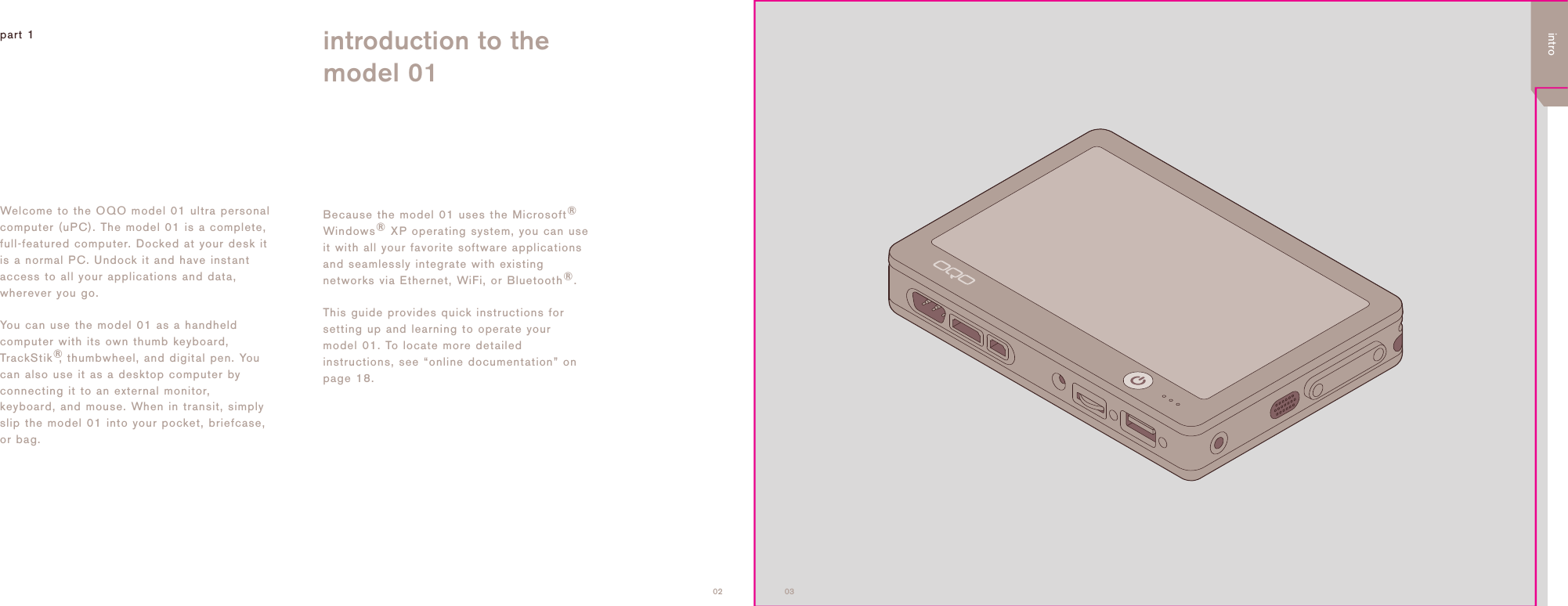
0302part 1 introduction to themodel 01Welcome to the OQO model 01 ultra personalcomputer (uPC). The model 01 is a complete,full-featured computer. Docked at your desk itis a normal PC. Undock it and have instantaccess to all your applications and data,wherever you go. You can use the model 01 as a handheldcomputer with its own thumb keyboard,TrackStik®, thumbwheel, and digital pen. Youcan also use it as a desktop computer byconnecting it to an external monitor,keyboard, and mouse. When in transit, simplyslip the model 01 into your pocket, briefcase,or bag. Because the model 01 uses the Microsoft®Windows®XP operating system, you can useit with all your favorite software applicationsand seamlessly integrate with existingnetworks via Ethernet, WiFi, or Bluetooth®. This guide provides quick instructions forsetting up and learning to operate yourmodel 01. To locate more detailedinstructions, see “online documentation” onpage 18.intro
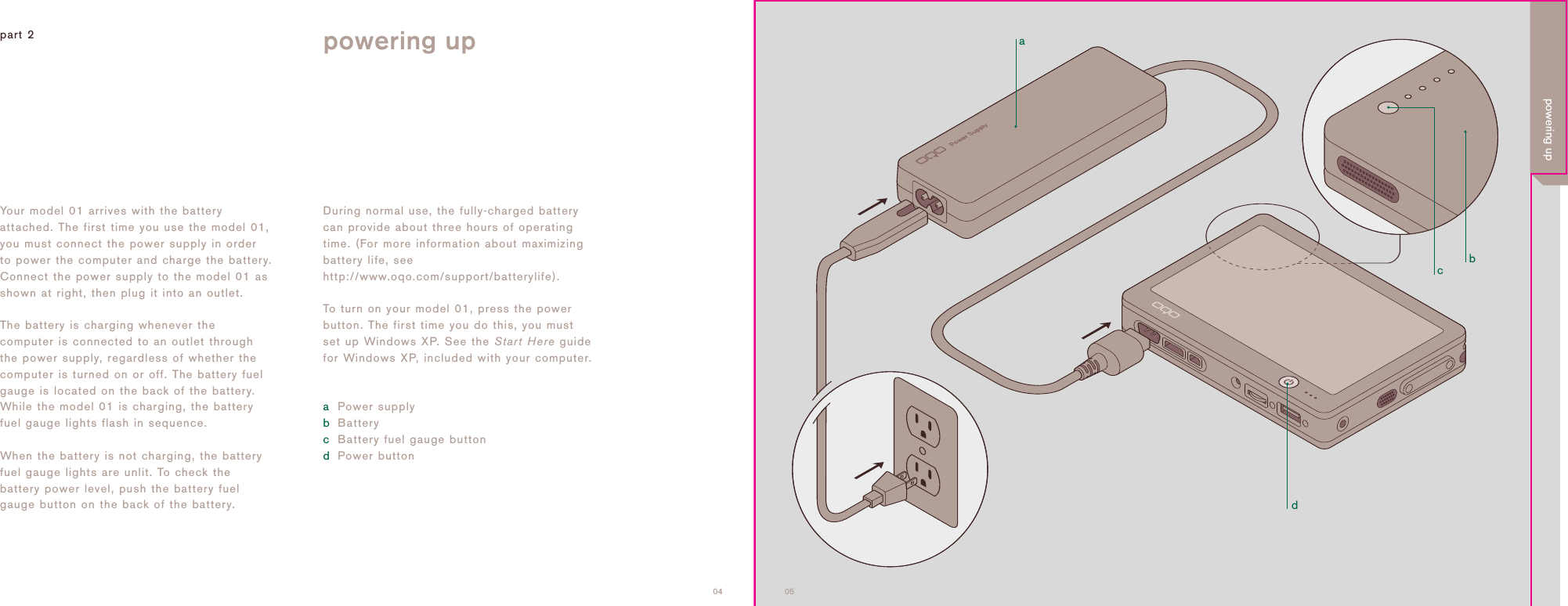
adcb0504Your model 01 arrives with the batteryattached. The first time you use the model 01,you must connect the power supply in orderto power the computer and charge the battery.Connect the power supply to the model 01 asshown at right, then plug it into an outlet.The battery is charging whenever thecomputer is connected to an outlet throughthe power supply, regardless of whether thecomputer is turned on or off. The battery fuelgauge is located on the back of the battery.While the model 01 is charging, the batteryfuel gauge lights flash in sequence. When the battery is not charging, the batteryfuel gauge lights are unlit. To check thebattery power level, push the battery fuelgauge button on the back of the battery.part 2 powering upDuring normal use, the fully-charged batterycan provide about three hours of operatingtime. (For more information about maximizingbattery life, seehttp://www.oqo.com/support/batterylife).To turn on your model 01, press the powerbutton. The first time you do this, you mustset up Windows XP. See the Start Here guidefor Windows XP, included with your computer.aPower supplybBatterycBattery fuel gauge buttondPower buttonpowering up
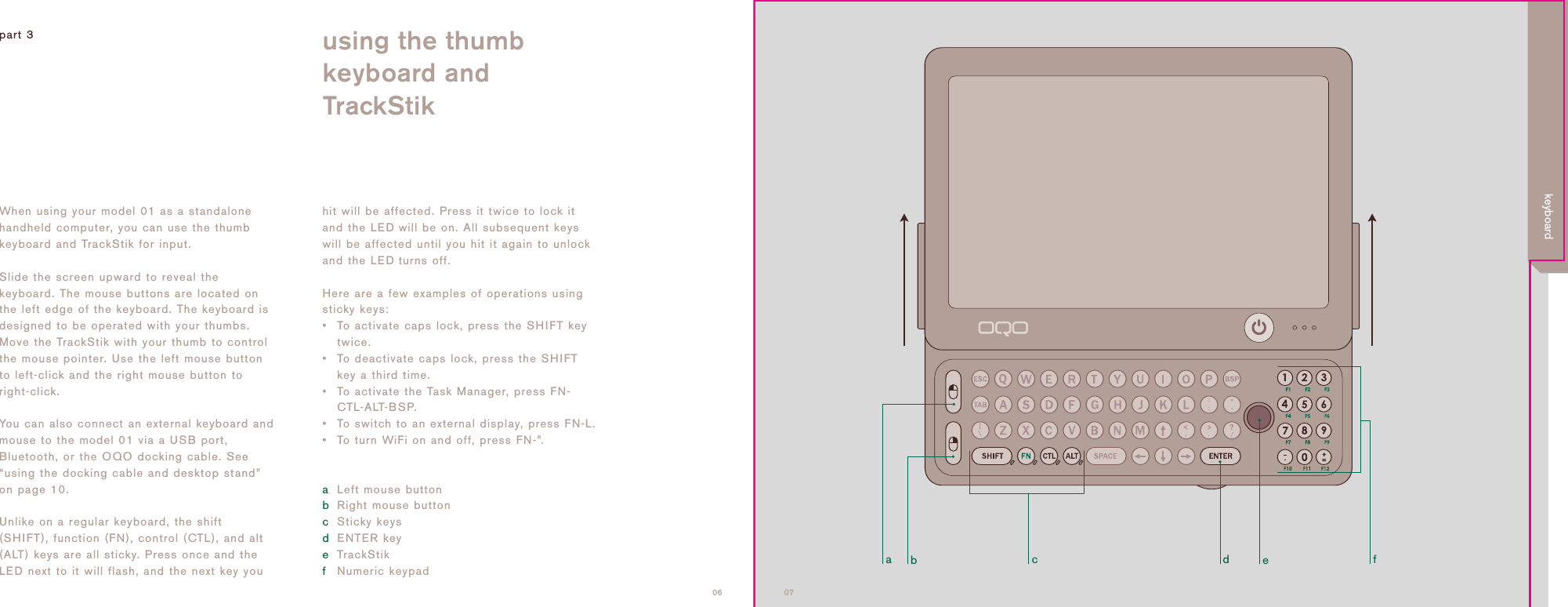
adcbef0706When using your model 01 as a standalonehandheld computer, you can use the thumbkeyboard and TrackStik for input.Slide the screen upward to reveal thekeyboard. The mouse buttons are located onthe left edge of the keyboard. The keyboard isdesigned to be operated with your thumbs.Move the TrackStik with your thumb to controlthe mouse pointer. Use the left mouse buttonto left-click and the right mouse button toright-click.You can also connect an external keyboard andmouse to the model 01 via a USB port,Bluetooth, or the OQO docking cable. See“using the docking cable and desktop stand”on page 10.Unlike on a regular keyboard, the shift(SHIFT), function (FN), control (CTL), and alt(ALT) keys are all sticky. Press once and theLED next to it will flash, and the next key youhit will be affected. Press it twice to lock itand the LED will be on. All subsequent keyswill be affected until you hit it again to unlockand the LEDturns off. Here are a few examples of operations usingsticky keys:• To activate caps lock, press the SHIFT keytwice.• To deactivate caps lock, press the SHIFTkey a third time.• To activate the Task Manager, press FN-CTL-ALT-BSP.• To switch to an external display, press FN-L.• To turn WiFi on and off, press FN-”.aLeft mouse buttonbRight mouse buttoncSticky keysdENTER keyeTrackStikfNumeric keypadpart 3 using the thumb keyboard andTrackStikkeyboard
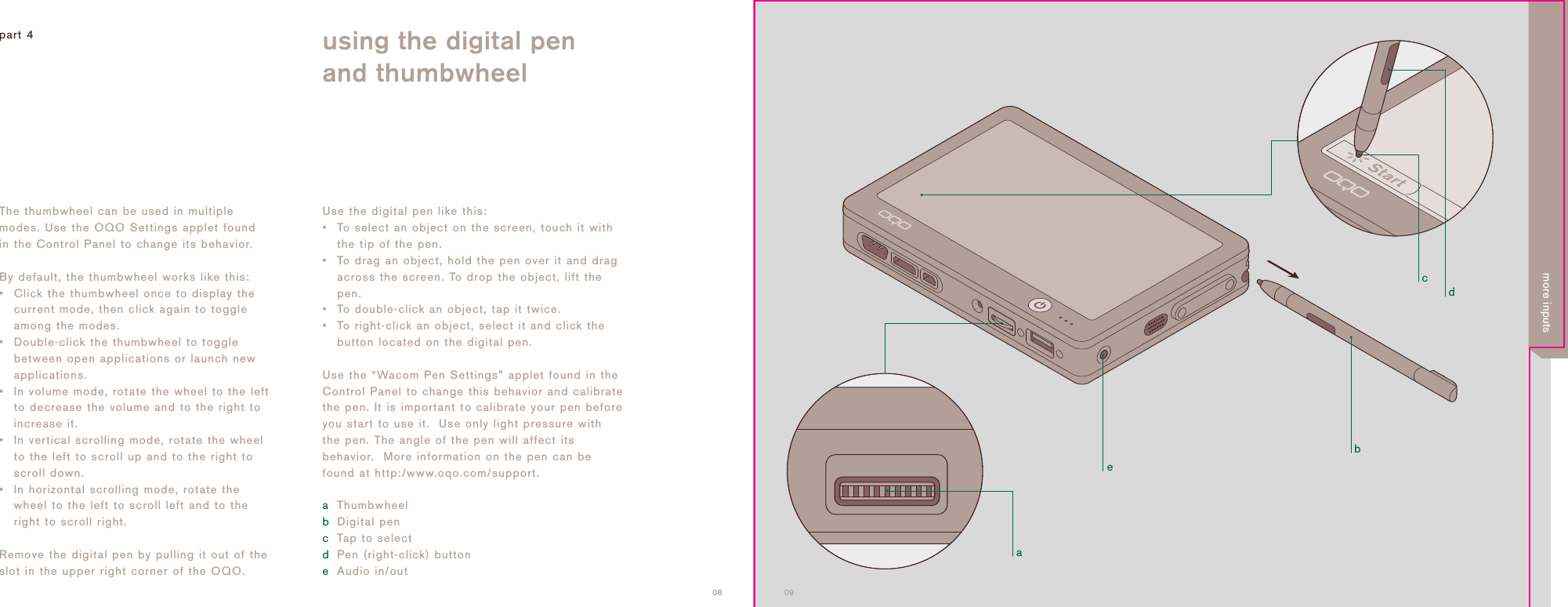
adcbe0908Use the digital pen like this:•To select an object on the screen, touch it withthe tip of the pen.• To drag an object, hold the pen over it and dragacross the screen. To drop the object, lift thepen.• To double-click an object, tap it twice.• To right-click an object, select it and click thebutton located on the digital pen.Use the “Wacom Pen Settings” applet found in theControl Panel to change this behavior and calibratethe pen. It is important to calibrate your pen beforeyou start to use it.  Use only light pressure withthe pen. The angle of the pen will affect itsbehavior.  More information on the pen can befound at http:/www.oqo.com/support.aThumbwheelbDigital pencTap to select dPen (right-click) buttoneAudio in/outpart 4 using the digital penand thumbwheelThe thumbwheel can be used in multiplemodes. Use the OQO Settings applet foundin the Control Panel to change its behavior.By default, the thumbwheel works like this:•Click the thumbwheel once to display thecurrent mode, then click again to toggleamong the modes.•Double-click the thumbwheel to togglebetween open applications or launch newapplications.• In volume mode, rotate the wheel to the leftto decrease the volume and to the right toincrease it.• In vertical scrolling mode, rotate the wheelto the left to scroll up and to the right toscroll down.• In horizontal scrolling mode, rotate thewheel to the left to scroll left and to theright to scroll right. Remove the digital pen by pulling it out of theslot in the upper right corner of the OQO.more inputs
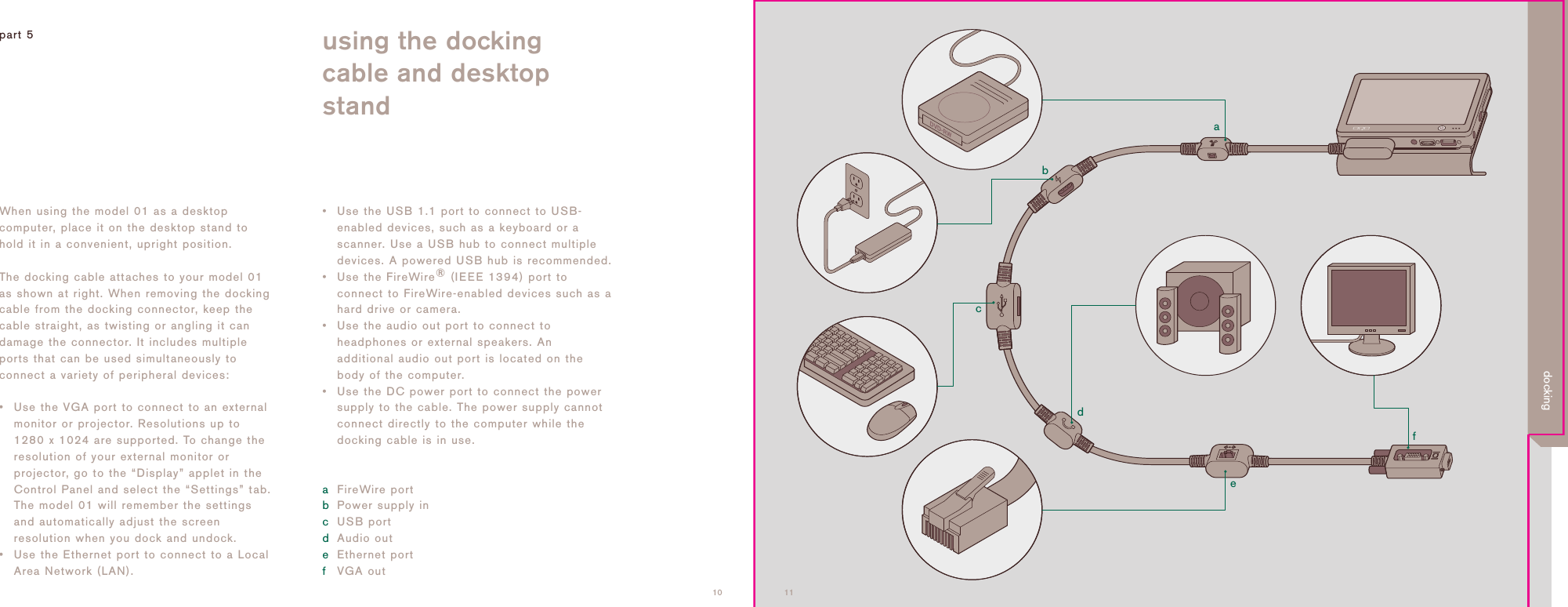
adcbef1110When using the model 01 as a desktopcomputer, place it on the desktop stand tohold it in a convenient, upright position.The docking cable attaches to your model 01as shown at right. When removing the dockingcable from the docking connector, keep thecable straight, as twisting or angling it candamage the connector. It includes multipleports that can be used simultaneously toconnect a variety of peripheral devices:• Use the VGA port to connect to an externalmonitor or projector. Resolutions up to1280 x 1024 are supported. To change theresolution of your external monitor orprojector, go to the “Display” applet in theControl Panel and select the “Settings” tab.The model 01 will remember the settingsand automatically adjust the screenresolution when you dock and undock.• Use the Ethernet port to connect to a LocalArea Network (LAN).• Use the USB 1.1 port to connect to USB-enabled devices, such as a keyboard or ascanner. Use a USB hub to connect multipledevices. A powered USB hub is recommended.• Use the FireWire®(IEEE 1394) port toconnect to FireWire-enabled devices such as ahard drive or camera.• Use the audio out port to connect toheadphones or external speakers. Anadditional audio out port is located on thebody of the computer.• Use the DC power port to connect the powersupply to the cable. The power supply cannotconnect directly to the computer while thedocking cable is in use.aFireWire portbPower supply incUSB portdAudio outeEthernet portfVGA outpart 5 using the dockingcable and desktopstanddocking
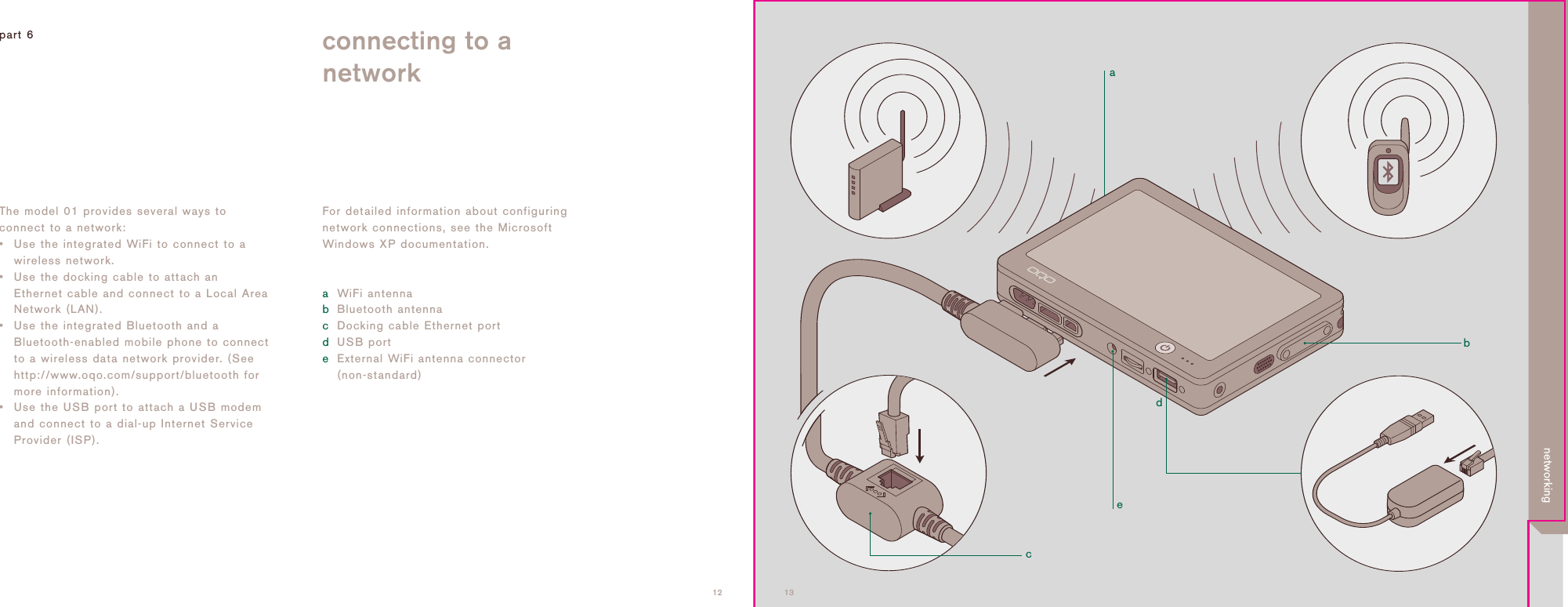
adcbe1312The model 01 provides several ways toconnect to a network:• Use the integrated WiFi to connect to awireless network.• Use the docking cable to attach anEthernet cable and connect to a Local AreaNetwork (LAN).• Use the integrated Bluetooth and aBluetooth-enabled mobile phone to connectto a wireless data network provider. (Seehttp://www.oqo.com/support/bluetooth formore information).• Use the USB port to attach a USB modemand connect to a dial-up Internet ServiceProvider (ISP).part 6 connecting to anetworkFor detailed information about configuringnetwork connections, see the MicrosoftWindows XP documentation.aWiFi antennabBluetooth antennacDocking cable Ethernet portdUSB porteExternal WiFi antenna connector(non-standard)networking
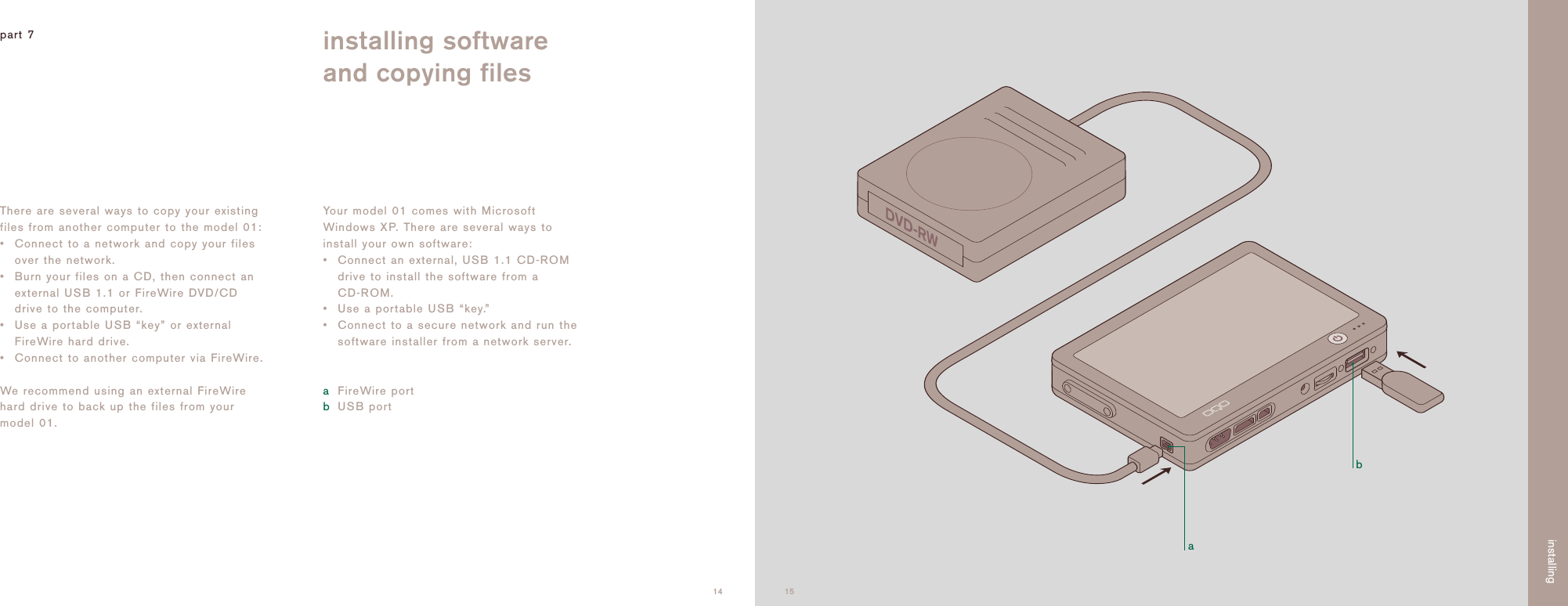
ab1514There are several ways to copy your existingfiles from another computer to the model 01:• Connect to a network and copy your filesover the network.• Burn your files on a CD, then connect anexternal USB 1.1 or FireWire DVD/CDdrive to the computer. • Use a portable USB “key” or externalFireWire hard drive.• Connect to another computer via FireWire.We recommend using an external FireWirehard drive to back up the files from yourmodel 01.Your model 01 comes with MicrosoftWindows XP. There are several ways toinstall your own software:•Connect an external, USB 1.1 CD-ROMdrive to install the software from a CD-ROM. •Use a portable USB “key.”• Connect to a secure network and run thesoftware installer from a network server.aFireWire portbUSB portpart 7 installing softwareand copying filesinstalling
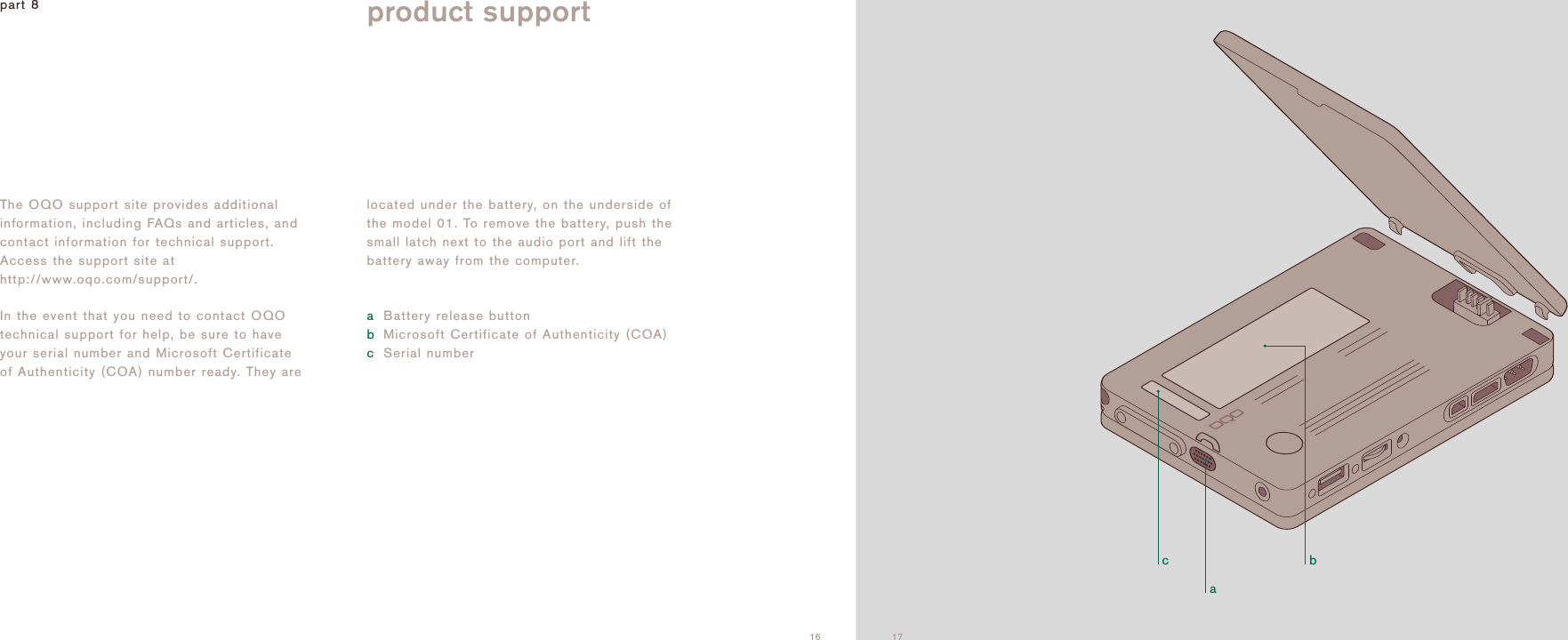
acb16The OQO support site provides additionalinformation, including FAQs and articles, andcontact information for technical support.Access the support site athttp://www.oqo.com/support/.In the event that you need to contact OQOtechnical support for help, be sure to haveyour serial number and Microsoft Certificateof Authenticity (COA) number ready. They arelocated under the battery, on the underside ofthe model 01. To remove the battery, push thesmall latch next to the audio port and lift thebattery away from the computer. aBattery release buttonbMicrosoft Certificate of Authenticity (COA)cSerial numberpart 8 product support17
This guide provides a brief overview of themany features of the model 01. For morecomprehensive information, see the model 01user's manual, available athttp://www.oqo.com/support/documentation. Warranty information is available athttp://www.oqo.com/warranty.The OQO return policy is available athttp://www.oqo.com/returns.online documentation18 19 19T al device, pursuant to Part 15 of the FCC Rules.  Theseallation.  This equipment generates, uses andalled and used in accordance with the instructions, may cause harmful interference to radio, there is no guarantee that interference will not occur in a particular installation.  If this equipment does cause harmfulinterference to radio or television reception, which can be determined by turning the equipment off and on, the user is encouraged to try to correctthe interference by one or more of the following measures:(1) Reorient the receiving antenna (2) Increase the separation between the equipment and receiver (3) Move the computer away from the receiver (4) Connect the equipment into an outlet on a circuit different from that to which the receiver is connected.Declaration of ConformityWe, OQO, Inc.  583 Shotwell Street, San Francisco, California, USA, 415 430 6200,  declare under our sole responsibility that the product, OQOmodel 01, complies with Part 15 of FCC Rules.  Operation is subject to the following two conditions: (1)  This device may not cause harmful interference, and (2)  This device must accept any interference received, including interference that may cause undesired operation.  Information regarding cable and type of ferrite to be used(1)  To prevent unwanted radio interference, the following type of cable may be used with the Ethernet jack: Manufacturer:  E-MU Systems,  Part Number:  70EM886106000  (2)  To prevent unwanted radio interference, the following type of ferrite may be used on the Audio cable or Headphone cable connected to the OQO model 01: Manufacturer:  Steward,  Part Number:  28A2026-0A2(3)  To prevent unwanted radio interference, the following type of IEEE-1394 cable may be used for the FireWire jack: Manufacturer:  Granite Digital,  Part Number:  1660Any modifications made to the UPC that are not authorized by OQO could void the user's right to operate the device.
©2004, OQO, Inc. All rights reserved.

Navigation menu