Ogemray Technology WF53721C Wireless USB Adapter User Manual 54Mbps

Shenzhen Ogemray Technology Co.,Ltd Wireless USB Adapter 54Mbps

User manual

54M/150M/300 54M/150M/300 54M/150M/300 54M/150M/300M MMMbps bps bps bpsUSB USB USB USBWIRELESS WIRELESS WIRELESS WIRELESSADAPTER ADAPTER ADAPTER ADAPTERUser User User User’ ’’’s sssManual Manual Manual Manual (Ver (Ver (Ver (Ver2.3) 2.3) 2.3) 2.3)
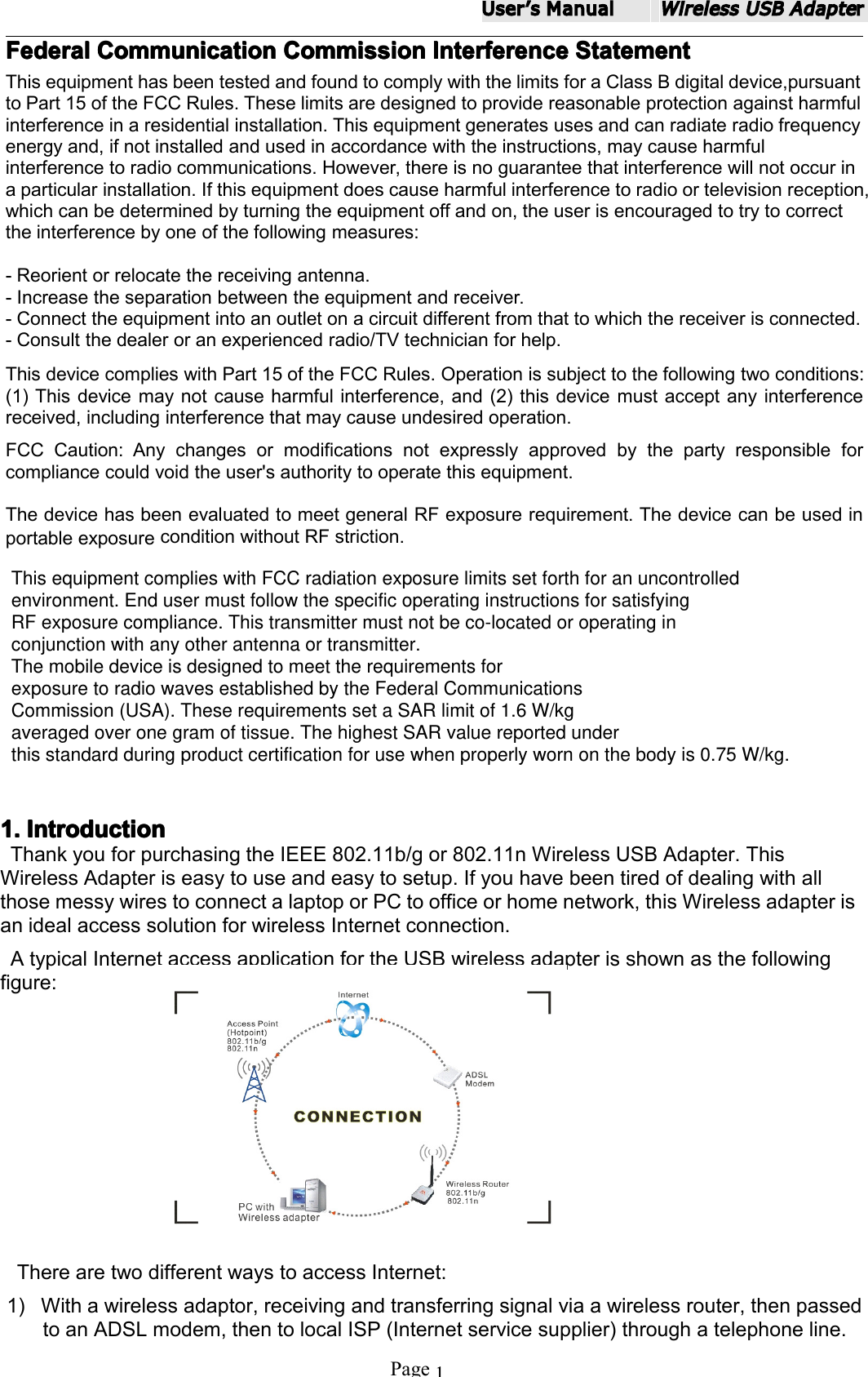
UserʼsManualWirelessUSBAdapterPage1Federal Federal Federal FederalCommunication Communication Communication CommunicationCommission Commission Commission CommissionInterference Interference Interference InterferenceStatement Statement Statement StatementThisequipmenthasbeentestedandfoundtocomplywiththelimitsforaClassBdigitaldevice,pursuanttoPart15oftheFCCRules.Theselimitsaredesignedtoprovidereasonableprotectionagainstharmfulinterferenceinaresidentialinstallation.Thisequipmentgeneratesusesandcanradiateradiofrequencyenergyand,ifnotinstalledandusedinaccordancewiththeinstructions,maycauseharmfulinterferencetoradiocommunications.However,thereisnoguaranteethatinterferencewillnotoccurinaparticularinstallation.Ifthisequipmentdoescauseharmfulinterferencetoradioortelevisionreception,whichcanbedeterminedbyturningtheequipmentoffandon,theuserisencouragedtotrytocorrecttheinterferencebyoneofthefollowingmeasures:-Reorientorrelocatethereceivingantenna.-Increasetheseparationbetweentheequipmentandreceiver.-Connecttheequipmentintoanoutletonacircuitdifferentfromthattowhichthereceiverisconnected.-Consultthedealeroranexperiencedradio/TVtechnicianforhelp.ThisdevicecomplieswithPart15oftheFCCRules.Operationissubjecttothefollowingtwoconditions:(1)Thisdevicemaynotcauseharmfulinterference,and(2)thisdevicemustacceptanyinterferencereceived,includinginterferencethatmaycauseundesiredoperation.FCCCaution:Anychangesormodificationsnotexpresslyapprovedbythepartyresponsibleforcompliancecouldvoidtheuser'sauthoritytooperatethisequipment.ThedevicehasbeenevaluatedtomeetgeneralRFexposurerequirement.ThedevicecanbeusedinportableexposureconditionwithoutRFstriction.1. 1. 1. 1.Introduction Introduction Introduction IntroductionThankyouforpurchasingtheIEEE802.11b/gor802.11nWirelessUSBAdapter.ThisWirelessAdapteriseasytouseandeasytosetup.IfyouhavebeentiredofdealingwithallthosemessywirestoconnectalaptoporPCtoofficeorhomenetwork,thisWirelessadapterisanidealaccesssolutionforwirelessInternetconnection.AtypicalInternetaccessapplicationfortheUSBwirelessadapterisshownasthefollowingfigure:TherearetwodifferentwaystoaccessInternet:1)Withawirelessadaptor,receivingandtransferringsignalviaawirelessrouter,thenpassedtoanADSLmodem,thentolocalISP(Internetservicesupplier)throughatelephoneline.This equipment complies with FCC radiation exposure limits set forth for an uncontrolled environment. End user must follow the specific operating instructions for satisfying RF exposure compliance. This transmitter must not be co-located or operating in conjunction with any other antenna or transmitter.The mobile device is designed to meet the requirements forexposure to radio waves established by the Federal CommunicationsCommission (USA). These requirements set a SAR limit of 1.6 W/kgaveraged over one gram of tissue. The highest SAR value reported underthis standard during product certification for use when properly worn on the body is 0.515 W/kg.this standard during product certification for use when properly worn on the body is 0.75 W/kg.
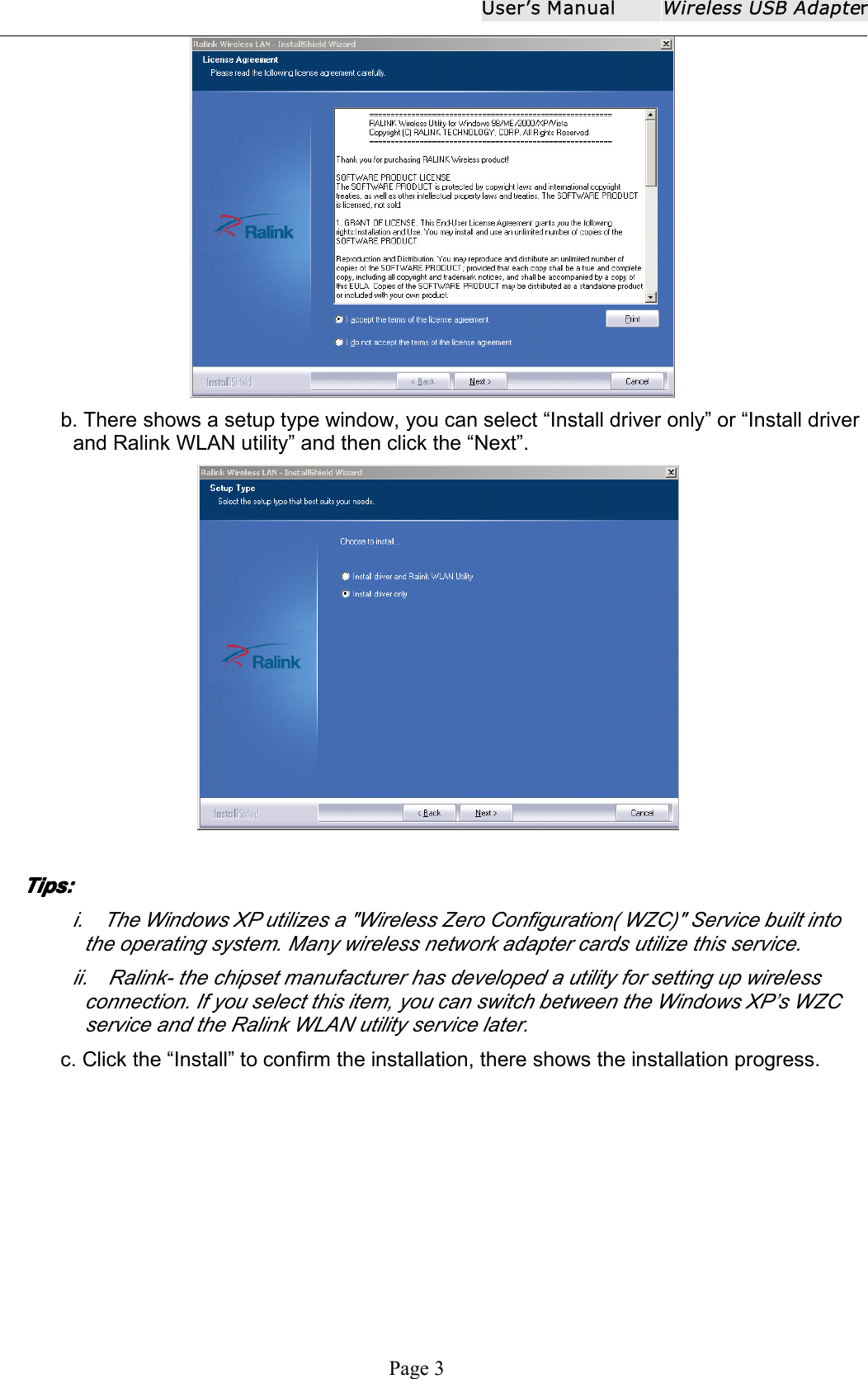
User ʼ s ManualWireless USB AdapterPage 22) With a wireless adaptor, receiving and transferring signal via local AP (Access Point) or socalled Hotpoint directly.Tips:Tips:Tips:Tips: An 802.11 LAN is based on a cellular architecture where the system is subdivided intocells, where each cell (called Basic Service Set or BSS) is controlled by a Base Station(called Access Point, or in short AP).2.2.2.2. PackagePackagePackagePackage ContentsContentsContentsContents ::::One 54 Mbps 802.11b/g or 150Mbps or 300Mbps 802.11n USB Wireless Adapter.Adapter Installation disc.User’s Manual.Antenna (optional)WarrantyWarrantyWarrantyWarrantyThe warrants for the end user ( “ Customer ” ) that this hardware product will be free from defectsin workmanship and materials, under normal use and service, for twelve (12) months from thedate of purchase from its authorized reseller. Information in this document is subject to changewithout prior notice.3.3.3.3. InstallationInstallationInstallationInstallationTo install the driver of the USB adapter , please use administrator user account to login beforethe following steps:Tips:Tips:Tips:Tips: the latest original drivers can be down loaded from the website of Ralink chipsetmanufacturer . The current website ishttp://www.ralinktech.com/en/04_support/support.php?sn=500To find acorrect driver, please identify the chipset type applied in the adapter you have.ForForForFor WindowsWindowsWindowsWindows XP:XP:XP:XP:The system will detect a new hardware has been added, and start the ““““ FFFF oooo undundundund NewNewNewNewHHHH aaaa rdwarerdwarerdwarerdware WizardWizardWizardWizard ” . Click on “ CancelCancelCancelCancel ” .1) Please insert the disc into your CD-ROM drive. The disc should auto start, displaying thefollowing window, If it does not start, open the browser window, find the autorun.exe file inyour CD-ROM folder, click to run it.2) Ralink has integrated all the 54Mbps 802.11b/g , 150Mbps or 300Mbps 802.11n driver intoone file. Click to run the “ DriverDriverDriverDriver InstallationInstallationInstallationInstallation ”Notes:Notes:Notes:Notes: BecauseBecauseBecauseBecause RalinkRalinkRalinkRalink oftenoftenoftenoften updatesupdatesupdatesupdates softwaresoftwaresoftwaresoftware ,,,, thethethethe driversdriversdriversdrivers containedcontainedcontainedcontained inininin thethethethe discdiscdiscdiscmightmightmightmight bebebebe changedchangedchangedchanged withoutwithoutwithoutwithout priorpriorpriorprior notice.notice.notice.notice.3) Follow the instructions and prompts of the “ InstallShield Wizard ” to finish the driverinstallation:a. Select the “ I accept the terms of the license agreements ” , then click the “ Next ” .
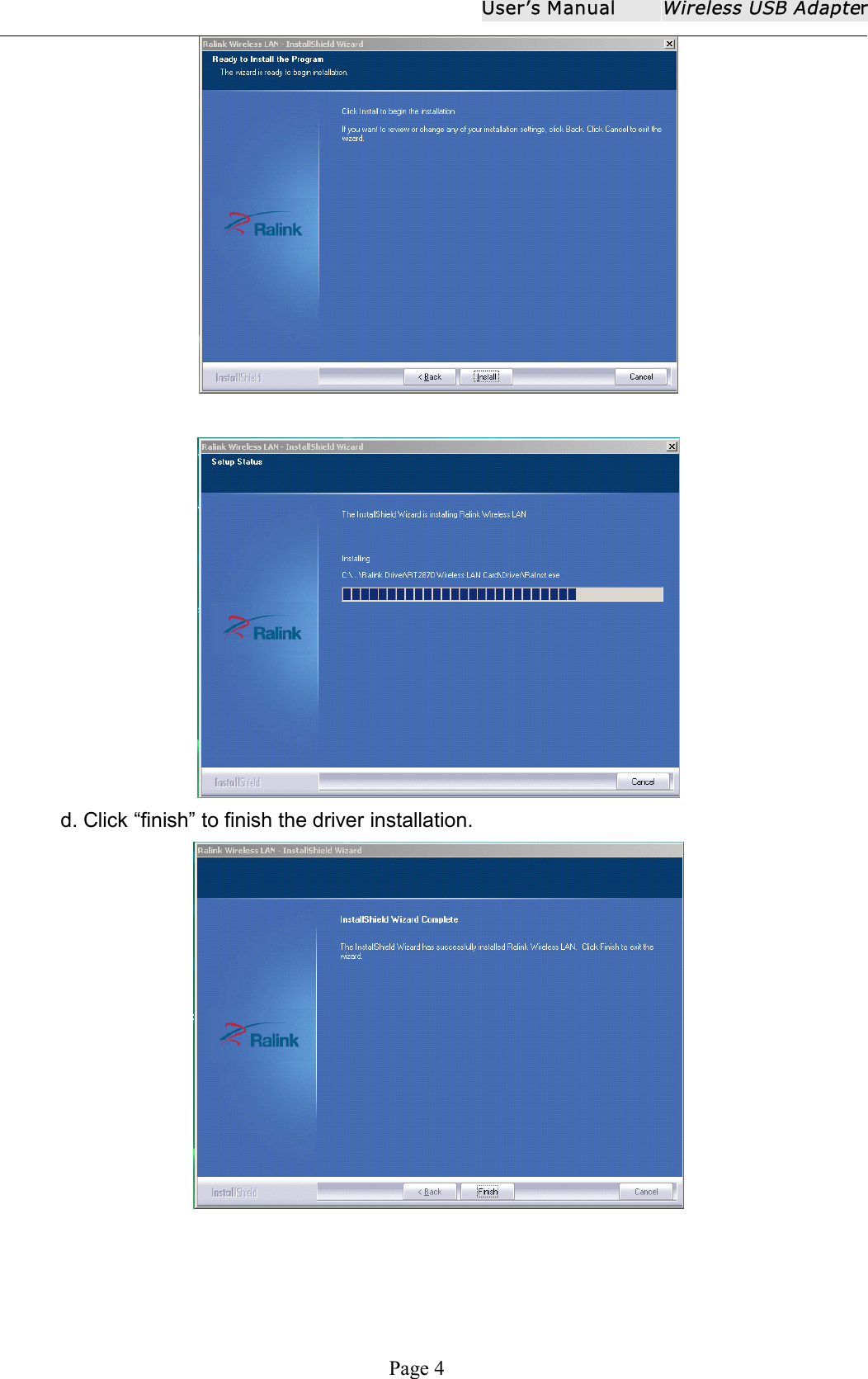
User ʼ s ManualWireless USB AdapterPage 3b. There shows a setup type window, you can select “ Install driver only ” or “ Install driverand Ralink WLAN utility ” and then click the “ Next ” .TipsTipsTipsTips ::::i . The Windows XP utilizes a "Wireless Zero Configuration( WZC)" Service built intothe operating system. Many wireless network adapter cards utilize this service.ii . Ralink - the chipset manufacturer has developed a utility for setting up wirelessconnection. If you select this item, you can switch between the Windows XP’s WZCservice and the Ralink WLAN utility service later.c. Click the “ Install ” to confirm the installation, there shows the installation progress.
User ʼ s ManualWireless USB AdapterPage 4d. Click “ finish ” to finish the driver installation.
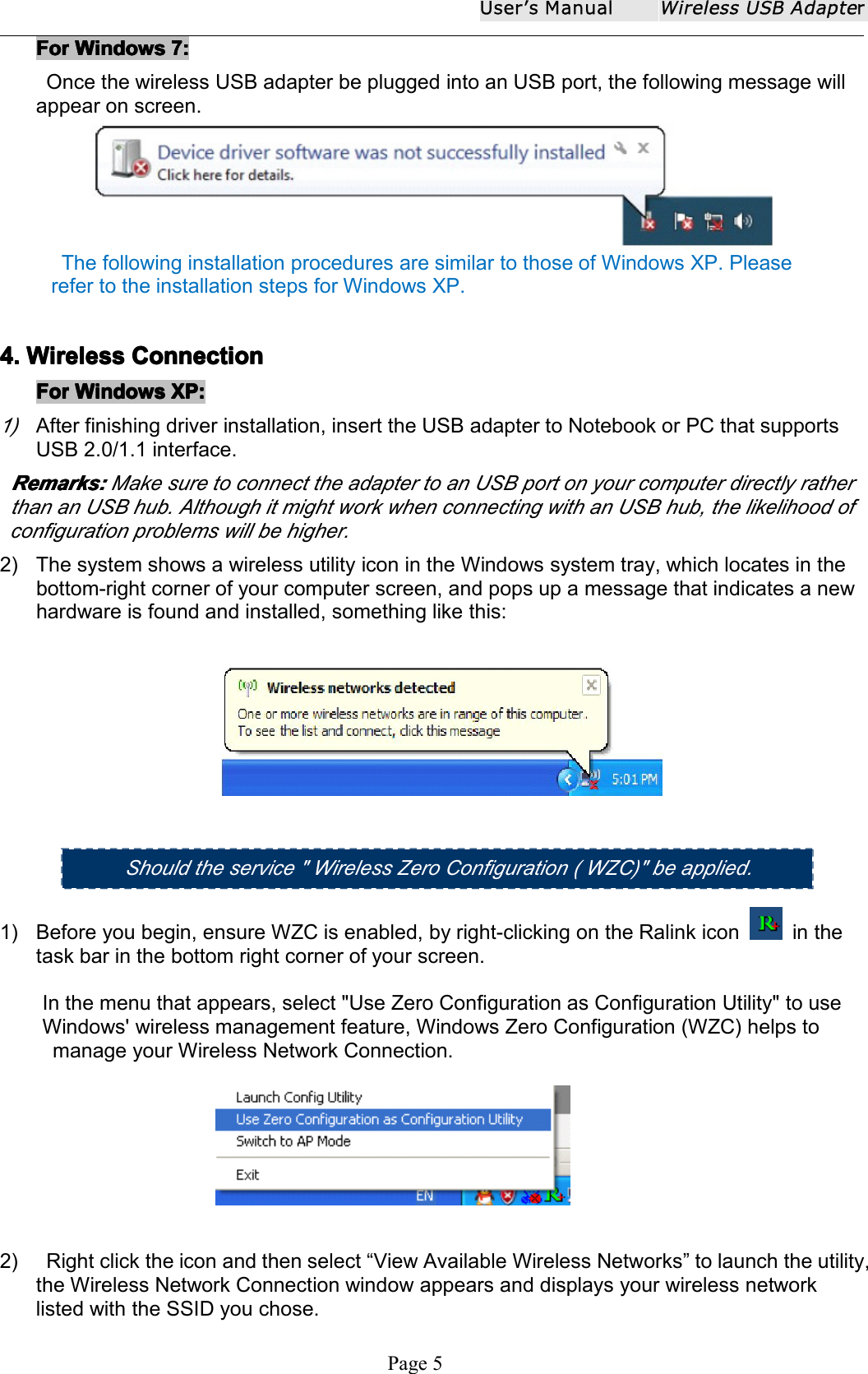
User ʼ s ManualWireless USB AdapterPage 5ForForForFor WindowsWindowsWindowsWindows 7:7:7:7:Once the wireless USB adapter be plugged into an USB port, the following message willappear on screen.The following installation procedures are similar to those of Windows XP. Pleaserefer to the installation steps for Windows XP.4.4.4.4. WirelessWirelessWirelessWireless ConnectionConnectionConnectionConnectionForForForFor WindowsWindowsWindowsWindows XP:XP:XP:XP:1)After finishing driver installation, insert the USB adapter to Notebook or PC that supportsUSB 2.0/1.1 interface.Remarks:Remarks:Remarks:Remarks: Make sure to connect the adapter to an USB port on your computer directly ratherthan an USB hub. Although it might work when connecting with an USB hub, the likelihood ofconfiguration problems will be higher.2) The system shows a wireless utility icon in the Windows system tray, which locates in thebottom-right corner of your computer screen, and pops up a message that indicates a newhardware is found and installed, something like this:1) Before you begin, ensure WZC is enabled, by right-clicking on the Ralink icon in thetask bar in the bottom right corner of your screen .In the menu that appears, select "Use Zero Configuration as Configuration Utility" to useWindows' wireless management feature, Windows Zero Configuration (WZC) helps tomanage your Wireless Network Connection.2) R ight click the icon and then select “ View Available Wireless Networks ” to launch the utility,the Wireless Network Connection window appears and displays your wireless networklisted with the SSID you chose.Should the s ervice " Wireless Zero Configuration ( WZC) " be applied .
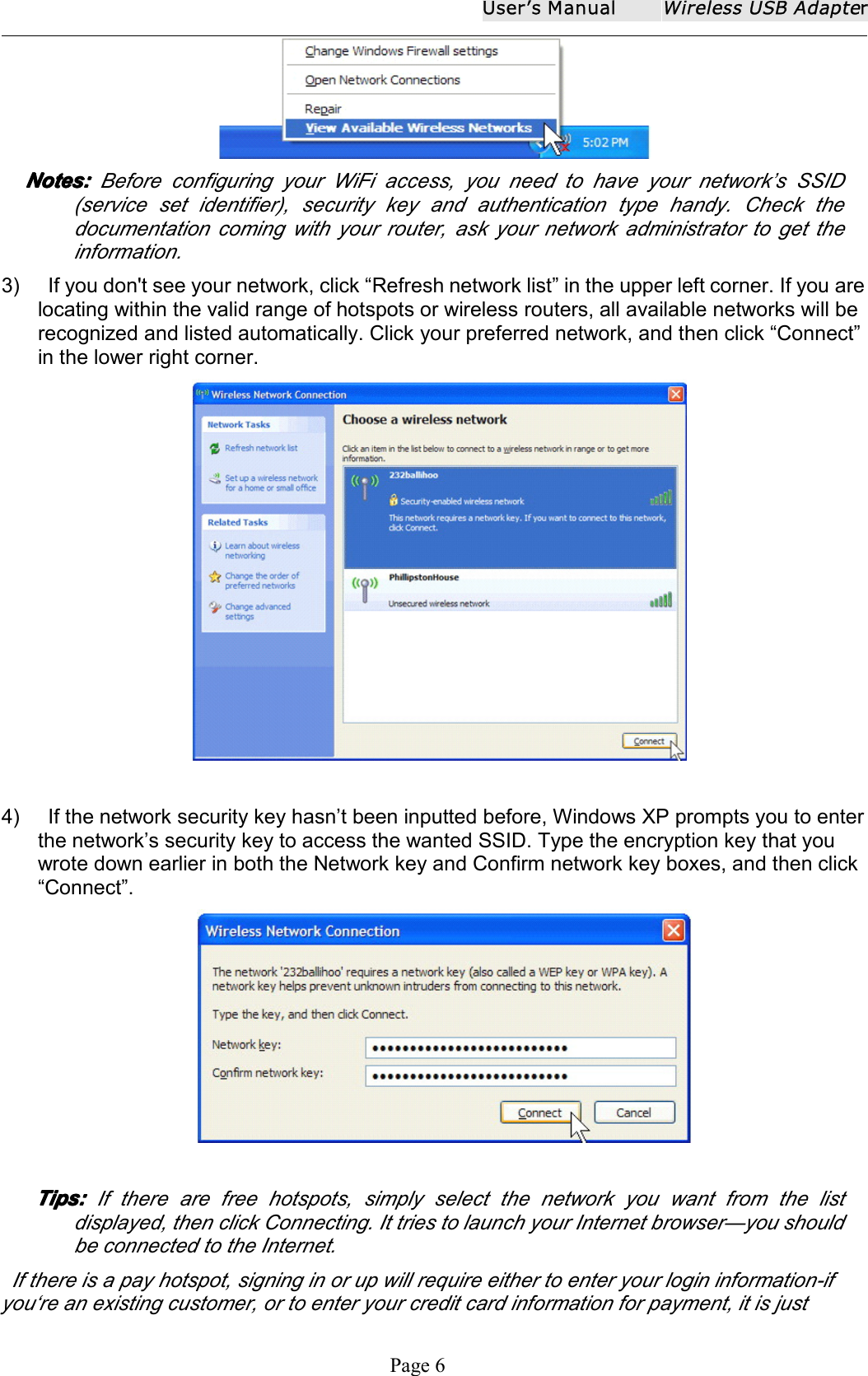
User ʼ s ManualWireless USB AdapterPage 6Notes:Notes:Notes:Notes: Before configuring your WiFi access, you need to have your network’s SSID(service set identifier), security key and authentication type handy. Check thedocumentation coming with your router, ask your network administrator to get theinformation.3) If you don't see your network, click “ Refresh network list ” in the upper left corner. If you arelocating within the valid range of hotspots or wireless routers, all available networks will berecognized and listed automatically. Click your preferred network, and then click “ Connect ”in the lower right corner.4) If the network security key hasn ’ t been inputted before, Windows XP prompts you to enterthe network ’ s security key to access the wanted SSID. Type the encryption key that youwrote down earlier in both the Network key and Confirm network key boxes, and then click“ Connect ” .Tips:Tips:Tips:Tips: If there are free hotspots, simply select the network you want from the listdisplayed, then click Connecting. It tries to launch your Internet browser — you shouldbe connected to the Internet.If there is a pay hotspot, signing in or up will require either to enter your login information-ifyou ‘ re an existing customer, or to enter your credit card information for payment, it is just
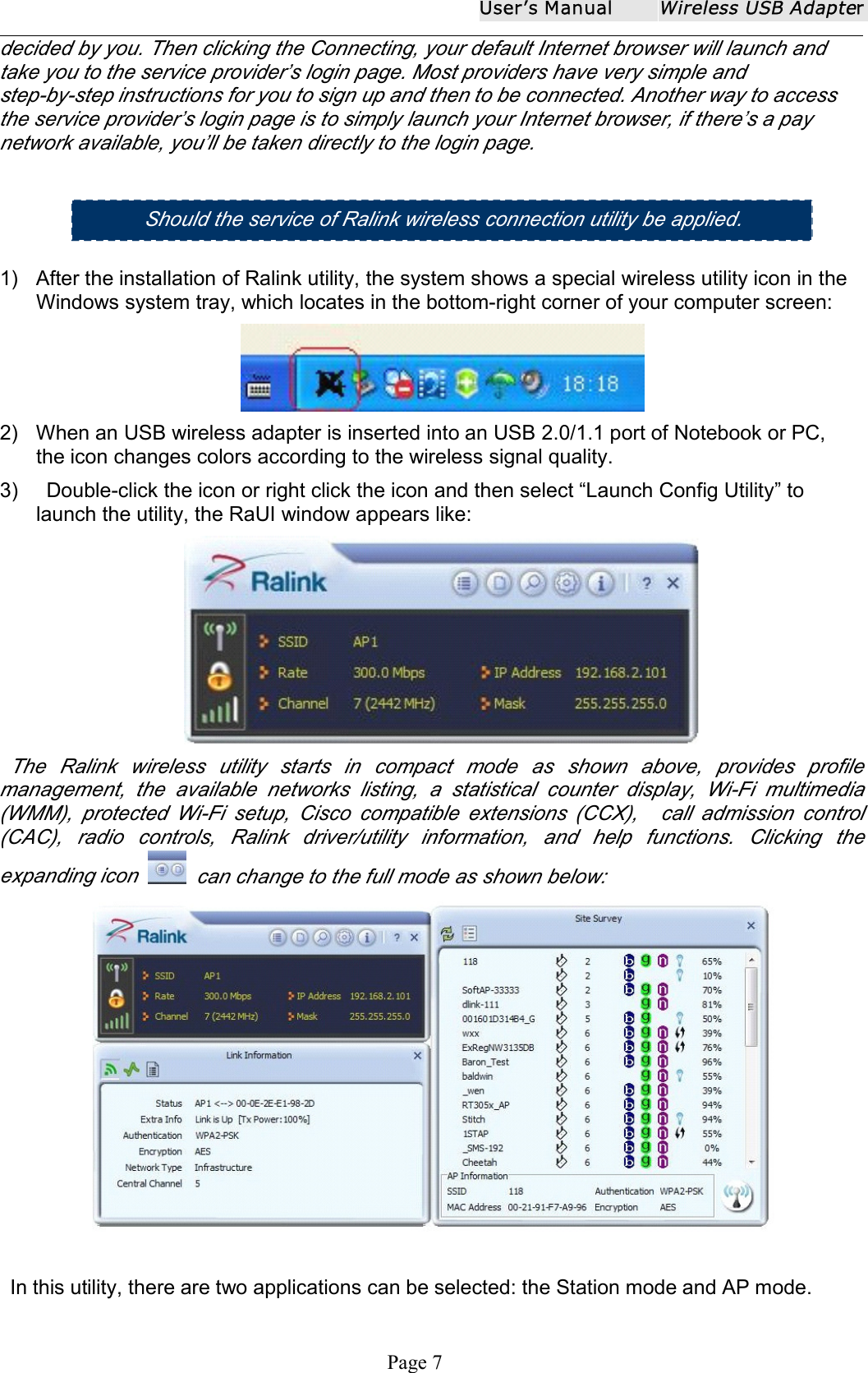
User ʼ s ManualWireless USB AdapterPage 7decided by you. Then clicking the Connecting, your default Internet browser will launch andtake you to the service provider’s login page. Most providers have very simple andstep-by-step instructions for you to sign up and then to be connected. Another way to accessthe service provider’s login page is to simply launch your Internet browser, if there’s a paynetwork available, you’ll be taken directly to the login page.1) After the installation of Ralink utility, the system shows a special wireless utility icon in theWindows system tray, which locates in the bottom-right corner of your computer screen:2) When an USB wireless adapter is inserted into an USB 2.0/1.1 port of Notebook or PC,the icon changes colors according to the wireless signal quality.3) Double-click the icon or right click the icon and then select “ Launch Config Utility ” tolaunch the utility, the RaUI window appears like:The Ralink wireless utility starts in compact mode as shown above , provides profilemanagement, the available networks listing, a statistical counter display, Wi-Fi multimedia(WMM), protected Wi-Fi setup, Cisco compatible extensions (CCX), call admission control(CAC), radio controls, Ralink driver/utility information, and help functions. Clicking theexpanding icon can change to the full mode as shown below:In this utility, there are two applications can be selected: the Station mode and AP mode.Should the s ervice of Ralink wireless connection utility be applied .
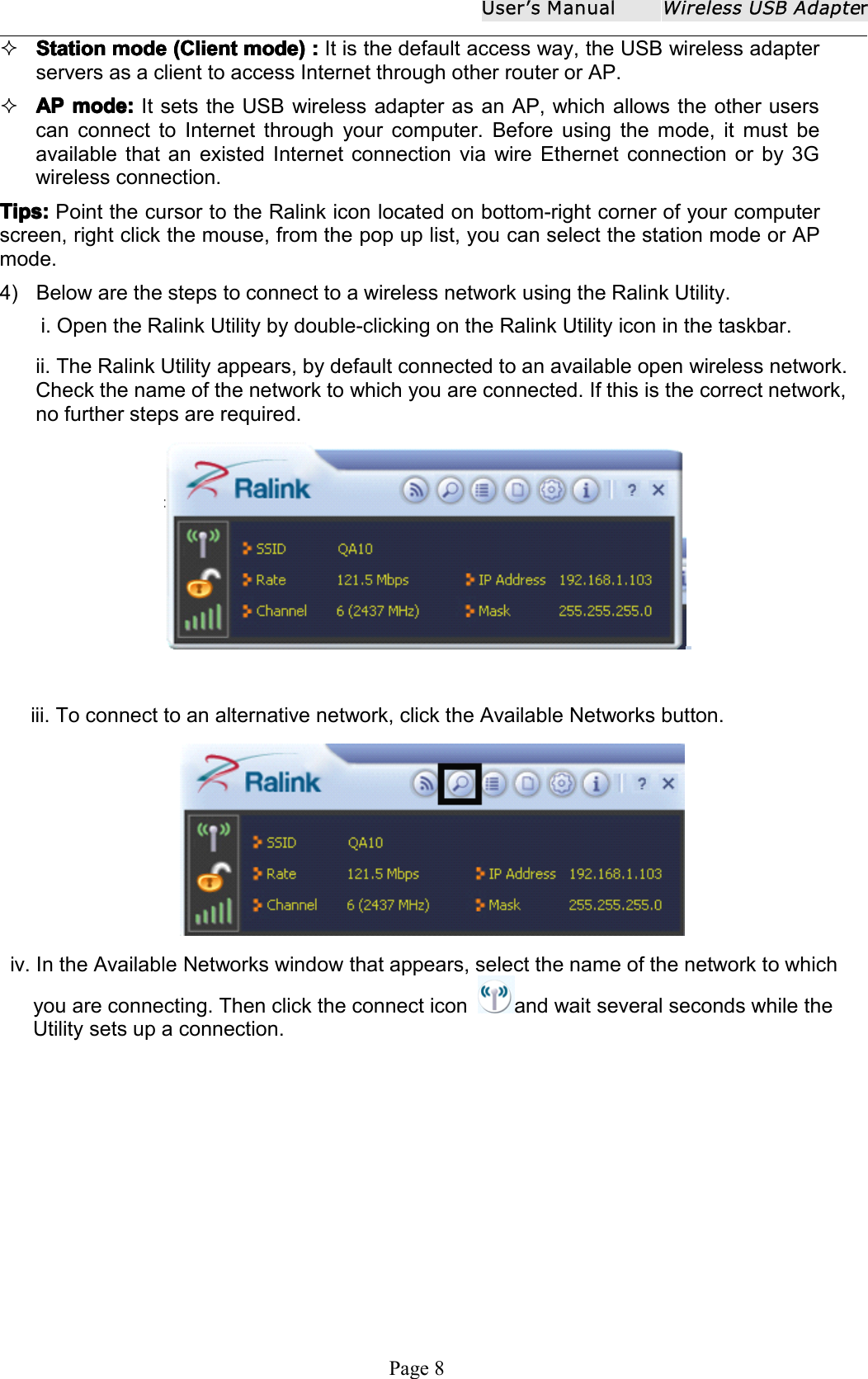
User ʼ s ManualWireless USB AdapterPage 8StationStationStationStation modemodemodemode (Client(Client(Client(Client mode)mode)mode)mode) ::::It is the default access way, the USB wireless adapterservers as a client to access Internet through other router or AP.APAPAPAP mode:mode:mode:mode: It sets the USB wireless adapter as an AP, which allows the other userscan connect to Internet through your computer. Before using the mode, it must beavailable that an existed Internet connection via wire Ethernet connection or by 3Gwireless connection.Tips:Tips:Tips:Tips: P oint the cursor to the Ralink icon located on bottom-right corner of your computerscreen , right click the mouse, from the pop up list, you can select the station mode or APmode.4) Below are the steps to connect to a wireless network using the Ralink Utility.i. Open the Ralink Utility by double-clicking on the Ralink Utility icon in the taskbar.ii. The Ralink Utility appears, by default connected to an available open wireless network.Check the name of the network to which you are connected. If this is the correct network,no further steps are required.iii. To connect to an alternative network, click the Available Networks button.iv. In the Available Networks window that appears, select the name of the network to whichyou are connecting. Then click the connect icon and wait several seconds while theUtility sets up a connection.
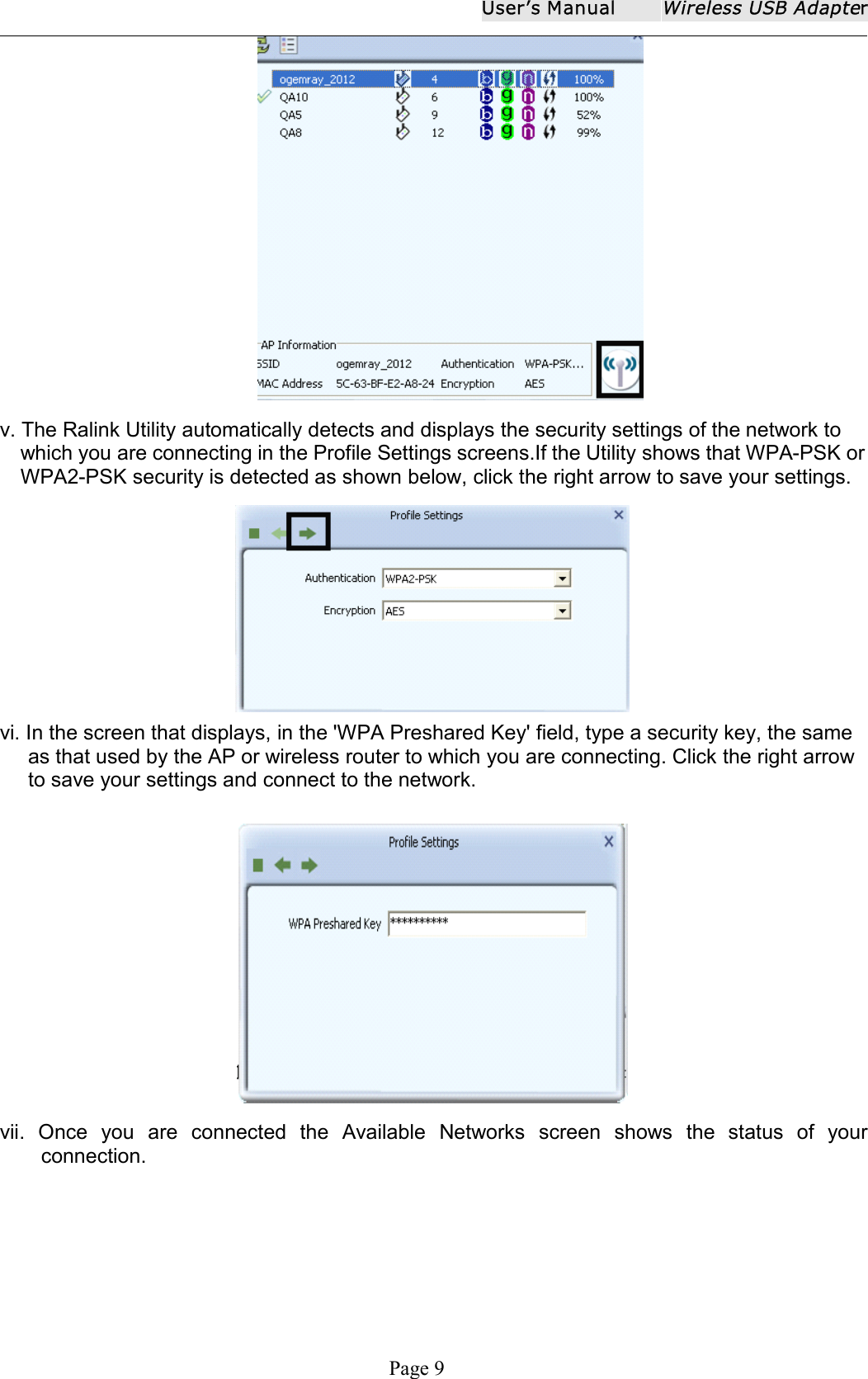
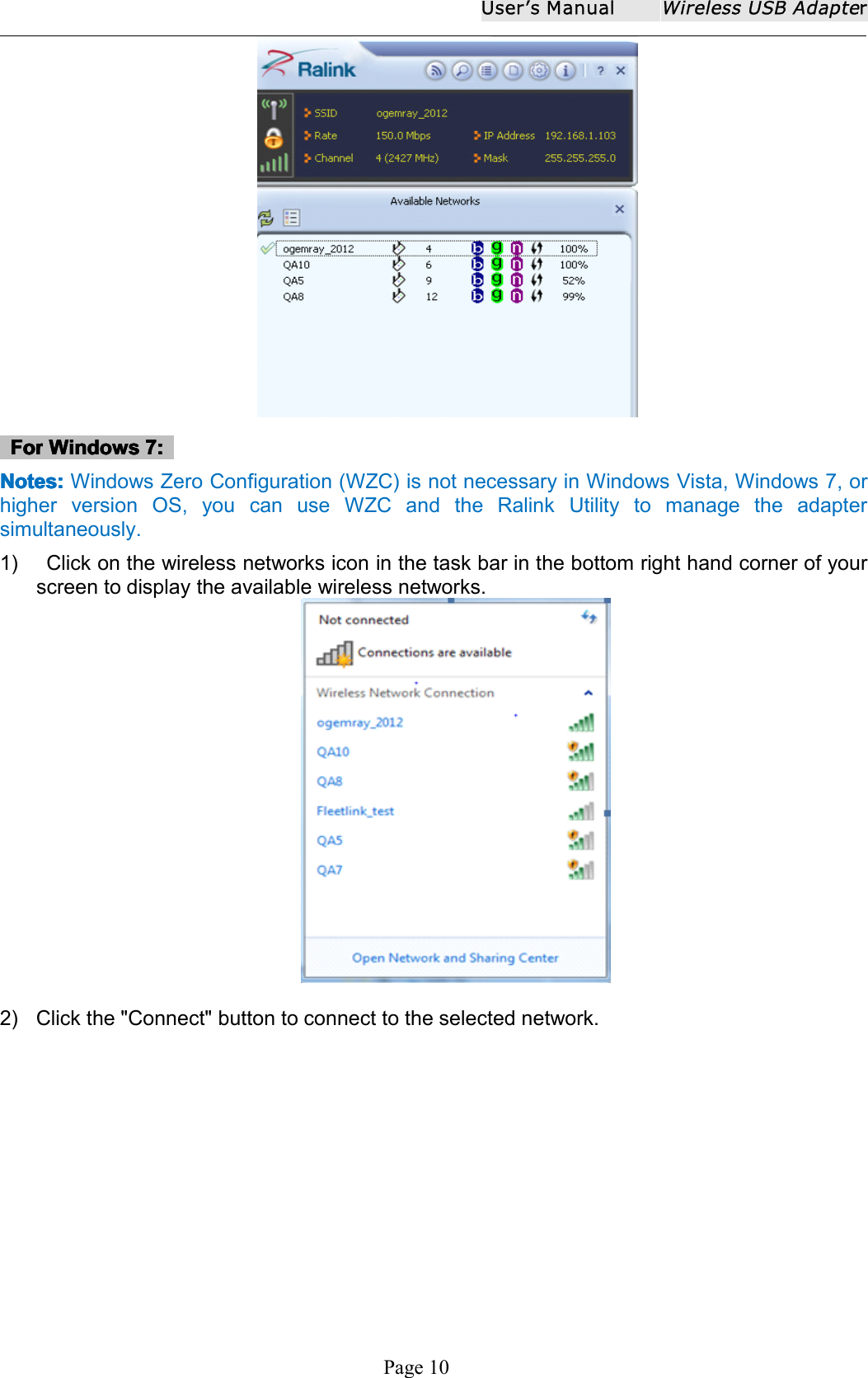
User ʼ s ManualWireless USB AdapterPage 9v. The Ralink Utility automatically detects and displays the security settings of the network towhich you are connecting in the Profile Settings screens.If the Utility shows that WPA-PSK orWPA2-PSK security is detected as shown below, click the right arrow to save your settings.vi. In the screen that displays, in the 'WPA Preshared Key' field, type a security key, the sameas that used by the AP or wireless router to which you are connecting. Click the right arrowto save your settings and connect to the network.vii. Once you are connected the Available Networks screen shows the status of yourconnection.
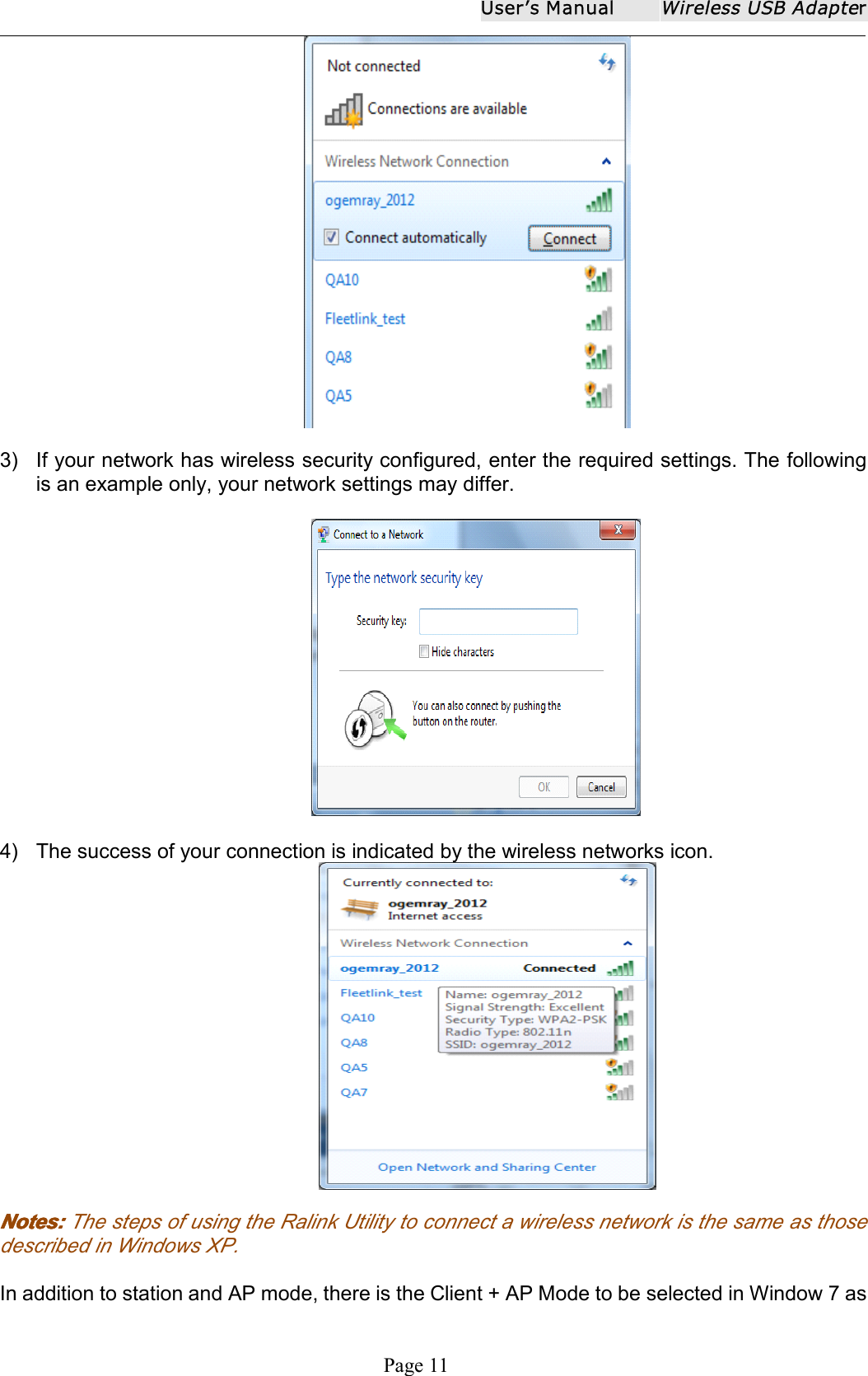
User ʼ s ManualWireless USB AdapterPage 10ForForForFor WindowsWindowsWindowsWindows 7:7:7:7:NoteNoteNoteNote ssss ::::Windows Zero Configuration (WZC) is not necessary in Windows Vista, Windows 7, orhigher version OS, you can use WZC and the Ralink Utility to manage the a daptersimultaneously .1) Click on the wireless networks icon in the task bar in the bottom right hand corner of yourscreen to display the available wireless networks.2) Click the "Connect" button to connect to the selected network.
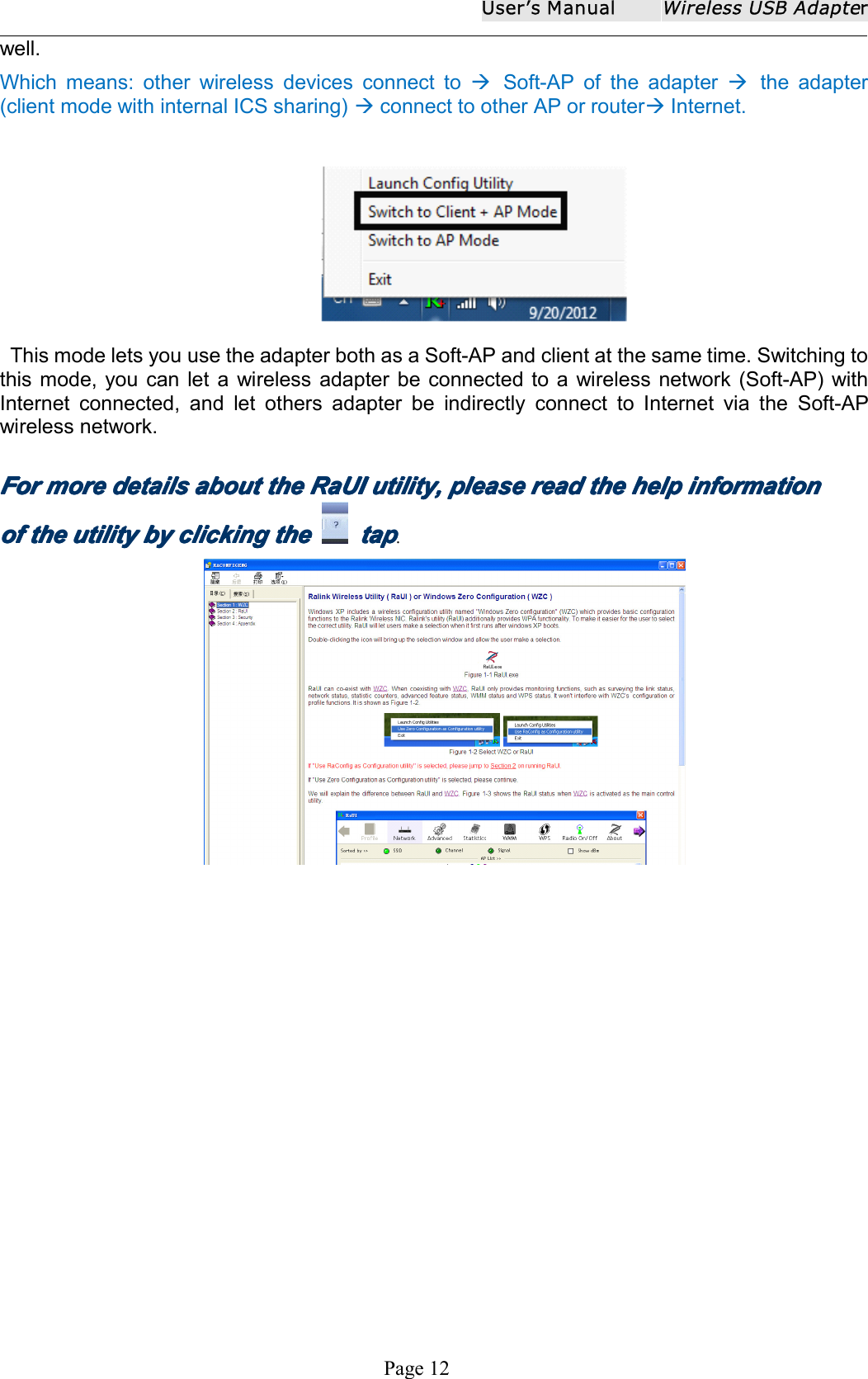
User ʼ s ManualWireless USB AdapterPage 113) If your network has wireless security configured, enter the required settings. The followingis an example only, your network settings may differ.4) The success of your connection is indicated by the wireless networks icon .Notes:Notes:Notes:Notes: The steps of using the Ralink Utility to connect a wireless network is the same as thosedescribed in Windows XP .In addition to station and AP mode, there is the Client + AP Mode to be selected in Window 7 as
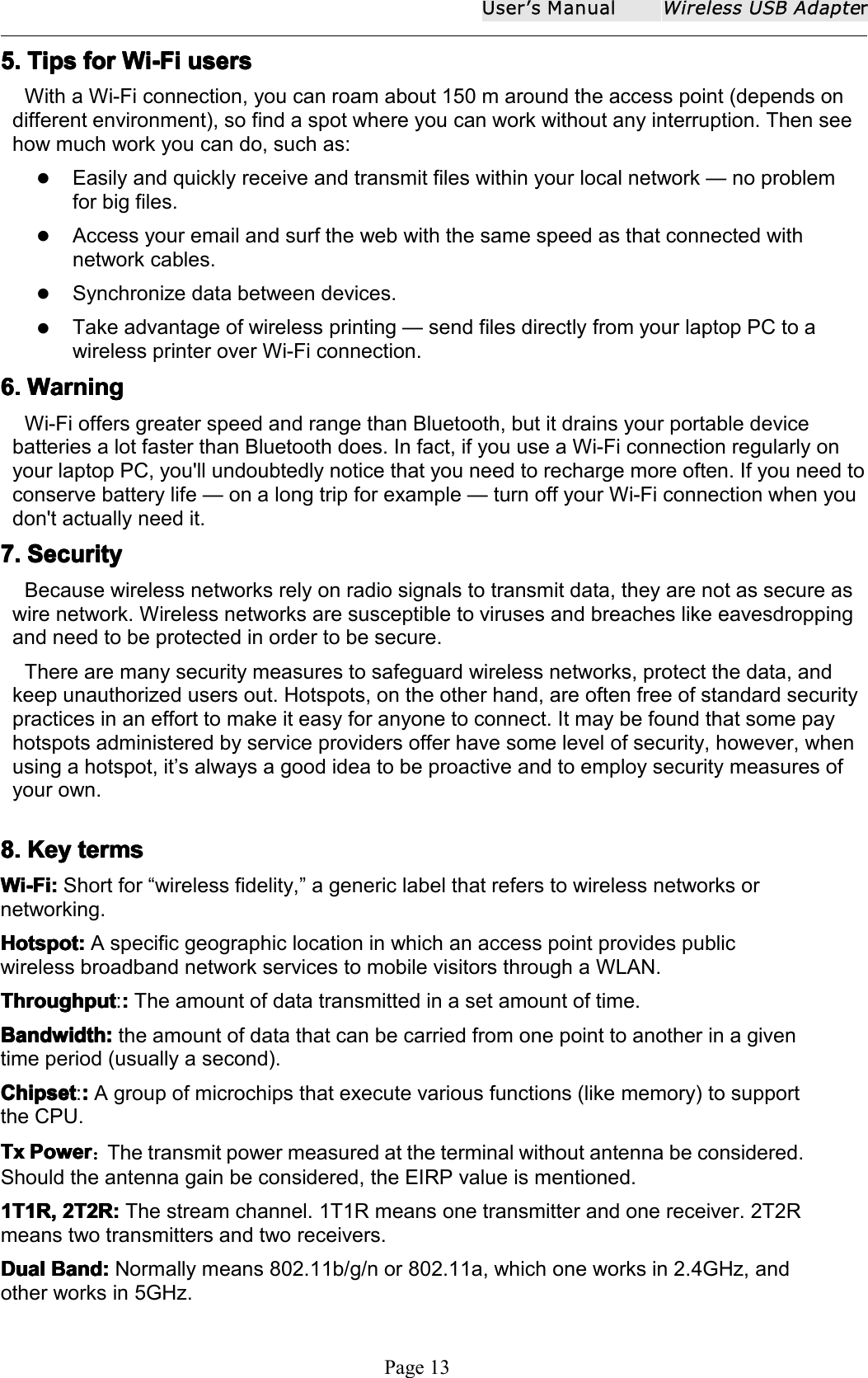
User ʼ s ManualWireless USB AdapterPage 12well.W hich means: other wireless devices connect to Soft-AP of the adapter the adapter(client mode with internal ICS sharing) connect to other AP or router Internet.This m ode lets you use the a dapter both as a Soft- AP and client at the same time . Switching tothis mode, you can let a wireless adapter be connected to a wireless network (Soft-AP) withInternet connected, and let others adapter be indirectly connect to Internet via the Soft-APwireless network.ForForForFor moremoremoremore detailsdetailsdetailsdetails aboutaboutaboutabout thethethethe RaUIRaUIRaUIRaUI utility,utility,utility,utility, pleasepleasepleaseplease readreadreadread thethethethe helphelphelphelp informationinformationinformationinformationofofofof thethethethe utilityutilityutilityutility bybybyby clickingclickingclickingclicking thethethethe taptaptaptap.
User ʼ s ManualWireless USB AdapterPage 135.5.5.5. TipsTipsTipsTips forforforfor Wi-FiWi-FiWi-FiWi-Fi usersusersusersusersWith a Wi-Fi connection, you can roam about 150 m around the access point (depends ondifferent environment), so find a spot where you can work without any interruption. Then seehow much work you can do, such as:Easily and quickly receive and transmit files within your local network — no problemfor big files.Access your email and surf the web with the same speed as that connected withnetwork cables.Synchronize data between devices.Take advantage of wireless printing — send files directly from your laptop PC to awireless printer over Wi-Fi connection.6.6.6.6. WarningWarningWarningWarningWi-Fi offers greater speed and range than Bluetooth, but it drains your portable devicebatteries a lot faster than Bluetooth does. In fact, if you use a Wi-Fi connection regularly onyour laptop PC, you'll undoubtedly notice that you need to recharge more often. If you need toconserve battery life — on a long trip for example — turn off your Wi-Fi connection when youdon't actually need it.7.7.7.7. SecuritySecuritySecuritySecurityBecause wireless networks rely on radio signals to transmit data, they are not as secure aswire network. Wireless networks are susceptible to viruses and breaches like eavesdroppingand need to be protected in order to be secure.There are many security measures to safeguard wireless networks, protect the data, andkeep unauthorized users out. Hotspots, on the other hand, are often free of standard securitypractices in an effort to make it easy for anyone to connect. It may be found that some payhotspots administered by service providers offer have some level of security, however, whenusing a hotspot, it ’ s always a good idea to be proactive and to employ security measures ofyour own.8.8.8.8. KeyKeyKeyKey termstermstermstermsWi-Fi:Wi-Fi:Wi-Fi:Wi-Fi: Short for “ wireless fidelity, ” a generic label that refers to wireless networks ornetworking.Hotspot:Hotspot:Hotspot:Hotspot: A specific geographic location in which an access point provides publicwireless broadband network services to mobile visitors through a WLAN.ThroughputThroughputThroughputThroughput :::::The amount of data transmitted in a set amount of time.BandwidthBandwidthBandwidthBandwidth ::::the amount of data that can be carried from one point to another in a giventime period (usually a second).ChipsetChipsetChipsetChipset :::::A group of microchips that execute various functions (like memory) to supportthe CPU.TxTxTxTx PowerPowerPowerPower :The transmit power measured at the terminal without antenna be considered.Should the antenna gain be considered, the EIRP value is mentioned.1T1R,1T1R,1T1R,1T1R, 2T2R:2T2R:2T2R:2T2R: The stream channel. 1T1R means one transmitter and one receiver. 2T2Rmeans two transmitters and two receivers.DualDualDualDual Band:Band:Band:Band: Normally means 802.11b/g/n or 802.11a, which one works in 2.4GHz, andother works in 5GHz.
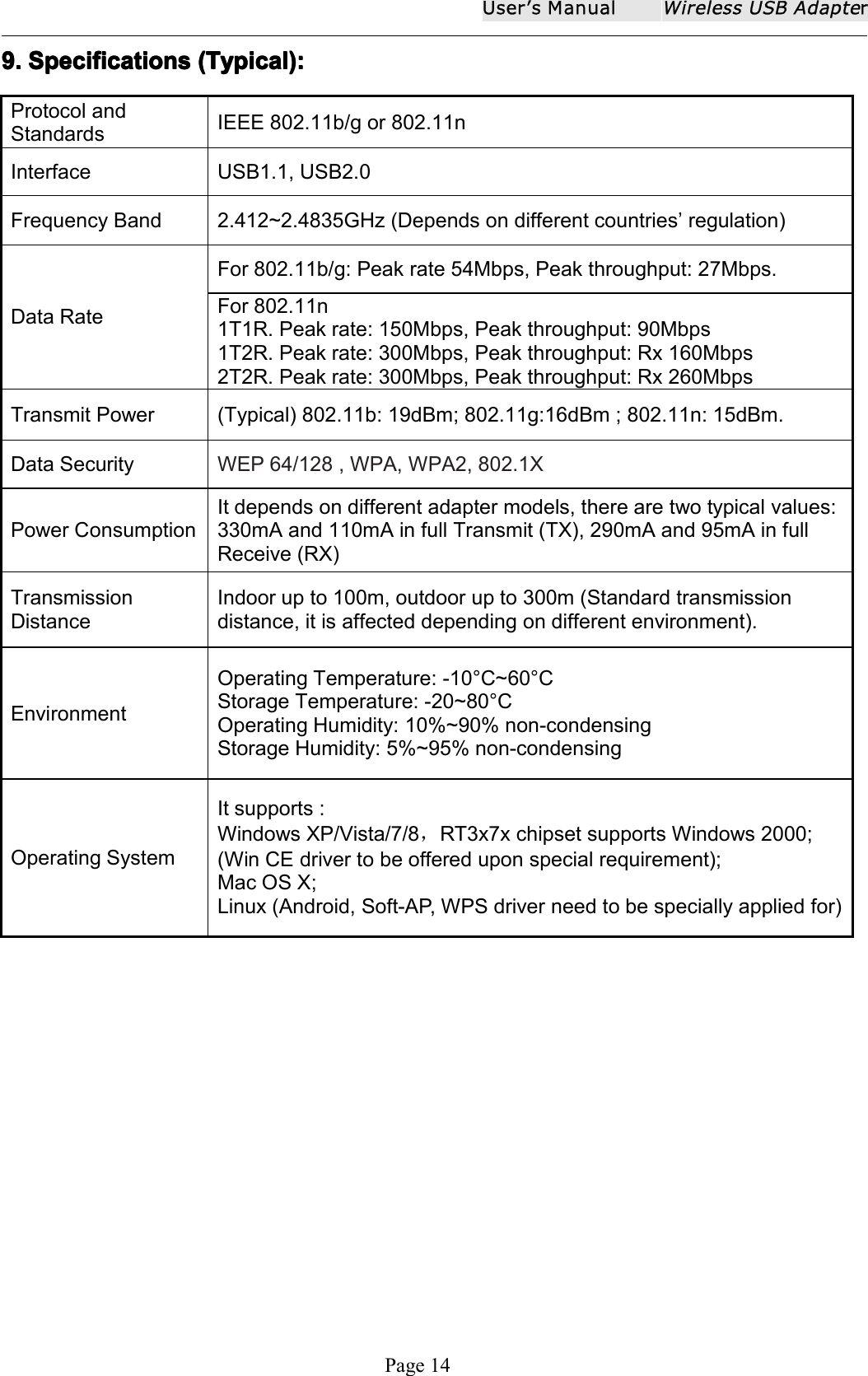
User ʼ s ManualWireless USB AdapterPage 149.9.9.9. SpecificationsSpecificationsSpecificationsSpecifications (Typical):(Typical):(Typical):(Typical):Protocol andStandardsIEEE 802.11b/g or 802.11nInterface USB1.1, USB2.0Frequency Band 2.4 12~2.4835 GHz (Depends on different countries ’ regulation)Data RateFor 802.11b/g: Peak rate 54Mbps, Peak throughput: 27Mbps.For 802.11n1T1R. Peak rate: 150Mbps, Peak throughput: 90Mbps1T2R. Peak rate: 300Mbps, Peak throughput: Rx 160Mbps2T2R. Peak rate: 300Mbps, Peak throughput: Rx 260MbpsT ransmit Power (Typical) 802.11b: 19dBm; 802.11g: 1 6 dBm ; 802.11n: 15dBm.Data Security WEP 64/128 , WPA, WPA2, 802.1XPower C onsumptionIt depends on different adapter models, there are two t ypical values:33 0mA and 110mA in full Transmit (TX), 2 9 0 mA and 95 mA in fullReceive (RX)TransmissionDistanceIndoor up to 100m, outdoor up to 300m (Standard transmissiondistance, it is affected depend ing on different environment).EnvironmentOperating Temperature: -10 ° C~ 60 ° CStorage Temperature: - 2 0~ 8 0 ° COperating Humidity: 10%~90% non-condensingStorage Humidity: 5%~95% non-condensingOperating SystemIt supports :Windows XP/Vista/7/ 8 ,RT3x7x chipset supports Windows 2000 ;(Win CE driver to be offered upon special require ment);Mac OS X ;Linux (Android, Soft-AP, WPS driver need to be specially applied for)

Navigation menu