POSH Mobile POSHA100 Mobile Phone User Manual DF5310 English 20110315

Posh Mobile Limited Mobile Phone DF5310 English 20110315

user manual

      POSH    LYNX    A100  User Manual  Before Using ............................................................................. 2 Phone Unlock .......................................................................... 2 SIM Unlock .............................................................................. 2 Function menu Introduction ................................................... 2 Phonebook ............................................................................... 2 Call history .............................................................................. 4 Settings .................................................................................... 4 Profile ..................................................................................... 8 Multimedia .............................................................................. 9 Oganizer ................................................................................ 12 File manager ......................................................................... 14 Fun&Games .......................................................................... 14   FCC ID: 2ABN6POSHA100
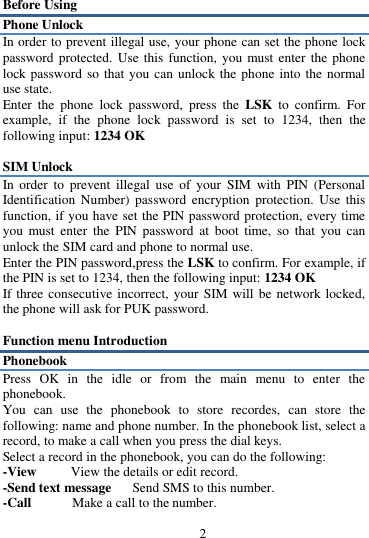
2 Before Using Phone Unlock In order to prevent illegal use, your phone can set the phone lock password protected. Use  this function,  you must enter  the phone lock password so  that you can unlock the phone into the  normal use state.   Enter  the  phone  lock  password,  press  the LSK to confirm.  For example,  if  the  phone  lock  password  is  set  to  1234,  then  the following input: 1234 OK    SIM Unlock In  order  to  prevent  illegal  use  of  your  SIM  with  PIN  (Personal Identification  Number)  password  encryption  protection.  Use  this function, if you have set the PIN password protection, every time you  must  enter  the  PIN  password  at  boot  time,  so  that  you  can unlock the SIM card and phone to normal use.   Enter the PIN password,press the LSK to confirm. For example, if the PIN is set to 1234, then the following input: 1234 OK   If three consecutive incorrect, your  SIM will be network locked, the phone will ask for PUK password.    Function menu Introduction Phonebook Press  OK  in  the  idle  or  from  the  main  menu  to  enter  the phonebook. You  can  use  the  phonebook  to  store  recordes,  can  store  the following: name and phone number. In the phonebook list, select a record, to make a call when you press the dial keys. Select a record in the phonebook, you can do the following:   -View        View the details or edit record.   -Send text message   Send SMS to this number.   -Call            Make a call to the number.
 3 -Edit            Can edit and save record.   -Delete        Delete the record.   -Copy       Copy the current record to Phone/SIM.   -Send business card As text message: Send phonebook via SMS. Select this item to go on  to  the  receiver's  number  Editing  Interface.  The  interface  can directly  enter  a  phone  number,  but  also  access  to  all  of  the multiple-choice  card  interface.  You  can  simultaneously  select multiple recipients to send. Via Bluetooth: Send phonebook via B-tooth. First of all you want to add the device to receive the card, displayed all the equipment, select a matching, please enter the B-tooth adapter code, enter the correct code and directly send the card to each other. -Add to Blacklist   Add the current record to the blacklight. -Mark  several    Mark  several  or  all  records  can  send  text message or delete     -Groups    You  can  add  Group  including  ‟SIM1‟,  „SIM2‟, „Family‟, „Friend‟, „Coworker‟, „Classmate‟, Options a group can display  the  group  all  contacts,  this  list  interface,  selection [ options ] operational items are the bulk of information and edit group   Phonbook settings   -Preferred storage      can be in the SIM1, SIM2, Phone and All to  switch,  and  phonebook  list  will  change  accordingly,  such  as select SIM1, the phonebook list will only show SIM1 records .   -Speed  dial   according  to  the  number  keys  2-9  to  call  the telephone number. -Extre numbers      can be set SIM fixed dial numbers.   -Memory status      View the usage and free Phonebook capacity information. -Copy contacts    If select  SIM to phone, the SIM card records of all telephone numbers copied to the phone -Move contacts      You can select the SIM records of all mobile phone numbers move to the phone, also you can switch the option to operate.
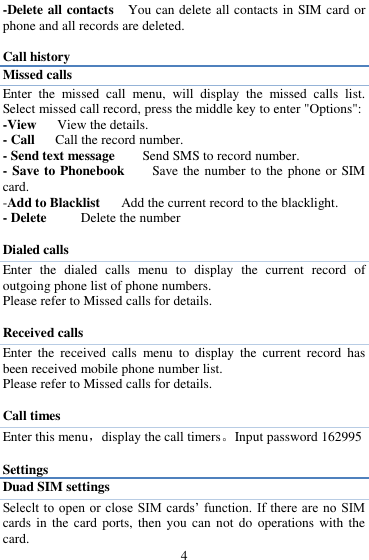
 4 -Delete all contacts  You can delete all contacts in SIM card or phone and all records are deleted.  Call history Missed calls Enter  the  missed  call  menu,  will  display  the  missed  calls  list. Select missed call record, press the middle key to enter "Options":   -View   View the details. - Call    Call the record number.   - Send text message      Send SMS to record number.   - Save to Phonebook        Save the number to the phone or SIM card.   -Add to Blacklist   Add the current record to the blacklight. - Delete      Delete the number    Dialed calls Enter  the  dialed  calls  menu  to  display  the  current  record  of outgoing phone list of phone numbers.     Please refer to Missed calls for details.  Received calls Enter  the  received  calls  menu  to  display  the  current  record  has been received mobile phone number list. Please refer to Missed calls for details.  Call times Enter this menu,display the call timers。Input password 162995  Settings Duad SIM settings Seleclt to  open or close  SIM  cards‟ function. If there are no SIM cards in  the  card ports, then  you  can not do operations with  the card.
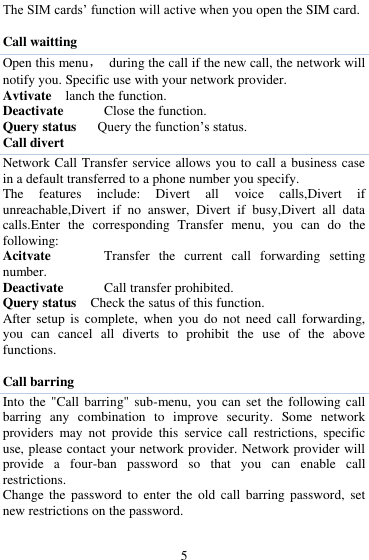
 5 The SIM cards‟ function will active when you open the SIM card.  Call waitting Open this menu,  during the call if the new call, the network will notify you. Specific use with your network provider. Avtivate  lanch the function. Deactivate   Close the function. Query status   Query the function‟s status. Call divert Network Call Transfer service allows you to call a business case in a default transferred to a phone number you specify.   The  features  include:  Divert  all  voice  calls,Divert  if unreachable,Divert  if  no  answer,  Divert  if  busy,Divert  all  data calls.Enter  the  corresponding  Transfer  menu,  you  can  do  the following: Acitvate      Transfer  the  current  call  forwarding  setting number. Deactivate   Call transfer prohibited. Query status    Check the satus of this function. After setup  is  complete,  when  you  do  not  need  call  forwarding, you  can  cancel  all  diverts  to  prohibit  the  use  of  the  above functions.  Call barring Into the  "Call barring" sub-menu, you can  set  the following call barring  any  combination  to  improve  security.  Some  network providers  may  not  provide  this  service  call  restrictions,  specific use, please contact your network provider. Network provider will provide  a  four-ban  password  so  that  you  can  enable  call restrictions. Change the  password  to  enter  the  old  call  barring password,  set new restrictions on the password.
 6 Advanced settings Blacklist: Reject number in blacklist can on\off this function Blacklist  numbers      can  input  numbers  and  add  numbers  from phonebook and call history Auto redial: Through on / off settings, to activate or disable the feature.Turned on  and  when  your  phone  call  after  another  failed  attempt  to connect  up  to  redial  10  times.  This  feature  can  save  you  the trouble of repeated calls. Auto call record    In the process of calls, can the recording  Phone settings Into  the  phone  settings  sub-menu,  you  can  make  the  following settings:    Time and Date   In this menu, you can move the phone time and date settings. The menu consists of three sub-menu:   Set  home  city:    The  city  a  total  of  78  international  cities  by selecting different cities, change the mobile phone area.   Set  time/date:    Set  time  and  date  are  set  according  to  the established  format  and  on  /  off  daylight  saving  function.  Phone allows you to set a calendar from 2000 to 2030 between the dates. If daylight saving is set to open, then the phone time to add in the original time of one hour or one hour later.   Set format: Set time and data‟s form  Display Wallpaper:    Wallpaper  set  in  two  ways:  First,  through  the navigation system comes with the wallpaper and select; the second is  user  defined,  by  browsing  the  [File  manager]  photos  folder identified as a wallpaper.
 7 Show  date  and  time:   Display  date  and  time  to  do  On  /  Off settings, to determine whether the date and time displayed on the idle screen.  Dedicate key Set up,down ,left and right key for any functions    of you want  Audo update time can be set to automatically update time.  Flight mode Turn On/Off the Normal or Flight mode. If you select Flight mode, SIM cards‟ function will not active.  Network settings Network selection Select Network:  Search Network, you can choose from a list of networks you need to network.   Selection  mode:  Press  the  left  soft  key  to  select  automatic  or manual mode. Automatic, mobile phone SIM card information is automatically  selected  according  to  service  provider;  manually, choose manually select the network services, mobile phone search to get  the current  list  of service  providers  for users  to  select the service provider SIM card type.   Security settings Into the "Security Settings" menu, you can set the phone's security options, mobile phone or SIM card to avoid unauthorized use.  SIM security settings PIN lock SIM card PIN password to lock the completion of your SIM card to prevent unauthorized use.
 8 If  the  current  SIM  card  lock  is  closed,  select Open  to  open  the SIM card, enter the PIN lock password, the next boot requires that you enter the correct PIN password to enter;   If the current SIM card lock is On, select Off to close the PIN lock protection.   Change  PIN:  If  the  current  PIN  password  lock  has  been activated, you can re-set on the PIN password   Change PIN2:    PIN2 old to enter the correct password, you can set on the PIN2 password. Phone security Phone lock: Phone  lock  password  can  prevent  your  mobile  phone  stolen  by others.   Select  On  to  open  phone  lock  password  to  enter  the  correct password-protected  phone  lock  open,  the  next  boot  requires  that you enter the correct password to enter the phone lock.   Change password: Change the phone password, enter the old password and then enter a new password. Phone default password is 1234.  Anti-theft tracking Restore factory settings In this  menu,  enter  the  phone  lock  passworde,  once  determined, the  phone  automatically  reboot  the  phone  after  the  relevant parameters can be set to return to the case of mobile phone factory. The default password is 1234.  Profile Profile including General、Silent、Meeting, Outdoor. First, based on the current scene, select a different profile, then you only need a personal profile can be set and activated.   General:   General environment.   Silent:        For Silent environment.
 9 Meeting:    For  meeting  the  environment,  to  be  pre-set  (for example: ring mode can be set to vibration).   Outdoor:    For  outdoor  activities,  need  to  pre-set  (for  example, ring volume can be set to a higher state).   Press the left soft key "Options":   Activate:    Enable the selected profile.   Customized settings   Alert type:    Can choose to Ring only, Vib. only, Vib. and ring, Vib. Then ring as the current method.   Ring type:  You can choose repeat and beep once two type Ringtone      According to their own preferences set ringtones 1-5, can also be set from the memory card custom ringtones Ringtone  volume      In  the  volume  control  interface,  you  can volume up and down navigation keys on the set. Volume level is divided into seven, 1-7, followed by increases. Message      According to their own preferences set ringtones 1-5. Message  volume      In  the  volume  control  interface,  you  can volume up and down navigation keys on the set. Volume level is divided into seven, 1-7, followed by increases. Keypad        you can set keypad as silent、click and tone Keypad  volume   In  the  volume  control  interface,  you  can volume up and down navigation keys on the set. Volume level is divided into seven, 1-7, followed by increases. System alert      can on\off system alert  Shortcuts Shortcuts interface,press LSK key into option,it display add、edit、delete、delete all and change order.    Multimedia Camera The phone includes high-definition camera, you can take pictures anytime,  anywhere,  and  to  save  the  photos  to  your  phone  or
 10 memory card . State in the preview, press the LSK to enter "Options" you can do this to conduct a more detailed set of parameters. Switch to video record:Into video record menu. Photos:    Photo album shows the current list of files.   Camera  settings:    Including  Shutter sound,EV,Contrast,Anti-flicker,  Delay  timer  setting  operation contents of the regulation. Been adjusted, press the LSK "OK" to save the current settings.   Image  settings:    Include  the  Image  size  and  image  quality regulation. White balance:    Set the white balance state.   Scene mode:    Including Auto and Night scene mode .   Effect  settings:  You  can  set  the  effects  to normal,grayscale,sepia,sepia green,sepia blue,and color invert. Storage:  storage location can be set as Phone, Memory card, the captured image will be saved to the specified location.   Restore default:    Set all parameters to default settings.  Image viewer Select  an  album  sub-menu,  you  can  easily  view  stored  in  the camera album picture list, and press the LSK to enter to "Options" to choose  the pictures  to do  the View,  Image information,  Send, Use  as,  Rename,  Delete,  Sort  by,  Delete  all  files  and  change Storage operations. View pictures, by clicking on the left and right navigation buttons to switch pictures.    Video recorder Switch tocamera:  To switch from the camera and the camera Camcorder  settings:   Recorder  settings  includingAnti-flicker setting.   Video settings :    Including video quality. .   Storage:    Storage location can be set as Phone and Memory card, shooting the video will be saved to the specified location.
 11  Video player Choose  video  player  sub-menu,  you  can  easily  view  the  saved video player in the video list, press the LSK to enter "Options" to select the video files to do the play, send,rename, delete and short by operation.   Send the video via Bluetooth if you want.    Audio player In the Audio player interface, you can press left and right keys to switch the music; press * and # keys to adjust the play volume.   In the Audio player interface, press the left soft key to enter "list" menu and enter the current playlist to play in the option list can be any of a music file to play.   Select a music file to enter the settings option, you can top of the screen prompts the items content specific settings of each item:   Pre.playlist:    Can  select  the  preferred  list,  Phone  or  Memory card. If you choose a memory card, then show the all music files in memory. List auto gen.:    To switch to this setting. When this feature is set On, you can perform the "Refresh Playlist" operation.   Repeat:  Can be set to Off (no repeat), One, All.   Shuffle:  Random  order  of  play  set,  respectively,  can  be  set  to On and Off.   Background play:  Set the background play On,  you can make mobile phone in other user interface and also play music.  Set as Off, the music will not play when out of the Audio player.  Sound recorder In the sound  recorder  interface  click “option”, it shows the items of record. New record      Start to new record. If you click stop , it will pop up a dialog box to prompt you save it or not. If you click pause, it
 12 will  suspend  recording,  and  then  click  continue,  it  can  record again. List    It displays  the  sound  that  you recorded  and  saved  in the memory card. Settings   You  can  set  the  storage  and  audio  quality  of  the record.  FM radio FM interface, press the down navigation key to turn on / off FM play, press the UP navigation key to automatic search , press *and # keys to adjust the FM playing volume.   Press the left soft key "Options" can show FM options menu, the content were:   Channel list:    Shows FM channel list.   Manual input:  Can be  their own editors  to manually enter the channel frequency, the effective value of 87.5 ~ 108.0   Auto search:  Auto search FM channels in the channel list.   Settings:    Can on/off the background play and loudspeaker. Record: record the program you are listening to and save it in the recording list automatically File list: play recorded audio files  Oganizer Torch   Into to torch on/off menu,can on\off torch  Calculator Your phone provides you with the basic arithmetic operations can be a function of the calculator, easy simple operation.   Press the left soft key "Clear" or stylus to click on the "Clear" can be cleared. Press the right softkey "Back" to exit the calculator. Note:  This  calculator  has  limited  accuracy  and  rounding errors will be generated, especially in addition to endless time.
 13 When the  calculation  of  range,  the  display  area  will  use  the letter "E" to represent.  Bluetooth   Power:  Activate Bluetooth on or off the Bluetooth function.   Visibility:    If set as On, other devices can search this Bluetooth device; if set as Off, other devices can not  search this  Bluetooth device.   My device:    Can search for nearby Bluetooth devices.   Search  audio  device:    Free  devices  to  search  for  near-free decoration, such as Bluetooth headsets.   My name:    The Bluetooth device name can be modified.  Calendar Enter calendar sub-menu, the screen will show a calendar month, and other background box with the current date marked.Press the up,  down,  left,  and  right  navigation  keys  to  change  the  date, calendar information on the screen will be updated accordingly.    Tasks You  can  view,  add,edit,delete,delete  overdue,delete  all,jump  to date,view uncompleted tasks.  Alarm Five alarm can be set up (turned off the alarm is still valid.)   Select and edit an alarm clock: Can edit the setting of alarm on / off, Time, Repeat and Alert type. You can choose to set to repeat: Once, Everyday, Custom  World clock In  the  world  clock  interface,  users  click  right  or  left  button  can change  region  and  time.  Click  “option”,  you  can  set  on  or  off
 14 daylight  saving  time  for  foreign  city  or  not.  If  select  on,  the present time increase one hour. Otherwise, it displays local time.  File manager Into  the  File  manager  menu,  the  menu  display  Phone  and Memory card.   Root directory, select "Phone", press the LSK to enter "Options" can be as follows:   - Open       Open the root directory lists the directories and files.   - Format      Format the memory card, this action will remove all current           flash memory data. Root  directory,  select  “Memory Card”, press  the  LSK to enter "Options" can be as follows:   -Open        Open the root directory lists the directories and files.   -Format      Format the memory card, this  action will remove all current                flash memory data. -Details    for  more  information  you  can  view,  such  as  Name, Total size, free size. You  can  play  the  music  or  video  files,  view  Photo, copy/move/delete files, remame files and so on. You can send the file through Bluetooth. STK      STK      Display Operators‟s information.  Fun&Games Games   Into this menu display snake and game setting.
 FCC RF EXPOSURE INFORMATION: WARNING!! Read this information before using your phone In August 1986 the Federal Communications Commission (FCC) of the United States with its action in Report and Outer FCC 96-326 adopted an updated safety standard for human exposure to radio frequency (RF) electromagnetic energy emitted by FCC regulated transmitters. Those guidelines are consistent with the safety standard previously set by both U.S. and international standards bodies. The design of this phone complies with the FCC guidelines and these international standards. Use only the supplied or an approved antenna. Unauthorized antennas modifications, or attachments could impair call quality, damage the phone, or result in violation of FCC regulations. Do not use the phone with a damaged antenna. If a damaged antenna comes into contact with the skin, a minor burn may result. Please contact your local dealer for replacement antenna.  BODY-WORN OPERATION: This device was tested for typical body-worn operations with the back of the phone kept 0.5cm from the body. To comply with FCC RF exposure requirements, a minimum separation distance of 0.5cm must be maintained between the user's body and the back of the phone, including the antenna, whether extended or retracted. Third-party belt-clips, holsters and similar accessories containing metallic components shall not be used. Body-worn accessories that cannot maintain 0.5cm separation distance between the user’s body and the back of the phone, and have not been tested for typical body-worn operations may not comply with FCC RF exposure limits and should be avoided. For more information about RF exposure, please visit the FCC website at www.fcc.gov  Your wireless handheld portable telephone is a low power radio transmitter and receiver. When it is ON, it receives and also sends out radio frequency (RF) signals. In August, 1996, the Federal Communications Commissions (FCC) adopted RF exposure guidelines with safety levels for hand-held wireless phones. Those guidelines are consistent with the safety standards previously set by both U.S. and international standards bodies:  <ANSIC95.1> (1992) / <NCRP Report 86> (1986) / <ICIMIRP> (1996)  Those standards were based on comprehensive and periodic evaluations of the relevant scientific literature. For example, over 120 scientists, engineers, and physicians from universities, government health agencies, and industry reviewed the available body of research to develop the ANSI Standard (C95.1). Nevertheless, we recommend that you use a hands-free kit with your phone (such as an earpiece or headset) to avoid potential exposure to RF energy. The design of your phone complies with the FCC guidelines (and those standards).  Use only the supplied or an approved replacement antenna. Unauthorized antennas, modifications, or attachments could damage the phone and may violate FCC regulations.   NORMAL POSITION:  Hold the phone as you would any other telephone with the antenna pointed up and over your shoulder.  TIPS ON EFFICIENT OPERATION:  For your phone to operate most efficiently: • Extend your antenna fully. • Do not touch the antenna unnecessarily when the phone is in use. Contact with the antenna affects call quality and may cause the phone to operate at a higher power level than otherwise needed.  RF Exposure Information: This product is compliance to FCC RF Exposure requirements and refer to FCC website search for FCC ID: 2ABN6POSHA100  to gain further information include SAR Values.    This device complies with part 15 of the FCC rules. Operation is subject to the following two conditions: (1) this device may not cause harmful interference, and
 (2) this device must accept any interference received, including interference that may cause undesired operation.   NOTE:  The  manufacturer  is  not  responsible  for  any  radio  or  TV  interference  caused  by unauthorized  modifications  to  this  equipment.  Such  modifications  could  void  the  user’s authority to operate the equipment. NOTE: This equipment has been tested and found to comply with the limits for a Class B digital device, pursuant to part 15 of the FCC Rules. These limits are designed to provide reasonable protection against harmful interference in a residential installation. This equipment generates uses and can radiate radio frequency energy and, if not installed and used in accordance with the instructions, may cause harmful interference to radio communications. However, there is no guarantee that interference will not occur in a particular installation. If this equipment does cause harmful interference to radio or television reception, which can be determined by turning the equipment off and on, the user is encouraged to try to correct the interference by one or more of the following measures:   - Reorient or relocate the receiving antenna. - Increase the separation between the equipment and receiver. -Connect the equipment into an outlet on a circuit different from that to which the receiver is connected. -Consult the dealer or an experienced radio/TV technician for help      Do not use the device with the environment which below minimum -10℃ or over maximum 50℃, the device may not work.        Changes or modifications to this unit not expressly approved by the party responsible for compliance could void the user’s authority to operate the equipment.

Navigation menu