POWER ONE ITALY DESK Radio equipment for inverter check User Manual Aurora Desktop ver 1 1 EN

POWER-ONE ITALY SPA Radio equipment for inverter check Aurora Desktop ver 1 1 EN

PVI-DESKTOP-US UserMan

  PVI-DESKTOP Remote controller      INSTALLATION AND OPERATOR'S MANUAL     Note:  This  document  contains  information  that  is  the  property  of  Power-One, Inc. Reproduction, even partial, or transfer to third parties of the contents of this document without the written consent of Power-One is strictly forbidden.    Model number: PVI-DESKTOP-yy-xx   Rev. 1.1
Installation and Operator's Manual (PVI-DESKTOP-yy-xx  Rev: 1.1)     TABLE OF REVISIONS  Document Revision  Date  Description of changes 1.0  21/07/2009  First issue 1.1  29/12/2009  First revision    KEEP THESE INSTRUCTIONS!
Installation and Operator's Manual (PVI-DESKTOP-yy-xx  Rev: 1.1)    INSTRUCTIONS FOR READING THE MANUAL  This manual contains important instructions for safety and operation which must be understood  and  carefully  followed  during  installation  and  maintenance  of  the equipment.  In order to reduce the risk of damage and to be sure that the equipment is correctly installed  and  ready  to  operate,  special  safety  symbols  are  used  in  the  manual  to highlight potential security risks or useful information. The symbols are as follows:   WARNING:  Paragraphs  marked  with  this  symbol  contain  actions  and instructions which must be fully understood and followed in order to avoid potential damage to the device or to persons.  NOTE: Paragraphs marked with this symbol contain actions and instructions which must be fully understood and followed in order to avoid malfunction.   FCC NOTICE  The  device  complies  with  part  15  of  the  FCC  rules.  Operation  is  subjected  to  the following 2 conditions: (1) this device may not cause harmful interference and (2) this device  must  accept  any interference  received,  including interference  that may cause undesired operation  FCC ID: X6W-DESK
Installation and Operator's Manual (PVI-DESKTOP-yy-xx  Rev: 1.1)    CONTENTS 1 INTRODUCTION.........................................................................6 1.1 AURORA INVERTERS.............................................................................6 1.2 PVI-DESKTOP...........................................................................................6 1.3 AVAILABLE MODELS ............................................................................7 2 DESCRIPTION OF THE PVI-DESKTOP.................................9 2.1 DESCRIPTION OF THE DEVICE.............................................................9 2.2 TECHNICAL CHARACTERISTICS.......................................................12 2.3 PACKAGING CONTENTS .....................................................................13 3 GETTING STARTED.................................................................15 3.1 FIRST RECHARGE OF THE BATTERY................................................15 3.2 SELECTION OF INSTALLATION LOCATION....................................15 3.2.1 Wall mounting .......................................................................................16 3.2.2 Installation on desk................................................................................17 3.2.3 Tips on the selection of installation location.........................................17 3.2.4 Radio communication test .....................................................................18 3.3 OTHER PRELIMINARY OPERATIONS................................................18 4 SYSTEM INSTALLATION.......................................................20 5 DESCRIPTION OF THE MENU..............................................22 5.1 DEFAULT SCREEN ................................................................................22 5.2 MENU.......................................................................................................23 6 PVI-DESKTOP CONNECTIONS AND INTERFACES.........24 6.1 POWER SUPPLY CONNECTOR............................................................24 6.2 USB CONNECTOR .................................................................................25 6.3 RS485 CONNECTOR ..............................................................................25 6.4 SD CARD SLOT.......................................................................................26 6.5 RESET BUTTON .....................................................................................27 6.6 STATUS LED...........................................................................................28 6.7 BLUETOOTH® (OPTIONAL) .................................................................28 6.8 TOUCH SCREEN.....................................................................................28 7 SYSTEM OPERATION .............................................................30
Installation and Operator's Manual (PVI-DESKTOP-yy-xx  Rev: 1.1)    8 FIRMWARE UPDATE...............................................................31 9 TROUBLESHOOTING GUIDE................................................32
Installation and Operator's Manual (PVI-DESKTOP-yy-xx  Rev: 1.1)    1 INTRODUCTION This document contains the technical description of the PVI-DESKTOP. The user will find all the information needed for configuration and for the proper operation and use of the device.  1.1 AURORA INVERTERS The  inverters  for  the  Aurora  range photovoltaic  and  wind  plants are  equipped  with internal software that allows several parameters to be monitored for both the operation of  the  plant  and  the  inverter  itself  and  for  the  production  of  measured  energy.  The inverters are also provided with a display (liquid crystal or monochrome) capable of showing sensitive data simply by using the built-in keypad. Often,  due  to  the  limited  accessibility  of  the  system,  remote  display  of  all  data recorded  by  the  inverter  is  necessary  so  as  to  have  full  control  of  the  conversion device's functions and, at the same, to check the actual energy production.  1.2 PVI-DESKTOP The  PVI-DESKTOP  can  fulfil  the  tasks  of  monitoring  and  remotely  displaying important  parameters.  The  PVI-DESKTOP  is  a  device  which  can  communicate remotely with the inverters in different ways, present the information of interest to the user on a large TFT display, process and store a wealth of information covering the whole life of the photovoltaic or wind system. As well as all this, the PVI-DESKTOP can also communicate with other devices (e.g. normal home PCs) via a USB port and, optionally, via Bluetooth®; this type of communication is possible by using dedicated software for monitoring the Aurora inverters through a connection with a PC, Aurora Communicator, which is always included in the inverter package CD and upgradeable from the web site http:\\www.power-one.com\.  The  PVI-DESKTOP  thus  allows  you  to  replace  or  supplement  the  display  of  data carried out remotely via the cable between the inverter RS485 port and an input port on a normal home PC (and which still requires the software mentioned above). The main advantage of using a PVI-DESKTOP lies in the possibility of setting up wireless communication  and  the  absence  of  wired  communication.  Moreover  the  large  TFT touch screen display allows the data acquired by the system to be easily and intuitively displayed and processed. This way the use of an external PC is not strictly necessary.
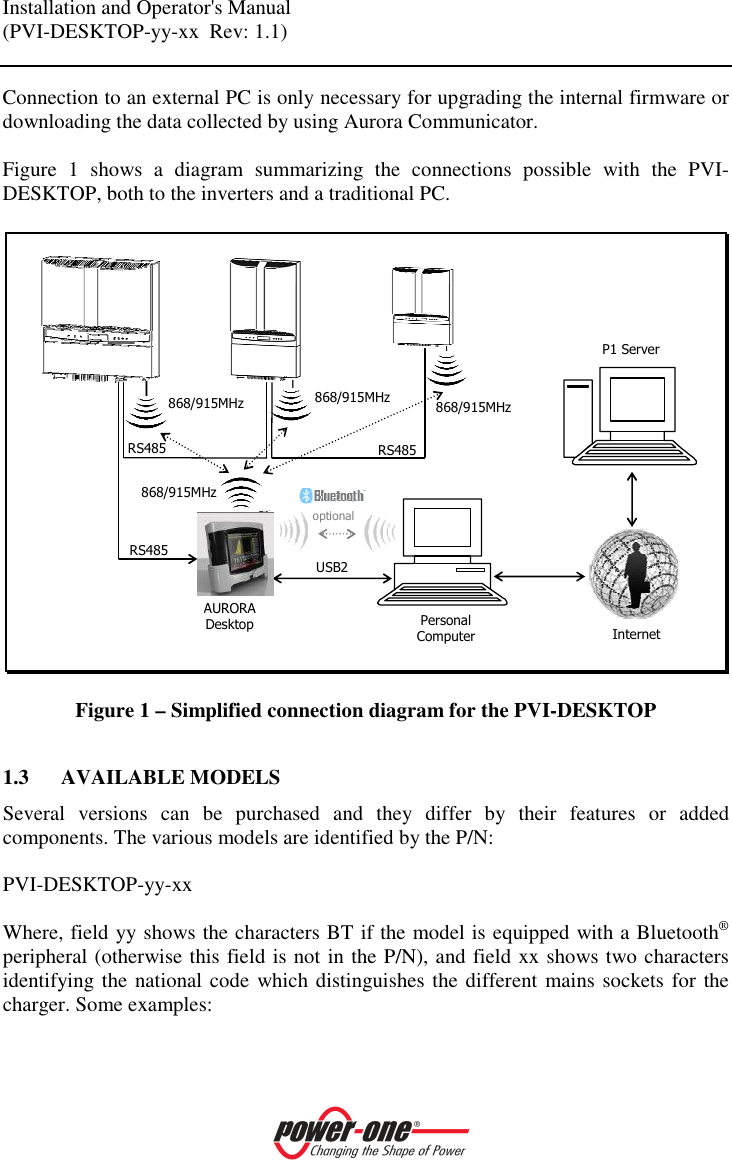
Installation and Operator's Manual (PVI-DESKTOP-yy-xx  Rev: 1.1)    Connection to an external PC is only necessary for upgrading the internal firmware or downloading the data collected by using Aurora Communicator.  Figure  1  shows  a  diagram  summarizing  the  connections  possible  with  the  PVI-DESKTOP, both to the inverters and a traditional PC.  AURORA Desktop Personal Computer USB2  868/915MHz optional 868/915MHz 868/915MHz 868/915MHz Internet RS485  RS485  RS485  P1 Server  Figure 1 – Simplified connection diagram for the PVI-DESKTOP  1.3 AVAILABLE MODELS   Several  versions  can  be  purchased  and  they  differ  by  their  features  or  added components. The various models are identified by the P/N:  PVI-DESKTOP-yy-xx  Where, field yy shows the characters BT if the model is equipped with a Bluetooth® peripheral (otherwise this field is not in the P/N), and field xx shows two characters identifying the national code  which distinguishes the different mains sockets for the charger. Some examples:
Installation and Operator's Manual (PVI-DESKTOP-yy-xx  Rev: 1.1)    PVI-DESKTOP-IT  model without Bluetooth® peripheral and power supply/battery charger with Italian mains socket PVI-DESKTOP-BT-UK   model  with  Bluetooth®  peripheral  and  power supply/battery charger with English mains socket
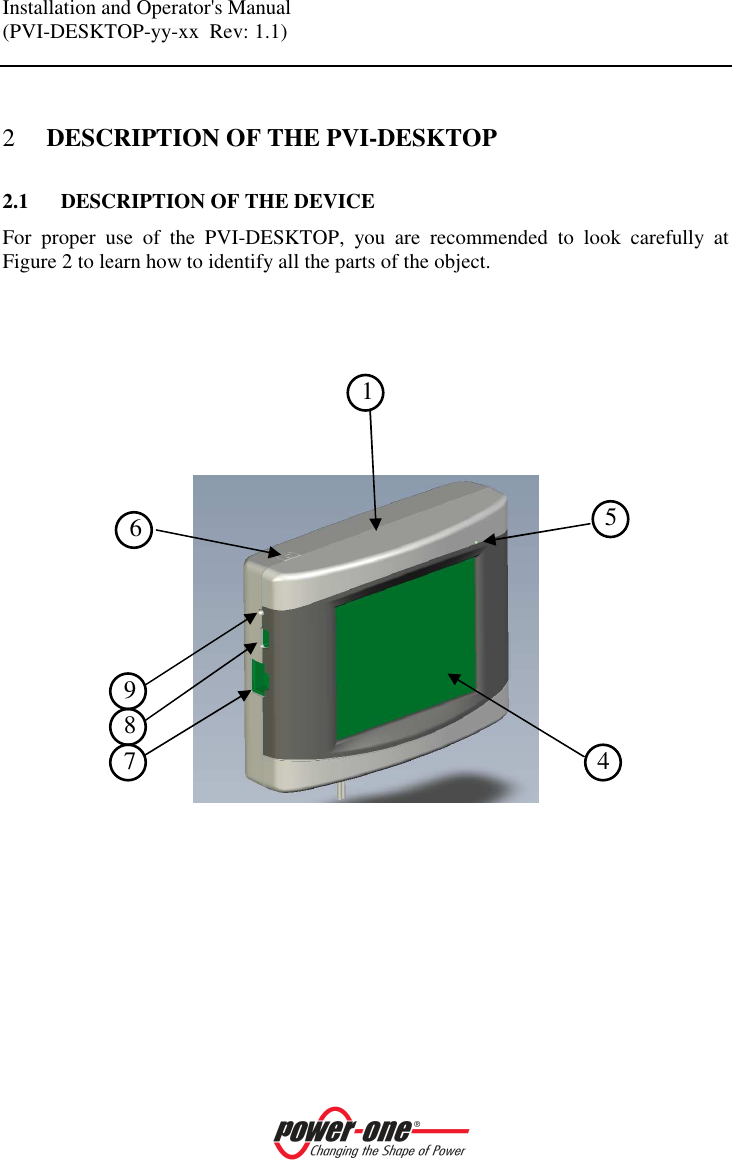
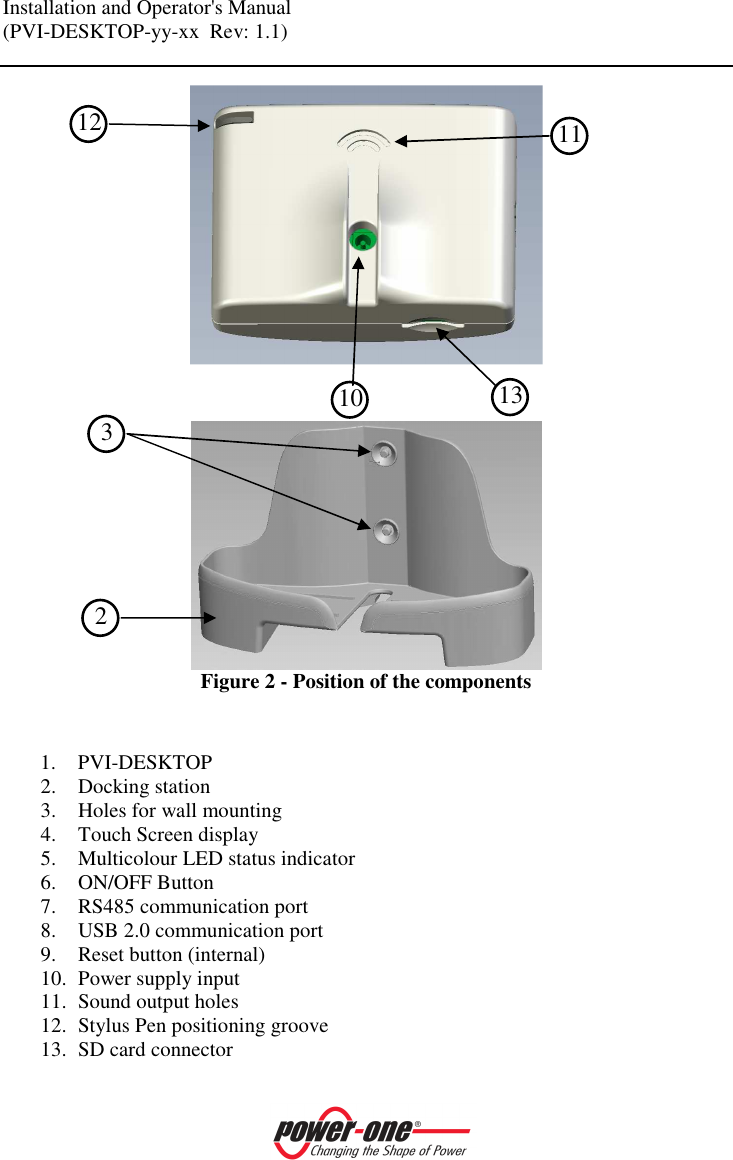
Installation and Operator's Manual (PVI-DESKTOP-yy-xx  Rev: 1.1)    2 DESCRIPTION OF THE PVI-DESKTOP 2.1 DESCRIPTION OF THE DEVICE For  proper  use  of  the  PVI-DESKTOP,  you  are  recommended  to  look  carefully  at Figure 2 to learn how to identify all the parts of the object.          1 4 5 6 7 8 9
Installation and Operator's Manual (PVI-DESKTOP-yy-xx  Rev: 1.1)        Figure 2 - Position of the components   1. PVI-DESKTOP 2. Docking station 3. Holes for wall mounting 4. Touch Screen display 5. Multicolour LED status indicator 6. ON/OFF Button 7. RS485 communication port 8. USB 2.0 communication port 9. Reset button (internal) 10. Power supply input 11. Sound output holes 12. Stylus Pen positioning groove 13. SD card connector 10 11 12 13  3  2
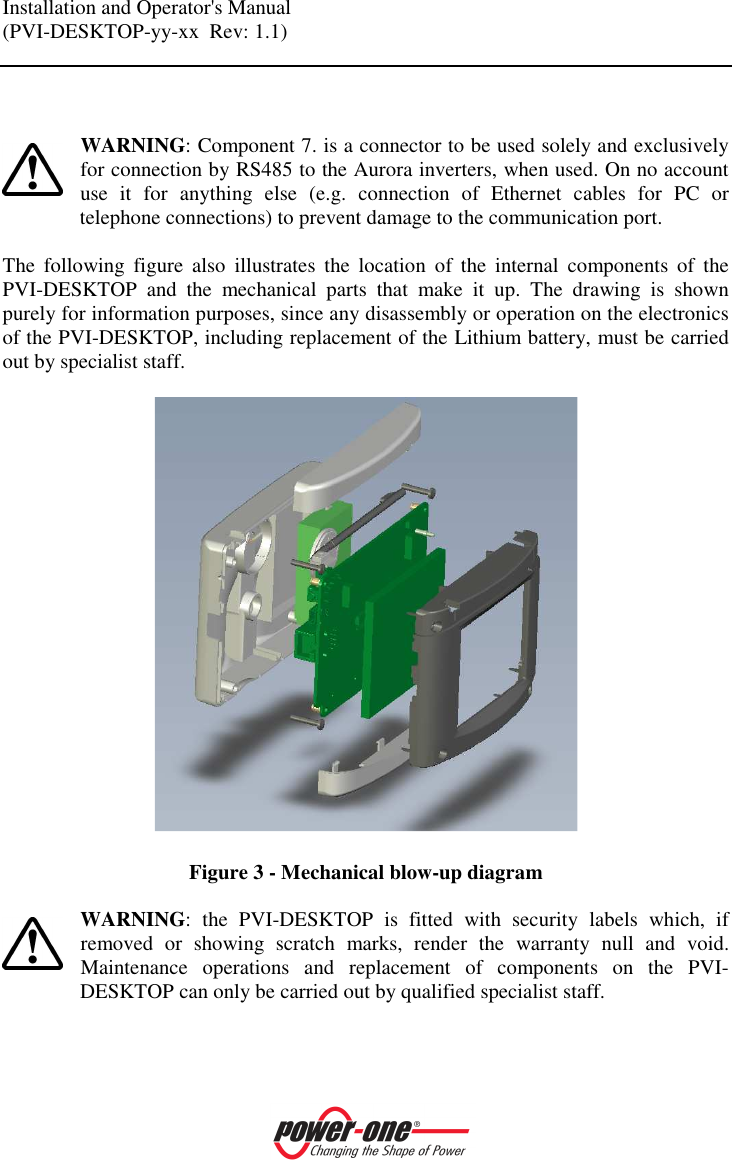
Installation and Operator's Manual (PVI-DESKTOP-yy-xx  Rev: 1.1)      WARNING: Component 7. is a connector to be used solely and exclusively for connection by RS485 to the Aurora inverters, when used. On no account use  it  for  anything  else  (e.g.  connection  of  Ethernet  cables  for  PC  or telephone connections) to prevent damage to the communication port.  The  following  figure  also  illustrates  the  location  of  the  internal  components  of  the PVI-DESKTOP  and  the  mechanical  parts  that  make  it  up.  The  drawing  is  shown purely for information purposes, since any disassembly or operation on the electronics of the PVI-DESKTOP, including replacement of the Lithium battery, must be carried out by specialist staff.    Figure 3 - Mechanical blow-up diagram  WARNING:  the  PVI-DESKTOP  is  fitted  with  security  labels  which,  if removed  or  showing  scratch  marks,  render  the  warranty  null  and  void. Maintenance  operations  and  replacement  of  components  on  the  PVI-DESKTOP can only be carried out by qualified specialist staff.
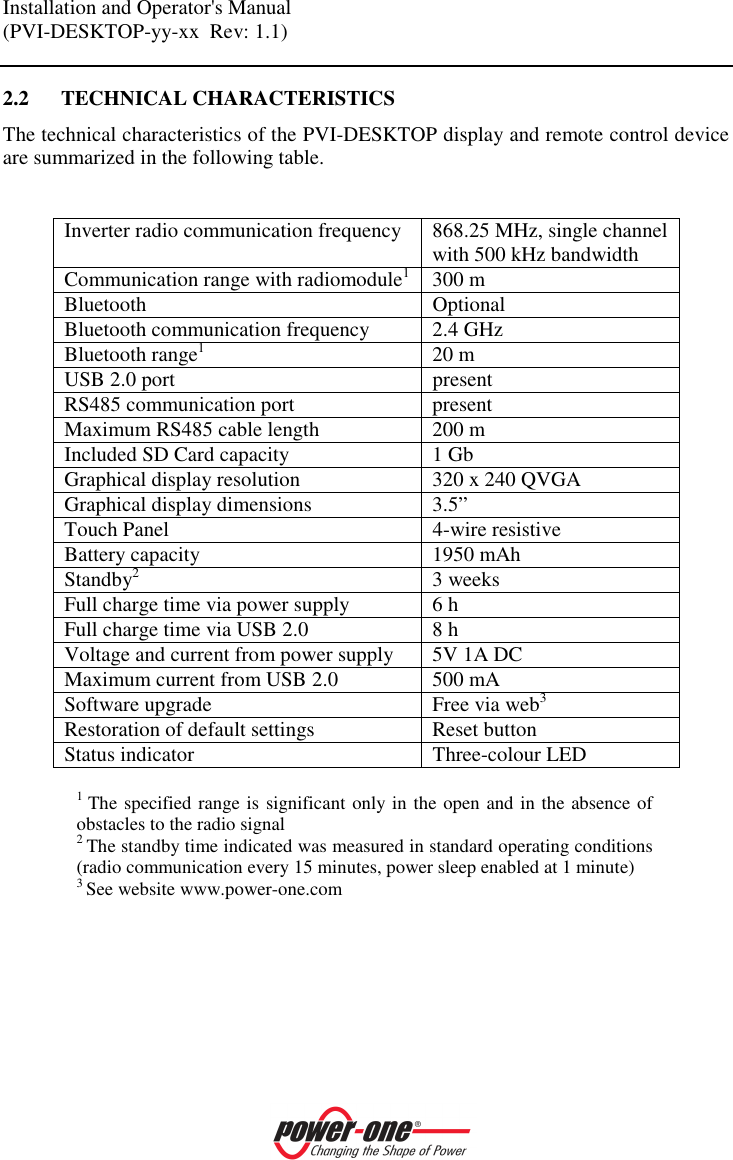
Installation and Operator's Manual (PVI-DESKTOP-yy-xx  Rev: 1.1)    2.2 TECHNICAL CHARACTERISTICS The technical characteristics of the PVI-DESKTOP display and remote control device are summarized in the following table.   Inverter radio communication frequency  868.25 MHz, single channel with 500 kHz bandwidth Communication range with radiomodule1 300 m Bluetooth  Optional Bluetooth communication frequency  2.4 GHz Bluetooth range1 20 m USB 2.0 port  present RS485 communication port  present Maximum RS485 cable length  200 m Included SD Card capacity  1 Gb Graphical display resolution  320 x 240 QVGA Graphical display dimensions  3.5” Touch Panel  4-wire resistive Battery capacity  1950 mAh Standby2 3 weeks Full charge time via power supply  6 h Full charge time via USB 2.0  8 h Voltage and current from power supply  5V 1A DC Maximum current from USB 2.0  500 mA Software upgrade  Free via web3 Restoration of default settings  Reset button Status indicator  Three-colour LED  1 The specified range is significant only in the open and in the absence of obstacles to the radio signal 2 The standby time indicated was measured in standard operating conditions (radio communication every 15 minutes, power sleep enabled at 1 minute) 3 See website www.power-one.com
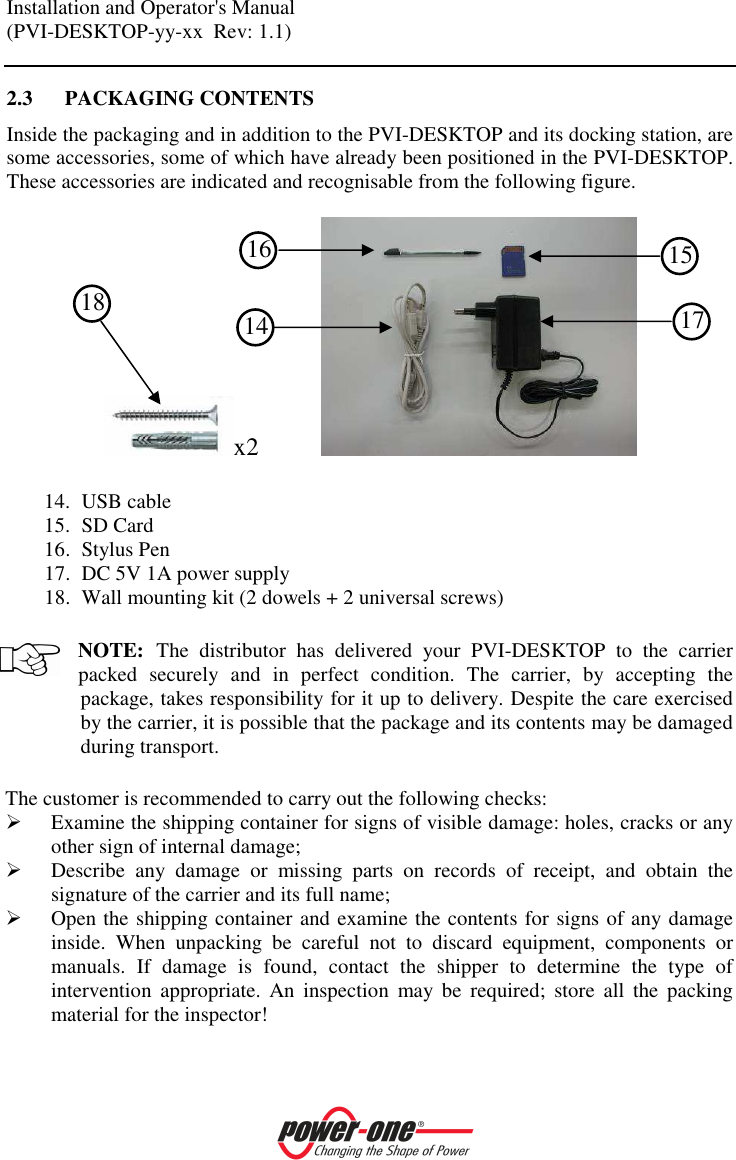
Installation and Operator's Manual (PVI-DESKTOP-yy-xx  Rev: 1.1)    2.3 PACKAGING CONTENTS Inside the packaging and in addition to the PVI-DESKTOP and its docking station, are some accessories, some of which have already been positioned in the PVI-DESKTOP. These accessories are indicated and recognisable from the following figure.  x2             14. USB cable 15. SD Card 16. Stylus Pen 17. DC 5V 1A power supply 18. Wall mounting kit (2 dowels + 2 universal screws)  NOTE: The  distributor  has  delivered  your  PVI-DESKTOP  to  the  carrier packed  securely  and  in  perfect  condition.  The  carrier,  by  accepting  the package, takes responsibility for it up to delivery. Despite the care exercised by the carrier, it is possible that the package and its contents may be damaged during transport.  The customer is recommended to carry out the following checks:  Examine the shipping container for signs of visible damage: holes, cracks or any other sign of internal damage;  Describe  any  damage  or  missing  parts  on  records  of  receipt,  and  obtain  the signature of the carrier and its full name;  Open the shipping container and examine the contents for signs of any damage inside.  When  unpacking  be  careful  not  to  discard  equipment,  components  or manuals.  If  damage  is  found,  contact  the  shipper  to  determine  the  type  of intervention  appropriate.  An  inspection  may  be  required;  store  all  the  packing material for the inspector! 16 18  14 15 17
Installation and Operator's Manual (PVI-DESKTOP-yy-xx  Rev: 1.1)     If  the  inspection  reveals  damage,  call  your  local  supplier,  or  authorized distributor. They will decide whether the equipment should be returned for repair and provide instructions in this regard;  It is the customer's responsibility to make a complaint with the carrier. Omission of  this  procedure  may  result  in  the  loss  of  warranty  service  for  any  damage reported;   Keep the PVI-DESKTOP's original packaging in a safe place; should it be sent for repair, it is necessary to use the original packaging.
Installation and Operator's Manual (PVI-DESKTOP-yy-xx  Rev: 1.1)    3 GETTING STARTED  WARNING:  the  PVI-DESKTOP  requires  some  preliminary  steps  at  the initial start up of the system. Follow the instructions carefully for proper start up.   3.1 FIRST RECHARGE OF THE BATTERY The lithium battery inside the PVI-DESKTOP may not be completely charged, or even completely  discharged,  at  the  time  of  initial  start  up.  To  avoid  problems,  it  is recommended  that  the  object  be  charged  for  no  more  than  10  hours  using  the appropriate power supply supplied. Charging is also possible via the USB port, even when  the  object  is  completely  turned  off,  but  this  takes  slightly  longer.  The  LED indicating the charge will remain orange for the duration of the recharge turning green once it is fully charged.  WARNING: Should recharging not be complete after 10 hours, unplug the power supply, check that there is no overheating or deformation in the back part of the object that would indicate potential damage to the internal battery.  NOTE: Charging  via  the  USB  port  is  slower  than  charging  via  external power supply.   The  PVI-DESKTOP  can  also  be  used  with  the  power  supply  always  connected. Leaving the object always connected to the mains causes no problem to its operation or to the battery. Nevertheless, it is recommended that a full charging and discharging cycle of the battery be carried out every 2 months.  3.2 SELECTION OF INSTALLATION LOCATION The PVI-DESKTOP can simply be placed on a flat surface or  desk,  or  can be  wall mounted.  This  is  possible  thanks  to  the  docking  station  with  supporting  feet  and preruptures for the fixing holes.
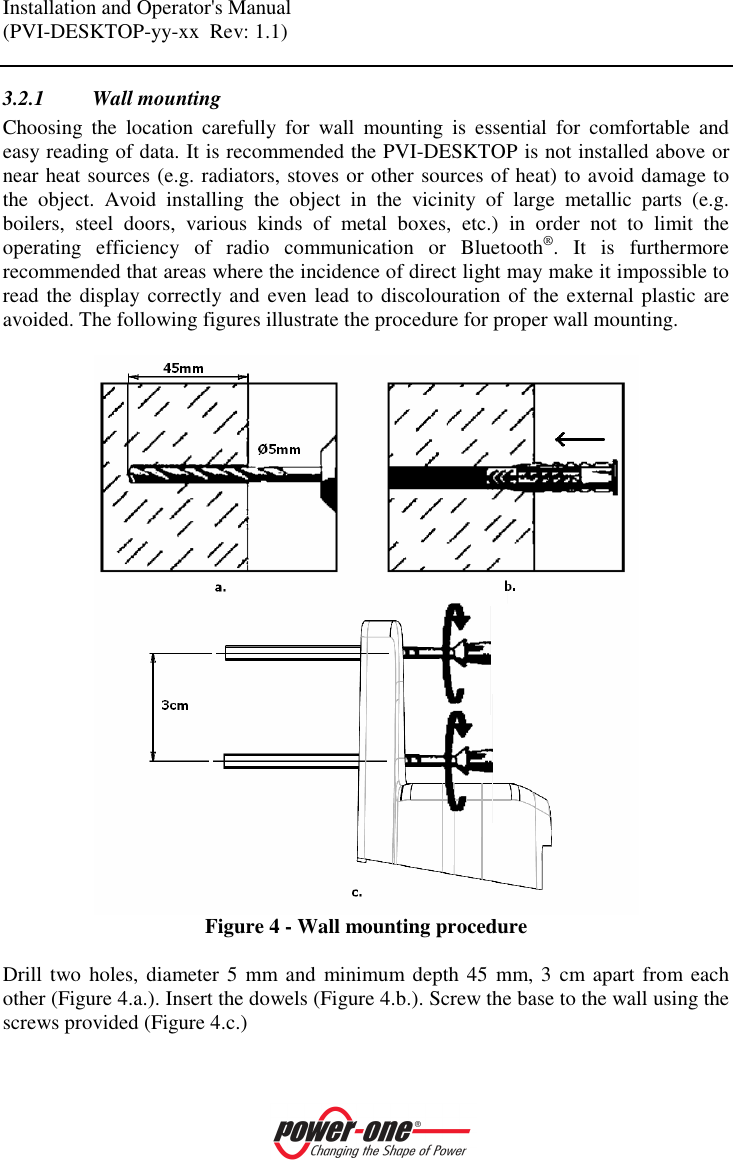
Installation and Operator's Manual (PVI-DESKTOP-yy-xx  Rev: 1.1)    3.2.1 Wall mounting Choosing  the  location  carefully  for  wall  mounting  is  essential  for  comfortable  and easy reading of data. It is recommended the PVI-DESKTOP is not installed above or near heat sources (e.g. radiators, stoves or other sources of heat) to avoid damage to the  object.  Avoid  installing  the  object  in  the  vicinity  of  large  metallic  parts  (e.g. boilers,  steel  doors,  various  kinds  of  metal  boxes,  etc.)  in  order  not  to  limit  the operating  efficiency  of  radio  communication  or  Bluetooth®.  It  is  furthermore recommended that areas where the incidence of direct light may make it impossible to read the display correctly and even lead to discolouration of the external plastic are avoided. The following figures illustrate the procedure for proper wall mounting.   Figure 4 - Wall mounting procedure  Drill two holes, diameter 5 mm and  minimum depth 45 mm, 3  cm apart  from each other (Figure 4.a.). Insert the dowels (Figure 4.b.). Screw the base to the wall using the screws provided (Figure 4.c.)
Installation and Operator's Manual (PVI-DESKTOP-yy-xx  Rev: 1.1)    The  PVI-DESKTOP support  base  is designed  to  make  it  easy to  remove  the object even  with  the  power  or  communication  cables  inserted.  Moreover,  if  properly installed, the PVI-DESKTOP will be perfectly parallel to the wall chosen.  NOTE: The  physical  characteristics  of  the  installation  location  (wall thickness, presence of metal or glass walls, distance from the Aurora inverter, etc.) may limit the range of the radio signal. It is recommended that, once a plausible location for  mounting has been identified,  a  radio communication test is carried out before the actual installation.  3.2.2 Installation on desk  The PVI-DESKTOP base enables comfortable and  solid positioning on flat surfaces such  as  tables  or  desks.  The  inclination  of  about  10°  of  the  axis  allows  for  easier reading of the display and more convenient use of the touch screen. It is recommended the PVI-DESKTOP is not installed above or near heat sources (e.g. radiators, stoves or other sources of heat) to avoid damage to the object. Avoid installing the object in the vicinity of large metallic parts (e.g. boilers, steel doors, various kinds of metal boxes, etc.)  in  order  not  to  limit  the  operating  efficiency  of  radio  communication  or Bluetooth®. It  is  furthermore  recommended  that  areas  where  the incidence of  direct light  may  make  it  impossible  to  read  the  display  correctly  and  even  lead  to discolouration of the external plastic are avoided.    NOTE: The  physical  characteristics  of  the  installation  location  (wall thickness, presence of metal or glass walls, distance from the Aurora inverter, etc.) may limit the range of the radio signal. It is recommended that, once a plausible location for  mounting has been identified,  a  radio communication test is carried out before the actual installation.  3.2.3 Tips on the selection of installation location The selection of installation location and the position of the PVI-DESKTOP strongly influence  the  quality  of  the  radio  signal  received.  Choosing  to  leave  the  PVI-DESKTOP resting on a desk free of obstacles and objects in a 20 cm radius allows the best radio signal reception. If you choose wall mounting, take into account some rules that allow data reception to be much improved. Avoid, for example, installing the PVI-
Installation and Operator's Manual (PVI-DESKTOP-yy-xx  Rev: 1.1)    DESKTOP on walls coming between the inverter and the controller, and prefer walls which do not come between the line of communication (Figure 5).  Figure 5 - Wall mounting, selection of location  Keep metal or conductive objects as far away as possible. Signal  quality  is  also  influenced  by  environmental  factors  such  as  fog,  rain,  air humidity,  etc.  The  effect  of  these  environmental  factors  is  negligible  over  limited distances but can be considerable over long communication distances.  3.2.4 Radio communication test To  test  communication,  it  is  possible  to  carry  out  a  simple  plant  configuration  as shown in paragraph 4 point 2). Appearance of your inverter in the list of associable devices is confirmation radio signal reception.  3.3 OTHER PRELIMINARY OPERATIONS Before  starting  up  the  PVI-DESKTOP  for  the  first  time,  make  sure  the  Aurora inverters have been properly configured. Check that the PVI-RADIOMODULE card has been installed in the Aurora inverters, should activation of radio communication with the PVI-DESKTOP  be desired. To install the  PVI-RADIOMODULE  reference should  be  made  to  the  applicable  manual.  Check  that  the  cable  is  long  enough  for RS485 communication, if you desire to  use  wired configuration  as an alternative to radio communication.
Installation and Operator's Manual (PVI-DESKTOP-yy-xx  Rev: 1.1)     WARNING: Connector 7. Figure 2 is reserved for use with special wiring for  RS485  communication  with  Aurora  inverters.  Under  no  circumstances connect  with any other  device  (Ethernet,  telephone  network or  other)  as  it could lead to possible damage.  Check that the SD card is inserted correctly before turning on the device. The SD card is an integral part of the device and is absolutely necessary for its operation. Missing or incorrect insertion of the SD card generates an easily recognizable error message on the display.
Installation and Operator's Manual (PVI-DESKTOP-yy-xx  Rev: 1.1)     4 SYSTEM INSTALLATION When all the preliminary steps (see § 3) have been carried out, the initial start up of the  communication  system  can  proceed.  For  proper  initial  start  up  follow  the operations indicated in the following paragraphs scrupulously.   1) Inverter configuration and device switch on  • Check  that  the  PVI-RADIOMODULE  is  correctly  installed  (see  the  PVI-RADIOMODULE manual) if you want to initialize radio communication. • Check that the Aurora inverters in your photovoltaic/wind plant are turned on. • Check that  the  addresses  for  the RS485 ports  are  all different  (they do  not need to be sequential). • Check that the RS485 wiring is correct and inserted if you want to initialize RS485 cable communication.   2) Switching on the PVI-DESKTOP and inverter association   • Switch  on  the  device  by  pressing  the  ON/OFF  button  and follow  the instructions that appear on the display, select the desired values and click on next. • Set the date and current time. Please note that you can change the setting at any time through the "Settings - Date - Time" menu. • Select  the  communication  channel:  select  the  box  corresponding  to  the communication channel that will be used (Radio or RS485). • Select the number of inverters that will be connected to the PVI-DESKTOP (from 1 to 6). • Select how often you want a data read refresh. The time is selectable from a minimum of 1 minute to a maximum of 15 minutes. • Scan the communication channel to search for inverters or choose to defer the operation to a later time.
Installation and Operator's Manual (PVI-DESKTOP-yy-xx  Rev: 1.1)    • If  you  decide  to  carry  out  the  scan,  the  PVI-DESKTOP  will  begin  to interrogate  the  various  addresses  until  has  found  a  number  of  inverters corresponding to the one set in the configuration process. During scanning, a screen showing a table with an indication of the state of scanning will appear. • At the end of scanning, the table will show the models and serial numbers of the inverters found. • At this point it is possible to choose which inverter(s) to associate uniquely with  your  PVI-DESKTOP  so  that  they  cannot  be  seen  and  recognised  by other PVI-DESKTOPs nearby. The selection is made by pressing the '+' key next to each inverter chosen. Pressing the '+' key changes the colour of the corresponding row in the table by highlighting the selection. • It  is  advisable  to  check  that  the  serial  numbers  of  the  inverters  chosen correspond  to  those  of  the  inverters  in  your  system  to  avoid  associating inverters from other systems nearby with your PVI-DESKTOP. • At  this  point  the  system  is  configured  and,  automatically,  starts  the synchronization  procedure  for  the  timetable  of  the  monitored  inverters and data acquisition from the inverters. The first synchronization can also take a very long time because of the high amount of historical data that the inverters will send to the PVI-DESKTOP. • On the other hand, if the channel scan is unsuccessful, an error message and a request to repeat the scan will be displayed.  • To  determine  the  causes  of  non-recognition  of  the  inverters,  consult  the troubleshooting guide attached to the manual   3) Inverter disassociation or need for reconfiguration  Whenever it  may be necessary to delete one or more associated inverters from your list, it is necessary to run the guided procedure again, accessing it from the “Settings – Configuration  wizard"  menu.  On  appearance  of  the  table  with  the  associated  serial numbers,  simply  click  on  the  '-'  key  to  deselect  the  inverter  and  delete  it  from  the associated list.  Any time a re-configuration is necessary, you must carry out the guided procedure.  NOTE: The guided configuration procedure is necessary, for example, when an inverter is replaced or an inverter is added for monitoring.
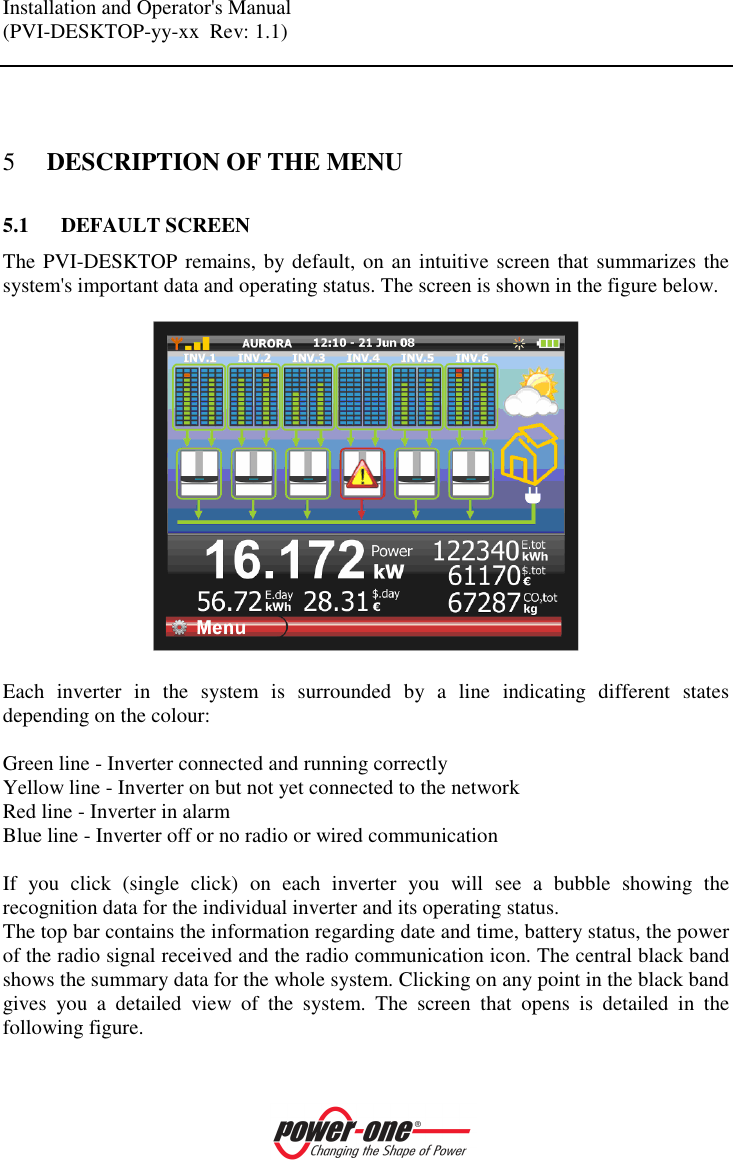
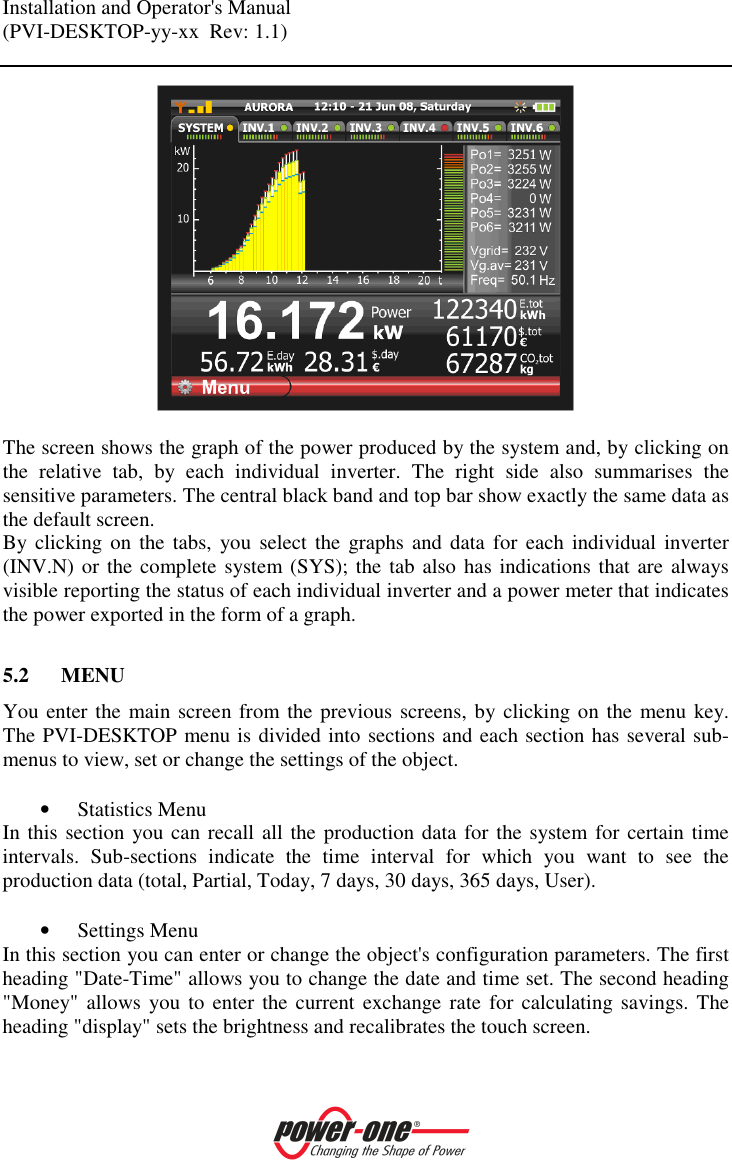
Installation and Operator's Manual (PVI-DESKTOP-yy-xx  Rev: 1.1)     5 DESCRIPTION OF THE MENU 5.1 DEFAULT SCREEN The PVI-DESKTOP remains, by default, on an intuitive screen that summarizes the system's important data and operating status. The screen is shown in the figure below.    Each  inverter  in  the  system  is  surrounded  by  a  line  indicating  different  states depending on the colour:  Green line - Inverter connected and running correctly Yellow line - Inverter on but not yet connected to the network Red line - Inverter in alarm Blue line - Inverter off or no radio or wired communication  If  you  click  (single  click)  on  each  inverter  you  will  see  a  bubble  showing  the recognition data for the individual inverter and its operating status. The top bar contains the information regarding date and time, battery status, the power of the radio signal received and the radio communication icon. The central black band shows the summary data for the whole system. Clicking on any point in the black band gives  you  a  detailed  view  of  the  system.  The  screen  that  opens  is  detailed  in  the following figure.
Installation and Operator's Manual (PVI-DESKTOP-yy-xx  Rev: 1.1)      The screen shows the graph of the power produced by the system and, by clicking on the  relative  tab,  by  each  individual  inverter.  The  right  side  also  summarises  the sensitive parameters. The central black band and top bar show exactly the same data as the default screen.  By clicking on  the  tabs,  you  select the graphs  and  data  for each  individual  inverter (INV.N) or the complete  system (SYS); the tab also has indications that are always visible reporting the status of each individual inverter and a power meter that indicates the power exported in the form of a graph.  5.2 MENU You enter the main screen from the previous screens, by clicking on the menu key. The PVI-DESKTOP menu is divided into sections and each section has several sub-menus to view, set or change the settings of the object.  • Statistics Menu In this section you can recall all the production data for the system for certain time intervals.  Sub-sections  indicate  the  time  interval  for  which  you  want  to  see  the production data (total, Partial, Today, 7 days, 30 days, 365 days, User).  • Settings Menu In this section you can enter or change the object's configuration parameters. The first heading "Date-Time" allows you to change the date and time set. The second heading "Money" allows  you  to  enter the current  exchange rate  for  calculating savings. The heading "display" sets the brightness and recalibrates the touch screen.
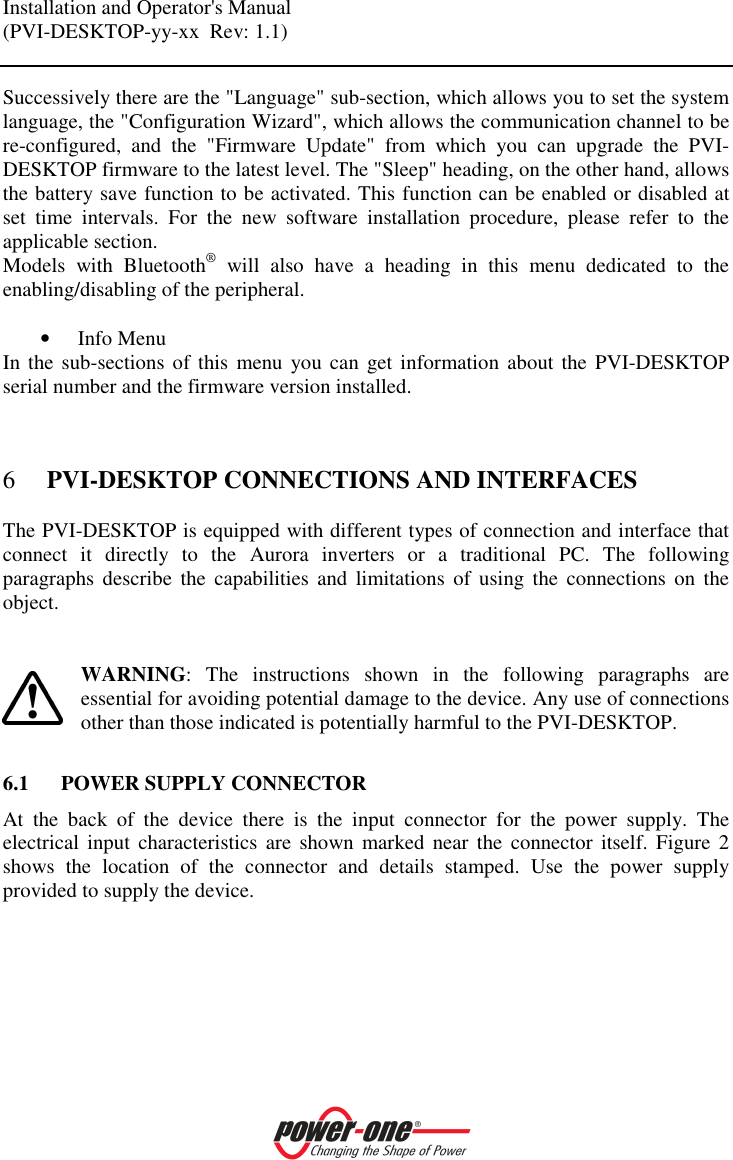
Installation and Operator's Manual (PVI-DESKTOP-yy-xx  Rev: 1.1)    Successively there are the "Language" sub-section, which allows you to set the system language, the "Configuration Wizard", which allows the communication channel to be re-configured,  and  the  "Firmware  Update"  from  which  you  can  upgrade  the  PVI-DESKTOP firmware to the latest level. The "Sleep" heading, on the other hand, allows the battery save function to be activated. This function can be enabled or disabled at set  time  intervals.  For  the  new  software  installation  procedure,  please  refer  to  the applicable section. Models  with  Bluetooth®  will  also  have  a  heading  in  this  menu  dedicated  to  the enabling/disabling of the peripheral.  • Info Menu In the sub-sections  of this  menu  you can  get  information  about the PVI-DESKTOP serial number and the firmware version installed.  6 PVI-DESKTOP CONNECTIONS AND INTERFACES The PVI-DESKTOP is equipped with different types of connection and interface that connect  it  directly  to  the  Aurora  inverters  or  a  traditional  PC.  The  following paragraphs  describe  the  capabilities  and  limitations  of  using  the  connections  on  the object.    WARNING:  The  instructions  shown  in  the  following  paragraphs  are essential for avoiding potential damage to the device. Any use of connections other than those indicated is potentially harmful to the PVI-DESKTOP.  6.1 POWER SUPPLY CONNECTOR At  the  back  of  the  device  there  is  the  input  connector  for  the  power  supply.  The electrical  input  characteristics  are  shown  marked  near  the  connector  itself.  Figure  2 shows  the  location  of  the  connector  and  details  stamped.  Use  the  power  supply provided to supply the device.
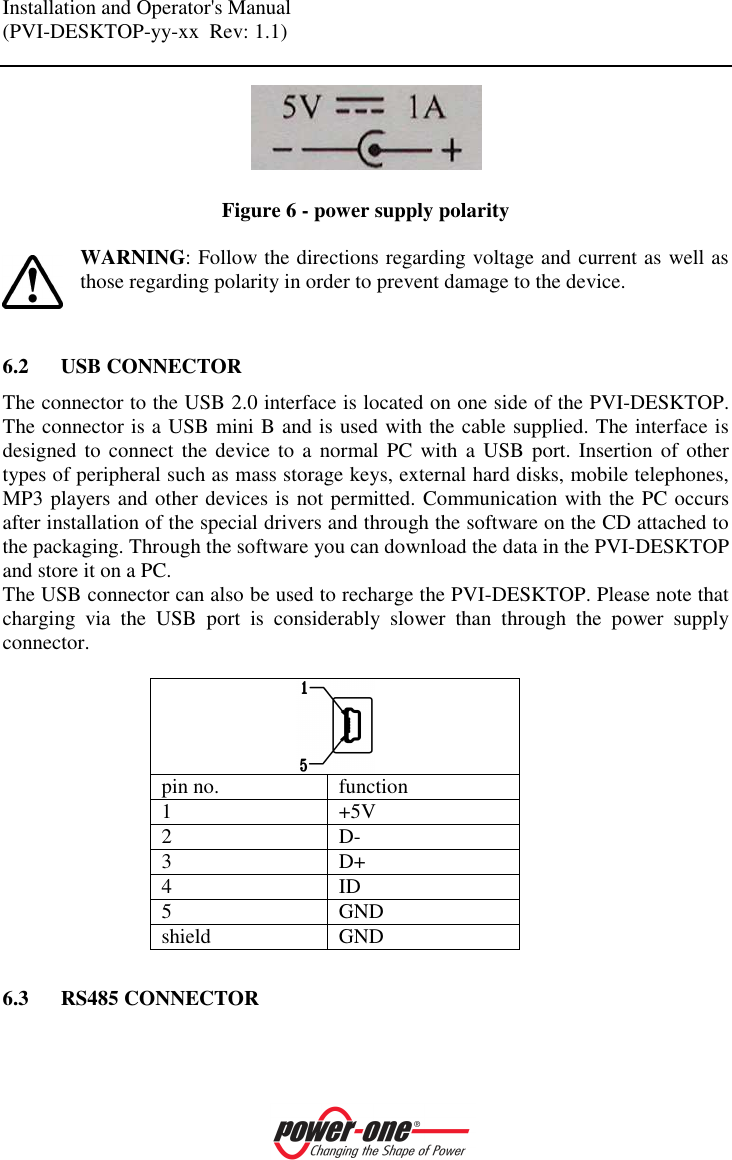
Installation and Operator's Manual (PVI-DESKTOP-yy-xx  Rev: 1.1)      Figure 6 - power supply polarity  WARNING: Follow the directions regarding voltage and current as well as those regarding polarity in order to prevent damage to the device.   6.2 USB CONNECTOR The connector to the USB 2.0 interface is located on one side of the PVI-DESKTOP. The connector is a USB mini B and is used with the cable supplied. The interface is designed to connect the device to a normal  PC  with a USB port. Insertion  of other types of peripheral such as mass storage keys, external hard disks, mobile telephones, MP3 players and other devices is not permitted. Communication with the PC occurs after installation of the special drivers and through the software on the CD attached to the packaging. Through the software you can download the data in the PVI-DESKTOP and store it on a PC. The USB connector can also be used to recharge the PVI-DESKTOP. Please note that charging  via  the  USB  port  is  considerably  slower  than  through  the  power  supply connector.   pin no.  function 1  +5V 2  D- 3  D+ 4  ID 5  GND shield  GND  6.3 RS485 CONNECTOR
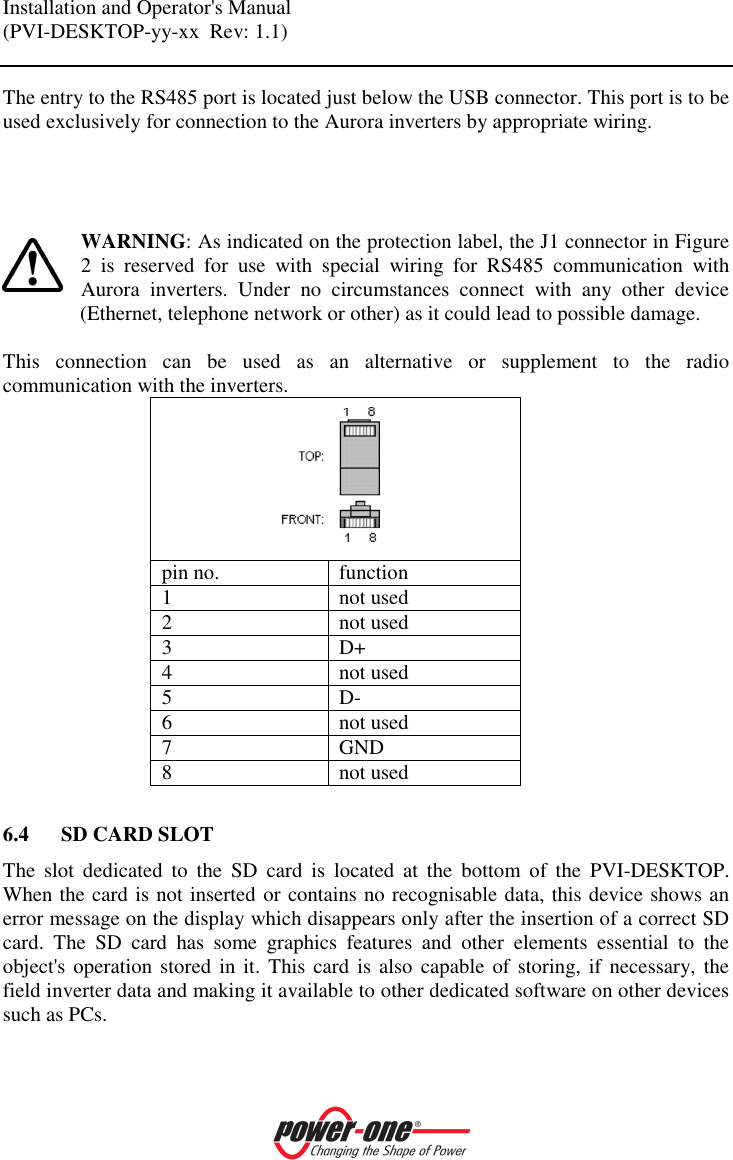
Installation and Operator's Manual (PVI-DESKTOP-yy-xx  Rev: 1.1)    The entry to the RS485 port is located just below the USB connector. This port is to be used exclusively for connection to the Aurora inverters by appropriate wiring.     WARNING: As indicated on the protection label, the J1 connector in Figure 2  is  reserved  for  use  with  special  wiring  for  RS485  communication  with Aurora  inverters.  Under  no  circumstances  connect  with  any  other  device (Ethernet, telephone network or other) as it could lead to possible damage.  This  connection  can  be  used  as  an  alternative  or  supplement  to  the  radio communication with the inverters.  pin no.  function 1  not used 2  not used 3  D+ 4  not used 5  D- 6  not used 7  GND 8  not used  6.4 SD CARD SLOT The  slot  dedicated  to  the  SD  card  is  located  at  the  bottom  of  the  PVI-DESKTOP. When the card is not inserted or contains no recognisable data, this device shows an error message on the display which disappears only after the insertion of a correct SD card.  The  SD  card  has  some  graphics  features  and  other  elements  essential  to  the object's operation stored in it. This card  is also capable  of storing, if necessary,  the field inverter data and making it available to other dedicated software on other devices such as PCs.
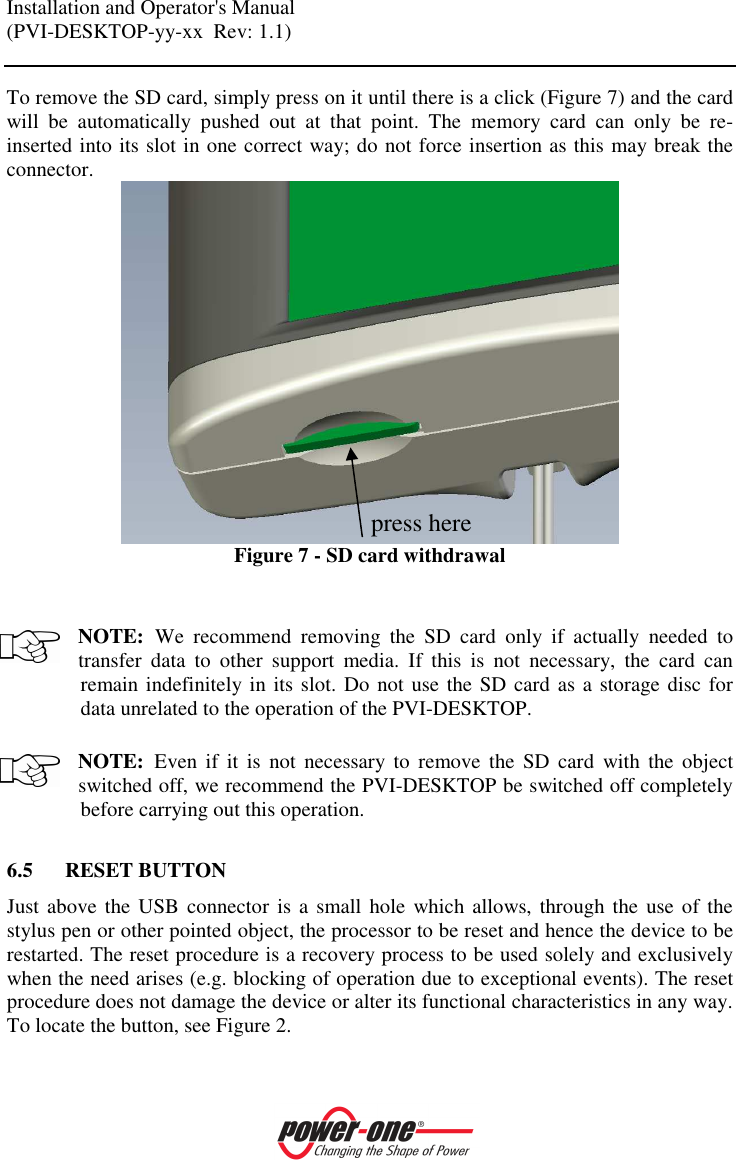
Installation and Operator's Manual (PVI-DESKTOP-yy-xx  Rev: 1.1)    To remove the SD card, simply press on it until there is a click (Figure 7) and the card will  be  automatically  pushed  out  at  that  point.  The  memory  card  can  only  be  re-inserted into its slot in one correct way; do not force insertion as this may break the connector.  Figure 7 - SD card withdrawal   NOTE: We  recommend  removing  the  SD  card  only  if  actually  needed  to transfer  data  to  other  support  media.  If  this  is  not  necessary,  the  card  can remain indefinitely in its slot. Do not use the SD card as a storage disc for data unrelated to the operation of the PVI-DESKTOP.  NOTE: Even  if  it  is  not  necessary  to  remove the  SD  card  with  the  object switched off, we recommend the PVI-DESKTOP be switched off completely before carrying out this operation.  6.5 RESET BUTTON Just above the USB  connector is a small hole  which allows, through the  use of the stylus pen or other pointed object, the processor to be reset and hence the device to be restarted. The reset procedure is a recovery process to be used solely and exclusively when the need arises (e.g. blocking of operation due to exceptional events). The reset procedure does not damage the device or alter its functional characteristics in any way. To locate the button, see Figure 2.  press here
Installation and Operator's Manual (PVI-DESKTOP-yy-xx  Rev: 1.1)     6.6 STATUS LED At the top right of the display there is a LED status indicator. This LED will take on different colours depending on the operating status of the PVI-DESKTOP. Figure 2 identifies the position of the LED. The following table is an aid to distinguishing the different  states  of  operation,  the  corresponding  colours  and  the  corresponding operating states of the PVI-DESKTOP.  LED COLOUR  INDICATION LED off  - No power connected (DC or USB) Steady green LED on  - Battery charged, at least one power supply connected (DC or USB), device on standby Steady orange LED on  - Battery charging  Red LED flashing  - Battery flat Blue LED flashing  - Aurora Desk on standby   6.7 BLUETOOTH® (OPTIONAL) There is the possibility of having a Bluetooth® module as an optional interface for the PVI-DESKTOP.  This  interface  allows  communication  with  PCs  equipped  with Bluetooth® and dedicated software. It carries out all the functions implemented on the USB port for data exchange and firmware upgrades. Under  normal operating  conditions,  the Bluetooth® function is  disabled to  eliminate unnecessary  power  consumption.  To  enable  this  function  you  need  to  access  the appropriate menu.   NOTE: We  recommend  using  Bluetooth®  only  when  necessary  and disabling it immediately after use so as not to drain the battery quickly.   6.8 TOUCH SCREEN
Installation and Operator's Manual (PVI-DESKTOP-yy-xx  Rev: 1.1)    The PVI-DESKTOP is equipped with a resistive touch screen that allows easy and fast navigation  through  the  menus  without  pressing  a  keyboard,  etc.  At  the  back  (see Figure 2) there is a space where a stylus pen, for use to apply pressure on the screen, can be inserted. The screen is sensitive to pressure from any object (fingers, pens, etc) and only a  light  touch is  needed  to  activate it.  If  necessary, there  is  a  touch screen calibration procedure that allows any errors in reading the pressure to be corrected.  WARNING:  Take  care  to  avoid  touching  the  touch  screen  with  sharp  or pointed objects or applying excessive pressure on the surface. Do not scratch, strike violently or scrape the display surface and only use products specially designed  for  cleaning  LCD  screens.  Damage  to  the  touch  screen  seriously undermines the object's operating efficiency.   NOTE: We  recommend  using  the  stylus  pen  to  prevent  any  staining  or soiling to the display surface.
Installation and Operator's Manual (PVI-DESKTOP-yy-xx  Rev: 1.1)     7 SYSTEM OPERATION Once the PVI-DESKTOP has been configured, it operates automatically and continues to make data requests to the associated inverters, storing the replies. The device will pass through different states during the process of normal operation. In particular, the PVI-DESKTOP can be in three different conditions:  • FULL-ON MODE; in this mode the display is on and all functions are 100% active. Every touch in an active area of the touch screen will make the page change and execute the set commands. • STAND-BY MODE; in this mode the PVI-DESKTOP display will be off, but the object will be ready to react to a touch on the touch screen. The radio and RS485 peripherals are 100% operational. A flashing blue LED will indicate this state. The PVI-DESKTOP automatically goes into standby 1 minute after the last touch screen command. • SLEEP MODE; in this mode the whole system is on minimum consumption. The peripherals are off and come back on automatically to send data requests to  the  inverters.  The  user  will  not  see  any  indication  from  the  PVI-DESKTOP.  The  device  will  go  into  this  state  only  if  it  has  been  enabled through the appropriate menu and after a time that can be set. To re-awaken the system, press the ON/OFF key for at least one second. • OFF MODE; by pressing  the ON/OFF  key  for  at least  5  seconds, a screen will appear asking if you want to turn it off. By pressing 'OK', the object will switch off completely and will not send any data requests by radio or RS485, or perform any other operation, until it  is  switched back  on. To switch the PVI-DESKTOP back on, simply press the ON/OFF key.
Installation and Operator's Manual (PVI-DESKTOP-yy-xx  Rev: 1.1)     8 FIRMWARE UPDATE The PVI-DESKTOP can be upgraded very simply. The first step is to download the latest available software directly from the website http:\\www.power-one.com\. The downloaded file will be in the following form 'xxxyyy.ben'. To update the PVI-DESKTOP, pull the SD card out (just a little pressure to pull it out) and insert it into an SD card reader connected to your PC. Follow the instructions shown here:  1. Turn off the PVI-DESKTOP by pressing the ON/OFF key for more than 5 seconds and confirming on the display. 2. Take the SD card out of the PVI-DESKTOP by pressing lightly (ref. §6.4.). 3. Insert the SD card into a reader connected to the PC. 4. Check  the  formatting  of  the  SD  card  by  right-clicking  on  the  appropriate drive  and  selecting  properties.  Check  that  the  formatting  is  FAT  and  not FAT32. 5. Open the SD card drive where you will find several folders (language, theme, etc.) including the folder 'BOOT'. If the folder 'BOOT' does not exist, create it. 6. Copy  the  file  downloaded  from  the  Power-One  website  into  the  'BOOT' folder and, if necessary, rename it as "boot.ben". 7. Remove the SD card reader from the PC following the safe hardware removal procedure,  take  the  SD  card  out  of  the  reader  and  put  it  back  in  the  PVI-DESKTOP. 8. Switch the PVI-DESKTOP back on. 9. Navigate the menu to select firmware update (ref. §5.2.). 10. On clicking next, the PVI-DESKTOP will start the update procedure. 11. Once the new software has been read and loaded, a selection dialogue will appear on the screen. From this screen you can decide whether to install the new  firmware,  return  to  the  previous  version  or  cancel  the  procedure  and keep the current firmware. 12. Wait until the PVI-DESKTOP finishes the installation operations to see the menu automatically reappear.  It takes several minutes for the process to conclude and the display will show a screen with the words "Boot...' during this time. This screen is completely normal and will automatically disappear at the end of the process.
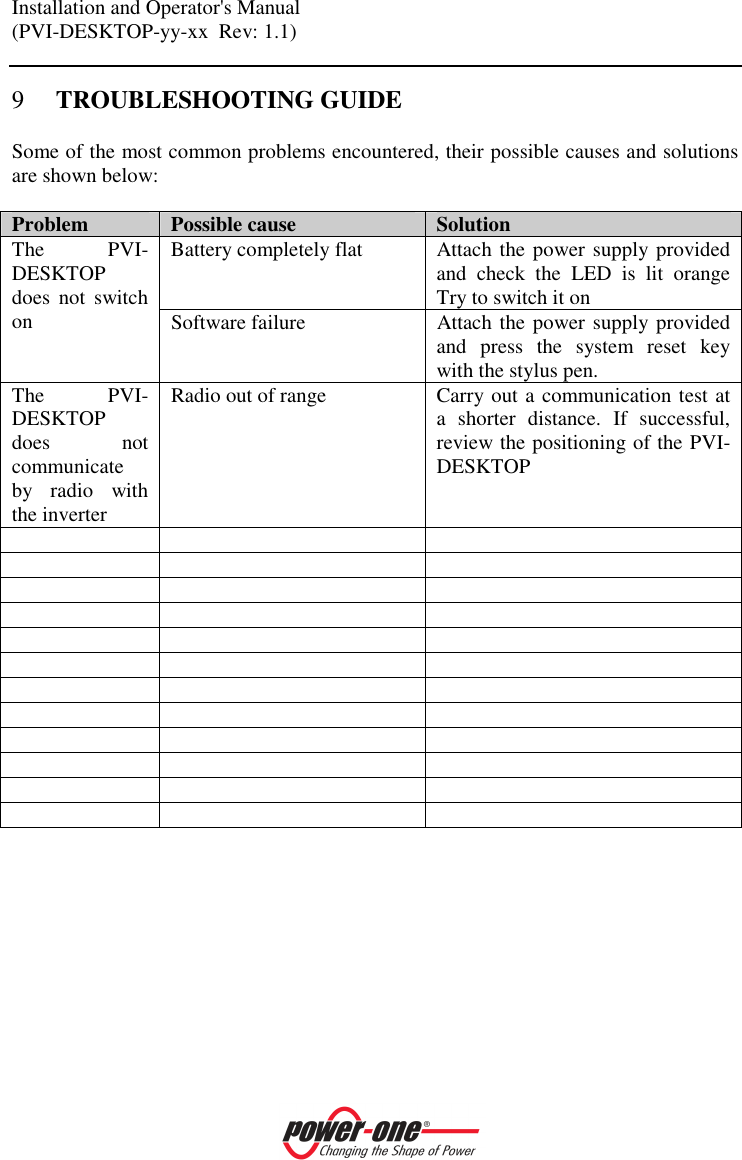
Installation and Operator's Manual (PVI-DESKTOP-yy-xx  Rev: 1.1)    9 TROUBLESHOOTING GUIDE Some of the most common problems encountered, their possible causes and solutions are shown below:  Problem  Possible cause  Solution Battery completely flat  Attach the power supply provided and  check  the  LED  is  lit  orange Try to switch it on The  PVI-DESKTOP does  not  switch on  Software failure  Attach the power supply provided and  press  the  system  reset  key with the stylus pen. The  PVI-DESKTOP does  not communicate by  radio  with the inverter Radio out of range  Carry out a communication test at a  shorter  distance.  If  successful, review the positioning of the PVI-DESKTOP

Navigation menu