POWER ONE ITALY MOD Optional radio board for inverter check User Manual Quick installation and use manual 3L10

POWER-ONE ITALY SPA Optional radio board for inverter check Quick installation and use manual 3L10

PVI-RADIOMODULE-US _UserMan

  PVI-RADIOMODULE Remote Controller      Quick Installation Guide and Short Introduction Manual     Note:  This document contains proprietary information of Power-One, Inc. The contents  of  this  document  or  any  part  thereof  should  not  be  reproduced  or disclosed to any third party without Power-One's express written consent.    Model number: PVI-RADIOMODULE  Rev. 1.1 
Quick installation guide and short introduction manual (PVI-RADIOMODULEtop  Rev:1.1)     REVISION TABLE  Document Revision  Date  Change Description 1.0  01/10/2009  First emission 1.1  02/02/2010  Complete review   SAVE THESE INSTRUCTIONS!
Quick installation guide and short introduction manual (PVI-RADIOMODULEtop  Rev:1.1)    IMPORTANT SAFETY INSTRUCTIONS   This manual contains important safety instructions that  must be  followed during the installation  and  start-up  of  the  equipment.  To  reduce  the  risk  of  electrical  shock hazards  and  to  ensure  the  equipment  is  safely  installed  prior  to  operation,  special safety  symbols  are  used  in  this  manual  to  highlight  potential  safety  hazards  and provide important safety information. The symbols are:   WARNING: The paragraphs  highlighted  by this  symbol  contain processes and instructions that must be followed to avoid potential injury to personnel and equipment damage.  NOTE:  The  paragraphs  highlighted  by  this  symbol  contain  processes  and instructions that  must be  followed to avoid  potential equipment damage or negative results.     FCC NOTICE  The  device  complies  with  part  15  of  the  FCC  rules.  Operation  is  subjected  to  the following 2 conditions: (1) this device may not cause harmful interference and (2) this device  must accept  any interference  received,  including interference  that  may cause undesired operation  FCC ID: X6W-MOD
Quick installation guide and short introduction manual (PVI-RADIOMODULEtop  Rev:1.1)    INDICE 1 INTRODUCTION.........................................................................5 1.1 WHAT YOU’LL FIND IN THE PVI-DESKTOP PACKAGE ...................6 1.2 WHAT YOU’LL FIND IN THE PVI-RADIOMODULE PACKAGE........6 2 PRELIMINARY OPERATIONS.................................................7 2.1 BATTERY CHARGING ............................................................................7 2.2 INSTALLING PVI-RADIOMODULE.......................................................7 2.3 RADIO AFFILIATION ............................................................................11 2.4 HOW TO RECONFIGURE SYSTEM......................................................13 2.5 SHUTTING ON OR OFF .........................................................................13 3 FUNCTIONS AND MENU.........................................................14 3.1 STATISTICS MENU................................................................................14 3.1.1 Total ......................................................................................................14 3.1.2 Partial....................................................................................................15 3.1.3 Today.....................................................................................................15 3.1.4 7 days.....................................................................................................15 3.1.5 30 days...................................................................................................16 3.1.6 365 days.................................................................................................16 3.1.7 User .......................................................................................................16 3.2 SETTINGS MENU...................................................................................17 3.2.1 Date and Time .......................................................................................17 3.2.2 Money....................................................................................................17 3.2.3 Display ..................................................................................................17 3.2.4 Language...............................................................................................17 3.2.5 Configuration wizard.............................................................................17 3.2.6 Firmware update...................................................................................17 3.3 INFO MENU ............................................................................................18 3.3.1 ID PVI-DESKTOP.................................................................................18 3.3.2 Firmware...............................................................................................18 4 UPGRADE ...................................................................................19 4.1 UPGRADE USING SD CARD.................................................................19
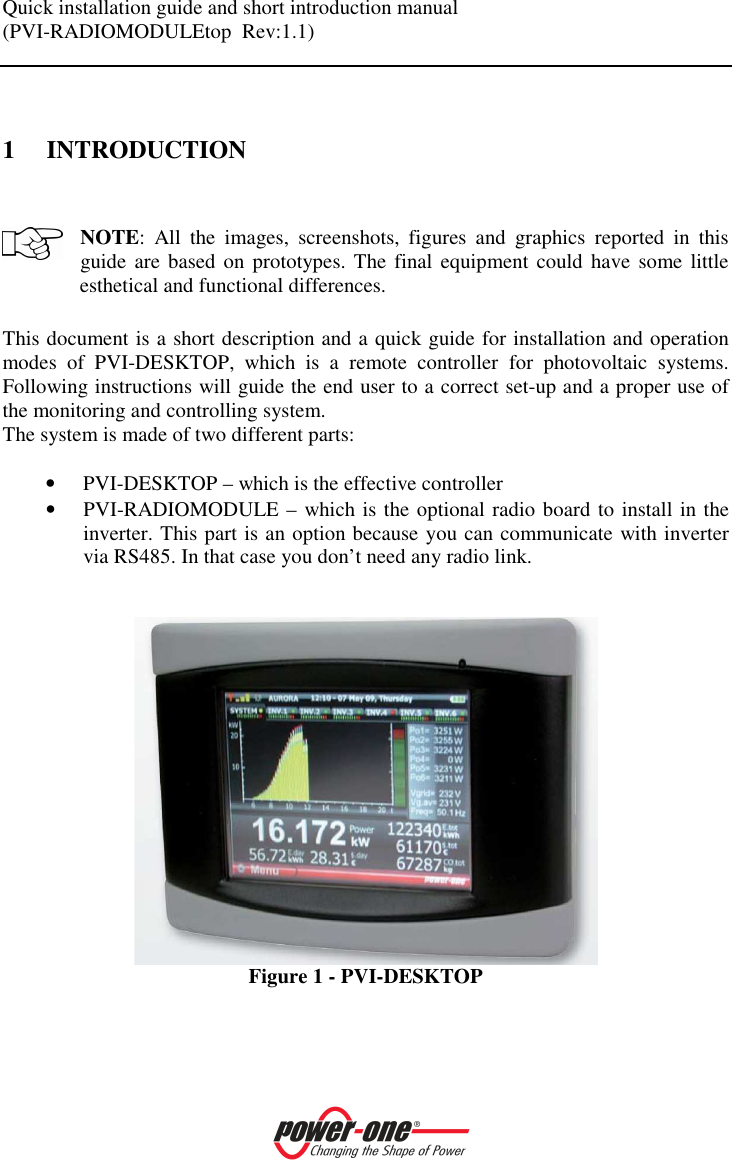
Quick installation guide and short introduction manual (PVI-RADIOMODULEtop  Rev:1.1)    1 INTRODUCTION  NOTE:  All  the  images,  screenshots,  figures  and  graphics  reported  in  this guide are  based on prototypes. The final equipment could have  some little esthetical and functional differences.     This document is a short description and a quick guide for installation and operation modes  of  PVI-DESKTOP,  which  is  a  remote  controller  for  photovoltaic  systems. Following instructions will guide the end user to a correct set-up and a proper use of the monitoring and controlling system. The system is made of two different parts:  • PVI-DESKTOP – which is the effective controller • PVI-RADIOMODULE – which is the optional radio board to install in the inverter. This part is an option because you can communicate with inverter via RS485. In that case you don’t need any radio link.    Figure 1 - PVI-DESKTOP
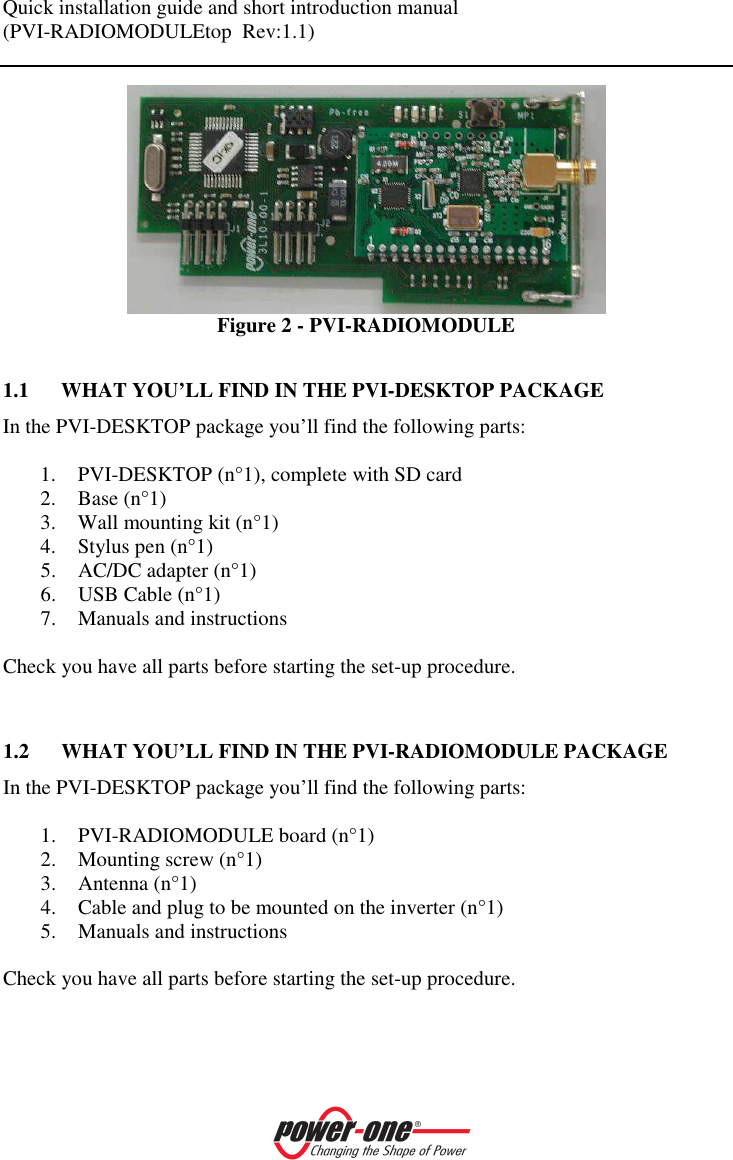
Quick installation guide and short introduction manual (PVI-RADIOMODULEtop  Rev:1.1)     Figure 2 - PVI-RADIOMODULE   1.1 WHAT YOU’LL FIND IN THE PVI-DESKTOP PACKAGE In the PVI-DESKTOP package you’ll find the following parts:  1. PVI-DESKTOP (n°1), complete with SD card 2. Base (n°1) 3. Wall mounting kit (n°1) 4. Stylus pen (n°1) 5. AC/DC adapter (n°1) 6. USB Cable (n°1) 7. Manuals and instructions  Check you have all parts before starting the set-up procedure.   1.2 WHAT YOU’LL FIND IN THE PVI-RADIOMODULE PACKAGE In the PVI-DESKTOP package you’ll find the following parts:  1. PVI-RADIOMODULE board (n°1) 2. Mounting screw (n°1) 3. Antenna (n°1) 4. Cable and plug to be mounted on the inverter (n°1) 5. Manuals and instructions  Check you have all parts before starting the set-up procedure.
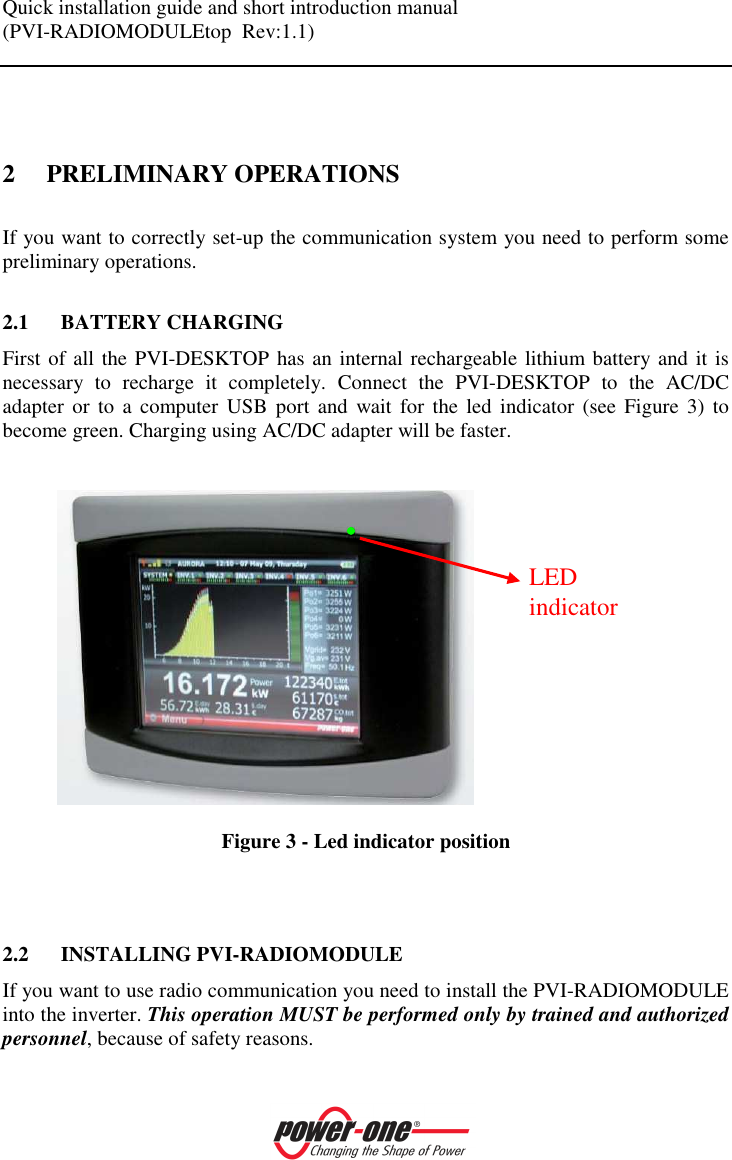
Quick installation guide and short introduction manual (PVI-RADIOMODULEtop  Rev:1.1)     2 PRELIMINARY OPERATIONS If you want to correctly set-up the communication system you need to perform some preliminary operations.  2.1 BATTERY CHARGING First of all the PVI-DESKTOP has an internal rechargeable lithium battery and it is necessary  to  recharge  it  completely.  Connect  the  PVI-DESKTOP  to  the  AC/DC adapter  or  to  a  computer USB  port  and  wait for  the  led  indicator  (see  Figure  3)  to become green. Charging using AC/DC adapter will be faster.      Figure 3 - Led indicator position    2.2 INSTALLING PVI-RADIOMODULE If you want to use radio communication you need to install the PVI-RADIOMODULE into the inverter. This operation MUST be performed only by trained and authorized personnel, because of safety reasons. LED indicator
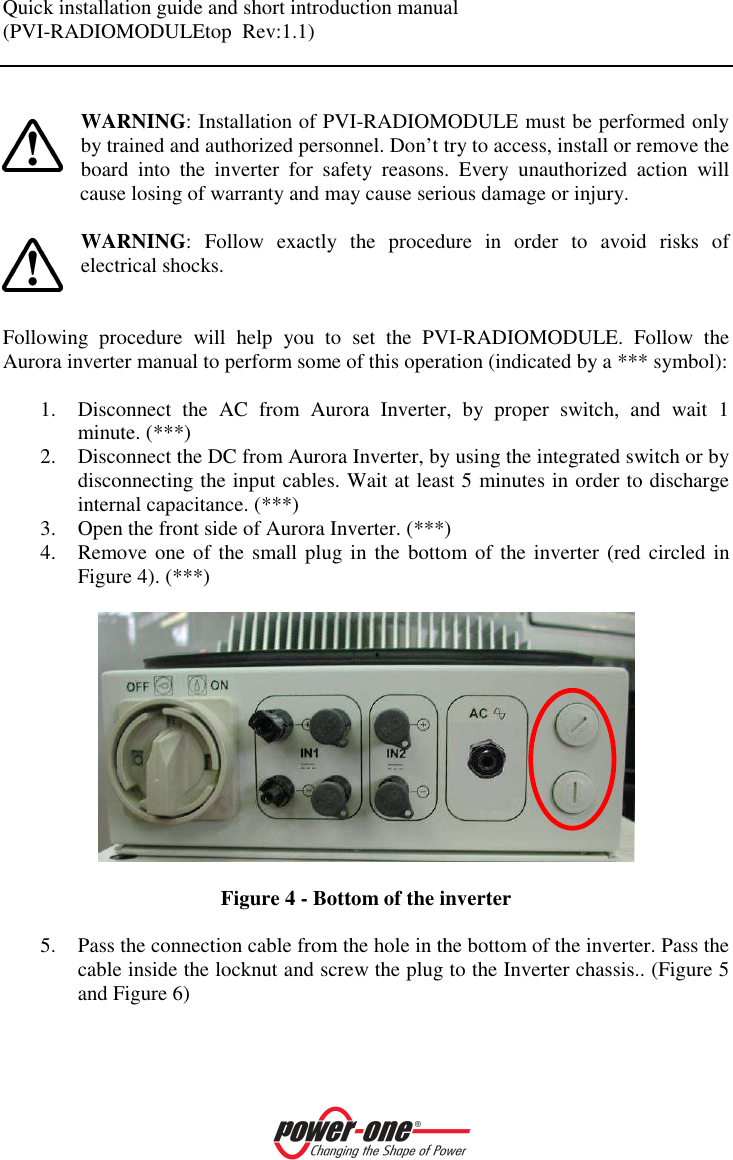
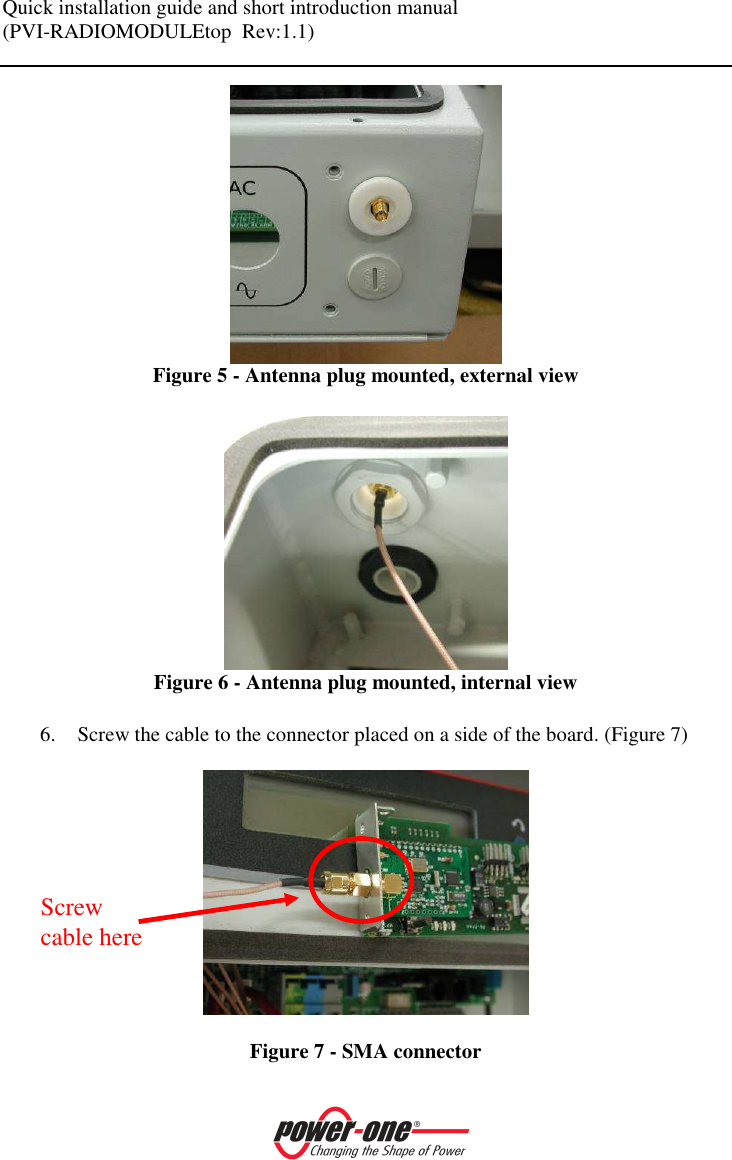
Quick installation guide and short introduction manual (PVI-RADIOMODULEtop  Rev:1.1)     WARNING: Installation of PVI-RADIOMODULE must be performed only by trained and authorized personnel. Don’t try to access, install or remove the board  into  the  inverter  for  safety  reasons.  Every  unauthorized  action  will cause losing of warranty and may cause serious damage or injury.  WARNING:  Follow  exactly  the  procedure  in  order  to  avoid  risks  of electrical shocks.   Following  procedure  will  help  you  to  set  the  PVI-RADIOMODULE.  Follow  the Aurora inverter manual to perform some of this operation (indicated by a *** symbol):  1. Disconnect  the  AC  from  Aurora  Inverter,  by  proper  switch,  and  wait  1 minute. (***) 2. Disconnect the DC from Aurora Inverter, by using the integrated switch or by disconnecting the input cables. Wait at least 5 minutes in order to discharge internal capacitance. (***) 3. Open the front side of Aurora Inverter. (***) 4. Remove one  of the small plug in the bottom of the inverter  (red  circled in Figure 4). (***)     Figure 4 - Bottom of the inverter  5. Pass the connection cable from the hole in the bottom of the inverter. Pass the cable inside the locknut and screw the plug to the Inverter chassis.. (Figure 5 and Figure 6)
Quick installation guide and short introduction manual (PVI-RADIOMODULEtop  Rev:1.1)     Figure 5 - Antenna plug mounted, external view   Figure 6 - Antenna plug mounted, internal view  6. Screw the cable to the connector placed on a side of the board. (Figure 7)    Figure 7 - SMA connector Screw cable here
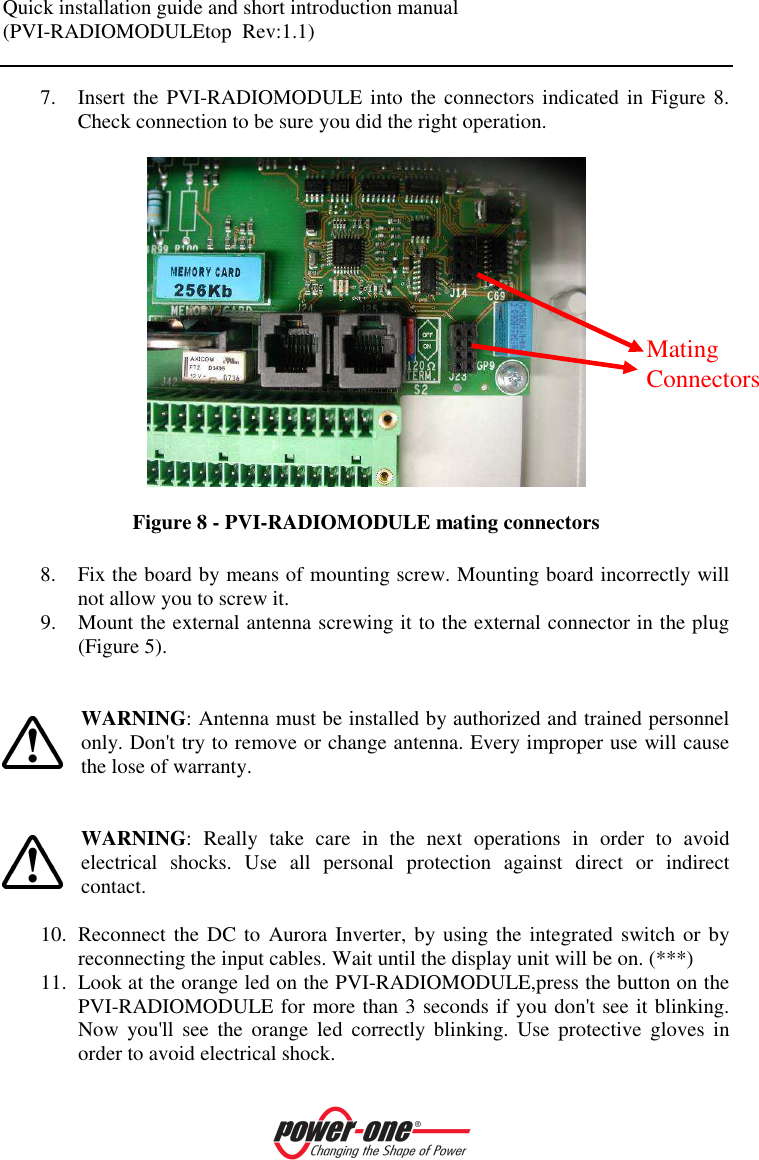
Quick installation guide and short introduction manual (PVI-RADIOMODULEtop  Rev:1.1)    7. Insert the PVI-RADIOMODULE into  the connectors indicated in Figure 8. Check connection to be sure you did the right operation.    Figure 8 - PVI-RADIOMODULE mating connectors  8. Fix the board by means of mounting screw. Mounting board incorrectly will not allow you to screw it. 9. Mount the external antenna screwing it to the external connector in the plug (Figure 5).   WARNING: Antenna must be installed by authorized and trained personnel only. Don't try to remove or change antenna. Every improper use will cause the lose of warranty.   WARNING:  Really  take  care  in  the  next  operations  in  order  to  avoid electrical  shocks.  Use  all  personal  protection  against  direct  or  indirect contact.  10. Reconnect the DC to  Aurora Inverter,  by using the integrated switch or by reconnecting the input cables. Wait until the display unit will be on. (***) 11. Look at the orange led on the PVI-RADIOMODULE,press the button on the PVI-RADIOMODULE for more than 3 seconds if you don't see it blinking. Now  you'll  see  the  orange  led  correctly  blinking.  Use  protective  gloves  in order to avoid electrical shock. Mating Connectors
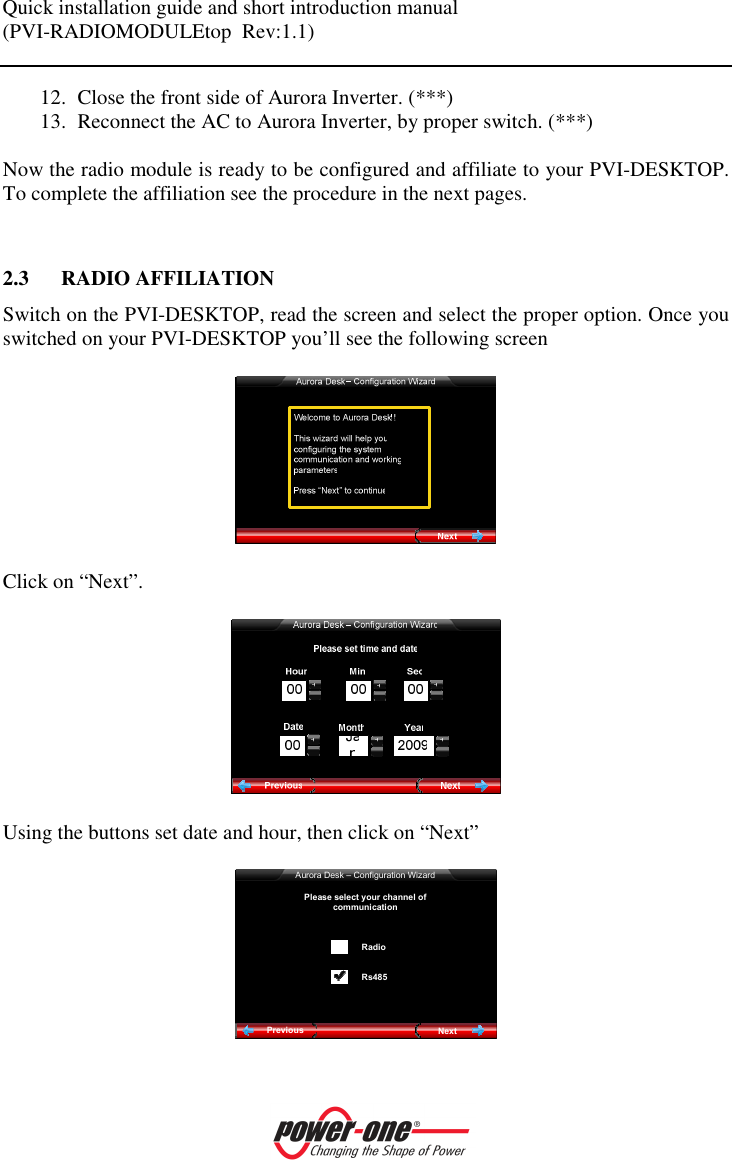
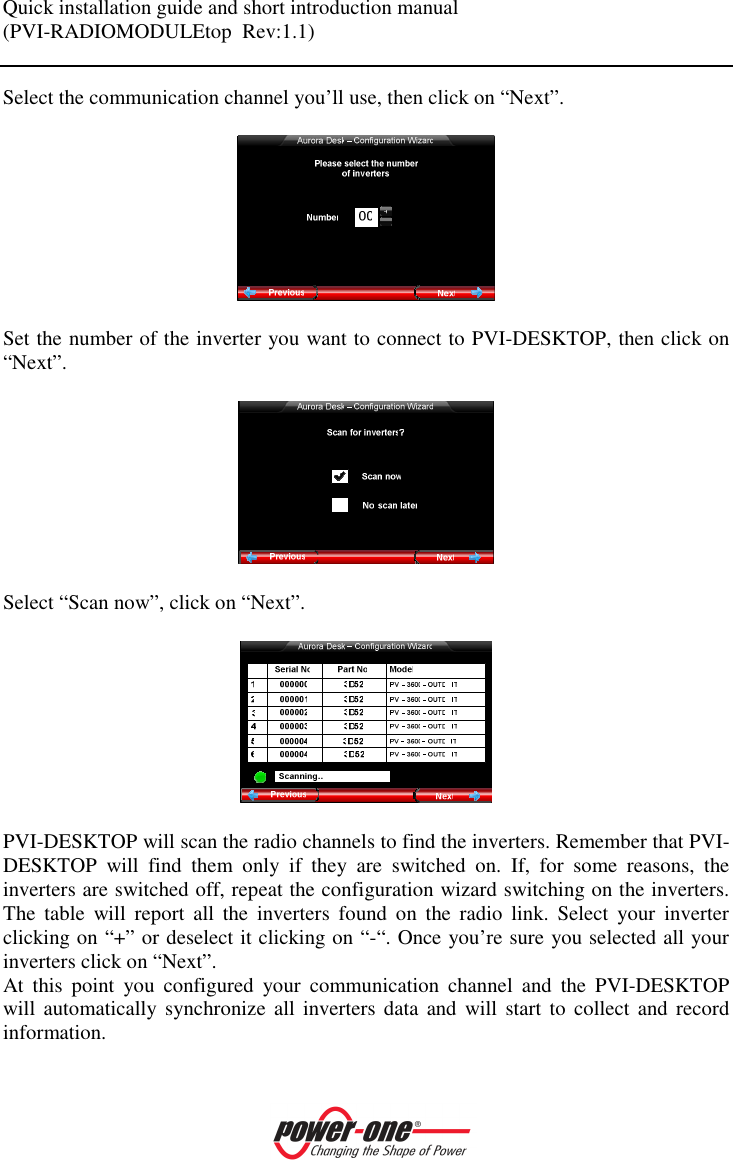
Quick installation guide and short introduction manual (PVI-RADIOMODULEtop  Rev:1.1)    12. Close the front side of Aurora Inverter. (***) 13. Reconnect the AC to Aurora Inverter, by proper switch. (***)  Now the radio module is ready to be configured and affiliate to your PVI-DESKTOP. To complete the affiliation see the procedure in the next pages.   2.3 RADIO AFFILIATION Switch on the PVI-DESKTOP, read the screen and select the proper option. Once you switched on your PVI-DESKTOP you’ll see the following screen    Click on “Next”.    Using the buttons set date and hour, then click on “Next”  Aurora Desk – Configuration WizardNextPreviousPlease select your channel of communication RadioRs485
Quick installation guide and short introduction manual (PVI-RADIOMODULEtop  Rev:1.1)    Select the communication channel you’ll use, then click on “Next”.    Set the number of the inverter you want to connect to PVI-DESKTOP, then click on “Next”.    Select “Scan now”, click on “Next”.    PVI-DESKTOP will scan the radio channels to find the inverters. Remember that PVI-DESKTOP  will  find  them  only  if  they  are  switched  on.  If,  for  some  reasons,  the inverters are switched off, repeat the configuration wizard switching on the inverters. The  table  will  report  all  the  inverters  found  on  the  radio  link.  Select  your  inverter clicking on “+” or deselect it clicking on “-“. Once you’re sure you selected all your inverters click on “Next”. At  this  point  you  configured  your  communication  channel  and  the  PVI-DESKTOP will automatically synchronize  all  inverters  data  and  will  start to  collect  and  record information.
Quick installation guide and short introduction manual (PVI-RADIOMODULEtop  Rev:1.1)      2.4 HOW TO RECONFIGURE SYSTEM Sometimes it is necessary to configure again your system, like when you decide to add to or remove from your plant an inverter. There’s a very user friendly menu that helps you  doing  that.  You  simply  have  to  go  on  menu  “SETTINGS”  and  choose “Configuration”. The configuration wizard will start again and you could decide which inverter remove or add to your communication system.   2.5 SHUTTING ON OR OFF PVI-DESKTOP has a marked button on the top. Pressing this button you’ll turn on the equipment. Pressing the button for more than 5 seconds you’ll see a message on the screen requesting you the confirm for shutting off. PVI-RADIOMODULE receives power supply from the inverter. It is simply on when the inverter display is on and off when the inverter display is off.
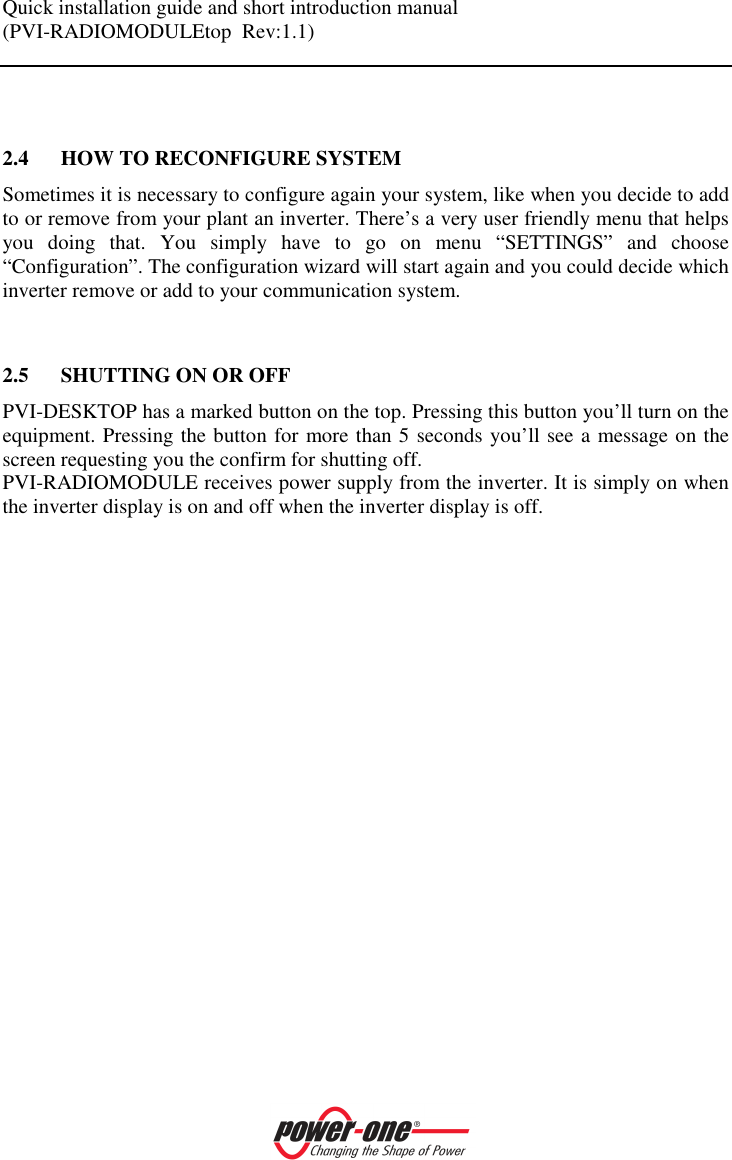
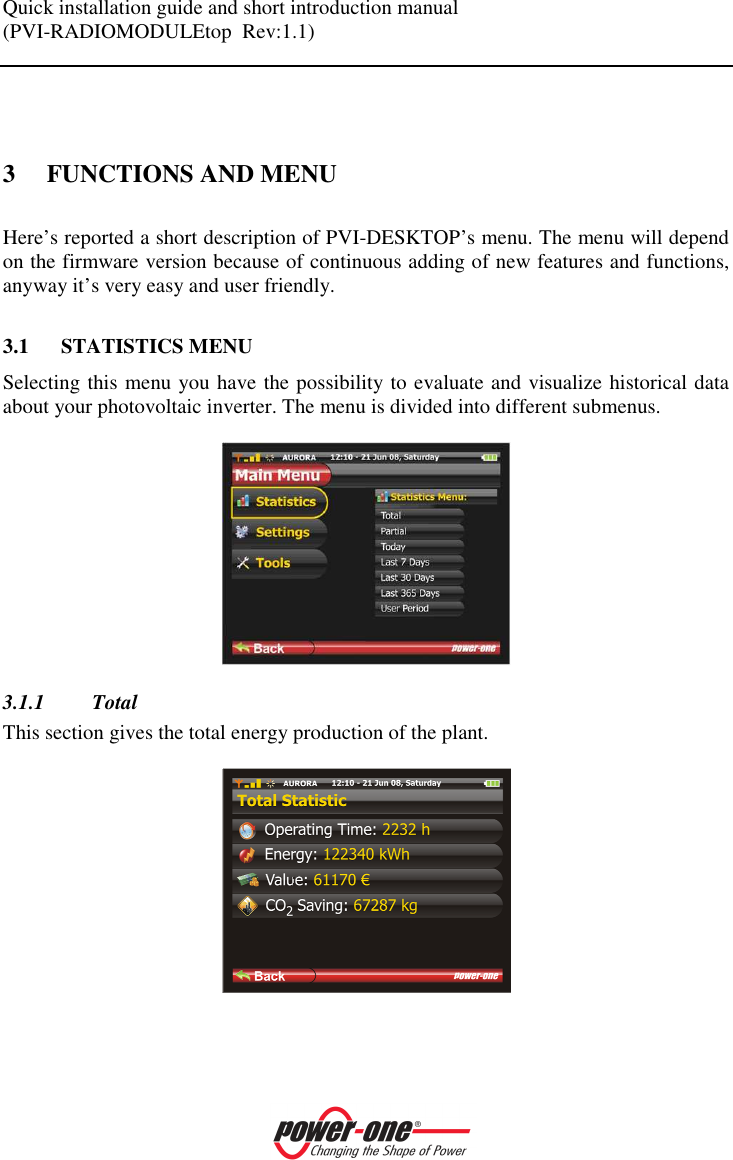
Quick installation guide and short introduction manual (PVI-RADIOMODULEtop  Rev:1.1)     3 FUNCTIONS AND MENU Here’s reported a short description of PVI-DESKTOP’s menu. The menu will depend on the firmware version because of continuous adding of new features and functions, anyway it’s very easy and user friendly.  3.1 STATISTICS MENU Selecting this menu you have the possibility to evaluate and visualize historical data about your photovoltaic inverter. The menu is divided into different submenus.   3.1.1 Total This section gives the total energy production of the plant.
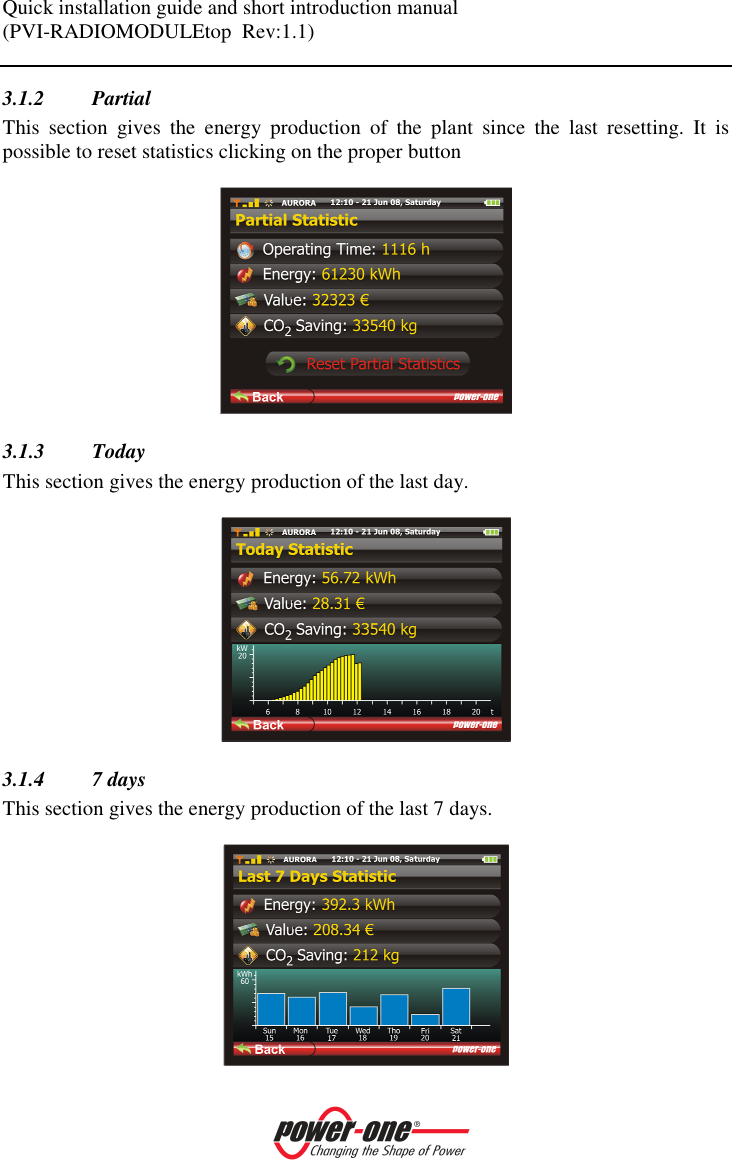
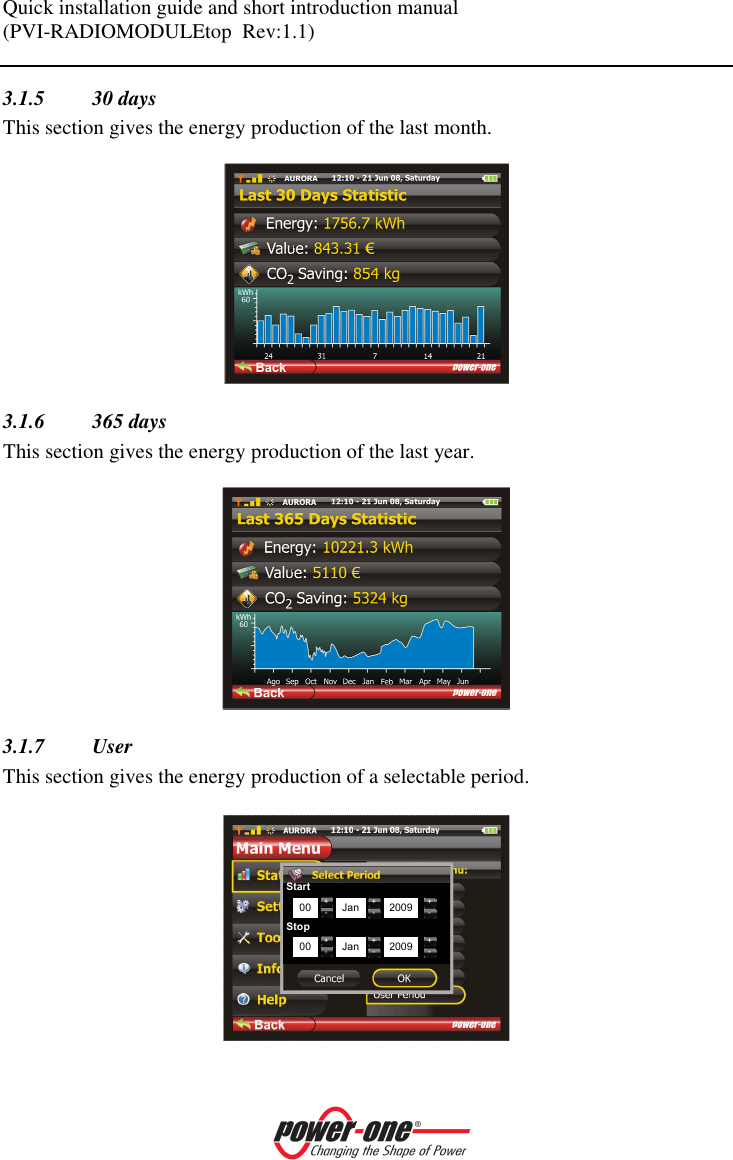
Quick installation guide and short introduction manual (PVI-RADIOMODULEtop  Rev:1.1)    3.1.2 Partial This  section  gives  the  energy  production  of  the  plant  since  the  last  resetting.  It  is possible to reset statistics clicking on the proper button   3.1.3 Today This section gives the energy production of the last day.    3.1.4 7 days This section gives the energy production of the last 7 days.
Quick installation guide and short introduction manual (PVI-RADIOMODULEtop  Rev:1.1)    3.1.5 30 days This section gives the energy production of the last month.   3.1.6 365 days This section gives the energy production of the last year.   3.1.7 User This section gives the energy production of a selectable period.  +-00 +-Jan +-2009+-00 +-Jan +-2009StartStop
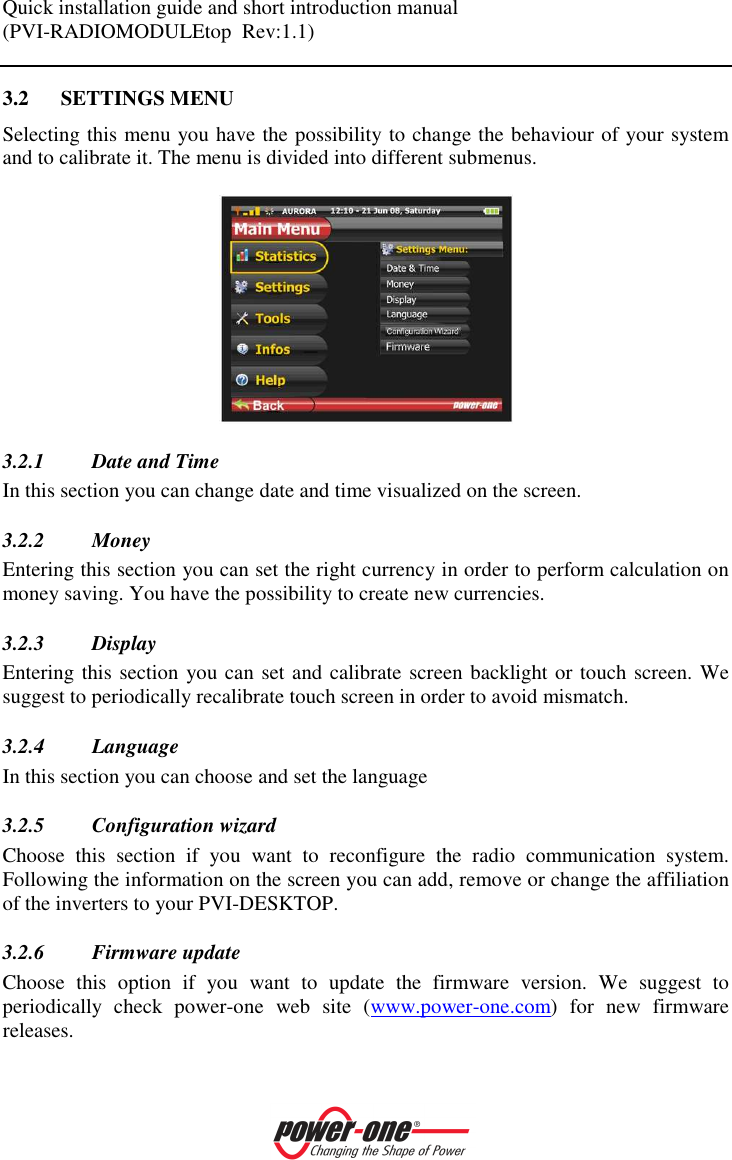
Quick installation guide and short introduction manual (PVI-RADIOMODULEtop  Rev:1.1)    3.2 SETTINGS MENU Selecting this menu you have the possibility to change the behaviour of your system and to calibrate it. The menu is divided into different submenus.   3.2.1 Date and Time In this section you can change date and time visualized on the screen.   3.2.2 Money Entering this section you can set the right currency in order to perform calculation on money saving. You have the possibility to create new currencies. 3.2.3 Display Entering this section you can set and calibrate screen backlight or touch screen. We suggest to periodically recalibrate touch screen in order to avoid mismatch.  3.2.4 Language In this section you can choose and set the language 3.2.5 Configuration wizard Choose  this  section  if  you  want  to  reconfigure  the  radio  communication  system. Following the information on the screen you can add, remove or change the affiliation of the inverters to your PVI-DESKTOP. 3.2.6 Firmware update Choose  this  option  if  you  want  to  update  the  firmware  version.  We  suggest  to periodically  check  power-one  web  site  (www.power-one.com)  for  new  firmware releases.
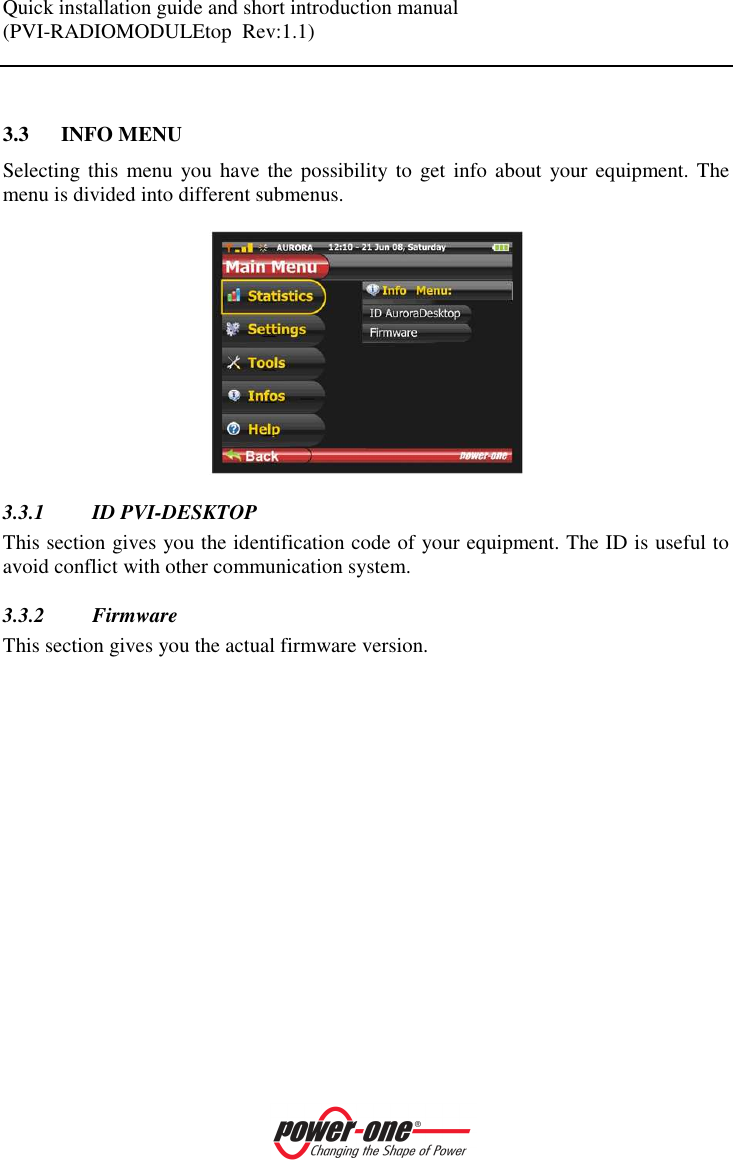
Quick installation guide and short introduction manual (PVI-RADIOMODULEtop  Rev:1.1)     3.3 INFO MENU Selecting this  menu you  have  the possibility to get  info about your equipment. The menu is divided into different submenus.   3.3.1 ID PVI-DESKTOP This section gives you the identification code of your equipment. The ID is useful to avoid conflict with other communication system. 3.3.2 Firmware This section gives you the actual firmware version.
Quick installation guide and short introduction manual (PVI-RADIOMODULEtop  Rev:1.1)     4 UPGRADE PVI-DESKTOP has the capability to evolve continuously. New functions, small bug fixtures and other upgrades will be released by power-one very often. The equipment can be updated using USB port, the optional Bluetooth, or directly coping files into the SD card which contains some part of the  firmware. The PVI-DESKTOP maintain a back-up of the last working firmware to avoid system failures and it is possible to roll-back to the old firmware using the menu.   4.1 UPGRADE USING SD CARD This procedure explain how to upgrade the firmware using the SD card. Follow the steps to correctly upgrade the equipment:  1. Shut down PVI-Desktop pushing more than 5 seconds on the ON/OFF button and confirming on the display. 2. Extract the SD card by pushing softly on it. 3. Insert the SD card on a PC card reader. 4. Check  the  formatting  of  the  SD  card  by  clicking  on  the  right  button  and selecting Properties. Verify that the format is FAT and not FAT32.  5. Open the SD card and you will find several folders (language, theme, etc.), including the folder 'boot'. If  a 'boot' file does not exist, create it.  6. Copy the file downloaded from the Power-One website into the 'boot' folder, and if necessary rename it "boot.ben”.  7. Remove  SD  card  from  the  PC  being  careful  to  perform  the  procedure  for safely removing hardware and put it back in the PVI-DESKTOP. Reinsert it on PVI-Desktop 8. Push the ON/OFF button. 9. Navigate the menu to select the firmware update.  10. Clicking next PVI-DESKTOP will begin the update process.  11. Once you have read and loaded the new software a request for selection will appear on the screen. From this screen you can decide whether to install the new firmware, return to the previous version, or cancel the process and keep the current firmware.
Quick installation guide and short introduction manual (PVI-RADIOMODULEtop  Rev:1.1)    Wait  until  PVI-DESKTOP  concludes  the  installation  process  to  see  the  menu automatically reappear.    The procedure requires few minutes. You'll see a 'Boot...' screen appearing, just wait that PVI-Desktop has concluded the procedure. Your PVI-DESKTOP is now upgraded to the last firmware version.

Navigation menu