PerComm 1100 e80 2-way pager User Manual E80 Quick Guide R2

PerComm Inc e80 2-way pager E80 Quick Guide R2

Contents

Quick Guide

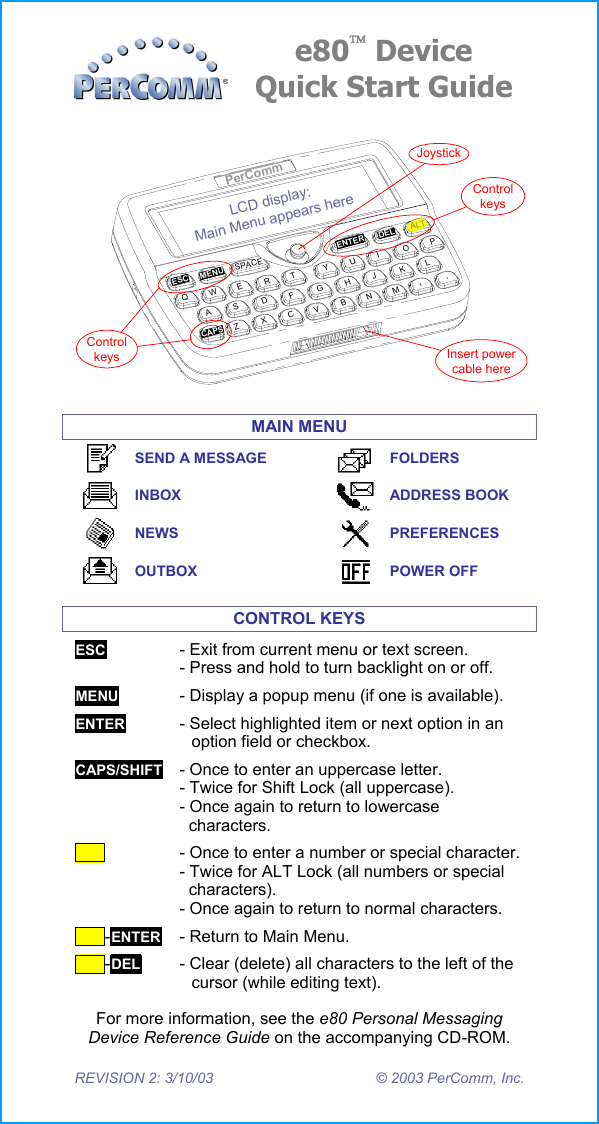
    REVISION 2: 3/10/03  © 2003 PerComm, Inc. e80 Device Quick Start GuideLCD display:Main Menu appears herePerCommENTERESCMENUDELALTCAPSSPACEQWEASRTGFVBHYUIKNL,MJOP.CZXDJoystickControlkeys Insert powercable hereControlkeys MAIN MENU  SEND A MESSAGE FOLDERS    INBOX  ADDRESS BOOK    NEWS  PREFERENCES    OUTBOX  POWER OFF CONTROL KEYS ESC  - Exit from current menu or text screen. - Press and hold to turn backlight on or off.  MENU  - Display a popup menu (if one is available). ENTER  - Select highlighted item or next option in an option field or checkbox. CAPS/SHIFT  - Once to enter an uppercase letter. - Twice for Shift Lock (all uppercase). - Once again to return to lowercase   characters. ALT   - Once to enter a number or special character. - Twice for ALT Lock (all numbers or special   characters). - Once again to return to normal characters.  ALT-ENTER  - Return to Main Menu. ALT-DEL   - Clear (delete) all characters to the left of the cursor (while editing text). For more information, see the e80 Personal Messaging Device Reference Guide on the accompanying CD-ROM.
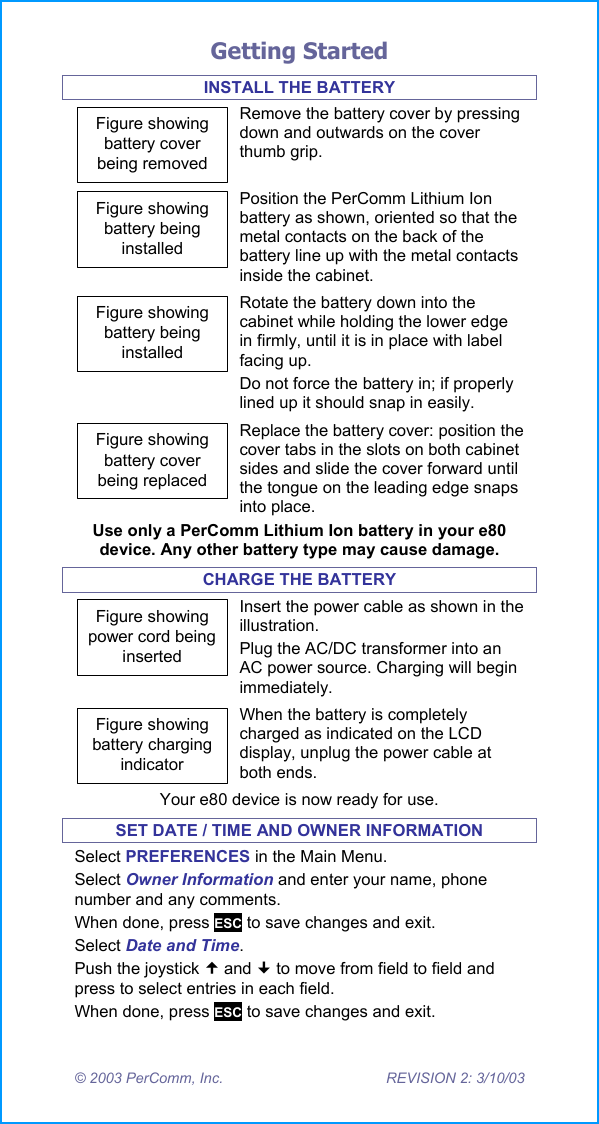
Getting Started © 2003 PerComm, Inc.  REVISION 2: 3/10/03 INSTALL THE BATTERY Figure showingbattery coverbeing removedRemove the battery cover by pressing down and outwards on the cover thumb grip. Figure showingbattery beinginstalledPosition the PerComm Lithium Ion battery as shown, oriented so that the metal contacts on the back of the battery line up with the metal contacts inside the cabinet. Figure showingbattery beinginstalledRotate the battery down into the cabinet while holding the lower edge in firmly, until it is in place with label facing up. Do not force the battery in; if properly lined up it should snap in easily. Figure showingbattery coverbeing replacedReplace the battery cover: position the cover tabs in the slots on both cabinet sides and slide the cover forward until the tongue on the leading edge snaps into place. Use only a PerComm Lithium Ion battery in your e80 device. Any other battery type may cause damage. CHARGE THE BATTERY Figure showingpower cord beinginsertedInsert the power cable as shown in the illustration. Plug the AC/DC transformer into an AC power source. Charging will begin immediately. Figure showingbattery chargingindicatorWhen the battery is completely charged as indicated on the LCD display, unplug the power cable at both ends. Your e80 device is now ready for use. SET DATE / TIME AND OWNER INFORMATION Select PREFERENCES in the Main Menu. Select Owner Information and enter your name, phone number and any comments. When done, press ESC to save changes and exit. Select Date and Time.  Push the joystick  and  to move from field to field and press to select entries in each field. When done, press ESC to save changes and exit.
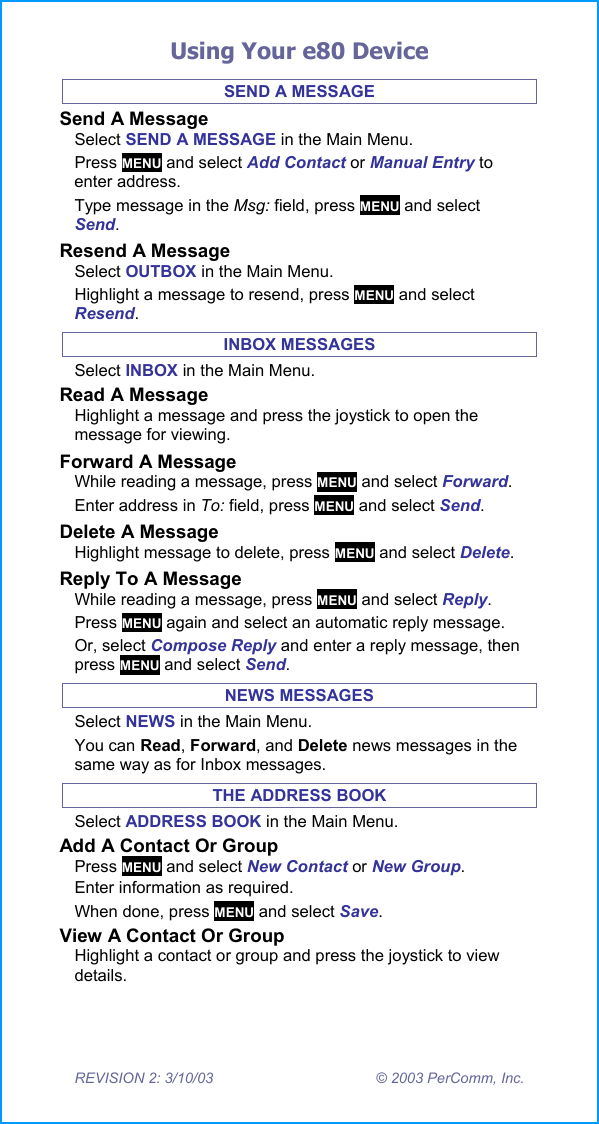
Using Your e80 Device REVISION 2: 3/10/03  © 2003 PerComm, Inc. SEND A MESSAGE Send A Message Select SEND A MESSAGE in the Main Menu. Press MENU and select Add Contact or Manual Entry to enter address. Type message in the Msg: field, press MENU and select Send.  Resend A Message Select OUTBOX in the Main Menu. Highlight a message to resend, press MENU and select Resend. INBOX MESSAGES Select INBOX in the Main Menu. Read A Message Highlight a message and press the joystick to open the message for viewing. Forward A Message While reading a message, press MENU and select Forward.  Enter address in To: field, press MENU and select Send. Delete A Message Highlight message to delete, press MENU and select Delete. Reply To A Message While reading a message, press MENU and select Reply. Press MENU again and select an automatic reply message. Or, select Compose Reply and enter a reply message, then press MENU and select Send. NEWS MESSAGES Select NEWS in the Main Menu. You can Read, Forward, and Delete news messages in the same way as for Inbox messages. THE ADDRESS BOOK Select ADDRESS BOOK in the Main Menu. Add A Contact Or Group Press MENU and select New Contact or New Group.  Enter information as required. When done, press MENU and select Save. View A Contact Or Group Highlight a contact or group and press the joystick to view details.
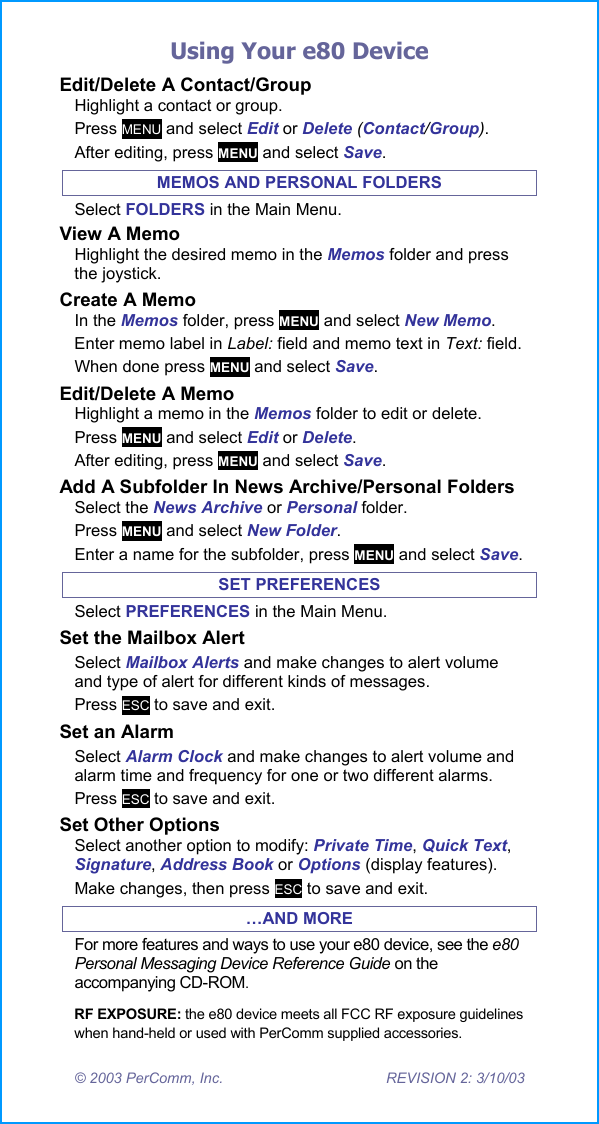
Using Your e80 Device © 2003 PerComm, Inc.  REVISION 2: 3/10/03 Edit/Delete A Contact/Group Highlight a contact or group. Press MENU and select Edit or Delete (Contact/Group).  After editing, press MENU and select Save. MEMOS AND PERSONAL FOLDERS Select FOLDERS in the Main Menu. View A Memo Highlight the desired memo in the Memos folder and press the joystick. Create A Memo In the Memos folder, press MENU and select New Memo. Enter memo label in Label: field and memo text in Text: field.  When done press MENU and select Save.  Edit/Delete A Memo Highlight a memo in the Memos folder to edit or delete. Press MENU and select Edit or Delete. After editing, press MENU and select Save.  Add A Subfolder In News Archive/Personal Folders Select the News Archive or Personal folder. Press MENU and select New Folder. Enter a name for the subfolder, press MENU and select Save. SET PREFERENCES Select PREFERENCES in the Main Menu. Set the Mailbox Alert Select Mailbox Alerts and make changes to alert volume and type of alert for different kinds of messages. Press ESC to save and exit. Set an Alarm Select Alarm Clock and make changes to alert volume and alarm time and frequency for one or two different alarms. Press ESC to save and exit. Set Other Options Select another option to modify: Private Time, Quick Text, Signature, Address Book or Options (display features). Make changes, then press ESC to save and exit. …AND MORE For more features and ways to use your e80 device, see the e80 Personal Messaging Device Reference Guide on the accompanying CD-ROM. RF EXPOSURE: the e80 device meets all FCC RF exposure guidelines when hand-held or used with PerComm supplied accessories.

Navigation menu