Printronix M4LWG Bar Code Printer User Manual M4L WG UserMan

Printronix Inc Bar Code Printer M4L WG UserMan

(M4L-WG) UserMan

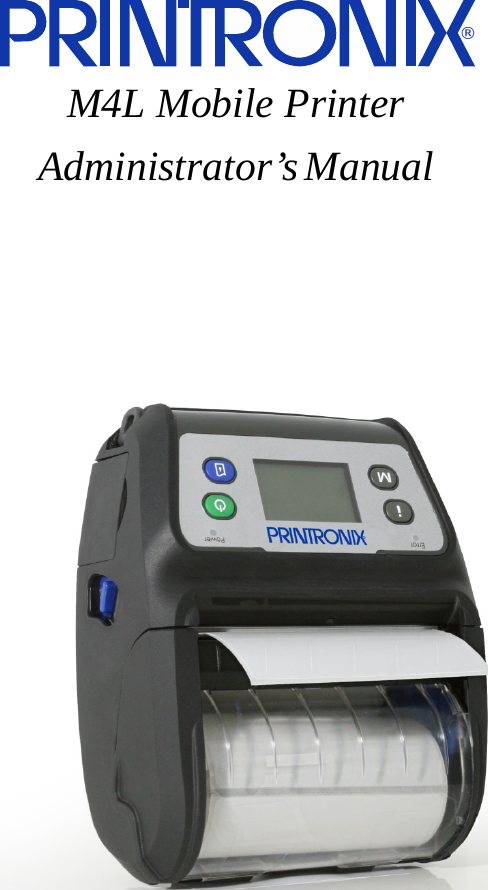
  M4L Mobile Printer Administrator’s Manual  ®
READ THIS SOFTWARE LICENSE AGREEMENT BEFORE USING THIS PRINTER Software License Agreement CAREFULLY READ THE FOLLOWING TERMS AND CONDITIONS BEFORE USING THIS PRINTER. USING THIS PRINTER INDICATES YOUR ACCEPTANCE OF THESE TERMS AND CONDITIONS. IF YOU DO NOT AGREE TO THESE TERMS AND CONDITIONS, PROMPTLY RETURN THE PRINTER AND ALL ACCOMPANYING HARDWARE AND WRITTEN MATERIALS TO THE PLACE YOU OBTAINED THEM, AND YOUR MONEY WILL BE REFUNDED. Definitions. “Software” shall mean the digitally encoded, machine-readable data and program. The term “Software Product” includes the Software resident in the printer and its documentation. The Software Product is licensed (not sold) to you, and Printronix, Inc. either owns or licenses from other vendors who own, all copyright, trade secret, patent and other proprietary rights in the Software Product. License. 1. Authorized Use. You agree to accept a non-exclusive license to use the Software resident in the printer solely for your own customary business or personal purposes. 2. Restrictions. a. To protect the proprietary rights of Printronix, Inc., you agree to maintain the Software Product and other proprietary information concerning the typefaces in strict confidence. b. You agree not to duplicate or copy the Software Product. c. You shall not sublicense, sell, lease, or otherwise transfer all or any portion of the Software Product separate from the printer, without the prior written consent of Printronix, Inc. d. You may not modify or prepare derivative works of the Software Product. e. You may not transmit the Software Product over a network, by telephone, or electronically using any means; or reverse engineer, decompile or disassemble the Software. f. You agree to keep confidential and use your best efforts to prevent and protect the contents of the Software Product from unauthorized disclosure or use. 3. Transfer. You may transfer the Software Product with the printer, but only if the recipient agrees to accept the terms and conditions of this Agreement. Your license is automatically terminated if you transfer the Software Product and printer. Limited Software Product Warranty Printronix, Inc. warrants that for ninety (90) days after delivery, the Software will perform in accordance with specifications published by Printronix, Inc. Printronix, Inc. does not warrant that the Software is free from all bugs, errors and omissions. Remedy Your exclusive remedy and the sole liability of Printronix, Inc. in connection with the Software is replacement of defective software with a copy of the same version and revision level. Disclaimer of Warranties and Limitation of Remedies 1. THE PARTIES AGREE THAT ALL OTHER WARRANTIES, EXPRESS OR IMPLIED, INCLUDING WARRANTIES OF FITNESS FOR A PARTICULAR PURPOSE AND MERCHANTABILITY ARE EXCLUDED. Printronix, Inc. does not warrant that the functions contained in the Software will meet your requirements or that the operation of the Software will be uninterrupted or error free. Printronix, Inc. reserves the right to make changes and/or improvements in the Software without notice at any time. 2. IN NO EVENT WILL PRINTRONIX, INC. BE LIABLE FOR LOST PROFITS, LOST DATA, BUSINESS INTERRUPTIONS, OR ANY OTHER DIRECT, INDIRECT, INCIDENTAL OR CONSEQUENTIAL DAMAGES ARISING OUT OF THE USE OF OR INABILITY TO USE THIS PRODUCT, EVEN IF PRINTRONIX, INC. HAS BEEN ADVISED OF THE POSSIBILITY OF SUCH DAMAGES, OR ANY DAMAGES CAUSED BY THE ABUSE OR MANIPULATION OF THE SOFTWARE. SOME STATES DO NOT ALLOW THE EXCLUSION OR LIMITATION OF LIABILITY FOR CONSEQUENTIAL OR INCIDENTAL DAMAGES, SO THE ABOVE LIMITATION MAY NOT APPLY TO YOU. 3. Printronix, Inc. will not be liable for any loss or damage caused by delay in furnishing a Software Product or any other performance under this Agreement. 4. Our entire liability and your exclusive remedies for our liability  of any kind (including liability for negligence except liability for personal injury caused solely by our negligence) for the Software Product covered by this Agreement and all other performance or nonperformance by us under or related to this Agreement are limited to the remedies specified by this Agreement. 5. California law governs this Agreement. Termination of License Agreement This License shall continue until terminated. This license may be terminated by agreement between you and Printronix, Inc. or by Printronix, Inc. If you fail to comply with the terms of this License and such failure is not corrected within thirty (30) days after notice. When this License is terminated, you shall return to the place you obtained them, the printer and all copies of the Software and documentation. U.S. Government Restricted Rights Use, duplication or disclosure by the Government is subject to restrictions as set forth in the Rights in Technical Data and Computer Software clause at FAR 242.227-7013, subdivision 1 (3) (ii) or subparagraph (c) (1) (ii), as appropriate. Further use, duplication or disclosure is subject to restrictions applicable to restricted rights software as set forth in FAR 52.227-19 (c) (2). Acknowledgement of Terms and Conditions YOU ACKNOWLEDGE THAT YOU HAVE READ THIS AGREEMENT, UNDERSTAND IT, AND AGREE TO BE BOUND BY ITS TERMS AND CONDITIONS. NEITHER PARTY SHALL BE BOUND BY ANY STATEMENT OR REPRESENTATION NOT CONTAINED IN THIS AGREEMENT. NO CHANGE IN THIS AGREEMENT IS EFFECTIVE UNLESS WRITTEN AND SIGNED BY PROPERLY AUTHORIZED REPRESENTATIVES OF EACH PARTY. BY USING THIS PRINTER, YOU AGREE TO ACCEPT THE TERMS AND CONDITIONS OF THIS AGREEMENT.
This document contains proprietary information protected by copyright. No part of this document may be reproduced, copied, translated, or incorporated in any other material in any form or by any means, whether manual, graphic, electronic, mechanical, or otherwise, without the prior written consent of Printronix. Printronix makes no representations or warranties of any kind regarding this material, including, but not limited to, implied warranties of merchantability and fitness for a particular purpose. Printronix shall not be held responsible for errors contained herein or any omissions from this material or for any damages, whether direct or indirect, incidental or consequential, in connection with the furnishing, distribution, performance, or use of this material. The information in this manual is subject to change without notice. COPYRIGHT 2013 PRINTRONIX, INC. Trademark Acknowledgements ANSI is a registered trademark of the American National Standards Institute, Inc. Artifex, the Artifex logo  , Ghostscript, and the Ghostscript logo   are registered trademarks of Artifex Software, Inc. PostScript is a trademark of Adobe Systems Incorporated. Centronics is a registered trademark of Genicom Corporation. CSA is a registered certification mark of the Canadian Standards Association. Dataproducts is a registered trademark of Dataproducts Corporation. EIA is a registered service mark of the Electronic Industries Association. Epson is a registered trademark of Seiko Epson Corporation. Ethernet is a trademark of Xerox Corporation. IBM, AS/400, and Proprinter are registered trademarks, and Intelligent Printer Data Stream and IPDS are trademarks of International Business Machines Corporation. IEEE is a registered service mark of the Institute of Electrical and Electronics Engineers, Inc. Printronix, PGL, LinePrinter Plus, and IGP are registered trademarks, and P8005, P8010, P8015, P8205, P8210, P8215, P8220, and SureStak are trademarks of Printronix, Inc. QMS is a registered trademark, and Code V is a trademark of Quality Micro Systems, Inc. TUV is a registered certification mark of TUV Rheinland of North America, Inc. UL is a registered certification mark of Underwriters Laboratories, Inc.
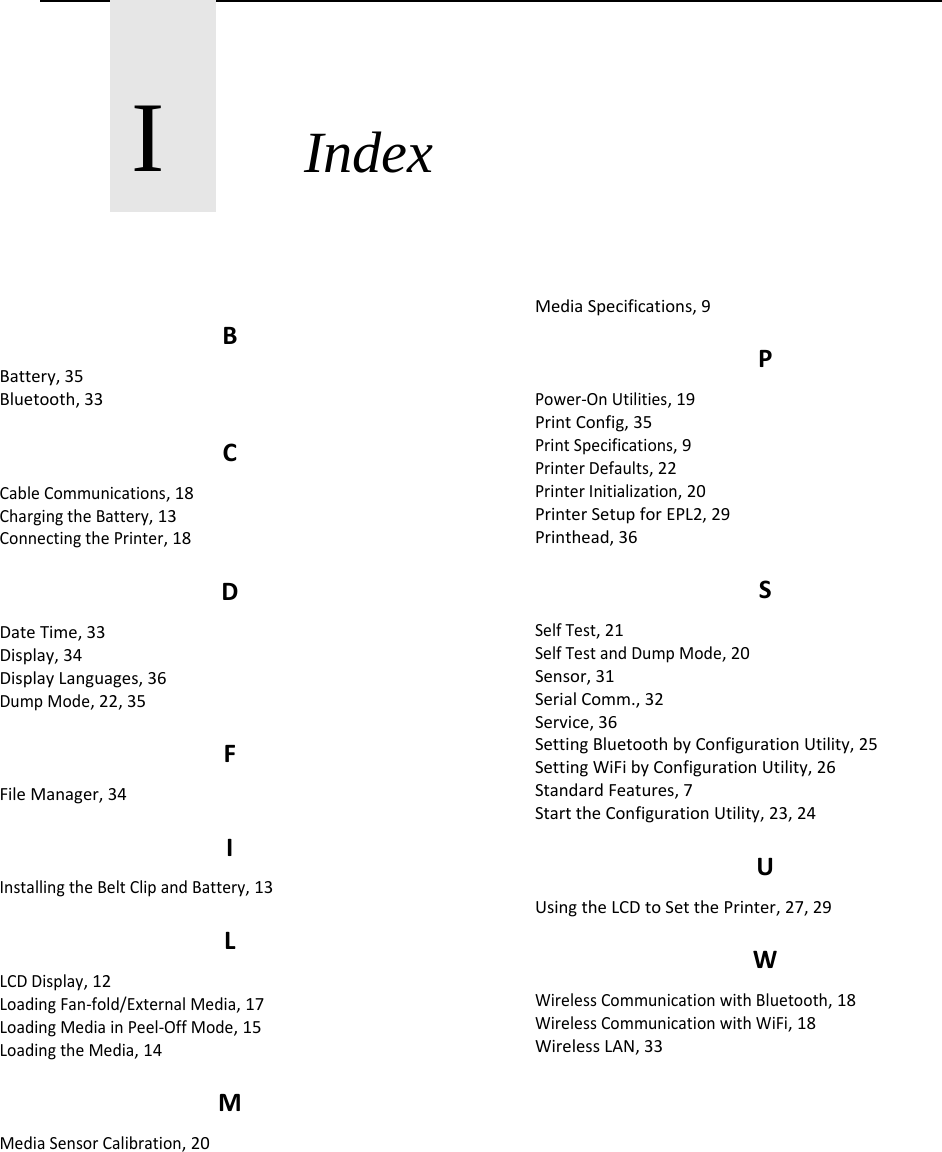
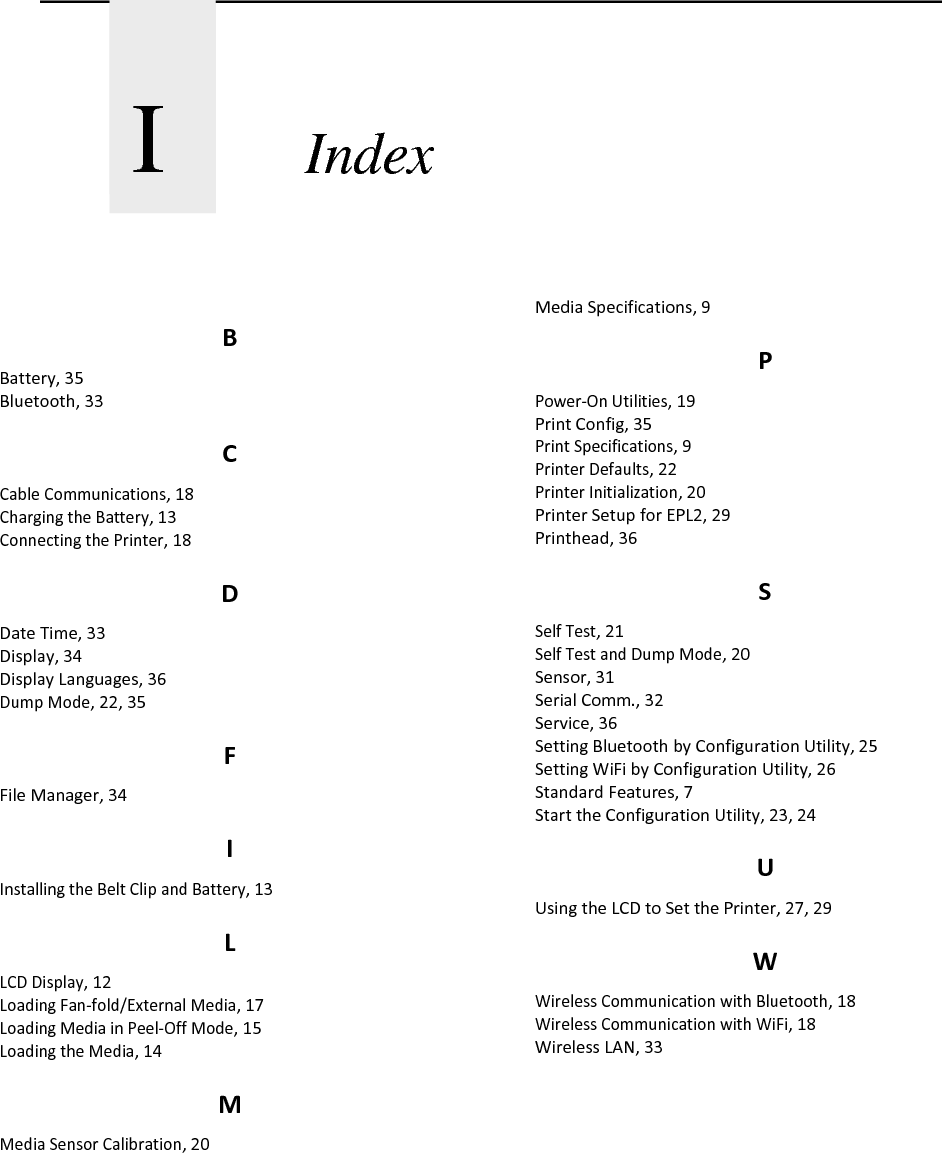
TableofContentsProduct Introduction ............................................................................................................................... 7Printer Features .................................................................................................................................. 8Standard Features .......................................................................................................................... 8General Specifications ................................................................................................................... 9Print Specifications ...................................................................................................................... 10Media Specifications .................................................................................................................... 10LCD Display ................................................................................................................................ 13Installing the Belt Clip and Battery ................................................................................................ 15Charging the Battery .................................................................................................................... 15Loading the Media ....................................................................................................................... 16Loading Media in Peel-Off Mode .................................................................................................. 17Loading Fan-fold/External Media .................................................................................................. 19Connecting the Printer ................................................................................................................. 20Cable Communications ................................................................................................................ 20Wireless Communication with Bluetooth ....................................................................................... 20Wireless Communication with WiFi ............................................................................................... 20Power-On Utilities ........................................................................................................................ 21Media Sensor Calibration ............................................................................................................. 22Self Test and Dump Mode............................................................................................................ 22Printer Initialization ...................................................................................................................... 22Self Test ...................................................................................................................................... 23Dump Mode ................................................................................................................................. 24Printer Defaults ............................................................................................................................ 24Start the Configuration Utility ..................................................................................................... 25Setting Bluetooth by Configuration Utility ................................................................................... 27Setting WiFi by Configuration Utility ........................................................................................... 28Using the LCD to Set the Printer ................................................................................................ 29Using the LCD to Set the Printer ...................................................................................................... 31Printer Setup for EPL2 ...................................................................................................................... 31Sensor ............................................................................................................................................... 33Serial Comm. .................................................................................................................................... 34Wireless LAN .................................................................................................................................... 35Bluetooth ........................................................................................................................................... 35Date Time ......................................................................................................................................... 35Display .............................................................................................................................................. 36File Manager ..................................................................................................................................... 36
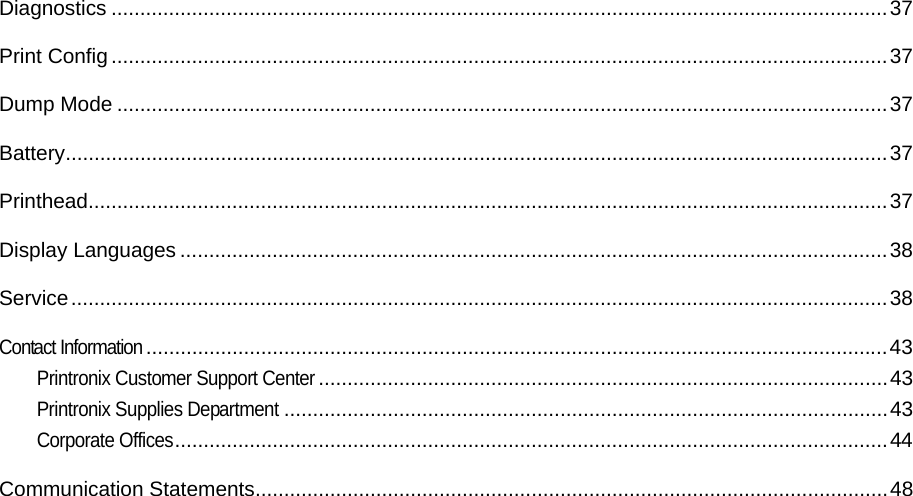
Diagnostics ....................................................................................................................................... 37Print Config ....................................................................................................................................... 37Dump Mode ...................................................................................................................................... 37Battery ............................................................................................................................................... 37Printhead........................................................................................................................................... 37Display Languages ........................................................................................................................... 38Service .............................................................................................................................................. 38Contact Information ................................................................................................................................. 43Printronix Customer Support Center ................................................................................................... 43Printronix Supplies Department ......................................................................................................... 43Corporate Offices ............................................................................................................................ 44Communication Statements .............................................................................................................. 48
      1       Introduction    Product Introduction Printronix® has been the global leader in industrial printing solutions for over 30 years, earning a reputation for designing and manufacturing leading edge products and delivering them to market with unsurpassed service and support.  The M4L is a comfortable, light-weight printer capable of working with any mobile receipt printing application where you need quick, simple receipts on demand. Our M4L is designed for a rough life, inside the IP54-rated environmental case to resist dust and water and with its rubber over-mold design prepared to take up to a five foot fall and keep printing. These small and light printers can be worn comfortably for a full shift, without interfering with the user’s tasks. Use USB, Bluetooth, optional 802.11 b/g/n Wireless or serial to connect to a mobile computer or even a smart phone and produce clear easy-to-read receipts hour after hour   To print label formats, please refer to the instructions provided with your labeling software; if you need to write the custom programs, please refer to the ZPL/CPCL programming manual that can be found on the accessories CD-ROM or on PRINTRONIX website at http://www.printronix.com.  Applications   Portable point of sale   Retail item marking, markdowns, shelf labeling & shelf talkers   Labels for shipping & receiving  Inventory control  Cross-docking   Pick, pack & apply operations   Print pick tickets  Logistics receipts
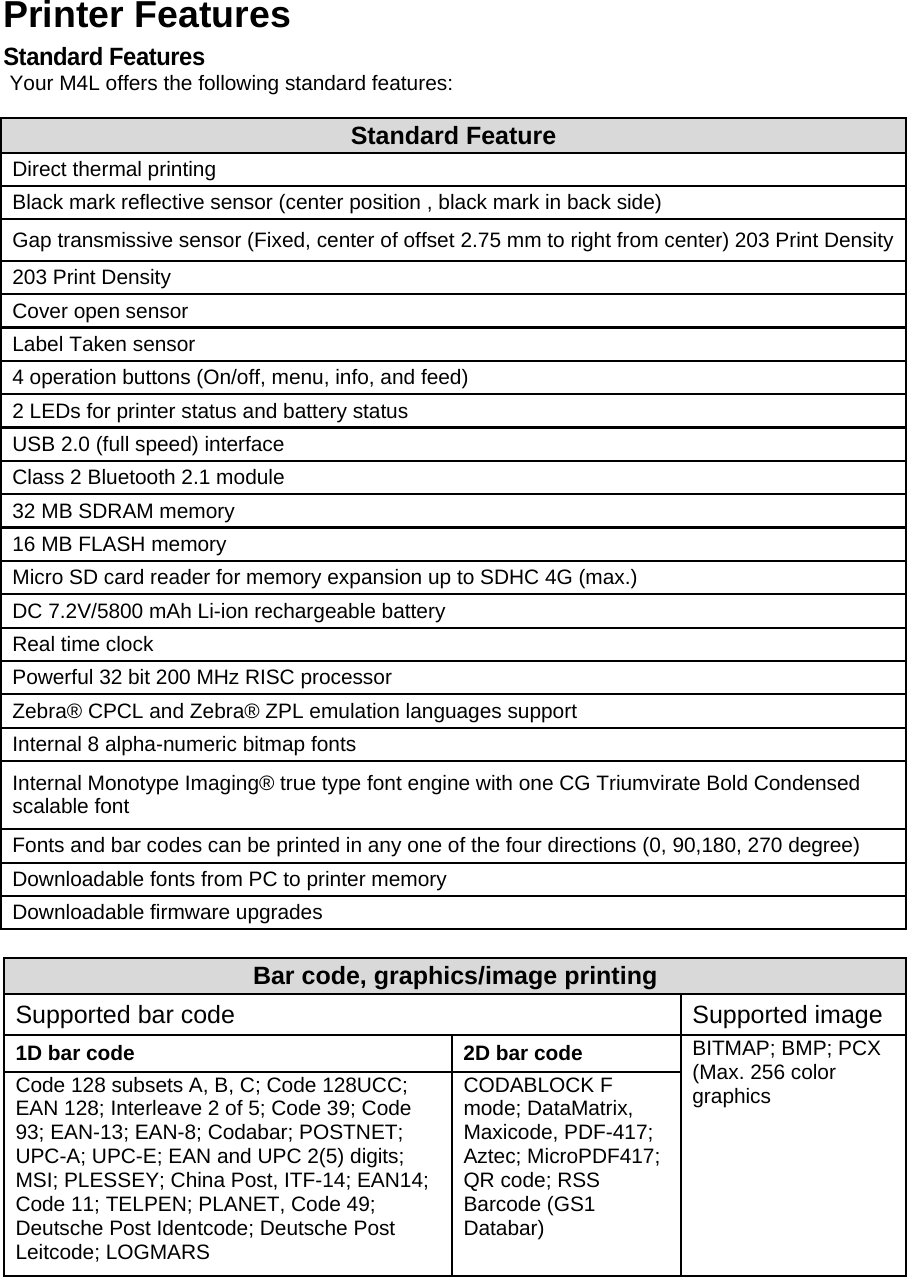
Printer Features Standard Features Your M4L offers the following standard features: Standard Feature Direct thermal printing Black mark reflective sensor (center position , black mark in back side) Gap transmissive sensor (Fixed, center of offset 2.75 mm to right from center) 203 Print Density203 Print Density Cover open sensor Label Taken sensor 4 operation buttons (On/off, menu, info, and feed) 2 LEDs for printer status and battery status USB 2.0 (full speed) interface Class 2 Bluetooth 2.1 module 32 MB SDRAM memory 16 MB FLASH memory Micro SD card reader for memory expansion up to SDHC 4G (max.) DC 7.2V/5800 mAh Li-ion rechargeable battery Real time clock Powerful 32 bit 200 MHz RISC processor Zebra® CPCL and Zebra® ZPL emulation languages support Internal 8 alpha-numeric bitmap fonts Internal Monotype Imaging® true type font engine with one CG Triumvirate Bold Condensed scalable font Fonts and bar codes can be printed in any one of the four directions (0, 90,180, 270 degree) Downloadable fonts from PC to printer memory Downloadable firmware upgrades  Bar code, graphics/image printing Supported bar code   Supported image 1D bar code  2D bar code  BITMAP; BMP; PCX (Max. 256 color graphics Code 128 subsets A, B, C; Code 128UCC; EAN 128; Interleave 2 of 5; Code 39; Code 93; EAN-13; EAN-8; Codabar; POSTNET; UPC-A; UPC-E; EAN and UPC 2(5) digits; MSI; PLESSEY; China Post, ITF-14; EAN14; Code 11; TELPEN; PLANET, Code 49; Deutsche Post Identcode; Deutsche Post Leitcode; LOGMARS CODABLOCK F mode; DataMatrix, Maxicode, PDF-417; Aztec; MicroPDF417; QR code; RSS Barcode (GS1 Databar)
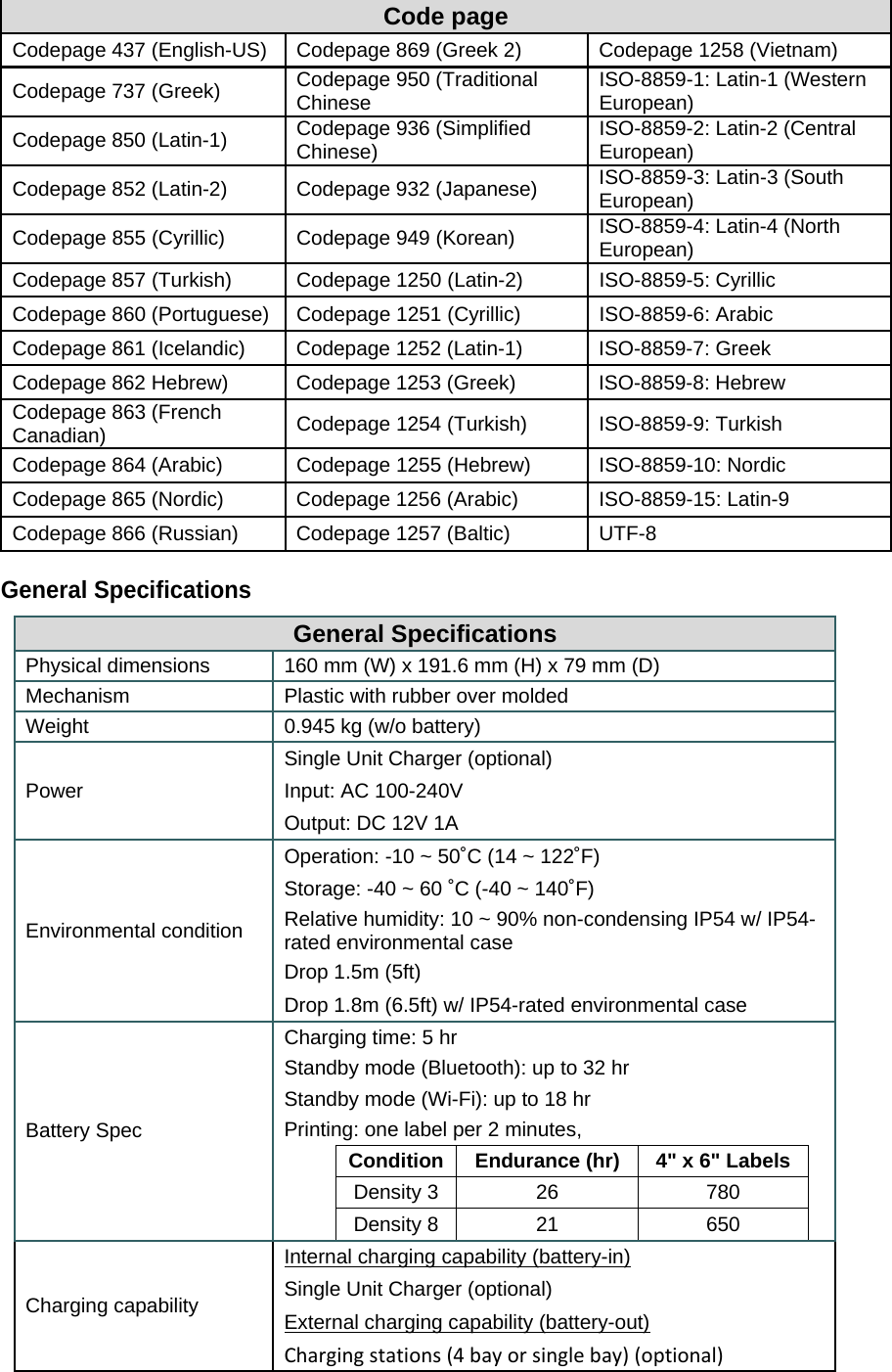
Code page Codepage 437 (English-US)  Codepage 869 (Greek 2)  Codepage 1258 (Vietnam) Codepage 737 (Greek)  Codepage 950 (Traditional Chinese  ISO-8859-1: Latin-1 (Western European) Codepage 850 (Latin-1)  Codepage 936 (Simplified Chinese)  ISO-8859-2: Latin-2 (Central European) Codepage 852 (Latin-2)  Codepage 932 (Japanese)  ISO-8859-3: Latin-3 (South European) Codepage 855 (Cyrillic)  Codepage 949 (Korean)  ISO-8859-4: Latin-4 (North European) Codepage 857 (Turkish)  Codepage 1250 (Latin-2) ISO-8859-5: Cyrillic Codepage 860 (Portuguese)  Codepage 1251 (Cyrillic) ISO-8859-6: Arabic Codepage 861 (Icelandic)  Codepage 1252 (Latin-1)  ISO-8859-7: Greek Codepage 862 Hebrew)  Codepage 1253 (Greek)  ISO-8859-8: Hebrew Codepage 863 (French Canadian)  Codepage 1254 (Turkish)  ISO-8859-9: Turkish Codepage 864 (Arabic)  Codepage 1255 (Hebrew)  ISO-8859-10: Nordic Codepage 865 (Nordic)  Codepage 1256 (Arabic)  ISO-8859-15: Latin-9 Codepage 866 (Russian)  Codepage 1257 (Baltic)  UTF-8  General Specifications General Specifications Physical dimensions  160 mm (W) x 191.6 mm (H) x 79 mm (D) Mechanism  Plastic with rubber over molded Weight  0.945 kg (w/o battery) Power Single Unit Charger (optional) Input: AC 100-240V Output: DC 12V 1A Environmental condition Operation: -10 ~ 50˚C (14 ~ 122˚F) Storage: -40 ~ 60 ˚C (-40 ~ 140˚F) Relative humidity: 10 ~ 90% non-condensing IP54 w/ IP54-rated environmental case Drop 1.5m (5ft) Drop 1.8m (6.5ft) w/ IP54-rated environmental case Battery Spec Charging time: 5 hr Standby mode (Bluetooth): up to 32 hr Standby mode (Wi-Fi): up to 18 hr Printing: one label per 2 minutes,    Condition  Endurance (hr)  4" x 6" Labels      Density 3  26  780      Density 8  21  650   Charging capability Internal charging capability (battery-in) Single Unit Charger (optional) External charging capability (battery-out) Chargingstations(4bayorsinglebay)(optional)
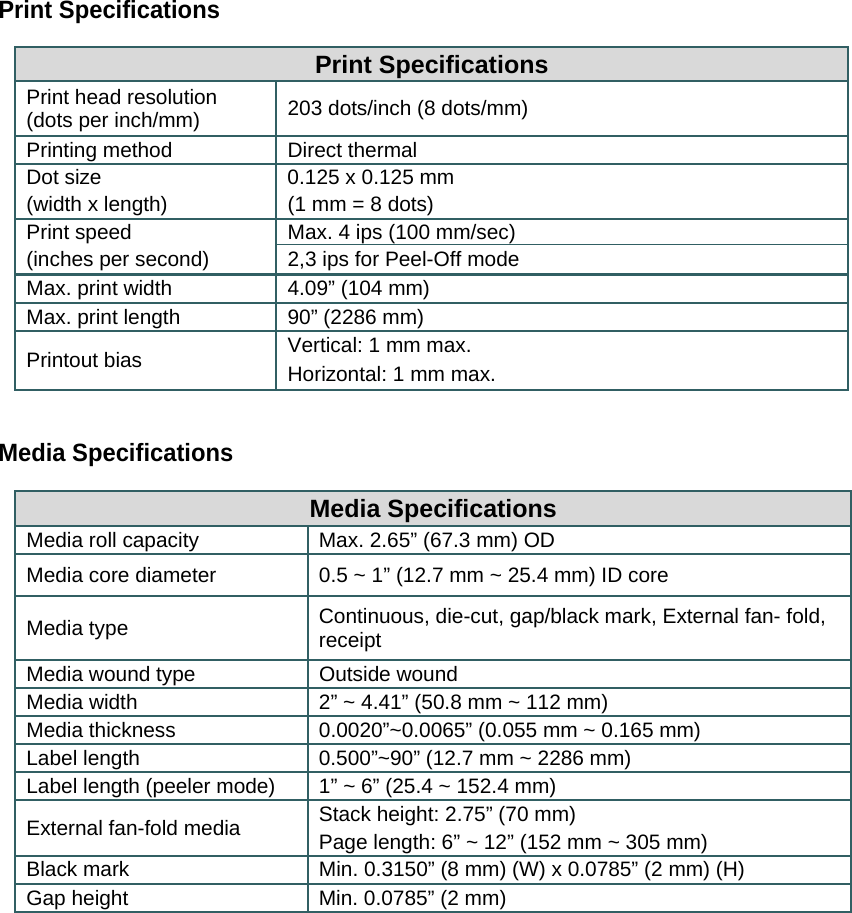
Print Specifications  Print Specifications Print head resolution  (dots per inch/mm)  203 dots/inch (8 dots/mm) Printing method  Direct thermal Dot size  0.125 x 0.125 mm (width x length)  (1 mm = 8 dots) Print speed  Max. 4 ips (100 mm/sec) (inches per second)  2,3 ips for Peel-Off mode Max. print width  4.09” (104 mm) Max. print length  90” (2286 mm) Printout bias  Vertical: 1 mm max. Horizontal: 1 mm max. Media Specifications Media Specifications Media roll capacity  Max. 2.65” (67.3 mm) OD Media core diameter  0.5 ~ 1” (12.7 mm ~ 25.4 mm) ID core Media type  Continuous, die-cut, gap/black mark, External fan- fold, receipt Media wound type  Outside wound Media width  2” ~ 4.41” (50.8 mm ~ 112 mm) Media thickness  0.0020”~0.0065” (0.055 mm ~ 0.165 mm) Label length  0.500”~90” (12.7 mm ~ 2286 mm) Label length (peeler mode)  1” ~ 6” (25.4 ~ 152.4 mm)  External fan-fold media  Stack height: 2.75” (70 mm)  Page length: 6” ~ 12” (152 mm ~ 305 mm) Black mark  Min. 0.3150” (8 mm) (W) x 0.0785” (2 mm) (H) Gap height  Min. 0.0785” (2 mm) 
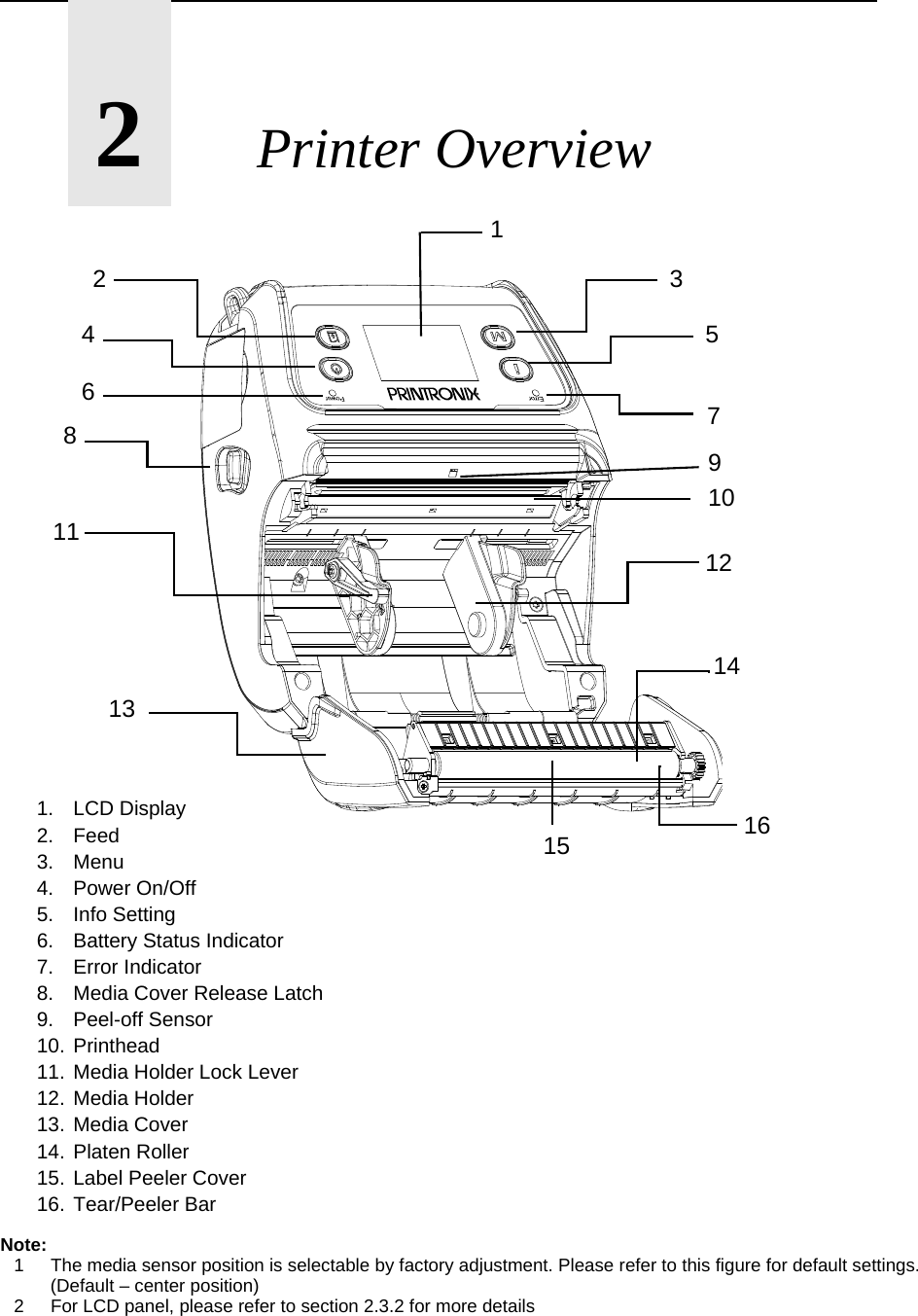
      2       Printer Overview 1. LCD Display     2. Feed 3. Menu 4. Power On/Off 5. Info Setting 6.  Battery Status Indicator 7. Error Indicator 8.  Media Cover Release Latch 9. Peel-off Sensor 10. Printhead 11. Media Holder Lock Lever 12. Media Holder 13. Media Cover 14. Platen Roller 15. Label Peeler Cover 16. Tear/Peeler Bar  Note: 1  The media sensor position is selectable by factory adjustment. Please refer to this figure for default settings. (Default – center position) 2  For LCD panel, please refer to section 2.3.2 for more details 1352 4 6  78 10 11 12 13 14 15  16 9
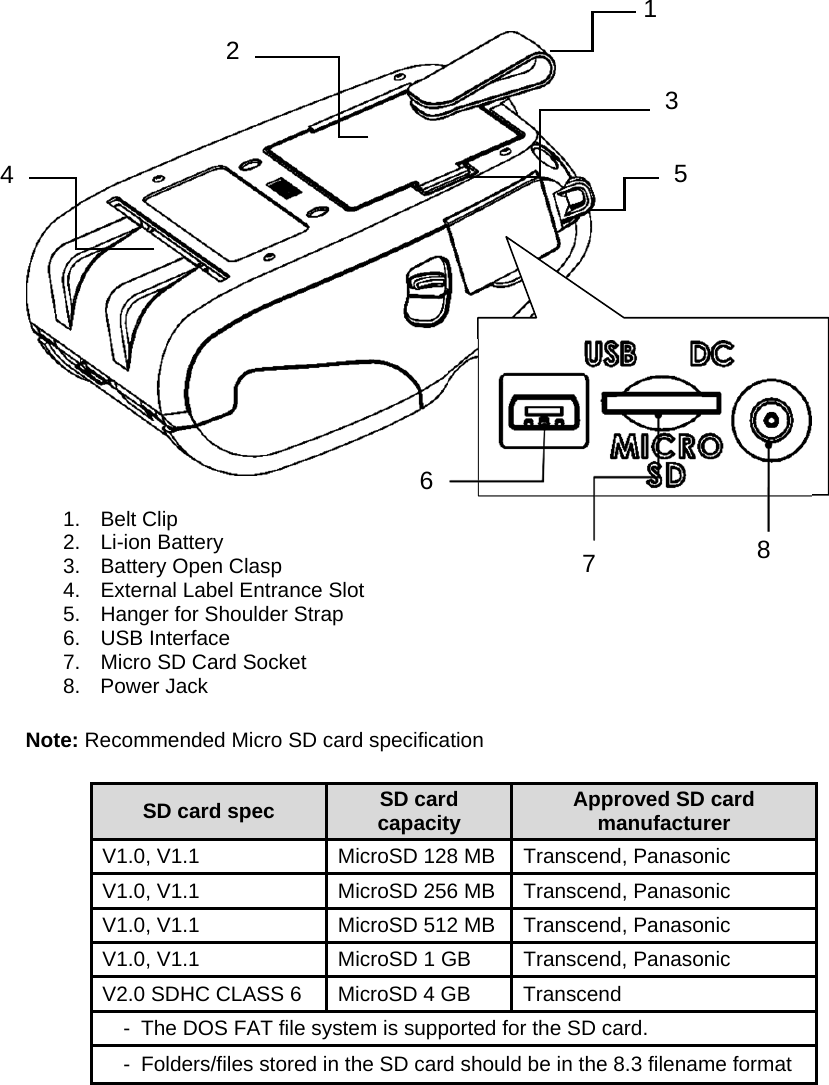
                      1. Belt Clip     2. Li-ion Battery 3.  Battery Open Clasp 4.  External Label Entrance Slot 5.  Hanger for Shoulder Strap 6. USB Interface 7.  Micro SD Card Socket  8. Power Jack  Note: Recommended Micro SD card specification  SD card spec  SD card capacity  Approved SD card manufacturer V1.0, V1.1  MicroSD 128 MB  Transcend, Panasonic V1.0, V1.1  MicroSD 256 MB  Transcend, Panasonic V1.0, V1.1  MicroSD 512 MB  Transcend, Panasonic V1.0, V1.1  MicroSD 1 GB  Transcend, Panasonic V2.0 SDHC CLASS 6  MicroSD 4 GB  Transcend -   The DOS FAT file system is supported for the SD card. -   Folders/files stored in the SD card should be in the 8.3 filename format             1 2 5 3 4 6 8 7
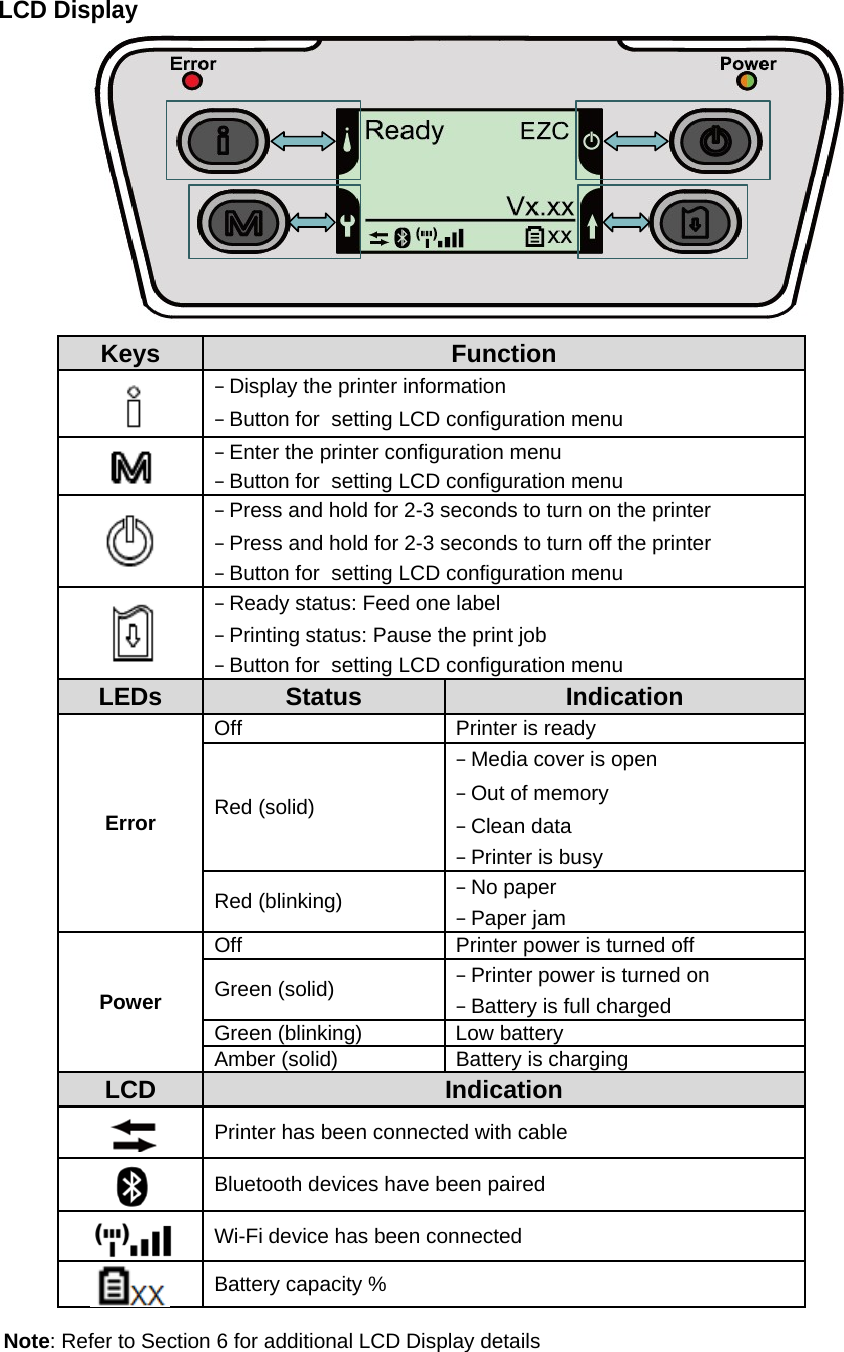
LCD Display              Keys  Function −Display the printer information−Button for  setting LCD configuration menu−Enter the printer configuration menu−Button for  setting LCD configuration menu−Press and hold for 2-3 seconds to turn on the printer−Press and hold for 2-3 seconds to turn off the printer−Button for  setting LCD configuration menu−Ready status: Feed one label−Printing status: Pause the print job−Button for  setting LCD configuration menuLEDs  Status  Indication Error Off Printer is ready Red (solid) −Media cover is open−Out of memory−Clean data−Printer is busyRed (blinking)  −No paper−Paper jamPower Off  Printer power is turned off Green (solid)  −Printer power is turned on−Battery is full chargedGreen (blinking)  Low battery Amber (solid)  Battery is charging LCD  Indication Printer has been connected with cable Bluetooth devices have been paired Wi-Fi device has been connected  Battery capacity %     Note: Refer to Section 6 for additional LCD Display details
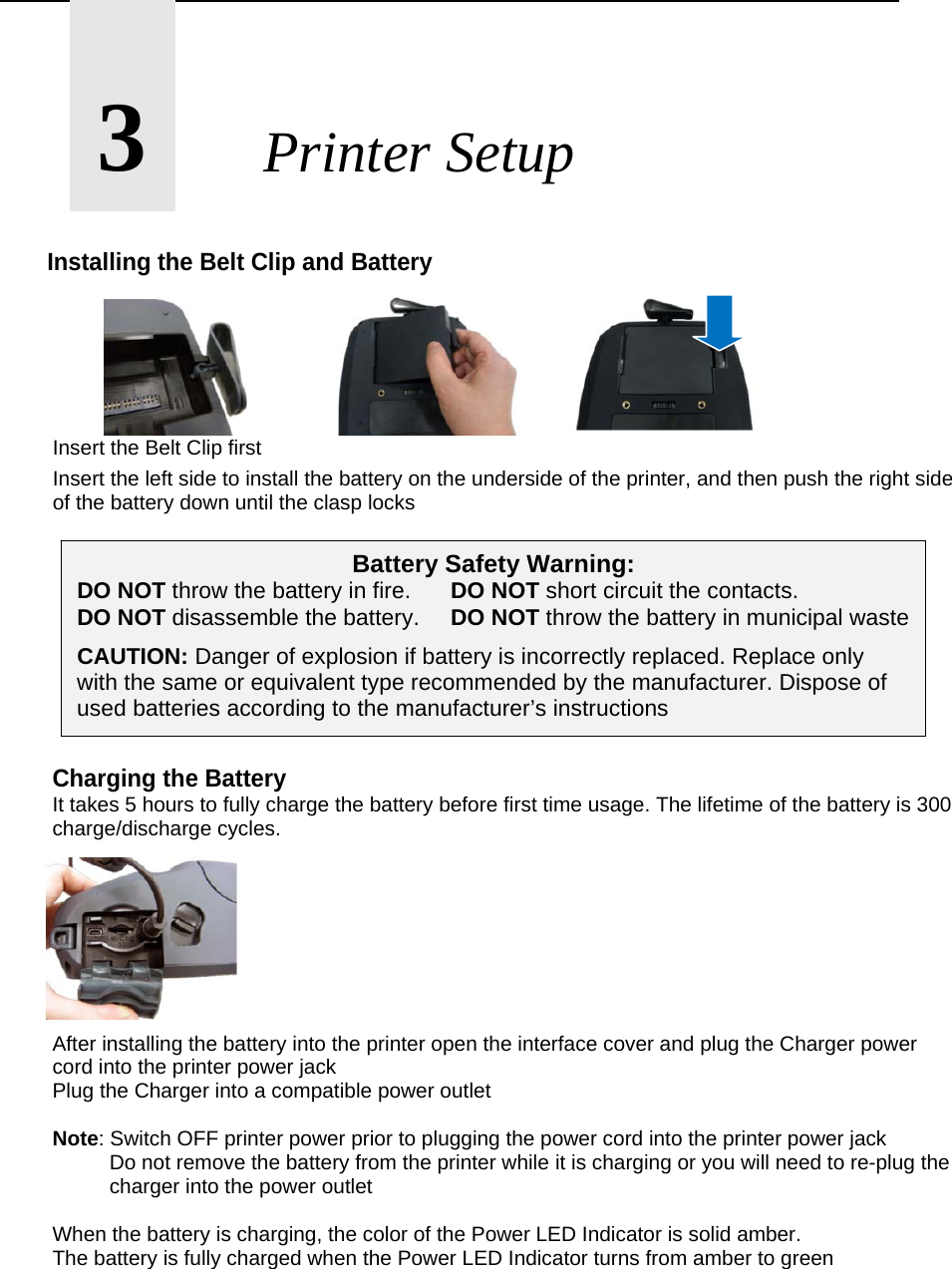
      3       Printer Setup  Installing the Belt Clip and Battery             Insert the Belt Clip first Insert the left side to install the battery on the underside of the printer, and then push the right side of the battery down until the clasp locks          Charging the Battery It takes 5 hours to fully charge the battery before first time usage. The lifetime of the battery is 300 charge/discharge cycles.         After installing the battery into the printer open the interface cover and plug the Charger power cord into the printer power jack Plug the Charger into a compatible power outlet  Note: Switch OFF printer power prior to plugging the power cord into the printer power jack   Do not remove the battery from the printer while it is charging or you will need to re-plug the    charger into the power outlet  When the battery is charging, the color of the Power LED Indicator is solid amber. The battery is fully charged when the Power LED Indicator turns from amber to green   Battery Safety Warning: DO NOT throw the battery in fire.   DO NOT short circuit the contacts. DO NOT disassemble the battery.  DO NOT throw the battery in municipal waste CAUTION: Danger of explosion if battery is incorrectly replaced. Replace only with the same or equivalent type recommended by the manufacturer. Dispose of used batteries according to the manufacturer’s instructions
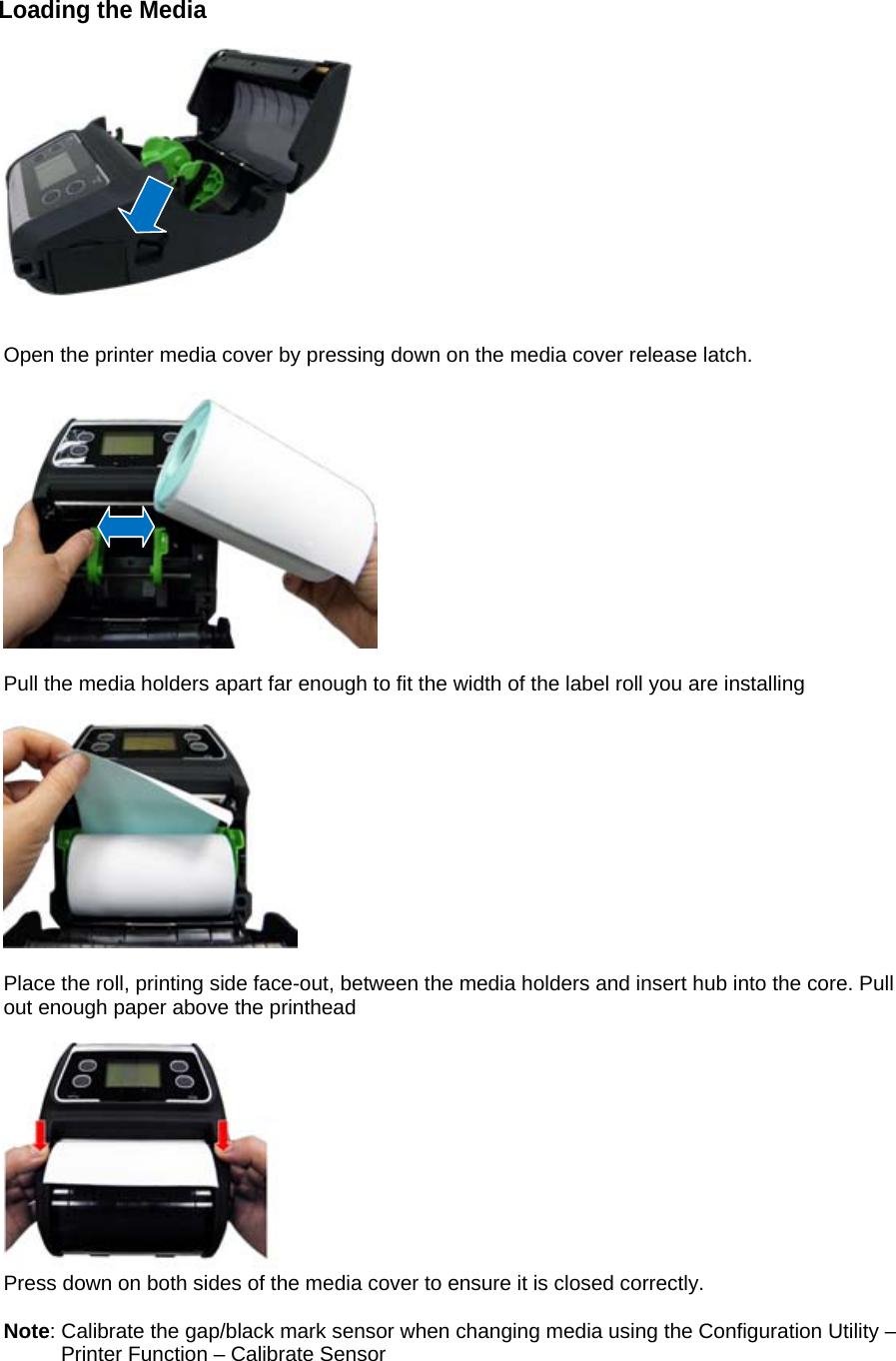
Loading the Media     Open the printer media cover by pressing down on the media cover release latch.    Pull the media holders apart far enough to fit the width of the label roll you are installing    Place the roll, printing side face-out, between the media holders and insert hub into the core. Pull out enough paper above the printhead   Press down on both sides of the media cover to ensure it is closed correctly.  Note: Calibrate the gap/black mark sensor when changing media using the Configuration Utility –          Printer Function – Calibrate Sensor
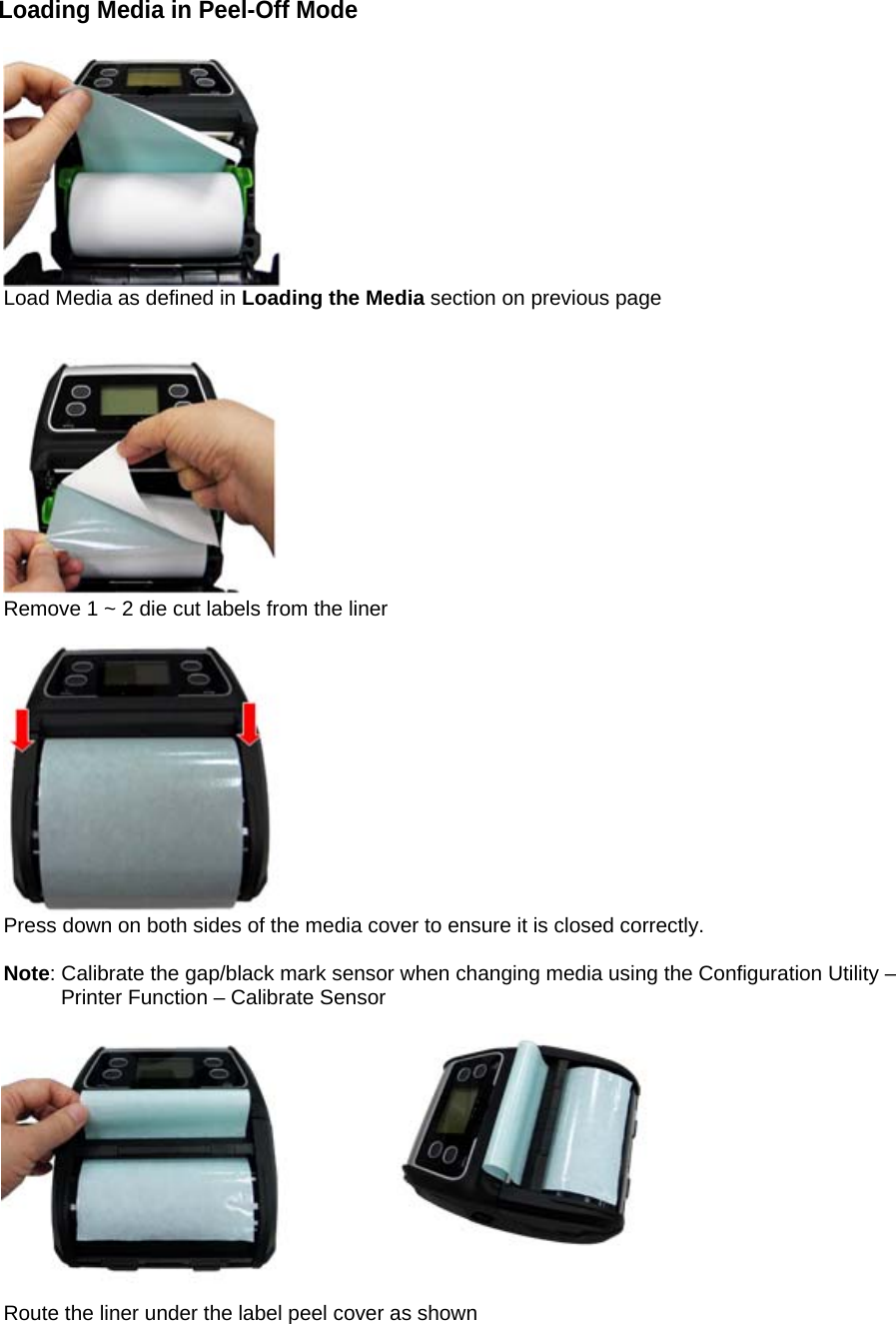
Loading Media in Peel-Off Mode   Load Media as defined in Loading the Media section on previous page    Remove 1 ~ 2 die cut labels from the liner   Press down on both sides of the media cover to ensure it is closed correctly.  Note: Calibrate the gap/black mark sensor when changing media using the Configuration Utility –          Printer Function – Calibrate Sensor                                    Route the liner under the label peel cover as shown
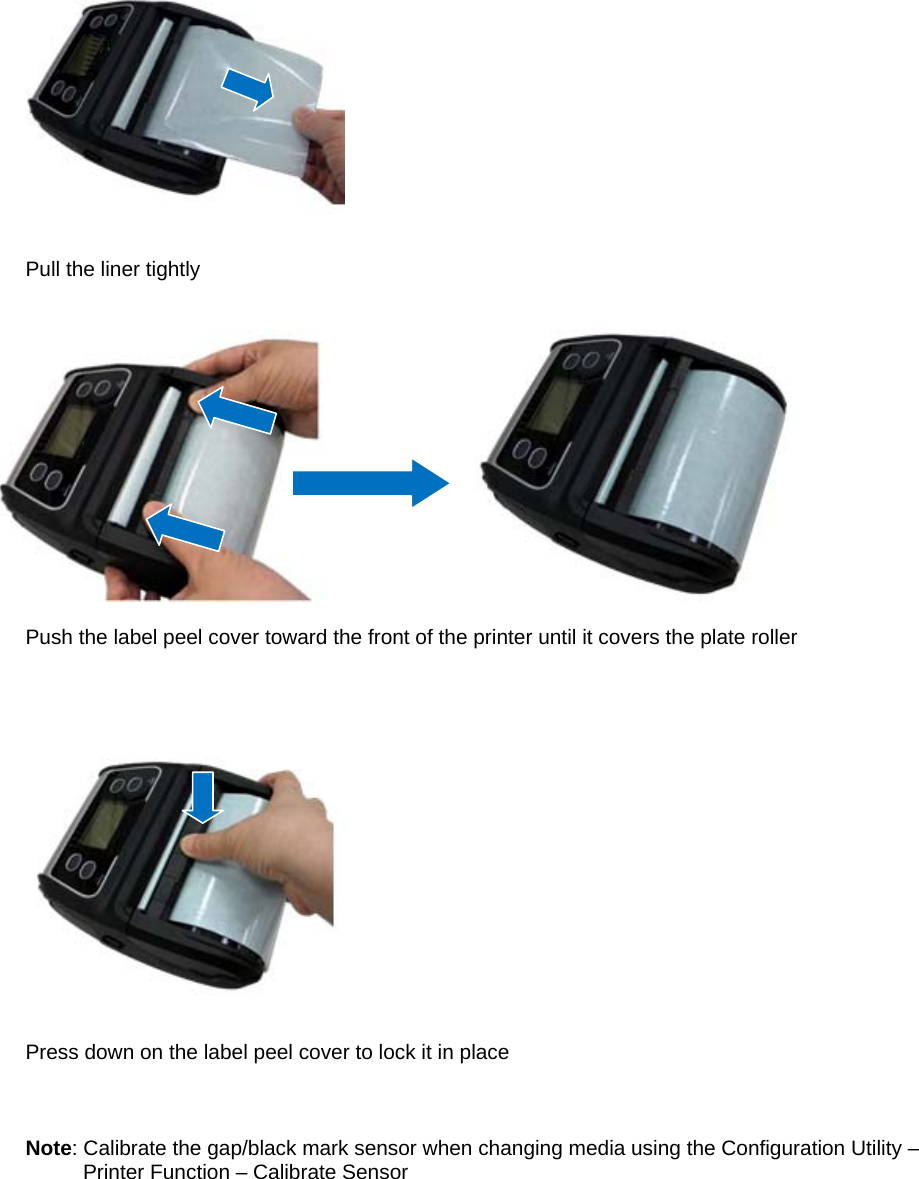
  Pull the liner tightly                           Push the label peel cover toward the front of the printer until it covers the plate roller       Press down on the label peel cover to lock it in place    Note: Calibrate the gap/black mark sensor when changing media using the Configuration Utility –          Printer Function – Calibrate Sensor
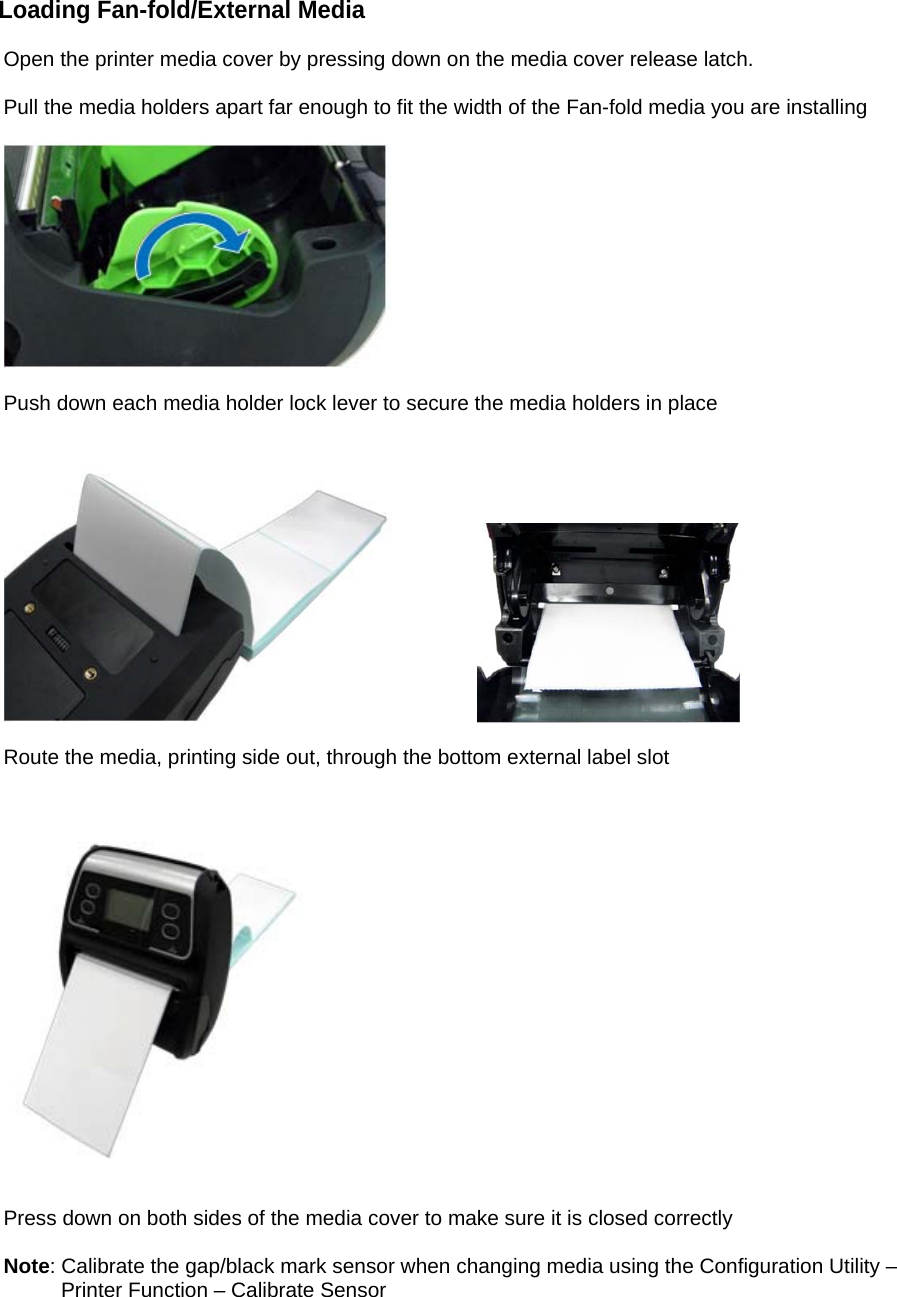
Loading Fan-fold/External Media  Open the printer media cover by pressing down on the media cover release latch.  Pull the media holders apart far enough to fit the width of the Fan-fold media you are installing    Push down each media holder lock lever to secure the media holders in place        Route the media, printing side out, through the bottom external label slot       Press down on both sides of the media cover to make sure it is closed correctly  Note: Calibrate the gap/black mark sensor when changing media using the Configuration Utility –          Printer Function – Calibrate Sensor
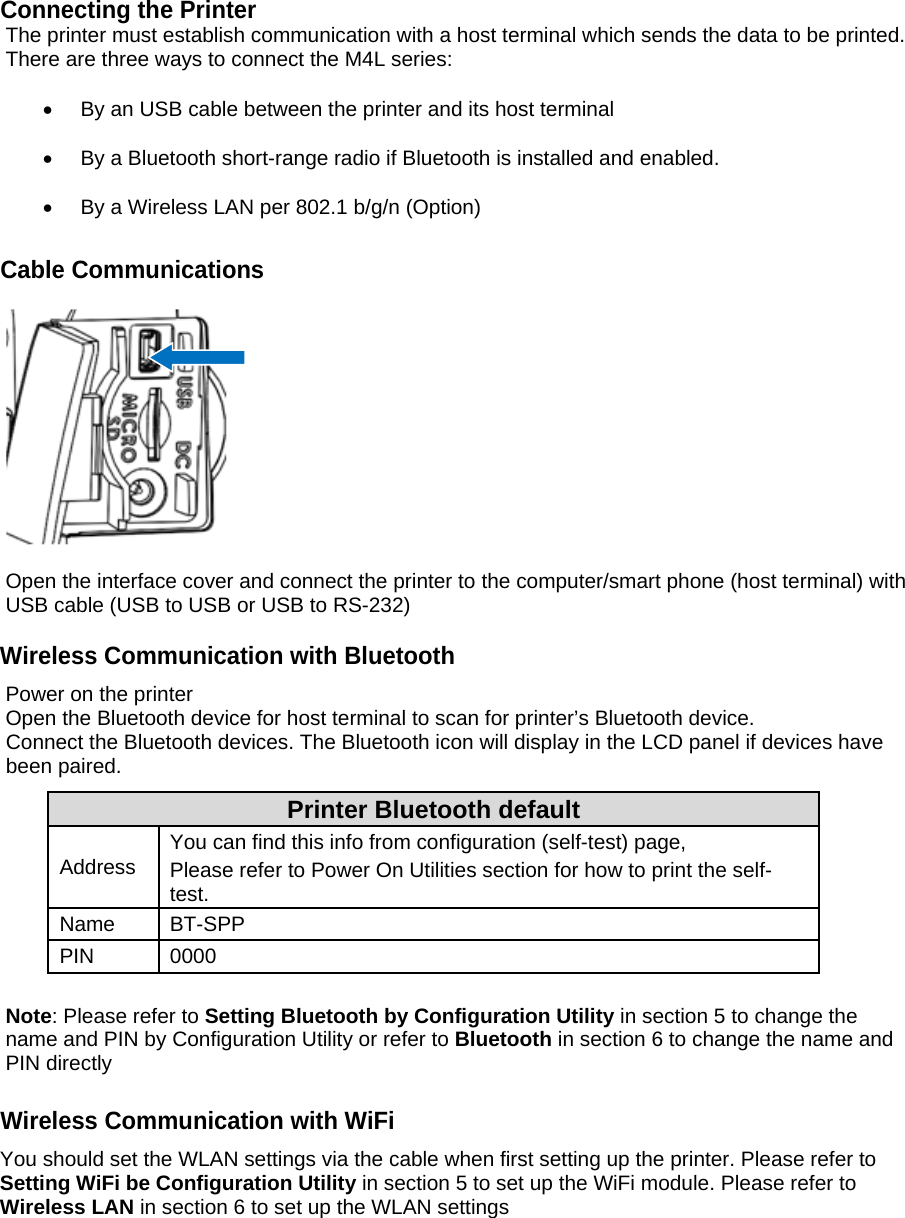
Connecting the Printer The printer must establish communication with a host terminal which sends the data to be printed. There are three ways to connect the M4L series:    By an USB cable between the printer and its host terminal    By a Bluetooth short-range radio if Bluetooth is installed and enabled.    By a Wireless LAN per 802.1 b/g/n (Option)  Cable Communications    Open the interface cover and connect the printer to the computer/smart phone (host terminal) with USB cable (USB to USB or USB to RS-232)  Wireless Communication with Bluetooth Power on the printer Open the Bluetooth device for host terminal to scan for printer’s Bluetooth device. Connect the Bluetooth devices. The Bluetooth icon will display in the LCD panel if devices have been paired. Printer Bluetooth default Address  You can find this info from configuration (self-test) page, Please refer to Power On Utilities section for how to print the self-test. Name BT-SPP PIN 0000  Note: Please refer to Setting Bluetooth by Configuration Utility in section 5 to change the name and PIN by Configuration Utility or refer to Bluetooth in section 6 to change the name and PIN directly  Wireless Communication with WiFi You should set the WLAN settings via the cable when first setting up the printer. Please refer to Setting WiFi be Configuration Utility in section 5 to set up the WiFi module. Please refer to Wireless LAN in section 6 to set up the WLAN settings
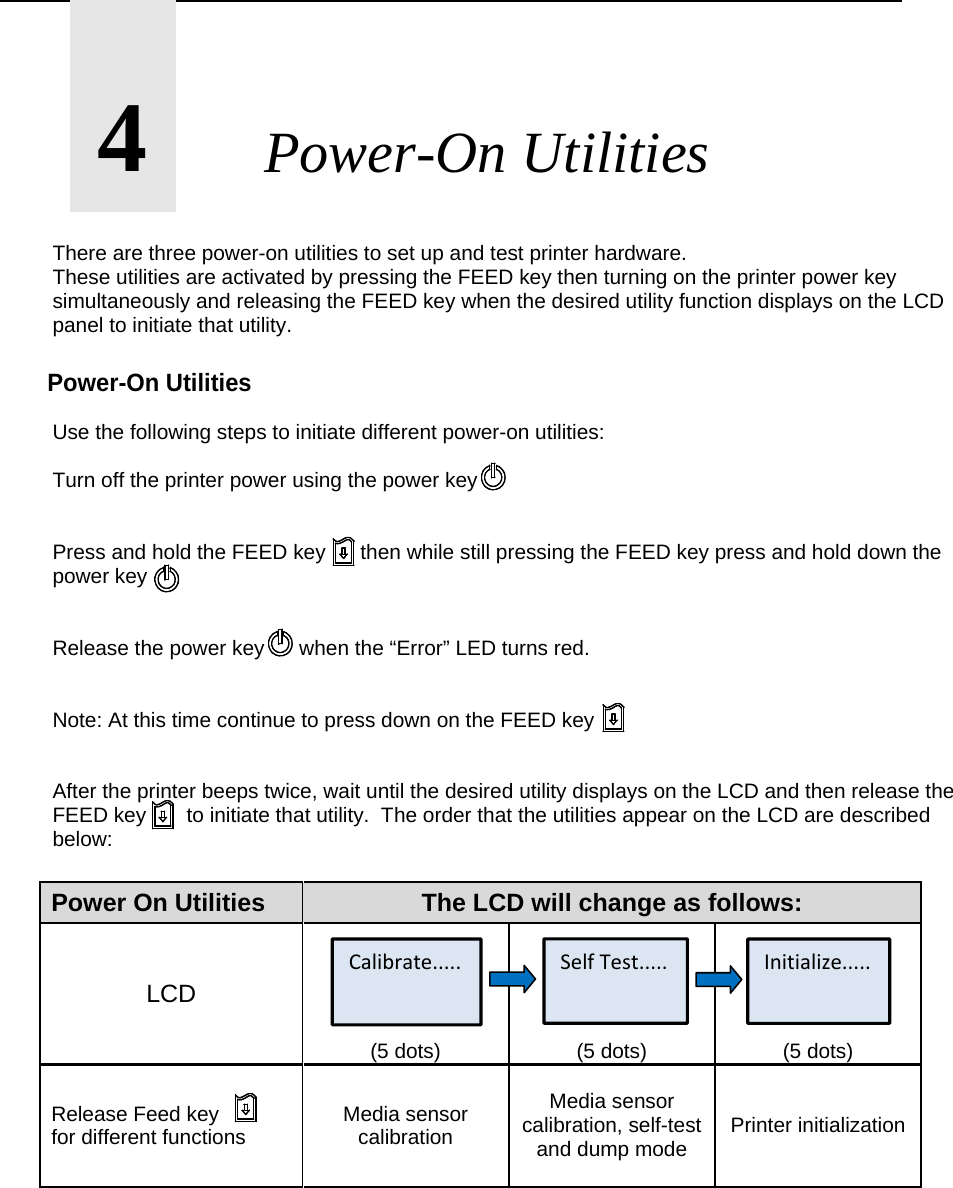
      4       Power-On Utilities  There are three power-on utilities to set up and test printer hardware.  These utilities are activated by pressing the FEED key then turning on the printer power key simultaneously and releasing the FEED key when the desired utility function displays on the LCD panel to initiate that utility.  Power-On Utilities  Use the following steps to initiate different power-on utilities:  Turn off the printer power using the power key    Press and hold the FEED key      then while still pressing the FEED key press and hold down the power key    Release the power key      when the “Error” LED turns red.   Note: At this time continue to press down on the FEED key   After the printer beeps twice, wait until the desired utility displays on the LCD and then release the FEED key       to initiate that utility.  The order that the utilities appear on the LCD are described below:  Power On Utilities  The LCD will change as follows: LCD (5 dots)  (5 dots)  (5 dots) Release Feed key          for different functions  Media sensor calibration Media sensor calibration, self-test and dump mode  Printer initialization       Calibrate..... SelfTest..... Initialize.....
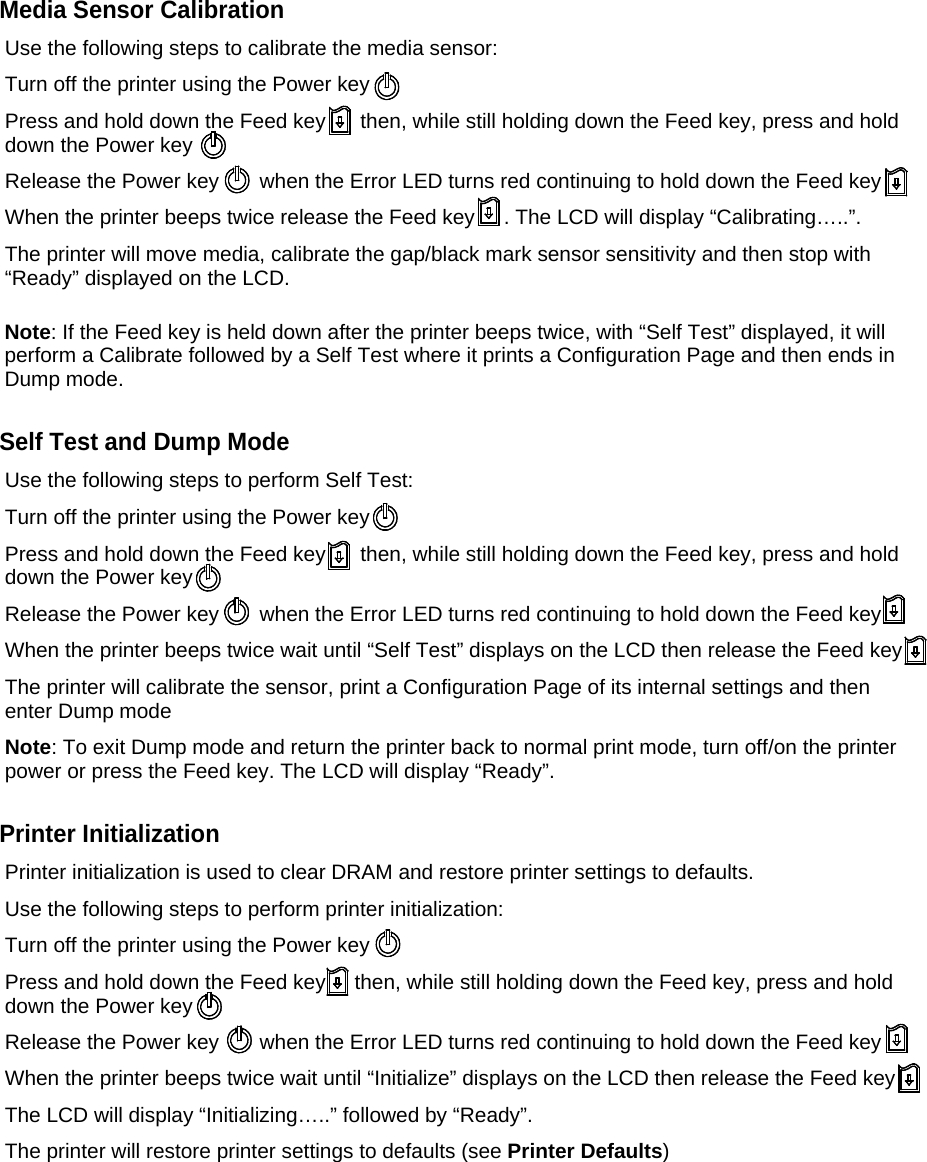
Media Sensor Calibration Use the following steps to calibrate the media sensor: Turn off the printer using the Power key  Press and hold down the Feed key      then, while still holding down the Feed key, press and hold down the Power key Release the Power key       when the Error LED turns red continuing to hold down the Feed key When the printer beeps twice release the Feed key     . The LCD will display “Calibrating…..”. The printer will move media, calibrate the gap/black mark sensor sensitivity and then stop with “Ready” displayed on the LCD.  Note: If the Feed key is held down after the printer beeps twice, with “Self Test” displayed, it will perform a Calibrate followed by a Self Test where it prints a Configuration Page and then ends in Dump mode.  Self Test and Dump Mode Use the following steps to perform Self Test: Turn off the printer using the Power key  Press and hold down the Feed key      then, while still holding down the Feed key, press and hold down the Power key Release the Power key       when the Error LED turns red continuing to hold down the Feed key When the printer beeps twice wait until “Self Test” displays on the LCD then release the Feed key       The printer will calibrate the sensor, print a Configuration Page of its internal settings and then enter Dump mode Note: To exit Dump mode and return the printer back to normal print mode, turn off/on the printer power or press the Feed key. The LCD will display “Ready”.  Printer Initialization Printer initialization is used to clear DRAM and restore printer settings to defaults. Use the following steps to perform printer initialization: Turn off the printer using the Power key  Press and hold down the Feed key     then, while still holding down the Feed key, press and hold down the Power key Release the Power key       when the Error LED turns red continuing to hold down the Feed key When the printer beeps twice wait until “Initialize” displays on the LCD then release the Feed key       The LCD will display “Initializing…..” followed by “Ready”. The printer will restore printer settings to defaults (see Printer Defaults)
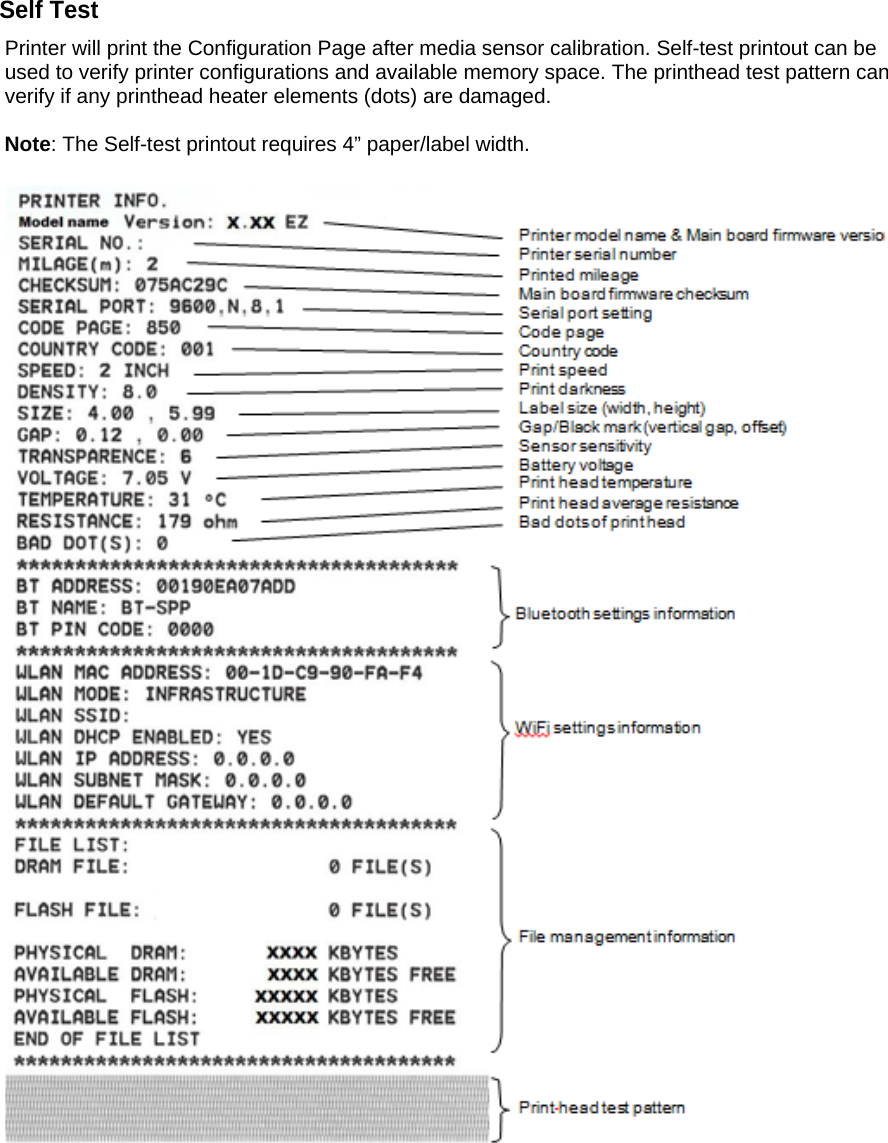
Self Test Printer will print the Configuration Page after media sensor calibration. Self-test printout can be used to verify printer configurations and available memory space. The printhead test pattern can verify if any printhead heater elements (dots) are damaged.  Note: The Self-test printout requires 4” paper/label width.
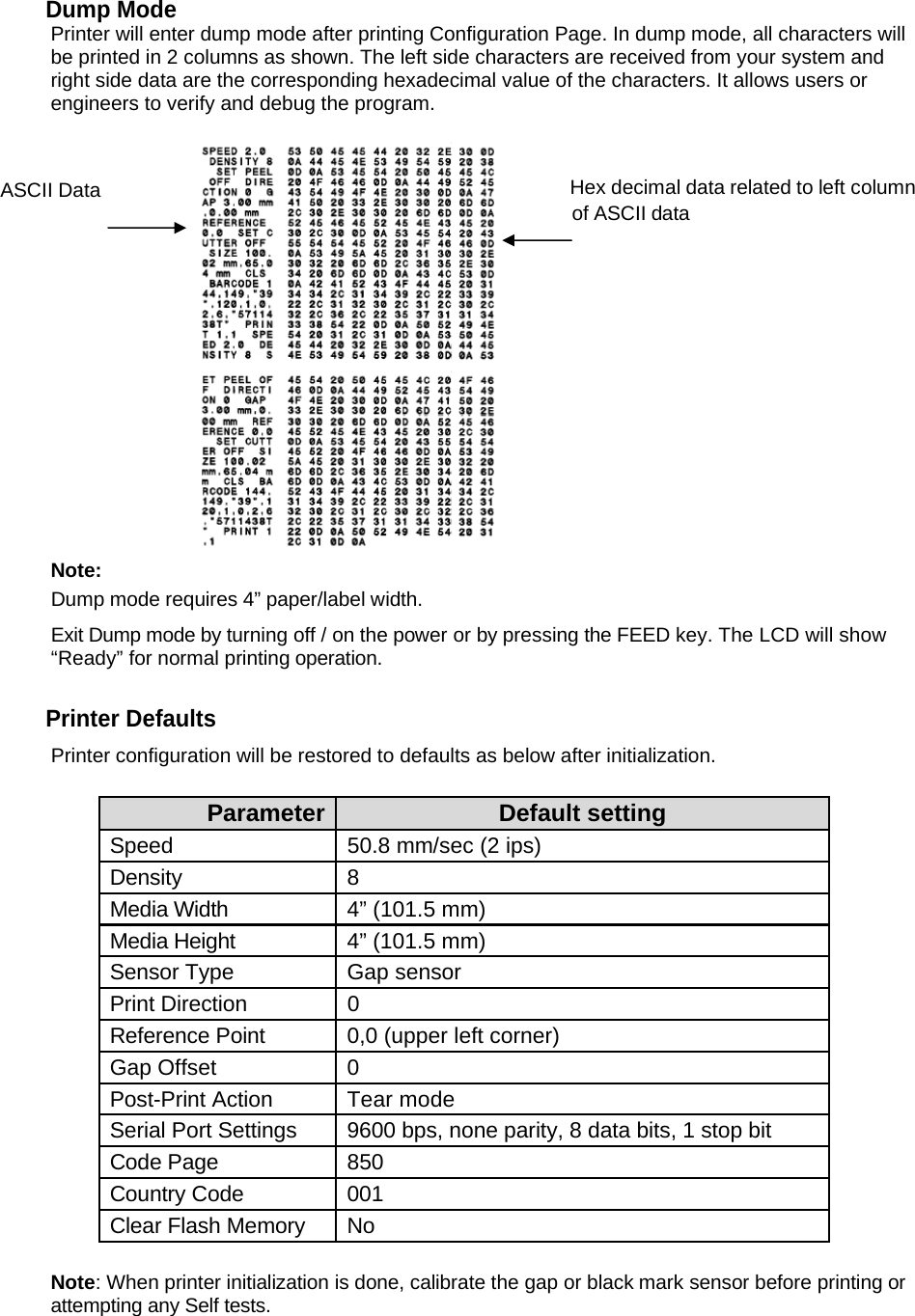
Dump Mode Printer will enter dump mode after printing Configuration Page. In dump mode, all characters will be printed in 2 columns as shown. The left side characters are received from your system and right side data are the corresponding hexadecimal value of the characters. It allows users or engineers to verify and debug the program. ASCII Data                                                                                    Hex decimal data related to left column                                                                                                                       of ASCII data  Note: Dump mode requires 4” paper/label width. Exit Dump mode by turning off / on the power or by pressing the FEED key. The LCD will show “Ready” for normal printing operation.   Printer Defaults Printer configuration will be restored to defaults as below after initialization.  Parameter  Default setting Speed  50.8 mm/sec (2 ips) Density 8 Media Width  4” (101.5 mm) Media Height  4” (101.5 mm) Sensor Type  Gap sensor Print Direction  0 Reference Point  0,0 (upper left corner) Gap Offset  0 Post-Print Action  Tear mode Serial Port Settings  9600 bps, none parity, 8 data bits, 1 stop bit Code Page  850 Country Code  001 Clear Flash Memory  No  Note: When printer initialization is done, calibrate the gap or black mark sensor before printing or attempting any Self tests.
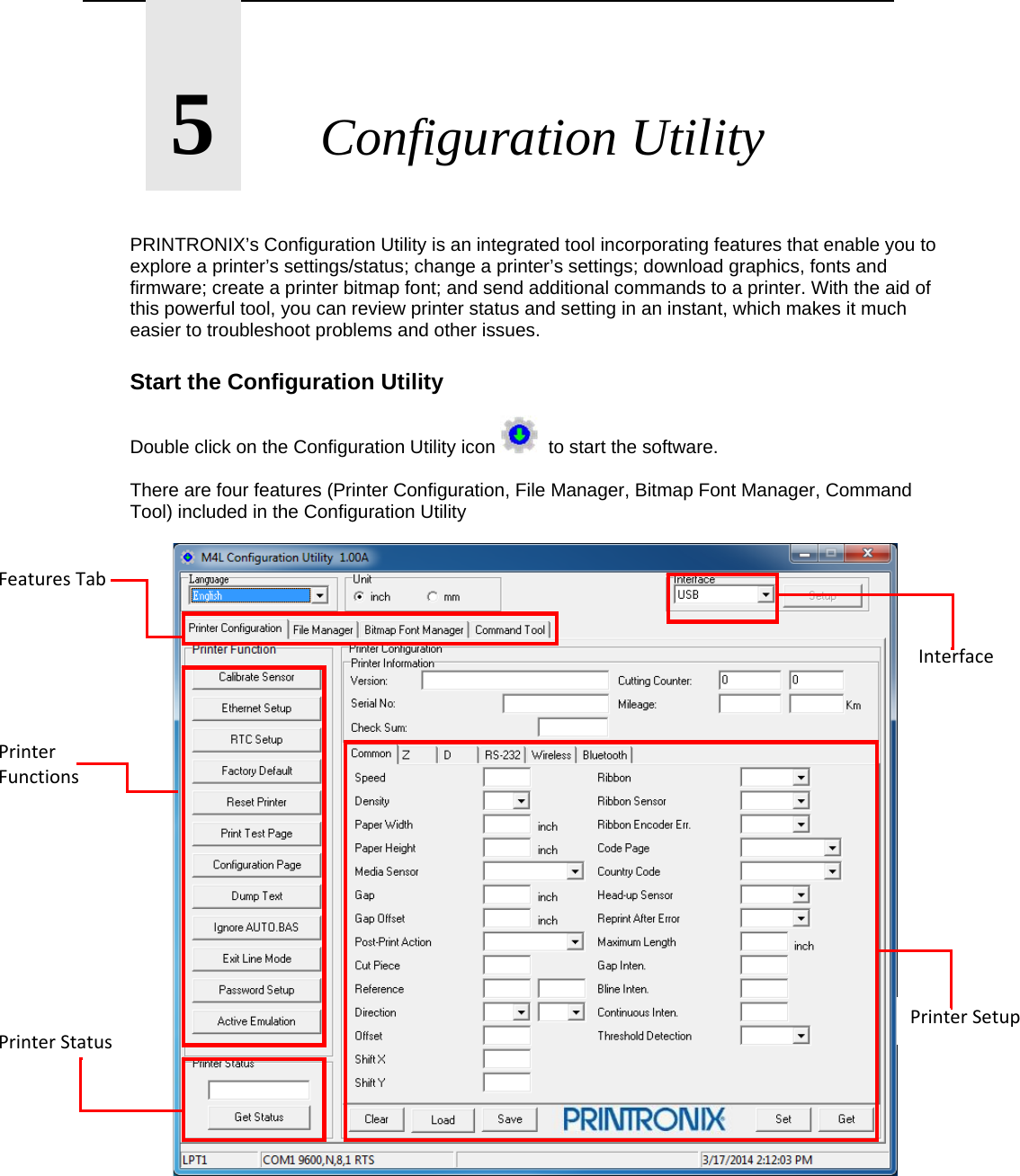
      5       Configuration Utility   PRINTRONIX’s Configuration Utility is an integrated tool incorporating features that enable you to explore a printer’s settings/status; change a printer’s settings; download graphics, fonts and firmware; create a printer bitmap font; and send additional commands to a printer. With the aid of this powerful tool, you can review printer status and setting in an instant, which makes it much easier to troubleshoot problems and other issues.  Start the Configuration Utility  Double click on the Configuration Utility icon    to start the software.  There are four features (Printer Configuration, File Manager, Bitmap Font Manager, Command Tool) included in the Configuration Utility            FeaturesTabPrinterFunctionsPrinterStatusPrinterSetupInterface
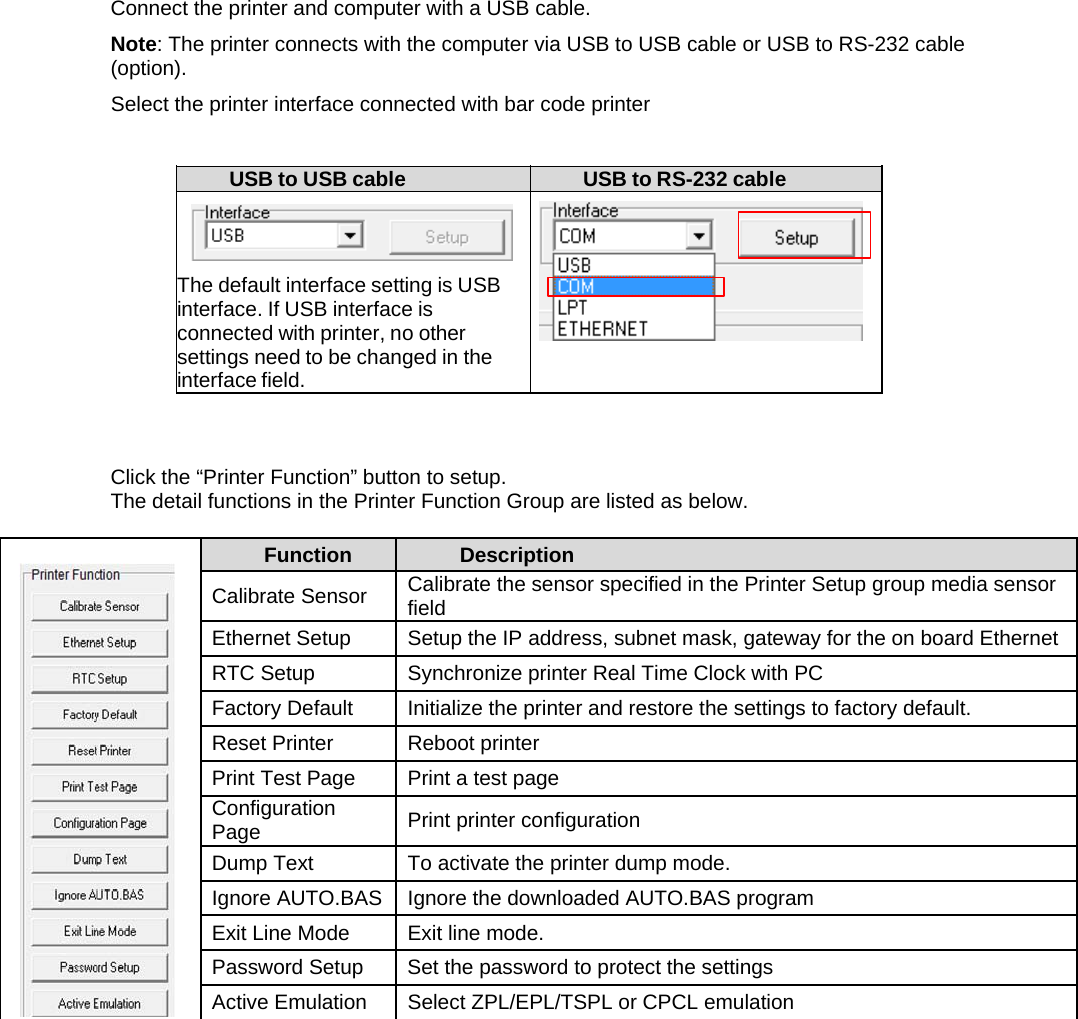
Connect the printer and computer with a USB cable. Note: The printer connects with the computer via USB to USB cable or USB to RS-232 cable (option). Select the printer interface connected with bar code printer  USB to USB cable  USB to RS-232 cable    The default interface setting is USB interface. If USB interface is connected with printer, no other settings need to be changed in the interface field.     Click the “Printer Function” button to setup. The detail functions in the Printer Function Group are listed as below.     Function  Description Calibrate Sensor  Calibrate the sensor specified in the Printer Setup group media sensor field Ethernet Setup  Setup the IP address, subnet mask, gateway for the on board Ethernet RTC Setup  Synchronize printer Real Time Clock with PC Factory Default  Initialize the printer and restore the settings to factory default. Reset Printer  Reboot printer Print Test Page  Print a test page Configuration Page  Print printer configuration Dump Text  To activate the printer dump mode. Ignore AUTO.BAS  Ignore the downloaded AUTO.BAS program Exit Line Mode  Exit line mode. Password Setup  Set the password to protect the settings Active Emulation  Select ZPL/EPL/TSPL or CPCL emulation
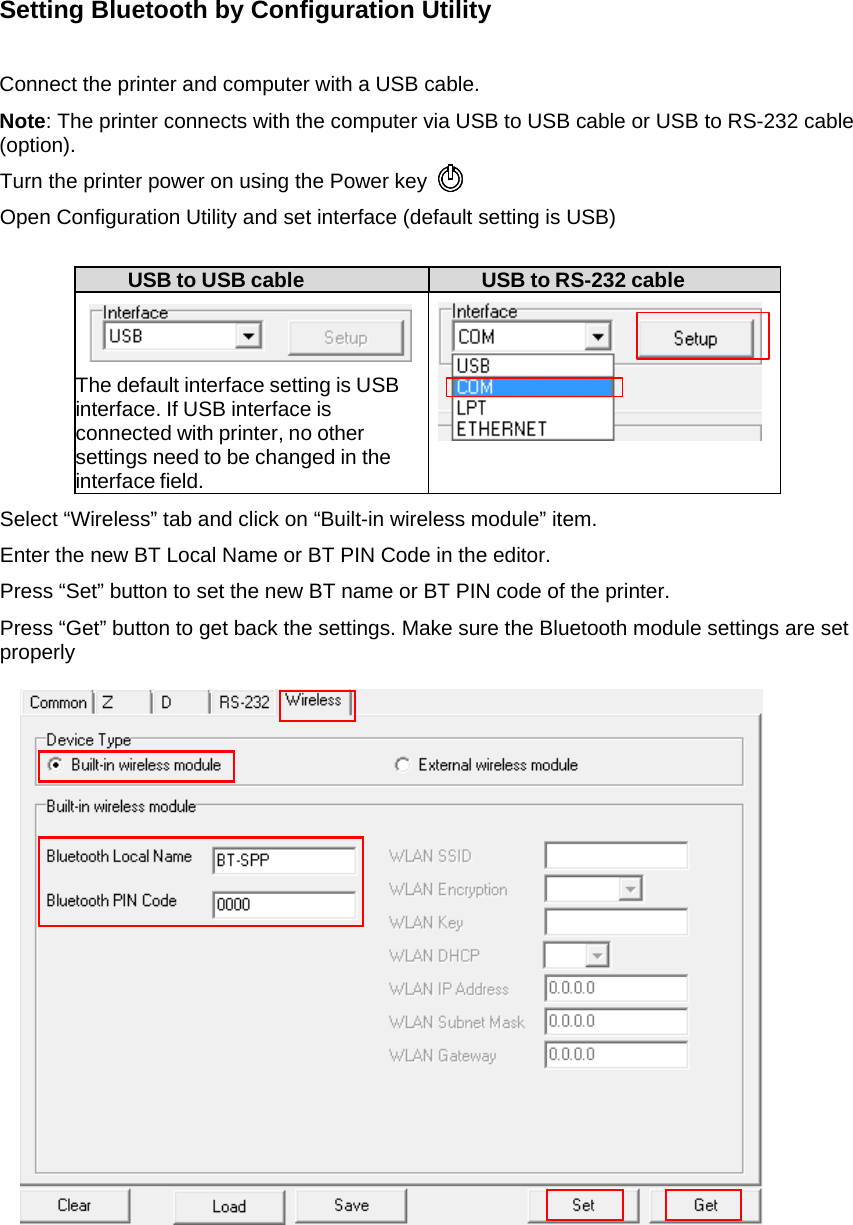
Setting Bluetooth by Configuration Utility  Connect the printer and computer with a USB cable. Note: The printer connects with the computer via USB to USB cable or USB to RS-232 cable (option). Turn the printer power on using the Power key  Open Configuration Utility and set interface (default setting is USB)  USB to USB cable  USB to RS-232 cable    The default interface setting is USB interface. If USB interface is connected with printer, no other settings need to be changed in the interface field.   Select “Wireless” tab and click on “Built-in wireless module” item. Enter the new BT Local Name or BT PIN Code in the editor. Press “Set” button to set the new BT name or BT PIN code of the printer. Press “Get” button to get back the settings. Make sure the Bluetooth module settings are set properly
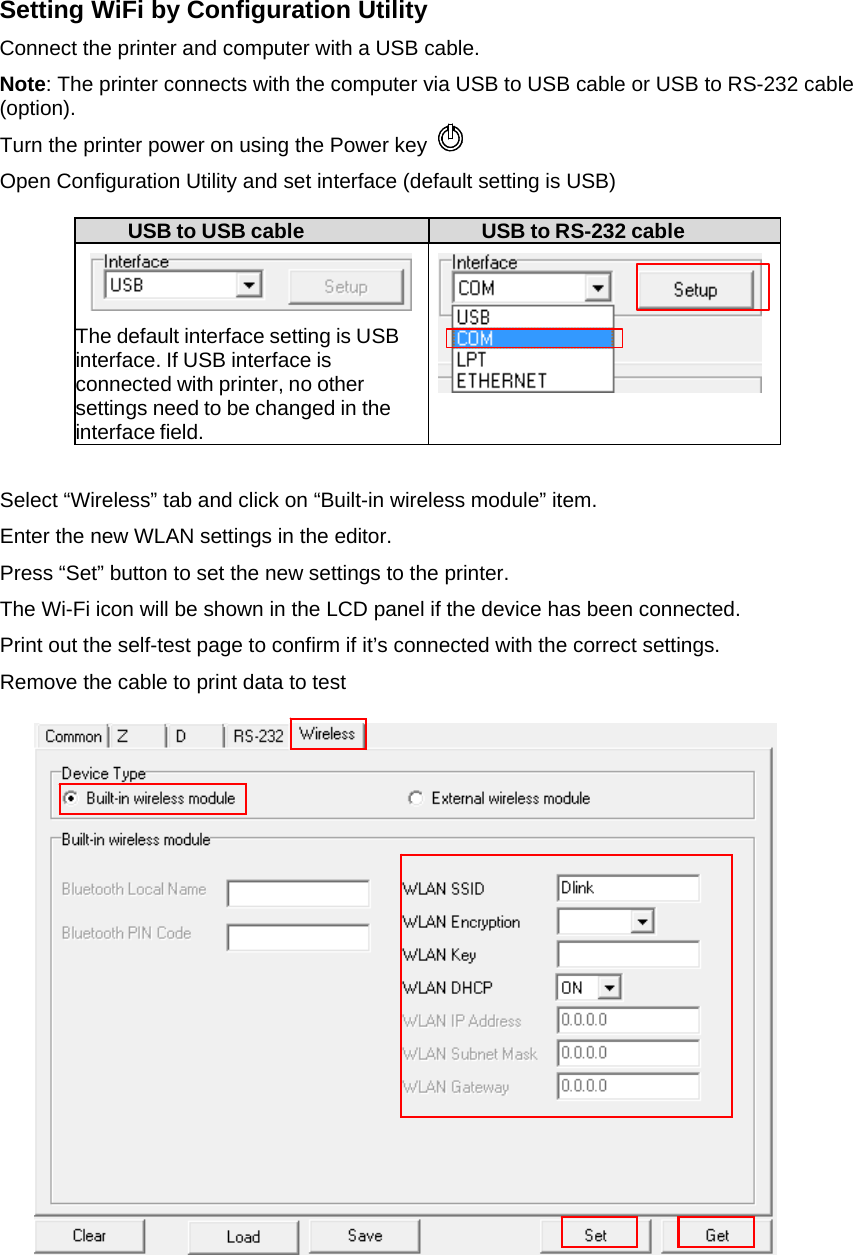
Setting WiFi by Configuration Utility Connect the printer and computer with a USB cable. Note: The printer connects with the computer via USB to USB cable or USB to RS-232 cable (option). Turn the printer power on using the Power key  Open Configuration Utility and set interface (default setting is USB)  USB to USB cable  USB to RS-232 cable   The default interface setting is USB interface. If USB interface is connected with printer, no other settings need to be changed in the interface field.    Select “Wireless” tab and click on “Built-in wireless module” item. Enter the new WLAN settings in the editor. Press “Set” button to set the new settings to the printer. The Wi-Fi icon will be shown in the LCD panel if the device has been connected. Print out the self-test page to confirm if it’s connected with the correct settings. Remove the cable to print data to test
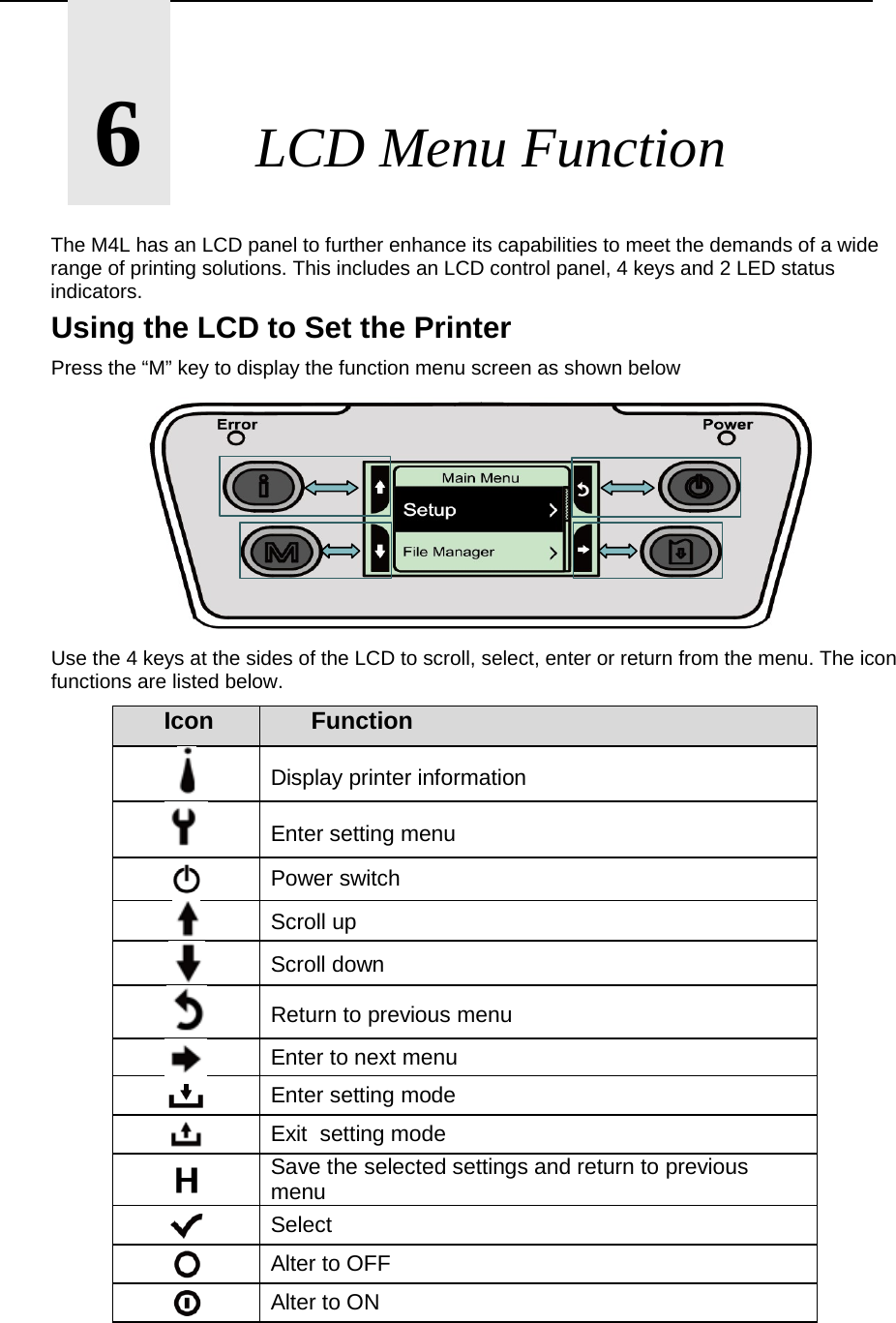
      6       LCD Menu Function  The M4L has an LCD panel to further enhance its capabilities to meet the demands of a wide range of printing solutions. This includes an LCD control panel, 4 keys and 2 LED status indicators.  Using the LCD to Set the Printer Press the “M” key to display the function menu screen as shown below            Use the 4 keys at the sides of the LCD to scroll, select, enter or return from the menu. The icon functions are listed below. Icon  Function Display printer information Enter setting menu  Power switch Scroll up Scroll down Return to previous menu Enter to next menu  Enter setting mode  Exit  setting mode  Save the selected settings and return to previous menu  Select  Alter to OFF  Alter to ON
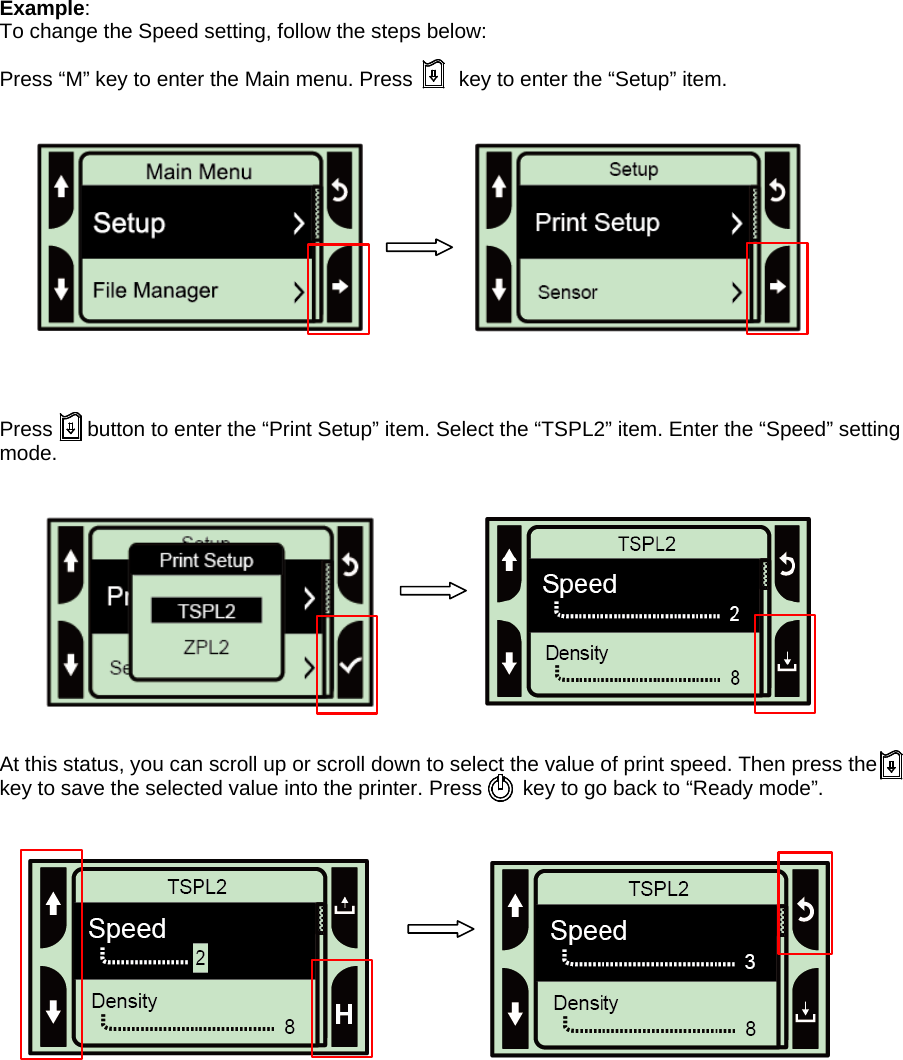
Example: To change the Speed setting, follow the steps below:  Press “M” key to enter the Main menu. Press        key to enter the “Setup” item.               Press      button to enter the “Print Setup” item. Select the “TSPL2” item. Enter the “Speed” setting mode.                    At this status, you can scroll up or scroll down to select the value of print speed. Then press the key to save the selected value into the printer. Press       key to go back to “Ready mode”.
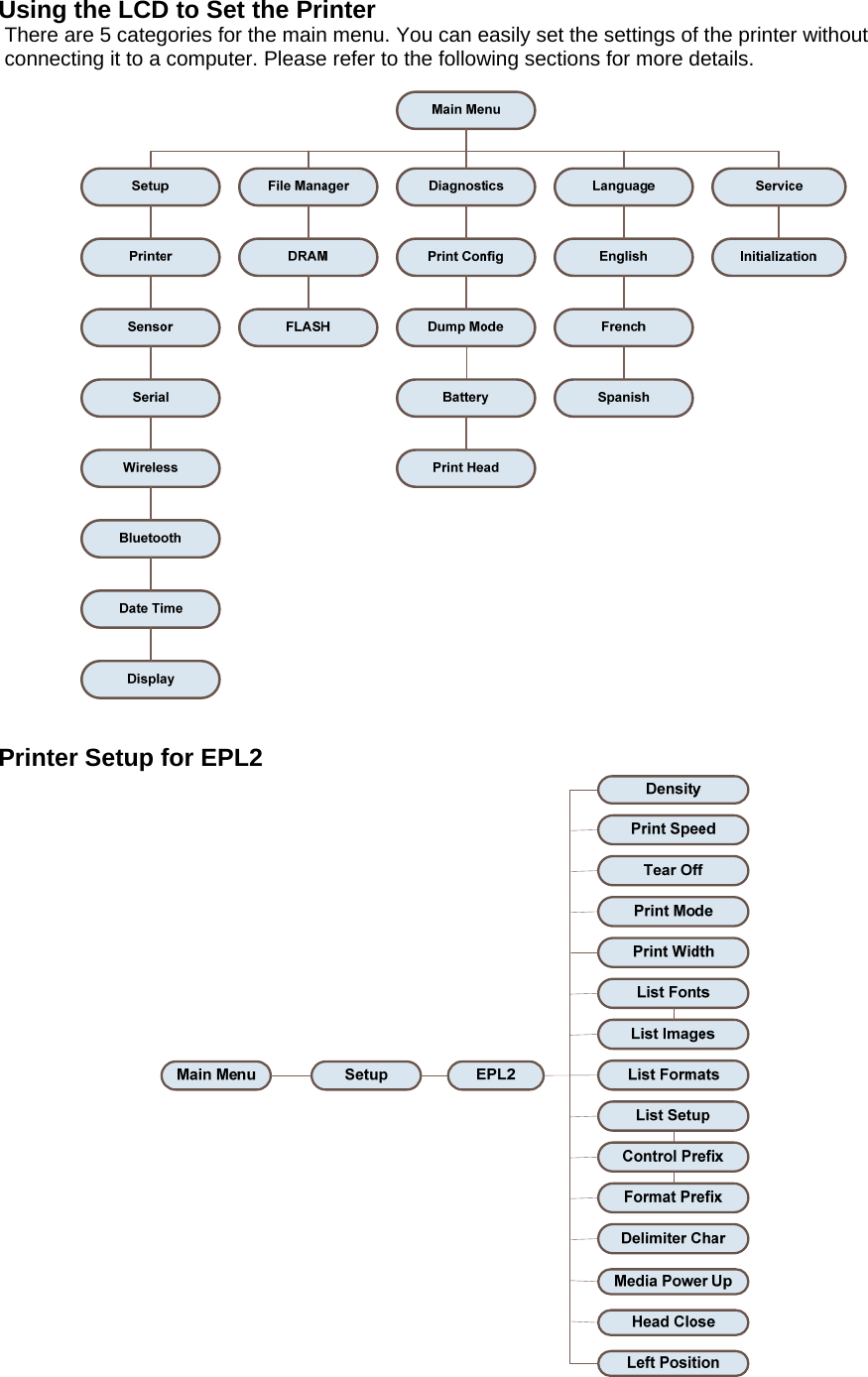
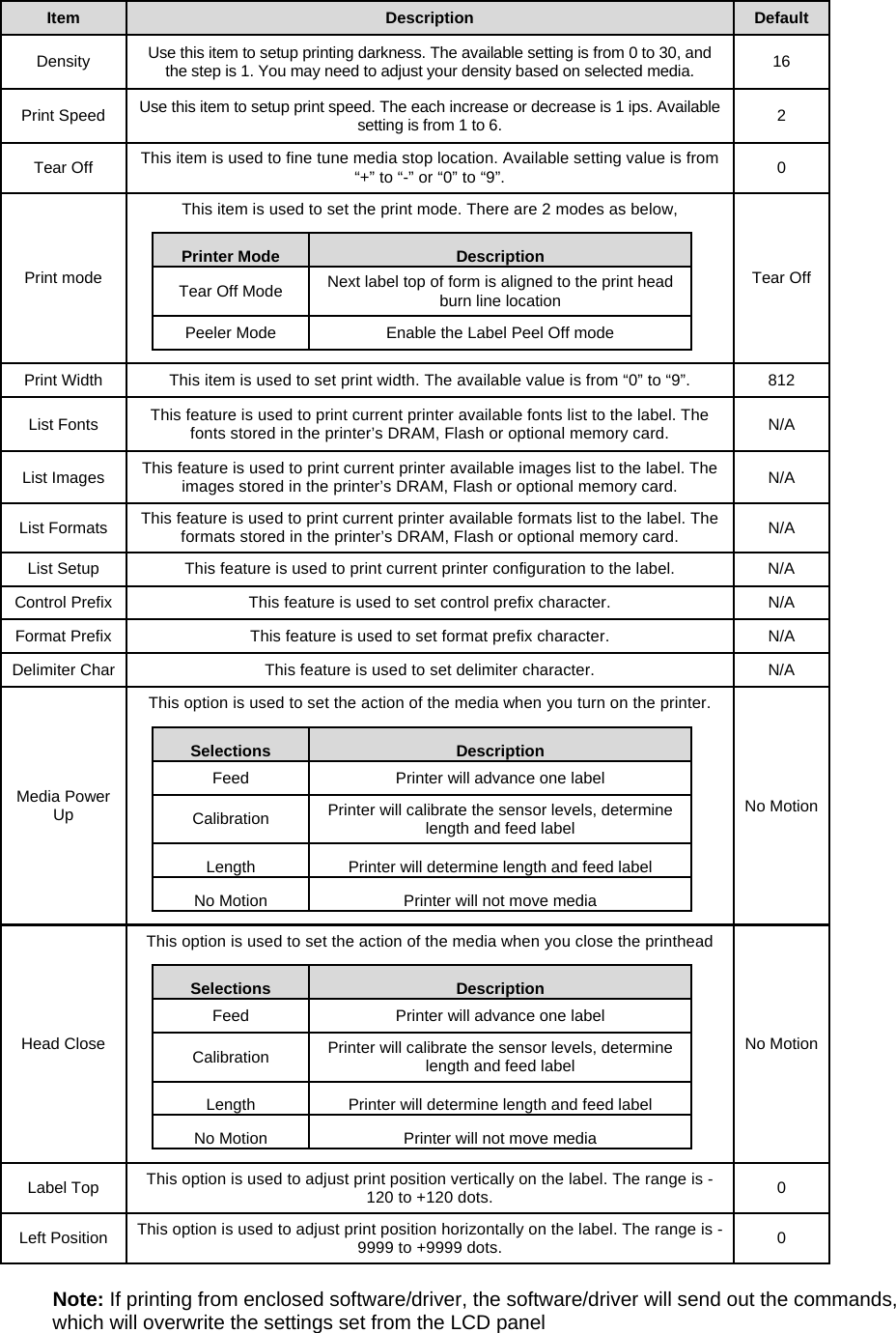
Using the LCD to Set the Printer There are 5 categories for the main menu. You can easily set the settings of the printer without connecting it to a computer. Please refer to the following sections for more details.   Printer Setup for EPL2
Item  Description  Default Density  Use this item to setup printing darkness. The available setting is from 0 to 30, and the step is 1. You may need to adjust your density based on selected media.  16 Print Speed  Use this item to setup print speed. The each increase or decrease is 1 ips. Available setting is from 1 to 6.  2 Tear Off  This item is used to fine tune media stop location. Available setting value is from “+” to “-” or “0” to “9”.  0 Print mode This item is used to set the print mode. There are 2 modes as below, Tear Off Printer Mode  Description  Tear Off Mode  Next label top of form is aligned to the print head burn line location    Peeler Mode  Enable the Label Peel Off mode Print Width  This item is used to set print width. The available value is from “0” to “9”.  812 List Fonts  This feature is used to print current printer available fonts list to the label. The fonts stored in the printer’s DRAM, Flash or optional memory card.  N/A List Images  This feature is used to print current printer available images list to the label. The images stored in the printer’s DRAM, Flash or optional memory card.  N/A List Formats  This feature is used to print current printer available formats list to the label. The formats stored in the printer’s DRAM, Flash or optional memory card.  N/A List Setup  This feature is used to print current printer configuration to the label.  N/A Control Prefix  This feature is used to set control prefix character.  N/A Format Prefix  This feature is used to set format prefix character.  N/A Delimiter Char  This feature is used to set delimiter character.  N/A Media Power Up This option is used to set the action of the media when you turn on the printer. No Motion Selections  Description Feed  Printer will advance one label Calibration  Printer will calibrate the sensor levels, determine length and feed label Length  Printer will determine length and feed label No Motion  Printer will not move media Head Close This option is used to set the action of the media when you close the printhead No Motion Selections  Description Feed  Printer will advance one label Calibration  Printer will calibrate the sensor levels, determine length and feed label Length  Printer will determine length and feed label No Motion  Printer will not move media Label Top  This option is used to adjust print position vertically on the label. The range is -120 to +120 dots.  0 Left Position  This option is used to adjust print position horizontally on the label. The range is -9999 to +9999 dots.  0  Note: If printing from enclosed software/driver, the software/driver will send out the commands, which will overwrite the settings set from the LCD panel
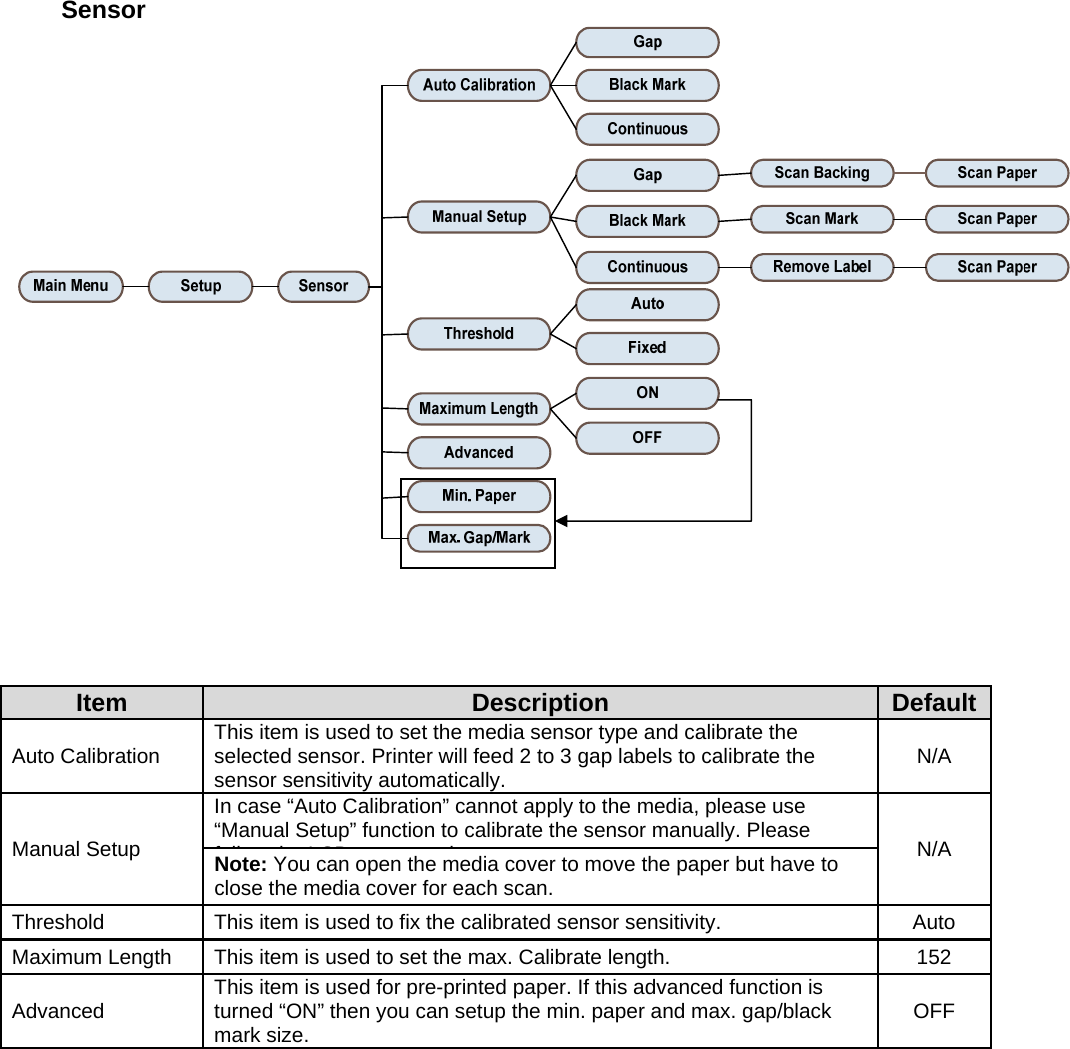
Sensor      Item  Description  DefaultAuto Calibration  This item is used to set the media sensor type and calibrate the selected sensor. Printer will feed 2 to 3 gap labels to calibrate the sensor sensitivity automatically.  N/A Manual Setup In case “Auto Calibration” cannot apply to the media, please use “Manual Setup” function to calibrate the sensor manually. Please fll th LCD t hN/A Note: You can open the media cover to move the paper but have to close the media cover for each scan. Threshold  This item is used to fix the calibrated sensor sensitivity.  Auto Maximum Length  This item is used to set the max. Calibrate length.  152 Advanced  This item is used for pre-printed paper. If this advanced function is turned “ON” then you can setup the min. paper and max. gap/black mark size.  OFF
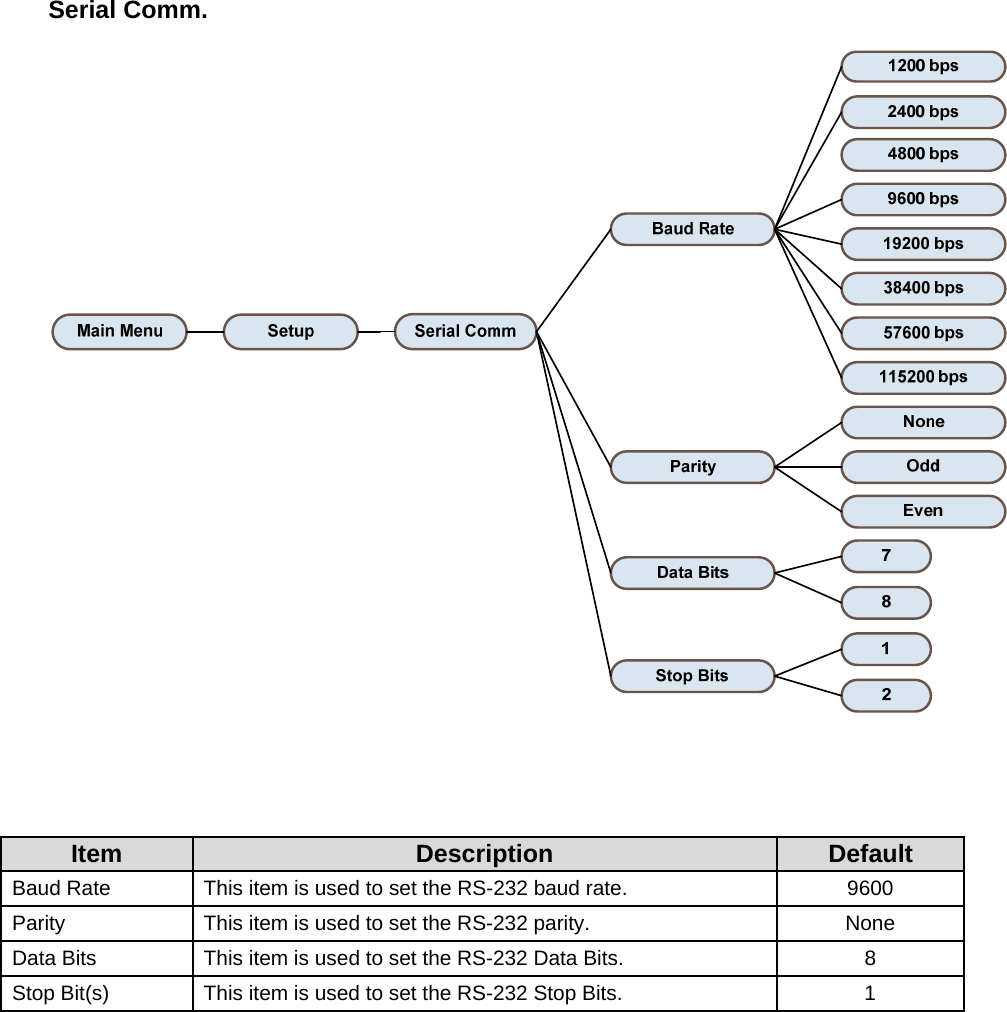
Serial Comm.       Item  Description  Default Baud Rate  This item is used to set the RS-232 baud rate.  9600 Parity  This item is used to set the RS-232 parity.  None Data Bits  This item is used to set the RS-232 Data Bits.  8 Stop Bit(s)  This item is used to set the RS-232 Stop Bits.  1
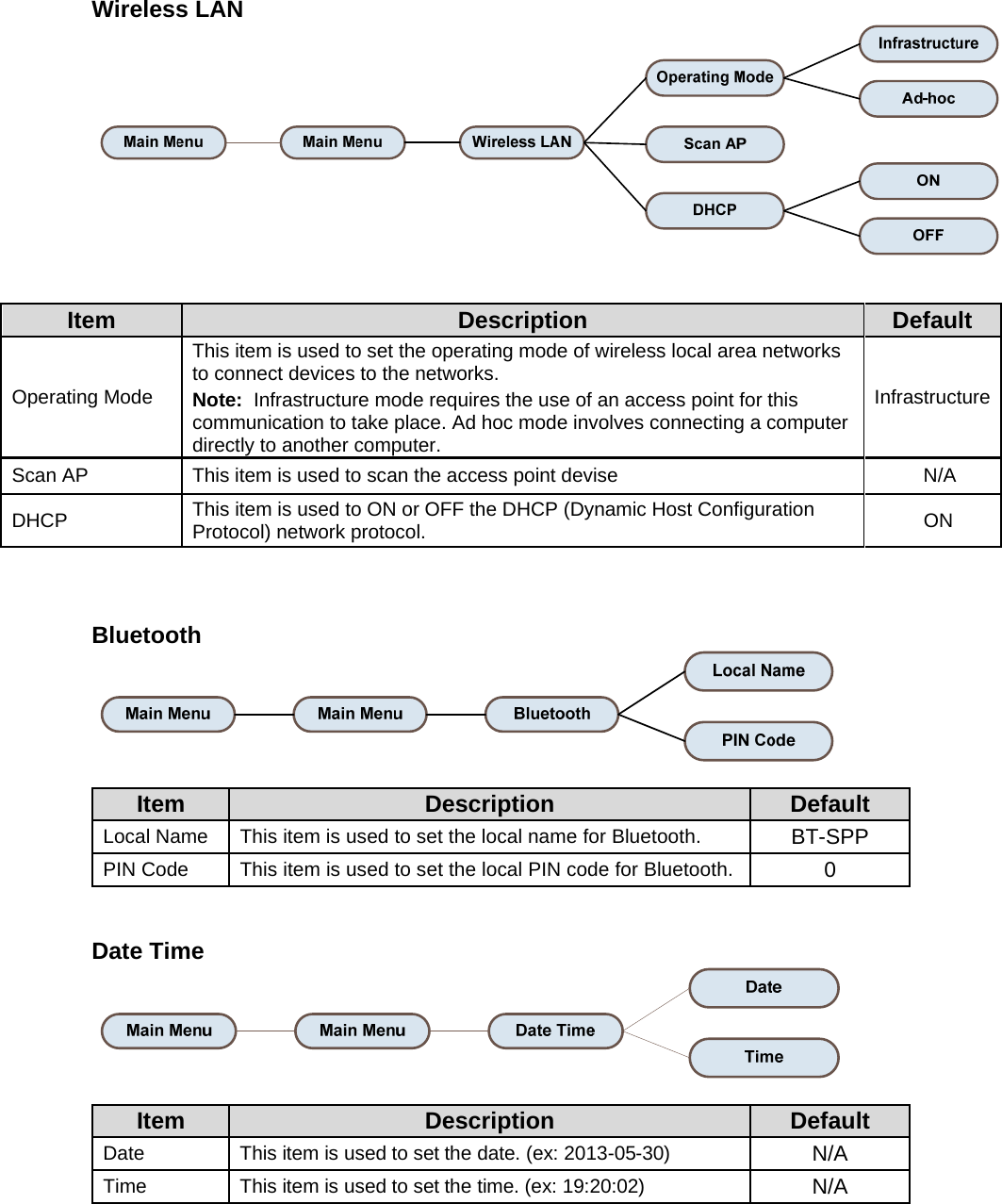
Wireless LAN   Item  Description  Default Operating Mode This item is used to set the operating mode of wireless local area networks to connect devices to the networks.  InfrastructureNote:  Infrastructure mode requires the use of an access point for this communication to take place. Ad hoc mode involves connecting a computer directly to another computer. Scan AP  This item is used to scan the access point devise  N/A DHCP  This item is used to ON or OFF the DHCP (Dynamic Host Configuration Protocol) network protocol.  ON    Bluetooth   Item  Description  Default Local Name  This item is used to set the local name for Bluetooth.  BT-SPP PIN Code  This item is used to set the local PIN code for Bluetooth.  0   Date Time   Item  Description  Default Date  This item is used to set the date. (ex: 2013-05-30)  N/A Time  This item is used to set the time. (ex: 19:20:02)  N/A
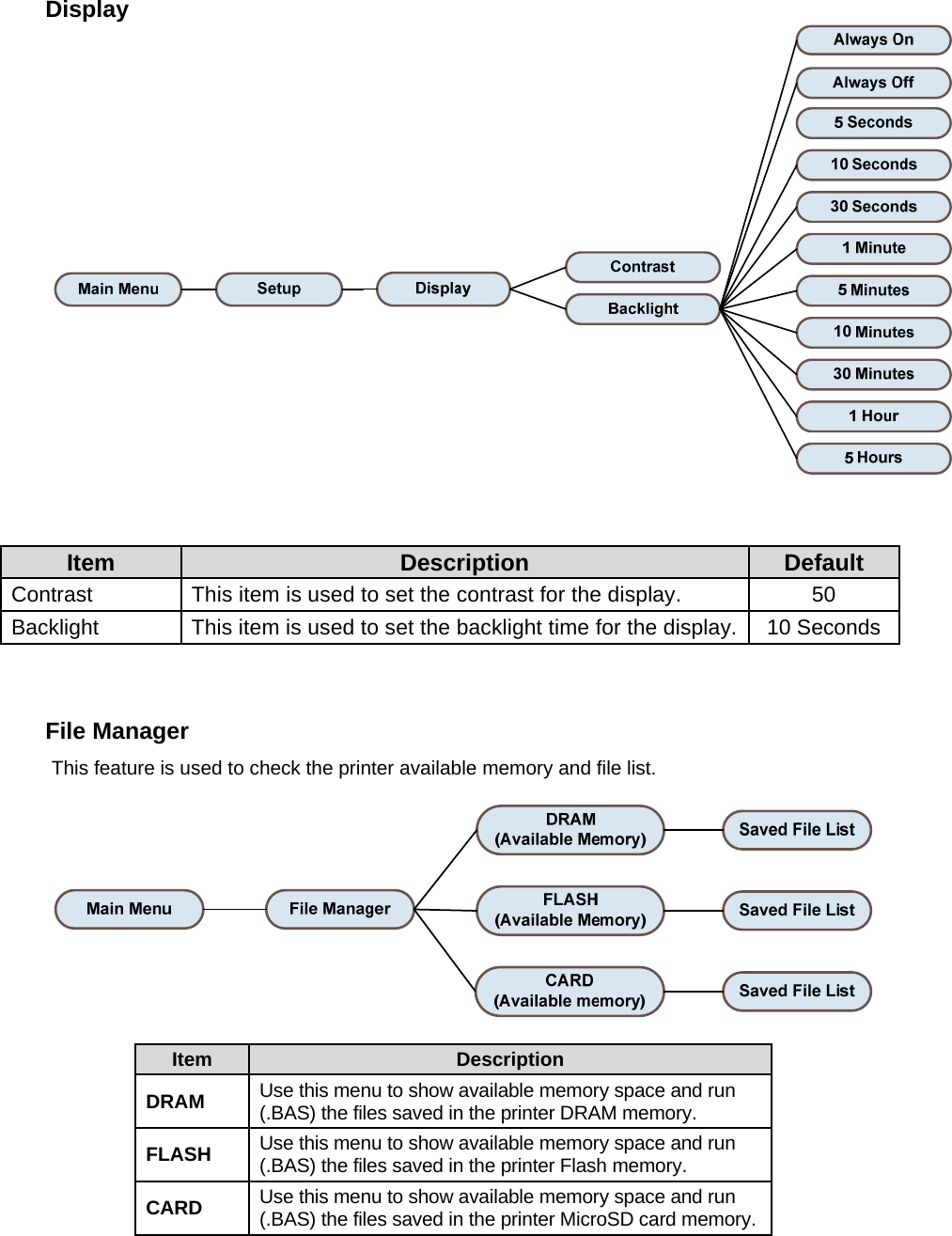
Display    Item  Description  Default Contrast  This item is used to set the contrast for the display.  50 Backlight  This item is used to set the backlight time for the display.  10 Seconds    File Manager This feature is used to check the printer available memory and file list.    Item  Description DRAM  Use this menu to show available memory space and run (.BAS) the files saved in the printer DRAM memory. FLASH  Use this menu to show available memory space and run (.BAS) the files saved in the printer Flash memory. CARD  Use this menu to show available memory space and run (.BAS) the files saved in the printer MicroSD card memory.
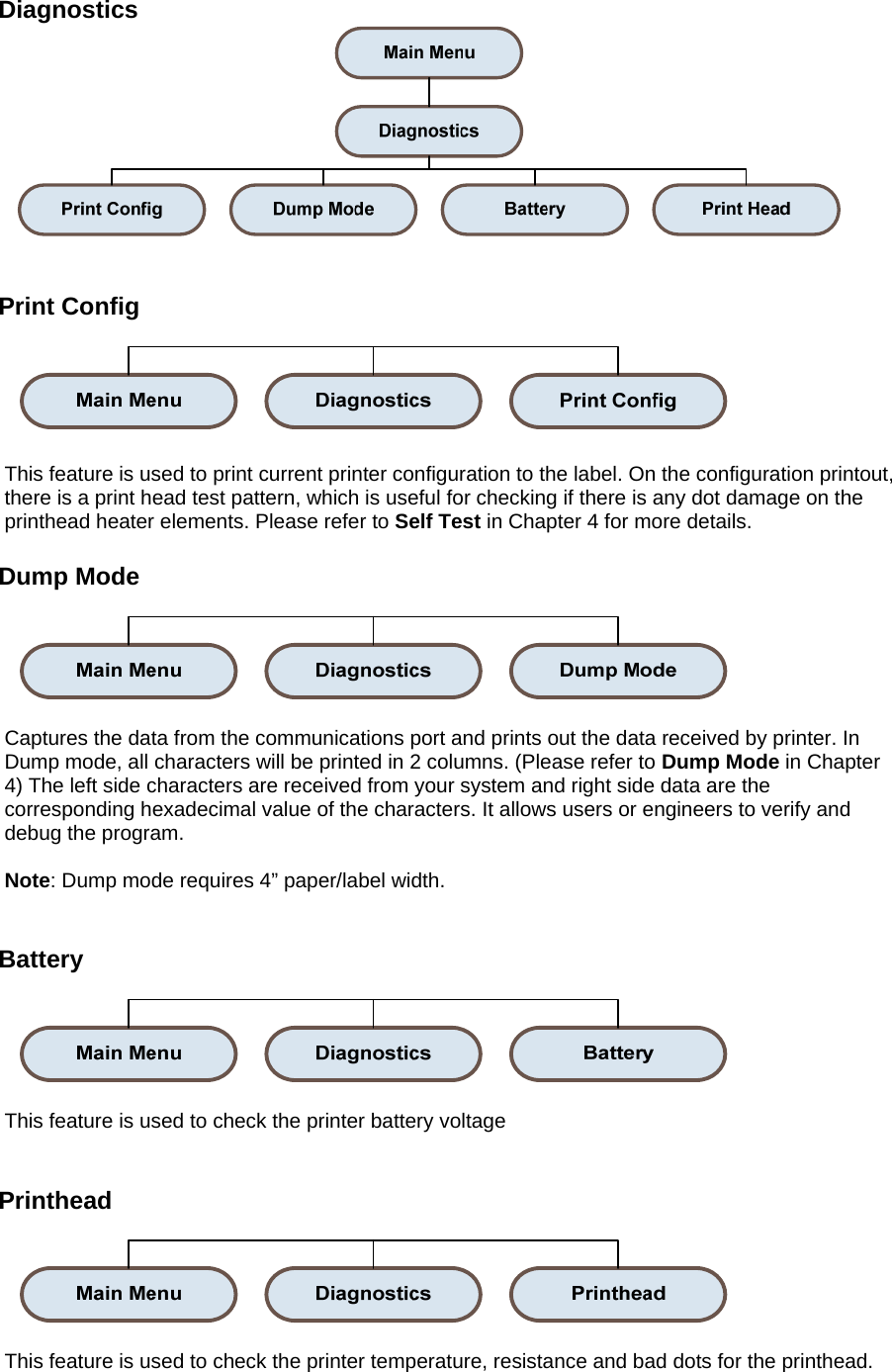
Diagnostics    Print Config    This feature is used to print current printer configuration to the label. On the configuration printout, there is a print head test pattern, which is useful for checking if there is any dot damage on the printhead heater elements. Please refer to Self Test in Chapter 4 for more details.  Dump Mode    Captures the data from the communications port and prints out the data received by printer. In Dump mode, all characters will be printed in 2 columns. (Please refer to Dump Mode in Chapter 4) The left side characters are received from your system and right side data are the corresponding hexadecimal value of the characters. It allows users or engineers to verify and debug the program.  Note: Dump mode requires 4” paper/label width.   Battery    This feature is used to check the printer battery voltage   Printhead    This feature is used to check the printer temperature, resistance and bad dots for the printhead.
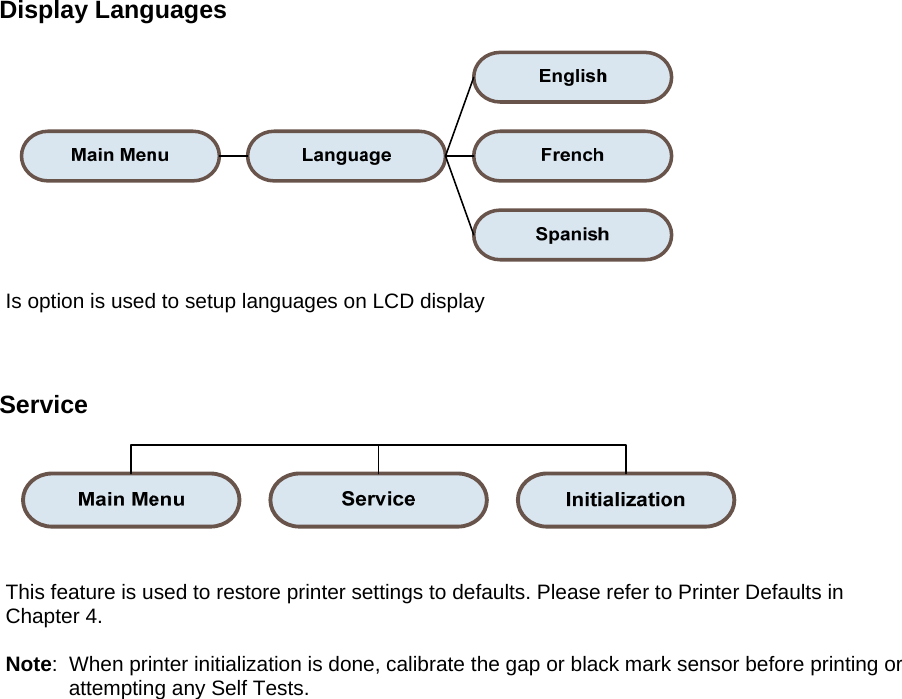
Display Languages    Is option is used to setup languages on LCD display    Service     This feature is used to restore printer settings to defaults. Please refer to Printer Defaults in Chapter 4.  Note:  When printer initialization is done, calibrate the gap or black mark sensor before printing or           attempting any Self Tests.
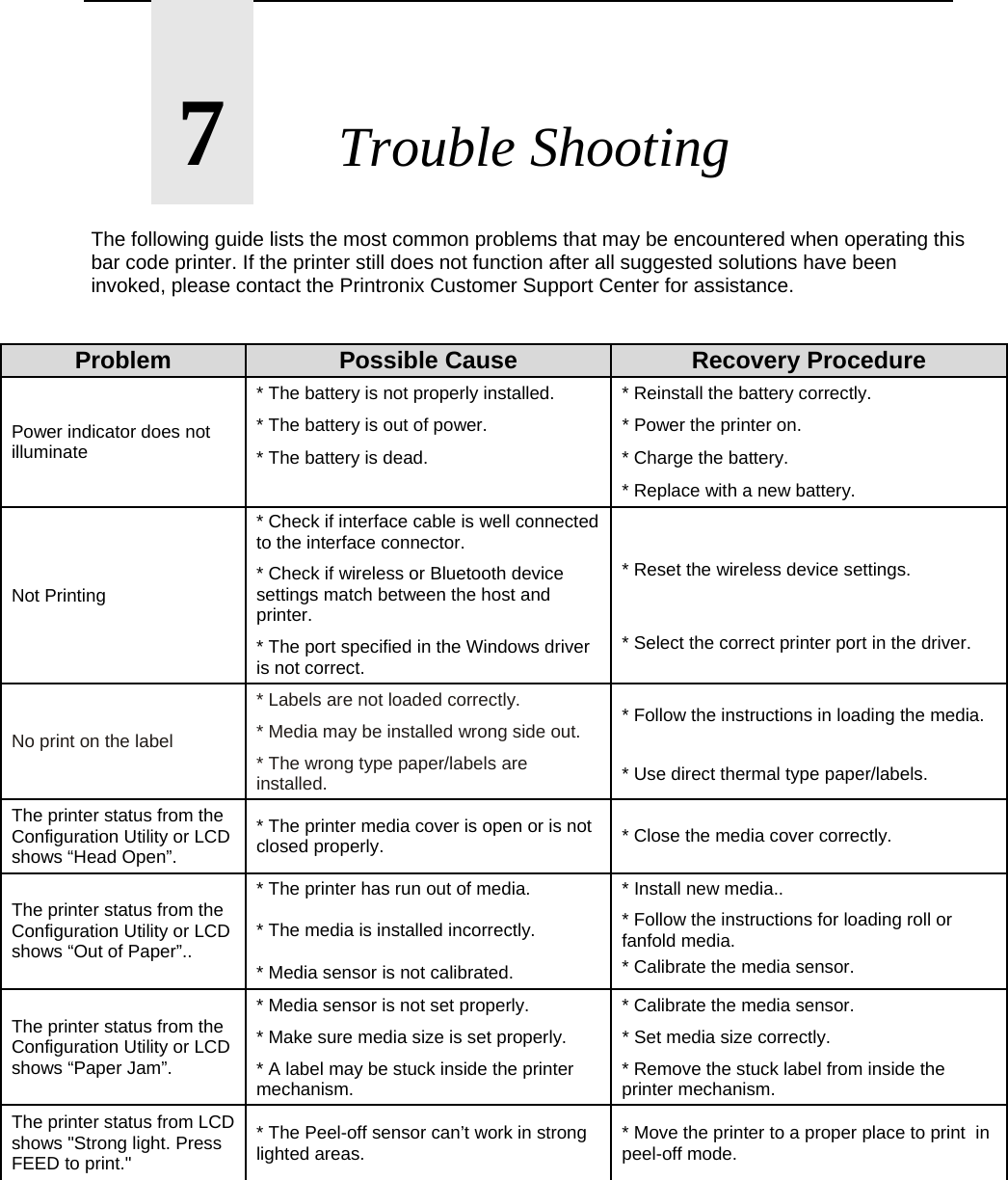
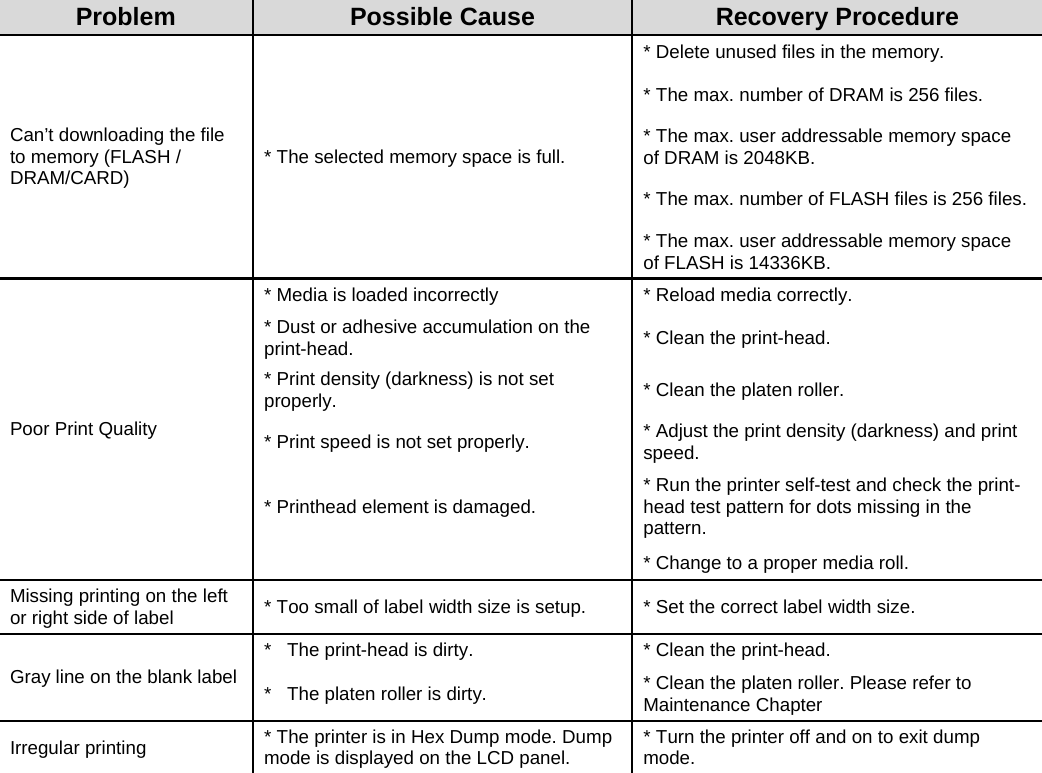
      7       Trouble Shooting  The following guide lists the most common problems that may be encountered when operating this bar code printer. If the printer still does not function after all suggested solutions have been invoked, please contact the Printronix Customer Support Center for assistance.   Problem  Possible Cause  Recovery Procedure Power indicator does not illuminate * The battery is not properly installed.  * Reinstall the battery correctly. * The battery is out of power.  * Power the printer on. * The battery is dead.  * Charge the battery.    * Replace with a new battery. Not Printing * Check if interface cable is well connected to the interface connector. * Reset the wireless device settings. * Check if wireless or Bluetooth device settings match between the host and printer. * The port specified in the Windows driver is not correct. * Select the correct printer port in the driver. No print on the label * Labels are not loaded correctly.   * Follow the instructions in loading the media. * Media may be installed wrong side out. * The wrong type paper/labels are installed.  * Use direct thermal type paper/labels. The printer status from the Configuration Utility or LCD shows “Head Open”. * The printer media cover is open or is not closed properly.  * Close the media cover correctly. The printer status from the Configuration Utility or LCD shows “Out of Paper”.. * The printer has run out of media.  * Install new media.. * The media is installed incorrectly.  * Follow the instructions for loading roll or fanfold media.  * Media sensor is not calibrated.  * Calibrate the media sensor. The printer status from the Configuration Utility or LCD shows “Paper Jam”. * Media sensor is not set properly.  * Calibrate the media sensor. * Make sure media size is set properly.  * Set media size correctly. * A label may be stuck inside the printer mechanism.  * Remove the stuck label from inside the printer mechanism. The printer status from LCD shows "Strong light. Press FEED to print." * The Peel-off sensor can’t work in strong lighted areas.  * Move the printer to a proper place to print  in peel-off mode.
Problem  Possible Cause  Recovery Procedure Can’t downloading the file to memory (FLASH / DRAM/CARD)  * The selected memory space is full. * Delete unused files in the memory. * The max. number of DRAM is 256 files. * The max. user addressable memory space of DRAM is 2048KB. * The max. number of FLASH files is 256 files. * The max. user addressable memory space of FLASH is 14336KB. Poor Print Quality * Media is loaded incorrectly  * Reload media correctly. * Dust or adhesive accumulation on the print-head.  * Clean the print-head. * Print density (darkness) is not set properly.  * Clean the platen roller. * Print speed is not set properly.  * Adjust the print density (darkness) and print speed. * Printhead element is damaged.  * Run the printer self-test and check the print- head test pattern for dots missing in the pattern.    * Change to a proper media roll. Missing printing on the left or right side of label  * Too small of label width size is setup.  * Set the correct label width size. Gray line on the blank label *   The print-head is dirty.  * Clean the print-head. *   The platen roller is dirty.  * Clean the platen roller. Please refer to Maintenance Chapter Irregular printing  * The printer is in Hex Dump mode. Dump mode is displayed on the LCD panel.  * Turn the printer off and on to exit dump mode.
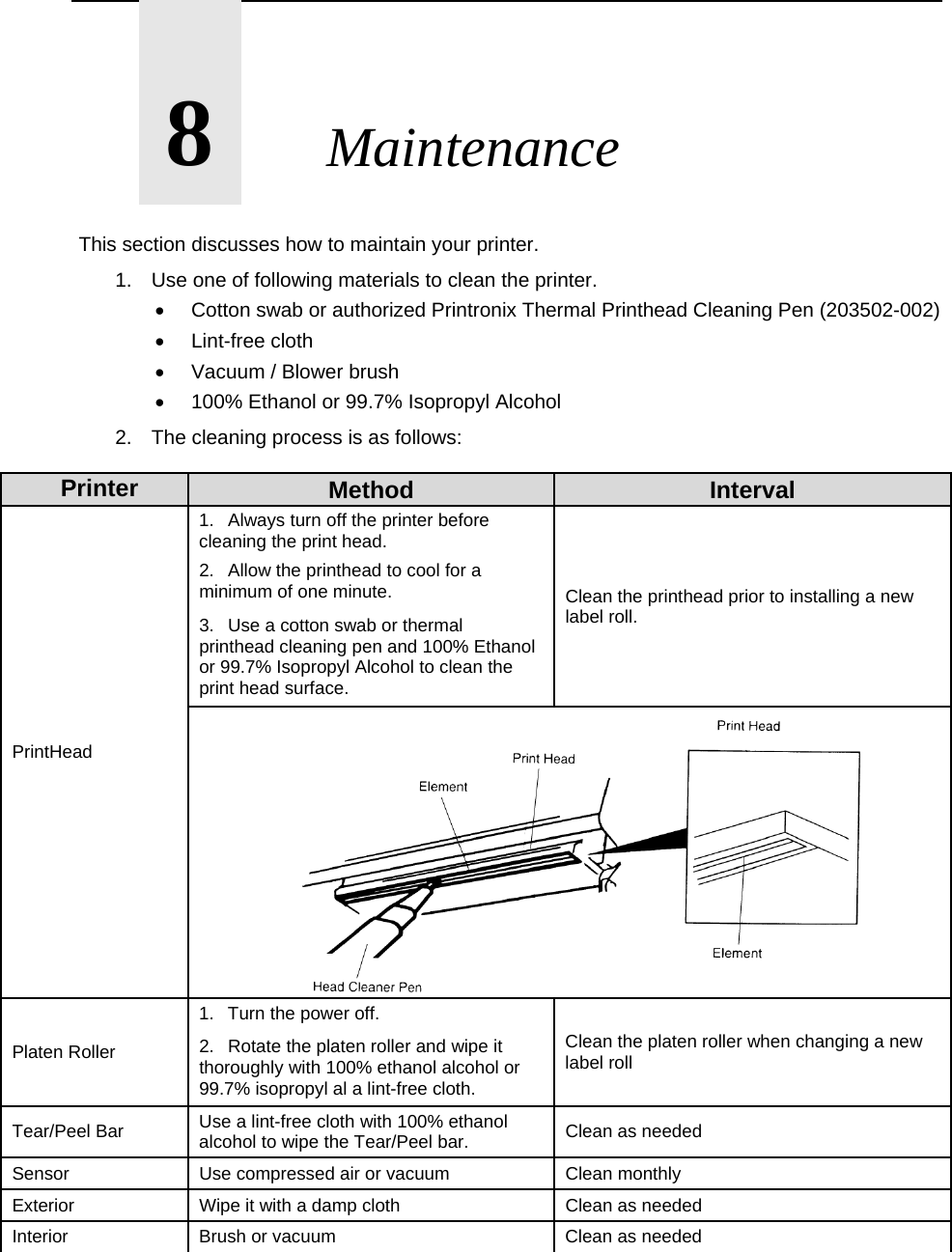
      8       Maintenance  This section discusses how to maintain your printer. 1.  Use one of following materials to clean the printer.   Cotton swab or authorized Printronix Thermal Printhead Cleaning Pen (203502-002)  Lint-free cloth   Vacuum / Blower brush   100% Ethanol or 99.7% Isopropyl Alcohol 2.  The cleaning process is as follows:  Printer  Method  Interval PrintHead 1.   Always turn off the printer before cleaning the print head. Clean the printhead prior to installing a new label roll. 2.   Allow the printhead to cool for a minimum of one minute. 3.   Use a cotton swab or thermal printhead cleaning pen and 100% Ethanol or 99.7% Isopropyl Alcohol to clean the print head surface. Platen Roller 1.   Turn the power off. Clean the platen roller when changing a new label roll 2.   Rotate the platen roller and wipe it thoroughly with 100% ethanol alcohol or 99.7% isopropyl al a lint-free cloth. Tear/Peel Bar  Use a lint-free cloth with 100% ethanol alcohol to wipe the Tear/Peel bar.  Clean as needed Sensor  Use compressed air or vacuum  Clean monthly Exterior  Wipe it with a damp cloth  Clean as needed Interior  Brush or vacuum  Clean as needed
      A       Contact Information  Contact Information Printronix Customer Support Center IMPORTANT Please have the following information available prior to calling the Printronix Customer Support Center:  Model number   Serial number (located on the back of the printer)   Installed options (i.e., interface and host type if applicable to the problem)   Configuration printout (Press CONFIG on the control panel, then press  ENTER)   Network test page if Ethernet is enabled.   Is the problem with a new install or an existing printer?   Description of the problem (be specific)   Good and bad samples that clearly show the problem (faxing or emailing of these samples may be required)  Americas    (714) 368-2686 Europe, Middle East and Africa    (31) 24 6489 311 Asia Pacific    (65) 6548 4114 China     (86) 800-999-6836 http://www.printronix.com/support.aspx Printronix Supplies Department  Contact the Printronix Supplies Department for genuine Printronix supplies. Americas    (800) 733-1900 Europe, Middle East and Africa    (33) 1 46 25 19 07 Asia Pacific    (65) 6548 4116      Or (65) 6548 4132 China     (86) 400-886-5598 India     (800) 102-7869 http://www.printronix.com/public/supplies/default.aspx
 Corporate Offices  Printronix, Inc. 15345 Barranca Parkway Irvine, CA 92618 U.S.A. Phone: (714) 368-2300 Fax: (714) 368-2600  Printronix Inc. c/o Printronix Nederland BV  Bijsterhuizen 11-38 6546 AS Nijmegen  The Netherlands Phone: (31) 24 6489489 Fax: (31) 24 6489499  Printronix Schweiz GmbH  42 Changi South Street 1 Changi South Industrial Estate  Singapore 486763 Phone: (65) 6542 0110 Fax: (65) 6546 1588  Printronix Commercial (Shanghai) Co. Ltd  22F, Eton Building East No.555, Pudong Av. Shanghai City, 200120, P R China  Phone: (86) 400 886 5598 Fax: (86-21) 5138 0564  Visit the Printronix web site at www.printronix.com
      B       Notices This information was developed for products and services offered in the U.S.A. Printronix may not offer the products, services, or features discussed in this document in other countries. Consult your Printronix representative for information on the products and services currently available in your area. Any reference to an Printronix product, program, or service is not intended to state or imply that only that Printronix product, program, or service may be used. Any functionally equivalent product, program, or service that does not infringe any Printronix intellectual property rights may be used instead. However, it is the user’s responsibility to evaluate and verify the operation of any non- Printronix product, program, or service. Printronix may have patents or pending patent applications covering subject matter described in this document. The furnishing of this document does not give you any license to these patents. You can send license inquires, in writing, to: Printronix, Inc. 15345 Barranca Parkway Irvine, CA 92618 U.S.A. The following paragraph does not apply to the United Kingdom or any other country where such provisions are inconsistent with local law: PRINTRONIX PROVIDES THIS PUBLICATION “AS IS” WITHOUT WARRANTY OF ANY KIND, EITHER EXPRESS OR IMPLIED, INCLUDING, BUT NOT LIMITED TO, THE IMPLIED WARRANTIES OF NON- INFRINGEMENT, MERCHANTABILITY OR FITNESS FOR A PARTICULAR PURPOSE. Some states do not allow disclaimer of express or implied warranties in certain transactions, therefore, this statement may not apply to you. This information could include technical inaccuracies or typographical errors. Changes are periodically made to the information herein; these changes will be incorporated in new editions of the publication. Printronix may make improvements and/or changes in the product(s) described in this publication at any time without notice. Any references in this information to non-Printronix Web sites are provided for convenience only and do not in any manner serve as an endorsement of those Web sites. The materials at those Web sites are not part of the materials for this Printronix product and use of those Web sites is at your own risk.  Any performance data contained herein was determined in a controlled environment. Therefore, the results obtained in other operating environments may vary significantly. Some measurements may have been made on development-level systems and there is no guarantee that these measurements will be the same on generally available systems. Furthermore, some measurement may have been estimated through extrapolation. Actual results may vary. Users of this document should verify the applicable data for their specific environment. Information concerning non-Printronix products was obtained from the suppliers of those products, their published announcements or other publicly available sources. Printronix has
not tested those products and cannot confirm the accuracy of performance, compatibility or any other claims related to non-Printronix products. Questions on the capabilities of non-Printronix products should be addressed to the suppliers of those products. Printronix encourages owners of information technology (IT) equipment to responsibly recycle their equipment when it is no longer needed. Printronix offers a variety of programs and services to assist equipment owners in recycling their IT products. Information on these product recycling offerings can be found on Printronix’s Internet site at http://www.printronix.com. If you are viewing this information softcopy, the photographs and color illustrations may not appear. For online versions of this book, we authorize you to: • Copy, modify, and print the documentation contained on the media, for use within your enterprise, provided you reproduce the copyright notice, all warning statements, and other required statements on each copy or partial copy. • Transfer the original unaltered copy of the documentation when you transfer the related Printronix product (which may be either machines you own, or programs, if the program’s license terms permit a transfer). You must, at the same time, destroy all other copies of the documentation. You are responsible for payment of any taxes, including personal property taxes, resulting from this authorization. Your failure to comply with the terms above terminates this authorization. Upon termination, you must destroy your machine readable documentation.
 Communication Statements FEDERAL COMMUNICATIONS COMMISSION (FCC) STATEMENT This equipment has been tested and found to comply with the limits for a Class B digital device, pursuant to part 15 of the FCC Rules. These limits are designed to provide reasonable protection against harmful interference in a residential installation. This equipment generates, uses and can radiate radio frequency energy and, if not installed and used in accordance with the instructions, may cause harmful interference to radio communications. However, there is no guarantee that interference will not occur in a particular installation. If this equipment does cause harmful interference to radio or television reception, which can be determined by turning the equipment off and on, the user is encouraged to try to correct the interference by one or more of the following measures:  Reorient or relocate the receiving antenna. Increase the separation between the equipment and receiver. Connect the equipment into an outlet on a circuit different from that to which the receiver is connected. Consult the dealer or an experienced radio/ TV technician for help.  CAUTION: Any changes or modifications not expressly approved by the grantee of this device could void the user's authority to operate the equipment. This device complies with Part 15 of the FCC Rules. Operation is subject to the following two conditions:  This device may cause harmful interference, and  This device must accept any interference received, including interference that may cause undesired operation.  RF exposure warning (WiFi) This equipment must be installed and operated in accordance with provided instructions and must not be co-located or operating in conjunction with any other antenna or transmitter. End-users and installers must be providing with antenna installation instructions and transmitter operating conditions for satisfying RF exposure compliance. SAR Value: 0.663 W/kg   RF exposure warning (For Bluetooth) The equipment complies with FCC RF exposure limits set forth for an uncontrolled environment. The equipment must not be co-located or operating in conjunction with any other antenna or transmitter.  Battery safety warning:   DO NOT throw the battery in fire.   DO NOT short circuit the contacts.   DO NOT disassemble the battery.   DO NOT throw the battery in municipal waste. Contact your local waste agency for the correct disposal procedure CAUTION: Danger of explosion if battery is incorrectly replaced. Replace only with the same or equivalent type recommended by the manufacturer. Dispose of used batteries according to the manufacturer’s instructions  The symbol of the crossed out wheeled bin indicates that the battery should not be placed in municipal waste.
 CE Notice (European Union) Marking by the CE symbol indicates compliance to the EMC directive and Low Voltage Directive of the European Union. Such marking is indicative that this system meets the following technical standards:   EN 55022 “Limits and Methods of Measurement of Radio Interference Characteristics of Information Technology Equipment.”   EN 55024 “Electromagnetic Immunity Requirements for Information Technology Equipment”   EN 60950 “Safety of Information Technology Equipment”   EN 300328, EN 301489 “Electromagnetic Compatibility and Radio spectrum Matters’  Konformitätserklärung: FCC Klasse B entspricht EMVG Klasse B Für alle in Deutschland vertriebenen EN 55022 Klasse B Geräte:  Zulassungsbescheinigung laut dem Deutschen Gesetz über die elektromagnetische Verträglichkeit von Geräten (EMVG) vom 18. September 1998 (bzw. der EMC EG Richtlinie 89/336): Dieses Gerät ist berechtigt in Übereinstimmung mit dem Deutschen EMVG das EG-Konformitätszeichen - CE - zu führen. Verantwortlich für die Konformitätserklärung nach Paragraph 5 des EMVG ist die: Printronix Deutschland GmbH  Goethering 56 D-63067 Offenbach Deutschland  Informationen in Hinsicht EMVG Paragraph 4 Abs. (1) 4: Das Gerät erfüllt die Schutzanforderungen nach EN 55024 und EN 55022 Klasse B. EN 55022 Klasse B Geräte müssen mit folgendem Warnhinweis versehen werden: “Warnung: dies ist eine Einrichtung der Klasse B. Diese Einrichtung kann im Wohnbereich Funkstörungen verursachen. In diesem Fall kann vom Betreiber verlangt werden, angemessene Maßnahmen durchzuführen und dafür aufzukommen.”   EN 55024 Hinweis: Wird dieses Gerät in einer industriellen Umgebung betrieben (wie in EN 55024 festgelegt), dann kann es dabei eventuell gestört werden. In solch einem Fall ist der Abstand bzw. die Abschirmung zu der industriellen Störquelle zu vergrößern. Anmerkung: Um die Einhaltung des EMVG sicherzustellen sind die Geräte, wie in den Printronix Handbüchern angegeben, zu installieren und zu betreiben.  Konformitätsklassen: CE: EN 55022/24, IEC 61000-3-3, IEC 61000-3-2, EN 300328, EN 301489 EN 60950-1 durchgeführt von TÜV SÜD  Wichtige Sicherheits-Hinweise 1. Bitte lesen Sie die Hinweis sorgfältig durch. 2. Heben Sie diese Anleitung für den späteren Gebrauch auf. 3. Vor jedem Reinigen ist das Gerät vom Stromnetz zu trennen. Verwenden Sie keine Flüssig-oder Aerosolreiniger. Am besten eignet sich ein angefeuchtetes Tuch zur Reinigung. 4. Die Netzspannungs-Steckdose soll nahe dem Gerät angebracht und leicht zugänglich sein. 5. Das Gerät ist vor Feuchtigkeit zu schützen. 6. Bei der Aufstellung des Gerätes ist auf sicheren Stand zu achten. Ein Kippen oder Fallen könnte Beschädigungen hervorrufen. 7. Beachten Sie beim Anschluss ans Stromnetz die Anschlusswerte. 8. Dieses Gerät kann bis zu einer Außentemperatur von maximal 40¬Ԩ betrieben werden.
 Batterie-Sicherheitshinweis:  Batterie nicht in offenes Feuer werfen.  Batterie nicht kurzschließen.  Batterie nicht zerlegen. Batterie nicht über den Hausmüll entsorgen.   Auf fachgerechte Entsorgung achten (Kennzeichnung durch durchgestrichene Mülltonne).   Achtung! Explosionsgefahr bei unsachgemäßem Austausch der Batterie. Ersatz nur durch Original- oder vom Hersteller empfohlenen Typ. Entsorgung gebrauchter Batterien nach Angaben des Herstellers durchführen.
Software License Agreement Your printer contains, among other software, Printronix operating software including, but not limited to the Embedded Configurable Operating System (the “eCos Software”) as embedded software. The terms of this Agreement apply only to the eCos Software, and all other embedded software supplied with the printer. You accept the terms of this Agreement by your initial use of your printer. eCos License This file is part of eCos, the Embedded Configurable Operating System. Copyright (C) 1998, 1999, 2000, 2001, 2002 Red Hat, Inc. eCos is free software; you can redistribute it and/or modify it under the terms of the GNU General Public License as published by the Free Software Foundation; either version 2 or (at your option) any later version. You should have received a copy of the GNU General Public License along with eCos; if not, write to the Free Software Foundation, Inc., 59 Temple Place, Suite 330, Boston, MA 02111-1307 USA. eCos is distributed in the hope that it will be useful, but WITHOUT ANY WARRANTY; without even the implied warranty of MERCHANTABILITY or FITNESS FOR A PARTICULAR PURPOSE.  See the GNU General Public License for more details. As a special exception, if other files instantiate templates or use macros or inline functions from this file, or you compile this file and link it with other works to produce a work based on this file, this file does not by itself cause the resulting work to be covered by the GNU General Public License. However the source code for this file must still be made available in accordance with section (3) of the GNU General Public License. This exception does not invalidate any other reasons why a work based on this file might be covered by the GNU General Public License. Alternative licenses for eCos may be arranged by contacting Red Hat, Inc. at http://sources.redhat.com/ecos/ecos-license/
GNU GENERAL PUBLIC LICENSE Version 2, June 1991 Copyright (C) 1989, 1991 Free Software Foundation, Inc.,  51 Franklin Street, Fifth Floor, Boston, MA 02110-1301 USA  Everyone is permitted to copy and distribute verbatim copies  of this license document, but changing it is not allowed. Preamble The licenses for most software are designed to take away your freedom to share and change it. By contrast, the GNU General Public License is intended to guarantee your freedom to share and change free software--to make sure the software is free for all its users. This General Public License applies to most of the Free Software Foundation's software and to any other program whose authors commit to using it. (Some other Free Software Foundation software is covered by the GNU Lesser General Public License instead.) You can apply it to your programs, too. When we speak of free software, we are referring to freedom, not price. Our General Public Licenses are designed to make sure that you have the freedom to distribute copies of free software (and charge for this service if you wish), that you receive source code or can get it if you want it, that you can change the software or use pieces of it in new free programs; and that you know you can do these things. To protect your rights, we need to make restrictions that forbid anyone to deny you these rights or to ask you to surrender the rights. These restrictions translate to certain responsibilities for you if you distribute copies of the software, or if you modify it. For example, if you distribute copies of such a program, whether gratis or for a fee, you must give the recipients all the rights that you have. You must make sure that they, too, receive or can get the source code. And you must show them these terms so they know their rights. We protect your rights with two steps: (1) copyright the software, and (2) offer you this license which gives you legal permission to copy, distribute and/or modify the software. Also, for each author's protection and ours, we want to make certain that everyone understands that there is no warranty for this free software. If the software is modified by someone else and passed on, we want its recipients to know that what they have is not the original, so that any problems introduced by others will not reflect on the original authors' reputation. Finally, any free program is threatened constantly by software patents. We wish to avoid the danger that redistributors of a free program will individually obtain patent licenses, in effect making the program proprietary. To prevent this, we have made it clear that any patent must be licensed for everyone's free use or not licensed at all.
The precise terms and conditions for copying, distribution, and modification follow. GNU GENERAL PUBLIC LICENSE TERMS AND CONDITIONS FOR COPYING, DISTRIBUTION, AND MODIFICATION This License applies to any program or other work which contains a notice placed by the copyright holder saying it may be distributed under the terms of this General Public License. The "Program", below, refers to any such program or work, and a "work based on the Program" means either the Program or any derivative work under copyright law: that is to say, a work containing the Program or a portion of it, either verbatim or with modifications and/or translated into another language. (Hereinafter, translation is included without limitation in the term "modification".) Each licensee is addressed as "you". Activities other than copying, distribution and modification are not covered by this License; they are outside its scope. The act of running the Program is not restricted, and the output from the Program is covered only if its contents constitute a work based on the Program (independent of having been made by running the Program). Whether that is true depends on what the Program does. 1. You may copy and distribute verbatim copies of the Program's source code as you receive it, in any medium, provided that you conspicuously and appropriately publish on each copy an appropriate copyright notice and disclaimer of warranty; keep intact all the notices that refer to this License and to the absence of any warranty; and give any other recipients of the Program a copy of this License along with the Program. You may charge a fee for the physical act of transferring a copy, and you may at your option offer warranty protection in exchange for a fee. 2. You may modify your copy or copies of the Program or any portion of it, thus forming a work based on the Program, and copy and distribute such modifications or work under the terms of Section 1 above, provided that you also meet all of these conditions: a. You must cause the modified files to carry prominent notices stating that you changed the files and the date of any change. b. You must cause any work that you distribute or publish, that in whole or in part contains or is derived from the Program or any part thereof, to be licensed as a whole at no charge to all third parties under the terms of this License. c. If the modified program normally reads commands interactively  when run, you must cause it, when started running for such interactive use in the most ordinary way, to print or display an announcement including an appropriate copyright notice and a notice that there is no warranty (or else, saying that you provide a warranty) and that users may redistribute the program under these conditions, and telling the user how to view a copy of this License. (Exception: if the Program itself is interactive but does not normally print such an announcement, your work based on the Program is not required to print an announcement.)
These requirements apply to the modified work as a whole. If identifiable sections of that work are not derived from the Program, and can be reasonably considered independent and separate works in themselves, then this License, and its terms, do not apply to those sections when you distribute them as separate works.  But when you distribute the same sections as part of a whole which is a work based on the Program, the distribution of the whole must be on the terms of this License, whose permissions for other licensees extend to the entire whole, and thus to each and every part regardless of who wrote it. Thus, it is not the intent of this section to claim rights or contest your rights to work written entirely by you; rather, the intent is to exercise the right to control the distribution of derivative or collective works based on the Program. In addition, mere aggregation of another work not based on the Program with the Program (or with a work based on the Program) on a volume of a storage or distribution medium does not bring the other work under the scope of this License. 3. You may copy and distribute the Program (or a work based on it, under Section 2) in object code or executable form under the terms of Sections 1 and 2 above provided that you also do one of the following: a. Accompany it with the complete corresponding machine-readable source code, which must be distributed under the terms of Sections 1 and 2 above on a medium customarily used for software interchange; or, b. Accompany it with a written offer, valid for at least three years, to give any third party, for a charge no more than your cost of physically performing source distribution, a complete machine-readable copy of the corresponding source code, to be distributed under the terms of Sections 1 and 2 above on a medium customarily used for software interchange; or, c. Accompany it with the information you received as to the offer to distribute corresponding source code.  (This alternative is allowed only for noncommercial distribution and only if you received the program in object code or executable form with such an offer, in accord with Subsection b above.) The source code for a work means the preferred form of the work for making modifications to it. For an executable work, complete source code means all the source code for all modules it contains, plus any associated interface definition files, plus the scripts used to control compilation and installation of the executable. However, as a special exception, the source code distributed need not include anything that is normally distributed (in either source or binary form) with the major components (compiler, kernel, and so on) of the operating system on which the executable runs, unless that component itself accompanies the executable.
If distribution of executable or object code is made by offering access to copy from a designated place, then offering equivalent access to copy the source code from the same place counts as distribution of the source code, even though third parties are not compelled to copy the source along with the object code. 4. You may not copy, modify, sublicense, or distribute the Program except as expressly provided under this License. Any attempt otherwise to copy, modify, sublicense or distribute the Program is void, and will automatically terminate your rights under this License. However, parties who have received copies, or rights, from you under this License will not have their licenses terminated so long as such parties remain in full compliance. 5. You are not required to accept this License, since you have not signed it. However, nothing else grants you permission to modify or distribute the Program or its derivative works. These actions are prohibited by law if you do not accept this License. Therefore, by modifying or distributing the Program (or any work based on the Program), you indicate your acceptance of this License to do so, and all its terms and conditions for copying, distributing or modifying the Program or works based on it. 6. Each time you redistribute the Program (or any work based on the Program), the recipient automatically receives a license from the original licensor to copy, distribute or modify the Program subject to these terms and conditions. You may not impose any further restrictions on the recipients' exercise of the rights granted herein. You are not responsible for enforcing compliance by third parties to this License. 7. If, as a consequence of a court judgment or allegation of patent infringement or for any other reason (not limited to patent issues), conditions are imposed on you (whether by court order, agreement or otherwise) that contradict the conditions of this License, they do not excuse you from the conditions of this License. If you cannot distribute so as to satisfy simultaneously your obligations under this License and any other pertinent obligations, then as a consequence you may not distribute the Program at all. For example, if a patent license would not permit royalty-free redistribution of the Program by all those who receive copies directly or indirectly through you, then the only way you could satisfy both it and this License would be to refrain entirely from distribution of the Program. If any portion of this section is held invalid or unenforceable under any particular circumstance, the balance of the section is intended to apply and the section as a whole is intended to apply in other circumstances. It is not the purpose of this section to induce you to infringe any patents or other property right claims or to contest validity of any such claims; this section has the sole purpose of protecting the integrity of the free software distribution system, which is implemented by public license practices. Many people have made generous contributions to the wide range of software distributed through that system in reliance on consistent application of that system; it is up to the author/donor to decide if he or she is willing to distribute software through any other system and a licensee cannot impose that choice. This section is intended to make thoroughly clear what is believed to be a consequence of the rest of this License.
8. If the distribution and/or use of the Program is restricted in certain countries either by patents or by copyrighted interfaces, the original copyright holder who places the Program under this License may add an explicit geographical distribution limitation excluding those countries, so that distribution is permitted only in or among countries not thus excluded. In such case, this License incorporates the limitation as if written in the body of this License. 9. The Free Software Foundation may publish revised and/or new versions of the General Public License from time to time. Such new versions will be similar in spirit to the present version, but may differ in detail to address new problems or concerns. Each version is given a distinguishing version number. If the Program specifies a version number of this License which applies to it and "any later version", you have the option of following the terms and conditions either of that version or of any later version published by the Free Software Foundation. If the Program does not specify a version number of this License, you may choose any version ever published by the Free Software Foundation. 10. If you wish to incorporate parts of the Program into other free programs whose distribution conditions are different, write to the author to ask for permission. For software which is copyrighted by the Free Software Foundation, write to the Free Software Foundation; we sometimes make exceptions for this. Our decision will be guided by the two goals of preserving the free status of all derivatives of our free software and of promoting the sharing and reuse of software generally. NO WARRANTY 11. BECAUSE THE PROGRAM IS LICENSED FREE OF CHARGE, THERE IS NO WARRANTY FOR THE PROGRAM, TO THE EXTENT PERMITTED BY APPLICABLE LAW.  EXCEPT WHEN OTHERWISE STATED IN WRITING THE COPYRIGHT HOLDERS AND/OR OTHER PARTIES PROVIDE THE PROGRAM "AS IS" WITHOUT WARRANTY OF ANY KIND, EITHER EXPRESSED OR IMPLIED, INCLUDING, BUT NOT LIMITED TO, THE IMPLIED WARRANTIES OF MERCHANTABILITY AND FITNESS FOR A PARTICULAR PURPOSE. THE ENTIRE RISK AS TO THE QUALITY AND PERFORMANCE OF THE PROGRAM IS WITH YOU.  SHOULD THE PROGRAM PROVE DEFECTIVE, YOU ASSUME THE COST OF ALL NECESSARY SERVICING,
REPAIR OR CORRECTION 12. IN NO EVENT UNLESS REQUIRED BY APPLICABLE LAW OR AGREED TO IN WRITING WILL ANY COPYRIGHT HOLDER, OR ANY OTHER PARTY WHO MAY MODIFY AND/OR REDISTRIBUTE THE PROGRAM AS PERMITTED ABOVE, BE LIABLE TO YOU FOR DAMAGES, INCLUDING ANY GENERAL, SPECIAL, INCIDENTAL OR CONSEQUENTIAL DAMAGES ARISING OUT OF THE USE OR INABILITY TO USE THE PROGRAM (INCLUDING BUT NOT LIMITED TO LOSS OF DATA OR DATA BEING RENDERED INACCURATE OR LOSSES SUSTAINED BY YOU OR THIRD PARTIES OR A FAILURE OF THE PROGRAM TO OPERATE WITH ANY OTHER PROGRAMS), EVEN IF SUCH HOLDER OR OTHER PARTY HAS BEEN ADVISED OF THE POSSIBILITY OF SUCH DAMAGES. END OF TERMS AND CONDITIONS Artifex Portions Software Copyright Notices Portions Copyright © 2001/2009 Artifex Software Inc. This software is based in part on the work of the Independent JPEG Group. Portions Copyright © 1998 Soft Horizons. All Rights Reserved. BSD License Portions of this software may have been derived from OpenBSD, FreeBSD or other sources, and are covered by the appropriate copyright disclaimers included herein. Portions created by Red Hat are Copyright (C) 2002 Red Hat, Inc. All Rights Reserved. Copyright (c) 1982, 1986, 1988, 1990, 1993, 1994, 1995 The Regents of the University of California.  All rights reserved. Redistribution and use in source and binary forms, with or without modification, are permitted provided that the following conditions are met: 1. Redistributions of source code must retain the above copyright notice, this list of conditions and the following disclaimer. 2. Redistributions in binary form must reproduce the above copyright notice, this list of conditions and the following disclaimer in the documentation and/or other materials provided with the distribution. 3. All advertising materials mentioning features or use of this software must display the following acknowledgement: This product includes software developed by the University of California, Berkeley and its contributors. 4. Neither the name of the University nor the names of its contributors may be used to endorse or promote products derived from this software without specific prior written permission.
THIS SOFTWARE IS PROVIDED BY THE REGENTS AND CONTRIBUTORS “AS IS'' AND ANY EXPRESS OR IMPLIED WARRANTIES, INCLUDING, BUT NOT LIMITED TO, THE IMPLIED WARRANTIES OF MERCHANTABILITY AND FITNESS FOR A PARTICULAR PURPOSE ARE DISCLAIMED.  IN NO EVENT SHALL THE REGENTS OR CONTRIBUTORS BE LIABLE FOR ANY DIRECT, INDIRECT, INCIDENTAL, SPECIAL, EXEMPLARY, OR CONSEQUENTIAL DAMAGES (INCLUDING, BUT NOT LIMITED TO, PROCUREMENT OF SUBSTITUTE GOODSOR SERVICES; LOSS OF USE, DATA, OR PROFITS; OR BUSINESS INTERRUPTION) HOWEVER CAUSED AND ON ANY THEORY OF LIABILITY, WHETHER IN CONTRACT, STRICT LIABILITY, OR TORT (INCLUDING NEGLIGENCE OR OTHERWISE) ARISING IN ANY WAY OUT OF THE USE OF THIS SOFTWARE, EVEN IF ADVISED OF THE POSSIBILITY OF SUCH DAMAGE.
      I       Index BBattery,35Bluetooth,33CCableCommunications,18ChargingtheBattery,13ConnectingthePrinter,18DDateTime,33Display,34DisplayLanguages,36DumpMode,22,35FFileManager,34IInstallingtheBeltClipandBattery,13LLCDDisplay,12LoadingFan‐fold/ExternalMedia,17LoadingMediainPeel‐OffMode,15LoadingtheMedia,14MMediaSensorCalibration,20MediaSpecifications,9PPower‐OnUtilities,19PrintConfig,35PrintSpecifications,9PrinterDefaults,22PrinterInitialization,20PrinterSetupforEPL2,29Printhead,36SSelfTest,21SelfTestandDumpMode,20Sensor,31SerialComm.,32Service,36SettingBluetoothbyConfigurationUtility,25SettingWiFibyConfigurationUtility,26StandardFeatures,7StarttheConfigurationUtility,23,24UUsingtheLCDtoSetthePrinter,27,29WWirelessCommunicationwithBluetooth,18WirelessCommunicationwithWiFi,18WirelessLAN,33
258192-001    rev 1

Navigation menu