Punkt Tronics MP01 GSM feature Phone User Manual

Punkt Tronics AG GSM feature Phone

User Manual

1
1List of  languages02 English24 Français48 Deutsch 72 Italiano94 Español
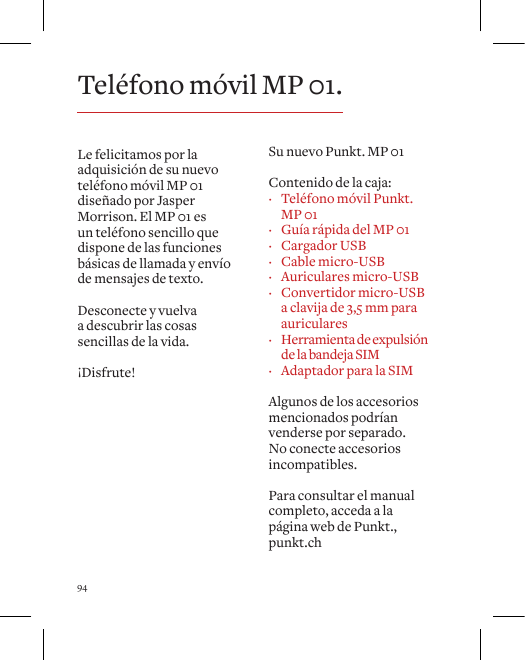
2Congratulations on your new MP 01 Mobile Phone designed by Jasper Morrison. The MP 01 is a simple phone that supports basic calling and text messaging. Disconnect and rediscover the simple things in life.Enjoy!Unpacking your new Punkt. MP 01What’s in the box: · Punkt. MP 01  Mobile Phone · MP 01 Quick Guide · USB Charger · Micro-USB cable · Micro-USB headset · Micro-USB to 3.5mm  plug headset converter · SIM tray opener pin · SIM adapterSome of the aforementioned accessories may also be sold separately. Do not connect incompatible accessories. For the full user manual, please access punkt.chMP 01 Mobile Phone.
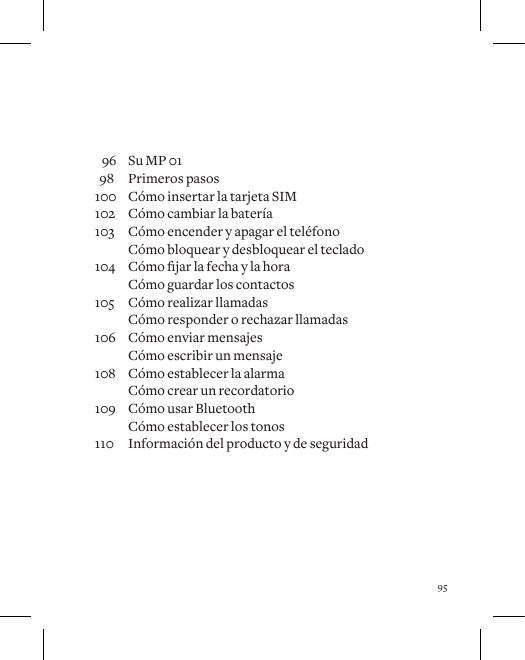
304  Your MP 0106  Getting started08  Inserting a SIM card10  Charging the battery11 Turningthephoneon/o  Locking and unlocking the keypad12  Setting the date and time  Saving contacts13  Making calls  Answering / rejecting calls14  Sending messages  Composing a message16  Setting the alarm  Creating a reminder17  Using Bluetooth  Setting Ringtones18  Product and safety information
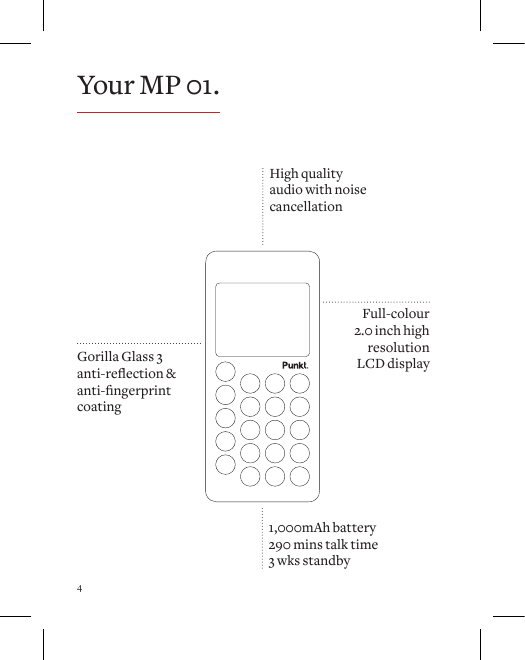
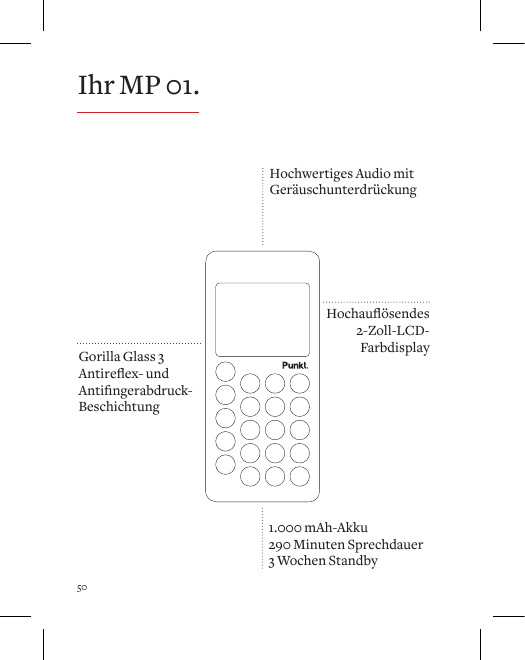
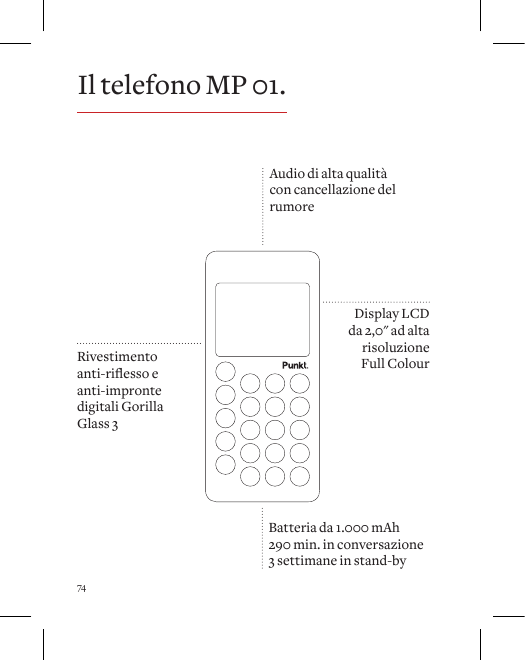
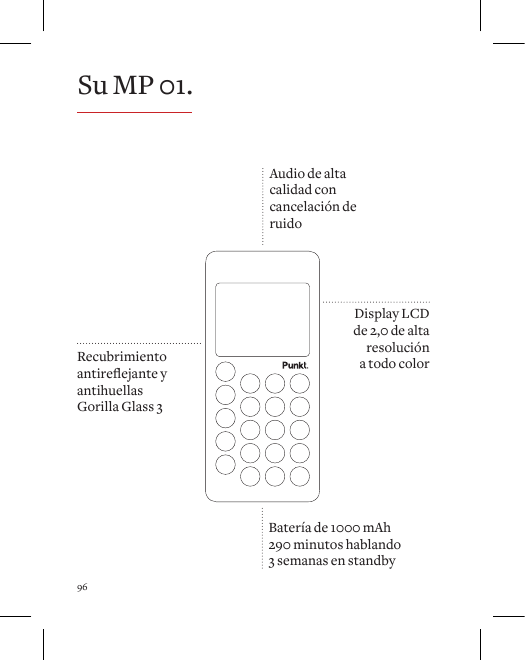
4High quality audio with noise cancellationGorilla Glass 3anti-reection&anti-ngerprintcoating1,000mAh battery290 mins talk time3 wks standbyFull-colour 2.0 inch high resolution LCD displayYour MP 01.
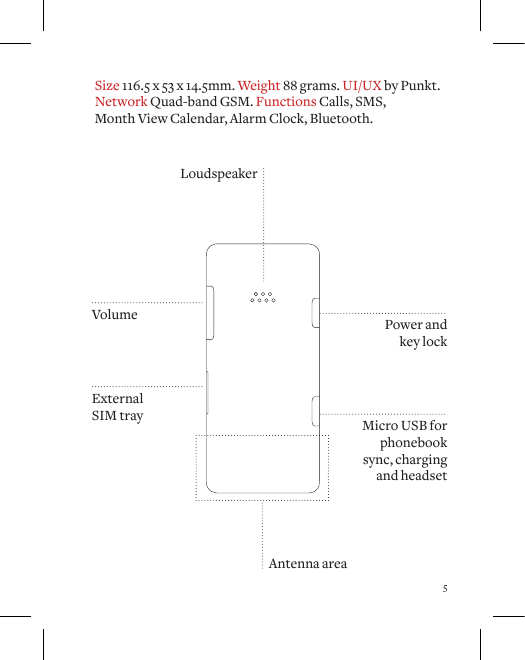
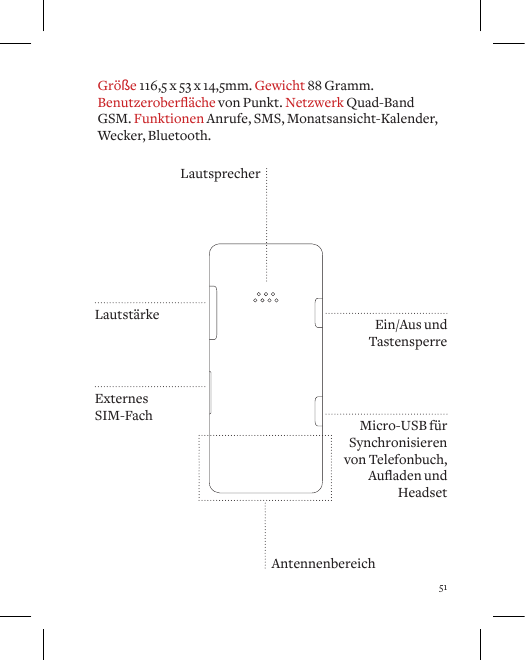
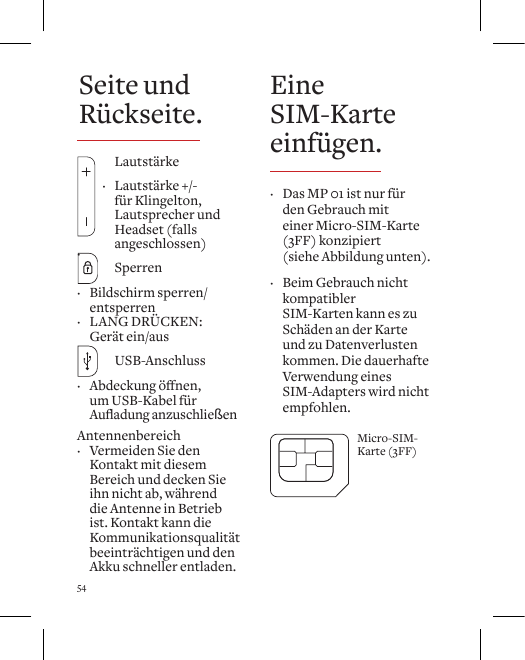
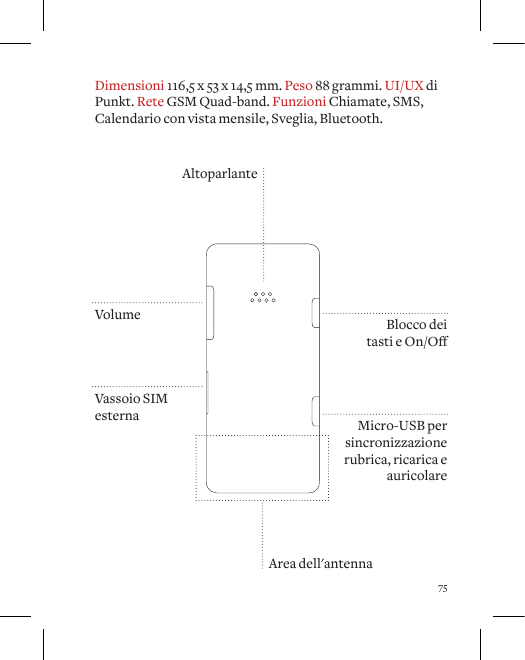
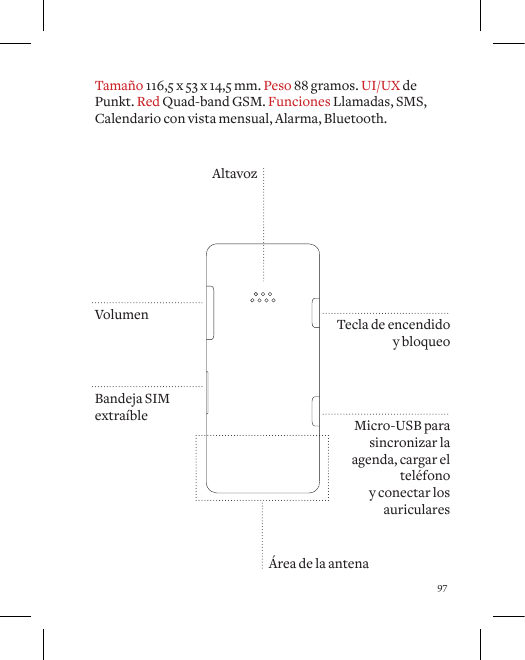
5LoudspeakerMicro USB for phonebook sync, charging and headsetPower and  key lockVolumeExternal SIM traySize 116.5 x 53 x 14.5mm. Weight 88 grams. UI/UX by Punkt. Network Quad-band GSM. Functions Calls, SMS,  Month View Calendar, Alarm Clock, Bluetooth.Antenna area
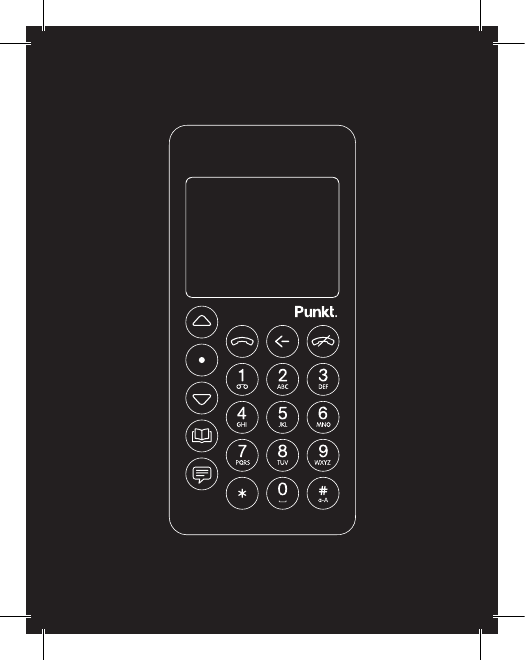
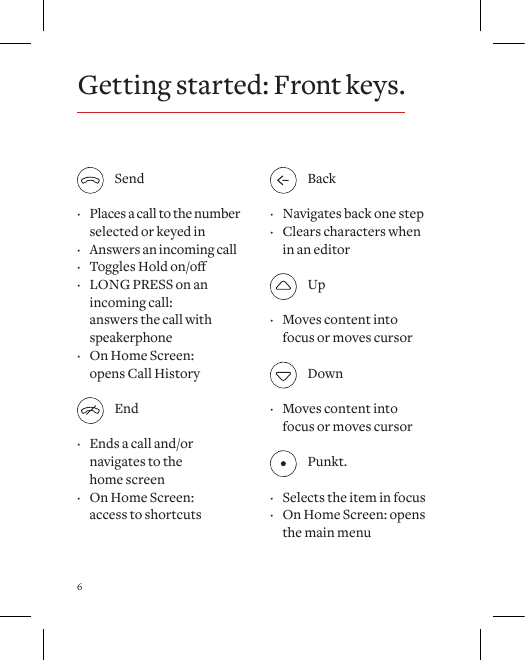
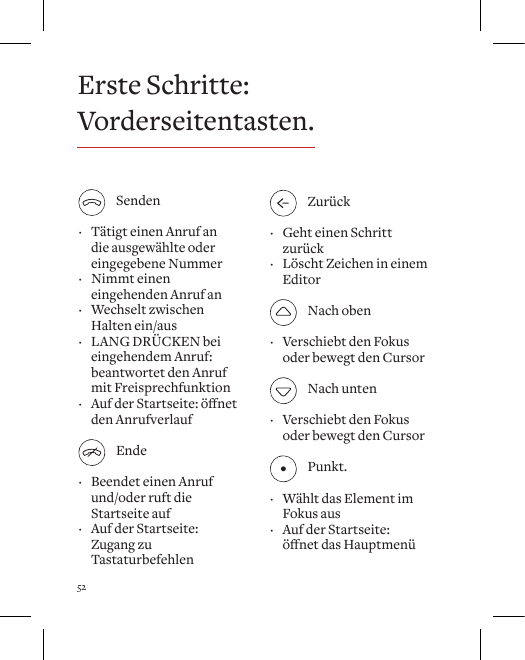
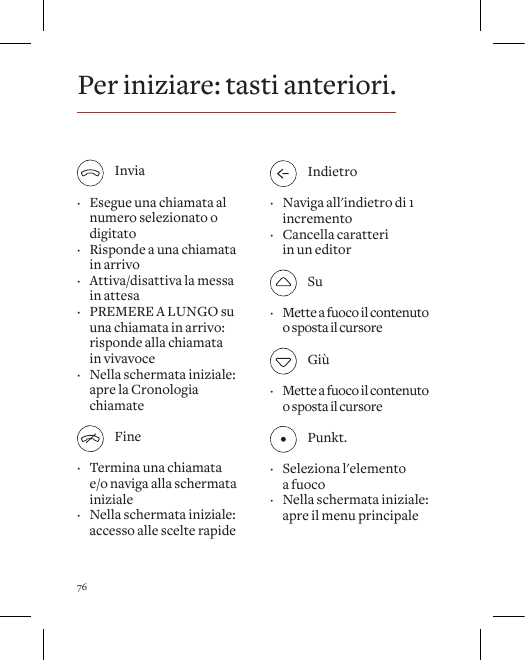
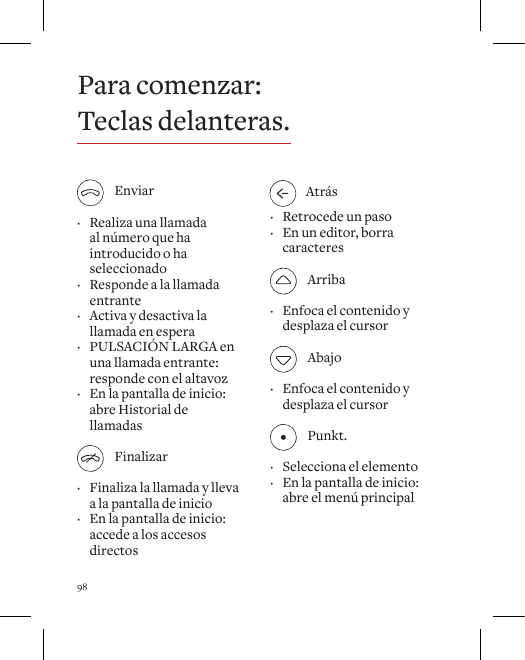
6 Send · Places a call to the number selected or keyed in · Answers an incoming call · TogglesHoldon/o · LONG PRESS on an   incoming call:  answers the call with speakerphone · On Home Screen:  opens Call History End · Ends a call and/or  navigates to the  home screen · On Home Screen:  access to shortcuts Back · Navigates back one step · Clears characters when  in an editor Up · Moves content into  focus or moves cursor Down · Moves content into  focus or moves cursor Punkt. · Selects the item in focus · On Home Screen: opens  the main menuGetting started: Front keys.
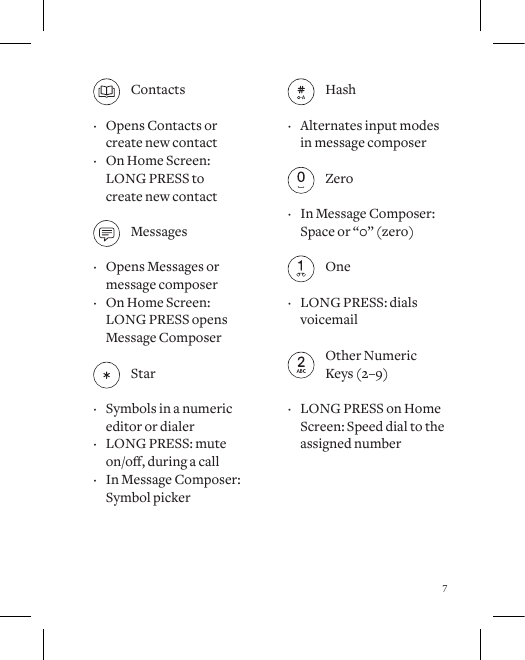
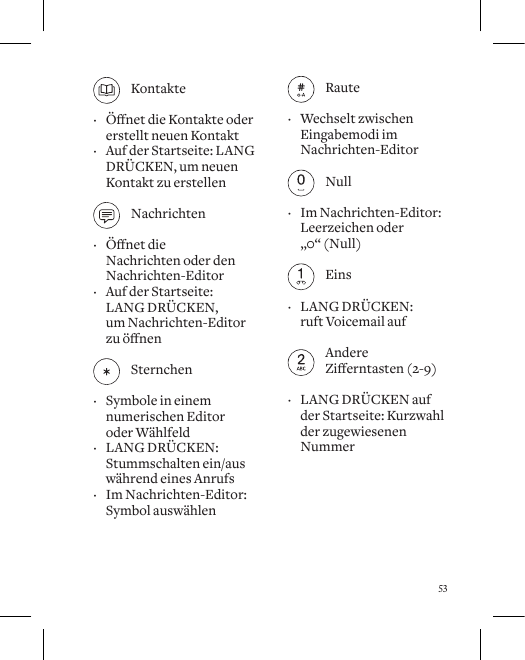
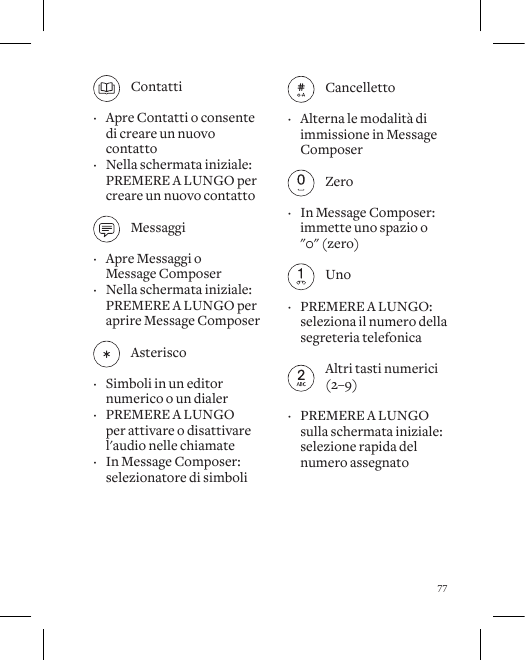
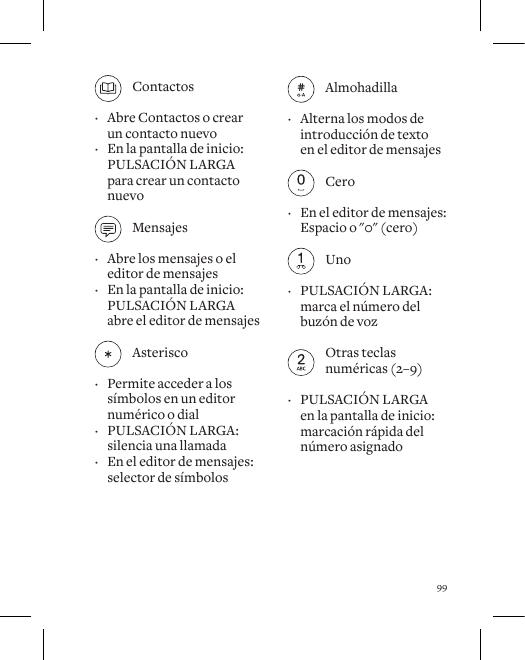
7 Hash · Alternates input modes in message composer  Zero · In Message Composer:  Space or “0” (zero) One · LONG PRESS: dials voicemail   Other Numeric      Keys (2–9) · LONG PRESS on Home  Screen: Speed dial to the  assigned number   Contacts · Opens Contacts or  create new contact  · On Home Screen:  LONG PRESS to  create new contact Messages · Opens Messages or  message composer  · On Home Screen:  LONG PRESS opens Message Composer Star · Symbols in a numeric editor or dialer · LONG PRESS: mute  on/o,duringacall · In Message Composer: Symbol picker
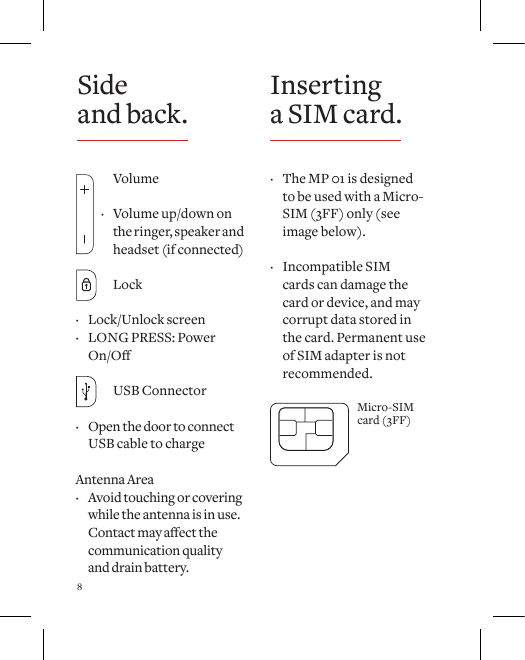
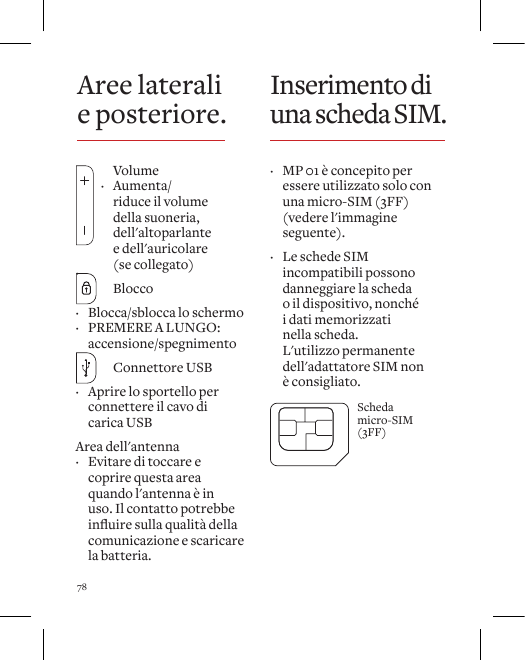
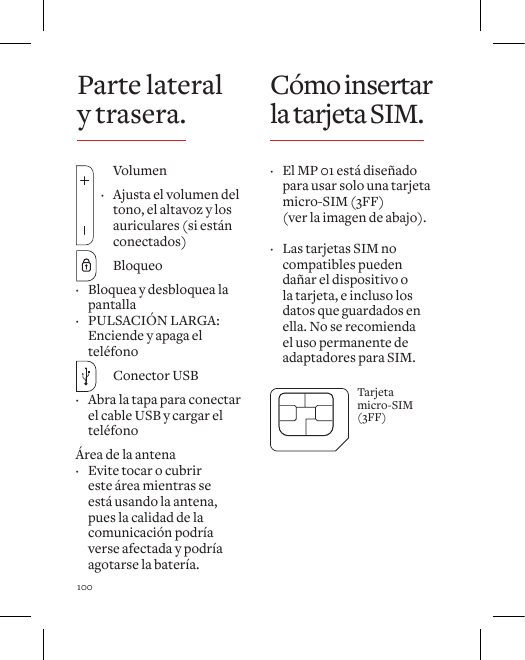
8 · The MP 01 is designed  to be used with a Micro-SIM (3FF) only (see image below).  · Incompatible SIM cards can damage the card or device, and may corrupt data stored in the card. Permanent use of SIM adapter is not recommended.Micro-SIMcard (3FF) Volume · Volume up/down on     the ringer, speaker and    headset (if connected) Lock ·  Lock/Unlock  screen · LONG PRESS: Power On/O  USB Connector · Open the door to connect USB cable to chargeAntenna Area · Avoid touching or covering while the antenna is in use. Contactmayaectthecommunication quality and drain battery. Side  and back. Inserting a SIM card.
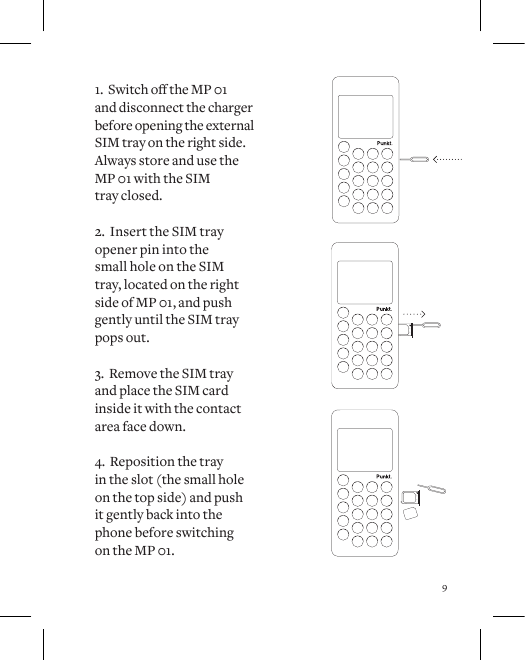
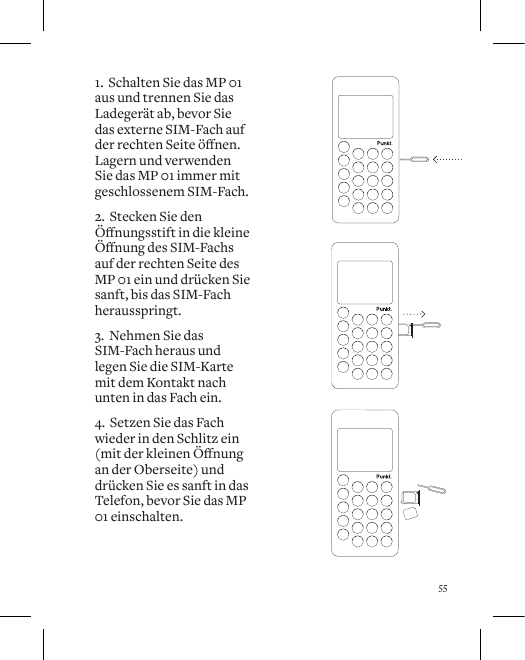
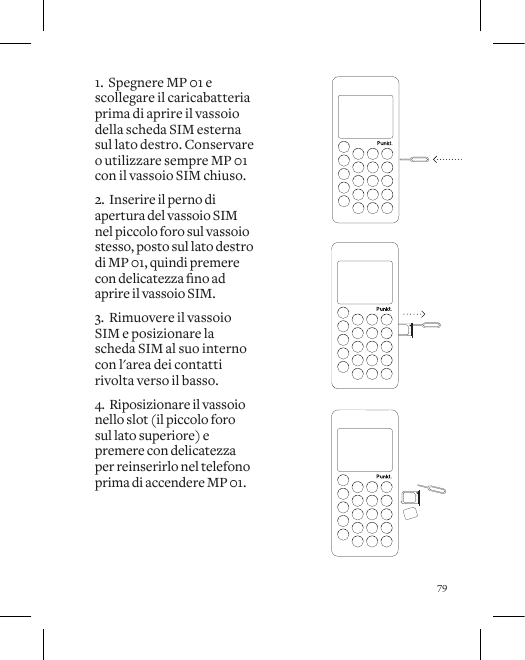
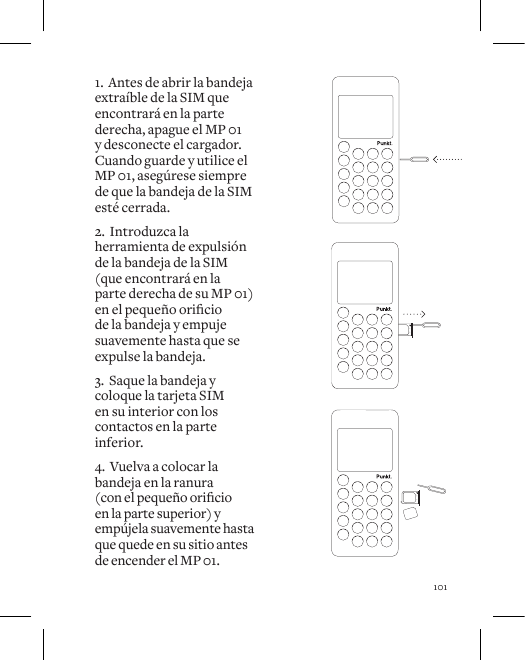
91.SwitchotheMP01 and disconnect the charger before opening the external SIM tray on the right side. Always store and use the MP 01 with the SIM  tray closed.2.  Insert the SIM tray opener pin into the  small hole on the SIM tray, located on the right side of MP 01, and push gently until the SIM tray pops out. 3.  Remove the SIM tray and place the SIM card inside it with the contact area face down. 4.  Reposition the tray  in the slot (the small hole on the top side) and push  it gently back into the phone before switching  on the MP 01.
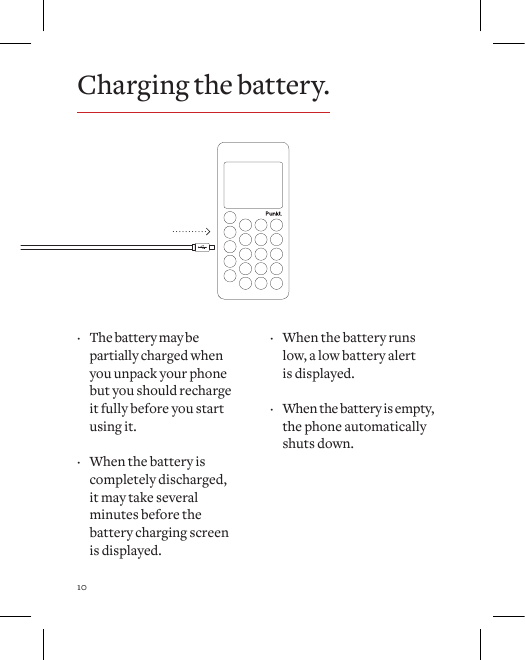
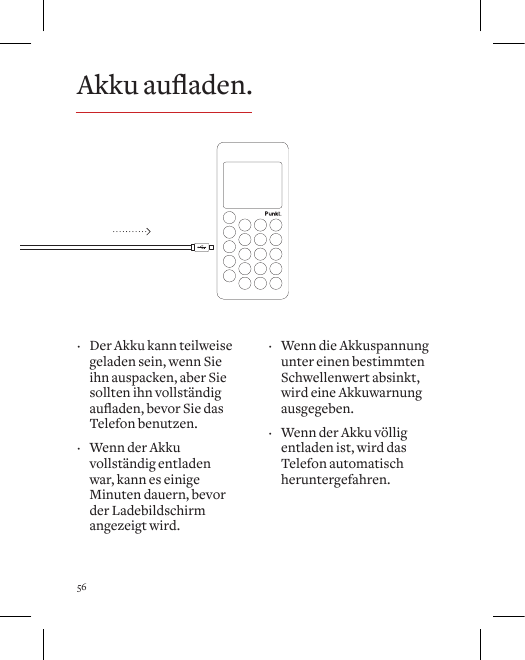
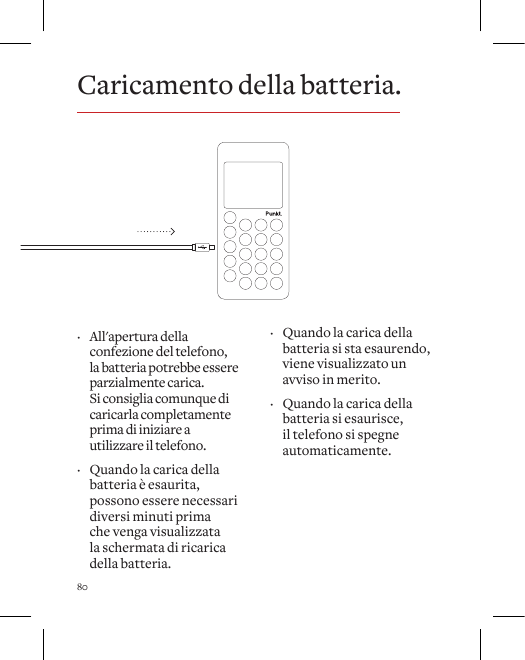
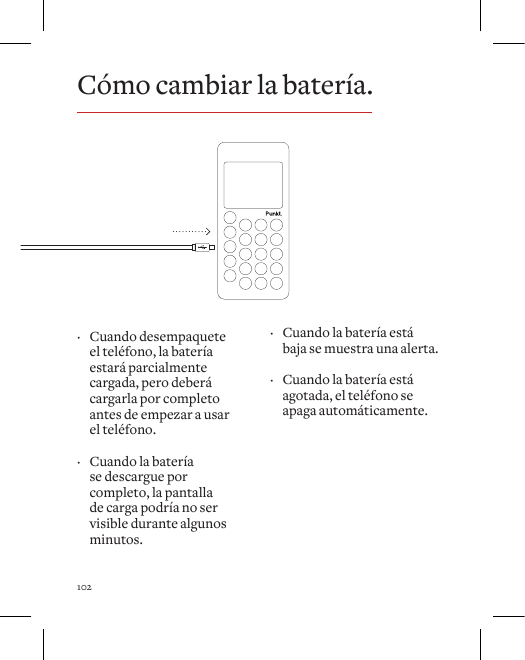
10Charging the battery. · The battery may be partially charged when you unpack your phone but you should recharge it fully before you start using it.  · When the battery is completely discharged, it may take several minutes before the battery charging screen is displayed. · When the battery runs low, a low battery alert  is displayed.  · When the battery is empty, the phone automatically shuts down.
11 · To turn your phone ON, press and hold the LOCK KEY.  · If you have set the passcode request on, the phone will ask you to enter the passcode. By default the passcode is 7658 and request is settoo.  · If your SIM has PIN code set, the phone will ask you to enter the PIN.  · To turn your phone  OFF, press and hold  the LOCK KEY. · To lock the keypad,  press the LOCK KEY on the side of the phone. When locked, press and hold the LOCK KEY  to unlock.  · If you have set a passcode for the phone, you will be asked to enter it to unlock the keypad.Locking and unlocking the keypad.Turning  the phone on/o.
12Setting the date and time. · When you use the phone forthersttimeyou will be guided through the time and date  setting process.   · Use the UP and DOWN KEYS to set the date and time, then save the selected option by  pressing the PUNKT. KEY.  · To set the date and time later, access “Settings” from the main menu, then select “Time  and date”.Saving contacts.1.  Key in the number.2.  Select “Options” then “Add to contacts”, or alternatively press the CONTACTS KEY, then choose from “Create new” or “Add to existing”.3.  You will be asked to conrmthenumberentered,then to label the number (Home, Work, Mobile, etc.).4.  At this point enter the name (or save the number without a name), then choose “Save” from the “Options”.5.  Press the BACK KEY to navigate back through each step or clear characters  when editing.
13Answering / rejecting calls. · Press the SEND KEY to accept an incoming call.   · A LONG PRESS of the SEND KEY answers the call and activates the speakerphone.   · The END KEY rejects the call.  · The MESSAGE KEY rejects the call and sends a message to the caller.Making calls.1.  Select the number from your contacts or key in a number directly. If the country code is recognized, the country  is displayed below  the number. 2.  When the number  is recognized in the contacts, the contact  name is displayed  below the number.3. Press the PUNKT. KEY to access options, or simply press the SEND KEY to place the call.
14Sending messages.1.  Press the MESSAGE  KEY then select “Create message”, or alternatively press and hold the MESSAGE KEY to create a new message.2.  Compose your message then press the PUNKT. KEY and select “Options” to choose the recipient.3.  Select “Options” then “Send” or alternatively  press the SEND KEY to  send the message.Composing a message. · To turn predictive inputon/o,changethe settings using the “Options” menu.  · With predictive input on, the predictive text box appears, displaying suggested words.   · To delete characters in the predictive text box one at a time, use the BACK KEY.
15 · To choose a word from the predictive text box use the UP / DOWN KEYS to move between the words suggested. The UP KEY moves the focus to the LEFT, the DOWN KEY moves the focus to the RIGHT.  · To insert the highlighted word into your message, press “0”(zero) (space automatically added) or the PUNKT. KEY.  · A SHORT PRESS of the numeric keys scrolls through the available letters.  · To insert a number into  a text message, press  and hold the key in question (LONG PRESS). The ONE KEY (1) scrolls through frequently used punctuation symbols.  To select from other symbols press the STAR KEY (*) to access the symbol selector, or go to Options > Insert symbol.  · Note: When the predictive text box is displayed, all key presses relate to the words in  the box (not the body  of the message).
16Creating a reminder.1.  To create a reminder, access the main menu and select “Reminders”, then “Create reminder”.2.  Key in the text of your reminder then select “Save” from the options menu.3.  To add an alert to the reminder, select the date and time when prompted, then choose “Save”.4.  To edit a reminder, select the reminder in question from the Home screen or Reminder menu, select “Options” then “Edit reminder”.Setting the alarm.1.  To set the alarm, key in the desired alarm time.2.  Select “Options”, then “Set alarm”.3.Toturnothealarm,select Alarm on the  HOME screen or access “Alarm” from the main menu,thenselect“O”for  “Alarm status” using the PUNKT. KEY.
17Setting Ringtones.1.  To select a ringtone  go to “Settings” from  the main menu and select   “Sounds”.2.  Select “Calls” to choose the desired ringtone for incoming calls, and “Messages” to choose the tone for incoming messages.Using Bluetooth. · To use Bluetooth go to “Settings” from the main menu, then “Connectivity” then “Bluetooth”. Press the PUNKT. KEY to toggle betweenon/o.
18   · MP 01 only works with GSM 850,  900, 1800 and 1900 MHz networks. · MP 01 has an estimated battery life of 290 minutes talk time and 500 hours stand by time.  · Variousfactorsmayaectthetalk and stand by times stated such as network conditions, feature usage, battery condition, temperature etc. · Failure to comply with the instructions may cause injury  or damage to properties. · Never operate the phone while driving. · Alwaysturnoyourmobilephone inside an aircraft. · Store the device between 15°c  and 25°c for optimal performance.  Do not store the device in extreme temperatures. Exposure to extreme temperatures may  cause the phone not to work temporarily, continued exposure may damage the device or battery. · Do not use or store the device in wet conditions, avoid humidity or moisture, keep the device dry. · Do not expose the battery to re,itmayexplode. · Do not store the device in dusty or dirty conditions. · Do not open, dismantle or modify the device. · Do not drop, impact, or shock your device. · Never use the device if it is damaged. · Use the device and accessories for intended use only. · Keep your device out of the reach of small children. · The device emits radio, which may interfere with electronic devices, avoid usage close to potentially inadequately shielded devices. · Continuous exposure to loud volume settings may damage your hearing. · Headsetusagemayaectyour ability to hear outside sounds and may lead to lack of attention. · Separate collection of electrical and electronic equipment and packaging materials.Do not dispose and return to dedicated collection points. Product and safety information.
19re,itmayexplode. · Do not store the device in dusty or dirty conditions. · Do not open, dismantle or modify the device. · Do not drop, impact, or shock your device. · Never use the device if it is damaged. · Use the device and accessories for intended use only. · Keep your device out of the reach of small children. · The device emits radio, which may interfere with electronic devices, avoid usage close to potentially inadequately shielded devices. · Continuous exposure to loud volume settings may damage your hearing. · Headsetusagemayaectyour ability to hear outside sounds and may lead to lack of attention. · Separate collection of electrical and electronic equipment and packaging materials.Do not dispose and return to dedicated collection points. Please carefully read and observe the terms below:Distance of operationThis device model has been tested and meets radiofrequency exposure guidelines when used as follows: — Against the ear: Place or receive a device call and hold the device as you would a wire line telephone.— Body worn: When transmitting, place the device in a carry accessory that contains no metal and positions the device a minimum of 1.5 cm from your body. Use of other accessories may not ensure compliance with radiofrequency exposure guidelines. If you do not use a body worn accessory and are not holding the device at the ear, position the device a minimum of 1.5 cm from your body. — Data operation: When using a data feature, position the phone  a minimum of 1.5 cm from your body for the whole duration of the data transmission.AdapterAdapter shall be installed near  Regulatory ConformanceHereby, Punkt. Tronics AG declares that this device is in compliance with the essential requirements and other relevant provisions of Directive 1999/5/EC.Safety Information and NoticesFailure to comply with the following precautions may be dangerous  or illegal. Never attempt to disassemble your device. You alone are responsible for how you use your device and any consequences of its use. As a general rule, always switchoyourdevicewherever the use of a device is prohibited. Use of your device is subject to  safety measures designed to  protect users and their environment. Do not use your device in damp areas (bathroom, swimming pool…). Protect it from liquids and other moisture. Do not expose your device to extreme temperatures lower than - 0°C and higher than + 40°C. Do not leave your device within the reach of small children (certain removable parts may be accidentally ingested).  0700
20the equipment and shall be  easily accessible.Sound pressure safetyUse carefully with the earphone as an excessive sound pressure from earphones and headphones can cause hearing loss.CautionRisk of explosion if battery is replaced by an incorrect type. Dispose of used batteries according to the instructions.Proper useAs described in this manual,  your device can be used only in right location. If possible, please do not touch the antenna area  on your device.FCC Regulations: This device complies with part  15 of the FCC Rules. Operation  is subject to the following two conditions: (1) This device may not cause harmful interference, and (2) this device must accept any interference received, including interference that may cause undesired operation. This mobile phone has been tested and found to comply with the limits for a Class B digital device, pursuant to Part 15 of the FCC Rules. These limits are designed to provide reasonable protection against harmful interference in a residential installation.  This equipment generates, uses and can radiated radio frequency energy and, if not installed and used in accordance with the instructions, may cause harmful interference to radio communications. However, there is no guarantee that interference will not occur in a particular installation. If this equipment does cause harmful interference to radio or television reception, which can be determined by turningtheequipmentoandon,the user is encouraged to try to correct the interference by one or more of the following measures:  — Reorient or relocate the receiving antenna. — Increase the separation between the equipment and receiver. — Connect the equipment into  anoutletonacircuitdierentfrom that to which the receiver  is connected. — Consult the dealer or an
21experienced radio/TV technician for help. Changesormodicationsnotexpressly approved by the party responsible for compliance could void the user’s authority to operate the equipment. RF Exposure Information (SAR) This device meets the government’s requirements for exposure to  radio waves. This device is designed and manufactured not to exceed the emission limits for exposure to radio frequency (RF) energy set  by the Federal Communications Commission of the U.S. Government.  The exposure standard for wireless devices employs a unit of measurement known as the SpecicAbsorptionRate,or SAR. The SAR limit set by the FCC is 1.6 W/kg. *Tests for SAR are conducted using standard operating positions accepted by the FCC with the phone transmittingatitshighestcertiedpower level in all tested frequency bands. Although the SAR is determinedatthehighestcertiedpower 20 level, the actual SAR level of the phone while operating can be well below the maximum value. This is because the phone is designed to operate at multiple power levels so as to use only the poser required to reach the network. In general, the closer you are to a wireless base station antenna, the lower the power output. The highest SAR value for the model phone as reported to the FCC when tested for use at the ear is 0.603W/kg and when worn on the body, as described in this user guide, is 0.294W/kg (Body-worn measurements dieramongphonemodels,depending upon available enhancements and FCC requirements.) While there maybedierencesbetweentheSAR levels of various phones and at various positions, they all meet the government requirement. The FCC has granted an Equipment Authorization for this model phone with all reported SAR levels evaluated as in compliance with the FCC RF exposure guidelines. SAR information on this model phoneisonlewiththeFCCand can be found under the
22The Bluetooth® word mark and logos are registered trademarks owned by Bluetooth SIG, Inc. and any use of such marks by Punkt. Tronics AG is under license.  Other trademarks and trade names  are those of their respective owners.Warranty Punkt. guarantees this product for a period of two years from the date of purchase. The warranty only applies to defects attributable to the production process or materials used. The product covered by the warranty may be repaired or replaced after being assessed by Punkt. The service for products covered by the warranty can only be obtained by presenting proof of purchase (a valid receipt) and the original packaging.The warranty does not cover parts subject to normal wear and tear due to daily use of the product, such as batteries (if provided with the product), power cords, various cables, connectors or sockets, external parts and plastic parts that do not show obvious signs Display Grant section of http://www.fcc.gov/oet/fccid after searching on FCC ID: Z3PMP01. For body worn operation, this phone has been tested and meets the FCC RF exposure guidelines for use with an accessory that contains no metal and that positions the handset a minimum of 1.5 cm from the body. Use of other enhancements may not ensure compliance with FCC RF exposure guidelines. If you do not use a body-worn accessory and are not holding the phone at the ear, position the handset a minimum of 1.5 cm from your body when the phone is switched on. IC StatementThis device complies with CAN ICES-3 (B)/NMB-3(B). This device complies with Industry Canada licence-exempt RSS standard(s). Operation is subject to the following two conditions: (1) this device may not cause interference, and (2) this device must accept any interference, including interference that may cause undesired operation of the device.
23of manufacturing defects. The warranty does not cover accidental damage, misuse, negligence and is null and void if the product has been tampered with by unauthorized persons.  For further information, or if other problems arise, please contact the Punkt. dealer closest to you, or get in touch with us using the form on the Punkt. website punkt.ch. Punkt. Customer Care In the unlikely event that a problem should occur with one of our products, we kindly ask you to return the product to the store whereitwaspurchased.Thesta will be able to help solve the problem and, should the product malfunction be due to defects in workmanship or materials, they will handle the replacement procedure. Only products covered by the warranty will be replaced. If you are unable to return the product to the store where it was purchased, please use the form on the Punkt. website, punkt.ch.Your personal information will  only be used for Punkt. customer care purposes and will therefore only be communicated to other companies providing repair services. Your information will not be used for sending you information or promotional material from Punkt. or its partners.Contact us If you have any questions or would like to comment on our products, please write to info@punkt.ch.For more product information visitPunkt.’socialwebsitepunkt.ch
24Félicitations pour votre acquisition du téléphone mobile MP 01 conçu par Jasper Morrison. Le MP 01 est un téléphone simple qui propose des fonctions de base pour passer des appels et envoyer des SMS. Déconnectez-vous et redécouvrez les choses simples de la vie.Vous apprécierez !Déballage de votre nouveau Punkt. MP 01Contenu de la boîte : · Téléphone mobile Punkt. MP 01 · Mini guide MP 01 · Chargeur USB · Câble micro USB · Kit oreillette micro USB · Adaptateur micro USB vers jack 3,5 mm · Outil d'extraction de carte SIM · Adaptateur de carte SIMCertains accessoires mentionnés ci-dessus peuvent également être vendus séparément. Ne connectez pas d'accessoires incompatibles. Pour le manuel de l'utilisateur complet, veuillez consulter punkt.chTéléphone mobile MP 01.
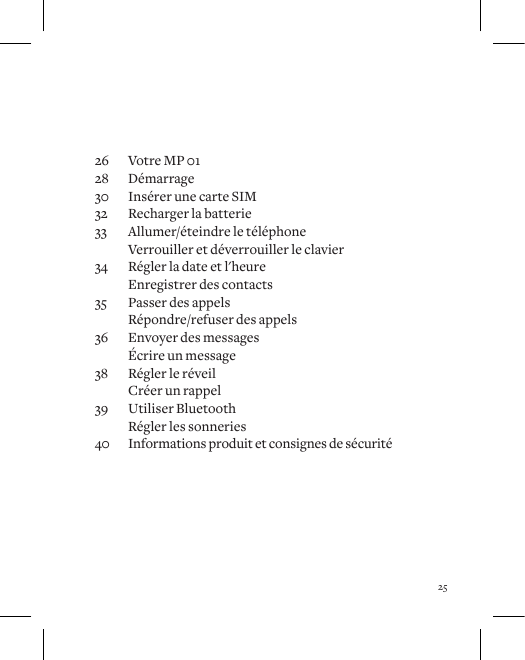
2526  Votre MP 0128 Démarrage30  Insérer une carte SIM32  Recharger la batterie33  Allumer/éteindre le téléphone  Verrouiller et déverrouiller le clavier34  Régler la date et l'heure  Enregistrer des contacts35  Passer des appels  Répondre/refuser des appels36  Envoyer des messages  Écrire un message38  Régler le réveil  Créer un rappel39  Utiliser Bluetooth  Régler les sonneries40  Informations produit et consignes de sécurité
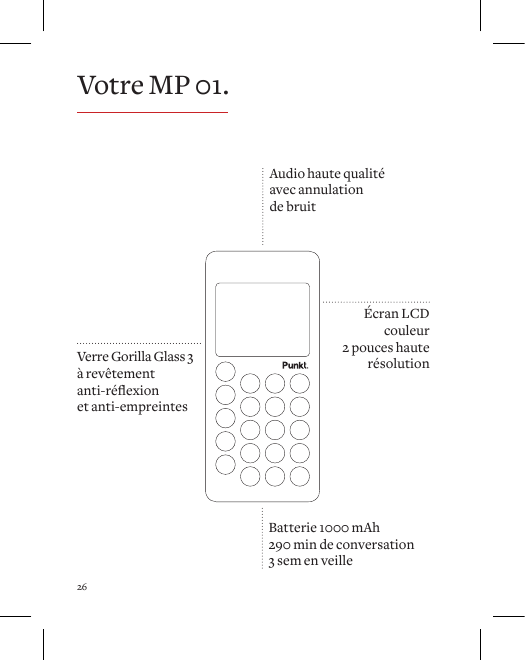
26Audio haute qualité avec annulation  de bruitVerre Gorilla Glass 3à revêtement  anti-réexionet anti-empreintesBatterie 1000 mAh290 min de conversation3 sem en veilleÉcran LCD couleur  2 pouces haute résolutionVotre MP 01.
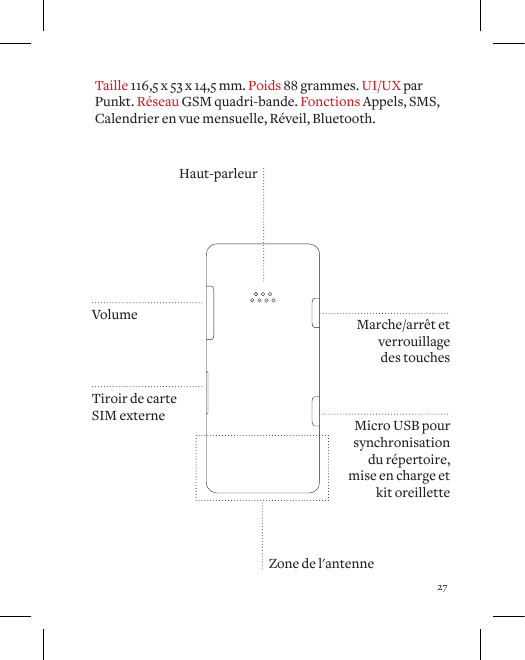
27Haut-parleurMicro USB pour synchronisation du répertoire, mise en charge et kit oreilletteMarche/arrêt etverrouillage  des touchesVolumeTiroir de carte SIM externeTaille 116,5 x 53 x 14,5 mm. Poids 88 grammes. UI/UX par Punkt. Réseau GSM quadri-bande. Fonctions Appels, SMS,  Calendrier en vue mensuelle, Réveil, Bluetooth.Zone de l'antenne
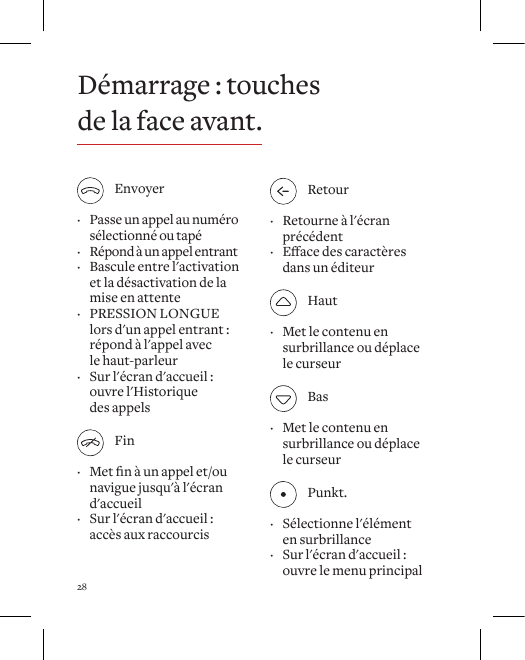
28 Envoyer · Passe un appel au numéro sélectionné ou tapé · Répond à un appel entrant · Bascule entre l'activation et la désactivation de la mise en attente · PRESSION LONGUE lors d'un appel entrant :  répond à l'appel avec le haut-parleur · Sur l'écran d'accueil :  ouvre l'Historique  des appels Fin · Metnàunappelet/ou navigue jusqu'à l'écran d'accueil · Sur l'écran d'accueil :  accès aux raccourcis Retour · Retourne à l'écran précédent · Eacedescaractèresdans un éditeur Haut · Met le contenu en  surbrillance ou déplace le curseur Bas · Met le contenu en  surbrillance ou déplace le curseur Punkt. · Sélectionne l'élément  en surbrillance · Sur l'écran d'accueil : ouvre le menu principalDémarrage : touches  de la face avant.
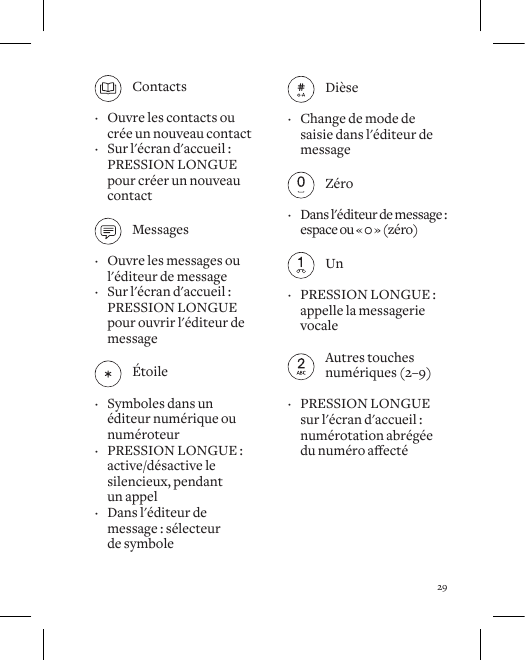
29 Dièse · Change de mode de saisie dans l'éditeur de message  Zéro · Dans l'éditeur de message : espace ou « 0 » (zéro) Un · PRESSION LONGUE :  appelle la messagerie vocale   Autres touches      numériques (2–9) · PRESSION LONGUE sur l'écran d'accueil : numérotation abrégée dunuméroaecté Contacts · Ouvre les contacts ou  crée un nouveau contact  · Sur l'écran d'accueil :  PRESSION LONGUE pour créer un nouveau contact Messages · Ouvre les messages ou  l'éditeur de message  · Sur l'écran d'accueil :  PRESSION LONGUE pour ouvrir l'éditeur de message Étoile · Symboles dans un éditeur numérique ou numéroteur · PRESSION LONGUE :  active/désactive le silencieux, pendant  un appel · Dans l'éditeur de message : sélecteur  de symbole
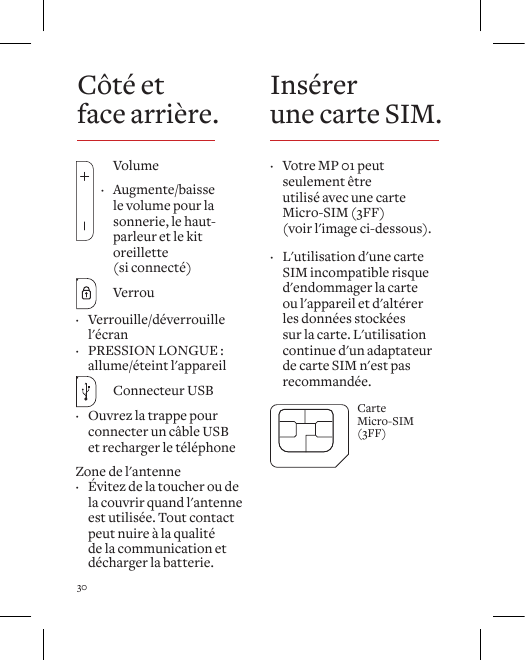
30 · Votre MP 01 peut seulement être  utilisé avec une carte Micro-SIM (3FF)  (voir l'image ci-dessous).  · L'utilisation d'une carte SIM incompatible risque d'endommager la carte ou l'appareil et d'altérer les données stockées sur la carte. L'utilisation continue d'un adaptateur de carte SIM n'est pas recommandée.Carte Micro-SIM(3FF) Volume ·  Augmente/baisse le volume pour la sonnerie, le haut-parleur et le kit oreillette  (si connecté) ·  Verrou · Verrouille/déverrouille l'écran · PRESSION LONGUE : allume/éteint l'appareil ·   Connecteur USB · Ouvrez la trappe pour connecter un câble USB  et recharger le téléphoneZone de l'antenne · Évitez de la toucher ou de la couvrir quand l'antenne est utilisée. Tout contact peut nuire à la qualité de la communication et décharger la batterie.Côté et  face arrière. Insérer  une carte SIM.
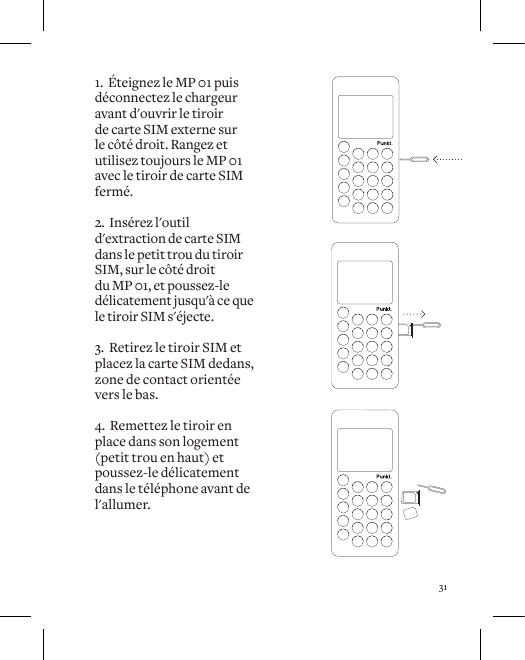
311.  Éteignez le MP 01 puis déconnectez le chargeur avant d'ouvrir le tiroir de carte SIM externe sur le côté droit. Rangez et utilisez toujours le MP 01 avec le tiroir de carte SIM fermé.2.  Insérez l'outil d'extraction de carte SIM dans le petit trou du tiroir SIM, sur le côté droit du MP 01, et poussez-le délicatement jusqu'à ce que le tiroir SIM s'éjecte. 3.  Retirez le tiroir SIM et placez la carte SIM dedans, zone de contact orientée vers le bas. 4.  Remettez le tiroir en place dans son logement (petit trou en haut) et poussez-le délicatement dans le téléphone avant de l'allumer.
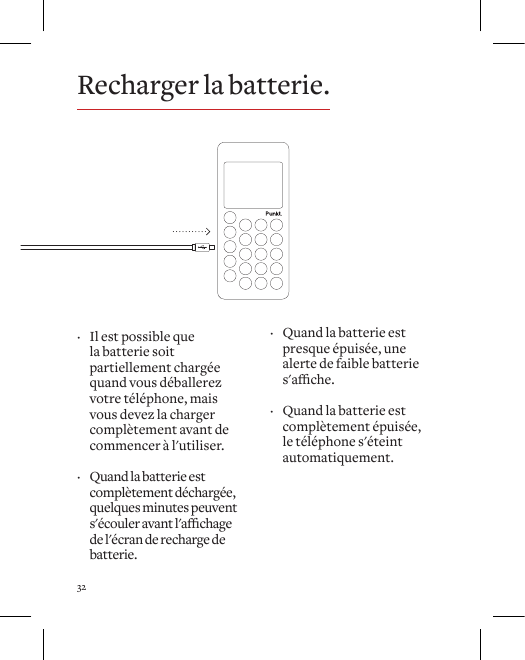
32Recharger la batterie. · Il est possible que la batterie soit partiellement chargée quand vous déballerez votre téléphone, mais vous devez la charger complètement avant de commencer à l'utiliser.  · Quand la batterie est complètement déchargée, quelques minutes peuvent s'écouleravantl'achagede l'écran de recharge de batterie. · Quand la batterie est presque épuisée, une alerte de faible batterie s'ache.  · Quand la batterie est complètement épuisée, le téléphone s'éteint automatiquement.
33 · Pour allumer votre téléphone, appuyez longuement sur la TOUCHE VERROU.  · Si vous avez activé le code secret, le téléphone vous demandera de le saisir. Par défaut, le code secret est 7658 et il est désactivé.  · Si un code PIN est dénipourvotreSIM,le téléphone vous demandera de le saisir.  · Pour éteindre votre téléphone,  appuyez longuement sur la TOUCHE VERROU. · Pour verrouiller le clavier, appuyez sur la TOUCHE VERROU sur le côté du téléphone. Une fois verrouillé, appuyez longuement sur la TOUCHE VERROU pour le déverrouiller.  · Sivousavezdéniun code secret pour le téléphone, vous devrez le saisir pour déverrouiller le clavier.Verrouiller et déverrouiller le clavier.Allumer/éteindre le téléphone.
34Régler la date et l'heure. · Quand vous utiliserez le téléphone pour la première fois, vous serez guidé dans le processus de réglage de la date et de l'heure.   · Utilisez les TOUCHES HAUT et BAS pour régler la date et l'heure, puis enregistrez l'option  sélectionnée en appuyant sur la TOUCHE PUNKT.  · Pour régler la date et l'heure ultérieurement, sélectionnez l'option « Réglages » dans  le menu principal  puis sélectionnez  « Date et heure ».Enregistrer des contacts.1.  Tapez le numéro.2.  Sélectionnez « Options » puis « Ajouter aux contacts », ou bien appuyez sur la TOUCHE CONTACTS, puis choisissez « Créer nouveau » ou « Ajouter  au contact existant ».3.  Il vous sera demandé de conrmerlenumérosaisipuisd'identierlenuméro(Domicile, Travail,  Mobile, etc.).4.  Entrez ensuite le nom  (ou enregistrez le numéro sans nom), puis sélectionnez « Enregistrer » dans les « Options ».5.  Appuyez sur la TOUCHE RETOUR pour revenir à l'étape précédente ou pour eacerdescaractèreslorsdel'édition.
35Répondre/refuser  des appels. · Appuyez sur la TOUCHE ENVOYER pour accepter un appel entrant.   · UNE PRESSION LONGUE de la TOUCHE ENVOYER permet de répondre à l'appel et d'activer le haut-parleur.   · La TOUCHE FIN a pour eetderefuserl'appel.  · La TOUCHE MESSAGE refuse l'appel et envoie un message à l'appelant.Passer  des appels.1.  Sélectionnez le numéro dans vos contacts ou tapez un numéro directement. Si le code de pays est reconnu,  le pays est indiqué  sous le numéro. 2.  Si le numéro est reconnu dans les contacts, le nom du contact est indiqué sous le numéro.3.  Appuyez sur la TOUCHE PUNKT.  pour accéder aux options, ou directement sur la TOUCHE ENVOYER pour passer l'appel.
36Envoyer  des messages.1.  Appuyez sur la TOUCHE MESSAGE puis sélectionnez « Créer message », ou bien appuyez longuement sur la TOUCHE MESSAGE pour créer un nouveau message.2.  Écrivez votre message puis appuyez sur la TOUCHE PUNKT. avant de sélectionner « Options » pour choisir le destinataire.3.  Sélectionnez « Options » puis « Envoyer » ou bien appuyez sur la TOUCHE ENVOYER pour envoyer le message.Écrire un message. · Pour activer/désactiver la saisie prédictive, changez les réglages à l'aide du menu « Options ».  · Quand la saisie prédictive est activée,  la boîte de texte prédictif s'acheaveclesmotssuggérés.   · Poureaceruncaractèreà la fois dans la boîte de texte prédictif, utilisez la TOUCHE RETOUR.
37 · Pour choisir un mot dans la boîte de texte prédictif, utilisez les TOUCHES HAUT/BAS pour passer d'un mot à l'autre dans  les mots suggérés.  La TOUCHE HAUT déplace la sélection vers la GAUCHE, et la TOUCHE BAS déplace la sélection vers la DROITE.  · Pour insérer le mot  en surbrillance dans  votre message, appuyez  sur « 0 » (zéro)  (un espace est ajouté automatiquement) ou sur la TOUCHE PUNKT.  · Une PRESSION BRÈVE des touches numériques permetdedélerdansles lettres disponibles.  · Pour insérer un numéro dans un message texte, appuyez longuement sur la touche en question (PRESSION LONGUE). La TOUCHE UN (1) permetdedélerdanslessymboles de ponctuation souvent utilisés. Pour sélectionner d'autres symboles, appuyez sur la TOUCHE ÉTOILE (*) pour accéder au sélecteur de symbole, ou allez dans Options > Insérer symbole.  · Remarque : Quand la boîte de texte prédictif estachée,touteslespressions de touche sont associées aux mots dans  la boîte (et non pas dans le corps du message).
38Créer  un rappel.1.  Pour créer un rappel, sélectionnez « Rappels » dans le menu principal, puis « Créer rappel ».2.  Tapez le texte de votre rappel puis sélectionnez « Enregistrer » dans le menu des options.3.  Pour ajouter une alerte au rappel, sélectionnez la date et l'heure quand vous y êtes invité puis choisissez « Enregistrer ».4.Pourmodierunrappel,sélectionnez le rappel en question dans l'écran d'accueil ou dans le menu Rappel, puis sélectionnez «Options»et«Modierrappel ».Régler  le réveil.1.  Pour régler le réveil, tapez l'heure de réveil souhaitée.2.  Sélectionnez « Options » puis « Régler réveil ».3.  Pour éteindre le réveil, sélectionnez Réveil dans l'écran d'ACCUEIL ou sélectionnez « Réveil » dans le menu principal, puis«O»pour « État réveil » à l'aide  de la TOUCHE PUNKT.
39Régler  les sonneries.1.  Pour choisir une sonnerie, sélectionnez « Réglages » dans le menu principal puis « Sons ».2.  Sélectionnez « Appels » pour choisir la sonnerie souhaitée pour les appels entrants, puis « Messages » pour choisir la tonalité émise pour les messages entrants.

Navigation menu