Radio Thermostat of America CT102R1 Thermostat User Manual CT102 Manual REV 1

Radio Thermostat Company of America, Inc Thermostat CT102 Manual REV 1

CT102 Manual REV 1

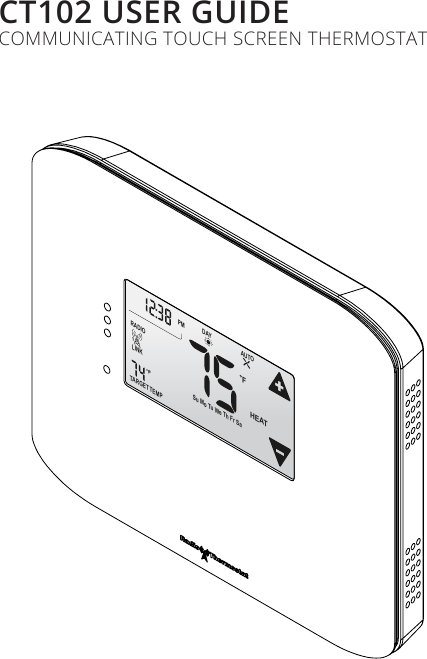
RTCOA logo sheet7aug07CT102 USER GUIDECOMMUNICATING TOUCH SCREEN THERMOSTATFLINKRADIOTARGETTEMP1AUTOHEATDAYPM Su Mo Tu We Th Fr Sa
CT102 INSTALLATION GUIDE2Table Of Contents Getting Started  #Interior ViewInstallation Location #Wiring  #Prepare Wires  #Connecting Wires  #Mounting #Setup  #Select HVAC & Heat Types  #Power Supply  #HVAC Setup  #Test Installation  #Wiring Diagrams   #Detailed Wire Diagram   #Step By Step Wiring DiagramsWire Reference Table  #
3Radio ThermostatGetting Started
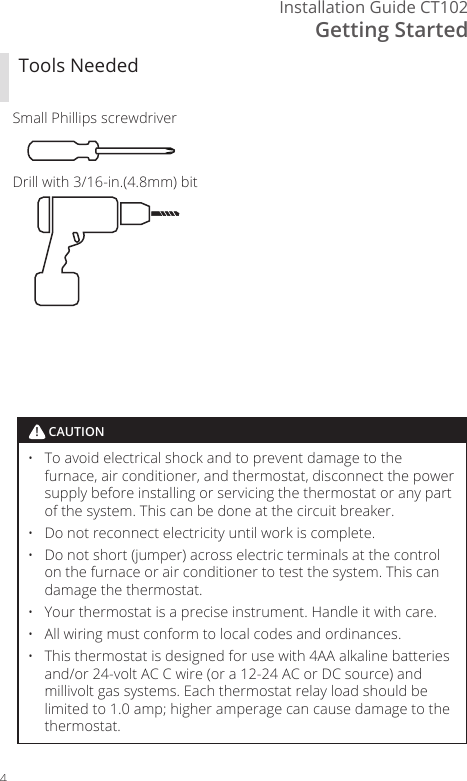
Getting StartedInstallation Guide CT1024Tools NeededSmall Phillips screwdriverDrill with 3/16- in.(4.8mm) bit•  To avoid electrical shock and to prevent damage to the furnace, air conditioner, and thermostat, disconnect the power supply before installing or servicing the thermostat or any part of the system. This can be done at the circuit breaker. •  Do not reconnect electricity until work is complete. •  Do not short (jumper) across electric terminals at the control on the furnace or air conditioner to test the system. This can damage the thermostat. •  Your thermostat is a precise instrument. Handle it with care. •  All wiring must conform to local codes and ordinances. •  This thermostat is designed for use with 4AA alkaline batteries and/or 24- volt AC C wire (or a 12- 24 AC or DC source) and millivolt gas systems. Each thermostat relay load should be limited to 1.0 amp; higher amperage can cause damage to the thermostat.! CAUTION
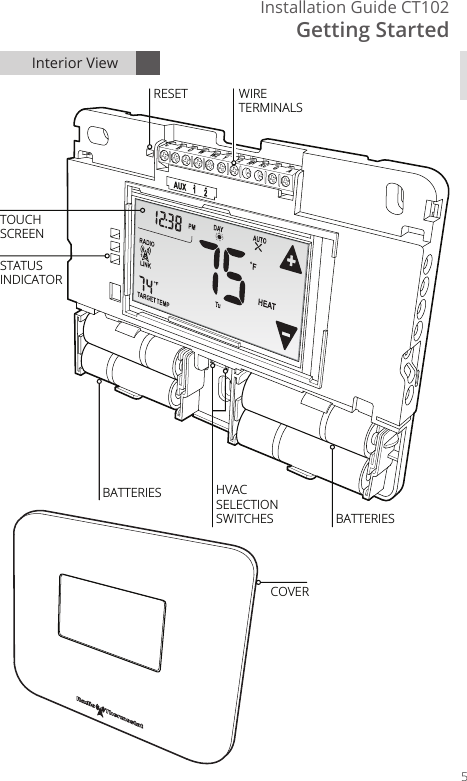
Getting StartedInstallation Guide CT1025CBOWW2 YY2 RH RC GAAUX    1     2WIRETERMINALSTOUCHSCREENSTATUS INDICATORBATTERIESBATTERIESHVACSELECTIONSWITCHESRESETCOVERInterior View
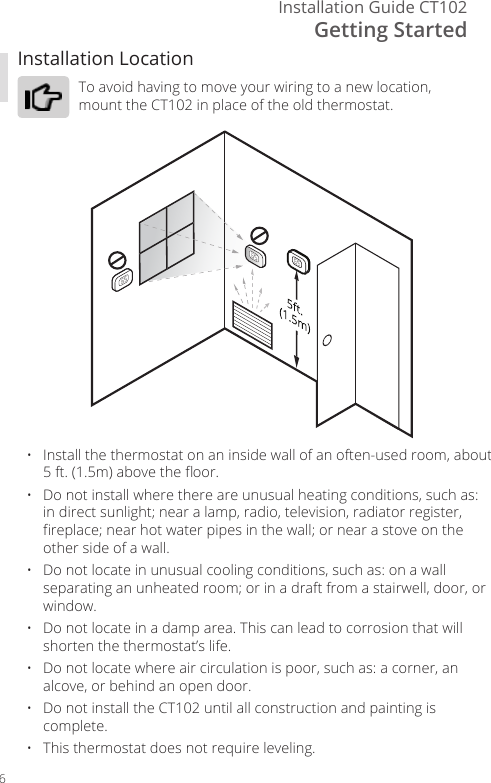
Getting StartedInstallation Guide CT1026Installation LocationTo avoid having to move your wiring to a new location, mount the CT102 in place of the old thermostat.•   Install the thermostat on an inside wall of an often-used room, about 5 ft. (1.5m) above the oor.•   Do not install where there are unusual heating conditions, such as: in direct sunlight; near a lamp, radio, television, radiator register, replace; near hot water pipes in the wall; or near a stove on the other side of a wall.•   Do not locate in unusual cooling conditions, such as: on a wall separating an unheated room; or in a draft from a stairwell, door, or window.•   Do not locate in a damp area. This can lead to corrosion that will shorten the thermostat’s life.•   Do not locate where air circulation is poor, such as: a corner, an alcove, or behind an open door.•   Do not install the CT102 until all construction and painting is complete.•   This thermostat does not require leveling.
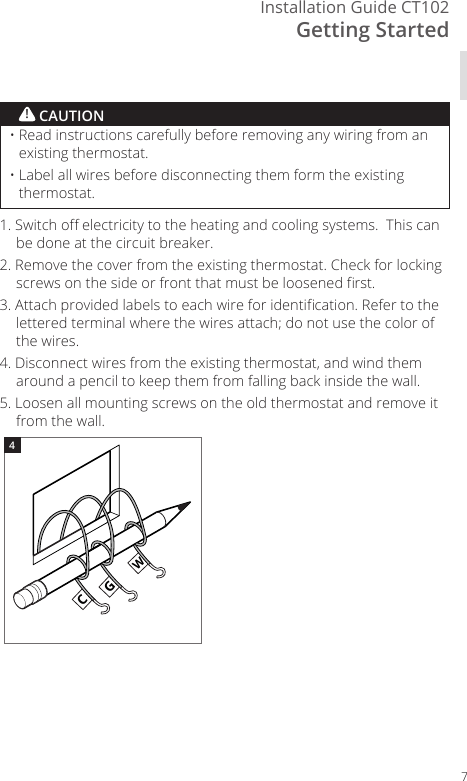
Getting StartedInstallation Guide CT10271. Switch o electricity to the heating and cooling systems.  This can be done at the circuit breaker.2. Remove the cover from the existing thermostat. Check for locking screws on the side or front that must be loosened rst.3. Attach provided labels to each wire for identication. Refer to the lettered terminal where the wires attach; do not use the color of the wires.4. Disconnect wires from the existing thermostat, and wind them around a pencil to keep them from falling back inside the wall.5. Loosen all mounting screws on the old thermostat and remove it from the wall.CGWGWCGW4•  Read instructions carefully before removing any wiring from an existing thermostat.•  Label all wires before disconnecting them form the existing thermostat.! CAUTION
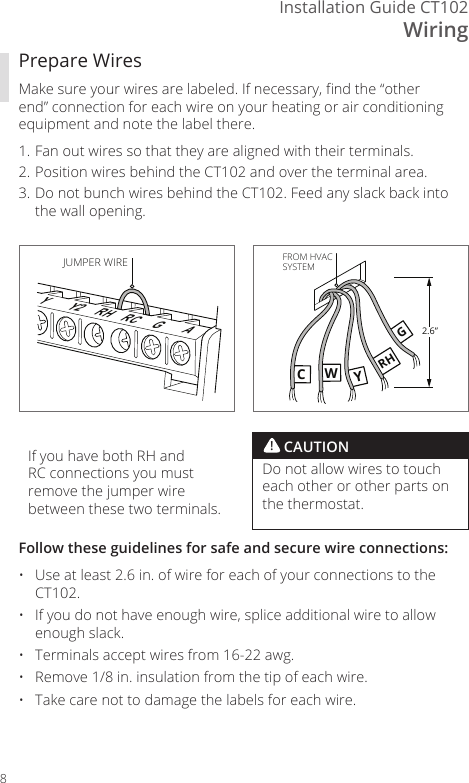
WiringInstallation Guide CT1028Prepare WiresMake sure your wires are labeled. If necessary, nd the “other end” connection for each wire on your heating or air conditioning equipment and note the label there. 1. Fan out wires so that they are aligned with their terminals. 2. Position wires behind the CT102 and over the terminal area.3. Do not bunch wires behind the CT102. Feed any slack back into the wall opening.YY2 RH RC GAJUMPER WIRECWYRHG2.6”FROM HVACSYSTEMFollow these guidelines for safe and secure wire connections:•  Use at least 2.6 in. of wire for each of your connections to the CT102.•  If you do not have enough wire, splice additional wire to allow enough slack.•  Terminals accept wires from 16-22 awg.•  Remove 1/8 in. insulation from the tip of each wire.•  Take care not to damage the labels for each wire.! CAUTIONDo not allow wires to touch each other or other parts on the thermostat.If you have both RH and RC connections you must remove the jumper wire between these two terminals.
WiringInstallation Guide CT1029Connecting Your WiresReference the Wire Diagram on page # to identify your wiring diagram and set-up information. If necessary, contact customer support for help.1. Connect a labeled wire only to a matching lettered terminal.2. Insert the wire in the terminal well and tighten the screw securely.The CT102 can be externally powered with a power source rated from 12V to 24V, AC or DC, at 300ma or greater. If used, connect to the C and RH terminals (no polarity).The 24VAC “C” wire is the other side of the 24VAC heating transformer and can be found where the other thermostat wires connect at the wall or at the furnace.  Do not use the common or ground side of the line voltage.The CT102 runs on 4 AA alkaline batteries, the C wire (if available), or both batteries and the C-wire. If you do not have a C wire, you can run a new wire from the HVAC or use a standard 12-24V [AC or DC] wall transformer.The C-wire is optional but preferred for all installations.From HVAC SystemWW2CBOYY2 RH RC GACYWGRH
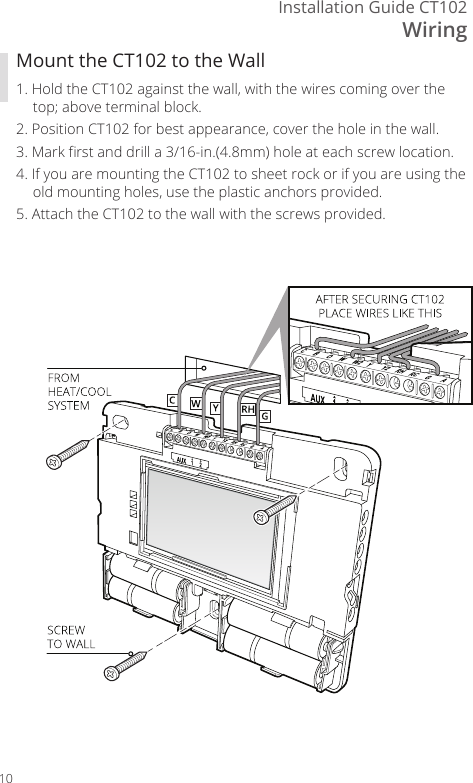
WiringInstallation Guide CT10210Mount the CT102 to the Wall1. Hold the CT102 against the wall, with the wires coming over the top; above terminal block. 2. Position CT102 for best appearance, cover the hole in the wall.3. Mark rst and drill a 3/16-in.(4.8mm) hole at each screw location.4. If you are mounting the CT102 to sheet rock or if you are using the old mounting holes, use the plastic anchors provided. 5. Attach the CT102 to the wall with the screws provided.
11Radio ThermostatSetup
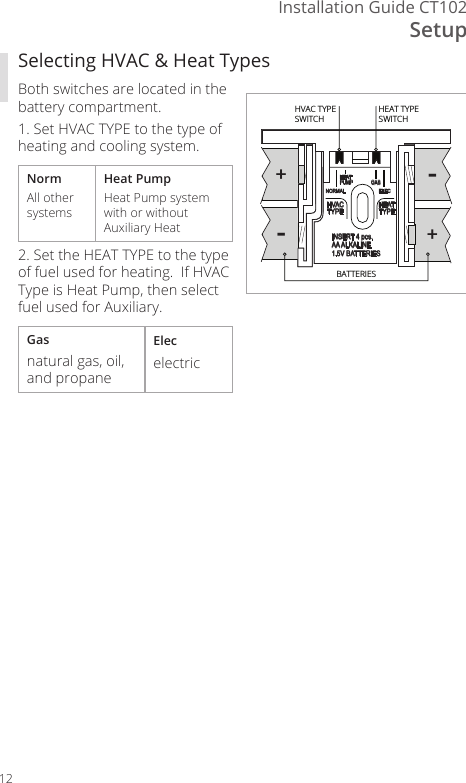
SetupInstallation Guide CT10212Selecting HVAC & Heat TypesBoth switches are located in the battery compartment.1. Set HVAC TYPE to the type of heating and cooling system.NormAll other systemsHeat PumpHeat Pump system with or without Auxiliary Heat2. Set the HEAT TYPE to the type of fuel used for heating.  If HVAC Type is Heat Pump, then select fuel used for Auxiliary.Gasnatural gas, oil, and propaneElecelectric--++HEATPUMP GASELECNORMALHVACTYPE HEATTYPEINSERT 4 pcs.AA ALKALINE1.5V BATTERIESHEAT TYPESWITCHHVAC TYPESWITCHBATTERIES
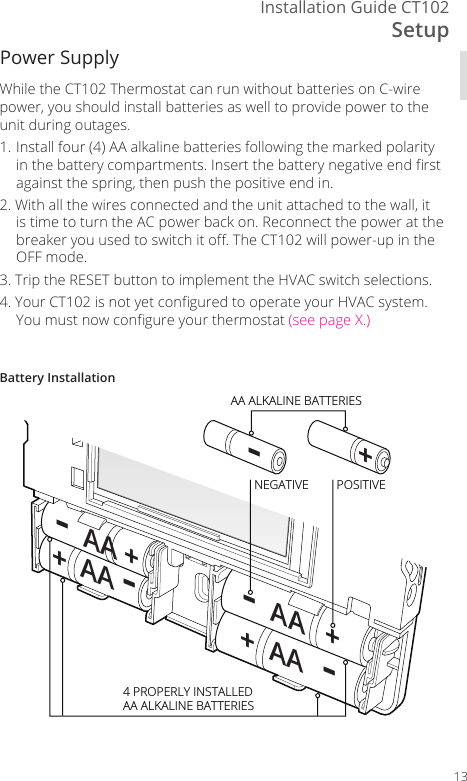
SetupInstallation Guide CT10213-+NEGATIVE-  AA   +-  AA ++  AA -+  AA  -POSITIVE4 PROPERLY INSTALLEDAA ALKALINE BATTERIESAA ALKALINE BATTERIESBattery InstallationWhile the CT102 Thermostat can run without batteries on C-wire power, you should install batteries as well to provide power to the unit during outages.1. Install four (4) AA alkaline batteries following the marked polarity in the battery compartments. Insert the battery negative end rst against the spring, then push the positive end in.2. With all the wires connected and the unit attached to the wall, it is time to turn the AC power back on. Reconnect the power at the breaker you used to switch it o. The CT102 will power-up in the OFF mode. 3. Trip the RESET button to implement the HVAC switch selections.4.  Your CT102 is not yet congured to operate your HVAC system. You must now congure your thermostat (see page X.)Power Supply
SetupInstallation Guide CT10214• Always use new Alkaline batteries.• Do not use rechargeable batteries of any type.  They will no operate the thermostat properly and may lead to damage.• Do not mix old and new batteries.• Do not mix battery types, for example Lithium with Alkaline.• Do not dispose of batteries in re.  Batteries may explode or leak.• Always replace the batteries as soon as the “Low Batt” warning ashes. The thermostat is a battery-powered device; you should replace the batteries before they run out, as failure to replace batteries can result in excessive heating or cooling of your house.• Always replace the batteries once a year, even if the “Low Batt” indicator does not ash.  Replacing the batteries also helps to prevent leakage that can corrode and damage the thermostat.• If you are leaving your home for a month or more, you should replace the batteries as a precaution against battery failure in your absence.• Failing to replace the batteries when necessary could cause the thermo-stat to lose power or malfunction. If the thermostat loses power, then the thermostat will not control the temperature, which could result in your HVAC system not functioning as you intended and lead to possible damage from excessive heating or cooling.• If the thermostat batteries fail with the heat OFF, this can result in NO HEAT and possible frozen or broken pipes and water damage.• If the thermostat batteries fail with the cool OFF, this can result in NO COOL and could cause possible damage or excessive temperatures.! THERMOSTAT BATTERY CAUTIONS
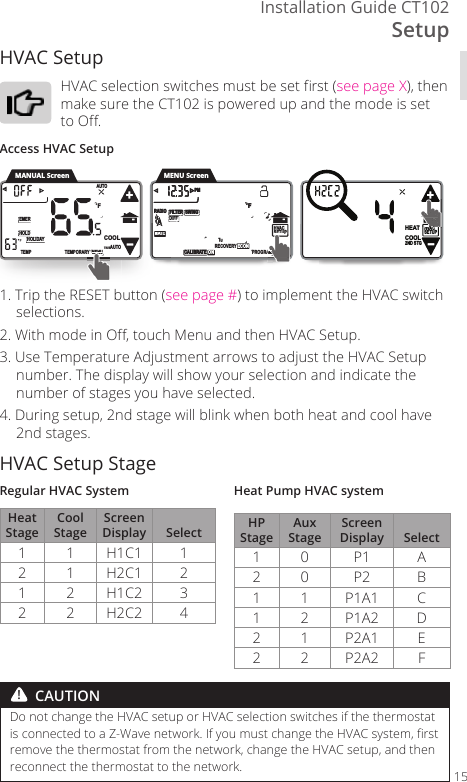
SetupInstallation Guide CT10215HVAC Setup HVAC selection switches must be set rst (see page X), then make sure the CT102 is powered up and the mode is set to O. Access HVAC Setup1. Trip the RESET button (see page #) to implement the HVAC switch selections. 2. With mode in O, touch Menu and then HVAC Setup.3. Use Temperature Adjustment arrows to adjust the HVAC Setup number. The display will show your selection and indicate the number of stages you have selected. 4. During setup, 2nd stage will blink when both heat and cool have 2nd stages.HVAC Setup StageRegular HVAC SystemHeat StageCool StageScreen Display Select1 1 H1C1 12 1 H2C1 21 2 H1C2 32 2 H2C2 4Heat Pump HVAC systemHP StageAux StageScreen Display Select1 0 P1 A2 0 P2 B1 1 P1A1 C1 2 P1A2 D2 1 P2A1 E2 2 P2A2 FDo not change the HVAC setup or HVAC selection switches if the thermostat is connected to a Z-Wave network. If you must change the HVAC system, rst remove the thermostat from the network, change the HVAC setup, and then reconnect the thermostat to the network.HEAT2ND STGHVACSETUP COOL      HVACSETUP DIFFSWINGFILTERPMFMATERADIO1CALIBRATE RECOVERY ECON      SWINGFILTERPMFMATERADIO1TECALIBRA  ON PROGRAMTHVACVVACVVVAVACMATEAA11TEMPORARYHOLDEMERFTEMPHOLIDAYMENUAUTOCOOLTRUEAUTOMANUAL ScreenRYMENUENEMENNMENNMENMEEEENEMMSETUSSESEESSEEPAMMMMMMMMMMMMMENU Screen!  CAUTION
SetupInstallation Guide CT10216Test InstallationIf you have a heat pump, leave the CT102 in O mode for 4 minutes before checking Cool.Do not operate AC if the outside temp is below 65°F.To Check Fan (If you connected the G wire)1. Touch the fan icon on the HOME screen to turn the fan ON.2. Verify that air is blowing from the system. Touch the fan icon again to return to AUTO.To Check Heat1. Touch the temperature display to open the Manual screen.2. Use the  or  arrows to set the mode to Heat.3. From the Manual screen, touch the Temperature Up arrow until the target temperature is 5º above room temperature. Allow the system two (2) minutes to respond.4. Verify that heat is blowing from the system. Return the target temperature to a normal setting. 5. From the Manual screen, set the mode to O.To Check Cool1. Touch the temperature display to open the Manual screen.2. Use the  or  arrows to set the mode to Cool.3. Touch the Temperature Down arrow icon until the target temp is 5º below room temperature. Allow the system ve (5) minutes to respond.4. Verify that cool air is blowing from the system. Return the target temperature to a normal setting.5. From the Manual screen, set the mode to O.
17Radio ThermostatWiring Diagrams
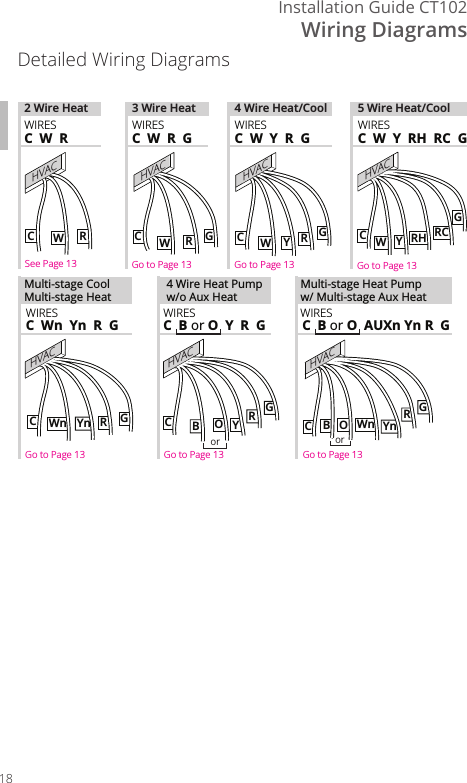
Wiring DiagramsInstallation Guide CT10218RYGCBORGCBOYnWnYnWn RGCCWRHVACCWRGWRGCYGCRHWYRCHVACHVACHVACHVACHVACHVACC  W  RC  W  R  GC  W  Y  R  G C  W  Y  RH  RC  GWIRESWIRES WIRESMulti-stage Heat Pumpw/ Multi-stage Aux HeatC  Wn  Yn  R  GWIRESMulti-stage CoolMulti-stage Heat2 Wire Heat 3 Wire Heat 4 Wire Heat/Cool 5 Wire Heat/CoolC  B or O  Y  R  G C  B or O  AUXn Yn R  GWIRES WIRES WIRESSee Page 13 Go to Page 13 Go to Page 13 Go to Page 13Go to Page 13 Go to Page 13 Go to Page 13oror4 Wire Heat Pumpw/o Aux HeatDetailed Wiring Diagrams
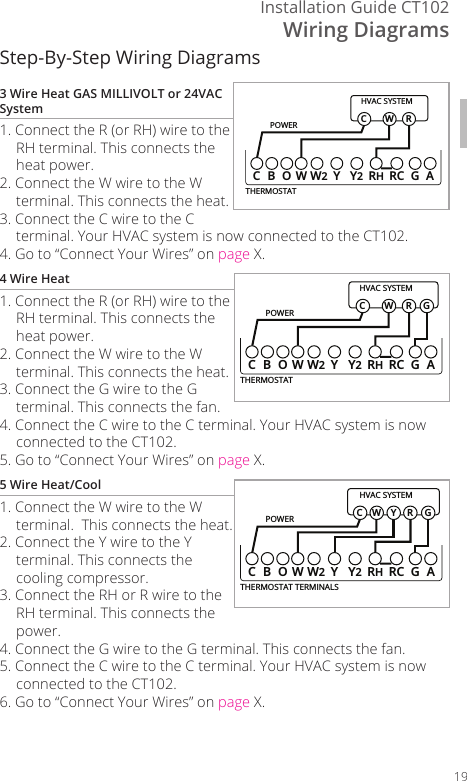
Wiring DiagramsInstallation Guide CT10219Step-By-Step Wiring Diagrams3 Wire Heat GAS MILLIVOLT or 24VAC System 1. Connect the R (or RH) wire to the RH terminal. This connects the heat power.2. Connect the W wire to the W terminal. This connects the heat.3. Connect the C wire to the C terminal. Your HVAC system is now connected to the CT102.4. Go to “Connect Your Wires” on page X.4 Wire Heat1. Connect the R (or RH) wire to the RH terminal. This connects the heat power. 2. Connect the W wire to the W terminal. This connects the heat.3. Connect the G wire to the G terminal. This connects the fan.4. Connect the C wire to the C terminal. Your HVAC system is now connected to the CT102.5. Go to “Connect Your Wires” on page X.5 Wire Heat/Cool1. Connect the W wire to the W terminal.  This connects the heat.2. Connect the Y wire to the Y terminal. This connects the cooling compressor. 3. Connect the RH or R wire to the RH terminal. This connects the power.4. Connect the G wire to the G terminal. This connects the fan.5. Connect the C wire to the C terminal. Your HVAC system is now connected to the CT102.6. Go to “Connect Your Wires” on page X.POWERHVAC SYSTEMTHERMOSTATCBOW YY2RHRC GAW2W RCPOWERHVAC SYSTEMTHERMOSTATCBOW YY2RHRC GAW2W RCGPOWERHVAC SYSTEMTHERMOSTAT TERMINALSCBOW YY2RHRC GAW2W RCGY
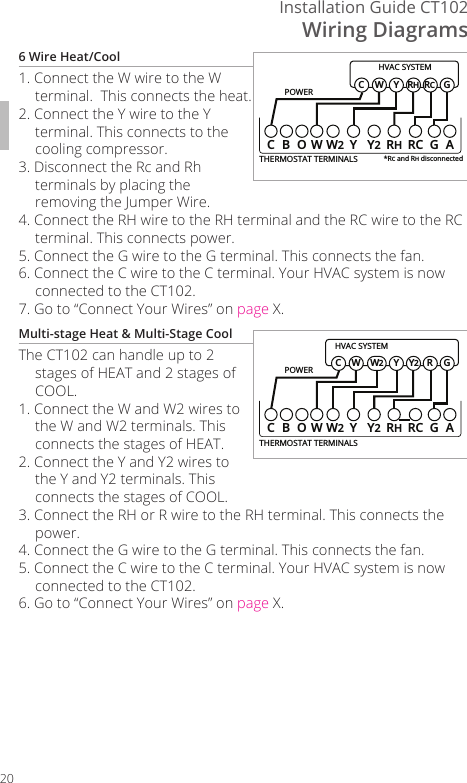
Wiring DiagramsInstallation Guide CT102206 Wire Heat/Cool1. Connect the W wire to the W terminal.  This connects the heat.2. Connect the Y wire to the Y terminal. This connects to the cooling compressor. 3. Disconnect the Rc and Rh terminals by placing the removing the Jumper Wire. 4. Connect the RH wire to the RH terminal and the RC wire to the RC terminal. This connects power.5. Connect the G wire to the G terminal. This connects the fan.6. Connect the C wire to the C terminal. Your HVAC system is now connected to the CT102.7. Go to “Connect Your Wires” on page X.Multi-stage Heat & Multi-Stage CoolThe CT102 can handle up to 2 stages of HEAT and 2 stages of COOL.1. Connect the W and W2 wires to the W and W2 terminals. This connects the stages of HEAT.2. Connect the Y and Y2 wires to the Y and Y2 terminals. This connects the stages of COOL.3. Connect the RH or R wire to the RH terminal. This connects the power.4. Connect the G wire to the G terminal. This connects the fan.5. Connect the C wire to the C terminal. Your HVAC system is now connected to the CT102.6. Go to “Connect Your Wires” on page X.POWERHVAC SYSTEMTHERMOSTAT TERMINALSCBOW YY2RHRC GAW2W GYRHRCC*RC and RH disconnectedPOWERHVAC SYSTEMTHERMOSTAT TERMINALSCBOW YY2RHRC GAW2W GYY2RCW2
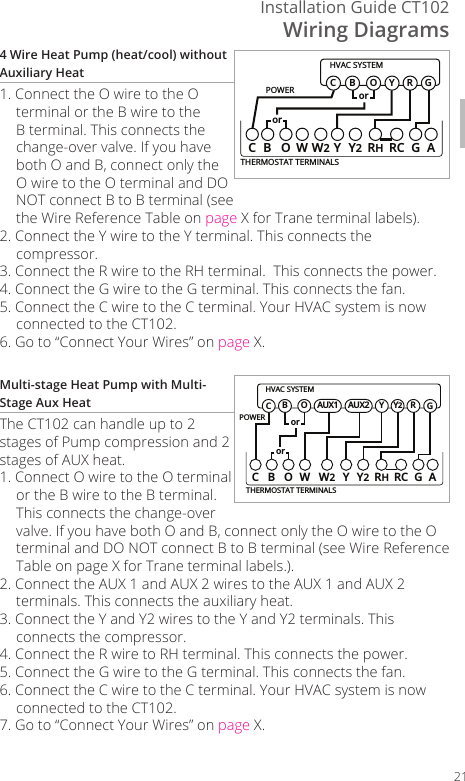
Wiring DiagramsInstallation Guide CT102214 Wire Heat Pump (heat/cool) without Auxiliary Heat1. Connect the O wire to the O terminal or the B wire to the B terminal. This connects the change-over valve. If you have both O and B, connect only the O wire to the O terminal and DO NOT connect B to B terminal (see the Wire Reference Table on page X for Trane terminal labels).2. Connect the Y wire to the Y terminal. This connects the compressor. 3. Connect the R wire to the RH terminal.  This connects the power.4. Connect the G wire to the G terminal. This connects the fan. 5. Connect the C wire to the C terminal. Your HVAC system is now connected to the CT102.6. Go to “Connect Your Wires” on page X.Multi-stage Heat Pump with Multi-Stage Aux HeatThe CT102 can handle up to 2 stages of Pump compression and 2 stages of AUX heat.1. Connect O wire to the O terminal or the B wire to the B terminal. This connects the change-over valve. If you have both O and B, connect only the O wire to the O terminal and DO NOT connect B to B terminal (see Wire Reference Table on page X for Trane terminal labels.).2. Connect the AUX 1 and AUX 2 wires to the AUX 1 and AUX 2 terminals. This connects the auxiliary heat.3. Connect the Y and Y2 wires to the Y and Y2 terminals. This connects the compressor.4. Connect the R wire to RH terminal. This connects the power. 5. Connect the G wire to the G terminal. This connects the fan.6. Connect the C wire to the C terminal. Your HVAC system is now connected to the CT102.7. Go to “Connect Your Wires” on page X.POWERHVAC SYSTEMTHERMOSTAT TERMINALSCB OW YY2RHRC GAW2BGOY RCororPOWERHVAC SYSTEMTHERMOSTAT TERMINALSCBOW YY2RHRC GAW2BGOY RCororY2AUX2AUX1
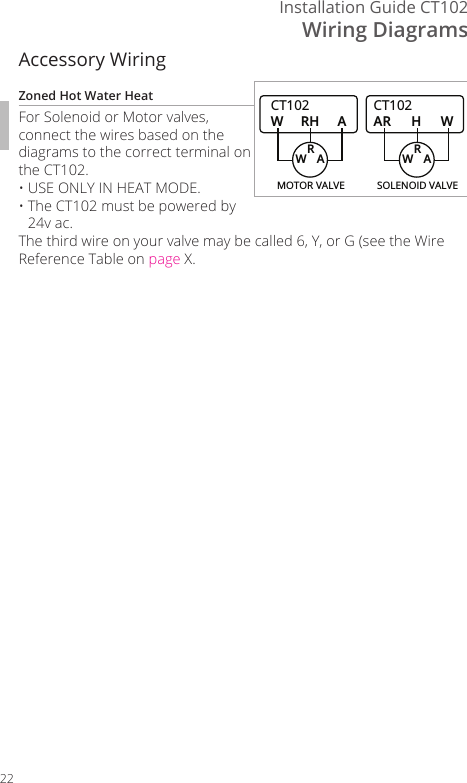
Wiring DiagramsInstallation Guide CT10222Accessory WiringZoned Hot Water HeatFor Solenoid or Motor valves, connect the wires based on the diagrams to the correct terminal on the CT102. • USE ONLY IN HEAT MODE. •  The CT102 must be powered by 24v ac.The third wire on your valve may be called 6, Y, or G (see the Wire Reference Table on page X.CT102RH AWMOTOR VALVERWACT102HWARSOLENOID VALVERWA
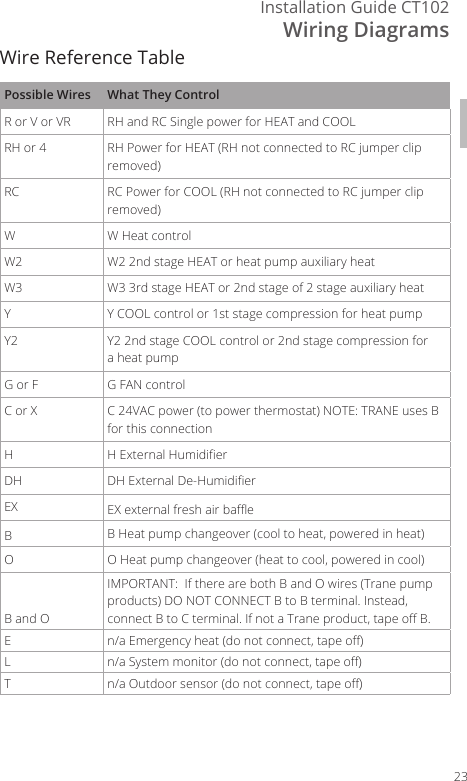
Wiring DiagramsInstallation Guide CT10223Wire Reference TablePossible Wires What They ControlR or V or VR RH and RC Single power for HEAT and COOLRH or 4 RH Power for HEAT (RH not connected to RC jumper clip removed)RC RC Power for COOL (RH not connected to RC jumper clip removed)W W Heat controlW2 W2 2nd stage HEAT or heat pump auxiliary heatW3 W3 3rd stage HEAT or 2nd stage of 2 stage auxiliary heatY Y COOL control or 1st stage compression for heat pumpY2 Y2 2nd stage COOL control or 2nd stage compression for a heat pumpG or F G FAN controlC or X C 24VAC power (to power thermostat) NOTE: TRANE uses B for this connectionHH External HumidierDH DH External De-HumidierEX EX external fresh air baeBB Heat pump changeover (cool to heat, powered in heat)O O Heat pump changeover (heat to cool, powered in cool)B and OIMPORTANT:  If there are both B and O wires (Trane pump products) DO NOT CONNECT B to B terminal. Instead, connect B to C terminal. If not a Trane product, tape o B.En/a Emergency heat (do not connect, tape o)Ln/a System monitor (do not connect, tape o)Tn/a Outdoor sensor (do not connect, tape o)
Wiring DiagramsInstallation Guide CT10224Lennox Heat PumpV or VR or R RH Power for HEATM or Y Y COOL controlY or W or W2 W2 2nd stage HEATF or G G Fan controlR or O OX or X2 or C CTrane Products [American Standard]B C 24VAC power (to power thermostat)W or W1 W2 2nd stage HEATX2 Emergency heat. Do not connect, tape o.Zoned Hot Water 2 wireR RHW WMotor Driven Valves3 WireR or 5 RH (power)W or 4 W  (heat ON)Y or G or 6  (the 3rd wire) A (heat OFF)Solenoid Valves3 WireR RH (power)W A (heat ON)Y or G  (the 3rd wire) W (heat OFF)CT102 THERMOSTAT Z-WAVE® REFERENCE
2CT102 OPERATION GUIDETable Of Contents Product Overview  ....................... 3Device Parts #ScreensZ-Wave Connecting to a Z-Wave Network  #  HVAC Setup  Power Sources Initial Settings Customization .......................... #Manual Screen & Functions #Menu Screen & Functions #Programs Screen  Heat, Cool and Auto Settings #Restoration Settings #
Radio Thermostat 3Product Overview
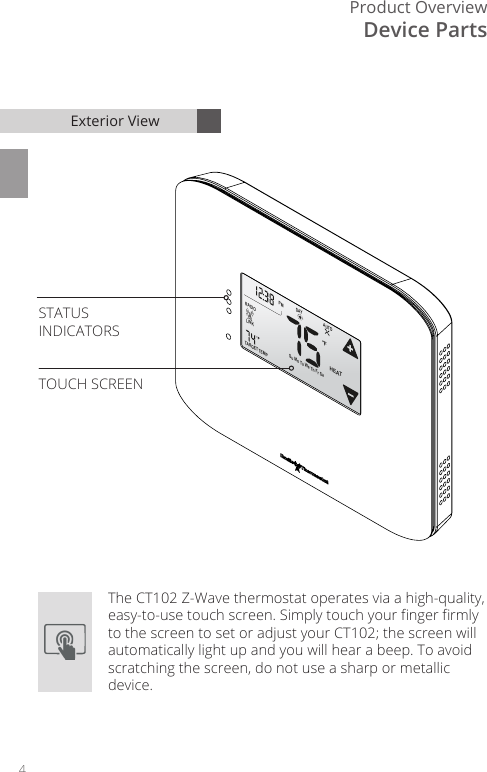
4Product OverviewFLINKRADIOTARGETTEMP1AUTOHEATDAYPM Su Mo Tu We Th Fr SaDevice PartsExterior ViewThe CT102 Z-Wave thermostat operates via a high-quality, easy-to-use touch screen. Simply touch your nger rmly to the screen to set or adjust your CT102; the screen will automatically light up and you will hear a beep. To avoid scratching the screen, do not use a sharp or metallic device.STATUSINDICATORSTOUCH SCREEN
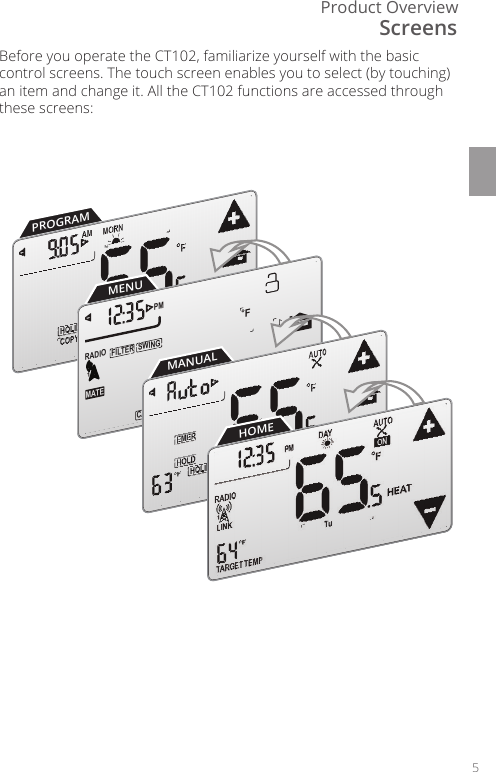
Product Overview5PROGRAMMENU       SWINGFILTERPMFMATERADIO1TECALIBRA  ON PROGRAMMANUALHOMEBefore you operate the CT102, familiarize yourself with the basic control screens. The touch screen enables you to select (by touching) an item and change it. All the CT102 functions are accessed through these screens: Screens
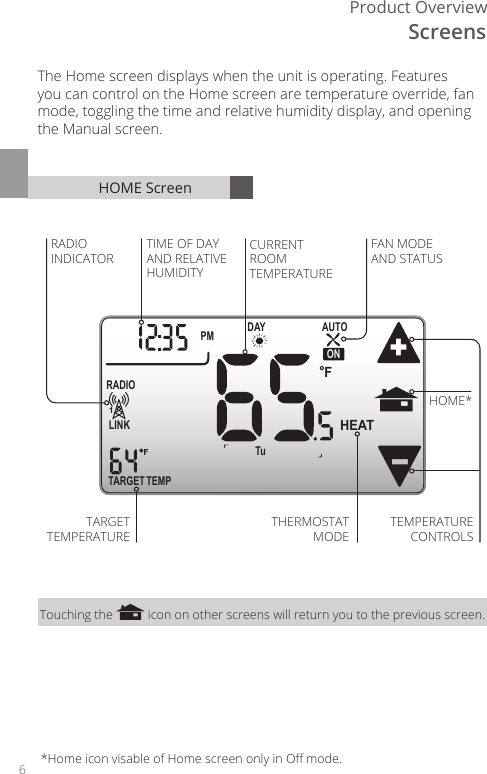
6Product OverviewHOME ScreenTARGET TEMPONDAYPM FLINKRADIO1 TuAUTOHEATTIME OF DAYAND RELATIVEHUMIDITYCURRENTROOMTEMPERATUREFAN MODE AND STATUSTHERMOSTATMODETARGETTEMPERATURETEMPERATURECONTROLSHOME*RADIO INDICATORThe Home screen displays when the unit is operating. Features you can control on the Home screen are temperature override, fan mode, toggling the time and relative humidity display, and opening the Manual screen.Touching the   icon on other screens will return you to the previous screen.Screens*Home icon visable of Home screen only in O mode.
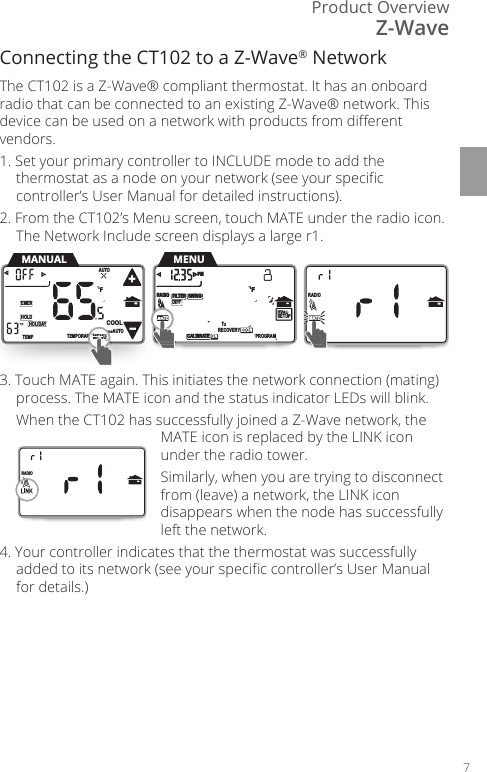
Product Overview7Connecting the CT102 to a Z-Wave® NetworkThe CT102 is a Z-Wave® compliant thermostat. It has an onboard radio that can be connected to an existing Z-Wave® network. This device can be used on a network with products from dierent vendors. 1. Set your primary controller to INCLUDE mode to add the thermostat as a node on your network (see your specic controller’s User Manual for detailed instructions).2. From the CT102’s Menu screen, touch MATE under the radio icon. The Network Include screen displays a large r1.3. Touch MATE again. This initiates the network connection (mating) process. The MATE icon and the status indicator LEDs will blink.  When the CT102 has successfully joined a Z-Wave network, the MATE icon is replaced by the LINK icon under the radio tower.   Similarly, when you are trying to disconnect from (leave) a network, the LINK icon disappears when the node has successfully left the network.4. Your controller indicates that the thermostat was successfully added to its network (see your specic controller’s User Manual for details.)      HVACSETUP DIFFSWINGFILTERPMFMATERADIO1CALIBRATE RECOVERY ECON      SWINGFILTERPMFMATERADIO1TECALIBRA  ON PROGRAMMATEAA11TEMPORARYHOLDEMERFTEMPHOLIDAYMENUAUTOCOOLTRUEAUTOMENUMANUALMENENENMENEEMENNENENMENENEEENNEUMATEAMENUHVACVVSETUPMATEMATEARADIO1RADIO11      HVACSETUP DIFFSWINGFILTERPMFMATERADIO1CALIBRATE RECOVERY ECON      SWINGFILTERPMFMATERADIO1TECALIBRA  ON PROGRAMMATEAA11TEMPORARYHOLDEMERFTEMPHOLIDAYMENUAUTOCOOLTRUEAUTOMENUMANUALMENENENMENEEMENNENENMENENEEENNEUMATEAMENUHVACVVSETUPMATEMATEARADIO1RADIO11Z-Wave
8Product OverviewZ-Wave and Power SupplyThe thermostat’s node type is xed when it connects to the Z-Wave network; if the C-Wire is not connected and is only battery-powered when connecting to the network, the thermostat will remain a frequent listening routing slave (FLiRS) node until it is removed from the network. When your thermostat is running on battery power, the Z-Wave radio will turn o to help conserve battery life. The CT102 Z-Wave radio module supports Z-Wave beaming, which allows other devices in the network to wake up the Z-Wave module and accept commands and then go back to sleep.When your thermostat is running on C-Wire power, the Z-Wave radio will stay on and actively help route messages within the Z-Wave network. The thermostat’s node type is xed when it connects to the Z-Wave network; if the C-Wire is present and powered when connecting to the network, the thermostat will remain an always-listening node until it is removed from the network.Z-Wave  and HVAC SetupDo not change the HVAC setup or HVAC selection switches if the thermostat is connected to a Z-Wave network. If you need to change the HVAC system:1. Remove the thermostat from the Z-Wave network.2. Change the HVAC Setup selection. See Install Guide page 18 for full instructions. 3. Connect the thermostat to the Z-Wave network.Z-Wave Power SourcesZ-Wave and Thermostat ProgramTo get the most out of your new thermostat, it needs to be paired to a Z-Wave system. When you are paired to a Z-Wave system, the Z-Wave application on your device controls your thermostat’s programs. You can still temporarily override settings on the thermostat itself, but otherwise you can control it remotely. No Z-WAVE system? See “Customizing Programming” on page 18.
Product Overview9Thermostat ProgramThe CT102 thermostat automatically includes EPA recommended heating and cooling programs. If it does not t your needs, you can adjust the programs instead. To run one of these preset programs, simply set the thermostat mode to Heat or Cool.Run Pre-Set Program1. Set Time & Day (see page #)2. Access the Manual screen by touching the Temperature on the Home screen.3. Set the mode to Heat or Cool.4. Touch  . 5. The unit is now running the program.HEAT COOLMORN DAY EVEN NIGHT MORN DAY EVEN NIGHT6 am 8 am 6 pm 10 pm 6 am 8 am 6 pm 10 pm70ºF 62ºF 70ºF 62ºF 78ºF 85ºF 78ºF 82ºFEPA Recommended Energy-Eciency Program SettingsTEMPORARYHOLDEMERFTEMPHOLIDAYMENUAUTOCOOLTRUEAUTOMANUAL ScreenInitial Settings
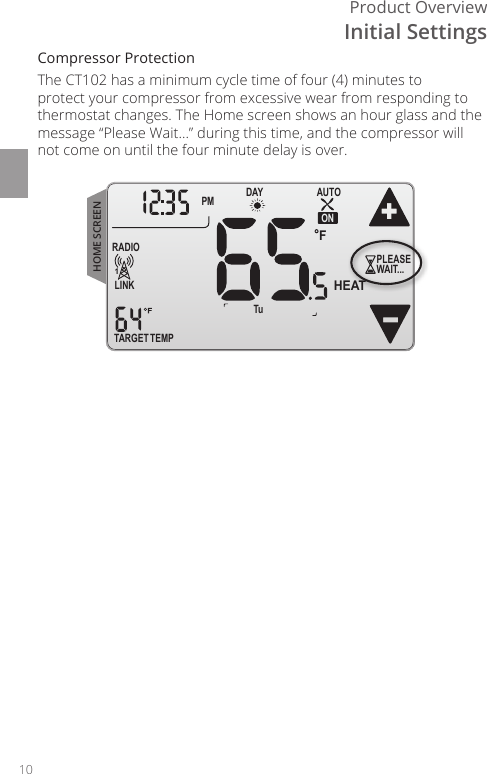
10Product OverviewCompressor ProtectionThe CT102 has a minimum cycle time of four (4) minutes to protect your compressor from excessive wear from responding to thermostat changes. The Home screen shows an hour glass and the message “Please Wait...” during this time, and the compressor will not come on until the four minute delay is over. TARGET TEMPONDAYPM FLINKRADIO1 TuAUTOHEATPLEASEWAIT...HOME SCREENInitial Settings
Radio Thermostat 11Customization
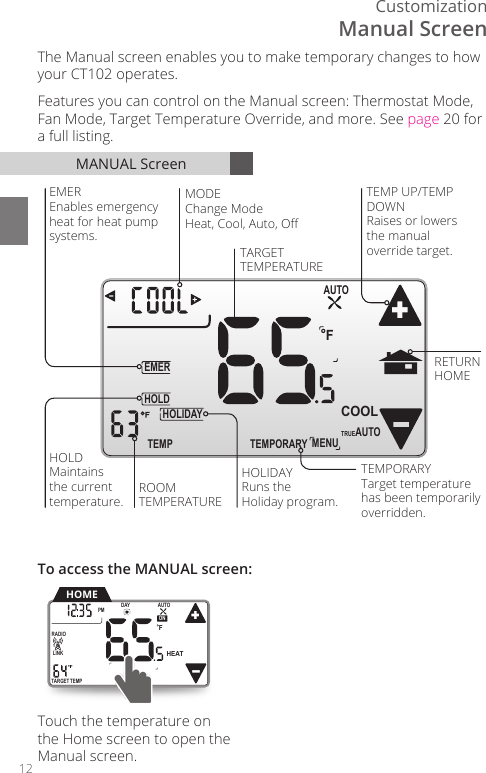
12CustomizationTEMPORARYHOLDEMERFTEMPHOLIDAYMENUAUTOCOOLTRUEAUTOROOMTEMPERATUREHOLDMaintains the currenttemperature.TEMP UP/TEMPDOWNRaises or lowers the manual override target.RETURNHOMETARGETTEMPERATUREEMEREnables emergencyheat for heat pumpsystems.HOLIDAYRuns the Holiday program.MODEChange ModeHeat, Cool, Auto, OffTEMPORARYTarget temperaturehas been temporarilyoverridden.Touch the temperature on the Home screen to open the Manual screen. MANUAL ScreenThe Manual screen enables you to make temporary changes to how your CT102 operates. Features you can control on the Manual screen: Thermostat Mode, Fan Mode, Target Temperature Override, and more. See page 20 for a full listing.TARGETTEMPONDAYPM FLINKRADIO1 TuAUTOHEATHOMETo access the MANUAL screen:Manual Screen
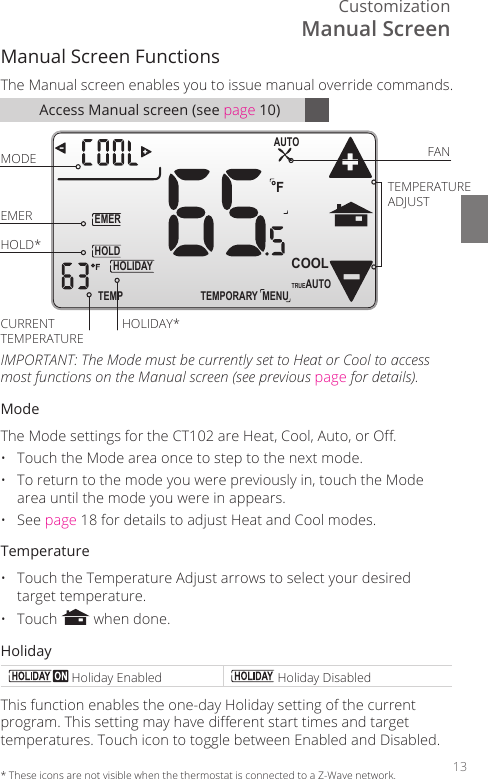
Customization13Access Manual screen (see page 10)Manual Screen Functions The Manual screen enables you to issue manual override commands. TEMPORARYHOLDEMERFTEMPHOLIDAYMENUAUTOCOOLTRUEAUTOMODE FANTEMPERATURE ADJUSTEMERHOLD*CURRENT TEMPERATUREHOLIDAY*IMPORTANT: The Mode must be currently set to Heat or Cool to access most functions on the Manual screen (see previous page for details).ModeThe Mode settings for the CT102 are Heat, Cool, Auto, or O.•  Touch the Mode area once to step to the next mode.•  To return to the mode you were previously in, touch the Mode area until the mode you were in appears.• See page 18 for details to adjust Heat and Cool modes. Temperature•  Touch the Temperature Adjust arrows to select your desired target temperature.• Touch   when done.Holiday Holiday Enabled  Holiday DisabledThis function enables the one-day Holiday setting of the current program. This setting may have dierent start times and target temperatures. Touch icon to toggle between Enabled and Disabled.*  These icons are not visible when the thermostat is connected to a Z-Wave network.Manual Screen
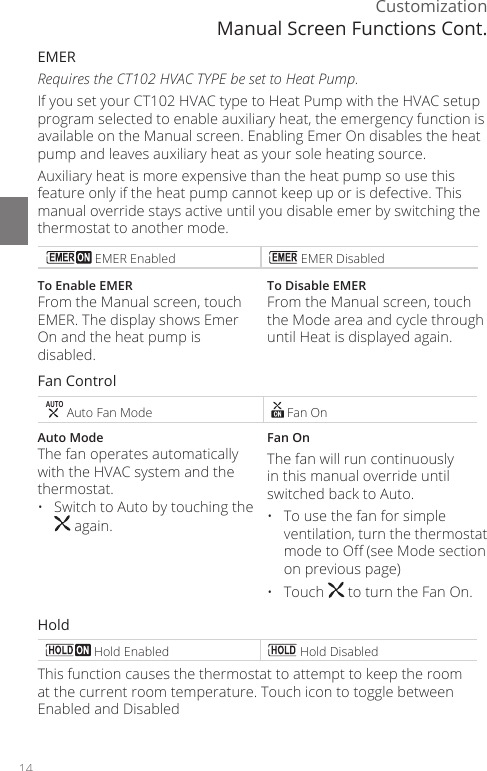
14CustomizationEMER Requires the CT102 HVAC TYPE be set to Heat Pump.If you set your CT102 HVAC type to Heat Pump with the HVAC setup program selected to enable auxiliary heat, the emergency function is available on the Manual screen. Enabling Emer On disables the heat pump and leaves auxiliary heat as your sole heating source. Auxiliary heat is more expensive than the heat pump so use this feature only if the heat pump cannot keep up or is defective. This manual override stays active until you disable emer by switching the thermostat to another mode. EMER Enabled  EMER DisabledTo Enable EMERFrom the Manual screen, touch EMER. The display shows Emer On and the heat pump is disabled.To Disable EMERFrom the Manual screen, touch the Mode area and cycle through until Heat is displayed again.Fan ControlAUTO Auto Fan Mode  Fan OnAuto ModeThe fan operates automatically with the HVAC system and the thermostat. •  Switch to Auto by touching the  again.Fan OnThe fan will run continuously in this manual override until switched back to Auto. •  To use the fan for simple ventilation, turn the thermostat mode to O (see Mode section on previous page)• Touch   to turn the Fan On.Hold Hold Enabled  Hold DisabledThis function causes the thermostat to attempt to keep the room at the current room temperature. Touch icon to toggle between Enabled and DisabledManual Screen Functions Cont.
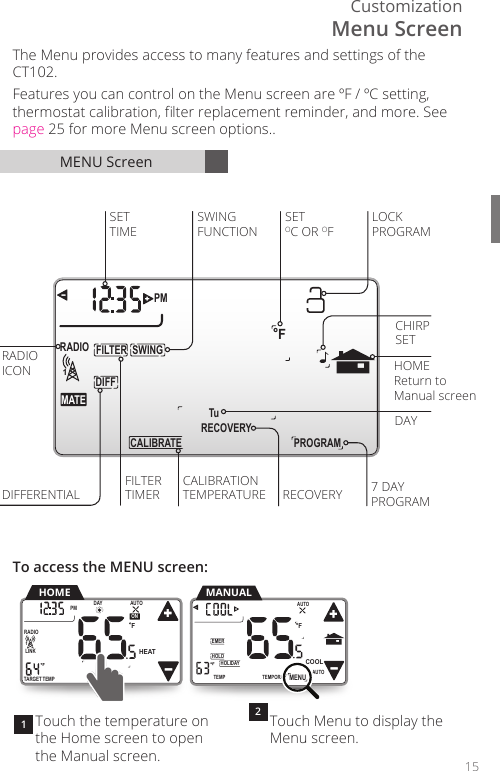
Customization15 RECOVERYDIFFSWINGFILTERPM FMATERADIO1 Tu PROGRAMCALIBRATE FILTERRADIODIFFERENTIALCALIBRATIONTIMERSETTIMEICONSWINGFUNCTIONDAY7 DAYPROGRAMCHIRPSETLOCKPROGRAMTEMPERATUREHOMEReturn to Manual screenSETOC OR OFRECOVERYTouch the temperature on the Home screen to open the Manual screen.Touch Menu to display the Menu screen. MENU ScreenThe Menu provides access to many features and settings of the CT102. Features you can control on the Menu screen are ºF / ºC setting, thermostat calibration, lter replacement reminder, and more. See page 25 for more Menu screen options..To access the MENU screen:12TEMPORARYHOLDEMERFTEMPHOLIDAYMENUAUTOCOOLTRUEAUTOMANUALTARGETTEMPONDAYPM FLINKRADIO1 TuAUTOHEATHOMETEMPORARYHOLDEMERFTEMPHOLIDAYMENUAUTOCOOLTRUEAUTOMenu Screen
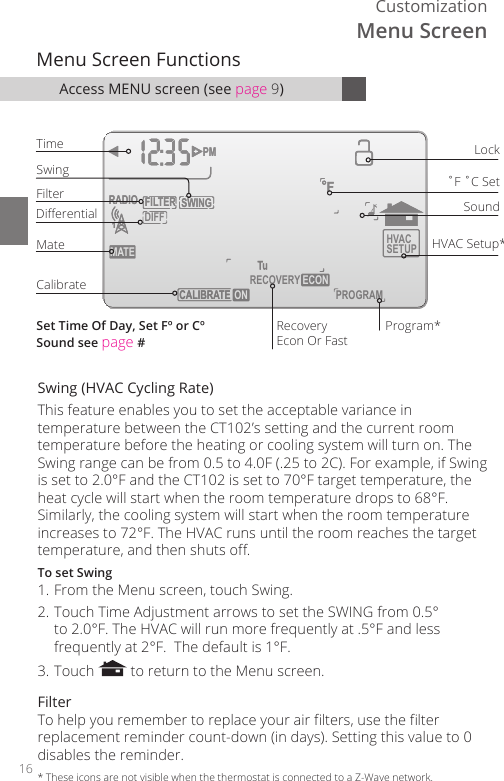
16Customization       HVACSETUP DIFFSWINGFILTERPMFMATERADIO1CALIBRATE RECOVERY ECON       SWINGFILTERPMFMATERADIO1TECALIBRA  ON PROGRAMMenu Screen FunctionsTimeCalibrate˚F ˚C SetSoundRecoveryEcon Or FastHVAC Setup*LockFilterSwingProgram*DierentialMateSet Time Of Day, Set Fº or CºSound see page #Swing (HVAC Cycling Rate)This feature enables you to set the acceptable variance in temperature between the CT102’s setting and the current room temperature before the heating or cooling system will turn on. The Swing range can be from 0.5 to 4.0F (.25 to 2C). For example, if Swing is set to 2.0°F and the CT102 is set to 70°F target temperature, the heat cycle will start when the room temperature drops to 68°F. Similarly, the cooling system will start when the room temperature increases to 72°F. The HVAC runs until the room reaches the target temperature, and then shuts o.To set Swing1. From the Menu screen, touch Swing.2. Touch Time Adjustment arrows to set the SWING from 0.5° to 2.0°F. The HVAC will run more frequently at .5°F and less frequently at 2°F.  The default is 1°F.3. Touch   to return to the Menu screen. FilterTo help you remember to replace your air lters, use the lter replacement reminder count-down (in days). Setting this value to 0 disables the reminder.Access MENU screen (see page 9)*  These icons are not visible when the thermostat is connected to a Z-Wave network.Menu Screen
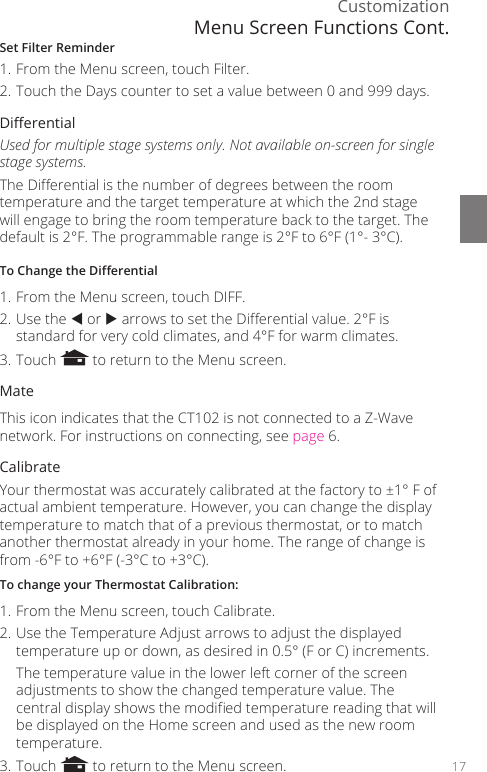
Customization17Set Filter Reminder1. From the Menu screen, touch Filter.2. Touch the Days counter to set a value between 0 and 999 days. Dierential Used for multiple stage systems only. Not available on-screen for single stage systems.The Dierential is the number of degrees between the room temperature and the target temperature at which the 2nd stage will engage to bring the room temperature back to the target. The default is 2°F. The programmable range is 2°F to 6°F (1°- 3°C).To Change the Dierential 1. From the Menu screen, touch DIFF.2. Use the  or  arrows to set the Dierential value. 2°F is standard for very cold climates, and 4°F for warm climates.3. Touch   to return to the Menu screen. MateThis icon indicates that the CT102 is not connected to a Z-Wave network. For instructions on connecting, see page 6. CalibrateYour thermostat was accurately calibrated at the factory to ±1° F of actual ambient temperature. However, you can change the display temperature to match that of a previous thermostat, or to match another thermostat already in your home. The range of change is from -6°F to +6°F (-3°C to +3°C).To change your Thermostat Calibration:1. From the Menu screen, touch Calibrate.2. Use the Temperature Adjust arrows to adjust the displayed temperature up or down, as desired in 0.5° (F or C) increments.  The temperature value in the lower left corner of the screen adjustments to show the changed temperature value. The central display shows the modied temperature reading that will be displayed on the Home screen and used as the new room temperature.3. Touch   to return to the Menu screen.Menu Screen Functions Cont.
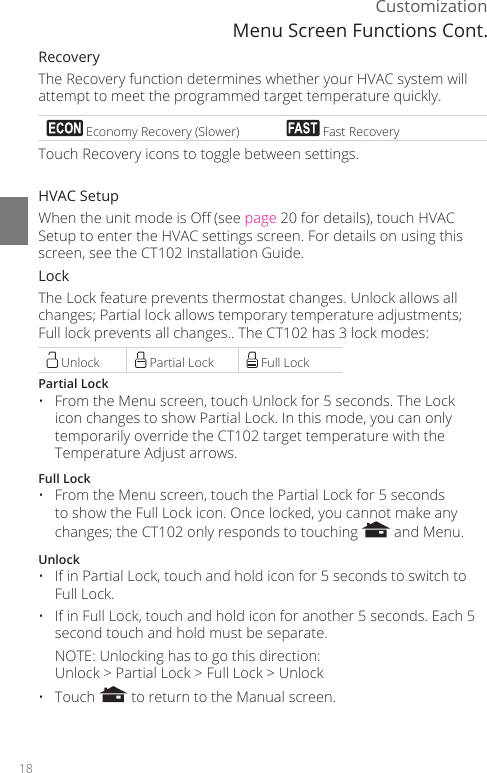
18CustomizationRecoveryThe Recovery function determines whether your HVAC system will attempt to meet the programmed target temperature quickly.  Economy Recovery (Slower)  Fast RecoveryTouch Recovery icons to toggle between settings.HVAC SetupWhen the unit mode is O (see page 20 for details), touch HVAC Setup to enter the HVAC settings screen. For details on using this screen, see the CT102 Installation Guide. LockThe Lock feature prevents thermostat changes. Unlock allows all changes; Partial lock allows temporary temperature adjustments; Full lock prevents all changes.. The CT102 has 3 lock modes: Unlock  Partial Lock  Full LockPartial Lock•  From the Menu screen, touch Unlock for 5 seconds. The Lock icon changes to show Partial Lock. In this mode, you can only temporarily override the CT102 target temperature with the Temperature Adjust arrows.  Full Lock•  From the Menu screen, touch the Partial Lock for 5 seconds to show the Full Lock icon. Once locked, you cannot make any changes; the CT102 only responds to touching   and Menu.Unlock•  If in Partial Lock, touch and hold icon for 5 seconds to switch to Full Lock.•  If in Full Lock, touch and hold icon for another 5 seconds. Each 5 second touch and hold must be separate.  NOTE: Unlocking has to go this direction:  Unlock > Partial Lock > Full Lock > Unlock• Touch   to return to the Manual screen.Menu Screen Functions Cont.
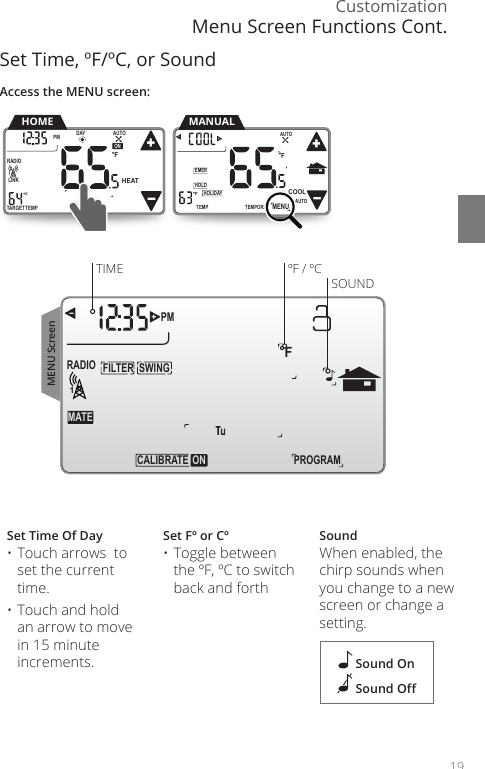
Customization19Set Time, ºF/ºC, or SoundSet Time Of Day• Touch arrows  to set the current time. • Touch and hold an arrow to move in 15 minute increments.Set Fº or Cº• Toggle between the ºF, ºC to switch back and forthSoundWhen enabled, the chirp sounds when you change to a new screen or change a setting.        SWINGFILTERPMFMATERADIO1TECALIBRA  ON PROGRAMTIME ºF / ºCSOUND Sound On Sound OAccess the MENU screen:TEMPORARYHOLDEMERFTEMPHOLIDAYMENUAUTOCOOLTRUEAUTOMANUALTARGETTEMPONDAYPM FLINKRADIO1 TuAUTOHEATHOMETEMPORARYHOLDEMERFTEMPHOLIDAYMENUAUTOCOOLTRUEAUTOMENU ScreenMenu Screen Functions Cont.
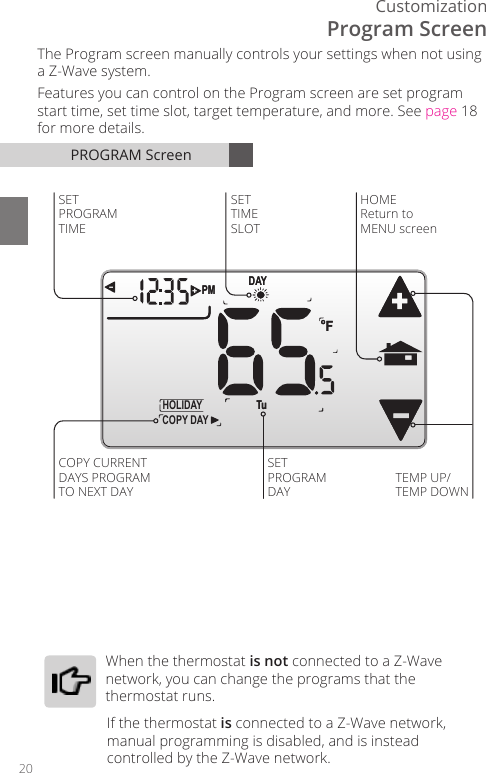
20CustomizationPROGRAM ScreenDAYPM FCOPY DAYHOLIDAY  Tu DAYPM F TuHOMEReturn to MENU screenSETPROGRAMDAYTEMP UP/TEMP DOWNSET TIME SLOTSET PROGRAM TIMECOPY CURRENTDAYS PROGRAMTO NEXT DAYThe Program screen manually controls your settings when not using a Z-Wave system.Features you can control on the Program screen are set program start time, set time slot, target temperature, and more. See page 18 for more details.Program Screen  When  the  thermostat  is not connected to a Z-Wave network, you can change the programs that the thermostat runs. If the thermostat is connected to a Z-Wave network, manual programming is disabled, and is instead controlled by the Z-Wave network.
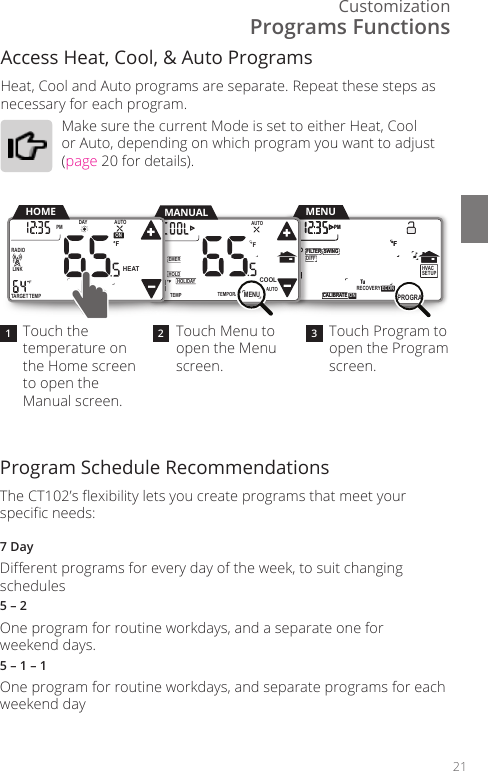
Customization21Program Schedule Recommendations The CT102’s exibility lets you create programs that meet your specic needs: 7 DayDierent programs for every day of the week, to suit changing schedules5 – 2One program for routine workdays, and a separate one for  weekend days.5 – 1 – 1One program for routine workdays, and separate programs for each weekend dayAccess Heat, Cool, & Auto Programs Heat, Cool and Auto programs are separate. Repeat these steps as necessary for each program.Make sure the current Mode is set to either Heat, Cool or Auto, depending on which program you want to adjust (page 20 for details).Programs FunctionsTouch the temperature on the Home screen to open the Manual screen. Touch Menu to open the Menu screen.Touch Program to open the Program screen.21 3       HVACSETUP DIFFSWINGFILTERPMFMATERADIO1CALIBRATE RECOVERY ECON       SWINGFILTERPMFMATERADIO1TECALIBRA  ON PROGRAMMENUTEMPORARYHOLDEMERFTEMPHOLIDAYMENUAUTOCOOLTRUEAUTOMANUALTARGETTEMPONDAYPM FLINKRADIO1 TuAUTOHEATHOMETEMPORARYHOLDEMERFTEMPHOLIDAYMENUAUTOCOOLTRUEAUTO      HVACSETUP DIFFSWINGFILTERPMFMATERADIO1CALIBRATE RECOVERY ECON      SWINGFILTERPMFMATERADIO1TECALIBRA  ON PROGRAM
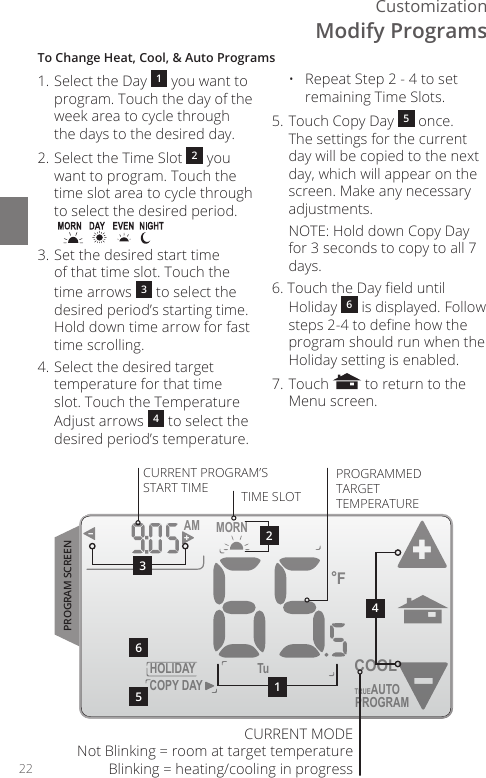
22CustomizationTo Change Heat, Cool, & Auto Programs1. Select the Day  1 you want to program. Touch the day of the week area to cycle through the days to the desired day.2. Select the Time Slot  2 you want to program. Touch the time slot area to cycle through to select the desired period.3. Set the desired start time of that time slot. Touch the time arrows  3 to select the desired period’s starting time. Hold down time arrow for fast time scrolling.4. Select the desired target temperature for that time slot. Touch the Temperature Adjust arrows  4 to select the desired period’s temperature.  •   Repeat Step 2 - 4 to set remaining Time Slots.5. Touch Copy Day  5 once. The settings for the current day will be copied to the next day, which will appear on the screen. Make any necessary adjustments.  NOTE: Hold down Copy Day for 3 seconds to copy to all 7 days.6. Touch the Day eld until Holiday  6 is displayed. Follow steps 2-4 to dene how the program should run when the Holiday setting is enabled.7. Touch   to return to the Menu screen.HOLIDAYMORN AMFCOPY DAYTuPROGRAMCOOLTRUEAUTO564213CURRENT PROGRAM’S START TIME TIME SLOTPROGRAMMED TARGET TEMPERATUREPROGRAM SCREENCURRENT MODE Not Blinking = room at target temperature Blinking = heating/cooling in progressModify Programs
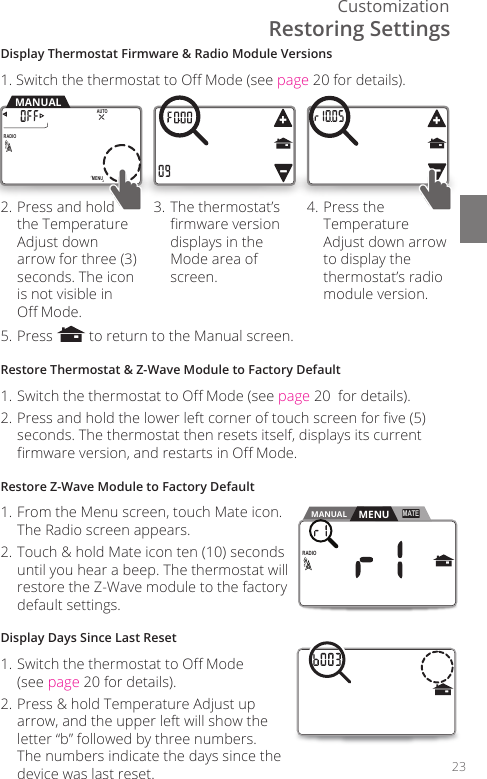
Customization23RADIO1MENUAUTOMANUALDisplay Thermostat Firmware & Radio Module Versions1. Switch the thermostat to O Mode (see page 20 for details).2. Press and hold the Temperature Adjust down arrow for three (3) seconds. The icon is not visible in  O Mode. 3. The thermostat’s rmware version displays in the Mode area of screen. 4. Press the Temperature Adjust down arrow to display the thermostat’s radio module version. 5. Press   to return to the Manual screen.Restore Thermostat & Z-Wave Module to Factory Default1. Switch the thermostat to O Mode (see page 20  for details).2. Press and hold the lower left corner of touch screen for ve (5) seconds. The thermostat then resets itself, displays its current rmware version, and restarts in O Mode.Restore Z-Wave Module to Factory Default1. From the Menu screen, touch Mate icon. The Radio screen appears.2. Touch & hold Mate icon ten (10) seconds until you hear a beep. The thermostat will restore the Z-Wave module to the factory default settings.Display Days Since Last Reset1. Switch the thermostat to O Mode  (see page 20 for details).2. Press & hold Temperature Adjust up arrow, and the upper left will show the letter “b” followed by three numbers. The numbers indicate the days since the device was last reset.MENU ScreenMANUALRADIO1MATEMENURestoring Settings
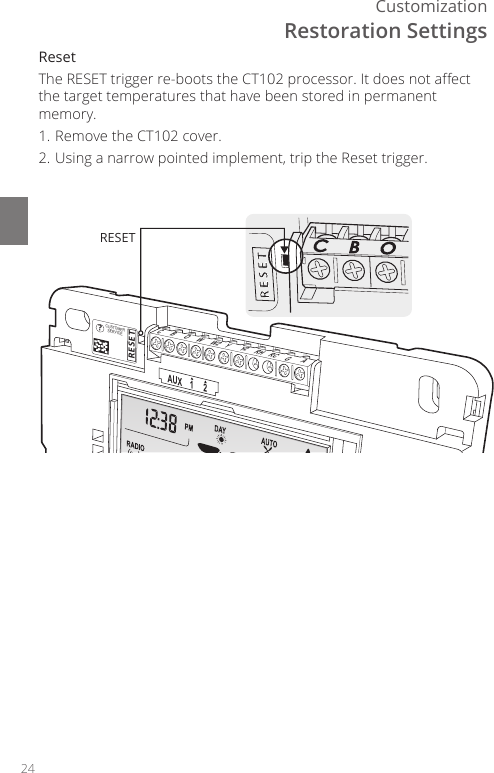
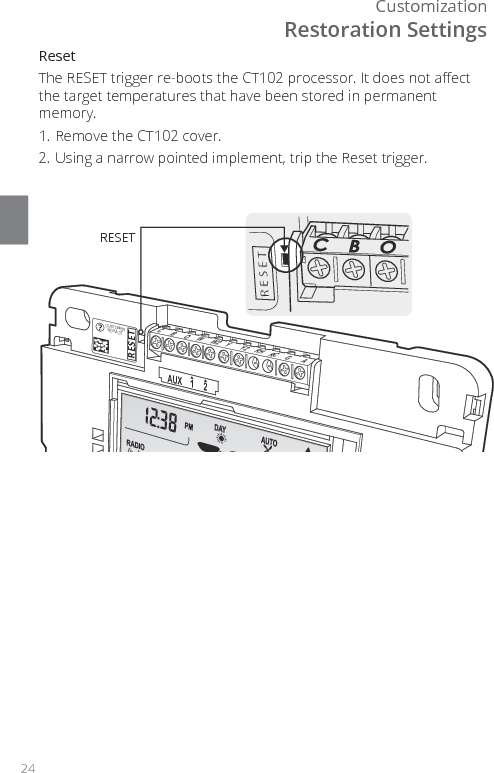
24CustomizationCBOWW2 YY2 RH RC GAAUX    1     2RESET?CUSTOMERSERVICERESETRestoration SettingsReset The RESET trigger re-boots the CT102 processor. It does not aect the target temperatures that have been stored in permanent memory.1. Remove the CT102 cover.2. Using a narrow pointed implement, trip the Reset trigger.
RTCOA logo sheet7aug07CT102 THERMOSTAT Z-WAVE® REFERENCE
2CT102 ThermostatZ Wave®Z-Wave® ReferenceThe CT102 can work in the same network with any other certied Z-Wave device, regardless of manufacturer/vendor. See your specic Z-Wave® controller’s User Manual for detailed instructions on operating your thermostat through the network.Behavior Note: When power is rst applied to this device it will broadcast a Hail message followed by a Node Information frame. This behavior is to maintain backwards compatibility with older controllers that work with this line of devices.Advanced Z-Wave® InformationThe CT102 supports compliant mapping of the Z-Wave® BASIC_COMMAND_CLASS to the CT thermostat “Energy Saving” and “Comfort Mode” as follows:  • Basic Set (Value = 0x00) = Set Energy Saving Mode  • Basic Set (Value = 0x01-0x63 & 0xFF) = Set Comfort ModeEnergy Savings applies a 4° F setback to the existing set point temperature to comply with EPA recommendations for energy savings.
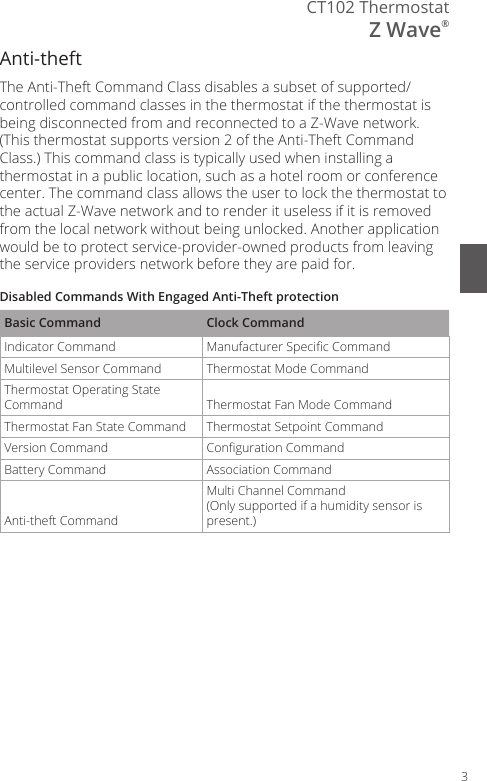
3CT102 ThermostatZ Wave®Anti-theftThe Anti-Theft Command Class disables a subset of supported/controlled command classes in the thermostat if the thermostat is being disconnected from and reconnected to a Z-Wave network. (This thermostat supports version 2 of the Anti-Theft Command Class.) This command class is typically used when installing a thermostat in a public location, such as a hotel room or conference center. The command class allows the user to lock the thermostat to the actual Z-Wave network and to render it useless if it is removed from the local network without being unlocked. Another application would be to protect service-provider-owned products from leaving the service providers network before they are paid for.Disabled Commands With Engaged Anti-Theft protectionBasic Command Clock CommandIndicator Command  Manufacturer Specic Command Multilevel Sensor Command  Thermostat Mode Command Thermostat Operating State Command  Thermostat Fan Mode Command Thermostat Fan State Command  Thermostat Setpoint Command Version Command  Conguration Command Battery Command  Association Command Anti-theft CommandMulti Channel Command (Only supported if a humidity sensor is present.)
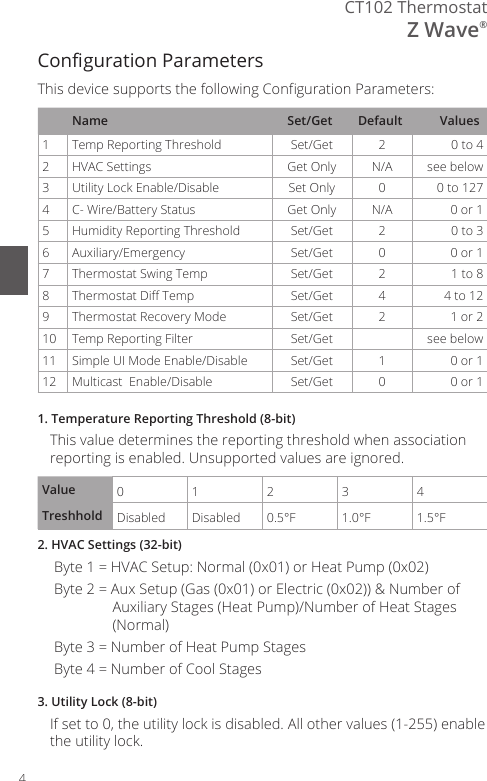
4CT102 ThermostatZ Wave®Conguration ParametersThis device supports the following Conguration Parameters:Name Set/Get Default Values1Temp Reporting Threshold Set/Get 20 to 42HVAC Settings Get Only N/A see below3 Utility Lock Enable/Disable Set Only 0 0 to 1274 C- Wire/Battery Status Get Only N/A 0 or 15Humidity Reporting Threshold Set/Get 20 to 36 Auxiliary/Emergency Set/Get 0 0 or 17Thermostat Swing Temp Set/Get 2 1 to 88Thermostat Di Temp Set/Get 4 4 to 129Thermostat Recovery Mode Set/Get 2 1 or 210 Temp Reporting Filter Set/Get see below11 Simple UI Mode Enable/Disable Set/Get 1 0 or 112 Multicast  Enable/Disable Set/Get 0 0 or 11. Temperature Reporting Threshold (8-bit)This value determines the reporting threshold when association reporting is enabled. Unsupported values are ignored.Value 0123 4Treshhold Disabled Disabled 0.5°F 1.0°F 1.5°F2. HVAC Settings (32-bit)Byte 1 = HVAC Setup: Normal (0x01) or Heat Pump (0x02)Byte 2 = Aux Setup (Gas (0x01) or Electric (0x02)) & Number of Auxiliary Stages (Heat Pump)/Number of Heat Stages (Normal)Byte 3 = Number of Heat Pump Stages Byte 4 = Number of Cool Stages3. Utility Lock (8-bit)If set to 0, the utility lock is disabled. All other values (1-255) enable the utility lock.
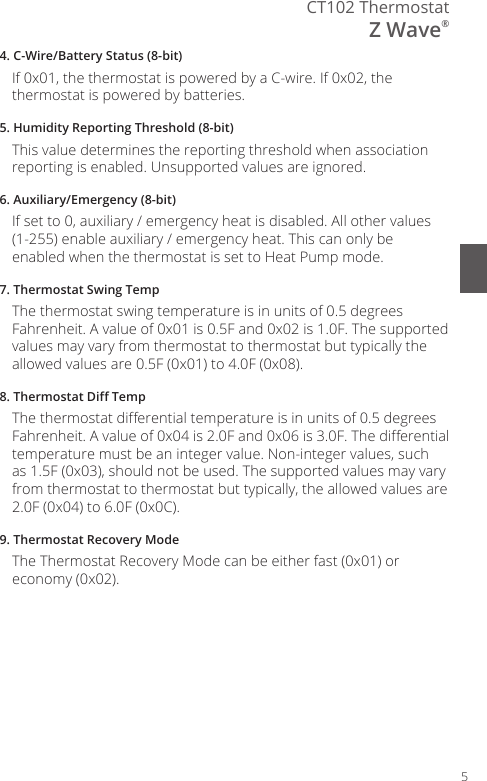
5CT102 ThermostatZ Wave®4. C-Wire/Battery Status (8-bit)If 0x01, the thermostat is powered by a C-wire. If 0x02, the thermostat is powered by batteries.5. Humidity Reporting Threshold (8-bit)This value determines the reporting threshold when association reporting is enabled. Unsupported values are ignored.6. Auxiliary/Emergency (8-bit)If set to 0, auxiliary / emergency heat is disabled. All other values (1-255) enable auxiliary / emergency heat. This can only be enabled when the thermostat is set to Heat Pump mode.7. Thermostat Swing TempThe thermostat swing temperature is in units of 0.5 degrees Fahrenheit. A value of 0x01 is 0.5F and 0x02 is 1.0F. The supported values may vary from thermostat to thermostat but typically the allowed values are 0.5F (0x01) to 4.0F (0x08).8. Thermostat Di TempThe thermostat dierential temperature is in units of 0.5 degrees Fahrenheit. A value of 0x04 is 2.0F and 0x06 is 3.0F. The dierential temperature must be an integer value. Non-integer values, such as 1.5F (0x03), should not be used. The supported values may vary from thermostat to thermostat but typically, the allowed values are 2.0F (0x04) to 6.0F (0x0C).9. Thermostat Recovery ModeThe Thermostat Recovery Mode can be either fast (0x01) or economy (0x02).
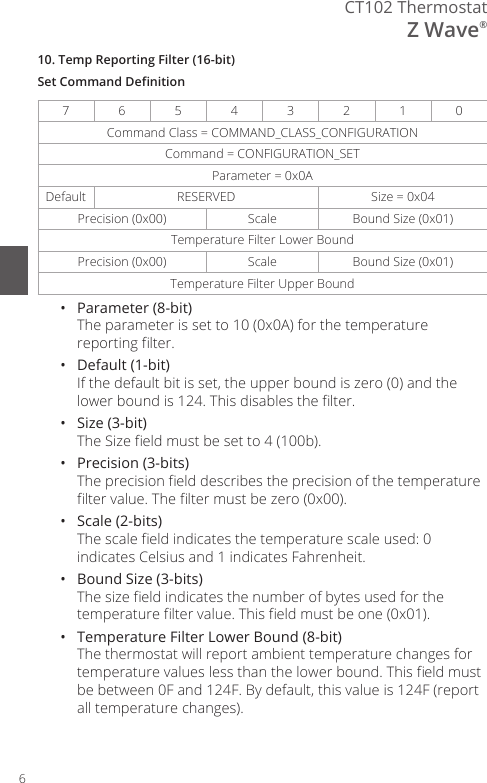
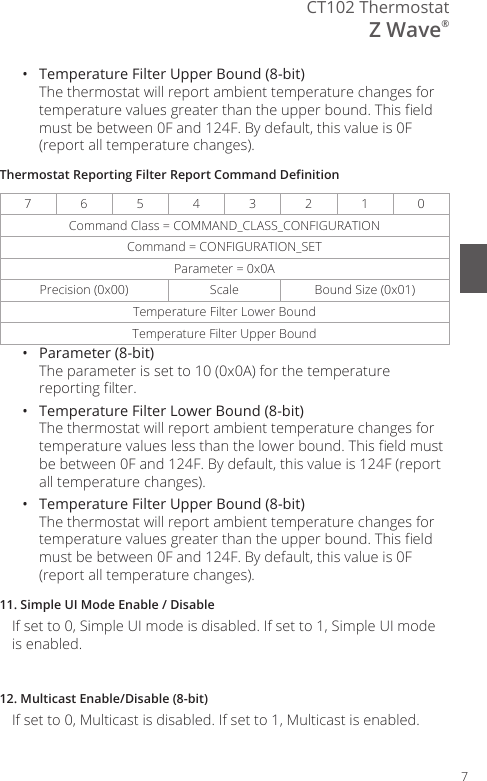
6CT102 ThermostatZ Wave®10. Temp Reporting Filter (16-bit)Set Command Denition7654 3 2 1 0Command Class = COMMAND_CLASS_CONFIGURATIONCommand = CONFIGURATION_SETParameter = 0x0ADefault  RESERVED Size = 0x04Precision (0x00)  Scale Bound Size (0x01)Temperature Filter Lower BoundPrecision (0x00)  Scale Bound Size (0x01)Temperature Filter Upper Bound•  Parameter (8-bit) The parameter is set to 10 (0x0A) for the temperature reporting lter.•  Default (1-bit) If the default bit is set, the upper bound is zero (0) and the lower bound is 124. This disables the lter.•  Size (3-bit) The Size eld must be set to 4 (100b).•  Precision (3-bits) The precision eld describes the precision of the temperature lter value. The lter must be zero (0x00).•  Scale (2-bits) The scale eld indicates the temperature scale used: 0 indicates Celsius and 1 indicates Fahrenheit.•  Bound Size (3-bits) The size eld indicates the number of bytes used for the temperature lter value. This eld must be one (0x01).•  Temperature Filter Lower Bound (8-bit) The thermostat will report ambient temperature changes for temperature values less than the lower bound. This eld must be between 0F and 124F. By default, this value is 124F (report all temperature changes).
7CT102 ThermostatZ Wave®•  Temperature Filter Upper Bound (8-bit) The thermostat will report ambient temperature changes for temperature values greater than the upper bound. This eld must be between 0F and 124F. By default, this value is 0F (report all temperature changes).Thermostat Reporting Filter Report Command Denition7654 3 2 1 0Command Class = COMMAND_CLASS_CONFIGURATIONCommand = CONFIGURATION_SETParameter = 0x0APrecision (0x00)  Scale Bound Size (0x01)Temperature Filter Lower BoundTemperature Filter Upper Bound•  Parameter (8-bit) The parameter is set to 10 (0x0A) for the temperature reporting lter.•  Temperature Filter Lower Bound (8-bit) The thermostat will report ambient temperature changes for temperature values less than the lower bound. This eld must be between 0F and 124F. By default, this value is 124F (report all temperature changes).•  Temperature Filter Upper Bound (8-bit) The thermostat will report ambient temperature changes for temperature values greater than the upper bound. This eld must be between 0F and 124F. By default, this value is 0F (report all temperature changes).11. Simple UI Mode Enable / DisableIf set to 0, Simple UI mode is disabled. If set to 1, Simple UI mode is enabled.12. Multicast Enable/Disable (8-bit)If set to 0, Multicast is disabled. If set to 1, Multicast is enabled.
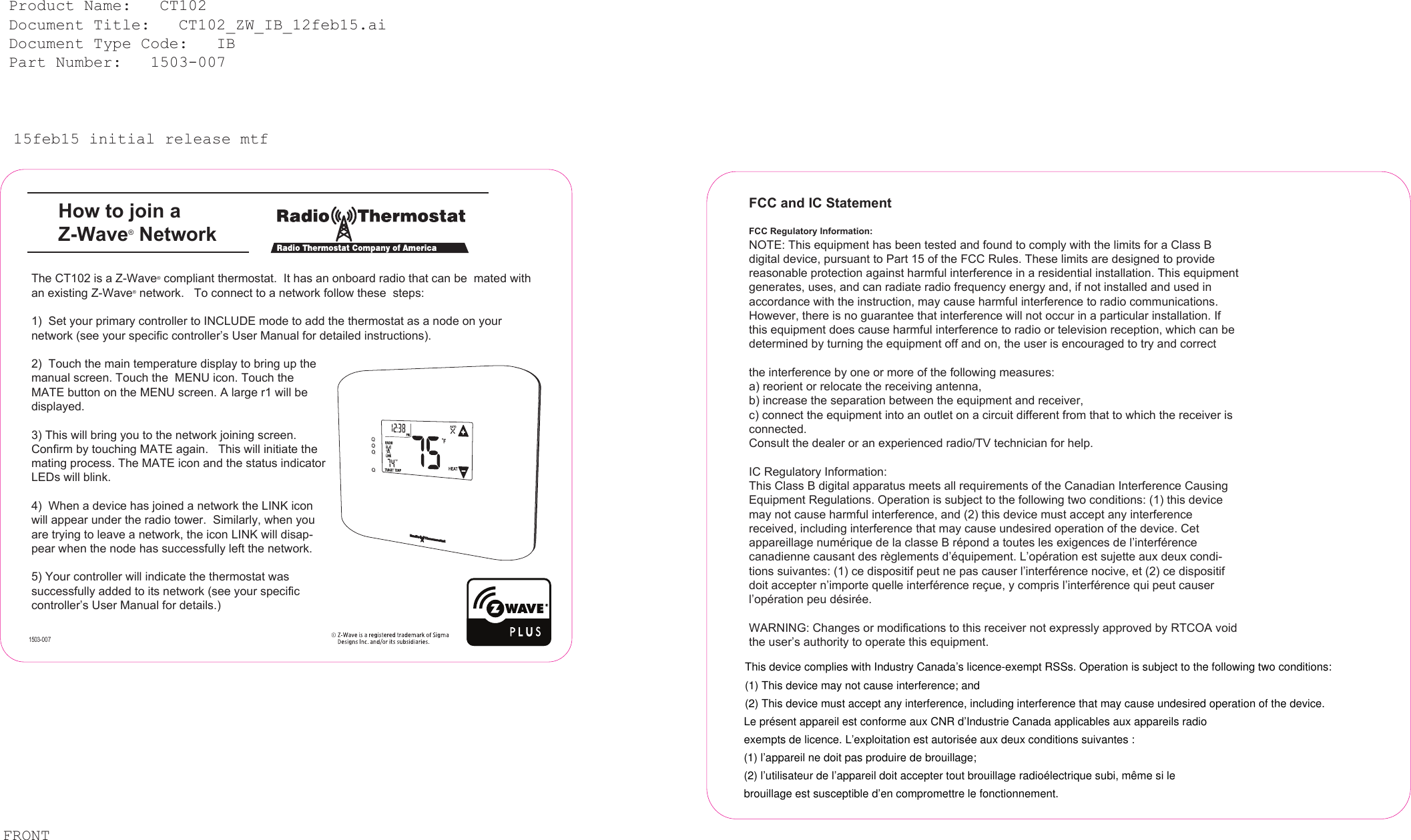
15feb15 initial release mtfHow to join a Z-Wave® Network Product Name:   CT102  Document Title:   CT102_ZW_IB_12feb15.ai  Document Type Code:   IB  Part Number:   1503-007 The CT102 is a Z-Wave® compliant thermostat.  It has an onboard radio that can be  mated with an existing Z-Wave® network.   To connect to a network follow these  steps:1)  Set your primary controller to INCLUDE mode to add the thermostat as a node on your network (see your specific controller’s User Manual for detailed instructions).2)  Touch the main temperature display to bring up the manual screen. Touch the  MENU icon. Touch the MATE button on the MENU screen. A large r1 will be displayed. 3) This will bring you to the network joining screen.  Confirm by touching MATE again.   This will initiate the mating process. The MATE icon and the status indicator LEDs will blink. 4)  When a device has joined a network the LINK icon will appear under the radio tower.  Similarly, when you are trying to leave a network, the icon LINK will disap-pear when the node has successfully left the network.       5) Your controller will indicate the thermostat was successfully added to its network (see your specific controller’s User Manual for details.)       FCC and IC StatementFCC Regulatory Information:NOTE: This equipment has been tested and found to comply with the limits for a Class B digital device, pursuant to Part 15 of the FCC Rules. These limits are designed to provide reasonable protection against harmful interference in a residential installation. This equipment generates, uses, and can radiate radio frequency energy and, if not installed and used in accordance with the instruction, may cause harmful interference to radio communications. However, there is no guarantee that interference will not occur in a particular installation. If this equipment does cause harmful interference to radio or television reception, which can be determined by turning the equipment off and on, the user is encouraged to try and correctthe interference by one or more of the following measures:a) reorient or relocate the receiving antenna,b) increase the separation between the equipment and receiver,c) connect the equipment into an outlet on a circuit different from that to which the receiver is connected.Consult the dealer or an experienced radio/TV technician for help. IC Regulatory Information:This Class B digital apparatus meets all requirements of the Canadian Interference Causing Equipment Regulations. Operation is subject to the following two conditions: (1) this device may not cause harmful interference, and (2) this device must accept any interference received, including interference that may cause undesired operation of the device. Cet appareillage numérique de la classe B répond a toutes les exigences de l’interférence canadienne causant des règlements d’équipement. L’opération est sujette aux deux condi-tions suivantes: (1) ce dispositif peut ne pas causer l’interférence nocive, et (2) ce dispositif doit accepter n’importe quelle interférence reçue, y compris l’interférence qui peut causer l’opération peu désirée.WARNING: Changes or modifications to this receiver not expressly approved by RTCOA void the user’s authority to operate this equipment. FRONT1503-007This device complies with Industry Canada’s licence-exempt RSSs. Operation is subject to the following two conditions:(1) This device may not cause interference; and(2) This device must accept any interference, including interference that may cause undesired operation of the device.Le présent appareil est conforme aux CNR d’Industrie Canada applicables aux appareils radioexempts de licence. L’exploitation est autorisée aux deux conditions suivantes :(1) l’appareil ne doit pas produire de brouillage;(2) l’utilisateur de l’appareil doit accepter tout brouillage radioélectrique subi, même si lebrouillage est susceptible d’en compromettre le fonctionnement.
RTCOA logo sheet7aug07© 2015 Radio Thermostat Company of America. All rights reserved.Statement Of Use100% Compatible with all popular residential HVAC systems: 24VAC single stage and two stage conventional heating systems (gas, oil, electric), heat pumps with up to two stages of heat and up to two stages of auxiliary heat (electric or fossil), zoned forced air and zoned hot water (2 or 3 wire), millivolt systems (with a 12-24V AC or DC source), one or two stage cooling, and hybrid systems.  Do not use this thermostat with with line voltage heating systems.

Navigation menu