Ranger Communications ST-2112D Private land mobile radio User Manual

Ranger Communications (M) SDN. BHD. Private land mobile radio Users Manual

Users Manual

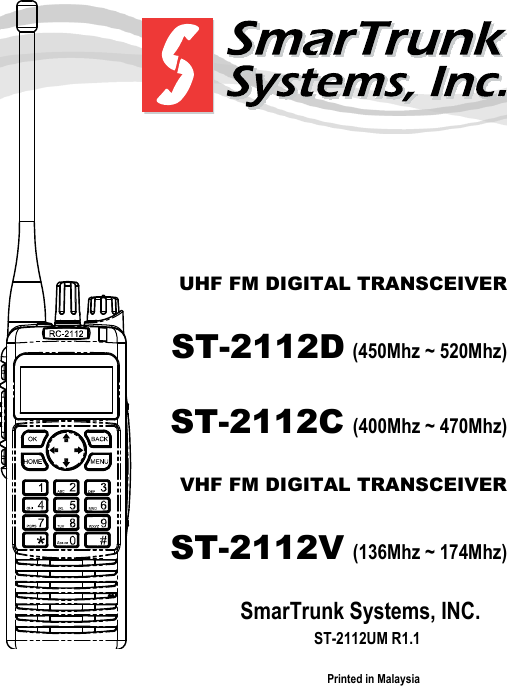
     UHF FM DIGITAL TRANSCEIVER ST-2112D (450Mhz ~ 520Mhz) ST-2112C (400Mhz ~ 470Mhz) VHF FM DIGITAL TRANSCEIVER ST-2112V (136Mhz ~ 174Mhz) SmarTrunk Systems, INC.    ST-2112UM R1.1 Printed in Malaysia
     Page 2                     FEDERAL COMMUNICATIONS COMMISSION INTERFERENCE STATEMENT  This equipment has been tested and found to comply with the limits for a Class B digital device, pursuant to Part 15 of the FCC Rules. These limits are designed to provide reasonable protection against harmful interference in  a residential installation. This  equipment  generates,  uses and  can radiate  radio frequency  energy  and,  if  not  installed  and  used  in accordance  with  the  instructions,  may  cause  harmful interference to radio communications. However, there is no  guarantee  that  interference  will  not  occur  in  a particular  installation.  If  this  equipment  does  cause harmful  interference  to  radio  or  television  reception, which can  be determined  by  turning the  equipment  off and  on,  the  user  is  encouraged  to  try  to  correct  the interference by one or more of the following measures: --Reorient or relocate the receiving antenna. --Increase  the  separation  between  the  equipment  and receiver. --Connect  the  equipment  into  an  outlet  on  a  circuit different from that to which the receiver is connected. --Consult  the  dealer  or  an  experienced  radio/TV technician for help.  FCC NOTICE This  device  complies  with  Part  15  of  the  FCC  Rules. Operation is subject to the following two conditions: (1) This device may not cause harmful interference,  (2) This device must accept any interference received, including  interference  that  may  cause  undesired operation.
     Page 3   THANK YOU!  We  are  grateful  you  chose  SmarTrunk  for  your  land  mobile  radio applications.  We  believe  this  powerful,  flexible  and  easy-to-use transceiver  will  provide  dependable  and  reliable  communications  to keep personnel operating at peak efficiency. SmarTrunk  transceivers  incorporate  the  latest  in  advanced  SDR technology. As a result, we feel strongly that you will be pleased with the quality and features of this product.  NOTICES TO THE USER   GOVERNMENT  LAW  PROHIBITS  THE  OPERATION  OF UNLICENSED  RADIO  TRANSMITTERS  WITHIN  THE TERRITORIES UNDER GOVERNMENT CONTROL.  ILLEGAL  OPERATION  IS  PUNISHABLE  BY  FINE, IMPRISONMENT, OR BOTH.  REFER SERVICE TO QUALIFIED TECHNICIANS ONLY.    SAFETY: It is important that the operator is aware of and understands hazards common to the operation of any transceiver.   WARNING: EXPLOSIVE ATMOSPHERES (GASES, DUST, FUMES, etc.) Turn off your transceiver while taking on fuel, or while parked in gasoline service stations.
     Page 4                  ATTENTION (U.S.A. Only): The RBRC Recycle seal found on Smartrunk lithium-ion (Li-Ion)  battery  packs  indicates  Smartrunk‘s  voluntary participation in an industry program to collect and recycle Li-Io  batteries  after  their  operating  life  has  expired.  The RBRC program is an alternative to disposing Li-Io batteries with  your  regular  refuse  or  in  municipal  waste  streams, which is illegal in some areas. For information on Li-Ion battery recycling in your area, call (toll free) 1-800-8-BATTERY (1-800-822-8837). Smartrunk’s  involvement  in  this  program  is  part  of  our commitment  to  preserve  our  environment  and  conserve our natural resources.   PRECAUTIONS Observe the following precautions to prevent fire, personal injury, and transceiver damage. - Do not modify this transceiver for any reason. - Do not expose the transceiver to long periods of direct sunlight, nor place it close to heating appliances. - Do not place the transceiver in excessively dusty, humid, and/or wet areas, or on unstable surfaces. - If an abnormal odor or smoke is detected coming from the transceiver, switch OFF the power immediately and remove the optional battery pack from the transceiver. Contact your SmarTrunk dealer.
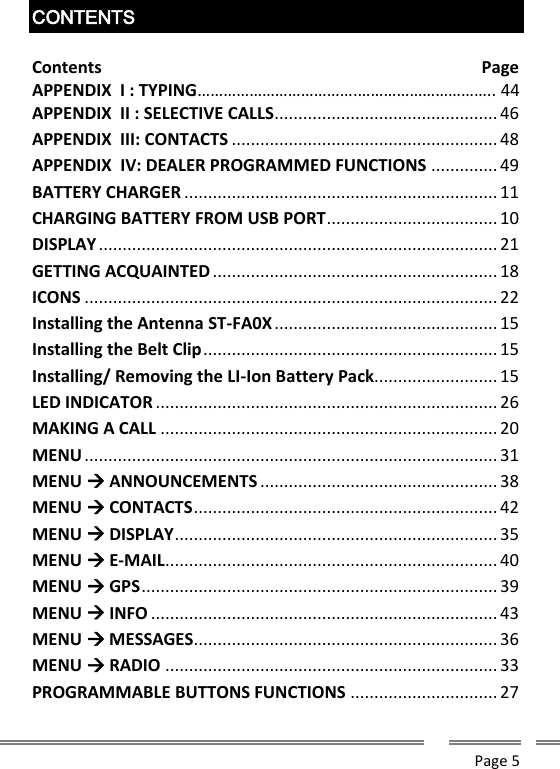
     Page 5  CONTENTS  Contents                               Page APPENDIX  I : TYPING……………………………….………………………….. 44 APPENDIX  II : SELECTIVE CALLS ............................................... 46 APPENDIX  III: CONTACTS ........................................................ 48 APPENDIX  IV: DEALER PROGRAMMED FUNCTIONS .............. 49 BATTERY CHARGER .................................................................. 11 CHARGING BATTERY FROM USB PORT .................................... 10 DISPLAY .................................................................................... 21 GETTING ACQUAINTED ............................................................ 18 ICONS ....................................................................................... 22 Installing the Antenna ST-FA0X ............................................... 15 Installing the Belt Clip .............................................................. 15 Installing/ Removing the LI-Ion Battery Pack .......................... 15 LED INDICATOR ........................................................................ 26 MAKING A CALL ....................................................................... 20 MENU ....................................................................................... 31 MENU  ANNOUNCEMENTS .................................................. 38 MENU  CONTACTS ................................................................ 42 MENU  DISPLAY .................................................................... 35 MENU  E-MAIL ...................................................................... 40 MENU  GPS ........................................................................... 39 MENU  INFO ......................................................................... 43 MENU  MESSAGES................................................................ 36 MENU  RADIO ...................................................................... 33 PROGRAMMABLE BUTTONS FUNCTIONS ............................... 27
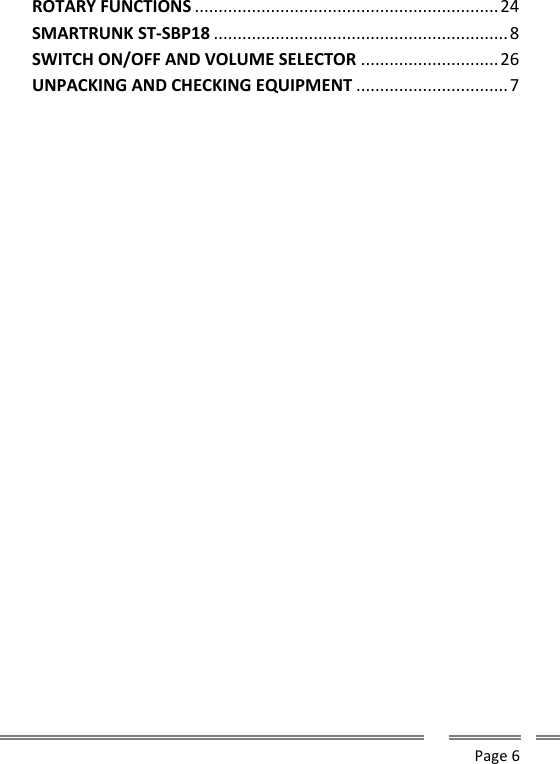
     Page 6  ROTARY FUNCTIONS ................................................................ 24 SMARTRUNK ST-SBP18 .............................................................. 8 SWITCH ON/OFF AND VOLUME SELECTOR ............................. 26 UNPACKING AND CHECKING EQUIPMENT ................................ 7
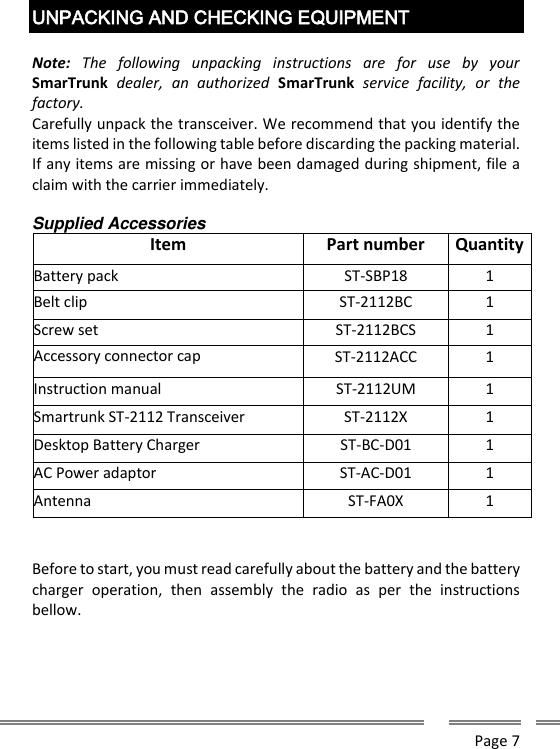
     Page 7   UNPACKING AND CHECKING EQUIPMENT  Note:  The  following  unpacking  instructions  are  for  use  by  your SmarTrunk  dealer,  an  authorized  SmarTrunk  service  facility,  or  the factory. Carefully unpack the transceiver. We recommend that you identify the items listed in the following table before discarding the packing material. If any items are missing or have been damaged during shipment, file a claim with the carrier immediately.  Supplied Accessories Item Part number Quantity Battery pack ST-SBP18 1 Belt clip ST-2112BC 1 Screw set ST-2112BCS 1 Accessory connector cap ST-2112ACC 1 Instruction manual ST-2112UM 1 Smartrunk ST-2112 Transceiver ST-2112X 1 Desktop Battery Charger ST-BC-D01 1 AC Power adaptor ST-AC-D01 1 Antenna ST-FA0X 1   Before to start, you must read carefully about the battery and the battery charger  operation,  then  assembly  the  radio  as  per  the  instructions bellow.
     Page 8  SMARTRUNK ST-SBP18  SMART BATTERY PACK      RECOMMENDATIONS  If not  charged  or used  correctly, Lithium  Polymer batteries may  ignite  without  warning  and  cause  serious  injury  and property  damage.  If  you  are  unable  to  follow  the  safety recommendations then do not use them  Do not charge Lithium Polymer cells on or near combustible materials including paper, plastic, carpets, vinyl, leather, or wood. Do not charge inside an automobile.  Do  not  forcefully  discharge  the  Lithium  Polymer  battery. Doing so will damage the pack.   Never exceed the charge or discharge current rating.  Do not expose Lithium Polymer cells to water or moisture at any time.  Do not store or use Lithium Polymer batteries near an open flame or heater.  Never  use  a  Lithium  Polymer  battery  that  may  have  been subjected to damage or harsh handling. Carefully inspect the
     Page 9  battery  and  connectors  for  even  the  smallest  damage. CAUTION: cells may be hot!  Do not allow the electrolyte to get into eyes or on skin. Wash affected  areas  immediately  if  they  come  into  contact  with electrolyte.  Do  not  alter  or  modify  connectors  or  wires  of  a  Lithium Polymer battery pack.  NEVER  incinerate  used  batteries.  This  may  cause  an explosion.  NEVER  use  the  charger when  it  is  covered  by  objects  that impede heat dispersal.  Make  sure  battery  and  charger  contacts  are  always  clean; otherwise, batteries may not fully charge.  Lithium Polymer batteries are different from Ni-Cd batteries in that it is not necessary to completely charge and discharge them  to  extend  the  battery  life.  Therefore,  charging  the battery when the remaining charge is under 10%  and keep charging up to the battery reaches 90% is recommended to extend the battery life.  If your batteries seem to have no capacity even after being fully  charged,  charge  them  again.  If  they  do  not  retain  a charge (or very little), new batteries must be purchased.
     Page 10  CHARGING BATTERY FROM USB PORT  Your  radio  includes  a  built-in  battery  charger  trough  the  USB  radio connector. This feature allows the user to charge the battery with any USB cable connected to a source that can supply current for example PCs, USB ports, USB chargers, etc.  Take notice most of the USB chargers are not for radios and the current supplied by these could be too low to charge the battery quickly. A radio receiving with high volume can demand more current than the current supplied by the USB charger meaning the battery will take long to be fully charged.  To charge the battery just plug the USB cable into the USB connector in the  radio,  the  radio  will  play  a  sound  confirming  the  USB  is  already plugged.  After  unplug  the  cable,  it  is  necessary  to  put  again the  USB connector cap to protect the radio from dust and harmful substances or gasses.
     Page 11  SMARTRUNK BC-D01  SMART BATTERY CHARGER   Never leave the charger unattended. If you will be away from the charger then leave it unconnected from the battery.   Charge all batteries on concrete, at least 10 feet (3 meters) away from combustible materials.  Do not use if flammable liquids are in the area.  Use  this  charger  only  with  SmarTrunk  Lithium  Polymer battery packs. No other battery chemistry can be used.  Do not charge a battery if it is hot. Allow them to cool first.  AVOID  charging  in  conditions  of  extreme  cold  (under  0°C; +32°F) or extreme heat (over +45°C; +113°F). Batteries may not charge under extreme temperatures.  Do  not  charge  any  battery  that  appears  to  be  swollen  or damaged in any way.  Do not disassemble the charger in any way. This is dangerous and will void the warranty.  NEVER  let  metal,  wire,  etc.  touch  any  internal  part  of  the charger.  Keep the charger away from children and animals.  USE INDOORS ONLY! NEVER expose the charger to rain, snow or any liquids.  NEVER insert battery pack/transceiver (with the battery pack attached) in a wet or soiled condition into the charger. This may result in corrosion of the charger terminals or damage to the charger.  The charger is not waterproof and water can easily get into it.
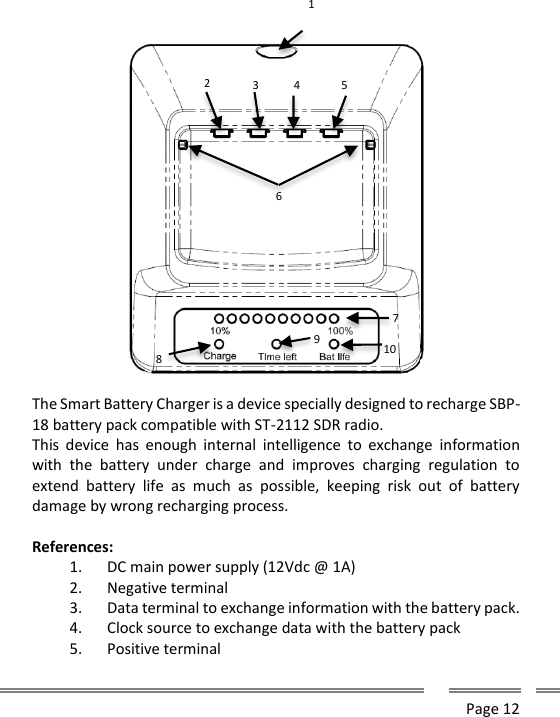
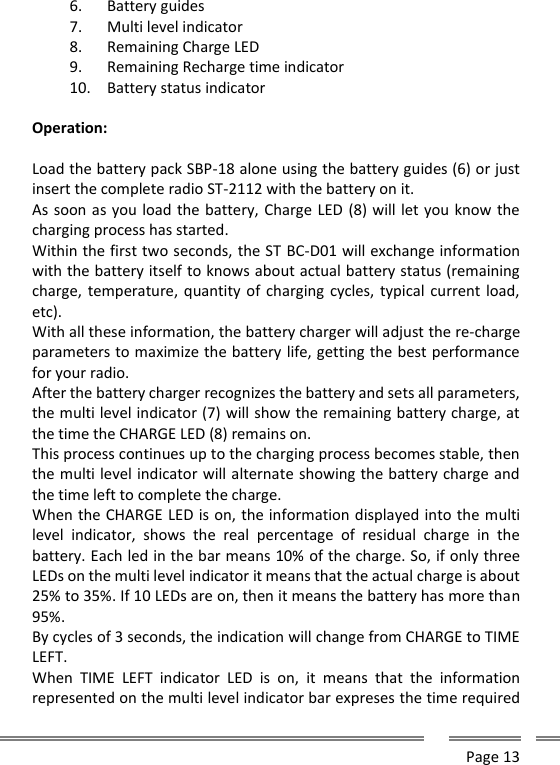
     Page 12        The Smart Battery Charger is a device specially designed to recharge SBP-18 battery pack compatible with ST-2112 SDR radio. This  device  has  enough  internal  intelligence  to exchange  information with  the  battery  under  charge  and  improves  charging  regulation  to extend  battery  life  as  much  as  possible,  keeping  risk  out  of  battery damage by wrong recharging process.  References: 1. DC main power supply (12Vdc @ 1A) 2. Negative terminal 3. Data terminal to exchange information with the battery pack. 4. Clock source to exchange data with the battery pack 5. Positive terminal 1 2 6 3 4 5 7 8 9 10
     Page 13  6. Battery guides 7. Multi level indicator 8. Remaining Charge LED 9. Remaining Recharge time indicator 10. Battery status indicator  Operation:  Load the battery pack SBP-18 alone using the battery guides (6) or just insert the complete radio ST-2112 with the battery on it. As soon as you load the battery, Charge LED (8) will let you know the charging process has started.  Within the first two seconds, the ST BC-D01 will exchange information with the battery itself to knows about actual battery status (remaining charge, temperature, quantity of charging  cycles, typical current load, etc).  With all these information, the battery charger will adjust the re-charge parameters to maximize the battery life, getting the best performance for your radio. After the battery charger recognizes the battery and sets all parameters, the multi level indicator (7) will show the remaining battery charge, at the time the CHARGE LED (8) remains on. This process continues up to the charging process becomes stable, then the multi level indicator will alternate showing the battery charge and the time left to complete the charge. When the CHARGE LED is on, the information displayed into the multi level  indicator,  shows  the  real  percentage  of  residual  charge  in  the battery. Each led in the bar means 10% of the charge. So, if only three LEDs on the multi level indicator it means that the actual charge is about 25% to 35%. If 10 LEDs are on, then it means the battery has more than 95%. By cycles of 3 seconds, the indication will change from CHARGE to TIME LEFT. When  TIME  LEFT  indicator  LED  is  on,  it  means  that  the  information represented on the multi level indicator bar expreses the time required
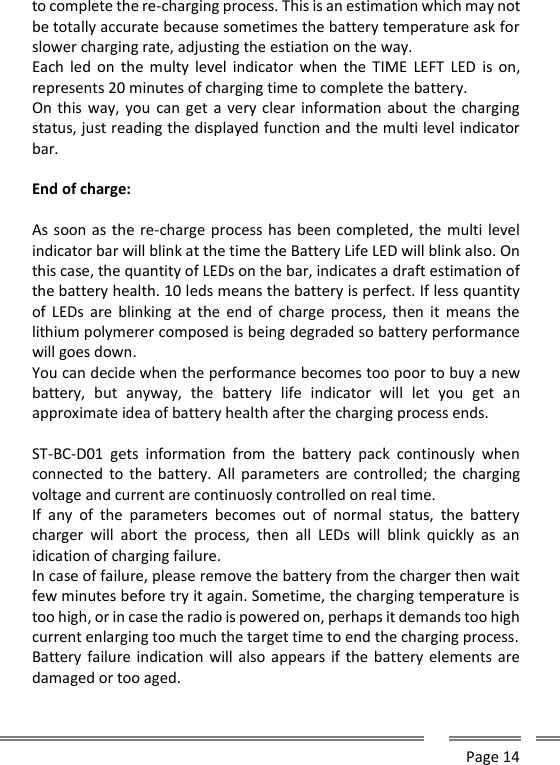
     Page 14  to complete the re-charging process. This is an estimation which may not be totally accurate because sometimes the battery temperature ask for slower charging rate, adjusting the estiation on the way. Each  led  on  the  multy  level indicator  when  the  TIME  LEFT  LED  is on, represents 20 minutes of charging time to complete the battery. On this way,  you  can get  a very clear information about the charging status, just reading the displayed function and the multi level indicator bar.  End of charge:  As soon as the re-charge process has been completed, the multi level indicator bar will blink at the time the Battery Life LED will blink also. On this case, the quantity of LEDs on the bar, indicates a draft estimation of the battery health. 10 leds means the battery is perfect. If less quantity of  LEDs  are  blinking  at  the end  of  charge  process,  then  it  means the lithium polymerer composed is being degraded so battery performance will goes down. You can decide when the performance becomes too poor to buy a new battery,  but  anyway,  the  battery  life  indicator  will  let  you  get  an approximate idea of battery health after the charging process ends.  ST-BC-D01  gets  information  from  the  battery  pack  continously  when connected  to the battery.  All  parameters are controlled; the  charging voltage and current are continuosly controlled on real time. If  any  of  the  parameters  becomes  out  of  normal  status,  the  battery charger  will  abort  the  process,  then  all  LEDs  will  blink  quickly  as  an idication of charging failure. In case of failure, please remove the battery from the charger then wait few minutes before try it again. Sometime, the charging temperature is too high, or in case the radio is powered on, perhaps it demands too high current enlarging too much the target time to end the charging process. Battery failure indication will also appears if the battery elements are damaged or too aged.
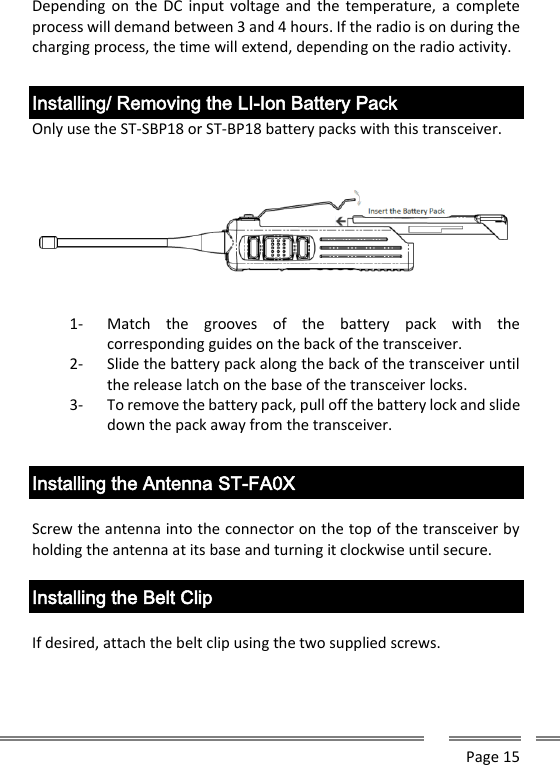
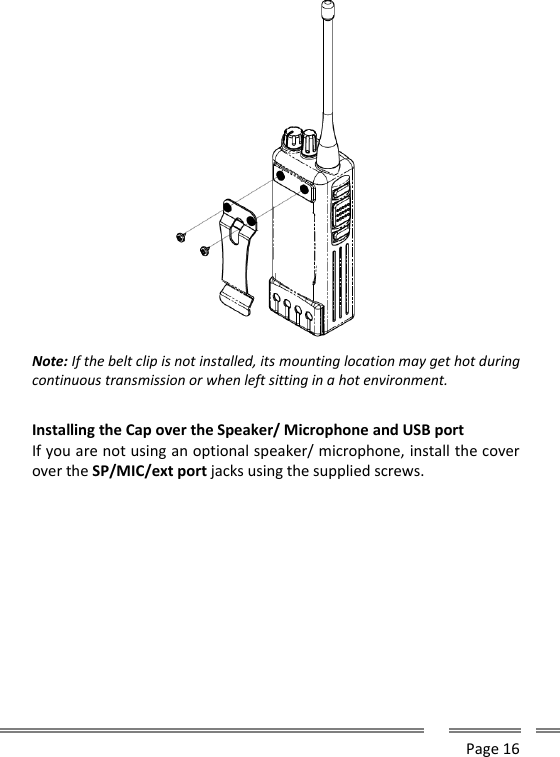
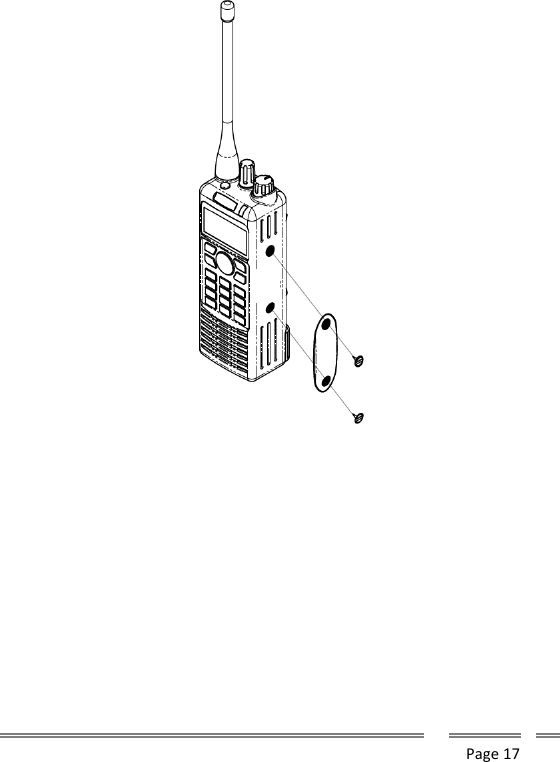
     Page 15  Depending on  the DC input voltage and  the temperature, a  complete process will demand between 3 and 4 hours. If the radio is on during the charging process, the time will extend, depending on the radio activity.   Installing/ Removing the LI-Ion Battery Pack Only use the ST-SBP18 or ST-BP18 battery packs with this transceiver.     1- Match  the  grooves  of  the  battery  pack  with  the corresponding guides on the back of the transceiver. 2- Slide the battery pack along the back of the transceiver until the release latch on the base of the transceiver locks. 3- To remove the battery pack, pull off the battery lock and slide down the pack away from the transceiver.  Installing the Antenna ST-FA0X  Screw the antenna into the connector on the top of the transceiver by holding the antenna at its base and turning it clockwise until secure.  Installing the Belt Clip  If desired, attach the belt clip using the two supplied screws.
     Page 16   Note: If the belt clip is not installed, its mounting location may get hot during continuous transmission or when left sitting in a hot environment.  Installing the Cap over the Speaker/ Microphone and USB port If you are not using an optional speaker/ microphone, install the cover over the SP/MIC/ext port jacks using the supplied screws.
     Page 17
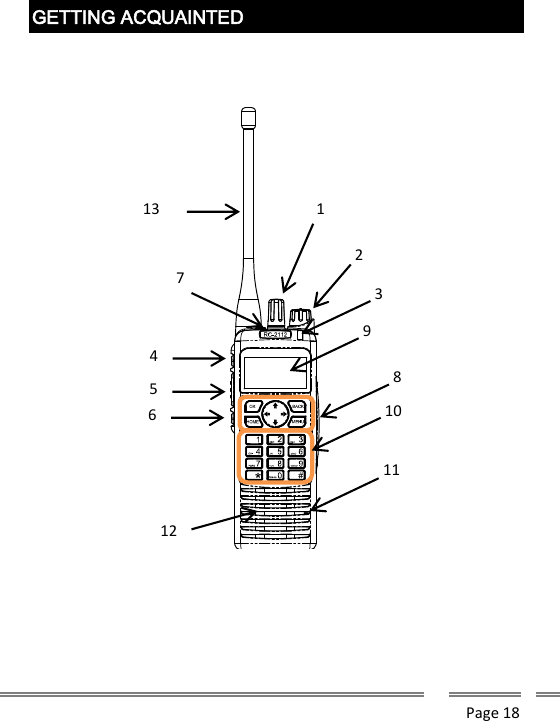
     Page 18    GETTING ACQUAINTED                       1 2 3 5 4 6 7 8 9 100 11 12 13
     Page 19  1. Rotary encoder Move clockwise or counterclockwise to change the selection according to the mode programmed for this encoder.  2. Power switch and Volume control Turn clockwise to switch ON the transceiver. Rotate to adjust the volume.  Turn  fully  counterclockwise  to  switch  OFF the transceiver  3. Transmit/ Busy/ Low Bat and message alert Lights red during transmission Green while receiving a call Blinks on red to show low battery status Blink on orange when any unread incoming message  4. Top Side Key Press  to  activate  its  programmable  function.  The  function assigned to this key is designed by your dealer.  5. PTT (Push-to-Talk) switch Press this switch, and then speak into the microphone to call a station.  6. Bottom Side Key Press  to  activate  its  programmable  function.  The  function assigned to this key is designed by your dealer.  7. Emergency/Top Key Press  to  activate  its  programmable  function.  The  function assigned to this key is designed by your dealer.  8. Function Keys Press  to  activate  its  programmable  function.  The  function assigned to this key is designed by your dealer.
     Page 20  9. Display It  shows  relevant  radio  status,  messages  and  general information. See next page for additional information.  10. Keyboard Numeric and alphanumeric input device  11. Speaker  12. Microphone  13. Antenna  MAKING A CALL  To place a call to other party or group, please follow the steps:  Press the PTT switch and speak into the microphone in your normal speaking voice.  For  best  sound  quality  at  the  receiving  station,  hold  the microphone  approximately  1.5  inches  (3-4  cm)  from  your mouth.  Release the PTT switch to receive.  Adjust the volume level as per your desire when receiving.             If enabled by your radio programmer or dealer, your radio may have a time out timer, which can set a limit to the max length of your transmission without releasing the PTT. If it happens, you will receive a warning beep and message on the display.
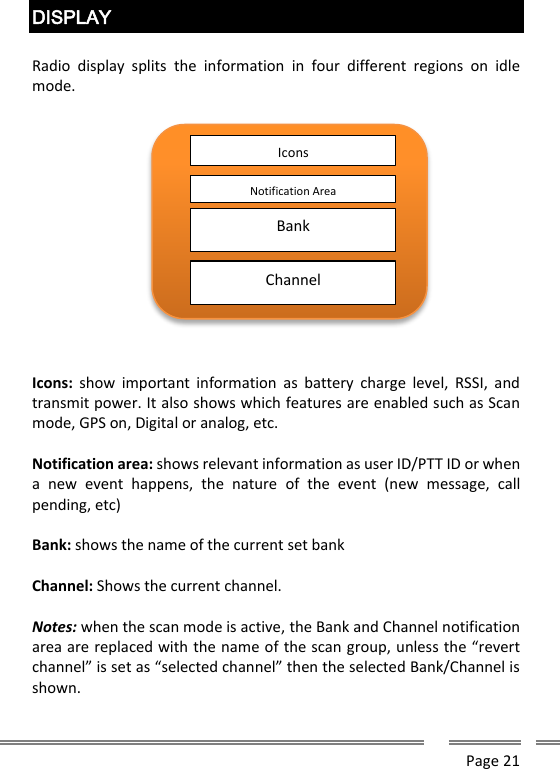
     Page 21  DISPLAY  Radio  display  splits  the  information  in  four  different  regions  on  idle mode.    Icons:  show  important information  as  battery  charge  level,  RSSI,  and transmit power. It also shows which features are enabled such as Scan mode, GPS on, Digital or analog, etc.  Notification area: shows relevant information as user ID/PTT ID or when a  new  event  happens,  the  nature  of  the  event  (new  message,  call pending, etc)    Bank: shows the name of the current set bank  Channel: Shows the current channel.  Notes: when the scan mode is active, the Bank and Channel notification area are replaced with the name of the scan group, unless the “revert channel” is set as “selected channel” then the selected Bank/Channel is shown.   Icons Notification Area Bank Channel
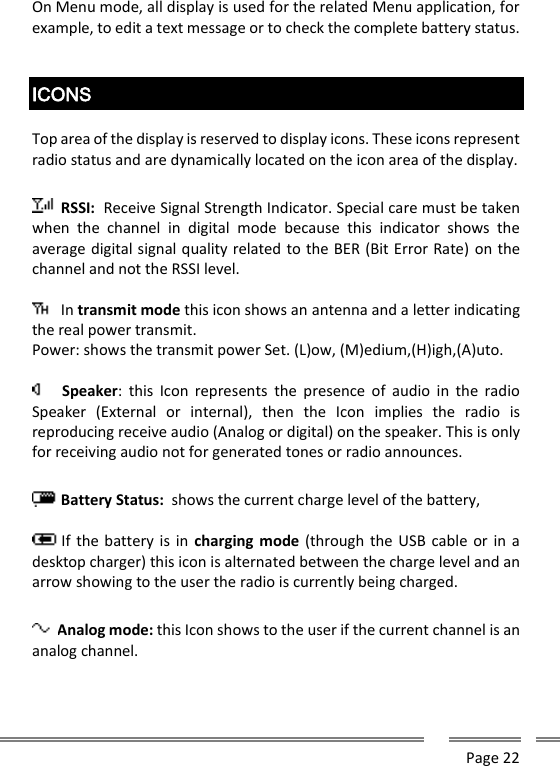
     Page 22  On Menu mode, all display is used for the related Menu application, for example, to edit a text message or to check the complete battery status.   ICONS  Top area of the display is reserved to display icons. These icons represent radio status and are dynamically located on the icon area of the display.   RSSI:  Receive Signal Strength Indicator. Special care must be taken when  the  channel  in  digital  mode  because  this  indicator  shows  the average digital signal quality related to the BER (Bit Error Rate) on the channel and not the RSSI level.   In transmit mode this icon shows an antenna and a letter indicating the real power transmit. Power: shows the transmit power Set. (L)ow, (M)edium,(H)igh,(A)uto.   Speaker:  this  Icon  represents  the  presence  of  audio  in  the  radio Speaker  (External  or  internal),  then  the  Icon  implies  the  radio  is reproducing receive audio (Analog or digital) on the speaker. This is only for receiving audio not for generated tones or radio announces.   Battery Status:  shows the current charge level of the battery,    If the battery is  in  charging mode (through the USB cable  or in  a desktop charger) this icon is alternated between the charge level and an arrow showing to the user the radio is currently being charged.  Analog mode: this Icon shows to the user if the current channel is an analog channel.
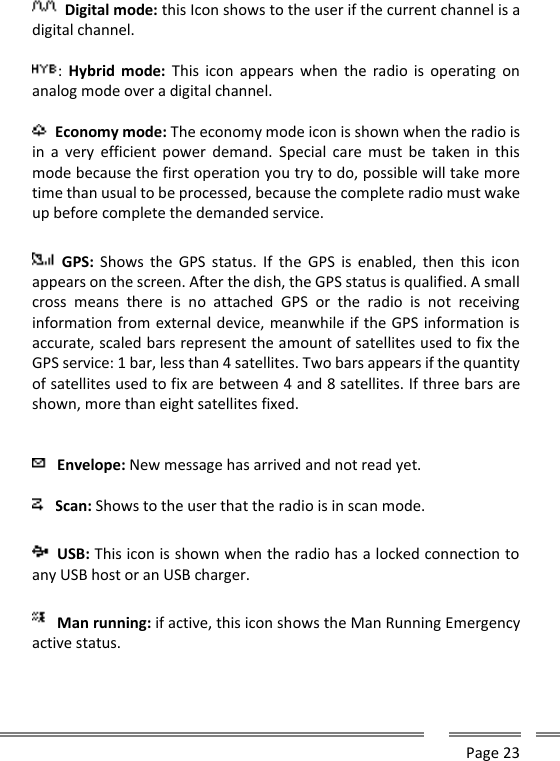
     Page 23    Digital mode: this Icon shows to the user if the current channel is a digital channel.  :  Hybrid  mode:  This  icon  appears when  the  radio  is  operating  on analog mode over a digital channel.   Economy mode: The economy mode icon is shown when the radio is in  a  very  efficient  power  demand.  Special  care  must  be  taken  in  this mode because the first operation you try to do, possible will take more time than usual to be processed, because the complete radio must wake up before complete the demanded service.     GPS:  Shows  the  GPS  status.  If  the  GPS  is enabled, then  this  icon appears on the screen. After the dish, the GPS status is qualified. A small cross  means  there  is  no  attached  GPS  or  the  radio  is  not  receiving information from external device, meanwhile if the GPS information is accurate, scaled bars represent the amount of satellites used to fix the GPS service: 1 bar, less than 4 satellites. Two bars appears if the quantity of satellites used to fix are between 4 and 8 satellites. If three bars are shown, more than eight satellites fixed.  Envelope: New message has arrived and not read yet.  Scan: Shows to the user that the radio is in scan mode.  USB: This icon is shown when the radio has a locked connection to any USB host or an USB charger.   Man running: if active, this icon shows the Man Running Emergency active status.
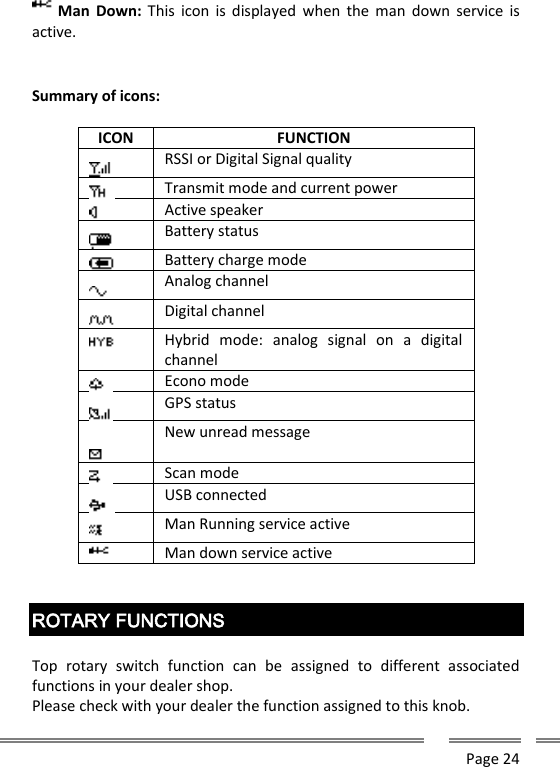
     Page 24  Man  Down:  This  icon  is  displayed  when  the  man  down service  is active.  Summary of icons:  ICON FUNCTION  RSSI or Digital Signal quality  Transmit mode and current power  Active speaker  Battery status  Battery charge mode  Analog channel  Digital channel  Hybrid  mode:  analog  signal  on  a  digital channel  Econo mode  GPS status  New unread message  Scan mode  USB connected  Man Running service active  Man down service active   ROTARY FUNCTIONS  Top  rotary  switch  function  can  be  assigned  to  different  associated functions in your dealer shop.  Please check with your dealer the function assigned to this knob.
     Page 25  Possible functions are:  None: Moving this selector do not generate any operation.  Bank  selector  mode:  move  the  rotary  selector  to  change  the  current channel bank.  Channel Bank: Select current channel relative to the bank.   Scan Group Select: Select the current group of channel to scan between them.  In this mode the radio is Scanning through all the channels programmed in the currently Scan group (programmed on the radio). When a call is received in one of the channels of the scan list, the radio stops, checks if the signaling match the one set for this channel then open the speaker or continue scanning according if the signaling matches or not.   In which channel the call will take place if the user press PTT depends on the radio programming. Please ask to  the radio dealer which mode is currently set.   Trunking Group:  in  a  trunking mode, this input can  be  used  to select between the different trunking dispatch groups  If the rotary is in in a non-programmed position, it will warn the user with an error tone.
     Page 26   LED INDICATOR  A  tri-color  led  indicator  has  been  added  on  your  radio  to  visual communicate the following status.   Lights red: while transmitting.   Lights green: while receiving.  Flashes red: when the battery power is low, once per 2 second when battery charge is under the 5% and once per second when it’s less than 2%.   Orange led blink: an unattended event is available (alert call, message received, etc.).  These functionalities can be disabled on your dealer shop. Please ask to your dealer if you wish no lights on your radio.   SWITCH ON/OFF AND VOLUME SELECTOR   Turn clockwise to switch ON the transceiver. Rotate to adjust the volume. To switch OFF the transceiver, turn it counterclockwise fully.  Your SDR radio has four additional functionalities, which can modify the current volume status:  Minimum  volume  level:  by  programming,  your  radio  can  define  the minimum audio level, even when the volume knob is completely close. On this way, it never loses a call due to low volume.
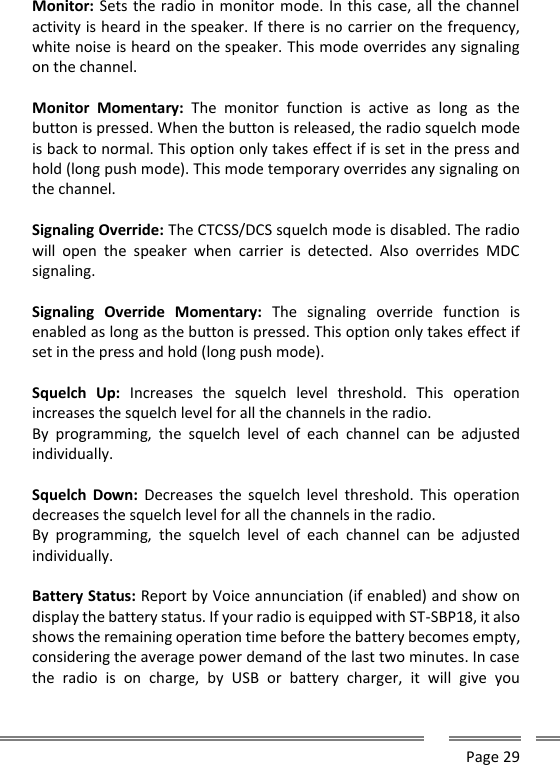
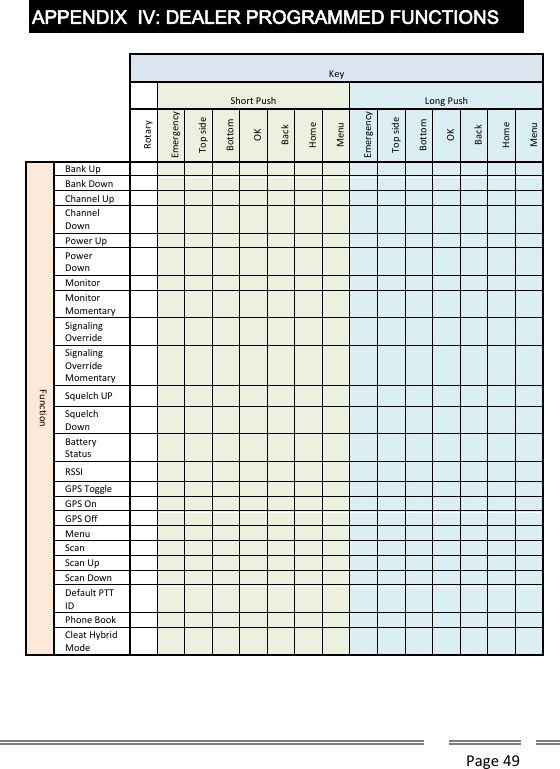
     Page 27  Emergency  volume  override:  In  case  an  emergency  is  on-going,  you radio volume is controlled by the dispatcher who controls the emergency situation.  Auto  Volume:  Your  SDR  radio  can  adjust  the  speaker  audio  level considering the level of the background noise in the environment where you are operating the radio.  Privacy  mode:  The  radio  reduces  the  audio  volume  when  located  in certain angle close to your ear to  let you avoid the disclosure of your communication.  Please check with your dealer about the active features on your radio.   PROGRAMMABLE BUTTONS FUNCTIONS  Each function and side buttons can be programed as your desires.   The functions of the front buttons (OK, BACK, HOME, and MENU) and navigations  keys  (Up,  Down,  Left,  Right)  are  override  when  the  user enters the menu.   There are many possibilities for each  key, regarding the long or short push.  The  functions  to  each  key  are  assigned  for  your  dealer  on programming time.  Functions  of  your  keyboard  are  pre-assigned  by  your dealer  or  programmer.  Please  check  the  assigned function  table  already  programmed  into  your  radio. Some functions may not be active in your programming.
     Page 28    Bank Up: Selects the next bank in the bank list. If the rotary is also set for bank selector, this button action will still change the bank, overriding the top rotary switch position. If your radio is in the end of the list, it will jump to the first bank in your list (roll over)  Bank Down: Selects the previous bank in the bank list. If the rotary is also set  for  bank  selector,  this  button  action  will  still  change  the  bank, overriding the top rotary switch position. If your radio is in the first bank of the list, it will jump to the last bank in your list (roll over)  Channel Up: Selects the next channel in the current channel list  from current bank. If the rotary is also set for channel selector, this button action  will  still  change  the  channel,  overriding  the  top  rotary  switch position. If your radio is in  the end of  the list, it will jump  to the first channel in your channel table (roll over)  Channel Down: Selects the previous channel in the current channel list from  current  bank.  If  the  rotary  is  also  set  for  channel  selector,  this button  action  will  still  change  the  channel,  overriding  the  top  rotary switch position. If your radio is in the first channel of the list, it will jump to the last channel in your channel table (roll over)  Power  Up:  Roll  on  the  radio  transmitting  power.  Possible  values, Low/Mid/High/Auto.  Power  Down:  Change  the  radio  transmitting  power.  Possible  values, Auto/High/Mid/Low.   The power associated to High, Med or Low are adjusted by your dealer or radio programmer. Using the lower power for a communication will save the battery charge.
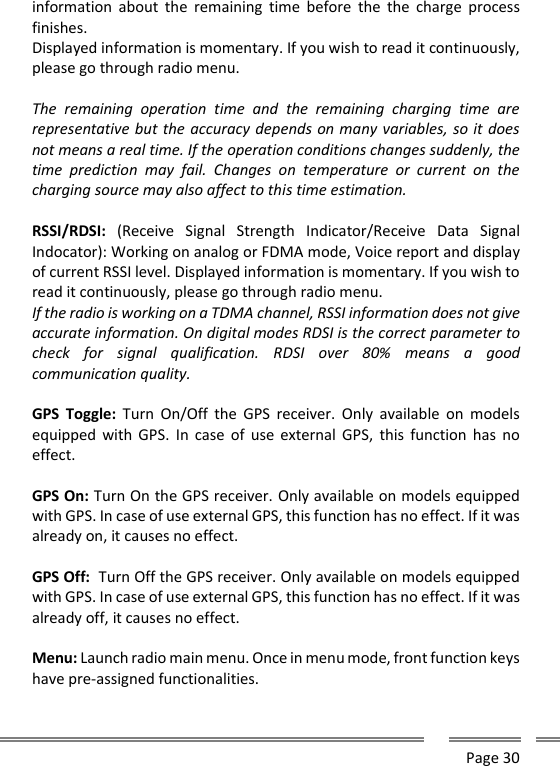
     Page 29  Monitor: Sets the radio in monitor mode. In this case, all the channel activity is heard in the speaker. If there is no carrier on the frequency, white noise is heard on the speaker. This mode overrides any signaling on the channel.  Monitor  Momentary:  The  monitor  function  is  active  as  long  as  the button is pressed. When the button is released, the radio squelch mode is back to normal. This option only takes effect if is set in the press and hold (long push mode). This mode temporary overrides any signaling on the channel.  Signaling Override: The CTCSS/DCS squelch mode is disabled. The radio will  open  the  speaker  when  carrier  is  detected.  Also  overrides  MDC signaling.  Signaling  Override  Momentary:  The  signaling  override  function  is enabled as long as the button is pressed. This option only takes effect if set in the press and hold (long push mode).  Squelch  Up:  Increases  the  squelch  level  threshold.  This  operation increases the squelch level for all the channels in the radio. By  programming,  the  squelch  level  of  each  channel  can  be  adjusted individually.  Squelch  Down:  Decreases the squelch  level  threshold.  This  operation decreases the squelch level for all the channels in the radio. By  programming,  the  squelch  level  of  each  channel  can  be  adjusted individually.  Battery Status: Report by Voice annunciation (if enabled) and show on display the battery status. If your radio is equipped with ST-SBP18, it also shows the remaining operation time before the battery becomes empty, considering the average power demand of the last two minutes. In case the  radio  is  on  charge,  by  USB  or  battery  charger,  it  will  give  you
     Page 30  information  about  the  remaining  time  before  the  the  charge  process finishes. Displayed information is momentary. If you wish to read it continuously, please go through radio menu.   The  remaining  operation  time  and  the  remaining  charging  time  are representative but the accuracy depends on many variables, so it does not means a real time. If the operation conditions changes suddenly, the time  prediction  may  fail.  Changes  on  temperature  or  current  on  the charging source may also affect to this time estimation.   RSSI/RDSI:  (Receive  Signal  Strength  Indicator/Receive  Data  Signal Indocator): Working on analog or FDMA mode, Voice report and display of current RSSI level. Displayed information is momentary. If you wish to read it continuously, please go through radio menu.  If the radio is working on a TDMA channel, RSSI information does not give accurate information. On digital modes RDSI is the correct parameter to check  for  signal  qualification.  RDSI  over  80%  means  a  good communication quality.  GPS  Toggle:  Turn  On/Off  the  GPS  receiver.  Only  available  on  models equipped with  GPS.  In case  of use  external GPS,  this  function has  no effect.  GPS On: Turn On the GPS receiver. Only available on models equipped with GPS. In case of use external GPS, this function has no effect. If it was already on, it causes no effect.  GPS Off:  Turn Off the GPS receiver. Only available on models equipped with GPS. In case of use external GPS, this function has no effect. If it was already off, it causes no effect.  Menu: Launch radio main menu. Once in menu mode, front function keys have pre-assigned functionalities.
     Page 31  Scan: Active the Scan Mode.  Scan Up: Select the Next Scan group into the scan list.  Scan Down: Select the Previous Scan group into the scan list.  Clear PTT ID: In normal operation mode, when any signaling is active, the PTT has an associated addressing  to certain destination ID (private  or group one). In case a temporary ID was assigned to the PTT, by keyboard or phone book, this button allows the user to clear it, going back to the default selection.    MENU  The radio menu gives the user a complete access to the radio for tuning it up and changing the behavior of it according to the user preference. Menu also gives  you the possibility of access to advanced  features as Messaging and E-mail Capabilities.
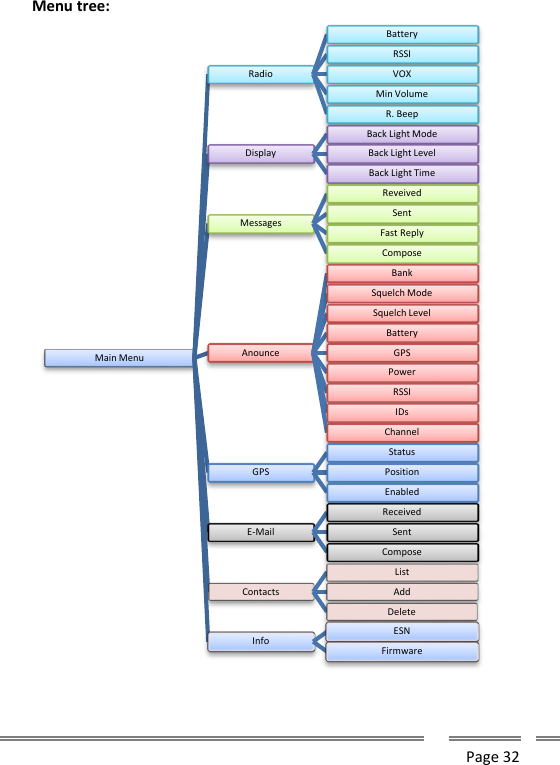
     Page 32  Menu tree:   Main MenuRadioBatteryRSSIVOXMin VolumeR. BeepDisplayBack Light ModeBack Light LevelBack Light TimeMessagesReveivedSentFast ReplyComposeAnounceBankSquelch ModeSquelch LevelBatteryGPSPowerRSSIIDsChannelGPSStatusPositionEnabledE-MailReceivedSentComposeContactsListAddDeleteInfo ESNFirmware
     Page 33  MENU  RADIO Radio: This Submenu gives to the user the possibility of access the radio behavior, appearance and show status of it.    Radio  Battery: shows on the display the battery charge information, including percentage of charge and Time to Empty (TTE) estimated as per last two minutes average power demand. If the radio is on charge, TTE will be changed to Time to Full (TTF), as estimated time to complete the charge. This information will be continuously updated to the display. To exit this mode, press [MENU].  Radio continues in normal operational mode, but display will show this information instead any other related to the current channel and bank.  Radio  RSSI: shows on the display the Received Signal Strength (RSSI) continuously, expressed in –dBm. This information will be continuously updated to the display. To exit this mode, press [MENU]. Radio continues in normal operational mode, but RadioBatteryRSSIVOXEnabledOnOffLevel  0 .. 15Min Volume 0 .. 255R. BeepOnOff
     Page 34  display  will  show  this  information  instead  any  other  related  to  the current channel and bank.  Radio    VOX:  This  option  lets  you  to  enable  the  Voice  Operated Transmit control. If your radio has an external microphone connected to the external microphone input, then you can enable this option.  Radio  VOX  Enable: Select this option to enable or disable the VOX operation.  Once  selected  this  step  by  pressing  [OK],  you  will  see  the actual VOX status. To toggle current status use [UP] or [DOWN] arrow key, then save your selection by pressing [OK]  Radio  VOX  Level: Select this option by pressing [OK] to adjust the threshold  level  of  voice  into  your  microphone  to  switch  the  radio  to transmit mode. Once you enter on level alignment mode, use [UP] or [DOWN] arrow keys to adjust it to your desired value between 0 and 15.  Radio Min Volume: Use this option to adjust the minimum  volume level of your radio, even when the volume knob is at minimum.  Once selected this menu step, use [UP] and [DOWN] arrow keys to select your desired level (0..255). Once selected the right volume, press OK to store it and go back to the Radio Menu. To exit, press [MENU].  Radio  R. Beep: This option lets you to activate a beep tone to be sent over the air to other parties each time you release the PTT (Roger Beep).  Use  [up]  or  [DOWN]  arrow  keys  to  enable  (ON)  or  disable  (OFF)  this feature, the press [OK] to store it. To exit, press [MENU].
     Page 35   MENU  DISPLAY    Display:  This  Submenu  gives  to  the  user  the  possibility  of  adjust  the behavior of the radio display, backlight levels and timeouts.  Display  BL Mode: this step lets you select the back light operation mode. Use [UP] or [DOWN] arrow keys to enable (ON) or disable (OFF) or select (Auto) mode. Press [OK] to store it. To exit, press [MENU].  Display  BL  Mode  Auto:  Automatically  controls  the  behavior  of display backlight. The backlight will be turned ON if any key is pulsed or an incoming signaling matches the radio ID and automatically turned OFF after a programmable timeout.  Display  BL  Mode  On:  Display  backlight  will  be  all  time  on.  This feature is not efficient form battery saving point of view.  Display BL Mode Off: Display Backlight never goes ON.  Display  BL Level: this step lets you select the back light bright. Use [UP] or [DOWN] arrow keys to adjust your desired bright (0 .. 15).  DisplayBack Light ModeAutoOnOffBack Light Level 0 .. 15Back Light Time 0 .. 15
     Page 36  Press [OK] to store it. To exit, press [MENU].  Display  BL Time: this step lets you select the back light timeout. Use [UP] or [DOWN] arrow keys to adjust your desired timer from 0 to 15 seconds.  Press [OK] to store it. To exit, press [MENU].  MENU  MESSAGES   Message: this step will give you full access to the messaging capabilities. Send, Receive, compose, and fast reply.     Message  Received: Use this option to read incoming messages. As soon as you press OK on this option, the display will show the latest incoming message. Scroll through all the list of incoming messages by pressing [UP] or [DOWN] arrows. Once you focus on the desired message, press [OK] to read it fully. MessagesReceivedSent ReviewResendForwardDeleteFast ReplyComposeNote: The message feature is only available for any of the digital modes (FDMA or TDMA) and the user can only access to it if current channel is a digital one.
     Page 37  To exit, press [MENU].  Message  Sent: Select this option to review all sent messages. As soon as you press OK on this option, the display will show the latest message sent from your radio. Scroll through all the list of sent messages by pressing [UP] or [DOWN] arrows. Once you focus on the desired message, press [OK] to read it fully. Press [OK] once more to get the message sent sub-menu, then choose the desired option: Resend, Forward or Delete it.  Message  Sent  Resend: Automatically resend the message to the same destination.  Message  Sent  Forward: lets you edit the message then, as soon as you press [OK] the radio ask to input the destination ID for the message. Use the keyboard to type the destination ID then press [OK] to send it.  Message  Sent   Delete:    Choose this  option to erase the  current message from memory. Once you select the right message, select this option, then you will be asked to confirm the action. You must press [OK] to confirm it or press [BACK] to jump one step back into the menu tree.  Message  Fast Reply: Choose this option to send a message from a pre-recorded list to any ID. Once  you  press  [OK],  you  will  see  the  list  of  pre-recorded  messages enabled by your dealer. Use [UP] and [DOWN] arrow keys to scroll the list. Once focused the right one, press [OK] to confirm or [MENU] to exit. Once you select the right message, input the destination ID and press [OK] to send it.  Message Compose: Use this option to create a  new message to be sent. Once  you  press  [OK],  you  will  get  the  complete  display  to  type  the message using the keyboard.
     Page 38  Press OK once the complete message has been written, then the radio will ask you to type the destination ID for the message. Press [OK] to send it after the ID has been typed. After few  seconds you will receive the message sent  status (sent OK, failed or delayed)   MENU  ANNOUNCEMENTS    Announce: Allows the user to the enable or disable the radio announces. Navigate,  using  [UP]  and  [DOWN]  arrow  keys,  through  the  list  of announcement to be activated or deactivated , then press [OK] to access to the programming mode. Use [UP] and [DOWN] arrow keys to switch the announcement feature ON or OFF then press [OK] to confirm the selection. Announce   Bank: announce  the  current bank  number.  Played  back each time you change the current bank. Announce    Squelch:  Announces  the  current  squelch  mode.  Played back each time you change the squelch mode. Announce  Battery: Announces the actual battery status, including the remaining charge in percentage and the time to finish the charge as per AnounceBankSquelch ModeSquelch LevelBatteryGPSPowerRSSIIDsChannel
     Page 39  the average of the last two minutes of current demand. It is played back when you press a programmed button to check battery level. Announce  GPS: it announces the status of the GPS (ON or OFF). It is played back when you press a programmed button to change GPS status. Announce   Power: It  announces  the  current transmit power  (High, Med,  Low  or  Auto).  It  is played  back  when  you  press  a  programmed button to adjust the transmit power. Announce  RSSI: It announces the current RSSI level when receiving an analog carrier or an FDMA carrier. It is played back when you press a programmed button to check the RSSI. Announce  IDs: It announces the caller ID at the front of an incoming private call (Only on trunking mode). Announce    Channel:  It  announces  the  current  channel  number  on current bank. It is played back only when you change the channel.     MENU  GPS    GPS: Lets you to adjust current GPS status (on/off), shows the status of the GPS receiver and the current position if fixed.  GPS  Status: Shows on display the quantities of satellites used to fix. In case of not fixed yet, it will show NOT FIXED or GPS Disabled. To exit this screen press [MENU] or [BACK] to jump to GPS Menu root.  GPSStatusPositionEnabled
     Page 40  GPS  Position: If fixed, it shows on display the coordinates in latitude and longitude of current location. To exit this screen press [MENU] or [BACK] to jump to GPS Menu root.  GPS  Enabled: lets you manually enable or disable the GPS on you radio (Only for ST-211xy-AG versions). Use [UP] or [DOWN] arrows to enable or disable the GPS then press OK to  confirm  you  selection.  Setting  the  GPS engine OFF  will  reduce  the energy demand.  MENU  E-MAIL    E-Mail: Use this menu to create, read and send E-mails.   E-Mail  Received: Use this option to read incoming e-mails. As soon as you press OK on this option, the display will show the latest incoming e-mail. Scroll through all the list of incoming e-mail by pressing [UP] or [DOWN] arrows. E-MailReceivedSentComposeNote: The e-mail feature is only available for any of the digital modes (FDMA or TDMA) and the user can only access to it if current channel is a digital one. ST-9116 or ST-9118 repeater with e-mail server engine must be present into your infrastructure and the service must be  allowed  for  your  radio  ID  on  the  way  to  send  or receive e-mails.
     Page 41  Once you focus on the desired e-mail, press [OK] to read it fully. To exit, press [Menu].  E-Mail  Sent: Select this option to review all sent e-mails. As soon as you press OK on this option, the display will show the latest e-mail sent from your radio. Scroll through all the list of sent e-mails by pressing [UP] or [DOWN] arrows. Once you focus on the desired e-mail, press [OK] to read it fully. Press [OK] once more to get the e-mail sent sub-menu, then choose the desired option: Resend, Forward or Delete it.  E-mail  Sent  Resend: Automatically resend the e-mails to the same destination.  E-mail  Sent  Forward: lets you edit the e-mail then, as soon as you press [OK] the radio ask to input the destination ID for the e-mail. Use the keyboard to type the destination e-mail address then press [OK] to send it.  E-Mails  Sent  Delete:  Choose this option to erase the current e-mail from memory. Once you select the right e-mail, select this option, then you will be asked to confirm the action. You must press [OK] to confirm it or press [BACK] to jump one step back into the menu tree.  E-Mail  Fast Reply: Choose this option to send a message from a pre-recorded list to any e-mail address. Once  you  press  [OK],  you  will  see  the  list  of  pre-recorded  messages enabled by your dealer. Use [UP] and [DOWN] arrow keys to scroll the list. Once focused the right one, press [OK] to confirm or [MENU] to exit. Once you select the right message, input the destination e-mail address and press [OK] to send it.  E-Mail Compose: Use this option to create a new e-mail to be sent.
     Page 42  Once you press [OK], you will get the complete display to type the e-mail using the keyboard.  Press [OK] once the complete e-mail has been written, then the radio will ask you to type the destination e-mail address for the message. Press [OK] to send it after the address has been typed. After few seconds you will receive the e-mail sent status (sent OK, failed or delayed)   MENU  CONTACTS     Contacts:  Access to the phone book of your radio.  Contacts  List: list down all contacts defined in your radio phone book. Scroll through all the list of contacts by pressing [UP] or [DOWN] arrows. Once you focus on the desired contact name, press [OK] to select it. Once selected,  you  can  address  a  private  call  to  the  selected  contact  by pressing PTT. To exit, press [MENU].  Contacts  Add: Select this option to add a new contact to your phone book. Type  the  contact  information by using  the  keyboard.  Once  you finish, press [OK] then complete the ID number or e-mail address for that contact. Press [OK] to save it in memory or [MENU] to escape.  Contacts  Delete: list down all contacts defined in your radio phone book. Scroll through all the list of contacts by pressing [UP] or [DOWN] ContactsListAddDelete
     Page 43  arrows. Once you focus on the desired contact name, press [OK] to select it then you will be asked to confirm the delete action by pressing [OK] or escape from this option by pressing [MENU]   MENU  INFO    Info: radio information a Firmware Version and Serial Number.  Info  ESN: Temporary shows the Electronic Serial Number of your unit. Press [MENU] to exit or wait for the time-out. Info  Firmware: Temporary shows the firmware release loaded into your radio. Press [MENU] to exit or wait for the time-out.    Info ESNFirmware
     Page 44    APPENDIX I : TYPING  Anytime you must type a message or contact name, you must use radio keyboard.  Each key, when the radio is on typing mode, add one character to your text on cursor position. By  pressing the same key repeatedly within a second, you can choose the new character to add with some key in agree to the following table:  KEY CHARACTER 1 1 ! , ~ % 2 a b c A B C 2 ” 3 d e f D E F 3 # 4 g h I G H I 4 $ 5 j k l J K L 5 %  6 m n o M N O 6 & 7 p q r s P Q R S 7  8 t u v T U V 8 ( 9 w x y z W X Y Z 9 * * . - + / ) ’ ^  0 [space] 0  _   < > °  ; :  # # ; |   To  move  the  writing  cursor  to  the  Right/Left  press  the navigation key [RIGHT]/[LEFT]   To  jump  the  previous/next  line,  press  the  navigations  key [UP]/[DOWN]   To delete a char press the [BACK] key
     Page 45   To finish the Message and send it, press the [OK] Key.   To leave the message press [MENU] Key.
     Page 46  APPENDIX  II : SELECTIVE CALLS   Some radio mode supports selective calling (Analog MDC, digital TDMA or Digital FDMA). By this reason, your radio has an associated ID.  If your radio has been programmed with this feature, you will see your ID into the display notification area.  In case you see only one ID into this area, then it means your radio is in all-call mode, which means your transmission will be received by all your partners each time you press the PTT.  If you wish to make a selective call, then you have two options:  A – Type the destination ID from the Keyboard then press [OK] B – Select the destination ID from radio’s phone book then press [OK]  Any of the modes you choose, lets you address all your transmission to only one user. Destination ID could be also a group ID.   After you select an ID, you can see the destination of your transmissions into the display’s notification area (for example 1001/1002).   In  case  your  destination ID  is  on  your phone  book,  you  can read  the contact name into display’s notification area (for example 1002/Emily).  To receive a selective call, a destination radio must have the selective call enabled.  If so, only the enabled radio will receive each one of your transmissions when you press the PTT under a selective call mode.
     Page 47  The receive radio will decode also your ID and it will shows your into the display  when  it  receives  a  selective  transmission.  In  case  your  ID  is already stored as a contact into the receiving radio’s phone book, then your name will be displayed.  Receiving radio also learns how it should reply when a call is received. Your partner only must press PTT to reply to you in selective call mode simplifying the process.  Both of the radios will remain in selective mode by fifteen seconds after the conversation is over. It is not necessary to address the selective call destination before you press the PTT during a conversation.
     Page 48    APPENDIX  III: CONTACTS  The contact list gives to the user, the possibility of associate numerical IDs  with  user-friendly  names  (Alphanumeric).  The  contact  list  can  be accessed through the menu or using the Function Key programmed for this operation.  The items on the phone list depend on the signaling mode of the current channel  mode.  For  example,  if  you  are  operation  an  analog  channel, when you check the phone book, you only can see the contacts names, which are compatible with such a signaling mode.  If you are composing an e-mail, only e-mail contacts will be listed down on the phone book.
     Page 49  APPENDIX  IV: DEALER PROGRAMMED FUNCTIONS     Key     Short Push Long Push   Rotary Emergency Top side Bottom Side OK Back Home Menu Emergency Top side Bottom Side OK Back Home Menu Function Bank Up                               Bank Down                               Channel Up                               Channel Down                               Power Up                               Power Down                               Monitor                               Monitor Momentary                               Signaling Override                               Signaling Override Momentary                               Squelch UP                               Squelch Down                               Battery Status                               RSSI                               GPS Toggle                               GPS On                               GPS Off                               Menu                               Scan                               Scan Up                               Scan Down                               Default PTT ID                               Phone Book                               Cleat Hybrid Mode
FCC Notices  FEDERAL COMMUNICATIONS COMMISSION INTERFERENCE STATEMENT This equipment has been tested and found to comply with the limits for a Class B digital device, pursuant to part 15 of the FCC Rules. These limits are designed to provide reasonable protection against harmful interference in a residential installation. This equipment generates, uses and can radiate radio frequency energy and, if not installed and used in accordance with the instructions, may cause harmful interference to radio communications. However, there is no guarantee that interference will not occur in a particular installation. If this equipment does cause harmful interference to radio or television reception, which can be determined by turning the equipment off and on, the user is encouraged to try to correct the interference by one or more of the following measures: -Reorient or relocate the receiving antenna. -Increase the separation between the equipment and receiver. -Connect the equipment into an outlet on a circuit different from that to which the receiver is connected. -Consult the dealer or an experienced radio/ TV technician for help.   CAUTION: Any changes or modifications not expressly approved by the grantee of this device could void the user's authority to operate the equipment   Use only shielded cables to connect I/O device to this equipment. You are cautioned that changes or modifications not expressly approved by the party responsible for compliance could void your authority to operate the equipment.   RF exposure warning · This device meets the government’s requirements for exposure to radio waves. This device is designed and manufactured not to exceed the emission limits for exposure to radio frequency (RF) energy set by the Federal Communications Commission of the U.S. Government.  The exposure standard employs a unit of measurement known as the Specific Absorption Rate, or SAR. The SAR limit set by the FCC is 8 W/kg. Tests for SAR are conducted using standard operating positions accepted by the FCC with the EUT transmitting at the specified power level in different channels.  The FCC has granted an Equipment Authorization for this device with all reported SAR levels evaluated as in compliance with the FCC RF exposure guidelines. SAR information on this device is on file with the FCC and can be found under the Display Grant section of www.fcc.gov/eot/ea/fccid after searching on FCC ID: M38-ST-2112D  To ensure that RF exposure levels remain at or below the tested levels, use a belt-clip, holster, or similar accessory no contain any metal that guarantees a minimum separation distance of 0mm between your body and the device.

Navigation menu