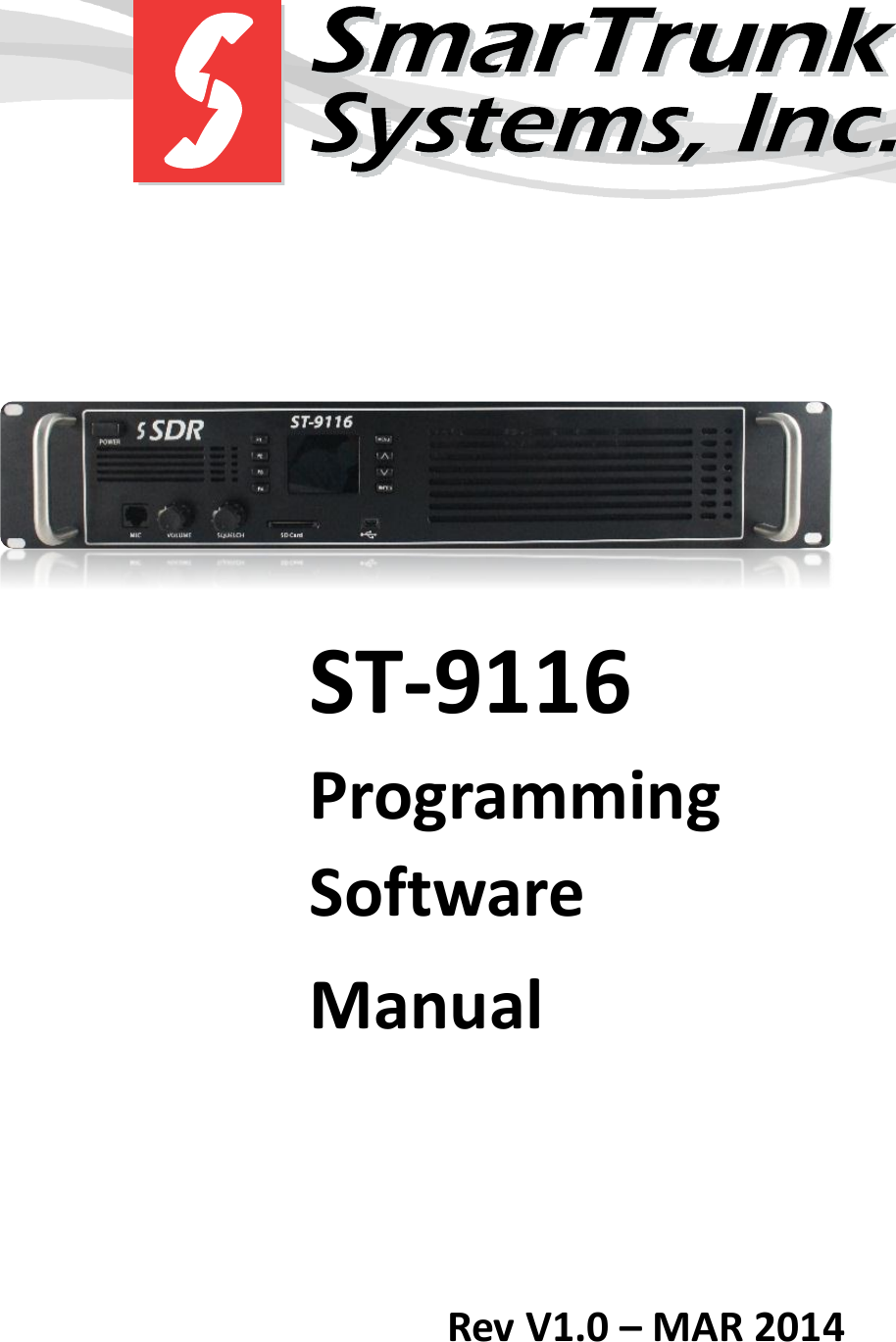
Ranger Communications ST-9116D Repeater User Manual rev

Ranger Communications (M) SDN. BHD. Repeater rev

user manual rev

         ST-9116 Programming Software Manual   Rev V1.0 – MAR 2014
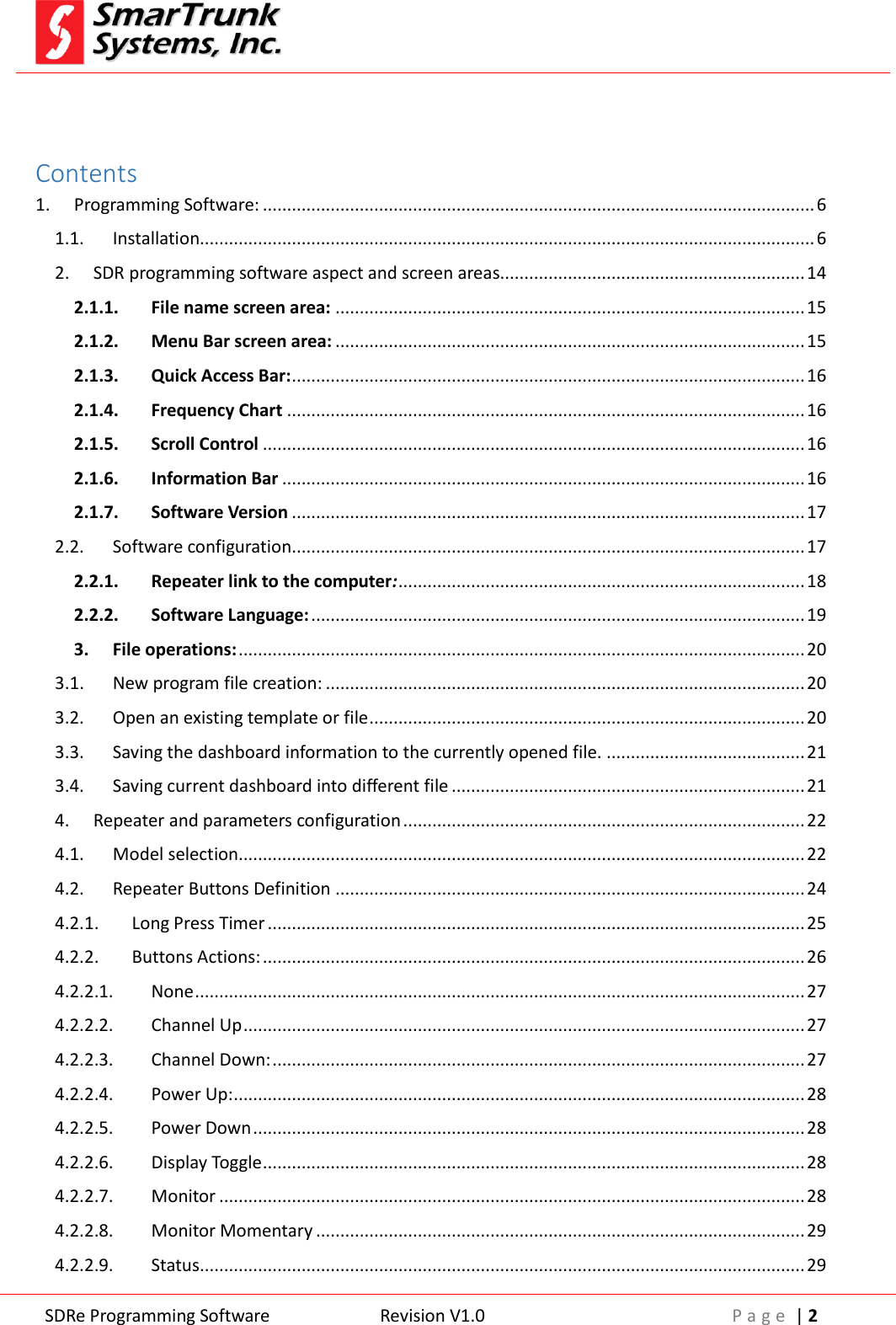
 SDRe Programming Software Revision V1.0 P a g e  | 2   Contents 1. Programming Software: .................................................................................................................. 6 1.1. Installation............................................................................................................................... 6 2. SDR programming software aspect and screen areas............................................................... 14 2.1.1. File name screen area: ................................................................................................. 15 2.1.2. Menu Bar screen area: ................................................................................................. 15 2.1.3. Quick Access Bar: .......................................................................................................... 16 2.1.4. Frequency Chart ........................................................................................................... 16 2.1.5. Scroll Control ................................................................................................................ 16 2.1.6. Information Bar ............................................................................................................ 16 2.1.7. Software Version .......................................................................................................... 17 2.2. Software configuration.......................................................................................................... 17 2.2.1. Repeater link to the computer: .................................................................................... 18 2.2.2. Software Language: ...................................................................................................... 19 3. File operations: ..................................................................................................................... 20 3.1. New program file creation: ................................................................................................... 20 3.2. Open an existing template or file .......................................................................................... 20 3.3. Saving the dashboard information to the currently opened file. ......................................... 21 3.4. Saving current dashboard into different file ......................................................................... 21 4. Repeater and parameters configuration ................................................................................... 22 4.1. Model selection..................................................................................................................... 22 4.2. Repeater Buttons Definition ................................................................................................. 24 4.2.1. Long Press Timer ............................................................................................................... 25 4.2.2. Buttons Actions: ................................................................................................................ 26 4.2.2.1. None .............................................................................................................................. 27 4.2.2.2. Channel Up .................................................................................................................... 27 4.2.2.3. Channel Down: .............................................................................................................. 27 4.2.2.4. Power Up: ...................................................................................................................... 28 4.2.2.5. Power Down .................................................................................................................. 28 4.2.2.6. Display Toggle ................................................................................................................ 28 4.2.2.7. Monitor ......................................................................................................................... 28 4.2.2.8. Monitor Momentary ..................................................................................................... 29 4.2.2.9. Status ............................................................................................................................. 29
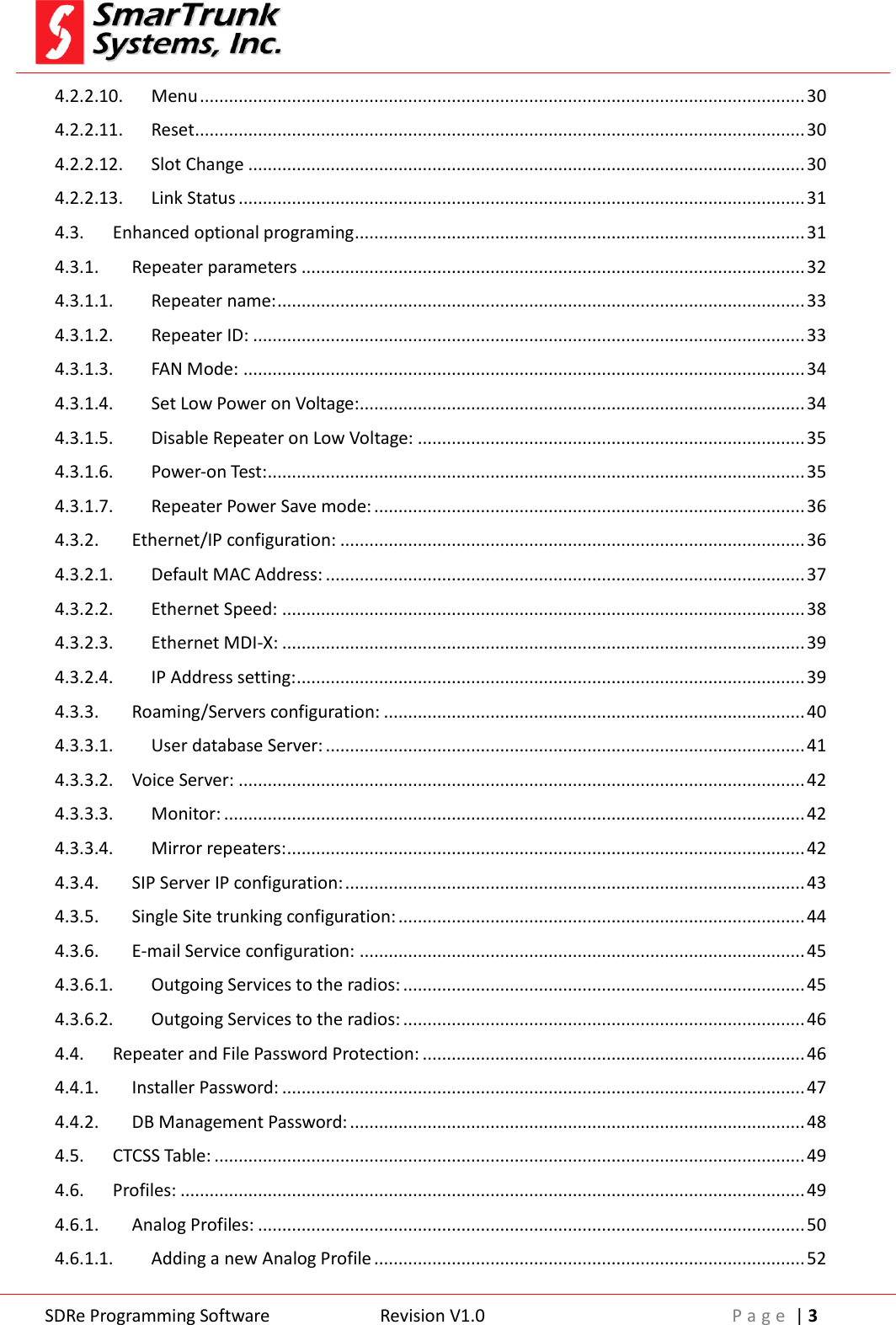
 SDRe Programming Software Revision V1.0 P a g e  | 3  4.2.2.10. Menu ............................................................................................................................. 30 4.2.2.11. Reset .............................................................................................................................. 30 4.2.2.12. Slot Change ................................................................................................................... 30 4.2.2.13. Link Status ..................................................................................................................... 31 4.3. Enhanced optional programing ............................................................................................. 31 4.3.1. Repeater parameters ........................................................................................................ 32 4.3.1.1. Repeater name: ............................................................................................................. 33 4.3.1.2. Repeater ID: .................................................................................................................. 33 4.3.1.3. FAN Mode: .................................................................................................................... 34 4.3.1.4. Set Low Power on Voltage:............................................................................................ 34 4.3.1.5. Disable Repeater on Low Voltage: ................................................................................ 35 4.3.1.6. Power-on Test: ............................................................................................................... 35 4.3.1.7. Repeater Power Save mode: ......................................................................................... 36 4.3.2. Ethernet/IP configuration: ................................................................................................ 36 4.3.2.1. Default MAC Address: ................................................................................................... 37 4.3.2.2. Ethernet Speed: ............................................................................................................ 38 4.3.2.3. Ethernet MDI-X: ............................................................................................................ 39 4.3.2.4. IP Address setting: ......................................................................................................... 39 4.3.3. Roaming/Servers configuration: ....................................................................................... 40 4.3.3.1. User database Server: ................................................................................................... 41 4.3.3.2. Voice Server: ..................................................................................................................... 42 4.3.3.3. Monitor: ........................................................................................................................ 42 4.3.3.4. Mirror repeaters: ........................................................................................................... 42 4.3.4. SIP Server IP configuration: ............................................................................................... 43 4.3.5. Single Site trunking configuration: .................................................................................... 44 4.3.6. E-mail Service configuration: ............................................................................................ 45 4.3.6.1. Outgoing Services to the radios: ................................................................................... 45 4.3.6.2. Outgoing Services to the radios: ................................................................................... 46 4.4. Repeater and File Password Protection: ............................................................................... 46 4.4.1. Installer Password: ............................................................................................................ 47 4.4.2. DB Management Password: .............................................................................................. 48 4.5. CTCSS Table: .......................................................................................................................... 49 4.6. Profiles: ................................................................................................................................. 49 4.6.1. Analog Profiles: ................................................................................................................. 50 4.6.1.1. Adding a new Analog Profile ......................................................................................... 52
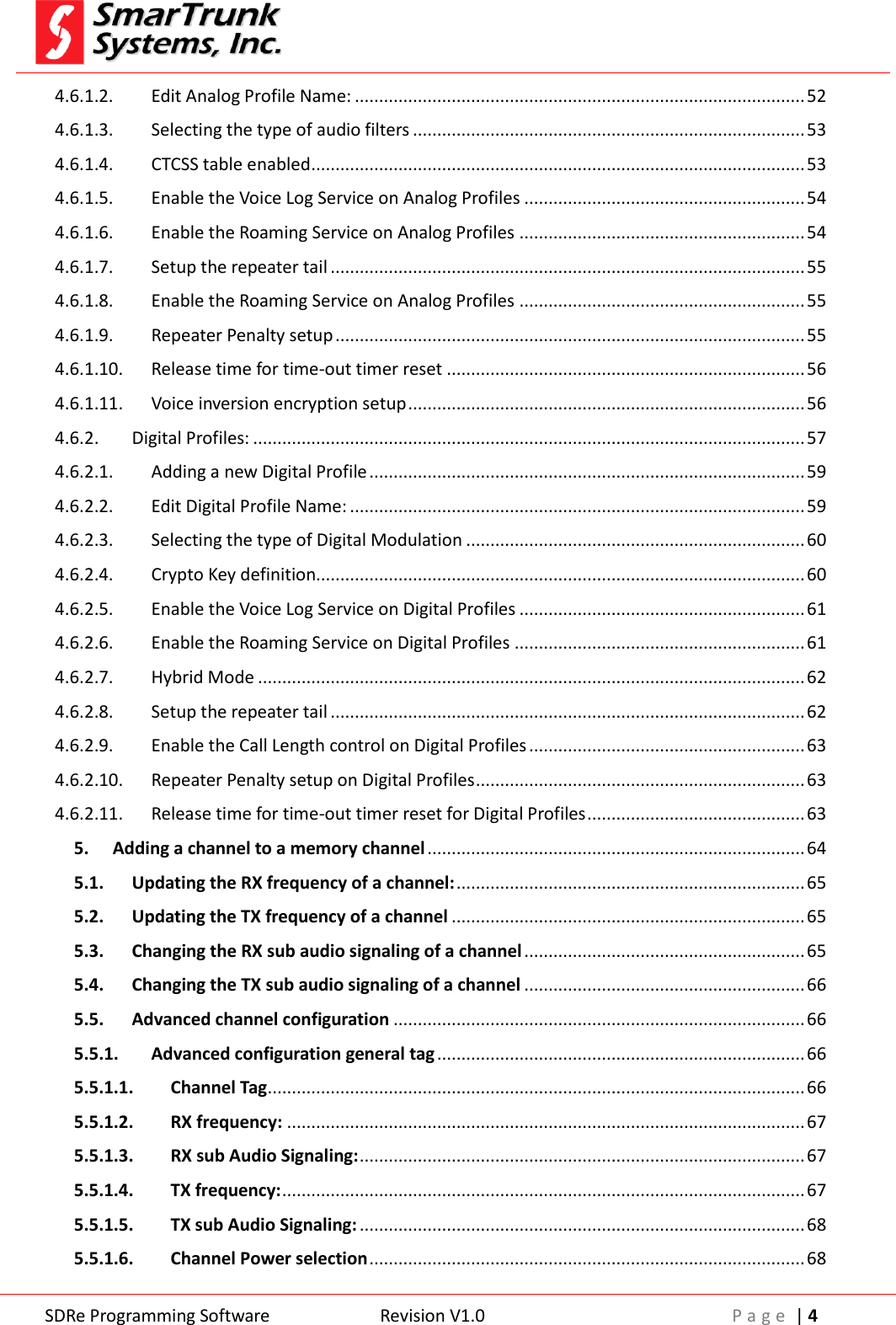
 SDRe Programming Software Revision V1.0 P a g e  | 4  4.6.1.2. Edit Analog Profile Name: ............................................................................................. 52 4.6.1.3. Selecting the type of audio filters ................................................................................. 53 4.6.1.4. CTCSS table enabled ...................................................................................................... 53 4.6.1.5. Enable the Voice Log Service on Analog Profiles .......................................................... 54 4.6.1.6. Enable the Roaming Service on Analog Profiles ........................................................... 54 4.6.1.7. Setup the repeater tail .................................................................................................. 55 4.6.1.8. Enable the Roaming Service on Analog Profiles ........................................................... 55 4.6.1.9. Repeater Penalty setup ................................................................................................. 55 4.6.1.10. Release time for time-out timer reset .......................................................................... 56 4.6.1.11. Voice inversion encryption setup .................................................................................. 56 4.6.2. Digital Profiles: .................................................................................................................. 57 4.6.2.1. Adding a new Digital Profile .......................................................................................... 59 4.6.2.2. Edit Digital Profile Name: .............................................................................................. 59 4.6.2.3. Selecting the type of Digital Modulation ...................................................................... 60 4.6.2.4. Crypto Key definition..................................................................................................... 60 4.6.2.5. Enable the Voice Log Service on Digital Profiles ........................................................... 61 4.6.2.6. Enable the Roaming Service on Digital Profiles ............................................................ 61 4.6.2.7. Hybrid Mode ................................................................................................................. 62 4.6.2.8. Setup the repeater tail .................................................................................................. 62 4.6.2.9. Enable the Call Length control on Digital Profiles ......................................................... 63 4.6.2.10. Repeater Penalty setup on Digital Profiles .................................................................... 63 4.6.2.11. Release time for time-out timer reset for Digital Profiles ............................................. 63 5. Adding a channel to a memory channel .............................................................................. 64 5.1. Updating the RX frequency of a channel: ........................................................................ 65 5.2. Updating the TX frequency of a channel ......................................................................... 65 5.3. Changing the RX sub audio signaling of a channel .......................................................... 65 5.4. Changing the TX sub audio signaling of a channel .......................................................... 66 5.5. Advanced channel configuration ..................................................................................... 66 5.5.1. Advanced configuration general tag ............................................................................ 66 5.5.1.1. Channel Tag ............................................................................................................... 66 5.5.1.2. RX frequency: ........................................................................................................... 67 5.5.1.3. RX sub Audio Signaling: ............................................................................................ 67 5.5.1.4. TX frequency: ............................................................................................................ 67 5.5.1.5. TX sub Audio Signaling: ............................................................................................ 68 5.5.1.6. Channel Power selection .......................................................................................... 68
 SDRe Programming Software Revision V1.0 P a g e  | 5  5.5.1.7. Squelch Sensitivity .................................................................................................... 69 5.5.1.8. Channel bandwidth .................................................................................................. 69 5.5.1.9. Channel mode selection ........................................................................................... 70 5.5.1.10. Channel Profile Selection: ........................................................................................ 70 6. Reading the Repeater programming from the device ......................................................... 71 7. Writing a radio file ................................................................................................................ 73 8. Repeater Alignment ............................................................................................................. 74 9. Repeater factory Reset ......................................................................................................... 74 10. Repeater Firmware Update: ............................................................................................. 76 11. Exit from Programming software ..................................................................................... 77 12. Manual software update .................................................................................................. 78 13. List of Figures .................................................................................................................... 80
 SDRe Programming Software Revision V1.0 P a g e  | 6   1. Programming Software:  ST-9116 repeater  has been  equipped with USB  3.0 compatible port  and Ethernet 802.3 network port.  Programming  software  has  been  designed  to  let  you  control  any  of  the repeater features, looking for simplification of the programming process.   1.1. Installation  As  you  are  a  SmarTrunk  distributor,  the  last  updated  programming software is available on your shared server area (Drop Box). You also can download it form our web site: http://www.smartrunk.com/softwares/SDR/SDRe_Programmer_software.exe Please run the installation software by double click on the file name: This file is a self-extractor program, which will proceed to install SDRe programming software for ST-91xx series of SmarTrunk Repeaters. The  SDR  programmer  software  has  been  designed  to  be  compatible  with  Microsoft  Windows  XP, Windows 7 and Windows 8, in 32 or 64 bits version. If your operative system does not matches any of these options, please contact us to mailto:techsupport@smartrunk.com Note: 1 - SDR Programming Software Compatibility
 SDRe Programming Software Revision V1.0 P a g e  | 7   Figure 1: SDR programming software welcome screen  Click on [Next] to start the installation process. You will be prompted to introduce the destination folder. By default it is: C:\Program Files (x86)\Smartrunk\SDRe_Programmer However, you can change it as per your convenience.
 SDRe Programming Software Revision V1.0 P a g e  | 8   Figure 2: SDR programming software file location setup       Click on [Next] to continue or [Back] to return to previous step. Please be sure that you have, at least, minimum free space in your destination disk as per the recommended on this screen Note: 2 Disk space requirement
 SDRe Programming Software Revision V1.0 P a g e  | 9   Figure 3: Start Menu destination  Please type the desired Menu folder where you will find the shortcut to run the software once installed into your computer. Default name is: SDRe Programmer Software Click on [Next] to continue or [Back] to return to the previous step.
 SDRe Programming Software Revision V1.0 P a g e  | 10   Figure 4: Additional task to be performed by installation software   If you do not want to create a shortcut into desktop, then uncheck the mark. Click on [Next] to continue or [Back] to return to the previous step.
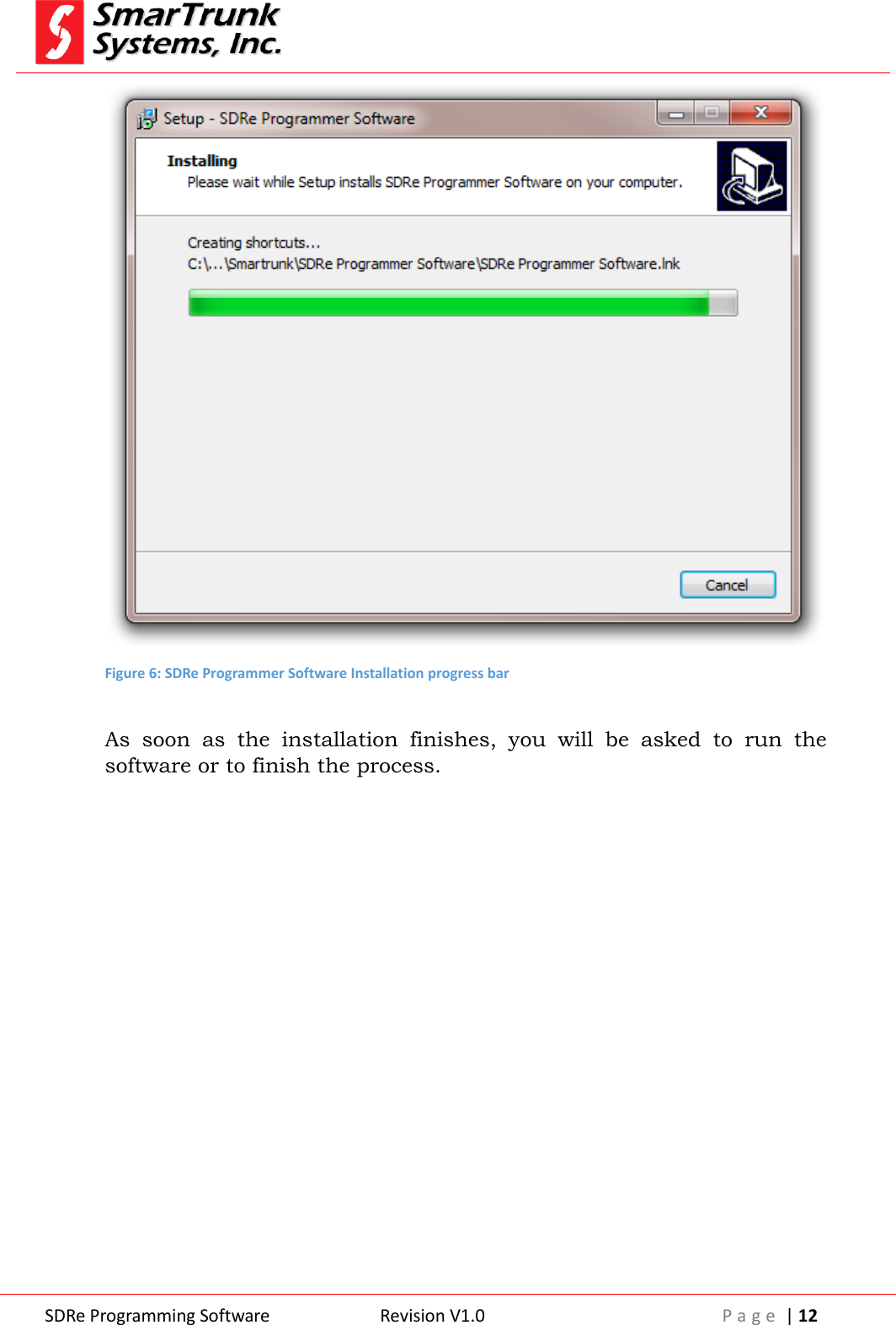
 SDRe Programming Software Revision V1.0 P a g e  | 11   Figure 5: Installation parameters review   Check the option listed to ensure it is in agree to your desired setting, then press [Install] to proceed with the installation or press [Back] to return to the previous step  As  soon  as  you  press  install,  the  progress  bar  shows  you  the installation process evolution. It will take only few seconds to perform.
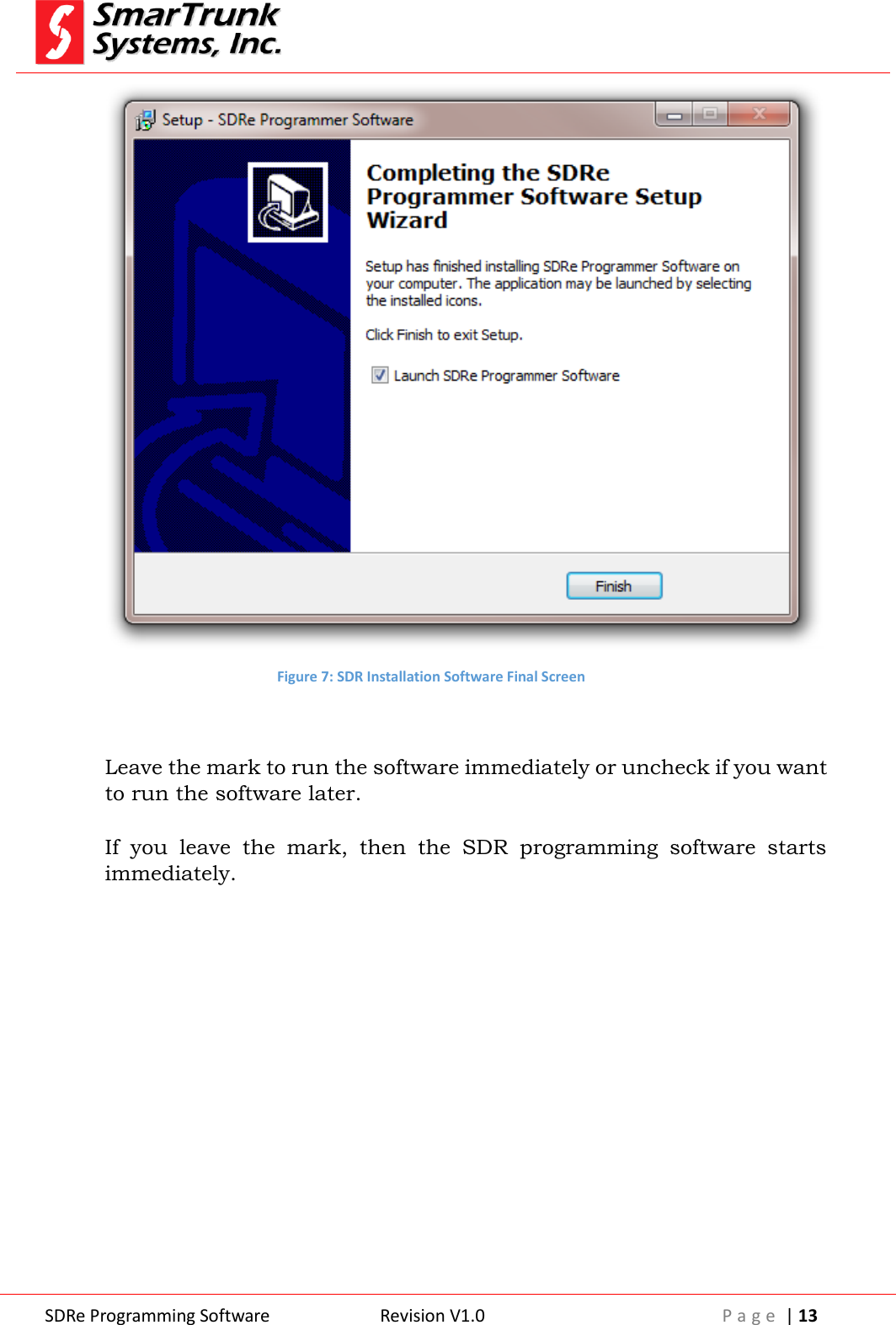
 SDRe Programming Software Revision V1.0 P a g e  | 12   Figure 6: SDRe Programmer Software Installation progress bar  As  soon  as  the  installation  finishes,  you  will  be  asked  to  run  the software or to finish the process.
 SDRe Programming Software Revision V1.0 P a g e  | 13   Figure 7: SDR Installation Software Final Screen   Leave the mark to run the software immediately or uncheck if you want to run the software later.  If  you  leave  the  mark,  then  the  SDR  programming  software  starts immediately.
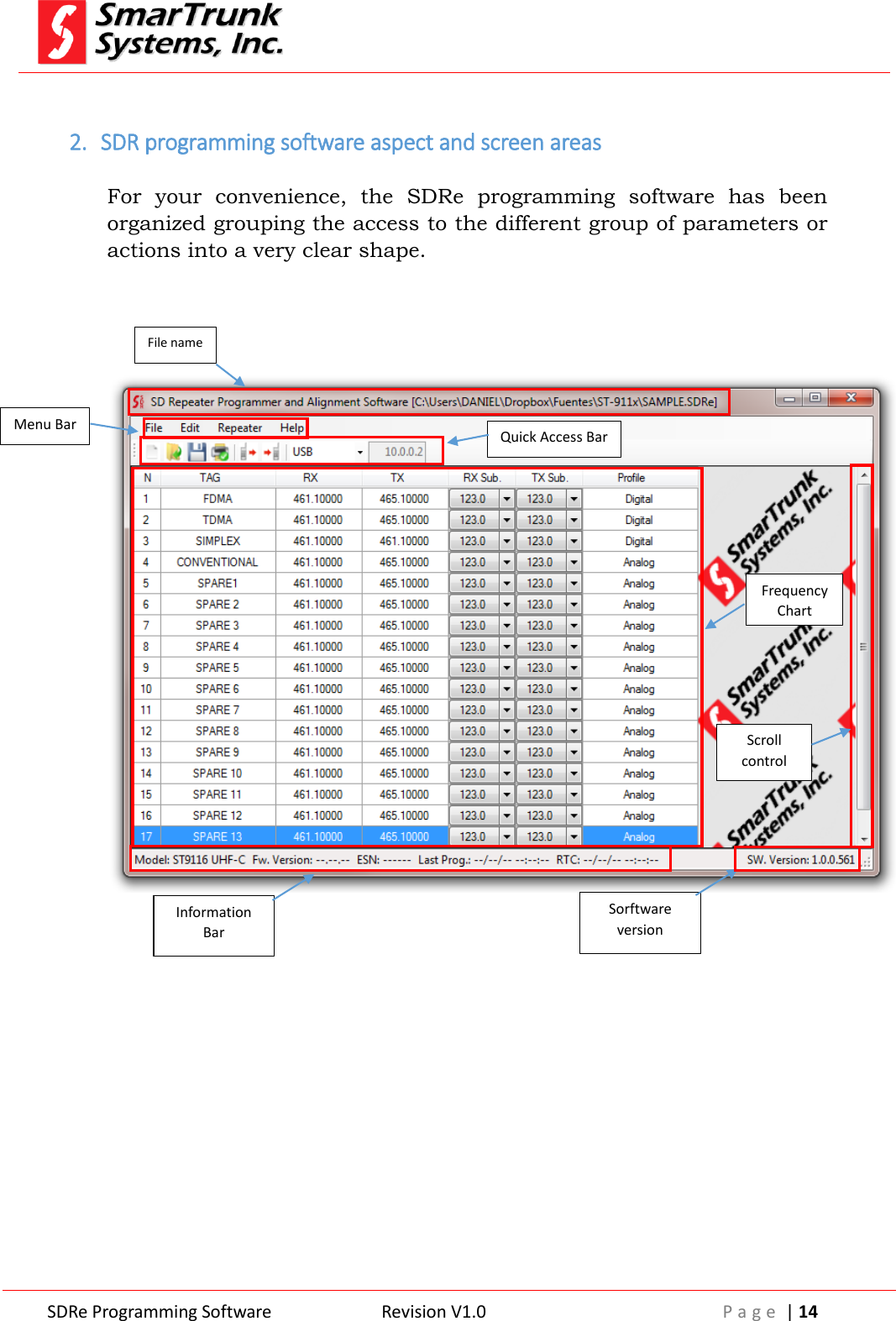
 SDRe Programming Software Revision V1.0 P a g e  | 14   2. SDR programming software aspect and screen areas  For  your  convenience,  the  SDRe  programming  software  has  been organized grouping the access to the different group of parameters or actions into a very clear shape.                     File name Menu Bar Quick Access Bar Frequency Chart Scroll control Information Bar Sorftware version
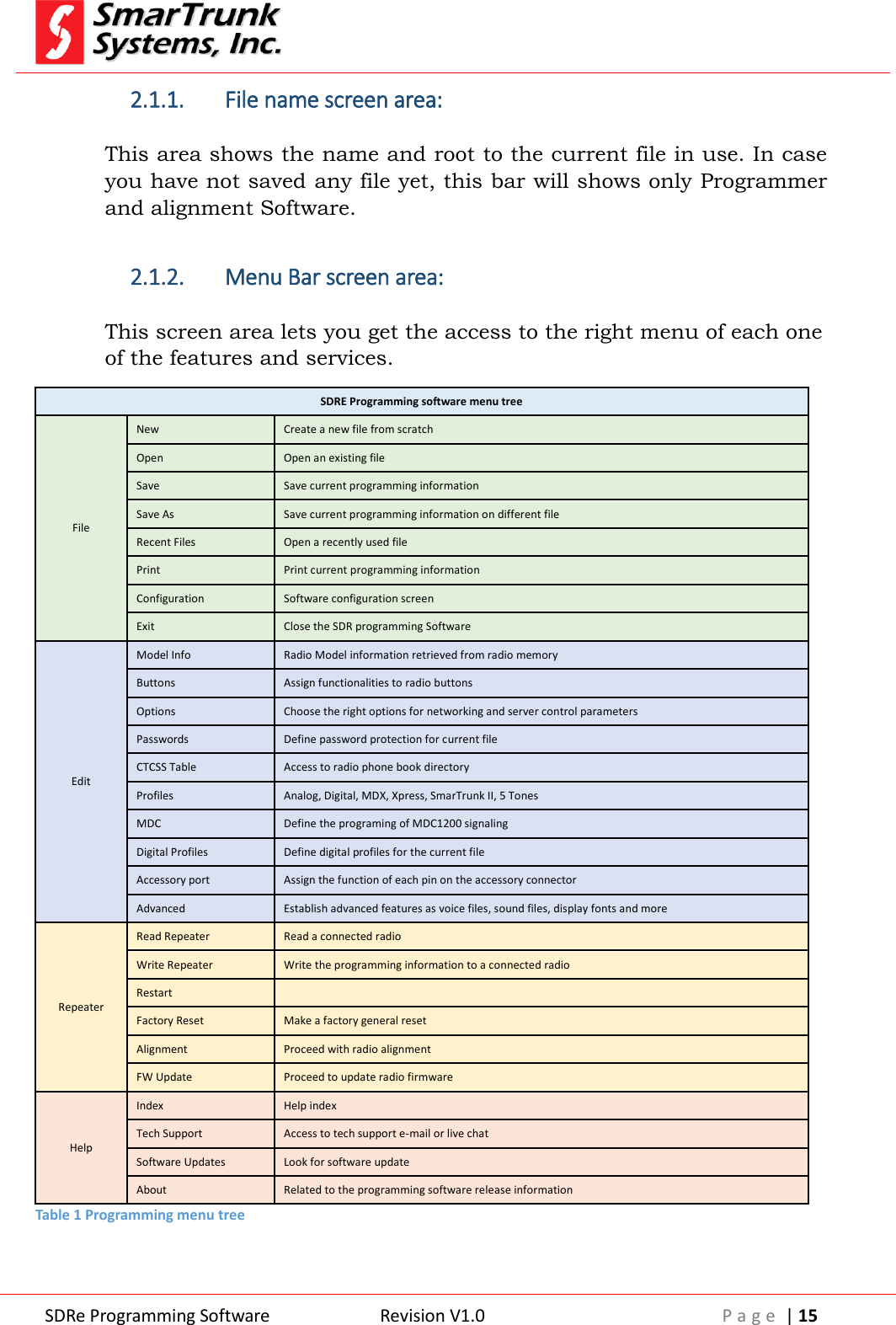
 SDRe Programming Software Revision V1.0 P a g e  | 15  2.1.1. File name screen area:  This area shows the name and root to the current file in use. In case you have not saved any file yet, this bar will shows only Programmer and alignment Software.  2.1.2. Menu Bar screen area:  This screen area lets you get the access to the right menu of each one of the features and services. SDRE Programming software menu tree File New Create a new file from scratch Open Open an existing file Save Save current programming information Save As Save current programming information on different file Recent Files Open a recently used file Print Print current programming information Configuration Software configuration screen Exit Close the SDR programming Software Edit Model Info Radio Model information retrieved from radio memory Buttons Assign functionalities to radio buttons  Options Choose the right options for networking and server control parameters Passwords Define password protection for current file CTCSS Table Access to radio phone book directory Profiles Analog, Digital, MDX, Xpress, SmarTrunk II, 5 Tones MDC Define the programing of MDC1200 signaling Digital Profiles Define digital profiles for the current file Accessory port Assign the function of each pin on the accessory connector Advanced Establish advanced features as voice files, sound files, display fonts and more Repeater Read Repeater Read a connected radio Write Repeater Write the programming information to a connected radio Restart   Factory Reset Make a factory general reset Alignment Proceed with radio alignment FW Update Proceed to update radio firmware Help Index Help index Tech Support Access to tech support e-mail or live chat Software Updates Look for software update About Related to the programming software release information Table 1 Programming menu tree
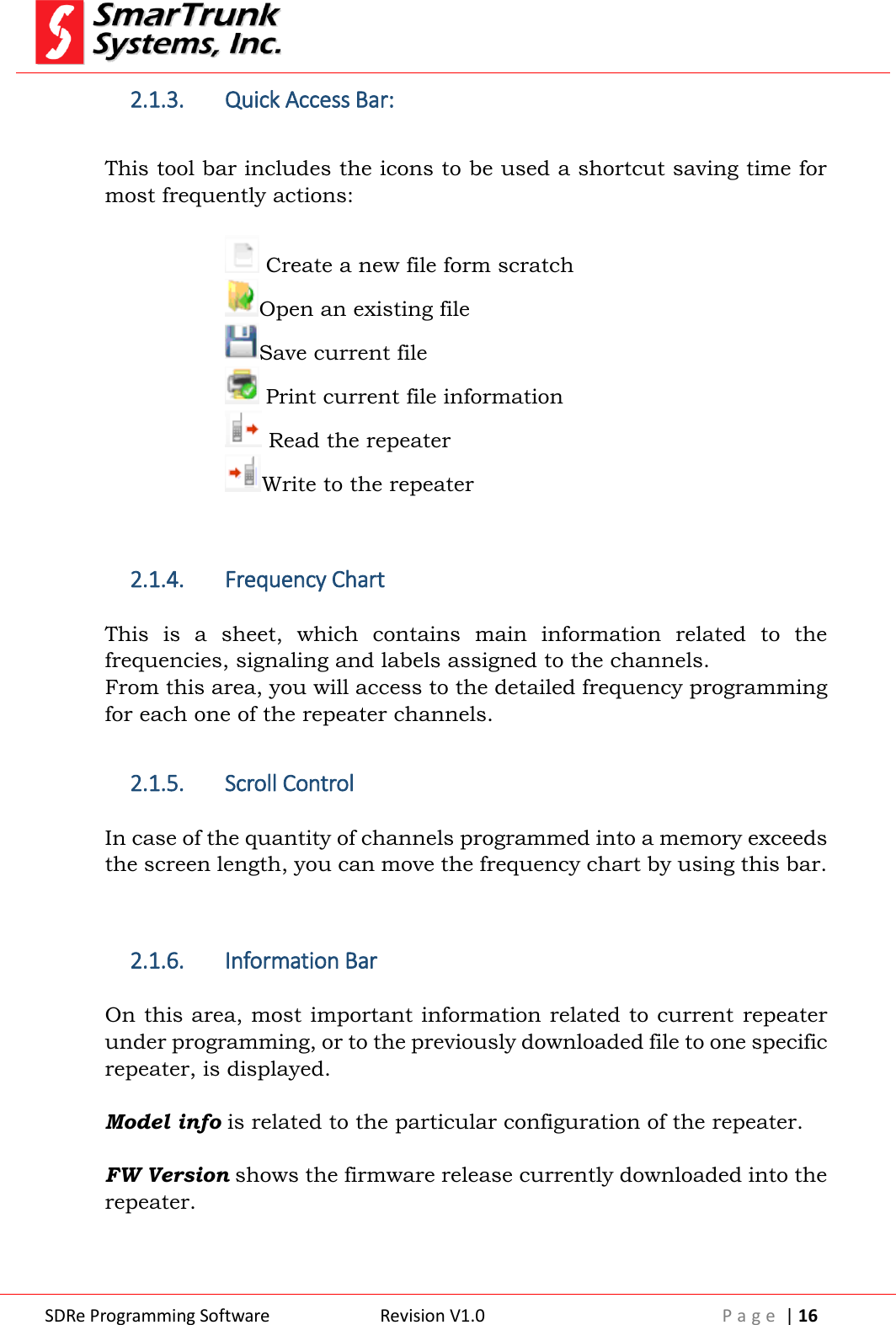
 SDRe Programming Software Revision V1.0 P a g e  | 16  2.1.3. Quick Access Bar:  This tool bar includes the icons to be used a shortcut saving time for most frequently actions:   Create a new file form scratch Open an existing file Save current file  Print current file information  Read the repeater Write to the repeater   2.1.4. Frequency Chart  This  is  a  sheet,  which  contains  main  information  related  to  the frequencies, signaling and labels assigned to the channels. From this area, you will access to the detailed frequency programming for each one of the repeater channels.  2.1.5. Scroll Control  In case of the quantity of channels programmed into a memory exceeds the screen length, you can move the frequency chart by using this bar.   2.1.6. Information Bar  On this area, most important information related to current  repeater under programming, or to the previously downloaded file to one specific repeater, is displayed.  Model info is related to the particular configuration of the repeater.  FW Version shows the firmware release currently downloaded into the repeater.
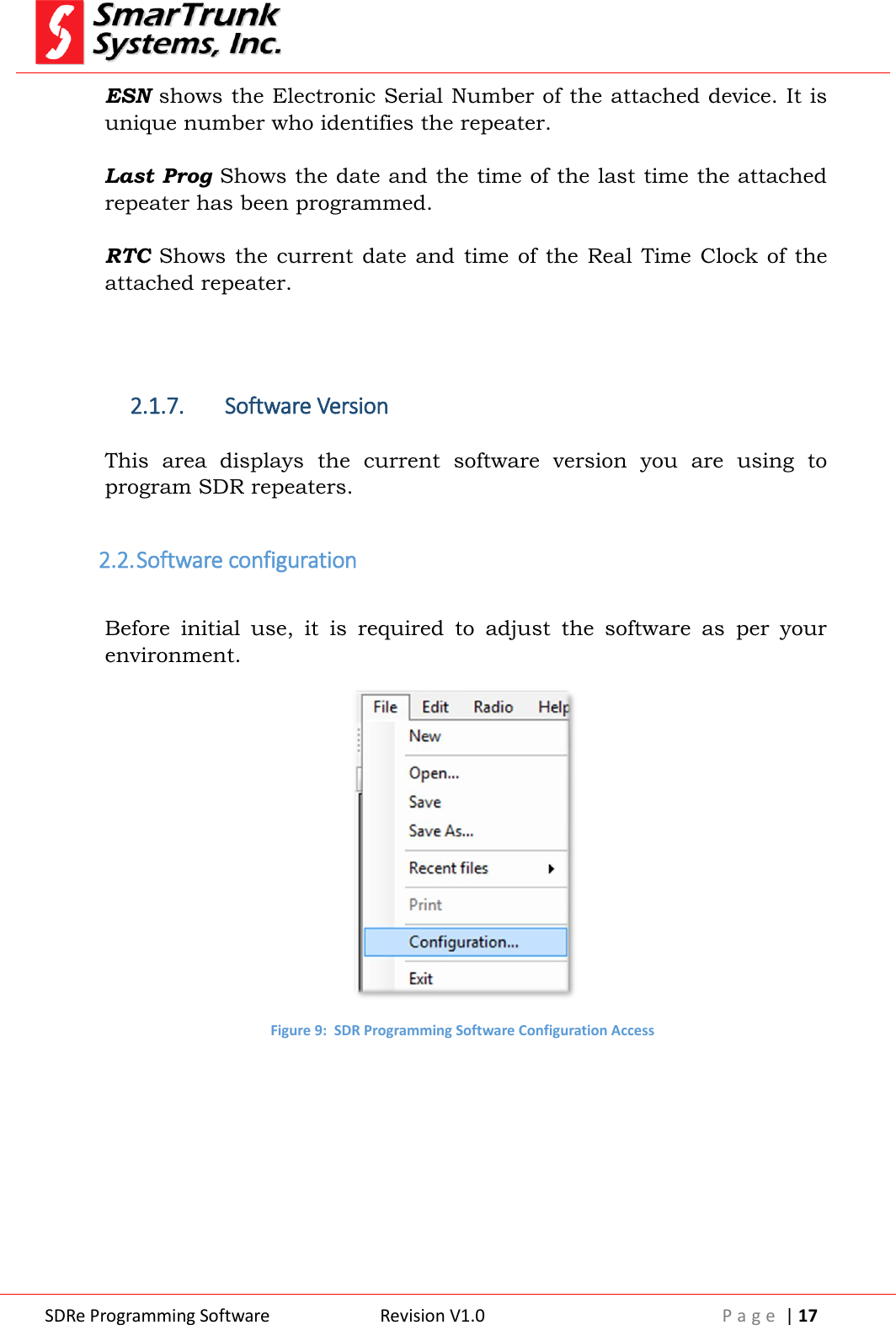
 SDRe Programming Software Revision V1.0 P a g e  | 17  ESN shows the Electronic Serial Number of the attached device. It is unique number who identifies the repeater.  Last Prog Shows the date and the time of the last time the attached repeater has been programmed.  RTC Shows  the  current date  and time  of  the Real Time Clock  of the attached repeater.    2.1.7. Software Version  This  area  displays  the  current  software  version  you  are  using  to program SDR repeaters.  2.2. Software configuration  Before  initial  use,  it  is  required  to  adjust  the  software  as  per  your environment.   Figure 9:  SDR Programming Software Configuration Access
 SDRe Programming Software Revision V1.0 P a g e  | 18  As  soon  as  you  click  on  [Configuration],  the  right  configuration screen pops up.   Figure 10: SDRe Programming Software Configuration Screen  2.2.1. Repeater link to the computer:    You  can  choose  to  connect  your  radios  to  the  computer  by  USB (default) or TCP/IP media protocol.  In case of USB media connection to the radio, it should be required to install the drivers for your USB device. As soon as you plug a SDR repeater to the computer through the USB  port,  you  will  be  prompted  to  install the  driver. Installation software already copy the files into the selected directory you have introduced  into  the  installation  time,  under  {Drivers}  folder:  For example:  C:\Program Files (x86)\SmarTrunk\SDRe_Programmer\Driver  Once  you  complete  driver  installation,  the  connection  to  the repeater will be done automatically. The drivers must be installed only once.  As SDR repeater is not a standard device included into MW Windows library, you must install the drivers before read or write a radio. Note: 3 - Driver installation alert for USB Media Connection
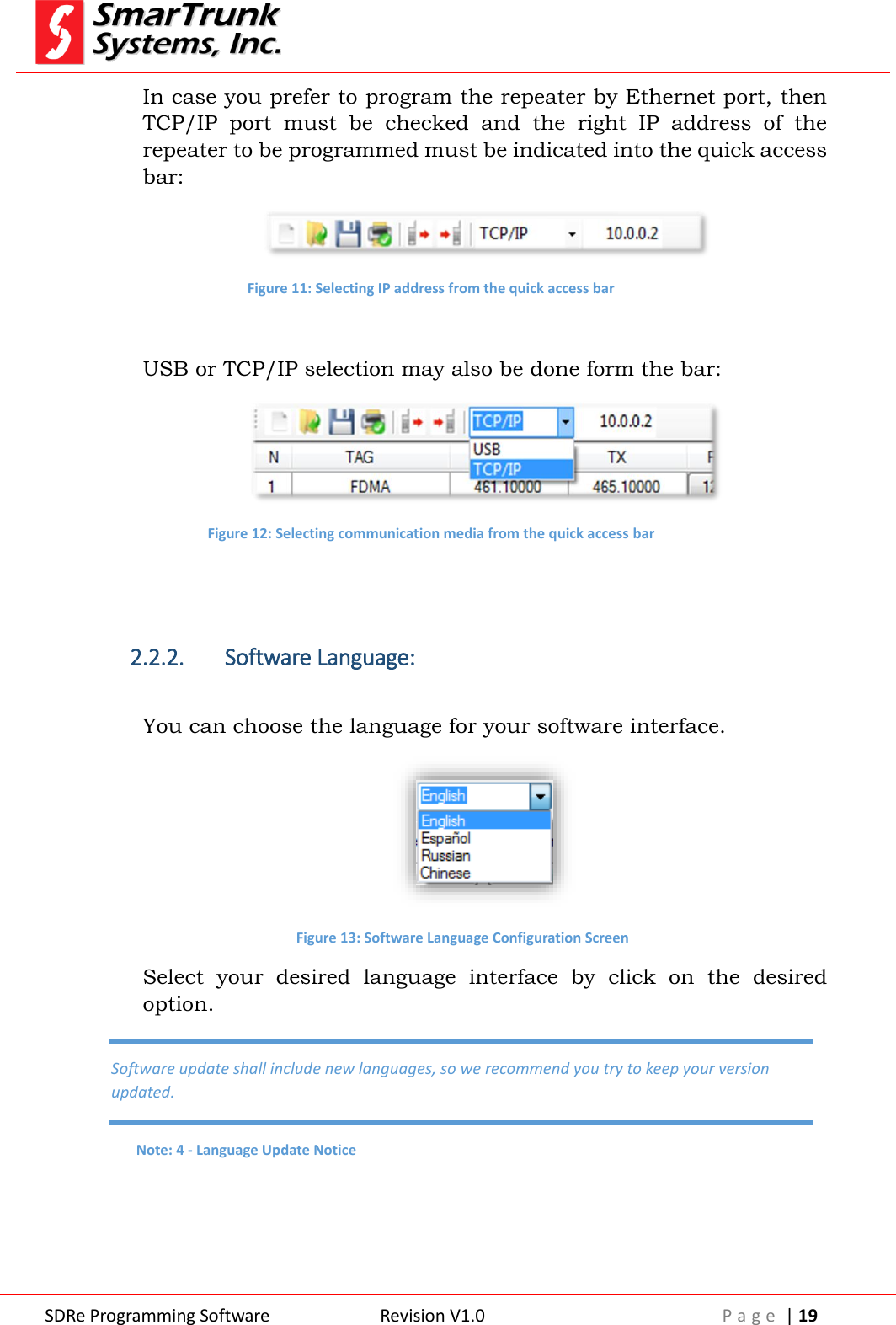
 SDRe Programming Software Revision V1.0 P a g e  | 19  In case you prefer to program the repeater by Ethernet port, then TCP/IP  port  must  be  checked  and  the  right  IP  address  of  the repeater to be programmed must be indicated into the quick access bar:  Figure 11: Selecting IP address from the quick access bar  USB or TCP/IP selection may also be done form the bar:  Figure 12: Selecting communication media from the quick access bar   2.2.2. Software Language:  You can choose the language for your software interface.  Figure 13: Software Language Configuration Screen Select  your  desired  language  interface  by  click  on  the  desired option.    Software update shall include new languages, so we recommend you try to keep your version updated. Note: 4 - Language Update Notice
 SDRe Programming Software Revision V1.0 P a g e  | 20  3. File operations:  3.1. New program file creation:  Evenly when in the future you can use existing files as templates to define the programming file of a repeater, the first time you must start from scratch, cleaning the dashboard. To create a new file you can use the quick access bar then click on the new file shortcut or goes through [File] menu, and then select [New]  Figure 14: New file access through File menu    3.2. Open an existing template or file  To open an existing file or a template, please proceed to click on [File] then [Open].
 SDRe Programming Software Revision V1.0 P a g e  | 21   Figure 15: Accessing to open an existing file or template As soon as you clock on [Open] a windows Explorer screen will help you to find the file. You can also use the shortcut from the quick bar . Once  you  found  the file,  click  on  [Open]  to  load  the  information  into your programming software dashboard.  3.3. Saving the dashboard information to the currently opened file.  To save current information on the programming software dashboard, you  can  press  [File]  then  [Save].  The  currently  opened  file  will  be updated. Alternatively, you can also use the icon in the quick access bar:    3.4. Saving current dashboard into different file  To save current information on the programming software dashboard but in different file, you can press [File] then [Save As].  A typical windows Explorer screen will prompt you to input the desired file name and find the file location. Once selected it, the information will be saved into the file. In case the selected file name exists, the software will alert you to before overwrite it.
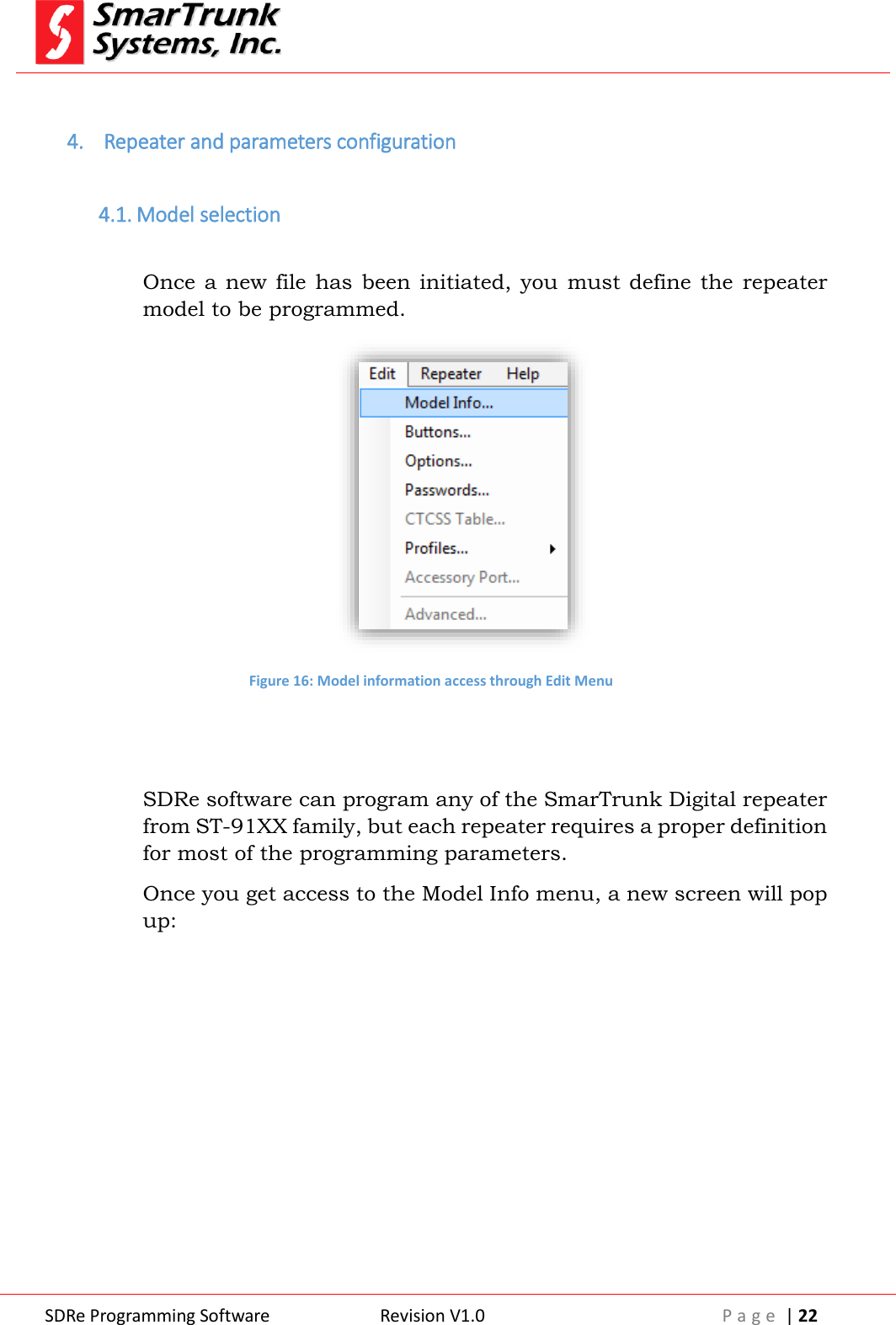
 SDRe Programming Software Revision V1.0 P a g e  | 22   4.  Repeater and parameters configuration  4.1. Model selection  Once a new  file  has  been  initiated, you  must  define the  repeater model to be programmed.  Figure 16: Model information access through Edit Menu   SDRe software can program any of the SmarTrunk Digital repeater from ST-91XX family, but each repeater requires a proper definition for most of the programming parameters. Once you get access to the Model Info menu, a new screen will pop up:
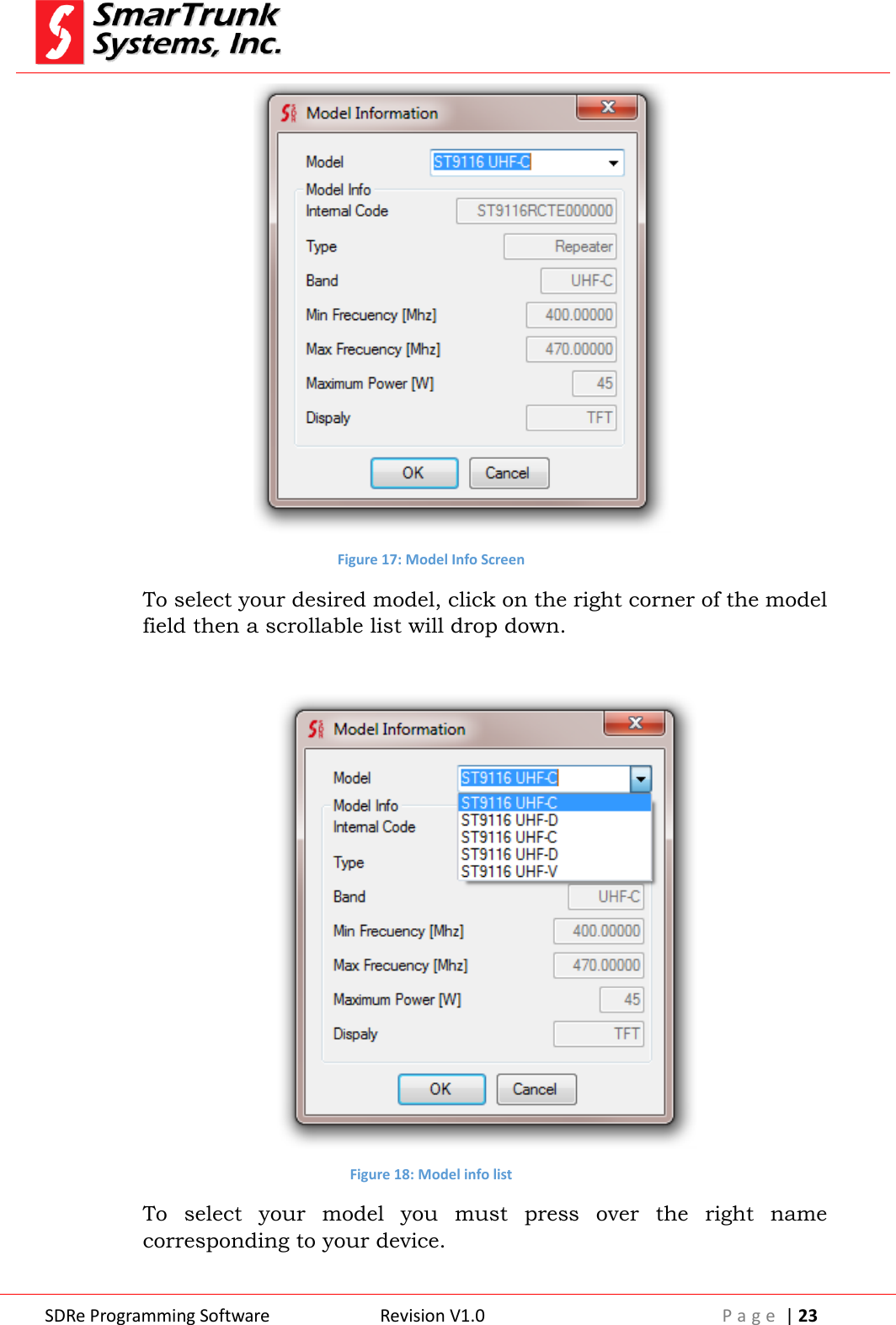
 SDRe Programming Software Revision V1.0 P a g e  | 23   Figure 17: Model Info Screen To select your desired model, click on the right corner of the model field then a scrollable list will drop down.   Figure 18: Model info list To  select  your  model  you  must  press  over  the  right  name corresponding to your device.
 SDRe Programming Software Revision V1.0 P a g e  | 24  If  your  repeater  model  is  not  in  your  list,  please  update  your software. If you are not sure about your model info, you can read the repeater by  pressing  the  read  button  on  the  quick  access  bar  once  your repeater is connected through the Ethernet port or USB cable with the computer where the SDRe programming software is running. Model info is also into the serial number label in the backside of your repeater. Once the model is selected, the correct frequency range, max power and accessories are enabled into the model info screen. Model: is the general model of the radio family. Internal Code: is a production code assigned to the repeater into the manufacturing process. Radio Type: is the type of device. Min Freq: Refer to the lowest operational frequency, which can be programmed into your repeater. Max Freq: Refer to the lowest operational frequency, which can be programmed into your repeater. Maximum Power: Is  the maximum  power  supported  by your RF TX configuration. It may be different, depending on the region. Display: Shows the type of display of the repeater Once selected the right model press [OK] to accept it.  4.2. Repeater Buttons Definition  Before using the repeater, you must assign the functionality of each one of the repeater buttons. Please  click  on  [Edit]  then  [Buttons]  to  access  to  the  buttons definition screen. It is important to keep your software updated to ensure any SDRe repeater is into the model info list. If your model is not into the current list, please update your repeater Note: 5 - Incomplete model info list requires software update
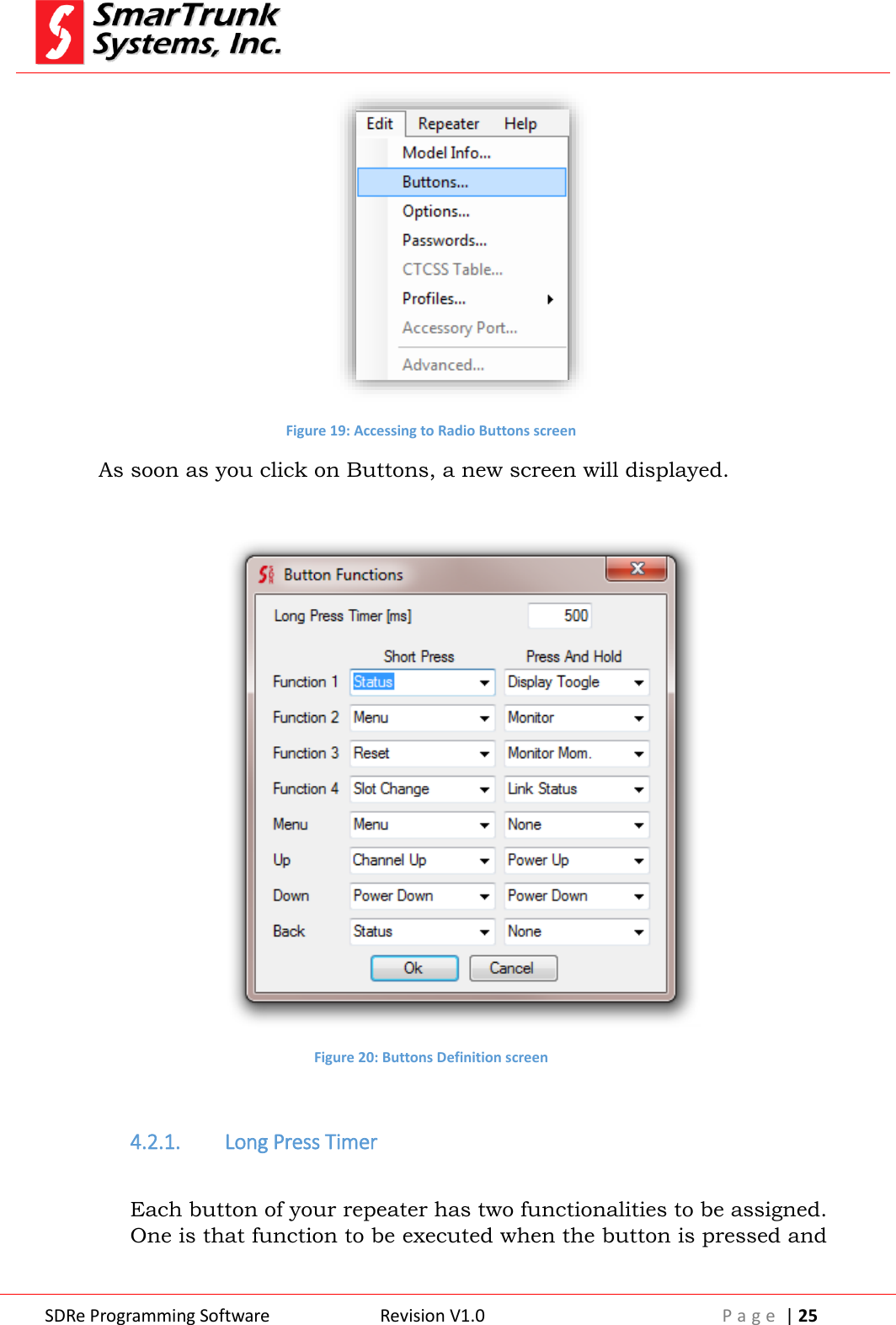
 SDRe Programming Software Revision V1.0 P a g e  | 25   Figure 19: Accessing to Radio Buttons screen As soon as you click on Buttons, a new screen will displayed.    Figure 20: Buttons Definition screen  4.2.1. Long Press Timer  Each button of your repeater has two functionalities to be assigned. One is that function to be executed when the button is pressed and
 SDRe Programming Software Revision V1.0 P a g e  | 26  released immediately and the other is that function to be executed when the button is pressed by long time. Long Press timer is the minimum time in milliseconds [ms] that a key must be held to be considered as Press and Hold action. This parameter can be adjusted form 100msec up to 2500 msec. Please define it as per your convenience.   4.2.2. Buttons Actions:  The Buttons Definition Screen lets you to assign different functions to repeater buttons. Click on the side arrow to open the selection list of possible functions to be assigned to any of the buttons, and then click on the desired function to be assigned.  Figure 21: Assigning the function to a button  To finish the function assignment, press [Ok] to return to the main dashboard. Press And Hold means a long push function assigned to such button.
 SDRe Programming Software Revision V1.0 P a g e  | 27  Depending on the application firmware loaded into your radio core, some functions may not be allowed to be selected or defined. Depending  on  the  kind  of  button,  some  functionalities  are  not allowed. The actions to be assigned to the buttons are:  4.2.2.1. None  Use this option to disable the button.   4.2.2.2. Channel Up  Assign this command to move one-step up on the list of channels. One Channel up means select the previous channel on the list of channels  defined  on  the  main  SDRe  programming  software dashboard. If the current selected channel selected is the top one on the list of channels, then it will jump to the last channel on the list when this action is executed. In case only one channel is programmed on the current memory bank, this action takes no effect.   4.2.2.3. Channel Down:  Assign  this  command  to  move  one-step  down  on  the  list  of channels. One Channel down means select the next channel on the list of channels defined for the current list on the main SDRe programming software dashboard. If  the  current  selected  channel  is  the  last  one  on  the  list  of channels, then it will jump to the first channel on the list when this action is executed. In case only one channel is programmed on the current memory bank, this action takes no effect.
 SDRe Programming Software Revision V1.0 P a g e  | 28  4.2.2.4. Power Up:  Assign this command to change the RF output power selection. This command will jump from Low Power to Mid Power, from Mid Power to High Power, from High Power to Low Power, depending on the current power selection. The  absolute  power  assigned  to  each  power  selection  must  be aligned as per Alignment section descripted on Service manual.  4.2.2.5. Power Down  Assign  this  command  to  scroll  the  RF  output  power  selection. This command will jump from High Power to Mid Power, from Mid Power to Low Power, from Low Power to High Power, depending on the current power selection. The  absolute  power  assigned  to  each  power  selection  must  be aligned as per Alignment section descripted on Service manual.  4.2.2.6. Display Toggle  Commonly, the display backlight goes to power off mode after 10 seconds. If you want to let it continuously on by 12 hours, assign this function  to  one button then you can toggle between power save backlight mode and long term backlight on. This function is useful for in-site maintenance or inspection.  4.2.2.7. Monitor  Assign this command to open the audio path without any signaling or carrier level consideration. This command only operates on analog and hybrid mode. As this function does not care about any signaling, if you assign it to some button, then you may know that the system privacy may be affected when this function is active Note: 6 - Monitor privacy warning for a fleet
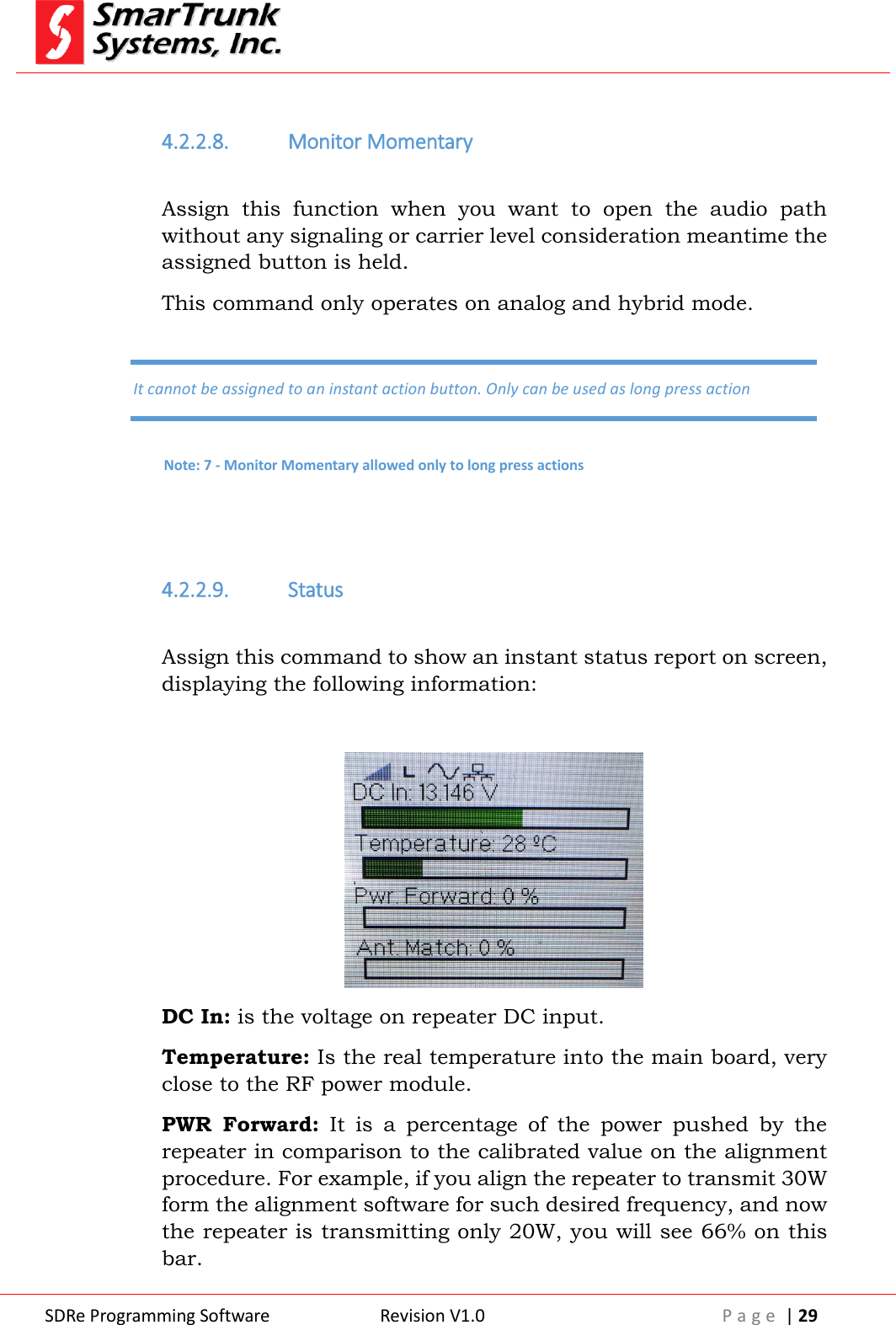
 SDRe Programming Software Revision V1.0 P a g e  | 29   4.2.2.8. Monitor Momentary  Assign  this  function  when  you  want  to  open  the  audio  path without any signaling or carrier level consideration meantime the assigned button is held. This command only operates on analog and hybrid mode.   4.2.2.9. Status  Assign this command to show an instant status report on screen, displaying the following information:   DC In: is the voltage on repeater DC input. Temperature: Is the real temperature into the main board, very close to the RF power module. PWR  Forward:  It  is  a  percentage  of  the  power  pushed  by  the repeater in comparison to the calibrated value on the alignment procedure. For example, if you align the repeater to transmit 30W form the alignment software for such desired frequency, and now the repeater is transmitting only 20W, you will see 66% on this bar. It cannot be assigned to an instant action button. Only can be used as long press action Note: 7 - Monitor Momentary allowed only to long press actions
 SDRe Programming Software Revision V1.0 P a g e  | 30  ANT  Match:  This  bar  shows  you  the  result  of  the  comparison between  the  SWR  at  calibration  time  related  with  actual  SWR status.  100%  means  the  antenna  remains  working  as  at  the installation time.    4.2.2.10. Menu  Assign  this  command  to  let  the  user  access  to  the  general repeater menu.    4.2.2.11. Reset  Assign this command to restart the repeater loading a set of new desired  parameters.  Current  call  will  be  terminated  and  traffic report and voice logger will be discarded.  4.2.2.12. Slot Change  Assign  this  command  to  change  the  time slot  addressed  to  the speaker for TDMA call monitoring.  Pwr. Forward and Antenna matching must be calibrated once the repeater has been installed by aligning the RF power for the operation frequency, using the proper antenna, duplexer or combiners. These values are a clear reference but it does not operate as a calibrated instrument. Note: 8 – Power and antenna matching calibration On Once the main menu is accessed, navigation control keys function are overridden getting the default navigation functions Home, Back, OK and Menu Exit Note: 9 - Alternative navigation keys function under menu mode alert
 SDRe Programming Software Revision V1.0 P a g e  | 31  4.2.2.13. Link Status  Assign this command to check IP link status. The following screen will shows you the complete status:   4.3. Enhanced optional programing   On  this  step,  you  can  configure  some  networking  parameters  and services features.  Figure 22: Option screen access through Edit Menu bar As soon as  you click on  Options, the  Optional  programming features screen will pops up.
 SDRe Programming Software Revision V1.0 P a g e  | 32   Figure 23: Options Program screen To save the setting press [Ok] or [Cancel] to exit without saving the data changes 4.3.1. Repeater parameters  This area lest you set some parameters:
 SDRe Programming Software Revision V1.0 P a g e  | 33   Figure 24: Repeater Parameters tab  4.3.1.1. Repeater name:  This is  an  Alphanumeric  Nickname  assigned  to  the  repeater  to get an easy access to this reference in the future, when you must administrate a network.  4.3.1.2. Repeater ID:  This is a very important parameter in case you define a network of  repeaters  into  the  system.  This  ID  will  help  to  identify  each repeater sharing the same IP address. The ID must be unique into the entire system. Please be sure you are not defining the same ID for two repeaters into the same network. Repeater ID is also used for Voting management. Note: 10 – Unique ID advertence
 SDRe Programming Software Revision V1.0 P a g e  | 34   4.3.1.3. FAN Mode:  The operating temperature of the repeater may not exceed 100°C [212°F].  Depending  on  environmental  conditions,  the  internal FAN will help the heat-sync to keep temperature under the limit, extending the repeater performance. Press on the arrow to list down the possible values:  Figure 25: FAN Setting Auto:  The  FAN  will  work  controlled  by  repeater  temperature limits  programed  on  the  alignment  procedure  (See  ST-9116 Service manual – Alignment).  On: The FAN will remains all time on. This option will demand more  quiescent  current  than  required  becoming  inefficient.  It should be useful for high temperature environments. Off: The FAN never will blow.   4.3.1.4. Set Low Power on Voltage:  If the DC power voltage drops under the limit programmed on this field, then the repeater will jump to the low RF power programed for the  repeater  to  save  battery.  This  feature  is  especially  useful  for solar-powered sites or when the site works on power back up during a possible AC failure.   Figure 26: Low power on low voltage setting
 SDRe Programming Software Revision V1.0 P a g e  | 35    4.3.1.5. Disable Repeater on Low Voltage:  If the DC voltage is too low, then the repeater will be automatically moved to stand-by mode serving only to emergencies.   Figure 27: Disable the repeater on low voltage  4.3.1.6. Power-on Test:  Check this box  if you want  the  repeater  transmit a  test  carrier with some specific modulation when turned on as an additional routine to the power-on test.  Figure 28: Power on test setting Test Frequency is the frequency to be used to perform this test. Expected RSSI is the loop value measured between TX and RX. Value lower than expected means poor TX power. Higher values means poor RX-TX isolation.    Target value to Expected RSSI depends on each installation, so you can use a test channel programmed into same TX than RX frequency and read the loop value on the main RX screen once you hit the repeater. As this is a loop, you must reset the repeater once you get the RSSI value Note: 11 – RSSI loop value for Power-On Test
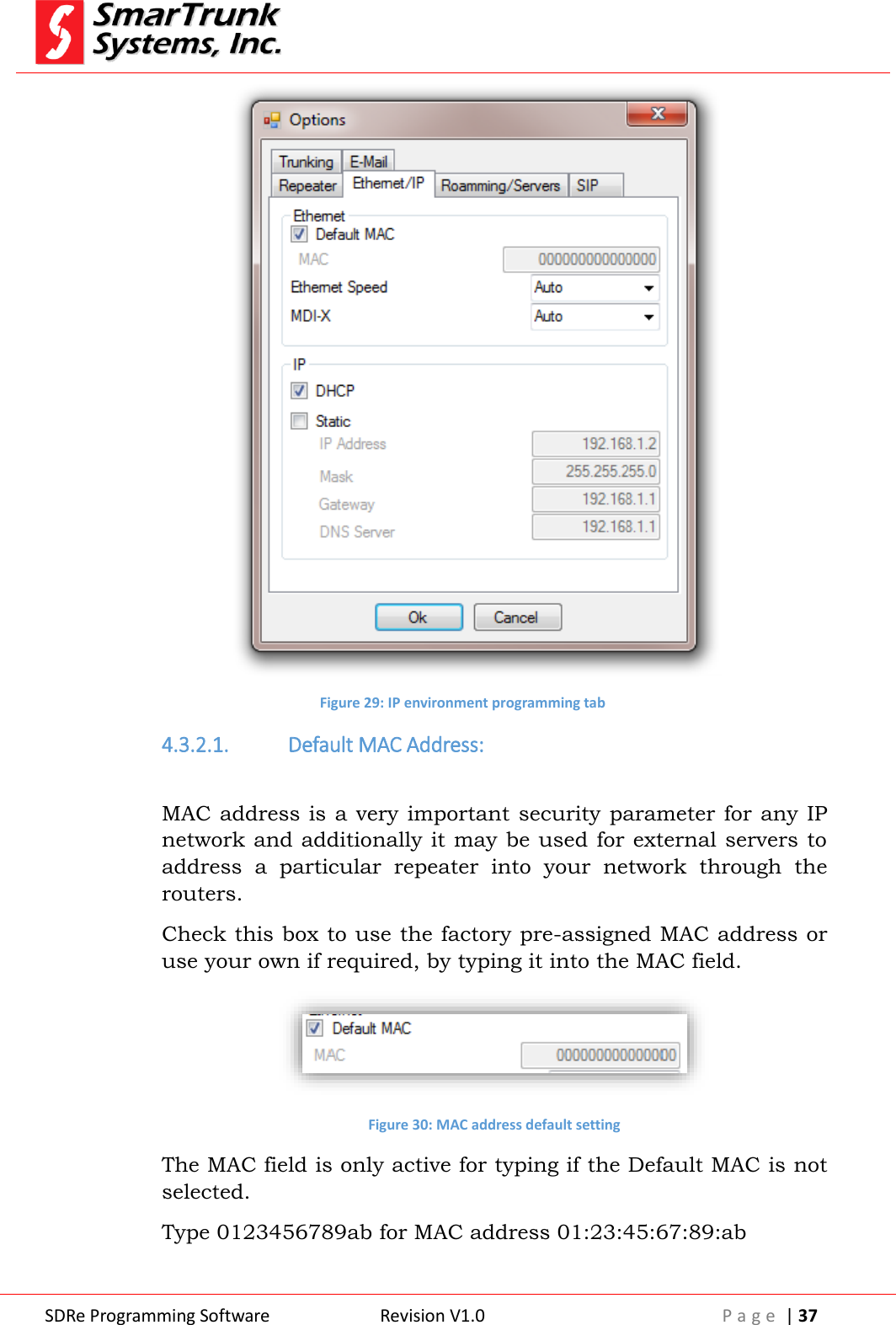
 SDRe Programming Software Revision V1.0 P a g e  | 36    4.3.1.7. Repeater Power Save mode:  In solar powered sites, it is very important to reduce the quiescent current saving battery.  Click on the side arrow to select the proper power save mode:  Disabled: No power save functions Normal:  All  internal  resources  are  powered  down,  but  the receiver is all time powered on getting immediate reaction to any call request. Eco  Mode:  is  an  extreme  power  save,  where  all  circuitry  is powered down, getting the receiver on only 100mSec by 300Msec off. On  this  mode,  the reaction may demand about 500msec  to recognize a  call  request, but the power saving  efficiency is very high.    4.3.2. Ethernet/IP configuration:  On this tab, you  can  program the  parameters required  for set the repeater into an IP network environment.
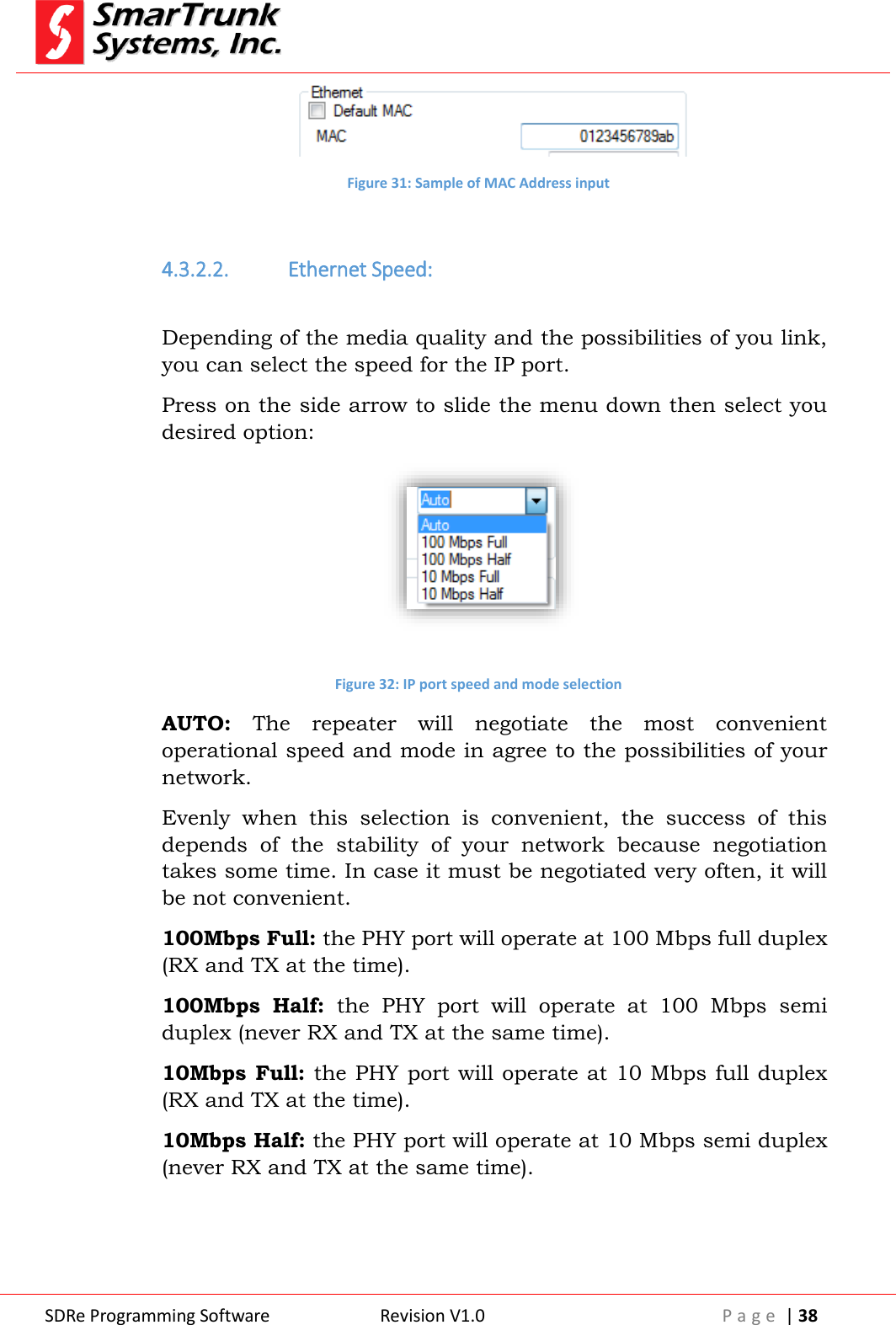
 SDRe Programming Software Revision V1.0 P a g e  | 37   Figure 29: IP environment programming tab 4.3.2.1. Default MAC Address:  MAC address  is  a very important security parameter for any IP network and additionally it may be used for external servers to address  a  particular  repeater  into  your  network  through  the routers. Check this box to use the factory pre-assigned MAC address or use your own if required, by typing it into the MAC field.  Figure 30: MAC address default setting The MAC field is only active for typing if the Default MAC is not selected. Type 0123456789ab for MAC address 01:23:45:67:89:ab
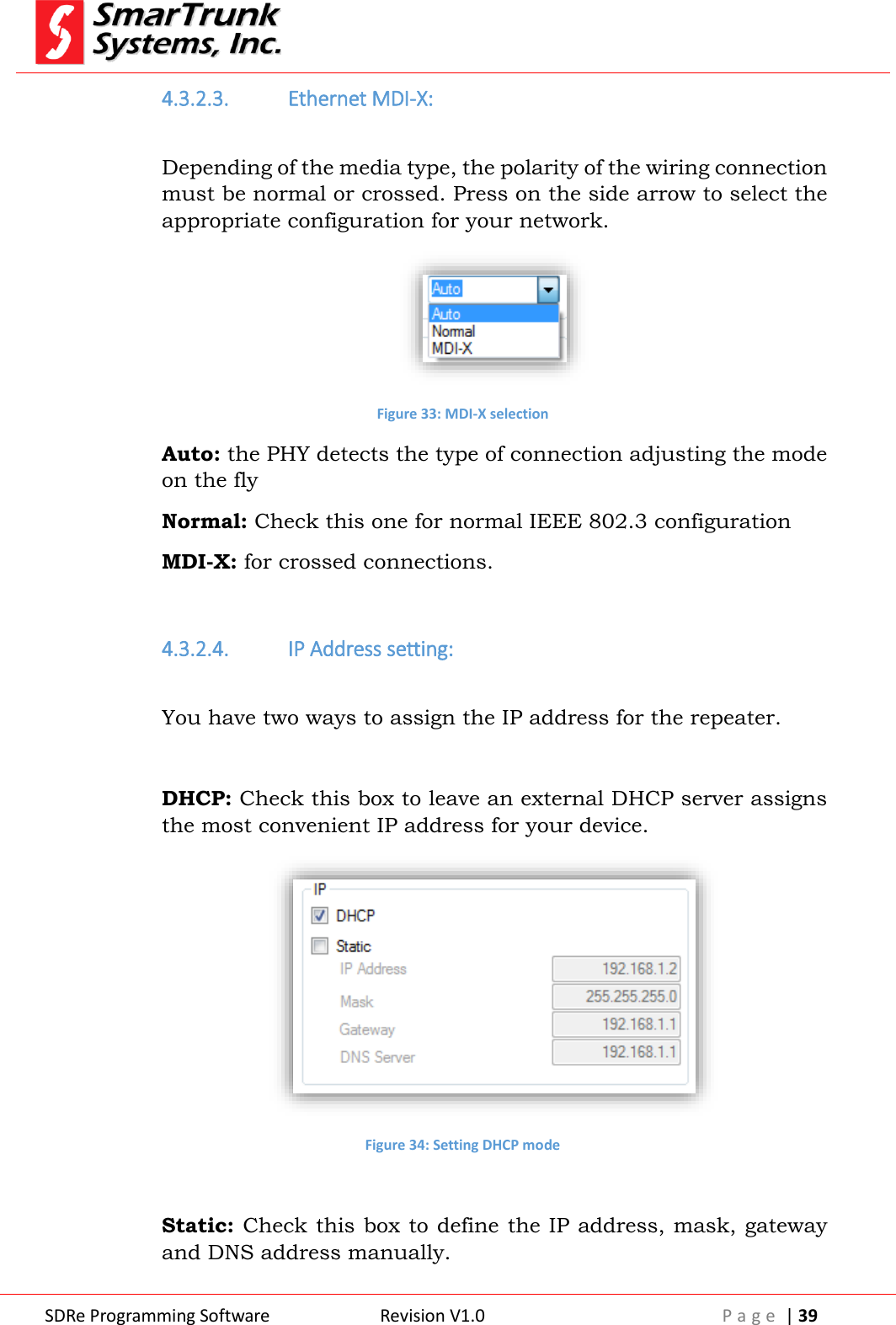
 SDRe Programming Software Revision V1.0 P a g e  | 38   Figure 31: Sample of MAC Address input  4.3.2.2. Ethernet Speed:  Depending of the media quality and the possibilities of you link, you can select the speed for the IP port. Press on the side arrow to slide the menu down then select you desired option:   Figure 32: IP port speed and mode selection AUTO:  The  repeater  will  negotiate  the  most  convenient operational speed and mode in agree to the possibilities of your network.  Evenly  when  this  selection  is  convenient,  the  success  of  this depends  of  the  stability  of  your  network  because  negotiation takes some time. In case it must be negotiated very often, it will be not convenient. 100Mbps Full: the PHY port will operate at 100 Mbps full duplex (RX and TX at the time). 100Mbps  Half:  the  PHY  port  will  operate  at  100  Mbps  semi duplex (never RX and TX at the same time). 10Mbps Full: the PHY port will operate at 10 Mbps full duplex (RX and TX at the time). 10Mbps Half: the PHY port will operate at 10 Mbps semi duplex (never RX and TX at the same time).
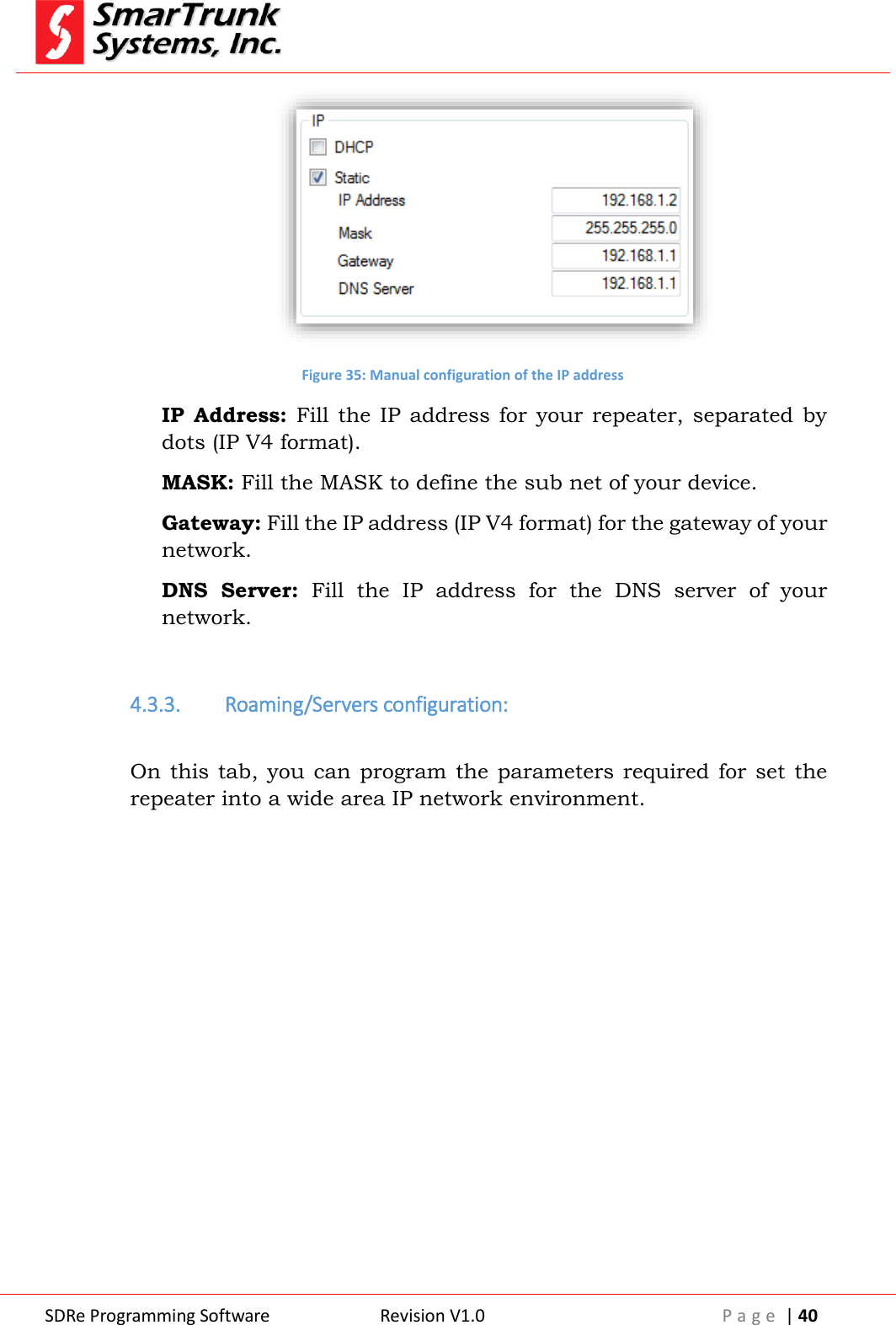
 SDRe Programming Software Revision V1.0 P a g e  | 39  4.3.2.3. Ethernet MDI-X:  Depending of the media type, the polarity of the wiring connection must be normal or crossed. Press on the side arrow to select the appropriate configuration for your network.  Figure 33: MDI-X selection Auto: the PHY detects the type of connection adjusting the mode on the fly Normal: Check this one for normal IEEE 802.3 configuration MDI-X: for crossed connections.    4.3.2.4. IP Address setting:  You have two ways to assign the IP address for the repeater.  DHCP: Check this box to leave an external DHCP server assigns the most convenient IP address for your device.  Figure 34: Setting DHCP mode  Static: Check this box to define the IP address, mask, gateway and DNS address manually.
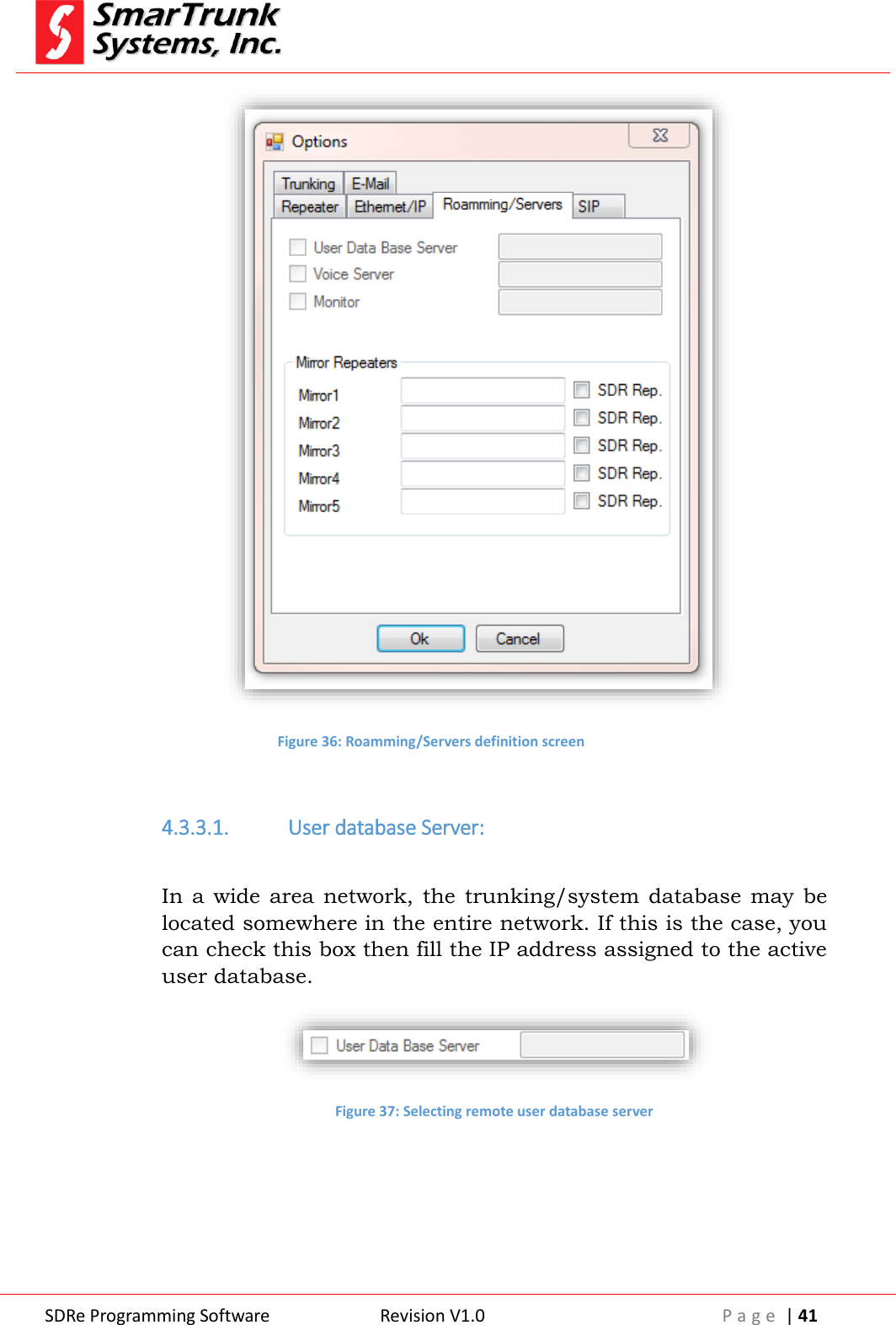
 SDRe Programming Software Revision V1.0 P a g e  | 40   Figure 35: Manual configuration of the IP address IP  Address:  Fill  the  IP  address  for  your repeater,  separated  by dots (IP V4 format). MASK: Fill the MASK to define the sub net of your device. Gateway: Fill the IP address (IP V4 format) for the gateway of your network. DNS  Server:  Fill  the  IP  address  for  the  DNS  server  of  your network.  4.3.3. Roaming/Servers configuration:  On this tab, you  can  program the  parameters required for set  the repeater into a wide area IP network environment.
 SDRe Programming Software Revision V1.0 P a g e  | 41   Figure 36: Roamming/Servers definition screen  4.3.3.1. User database Server:  In  a  wide  area network,  the  trunking/system  database  may  be located somewhere in the entire network. If this is the case, you can check this box then fill the IP address assigned to the active user database.  Figure 37: Selecting remote user database server
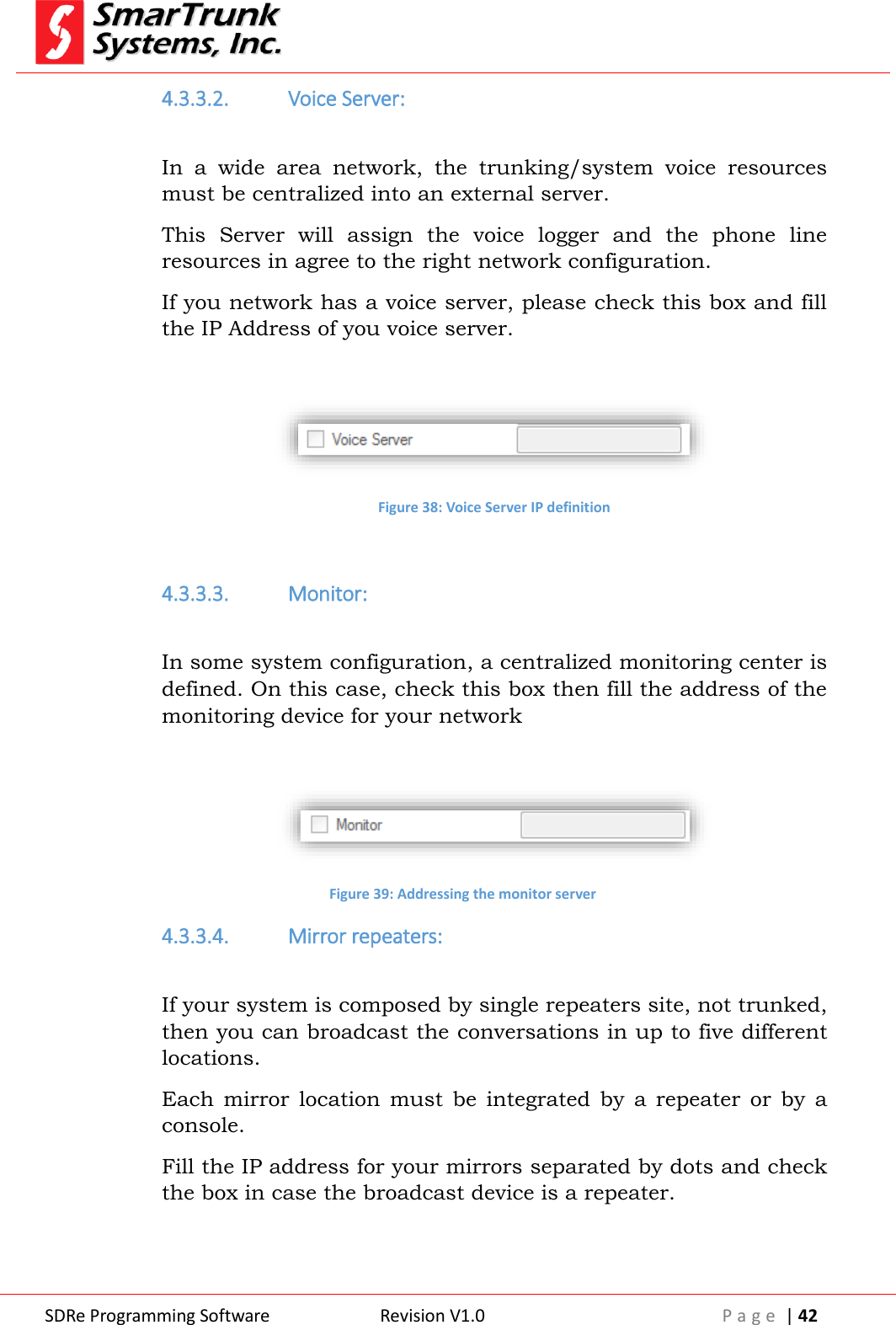
 SDRe Programming Software Revision V1.0 P a g e  | 42  4.3.3.2. Voice Server:  In  a  wide  area  network,  the  trunking/system  voice  resources must be centralized into an external server. This  Server  will  assign  the  voice  logger  and  the  phone  line resources in agree to the right network configuration. If you network has a voice server, please check this box and fill the IP Address of you voice server.   Figure 38: Voice Server IP definition  4.3.3.3. Monitor:  In some system configuration, a centralized monitoring center is defined. On this case, check this box then fill the address of the monitoring device for your network   Figure 39: Addressing the monitor server 4.3.3.4. Mirror repeaters:  If your system is composed by single repeaters site, not trunked, then you can broadcast the conversations in up to five different locations. Each  mirror  location  must  be  integrated  by  a  repeater  or  by  a console. Fill the IP address for your mirrors separated by dots and check the box in case the broadcast device is a repeater.
 SDRe Programming Software Revision V1.0 P a g e  | 43   Figure 40: Broadcast configuration for conventional repeater sites 4.3.4. SIP Server IP configuration:  On this tab, you can program the IP address of the SIP gateway. This gateway  will  specify  the  codec,  protocol  and  routing  for  any communication exchanged with external switches. Check the box if you want to enable/disable the SIP service.  Figure 41: SIP Server IP configuration tab To save changes press [Ok] or select other tab. If you want to cancel the modifications for this tab, press [cancel].
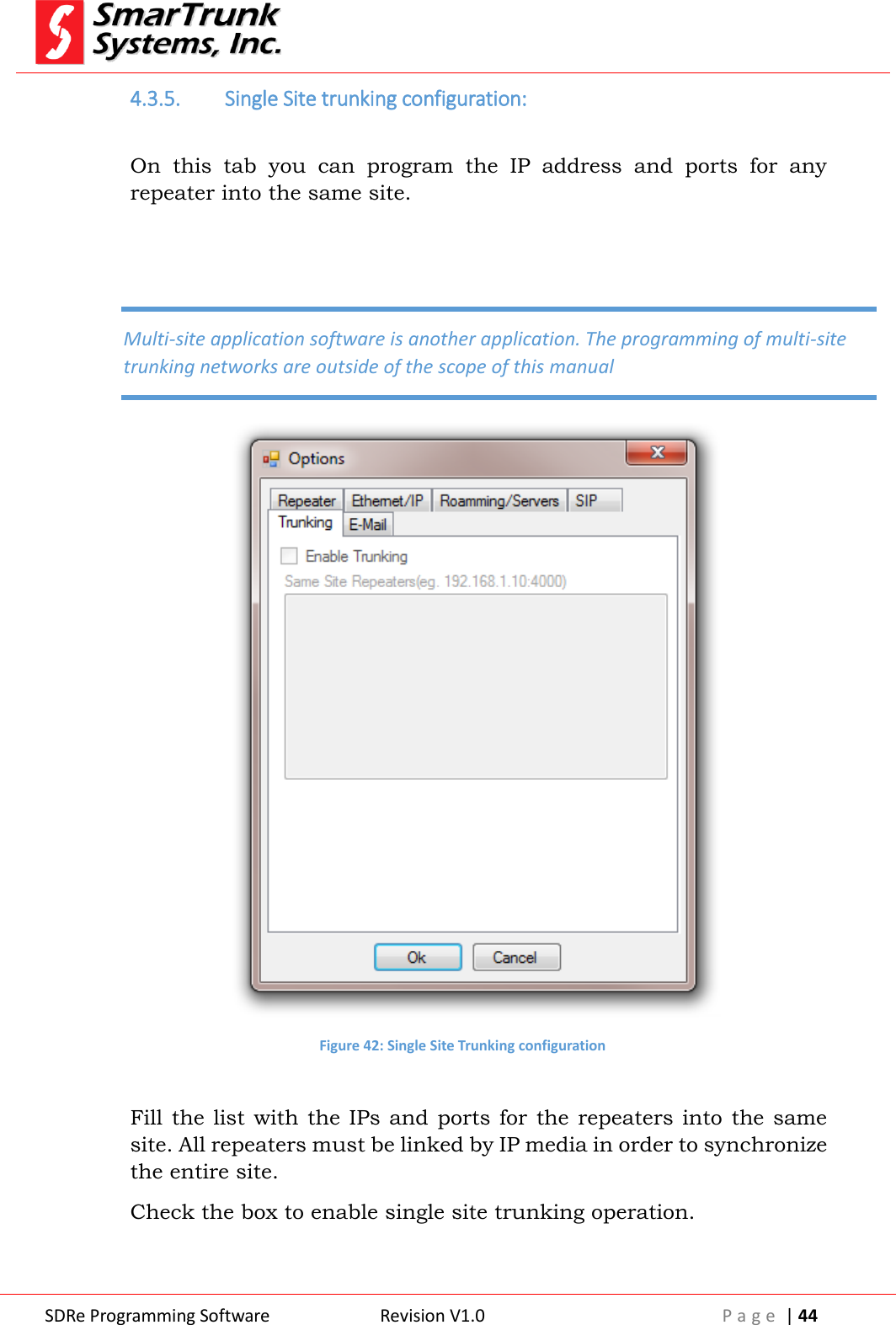
 SDRe Programming Software Revision V1.0 P a g e  | 44  4.3.5. Single Site trunking configuration:  On  this  tab  you  can  program  the  IP  address  and  ports  for  any repeater into the same site.    Figure 42: Single Site Trunking configuration  Fill the list  with the IPs and  ports for  the repeaters into  the same site. All repeaters must be linked by IP media in order to synchronize the entire site. Check the box to enable single site trunking operation.      Multi-site application software is another application. The programming of multi-site trunking networks are outside of the scope of this manual
 SDRe Programming Software Revision V1.0 P a g e  | 45  To save changes, press [Ok] or select other tab. If you want to cancel the modifications for this tab, press [cancel].  4.3.6. E-mail Service configuration:  On this tab, you can program the required parameters to support e-mail services.   Figure 43: E-mail services configuration  4.3.6.1. Outgoing Services to the radios:  Incoming  mails  from  the  Internet  must  be  received  from  the repeater using POP3 service to connect to an e-mail server. Fill the Server IP address, the port and the security mode as per your POP3 service.
 SDRe Programming Software Revision V1.0 P a g e  | 46  Check Enable box to activate the service  Figure 44: POP3 Service configuration 4.3.6.2. Outgoing Services to the radios:  Outgoing  e-mails  coming  from  radios  to  the  Internet  must  be delivered from the repeater using SMTP service. The  SDR  repeater  has  the  SMPT  Bridge  embedded.  You  can activate this service  by filling  the SMPT  server IP address,  port and security mode, and then check the Enable box.   Figure 45: SMPT service configuration   4.4. Repeater and File Password Protection:  In most of the applications, it is important to protect programming information. To access to the password protection screen, please click on [Edit] then click into [Passwords] tab.
 SDRe Programming Software Revision V1.0 P a g e  | 47   Figure 46: Access to Passwords programming screen As  soon  as  you  click  in  [Passwords],  the  password  programming screen will be launched.  Figure 47: Installer and Data Base manager password protection screen ST-91XX series offers two level of passwords protection: one for the Technicians  who  install  the  repeaters,  makes  the  alignment, hardware programming, etc. and the second one for administrative programmers, who only needs access to the repeater user database, but no channel programming or alignment.  4.4.1.  Installer Password:  This  password  enables  the  technicians  to  change  the  frequency programming,  align  the  entire  repeater,  and  define  the  IP environment  parameters,  Monitoring,  Servers,  etc.,  in  local  or remote environment.
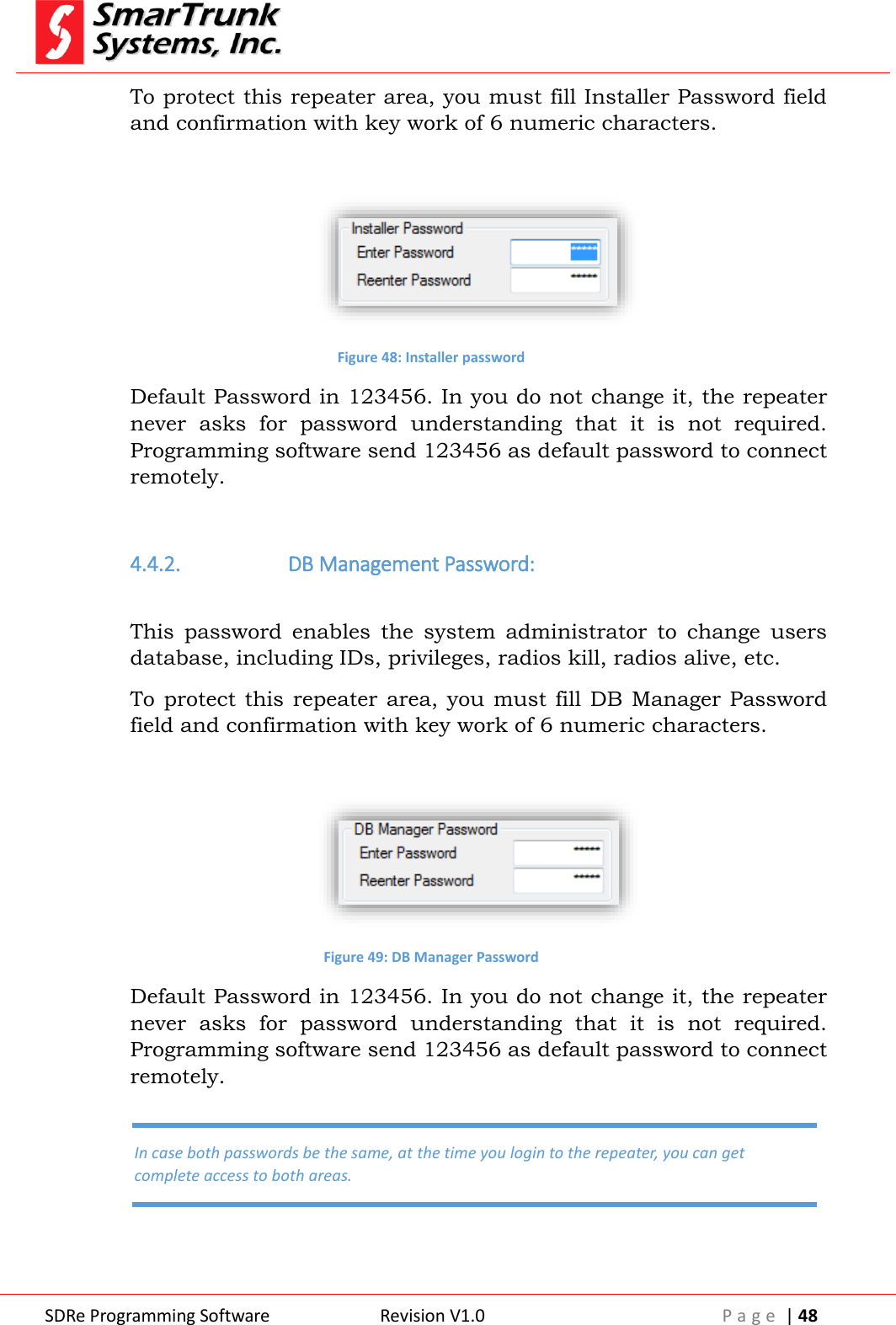
 SDRe Programming Software Revision V1.0 P a g e  | 48  To protect this repeater area, you must fill Installer Password field and confirmation with key work of 6 numeric characters.   Figure 48: Installer password Default Password in 123456. In you do not change it, the repeater never  asks  for  password  understanding  that  it  is  not  required. Programming software send 123456 as default password to connect remotely.  4.4.2.  DB Management Password:  This  password  enables  the  system  administrator  to  change  users database, including IDs, privileges, radios kill, radios alive, etc. To protect  this repeater  area, you  must fill  DB Manager Password field and confirmation with key work of 6 numeric characters.   Figure 49: DB Manager Password Default Password in 123456. In you do not change it, the repeater never  asks  for  password  understanding  that  it  is  not  required. Programming software send 123456 as default password to connect remotely.  In case both passwords be the same, at the time you login to the repeater, you can get complete access to both areas.
 SDRe Programming Software Revision V1.0 P a g e  | 49  4.5. CTCSS Table:  The SDR repeaters supports up to 32 private groups into analog or hybrid  mode.  The  signaling  used  to  discriminate  the  groups  is CTCSS. To enable a group, list the right CTCSS into the CTCSS table.    Figure 50: CTCSS Table  In case you do not fill any CTCSS table, the repeater operates only with the defined CTCSS on the frequency chart.  4.6. Profiles:  From  the  main  menu bar,  press  on  [Edit]  then  [Profiles]  to  access  to profiles menu.
 SDRe Programming Software Revision V1.0 P a g e  | 50   Figure 51: Profiles Menu Access  Once you press on [Profiles], a list of possible profiles will be open. If some profiles are on grey, it is because your firmware does not support that service.  4.6.1.  Analog Profiles:   All common characteristic  of any  analog profile  common  to any of the channels in  the repeater must  be programed on this  step and the associated to the right frequencies on the chart later. To access  to the Analog profile menu, proceed pressing on [Menu] then [Profiles], then [Analog]
 SDRe Programming Software Revision V1.0 P a g e  | 51   Figure 52: Accessing to the Analog Profile tab Once you press on [Analog], the Analog Profile menu will be opened:  Figure 53: Analog Profile TAB
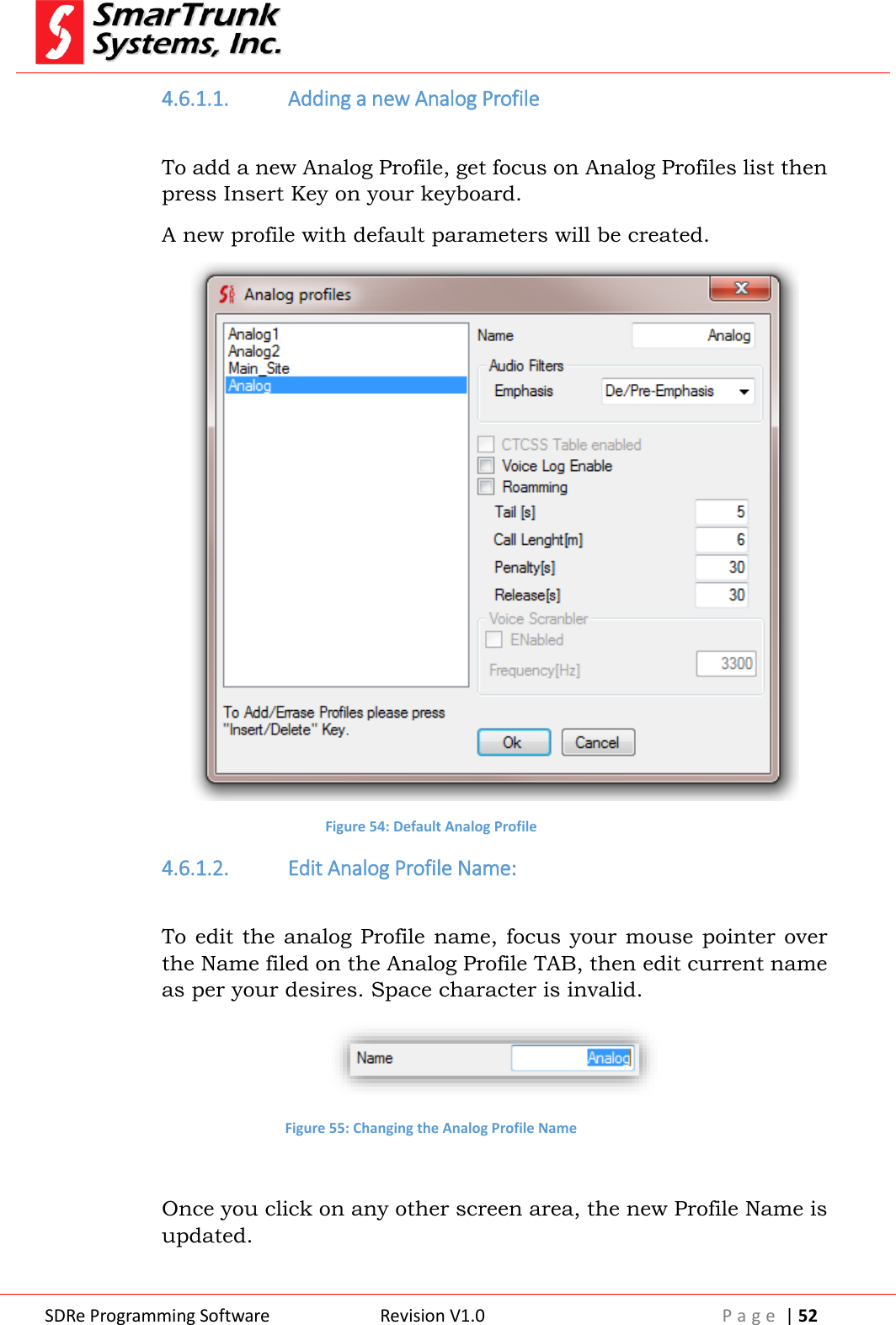
 SDRe Programming Software Revision V1.0 P a g e  | 52  4.6.1.1. Adding a new Analog Profile  To add a new Analog Profile, get focus on Analog Profiles list then press Insert Key on your keyboard. A new profile with default parameters will be created.  Figure 54: Default Analog Profile 4.6.1.2. Edit Analog Profile Name:  To edit the analog Profile name, focus your mouse pointer over the Name filed on the Analog Profile TAB, then edit current name as per your desires. Space character is invalid.  Figure 55: Changing the Analog Profile Name  Once you click on any other screen area, the new Profile Name is updated.
 SDRe Programming Software Revision V1.0 P a g e  | 53  Press OK to save the changes. 4.6.1.3. Selecting the type of audio filters  Analog signals on SDR repeaters can be fltered on four modes. The standard  one  is  the  de/pre-emphasized,  but  you  also  can  select other modes for some special application. Press on the Audio Filters side arrow to slide down the menu.  Figure 56: Audio Filters selection for analog profiles  Flat:  No  filtering  for  RX  or  TX.  The  modulation  audio  is  just  the discriminator  signal  (flat)  from  the  receiver.  This  mode  cannot  be used when the repeater integrates a network environment because the audio exchanged to the IP or monitor should be emphasized. De-Emphasis: Received signals are de-emphasized then modulated in flat format. Pre-Emphasized: Received signal is left flat and the TX modulation on emphasized. De/Pre-emphasized: Received signals are de-emphasized processed on this condition then emphasized again for transmit. This mode is the standard one. To store this option, click on any part of the tab. To save the value, press [Ok] or Cancel if you want to discard the changes.   4.6.1.4. CTCSS table enabled  If you want to use a pre-loaded CTCSS table, overriding any CTCSS defined on the frequency chart, check this box.
 SDRe Programming Software Revision V1.0 P a g e  | 54   Figure 57: Enable CTCSS table on Analog Profile To store this option, click on any part of the tab. To save the value, press [Ok] or Cancel if you want to discard the changes.   4.6.1.5. Enable the Voice Log Service on Analog Profiles  ST-9116  repeater  can  log  any  voice  conversation.  If  you  want  to activate this service for a particular analog profile, please check this box. Voice is stored on the SD memory attached to the unit.  Old files are deleted automatically if the memory is full. If no memory, the service is deactivated automatically.   Figure 58: Voice Log Enabled for Analog Profiles To store this option, click on any part of the tab. To save the value, press [Ok] or Cancel if you want to discard the changes.  4.6.1.6. Enable the Roaming Service on Analog Profiles  If you want to integrate a network, using this  channel  as  a site  of your wide area coverage, then you must check this box. Once this box  is  checked,  audio  from  this  repeater  is  processed  and  shared through IP between any other site on the network.  Figure 59: Roaming Service Activation for Analog Profiles
 SDRe Programming Software Revision V1.0 P a g e  | 55  To store this option, click on any part of the tab. To save the value, press [Ok] or Cancel if you want to discard the changes.  4.6.1.7. Setup the repeater tail  Fill this field with the length desired for repeater tail. 0 second means no tail. Max value is 255 seconds.  Figure 60: Repeater tail setup To store the value, click on any part of the tab. To save the value, press [Ok] or Cancel if you want to discard the changes.   4.6.1.8. Enable the Roaming Service on Analog Profiles  If you want set a limit of minutes for a call length, then fill this field. 0 minute means no limit. Absolute Max call length is 255 minutes.  Figure 61: Repeater MAX Call Length To store the value, click on any part of the tab. To save the value, press [Ok] or Cancel if you want to discard the changes.  4.6.1.9. Repeater Penalty setup  If call length limit is reached, the repeater may apply a penalty for the CTCSS tone (group) who has reached the limit. For example, if a particular group, who uses one of the tones defined on the CTCSS table, reaches the max length accepted for this profile, that tone remains inactive by the amount of seconds defined on this step.
 SDRe Programming Software Revision V1.0 P a g e  | 56  Max penalty length is 255 seconds. 0 seconds  of  penalty  means no  penalty, so  the group  can setup  a new call immediately.   Figure 62: Penalty for traffic control on Analog Profiles To store the value, click on any part of the tab. To save the value, press [Ok] or Cancel if you want to discard the changes.  4.6.1.10. Release time for time-out timer reset  If  call length  limit  is  active  (Call  Length  timer not  equal  to  0), the repeater may apply a penalty for the CTCSS tone who reached the limit. This parameter specifies the time without any activity of that group to reset the time out timer, which controls the max call length. To setup this value, please fill the field.  Figure 63: Release time for Traffic Control on Analog Profiles Max Release time length is 255 seconds. 0 seconds of release means instant reset of the call length timer. To store the value, click on any part of the tab. To save the value, press [Ok] or Cancel if you want to discard the changes.  4.6.1.11. Voice inversion encryption setup  ST-9116 supports voice  inversion  encryption for analog  profiles. If you want to enable it, please check the [Enabled] box then input the right voice inversion sub-carrier for this profile.
 SDRe Programming Software Revision V1.0 P a g e  | 57    Figure 64: Voice Inversion encryption configuration  To store the value, click on any part of the tab. To save the value, press [Ok] or Cancel if you want to discard the changes.   4.6.2.  Digital Profiles:   All common characteristic of any digital profile related to any of the channels in the repeater, must be programed on this step, and then associated to the right frequencies on the chart. To access  to  the  Digital profile  menu,  proceed pressing  on  [Menu] then [Profiles], then [Digital]
 SDRe Programming Software Revision V1.0 P a g e  | 58   Figure 65: Accessing to the Analog Profile tab Once you press on [Digital], the Digital Profile menu will be opened:  Figure 66: Digital Profile TAB
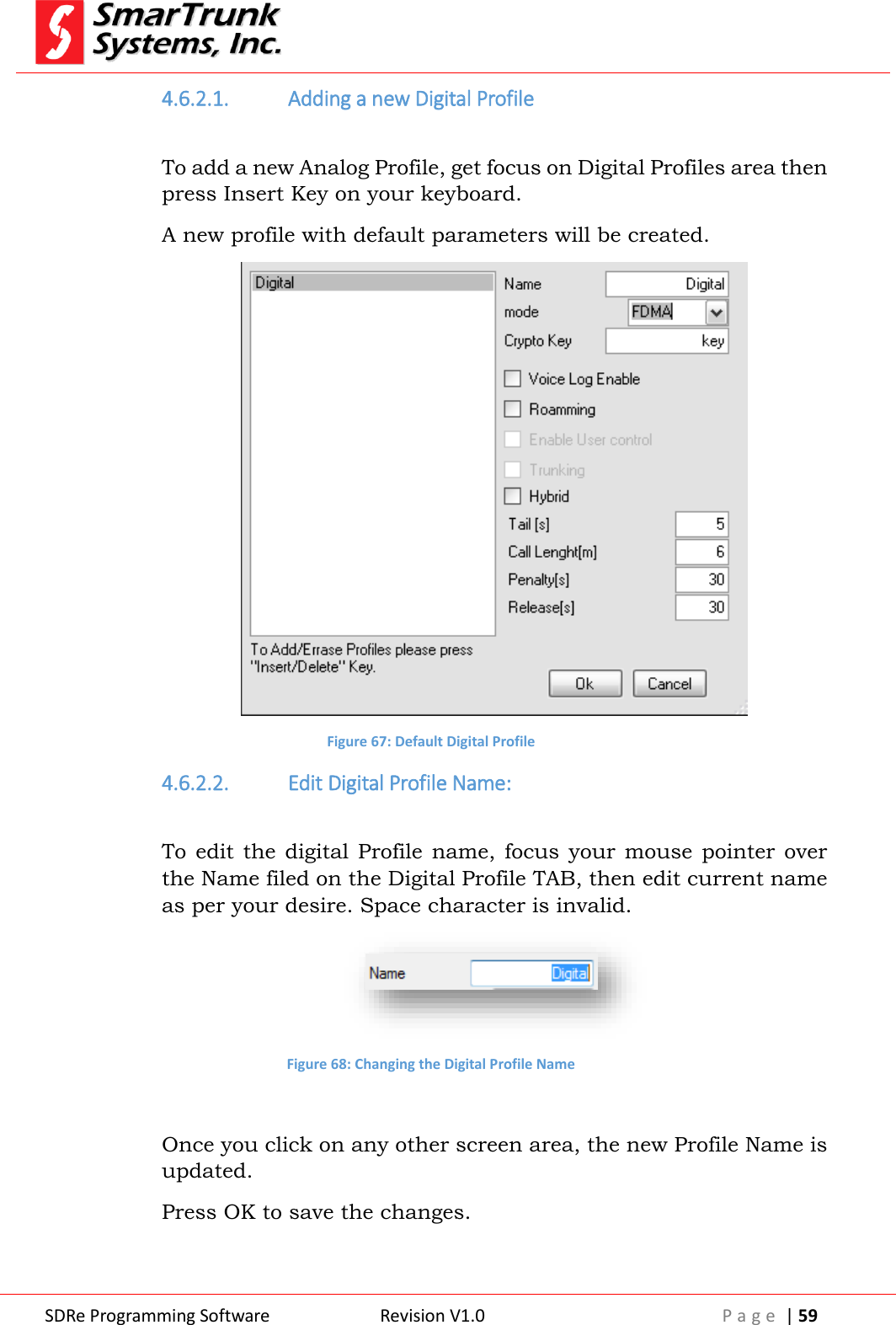
 SDRe Programming Software Revision V1.0 P a g e  | 59  4.6.2.1. Adding a new Digital Profile  To add a new Analog Profile, get focus on Digital Profiles area then press Insert Key on your keyboard. A new profile with default parameters will be created.  Figure 67: Default Digital Profile 4.6.2.2. Edit Digital Profile Name:  To edit  the  digital  Profile  name,  focus  your  mouse  pointer  over the Name filed on the Digital Profile TAB, then edit current name as per your desire. Space character is invalid.  Figure 68: Changing the Digital Profile Name  Once you click on any other screen area, the new Profile Name is updated. Press OK to save the changes.
 SDRe Programming Software Revision V1.0 P a g e  | 60  4.6.2.3. Selecting the type of Digital Modulation  Digital Emissions on SDR repeaters can be used on three different modes.  FDMA  (Frequency  Domain  Multiple  Access),  TDMA  (Time Domain Multiple Access) or Simplex mode (Transmit and receive on the same frequency. Press on the Digital Mode arrow to slide down the menu.  Figure 69: Digital Mode selection for Digital profile  FDMA:  Transmits  a  single  continuous  4FSK  carrier  @  4800bps using ultra narrow band (6.25 Khz Bandwidth) TDMA: Transmits two slots over a continuous carrier of 9600 bps using a narrowband channel (12.5Khz Bandwidth) SIMPLEX:  Similar  to  TDMA  but  the  carrier  is  not  continuous. Repeater receives on slot 0 and transmits the same information on slot 1, using the same frequency for TX and RX Simplex mode. To store this option, click on any part of the tab. To save the value, press [Ok] or [Cancel] if you want to discard the changes.   4.6.2.4. Crypto Key definition  SDR protocol improves a high security encryption for voice and data. The encryption is encoded and decoded using a 128bits mask, which must be defined on this tab.   Figure 70: Crypto Key for Digital Profile
 SDRe Programming Software Revision V1.0 P a g e  | 61  To simplify the key management, you must type any string up to 16 characters length. This key is case sensitive:   Figure 71: Sample of Crypto Key for digital profiles To store this option, click on any part of the tab. To save the value, press [Ok] or Cancel if you want to discard the changes.   4.6.2.5. Enable the Voice Log Service on Digital Profiles  ST-9116  repeater  can  log  any  voice  conversation.  If  you  want  to activate this service for a particular analog profile, please check this box. Voice is stored on the SD memory attached to the unit.  Old files are deleted automatically if the memory is full. If no memory, the service is deactivated automatically.   Figure 72: Voice Log Enabled for Digital Profiles To store this option, click on any part of the tab. To save the value, press [Ok] or Cancel if you want to discard the changes.  4.6.2.6. Enable the Roaming Service on Digital Profiles  If you want to integrate a network, using this channel as a site of your wide area coverage, then you must check this box. Once this box is  checked,  audio form, this repeater is processed and shared through IP between any other site on the network.
 SDRe Programming Software Revision V1.0 P a g e  | 62   Figure 73: Roaming Service Activation for Digital Profiles To store this option, click on any part of the tab. To save the value, press [Ok] or Cancel if you want to discard the changes. 4.6.2.7. Hybrid Mode  SDR protocol supports analog and digital modulations on the same channel. Check this box if you want to allow the repeater to support analog and digital radios over the same channel.   Figure 74: Hybrid mode activation  To store this option, click on any part of the tab. To save the value, press [Ok] or Cancel if you want to discard the changes.   4.6.2.8. Setup the repeater tail  Fill this field with the desired repeater tail length. 0 second means no tail. Max value is 255 seconds.  Figure 75: Repeater tail setup for Digital Profiles To store the value, click on any part of the tab. To save the value, press [Ok] or Cancel if you want to discard the changes.
 SDRe Programming Software Revision V1.0 P a g e  | 63  4.6.2.9. Enable the Call Length control on Digital Profiles  If you want Set a limit of minutes for a call length, then fill this field. 0 minute means no limit. Absolute Max call length is 255 minutes.  Figure 76: Repeater MAX Call Length on Digital Profiles To store the value, click on any part of the tab. To save the value, press [Ok] or Cancel if you want to discard the changes.  4.6.2.10. Repeater Penalty setup on Digital Profiles  If Call length limit is reached, the repeater may apply a penalty for the digital ID who reached the limit. For example, if a particular group, who uses the channel, reaches the max length accepted for this profile, that group remains inactive by the amount of seconds defined on this step.  Max penalty length is 255 seconds. 0 seconds  of  penalty  means no  penalty, so  the group  can setup  a new call immediately.   Figure 77: Penalty for traffic control on Analog Profiles To store the value, click on any part of the tab. To save the value, press [Ok] or Cancel if you want to discard the changes.  4.6.2.11. Release time for time-out timer reset for Digital Profiles  If Call length limit is active (Call Length timer not equal to 0), the repeater  may  apply  a  penalty  for  the  group  who  has  reached  the limit.
 SDRe Programming Software Revision V1.0 P a g e  | 64  This parameter specify the time without any activity of that group to reset the time out timer who controls the max call length. To setup this value, please fill the field.  Figure 78: Release time for Traffic Control on Digital Profiles Max Release time length is 255 seconds. 0 seconds of release means instant reset of the call length timer. To store the value, click on any part of the tab. To save the value, press [Ok] or Cancel if you want to discard the changes.   5. Adding a channel to a memory channel  To add a new channel to the repeater, please click on the first empty tag name under the last channel tag into the list  Figure 79: adding a new channel tag  Type there the tag name to be assigned to the new channel, for example TEST, then click on the RX frequency field for the new channel recently created. The programming software will complete the frequencies and signaling as per default, so please overwrite it with you desired settings.
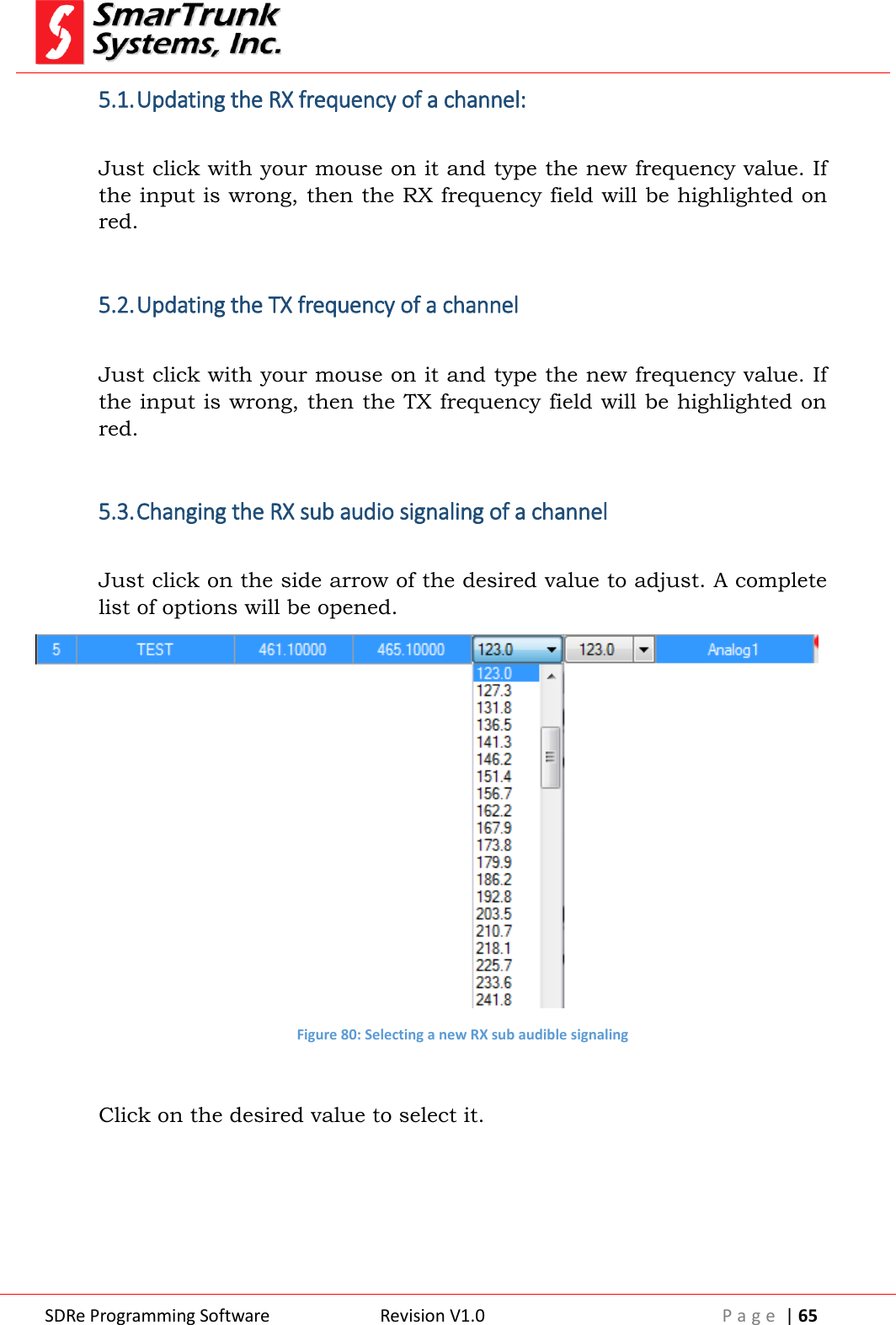
 SDRe Programming Software Revision V1.0 P a g e  | 65  5.1. Updating the RX frequency of a channel:  Just click with your mouse on it and type the new frequency value. If the input is wrong, then the RX frequency field will be highlighted on red.  5.2. Updating the TX frequency of a channel  Just click with your mouse on it and type the new frequency value. If the input is wrong, then the TX frequency field will be highlighted on red.  5.3. Changing the RX sub audio signaling of a channel  Just click on the side arrow of the desired value to adjust. A complete list of options will be opened.  Figure 80: Selecting a new RX sub audible signaling      Click on the desired value to select it.
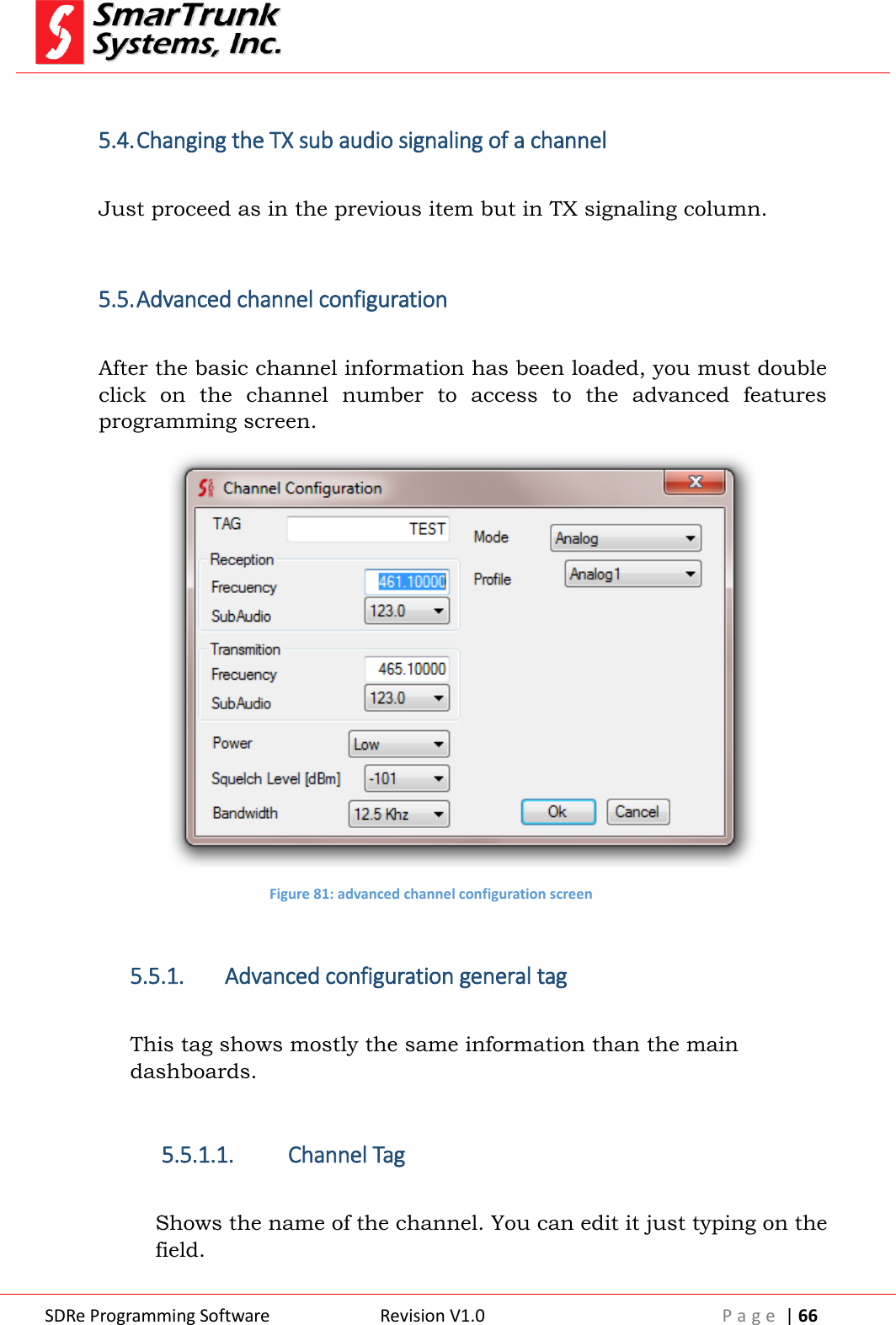
 SDRe Programming Software Revision V1.0 P a g e  | 66   5.4. Changing the TX sub audio signaling of a channel  Just proceed as in the previous item but in TX signaling column.  5.5. Advanced channel configuration  After the basic channel information has been loaded, you must double click  on  the  channel  number  to  access  to  the  advanced  features programming screen.  Figure 81: advanced channel configuration screen    5.5.1. Advanced configuration general tag    This tag shows mostly the same information than the main dashboards.  5.5.1.1. Channel Tag  Shows the name of the channel. You can edit it just typing on the field.
 SDRe Programming Software Revision V1.0 P a g e  | 67   Figure 82: Channel tag Once selected the right parameter, press [Ok] to save it or [Cancel] to exit.   5.5.1.2. RX frequency:  Shows the RX frequency for this channel. You can edit it by direct typing over the field.  Figure 83: Channel RX information Once selected the right parameter, press [Ok] to save it or [Cancel] to exit.  5.5.1.3. RX sub Audio Signaling:  Shows the CTCSS or DCS information for the current channel. Click on the side arrow then select a different one if you want to change it. Once selected the right parameter, press [Ok], press over to save it or [Cancel] to exit.  5.5.1.4. TX frequency:  Shows the TX frequency for this channel. You can edit it by direct typing over the field.
 SDRe Programming Software Revision V1.0 P a g e  | 68   Figure 84: Channel TX information Once selected the right parameter, press [Ok] to save it or [Cancel] to exit.   5.5.1.5. TX sub Audio Signaling:  Shows the CTCSS or DCS information for the current channel. Click on the side arrow then select a different one if you want to change it. Once selected the right parameter, press [Ok] to save it or [Cancel] to exit.   5.5.1.6. Channel Power selection  Shows the current power level assigned to the channel. To change it, press on the side arrow then choose your desired level.   Figure 85: Channel Power selection Once selected the right parameter, press [Ok] to save it or [Cancel] to exit.
 SDRe Programming Software Revision V1.0 P a g e  | 69  5.5.1.7. Squelch Sensitivity  Shows the current squelch level for current channel. It means the absolute threshold level to consider if a carrier is present on the receiver. Press on the side arrow to select a new value from a drop down list if you want to change it.  Figure 86: Squelch sensitivity To select a value, scroll the list then click on the desired threshold level. Once selected the right parameter, press [Ok] to save it or [Cancel] to exit.   5.5.1.8. Channel bandwidth  In analog mode,  the channel bandwidth  can be selected  as  per used desire.  Figure 87: Channel Bandwidth Selection
 SDRe Programming Software Revision V1.0 P a g e  | 70  Press on the side arrow to change it if you want. Possible values: 12.5 KHz or 25 KHz. Depending on your region it is possible than 25 KHz bandwidth is not possible to be selected. Once selected the right parameter, press [Ok] to save it or [Cancel] to exit.   5.5.1.9. Channel mode selection  This  option  lets  you  assign  existing  signaling  profile  and modulation type for the current channel.   Figure 88: Channel mode selection Once selected the right parameter, press [Ok] to save it or [Cancel] to exit.  5.5.1.10. Channel Profile Selection:  The right profile, previously defined on 4.6.1 or 4.6.2., must be attached to the current channel by pressing the side arrow on the Profile Field. A list the pre-defined profiles will be listed.  Figure 89: type of modulation Click over the right one to select it. Once selected the right parameter, press [Ok] to save it or [Cancel] to exit.
 SDRe Programming Software Revision V1.0 P a g e  | 71      6. Reading the Repeater programming from the device  All the information already downloaded to your radio can be retrieved anytime. In  case  that  information  has  been  protected  by  password,  you  must know such critical information to start the reading process. To read the radio file from the repeater, you must connect the radio to the USB port on your computer or by IP, as previously defined on the Programming Software configuration (see 2.2.1), then you can use the shortcut in the quick access bar   or you go through [Repeater] then click on Read Repeater. F2 key on your computer keyboard can be used as a shortcut also.  Figure 90: Accessing to read the repeater Once you press on [Read Repeater], the information stored in the device will be loaded to your programming software automatically. As soon as the process starts, a progress bar will show you the process evolution. When you download a Repeater file from the Repeater, previous information into your programming software will be overwritten. Please ensure you have already saved that information before proceed to download from the repeater Note: 12- Downloading the repeater fill will overwrite existing information in Programming Software
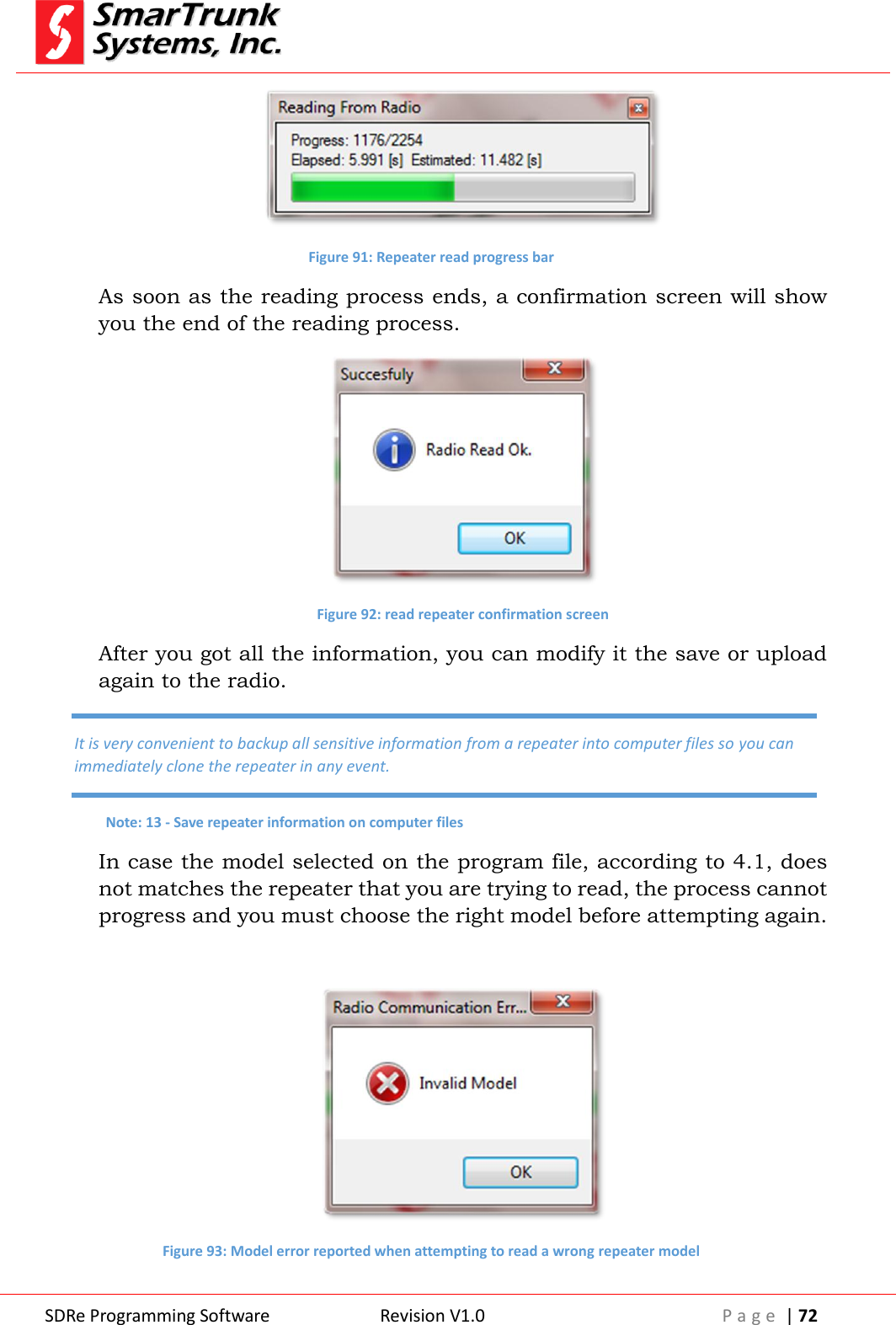
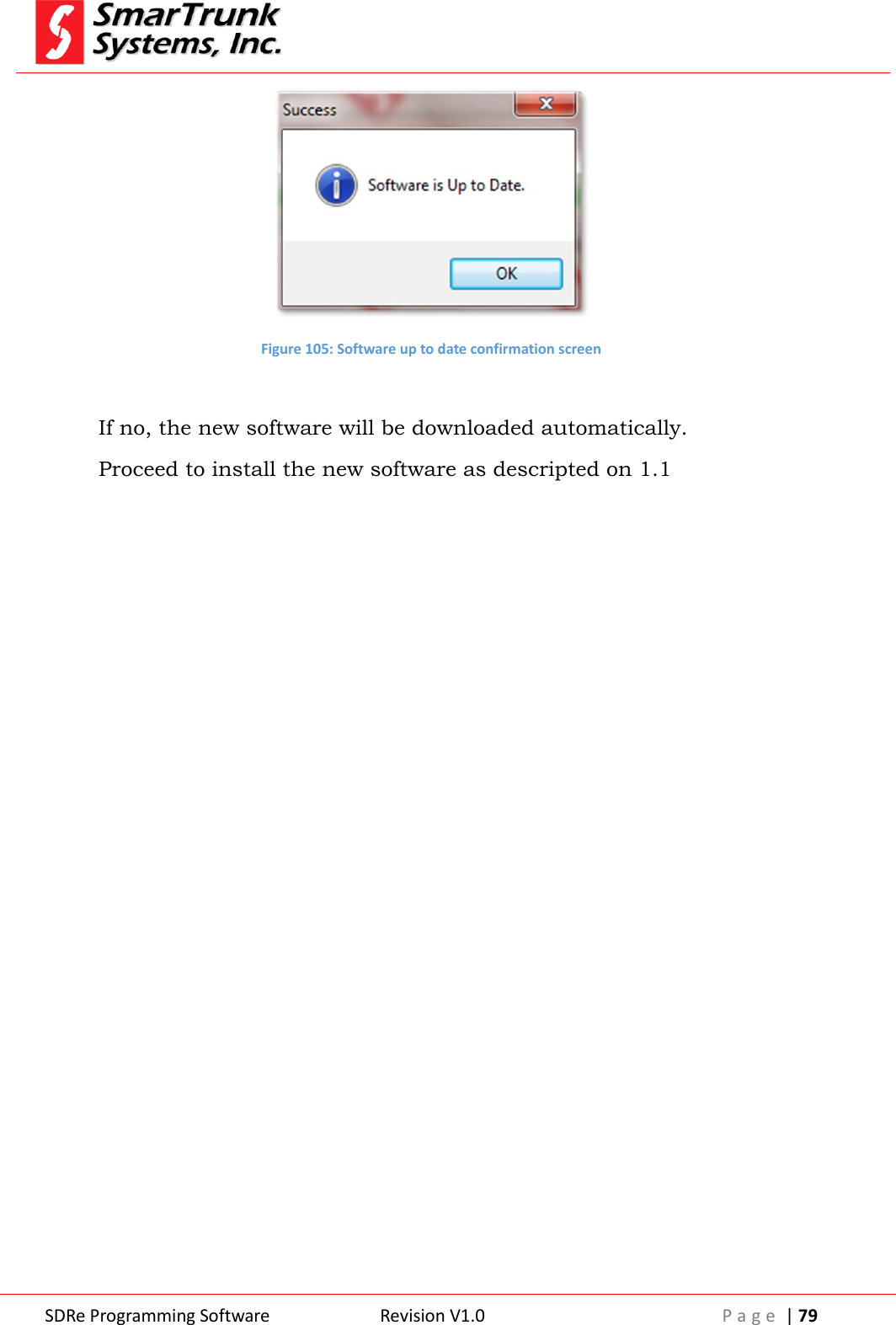
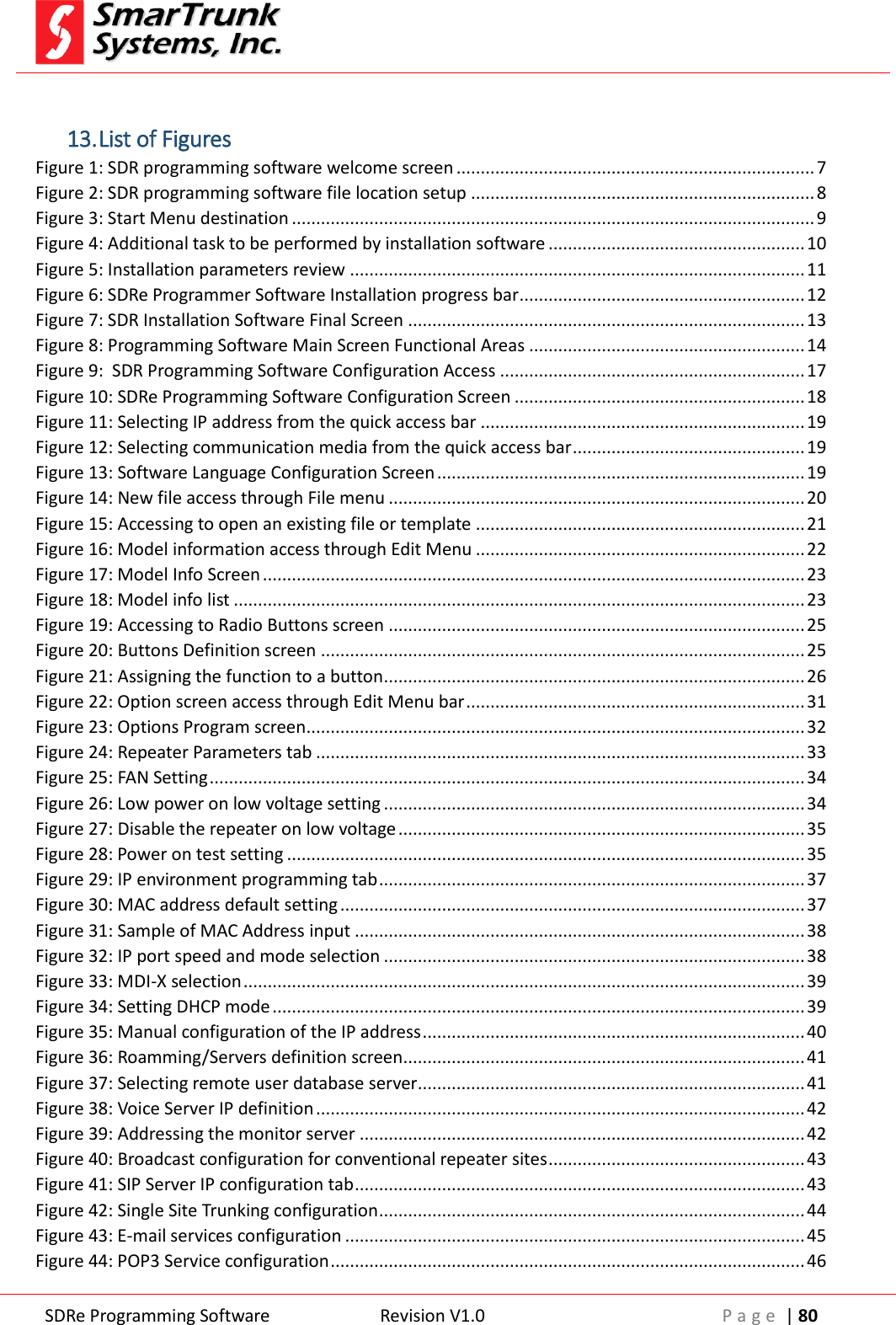
 SDRe Programming Software Revision V1.0 P a g e  | 72   Figure 91: Repeater read progress bar As soon as the reading process ends, a confirmation screen will show you the end of the reading process.  Figure 92: read repeater confirmation screen After you got all the information, you can modify it the save or upload again to the radio. In case the model selected on the program file, according to 4.1, does not matches the repeater that you are trying to read, the process cannot progress and you must choose the right model before attempting again.   Figure 93: Model error reported when attempting to read a wrong repeater model It is very convenient to backup all sensitive information from a repeater into computer files so you can immediately clone the repeater in any event. Note: 13 - Save repeater information on computer files
 SDRe Programming Software Revision V1.0 P a g e  | 73   7. Writing a radio file  Once  you  get  a  program  into  your  programming  software  ready  to upload to a repeater, you must connect the device to the USB port on your  computer  or  remotely through  a  TCP/IP  network,  then  you  can use  the  shortcut  in  the  quick  access  bar    or  you  go  through [Repeater]  then  click  on  [Write  Repeater].  F3  key  on  your  computer keyboard can be used as a shortcut also.  Figure 94: Accessing to write the repeater Once  you  press  on  [Write  Repeater],  the  information  stored  in  the programming software will be uploaded to your repeater automatically. As  soon  as  the  process  starts,  a  progress  bar  will  let  you  know  the process ongoing.  Figure 95: Writing to the repeater progress bar As soon  as  the process ends, a pop up screen will notify the success process.
 SDRe Programming Software Revision V1.0 P a g e  | 74   Figure 96: Repeater write confirmation screen Repeater will do a power cycle to load the new parameters after a read or write process.   8. Repeater Alignment  Refer to Service manual for alignment procedure.  9. Repeater factory Reset  In  case  the  repeater  has  been  realigned  by  somebody  who  does  not understand the procedure correctly or any other problem, which may affect to the repeater performance, you can reset as per initial factory settings. This  process  will  erase  all  the  information  on  your  repeater,  which cannot be recovered except from backup on computer files. To proceed to reset the repeater as per factory default, please click on [Repeater] then [Factory Reset]   Attempting to upload to a radio will fail if the information generated with the programming software is not for such radio model. Note: 14- Model mismatch reports uploading error.
 SDRe Programming Software Revision V1.0 P a g e  | 75   Figure 97: Accessing to restore factory default settings  As soon as you click on [Factory Reset], a warning message will alert you  about  the  process  ready  to  go.  If  you  are  not  sure,  please  press [Cancel]. If you agree, please press [Yes] to continue.    Figure 98: warning message before restoring factory default As  soon  as  you  press  [Yes],  the  process  starts.  It  demands  only  two seconds, and then the confirmation message is displayed:   Figure 99: Factory default settings confirmation
 SDRe Programming Software Revision V1.0 P a g e  | 76  As soon as this process ends, the radio will do a power cycle to load the new parameters.   10. Repeater Firmware Update:  Smartrunk  will  continue  working  into  the  new  features  and  services development  for  our  repeaters  so  frequently  you  will  find  firmware updates into our web site. To download a new firmware to you repeater, once you have downloaded it into your computer, please clock on [Repeater] then [FW Update]   Figure 100: Accessing to Repeater firmware update screen  A soon as you click on [FW Update] a new screen will pop up.  Figure 101: Repeater FW Update application screen  To find the new firmware to be downloaded to the repeater press   to proceed to open the Windows Explorer to look for the new file previously downloaded to your computer.
 SDRe Programming Software Revision V1.0 P a g e  | 77  Surf  in  your  computer  to  select  the  desired  file  then  connect  you repeater  to  your  computer  USB  port  or  through  a  TCP/IP  network connection  and  then  press  [Start]  to  initiate  the  firmware  update process.    A progress bar will show you the process progress.   Figure 102: Firmware update progress screen  As soon as it finishes, the repeater will do a power cycle automatically to load the new firmware.  11. Exit from Programming software  To  exit  from  the  programming  software  please  proceed  through  [File] then [Exit]  Uploading a wrong firmware to your repeater may cause a permanent damage to the circuitry. Please verify several times that you are ready to upload a firmware version corresponding to your radio model. Note: 15 - Wrong model firmware upload warning
 SDRe Programming Software Revision V1.0 P a g e  | 78   Figure 103: Exit from SDR programming software   12. Manual software update  You  can  check  for  new  updates  by  clicking  on  [Help]  then  [Software Update]   Figure 104: Manually checking firmware update  The  software  will  look  for  the  latest  release  in  our  web  site.  If  your software is up to date, then a confirmation screen will pop up. Before exit, verify if the current data has been saved. Any change will be lost. Note: 16 - lost data on exit warning note
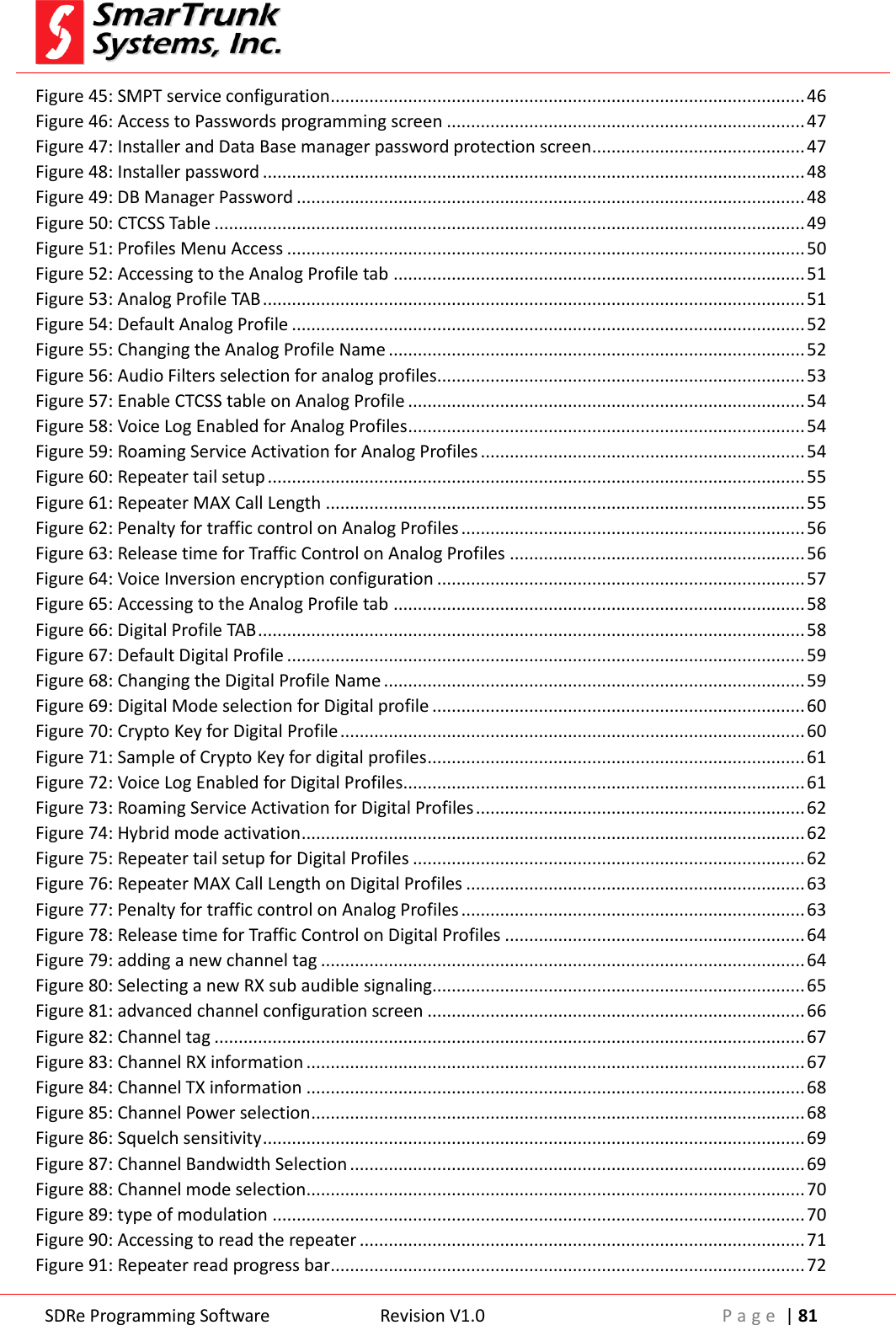
 SDRe Programming Software Revision V1.0 P a g e  | 79   Figure 105: Software up to date confirmation screen  If no, the new software will be downloaded automatically. Proceed to install the new software as descripted on 1.1
 SDRe Programming Software Revision V1.0 P a g e  | 80   13. List of Figures Figure 1: SDR programming software welcome screen .......................................................................... 7 Figure 2: SDR programming software file location setup ....................................................................... 8 Figure 3: Start Menu destination ............................................................................................................ 9 Figure 4: Additional task to be performed by installation software ..................................................... 10 Figure 5: Installation parameters review .............................................................................................. 11 Figure 6: SDRe Programmer Software Installation progress bar ........................................................... 12 Figure 7: SDR Installation Software Final Screen .................................................................................. 13 Figure 8: Programming Software Main Screen Functional Areas ......................................................... 14 Figure 9:  SDR Programming Software Configuration Access ............................................................... 17 Figure 10: SDRe Programming Software Configuration Screen ............................................................ 18 Figure 11: Selecting IP address from the quick access bar ................................................................... 19 Figure 12: Selecting communication media from the quick access bar ................................................ 19 Figure 13: Software Language Configuration Screen ............................................................................ 19 Figure 14: New file access through File menu ...................................................................................... 20 Figure 15: Accessing to open an existing file or template .................................................................... 21 Figure 16: Model information access through Edit Menu .................................................................... 22 Figure 17: Model Info Screen ................................................................................................................ 23 Figure 18: Model info list ...................................................................................................................... 23 Figure 19: Accessing to Radio Buttons screen ...................................................................................... 25 Figure 20: Buttons Definition screen .................................................................................................... 25 Figure 21: Assigning the function to a button ....................................................................................... 26 Figure 22: Option screen access through Edit Menu bar ...................................................................... 31 Figure 23: Options Program screen ....................................................................................................... 32 Figure 24: Repeater Parameters tab ..................................................................................................... 33 Figure 25: FAN Setting ........................................................................................................................... 34 Figure 26: Low power on low voltage setting ....................................................................................... 34 Figure 27: Disable the repeater on low voltage .................................................................................... 35 Figure 28: Power on test setting ........................................................................................................... 35 Figure 29: IP environment programming tab ........................................................................................ 37 Figure 30: MAC address default setting ................................................................................................ 37 Figure 31: Sample of MAC Address input ............................................................................................. 38 Figure 32: IP port speed and mode selection ....................................................................................... 38 Figure 33: MDI-X selection .................................................................................................................... 39 Figure 34: Setting DHCP mode .............................................................................................................. 39 Figure 35: Manual configuration of the IP address ............................................................................... 40 Figure 36: Roamming/Servers definition screen................................................................................... 41 Figure 37: Selecting remote user database server ................................................................................ 41 Figure 38: Voice Server IP definition ..................................................................................................... 42 Figure 39: Addressing the monitor server ............................................................................................ 42 Figure 40: Broadcast configuration for conventional repeater sites ..................................................... 43 Figure 41: SIP Server IP configuration tab ............................................................................................. 43 Figure 42: Single Site Trunking configuration ........................................................................................ 44 Figure 43: E-mail services configuration ............................................................................................... 45 Figure 44: POP3 Service configuration .................................................................................................. 46
 SDRe Programming Software Revision V1.0 P a g e  | 81  Figure 45: SMPT service configuration .................................................................................................. 46 Figure 46: Access to Passwords programming screen .......................................................................... 47 Figure 47: Installer and Data Base manager password protection screen ............................................ 47 Figure 48: Installer password ................................................................................................................ 48 Figure 49: DB Manager Password ......................................................................................................... 48 Figure 50: CTCSS Table .......................................................................................................................... 49 Figure 51: Profiles Menu Access ........................................................................................................... 50 Figure 52: Accessing to the Analog Profile tab ..................................................................................... 51 Figure 53: Analog Profile TAB ................................................................................................................ 51 Figure 54: Default Analog Profile .......................................................................................................... 52 Figure 55: Changing the Analog Profile Name ...................................................................................... 52 Figure 56: Audio Filters selection for analog profiles ............................................................................ 53 Figure 57: Enable CTCSS table on Analog Profile .................................................................................. 54 Figure 58: Voice Log Enabled for Analog Profiles .................................................................................. 54 Figure 59: Roaming Service Activation for Analog Profiles ................................................................... 54 Figure 60: Repeater tail setup ............................................................................................................... 55 Figure 61: Repeater MAX Call Length ................................................................................................... 55 Figure 62: Penalty for traffic control on Analog Profiles ....................................................................... 56 Figure 63: Release time for Traffic Control on Analog Profiles ............................................................. 56 Figure 64: Voice Inversion encryption configuration ............................................................................ 57 Figure 65: Accessing to the Analog Profile tab ..................................................................................... 58 Figure 66: Digital Profile TAB ................................................................................................................. 58 Figure 67: Default Digital Profile ........................................................................................................... 59 Figure 68: Changing the Digital Profile Name ....................................................................................... 59 Figure 69: Digital Mode selection for Digital profile ............................................................................. 60 Figure 70: Crypto Key for Digital Profile ................................................................................................ 60 Figure 71: Sample of Crypto Key for digital profiles .............................................................................. 61 Figure 72: Voice Log Enabled for Digital Profiles................................................................................... 61 Figure 73: Roaming Service Activation for Digital Profiles .................................................................... 62 Figure 74: Hybrid mode activation ........................................................................................................ 62 Figure 75: Repeater tail setup for Digital Profiles ................................................................................. 62 Figure 76: Repeater MAX Call Length on Digital Profiles ...................................................................... 63 Figure 77: Penalty for traffic control on Analog Profiles ....................................................................... 63 Figure 78: Release time for Traffic Control on Digital Profiles .............................................................. 64 Figure 79: adding a new channel tag .................................................................................................... 64 Figure 80: Selecting a new RX sub audible signaling............................................................................. 65 Figure 81: advanced channel configuration screen .............................................................................. 66 Figure 82: Channel tag .......................................................................................................................... 67 Figure 83: Channel RX information ....................................................................................................... 67 Figure 84: Channel TX information ....................................................................................................... 68 Figure 85: Channel Power selection ...................................................................................................... 68 Figure 86: Squelch sensitivity ................................................................................................................ 69 Figure 87: Channel Bandwidth Selection .............................................................................................. 69 Figure 88: Channel mode selection ....................................................................................................... 70 Figure 89: type of modulation .............................................................................................................. 70 Figure 90: Accessing to read the repeater ............................................................................................ 71 Figure 91: Repeater read progress bar .................................................................................................. 72
 SDRe Programming Software Revision V1.0 P a g e  | 82  Figure 92: read repeater confirmation screen ...................................................................................... 72 Figure 93: Model error reported when attempting to read a wrong repeater model ......................... 72 Figure 94: Accessing to write the repeater ........................................................................................... 73 Figure 95: Writing to the repeater progress bar ................................................................................... 73 Figure 96: Repeater write confirmation screen .................................................................................... 74 Figure 97: Accessing to restore factory default settings ....................................................................... 75 Figure 98: warning message before restoring factory default .............................................................. 75 Figure 99: Factory default settings confirmation .................................................................................. 75 Figure 100: Accessing to Repeater firmware update screen ................................................................ 76 Figure 101: Repeater FW Update application screen ........................................................................... 76 Figure 102: Firmware update progress screen...................................................................................... 77 Figure 103: Exit from SDR programming software ................................................................................ 78 Figure 104: Manually checking firmware update ................................................................................. 78 Figure 105: Software up to date confirmation screen .......................................................................... 79
FCC Notices  FEDERAL COMMUNICATIONS COMMISSION INTERFERENCE STATEMENT This equipment has been tested and found to comply with the limits for a Class B digital device, pursuant to part 15 of the FCC Rules. These limits are designed to provide reasonable protection against harmful interference in a residential installation. This equipment generates, uses and can radiate radio frequency energy and, if not installed and used in accordance with the instructions, may cause harmful interference to radio communications. However, there is no guarantee that interference will not occur in a particular installation. If this equipment does cause harmful interference to radio or television reception, which can be determined by turning the equipment off and on, the user is encouraged to try to correct the interference by one or more of the following measures: -Reorient or relocate the receiving antenna. -Increase the separation between the equipment and receiver. -Connect the equipment into an outlet on a circuit different from that to which the receiver is connected. -Consult the dealer or an experienced radio/ TV technician for help.   CAUTION: Any changes or modifications not expressly approved by the grantee of this device could void the user's authority to operate the equipment   Use only shielded cables to connect I/O device to this equipment. You are cautioned that changes or modifications not expressly approved by the party responsible for compliance could void your authority to operate the equipment.   RF exposure warning · This equipment must be installed and operated in accordance with provided instructions and the antenna(s) used for this transmitter must be installed to provide a separation distance of at least 105 cm from all persons and must not be co-located or operating in conjunction with any other antenna or transmitter. End-users and installers must be provide with antenna installation instructions and transmitter operating conditions for satisfying RF exposure compliance.

Navigation menu