Revolabs 01-FUSION4 Wireless Microphone Base Station (4 Channel) User Manual Manual

Revolabs Inc. Wireless Microphone Base Station (4 Channel) Manual

Manual

     Microphones must be fully charged and paired to the  Charger Base prior to first use.     Rev 1.1 Revolabs Fusion™ Wireless Microphone System Installation and User’s Guide
Page 2 Table of Contents 8-Microphone System 01-8FUSION-NM  or  01-8FUSIONEU-NM (No microphones) 01-8FUSION-62  or  01-8FUSIONEU-62    (6 omni tabletops/2 wearable)  4- Microphone System 01-4FUSION-NM  or  01-4FUSIONEU-NM (No microphones) 01-4FUSION-31  or  01-4FUSIONEU-31  (3 omni tabletops/1 wearable) Part Numbers Covered in This Document Page 37 EUROPEAN COMPLIANCE This equipment has been approved in accordance with Council Directive 1999/5/EC “Radio Equipment and telecommunications Equipment.  Conformity of the Equipment with the guidelines below is attested by the CE mark. Model Numbers: 01-8FUSIONEU-NM  Revolabs Fusion Base Station, European 01-4FUSIONEU-NM  Revolabs Fusion Base Station, European 01-8FUSIONEU-62  Revolabs Fusion System with 6 tabletop omni’s & 2 wearable mics, European 01-4FUSIONEU-31  Revolabs Fusion Base System with 3 tabletop omni’s & 1 wearable mics, European 03-EXEMICEU-BLK-11 Revolabs Solo™ Executive Microphone 03-EXECHGEU-STD-11    Revolabs Solo™ Executive Charger 05-TBLMICEU-OM-BLK-11 Revolabs Solo™ Executive Table Microphone Omni 05-TBLMICEU-DR-BLK-11 Revolabs Solo™ Executive Table Microphone Cardioid 06-XLRMICEU-OM-BLK-11  Revolabs Solo™ Executive XLR Microphone Adapter STANDARDS TO WHICH CONFORMITY IS DECLARED: RF  ETSI EN 301 406 V 1.4.1 03/2001 EMC  ETSI EN 301 489-6 v1.2.1 (2002-04) WEEE NOTIFICATION: The Waste Electrical and Electronic Equipment (WEEE) directive (2002/96/EC) is intended to promote recycling of electrical and electronic equipment and their components at end of life.   2003/11/EC & 2002/95/EC “ROHS COMPLIANCE DIRECTIVE”: The products referenced herein are in compliance with the EU directive 2003/11/EC and EU directive 2002/95/EC.  SAFETY COMPLIANCE TUV SUD AMERICA   Revolabs Fusion™
INDUSTRY CANADA NOTICE TO USERS Operation is subject to the following two conditions:  (1) This device may not cause interference and  (2) This device must accept any interference, including interference that may cause undesired operation of the device.  IC: 6455A-01FUSION  Revolabs Fusion™ Base Station 8 microphones IC; 6455A-01FUSION4   Revolabs Fusion™ Base Station 4 microphones IC: 6455A-01EXEMIC   Revolabs Solo™ Executive Microphone   RESTRICTED USE WITH CERTAIN MEDICAL DEVICES Hearing Aids Some devices may interfere with some hearing aids. In the event of such interference, you may want to consult with your hearing aid manufacturer to discuss alternatives.  Other Medical Devices If you use any other personal medical device, consult the manufacturer of your device to determine if it is adequately shielded from RF energy. Your physician may be able to assist you in obtaining this information.   EXPORT LAW ASSURANCES This product is controlled under the export regulations of the United States of America and Canada. The Governments of the United States of America and Canada may restrict the exportation or re-exportation of this product to certain destinations. For further information contact the U.S. Department of Commerce or the Canadian Department of Foreign Affairs and International Trade. The use of wireless devices and their accessories may be prohibited or restricted in certain areas. Always obey the laws and regulations on the use of these products.  01-FUSION-8CH-NA &   01-FUSION-4CH-NA North America UPCS Usage Restriction Due to the UPCS frequencies used, this product is licensed for operation only in the United States of America and Canada. 01-FUSION-8CH-EU &   01-FUSION-4CH-EU European Union Usage Restriction Due to the DECT frequencies used, this product is licensed for operation only in the European Union countries. Page 36 Installation  Guide Revolabs Fusion™  Page 3 Great audio, wireless mobility, and simple to install!   Simply plug the cable into the AV system or phone system and it works.  No software configuration is necessary.  Even the Fusion box is designed to be easy to use– vertically or horizontally.  No equipment rack needed!  Just set the Fusion system on the credenza!   Video Conferencing  Revolabs Fusion Wireless Microphone Solution includes all of the necessary cables to plug into any of the major video-conferencing solutions, including Lifesize, Polycom, Sony and Tandberg.  It includes a remote control to control the sound volume in your conference room or in the conference room at the far end.  Decide on where you want to put the Fusion system, whether you want to place it vertically or horizontally, plug in the cables and you are ready to have great wireless audio in any conference room!    Audio Conferencing  Plug the Fusion Wireless Microphone Solution into a telephone system and you are on your way to great wireless audio.  There is a remote control dialer to dial the conference phone number and you may purchase new powered speakers or use existing powered speakers to hear the call.  Decide on where you want to put the Fusion system, whether you want it vertical or horizontal, plug in the cables and you are ready to have great wireless audio in any conference room!   Rechargeable These  Wireless Microphone Systems have a rechargeable battery that provides eight hours of talk time after each full charge. Revolabs Wireless Microphones recharge to 85% capacity in approximately 45 minutes.  Secure All of Revolabs Wireless Microphones use 128-bit encryption, so that no one can listen in.
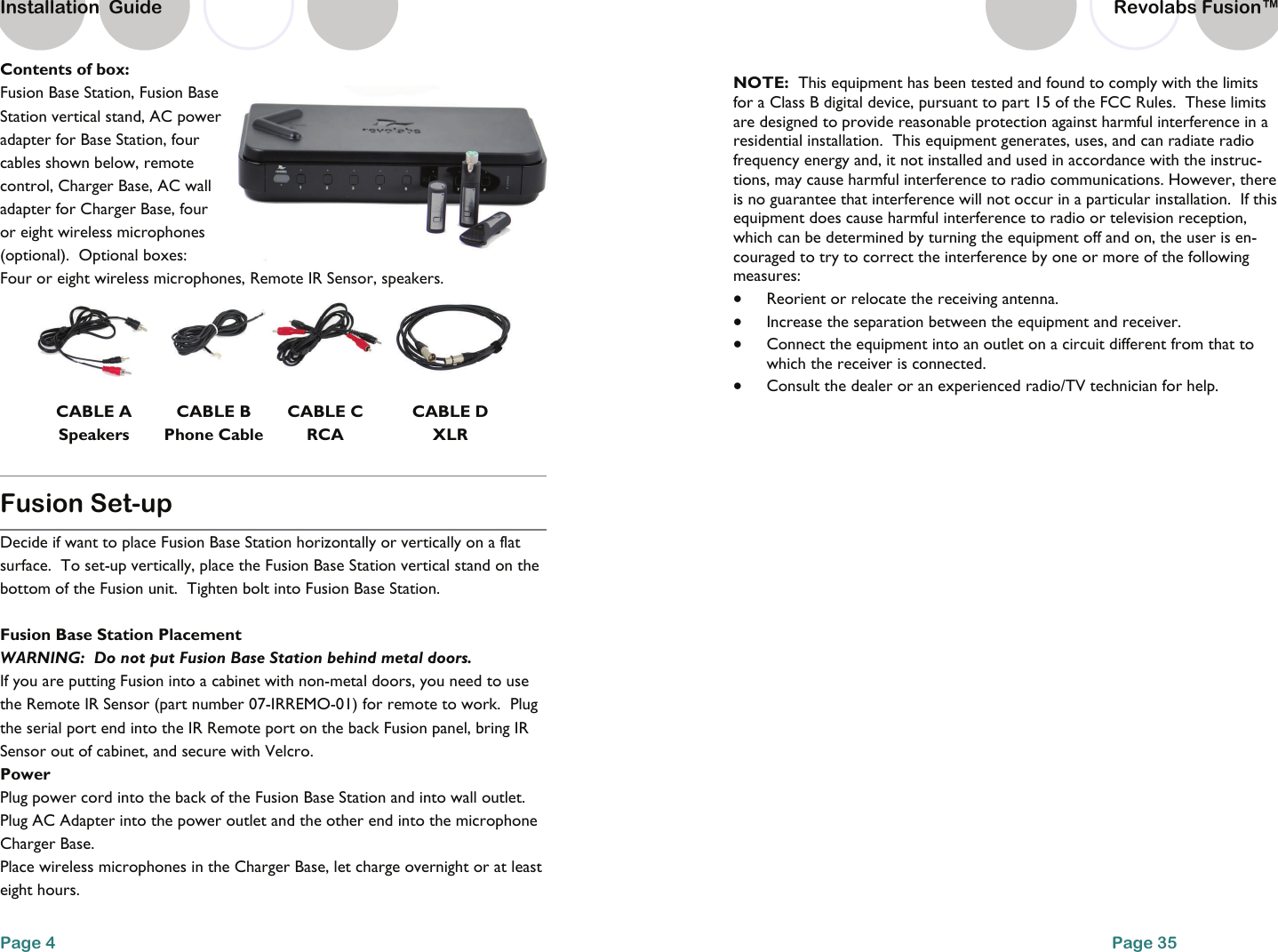
Installation  Guide Page 4 Contents of box:   Fusion Base Station, Fusion Base Station vertical stand, AC power adapter for Base Station, four cables shown below, remote control, Charger Base, AC wall adapter for Charger Base, four or eight wireless microphones (optional).  Optional boxes:  Four or eight wireless microphones, Remote IR Sensor, speakers.         Fusion Set-up Decide if want to place Fusion Base Station horizontally or vertically on a flat surface.  To set-up vertically, place the Fusion Base Station vertical stand on the bottom of the Fusion unit.  Tighten bolt into Fusion Base Station.  Fusion Base Station Placement WARNING:  Do not put Fusion Base Station behind metal doors.    If you are putting Fusion into a cabinet with non-metal doors, you need to use the Remote IR Sensor (part number 07-IRREMO-01) for remote to work.  Plug the serial port end into the IR Remote port on the back Fusion panel, bring IR Sensor out of cabinet, and secure with Velcro.   Power Plug power cord into the back of the Fusion Base Station and into wall outlet. Plug AC Adapter into the power outlet and the other end into the microphone Charger Base. Place wireless microphones in the Charger Base, let charge overnight or at least eight hours. CABLE A Speakers CABLE B Phone Cable CABLE C RCA CABLE D XLR Page 35 NOTE:  This equipment has been tested and found to comply with the limits for a Class B digital device, pursuant to part 15 of the FCC Rules.  These limits are designed to provide reasonable protection against harmful interference in a residential installation.  This equipment generates, uses, and can radiate radio frequency energy and, it not installed and used in accordance with the instruc-tions, may cause harmful interference to radio communications. However, there is no guarantee that interference will not occur in a particular installation.  If this equipment does cause harmful interference to radio or television reception, which can be determined by turning the equipment off and on, the user is en-couraged to try to correct the interference by one or more of the following measures: •  Reorient or relocate the receiving antenna. •  Increase the separation between the equipment and receiver. •  Connect the equipment into an outlet on a circuit different from that to which the receiver is connected. •  Consult the dealer or an experienced radio/TV technician for help. Revolabs Fusion™
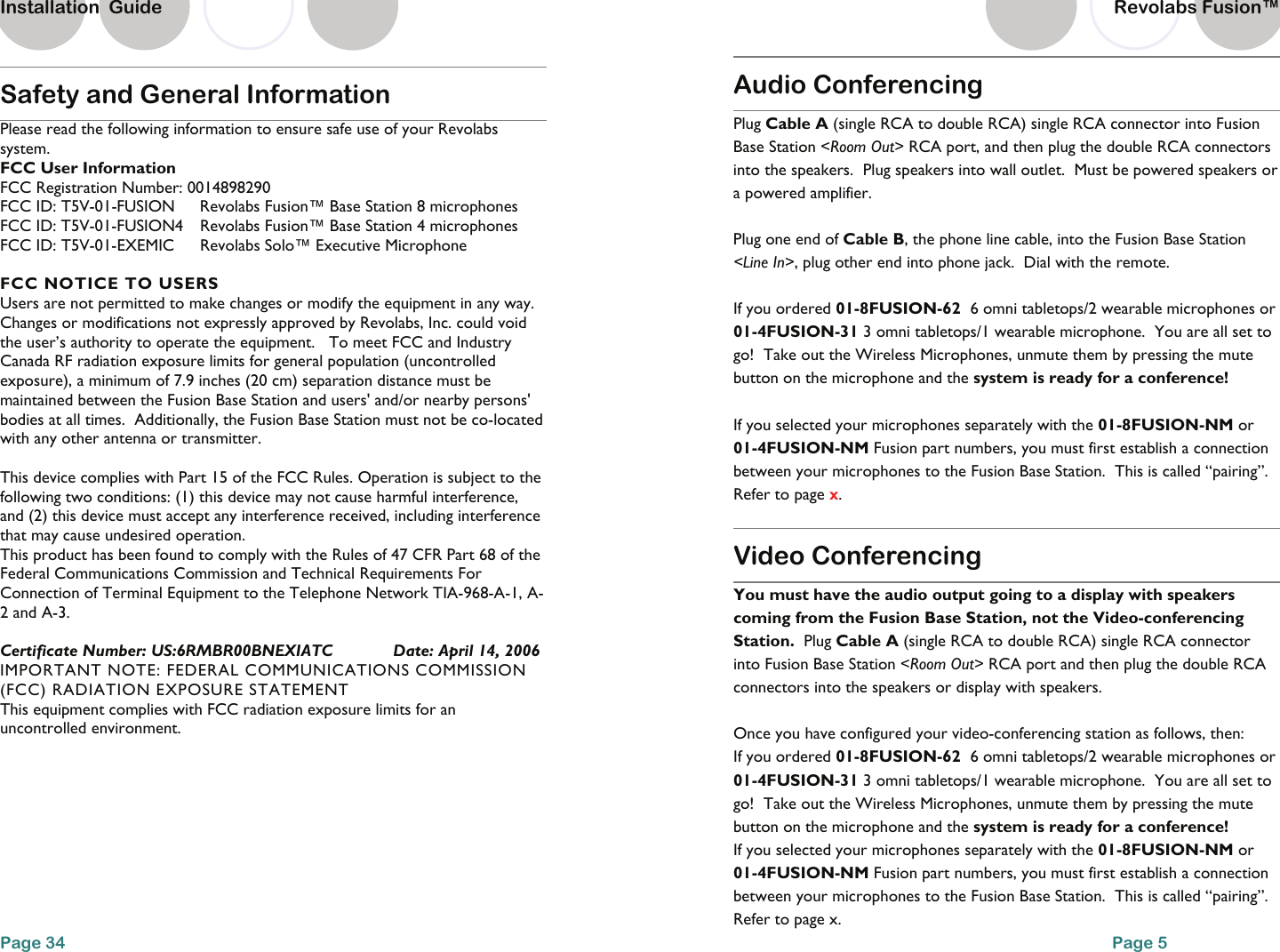
Safety and General Information Please read the following information to ensure safe use of your Revolabs system. FCC User Information FCC Registration Number: 0014898290 FCC ID: T5V-01-FUSION  Revolabs Fusion™ Base Station 8 microphones FCC ID: T5V-01-FUSION4   Revolabs Fusion™ Base Station 4 microphones FCC ID: T5V-01-EXEMIC  Revolabs Solo™ Executive Microphone  FCC NOTICE TO USERS Users are not permitted to make changes or modify the equipment in any way. Changes or modifications not expressly approved by Revolabs, Inc. could void the user’s authority to operate the equipment.   To meet FCC and Industry Canada RF radiation exposure limits for general population (uncontrolled exposure), a minimum of 7.9 inches (20 cm) separation distance must be maintained between the Fusion Base Station and users' and/or nearby persons' bodies at all times.  Additionally, the Fusion Base Station must not be co-located with any other antenna or transmitter.  This device complies with Part 15 of the FCC Rules. Operation is subject to the following two conditions: (1) this device may not cause harmful interference, and (2) this device must accept any interference received, including interference that may cause undesired operation. This product has been found to comply with the Rules of 47 CFR Part 68 of the Federal Communications Commission and Technical Requirements For Connection of Terminal Equipment to the Telephone Network TIA-968-A-1, A-2 and A-3.  Certificate Number: US:6RMBR00BNEXIATC             Date: April 14, 2006 IMPORTANT NOTE: FEDERAL COMMUNICATIONS COMMISSION (FCC) RADIATION EXPOSURE STATEMENT This equipment complies with FCC radiation exposure limits for an uncontrolled environment.  Page 34 Installation  Guide Revolabs Fusion™  Audio Conferencing  Plug Cable A (single RCA to double RCA) single RCA connector into Fusion Base Station <Room Out> RCA port, and then plug the double RCA connectors into the speakers.  Plug speakers into wall outlet.  Must be powered speakers or a powered amplifier.      Plug one end of Cable B, the phone line cable, into the Fusion Base Station <Line In>, plug other end into phone jack.  Dial with the remote.    If you ordered 01-8FUSION-62  6 omni tabletops/2 wearable microphones or 01-4FUSION-31 3 omni tabletops/1 wearable microphone.  You are all set to go!  Take out the Wireless Microphones, unmute them by pressing the mute button on the microphone and the system is ready for a conference!  If you selected your microphones separately with the 01-8FUSION-NM or 01-4FUSION-NM Fusion part numbers, you must first establish a connection between your microphones to the Fusion Base Station.  This is called “pairing”.  Refer to page x.  Video Conferencing You must have the audio output going to a display with speakers coming from the Fusion Base Station, not the Video-conferencing Station.  Plug Cable A (single RCA to double RCA) single RCA connector into Fusion Base Station <Room Out> RCA port and then plug the double RCA connectors into the speakers or display with speakers.  Once you have configured your video-conferencing station as follows, then:   If you ordered 01-8FUSION-62  6 omni tabletops/2 wearable microphones or 01-4FUSION-31 3 omni tabletops/1 wearable microphone.  You are all set to go!  Take out the Wireless Microphones, unmute them by pressing the mute button on the microphone and the system is ready for a conference! If you selected your microphones separately with the 01-8FUSION-NM or 01-4FUSION-NM Fusion part numbers, you must first establish a connection between your microphones to the Fusion Base Station.  This is called “pairing”.  Refer to page x. Page 5
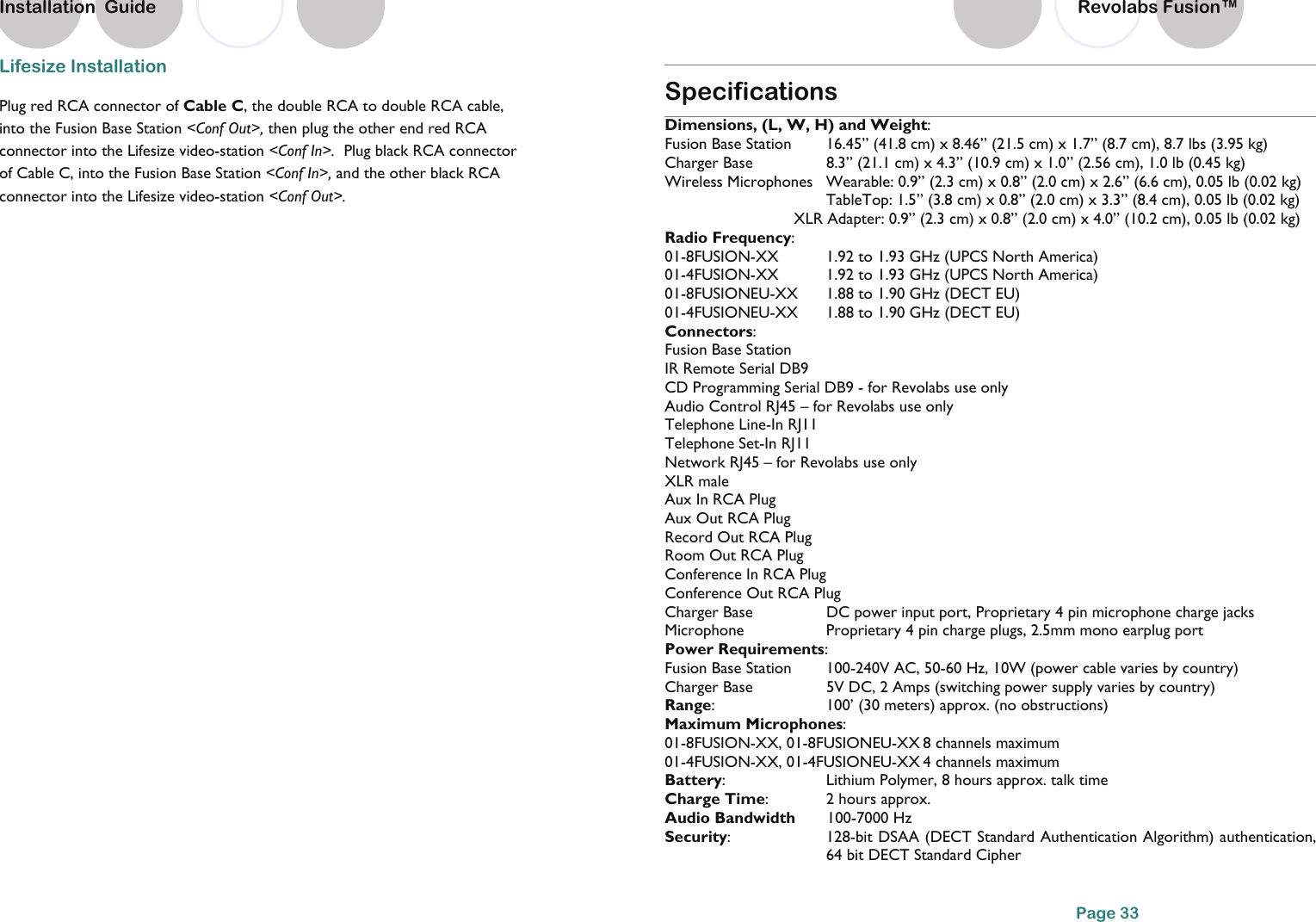
Installation  Guide Lifesize Installation Plug red RCA connector of Cable C, the double RCA to double RCA cable, into the Fusion Base Station <Conf Out>, then plug the other end red RCA connector into the Lifesize video-station <Conf In>.  Plug black RCA connector of Cable C, into the Fusion Base Station <Conf In>, and the other black RCA connector into the Lifesize video-station <Conf Out>.     Specifications Dimensions, (L, W, H) and Weight: Fusion Base Station   16.45” (41.8 cm) x 8.46” (21.5 cm) x 1.7” (8.7 cm), 8.7 lbs (3.95 kg) Charger Base    8.3” (21.1 cm) x 4.3” (10.9 cm) x 1.0” (2.56 cm), 1.0 lb (0.45 kg) Wireless Microphones  Wearable: 0.9” (2.3 cm) x 0.8” (2.0 cm) x 2.6” (6.6 cm), 0.05 lb (0.02 kg)       TableTop: 1.5” (3.8 cm) x 0.8” (2.0 cm) x 3.3” (8.4 cm), 0.05 lb (0.02 kg)       XLR Adapter: 0.9” (2.3 cm) x 0.8” (2.0 cm) x 4.0” (10.2 cm), 0.05 lb (0.02 kg) Radio Frequency:  01-8FUSION-XX    1.92 to 1.93 GHz (UPCS North America) 01-4FUSION-XX    1.92 to 1.93 GHz (UPCS North America)   01-8FUSIONEU-XX  1.88 to 1.90 GHz (DECT EU) 01-4FUSIONEU-XX  1.88 to 1.90 GHz (DECT EU) Connectors:      Fusion Base Station IR Remote Serial DB9  CD Programming Serial DB9 - for Revolabs use only Audio Control RJ45 – for Revolabs use only Telephone Line-In RJ11  Telephone Set-In RJ11  Network RJ45 – for Revolabs use only XLR male Aux In RCA Plug Aux Out RCA Plug Record Out RCA Plug Room Out RCA Plug Conference In RCA Plug Conference Out RCA Plug Charger Base    DC power input port, Proprietary 4 pin microphone charge jacks Microphone    Proprietary 4 pin charge plugs, 2.5mm mono earplug port  Power Requirements: Fusion Base Station   100-240V AC, 50-60 Hz, 10W (power cable varies by country) Charger Base      5V DC, 2 Amps (switching power supply varies by country) Range:    100’ (30 meters) approx. (no obstructions) Maximum Microphones:  01-8FUSION-XX, 01-8FUSIONEU-XX 8 channels maximum  01-4FUSION-XX, 01-4FUSIONEU-XX 4 channels maximum  Battery:    Lithium Polymer, 8 hours approx. talk time Charge Time:    2 hours approx. Audio Bandwidth       100-7000 Hz Security:    128-bit DSAA (DECT Standard Authentication Algorithm) authentication, 64 bit DECT Standard Cipher Page 33 Revolabs Fusion™
Warranty Revolabs, Inc. warrants this product to be free of manufacturing defects. Repair or replacement of any defective part or unit (at the discretion of the Seller) will be free of charge for the period of one year. Any attempt by the user to alter the equipment, or equipment damaged by negligence, accident, or Acts of God voids this warranty. The Seller shall not be liable for any consequential damage resulting from the malfunction of this product. Should the user experience unsatisfactory performance from this equipment, contact the Seller to obtain instructions for return, or replacement, as deemed necessary. This warranty is not transferable by the original end user.  Revolabs, Inc. 63 Great Road Maynard, MA 01754 www.revolabs.com 800.326.1200 Page 32 Installation  Guide Revolabs Fusion™  Page 7
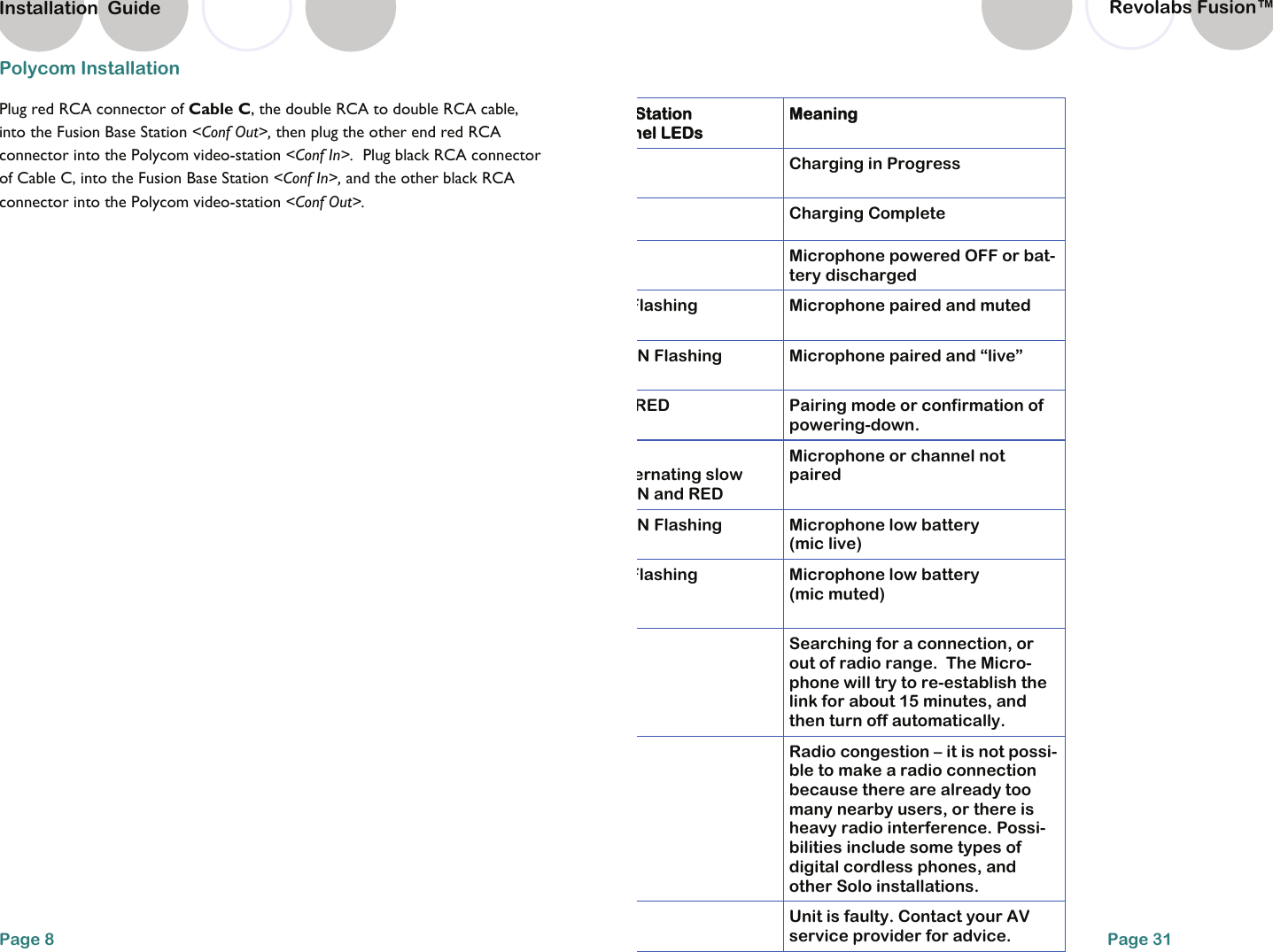
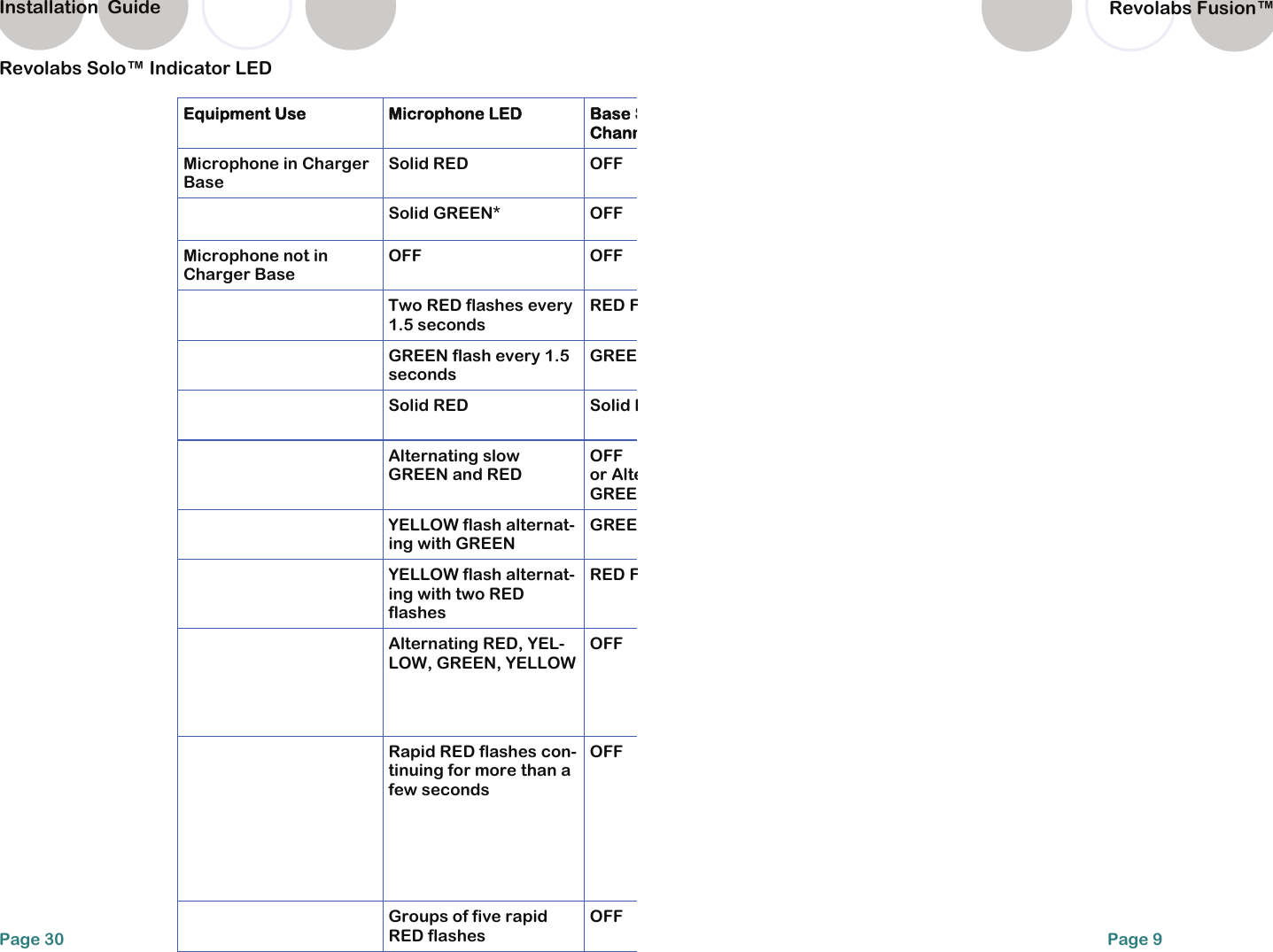
Polycom Installation Plug red RCA connector of Cable C, the double RCA to double RCA cable, into the Fusion Base Station <Conf Out>, then plug the other end red RCA connector into the Polycom video-station <Conf In>.  Plug black RCA connector of Cable C, into the Fusion Base Station <Conf In>, and the other black RCA connector into the Polycom video-station <Conf Out>.     Page 8 Installation  Guide Station  nel LEDs Meaning Charging in Progress Charging Complete Microphone powered OFF or bat-tery discharged Flashing  Microphone paired and muted N Flashing  Microphone paired and “live” RED  Pairing mode or confirmation of powering-down. ernating slow N and RED Microphone or channel not paired N Flashing  Microphone low battery  (mic live) Flashing  Microphone low battery  (mic muted) Searching for a connection, or out of radio range.  The Micro-phone will try to re-establish the link for about 15 minutes, and then turn off automatically. Radio congestion – it is not possi-ble to make a radio connection because there are already too many nearby users, or there is heavy radio interference. Possi-bilities include some types of digital cordless phones, and other Solo installations. Unit is faulty. Contact your AV service provider for advice.  Page 31 Revolabs Fusion™
Revolabs Solo™ Indicator LED   Equipment Use  Microphone LED  Base SChannMicrophone in Charger Base   Solid RED  OFF  Solid GREEN* OFF Microphone not in Charger Base   OFF OFF   Two RED flashes every 1.5 seconds RED F  GREEN flash every 1.5 seconds GREE Solid RED Solid R Alternating slow GREEN and RED OFF  or AlteGREE  YELLOW flash alternat-ing with GREEN GREE  YELLOW flash alternat-ing with two RED flashes RED F  Alternating RED, YEL-LOW, GREEN, YELLOW OFF   Rapid RED flashes con-tinuing for more than a few seconds OFF   Groups of five rapid RED flashes OFF Page 30 Installation  Guide Page 9    Revolabs Fusion™
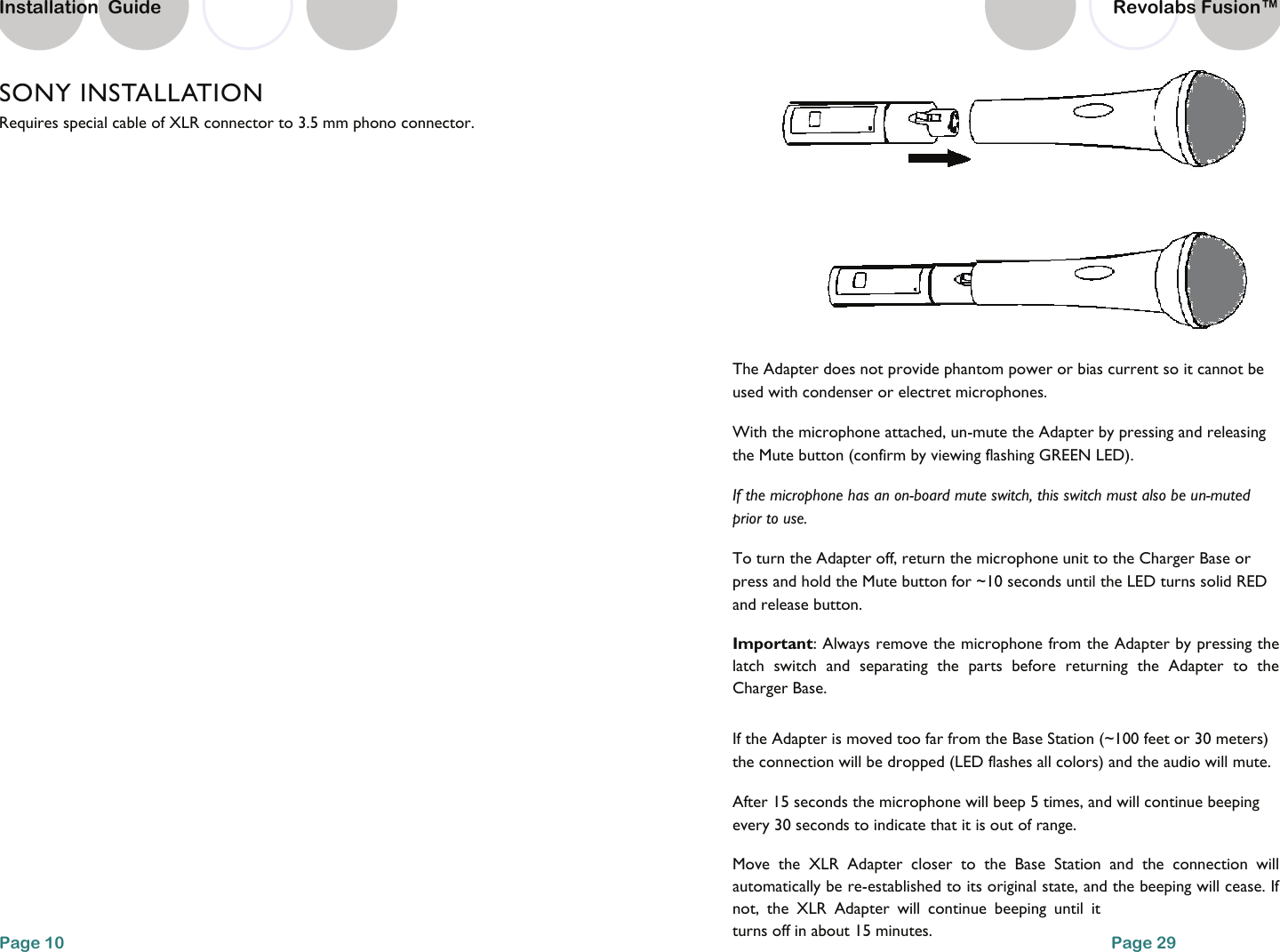
SONY INSTALLATION Requires special cable of XLR connector to 3.5 mm phono connector.    Page 10 Installation  Guide  The Adapter does not provide phantom power or bias current so it cannot be used with condenser or electret microphones. With the microphone attached, un-mute the Adapter by pressing and releasing the Mute button (confirm by viewing flashing GREEN LED).  If the microphone has an on-board mute switch, this switch must also be un-muted prior to use. To turn the Adapter off, return the microphone unit to the Charger Base or press and hold the Mute button for ~10 seconds until the LED turns solid RED and release button. Important: Always remove the microphone from the Adapter by pressing the latch switch and separating the parts before returning the Adapter to the Charger Base. If the Adapter is moved too far from the Base Station (~100 feet or 30 meters) the connection will be dropped (LED flashes all colors) and the audio will mute.  After 15 seconds the microphone will beep 5 times, and will continue beeping every 30 seconds to indicate that it is out of range.  Move the XLR Adapter closer to the Base Station and the connection will automatically be re-established to its original state, and the beeping will cease. If not, the XLR Adapter will continue beeping until it turns off in about 15 minutes.  Page 29 Revolabs Fusion™
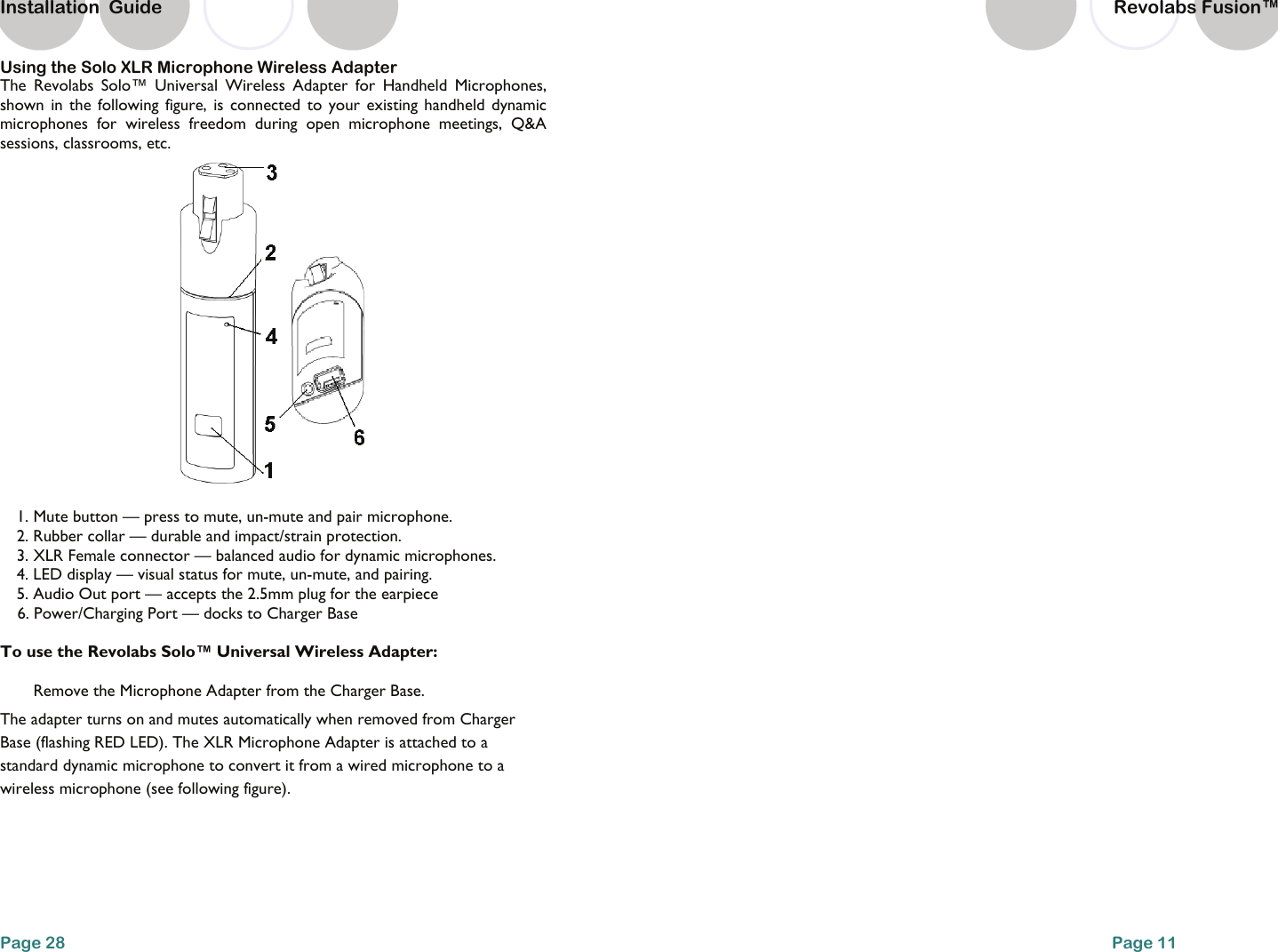
Using the Solo XLR Microphone Wireless Adapter The Revolabs Solo™ Universal Wireless Adapter for Handheld Microphones, shown in the following figure, is connected to your existing handheld dynamic microphones for wireless freedom during open microphone meetings, Q&A sessions, classrooms, etc.   1. Mute button — press to mute, un-mute and pair microphone. 2. Rubber collar — durable and impact/strain protection. 3. XLR Female connector — balanced audio for dynamic microphones. 4. LED display — visual status for mute, un-mute, and pairing. 5. Audio Out port — accepts the 2.5mm plug for the earpiece  6. Power/Charging Port — docks to Charger Base  To use the Revolabs Solo™ Universal Wireless Adapter:  Remove the Microphone Adapter from the Charger Base.  The adapter turns on and mutes automatically when removed from Charger Base (flashing RED LED). The XLR Microphone Adapter is attached to a standard dynamic microphone to convert it from a wired microphone to a wireless microphone (see following figure).  Page 28 Installation  Guide Page 11     Revolabs Fusion™
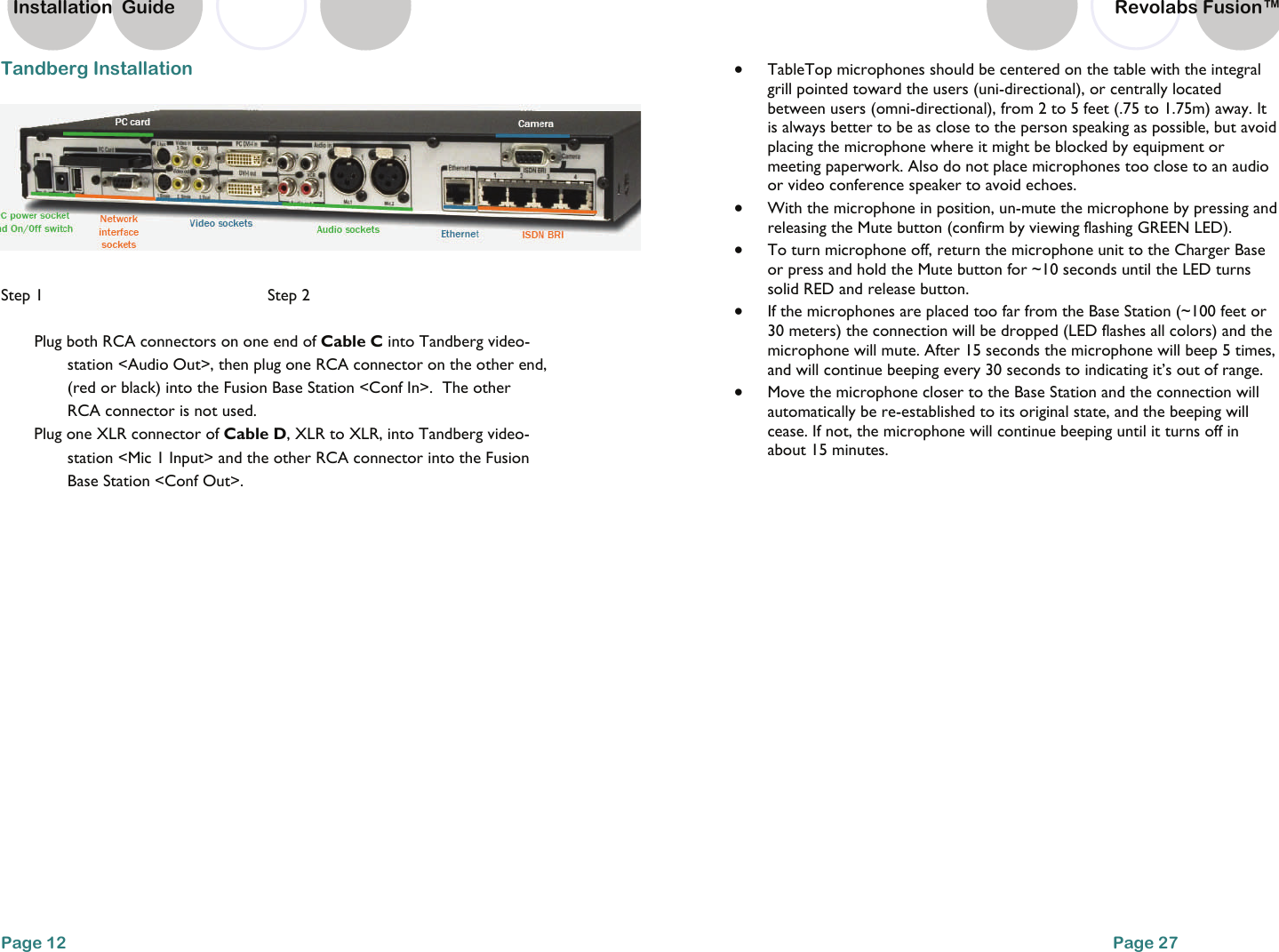
Tandberg Installation  Step 1    Step 2  Plug both RCA connectors on one end of Cable C into Tandberg video-station <Audio Out>, then plug one RCA connector on the other end, (red or black) into the Fusion Base Station <Conf In>.  The other RCA connector is not used.  Plug one XLR connector of Cable D, XLR to XLR, into Tandberg video-station <Mic 1 Input> and the other RCA connector into the Fusion Base Station <Conf Out>.    Page 12 Installation  Guide Page 27 •  TableTop microphones should be centered on the table with the integral grill pointed toward the users (uni-directional), or centrally located between users (omni-directional), from 2 to 5 feet (.75 to 1.75m) away. It is always better to be as close to the person speaking as possible, but avoid placing the microphone where it might be blocked by equipment or meeting paperwork. Also do not place microphones too close to an audio or video conference speaker to avoid echoes. •  With the microphone in position, un-mute the microphone by pressing and releasing the Mute button (confirm by viewing flashing GREEN LED).  •  To turn microphone off, return the microphone unit to the Charger Base or press and hold the Mute button for ~10 seconds until the LED turns solid RED and release button. •  If the microphones are placed too far from the Base Station (~100 feet or 30 meters) the connection will be dropped (LED flashes all colors) and the microphone will mute. After 15 seconds the microphone will beep 5 times, and will continue beeping every 30 seconds to indicating it’s out of range.  •  Move the microphone closer to the Base Station and the connection will automatically be re-established to its original state, and the beeping will cease. If not, the microphone will continue beeping until it turns off in about 15 minutes. Revolabs Fusion™
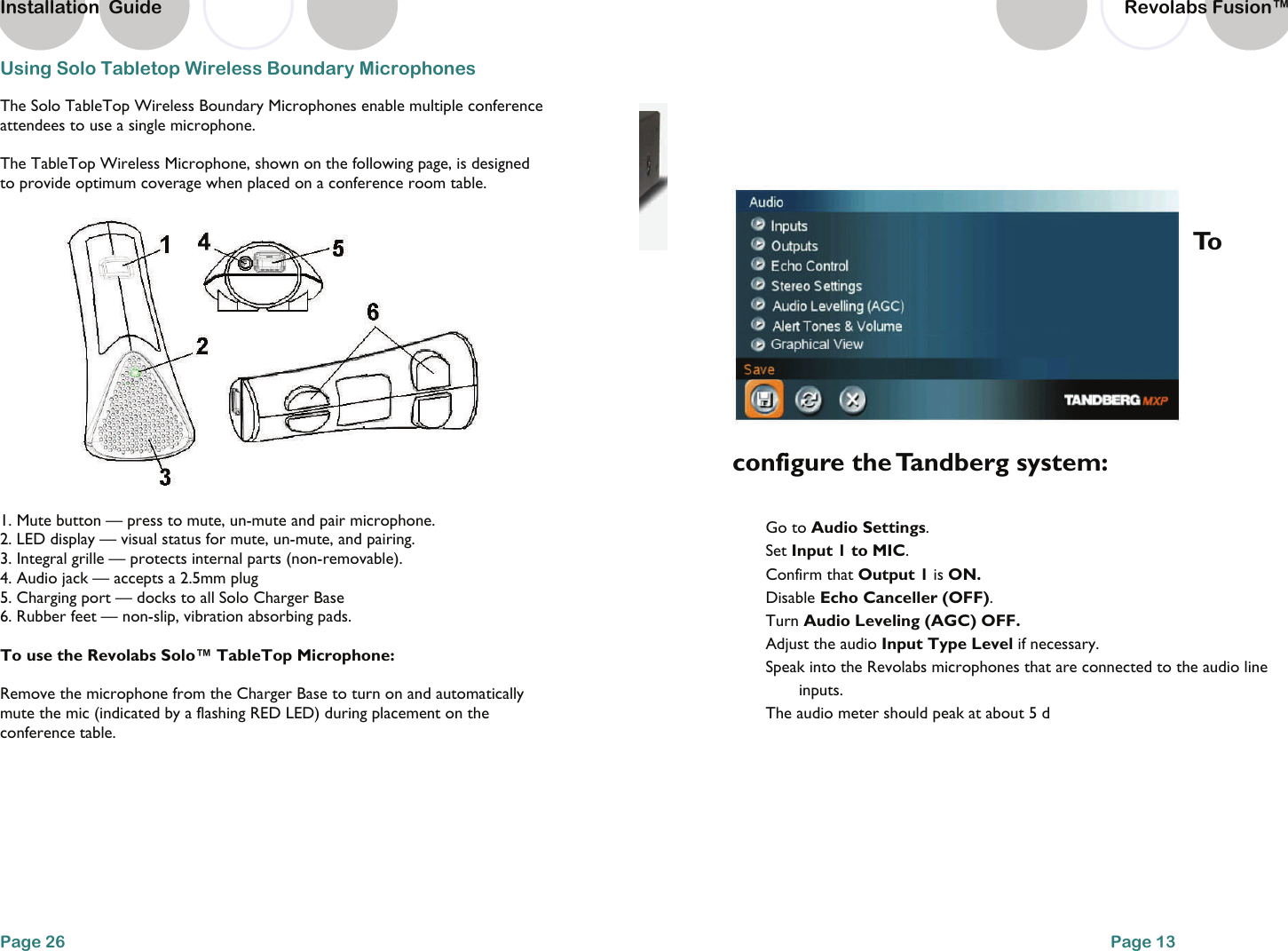
Using Solo Tabletop Wireless Boundary Microphones The Solo TableTop Wireless Boundary Microphones enable multiple conference attendees to use a single microphone.   The TableTop Wireless Microphone, shown on the following page, is designed to provide optimum coverage when placed on a conference room table.    1. Mute button — press to mute, un-mute and pair microphone. 2. LED display — visual status for mute, un-mute, and pairing. 3. Integral grille — protects internal parts (non-removable).  4. Audio jack — accepts a 2.5mm plug 5. Charging port — docks to all Solo Charger Base 6. Rubber feet — non-slip, vibration absorbing pads.   To use the Revolabs Solo™ TableTop Microphone:  Remove the microphone from the Charger Base to turn on and automatically mute the mic (indicated by a flashing RED LED) during placement on the conference table.  Page 26 Installation  Guide Page 13       To  configure the Tandberg system:  Go to Audio Settings. Set Input 1 to MIC. Confirm that Output 1 is ON. Disable Echo Canceller (OFF). Turn Audio Leveling (AGC) OFF. Adjust the audio Input Type Level if necessary. Speak into the Revolabs microphones that are connected to the audio line inputs.   The audio meter should peak at about 5 d Revolabs Fusion™
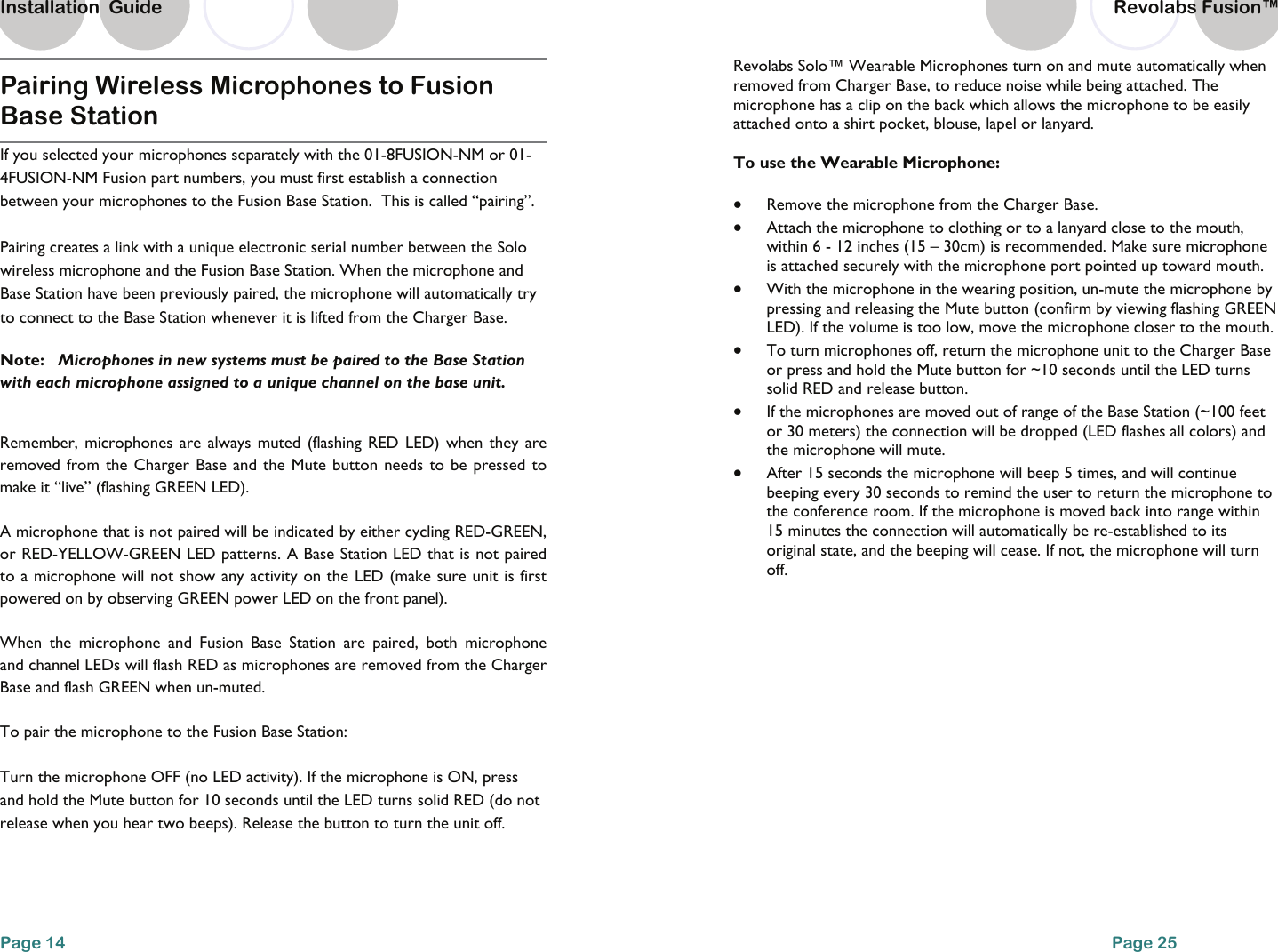
Pairing Wireless Microphones to Fusion Base Station  If you selected your microphones separately with the 01-8FUSION-NM or 01-4FUSION-NM Fusion part numbers, you must first establish a connection between your microphones to the Fusion Base Station.  This is called “pairing”.    Pairing creates a link with a unique electronic serial number between the Solo wireless microphone and the Fusion Base Station. When the microphone and Base Station have been previously paired, the microphone will automatically try to connect to the Base Station whenever it is lifted from the Charger Base.  Note:   Microphones in new systems must be paired to the Base Station with each microphone assigned to a unique channel on the base unit.  Remember, microphones are always muted (flashing RED LED) when they are removed from the Charger Base and the Mute button needs to be pressed to make it “live” (flashing GREEN LED).  A microphone that is not paired will be indicated by either cycling RED-GREEN, or RED-YELLOW-GREEN LED patterns. A Base Station LED that is not paired to a microphone will not show any activity on the LED (make sure unit is first powered on by observing GREEN power LED on the front panel).  When the microphone and Fusion Base Station are paired, both microphone and channel LEDs will flash RED as microphones are removed from the Charger Base and flash GREEN when un-muted.  To pair the microphone to the Fusion Base Station: Turn the microphone OFF (no LED activity). If the microphone is ON, press and hold the Mute button for 10 seconds until the LED turns solid RED (do not release when you hear two beeps). Release the button to turn the unit off. Page 14 Installation  Guide Page 25 Revolabs Solo™ Wearable Microphones turn on and mute automatically when removed from Charger Base, to reduce noise while being attached. The microphone has a clip on the back which allows the microphone to be easily attached onto a shirt pocket, blouse, lapel or lanyard.   To use the Wearable Microphone:  •  Remove the microphone from the Charger Base. •  Attach the microphone to clothing or to a lanyard close to the mouth, within 6 - 12 inches (15 – 30cm) is recommended. Make sure microphone is attached securely with the microphone port pointed up toward mouth. •  With the microphone in the wearing position, un-mute the microphone by pressing and releasing the Mute button (confirm by viewing flashing GREEN LED). If the volume is too low, move the microphone closer to the mouth. •  To turn microphones off, return the microphone unit to the Charger Base or press and hold the Mute button for ~10 seconds until the LED turns solid RED and release button. •  If the microphones are moved out of range of the Base Station (~100 feet or 30 meters) the connection will be dropped (LED flashes all colors) and the microphone will mute.  •  After 15 seconds the microphone will beep 5 times, and will continue beeping every 30 seconds to remind the user to return the microphone to the conference room. If the microphone is moved back into range within 15 minutes the connection will automatically be re-established to its original state, and the beeping will cease. If not, the microphone will turn off. Revolabs Fusion™
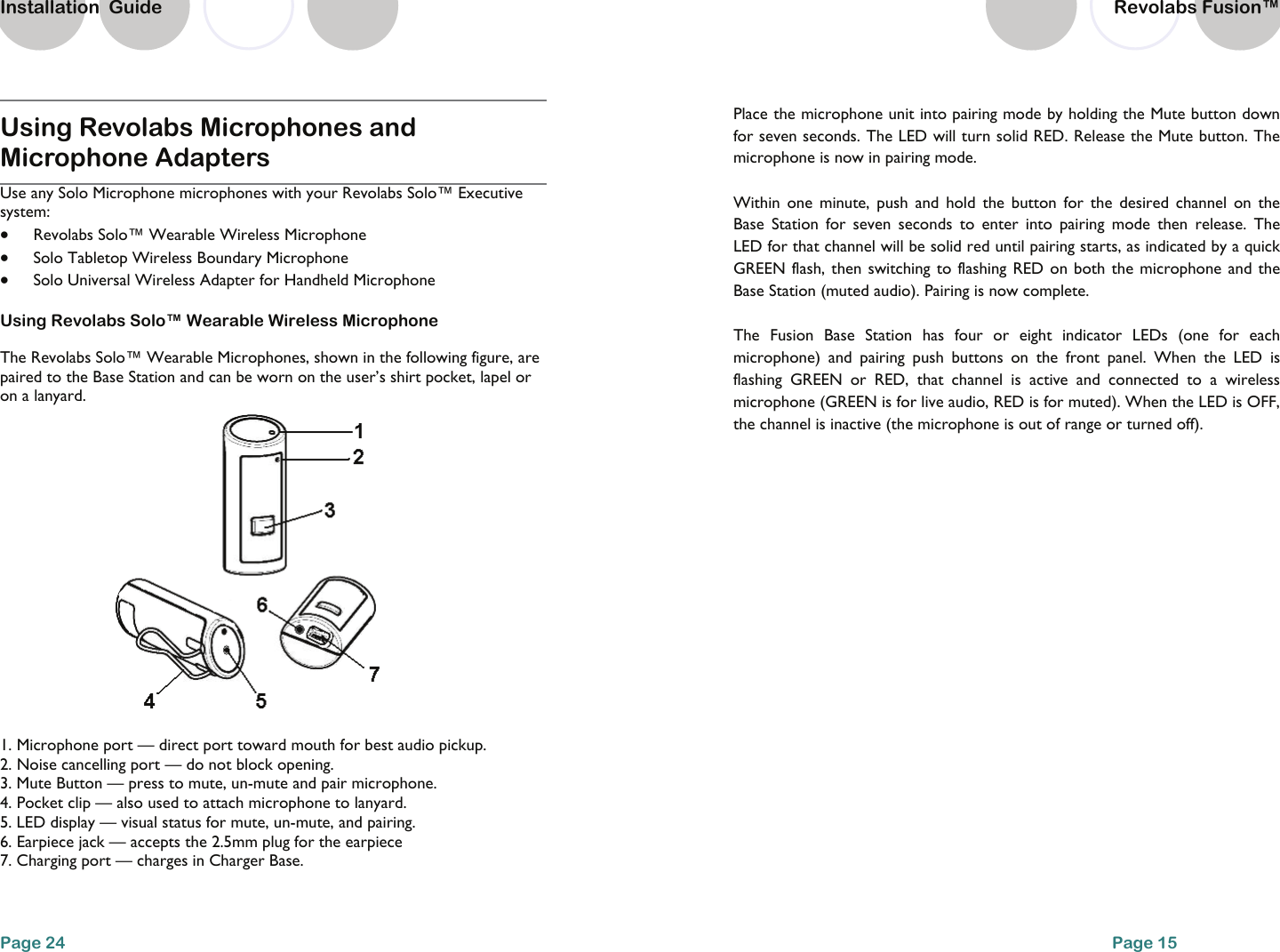
Using Revolabs Microphones and Microphone Adapters Use any Solo Microphone microphones with your Revolabs Solo™ Executive system: •  Revolabs Solo™ Wearable Wireless Microphone •  Solo Tabletop Wireless Boundary Microphone •  Solo Universal Wireless Adapter for Handheld Microphone  Using Revolabs Solo™ Wearable Wireless Microphone  The Revolabs Solo™ Wearable Microphones, shown in the following figure, are paired to the Base Station and can be worn on the user’s shirt pocket, lapel or on a lanyard.    1. Microphone port — direct port toward mouth for best audio pickup.  2. Noise cancelling port — do not block opening. 3. Mute Button — press to mute, un-mute and pair microphone. 4. Pocket clip — also used to attach microphone to lanyard. 5. LED display — visual status for mute, un-mute, and pairing. 6. Earpiece jack — accepts the 2.5mm plug for the earpiece 7. Charging port — charges in Charger Base.  Page 24 Installation  Guide Page 15  Place the microphone unit into pairing mode by holding the Mute button down for seven seconds. The LED will turn solid RED. Release the Mute button. The microphone is now in pairing mode. Within one minute, push and hold the button for the desired channel on the Base Station for seven seconds to enter into pairing mode then release. The LED for that channel will be solid red until pairing starts, as indicated by a quick GREEN flash, then switching to flashing RED on both the microphone and the Base Station (muted audio). Pairing is now complete.  The Fusion Base Station has four or eight indicator LEDs (one for each microphone) and pairing push buttons on the front panel. When the LED is flashing GREEN or RED, that channel is active and connected to a wireless microphone (GREEN is for live audio, RED is for muted). When the LED is OFF, the channel is inactive (the microphone is out of range or turned off).   Revolabs Fusion™
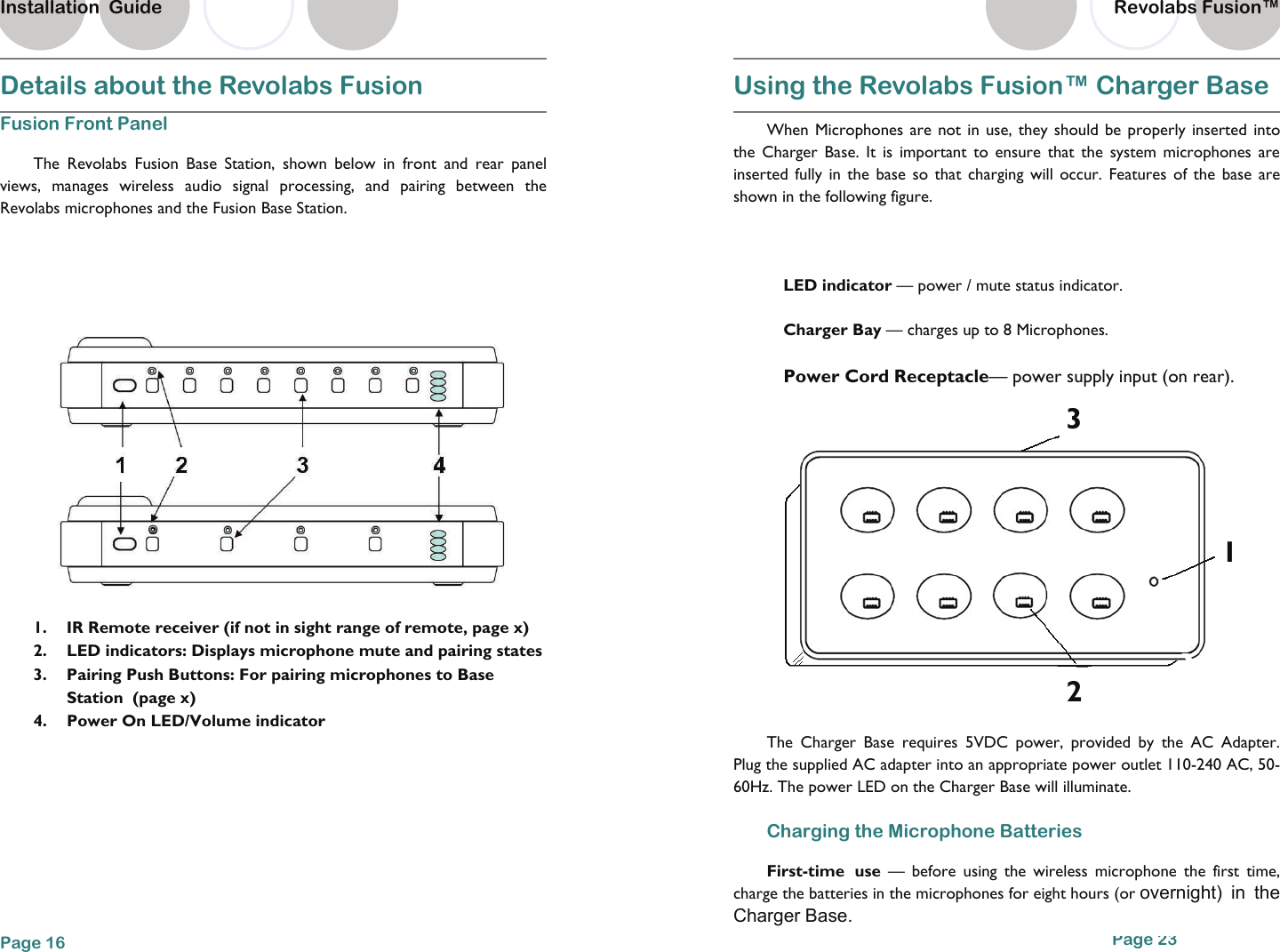
Details about the Revolabs Fusion Fusion Front Panel  The Revolabs Fusion Base Station, shown below in front and rear panel views, manages wireless audio signal processing, and pairing between the Revolabs microphones and the Fusion Base Station.    1.  IR Remote receiver (if not in sight range of remote, page x) 2.  LED indicators: Displays microphone mute and pairing states 3.  Pairing Push Buttons: For pairing microphones to Base Station  (page x) 4.  Power On LED/Volume indicator Page 16 Installation  Guide Page 23 Using the Revolabs Fusion™ Charger Base   When Microphones are not in use, they should be properly inserted into the Charger Base. It is important to ensure that the system microphones are inserted fully in the base so that charging will occur. Features of the base are shown in the following figure.  LED indicator — power / mute status indicator. Charger Bay — charges up to 8 Microphones.  Power Cord Receptacle— power supply input (on rear). The Charger Base requires 5VDC power, provided by the AC Adapter. Plug the supplied AC adapter into an appropriate power outlet 110-240 AC, 50-60Hz. The power LED on the Charger Base will illuminate. Charging the Microphone Batteries First-time use — before using the wireless microphone the first time, charge the batteries in the microphones for eight hours (or overnight) in the Charger Base. 2 1 3 Revolabs Fusion™
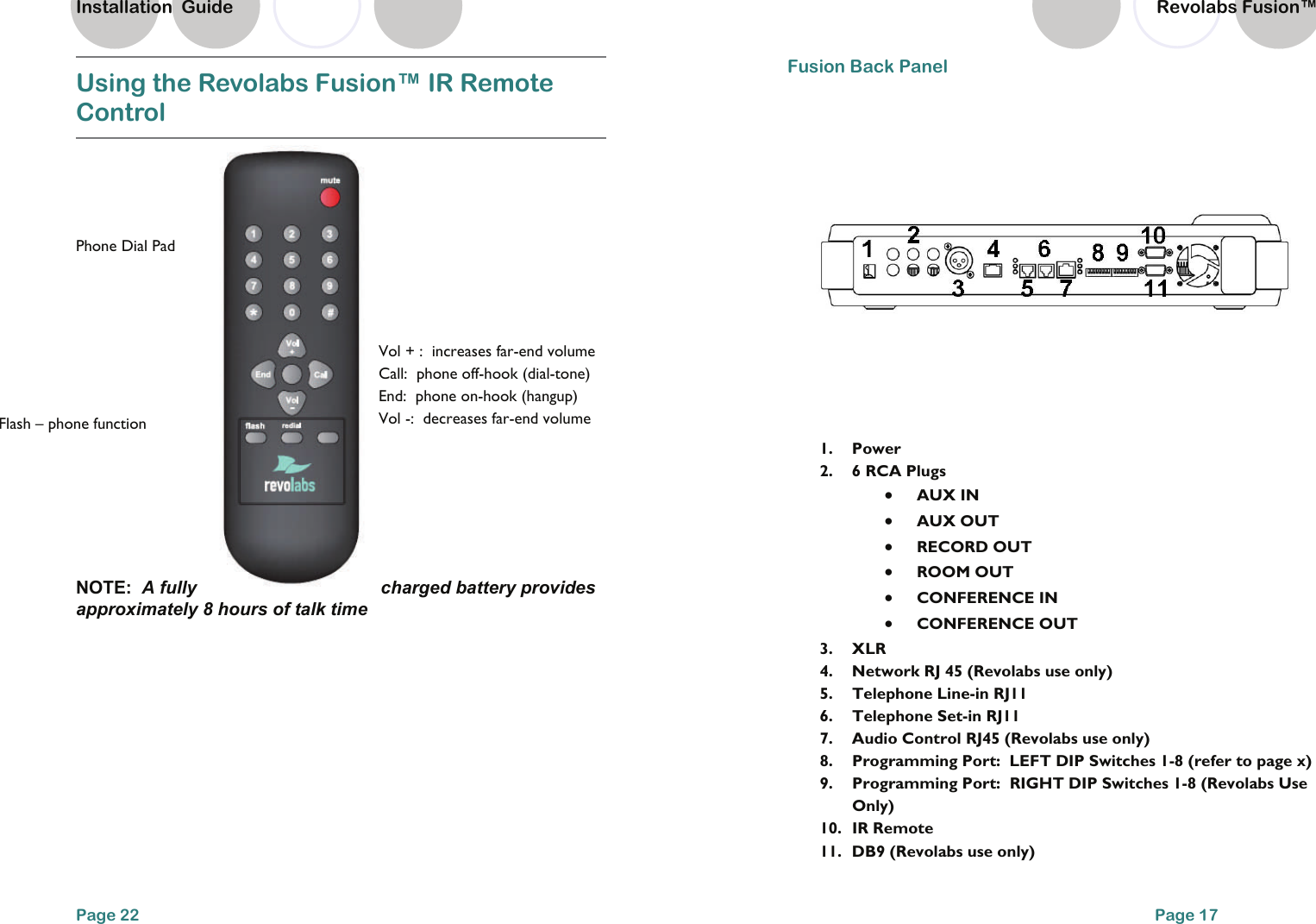
Using the Revolabs Fusion™ IR Remote Control   NOTE:  A fully  charged battery provides approximately 8 hours of talk time Page 22 Flash – phone function Vol + :  increases far-end volume Call:  phone off-hook (dial-tone) End:  phone on-hook (hangup) Vol -:  decreases far-end volume  Phone Dial Pad  Installation  Guide Page 17 Fusion Back Panel    1. Power 2.  6 RCA Plugs   •  AUX IN •  AUX OUT   •  RECORD OUT   •  ROOM OUT   •  CONFERENCE IN   •  CONFERENCE OUT 3. XLR 4.  Network RJ 45 (Revolabs use only) 5.  Telephone Line-in RJ11 6.  Telephone Set-in RJ11 7.  Audio Control RJ45 (Revolabs use only) 8.  Programming Port:  LEFT DIP Switches 1-8 (refer to page x) 9.  Programming Port:  RIGHT DIP Switches 1-8 (Revolabs Use Only) 10.  IR Remote  11.  DB9 (Revolabs use only) Revolabs Fusion™
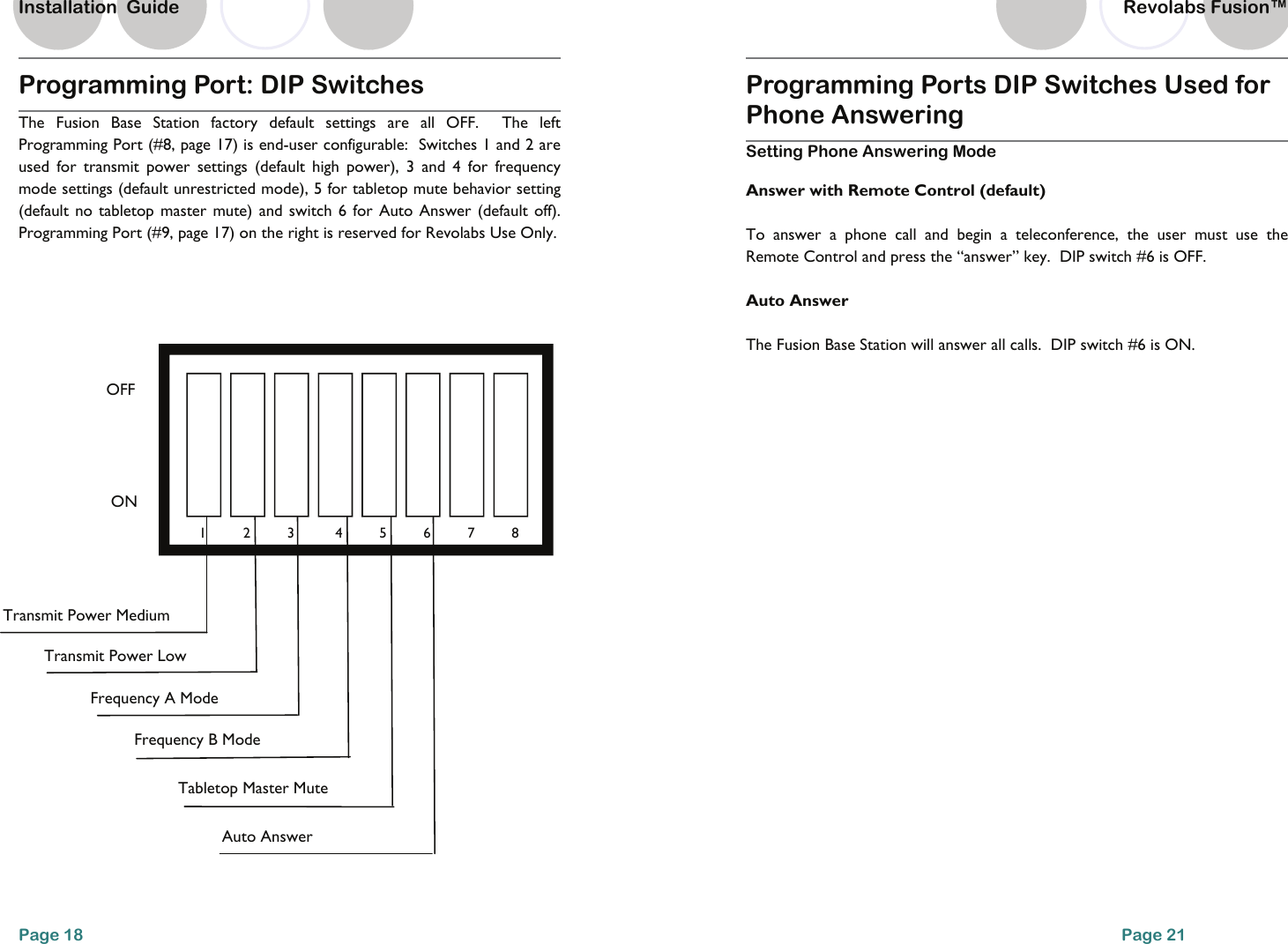
Programming Port: DIP Switches  The Fusion Base Station factory default settings are all OFF.  The left Programming Port (#8, page 17) is end-user configurable:  Switches 1 and 2 are used for transmit power settings (default high power), 3 and 4 for frequency mode settings (default unrestricted mode), 5 for tabletop mute behavior setting (default no tabletop master mute) and switch 6 for Auto Answer (default off).  Programming Port (#9, page 17) on the right is reserved for Revolabs Use Only.   OFF ON Transmit Power Medium Frequency A Mode   Tabletop Master Mute   Frequency B Mode   Auto Answer   Transmit Power Low    1         2         3      4         5         6         7         8Page 18 Installation  Guide Programming Ports DIP Switches Used for Phone Answering  Setting Phone Answering Mode  Answer with Remote Control (default) To answer a phone call and begin a teleconference, the user must use the Remote Control and press the “answer” key.  DIP switch #6 is OFF.   Auto Answer The Fusion Base Station will answer all calls.  DIP switch #6 is ON. Page 21 Revolabs Fusion™
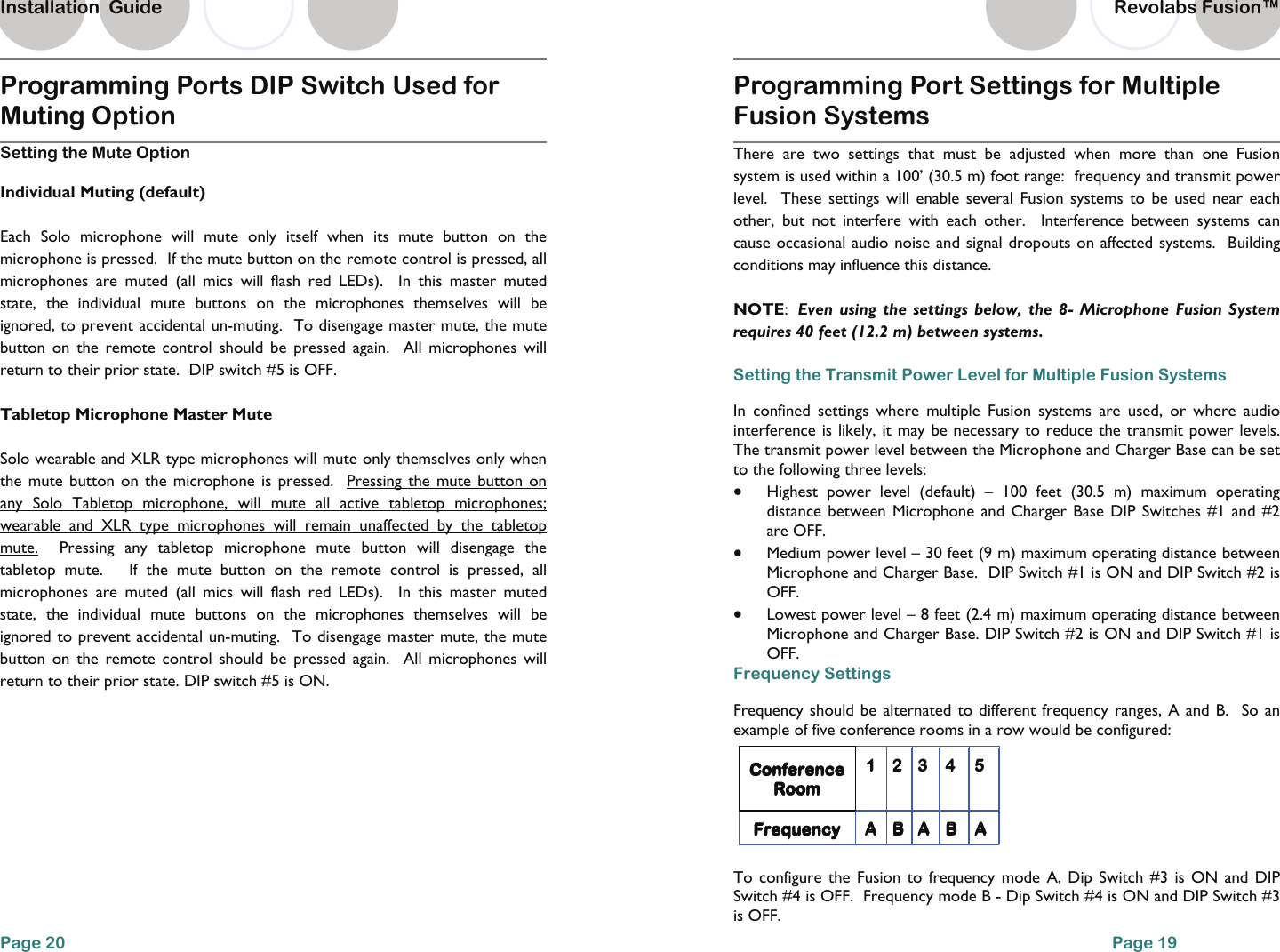
Programming Ports DIP Switch Used for Muting Option Setting the Mute Option Individual Muting (default) Each Solo microphone will mute only itself when its mute button on the microphone is pressed.  If the mute button on the remote control is pressed, all microphones are muted (all mics will flash red LEDs).  In this master muted state, the individual mute buttons on the microphones themselves will be ignored, to prevent accidental un-muting.  To disengage master mute, the mute button on the remote control should be pressed again.  All microphones will return to their prior state.  DIP switch #5 is OFF.   Tabletop Microphone Master Mute Solo wearable and XLR type microphones will mute only themselves only when the mute button on the microphone is pressed.  Pressing the mute button on any Solo Tabletop microphone, will mute all active tabletop microphones; wearable and XLR type microphones will remain unaffected by the tabletop mute.  Pressing any tabletop microphone mute button will disengage the tabletop mute.   If the mute button on the remote control is pressed, all microphones are muted (all mics will flash red LEDs).  In this master muted state, the individual mute buttons on the microphones themselves will be ignored to prevent accidental un-muting.  To disengage master mute, the mute button on the remote control should be pressed again.  All microphones will return to their prior state. DIP switch #5 is ON. Page 20 Installation  Guide Programming Port Settings for Multiple Fusion Systems  There are two settings that must be adjusted when more than one Fusion system is used within a 100’ (30.5 m) foot range:  frequency and transmit power level.  These settings will enable several Fusion systems to be used near each other, but not interfere with each other.  Interference between systems can cause occasional audio noise and signal dropouts on affected systems.  Building conditions may influence this distance.     NOTE:  Even using the settings below, the 8- Microphone Fusion System requires 40 feet (12.2 m) between systems.     Setting the Transmit Power Level for Multiple Fusion Systems In confined settings where multiple Fusion systems are used, or where audio interference is likely, it may be necessary to reduce the transmit power levels.  The transmit power level between the Microphone and Charger Base can be set to the following three levels: •  Highest power level (default) – 100 feet (30.5 m) maximum operating distance between Microphone and Charger Base DIP Switches #1 and #2 are OFF.   •  Medium power level – 30 feet (9 m) maximum operating distance between Microphone and Charger Base.  DIP Switch #1 is ON and DIP Switch #2 is OFF.   •  Lowest power level – 8 feet (2.4 m) maximum operating distance between Microphone and Charger Base. DIP Switch #2 is ON and DIP Switch #1 is OFF.   Frequency Settings Frequency should be alternated to different frequency ranges, A and B.  So an example of five conference rooms in a row would be configured:     To configure the Fusion to frequency mode A, Dip Switch #3 is ON and DIP Switch #4 is OFF.  Frequency mode B - Dip Switch #4 is ON and DIP Switch #3 is OFF.   Conference Room 1 2 3 4  5 Frequency  A B A B  A Conference Room 1 2 3 4  5 Frequency  A B A B A Page 19 Revolabs Fusion™

Navigation menu