Revolabs 01TTDIAL Tabletop Dialer User Manual Dialer user guide v1 1 booklet Short

Revolabs Inc. Tabletop Dialer Dialer user guide v1 1 booklet Short

Manual

    © 2008 REVOLABS, INC. All rights reserved. No part of this document may be reproduced in any form or by any means without express written permission from Revolabs, Inc. Product specifications are subject to change without notice. Part #2950065-00  REV 1.10     Rev 1.10Rev 1.10Rev 1.10Rev 1.10    Revolabs Fusion™ System Tabletop Dialer User Guide
  Product Description  3 Tabletop Dialer Front Panel  4 Tabletop Dialer Key Functions  6 Installing the Batteries  7 Placing a Telephone Call  8 Adding Speed Dial Numbers  8 Editing Speed Dial Numbers  9 Deleting Speed Dial Numbers  9 Tabletop Dialer Settings    Setting Display Backlight Time  10 Setting Screen Contrast  10 Display Signal Quality  10 Display Battery Level  10 Tabletop Dialer Configuration   Set Password  11 Display RF Address  11 Display Firmware Version  11 Pairing The Tabletop Dialer to Fusion  12 Powering Down the Tabletop Dialer  13 Resetting the Password  13    Safety and Regulatory Information   14 Adjusting Far End Volume  9 Specifications  14 Warranty  15 Resetting the RF Address  12 Page 2 Table of Contents   Page 15 Revolabs Tabletop Dialer for Fusion™  Warranty  Revolabs, Inc. warrants this product to be free of manufacturing defects. Repair or replacement of any defective part or unit (at the discretion of the Seller) will be free of charge for the period of one year. Any attempt by the user to alter the equipment, or equipment damaged by negligence, accident, or Acts of God voids this warranty. The Seller shall not be liable for any consequential damage resulting from the malfunction of this product. Should the user experience unsatisfactory performance from this equipment, contact the Seller to obtain instructions for return, or replacement, as deemed necessary. This warranty is not transferable by the original end user.  Revolabs, Inc. 63 Great Road Maynard, MA 01754 www.revolabs.com 800.326.1200 support@revolabs.com
  Specifications  Dimensions, (L, W, H) and Weight:    4.75” (12.07 cm) x 6.75” (17.15 cm) x 2.75” (6.99 cm)   0.94 lb (0.42 kg) Radio Frequency:  07-TTDIAL-01    2.4 GHz   Power Requirements:        4 AA Batteries   Battery Life:    Up to 6 months  Range:    Up to 50’ (15 meters) Line of site, no obstructions  Environmental Requirements       40-100 degrees F (5-40 C)       20-85% Humidity  This device complies with Part 15 of the FCC Rules. Operation is subject to the following two conditions: (1) this device may not cause harmful interference, and (2) this device must accept any interference received, including interference that may cause undesired operation.  Changes or modifications not expressly approved by Revolabs could void the user’s authority to operate the equipment.  Note: This equipment has been tested and found to comply with the limits for a Class B digital device, pursuant to part 15 of the FCC Rules. These limits are designed to provide reasonable protection against harmful interference in a residential installation. This equipment generates, uses and can radiate radio frequency energy and, if not installed and used in accordance with the instructions, may cause harmful interference to radio communications. However, there is no guarantee that interference will not occur in a particular installation. If this equipment does cause harmful interference to radio or television reception, which can be determined by turning the equipment off and on, the user is encouraged to try to correct the interference by one or more of the following measures:  —Reorient or relocate the receiving antenna. —Increase the separation between the equipment and receiver. —Connect the equipment into an outlet on a circuit different from that to which the receiver is   connected. —Consult the dealer or an experienced radio/TV technician for help  User Guide Page 14    Revolabs Tabletop Dialer for Fusion™  Page 3 Product Description  Use the  Tabletop Dialer to dial and manage the conference phone numbers for the Revolabs Fusion™  Wireless Microphone System. RF remote control with touch pad and digital display with stored memory for quick dialing.  Part Numbers Covered in This Document:  Revolabs Part Number: 07-TTDIAL-01     Features • Backlit 2 line LCD Screen • Caller ID • Call/hang-up buttons • Volume Control for Fusion • Previous Number Redial • Microphone Mute • Mute/Call Indicator Light • Flash Button • Non-skid feet  Menu Features • Edit/Store phone numbers • Speed-dial numbers
  Tabletop Dialer Front Keypad  User Guide Page 4   Powering Down the Tabletop Dialer   1.  Hold down the End Call button until Powering Down is displayed (about 3 seconds).   2.  The Dialer will then completely shut down until you press any key to restart it.  Resetting the Password  1.  Power down the Dialer by holding down the End Call button. (about 3 seconds) 2.  Then press and hold the Menu button while the Dialer displays “Revolabs Fusion”.  Release the Menu button and the Dialer will display “Password Reset”.  Code Download   Do not use unless instructed by Revolabs.          Page 13 Revolabs Tabletop Dialer for Fusion™
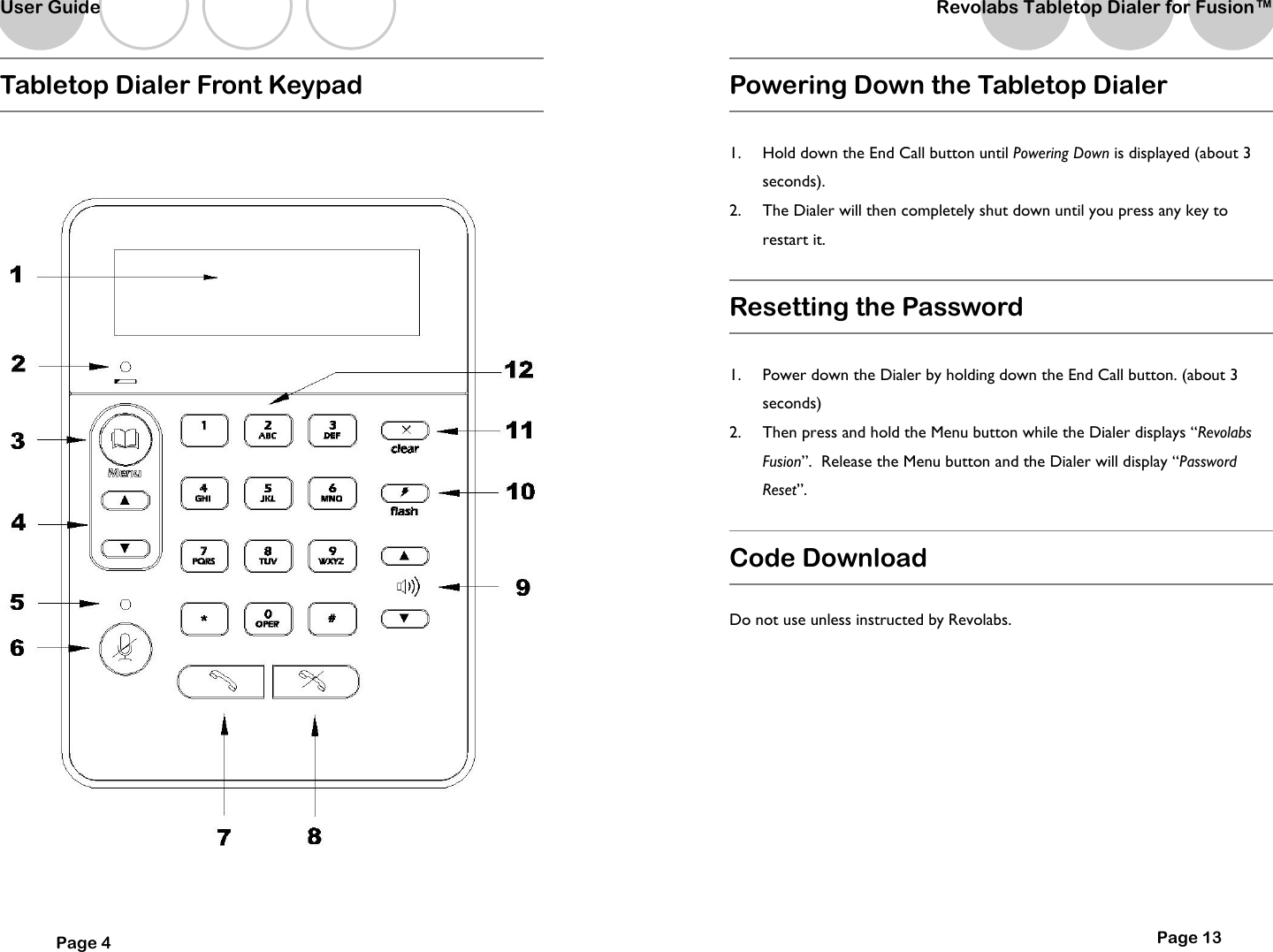
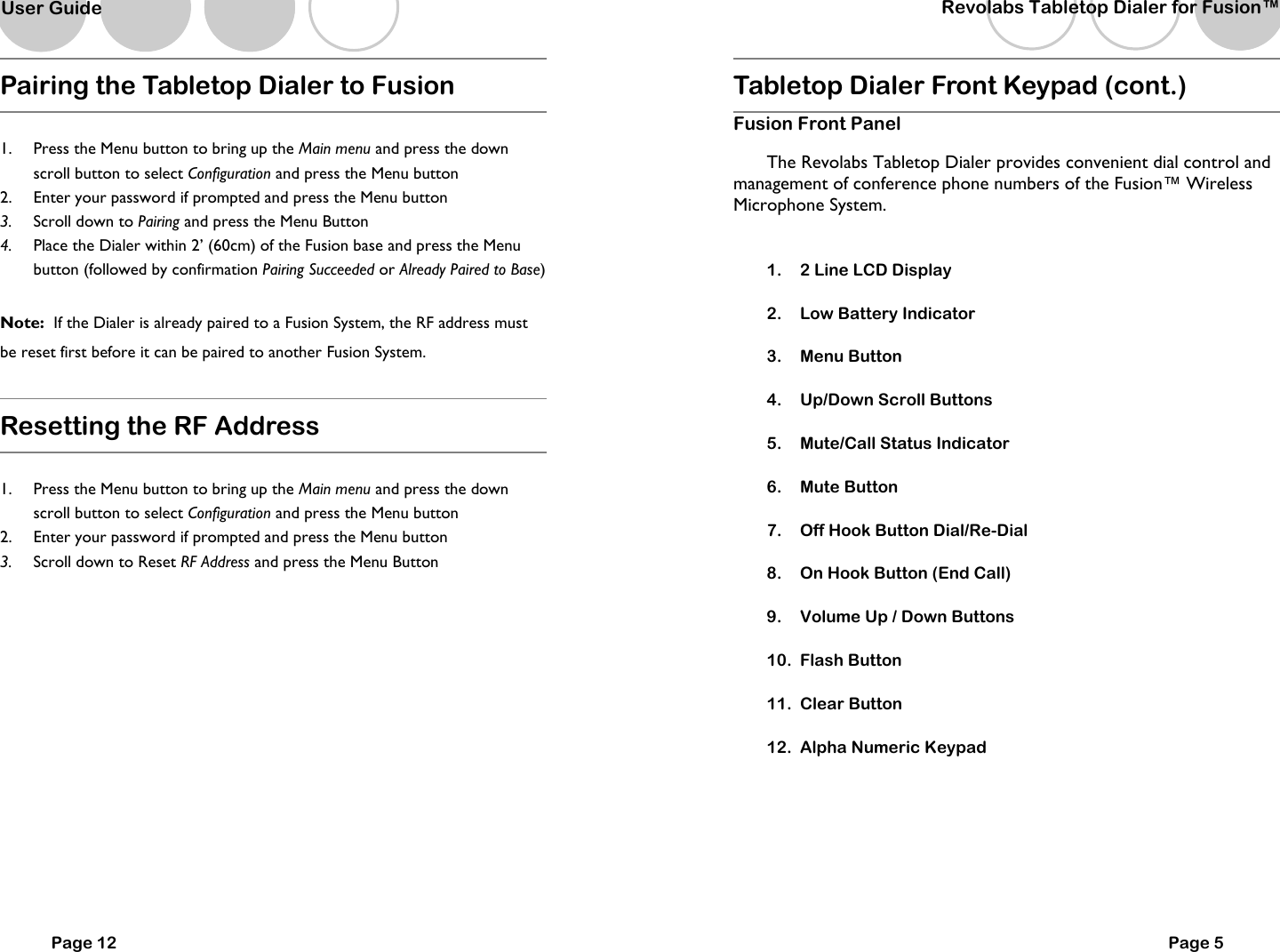
  Page 12 Pairing the Tabletop Dialer to Fusion  1.  Press the Menu button to bring up the Main menu and press the down scroll button to select Configuration and press the Menu button  2.  Enter your password if prompted and press the Menu button 3.  Scroll down to Pairing and press the Menu Button 4.  Place the Dialer within 2’ (60cm) of the Fusion base and press the Menu button (followed by confirmation Pairing Succeeded or Already Paired to Base)  Note:  If the Dialer is already paired to a Fusion System, the RF address must be reset first before it can be paired to another Fusion System.  Resetting the RF Address  1.  Press the Menu button to bring up the Main menu and press the down scroll button to select Configuration and press the Menu button  2.  Enter your password if prompted and press the Menu button 3.  Scroll down to Reset RF Address and press the Menu Button   User Guide   Tabletop Dialer Front Keypad (cont.) Fusion Front Panel  The Revolabs Tabletop Dialer provides convenient dial control and management of conference phone numbers of the Fusion™ Wireless Microphone System.      1.  2 Line LCD Display 2.  Low Battery Indicator 3.  Menu Button 4.  Up/Down Scroll Buttons 5.  Mute/Call Status Indicator 6.  Mute Button 7.  Off Hook Button Dial/Re-Dial 8.  On Hook Button (End Call) 9.  Volume Up / Down Buttons 10.  Flash Button 11.  Clear Button 12.  Alpha Numeric Keypad   Page 5 Revolabs Tabletop Dialer for Fusion™
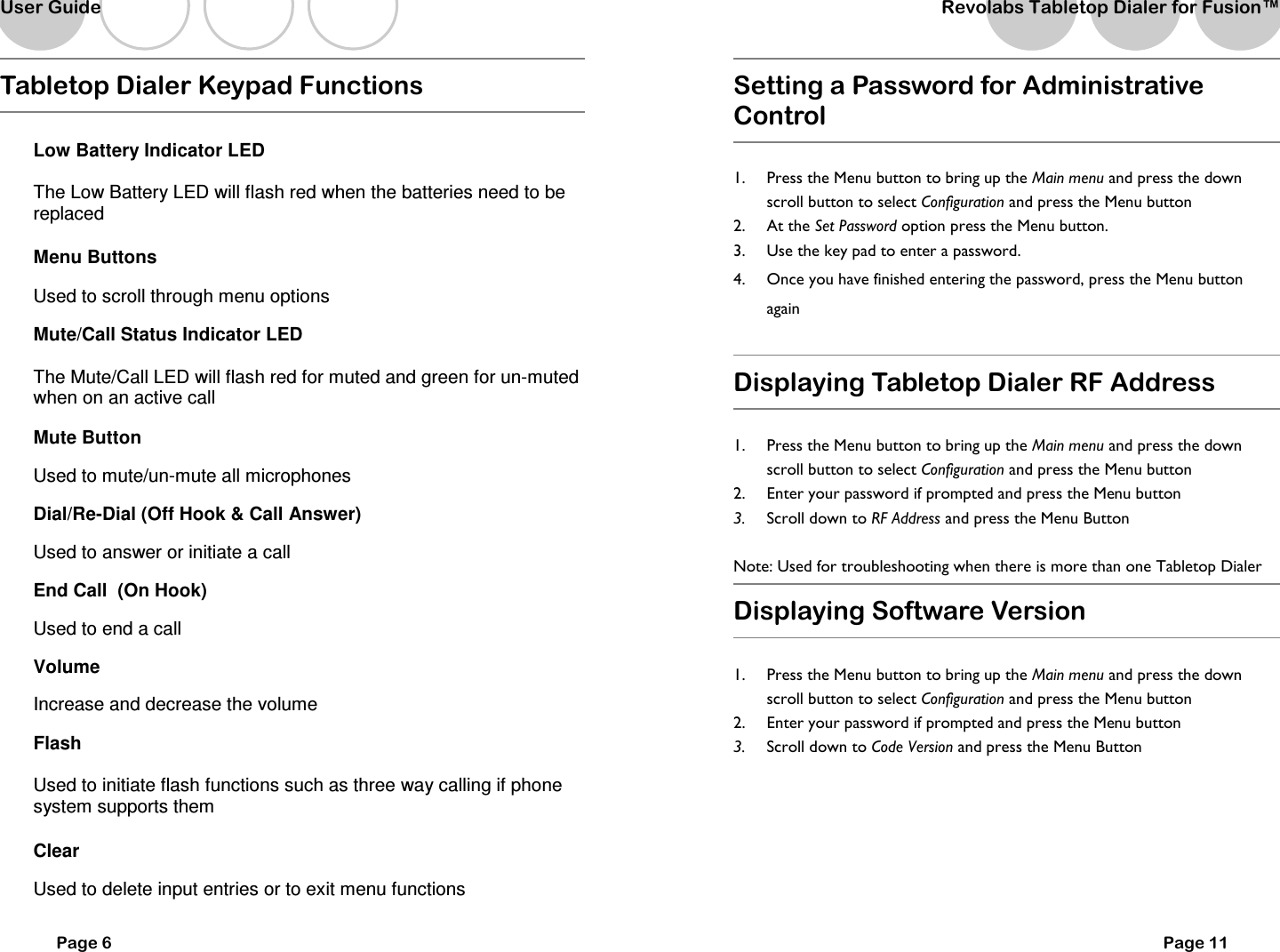
  Page 6 Tabletop Dialer Keypad Functions  Low Battery Indicator LED The Low Battery LED will flash red when the batteries need to be replaced Menu Buttons Used to scroll through menu options Mute/Call Status Indicator LED The Mute/Call LED will flash red for muted and green for un-muted when on an active call Mute Button Used to mute/un-mute all microphones Dial/Re-Dial (Off Hook & Call Answer) Used to answer or initiate a call End Call  (On Hook) Used to end a call Volume  Increase and decrease the volume Flash Used to initiate flash functions such as three way calling if phone system supports them Clear Used to delete input entries or to exit menu functions User Guide   Setting a Password for Administrative Control  1.  Press the Menu button to bring up the Main menu and press the down scroll button to select Configuration and press the Menu button  2.  At the Set Password option press the Menu button. 3.  Use the key pad to enter a password.   4.  Once you have finished entering the password, press the Menu button again  Displaying Tabletop Dialer RF Address  1.  Press the Menu button to bring up the Main menu and press the down scroll button to select Configuration and press the Menu button  2.  Enter your password if prompted and press the Menu button 3.  Scroll down to RF Address and press the Menu Button  Note: Used for troubleshooting when there is more than one Tabletop Dialer  Displaying Software Version  1.  Press the Menu button to bring up the Main menu and press the down scroll button to select Configuration and press the Menu button  2.  Enter your password if prompted and press the Menu button 3.  Scroll down to Code Version and press the Menu Button       Page 11 Revolabs Tabletop Dialer for Fusion™
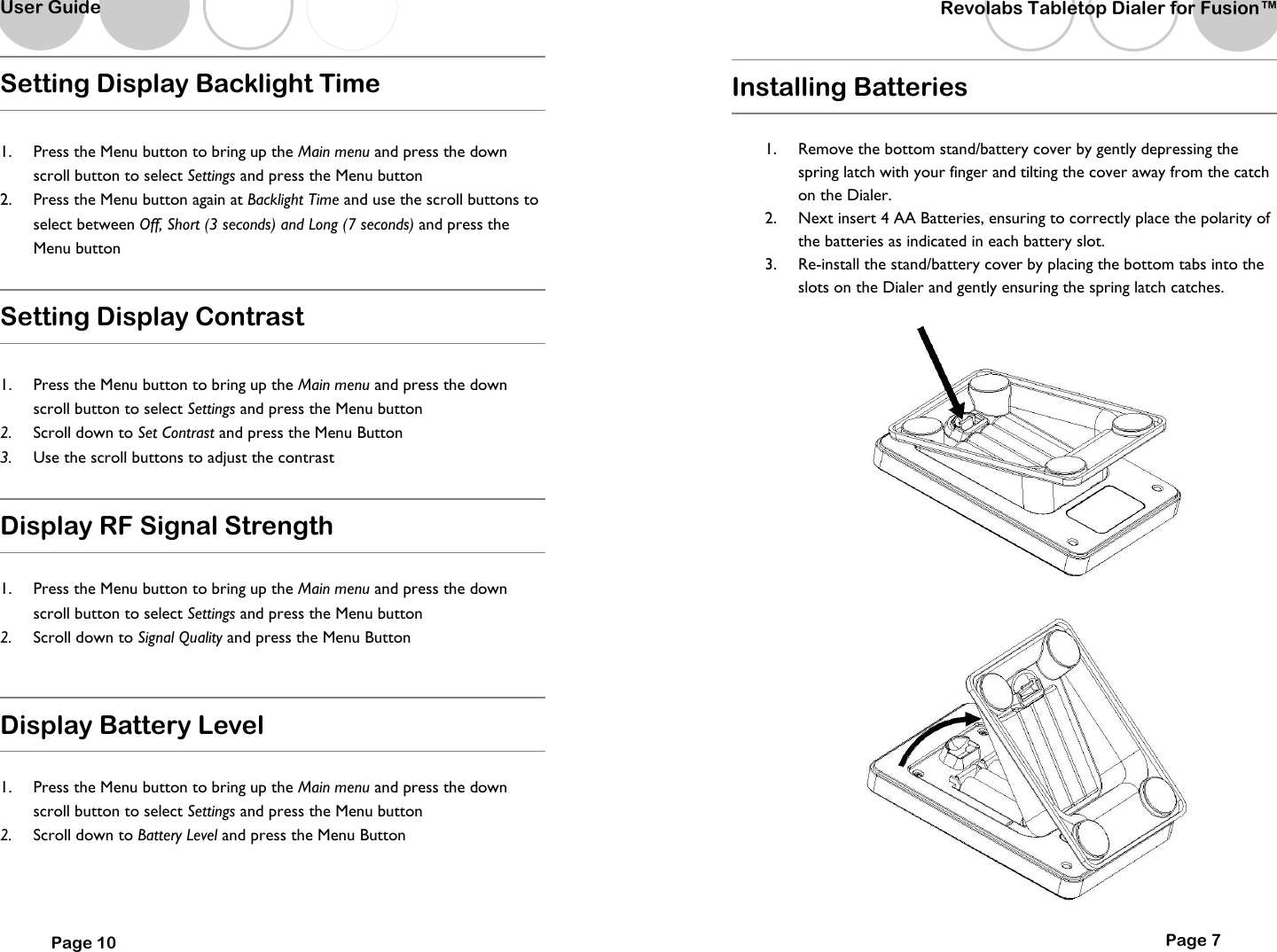
  User Guide Setting Display Backlight Time  1.  Press the Menu button to bring up the Main menu and press the down scroll button to select Settings and press the Menu button  2.  Press the Menu button again at Backlight Time and use the scroll buttons to select between Off, Short (3 seconds) and Long (7 seconds) and press the Menu button  Setting Display Contrast  1.  Press the Menu button to bring up the Main menu and press the down scroll button to select Settings and press the Menu button  2.  Scroll down to Set Contrast and press the Menu Button 3.  Use the scroll buttons to adjust the contrast  Display RF Signal Strength  1.  Press the Menu button to bring up the Main menu and press the down scroll button to select Settings and press the Menu button  2.  Scroll down to Signal Quality and press the Menu Button  Display Battery Level  1.  Press the Menu button to bring up the Main menu and press the down scroll button to select Settings and press the Menu button  2.  Scroll down to Battery Level and press the Menu Button   Page 10   Revolabs Tabletop Dialer for Fusion™  Page 7 Installing Batteries  1.  Remove the bottom stand/battery cover by gently depressing the spring latch with your finger and tilting the cover away from the catch on the Dialer.   2.  Next insert 4 AA Batteries, ensuring to correctly place the polarity of the batteries as indicated in each battery slot.   3.  Re-install the stand/battery cover by placing the bottom tabs into the slots on the Dialer and gently ensuring the spring latch catches.
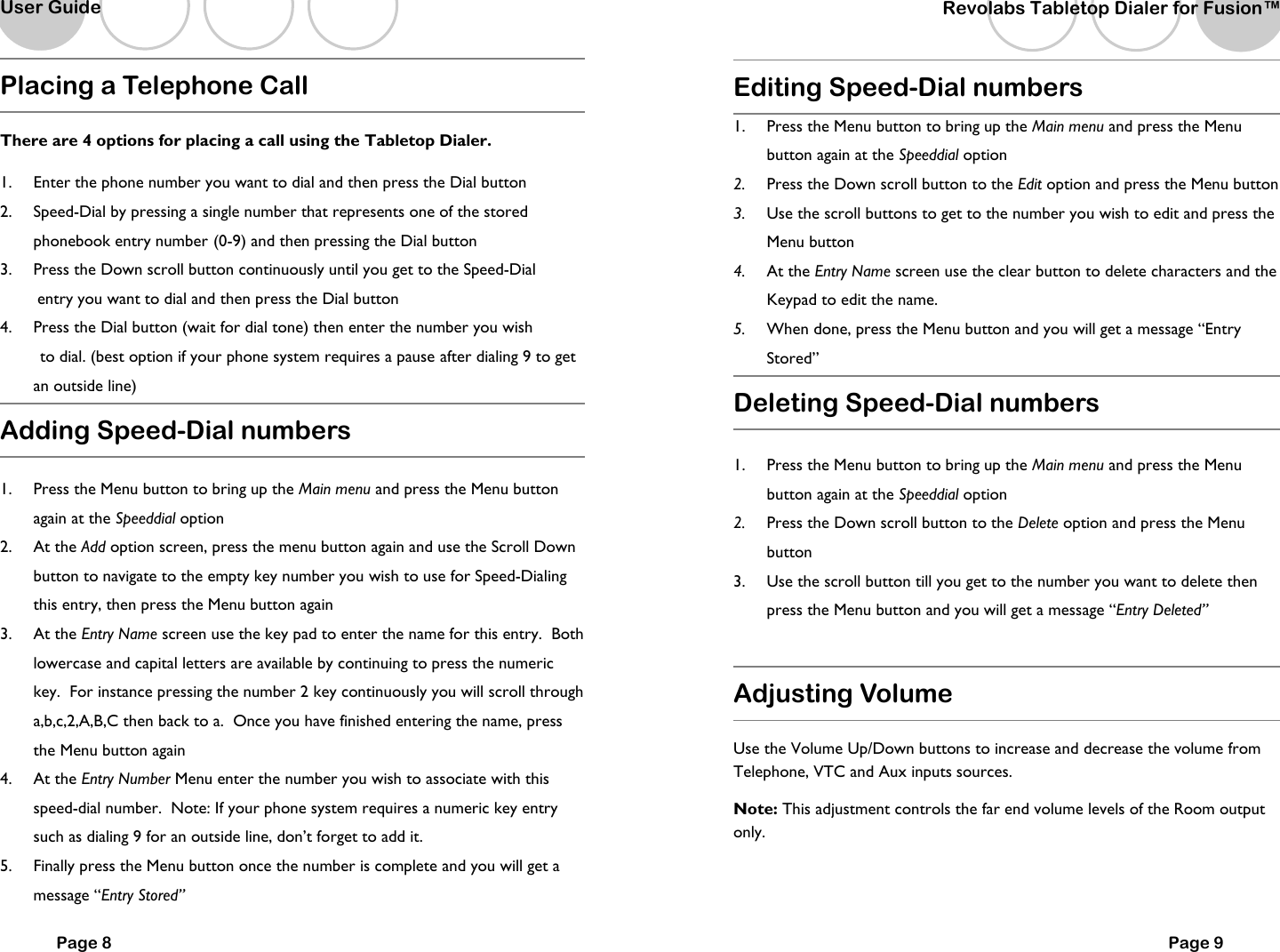
  Page 8 Placing a Telephone Call  There are 4 options for placing a call using the Tabletop Dialer.  1.  Enter the phone number you want to dial and then press the Dial button 2.  Speed-Dial by pressing a single number that represents one of the stored phonebook entry number  (0-9) and then pressing the Dial button 3.  Press the Down scroll button continuously until you get to the Speed-Dial          entry you want to dial and then press the Dial button 4.  Press the Dial button (wait for dial tone) then enter the number you wish       to dial. (best option if your phone system requires a pause  after dialing 9 to get an outside line) Adding Speed-Dial numbers  1.  Press the Menu button to bring up the Main menu and press the Menu button again at the Speeddial option  2.  At the Add option screen, press the menu button again and use the Scroll Down button to navigate to the empty key number you wish to use for Speed-Dialing this entry, then press the Menu button again 3.  At the Entry Name screen use the key pad to enter the name for this entry.  Both lowercase and capital letters are available by continuing to press the numeric key.  For instance pressing the number 2 key continuously you will scroll through a,b,c,2,A,B,C then back to a.  Once you have finished entering the name, press the Menu button again 4.  At the Entry Number Menu enter the number you wish to associate with this speed-dial number.  Note: If your phone system requires a numeric key entry such as dialing 9 for an outside line, don’t forget to add it. 5.  Finally press the Menu button once the number is complete and you will get a message “Entry Stored”  User Guide   Revolabs Tabletop Dialer for Fusion™  Page 9 Editing Speed-Dial numbers 1.  Press the Menu button to bring up the Main menu and press the Menu button again at the Speeddial option  2.  Press the Down scroll button to the Edit option and press the Menu button 3.  Use the scroll buttons to get to the number you wish to edit and press the Menu button 4.  At the Entry Name screen use the clear button to delete characters and the Keypad to edit the name. 5.  When done, press the Menu button and you will get a message “Entry Stored” Deleting Speed-Dial numbers  1.  Press the Menu button to bring up the Main menu and press the Menu button again at the Speeddial option  2.  Press the Down scroll button to the Delete option and press the Menu button 3.  Use the scroll button till you get to the number you want to delete then press the Menu button and you will get a message “Entry Deleted”     Adjusting Volume  Use the Volume Up/Down buttons to increase and decrease the volume from Telephone, VTC and Aux inputs sources.   Note: This adjustment controls the far end volume levels of the Room output only.

Navigation menu