Revolabs LUCY01 UPCS radio User Manual

Revolabs Inc. UPCS radio

Contents

User Manual

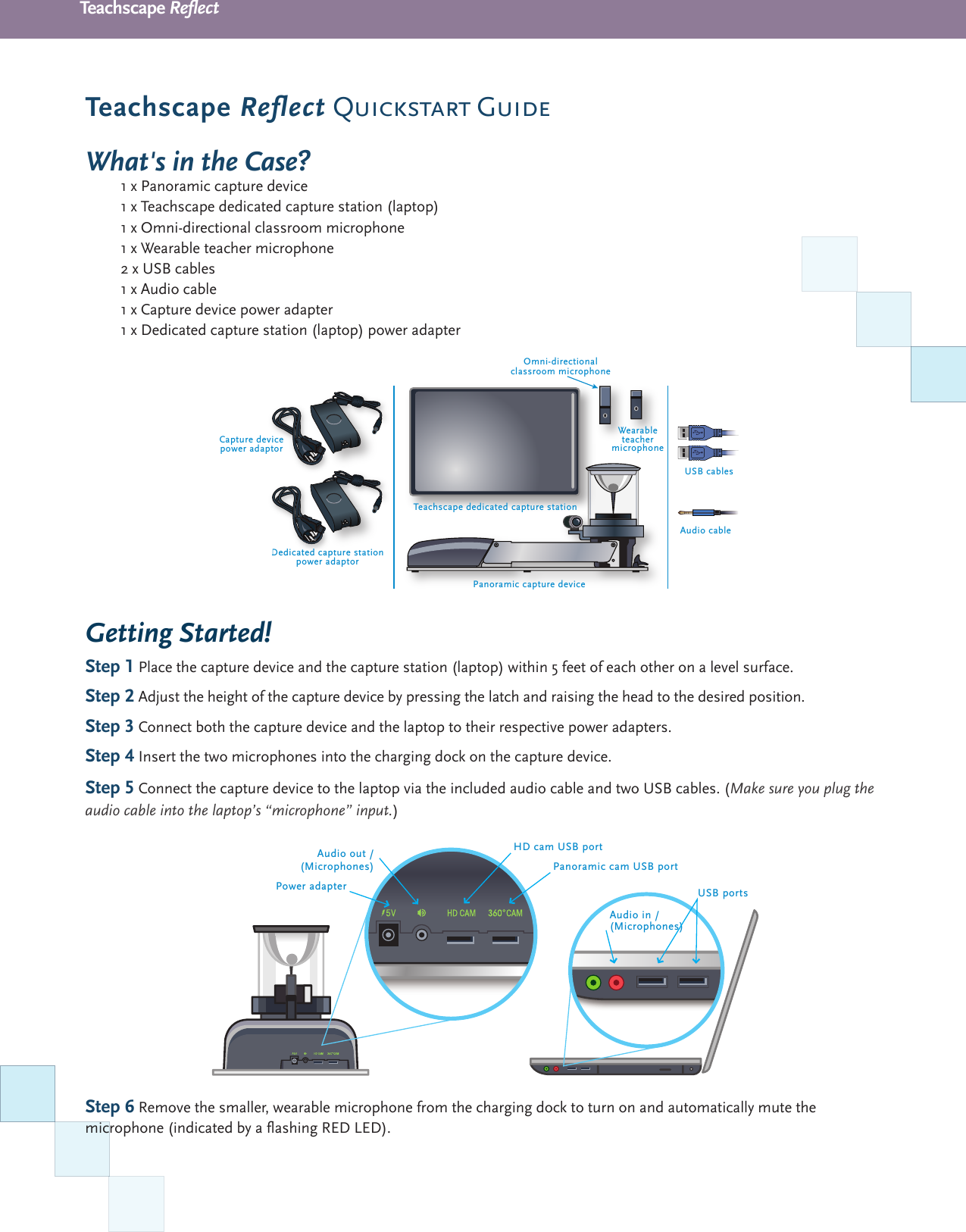
Teachscape ReectTeachscape Reflect Quickstart Guide  What's in the Case?1 x Panoramic capture device1 x Teachscape dedicated capture station (laptop)1 x Omni-directional classroom microphone1 x Wearable teacher microphone2 x USB cables1 x Audio cable1 x Capture device power adapter1 x Dedicated capture station (laptop) power adapterGetting Started!Step 1 Place the capture device and the capture station (laptop) within 5 feet of each other on a level surface.Step 2 Adjust the height of the capture device by pressing the latch and raising the head to the desired position.Step 3 Connect both the capture device and the laptop to their respective power adapters.Step 4 Insert the two microphones into the charging dock on the capture device. Step 5 Connect the capture device to the laptop via the included audio cable and two USB cables. (Make sure you plug the audio cable into the laptop’s “microphone” input.)Step 6 Remove the smaller, wearable microphone from the charging dock to turn on and automatically mute the microphone (indicated by a ashing RED LED).Audio cableDedicated capture stationpower adaptorPanoramic capture deviceOmni-directionalclassroom microphoneWearableteachermicrophoneTeachscape dedicated capture stationUSB cablesDedicatedcapiddCapture devicepower adaptorPower adapterAudio out /(Microphones)HD cam USB portPanoramic cam USB portAudio in /(Microphones)USB ports
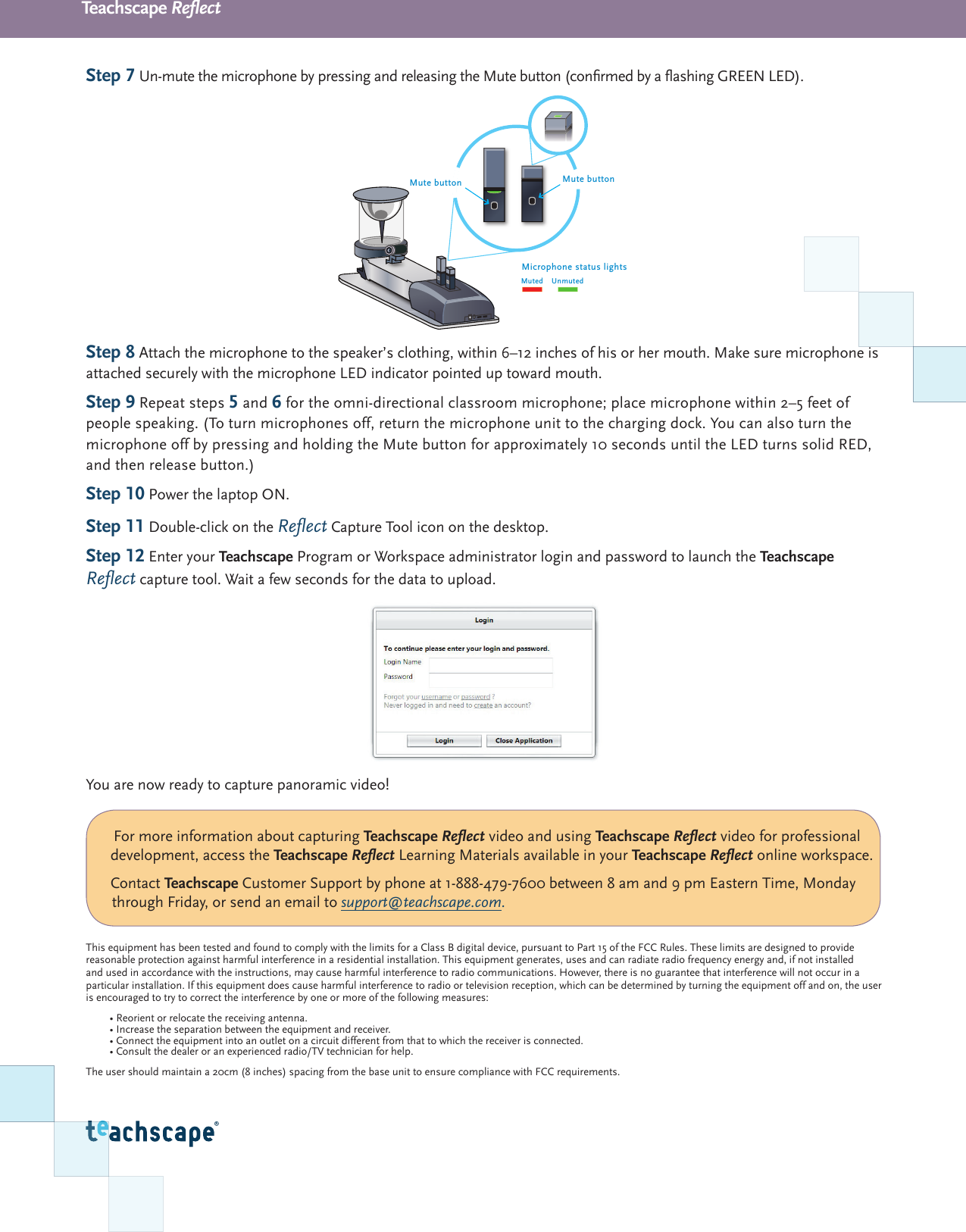
Teachscape ReectStep 7 Un-mute the microphone by pressing and releasing the Mute button (conrmed by a ashing GREEN LED).Step 8 Attach the microphone to the speaker’s clothing, within 6–12 inches of his or her mouth. Make sure microphone is attached securely with the microphone LED indicator pointed up toward mouth.Step 9 Repeat steps 5 and 6 for the omni-directional classroom microphone; place microphone within 2–5 feet of people speaking. (To turn microphones off, return the microphone unit to the charging dock. You can also turn the microphone off by pressing and holding the Mute button for approximately 10 seconds until the LED turns solid RED, and then release button.)Step 10 Power the laptop ON.Step 11 Double-click on the Reect Capture Tool icon on the desktop. Step 12 Enter your Teachscape Program or Workspace administrator login and password to launch the Teachscape Reect capture tool. Wait a few seconds for the data to upload. You are now ready to capture panoramic video!This equipment has been tested and found to comply with the limits for a Class B digital device, pursuant to Part 15 of the FCC Rules. These limits are designed to provide reasonable protection against harmful interference in a residential installation. This equipment generates, uses and can radiate radio frequency energy and, if not installed and used in accordance with the instructions, may cause harmful interference to radio communications. However, there is no guarantee that interference will not occur in a particular installation. If this equipment does cause harmful interference to radio or television reception, which can be determined by turning the equipment off and on, the user is encouraged to try to correct the interference by one or more of the following measures:• Reorient or relocate the receiving antenna. • Increase the separation between the equipment and receiver. • Connect the equipment into an outlet on a circuit different from that to which the receiver is connected. • Consult the dealer or an experienced radio/TV technician for help.The user should maintain a 20cm (8 inches) spacing from the base unit to ensure compliance with FCC requirements.Mute buttonMute buttonMicrophone status lightsMuted Unmuted For more information about capturing Teachscape Reect video and using Teachscape Reect video for professional development, access the Teachscape Reect Learning Materials available in your Teachscape Reect online workspace.Contact Teachscape Customer Support by phone at 1-888-479-7600 between 8 am and 9 pm Eastern Time, Monday through Friday, or send an email to support@teachscape.com.

Navigation menu