SHAREVISION IP007 Low power Wireless Battery Camera /Doorbell User Manual Users manual

Shenzhen Share Vision Co., Ltd Low power Wireless Battery Camera /Doorbell Users manual

Users manual

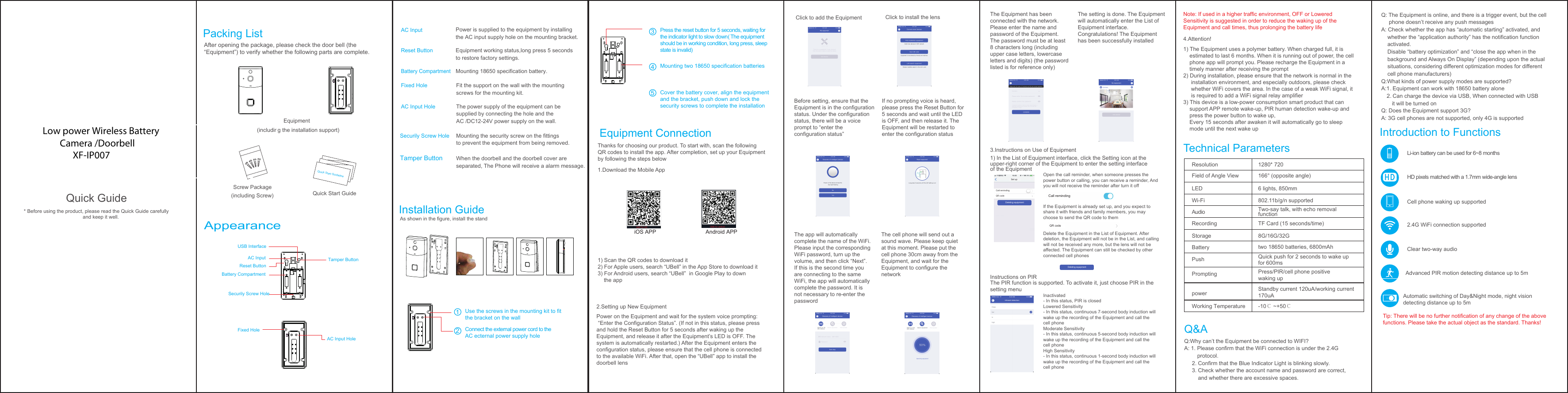
Call remindingQR codeSet upCall remindingQR code删除设备Deleting equipment删除设备Deleting equipmentUSB InterfaceTamper ButtonAC InputReset ButtonBattery CompartmentFixed HoleAC Input HoleSecurily Screw HoleiOS APP Android APPQuick Guide* Before using the product, please read the Quick Guide carefully   and keep it well. After opening the package, please check the door bell (the “Equipment”) to verify whether the following parts are complete.Equipment (including the installation support)Screw Package(including Screw)Power is supplied to the equipment by installing the AC input supply hole on the mounting bracket. ResolutionField of Angle ViewLEDWi-FiAudioRecordingStorageBatteryPushPromptingpowerWorking TemperatureTip: There will be no further notification of any change of the above functions. Please take the actual object as the standard. Thanks!  Li-ion battery can be used for 6~8 monthsHD pixels matched with a 1.7mm wide-angle lensCell phone waking up supported2.4G WiFi connection supportedClear two-way audioAdvanced PIR motion detecting distance up to 5mAutomatic switching of Day&Night mode, night vision detecting distance up to 5mPress/PIR/cell phone positive waking uptwo 18650 batteries, 6800mAhStandby current 120uA/working current170uA-10℃ ~+50℃Quick push for 2 seconds to wake upfor 600ms8G/16G/32GTF Card (15 seconds/time)Two-say talk, with echo removal function802.11b/g/n supported6 lights, 850mm166° (opposite angle)1280* 720Thanks for choosing our product. To start with, scan the following QR codes to install the app. After completion, set up your Equipmentby following the steps below1.Download the Mobile App1) Scan the QR codes to download it2) For Apple users, search “UBell” in the App Store to download it3) For Android users, search “UBell”  in Google Play to down    the app2.Setting up New Equipment Click to add the EquipmentBefore setting, ensure that the Equipment is in the configuration status. Under the configuration status, there will be a voice prompt to “enter the configuration status”The app will automatically complete the name of the WiFi. Please input the corresponding WiFi password, turn up the volume, and then click “Next”. If this is the second time you are connecting to the same WiFi, the app will automatically complete the password. It is not necessary to re-enter the passwordThe cell phone will send out a sound wave. Please keep quiet at this moment. Please put the cell phone 30cm away from the Equipment, and wait for the Equipment to configure the networkIf no prompting voice is heard, please press the Reset Button for 5 seconds and wait until the LED is OFF, and then release it. TheEquipment will be restarted to enter the configuration statusThe Equipment has been connected with the network. Please enter the name and password of the Equipment. The password must be at least 8 characters long (including upper case letters, lowercase letters and digits) (the password listed is for reference only)3.Instructions on Use of Equipment4.Attention!1) The Equipment uses a polymer battery. When charged full, it is     estimated to last 6 months. When it is running out of power, the cell     phone app will prompt you. Please recharge the Equipment in a     timely manner after receiving the prompt2) During installation, please ensure that the network is normal in the      installation environment, and especially outdoors, please check      whether WiFi covers the area. In the case of a weak WiFi signal, it      is required to add a WiFi signal relay amplifier3) This device is a low-power consumption smart product that can     support APP remote wake-up, PIR human detection wake-up and     press the power button to wake up,    Every 15 seconds after awaken it will automatically go to sleep     mode until the next wake upInstructions on PIR1) In the List of Equipment interface, click the Setting icon at the upper-right corner of the Equipment to enter the setting interface of the EquipmentThe PIR function is supported. To activate it, just choose PIR in the setting menuOpen the call reminder, when someone presses the power button or calling, you can receive a reminder, And you will not receive the reminder after turn it offIf the Equipment is already set up, and you expect to share it with friends and family members, you may choose to send the QR code to themDelete the Equipment in the List of Equipment. After deletion, the Equipment will not be in the List, and calling will not be received any more, but the lens will not be affected. The Equipment can still be checked by other connected cell phonesInactivated- In this status, PIR is closedLowered Sensitivity - In this status, continuous 7-second body induction will wake up the recording of the Equipment and call the cell phoneModerate Sensitivity - In this status, continuous 5-second body induction will wake up the recording of the Equipment and call the cell phoneHigh Sensitivity - In this status, continuous 1-second body induction will wake up the recording of the Equipment and call thecell phoneThe setting is done. The Equipment will automatically enter the List ofEquipment interface.Congratulations! The Equipment has been successfully installedNote: If used in a higher traffic environment, OFF or Lowered Sensitivity is suggested in order to reduce the waking up of the Equipment and call times, thus prolonging the battery lifeClick to install the lensPower on the Equipment and wait for the system voice prompting: “Enter the Configuration Status”. (If not in this status, please press and hold the Reset Button for 5 seconds after waking up the Equipment, and release it after the Equipment’s LED is OFF. The system is automatically restarted.) After the Equipment enters the configuration status, please ensure that the cell phone is connected to the available WiFi. After that, open the “UBell” app to install the doorbell lensAs shown in the figure, install the standQuick Start GuideAC InputSecurily Screw HoleReset ButtonBattery CompartmentFixed HoleAC Input HolePacking List Equipment Connection Introduction to FunctionsQ&AQ:Why can’t the Equipment be connected to WIFI?A: 1. Please confirm that the WiFi connection is under the 2.4G         protocol.      2. Confirm that the Blue Indicator Light is blinking slowly.     3. Check whether the account name and password are correct,          and whether there are excessive spaces. Q: The Equipment is online, and there is a trigger event, but the cell      phone doesn’t receive any push messagesA: Check whether the app has “automatic starting” activated, and     whether the “application authority” has the notification function     activated.      Disable “battery optimization” and “close the app when in the     background and Always On Display” (depending upon the actual     situations, considering different optimization modes for different     cell phone manufacturers)Q:What kinds of power supply modes are supported?A:1..Equipment can work with 18650 battery alone    2Can charge the device via USB, When connected with USB        it will be turned onQ: Does the Equipment support 3G?A: 3G cell phones are not supported, only 4G is supportedTechnical ParametersAppearanceEquipment working status,long press 5 seconds to restore factory settings.The power supply of the equipment can be supplied by connecting the hole and the AC /DC12-24V power supply on the wall.Mounting the security screw on the fittings to prevent the equipment from being removed.Tamper Button When the doorbell and the doorbell cover are separated, The Phone will receive a alarm message.Mounting 18650 specification battery.Fit the support on the wall with the mounting screws for the mounting kit.Quick Start GuidelineInstallation GuideUse the screws in the mounting kit to fitthe bracket on the wallConnect the external power cord to theAC ecternal power supply hole21Cover the battery cover, align the equipmentand the bracket, push down and lock thesecurity screws to complete the installationPress the reset button for 5 seconds, waiting for the indicator light to slow down(The equipment should be in working condition, long press, sleep state is invalid)35Mounting two 18650 specification batteries4Low power Wireless Battery        Camera /Doorbell              XF-IP007
FCC Warning   This  device  complies  with  Part  15  of  the  FCC  Rules.  Operation  is  subject  to  the  following  two conditions   (1) this device may not cause harmful interference, and   (2)  this  device  must  accept  any  interference  received,  including  interference  that  may  cause undesired operation. Changes or modifications not expressly approved by the party responsible for compliance could void the user’s authority to operate the equipment.   Note 1: This equipment has been tested and found to comply with the limits for a Class B digital device,  pursuant  to  part 15  of  the  FCC  Rules.  These  limits are  designed  to  provide  reasonable protection  against  harmful  interference  in  a  residential  installation.  This  equipment  generates, uses and can radiate radio frequency energy and, if not installed and used in accordance with the instructions,  may  cause  harmful  interference  to  radio  communications.  However,  there  is  no guarantee  that  interference  will  not  occur  in  a  particular  installation.  If  this  equipment  does cause harmful interference to radio or television reception, which can be determined by turning the equipment off  and on, the  user  is  encouraged  to try to correct the interference by one  or more of the following measures:   —Reorient or relocate the receiving antenna.   —Increase the separation between the equipment and receiver.   —Connect the equipment into an outlet on a circuit different from that to which the receiver is connected.   —Consult the dealer or an experienced radio/TV technician for help.   Note 2: 1.Changes or modifications to this unit not expressly approved by the party responsible for compliance could void the user’s authority to operate the equipment. 2. The minimum separation generally be used is at least 20 cm.

Navigation menu