SMK 4SYDN Remote Control with 2.4GHz ISM radio for a set top box User Manual

SMK Manufacturing, Inc. Remote Control with 2.4GHz ISM radio for a set top box

User Manual

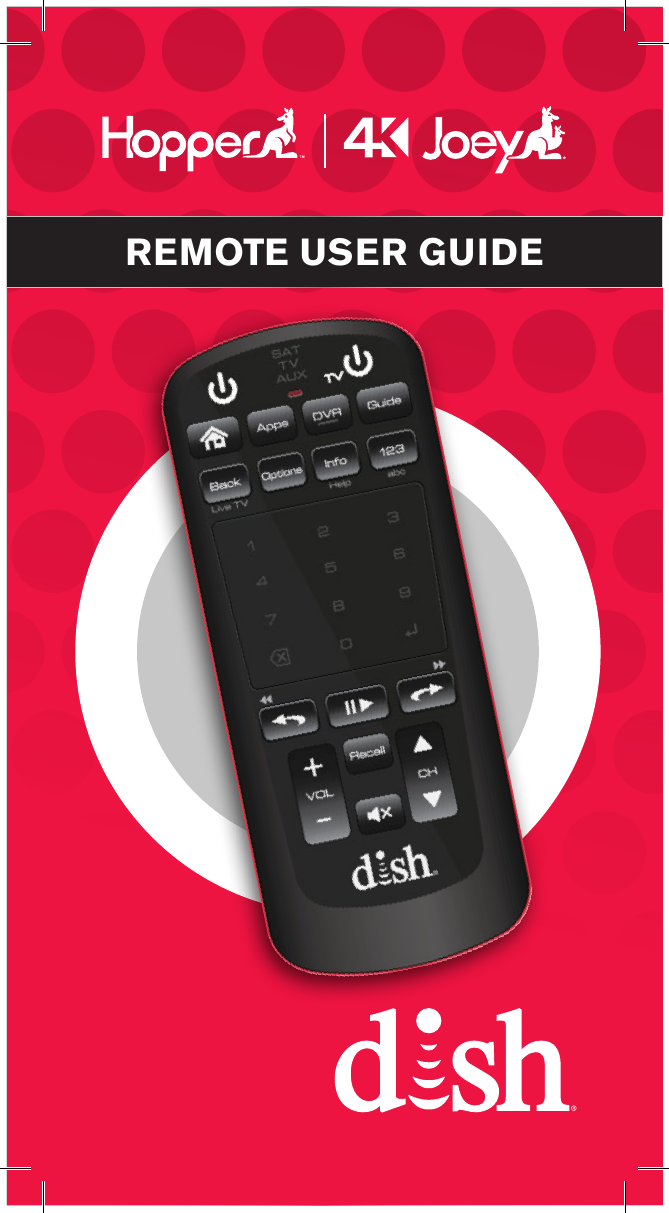
REMOTE USER GUIDE
Safety InstructionsYou must keep safety in mind while using this device. Keep these and any other instructions for future reference.Observe Warnings: Carefully follow all warnings on the device and in the operating instructions.Heat: Do NOT place the device near heat sources such as radiators, stoves, heat registers, or other appliances that produce heat.Care and UseCleaning: Do NOT use liquid, abrasive, solvent, or aerosol cleaners. Use a damp cloth for cleaning.When Not in Use: Remove the batteries if this device is to be left unattended or unused for a long period of time.Refer servicing to qualied personnel when a solid object or liquid has fallen onto or into the device.Do NOT attempt to service this device. Refer all servicing to qualied personnel. Opening covers other than the battery cover will void the warranty.Publishing InformationCopyright © 2015. EchoStar Technologies L.L.C., Englewood, Colorado 80112. All rights reserved.The information in this User Guide may change without notice. Revisions may be issued to tell you about such changes.Send comments or questions about this User Guide to techpubs@echostar.com orTechnical Publications, EchoStar Technologies L.L.C, 90 Inverness Drive Circle East, Englewood, Colorado 80112.Document Number: 206231Printed inDISH is a registered trademark of DISH Network L.L.C.All product names, trade names, or corporate names mentioned in this User Guide are acknowledged to be the proprietary property of the registered owners.
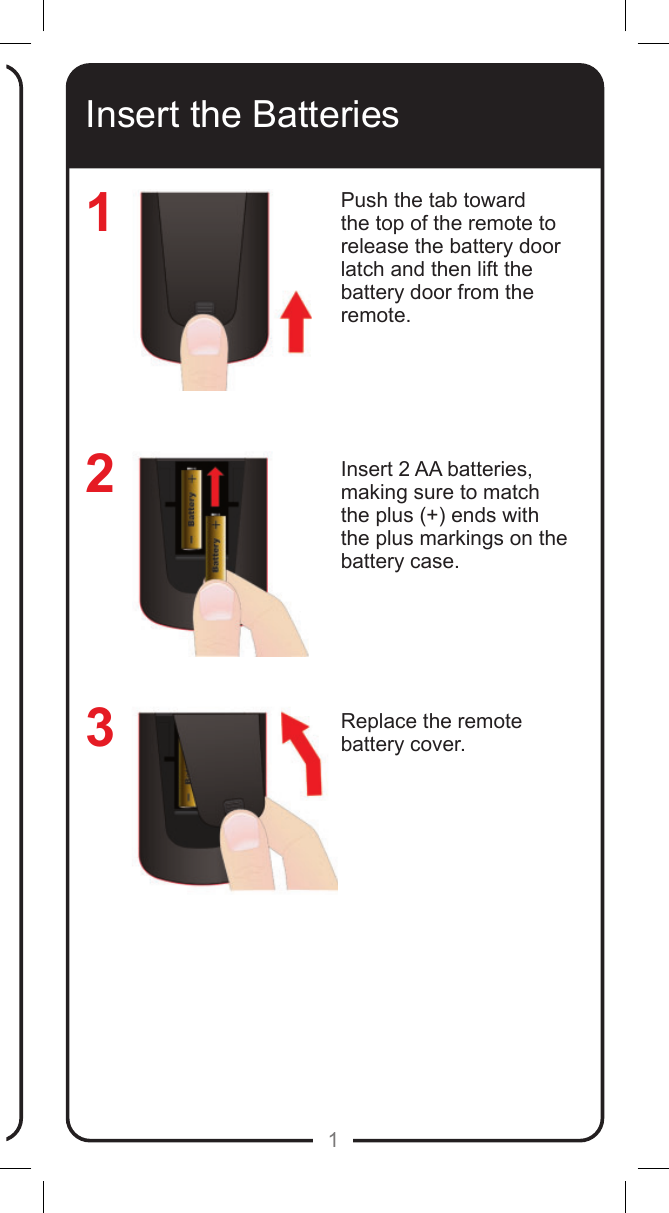
1Insert the BatteriesPush the tab toward the top of the remote to release the battery door latch and then lift the battery door from the remote.Insert 2 AA batteries, making sure to match the plus (+) ends with the plus markings on the battery case.Replace the remote battery cover.123
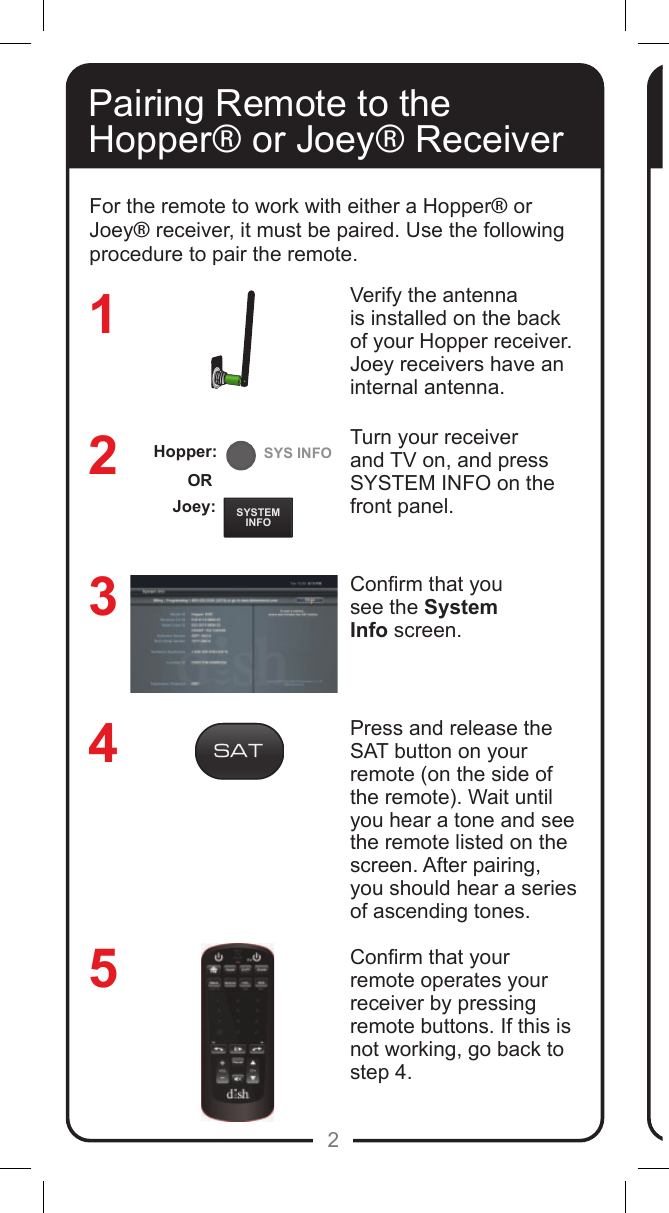
REMOTEANTENNASYSTEMINFOSYS INFO2Pairing Remote to the Hopper® or Joey® ReceiverVerify the antenna is installed on the back of your Hopper receiver. Joey receivers have an internal antenna.Turn your receiver and TV on, and press SYSTEM INFO on the front panel. Conrm that yousee the SystemInfo screen.Press and release the SAT button on your remote (on the side of the remote). Wait until you hear a tone and see the remote listed on the screen. After pairing, you should hear a series of ascending tones. Conrm that your remote operates your receiver by pressing remote buttons. If this is not working, go back to  step 4. 32145For the remote to work with either a Hopper® or Joey® receiver, it must be paired. Use the following procedure to pair the remote.Joey:ORHopper:
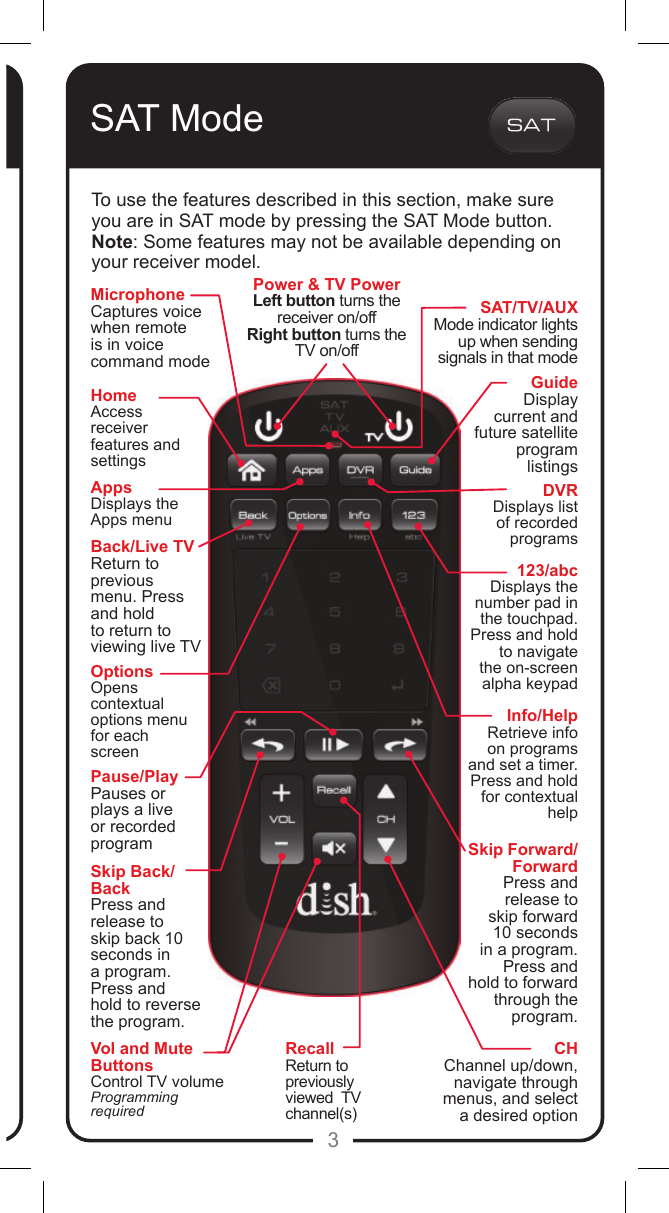
3SAT/TV/AUXMode indicator lights up when sending signals in that modeFor the remote to work with either a Hopper® or Joey® receiver, it must be paired. Use the following procedure to pair the remote.CHChannel up/down, navigate through menus, and select a desired optionSkip Forward/ForwardPress and release to skip forward 10 seconds in a program. Press and hold to forward through the program.Skip Back/BackPress and release to skip back 10 seconds in a program. Press and hold to reverse the program.Back/Live TVReturn to previous menu. Press and hold to return to viewing live TVPause/PlayPauses or plays a live or recorded programSAT ModeTo use the features described in this section, make sure you are in SAT mode by pressing the SAT Mode button.Note: Some features may not be available depending on your receiver model.Power & TV PowerLeft button turns the receiver on/offRight button turns the TV on/offVol and Mute ButtonsControl TV volumeProgramming requiredRecallReturn to previously viewed  TV channel(s)123/abcDisplays the number pad in the touchpad. Press and hold to navigate the on-screen alpha keypadHomeAccess receiverfeatures and settingsOptionsOpens contextual options menu for each screenAppsDisplays the Apps menuDVRDisplays list of recorded programsInfo/HelpRetrieve info on programs and set a timer. Press and hold for contextual helpGuideDisplay current and future satellite program listingsMicrophoneCaptures voice when remote is in voice command mode
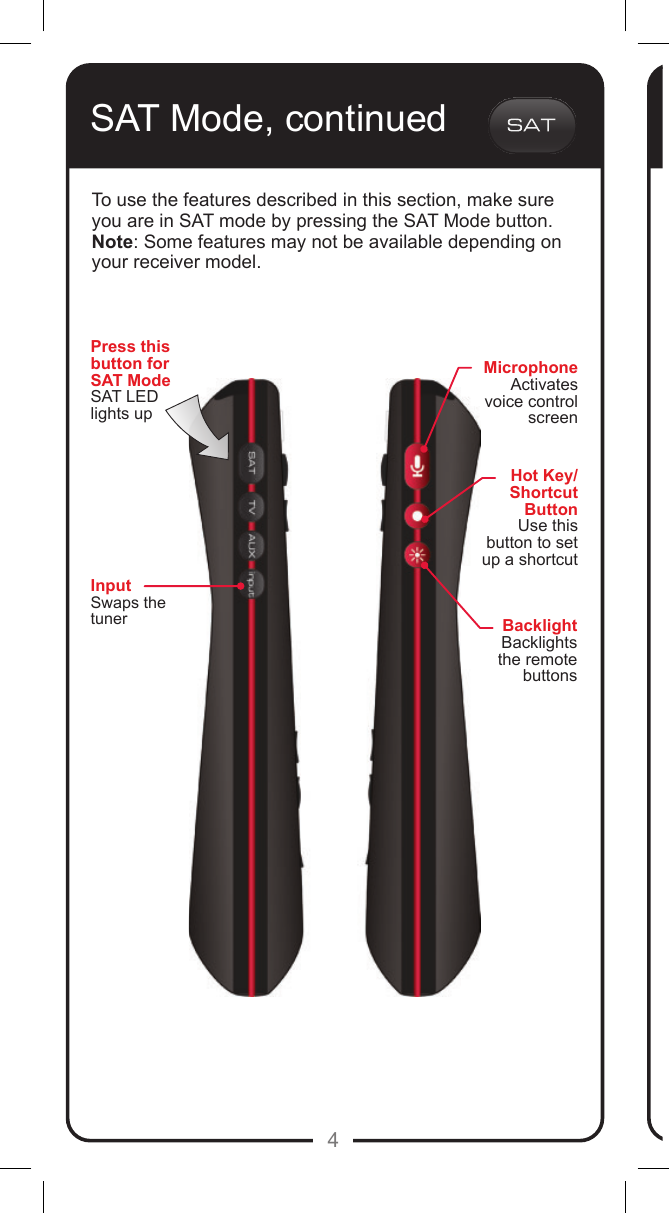
4SAT Mode, continuedTo use the features described in this section, make sure you are in SAT mode by pressing the SAT Mode button.Note: Some features may not be available depending on your receiver model.InputSwaps the tunerMicrophoneActivates voice control screenBacklightBacklights the remote buttonsHot Key/Shortcut ButtonUse this button to set up a shortcutPress this button for SAT ModeSAT LED lights up
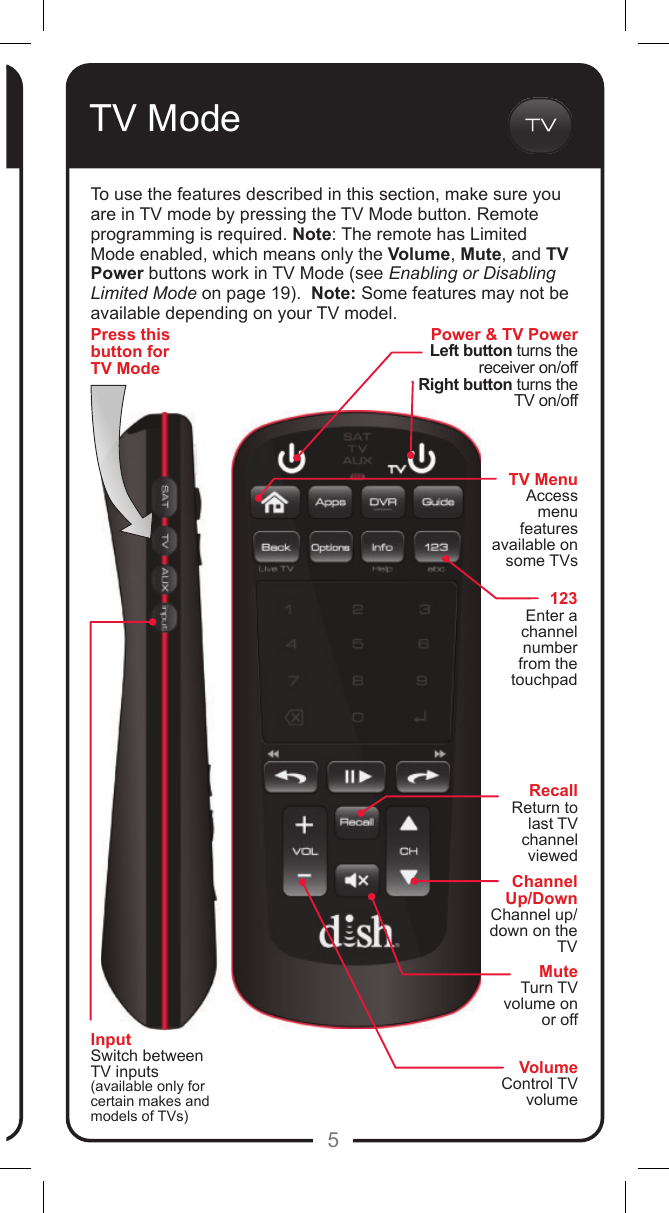
5123Enter achannelnumber from the touchpadTV ModeTo use the features described in this section, make sure you are in TV mode by pressing the TV Mode button. Remote programming is required. Note: The remote has Limited Mode enabled, which means only the Volume, Mute, and TV Power buttons work in TV Mode (see Enabling or Disabling Limited Mode on page 19).  Note: Some features may not be available depending on your TV model.  MuteTurn TV volume on or offRecallReturn to last TV channel viewedInputSwitch between TV inputs (available only for certain makes and models of TVs)Channel Up/DownChannel up/down on the TVVolumeControl TV volumePress this button for TV ModePower & TV PowerLeft button turns the receiver on/offRight button turns the TV on/offTV MenuAccess menu features available on some TVs
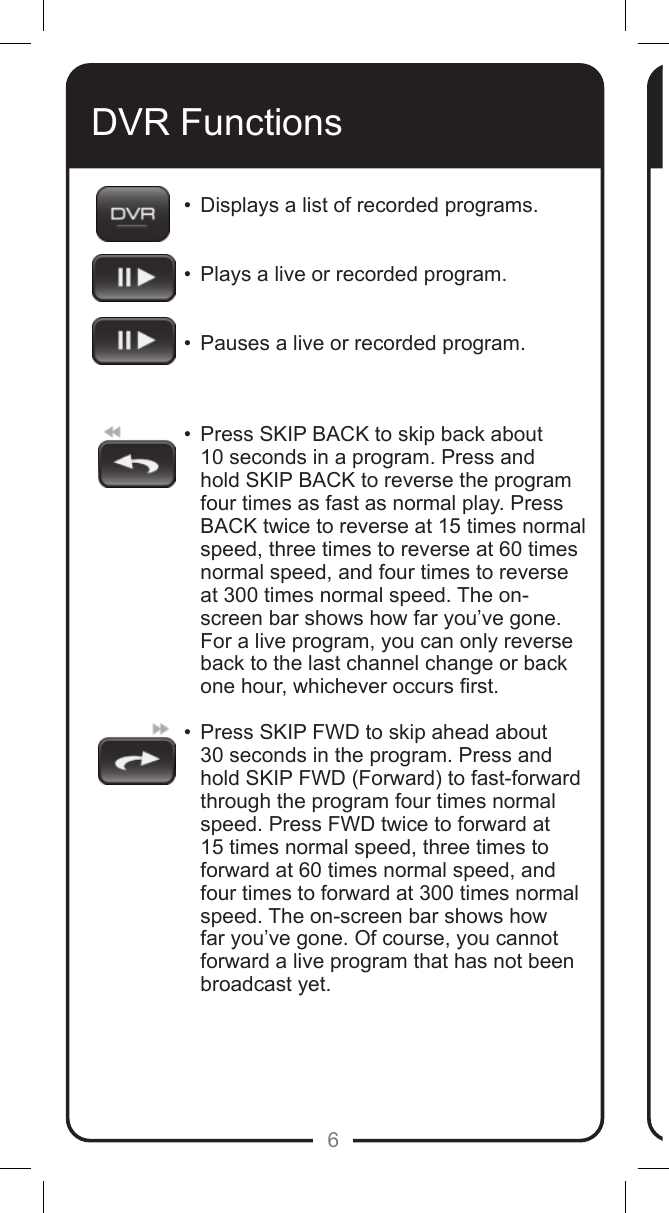
6DVR Functions•  Displays a list of recorded programs.  •  Plays a live or recorded program.  •  Pauses a live or recorded program.   •   Press SKIP BACK to skip back about 10 seconds in a program. Press and hold SKIP BACK to reverse the program four times as fast as normal play. Press BACK twice to reverse at 15 times normal speed, three times to reverse at 60 times normal speed, and four times to reverse at 300 times normal speed. The on-screen bar shows how far you’ve gone. For a live program, you can only reverse back to the last channel change or back  one hour, whichever occurs rst. •   Press SKIP FWD to skip ahead about  30 seconds in the program. Press and hold SKIP FWD (Forward) to fast-forward through the program four times normal speed. Press FWD twice to forward at 15 times normal speed, three times to forward at 60 times normal speed, and four times to forward at 300 times normal speed. The on-screen bar shows how far you’ve gone. Of course, you cannot forward a live program that has not been broadcast yet.
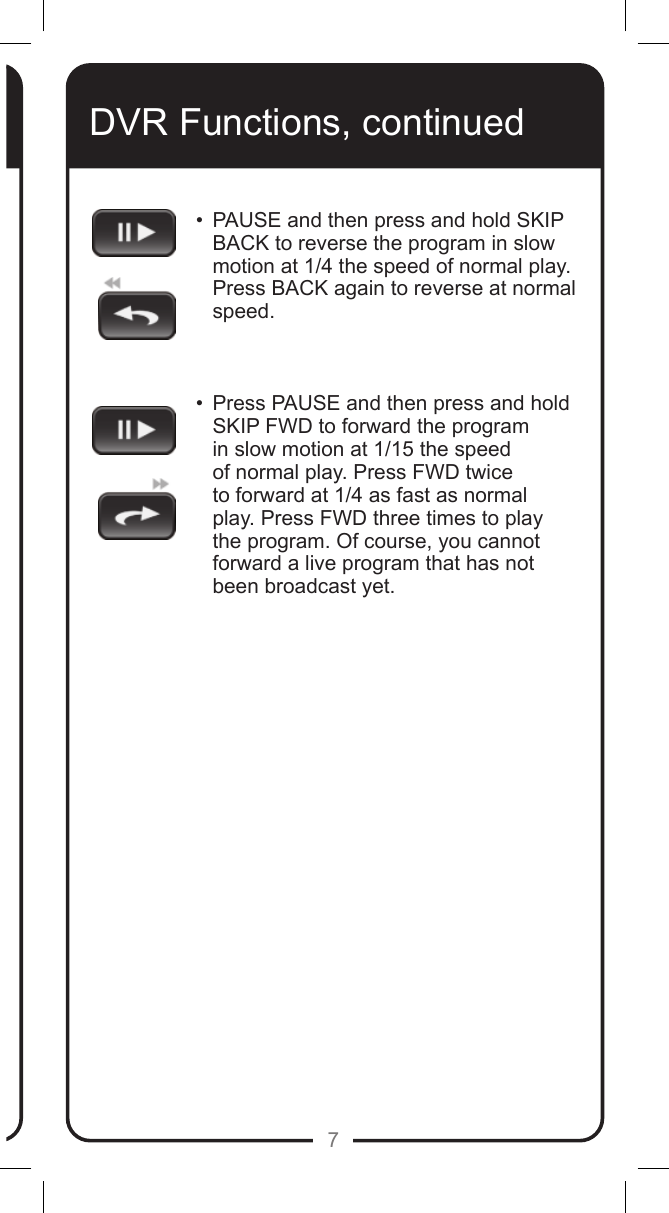
7DVR Functions, continued•   PAUSE and then press and hold SKIP BACK to reverse the program in slow motion at 1/4 the speed of normal play. Press BACK again to reverse at normal speed.   •   Press PAUSE and then press and hold SKIP FWD to forward the program in slow motion at 1/15 the speed of normal play. Press FWD twice to forward at 1/4 as fast as normal play. Press FWD three times to play the program. Of course, you cannot forward a live program that has not been broadcast yet.
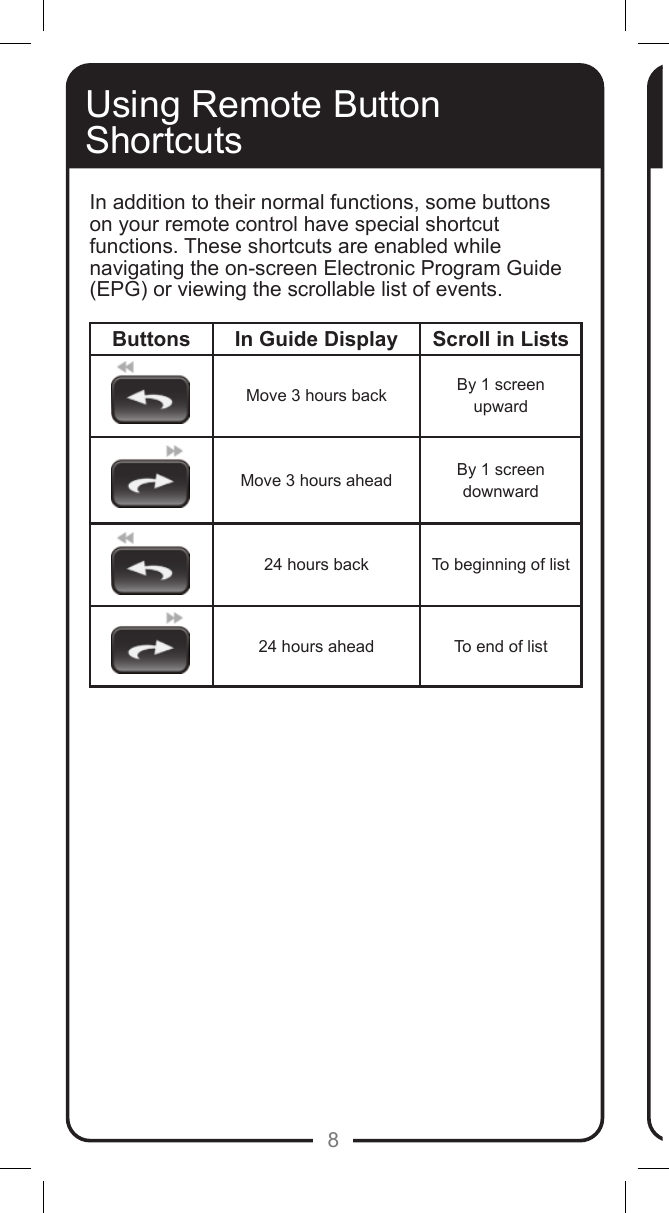
8Buttons In Guide Display Scroll in ListsMove 3 hours back By 1 screen upwardMove 3 hours ahead By 1 screen downward24 hours back To beginning of list24 hours ahead To end of listUsing Remote Button ShortcutsIn addition to their normal functions, some buttons on your remote control have special shortcut functions. These shortcuts are enabled while navigating the on-screen Electronic Program Guide (EPG) or viewing the scrollable list of events.
9Using Voice CommandsPress the Microphone button on the side of the remote.The Voice Control Screen appears.    This remote features the ability to say commands rather than using the remote to work through the menu options. You can use the microphone for the following features:•  Search for a show or a movie•  Minor control of the receiver•  Find a program in the Guide•  Access your DVR programming•  Display Picture-In-Picture•  Swap a tuner•  Record a program•  Watch ESPN1
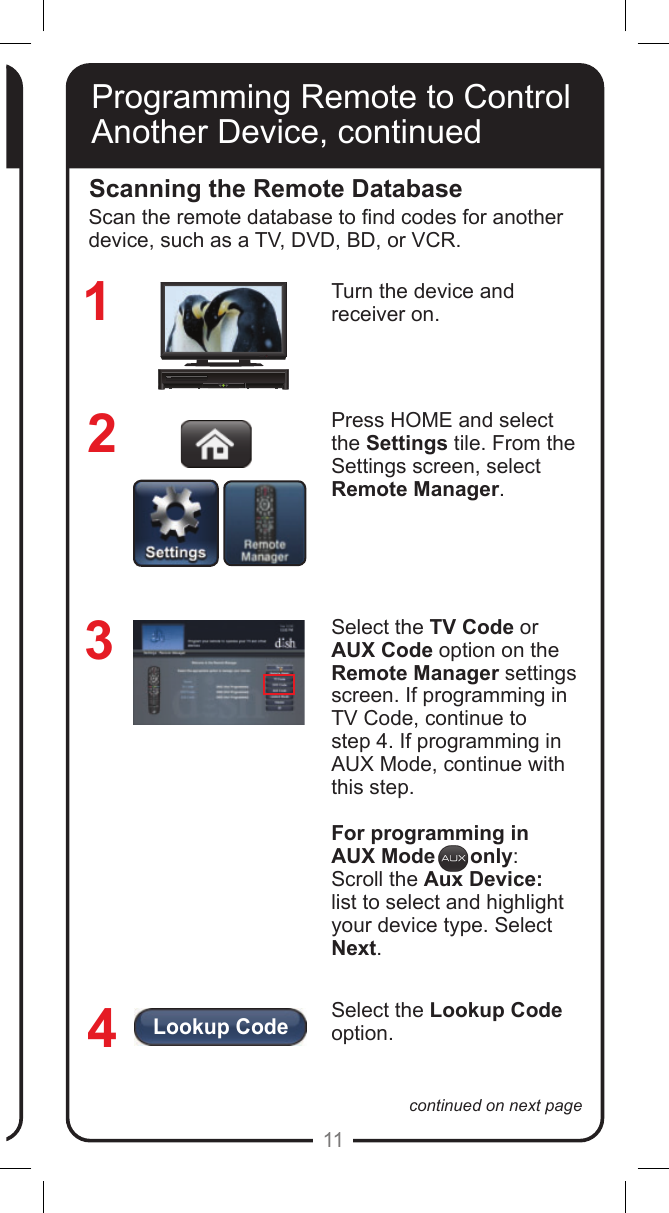
10Programming Remote toControl Another DeviceThere are three ways that you can program your DISH remote to control another device, such as a TV, DVD, Blu-ray Disc™ (BD) Player, VCR, audio receiver, or amplier:• Scanning the Remote Database• Entering a Code• Learning CodesUse Scanning the Remote Database if you don’t know the device code. The receiver scans the database of codes for the particular device and tries each code. When you nd one that works, you save that code.Use Entering a Code when you know the device code.  Use Learning Codes when either your device isn’t listed under Lookup or when you have scanned the database and none of the codes worked.  Typically, the TV mode button is programmed to a TV and the AUX button to a DVD, BD, VCR, audio receiver, or amplier. However, each of the Mode buttons are programmable to whatever device you select.Each of these procedures is discussed in the following pages.
Lookup Code11continued on next pageProgramming Remote to Control Another Device, continuedScanning the Remote DatabaseTurn the device and receiver on.Press HOME and select  the Settings tile. From the Settings screen, select  Remote Manager.Select the TV Code or AUX Code option on the Remote Manager settings screen. If programming in TV Code, continue to  step 4. If programming in AUX Mode, continue with this step.For programming in AUX Mode      only:Scroll the Aux Device:  list to select and highlight your device type. Select Next.Select the Lookup Code option. 1234Scan the remote database to nd codes for another device, such as a TV, DVD, BD, or VCR.
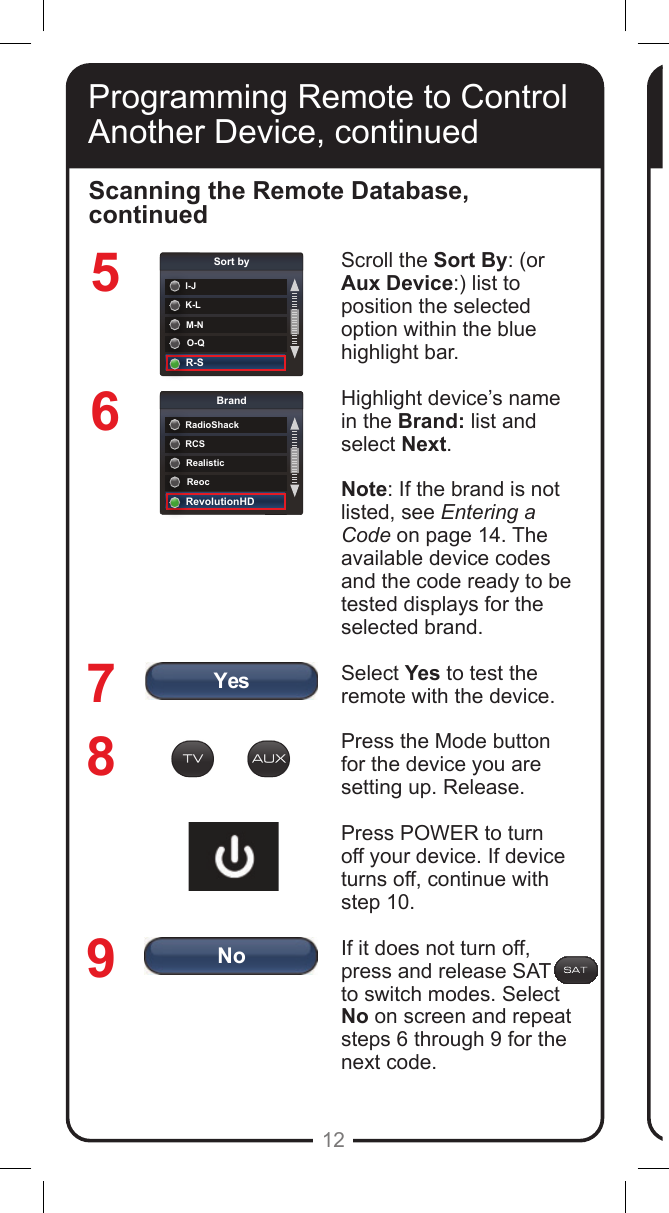
YesNoK-LSort byI-JM-NO-QR-SRCSBrandRadioShackRealisticReocRevolutionHD12567Scroll the Sort By: (or Aux Device:) list to position the selected option within the blue highlight bar. Highlight device’s name in the Brand: list and select Next.Note: If the brand is not listed, see Entering a Code on page 14. The available device codes and the code ready to be tested displays for the selected brand.Select Yes to test the remote with the device.Press the Mode button for the device you are setting up. Release. Press POWER to turn off your device. If device turns off, continue with step 10. If it does not turn off, press and release SAT      to switch modes. Select No on screen and repeat steps 6 through 9 for the next code.Scanning the Remote Database, continued89Programming Remote to Control Another Device, continued
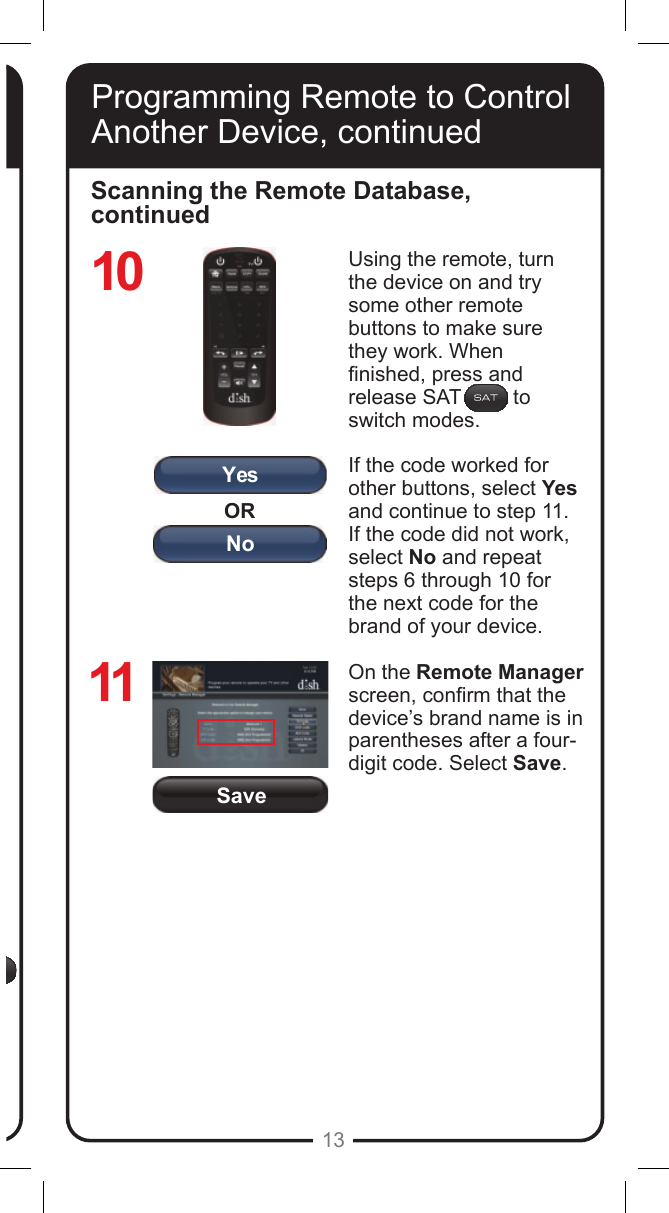
SaveORYesNo13Programming Remote to Control Another Device, continuedScanning the Remote Database, continuedUsing the remote, turn the device on and try some other remote buttons to make sure they work. When nished, press and release SAT         to switch modes.If the code worked for other buttons, select Yes and continue to step 11. If the code did not work, select No and repeat steps 6 through 10 for the next code for the brand of your device.On the Remote Manager screen, conrm that the device’s brand name is in parentheses after a four-digit code. Select Save.1011
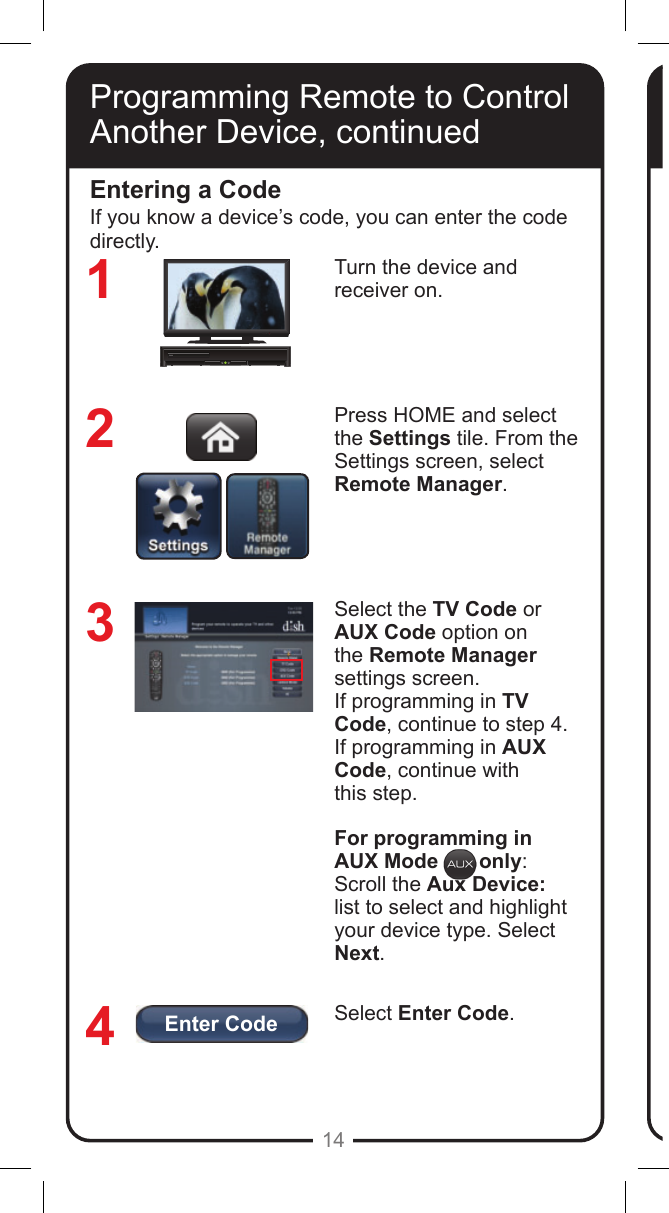
Enter Code14Turn the device and  receiver on.Press HOME and select the Settings tile. From the Settings screen, select Remote Manager.Select the TV Code or AUX Code option on the Remote Manager settings screen. If programming in TV Code, continue to step 4. If programming in AUX Code, continue with  this step.For programming in AUX Mode       only:Scroll the Aux Device: list to select and highlight your device type. Select Next.Select Enter Code.Entering a Code3214If you know a device’s code, you can enter the code directly.Programming Remote to Control Another Device, continued
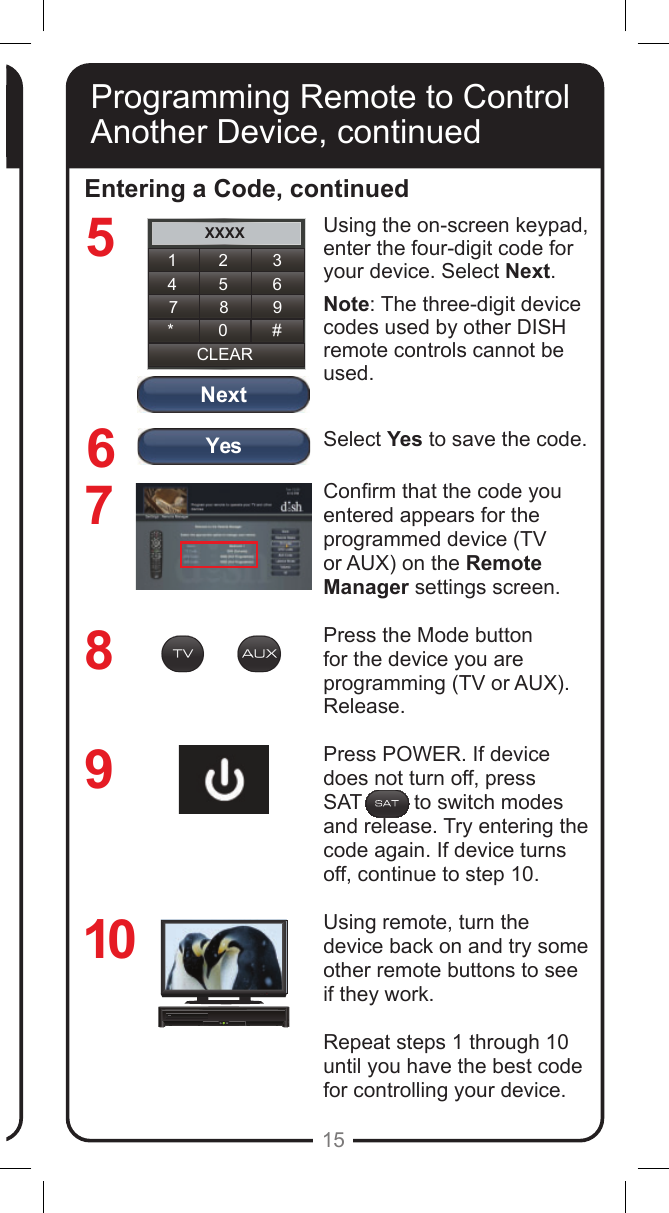
YesNextXXXX1 2 34 5 67 8 9CLEAR* 0 #15Programming Remote to Control Another Device, continuedEntering a Code, continued8769Using the on-screen keypad, enter the four-digit code for your device. Select Next.Note: The three-digit device codes used by other DISH remote controls cannot be used.Select Yes to save the code.Conrm that the code you entered appears for the programmed device (TV or AUX) on the Remote Manager settings screen.Press the Mode button for the device you are programming (TV or AUX). Release.Press POWER. If device does not turn off, press  SAT         to switch modes and release. Try entering the code again. If device turns off, continue to step 10.Using remote, turn the device back on and try some other remote buttons to see if they work.Repeat steps 1 through 10 until you have the best code for controlling your device.10Programming Remote to Control Another Device, continued5
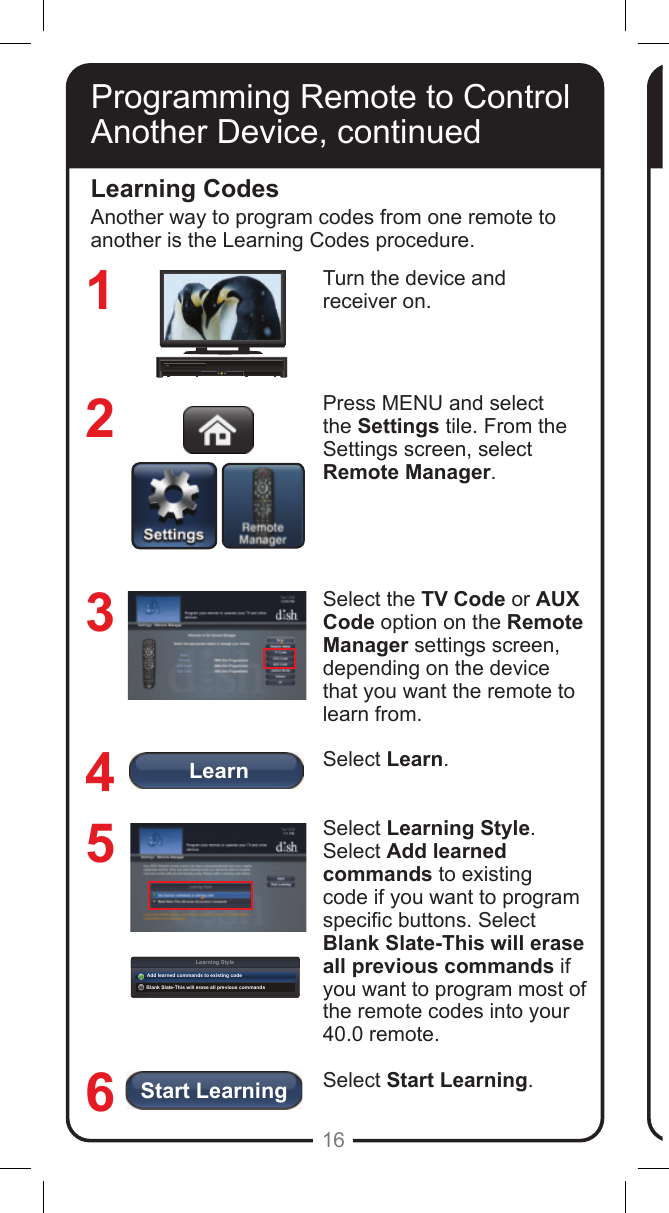
LearnLearning StyleAdd learned commands to existing codeBlank Slate-This will erase all previous commandsStart Learning16Learning CodesTurn the device and  receiver on.Press MENU and select the Settings tile. From the Settings screen, select Remote Manager.Select the TV Code or AUX Code option on the Remote Manager settings screen, depending on the device that you want the remote to learn from. Select Learn.Select Learning Style. Select Add learned commands to existing code if you want to program specic buttons. Select Blank Slate-This will erase all previous commands if you want to program most of the remote codes into your 40.0 remote.  Select Start Learning.123456Another way to program codes from one remote to another is the Learning Codes procedure.Programming Remote to Control Another Device, continued
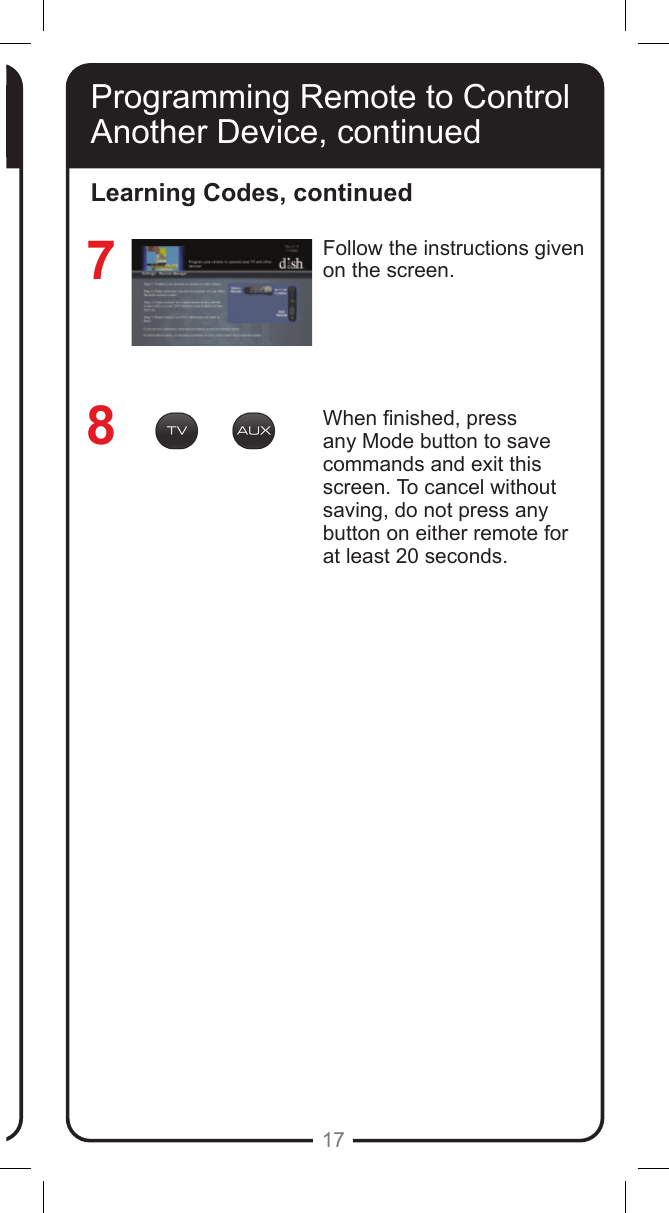
17Programming Remote to Control Another Device, continuedFollow the instructions given on the screen.When nished, press any Mode button to save commands and exit this screen. To cancel without saving, do not press any button on either remote for at least 20 seconds.  78Learning Codes, continuedProgramming Remote to Control Another Device, continued
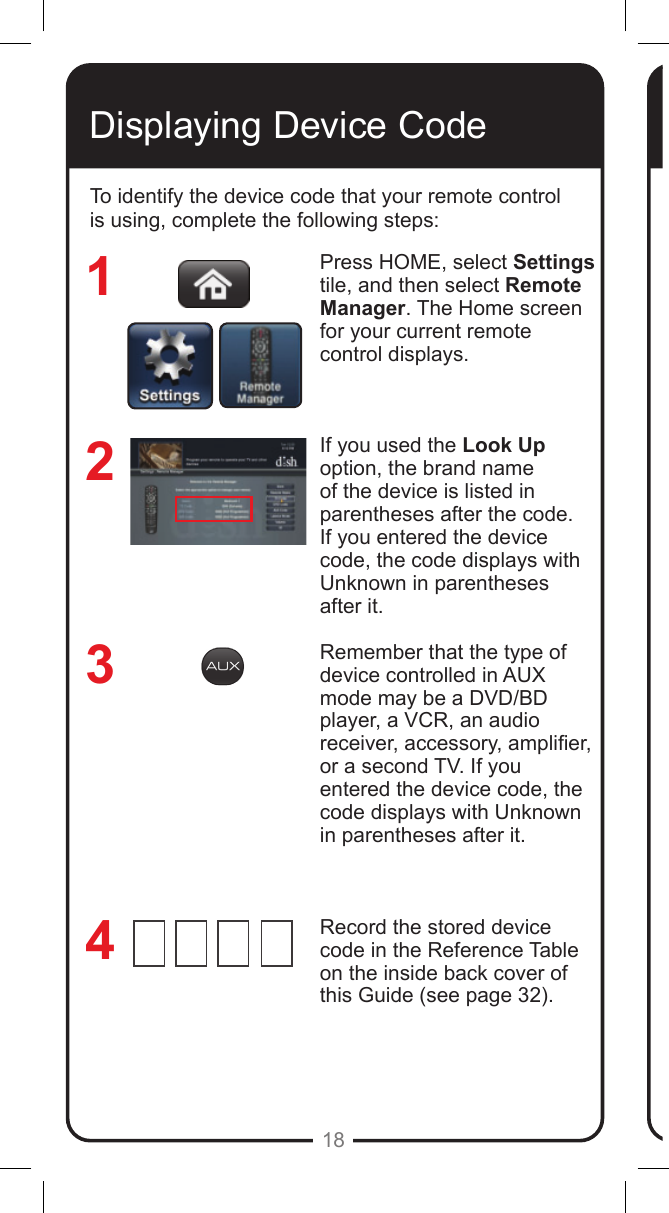
18Displaying Device CodeTo identify the device code that your remote control is using, complete the following steps:Press HOME, select Settings tile, and then select Remote Manager. The Home screen for your current remote control displays.If you used the Look Up option, the brand name of the device is listed in parentheses after the code.  If you entered the device code, the code displays with Unknown in parentheses after it. Remember that the type of device controlled in AUX mode may be a DVD/BD player, a VCR, an audio receiver, accessory, amplier, or a second TV. If you entered the device code, the code displays with Unknown in parentheses after it.Record the stored device code in the Reference Table on the inside back cover of this Guide (see page 32).3214
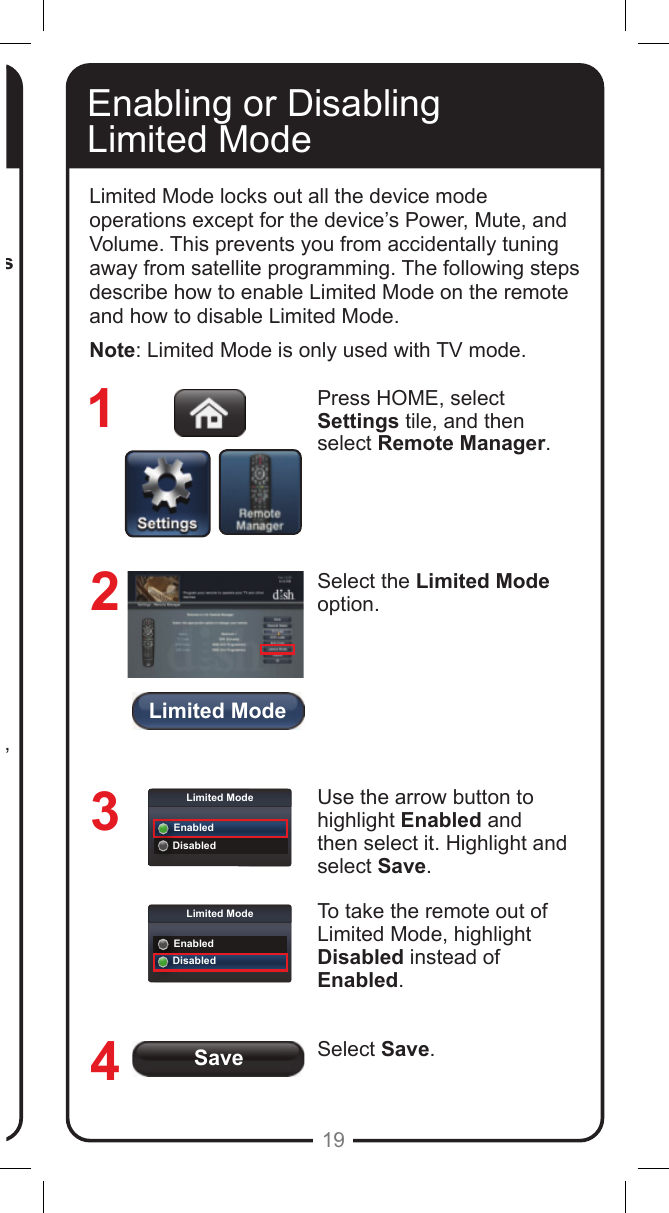
Limited ModeSaveLimited ModeEnabledDisabledLimited ModeEnabledDisabled19Press HOME, select Settings tile, and then select Remote Manager. The Home screen for your current remote control displays.If you used the Look Up option, the brand name of the device is listed in parentheses after the code.  If you entered the device code, the code displays with Unknown in parentheses after it. Remember that the type of device controlled in AUX mode may be a DVD/BD player, a VCR, an audio receiver, accessory, amplier, or a second TV. If you entered the device code, the code displays with Unknown in parentheses after it.Record the stored device code in the Reference Table on the inside back cover of this Guide (see page 32).Enabling or Disabling  Limited ModeLimited Mode locks out all the device mode operations except for the device’s Power, Mute, and Volume. This prevents you from accidentally tuning away from satellite programming. The following steps describe how to enable Limited Mode on the remote and how to disable Limited Mode.Note: Limited Mode is only used with TV mode.Press HOME, select Settings tile, and then select Remote Manager. Select the Limited Mode option.Use the arrow button to highlight Enabled and then select it. Highlight and select Save.To take the remote out of Limited Mode, highlight Disabled instead of Enabled.Select Save.1234
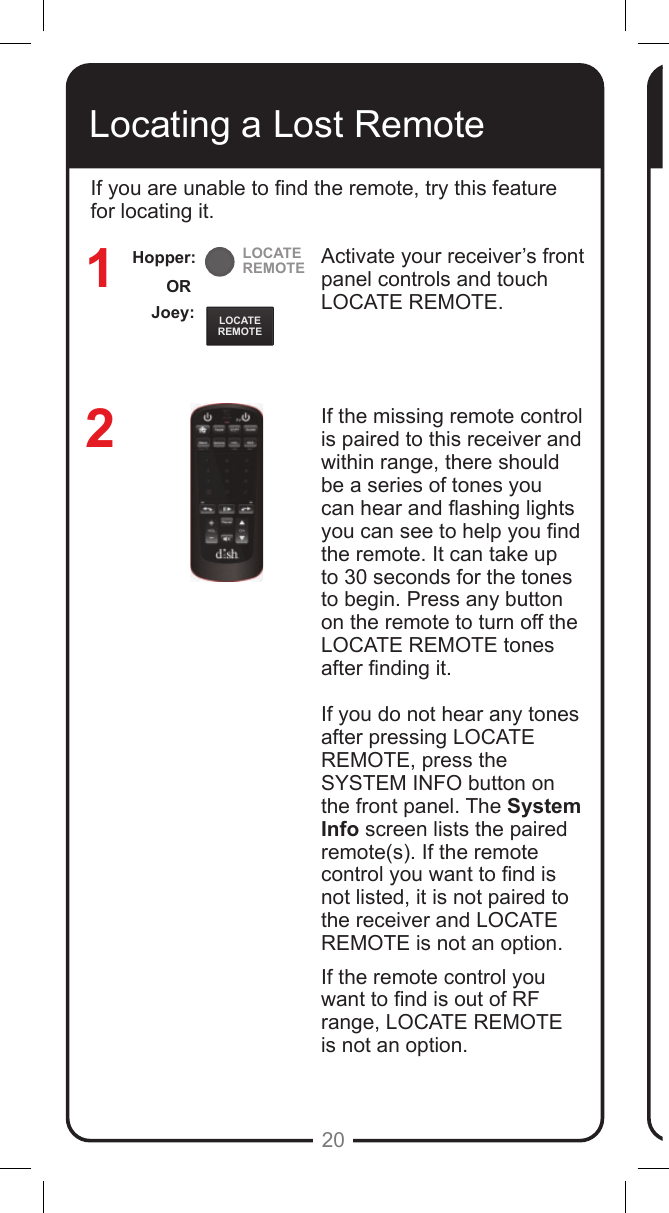
LOCATEREMOTELOCATEREMOTE20Locating a Lost RemoteActivate your receiver’s front panel controls and touch LOCATE REMOTE. If the missing remote control is paired to this receiver and within range, there should be a series of tones you can hear and ashing lights you can see to help you nd the remote. It can take up to 30 seconds for the tones to begin. Press any button on the remote to turn off the LOCATE REMOTE tones after nding it.If you do not hear any tones after pressing LOCATE REMOTE, press the SYSTEM INFO button on the front panel. The System Info screen lists the paired remote(s). If the remote control you want to nd is not listed, it is not paired to the receiver and LOCATE REMOTE is not an option.If the remote control you want to nd is out of RF range, LOCATE REMOTE  is not an option.12If you are unable to nd the remote, try this feature for locating it. Joey:ORHopper:
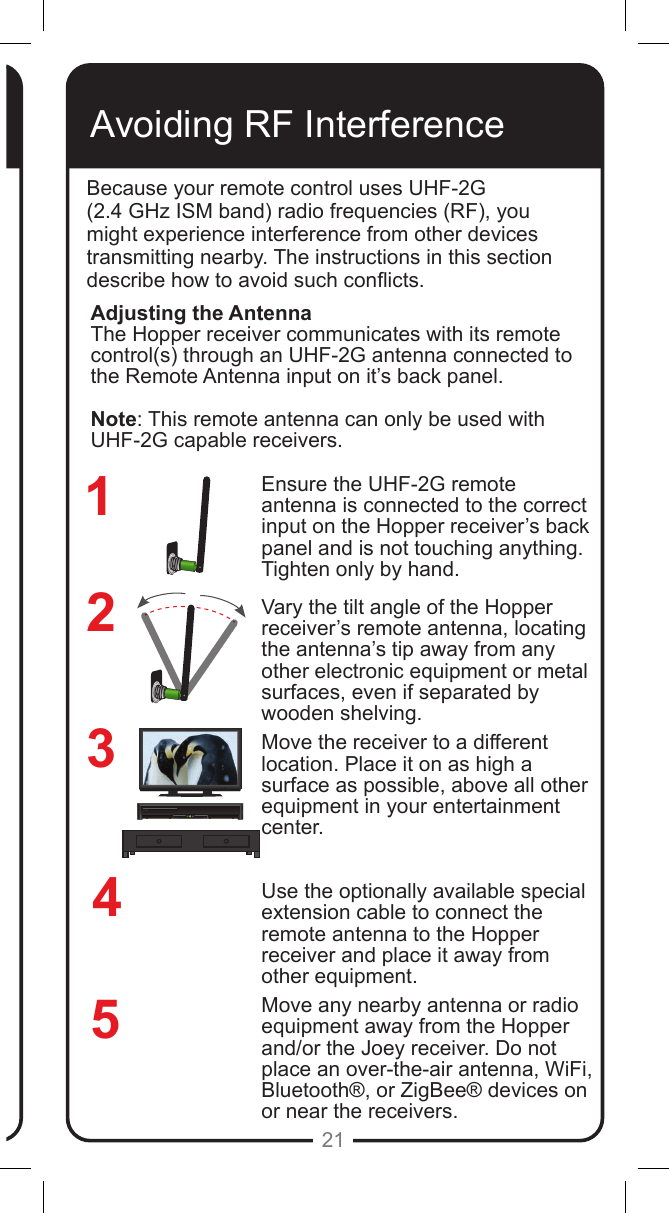
REMOTEANTENNAREMOTEANTENNA21Avoiding RF InterferenceBecause your remote control uses UHF-2G  (2.4 GHz ISM band) radio frequencies (RF), you might experience interference from other devices transmitting nearby. The instructions in this section describe how to avoid such conicts.Ensure the UHF-2G remote antenna is connected to the correct input on the Hopper receiver’s back panel and is not touching anything. Tighten only by hand. Vary the tilt angle of the Hopper receiver’s remote antenna, locating the antenna’s tip away from any other electronic equipment or metal surfaces, even if separated by wooden shelving.Move the receiver to a different location. Place it on as high a surface as possible, above all other equipment in your entertainment center.Use the optionally available special extension cable to connect the remote antenna to the Hopper receiver and place it away from other equipment.Move any nearby antenna or radio equipment away from the Hopper and/or the Joey receiver. Do not place an over-the-air antenna, WiFi, Bluetooth®, or ZigBee® devices on or near the receivers.234Adjusting the AntennaThe Hopper receiver communicates with its remote control(s) through an UHF-2G antenna connected to the Remote Antenna input on it’s back panel. Note: This remote antenna can only be used with UHF-2G capable receivers. 51
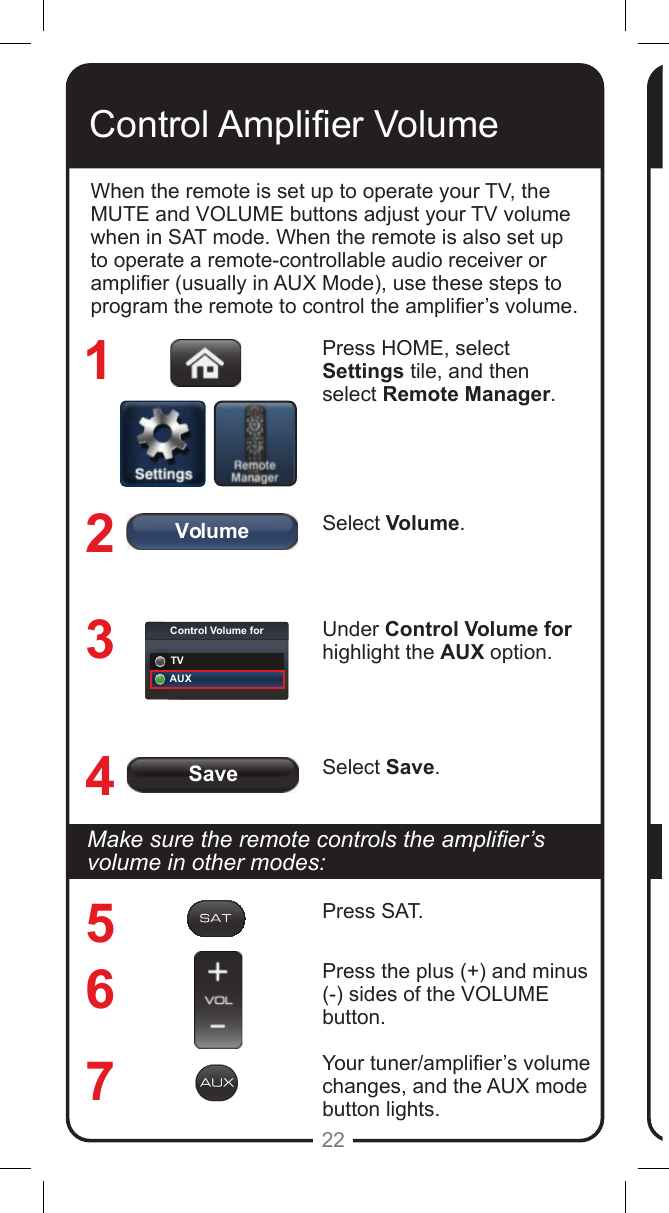
SaveVolumeControl Volume forTVAUX22Control Amplier VolumeWhen the remote is set up to operate your TV, the MUTE and VOLUME buttons adjust your TV volume when in SAT mode. When the remote is also set up to operate a remote-controllable audio receiver or amplier (usually in AUX Mode), use these steps to program the remote to control the amplier’s volume.Press HOME, select Settings tile, and then select Remote Manager.Select Volume.Under Control Volume for highlight the AUX option.Select Save.1234567Makesuretheremotecontrolstheamplier’svolume in other modes:Press SAT.Press the plus (+) and minus (-) sides of the VOLUME button.Your tuner/amplier’s volume changes, and the AUX mode button lights.
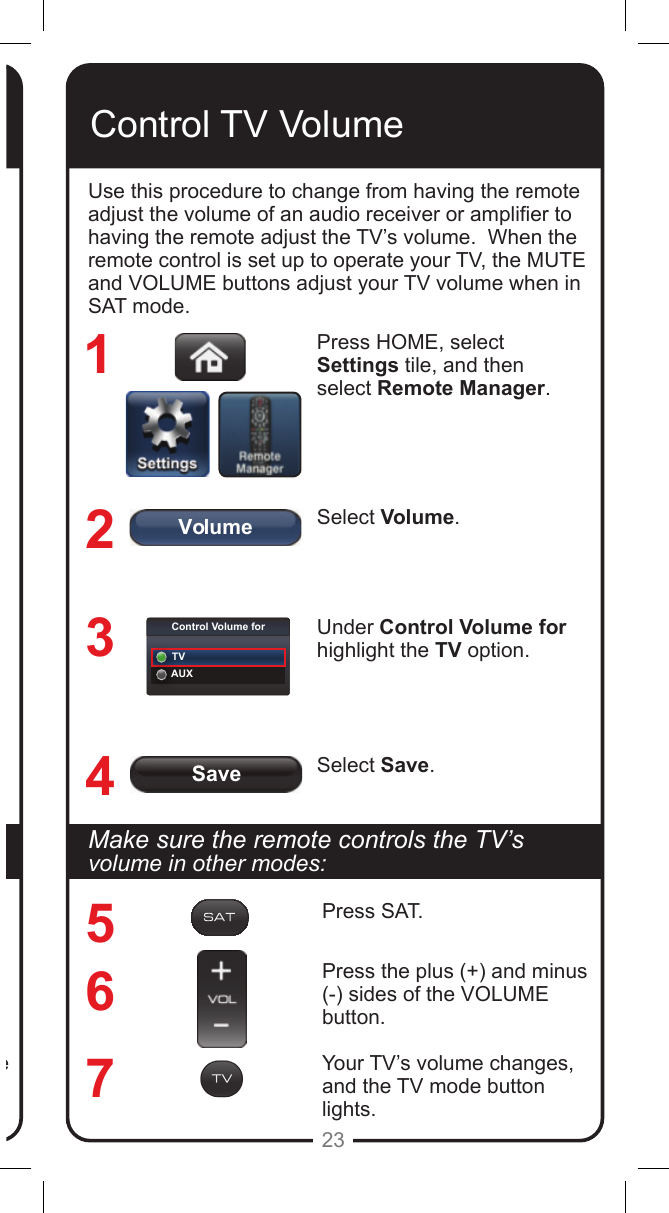
SaveVolumeControl Volume forTVAUX23Makesuretheremotecontrolstheamplier’svolume in other modes:Press SAT.Press the plus (+) and minus (-) sides of the VOLUME button.Your tuner/amplier’s volume changes, and the AUX mode button lights.Control TV VolumeUse this procedure to change from having the remote adjust the volume of an audio receiver or amplier to having the remote adjust the TV’s volume.  When the remote control is set up to operate your TV, the MUTE and VOLUME buttons adjust your TV volume when in SAT mode. Press HOME, select Settings tile, and then select Remote Manager.Select Volume.Under Control Volume for highlight the TV option.Select Save.1234567MakesuretheremotecontrolstheTV’svolume in other modes:Press SAT.Press the plus (+) and minus (-) sides of the VOLUME button.Your TV’s volume changes, and the TV mode button lights.
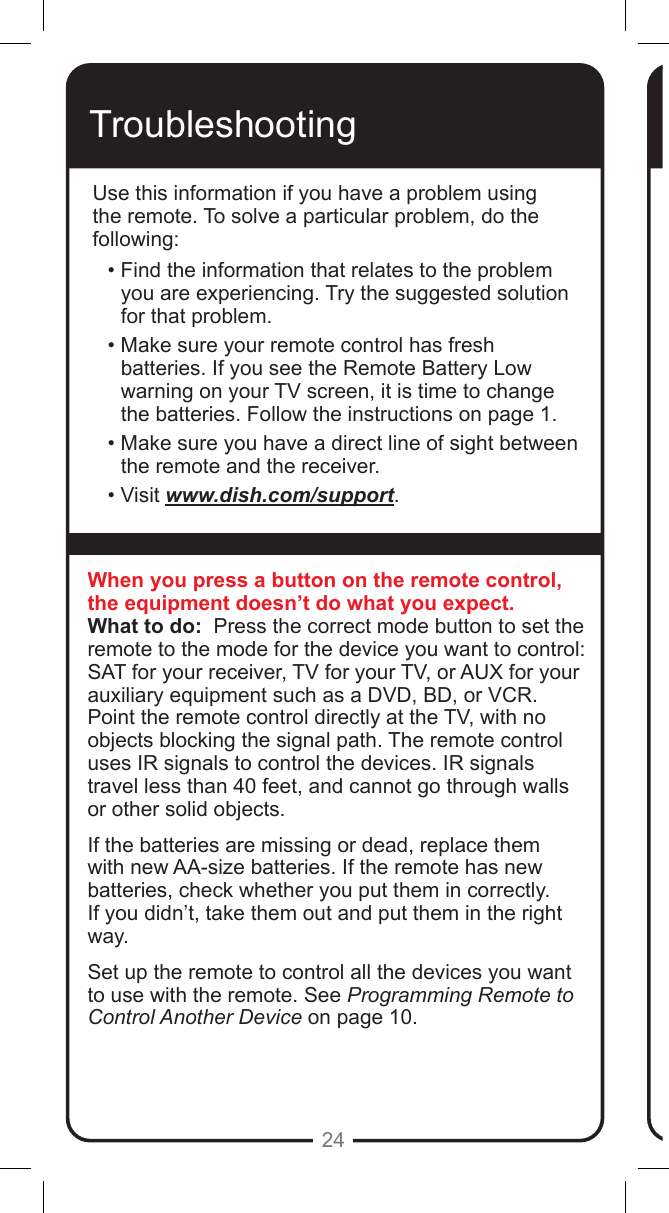
24TroubleshootingUse this information if you have a problem using the remote. To solve a particular problem, do the following:• Find the information that relates to the problem you are experiencing. Try the suggested solution for that problem.• Make sure your remote control has fresh batteries. If you see the Remote Battery Low warning on your TV screen, it is time to change the batteries. Follow the instructions on page 1.• Make sure you have a direct line of sight between the remote and the receiver.• Visit www.dish.com/support.When you press a button on the remote control, the equipment doesn’t do what you expect.What to do:  Press the correct mode button to set the remote to the mode for the device you want to control: SAT for your receiver, TV for your TV, or AUX for your auxiliary equipment such as a DVD, BD, or VCR. Point the remote control directly at the TV, with no objects blocking the signal path. The remote control uses IR signals to control the devices. IR signals travel less than 40 feet, and cannot go through walls or other solid objects.If the batteries are missing or dead, replace them with new AA-size batteries. If the remote has new batteries, check whether you put them in correctly. If you didn’t, take them out and put them in the right way.Set up the remote to control all the devices you want to use with the remote. See Programming Remote to Control Another Device on page 10.
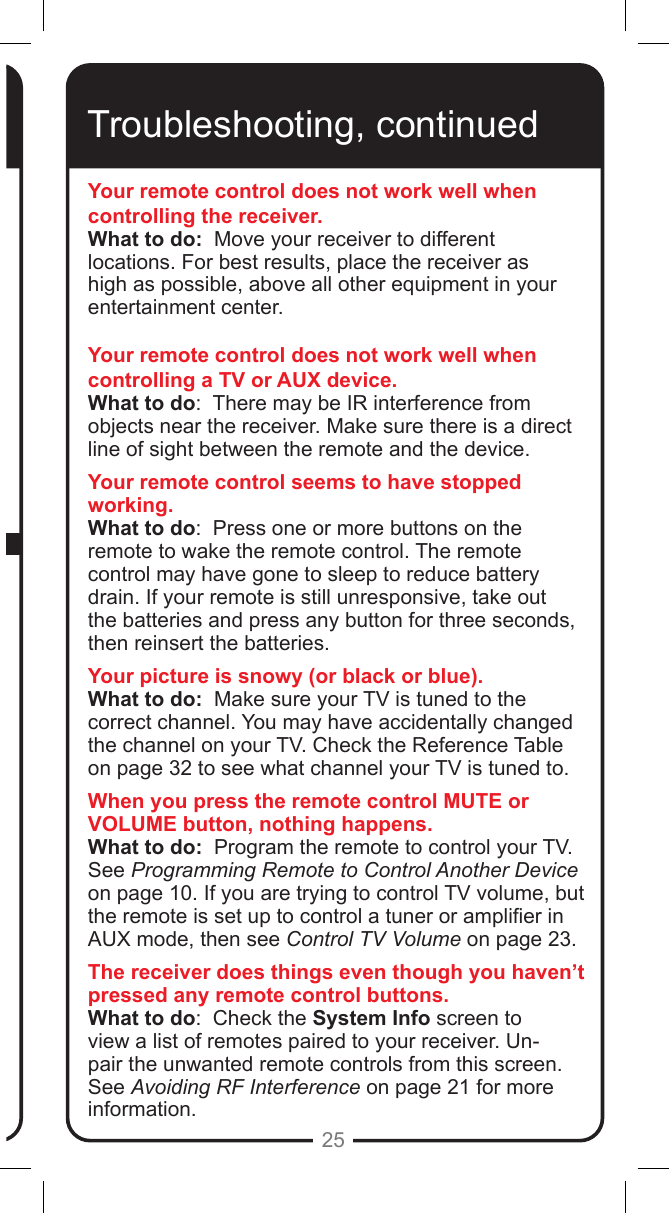
25Troubleshooting, continuedYour remote control does not work well when controlling the receiver.What to do:  Move your receiver to different locations. For best results, place the receiver as high as possible, above all other equipment in your entertainment center. Your remote control does not work well when controlling a TV or AUX device.What to do:  There may be IR interference from objects near the receiver. Make sure there is a direct line of sight between the remote and the device.Your remote control seems to have stopped working.What to do:  Press one or more buttons on the remote to wake the remote control. The remote control may have gone to sleep to reduce battery drain. If your remote is still unresponsive, take out the batteries and press any button for three seconds, then reinsert the batteries.Your picture is snowy (or black or blue).What to do:  Make sure your TV is tuned to the correct channel. You may have accidentally changed the channel on your TV. Check the Reference Table on page 32 to see what channel your TV is tuned to. When you press the remote control MUTE or VOLUME button, nothing happens.What to do:  Program the remote to control your TV.  See Programming Remote to Control Another Device on page 10. If you are trying to control TV volume, but the remote is set up to control a tuner or amplier in AUX mode, then see Control TV Volume on page 23.The receiver does things even though you haven’t pressed any remote control buttons.What to do:  Check the System Info screen to view a list of remotes paired to your receiver. Un-pair the unwanted remote controls from this screen. See Avoiding RF Interference on page 21 for more information.
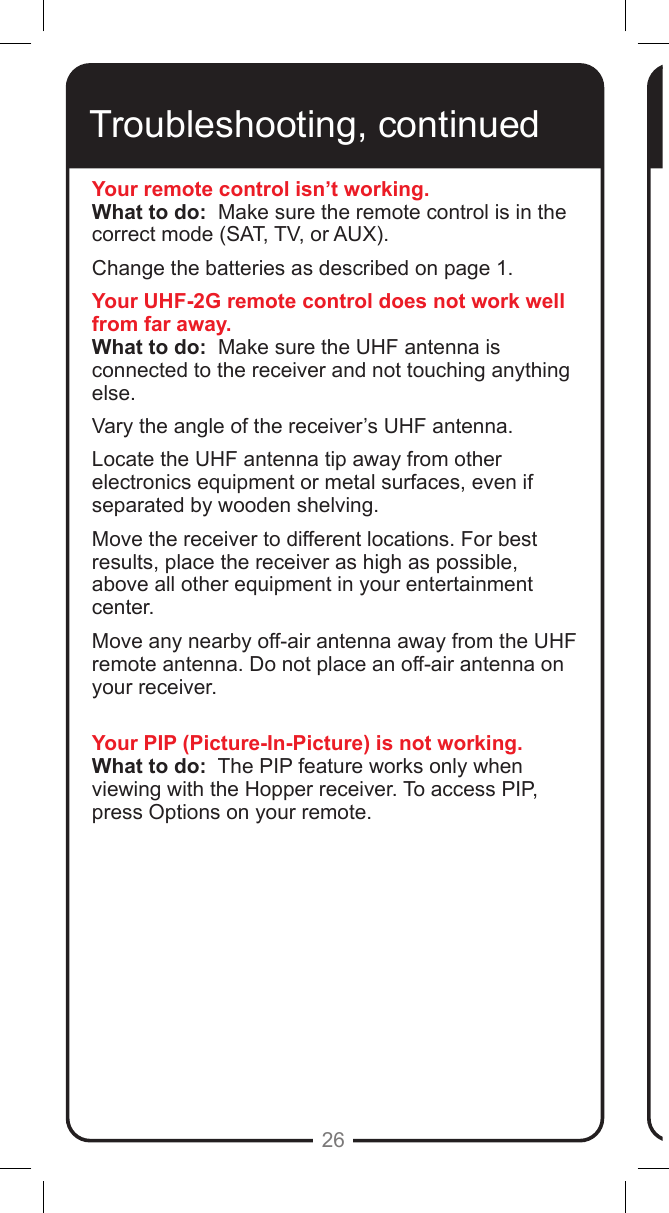
26Troubleshooting, continuedYour remote control isn’t working.What to do:  Make sure the remote control is in the correct mode (SAT, TV, or AUX).  Change the batteries as described on page 1.  Your UHF-2G remote control does not work well from far away.What to do:  Make sure the UHF antenna is connected to the receiver and not touching anything else.  Vary the angle of the receiver’s UHF antenna. Locate the UHF antenna tip away from other electronics equipment or metal surfaces, even if separated by wooden shelving. Move the receiver to different locations. For best results, place the receiver as high as possible, above all other equipment in your entertainment center.Move any nearby off-air antenna away from the UHF remote antenna. Do not place an off-air antenna on your receiver.Your PIP (Picture-In-Picture) is not working.What to do:  The PIP feature works only when viewing with the Hopper receiver. To access PIP, press Options on your remote.
27Limited WarrantyThis Limited Warranty is a legal document. Keep it in a safe place. Remember to keep your Sales Receipt for warranty service. We will consider any items you return without a copy of the Proof of Purchase to be out of warranty.This warranty extends only to the original user (“you,” “your”) of the DISH remote control and is limited to the purchase price of the remote control. DISH Network L.L.C. and its afliated companies (“we,” “our,” “us”) warrant this remote control against defects in materials or workmanship as follows.For one year from the original date of purchase, if we nd the remote control is defective subject to the limits of this warranty, we will replace the remote at no charge for parts or labor. We warrant any such work done against defects in materials or workmanship for the remaining part of the original warranty period.This warranty does not cover installation of the DISH Network System; consumer instruction; physical set up or adjustment of any consumer electronic equipment; remote control batteries; signal reception problems; loss of use of the equipment; unused programming charges due to equipment malfunction; cosmetic damage; damage due to lightning, electrical or telephone line surges, re, ood, or other acts of Nature; accident; misuse; abuse; repair or alteration by other than our factory service; negligence; commercial or institutional use; improper or neglected maintenance; equipment sold AS IS or WITH ALL FAULTS; equipment removal or reinstallation; shipping damage if the equipment was not packed and shipped in the manner we prescribe; nor equipment purchased, serviced, or operated outside the contiguous United States of America.REPLACEMENT AS PROVIDED UNDER THIS WARRANTY IS YOUR EXCLUSIVE REMEDY. WE SHALL NOT BE HELD LIABLE FOR ANY INCIDENTAL OR CONSEQUENTIAL DAMAGES FOR BREACH OF ANY EXPRESSED OR IMPLIED WARRANTY ON THIS DEVICE, NOR FOR ANY INCIDENTAL OR CONSEQUENTIAL DAMAGE RESULTING FROM THE USE OF, OR INABILITY TO USE, THIS DEVICE. SOME STATES MAY LIMIT OR EXCLUDE THE FOREGOING LIMITATION, SO THE ABOVE EXCLUSION OR LIMITATION MAY NOT APPLY TO YOU. EXCEPT TO THE EXTENT PROHIBITED BY APPLICABLE LAW, UNDER NO CIRCUMSTANCES SHALL OUR LIABILITY, IF ANY, EXCEED THE PURCHASE PRICE PAID FOR THIS DEVICE. ANY IMPLIED WARRANTY OF MERCHANTABILITY OR FITNESS FOR A PARTICULAR PURPOSE ON THIS DEVICE IS LIMITED IN DURATION TO THE DURATION OF THIS WARRANTY. SOME STATES DO NOT ALLOW LIMITATIONS ON HOW LONG A STATUTORY OR IMPLIED WARRANTY LASTS, SO THE ABOVE LIMITATION MAY NOT APPLY TO YOU. WE RESERVE THE RIGHT TO REFUSE TO HONOR THIS WARRANTY IF WE DETERMINE ANY OF THE ABOVE EXCEPTIONS TO HAVE CAUSED THIS DEVICE NOT TO HAVE PERFORMED PROPERLY. THIS WARRANTY SHALL BE VOID IF ANY FACTORY-APPLIED IDENTIFICATION MARK, INCLUDING BUT NOT LIMITED TO SERIAL OR CONDITIONAL ACCESS NUMBERS, HAS BEEN ALTERED OR REMOVED. THIS WARRANTY SHALL ALSO BE VOID IF THE DEVICE HAS BEEN OPENED BY AN UNAUTHORIZED PERSON (with the exception of opening the battery cover).
28Accessory WarrantyAn accessory is any DISH branded equipment, displaying the DISH logo, excluding the receiver, Smart Card, cables and hookups, and non-mechanical components. A one-year warranty becomes effective upon the activation of the DISH system or date of purchase, if bought separately. A proof of purchase is required to verify the purchase date. If an accessory has an expired warranty, no exchange will be issued. You may purchase replacement accessories from DISH or your local retailer.If You Need Help1. Review this User Guide.2. See Troubleshooting on page 24.3. Visit www.dish.com/chat for 24/7 support.4. Call the Customer Service Center at       1-800-333-DISH (3474).
29An accessory is any DISH branded equipment, displaying the DISH logo, excluding the receiver, Smart Card, cables and hookups, and non-mechanical components. A one-year warranty becomes effective upon the activation of the DISH system or date of purchase, if bought separately. A proof of purchase is required to verify the purchase date. If an accessory has an expired warranty, no exchange will be issued. You may purchase replacement accessories from DISH or your local retailer.If You Need HelpRegulatory FactorsThis device complies with Part 15 of FCC Rules. Operation is subject to the following two conditions:1.  This device may not cause harmful   interference,      and2.  This device must accept any interference  received, including interference that may cause undesired operation.Changes or modications to this device may void your authority to operate this equipment. This equipment has been tested and found to comply with the limits for a Class B digital device, pursuant to Part 15 of the FCC Rules. These limits are designed to provide protection against harmful interference in a residential installation. This equipment generates, uses, and can radiate radio frequency energy and, if not installed and used in accordance with the instructions, may cause harmful interference to radio communications. However, there is no guarantee that interference will not occur in a particular installation. If this equipment does cause harmful interference to radio or television reception, which can be determined by turning the equipment off and on, the user is encouraged to try to correct the interference by following one or more of the following measures:•  Reorient or relocate the receiving antenna.•  Increase the separation between the equipment and receiver.•  Connect the equipment into an outlet on a circuit different from that to which the receiver is connected. •  Consult the dealer or an experienced radio/TV technician for help.
30DISH offers two options if you need to replace your remote control—the Advanced Exchange Program and the Post Receipt Exchange Program.Advanced Exchange ProgramThe Advanced Exchange Program allows you to have a replacement remote shipped immediately to you. Depending upon where you live, the remote should arrive within three to ve business days. You will not have to return your defective remote to DISH using this program.A shipping charge will be applied for shipping the replacement remote. This is a one-time fee based on DISH’s competitive bulk shipping rates (additional charges may apply outside the continental U.S.). This fee will be charged to your billing account or valid credit card.Post Receipt Exchange ProgramThe Post Receipt Exchange Program does require that you send the defective remote control at your cost to DISH to determine if the equipment is covered under warranty. To provide faster service, upon receipt of your equipment, you will be shipped a replacement. Your original equipment will not be available for return.If your equipment is not covered under warranty and can be repaired, your billing account or credit card will be charged the standard repair fee for the replacement. If damage to the defective equipment is found, which DISH in its sole discretion determines has voided the warranty or makes the equipment unrepairable, your billing account or credit card will be charged the market price of the replacement.DISH’s Exchange Programs
31Notes
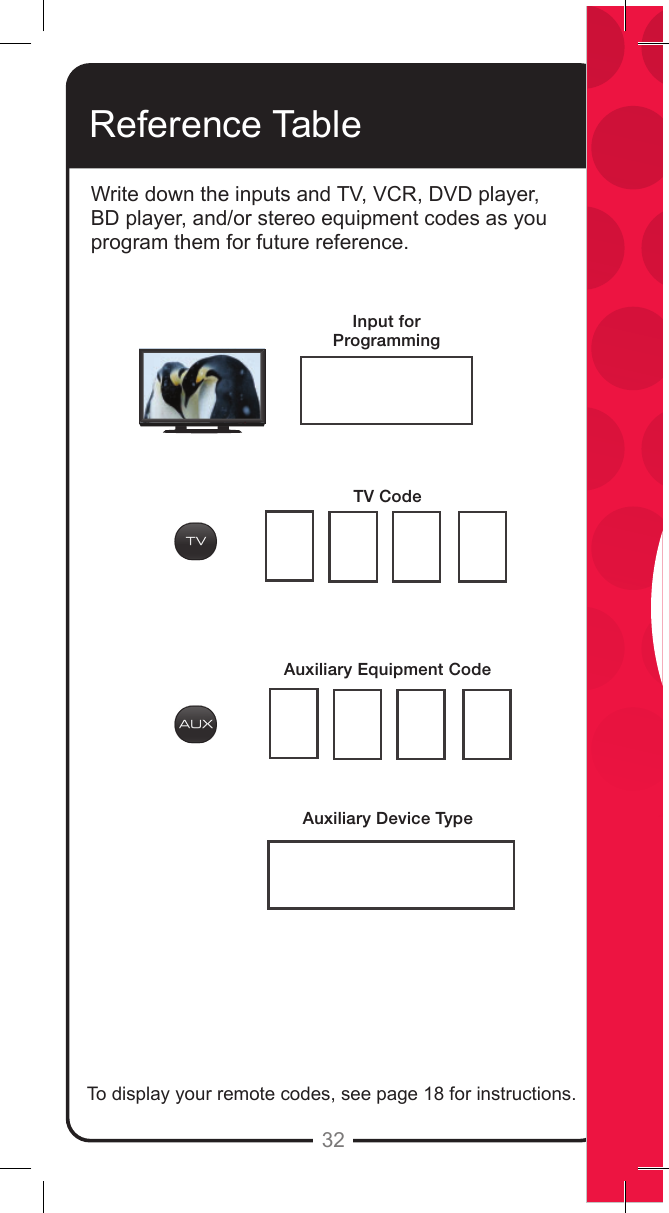
32Reference TableWrite down the inputs and TV, VCR, DVD player, BD player, and/or stereo equipment codes as you program them for future reference.To display your remote codes, see page 18 for instructions.Input for ProgrammingTV CodeAuxiliary Equipment CodeAuxiliary Device Type
Write down the inputs and TV, VCR, DVD player, BD player, and/or stereo equipment codes as you program them for future reference.To display your remote codes, see page 18 for instructions.For all your customer needs,go to mydish.com/chat or call the Customer Service Center  at 1-800-333-DISH (3474)

Navigation menu