SMK FC002 Bluetooth Presentation Controller User Manual 01GB01REG p65

SMK Corporation Bluetooth Presentation Controller 01GB01REG p65

User Manual

VGP-BRMP10_3-196-908-01(1)VGP-BRMP10_3-196-908-01(1)Printed on 70% or more recycled paperusing VOC (Volatile Organic Compound)-free vegetable oil based ink. 2007 Sony Corporation / Printed in JapanBluetooth® Presentation ControllerVGP-BRMP10http://www.sony.net/3-196-908-01 (1)取扱説明書 / Operating Instructions / Mode d'emploiBedienungsanleitung
 VGP-BRMP10_3-196-908-01(1)2 GBWARNINGTo prevent fire or shock hazard, do notexpose the unit to rain or moisture.Owner’s RecordThe model number and the serial number are locatedinside the battery compartment of the mouse. Recordthe serial number in the space provided below. Referto this number whenever you call your Sony dealerregarding this product.Model No. VGP-BRMP10Serial No. ____________________For customers in the U.S.A.This equipment has been tested and found to complywith the limits for a Class B digital device, pursuantto Part 15 of the FCC Rules. These limits aredesigned to provide reasonable protection againstharmful interference in a residential installation. Thisequipment generates, uses, and can radiate radiofrequency energy and, if not installed and used inaccordance with the instructions, may cause harmfulinterference to radio communications. However, thereis no guarantee that interference will not occur in aparticular installation. If this equipment does causeharmful interference to radio or television reception,which can be determined by turning the equipmentoff and on, the user is encouraged to try to correct theinterference by one or more of the followingmeasures:–Reorient or relocate the receiving antenna.–Increase the separation between the equipment andreceiver.–Connect the equipment into an outlet on a circuitdifferent from that to which the receiver isconnected.– Consult the dealer or an experienced radio/TVtechnician for help.You are cautioned that any changes or modificationsnot expressly approved in this manual could voidyour authority to operate this equipment.For questions regarding your product or for the SonyService Center nearest you, call 1-888-476-6972 inthe United States or 1-800-961-7669 in Canada.This device complies with Part 15 of the FCC Rules.Operation is subject to the following two conditions:(1) This device may not cause harmful interference,and (2) this device must accept any interferencereceived, including interference that may causeundesired operation.FCC Radiation Exposure Statement:These products comply with FCC radiation exposurelimits set forth for uncontrolled equipment and meetthe FCC radio frequency (RF) Exposure Guidelines inSupplement C to OET65. These products have verylow levels of RF energy that it is deemed to complywithout testing of specific absorption ratio (SAR).For customers in CanadaThis Class B digital apparatus complies withCanadian ICES-003.Operation is subject to the following two conditions:(1) This device may not cause harmful interference,and (2) this device must accept any interferencereceived, including interference that may causeundesired operation of the device.To prevent radio interference to the licensed service,this device is intended to be operated indoors andaway from windows to provide maximum shielding.Equipment (or its transmit antenna) that is installedoutdoors is subject to licensing.IC Exposure of Humans to RF FieldsThe installer of this radio equipment must ensure thatthe antenna is located or pointed such that it does notemit RF field in excess of Health Canada limits forthe general population; consult Safety Code 6,obtainable from Health Canada’s website:www.hc-sc.gc.ca/rpb.For customers in the U.S.A. and CanadaThe use of optical instruments with this product willincrease eye hazard.Located on bottom sideFor customers in EuropeHereby, Sony, declares that this product is incompliance with the essential requirements and otherrelevant provisions of Directive 1999/5/EC.It also complies with standard EN 60825-1, beingclassified as a CLASS 1 Laser product.Located on bottom sideTo obtain a copy of the Declaration of Conformity(DoC) to the R&TTE Directive, please access thefollowing URL address.http://www.compliance.sony.de/Do not open wireless devices, as opening them, forwhatever reason, could lead to damages that are notcovered by the guarantee.Repair and maintenance only by authorized Sonytechnicians. Improper use and repairs can create asafety hazard.In some situations or environments, the use ofBluetooth® wireless technology might be restricted bythe proprietor of the building or responsiblerepresentatives of the organization, for exampleonboard airplanes, in hospitals or in any otherenvironment where the risk of interference with otherdevices or services is perceived or identified asharmful.
3 GB VGP-BRMP10_3-196-908-01(1)If you are uncertain of the policy that applies to theuse in a specific organisation or environment, you areencouraged to ask for authorization to use Bluetooth®wireless technology prior to switching it on.Consult your physician or the manufacturer ofpersonal medical devices (pacemakers, hearing aids,etc.) regarding any restrictions on the use ofBluetooth® wireless technology.Disposal of AAA batteries•This wireless device is powered by AAA batteries.•For installing the batteries, please refer to the“Inserting Batteries” section of this manual.•Do not handle damaged or leaking batteries. Disposeof promptly and properly.•Batteries may explode or leak if recharged, disposed ofin fire, mixed with other types of battery or improperlyinstalled.•Batteries used in these devices may present a fire orchemical burn hazard if mistreated. Do notdisassemble, heat above 60°C (140°F) or incinerate.•Replace only with the same or equivalent typerecommended by the manufacturer.•Keep away from children.•Dispose of properly at end-of-life.• In some areas, the disposal of batteries in household orbusiness waste may be prohibited. Please use theappropriate public collection system.Disposal of Old Electrical & ElectronicEquipment (Applicable in the EuropeanUnion and other European countrieswith separate collection systems)This symbol on the product oron its packaging indicates thatthis product shall not betreated as household waste.Instead it shall be handed overto the applicable collectionpoint for the recycling ofelectrical and electronicequipment. By ensuring thisproduct is disposed ofcorrectly, you will helpprevent potential negativeconsequences for theenvironment and humanhealth, which could otherwise be caused byinappropriate waste handling of this product. Therecycling of materials will help to conserve naturalresources. For more detailed information aboutrecycling of this product, please contact your localCivic Office, your household waste disposal serviceor the shop where you purchased the product.• VAIO and   are trademarks of SonyCorporation.•Microsoft, Windows, Windows Vista, and PowerPointare registered trademarks or trademarks of MicrosoftCorporation in the United States and/or othercountries.•The Bluetooth word mark and logos are owned by theBluetooth SIG, Inc., and any use of such marks bySony Corporation is under license. Other trademarksand Trade names are those of their respective owners.•All other names of systems, products, and services aretrademarks of their respective owners. In this manual,the ™ or ® marks are not specified.• In this manual, Microsoft® Windows® XP HomeEdition and Microsoft® Windows® XP Professional arereferred to as Windows XP.•In this manual, Windows Vista™ Home Basic,Windows Vista™ Home Premium, Windows Vista™Business and Windows Vista™ Ultimate are referredto as Windows Vista.Table of ContentsBefore Use .............................................. 4Features ........................................... 4Compatible personal computers ...... 5Location and Function of Controls ......... 6Setting up ................................................ 8Inserting batteries ............................ 8Using the Bluetooth Utility softwareto enable communication ............ 10Operating distanceof the controller ........................... 12Power-saving features of thecontroller ..................................... 12Using the Controller ............................. 13Giving a presentation .................... 13Enable or disable scrolling andtapping......................................... 14Adjusting the pointer speed ........... 15Tips for givinga smooth presentation ................. 15Specifications ....................................... 17Precautions ........................................... 18Maintenance ......................................... 19Getting Help ......................................... 19Troubleshooting .................................... 20
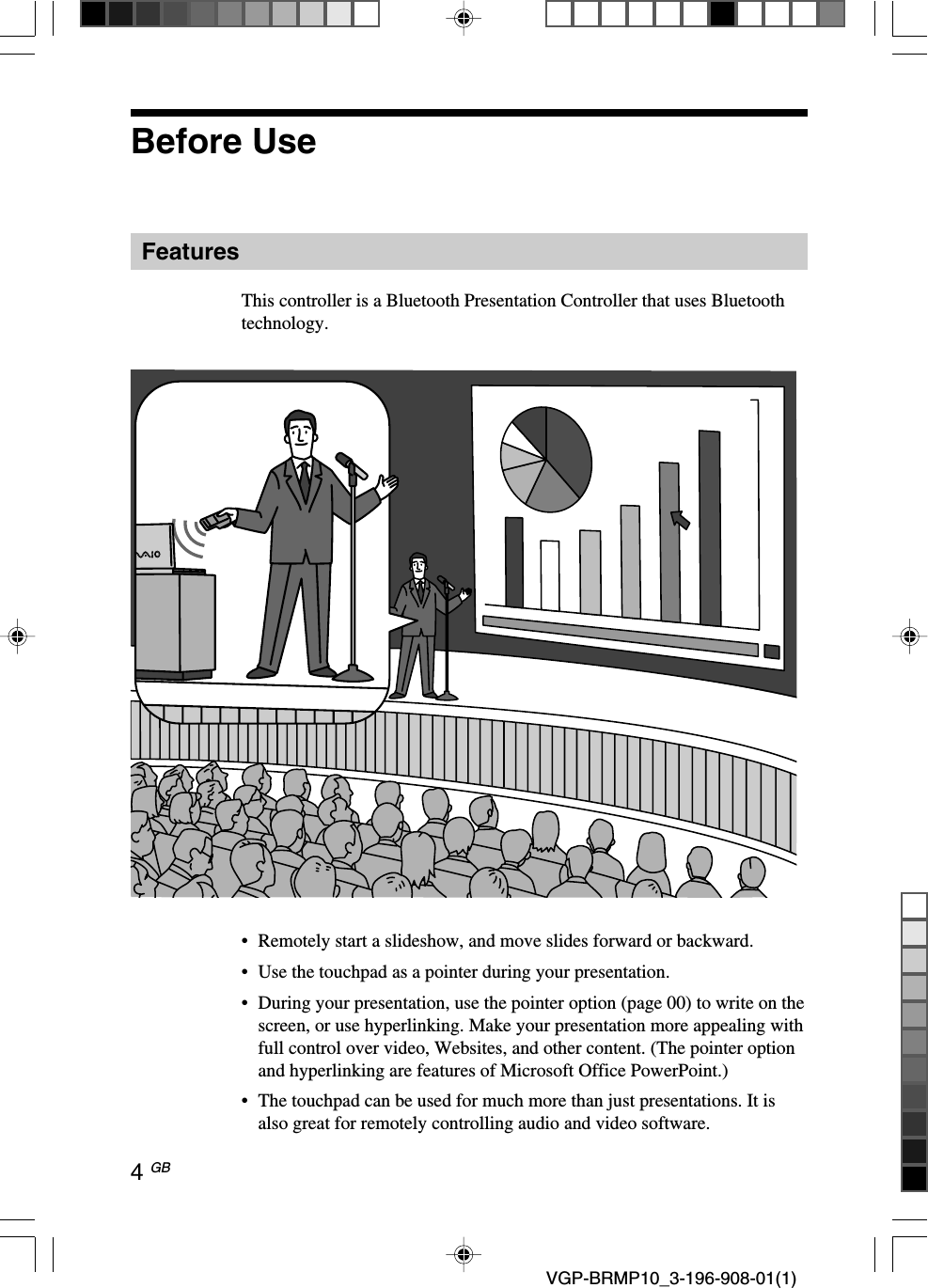
4 GB VGP-BRMP10_3-196-908-01(1)Before UseFeaturesThis controller is a Bluetooth Presentation Controller that uses Bluetoothtechnology.•Remotely start a slideshow, and move slides forward or backward.•Use the touchpad as a pointer during your presentation.•During your presentation, use the pointer option (page 00) to write on thescreen, or use hyperlinking. Make your presentation more appealing withfull control over video, Websites, and other content. (The pointer optionand hyperlinking are features of Microsoft Office PowerPoint.)•The touchpad can be used for much more than just presentations. It isalso great for remotely controlling audio and video software.
5 GB VGP-BRMP10_3-196-908-01(1)Continued on next pageCompatible personal computersThe Bluetooth® Presentation Controller can be used with the followingpersonal computers (as of May 2007):•Sony VAIO personal computers equipped with Bluetooth technology andpre-installed with Microsoft Windows XP Professional, MicrosoftWindows XP Home Edition, or Microsoft Windows Vista.(SP2 must be installed on your personal computer if it ispre-installed with Windows XP.)See the website referred to in “Getting Help” (page 00) regarding specificmodels.*Bluetooth technologyBluetooth wireless technology provides instant short-range connectivity without theneed for cumbersome cabling. For details, refer to the manuals included with yourpersonal computer.NoteDepending on the personal computer or version of software you are using, the controllermay not operate correctly.Consult your nearest Sony dealer about proper operating environments and informationabout Sony VAIO and Bluetooth compatibility.
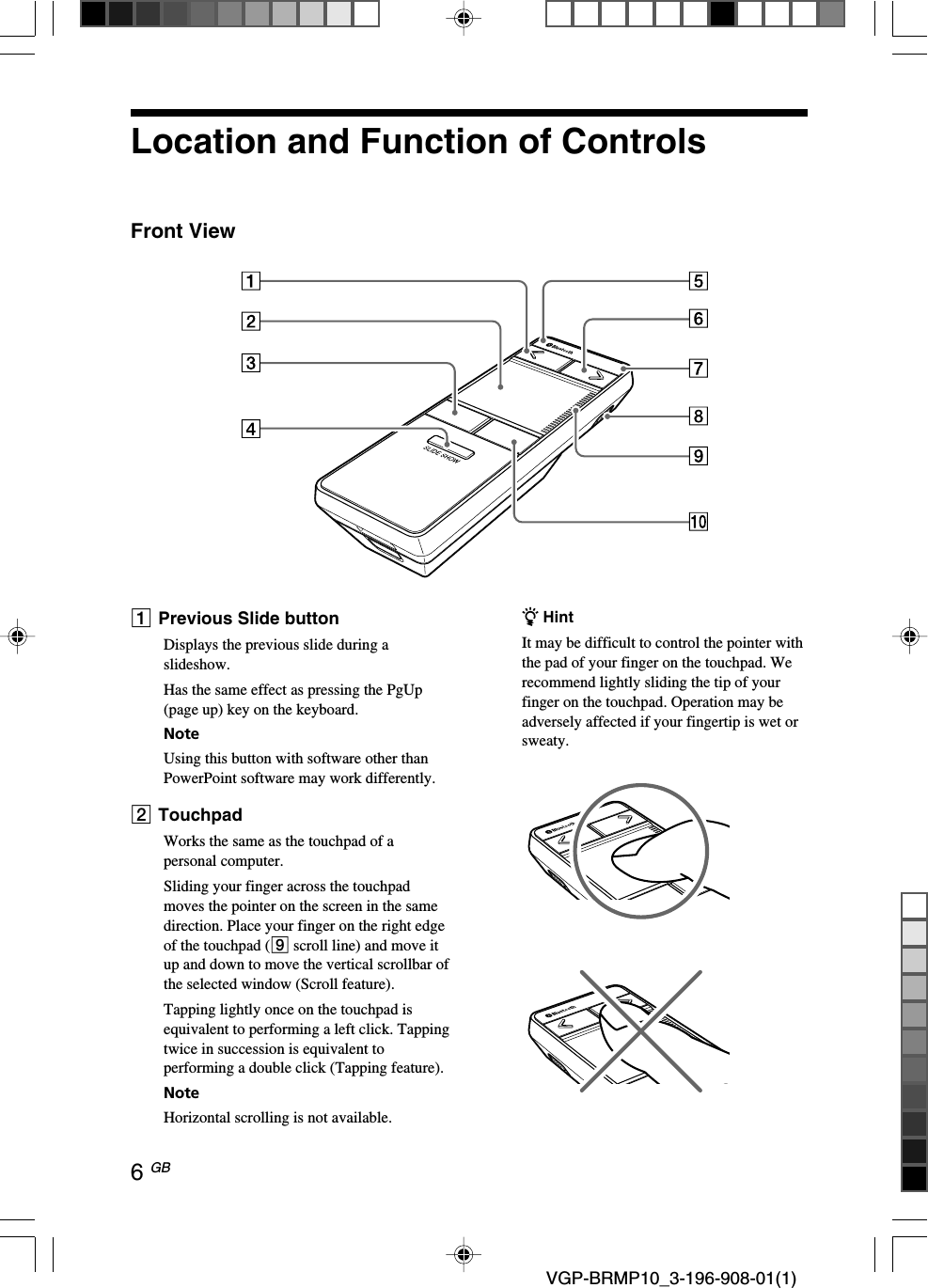
6 GB VGP-BRMP10_3-196-908-01(1)Location and Function of ControlsFront View1Previous Slide buttonDisplays the previous slide during aslideshow.Has the same effect as pressing the PgUp(page up) key on the keyboard.NoteUsing this button with software other thanPowerPoint software may work differently.2TouchpadWorks the same as the touchpad of apersonal computer.Sliding your finger across the touchpadmoves the pointer on the screen in the samedirection. Place your finger on the right edgeof the touchpad (9 scroll line) and move itup and down to move the vertical scrollbar ofthe selected window (Scroll feature).Tapping lightly once on the touchpad isequivalent to performing a left click. Tappingtwice in succession is equivalent toperforming a double click (Tapping feature).NoteHorizontal scrolling is not available.z HintIt may be difficult to control the pointer withthe pad of your finger on the touchpad. Werecommend lightly sliding the tip of yourfinger on the touchpad. Operation may beadversely affected if your fingertip is wet orsweaty.
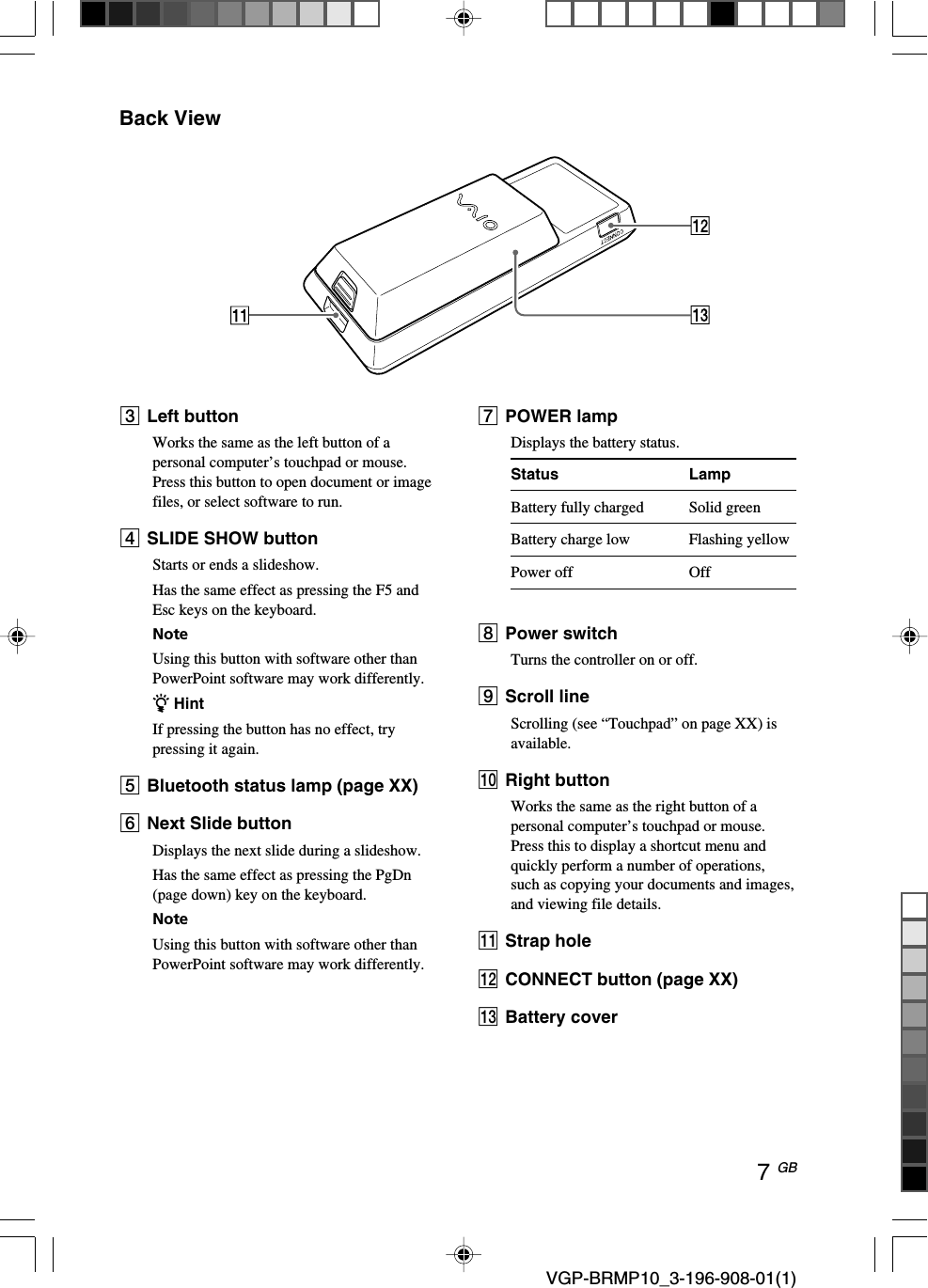
7 GB VGP-BRMP10_3-196-908-01(1)Back View3Left buttonWorks the same as the left button of apersonal computer’s touchpad or mouse.Press this button to open document or imagefiles, or select software to run.4SLIDE SHOW buttonStarts or ends a slideshow.Has the same effect as pressing the F5 andEsc keys on the keyboard.NoteUsing this button with software other thanPowerPoint software may work differently.z HintIf pressing the button has no effect, trypressing it again.5Bluetooth status lamp (page XX)6Next Slide buttonDisplays the next slide during a slideshow.Has the same effect as pressing the PgDn(page down) key on the keyboard.NoteUsing this button with software other thanPowerPoint software may work differently.7POWER lampDisplays the battery status.Status LampBattery fully charged Solid greenBattery charge low Flashing yellowPower off Off8Power switchTurns the controller on or off.9Scroll lineScrolling (see “Touchpad” on page XX) isavailable.q; Right buttonWorks the same as the right button of apersonal computer’s touchpad or mouse.Press this to display a shortcut menu andquickly perform a number of operations,such as copying your documents and images,and viewing file details.qa Strap holeqs CONNECT button (page XX)qd Battery cover
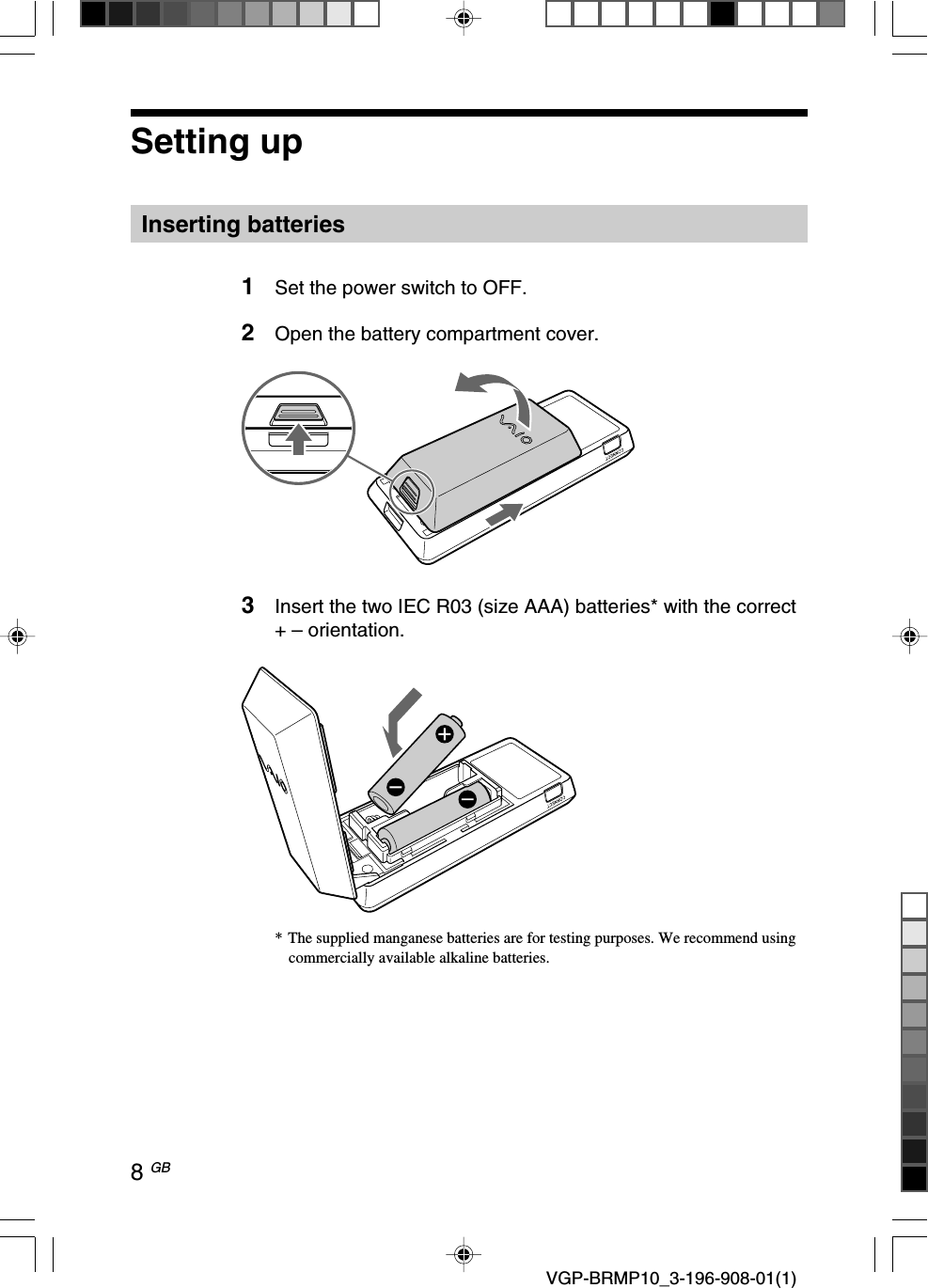
8 GB VGP-BRMP10_3-196-908-01(1)Setting upInserting batteries1Set the power switch to OFF.2Open the battery compartment cover.3Insert the two IEC R03 (size AAA) batteries* with the correct+ – orientation.*The supplied manganese batteries are for testing purposes. We recommend usingcommercially available alkaline batteries.
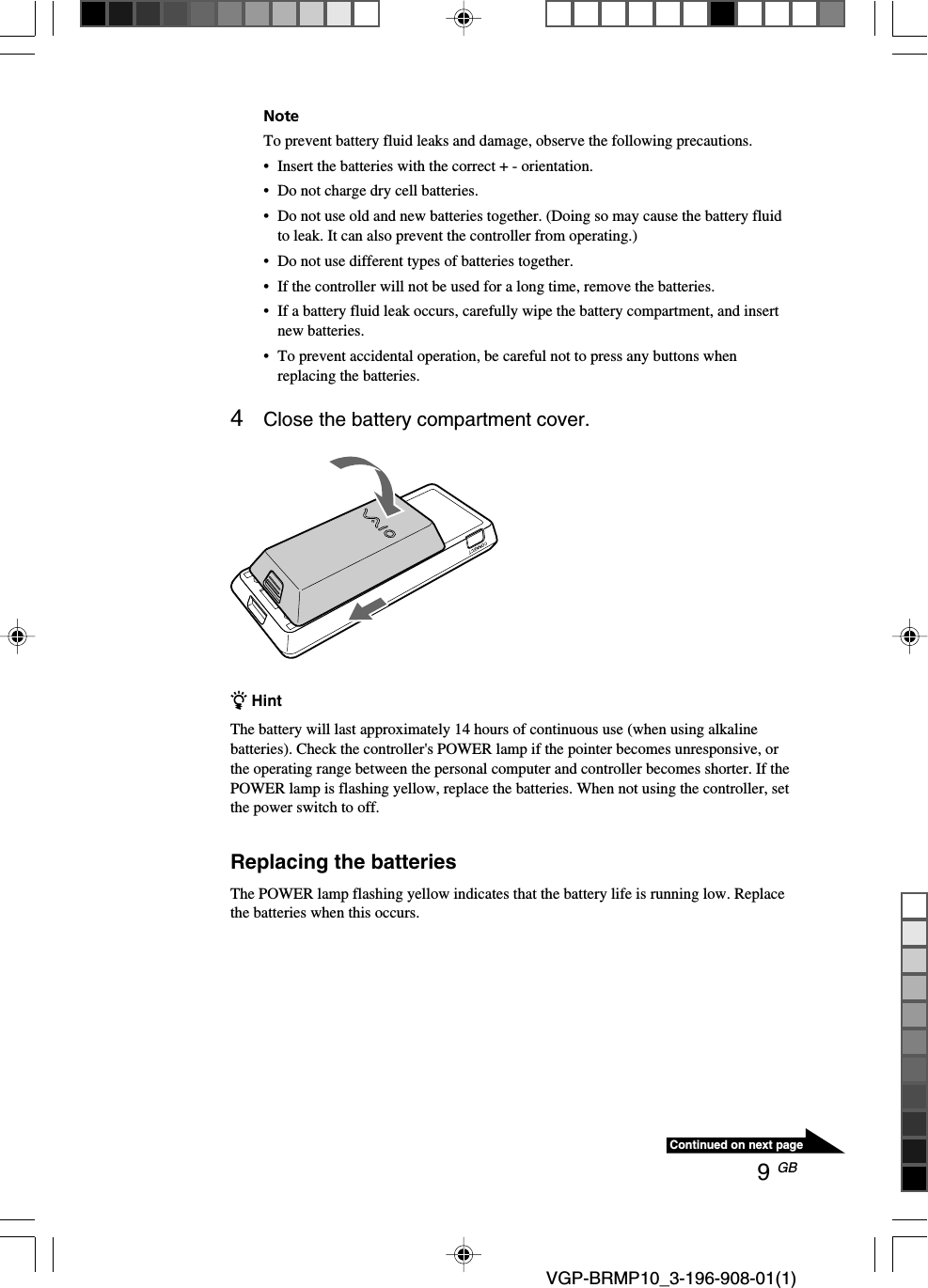
9 GB VGP-BRMP10_3-196-908-01(1)Continued on next pageNoteTo prevent battery fluid leaks and damage, observe the following precautions.• Insert the batteries with the correct + - orientation.•Do not charge dry cell batteries.•Do not use old and new batteries together. (Doing so may cause the battery fluidto leak. It can also prevent the controller from operating.)•Do not use different types of batteries together.•If the controller will not be used for a long time, remove the batteries.•If a battery fluid leak occurs, carefully wipe the battery compartment, and insertnew batteries.•To prevent accidental operation, be careful not to press any buttons whenreplacing the batteries.4Close the battery compartment cover.z HintThe battery will last approximately 14 hours of continuous use (when using alkalinebatteries). Check the controller's POWER lamp if the pointer becomes unresponsive, orthe operating range between the personal computer and controller becomes shorter. If thePOWER lamp is flashing yellow, replace the batteries. When not using the controller, setthe power switch to off.Replacing the batteriesThe POWER lamp flashing yellow indicates that the battery life is running low. Replacethe batteries when this occurs.
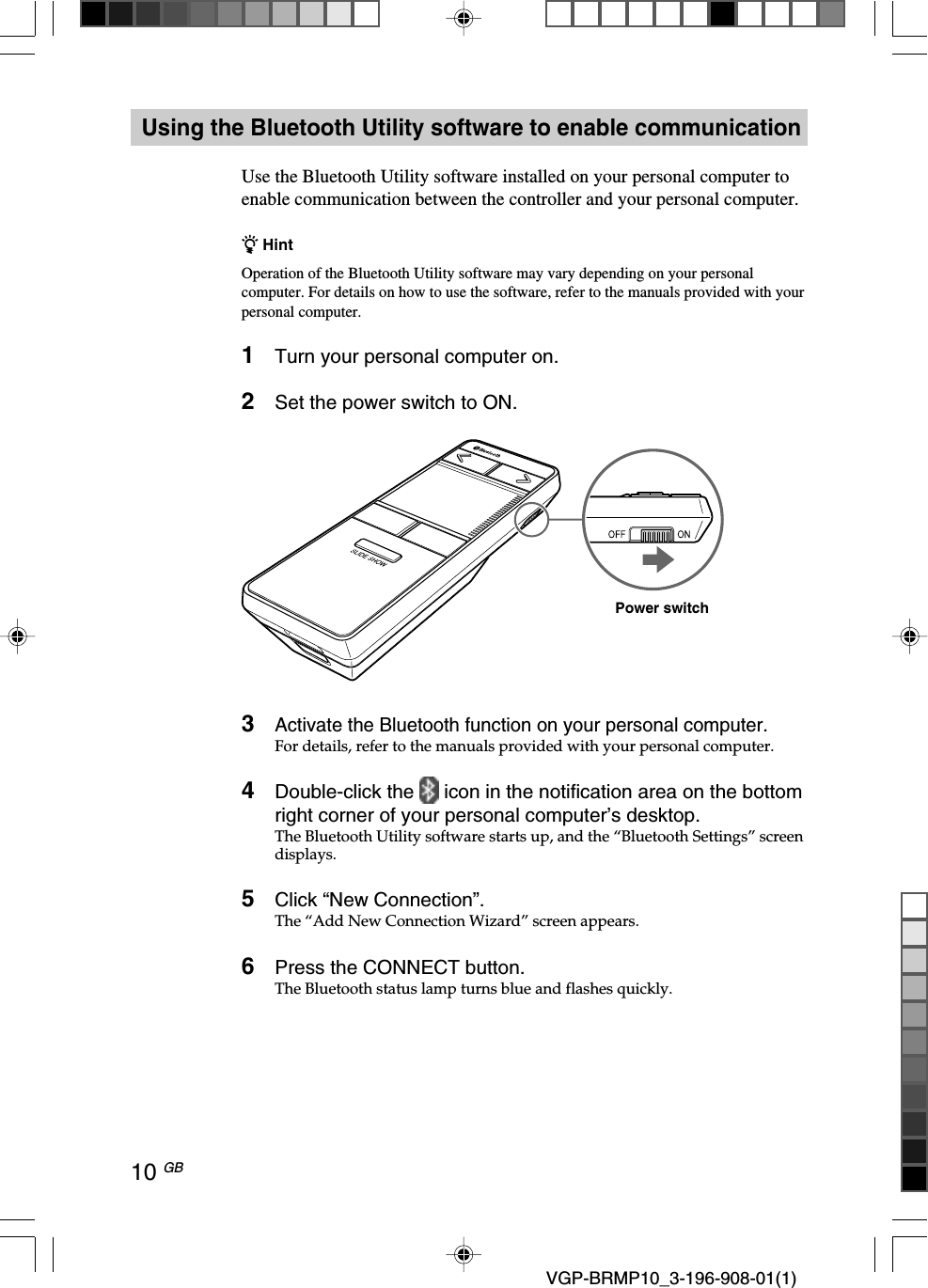
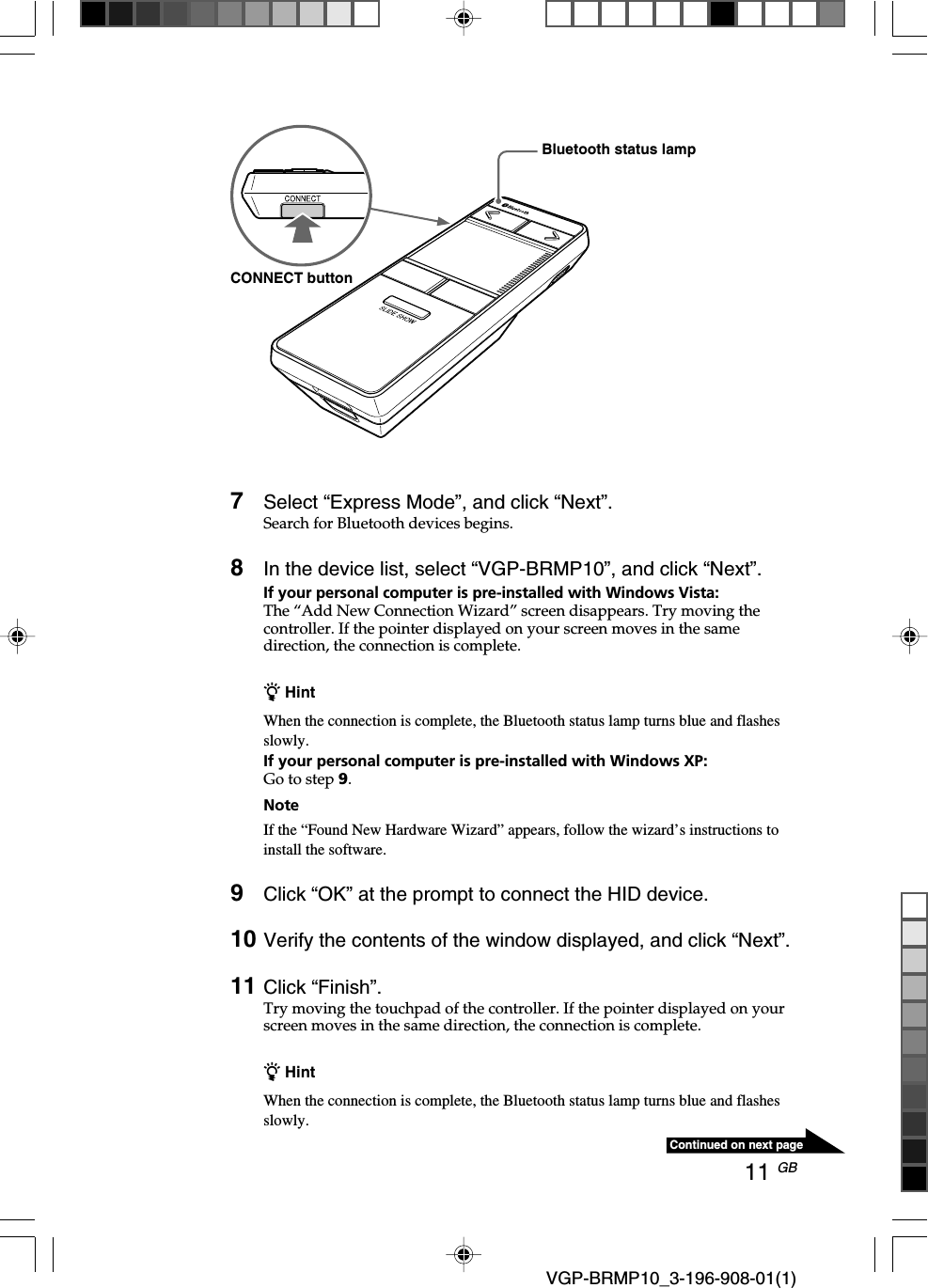
10 GB VGP-BRMP10_3-196-908-01(1)Using the Bluetooth Utility software to enable communicationUse the Bluetooth Utility software installed on your personal computer toenable communication between the controller and your personal computer.z HintOperation of the Bluetooth Utility software may vary depending on your personalcomputer. For details on how to use the software, refer to the manuals provided with yourpersonal computer.1Turn your personal computer on.2Set the power switch to ON.3Activate the Bluetooth function on your personal computer.For details, refer to the manuals provided with your personal computer.4Double-click the   icon in the notification area on the bottomright corner of your personal computer’s desktop.The Bluetooth Utility software starts up, and the “Bluetooth Settings” screendisplays.5Click “New Connection”.The “Add New Connection Wizard” screen appears.6Press the CONNECT button.The Bluetooth status lamp turns blue and flashes quickly.Power switch
11 GB VGP-BRMP10_3-196-908-01(1)Continued on next page7Select “Express Mode”, and click “Next”.Search for Bluetooth devices begins.8In the device list, select “VGP-BRMP10”, and click “Next”.If your personal computer is pre-installed with Windows Vista:The “Add New Connection Wizard” screen disappears. Try moving thecontroller. If the pointer displayed on your screen moves in the samedirection, the connection is complete.z HintWhen the connection is complete, the Bluetooth status lamp turns blue and flashesslowly.If your personal computer is pre-installed with Windows XP:Go to step 9.NoteIf the “Found New Hardware Wizard” appears, follow the wizard’s instructions toinstall the software.9Click “OK” at the prompt to connect the HID device.10 Verify the contents of the window displayed, and click “Next”.11 Click “Finish”.Try moving the touchpad of the controller. If the pointer displayed on yourscreen moves in the same direction, the connection is complete.z HintWhen the connection is complete, the Bluetooth status lamp turns blue and flashesslowly.Bluetooth status lampCONNECT button
12 GB VGP-BRMP10_3-196-908-01(1)DisconnectingTurn off the power switch of the controller.ReconnectingTurn on the power of the controller. After the Bluetooth status lamp turnsblue and begins flashing, the flashing will slow, and the connection will beresumed.Operating distance of the controllerThe controller can normally be operated within about a 32 ft. (10 m) radiusaround the personal computer. Depending on the usage environment,sometimes the usable distance may be notably shorter, preventing normaloperation.In such a case, take the following measures:•Use the controller as far away from other wireless devices as possible.•Use the controller closer to the personal computer.Power-saving features of the controllerWhen the controller is connected to a personal computer, if you do notoperate the controller for 20 minutes, it will disconnect from the personalcomputer in order to avoid draining the battery. Operating the controller’stouchpad or buttons in this state will cause it to automatically connect.
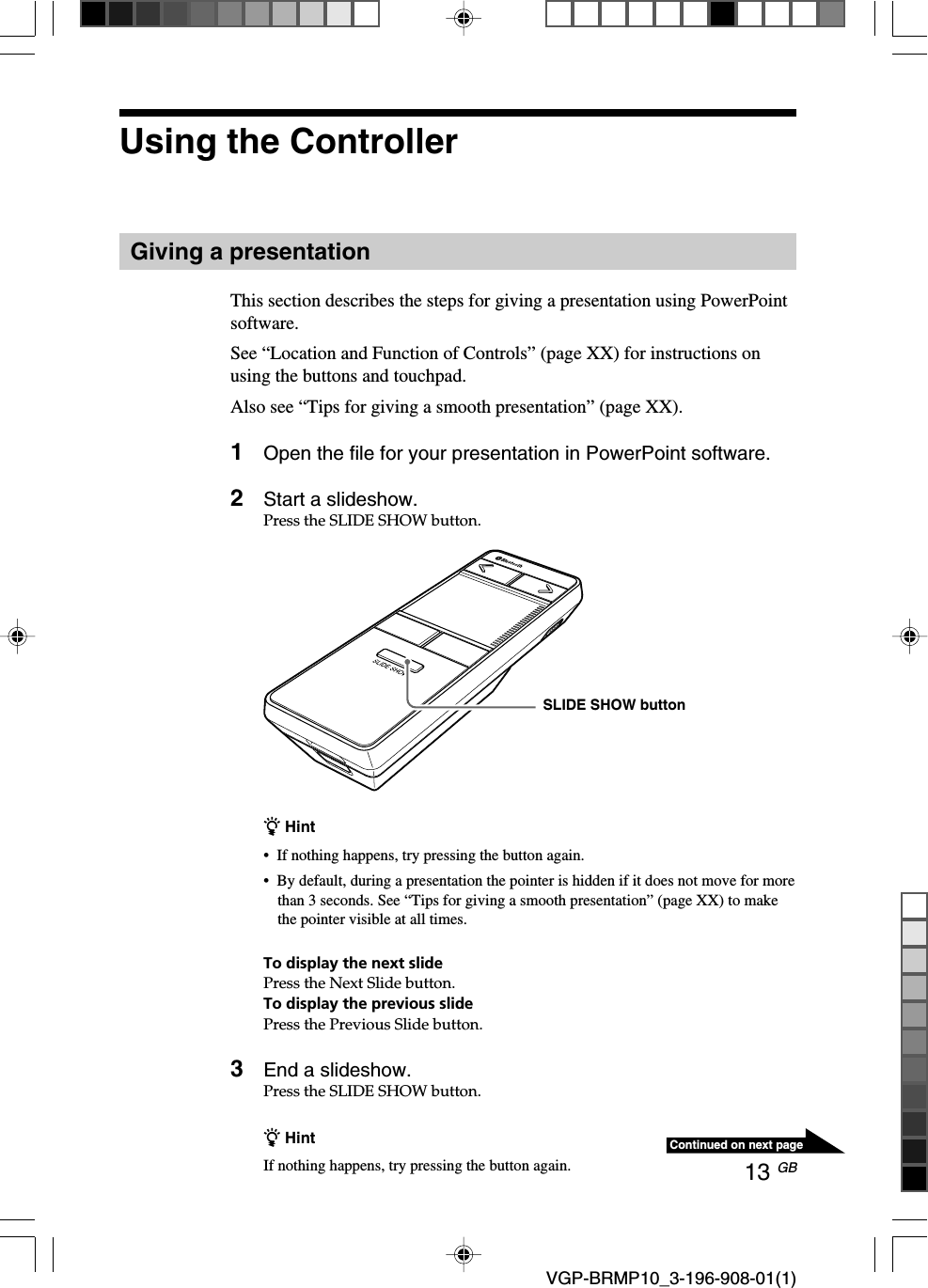
13 GB VGP-BRMP10_3-196-908-01(1)Continued on next pageUsing the ControllerGiving a presentationThis section describes the steps for giving a presentation using PowerPointsoftware.See “Location and Function of Controls” (page XX) for instructions onusing the buttons and touchpad.Also see “Tips for giving a smooth presentation” (page XX).1Open the file for your presentation in PowerPoint software.2Start a slideshow.Press the SLIDE SHOW button.z Hint•If nothing happens, try pressing the button again.•By default, during a presentation the pointer is hidden if it does not move for morethan 3 seconds. See “Tips for giving a smooth presentation” (page XX) to makethe pointer visible at all times.To display the next slidePress the Next Slide button.To display the previous slidePress the Previous Slide button.3End a slideshow.Press the SLIDE SHOW button.z HintIf nothing happens, try pressing the button again.SLIDE SHOW button
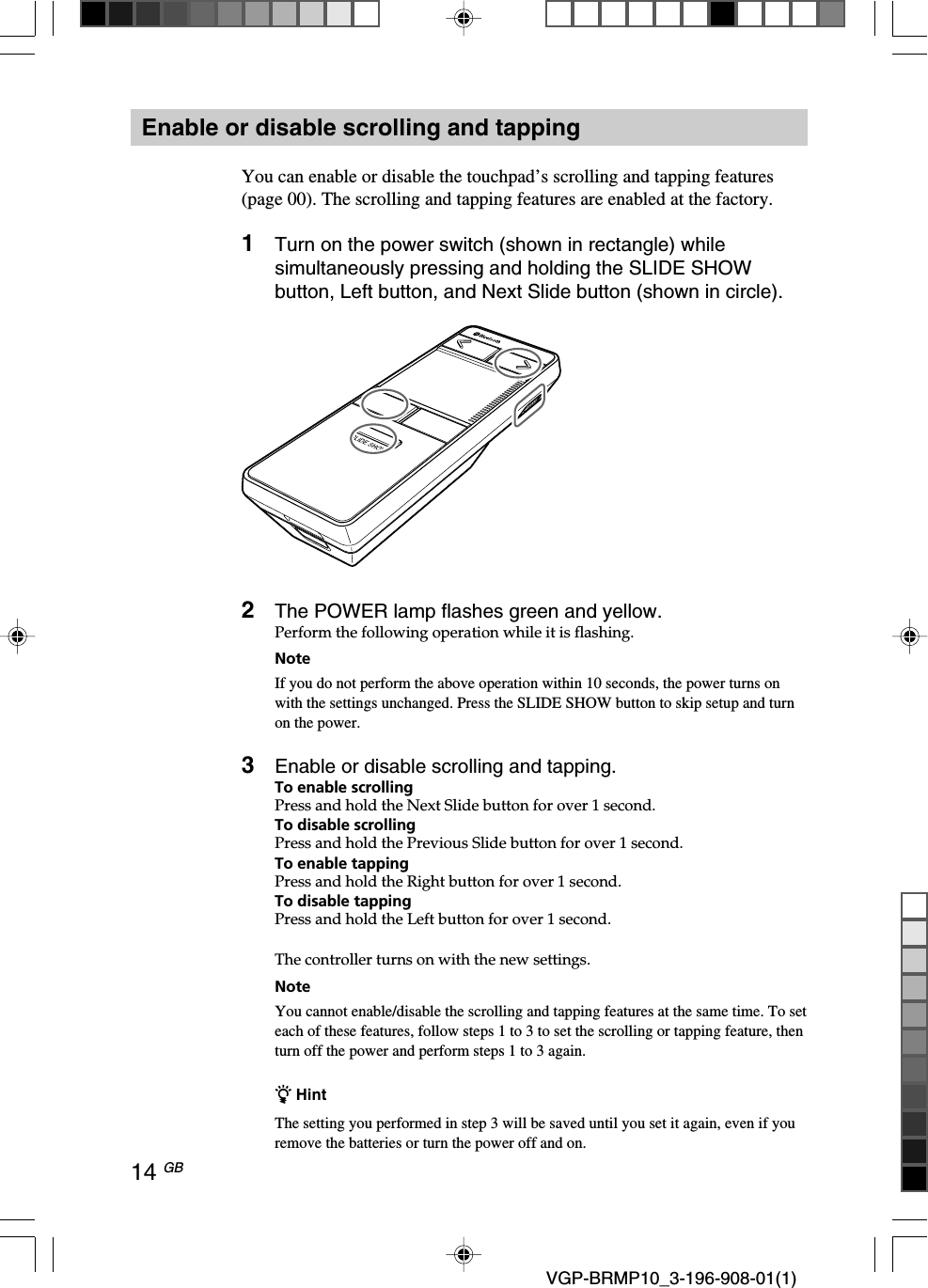
14 GB VGP-BRMP10_3-196-908-01(1)Enable or disable scrolling and tappingYou can enable or disable the touchpad’s scrolling and tapping features(page 00). The scrolling and tapping features are enabled at the factory.1Turn on the power switch (shown in rectangle) whilesimultaneously pressing and holding the SLIDE SHOWbutton, Left button, and Next Slide button (shown in circle).2The POWER lamp flashes green and yellow.Perform the following operation while it is flashing.NoteIf you do not perform the above operation within 10 seconds, the power turns onwith the settings unchanged. Press the SLIDE SHOW button to skip setup and turnon the power.3Enable or disable scrolling and tapping.To enable scrollingPress and hold the Next Slide button for over 1 second.To disable scrollingPress and hold the Previous Slide button for over 1 second.To enable tappingPress and hold the Right button for over 1 second.To disable tappingPress and hold the Left button for over 1 second.The controller turns on with the new settings.NoteYou cannot enable/disable the scrolling and tapping features at the same time. To seteach of these features, follow steps 1 to 3 to set the scrolling or tapping feature, thenturn off the power and perform steps 1 to 3 again.z HintThe setting you performed in step 3 will be saved until you set it again, even if youremove the batteries or turn the power off and on.
15 GB VGP-BRMP10_3-196-908-01(1)Continued on next pageAdjusting the pointer speedIf the pointer does not move smoothly when you slide your finger on thetouch panel, use the steps below to set the pointer to a speed that is easier touse.(The instructions below are only an example. The actual procedure maydiffer depending on your personal computer. For details, refer to themanuals provided with your personal computer.)1Click “Start”, then “Control Panel”.The Control Panel window appears.If you are using Windows XP:Click the “Printers and Other Hardware” icon.If you are using Windows Vista:Click the “Hardware and Sound” icon.2Click the “Mouse” icon.The Mouse Properties dialog appears.3Click the “Pointer Options” tab.4Adjust the speed, then click “OK”.z TipYou can also change the pointer appearance in the Mouse Properties dialog.Changing the pointer speed using this procedure will also change the speed of thepointer controlled by your personal computer’s touchpad or mouse.Tips for giving a smooth presentationHere are some tips for making your presentation go more smoothly.Setting the pointer options to always show the pointer arrowIf you are using PowerPoint software, we recommend making the followingsettings before starting your presentation.1While a slideshow is running, press the Right button todisplay the shortcut menu.2Select “Pointer Options”, “Arrow options”, then click “Visible”.This setting will make the pointer arrow visible at all times during aslideshow (by default, during a presentation the pointer is hidden if it doesnot move for more than 3 seconds).After the slideshow ends, the setting will return to the default value, so youmust perform this setting each time.
16 GB VGP-BRMP10_3-196-908-01(1)Selecting the tapping and scrolling settingsThe touchpad’s tapping*1 and scrolling*2 features are enabled at thefactory. Enable or disable these features according to preference. See pageXX for details on how to enable or disable these features.*1The tapping featureTapping lightly once on the touchpad is equivalent to performing a left click. This ishandy for things like navigating hyperlinks or playing video files during a presentation.If your presentation does not have hyperlinks, video files, or other objects you wouldwant to click, we recommend disabling the tapping feature to avoid using it by mistake.*2 The scrolling featurePlace your finger on the scroll line (see page XX) and move it up and down to move thevertical scrollbar of the selected window.Using the pointer options to select the pen for writing on slidesIf you are using PowerPoint software, you can set the pointer to “Pen” towrite on slides during your presentation.While a slideshow is running, press the Right button to display the shortcutmenu, then select “Pen” in the “Pointer Options”, and set the pen to thedesired colour.Using the strapYou can put a neck strap or hand strap in the strap hole (see page XX). Thisis a handy way to make sure you do not drop the controller.NoteThe PowerPoint examples above are for PowerPoint 2003.
17 GB VGP-BRMP10_3-196-908-01(1)SpecificationsCommunication methodBluetooth Standard Ver. 2.0+EDRFrequency bandRF 2.4 GHz (Bluetooth)Power requirements3 V DC (two manganese IEC R03 [size AAA]batteries)Transmission distance32 ft. (10 m) max. line of sight*1DimensionsApprox. 1.6 × 0.4 (0.8 max) × 4 in. (40 × 10.9(20.2 max) × 104 mm) (w × h × d)MassApprox. 2.0 oz. (57 g) (including batteries)Supported modelsSony VAIO personal computers equipped withBluetooth technology and pre-installed withWindows XP or Windows Vista.Operating temperature41°F to 95°F (5°C to 35°C)(temperature gradient less than 18°F (10°C)/hour)Operating humidity20% to 80% (not condensed), provided thathumidity is less than 65% at 95°F (35°C)(hygrometer reading of less than 84°F (29°C))Storage temperature–4°F to 140°F (–20°C to 60°C)(temperature gradient less than 18°F (10°C)/hour)Storage humidity10% to 90% (not condensed), provided thathumidity is less than 20% at 140°F (60°C)(hygrometer reading of less than 95°F (35°C)AccessoriesManganese IEC R03 (size AAA) batteries*2 (2)Operating Instructions (this document) (1)Warranty Card (1)*1Communication range will vary according towhether walls or other obstacles are locatedbetween devices, the material used in walls, thepresence of radio frequency interference andother environmental conditions, and the type ofsoftware being used.*2The supplied batteries are for testing purposesonly. You can use the controller longer by usingalkaline batteries.Design and specifications are subject tochange without notice.付属電池についてJ向けと異なる箇所があればご指示くださいますようお願いします。
18 GB VGP-BRMP10_3-196-908-01(1)PrecautionsSafetyIf any solid object or liquid falls onto thecontroller, disconnect it and have itchecked by qualified personnel beforecontinuing its use.LocationDo not place the controller in a locationwhere it is:•On an unstable surface•In very humid areas or where there is noventilation•Subject to excessive dust•Subject to direct sunlight or extremeheat•Extremely coldOperationIf the controller is brought directly from acold to a warm location or is placed in avery damp room, moisture may condenseon the inside of the controller. If thisoccurs, the controller may not workproperly.In this case, wait about 30 minutes for themoisture to evaporate. If the controllerdoes not work properly after one hour,consult your nearest Sony dealer.Bluetooth communications•The 2.4 GHz band used by Bluetoothand wireless LAN devices is also usedby various other devices. Bluetoothdevices incorporate technology thatminimizes interference from otherdevices using the same wavelength.However, communication speed andachievable distances may be reduced.Interference from other devices can alsostop communications altogether.•The data transfer rate will varydepending on distance and obstaclesbetween devices, device configuration,radio interference, operating system,software application, and so on. In somecases, communication may beinterrupted.•Communication range will varyaccording to whether walls or otherobstacles are located between devices,the material used in walls, the presenceof radio frequency interference andother environmental conditions, and thetype of software being used.• If wireless LAN and Bluetoothfunctionality are used at the same timeon the same personal computer,communication speed may be reduceddue to electromagnetic interference, andother unwanted effects may occur.Cleaning the outside of the controllerClean the controller with a soft, dry clothor a soft cloth lightly moistened with amild detergent solution. Do not use anytype of abrasive pad, scouring powder, orsolvent such as alcohol or benzene.PrecautionsはIRX-9247から流用しています。
19 GB VGP-BRMP10_3-196-908-01(1)MaintenanceWipe the outside of the controller with asoft, dry cloth.Cleaning the cabinet•Turn off the power and remove thebatteries before cleaning the controller.•Do not use an excessively wet cloth toclean the controller.•Do not use solvents, cleaning alcohol,benzene, or other substances that maydamage the finish.Getting HelpThis section provides information on howto get help and support from Sony, andtroubleshooting tips for your controller.About Sony’s supportoptionsSony provides several support options foryour controller. When you have questionsabout your controller, refer to thefollowing:❑This guide explains how to use yourcontroller.For customers in the UnitedStates and Canada❑The Sony Customer InformationService Center offers informationabout your VAIO computer and otherSony products that work with yourcomputer. To contact Sony CustomerInformation Service Center, call1-888-4SONYPC (1-888-476-6972).❑Sony Computing Support providesinstant access to information oncommonly encountered problems. Typea description of the problem and theKnowledge Database searches forcorresponding solutions online. You canvisit Sony Online Support at:http://www.sony.com/pcsupport .For customers in Europe❑VAIO-Link. For addresses andnumbers, refer tohttp://www.vaio-link.com/For customers in othercountries and regions❑VAIO Website provides FrequentlyAsked Questions and solutions.vaio-online.sony.com/Getting HelpはIRX-9247から流用しています。
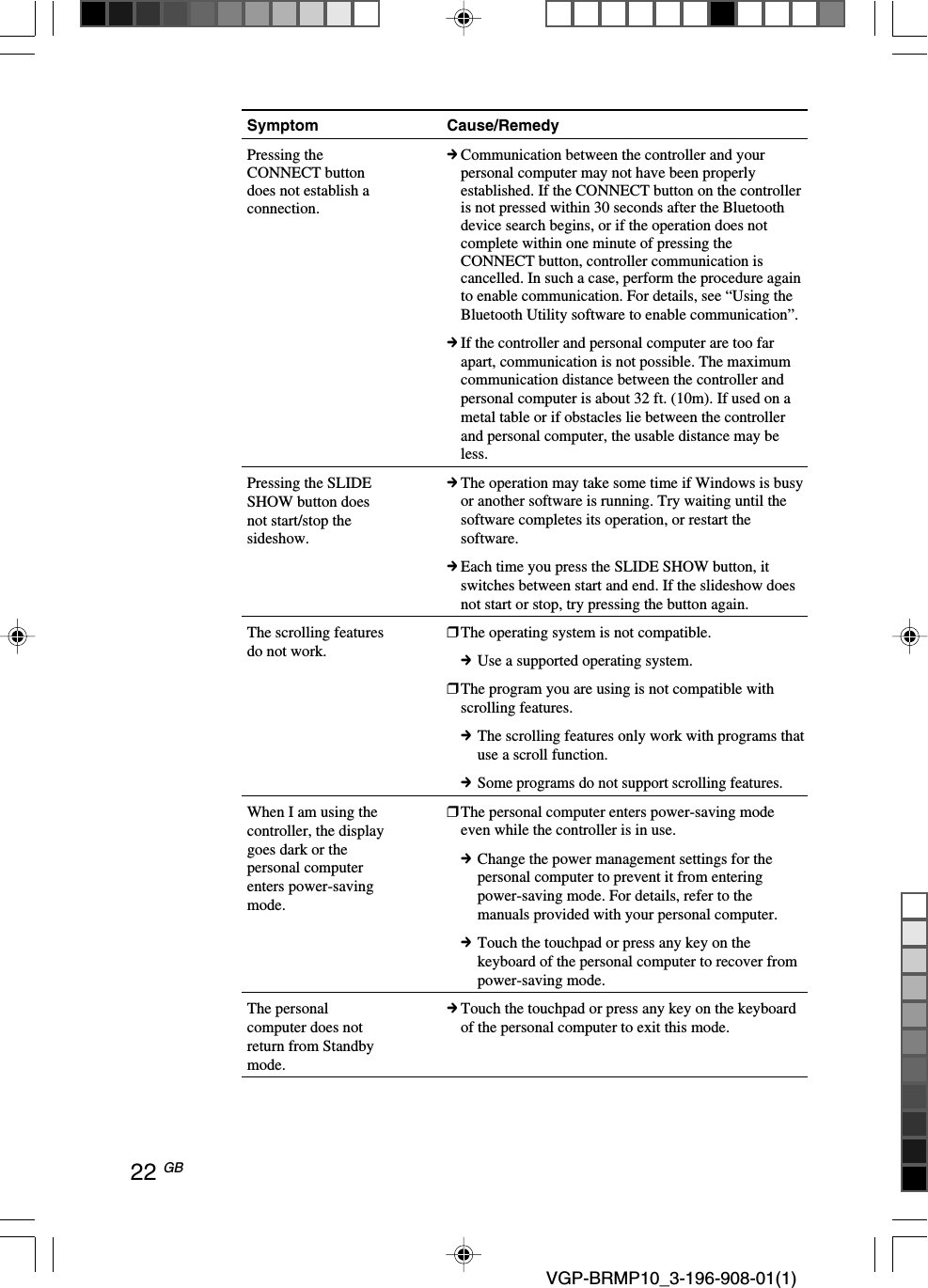
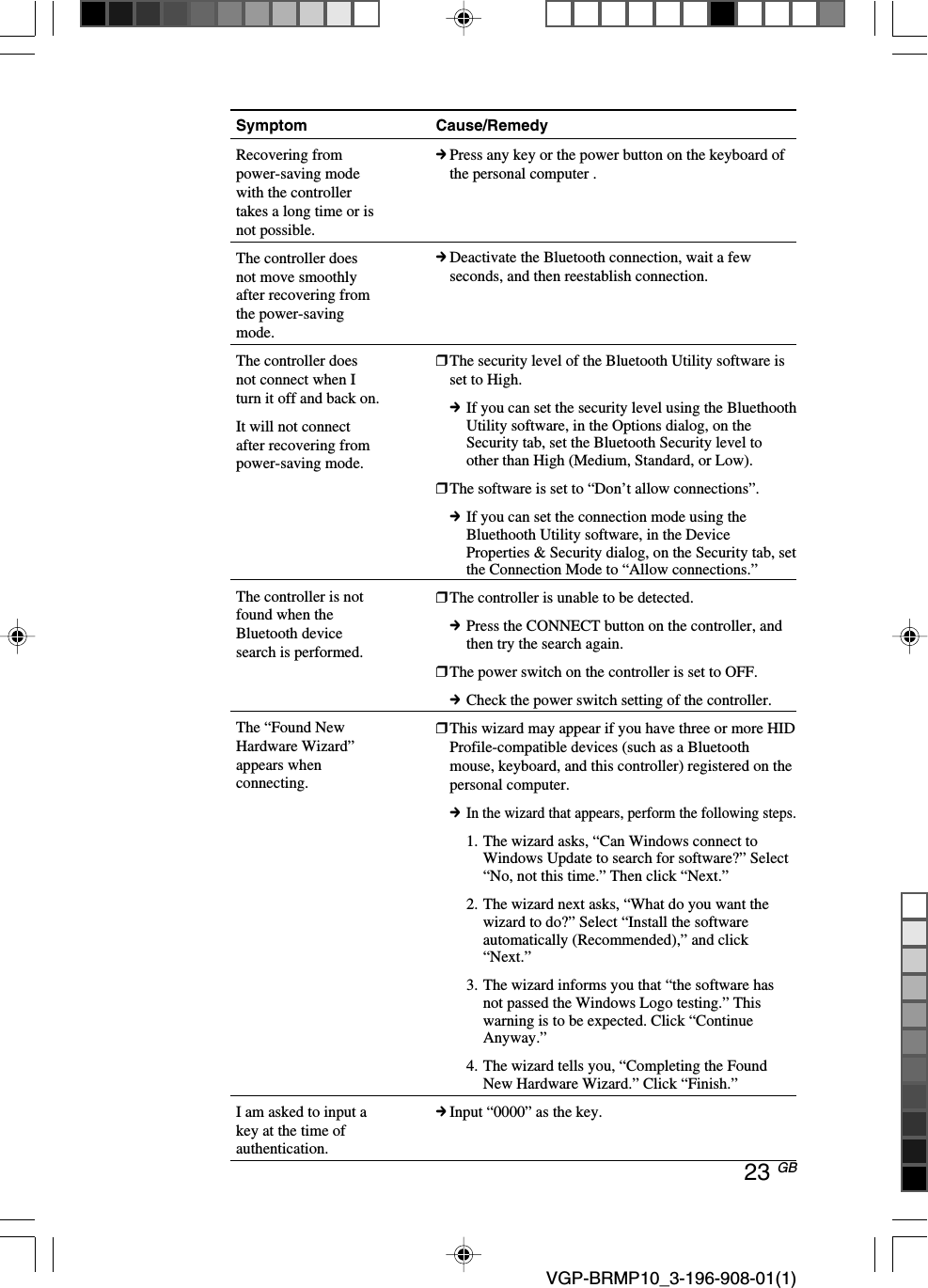
20 GB VGP-BRMP10_3-196-908-01(1)TroubleshootingIf you experience any of the following difficulties while using thecontroller, use this troubleshooting guide to solve the problem. If a problempersists, consult your nearest Sony dealer.Symptom Cause/RemedyThe controller doesnot turn on when I setthe power switch toON.The pointer does notmove when I slide myfinger over thecontroller’s touchpad.❒Your personal computer is in power-saving mode or isnot turned on.cUnless your personal computer is turned on and notrunning in power-saving mode, the controller willnot turn on, even when the power switch is set toON. Turn on your personal computer or recoverfrom power-saving mode.❒Other controller buttons are being pressed while thepower switch is set to ON.cIf the power switch is set to ON while othercontroller buttons are being pressed, the controllerwill not turn on. Be sure not to press any otherbuttons when setting the power switch to ON.❒The batteries are exhausted.cReplace the batteries. Under normal use, thebatteries have a lifetime of approximately 14 hours(during continuous use). See “Inserting batteries”(page XX) for details.cProcessing performed by Windows or other software maytemporarily disable the controller. Wait a few momentsfor the processing to finish before using the controller.cYou may find some useful solutions in your personalcomputer’s operating instructions. Refer to themanuals provided with your personal computer.❒You are using an unsupported software program.cPlease use a supported software program.❒The controller batteries are exhausted.cIf the power does not come on when the powerswitch is set to ON, replace the batteries. Fordetails, see “Inserting batteries” (page 00).❒The controller is not set to ON.c Set the power switch on the bottom of the controller to ON.❒The controller and your personal computer are notcommunicating.c Perform the steps in “Using the Bluetooth Utilitysoftware to enable communication” (page 00) toensure that proper communication is possible.
21 GBContinued on next page VGP-BRMP10_3-196-908-01(1)Symptom Cause/RemedyThe pointer does notmove when I slide myfinger over thecontroller’s touchpad.Just touching thetouchpad causes aclick.Just sliding my fingeron the touchpadcauses scrolling.Pressing theCONNECT buttondoes not establish aconnection.c In some operating environments, the usable distancemay be noticeably shorter, preventing normaloperation. In such cases, use the controller fartheraway from any other devices that may be interferingwith operation.c If the controller is too far from your personalcomputer, communication is not possible. Bring thecontroller and your personal computer closer together.❒You pressed the CONNECT button while operating thecontroller.c If you press the CONNECT button while operating thecontroller, the controller will go into connection standbyfor approximately one minute, during which time thecontroller cannot be operated.If you press the CONNECT button, wait a few minutesbefore operating the controller.❒The controller may not be able to make a connection inenvironments where communications are beingconducted using wireless LAN (2.4 GHz band) orBluetooth products.c We recommend using the controller in a locationrelatively free of influence from wirelesscommunications.c Disconnect any Bluetooth products other than thiscontroller.❒You are operating the touchpad using the pad of your finger.c It may be difficult to control the pointer by using the pad ofyour finger on the touchpad. We recommend lightlysliding the tip of your finger on the touchpad to operate it.Operation may also be adversely affected if your fingertipis sweaty.❒You have set the pointer speed set too low.c Follow the instructions in “Adjusting the pointer speed”(page XX) to adjust the pointer speed.❒The tapping feature is enabled.cYou can disable tapping. See “Enable or disablescrolling and tapping” (page OO) for details.❒The tapping feature is enabled.cYou can disable scrolling. See “Enable or disablescrolling and tapping” (page OO) for details.cCheck whether batteries are inserted in the controller.For details, see “Inserting batteries” (page 00).cIf the power switch on the controller is set to OFF,communication with the personal computer is notpossible. Check the power switch setting on the bottomof the controller.
22 GB VGP-BRMP10_3-196-908-01(1)Symptom Cause/RemedyPressing theCONNECT buttondoes not establish aconnection.Pressing the SLIDESHOW button doesnot start/stop thesideshow.The scrolling featuresdo not work.When I am using thecontroller, the displaygoes dark or thepersonal computerenters power-savingmode.The personalcomputer does notreturn from Standbymode.cCommunication between the controller and yourpersonal computer may not have been properlyestablished. If the CONNECT button on the controlleris not pressed within 30 seconds after the Bluetoothdevice search begins, or if the operation does notcomplete within one minute of pressing theCONNECT button, controller communication iscancelled. In such a case, perform the procedure againto enable communication. For details, see “Using theBluetooth Utility software to enable communication”.cIf the controller and personal computer are too farapart, communication is not possible. The maximumcommunication distance between the controller andpersonal computer is about 32 ft. (10m). If used on ametal table or if obstacles lie between the controllerand personal computer, the usable distance may beless.cThe operation may take some time if Windows is busyor another software is running. Try waiting until thesoftware completes its operation, or restart thesoftware.cEach time you press the SLIDE SHOW button, itswitches between start and end. If the slideshow doesnot start or stop, try pressing the button again.❒The operating system is not compatible.cUse a supported operating system.❒The program you are using is not compatible withscrolling features.cThe scrolling features only work with programs thatuse a scroll function.cSome programs do not support scrolling features.❒The personal computer enters power-saving modeeven while the controller is in use.cChange the power management settings for thepersonal computer to prevent it from enteringpower-saving mode. For details, refer to themanuals provided with your personal computer.cTouch the touchpad or press any key on thekeyboard of the personal computer to recover frompower-saving mode.cTouch the touchpad or press any key on the keyboardof the personal computer to exit this mode.
23 GB VGP-BRMP10_3-196-908-01(1)Symptom Cause/RemedyRecovering frompower-saving modewith the controllertakes a long time or isnot possible.The controller doesnot move smoothlyafter recovering fromthe power-savingmode.The controller doesnot connect when Iturn it off and back on.It will not connectafter recovering frompower-saving mode.The controller is notfound when theBluetooth devicesearch is performed.The “Found NewHardware Wizard”appears whenconnecting.I am asked to input akey at the time ofauthentication.cPress any key or the power button on the keyboard ofthe personal computer .cDeactivate the Bluetooth connection, wait a fewseconds, and then reestablish connection.❒The security level of the Bluetooth Utility software isset to High.cIf you can set the security level using the BluethoothUtility software, in the Options dialog, on theSecurity tab, set the Bluetooth Security level toother than High (Medium, Standard, or Low).❒The software is set to “Don’t allow connections”.cIf you can set the connection mode using theBluethooth Utility software, in the DeviceProperties & Security dialog, on the Security tab, setthe Connection Mode to “Allow connections.”❒The controller is unable to be detected.cPress the CONNECT button on the controller, andthen try the search again.❒The power switch on the controller is set to OFF.cCheck the power switch setting of the controller.❒This wizard may appear if you have three or more HIDProfile-compatible devices (such as a Bluetoothmouse, keyboard, and this controller) registered on thepersonal computer.cIn the wizard that appears, perform the following steps.1. The wizard asks, “Can Windows connect toWindows Update to search for software?” Select“No, not this time.” Then click “Next.”2. The wizard next asks, “What do you want thewizard to do?” Select “Install the softwareautomatically (Recommended),” and click“Next.”3. The wizard informs you that “the software hasnot passed the Windows Logo testing.” Thiswarning is to be expected. Click “ContinueAnyway.”4. The wizard tells you, “Completing the FoundNew Hardware Wizard.” Click “Finish.”cInput “0000” as the key.

Navigation menu