STONEX SRL R2W Total Station User Manual

STONEX SRL Total Station Users Manual

Users Manual

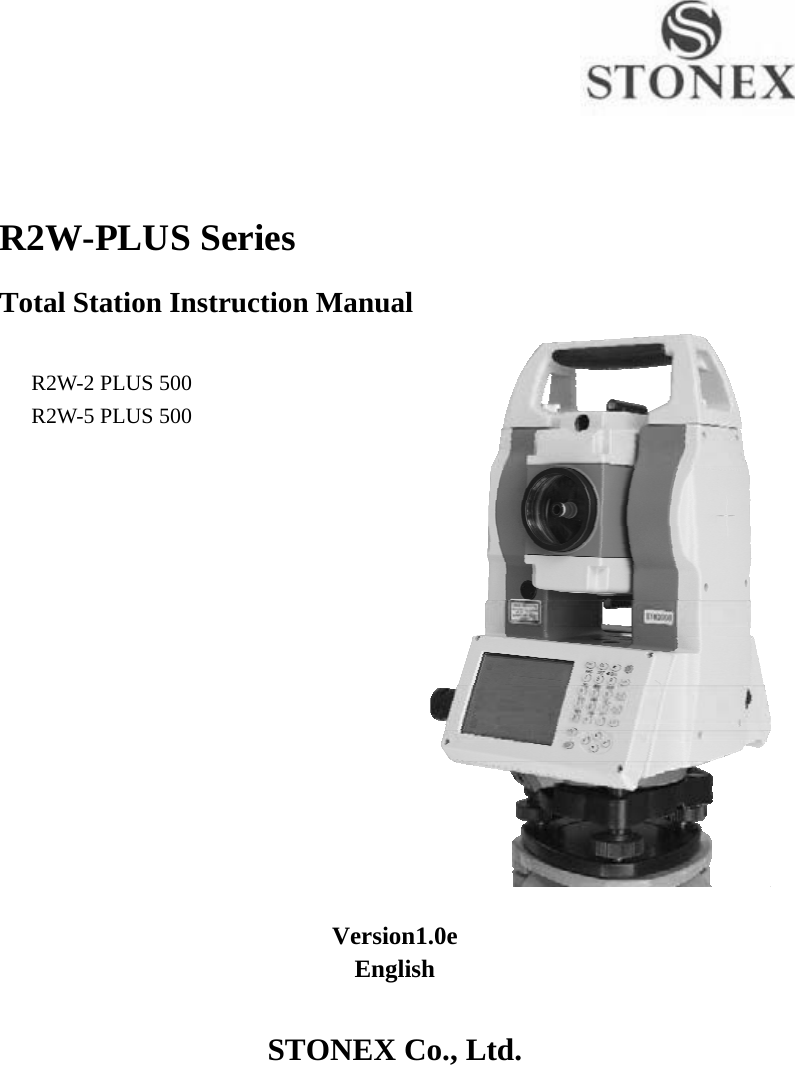
                                              R2W-PLUS Series Total Station Instruction Manual R2W-2 PLUS 500 R2W-5 PLUS 500 Version1.0eEnglishSTONEX Co., Ltd.
1Dear Customer: Congratulations! We, STONEX are proud to present you with an R2W-PLUS   instrument. Your total station is a rugged and reliable instrument whose performance and design are not surpassed. To fully appreciate and protect your investment, we suggest that you take the necessary time to read and fully understand this manual. We have a dedicated service organization. If the need arises, please don’t hesitate to call us. Thank you for your trust and confidence.
2NOTE:Don’t collimate the sun directlyAvoid insolating the instrument, and don’t collimate the sun directly for protecting eyes and instrument. Set up the instrument on the tripod When using it please insure the connection between tripod and instrument is firm. It is better to work with wooden tripod for the measurement accuracy. Assemble the tribrach on the instrument The setting of tribrach would influence the accuracy. The tribrach should be check frequently, the screw which connects the tribrach and alidade must be locked tightly. And the central fixing screw should be tight. Avoiding the librations on the instrumentWhen transporting, keep the instrument in the case and try your best to lighten librations. Carry the instrumentWhen carryingˈthe instrument handle must be held tight. High temperature condition If put the instrument in high temperature condition for a long time, it is bad for the instrument performance. Temperature changing sharply The sharp temperature changing on the instrument or prism will shorten the distance measurement range, for example, after taking the instrument out from a warm car to a cold condition, wait for some time, it can be used when it adapts to the surrounding condition. Check the battery powerBefore using it, you should check the power whether it is enough. Take out the battery It is not suggested to take out the battery when the instrument is on, otherwise, the stored data may be lost, so it is better to replace the battery after power off the instrument. Stored data responsibility STONEX  should not be held liability for the lost data because of wrong operation. The noise from the instrument When the instrument is working, it is normal if you hear the noise from instrument motor, it will not affect the instrument work.
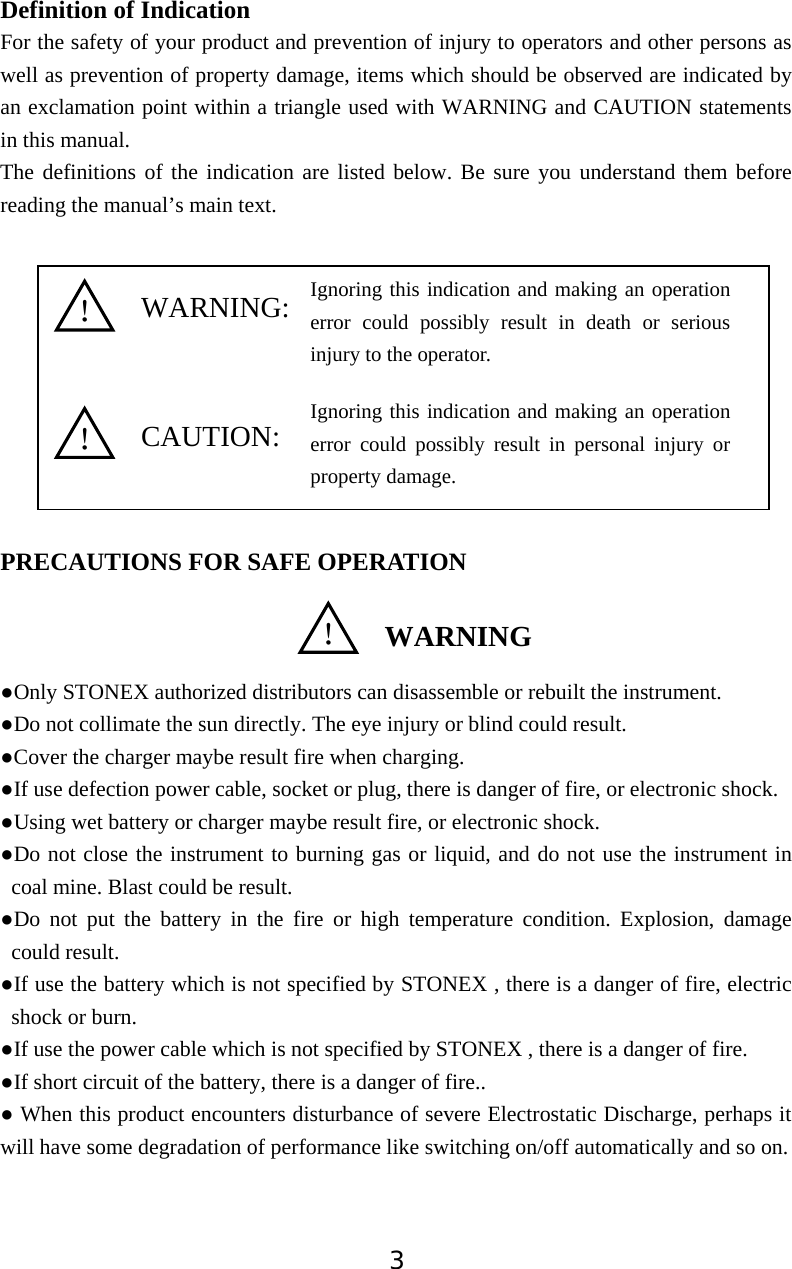
3Definition of Indication      For the safety of your product and prevention of injury to operators and other persons as well as prevention of property damage, items which should be observed are indicated by an exclamation point within a triangle used with WARNING and CAUTION statements in this manual. The definitions of the indication are listed below. Be sure you understand them before reading the manual’s main text.   PRECAUTIONS FOR SAFE OPERATION ƔOnly STONEX authorized distributors can disassemble or rebuilt the instrument. ƔDo not collimate the sun directly. The eye injury or blind could result. ƔCover the charger maybe result fire when charging. ƔIf use defection power cable, socket or plug, there is danger of fire, or electronic shock. ƔUsing wet battery or charger maybe result fire, or electronic shock. ƔDo not close the instrument to burning gas or liquid, and do not use the instrument in coal mine. Blast could be result. ƔDo not put the battery in the fire or high temperature condition. Explosion, damage could result. ƔIf use the battery which is not specified by STONEX , there is a danger of fire, electric shock or burn. ƔIf use the power cable which is not specified by STONEX , there is a danger of fire. ƔIf short circuit of the battery, there is a danger of fire.. Ɣ When this product encounters disturbance of severe Electrostatic Discharge, perhaps it will have some degradation of performance like switching on/off automatically and so on. WARNING:CAUTION:ʽWARNINGʽʽIgnoring this indication and making an operation error could possibly result in death or serious injury to the operator.Ignoring this indication and making an operation error could possibly result in personal injury or property damage.
4ƔIf touch the instrument with wet hand, there is danger of electric shock. ƔStand or seat on the carrying case, or turn over the carrying case arbitrarily, the instrument maybe damaged. ƔBe careful of the tripod tiptoe when setup or move it.   ƔDrop the instrument or the carrying case, or use defective belt, agraffe or hinge, instrument damage could result.   ƔDo not touch liquid leaking from the instrument or battery. Harmful chemicals could cause burn or blisters.   ƔPlease assemble the tribrach carefully, if the tribrach is not stable, series damage could result.  ƔDrop the instrument or tripod, series damage could result. Before use it, check the central screw is tight.   User1) This product is for professional user only! The user is required to be a qualified surveyor or have a good knowledge of surveying, in order to understand the user manual and safety instructions, before operating, inspecting or adjusting. 2) Wear the required protectors (safety shoes, helmet, etc.) when operating.Exceptions from Responsibility1) The user of this product is expected to follow all operating instructions and make periodic checks of the product’s performance. 2) The manufacturer assumes no responsibility for results of a faulty or intentional usage or misuse including any direct, indirect, consequential damage, and loss of profits. 3) The manufacturer assumes no responsibility for consequential damage, and loss of profits by any disaster, (an earthquake, storms, floods etc.). 4) The manufacturer assumes no responsibility for any damage, and loss of profits due to a change of data, loss of data, an interruption of business etc., caused by using the product or an unusable product. 5) The manufacturer assumes no responsibility for any damage, and loss of profits caused by usage except for explained in the user manual. 6) The manufacturer assumes no responsibility for damage caused by wrong transport, or action due to connecting with other products.ʽCAUTION
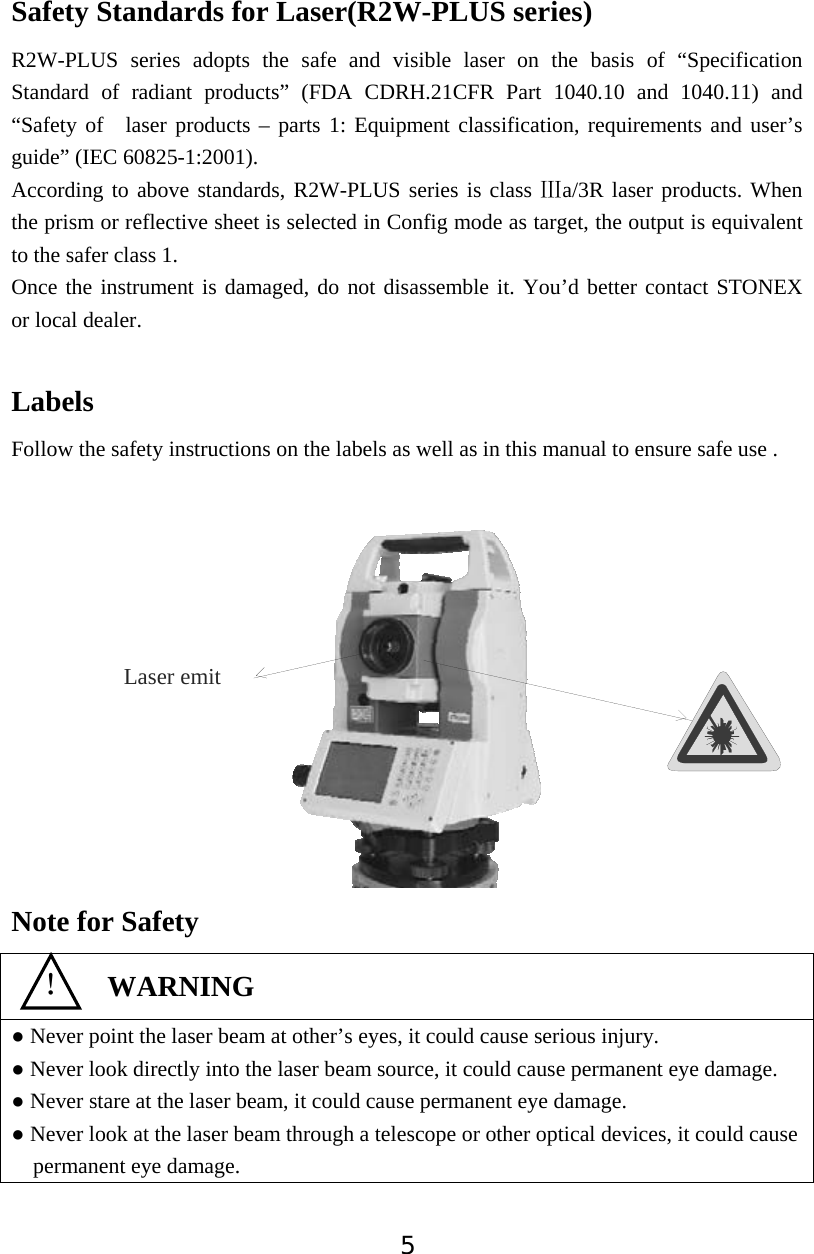
5Safety Standards for Laser(R2W-PLUS series) R2W-PLUS series adopts the safe and visible laser on the basis of “Specification Standard of radiant products” (FDA CDRH.21CFR Part 1040.10 and 1040.11) and “Safety of  laser products – parts 1: Equipment classification, requirements and user’s guide” (IEC 60825-1:2001). According to above standards, R2W-PLUS series is class  a/3R laser products. When ċthe prism or reflective sheet is selected in Config mode as target, the output is equivalent to the safer class 1. Once the instrument is damaged, do not disassemble it. You’d better contact STONEX  or local dealer. LabelsFollow the safety instructions on the labels as well as in this manual to ensure safe use . Note for Safety Ɣ Never point the laser beam at other’s eyes, it could cause serious injury. Ɣ Never look directly into the laser beam source, it could cause permanent eye damage. Ɣ Never stare at the laser beam, it could cause permanent eye damage. Ɣ Never look at the laser beam through a telescope or other optical devices, it could cause permanent eye damage. ʽWARNINGLaser emit
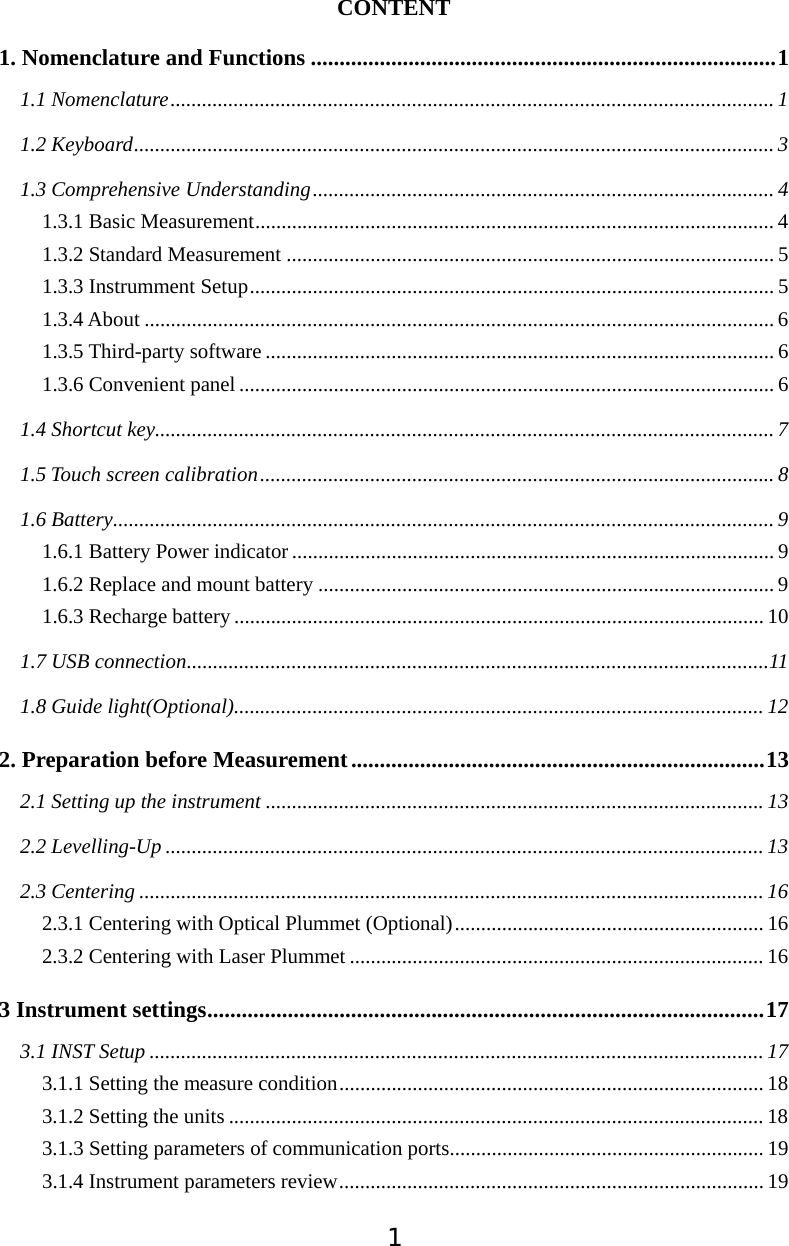
1CONTENT 1. Nomenclature and Functions .................................................................................11.1 Nomenclature................................................................................................................... 11.2 Keyboard.......................................................................................................................... 31.3 Comprehensive Understanding........................................................................................ 41.3.1 Basic Measurement................................................................................................... 41.3.2 Standard Measurement .............................................................................................51.3.3 Instrumment Setup.................................................................................................... 51.3.4 About ........................................................................................................................ 61.3.5 Third-party software ................................................................................................. 61.3.6 Convenient panel ...................................................................................................... 61.4 Shortcut key...................................................................................................................... 71.5 Touch screen calibration.................................................................................................. 81.6 Battery.............................................................................................................................. 91.6.1 Battery Power indicator ............................................................................................ 91.6.2 Replace and mount battery ....................................................................................... 91.6.3 Recharge battery ..................................................................................................... 101.7 USB connection...............................................................................................................111.8 Guide light(Optional)..................................................................................................... 122. Preparation before Measurement ........................................................................132.1 Setting up the instrument ...............................................................................................132.2 Levelling-Up .................................................................................................................. 132.3 Centering ....................................................................................................................... 162.3.1 Centering with Optical Plummet (Optional)........................................................... 162.3.2 Centering with Laser Plummet ............................................................................... 163 Instrument settings.................................................................................................173.1 INST Setup ..................................................................................................................... 173.1.1 Setting the measure condition................................................................................. 183.1.2 Setting the units ...................................................................................................... 183.1.3 Setting parameters of communication ports............................................................ 193.1.4 Instrument parameters review................................................................................. 19
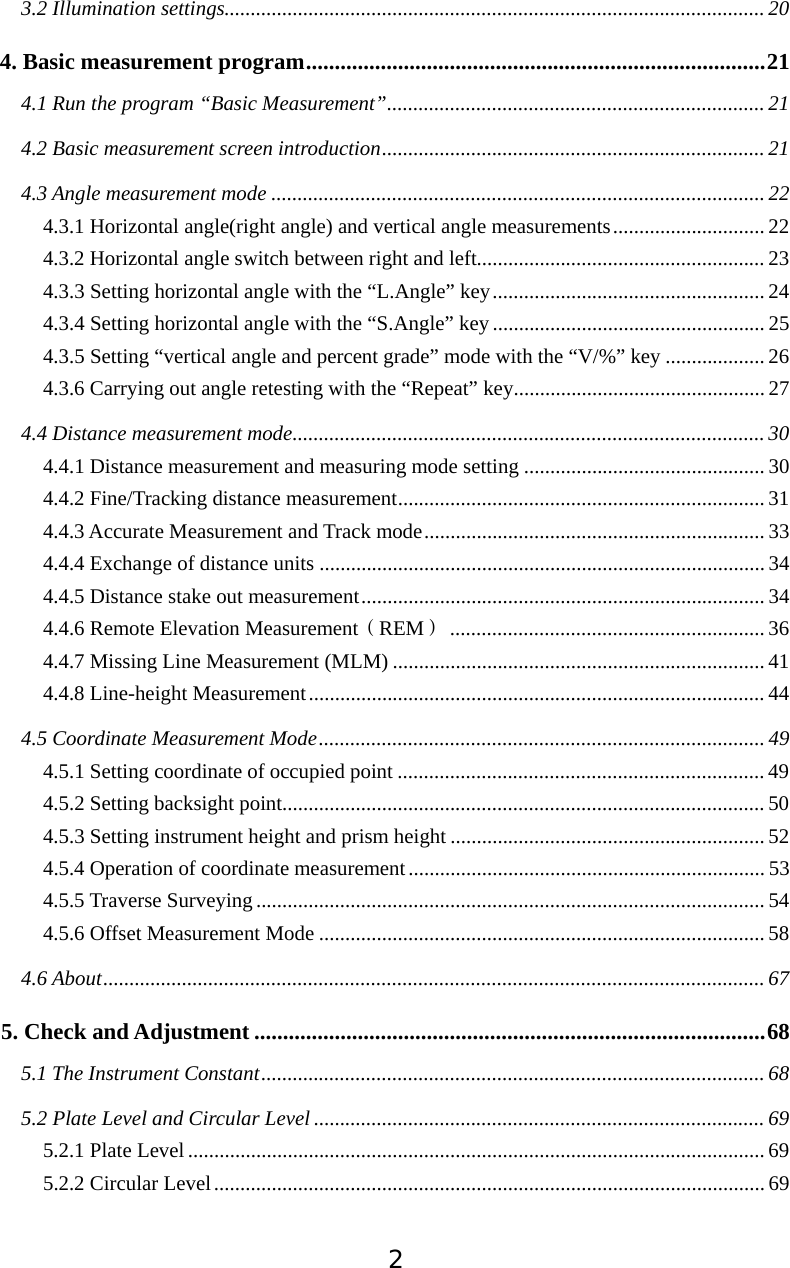
23.2 Illumination settings.......................................................................................................204. Basic measurement program................................................................................214.1 Run the program “Basic Measurement”........................................................................ 214.2 Basic measurement screen introduction......................................................................... 214.3 Angle measurement mode .............................................................................................. 224.3.1 Horizontal angle(right angle) and vertical angle measurements............................. 224.3.2 Horizontal angle switch between right and left....................................................... 234.3.3 Setting horizontal angle with the “L.Angle” key.................................................... 244.3.4 Setting horizontal angle with the “S.Angle” key.................................................... 254.3.5 Setting “vertical angle and percent grade” mode with the “V/%” key ................... 264.3.6 Carrying out angle retesting with the “Repeat” key................................................ 274.4 Distance measurement mode.......................................................................................... 304.4.1 Distance measurement and measuring mode setting .............................................. 304.4.2 Fine/Tracking distance measurement...................................................................... 314.4.3 Accurate Measurement and Track mode................................................................. 334.4.4 Exchange of distance units .....................................................................................344.4.5 Distance stake out measurement............................................................................. 344.4.6 Remote Elevation MeasurementďREMĐ............................................................ 364.4.7 Missing Line Measurement (MLM) ....................................................................... 414.4.8 Line-height Measurement....................................................................................... 444.5 Coordinate Measurement Mode..................................................................................... 494.5.1 Setting coordinate of occupied point ...................................................................... 494.5.2 Setting backsight point............................................................................................504.5.3 Setting instrument height and prism height ............................................................ 524.5.4 Operation of coordinate measurement.................................................................... 534.5.5 Traverse Surveying................................................................................................. 544.5.6 Offset Measurement Mode ..................................................................................... 584.6 About.............................................................................................................................. 675. Check and Adjustment .........................................................................................685.1 The Instrument Constant................................................................................................ 685.2 Plate Level and Circular Level ...................................................................................... 695.2.1 Plate Level.............................................................................................................. 695.2.2 Circular Level......................................................................................................... 69
35.3 The Optical Sight ...........................................................................................................705.4 Optical Plummet and Laser Plummet............................................................................ 705.4.1 Optical Plummet(factory optional)......................................................................... 705.4.2 Laser Plummet........................................................................................................ 715.5 Vertical Cross-hair on Telescope.................................................................................... 725.6 Horizontal Collimation Error C..................................................................................... 735.7 Vertical Index Error ....................................................................................................... 745.8 EDM Optical Axis and the Telescope Sighting Axis Error............................................. 766. Specifications .........................................................................................................778. Standard components............................................................................................80Appendix I: Atmospheric correction formula and chart(Just for reference)........................ 81Appendix II: Correction for refraction and earth curvature ................................................ 83Appendix III: Assembling and disassembling for three-jaw tribrach................................... 84
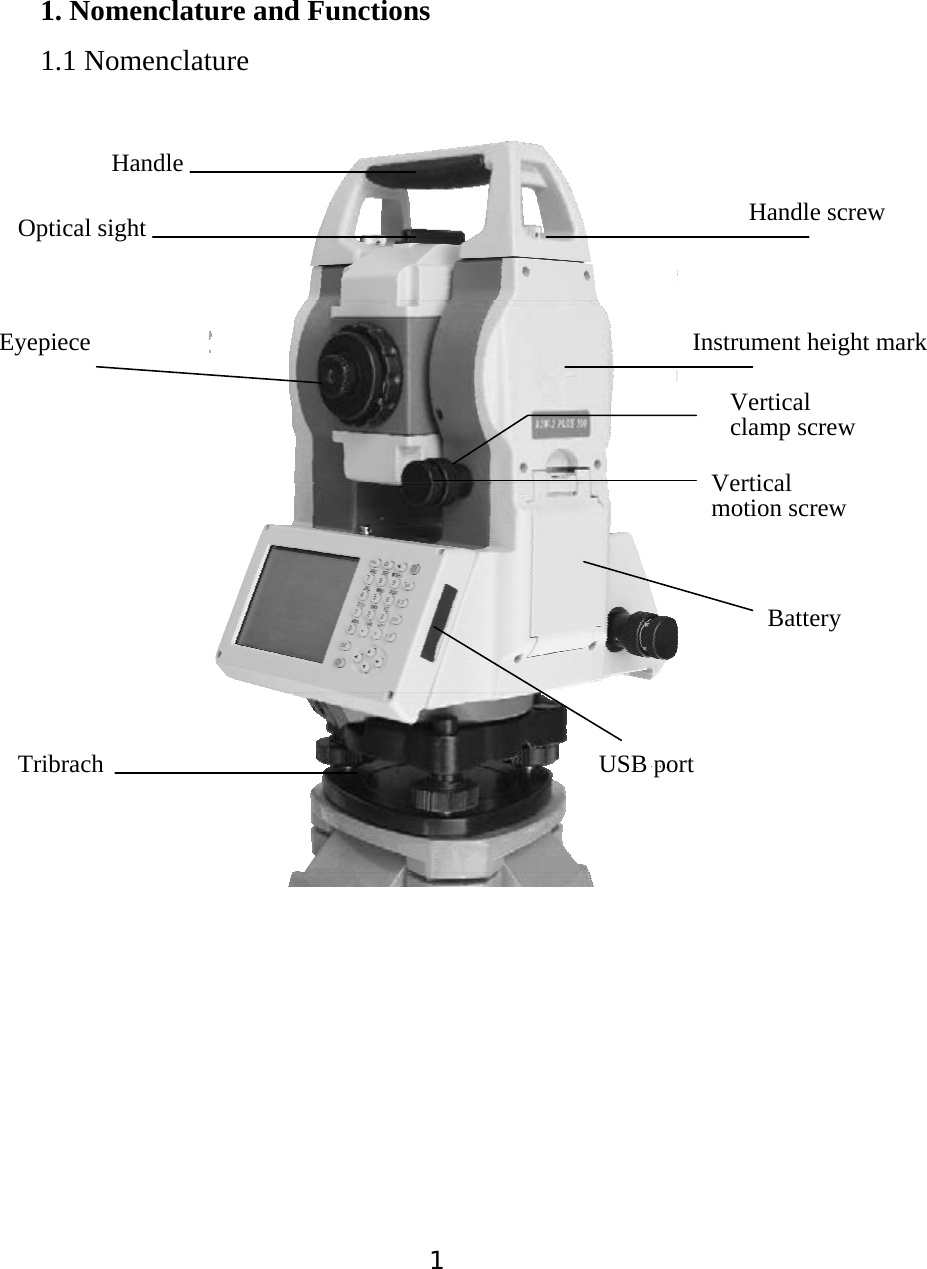
11. Nomenclature and Functions 1.1 Nomenclature HandleOptical sight TribrachHandle screw Vertical motion screwVertical clamp screwBatteryUSB port Instrument height mark Eyepiece
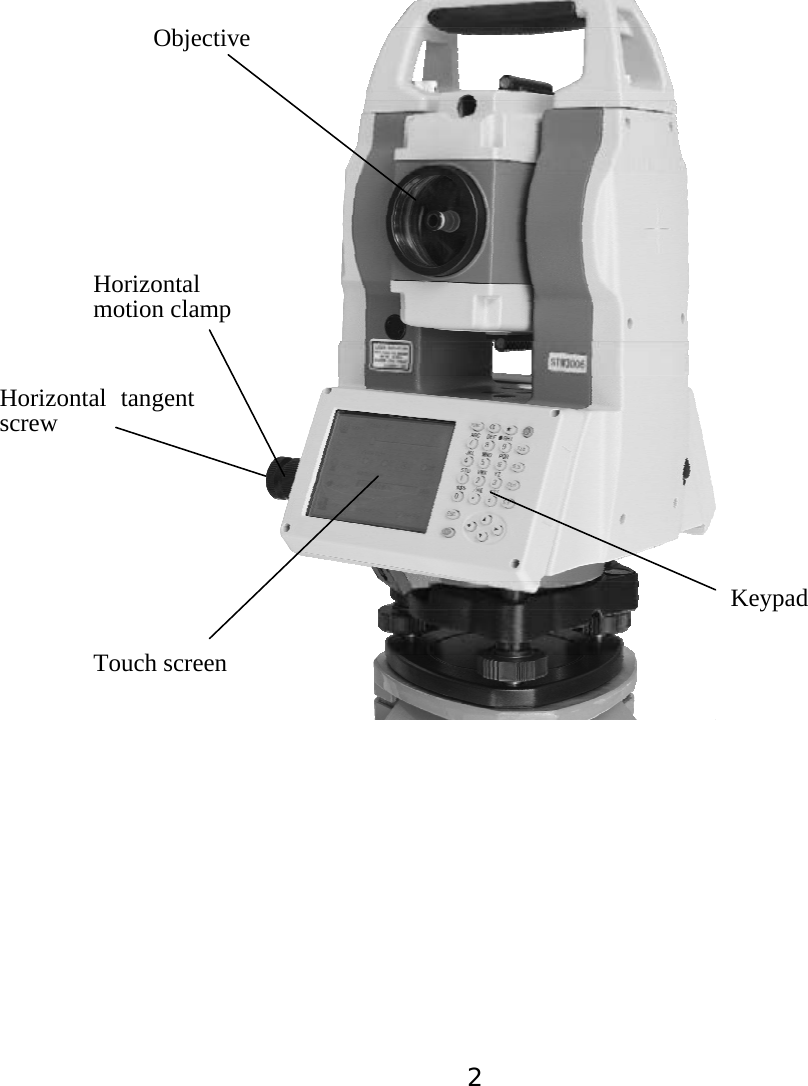
2Touch screenKeypadObjective Horizontalmotion clampHorizontal tangent screw
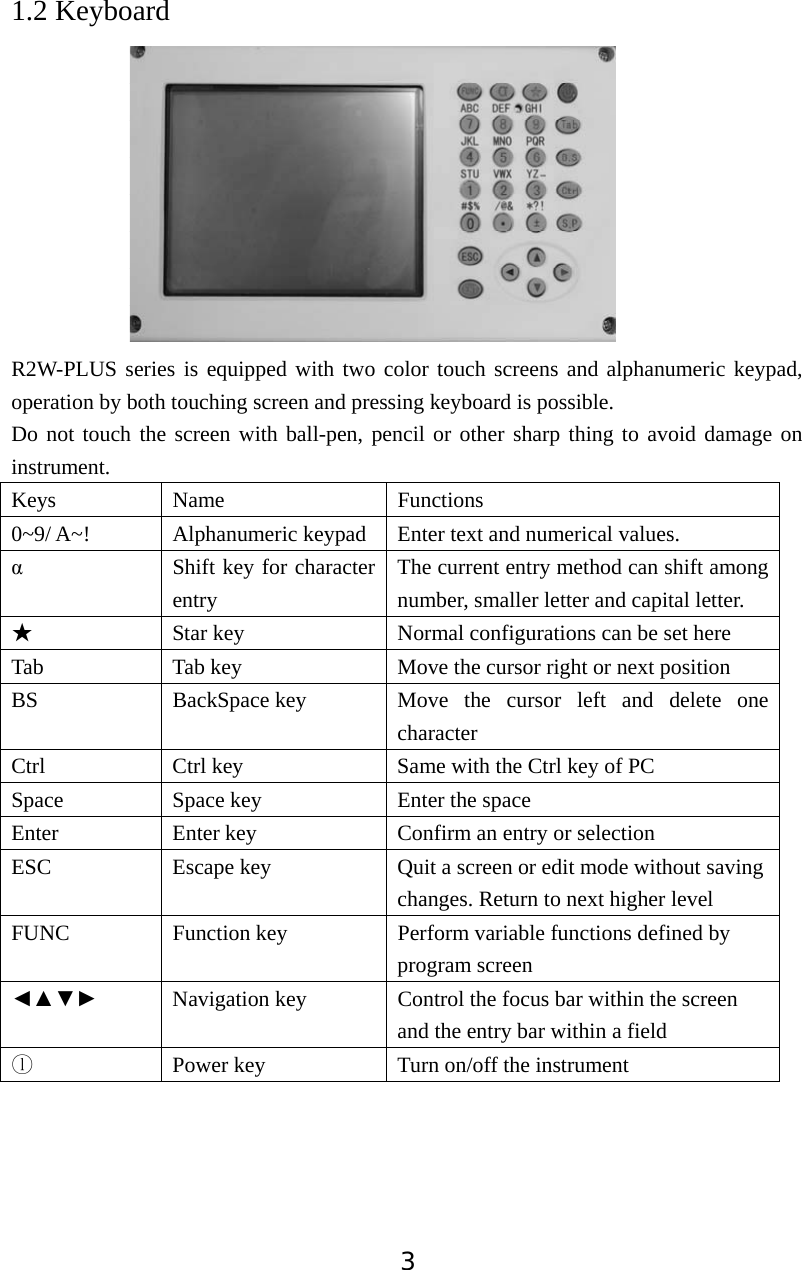
31.2 Keyboard R2W-PLUS series is equipped with two color touch screens and alphanumeric keypad, operation by both touching screen and pressing keyboard is possible. Do not touch the screen with ball-pen, pencil or other sharp thing to avoid damage on instrument.   Keys Name  Functions 0~9/ A~!  Alphanumeric keypad  Enter text and numerical values.Į  Shift key for character entryThe current entry method can shift among number, smaller letter and capital letter.   ƾ    Star key  Normal configurations can be set here Tab  Tab key  Move the cursor right or next position BS BackSpace key  Move the cursor left and delete one character Ctrl Ctrl key  Same with the Ctrl key of PC Space  Space key  Enter the space Enter  Enter key  Confirm an entry or selection ESC Escape key  Quit a screen or edit mode without saving changes. Return to next higher level FUNC  Function key  Perform variable functions defined by program screen ŻŸźŹ  Navigation key  Control the focus bar within the screen and the entry bar within a field ཌ  Power key  Turn on/off the instrument
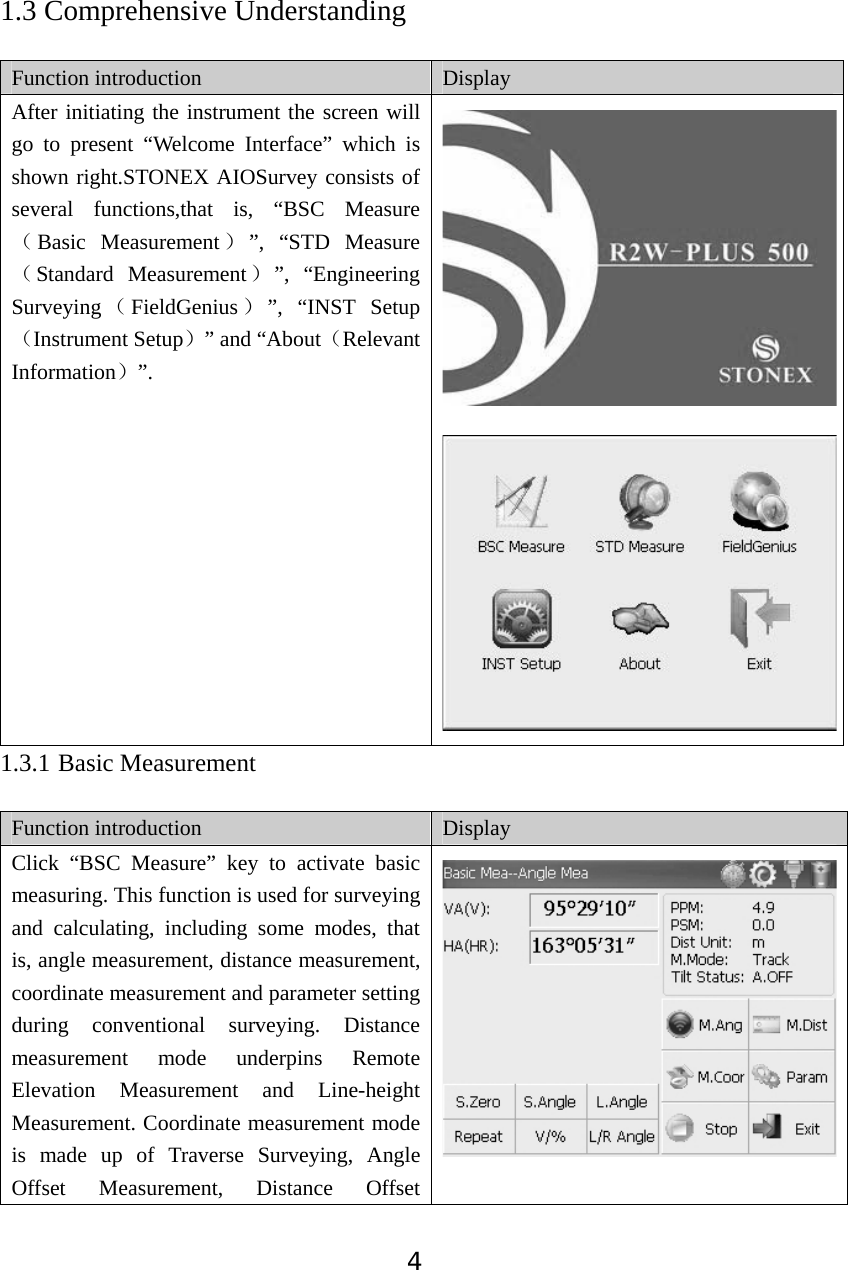
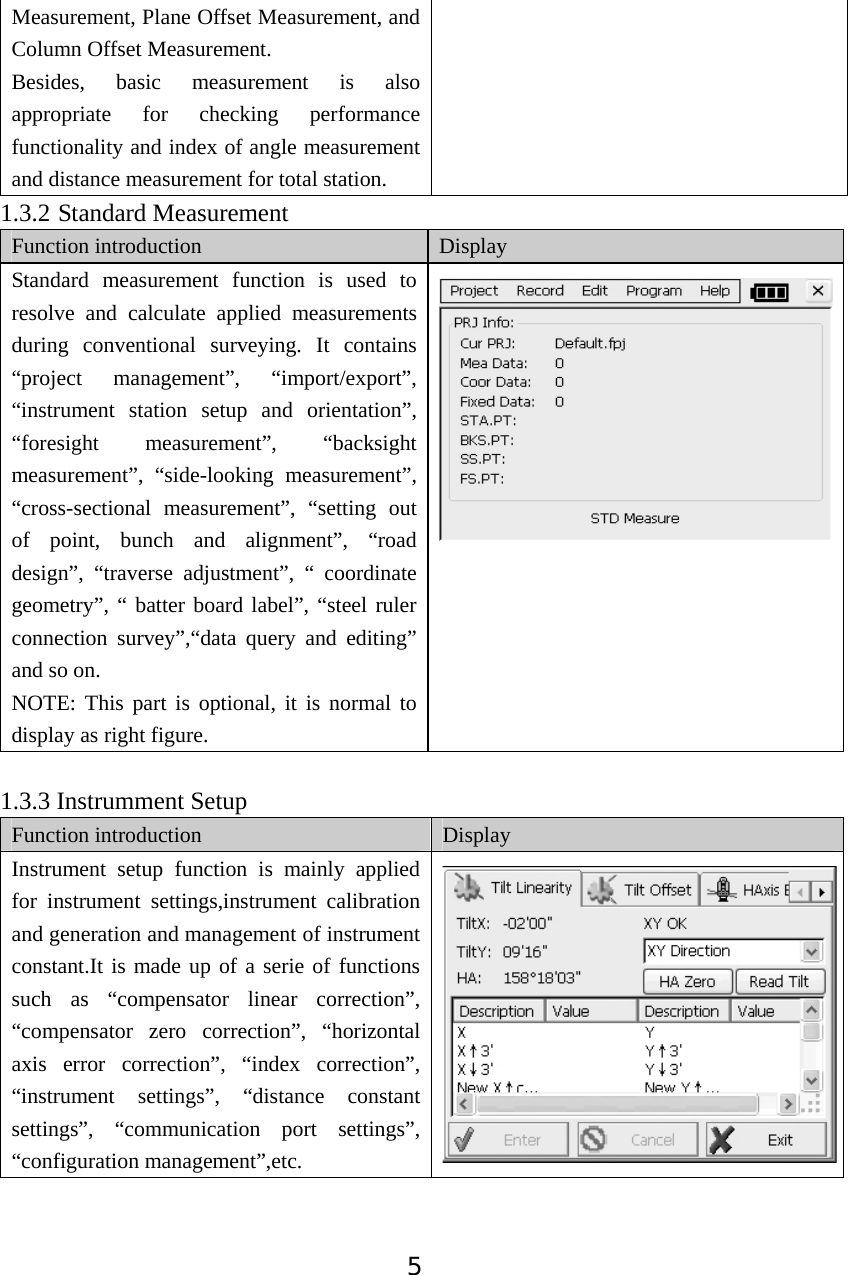
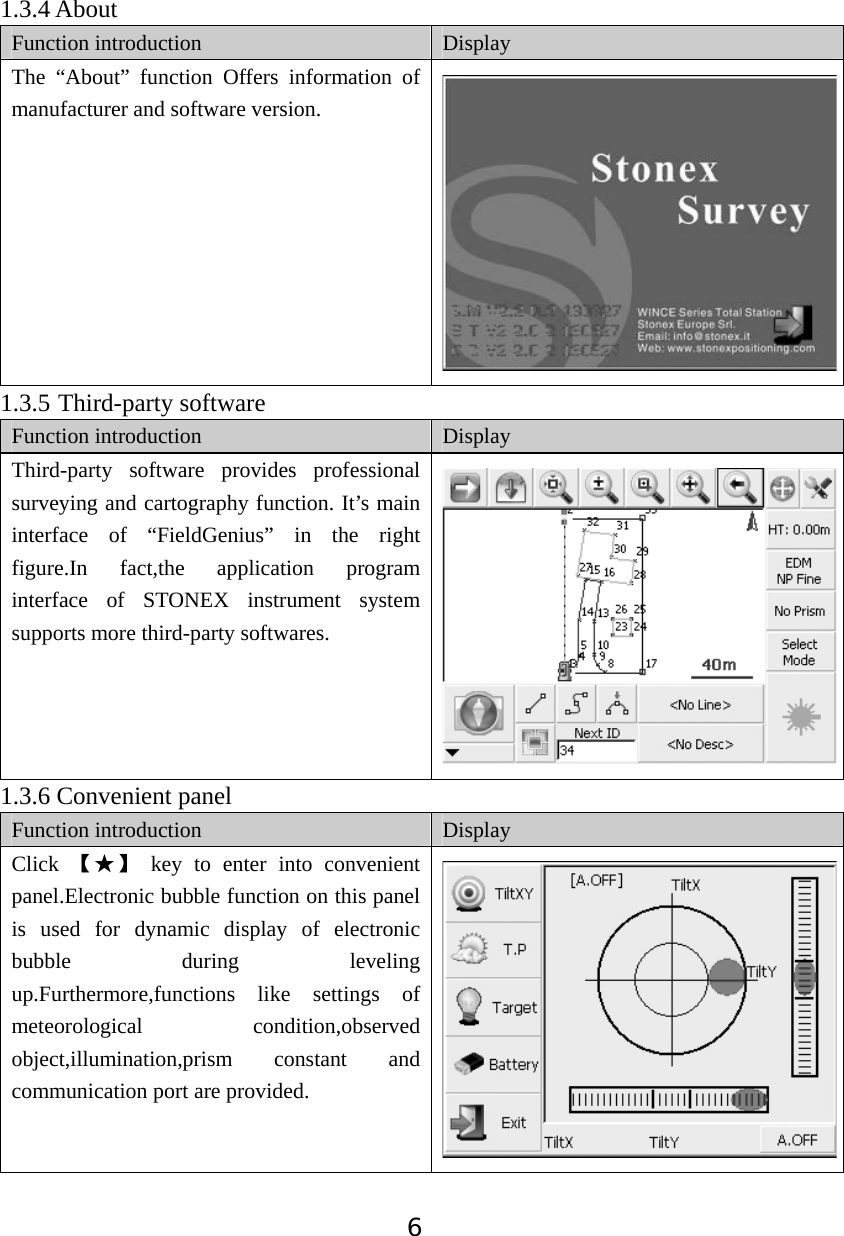
41.3 Comprehensive Understanding Function introduction  Display After initiating the instrument the screen will go to present “Welcome Interface” which is shown right.STONEX AIOSurvey consists of several functions,that is, “BSC Measure˄Basic Measurement ˅”, “STD Measure˄Standard Measurement˅”, “Engineering Surveying ˄FieldGenius ˅”, “INST Setup˄Instrument Setup˅” and “About˄Relevant Information˅”.1.3.1 Basic Measurement Function introduction  Display Click “BSC Measure” key to activate basic measuring. This function is used for surveying and calculating, including some modes, that is, angle measurement, distance measurement, coordinate measurement and parameter setting during conventional surveying. Distance measurement mode underpins Remote Elevation Measurement and Line-height Measurement. Coordinate measurement mode is made up of Traverse Surveying, Angle Offset Measurement, Distance Offset
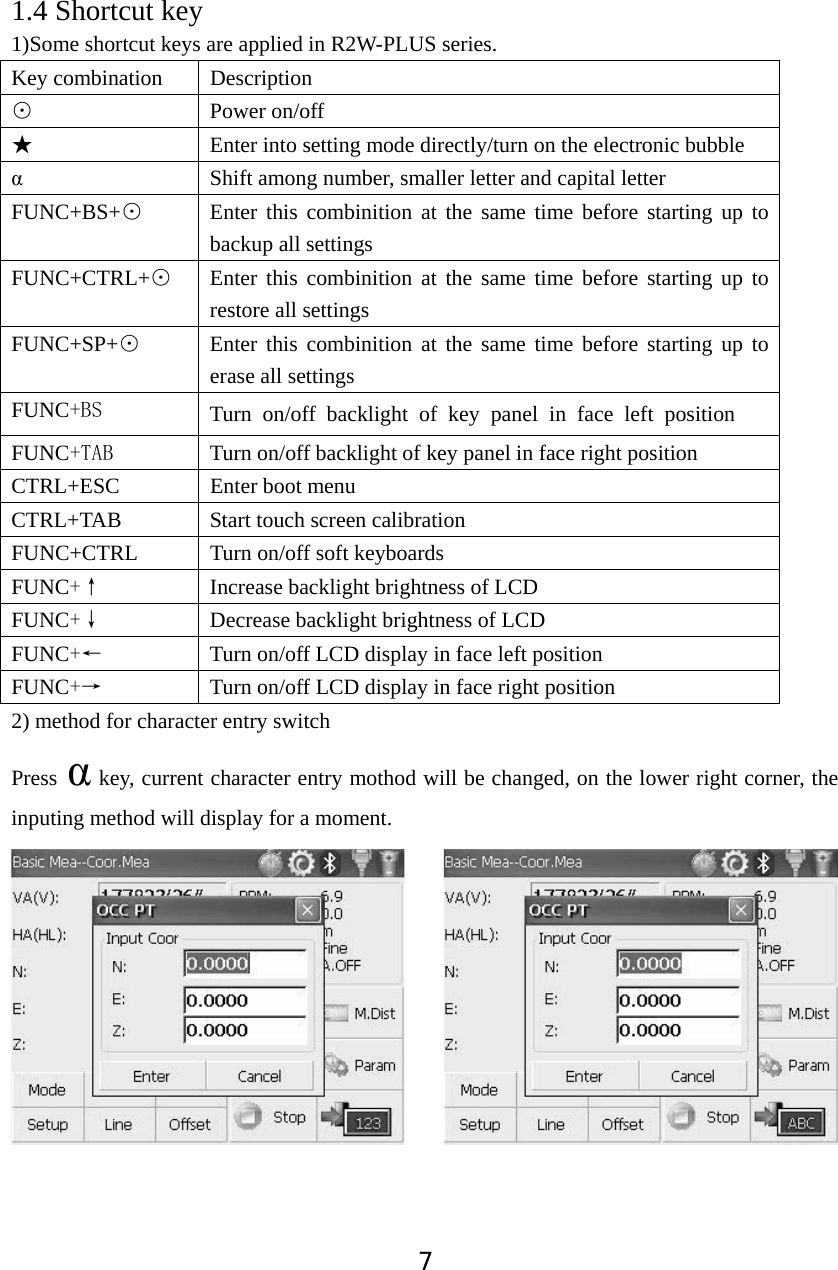
5Measurement, Plane Offset Measurement, and Column Offset Measurement. Besides, basic measurement is also appropriate for checking performance functionality and index of angle measurement and distance measurement for total station. 1.3.2 Standard MeasurementFunction introduction  Display Standard measurement function is used to resolve and calculate applied measurements during conventional surveying. It contains “project management”, “import/export”, “instrument station setup and orientation”, “foresight measurement”, “backsight measurement”, “side-looking measurement”, “cross-sectional measurement”, “setting out of point, bunch and alignment”, “road design”, “traverse adjustment”, “ coordinate geometry”, “ batter board label”, “steel ruler connection survey”,“data query and editing” and so on. NOTE: This part is optional, it is normal to display as right figure. 1.3.3 Instrumment Setup Function introduction  Display Instrument setup function is mainly applied for instrument settings,instrument calibration and generation and management of instrument constant.It is made up of a serie of functions such as “compensator linear correction”, “compensator zero correction”, “horizontal axis error correction”, “index correction”, “instrument settings”, “distance constant settings”, “communication port settings”, “configuration management”,etc.
61.3.4 About Function introduction  Display The “About” function Offers information of manufacturer and software version. 1.3.5 Third-party softwareFunction introduction  Display Third-party software provides professional surveying and cartography function. It’s main interface of “FieldGenius” in the right figure.In fact,the application program interface of STONEX instrument system supports more third-party softwares. 1.3.6 Convenient panel Function introduction  Display Click  Ǐƾǐ key to enter into convenient panel.Electronic bubble function on this panel is used for dynamic display of electronic bubble during leveling up.Furthermore,functions like settings of meteorological condition,observed object,illumination,prism constant and communication port are provided.
71.4 Shortcut key 1)Some shortcut keys are applied in R2W-PLUS series. Key combination  Description Ĵ Power on/off ƾ  Enter into setting mode directly/turn on the electronic bubble Į  Shift among number, smaller letter and capital letter FUNC+BS+Ĵ  Enter this combinition at the same time before starting up to backup all settings FUNC+CTRL+Ĵ  Enter this combinition at the same time before starting up to restore all settings FUNC+SP+Ĵ  Enter this combinition at the same time before starting up to erase all settings FUNC%6 Turn on/off backlight of key panel in face left positionFUNC7$%  Turn on/off backlight of key panel in face right position CTRL+ESC Enter boot menu CTRL+TAB  Start touch screen calibration FUNC+CTRL  Turn on/off soft keyboards FUNCĖ  Increase backlight brightness of LCD   FUNCĘ  Decrease backlight brightness of LCD FUNCĕ  Turn on/off LCD display in face left position   FUNCė  Turn on/off LCD display in face right position 2) method for character entry switch Press Į key, current character entry mothod will be changed, on the lower right corner, the inputing method will display for a moment.
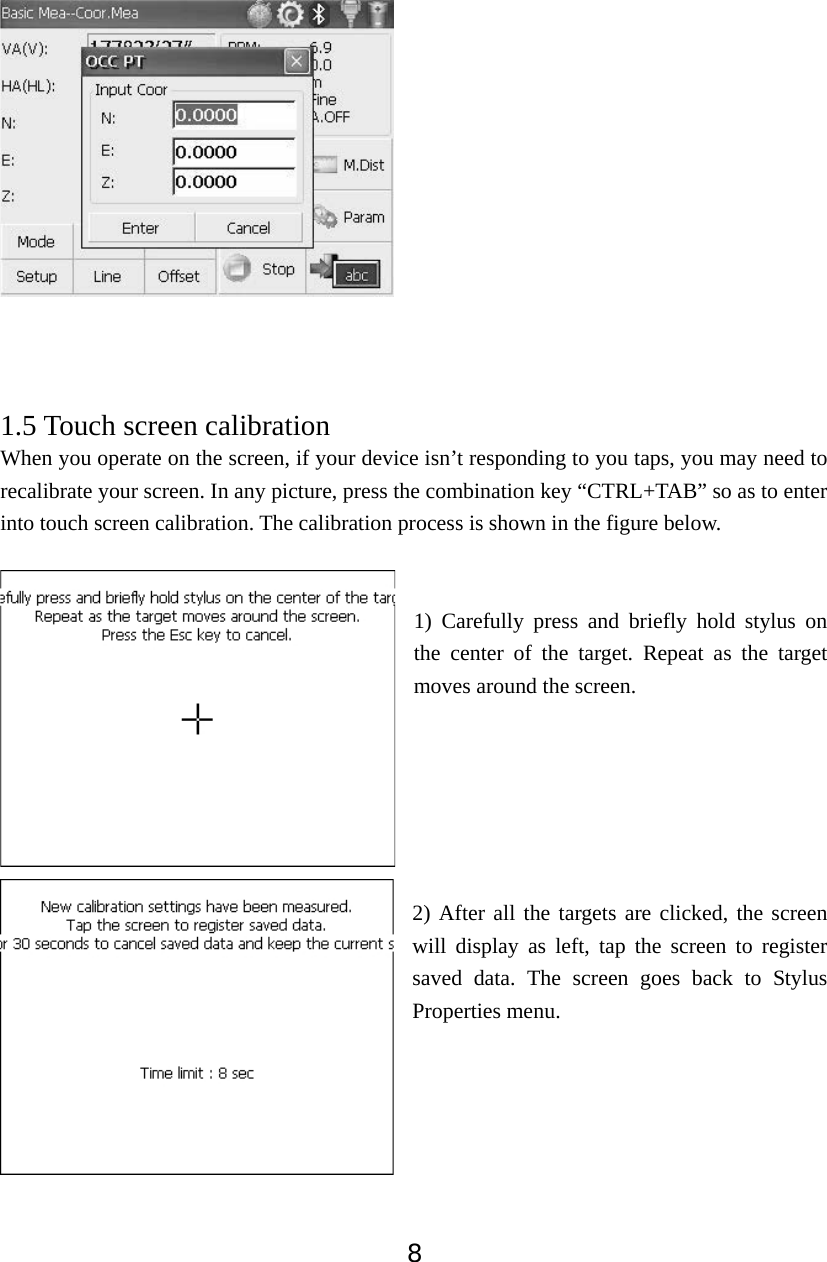
81.5 Touch screen calibration When you operate on the screen, if your device isn’t responding to you taps, you may need to recalibrate your screen. In any picture, press the combination key “CTRL+TAB” so as to enter into touch screen calibration. The calibration process is shown in the figure below. 1) Carefully press and briefly hold stylus on the center of the target. Repeat as the target moves around the screen.   2) After all the targets are clicked, the screen will display as left, tap the screen to register saved data. The screen goes back to Stylus Properties menu.
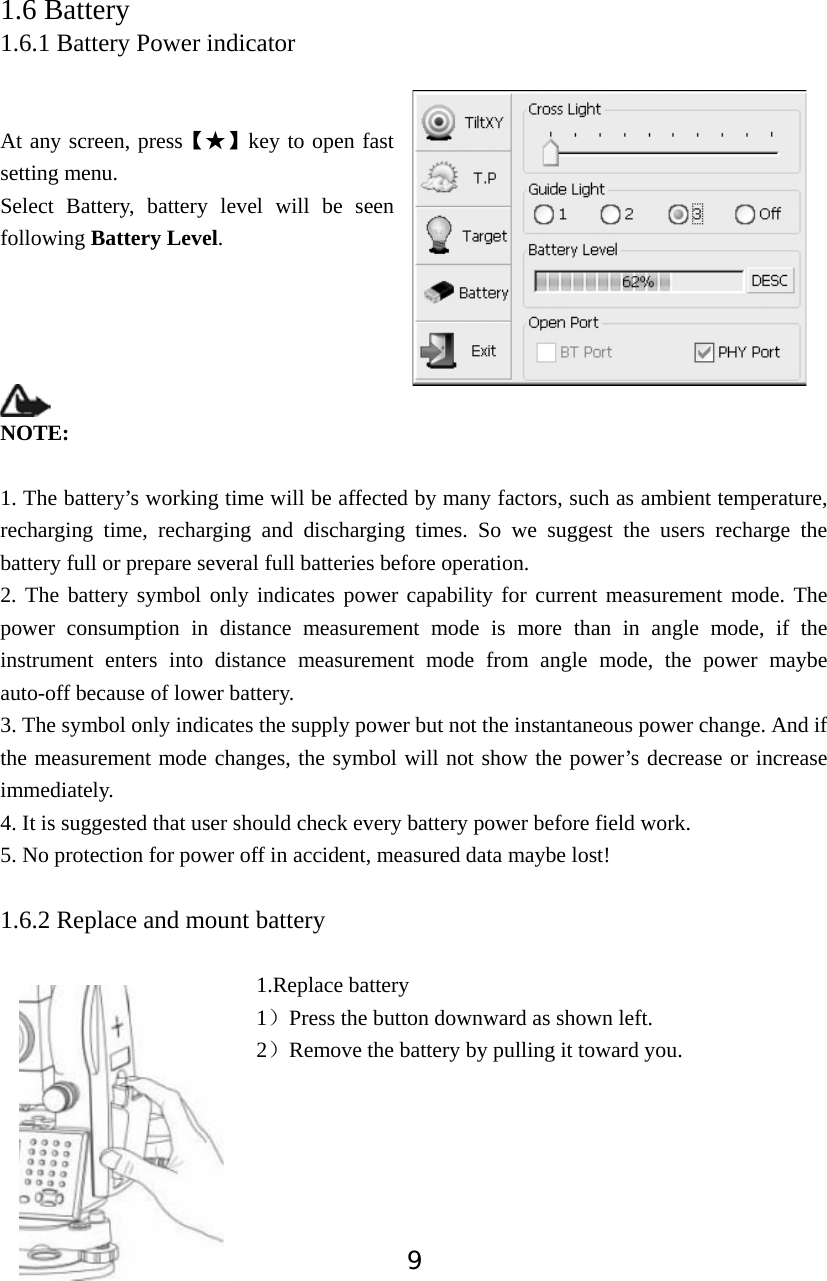
91.6 Battery 1.6.1 Battery Power indicator At any screen, pressǏƾǐkey to open fast setting menu. Select Battery, battery level will be seen following Battery Level.NOTE:1. The battery’s working time will be affected by many factors, such as ambient temperature, recharging time, recharging and discharging times. So we suggest the users recharge the battery full or prepare several full batteries before operation. 2. The battery symbol only indicates power capability for current measurement mode. The power consumption in distance measurement mode is more than in angle mode, if the instrument enters into distance measurement mode from angle mode, the power maybe auto-off because of lower battery. 3. The symbol only indicates the supply power but not the instantaneous power change. And if the measurement mode changes, the symbol will not show the power’s decrease or increase immediately. 4. It is suggested that user should check every battery power before field work. 5. No protection for power off in accident, measured data maybe lost! 1.6.2 Replace and mount battery  1.Replace battery 1˅Press the button downward as shown left.   2˅Remove the battery by pulling it toward you.
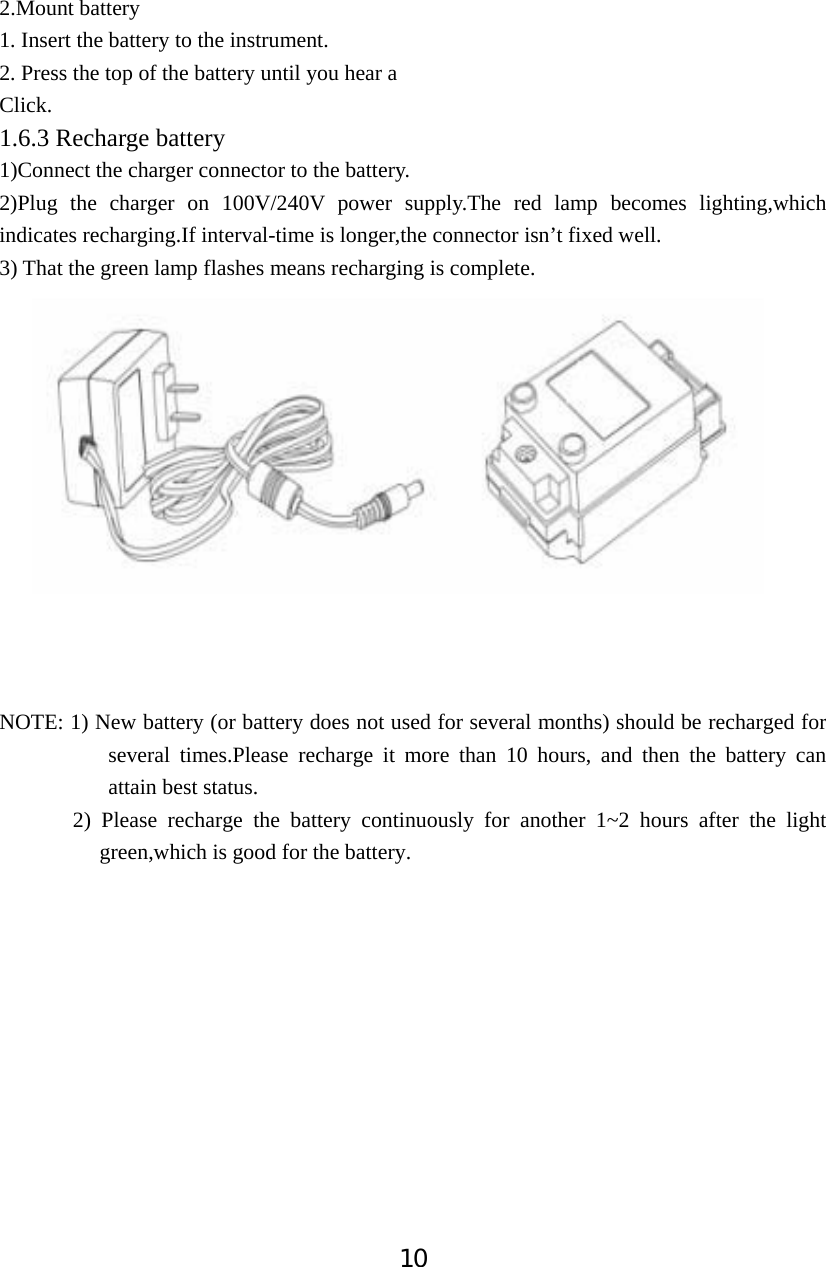
102.Mount battery 1. Insert the battery to the instrument.       2. Press the top of the battery until you hear a               Click. 1.6.3 Recharge battery 1)Connect the charger connector to the battery. 2)Plug the charger on 100V/240V power supply.The red lamp becomes lighting,which indicates recharging.If interval-time is longer,the connector isn’t fixed well. 3) That the green lamp flashes means recharging is complete. NOTE: 1) New battery (or battery does not used for several months) should be recharged for several times.Please recharge it more than 10 hours, and then the battery can attain best status. 2) Please recharge the battery continuously for another 1~2 hours after the light green,which is good for the battery.
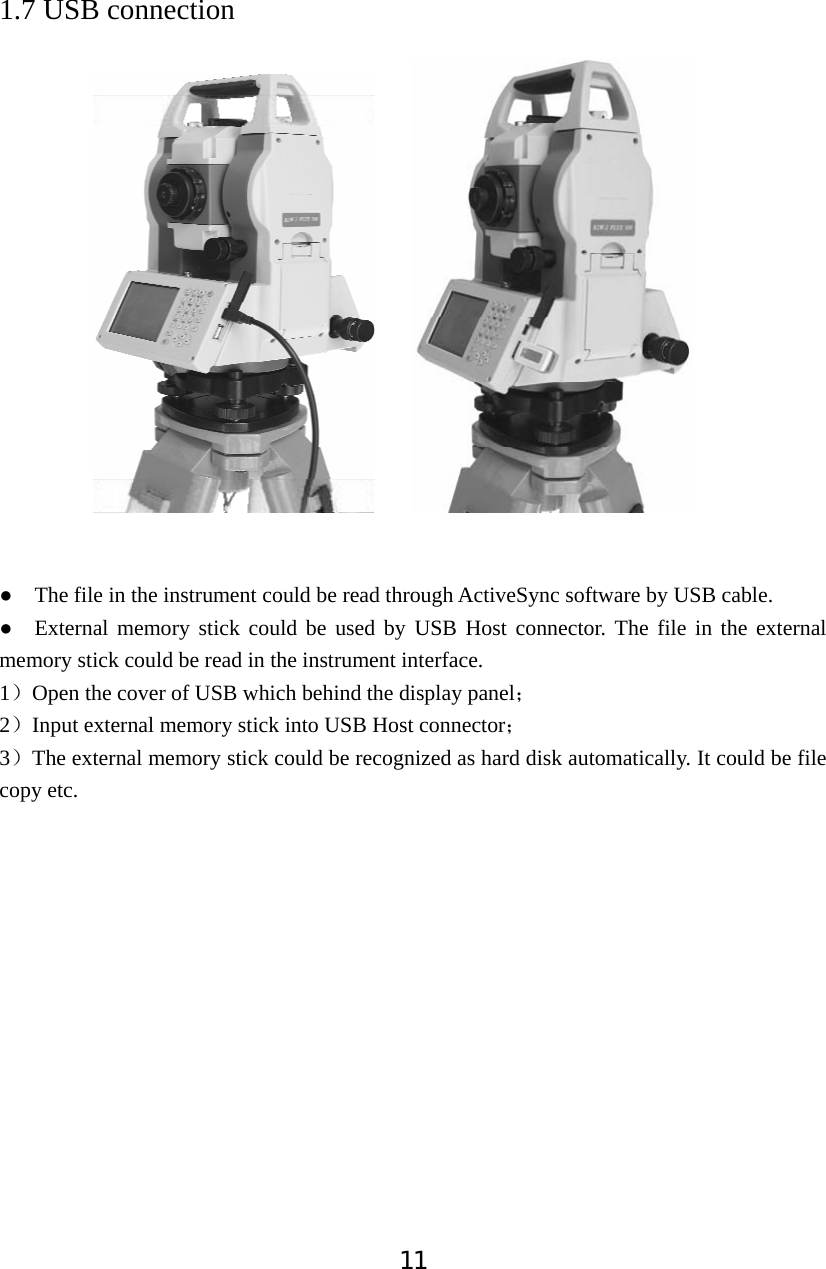
111.7 USB connection                Ɣ    The file in the instrument could be read through ActiveSync software by USB cable.   Ɣ  External memory stick could be used by USB Host connector. The file in the external memory stick could be read in the instrument interface.   1˅Open the cover of USB which behind the display panel˗2˅Input external memory stick into USB Host connector˗3˅The external memory stick could be recognized as hard disk automatically. It could be file copy etc.
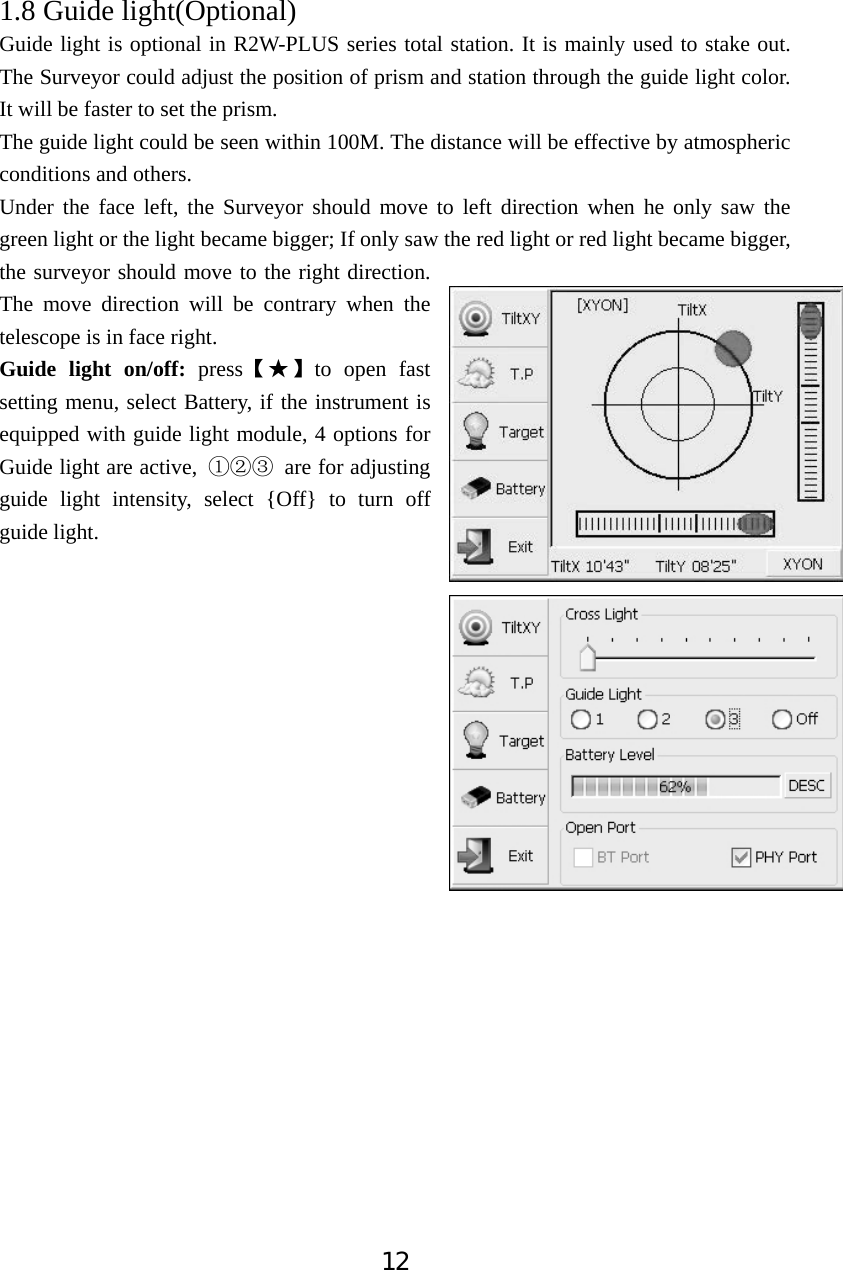
121.8 Guide light(Optional)  Guide light is optional in R2W-PLUS series total station. It is mainly used to stake out. The Surveyor could adjust the position of prism and station through the guide light color. It will be faster to set the prism.   The guide light could be seen within 100M. The distance will be effective by atmospheric conditions and others. Under the face left, the Surveyor should move to left direction when he only saw the green light or the light became bigger; If only saw the red light or red light became bigger, the surveyor should move to the right direction. The move direction will be contrary when the telescope is in face right. Guide light on/off: pressǏƾǐto open fast setting menu, select Battery, if the instrument is equipped with guide light module, 4 options for Guide light are active,  ķĸĹ are for adjusting guide light intensity, select {Off} to turn off guide light.
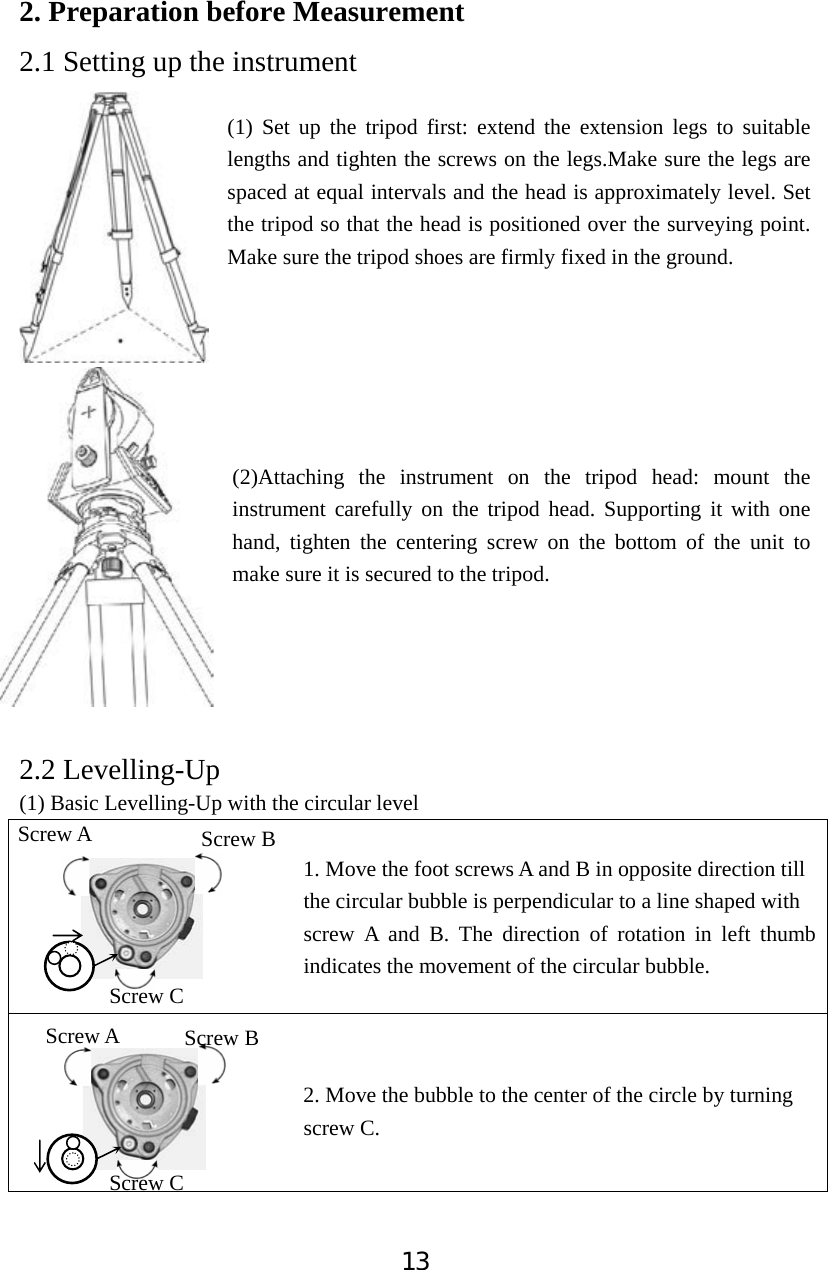
132. Preparation before Measurement 2.1 Setting up the instrument (1) Set up the tripod first: extend the extension legs to suitable lengths and tighten the screws on the legs.Make sure the legs are spaced at equal intervals and the head is approximately level. Set the tripod so that the head is positioned over the surveying point. Make sure the tripod shoes are firmly fixed in the ground.   (2)Attaching the instrument on the tripod head: mount the instrument carefully on the tripod head. Supporting it with one hand, tighten the centering screw on the bottom of the unit to make sure it is secured to the tripod.     2.2 Levelling-Up (1) Basic Levelling-Up with the circular level                             1. Move the foot screws A and B in opposite direction till                            the circular bubble is perpendicular to a line shaped with                           screw A and B. The direction of rotation in left thumb indicates the movement of the circular bubble.                           2. Move the bubble to the center of the circle by turning                            screw C. Screw A  Screw B Screw C Screw A Screw C Screw B
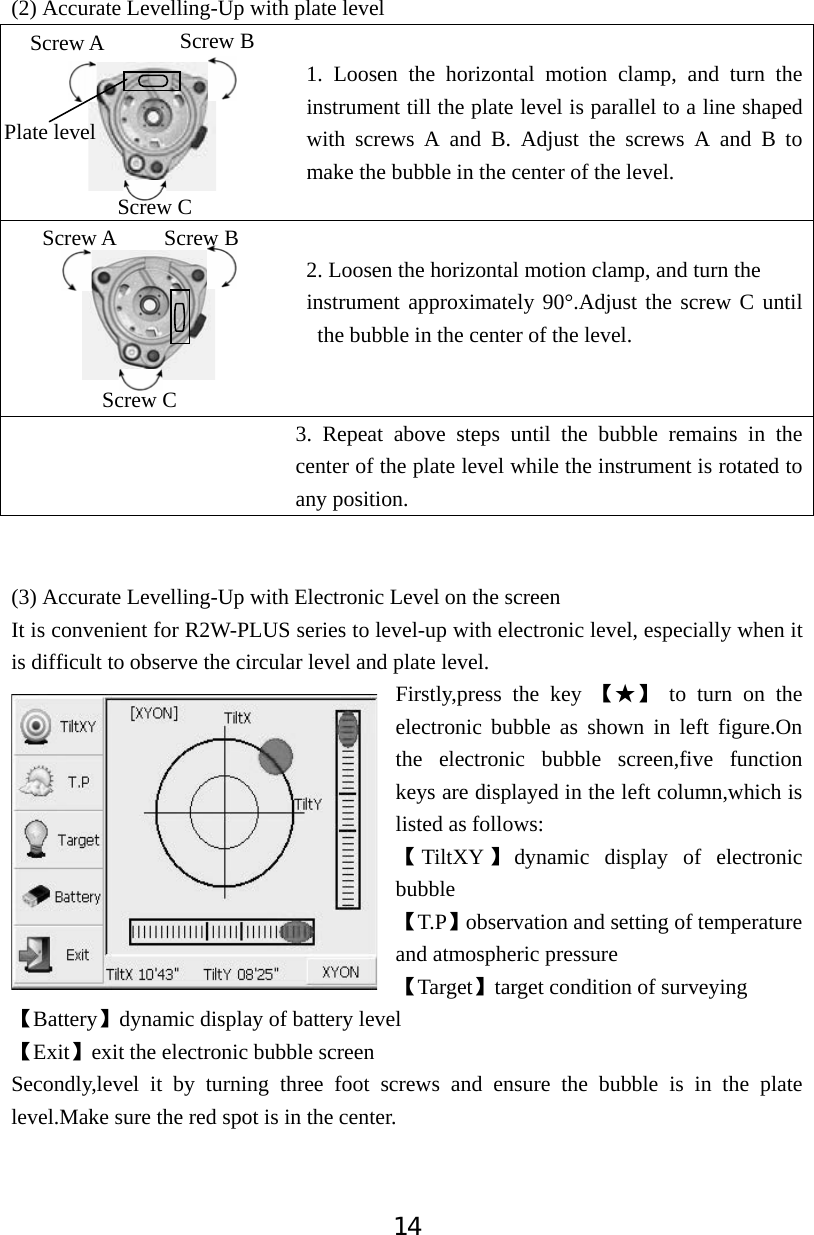
14(2) Accurate Levelling-Up with plate level                              1. Loosen the horizontal motion clamp, and turn the instrument till the plate level is parallel to a line shaped with screws A and B. Adjust the screws A and B to make the bubble in the center of the level.                            2. Loosen the horizontal motion clamp, and turn the instrument approximately 90°.Adjust the screw C until the bubble in the center of the level. 3. Repeat above steps until the bubble remains in the center of the plate level while the instrument is rotated to any position.   (3) Accurate Levelling-Up with Electronic Level on the screen It is convenient for R2W-PLUS series to level-up with electronic level, especially when it is difficult to observe the circular level and plate level.Firstly,press the key Ǐƾǐ to turn on the electronic bubble as shown in left figure.On the electronic bubble screen,five function keys are displayed in the left column,which is listed as follows:   ǏTiltXY ǐdynamic display of electronic bubble ǏT.Pǐobservation and setting of temperature and atmospheric pressure ǏTargetǐtarget condition of surveying   ǏBatteryǐdynamic display of battery level   ǏExitǐexit the electronic bubble screen Secondly,level it by turning three foot screws and ensure the bubble is in the plate level.Make sure the red spot is in the center. Screw B Screw A Plate level Screw C Screw A  Screw B Screw C
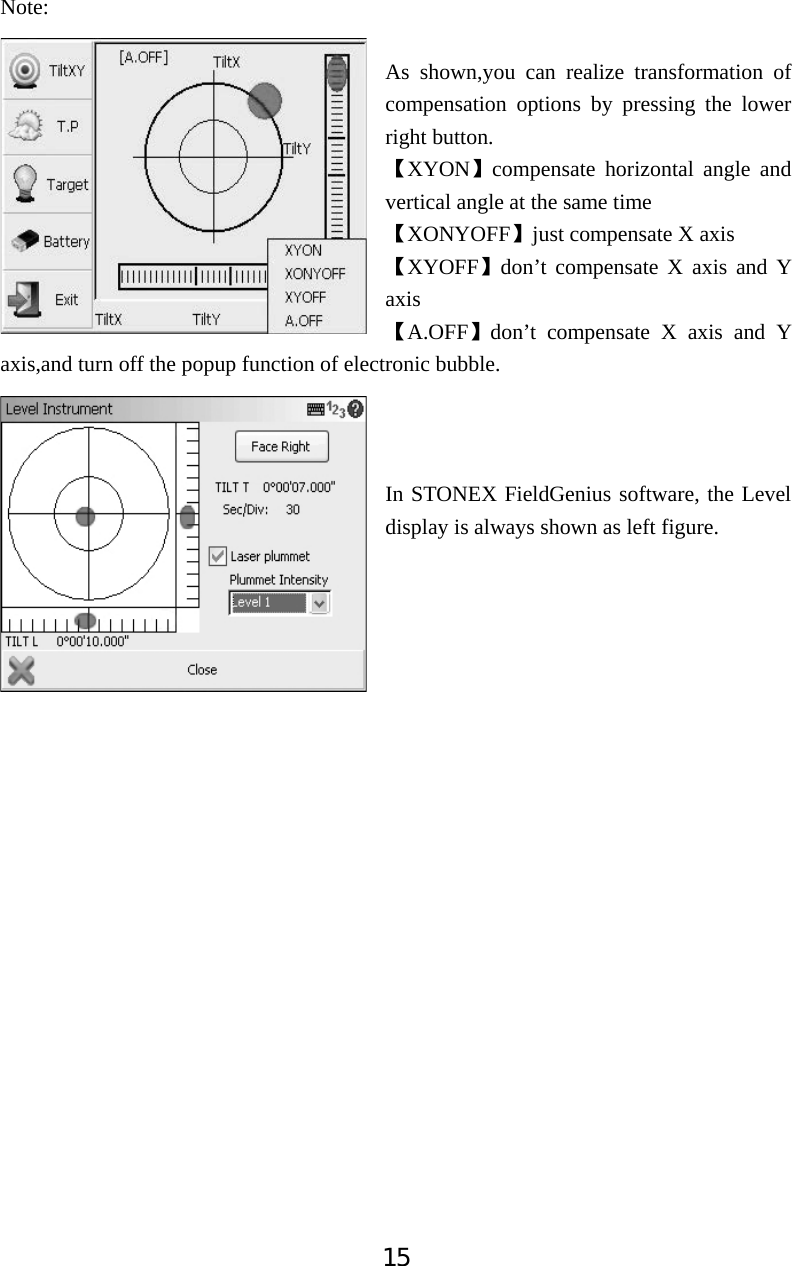
15Note:As shown,you can realize transformation of compensation options by pressing the lower right button. ǏXYONǐcompensate horizontal angle and vertical angle at the same time ǏXONYOFFǐjust compensate X axis ǏXYOFFǐdon’t compensate X axis and Y axisǏA.OFFǐdon’t compensate X axis and Y axis,and turn off the popup function of electronic bubble. In STONEX FieldGenius software, the Level display is always shown as left figure.
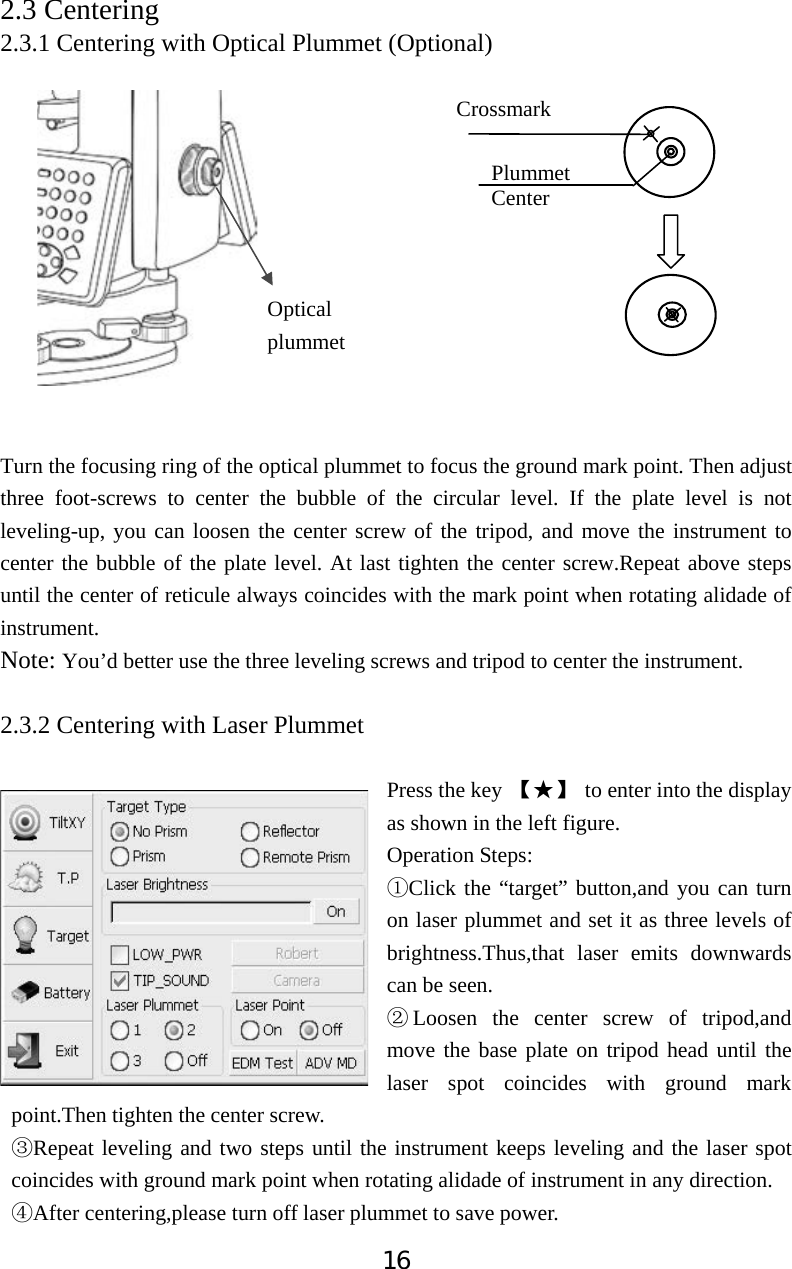
162.3 Centering  2.3.1 Centering with Optical Plummet (Optional) Turn the focusing ring of the optical plummet to focus the ground mark point. Then adjust three foot-screws to center the bubble of the circular level. If the plate level is not leveling-up, you can loosen the center screw of the tripod, and move the instrument to center the bubble of the plate level. At last tighten the center screw.Repeat above steps until the center of reticule always coincides with the mark point when rotating alidade of instrument.Note: You’d better use the three leveling screws and tripod to center the instrument. 2.3.2 Centering with Laser Plummet Press the key Ǐƾǐ  to enter into the display as shown in the left figure. Operation Steps:ķClick the “target” button,and you can turn on laser plummet and set it as three levels of brightness.Thus,that laser emits downwards can be seen. ĸLoosen the center screw of tripod,and move the base plate on tripod head until the laser spot coincides with ground mark point.Then tighten the center screw.ĹRepeat leveling and two steps until the instrument keeps leveling and the laser spot coincides with ground mark point when rotating alidade of instrument in any direction.ĺAfter centering,please turn off laser plummet to save power. Plummet Center Optical  plummet Crossmark
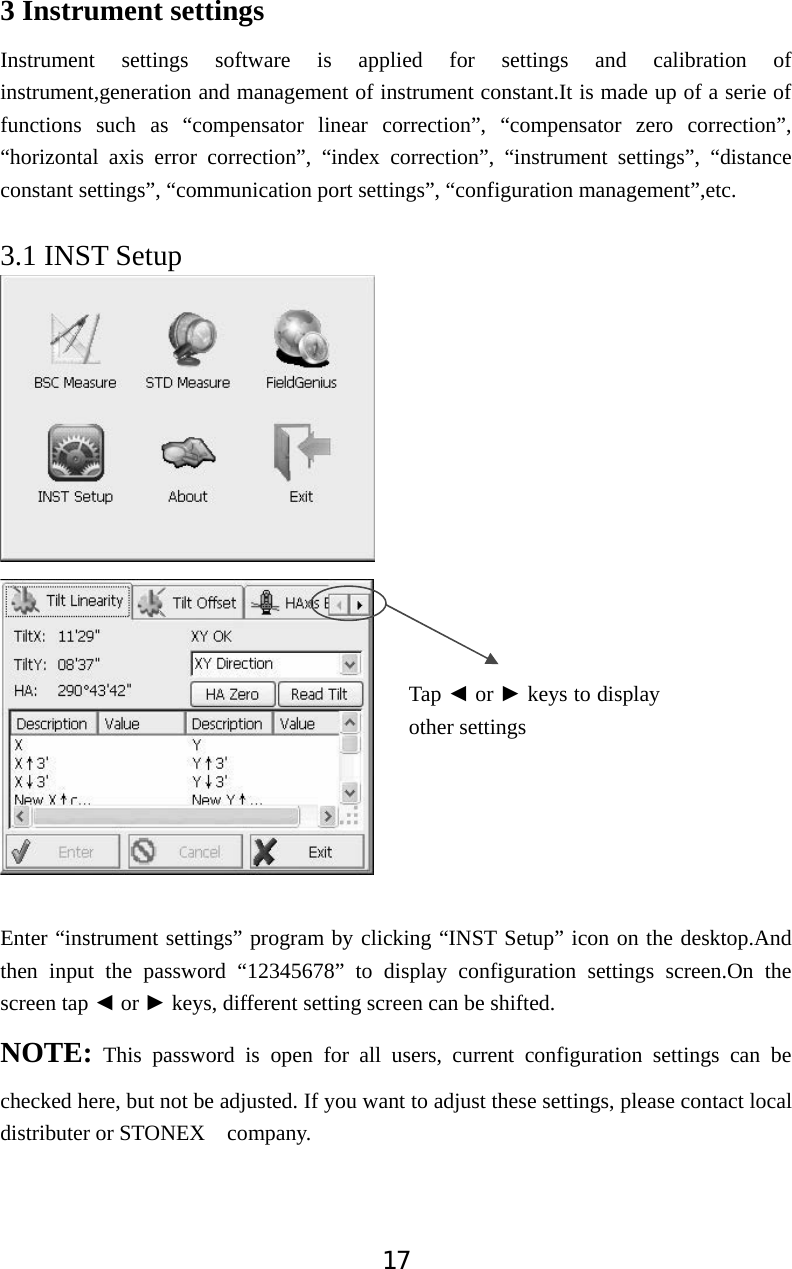
173 Instrument settings Instrument settings software is applied for settings and calibration of instrument,generation and management of instrument constant.It is made up of a serie of functions such as “compensator linear correction”, “compensator zero correction”, “horizontal axis error correction”, “index correction”, “instrument settings”, “distance constant settings”, “communication port settings”, “configuration management”,etc. 3.1 INST Setup Enter “instrument settings” program by clicking “INST Setup” icon on the desktop.And then input the password “12345678” to display configuration settings screen.On the screen tap Ż or Ź keys, different setting screen can be shifted.   NOTE: This password is open for all users, current configuration settings can be checked here, but not be adjusted. If you want to adjust these settings, please contact local distributer or STONEX  company. Tap Ż or Ź keys to display other settings
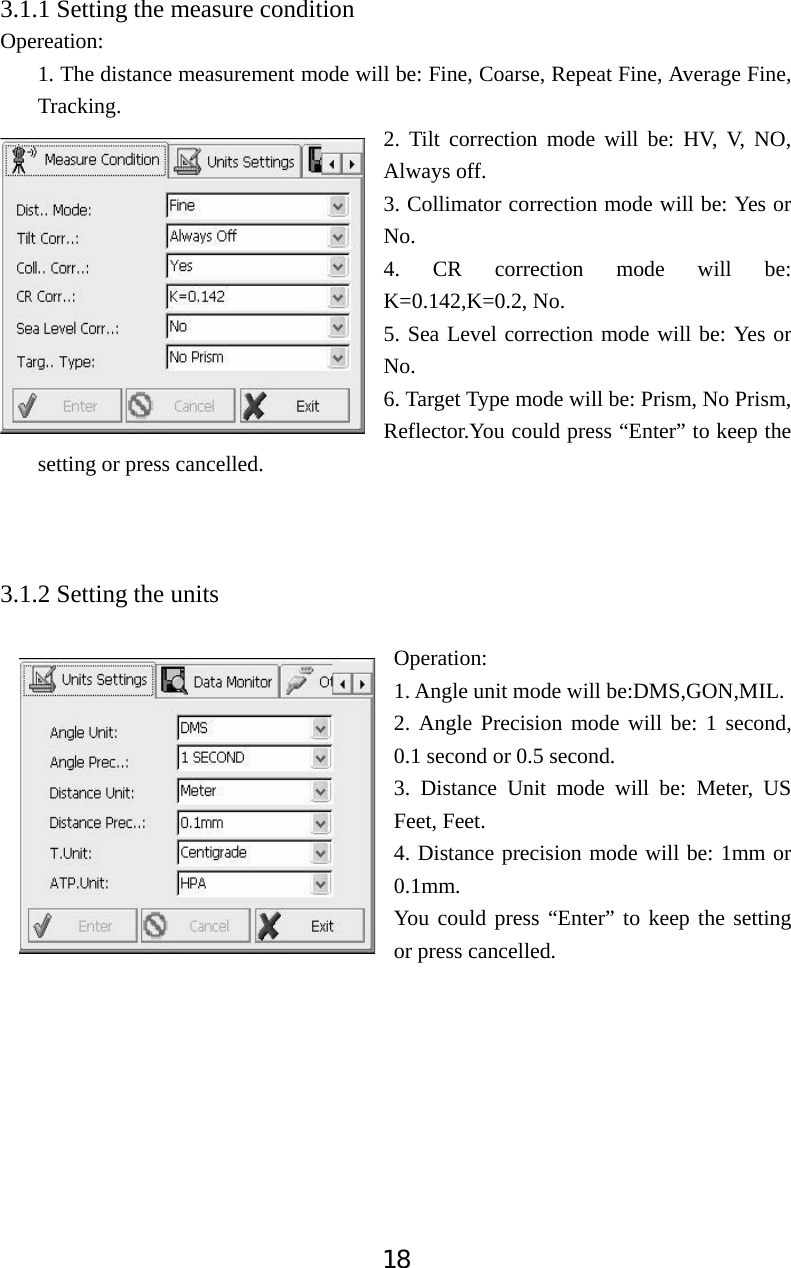
183.1.1 Setting the measure condition Opereation: 1. The distance measurement mode will be: Fine, Coarse, Repeat Fine, Average Fine, Tracking.  2. Tilt correction mode will be: HV, V, NO, Always off. 3. Collimator correction mode will be: Yes or No. 4. CR correction mode will be: K=0.142,K=0.2, No. 5. Sea Level correction mode will be: Yes or No. 6. Target Type mode will be: Prism, No Prism, Reflector.You could press “Enter” to keep the setting or press cancelled.   3.1.2 Setting the units Operation:  1. Angle unit mode will be:DMS,GON,MIL. 2. Angle Precision mode will be: 1 second, 0.1 second or 0.5 second. 3. Distance Unit mode will be: Meter, US Feet, Feet. 4. Distance precision mode will be: 1mm or 0.1mm.   You could press “Enter” to keep the setting or press cancelled.
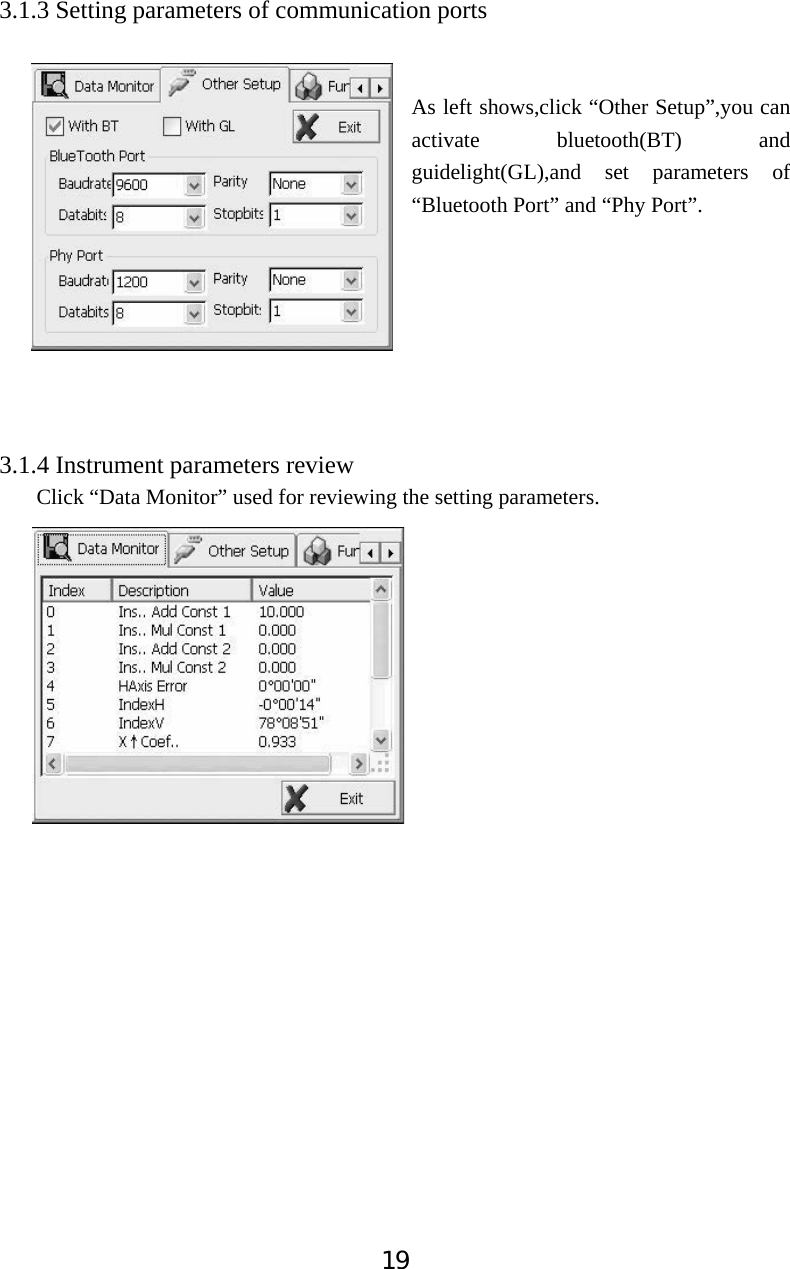
193.1.3 Setting parameters of communication ports   As left shows,click “Other Setup”,you can activate bluetooth(BT) and guidelight(GL),and set parameters of “Bluetooth Port” and “Phy Port”. 3.1.4 Instrument parameters review Click “Data Monitor” used for reviewing the setting parameters.
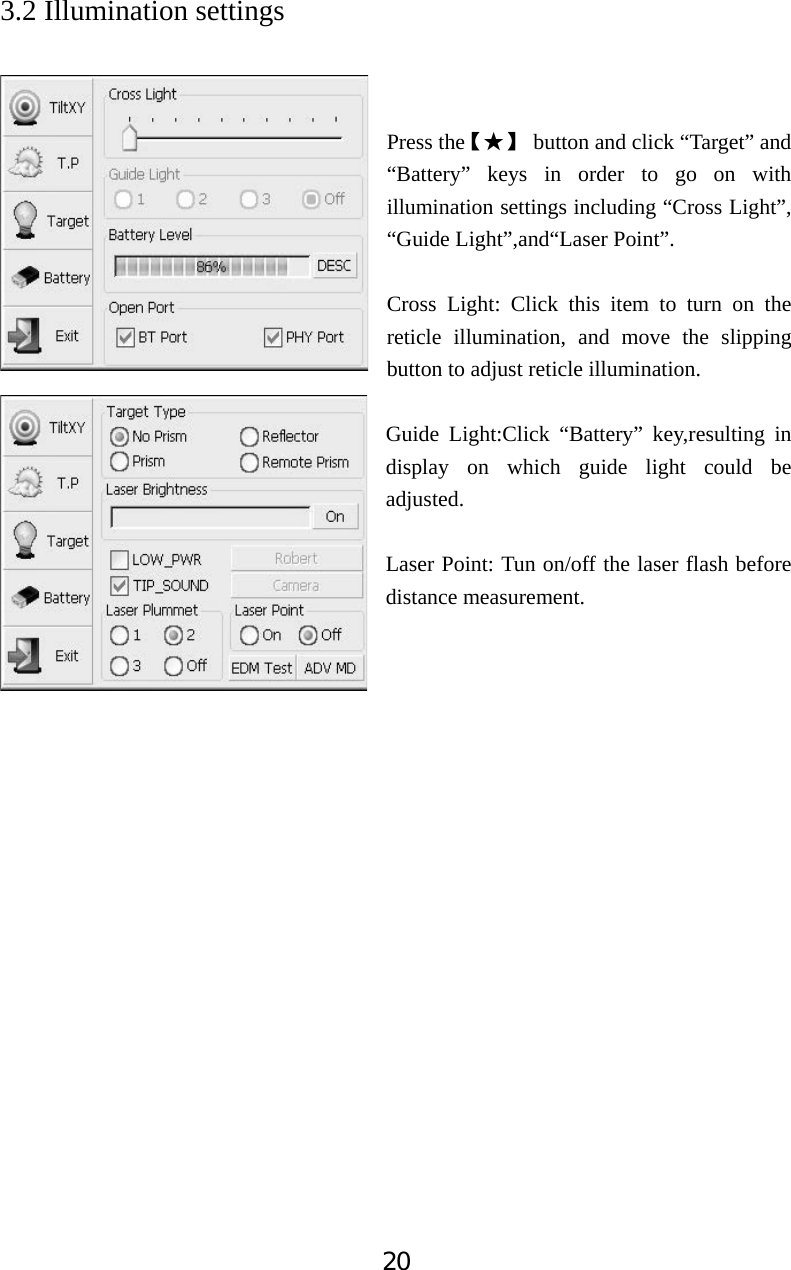
203.2 Illumination settings Press theǏƾǐ  button and click “Target” and “Battery” keys in order to go on with illumination settings including “Cross Light”, “Guide Light”,and“Laser Point”. Cross Light: Click this item to turn on the reticle illumination, and move the slipping button to adjust reticle illumination. Guide Light:Click “Battery” key,resulting in display on which guide light could be adjusted.  Laser Point: Tun on/off the laser flash before distance measurement.
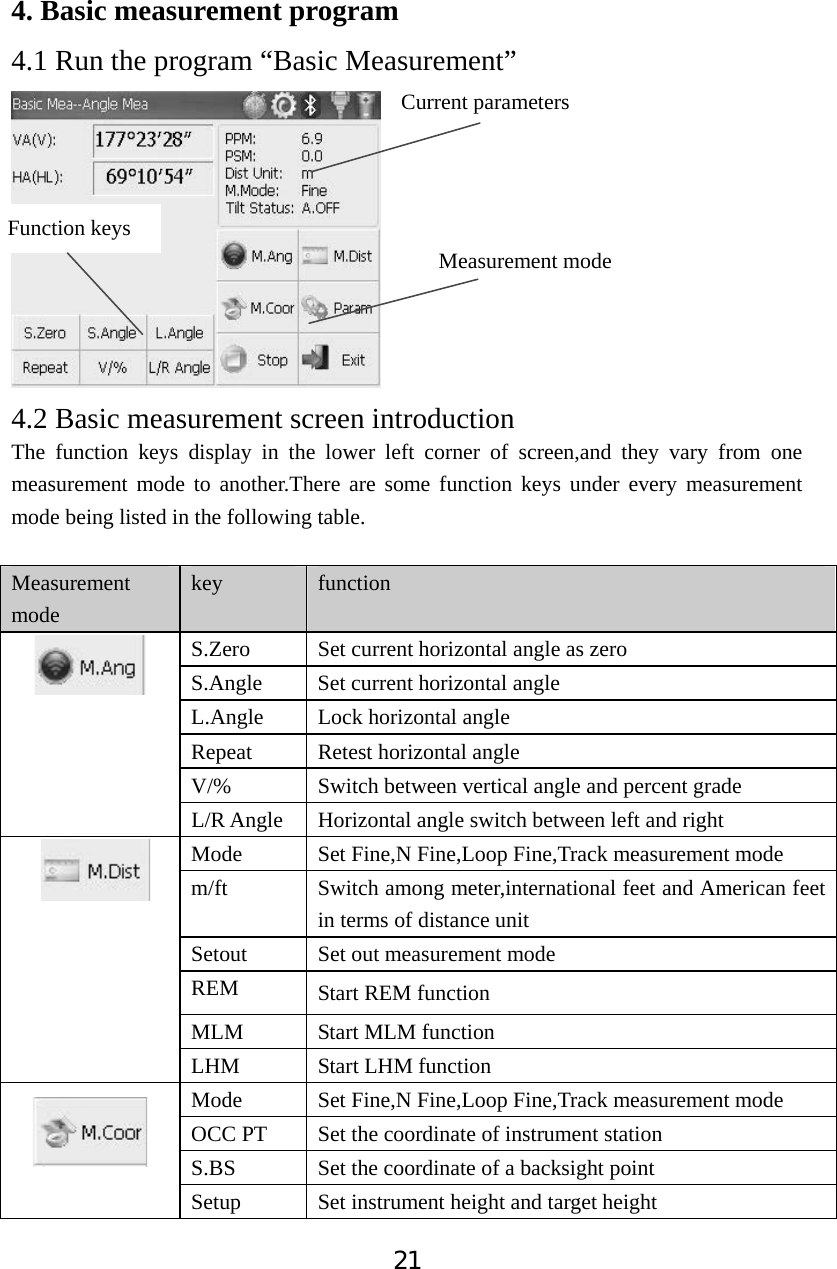
214. Basic measurement program 4.1 Run the program “Basic Measurement” 4.2 Basic measurement screen introduction The function keys display in the lower left corner of screen,and they vary from one measurement mode to another.There are some function keys under every measurement mode being listed in the following table. Measurement mode key  function S.Zero  Set current horizontal angle as zero S.Angle  Set current horizontal angle L.Angle  Lock horizontal angle Repeat Retest horizontal angle V/%  Switch between vertical angle and percent grade L/R Angle  Horizontal angle switch between left and right   Mode  Set Fine,N Fine,Loop Fine,Track measurement mode m/ft  Switch among meter,international feet and American feet in terms of distance unit Setout  Set out measurement mode REM Start REM functionMLM  Start MLM function LHM  Start LHM function Mode  Set Fine,N Fine,Loop Fine,Track measurement mode OCC PT  Set the coordinate of instrument station S.BS  Set the coordinate of a backsight point Setup  Set instrument height and target height Function keys Current parameters Measurement mode
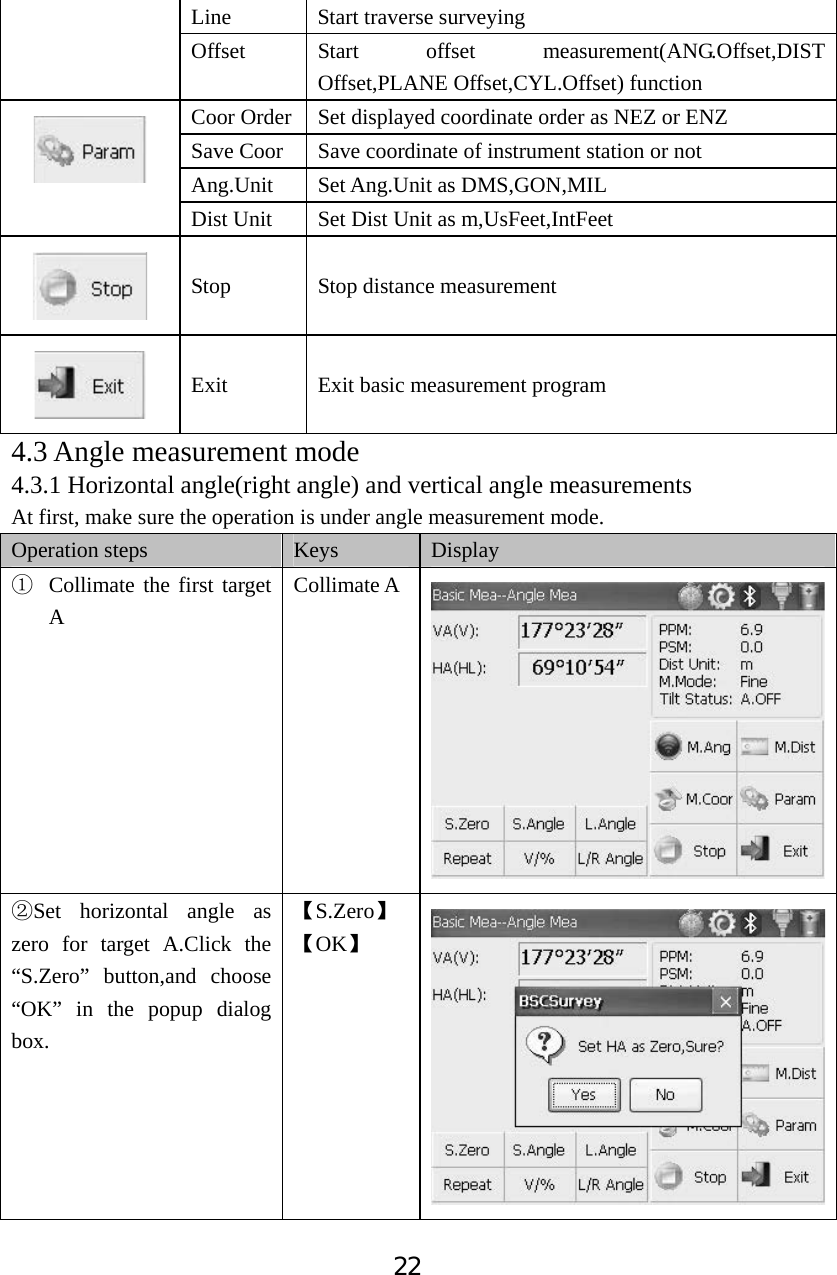
22Line Start traverse surveying  Offset Start offset measurement(ANG.Offset,DIST Offset,PLANE Offset,CYL.Offset) function Coor Order  Set displayed coordinate order as NEZ or ENZ Save Coor    Save coordinate of instrument station or not Ang.Unit Set Ang.Unit as DMS,GON,MIL Dist Unit  Set Dist Unit as m,UsFeet,IntFeet Stop  Stop distance measurement Exit Exit basic measurement program 4.3 Angle measurement mode 4.3.1 Horizontal angle(right angle) and vertical angle measurements At first, make sure the operation is under angle measurement mode. Operation steps  Keys Display ķCollimate the first target ACollimate A ĸSet horizontal angle as zero for target A.Click the “S.Zero” button,and choose “OK” in the popup dialog box. ǏS.ZeroǐǏOKǐ
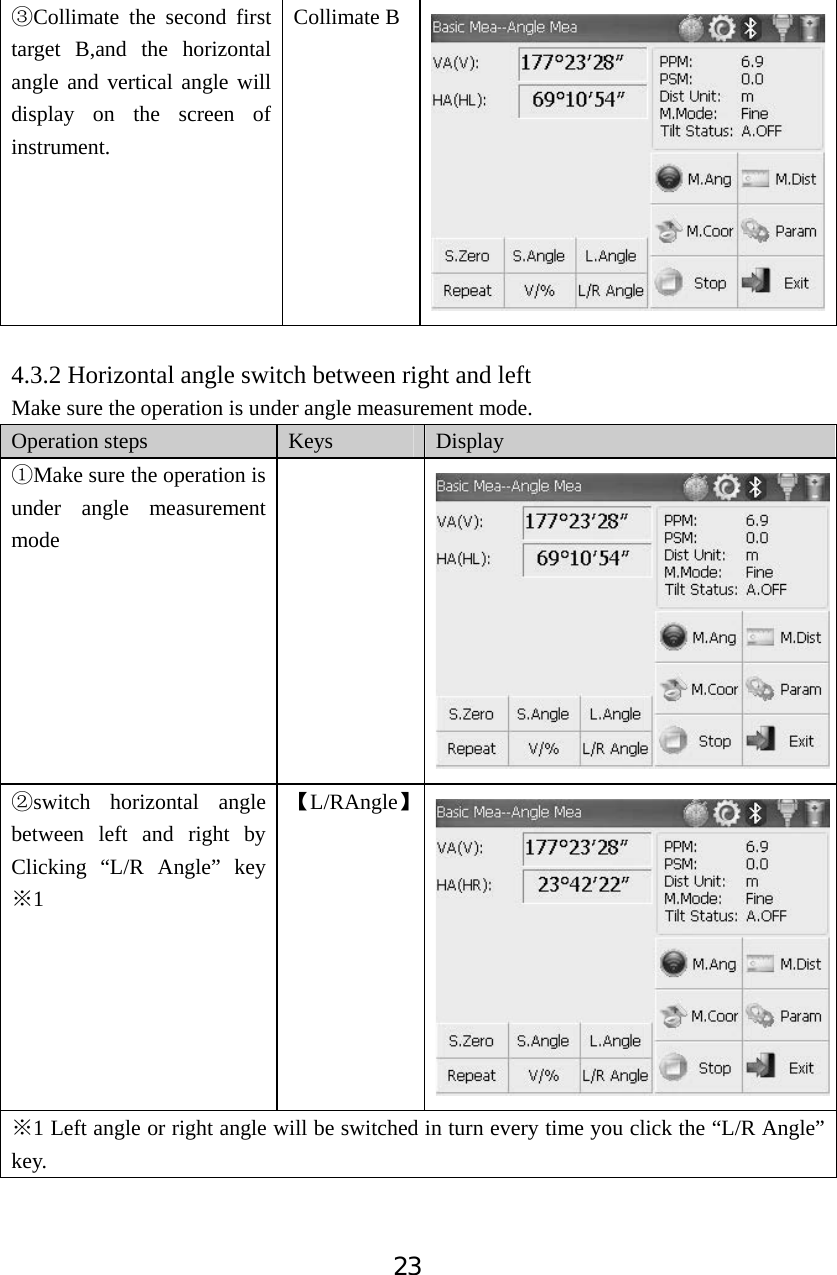
23ĹCollimate the second first target B,and the horizontal angle and vertical angle will display on the screen of instrument. Collimate B 4.3.2 Horizontal angle switch between right and left   Make sure the operation is under angle measurement mode. Operation steps  Keys Display ķMake sure the operation is under angle measurement mode ĸswitch horizontal angle between left and right by Clicking “L/R Angle” key Ć1ǏL/RAngleǐĆ1 Left angle or right angle will be switched in turn every time you click the “L/R Angle” key.
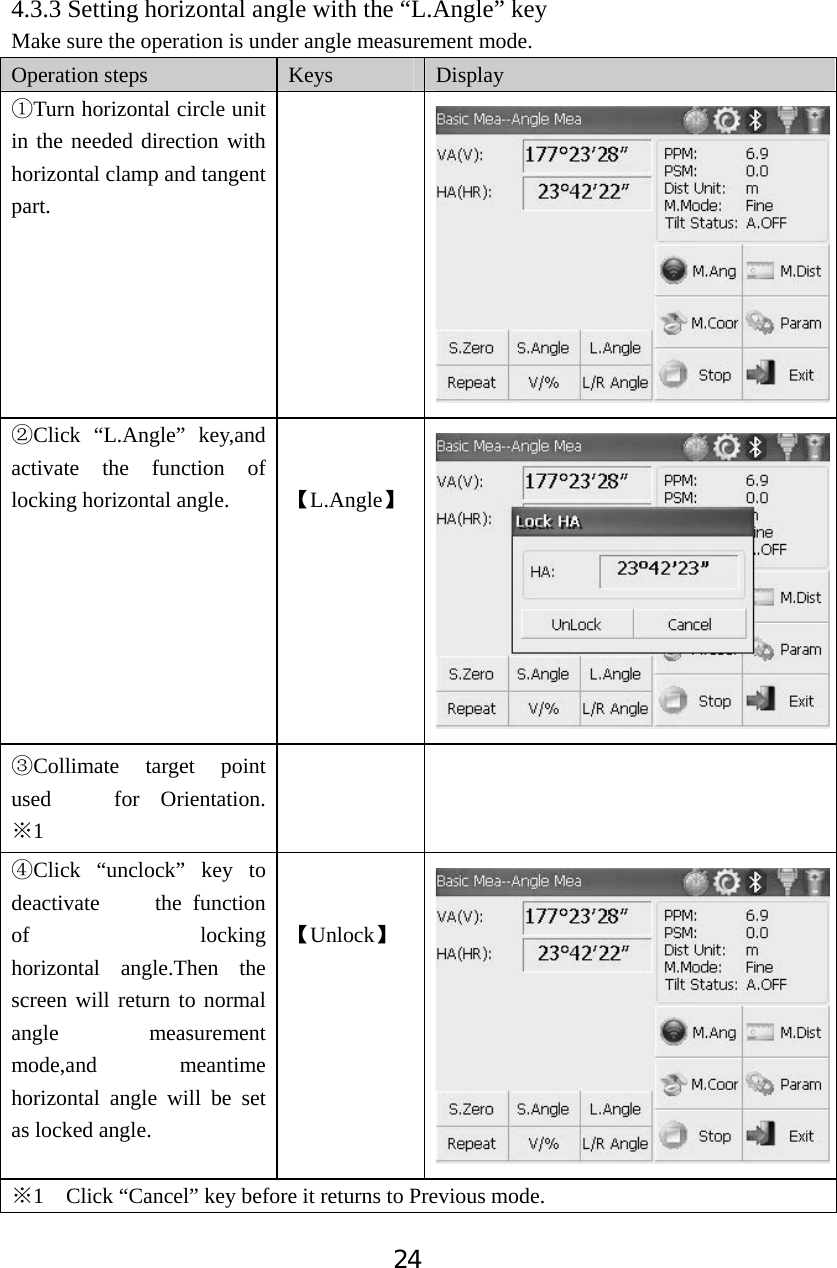
244.3.3 Setting horizontal angle with the “L.Angle” key Make sure the operation is under angle measurement mode. Operation steps  Keys Display ķTurn horizontal circle unit in the needed direction with horizontal clamp and tangent part.ĸClick “L.Angle” key,and activate the function of locking horizontal angle.  ǏL.AngleǐĹCollimate target point used   for Orientation. 1ĆĺClick “unclock” key to deactivate     the function of         locking horizontal angle.Then the screen will return to normal angle measurement mode,and meantime horizontal angle will be set as locked angle. ǏUnlockǐ1Ć    Click “Cancel” key before it returns to Previous mode.
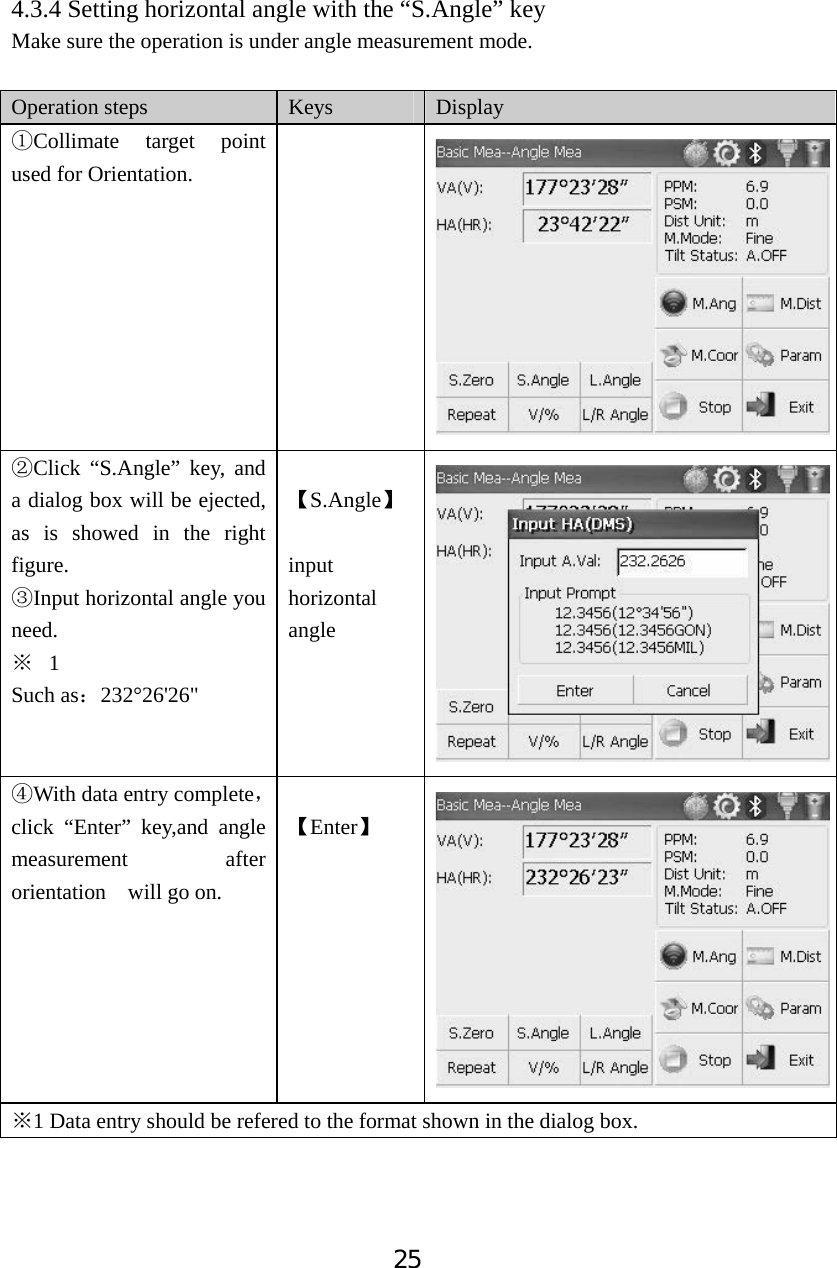
254.3.4 Setting horizontal angle with the “S.Angle” key Make sure the operation is under angle measurement mode. Operation steps  Keys Display ķCollimate target point used for Orientation. ĸClick “S.Angle” key, and a dialog box will be ejected, as is showed in the right figure.ĹInput horizontal angle you need. Ć 1Such as˖232°26'26" ǏS.Angleǐinput horizontal angleĺWith data entry completeˈclick “Enter” key,and angle measurement after orientation  will go on. ǏEnterǐĆ1 Data entry should be refered to the format shown in the dialog box.
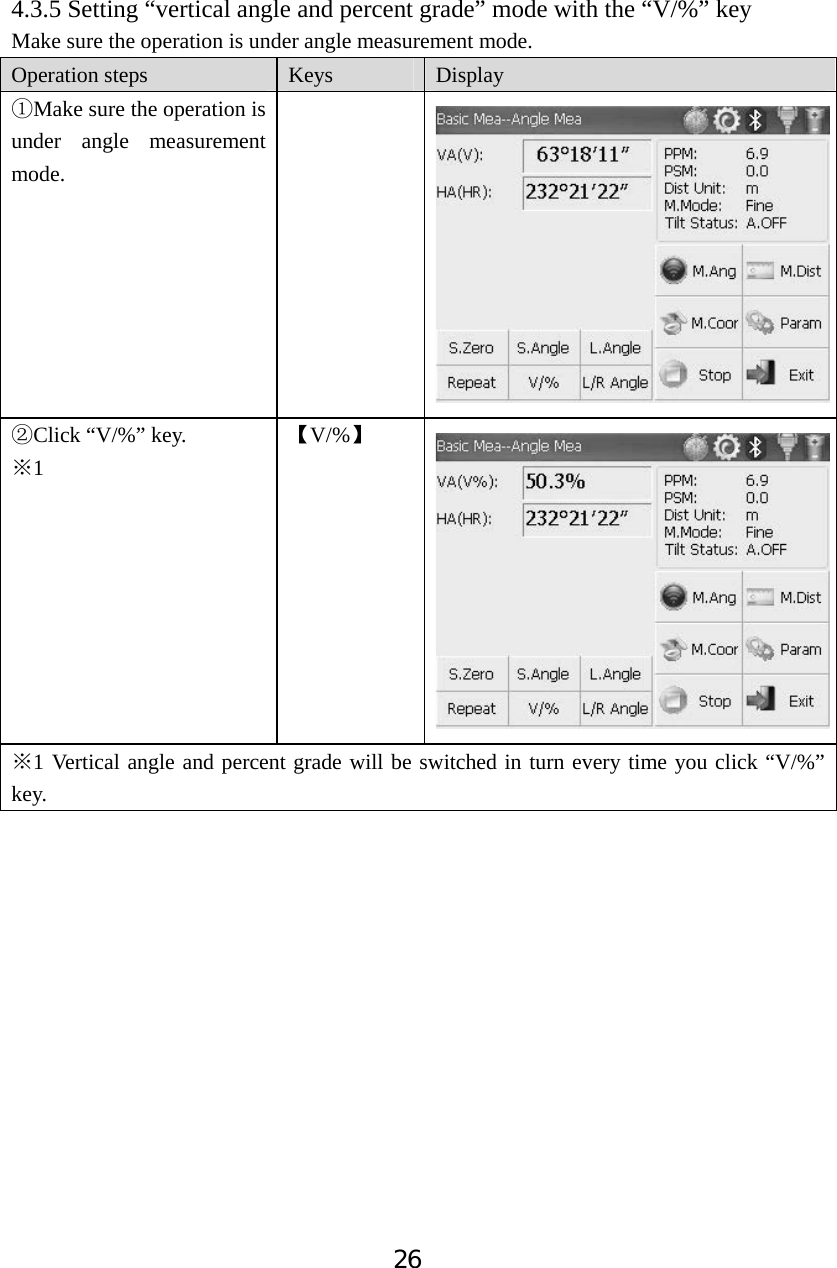
264.3.5 Setting “vertical angle and percent grade” mode with the “V/%” key Make sure the operation is under angle measurement mode. Operation steps  Keys Display ķMake sure the operation is under angle measurement mode. ĸClick “V/%” key.   1ĆǏV/%ǐ1ĆVertical angle and percent grade will be switched in turn every time you click “V/%” key.
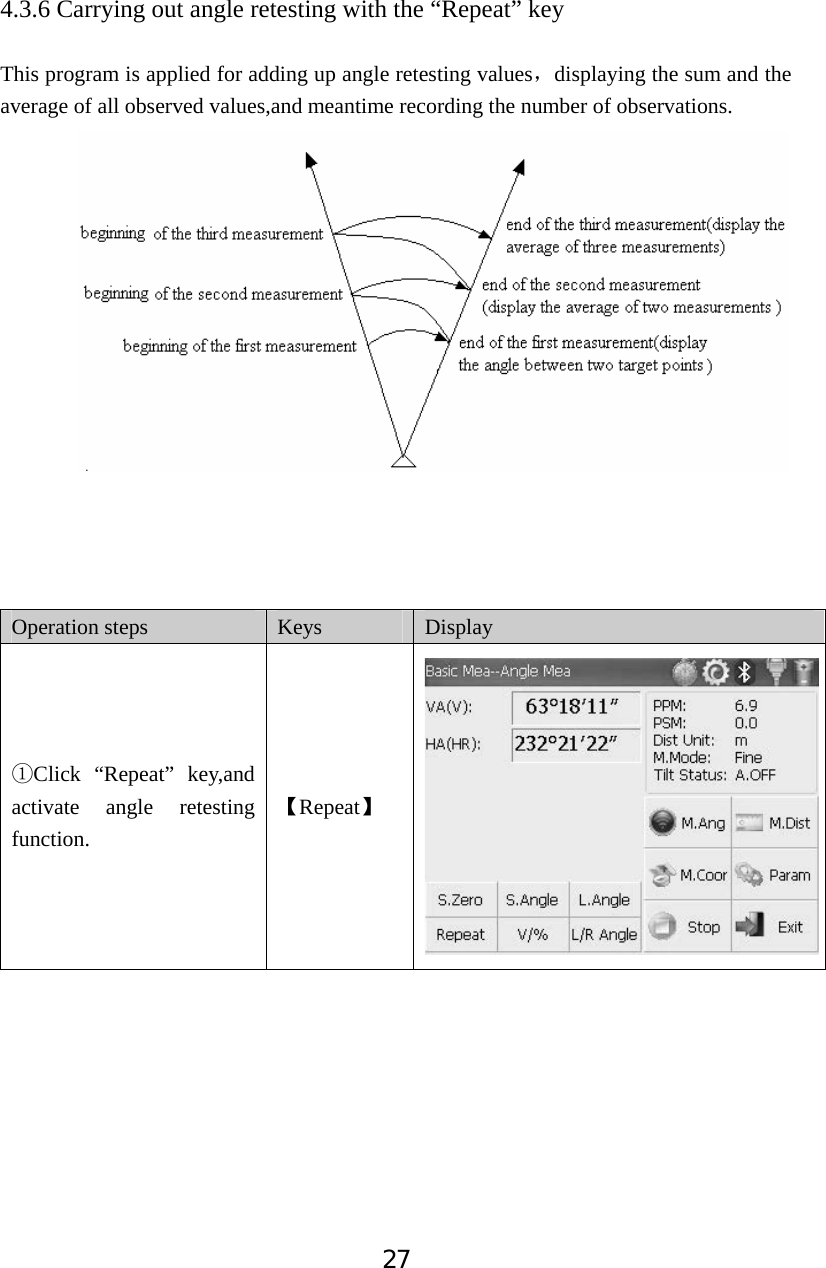
274.3.6 Carrying out angle retesting with the “Repeat” key This program is applied for adding up angle retesting valuesˈdisplaying the sum and the average of all observed values,and meantime recording the number of observations.   Operation steps  Keys Display ķClick “Repeat” key,and activate angle retesting function. ǏRepeatǐ
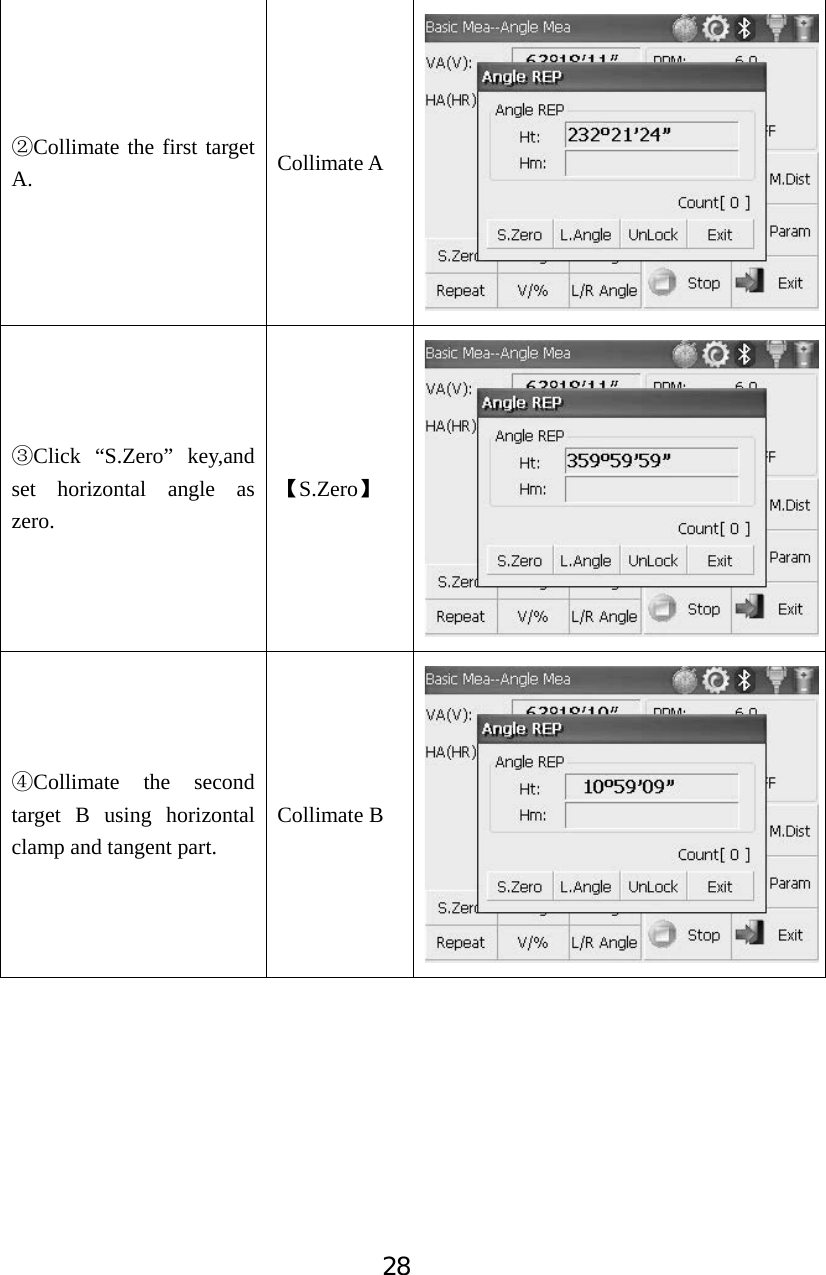
28ĸCollimate the first target A. Collimate A ĹClick “S.Zero” key,and set horizontal angle as zero.ǏS.ZeroǐĺCollimate the second target B using horizontal clamp and tangent part. Collimate B
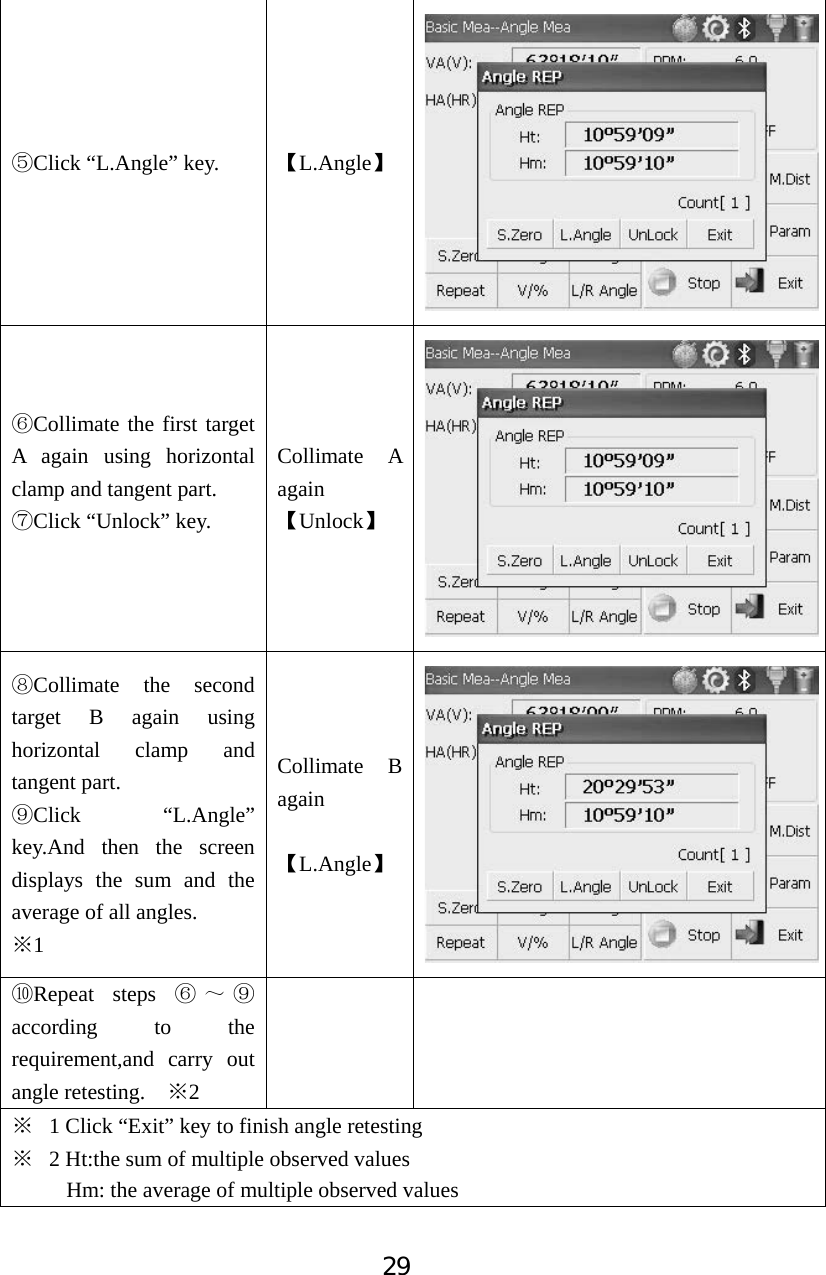
29ĻClick “L.Angle” key.  ǏL.AngleǐļCollimate the first target A again using horizontal clamp and tangent part.   ĽClick “Unlock” key. Collimate A again ǏUnlockǐľCollimate the second target B again using horizontal clamp and tangent part. ĿClick “L.Angle” key.And then the screen displays the sum and the average of all angles. Ć1Collimate B again ǏL.AngleǐŀRepeat steps ļ̚Ŀaccording to the requirement,and carry out angle retesting.    Ć2Ć 1 Click “Exit” key to finish angle retesting Ć 2 Ht:the sum of multiple observed values   Hm: the average of multiple observed values
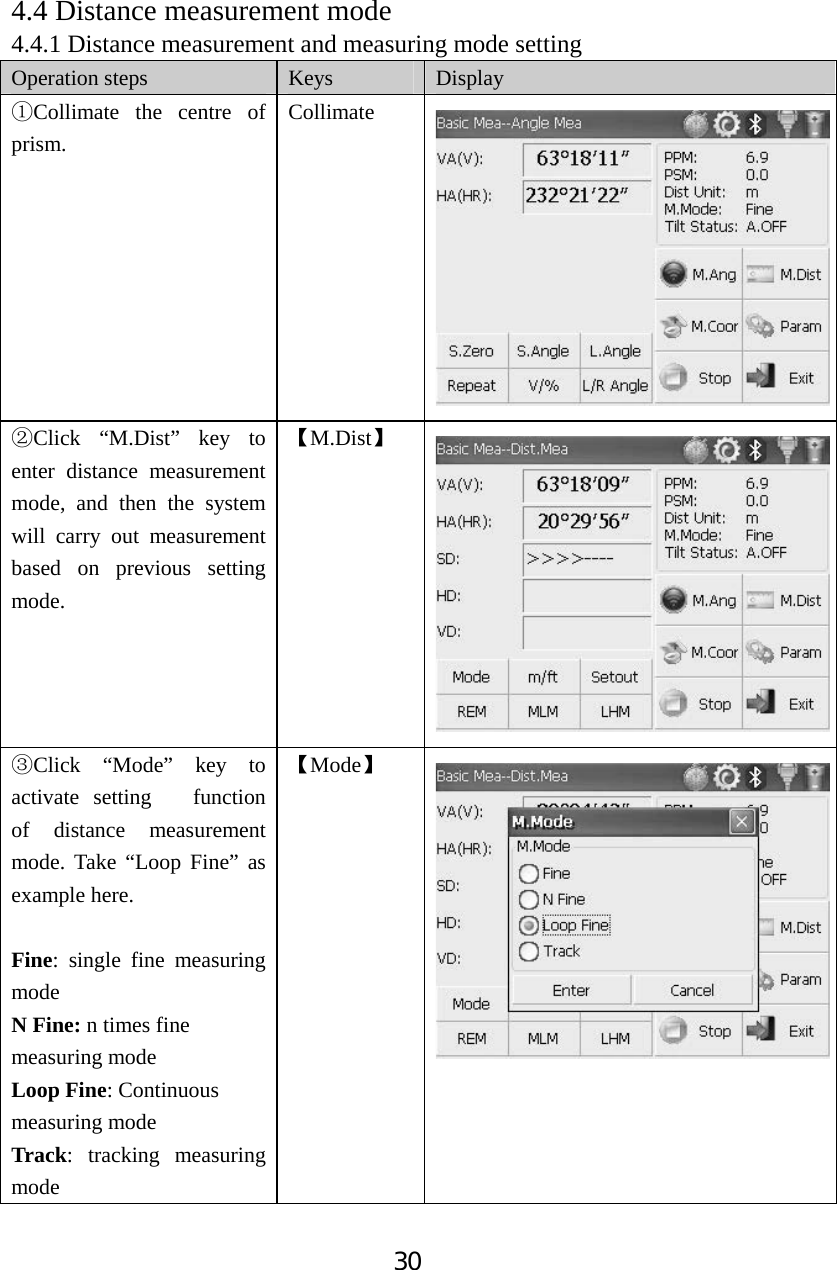
304.4 Distance measurement mode 4.4.1 Distance measurement and measuring mode setting Operation steps  Keys Display ķCollimate the centre of prism. Collimate ĸClick “M.Dist” key to enter distance measurement mode, and then the system will carry out measurement based on previous setting mode.  ǏM.DistǐĹClick “Mode” key to activate setting   function of distance measurement mode. Take “Loop Fine” as example here. Fine: single fine measuring mode N Fine: n times fine measuring mode Loop Fine: Continuous measuring mode Track: tracking measuring mode ǏModeǐ
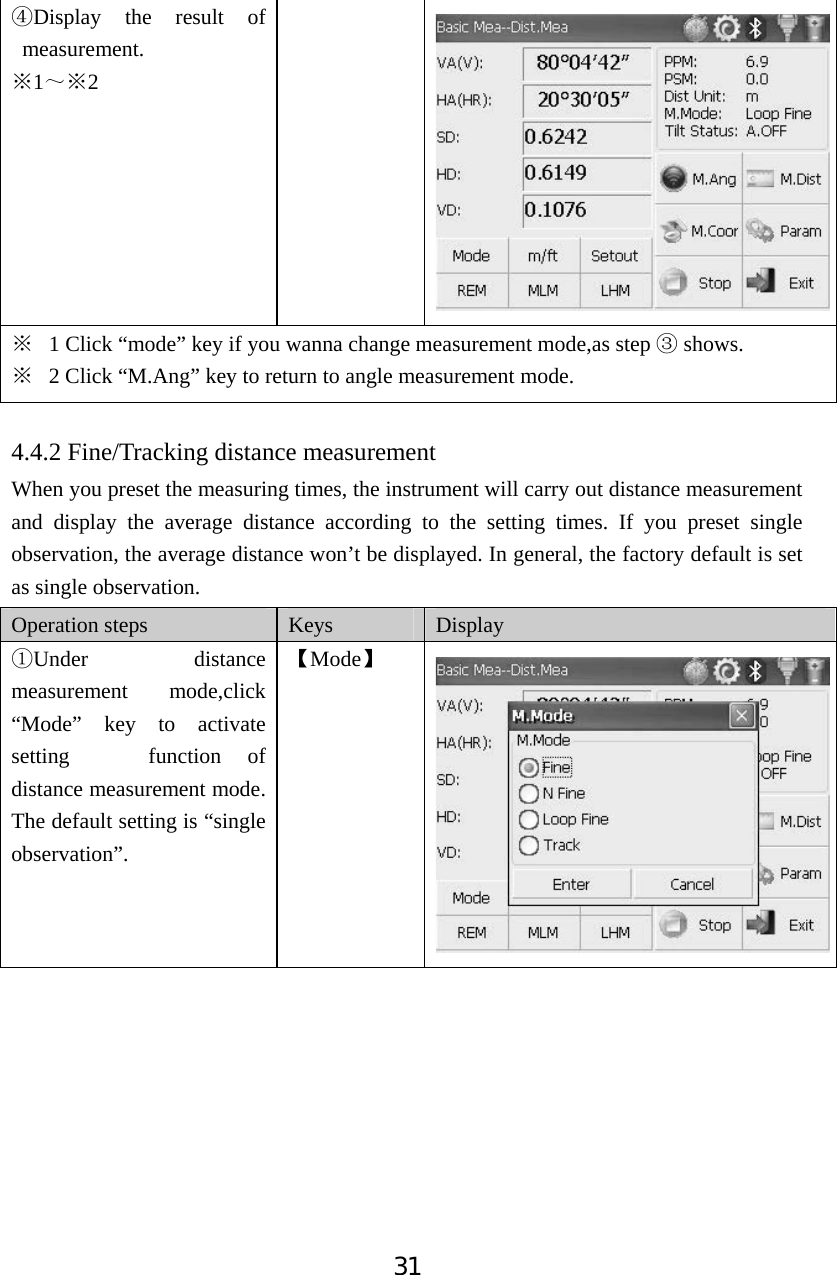
31ĺDisplay the result of measurement. 1Ć̚2ĆĆ 1 Click “mode” key if you wanna change measurement mode,as step   shows.ĹĆ 2 Click “M.Ang” key to return to angle measurement mode. 4.4.2 Fine/Tracking distance measurement When you preset the measuring times, the instrument will carry out distance measurement and display the average distance according to the setting times. If you preset single observation, the average distance won’t be displayed. In general, the factory default is set as single observation.       Operation steps  Keys Display ķUnder distance measurement mode,click “Mode” key to activate setting   function of distance measurement mode. The default setting is “single observation”. ǏModeǐ
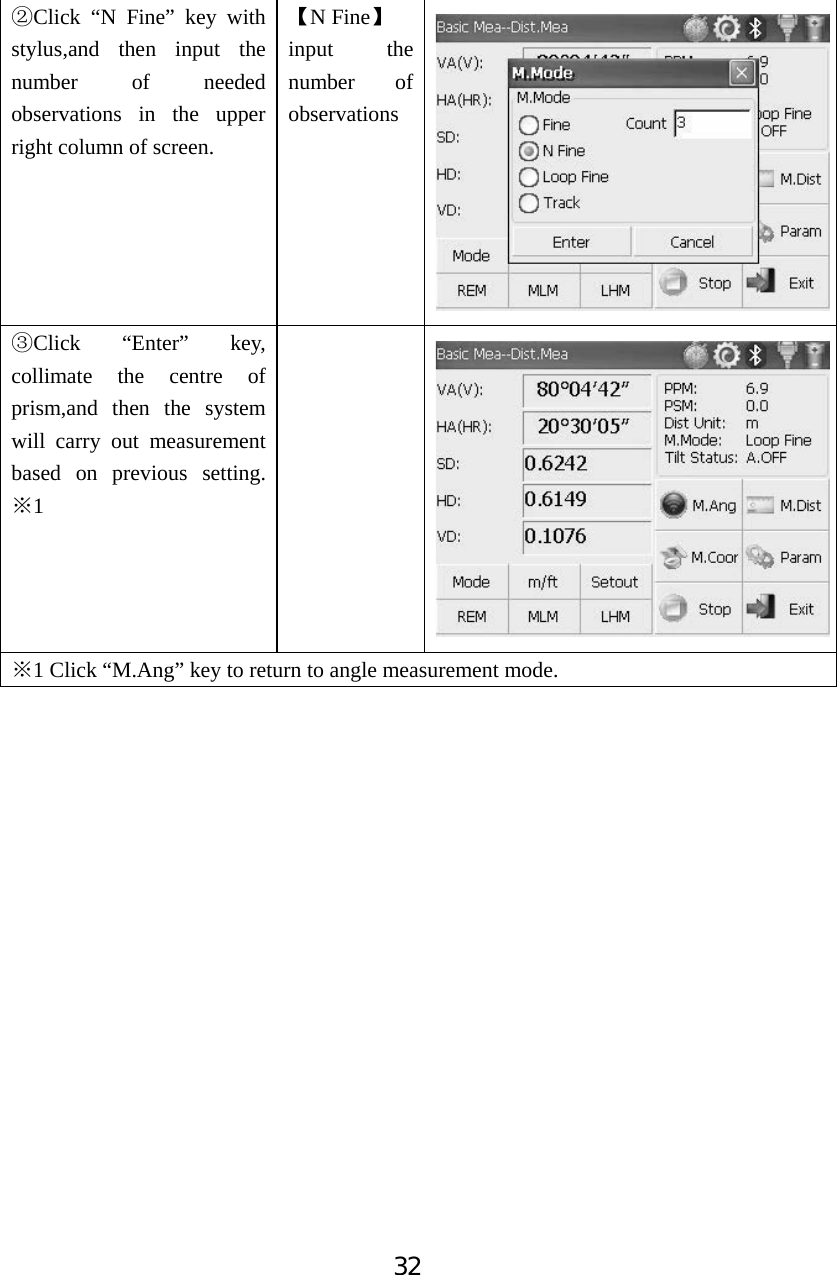
32ĸClick “N Fine” key with stylus,and then input the number of needed observations in the upper right column of screen. ǏN Fineǐinput the number of observations ĹClick “Enter” key, collimate the centre of prism,and then the system will carry out measurement based on previous setting. 1Ć1ĆClick “M.Ang” key to return to angle measurement mode.
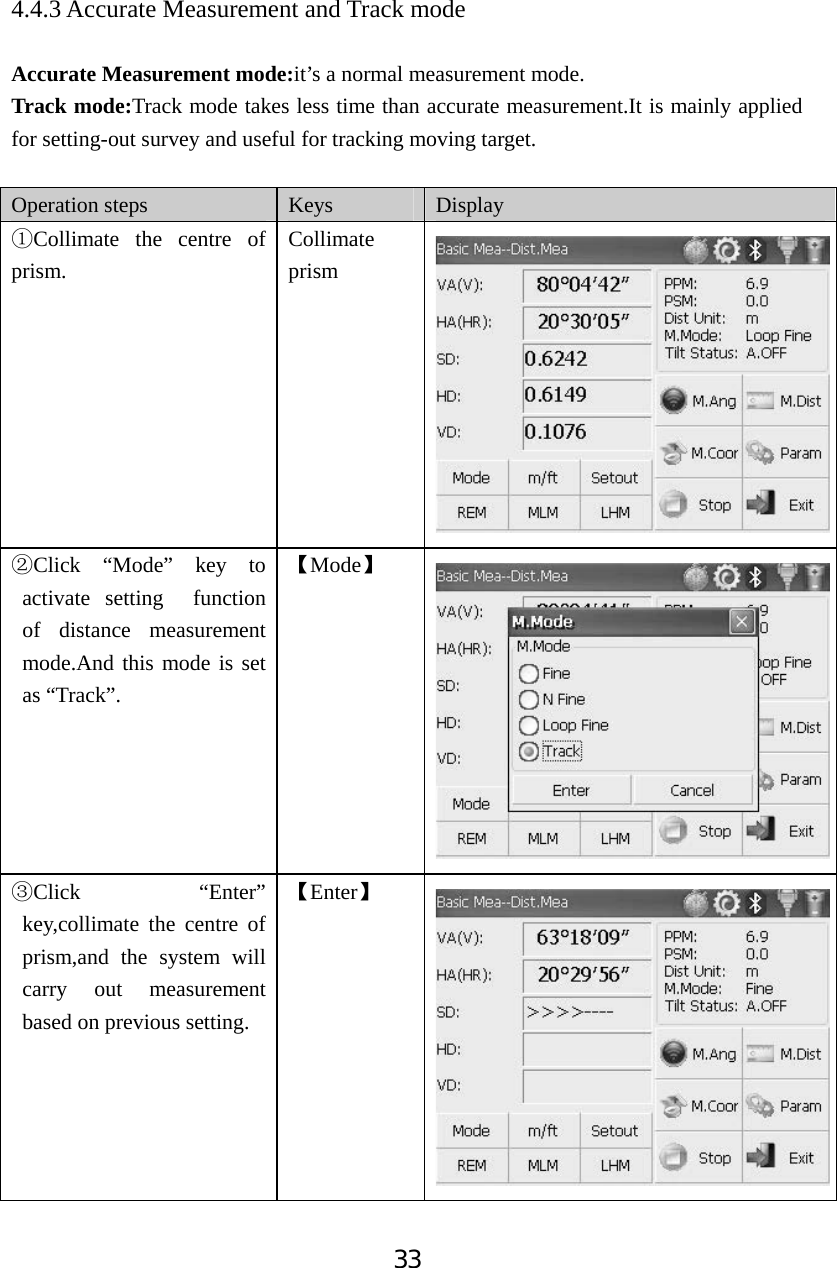
334.4.3 Accurate Measurement and Track mode Accurate Measurement mode:it’s a normal measurement mode. Track mode:Track mode takes less time than accurate measurement.It is mainly applied for setting-out survey and useful for tracking moving target.Operation steps  Keys Display ķCollimate the centre of prism. Collimate prism ĸClick “Mode” key to activate setting  function of distance measurement mode.And this mode is set as “Track”.   ǏModeǐĹClick “Enter” key,collimate the centre of prism,and the system will carry out measurement based on previous setting.   ǏEnterǐ
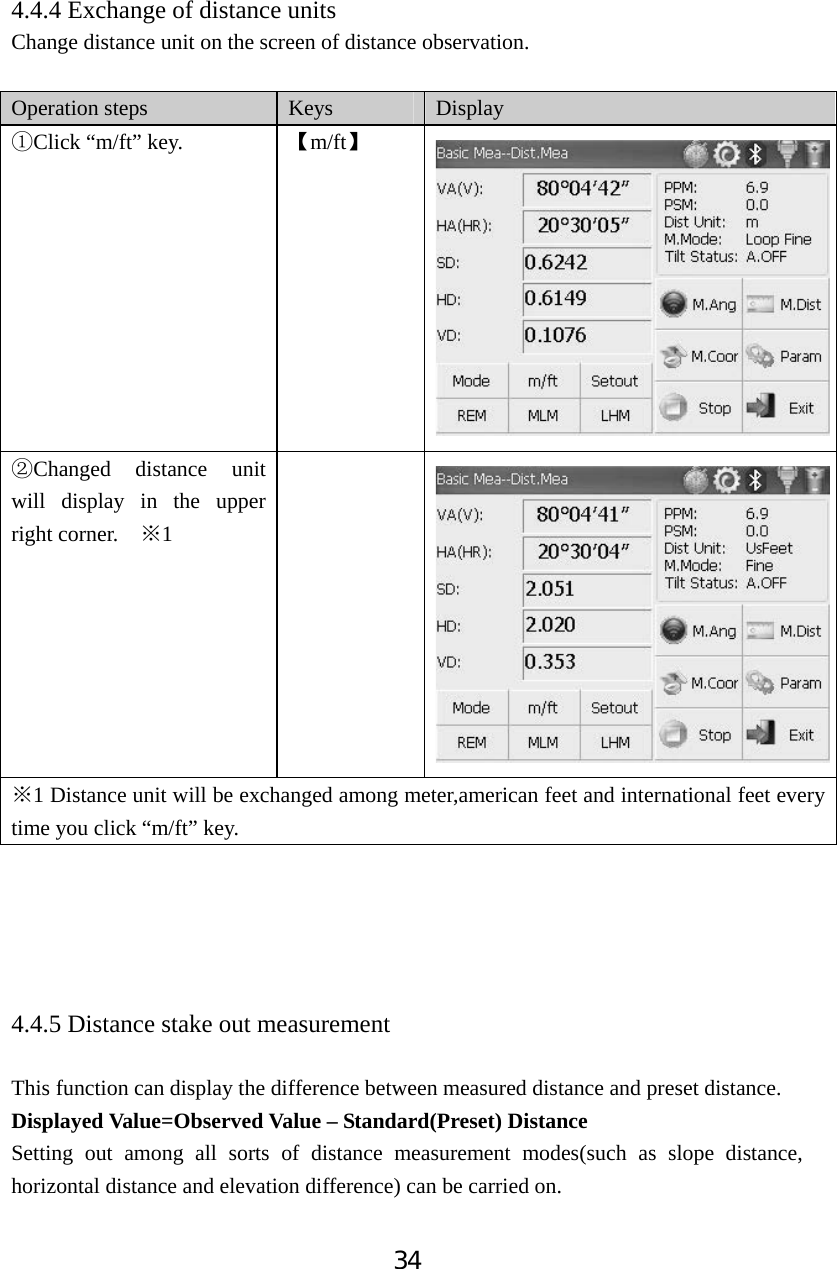
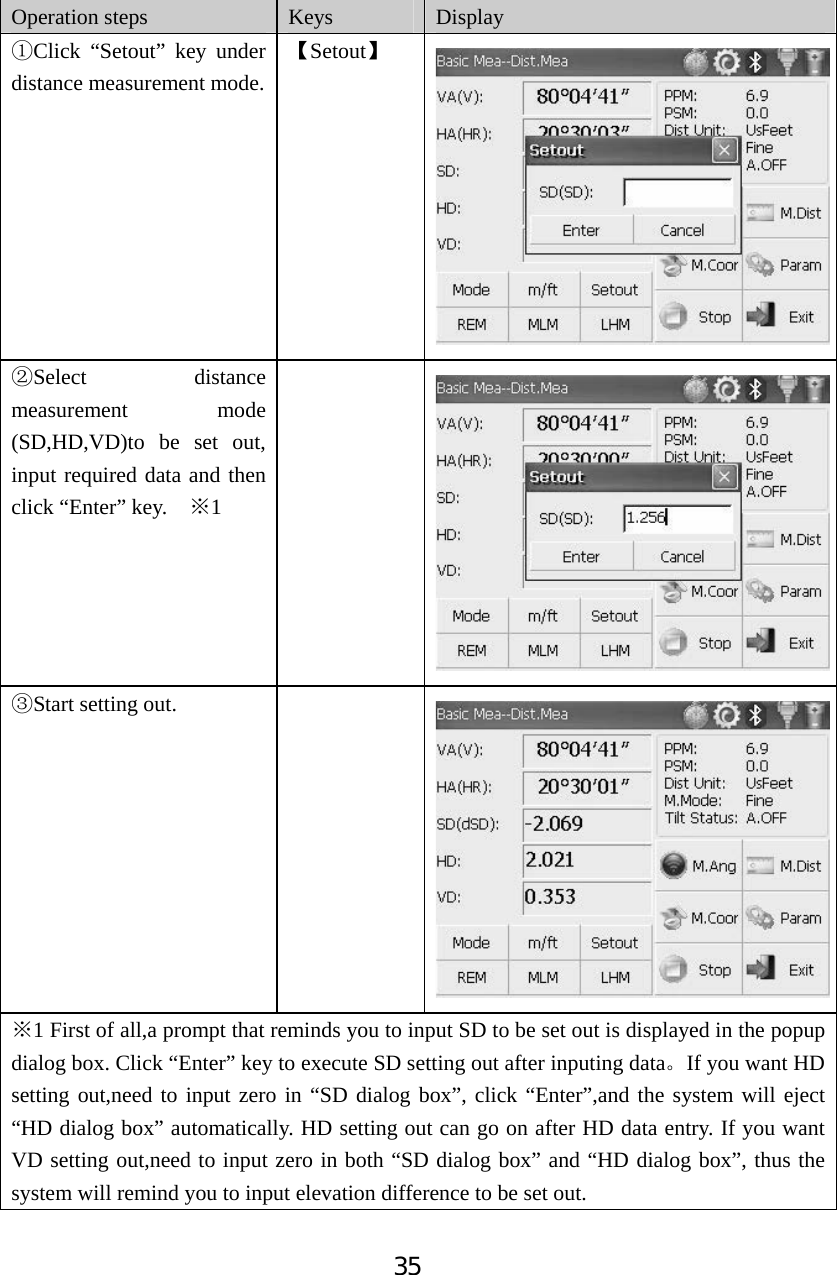
344.4.4 Exchange of distance units Change distance unit on the screen of distance observation.   Operation steps  Keys Display ķClick “m/ft” key.  Ǐm/ftǐĸChanged distance unit will display in the upper right corner.    Ć1Ć1 Distance unit will be exchanged among meter,american feet and international feet every time you click “m/ft” key. 4.4.5 Distance stake out measurement This function can display the difference between measured distance and preset distance. Displayed Value=Observed Value – Standard(Preset) Distance Setting out among all sorts of distance measurement modes(such as slope distance, horizontal distance and elevation difference) can be carried on.
35Operation steps  Keys Display ķClick “Setout” key under distance measurement mode. ǏSetoutǐĸSelect distance measurement mode (SD,HD,VD)to be set out, input required data and then click “Enter” key.    Ć1ĹStart setting out.   Ć1 First of all,a prompt that reminds you to input SD to be set out is displayed in the popup dialog box. Click “Enter” key to execute SD setting out after inputing dataDŽIf you want HD setting out,need to input zero in “SD dialog box”, click “Enter”,and the system will eject “HD dialog box” automatically. HD setting out can go on after HD data entry. If you want VD setting out,need to input zero in both “SD dialog box” and “HD dialog box”, thus the system will remind you to input elevation difference to be set out.
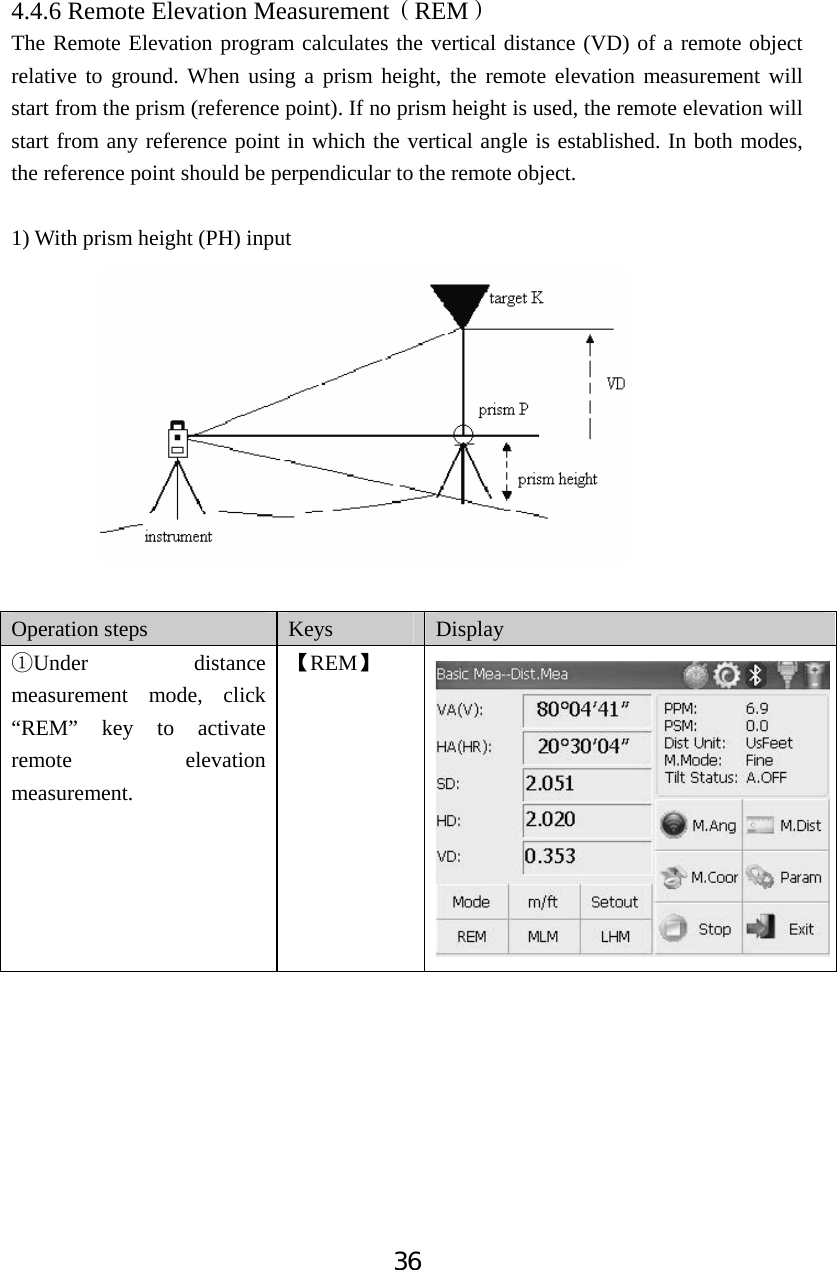
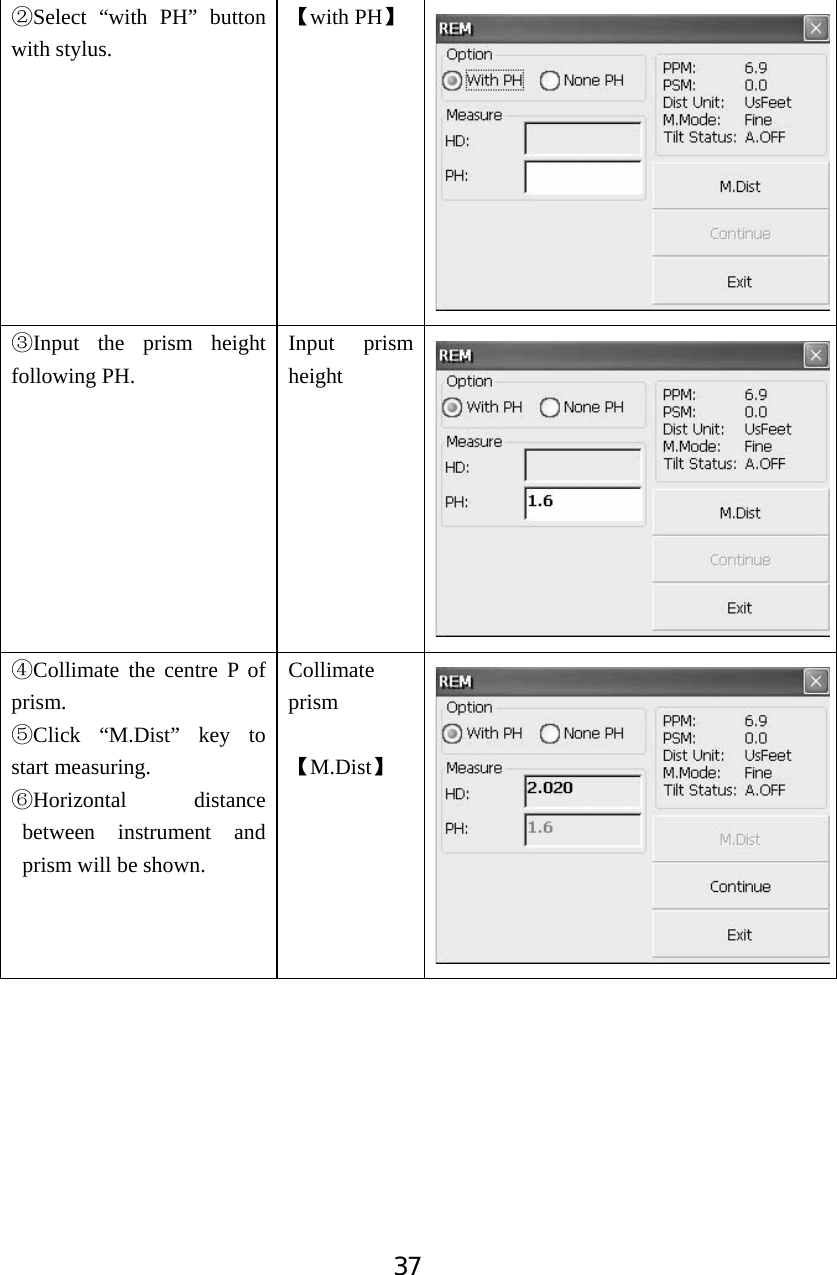
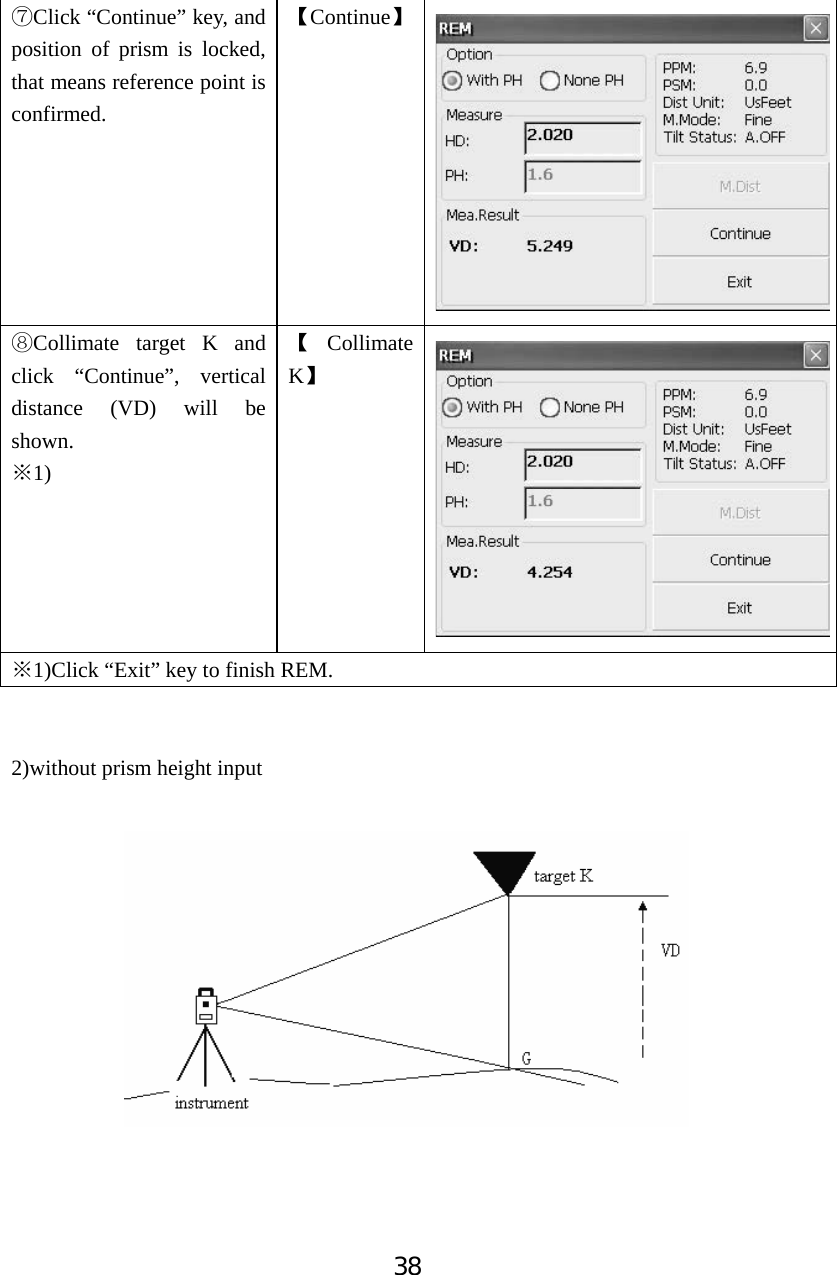
364.4.6 Remote Elevation MeasurementďREMĐThe Remote Elevation program calculates the vertical distance (VD) of a remote object relative to ground. When using a prism height, the remote elevation measurement will start from the prism (reference point). If no prism height is used, the remote elevation will start from any reference point in which the vertical angle is established. In both modes, the reference point should be perpendicular to the remote object.   1) With prism height (PH) input Operation steps  Keys Display ķUnder distance measurement mode, click “REM” key to activate remote elevation measurement. ǏREMǐ
37ĸSelect “with PH” button with stylus. Ǐwith PHǐĹInput the prism height following PH. Input prism height ĺCollimate the centre P of prism. ĻClick “M.Dist” key to start measuring. ļHorizontal distance between instrument and prism will be shown. Collimate prism ǏM.Distǐ
38ĽClick “Continue” key, and position of prism is locked, that means reference point is confirmed. ǏContinueǐľCollimate target K and click “Continue”, vertical distance (VD) will be shown. Ć1)ǏCollimate KǐĆ1)Click “Exit” key to finish REM. 2)without prism height input
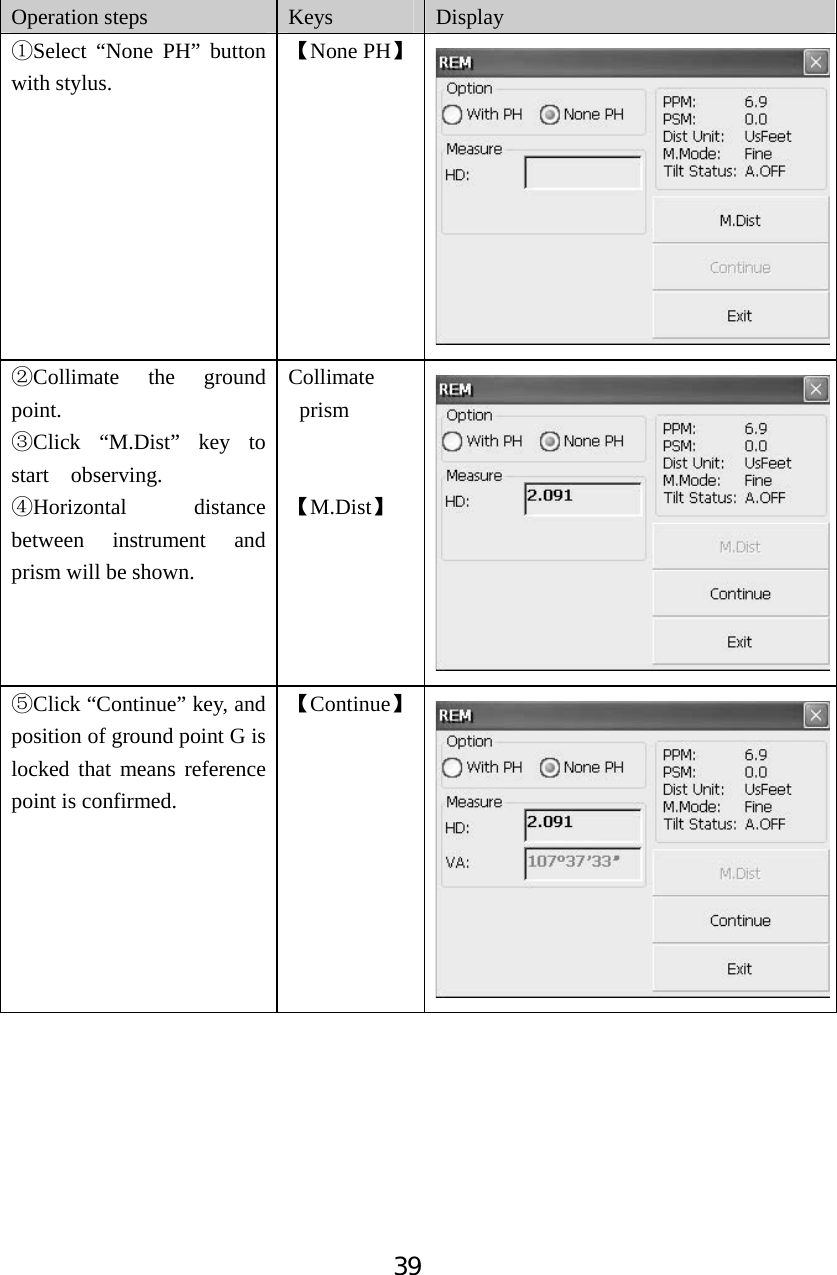
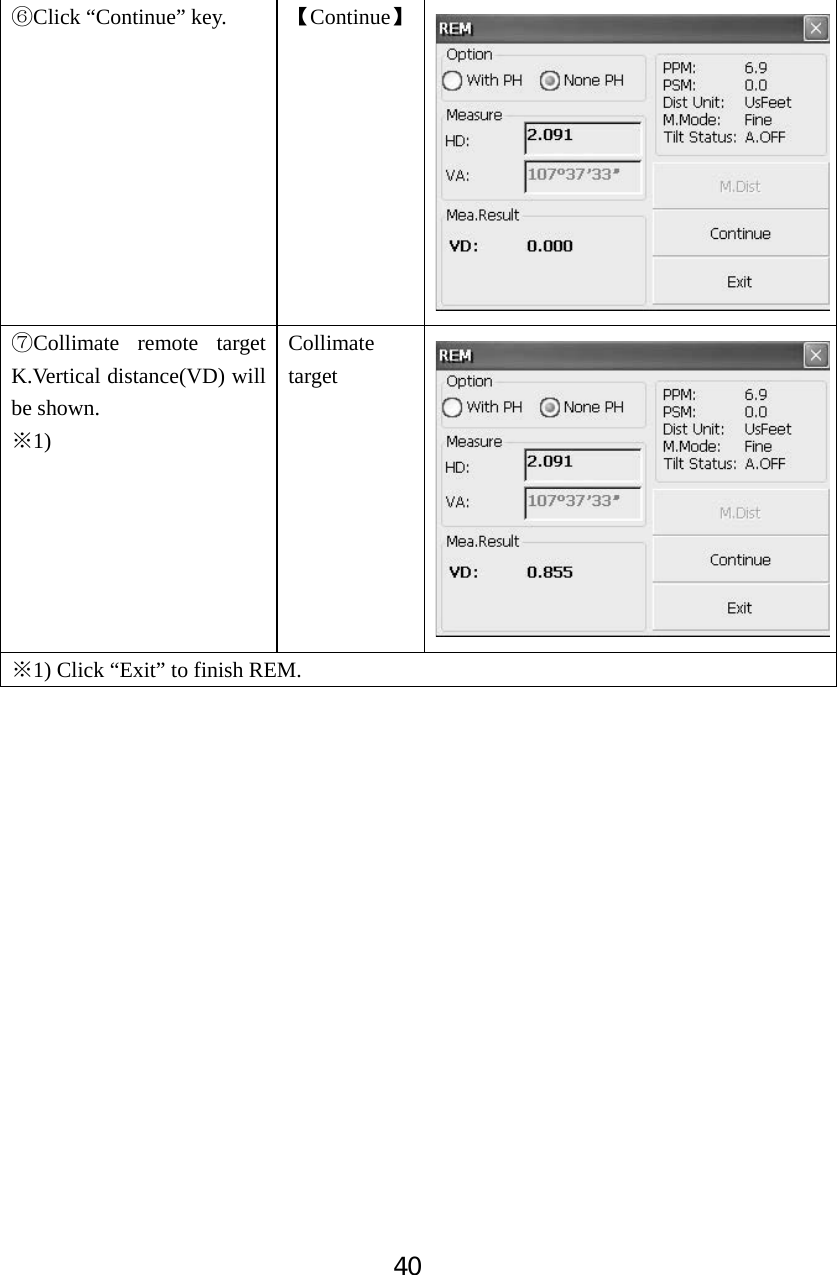
39Operation steps  Keys Display ķSelect “None PH” button with stylus. ǏNone PHǐĸCollimate the ground point. ĹClick “M.Dist” key to start  observing. ĺHorizontal distance between instrument and prism will be shown. Collimate prism ǏM.DistǐĻClick “Continue” key, and position of ground point G is locked that means reference point is confirmed. ǏContinueǐ
40ļClick “Continue” key.  ǏContinueǐĽCollimate remote target K.Vertical distance(VD) will be shown. 1)ĆCollimate target 1)Ć Click “Exit” to finish REM.
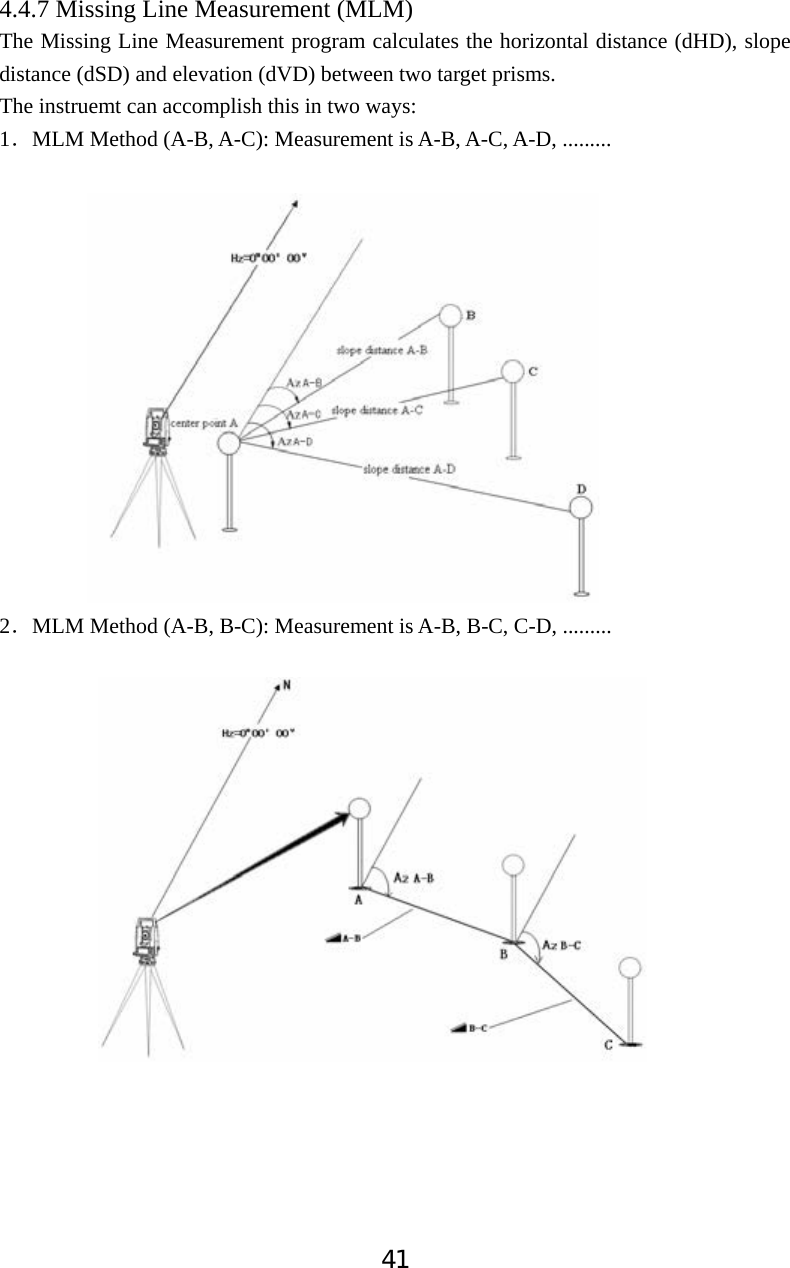
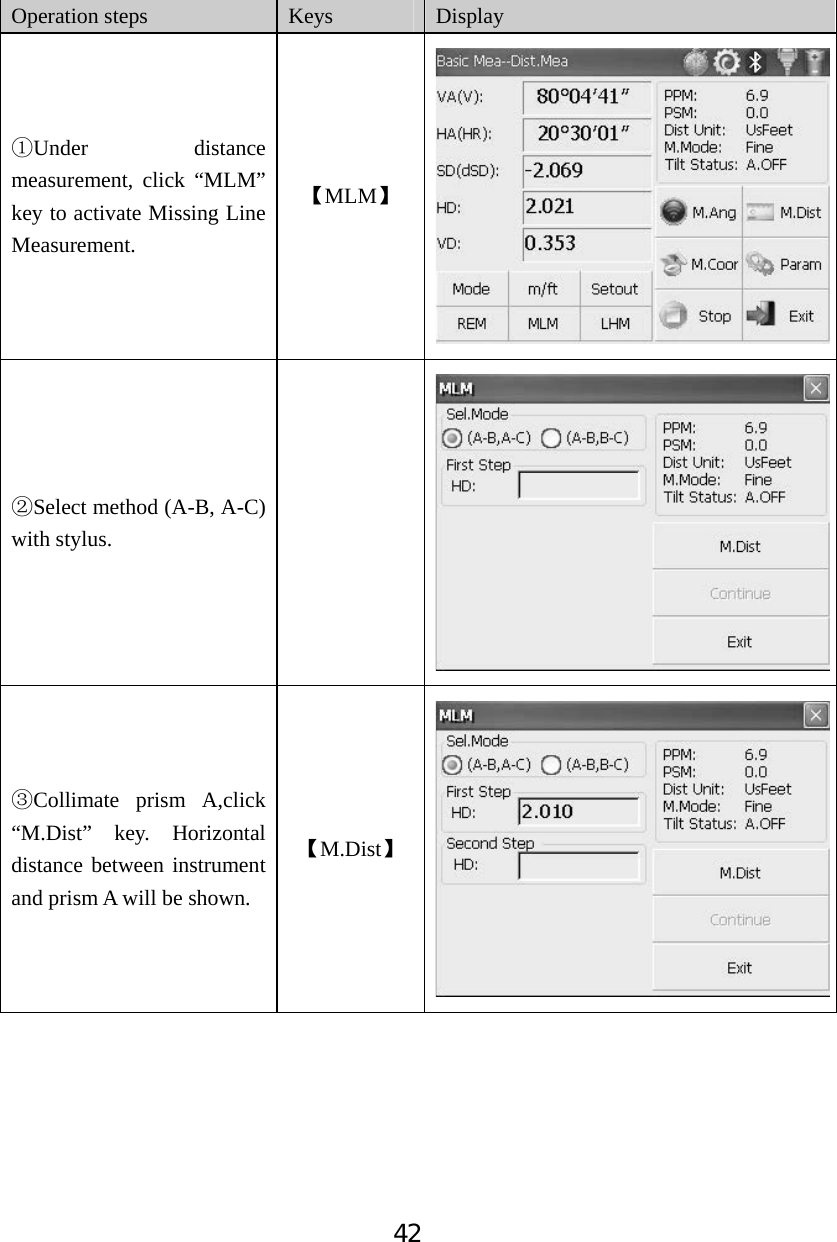
414.4.7 Missing Line Measurement (MLM) The Missing Line Measurement program calculates the horizontal distance (dHD), slope distance (dSD) and elevation (dVD) between two target prisms. The instruemt can accomplish this in two ways: 1ˊMLM Method (A-B, A-C): Measurement is A-B, A-C, A-D, ......... 2ˊMLM Method (A-B, B-C): Measurement is A-B, B-C, C-D, .........
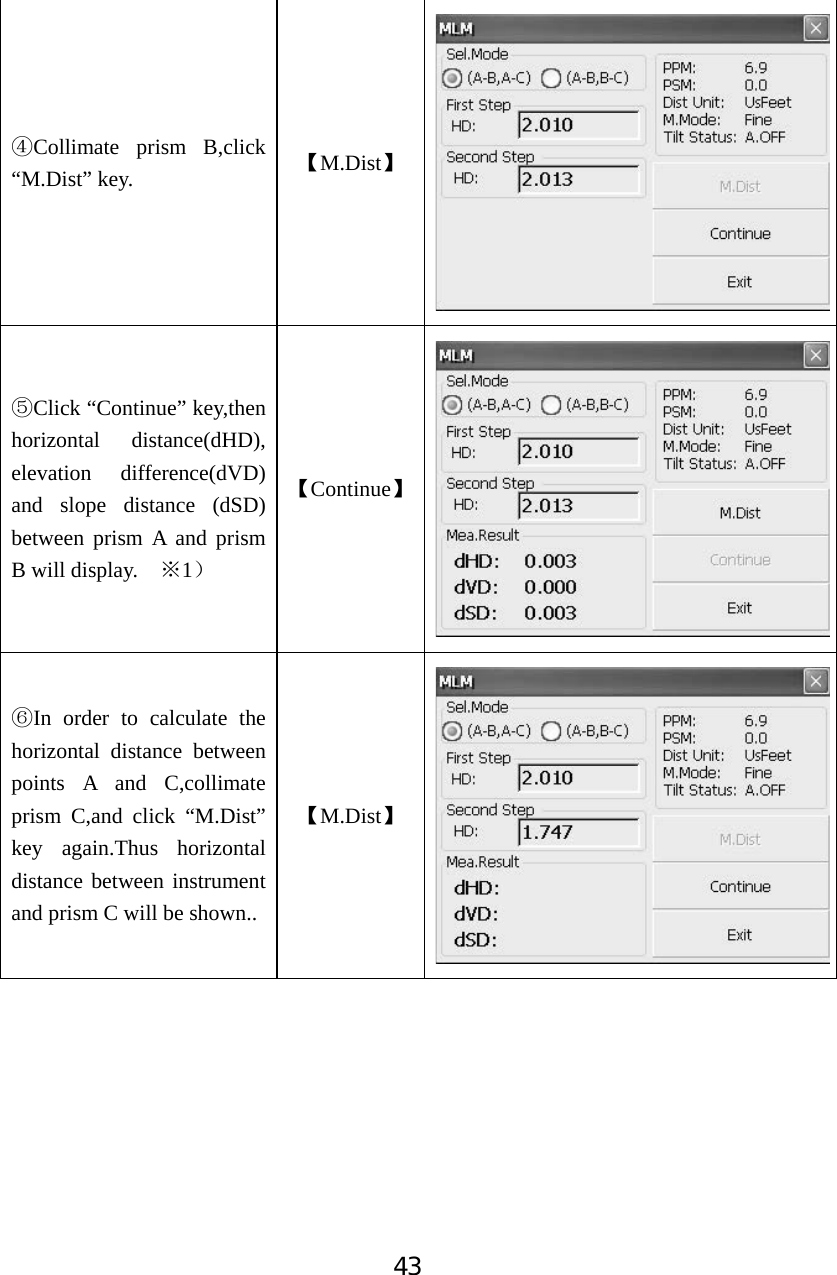
42Operation steps  Keys Display ķUnder distance measurement, click “MLM” key to activate Missing Line Measurement. ǏMLMǐĸSelect method (A-B, A-C) with stylus. ĹCollimate prism A,click “M.Dist” key. Horizontal distance between instrument and prism A will be shown. ǏM.Distǐ
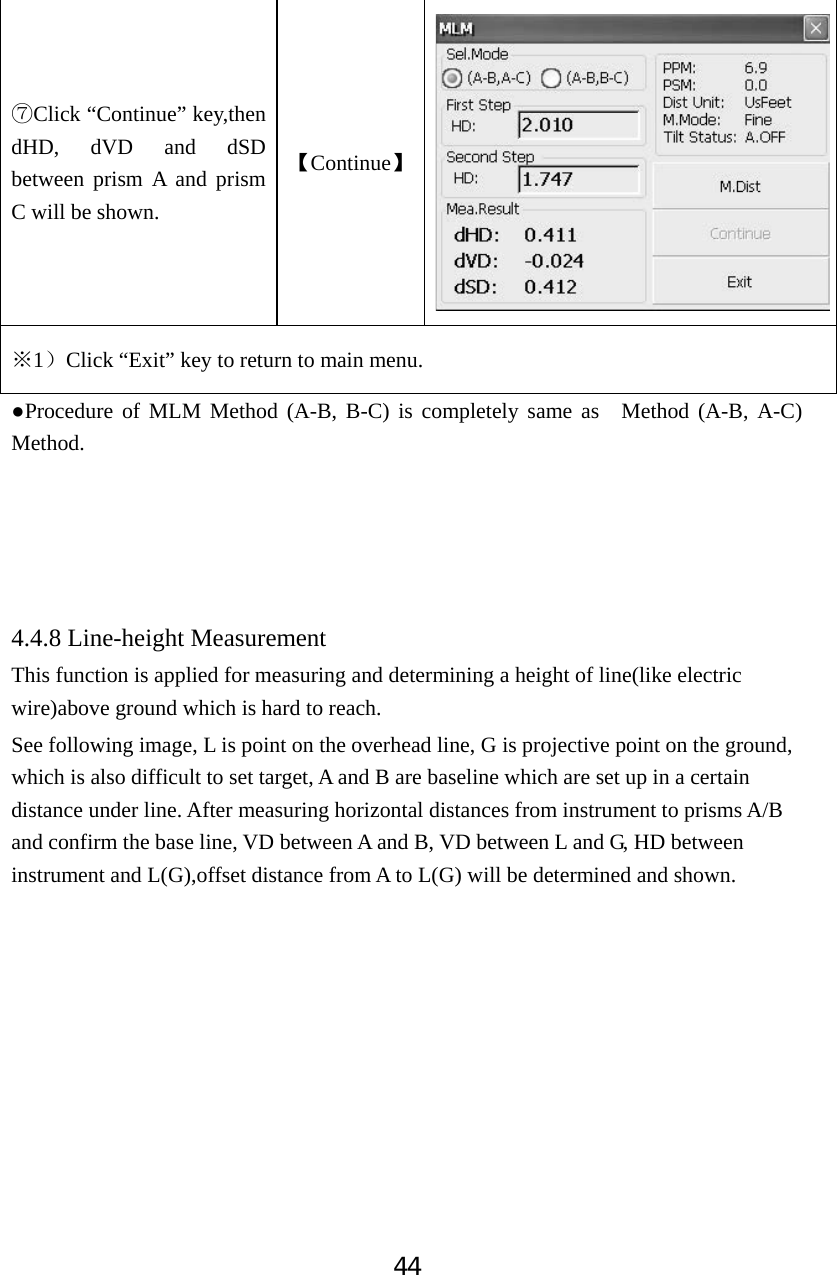
43ĺCollimate prism B,click “M.Dist” key.  ǏM.DistǐĻClick “Continue” key,then horizontal distance(dHD), elevation difference(dVD) and slope distance (dSD) between prism A and prism B will display.    1Ć˅ǏContinueǐļIn order to calculate the horizontal distance between points A and C,collimate prism C,and click “M.Dist” key again.Thus horizontal distance between instrument and prism C will be shown.. ǏM.Distǐ
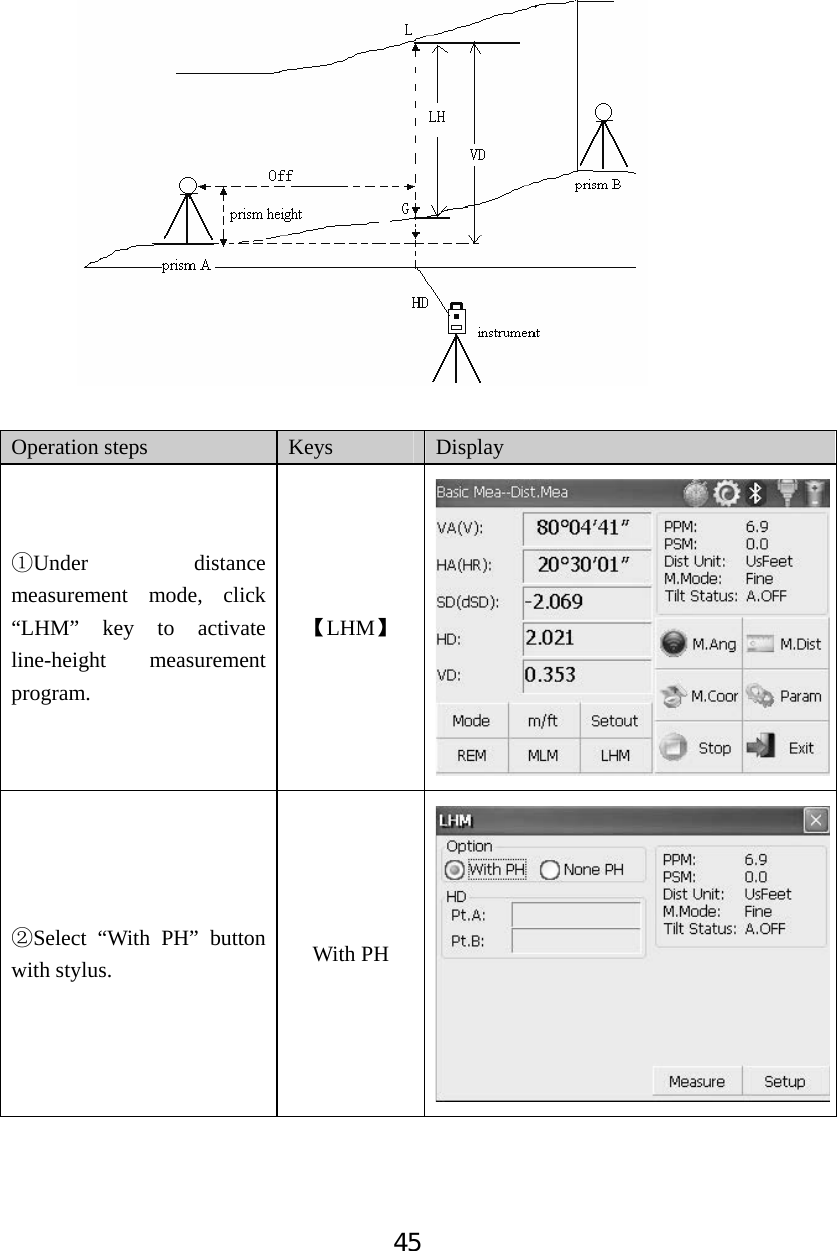
44ĽClick “Continue” key,then dHD, dVD and dSD between prism A and prism C will be shown. ǏContinueǐ1Ć˅Click “Exit” key to return to main menu.     ƔProcedure of MLM Method (A-B, B-C) is completely same as  Method (A-B, A-C) Method. 4.4.8 Line-height Measurement This function is applied for measuring and determining a height of line(like electric wire)above ground which is hard to reach.   See following image, L is point on the overhead line, G is projective point on the ground, which is also difficult to set target, A and B are baseline which are set up in a certain distance under line. After measuring horizontal distances from instrument to prisms A/B and confirm the base line, VD between A and B, VD between L and G, HD between instrument and L(G),offset distance from A to L(G) will be determined and shown.
45Operation steps  Keys Display ķUnder distance measurement mode, click “LHM” key to activate line-height measurement program. ǏLHMǐĸSelect “With PH” button with stylus.    With PH
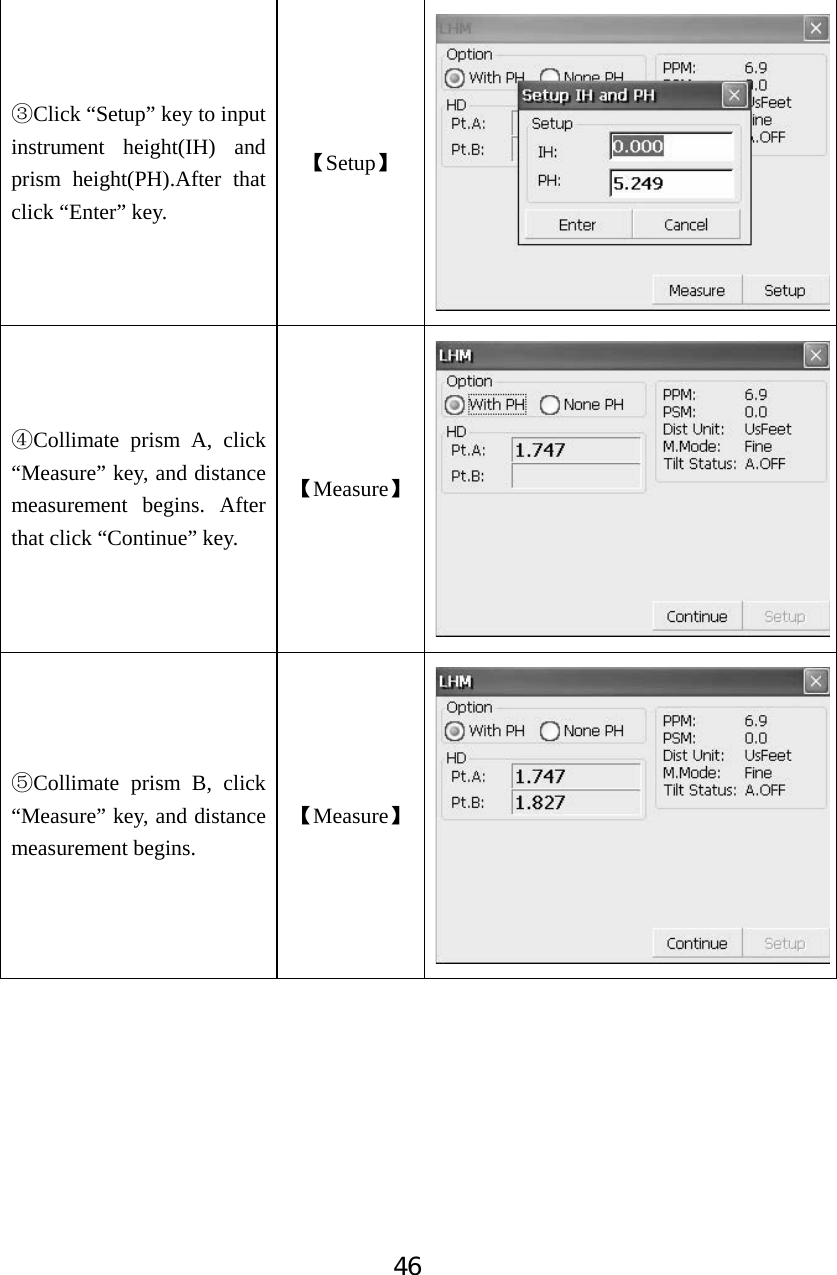
46ĹClick “Setup” key to input instrument height(IH) and prism height(PH).After that click “Enter” key. ǏSetupǐĺCollimate prism A, click “Measure” key, and distance measurement begins. After that click “Continue” key. ǏMeasureǐĻCollimate prism B, click “Measure” key, and distance measurement begins. ǏMeasureǐ
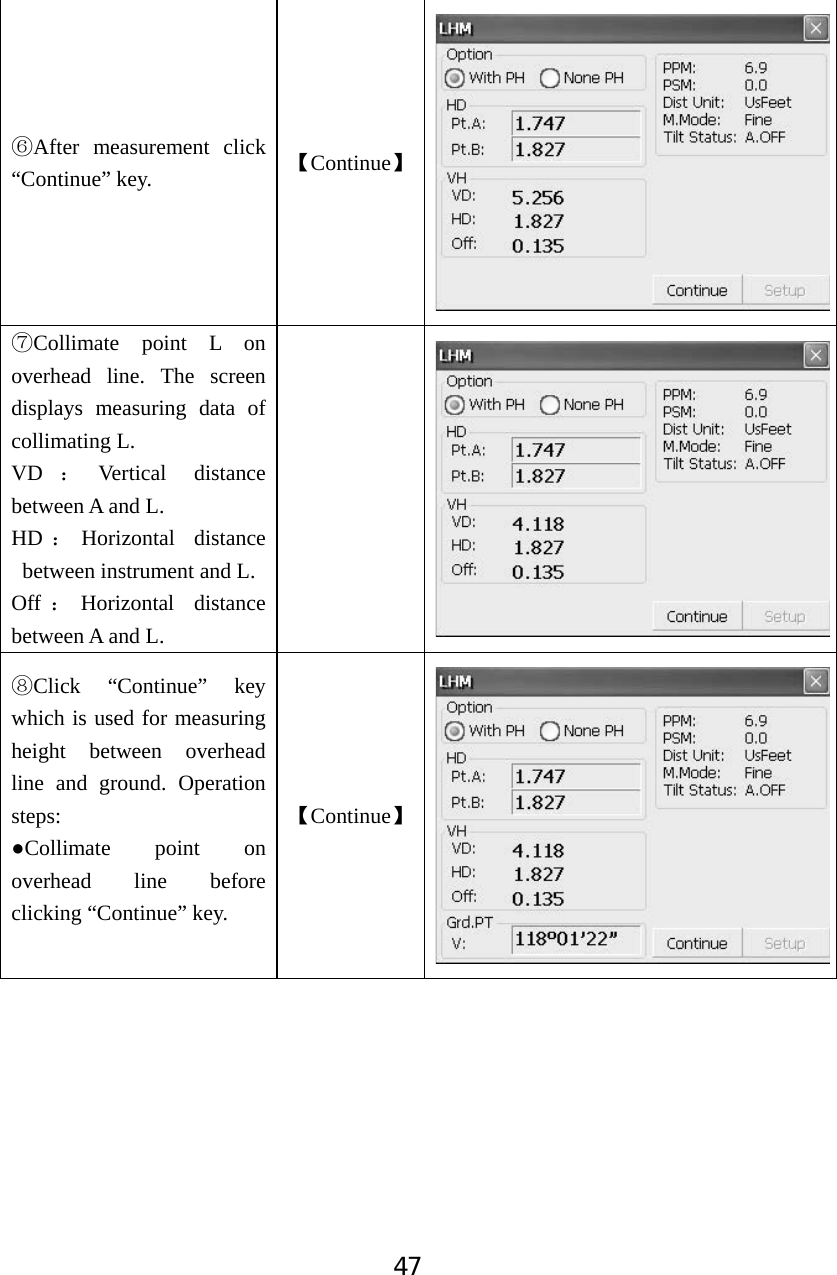
47ļAfter measurement click “Continue” key.  ǏContinueǐĽCollimate point L on overhead line. The screen displays measuring data of collimating L.   VD ˖Vertical distance between A and L.   HD ˖Horizontal distance between instrument and L. Off ˖Horizontal distance between A and L. ľClick “Continue” key which is used for measuring height between overhead line and ground. Operation steps:ƔCollimate point on overhead line before clicking “Continue” key. ǏContinueǐ
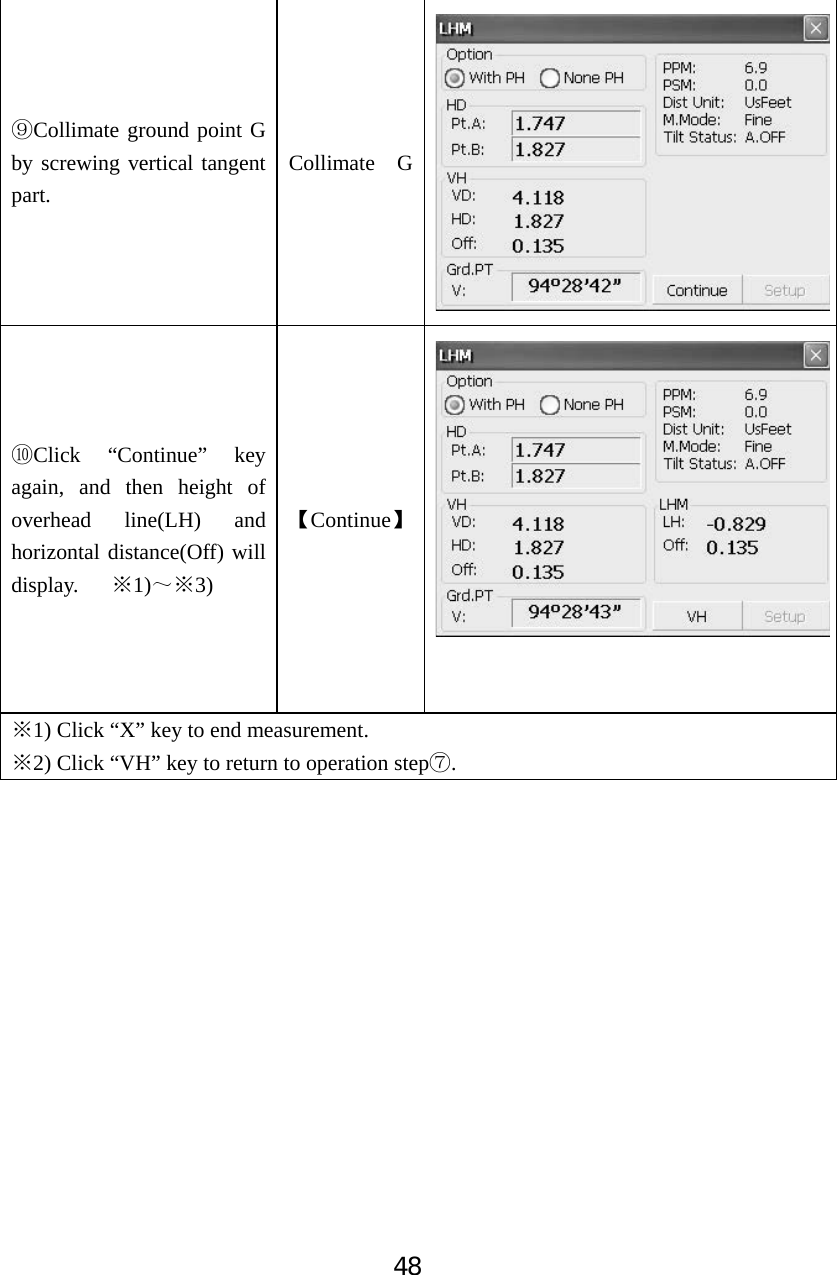
48ĿCollimate ground point G by screwing vertical tangent part.Collimate  GŀClick “Continue” key again, and then height of overhead line(LH) and horizontal distance(Off) will display.    1)Ć̚3)ĆǏContinueǐ1)Ć Click “X” key to end measurement. 2)Ć Click “VH” key to return to operation stepĽ.
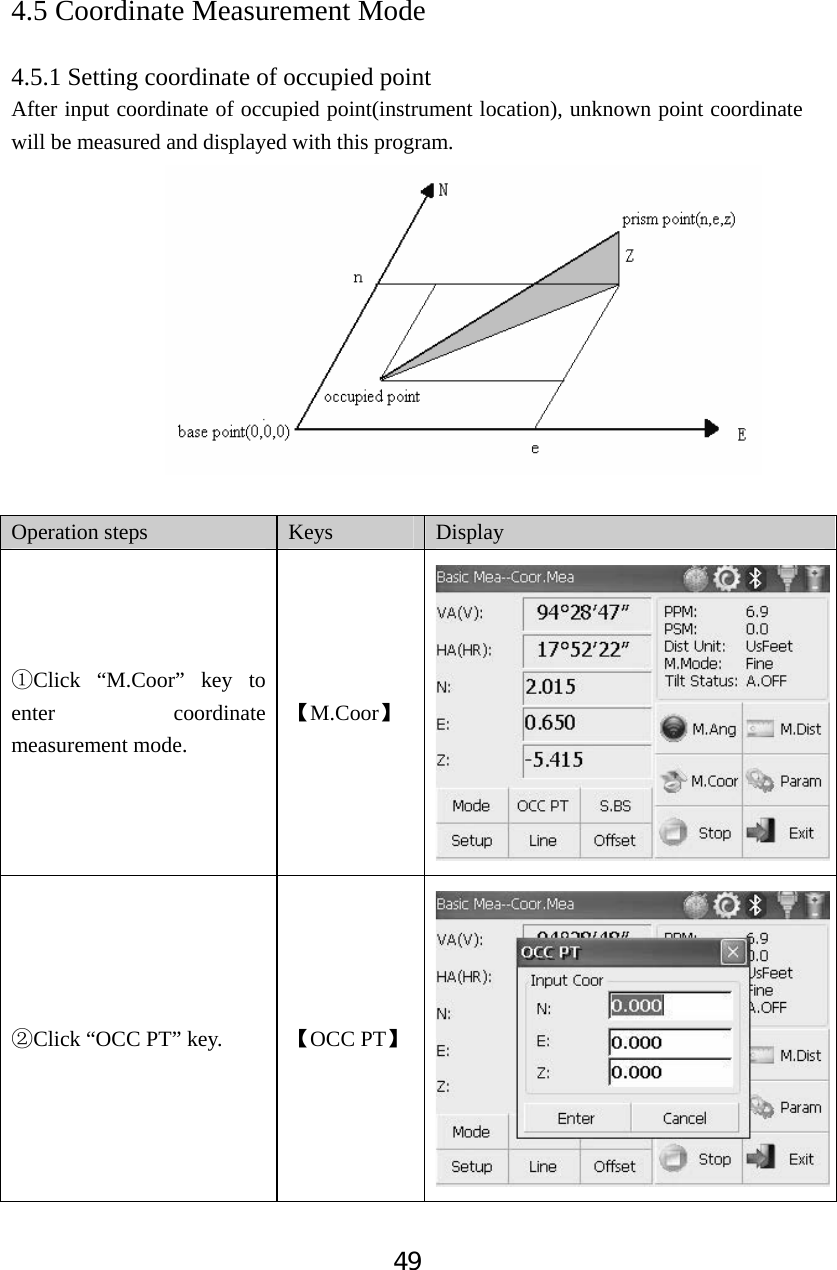
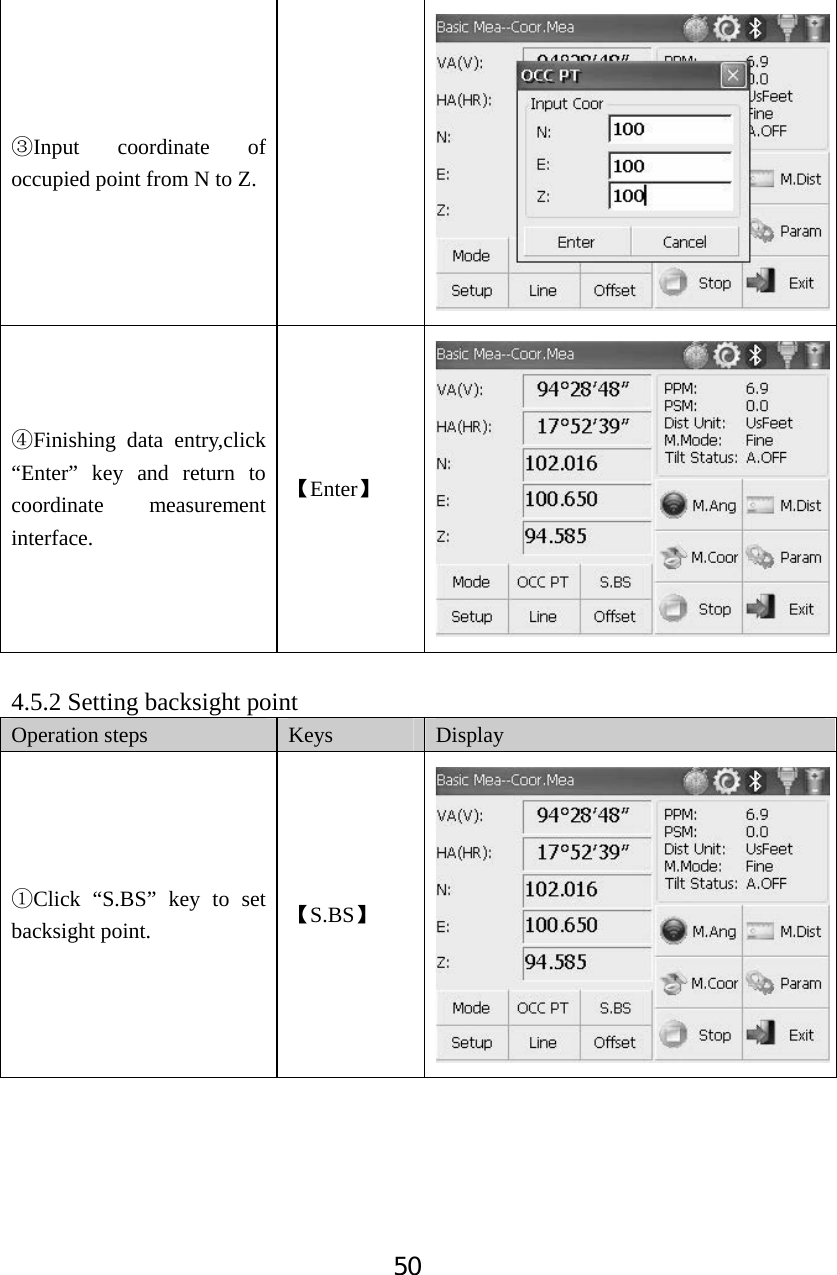
494.5 Coordinate Measurement Mode 4.5.1 Setting coordinate of occupied point After input coordinate of occupied point(instrument location), unknown point coordinate will be measured and displayed with this program.               Operation steps  Keys Display ķClick “M.Coor” key to enter coordinate measurement mode. ǏM.CoorǐĸClick “OCC PT” key.  ǏOCC PTǐ
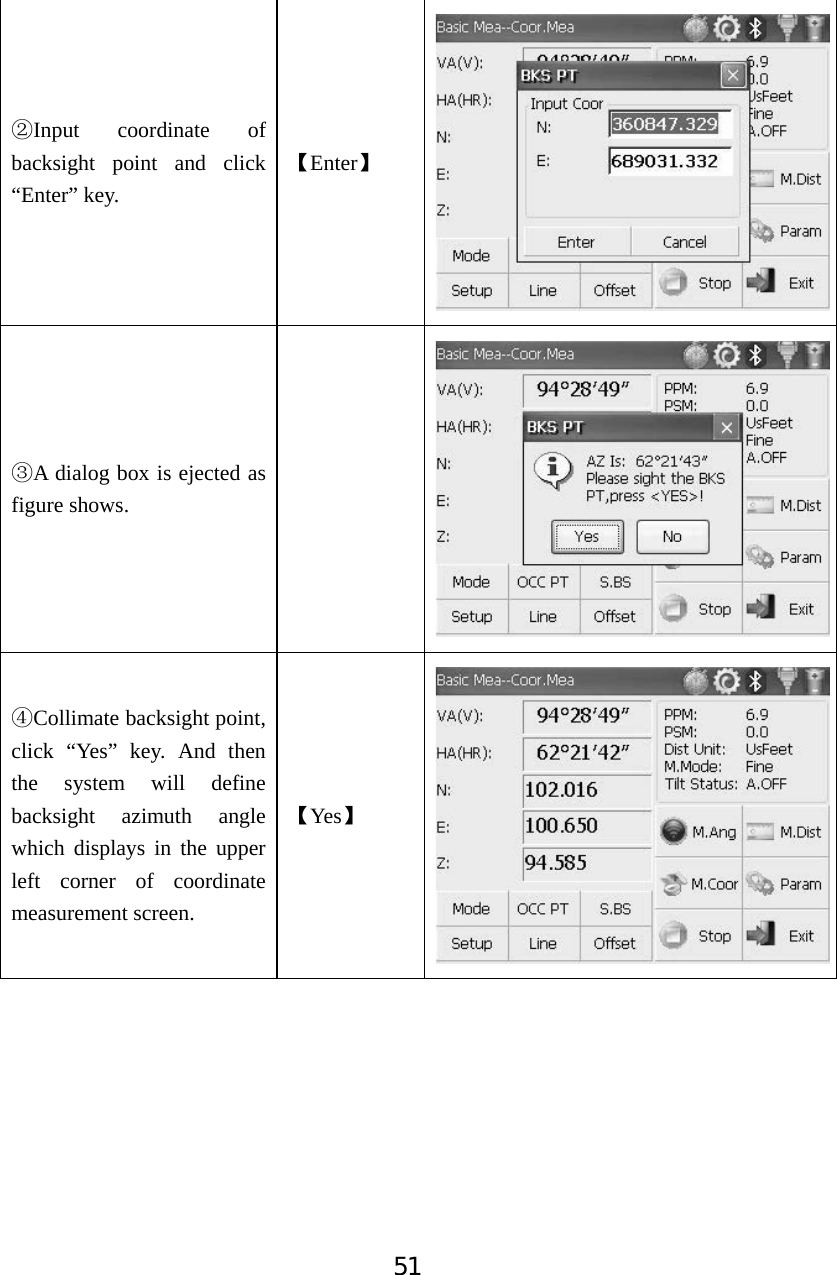
50ĹInput coordinate of occupied point from N to Z. ĺFinishing data entry,click “Enter” key and return to coordinate measurement interface.  ǏEnterǐ4.5.2 Setting backsight point Operation steps  Keys Display ķClick “S.BS” key to set backsight point.  ǏS.BSǐ
51ĸInput coordinate of backsight point and click “Enter” key. ǏEnterǐĹA dialog box is ejected as figure shows. ĺCollimate backsight point, click “Yes” key. And then the system will define backsight azimuth angle which displays in the upper left corner of coordinate measurement screen. ǏYesǐ
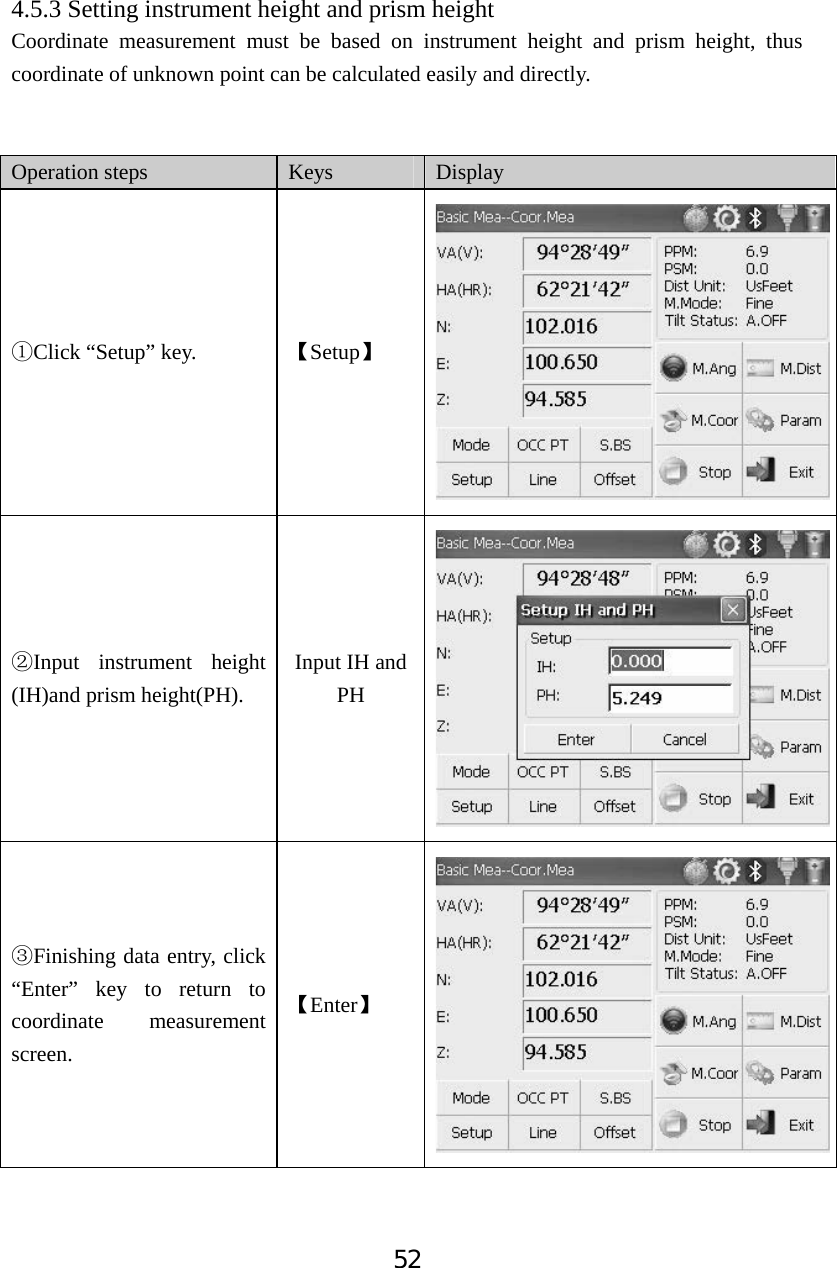
524.5.3 Setting instrument height and prism height Coordinate measurement must be based on instrument height and prism height, thus coordinate of unknown point can be calculated easily and directly.   Operation steps  Keys Display ķClick “Setup” key.  ǏSetupǐĸInput instrument height (IH)and prism height(PH). Input IH and PHĹFinishing data entry, click “Enter” key to return to coordinate measurement screen.ǏEnterǐ
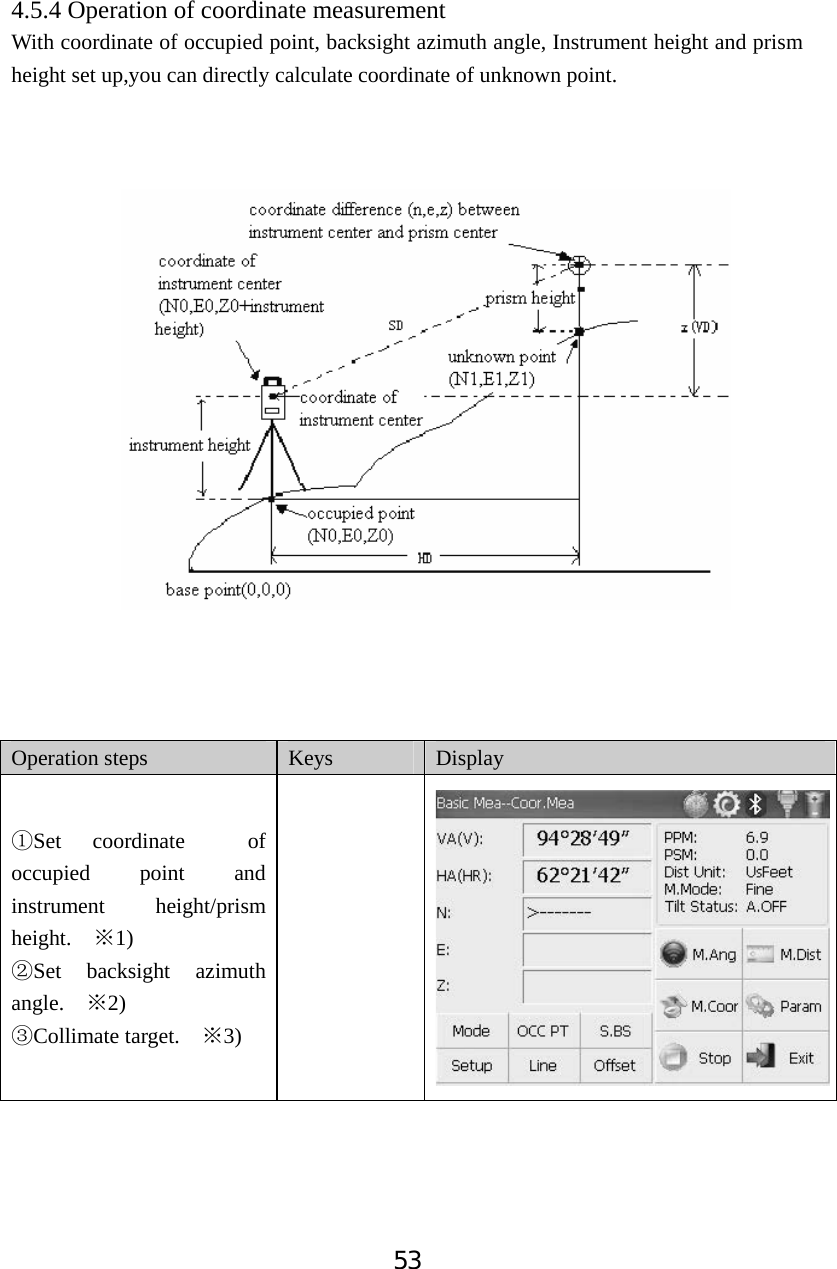
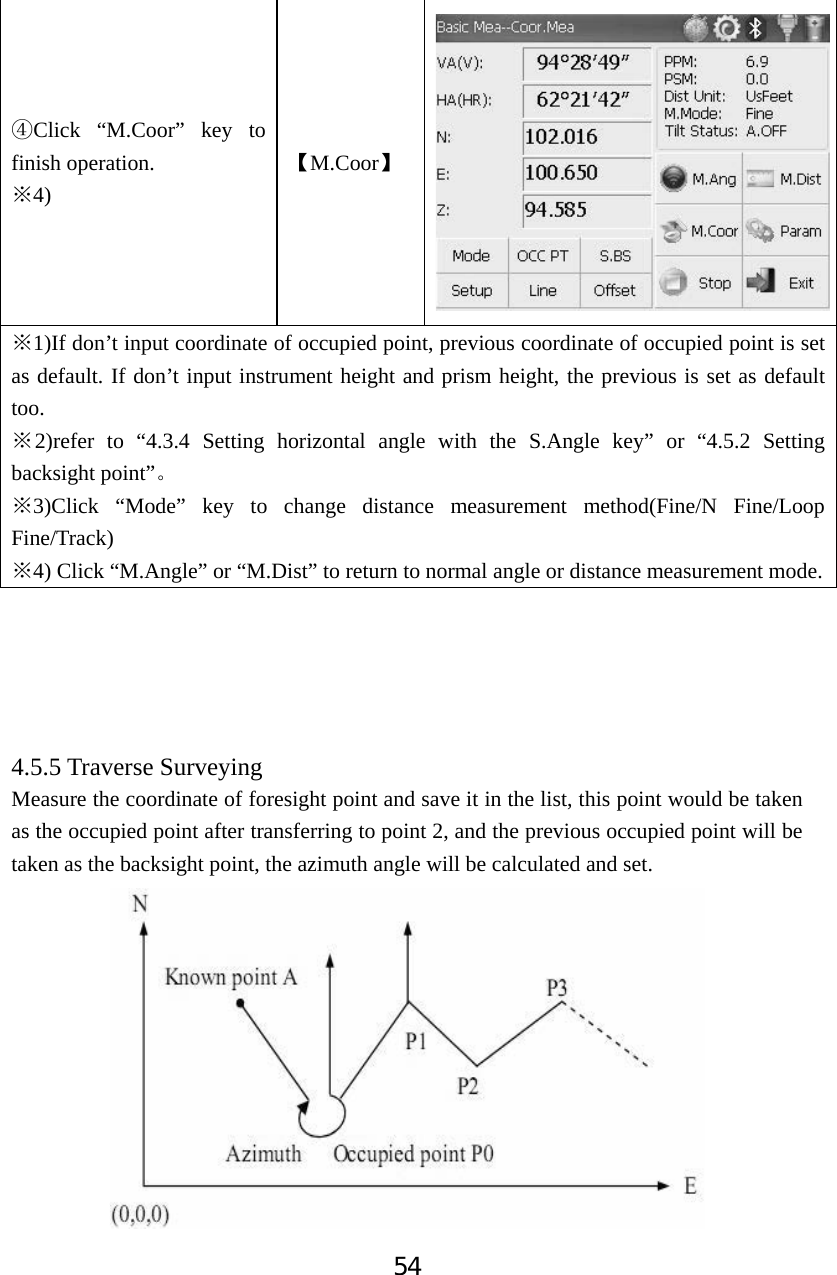
534.5.4 Operation of coordinate measurement With coordinate of occupied point, backsight azimuth angle, Instrument height and prism height set up,you can directly calculate coordinate of unknown point.     Operation steps  Keys Display ķSet coordinate  of occupied point and instrument height/prism height.   1)ĆĸSet backsight azimuth angle.   2)ĆĹCollimate target.    3)Ć
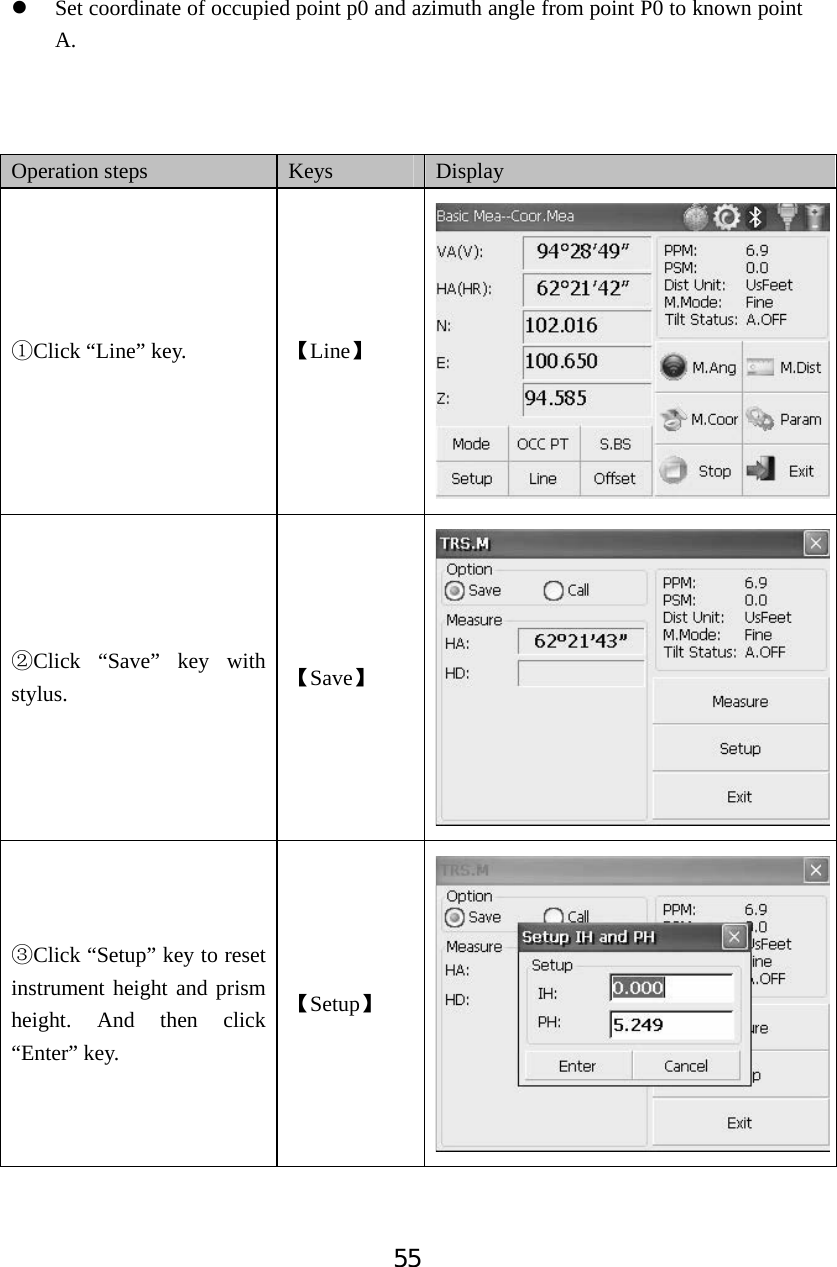
54ĺClick “M.Coor” key to finish operation. 4)ĆǏM.Coorǐ1)ĆIf don’t input coordinate of occupied point, previous coordinate of occupied point is set as default. If don’t input instrument height and prism height, the previous is set as default too. Ć2)refer to “4.3.4 Setting horizontal angle with the S.Angle key” or “4.5.2 Setting backsight point”DŽ3)ĆClick “Mode” key to change distance measurement method(Fine/N Fine/Loop Fine/Track) 4)Ć Click “M.Angle” or “M.Dist” to return to normal angle or distance measurement mode.4.5.5 Traverse Surveying Measure the coordinate of foresight point and save it in the list, this point would be taken as the occupied point after transferring to point 2, and the previous occupied point will be taken as the backsight point, the azimuth angle will be calculated and set.
55zSet coordinate of occupied point p0 and azimuth angle from point P0 to known point A.Operation steps  Keys Display ķClick “Line” key.  ǏLineǐĸClick “Save” key with stylus. ǏSaveǐĹClick “Setup” key to reset instrument height and prism height. And then click “Enter” key.     ǏSetupǐ
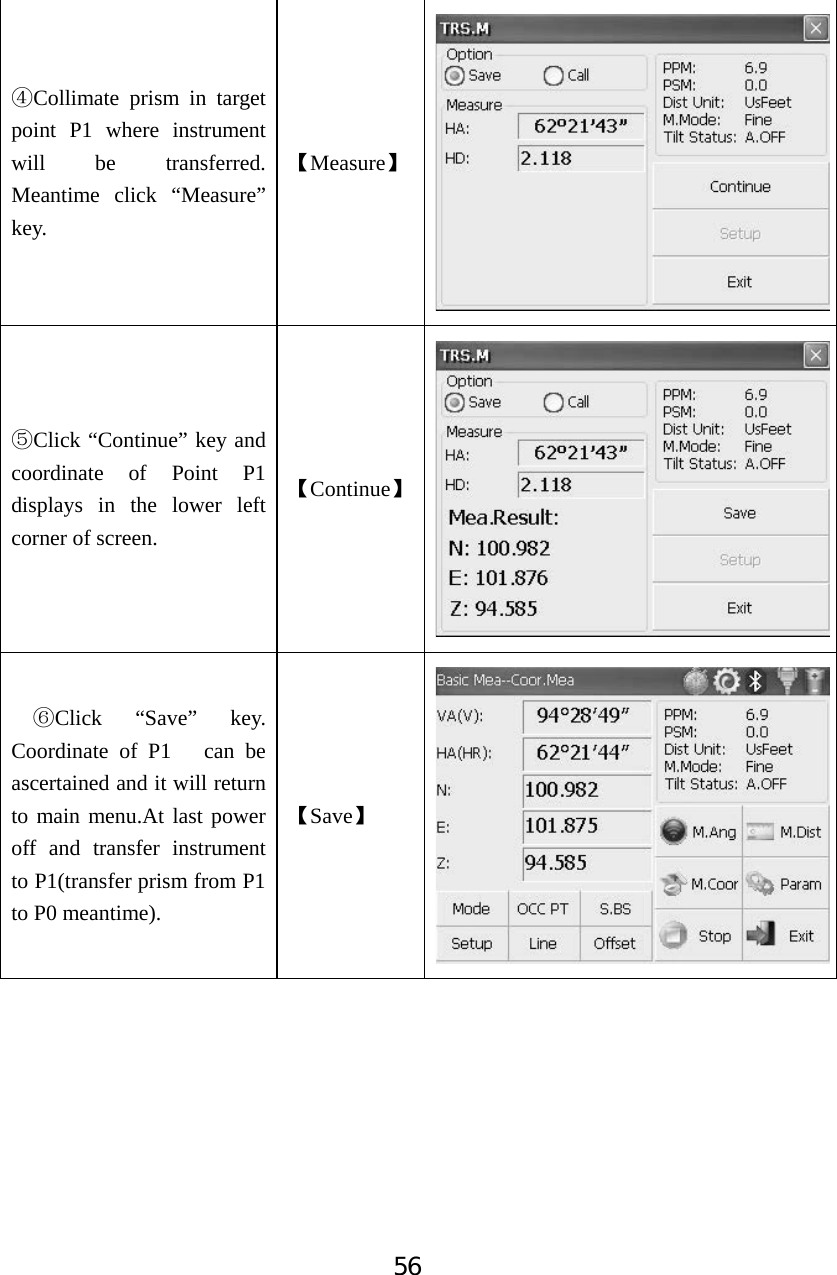
56ĺCollimate prism in target point P1 where instrument will be transferred. Meantime click “Measure” key.   ǏMeasureǐĻClick “Continue” key and coordinate of Point P1 displays in the lower left corner of screen. ǏContinueǐļClick “Save” key. Coordinate of P1   can be ascertained and it will return to main menu.At last power off and transfer instrument to P1(transfer prism from P1 to P0 meantime). ǏSaveǐ
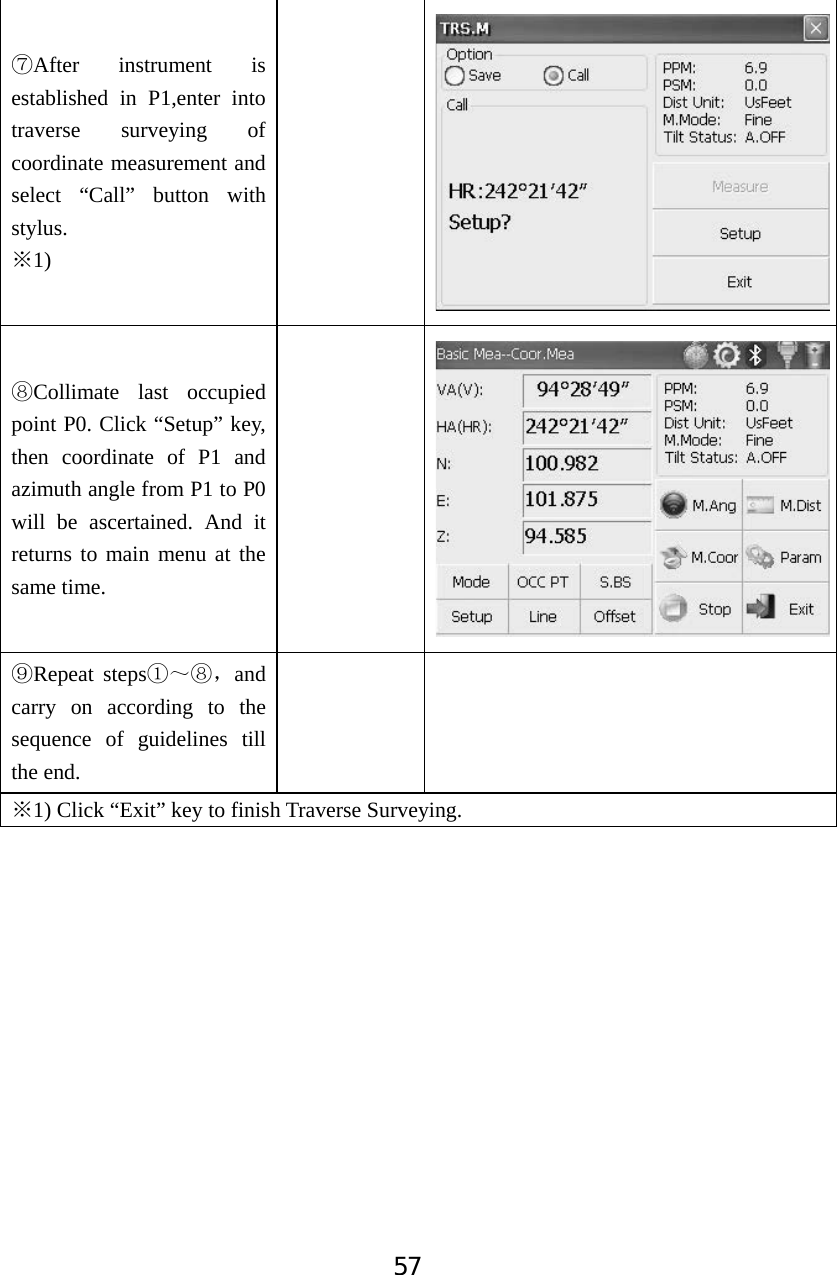
57ĽAfter instrument is established in P1,enter into traverse surveying of coordinate measurement and select “Call” button with stylus.1)ĆľCollimate last occupied point P0. Click “Setup” key, then coordinate of P1 and azimuth angle from P1 to P0 will be ascertained. And it returns to main menu at the same time. ĿRepeat stepsķ̚ľˈand carry on according to the sequence of guidelines till the end. Ć1) Click “Exit” key to finish Traverse Surveying.
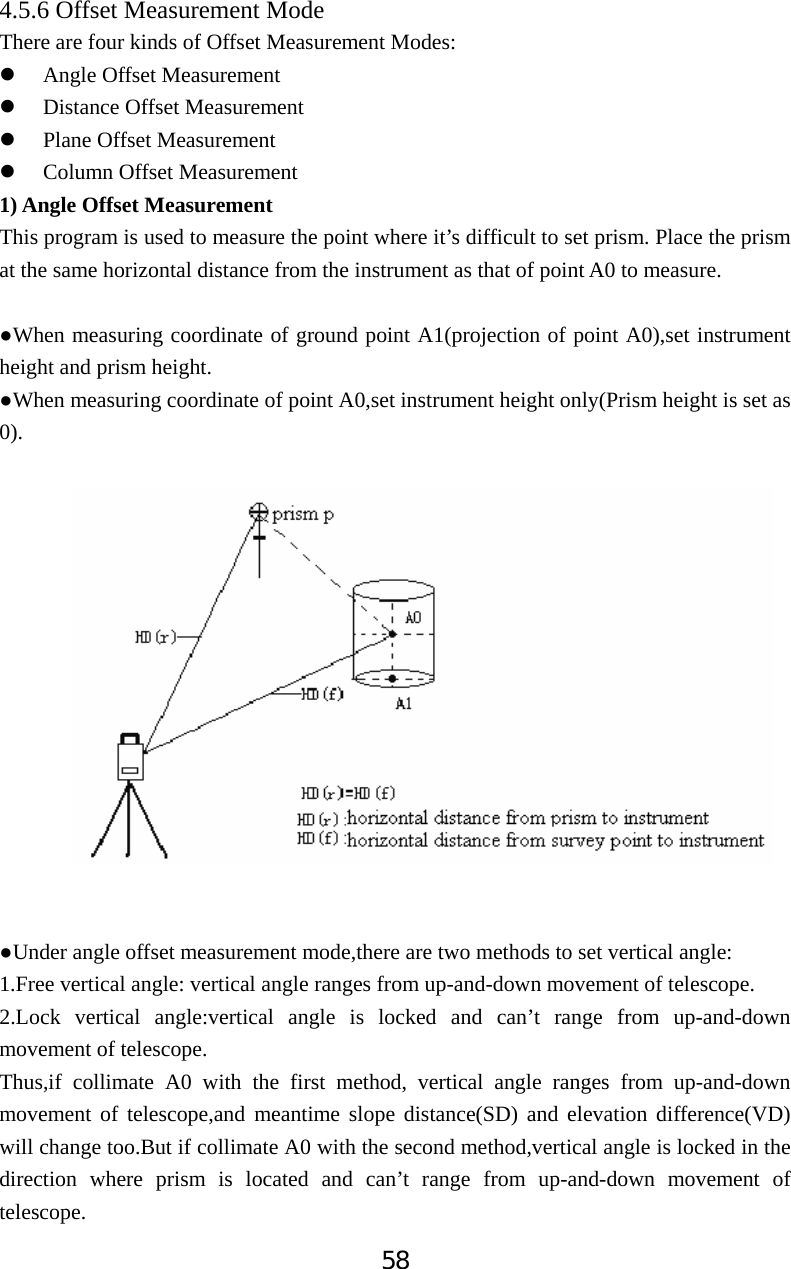
584.5.6 Offset Measurement Mode There are four kinds of Offset Measurement Modes: zAngle Offset Measurement zDistance Offset Measurement zPlane Offset Measurement zColumn Offset Measurement 1) Angle Offset Measurement This program is used to measure the point where it’s difficult to set prism. Place the prism at the same horizontal distance from the instrument as that of point A0 to measure. ƔWhen measuring coordinate of ground point A1(projection of point A0),set instrument height and prism height. ƔWhen measuring coordinate of point A0,set instrument height only(Prism height is set as 0).ƔUnder angle offset measurement mode,there are two methods to set vertical angle: 1.Free vertical angle: vertical angle ranges from up-and-down movement of telescope. 2.Lock vertical angle:vertical angle is locked and can’t range from up-and-down movement of telescope. Thus,if collimate A0 with the first method, vertical angle ranges from up-and-down movement of telescope,and meantime slope distance(SD) and elevation difference(VD) will change too.But if collimate A0 with the second method,vertical angle is locked in the direction where prism is located and can’t range from up-and-down movement of telescope.
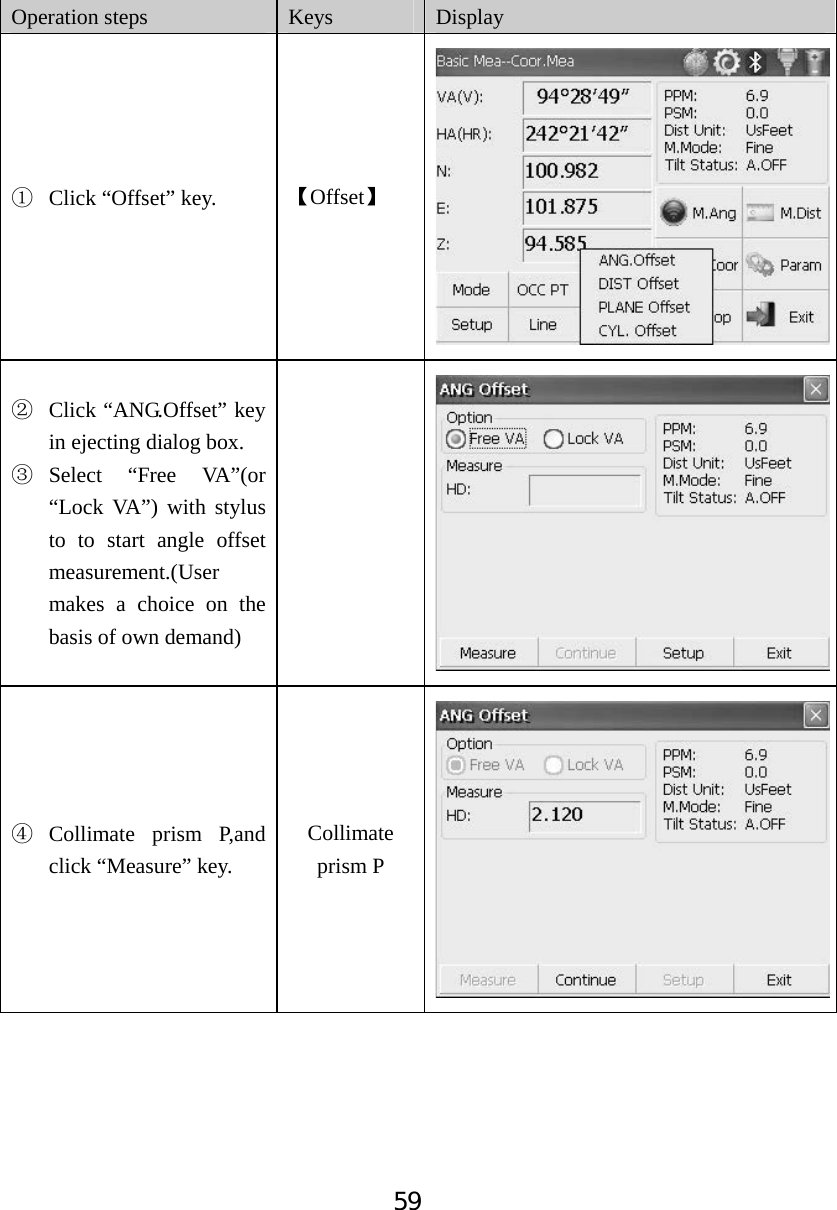
59Operation steps  Keys Display ķClick “Offset” key.  ǏOffsetǐĸClick “ANG.Offset” key in ejecting dialog box. ĹSelect “Free VA”(or “Lock VA”) with stylus to to start angle offset measurement.(User makes a choice on the basis of own demand) ĺCollimate prism P,and click “Measure” key. Collimate prism P
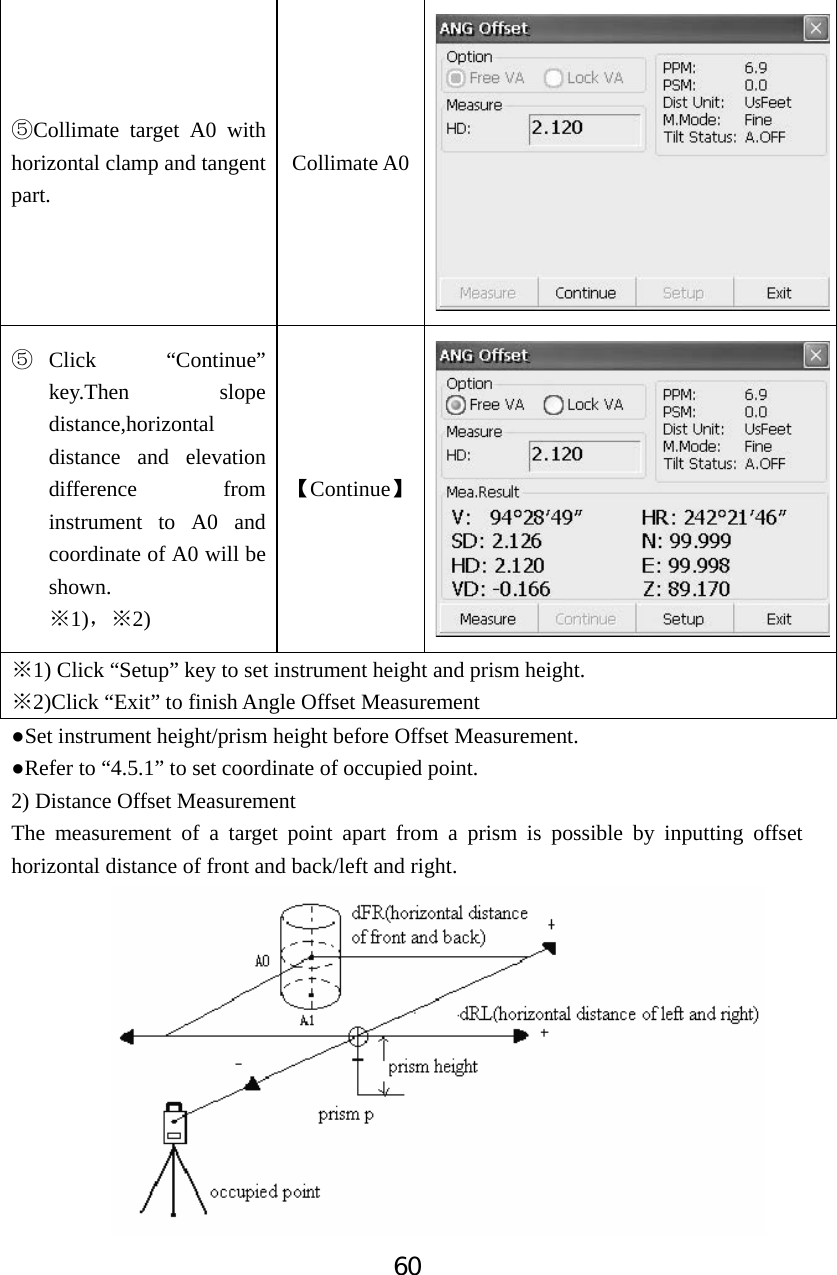
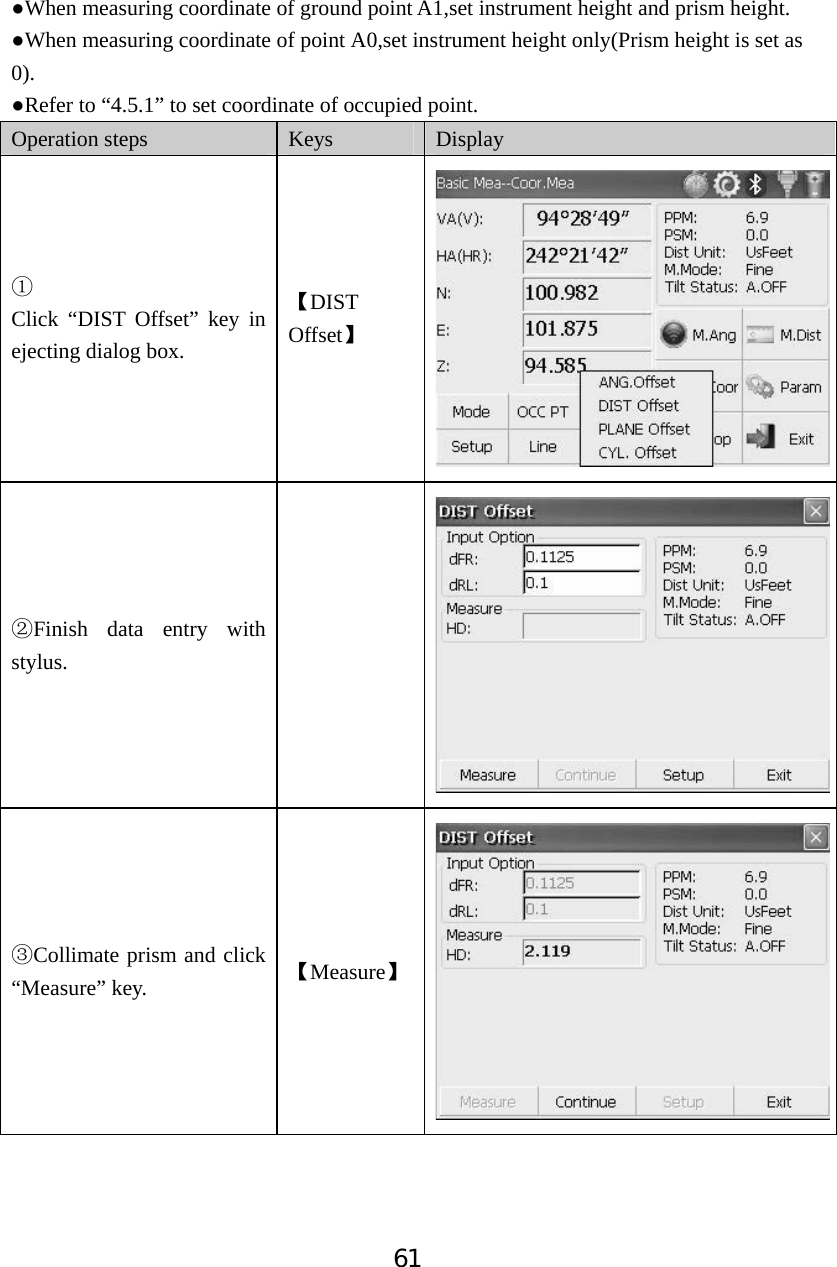
60ĻCollimate target A0 with horizontal clamp and tangent part.Collimate A0ĻClick “Continue” key.Then slope distance,horizontal distance and elevation difference from instrument to A0 and coordinate of A0 will be shown. 1)Ćˈ2)ĆǏContinueǐ1)Ć Click “Setup” key to set instrument height and prism height. Ć2)Click “Exit” to finish Angle Offset Measurement ƔSet instrument height/prism height before Offset Measurement. ƔRefer to “4.5.1” to set coordinate of occupied point. 2) Distance Offset Measurement The measurement of a target point apart from a prism is possible by inputting offset horizontal distance of front and back/left and right.
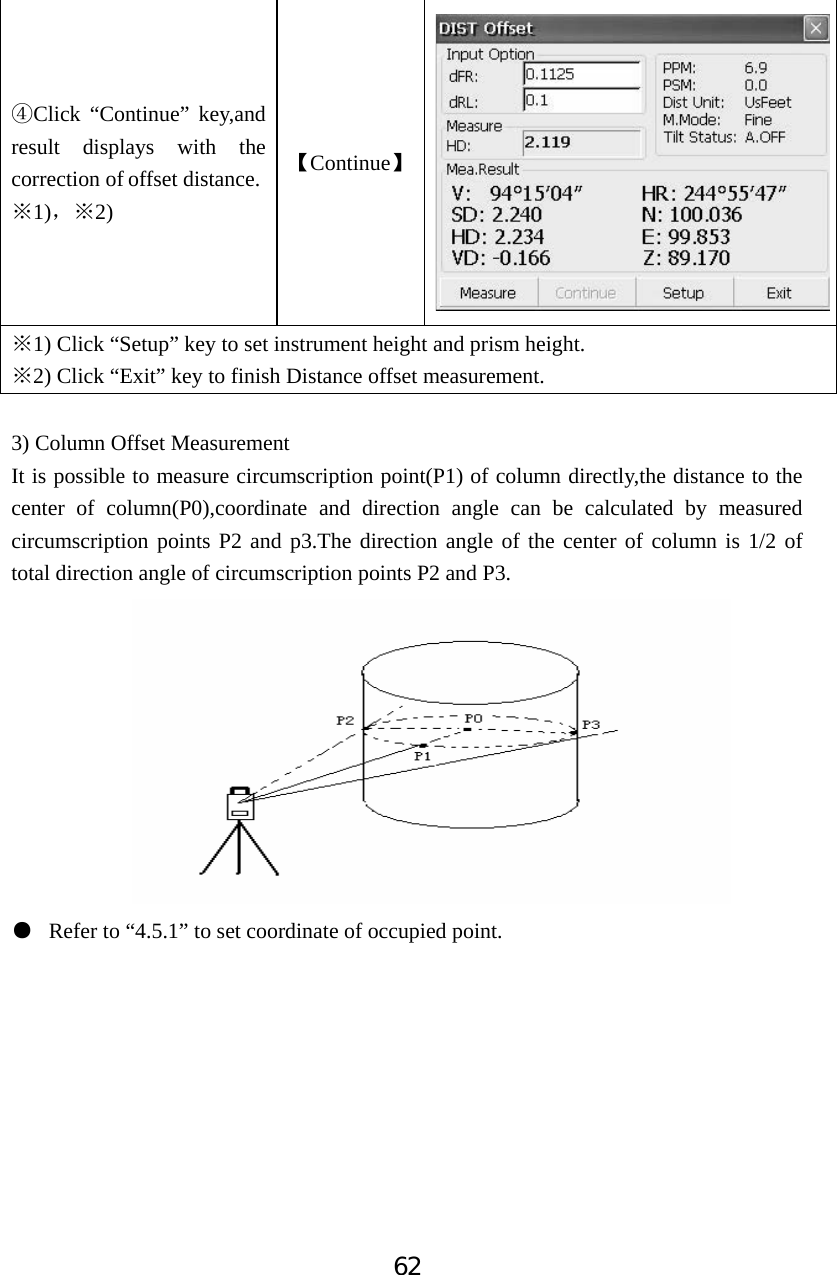
61ƔWhen measuring coordinate of ground point A1,set instrument height and prism height. ƔWhen measuring coordinate of point A0,set instrument height only(Prism height is set as 0).ƔRefer to “4.5.1” to set coordinate of occupied point. Operation steps  Keys Display ķClick “DIST Offset” key in ejecting dialog box. ǏDIST OffsetǐĸFinish data entry with stylus.ĹCollimate prism and click “Measure” key.  ǏMeasureǐ
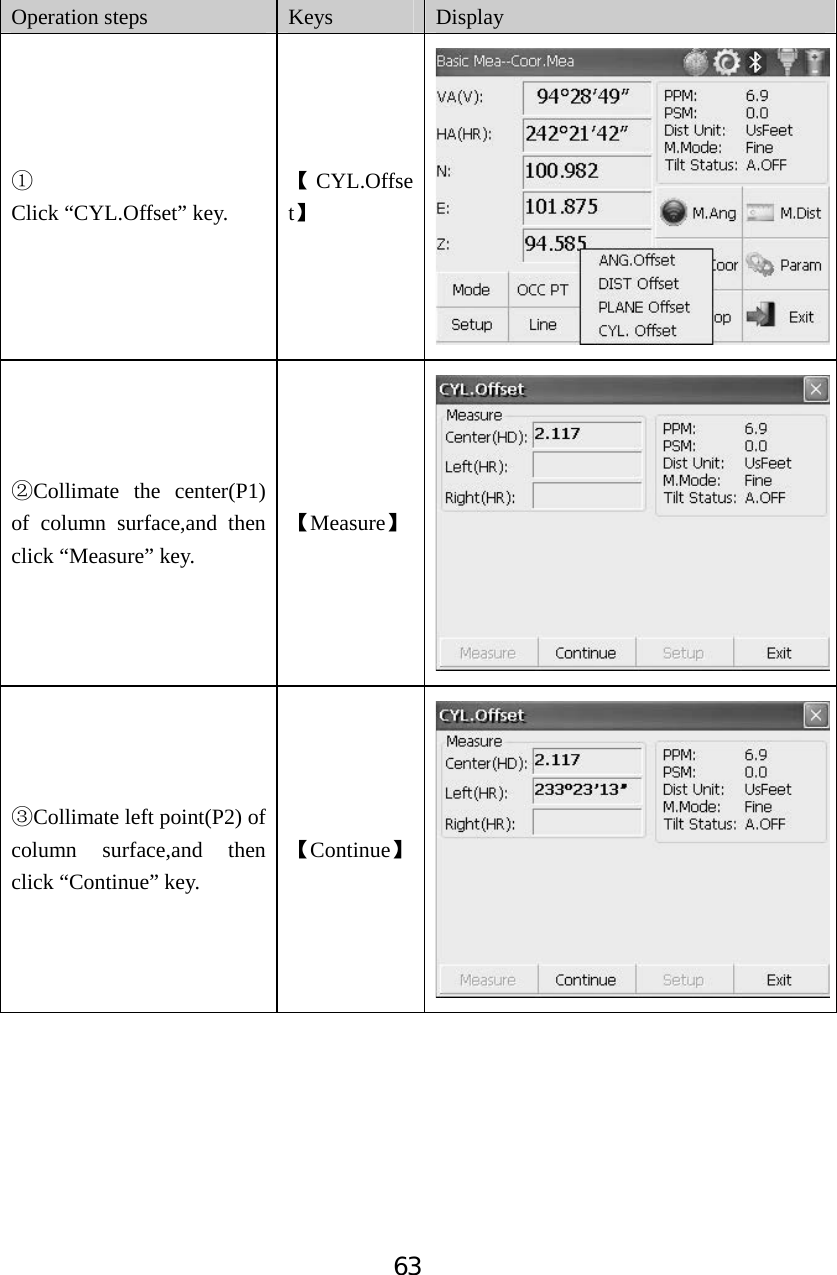
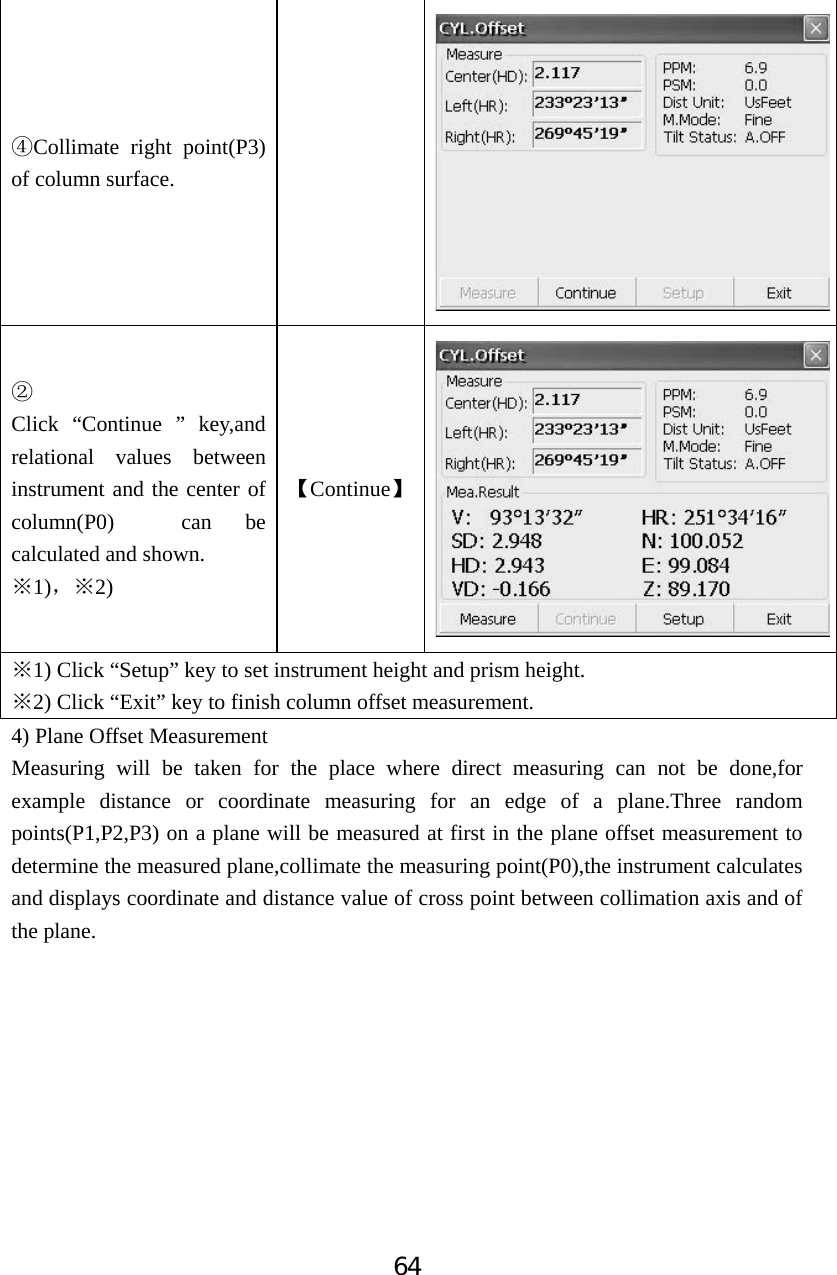
62ĺClick “Continue” key,and result displays with the correction of offset distance. 1)Ćˈ2)ĆǏContinueǐ1)Ć Click “Setup” key to set instrument height and prism height. 2)Ć Click “Exit” key to finish Distance offset measurement. 3) Column Offset Measurement It is possible to measure circumscription point(P1) of column directly,the distance to the center of column(P0),coordinate and direction angle can be calculated by measured circumscription points P2 and p3.The direction angle of the center of column is 1/2 of total direction angle of circumscription points P2 and P3. ƽ Refer to “4.5.1” to set coordinate of occupied point.
63Operation steps  Keys Display ķClick “CYL.Offset” key. ǏCYL.OffsetǐĸCollimate the center(P1) of column surface,and then click “Measure” key.   ǏMeasureǐĹCollimate left point(P2) of column surface,and then click “Continue” key. ǏContinueǐ
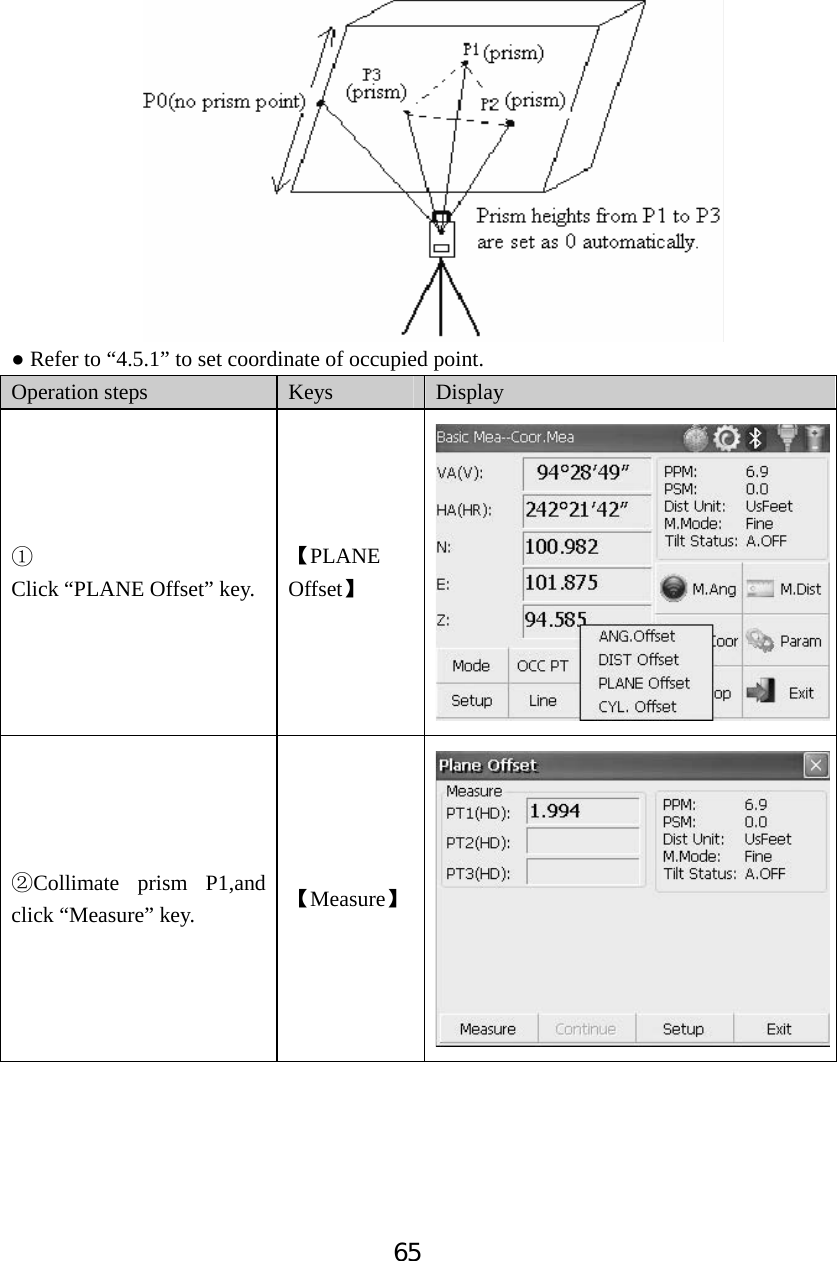
64Collimate right point(P3) ĺof column surface. ĸClick “Continue ” key,and relational values between instrument and the center of column(P0)  can be calculated and shown. 1)Ćˈ2Ć)ǏContinueǐ1)Ć Click “Setup” key to set instrument height and prism height. 2)Ć Click “Exit” key to finish column offset measurement. 4) Plane Offset Measurement Measuring will be taken for the place where direct measuring can not be done,for example distance or coordinate measuring for an edge of a plane.Three random points(P1,P2,P3) on a plane will be measured at first in the plane offset measurement to determine the measured plane,collimate the measuring point(P0),the instrument calculates and displays coordinate and distance value of cross point between collimation axis and of the plane.
65Ɣ Refer to “4.5.1” to set coordinate of occupied point. Operation steps  Keys Display ķClick “PLANE Offset” key. ǏPLANEOffsetǐĸCollimate prism P1,and click “Measure” key.  ǏMeasureǐ
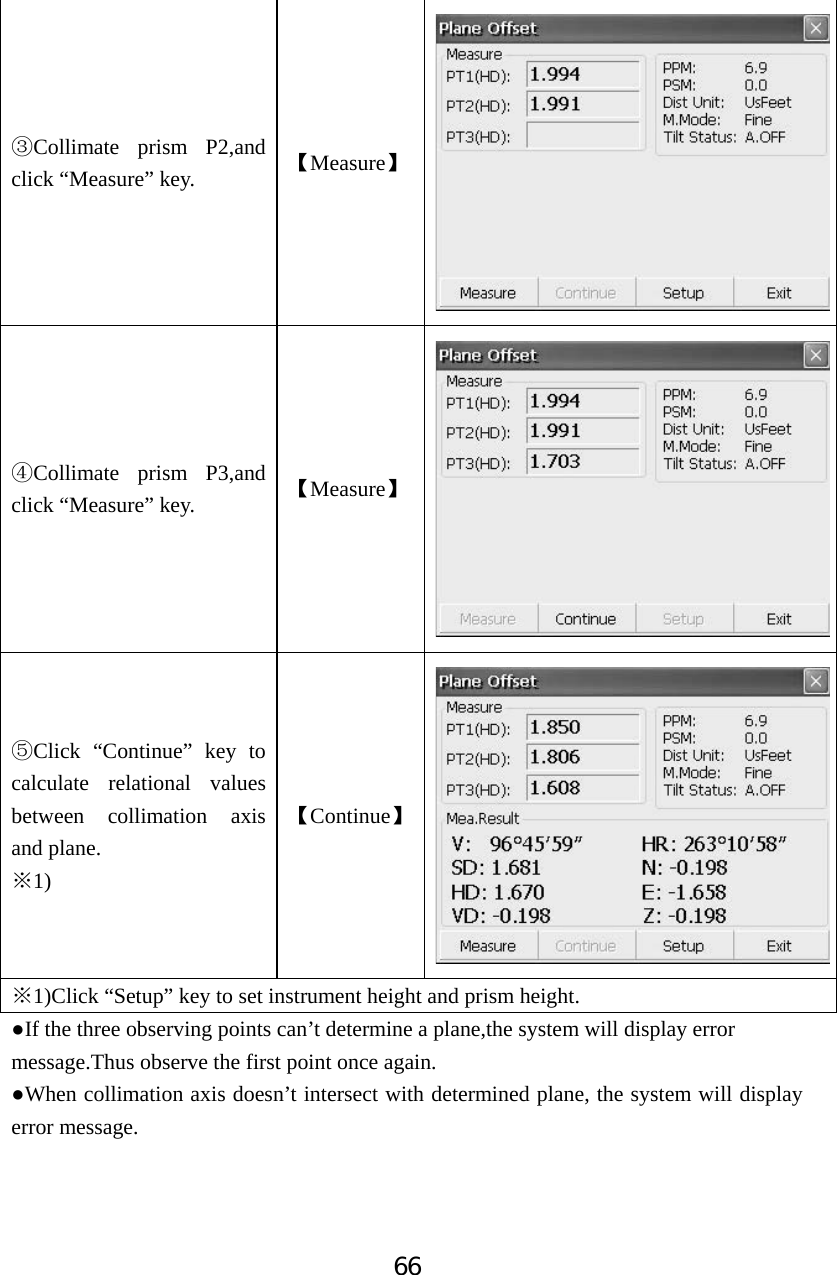
66ĹCollimate prism P2,and click “Measure” key.  ǏMeasureǐĺCollimate prism P3,and click “Measure” key.  ǏMeasureǐĻClick “Continue” key to calculate relational values between collimation axis and plane. 1)ĆǏContinueǐ1)ĆClick “Setup” key to set instrument height and prism height. ƔIf the three observing points can’t determine a plane,the system will display error message.Thus observe the first point once again. ƔWhen collimation axis doesn’t intersect with determined plane, the system will display error message.
674.6 About Operation˖1. Click “about” icon on desktop. 2. Press “Exit” to return to the basic measurement.
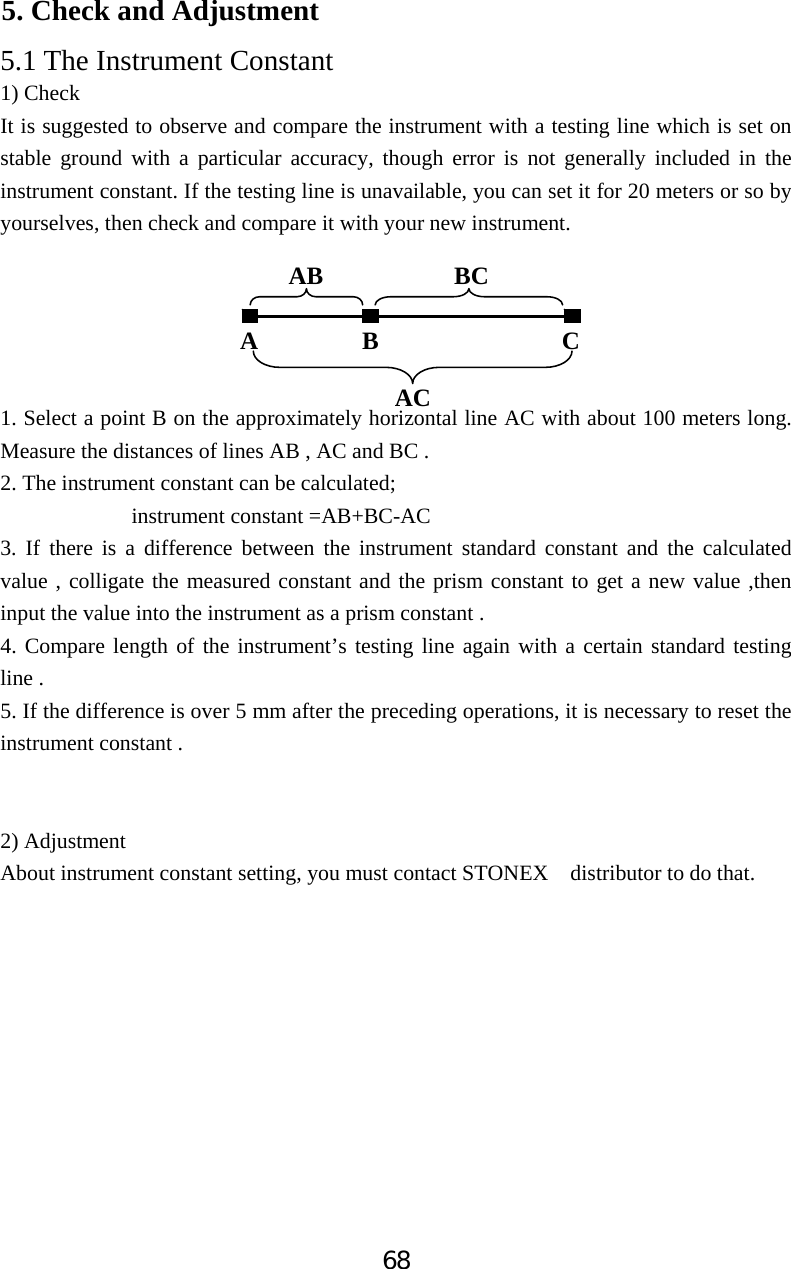
685. Check and Adjustment 5.1 The Instrument Constant 1) Check It is suggested to observe and compare the instrument with a testing line which is set on stable ground with a particular accuracy, though error is not generally included in the instrument constant. If the testing line is unavailable, you can set it for 20 meters or so by yourselves, then check and compare it with your new instrument. 1. Select a point B on the approximately horizontal line AC with about 100 meters long. Measure the distances of lines AB , AC and BC . 2. The instrument constant can be calculated;             instrument constant =AB+BC-AC 3. If there is a difference between the instrument standard constant and the calculated value , colligate the measured constant and the prism constant to get a new value ,then input the value into the instrument as a prism constant . 4. Compare length of the instrument’s testing line again with a certain standard testing line .   5. If the difference is over 5 mm after the preceding operations, it is necessary to reset the instrument constant . 2) Adjustment About instrument constant setting, you must contact STONEX  distributor to do that. A B  C AB BC AC
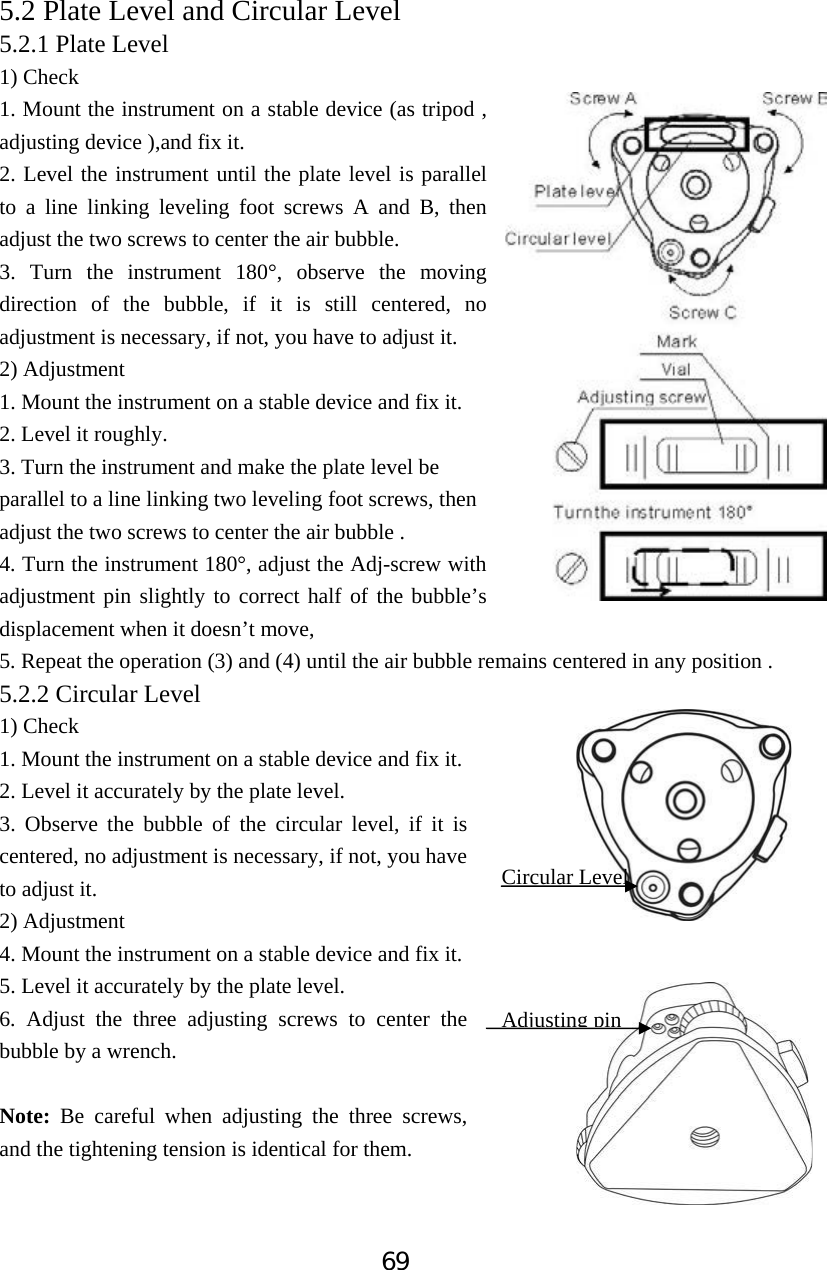
695.2 Plate Level and Circular Level 5.2.1 Plate Level 1) Check 1. Mount the instrument on a stable device (as tripod , adjusting device ),and fix it. 2. Level the instrument until the plate level is parallel to a line linking leveling foot screws A and B, then adjust the two screws to center the air bubble. 3. Turn the instrument 180°, observe the moving direction of the bubble, if it is still centered, no adjustment is necessary, if not, you have to adjust it. 2) Adjustment 1. Mount the instrument on a stable device and fix it. 2. Level it roughly. 3. Turn the instrument and make the plate level be parallel to a line linking two leveling foot screws, then adjust the two screws to center the air bubble . 4. Turn the instrument 180°, adjust the Adj-screw with adjustment pin slightly to correct half of the bubble’s displacement when it doesn’t move,   5. Repeat the operation (3) and (4) until the air bubble remains centered in any position . 5.2.2 Circular Level 1) Check 1. Mount the instrument on a stable device and fix it. 2. Level it accurately by the plate level.   3. Observe the bubble of the circular level, if it is centered, no adjustment is necessary, if not, you have to adjust it. 2) Adjustment 4. Mount the instrument on a stable device and fix it. 5. Level it accurately by the plate level. 6. Adjust the three adjusting screws to center the bubble by a wrench.      Note: Be careful when adjusting the three screws, and the tightening tension is identical for them. Circular LevelAdjusting pin
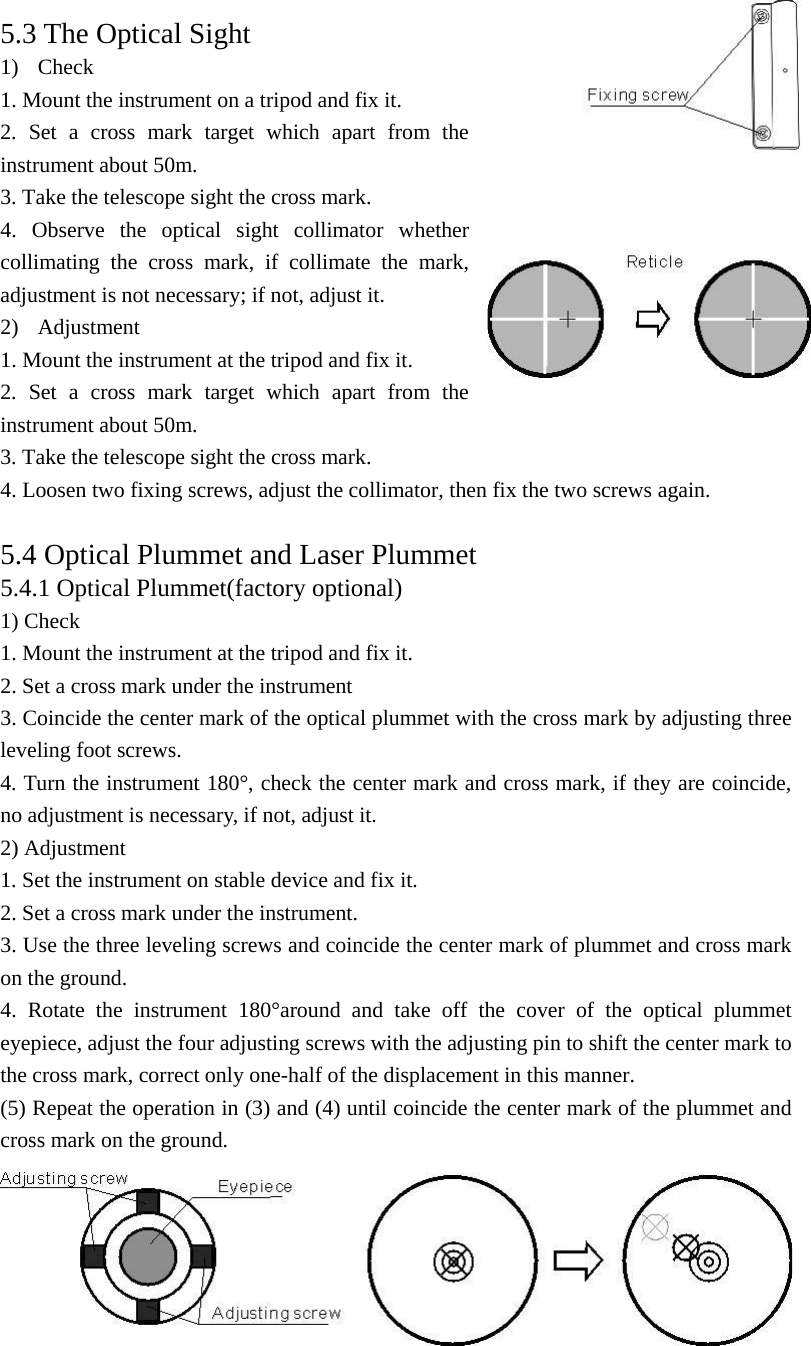
705.3 The Optical Sight 1) Check 1. Mount the instrument on a tripod and fix it. 2. Set a cross mark target which apart from the instrument about 50m. 3. Take the telescope sight the cross mark. 4. Observe the optical sight collimator whether collimating the cross mark, if collimate the mark, adjustment is not necessary; if not, adjust it. 2) Adjustment  1. Mount the instrument at the tripod and fix it. 2. Set a cross mark target which apart from the instrument about 50m. 3. Take the telescope sight the cross mark. 4. Loosen two fixing screws, adjust the collimator, then fix the two screws again. 5.4 Optical Plummet and Laser Plummet 5.4.1 Optical Plummet(factory optional) 1) Check 1. Mount the instrument at the tripod and fix it. 2. Set a cross mark under the instrument 3. Coincide the center mark of the optical plummet with the cross mark by adjusting three leveling foot screws. 4. Turn the instrument 180°, check the center mark and cross mark, if they are coincide, no adjustment is necessary, if not, adjust it.   2) Adjustment   1. Set the instrument on stable device and fix it. 2. Set a cross mark under the instrument. 3. Use the three leveling screws and coincide the center mark of plummet and cross mark on the ground. 4. Rotate the instrument 180°around and take off the cover of the optical plummet eyepiece, adjust the four adjusting screws with the adjusting pin to shift the center mark to the cross mark, correct only one-half of the displacement in this manner. (5) Repeat the operation in (3) and (4) until coincide the center mark of the plummet and cross mark on the ground.
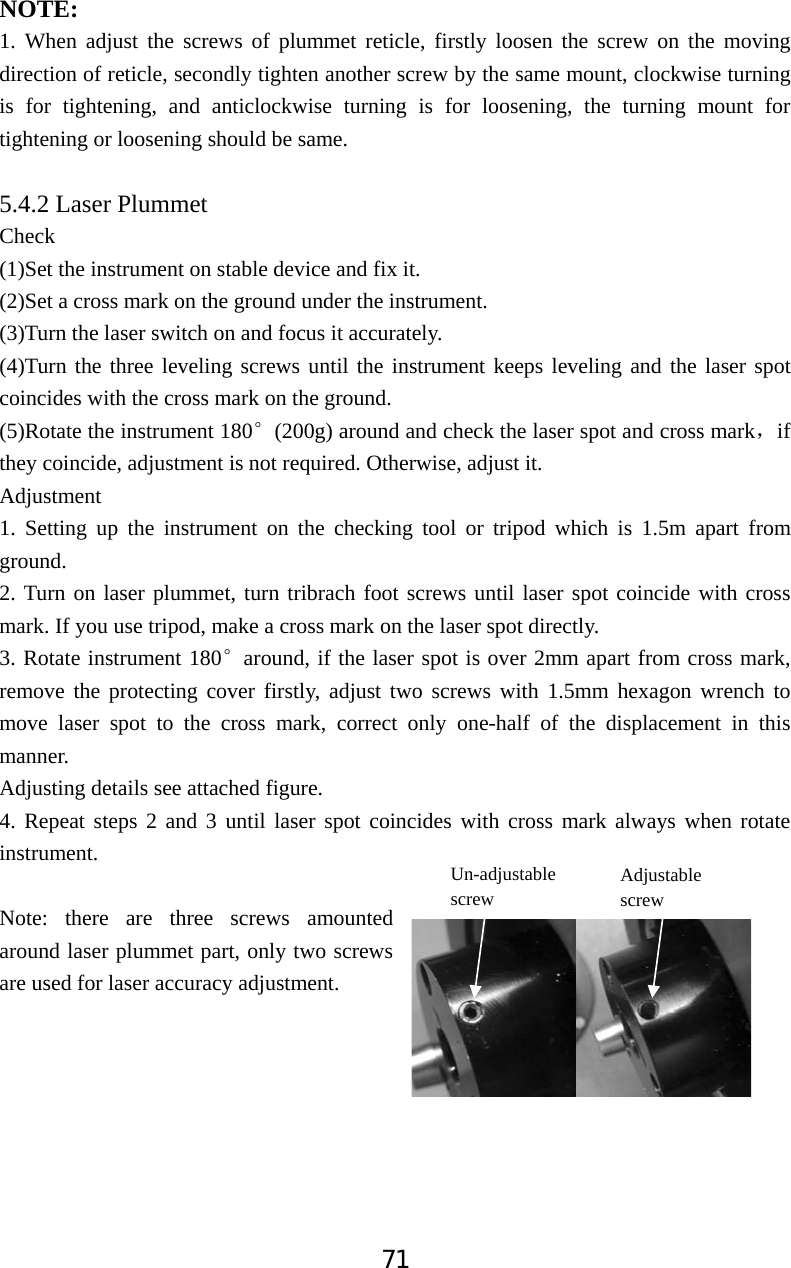
71NOTE:1. When adjust the screws of plummet reticle, firstly loosen the screw on the moving direction of reticle, secondly tighten another screw by the same mount, clockwise turning is for tightening, and anticlockwise turning is for loosening, the turning mount for tightening or loosening should be same. 5.4.2 Laser Plummet  Check  (1)Set the instrument on stable device and fix it. (2)Set a cross mark on the ground under the instrument. (3)Turn the laser switch on and focus it accurately. (4)Turn the three leveling screws until the instrument keeps leveling and the laser spot coincides with the cross mark on the ground. (5)Rotate the instrument 180e(200g) around and check the laser spot and cross markˈif they coincide, adjustment is not required. Otherwise, adjust it. Adjustment 1. Setting up the instrument on the checking tool or tripod which is 1.5m apart from ground. 2. Turn on laser plummet, turn tribrach foot screws until laser spot coincide with cross mark. If you use tripod, make a cross mark on the laser spot directly. 3. Rotate instrument 180earound, if the laser spot is over 2mm apart from cross mark, remove the protecting cover firstly, adjust two screws with 1.5mm hexagon wrench to move laser spot to the cross mark, correct only one-half of the displacement in this manner. Adjusting details see attached figure. 4. Repeat steps 2 and 3 until laser spot coincides with cross mark always when rotate instrument. Note: there are three screws amounted around laser plummet part, only two screws are used for laser accuracy adjustment. Un-adjustablescrew  Adjustable screw
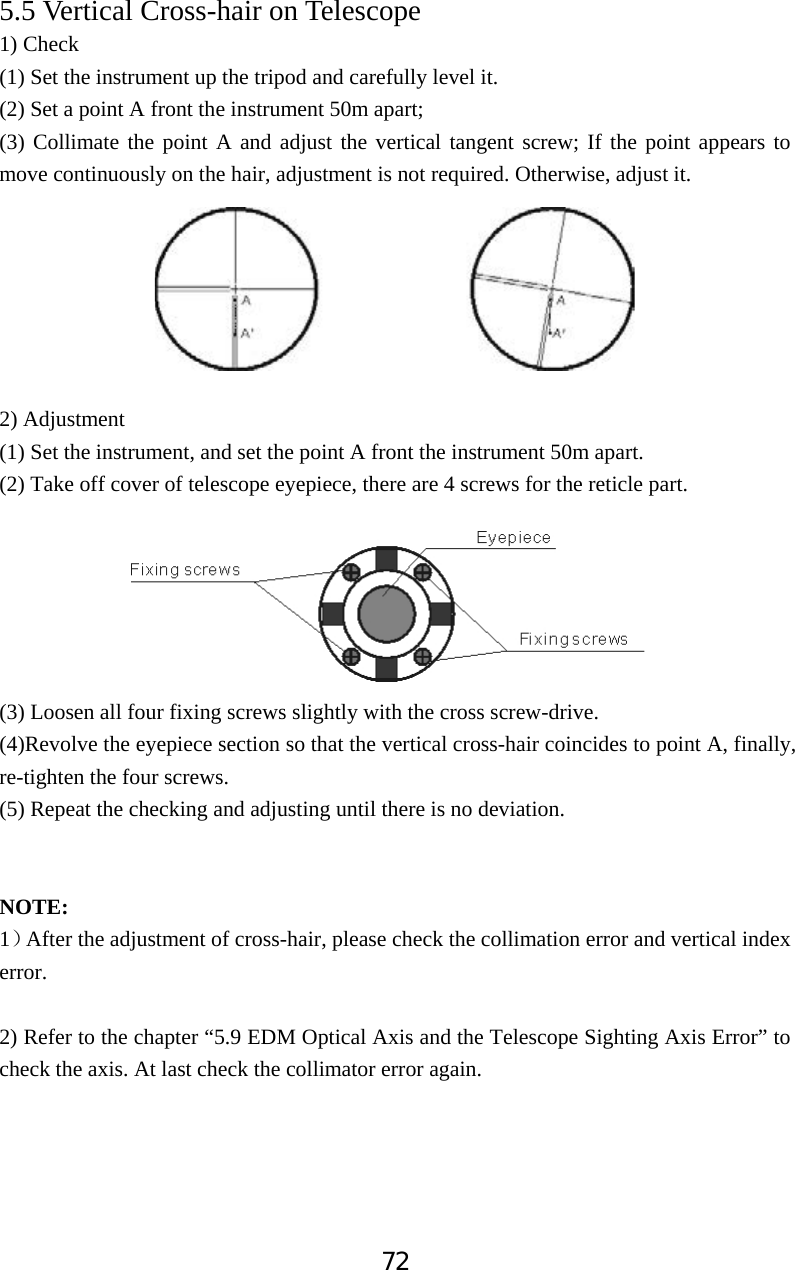
725.5 Vertical Cross-hair on Telescope 1) Check   (1) Set the instrument up the tripod and carefully level it. (2) Set a point A front the instrument 50m apart; (3) Collimate the point A and adjust the vertical tangent screw; If the point appears to move continuously on the hair, adjustment is not required. Otherwise, adjust it. 2) Adjustment   (1) Set the instrument, and set the point A front the instrument 50m apart. (2) Take off cover of telescope eyepiece, there are 4 screws for the reticle part. (3) Loosen all four fixing screws slightly with the cross screw-drive.   (4)Revolve the eyepiece section so that the vertical cross-hair coincides to point A, finally, re-tighten the four screws. (5) Repeat the checking and adjusting until there is no deviation. NOTE:1˅After the adjustment of cross-hair, please check the collimation error and vertical index error.2) Refer to the chapter “5.9 EDM Optical Axis and the Telescope Sighting Axis Error” to check the axis. At last check the collimator error again.
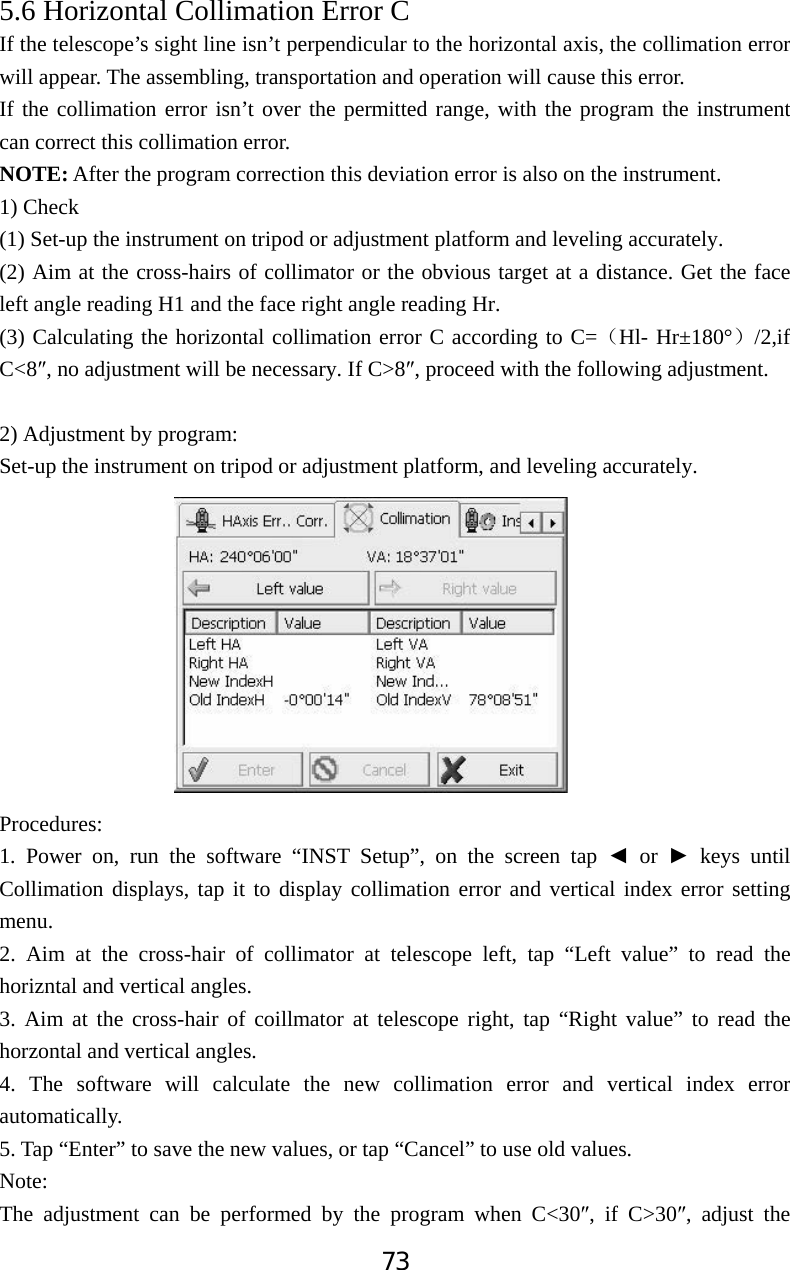
735.6 Horizontal Collimation Error C  If the telescope’s sight line isn’t perpendicular to the horizontal axis, the collimation error will appear. The assembling, transportation and operation will cause this error. If the collimation error isn’t over the permitted range, with the program the instrument can correct this collimation error. NOTE: After the program correction this deviation error is also on the instrument. 1) Check (1) Set-up the instrument on tripod or adjustment platform and leveling accurately. (2) Aim at the cross-hairs of collimator or the obvious target at a distance. Get the face left angle reading H1 and the face right angle reading Hr. (3) Calculating the horizontal collimation error C according to C=˄Hl- Hr±180°˅/2,if C<8Ǝ, no adjustment will be necessary. If C>8Ǝ, proceed with the following adjustment.   2) Adjustment by program: Set-up the instrument on tripod or adjustment platform, and leveling accurately. Procedures:1. Power on, run the software “INST Setup”, on the screen tap Ż or Ź keys until Collimation displays, tap it to display collimation error and vertical index error setting menu. 2. Aim at the cross-hair of collimator at telescope left, tap “Left value” to read the horizntal and vertical angles. 3. Aim at the cross-hair of coillmator at telescope right, tap “Right value” to read the horzontal and vertical angles. 4. The software will calculate the new collimation error and vertical index error automatically. 5. Tap “Enter” to save the new values, or tap “Cancel” to use old values. Note:The adjustment can be performed by the program when C<30Ǝ, if C>30Ǝ, adjust the
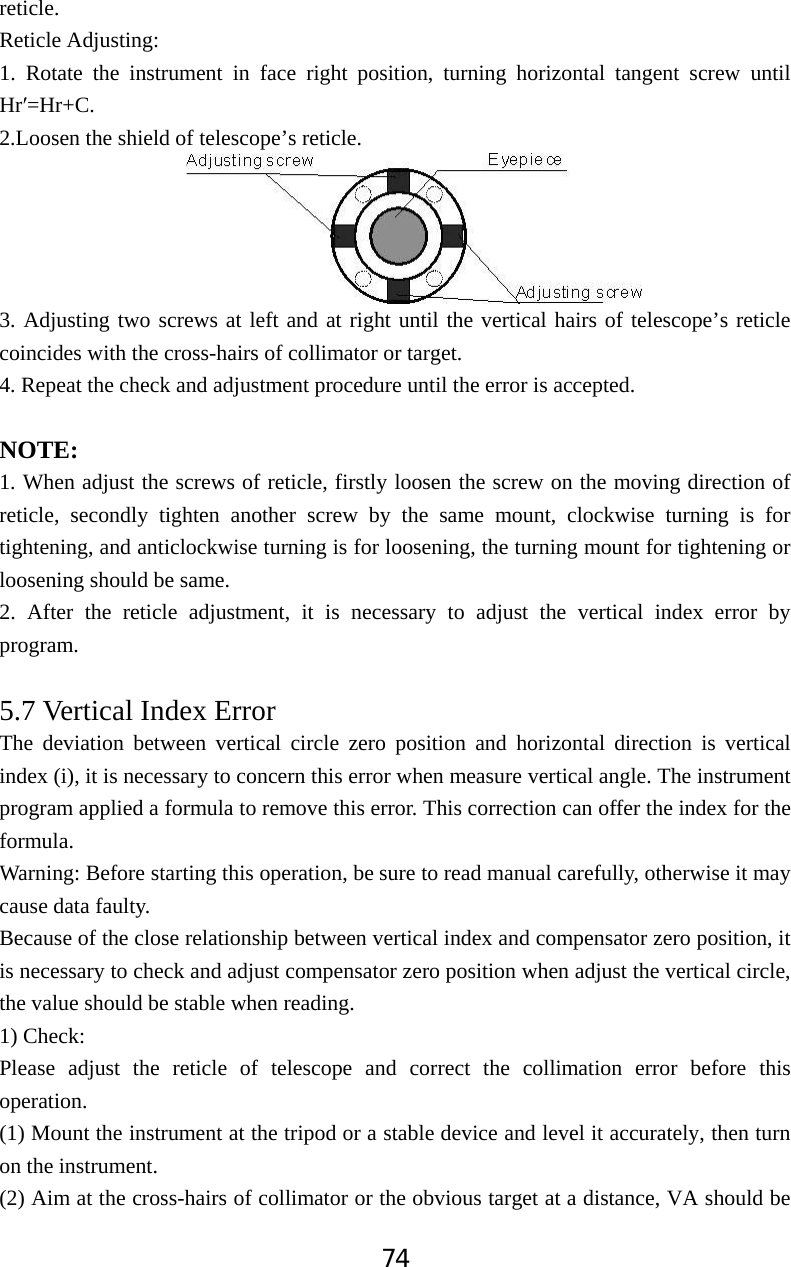
74reticle. Reticle Adjusting: 1. Rotate the instrument in face right position, turning horizontal tangent screw until Hrƍ=Hr+C.2.Loosen the shield of telescope’s reticle. 3. Adjusting two screws at left and at right until the vertical hairs of telescope’s reticle coincides with the cross-hairs of collimator or target. 4. Repeat the check and adjustment procedure until the error is accepted. NOTE:1. When adjust the screws of reticle, firstly loosen the screw on the moving direction of reticle, secondly tighten another screw by the same mount, clockwise turning is for tightening, and anticlockwise turning is for loosening, the turning mount for tightening or loosening should be same. 2. After the reticle adjustment, it is necessary to adjust the vertical index error by program. 5.7 Vertical Index Error  The deviation between vertical circle zero position and horizontal direction is vertical index (i), it is necessary to concern this error when measure vertical angle. The instrument program applied a formula to remove this error. This correction can offer the index for the formula. Warning: Before starting this operation, be sure to read manual carefully, otherwise it may cause data faulty. Because of the close relationship between vertical index and compensator zero position, it is necessary to check and adjust compensator zero position when adjust the vertical circle, the value should be stable when reading. 1) Check: Please adjust the reticle of telescope and correct the collimation error before this operation. (1) Mount the instrument at the tripod or a stable device and level it accurately, then turn on the instrument.     (2) Aim at the cross-hairs of collimator or the obvious target at a distance, VA should be
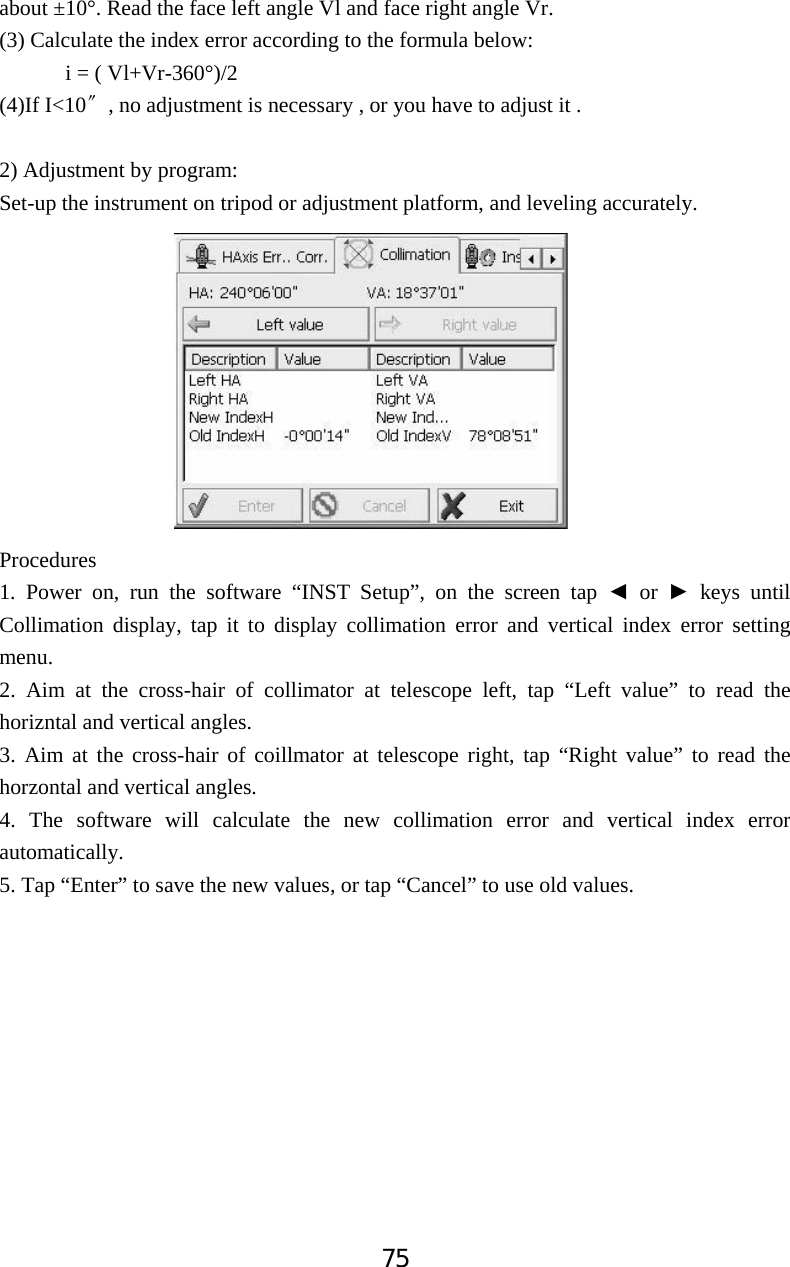
75about ±10°. Read the face left angle Vl and face right angle Vr. (3) Calculate the index error according to the formula below: i = ( Vl+Vr-360°)/2 (4)If I<10ͳ, no adjustment is necessary , or you have to adjust it . 2) Adjustment by program: Set-up the instrument on tripod or adjustment platform, and leveling accurately. Procedures1. Power on, run the software “INST Setup”, on the screen tap Ż or Ź keys until Collimation display, tap it to display collimation error and vertical index error setting menu. 2. Aim at the cross-hair of collimator at telescope left, tap “Left value” to read the horizntal and vertical angles. 3. Aim at the cross-hair of coillmator at telescope right, tap “Right value” to read the horzontal and vertical angles. 4. The software will calculate the new collimation error and vertical index error automatically. 5. Tap “Enter” to save the new values, or tap “Cancel” to use old values.
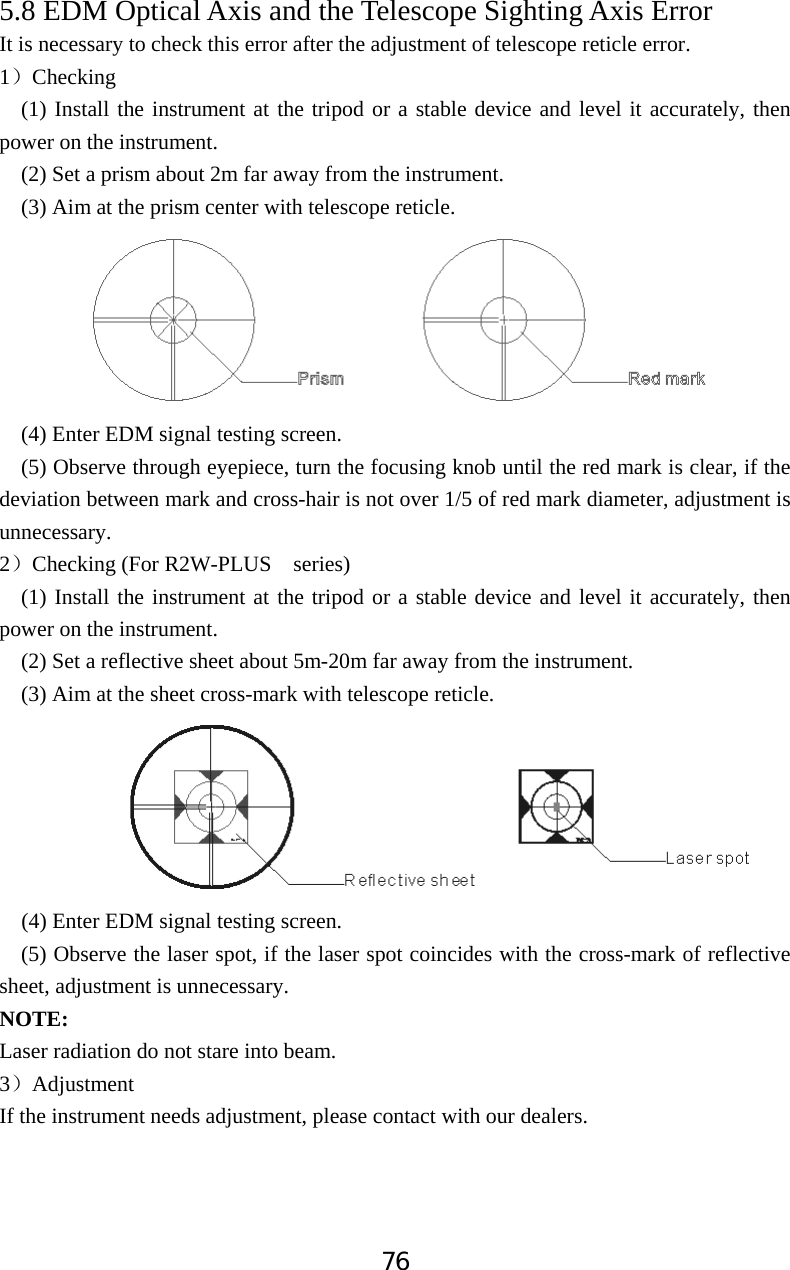
765.8 EDM Optical Axis and the Telescope Sighting Axis Error It is necessary to check this error after the adjustment of telescope reticle error. 1˅Checking(1) Install the instrument at the tripod or a stable device and level it accurately, then power on the instrument. (2) Set a prism about 2m far away from the instrument. (3) Aim at the prism center with telescope reticle. (4) Enter EDM signal testing screen. (5) Observe through eyepiece, turn the focusing knob until the red mark is clear, if the deviation between mark and cross-hair is not over 1/5 of red mark diameter, adjustment is unnecessary. 2˅Checking (For R2W-PLUS  series) (1) Install the instrument at the tripod or a stable device and level it accurately, then power on the instrument. (2) Set a reflective sheet about 5m-20m far away from the instrument. (3) Aim at the sheet cross-mark with telescope reticle.                 (4) Enter EDM signal testing screen. (5) Observe the laser spot, if the laser spot coincides with the cross-mark of reflective sheet, adjustment is unnecessary. NOTE:Laser radiation do not stare into beam. 3˅Adjustment If the instrument needs adjustment, please contact with our dealers.
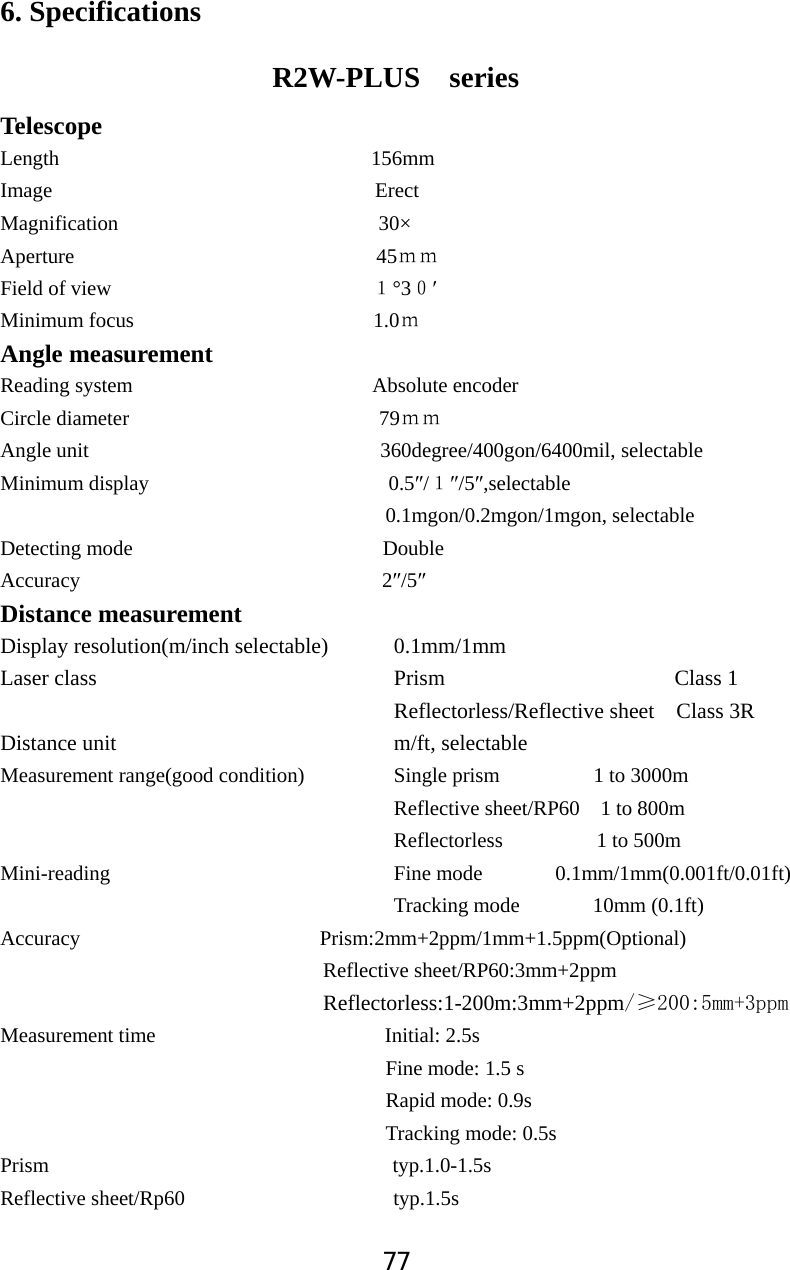
776. Specifications   R2W-PLUS  series Telescope Length         156mm Image                               Erect Magnification                         30× Aperture                             45̉̉Field of view                         ˍ°3ˌƍMinimum focus                       1.0̉Angle measurement   Reading system                       Absolute encoder Circle diameter                        79̉̉Angle unit                            360degree/400gon/6400mil, selectable Minimum display                       0.5Ǝ/ˍƎ/5Ǝ,selectable                                     0.1mgon/0.2mgon/1mgon, selectable Detecting mode                        Double Accuracy                             2Ǝ/5ƎDistance measurement   Display resolution(m/inch selectable)      0.1mm/1mm Laser class                           Prism                     Class 1                                     Reflectorless/Reflective sheet  Class 3R Distance unit                          m/ft, selectable Measurement range(good condition)         Single prism 1 to 3000m Reflective sheet/RP60    1 to 800m Reflectorless         1 to 500m Mini-reading                            Fine mode       0.1mm/1mm(0.001ft/0.01ft)          Tracking mode       10mm (0.1ft) Accuracy                       Prism:2mm+2ppm/1mm+1.5ppm(Optional)                                Reflective sheet/RP60:3mm+2ppm                                Reflectorless:1-200m:3mm+2ppmıPPSSPMeasurement time                      Initial: 2.5s Fine mode: 1.5 s                                      Rapid mode: 0.9s                                      Tracking mode: 0.5s Prism                                 typ.1.0-1.5s Reflective sheet/Rp60                    typ.1.5s
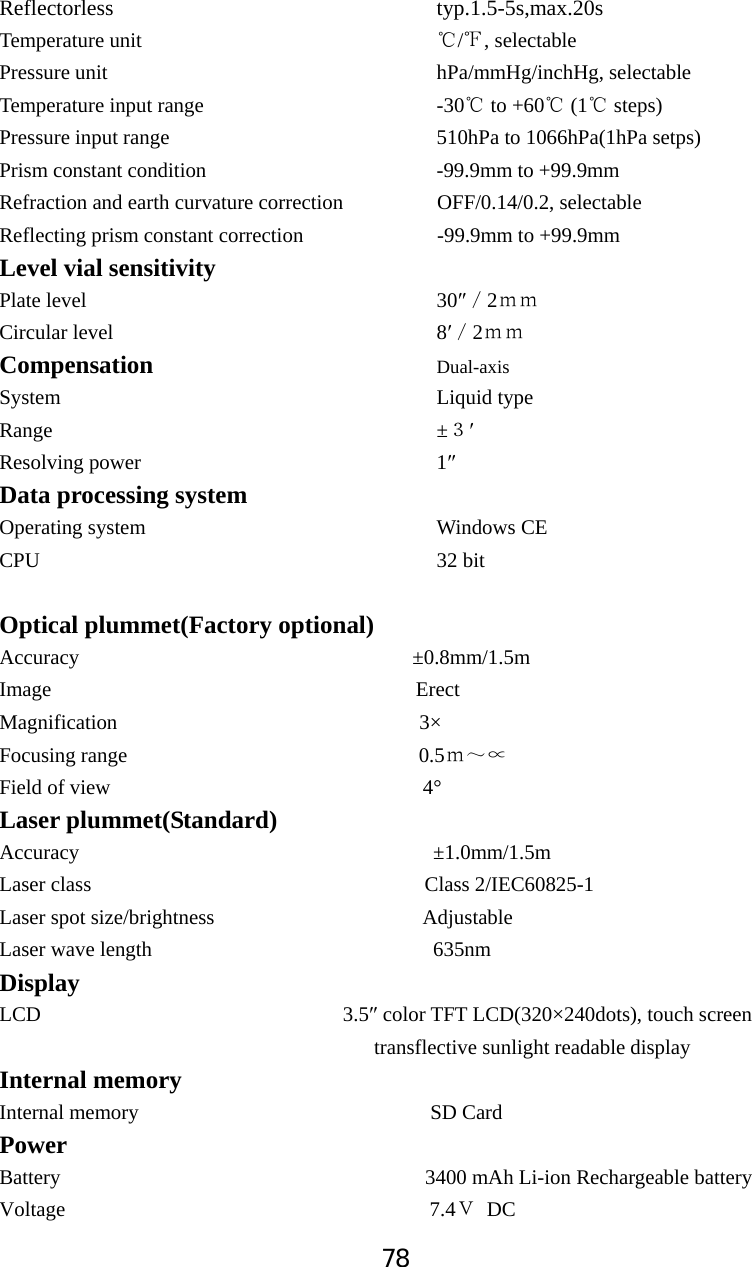
78Reflectorless                            typ.1.5-5s,max.20sTemperature unit                          / , selectableḉPressure unit                              hPa/mmHg/inchHg, selectable Temperature input range                     -30  to +60  (1  steps)ćććPressure input range                        510hPa to 1066hPa(1hPa setps) Prism constant condition                    -99.9mm to +99.9mm Refraction and earth curvature correction           OFF/0.14/0.2, selectable   Reflecting prism constant correction           -99.9mm to +99.9mm Level vial sensitivity   Plate level                                30Ǝˋ2̉̉Circular level                              8ƍˋ2̉̉Compensation           Dual-axis System                                    Liquid type Range                                     ±ˏƍResolving power                            1ƎData processing system Operating system                            Windows CE CPU                                      32 bit Optical plummet(Factory optional) Accuracy                                ±0.8mm/1.5m Image                                   Erect Magnification                             3× Focusing range                            0.5̉̚ĝField of view                              4° Laser plummet(Standard) Accuracy                                  ±1.0mm/1.5m Laser class                                Class 2/IEC60825-1 Laser spot size/brightness                    Adjustable Laser wave length                           635nm DisplayLCD                             3.5Ǝ color TFT LCD(320×240dots), touch screen                                       transflective sunlight readable display Internal memory Internal memory                            SD Card Power  Battery                                   3400 mAh Li-ion Rechargeable battery Voltage                                   7.4˲ DC
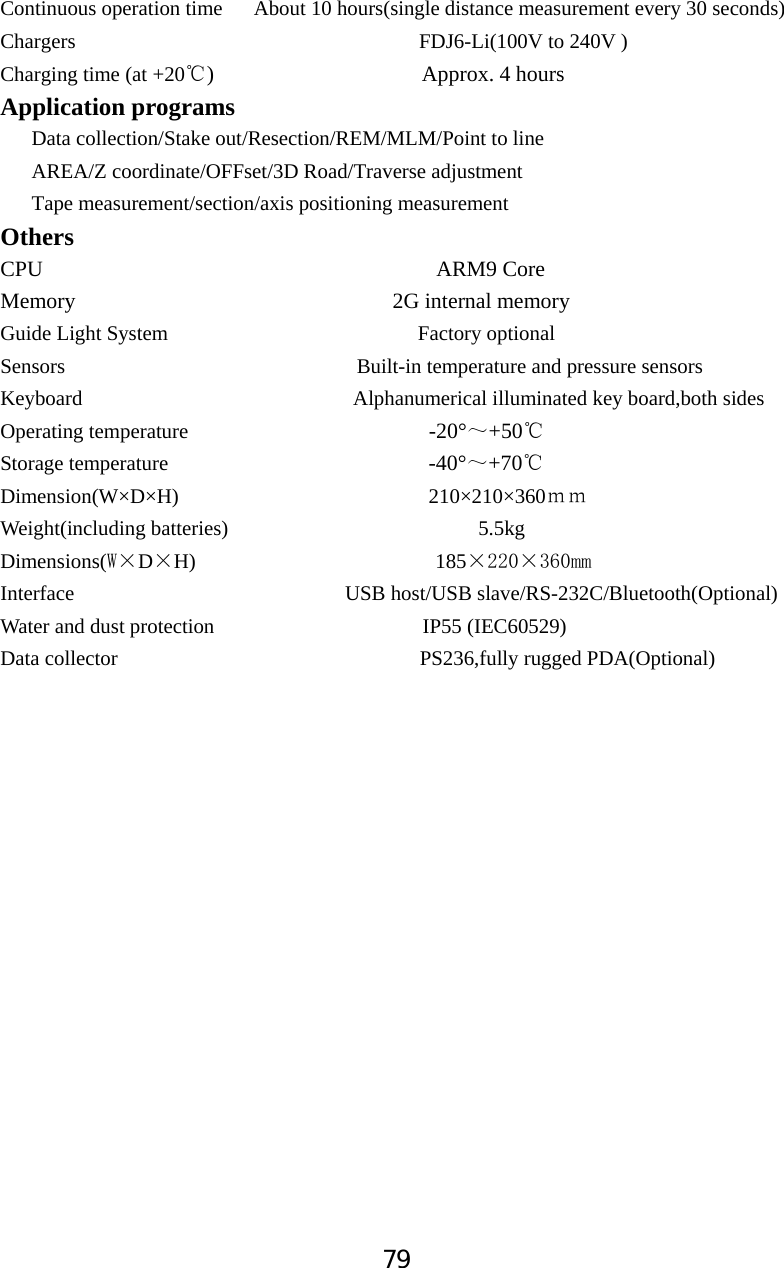
79Continuous operation time      About 10 hours(single distance measurement every 30 seconds)         Chargers                                 FDJ6-Li(100V to 240V ) Charging time (at +20 )                   Approx. 4ć hours    Application programs    Data collection/Stake out/Resection/REM/MLM/Point to line   AREA/Z coordinate/OFFset/3D Road/Traverse adjustment Tape measurement/section/axis positioning measurement OthersCPU                                    ARM9 Core Memory                             2G internal memory Guide Light System                        Factory optional Sensors                            Built-in temperature and pressure sensors Keyboard                          Alphanumerical illuminated key board,both sides                 Operating temperature                       -20°̚+50ćStorage temperature                         -40°̚+70ćDimension(W×D×H)                        210×210×360̉̉Weight(including batteries)                        5.5kg Dimensions(:hDhH)                       185hhPPInterface                          USB host/USB slave/RS-232C/Bluetooth(Optional) Water and dust protection                    IP55 (IEC60529) Data collector                             PS236,fully rugged PDA(Optional)
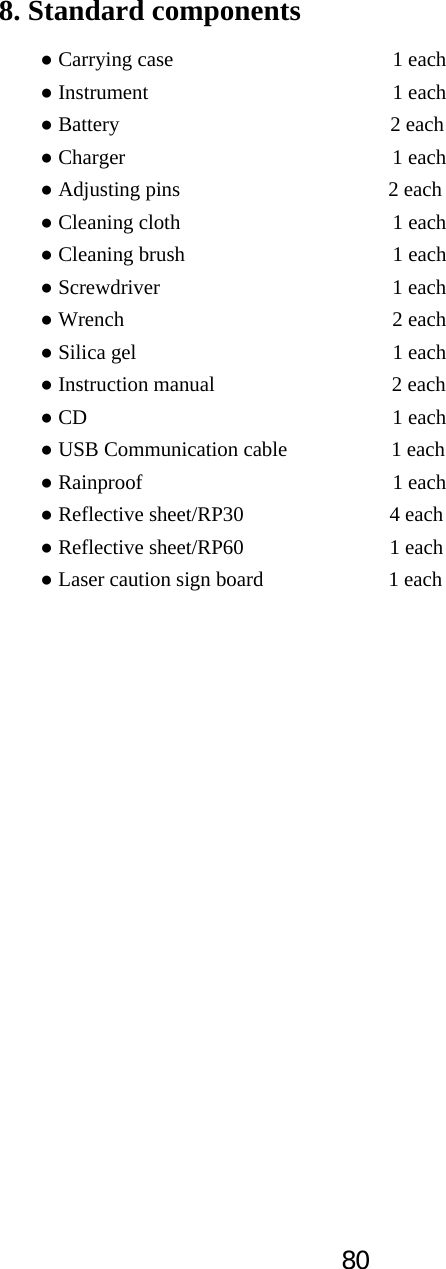
808. Standard components Ɣ Carrying case      1 each Ɣ Instrument      1 each Ɣ Battery                          2 each Ɣ Charger       1 each Ɣ Adjusting pins                    2 each Ɣ Cleaning cloth     1 each Ɣ Cleaning brush     1 each Ɣ Screwdriver      1 each Ɣ Wrench       2 each Ɣ Silica gel      1 each Ɣ Instruction manual                 2 each Ɣ CD       1 each Ɣ USB Communication cable          1 each Ɣ Rainproof                        1 each Ɣ Reflective sheet/RP30              4 each Ɣ Reflective sheet/RP60              1 each Ɣ Laser caution sign board            1 each
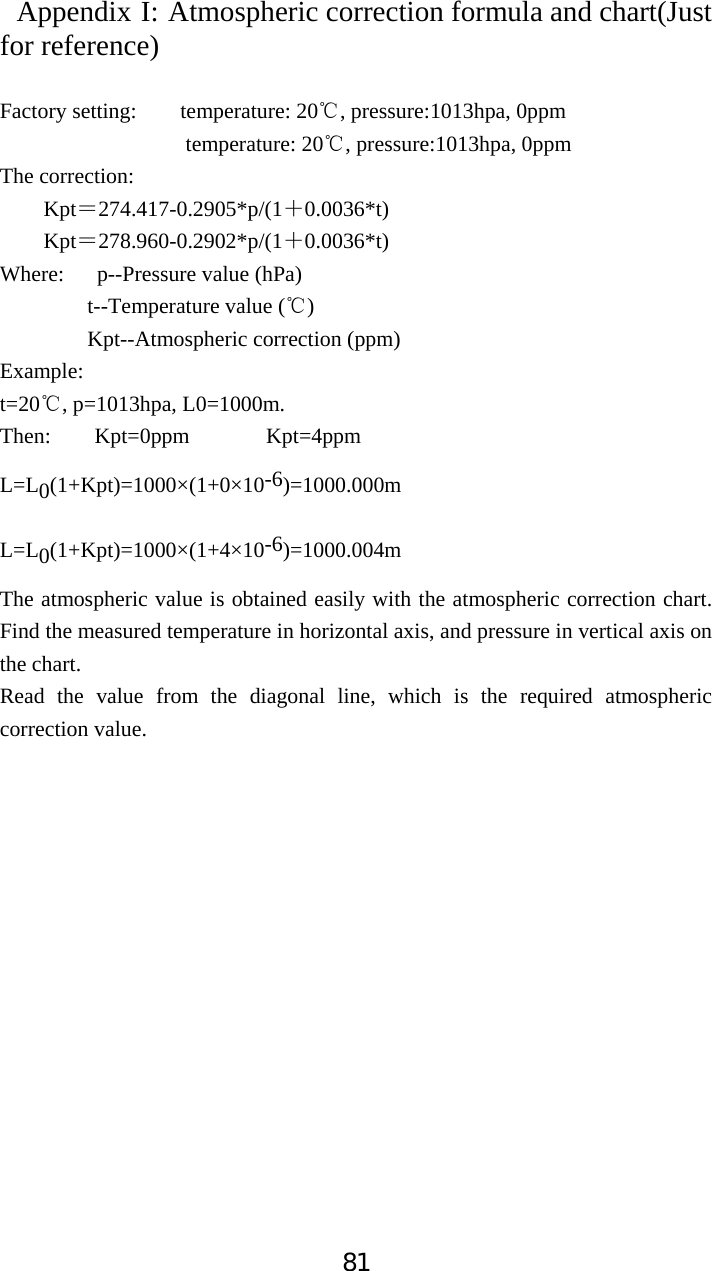
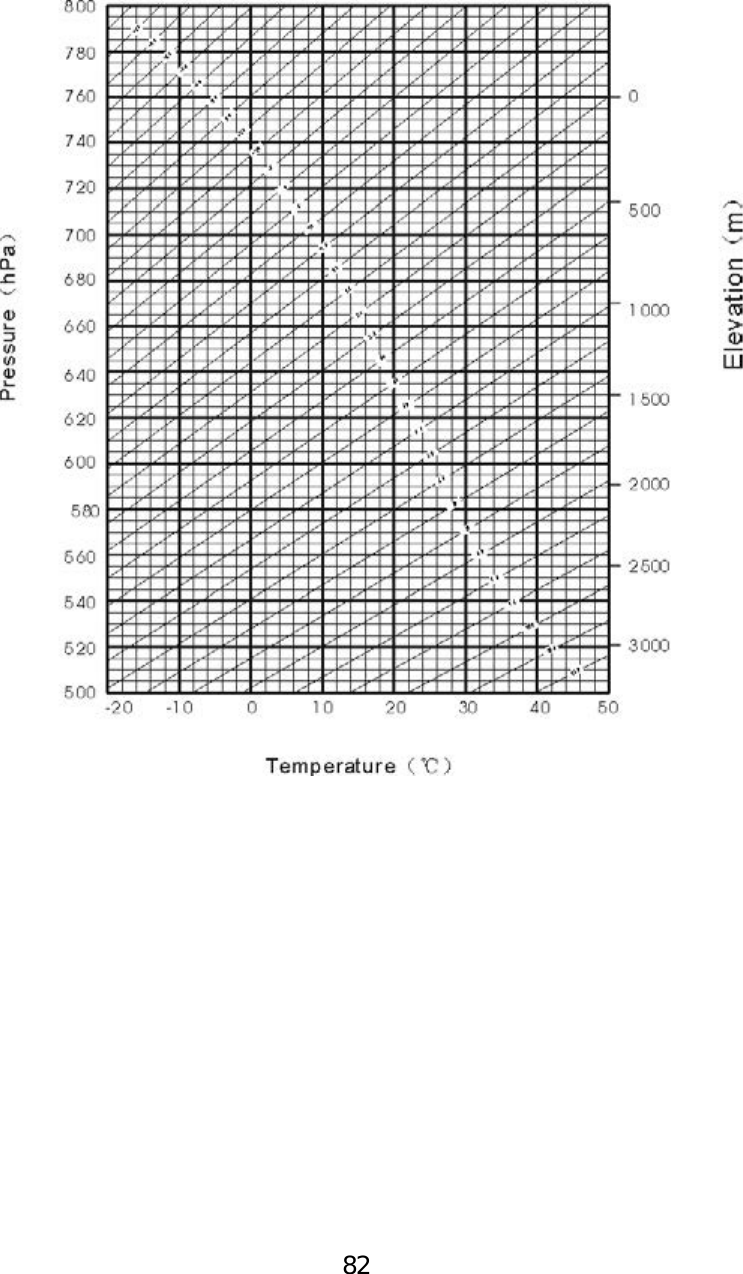
81Appendix I: Atmospheric correction formula and chart(Just for reference) Factory setting:    temperature: 20 , pressure:1013hpa, 0ppm ć                 temperature: 20 , pressure:1013hpa, 0ppm ćThe correction:     Kpt˙274.417-0.2905*p/(1ˇ0.0036*t)     Kpt˙278.960-0.2902*p/(1ˇ0.0036*t) Where:   p--Pressure value (hPa)         t--Temperature value (ć)        Kpt--Atmospheric correction (ppm) Example:  t=20 , p=1013hpa, L0=1000m.ćThen:    Kpt=0ppm       Kpt=4ppm  L=L0(1+Kpt)=1000×(1+0×10-6)=1000.000m   L=L0(1+Kpt)=1000×(1+4×10⁻⁶)=1000.004m   The atmospheric value is obtained easily with the atmospheric correction chart. Find the measured temperature in horizontal axis, and pressure in vertical axis on the chart. Read the value from the diagonal line, which is the required atmospheric correction value.
82
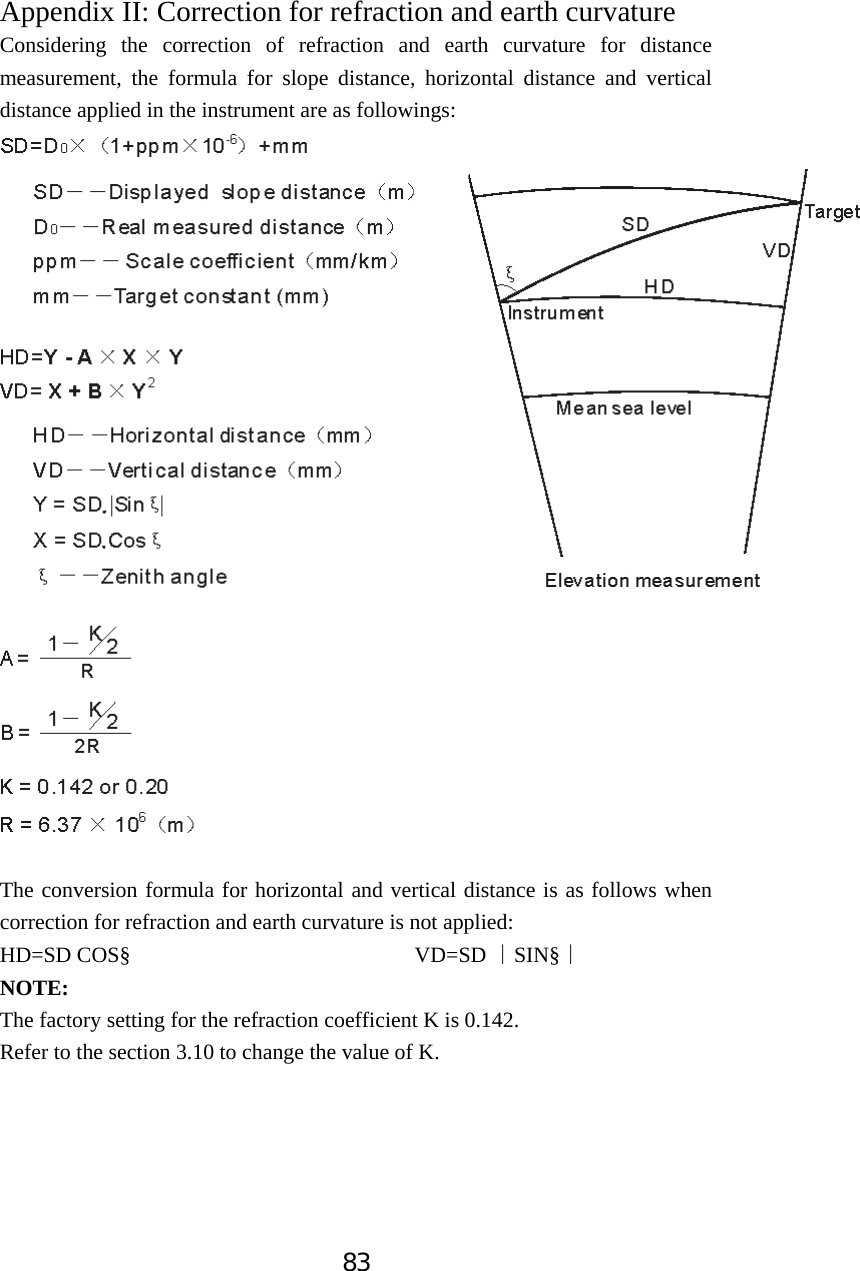
83Appendix II: Correction for refraction and earth curvature Considering the correction of refraction and earth curvature for distance measurement, the formula for slope distance, horizontal distance and vertical distance applied in the instrument are as followings:   The conversion formula for horizontal and vertical distance is as follows when correction for refraction and earth curvature is not applied: HD=SD COS§                          VD=SD  SIN§̮̮NOTE:The factory setting for the refraction coefficient K is 0.142. Refer to the section 3.10 to change the value of K.
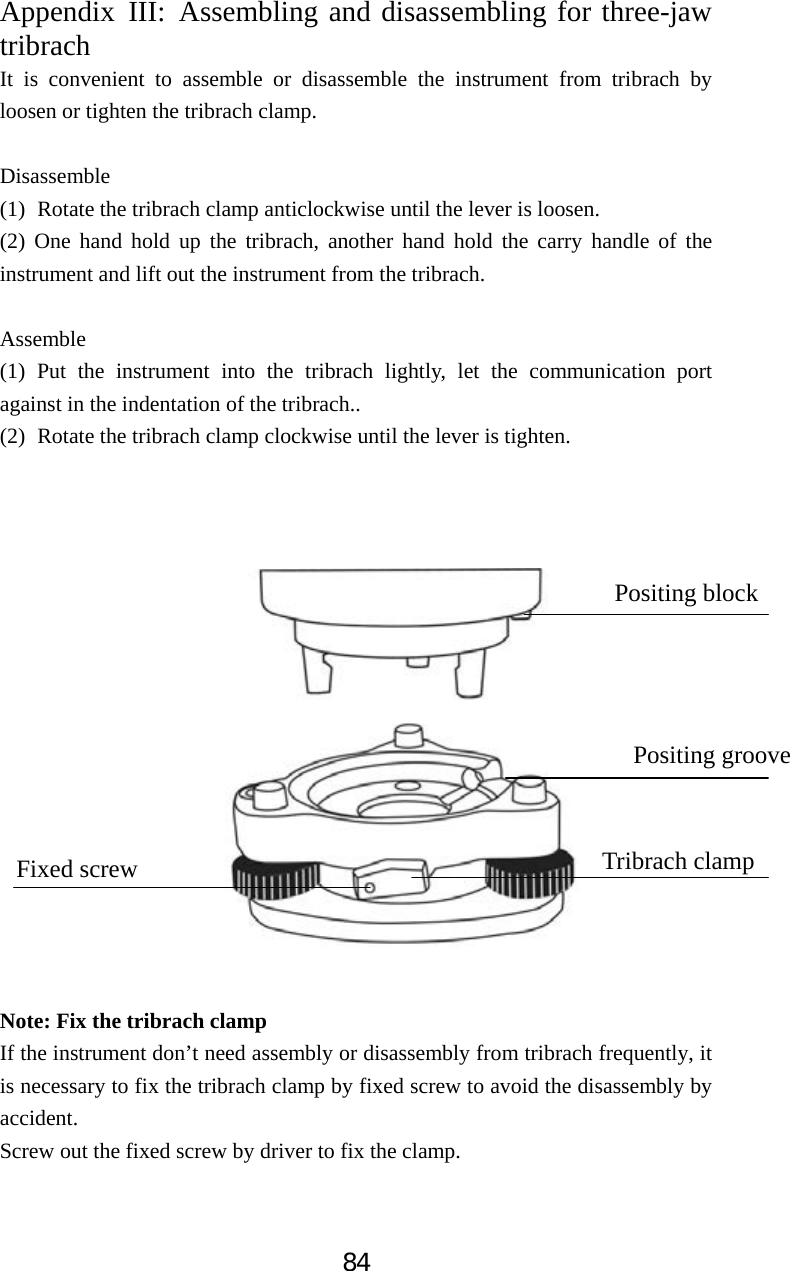
84Appendix III: Assembling and disassembling for three-jaw tribrachIt is convenient to assemble or disassemble the instrument from tribrach by loosen or tighten the tribrach clamp.   Disassemble (1) Rotate the tribrach clamp anticlockwise until the lever is loosen. (2) One hand hold up the tribrach, another hand hold the carry handle of the instrument and lift out the instrument from the tribrach. Assemble (1) Put the instrument into the tribrach lightly, let the communication port against in the indentation of the tribrach.. (2) Rotate the tribrach clamp clockwise until the lever is tighten. Note: Fix the tribrach clamp If the instrument don’t need assembly or disassembly from tribrach frequently, it is necessary to fix the tribrach clamp by fixed screw to avoid the disassembly by accident.  Screw out the fixed screw by driver to fix the clamp. Positing block Positing groove Tribrach clamp Fixed screw
Changes or modifications not expressly approved by the party responsible for compliance could void the user's authority to operate the equipment.Note: This equipment has been tested and found to comply with the limits for a Class B digital device, pursuant to part 15 of the FCC Rules. These limits are designed to provide reasonable protection against harmful interference in a residential installation. This equipment generates, uses and can radiate radio frequency energy and, if not installed and used in accordance with the instructions, may cause harmful interference to radio communications. However, there is no guarantee that interference will not occur in a particular installation. If this equipment does cause harmful interference to radio or television reception, which can be determined by turning the equipment off and on, the user is encouraged to try to correct the interference by one or more of the following measures:üReorient or relocate the receiving antenna.üIncrease the separation between the equipment and receiver.üConnect the equipment into an outlet on a circuit different from that to which the receiver is connected.üConsult the dealer or an experienced radio/TV technician for help.FCC ID: Y44-R2WStonex Europe Srl   Model name: Total Station    Model No.: R2W-2 Plus 500 This device complies with Part 15 of the FCC Rules. Operation issubject to the following two conditions: (1) this device may not cause harmful interference, and (2) this device must accept any interference received, including interference that may cause undesired operation.
85NOTE: These designs, figures and specifications are subject to change without notice. We shall not be held liable for damages resulting from errors in this instruction manual. STONEX  Co.ˈLtd.Tel˖Fax˖E-mail˖Add˖Web˖  http://www.STONEX .com

Navigation menu