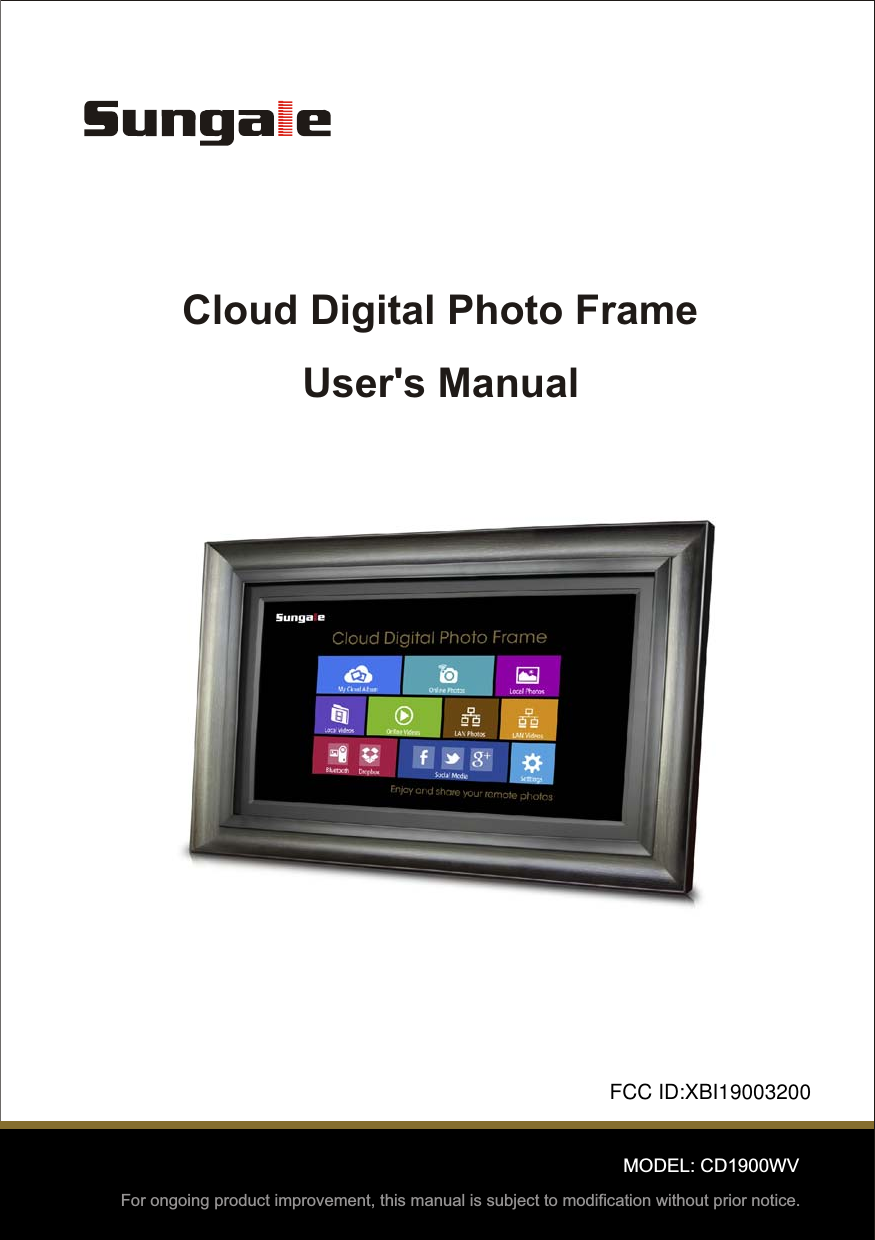
SUNGALE ELECTRONICS 19003200 Cloud Digital Photo Frame User Manual

SUNGALE ELECTRONICS (SHENZHEN) CO., LTD. Cloud Digital Photo Frame Users Manual

user manual

User's ManualFor ongoing product improvement, this manual is subject to modification without prior notice.Cloud Digital Photo Frame MODEL: CD1900WVFCC ID:XBI19003200
Before OperationProduct IntroductionSafety Precautions235Package Contents77Basic OperationInsert a memory card8Connect to the computer9911Advanced Operation121314121818Customer ManagementSupportFAQsRemote Control  illustration 58Getting StartedConnect PowerStart-Up & NavigationDual Interface10Status Icon BriefingWiFi SetupGoogle AccountGoogle Play StoreOnline PhotosOnline Videos1515Social MediaLAN Photos & Videos1616 Local Photos Local Videos17Settings Menu Overview18Tips
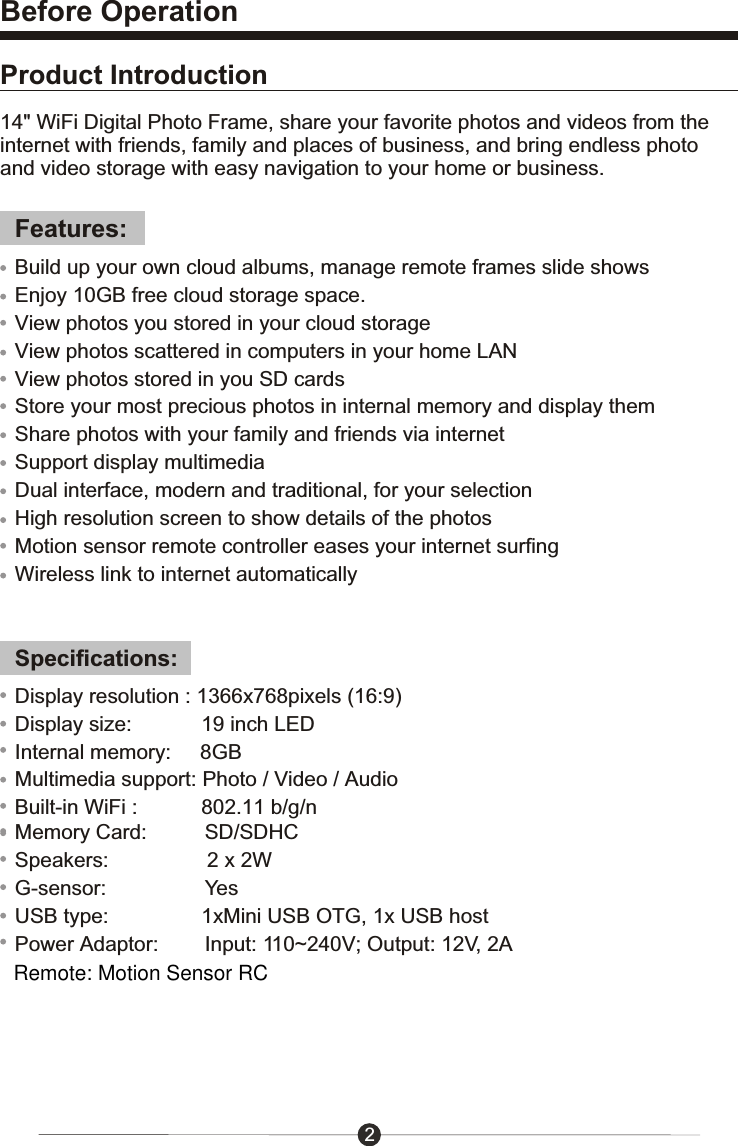
14" WiFi Digital Photo Frame, share your favorite photos and videos from the internet with friends, family and places of business, and bring endless photo and video storage with easy navigation to your home or business.Features:Specifications:Display resolution : 1366x768pixels (16:9)Display size:            19 inch LEDInternal memory:     8GBMultimedia support: Photo / Video / AudioBuilt-in WiFi :           802.11 b/g/nMemory Card:          SD/SDHCSpeakers:                 2 x 2WG-sensor:                 YesUSB type:                1xMini USB OTG, 1x USB hostPower Adaptor:        Input: 110~240V; Output: 12V, 2AProduct IntroductionBefore Operation2Build up your own cloud albums, manage remote frames slide showsEnjoy 10GB free cloud storage space.View photos you stored in your cloud storageView photos scattered in computers in your home LANView photos stored in you SD cardsStore your most precious photos in internal memory and display themShare photos with your family and friends via internetSupport display multimediaDual interface, modern and traditional, for your selectionHigh resolution screen to show details of the photosMotion sensor remote controller eases your internet surfingWireless link to internet automaticallyRemote: Motion Sensor RC
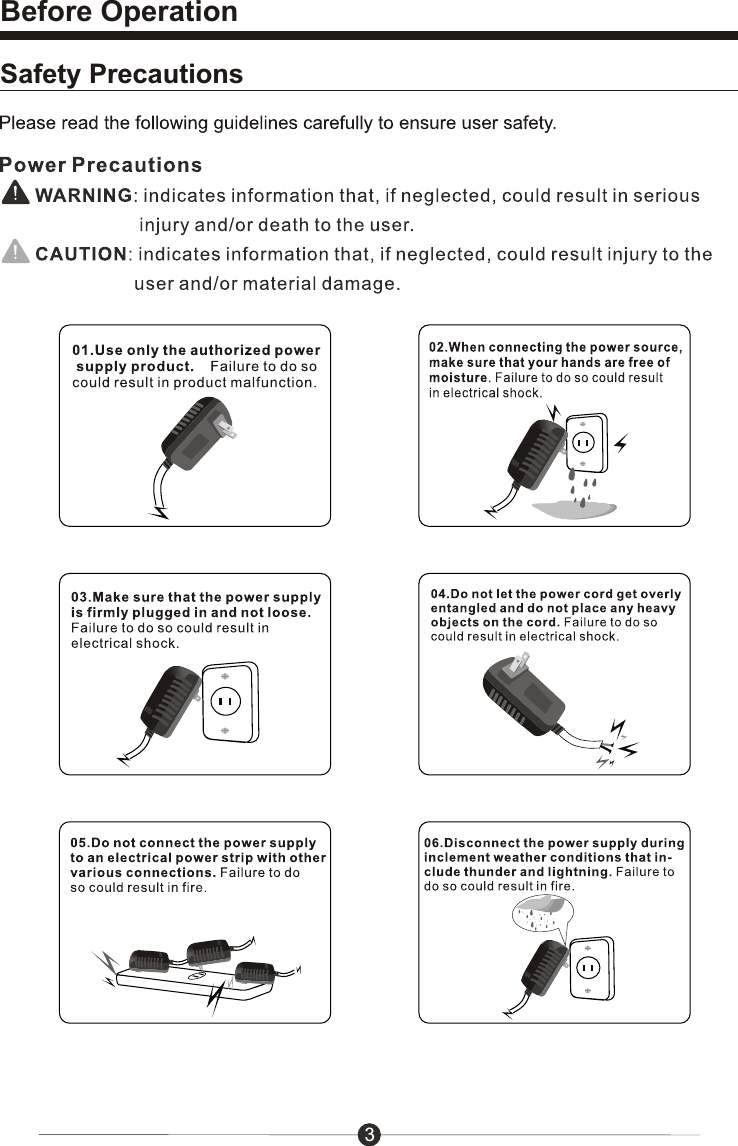
Safety PrecautionsBefore Operation3
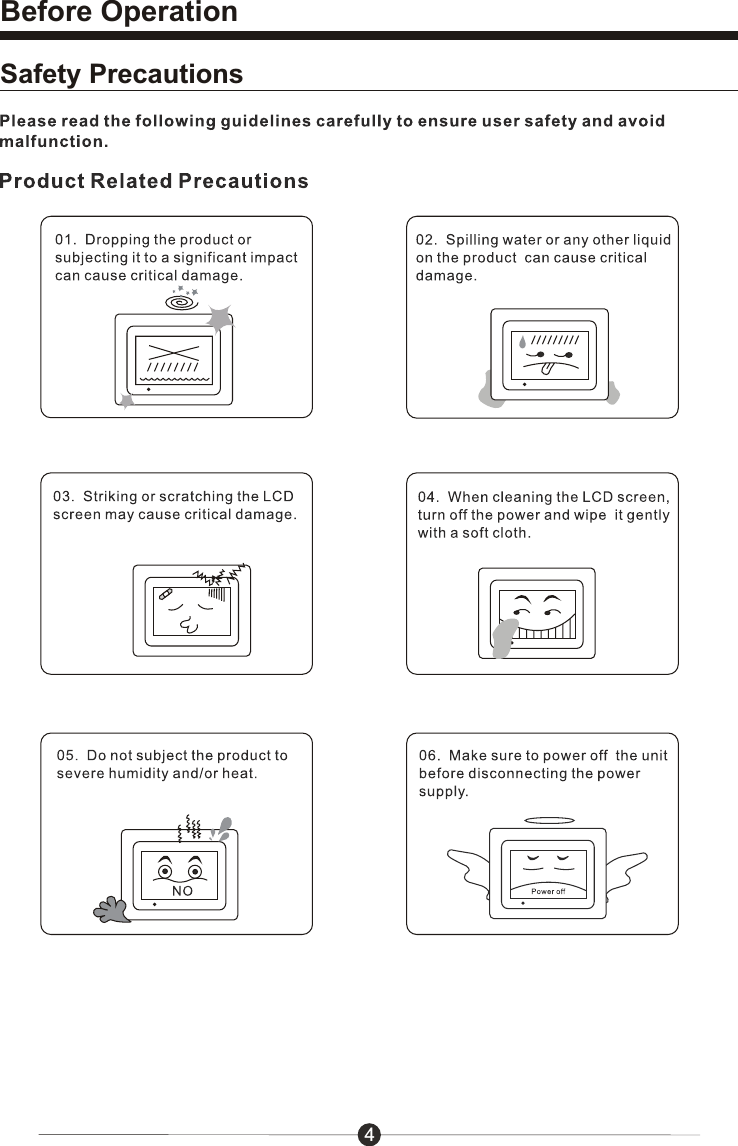
Before OperationSafety Precautions4
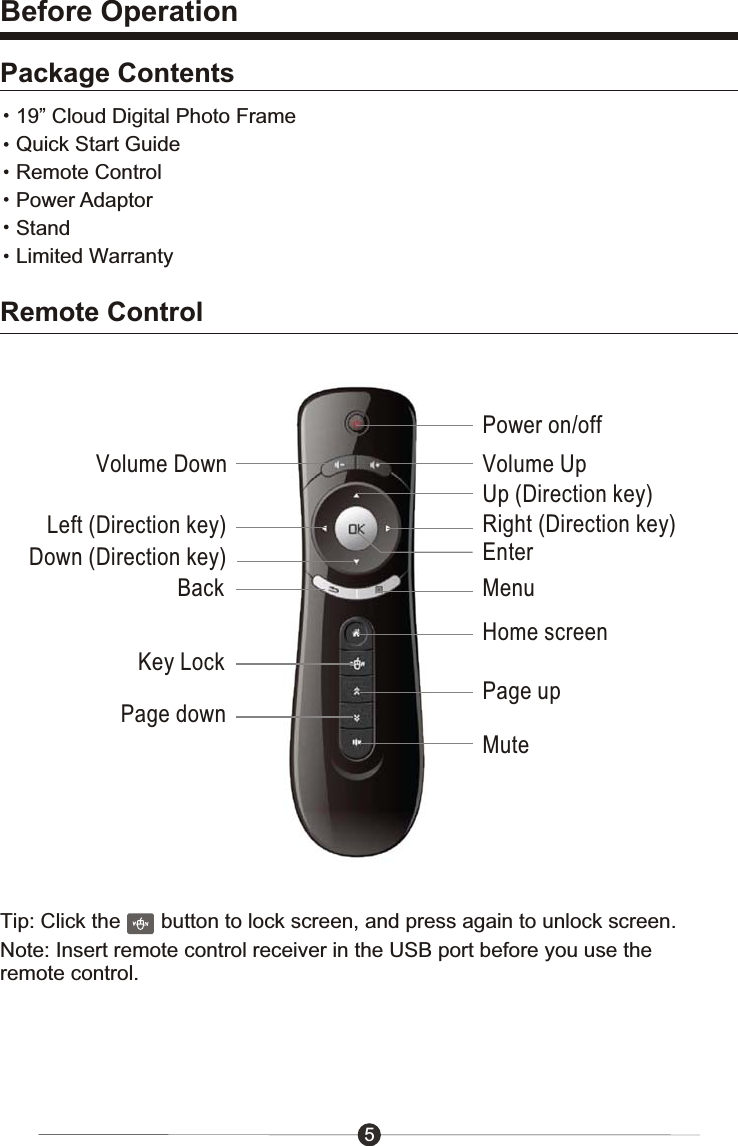
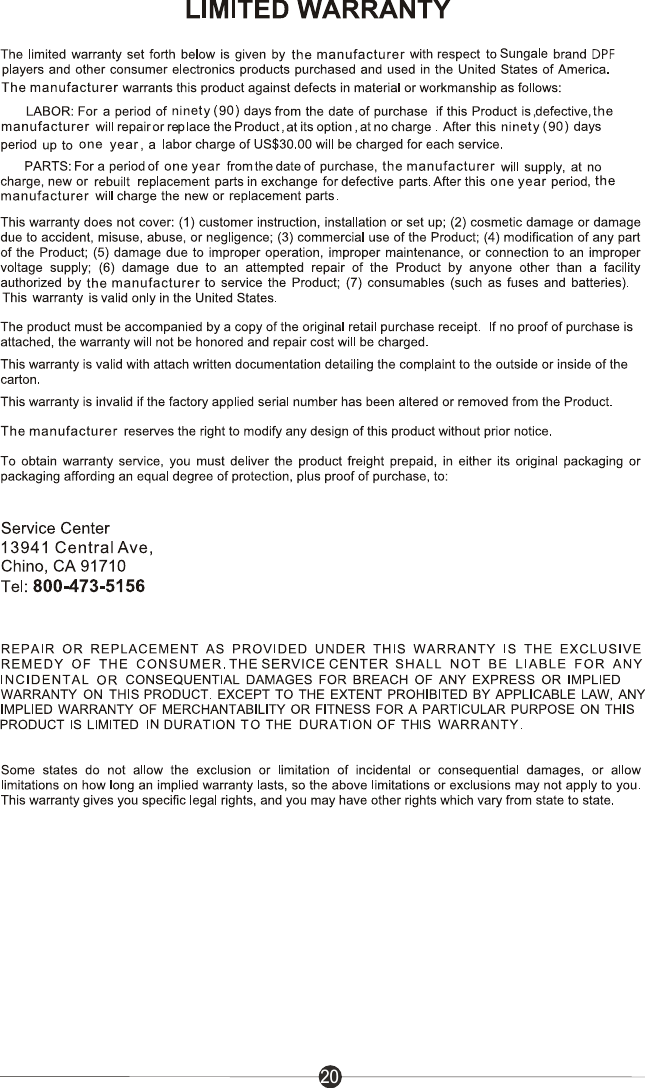
5Before OperationPackage Contents19” Cloud Digital Photo FrameQuick Start GuideRemote ControlPower AdaptorStandLimited WarrantyRemote ControlPower on/offVolume Down Volume UpEnterBackHome screenKey LockPage upMuteMenuUp (Direction key)Down (Direction key)Left (Direction key) Right (Direction key)Page downTip: Click the       button to lock screen, and press again to unlock screen.Note: Insert remote control receiver in the USB port before you use the remote control.
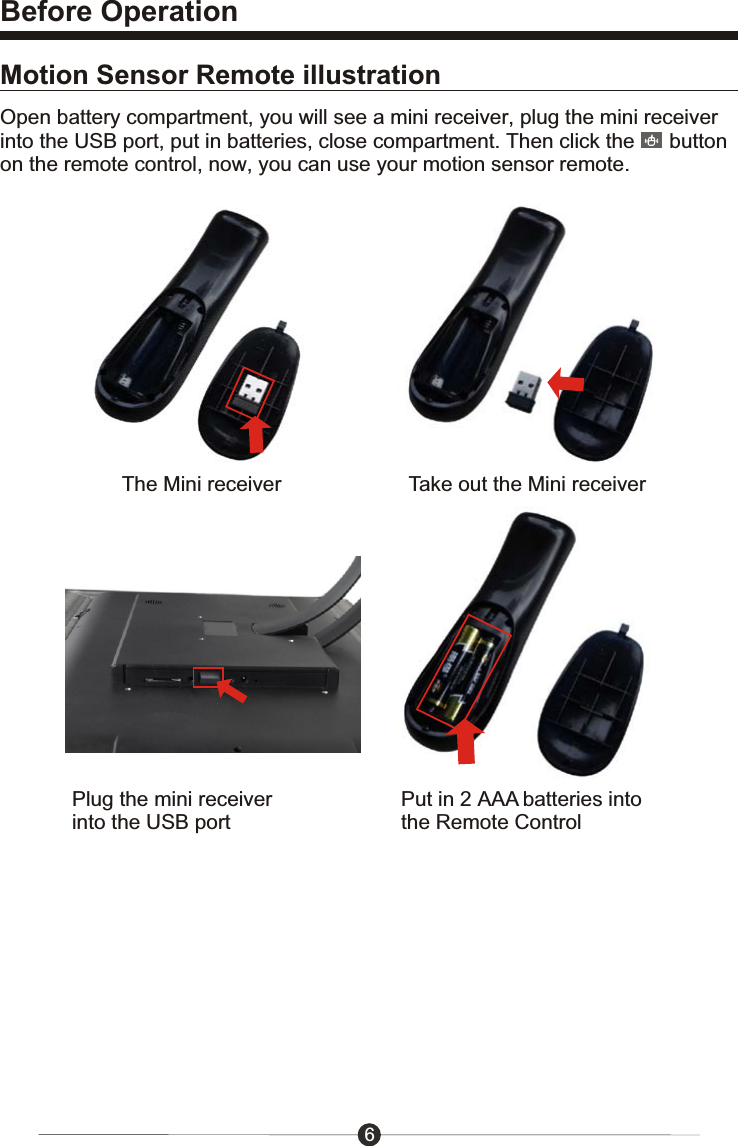
Before Operation6Motion Sensor Remote illustrationOpen battery compartment, you will see a mini receiver, plug the mini receiver into the USB port, put in batteries, close compartment. Then click the      button on the remote control, now, you can use your motion sensor remote.The Mini receiver Take out the Mini receiverPlug the mini receiver into the USB portPut in 2 AAA batteries into the Remote Control
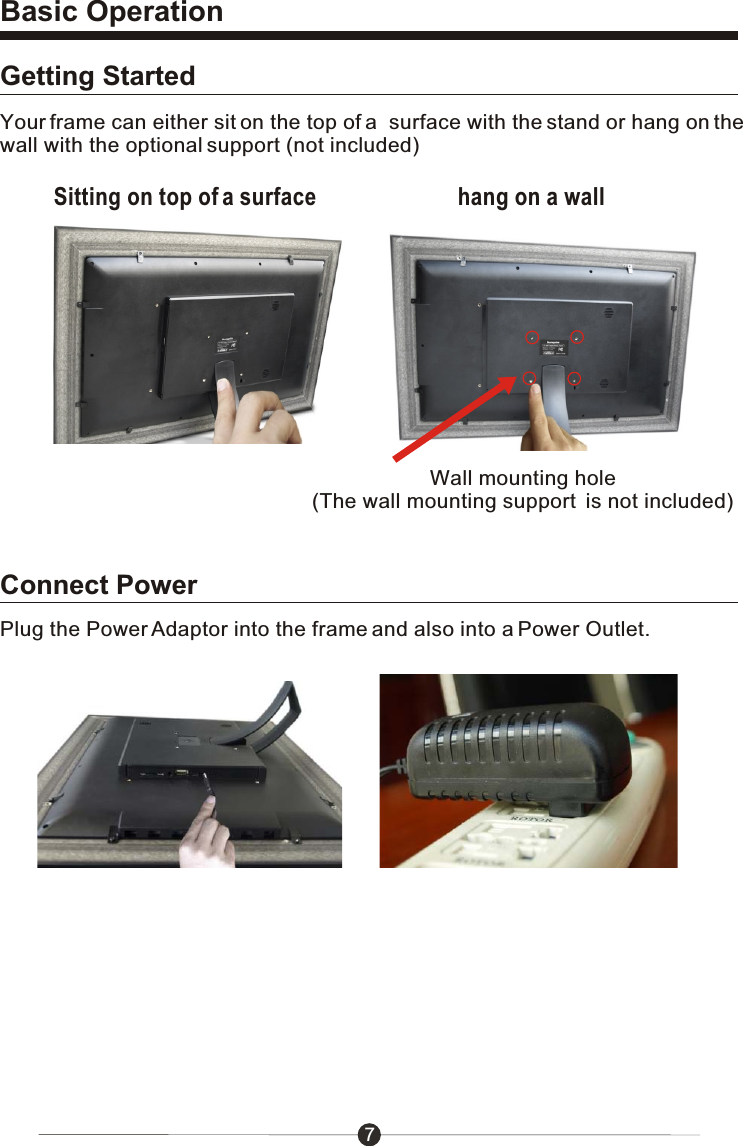
Basic Operation7Getting StartedConnect PowerYour frame can either sit on the top of a  surface with the stand or hang on the wall with the optional support (not included)Plug the Power Adaptor into the frame and also into a Power Outlet.Wall mounting hole(The wall mounting support  is not included)Sitting on top of a surface hang on a wall
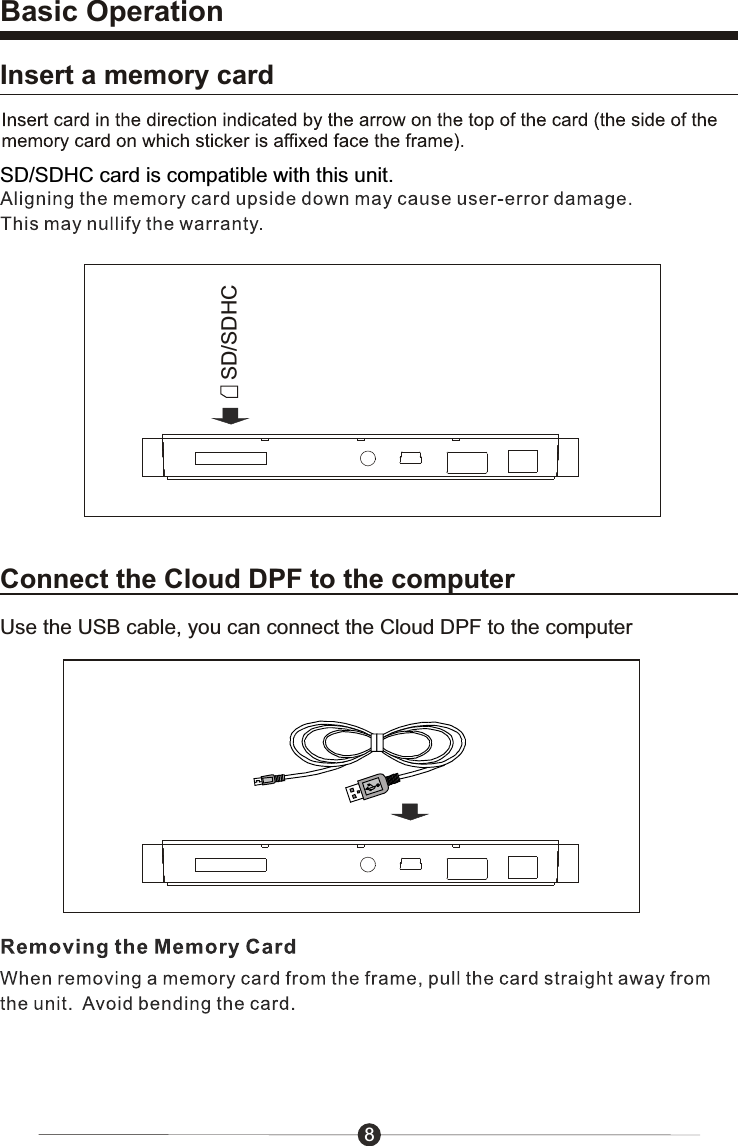
Use the USB cable, you can connect the Cloud DPF to the computerBasic OperationConnect the Cloud DPF to the computer8SD/SDHC card is compatible with this unit. SD/SDHCInsert a memory card
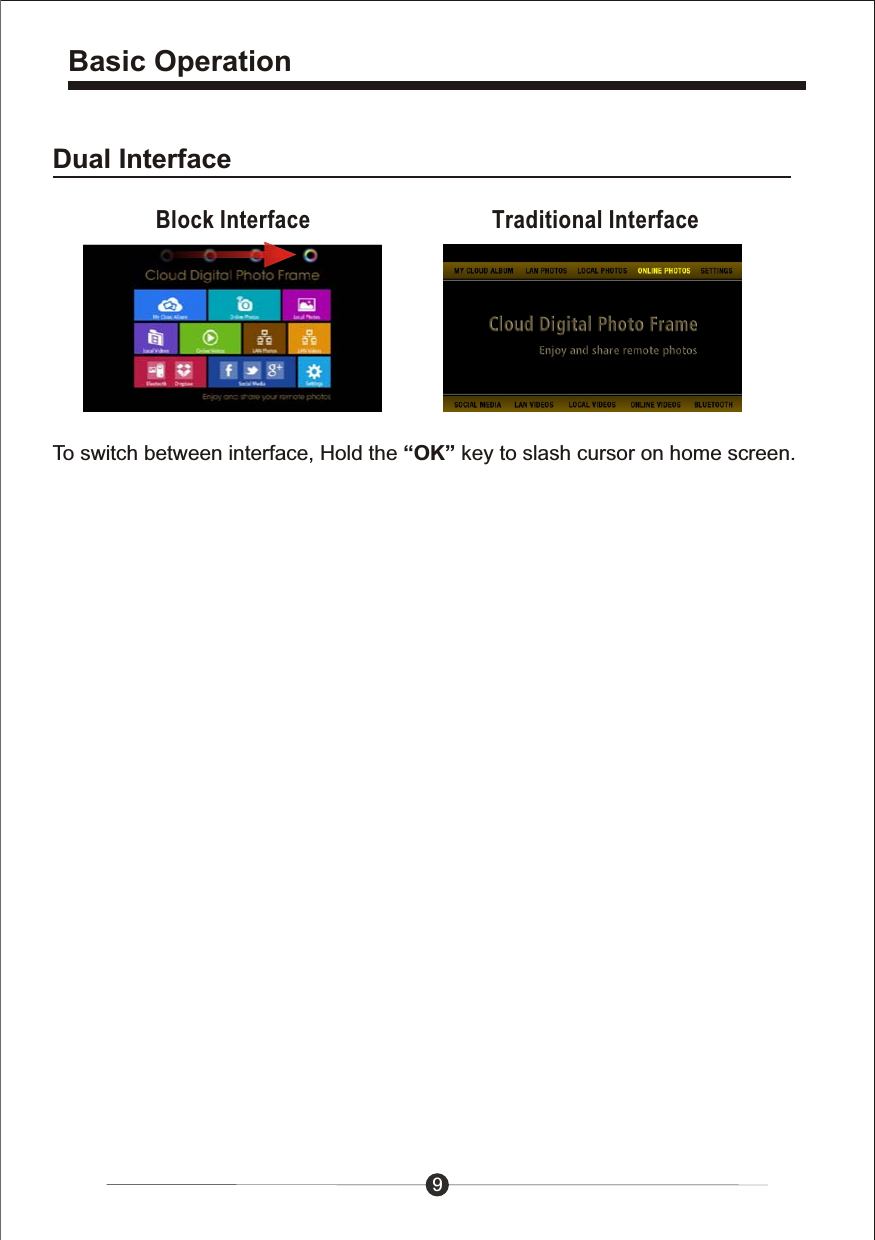
9Basic OperationDual InterfaceTo switch between interface, Hold the “OK” key to slash cursor on home screen.Block Interface Traditional Interface
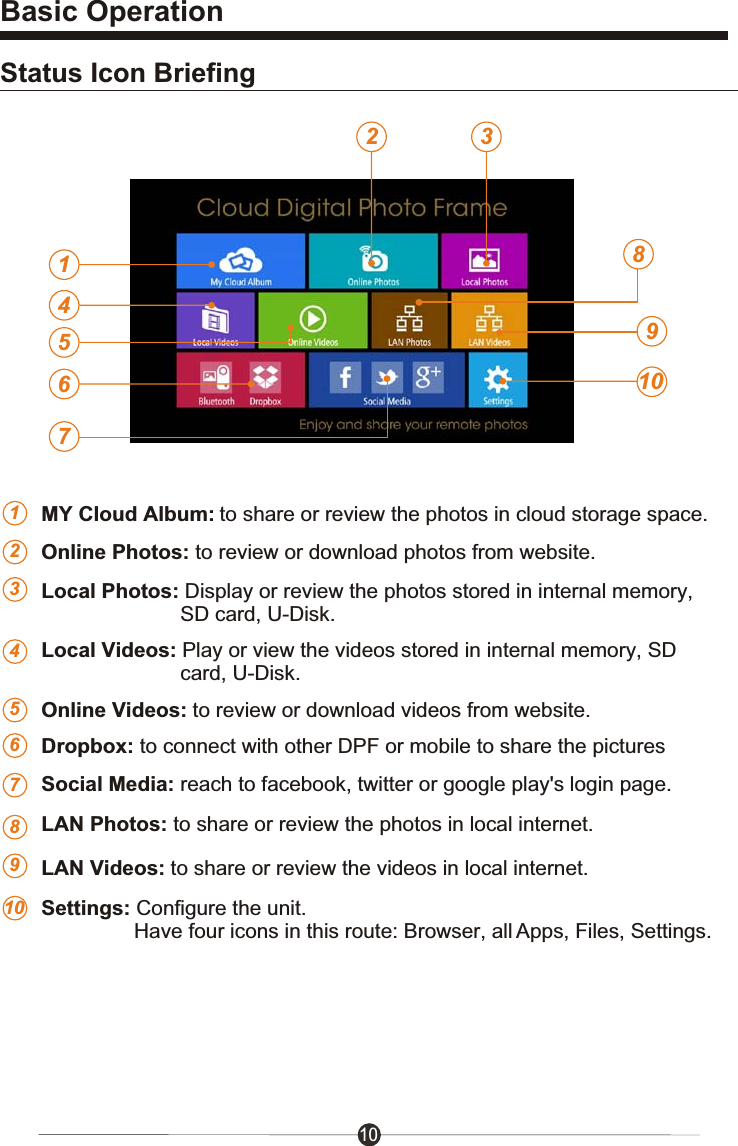
Status Icon BriefingSocial Media: reach to facebook, twitter or google play's login page.Settings: Configure the unit.                 Have four icons in this route: Browser, all Apps, Files, Settings.Online Videos: to review or download videos from website.Local Videos: Play or view the videos stored in internal memory, SD                         card, U-Disk.LAN Photos: to share or review the photos in local internet.LAN Videos: to share or review the videos in local internet.Local Photos: Display or review the photos stored in internal memory,                         SD card, U-Disk.Online Photos: to review or download photos from website.Dropbox: to connect with other DPF or mobile to share the pictures10Basic Operation142 38910723456789MY Cloud Album: to share or review the photos in cloud storage space.15610
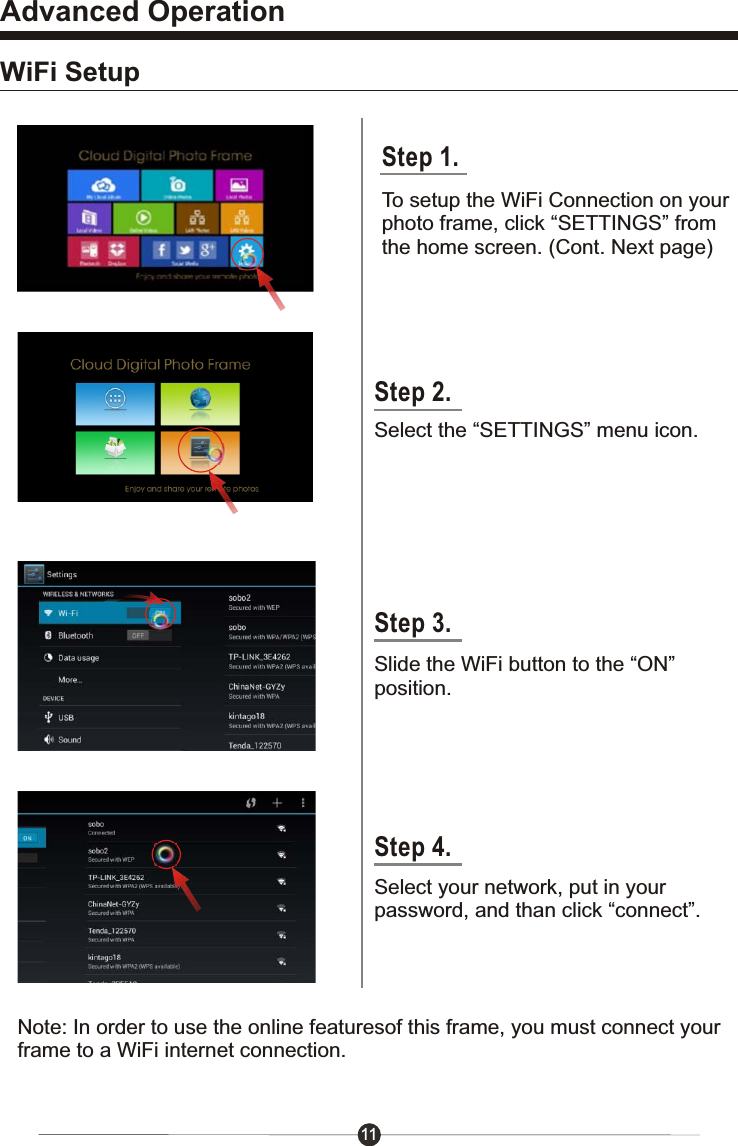
11Advanced OperationWiFi SetupStep 2.Select the “SETTINGS” menu icon.Slide the WiFi button to the “ON”position.Select your network, put in your password, and than click “connect”.Note: In order to use the online featuresof this frame, you must connect yourframe to a WiFi internet connection.Step 3.Step 4.Step 1.To setup the WiFi Connection on yourphoto frame, click “SETTINGS” fromthe home screen. (Cont. Next page)
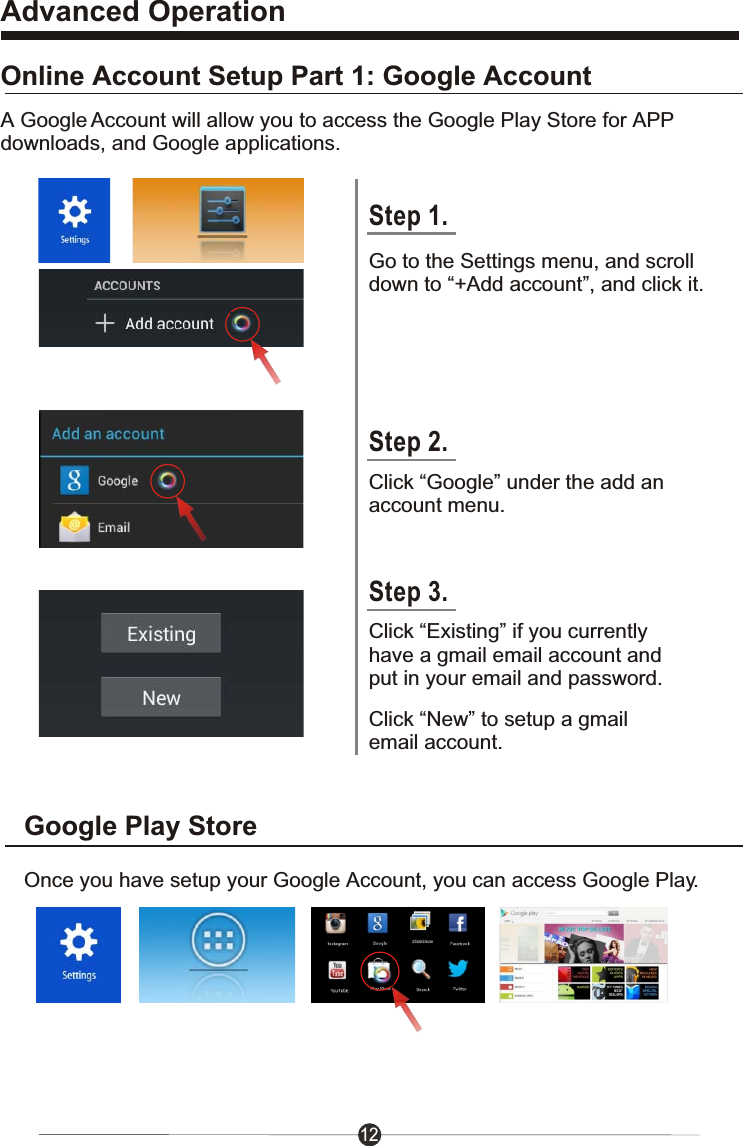
Advanced Operation12Step 1.Online Account Setup Part 1: Google AccountA Google Account will allow you to access the Google Play Store for APPdownloads, and Google applications.Step 2.Step 3.Go to the Settings menu, and scroll down to “+Add account”, and click it.Click “Google” under the add an account menu.Click “Existing” if you currentlyhave a gmail email account and put in your email and password.Click “New” to setup a gmail email account.Google Play StoreOnce you have setup your Google Account, you can access Google Play.
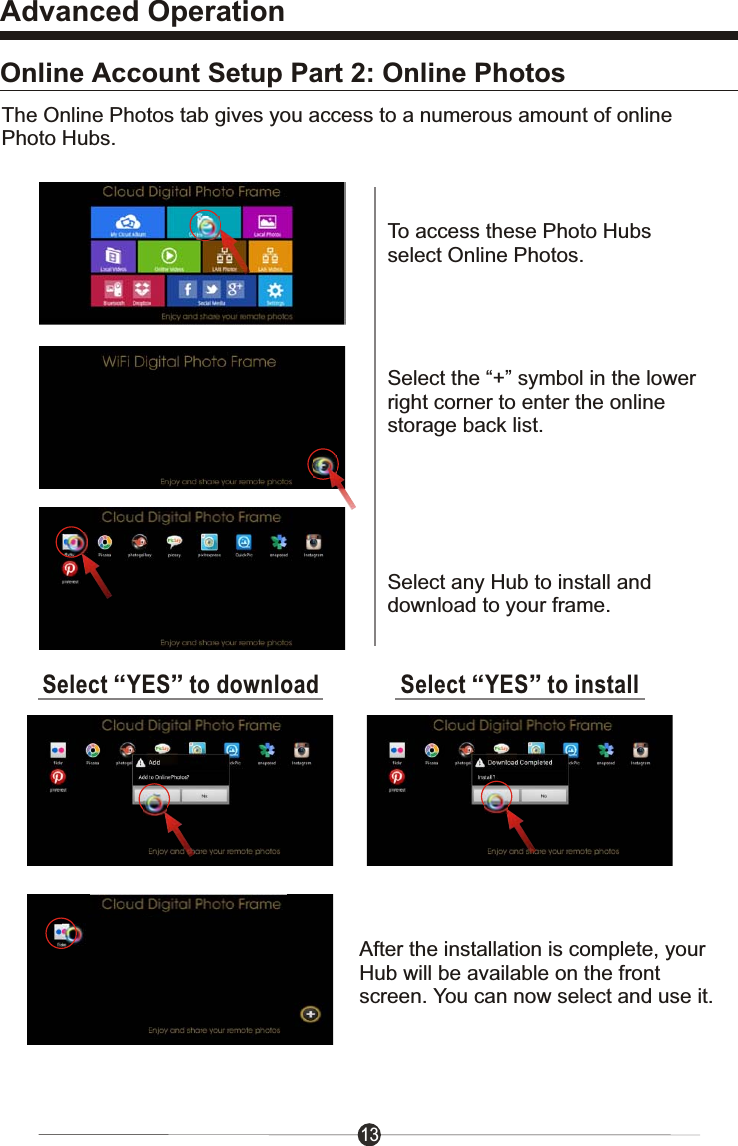
Advanced Operation13Online Account Setup Part 2: Online PhotosTo access these Photo Hubs select Online Photos.Select the “+” symbol in the lower right corner to enter the online storage back list.Select “YES” to downloadThe Online Photos tab gives you access to a numerous amount of online Photo Hubs.Select any Hub to install and download to your frame.Select “YES” to installAfter the installation is complete, your Hub will be available on the front screen. You can now select and use it.
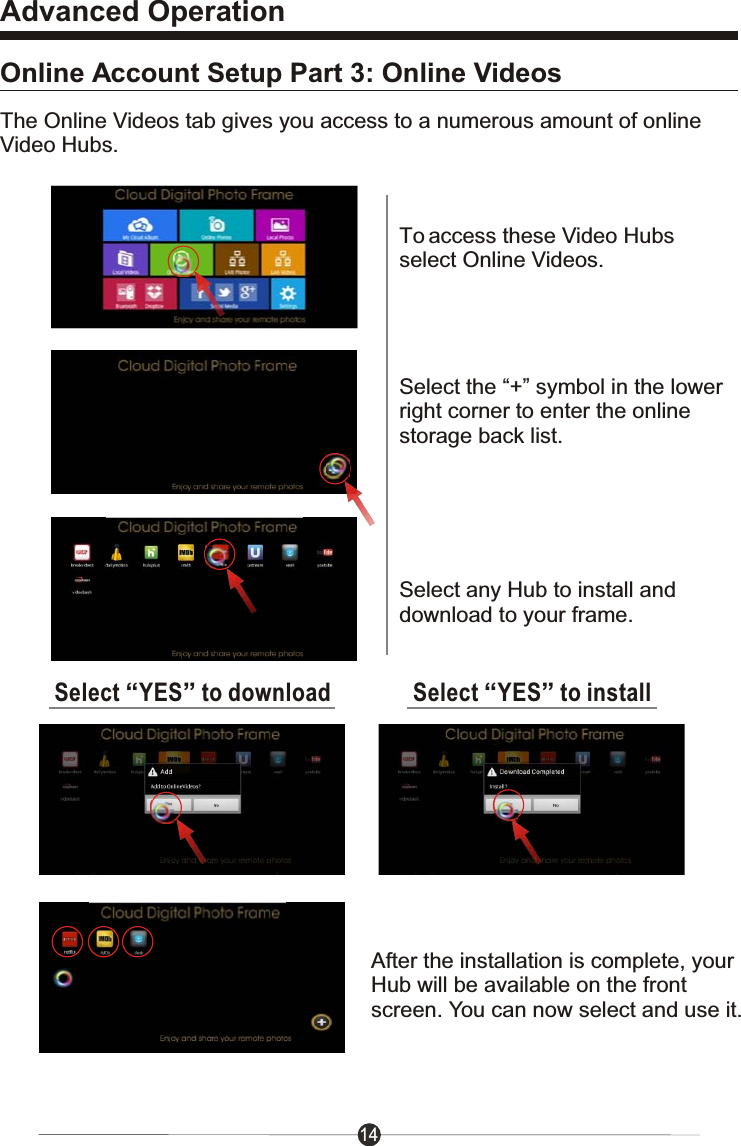
14Advanced OperationOnline Account Setup Part 3: Online VideosTo access these Video Hubsselect Online Videos.Select the “+” symbol in the lowerright corner to enter the onlinestorage back list.Select “YES” to downloadSelect any Hub to install anddownload to your frame.Select “YES” to installAfter the installation is complete, yourHub will be available on the frontscreen. You can now select and use it.The Online Videos tab gives you access to a numerous amount of onlineVideo Hubs.
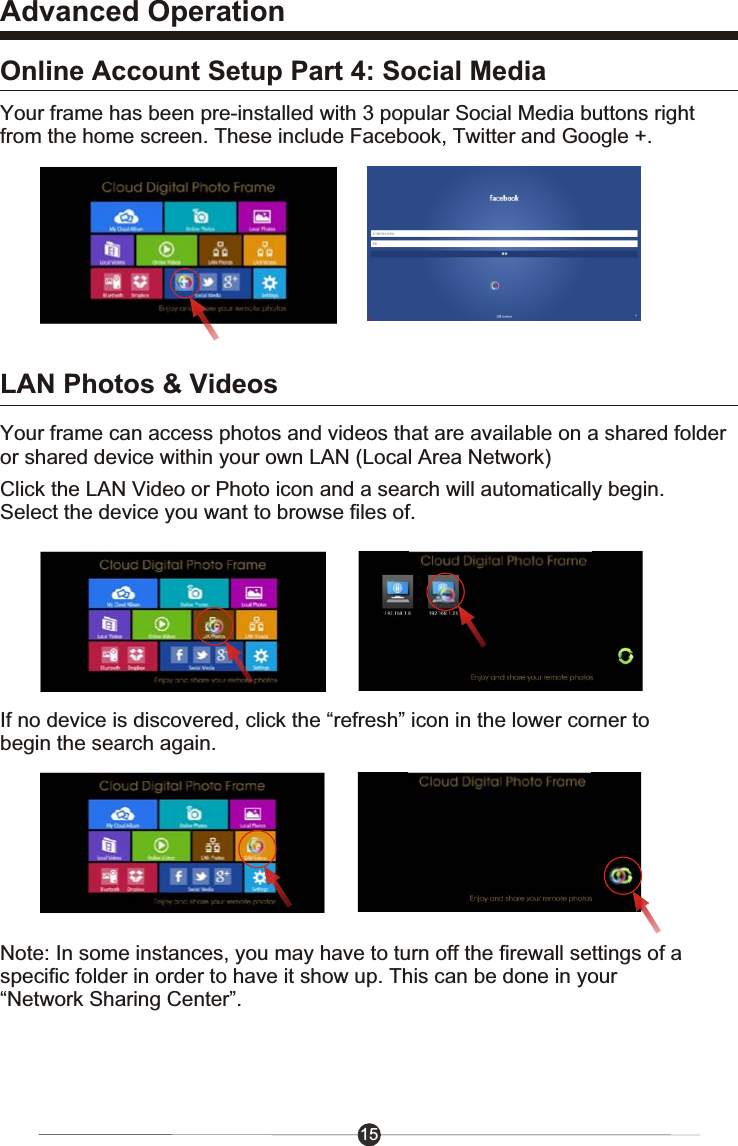
15Advanced OperationOnline Account Setup Part 4: Social MediaLAN Photos & VideosYour frame has been pre-installed with 3 popular Social Media buttons rightfrom the home screen. These include Facebook, Twitter and Google +.Click the LAN Video or Photo icon and a search will automatically begin. Select the device you want to browse files of.If no device is discovered, click the “refresh” icon in the lower corner to begin the search again.Note: In some instances, you may have to turn off the firewall settings of a specific folder in order to have it show up. This can be done in your “Network Sharing Center”. Your frame can access photos and videos that are available on a shared folderor shared device within your own LAN (Local Area Network)
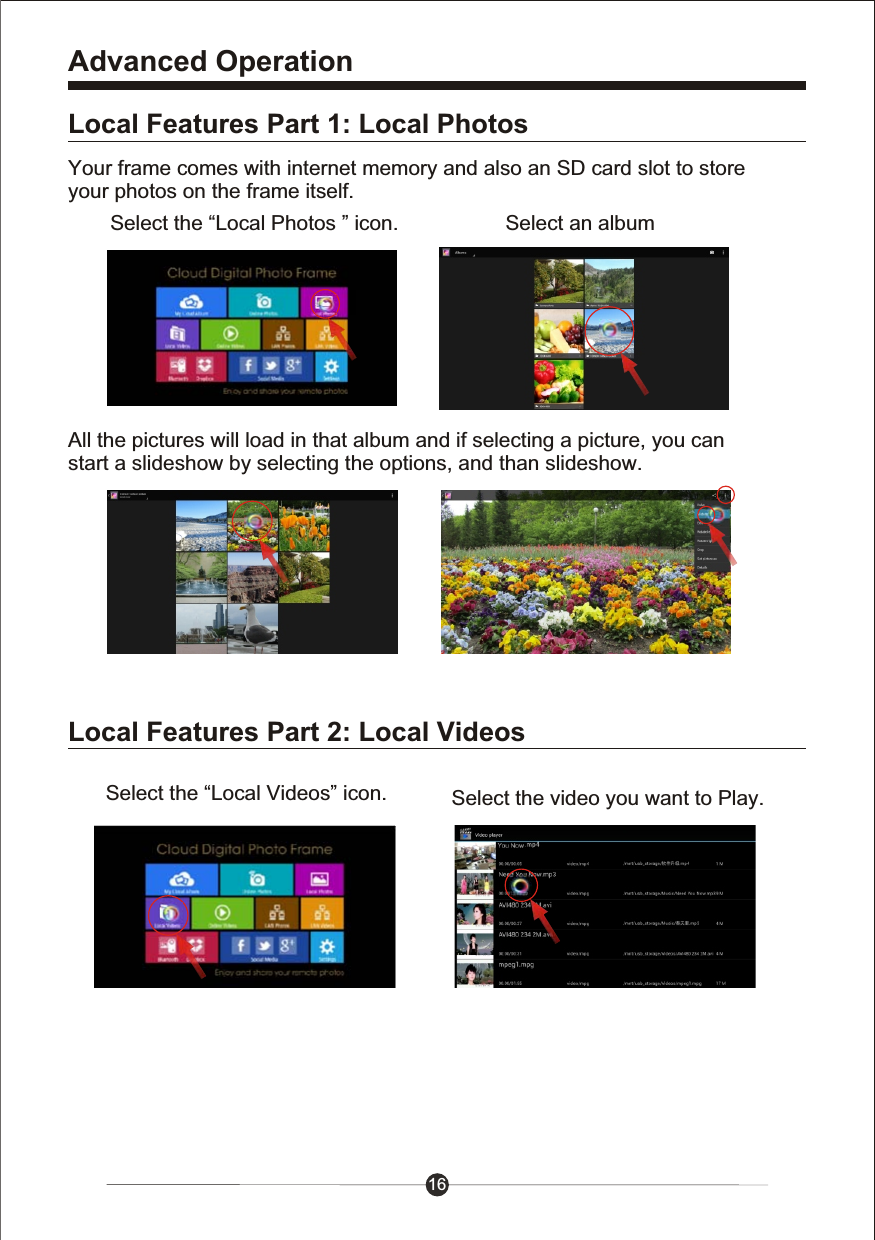
16Advanced OperationLocal Features Part 1: Local PhotosLocal Features Part 2: Local VideosYour frame comes with internet memory and also an SD card slot to store your photos on the frame itself.All the pictures will load in that album and if selecting a picture, you can start a slideshow by selecting the options, and than slideshow.Select the “Local Photos ” icon. Select an albumSelect the “Local Videos” icon. Select the video you want to Play.
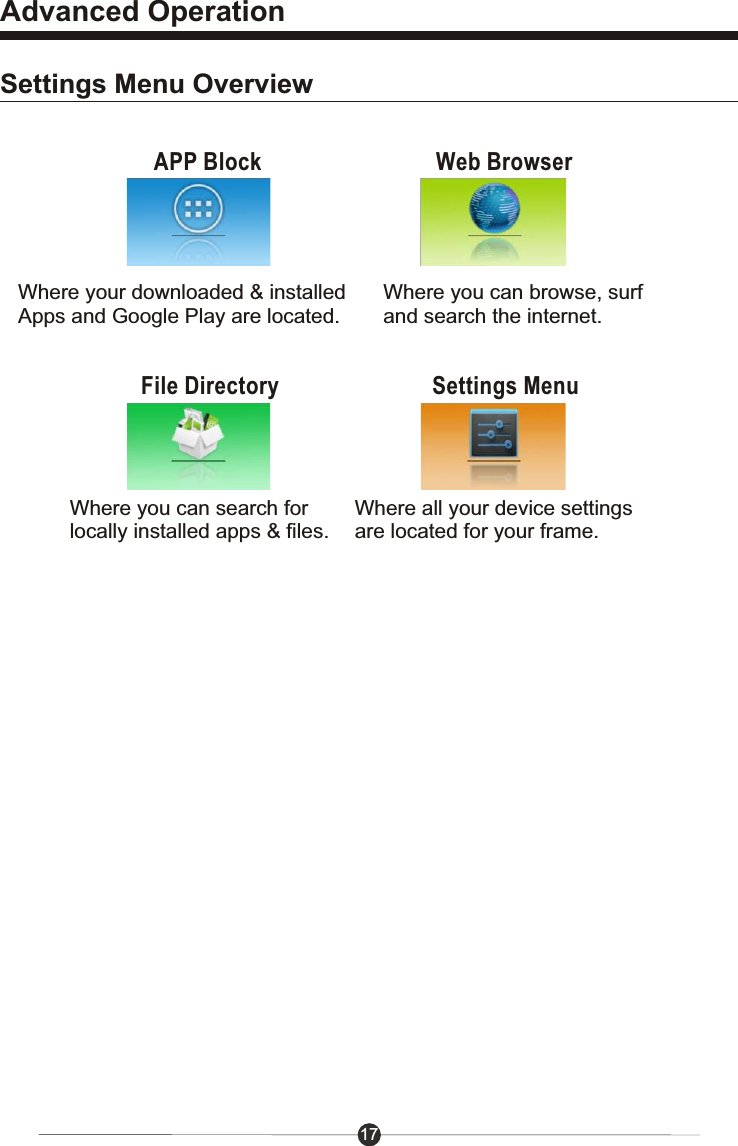
17Advanced OperationSettings Menu OverviewAPP Block Web BrowserFile Directory Settings MenuWhere your downloaded & installed Apps and Google Play are located.Where you can browse, surf and search the internet.Where you can search for locally installed apps & files.Where all your device settings are located for your frame.
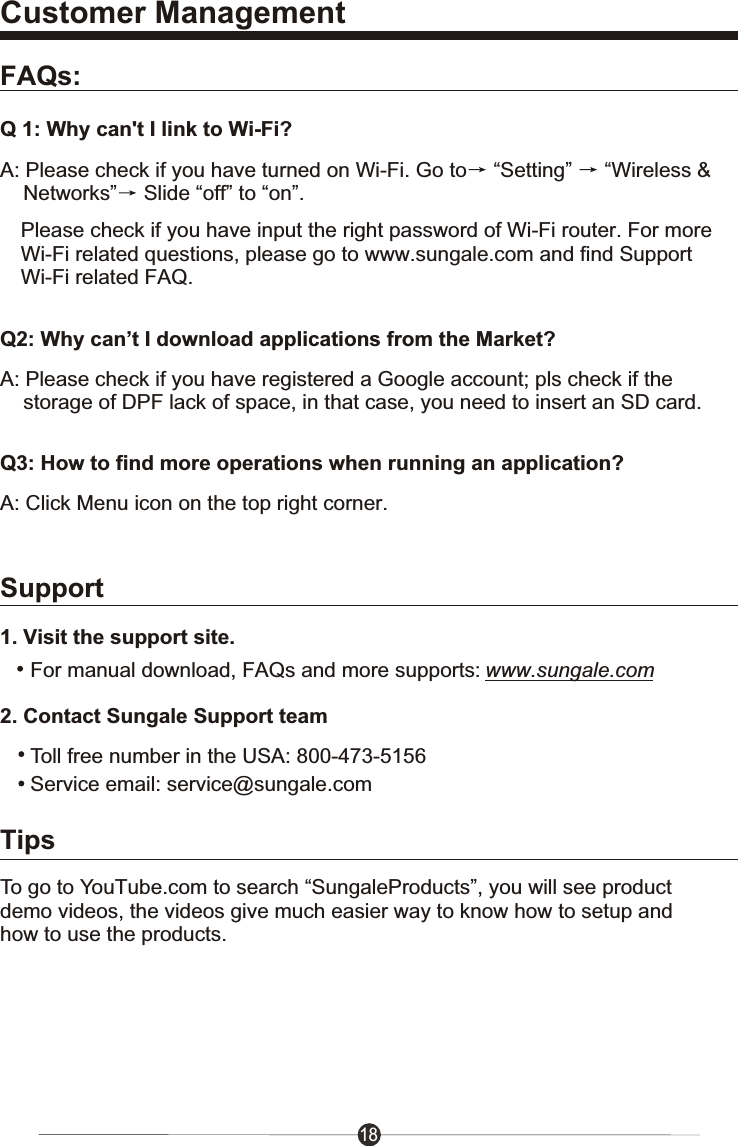
Customer ManagementFAQs:Q 1: Why can't I link to Wi-Fi?A: Please check if you have turned on Wi-Fi. Go to  “Setting”  “Wireless &    Networks”  Slide “off” to “on”.Please check if you have input the right password of Wi-Fi router. For more Wi-Fi related questions, please go to www.sungale.com and find SupportWi-Fi related FAQ.Q2: Why can’t I download applications from the Market?A: Please check if you have registered a Google account; pls check if the     storage of DPF lack of space, in that case, you need to insert an SD card.Q3: How to find more operations when running an application?A: Click Menu icon on the top right corner. 182. Contact Sungale Support team1. Visit the support site.For manual download, FAQs and more supports: www.sungale.comToll free number in the USA: 800-473-5156Service email: service@sungale.comSupportTo go to YouTube.com to search “SungaleProducts”, you will see product demo videos, the videos give much easier way to know how to setup and how to use the products.Tips
FCC  statement  This device complies with Part 15 of the FCC Rules: Operation is subject to  the following two conditions:1. This device may not cause harmful interference and   2. This device must accept any interference that is received, including any interference that may cause undesired operation.This device is acting as slave and operating in the 2.4 GHz (2412 ~2462 MHz) band.Ad Hoc function is supported but not able to operate on non-US frequencies. Do not use the device with the environment which below minimum -10 ć or maximum over 50ć .NOTE: This equipment has been tested and found to comply with the limits for a Class B digital device, pursuant to part 15 of the FCC Rules. These limits are designed to provide reasonable protection against harmful interference in a residential installation. This equipment generates uses and can radiate radio frequency energy and, if not installed and used in accordance with the instructions, may cause harmful interference to radio communications. However, there is no guarantee that interference will not occur in a particular installation. If this equipment does cause harmful interference to radio or television reception, which can be determined by turning the equipment off and on, the user is encouraged to try to correct the interference by one or more of the following measures:    - Reorient or relocate the receiving antenna. - Increase the separation between the equipment and receiver.   -Connect the equipment into an outlet on a circuit different from that to which the receiver is connected.   -Consult the dealer or an experienced radio/TV technician for help
20

Navigation menu