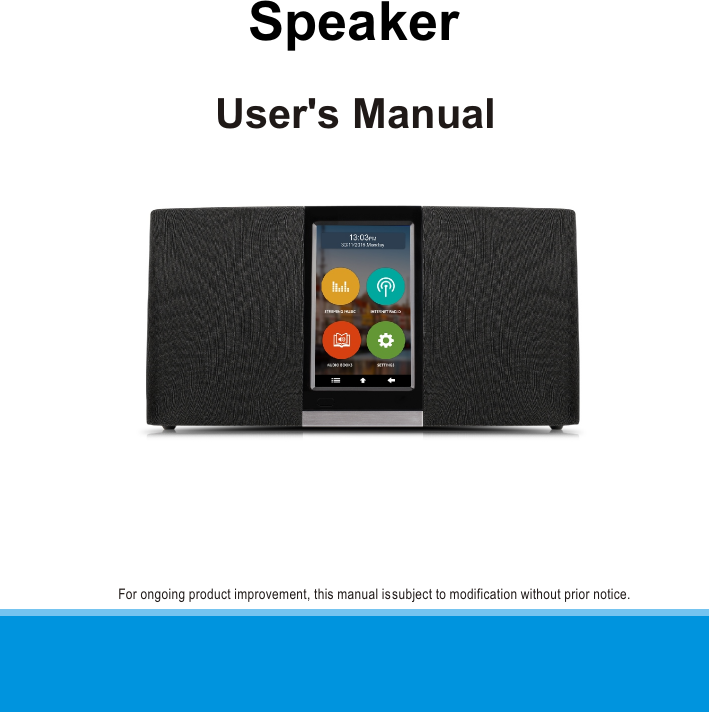
SUNGALE ELECTRONICS 430880K2 Speaker User Manual KWS430 UM EN

SUNGALE ELECTRONICS (SHENZHEN) CO., LTD. Speaker KWS430 UM EN

Users Manual

For ongoing product improvement, this manual is subject to modification without prior notice.User's ManualSpeaker
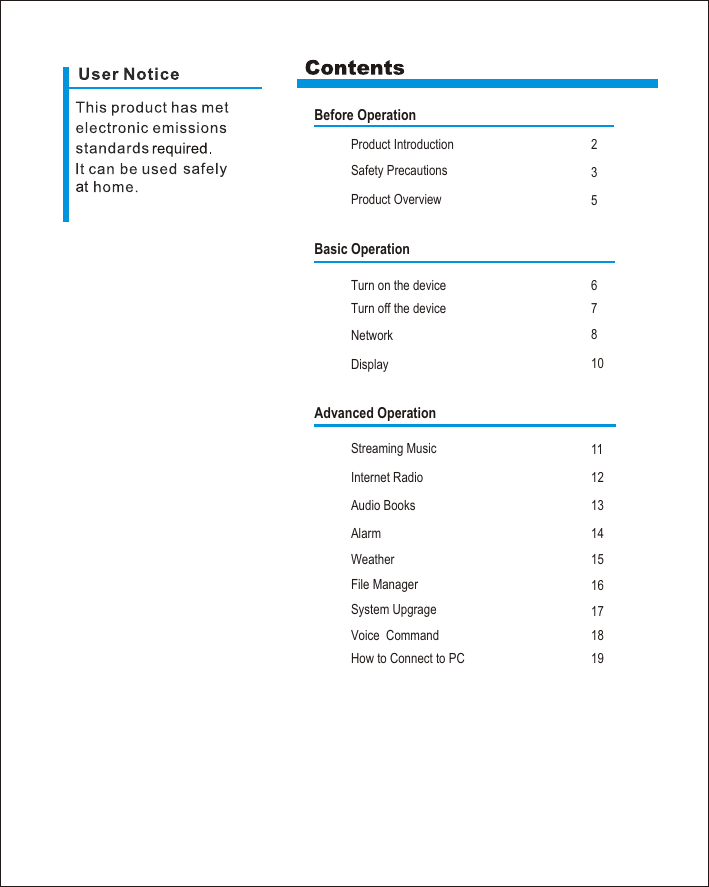
Before OperationProduct IntroductionSafety Precautions2357Basic Operation11Advanced Operation1214161310181517Product OverviewNetwork DisplayStreaming MusicInternet RadioAudio BooksAlarmWeatherFile ManagerSystem UpgrageVoice  Command68Turn on the deviceTurn off the device19How to Connect to PC
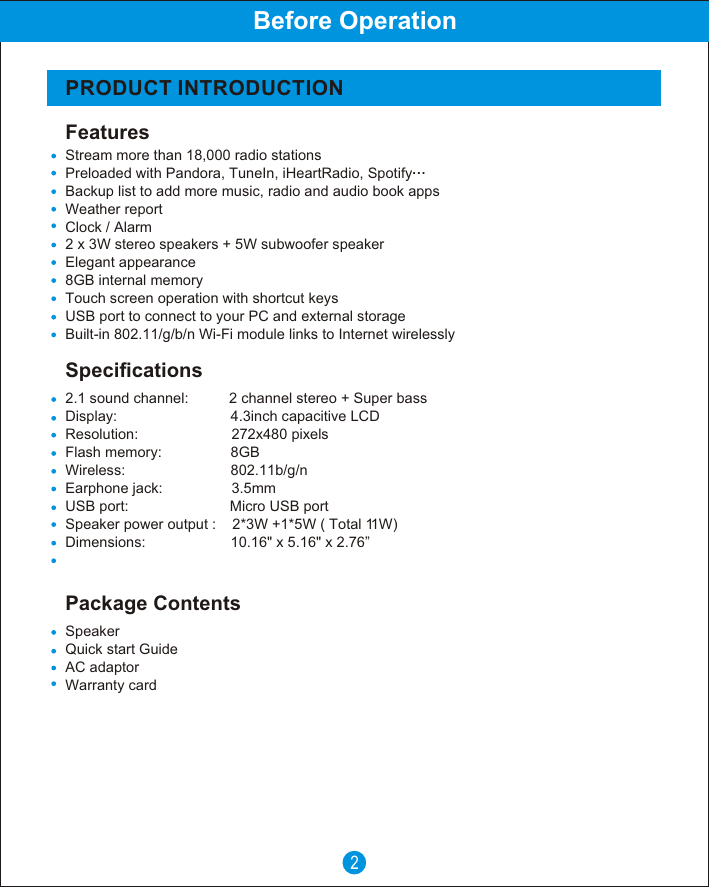
FeaturesSpecificationsPRODUCT INTRODUCTIONBefore Operation2Package ContentsSpeakerQuick start Guide      AC adaptorWarranty card2.1 sound channel:          2 channel stereo + Super bassDisplay:                            4.3inch capacitive LCD Resolution:                       272x480 pixelsFlash memory:                 8GBWireless:                          802.11b/g/nEarphone jack:                 3.5mmUSB port:                         Micro USB portSpeaker power output :    2*3W +1*5W ( Total 11W)Dimensions:                     10.16" x 5.16" x 2.76”Stream more than 18,000 radio stationsPreloaded with Pandora, TuneIn, iHeartRadio, SpotifyBackup list to add more music, radio and audio book appsWeather reportClock / Alarm2 x 3W stereo speakers + 5W subwoofer speakerElegant appearance8GB internal memoryTouch screen operation with shortcut keysUSB port to connect to your PC and external storageBuilt-in 802.11/g/b/n Wi-Fi module links to Internet wirelessly
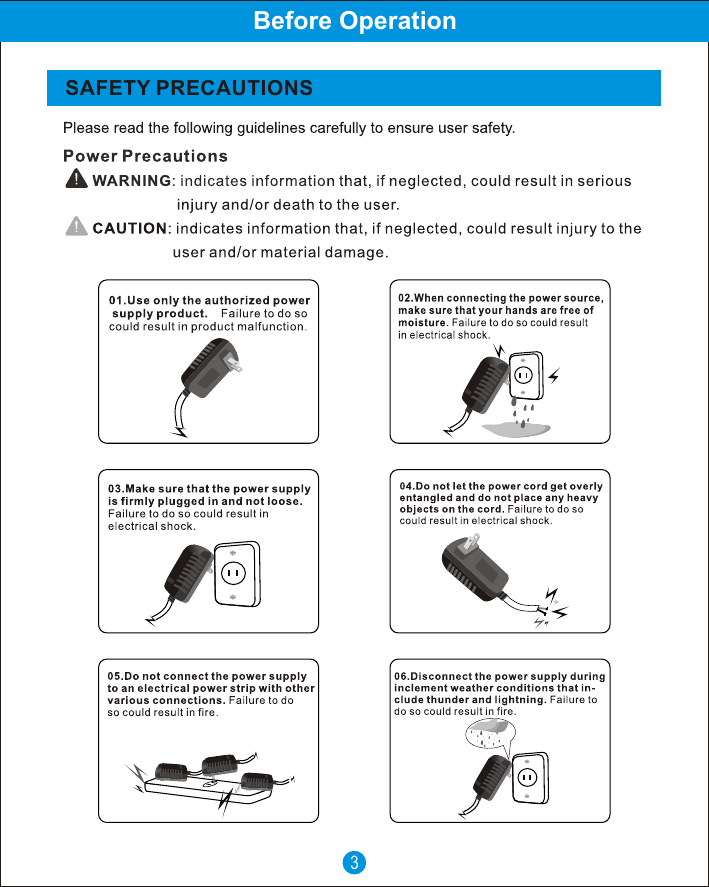
Before Operation3SAFETY PRECAUTIONS
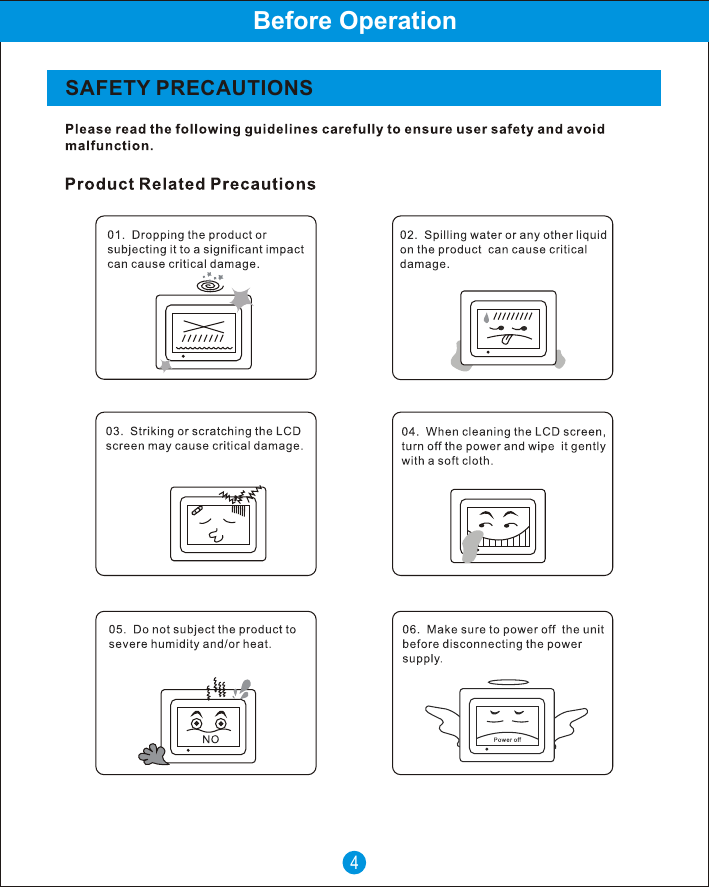
Before Operation4SAFETY PRECAUTIONS
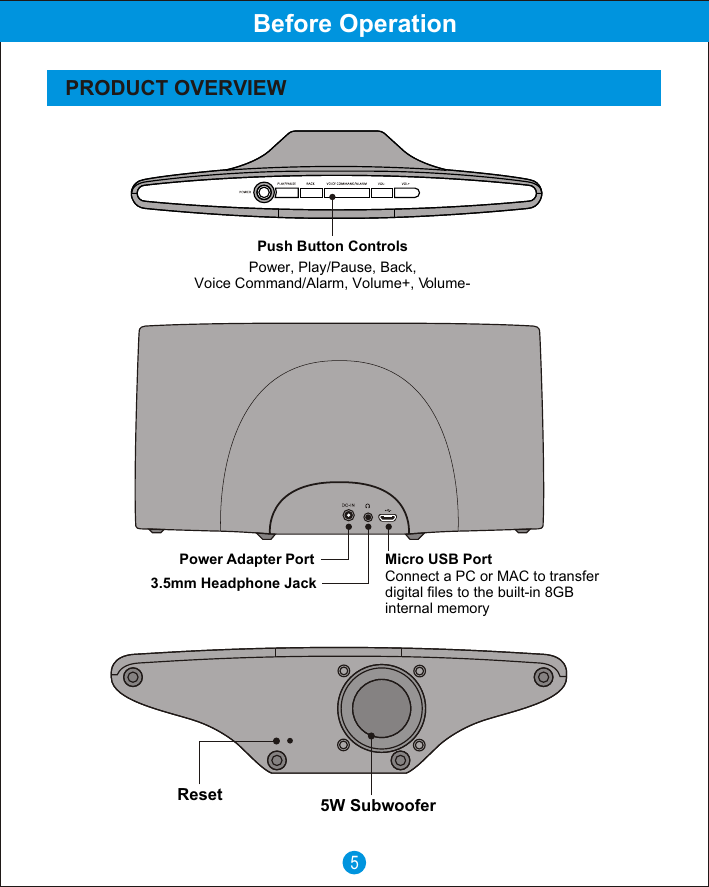
5PRODUCT OVERVIEWReset 5W SubwooferPush Button ControlsPower, Play/Pause, Back, Voice Command/Alarm, Volume+, Volume-Power Adapter Port3.5mm Headphone JackMicro USB Port Connect a PC or MAC to transfer digital files to the built-in 8GB internal memoryBefore Operation
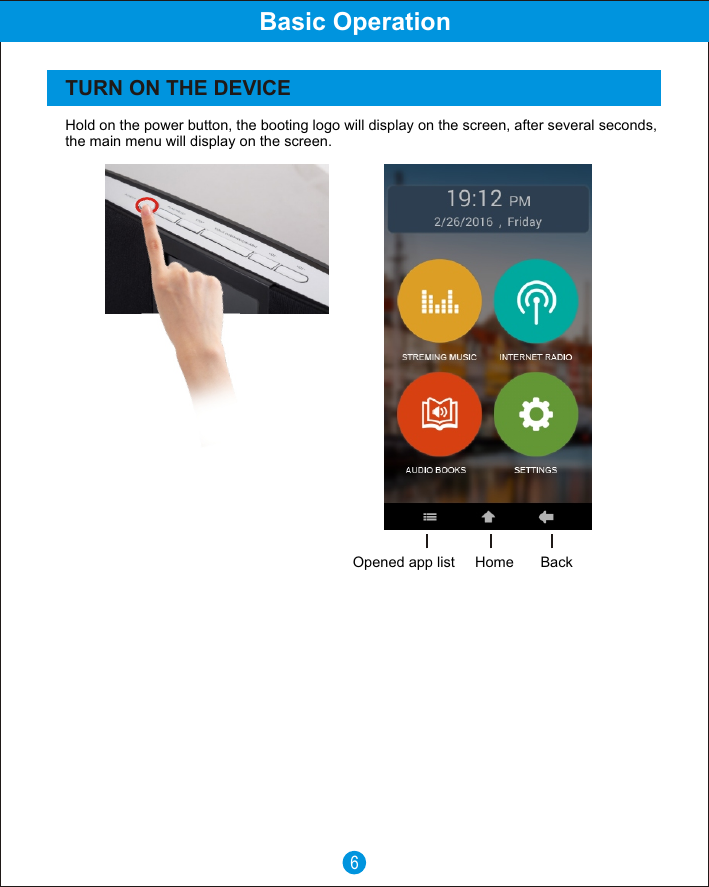
6Basic OperationTURN ON THE DEVICEHold on the power button, the booting logo will display on the screen, after several seconds, the main menu will display on the screen.Opened app list Home Back
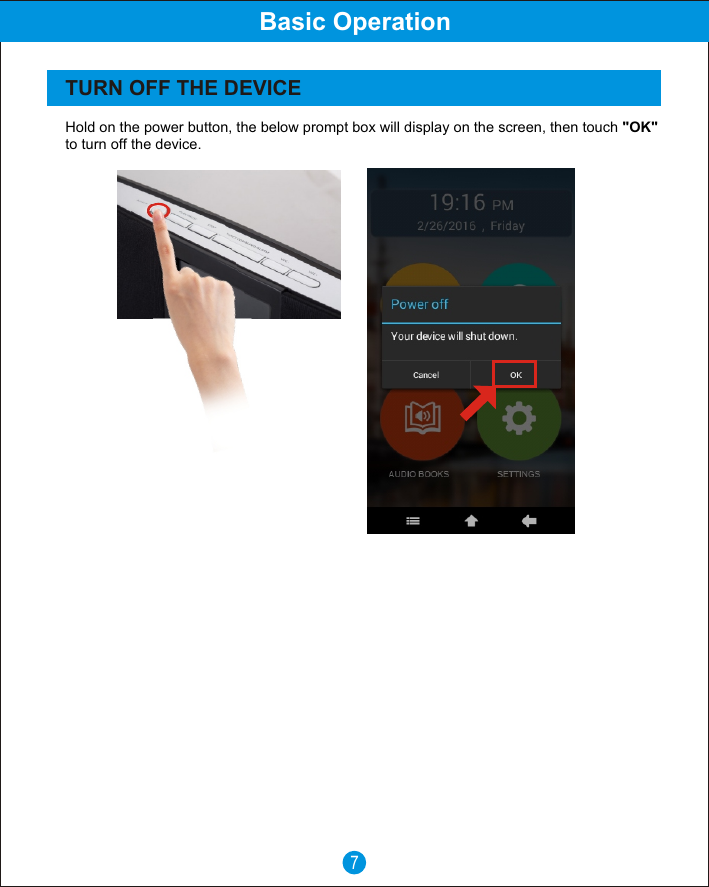
7Basic OperationTURN OFF THE DEVICEHold on the power button, the below prompt box will display on the screen, then touch "OK" to turn off the device.
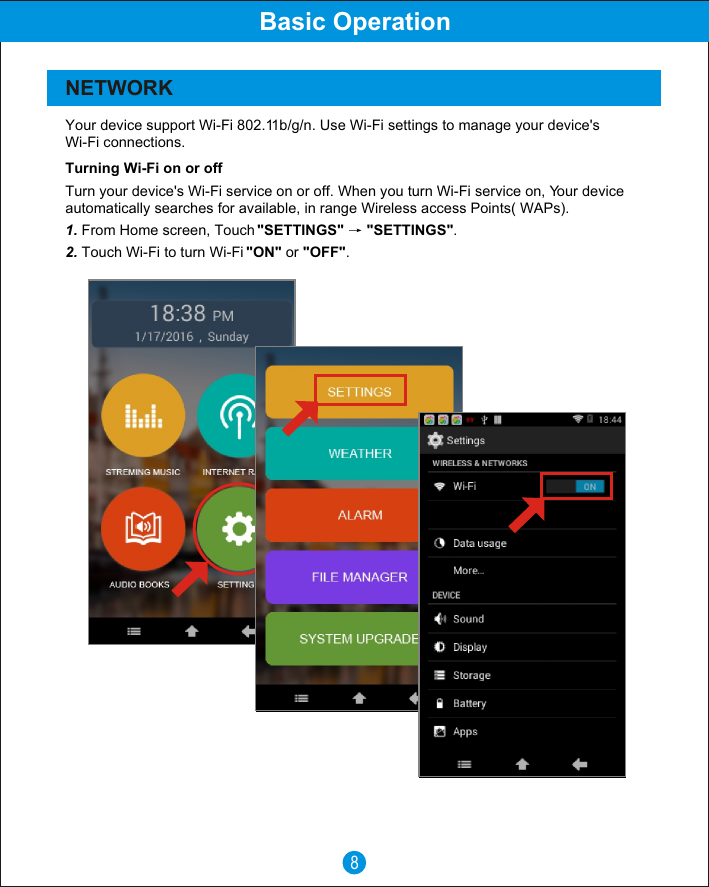
8Basic OperationNETWORK Your device support Wi-Fi 802.11b/g/n. Use Wi-Fi settings to manage your device's Wi-Fi connections.Turning Wi-Fi on or offTurn your device's Wi-Fi service on or off. When you turn Wi-Fi service on, Your device automatically searches for available, in range Wireless access Points( WAPs).1. From Home screen, Touch "SETTINGS"  "SETTINGS".2. Touch Wi-Fi to turn Wi-Fi "ON" or "OFF".
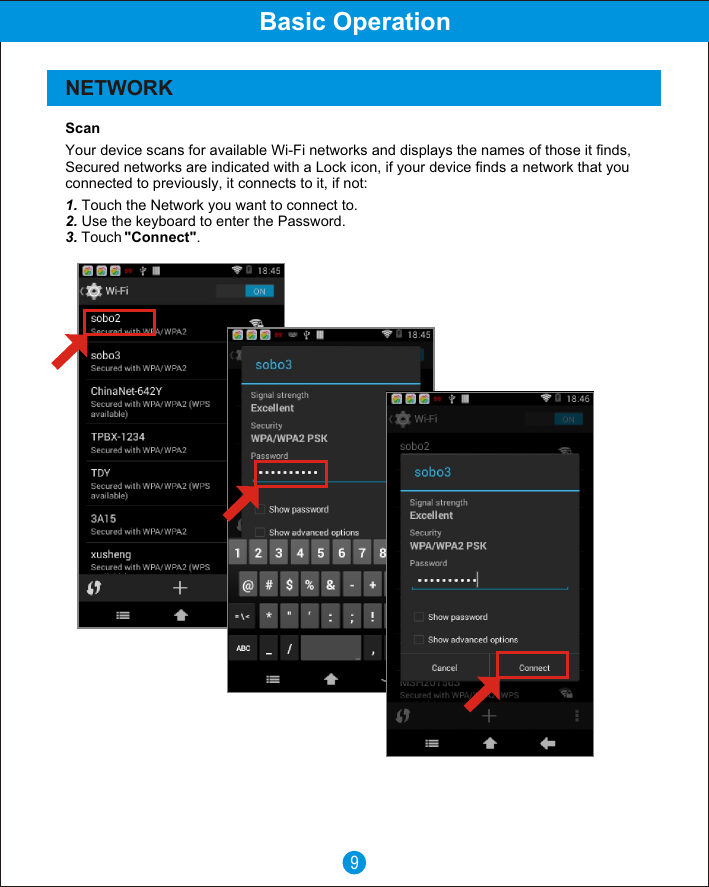
9Basic OperationNETWORK Your device scans for available Wi-Fi networks and displays the names of those it finds, Secured networks are indicated with a Lock icon, if your device finds a network that you connected to previously, it connects to it, if not:Scan1. Touch the Network you want to connect to.2. Use the keyboard to enter the Password.3. Touch "Connect".
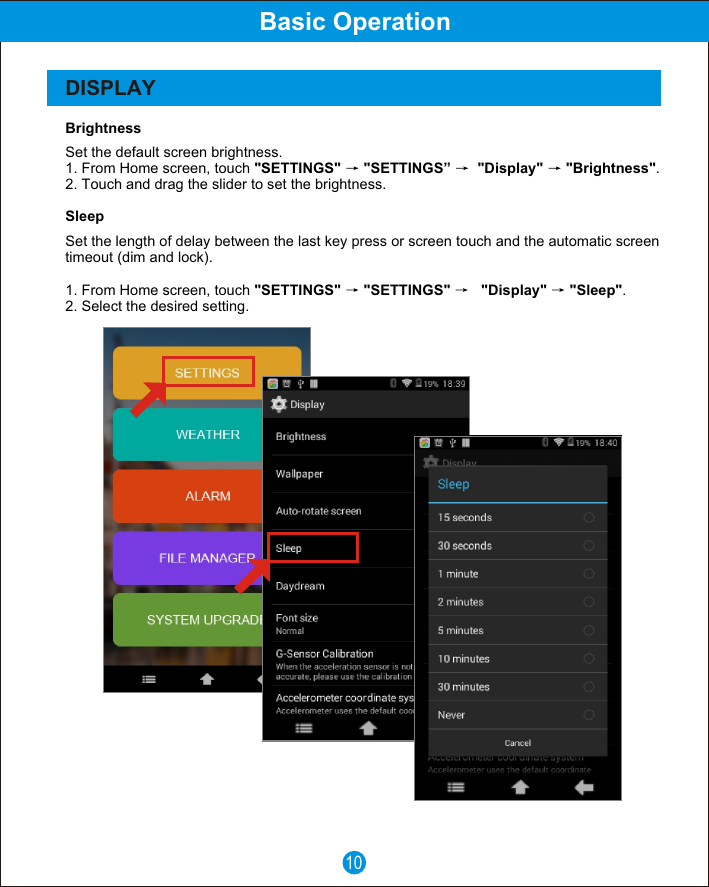
10Basic OperationDISPLAYBrightnessSet the default screen brightness.1. From Home screen, touch "SETTINGS"  "SETTINGS”   "Display"  "Brightness".2. Touch and drag the slider to set the brightness.SleepSet the length of delay between the last key press or screen touch and the automatic screen timeout (dim and lock).1. From Home screen, touch "SETTINGS"  "SETTINGS"     "Display"  "Sleep".2. Select the desired setting.
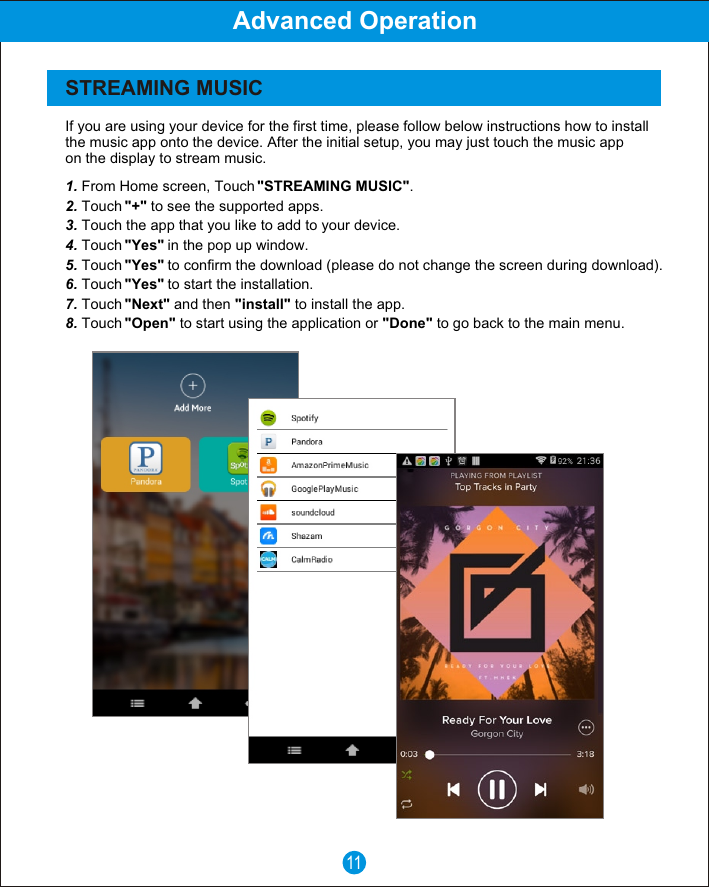
If you are using your device for the first time, please follow below instructions how to install the music app onto the device. After the initial setup, you may just touch the music app on the display to stream music.1. From Home screen, Touch "STREAMING MUSIC".2. Touch "+" to see the supported apps.3. Touch the app that you like to add to your device.4. Touch "Yes" in the pop up window.5. Touch "Yes" to confirm the download (please do not change the screen during download).6. Touch "Yes" to start the installation.7. Touch "Next" and then "install" to install the app.8. Touch "Open" to start using the application or "Done" to go back to the main menu.11STREAMING MUSICAdvanced Operation
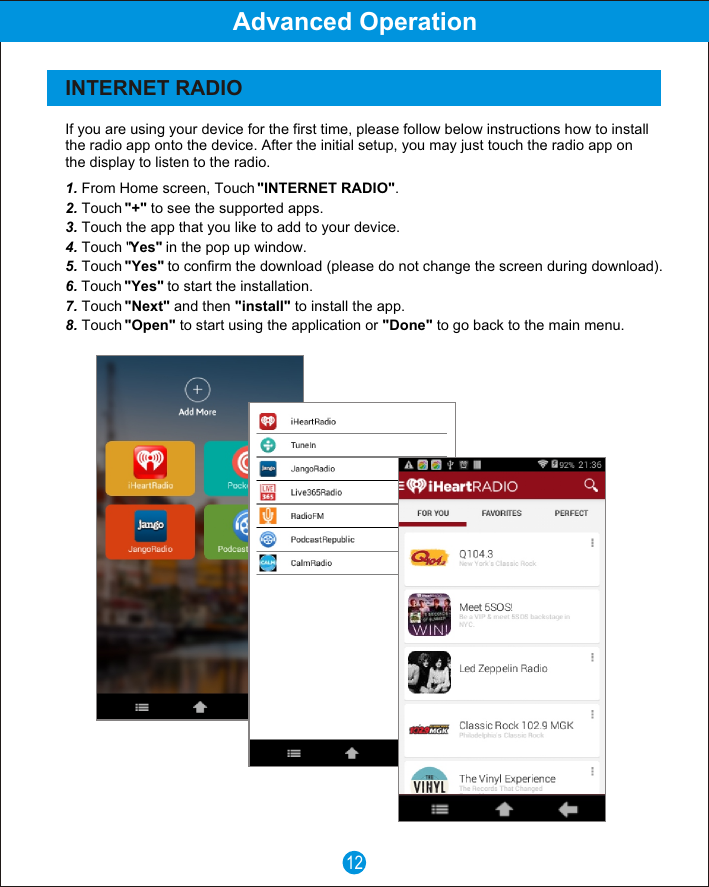
If you are using your device for the first time, please follow below instructions how to install the radio app onto the device. After the initial setup, you may just touch the radio app on the display to listen to the radio.1. From Home screen, Touch "INTERNET RADIO".2. Touch "+" to see the supported apps.3. Touch the app that you like to add to your device.4. Touch "Yes" in the pop up window.5. Touch "Yes" to confirm the download (please do not change the screen during download).6. Touch "Yes" to start the installation.7. Touch "Next" and then "install" to install the app.8. Touch "Open" to start using the application or "Done" to go back to the main menu.12Advanced OperationINTERNET RADIO
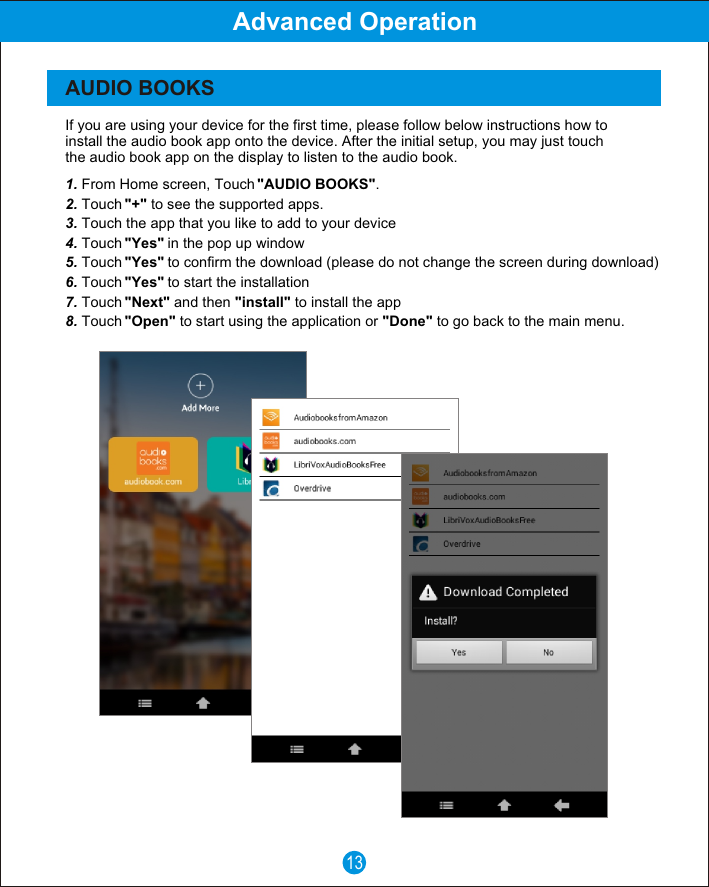
If you are using your device for the first time, please follow below instructions how to install the audio book app onto the device. After the initial setup, you may just touch the audio book app on the display to listen to the audio book.1. From Home screen, Touch "AUDIO BOOKS".2. Touch "+" to see the supported apps.3. Touch the app that you like to add to your device4. Touch "Yes" in the pop up window5. Touch "Yes" to confirm the download (please do not change the screen during download)6. Touch "Yes" to start the installation7. Touch "Next" and then "install" to install the app8. Touch "Open" to start using the application or "Done" to go back to the main menu.13Advanced OperationAUDIO BOOKS
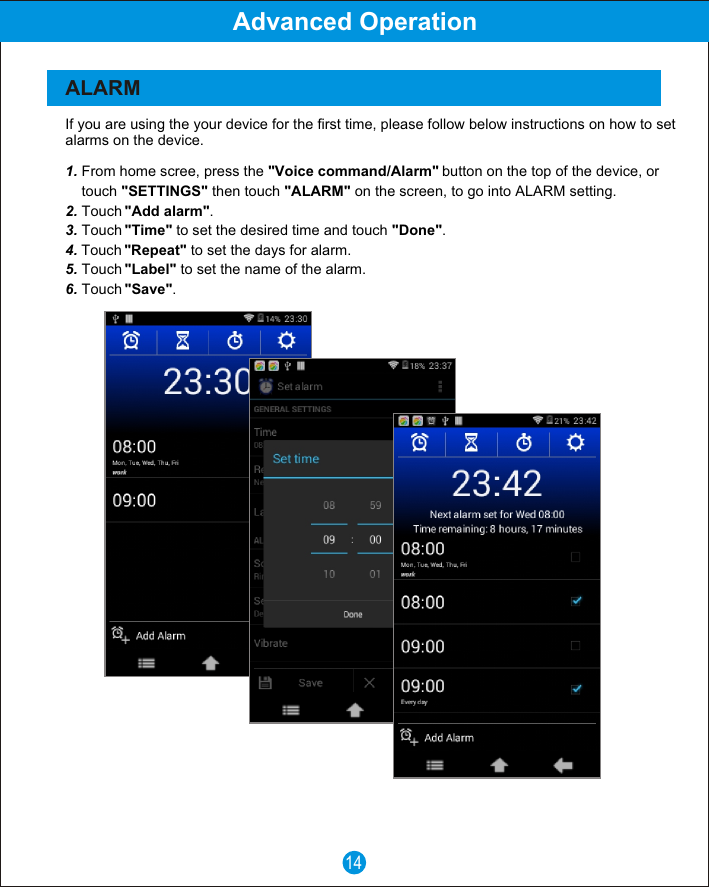
If you are using the your device for the first time, please follow below instructions on how to set alarms on the device.1. From home scree, press the "Voice command/Alarm" button on the top of the device, or     touch "SETTINGS" then touch "ALARM" on the screen, to go into ALARM setting.2. Touch "Add alarm".3. Touch "Time" to set the desired time and touch "Done".4. Touch "Repeat" to set the days for alarm.5. Touch "Label" to set the name of the alarm.6. Touch "Save". 14Advanced OperationALARM
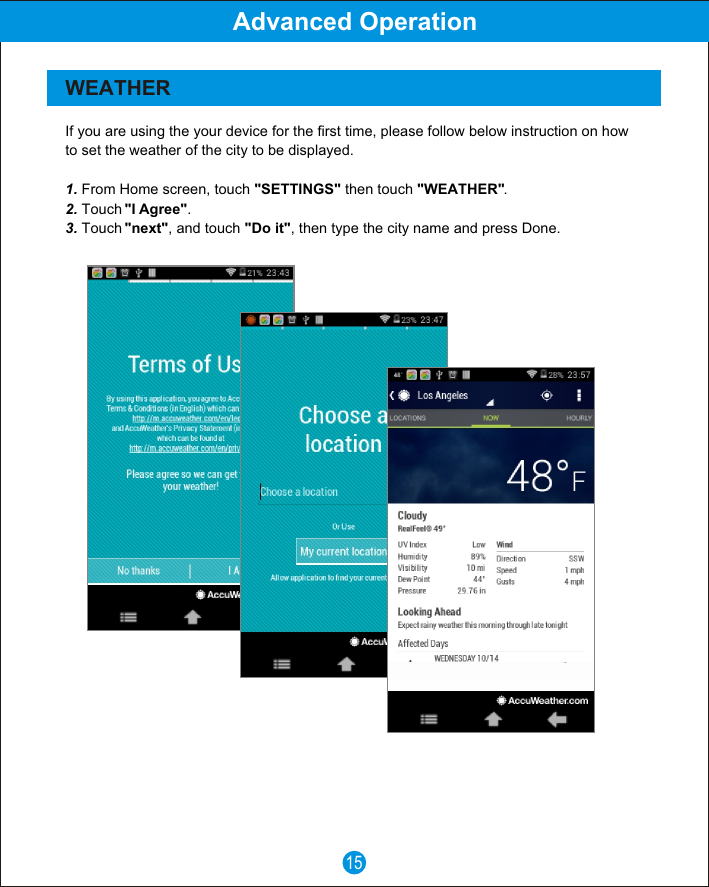
15Advanced OperationWEATHERIf you are using the your device for the first time, please follow below instruction on how to set the weather of the city to be displayed.1. From Home screen, touch "SETTINGS" then touch "WEATHER".2. Touch "I Agree".3. Touch "next", and touch "Do it", then type the city name and press Done.
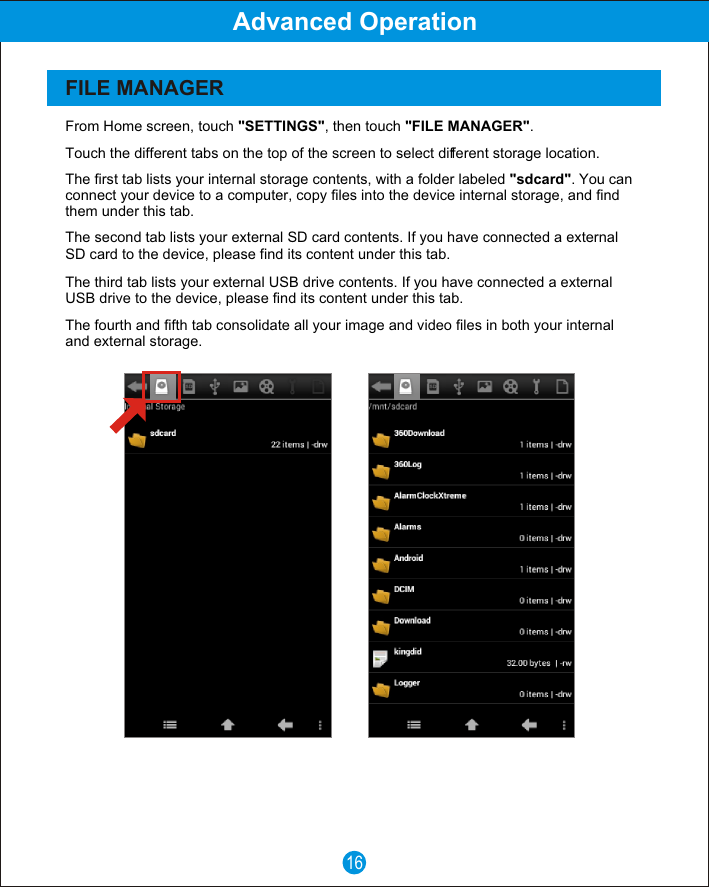
16Advanced OperationFILE MANAGERFrom Home screen, touch "SETTINGS", then touch "FILE MANAGER".The fourth and fifth tab consolidate all your image and video files in both your internal and external storage.The third tab lists your external USB drive contents. If you have connected a external USB drive to the device, please find its content under this tab.The second tab lists your external SD card contents. If you have connected a external SD card to the device, please find its content under this tab.The first tab lists your internal storage contents, with a folder labeled "sdcard". You can connect your device to a computer, copy files into the device internal storage, and find them under this tab.Touch the different tabs on the top of the screen to select different storage location.
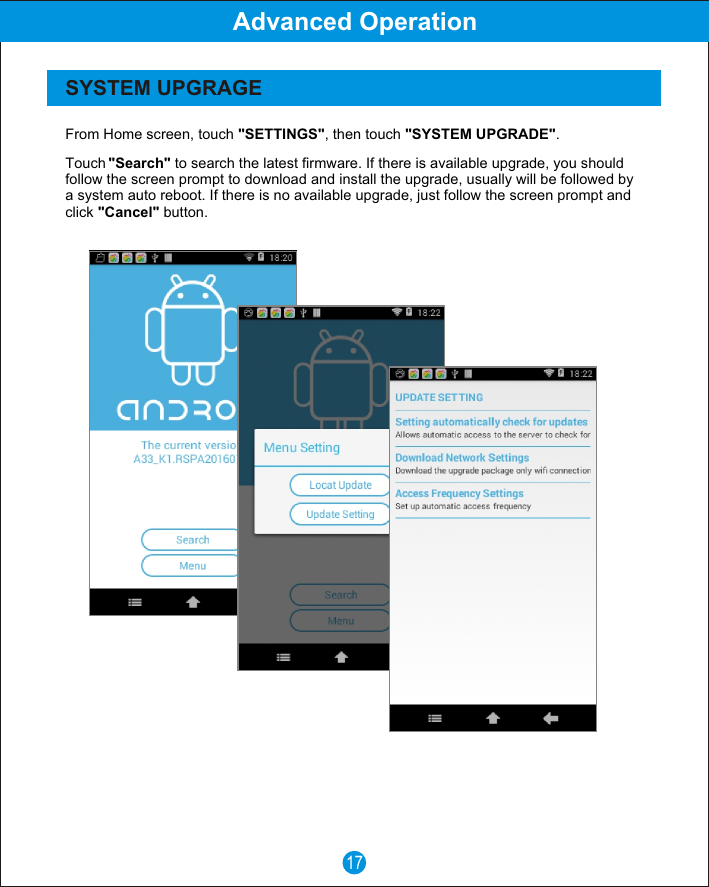
17Advanced OperationSYSTEM UPGRAGETouch "Search" to search the latest firmware. If there is available upgrade, you should follow the screen prompt to download and install the upgrade, usually will be followed by a system auto reboot. If there is no available upgrade, just follow the screen prompt and click "Cancel" button.From Home screen, touch "SETTINGS", then touch "SYSTEM UPGRADE".
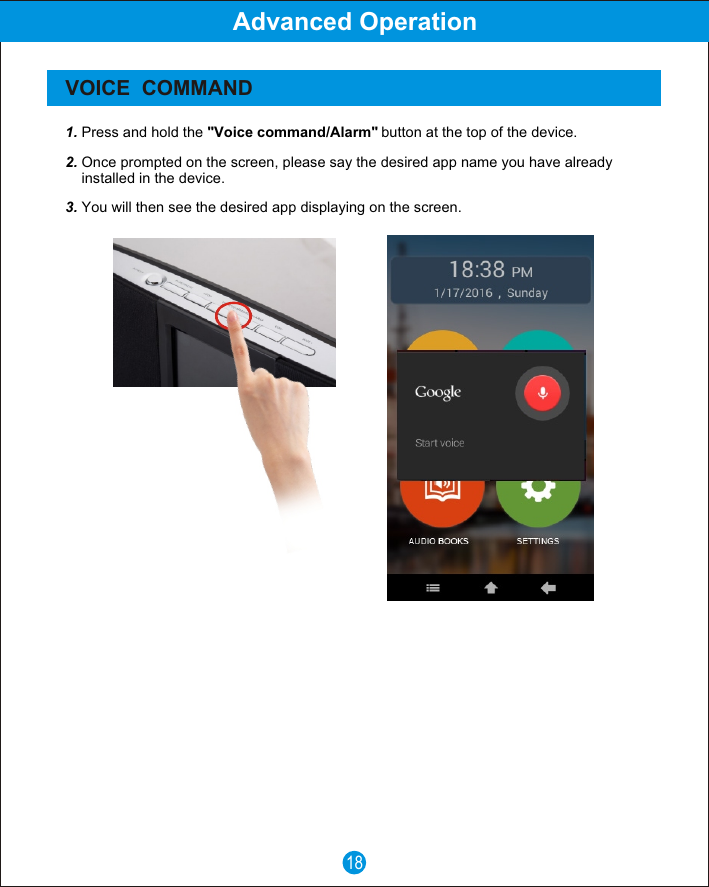
18Advanced OperationVOICE  COMMAND1. Press and hold the "Voice command/Alarm" button at the top of the device.2. Once prompted on the screen, please say the desired app name you have already     installed in the device.3. You will then see the desired app displaying on the screen.
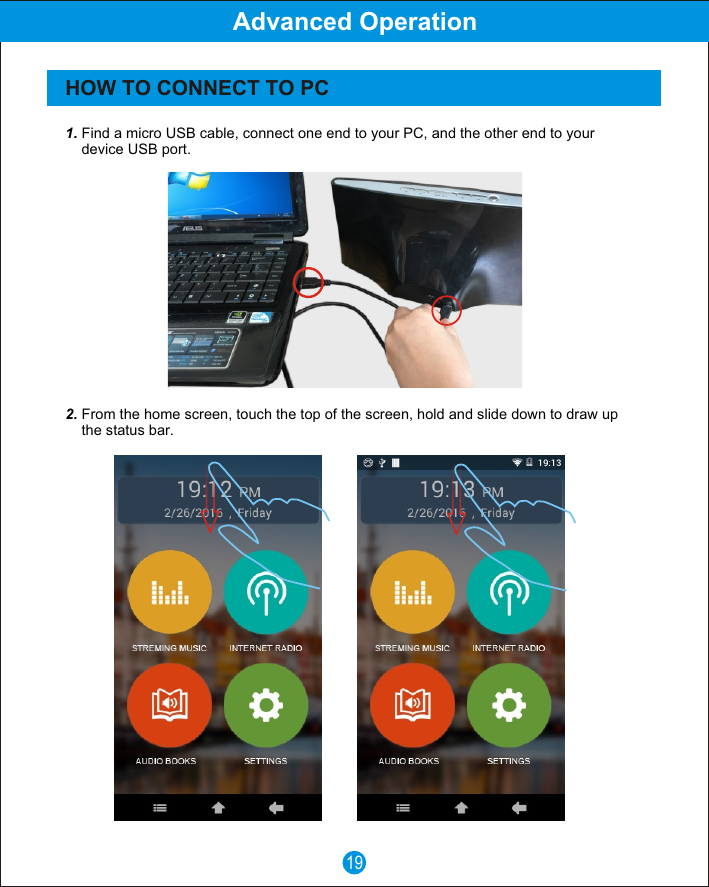
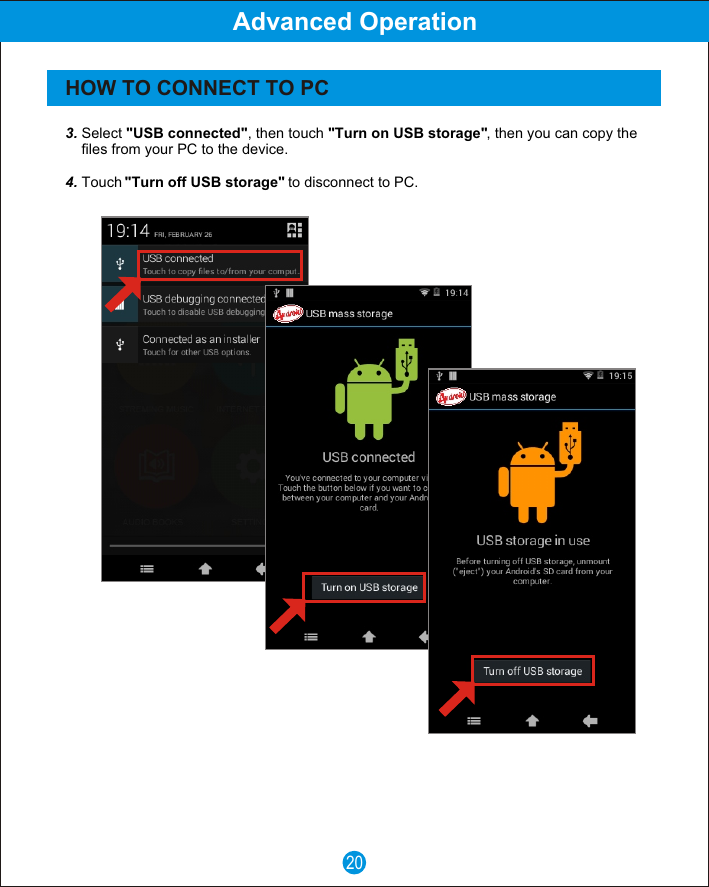
19Advanced OperationHOW TO CONNECT TO PC1. Find a micro USB cable, connect one end to your PC, and the other end to your     device USB port.2. From the home screen, touch the top of the screen, hold and slide down to draw up     the status bar.
20Advanced OperationHOW TO CONNECT TO PC3. Select "USB connected", then touch "Turn on USB storage", then you can copy the     files from your PC to the device.4. Touch "Turn off USB storage" to disconnect to PC.
21FCC StatementThis device complies with Part 15 of the FCC rules. Operation is subject to the following twoconditions: 1) this device may not cause harmful interference, and 2) this device must acceptany interference received, including interference that may cause undesired operation.Note: This equipment has been tested and found to comply with the limits for a Class B digital device, pursuant to part 15 of the FCC Rules. These limits are designed to provide reasonableprotection against harmful interference in a residential installation. This equipment generatesuses and can radiate radio frequency energy and, if not installed and used in accordance withthe instructions, may cause harmful interference to radio communications. However, there is noguarantee that interference will not occur in particular installation. If this equipment does causeharmful interference to radio or television reception, which can be determined by turning theequipment off and on, the user is encouraged to try to correct the interference by one or moreof the following measures:--Reorient or relocate the receiving antenna.--Increase the separation between the equipment and receiver.--Connect the equipment into an outlet on a circuit different from that to which the receiver isconnected.--Consult the dealer or an experienced radio/TV technician for help.Changes or modifications not expressly approved by the party responsible for compliance couldvoid the user’s authority to operate the equipment.This equipment complies with FCC radiation exposure limits set forth for an uncontrolledenvironment. User should avoid un-intended operation of usage when it is collocated with othertransmitters or antenna. The distance between user and products should be no less than 20cm

Navigation menu