SUNGALE ELECTRONICS MIDID7101018 MID User Manual

SUNGALE ELECTRONICS (SHENZHEN) CO., LTD. MID Users Manual

Contents

User Manual

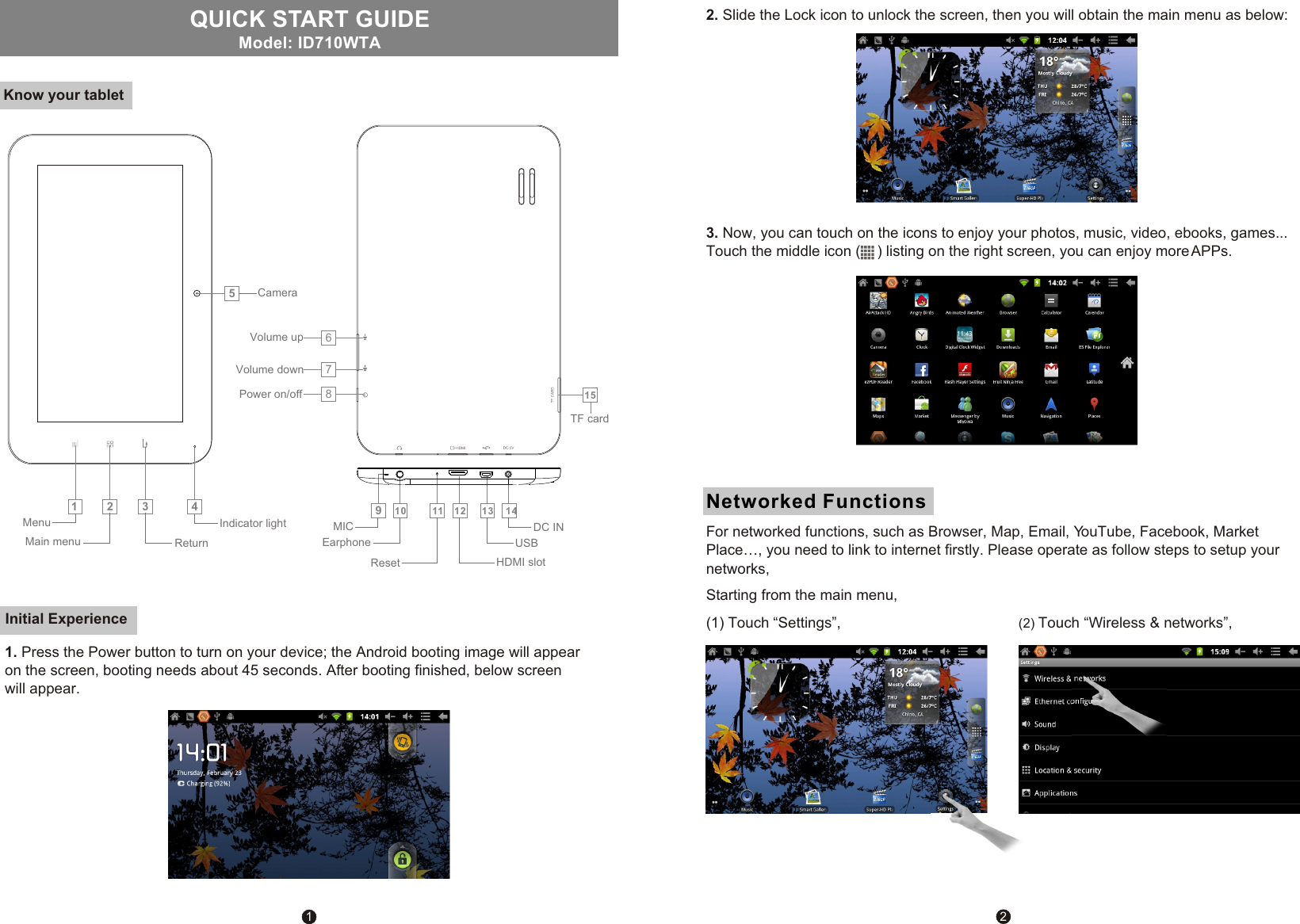
1QUICK START GUIDE Know your tabletModel: ID710WTAInitial Experience2Networked FunctionsStarting from the main menu, (1) Touch “Settings”, (2) Touch “Wireless & networks”,2. Slide the Lock icon to unlock the screen, then you will obtain the main menu as below:123567810 11 12 13 141594Indicator light Menu Main menu Return CameraPower on/off Volume down Volume upMICEarphoneReset HDMI slotUSBDC IN TF card1. Press the Power button to turn on your device; the Android booting image will appear on the screen, booting needs about 45 seconds. After booting finished, below screen will appear.3. Now, you can touch on the icons to enjoy your photos, music, video, ebooks, games...Touch the middle icon (    ) listing on the right screen, you can enjoy more APPs.For networked functions, such as Browser, Map, Email, YouTube, Facebook, Market Place…, you need to link to internet firstly. Please operate as follow steps to setup your networks,
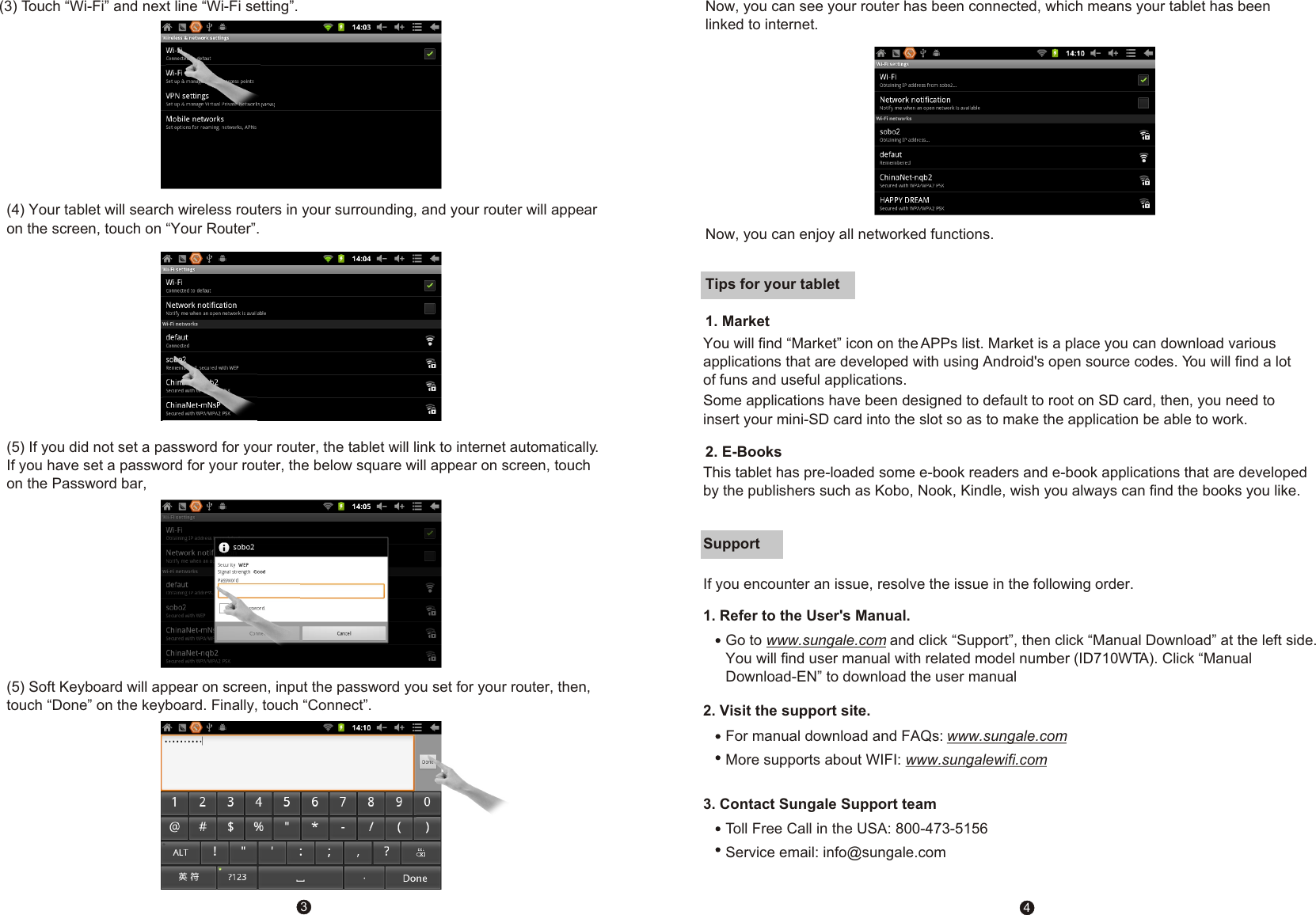
(5) If you did not set a password for your router, the tablet will link to internet automatically. If you have set a password for your router, the below square will appear on screen, touch on the Password bar,34Tips for your tablet1. Market 2. E-BooksSupport    3. Contact Sungale Support teamIf you encounter an issue, resolve the issue in the following order.1. Refer to the User's Manual.Go to www.sungale.com and click “Support”, then click “Manual Download” at the left side. You will find user manual with related model number (ID710WTA). Click “Manual Download-EN” to download the user manual2. Visit the support site.For manual download and FAQs: www.sungale.comMore supports about WIFI: www.sungalewifi.comToll Free Call in the USA: 800-473-5156Service email: info@sungale.com(4) Your tablet will search wireless routers in your surrounding, and your router will appear on the screen, touch on “Your Router”.  (5) Soft Keyboard will appear on screen, input the password you set for your router, then, touch “Done” on the keyboard. Finally, touch “Connect”.Now, you can see your router has been connected, which means your tablet has been linked to internet. Now, you can enjoy all networked functions. This tablet has pre-loaded some e-book readers and e-book applications that are developed by the publishers such as Kobo, Nook, Kindle, wish you always can find the books you like.(3) Touch “Wi-Fi” and next line “Wi-Fi setting”.You will find “Market” icon on the APPs list. Market is a place you can download various applications that are developed with using Android's open source codes. You will find a lot of funs and useful applications.  Some applications have been designed to default to root on SD card, then, you need to insert your mini-SD card into the slot so as to make the application be able to work.
Changes or modifications not expressly approved by the party responsible for compliance could void the user's authority to operate the equipment. This equipment has been tested and found to comply with the limits for a Class B digital device, pursuant to Part 15 of the FCC Rules.  These limits are designed to provide reasonable protection against harmful interference in a residential installation. This equipment generates uses and can radiate radio frequency energy and, if not installed and used in accordance with the instructions, may cause harmful interference to radio communications.  However, there is no guarantee that interference will not occur in a particular installation.  If this equipment does cause harmful interference to radio or television reception, which can be determined by turning the equipment off and on, the user is encouraged to try to correct the interference by one or more of the following measures:-- Reorient or relocate the receiving antenna.   -- Increase the separation between the equipment and receiver.     -- Connect the equipment into an outlet on a circuit different from that to which the receiver is connected.   -- Consult the dealer or an experienced radio/TV technician for help

Navigation menu